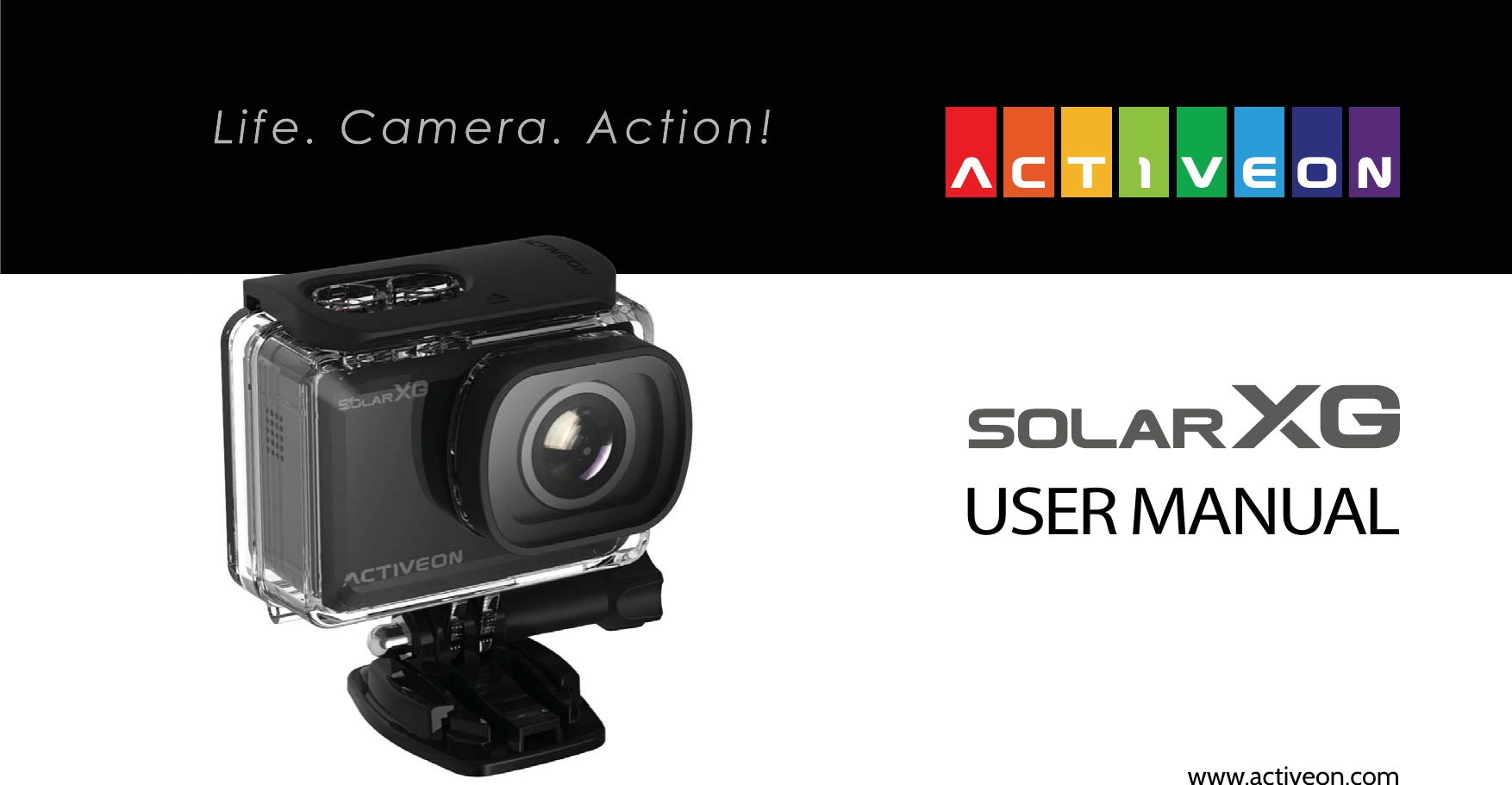
Clicka XCA01 Action Camera User Manual ACTIVEON SOLAR XG UM v1 0 5

Clicka Holdings, Inc. Action Camera ACTIVEON SOLAR XG UM v1 0 5

Users Manual

USER MANUALwww.activeon.com
1245678101214171718182021222396969798※ CAUTION ※ FCC RADIO FREQUENCY INTERFERENCE STATEMENT※ RF Exposure Information (SAR)※ WarrantyTable of Contents1. Name of each part2. How to use3. Start the camera4. LCD screen shot5. Graphical icon description6. Mode menu7. Video mode8. Photo mode9. Playback mode10. Setup mode11. Quick menu12. Recharging Battery13. Smart phone control14. Connect ACTIVEON SOLAR XG to smartphone(using ACTIVEON HUB)15. Transferring data to computer16. Firmware update17. Features and specication 18. Inside the Package
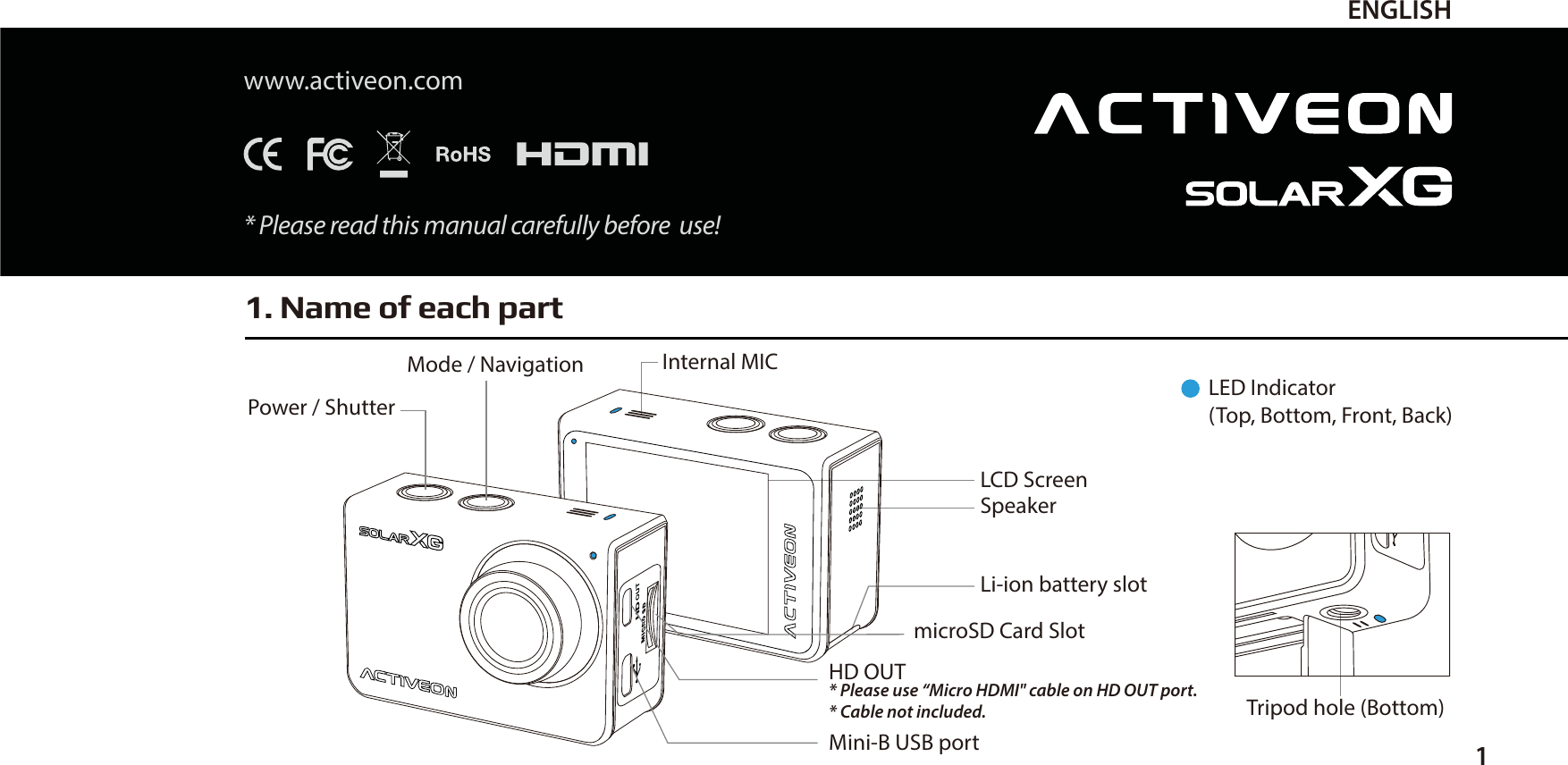
1. Name of each part1ENGLISHLED Indicator(Top, Bottom, Front, Back)Tripod hole (Bottom)Mode / Navigation Internal MICPower / ShutterLCD ScreenLi-ion battery slotHD OUT* Please use “Micro HDMI" cable on HD OUT port.* Cable not included.Mini-B USB portmicroSD Card SlotSpeakerwww.activeon.com* Please read this manual carefully before  use!
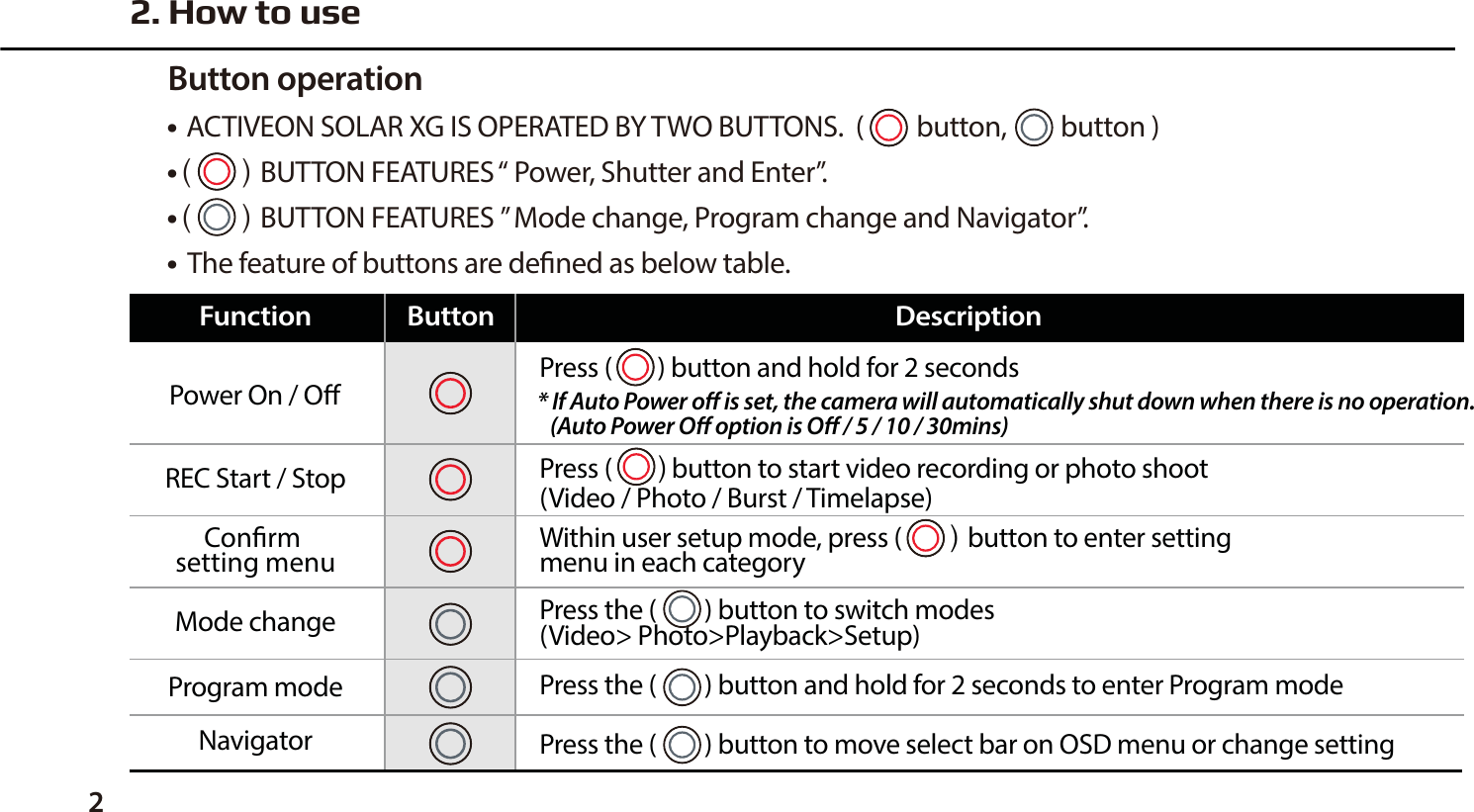
22. How to use● ACTIVEON SOLAR XG IS OPERATED BY TWO BUTTONS.  (  button,         button )● BUTTON FEATURES “ Power, Shutter and Enter”.● BUTTON FEATURES ” Mode change, Program change and Navigator”.●  The feature of buttons are dened as below table.Button operationPress (    button to start video recording or photo shoot (Video / Photo / Burst / Timelapse)Power On / OREC Start / StopConrm setting menuFunction Button DescriptionWithin user setup mode, press (button to enter setting menu in each categoryPress (        ) button and hold for 2 seconds* If Auto Power o is set, the camera will automatically shut down when there is no operation.   (Auto Power O option is O / 5 / 10 / 30mins)Mode changeNavigatorProgram modePress the (        ) button to switch modes (Video> Photo>Playback>Setup)Press the (        ) button and hold for 2 seconds to enter Program modePress the (        ) button to move select bar on OSD menu or change setting
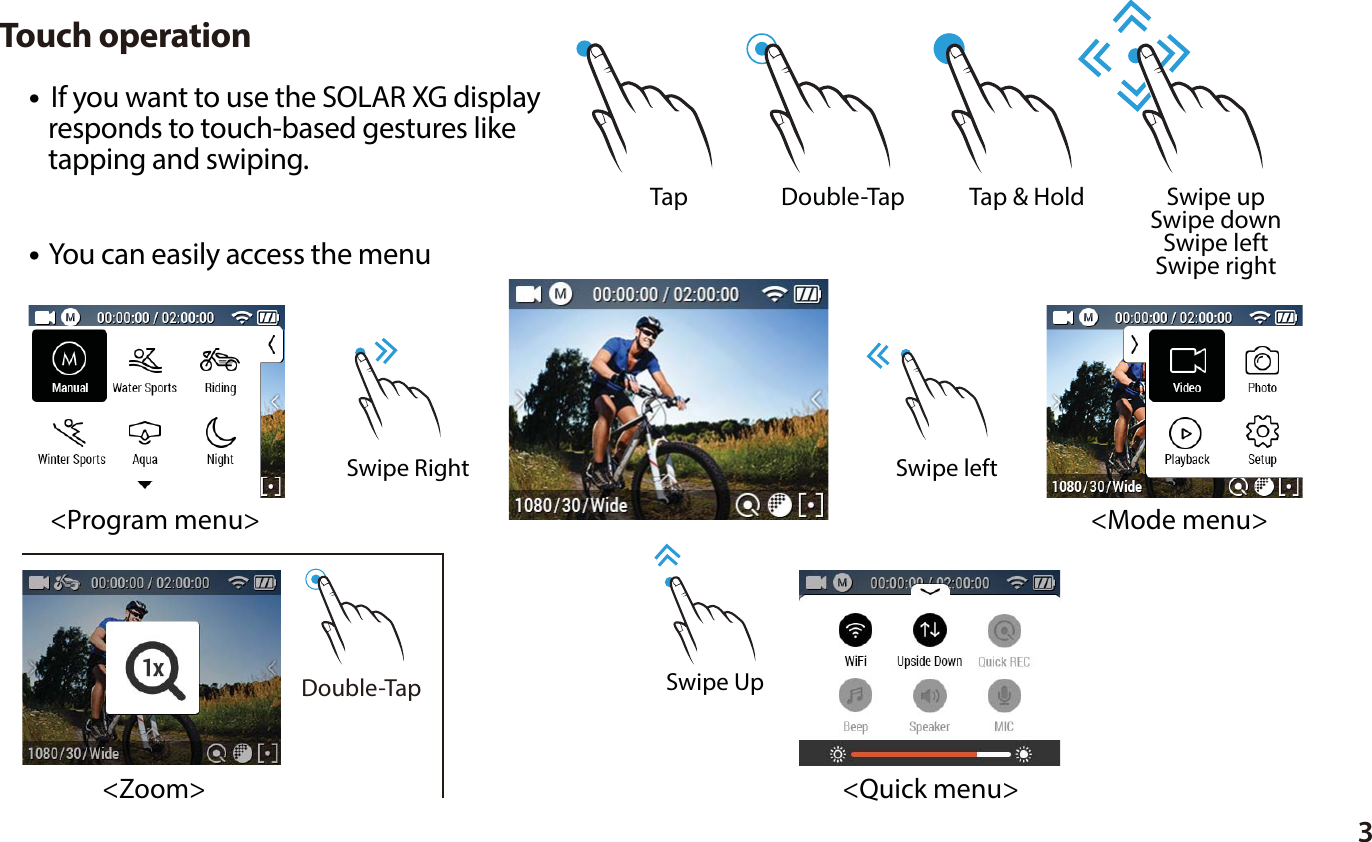
3●  If you want to use the SOLAR XG display   responds to touch-based gestures like   tapping and swiping.Touch operation Tap  Tap & Hold Double-Tap Swipe upSwipe downSwipe leftSwipe right Double-Tap● You can easily access the menuSwipe UpSwipe leftSwipe Right<Program menu><Quick menu><Mode menu><Zoom>
4How to unlock the Touch operation● SOLAR XG includes special power saving features.1. Auto Backlight Dimming : When you set [Auto LCD O], auto backlight dimming will start at mid-                                                        point of your setting time.2. Quick LCD OFF : [During video recording] Tap and hold the screen for 2-3 seconds. LCD will go o automatically.                                    * For turning on the LCD again, please press the (        ) button once.                                    * If lock image appears, please refer to How-to-Unlock-the-Touch-Operation guide.Power saving features● If you want to use touch operation, tap   the screen rst.   And then it will show " Lock image".   Tap and hold the "Lock image" until the   live screen is ready.3. Getting Started1. Open the battery cover and insert ACTIVEON SOLAR XG Li-ion battery.2. Insert microSD Card on the microSD Card slot. (The camera will not record when microSD Card is not inserted.)3. Press the (     ) button and hold for two seconds. (The camera will turn on and  LCD screen will display live screen.)
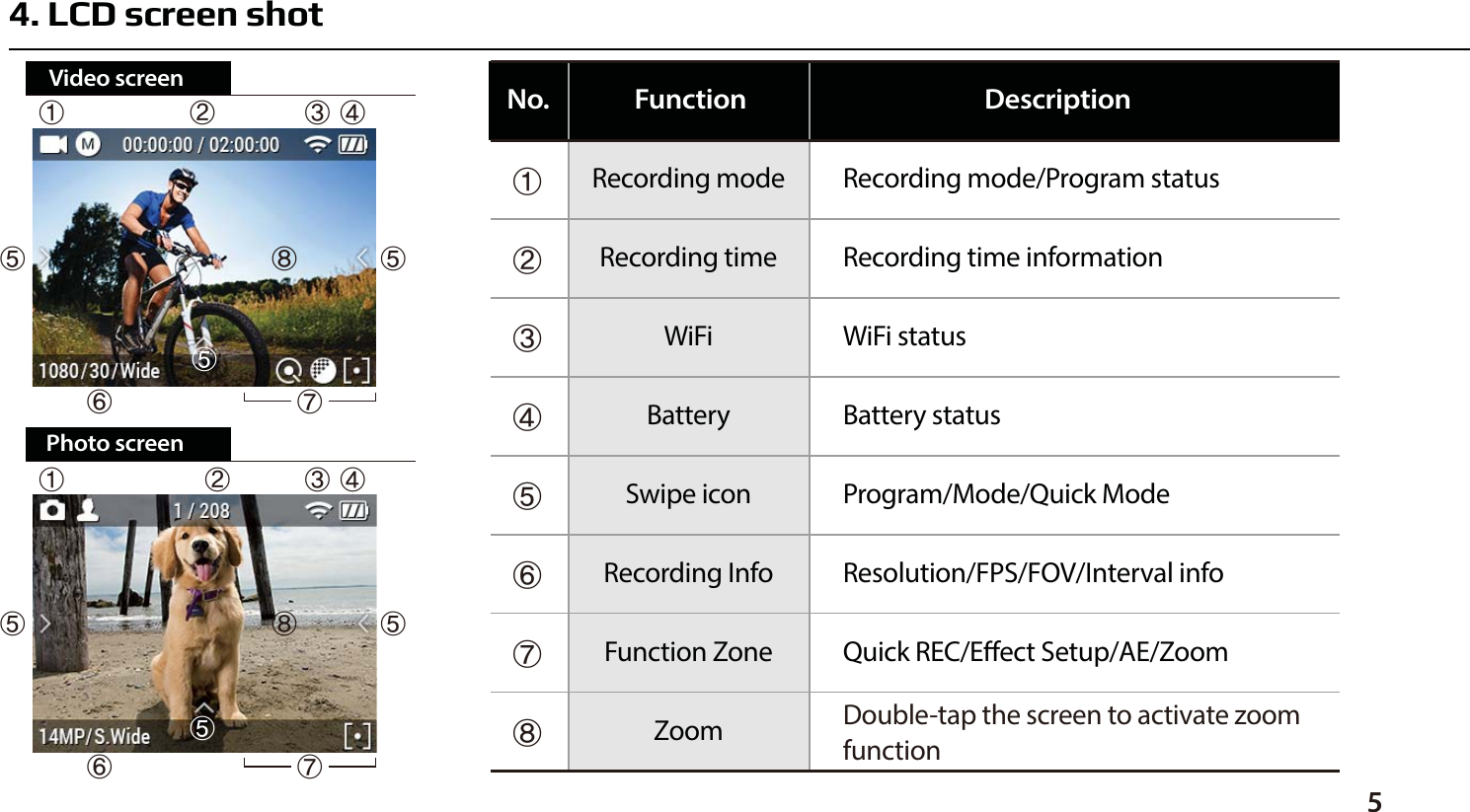
ⴝⴞⴟⴘⴙⴚⴛⴜRecording mode/Program statusRecording time informationWiFi statusBattery statusProgram/Mode/Quick ModeResolution/FPS/FOV/Interval infoQuick REC/Eect Setup/AE/ZoomDouble-tap the screen to activate zoomfunctionRecording modeRecording timeWiFiBatterySwipe iconRecording InfoFunction ZoneZoomFunctionNo. Description54. LCD screen shotⴝⴘⴙⴚⴛⴜⴜⴜⴜⴞⴞⴟⴟⴝⴘⴙⴚⴛⴜⴜPhoto screenVideo screenⴜⴟ
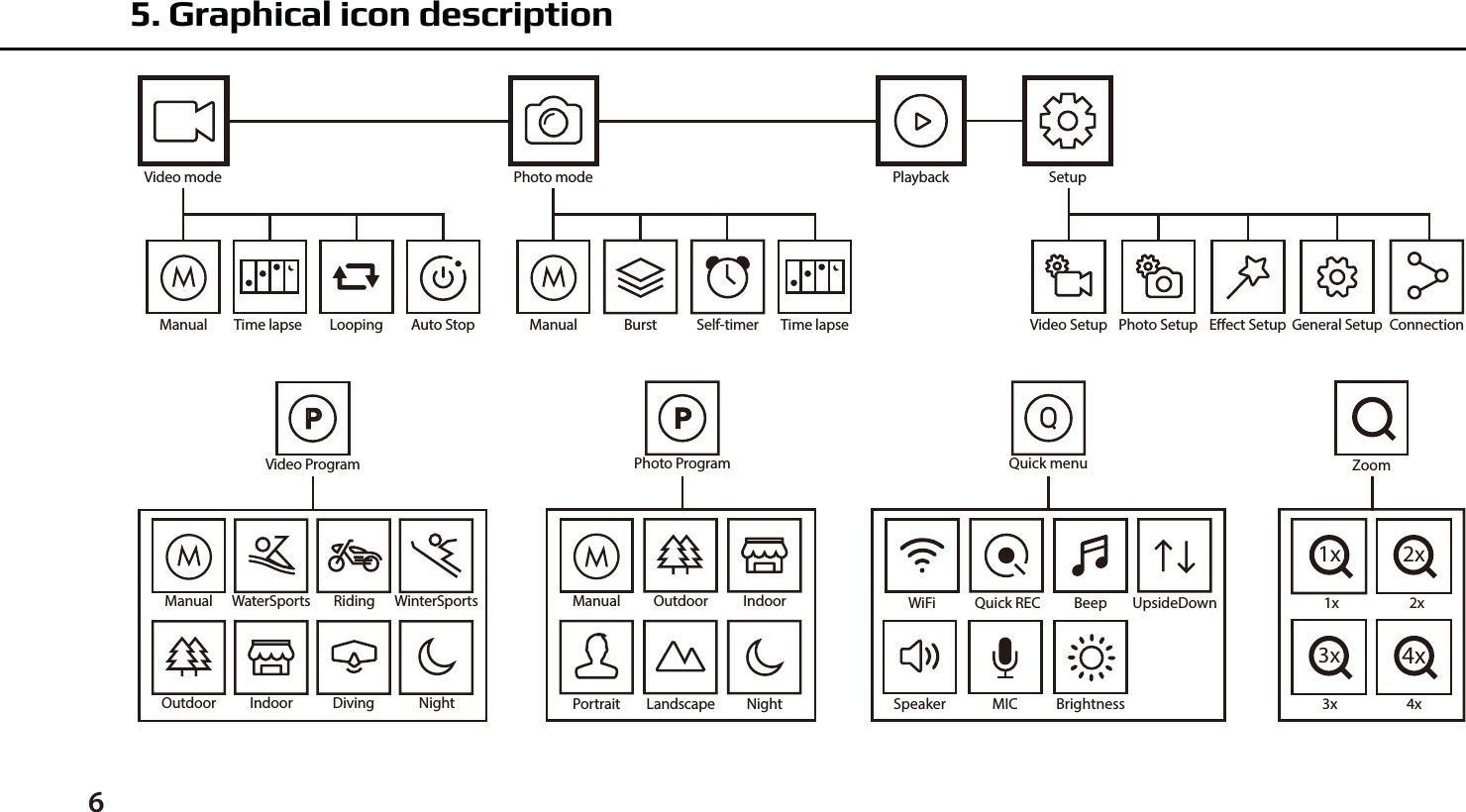
5. Graphical icon description6ManualVideo ProgramDivingWinterSportsRidingOutdoor Indoor NightWaterSports WiFi Quick REC Beep UpsideDownSpeaker MIC BrightnessQuick menu1x1x2x2x3x3x4x4xZoomManualPhoto ProgramOutdoor IndoorNightPortrait LandscapeVideo mode Playback SetupTime lapse Looping Auto Stop Video Setup Photo Setup Eect Setup General Setup ConnectionPhoto modeTime lapseBurst Self-timerManual Manual
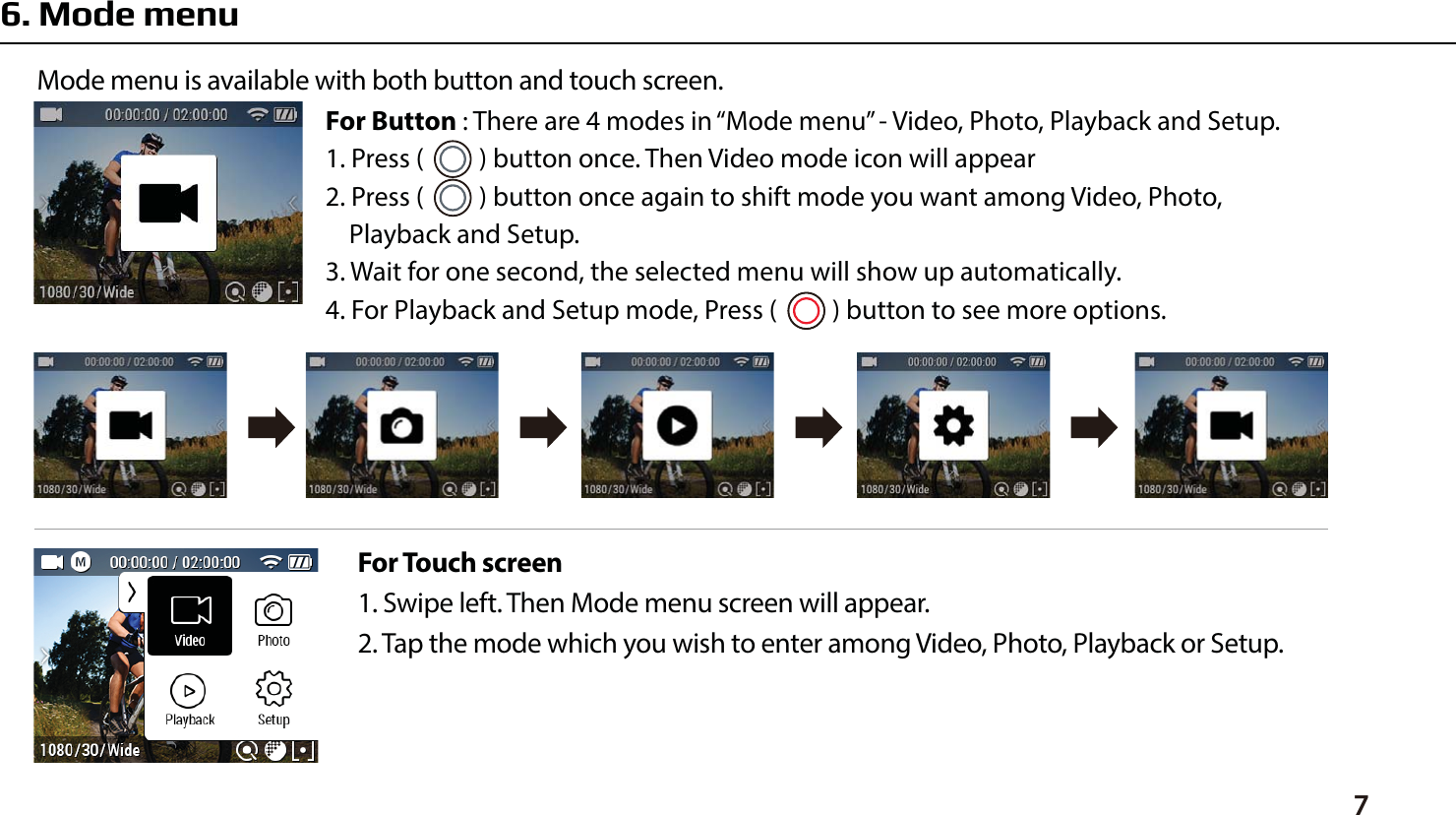
76. Mode menuFor Touch screen1. Swipe left. Then Mode menu screen will appear. 2. Tap the mode which you wish to enter among Video, Photo, Playback or Setup.Mode menu is available with both button and touch screen. For Button : There are 4 modes in “Mode menu” - Video, Photo, Playback and Setup.1. Press (      ) button once. Then Video mode icon will appear2. Press (      ) button once again to shift mode you want among Video, Photo,    Playback and Setup.3. Wait for one second, the selected menu will show up automatically.4. For Playback and Setup mode, Press (      ) button to see more options.
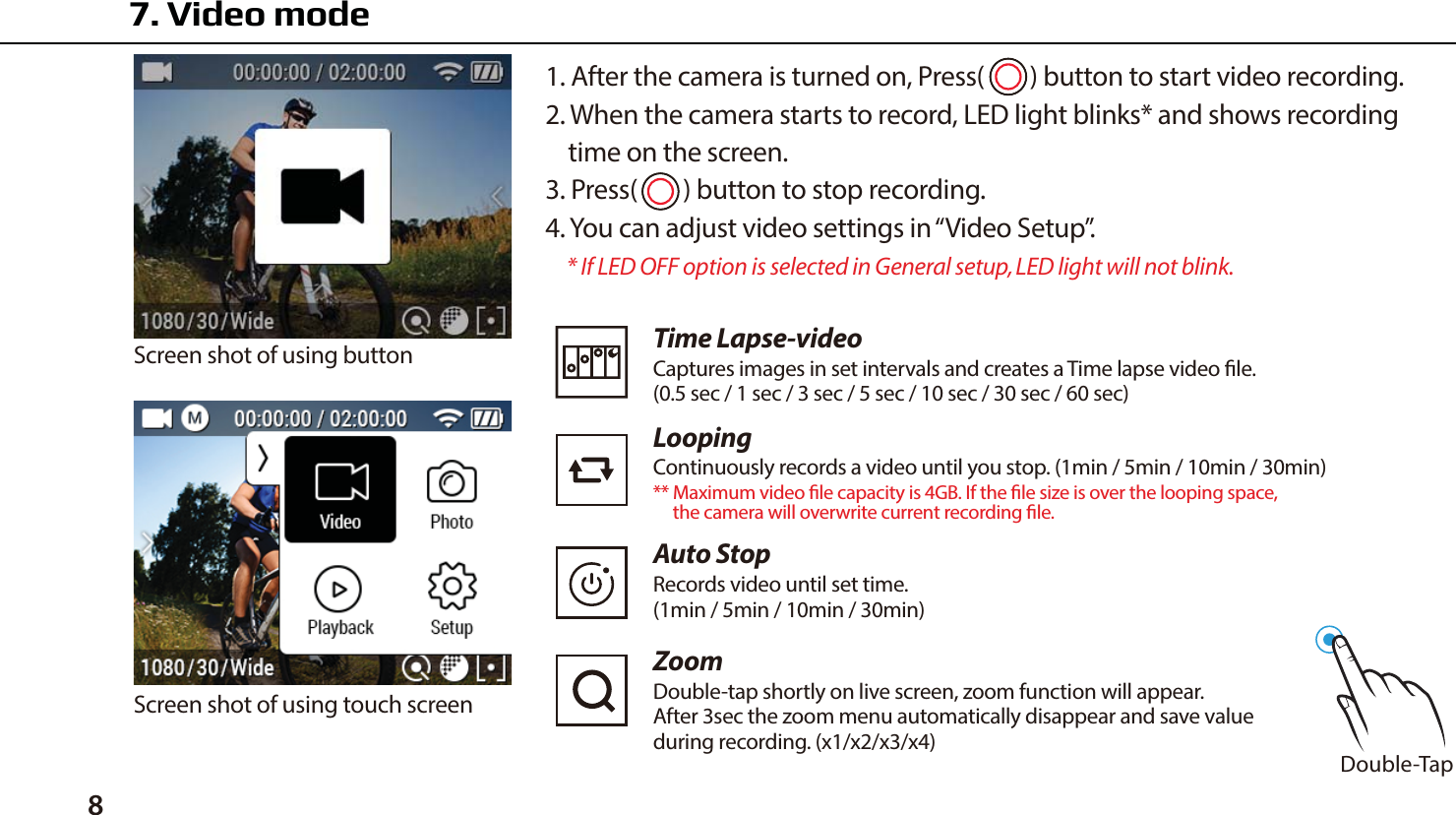
81. After the camera is turned on, Press(     ) button to start video recording.2. When the camera starts to record, LED light blinks* and shows recording    time on the screen.3. Press(     ) button to stop recording.4. You can adjust video settings in “Video Setup”.    * If LED OFF option is selected in General setup, LED light will not blink.Screen shot of using buttonScreen shot of using touch screen7. Video mode Double-TapTime Lapse-videoCaptures images in set intervals and creates a Time lapse video le.(0.5 sec / 1 sec / 3 sec / 5 sec / 10 sec / 30 sec / 60 sec)LoopingContinuously records a video until you stop. (1min / 5min / 10min / 30min)** Maximum video le capacity is 4GB. If the le size is over the looping space,      the camera will overwrite current recording le.  ZoomDouble-tap shortly on live screen, zoom function will appear.After 3sec the zoom menu automatically disappear and save valueduring recording. (x1/x2/x3/x4)Auto StopRecords video until set time.(1min / 5min / 10min / 30min)
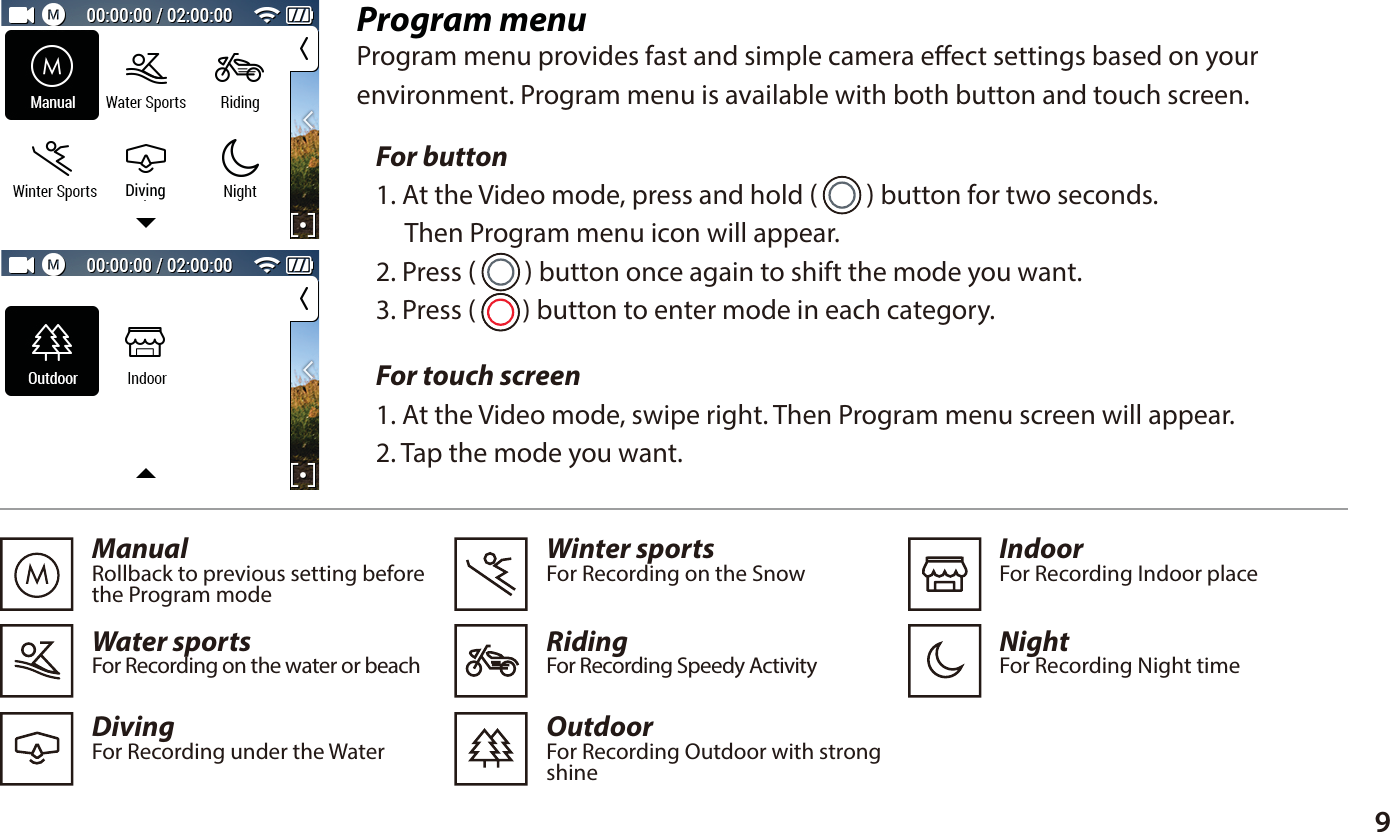
9Program menuProgram menu provides fast and simple camera eect settings based on yourenvironment. Program menu is available with both button and touch screen.For touch screen 1. At the Video mode, swipe right. Then Program menu screen will appear. 2. Tap the mode you want.ManualRollback to previous setting beforethe Program modeWater sportsFor Recording on the water or beachDivingFor Recording under the Water  Winter sportsFor Recording on the SnowRidingFor Recording Speedy ActivityOutdoorFor Recording Outdoor with strongshine   IndoorFor Recording Indoor placeNightFor Recording Night time  For button 1. At the Video mode, press and hold (     ) button for two seconds.      Then Program menu icon will appear.2. Press (     ) button once again to shift the mode you want.3. Press (     ) button to enter mode in each category.Diving
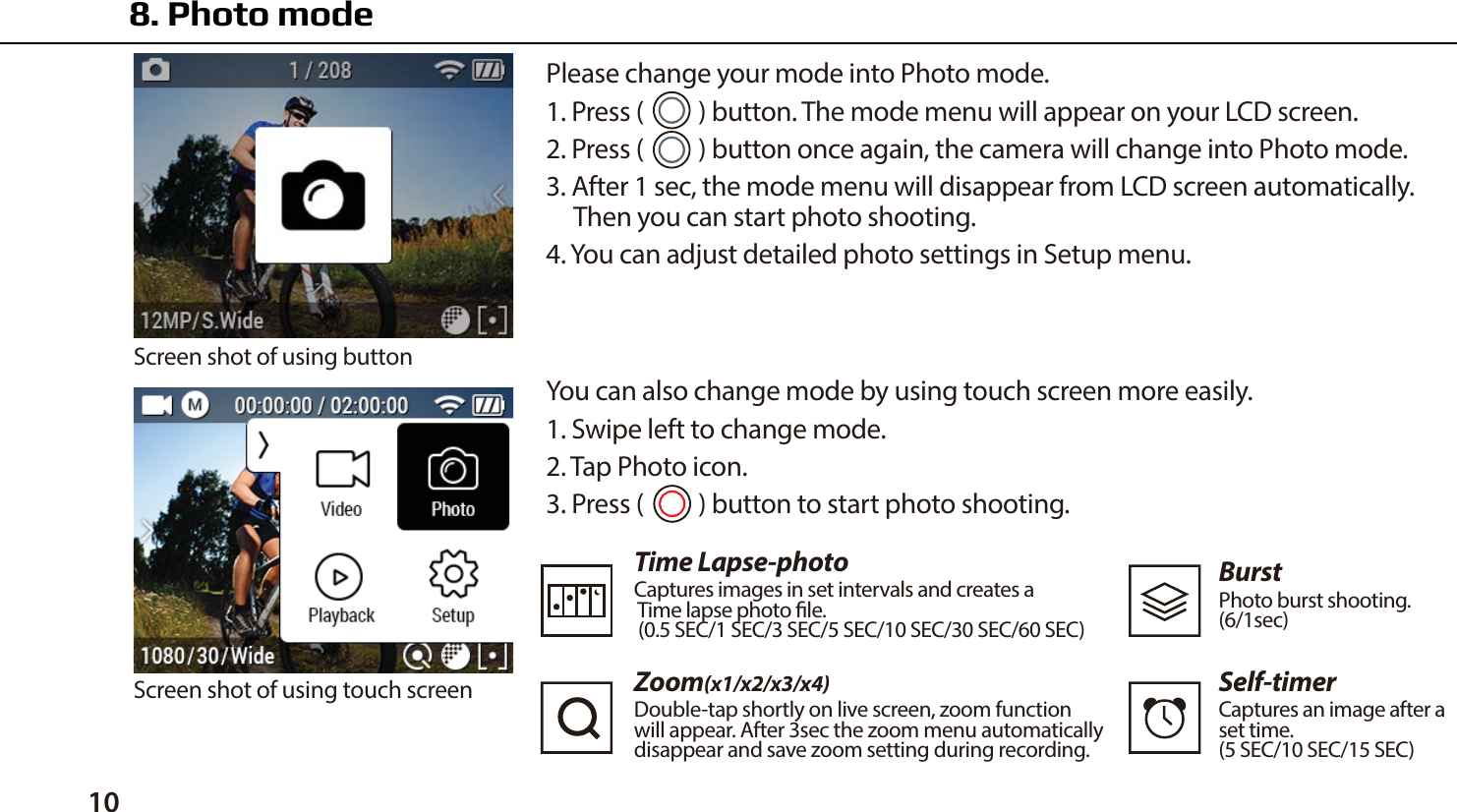
10 You can also change mode by using touch screen more easily.1. Swipe left to change mode.2. Tap Photo icon.3. Press (      ) button to start photo shooting.Time Lapse-photoCaptures images in set intervals and creates a Time lapse photo le. (0.5 SEC/1 SEC/3 SEC/5 SEC/10 SEC/30 SEC/60 SEC)Zoom(x1/x2/x3/x4)Double-tap shortly on live screen, zoom functionwill appear. After 3sec the zoom menu automaticallydisappear and save zoom setting during recording.BurstPhoto burst shooting.(6/1sec)Self-timerCaptures an image after aset time.(5 SEC/10 SEC/15 SEC)8. Photo modePlease change your mode into Photo mode.1. Press (      ) button. The mode menu will appear on your LCD screen.2. Press (      ) button once again, the camera will change into Photo mode.3. After 1 sec, the mode menu will disappear from LCD screen automatically.     Then you can start photo shooting.4. You can adjust detailed photo settings in Setup menu.Screen shot of using buttonScreen shot of using touch screen
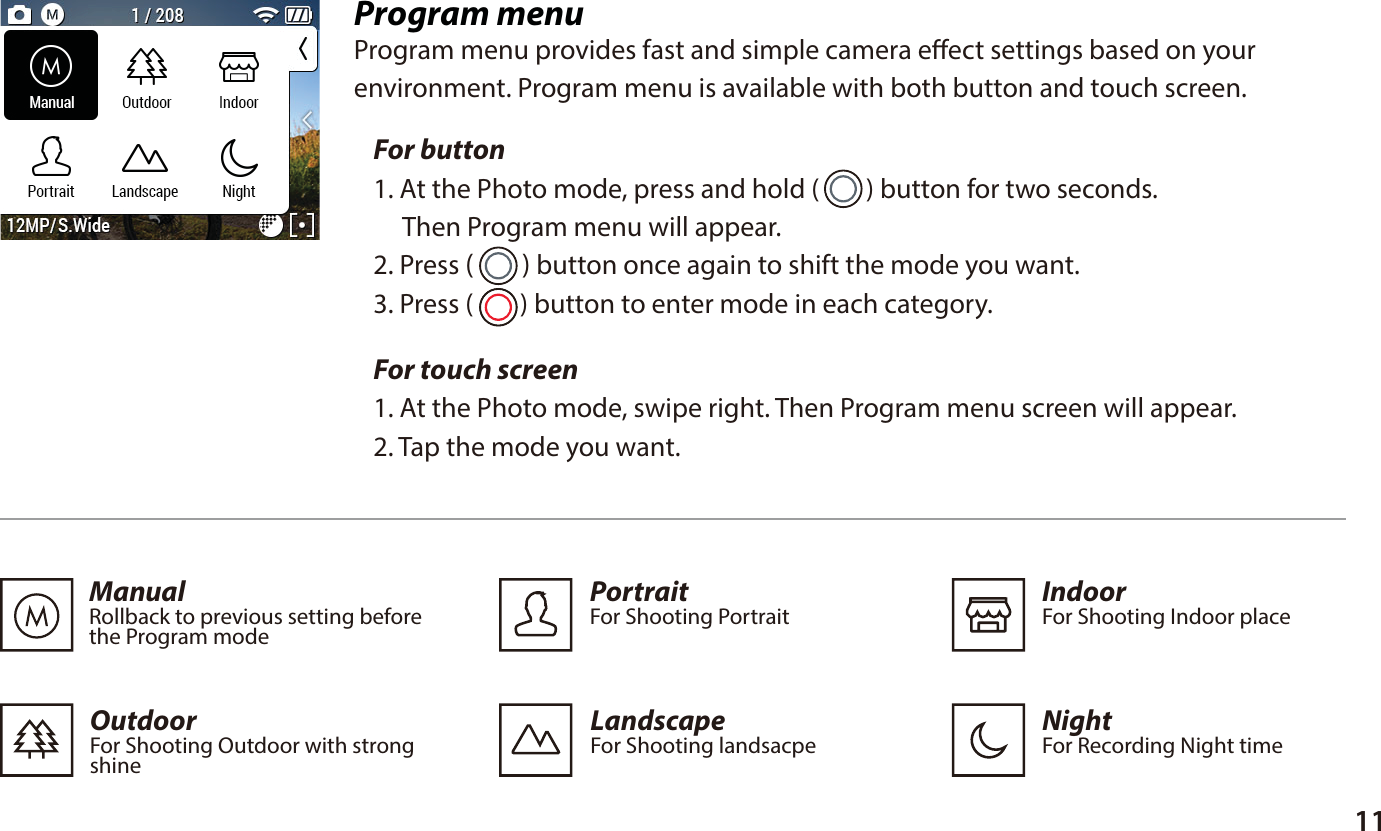
11Program menuProgram menu provides fast and simple camera eect settings based on yourenvironment. Program menu is available with both button and touch screen.For button 1. At the Photo mode, press and hold (     ) button for two seconds.      Then Program menu will appear.2. Press (     ) button once again to shift the mode you want.3. Press (     ) button to enter mode in each category.For touch screen 1. At the Photo mode, swipe right. Then Program menu screen will appear. 2. Tap the mode you want.ManualRollback to previous setting beforethe Program mode  LandscapeFor Shooting landsacpe OutdoorFor Shooting Outdoor with strongshine   IndoorFor Shooting Indoor placePortraitFor Shooting PortraitNightFor Recording Night time
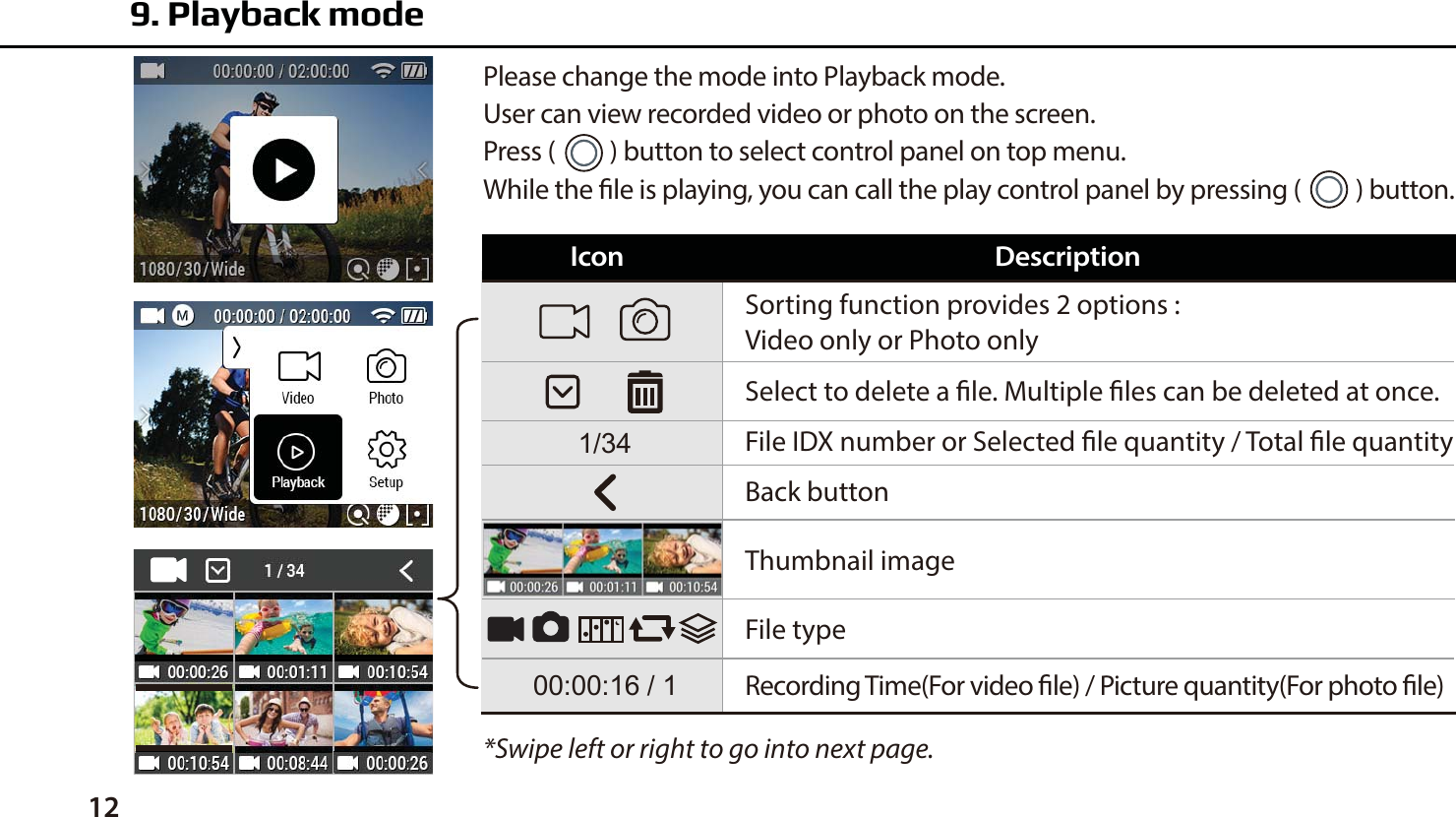
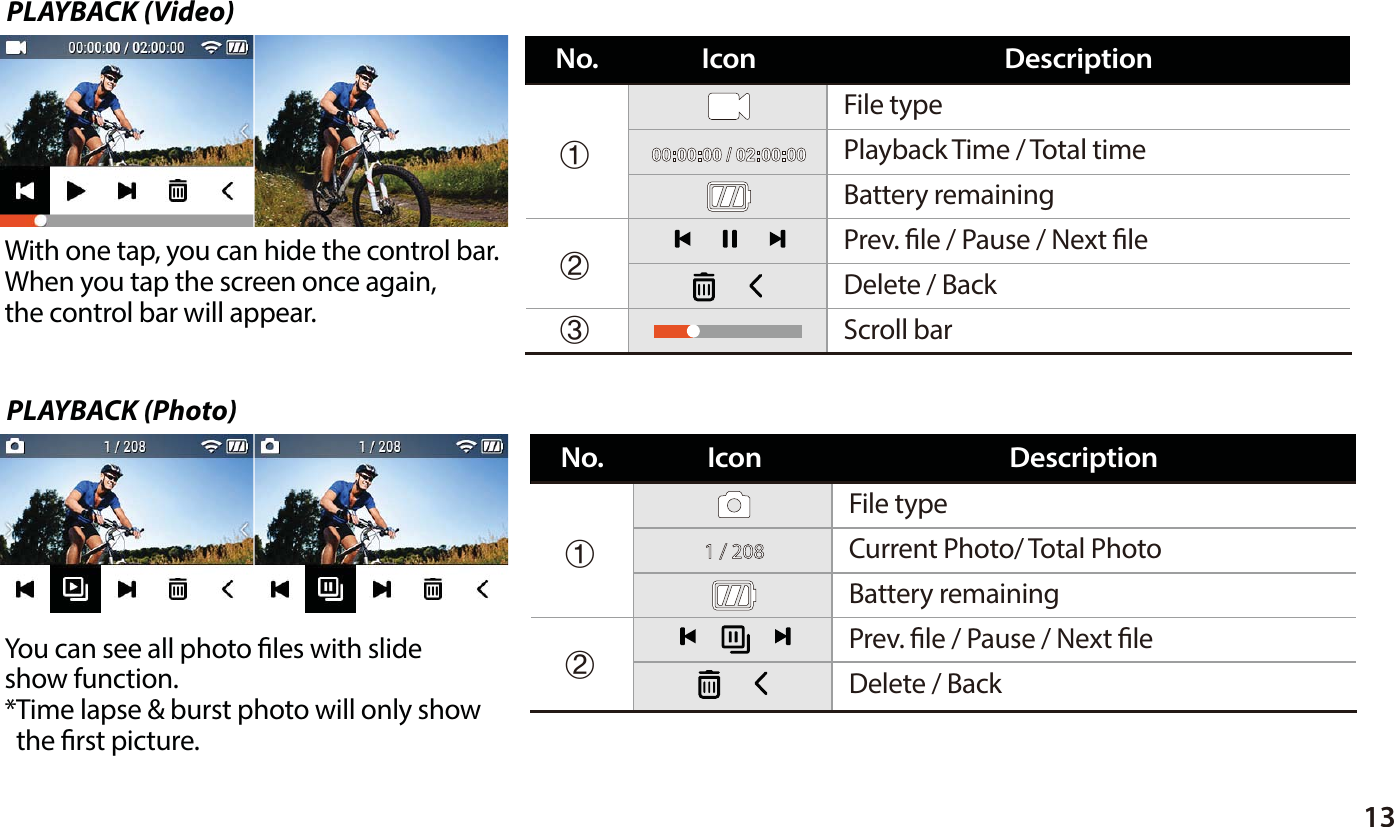
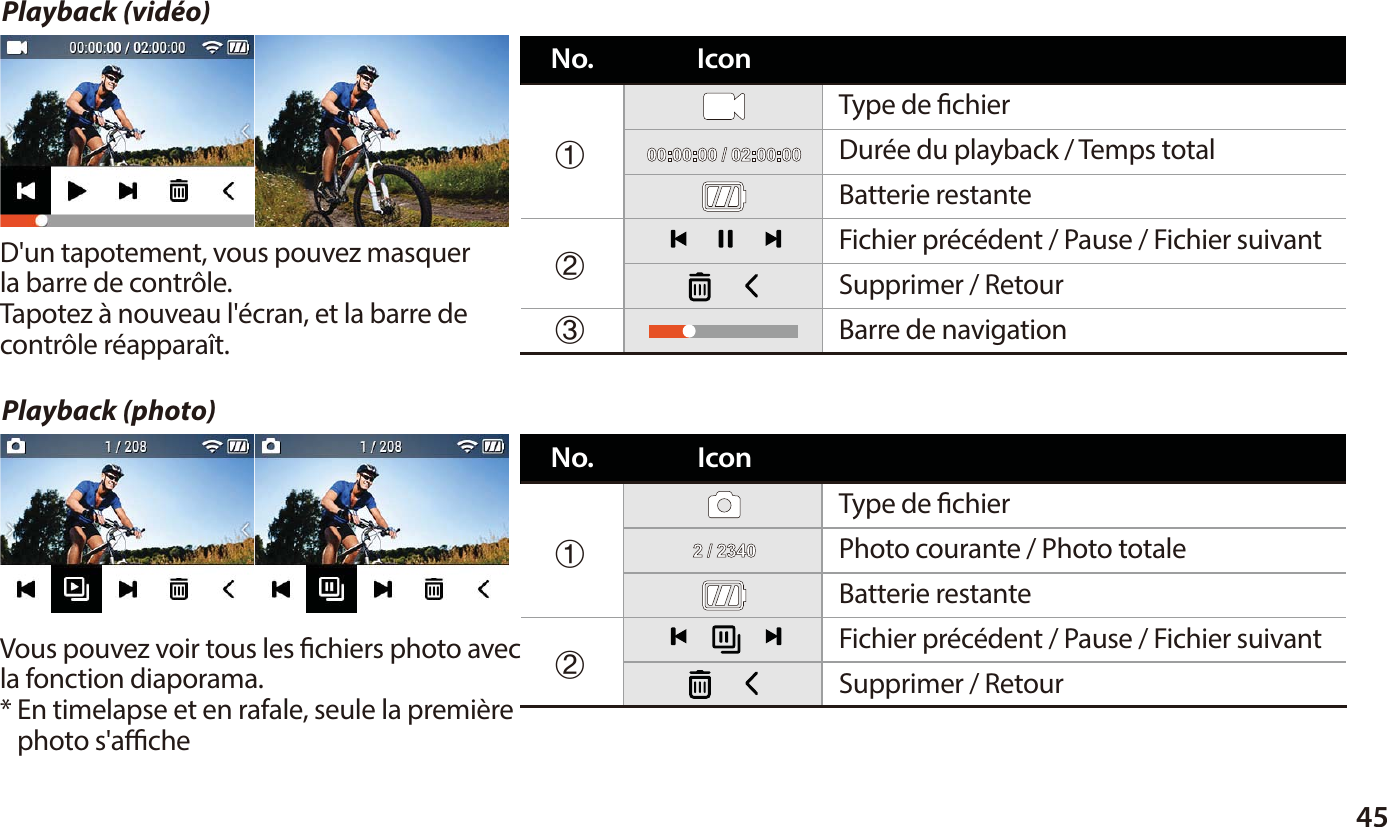
Sorting function provides 2 options :Video only or Photo onlySelect to delete a le. Multiple les can be deleted at once.File IDX number or Selected le quantity / Total le quantityBack buttonThumbnail image File typeRecording Time(For video le) / Picture quantity(For photo le)*Swipe left or right to go into next page.9. Playback modePlease change the mode into Playback mode.User can view recorded video or photo on the screen.Press (      ) button to select control panel on top menu.While the le is playing, you can call the play control panel by pressing (      ) button.Icon Description12
13PLAYBACK (Photo)PLAYBACK (Video)File typePlayback Time / Total timeBattery remainingScroll barDelete / BackPrev. le / Pause / Next leⴘⴙⴚIconNo. DescriptionWith one tap, you can hide the control bar.When you tap the screen once again,the control bar will appear.You can see all photo les with slideshow function. *Time lapse & burst photo will only show  the rst picture.File typeCurrent Photo/ Total PhotoBattery remainingDelete / BackPrev. le / Pause / Next leⴘⴙIconNo. Description1 / 208
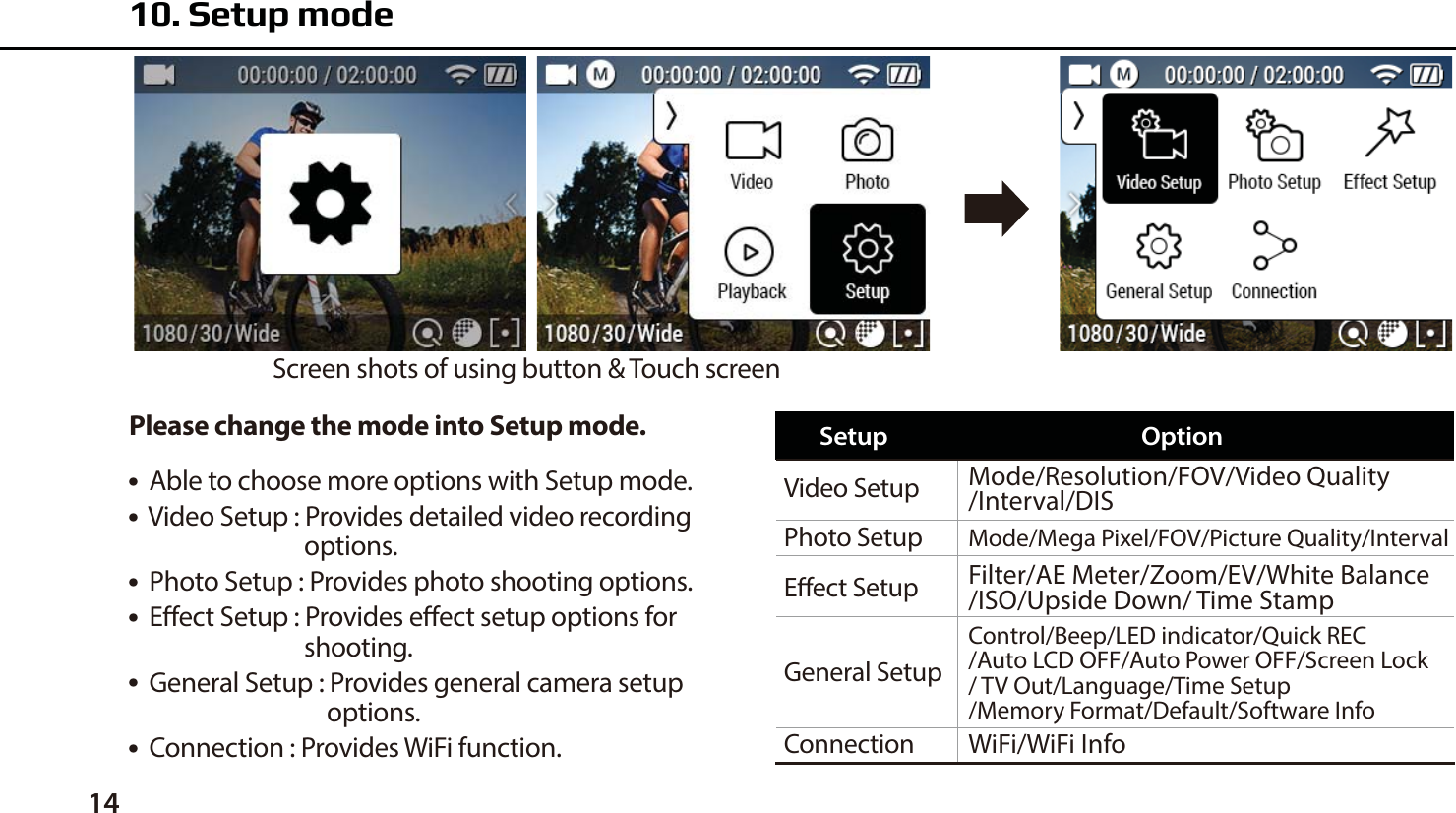
14Please change the mode into Setup mode.●  Able to choose more options with Setup mode.●  Video Setup : Provides detailed video recording                               options.●  Photo Setup : Provides photo shooting options.●  Eect Setup : Provides eect setup options for                               shooting.●  General Setup : Provides general camera setup                                   options.●  Connection : Provides WiFi function. 10. Setup modeScreen shots of using button & Touch screenVideo Setup Mode/Resolution/FOV/Video Quality/Interval/DISMode/Mega Pixel/FOV/Picture Quality/IntervalWiFi/WiFi InfoControl/Beep/LED indicator/Quick REC/Auto LCD OFF/Auto Power OFF/Screen Lock/ TV Out/Language/Time Setup/Memory Format/Default/Software InfoFilter/AE Meter/Zoom/EV/White Balance/ISO/Upside Down/ Time StampPhoto SetupEect SetupGeneral SetupConnectionSetup Option
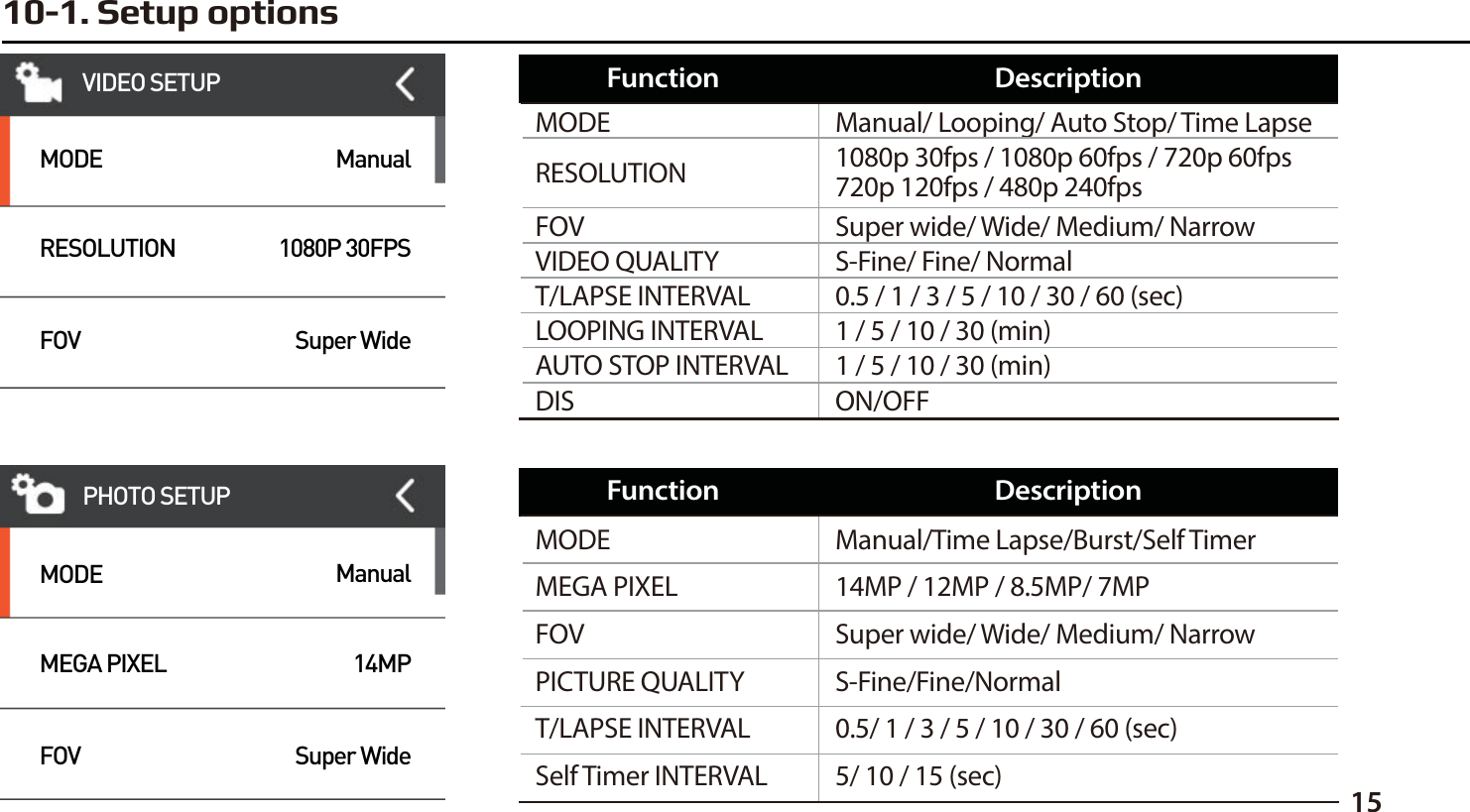
1510-1. Setup optionsVIDEO SETUPMODERESOLUTIONFOVManual1080P 30FPSSuper WideMODEMEGA PIXELFOVManual14MPSuper WidePHOTO SETUPManual/ Looping/ Auto Stop/ Time Lapse1080p 30fps / 1080p 60fps / 720p 60fps720p 120fps / 480p 240fpsSuper wide/ Wide/ Medium/ NarrowMODERESOLUTION1 / 5 / 10 / 30 (min) LOOPING INTERVALON/OFFDIS1 / 5 / 10 / 30 (min)AUTO STOP INTERVAL0.5 / 1 / 3 / 5 / 10 / 30 / 60 (sec)T/LAPSE INTERVALFOVS-Fine/ Fine/ NormalVIDEO QUALITYFunction DescriptionManual/Time Lapse/Burst/Self Timer14MP / 12MP / 8.5MP/ 7MPSuper wide/ Wide/ Medium/ NarrowS-Fine/Fine/NormalMODEMEGA PIXELFOV5/ 10 / 15 (sec)Self Timer INTERVALPICTURE QUALITY0.5/ 1 / 3 / 5 / 10 / 30 / 60 (sec)T/LAPSE INTERVALFunction Description
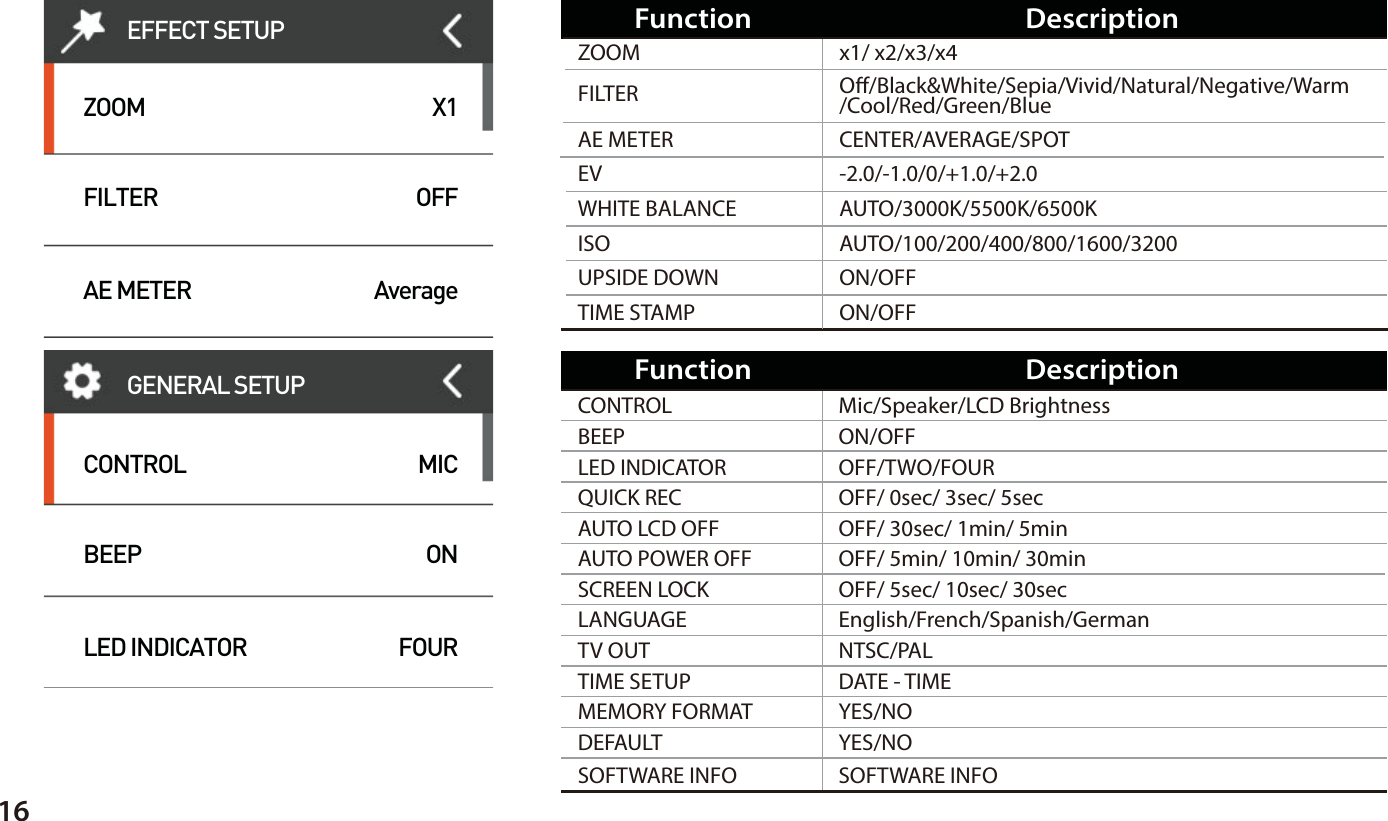
16CENTER/AVERAGE/SPOTx1/ x2/x3/x4-2.0/-1.0/0/+1.0/+2.0AUTO/3000K/5500K/6500KAUTO/100/200/400/800/1600/3200ON/OFFON/OFFO/Black&White/Sepia/Vivid/Natural/Negative/Warm/Cool/Red/Green/BlueFILTERAE METERZOOMWHITE BALANCETIME STAMPUPSIDE DOWNISOEVFunction DescriptionEFFECT SETUPZOOMFILTERAE METERX1OFFAverageCONTROLBEEPLED INDICATORMICONFOURGENERAL SETUP Mic/Speaker/LCD BrightnessON/OFFOFF/TWO/FOUROFF/ 0sec/ 3sec/ 5secOFF/ 30sec/ 1min/ 5minOFF/ 5min/ 10min/ 30minNTSC/PALDATE - TIMEEnglish/French/Spanish/GermanOFF/ 5sec/ 10sec/ 30secYES/NOCONTROLBEEPLED INDICATORAUTO LCD OFFMEMORY FORMATSOFTWARE INFODEFAULTSOFTWARE INFOYES/NOTIME SETUPTV OUTLANGUAGESCREEN LOCKAUTO POWER OFFQUICK RECFunction Description
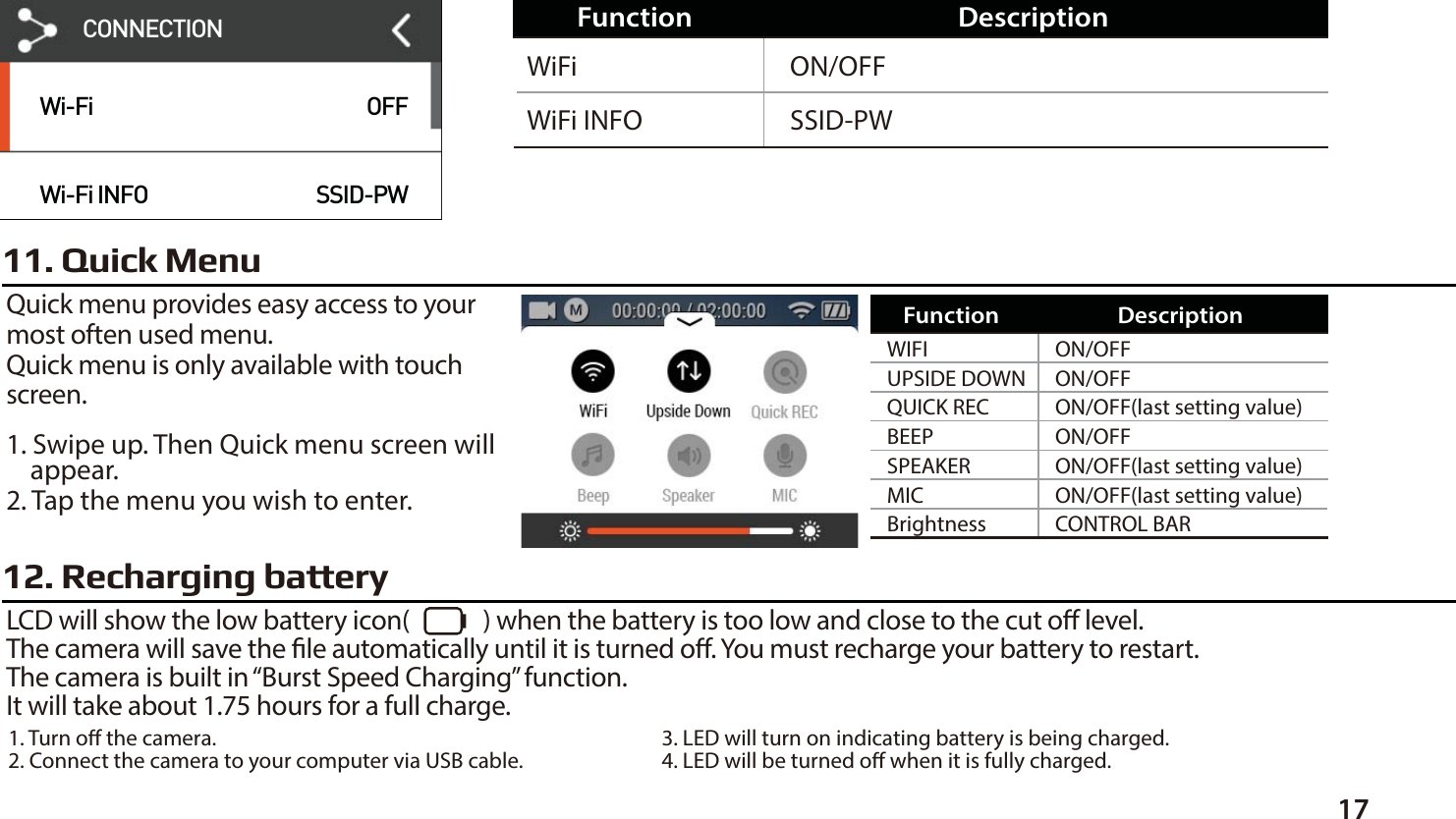
1711. Quick MenuQuick menu provides easy access to yourmost often used menu.Quick menu is only available with touchscreen.1. Swipe up. Then Quick menu screen will    appear. 2. Tap the menu you wish to enter. 12. Recharging batteryLCD will show the low battery icon(             ) when the battery is too low and close to the cut o level.The camera will save the le automatically until it is turned o. You must recharge your battery to restart.The camera is built in “Burst Speed Charging” function.It will take about 1.75 hours for a full charge.ON/OFFSSID-PWWiFiWiFi INFOFunction DescriptionON/OFFON/OFFON/OFF(last setting value)ON/OFFON/OFF(last setting value)ON/OFF(last setting value)CONTROL BARWIFIUPSIDE DOWNQUICK RECSPEAKERBrightnessMICBEEPFunction Description1. Turn o the camera.2. Connect the camera to your computer via USB cable. 3. LED will turn on indicating battery is being charged.4. LED will be turned o when it is fully charged.Wi-FiWi-Fi INFOOFFSSID-PWCONNECTION
●  Utilizing WiFi APP function of ACTIVEON, user can control the camera through smartphone.●  Compatible with iOS and Android OS.●  Before connecting the camera, download  ‘ACTIVEON HUB’ application from smartphone app store.●  Search for  ‘ACTIVEON HUB’  in Apple App Store or Google Play Store.●  Turn on ‘WiFi APP’ function in ACTIVEON SOLAR XG.         ●  The camera screen will display “Waiting for connection”*  While smartphone is connected to the camera, camera button operation will be disabled.*  You can take a video and photo, and adjust camera setting on ‘ACTIVEON HUB’.*  ‘ACTIVEON HUB’ features will be upgraded through application updates on your smartphone.14. Connect ACTIVEON SOLAR XG to smartphone(using ACTIVEON HUB)On your camera13. Smartphone control18
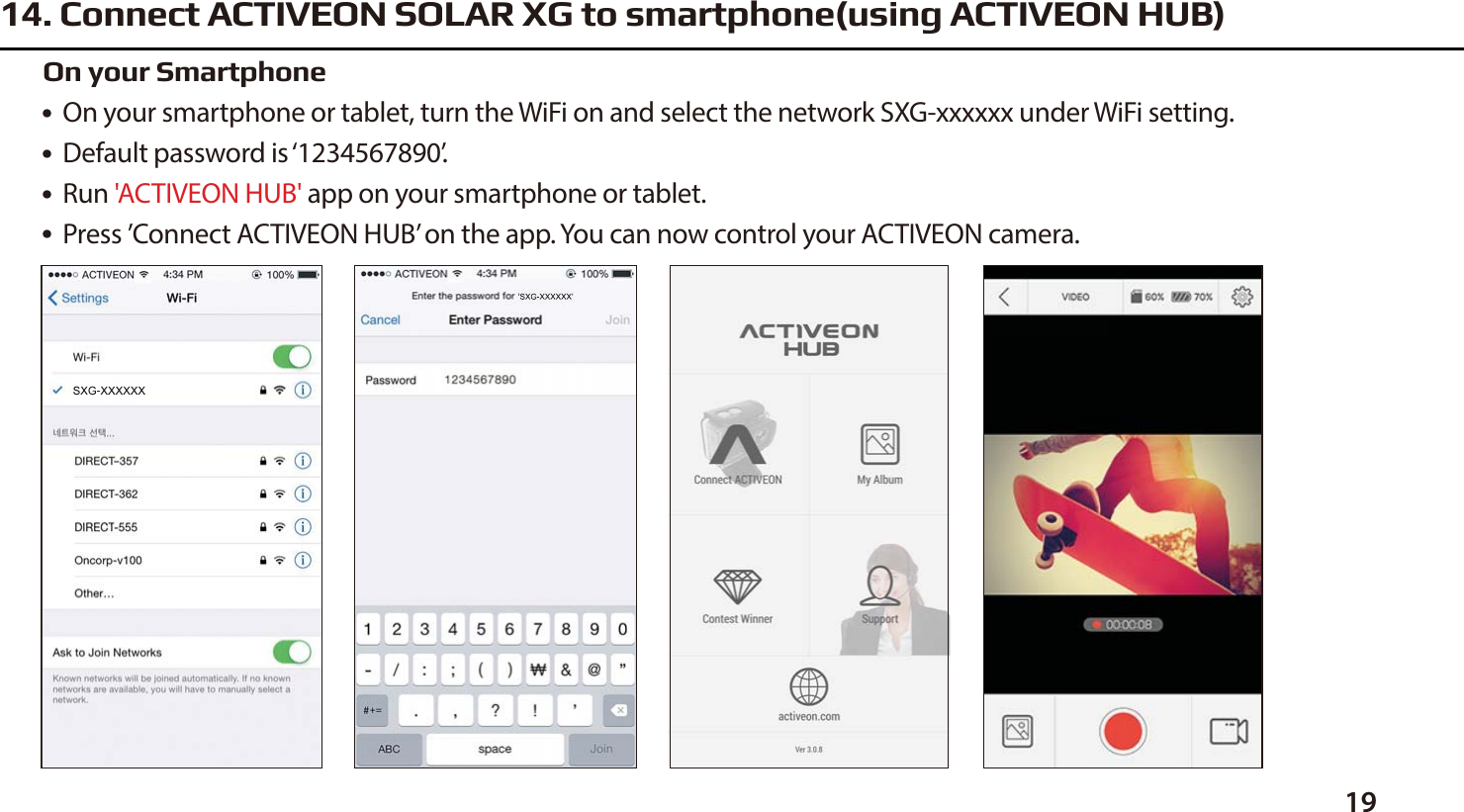
1914. Connect ACTIVEON SOLAR XG to smartphone(using ACTIVEON HUB)●  On your smartphone or tablet, turn the WiFi on and select the network SXG-xxxxxx under WiFi setting.●  Default password is ‘1234567890’.●  Run 'ACTIVEON HUB' app on your smartphone or tablet.●  Press ’Connect ACTIVEON HUB’ on the app. You can now control your ACTIVEON camera.On your Smartphone
20●  If the camera is connected to a computer or battery charger while it is powered o,    the camera starts to recharge the battery.●  If the camera is connected to a computer while it is powered on, the camera changes to le–transfer mode.●  While the camera is connected to a battery charger or car charger for recharge,    the camera can record while it is recharging.1.   Power on ACTIVEON SOLAR XG.2.   Connect the camera to a computer via USB cable.3.   The camera LCD will display as 'USB Ready'.4.   Go to ‘My Computer’ in PC.5.   Search ‘Removable Disk’.6.   Double click ‘Removable Disk’.7.   Video, photo folder are separated.8.   Open the folders to nd video or photo le.9.   Copy and paste les to the computer.15. Transferring data to computer (compatible with both Windows OS and Mac OS)
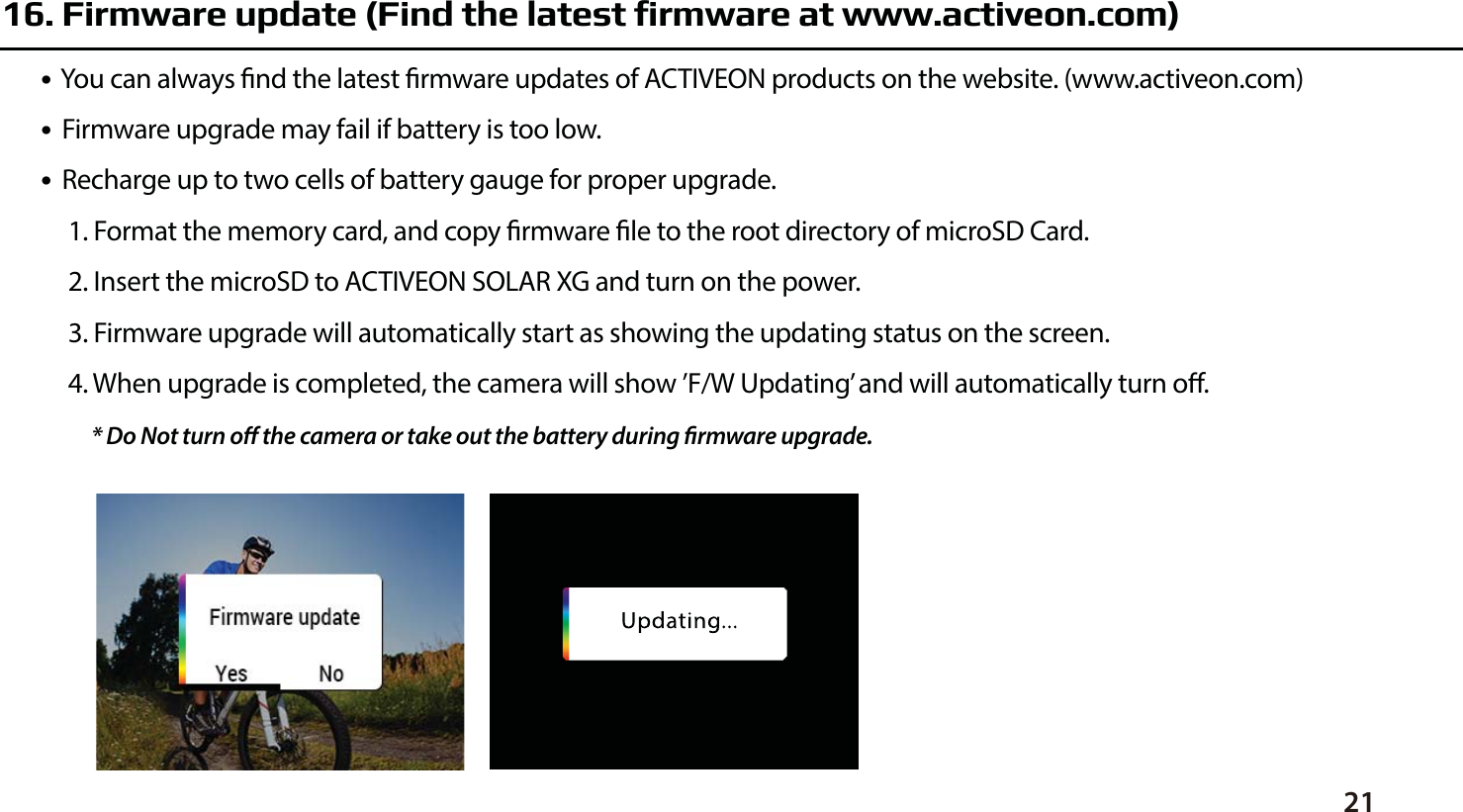
2116. Firmware update (Find the latest firmware at www.activeon.com)●  You can always nd the latest rmware updates of ACTIVEON products on the website. (www.activeon.com)●  Firmware upgrade may fail if battery is too low.●  Recharge up to two cells of battery gauge for proper upgrade. 1. Format the memory card, and copy rmware le to the root directory of microSD Card.2. Insert the microSD to ACTIVEON SOLAR XG and turn on the power.3. Firmware upgrade will automatically start as showing the updating status on the screen.4. When upgrade is completed, the camera will show ’F/W Updating’ and will automatically turn o.* Do Not turn o the camera or take out the battery during rmware upgrade.
22●  “ACTIVEON SOALR XG” 1080p 60fps Action Camera.●  FULL HD(1920 x 1080) resolution, 60fps recording.●  196ft(60m) waterproof housing.●  14MP PANASONIC 34110 CMOS sensor.●  Easily control camera Eect setting by Program mode.●  Super wide angle eld of view(FOV).●  Built in 2.0” LCD(320x240) with touch panel.●  Built in WiFi.●  Versatile recording resolution(1080p/720p/480p).●  Burst photo-shooting(*6 shots in 1 second).●  H.264 codec, saved as MP4 format.●  Rechargeable Li-ion Battery.●  Battery running time : Approximately 120minutes of continuous recording(1080p 30 fps)    * recording time may vary depending on the condition●  Recharging time : 3.5 hours by USB port/ 1.75 hours by AC adapter(Optional Accessory)●  Quick charging ●  Easy graphical user interface●  Full line of accessories17. Features and specifications
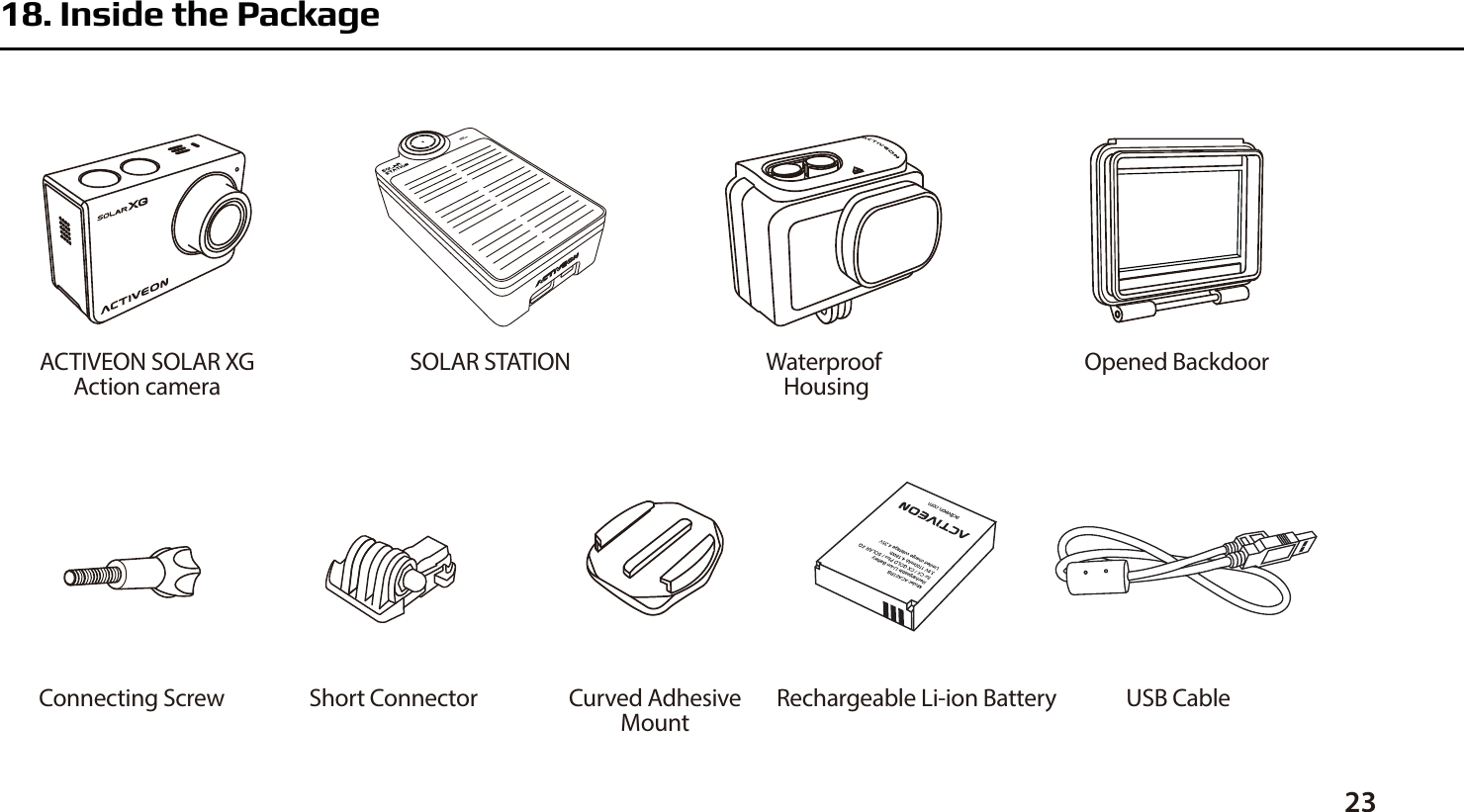
Waterproof HousingSOLAR STATIONACTIVEON SOLAR XGAction camera2318. Inside the PackageCurved AdhesiveMountShort Connector USB CableRechargeable Li-ion BatteryConnecting ScrewOpened Backdoor
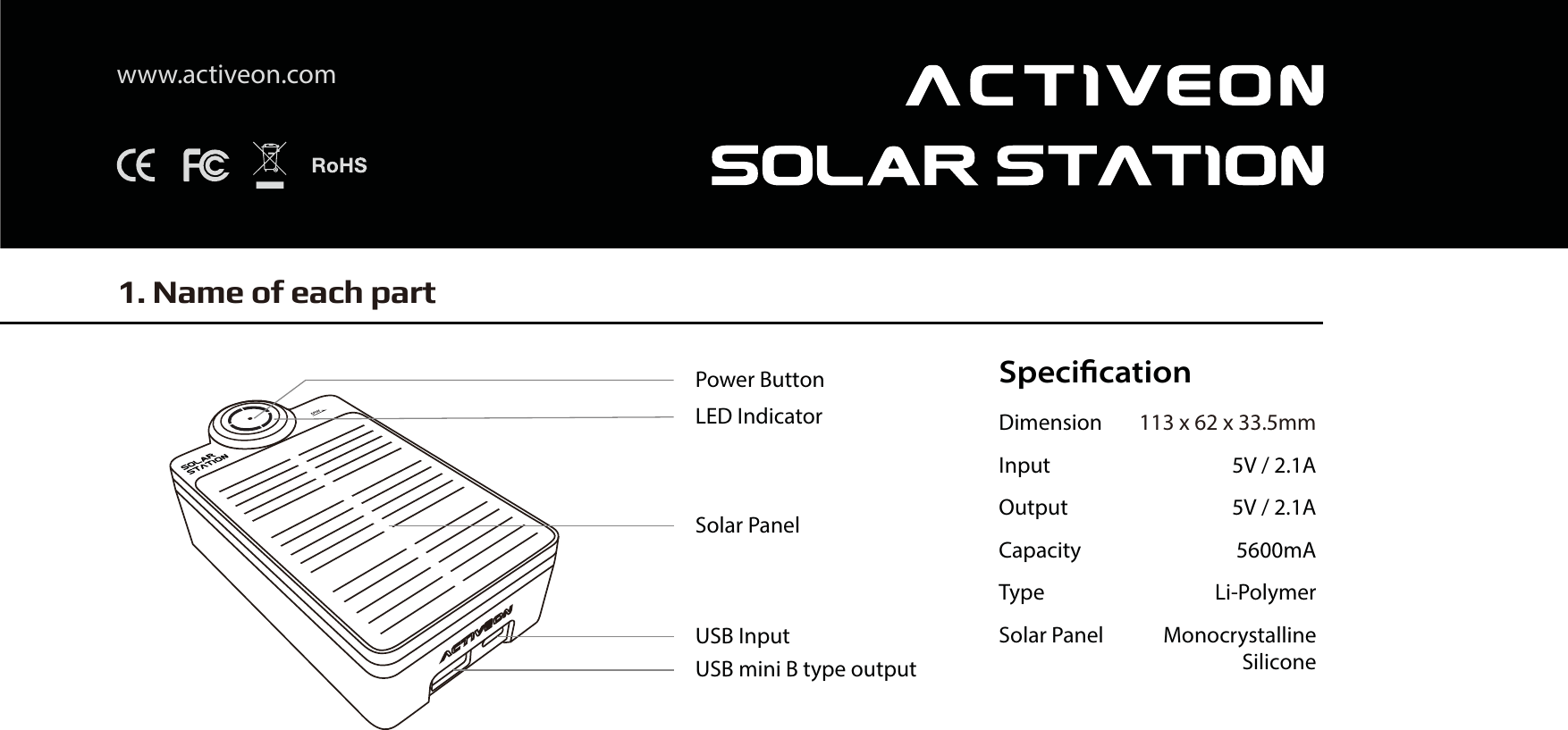
SpecificationDimension 113 x 62 x 33.5mmInput 5V / 2.1AOutput 5V / 2.1ACapacity 5600mAType Li-PolymerSolar Panel MonocrystallineSiliconewww.activeon.com1. Name of each partPower ButtonLED IndicatorSolar PanelUSB InputUSB mini B type output
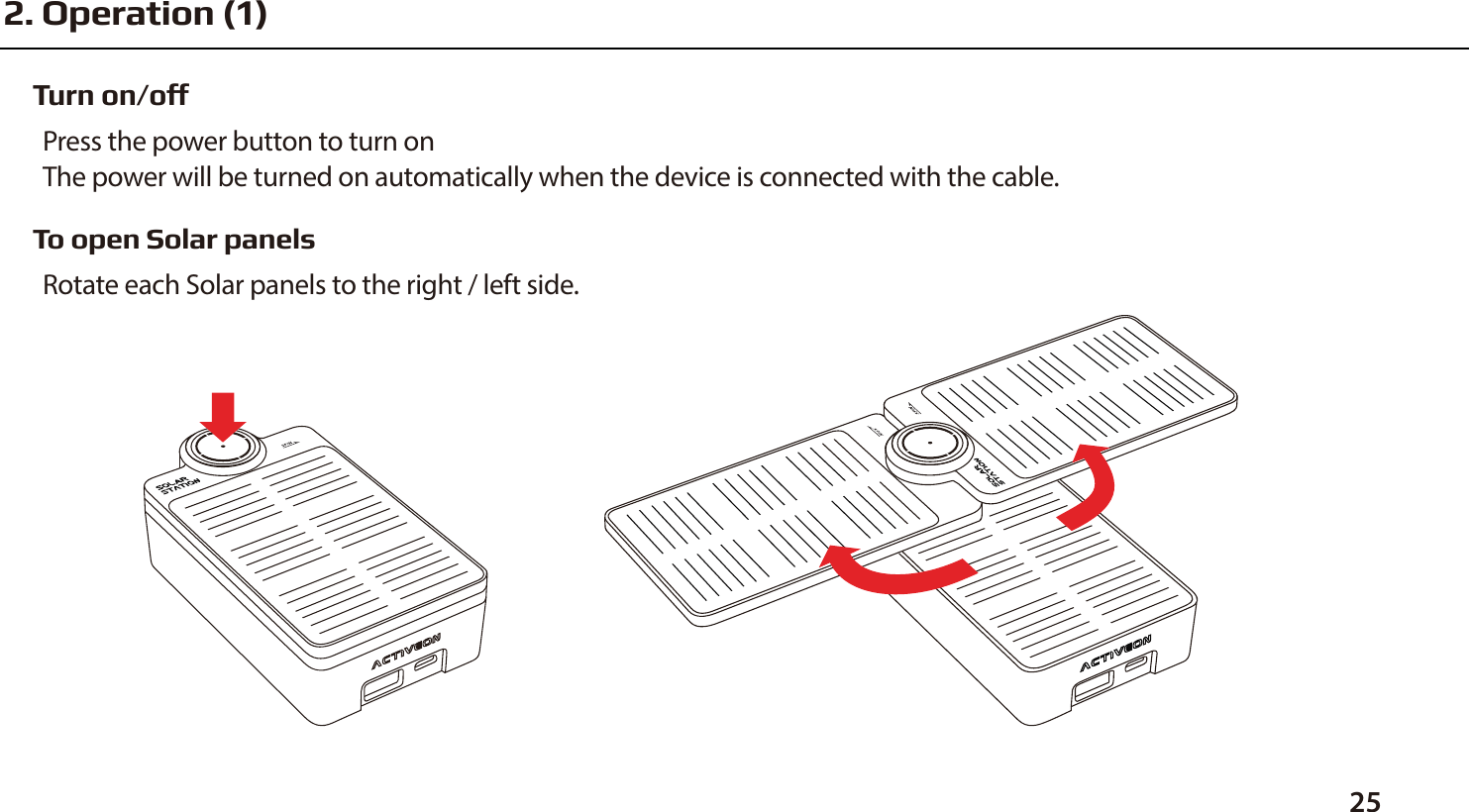
Turn on/offPress the power button to turn onThe power will be turned on automatically when the device is connected with the cable.To open Solar panelsRotate each Solar panels to the right / left side.252. Operation (1)
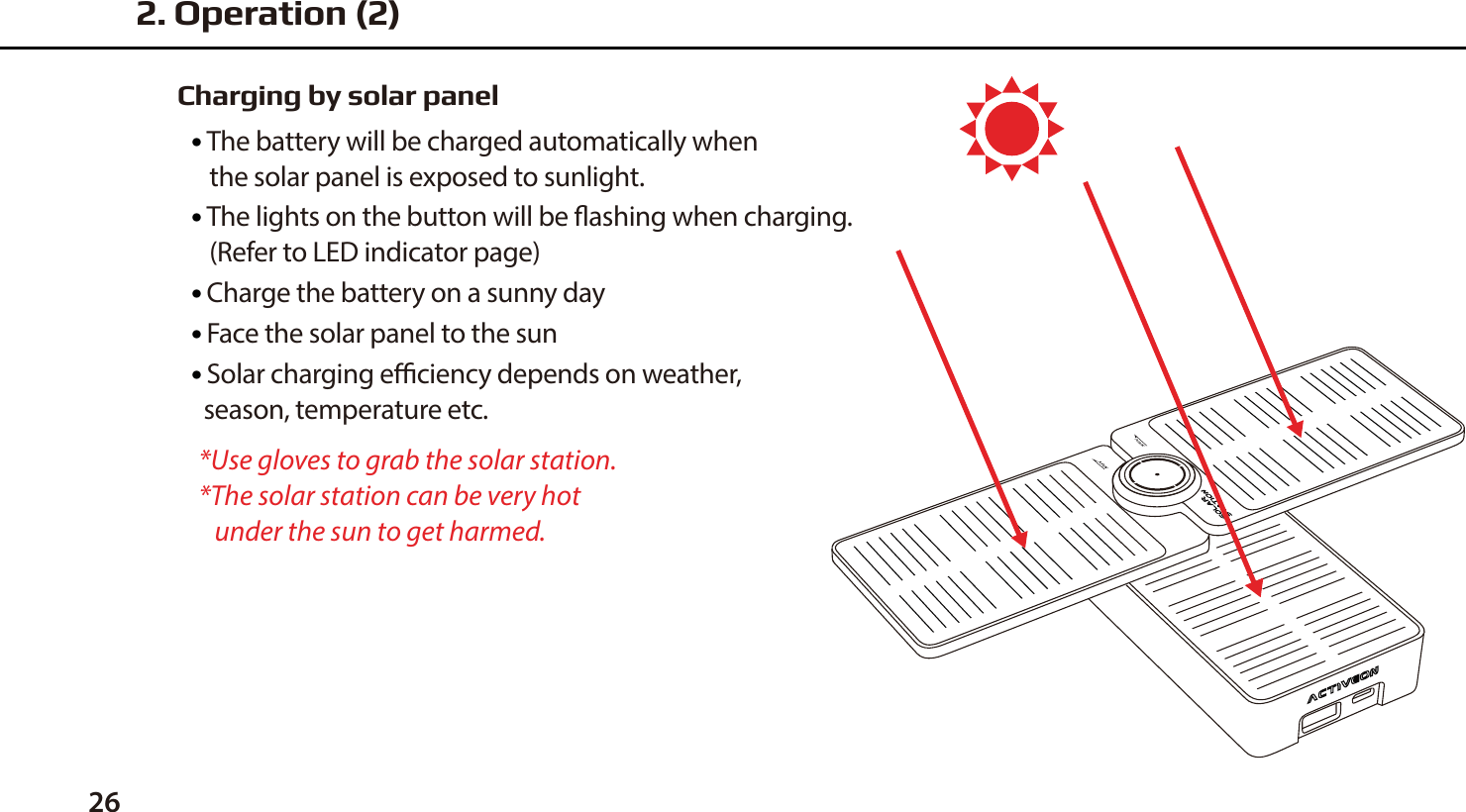
26Charging by solar panel●  The battery will be charged automatically when    the solar panel is exposed to sunlight.●  The lights on the button will be ashing when charging.   (Refer to LED indicator page)●  Charge the battery on a sunny day ●  Face the solar panel to the sun●  Solar charging eciency depends on weather,   season, temperature etc.*Use gloves to grab the solar station.*The solar station can be very hot    under the sun to get harmed.2. Operation (2)
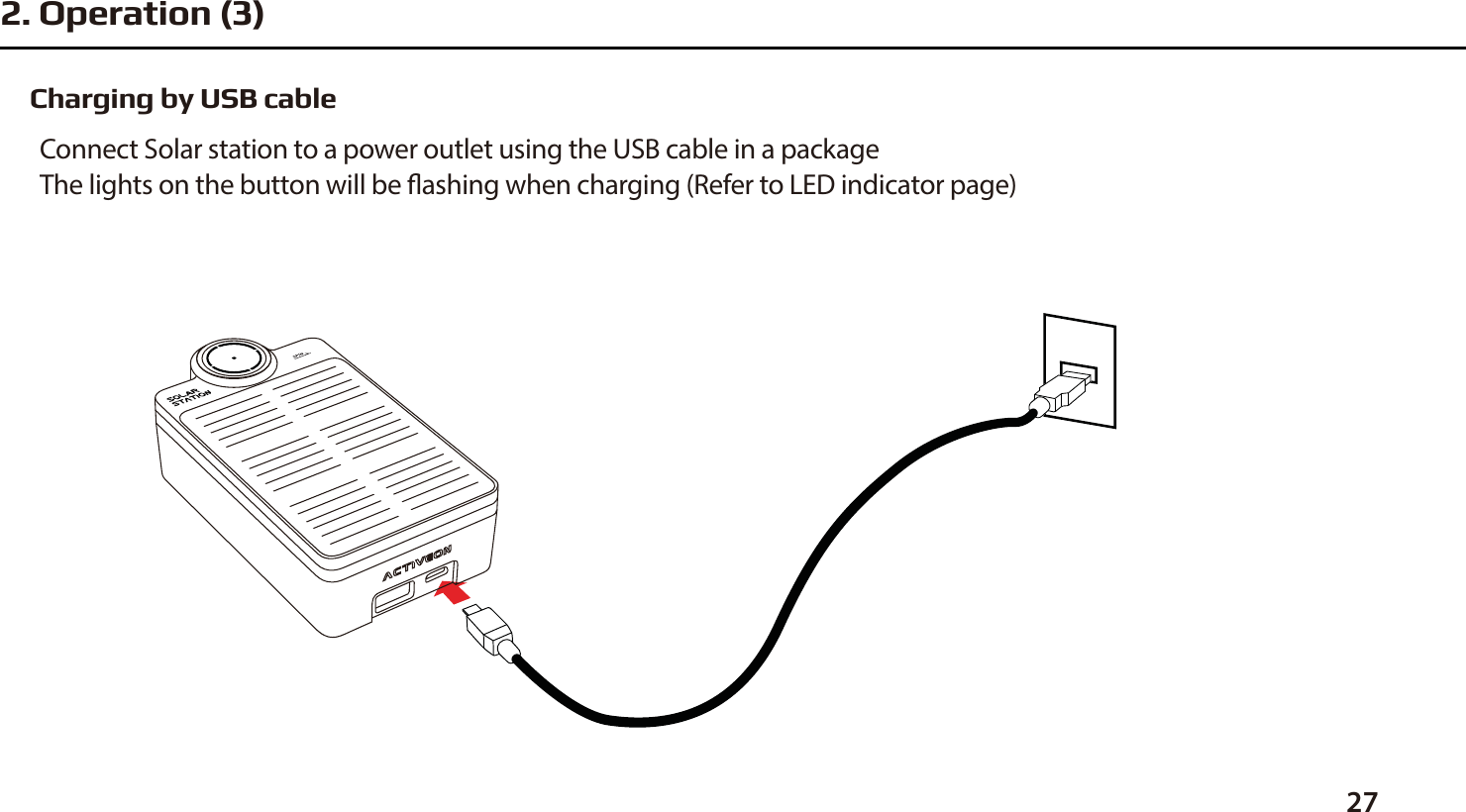
Charging by USB cableConnect Solar station to a power outlet using the USB cable in a packageThe lights on the button will be ashing when charging (Refer to LED indicator page)272. Operation (3)
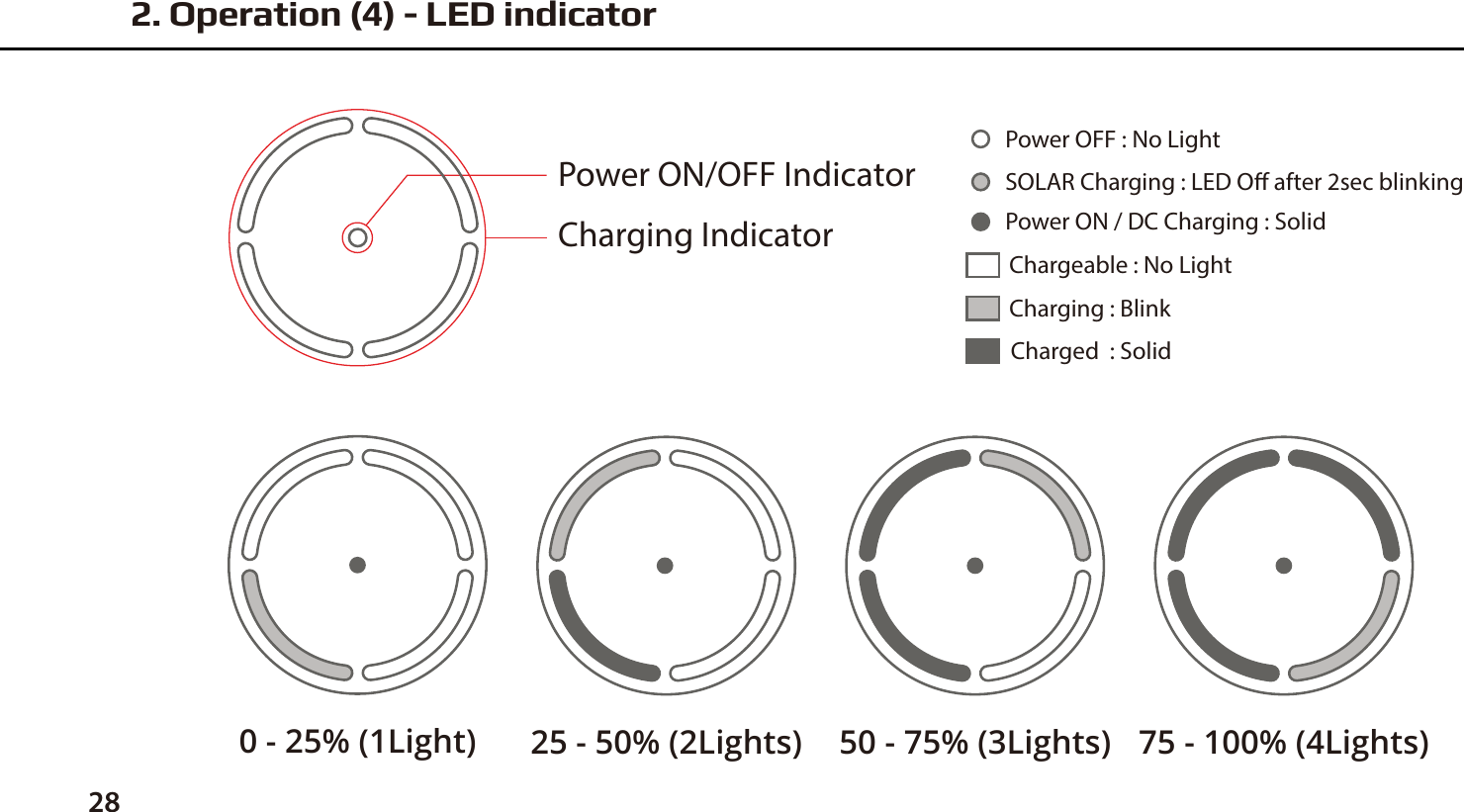
Power ON/OFF IndicatorCharging IndicatorCharging : BlinkChargeable : No LightCharged  : SolidPower ON / DC Charging : SolidSOLAR Charging : LED O after 2sec blinkingPower OFF : No Light282. Operation (4) - LED indicator0 - 25% (1Light) 25 - 50% (2Lights) 50 - 75% (3Lights) 75 - 100% (4Lights)
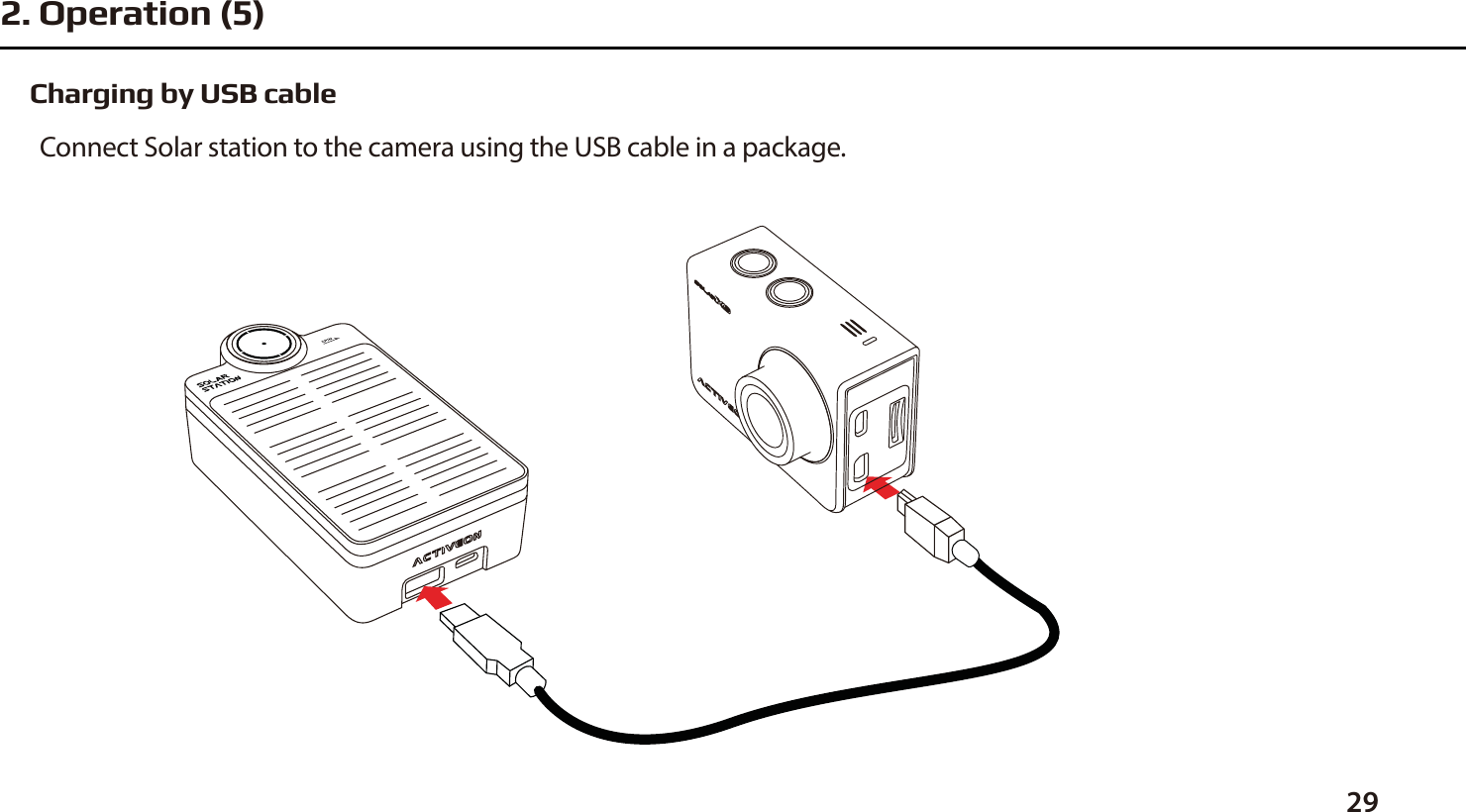
Charging by USB cableConnect Solar station to the camera using the USB cable in a package.292. Operation (5)
30●  Keep the device away from extreme high and low temperatures. ●  Do not disassemble the device.●  Do not crush the battery or throw into re.●  Never throw or drop this product to avoid causing damages.●  Recharge battery at least once every month to maintain its charge properties.●  Do not expose the device to water or high humidity.●  Keep the device out of reach of children or person who have not been instructed in its use.●  Stop using if leakage, overheating or any other unusual conditions occur.●  If there is a problem with the product, please contact your dealer for further assistance. 3. Precautions
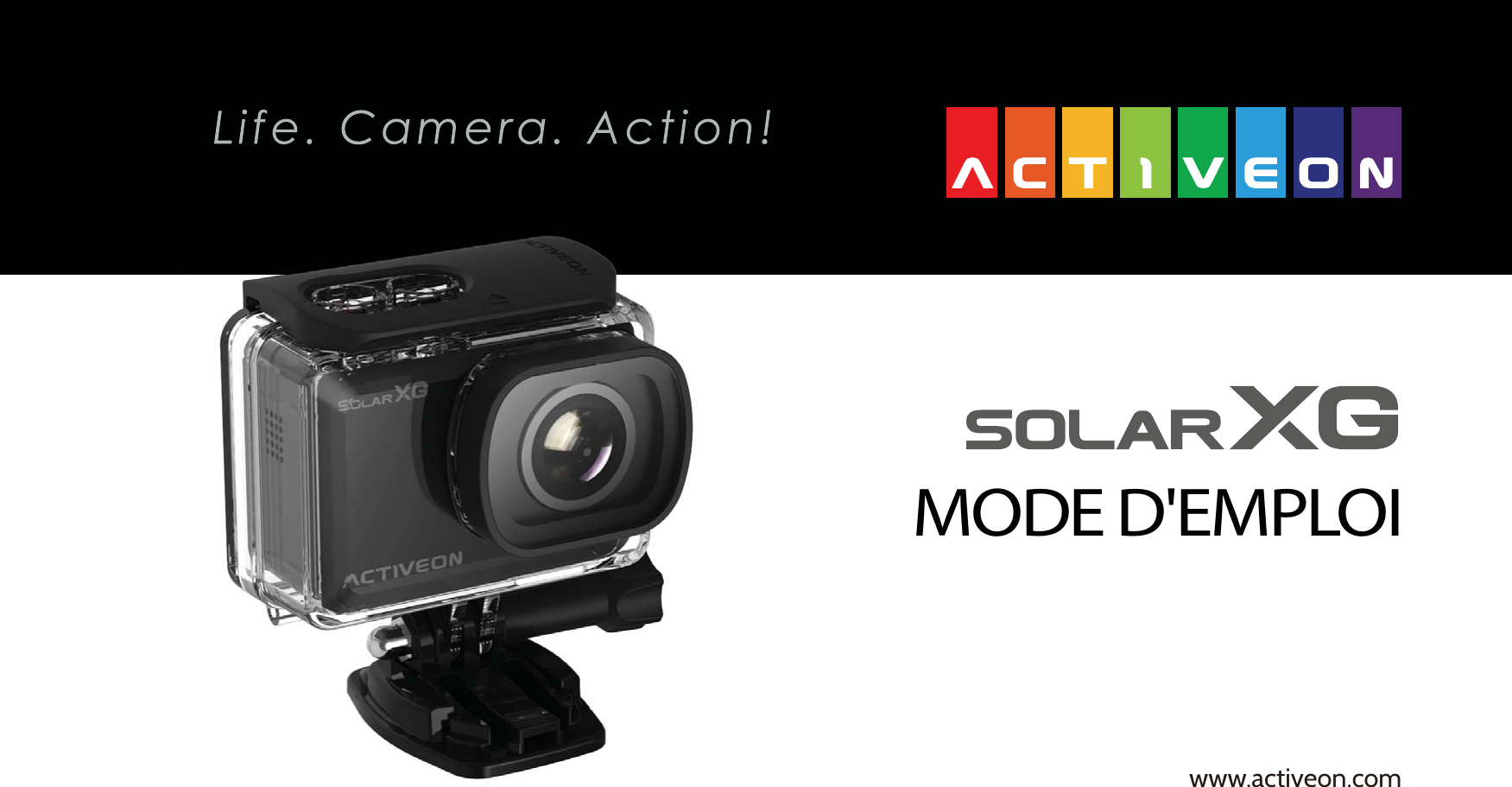
MODE D'EMPLOIwww.activeon.com
33343637383940424446494950505253545596969798※ ATTENTION ※ DÉCLARATION SUR LES INTERFÉRENCES DE FRÉQUENCE RADIO FCC※ Informations sur l'exposition aux RF (SAR)※ GARANTIETable des matières1. Nom de chaque pièce2. Mode d'emploi3. Allumez la caméra4. Capture d'écran LCD5. Description des icônes graphiques6. Mode menu7. Mode vidéo8. Mode photo9. Mode playback10. Mode paramètres11. Menu rapide12. Recharge de la batterie13. Contrôle par Smartphone14. Connexion de l'ACTIVEON SOLAR XG à un Smartphone (à l'aide de l'app ACTIVEON)15. Transférer les données vers un ordinateur16. Mise à jour du rmware17. Fonctionnalités et spécications18. Dans l'emballage
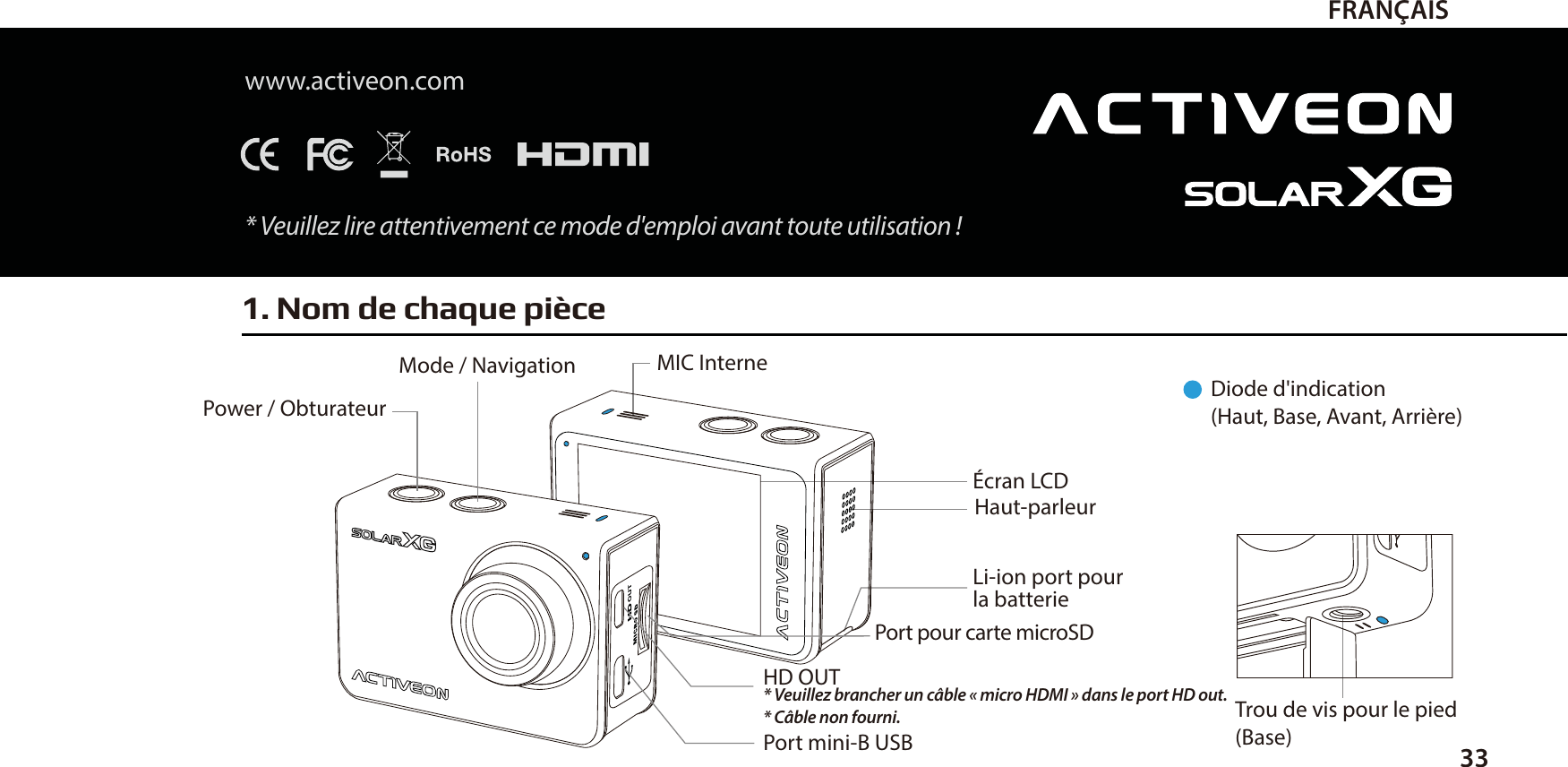
FRANÇAISwww.activeon.com* Veuillez lire attentivement ce mode d'emploi avant toute utilisation!1. Nom de chaque pièce33Diode d'indication(Haut, Base, Avant, Arrière)Trou de vis pour le pied (Base)Mode / Navigation MIC InternePower / ObturateurÉcran LCDLi-ion port pour la batterieHD OUT* Veuillez brancher un câble «micro HDMI» dans le port HD out.* Câble non fourni.Port mini-B USBPort pour carte microSD Haut-parleur
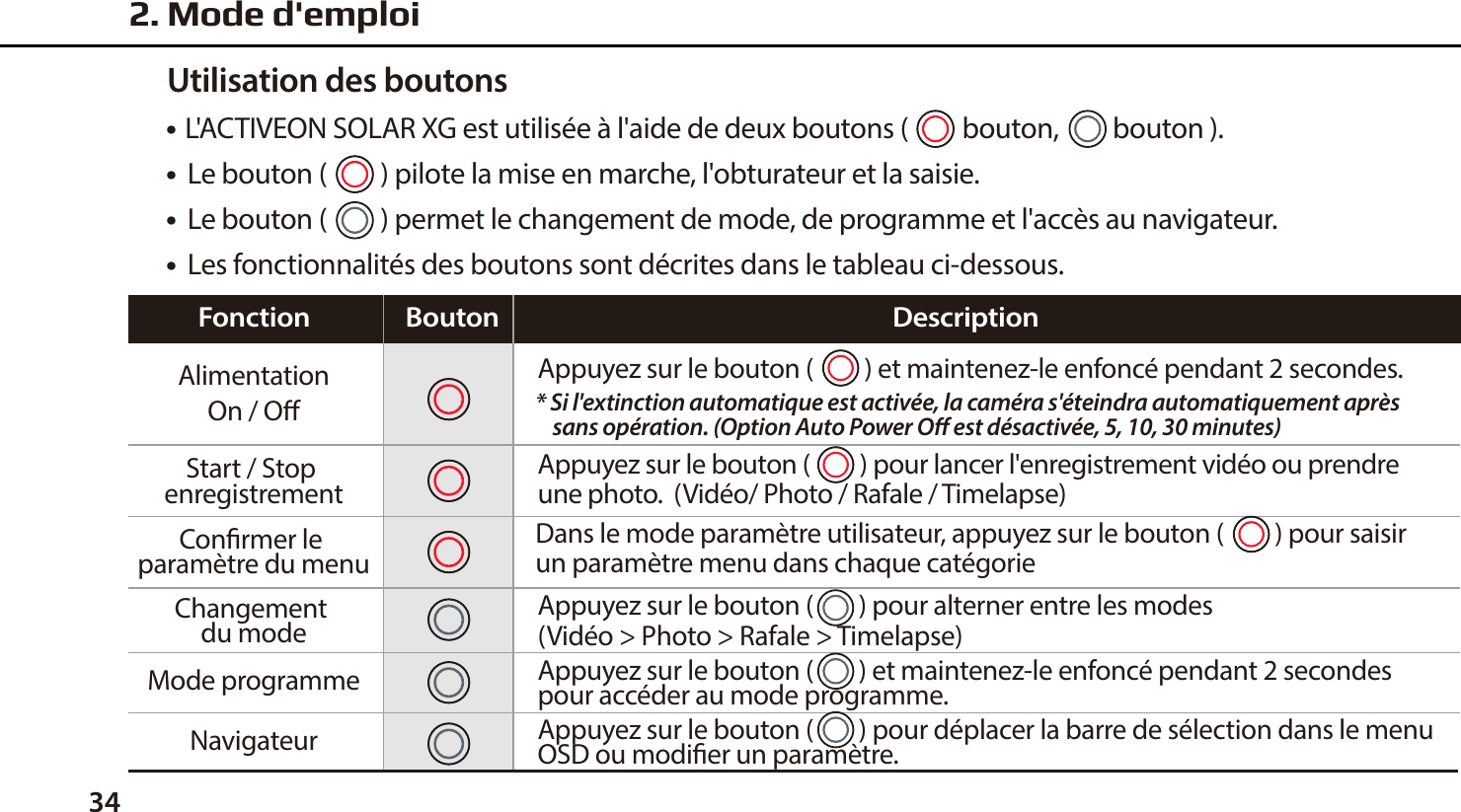
342. Mode d'emploi●    L'ACTIVEON SOLAR XG est utilisée à l'aide de deux boutons (         bouton,         bouton ).●  Le bouton (         ) pilote la mise en marche, l'obturateur et la saisie.●  Le bouton (         ) permet le changement de mode, de programme et l'accès au navigateur. ●  Les fonctionnalités des boutons sont décrites dans le tableau ci-dessous.Utilisation des boutonsAppuyez sur le bouton (         ) pour lancer l'enregistrement vidéo ou prendre une photo.  (Vidéo/ Photo / Rafale / Timelapse)AlimentationOn / OStart / Stop enregistrementConrmer le paramètre du menuFonction Bouton DescriptionDans le mode paramètre utilisateur, appuyez sur le bouton (         ) pour saisir un paramètre menu dans chaque catégorieAppuyez sur le bouton (         ) et maintenez-le enfoncé pendant 2 secondes.* Si l'extinction automatique est activée, la caméra s'éteindra automatiquement après     sans opération. (Option Auto Power O est désactivée, 5, 10, 30 minutes)Changement du modeNavigateurMode programmeAppuyez sur le bouton (        ) pour alterner entre les modes  (Vidéo > Photo > Rafale > Timelapse) Appuyez sur le bouton (        ) et maintenez-le enfoncé pendant 2 secondespour accéder au mode programme.Appuyez sur le bouton (        ) pour déplacer la barre de sélection dans le menu OSD ou modier un paramètre.
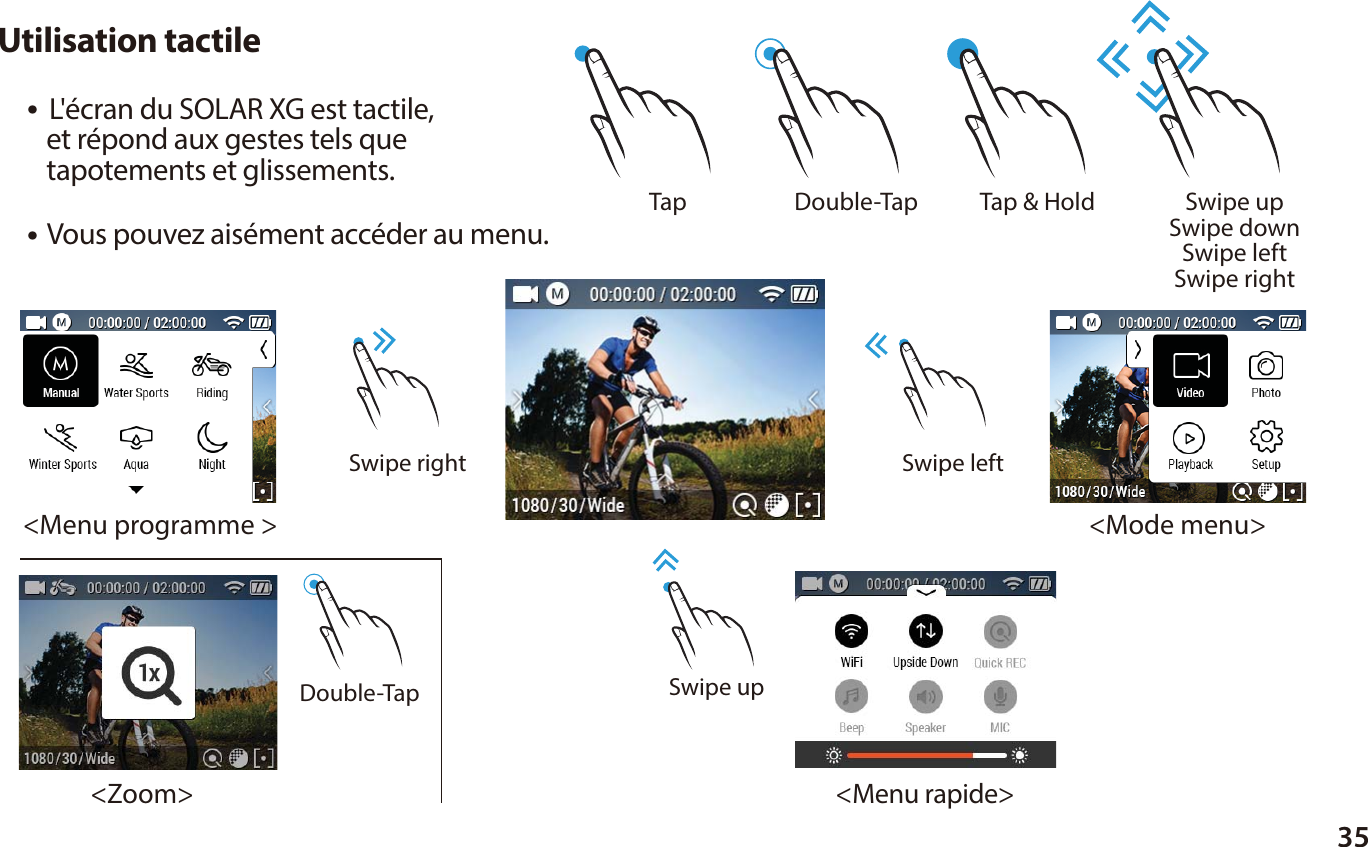
35●  L'écran du SOLAR XG est tactile,    et répond aux gestes tels que    tapotements et glissements.Utilisation tactile Tap  Tap & Hold Double-Tap Swipe upSwipe downSwipe leftSwipe right Double-Tap● Vous pouvez aisément accéder au menu.Swipe upSwipe leftSwipe right<Menu programme ><Menu rapide><Mode menu><Zoom>
● Pour une utilisation tactile, tapotez l'écran.    L'écran achera ensuite  “Lock image”.    Tapotez et maintenez “Lock image” jusqu'à    ce que l'écran soit prêt.3. Allumez la caméra1. Ouvrez le compartiment de la batterie et insérez-y la batterie Li-ion ACTIVEON SOLAR XG.2. Insérez la carte microSD dans le compartiment prévu à cet eet.      (La caméra n'enregistre pas si la carte microSD n'est pas insérée.)3. Appuyez sur le bouton (       ) et maintenez-le enfoncé pendant 2 secondes.      (La caméra s'allume et l'écran LCD ache l'image visualisée.)Comment débloquer le fonctionnement tactile36●  SOLAR XG comprend des caractéristiques spéciales d'économie d'énergie.1. Auto rétro éclairage par palier :  Lorsque vous réglez sur [Arrêt auto LCD], l'auto rétro éclairage par palier débutera au                                                                   mileu de votre temps de réglage.2. Pour éteindre l'écran LCD : [Pendant l'enregistrement vidéo] Appuyez et maintenez l'écran pendant 2-3 secondes.                                                         L'écran LCD s'éteindra automatiquement.           * Pour ré allumer l'écran LCD à nouveau, s'il vous plaît appuyez sur le bouton (         ) une fois.           * Si l'image de cadenas apparaît, s'il vous plaît consulter le guide-du-Touch-Opération How-to-Unlock.Fonction d'économie d'énergie
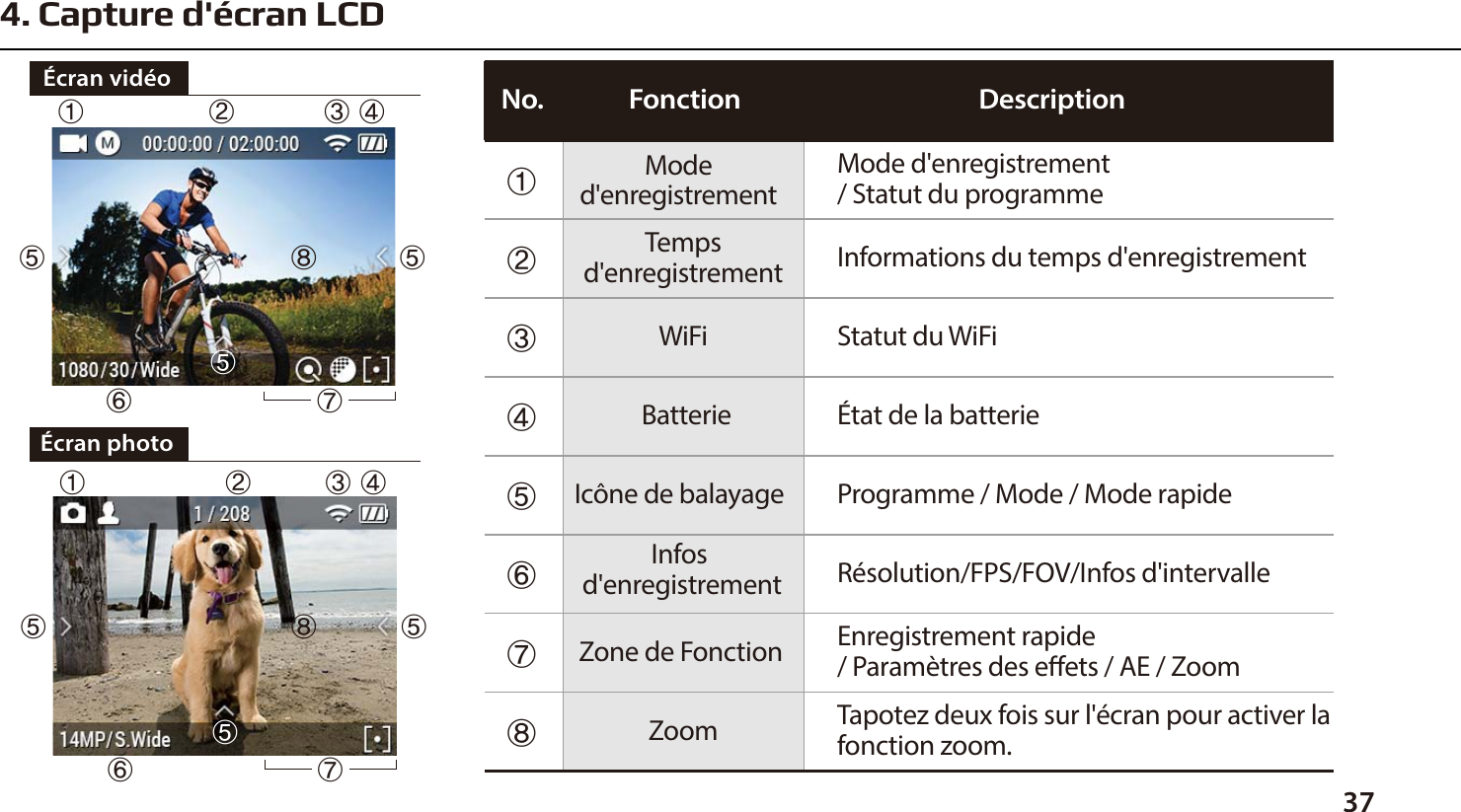
374. Capture d'écran LCDÉcran photoÉcran vidéoⴝⴞⴟⴘⴙⴚⴛⴜMode d'enregistrement / Statut du programmeInformations du temps d'enregistrementStatut du WiFiÉtat de la batterieProgramme / Mode / Mode rapideRésolution/FPS/FOV/Infos d'intervalleEnregistrement rapide/ Paramètres des eets / AE / ZoomTapotez deux fois sur l'écran pour activer la fonction zoom.Moded'enregistrementTempsd'enregistrementWiFiBatterieIcône de balayage Infos d'enregistrementZone de Fonction ZoomFonctionNo. Descriptionⴝⴘⴙⴚⴛⴜⴜⴜⴟⴞⴟⴝⴘⴙⴚⴛⴜⴜⴜⴞⴜⴟ
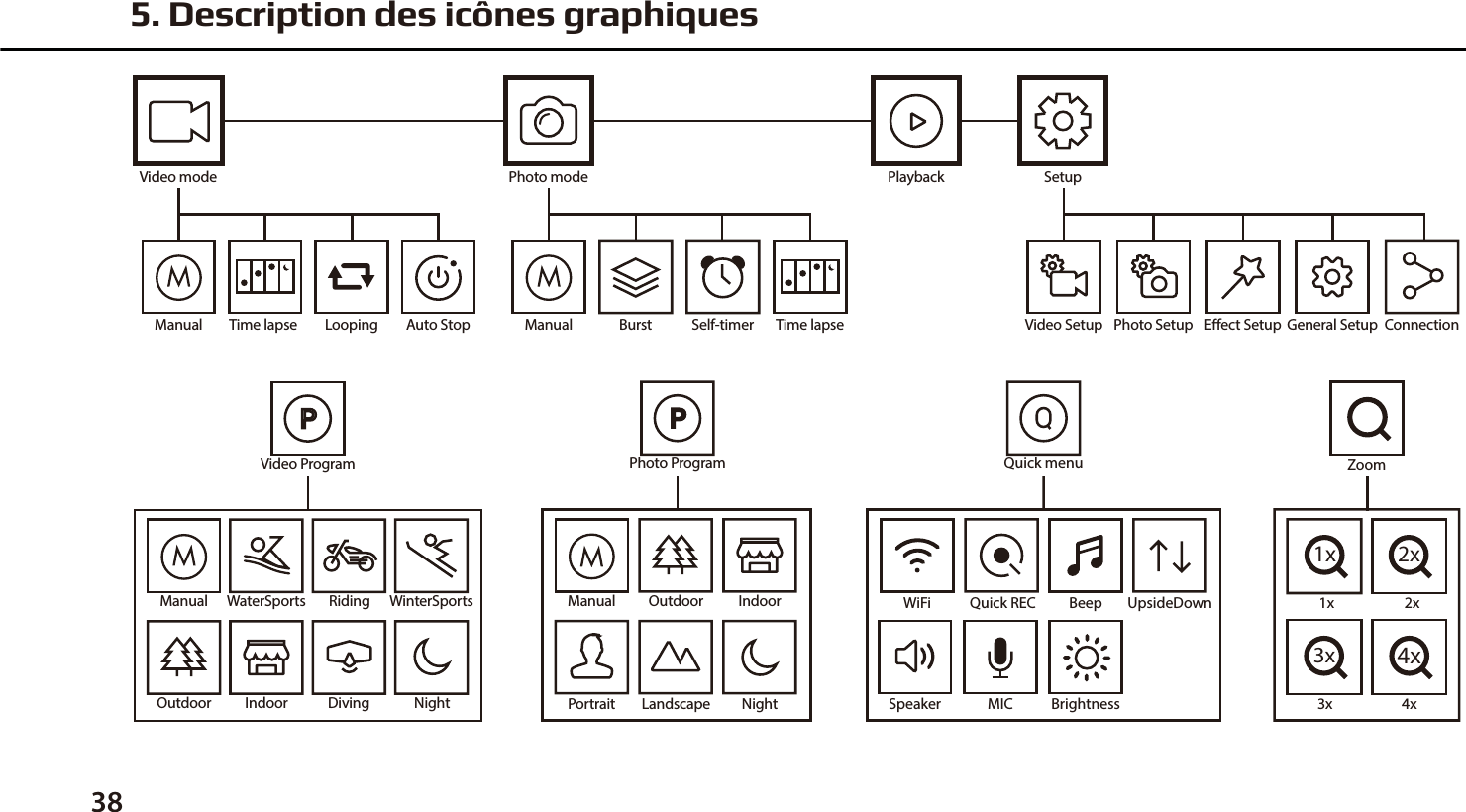
5. Description des icônes graphiques38ManualVideo ProgramDivingWinterSportsRidingOutdoor Indoor NightWaterSports WiFi Quick REC Beep UpsideDownSpeaker MIC BrightnessQuick menu1x1x2x2x3x3x4x4xZoomManualPhoto ProgramOutdoor IndoorNightPortrait LandscapeVideo mode Playback SetupTime lapse Looping Auto Stop Video Setup Photo Setup Eect Setup General Setup ConnectionPhoto modeTime lapseBurst Self-timerManual Manual
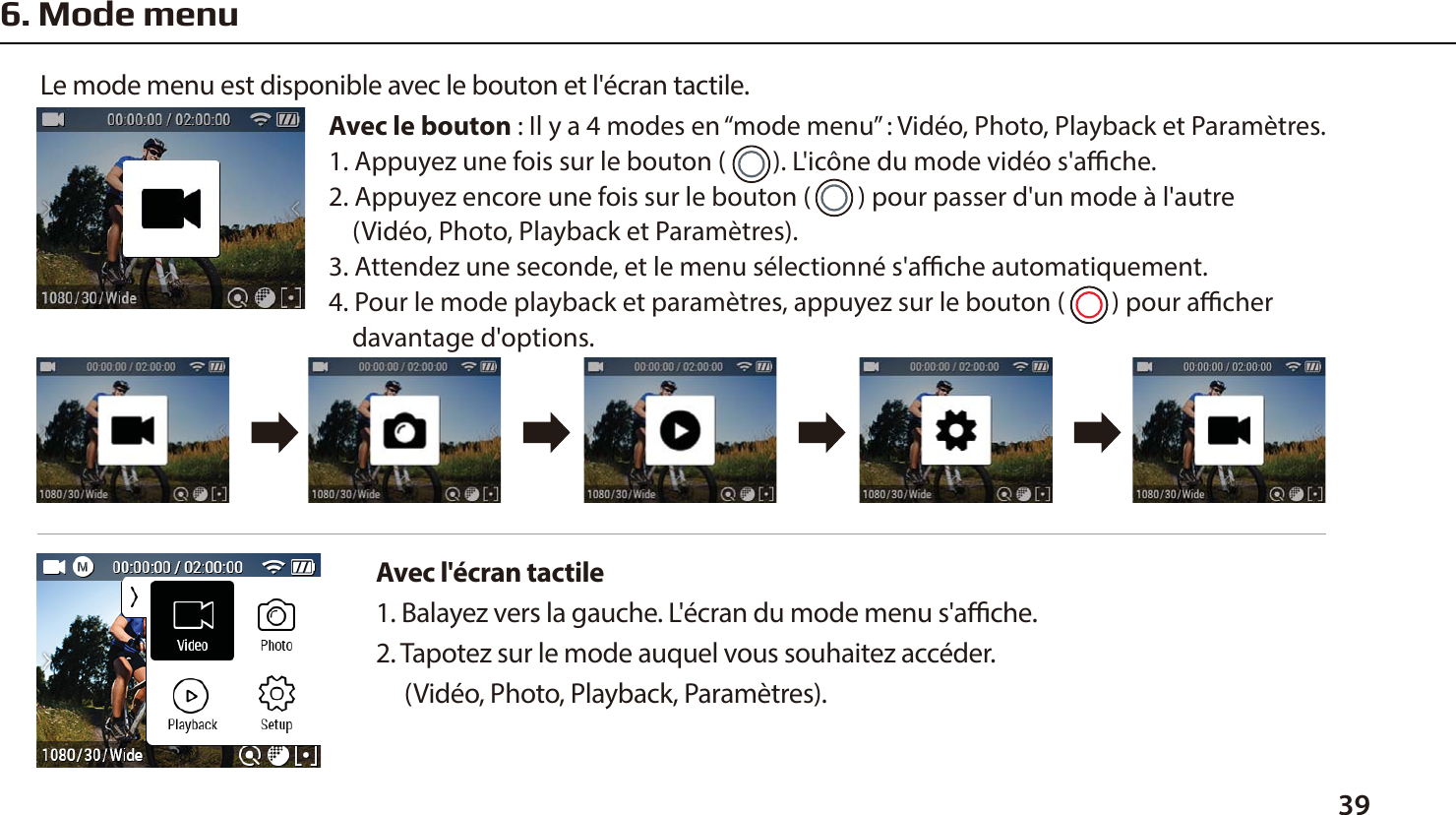
396. Mode menuAvec l'écran tactile 1. Balayez vers la gauche. L'écran du mode menu s'ache.2. Tapotez sur le mode auquel vous souhaitez accéder.      (Vidéo, Photo, Playback, Paramètres).Le mode menu est disponible avec le bouton et l'écran tactile.Avec le bouton : Il y a 4 modes en “mode menu” : Vidéo, Photo, Playback et Paramètres.1. Appuyez une fois sur le bouton (        ). L'icône du mode vidéo s'ache.2. Appuyez encore une fois sur le bouton (        ) pour passer d'un mode à l'autre     (Vidéo, Photo, Playback et Paramètres).3. Attendez une seconde, et le menu sélectionné s'ache automatiquement.4. Pour le mode playback et paramètres, appuyez sur le bouton (        ) pour acher     davantage d'options.
401. Une fois la caméra allumée, Appuyez sur le bouton (         ) pour lancer      l'enregistrement vidéo.2. Lorsque la caméra commence à enregistrer, la diode clignote* et la durée     de l'enregistrement s'ache à l'écran.3. Appuyez sur le bouton (         ) pour arrêter l'enregistrement.4. Vous pouvez modier les paramètres vidéo dans ”Paramètres vidéo”.  * Si l'option LED OFF est sélectionnée dans les paramètres généraux,       la diode ne clignotera pas.Capture d'écran de l'utilisation du boutonCapture d'écran de l'utilisation de l'écran tactile7. Mode vidéoVidéo timelapsePrise d'images à intervalles dénis et création d'un chier vidéo timelapse.(0.5sec / 1sec / 3sec / 5sec / 10sec / 30sec / 60sec)LoopingEnregistrement en continu jusqu'à ce que vous arrêtiez. (1min / 5min / 10min / 30min)** La capacité maximale du chier vidéo est de 4 Gb. Si la taille du chier excède celle de l'espace      looping, la caméra écrasera le chier d'enregistrement en cours.ZoomTapotez brièvement deux fois sur l'écran, la fonction zoom s'ache.Après 3 secondes, le zoom disparaît automatiquement et enregistrela valeur pendant l'enregistrement (x1/x2/x3/x4).  Double-TapAuto-stopEnregistre la vidéo jusqu'à ce que l'heure soit réglée.(1min / 5min / 10min / 30min)
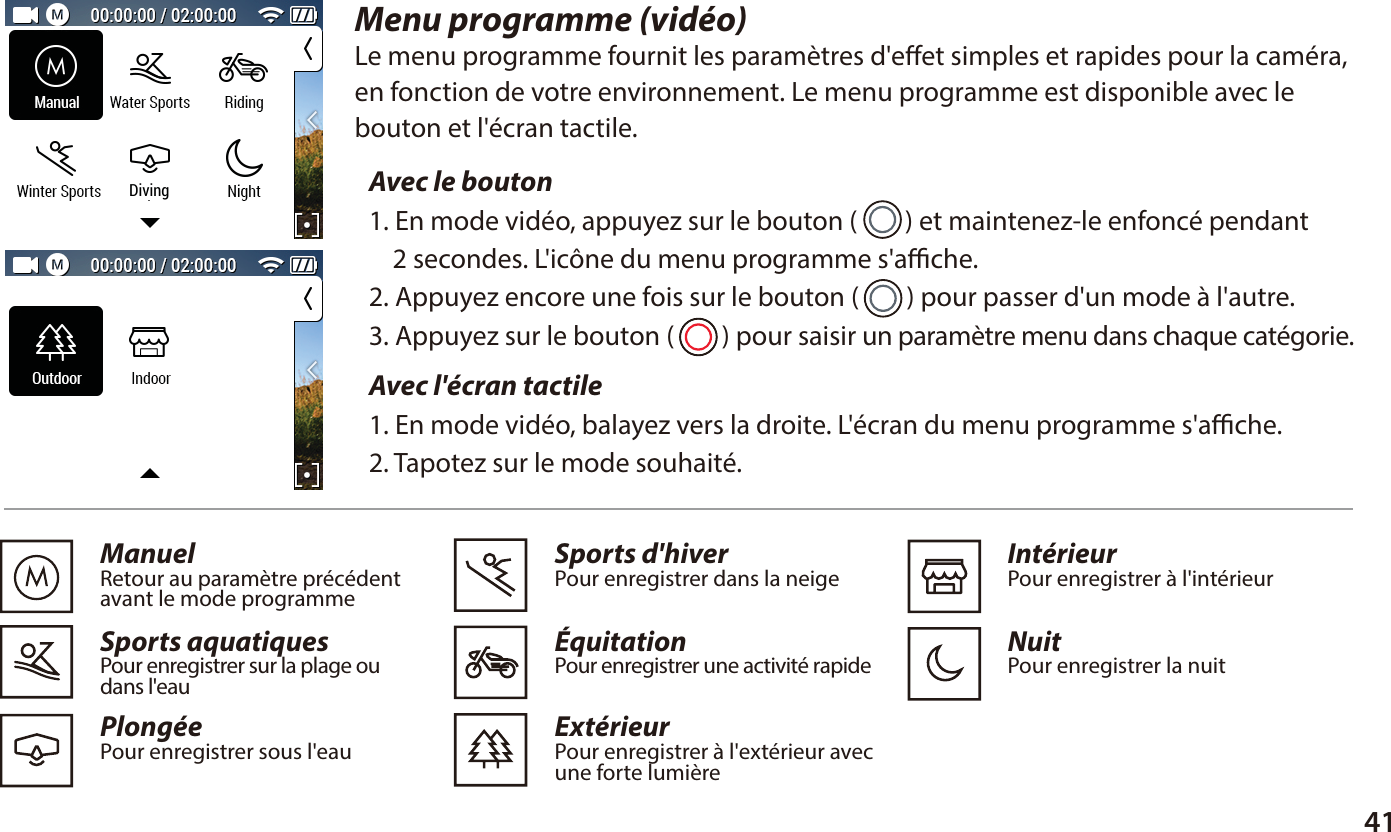
41Menu programme (vidéo)Le menu programme fournit les paramètres d'eet simples et rapides pour la caméra, en fonction de votre environnement. Le menu programme est disponible avec lebouton et l'écran tactile.Avec l'écran tactile 1. En mode vidéo, balayez vers la droite. L'écran du menu programme s'ache.2. Tapotez sur le mode souhaité.ManuelRetour au paramètre précédent avant le mode programmeSports aquatiquesPour enregistrer sur la plage ou dans l'eauPlongéePour enregistrer sous l'eau  Sports d'hiverPour enregistrer dans la neigeÉquitationPour enregistrer une activité rapideExtérieur Pour enregistrer à l'extérieur avec une forte lumière  IntérieurPour enregistrer à l'intérieurNuitPour enregistrer la nuit  Avec le bouton 1. En mode vidéo, appuyez sur le bouton (        ) et maintenez-le enfoncé pendant     2 secondes. L'icône du menu programme s'ache.2. Appuyez encore une fois sur le bouton (        ) pour passer d'un mode à l'autre.3. Appuyez sur le bouton (        ) pour saisir un paramètre menu dans chaque catégorie.Diving
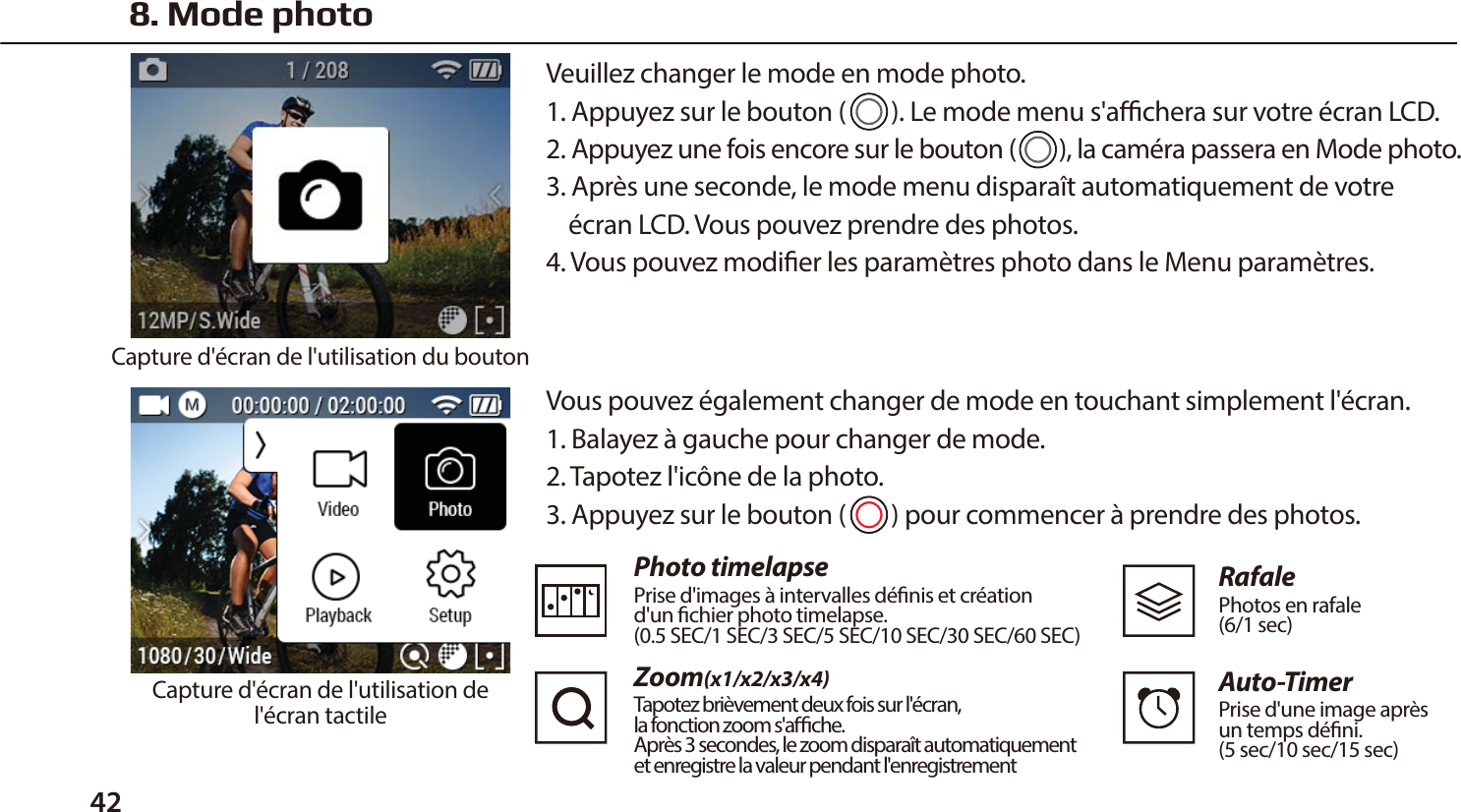
42 Vous pouvez également changer de mode en touchant simplement l'écran.1. Balayez à gauche pour changer de mode.2. Tapotez l'icône de la photo.3. Appuyez sur le bouton (        ) pour commencer à prendre des photos.Photo timelapsePrise d'images à intervalles dénis et création d'un chier photo timelapse. (0.5 SEC/1 SEC/3 SEC/5 SEC/10 SEC/30 SEC/60 SEC)Zoom(x1/x2/x3/x4)Tapotez brièvement deux fois sur l'écran, la fonction zoom s'ache. Après 3 secondes, le zoom disparaît automatiquementet enregistre la valeur pendant l'enregistrementRafalePhotos en rafale (6/1 sec)Auto-TimerPrise d'une image après un temps déni. (5 sec/10 sec/15 sec)8. Mode photoVeuillez changer le mode en mode photo.1. Appuyez sur le bouton (        ). Le mode menu s'achera sur votre écran LCD.2. Appuyez une fois encore sur le bouton (        ), la caméra passera en Mode photo.3. Après une seconde, le mode menu disparaît automatiquement de votre     écran LCD. Vous pouvez prendre des photos.4. Vous pouvez modier les paramètres photo dans le Menu paramètres.Capture d'écran de l'utilisation du boutonCapture d'écran de l'utilisation del'écran tactile
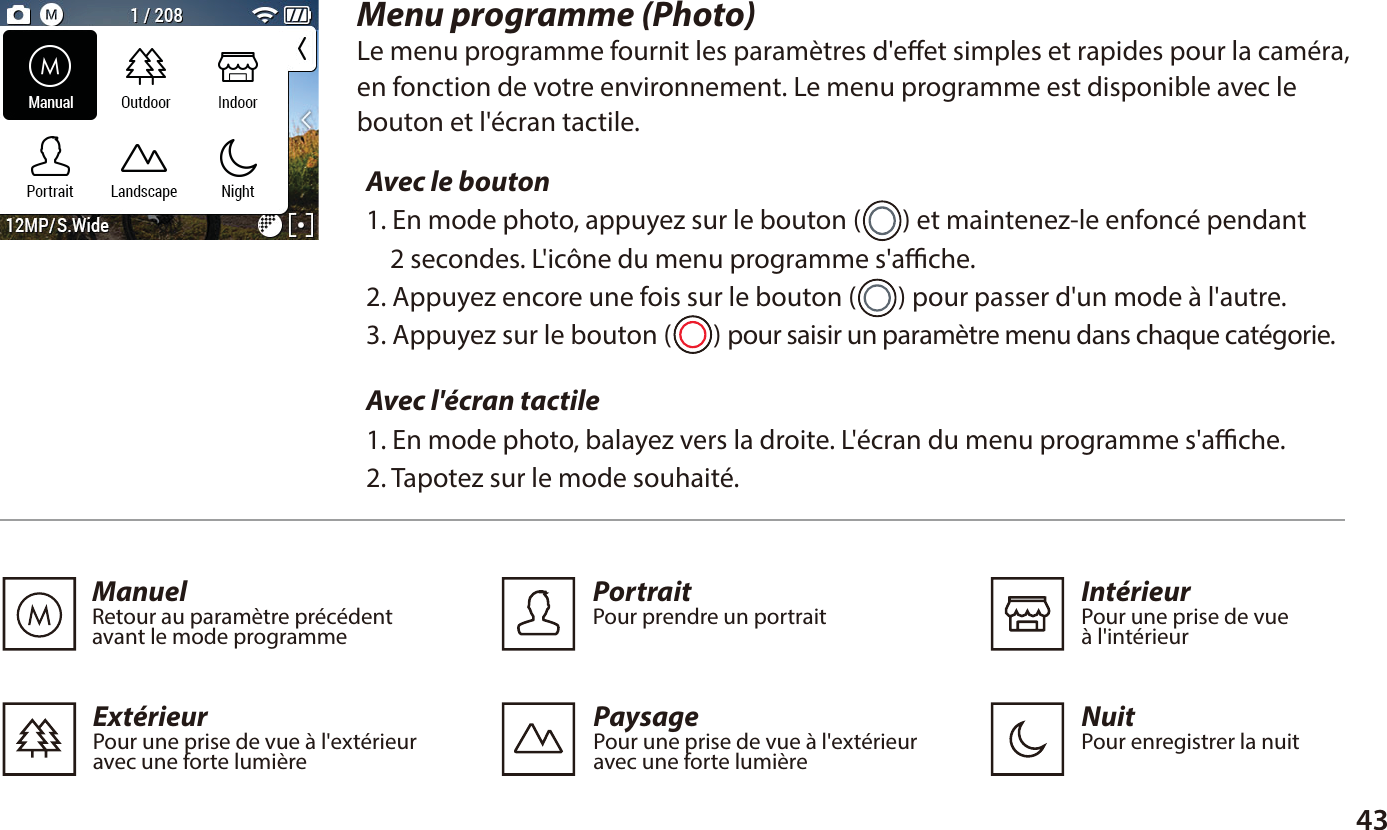
43Menu programme (Photo)Le menu programme fournit les paramètres d'eet simples et rapides pour la caméra,en fonction de votre environnement. Le menu programme est disponible avec lebouton et l'écran tactile.Avec le bouton 1. En mode photo, appuyez sur le bouton (       ) et maintenez-le enfoncé pendant     2 secondes. L'icône du menu programme s'ache.2. Appuyez encore une fois sur le bouton (       ) pour passer d'un mode à l'autre.3. Appuyez sur le bouton (       ) pour saisir un paramètre menu dans chaque catégorie.Avec l'écran tactile 1. En mode photo, balayez vers la droite. L'écran du menu programme s'ache.2. Tapotez sur le mode souhaité.ManuelRetour au paramètre précédent avant le mode programme  PaysagePour une prise de vue à l'extérieur avec une forte lumièreExtérieurPour une prise de vue à l'extérieur avec une forte lumière  IntérieurPour une prise de vue à l'intérieurPortraitPour prendre un portraitNuitPour enregistrer la nuit
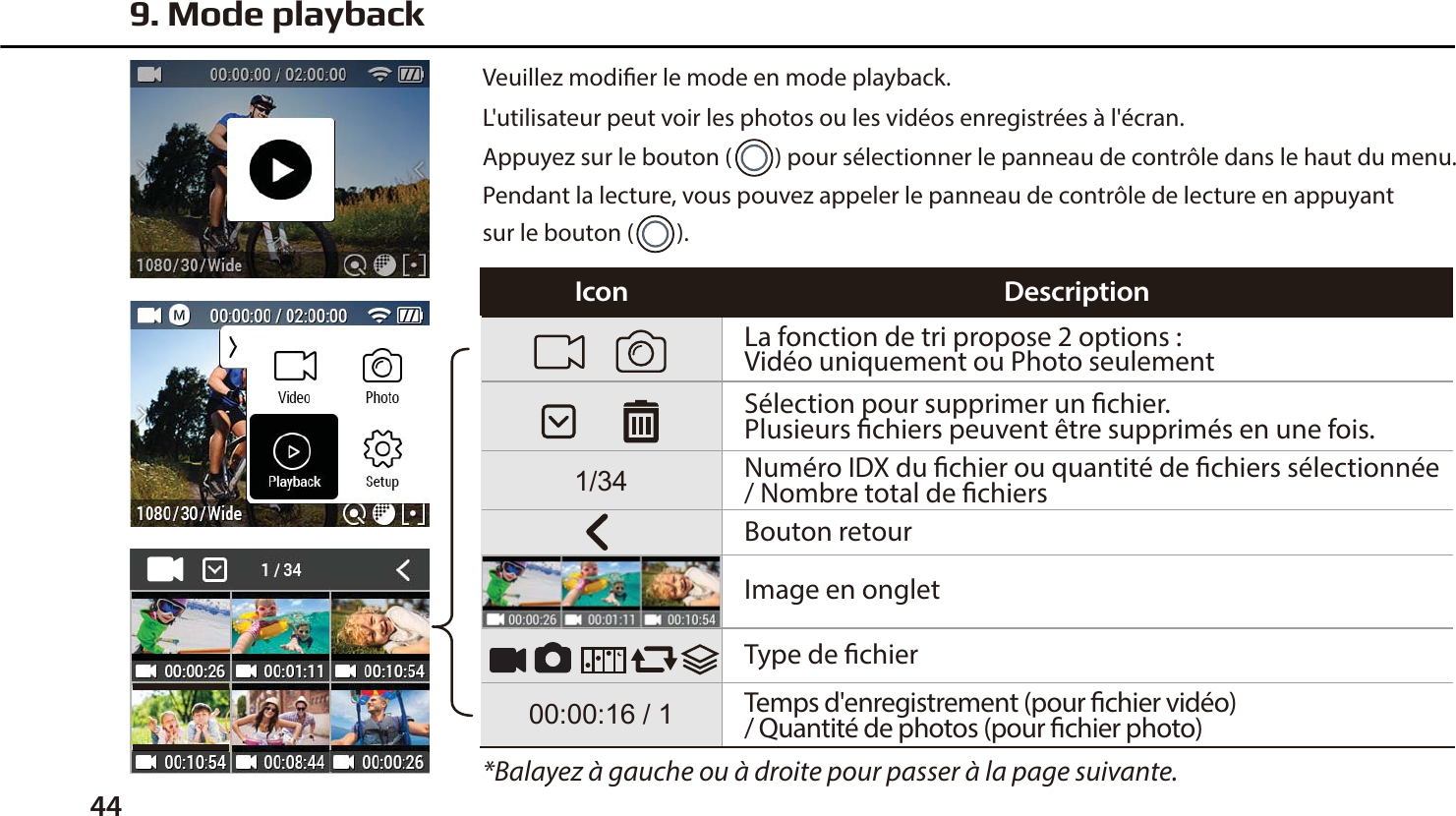
44La fonction de tri propose 2 options :Vidéo uniquement ou Photo seulementSélection pour supprimer un chier.Plusieurs chiers peuvent être supprimés en une fois.Numéro IDX du chier ou quantité de chiers sélectionnée / Nombre total de chiersBouton retourImage en ongletType de chierTemps d'enregistrement (pour chier vidéo) / Quantité de photos (pour chier photo)*Balayez à gauche ou à droite pour passer à la page suivante.9. Mode playbackVeuillez modier le mode en mode playback.L'utilisateur peut voir les photos ou les vidéos enregistrées à l'écran.Appuyez sur le bouton (        ) pour sélectionner le panneau de contrôle dans le haut du menu.Pendant la lecture, vous pouvez appeler le panneau de contrôle de lecture en appuyant sur le bouton (        ).Icon Description
45Playback (photo)Playback (vidéo)DescriptionD'un tapotement, vous pouvez masquer la barre de contrôle.Tapotez à nouveau l'écran, et la barre de contrôle réapparaît.Vous pouvez voir tous les chiers photo avec la fonction diaporama. * En timelapse et en rafale, seule la première   photo s'acheDescriptionType de chierDurée du playback / Temps totalBatterie restanteBarre de navigationSupprimer / RetourFichier précédent / Pause / Fichier suivantⴘⴙⴚIconNo.Type de chierPhoto courante / Photo totaleBatterie restanteSupprimer / RetourFichier précédent / Pause / Fichier suivantⴘⴙIconNo.
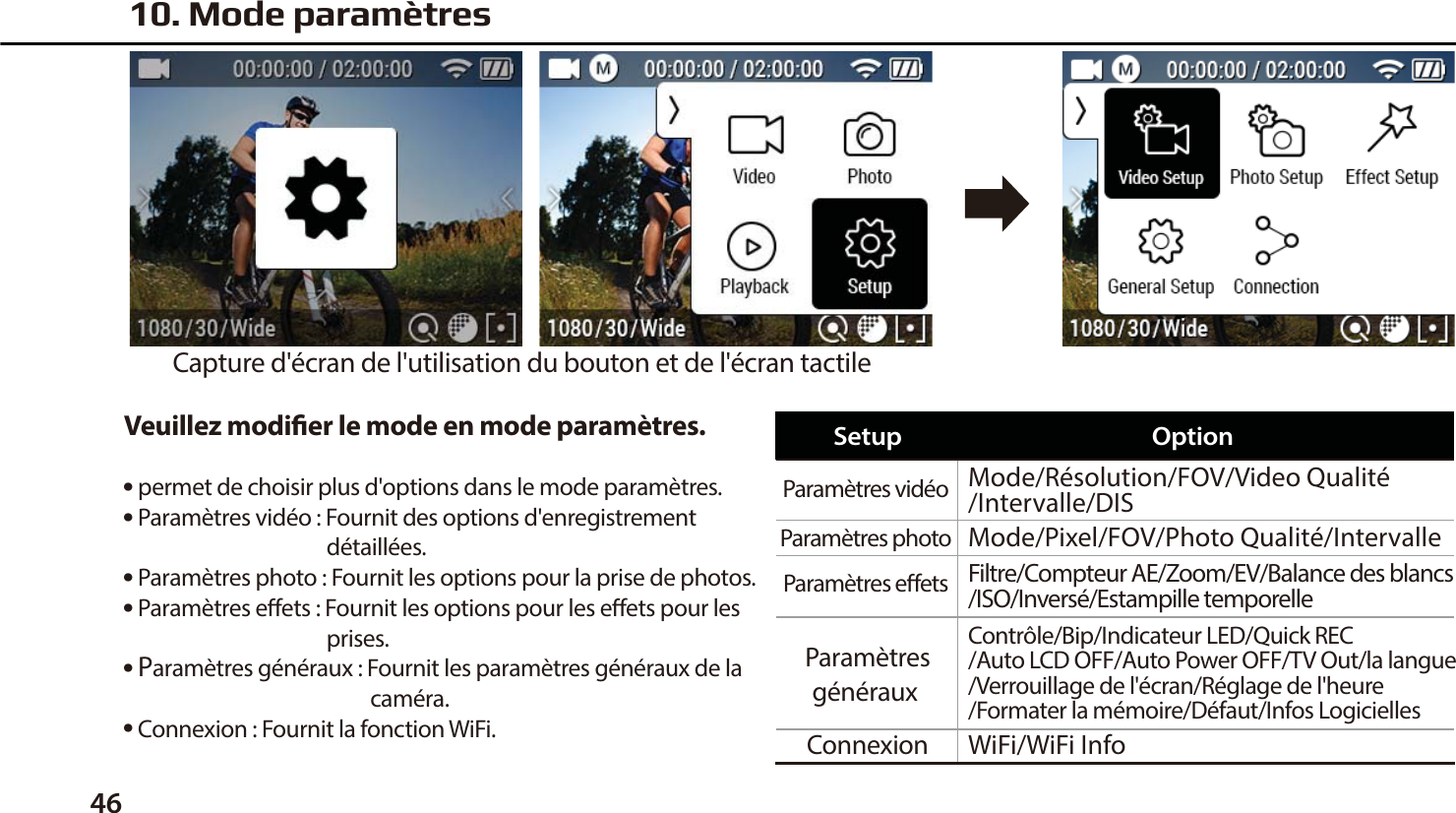
46Veuillez modier le mode en mode paramètres.● permet de choisir plus d'options dans le mode paramètres.● Paramètres vidéo : Fournit des options d'enregistrement                                          détaillées.● Paramètres photo : Fournit les options pour la prise de photos.● Paramètres eets : Fournit les options pour les eets pour les                                          prises.● Paramètres généraux : Fournit les paramètres généraux de la                                                   caméra.● Connexion : Fournit la fonction WiFi.10. Mode paramètresCapture d'écran de l'utilisation du bouton et de l'écran tactileParamètres vidéo  Mode/Résolution/FOV/Video Qualité/Intervalle/DISMode/Pixel/FOV/Photo Qualité/IntervalleWiFi/WiFi InfoContrôle/Bip/Indicateur LED/Quick REC/Auto LCD OFF/Auto Power OFF/TV Out/la langue/Verrouillage de l'écran/Réglage de l'heure/Formater la mémoire/Défaut/Infos LogiciellesFiltre/Compteur AE/Zoom/EV/Balance des blancs/ISO/Inversé/Estampille temporelleParamètres photo Paramètres eets Paramètresgénéraux ConnexionSetup Option
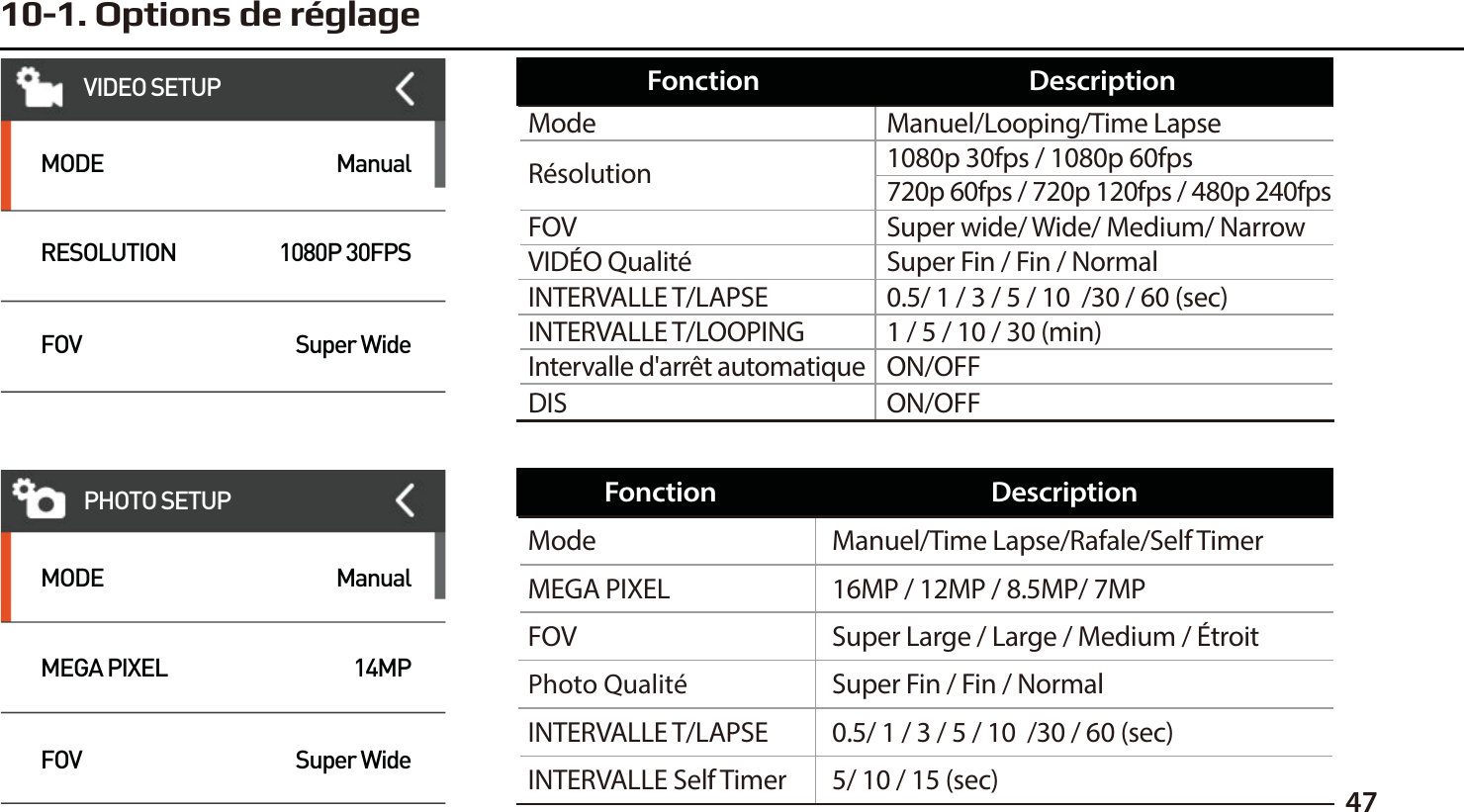
4710-1. Options de réglageManuel/Looping/Time Lapse1080p 30fps / 1080p 60fps720p 60fps / 720p 120fps / 480p 240fpsSuper wide/ Wide/ Medium/ NarrowModeRésolution ON/OFFDISON/OFFIntervalle d'arrêt automatique0.5/ 1 / 3 / 5 / 10  /30 / 60 (sec)INTERVALLE T/LAPSE 1 / 5 / 10 / 30 (min)INTERVALLE T/LOOPING FOVSuper Fin / Fin / NormalVIDÉO QualitéFonction DescriptionManuel/Time Lapse/Rafale/Self Timer16MP / 12MP / 8.5MP/ 7MPSuper Large / Large / Medium / Étroit5/ 10 / 15 (sec)Super Fin / Fin / NormalModeMEGA PIXELFOVINTERVALLE Self Timer Photo Qualité0.5/ 1 / 3 / 5 / 10  /30 / 60 (sec)INTERVALLE T/LAPSEFonction DescriptionVIDEO SETUPMODERESOLUTIONFOVManual1080P 30FPSSuper WideMODEMEGA PIXELFOVManual14MPSuper WidePHOTO SETUP
48OFF/Noir&Blanc/Sépia/vif/Naturel/Natif/Chaud/Frais/Rouge/Vert/BleuCENTRE/MOYEN/SPOTx1/ x2/x3/x4-2.0/-1.0/0/+1.0/+2.0AUTO/3000K/5500K/6500KAUTO/100/200/400/800/1600/3200ON/OFFON/OFFFILTRECOMPTEUR AE ZOOMBALANCE DES BLANCS ESTAMPILLE TEMPORELLEINVERSÉISOEVFonction DescriptionMic/Haut-parleur/Luminosité LCDON/OFFOFF/DEUX/QUATREOFF/ 0sec/ 3sec/ 5secOFF/30sec/ 1min/ 5minOFF/ 5min/ 10min/ 30minDATE - HEUREOUI/NONNTSC/PALOFF/ 5sec/ 10sec/ 30secOUI/NONINFOS LOGICIELLESCONTRÔLEBIPDIODE D'INDICATION AUTO LCD OFFDÉFAUTINFOS LOGICIELLESFORMATER LA MÉMOIRE REGLAGE DE L'HEURE TV OUTAnglais/Français/Espagnol/AllemandLA LANGUEVERROUILLAGE DE L'ÉCRAN AUTO POWER OFFQUICK RECFonction DescriptionEFFECT SETUPZOOMFILTERAE METERX1OFFAverageCONTROLBEEPLED INDICATORMICONFOURGENERAL SETUP
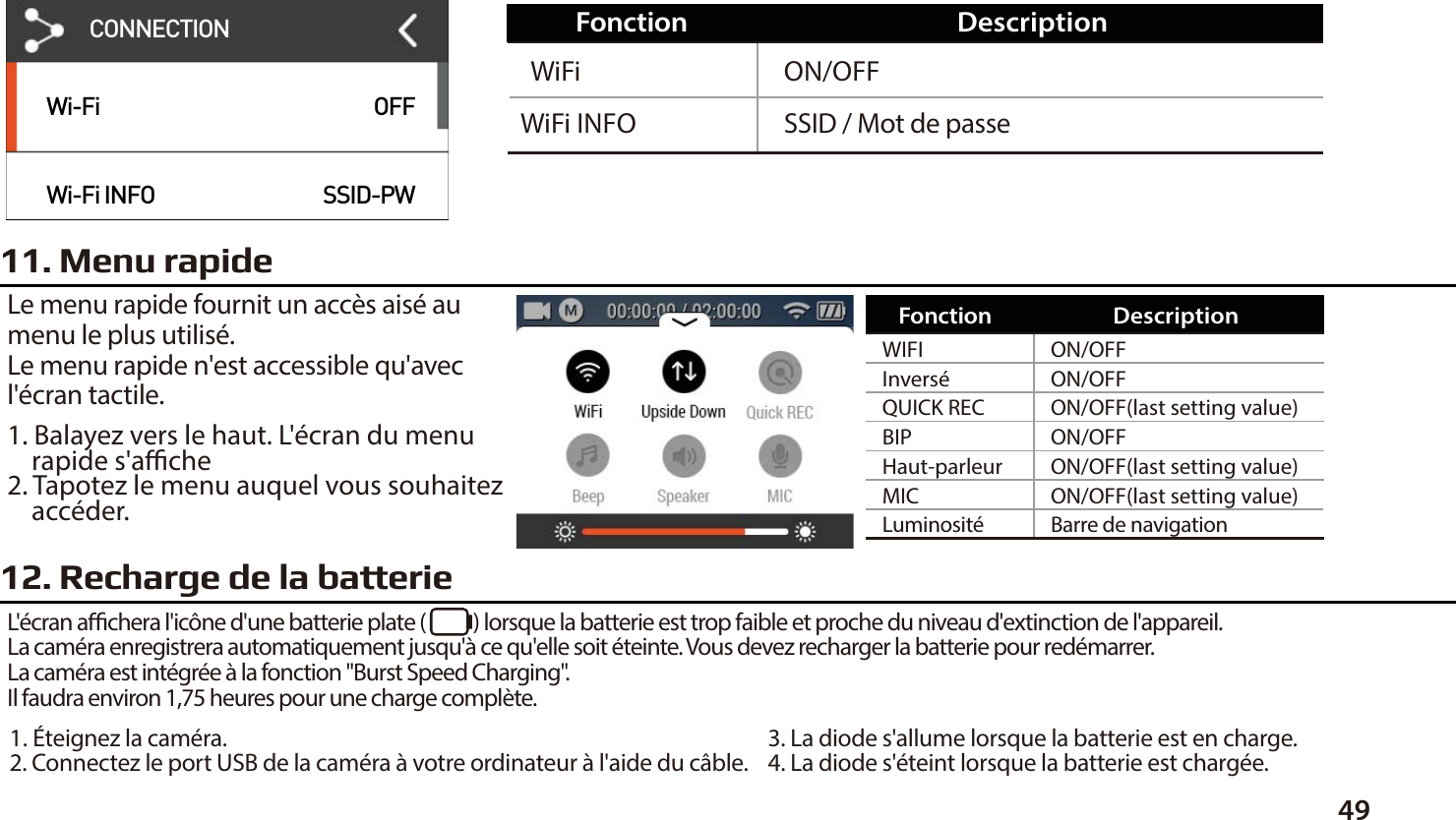
4911. Menu rapideLe menu rapide fournit un accès aisé au menu le plus utilisé.Le menu rapide n'est accessible qu'avec l'écran tactile.1. Balayez vers le haut. L'écran du menu     rapide s'ache2. Tapotez le menu auquel vous souhaitez     accéder.12. Recharge de la batterieL'écran achera l'icône d'une batterie plate (           ) lorsque la batterie est trop faible et proche du niveau d'extinction de l'appareil.La caméra enregistrera automatiquement jusqu'à ce qu'elle soit éteinte. Vous devez recharger la batterie pour redémarrer.La caméra est intégrée à la fonction "Burst Speed Charging".Il faudra environ 1,75 heures pour une charge complète.ON/OFFSSID / Mot de passeWiFiWiFi INFOFonction DescriptionON/OFFON/OFFON/OFF(last setting value)ON/OFFON/OFF(last setting value)ON/OFF(last setting value)Barre de navigationWIFIInverséQUICK RECHaut-parleurLuminositéMICBIPFonction Description1. Éteignez la caméra.2. Connectez le port USB de la caméra à votre ordinateur à l'aide du câble. 3. La diode s'allume lorsque la batterie est en charge.4. La diode s'éteint lorsque la batterie est chargée.Wi-FiWi-Fi INFOOFFSSID-PWCONNECTION
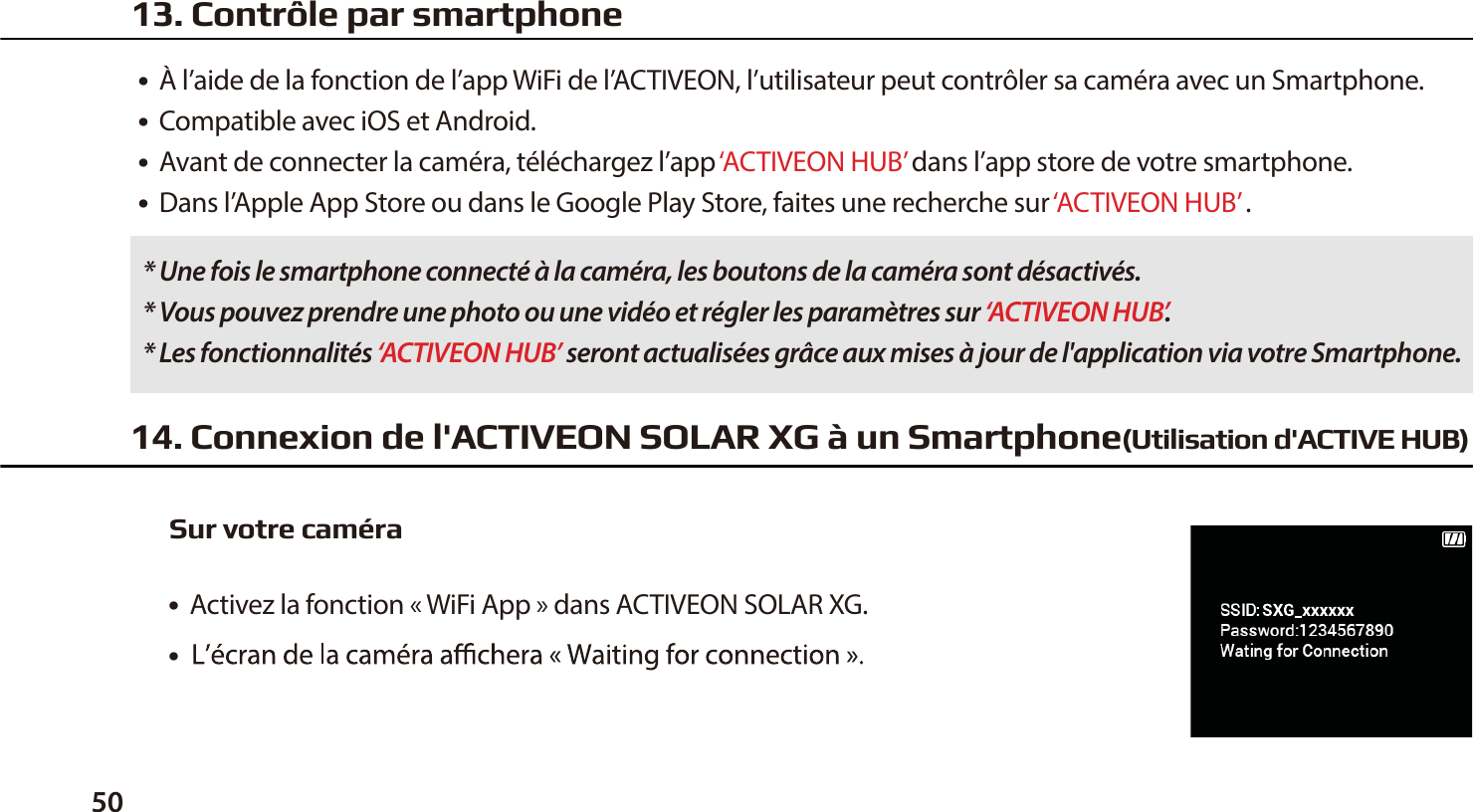
●  À l’aide de la fonction de l’app WiFi de l’ACTIVEON, l’utilisateur peut contrôler sa caméra avec un Smartphone.●  Compatible avec iOS et Android.●  Avant de connecter la caméra, téléchargez l’app ‘ACTIVEON HUB’ dans l’app store de votre smartphone.●  Dans l’Apple App Store ou dans le Google Play Store, faites une recherche sur ‘ACTIVEON HUB’ .●  Activez la fonction « WiFi App » dans ACTIVEON SOLAR XG.● * Une fois le smartphone connecté à la caméra, les boutons de la caméra sont désactivés.* Vous pouvez prendre une photo ou une vidéo et régler les paramètres sur ‘ACTIVEON HUB’.* Les fonctionnalités ‘ACTIVEON HUB’ seront actualisées grâce aux mises à jour de l'application via votre Smartphone.14. Connexion de l'ACTIVEON SOLAR XG à un Smartphone(Utilisation d'ACTIVE HUB)Sur votre caméra13. Contrôle par smartphone50
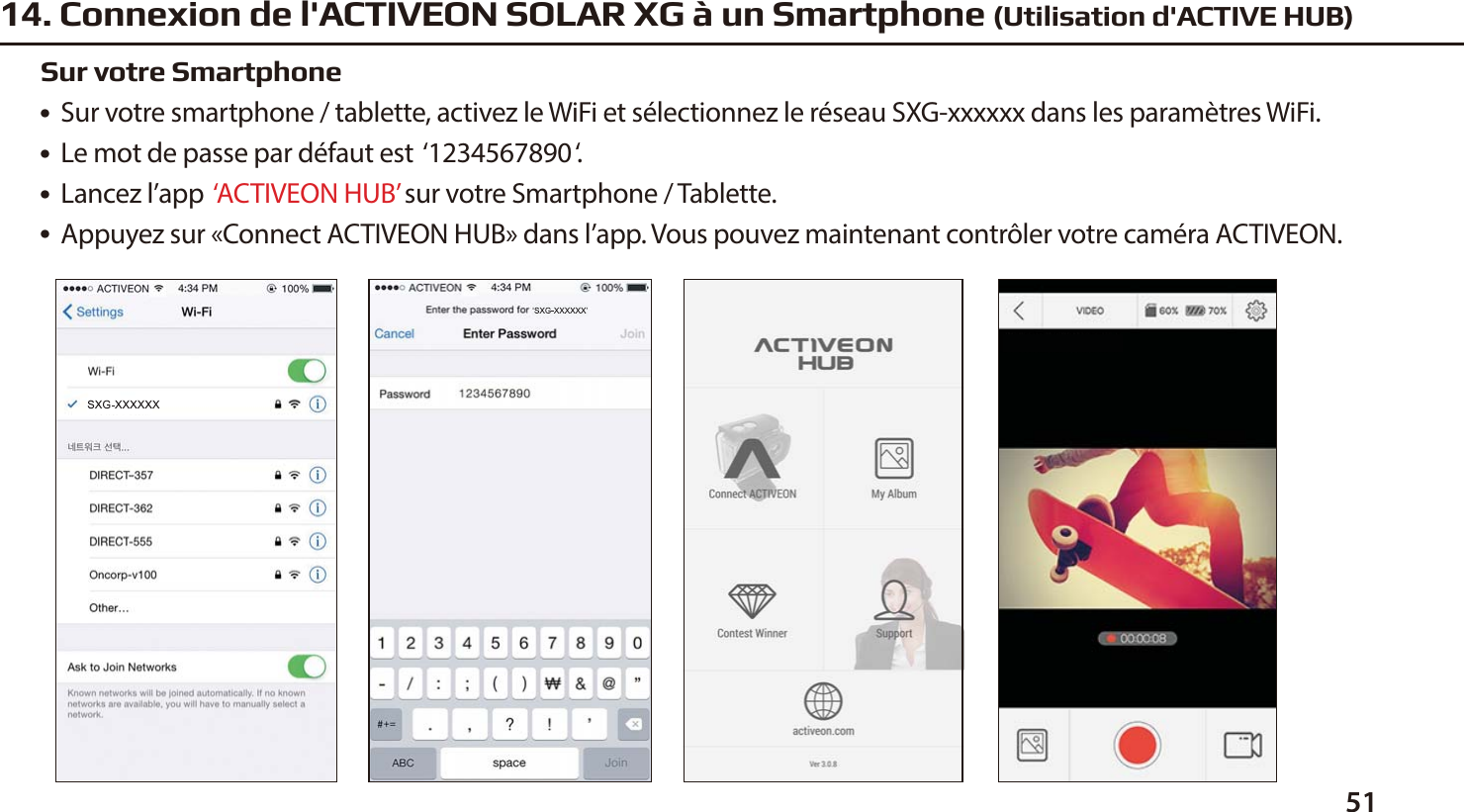
5114. Connexion de l'ACTIVEON SOLAR XG à un Smartphone (Utilisation d'ACTIVE HUB)●  Sur votre smartphone / tablette, activez le WiFi et sélectionnez le réseau SXG-xxxxxx dans les paramètres WiFi.●  Le mot de passe par défaut est  ‘1234567890‘.●  Lancez l’app  ‘ACTIVEON HUB’ sur votre Smartphone / Tablette.●  Appuyez sur «Connect ACTIVEON HUB» dans l’app. Vous pouvez maintenant contrôler votre caméra ACTIVEON.Sur votre Smartphone
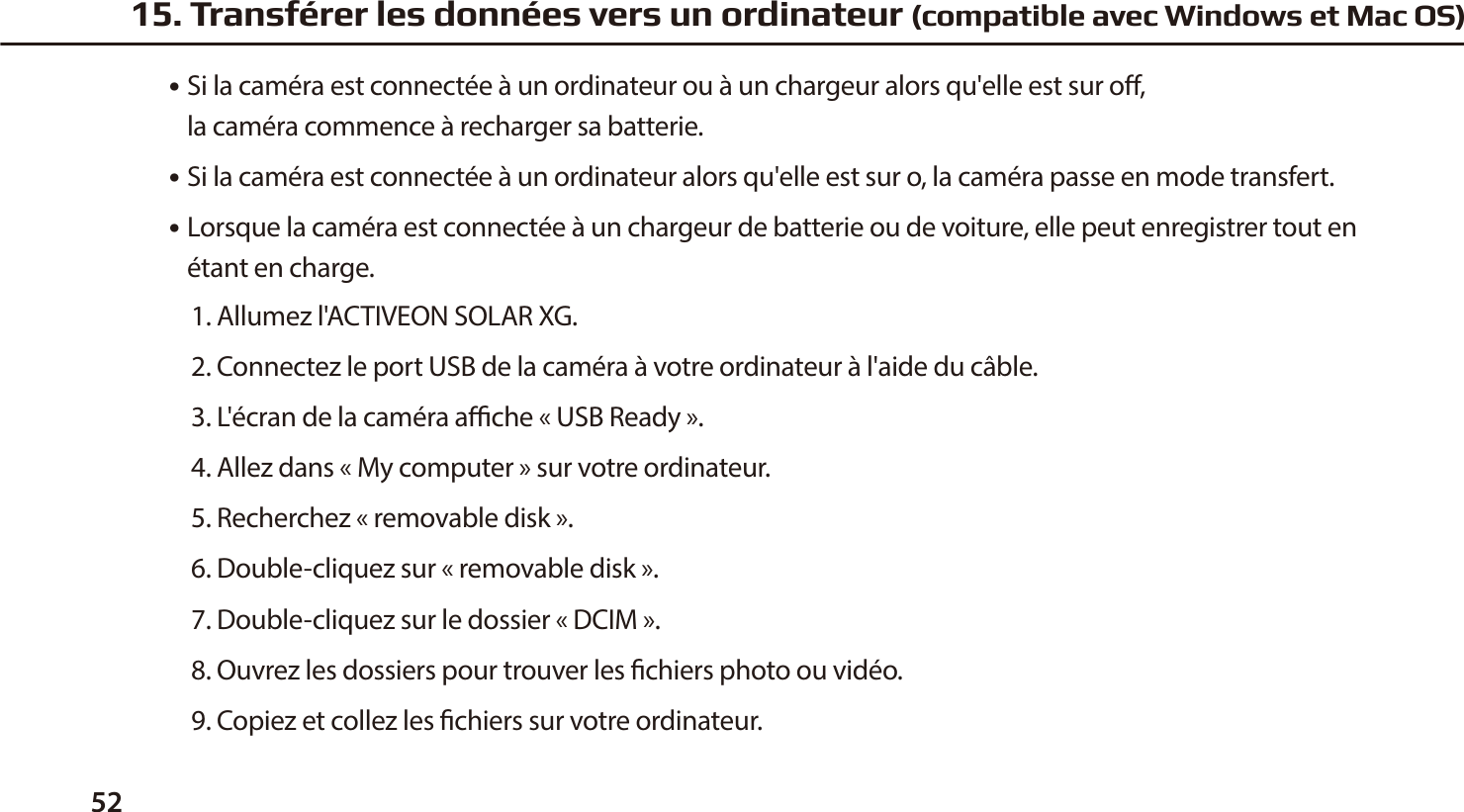
52●  Si la caméra est connectée à un ordinateur ou à un chargeur alors qu'elle est sur o,   la caméra commence à recharger sa batterie.●  Si la caméra est connectée à un ordinateur alors qu'elle est sur o, la caméra passe en mode transfert.●  Lorsque la caméra est connectée à un chargeur de batterie ou de voiture, elle peut enregistrer tout en    étant en charge.1. Allumez l'ACTIVEON SOLAR XG.2. Connectez le port USB de la caméra à votre ordinateur à l'aide du câble.3. L'écran de la caméra ache «USB Ready».4. Allez dans «My computer» sur votre ordinateur.5. Recherchez «removable disk».6. Double-cliquez sur «removable disk».7. Double-cliquez sur le dossier «DCIM».8. Ouvrez les dossiers pour trouver les chiers photo ou vidéo.9. Copiez et collez les chiers sur votre ordinateur.15. Transférer les données vers un ordinateur (compatible avec Windows et Mac OS)
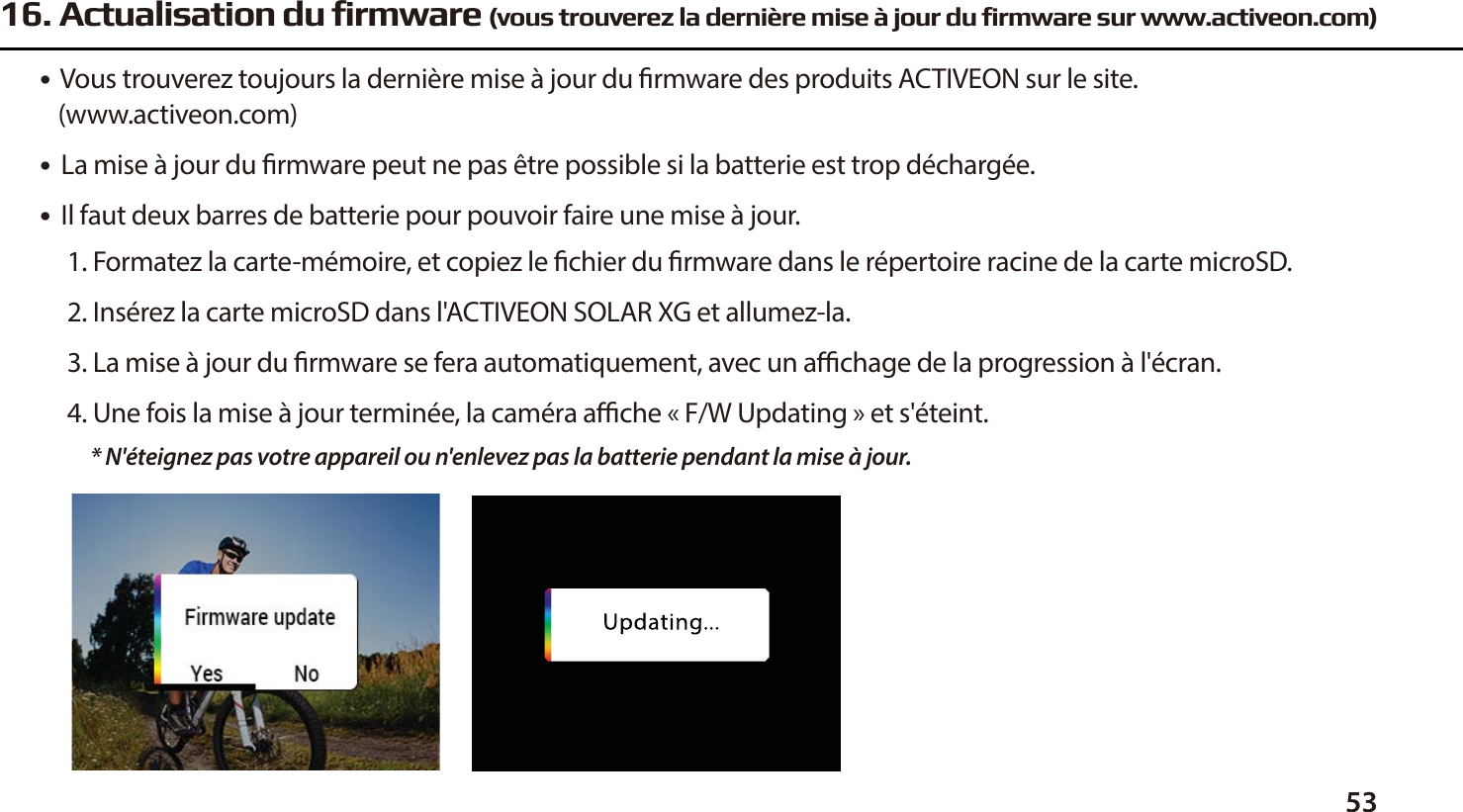
5316. Actualisation du firmware (vous trouverez la dernière mise à jour du firmware sur www.activeon.com)●  Vous trouverez toujours la dernière mise à jour du rmware des produits ACTIVEON sur le site.    (www.activeon.com)●  La mise à jour du rmware peut ne pas être possible si la batterie est trop déchargée.●  Il faut deux barres de batterie pour pouvoir faire une mise à jour. 1. Formatez la carte-mémoire, et copiez le chier du rmware dans le répertoire racine de la carte microSD.2. Insérez la carte microSD dans l'ACTIVEON SOLAR XG et allumez-la.3. La mise à jour du rmware se fera automatiquement, avec un achage de la progression à l'écran.4. Une fois la mise à jour terminée, la caméra ache «F/W Updating» et s'éteint.* N'éteignez pas votre appareil ou n'enlevez pas la batterie pendant la mise à jour.
54● Caméra d'action « ACTIVEON SOLAR XG » 1080p 60fps● Résolution FULL HD (1920 x 1080), enregistrement en 60fps.● Boîtier étanche 196ft (60m)● 14MP PANASONIC 34110 CMOS sensor.● Contrôle aisé des eets de la caméra avec le mode programme.● Champs de vue plus larges (FOV).● Écran LCD 2.0'' (320x240) intégré.● Wi-Fi intégré.● Résolution d'enregistrement variable (1080p/720p/480p)● Photos en rafale (* 6 photos par seconde)● Codec H.264, enregistrement au format MP4.● Batterie li-ion rechargeable.● Autonomie de la batterie : Environ 120 minutes en enregistrement continu (1080 30 fps)   * Le temps d'enregistrement peut varier en fonction des conditions● Temps de charge : 3,5 heures par USB / 1,75 heures avec un adaptateur AC (accessoire en option)● Chargement rapide● Interface graphique utilisateur conviviale● Gamme complète d'accessoires17. Fonctionnalités et spécifications
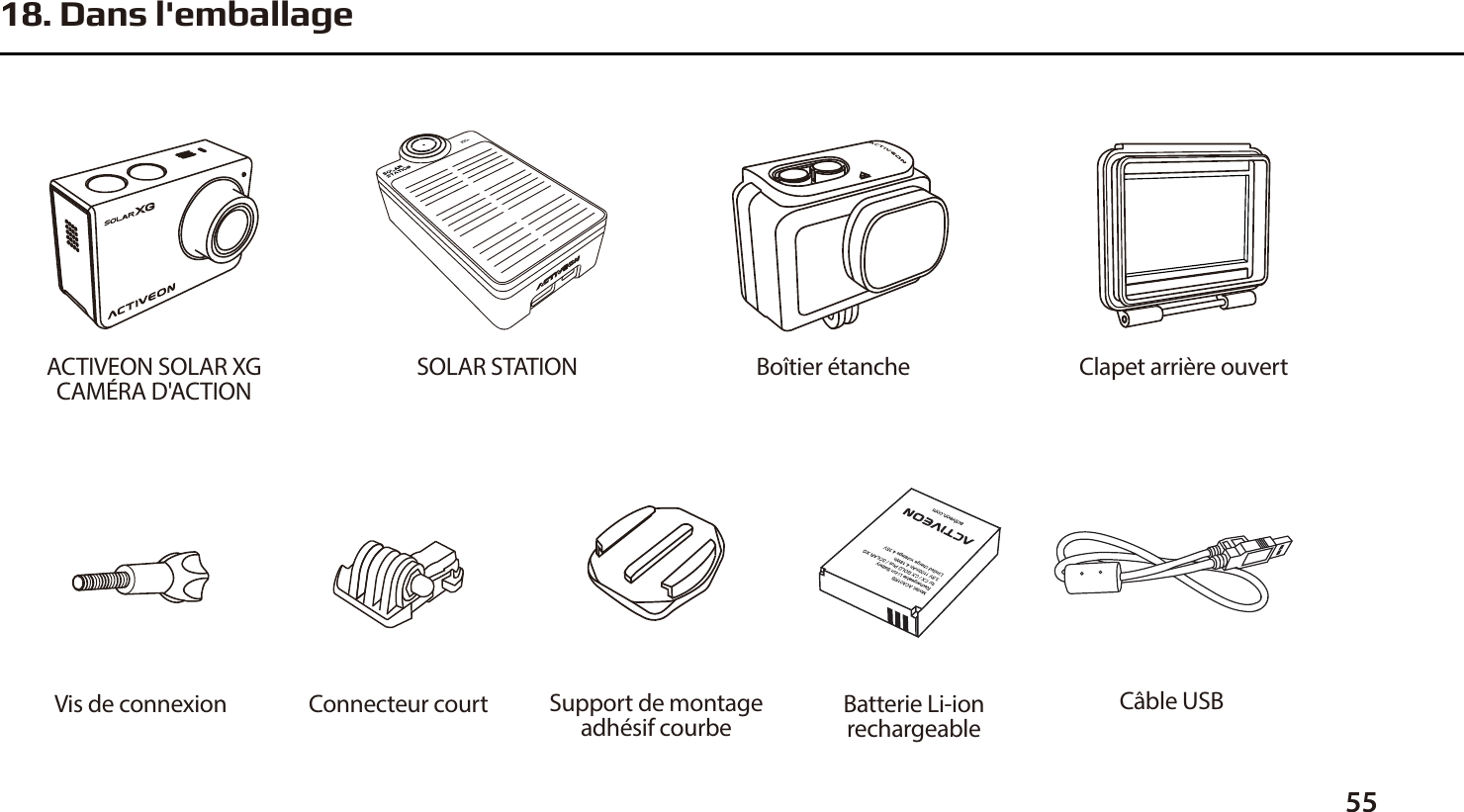
5518. Dans l'emballageBoîtier étancheSOLAR STATIONACTIVEON SOLAR XGCAMÉRA D'ACTIONSupport de montageadhésif courbeConnecteur court Câble USBBatterie Li-ionrechargeableVis de connexionClapet arrière ouvert
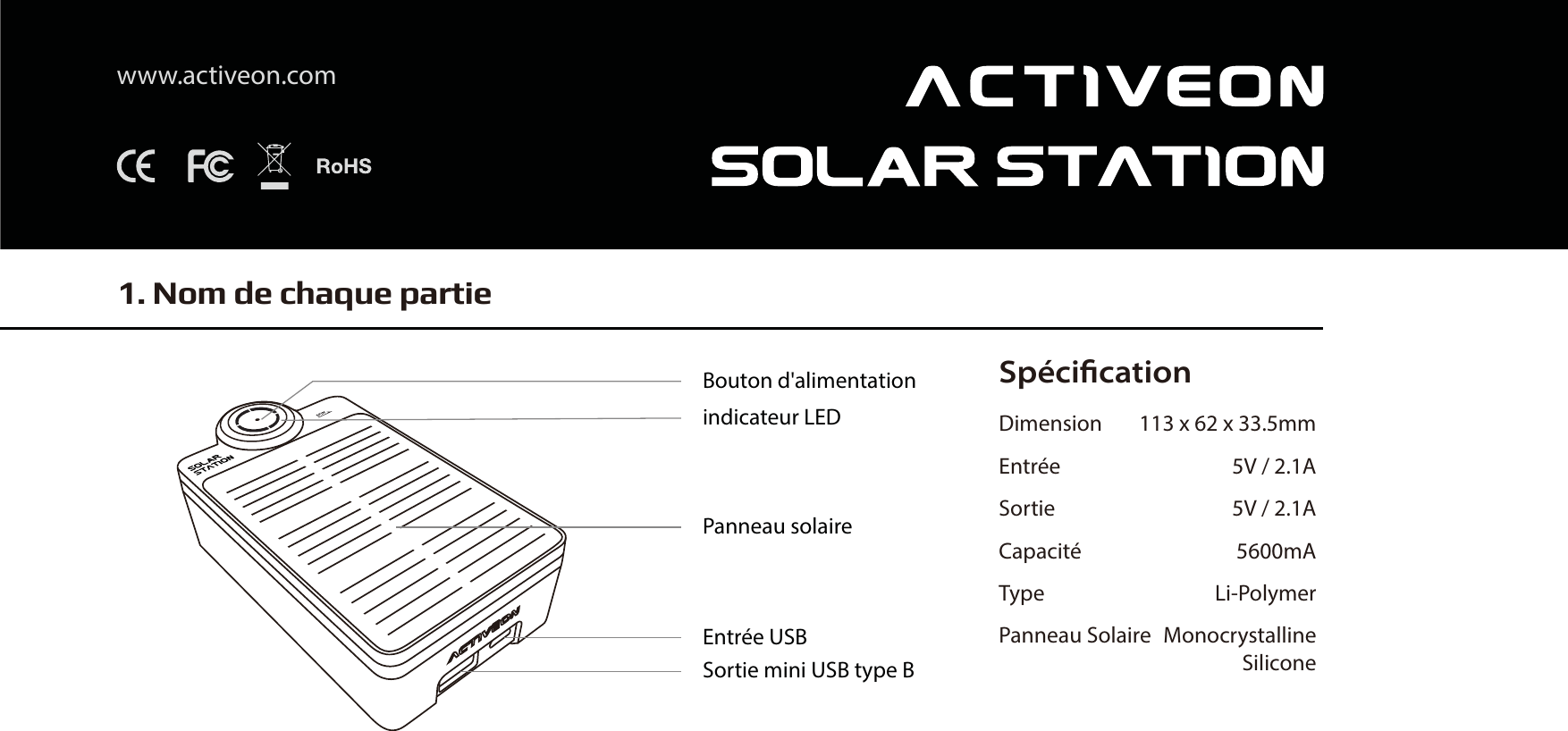
SpécificationDimension 113 x 62 x 33.5mmEntrée 5V / 2.1ASortie 5V / 2.1ACapacité 5600mAType Li-PolymerPanneau Solaire  MonocrystallineSilicone1. Nom de chaque partiewww.activeon.comBouton d'alimentationindicateur LEDPanneau solaireEntrée USBSortie mini USB type B
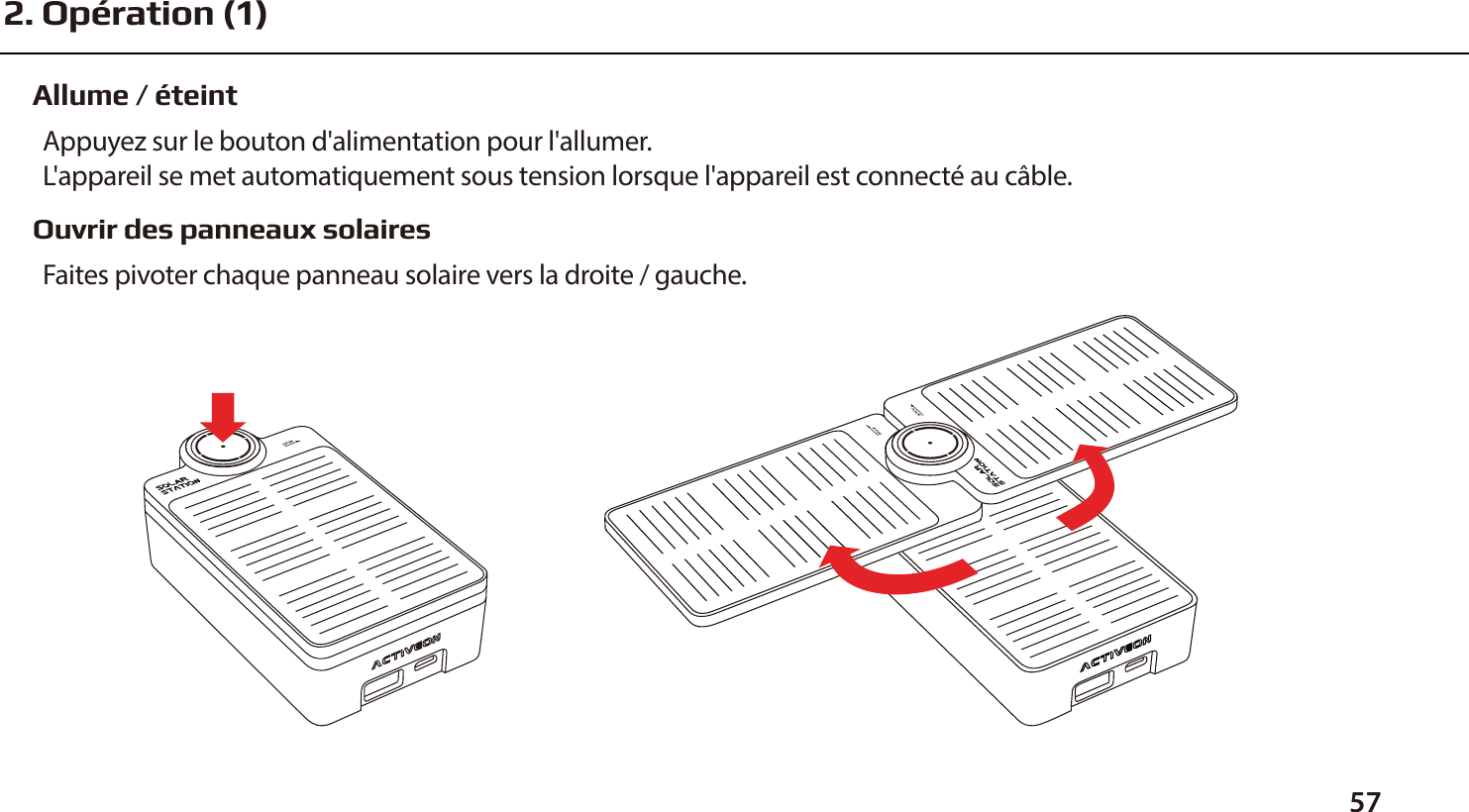
Allume / éteintAppuyez sur le bouton d'alimentation pour l'allumer.L'appareil se met automatiquement sous tension lorsque l'appareil est connecté au câble.Ouvrir des panneaux solairesFaites pivoter chaque panneau solaire vers la droite / gauche.572. Opération (1)
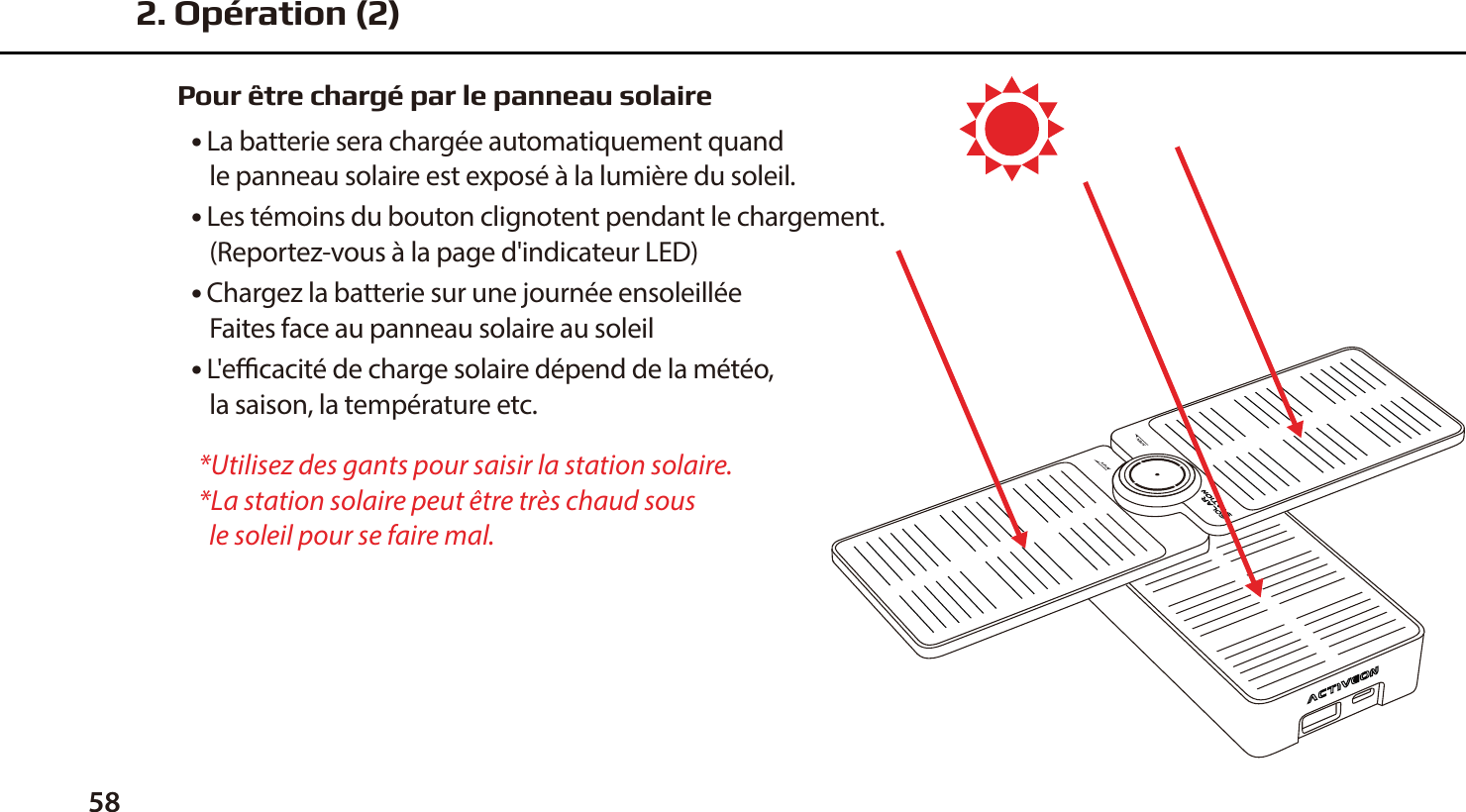
58Pour être chargé par le panneau solaire● La batterie sera chargée automatiquement quand    le panneau solaire est exposé à la lumière du soleil. ● Les témoins du bouton clignotent pendant le chargement.    (Reportez-vous à la page d'indicateur LED) ● Chargez la batterie sur une journée ensoleillée   Faites face au panneau solaire au soleil ● L'ecacité de charge solaire dépend de la météo,    la saison, la température etc.*Utilisez des gants pour saisir la station solaire.*La station solaire peut être très chaud sous   le soleil pour se faire mal.2. Opération (2)
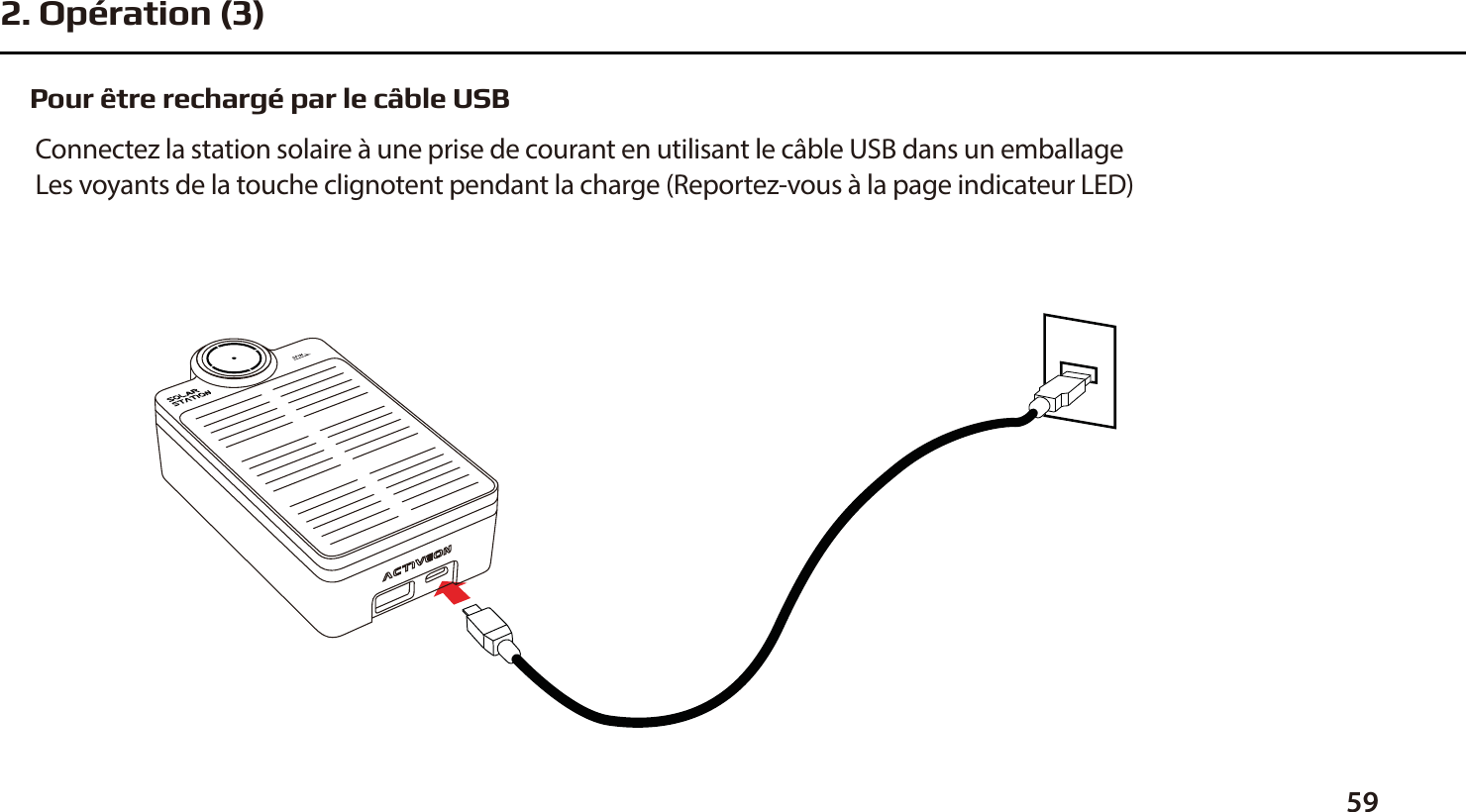
Pour être rechargé par le câble USBConnectez la station solaire à une prise de courant en utilisant le câble USB dans un emballage Les voyants de la touche clignotent pendant la charge (Reportez-vous à la page indicateur LED)592. Opération (3)
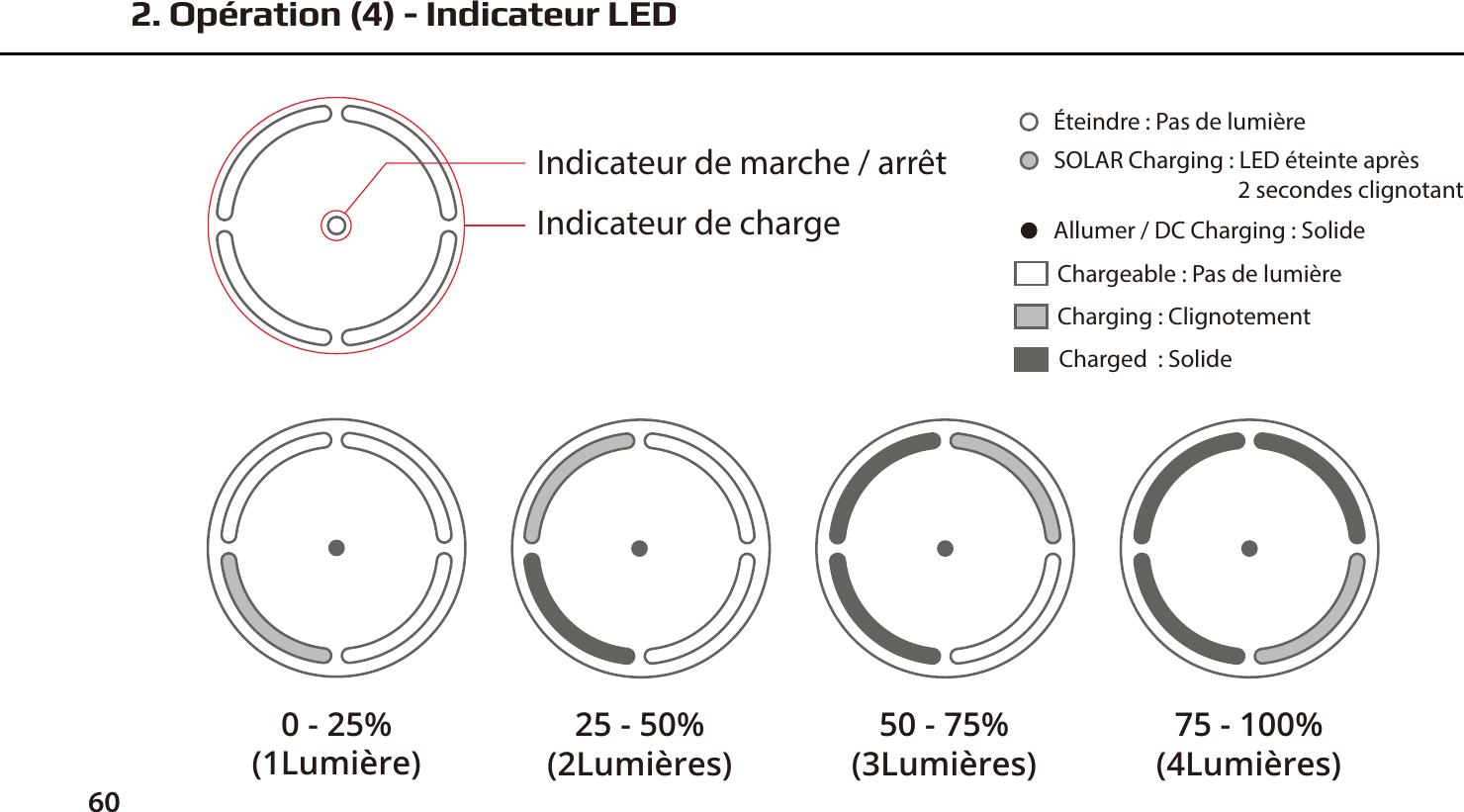
602. Opération (4) - Indicateur LEDIndicateur de marche / arrêtIndicateur de chargeCharging : ClignotementChargeable : Pas de lumièreCharged  : SolideAllumer / DC Charging : SolideÉteindre : Pas de lumièreSOLAR Charging : LED éteinte après                                    2 secondes clignotant0 - 25%(1Lumière)25 - 50%(2Lumières)50 - 75%(3Lumières)75 - 100%(4Lumières)
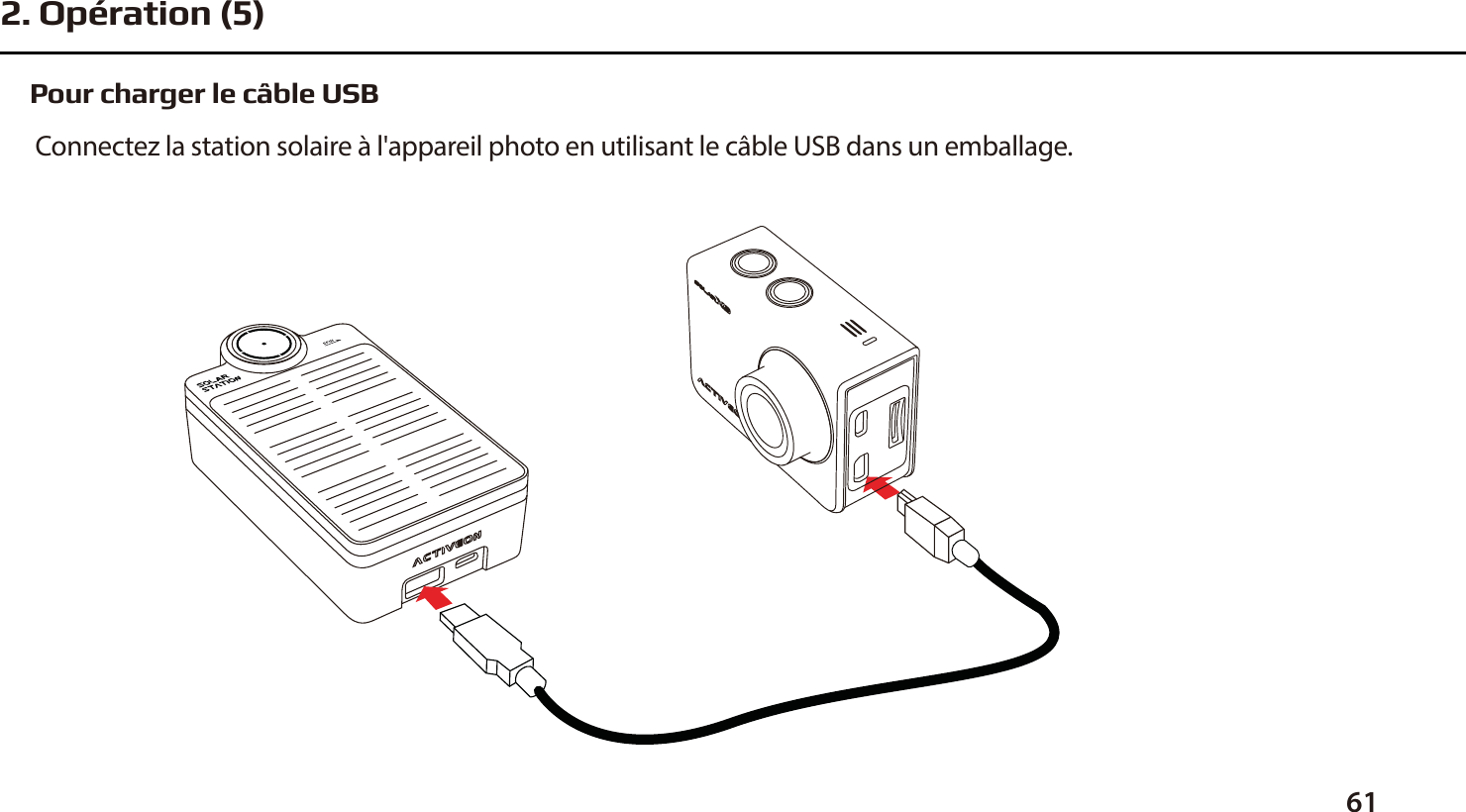
Pour charger le câble USB Connectez la station solaire à l'appareil photo en utilisant le câble USB dans un emballage.612. Opération (5)
62●  Gardez l'appareil à l'écart de températures extrêmes. ●  Ne démontez pas l'appareil. ●  Ne pas écraser la batterie ni la jeter au feu.●  Ne jamais jeter ou laisser tomber ce produit pour éviter de causer des dommages. ●  Rechargez la batterie au moins une fois par mois pour maintenir ses propriétés de charge. ●   N'exposez pas l'appareil à l'eau ou à une humidité élevée.●  Gardez l'appareil hors de la portée des enfants ou d'une personne qui n'a pas été informée de son utilisation.●  Arrêtez l'utilisation en cas de fuite, de surchaue ou de toute autre situation inhabituelle.●  S'il ya un problème avec le produit, veuillez contacter votre revendeur pour obtenir de l'aide.3. AVERTISSEMENTS
MANUAL DE USUARIOwww.activeon.com
65666869707172747678818182828485868796969798※ PRECAUCIÓN ※ DECLARACIÓN DE INTERFERENCIAS DE RADIOFRECUENCIA DE FCC※ Información sobre exposición a RF (SAR)※ GARANTÍAÍndice1. Nombre de cada pieza2. Modo de empleo3. Encienda la cámara4. Vista de la pantalla LCD5. Descripción de los iconos grácos6. Menú de modo7. Menú de vídeo8. Modo de foto9. Modo de reproducción10. Modo de conguración11. Menú rápido12. Recargar la batería13. Control desde smartphone14. Conecte ACTIVEON SOLAR XG a su smartphone (con la app ACTIVEON)15. Transferir los datos al ordenador16. Actualizar el rmware17. Características y especicaciones18. Contenido del paquete
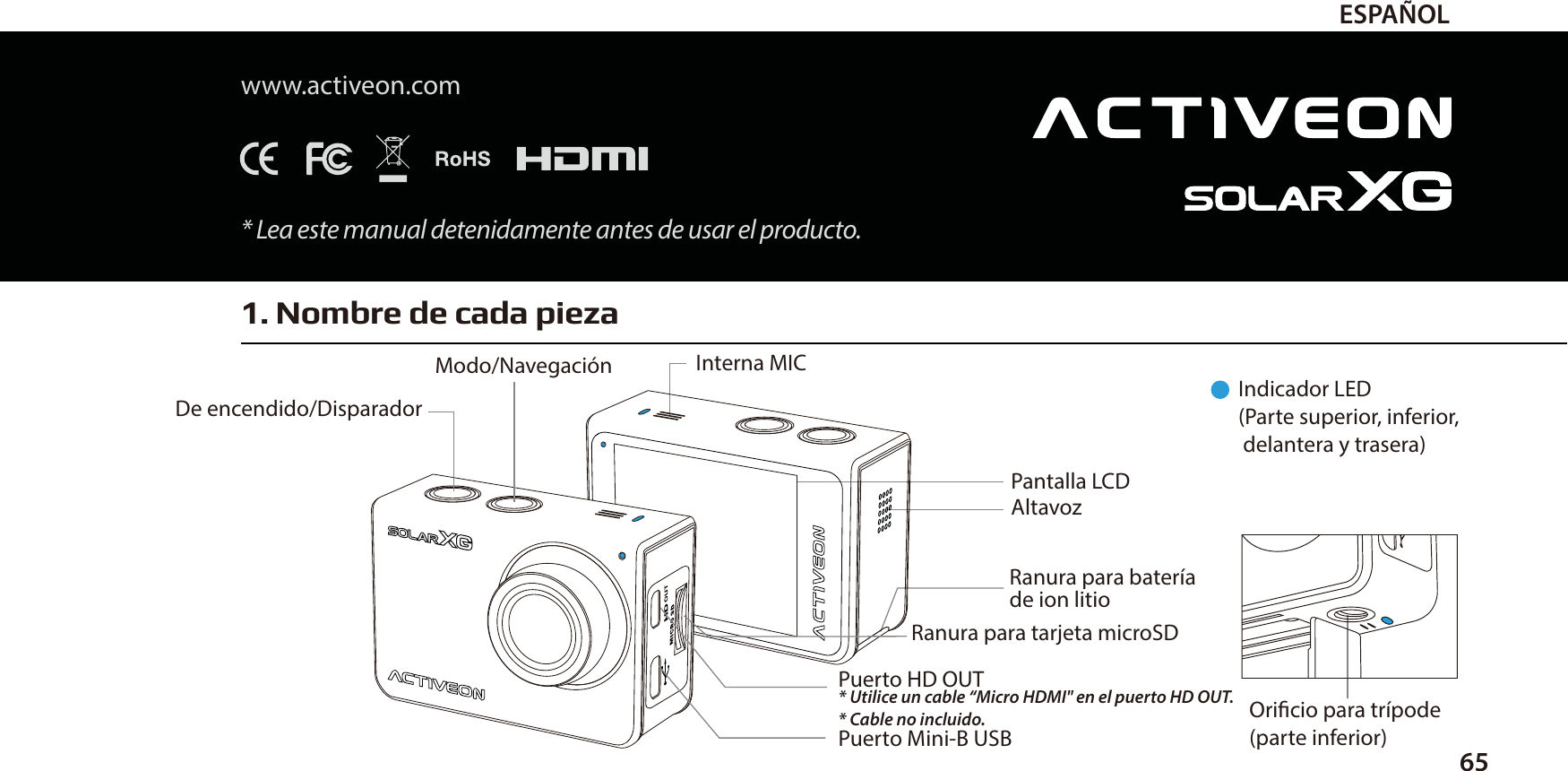
1. Nombre de cada pieza65ESPAÑOLwww.activeon.com* Lea este manual detenidamente antes de usar el producto.Indicador LED(Parte superior, inferior,  delantera y trasera)Oricio para trípode (parte inferior)Modo/Navegación  Interna MICDe encendido/DisparadorPantalla LCDRanura para bateríade ion litioPuerto HD OUT* Utilice un cable “Micro HDMI" en el puerto HD OUT.* Cable no incluido.Puerto Mini-B USBRanura para tarjeta microSD  Altavoz
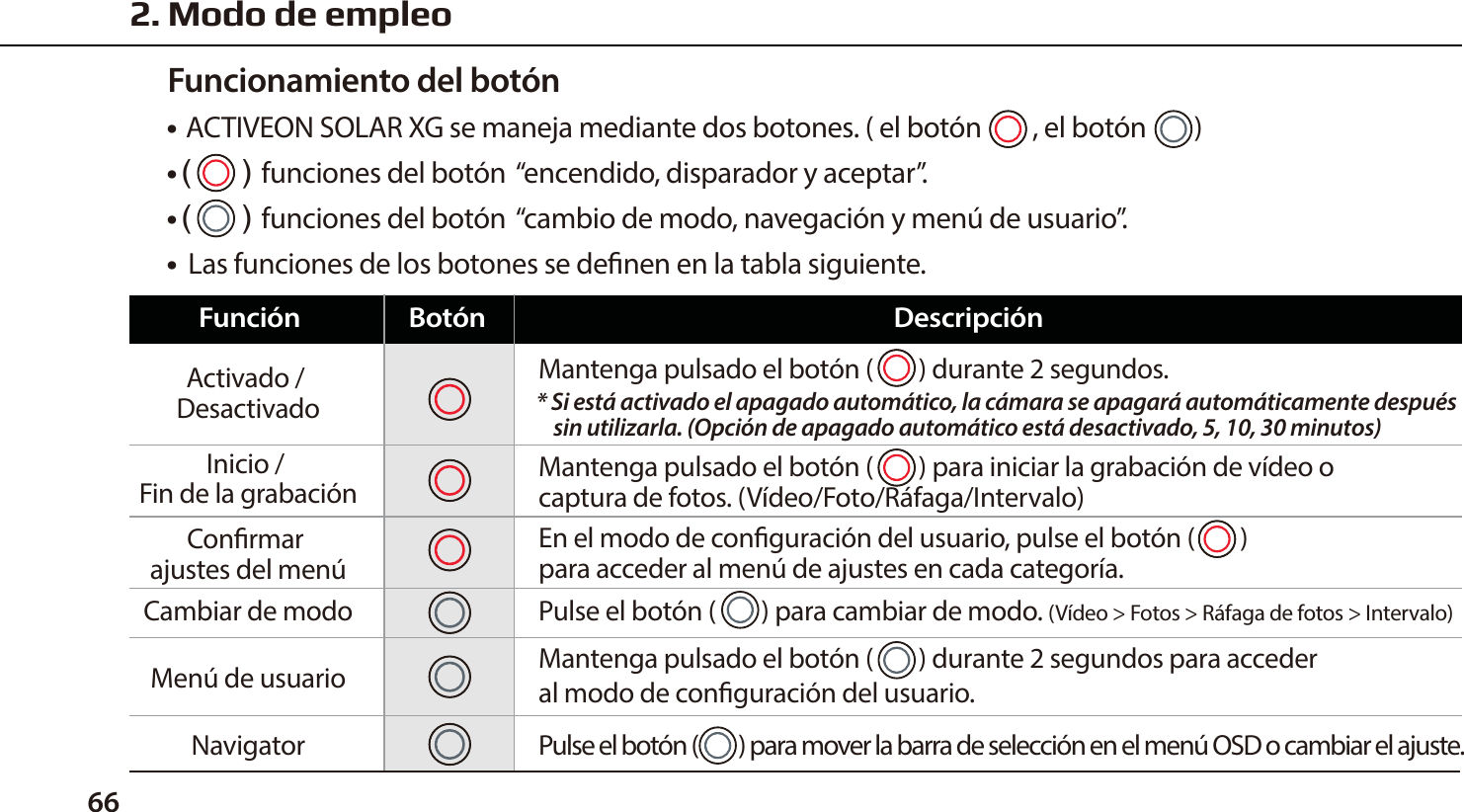
662. Modo de empleo● ACTIVEON SOLAR XG se maneja mediante dos botones. ( el botón, el botón        )● funciones del botón  “encendido, disparador y aceptar”.● funciones del botón  “cambio de modo, navegación y menú de usuario”.●  Las funciones de los botones se denen en la tabla siguiente.Funcionamiento del botónMantenga pulsado el botón (        ) para iniciar la grabación de vídeo o captura de fotos. (Vídeo/Foto/Ráfaga/Intervalo)Activado / DesactivadoInicio / Fin de la grabaciónConrmar ajustes del menúFunción Botón DescripciónEn el modo de conguración del usuario, pulse el botón (        ) para acceder al menú de ajustes en cada categoría.Mantenga pulsado el botón (        ) durante 2 segundos.* Si está activado el apagado automático, la cámara se apagará automáticamente después    sin utilizarla. (Opción de apagado automático está desactivado, 5, 10, 30 minutos) Cambiar de modoNavigatorMenú de usuarioPulse el botón (        ) para cambiar de modo. (Vídeo > Fotos > Ráfaga de fotos > Intervalo)Mantenga pulsado el botón (        ) durante 2 segundos para acceder al modo de conguración del usuario.Pulse el botón (         ) para mover la barra de selección en el menú OSD o cambiar el ajuste.
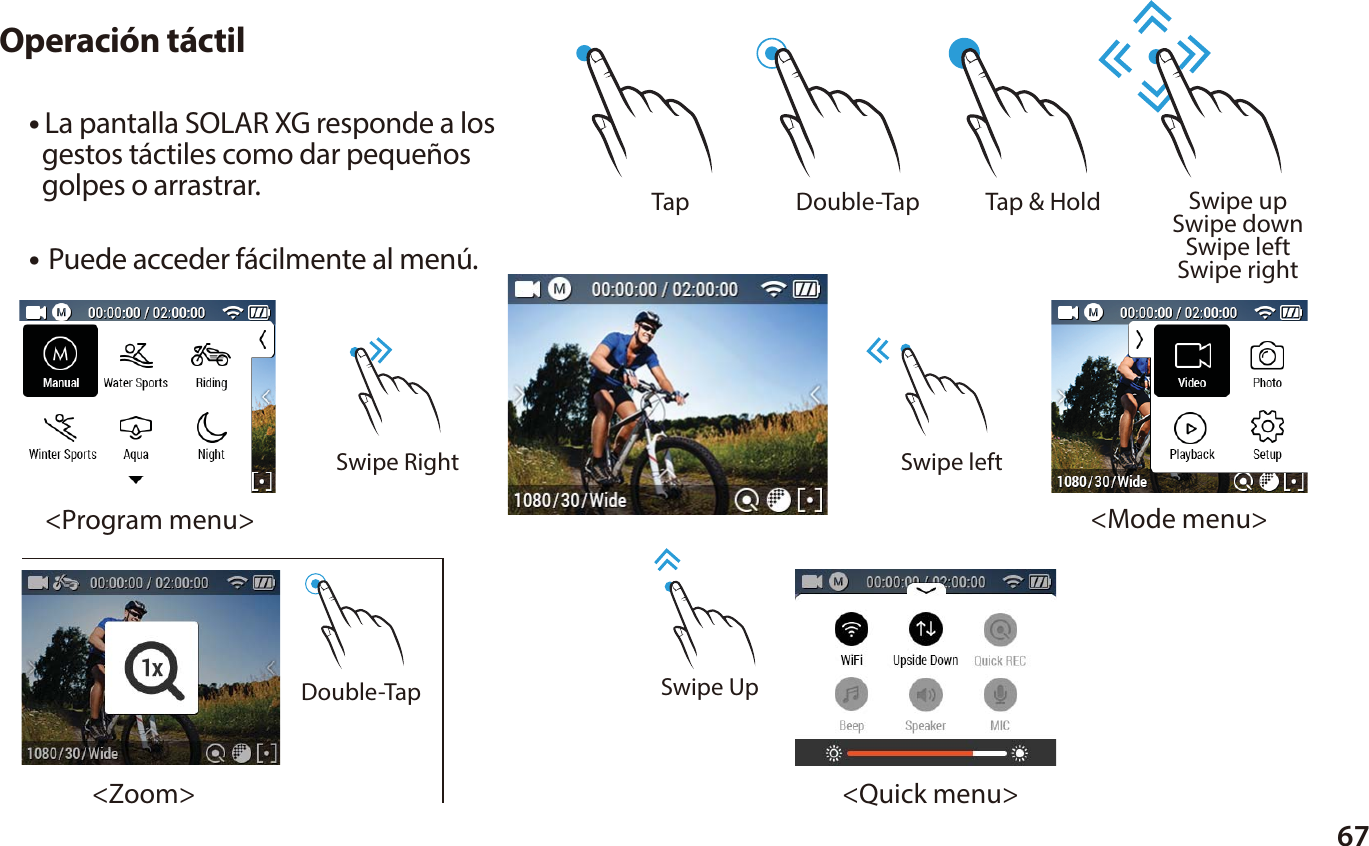
67● La pantalla SOLAR XG responde a los   gestos táctiles como dar pequeños   golpes o arrastrar.Operación táctil Tap  Tap & Hold Double-Tap Swipe upSwipe downSwipe leftSwipe right Double-Tap● Puede acceder fácilmente al menú.Swipe UpSwipe leftSwipe Right<Program menu><Quick menu><Mode menu><Zoom>
68Cómo desbloquear el funcionamiento táctil●  SOLAR XG incluye características especiales de ahorro de energía.1. Atenuación de la Auto-retroiluminación : Cuando se ajusta [ Auto LCD O ] , El nivel de atenuación de la                                                                                       auto-retroiluminación se iniciará en el punto medio del ajuste de tiempo.2. Apagado rápido del LCD : [Durante la grabación de vídeo] Toque y mantenga pulsada la pantalla durante 2-3 segundos.                                                        La pantalla LCD se apagará automáticamente.                                    * Para encender la pantalla LCD de nuevo, por favor, pulse el botón (        ) una vez.                                    * SI la imagen de bloqueo aparece, por favor, consulte la guía “Como desbloquear la función táctil”.Función de ahorro de energíaSi desea usar el funcionamiento táctil, toque primero la pantalla. A continuación aparecerá "Bloquear imagen". Pulse y mantenga "Bloquear imagen" hasta que esté lista la pantalla en directo.3. Encienda la cámara1. Abra la tapa de la batería e introduzca la batería de ion litio ACTIVEON SOLAR XG.2. Inserte la tarjeta microSD en la ranura para tarjetas microSD. (La cámara no grabará sin una tarjeta microSD insertada)3. Presione el botón (       ) y manténgalo durante 2 segundos.    (La cámara se encenderá y la pantalla LCD mostrará la pantalla en directo)
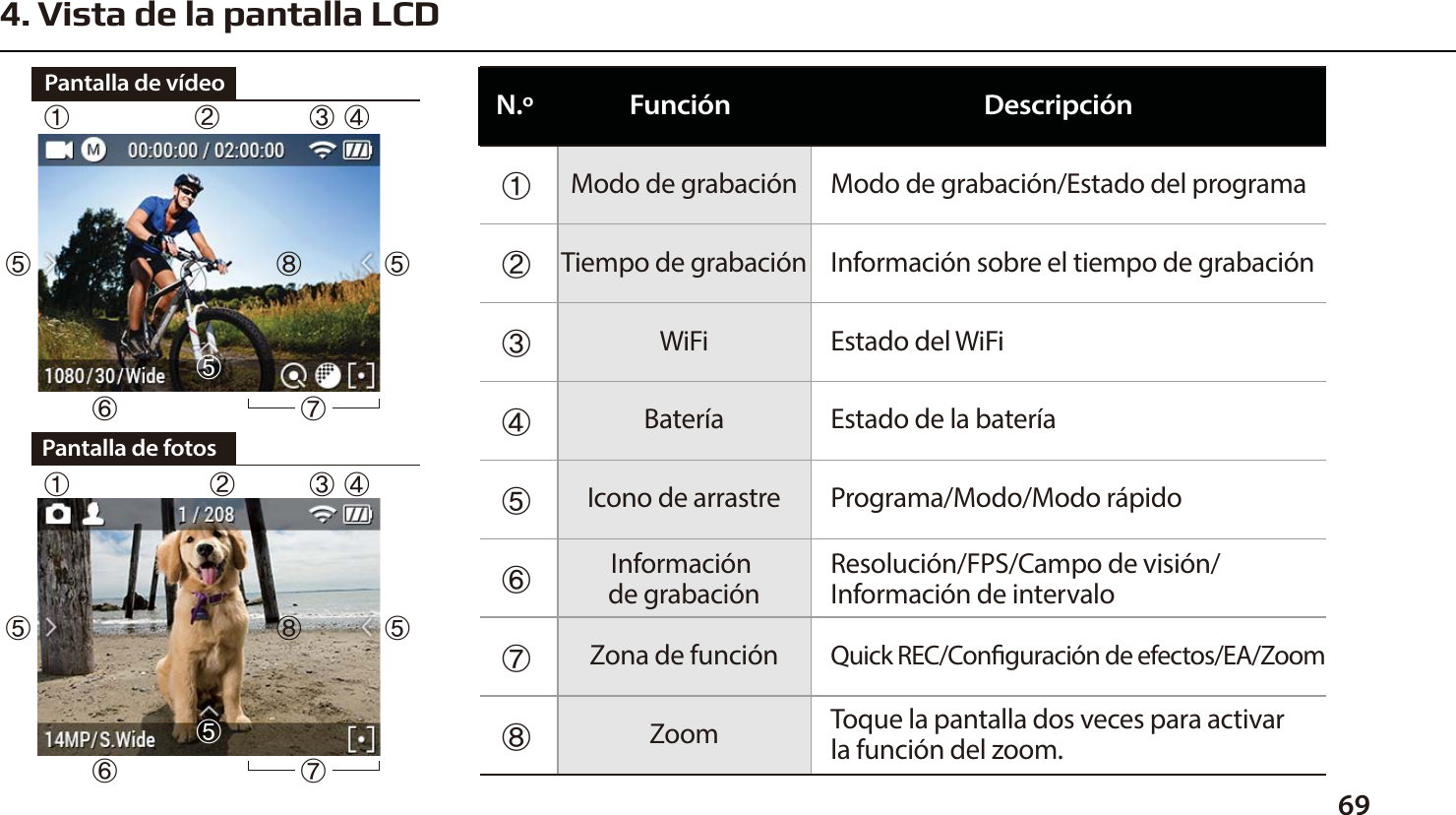
694. Vista de la pantalla LCDPantalla de fotosⴝⴘⴙⴚⴛⴜⴜⴜⴜPantalla de vídeoⴟⴟⴝⴘⴙⴚⴛⴜⴜⴝⴞⴟⴘⴙⴚⴛⴜModo de grabación/Estado del programaInformación sobre el tiempo de grabaciónEstado del WiFiEstado de la bateríaPrograma/Modo/Modo rápidoResolución/FPS/Campo de visión/Información de intervaloQuick REC/Conguración de efectos/EA/ZoomToque la pantalla dos veces para activar la función del zoom.Modo de grabaciónTiempo de grabaciónWiFiBateríaIcono de arrastreInformación de grabaciónZona de funciónZoomFunciónN.º Descripciónⴞⴞⴜⴟ
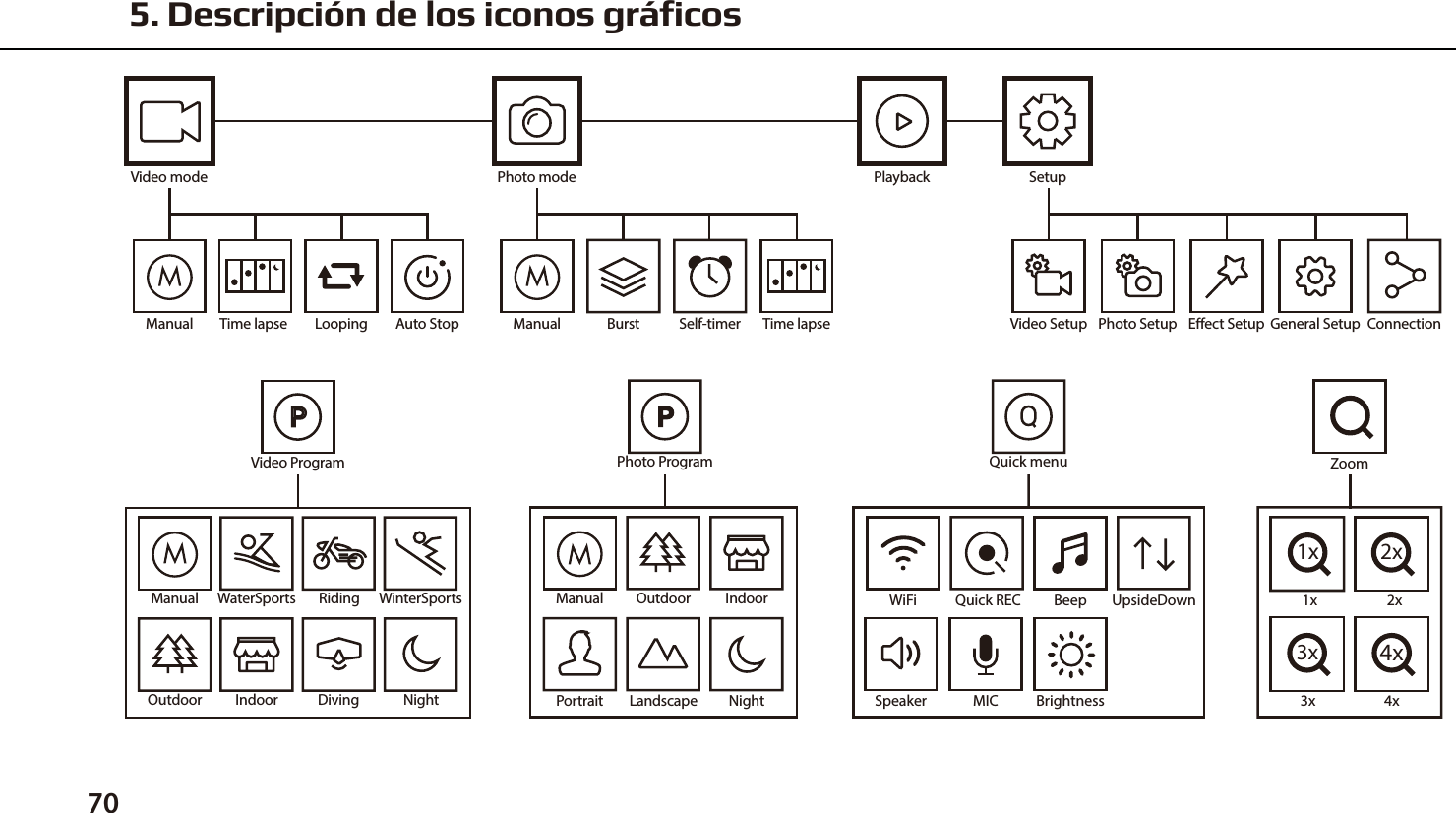
5. Descripción de los iconos gráficos70ManualVideo ProgramDivingWinterSportsRidingOutdoor Indoor NightWaterSports WiFi Quick REC Beep UpsideDownSpeaker MIC BrightnessQuick menu1x1x2x2x3x3x4x4xZoomManualPhoto ProgramOutdoor IndoorNightPortrait LandscapeVideo mode Playback SetupTime lapse Looping Auto Stop Video Setup Photo Setup Eect Setup General Setup ConnectionPhoto modeTime lapseBurst Self-timerManual Manual
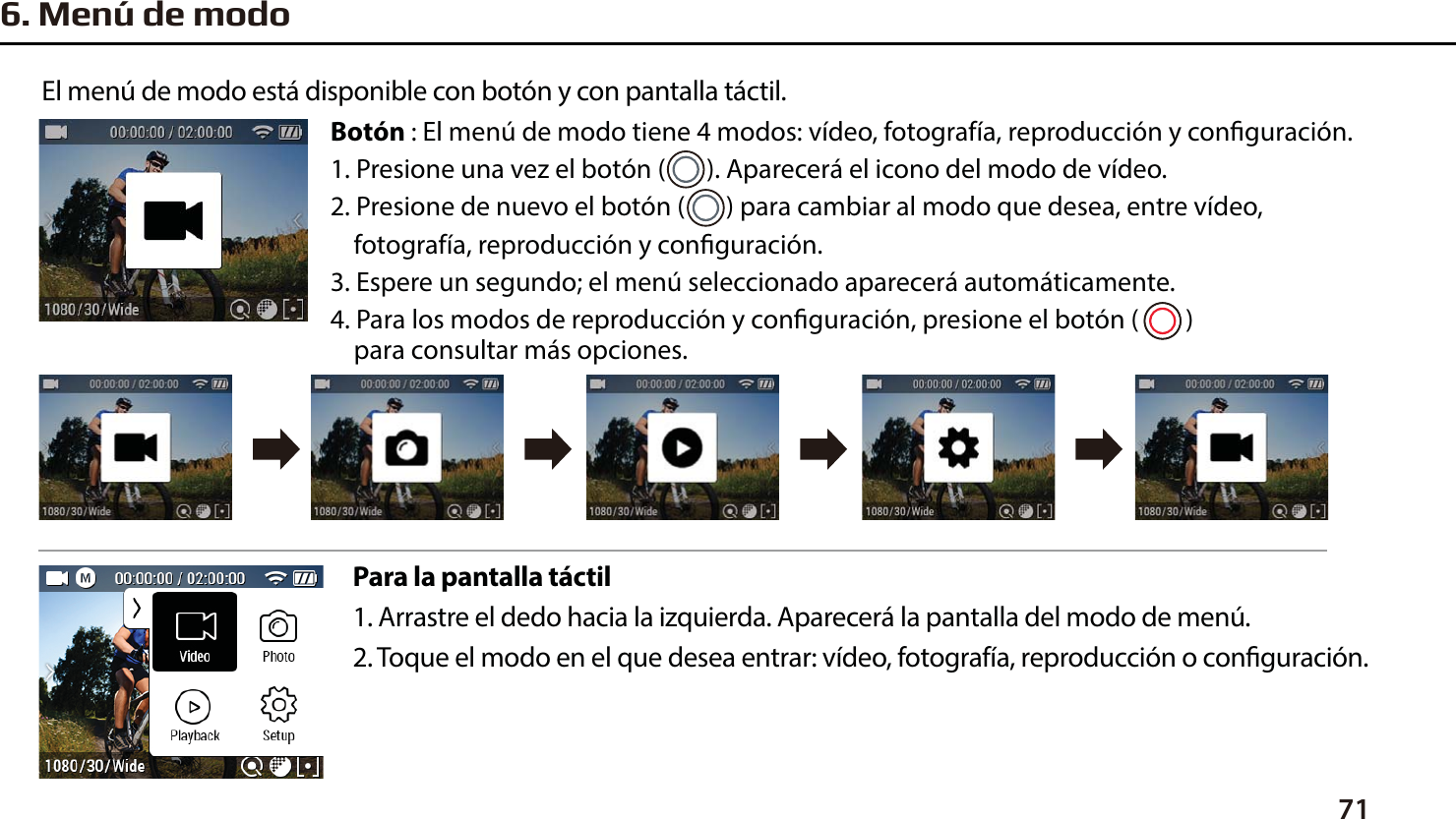
716. Menú de modoPara la pantalla táctil1. Arrastre el dedo hacia la izquierda. Aparecerá la pantalla del modo de menú.2. Toque el modo en el que desea entrar: vídeo, fotografía, reproducción o conguración.El menú de modo está disponible con botón y con pantalla táctil.Botón : El menú de modo tiene 4 modos: vídeo, fotografía, reproducción y conguración.1. Presione una vez el botón (       ). Aparecerá el icono del modo de vídeo.2. Presione de nuevo el botón (       ) para cambiar al modo que desea, entre vídeo,     fotografía, reproducción y conguración.3. Espere un segundo; el menú seleccionado aparecerá automáticamente.4. Para los modos de reproducción y conguración, presione el botón (        )     para consultar más opciones.
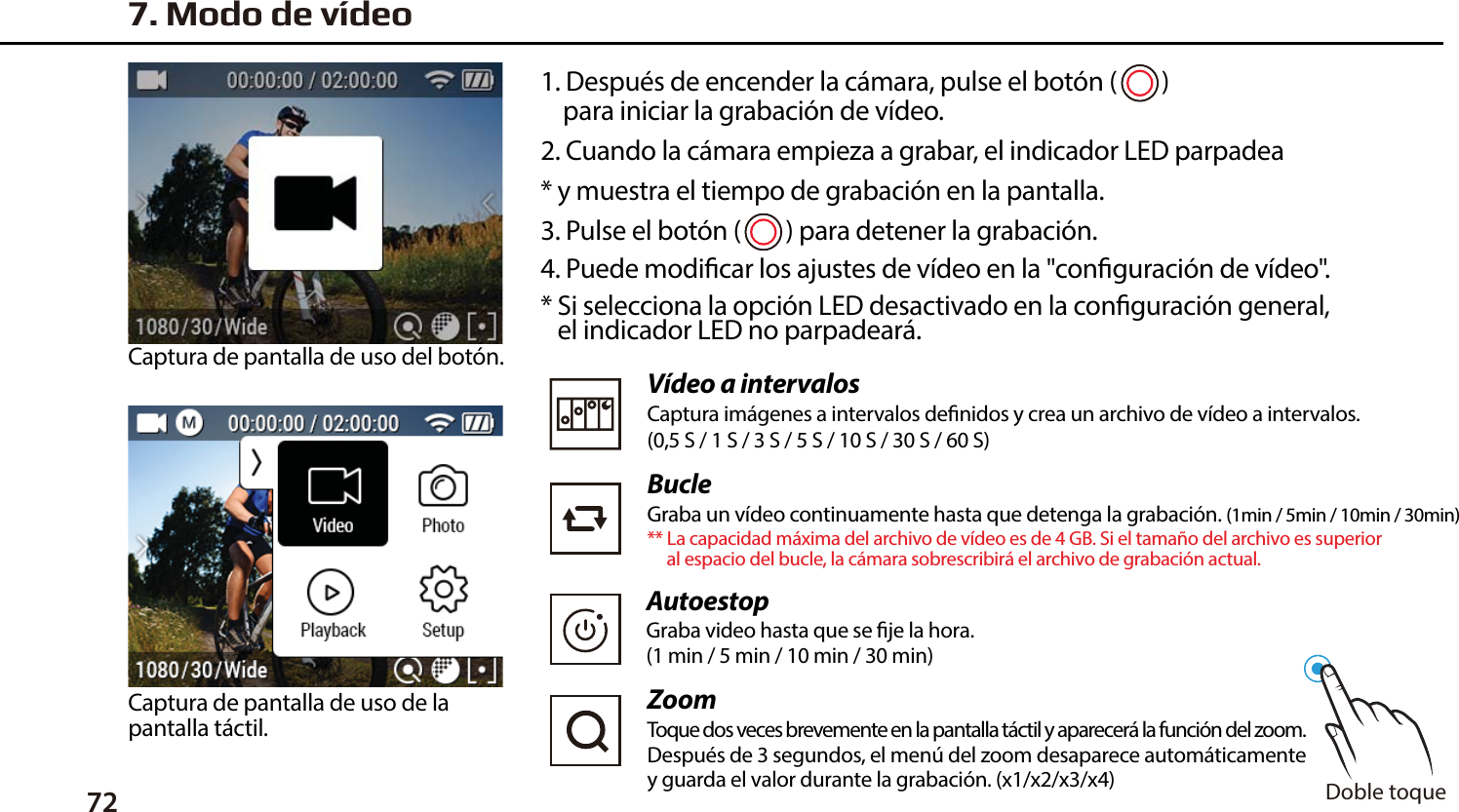
721. Después de encender la cámara, pulse el botón (        )     para iniciar la grabación de vídeo.2. Cuando la cámara empieza a grabar, el indicador LED parpadea* y muestra el tiempo de grabación en la pantalla.3. Pulse el botón (        ) para detener la grabación.4. Puede modicar los ajustes de vídeo en la "conguración de vídeo".* Si selecciona la opción LED desactivado en la conguración general,    el indicador LED no parpadeará.Captura de pantalla de uso del botón.Captura de pantalla de uso de la pantalla táctil.7. Modo de vídeoVídeo a intervalosCaptura imágenes a intervalos denidos y crea un archivo de vídeo a intervalos.(0,5 S / 1 S / 3 S / 5 S / 10 S / 30 S / 60 S)BucleGraba un vídeo continuamente hasta que detenga la grabación. (1min / 5min / 10min / 30min)** La capacidad máxima del archivo de vídeo es de 4 GB. Si el tamaño del archivo es superior      al espacio del bucle, la cámara sobrescribirá el archivo de grabación actual. ZoomToque dos veces brevemente en la pantalla táctil y aparecerá la función del zoom.Después de 3 segundos, el menú del zoom desaparece automáticamente y guarda el valor durante la grabación. (x1/x2/x3/x4)  Doble toqueAutoestopGraba video hasta que se je la hora.(1 min / 5 min / 10 min / 30 min)
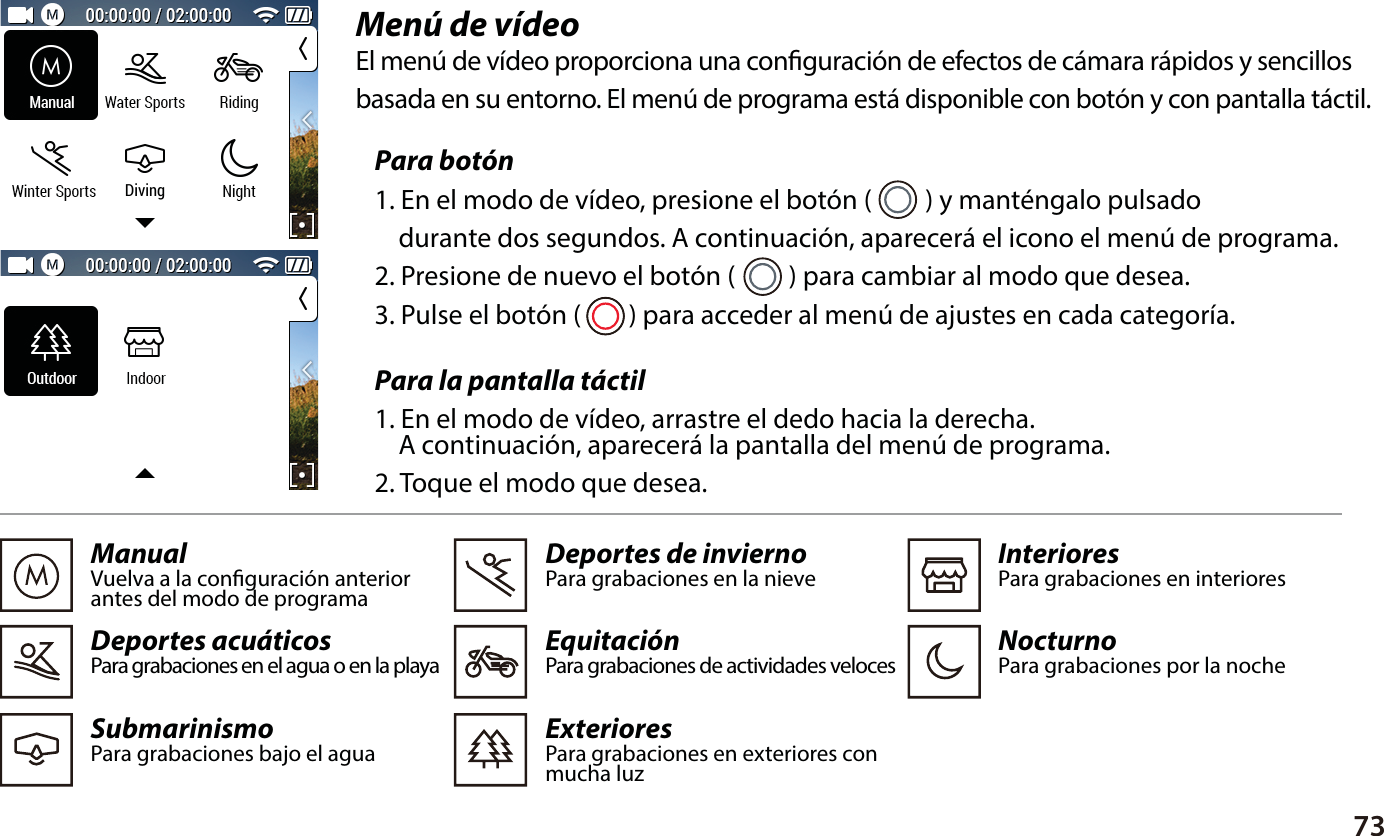
73Menú de vídeo El menú de vídeo proporciona una conguración de efectos de cámara rápidos y sencillos basada en su entorno. El menú de programa está disponible con botón y con pantalla táctil.Para la pantalla táctil1. En el modo de vídeo, arrastre el dedo hacia la derecha.     A continuación, aparecerá la pantalla del menú de programa.2. Toque el modo que desea.ManualVuelva a la conguración anterior antes del modo de programaDeportes acuáticosPara grabaciones en el agua o en la playaSubmarinismoPara grabaciones bajo el agua  Deportes de inviernoPara grabaciones en la nieveEquitaciónPara grabaciones de actividades velocesExteriores Para grabaciones en exteriores con mucha luz  InterioresPara grabaciones en interioresNocturnoPara grabaciones por la noche Para botón1. En el modo de vídeo, presione el botón (         ) y manténgalo pulsado     durante dos segundos. A continuación, aparecerá el icono el menú de programa.2. Presione de nuevo el botón (         ) para cambiar al modo que desea.3. Pulse el botón (        ) para acceder al menú de ajustes en cada categoría.Diving
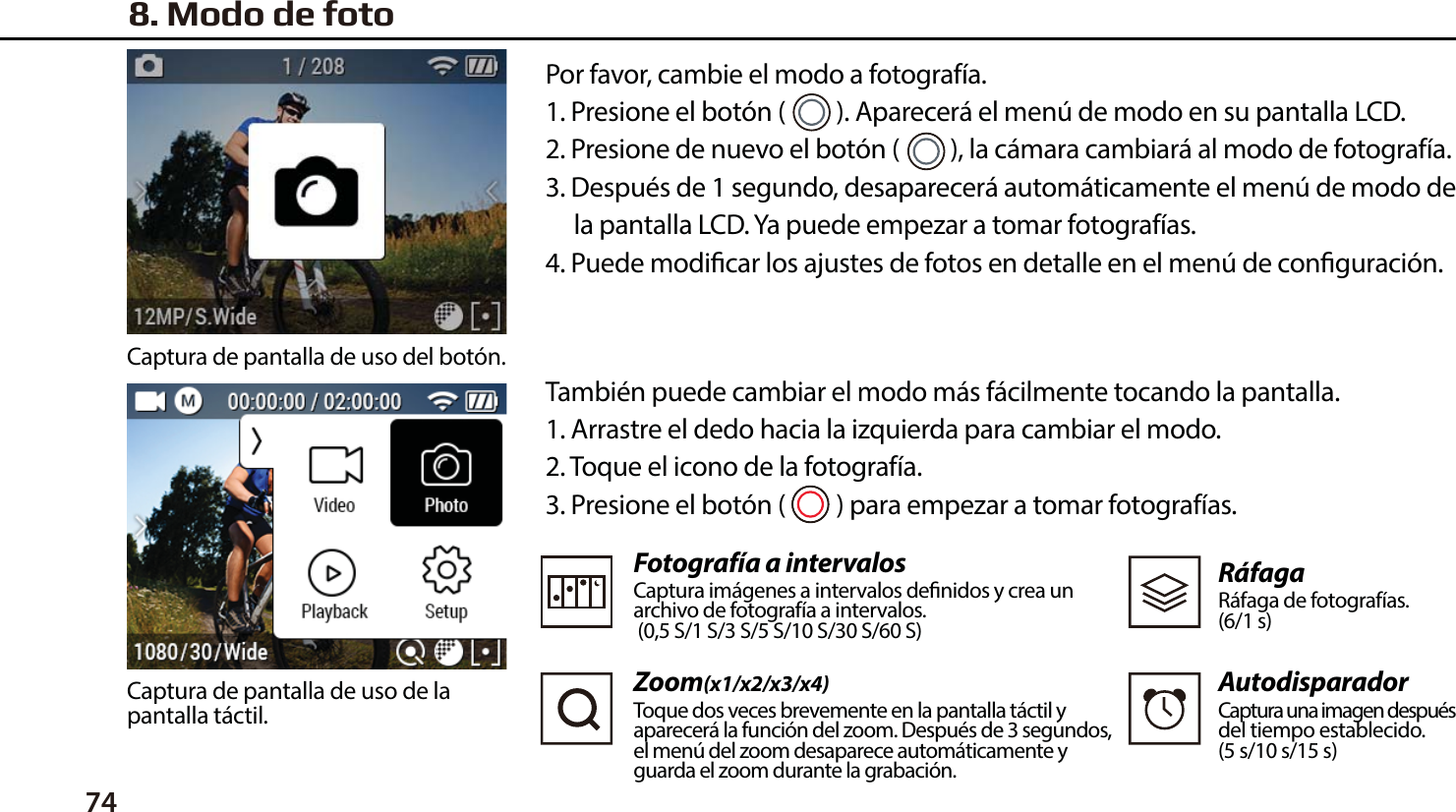
74 También puede cambiar el modo más fácilmente tocando la pantalla.1. Arrastre el dedo hacia la izquierda para cambiar el modo.2. Toque el icono de la fotografía.3. Presione el botón (         ) para empezar a tomar fotografías.Fotografía a intervalosCaptura imágenes a intervalos denidos y crea un archivo de fotografía a intervalos.  (0,5 S/1 S/3 S/5 S/10 S/30 S/60 S)Zoom(x1/x2/x3/x4)Toque dos veces brevemente en la pantalla táctil y aparecerá la función del zoom. Después de 3 segundos, el menú del zoom desaparece automáticamente y guarda el zoom durante la grabación.RáfagaRáfaga de fotografías.(6/1 s)AutodisparadorCaptura una imagen despuésdel tiempo establecido.(5 s/10 s/15 s)8. Modo de fotoPor favor, cambie el modo a fotografía.1. Presione el botón (         ). Aparecerá el menú de modo en su pantalla LCD.2. Presione de nuevo el botón (         ), la cámara cambiará al modo de fotografía.3. Después de 1 segundo, desaparecerá automáticamente el menú de modo de     la pantalla LCD. Ya puede empezar a tomar fotografías.4. Puede modicar los ajustes de fotos en detalle en el menú de conguración.Captura de pantalla de uso del botón.Captura de pantalla de uso de la pantalla táctil.
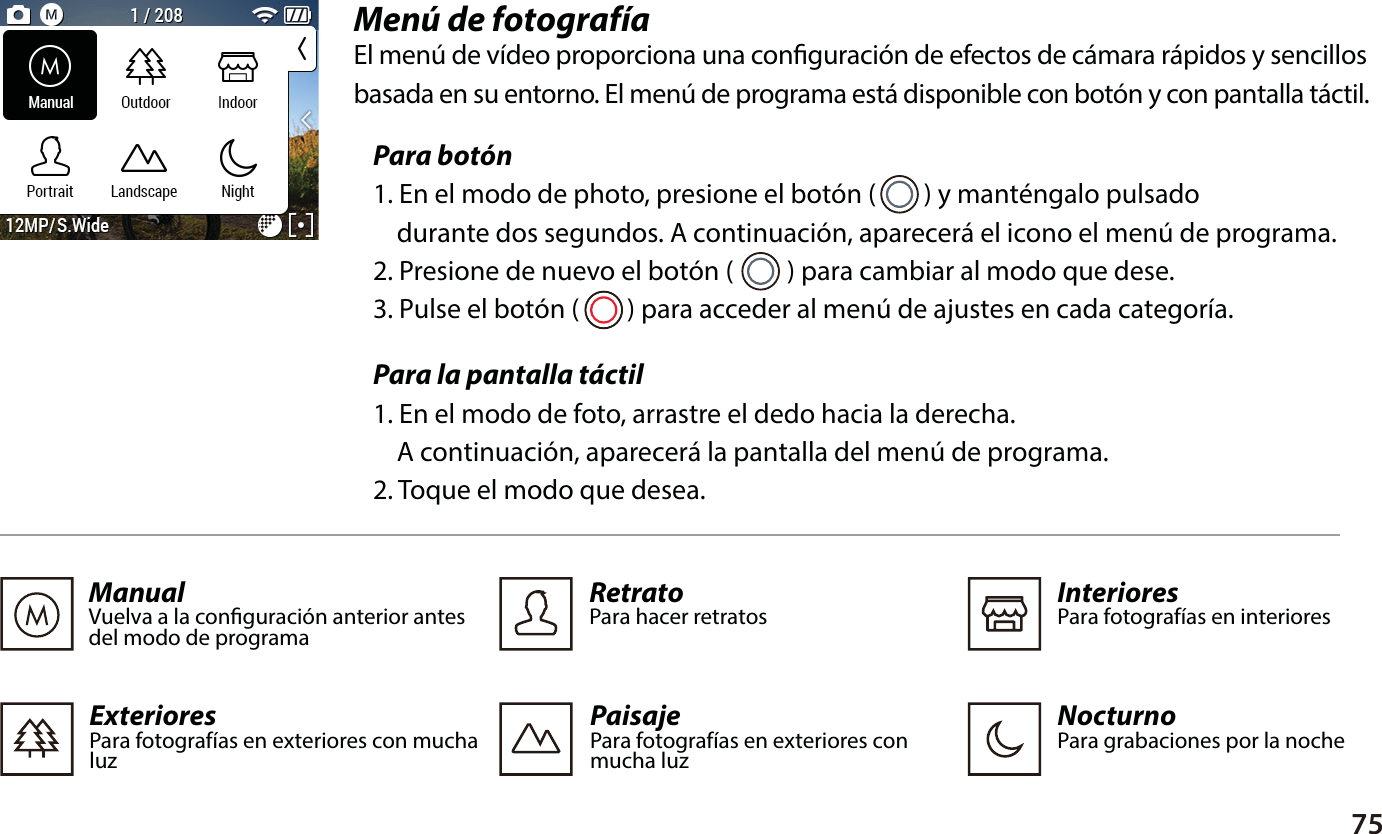
75Menú de fotografíaEl menú de vídeo proporciona una conguración de efectos de cámara rápidos y sencillosbasada en su entorno. El menú de programa está disponible con botón y con pantalla táctil.Para botón1. En el modo de photo, presione el botón (        ) y manténgalo pulsado     durante dos segundos. A continuación, aparecerá el icono el menú de programa.2. Presione de nuevo el botón (         ) para cambiar al modo que dese.3. Pulse el botón (        ) para acceder al menú de ajustes en cada categoría.Para la pantalla táctil1. En el modo de foto, arrastre el dedo hacia la derecha.     A continuación, aparecerá la pantalla del menú de programa.2. Toque el modo que desea.ManualVuelva a la conguración anterior antes del modo de programa  PaisajePara fotografías en exteriores con mucha luzExterioresPara fotografías en exteriores con muchaluz  InterioresPara fotografías en interioresRetratoPara hacer retratosNocturnoPara grabaciones por la noche
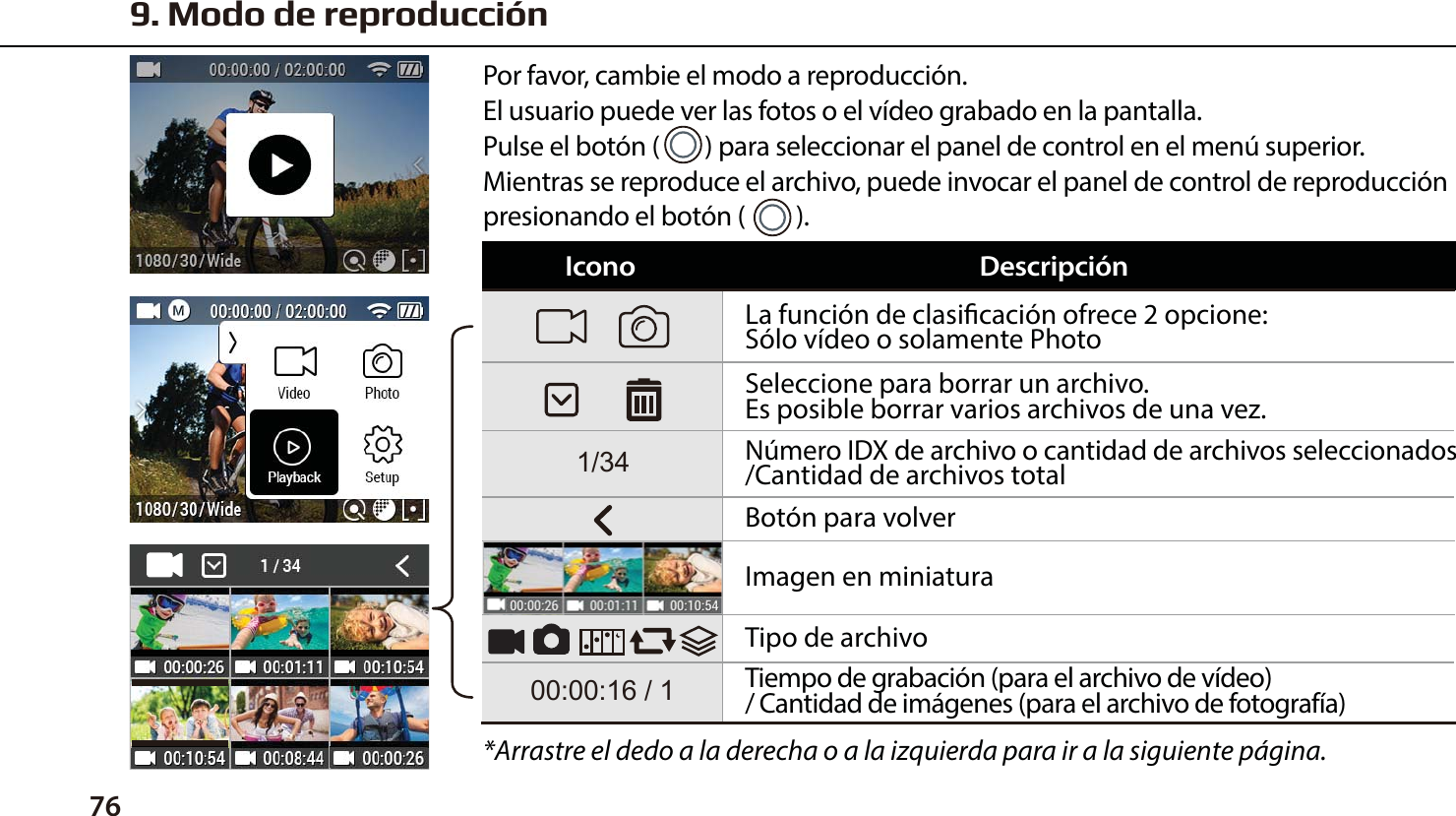
76La función de clasicación ofrece 2 opcione:Sólo vídeo o solamente PhotoSeleccione para borrar un archivo. Es posible borrar varios archivos de una vez.Número IDX de archivo o cantidad de archivos seleccionados/Cantidad de archivos totalBotón para volverImagen en miniaturaTipo de archivoTiempo de grabación (para el archivo de vídeo) / Cantidad de imágenes (para el archivo de fotografía)*Arrastre el dedo a la derecha o a la izquierda para ir a la siguiente página.Por favor, cambie el modo a reproducción.El usuario puede ver las fotos o el vídeo grabado en la pantalla.Pulse el botón (        ) para seleccionar el panel de control en el menú superior.Mientras se reproduce el archivo, puede invocar el panel de control de reproducción presionando el botón (         ).Icono9. Modo de reproducciónDescripción
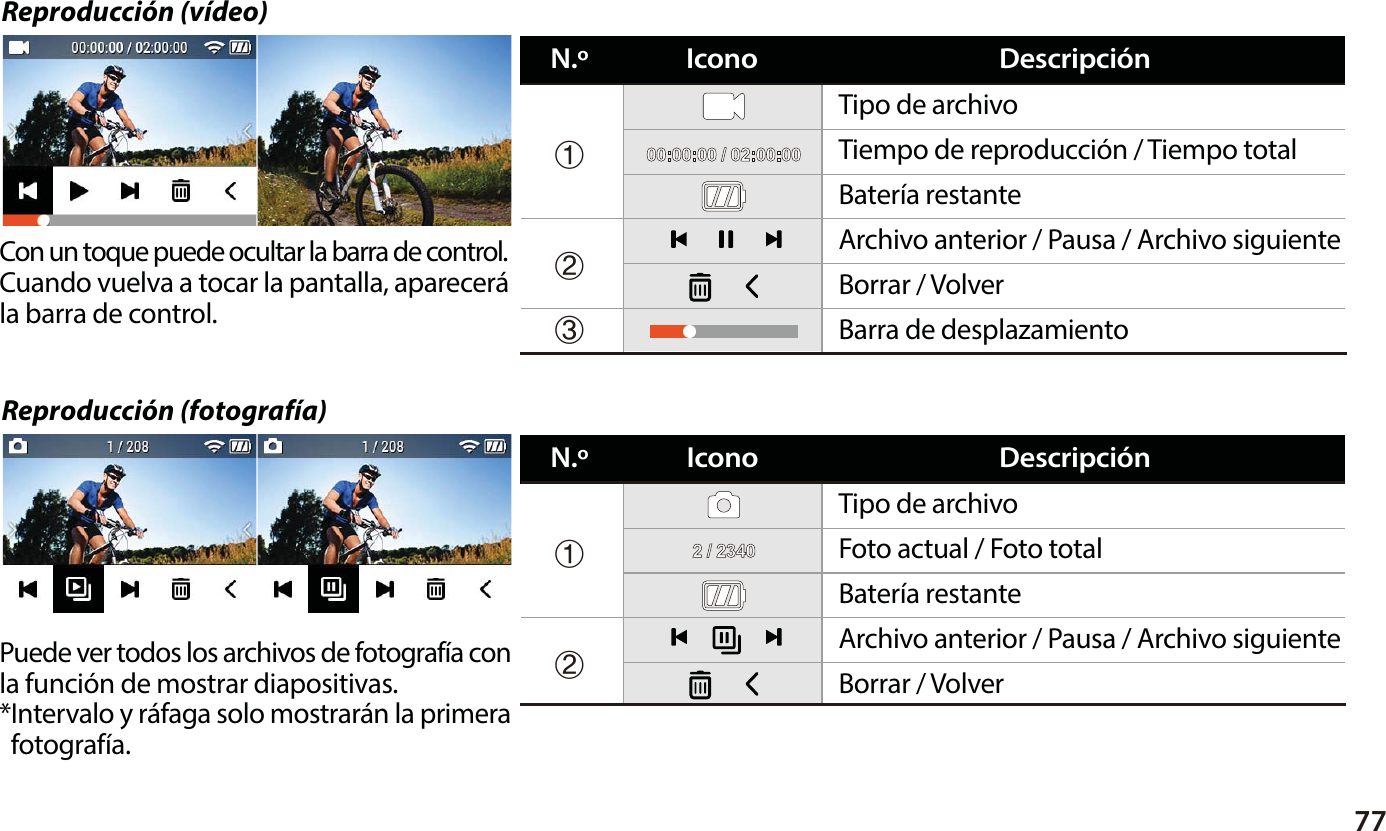
77Reproducción (fotografía)Reproducción (vídeo)Con un toque puede ocultar la barra de control.Cuando vuelva a tocar la pantalla, aparecerá la barra de control.Puede ver todos los archivos de fotografía conla función de mostrar diapositivas. *Intervalo y ráfaga solo mostrarán la primera  fotografía.Tipo de archivoTiempo de reproducción / Tiempo totalBatería restanteBarra de desplazamientoBorrar / VolverArchivo anterior / Pausa / Archivo siguienteⴘⴙⴚIconoN.º DescripciónTipo de archivoFoto actual / Foto totalBatería restanteBorrar / VolverArchivo anterior / Pausa / Archivo siguienteⴘⴙIconoN.º Descripción
10. Modo de configuración78Por favor, cambie el modo a conguración.●  Puede elegir más opciones con el modo conguración.●  Conguración de vídeo: Proporciona opciones     detalladas de grabación de vídeo.●  Conguración de fotografía: Proporciona     opciones de disparo de fotografía.●  Conguración de efectos: Proporciona opciones    de conguración de efectos para el disparo.●  Conguración general: Proporciona opciones de     conguración general de la cámara.●  Conexión : Proporciona función WiFi.Captura de pantalla de uso de la pantalla táctil y el botónConguración de vídeo Modo/Resolución/Campo de visión/Video Calidad/Intervalo/DISModo/Píxel/FOV/Photo Calidad/IntervaloWiFi/WiFi InfoControl/Bip/Indicador LED/Quick REC/LCD automático apagado/Potencia automática apagada/Bloqueo de pantalla/Salida TV/Idioma/Conguración de tiempo/Formato de memoria/Predeterminado/Infomación de SoftwareFiltro/Medidor EA/Zoom/Exposición/Equilibrio blanco/ISO/Invertido/Marca de tiempoConguración de fotografíaConguración de efectosConguración generalConexiónConguración Opción
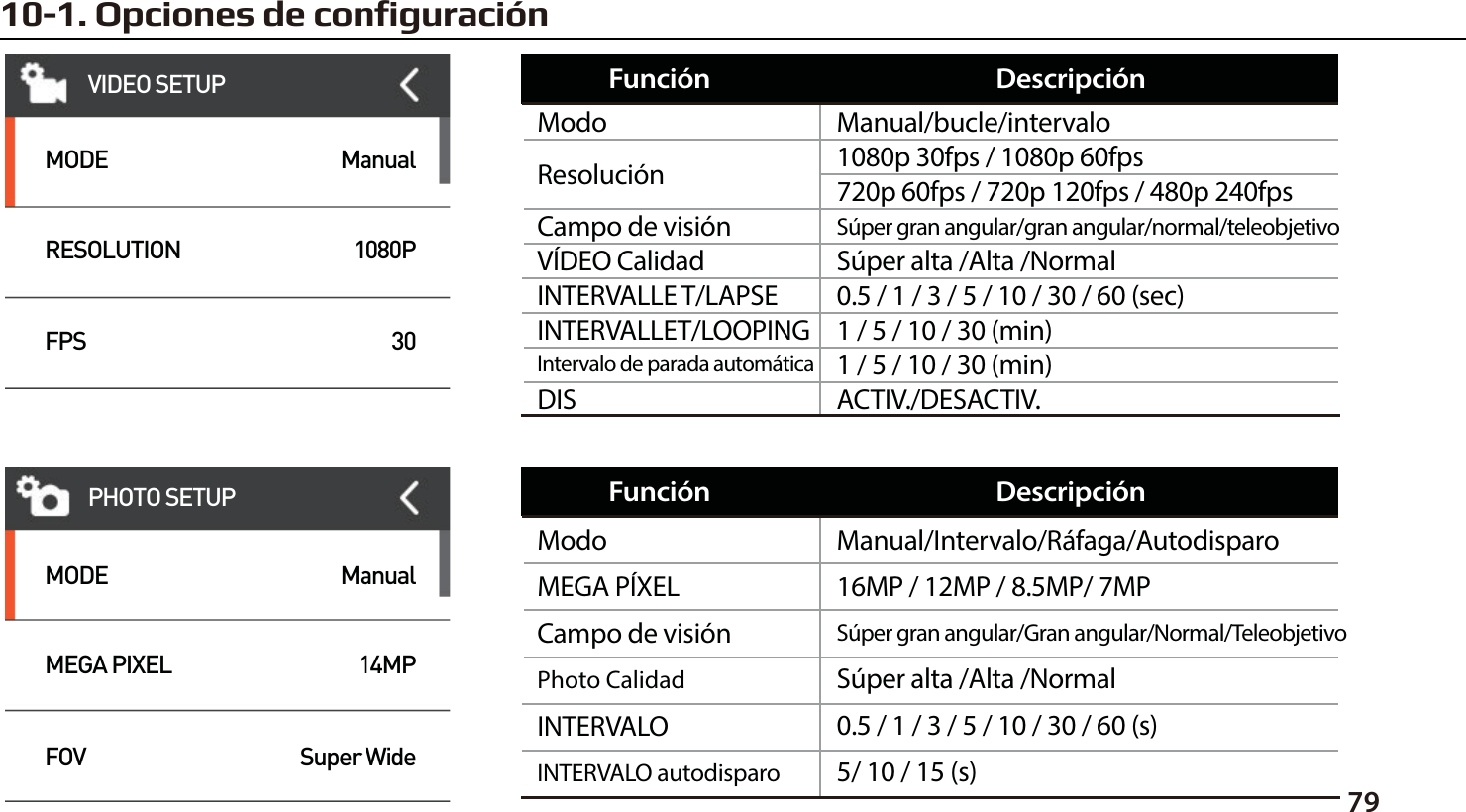
7910-1. Opciones de configuraciónVIDEO SETUPMODERESOLUTIONFPSManual1080P30MODEMEGA PIXELFOVManual14MPSuper WidePHOTO SETUPManual/bucle/intervalo1080p 30fps / 1080p 60fps720p 60fps / 720p 120fps / 480p 240fpsSúper gran angular/gran angular/normal/teleobjetivoModoResolución1 / 5 / 10 / 30 (min)Intervalo de parada automáticaACTIV./DESACTIV.DIS1 / 5 / 10 / 30 (min)INTERVALLET/LOOPING0.5 / 1 / 3 / 5 / 10 / 30 / 60 (sec)INTERVALLE T/LAPSE Campo de visiónSúper alta /Alta /NormalVÍDEO CalidadFunción DescripciónManual/Intervalo/Ráfaga/Autodisparo16MP / 12MP / 8.5MP/ 7MPSúper gran angular/Gran angular/Normal/TeleobjetivoSúper alta /Alta /NormalModoMEGA PÍXELCampo de visión5/ 10 / 15 (s)INTERVALO autodisparoPhoto Calidad0.5 / 1 / 3 / 5 / 10 / 30 / 60 (s)INTERVALO Función Descripción
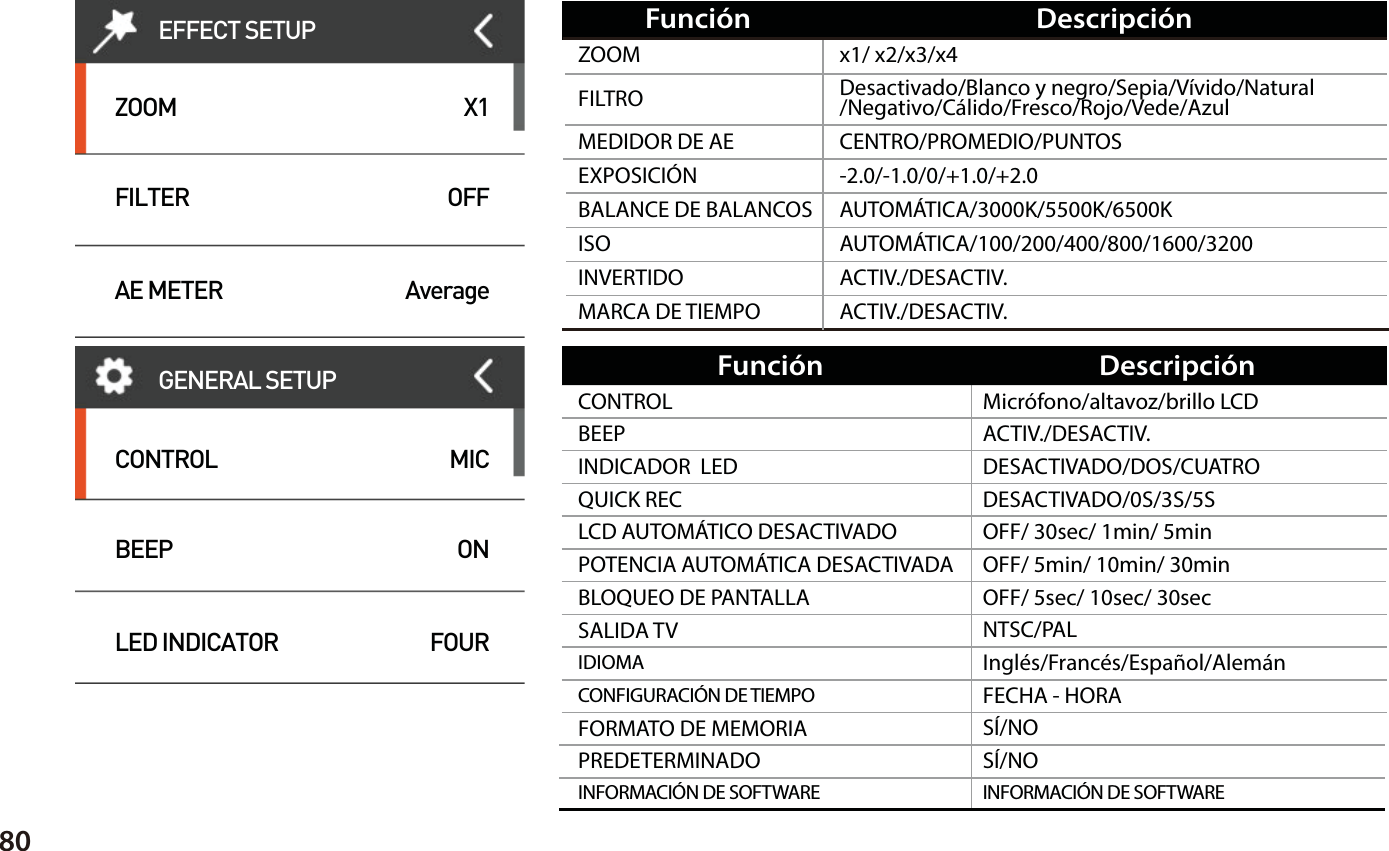
80Desactivado/Blanco y negro/Sepia/Vívido/Natural/Negativo/Cálido/Fresco/Rojo/Vede/AzulCENTRO/PROMEDIO/PUNTOSx1/ x2/x3/x4-2.0/-1.0/0/+1.0/+2.0AUTOMÁTICA/3000K/5500K/6500KAUTOMÁTICA/100/200/400/800/1600/3200ACTIV./DESACTIV.ACTIV./DESACTIV.MARCA DE TIEMPOFILTROMEDIDOR DE AEZOOMBALANCE DE BALANCOSINVERTIDOISOEXPOSICIÓNFunción DescripciónMicrófono/altavoz/brillo LCDACTIV./DESACTIV.DESACTIVADO/DOS/CUATRODESACTIVADO/0S/3S/5SOFF/ 30sec/ 1min/ 5minOFF/ 5min/ 10min/ 30minFECHA - HORASÍ/NONTSC/PALOFF/ 5sec/ 10sec/ 30secSÍ/NOINFORMACIÓN DE SOFTWARECONTROLBEEPINDICADOR  LEDLCD AUTOMÁTICO DESACTIVADOPREDETERMINADOINFORMACIÓN DE SOFTWAREFORMATO DE MEMORIACONFIGURACIÓN DE TIEMPOInglés/Francés/Español/AlemánIDIOMASALIDA TVBLOQUEO DE PANTALLAPOTENCIA AUTOMÁTICA DESACTIVADAQUICK RECFunción DescripciónEFFECT SETUPZOOMFILTERAE METERX1OFFAverageCONTROLBEEPLED INDICATORMICONFOURGENERAL SETUP
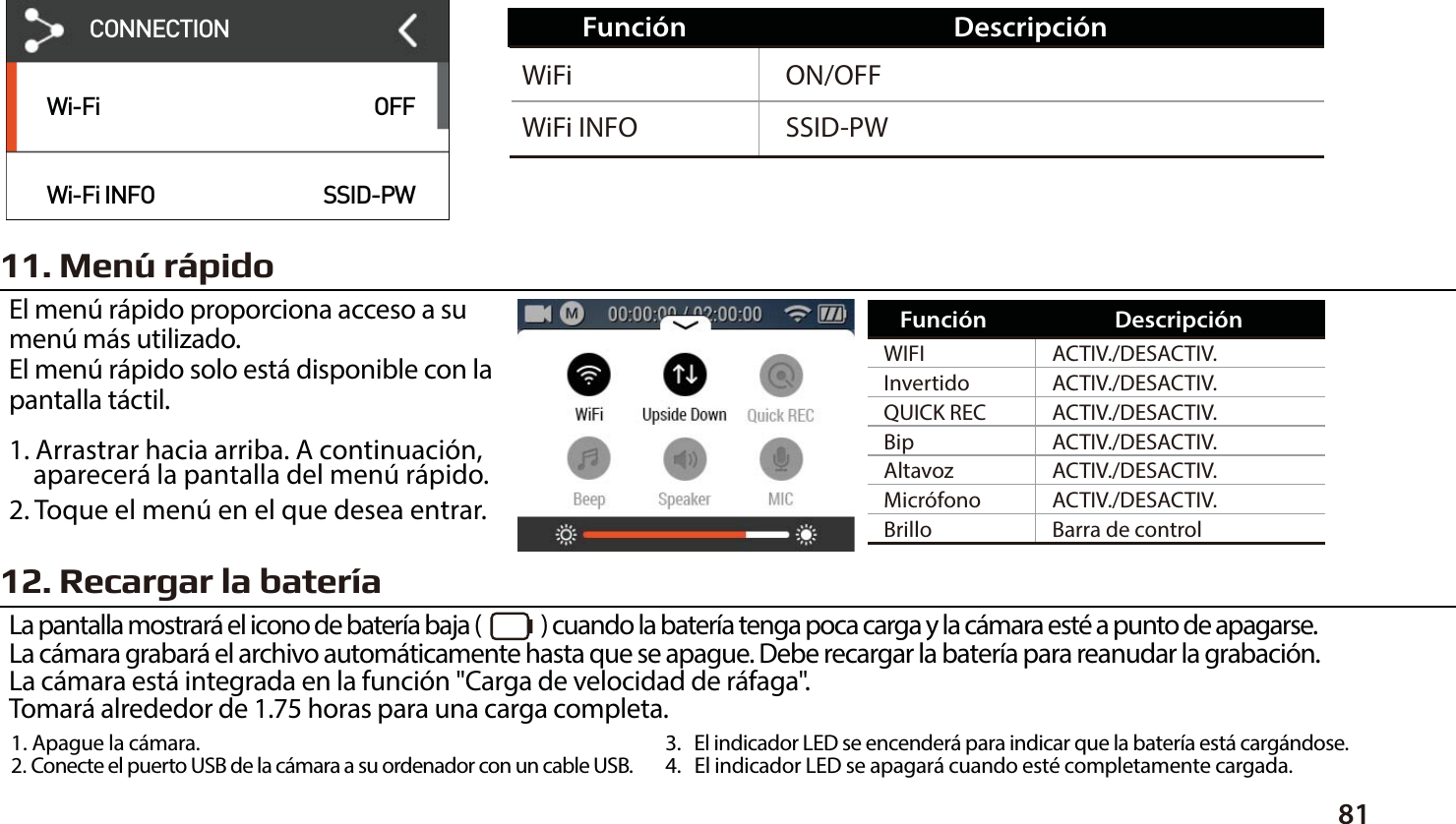
8111. Menú rápidoEl menú rápido proporciona acceso a su menú más utilizado.El menú rápido solo está disponible con la pantalla táctil.1. Arrastrar hacia arriba. A continuación,     aparecerá la pantalla del menú rápido.2. Toque el menú en el que desea entrar.12. Recargar la bateríaLa pantalla mostrará el icono de batería baja (             ) cuando la batería tenga poca carga y la cámara esté a punto de apagarse.La cámara grabará el archivo automáticamente hasta que se apague. Debe recargar la batería para reanudar la grabación.La cámara está integrada en la función "Carga de velocidad de ráfaga".Tomará alrededor de 1.75 horas para una carga completa.ON/OFFSSID-PWWiFiWiFi INFOFunción DescripciónACTIV./DESACTIV.ACTIV./DESACTIV.ACTIV./DESACTIV.ACTIV./DESACTIV.ACTIV./DESACTIV.ACTIV./DESACTIV.Barra de controlWIFIInvertidoQUICK RECAltavozBrilloMicrófonoBipFunción Descripción1. Apague la cámara.2. Conecte el puerto USB de la cámara a su ordenador con un cable USB. 3.   El indicador LED se encenderá para indicar que la batería está cargándose.4.   El indicador LED se apagará cuando esté completamente cargada.Wi-FiWi-Fi INFOOFFSSID-PWCONNECTION
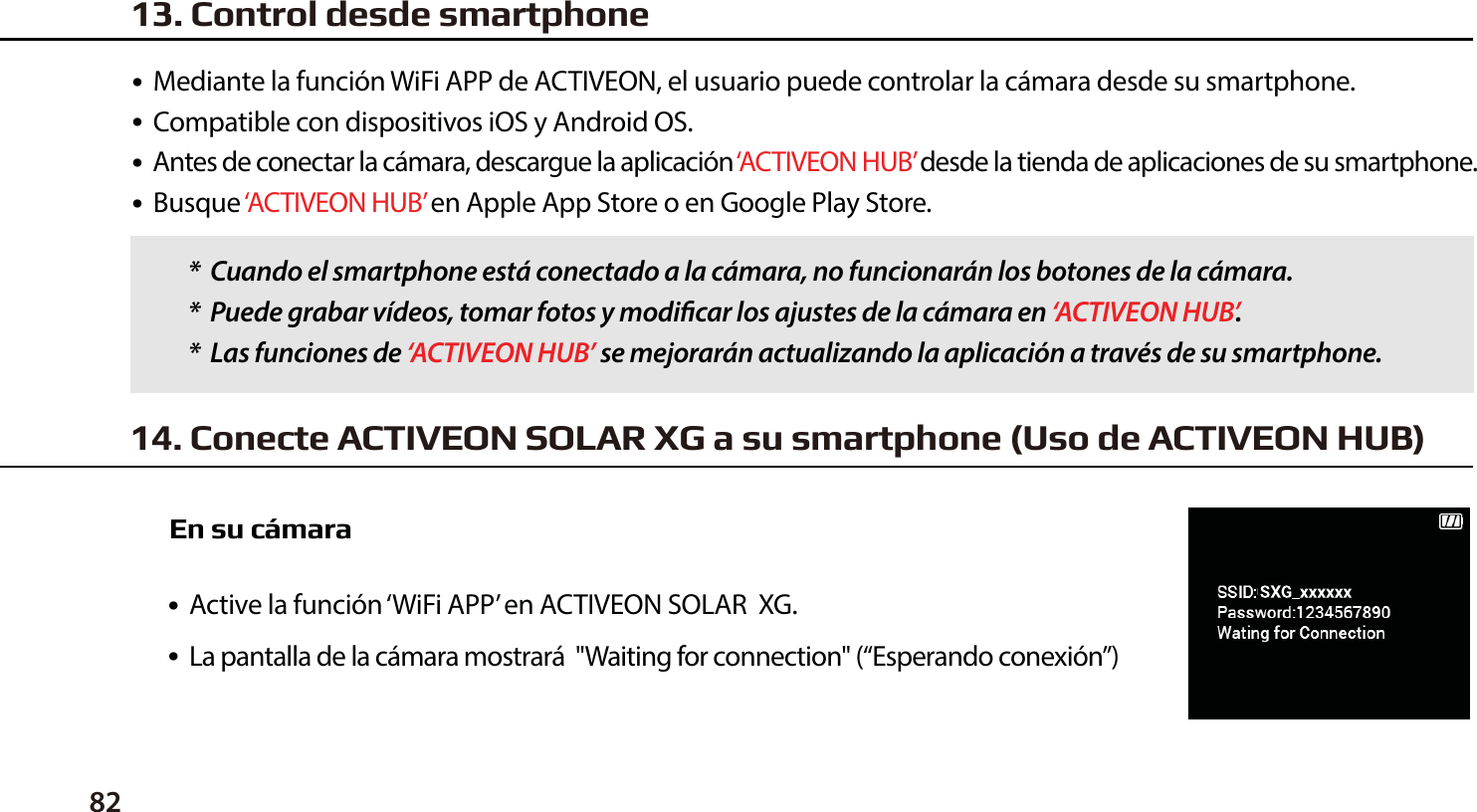
●  Mediante la función WiFi APP de ACTIVEON, el usuario puede controlar la cámara desde su smartphone.●  Compatible con dispositivos iOS y Android OS.●  Antes de conectar la cámara, descargue la aplicación ‘ACTIVEON HUB’ desde la tienda de aplicaciones de su smartphone.●  Busque ‘ACTIVEON HUB’ en Apple App Store o en Google Play Store.●  Active la función ‘WiFi APP’ en ACTIVEON SOLAR  XG.         ●  La pantalla de la cámara mostrará  "Waiting for connection" (“Esperando conexión”)*  Cuando el smartphone está conectado a la cámara, no funcionarán los botones de la cámara.*  Puede grabar vídeos, tomar fotos y modicar los ajustes de la cámara en ‘ACTIVEON HUB’.*  Las funciones de ‘ACTIVEON HUB’ se mejorarán actualizando la aplicación a través de su smartphone.14. Conecte ACTIVEON SOLAR XG a su smartphone (Uso de ACTIVEON HUB)En su cámara13. Control desde smartphone82
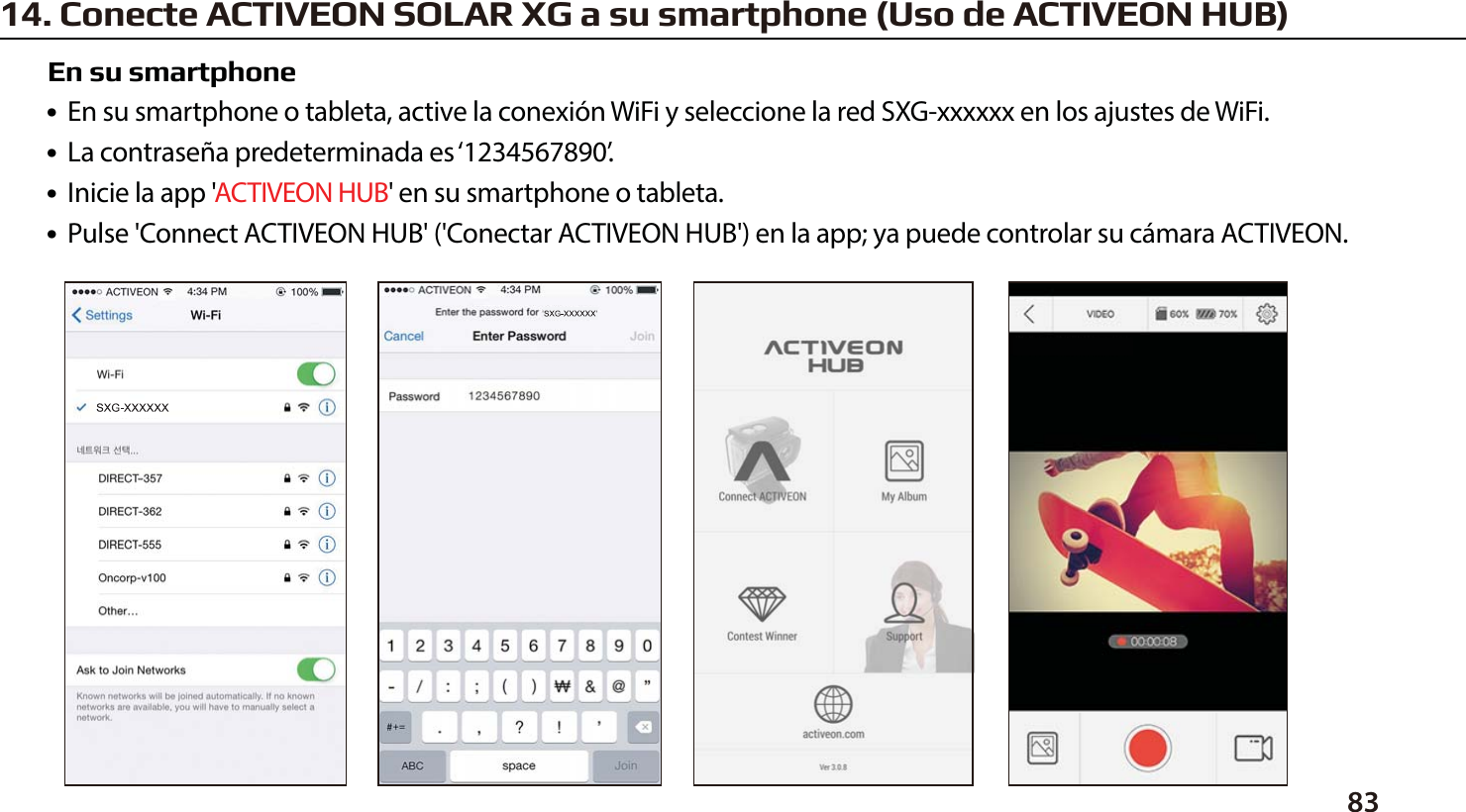
8314. Conecte ACTIVEON SOLAR XG a su smartphone (Uso de ACTIVEON HUB)●  En su smartphone o tableta, active la conexión WiFi y seleccione la red SXG-xxxxxx en los ajustes de WiFi.●  La contraseña predeterminada es ‘1234567890’.●  Inicie la app 'ACTIVEON HUB' en su smartphone o tableta.●  Pulse 'Connect ACTIVEON HUB' ('Conectar ACTIVEON HUB') en la app; ya puede controlar su cámara ACTIVEON.En su smartphone
84●  Si la cámara está conectada a un ordenador o cargador de baterías mientras está apagada,   la cámara comienza a recargar la batería.●  Si la cámara está conectada a un ordenador mientras está encendida, la cámara cambia al modo de transferencia.● Cuando la cámara está conectada a un cargador de baterías o cargador de coche para recargarla,   la cámara puede grabar mientras se recarga.1. Encienda su ACTIVEON SOLAR XG2. Conecte la cámara a su ordenador con un cable USB.3. La pantalla LCD de la cámara indicará 'USB ready' 'USB preparado'.4. Vaya a ‘Mi PC’ en su ordenador.5. Busque ‘removable disk’ (‘disco extraíble’).6. Haga doble clic en ‘removable disk’ (‘disco extraíble’).7. Haga doble clic en la carpeta ‘DCIM’.8. Abra las carpetas para ver sus archivos de vídeo o fotos.9. Copie y pegue los archivos en el ordenador.15. Transferir datos al ordenador (compatible con sistemas operativos Windows y Mac)
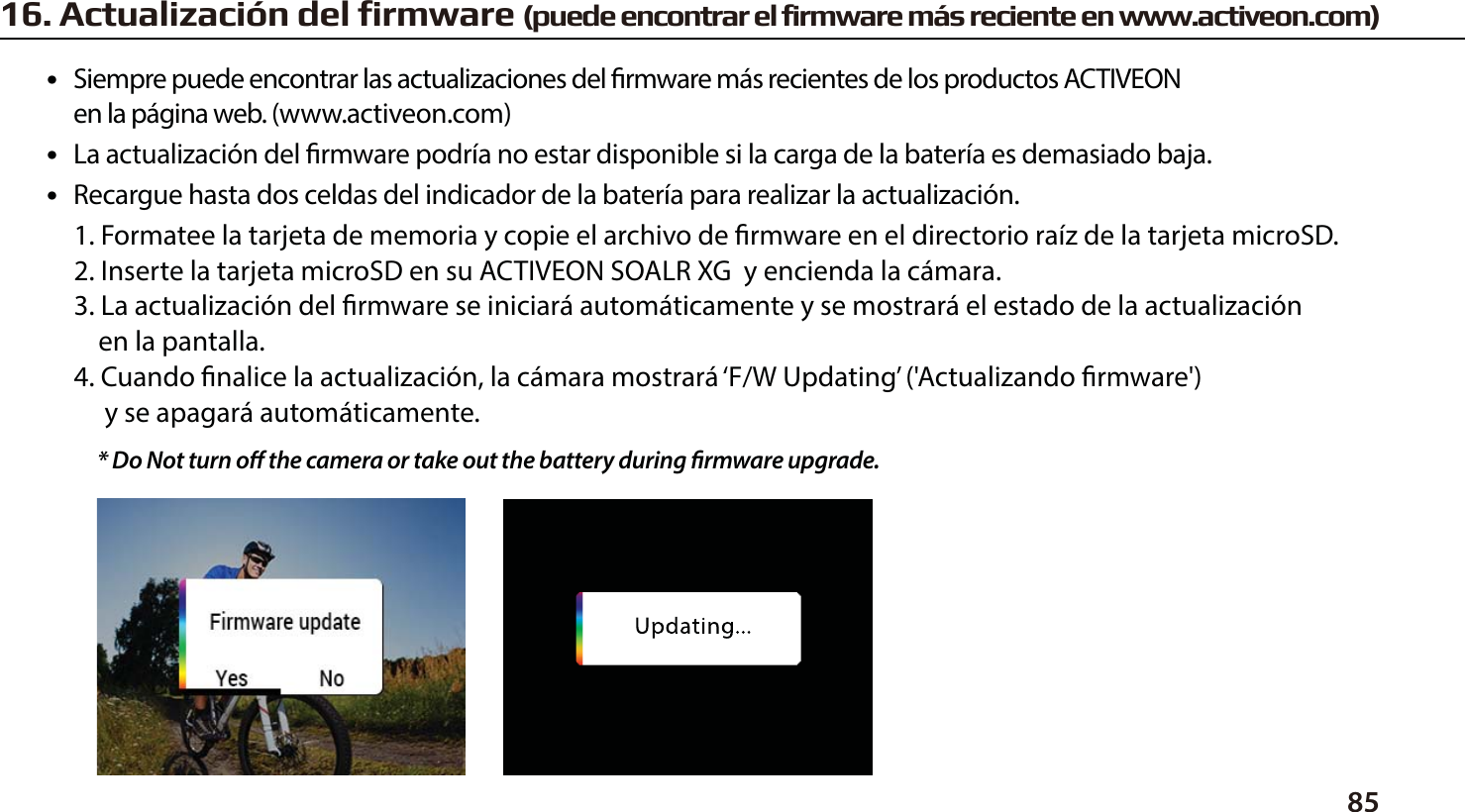
8516. Actualización del firmware (puede encontrar el firmware más reciente en www.activeon.com)●   Siempre puede encontrar las actualizaciones del rmware más recientes de los productos ACTIVEON      en la página web. (www.activeon.com)●   La actualización del rmware podría no estar disponible si la carga de la batería es demasiado baja.●   Recargue hasta dos celdas del indicador de la batería para realizar la actualización.1. Formatee la tarjeta de memoria y copie el archivo de rmware en el directorio raíz de la tarjeta microSD.2. Inserte la tarjeta microSD en su ACTIVEON SOALR XG  y encienda la cámara.3. La actualización del rmware se iniciará automáticamente y se mostrará el estado de la actualización    en la pantalla.4. Cuando nalice la actualización, la cámara mostrará ‘F/W Updating’ ('Actualizando rmware')      y se apagará automáticamente.* Do Not turn o the camera or take out the battery during rmware upgrade.
86● Cámara de acción “ACTIVEON SOLAR XG” 1080p 60 fps.● Grabación con resolución Full HD (1920 x 1080) a 60 fps.● Carcasa impermeable de 60m.● 14MP PANASONIC 34110 CMOS sensor.● Conguración de efectos de la cámara de fácil control mediante el modo de programa.● Campo de visión súper gran angular.● LCD de 2,0” integrada (320x240) con panel táctil.● Wi integrada.● Resolución de grabación versátil (1080p/720p/480p)● Captura de ráfaga de fotos (* 6 tomas en 1 segundo)● Códec H.264, guardado como formato MP4.● Batería recargable de ion de litio.● Autonomía de la batería: aproximadamente 120 minutos de grabación continua (1080p 30 fps)    * el tiempo de grabación puede variar en función de las condiciones●  Tiempo de recarga: 3,5 horas mediante puerto USB/1,75 horas mediante adaptador de CA (accesorio opcional)●  Carga rápida●  Sencilla interfaz de usuario gráca.●  Amplia gama de accesorios.17. Características y especificaciones
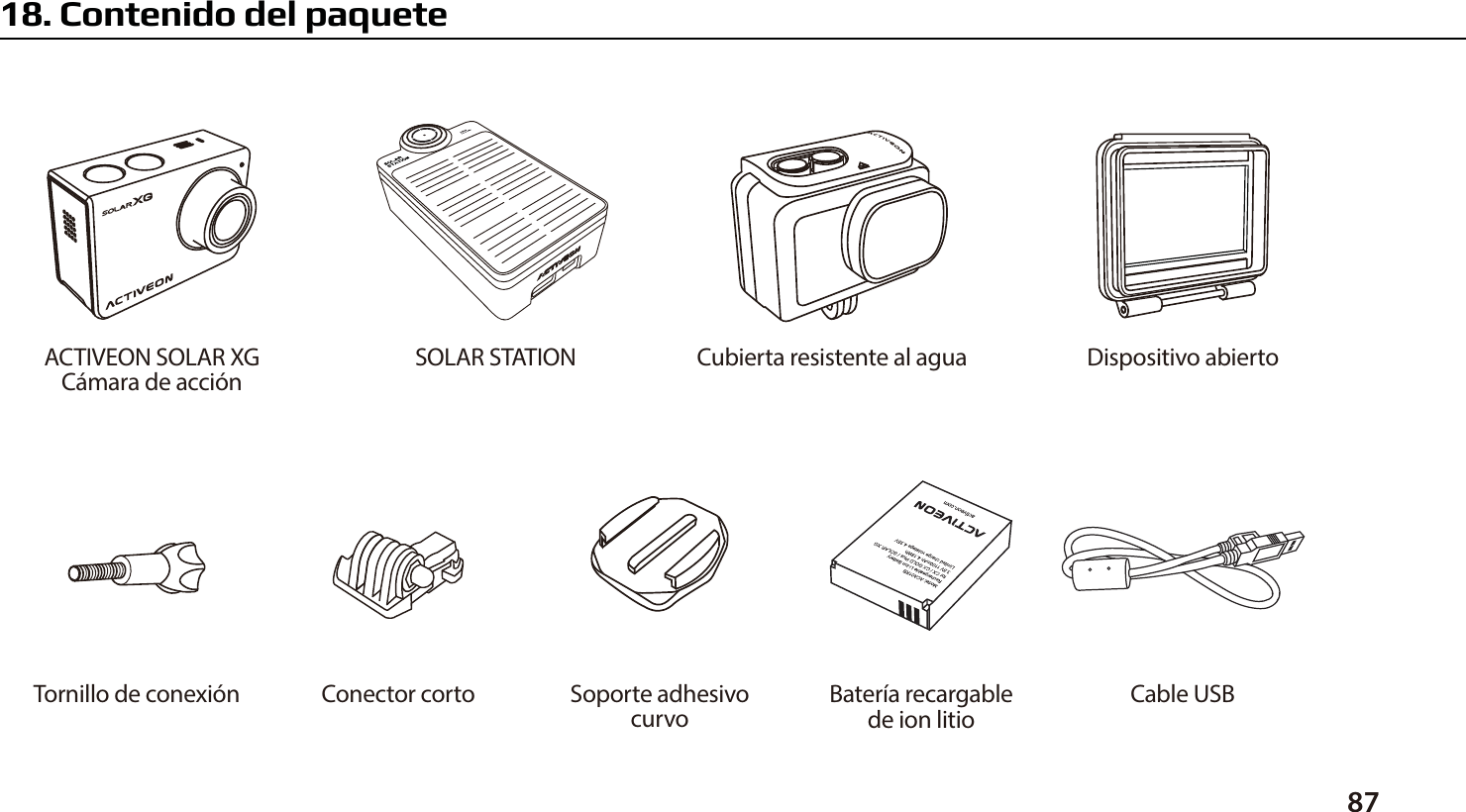
8718. Contenido del paqueteCubierta resistente al aguaSOLAR STATIONACTIVEON SOLAR XGCámara de acciónSoporte adhesivocurvoConector corto Cable USBBatería recargablede ion litioTornillo de conexiónDispositivo abierto
www.activeon.comEspecificaciónDimensiones 113 x 62 x 33.5mmEntrada 5V / 2.1ASalida 5V / 2.1ACapacidad 5600mATipo Li-PolymerPanel solar MonocrystallineSilicone1. Nombre de cada parteBotón de encendidoIndicador LEDPanel solarentrada USBTipo salida USB miniB
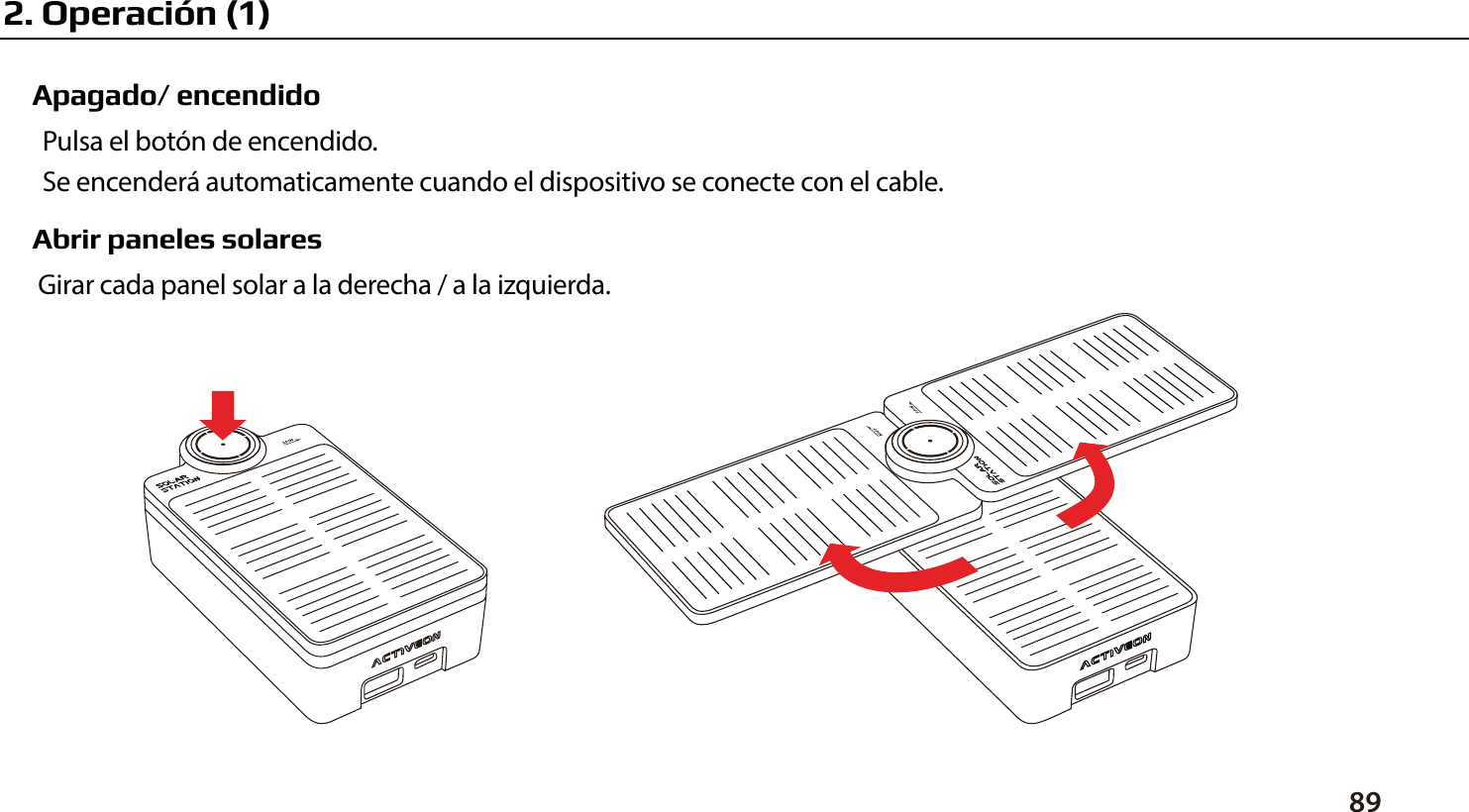
Apagado/ encendidoPulsa el botón de encendido. Se encenderá automaticamente cuando el dispositivo se conecte con el cable.Abrir paneles solaresGirar cada panel solar a la derecha / a la izquierda.892. Operación (1)
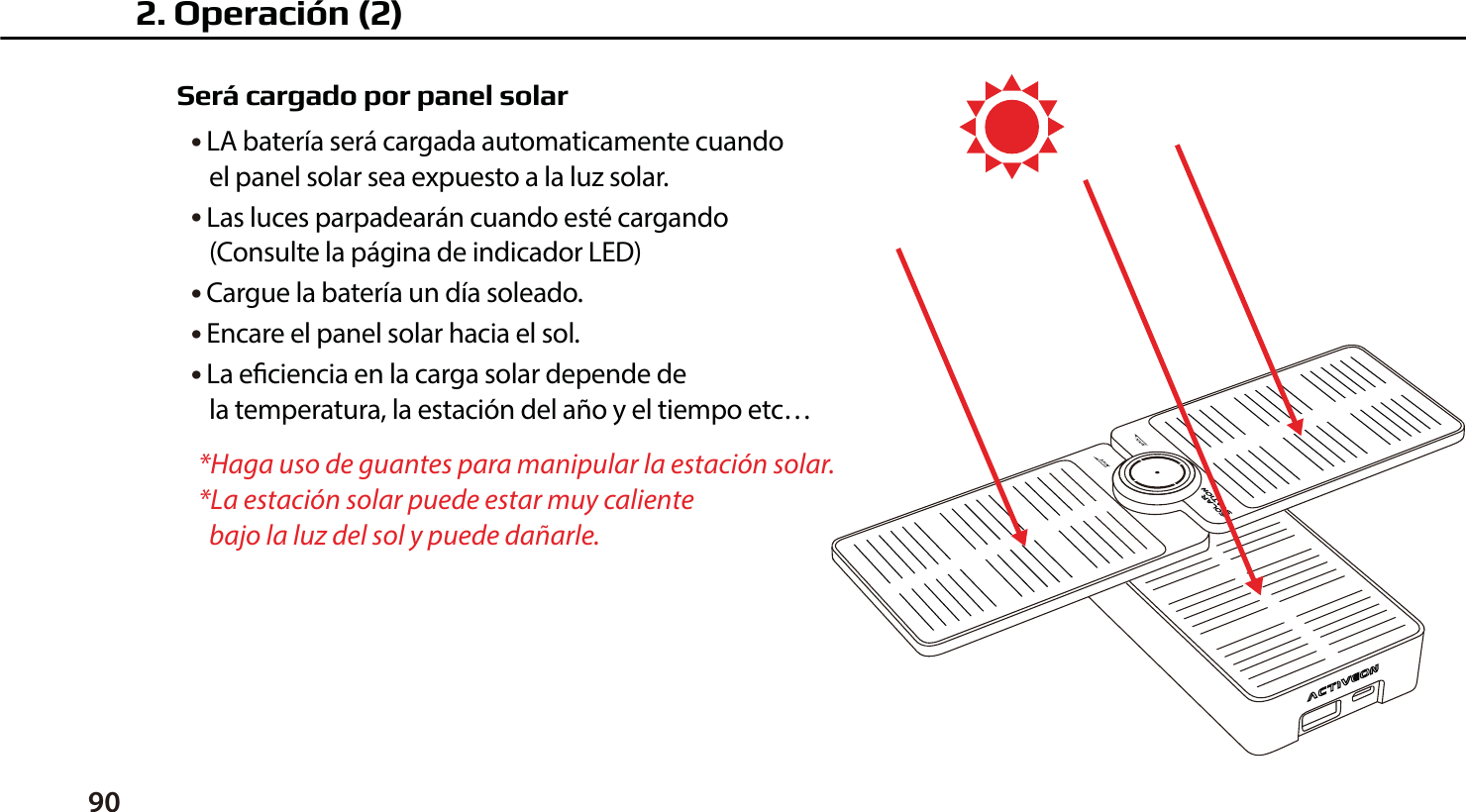
90Será cargado por panel solar● LA batería será cargada automaticamente cuando    el panel solar sea expuesto a la luz solar.● Las luces parpadearán cuando esté cargando    (Consulte la página de indicador LED)● Cargue la batería un día soleado.● Encare el panel solar hacia el sol.● La eciencia en la carga solar depende de    la temperatura, la estación del año y el tiempo etc…*Haga uso de guantes para manipular la estación solar.*La estación solar puede estar muy caliente   bajo la luz del sol y puede dañarle.2. Operación (2)
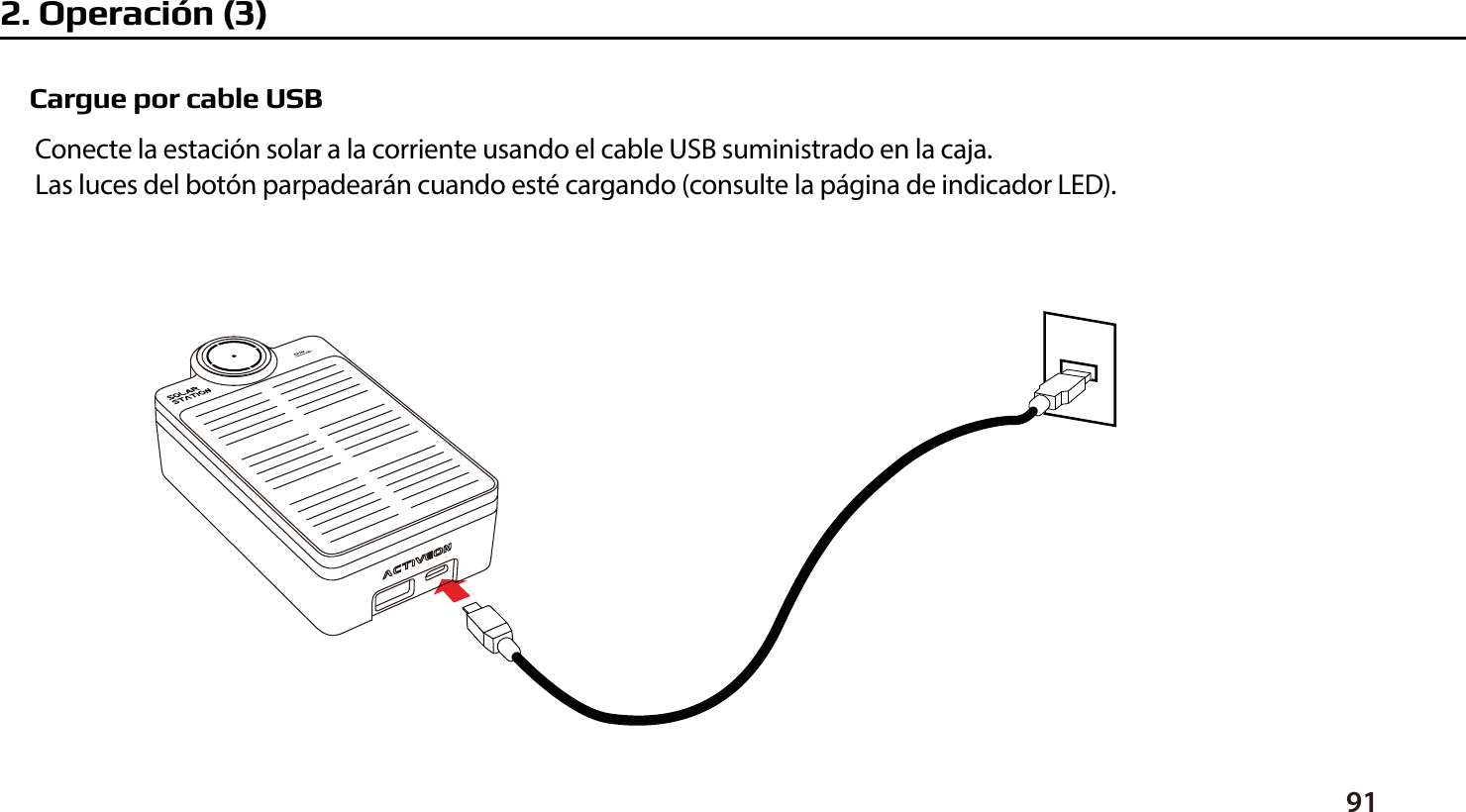
Cargue por cable USBConecte la estación solar a la corriente usando el cable USB suministrado en la caja.Las luces del botón parpadearán cuando esté cargando (consulte la página de indicador LED).912. Operación (3)
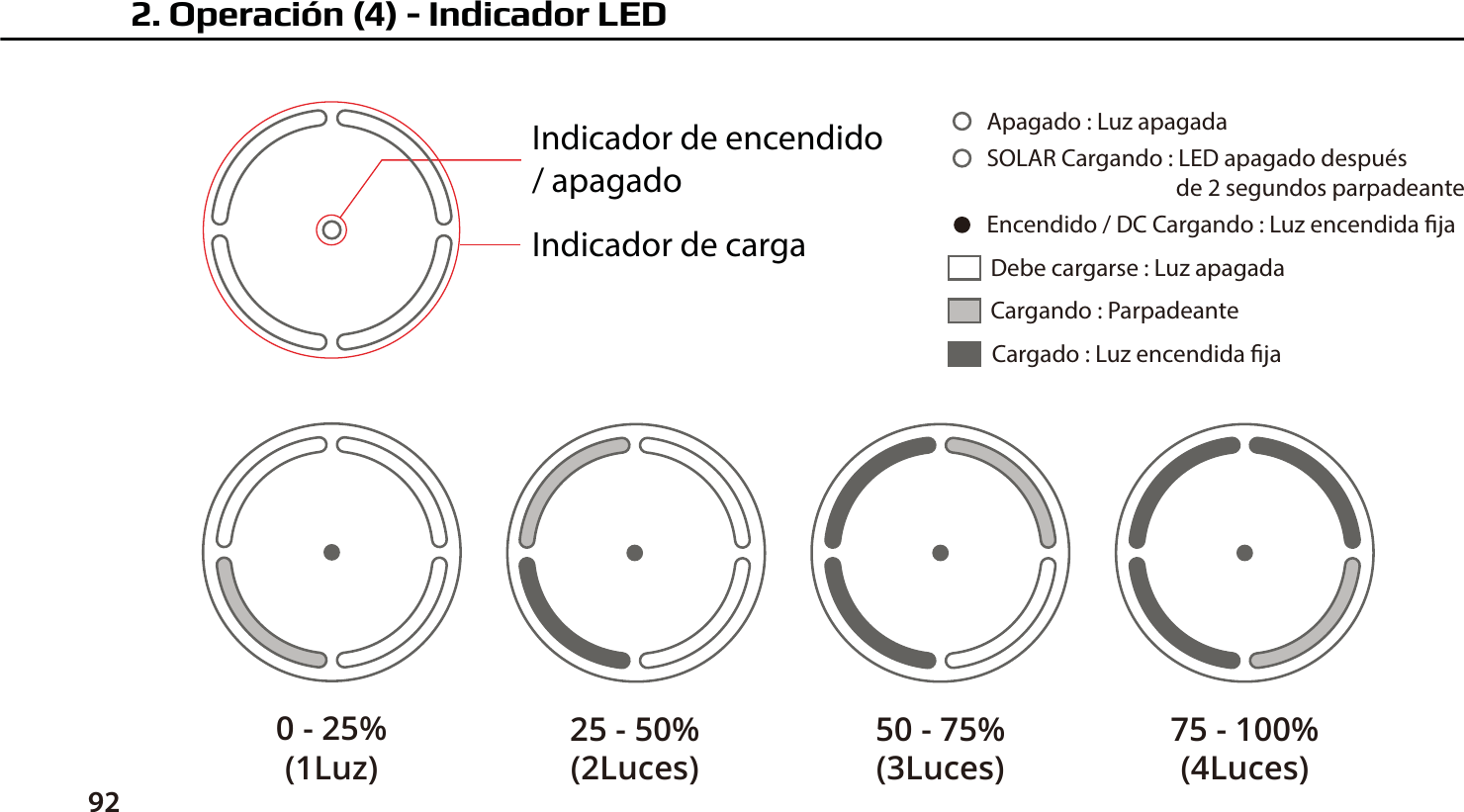
922. Operación (4) - Indicador LEDIndicador de encendido / apagadoIndicador de cargaCargando : ParpadeanteDebe cargarse : Luz apagadaCargado : Luz encendida jaEncendido / DC Cargando : Luz encendida jaApagado : Luz apagadaSOLAR Cargando : LED apagado después                                     de 2 segundos parpadeante0 - 25%(1Luz)25 - 50%(2Luces)50 - 75%(3Luces)75 - 100%(4Luces)
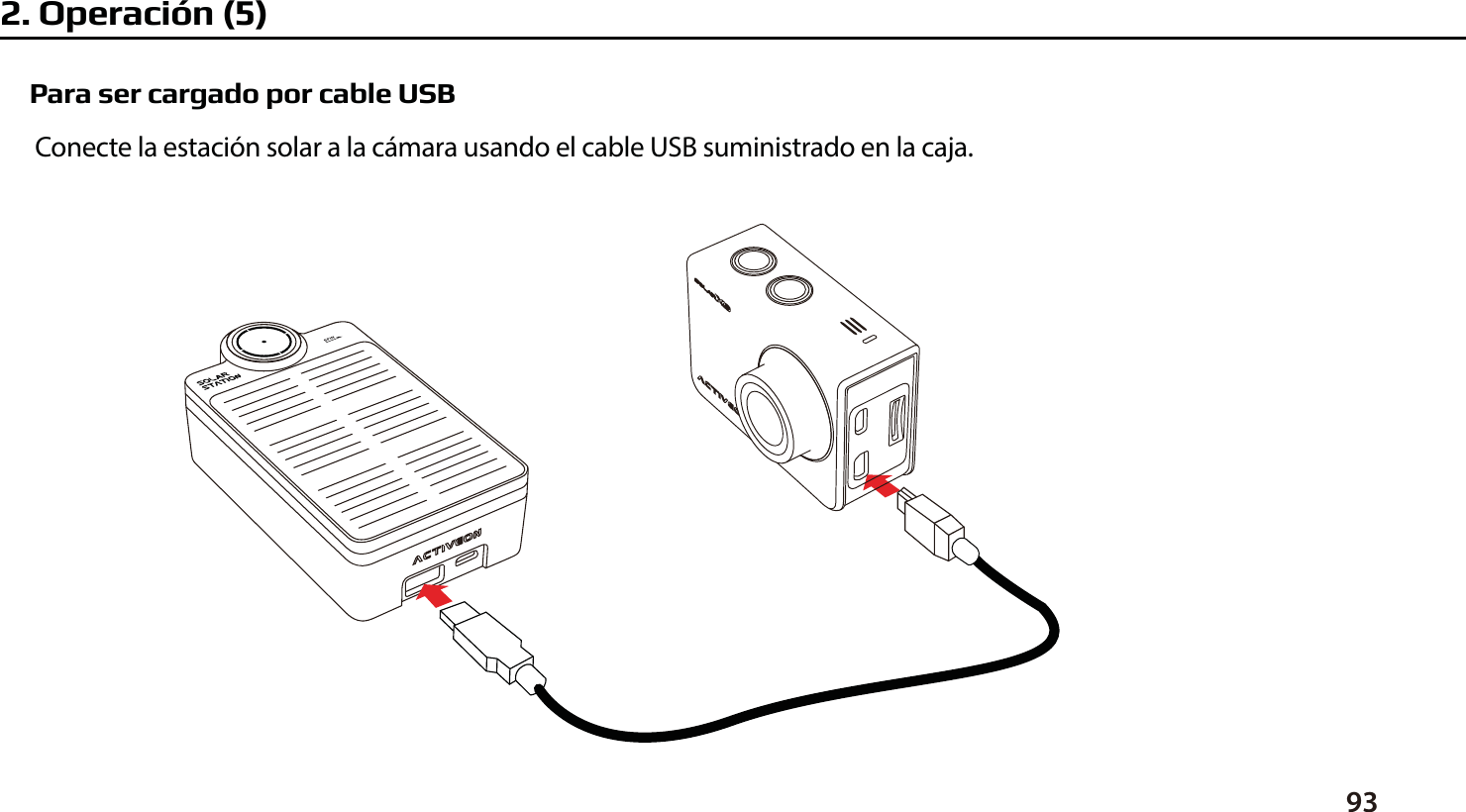
Para ser cargado por cable USBConecte la estación solar a la cámara usando el cable USB suministrado en la caja.932. Operación (5)
94●  Mantenga alejado el dispositivo de temperaturas altas/bajas extremas.●  No desmonte el dspositivo.●  No rompa la batería o la lance al fuego.●  Nunca tire o deje caer este producto para evitar daños.●  Recargue la batería al menos una vez cada mes para mantener las propiedades de la batería.●  No exponga el dispositivo en agua o alta humedad.●  Mantenga el dispositivo fuera del alcance de los niños o las persona que hayan sido instruido en el    manejo del producto.●  Deje de usar si se producen fugas, sobrecalentamiento o cualquier otra condición inusual.●  Si hay algún problema con el producto, póngase en contacto con su distribuidor para obtener más ayuda.3. Precauciones
19
96CAUTIONFCC RADIO FREQUENCY INTERFERENCE STATEMENTThis device complies with Part 15 of the FCC Rules. Operation is subject to the following two conditions:(1)   This device may not cause harmful interference, and(2)   This device must accept any interference received, including interference that may cause undesired operation. Warning: Changes or modications to this unit not expressly approved by the party responsible for compliance could void the user’s authority to operate the equipment. Note: This equipment has been tested and found to comply with the limits for a Class B digital device, pursuant to Part 15 of the FCC Rules.These limits are designed to provide reasonable protection against harmful interference in a residential installation. This equipment generates, uses and can radiate radio frequency energy and, if not installed and used in accordance with the instructions, may cause harmful interference to radio communications. However, there is no guarantee that interference will not occur in a particular installation. If this equipment does cause harmful interference to radio or television reception, which can be determined by turning the equipment o and on, the user is encouraged to try to correct the interference by one or more of the following measures:● Reorient or relocate the receiving antenna.● Increase the separation between the equipment and receiver.● Connect the equipment into an outlet on a circuit dierent from that to which the receiver is connected.● Consult the dealer or an experienced radio/TV technician for help.  The device has been evaluated to meet general RF exposure requirement. The device can be used in portable exposure condition without restriction.FCC ID : 2AKGVXCA01It could be exploded if the battery is inappropriate type. Please insert proper type of battery according to instructions.               The symbol means that according to local laws and regulations your product should be disposed of separatly from household waste. When this product reaches its end of life, take it to a collection point designated by local authorities. Some collection points accept products for free. The separate collection and recycling of your product at the time of disposal will help conserve natural resources and ensure that it is recycled in a manner that protects human health and the environment.
USA Warrantywww.activeon.com23

Navigation menu