Communications Development JLM051690 WIRELESS LAN User Manual The 11Mbps Wireless LAN Access Point

Communications Development LLC WIRELESS LAN The 11Mbps Wireless LAN Access Point

Contents

USERS MANUAL 1

FastLinc 810E manual Rev 3  FFaassttLLiinncc  881100EE    IInndduussttrriiaall  WWiirreelleessss  EEtthheerrnneett  MMooddeemm
 FCC Information This device complies with Part 15 of the FCC Rules. Operation is subject to the following two conditions: (1) this device may not cause harmful interference, and (2) this device must accept any interference received; including interference that may cause undesired operation. Federal Communications Commission (FCC) Statement This Equipment has been tested and found to comply with the limits for a Class B digital device, pursuant to Part 15 of the FCC rules. These limits are designed to provide reasonable protection against harmful interference in a residential installation. This equipment generates, uses and can radiate radio frequency energy and, if not installed and used in accordance with the instructions, may cause harmful interference to radio communications. However, there is no guarantee that interference will not occur in a particular installation. If this equipment does cause harmful interference to radio or television reception, which can be determined by turning the equipment off and on, the user is encouraged to try to correct the interference by one or more of the following measures: - Reorient or relocate the receiving antenna. - Increase the separation between the equipment and receiver. - Connect the equipment into an outlet on a circuit different from that to which the receiver is connected. -Consult the dealer or an experienced radio/TV technician for help.   FCC RF Radiation Exposure Statement: 1. This Transmitter must not be co-located or operating in conjunction with any other antenna or transmitter. 2. This equipment complies with FCC RF radiation exposure limits set forth for an uncontrolled environment. This equipment should be installed and operated with a minimum distance of 20 centimeters between the radiator and your body. The only antennas to be used with this device are as follows: •  Supplied whip antenna •  2 dB omni manufacture # MHWS2400MSMARP •  5 dB omni manufacture # MAXC24505 •  6 dB omni manufacture # MFB2406 •  8 dB omni manufacture # MFB2408 (with a 2 dB attenuation restriction) •  10 dB yagi manufacture # MYP24010PT •  14 dB yagi manufacture # MYP24014PT (with a 3 dB attenuation restriction) •  14 dB yagi manufacture # PC2415N (with a 3 dB attenuation restriction)  Professional installation of this product is required.
 Table of Contents  Chapter 1  Introduction ......................................................................1 1-1 Features and Benefits................................................................................... 1 1-3 System Configurations.................................................................................. 2 Chapter 2    Hardware Installation......................................................3 2-1 Product Kit ................................................................................................... 3 2-2 System Requirements.................................................................................... 3 2-3 Mechanical Description ............................................................................... 4 2-4 Hardware Installation .................................................................................. 5 Chapter 3 Configuring the FastLinc 810E Modem............................6 3-1 Using the FastLinc 810E Modem Utility ..................................................... 6 3-2 Using the Web Management ...................................................................... 18 3-3 Using the Telnet.......................................................................................... 23 Chapter 4 Troubleshooting.................................................................30 Appendix A Network Configuration .................................................32 A-1 Network Topology...................................................................................... 32 Appendix B    Specifications ...............................................................35 Appendix C Glossary ..........................................................................36
Chapter 1  Introduction The FastLinc 810E Industrial Wireless Ethernet Modem is specially designed for Point-to-Point and Point-to-Multipoint wireless applications, offering system-wide connections between PLC’s at a speed of up to 11Mbps over the air data rate.  Fully compliant with IEEE802.11b standard, the FastLinc 810E Modem provides powerful features such as the Windows-based configuration utility, MAC address filtering, WEP security and more. 1-1 Features and Benefits   Creates a Point-to-Point connection linking two LANs, using 2 FastLinc 810E Modems.   Creates a Point-to-Multipoint system using three or more FastLinc 810E Modems.   External antenna allows for the use high gain antennas.   With an over the air data rate of 11Mbps and 5.5Mbps, the system is faster than an E1/T1 data link.   Fully IEEE 802.11b compatible.       Transmits in the unlicensed 2.4Ghz ISM band.   Seamless roaming within the 802.11 & 802.11b wireless LAN infrastructure.   Provides user authentication to enforce tight security.   MAC address control for enhanced security   Easy to install and configure.   Provides Window-based configuration utility.   Industrial rugged-ized enclosure provides protection in harsh environments.      -1-
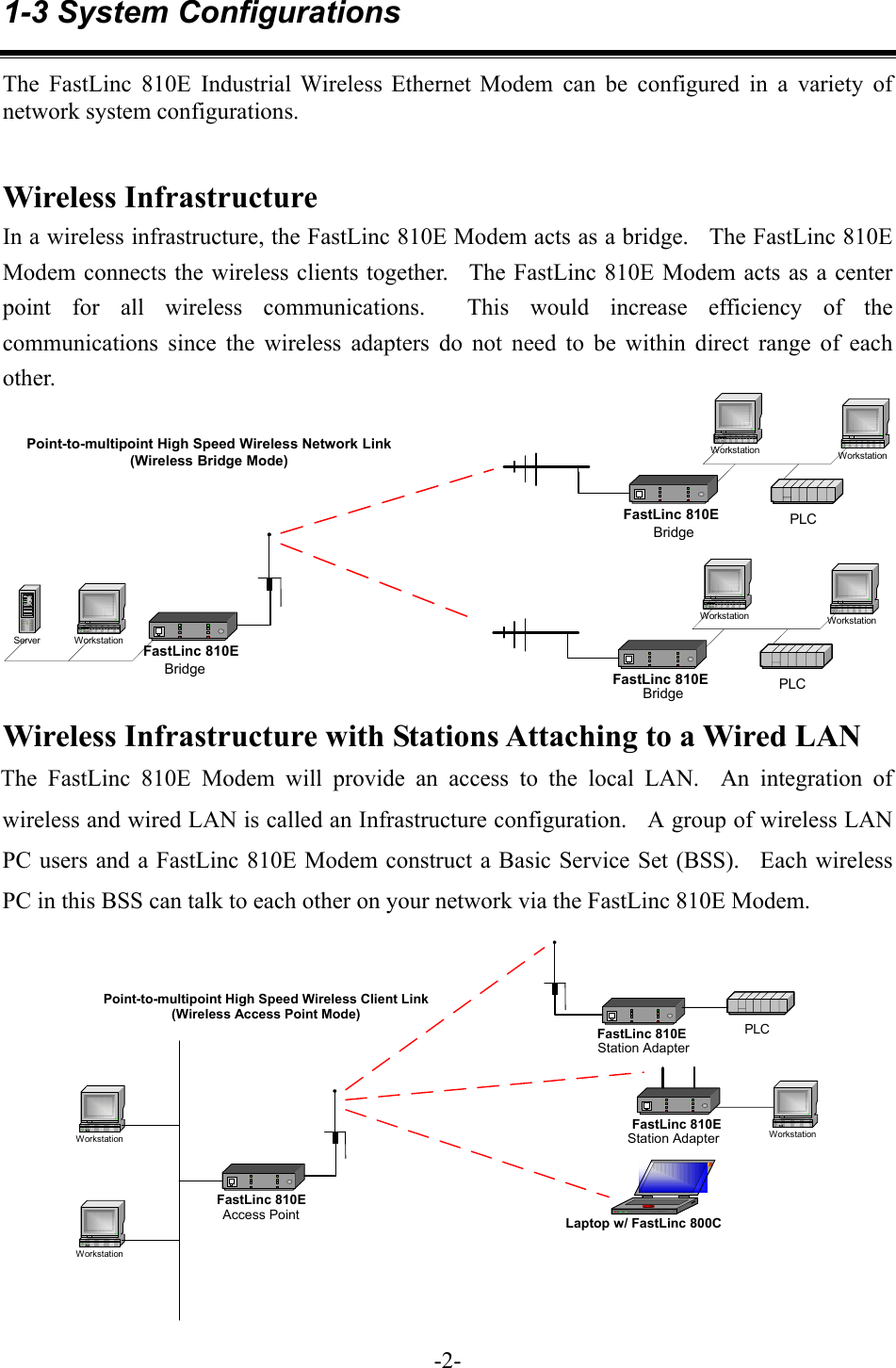
1-3 System Configurations The FastLinc 810E Industrial Wireless Ethernet Modem can be configured in a variety of network system configurations.   Wireless Infrastructure In a wireless infrastructure, the FastLinc 810E Modem acts as a bridge.    The FastLinc 810E Modem connects the wireless clients together.  The FastLinc 810E Modem acts as a center point for all wireless communications.  This would increase efficiency of the communications since the wireless adapters do not need to be within direct range of each other. FastLinc 810EWorkstationWorkstationPLCFastLinc 810EFastLinc 810EServer WorkstationWorkstationWorkstationPLCPoint-to-multipoint High Speed Wireless Network Link(Wireless Bridge Mode)BridgeBridgeBridge Wireless Infrastructure with Stations Attaching to a Wired LAN The FastLinc 810E Modem will provide an access to the local LAN.  An integration of wireless and wired LAN is called an Infrastructure configuration.    A group of wireless LAN PC users and a FastLinc 810E Modem construct a Basic Service Set (BSS).  Each wireless PC in this BSS can talk to each other on your network via the FastLinc 810E Modem.   FastLinc 810E PLCFastLinc 810EWorkstationPoint-to-multipoint High Speed Wireless Client Link(Wireless Access Point Mode)Laptop w/ FastLinc 800CFastLinc 810EAccess PointStation AdapterStation AdapterWorkstationWorkstation   -2-
Chapter 2    Hardware Installation This chapter describes initial setup of the FastLinc 810E Modem. 2-1 Product Kit Before installation, make sure that you the following items:   The FastLinc 810E Industrial Wireless Ethernet Modem      x 1   Operation manual      x 1   Power Adapter      x 1   Configuration utility software      x 1      If any of the above items are not included or damaged, please contact Data-Linc Group for support. 2-2 System Requirements Installation of the FastLinc 810E Modem requires:  1.  An AC power outlet (100V, 60Hz) which supplies the power for the FastLinc 810E Modem. 2.  A 10/100 Base-T (UTP) Ethernet cable drop.    -3-
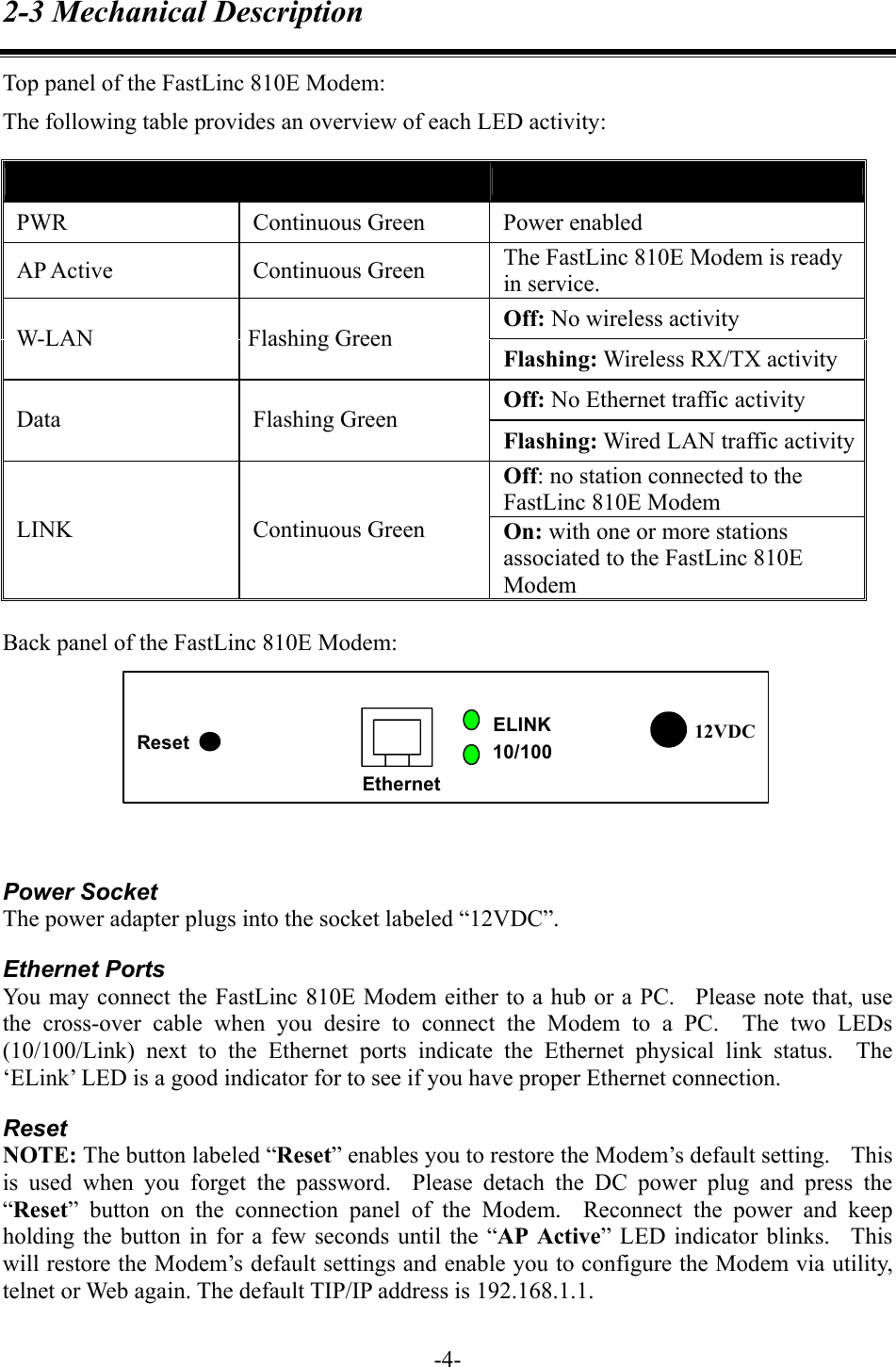
2-3 Mechanical Description Top panel of the FastLinc 810E Modem: The following table provides an overview of each LED activity: LED Definition  Activity  Description PWR Continuous Green Power enabled AP Active  Continuous Green  The FastLinc 810E Modem is ready in service. Off: No wireless activity W-LAN Flashing Green Flashing: Wireless RX/TX activity Off: No Ethernet traffic activity Data Flashing Green Flashing: Wired LAN traffic activityOff: no station connected to the FastLinc 810E Modem LINK Continuous Green On: with one or more stations associated to the FastLinc 810E Modem  Back panel of the FastLinc 810E Modem: 12VDCEthernetELINK10/100Reset   Power Socket The power adapter plugs into the socket labeled “12VDC”. Ethernet Ports You may connect the FastLinc 810E Modem either to a hub or a PC.   Please note that, use the cross-over cable when you desire to connect the Modem to a PC.  The two LEDs (10/100/Link) next to the Ethernet ports indicate the Ethernet physical link status.  The ‘ELink’ LED is a good indicator for to see if you have proper Ethernet connection. Reset NOTE: The button labeled “Reset” enables you to restore the Modem’s default setting.    This is used when you forget the password.  Please detach the DC power plug and press the “Reset” button on the connection panel of the Modem.  Reconnect the power and keep holding the button in for a few seconds until the “AP Active” LED indicator blinks.  This will restore the Modem’s default settings and enable you to configure the Modem via utility, telnet or Web again. The default TIP/IP address is 192.168.1.1.   -4-
2-4 Hardware Installation Take the following steps to set up your FastLinc 810E Modem.  Site Selection Before installation, determine the FastLinc 810E Modem location.   Proper placement of the FastLinc 810E Modem is critical to ensure optimum radio range and performance.  You may use the Site Survey and Modems Browser utility (The utilities came with the wireless PC Card) to choose a proper placement for your FastLinc 810E Modem.  Typically, the best location to place your FastLinc 810E Modem at your site is the center of your wireless coverage area.    Try to place your mobile stations within the line of sight.   Obstructions may impede performance of the FastLinc 810E Modem.  Connect the Ethernet Cable The FastLinc 810E Modem supports 10/100M Ethernet connection.  Attach your UTP Ethernet cable to the Ethernet connector on the FastLinc 810E Modem.   Please note that, use the cross-over cable when you desire to connect the Modem to a PC.  Connect the Power Cable Connect the power adapter to the power socket on the FastLinc 810E Modem, and plug the other end of the power into an electrical outlet.  The FastLinc 810E Modem will be powered on and all five indicators on the top panel will flash in sequence to test the functionality of the indicators.     NOTE: ONLY use the power adapter supplied with the FastLinc 810E Modem.  Otherwise, the unit may be damaged.    -5-
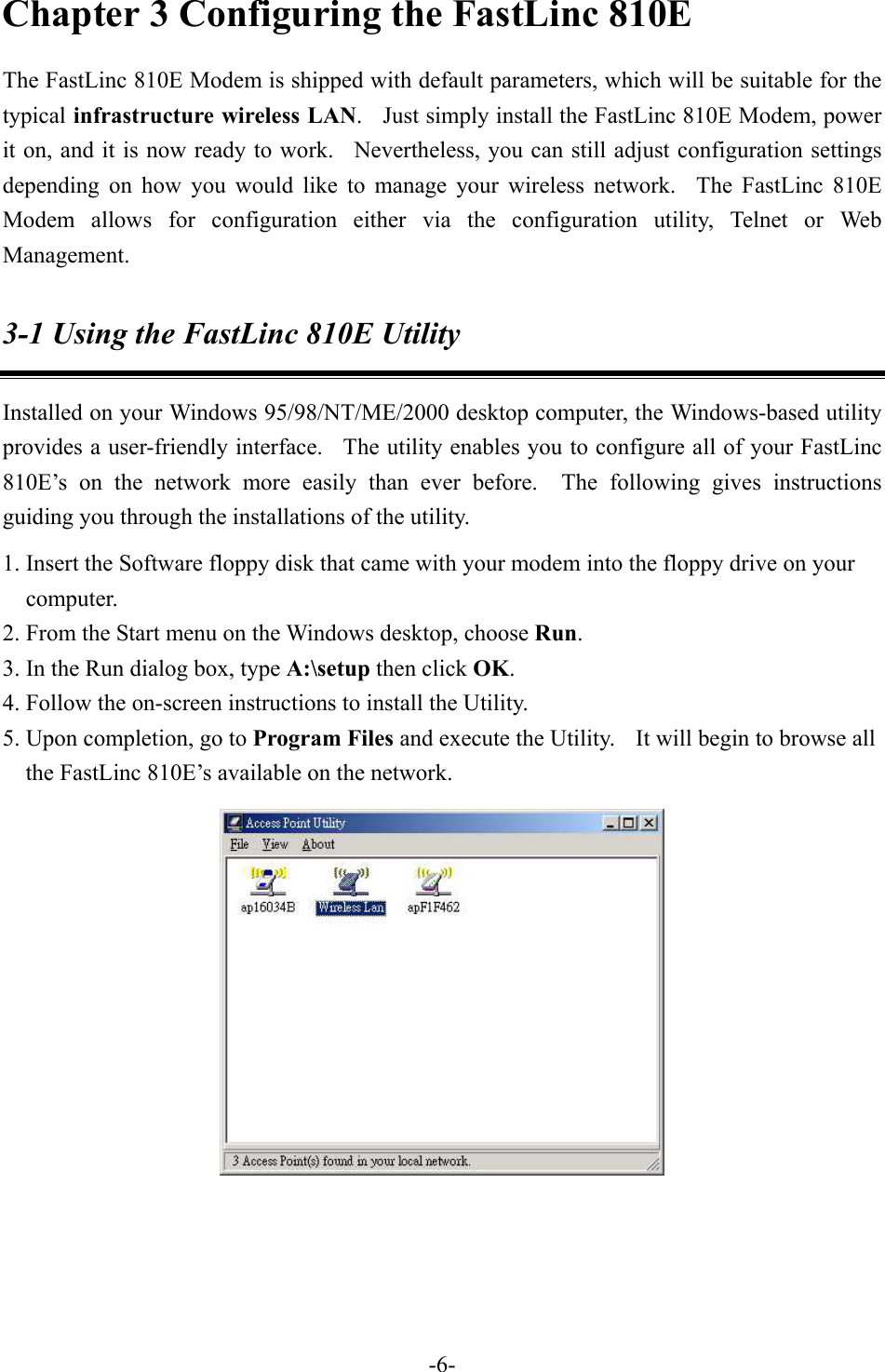
Chapter 3 Configuring the FastLinc 810E The FastLinc 810E Modem is shipped with default parameters, which will be suitable for the typical infrastructure wireless LAN.    Just simply install the FastLinc 810E Modem, power it on, and it is now ready to work.  Nevertheless, you can still adjust configuration settings depending on how you would like to manage your wireless network.  The FastLinc 810E Modem allows for configuration either via the configuration utility, Telnet or Web Management. 3-1 Using the FastLinc 810E Utility Installed on your Windows 95/98/NT/ME/2000 desktop computer, the Windows-based utility provides a user-friendly interface.   The utility enables you to configure all of your FastLinc 810E’s on the network more easily than ever before.  The following gives instructions guiding you through the installations of the utility. 1. Insert the Software floppy disk that came with your modem into the floppy drive on your computer. 2. From the Start menu on the Windows desktop, choose Run. 3. In the Run dialog box, type A:\setup then click OK.  4. Follow the on-screen instructions to install the Utility. 5. Upon completion, go to Program Files and execute the Utility.    It will begin to browse all the FastLinc 810E’s available on the network.    -6-
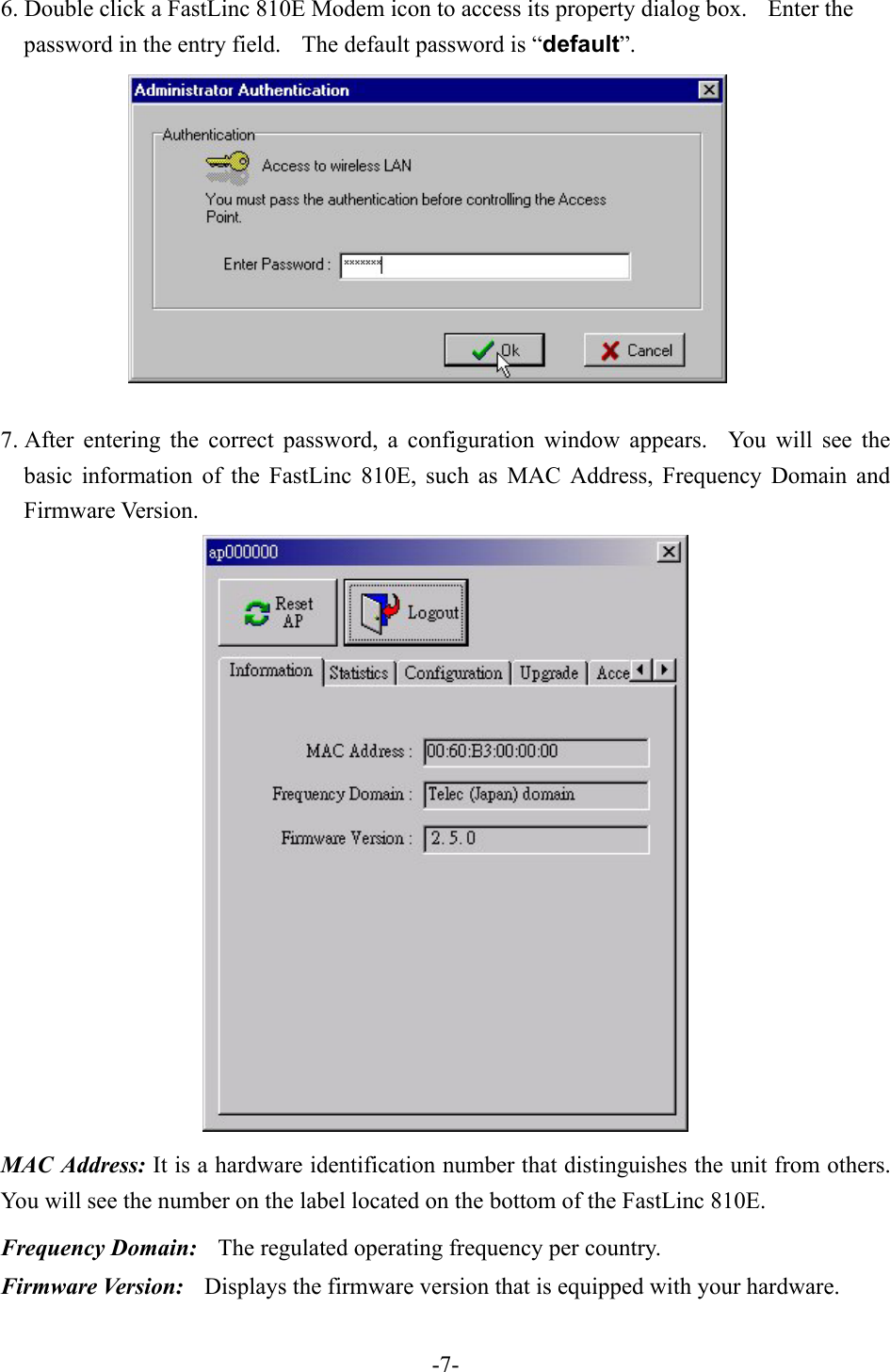
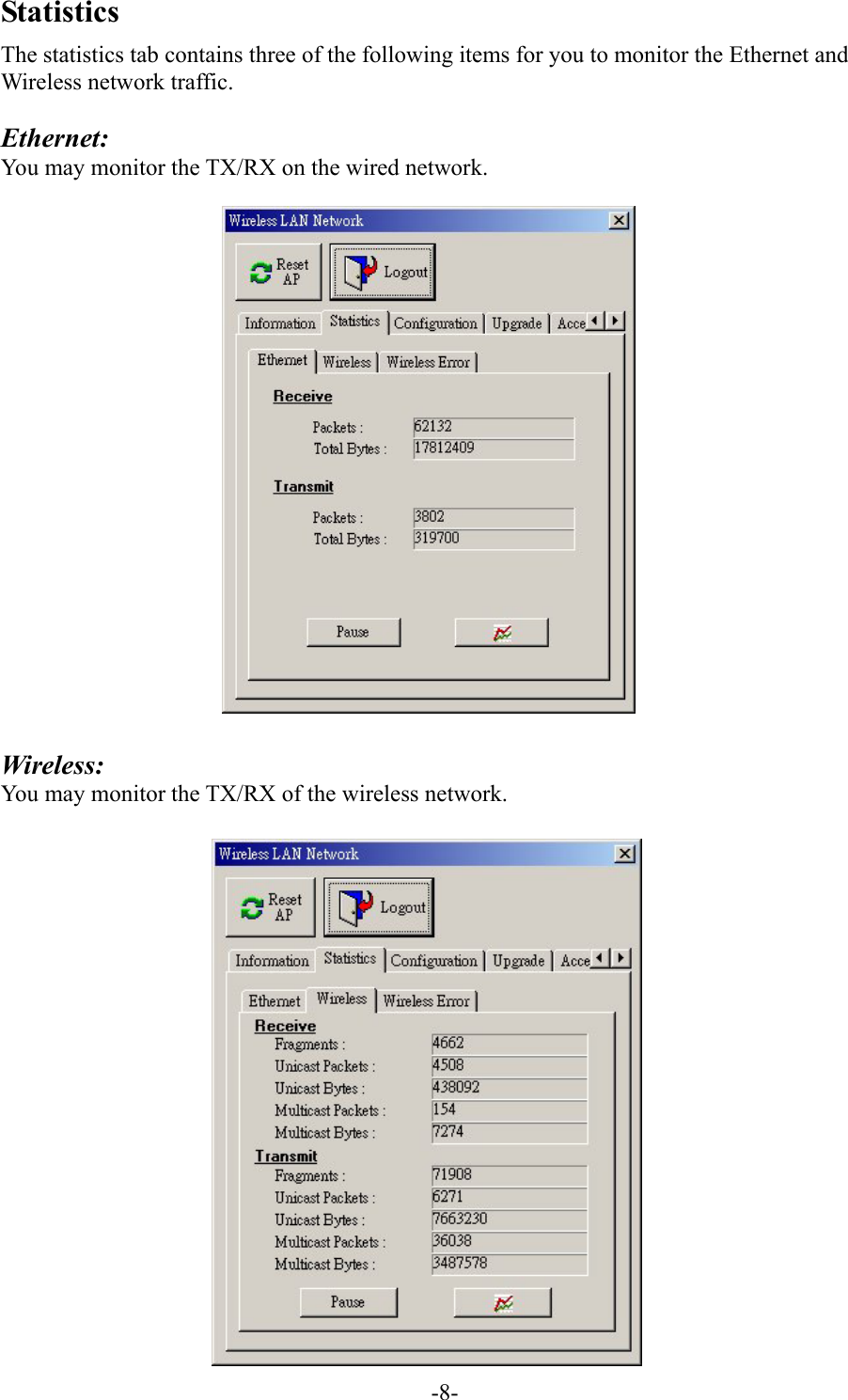
6. Double click a FastLinc 810E Modem icon to access its property dialog box.    Enter the password in the entry field.    The default password is “default”.  7. After entering the correct password, a configuration window appears.  You will see the basic information of the FastLinc 810E, such as MAC Address, Frequency Domain and Firmware Version.  MAC Address: It is a hardware identification number that distinguishes the unit from others. You will see the number on the label located on the bottom of the FastLinc 810E. Frequency Domain:    The regulated operating frequency per country.   Firmware Version:    Displays the firmware version that is equipped with your hardware.   -7-
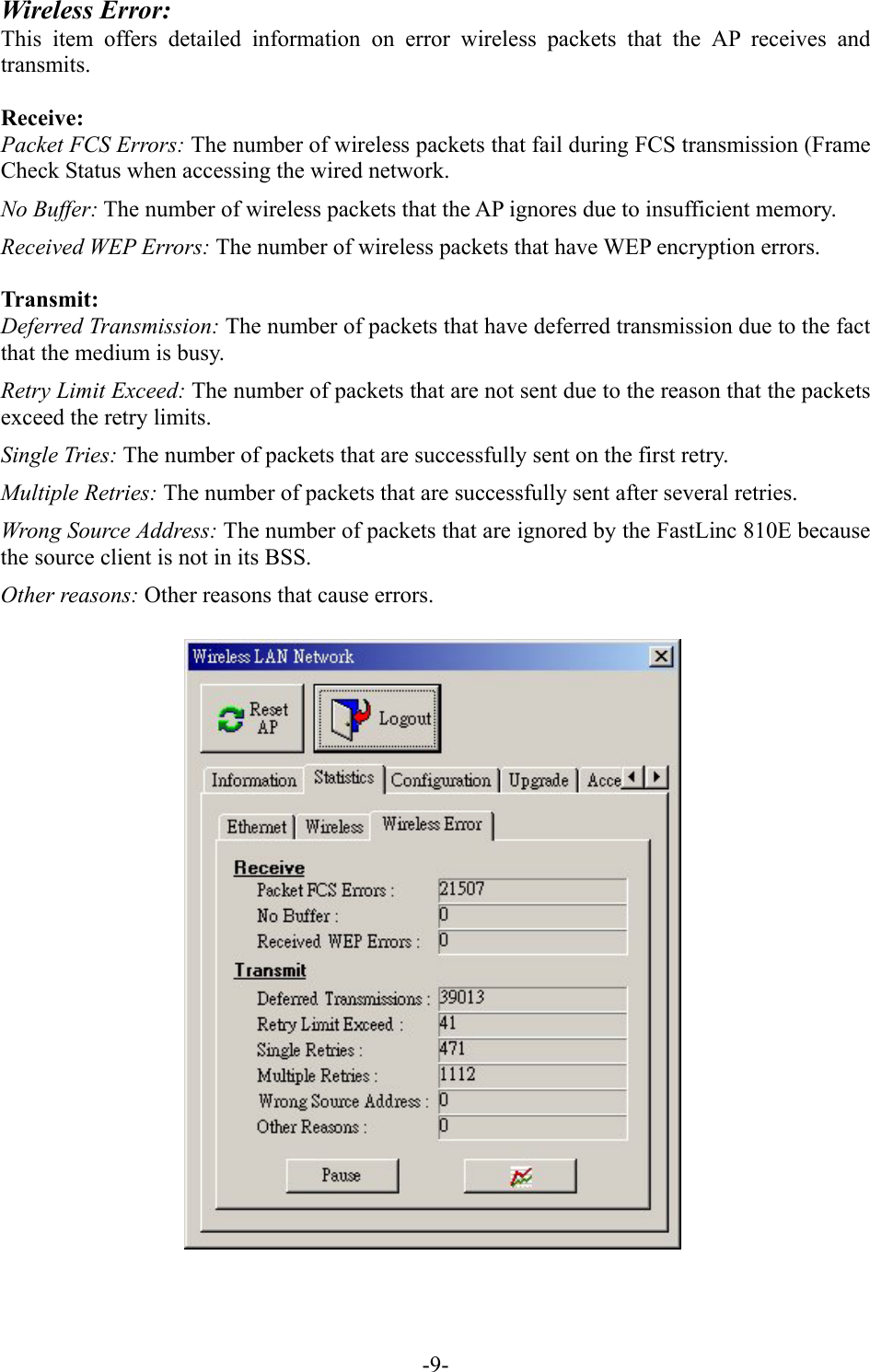
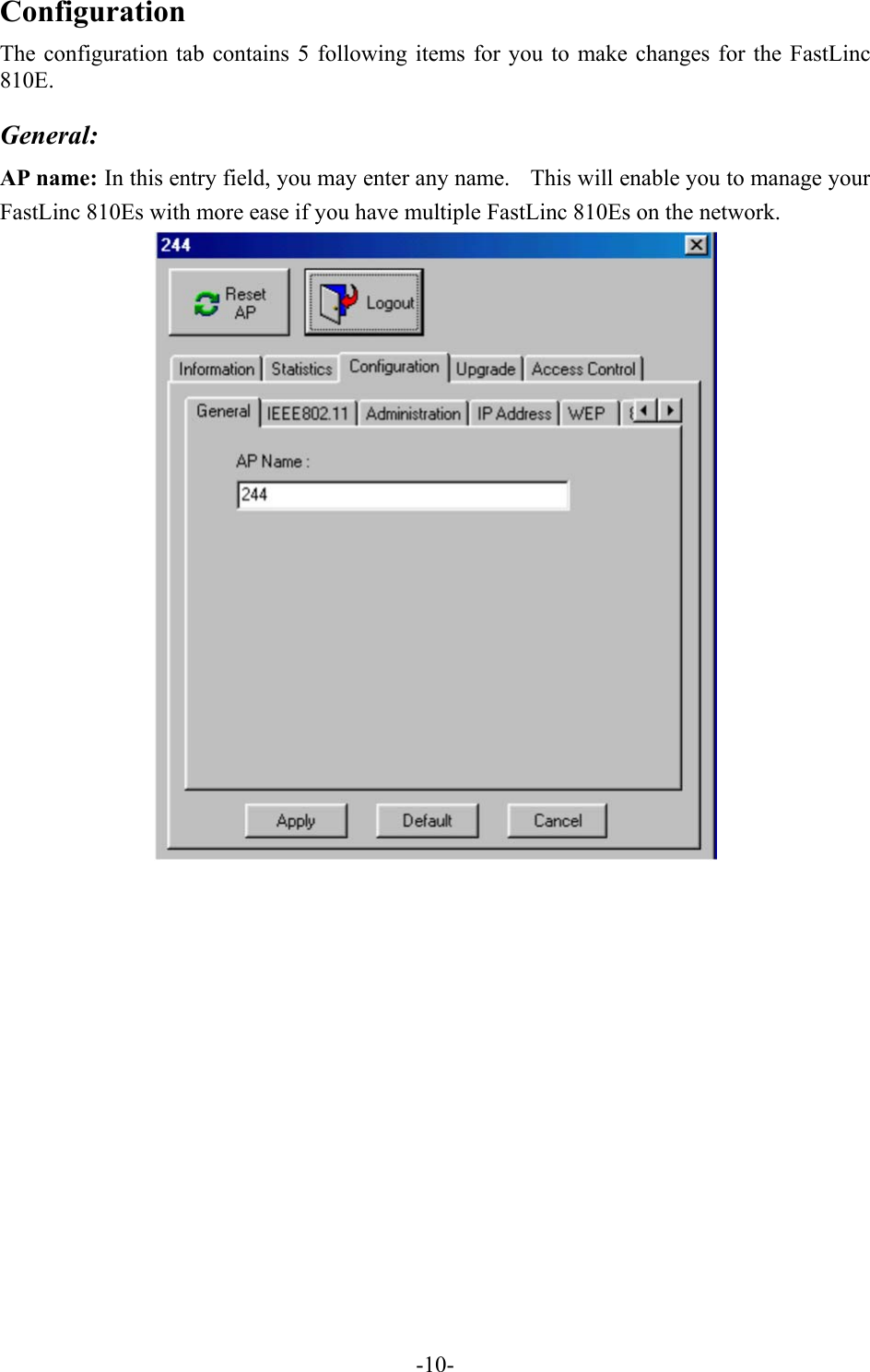
Statistics The statistics tab contains three of the following items for you to monitor the Ethernet and Wireless network traffic.  Ethernet: You may monitor the TX/RX on the wired network.      Wireless: You may monitor the TX/RX of the wireless network.    -8-
Wireless Error: This item offers detailed information on error wireless packets that the AP receives and transmits.  Receive: Packet FCS Errors: The number of wireless packets that fail during FCS transmission (Frame Check Status when accessing the wired network. No Buffer: The number of wireless packets that the AP ignores due to insufficient memory. Received WEP Errors: The number of wireless packets that have WEP encryption errors.  Transmit: Deferred Transmission: The number of packets that have deferred transmission due to the fact that the medium is busy. Retry Limit Exceed: The number of packets that are not sent due to the reason that the packets exceed the retry limits. Single Tries: The number of packets that are successfully sent on the first retry. Multiple Retries: The number of packets that are successfully sent after several retries. Wrong Source Address: The number of packets that are ignored by the FastLinc 810E because the source client is not in its BSS. Other reasons: Other reasons that cause errors.    -9-
Configuration The configuration tab contains 5 following items for you to make changes for the FastLinc 810E.  General: AP name: In this entry field, you may enter any name.    This will enable you to manage your FastLinc 810Es with more ease if you have multiple FastLinc 810Es on the network.     -10-
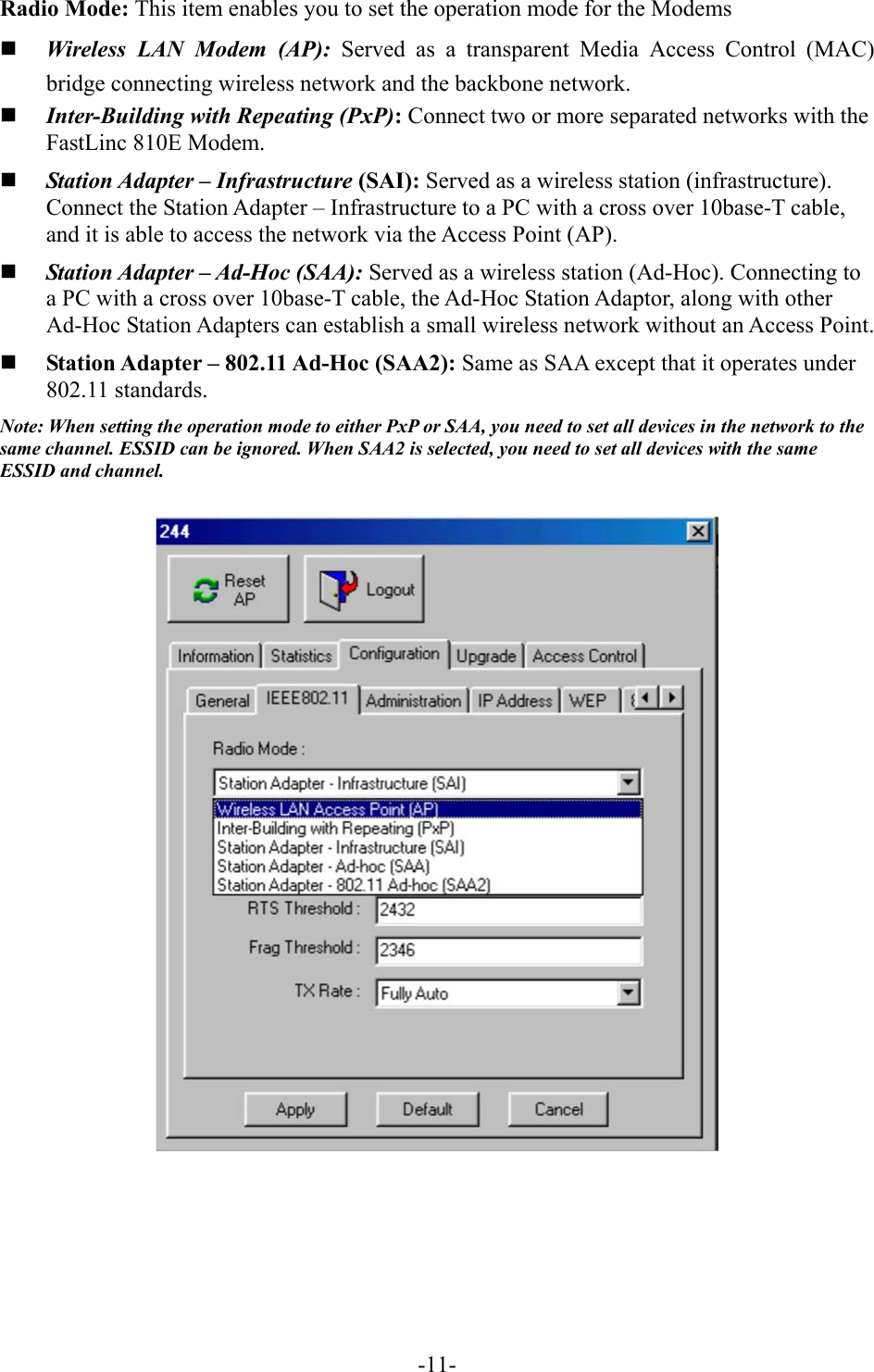
Radio Mode: This item enables you to set the operation mode for the Modems   Wireless LAN Modem (AP): Served as a transparent Media Access Control (MAC) bridge connecting wireless network and the backbone network.   Inter-Building with Repeating (PxP): Connect two or more separated networks with the FastLinc 810E Modem.     Station Adapter – Infrastructure (SAI): Served as a wireless station (infrastructure). Connect the Station Adapter – Infrastructure to a PC with a cross over 10base-T cable, and it is able to access the network via the Access Point (AP).   Station Adapter – Ad-Hoc (SAA): Served as a wireless station (Ad-Hoc). Connecting to a PC with a cross over 10base-T cable, the Ad-Hoc Station Adaptor, along with other Ad-Hoc Station Adapters can establish a small wireless network without an Access Point.   Station Adapter – 802.11 Ad-Hoc (SAA2): Same as SAA except that it operates under 802.11 standards.   Note: When setting the operation mode to either PxP or SAA, you need to set all devices in the network to the same channel. ESSID can be ignored. When SAA2 is selected, you need to set all devices with the same ESSID and channel.     -11-
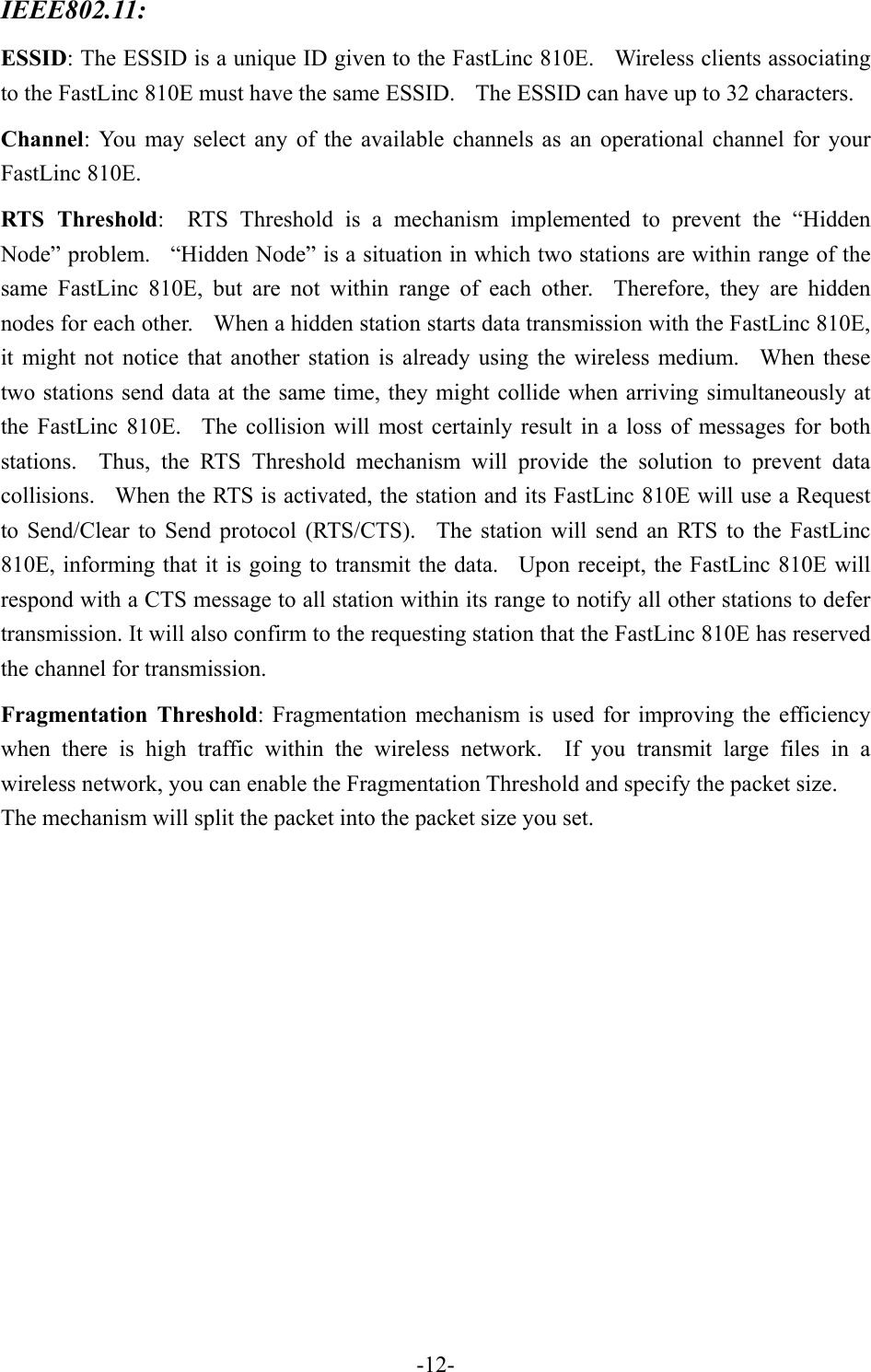
IEEE802.11:  ESSID: The ESSID is a unique ID given to the FastLinc 810E.    Wireless clients associating to the FastLinc 810E must have the same ESSID.    The ESSID can have up to 32 characters. Channel: You may select any of the available channels as an operational channel for your FastLinc 810E. RTS Threshold:  RTS Threshold is a mechanism implemented to prevent the “Hidden Node” problem.    “Hidden Node” is a situation in which two stations are within range of the same FastLinc 810E, but are not within range of each other.  Therefore, they are hidden nodes for each other.    When a hidden station starts data transmission with the FastLinc 810E, it might not notice that another station is already using the wireless medium.  When these two stations send data at the same time, they might collide when arriving simultaneously at the FastLinc 810E.  The collision will most certainly result in a loss of messages for both stations.  Thus, the RTS Threshold mechanism will provide the solution to prevent data collisions.   When the RTS is activated, the station and its FastLinc 810E will use a Request to Send/Clear to Send protocol (RTS/CTS).  The station will send an RTS to the FastLinc 810E, informing that it is going to transmit the data.  Upon receipt, the FastLinc 810E will respond with a CTS message to all station within its range to notify all other stations to defer transmission. It will also confirm to the requesting station that the FastLinc 810E has reserved the channel for transmission. Fragmentation Threshold: Fragmentation mechanism is used for improving the efficiency when there is high traffic within the wireless network.  If you transmit large files in a wireless network, you can enable the Fragmentation Threshold and specify the packet size. The mechanism will split the packet into the packet size you set.    -12-
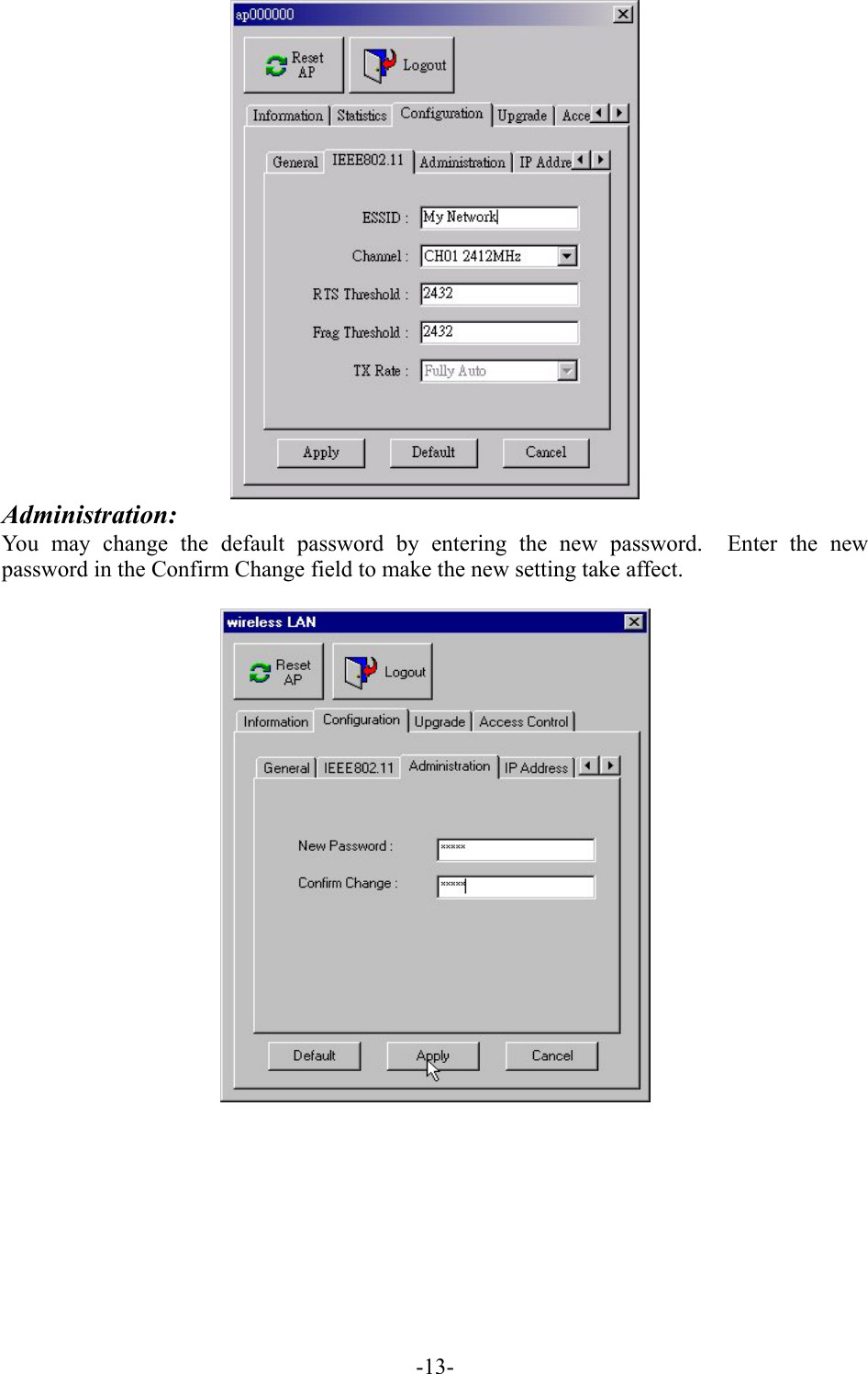
 Administration: You may change the default password by entering the new password.  Enter the new password in the Confirm Change field to make the new setting take affect.      -13-
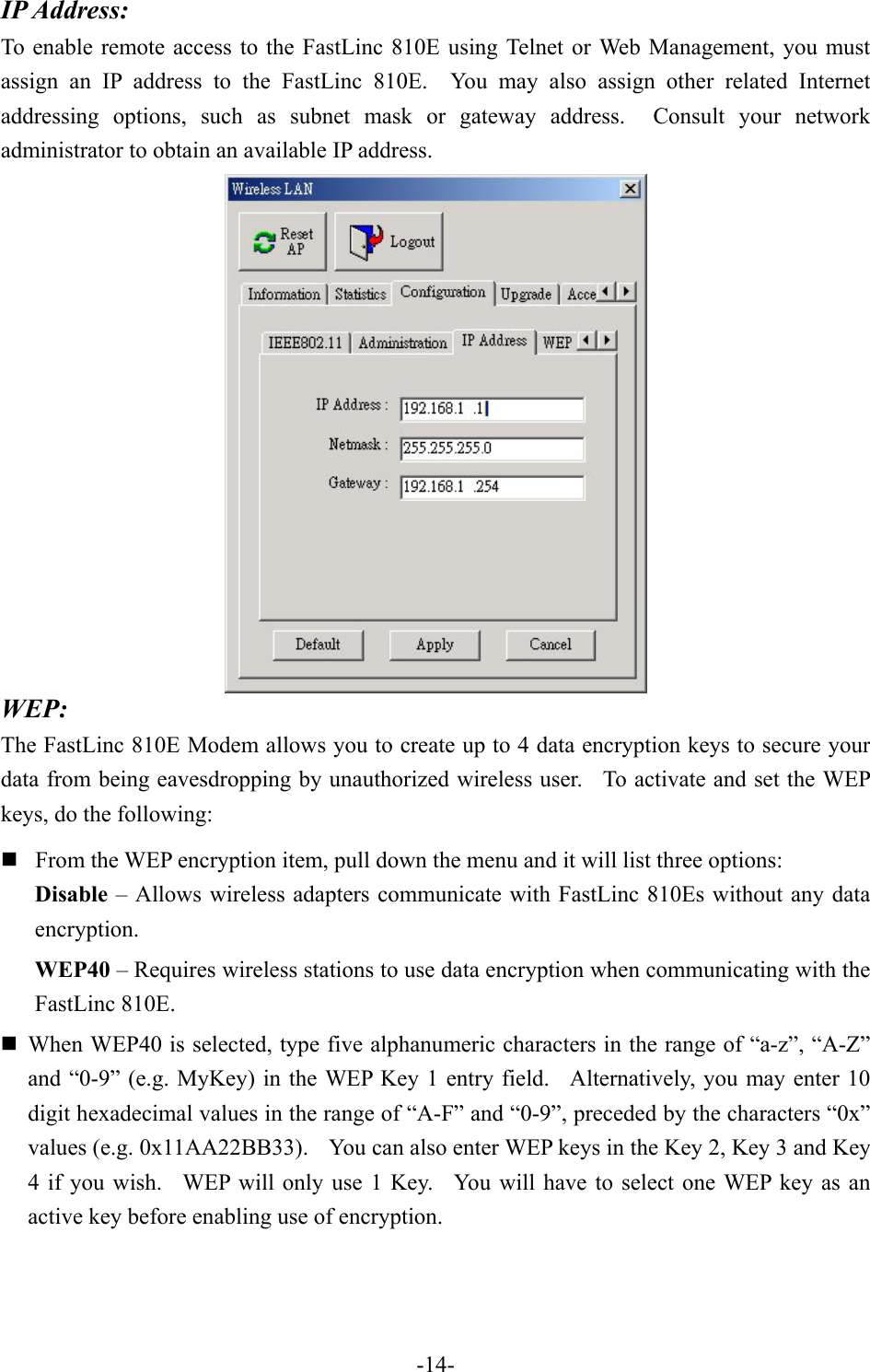
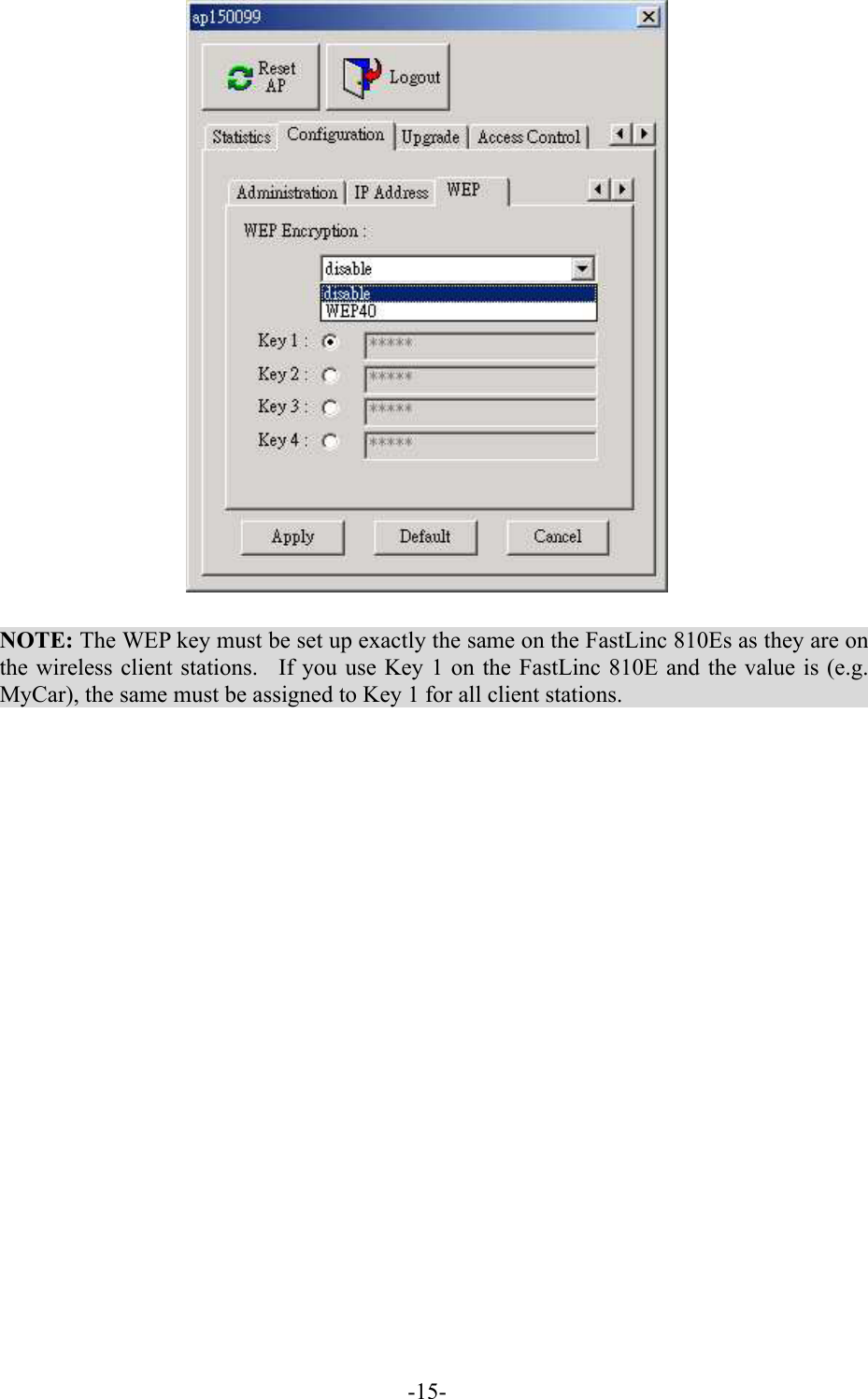
IP Address: To enable remote access to the FastLinc 810E using Telnet or Web Management, you must assign an IP address to the FastLinc 810E.  You may also assign other related Internet addressing options, such as subnet mask or gateway address.  Consult your network administrator to obtain an available IP address.  WEP: The FastLinc 810E Modem allows you to create up to 4 data encryption keys to secure your data from being eavesdropping by unauthorized wireless user.  To activate and set the WEP keys, do the following:  From the WEP encryption item, pull down the menu and it will list three options: Disable – Allows wireless adapters communicate with FastLinc 810Es without any data encryption. WEP40 – Requires wireless stations to use data encryption when communicating with the FastLinc 810E.  When WEP40 is selected, type five alphanumeric characters in the range of “a-z”, “A-Z” and “0-9” (e.g. MyKey) in the WEP Key 1 entry field.   Alternatively, you may enter 10 digit hexadecimal values in the range of “A-F” and “0-9”, preceded by the characters “0x” values (e.g. 0x11AA22BB33).    You can also enter WEP keys in the Key 2, Key 3 and Key 4 if you wish.  WEP will only use 1 Key.  You will have to select one WEP key as an active key before enabling use of encryption.    -14-
  NOTE: The WEP key must be set up exactly the same on the FastLinc 810Es as they are on the wireless client stations.  If you use Key 1 on the FastLinc 810E and the value is (e.g. MyCar), the same must be assigned to Key 1 for all client stations.   -15-
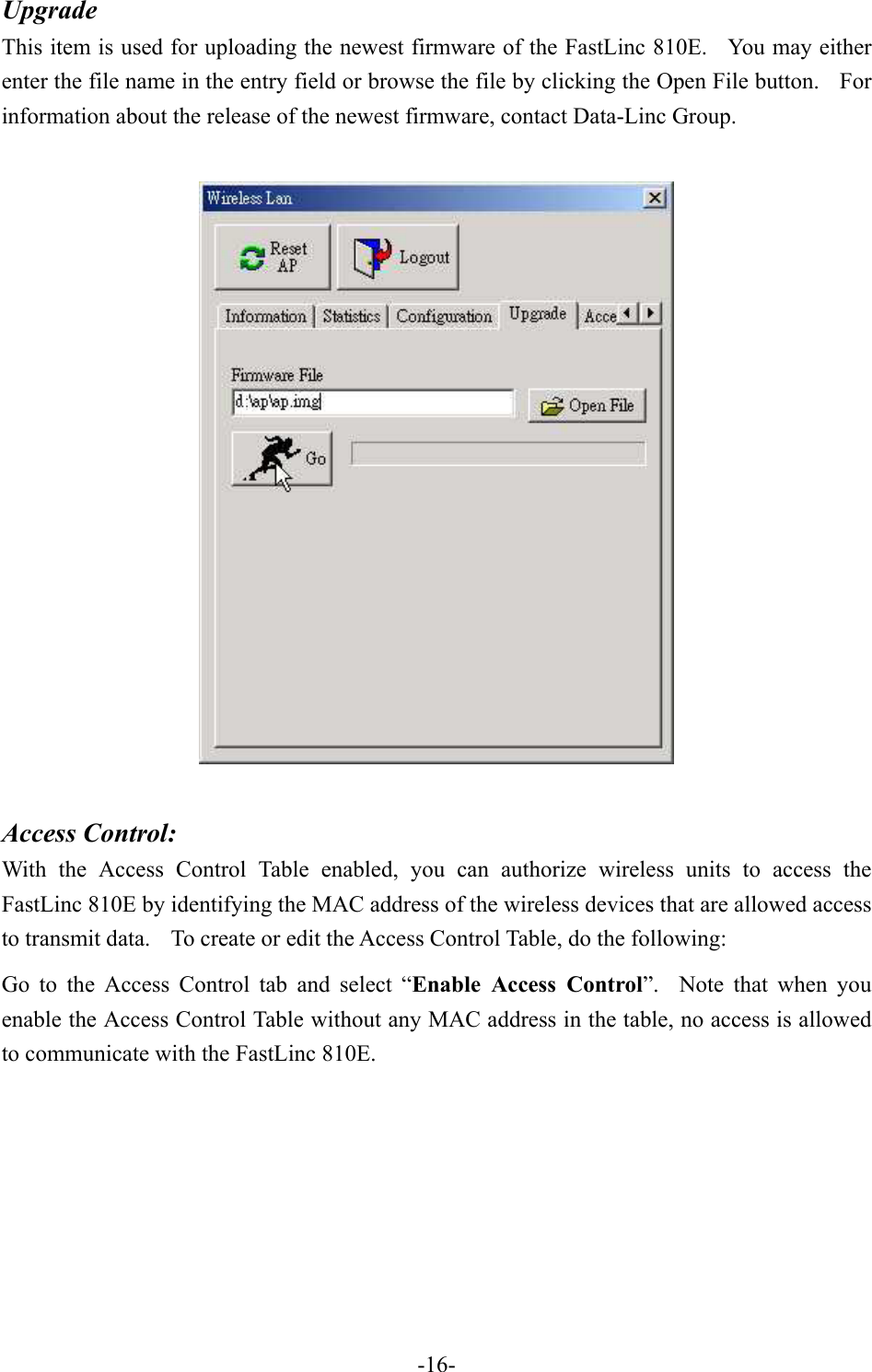
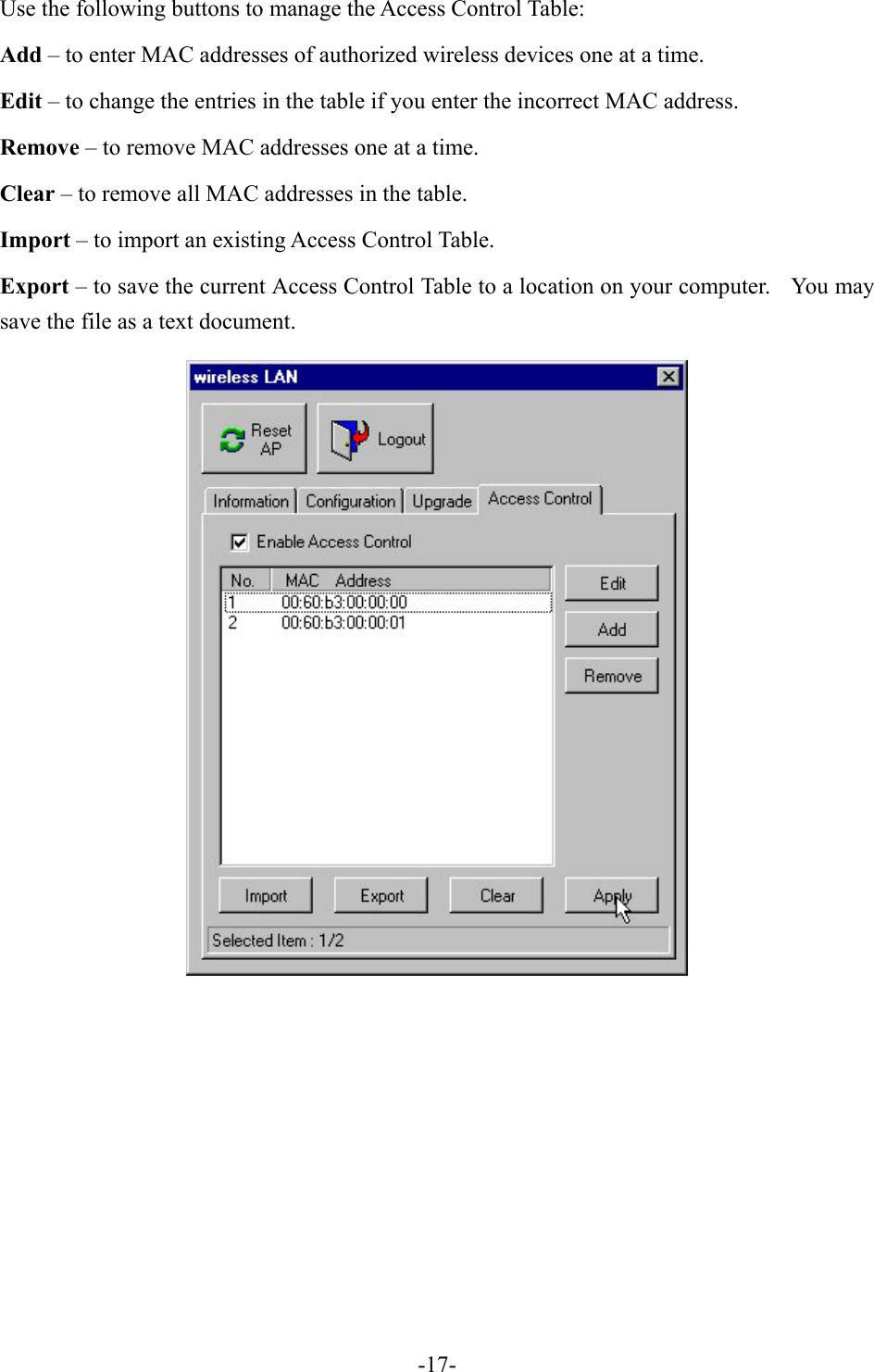
Upgrade This item is used for uploading the newest firmware of the FastLinc 810E.   You may either enter the file name in the entry field or browse the file by clicking the Open File button.    For information about the release of the newest firmware, contact Data-Linc Group.        Access Control: With the Access Control Table enabled, you can authorize wireless units to access the FastLinc 810E by identifying the MAC address of the wireless devices that are allowed access to transmit data.    To create or edit the Access Control Table, do the following: Go to the Access Control tab and select “Enable Access Control”.  Note that when you enable the Access Control Table without any MAC address in the table, no access is allowed to communicate with the FastLinc 810E.             -16-
Use the following buttons to manage the Access Control Table: Add – to enter MAC addresses of authorized wireless devices one at a time. Edit – to change the entries in the table if you enter the incorrect MAC address. Remove – to remove MAC addresses one at a time. Clear – to remove all MAC addresses in the table. Import – to import an existing Access Control Table. Export – to save the current Access Control Table to a location on your computer.    You may save the file as a text document.        -17-

Navigation menu