Communications Laboratories PC1501 Public alert controller, EAS Encoder/Decoder User Manual

Communications Laboratories Inc Public alert controller, EAS Encoder/Decoder

User manual

   PAC Public Alert Controller EAS Encoder/Decoder  Model PC1501-01 Software Version 1.0  User Manual Version 000    Comlabs, Inc. 750 North Drive Melbourne, FL 32934 www.comlabs.com
 2 | P a g e   FCC Information:  FCC ID: Y6T-PC1501  The Comlabs Public Alert Controller complies with Part 11 of the FCC Rules. It is has been certified as an EAS Encoder and Decoder.  This device complies with Part 15 of the FCC Rules. Operation is subject to the following two conditions: (1) This device may not cause harmful interference, and (2) This device must accept any interference received, including interference that may cause undesired operation.  This equipment has been tested and found to comply with the limits for a Class A digital device, pursuant to part 15 of the FCC Rules.   These limits are designed to provide reasonable protection against harmful interference when the equipment is operated in a commercial environment. This equipment generates, uses, and can radiate radio frequency energy and, if not installed and used in accordance with the instruction manual, may cause harmful interference to radio communications. Operation of this equipment in a residential area is likely to cause harmful interference in which case the user will be required to correct the interference at his/her own expense.  Changes or modifications not expressly approved by the party responsible for compliance could void the user's authority to operate the equipment.    Copyright © 2010, 2011 Communications Laboratories, Inc. All Right Reserved All other Trademarks are hereby acknowledged   Sales & Support: www.comlabs.com (321) 409-9898
 3 | P a g e   Table of Contents 1 Input Setup ............................................................................................................................................ 4 1.1 Audio Inputs .................................................................................................................................. 4 1.1.1 Radio Input Configuration .................................................................................................... 4 1.1.2 Audio Input Configuration .................................................................................................... 6 1.2 CAP Inputs .................................................................................................................................... 7 1.2.1 CAP Input Configuration – EMnet ....................................................................................... 8 1.2.2 CAP Input Configuration – URL .......................................................................................... 8 1.2.3 CAP Input Configuration - Directory ................................................................................... 9 1.3 General Purpose Inputs (GPI) ..................................................................................................... 11 1.3.1 General Purpose Input Configuration ................................................................................. 11 2 Output Setup ....................................................................................................................................... 12 2.1 Audio Outputs ............................................................................................................................. 12 2.1.1 XLR ..................................................................................................................................... 12 2.1.2 Internal Speaker .................................................................................................................. 12 2.1.3 Additional Audio Devices ................................................................................................... 13 2.2 General Purpose Outputs (GPO) ................................................................................................. 13 2.2.1 General Purpose Output Configuration ............................................................................... 13 3 Alert System Setup ............................................................................................................................. 14 3.1 Add a New System ...................................................................................................................... 14 3.1.1 System Description ............................................................................................................. 14 3.1.2 Coverage Area..................................................................................................................... 15 3.1.3 Alert Devices ...................................................................................................................... 15 3.1.4 Station Calendar .................................................................................................................. 16 3.1.5 GPO Device Control ........................................................................................................... 18 3.1.6 Alert Rules .......................................................................................................................... 18
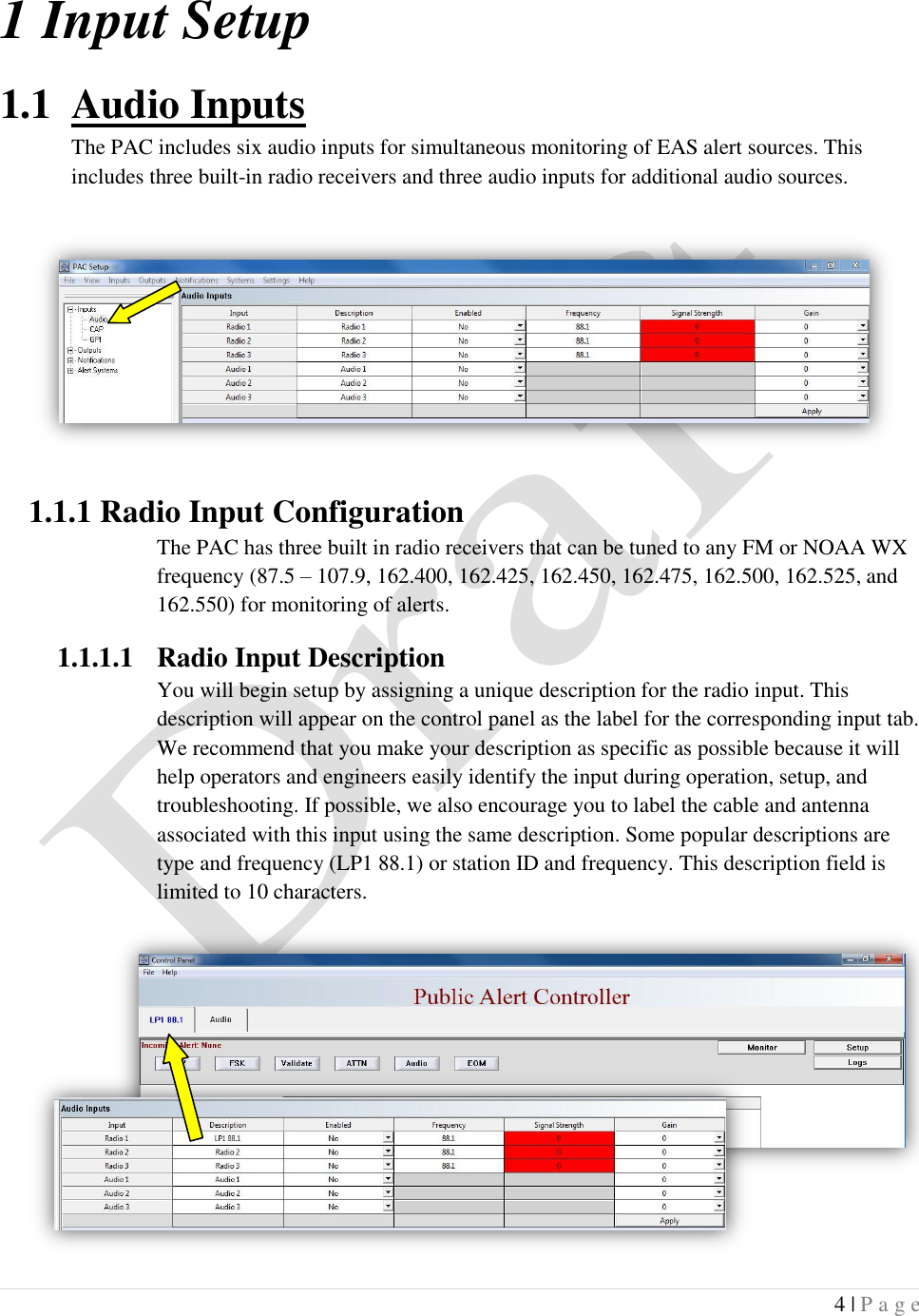
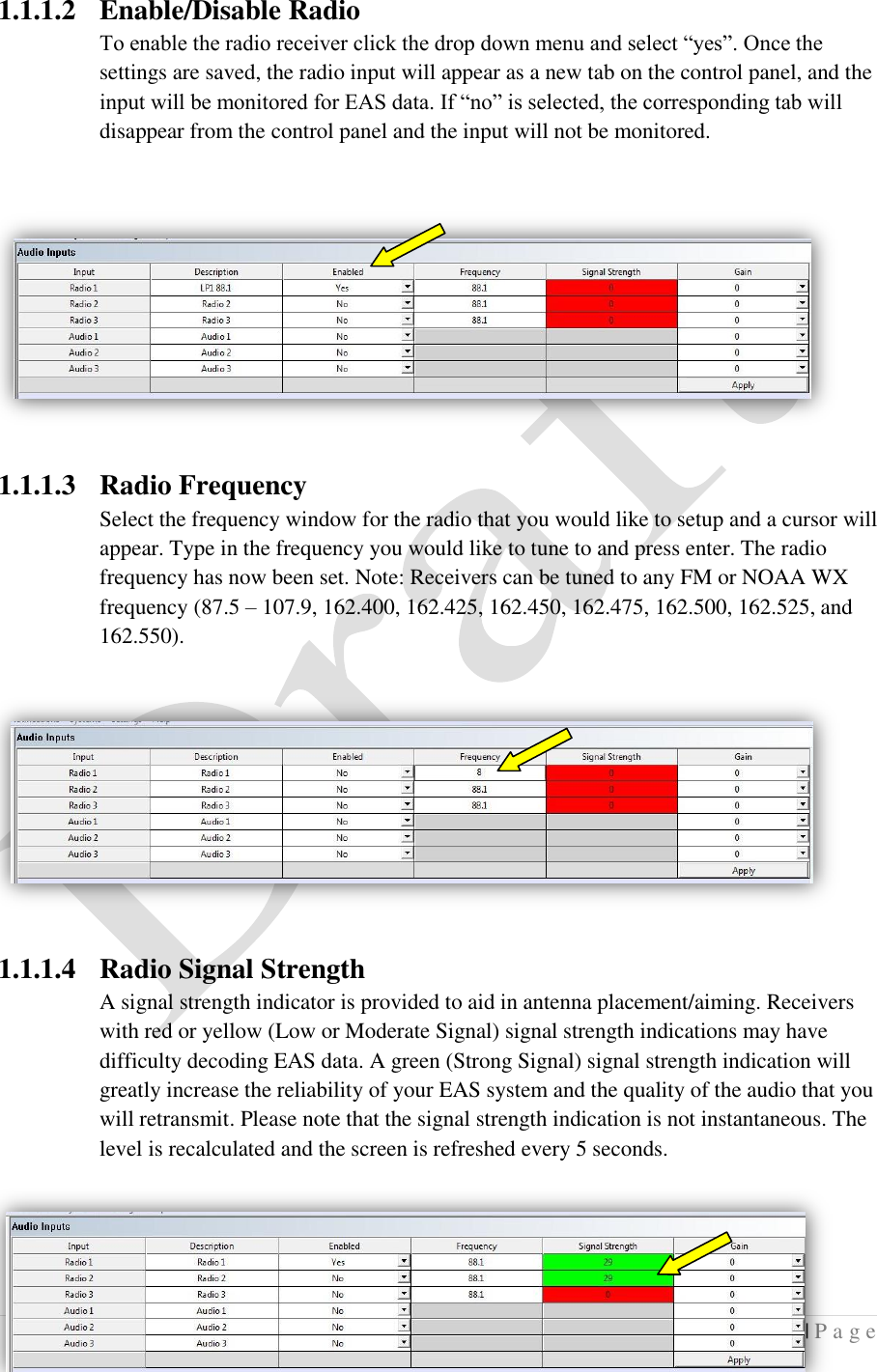
 4 | P a g e   1 Input Setup 1.1 Audio Inputs The PAC includes six audio inputs for simultaneous monitoring of EAS alert sources. This includes three built-in radio receivers and three audio inputs for additional audio sources.   1.1.1 Radio Input Configuration The PAC has three built in radio receivers that can be tuned to any FM or NOAA WX frequency (87.5 – 107.9, 162.400, 162.425, 162.450, 162.475, 162.500, 162.525, and 162.550) for monitoring of alerts. 1.1.1.1 Radio Input Description You will begin setup by assigning a unique description for the radio input. This description will appear on the control panel as the label for the corresponding input tab. We recommend that you make your description as specific as possible because it will help operators and engineers easily identify the input during operation, setup, and troubleshooting. If possible, we also encourage you to label the cable and antenna associated with this input using the same description. Some popular descriptions are type and frequency (LP1 88.1) or station ID and frequency. This description field is limited to 10 characters.
 5 | P a g e   1.1.1.2 Enable/Disable Radio To enable the radio receiver click the drop down menu and select “yes”. Once the settings are saved, the radio input will appear as a new tab on the control panel, and the input will be monitored for EAS data. If “no” is selected, the corresponding tab will disappear from the control panel and the input will not be monitored.  1.1.1.3 Radio Frequency Select the frequency window for the radio that you would like to setup and a cursor will appear. Type in the frequency you would like to tune to and press enter. The radio frequency has now been set. Note: Receivers can be tuned to any FM or NOAA WX frequency (87.5 – 107.9, 162.400, 162.425, 162.450, 162.475, 162.500, 162.525, and 162.550).  1.1.1.4 Radio Signal Strength A signal strength indicator is provided to aid in antenna placement/aiming. Receivers with red or yellow (Low or Moderate Signal) signal strength indications may have difficulty decoding EAS data. A green (Strong Signal) signal strength indication will greatly increase the reliability of your EAS system and the quality of the audio that you will retransmit. Please note that the signal strength indication is not instantaneous. The level is recalculated and the screen is refreshed every 5 seconds.
 6 | P a g e   1.1.1.5 Radio Gain Control -20dB to +20dB gain adjustment is provided or each radio input.   1.1.2 Audio Input Configuration The PAC has three additional audio inputs for monitoring of alerts from other sources. Any 600 ohm balanced or unbalanced audio source can be used between 100mV and 2V. Amplified sources are not recommended and will result is distorted audio. Surge protection is included on each input and will begin to clip around 6V.   1.1.2.1 Audio Input Description You will begin setup by assigning a unique description for the audio input. This description will appear on the control panel as the label for the corresponding input tab. We recommend that you make your description as specific as possible because it will help operators and engineers easily identify the input during operation, setup, and troubleshooting. If possible, we also encourage you to label the cable and antenna associated with this input using the same description. Some popular descriptions are type and frequency (LP1 88.1) or station ID and frequency. This description field is limited to 10 characters.
 7 | P a g e   1.1.2.2 Enable/Disable Audio Input To enable the audio input click the drop down menu and select “yes”. Once the settings are saved, the audio input will appear as a new tab on the control panel, and the input will be monitored for EAS data. If “no” is selected, the corresponding tab will disappear from the control panel and the input will not be monitored.  1.1.2.3 Audio Input Gain Control -20dB to +20dB gain adjustment is provided or each audio input.   1.2 CAP Inputs The PAC includes the ability to simultaneously monitor four CAP-based sources for EAS alerts. These sources can include any combination of local directories, network directories, CAP servers, or The Emergency Management Network (EMnet), and messages can be delivered via TCP/IP in a variety of ways including terrestrial internet, wireless networks, satellite, and third party systems.
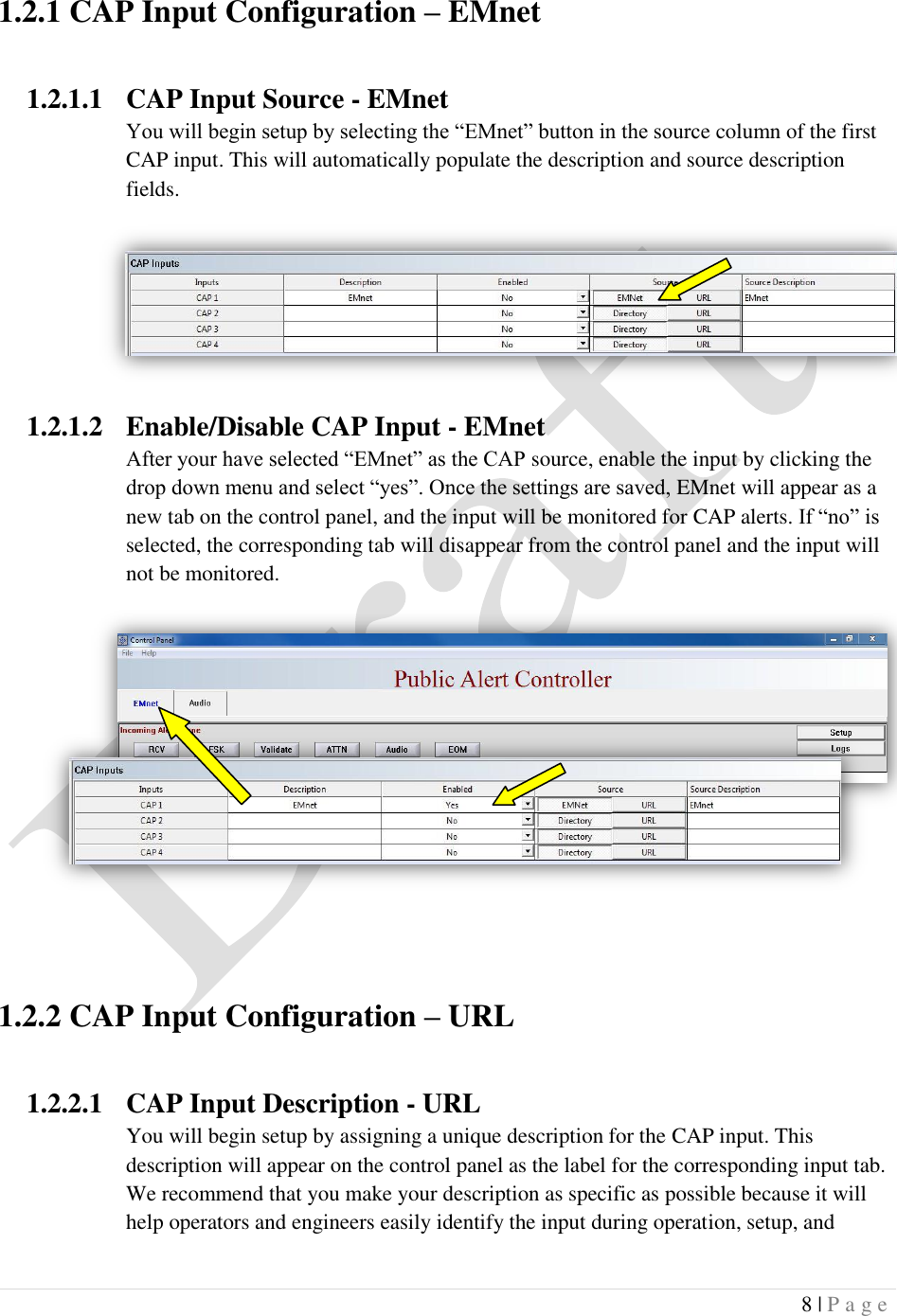
 8 | P a g e   1.2.1 CAP Input Configuration – EMnet  1.2.1.1 CAP Input Source - EMnet You will begin setup by selecting the “EMnet” button in the source column of the first CAP input. This will automatically populate the description and source description fields. 1.2.1.2 Enable/Disable CAP Input - EMnet After your have selected “EMnet” as the CAP source, enable the input by clicking the drop down menu and select “yes”. Once the settings are saved, EMnet will appear as a new tab on the control panel, and the input will be monitored for CAP alerts. If “no” is selected, the corresponding tab will disappear from the control panel and the input will not be monitored.         1.2.2 CAP Input Configuration – URL  1.2.2.1 CAP Input Description - URL You will begin setup by assigning a unique description for the CAP input. This description will appear on the control panel as the label for the corresponding input tab. We recommend that you make your description as specific as possible because it will help operators and engineers easily identify the input during operation, setup, and
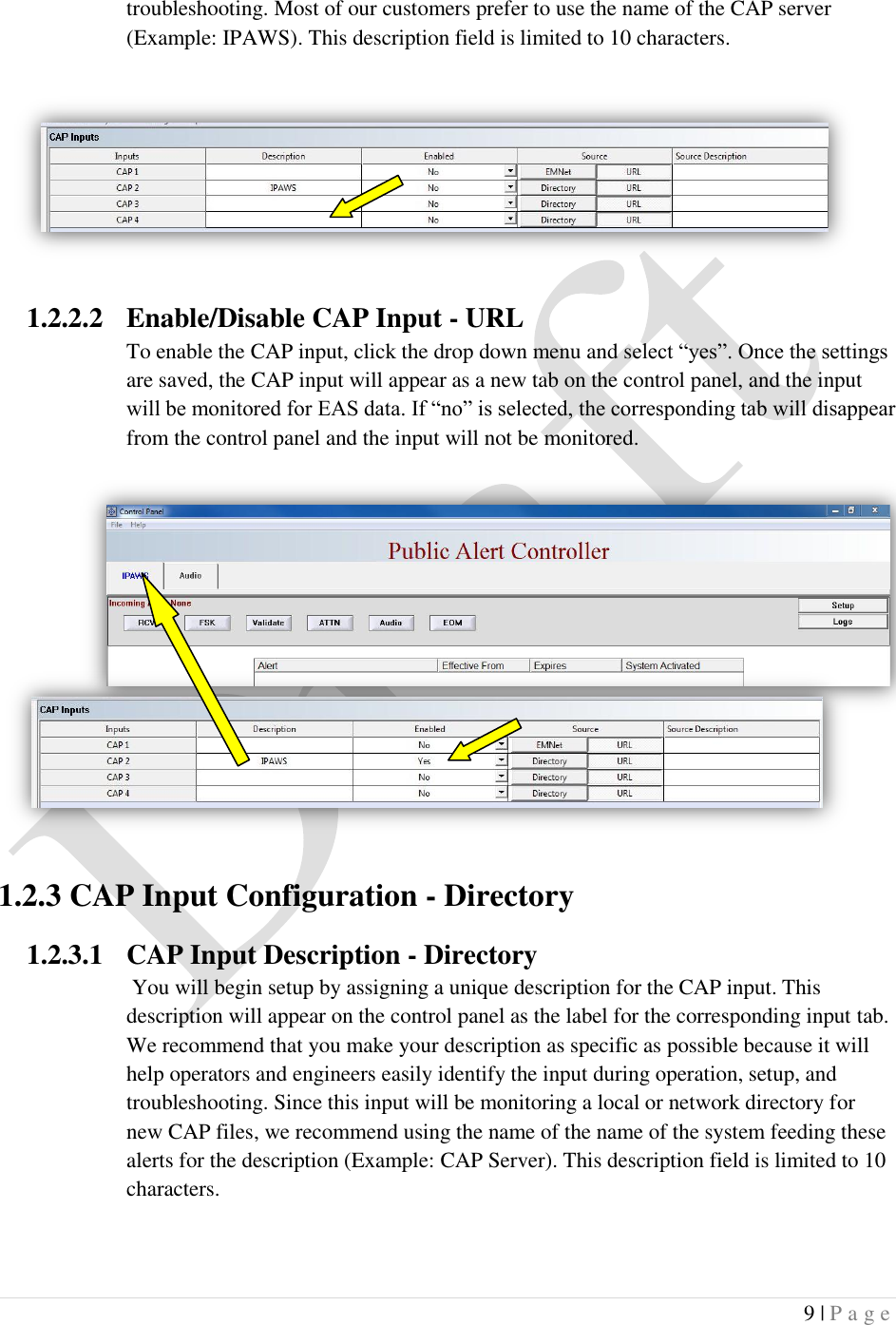
 9 | P a g e   troubleshooting. Most of our customers prefer to use the name of the CAP server (Example: IPAWS). This description field is limited to 10 characters.   1.2.2.2 Enable/Disable CAP Input - URL To enable the CAP input, click the drop down menu and select “yes”. Once the settings are saved, the CAP input will appear as a new tab on the control panel, and the input will be monitored for EAS data. If “no” is selected, the corresponding tab will disappear from the control panel and the input will not be monitored.      1.2.3 CAP Input Configuration - Directory 1.2.3.1 CAP Input Description - Directory  You will begin setup by assigning a unique description for the CAP input. This description will appear on the control panel as the label for the corresponding input tab. We recommend that you make your description as specific as possible because it will help operators and engineers easily identify the input during operation, setup, and troubleshooting. Since this input will be monitoring a local or network directory for new CAP files, we recommend using the name of the name of the system feeding these alerts for the description (Example: CAP Server). This description field is limited to 10 characters.
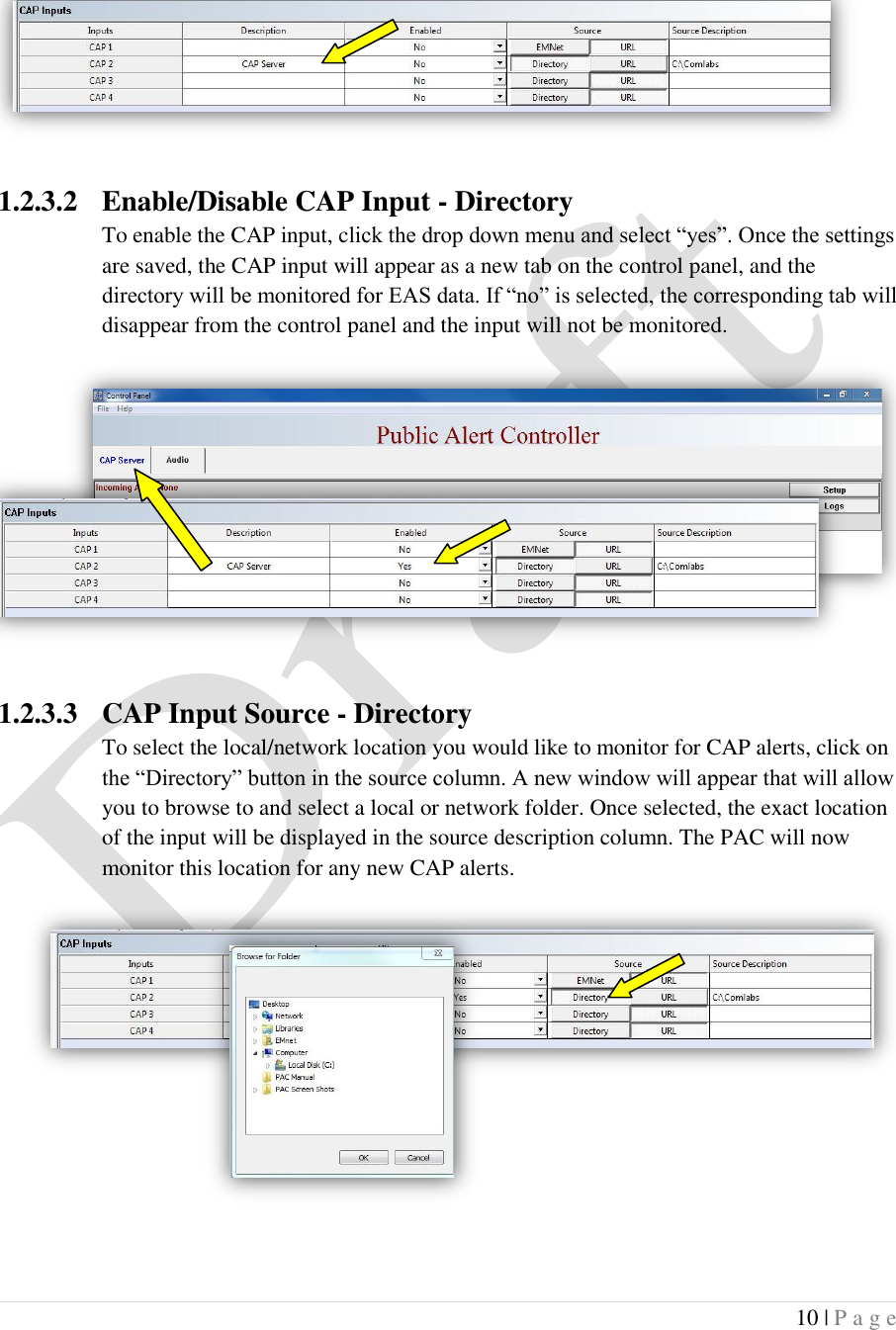
 10 | P a g e    1.2.3.2 Enable/Disable CAP Input - Directory To enable the CAP input, click the drop down menu and select “yes”. Once the settings are saved, the CAP input will appear as a new tab on the control panel, and the directory will be monitored for EAS data. If “no” is selected, the corresponding tab will disappear from the control panel and the input will not be monitored.     1.2.3.3 CAP Input Source - Directory To select the local/network location you would like to monitor for CAP alerts, click on the “Directory” button in the source column. A new window will appear that will allow you to browse to and select a local or network folder. Once selected, the exact location of the input will be displayed in the source description column. The PAC will now monitor this location for any new CAP alerts.
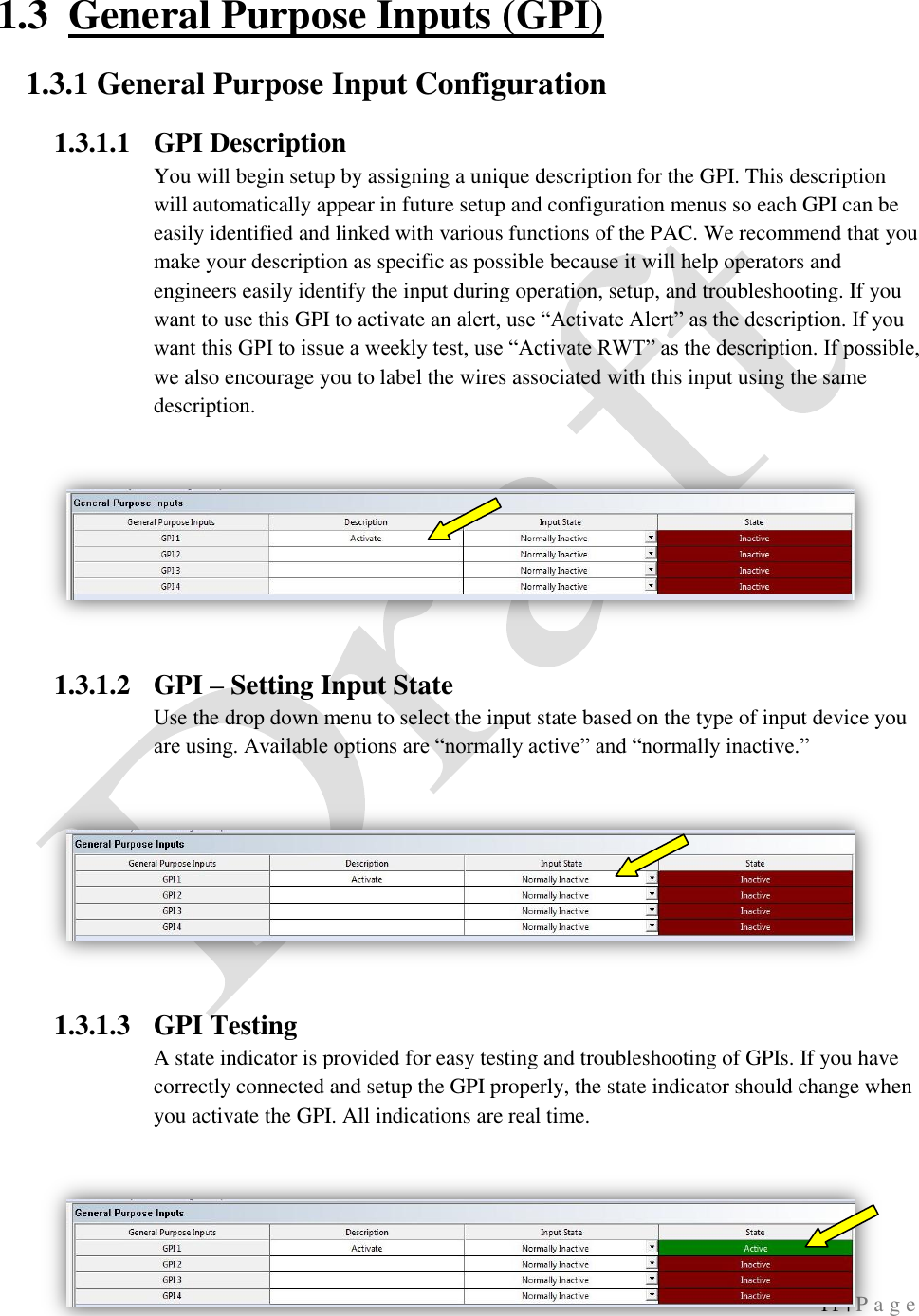
 11 | P a g e   1.3 General Purpose Inputs (GPI) 1.3.1 General Purpose Input Configuration 1.3.1.1 GPI Description You will begin setup by assigning a unique description for the GPI. This description will automatically appear in future setup and configuration menus so each GPI can be easily identified and linked with various functions of the PAC. We recommend that you make your description as specific as possible because it will help operators and engineers easily identify the input during operation, setup, and troubleshooting. If you want to use this GPI to activate an alert, use “Activate Alert” as the description. If you want this GPI to issue a weekly test, use “Activate RWT” as the description. If possible, we also encourage you to label the wires associated with this input using the same description.    1.3.1.2 GPI – Setting Input State Use the drop down menu to select the input state based on the type of input device you are using. Available options are “normally active” and “normally inactive.”  1.3.1.3 GPI Testing A state indicator is provided for easy testing and troubleshooting of GPIs. If you have correctly connected and setup the GPI properly, the state indicator should change when you activate the GPI. All indications are real time.
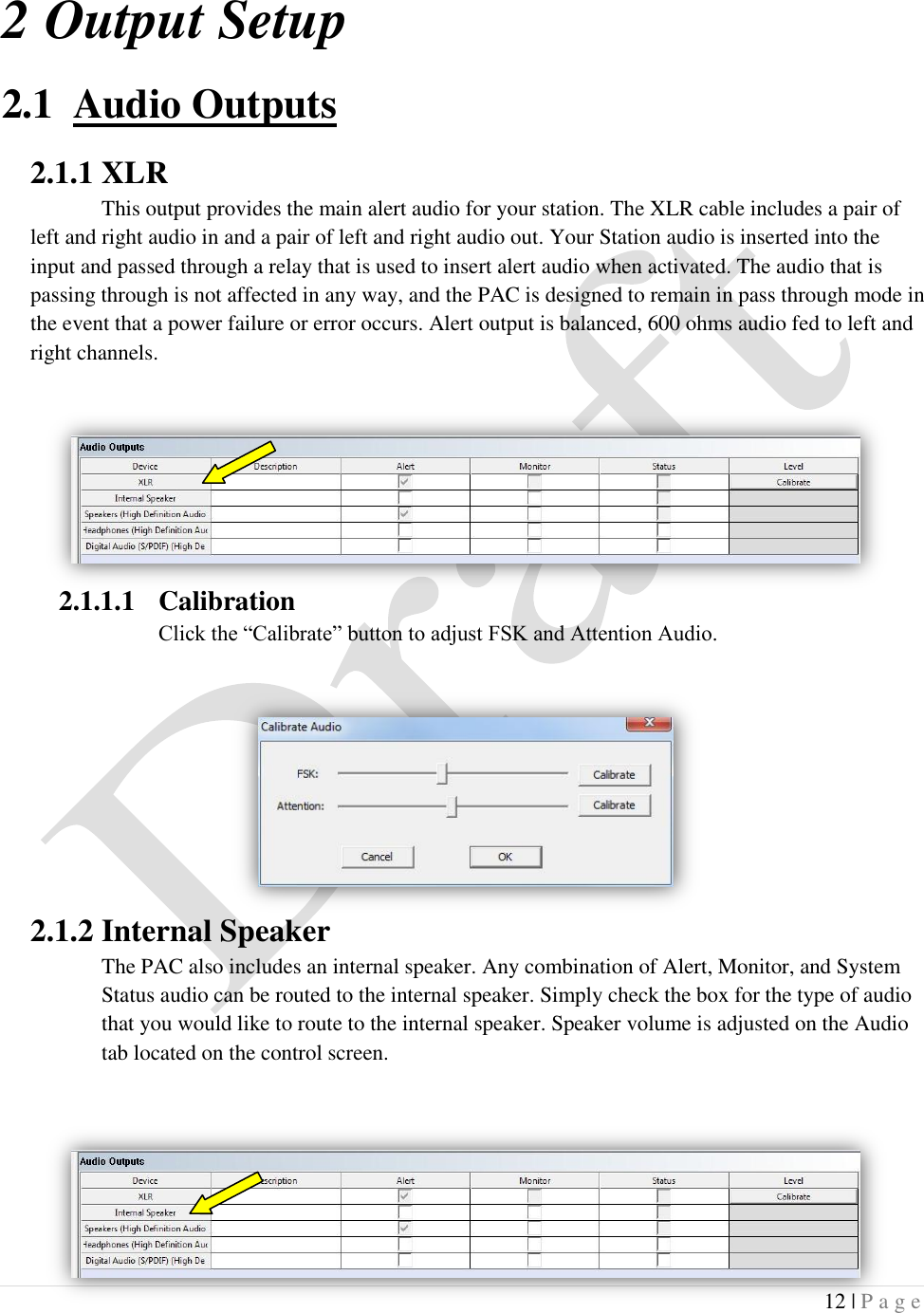
 12 | P a g e   2 Output Setup 2.1 Audio Outputs 2.1.1 XLR This output provides the main alert audio for your station. The XLR cable includes a pair of left and right audio in and a pair of left and right audio out. Your Station audio is inserted into the input and passed through a relay that is used to insert alert audio when activated. The audio that is passing through is not affected in any way, and the PAC is designed to remain in pass through mode in the event that a power failure or error occurs. Alert output is balanced, 600 ohms audio fed to left and right channels.  2.1.1.1 Calibration Click the “Calibrate” button to adjust FSK and Attention Audio.      2.1.2 Internal Speaker The PAC also includes an internal speaker. Any combination of Alert, Monitor, and System Status audio can be routed to the internal speaker. Simply check the box for the type of audio that you would like to route to the internal speaker. Speaker volume is adjusted on the Audio tab located on the control screen.
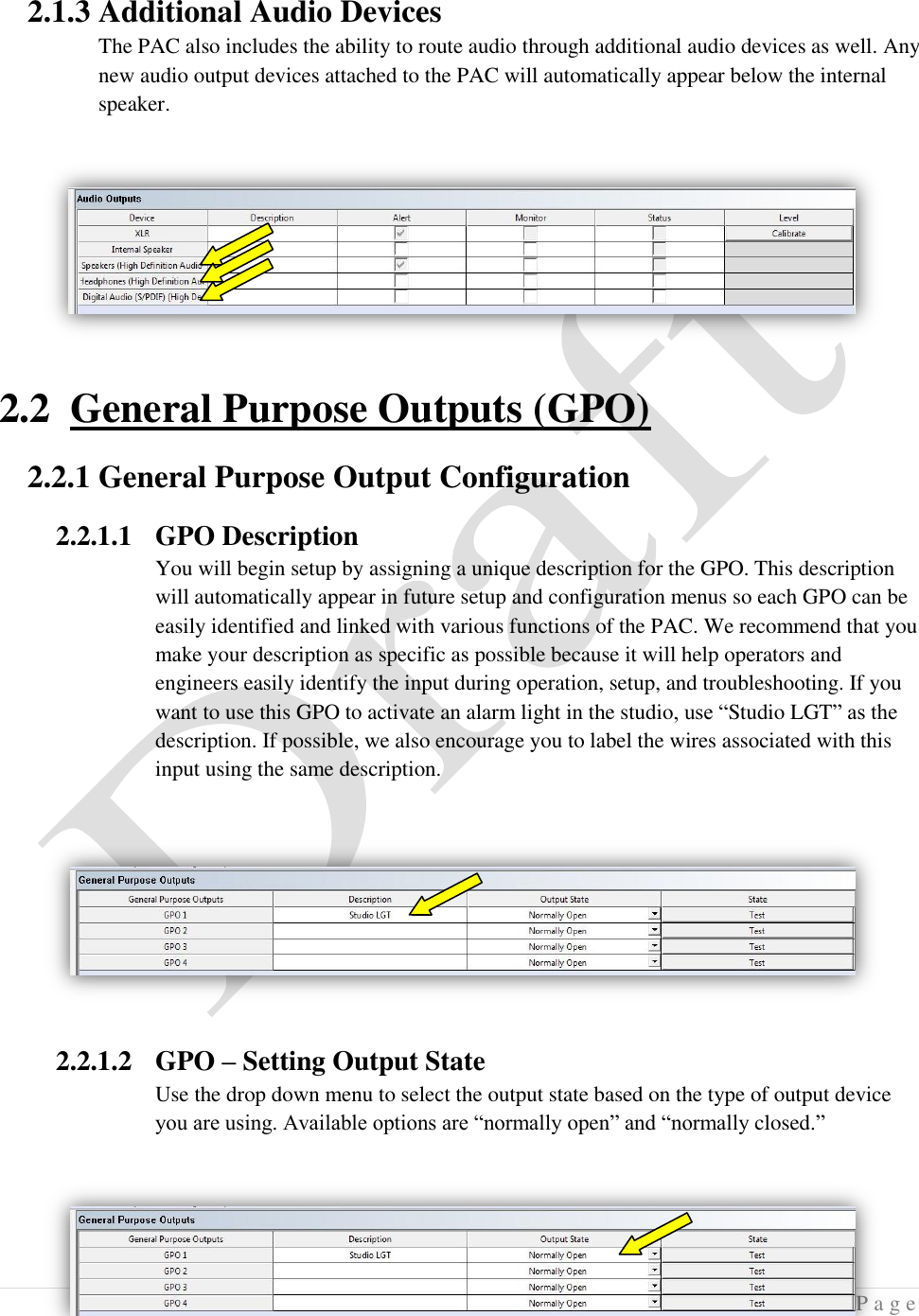
 13 | P a g e   2.1.3 Additional Audio Devices The PAC also includes the ability to route audio through additional audio devices as well. Any new audio output devices attached to the PAC will automatically appear below the internal speaker.  2.2 General Purpose Outputs (GPO) 2.2.1 General Purpose Output Configuration 2.2.1.1 GPO Description You will begin setup by assigning a unique description for the GPO. This description will automatically appear in future setup and configuration menus so each GPO can be easily identified and linked with various functions of the PAC. We recommend that you make your description as specific as possible because it will help operators and engineers easily identify the input during operation, setup, and troubleshooting. If you want to use this GPO to activate an alarm light in the studio, use “Studio LGT” as the description. If possible, we also encourage you to label the wires associated with this input using the same description.    2.2.1.2 GPO – Setting Output State Use the drop down menu to select the output state based on the type of output device you are using. Available options are “normally open” and “normally closed.”
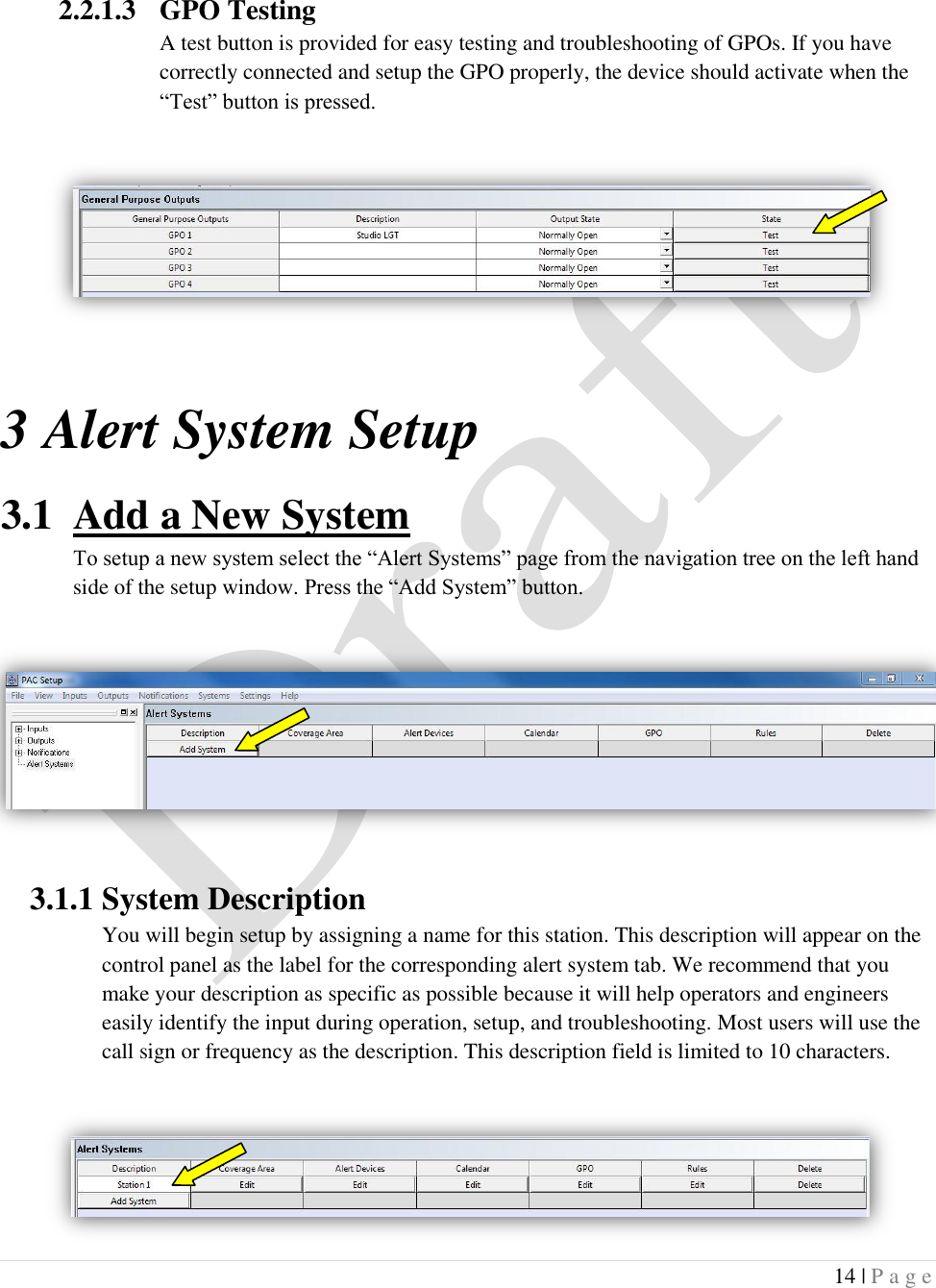
 14 | P a g e    2.2.1.3 GPO Testing A test button is provided for easy testing and troubleshooting of GPOs. If you have correctly connected and setup the GPO properly, the device should activate when the “Test” button is pressed.  3 Alert System Setup 3.1 Add a New System To setup a new system select the “Alert Systems” page from the navigation tree on the left hand side of the setup window. Press the “Add System” button.  3.1.1 System Description You will begin setup by assigning a name for this station. This description will appear on the control panel as the label for the corresponding alert system tab. We recommend that you make your description as specific as possible because it will help operators and engineers easily identify the input during operation, setup, and troubleshooting. Most users will use the call sign or frequency as the description. This description field is limited to 10 characters.
 15 | P a g e   3.1.2 Coverage Area To setup the coverage area for this station click on the “Edit” button in the Coverage Area column.     3.1.2.1 Edit FIPS Codes A map with your coverage area highlighted. If no coverage area has been set, a map of the US will appear. Select the “Edit FIPS Codes” button. A new window will appear with all available FIPS codes. Select your state from the first drop down menu, and then select the counties that represent your coverage area. Once the counties are highlighted, click the “Add County to FIPS list” button and click “OK”.              3.1.3 Alert Devices To setup the alert devices for this station click on the “Edit” button in the Alert Devices column. A new window will appear.
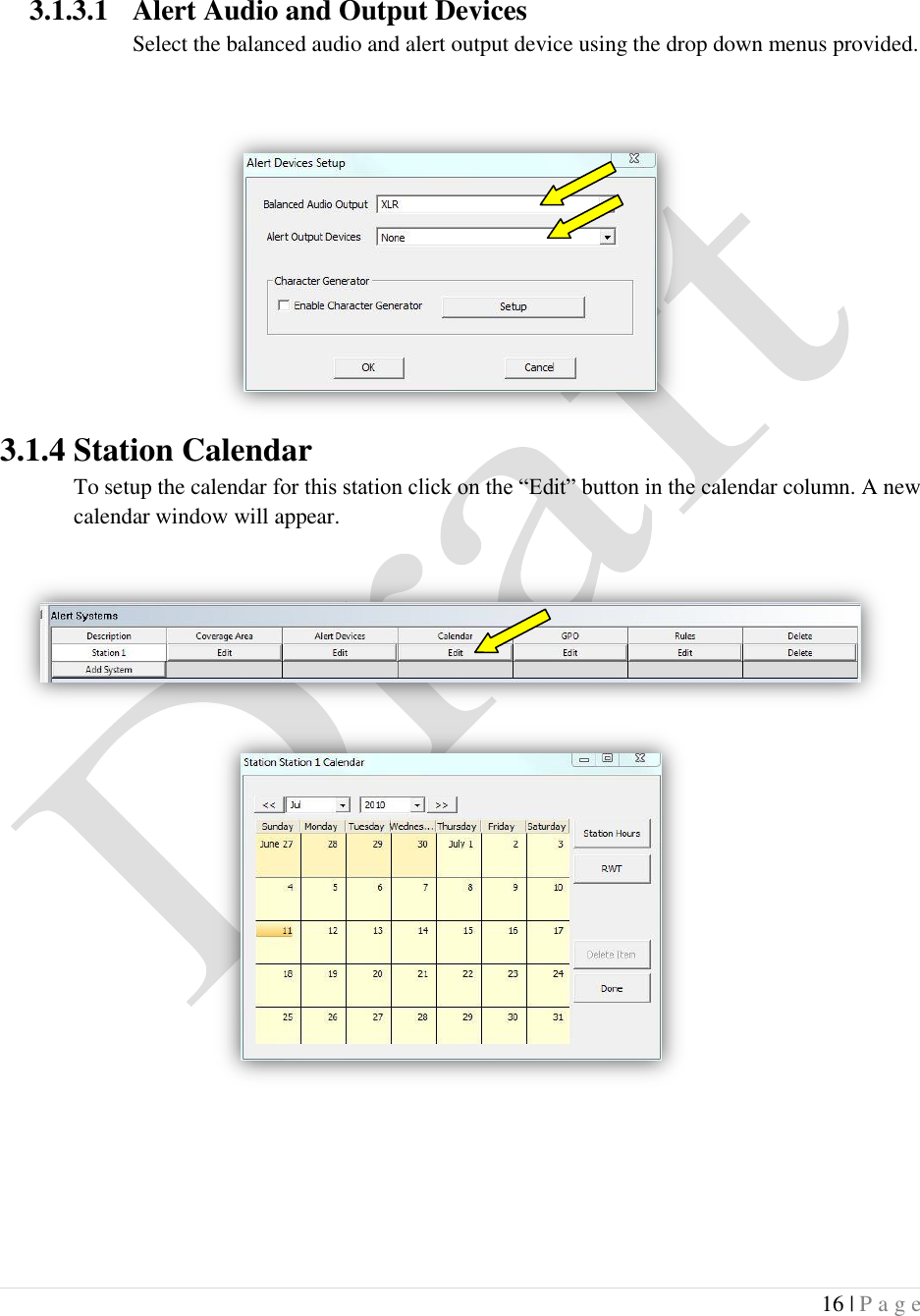
 16 | P a g e    3.1.3.1 Alert Audio and Output Devices Select the balanced audio and alert output device using the drop down menus provided.       3.1.4 Station Calendar To setup the calendar for this station click on the “Edit” button in the calendar column. A new calendar window will appear.
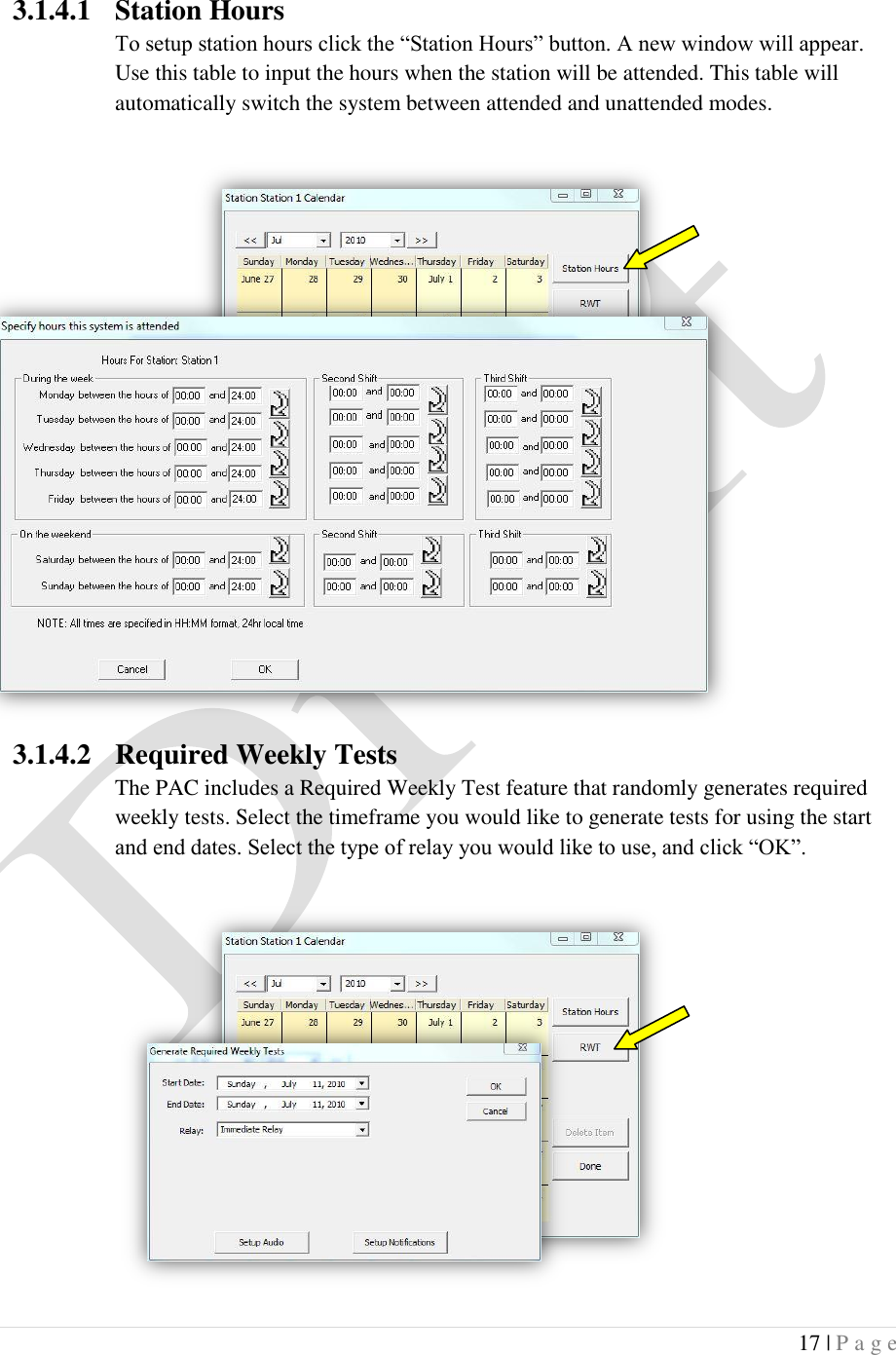
 17 | P a g e   3.1.4.1 Station Hours To setup station hours click the “Station Hours” button. A new window will appear. Use this table to input the hours when the station will be attended. This table will automatically switch the system between attended and unattended modes.              3.1.4.2 Required Weekly Tests The PAC includes a Required Weekly Test feature that randomly generates required weekly tests. Select the timeframe you would like to generate tests for using the start and end dates. Select the type of relay you would like to use, and click “OK”.
 18 | P a g e   3.1.4.3 Required Monthly Tests Required monthly tests can also be automatically added to any day on the calendar. Select the time and relay type, then click “OK”        3.1.5 GPO Device Control To setup a GPO device for this station click on the “Edit” button in the GPO column. A new window will appear. Select the desired control switch using the drop down menu and set the output duration for the device.        3.1.6 Alert Rules To add alert rules to each station select the “Add Rule” button.
 19 | P a g e   3.1.6.1 Rule Description You will begin setup by assigning a name for this rule. We recommend that you make your description as specific as possible because it will help operators and engineers easily identify the input during operation, setup, and troubleshooting. For example, if this rule covers weather events, use “Weather” as the description. This description field is limited to 10 characters.   3.1.6.2 Alert Event(s) To select alert events for this rule click the “Edit” button in the events column. A new window will appear with all available events. Select the events you would like to add to the rule and click the “Add” button.
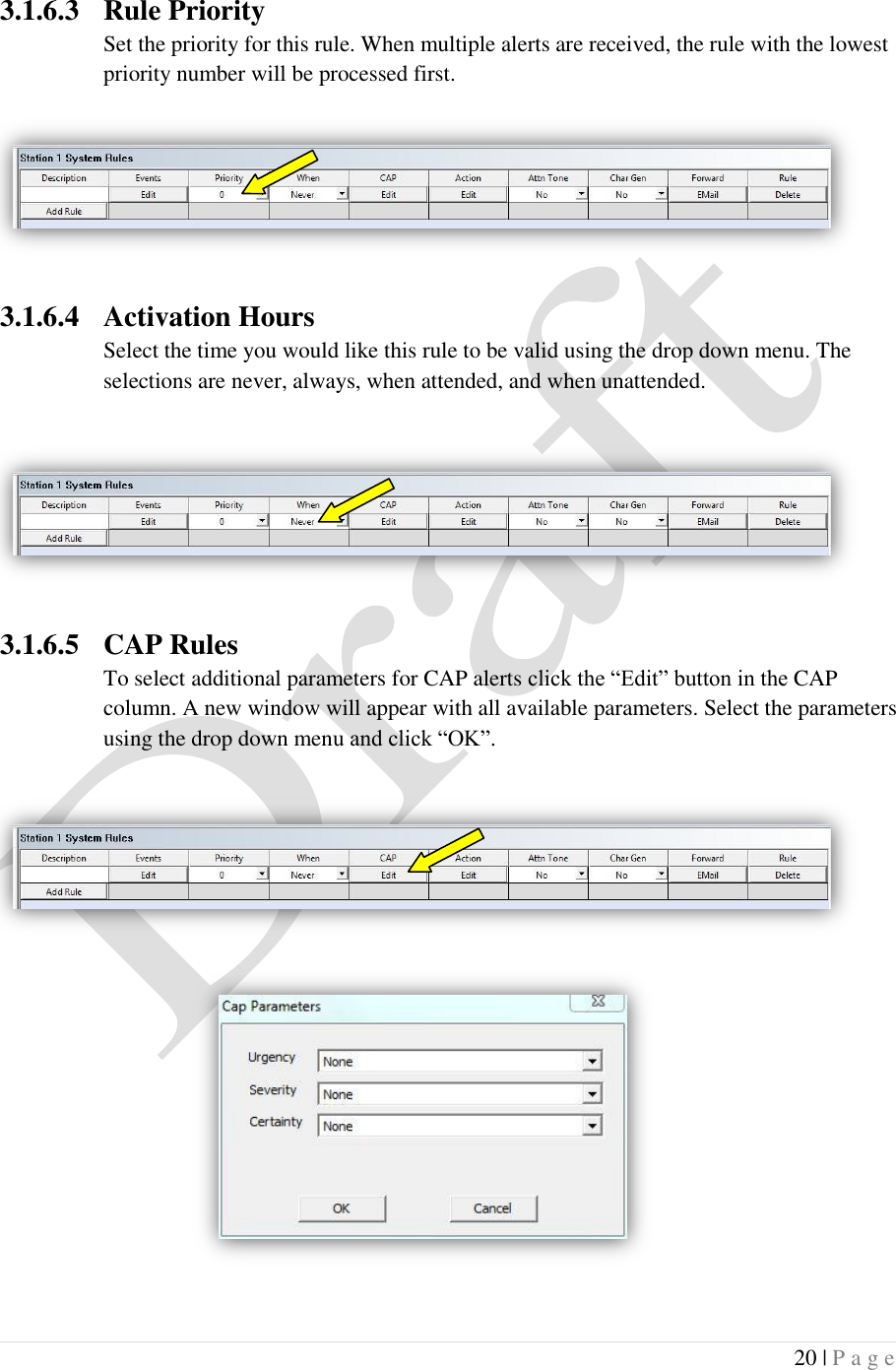
 20 | P a g e   3.1.6.3 Rule Priority Set the priority for this rule. When multiple alerts are received, the rule with the lowest priority number will be processed first.    3.1.6.4 Activation Hours Select the time you would like this rule to be valid using the drop down menu. The selections are never, always, when attended, and when unattended.  3.1.6.5 CAP Rules To select additional parameters for CAP alerts click the “Edit” button in the CAP column. A new window will appear with all available parameters. Select the parameters using the drop down menu and click “OK”.
 21 | P a g e   3.1.6.6 Alert Action To set the alert action for this rule, click the “Edit” button in the Action column. A new window will appear with all available actions and the additional settings for them.

Navigation menu