Contel Electronics Technology TAB840 8 inches Tablet User Manual TAB 840 manual 100x140

Shenzhen Contel Electronics Technology Co.,LTD 8 inches Tablet TAB 840 manual 100x140

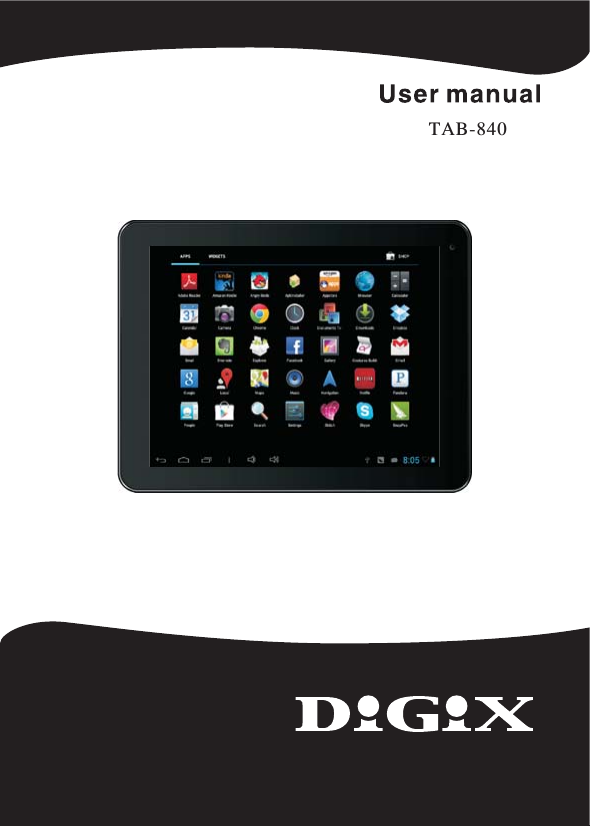
Users Manual

TAB-840
IC WARNINGThis device complies with Industry Canada licence-exempt RSS standard(s). Operation is subject to the following two conditions:(1) this device may not cause interference, and(2) this device must accept any interference, including interference that may cause undesired operation of the device.Under Industry Canada regulations, this radio transmitter may only operate using an antenna of a type and maximum (or lesser) gain approved for the transmitter by Industry Canada. To reduce potential radio interference to other users, the antenna type andits gain should be so chosen that the equivalent isotropically radiated power (e.i.r.p.) is not more than that necessary for successful communication.This equipment complies with IC radiation exposure limits set forth for an uncontrolled environment .End users must follow the specific operating instructions for satisfying RF exposure compliance.This transmitter must not be co-located or operating in conjunction with any other antenna or transmitter.This equipment has been SAR-evaluated for use in hand.SAR measurement are based on a 0cm spacing from the body and that compliance is achieved at that distance.
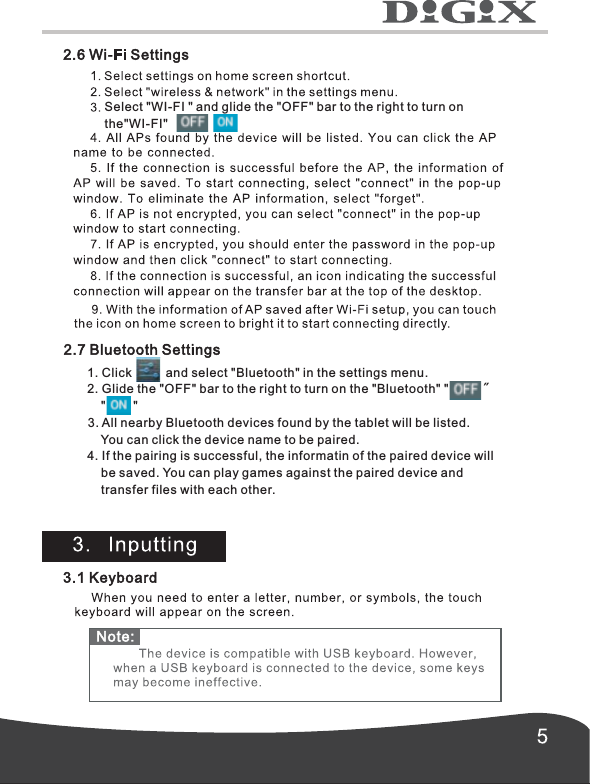
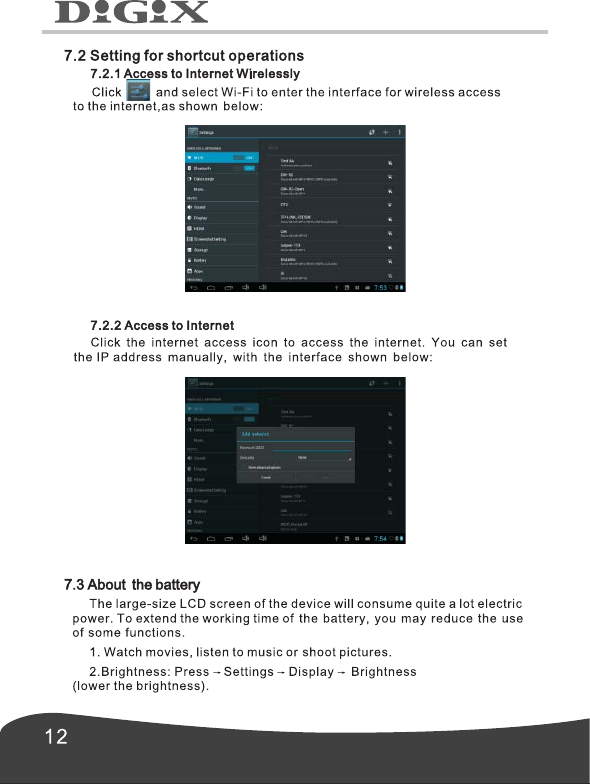
Select "WI-FI " and glide the "OFF" bar to the right to turn on the"WI-FI"        1. Click         and select "Bluetooth" in the settings menu.        2. Glide the "OFF" bar to the right to turn on the "Bluetooth" "          "            "        "     3. All nearby Bluetooth devices found by the tablet will be listed.            You can click the device name to be paired.        4. If the pairing is successful, the informatin of the paired device will             be saved. You can play games against the paired device and             transfer files with each other.
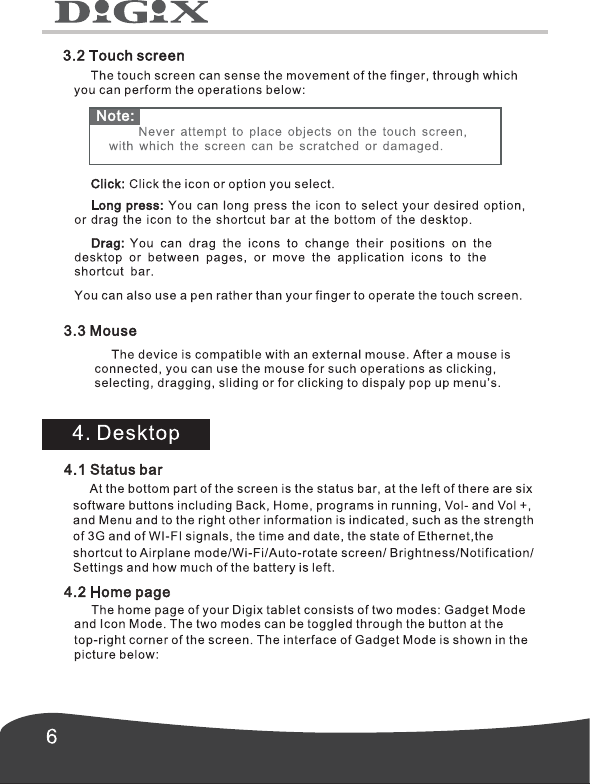
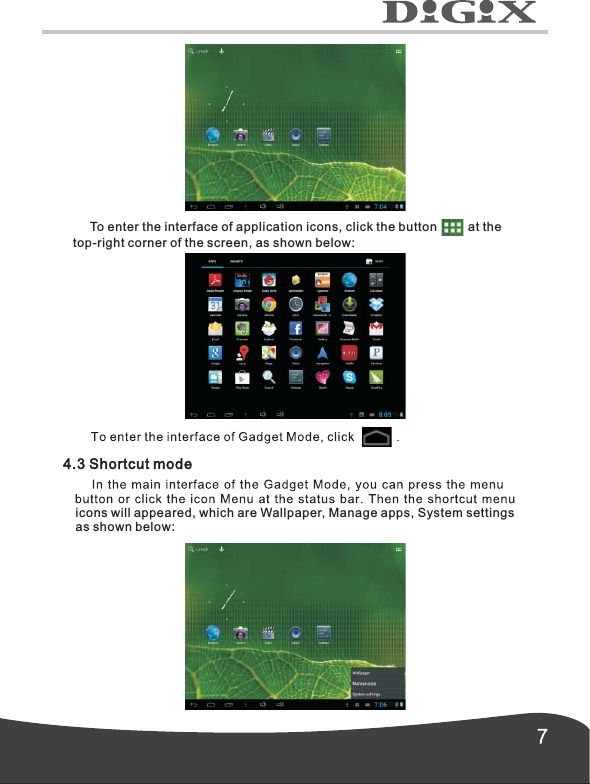
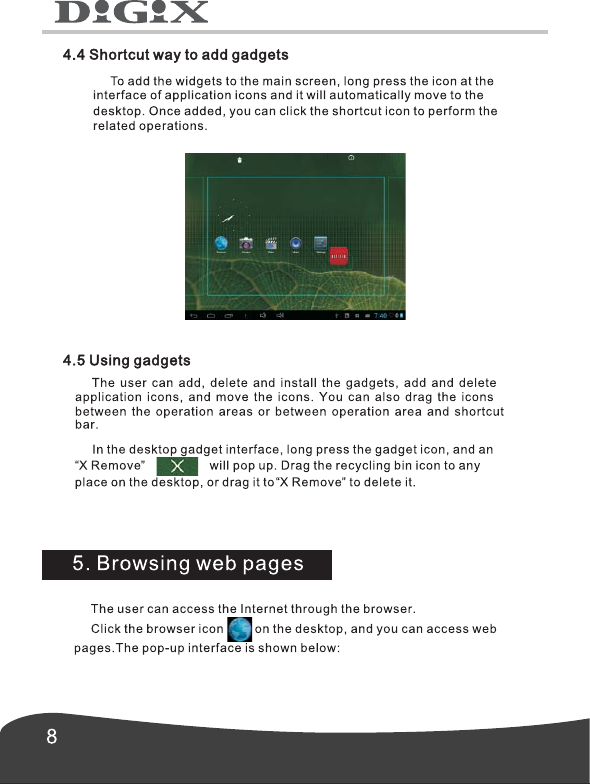
     To enter the interface of application icons, click the button         at thetop-right corner of the screen, as shown below: icons will appeared, which are Wallpaper, Manage apps, System settings as shown below:
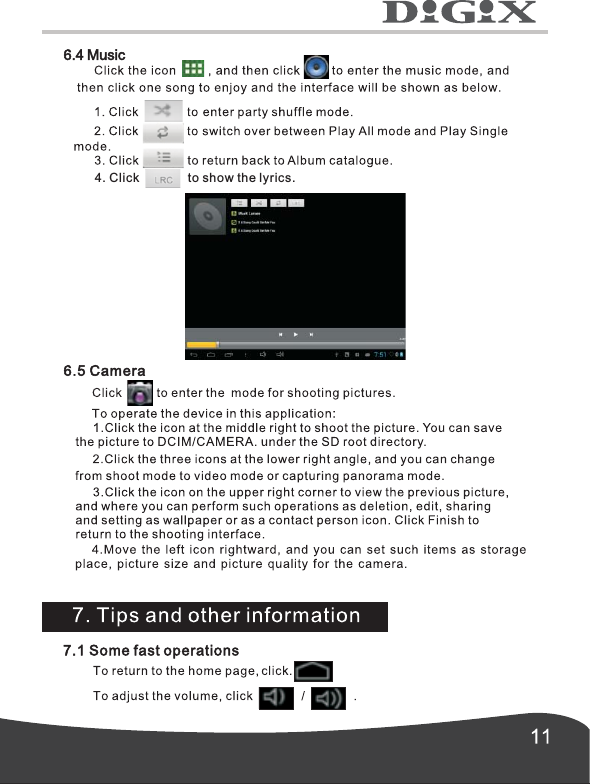
    4. Click              to show the lyrics.
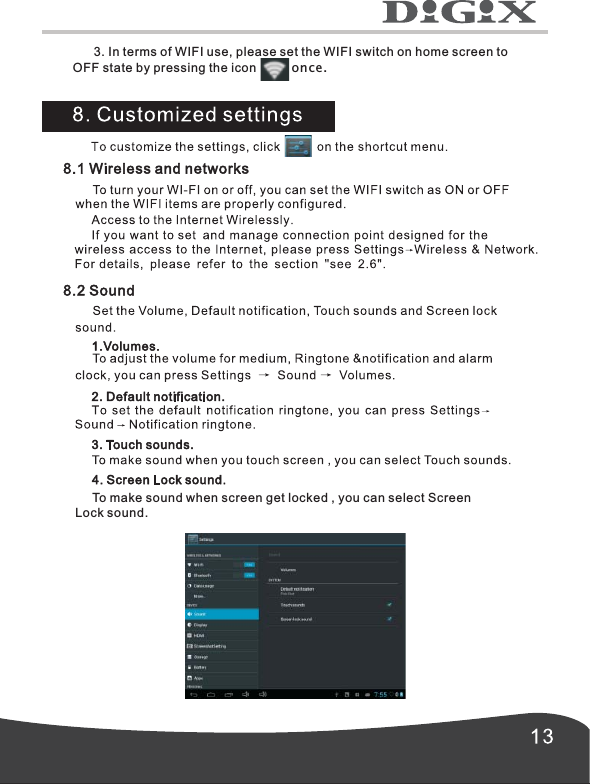
      3. In terms of WIFI use, please set the WIFI switch on home screen to OFF state by pressing the icon      once.      To make sound when screen get locked , you can select Screen Lock sound.
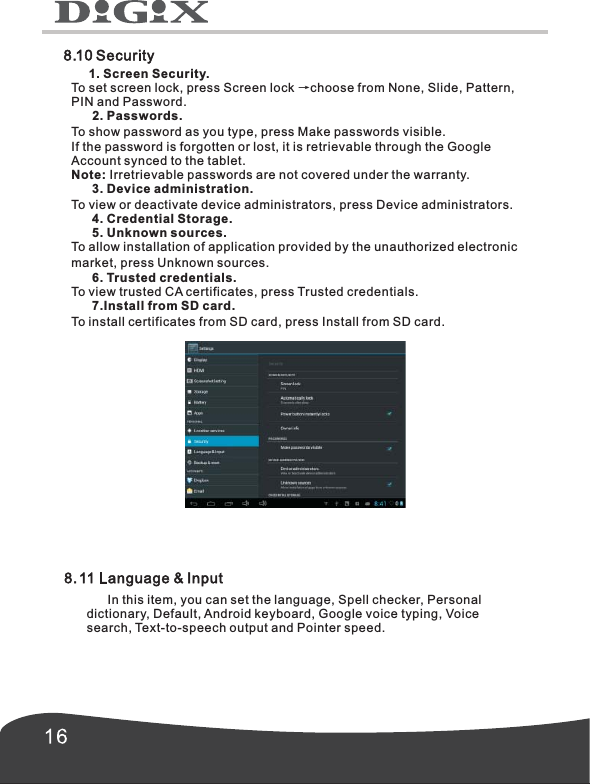
     1. Screen Security.To set screen lock, press Screen lock →choose from None, Slide, Pattern,PIN and Password.      2. Passwords.To show password as you type, press Make passwords visible.If the password is forgotten or lost, it is retrievable through the Google Account synced to the tablet. Note: Irretrievable passwords are not covered under the warranty.      3. Device administration.To view or deactivate device administrators, press Device administrators.      4. Credential Storage.      5. Unknown sources.To allow installation of application provided by the unauthorized electronic market, press Unknown sources.      6. Trusted credentials.To view trusted CA certificates, press Trusted credentials.      7.Install from SD card. To install certificates from SD card, press Install from SD card.      In this item, you can set the language, Spell checker, Personal dictionary, Default, Android keyboard, Google voice typing, Voice search, Text-to-speech output and Pointer speed.
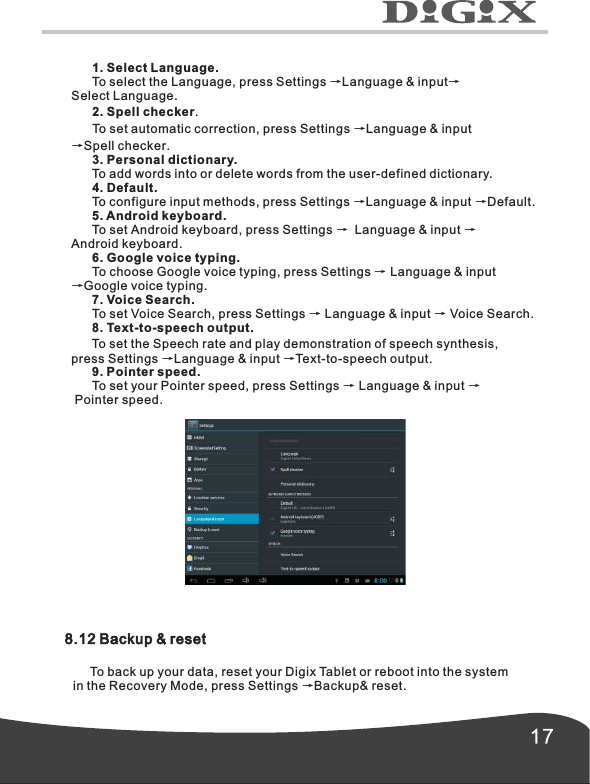
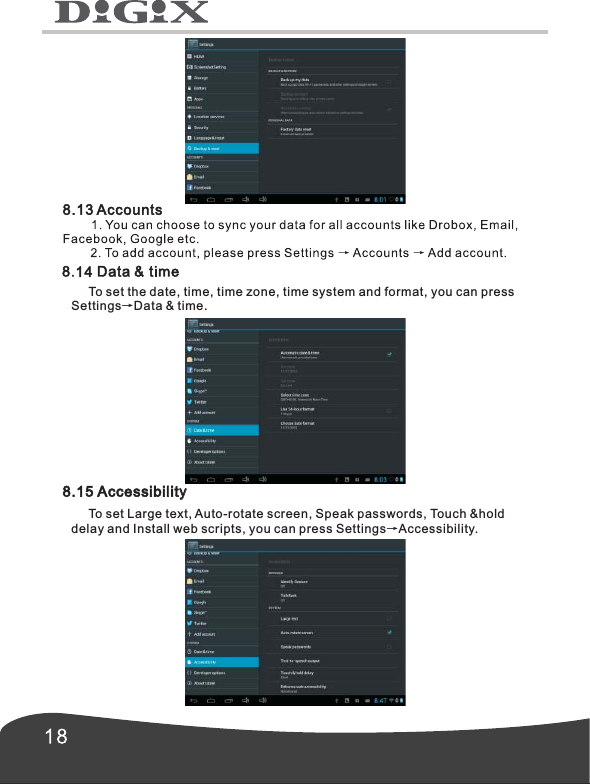
      1. Select Language.      To select the Language, press Settings →Language & input→Select Language.      2. Spell checker.      To set automatic correction, press Settings →Language & input→Spell checker.      3. Personal dictionary.      To add words into or delete words from the user-defined dictionary.      4. Default.      To configure input methods, press Settings →Language & input →Default.      5. Android keyboard.      To set Android keyboard, press Settings → Language & input →Android keyboard.      6. Google voice typing.      To choose Google voice typing, press Settings   Language & input →Google voice typing.       7. Voice Search.      To set Voice Search, press Settings → Language & input → Voice Search.      8. Text-to-speech output.      To set the Speech rate and play demonstration of speech synthesis,press Settings →Language & input →Text-to-speech output.      9. Pointer speed.      To set your Pointer speed, press Settings → Language & input → Pointer speed.→8.12 Backup & reset     To back up your data, reset your Digix Tablet or reboot into the system in the Recovery Mode, press Settings →Backup& reset.
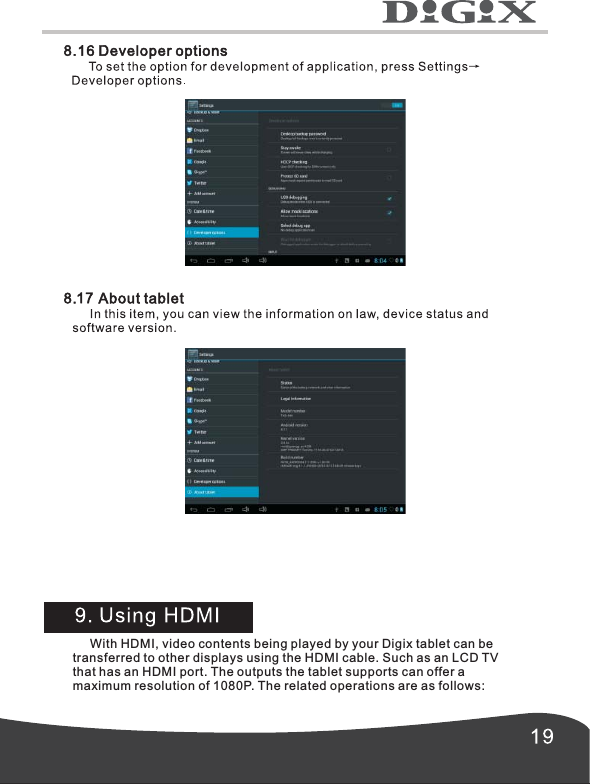
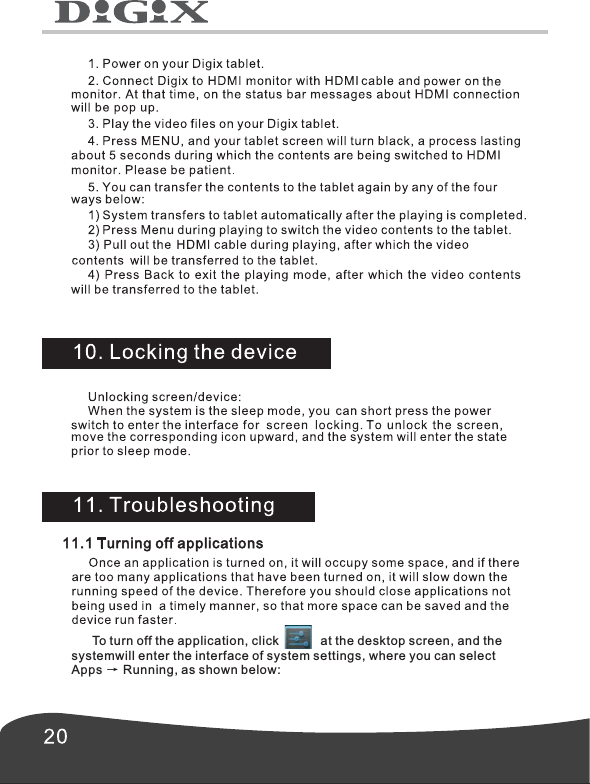
     To set the date, time, time zone, time system and format, you can press Settings→Data & time.8.15 Accessibility     To set Large text, Auto-rotate screen, Speak passwords, Touch &hold delay and Install web scripts, you can press Settings→Accessibility.
     With HDMI, video contents being played by your Digix tablet can betransferred to other displays using the HDMI cable. Such as an LCD TVthat has an HDMI port. The outputs the tablet supports can offer amaximum resolution of 1080P. The related operations are as follows:
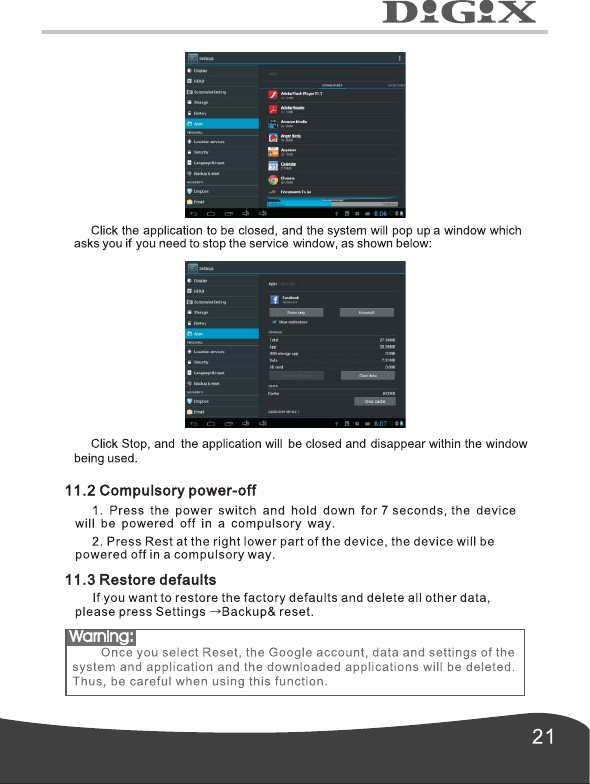
       To turn off the application, click            at the desktop screen, and the systemwill enter the interface of system settings, where you can select Apps      Running, as shown below:   →
Warning:
For Digix Technical Support contact us via e-mail at support@digixmedia.com or via phone at 1-866-770-3688

Navigation menu