Cubic Global Tracking Solutions FMG3 Asset Tracking Device User Manual FMG 3 Uer s Guide

Cubic Global Tracking Solutions Asset Tracking Device FMG 3 Uer s Guide

User Manual

            FMG-3 User’s Guide December 16, 2011            Cubic Global Tracking Solutions 400 E 16th Street Panama City, FL 32405 USA http://www.cubic.com/Solutions/Cubic-Global-Tracking-Solutions
Cubic Global Tracking Solutions    Page 2 of 14  4511144v1d                      Copyright © 2011 CGTS             Notice of Ownership Use of this information shall be limited to persons having a need to know, within the appropriate project organizations, as defined within the nondisclosure agreement (NDA) between Cubic Global Tracking Solutions (Cubic GTS) and its customers. Disclosure of the material in this document to outside organizations shall only be made with the written consent of an authorized Cubic GTS corporate officer. This document contains information that is considered proprietary and confidential to Cubic GTS. No information contained in this document may be released, re-printed, or redistributed without the permission of Cubic GTS. The information contained in this document is subject to change without notice. If you have questions or comments about this document, please direct them to info.cgts@cubic.com.  Copyright © 2011 by Cubic GTS  Revision History Revision Date Author(s) Notes 1 12/8/11 Bryan Shah Initial draft.
Cubic Global Tracking Solutions    Page 3 of 14  4511144v1d                      Copyright © 2011 CGTS                FMG-3 USER’S MANUAL Table of Contents 1 REGULATORY COMPLIANCE ........................................................................................................ 4 2 INTRODUCTION ............................................................................................................................... 5 2.1 FIXED MESH GATEWAY (FMG-3) .......................................................................................................... 5 2.2 THE DEVICE MANAGEMENT CENTER ..................................................................................................... 6 2.3 MANAGED ASSET TAGS ............................................................................................................................. 6 2.4 CUBIC GTS MIST™ MESH NETWORK ....................................................................................................... 6 3 FIXED MESH GATEWAY (FMG-3) ............................................................................................... 7 3.1 NOMINAL INSTALLATION .......................................................................................................................... 8 3.2 ETHERNET NETWORK – DHCP ............................................................................................................... 9 3.3 ETHERNET NETWORK – STATIC ADDRESS ............................................................................................ 9 3.4 MOUNTING ............................................................................................................................................... 10 3.5 CONFIGURING THE FMG-3 .................................................................................................................... 10 3.5.1 Console Port .............................................................................................................................................. 10 3.5.2 SSH Session ................................................................................................................................................ 11 3.6 WHAT TO CONFIGURE AND WHY ......................................................................................................... 11 APPENDIX A: SPECIFICATIONS......................................................................................................... 13 APPENDIX B: APPROVED EXTERNAL ANTENNAS ...................................................................... 14
Cubic Global Tracking Solutions    Page 4 of 14  4511144v1d                      Copyright © 2011 CGTS             1 Regulatory Compliance FCC STATEMENT: This equipment has been tested and found to comply with the limits for a Class A digital device, pursuant to part 15 of the FCC Rules. Operation is subject  to  the  following  two  conditions:  (1)  this  device  may  not  cause harmful  interference,  and  (2)  this  device  must  accept  any  interference received, including interference that may cause undesired operation. This equipment generates, uses, and can radiate radio frequency energy and, if not installed and used in accordance with the instruction manual, may cause harmful interference to radio communications. Operation of this equipment in a residential area is likely to cause harmful interference in which case the user will be required to correct the interference at his/her own expense. Changes  or  modifications  not  expressly  approved  by  Cubic  Global  Tracking  Solutions  for compliance could void the user’s authority to operate the equipment. The antennas used for this transmitter must be installed to provide a separation distance of at least  20cm  from  all  persons  during  normal  device  operation  and  must  not  be  located  or operating in conjunction with any other antenna or transmitter. This device has been designed to operate with the antennas listed in Appendix A. Antennas not included in this list are prohibited for use with this device without the express approval of Cubic Global Tracking Solutions.
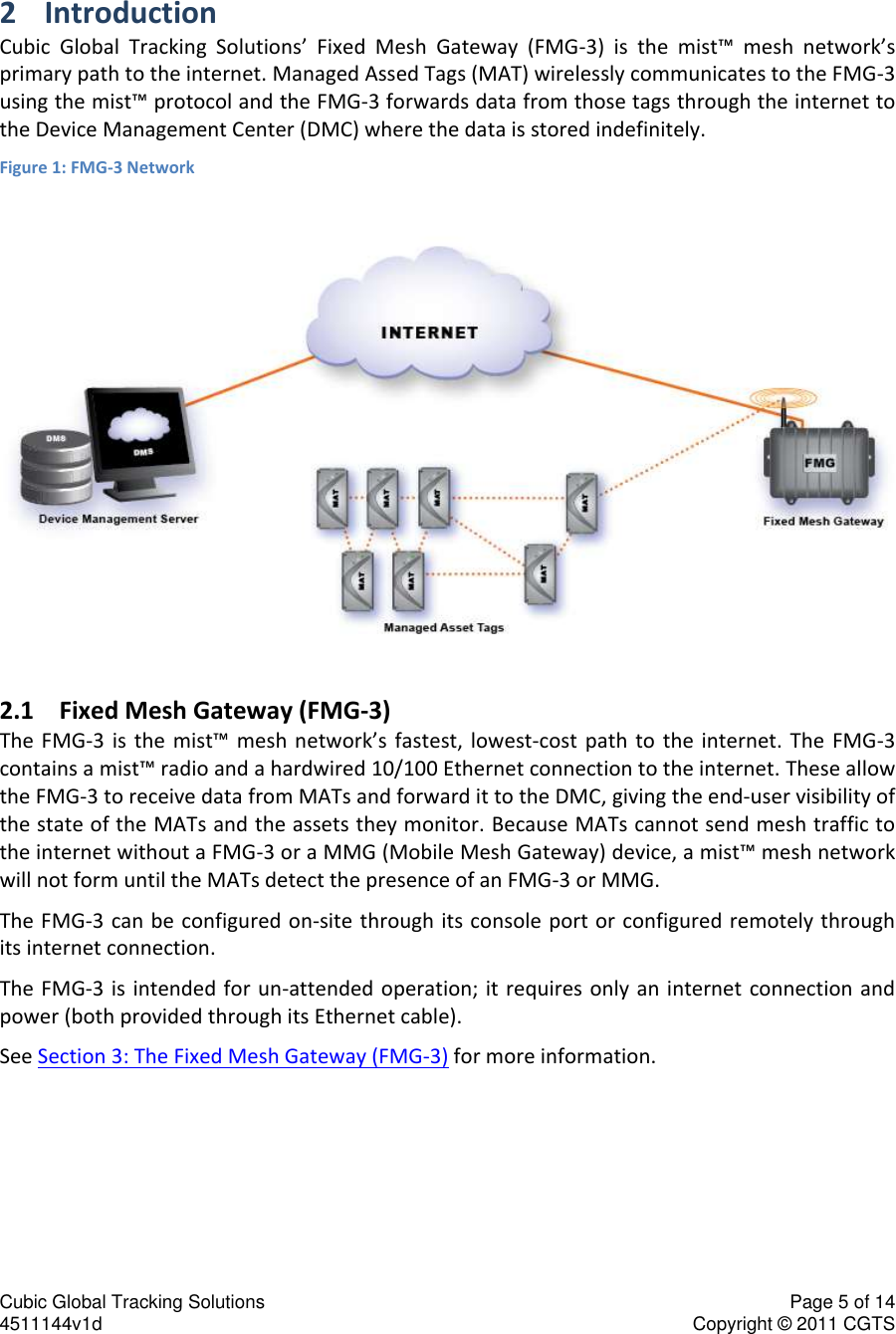
Cubic Global Tracking Solutions    Page 5 of 14  4511144v1d                      Copyright © 2011 CGTS             2 Introduction Cubic  Global  Tracking  Solutions’  Fixed  Mesh  Gateway  (FMG-3)  is  the  mist™  mesh  network’s primary path to the internet. Managed Assed Tags (MAT) wirelessly communicates to the FMG-3 using the mist™ protocol and the FMG-3 forwards data from those tags through the internet to the Device Management Center (DMC) where the data is stored indefinitely.  Figure 1: FMG-3 Network  2.1 Fixed Mesh Gateway (FMG-3) The FMG-3 is  the  mist™  mesh  network’s  fastest,  lowest-cost  path  to  the  internet.  The  FMG-3 contains a mist™ radio and a hardwired 10/100 Ethernet connection to the internet. These allow the FMG-3 to receive data from MATs and forward it to the DMC, giving the end-user visibility of the state of the MATs and the assets they monitor. Because MATs cannot send mesh traffic to the internet without a FMG-3 or a MMG (Mobile Mesh Gateway) device, a mist™ mesh network will not form until the MATs detect the presence of an FMG-3 or MMG.  The FMG-3  can be configured on-site  through its console port or configured remotely through its internet connection. The FMG-3  is  intended for un-attended  operation; it requires only an  internet connection and power (both provided through its Ethernet cable).  See Section 3: The Fixed Mesh Gateway (FMG-3) for more information.
Cubic Global Tracking Solutions    Page 6 of 14  4511144v1d                      Copyright © 2011 CGTS             2.2 The Device Management Center The Device Management Center (DMC), sometimes called the Device Management Server, can be located at a Cubic GTS facility or at an authorized user’s site. When the FMG-3 forwards mesh data through the internet, that data’s final destination is the DMC. With the purchase of a Cubic GTS tracking device, the customer will be provided log-in credentials to the DMC.  The DMC provides the following services:  Secure storage of data that is transmitted from Cubic GTS tracking devices.  Secure system management and configuration of Cubic GTS tracking devices.  Worldwide health monitoring of Cubic GTS tracking devices.  Routine  and  Unscheduled/Unplanned  Event  notifications  to  authorized  individuals  via email or short messaging service (SMS).  Software upgrade of deployed devices. 2.3 Managed Asset Tags The Managed Asset Tags (MATs) are small asset tracking devices capable of joining with other MATs to form Cubic GTS mist™ mesh network through a fixed or mobile Gateway to the DMC. Most  MATs  come  with  a  number  of  sensors  to  monitor  location  and  routine  conditions,  and detect  if  it  or  its  asset  has  been  disturbed.  MATs  can  also  have  a  GPS  receiver  to  track  its location, as well as sensors to monitor other asset conditions, such as humidity, light intrusion, etc.  2.4 Cubic GTS mist™ mesh network  Cubic GTS mist™ mesh network is an ad-hoc, self-forming, self-healing Mesh network formed by MATs and gateway devices. MATs and other node devices report status and location data to the DMC through gateways devices.  The  Cubic  GTS  mist™  mesh  network  allows  for  multiple  paths  between  the  MATs  and  the gateways  in  the  network.  This  allows  the  Cubic  GTS  mist™  mesh  network  to  “heal”  itself  if  a node or a number of nodes drop off of the network.
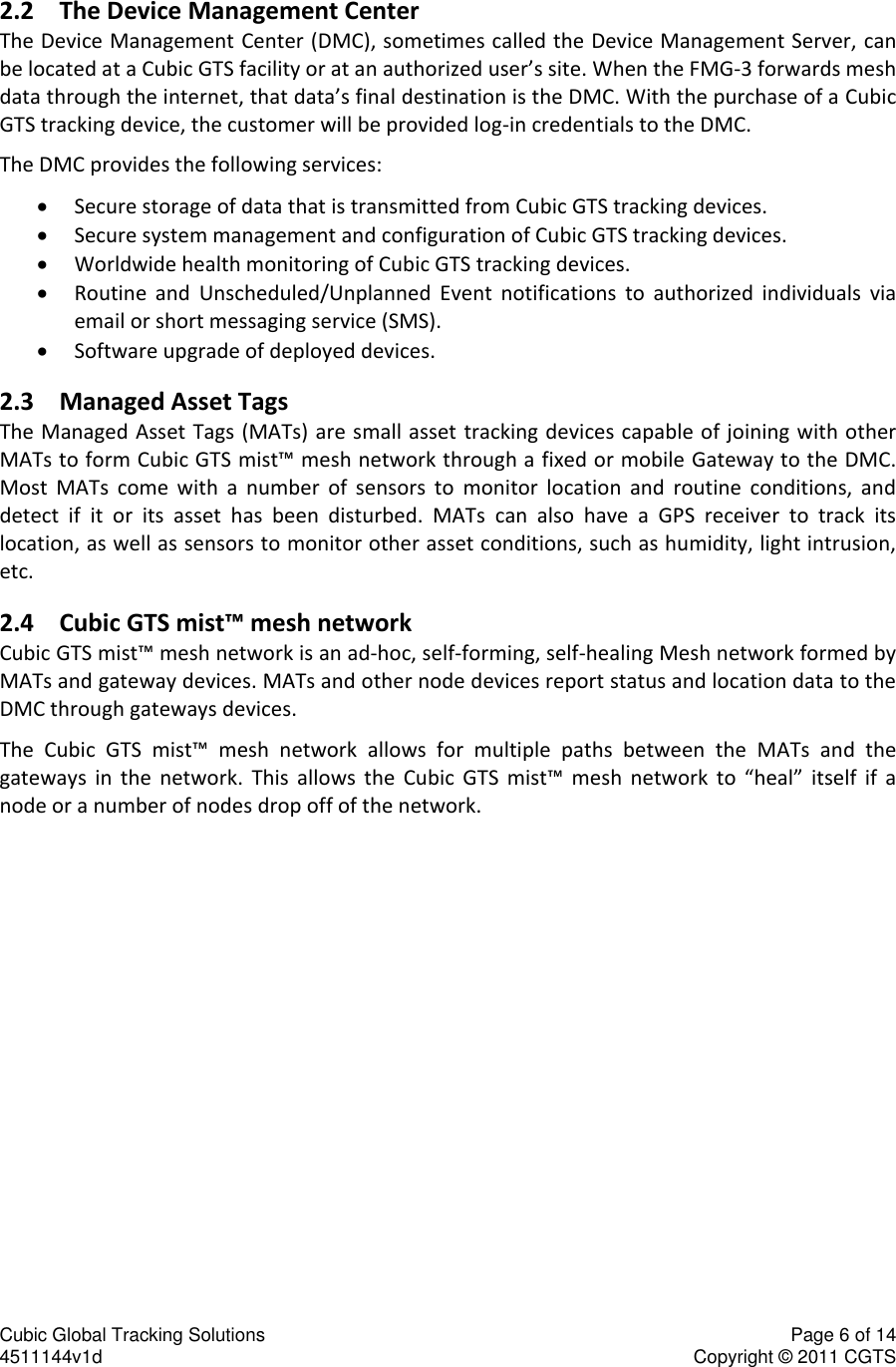
Cubic Global Tracking Solutions    Page 7 of 14  4511144v1d                      Copyright © 2011 CGTS             3 Fixed Mesh Gateway (FMG-3) The  FMG-3  (below)  is  an  internet  portal  for  Cubic  GTS’s  mist™  mesh  network.  It  has  a  mist™ radio to communicate to MATs and MMGs. It then forwards data from these devices to the DMC through its internet connection. It also has a Console port for on-site configuration port. Figure 2: Fixed Mesh Gateway  The  FMG-3  is  intended  for  indoor  or  shielded  outdoor  installation.  It  requires  a  hardwired Ethernet connection, through which  it gets internet connectivity and  power.   Power is  passive Power-over-Ethernet (PoE) using either the supplied PoE injector and 15VDC wall-adapter or an optional 803.11af PoE to passive PoE adapter. The  FMG-3  is  shipped  pre-configured  for  most  applications.  It  only  requires  an  internet connection and power to begin reporting. The user may have to configure their firewall to allow the FMG-3 to forward mesh traffic to the DMC. Contact your Cubic GTS Applications Contact for more information. The user can also configure the FMG-3 via SSH.
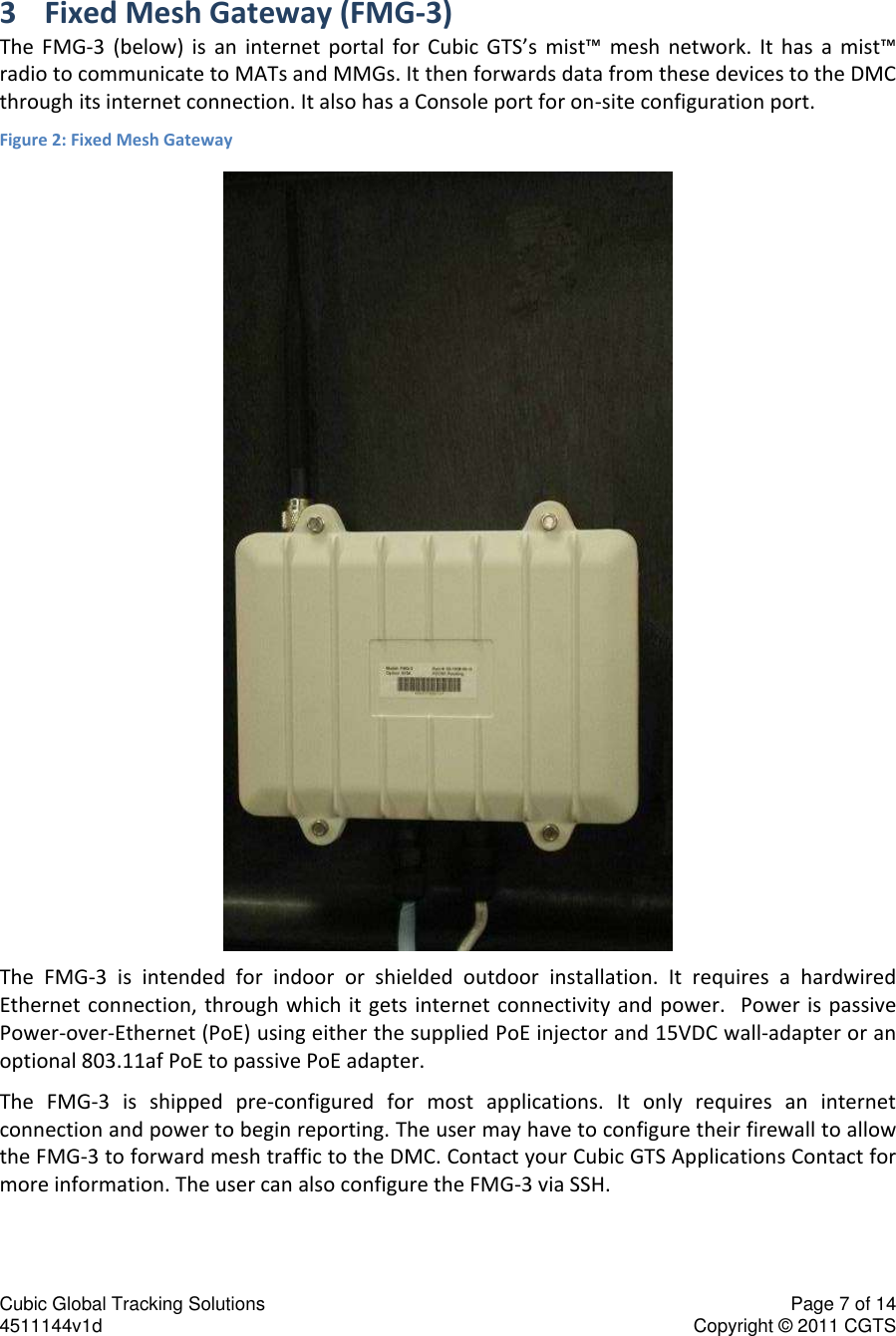
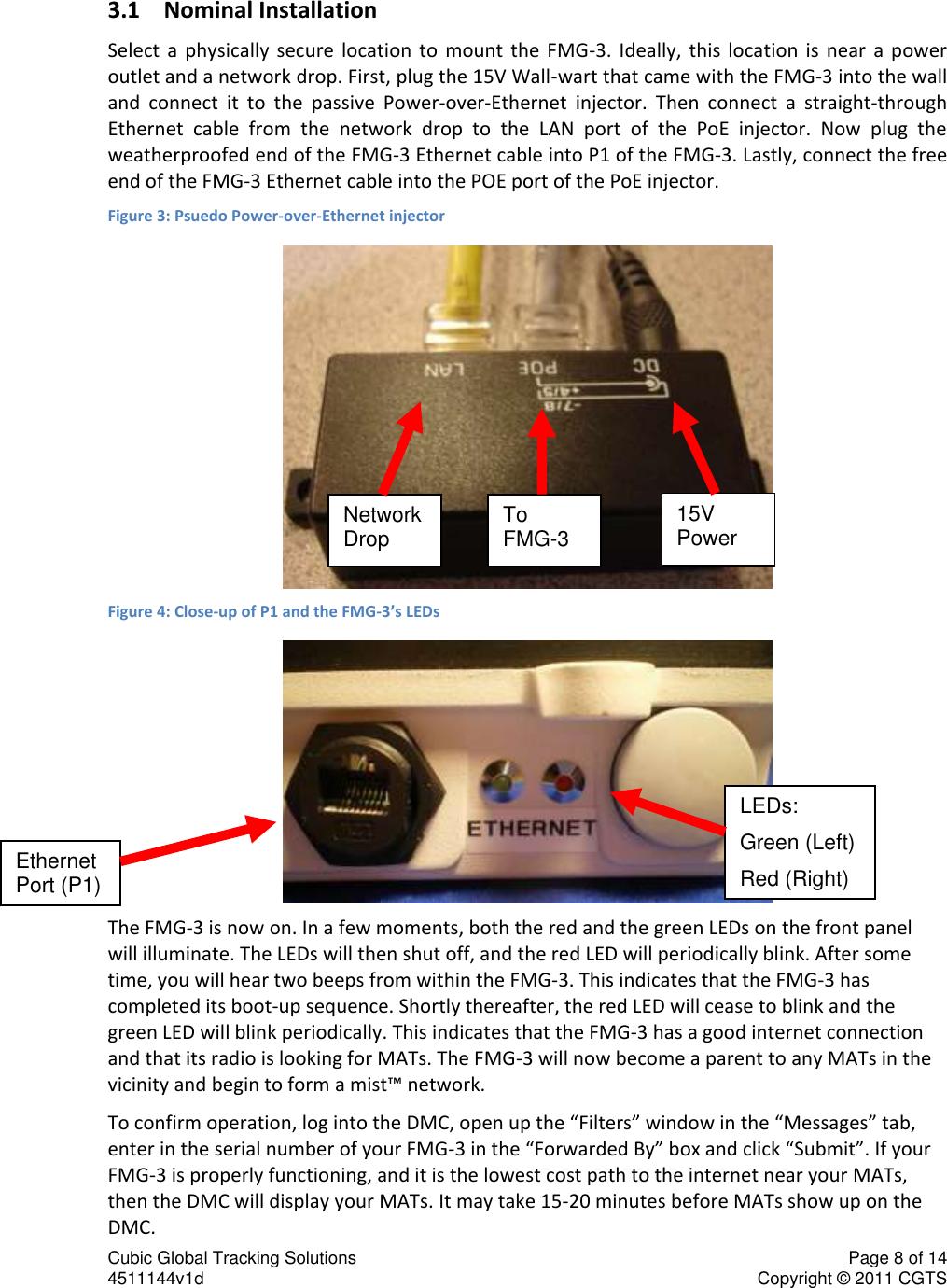
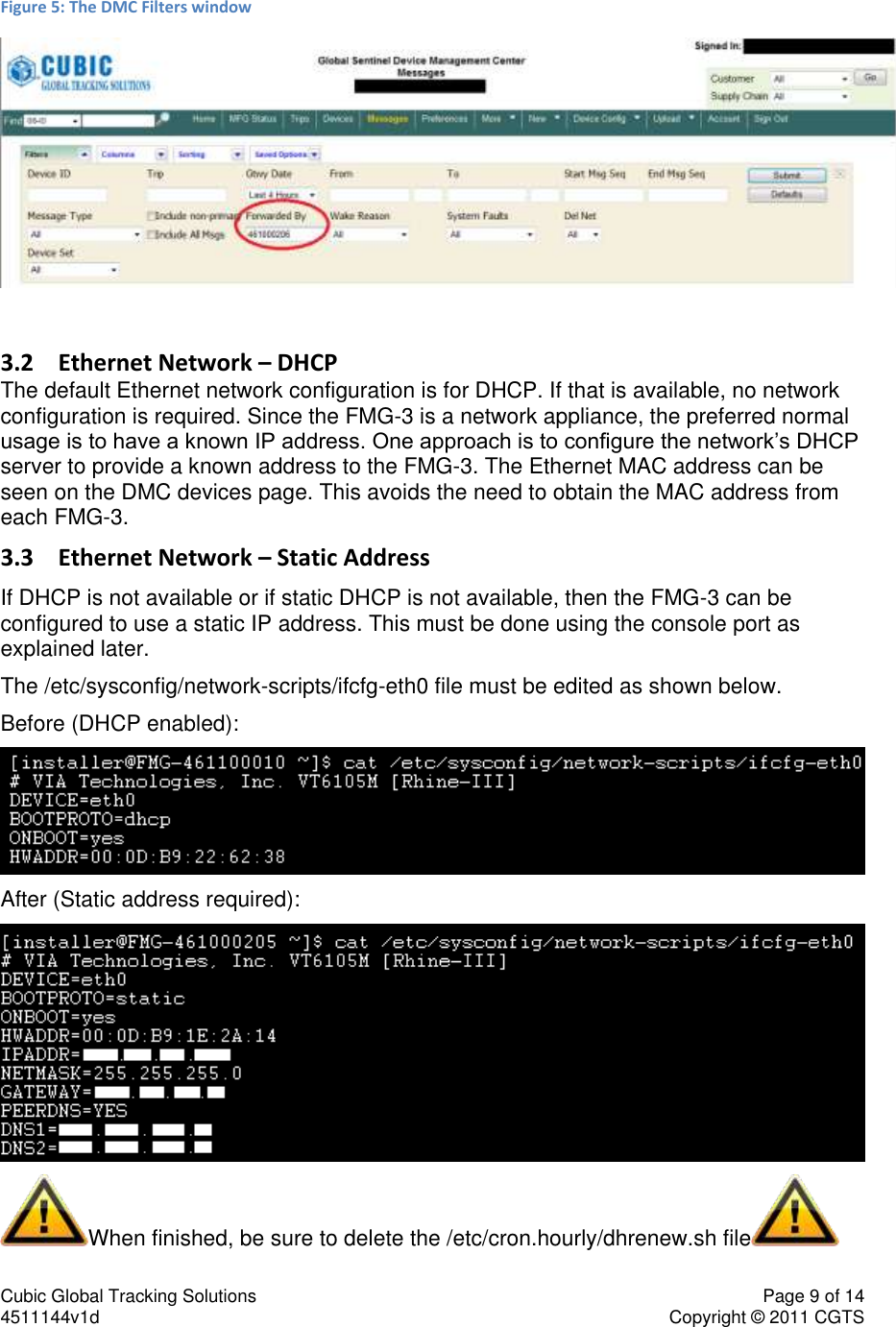
Cubic Global Tracking Solutions    Page 8 of 14  4511144v1d                      Copyright © 2011 CGTS             3.1 Nominal Installation Select  a  physically  secure  location  to  mount  the  FMG-3.  Ideally,  this  location  is  near  a  power outlet and a network drop. First, plug the 15V Wall-wart that came with the FMG-3 into the wall and  connect  it  to  the  passive  Power-over-Ethernet  injector.  Then  connect  a  straight-through Ethernet  cable  from  the  network  drop  to  the  LAN  port  of  the  PoE  injector.  Now  plug  the weatherproofed end of the FMG-3 Ethernet cable into P1 of the FMG-3. Lastly, connect the free end of the FMG-3 Ethernet cable into the POE port of the PoE injector.  Figure 3: Psuedo Power-over-Ethernet injector  Figure 4: Close-up of P1 and the FMG-3’s LEDs  The FMG-3 is now on. In a few moments, both the red and the green LEDs on the front panel will illuminate. The LEDs will then shut off, and the red LED will periodically blink. After some time, you will hear two beeps from within the FMG-3. This indicates that the FMG-3 has completed its boot-up sequence. Shortly thereafter, the red LED will cease to blink and the green LED will blink periodically. This indicates that the FMG-3 has a good internet connection and that its radio is looking for MATs. The FMG-3 will now become a parent to any MATs in the vicinity and begin to form a mist™ network.  To confirm operation, log into the DMC, open up the “Filters” window in the “Messages” tab, enter in the serial number of your FMG-3 in the “Forwarded By” box and click “Submit”. If your FMG-3 is properly functioning, and it is the lowest cost path to the internet near your MATs, then the DMC will display your MATs. It may take 15-20 minutes before MATs show up on the DMC. Network Drop To FMG-3 15V Power Ethernet Port (P1) LEDs: Green (Left) Red (Right)
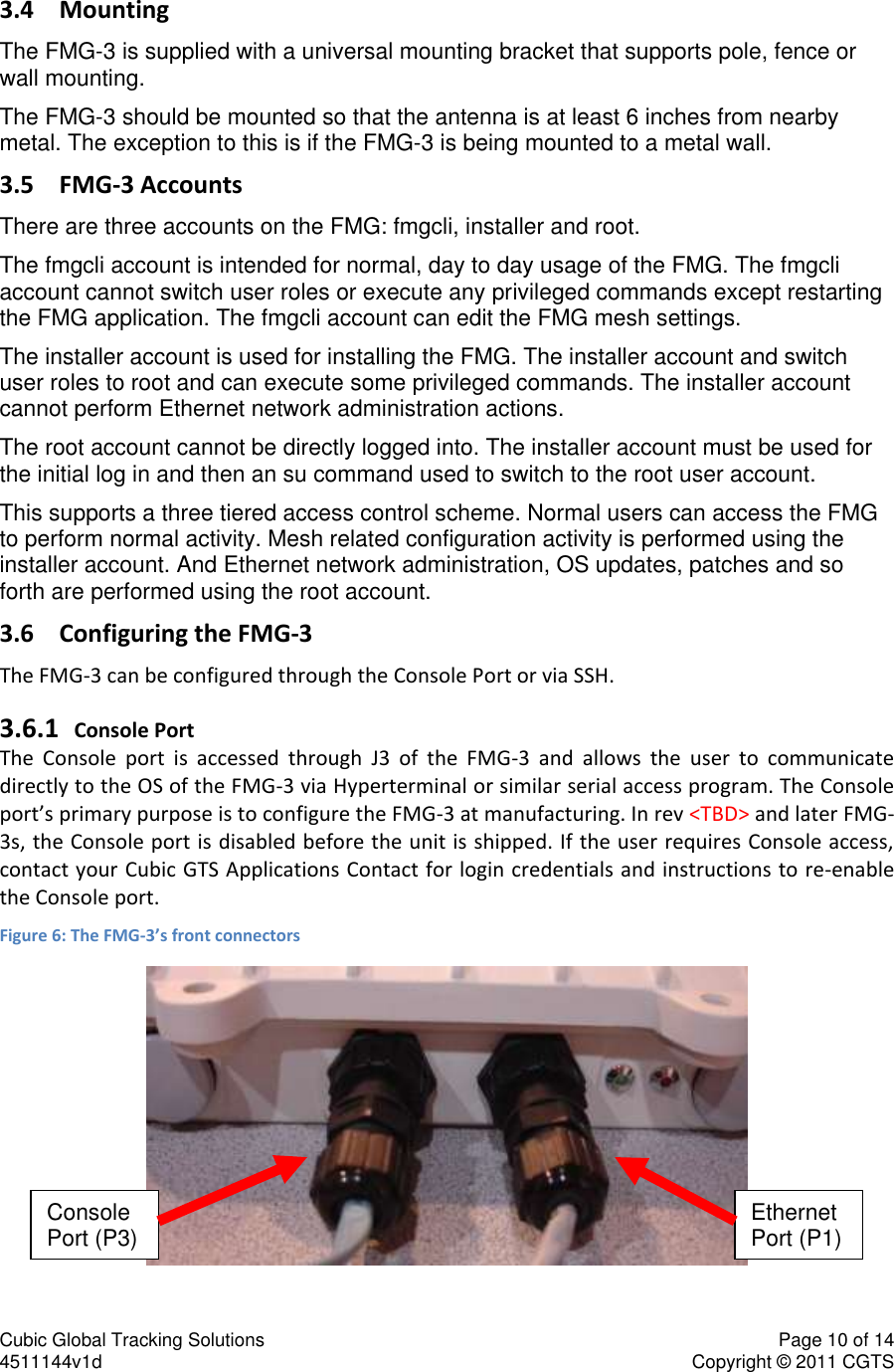
Cubic Global Tracking Solutions    Page 9 of 14  4511144v1d                      Copyright © 2011 CGTS             Figure 5: The DMC Filters window   3.2 Ethernet Network – DHCP The default Ethernet network configuration is for DHCP. If that is available, no network configuration is required. Since the FMG-3 is a network appliance, the preferred normal usage is to have a known IP address. One approach is to configure the network’s DHCP server to provide a known address to the FMG-3. The Ethernet MAC address can be seen on the DMC devices page. This avoids the need to obtain the MAC address from each FMG-3. 3.3 Ethernet Network – Static Address If DHCP is not available or if static DHCP is not available, then the FMG-3 can be configured to use a static IP address. This must be done using the console port as explained later. The /etc/sysconfig/network-scripts/ifcfg-eth0 file must be edited as shown below. Before (DHCP enabled):  After (Static address required):  When finished, be sure to delete the /etc/cron.hourly/dhrenew.sh file
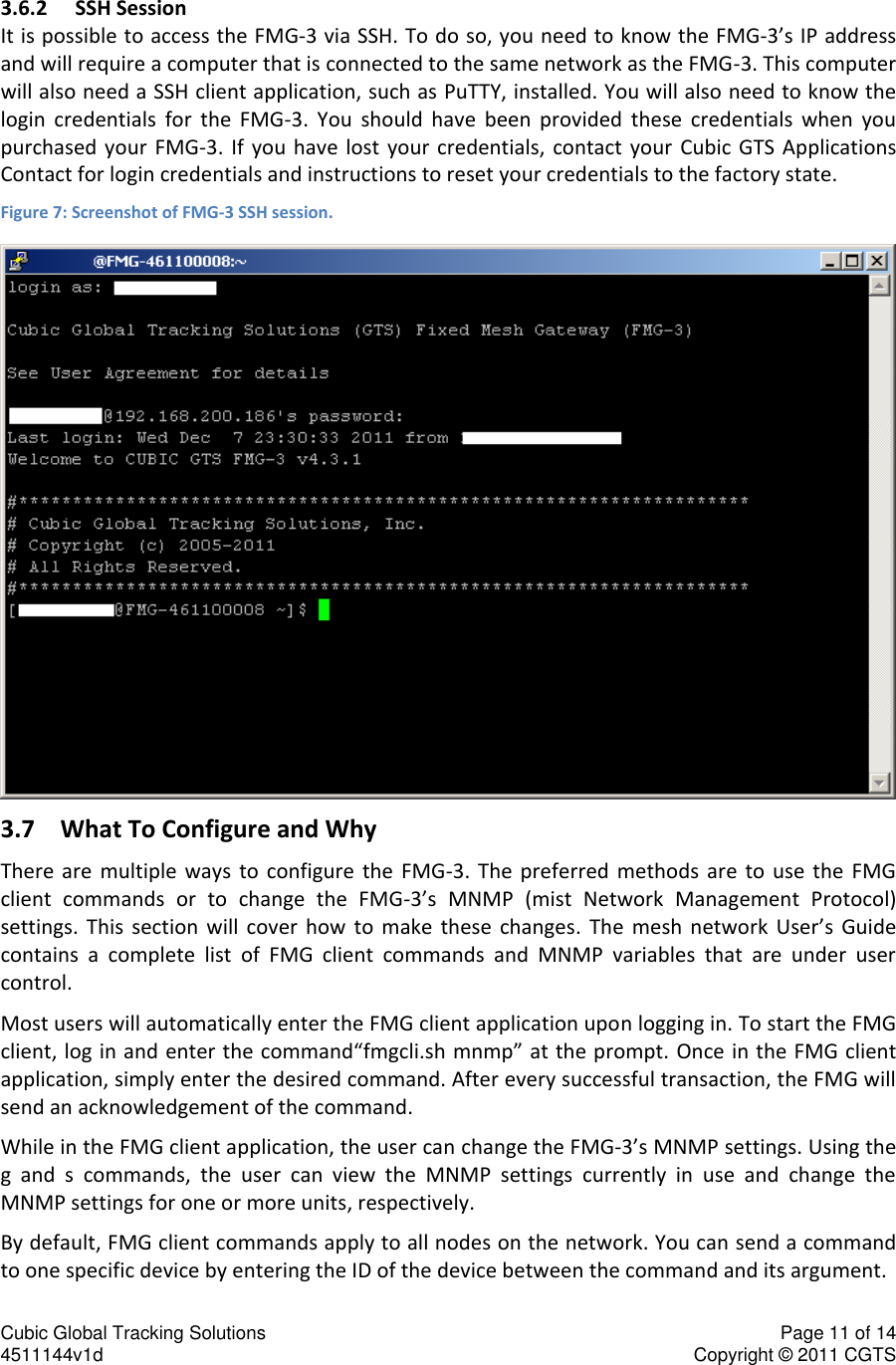
Cubic Global Tracking Solutions    Page 10 of 14  4511144v1d                      Copyright © 2011 CGTS             3.4 Mounting The FMG-3 is supplied with a universal mounting bracket that supports pole, fence or wall mounting. The FMG-3 should be mounted so that the antenna is at least 6 inches from nearby metal. The exception to this is if the FMG-3 is being mounted to a metal wall.  3.5 FMG-3 Accounts There are three accounts on the FMG: fmgcli, installer and root. The fmgcli account is intended for normal, day to day usage of the FMG. The fmgcli account cannot switch user roles or execute any privileged commands except restarting the FMG application. The fmgcli account can edit the FMG mesh settings. The installer account is used for installing the FMG. The installer account and switch user roles to root and can execute some privileged commands. The installer account cannot perform Ethernet network administration actions. The root account cannot be directly logged into. The installer account must be used for the initial log in and then an su command used to switch to the root user account. This supports a three tiered access control scheme. Normal users can access the FMG to perform normal activity. Mesh related configuration activity is performed using the installer account. And Ethernet network administration, OS updates, patches and so forth are performed using the root account. 3.6 Configuring the FMG-3 The FMG-3 can be configured through the Console Port or via SSH.  3.6.1 Console Port The  Console  port  is  accessed  through  J3  of  the  FMG-3  and  allows  the  user  to  communicate directly to the OS of the FMG-3 via Hyperterminal or similar serial access program. The Console port’s primary purpose is to configure the FMG-3 at manufacturing. In rev <TBD> and later FMG-3s, the Console port is disabled before the unit is shipped. If the user requires Console access, contact your Cubic GTS Applications Contact for login credentials and instructions to re-enable the Console port. Figure 6: The FMG-3’s front connectors  Console Port (P3) Ethernet Port (P1)
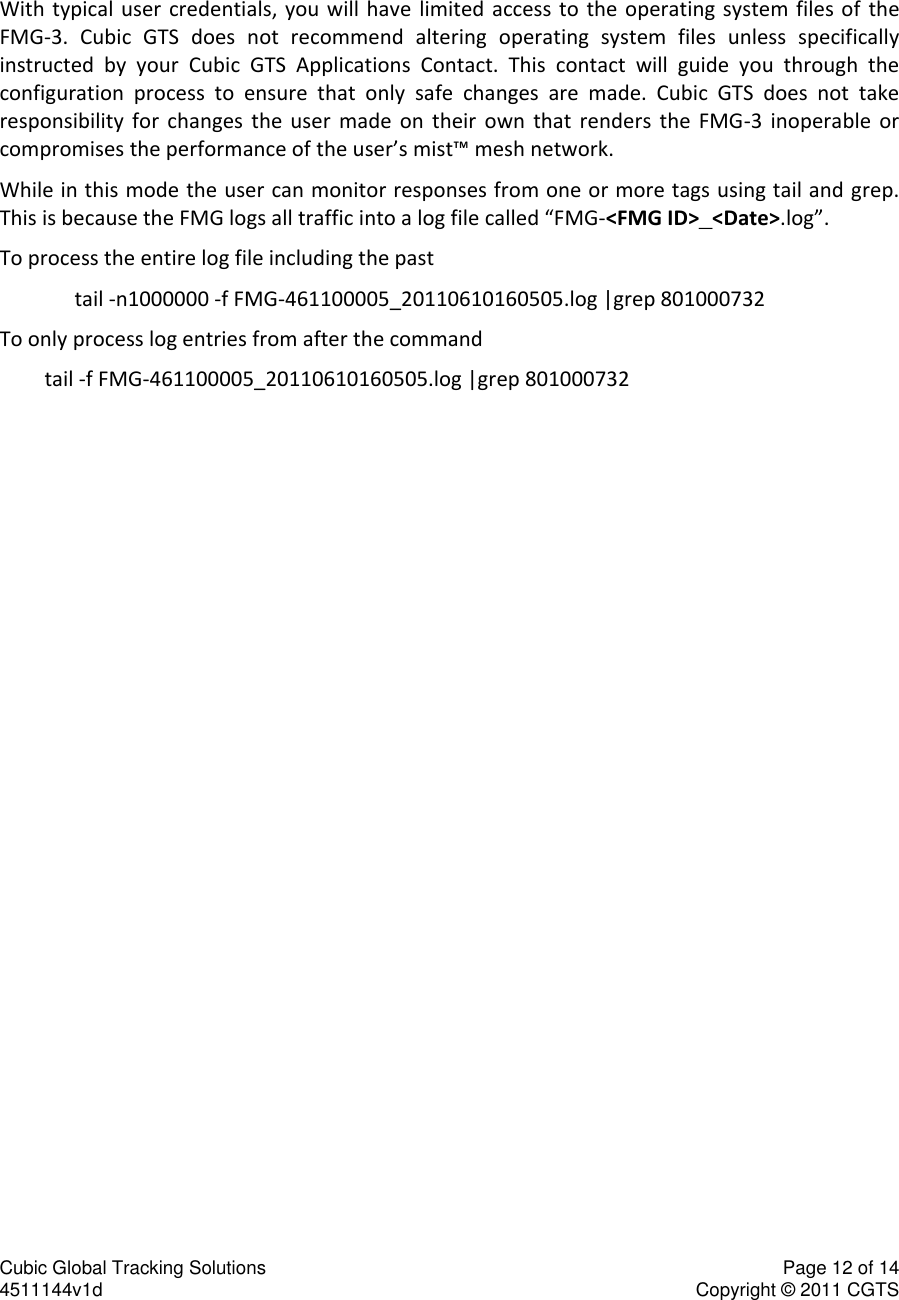
Cubic Global Tracking Solutions    Page 11 of 14  4511144v1d                      Copyright © 2011 CGTS             3.6.2 SSH Session It is possible to access the FMG-3 via SSH. To do so, you need to know the FMG-3’s IP address and will require a computer that is connected to the same network as the FMG-3. This computer will also need a SSH client application, such as PuTTY, installed. You will also need to know the login  credentials  for  the  FMG-3.  You  should  have  been  provided  these  credentials  when  you purchased  your  FMG-3.  If  you have  lost  your  credentials,  contact your  Cubic  GTS  Applications Contact for login credentials and instructions to reset your credentials to the factory state. Figure 7: Screenshot of FMG-3 SSH session.  3.7 What To Configure and Why There  are  multiple  ways  to  configure  the  FMG-3.  The  preferred  methods  are  to  use  the  FMG client  commands  or  to  change  the  FMG-3’s  MNMP  (mist  Network  Management  Protocol) settings.  This  section  will  cover  how  to  make  these  changes.  The  mesh  network  User’s  Guide contains  a  complete  list  of  FMG  client  commands  and  MNMP  variables  that  are  under  user control. Most users will automatically enter the FMG client application upon logging in. To start the FMG client, log in and enter the command“fmgcli.sh mnmp” at the prompt. Once in the FMG client application, simply enter the desired command. After every successful transaction, the FMG will send an acknowledgement of the command. While in the FMG client application, the user can change the FMG-3’s MNMP settings. Using the g  and  s  commands,  the  user  can  view  the  MNMP  settings  currently  in  use  and  change  the MNMP settings for one or more units, respectively. By default, FMG client commands apply to all nodes on the network. You can send a command to one specific device by entering the ID of the device between the command and its argument.
Cubic Global Tracking Solutions    Page 12 of 14  4511144v1d                      Copyright © 2011 CGTS               With typical user credentials,  you  will  have  limited  access  to  the  operating system files of  the FMG-3.  Cubic  GTS  does  not  recommend  altering  operating  system  files  unless  specifically instructed  by  your  Cubic  GTS  Applications  Contact.  This  contact  will  guide  you  through  the configuration  process  to  ensure  that  only  safe  changes  are  made.  Cubic  GTS  does  not  take responsibility  for  changes  the  user  made  on  their  own  that  renders  the  FMG-3  inoperable  or compromises the performance of the user’s mist™ mesh network. While in this mode the user can monitor responses from one or more tags using tail and grep. This is because the FMG logs all traffic into a log file called “FMG-<FMG ID>_<Date>.log”.  To process the entire log file including the past tail -n1000000 -f FMG-461100005_20110610160505.log |grep 801000732  To only process log entries from after the command  tail -f FMG-461100005_20110610160505.log |grep 801000732
Cubic Global Tracking Solutions    Page 13 of 14  4511144v1d                      Copyright © 2011 CGTS             Appendix A: Specifications  Physical  Dimensions .......................................................................  200mm x 140mm x 43mm  Weight ..............................................................................  1.6kg  Operating Temperature ...................................................  0°C to 50°C  Vibration ...........................................................................  6Grms, all axis      ............................................................................. SAE J1455  Ingress Protection Rating .................................................  IP67 Interfaces  Ethernet ............................................................................  10/100Base-T  Serial Console ...................................................................  Cisco console interface   Antenna ............................................................................  Reverse-Polarity N-Type Mesh Network  Operating Frequency ........................................................  2.4GHz – 2.4835GHz  Encryption ........................................................................  AES-128/CCM  Max. Output Power ..........................................................  +4dBm  Sensitivity ......................................................................... -98dBm  Mesh Population ..............................................................  1,000 (recommended)
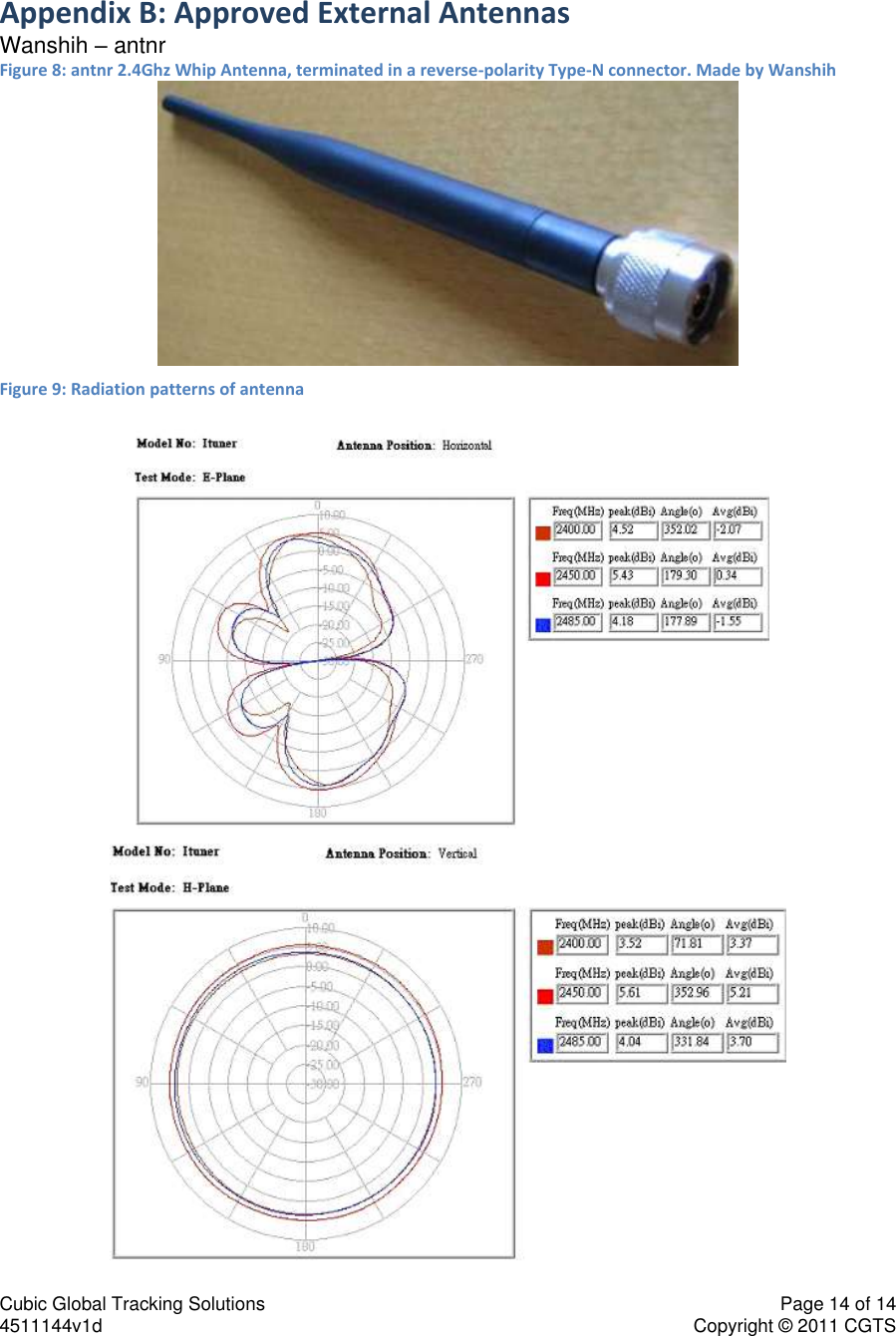
Cubic Global Tracking Solutions    Page 14 of 14  4511144v1d                      Copyright © 2011 CGTS             Appendix B: Approved External Antennas Wanshih – antnr Figure 8: antnr 2.4Ghz Whip Antenna, terminated in a reverse-polarity Type-N connector. Made by Wanshih  Figure 9: Radiation patterns of antenna

Navigation menu