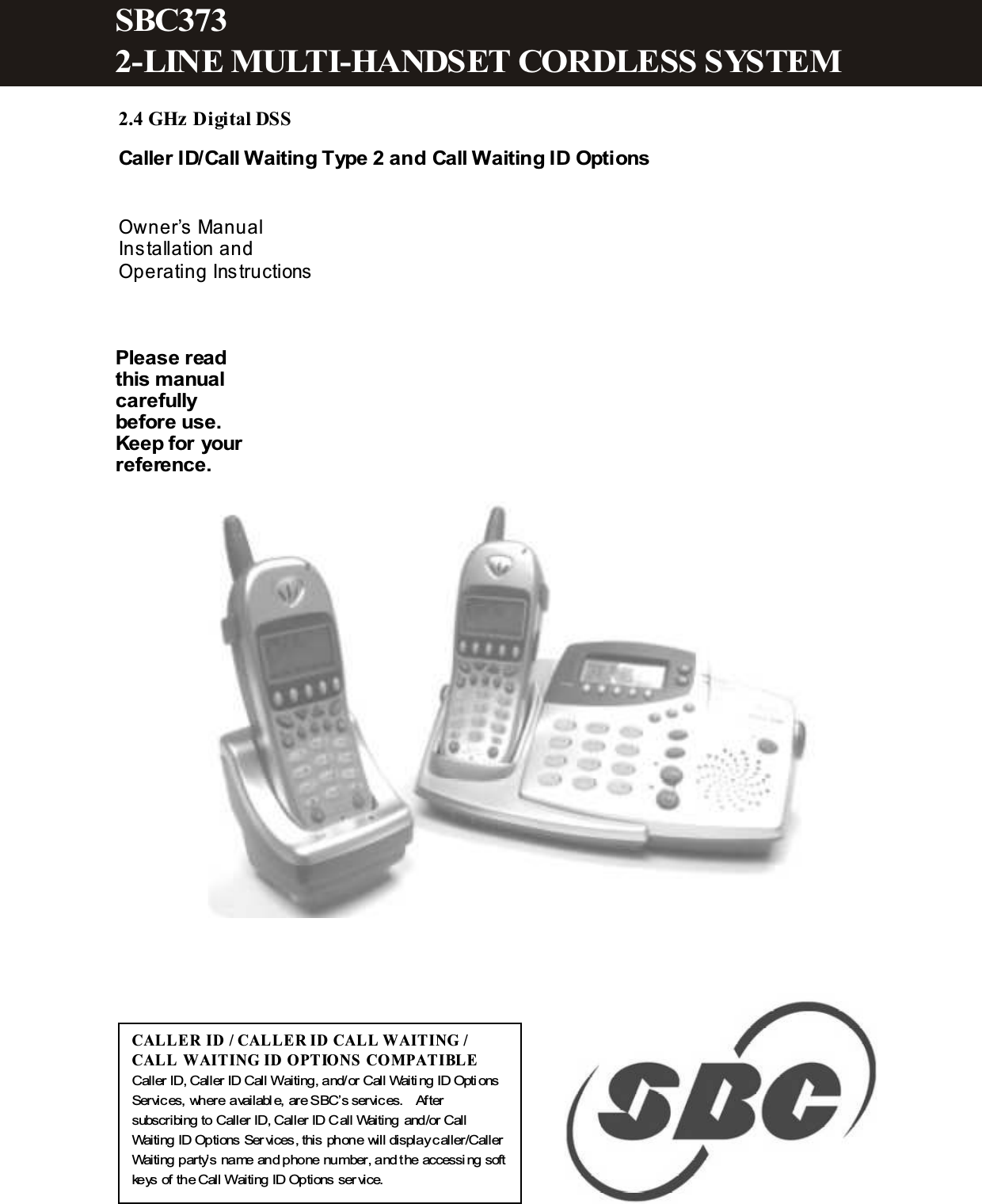
Cybiotronics 373001 2.4GHz 92 Channel DSSS Cordless Phone w/ CID User Manual CY373D SBC 200410142
Cybiotronics Limited 2.4GHz 92 Channel DSSS Cordless Phone w/ CID CY373D SBC 200410142
UserManual.wiki
>
Cybiotronics
>
373001 User Manual
>
User Manual
Contents
1.
User Manual
2.
FCC Information
User Manual
Navigation menu
Upload a User Manual
Namespaces
Wiki Guide
HTML
PDF
Info
Views
User Manual
Discussion / Help
Navigation
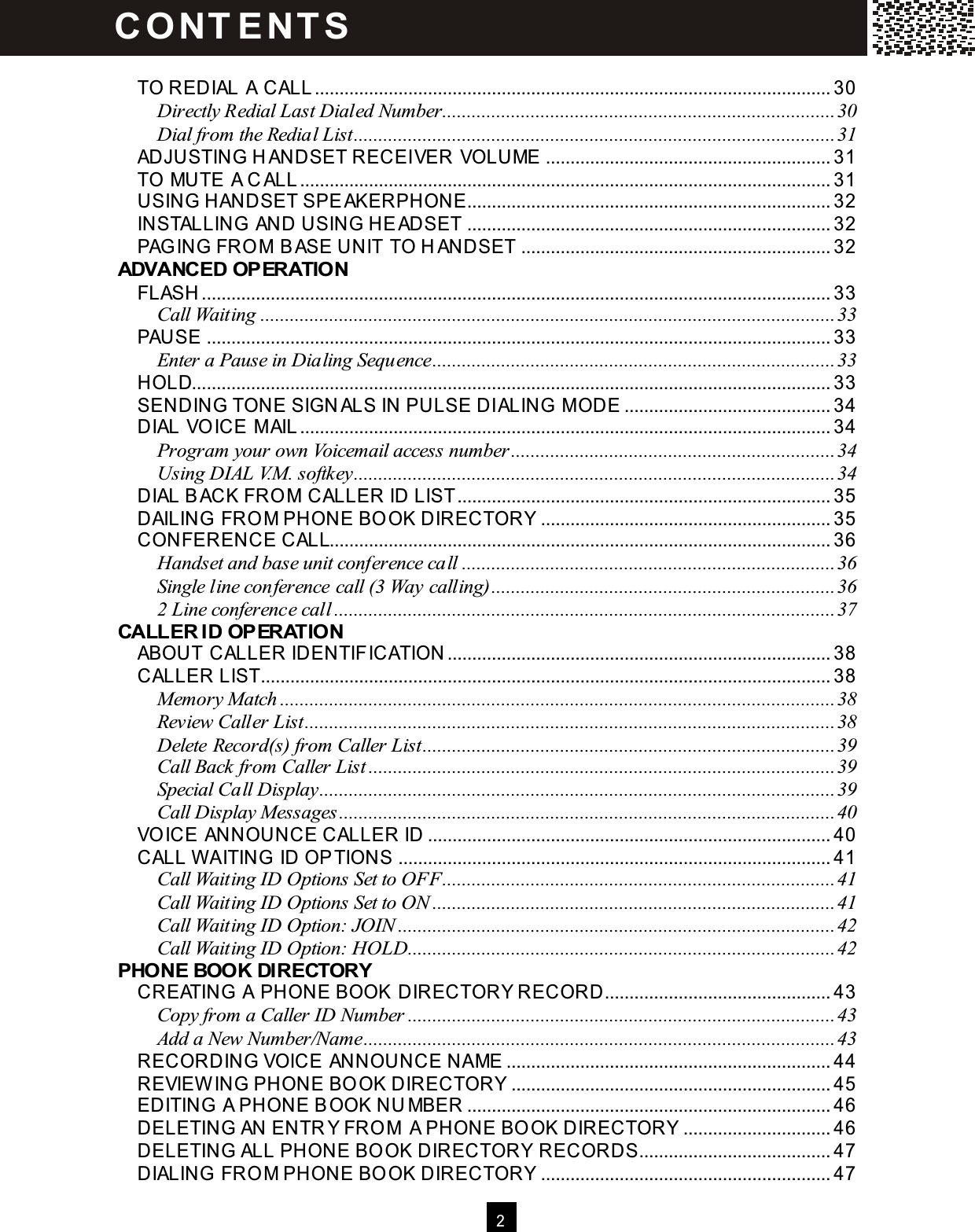
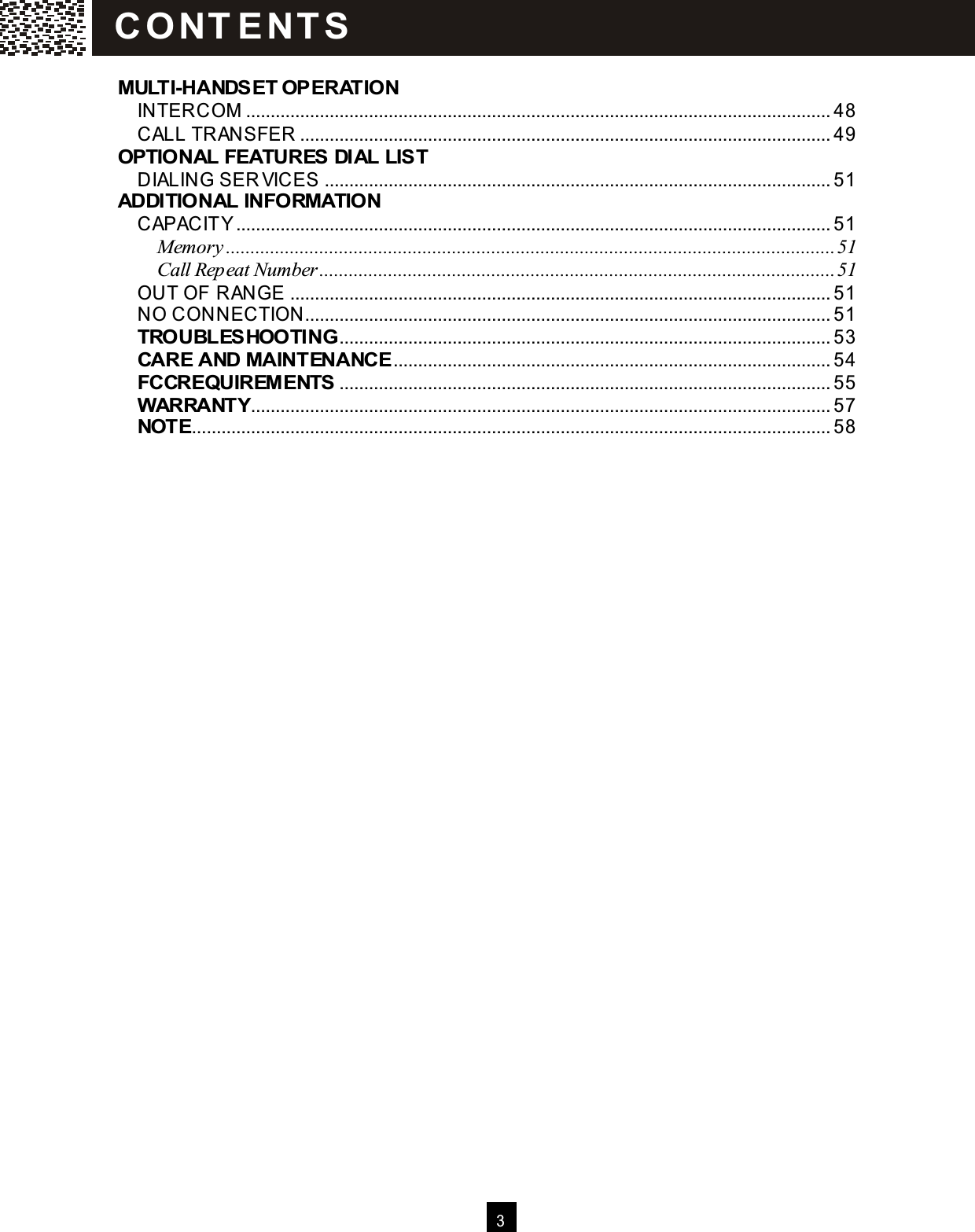
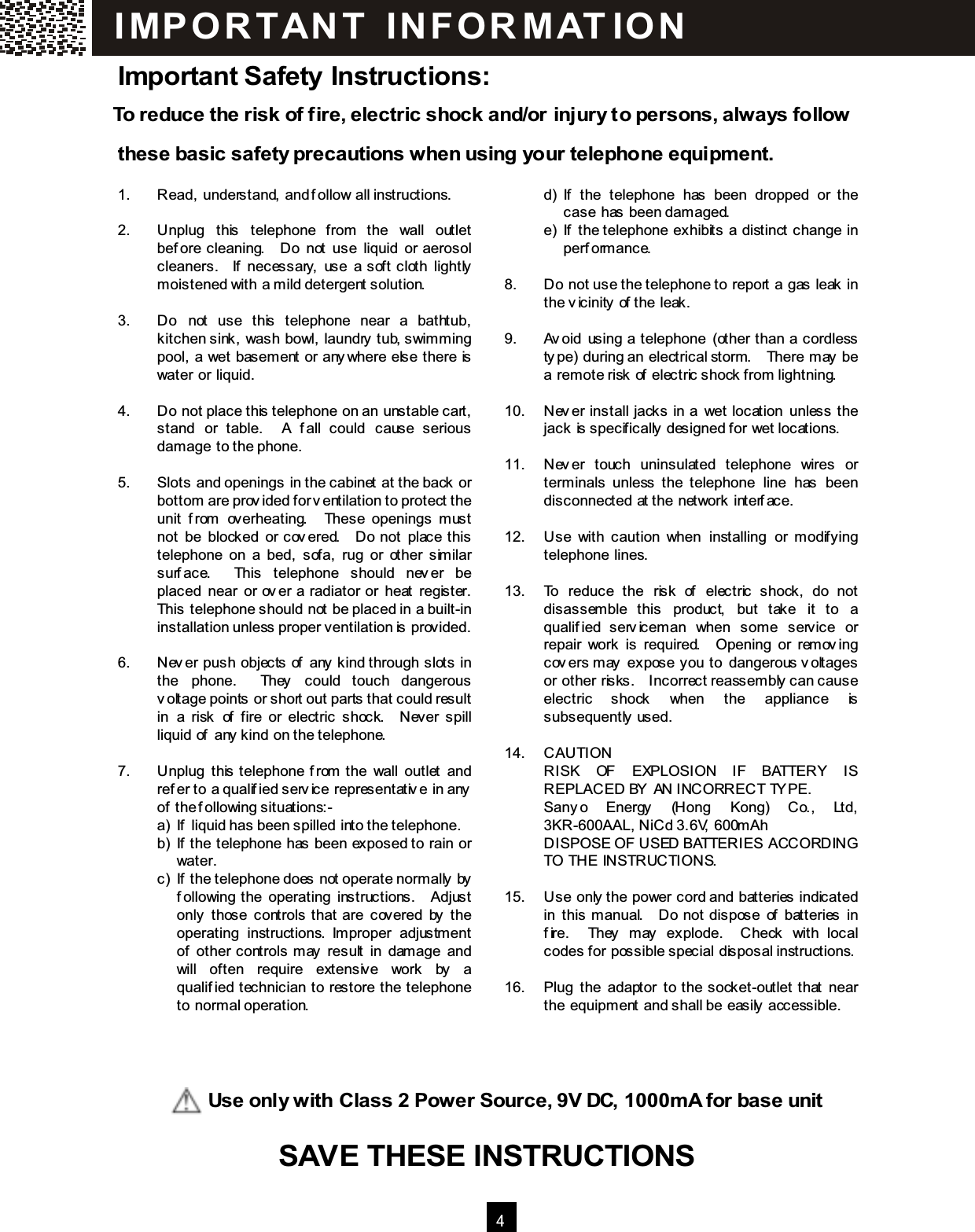
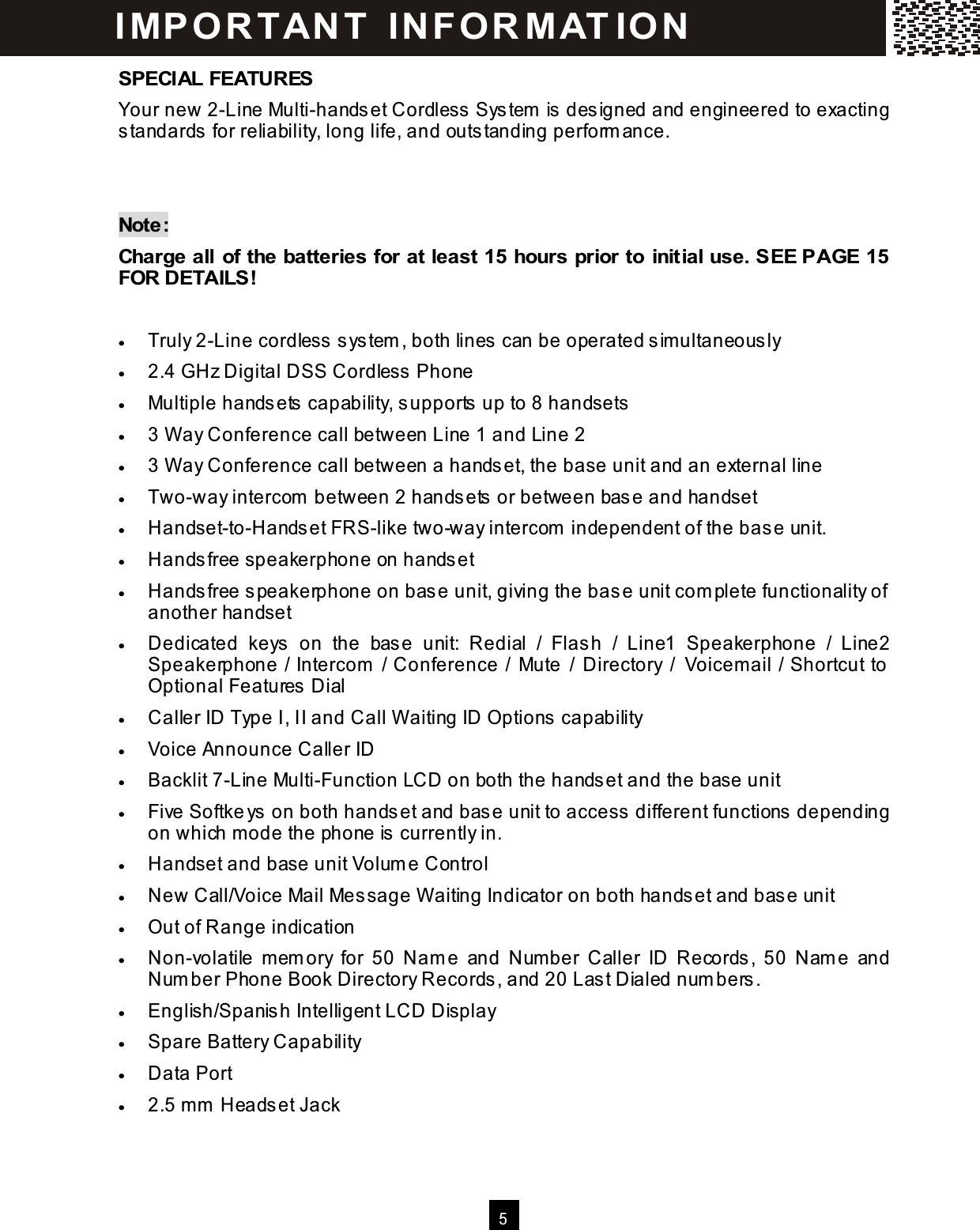
![7 LOCATION OF CONTROLS Handset Message W aiting /New Call Indicator (a) Flash rapidly when ringing. (b) Flash regularly if you have m essage in your voicem ail or new Caller ID in Call Log. (c) Light when the handset is in use. Speakerphone Indicator Light when speakerphone is in use. Headset Jack The headset jack allows the use of a headset with a standard 2.5mm plug. Line 1 / Line 2 Key Allow you to access the telephone line. Scroll Keys [▼] / [▲] (a) W hile on a call, press [▼ ] / [▲ ] to adjust the volum e. (b) During standby, press [▼ ] / [▲ ] to scroll through Menu options; access Caller ID Records, Phonebook Directory Records and Redial List. Speakerphone Key [Spk.] Press to turn on the handsfree speakerphone and dial the num ber on the display. You are still required to press [Bye] to end your call. Receiver Antenna M essage W aiting / New Call Indicator Display Softkeys Speakerphone Headset Jack Battery Cover Line 1 Key Line 2 Key Scroll Keys Dial 7 / M ute Key Speakerphone Indicator Speakerphone Key Conference Key Intercom . Key M icrophone Dial Pad Bye Key Dial 10 / Redial / Pause Key Dial 11 / Flash Key Belt Clip I MP O R T AN T IN FO R MAT IO N](https://usermanual.wiki/Cybiotronics/373001.User-Manual/User-Guide-555026-Page-8.png)
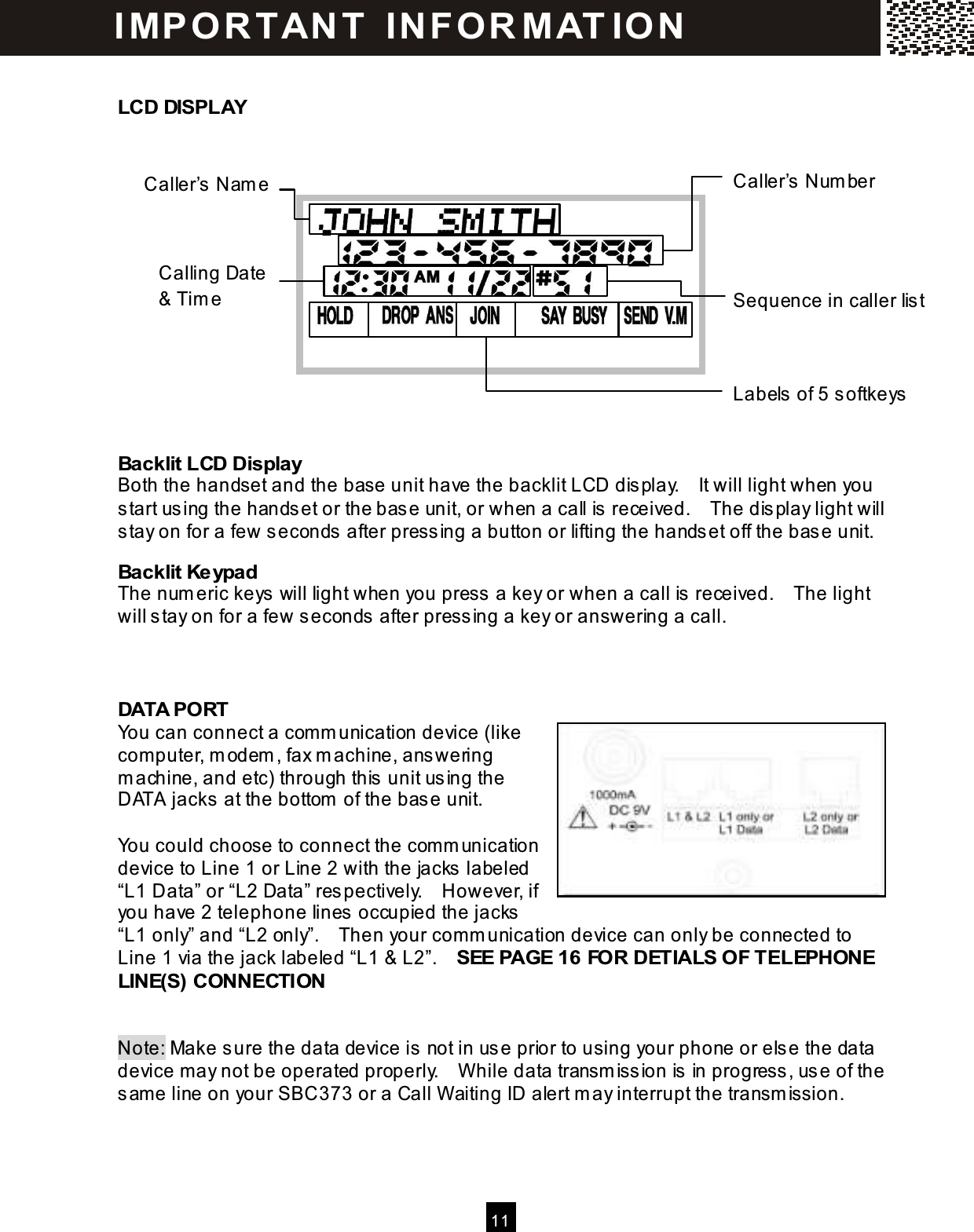
![8 Bye key To end a call Dial 7 / Mute Key (a) W hile reviewing the Call ID Record, press [Dial 7] and then a LINE key to Call Back in 7-digit form at. (b) W hile on a call, press [Mute] to m ute the m icrophone for privacy. Dial 10 / Redial / Pause Key (a) W hile reviewing the Call ID Record, press [Dial 10] and then a LINE key to Call Back in 10-digit form at. (b) W hile off-hook, press [Redial] to recall and dial the last phone num ber dialed. (c) W hile on-hook, press [Redial] to access the Redial List. Using [▼ ] or [▲ ] to select the desired num ber and press a LINE key or [Spk.] to dial it. (d) Press the key during Pre-dial or Phone book directory num ber entry will enter a 3-second pause into a dialing sequence, indicated by “P”. Dial 11 / Flash Key (a) W hile reviewing the Call ID Record, press [Dial 11] and then a LINE key to Call Back in 11-digit form at. (b) The [Flash] key is used to access telephone com pany services such as Call Waiting. Dial Pad The num eric keys are used in the conventional m anner for dialling. Intercom Key [Int.] During standby, press the key to activate the intercom function between handsets or between handset and base unit, answer a paging call, or term inate an intercom call. W hile on a line, press the key to transfer the call to a particular handset or the base. Conference Key [Conf.] Press to start conference call between Line 1 and Line 2. 5 Softkeys These softkeys are used to select functions displayed directly above the keys. Functions displayed above the keys will change depending on the m ode of operation. For exam ple, on the display below, [SAVE], [M ENU], [SER VICE], [DIR.] & [DIAL V.M.] are displayed above the sofkeys. To operate the phone book directory, press the second softkey from the right-hand-side. I MP O R T AN T IN FO R MAT IO N e.g. Press this softkey will enter into phone book directory](https://usermanual.wiki/Cybiotronics/373001.User-Manual/User-Guide-555026-Page-9.png)
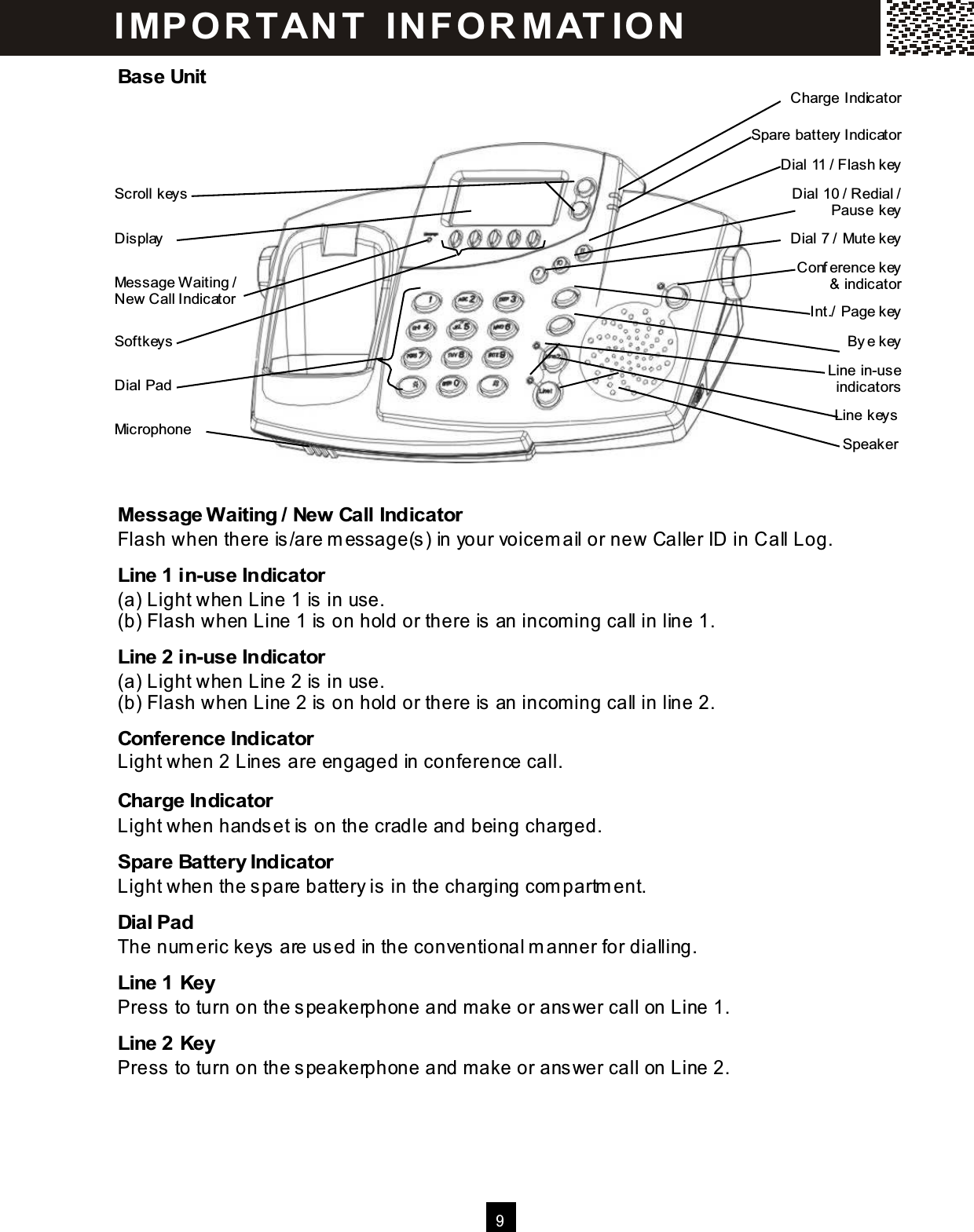
![10 Scroll Keys [▼] / [▲] (a) W hile on a call, press [▼ ] / [▲ ] to adjust the volum e. (b) During standby, press [▼ ] / [▲ ] to scroll through Menu; access Caller ID Records, Phonebook Directory Records and Redial List. Dial 7 / Mute Key (a) W hile reviewing the Caller ID Record, press [Dial 7] and then a LINE key to Call Back in 7-digit form at. (b) W hile off-hook, press [Mute] to m ute the m icrophone for privacy. Dial 10 / Redial / Pause Key (a) W hile reviewing the Caller ID Record, press [Dial 10] and then a LINE key to Call Back in 10-digit form at. (b) W hile off-hook, press [Redial] to recall and dial the last num ber dialed. (c) W hile on-hook, press [Redial] to access the Redial List. Using [▼ ] / [▲ ] scroll keys to select the desired num ber and press [Line1] or [Line2] to dial it. (d) Press the key during Pre-dial or Phone book directory num ber entry to insert a 3-second pause into the dialing sequence, indicated by “P”. Dial 11 / Flash Key (a) W hile reviewing the Caller ID Record, press [Dial 11] and then a LINE key to Call Back in 11-digit form at. (b) The [Flash] key is used to access telephone com pany services such as Call Waiting. Intercom / Page Key [Int./Page] (a) During standby, press the [Int./Page] key to page handset (1-8, or # for all handsets) or activate the intercom function between base and handset, answer or term inate an intercom call. (b) W hile on an external line, press the [Int./Page] key to transfer the call to a particular handset. Conference Key Press to start conference call between Line 1 and Line 2. Bye key To end a call 5 Softkeys Depending on the m ode of operation, the corresponding functions of the 5 Softkeys are displayed on the screen. Please refer to the figure on page 7 for detailed descriptions. I MP O R T AN T IN FO R MAT IO N](https://usermanual.wiki/Cybiotronics/373001.User-Manual/User-Guide-555026-Page-11.png)
![12 QUICK REFERENCE Task Steps Page 1 Adjust receiver / Speakerphone volum e The handset and the base unit have 4 volum e levels adjustable during off hook. Press [▼ ] / [▲ ] to adjust during a call. 30 2 Making a call 1. Press [Line1] or [Line2] or [Spk.] on the handset or press [Line1] or [Line2] on the base unit and listen for a dial tone. * ([Line1] or [Line2] will be collectively referred as a LINE key throughout this m anual) 2. Dial num ber (For m em ory dial feature, see related reference.) 3. To hang up, press [Bye] on the handset or base unit or return the handset to charge cradle. 28 3 Answering a call Auto-answer is the default m ode setting of the phone: If the handset is on the charge cradle, just lift the handset and the line is autom atically connected. If the phone is set to Manual-answer m ode, or whenever the handset is not on the charge cradle, to answer a call: 1. Press a LINE key or [Spk.] on the handset or press a LINE key on the base unit corresponding to the line num ber flashing on the display to pick up a call 2. To hang up, press [Bye] on the handset or base unit or return the handset to charge cradle. 29 4 Last num ber redial 1. Press a LINE key and listen for dial tone. 2. Press [Redial] to dial the last dialed num ber. 29 I MP O R T AN T IN FO R MAT IO N](https://usermanual.wiki/Cybiotronics/373001.User-Manual/User-Guide-555026-Page-13.png)
![13 QUICK REFERENCE Task Steps Page 5 Dial from the Redial List 1. Press [Redial]. 2. Use [▼ ] / [▲ ] scroll keys to access desired num ber from the list of up to 20 last dialed numbers. 3. Press a LINE key to dial the num ber. 30 6 Review Caller List Use [▼ ] / [▲ ] scroll keys to review caller’s inform ation during standby m ode. 36 7 Call back a num ber in Caller List 1. Scroll to a desired record in Caller List. 2. If the num ber displayed is not in the desired dialing pattern, press [Dial7], [Dial10] or [Dial11] to select the num ber of digits to dial first. 3. Press a LINE key to dial the num ber. 37 8 Store Caller ID num ber into Phone Book Directory 1. Scroll to the desired Caller ID number. 2. Press [SAVE] softkey to store the num ber into Phone Book Directory. 36 9 Manually add a new num ber into Phone Book Directory 1. Press [DIR.] softkey. 2. Press [SAVE] softkey and then key-in the num ber. 3. Press [O.K.] softkey and key-in the nam e. 4. Press [SAVE] softkey to store. 41 10 Dial from Phone Book Directory 1. Press [DIR.] softkey. 2. Use [▼ ] / [▲ ] scroll keys to find the desired directory record. 3. If the num ber displayed is not in the desired dialing pattern, press [Dial7], [Dial10] or [Dial11] to select the num ber of digits to dial first. 4. Press a desired LINE key to dial the num ber 45 11 Switch to a waiting call Press [Flash] to put the talking party on hold and talk to the waiting party. If Call W aiting ID OPTION is subscribed, m ore options are available. 32 39 I MP O R T AN T IN FO R MAT IO N](https://usermanual.wiki/Cybiotronics/373001.User-Manual/User-Guide-555026-Page-14.png)
![14 QUICK REFERENCE Task Steps Page 12 Page from base to handset(s) 1. Press [Int./Page]. 2. Press the desired handset num ber [1] to [8] or [] / [#] for all handsets. 3. To term inate the paging, press [EXIT] softkey or [Int./Page] or [Bye] key. 31 13 Intercom call between two handsets 1. Press [Int.]. 2. Press the desired handset num ber. 3. To term inate the paging, press [EXIT] softkey or [Int./Page] or [Bye] key. 46 14 Intercom call from a handset to the base unit 1. Press [Int.] 2. Press [0] to access the base unit. 3. To term inate the paging, press [EXIT] softkey or [Int./Page] or [Bye] key. 46 15 Call Transfer 1. Press [Int.] on handset or [Int./Page] on base unit while engaging in an external line. 2. Press the desired handset num ber or press [0] for the base unit. 3. Press corresponding LINE key on handset or on the base unit to take back the call at any point, or the call will be returned to you if it is not answered within 20 seconds. 47 16 Truly 2-line conference call 1. W hile m aking or answering a call on Line1 or Line2 2. Press [HOLD] softkey either on the handset or the base unit to put the call on hold 3. Make or answer a second call on the other line 4. After the second call is connected, press [Conf.] / [Conference] to add the first caller into the conference call 5. To end the conference call, press a LINE key to retain the party on that line and drop the other one, or just press [Bye] to end both lines. 35 I MP O R T AN T IN FO R MAT IO N](https://usermanual.wiki/Cybiotronics/373001.User-Manual/User-Guide-555026-Page-15.png)
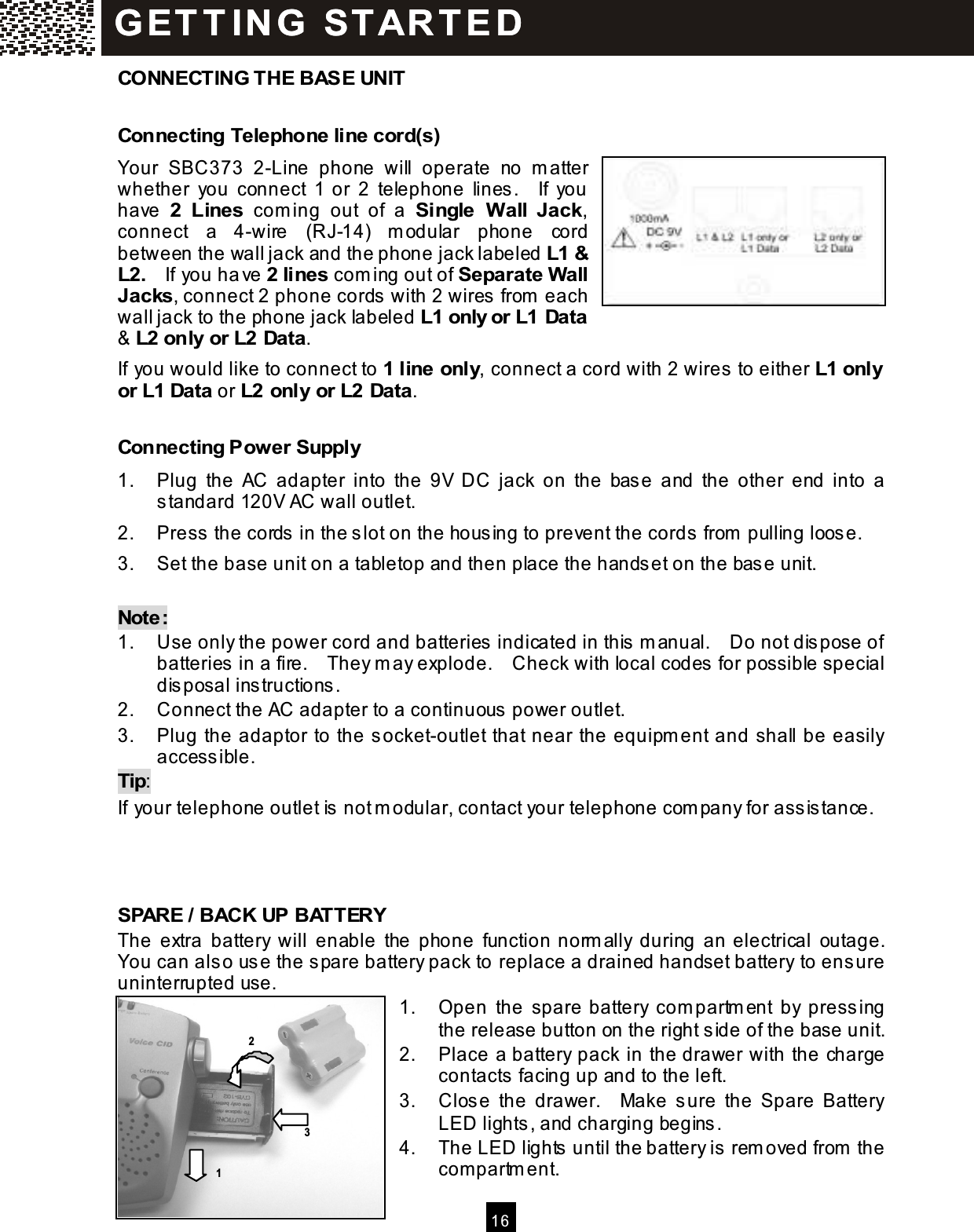
![17 Changing drained handset battery in the m iddle of a call W hen the handset displays “LOW BATTERY” or “RETURN TO BASE” in the m iddle of a telephone call, you can swap the call to the base unit speakerphone first and then change the handset battery following these sim ple steps: 1. Press the LINE key with the In-use indicator lit on the base unit. The call is then transferred to a 3-way call conference between the handset, the base unit and the external party. 2. Press the [Bye] key on the handset; the call will be totally swapped from the handset to the base unit speakerphone. 3. Take out the spare battery from the base unit battery compartment and replace it to the handset. 4. Press the LINE key (the in-use line) on the handset and press the [Bye] key on the base unit to swap the call back to the handset. Note: Make sure the drained battery is put in the base unit battery com partm ent to be re-charged. REGISTRATION & DE-REGISTRATION OF HANDSET The first registered handset will be autom atically assigned as HS-1 to the base unit. W hen additional handsets are registered to the system , they will be assigned extension num bers in the following sequence: HS-2, HS-3, and up to HS-8. On the Base Unit: Press [MENU] and “REGISTRATION” appears on the display. Press [O.K.] and “W AITING REGISTER” is displayed. You are now ready to register your handset. Note: The base unit will return to standby m ode if no handset registration takes place within 25 seconds. REGISTRATION O.K. EXIT WAITING REGISTER EXIT G ET T IN G STAR T E D 1 2 3 4](https://usermanual.wiki/Cybiotronics/373001.User-Manual/User-Guide-555026-Page-18.png)
![1 8 On the Handset: After the handset is charged, rem ove it from the base unit or charge cradle. “HS_ _” is displayed Press [MENU] and “REGISTRATION” appears on the display. Press [O.K.] and select “ADD A H ANDSET?”. Press [O.K.] to register and “CONNECTING” is displayed for 1 to 2 seconds. If the handset displays “REG OK NEW ID=1”, the connection with the base unit is established. If the handset displays “NO CONNECTION”, repeat the previous steps. The handset will return to “REGISTRATION” after 2 seconds. Press [EXIT] to end the registration. De-register a handset If you want to de-register a registered handset from the base unit, get the base unit into REGISTRATION m enu and displays “W AITING REGISTER” first. (see page 17). On the Handset: Press [MENU] and “REGISTRATION” appears on the display. NO NEW CALL HS_ _ 10:00AM 1/01 SAVE SERVICE MENU DIR. DIAL V.M. REGISTRATION HS_ _ O.K. EXIT ADD A HANDSET? O.K. EXIT REG OK NEW ID=1 NO NEW CALL HS-1 10:00AM 1/01 SAVE SERVICE MENU DIR. DIAL V.M. REGISTRATION HS - 2 O.K. EXIT G ET T IN G STAR T E D](https://usermanual.wiki/Cybiotronics/373001.User-Manual/User-Guide-555026-Page-19.png)
![1 9 Press [OK] to enter Registration menu. Using [▼ ] / [▲ ] to select “DEL HANDSET?”. Press [O.K.] to de-register and “CONNECTING … ” then “UNREGISTERED’ is displayed for 1 to 2 seconds. If the handset displays “REGISTRATION” and “HS_ _”, the handset is disconnected from the base unit. If the handset displays “NO CONNECTION”, repeat the previous steps. CHOOSE THE DIALING MODE If your hom e is equipped with a touchtone dialing system , the phone will be ready to use as soon as the battery is charged. If you have a pulse (rotary) dialing system , you will need to set the dialing m ode as follows: Press [MENU] and “REGISTRATION” appears on the display. Using [▼ ] / [▲ ] to access “DIAL M ODE”. Press [OK] to enter Dial m ode menu. Using [▼ ] / [▲ ] to select “PULSE MODE”. Press [SAVE] to confirm . The display will return to “DIAL MODE”, press [EXIT] to return to standby. You are now ready to use your new telephone DEL HANDSET? O.K. EXIT REGISTRATION HS_ _ O.K. EXIT REGISTRATION HS_ _ O.K. EXIT DIAL MODE O.K. EXIT PULSE MODE EXIT SAVED! SAVE G ET T IN G STAR T E D](https://usermanual.wiki/Cybiotronics/373001.User-Manual/User-Guide-555026-Page-20.png)
![2 1 The phone offers an extensive range of functions which are grouped in m enus. You can custom ize your phone by pressing the Menu key and using [▼ ] / [▲ ] scroll keys to scroll through the options. M E N U S E T T IN G S](https://usermanual.wiki/Cybiotronics/373001.User-Manual/User-Guide-555026-Page-22.png)
![2 2 STRUCTURE AND OPTIONS The m enu settings have two levels. There are twelve item s on the handset and on the base unit respectively in the first level and the num ber of item s in the second level depends on the first level menu. Note: The settings are independent on the base unit and each handset. MENU FUNCTIONS Registration You m ust first set the base unit to registration m ode prior to adding or deleting handsets. Sim ply press [MENU] on the base unit to select “Registration” then press [O.K.] to confirm . (refer to page 17) The base unit will return to standby m ode if no handset registration takes place within 25 seconds. To add a handset to a desired base Press [MENU] on the handset during standby. Using [▼ ] / [▲ ] to select “REGISTRATION”. Press [O.K.] to enter into the selection. In the second level, using [▼ ] / [▲ ] to access “ADD A HANDSET?” Follow the steps of REGISTRATION OF HANDSET in GETTING STARTED. Note: If a new base is selected, the original registration will be replaced by the new registration. To delete a handset from the base In the second level, using [▼ ] / [▲ ] to select “DEL HANDSET?”. Press [O.K.] to de-register the handset. “UNREGISTERED!” appears on the display to confirm handset de-registration. The handset returns to “REGISTRATION” after 2 seconds. Press [EXIT] to return and “HS_ _” is displayed. REGISTRATION HS_ _ O.K. EXIT ADD A HANDSET? O.K. EXIT DEL HANDSET? O.K. EXIT UNREGISTERED! M E N U S E T T IN G S](https://usermanual.wiki/Cybiotronics/373001.User-Manual/User-Guide-555026-Page-23.png)
![2 3 To delete all handsets from the base In the second level, using [▼ ] / [▲ ] to select “DEL ALL HANDSET”. Press [O.K.] to de-register all handsets from the base. “DEL ALL HS OK!” appears on the display to confirm global de-registration. The handset returns to “REGISTRATION” after 2 seconds. Press [EXIT] to return and “HS_ _” is displayed. Note: In case of registration failure or “REG FAIL ID FULL” is displayed when registering, sim ply delete all handsets from the base and restart the registration of handsets. Dial M ode Press [MENU]. Using [▼ ] / [▲ ] to select “DIAL MODE”. Press [O.K.] to enter into the selection. Using [▼ ] / [▲ ] to select the desired dial m ode, then press [SAVE] to confirm . Press [EXIT] to return to stand-by. Language Press [MENU]. Using [▼ ] / [▲ ] to select “LANGUAGE”. Press [O.K.] to enter into the selection. DEL ALL HANDSET O.K. EXIT DEL ALL HS OK! DIAL MODE O.K. EXIT TONE MODE EXIT SAVE LANGUAGE O.K. EXIT ME N U S E T T IN G S](https://usermanual.wiki/Cybiotronics/373001.User-Manual/User-Guide-555026-Page-24.png)
![2 4 Using [▼ ] / [▲ ] to select the desired language, then press [SAVE] to confirm . Press [EXIT] to return to stand-by. Ringer Volume Press [MENU]. Using [▼ ] / [▲ ] to access “RINGER VOLUME”. Press [O.K.] to enter and the current ringer volum e will be displayed. Using [▼ ] / [▲ ] to adjust ringer volum e. The ringer will be ringed with the corresponding volum e level as shown in the LCD display for a few seconds. Press [SAVE] to confirm , and then press [EXIT] to return to stand-by. Note: There are (00 - 08) nine levels of ringer volum e. If the ringer volum e is off, the handset will display the icon and the LED will blink while receiving a call. The handset will ring ONLY with intercom call from base unit or other handsets. Answer Mode (Only available in handset m enu) Press [MENU]. Using [▼ ] / [▲ ] to select “ANSW ER M ODE”. Press [O.K.] to enter into the selection. ENGLISH? EXIT SAVE RINGER VOLUME O.K. EXIT LEVEL:06 EXIT SAVE LEVEL:00 EXIT SAVE ANSWER MODE O.K. EXIT ME N U S E T T IN G S](https://usermanual.wiki/Cybiotronics/373001.User-Manual/User-Guide-555026-Page-25.png)
![2 5 Using [▼ ] / [▲ ] to select “AUTO MODE” or “M ANU AL MODE”. Press [SAVE] to confirm , and then press [EXIT] to return to stand-by. Contrast Press [MENU]. Using [▼ ] / [▲ ] to access “CONTRAST”. Press [O.K.] to enter into the selection. Using [▼ ] / [▲ ] to adjust the contrast level. Press [SAVE] to confirm , and then press [EXIT] to return to stand-by. Call W aiting ID Options Press [MENU]. Using [▼ ] / [▲ ] to access “CW ID OPTION”. Press [O.K.] to enter into the selection. Using [▼ ] / [▲ ] to switch the Call W aiting ID Options ON or OFF. Press [SAVE] to confirm , and then press [EXIT] to return to stand-by. AUTO MODE EXIT SAVE CONTRAST O.K. EXIT LEVEL:05 EXIT SAVE CW ID OPTION O.K. EXIT OPTION IS ON EXIT SAVE ME N U S E T T IN G S](https://usermanual.wiki/Cybiotronics/373001.User-Manual/User-Guide-555026-Page-26.png)
![2 6 PBX Mode If you are using a PBX (Private Branch Exchange) telephone system , you m ay be required to dial an external access code, such as [8] or [9], prior to reaching an outside line. Follow the steps below and enter that code in the PBX PREFIX field. This code will then be added to all stored numbers upon dialing. Press [MENU]. Using [▼ ] / [▲ ] to access “PBX MODE”. Press [O.K.] to enter into the selection. Using [▼ ] / [▲ ] to select “L1 PBX Prefix” or “L2 PBX Prefix”. Enter the code using num eric keys “0 - 9”. Press [SAVE] to confirm , and then press [EXIT] to return to stand-by. Note: The phone will autom atically screen all Pre-dial numbers prior to dialing if PBX Prefix is set. Enter the access code and the phone num ber you wish to dial, the phone will autom atically insert a ‘pause’ after the first digit when dialing the num ber. On the contrary, if the first digit is not the access code, the system will classify it as an internal call and dial the displayed number only. New Call Lamp The Message W aiting Indicator / New Call Lamp will flash when there is new or unread Caller ID in call log if the lamp is switched on. Press [MENU]. Using [▼ ] / [▲ ] to access “NEW CALL LAMP”. Press [O.K.] to enter into the selection. Using [▼ ] / [▲ ] to switch the New Call Lam p ON or OFF. Press [SAVE] to confirm , and then press [EXIT] to return to stand-by. PBX MODE O.K. EXIT L1 PBX PREFIX:_ EXIT SAVE NEW CALL LAMP O.K. EXIT NEW CL LAMP IS OFF EXIT SAVE ME N U S E T T IN G S](https://usermanual.wiki/Cybiotronics/373001.User-Manual/User-Guide-555026-Page-27.png)
![2 7 Audible Caller ID (Only available in base unit m enu) Press [MENU]. Using [▼ ] / [▲ ] to access “AUDIBLE CID”. Press [O.K.] to enter into the selection. Voice Announce Caller Name (Audible Name) Using [▼ ] / [▲ ] to access “AUDIBLE NAME :”. The default volum e level for Audible Nam e is “3”. Press [0] - [4] to adjust the voice announcem ent to your desired volum e level. Press [SAVE] to confirm and then press [EXIT] to return to stand-by. Voice Announce Caller Number (Audible Number) Using [▼ ] / [▲ ] to access “AUDIBLE NUM :” The default level for Audible Num ber is “0”. Press [0] - [4] to adjust the announcem ent to your desired volum e level. Press [SAVE] to confirm and then press [EXIT] to return to stand-by. Note: W hen the volum e level is set to “0”, the corresponding announcem ent is disabled. The phone will cease to m ake audible announcem ent(s ). Time and Date Setting Press [MENU]. Using [▼ ] / [▲ ] to select “SET DATE/TIME”. Press [O.K.] to enter into the selection. Using [▼ ] / [▲ ] to adjust tim e and date. Press [O.K.] to m ove thru. Hour (12AM – 11PM), Minute, Month and Date. Press [SAVE] to confirm , and then press [EXIT] to return to stand-by. AUDIBLE CID O.K. EXIT AUDIBLE NAME:2 EXIT SAVE AUDIBLE NUM:0 OFF EXIT SAVE SET DATE/TIME 10:05AM 05/03 O.K. EXIT ENTER DATE/TIME: 10:05AM 03/25 O.K. EXIT SAVE ME N U S E T T IN G S](https://usermanual.wiki/Cybiotronics/373001.User-Manual/User-Guide-555026-Page-28.png)
![2 8 Last Call Timer Press [MENU]. Using [▼ ] / [▲ ] to display “LAST CALL TIMER”. You can check the duration of last call. Press [EXIT] to return to stand-by. Message W aiting Lamp This m ode is available only when there is new or non-read m essage in your voicem ail. Press [MENU]. Using [▼ ] / [▲ ] to access “DELETE MESSAGE?” Press [O.K] to enter into the s election. Using [▼ ] / [▲ ] to access “DELETE L1 MESSAGE?” or “DELETE L2 MESSAGE” as desired. Press [O.K.] to delete all m ess ages of the line. The m essage waiting lam p will ceas e flashing when m essages from both lines are cleared. LAST CALL TIMER 00-06-25 EXIT 2 NEW MESSAGES HS-1 10:05AM 05/03 SAVE SERVICE MENU DIR. DIAL V.M. DELETE MESSAGE? O.K. EXIT DELETE L1 MESSAGE O.K. EXIT ME N U S E T T IN G S](https://usermanual.wiki/Cybiotronics/373001.User-Manual/User-Guide-555026-Page-29.png)
![2 9 MAKING A CALL Direct Dial from Handset Press a LINE key and listen for the dial tone. The “In-Use” indicator of the selected line on the base unit will be turned ON. Line num ber will appear on the handset display. Note: If the selected line is engaged by another Handset, “L1 BUSY USE L2?” will appear on the display and the handset will return to stand-by in a few seconds. If the selected line is engaged by the base unit, the phone will enter into Conference Call. (See page 34) — OR — Press [Spk.] and listen for the dial tone. The Speakerphone indicator on the handset and the “Line 1 In-Use” indicator on the base unit will be turned ON. “L1 ON” will appear on the handset display. Note: If both lines are idle, pressing [Spk.] will activate Line 1. If you want to access Line 2, press [Line 2] first and then press [Spk.] If Line 1 is engaged by another handset, “L1 BUSY” will appear on the display for a while and Line 2 will be activated. If Line 1 is engaged by the base unit, the phone will enter into Conference Call. W ith a dial tone, dial the phone num ber. The phone num ber will be shown on the display along with the call tim er. Press [Bye] to end your call. Direct Dial from Base Unit Press an available LINE key and listen for the dial tone. The “In-Use” indicator of the selected line on the base unit will be turned ON. “SPEAKER” and “Line num ber” will appear on the base unit display. Dial the phone num ber. Note: Pressing a line engaged by a handset will enter into Conference Call. L1 ON HOLD SERVICE DIR. DIAL V.M. L1 ON HOLD SERVICE DIR. DIAL V.M. L1 ON 1234567 00:01 HOLD 3W AY SERVICE SPEAKER LINE1 HOLD SERVICE DIR. DIAL V.M. BAS IC O PE RAT IO N](https://usermanual.wiki/Cybiotronics/373001.User-Manual/User-Guide-555026-Page-30.png)
![30 Pre-dial Pre-dial allows you to key-in the phone num ber and verifies it before dialing. Dial the phone num ber. To edit the num ber on the display, press [DELETE] to clear the last digit. To clear the entire num ber, press [EXIT]. Press [Spk.] on the handset or a LINE key on the handset or base unit to dial the num ber. The call tim er will start counting. Press [Bye] on the handset or [Bye] on the base unit to end your call. Note: If one line is engaged by the handset, pre-dial with another line on the Base Unit cannot be used. Only direct dial is possible. ANSW ERING A CALL From the Handset Press the appropriate LINE key as displayed, or [Spk.] to answer. If the phone is set to Auto Answer m ode and the handset is on the charging cradle, you can answer a call by lifting the handset off the base unit, or the charging cradle, without pressing any key. To end the call, press [Bye]. From the Base Unit Press the appropriate LINE key to answer. To end the call, press [Bye]. Note: Two calls can be handled sim ultaneously on separate telephone lines by the handset and the base unit, or by two handsets. TO REDIAL A CALL Directly Redial Last Dialed Num ber Press a LINE key / [Spk.] on the handset or a LINE key on the base unit and listen for the dial tone. 1234568 O.K. EXIT DELETE SAVE L1 ON 1234568 00:01 HOLD 3W AY SERVICE L1 ON 1234568 00:01 HOLD 3W AY SERVICE L1 ON HOLD SERVICE DIR. DIAL V.M. BAS IC O PE RAT IO N](https://usermanual.wiki/Cybiotronics/373001.User-Manual/User-Guide-555026-Page-31.png)
![31 Press [Redial] to dial the last dialed num ber. Dial from the Redial List The Redial List stores up to 20 latest dialed phone num bers, each one can be up to 32 digits. Num bers longer than 32 digits will be truncated with the first 32 digits rem aining. Each handset or base unit stores its own Redial List. In Standby Mode, press [Redial] once to access the redial list. Press [▼ ] to view the latest 20 dialed num bers. Scroll to the desired num ber, and press a LINE key to dial the num ber. Note: You m ay delete an individual record from the Redial List or enter the record to the Phone book directory. Scroll to the num ber you want. Press [DELETE] once and “DELETED!” is displayed to confirm the deletion, or press [SAVE] and “SAVED TO DIR!” is displayed to confirm the entry. ADJUSTING HANDSET RECEIVER VOLUME There are 4 receiver levels in handset. It can be adjusted by pressing [▼ ] / [▲ ] during talk m ode or intercom m ode. (Also apply to headset) Note: The volum e will return to level “3” after the call if it is adjusted to level “4”. If the volum e is set to “1” to “3”, the level will rem ain unchanged after the call. TO MUTE A CALL W hile on a call, press [MUTE] to turn OFF the m icrophone. The display will show “MUTE” and the other party will not hear you. Press [MUTE] again to resum e conversation and the “MUTE ” on the display will disappear. L1 ON 1234568 00:01 HOLD 3W AY SERVICE REDIAL ↓=VIEW EXIT REDIAL LIST 1234568 O.K. EXIT DELETE SAVE L1 MUTE 1234568 00:11 HOLD 3W AY SERVICE BAS IC O PE RAT IO N](https://usermanual.wiki/Cybiotronics/373001.User-Manual/User-Guide-555026-Page-32.png)
![32 USING HANDSET SPEAKERPHONE W hile on a call, press [Spk.] to turn the speakerphone ON and OFF. The Speakerphone Light com es ON when the speakerphone is in use. INSTALLING AND USING HEADSET W henever a com patible 2.5m m headset is plug-in the jack located at the side of the handset, either before or during a call, the audio signal will be diverted to the headset. Unplug the headset from the jack will return the signal to handset earpiece and m icrophone im m ediately. PAGING FROM BASE UNIT TO HANDSET To locate the handset(s) while not on the base unit, press [Int./Page] on the base unit and “EXTENSION #:?” will appear on the screen. Press handset num ber 1-8 ([] / [#] for all handsets) and the paged handset(s) in the range will display “PAGING FRO M BASE”, and sim ultaneously em it alert signal that is different from others, e.g. incom ing call. To stop a paging call, press [Int./Page] again or press [EXIT] on the handset or on the base unit. If no handset answers, the paging call will autom atically stop after 30 seconds. Note: The handset being paged will ring even if the ringer is set to OFF. BAS IC O PE RAT IO N](https://usermanual.wiki/Cybiotronics/373001.User-Manual/User-Guide-555026-Page-33.png)
![33 FLASH Call W aiting 1. Use [Flash] for accessing Call W aiting service. For exam ple, if you receive a second call during your initial call, press [Flash] to swap to the waiting call and put the initial caller on hold. 2. After you finish the conversation with the second caller, press [Flash] to return to the first caller. Note: If you also have conference Calling service, press [Flash] to allow the first caller enter into a conference call. PAUSE The [Pause] key allows you to add a 3-second pause in a phone num ber sequence during pre-dialing or storing num ber in the Phone Book Directory. Enter a Pause in Dialing Sequence To add a pause, press [Redial/P] at the desired position when you are creating or editing a phone number and “ P ” appears on the display. For a longer delay, press [Pause] additional tim es. Note: Rem em ber, the phone num ber you wish to store cannot have more than 32 digits, including any pause. Each “ P ” counts as one digit. HOLD A call can be put on hold during conversation to allow you to m ake a separate phone call using the other line or to be picked up by another handset. W hen engaging an external line on the handset, press [HOLD] softkey. W hen the line is on hold, “L1 HOLD” is appeared on the handset display. The Line in use indicator in the base unit will keep flashing Note : The call can be picked up by the base unit or any handset registered to the sam e base unit by pressing the corresponding LINE key.. L1 ON HOLD SERVICE DIR. DIAL V.M L1 HOLD HS- 1 08:30AM 7/04 SAVE S ERVICE MENU DIR. DIAL V.M ADVAN CE D O PE RAT IO N](https://usermanual.wiki/Cybiotronics/373001.User-Manual/User-Guide-555026-Page-34.png)
![34 SENDING TONE SIGNALS IN PULSE DIALING MODE If your telephone line uses pulse dialing (such as for a rotary dial phone), you can tem porarily override the Pulse Mode setting with the Tone Mode until the unit goes back on-hook. This m ay be necessary to access certain special services such as bank-by-phone services: 1. Use pulse dialing to call the service. 2. W hen the service answers, press []. 3. Follow the norm al procedure for the special service you are using. Any additional num bers you dial are sent as tone signals. 4. W hen you hang up, the telephone returns to pulse mode. Note: The tem porary tone can be saved in m em ory and can be executed in norm al dialing, redialing or Directory dialing. DIAL VOICE MAIL If you have subscribed to the Voice Mail and Message W aiting Indicator services, you can access your voice m ail system by pressing [DIAL V.M.]. To use this feature, you m ust first program your voicem ail access num ber (your telephone number) into the handset and base unit. Program your own Voicem ail access num ber Press the softkey [DIAL V.M.]. Press the softkey [EDIT], you will then be prom pted to “ENTER NUMBER :”. Enter your telephone num ber. If you m ake a m istake, press [DELETE] to erase the last digit and re-enter. Press [SAVE] to confirm program m ing. You are now ready to use the Dial voicem ail key. Using DIAL V.M. softkey Press the softkey [DIAL V.M.]. Your 7-digit access num ber will be displayed. DIAL VOICE MAIL ----------- EDIT EXIT ENTER NUMBER: 1234567_ EXIT DELETE SAVE DIAL VOICE MAIL 1234567 EDIT EXIT AD VAN C E D O P E R AT IO N](https://usermanual.wiki/Cybiotronics/373001.User-Manual/User-Guide-555026-Page-35.png)
![3 5 Press a LINE key to dial. Follow the voice prompt after the line is connected. Tip: You can also program your dial voicem ail key to allow 1-touch access by the following these sim ple steps: 1. Press the softkey [DIAL V.M.]. 2. Press the softkey [EDIT] to allow you to enter your num ber. 3. Enter your 7-digit telephone number then press the [Redial/Pause] key twice to insert a long pause. 4. Press the [] button to enter your m ailbox then press [Redial/Pause] to enter another pause. 5. Enter your 4-digit PIN then press [Redial/Pause] to program another pause. 6. Press [1] to access your m essages and then press [SAVE] softkey to save your entries. Im portant Note: 1. Beware anyone could view your voice m ail PIN by pressing your [DIAL V.M.] softkey. 2. Voice m ail system s operate differently and may require additional pauses to be entered. DIAL BACK FROM CALLER ID LIST See Call Back from Caller ID List in CALLER ID OPERATION for details. DAILING FROM PHONE BOOK DIRECTORY In standby m ode, press [DIR.] softkey and then using [▼ ] / [▲ ] scroll through the m em ory contents in alphabetical order to the nam e and num ber you want. Press [O.K.] softkey to call the num ber. Tip: To quickly find a nam e and phone num ber, press [DIR.] softkey in standby m ode. Key in the first letter of the nam e, and scroll to the name you want. L1 ON 1234567 00:01 HOLD 3 W A Y SERVICE AD VAN C E D O P E R AT IO N](https://usermanual.wiki/Cybiotronics/373001.User-Manual/User-Guide-555026-Page-36.png)
![3 6 CONFERENCE CALL Your new 2-line cordless system supports conference calls up to 4 parties : • 1 handset, the base unit and 1 external call ; • 1 handset and/or the base unit and 2 external calls on a single line ; • 1 handset and/or the base unit and 2 external calls on different lines; Handset and base unit conference call W hen engaging an external line on the handset, press the Line key with the in use indicator lit on the base unit to enter a conference call. “CONFERENCE” (or CONF in handset), Line num ber and engaged handset num bers (0 stands for base unit) appear on the displays. Press [Bye] on the base unit or on the handset will only end that party from the call. To end the call, m ake sure all parties have disconnected from the line. Note: This phone system can allow you to conference or intercom by using the handset and base sim ultaneously. If the handset is operated too close to the base unit, you m ay experience feedback noise. Should this occur, m ove the handset away from the base unit and the feedback will stop. Single line conference call (3 W ay calling) W hile on a call, press [3W AY] softkey to access 3 W ay Calling service. The system will dial out a long Flash to put the initial call on hold and obtain a new dial tone to m ake a second call. Key in the phone num ber of the second party. After the private conversation with the second caller, press [3W AY] softkey to add the first caller into the conference call. Note: W hen the handset is engaged in 3-way conference call, press the LINE key of the in-use line on the base unit to join the conference call. W hen the 3-way conference call is initiated from the base unit, pressing the handset LINE key of the in-use line can also join the 3-way conference call. L1 ON HOLD SERVICE DIR. DIAL V.M CONFERENCE LINE1 0 1 . L1 ON HOLD SERVICE DIR. DIAL V.M. L1 ON 3456812 00:30 HOLD 3W AY SERVICE AD VAN C E D O P E R AT IO N](https://usermanual.wiki/Cybiotronics/373001.User-Manual/User-Guide-555026-Page-37.png)
![3 7 2 Line conference call W hile on a call, press [HOLD] softkey to put the call on hold. Press [Line 2] to obtain a new dial tone to make a second call using Line 2. Key in the phone num ber of the second party. After your private conversation with the second caller, press [Conf.] to add the caller on Line 1 into the conference call. Press [Line 1] or [Line 2] on the base unit to join the conference call. Note: Press any LINE key again to end the conference but m aintain both calls separately on the handset and the base unit, e.g. Press [Line1] on handset will keep Line 1 with handset and transfer line 2 to base unit. To end both calls, press [Bye] key on the handset and the base unit. L1 HOLD HS- 1 08:30AM 7/04 SAVE SERVICE MENU DIR. DIAL V.M. L1 HOLD L2 ON 3456812 00:35 HOLD 3W AY SERVICE. CONF: 1 L1-L2 CONF: 1 0 L1-L2 AD VAN C E D O P E R AT IO N](https://usermanual.wiki/Cybiotronics/373001.User-Manual/User-Guide-555026-Page-38.png)
![3 8 ABOUT CALLER IDENTIFICATION This telephone supports Caller ID service and Call W aiting ID Option service provided by your local telephone com pany. There is a fee for this service, and it m ay not be available in all areas. This phone can provide inform ation only if both you and the caller are in areas offering Caller ID service, and if both telephone com panies use com patible equipm ent. Depending on your service, you will be able to see the num ber, or the nam e and num ber of your caller. If you have subscribed the Caller ID service, the incom ing call inform ation including nam e (if available), num ber and the calling line, tim e and date will be shown on the display. The phone will also save the call inform ation in the Caller ID List. CALLER LIST The Caller List is your incom ing call history. W hen a new Caller ID record arrives, it is assigned a number from #01 to #50. The most recent record will have the lowest num ber. W hen the Caller List is full, the oldest record is deleted to make room for new record, and all the record num bers are shifted one num ber higher. Mem ory Match Nam es stored in Phone Book Directory will override Caller Nam e signal sent from the telephone company. For exam ple, if you store your parents’ telephone number with their nicknam e, “MO M AND D AD”, in m em ory, the Caller ID display will show “MO M AND DAD” whenever you receive an incom ing call from their phone num ber. Review Caller List Press [▼ ] / [▲ ] during standby m ode. Press [▼ ] to show the latest record. W hile reviewing the Caller List, press [SAVE] softkey to copy the displayed record into the Phone Book Directory. JOHN SMITH L2 123-123-4568 11:00AM 1/01 #50 X1 O.K. EXIT DELETE SAVE 50 CALLS ↓=VIEW EXIT DELETE JOHN SMITH L2 123-123-4568 10:00AM 1/01 #01 X1 O.K. EXIT DELETE SAVE C AL L E R ID O P E R AT IO N](https://usermanual.wiki/Cybiotronics/373001.User-Manual/User-Guide-555026-Page-39.png)
![3 9 Delete Record(s) from Caller List To delete all Caller ID records: Press [▼ ] / [▲ ] during standby m ode to enter into Caller List default page. Press [DELETE] softkey and “DELETE ALL?” is displayed, then press [O.K.] softkey to confirm deletion. To delete an individual Caller ID record: W hile reviewing the Caller List, press [DELETE] softkey to erase the displayed record from the list. Call Back from Caller List Your phone is equipped with three Caller ID Call Back keys, which allow you to dial a Caller ID record in the correct form at. W hile you are reviewing the Call List, you can dial a displayed num ber in the correct form at by pressing [Dial 7], [Dial 10] or [Dial 11] key, then press a LINE key to dial. For instance, if a 10-digit phone number is displayed and you want to call back in a 7-digit form at, you can sim ply press [Dial 7] then a LINE key to dial only the last seven digits of the num ber. Note: [Dial 7]: Dials only the last seven digits of the num ber you are calling, i.e. without an area code. [Dial 10]: Dials all 10 digits on the display, i.e. 3 digits of area code plus 7 digits of phone num ber. [Dial 11]: Dials all 10 digits on the display plus a “1” autom atically inserted before the area code. Special Call Display Long Distance Call W hen a long distance call is received, the [LDC] icon will appear on the screen with the call inform ation. 50 CALLS ↓=VIEW EXIT DELETE JOHN SMITH L2 123-123-4568 10:00AM 1/01 #01 X1 O.K. EXIT DELETE SAVE JOHN SMITH L2 123-123-4568 10:00AM 1/01 #01 X1 O.K. EXIT DELETE SAVE L1 ON 1234568 00:05 3W AY SERVICE JOHN SMITH L2 123-123-4568 LDC 10:00AM 1/01 #01 X1 O.K. EXIT DELETE SAVE C AL L E R ID O P E R AT IO N](https://usermanual.wiki/Cybiotronics/373001.User-Manual/User-Guide-555026-Page-40.png)
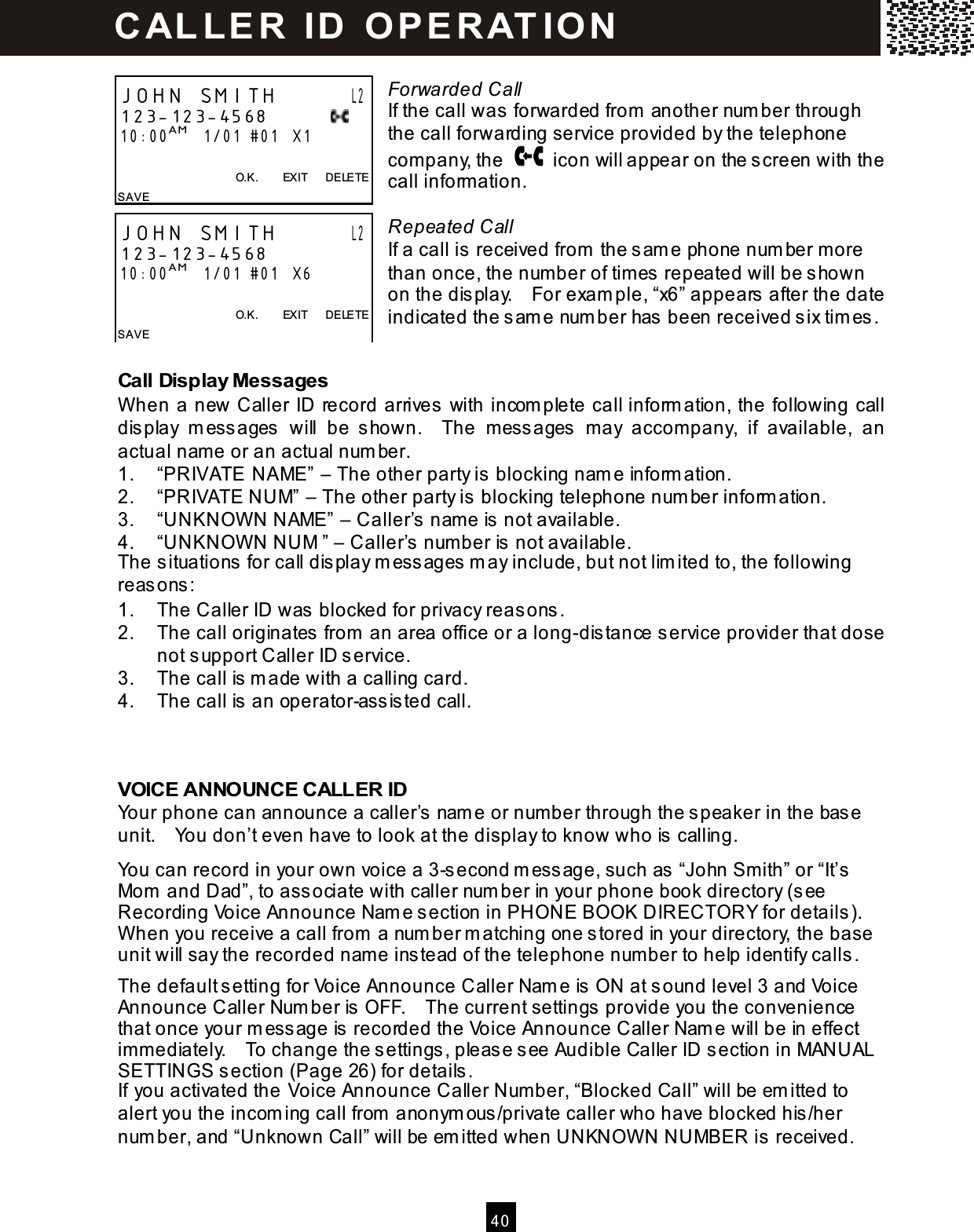
![41 CALL W AITING ID OPTIONS If you have subscribed the Call W aiting and Call W aiting ID Options from your local telephone company, you will hear a Call W aiting tone when a new call com es in while you are talking. You can either swap between calls or dispose of the call. Call W aiting ID Options Set to OFF If there is an incom ing call during a conversation, the Caller ID Call W aiting inform ation appears on the display. Press [ANS] softkey to answer the Call W aiting party and put the first call on hold. You can also press [Flash] to switch between calls. Call W aiting ID Options Set to ON If there is an incom ing call during a conversation, all the five labels for Call W aiting ID Option features will be autom atically shown at the display. W hen you hear the Call W aiting tone, press the corresponding softkey to apply a disposition to the call. Note: You m ust disposition the call within 26 seconds of the Call W aiting tone. The following options are available. [JOIN]: Add the waiting call to your first call. [DROP ANS]: End the first call and answer the waiting call. [HOLD]: Place the waiting call on hold and send a hold announcem ent. [SAY BUSY]: Play a pre-recorded m essage from your phone com pany that the line is busy and end the waiting call. [SEND V.M.]: Forward the waiting call to your voice m ail or answering service. Tip: Call W aiting ID Options may not be available in all areas. Contact your local telephone company for details. JOHN SMITH L2 123-123-4568 10:00AM 1/01 X1 ANS L2 ON F 00:05 HOLD 3W AY SERVICE JOHN SMITH L2 123-123-4568 10:00AM 1/01 X1 J OI N D R OP A NS H O LD S A Y B U S Y S E N D V . M. L2 ON 00:05 HOLD 3W AY SERVICE C AL L E R ID O P E R AT IO N](https://usermanual.wiki/Cybiotronics/373001.User-Manual/User-Guide-555026-Page-42.png)
![4 2 Call Waiting ID Option: JOIN If [JOIN] softkey is pressed, “CONFERENCE” will be displayed for a short while and then the waiting party is being added to the original call as a 3-parties conference call. After the 3-parties conference call, you m ay select to drop a line and retain the other: • To drop the first caller (the original call), press [DROP] softkey and “DROPPED #1” will be displayed. • To drop the second caller (the waiting call), press [Flash] and “DROPPED #2” will be displayed. Call Waiting ID Option: HOLD If [HOLD] softkey is pressed, “HOLD” will be displayed for a short while and then a hold announcem ent will be sent and put the waiting call on hold. After the private conversation with the original caller, you m ay select to drop the original call and take the waiting call or to add the waiting caller into the call conference. • To drop the talking line and answer the waiting call, press [DROP] softkey. • To add the waiting caller into the call and form a 3-party call conference, press [JOIN] softkey. For further disposition of the 3-party call conference, refer to Call Waiting ID Option: JOIN section above. JOHN SMITH L1 123-123-4568 10:00AM 1/01 X1 D R OP DROPPED #1 00:05 3W AY SERVICE JOHN SMITH L1 123-123-4568 10:00AM 1/01 X1 J OI N D R OP L1 ON 00:05 HOLD 3W AY SERVICE C AL L E R ID O P E R AT IO N](https://usermanual.wiki/Cybiotronics/373001.User-Manual/User-Guide-555026-Page-43.png)
![4 3 Your phone has a Phone Book Directory for storing up to 50 im portant nam es and telephone num bers. Each m em ory can store 32 digits and 15 characters. You can edit the Phone Book Directory records, but not the Caller ID List records. The Directory records are saved in alphabetical order. The Phone Book Directory can be accessed by pressing [DIR.] softkey during standby m ode. CREATING A PHONE BOOK DIRECTORY RECORD Copy from a Caller ID Num ber During Caller ID reviewing, select the valid record you want to save as a Phone Book Directory record. Press [SAVE] softkey and “SAVED TO DIR!” is shown on the display to confirm the entry. Note: If the m emory locations are full, the m essage “LIST FULL” will appear and your request is rejected. If this is done on the base unit, the display will then prom pt you to record a nam e for Voice Announce to associate with the copied caller ID num ber after 2 seconds. If you want to record a nam e for Voice Announce, see next section. Or press [EXIT] softkey to decline name recording. Add a New Num ber/Nam e Press [DIR.] during standby m ode. “NO ITEM” appears if no records in the directory, or “20 ITEMS ↓=VIEW ” appears if there is 20 records in the directory. If the m em ory locations are full, the m essage “LIST FULL” will appear and your request is rejected. After 3 seconds, “USE SAVE=CREATE” appears on the display. Press [SAVE]. Enter the num ber. Tip: 1. Pressing [Pause] to add a 3-second delay (pause) in the num ber field and P is displayed. 2. Pressing [Flash] to add a flash in the num ber field and F is displayed. JOHN SMITH ↓ 123-123-4568 10:00AM 1/01 #01 X1 O.K. EXIT DELETE SAVE SAVED TO DIR! RECORD ? 1231234568 O.K. EXIT NO ITEM EXIT SAVE USE SAVE=CREATE EXIT SAVE ENTER NUMBER: 12312_ O.K. EXIT DELETE P H O N E B O O K D IR E CT O RY](https://usermanual.wiki/Cybiotronics/373001.User-Manual/User-Guide-555026-Page-44.png)
![4 4 After finished num ber entry, press [O.K.] softkey and “_NAME” is displayed. Use the digit keys to enter the nam e. If you m ake a m istake, press [DELETE] softkey and re-enter. W hen finished, press [SAVE] softkey. You will see “SAVED TO DIR!” on the display to confirm the entry. If this is done on the base unit, the display will prom pt you to record a nam e for Voice Announce to associate with the displayed phone num ber after 2 seconds. If you want to record a nam e for Voice Announce, see next section. Or press [EXIT] to decline nam e recording. Entering Alphanumeric Characters: Each num eric key is assigned a set of letters and sym bols as printed on the key. Press the corresponding number until the desired letter is displayed. Num eric: 1 2 3 4 5 6 7 8 9 0 Characters: Space A,B,C D,E,F G,H,I J,K,L M,N,O P,Q,R,S T,U,V W ,X,Y,Z Adding Special Symbols You can also use [] or [#] to insert the following special sym bols in the nam e field. + , - . / @ : ; < = > ? { ¦ } ~ [ \ ] ^ _ ` ! ″ # $ % & ´ ( ) RECORDING VOICE ANNOUNCE NAM E You can record up to 25 names in your own voice and associate them to the records in your phone book directory. W hen the phone rings from any of these numbers , the recorded nam e is announced instead of the number. After a num ber and nam e is entered, you will see “SAVED TO DIR!” and the display will prompt you to record a name for Voice Announce to ass ociate with the displayed phone num ber after 2 seconds . Note: If you enter a num ber that is already exis ted in the directory, “RE-RECORD?” will be displayed. _NAME 1231234567 EXIT DELETE SAVE JOHN SMITH_ 1231234567 EXIT DELETE SAVE SAVED TO DIR! RECORD ? 1231234567 O.K. EXIT RECORD ? 1231234567 O.K. EXIT P H O N E B O O K D IR E CT O RY](https://usermanual.wiki/Cybiotronics/373001.User-Manual/User-Guide-555026-Page-45.png)
![4 5 Press [O.K.] softkey and “SPEAK AFTER TONE” will appear on the display. W ait for the “Beep” and then say clearly the word(s ) you want to record. You will have 3 seconds for recording. You can save your m ess age by press ing [SAVE] softkey right after you finis hed, or your m ess age will be saved autom atically after you hear the “Beep”. After recording, the phone plays the recorded m essage. W hen finis hed, press [EXIT] softkey. If you want to re-record it, press [EDIT] softkey during m essage playing. “SPEAK AFTER TONE” is dis played, wait for the “beep” and then repeat the previous steps . REVIEW ING PHONE BOOK DIRECTORY Press [DIR.] softkey during s tandby m ode. Press [▼ ] / [▲ ] to review the Directory in alphabetical order. If a caller’s nam e has been recorded, it will be played. Tip: To quickly find a nam e and phone number, press [DIR.] in standby m ode. Key in the first letter of the nam e, and the dis play will jump to the first record s tarting with that letter. SPEAK AFTER TONE EXIT REC TIME:03 EXIT SAVE PLAYING 1231234567 EDIT E XIT SPEAK AFTER TONE EXIT 50 ITEMS ↓=VIEW EXIT DELETE SAVE JOHN SMITH ↓ 123-123-4568 EDIT O.K. EXIT DE LETE SAVE P H O N E B O O K D IR E CT O RY](https://usermanual.wiki/Cybiotronics/373001.User-Manual/User-Guide-555026-Page-46.png)
![4 6 EDITING A PHONE BOOK NUMBER Select the record you want to edit. The recorded name will be played back instead if there was caller nam e being recorded. Press [EDIT] softkey during playback to re-record the m essage (see last section for details ), or press [DELETE] softkey during playback to remove the recorded nam e. The display shows “VOICE DELETED !” to confirm the deletion. W hen you see the record you want to edit is displayed, press [EDIT] softkey and then edit the num ber. Press [DELETE] softkey to rem ove the error and enter the correction as needed. Press [O.K.] softkey to confirm the edited num ber. Then press [DELETE] to rem ove the error and re-enter the correct nam e as needed. Press [SAVE] and “SAVE TO DIR!” appears on the dis play. Press [O.K.] if your want to re-record the Voice Announce Name as well, or press [EXIT] to return. W hen finis hed, the screen will dis play the edited entry. DELETING AN ENTRY FROM A PHONE BOOK DIRECTORY Scroll to the record to be deleted. If a Voice Announce Nam e was recorded, wait until the playback is finished and the record you want to delete is displayed. Press [DELETE] and you will see “DELETED!” on the display to confirm the deletion of the current record. The phone will then m ove to the next a vailable record in the directory. Press [EXIT] to return to standby m ode. JOHN SMITH ↓ 1231234568 EDIT O.K. EXIT DE LETE SAVE PLAYING 1231234568 EDIT O.K. EXIT DE LETE ENTER NUMBER: 1231234568_ O.K. EXIT DELETE JOHN SMITH_ 1231234568 EXIT DELETE SAVE JOHNNY SMITH ↓ 1231234568 EDIT O.K. EXIT DE LETE SAVE JOHN SMITH ↓ 123-123-4568 EDIT O.K. EXIT DE LETE SAVE DELETED! P H O N E B O O K D IR E CT O RY](https://usermanual.wiki/Cybiotronics/373001.User-Manual/User-Guide-555026-Page-47.png)
![4 7 DELETING ALL PHONE BOOK DIRECTORY RECORDS Press [DIR.] softkey to enter into Phone Book Directory default page. Press [DELETE] softkey and “DELETE ALL?” is displayed. To confirm the deletion of all records, press [O.K.]. To e xit without deleting, press [EXIT]. DIALING FROM PHONE BOOK DIRECTORY During stand-by m ode, press [DIR.] and find the entry you want to call. Press a LINE key to call the num ber. 20 ITEM ↓=VIEW EXIT DELETE SAVE DELETE ALL? O.K. EXIT P H O N E B O O K D IR E CT O RY](https://usermanual.wiki/Cybiotronics/373001.User-Manual/User-Guide-555026-Page-48.png)
![4 8 Your new phone provides a m ultiple handset capability that supports up to 8 handsets . Each additional handset com es with a charge cradle you can plug into any electrical outlet. No extra phone jack is required. Intercom or call transfer between handsets becom es poss ible when there is m ore than one handset in your system . It is possible to make an intercom call between two handsets while another handset is engaging the external line INTERCOM The bas e unit of SBC373 can s upport up to 4 groups of intercom conversation and an external call s im ultaneous ly if you have 8 handsets in your system . Handset-to-Hands et two-way intercom is operated independent of the base unit. W hen the Handset 1 is in s tandby m ode, press [Int.], LCD display shows “EXTENSION #:?” Key-in the num ber of the handset (1,2… 8) or base unit (0) you want to call. For ins tance, if Handset #2 is being paged, LCD display shows “PAGING #2” The handset being called will ring and the dis play shows “PAGING FRO M # 1”. Press [Int.] on the called handset to answer the intercom . Press [EXIT] softkey to term inate the intercom . Note: This phone system can allow you to conference or intercom by using the hands et and bas e sim ultaneously. If the handset is operated too close to the base unit, you m ay experience feedback nois e. Should this occur, move the hands et away from the bas e unit and the feedback will s top. EXTENSION #:? EXIT PAGING #2 EXIT PAGING FROM #1 EXIT M U LT I- H AN D SET O P E R AT IO N](https://usermanual.wiki/Cybiotronics/373001.User-Manual/User-Guide-555026-Page-49.png)
![4 9 CALL TRANSFER Your new cordless s ystem allows you to trans fer calls from Bas e to Handset, Handset to Handset, or Handset to Bas e. W hen the handset is engaging an external call in Line1, press [Int.] and followed by the number of the handset (1-8 or 0 for bas e unit) you want to trans fer the call to. If you are entering an unregis tered handset number, “INVALID NUMBER” is display and you need to repeat the above steps. The handset you called rings and “TRANSFER FROM L1” appear on the display. Press [Line1] on the called handset to pick up. If the handset you called does not ans wer in 20 seconds, the unanswered call will ring back to you again. Press Line 1 to pick up the call again, or the line will be released automatically after 20 seconds if not taken up. EXTENSION #:? EXIT . INVALID NUMBER EXIT TRANSFER FROM L1 EXIT L1 ON 00:07 HOLD 3W AY SERVICE M U LT I- H AN D SET O P E R AT IO N](https://usermanual.wiki/Cybiotronics/373001.User-Manual/User-Guide-555026-Page-50.png)
![5 0 You phone has been pre-programm ed at the factory with an optional s ervices dial lis t. DISPLAY CLASS SERVICE DIAL CODE 411 Help Hotline 1411 RPT DIAL Repeat Dialing 66 FW D ON Activate Call Forwarding 72# FW D OFF Cancel Call Forwarding 73# CALL RTN Activate Call Return 69 3W AY Three W ay Calling Flash Note: These optional services, except 1411, are accessible only if you are subscribed to them through your local telephone com pany. DIALING SERVICES During standby m ode, press [SERVICE] softkey to prom pt the pre-program m ed optional features dial list. Press the corresponding softkey to the optional service you wish to activate. Or, press [▼ ] / [▲ ] if you want to return to standby m ode. For instance, if you want to activate Repeat Dialing function, press [RPT DIAL] softkey. The dial code will be shown on the display. Press a LINE key to send the signal. W hen you can hear a second dialing tone, the code is accepted. Press [Bye] on the handset or on the base unit to hang up. 50 NEW CALLS HS-1 10:05AM 05/03 411 RPT DIAL FWD ON FWD OFF CALL RT N USE L1 OR L2? ├66 EXIT O PT IO N A L FEAT URES DIAL L IST](https://usermanual.wiki/Cybiotronics/373001.User-Manual/User-Guide-555026-Page-51.png)
![5 4 This equipm ent com plies with Part 68 of FCC rules and the requirem ents adopted by the ACTA. On the b ottom of this equipm ent is a label that contains, am ong other inform ation, a product identifier in the form at US:CACW400B373001. If requested, this num ber m ust be provided to the telephone com pany. The REN is used to determ ine the num ber of devices that may be connected to a telephone line. Excessive RENs on a telephone line m ay result in the devices not ringing in response to an incom ing call. In m ost but not all areas, the sum of the RENs should not exceed five (5.0). To be certain of the num ber of devices that m ay be connected to a line, as determ ined by the total RENs, contact the local telephone com pany. [For products approved after July 23, 2001, the REN for this product is part of the product identifier that has the form at US:CACW400B373001. The digits represented by 00B are the REN without a decim al point (e.g., 03B is a REN of 0.3B). For earlier products, the REN is separately shown on the label.] Should you experience trouble with this equipm ent, please contact: Cybiolink Service Center 4905 77th Ave P.O. Box 140 Milan, IL. 61264 1-800-233-5961, Service Departm ent for repair or warranty inform ation. If the equipm ent is causing harm to the telephone network, the telephone com pany m ay request that you disconnect the equipm ent until the problem is resolved. NOTICE: If your hom e has specially wired alarm equipm ent connected to the telephone line, ensure the installation of this equipm ent ID does not disable your alarm equipm ent. If you have questions about what will disable alarm equipm ent, consult your telephone com pany or a qualified installer. If this equipm ent SBC373 causes harm to the telephone network, the telephone com pany will notify you in advance that tem porary discontinuance of service m ay be required. But if advance notice isn’t practical, the telephone com pany will notify the custom er as soon as possible. Also, you will be advised of your right to file a com plaint with the FCC if you believe it is necessary. The telephone com pany m ay make changes in its facilities, equipm ent, operations or procedures that could affect the operation of the equipm ent. If this happens the telephone com pany will provide advance notice in order for you to m ake necessary m odifications to maintain uninterrupted service. FCC R E Q U IR E M E N T S](https://usermanual.wiki/Cybiotronics/373001.User-Manual/User-Guide-555026-Page-55.png)