Cybiotronics 936001 1.9GHz CORDLESS PHONE User Manual

Cybiotronics Limited 1.9GHz CORDLESS PHONE Users Manual

Users Manual

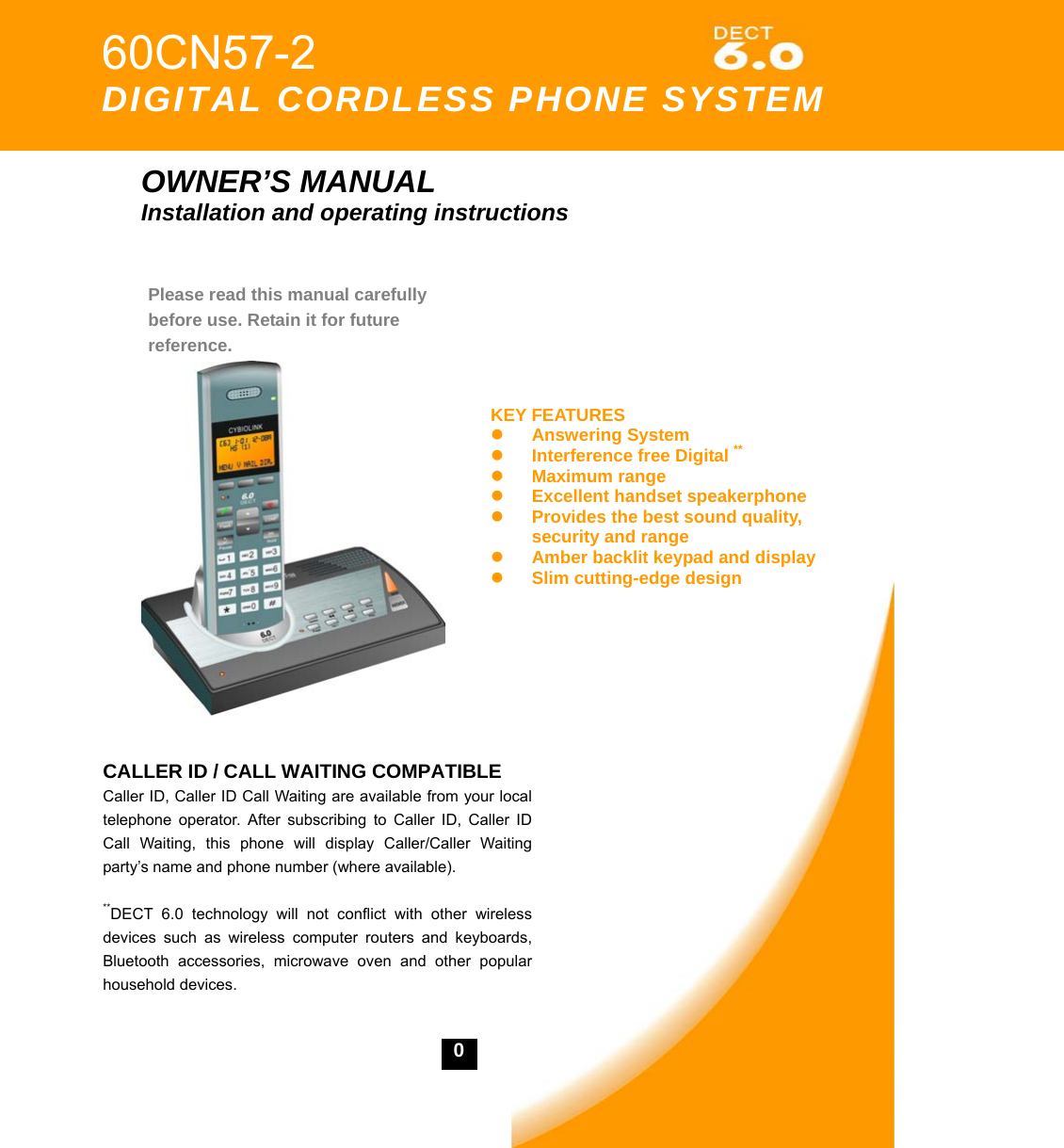
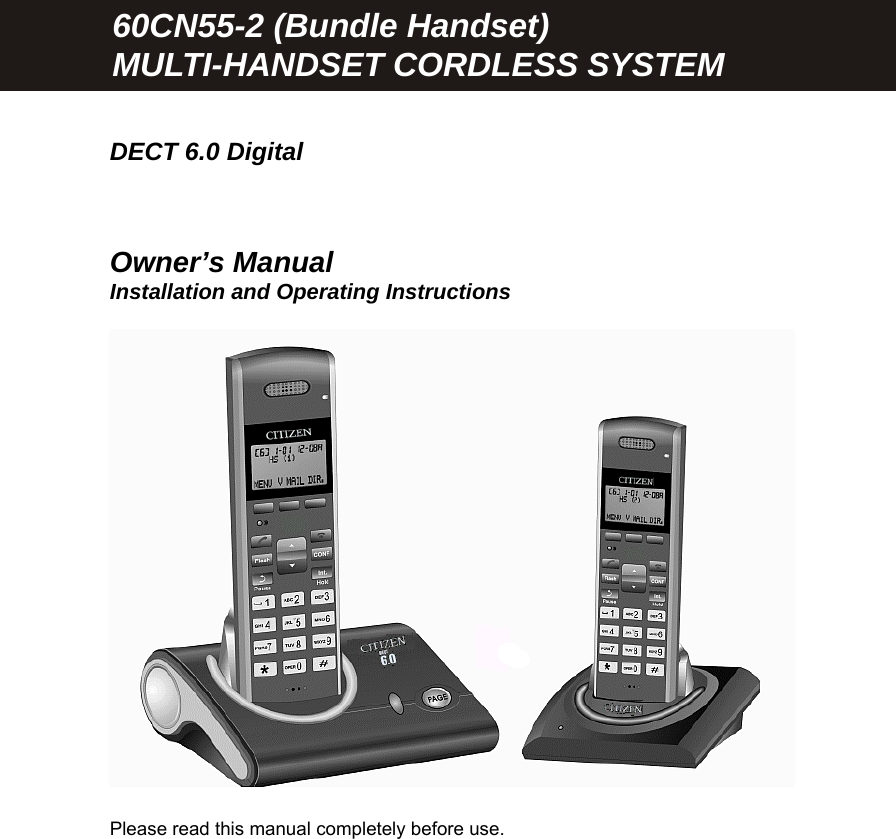
   0           OWNER’S MANUAL Installation and operating instructions                   60CN57-2    DIGITAL CORDLESS PHONE SYSTEM Please read this manual carefully before use. Retain it for future reference. KEY FEATURESz Answering System   z Interference free Digital ** z Maximum range z Excellent handset speakerphone z Provides the best sound quality, security and range z Amber backlit keypad and display   z Slim cutting-edge design CALLER ID / CALL WAITING COMPATIBLE Caller ID, Caller ID Call Waiting are available from your local telephone operator. After subscribing to Caller ID, Caller ID Call Waiting, this phone will display Caller/Caller Waiting party’s name and phone number (where available).  **DECT 6.0 technology will not conflict with other wireless devices such as wireless computer routers and keyboards, Bluetooth accessories, microwave oven and other popular household devices.
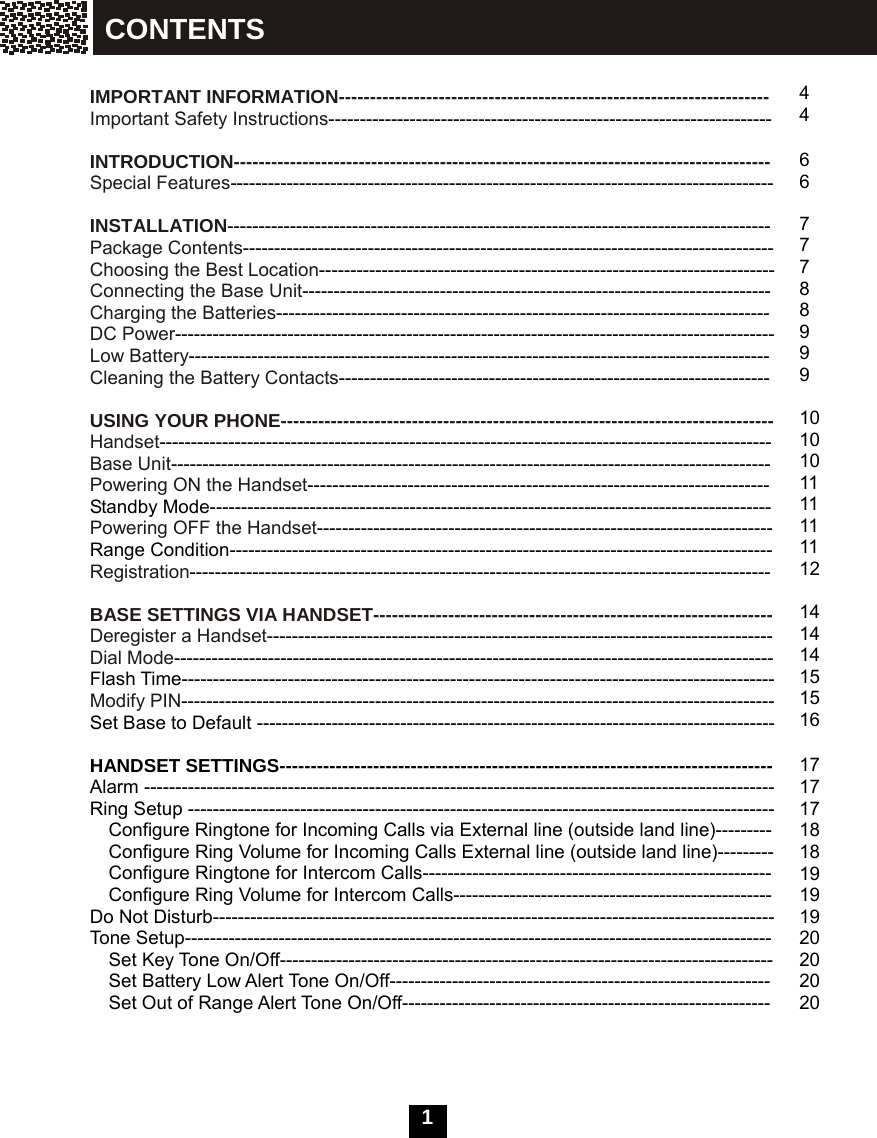
  1   IMPORTANT INFORMATION--------------------------------------------------------------------- Important Safety Instructions-----------------------------------------------------------------------  INTRODUCTION-------------------------------------------------------------------------------------- Special Features---------------------------------------------------------------------------------------  INSTALLATION--------------------------------------------------------------------------------------- Package Contents------------------------------------------------------------------------------------- Choosing the Best Location------------------------------------------------------------------------- Connecting the Base Unit--------------------------------------------------------------------------- Charging the Batteries------------------------------------------------------------------------------- DC Power------------------------------------------------------------------------------------------------ Low Battery--------------------------------------------------------------------------------------------- Cleaning the Battery Contacts---------------------------------------------------------------------  USING YOUR PHONE------------------------------------------------------------------------------- Handset-------------------------------------------------------------------------------------------------- Base Unit------------------------------------------------------------------------------------------------ Powering ON the Handset-------------------------------------------------------------------------- Standby Mode------------------------------------------------------------------------------------------ Powering OFF the Handset------------------------------------------------------------------------- Range Condition--------------------------------------------------------------------------------------- Registration---------------------------------------------------------------------------------------------  BASE SETTINGS VIA HANDSET---------------------------------------------------------------- Deregister a Handset--------------------------------------------------------------------------------- Dial Mode------------------------------------------------------------------------------------------------ Flash Time----------------------------------------------------------------------------------------------- Modify PIN----------------------------------------------------------------------------------------------- Set Base to Default -----------------------------------------------------------------------------------  HANDSET SETTINGS------------------------------------------------------------------------------- Alarm ----------------------------------------------------------------------------------------------------- Ring Setup ---------------------------------------------------------------------------------------------- Configure Ringtone for Incoming Calls via External line (outside land line)--------- Configure Ring Volume for Incoming Calls External line (outside land line)--------- Configure Ringtone for Intercom Calls-------------------------------------------------------- Configure Ring Volume for Intercom Calls--------------------------------------------------- Do Not Disturb------------------------------------------------------------------------------------------ Tone Setup----------------------------------------------------------------------------------------------   Set Key Tone On/Off-------------------------------------------------------------------------------     Set Battery Low Alert Tone On/Off-------------------------------------------------------------     Set Out of Range Alert Tone On/Off-----------------------------------------------------------     4 4  6 6  7 7 7 8 8 9 9 9  10 10 10 11 11 11 11 12  14 14 14 15 15 16  17 17 17 18 18 19 19 19 20 20 20 20 CONTENTS
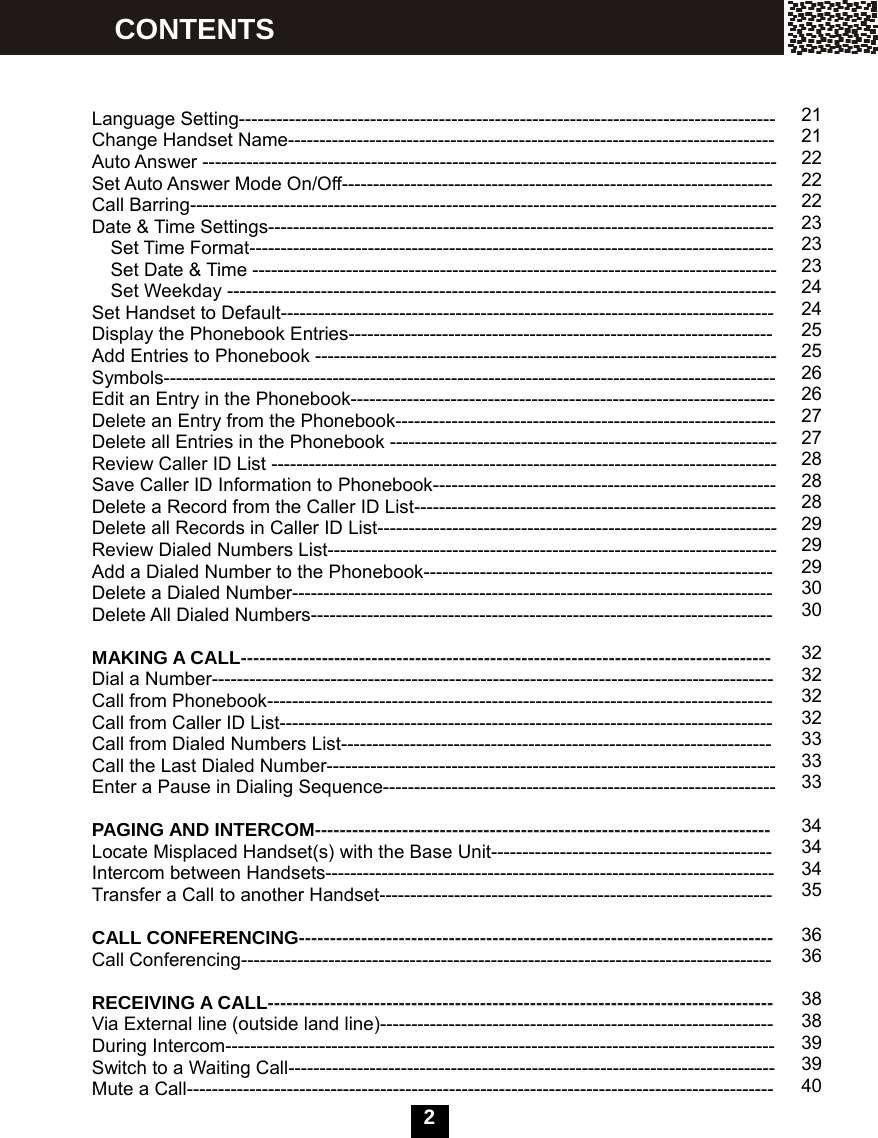
  2    Language Setting-------------------------------------------------------------------------------------- Change Handset Name------------------------------------------------------------------------------ Auto Answer -------------------------------------------------------------------------------------------- Set Auto Answer Mode On/Off--------------------------------------------------------------------- Call Barring---------------------------------------------------------------------------------------------- Date & Time Settings--------------------------------------------------------------------------------- Set Time Format------------------------------------------------------------------------------------     Set Date & Time ------------------------------------------------------------------------------------ Set Weekday ---------------------------------------------------------------------------------------- Set Handset to Default------------------------------------------------------------------------------- Display the Phonebook Entries-------------------------------------------------------------------- Add Entries to Phonebook -------------------------------------------------------------------------- Symbols-------------------------------------------------------------------------------------------------- Edit an Entry in the Phonebook-------------------------------------------------------------------- Delete an Entry from the Phonebook------------------------------------------------------------- Delete all Entries in the Phonebook -------------------------------------------------------------- Review Caller ID List --------------------------------------------------------------------------------- Save Caller ID Information to Phonebook------------------------------------------------------- Delete a Record from the Caller ID List---------------------------------------------------------- Delete all Records in Caller ID List---------------------------------------------------------------- Review Dialed Numbers List------------------------------------------------------------------------ Add a Dialed Number to the Phonebook-------------------------------------------------------- Delete a Dialed Number----------------------------------------------------------------------------- Delete All Dialed Numbers--------------------------------------------------------------------------  MAKING A CALL------------------------------------------------------------------------------------- Dial a Number------------------------------------------------------------------------------------------ Call from Phonebook--------------------------------------------------------------------------------- Call from Caller ID List------------------------------------------------------------------------------- Call from Dialed Numbers List--------------------------------------------------------------------- Call the Last Dialed Number------------------------------------------------------------------------ Enter a Pause in Dialing Sequence---------------------------------------------------------------  PAGING AND INTERCOM------------------------------------------------------------------------- Locate Misplaced Handset(s) with the Base Unit--------------------------------------------- Intercom between Handsets------------------------------------------------------------------------ Transfer a Call to another Handset---------------------------------------------------------------  CALL CONFERENCING---------------------------------------------------------------------------- Call Conferencing-------------------------------------------------------------------------------------  RECEIVING A CALL--------------------------------------------------------------------------------- Via External line (outside land line)--------------------------------------------------------------- During Intercom---------------------------------------------------------------------------------------- Switch to a Waiting Call------------------------------------------------------------------------------ Mute a Call---------------------------------------------------------------------------------------------- CONTENTS  21 2122222223232324 24 25 25 26 26 27 27 2828 28 29 29 29 30 30  32323232 333333  34 34 34 35  3636  38 38 39 39 40
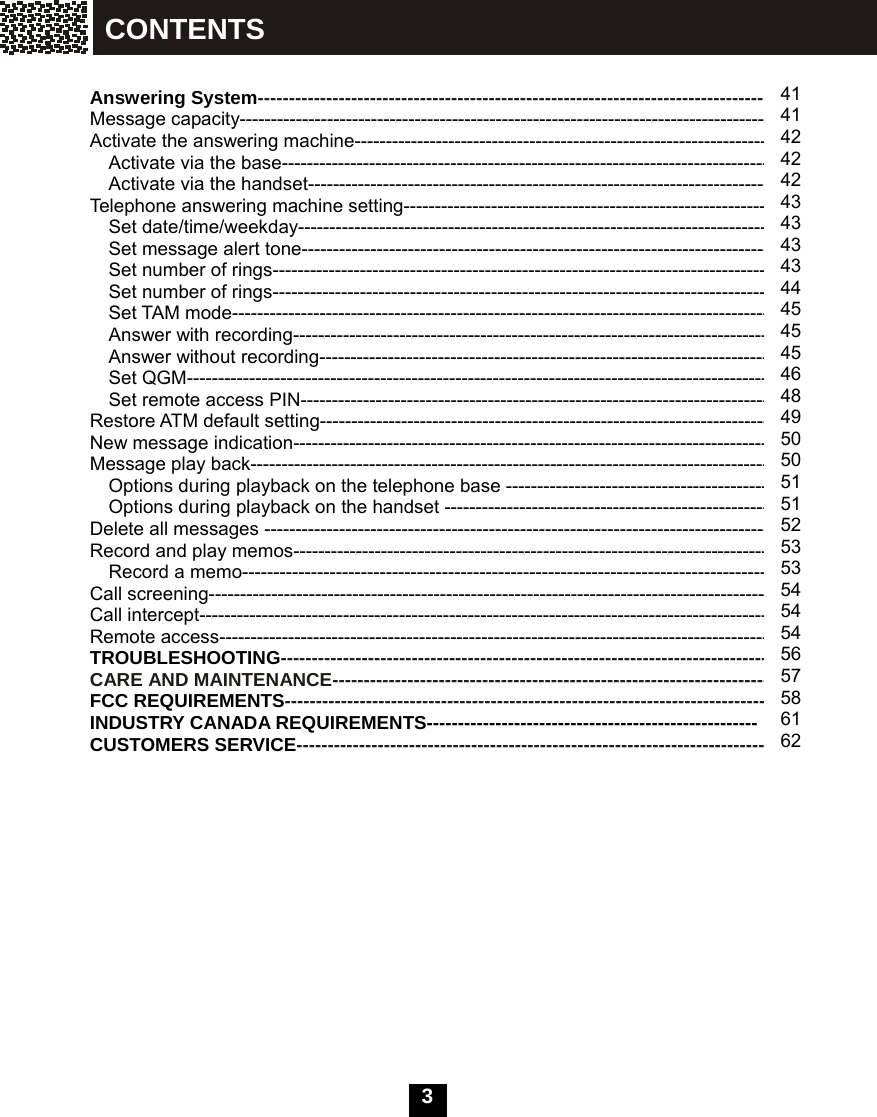
  3    Answering System---------------------------------------------------------------------------------- Message capacity------------------------------------------------------------------------------------- Activate the answering machine------------------------------------------------------------------- Activate via the base------------------------------------------------------------------------------- Activate via the handset-------------------------------------------------------------------------- Telephone answering machine setting----------------------------------------------------------- Set date/time/weekday---------------------------------------------------------------------------- Set message alert tone--------------------------------------------------------------------------- Set number of rings------------------------------------------------------------------------------- Set number of rings-------------------------------------------------------------------------------- Set TAM mode-------------------------------------------------------------------------------------- Answer with recording----------------------------------------------------------------------------- Answer without recording------------------------------------------------------------------------- Set QGM---------------------------------------------------------------------------------------------- Set remote access PIN--------------------------------------------------------------------------- Restore ATM default setting------------------------------------------------------------------------ New message indication---------------------------------------------------------------------------- Message play back----------------------------------------------------------------------------------- Options during playback on the telephone base ------------------------------------------- Options during playback on the handset ---------------------------------------------------- Delete all messages --------------------------------------------------------------------------------- Record and play memos----------------------------------------------------------------------------- Record a memo------------------------------------------------------------------------------------- Call screening------------------------------------------------------------------------------------------ Call intercept------------------------------------------------------------------------------------------- Remote access---------------------------------------------------------------------------------------- TROUBLESHOOTING------------------------------------------------------------------------------- CARE AND MAINTENANCE---------------------------------------------------------------------- FCC REQUIREMENTS------------------------------------------------------------------------------ INDUSTRY CANADA REQUIREMENTS----------------------------------------------------- CUSTOMERS SERVICE----------------------------------------------------------------------------               41414242 424343434344454545464849 5050 51 51 52 5353 54 54 54 56 57 58 61 62 CONTENTS
  4    Important Safety Instructions  To reduce the risk of fire, electric shock and / or injury to persons, always follow the following safety precautions when using this telephone equipment.  1.  Read, understand, and follow all instructions.  2.  Unplug this telephone from the wall outlet before cleaning. Do not use liquid or aerosol cleaners. If necessary, use a soft cloth lightly moistened with a mild detergent solution.  3.  Do not use this telephone near a bathtub, kitchen sink, wash bowl, laundry tub, swimming pool, a wet basement or anywhere else there is water or liquid.  4.  Do not place this telephone on an unstable cart, stand or table. A fall could cause serious damage to the phone.  5.  Slots and openings in the cabinet at the back or bottom are provided for ventilation to protect the unit from overheating. These openings must not be blocked or covered. Do not place this telephone on a bed, sofa, rug or other similar surface. This telephone should never be placed near or over a radiator or heat register. This telephone should not be placed in a built-in installation unless proper ventilation is provided.  6.  Never push objects of any kind through slots in the phone. They could touch dangerous voltage points or short out parts that could result in a risk of fire or electric shock. Never spill liquid of any kind on the telephone.  7.  Unplug this telephone from the wall     outlet and refer to a qualified service representative in any of the following situations: a)  If liquid has been spilled into the   telephone. b)  If the telephone has been   exposed to rain or water. c)  If the telephone does not operate   normally by following the   operating instructions. Adjust only those controls that are covered by the operating instructions. Improper adjustment of other controls may result in damage and will often require extensive work by a qualified technician to restore the telephone to normal operation. d)  If the telephone has been   dropped or the case has been damaged. e)  If the telephone exhibits a distinct change in performance.  8.  Do not use the telephone to report a gas leak in the vicinity of the leak.  9.  Avoid using this telephone during an electrical storm. There may be a remote risk of electric shock from lightning.  10.  Never install jacks in a wet location unless the jack is specifically designed for wet locations.  11.  Never touch uninsulated telephone wires or terminals unless the telephone line has been disconnected at the network interface.    IMPORTANT INFORMATION
  5  12.  Use with caution when installing or modifying telephone lines.  13.  To reduce the risk of electric shock, do not disassemble this product, but take it to a qualified service centre when   some service or repair work is required.   Opening or removing covers may expose you to dangerous voltages or other risks. Incorrect reassembly can cause electric shock when the appliance is subsequently used.  14.  Use only the power cord and batteries indicated in this manual. Do not dispose of batteries in fire. They may explode. Check with local codes for possible special disposal instructions.  15.  Plug the power adapter to the socket-outlet that is nearest to the telephone and is easily accessible.  16.  For service or replacement, you can purchase a suitable headset through our service center or retailer shop.  17.  We advise that this telephone should not be used near intensive care medical equipment or by persons with pacemakers.  18.  CAUTION RISK OF EXPLOSION IF REPLACED BY AN INCORRECT TYPE.   DISPOSE OF USED BATTERIES ACCORDING TO THE INSTRUCTIONS.  USE ONLY WITH (DESAY    MODEL NO: DESAY600AAAH ; (1.2 V   600mAh ) Ni-MH RECHARGEABLE BATTERY)                                       Use only with a Class 2 Power Source, 7.5V DC, 300mA for     the Base Unit   SAVE THESE INSTRUCTIONS IMPORTANT INFORMATION
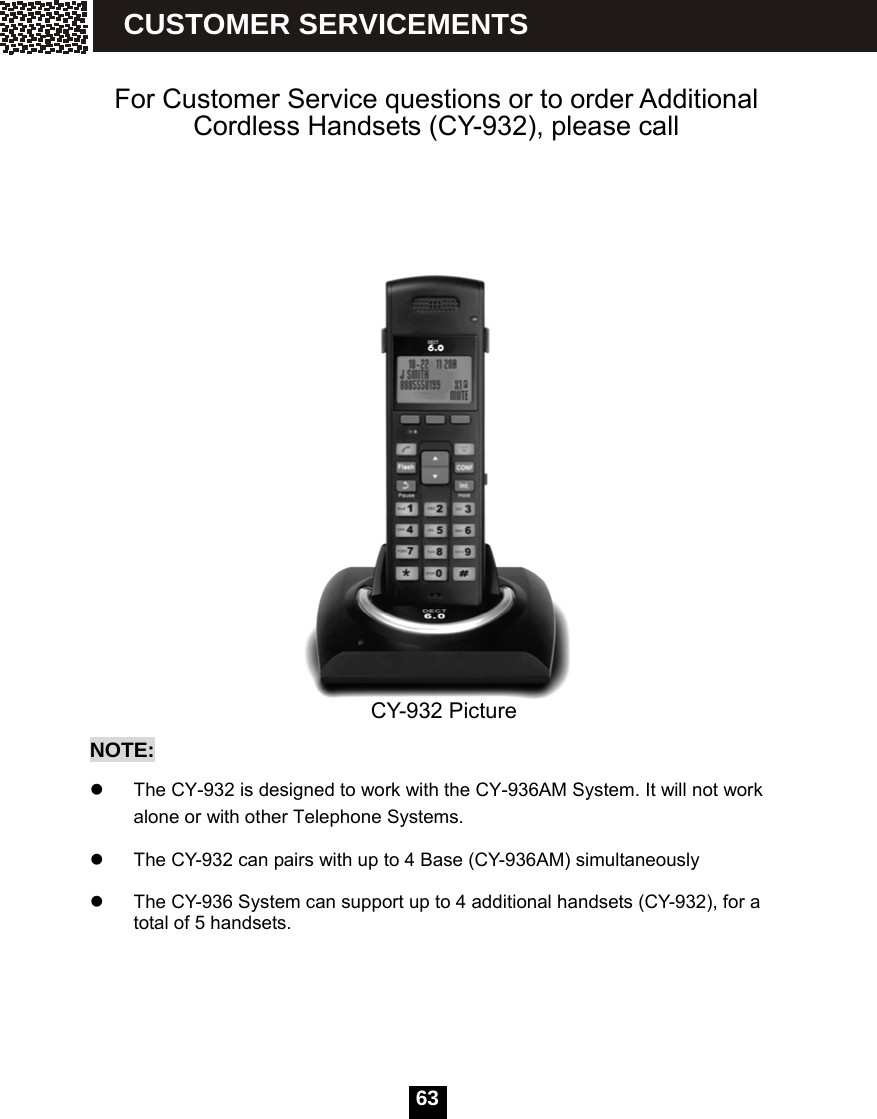
  6 INTRODUCTION Special Features   DECT 6.0 (1.9GHz) digital cordless telephone system   Multiple handsets capability, supports up to 5 handsets (Model CY-932 expandable handsets may be purchased separately by calling   – see page 61 for details)  Answering system which can record and store up to 59 messages. A single message can be up 2 minutes in length.   3-way conference call - two handsets & an incoming call (an expandable handset is required)     Call transfer to other handsets   Hands-free speakerphone function   Phonebook with 40 entries; Phonebook dialing   Outgoing call list up to last 9 dialed numbers   Support fixed line Type I and Type II CID (FSK and DTMF)   Caller list with last 40 Caller ID records   Hold function (for two or multiple handsets)  Mute function   Intercom between two handsets   (an expandable handset is required)     Alarm clock including snooze option   Page to all handsets   Tone / Pulse dialing   Digital volume control   Audio setup that includes 10 melodies for external-line and intercom rings   Range Alert tone option   Battery low tone option   Barring handset from dialing   Display the talk / intercom time   Auto answer function    English / German / French / Italian / Spanish / Dutch intelligent LCD display
   7      Package Contents Check to be sure that the following items are included. If there is any missing or visible damage, contact the original place of purchase and do not attempt to operate if it is damaged.    One Base Unit with Handset   1 Belt Clip   Two Rechargeable Batteries ( AAA 1.2V / 600mAh)   One 7 foot Telephone Line cord   One DC adapter (DC 7.5V / 300mA)  Owner’s Manual  Choosing the Best Location Calls are transmitted between the base unit and handset, or between handsets (an expandable handset is required), by way of wireless radio waves. For maximum distance and noise-free operation, here are some important guidelines: 1.  The location of base unit should be close to both a phone jack and a continuous power outlet that is not switch-controlled. 2.  Place the base unit at a high, central location with no obstructions such as walls. 3.  Keep the base unit and the handset away from sources of electrical noise such as a TV, personal computer, or another cordless phone. 4.  The base unit can be placed on the tabletop or mounted on a wall. Note:  While using the handset: If you are near a working microwave oven, noise may occur from the receiver or speaker. Move away from the microwave oven and closer to your phone’s base unit. If more than one cordless telephone set is being used and your handset is near another cordless phone’s base unit, noise may occur. Move away from the other phone’s base unit and closer to your base unit. INSTALLATION
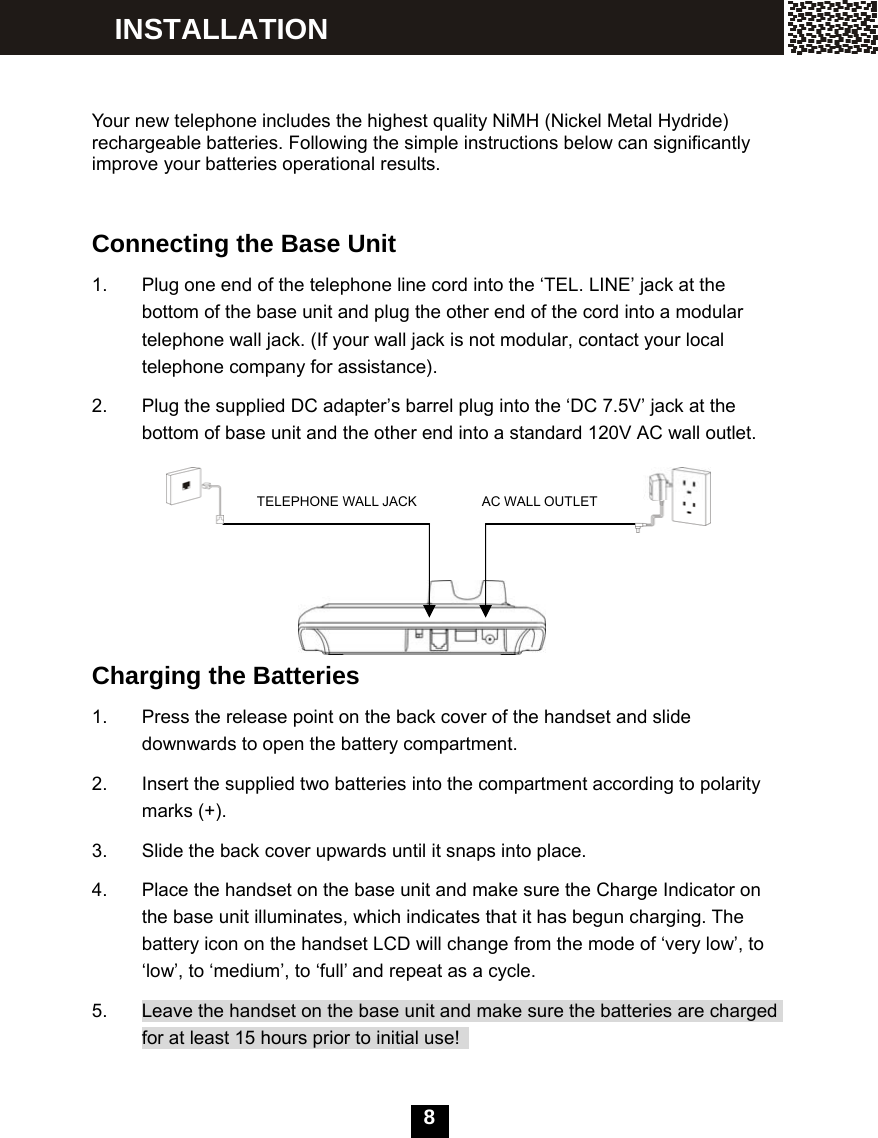
  8    Your new telephone includes the highest quality NiMH (Nickel Metal Hydride) rechargeable batteries. Following the simple instructions below can significantly improve your batteries operational results.   Connecting the Base Unit 1.  Plug one end of the telephone line cord into the ‘TEL. LINE’ jack at the bottom of the base unit and plug the other end of the cord into a modular telephone wall jack. (If your wall jack is not modular, contact your local telephone company for assistance). 2.  Plug the supplied DC adapter’s barrel plug into the ‘DC 7.5V’ jack at the bottom of base unit and the other end into a standard 120V AC wall outlet.            Charging the Batteries 1.  Press the release point on the back cover of the handset and slide downwards to open the battery compartment. 2.  Insert the supplied two batteries into the compartment according to polarity marks (+). 3.  Slide the back cover upwards until it snaps into place. 4.  Place the handset on the base unit and make sure the Charge Indicator on the base unit illuminates, which indicates that it has begun charging. The battery icon on the handset LCD will change from the mode of ‘very low’, to ‘low’, to ‘medium’, to ‘full’ and repeat as a cycle. 5.  Leave the handset on the base unit and make sure the batteries are charged for at least 15 hours prior to initial use!    INSTALLATION TELEPHONE WALL JACK  AC WALL OUTLET
  9  DC Power Caution: 1.  Use only with the supplied DC Adapter (AC 120V, DC 7.5V, 300mA). 2.  Plug the adapter into a continuous power outlet, which is near the base unit and is not switch-controlled. 3.  The DC adapter must be kept connected at all times. (It is normal for the adapter to be warm during use). 4.  Do not remove the battery from the handset to charge it. Do not remove or damage the battery casing. 5.  For the longest battery life and the maximum talk & standby time, try to completely charge and discharge the batteries every time. 6.  If you do not expect to use your phone for a month or longer, remove the batteries from the handset. The batteries may leak chemicals that can destroy electronic components. 7.  To avoid the risk of explosion, do not dispose of the batteries in a fire. Check with your local waste facility for disposal instructions.  Low Battery The battery icon on the handset LCD shows the current level of battery strength. If the battery is not properly charged, there will be a warning tone when the handset is in use.   While this occurs, the handset may not function normally, and the handset must be immediately placed back onto the base unit for battery charging.     Clean Battery Contacts   To maintain a good charge, it is necessary to clean all battery contacts on the handset and the base unit with a soft, dry cloth about once a month. You may also use a pencil eraser or other contact cleaner, but never use any liquids or solvents. INSTALLATION
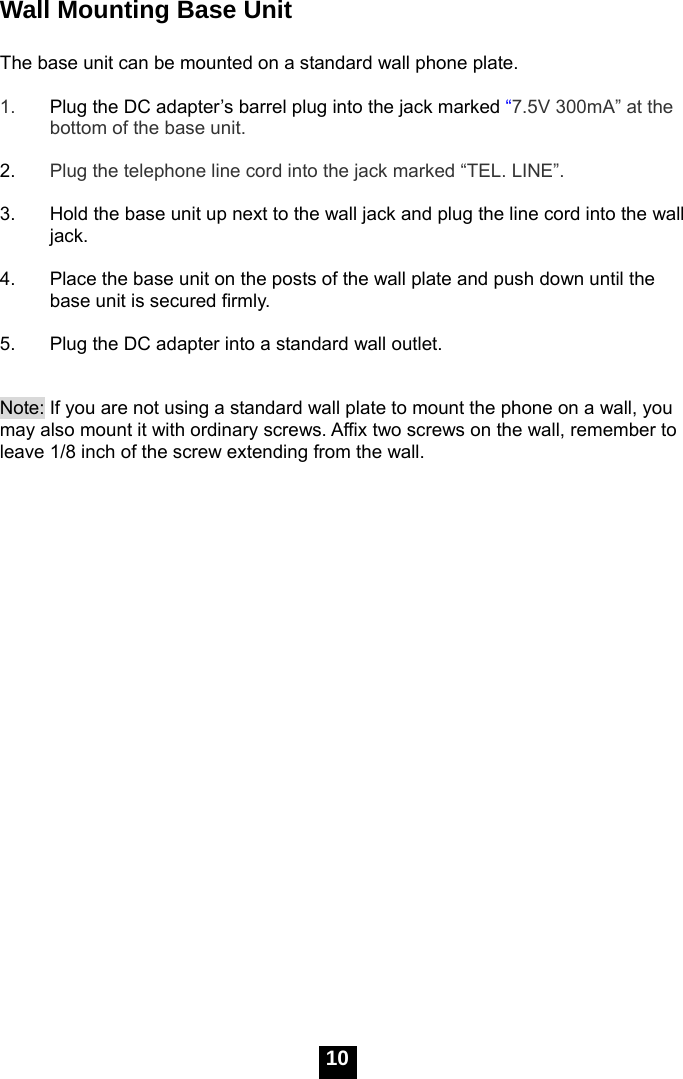
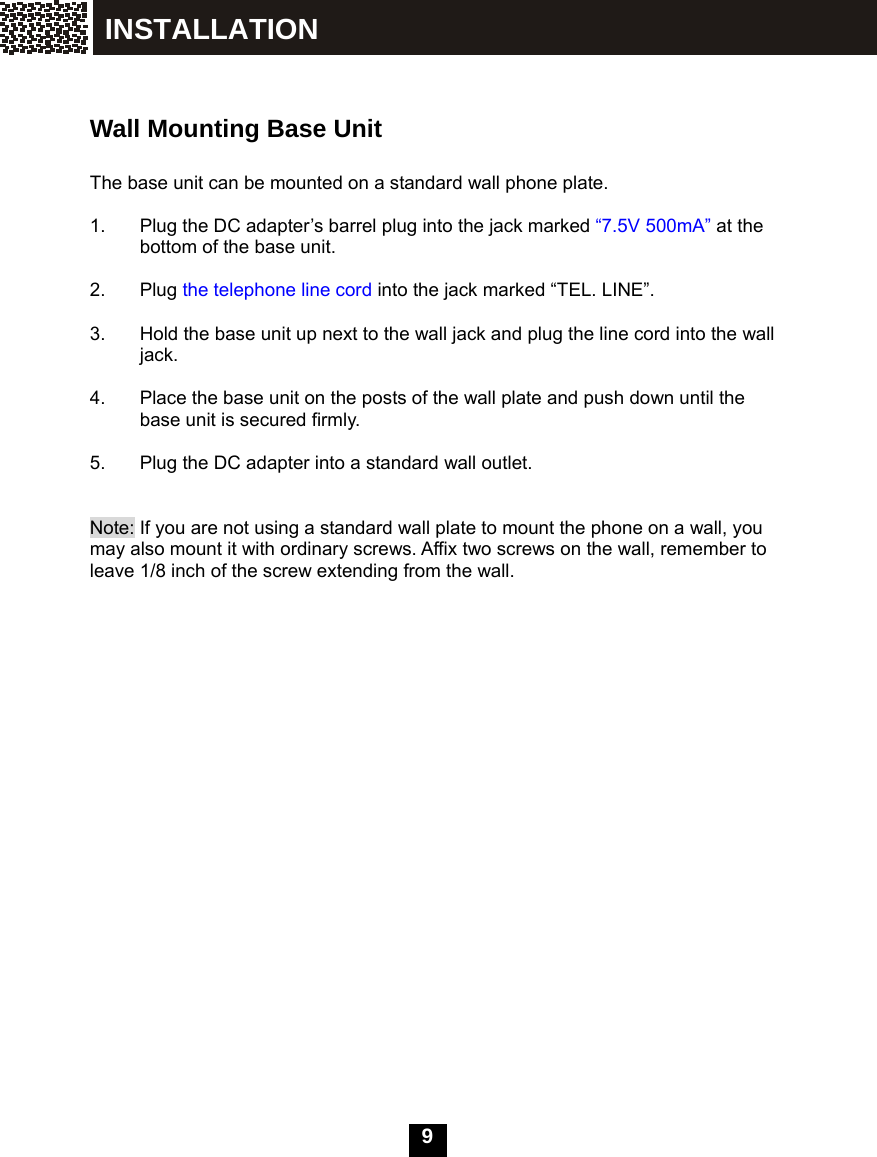
  10Wall Mounting Base Unit  The base unit can be mounted on a standard wall phone plate.  1.  Plug the DC adapter’s barrel plug into the jack marked “7.5V 300mA” at the bottom of the base unit.  2.  Plug the telephone line cord into the jack marked “TEL. LINE”.  3.  Hold the base unit up next to the wall jack and plug the line cord into the wall jack.  4.  Place the base unit on the posts of the wall plate and push down until the base unit is secured firmly.  5.  Plug the DC adapter into a standard wall outlet.   Note: If you are not using a standard wall plate to mount the phone on a wall, you may also mount it with ordinary screws. Affix two screws on the wall, remember to leave 1/8 inch of the screw extending from the wall.  Short tab
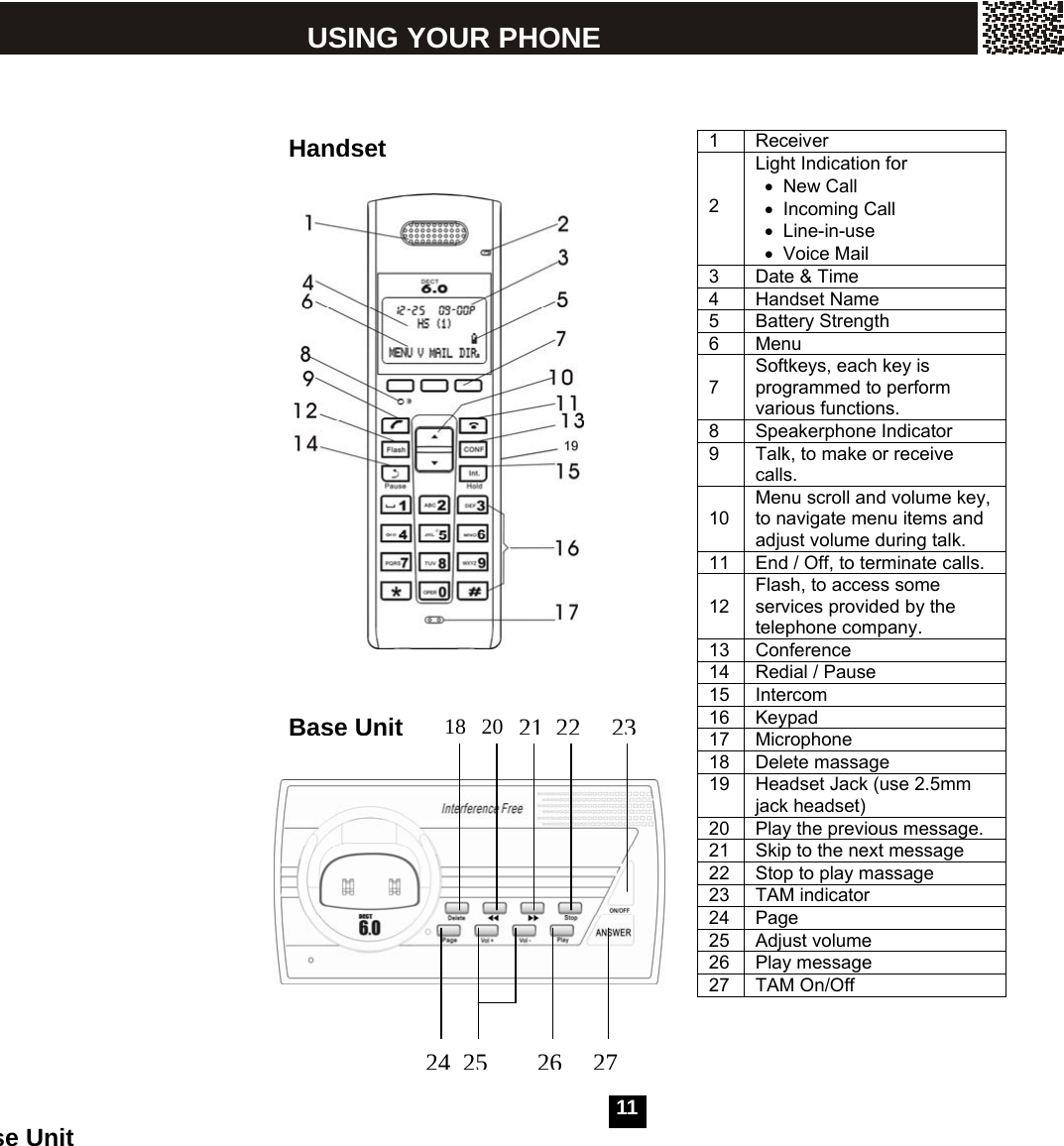
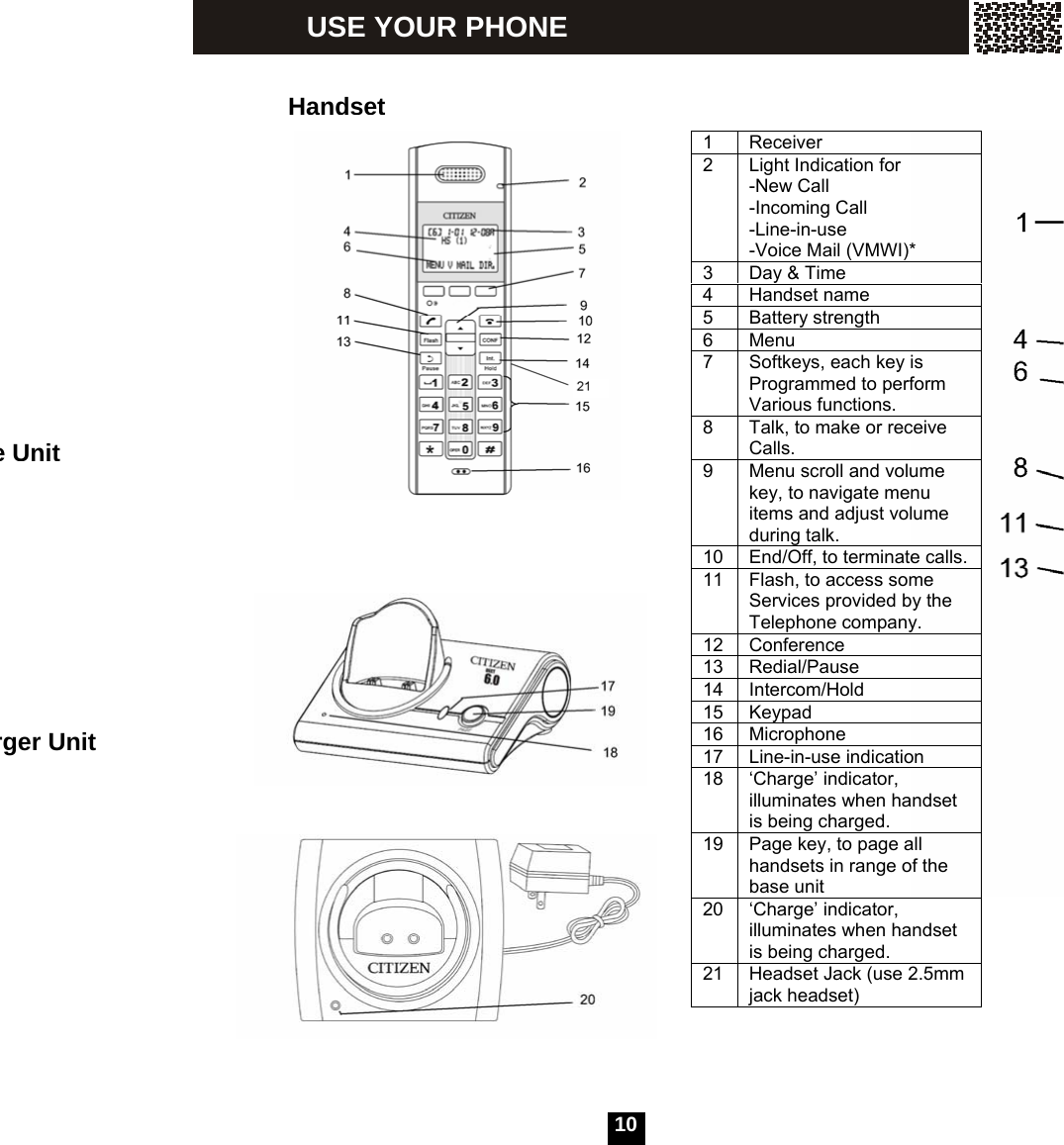
  11             1 Receiver   2 Light Indication for • New Call • Incoming Call • Line-in-use • Voice Mail  3  Date & Time 4 Handset Name 5 Battery Strength 6 Menu  7 Softkeys, each key is programmed to perform various functions. 8 Speakerphone Indicator 9  Talk, to make or receive calls.  10 Menu scroll and volume key, to navigate menu items and adjust volume during talk. 11  End / Off, to terminate calls.  12 Flash, to access some services provided by the telephone company. 13 Conference 14  Redial / Pause 15 Intercom 16 Keypad 17 Microphone 18 Delete massage 19  Headset Jack (use 2.5mm jack headset) 20  Play the previous message. 21  Skip to the next message 22  Stop to play massage 23 TAM indicator 24 Page  25 Adjust volume  26 Play message 27 TAM On/Off Handsetse UnitUSING YOUR PHONE   Base Unit18 20 21222324252627
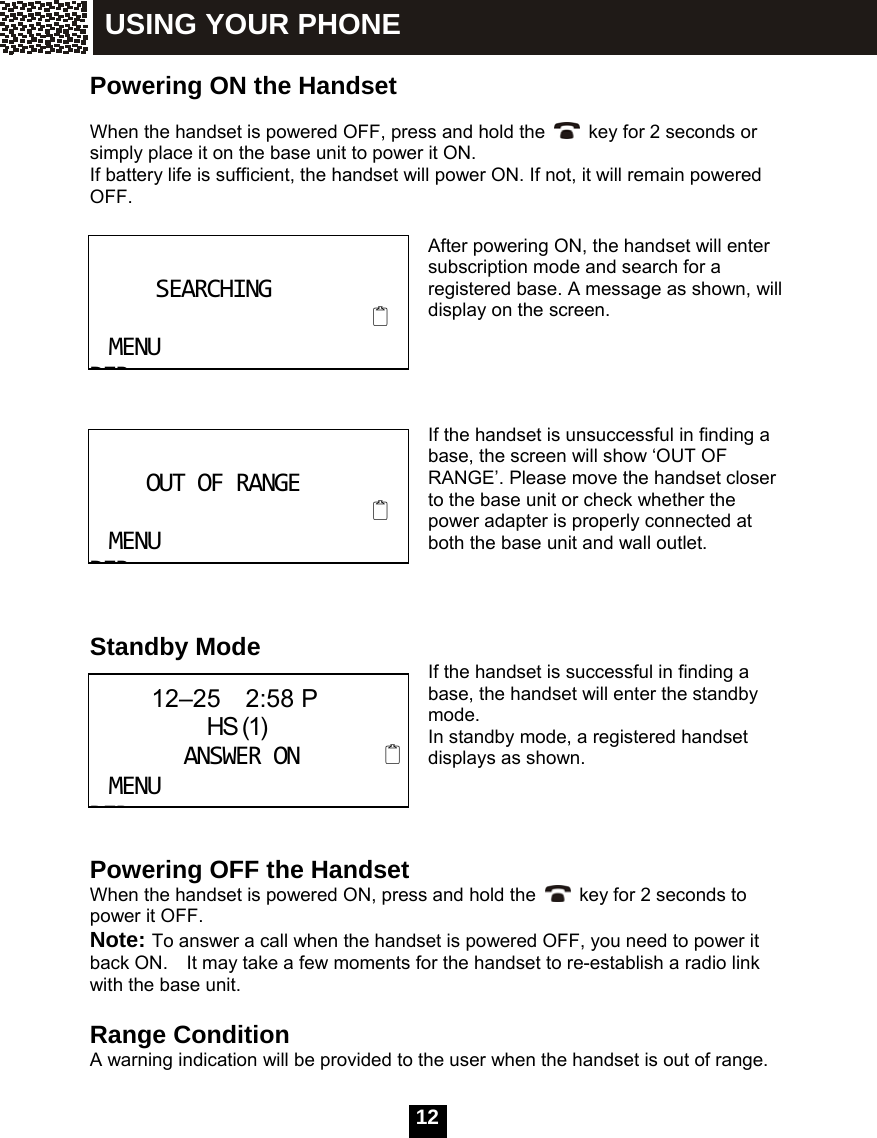
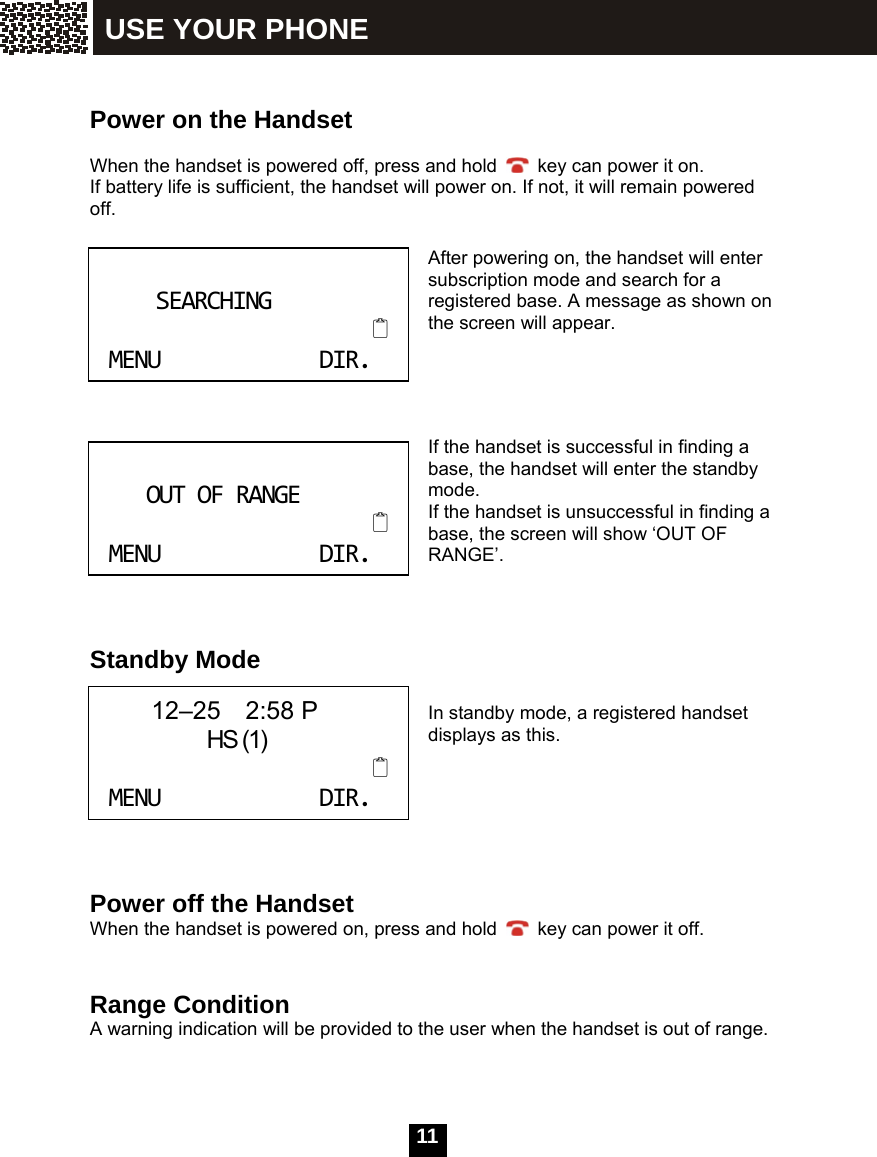
  12 Powering ON the Handset  When the handset is powered OFF, press and hold the  key for 2 seconds or simply place it on the base unit to power it ON. If battery life is sufficient, the handset will power ON. If not, it will remain powered OFF.    After powering ON, the handset will enter subscription mode and search for a registered base. A message as shown, will display on the screen.     If the handset is unsuccessful in finding a base, the screen will show ‘OUT OF RANGE’. Please move the handset closer to the base unit or check whether the power adapter is properly connected at both the base unit and wall outlet.    Standby Mode  If the handset is successful in finding a base, the handset will enter the standby mode. In standby mode, a registered handset displays as shown.    Powering OFF the Handset When the handset is powered ON, press and hold the    key for 2 seconds to power it OFF. Note: To answer a call when the handset is powered OFF, you need to power it back ON.    It may take a few moments for the handset to re-establish a radio link with the base unit.  Range Condition A warning indication will be provided to the user when the handset is out of range.  SEARCHINGMENUDIROUTOFRANGEMENUDIR     12–25  2:58 P               HS (1)ANSWERONMENUDIRUSING YOUR PHONE
  13 Registration  Before registering a handset to the base unit, the base unit should first enter the registration mode.   Press the [Page] key on the base for more than 3 seconds until the ‘Line-in-use’ indicator begins to flash quickly.  An unregistered handset displays as shown.    Press the [MENU] softkey, and then the [OK] softkey to enter ‘REGISTRATION’.     After pressing the [OK] softkey, a list of bases will be displayed. There are 4 base positions available for registration. Select the BASE among BASE1 - BASE4, (For the first time of use, select ‘BASE1’),           then press the [SEL] softkey.  Now the handset begins searching for the base.        UNREGISTEREDMENUDIR.  REGISTRATIONOKEXITBASE1↓BASE2SELEXIT SEARCHING1EXIT USING YOUR PHONE
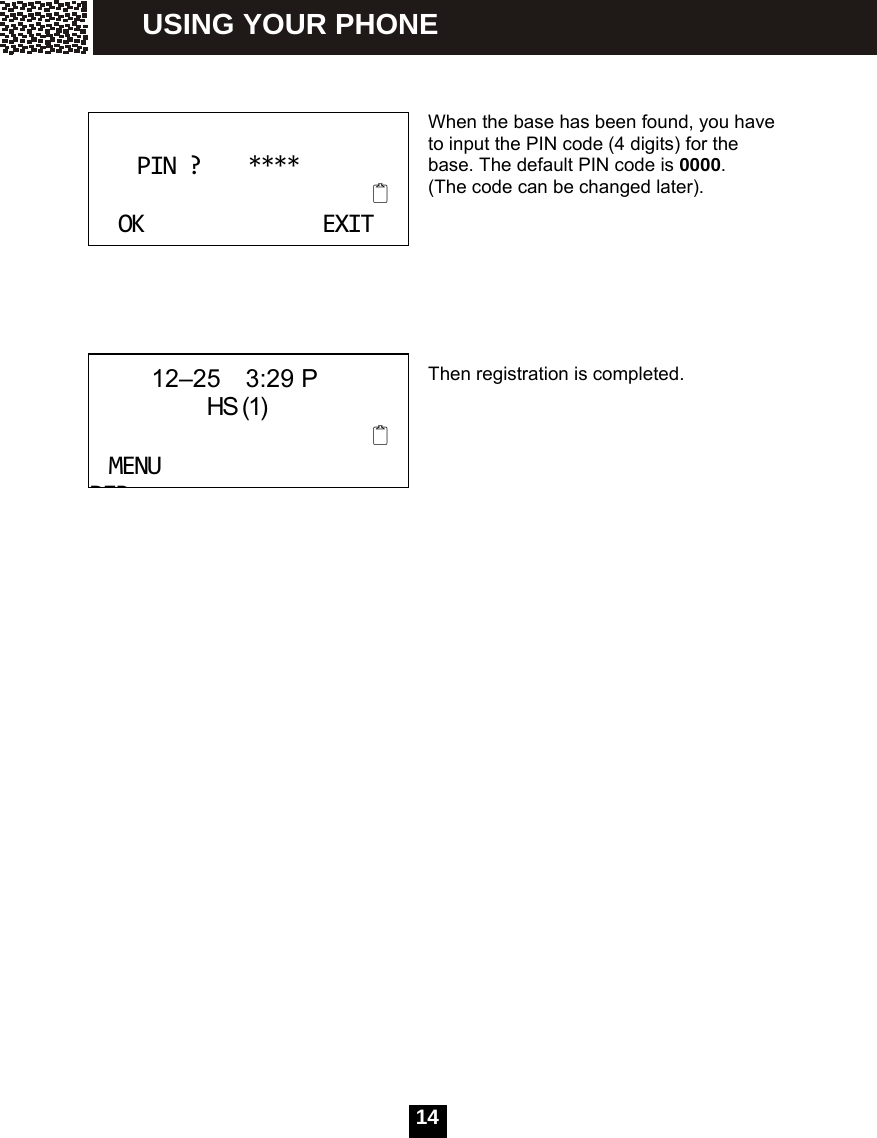
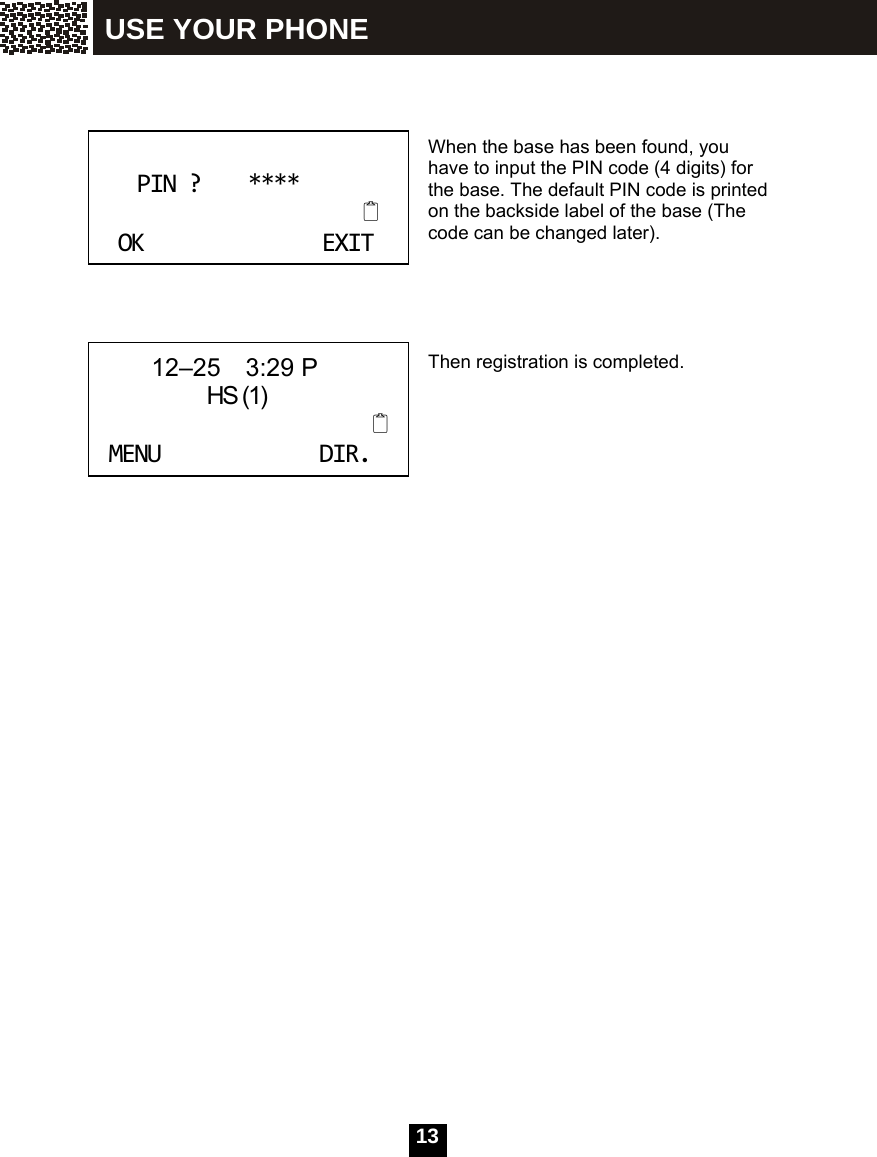
  14   When the base has been found, you have to input the PIN code (4 digits) for the base. The default PIN code is 0000.  (The code can be changed later).       Then registration is completed. PIN?****OKEXIT      12–25  3:29 P               HS (1)MENUDIRUSING YOUR PHONE
  15  The base options can be set using a handset registered to this base. Press the [MENU] softkey, select ‘BS SETTINGS’ and press [OK].   Deregister a Handset     Select ‘TERMINATE HS’, and press [OK].      Input the 4-digit PIN code. The default PIN is 0000.      Use ▲ / ▼ to scroll the list of handsets (HS). Press the [DEL] softkey to select a handset (except for the current handset which cannot be deregistered).     Dial Mode  Press the [MENU] softkey, select ‘BS SETTINGS’ and press [OK]. Use ▲ / ▼ to select ‘DIAL MODE’, and press [OK]. Press ▲ / ▼ to scroll the two options. Press [SAVE] to save your setting.    TERMINATEHSDIALMODEOKEXIT PIN?****OKDELEXIT HS1↓HS2DELEXIT    TONE                 ↓     PULSE                   SAVEEXIT BASE SETTINGS VIA HANDSET
  16   Flash Time  This function allows the user to set the flash time parameter according to your local telephone network settings when using the [Flash] key in some services, such as call waiting service and conference calling service, etc.  Press the [MENU] softkey, select ‘BS SETTINGS’ and press [OK]. Use ▲ / ▼ to select ‘FLASH TIME’ and press [OK].      Use ▲ / ▼ to choose between the two options and then press [SAVE] to save your setting. (‘SHORT’ = 300ms, ‘LONG’ = 650ms)       Modify PIN  Press the [MENU] softkey, select ‘BS SETTINGS’, and press [OK]. Use ▲ / ▼ to select ‘MODIFY PIN’ and press [OK].  Input the current 4-digit PIN. Press [OK] to complete. The default PIN is 0000.         DIALMODEFLASHTIMEOKEXIT SHORT↑LONGSAVEEXIT  PIN ?      ****                                OKDELEXIT BASE SETTINGS VIA HANDSET
  17  Input the new 4-digit PIN. Press [OK] to complete.      Input the new PIN again to confirm. Press [OK] to complete. Please do not forget this new PIN code. Now the new PIN will be stored in the base unit.      Set Base to Default  This function allows the user to restore the base settings to the factory default settings.  Press the [MENU] softkey Use ▲ / ▼ to select ‘BS SETTINGS’ and press the [OK] softkey. Select ‘BASE DEFAULT’ and press the [OK] softkey.    Input the 4-digit PIN. The default PIN is 0000. Press the [OK] softkey to complete. Then settings of the base will revert to the factory default values. NEWPIN****OKDELEXIT CONFIRM****OKDELEXIT MODIFYPIN↑BASEDEFAULTOKEXIT PIN?****OKDELEXIT BASE SETTINGS VIA HANDSET
  18 Alarm   Press the [MENU] softkey, select ‘HS SETTINGS’ and press the [OK] softkey. Select the ‘ALARM CLOCK’ and press the [OK] softkey.    Use ▲ / ▼ to select ‘ON’ or ‘OFF’ Press the [SAVE] softkey, to save your setting.     Select “ON’ and Press the [SAVE]   Use the keypad to input the time consecutively. (If the ‘TIME FORMAT’ is ‘12-HOUR’ format, you need to choose ‘a.m.’ or ‘p.m.’ by using the [AM/PM] softkey). Press [SAVE], to save your setting.  Use ▲ / ▼ to select ‘ON’ or ‘OFF’ Press the [SAVE] softkey, to save your setting.      Ring Setup   Press the [MENU] softkey, use ▲ / ▼ to select ‘HS SETTINGS’ and press [OK].   Select ‘RING SETUP’ and press [OK].         ALARMCLOCK         ↓      RINGSETUP             OKEXIT     OFF                  ↓       ON                       SAVEEXIT 12:32PMSAVEAM/PMEXIT     SNOOZEON           ↓      SNOOZEOFF             SAVEEXIT ALARMCLOCK RINGSETUP   OKEXIT HANDSET SETTINGS
  19  Use ▲ / ▼ to select the type of ring that you want use.   You can assign different ringtones and volumes for incoming intercom calls, and outside land line call (‘INTC’ is for intercom calls and ‘LINE’ is for outside landline call).   Press the [OK] softkey. Use ▲ / ▼ to select ‘MELODY’ or ‘VOLUME’ setting.    If you enter the ‘MELODY’ setting Use ▲ / ▼ to select a melody. Press the [SAVE] softkey, to save your setting.     If you enter the ‘VOLUME’ setting. Use ▲ / ▼ to select a volume level. Press the [SAVE] softkey, to save your setting.   Configure Ringtone for Incoming Calls via External line Press the [MENU] softkey, select ‘HS SETTINGS’ and press [OK]. Select ‘RING SETUP’ by using ▲ / ▼ and then pressing [OK]. Select ‘LINE RING’, and then press [OK]. Select ‘MELODY’, and then press [OK]. Press ▲ / ▼ to select the desired ringtone, then press the [SAVE] softkey to save your setting.  Configure Ring Volume for Incoming Calls via External line Press the [MENU] softkey, select ‘HS SETTINGS’ and press [OK]. Select ‘RING SETUP’ by using ▲ / ▼ and then pressing [OK]. Select ‘LINE RING’, and then press [OK]. Select ‘VOLUME’, and then press [OK]. Press ▲ / ▼ to select the desired volume, then press the [SAVE] softkey to save your setting.    INTCRING             ↓    LINERINGOKEXIT   MELODY                ↓     VOLUME                 OKEXIT MELODY1↓MELODY2SAVEEXIT VOLUME2↑VOLUME1SAVEEXIT HANDSET SETTINGS
  20   Configure Ringtone for Intercom Calls Press the [MENU] softkey, select ‘HS SETTINGS’ and press [OK]. Select ‘RING SETUP’ by using ▲ / ▼ and then pressing [OK].  Select ‘INTC RING’, and then press [OK]. Select ‘MELODY’, and then press [OK]. Press ▲ / ▼ to select the desired ringtone, then press the [SAVE] softkey to save your setting.  Configure Ring Volume for Intercom Calls Press the [MENU] softkey, select ‘HS SETTINGS’ and press [OK].   Select ‘RING SETUP’ by using ▲ / ▼ and then pressing [OK]. Select ‘INTC RING’, and then press [OK]. Select ‘VOLUME’, and then press [OK]. Press ▲ / ▼ to select the desired volume, then press the [SAVE] softkey to save your setting.   Do Not Disturb  Press the [MENU] softkey, select ‘HS SETTINGS’ and press [OK].   Select ‘RING SETUP’ by using ▲ / ▼ and then pressing [OK]. Select ‘DO NOT DISTURB’, and then press [OK].   Press ▲ / ▼ to choose ‘OFF’ or ‘ON’, then press [OK] to save your setting.      If this option is set to ‘ON’, the screen will display “DO NOT DISTURB” in standby mode. Then no ring will be heard from any external line (outside land line) call; however the call information will still be displayed on the screen, and the call can still be answered.  LINERING↑DONOTDISTURBOKEXIT    OFF                   ↓  ON                     OKEXIT HANDSET SETTINGS
  21  Tone Setup  Press the [MENU] softkey, select ‘HS SETTINGS’ and press [OK].   Select ‘TONE SETUP’ by using ▲ / ▼ and pressing [OK].      Then you can configure the displayed 3 types of tones.      Set Key Tone On/Off Press the [MENU] softkey, select ‘HS SETTINGS’ and press [OK].   Select ‘TONE SETUP’ by using ▲ / ▼ and press [OK]. Select ‘KEY TONE’ and press [OK]. Use ▲ / ▼ to select ‘OFF’ or ’ON’, then press [SAVE], to save your setting.  Set Battery Low Alert Tone On/Off Press the [MENU] softkey, select ‘HS SETTINGS’ and press [OK].   Select ‘TONE SETUP’ by using ▲ / ▼ and press [OK]. Select ‘BATTERY LOW’ and press [OK]. Use ▲ / ▼ to select ‘OFF’ or ‘ON’, then press [SAVE] to save your setting.  Set Out of Range Alert Tone On/Off Press the [MENU] softkey, select ‘HS SETTINGS’ and press [OK].   Select ‘TONE SETUP’ by using ▲ / ▼ and pressing [OK]. Select ‘RANGE ALARM’ and press [OK]. Use ▲ / ▼ to select ‘OFF’ or ‘ON’, then press [SAVE], to save your setting. RINGSETUPTONESETUPOKEXIT KEYTONE↓BATTERYLOWOKEXIT HANDSET SETTINGS
  22   Language Setting   Press the [MENU] softkey, select ‘HS SETTINGS’ and press [OK].   Select ‘LANGUAGE’ by using ▲ / ▼ and then pressing [OK].    Use ▲ / ▼ to scroll through the 6 available language options (English, German, French, Italian, Spanish, and Dutch). Select the desired language and then press [SAVE], to save your setting.      Change Handset Name  ‘HS (N)’ is the default name of a handset after registering it to a base unit. The handset extension number ‘N’ (1—5) shows the handset as the ‘N’th handset that registered to the base. The name will be shown on the screen when the handset is in standby mode. A handset must be registered to the base before it can be assigned to a name.   To change the handset name to text format. Press the [MENU] softkey. Use ▲ / ▼ to select ‘HS SETTINGS’ and press [OK].   Select ‘HS LABEL’ and press [OK].   Press [DEL] to delete the current name, and use the keypad to input the new name. Then press [SAVE], to save your change.   TONESETUP↓LANGUAGEOKEXIT ENGLISH↓DEUTSCHSAVEEXIT LANGUAGEHSLABELOKEXIT NAME?JOHNSAVEDELABC HANDSET SETTINGS
  23  Auto Answer  The handset can be set to answer incoming calls automatically. When the handset is not on the base unit or the charger cradle,    must be pressed to answer incoming calls. Auto answer mode can only be activated when the handset is on the base unit or charger cradle, in which case, the line will be automatically connected when the handset is picked up from the base unit or charger cradle.  Set Auto Answer Mode On/Off  Press the [MENU] softkey.   Use ▲ / ▼ to select ‘HS SETTINGS’ and press [OK].   Select ‘AUTO ANSWER’ and press [OK].    Use ▲ / ▼ to select ‘OFF’ or ‘ON’. Press [OK] to save your setting.       Call Barring  Handset can be set to disable outgoing outside land line calls. To set the call barring mode ‘ON’ or ‘OFF’ Press the [MENU] softkey. Use ▲ / ▼ to select ‘HS SETTINGS’ and press [OK].   Select ‘CALL BARRING’ and press [OK].   Input the 4-digit PIN. The default PIN is 0000. Press [OK] to confirm.  HSLABELAUTOANSWEROKEXIT OFF↓ONOKEXIT AUTOANSWERCALLBARRINGOKEXIT PIN?****OKEXIT HANDSET SETTINGS
  24    Use ▲ / ▼ to select ‘OFF’ or ‘ON’.   Press [SAVE], to save your setting. If you set to ‘ON’, the screen will display “CALLS BARRED” in standby mode.     Date & Time Settings  Set Time Format  Press the [MENU] softkey. Use ▲ / ▼ to select ‘HS SETTINGS’ and press the [OK] softkey.   Select ‘DATE & TIME’ and then press the [OK] softkey. Select ‘TIME FORMAT’ and then press the [OK] softkey.  Use ▲ / ▼ to select your desired format.   Press [SAVE] to save your setting. Then the time will be displayed in the format you have set when return to standby mode.   Set Date & Time  Press the [MENU] softkey. Use ▲ / ▼ to select ‘HS SETTINGS’ and press the [OK] softkey.   Select ‘SET DATE&TIME’ and press the [OK] softkey.     OFFONSAVEEXIT TIMEFORMAT↓SETDATE&TIMEOKEXIT 12‐HOUR↓24‐HOURSAVEEXIT TIMEFORMAT↑SETDATE&TIMEOKEXIT HANDSET SETTINGS
  25 Use the keypad to input the date and time consecutively. (If you have already set the ‘TIME FORMAT’ to ‘12-HOUR’ format, then you also need to choose ‘a.m.’ or ‘p.m.’ by using the [AM/PM] softkey). Press [SAVE], to save your setting.   Set Handset to Default  Press the [MENU] softkey. Use ▲ / ▼ to select ‘HS SETTINGS’ and press the [OK] softkey.   Select ‘SET WEEKDAY’ and press the [OK] softkey.  Press the [CHANGE] softkey to choose the day and then press the [OK] softkey     Set Handset to Default This function allows the user to restore the handset settings to the factory default settings.  Press the [MENU] softkey. Use ▲ / ▼ to select ‘HS SETTINGS’ and press the [OK] softkey. Select ‘HS DEFAULT’ and press the [OK] softkey.   Input the 4-digit PIN. The default PIN is 0000. Press the [OK] softkey to complete. Then all settings on the handset will revert to the factory default values.  MM/DDHH:MM00/0000:00AMSAVEAM/PMEXIT SETDATE&TIME↑SETWEEKDAYOKEXIT WEEKDAY:MON↑OKCHANGEEXIT SELECTBASE↑HSDEFAULTOKEXIT PIN?****OKDELEXIT HANDSET SETTINGS
  26  Display the Phonebook Entries  In standby mode, press the [DIR.] softkey to enter the telephone directory.   Then the phonebook screen will be displayed.   Use ▲ / ▼ to access and scroll the phonebook entries.       Add Entries to the Phonebook  In standby mode, press the [DIR.] softkey to enter the telephone directory. Then the phonebook screen will be displayed. Press the [ADD] softkey to add a new entry.   Use the keypad to input the name. Press the [ABC] ([123]) softkey, to switch the input mode between numerical mode and alphabetical mode. If you input the wrong words or numbers, use ▲ / ▼ and the [DEL] softkey to erase the errors. Press [OK] to complete the input. In alphabetical mode, each numeric key is assigned a set of letters and symbols as shown below. Press the corresponding key until your desired letter is displayed. If two consecutive letters from the same key are required, just wait until the cursor moves to the next blank space before inputting. Numeric:  1  2 3 4 5 6  7  8  9  0 Alpha: space,-,@ ,_ A,B,C D,E,F G,H,I J,K,L M,N,O P,Q,R,S T,U,V W,X,Y,Z ?,&,/ ,, PHONEBOOK38ENTRIESADDDELEXIT #1812345678JOHNSMITHPHONEBOOKEDITDELEXIT PHONEBOOK38ENTRIESADDDELEXIT NAME?JOHNOKDELABC HANDSET SETTINGS
  27 Symbols You can also use [½] or [#] to insert the following special symbols in the name field. ½ + , - . / @ : ; < = > ? { ¦ } ~ [ \ ] ^ _ ` ! ″ # $ % & ´ …  Note: Name must start with an alphabetic character.    Use the keypad to input the number. Press the [OK] softkey when finished. Press the [DEL] softkey to erase the digit(s) you inputted in error, and then input the correct ones.    Use ▲ / ▼ to select a distinct ringtone for this entry. Press [SAVE] to complete.      Edit an Entry in the Phonebook  In standby mode, press the [DIR.] softkey to enter the telephone directory. Use ▲ / ▼ to access and scroll the phonebook entries. When the entry that you want to edit appears, press the [EDIT] softkey. Then follow the steps as adding an entry               to the phonebook.      NUMBER?12345678OKDELEXIT MELODY1↓MELODY2SAVEEXIT #1812345678JOHNSMITHPHONEBOOKEDITDELEXIT HANDSET SETTINGS
  28   Delete an Entry from the Phonebook  In standby mode, press [DIR.] softkey to enter telephone directory. Use ▲ / ▼ to access and scroll the phonebook entries. When the entry that you want to delete appears, press [DEL] softkey.    Press [YES] to confirm your deletion. Then this entry is deleted.       Delete All Entries in the Phonebook  In standby mode, press the [DIR.] softkey to enter the telephone directory. Press the [DEL] softkey to delete all entries.       Press [YES] to confirm the deletion. Then all entries are deleted.       #1812345678JOHNSMITHPHONEBOOKEDITDELEXIT SURETODELETE?YESNO PHONEBOOK38ENTRIESADDDELEXIT DELETEALL?YESNO HANDSET SETTINGS
  29   Review the Caller ID List   In standby mode, press ▲ / ▼ to enter the Caller ID List. Then the Caller ID book screen will be displayed. Press ▲ to review the latest calls, press ▼ to review the earlier calls.   The date and time is also displayed in the format you have set.       Save Caller ID Information to the Phonebook  In standby mode, press ▲ / ▼ to enter the Caller ID List. Use ▲ / ▼ to access and scroll the Caller ID List. When the record that you want to save appears, press the [SAVE] softkey. Then follow the same steps as adding an                                               entry to the phonebook.   Delete a Record from the Caller ID List   In standby mode, press ▲ / ▼ to enter the Caller ID List. Use ▲ / ▼ to access and scroll the Caller ID List. When the record that you want to delete appears, press the [DEL] softkey.    CIDBOOK20ENTRIESDELEXIT #125/123:58PJOHNSMITH12345678X2SAVEDELEXIT #125/123:58PJOHNSMITH12345678X2SAVEDELEXIT #112/253:58PJOHNSMITH12345678X2SAVEDELEXIT HANDSET SETTINGS
  30   Press [YES] to confirm the deletion. Then this record is deleted.       Delete All Records in the Caller ID List  In standby mode, press ▲ / ▼ to enter the Caller ID List. Then the Caller ID book screen will be displayed. Press the [DEL] softkey to delete all records.    Press [YES] to confirm the deletion. Then all records are deleted.       Review the Dialed Numbers List Every handset can store its own last 9 dialed numbers independently, each number of up to 24 digits. Press the [Redial] key, use ▲ / ▼ to review the dialed number(s). If the displayed number matches with an entry in the phonebook, the corresponding name will also be shown.   Add a Dialed Number to the Phonebook  When the number you want appears, press the [SAVE] softkey. Then follow the steps as adding an entry to the phonebook.  SURETODELETE?YESNO CIDBOOK20ENTRIESDELEXIT DELETEALL?YESNO #112345678JOHNSMITHREDIALBOOKSAVEDELEXITHANDSET SETTINGS
  31HANDSET SETTINGS   Delete a Dialed Number   When the number that you want to delete appears, press the [DEL] softkey.      Press the [OK] softkey.      Press [YES] to confirm the deletion. Then this number is deleted.       Delete All Dialed Numbers   Press the [Redial] key. Press the [DEL] softkey.       Press ▼ to select ‘DELETE ALL’. Then press the [OK] softkey.       #112345678JOHNSMITHREDIALBOOKSAVEDELEXIT   DELETE↓DELETEALLOKEXIT      SURETODELETE?YESNO   #112345678JOHNSMITHREDIALBOOKSAVEDELEXITDELETE↓DELETEALLOKEXIT
  32     Press [YES] to confirm the deletion. Then all numbers are deleted.         DELETEALL?YESNO HANDSET SETTINGS
  33  Method 1: Dial a Number   Press  . Input the number.      Or: Input the number. (You may use the [DEL] softkey to delete the digits). Press the [CALL] softkey or  .    During the call: Press the    softkey to toggle hands-free mode. Press it again to quit this mode. Press the [MUTE] softkey to disable the microphone. For private discussions,                                     press ▲ / ▼ to adjust the volume.                                     Press    to terminate the call.   Method 2: Call from the Phonebook   Press the [DIR.] softkey to review the phonebook. Use ▲ / ▼ to scroll to the number you need. Press  . Press    to terminate the call.  Method 3: Call from the Caller ID List  Press ▲ / ▼ to review the Caller ID list. Use ▲ / ▼ to scroll to the number you need. Press  . Press    to terminate the call. 1234567MUTEDIR. 1234567CALLDELEXIT LINE00:00:01MUTEDIR.#1812345678JOHNSMITHPHONEBOOK  EDITDELEXIT MAKING A CALL
  34   Method 4: Call from Dialed Numbers List  Press [Redial] key to review the dialed numbers. Use ▲ / ▼ to scroll to the number you need. Press  . Press    to terminate the call.   Method 5: Call the Last Dialed Number  Press  . Press the [Redial] key to dial out the last dialed number. Press    to terminate the call.  Note: Putting the handset on the base unit can also terminate the call.     Enter a Pause in the Dialing Sequence  The [Redial/Pause] key allows you to add a 3-second pause during pre-dialing or when storing a number in the phonebook. To add a pause, press the [Redial/Pause] key at your desired position when inputting or editing a phone number, and a “P” appears on the screen. For a longer delay, press the [Redial/Pause] key additional times.       Note: The number you want to store cannot have more than 24 digits, including the pause. One “P” counts as one digit.MAKING A CALL
  35 Locate Misplaced Handset(s) with Base Unit  To locate the handset(s) while not on the base unit, press the [Page] key on the base unit. Then the handset(s) in range will display ‘PAGING FROM BASE’ and emit an alert signal that is different from the external line (outside land line) calls. No response from the handset(s) if it is battery power failure or turned to Power OFF. To stop the paging, press [Page] on the base again or press any key on the handset.    If no handset answers, the paging will stop automatically after 1 minute. Note: 1.The handset being paged will ring even if the ringer has been set to ‘OFF’.          Intercom between Handsets (in this case an expandable handset is required) Press the [Int.] key on a handset in standby mode. Then the screen will show all the other available handsets in range of the base unit. (‘HS’ is for ‘handset’).    Use ▲ / ▼ to scroll to the handset you want to intercom with and press [CALL].   For instance, if HS (2) is being paged by HS (1), HS (1) will display ‘PAGING HS (2)’.   HS (2) will ring and display ‘PAGING FROM HS (1)’.                                          Press the [Int.] key,    or the [OK] softkey on HS (2) to answer the intercom call. If HS (2) does not want to answer, press   HS2↓HS3CALLEXITPAGINGHS(2)                       EXIT  PAGINGFROMHS(1)           OKEXIT   INTC          00 : 00 : 0  MUTEEXIT PAGING AND INTERCOM
  36 the [EXIT] softkey, then the ring will stop.  Note: If two handsets are engaging in an intercom talk when an external line incoming both handsets can hear one beep tone.   Transfer a Call to another Handset  During a call, the current call can be transferred to another handset as described below. (in this case an expandable handset is required)  When a handset is engaging in an external line (outside land line) call. Press the [Int.] key and use ▲ / ▼ to scroll to the handset you want to transfer this call to, then press the [CALL] softkey.  If you do this from HS (1) to HS (2), then HS (2) rings and displays ‘PAGING FROM HS (1)’.   On Handset (2), press  , [Int.] or [OK] to answer the paging and then talk with Handset (1). (Internal talk).  Now the initiator of the transfer can talk with the party to be transferred to, and then the initiator can press   to complete the transfer. If the party being transferred to does not         want to answer the paging, press   or     the [EXIT] softkey to reject it.        Then the handset being paged stops ringing and returns to standby mode, and the initiating handset resumes the external line talk.   HS2HS3CALLEXITPAGINGFROMHS(1)OKEXITINTC00:00:01MUTEEXIT 12–25  13:59 P                HS (1)MENUDIR.PAGING AND INTERCOM
  37    Call Conferencing  This cordless system supports ‘conference calls’ up to 3 parties (2 handsets and 1 external line call and in this case an expandable handset is required).   When one handset is engaging in an external line (outside land line) call, press the [Int.] key on that handset to put the current call on hold and call another handset by way of intercom.    Use ▲ / ▼ to scroll to the handset you want. Then press the [CALL] softkey to page.      If you do this from HS (1) to HS (2), then HS (2) rings and displays ‘PAGING FROM HS (1)’.      On Handset (2), press  , [Int.] or [OK] to answer the paging and talk with Handset (1). (Intercom talk).         LINE00:00:01MUTEDIR. HS2HS3CALLEXIT PAGINGFROMHS(1)OKEXIT INTC00:00:01MUTEEXIT CALL CONFERENCING
  38     When the intercom call is established, on the initiating handset {in this case is Handset (1)}, pressing the [Int.] key can switch between the intercom talk and external line talk.      After the initiating handset being switched to ‘INTC’ (intercom) call, press the [CONF] key on the initiating handset can talk with the two parties (external line party, and intercom party) simultaneously, which is the conference mode.     On any handset, pressing   or [EXIT] can retreat from the current conversation and return to standby mode. The other handset will continue the external line call. To end the call, make sure that both handsets have quit.   Note: If your handset has already retreated from the conversation; you can still join   into the conversation again by following the procedures stated on Page 36.             LINE00:00:09INTCONHOLDMUTE CONF00:00:23MUTEEXIT LINE00:02:48MUTEDIR. CALL CONFERENCING
  39  Via External line (outside land line)   Caller ID service is not available              With Caller ID     When the phone rings, if you want to mute the ringer, press the [MUTE] softkey or . Press the [UNMUTE] softkey to resume the ringer.     Press    to answer the call. Press ▲ / ▼ to adjust the volume. Press    to end the call.       Note: If ‘auto answer mode’ is set to ‘ON’, when the ring sounds, there is no need to press  , just picking the handset up off the base (or charging cradle) can answer the call automatically.  CALLVIALINEMUTE 12–25  13:59 PJOHNSMITH12345678×2MUTE CALLVIALINELINERINGMUTEDUNMUTELINE00:00:01MUTEDIRRECEIVING A CALL
  40  During Intercom (in this case an expandable handset is required)   During intercom talk, if an external line call comes, the handset(s) will hear intermittent beeps. Press    key to end the current intercom and answer the incoming call.     Press ▲ / ▼ to adjust the volume. Press      to end the call.         Switch to a Waiting Call  Note: This service may require subscription from your local telephone company.   During an external line call, press the [Flash] key to put the current external line call on hold and answer the incoming waiting external line call. Pressing the [Flash] key again can resume the first external line call.  INTC00:00:49MUTEEXIT LINE00:00:01                      .MUTE LINE00:02:17MUTEDIR. RECEIVING A CALL
  41   Mute a Call  You can mute a call while discussing matters with a nearby person in privacy without transmitting your voice over.   During an External line call  Press the [MUTE] softkey. Then ‘MUTE’ is shown on the screen to indicate it is muting the microphone. Press the [MUTE] softkey again to un-mute the microphone.    During Intercom  Press the [MUTE] softkey. Then ‘MUTE’ is shown on the screen to indicate it is muting the microphone. Press the [MUTE] softkey again to un-mute the microphone.                   MUTE00:00:58MUTEDIR. MUTE00:00:31MUTEEXIT RECEIVING A CALL
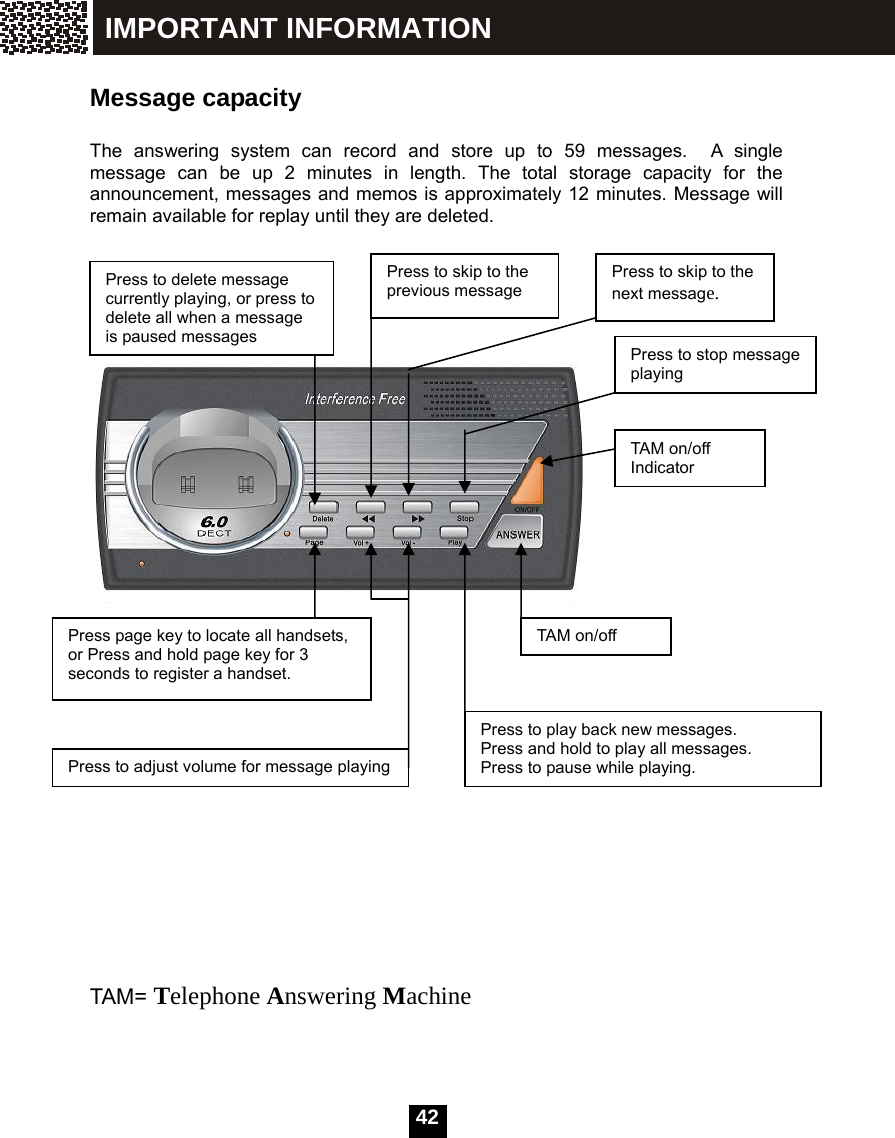
  42 Message capacity  The answering system can record and store up to 59 messages.  A single message can be up 2 minutes in length. The total storage capacity for the announcement, messages and memos is approximately 12 minutes. Message will remain available for replay until they are deleted.                               TAM= Telephone Answering Machine  Press to delete message currently playing, or press to delete all when a message is paused messages  Press to skip to the previous message Press to skip to the next message. Press to stop message playing Press page key to locate all handsets, or Press and hold page key for 3 seconds to register a handset. TAM on/off Press to play back new messages.   Press and hold to play all messages.   Press to pause while playing. Press to adjust volume for message playing TAM on/off Indicator IMPORTANT INFORMATION
  43 Activate the answering machine  Activate via the base:   The answering system must be turned on to answer and record messages. Press [ANSWER] in the base unit to turn the answering system on or off. If the answering system is turned on, it will announce “answering machine on”, and then play the greeting words which the answering system will tell the phone caller to leave a message. The light above the [ANSWER] button will be On. If the answering system is turned off, it will announce “answering machine off”, and the light above the [ANSWER] button will be off.  Activate via the handset:   The answering system can be turned on/off through a registered handset.  1.  Press [MENU] key to display the menu when the handset is not in use.   2. Press ▲ or ▼  to select TAM then press [OK].   3. Press ▲ or ▼ to select TAM SETTING then press [OK].      4. Press ▲ or ▼ to select TAM ON/OFF then press [OK].     5. Press ▲ or ▼  to select ON or OFF then press [SAVE]. You will hear a confirmation tone   Answering System REGISTRATION↑TAM Note:  You can record memo, greeting words to the caller, who will leave message (out going message), through handset only, but you can play any message through either handset or base unit.TAMON/OFF↓AMALERTOFF↑ONMEMO↑ TAMSETTING OKEXIT
  44 Telephone Answering Machine setting You can change the TAM setting via a registered handset.    Set date/time/weekday Prior to playing a message, the answering machine announces when the message was received. Before using the answering machine, set the date, time and weekday, so that messages are dated correctly. To change these settings, refer to handset setting for detailed operation (see page 24).  Set message alert tone Your telephone base can be set to beep every 1 minute to alert you of the new messages ready for your review.    To enable this feature:  1.  On your handset, press [MENU] key to display the menu when the handset is not in use. 2. Press ▲ or ▼  to select TAM then press [OK].   3. Press ▲ or ▼ to select TAM SETTING then press [OK].      4. Press ▲ or ▼ to select TAM ALERT then press [OK].         5. Press ▲ or ▼  to select ON or OFF then press [SAVE].  You will hear a confirmation tone    MEMO↑ TAMSETTING OKEXITREGISTRATION↑TAM TAMON/OFF↓TAMALERTOKEXITOFF↑ONAnswering System
  45   Set number of rings  This feature allows you to select the number of rings before the answering machine answers a call. You can choose from 2 to 9 rings or time saver. When time saver is selected, the answering machine answers after three rings if you have new messages and after seven rings if there are no new messages.  To set the number of rings:  1.  On your handset, press [MENU] key to display the menu when the handset is not in use. 2. Press ▲ or ▼  to select TAM then press [OK].   3. Press ▲ or ▼ to select TAM SETTING then press [OK].      4. Press ▲ or ▼  to select SET RINGS then press [OK].     5. Press ▲ or ▼  to select desired number of rings then press [SAVE]. You will hear a confirmation tone.       Answering System TAMALERT SETRINGSSETRINGS6RINGS SAVERIGISTRATION↓AMALERTMEMO↑ TAMSETTING OKEXIT
  46   Set TAM mode  You can decide whether the answering machine will prompt the caller to leave message or not when answering a call. Two modes can be selected for the answering machine:  Answer with recording:  Play the greeting with OGM1 to prompt the caller to leave a message, and save the message in the telephone base for you to review later.  Answer without recording:  Play the greeting with OGM2 to prompt the caller to hang up.  To set the TAM mode:  1.  On your handset, press [MENU] key to display the menu when the handset is not in use. 2.  Press  ▲ or ▼  to select TAM then press [OK].   3.  Press  ▲ or ▼ to select TAM SETTING then press [OK].     4.  Press  ▲ or ▼  to select TAM MODE then press [OK].     5.  Press  ▲ or ▼  to select “ANS WITH REC” to set TAM mode as answering with recording, or “ANS NO REC” to set TAM mode as answering without recording.  ANSWITHREC↑ ANSNOREC SAVEEXITREGISTRATION↑TAM OK                 MEMO TAMSETTING OKEXITSETRINGS TAMMODE Answering System
  47 Set OGM (Out Going Message) The answering machine has 2 different OGM, used in different TAM mode. The OGM is the greeting announcement played to the phone caller when the answering machine answers the call. OGM 1 is used for “Answer with recording” mode; OGM2 is for “Answer without recording” mode. The system has a default OGM for both TAM modes. And you can record your own greeting as OGM for either TAM mode.       To change the OGM:   1. On your handset, press [MENU] key to display the menu when the handset is not in use. 2. Press ▲ or ▼  to select TAM then press [OK].  3. Press ▲ or ▼ to select TAM SETTING then press [OK].     4. Press ▲ or ▼  to select SET OGM then press [OK].     5. Press ▲ or ▼  to select “ANS WITH REC” to set OGM for answering with recording mode, or “ANS NO REC” to set OGM for answering without recording mode, then press [OK].    Note:  OGM1 is greeting one OGM2 is greeting two   Default OGM1 is “no one is available to take your call, please leave a message after the tone”. Default OGM2 is “no one is available to take your call, please hang up”  ANSWITHREC↓ANSNOREC OKEXITAnswering System REGISTRATION↑TAM MEMO↑ TAMSETTING OKEXITTAMMODE  SETOGM OKEXIT
  48       6. Now press ▲ or ▼ to select between  PLAYBACK: to play the current OGM for the selected mode RECORD: to record a new OGM for the selected mode. DEFAULT: to set the OGM as default for the selected mode.  If you selected RECORD, a voice will announce “record the greeting one (or two) after the tone”, then a beep sounds, then you can say your greeting for the selected TAM mode, i.e. greeting one for answer with recording, greeting two for answer without recording.     You have 30 seconds to record your greeting. The screen will show the rest time you can record. Press [SAVE] when finish The answering machine will playback the recorded OGM for you to confirm.   If you selected DEFAULT, the screen prompts you to confirm, press YES to confirm, then the OGM will be set to default, and the default greeting will be played for your sure        Note:  You can record your own greetings, or set it to the default greetings. PLAYBACK↑RECORD SPEAKAFTERTONERECORDINGOGM1 EXITRECORDINGOGM1TIME:30 SAVEEXITNote:  The DEFAULT option will not appear in the menu if you have not recorded your own OGM  CONFIRM? YESNOAnswering System
  49 Set remote access PIN  A 4-digit security code is required to access the answering machine remotely from any touch tone telephone. The preset PIN is 0000.  To set the remote access PIN:  1.  On your handset, press [MENU] key to display the menu when the handset is not in use. 2. Press ▲ or ▼  to select TAM then press [OK].    3. Press ▲ or ▼ to select TAM SETTING then press [OK].      4. Press ▲ or ▼  to select TAM PIN then press [OK].       5.  Use the dialing keys to enter 4 digits PIN code, then press [SAVE]. You will hear a confirmation tone.           Answering System SETOGM TAMPIN OKEXIT TAMPIN: 0000SAVEREGISTRATION↑TAM MEMO↑ TAMSETTING OKEXIT
  50  Restore TAM default setting You can set all settings of answering machine to a default value.     TAM default setting value ITEM STATUS Answer machine ON TAM alert ON Answer Rings 5 Rings TAM mode answer with recording TAM PIN 0000    To set TAM to default setting:  1.  On your handset, press [MENU] key to display the menu when the handset is not in use. 2. Press ▲ or ▼  to select TAM then press [OK].    3. Press ▲ or ▼ to select TAM SETTING then press [OK].      4. Press ▲ or ▼ to select TAM DEFAULT then press [OK].     5.  Use the dialing keys to enter 4-digit registration PIN code, then press [OK]. You will hear a confirmation tone. Refer to page16 for the registration PIN.  TAMPIN↑TAMDEFAULT OKEXITPIN?****  OKDELREGISTRATION↑TAM MEMO↑ TAMSETTING OKEXITAnswering System
  51 New message indication If the new message alert tone is turned on, the telephone base will beep every 1 minute when there are un-reviewed messages.   When there are new messages, the handset’s screen will show the number of new messages when the handset is not in use. Message playback Press Play on the telephone base to listen to new messages, press Play and hold down for 3 seconds to listen to all messages(include listened messages).  To play new messages on the handset:  1.  On your handset, press [MENU] key to display the menu when the handset is not in use.     2. Press  ▲ or ▼  to select TAM then press [OK].      3. Press ▲ or ▼  to select NEW MSG then press [OK] to listen to new messages; or select SAVED MSG then press [OK] to listen to all messages.     4.  The handset will play “you have XX new messages”, then play the messages one by one. Before playing each message, the weekday and time ,when the message is received, are announced. As displayed on the screen. The earliest of new or all messages will be played first according to your selection...  03:0103:50P   HS(1)ANSON03NEWMENUDIR NEWMSG↓SAVEDMSG OKEXITYOUHAVES3NEWMSGS Answering System REGISTRATION↑TAM
  52 Options during playback on the telephone base Press Vol+ / Vol- to adjust the speaker volume. Press    to skip to the next message. Press    to listen to the previous message. Press [Play] to pause when playing a message, press [Play] again to continue. Press [Delete] to delete the current message when playing, press [Delete] to delete all messages when a message is paused. Press and hold Delete longer than 2 seconds when the telephone is not in use to delete all messages.  Options during playback on the handset When playing messages, there are 2 stages for each message playing.    The first stage is playing the basic information about the message, including sequence number of the message, the weekday and time when the message is received.  On this stage, the key    is displayed. You can press   to switch between speaker and earpiece to listen to the message.  The second stage is playing the message itself. On this stage, the key DEL is displayed. You can press DEL to delete the message.         You can also press    pause key to pause message playing, On the pause state, a countdown timer appears showing the time left for the message staying in pause state, 60 seconds given. When the timer reaches 0, playing is stopped and the screen exited to the previous menu.       MESSAGE#01THU10:12P MESSAGE#01THU10:12P Answering System Note:  Press    to switch between speaker and earpiece to listen the message. You can press [EXIT] to end playing at any time.
  53   On the pause state, you can press [DELALL] to delete all the messages, press [YES] to confirm. Then all messages are deleted.  On all playing stages, You can: press << to listen to the previous message. Press >> to skip to the next message. Press  ▲ or ▼  to adjust volume.    Delete all messages On the base: Press and hold Delete longer than 2 seconds when the telephone is not in use to delete all messages.  On the handset:  1.  On your handset, press [MENU] key to display the menu when the handset is not in use. 2. Press ▲ or ▼  to select TAM then press [OK].   3. Press ▲ or ▼  to select DELETE ALL then press [OK].     4.  Press YES to confirm. You will hear “All messages deleted”.        DELETEALL CONFIRM? YESNONote: You have 2 ways to delete all messages Answering System SAVEDMSG DELETEALL   CONFIRM?  YESNONote:   If there is no message, the DELETE ALL will not appear in the menu MESSAGE#01PAUSE59REGISTRATION↑TAM OK
  54  Record and play memos Memos are your own recorded messages used as reminders for yourself or others using the same answering machine. They are saved, played back and deleted in the same way as incoming messages. Record a memo  1. On your handset, press [MENU] key to display the menu when the handset is not in use. 2. Press ▲ or ▼  to select TAM then press [OK].   3. Press ▲ or ▼  to select MEMO then press [OK]. The handset will announce “record memo after the tone”, after a beep, you can start to say the memo. The screen shows the remaining time for your memo, 120 seconds in maximum.  4.  Press [SAVE] when finish. When the memory is full, the screen will show “MEM IS FULL” temporarily. TAM will play “memory full”.    RECORDINGMEMOTIME:120 SAVEEXITNote:  Press SAVE immediately when you finish speaking your memo to save recording memory. REGISTRATION↑TAM DELETEALL MEMOAnswering System
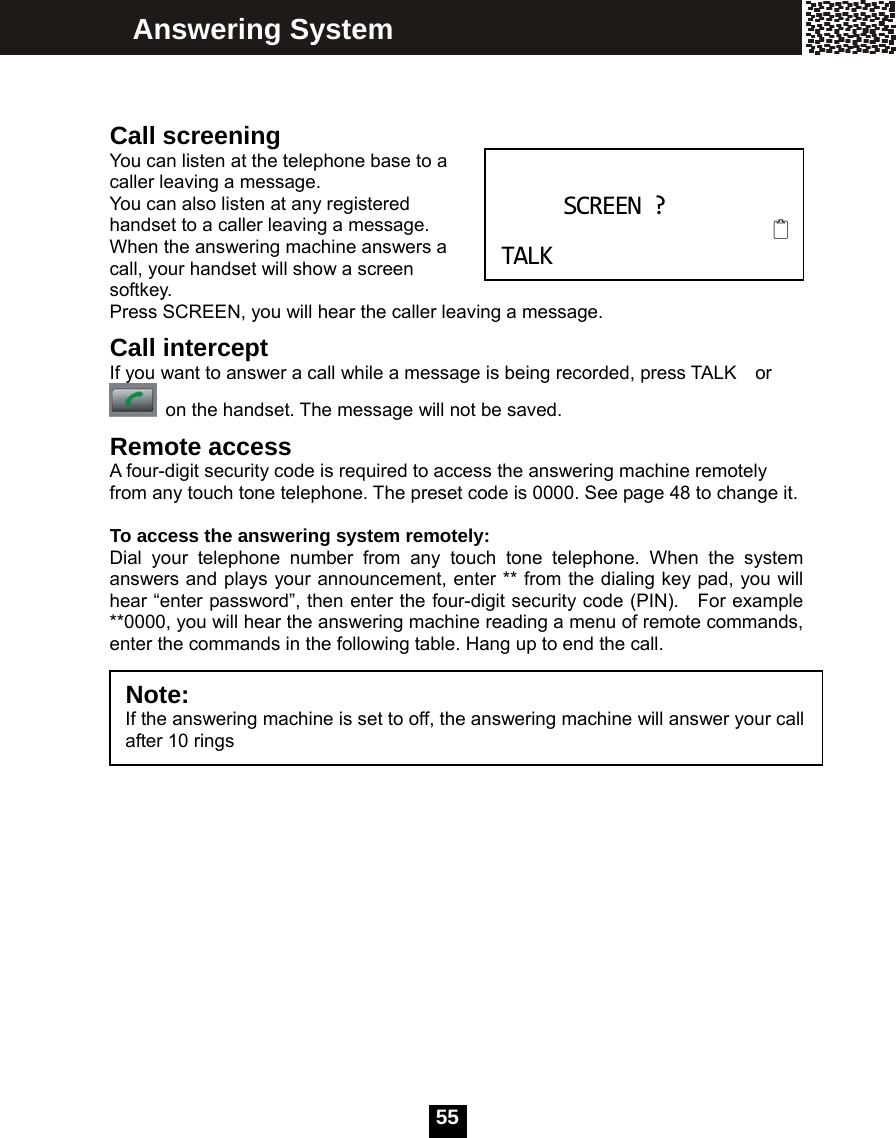
  55  Call screening You can listen at the telephone base to a caller leaving a message. You can also listen at any registered handset to a caller leaving a message. When the answering machine answers a call, your handset will show a screen softkey.  Press SCREEN, you will hear the caller leaving a message.   Call intercept If you want to answer a call while a message is being recorded, press TALK    or   on the handset. The message will not be saved. Remote access A four-digit security code is required to access the answering machine remotely from any touch tone telephone. The preset code is 0000. See page 48 to change it.    To access the answering system remotely: Dial your telephone number from any touch tone telephone. When the system answers and plays your announcement, enter ** from the dialing key pad, you will hear “enter password”, then enter the four-digit security code (PIN).   For example **0000, you will hear the answering machine reading a menu of remote commands, enter the commands in the following table. Hang up to end the call.    Answering System   SCREEN?  TALKNote:  If the answering machine is set to off, the answering machine will answer your call after 10 rings
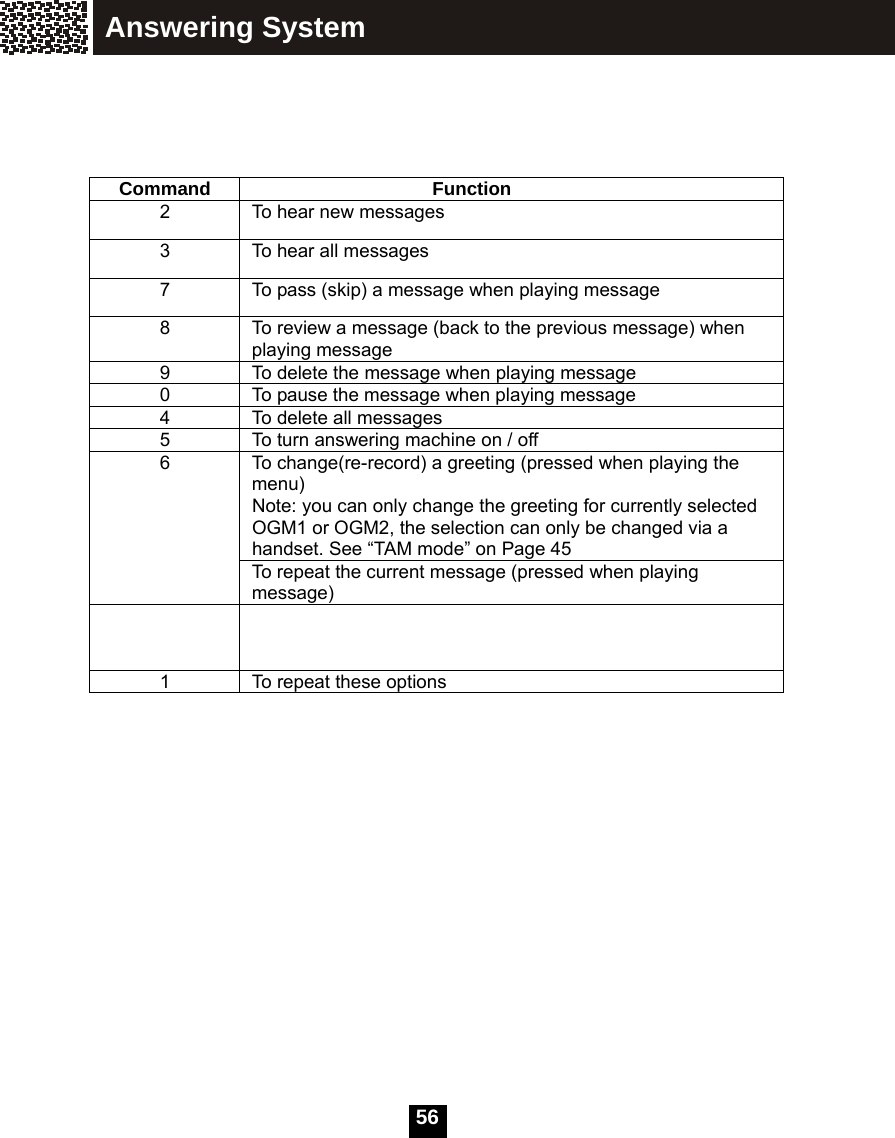
  56    Command Function 2    To hear new messages 3    To hear all messages 7  To pass (skip) a message when playing message 8    To review a message (back to the previous message) when playing message 9  To delete the message when playing message 0  To pause the message when playing message 4    To delete all messages 5    To turn answering machine on / off   To change(re-record) a greeting (pressed when playing the menu) Note: you can only change the greeting for currently selected OGM1 or OGM2, the selection can only be changed via a handset. See “TAM mode” on Page 45 6   To repeat the current message (pressed when playing message)     1    To repeat these options                Answering System
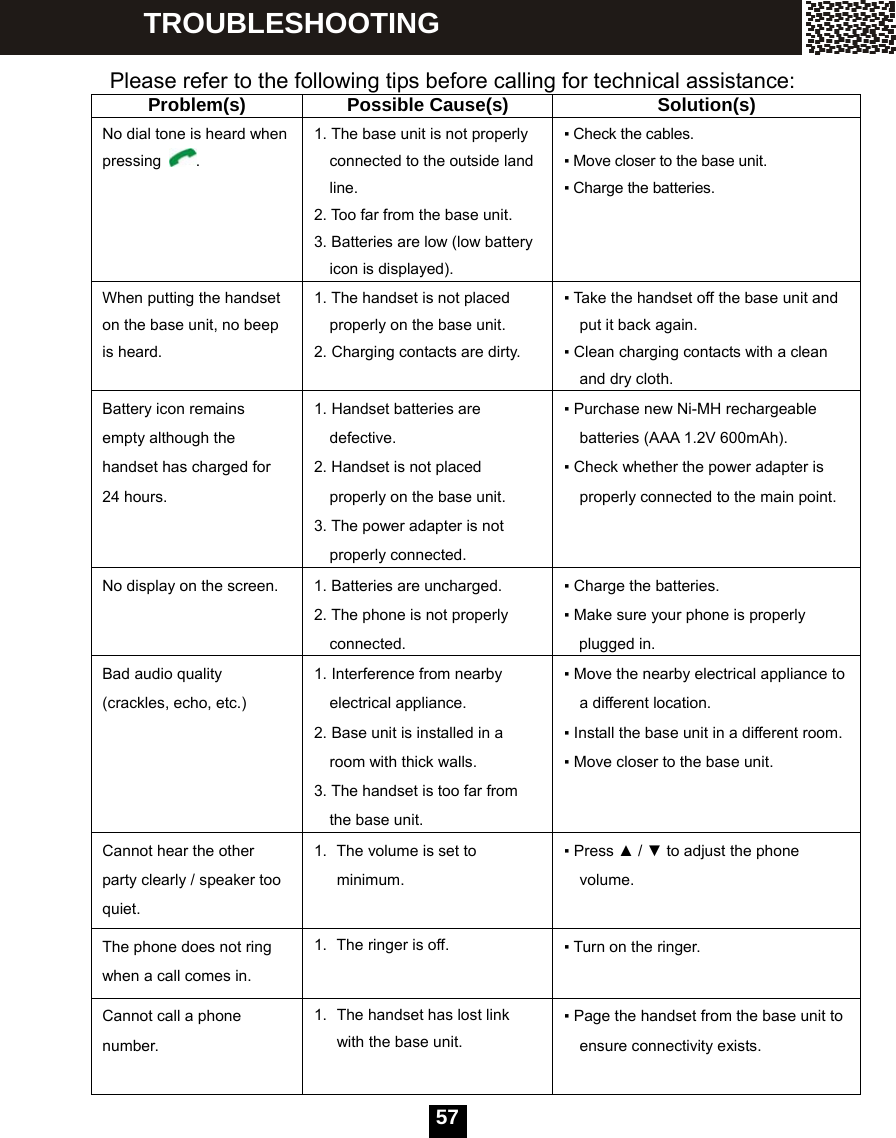
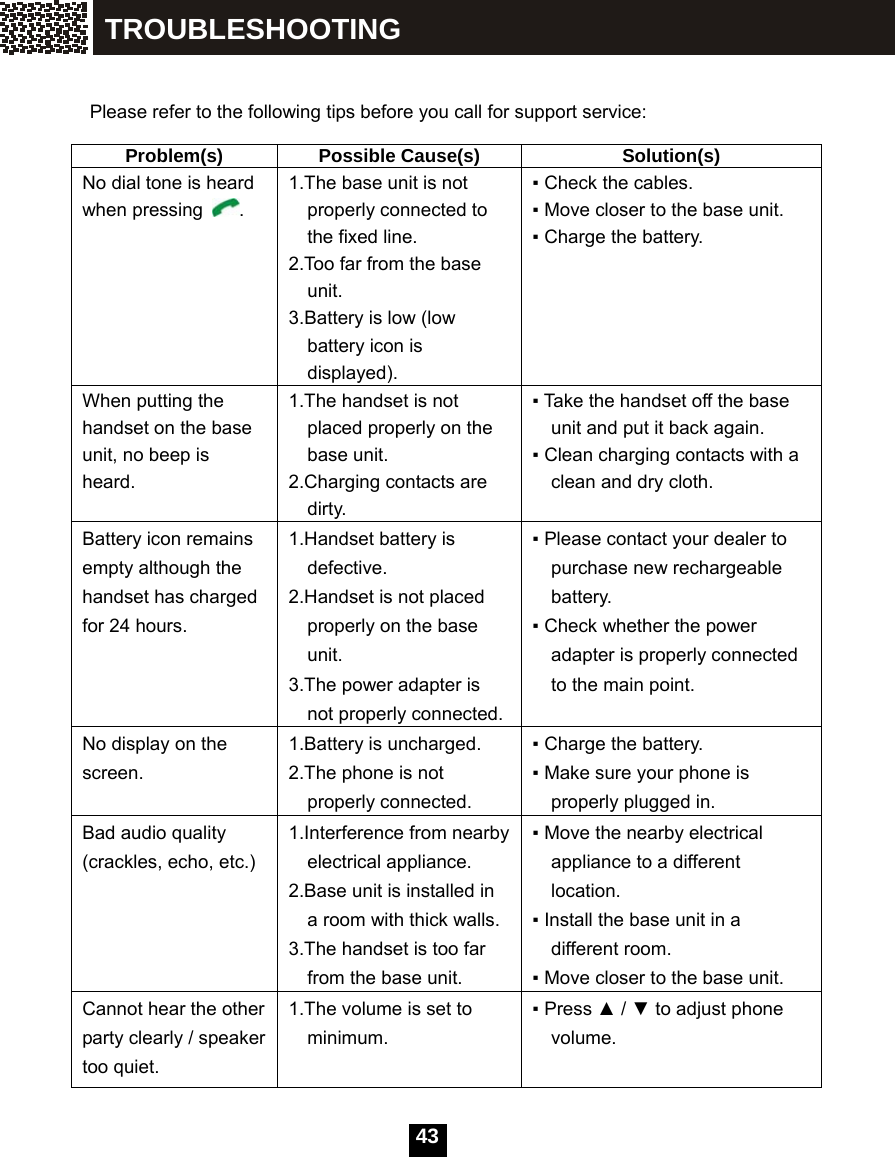
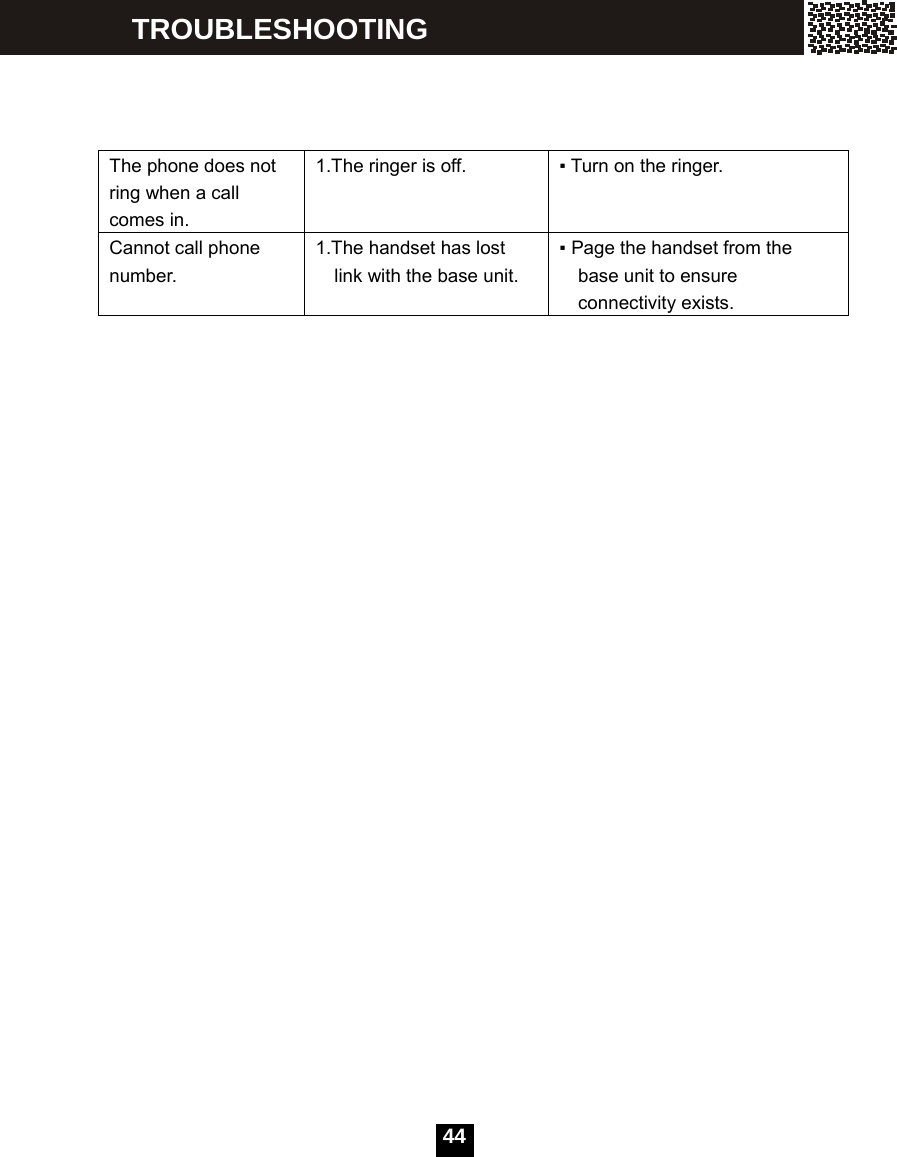
  57 Please refer to the following tips before calling for technical assistance: Problem(s) Possible Cause(s)  Solution(s) No dial tone is heard when pressing  . 1. The base unit is not properly connected to the outside land line. 2. Too far from the base unit. 3. Batteries are low (low battery icon is displayed). ▪ Check the cables. ▪ Move closer to the base unit. ▪ Charge the batteries. When putting the handset on the base unit, no beep is heard. 1. The handset is not placed properly on the base unit. 2. Charging contacts are dirty. ▪ Take the handset off the base unit and put it back again. ▪ Clean charging contacts with a clean and dry cloth. Battery icon remains empty although the handset has charged for 24 hours. 1. Handset batteries are defective. 2. Handset is not placed properly on the base unit. 3. The power adapter is not properly connected. ▪ Purchase new Ni-MH rechargeable batteries (AAA 1.2V 600mAh). ▪ Check whether the power adapter is properly connected to the main point. No display on the screen.  1. Batteries are uncharged. 2. The phone is not properly connected. ▪ Charge the batteries. ▪ Make sure your phone is properly plugged in. Bad audio quality (crackles, echo, etc.) 1. Interference from nearby electrical appliance. 2. Base unit is installed in a room with thick walls. 3. The handset is too far from the base unit. ▪ Move the nearby electrical appliance to a different location. ▪ Install the base unit in a different room. ▪ Move closer to the base unit. Cannot hear the other party clearly / speaker too quiet. 1.  The volume is set to minimum. ▪ Press ▲ / ▼ to adjust the phone volume. The phone does not ring when a call comes in. 1.  The ringer is off.  ▪ Turn on the ringer. Cannot call a phone number. 1.  The handset has lost link with the base unit. ▪ Page the handset from the base unit to ensure connectivity exists. TROUBLESHOOTING
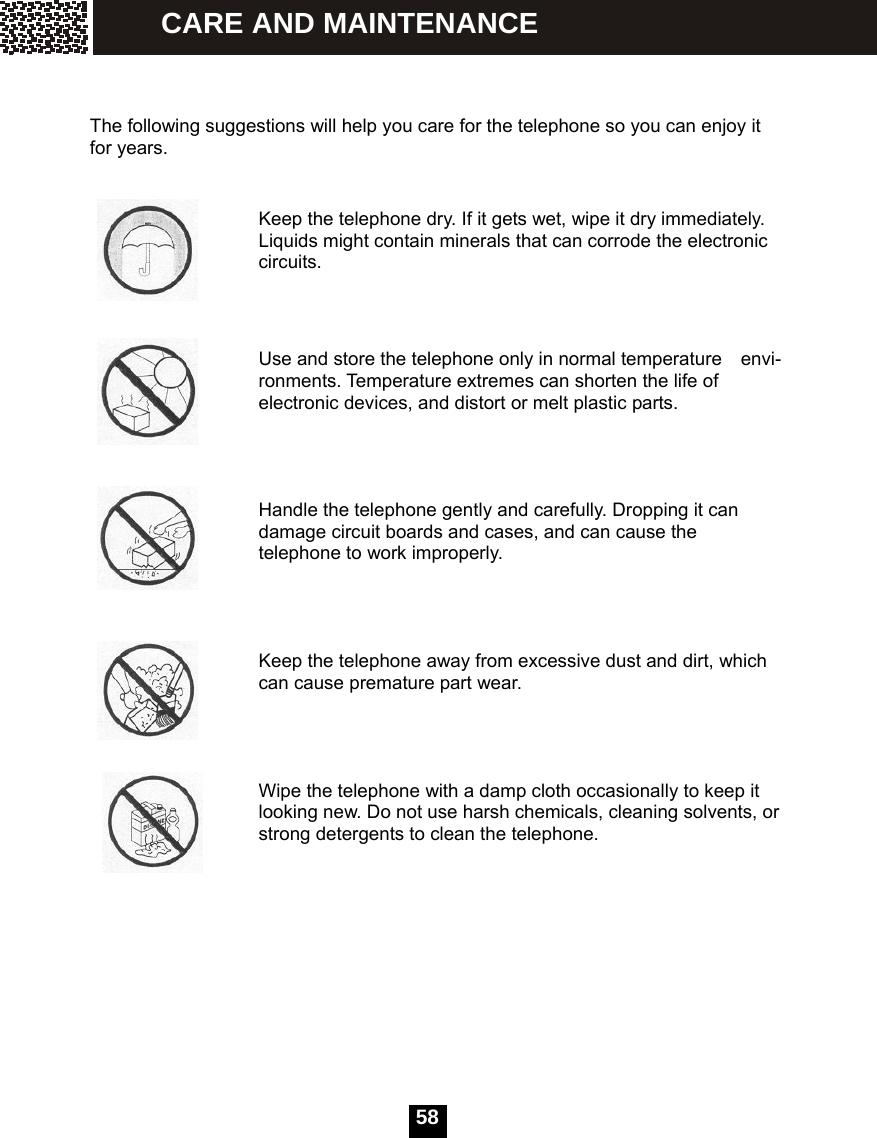
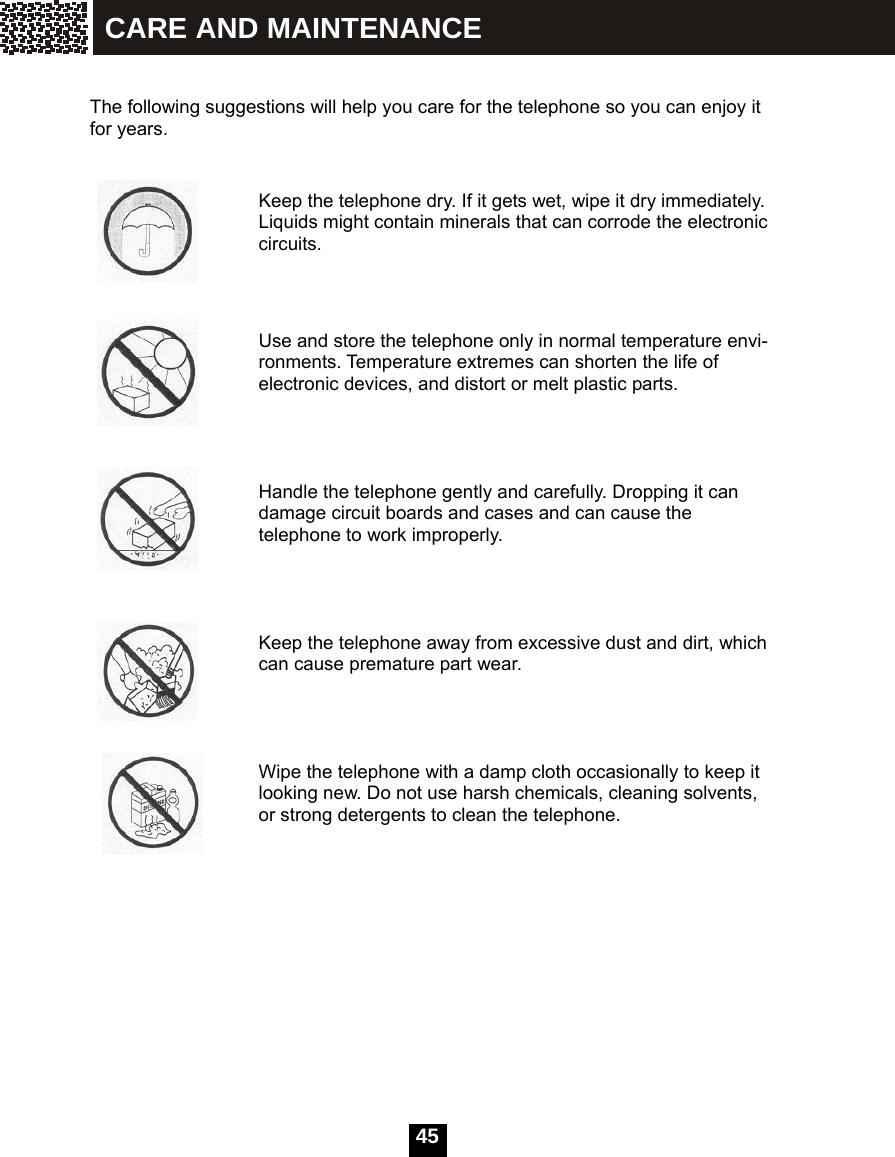
  58   The following suggestions will help you care for the telephone so you can enjoy it for years.                                 Keep the telephone dry. If it gets wet, wipe it dry immediately. Liquids might contain minerals that can corrode the electronic circuits.                       Use and store the telephone only in normal temperature    envi-ronments. Temperature extremes can shorten the life of electronic devices, and distort or melt plastic parts.     Handle the telephone gently and carefully. Dropping it can damage circuit boards and cases, and can cause the telephone to work improperly.     Keep the telephone away from excessive dust and dirt, which can cause premature part wear.     Wipe the telephone with a damp cloth occasionally to keep it looking new. Do not use harsh chemicals, cleaning solvents, or strong detergents to clean the telephone.            CARE AND MAINTENANCE
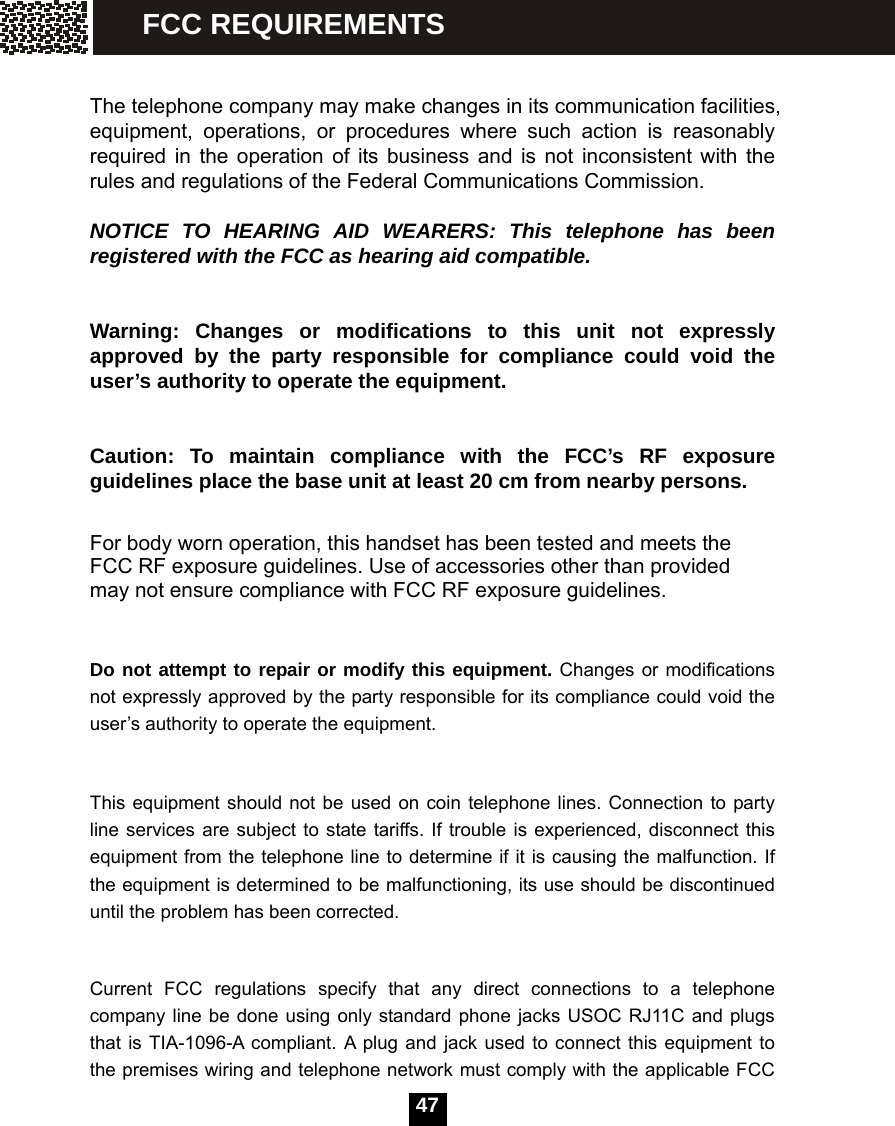
  59  This equipment complies with Part 68 of FCC rules and the requirements adopted by the ACTA. On the bottom of this equipment is a label that contains, among other information, a product identifier in the format US:CACW400B******. If requested, this number must be provided to the telephone company. The REN is used to determine the number of devices that may be connected to a telephone line. Excessive RENs on a telephone line may result in the devices not ringing in response to an incoming call. In most but not all areas, the sum of the RENs should not exceed five (5.0). To be certain of the number of devices that may be connected to a line, as determined by the total RENs, contact the local telephone company. [For products approved after July 23, 2001, the REN for this product is part of the product identifier that has the format US:CACW400B******. The digits represented by 00B are the REN without a decimal point (e.g., 03B is a REN of 0.3B). For earlier products, the REN is separately shown on the label.] Should you experience trouble with this equipment, please contact Customer Service at 1-800-988-7728 for repair or warranty information. If the equipment is causing harm to the telephone network, the telephone company may request that you disconnect the equipment until the problem is resolved. NOTICE: If your home has specially wired alarm equipment connected to the telephone line, ensure the installation of this equipment ID does not disable your alarm equipment.    If you have questions about what will disable alarm equipment, consult your telephone company or a qualified installer. If your equipment should cause harm to the telephone network, the telephone company may temporarily disconnect your service. If possible, they will notify you in advance that temporary discontinuance of service may be required. However, when advance written notice is not possible, the telephone company may temporarily discontinue service without notice if such action is necessary under the circumstances.      FCC REQUIREMENTS
  60 The telephone company may make changes in its communication facilities, equipment, operations, or procedures where such action is reasonably required in the operation of its business and is not inconsistent with the rules and regulations of the Federal Communications Commission.  NOTICE TO HEARING AID WEARERS: This telephone has been registered with the FCC as hearing aid compatible.  Warning: Changes or modifications to this unit not expressly approved by the party responsible for compliance could void the user’s authority to operate the equipment. Caution: To maintain compliance with the FCC’s RF exposure guidelines place the base unit at least 20 cm from nearby persons.  For body worn operation, this handset has been tested and meets the FCC RF exposure guidelines. Use of accessories other than provided may not ensure compliance with FCC RF exposure guidelines.  Do not attempt to repair or modify this equipment. Changes or modifications not expressly approved by the party responsible for its compliance could void the user’s authority to operate the equipment.  This equipment should not be used on coin telephone lines. Connection to party line services are subject to state tariffs. If trouble is experienced, disconnect this equipment from the telephone line to determine if it is causing the malfunction. If the equipment is determined to be malfunctioning, its use should be discontinued until the problem has been corrected. Current FCC regulations specify that any direct connections to a telephone company line be done using only standard phone jacks USOC RJ11C and plugs that is TIA-1096-A compliant. A plug and jack used to connect this equipment to the premises wiring and telephone network must comply with the applicable FCC Part 68 rules and requirements adopted by the ACTA. A compliant telephone cord and modular plug is provided with this product. It is designed to be connected to a compatible modular jack that is also compliant. See installation instructions for details.   FCC REQUIREMENTS
  61  This device complies with part 15 of the FCC Rules. Operation is subject to the following two conditions: (1) This device may not cause harmful interference, and (2) this device must accept any interference received, including interference that may cause undesired operation.    Privacy of communications may not be ensured when using this phone.  Note: This equipment has been tested and found to comply with the limits for a Class B digital device, pursuant to Part 15 of the FCC Rules. These limits are designed to provide reasonable protection against harmful interference in a residential installation. This equipment generates, uses, and can radiate radio frequency energy and, if not installed and used in accordance with the instructions, may cause harmful interference to radio communications. However, there is no guarantee that interference will not occur in a particular installation. If this equipment does cause harmful interference to radio or television reception, which can be determined by turning the equipment off and on, the user is encouraged to try to correct the interference by one or more of the following measures: 1.  Reorient or relocate the receiving antenna. 2.  Increase the separation between the equipment and receiver. 3.  Connect the equipment into an outlet on a circuit different from that to which the receiver is connected. 4.  Consult the dealer or an experienced radio / TV technician for help.       FCC REQUIREMENTS
  62Industry Canada Requirements                      This Class B digital apparatus complies with Canadian ICES-003. Cet appareil numérique de la classe B est conforme à la norme NMB-003 du Canada.  'This product meets the applicable Industry Canada technical specifications.  Le présent materiel est conforme aux specifications techniques applicables d'Industrie Canada  'The Ringer Equivalence Number is an indication of the maximum number of terminals allowed to be connected to a telephone interface. The termination on an interface may consist of any combination of devices subject only to the requirement that the sum of the Ringer Equivalence Numbers of all the devices does not exceed five.   L'indice d'équivalence de la sonnerie (IES) sert à indiquer le nombre maximal de terminaux qui peuvent être raccordés à une interface téléphonique. La terminaison d'une interface peut consister en une combinaison quelconque de dispositifs, à la seule condition que la somme d'indices d'équivalence de la sonnerie de tous les dispositifs n'excède pas 5.''   SAVE  THIS  INSTRUCTION
  63  For Customer Service questions or to order Additional Cordless Handsets (CY-932), please call     CY-932 Picture NOTE:  z  The CY-932 is designed to work with the CY-936AM System. It will not work alone or with other Telephone Systems.    z  The CY-932 can pairs with up to 4 Base (CY-936AM) simultaneously    z  The CY-936 System can support up to 4 additional handsets (CY-932), for a total of 5 handsets.  CUSTOMER SERVICEMENTS
     DECT 6.0 Digital    Owner’s Manual Installation and Operating Instructions      Please read this manual completely before use.  60CN55-2 (Bundle Handset) MULTI-HANDSET CORDLESS SYSTEM
 1     IMPORTANT INFORMATION--------------------------------------------------------------------- Important safety instructions------------------------------------------------------------------------  INTRODUCTION-------------------------------------------------------------------------------------- Special features---------------------------------------------------------------------------------------  INSTALLATION -------------------------------------------------------------------------------------- Package contents------------------------------------------------------------------------------------- Choose the best location---------------------------------------------------------------------------- Connect the base unit-------------------------------------------------------------------------------- Charge the battery------------------------------------------------------------------------------------ DC power------------------------------------------------------------------------------------------------ Low battery---------------------------------------------------------------------------------------------- Clean battery contacts------------------------------------------------------------------------------- Wall mounting base unit-----------------------------------------------------------------------------  USE YOUR PHONE---------------------------------------------------------------------------------- Handset-------------------------------------------------------------------------------------------------- Base unit------------------------------------------------------------------------------------------------ Power on the handset-------------------------------------------------------------------------------- Standby mode------------------------------------------------------------------------------------------ Power off the handset-------------------------------------------------------------------------------- Range condition---------------------------------------------------------------------------------------- Registration---------------------------------------------------------------------------------------------  BASE SETTINGS VIA HANDSET---------------------------------------------------------------- Deregister a handset--------------------------------------------------------------------------------- Dial mode------------------------------------------------------------------------------------------------ Modify PIN----------------------------------------------------------------------------------------------- Flash time----------------------------------------------------------------------------------------------- Set base to default------------------------------------------------------------------------------------  HANDSET SETTINGS------------------------------------------------------------------------------- Alarm----------------------------------------------------------------------------------------------------- Ring setup----------------------------------------------------------------------------------------------- Configure ringtone for incoming calls via exterior-line (fixed line)---------------------- Configure ring volume for incoming calls exterior-line (fixed line)---------------------- Configure ringtone for intercom calls---------------------------------------------------------- Configure ring volume for intercom calls ----------------------------------------------------- Do not disturb------------------------------------------------------------------------------------------- Tone setup-----------------------------------------------------------------------------------------------     Set key tone on/off---------------------------------------------------------------------------------   Set battery low alert tone on/off-----------------------------------------------------------------     Set out of range alert tone on/off--------------------------------------------------------------- Language setting-------------------------------------------------------------------------------------- Change handset name------------------------------------------------------------------------------- Auto answer---------------------------------------------------------------------------------------------   Set auto answer mode on/off--------------------------------------------------------------------- 3 3  5 5  6 6 6 7 7 8 8 8 9  10 10 10 11 11 11 11 12  14 14 14 15 15 16  17 17 17 18 18 18 18 19 20 20 20 20 21 21 22 22 CONTENTS
 2     Call barring---------------------------------------------------------------------------------------------- Date & time settings----------------------------------------------------------------------------------   Set date format-------------------------------------------------------------------------------------- Set date-------------------------------------------------------------------------------------------- Set time format--------------------------------------------------------------------------------------   Set time----------------------------------------------------------------------------------------------- Set handset to default-------------------------------------------------------------------------------- Display the phonebook entries--------------------------------------------------------------------- Add entries to phonebook--------------------------------------------------------------------------- Symbols----------------------------------------------------------------------------------------------- Edit an entry in phonebook-------------------------------------------------------------------------- Delete an entry from phonebook------------------------------------------------------------------ Delete all entries in phonebook-------------------------------------------------------------------- Review caller ID list----------------------------------------------------------------------------------- Save caller ID information to phonebook------------------------------------------------------- Delete a record from caller ID list----------------------------------------------------------------- Delete all records in caller ID list------------------------------------------------------------------ Review dialed numbers list------------------------------------------------------------------------- Add a dialed number to phonebook-------------------------------------------------------------- Delete a dialed number------------------------------------------------------------------------------ Delete all dialed numbers---------------------------------------------------------------------------  MAKING A CALL------------------------------------------------------------------------------------- Dial a number----------------------------------------------------------------------------------------- Call from phonebook-------------------------------------------------------------------------------- Call from caller ID list -------------------------------------------------------------------------------- Call from dialed numbers list----------------------------------------------------------------------- Call the last dialed number-------------------------------------------------------------------------- Enter a pause in dialing sequence--------------------------------------------------------------  PAGING AND INTERCOM------------------------------------------------------------------------- Locate misplaced handset(s) with base unit---------------------------------------------------- Intercom between handsets------------------------------------------------------------------------ Transfer a call to another handset----------------------------------------------------------------  CALL CONFERENCING---------------------------------------------------------------------------- Call conferencing--------------------------------------------------------------------------------------  RECEIVING A CALL--------------------------------------------------------------------------------- Via exterior-line (fixed line)------------------------------------------------------------------------- During intercom---------------------------------------------------------------------------------------- Switch to a waiting call----------------------------------------------------------------------------- Mute a call-----------------------------------------------------------------------------------------------  TROUBLESHOOTING-------------------------------------------------------------------------------  CARE AND MAINTENANCE---------------------------------------------------------------------- 22 23 23 24 24 25 25 26 27 27 28 28 29 29 30 30 30 31 31 31 32 32  34 34 34 34 35 35 35  36 36 36 37  38 38  40 40 41 41 42  43  45 CONTENTS
 3   Important Safety Instructions  To reduce the risk of fire, electric shock and / or injury to persons, always follow the following safety precautions when using this telephone equipment.  1.  Read, understand, and follow all instructions.  2.  Unplug this telephone from the wall outlet before cleaning. Do not use liquid or aerosol cleaners. If necessary, use a soft cloth lightly moistened with a mild detergent solution.  3.  Do not use this telephone near a bathtub, kitchen sink, wash bowl, laundry tub, swimming pool, a wet basement or anywhere else there is water or liquid.  4.  Do not place this telephone on an unstable cart, stand or table. A fall could cause serious damage to the phone.  5.  Slots and openings in the cabinet at the back or bottom are provided for ventilation to protect the unit from overheating. These openings must not be blocked or covered. Do not place this telephone on a bed, sofa, rug or other similar surface. This telephone should never be placed near or over a radiator or heat register. This telephone should not be placed in a built-in installation unless proper ventilation is provided.  6.  Never push objects of any kind through slots in the phone. They could touch dangerous voltage points or short out parts that could result in a risk of fire or electric shock. Never spill liquid of any kind on the telephone.  7.  Unplug this telephone from the wall   outlet and refer to a qualified service representative in any of the following situations:- a)  If liquid has been spilled into the   telephone. b)  If the telephone has been   exposed to rain or water. c)  If the telephone does not operate   normally by following the   operating instructions. Adjust only those controls that are covered by the operating instructions. Improper adjustment of other controls may result in damage and will often require extensive work by a qualified technician to restore the telephone to normal operation. d)  If the telephone has been   dropped or the case has been damaged. e)  If the telephone exhibits a distinct change in performance.  8.  Do not use the telephone to report a gas leak in the vicinity of the leak.  9.  Avoid using this telephone during an electrical storm. There may be a remote risk of electric shock from lightning.  10.  Never install jacks in a wet location unless the jack is specifically designed for wet locations.  11.  Never touch uninsulated telephone wires or terminals unless the telephone line has been disconnected at the network interface.  12.  Use with caution when installing or modifying telephone lines.  13.  To reduce the risk of electric shock, do not disassemble this product, but take it to a qualified serviceman when some service or repair work is required.  Opening or removing covers may   IMPORTANT INFORMATION
 4      expose you to dangerous voltages or other risks. Incorrect reassembly can cause electric shock when the appliance is subsequently used.  14.  Use only the power cord and batteries indicated in this manual. Do not dispose of batteries in fire. They may explode. Check with local codes for possible special disposal instructions.  15.  Plug the adapter to the socket-outlet that near the equipment and shall be easily accessible.  16.  For service or replacement, you can purchase a suitable headset through service center or retailer shop.                                    17.  We advise that this telephone should not be used near intensive care medical equipment or by persons with pacemakers.  18. CAUTION RISK OF EXPLOSION IF BATTERY IS REPLACED BY AN INCORRECT TYPE.  USE RECHARGEABLE BATTERY TYPE ONLY’, Desay, Ni-MH, size AAA , 1.2V, 600mAH  DISPOSE OF USED BATTERIES ACCORDING TO YOUR LOCAL CODE. Use only with Class 2 Power Source, 7.5V DC, 500mA for the Base and Charger Unit   SAVE THESE INSTRUCTIONS IMPORTANT INFORMATION
 5     Special Features  1.9GHz digital DECT 6.0 cordless phone system Multiple handsets capability, support up to 5 handsets 3-way conference call (two handsets & an incoming call)   Call transfer to other handsets Hands-free function Phonebook with 40 entries; Phonebook dialing Redial; Redial list of last 9 dialed numbers Support fixed line Type I and Type II CID (FSK and DTMF) Caller list with last 40 Caller ID records Hold function Mute function Intercom between two handsets Alarm clock including snooze option Page to all handsets Tone / Pulse dialing Digital volume control Audio setup that includes 10 melodies for exterior-line and intercom rings Range tone option Battery low tone option Barring handset from dialing Display the talk / intercom time Auto answer function  English / German / French / Italian / Spanish / Dutch intelligent LCD display INTRODUCTION
    Package Contents Check to be sure that the following items are included. If there is any missing or visible damage, contact the original place of purchase and do not attempt to operate if it is damaged.  • One base unit • One handset with belt clip • Two batteries (1.2V / 600mAh) • One 7 feet telephone line cord • One DC adapter (DC 7.5V / 500mA) • One Wall Mount   • Owner’s Manual  Choose the Best Location Calls are transmitted between the base unit and handset, or between handsets, by way of wireless radio waves. For maximum distance and noise-free operation, here are some important guidelines: 1.  The location of base unit should be close to both a phone jack and a continuous power outlet that is not switch-controlled. 2.  Place the base unit at a high, central location with no obstructions such as walls. 3.  Keep the base unit and the handset away from sources of electrical noise such as TV, personal computer, or another cordless phone. 4.  The base unit can be placed on the tabletop or mounted on a wall.  Note:  While using the handset: If you are near a working microwave oven, noise may occur from the receiver or speaker. Move away from the microwave oven and closer to your phone’s base unit. If more than one cordless telephone set is being used and your handset is near another cordless phone’s base unit, noise may occur. Move away from other phone’s base unit and closer to your CY-936 base unit. INSTALLATION
 7      Your new telephone includes the highest quality NiMH (Nickel Metal Hydride) rechargeable batteries. Follow the simple instructions below can significantly improve your operational results.   Connect the Base Unit 1.  Plug one end of the telephone line cord into the ‘TEL. LINE’ jack at the bottom of the base unit and plug the other end of the cord into a modular telephone wall jack. (If your wall jack is not modular, contact your local telephone company for assistance.) 2.  Plug the supplied DC adapter’s barrel plug into the ‘DC 7.5V’ jack at the bottom of base unit and the other end into a standard 120V AC wall outlet.     Charge the Battery 1.  Press the release point on the back cover of the handset and slide downwards to open the battery compartment. 2.  Insert the supplied two batteries into the compartment according to polarity marks. 3.  Slide the back cover upwards until it snaps into place. 4.  Place the handset on the base unit and make sure the Charge indicator on the base unit illuminates, which indicates the charging begins. The battery icon on the handset LCD will change from the mode of ‘very low’, to ‘low’, to ‘medium’, to ‘full’ and repeat as a cycle. 5.  Charge all batteries for at least 15 hours prior to initial use.       INSTALLATION
 8     DC Power Caution: 1.  Use only with the supplied DC Adapter (AC 120V, DC 7.5V, 500mA). 2.  Plug the adapter to a continuous power outlet, which is near the base unit and is not switch-controlled. 3.  The DC adapter must keep connected at all times. (It is normal for the adapter to be warm during use) 4.  Do not remove the battery from the handset to charge it. Do not remove or damage the battery casing. 5.  For the longest battery life and the maximum talk & standby time, completely charge and discharge the batteries every time. 6.  If you do not expect to use your phone for a month or longer, remove the batteries from the handset. The batteries may leak chemicals that can destroy electronic parts. 7.  To avoid the risk of explosion, do not dispose of the batteries in a fire. Check with local codes for possible disposal instructions.  Low Battery The battery icon on the handset LCD shows the current level of battery strength. If the battery is not properly charged, there will be a warning tone when the handset is in use and “BATTERY LOW” displayed. While this occurs, the handset may not function normally.   Clean Battery Contacts   To maintain a good charge, it is necessary to clean all battery contacts on the handset and the base unit with a soft, dry cloth about once a month. You may also use a pencil eraser or other contact cleaner, but never use any liquids or solvents. INSTALLATION
 9    Wall Mounting Base Unit  The base unit can be mounted on a standard wall phone plate.  1.  Plug the DC adapter’s barrel plug into the jack marked “7.5V 500mA” at the bottom of the base unit.  2. Plug the telephone line cord into the jack marked “TEL. LINE”.  3.  Hold the base unit up next to the wall jack and plug the line cord into the wall jack.  4.  Place the base unit on the posts of the wall plate and push down until the base unit is secured firmly.  5.  Plug the DC adapter into a standard wall outlet.   Note: If you are not using a standard wall plate to mount the phone on a wall, you may also mount it with ordinary screws. Affix two screws on the wall, remember to leave 1/8 inch of the screw extending from the wall.  Short tab INSTALLATION
 10     1 Receiver 2  Light Indication for -New Call -Incoming Call -Line-in-use -Voice Mail (VMWI)* 3  Day & Time 4 Handset name 5 Battery strength 6 Menu 7  Softkeys, each key is Programmed to perform Various functions. 8  Talk, to make or receive   Calls. 9  Menu scroll and volume key, to navigate menu items and adjust volume during talk. 10  End/Off, to terminate calls. 11  Flash, to access some Services provided by the Telephone company. 12 Conference 13 Redial/Pause 14 Intercom/Hold 15 Keypad 16 Microphone 17 Line-in-use indication 18 ‘Charge’ indicator, illuminates when handset is being charged. 19  Page key, to page all handsets in range of the base unit 20 ‘Charge’ indicator, illuminates when handset is being charged. 21  Headset Jack (use 2.5mm jack headset) USE YOUR PHONE HandseteUnitrger Unit
 11    Power on the Handset  When the handset is powered off, press and hold    key can power it on. If battery life is sufficient, the handset will power on. If not, it will remain powered off.    After powering on, the handset will enter subscription mode and search for a registered base. A message as shown on the screen will appear.     If the handset is successful in finding a base, the handset will enter the standby mode. If the handset is unsuccessful in finding a base, the screen will show ‘OUT OF RANGE’.    Standby Mode  In standby mode, a registered handset displays as this.      Power off the Handset When the handset is powered on, press and hold    key can power it off.   Range Condition A warning indication will be provided to the user when the handset is out of range.  SEARCHINGMENUDIR. OUTOFRANGEMENUDIR.      12–25  2:58 P               HS (1)MENUDIR. USE YOUR PHONE
 12  Registration  Before registering a handset to the base unit, the base unit should first enter the registration mode.   Press the [Page] key on the base for more than 3 seconds till the ‘In Use’ indicator begins to flash quickly.  An unregistered handset displays as this.    Press [MENU] softkey,    select ‘REGISTRATION’, then press [OK]     After pressing [OK] softkey, a list of bases will be displayed. There are 4 base positions available for registration. Select the BASE among BASE1 - BASE4, (For the first time of use, select ‘BASE1’),           and then press [SEL] softkey.  Now the handset begins searching for the base.        UNREGISTEREDMENUV.MAILDIR.  REGISTRATIONOKEXITBASE1↓BASE2SELEXIT SEARCHING1EXIT USE YOUR PHONE
 13      When the base has been found, you have to input the PIN code (4 digits) for the base. The default PIN code is printed on the backside label of the base (The code can be changed later).     Then registration is completed. PIN?****OKEXIT      12–25  3:29 P               HS (1)MENUDIR. USE YOUR PHONE
 14   The base options can be set through the operation on a handset registered to this base. Press the [MENU] softkey, select ‘BS SETTINGS’ and press [OK].   Deregister a Handset    Press the [MENU] softkey, select ‘BS SETTINGS’ and press [OK]. . Select ‘TERMINATE HS’, and press [OK].      Input the 4-digit PIN code. The default PIN is printed on the backside label of the base.     Use ▲ / ▼ to scroll the list of handsets (HS). Press the [DEL] softkey to select a handset (except for the current handset).     Dial Mode  Press the [MENU] softkey, select ‘BS SETTINGS’ and press [OK]. Use ▲ / ▼ to select ‘DIAL MODE’, and press [OK]. Press ▲ / ▼ to scroll the two options. Press [SAVE] to save your setting.      TERMINATEHS↓DIALMODEOKEXIT PIN?****OKDELEXIT HS1↓HS2DELEXIT TONE↓PULSESAVEEXIT BASE SETTINGS VIA HANDSET
 15    Modify PIN  Press the [MENU] softkey, select ‘BS SETTINGS’ and press [OK]. Use ▲ / ▼ to select ‘MODIFY PIN’ and press [OK].  Input the current 4-digit PIN. Press [OK] to complete. The default PIN is on the backside label of the base.    Input the new 4-digit PIN. Press [OK] to complete.      Input the new PIN again to confirm. Press [OK] to complete. Please do not forget this new PIN code. Now the new PIN will be stored in the base unit.     Flash Time  This function allows the user to set the flash time parameter according to your local telephone network settings when using the [Flash] key in some services, such as call waiting service and conference calling service, etc.  Press the [MENU] softkey, select ‘BS SETTINGS’ and press [OK]. Use ▲ / ▼ to select ‘FLASH TIME’ and press [OK].      PIN?****OKDELEXIT NEWPIN****OKDELEXIT CONFIRM****OKDELEXIT DIALMODEFLASHTIMEOKEXIT BASE SETTINGS VIA HANDSET
 16     Use ▲ / ▼ to choose between the two options and then press [SAVE] to save your setting. (‘SHORT’ = 300, ‘LONG’ = 650)      Set Base to Default  This function allows the user to restore the base settings to factory default.  Press the [MENU] softkey Use ▲ / ▼ to select ‘BS SETTINGS’ and press [OK] softkey. Select ‘BASE DEFAULT’ and press [OK] softkey.    Input the 4-digit PIN. The default PIN is on the backside label of the base. Press [OK] softkey to complete. Then all settings of the base will revert to factory default values.  SHORT↑LONGSAVEEXIT MODIFYPIN↑BASEDEFAULTOKEXIT PIN?****OKDELEXIT BASE SETTINGS VIA HANDSET
 17    Alarm   Press the [MENU] softkey, select ‘HS SETTINGS’ and press [OK] softkey. Select ‘ALARM CLOCK’ and press [OK] softkey.    Use ▲ / ▼ to select ‘ON’ or ‘OFF’ Press [SAVE] softykey to save your setting.      Ring Setup   Press the [MENU] softkey, use ▲ / ▼ to select ‘HS SETTINGS’ and press [OK].   Select ‘RING SETUP’ and press [OK].     Use ▲ / ▼ to select a type of ring that you want to set.   (You can assign different ringtones and volume for incoming intercom call, fixed line call respectively, ‘INTC’ is for intercom.)    Press [OK] softkey. Use ▲ / ▼ to select ‘MELODY’ or ‘VOLUME’ setting.    ALARMCLOCK↓RINGSETUPOKEXIT OFF↓ONSAVEEXIT ALARMCLOCKRINGSETUPOKEXIT INTCRING↓LINERINGOKEXIT MELODY↓VOLUMEOKEXIT HANDSET SETTINGS
 18    If you enter the ‘MELODY’ setting Use ▲ / ▼ to select a melody. Press [SAVE] softkey to save your setting.    If you enter the ‘VOLUME’ setting Use ▲ / ▼ to select a volume level. Press [SAVE] softkey to save your setting.   Configure Ringtone for Incoming Calls via Exterior-line Press the [MENU] softkey, select ‘HS SETTINGS’ and press [OK]. Select ‘RING SETUP’ by using ▲ / ▼ and then press [OK]. Select ‘LINE RING’, then press [OK]. Select ‘MELODY’, then press [OK]. Press ▲ / ▼ to select the desired ringtone, then press the [SAVE] softkey to save your setting.  Configure Ring Volume for Incoming Calls via Exterior-line Press the [MENU] softkey, select ‘HS SETTINGS’ and press [OK]. Select ‘RING SETUP’ by using ▲ / ▼ and then press [OK]. Select ‘LINE RING’, then press [OK]. Select ‘VOLUME’, then press [OK]. Press ▲ / ▼ to select the desired volume, then press the [SAVE] softkey to save your setting. Configure Ringtone for Intercom Calls Press the [MENU] softkey, select ‘HS SETTINGS’ and press [OK]. Select ‘RING SETUP’ by using ▲ / ▼ and then press [OK]. Select ‘INTC RING’, then press [OK]. Select ‘MELODY’, then press [OK]. Press ▲ / ▼ to select the desired ringtone, then press the [SAVE] softkey to save your setting.  Configure Ring Volume for Intercom Calls Press the [MENU] softkey, select ‘HS SETTINGS’ and press [OK].   Select ‘RING SETUP’ by using ▲ / ▼ and then press [OK]. Select ‘INTC RING’, then press [OK]. Select ‘VOLUME’, then press [OK]. Press ▲ / ▼ to select the desired volume, then press the [SAVE] softkey to save your setting. MELODY1↓MELODY2SAVEEXIT VOLUME2↑VOLUME1SAVEEXIT HANDSET SETTINGS
 19   Do Not Disturb  Press the [MENU] softkey, select ‘HS SETTINGS’ and press [OK].   Select ‘RING SETUP’ by using ▲ / ▼ and then press [OK]. Select ‘DO NOT DISTURB’, then press [OK].   Press ▲ / ▼ to choose ‘OFF’ or ‘ON’, then press [OK] to save your setting.      If this option is set to ‘ON’, the screen will display “DO NOT DISTURB” in standby mode. Then no ring will be heard from any exterior-line (fixed line) call; but the call information will still be displayed on the screen, and you can also answer the call if you want.  LINERING↑DONOTDISTURBOKEXIT OFF↓ONOKEXIT HANDSET SETTINGS
 20    Tone Setup  Press the [MENU] softkey, select ‘HS SETTINGS’ and press [OK].   Select ‘TONE SETUP’ by using ▲ / ▼ and press [OK].      Then you can configure the displayed 3 types of tones.     Set Key Tone On/Off Press the [MENU] softkey, select ‘HS SETTINGS’ and press [OK].   Select ‘TONE SETUP’ by using ▲ / ▼ and press [OK]. Select ‘KEY TONE’ and press [OK]. Use ▲ / ▼ to select ‘OFF’ or ’ON’, then press [SAVE] to save your setting.  Set Battery Low Alert Tone On/Off Press the [MENU] softkey, select ‘HS SETTINGS’ and press [OK].   Select ‘TONE SETUP’ by using ▲ / ▼ and press [OK]. Select ‘BATTERY LOW’ and press [OK]. Use ▲ / ▼ to select ‘OFF’ or ‘ON’, then press [SAVE] to save your setting.  Set Out of Range Alert Tone On/Off Press the [MENU] softkey, select ‘HS SETTINGS’ and press [OK].   Select ‘TONE SETUP’ by using ▲ / ▼ and press [OK]. Select ‘RANGE ALARM’ and press [OK]. Use ▲ / ▼ to select ‘OFF’ or ‘ON’, then press [SAVE] to save your setting. RINGSETUPTONESETUPOKEXIT KEYTONE↓BATTERYLOWOKEXIT HANDSET SETTINGS
 21    Language Setting   Press the [MENU] softkey, select ‘HS SETTINGS’ and press [OK].   Select ‘LANGUAGE’ by using ▲ / ▼ and then press [OK].    Use ▲ / ▼ to scroll through the 6 available language options (English, German, French, Italian, Spanish, Dutch). Select the desired language and then press [SAVE] to save your setting.       Change Handset Name  ‘HS (N)’ is the default name of a handset after registering it to a base unit. The handset extension number ‘N’ (1—5) shows the handset is the ‘N’th handset that registered to the base. The name will be shown on the screen when the handset is in standby mode A handset must be registered to the base before it can be assigned to a name.   To change the handset name in text format Press the [MENU] softkey. Use ▲ / ▼ to select ‘HS SETTINGS’ and press [OK].   Select ‘HS LABEL’ and press [OK].   Press [DEL] to delete the current name, and use keypad to input the new name. Then press [SAVE] to save your change.     TONESETUP↓LANGUAGEOKEXIT ENGLISH↓DEUTSCHSAVEEXIT LANGUAGE↓HSLABELOKEXIT NAME?SAVEDELABC HANDSET SETTINGS
 22    Auto Answer  Handset can be set to answer incoming calls automatically. When the handset is not on the base unit or the charger cradle,    must be pressed to answer incoming calls. Auto answer mode can only be activated when the handset is on the base unit or charger cradle, in which case, the line will be automatically connected when the handset is picked up from the base unit or charger cradle.  Set Auto Answer Mode On/Off   Press the [MENU] softkey.   Use ▲ / ▼ to select ‘HS SETTINGS’ and press [OK].   Select ‘AUTO ANSWER’ and press [OK].    Use ▲ / ▼ to select ‘OFF’ or ‘ON’. Press [OK] to save your setting.       Call Barring  Handset can be set to disable outgoing fixed line calls. To set the call barring mode ‘ON’ or ‘OFF’ Press the [MENU] softkey. Use ▲ / ▼ to select ‘HS SETTINGS’ and press [OK].   Select ‘CALL BARRING’ and press [OK].   Input the 4-digit PIN. The default PIN is on the backside label of the base. Press [OK] to confirm.  HSLABEL↓AUTOANSWEROKEXIT OFF↓ONOKEXIT AUTOANSWER↓CALLBARRINGOKEXIT PIN?****OKEXIT HANDSET SETTINGS
 23     Use ▲ / ▼ to select ‘OFF’ or ‘ON’.   Press [SAVE] to save your setting. If you set to ‘ON’, the screen will display “CALLS BARRED” in standby mode.     Date & Time Settings  Press the [MENU] softkey.   Use ▲ / ▼ to select ‘HS SETTINGS’ and press [OK] softkey.   Select ‘DATE & TIME’ and press [OK] softkey.     OFFONSAVEEXIT CALLBARRINGDATE&TIMEOKEXIT HANDSET SETTINGS
 24   Set Date Press the [MENU] softkey. Use ▲ / ▼ to select ‘HS SETTINGS’ and press [OK] softkey.   Select ‘DATE & TIME’ and press [OK] softkey. Select ‘SET DATE&TIME’ and press [OK] softkey.   Use the keypad to input the date consecutively. Press [SAVE] to save your setting.     Set Time Format  Press the [MENU] softkey. Use ▲ / ▼ to select ‘HS SETTINGS’ and press [OK] softkey.   Select ‘DATE & TIME’ and press [OK] softkey. Select ‘TIME FORMAT’ and press [OK] softkey.  Use ▲ / ▼ to select your desired format.   Press [SAVE] to save your setting. Then the time will be displayed in the format you have set when return to standby mode.       TIMEFORMAT↑SETDATE&TIMEOKEXIT DD/MMHH:MM00/0000:00SAVEEXIT DATEFORMATTIMEFORMATOKEXIT 12‐HOUR↓24‐HOURSAVEEXIT HANDSET SETTINGS
 25   Set Time  Press the [MENU] softkey. Use ▲ / ▼ to select ‘HS SETTINGS’ and press [OK] softkey.   Select ‘DATE & TIME’ and press [OK] softkey. Select ‘SET DATE&TIME’ and press [OK]         softkey.  Use ▲ / ▼ to shift the position of cursor. Use the keypad to input the time consecutively in the format you have set. (If you have already set the ‘TIME FORMAT’ to ‘12-HOUR’ format, then you also need to choose ‘a.m.’ or ‘p.m.’ by using the [AM/PM] softkey.) Press the [SAVE] softkey to save your   setting.   TIMEFORMAT↑SETDATE&TIMEOKEXIT DD/MMHH:MM00/0000:00AMSAVEAM/PMEXIT HANDSET SETTINGS
 26    Set Handset to Default This function allows the user to restore the handset settings to factory default.  Press the [MENU] softkey Use ▲ / ▼ to select ‘HS SETTINGS’ and press [OK] softkey. Select ‘HS DEFAULT’ and press [OK] softkey.    Input the 4-digit PIN. The default PIN is on the backside label of the base. Press [OK] softkey to complete. Then all settings of the handset will revert to factory default values.       SELECTBASE↑HSDEFAULTOKEXIT PIN?****OKDELEXIT HANDSET SETTINGS
 27    Display the Phonebook Entries  In standby mode, press [DIR.] softkey to enter the telephone directory.   Then the phonebook screen will be displayed.   Use ▲ / ▼ to access and scroll the phonebook entries.       Add Entries to Phonebook   In standby mode, press [DIR.] softkey to enter telephone directory. Then the phonebook screen will be displayed. Press [ADD] softkey to add a new entry.   Use keypad to input the name. Press [ABC] ([123]) softkey to switch the input mode between numerical mode and alphabetical mode. If you input wrong words or numbers, use ▲ / ▼ and [DEL] softkey to erase the errors. Press [OK] to complete the input. In alphabetical mode, each numeric key is assigned a set of letters and symbols as printed below. Press the corresponding key until your desired letter is displayed. If two consecutive letters from the same key is required, just wait until the cursor moves to the next blank space.  Numeric: 1  2  3  4  5  6  7  8  9  0 Alpha: Space A,B,C  D,E,F  G,H,I  J,K,L  M,N,O P,Q,R,S  T,U,V  W,X,Y,Z  PHONEBOOK38ENTRIESADDDELEXIT #1812345678JOHNSMITHPHONEBOOKEDITDELEXIT PHONEBOOK38ENTRIESADDDELEXIT NAME?JOHNOKDELABC HANDSET SETTINGS
 28  Symbols You can also use [½] or [#] to insert the following special symbols in the name field. ½ + , - . / @ : ; < = > ? { ¦ } ~ [ \ ] ^ _ ` ! ″ # $ % & ´ ( )  Note: Name must be started with an alphabetic character.    Use keypad to input number Press [OK] softkey when finished. Press [DEL] softkey to erase the digit(s) you input in error, and then input the correct one.    Use ▲ / ▼ to select a distinct ringtone for this entry. Press [SAVE] to complete.      Edit an Entry in Phonebook  In standby mode, press [DIR.] softkey to enter telephone directory. Use ▲ / ▼ to access and scroll the phonebook entries. When the entry that you want to edit appears, press [EDIT] softkey. Then follow the steps as adding an entry               to phonebook.      NUMBER?12345678OKDELEXIT MELODY1↓MELODY2SAVEEXIT #1812345678JOHNSMITHPHONEBOOKEDITDELEXIT HANDSET SETTINGS
 29     Delete an Entry from Phonebook  In standby mode, press [DIR.] softkey to enter telephone directory. Use ▲ / ▼ to access and scroll the phonebook entries. When the entry that you want to delete appears, press [DEL] softkey.    Press [YES] to confirm your deletion. Then this entry is deleted.       Delete All Entries in Phonebook  In standby mode, press [DIR.] softkey to enter telephone directory. Press [DEL] softkey to delete all entries.       Press [YES] to confirm the deletion. Then all entries are deleted.       #1812345678JOHNSMITHPHONEBOOKEDITDELEXIT SURETODELETE?YESNO PHONEBOOK38ENTRIESADDDELEXIT DELETEALL?YESNO HANDSET SETTINGS
 30    Review Caller ID List   In standby mode, press ▲ / ▼ to enter the Caller ID List. Then the Caller ID book screen will be displayed. Press ▲ to review the latest call, press ▼ to review the earliest call.   The date and time is also displayed in the format you have set.       Save Caller ID Information to Phonebook  In standby mode, press ▲ / ▼ to enter the Caller ID List. Use ▲ / ▼ to access and scroll the Caller ID List. When the record that you want to save appears, press [SAVE] softkey. Then follow the steps as adding an entry   to phonebook.   Delete a record from Caller ID List   In standby mode, press ▲ / ▼ to enter the Caller ID List. Use ▲ / ▼ to access and scroll the Caller ID List. When the record that you want to delete appears, press [DEL] softkey.     CIDBOOK20ENTRIESDELEXIT #125/123:58PJOHNSMITH12345678X2SAVEDELEXIT #125/123:58PJOHNSMITH12345678X2SAVEDELEXIT #112/253:58PJOHNSMITH12345678X2SAVEDELEXIT HANDSET SETTINGS
 31     Press [YES] to confirm the deletion. Then this record is deleted.       Delete All Records in Caller ID List  In standby mode, press ▲ / ▼ to enter the Caller ID List. Then the Caller ID book screen will be displayed. Press [DEL] softkey to delete all records.    Press [YES] to confirm the deletion. Then all records are deleted.       Review Dialed Numbers List Every handset can store its own last 10 dialed numbers independently, each number of up to 32 digits. Press [Redial] key, use ▲ / ▼ to review the dialed number(s). If the displayed number matches with an entry in the phonebook, the corresponding name will also be shown.   Add a Dialed Number to Phonebook  When the number you want appears, press [SAVE] softkey. Then follow the steps as adding an entry to phonebook.   SURETODELETE?YESNO CIDBOOK20ENTRIESDELEXIT DELETEALL?YESNO #112345678JOHNSMITHREDIALBOOKSAVEDELEXIT HANDSET SETTINGS
 32    Delete a Dialed Number   When the number that you want to delete appears, press [DEL] softkey.      Press [OK] softkey.      Press [YES] to confirm the deletion. Then this number is deleted.       Delete All Dialed Numbers   Press [Redial] key. Press [DEL] softkey.       Press ▼ to select ‘DELETE ALL’. Then press [OK] softkey.       #112345678JOHNSMITHREDIALBOOKSAVEDELEXIT    DELETE↓DELETEALLOKEXIT      SURETODELETE?YESNO   #112345678JOHNSMITHREDIALBOOKSAVEDELEXIT DELETE↓DELETEALLOKEXIT HANDSET SETTINGS
 33     Press [YES] to confirm the deletion. Then all numbers are deleted.         DELETEALL?YESNO HANDSET SETTINGS
 34     Method 1: Dial a Number   Press  . Input the number.      Or: Input the number. (You may use [DEL] softkey to delete the digits) Press [CALL] softkey or  .    During the call: Press    softkey to toggle hands-free mode. Press it again to quit this mode. Press [MUTE] softkey to disable the microphone. (For private discussion) Press ▲ / ▼ to adjust the volume. Press    to terminate the call.    Method 2: Call from Phonebook   Press [DIR.] softkey to review the phonebook. Use ▲ / ▼ to scroll to the number you need. Press  . Press    to terminate the call.   Method 3: Call from Caller ID List  Press ▲ / ▼ to review the Caller ID list. Use ▲ / ▼ to scroll to the number you need. Press  . Press    to terminate the call. 1234567CALLMUTEDIR. 1234567CALLDELEXIT LINE00:00:01MUTEDIR. #1812345678JOHNSMITHPHONEBOOK  EDITDELEXIT MAKING A CALL
 35     Method 4: Call from Dialed Numbers List  Press [Redial] key to review the dialed numbers. Use ▲ / ▼ to scroll to the number you need. Press  . Press    to terminate the call.   Method 5: Call the Last Dialed Number  Press  . Press [Redial] key to dial out the last dialed number. Press    to terminate the call.  Note: Put the handset on the base unit can also terminate the call.     Enter a Pause in Dialing Sequence  The [Redial/Pause] key allows you to add a 3-second pause during pre-dialing or when storing a number in phonebook. To add a pause, press [Redial/Pause] key at your desired position when inputting or editing a phone number, and a “P” appears on the screen. For longer delay, press [Redial/Pause] key additional times.       Note: The number you want to store cannot have more than 24 digits, including the pause. One “P” counts as one digit.MAKING A CALL
 36   Locate Misplaced Handset(s) with Base Unit  To locate the handset(s) while not on the base unit, press [Page] key on the base unit. Then the handset(s) in range will display ‘PAGING FROM BASE’ and emit an alert signal that is different from exterior-line (fixed line) calls. To stop the paging, press [Page] on the base unit again or press any key on the handset. If no handset answers, the paging will stop automatically after 1 minute.  Note: 1.The handset being paged will ring even if the ringer has been set to ‘OFF’.           2. If two handsets are engaging in an intercom talk, then both handsets can only hear one beep instead of alert.  Intercom between Handsets   Press [Int.] key on a handset in standby mode. Then the screen will show all the other available handsets in range of the base unit. (‘HS’ is for ‘handset’)   Use ▲ / ▼ to scroll to the handset you want to intercom with and press [CALL].   For instance, if HS (2) is being paged by HS (1), HS (1) will display ‘PAGING HS (2)’.   HS (2) will ring and display ‘PAGING FROM HS (1)’.      Press [Int.] key,    or [OK] softkey on HS (2) to answer the intercom call. If HS (2) does not want to answer, press [EXIT] softkey, then the ring will stop. HS2↓HS3CALLEXITPAGINGHS(2)EXIT PAGINGFROMHS(1)OKEXITINTC00:00:01 MUTEEXIT PAGING AND INTERCOM
 37   Transfer a Call to Another Handset . During a call, the current call can be transferred to another handset as described below.  When a handset is engaging in an exterior-line (fixed line) call. Press [Int.] key and use ▲ / ▼ to scroll to the handset you want to transfer this call to, then press [OK] softkey.  If you do this from HS (1) to HS (2), then HS (2) rings and displays ‘PAGING FROM HS (1)’.   On Handset (2), press  , [Int.] or [OK] to answer the paging and then talk with Handset (1). (Internal talk)  Now the initiator of the transfer can talk with the party to be transferred to, and then the initiator can press   to complete the transfer. If the party being transferred to does not         want to answer the paging, can press   or [EXIT] softkey to reject it .        Then the handset being paged stops ringing and returns to standby mode, and the initiating handset resumes the exterior-line talk.    HS2HS3OKEXITPAGINGFROMHS(1)OKEXITINTC00:00:01MUTEEXIT 12–25  13:59 P                HS (1)MENUDIR.PAGING AND INTERCOM
 38     Call Conferencing  CY-936 cordless system supports ‘conference call’ that up to 3 parties (2 handsets and 1 exterior-line call).   When one handset is engaging in an exterior-line (fixed line) call, press [Int.] key on that handset to put the current call on hold and call another handset by way of intercom.    Use ▲ / ▼ to scroll to the handset you want. Then press [CALL] softkey to page.      If you do this from HS (1) to HS (2), then HS (2) rings and displays ‘PAGING FROM HS (1)’.      On Handset (2), press  , [Int.] or [OK] to answer the paging and talk with Handset (1). (Intercom talk)          LINE00:00:01MUTEDIR. HS2HS3CALLEXIT PAGINGFROMHS(1)OKEXIT INTC00:00:01MUTEEXIT CALL CONFERENCING
 39      When the intercom call is established, on the initiating handset { in this case is Handset (1) }, press [Int.] key can switch between the intercom talk and exterior-line talk.     After the initiating handset being switched to ‘INTC’ (intercom) call, press [CONF] key on the initiating handset can talk with the two parties (exterior-line party, intercom party) simultaneously, which is the conference mode.    On any handset, press    or [EXIT] can retreat from the current talk and return to standby mode, the other handset will continue the exterior-line call. To end the call, make sure that both handsets have quit.   Note: Even a handset has already retreated from the talk; you can still join it in the talk again through the procedures stated on Page 38.                LINE00:00:09INTCONHOLDMUTE CONF00:00:23LINEMUTEEXIT LINE00:02:48MUTEDIR. CALL CONFERENCING
 40     Via Exterior-line (Fixed line)   Without Caller ID                  With Caller ID     When the phone rings, if you want to mute the ringer, press [MUTE] softkey or . Press [UNMUTE] softkey to resume the ringer.     Press    to answer the call. Press ▲ / ▼ to adjust the volume. Press    to end the call.       Note: If ‘auto answer mode’ is set to ‘ON’, when the ring sounds, no need to press , just pick up the handset off the base (or charger cradle) can answer the call automatically.  CALLVIALINEMUTE 12–25  13:59 PJOHNSMITH12345678X2HIDEEXIT CALLVIALINELINERINGMUTEDUNMUTE LINE00:00:01MUTEDIR. RECEIVING A CALL
 41     During Intercom   During intercom talk, if an exterior-line call comes, both handsets will hear intermittent beeps. Then on any handset, press   can terminate the current intercom and answer the incoming call.    Press ▲ / ▼ to adjust the volume. Press    to end the call.         Switch to a Waiting Call  Note: This service may require subscription from your local telephone company.   During an exterior-line call, press [Flash] key to put the current exterior-line call on hold and answer the incoming waiting exterior-line call. Press [Flash] key again can resume the first exterior-line call.  INTC00:00:49MUTEEXIT LINE00:00:01MUTEDIR. LINE00:02:17MUTEDIR. RECEIVING A CALL
 42     Mute a Call  You can mute a call while discussing matters with nearby person in privacy without transmitting your voice over.   During an exterior-line call  Press [MUTE] softkey. Then ‘MUTE’ is shown on the screen to indicate it is muting the microphone. Press [MUTE] softkey again to un-mute the microphone.    During intercom  Press [MUTE] softkey. Then ‘MUTE’ is shown on the screen to indicate it is muting the microphone. Press [MUTE] softkey again to un-mute the microphone.     MUTE00:00:58MUTEDIR. MUTE00:00:31MUTEEXIT RECEIVING A CALL
 43    Please refer to the following tips before you call for support service:  Problem(s) Possible Cause(s)  Solution(s) No dial tone is heard when pressing  . 1.The base unit is not properly connected to the fixed line. 2.Too far from the base unit. 3.Battery is low (low battery icon is displayed). ▪ Check the cables. ▪ Move closer to the base unit. ▪ Charge the battery. When putting the handset on the base unit, no beep is heard. 1.The handset is not placed properly on the base unit. 2.Charging contacts are dirty. ▪ Take the handset off the base unit and put it back again. ▪ Clean charging contacts with a clean and dry cloth.  Battery icon remains empty although the handset has charged for 24 hours. 1.Handset battery is defective. 2.Handset is not placed properly on the base unit. 3.The power adapter is not properly connected. ▪ Please contact your dealer to purchase new rechargeable battery. ▪ Check whether the power adapter is properly connected to the main point. No display on the screen. 1.Battery is uncharged. 2.The phone is not properly connected. ▪ Charge the battery. ▪ Make sure your phone is properly plugged in. Bad audio quality (crackles, echo, etc.) 1.Interference from nearby electrical appliance. 2.Base unit is installed in a room with thick walls. 3.The handset is too far from the base unit. ▪ Move the nearby electrical appliance to a different location. ▪ Install the base unit in a different room. ▪ Move closer to the base unit. Cannot hear the other party clearly / speaker too quiet. 1.The volume is set to minimum. ▪ Press ▲ / ▼ to adjust phone volume.  TROUBLESHOOTING
 44       The phone does not ring when a call comes in. 1.The ringer is off.  ▪ Turn on the ringer. Cannot call phone number. 1.The handset has lost link with the base unit. ▪ Page the handset from the base unit to ensure connectivity exists. TROUBLESHOOTING
 45    The following suggestions will help you care for the telephone so you can enjoy it for years.                                 Keep the telephone dry. If it gets wet, wipe it dry immediately. Liquids might contain minerals that can corrode the electronic circuits.                       Use and store the telephone only in normal temperature envi-ronments. Temperature extremes can shorten the life of electronic devices, and distort or melt plastic parts.     Handle the telephone gently and carefully. Dropping it can damage circuit boards and cases and can cause the telephone to work improperly.     Keep the telephone away from excessive dust and dirt, which can cause premature part wear.     Wipe the telephone with a damp cloth occasionally to keep it looking new. Do not use harsh chemicals, cleaning solvents, or strong detergents to clean the telephone.              CARE AND MAINTENANCE
 46   This equipment complies with Part 68 of FCC rules and the requirements adopted by the ACTA. On the bottom of this equipment is a label that contains, among other information, a product identifier in the format US:CACW400B******. If requested, this number must be provided to the telephone company.  The REN is used to determine the number of devices that may be connected to a telephone line. Excessive RENs on a telephone line may result in the devices not ringing in response to an incoming call. In most but not all areas, the sum of the RENs should not exceed five (5.0). To be certain of the number of devices that may be connected to a line, as determined by the total RENs, contact the local telephone company. [For products approved after July 23, 2001, the REN for this product is part of the product identifier that has the format US:CACW400B******. The digits represented by 00B are the REN without a decimal point (e.g., 03B is a REN of 0.3B). For earlier products, the REN is separately shown on the label.] Should you experience trouble with this equipment, please contact Customer Service at 1-800-988-7728 for repair or warranty information. If the equipment is causing harm to the telephone network, the telephone company may request that you disconnect the equipment until the problem is resolved.  NOTICE: If your home has specially wired alarm equipment connected to the telephone line, ensure the installation of this equipment ID does not disable your alarm equipment.    If you have questions about what will disable alarm equipment, consult your telephone company or a qualified installer.  If your equipment should cause harm to the telephone network, the telephone company may temporarily disconnect your service. If possible, they will notify you in advance that temporary discontinuance of service may be required. However, when advance written notice is not possible, the telephone company may temporarily discontinue service without notice if such action is necessary under the circumstances. FCC REQUIREMENTS
 47   The telephone company may make changes in its communication facilities, equipment, operations, or procedures where such action is reasonably required in the operation of its business and is not inconsistent with the rules and regulations of the Federal Communications Commission.  NOTICE TO HEARING AID WEARERS: This telephone has been registered with the FCC as hearing aid compatible.  Warning: Changes or modifications to this unit not expressly approved by the party responsible for compliance could void the user’s authority to operate the equipment.  Caution: To maintain compliance with the FCC’s RF exposure guidelines place the base unit at least 20 cm from nearby persons.  For body worn operation, this handset has been tested and meets the FCC RF exposure guidelines. Use of accessories other than provided may not ensure compliance with FCC RF exposure guidelines.  Do not attempt to repair or modify this equipment. Changes or modifications not expressly approved by the party responsible for its compliance could void the user’s authority to operate the equipment.  This equipment should not be used on coin telephone lines. Connection to party line services are subject to state tariffs. If trouble is experienced, disconnect this equipment from the telephone line to determine if it is causing the malfunction. If the equipment is determined to be malfunctioning, its use should be discontinued until the problem has been corrected.  Current FCC regulations specify that any direct connections to a telephone company line be done using only standard phone jacks USOC RJ11C and plugs that is TIA-1096-A compliant. A plug and jack used to connect this equipment to the premises wiring and telephone network must comply with the applicable FCC FCC REQUIREMENTS
 48Part 68 rules and requirements adopted by the ACTA. A compliant telephone cord and modular plug is provided with this product. It is designed to be connected to a compatible modular jack that is also compliant. See installation instructions for details.
 49  This device complies with part 15 of the FCC Rules. Operation is subject to the following two conditions: (1) This device may not cause harmful interference, and (2) this device must accept any interference received, including interference that may cause undesired operation.    Privacy of communications may not be ensured when using this phone.  Note: This equipment has been tested and found to comply with the limits for a Class B digital device, pursuant to Part 15 of the FCC Rules. These limits are designed to provide reasonable protection against harmful interference in a residential installation. This equipment generates, uses, and can radiate radio frequency energy and, if not installed and used in accordance with the instructions, may cause harmful interference to radio communications. However, there is no guarantee that interference will not occur in a particular installation. If this equipment does cause harmful interference to radio or television reception, which can be determined by turning the equipment off and on, the user is encouraged to try to correct the interference by one or more of the following measures: 1.  Reorient or relocate the receiving antenna. 2.  Increase the separation between the equipment and receiver. 3.  Connect the equipment into an outlet on a circuit different from that to which the receiver is connected. 4.  Consult the dealer or an experienced radio / TV technician for help.  FCC REQUIREMENTS
 50 Industry Canada Requirements                      This Class B digital apparatus complies with Canadian ICES-003. Cet appareil numérique de la classe B est conforme à la norme NMB-003 du Canada.  'This product meets the applicable Industry Canada technical specifications.  Le présent materiel est conforme aux specifications techniques applicables d'Industrie Canada  'The Ringer Equivalence Number is an indication of the maximum number of terminals allowed to be connected to a telephone interface. The termination on an interface may consist of any combination of devices subject only to the requirement that the sum of the Ringer Equivalence Numbers of all the devices does not exceed five.   L'indice d'équivalence de la sonnerie (IES) sert à indiquer le nombre maximal de terminaux qui peuvent être raccordés à une interface téléphonique. La terminaison d'une interface peut consister en une combinaison quelconque de dispositifs, à la seule condition que la somme d'indices d'équivalence de la sonnerie de tous les dispositifs n'excède pas 5.''  SAVE  THIS  INSTRUCTION
 51  For cETL Safety  UL60950-1 -Cordless Phone (with Rechargeable battery) IMPORTANT SAFETY INSTRUCTIONS - French Version Refer to UL60950-1 1st Edition Clause 1.7, the text of instructions shall be verbatim as shown below or in equally definitive terminology.  This instructions may be in the form of a separate booklet, or sheet, or shall be part of the instruction manual separated in format from the other instructions, and appearing before any operating instructions.   ================================================== IMPORTANTES MESURES DE SÉCURITÉ Certaines mesures de sécurité doivent être prises pendant l’utilisation de matérial téléphonique afin de réduire les risques d’incendie, de choc électrique et de blessures.    En voici quelquesunes:  1.    Ne pas utiliser l’appareil près de l’eau, p.ex., près d’une baignoire, d’un lavabo, d’un évier de cuisine, d’un bac à laver, dans un sous-sol humide ou près d’une piscine.  2.   Éviter d’utiliser le téléphone (sauf s’il s’agit d’un appareil sans fil) pendant un orage électrique.  Ceci peut présenter un risque de choc électrique causé par la foudre.  3.  Ne pas utiliser l’appareil téléphonique pour signaler une fuite de gaz s’il est situé près de la fuite.  4.  Utiliser seulement le cordon d’alimentation et le type de piles indiqués dans ce manuel.  Ne pas jeter les piles dans le feu: elles peuvent exploser.    Se conformer aux règlements pertinents quant à l’élimination des piles.  5.  la socklet-sortie sera installée près de l'équipement et serafacilement accessible  6.  ATTENTION-  Il y a danger d’explosion s’il y a remplacement incorrect de la batterie. Remplacer uniquement avec une batterie du même type ou d’un type équivalent recommandé par le constructeur. Mettre au rebut les batteries usagées conformément aux instructions du fabricant.  7.  Pour l'entretien ou le remplacement, vous pouvez acheter un écouteur approprié par le centre commercial ou le magasin de détaillant.
 52 8.   L'équipement doit être fourni à partir d'un acquiescement gauche identifié d'USB aux conditions de la source d'énergie limitée.  CONSERVER CES INSTRUCTIONS ========================================================  EQUIPMENT ATTACHMENT LIMITATIONS  Before installing this equipment, users should ensure that it is permissible to be connected to the  facilities of the local telecommunications company.  The equipment  must also be installed using an acceptable method of connection.  In some cases, the company’s inside wiring associated with a single line individual service may be extended by means of a certified connector assembly (telephone extension cord).  The customer should be aware that compliance with the above conditions may not prevent degradation of service in some situations.  Repairs to certified equipment should be made by an authorized Canadian maintenance facility designated by the supplier.    Any repairs or alterations made by the user to this equipment, or equipment malfunctions, may give the telecommunications company cause to request the user to disconnect the equipment.  Users should ensure for their own protection that the electrical ground connections of the power utility, telephone lines and internal metallic water pipe system, if present, are connected together.  This precaution may be particularly important in rural areas.  Caution: Users should not attempt to make such connections themselves, but should contact the appropriate electric inspection authority, or electrician, as appropriate.

Navigation menu