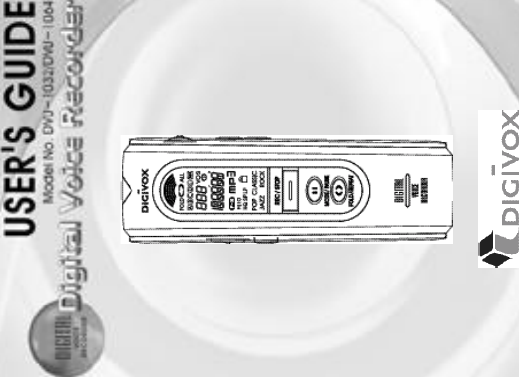
DIGIVOX DVM-2128 Digital Voice Recorder User Manual users manual

DIGIVOX Inc. Digital Voice Recorder users manual

users manual

2Features χχχχχχχχχχχχχχχχχχχχχχ3Locations of Function and Control Button  χχχχ5LCD Description χχχχχχχχχχχχχχχχχχ6Battery Installation χχχχχχχχχχχχχχχχχ7Battery Life Time  χχχχχχχχχχχχχχχχχ7Power On & Off  χχχχχχχχχχχχχχχχχχ8Recording χχχχχχχχχχχχχχχχχχχχχ9Playback χχχχχχχχχχχχχχχχχχχχχ11Erasing χχχχχχχχχχχχχχχχχχχχχχ14Adjusting Volume χχχχχχχχχχχχχχχχχ15Hold Function  χχχχχχχχχχχχχχχχχχ15Setting the VOS Mode χχχχχχχχχχχχχχ16Setting Mic Sensitivity  χχχχχχχχχχχχχχ16Repeating the Playback χχχχχχχχχχχχχ17Setting Beep On/Off Function χχχχχχχχχχχ17Setting Preengaged Recording χχχχχχχχχχ18Setting Alarm Function χχχχχχχχχχχχχχχ19Connecting External Equipments (Optional)χχχχχ20Phone Recording (Optional) χχχχχχχχχχχχ22Using MP3 Player χχχχχχχχχχχχχχχχχ24Installation Of Manager Program  χχχχχχχχχ27Using Manager Program χχχχχχχχχχχχχχ32Troubleshooting χχχχχχχχχχχχχχχχχχ36Cautions χχχχχχχχχχχχχχχχχχχχχχ37Specifications χχχχχχχχχχχχχχχχχχχχ39FCC Note χχχχχχχχχχχχχχχχχχχχχχ40Guaranteeχχχχχχχχχχχχχχχχχχχχχχ421Contents Contents
43Preengaged RecordingEnables to record at any time when you want.Alarm Sound FunctionYou can hear the alarm sound at any time when you want.Recording up to 3 groupsEnables to record 99 messages into each group.Automatic Power OffThe unit will be automatically turned off when not in use.Indication of the remaining recording timeYou can check the available remaining recording time.Adjustable repeating timeEnables to repeatedly listen to the part you want by adjusting the time.Monitoring of recording Available to listen to the message by using the stereo earphone during the recording .External jack for Input/OutputEnables to record between the unit and other equipments.Indication of the recording/playback levelEnables to check the level when recording/playback.VOS recordingAvailable only when any voice and sound exist.Scan FunctionEnables to playback just the fore part of each message.Pause FunctionEnables to pause during recording.USB PC InterfaceLets you use the recorder with a PC with fast USB port for voice & data file.MP3 File PlaybackIt can be used to play and store digital music file.Features Features
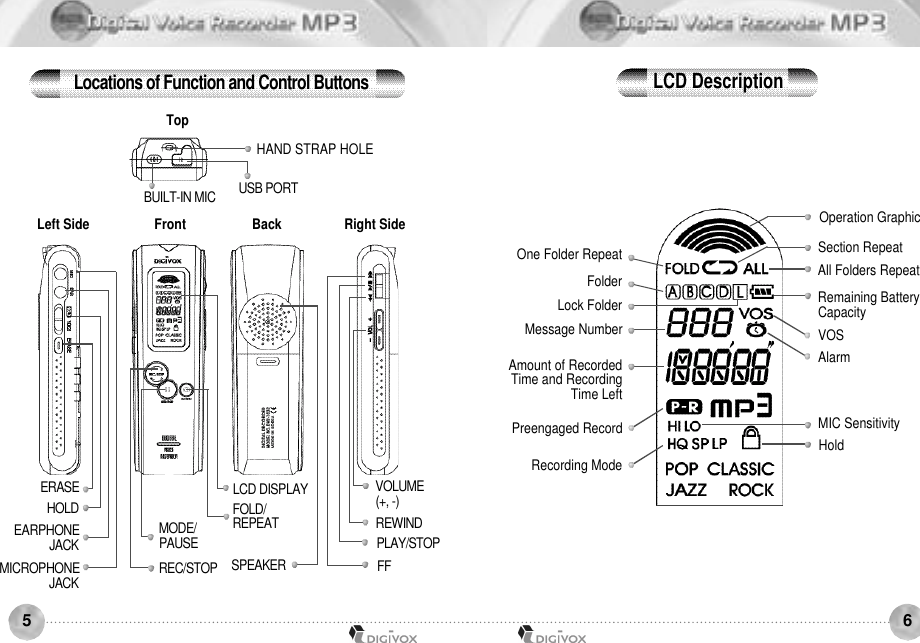
65Locations of Function and Control ButtonsTopHAND STRAP HOLEF FP L A Y / S T O PR E W I N DV O L U M E(+, -)USB PORTBUILT-IN MICMICROPHONEJ A C KH O L DE R A S EEARPHONEJ A C KLCD DISPLAYR E C / S T O P S P E A K E RM O D E /P A U S EF O L D /R E P E A TFront Back Right SideLeft SideLCD DescriptionFolderLock FolderHoldRemaining Battery CapacityOne Folder RepeatVOSMessage NumberPreengaged RecordRecording ModeSection RepeatAll Folders RepeatAmount of Recorded Time and Recording Time LeftAlarmMIC SensitivityOperation Graphic
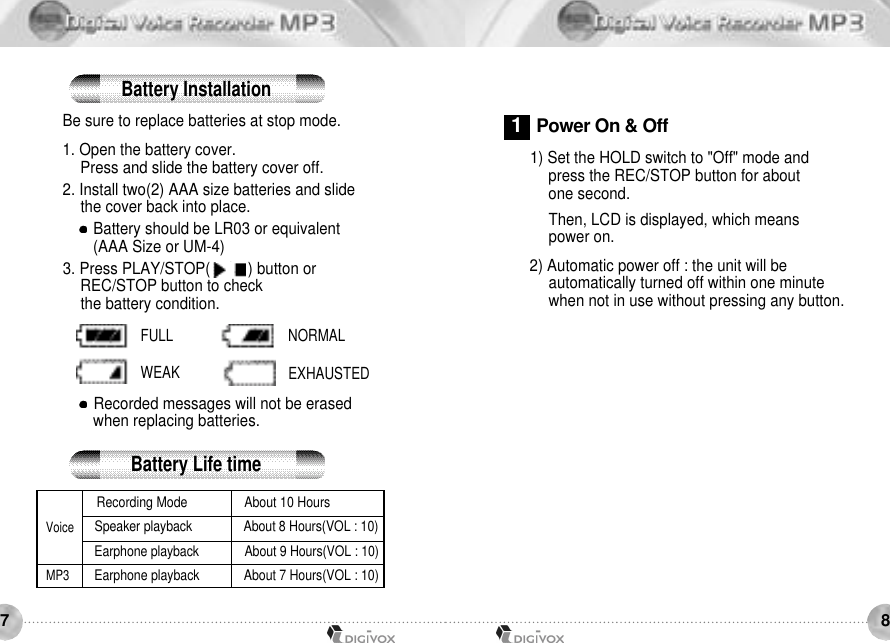
87Be sure to replace batteries at stop mode.1. Open the battery cover. Press and slide the battery cover off. 2. Install two(2) AAA size batteries and slide the cover back into place. Battery should be LR03 or equivalent(AAA Size or UM-4) 3. Press PLAY/STOP(    /    ) button or REC/STOP button to check the battery condition. Recorded messages will not be erased when replacing batteries.1) Set the HOLD switch to "Off" mode and press the REC/STOP button for about one second. Then, LCD is displayed, which means power on. 2) Automatic power off : the unit will be automatically turned off within one minute when not in use without pressing any button. Recording Mode About 10 HoursSpeaker playback About 8 Hours(VOL : 10)Earphone playback About 9 Hours(VOL : 10)Earphone playback About 7 Hours(VOL : 10)VoiceMP3FULL NORMALWEAK EXHAUSTEDBattery InstallationBattery Life time1Power On & Off
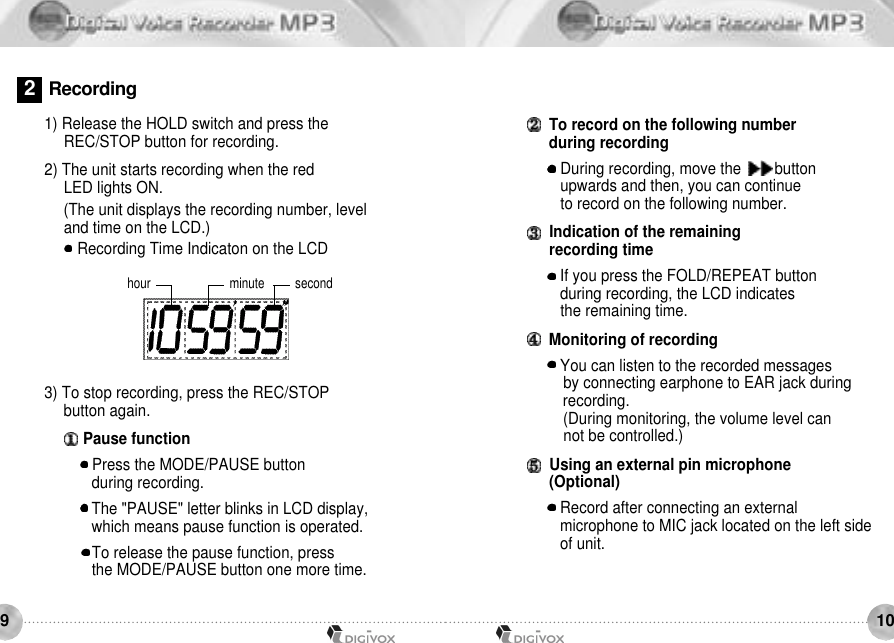
1091) Release the HOLD switch and press the REC/STOP button for recording. 2) The unit starts recording when the red LED lights ON. (The unit displays the recording number, level and time on the LCD.) Recording Time Indicaton on the LCDhour minute secondTo record on the following number during recording During recording, move the        button upwards and then, you can continue to record on the following number.Indication of the remaining recording time If you press the FOLD/REPEAT button during recording, the LCD indicates the remaining time.Monitoring of recording You can listen to the recorded messages by connecting earphone to EAR jack duringrecording.(During monitoring, the volume level can not be controlled.)Using an external pin microphone (Optional)Record after connecting an external microphone to MIC jack located on the left side of unit. 3) To stop recording, press the REC/STOP button again.Pause function Press the MODE/PAUSE button during recording. The "PAUSE" letter blinks in LCD display, which means pause function is operated. To release the pause function, press the MODE/PAUSE button one more time.2R e c o r d i n g
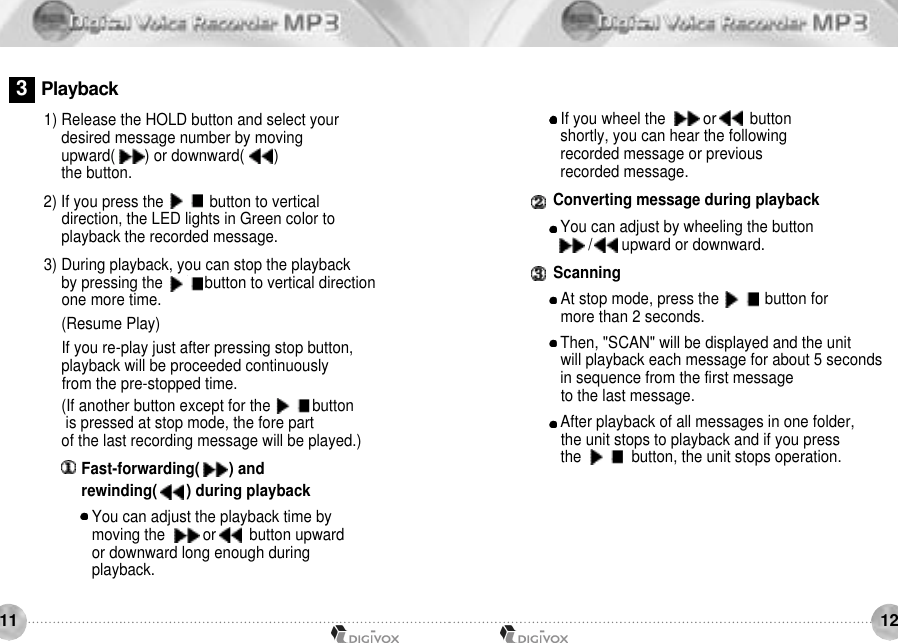
12111) Release the HOLD button and select your desired message number by movingupward(       ) or downward(       ) the button. 2) If you press the     /     button to vertical direction, the LED lights in Green color to playback the recorded message. 3) During playback, you can stop the playbackby pressing the     /    button to vertical direction one more time.(Resume Play)If you re-play just after pressing stop button, playback will be proceeded continuously from the pre-stopped time. (If another button except for the     /    buttonis pressed at stop mode, the fore part of the last recording message will be played.)Fast-forwarding(       ) and rewinding(       ) during playback You can adjust the playback time by moving the         or        button upward or downward long enough during playback.If you wheel the         or        button shortly, you can hear the following recorded message or previous recorded message.Converting message during playbackYou can adjust by wheeling the button /       upward or downward.ScanningAt stop mode, press the     /     button for more than 2 seconds. Then, "SCAN" will be displayed and the unit will playback each message for about 5 seconds in sequence from the first message to the last message. After playback of all messages in one folder, the unit stops to playback and if you press the      /     button, the unit stops operation.3P l a y b a c k
14131) Erasing one message Select the recorded number you want to erase. Press the ERASE button. The number of recorded message will blink and the recorded message is heard for 3 seconds.Press the ERASE button again. To cancel the erasing, press any button except for the ERASE button. 2) Erasing all recorded messages in one folderSelect the folder which you want to erase at stop mode.Press the ERASE button for about 5 seconds.(At that time, and the related folder icon will blink.)Press the ERASE button again for about a second and then, all recorded messages are erased.To cancel the erasing, press any button except for the ERASE button.Repeating the section playback During playback, press the FOLD/REPEAT button which means the repeat function is being started. Then, if press the FOLD/REPEAT button again after a certain time, the repeat function is completed Which means the repeating time is set-up and the unit will continue to repeat in the selected section.Indication of the remaining playback timeIf you press the FOLD/REPEAT button one time during playback, the LCD indicates theremaining time.4E r a s i n g
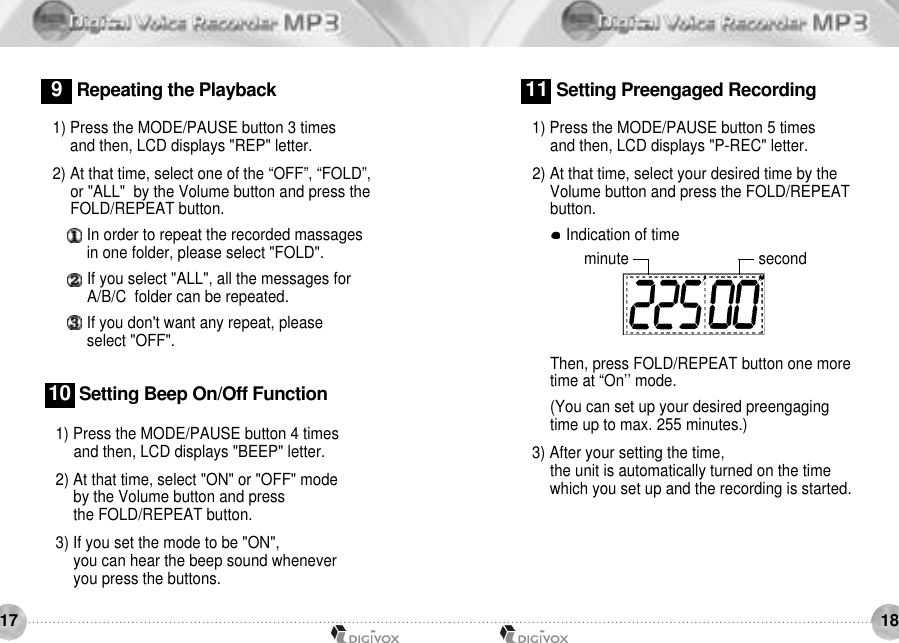
16151) If the HOLD switch is set upwards, anybutton is not operated.2) If the HOLD switch is set upwards, the key icon is displayed on LCD, which means Hold function is set. 3) To release the hold function, move theHOLD switch downwards.When you set the HOLD switch at stop mode,the recorder will be automatically turn off. 1) Press the MODE/PAUSE button 2 times and then, LCD displays "MIC" letter. 2) At that time, select "HI" or "LO" mode by the Volume button and press the FOLD/REPEATbutton.3) After finishing the selection, the LCD displays the selected "HI" or "LO". 6Hold Function7Setting the Record mode8Setting the VOS mode1) Press the MODE/PAUSE button 1 time andthen, LCD displays “VOS” letter.2) At that time, select “on” mode by the Volumebutton and press the FOLD/REPEAT button. 3) When there is no voice or no sound during recording after the “VOS” setting, the LCDdisplays “SENSE” letter and the unit stoprecording. With voice or sound heard, the“SENSE” letter disappear and start recordingagain.1) You can adjust Volume level by pressing VOLUME + / - button. (But the volume will not be adjusted during recording.)5Adjusting Vo l u m e
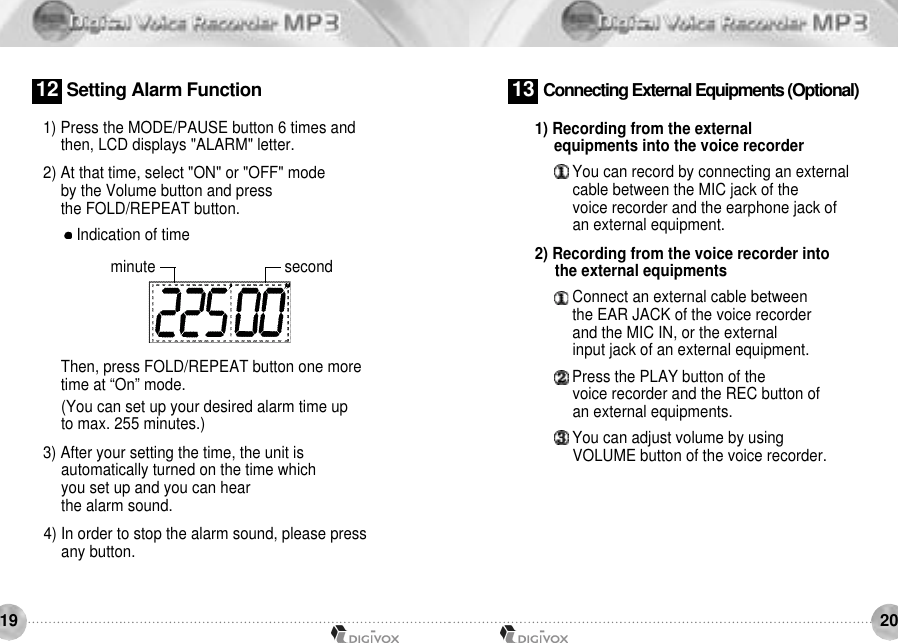
18171) Press the MODE/PAUSE button 4 times and then, LCD displays "BEEP" letter. 2) At that time, select "ON" or "OFF" mode by the Volume button and press the FOLD/REPEAT button. 3) If you set the mode to be "ON", you can hear the beep sound wheneveryou press the buttons.1 0 Setting Beep On/Off Function1) Press the MODE/PAUSE button 5 times and then, LCD displays "P-REC" letter. 2) At that time, select your desired time by the Volume button and press the FOLD/REPEATbutton.Indication of timeThen, press FOLD/REPEAT button one more time at “On’’ mode.(You can set up your desired preengaging time up to max. 255 minutes.)3) After your setting the time,the unit is automatically turned on the timewhich you set up and the recording is started.11 Setting Preengaged Recording1) Press the MODE/PAUSE button 3 times and then, LCD displays "REP" letter. 2) At that time, select one of the “OFF”, “FOLD”, or "ALL"  by the Volume button and press theFOLD/REPEAT button. In order to repeat the recorded massages in one folder, please select "FOLD". If you select "ALL", all the messages for A/B/C  folder can be repeated. If you don't want any repeat, please select "OFF".9Repeating the Playbackminute second
20191) Press the MODE/PAUSE button 6 times and then, LCD displays "ALARM" letter. 2) At that time, select "ON" or "OFF" mode by the Volume button and pressthe FOLD/REPEAT button. Indication of timeThen, press FOLD/REPEAT button one moretime at “On” mode.(You can set up your desired alarm time up to max. 255 minutes.) 3) After your setting the time, the unit is automatically turned on the time which you set up and you can hear the alarm sound. 4) In order to stop the alarm sound, please press any button.1 2 Setting Alarm Function1) Recording from the external equipments into the voice recorder You can record by connecting an external cable between the MIC jack of the voice recorder and the earphone jack of an external equipment.2) Recording from the voice recorder into the external equipments Connect an external cable between the EAR JACK of the voice recorder and the MIC IN, or the external input jack of an external equipment. Press the PLAY button of the voice recorder and the REC button of an external equipments. You can adjust volume by using VOLUME button of the voice recorder. 1 3 Connecting External Equipments (Optional)minute second
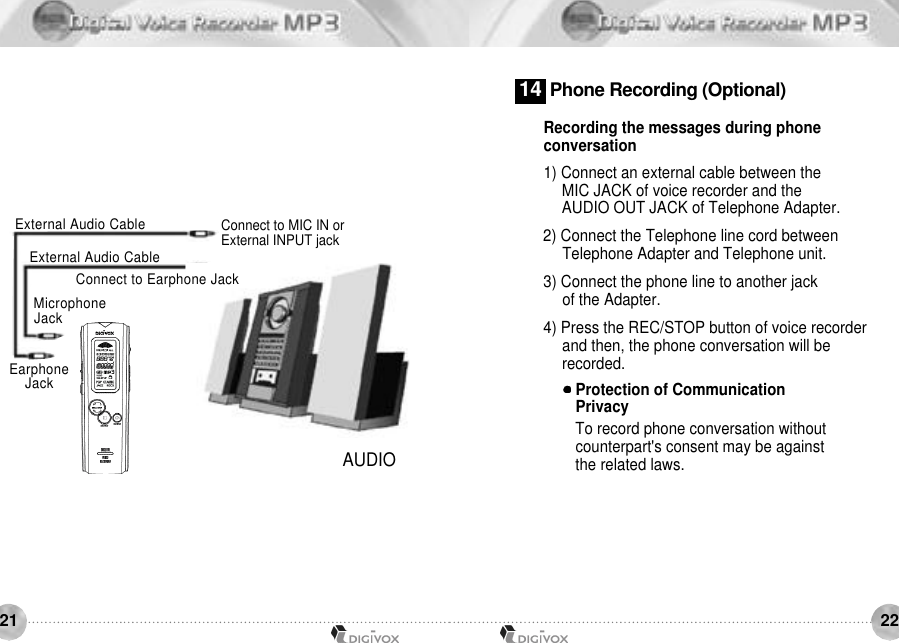
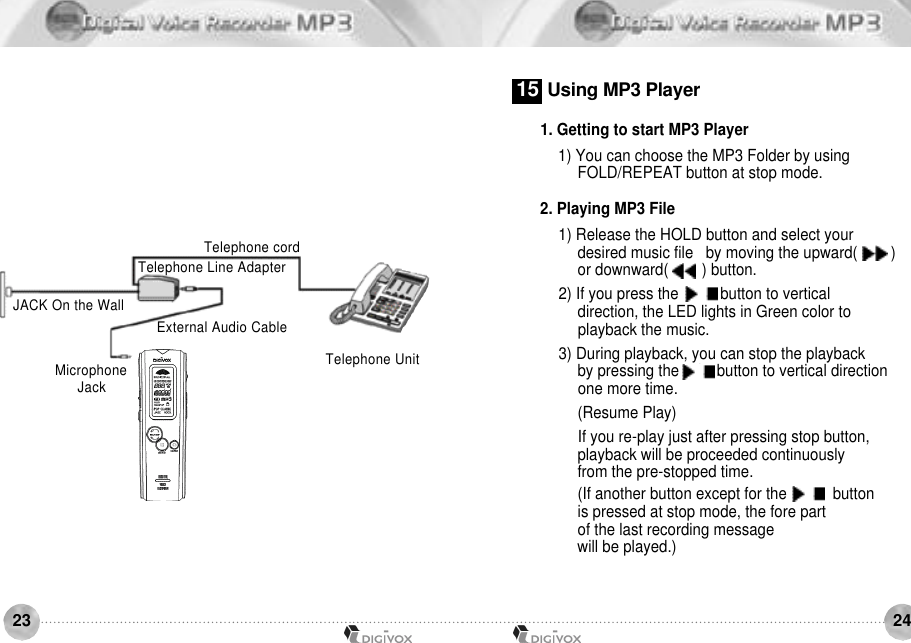
2221AUDIOConnect to MIC IN orExternal INPUT jackM i c r o p h o n eJ a c kConnect to Earphone JackExternal Audio CableExternal Audio CableEarphoneJ a c kRecording the messages during phone conversation1) Connect an external cable between the MIC JACK of voice recorder and the AUDIO OUT JACK of Telephone Adapter. 2) Connect the Telephone line cord between Telephone Adapter and Telephone unit. 3) Connect the phone line to another jack of the Adapter. 4) Press the REC/STOP button of voice recorder and then, the phone conversation will be recorded.Protection of Communication PrivacyTo record phone conversation without counterpart's consent may be against the related laws. 1 4 Phone Recording (Optional)
2423Telephone cordTelephone UnitTelephone Line AdapterExternal Audio CableJACK On the WallMicrophoneJ a c k1. Getting to start MP3 Player 1) You can choose the MP3 Folder by using FOLD/REPEAT button at stop mode.2. Playing MP3 File1) Release the HOLD button and select your desired music file   by moving the upward(        ) or downward(        ) button.2) If you press the     /    button to vertical direction, the LED lights in Green color to playback the music.3) During playback, you can stop the playback by pressing the    /    button to vertical direction one more time. (Resume Play)If you re-play just after pressing stop button, playback will be proceeded continuously from the pre-stopped time. (If another button except for the     /     button is pressed at stop mode, the fore part of the last recording message will be played.)1 5 Using MP3 Player
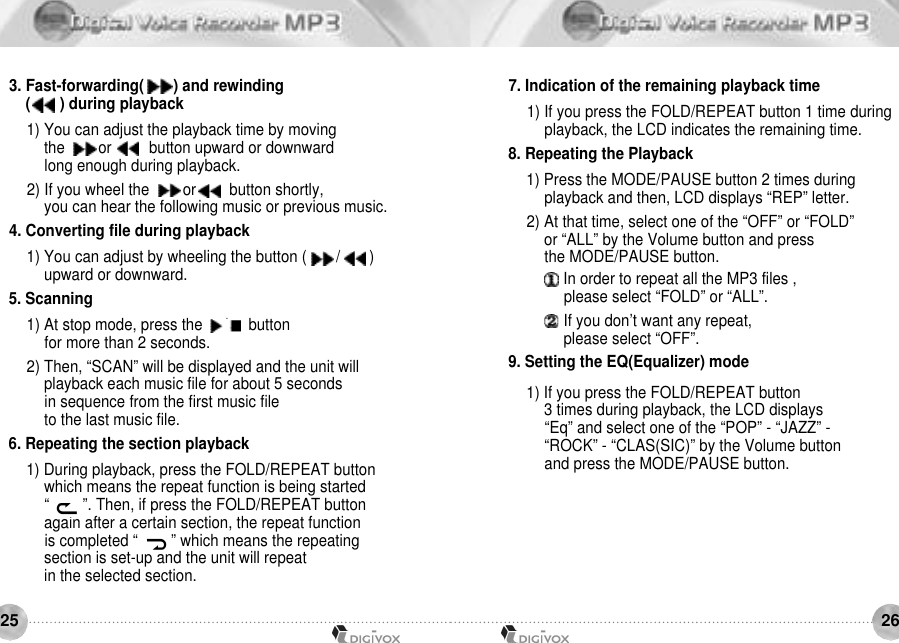
26253. Fast-forwarding(       ) and rewinding(       ) during playback1) You can adjust the playback time by moving the        or         button upward or downward long enough during playback.2) If you wheel the        or        button shortly, you can hear the following music or previous music.4. Converting file during playback1) You can adjust by wheeling the button (       /       ) upward or downward.5. Scanning 1) At stop mode, press the     /     button for more than 2 seconds.2) Then, “SCAN” will be displayed and the unit willplayback each music file for about 5 seconds in sequence from the first music file to the last music file.6. Repeating the section playback1) During playback, press the FOLD/REPEAT button which means the repeat function is being started “        ”. Then, if press the FOLD/REPEAT button again after a certain section, the repeat function is completed “        ” which means the repeating section is set-up and the unit will repeat in the selected section. 7. Indication of the remaining playback time1) If you press the FOLD/REPEAT button 1 time during playback, the LCD indicates the remaining time.8. Repeating the Playback1) Press the MODE/PAUSE button 2 times during playback and then, LCD displays “REP” letter.2) At that time, select one of the “OFF” or “FOLD” or “ALL” by the Volume button and press the MODE/PAUSE button.In order to repeat all the MP3 files , please select “FOLD” or “ALL”.If you don’t want any repeat, please select “OFF”. 9. Setting the EQ(Equalizer) mode1) If you press the FOLD/REPEAT button 3 times during playback, the LCD displays “Eq” and select one of the “POP” - “JAZZ” - “ROCK” - “CLAS(SIC)” by the Volume button and press the MODE/PAUSE button.
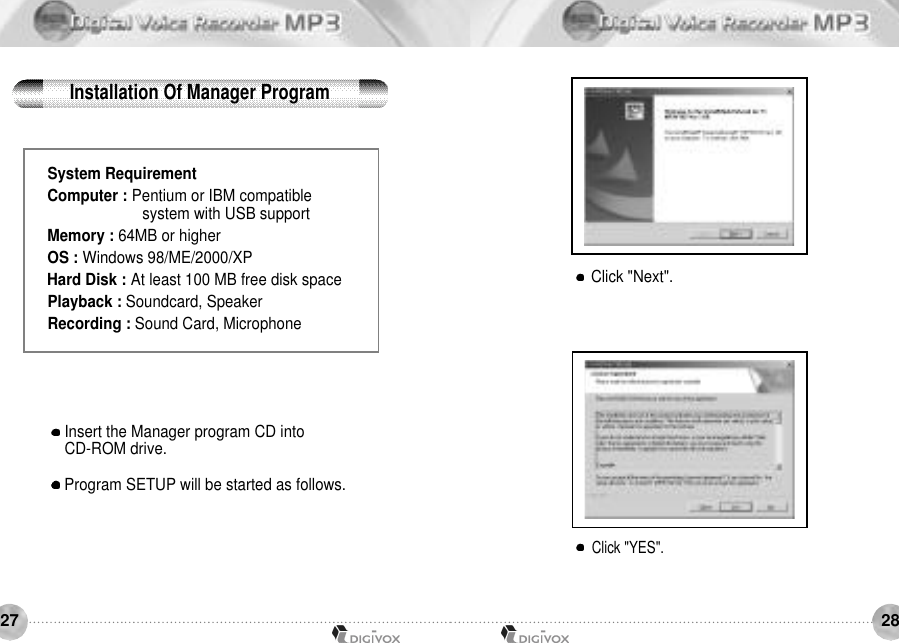
2827System RequirementComputer : Pentium or IBM compatible system with USB supportMemory : 64MB or higherOS : Windows 98/ME/2000/XPHard Disk : At least 100 MB free disk space Playback : Soundcard, Speaker Recording : Sound Card, MicrophoneInsert the Manager program CD into CD-ROM drive. Program SETUP will be started as follows.Click "Next". Click "YES". Installation Of Manager Program
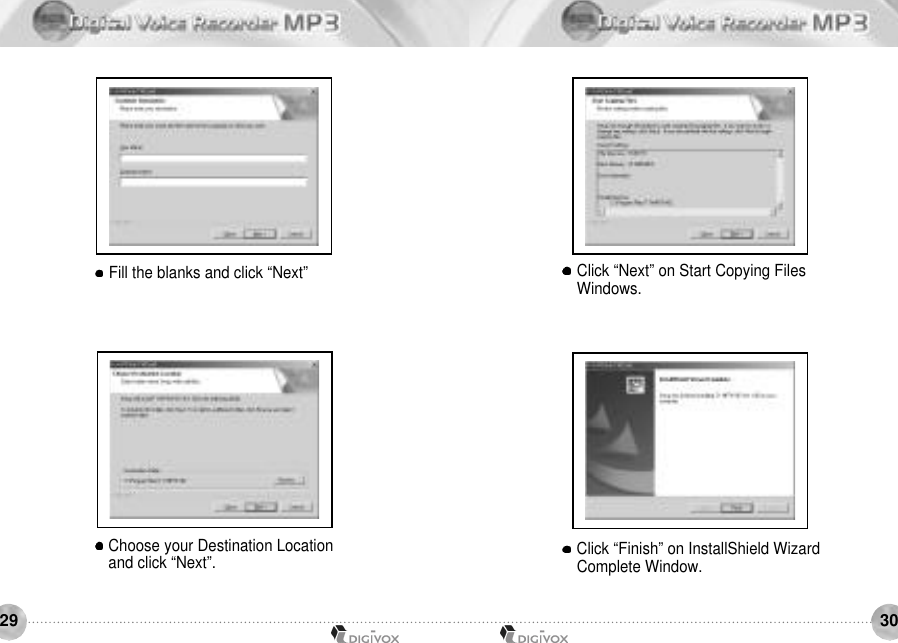
3029Fill the blanks and click “Next”Choose your Destination Location and click “Next”.Click “Next” on Start Copying Files Windows.Click “Finish” on InstallShield WizardComplete Window.
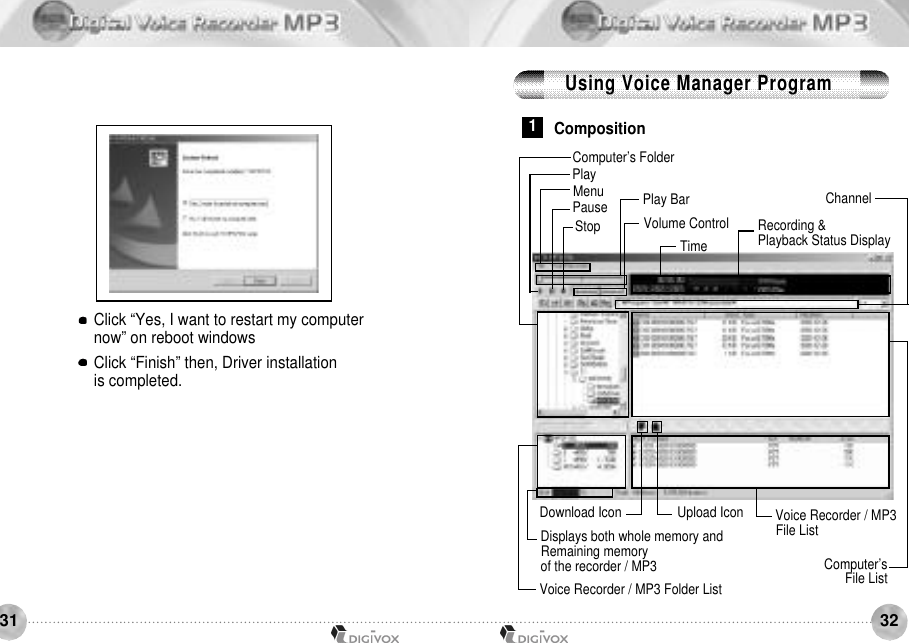
3231Click “Yes, I want to restart my computer now” on reboot windowsClick “Finish” then, Driver installation is completed.1CompositionRecording & Playback Status DisplayComputer’sFile ListVoice Recorder / MP3 File ListVoice Recorder / MP3 Folder ListDownload IconComputer’s FolderVolume ControlPlayMenuPauseTimeChannelPlay BarStopUpload IconDisplays both whole memory andRemaining memory of the recorder / MP3Using Voice Manager Program
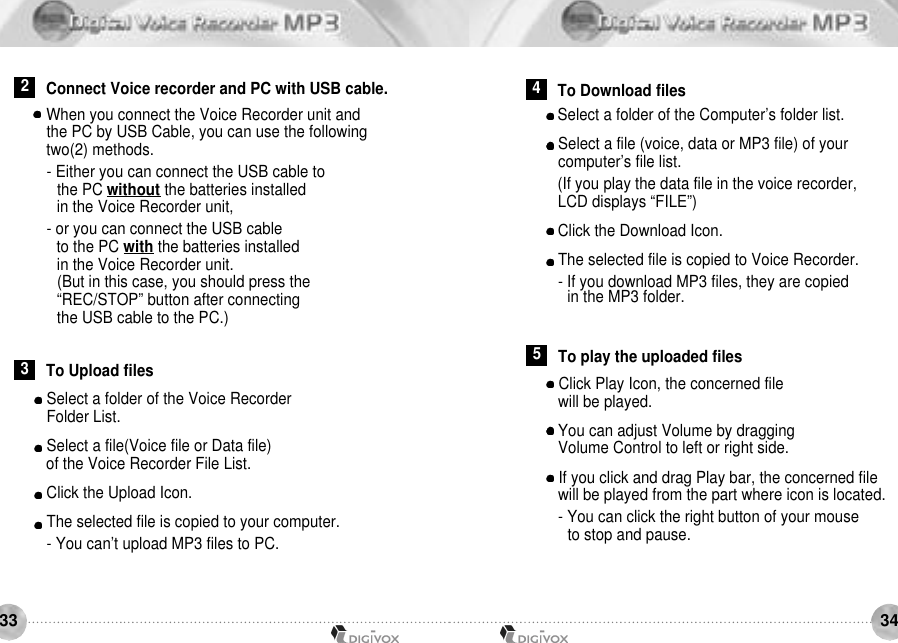
3433Select a folder of the Voice Recorder Folder List.Select a file(Voice file or Data file) of the Voice Recorder File List.Click the Upload Icon.The selected file is copied to your computer.- You can’t upload MP3 files to PC.When you connect the Voice Recorder unit and the PC by USB Cable, you can use the followingtwo(2) methods.- Either you can connect the USB cable to the PC without the batteries installedin the Voice Recorder unit,- or you can connect the USB cable to the PC with the batteries installed in the Voice Recorder unit.(But in this case, you should press the “REC/STOP” button after connectingthe USB cable to the PC.) Select a folder of the Computer’s folder list.Select a file (voice, data or MP3 file) of your computer’s file list.(If you play the data file in the voice recorder,LCD displays “FILE”)Click the Download Icon.The selected file is copied to Voice Recorder.- If you download MP3 files, they are copiedin the MP3 folder.2Connect Voice recorder and PC with USB cable.3To Upload files4To Download filesClick Play Icon, the concerned file will be played.You can adjust Volume by dragging Volume Control to left or right side.If you click and drag Play bar, the concerned file will be played from the part where icon is located.- You can click the right button of your mouse to stop and pause.5To play the uploaded files
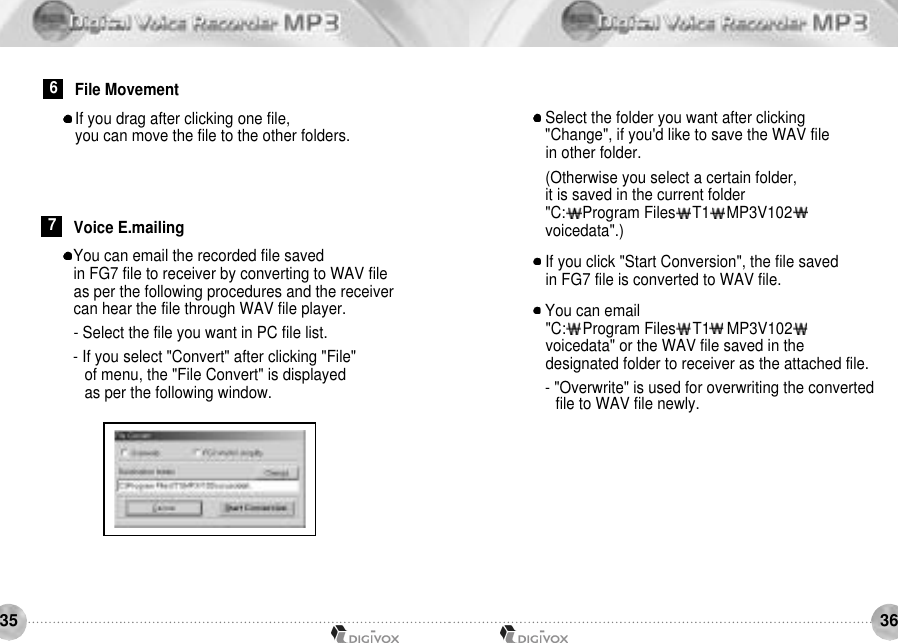
3635You can email the recorded file saved in FG7 file to receiver by converting to WAV file as per the following procedures and the receiver can hear the file through WAV file player.- Select the file you want in PC file list.- If you select "Convert" after clicking "File" of menu, the "File Convert" is displayed as per the following window.7Voice E.mailingSelect the folder you want after clicking "Change", if you'd like to save the WAV file in other folder.(Otherwise you select a certain folder, it is saved in the current folder"C:    Program Files    T1    MP3V102voicedata".)If you click "Start Conversion", the file saved in FG7 file is converted to WAV file.You can email "C:    Program Files    T1    MP3V102voicedata" or the WAV file saved in the designated folder to receiver as the attached file.- "Overwrite" is used for overwriting the converted file to WAV file newly.If you drag after clicking one file, you can move the file to the other folders.6File Movement
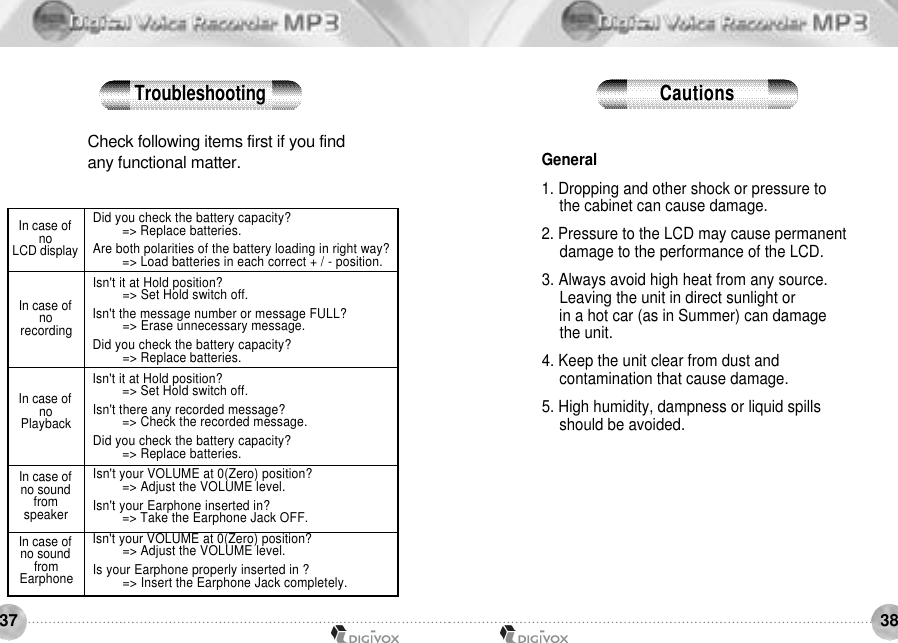
3837Check following items first if you find any functional matter. In case of noLCD displayIn case of nor e c o r d i n gIn case of noP l a y b a c kIn case of no sound froms p e a k e rIn case of no sound fromE a r p h o n eDid you check the battery capacity? => Replace batteries.Are both polarities of the battery loading in right way? => Load batteries in each correct + / - position. Isn't it at Hold position? => Set Hold switch off.Isn't the message number or message FULL? => Erase unnecessary message. Did you check the battery capacity? => Replace batteries. Isn't it at Hold position? => Set Hold switch off.Isn't there any recorded message? => Check the recorded message.Did you check the battery capacity? => Replace batteries. Isn't your VOLUME at 0(Zero) position? => Adjust the VOLUME level.Isn't your Earphone inserted in? => Take the Earphone Jack OFF. Isn't your VOLUME at 0(Zero) position?=> Adjust the VOLUME level.Is your Earphone properly inserted in ?=> Insert the Earphone Jack completely.General1. Dropping and other shock or pressure to the cabinet can cause damage. 2. Pressure to the LCD may cause permanent damage to the performance of the LCD. 3. Always avoid high heat from any source. Leaving the unit in direct sunlight or in a hot car (as in Summer) can damage the unit. 4. Keep the unit clear from dust and contamination that cause damage. 5. High humidity, dampness or liquid spills should be avoided.Troubleshooting C a u t i o n s
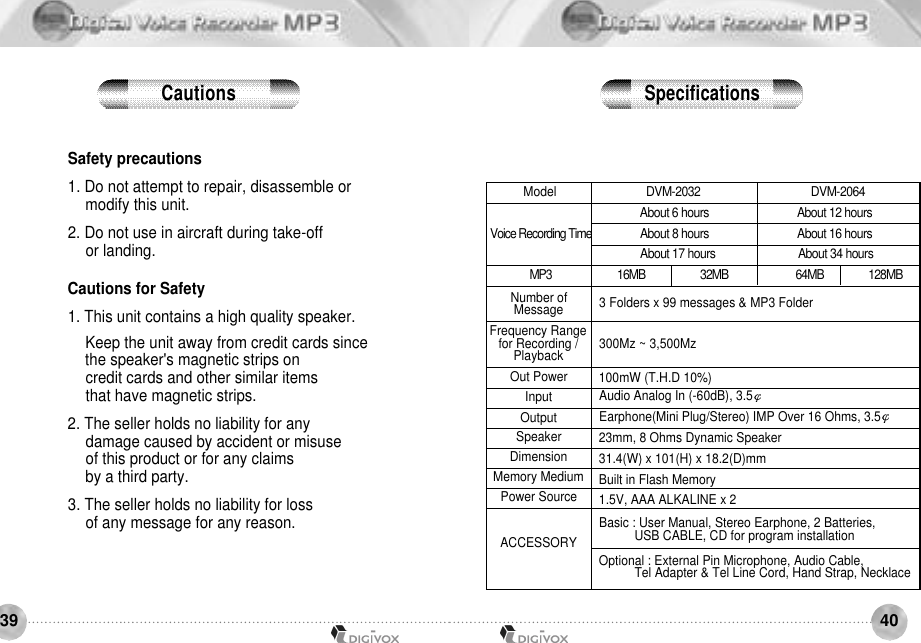
4039Safety precautions1. Do not attempt to repair, disassemble or modify this unit. 2. Do not use in aircraft during take-off or landing. Cautions for Safety1. This unit contains a high quality speaker. Keep the unit away from credit cards sincethe speaker's magnetic strips on credit cards and other similar items that have magnetic strips. 2. The seller holds no liability for any damage caused by accident or misuse of this product or for any claims by a third party. 3. The seller holds no liability for loss of any message for any reason.3 Folders x 99 messages & MP3 Folder 300Mz ~ 3,500Mz 100mW (T.H.D 10%) Audio Analog In (-60dB), 3.5Earphone(Mini Plug/Stereo) IMP Over 16 Ohms, 3.5 23mm, 8 Ohms Dynamic Speaker31.4(W) x 101(H) x 18.2(D)mmBuilt in Flash Memory 1.5V, AAA ALKALINE x 2Basic : User Manual, Stereo Earphone, 2 Batteries, USB CABLE, CD for program installationOptional : External Pin Microphone, Audio Cable, Tel Adapter & Tel Line Cord, Hand Strap, Necklace 16MB                      32MB                           64MB                  128MBNumber of MessageFrequency Range for Recording / P l a y b a c kOut PowerInputOutputSpeakerDimensionMemory MediumPower SourceACCESSORYVoice Recording TimeM P 3ModelC a u t i o n s S p e c i f i c a t i o n sDVM-2032                                      DVM-2064About 6 hours                               About 12 hoursAbout 8 hours                               About 16 hoursAbout 17 hours                             About 34 hours
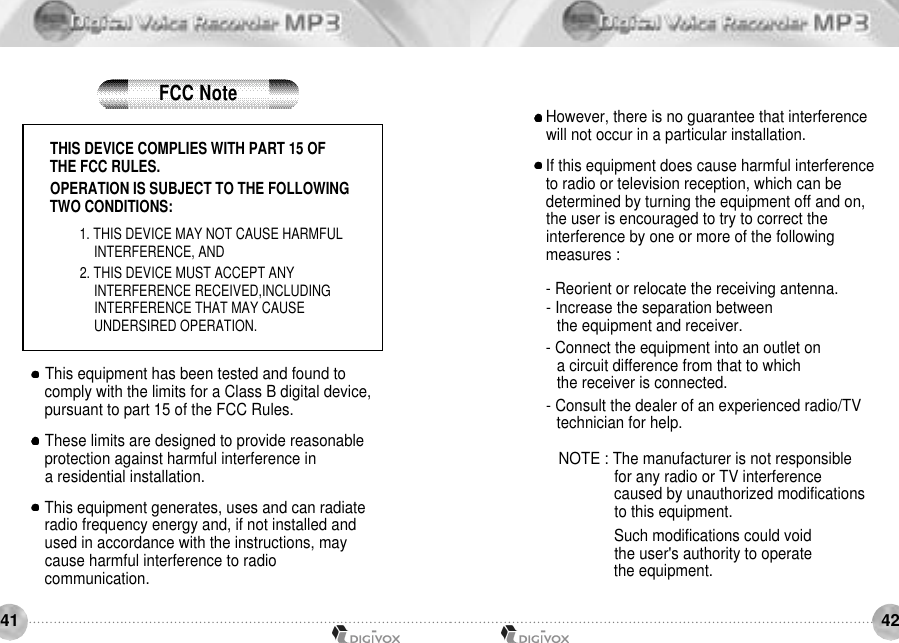
4241THIS DEVICE COMPLIES WITH PART 15 OF THE FCC RULES.OPERATION IS SUBJECT TO THE FOLLOWINGTWO CONDITIONS:1. THIS DEVICE MAY NOT CAUSE HARMFUL INTERFERENCE, AND2. THIS DEVICE MUST ACCEPT ANY INTERFERENCE RECEIVED,INCLUDING INTERFERENCE THAT MAY CAUSE UNDERSIRED OPERATION.This equipment has been tested and found to comply with the limits for a Class B digital device,pursuant to part 15 of the FCC Rules. These limits are designed to provide reasonable protection against harmful interference in a residential installation.This equipment generates, uses and can radiate radio frequency energy and, if not installed and used in accordance with the instructions, may cause harmful interference to radio communication.However, there is no guarantee that interference will not occur in a particular installation. If this equipment does cause harmful interference to radio or television reception, which can be determined by turning the equipment off and on, the user is encouraged to try to correct the interference by one or more of the following measures :- Reorient or relocate the receiving antenna.- Increase the separation between the equipment and receiver.- Connect the equipment into an outlet on a circuit difference from that to which the receiver is connected.- Consult the dealer of an experienced radio/TV technician for help.NOTE : The manufacturer is not responsible for any radio or TV interference caused by unauthorized modifications to this equipment. Such modifications could void the user's authority to operate the equipment.FCC Note
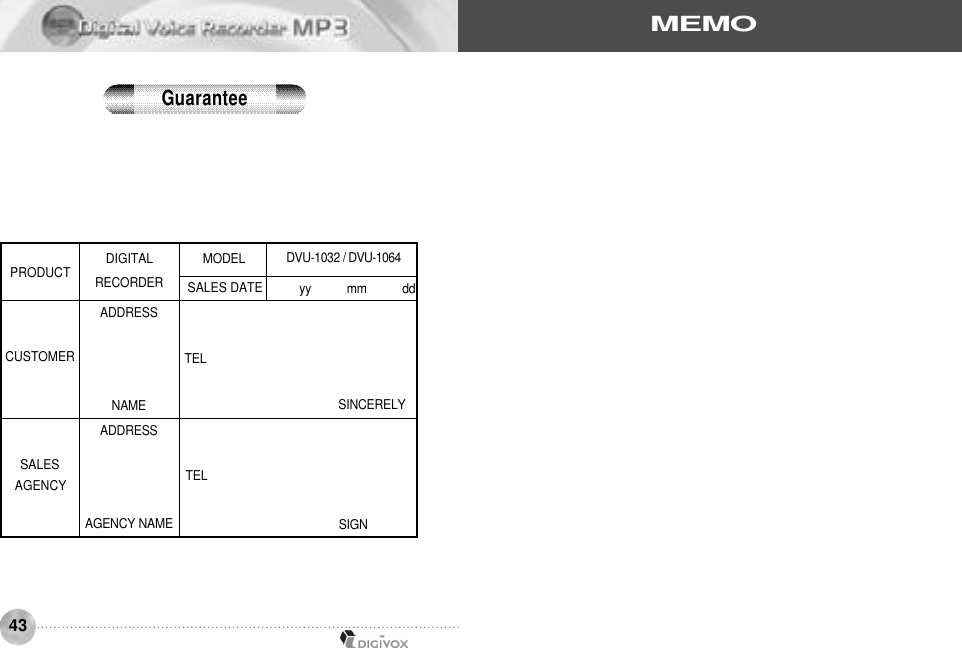
43S I G NS I N C E R E L YPRODUCTCUSTOMERSALESAGENCYT E LT E LDIGITALR E C O R D E RA D D R E S SN A M EA D D R E S SAGENCY NAMEM O D E LSALES DATEDVU-1032 / D V U - 1 0 6 4yy           mm           ddG u a r a n t e eM E M O

Navigation menu