DareGlobal Technologies A4001N ADSL2+ ROUTER WIFI 11n 2x2 User Manual N22 2x2 User Manual

Shanghai DareGlobal Technologies Co., Ltd. ADSL2+ ROUTER WIFI 11n 2x2 N22 2x2 User Manual

User Manual

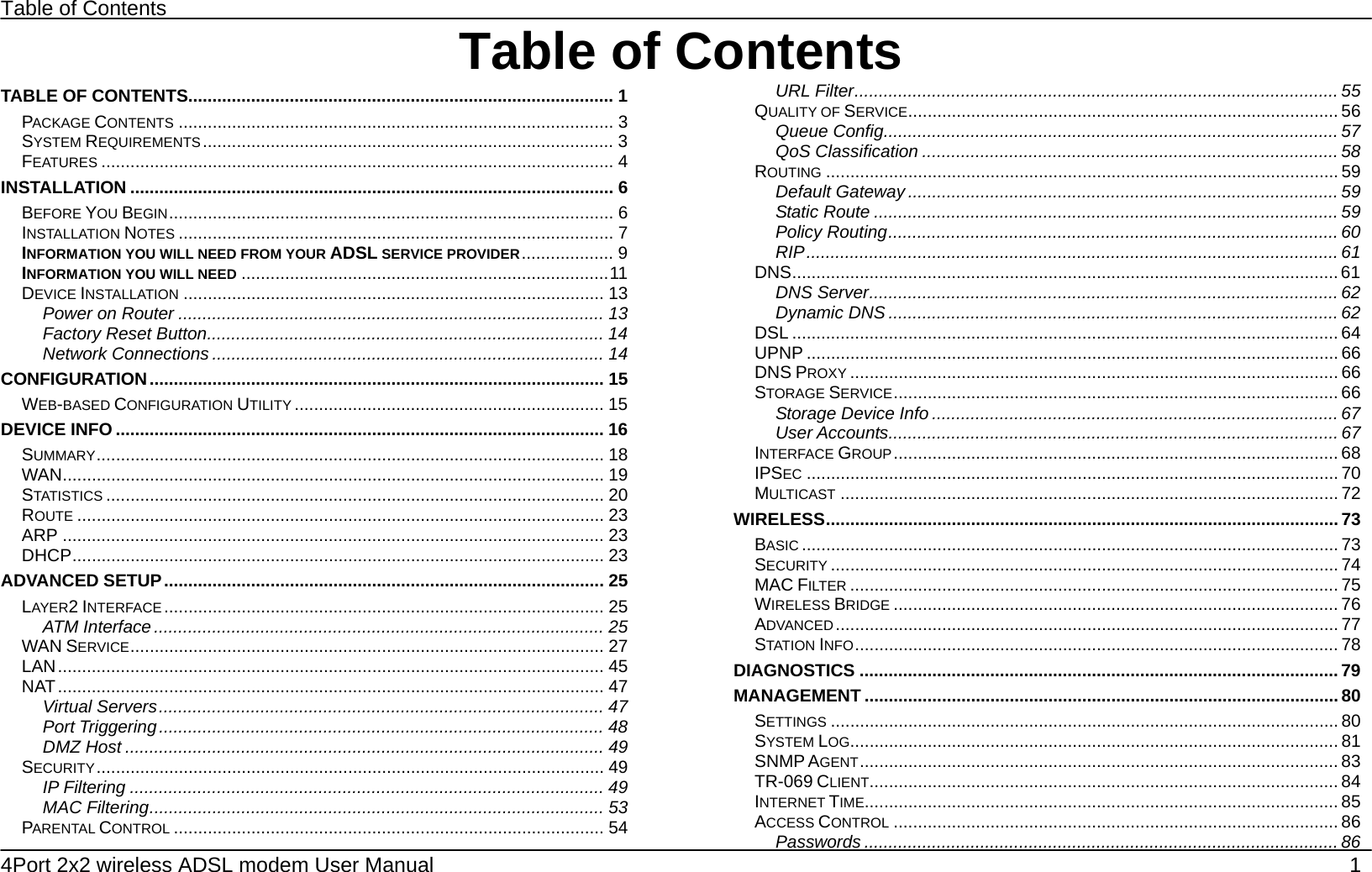
Table of Contents 4Port 2x2 wireless ADSL modem User Manual    1 Table of ContentsTABLE OF CONTENTS........................................................................................ 1 PACKAGE CONTENTS .......................................................................................... 3 SYSTEM REQUIREMENTS..................................................................................... 3 FEATURES .......................................................................................................... 4 INSTALLATION .................................................................................................... 6 BEFORE YOU BEGIN............................................................................................ 6 INSTALLATION NOTES .......................................................................................... 7 INFORMATION YOU WILL NEED FROM YOUR ADSL SERVICE PROVIDER................... 9 INFORMATION YOU WILL NEED ............................................................................11 DEVICE INSTALLATION ....................................................................................... 13 Power on Router ........................................................................................ 13 Factory Reset Button.................................................................................. 14 Network Connections ................................................................................. 14 CONFIGURATION.............................................................................................. 15 WEB-BASED CONFIGURATION UTILITY ................................................................ 15 DEVICE INFO ..................................................................................................... 16 SUMMARY......................................................................................................... 18 WAN................................................................................................................ 19 STATISTICS ....................................................................................................... 20 ROUTE ............................................................................................................. 23 ARP ................................................................................................................ 23 DHCP.............................................................................................................. 23 ADVANCED SETUP........................................................................................... 25 LAYER2 INTERFACE ........................................................................................... 25 ATM Interface ............................................................................................. 25 WAN SERVICE.................................................................................................. 27 LAN................................................................................................................. 45 NAT................................................................................................................. 47 Virtual Servers............................................................................................ 47 Port Triggering............................................................................................ 48 DMZ Host ................................................................................................... 49 SECURITY......................................................................................................... 49 IP Filtering .................................................................................................. 49 MAC Filtering.............................................................................................. 53 PARENTAL CONTROL ......................................................................................... 54 URL Filter.................................................................................................... 55 QUALITY OF SERVICE......................................................................................... 56 Queue Config.............................................................................................. 57 QoS Classification ...................................................................................... 58 ROUTING .......................................................................................................... 59 Default Gateway ......................................................................................... 59 Static Route ................................................................................................ 59 Policy Routing............................................................................................. 60 RIP.............................................................................................................. 61 DNS................................................................................................................. 61 DNS Server.................................................................................................62 Dynamic DNS ............................................................................................. 62 DSL ................................................................................................................. 64 UPNP .............................................................................................................. 66 DNS PROXY ..................................................................................................... 66 STORAGE SERVICE............................................................................................ 66 Storage Device Info ....................................................................................67 User Accounts............................................................................................. 67 INTERFACE GROUP............................................................................................ 68 IPSEC .............................................................................................................. 70 MULTICAST ....................................................................................................... 72 WIRELESS.......................................................................................................... 73 BASIC ............................................................................................................... 73 SECURITY ......................................................................................................... 74 MAC FILTER ..................................................................................................... 75 WIRELESS BRIDGE ............................................................................................ 76 ADVANCED ........................................................................................................ 77 STATION INFO.................................................................................................... 78 DIAGNOSTICS ................................................................................................... 79 MANAGEMENT .................................................................................................. 80 SETTINGS ......................................................................................................... 80 SYSTEM LOG..................................................................................................... 81 SNMP AGENT................................................................................................... 83 TR-069 CLIENT................................................................................................. 84 INTERNET TIME.................................................................................................. 85 ACCESS CONTROL ............................................................................................ 86 Passwords .................................................................................................. 86
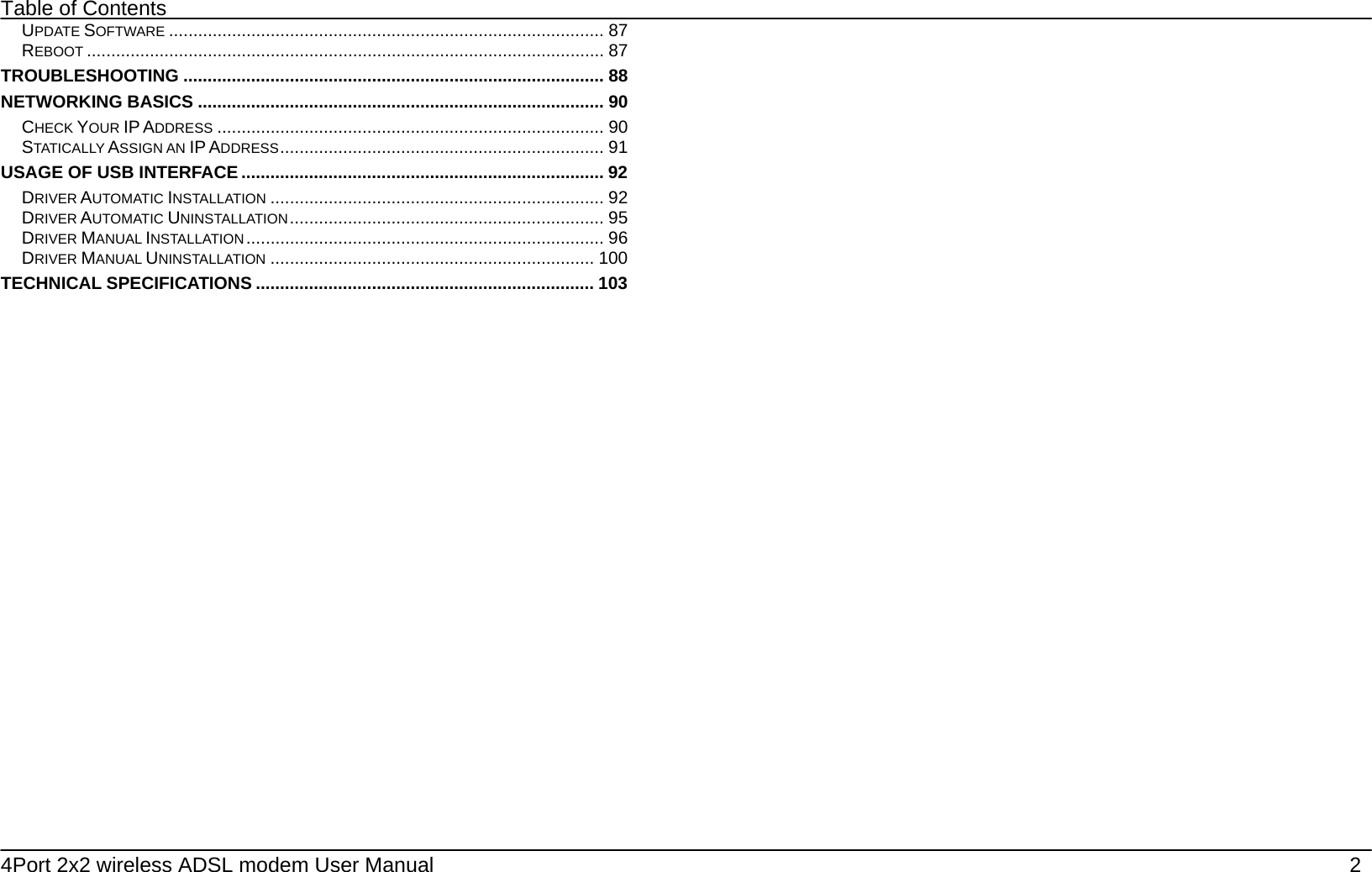
Table of Contents 4Port 2x2 wireless ADSL modem User Manual    2 UPDATE SOFTWARE .......................................................................................... 87 REBOOT ........................................................................................................... 87 TROUBLESHOOTING ....................................................................................... 88 NETWORKING BASICS .................................................................................... 90 CHECK YOUR IP ADDRESS ................................................................................ 90 STATICALLY ASSIGN AN IP ADDRESS................................................................... 91 USAGE OF USB INTERFACE ........................................................................... 92 DRIVER AUTOMATIC INSTALLATION ..................................................................... 92 DRIVER AUTOMATIC UNINSTALLATION................................................................. 95 DRIVER MANUAL INSTALLATION .......................................................................... 96 DRIVER MANUAL UNINSTALLATION ................................................................... 100 TECHNICAL SPECIFICATIONS ...................................................................... 103
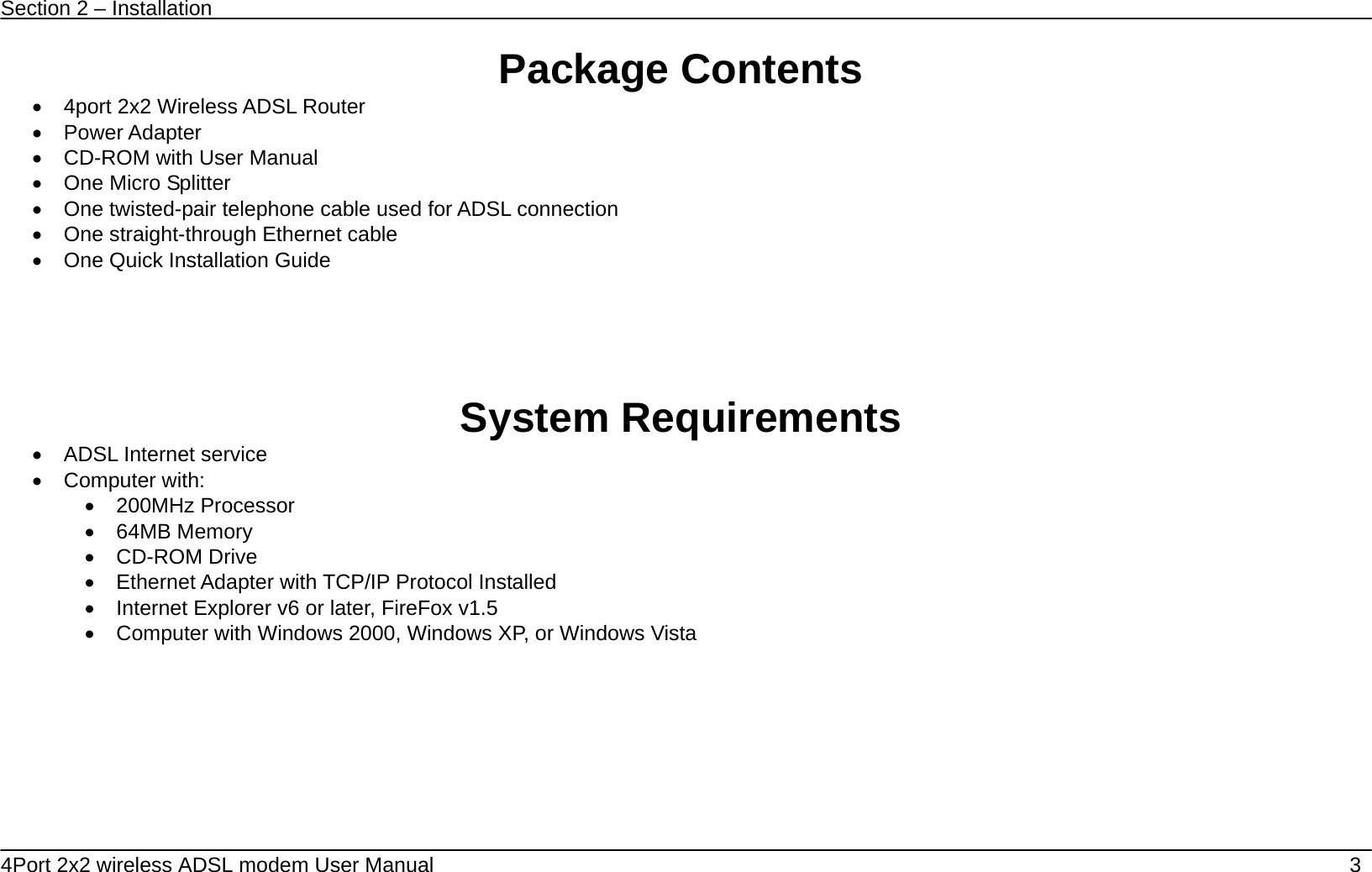
Section 2 – Installation   4Port 2x2 wireless ADSL modem User Manual    3 Package Contents •  4port 2x2 Wireless ADSL Router • Power Adapter  •  CD-ROM with User Manual   • One Micro Splitter •  One twisted-pair telephone cable used for ADSL connection   • One straight-through Ethernet cable • One Quick Installation Guide       System Requirements •  ADSL Internet service • Computer with: • 200MHz Processor • 64MB Memory • CD-ROM Drive •  Ethernet Adapter with TCP/IP Protocol Installed •  Internet Explorer v6 or later, FireFox v1.5 •  Computer with Windows 2000, Windows XP, or Windows Vista
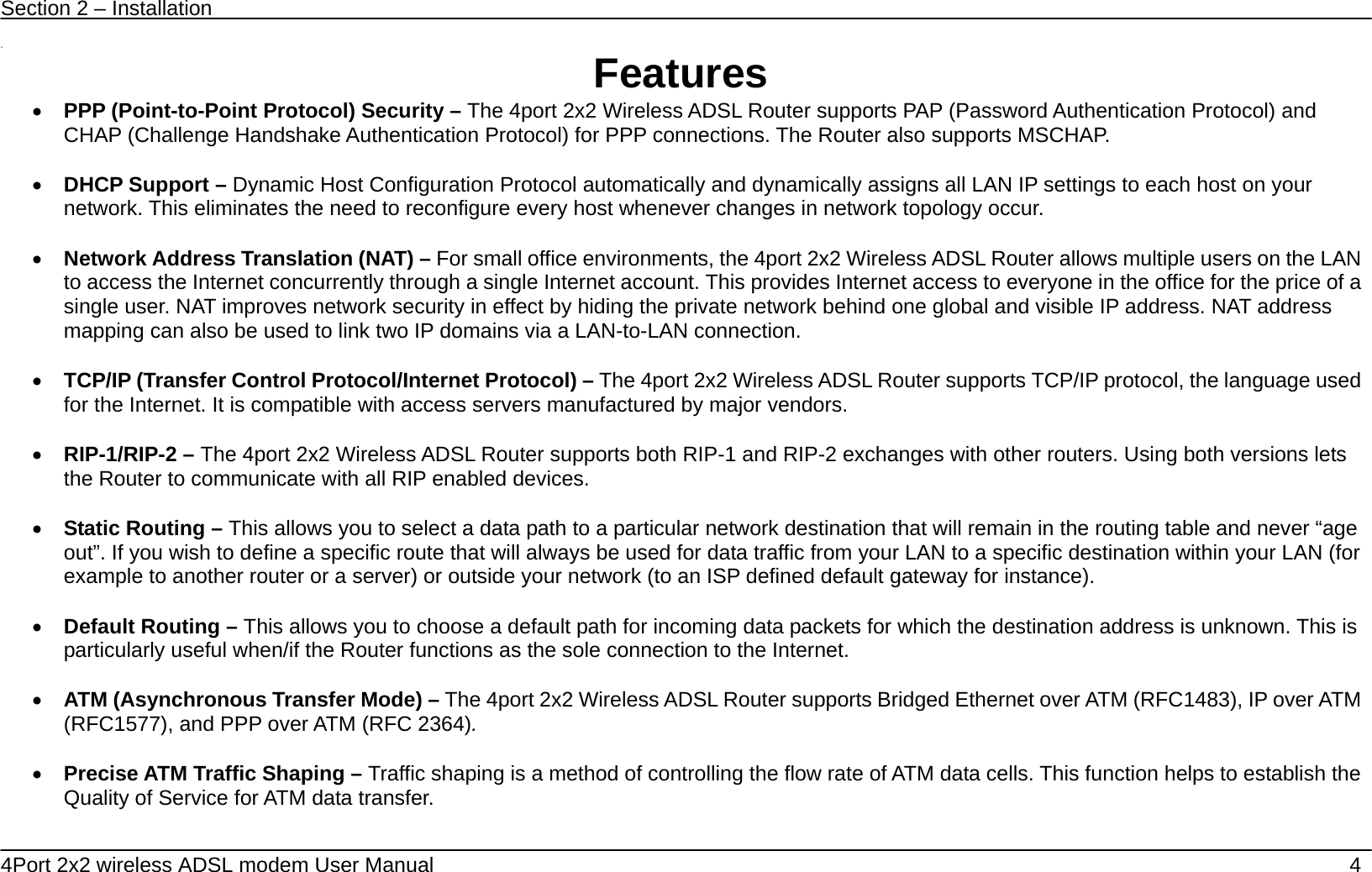
Section 2 – Installation   4Port 2x2 wireless ADSL modem User Manual    4  11  Features • PPP (Point-to-Point Protocol) Security – The 4port 2x2 Wireless ADSL Router supports PAP (Password Authentication Protocol) and CHAP (Challenge Handshake Authentication Protocol) for PPP connections. The Router also supports MSCHAP.  • DHCP Support – Dynamic Host Configuration Protocol automatically and dynamically assigns all LAN IP settings to each host on your network. This eliminates the need to reconfigure every host whenever changes in network topology occur.  • Network Address Translation (NAT) – For small office environments, the 4port 2x2 Wireless ADSL Router allows multiple users on the LAN to access the Internet concurrently through a single Internet account. This provides Internet access to everyone in the office for the price of a single user. NAT improves network security in effect by hiding the private network behind one global and visible IP address. NAT address mapping can also be used to link two IP domains via a LAN-to-LAN connection.  • TCP/IP (Transfer Control Protocol/Internet Protocol) – The 4port 2x2 Wireless ADSL Router supports TCP/IP protocol, the language used for the Internet. It is compatible with access servers manufactured by major vendors.  • RIP-1/RIP-2 – The 4port 2x2 Wireless ADSL Router supports both RIP-1 and RIP-2 exchanges with other routers. Using both versions lets the Router to communicate with all RIP enabled devices.  • Static Routing – This allows you to select a data path to a particular network destination that will remain in the routing table and never “age out”. If you wish to define a specific route that will always be used for data traffic from your LAN to a specific destination within your LAN (for example to another router or a server) or outside your network (to an ISP defined default gateway for instance).     • Default Routing – This allows you to choose a default path for incoming data packets for which the destination address is unknown. This is particularly useful when/if the Router functions as the sole connection to the Internet.  • ATM (Asynchronous Transfer Mode) – The 4port 2x2 Wireless ADSL Router supports Bridged Ethernet over ATM (RFC1483), IP over ATM (RFC1577), and PPP over ATM (RFC 2364).    • Precise ATM Traffic Shaping – Traffic shaping is a method of controlling the flow rate of ATM data cells. This function helps to establish the Quality of Service for ATM data transfer.
Section 2 – Installation   4Port 2x2 wireless ADSL modem User Manual    5 • G.hs (Auto-handshake) – This allows the Router to automatically choose either the G.lite or G.dmt ADSL connection standards.    • High Performance – Very high rates of data transfer are possible with the Router. Up to 8 Mbps downstream bit rate using the G.dmt standard.  • Full Network Management – The 4port 2x2 Wireless ADSL Router incorporates SNMP (Simple Network Management Protocol) support for web-based management and text-based network management via an RS-232 or Telnet connection.  • Telnet Connection – The Telnet enables a network manager to access the Router’s management software remotely.  • Easy Installation – The 4port 2x2 Wireless ADSL Router uses a web-based graphical user interface program for convenient management access and easy set up. Any common web browser software can be used to manage the Router.
Section 2 – Installation   4Port 2x2 wireless ADSL modem User Manual    6 Installation This section will walk you through the installation process. Placement of the Router is very important. Do not place the Router in an enclosed area such as a closet, cabinet, or in the attic or garage.   Before You Begin Please read and make sure you understand all the prerequisites for proper installation of your new Router. Have all the necessary information and equipment on hand before beginning the installation.
Section 2 – Installation   4Port 2x2 wireless ADSL modem User Manual    7 Installation Notes In order to establish a connection to the Internet it will be necessary to provide information to the Router that will be stored in its memory. For some users, only their account information (Username and Password) is required. For others, various parameters that control and define the Internet connection will be required. You can print out the two pages below and use the tables to list this information. This way you have a hard copy of all the information needed to setup the Router. If it is necessary to reconfigure the device, all the necessary information can be easily accessed. Be sure to keep this information safe and private.  Low Pass Filters Since ADSL and telephone services share the same copper wiring to carry their respective signals, a filtering mechanism may be necessary to avoid mutual interference. A low pass filter device can be installed for each telephone that shares the line with the ADSL line. These filters are easy to install passive devices that connect to the ADSL device and/or telephone using standard telephone cable. Ask your service provider for more information about the use of low pass filters with your installation.    Operating Systems The 4port 2x2 Wireless ADSL Router uses an HTML-based web interface for setup and management. The web configuration manager may be accessed using any operating system capable of running web browser software, including Windows 98 SE, Windows ME, Windows 2000, Windows XP, and Windows Vista.    Web Browser Any common web browser can be used to configure the Router using the web configuration management software. The program is designed to work best with more recently released browsers such as Opera, Microsoft Internet Explorer® version 6.0, Netscape Navigator® version 6.2.3, or later versions. The web browser must have JavaScript enabled. JavaScript is enabled by default on many browsers. Make sure JavaScript has not been disabled by other software (such as virus protection or web user security packages) that may be running on your computer.  Ethernet Port (NIC Adapter) Any computer that uses the Router must be able to connect to it through the Ethernet port on the Router. This connection is an Ethernet connection and therefore requires that your computer be equipped with an Ethernet port as well. Most notebook computers are now sold with an Ethernet port already installed. Likewise, most fully assembled desktop computers come with an Ethernet NIC adapter as standard equipment. If your computer does not have an Ethernet port, you must install an Ethernet NIC adapter before you can use the Router. If you must install an adapter, follow the installation instructions that come with the Ethernet NIC adapter.
Section 2 – Installation   4Port 2x2 wireless ADSL modem User Manual    8 Additional Software It may be necessary to install software on your computer that enables the computer to access the Internet. Additional software must be installed if you are using the device a simple bridge. For a bridged connection, the information needed to make and maintain the Internet connection is stored on another computer or gateway device, not in the Router itself.    If your ADSL service is delivered through a PPPoE or PPPoA connection, the information needed to establish and maintain the Internet connection can be stored in the Router. In this case, it is not necessary to install software on your computer. It may however be necessary to change some settings in the device, including account information used to identify and verify the connection.  All connections to the Internet require a unique global IP address. For bridged connections, the global IP settings must reside in a TCP/IP enabled device on the LAN side of the bridge, such as a PC, a server, a gateway device such as a router or similar firewall hardware. The IP address can be assigned in a number of ways. Your network service provider will give you instructions about any additional connection software or NIC configuration that may be required.
Section 2 – Installation   4Port 2x2 wireless ADSL modem User Manual    9 Information you will need from your ADSL service provider Username This is the Username used to log on to your ADSL service provider’s network. Your ADSL service provider uses this to identify your account.  Password This is the Password used, in conjunction with the Username above, to log on to your ADSL service provider’s network. This is used to verify the identity of your account.  WAN Setting / Connection Type These settings describe the method your ADSL service provider uses to transport data between the Internet and your computer. Most users will use the default settings. You may need to specify one of the following WAN Setting and Connection Type configurations (Connection Type settings listed in parenthesis):   •  PPPoE/PPoA (PPPoE LLC, PPPoA LLC or PPPoA VC-Mux) •  Bridge Mode (1483 Bridged IP LLC or 1483 Bridged IP VC Mux) •  IPoA/MER (Static IP Address) (Bridged IP LLC, 1483 Bridged IP VC Mux, 1483 Routed IP LLC, 1483 Routed IP VC-Mux or IPoA) •  MER (Dynamic IP Address) (1483 Bridged IP LLC or 1483 Bridged IP VC-Mux)      Modulation Type ADSL uses various standardized modulation techniques to transmit data over the allotted signal frequencies. Some users may need to change the type of modulation used for their service. The default DSL modulation (ADSL2+ Multi-Mode) used for the Router automatically detects all types of ADSL, ADSL2, and ADSL2+ modulation.  Security Protocol This is the method your ADSL service provider will use to verify your Username and Password when you log on to their network. Your Router supports the PAP and CHAP protocols.
Section 2 – Installation   4Port 2x2 wireless ADSL modem User Manual    10 VPI Most users will not be required to change this setting. The Virtual Path Identifier (VPI) is used in conjunction with the Virtual Channel Identifier (VCI) to identify the data path between your ADSL service provider’s network and your computer. If you are setting up the Router for multiple virtual connections, you will need to configure the VPI and VCI as instructed by your ADSL service provider for the additional connections. This setting can be changed in the WAN Settings window of the web management interface.   VCI Most users will not be required to change this setting. The Virtual Channel Identifier (VCI) used in conjunction with the VPI to identify the data path between your ADSL service provider’s network and your computer. If you are setting up the Router for multiple virtual connections, you will need to configure the VPI and VCI as instructed by your ADSL service provider for the additional connections. This setting can be changed in the WAN Settings window of the web management interface.
Section 2 – Installation   4Port 2x2 wireless ADSL modem User Manual    11  Information you will need   Username  This is the Username needed to access the Router’s management interface. When you attempt to connect to the device through a web browser you will be prompted to enter this Username. The default Username for the Router is “admin.” The user cannot change this.  Password This is the Password you will be prompted to enter when you access the Router’s management interface. The default Password is “admin.” The user may change this.  LAN IP addresses for the 4port 2x2 Wireless ADSL Router This is the IP address you will enter into the Address field of your web browser to access the Router’s configuration graphical user interface (GUI) using a web browser. The default IP address is 192.168.1.1. This may be changed to suit any IP address scheme the user desires. This address will be the base IP address used for DHCP service on the LAN when DHCP is enabled.  LAN Subnet Mask for the 4port 2x2 Wireless ADSL Router This is the subnet mask used by the 4port 2x2 Wireless ADSL Router, and will be used throughout your LAN. The default subnet mask is 255.255.255.0. This can be changed later.
Section 2 – Installation   4Port 2x2 wireless ADSL modem User Manual    12 Information you will need about your LAN or computer: Ethernet NIC If your computer has an Ethernet NIC, you can connect the 4port 2x2 Wireless ADSL Router to this Ethernet port using an Ethernet cable. You can also use the Ethernet ports on the 4port 2x2 Wireless ADSL Router to connect to other computer or Ethernet devices.  DHCP Client status Your 4port 2x2 Wireless ADSL Router is configured, by default, to be a DHCP server. This means that it can assign an IP address, subnet mask, and a default gateway address to computers on your LAN. The default range of IP addresses the 4port 2x2 Wireless ADSL Router will assign are from 192.168.1.2 to 192.168.1.254. Your computer (or computers) needs to be configured to obtain an IP address automatically (that is, they need to be configured as DHCP clients.)    It is recommended that your collect and record this information here, or in some other secure place, in case you have to re-configure your ADSL connection in the future.  Once you have the above information, you are ready to setup and configure your 4port 2x2 Wireless ADSL Router ADSL Router.
Section 2 – Installation   4Port 2x2 wireless ADSL modem User Manual    13 Device Installation The 4port 2x2 Wireless ADSL Router connects two separate physical interfaces, an ADSL (WAN) and an Ethernet (LAN) interface. Place the Router in a location where it can be connected to the various devices as well as to a power source. The Router should not be located where it will be exposed to moisture or excessive heat. Make sure the cables and power cord are placed safely out of the way so they do not create a tripping hazard. As with any electrical appliance, observe common sense safety procedures.  The Router can be placed on a shelf or desktop, ideally you should be able to see the LED indicators on the front if you need to view them for troubleshooting.  Power on Router  The Router must be used with the power adapter included with the device.  1.  Insert the DC Power Adapter cord into the power receptacle located on the rear panel of the Router and plug the adapter into a suitable nearby power source.  2.  Depress the Power button into the on position. You should see the Power LED indicator light up and remain lit. The Status LED should light solid green and begin to blink after a few seconds.  3.  If the Ethernet port is connected to a working device, check the LAN LED indicators to make sure the connection is valid. The Router will attempt to establish the ADSL connection, if the ADSL line is connected and the Router is properly configured this should light up after several seconds. If this is the first time installing the device, some settings may need to be changed before the Router can establish a connection.
Section 2 – Installation   4Port 2x2 wireless ADSL modem User Manual    14 Factory Reset Button The Router may be reset to the original factory default settings by using a ballpoint or paperclip to gently push down the reset button in the following sequence:  1.  Press and hold the reset button while the device is powered off. 2.  Turn on the power. 3. Wait for 10 seconds and then release the reset button.   Remember that this will wipe out any settings stored in flash memory including user account information and LAN IP settings. The device settings will be restored to the factory default IP address 192.168.1.1 and the subnet mask is 255.255.255.0, the default management Username is “admin” and the default Password is “admin.”  Network Connections   Connect ADSL Line Use the ADSL cable included with the Router to connect it to a telephone wall socket or receptacle. Plug one end of the cable into the ADSL port (RJ-11 receptacle) on the rear panel of the Router and insert the other end into the RJ-11 wall socket. If you are using a low pass filter device, follow the instructions included with the device or given to you by your service provider. The ADSL connection represents the WAN interface, the connection to the Internet. It is the physical link to the service provider’s network backbone and ultimately to the Internet.    Connect Router to Ethernet   The Router may be connected to a single computer or Ethernet device through the 10BASE-TX Ethernet port on the rear panel. Any connection to an Ethernet concentrating device such as a switch or hub must operate at a speed of 10/100 Mbps only. When connecting the Router to any Ethernet device that is capable of operating at speeds higher than 10Mbps, be sure that the device has auto-negotiation (NWay) enabled for the connecting port. Use standard twisted-pair cable with RJ-45 connectors. The RJ-45 port on the Router is a crossed port (MDI-X). Follow standard Ethernet guidelines when deciding what type of cable to use to make this connection. When connecting the Router directly to a PC or server use a normal straight-through cable. You should use a crossed cable when connecting the Router to a normal (MDI-X) port on a switch or hub. Use a normal straight-through cable when connecting it to an uplink (MDI-II) port on a hub or switch. The rules governing Ethernet cable lengths apply to the LAN to Router connection. Be sure that the cable connecting the LAN to the Router does not exceed 100 meters.  Hub or Switch to Router Connection Connect the Router to an uplink port (MDI-II) on an Ethernet hub or switch with a straight-through cable. If you wish to reserve the uplink port on the switch or hub for another device, connect to any on the other MDI-X ports (1x, 2x, etc.) with a crossed cable.  Computer to Router Connection You can connect the Router directly to a 10/100BASE-TX Ethernet adapter card (NIC) installed on a PC using the Ethernet cable provided.
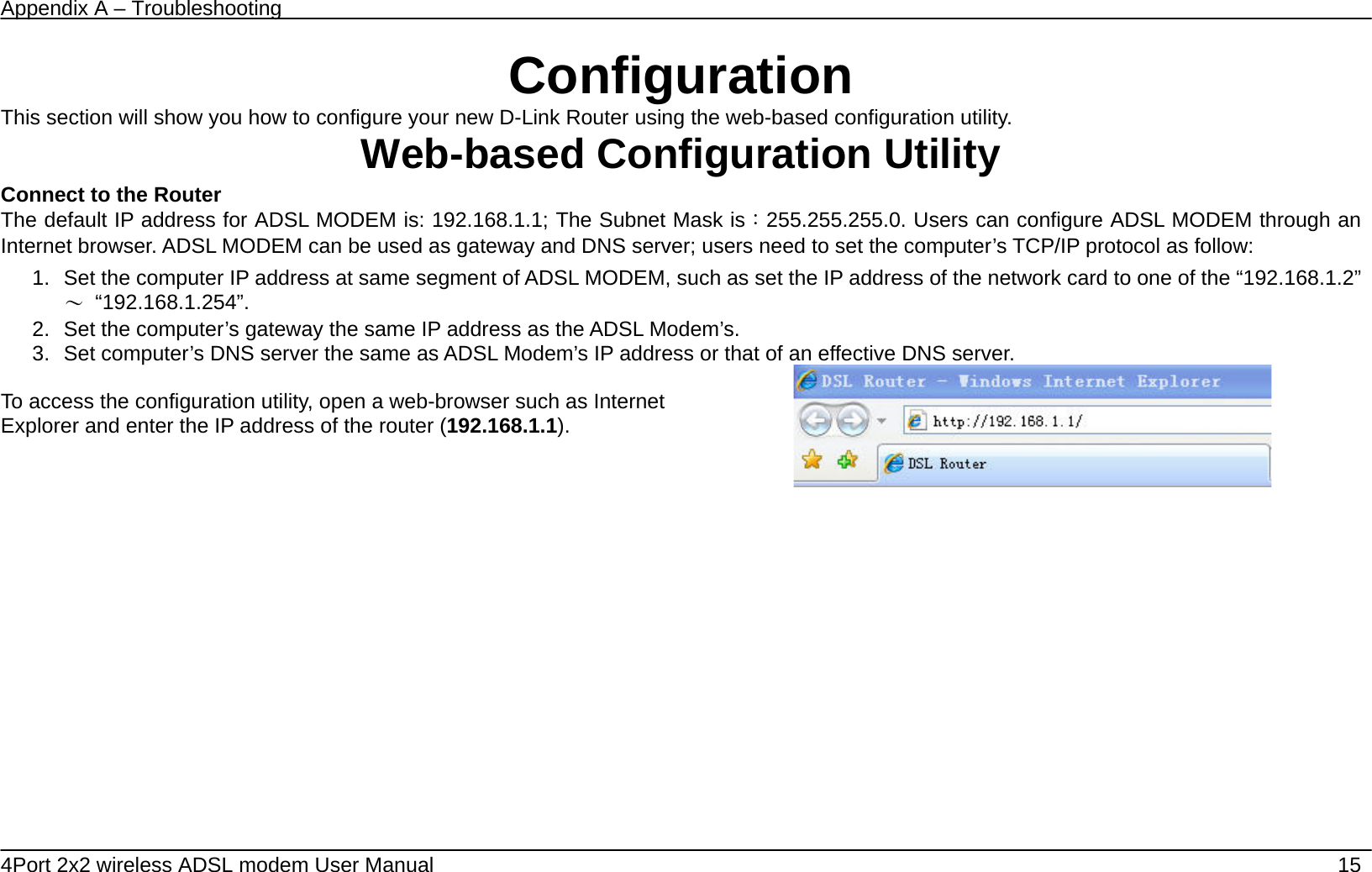
Appendix A – Troubleshooting   4Port 2x2 wireless ADSL modem User Manual    15 Configuration This section will show you how to configure your new D-Link Router using the web-based configuration utility. Web-based Configuration Utility Connect to the Router   The default IP address for ADSL MODEM is: 192.168.1.1; The Subnet Mask is:255.255.255.0. Users can configure ADSL MODEM through an Internet browser. ADSL MODEM can be used as gateway and DNS server; users need to set the computer’s TCP/IP protocol as follow: 1.  Set the computer IP address at same segment of ADSL MODEM, such as set the IP address of the network card to one of the “192.168.1.2”~ “192.168.1.254”. 2.  Set the computer’s gateway the same IP address as the ADSL Modem’s. 3.  Set computer’s DNS server the same as ADSL Modem’s IP address or that of an effective DNS server.  To access the configuration utility, open a web-browser such as Internet Explorer and enter the IP address of the router (192.168.1.1).
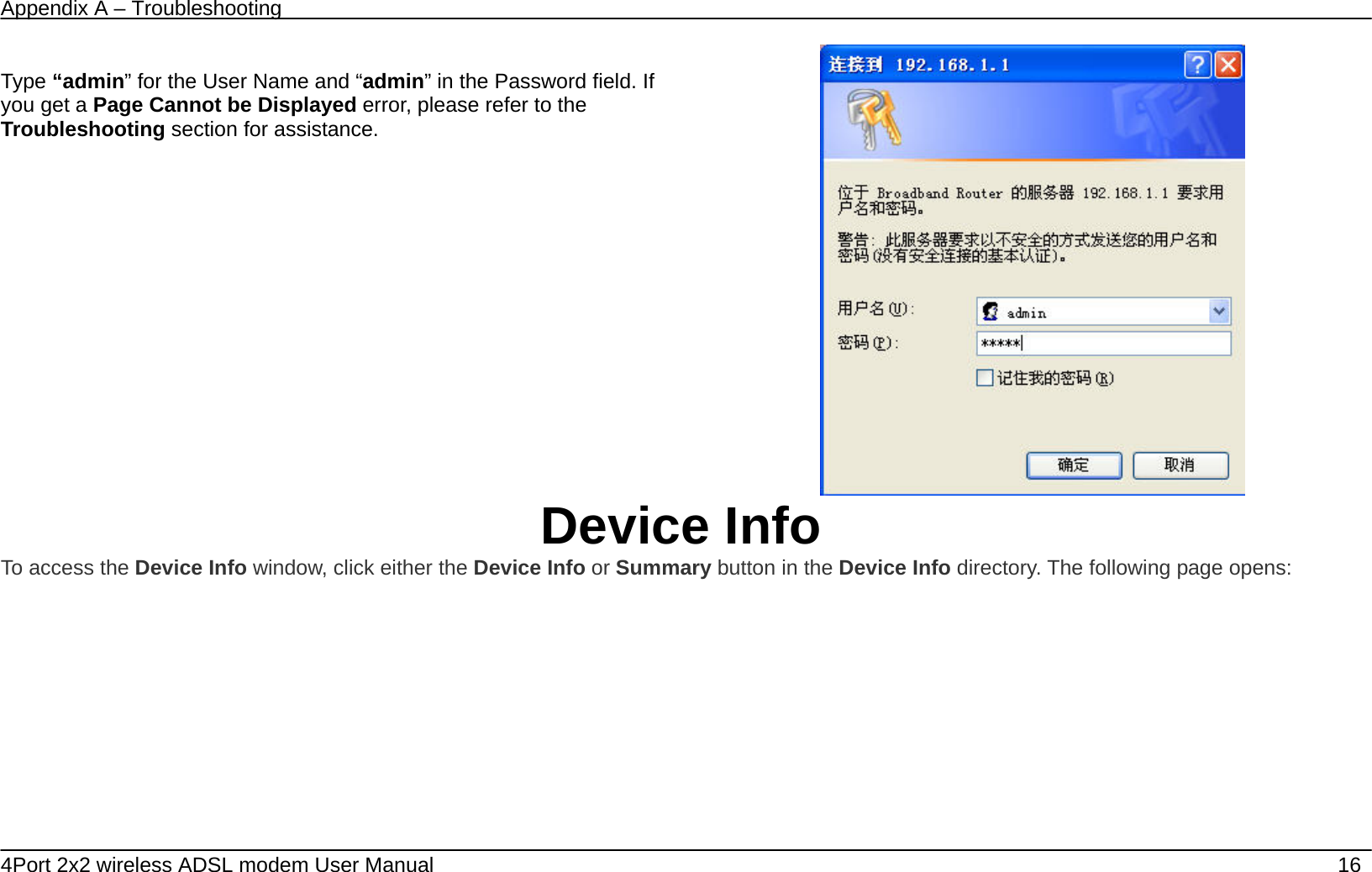
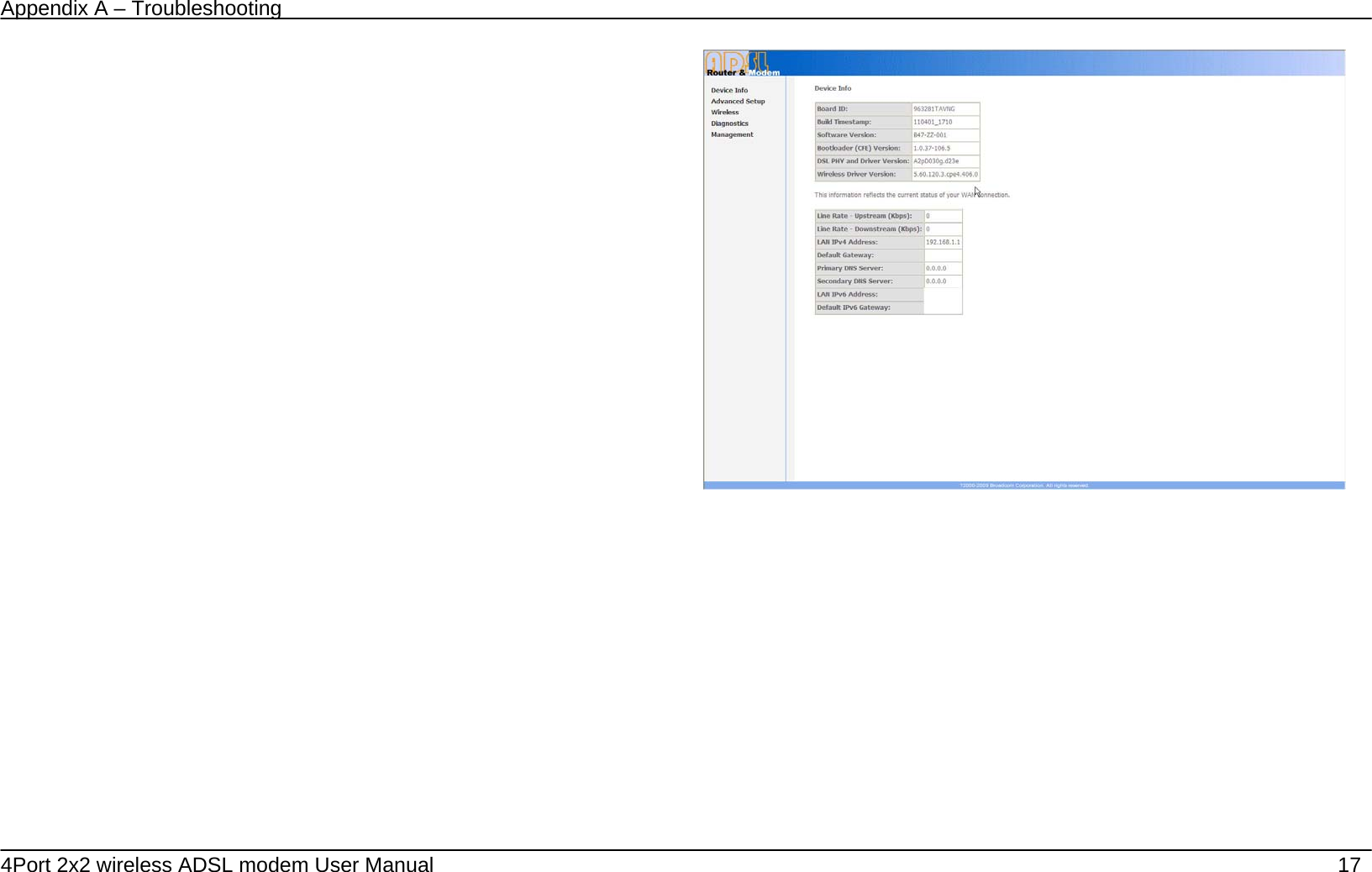
Appendix A – Troubleshooting   4Port 2x2 wireless ADSL modem User Manual    16  Type “admin” for the User Name and “admin” in the Password field. If you get a Page Cannot be Displayed error, please refer to the Troubleshooting section for assistance.  Device Info To access the Device Info window, click either the Device Info or Summary button in the Device Info directory. The following page opens:
Appendix A – Troubleshooting   4Port 2x2 wireless ADSL modem User Manual    17
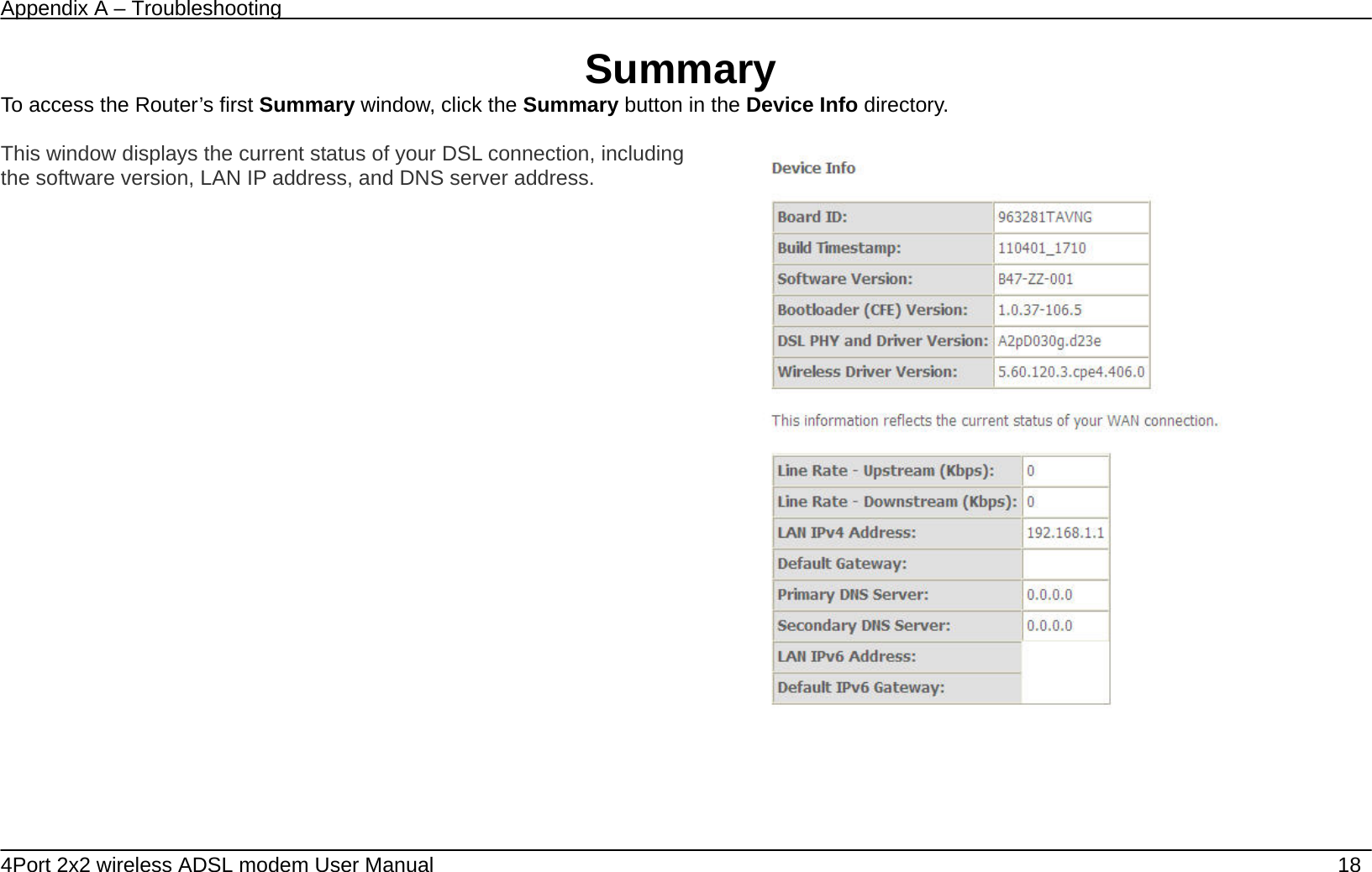
Appendix A – Troubleshooting   4Port 2x2 wireless ADSL modem User Manual    18 Summary To access the Router’s first Summary window, click the Summary button in the Device Info directory.  This window displays the current status of your DSL connection, including the software version, LAN IP address, and DNS server address.
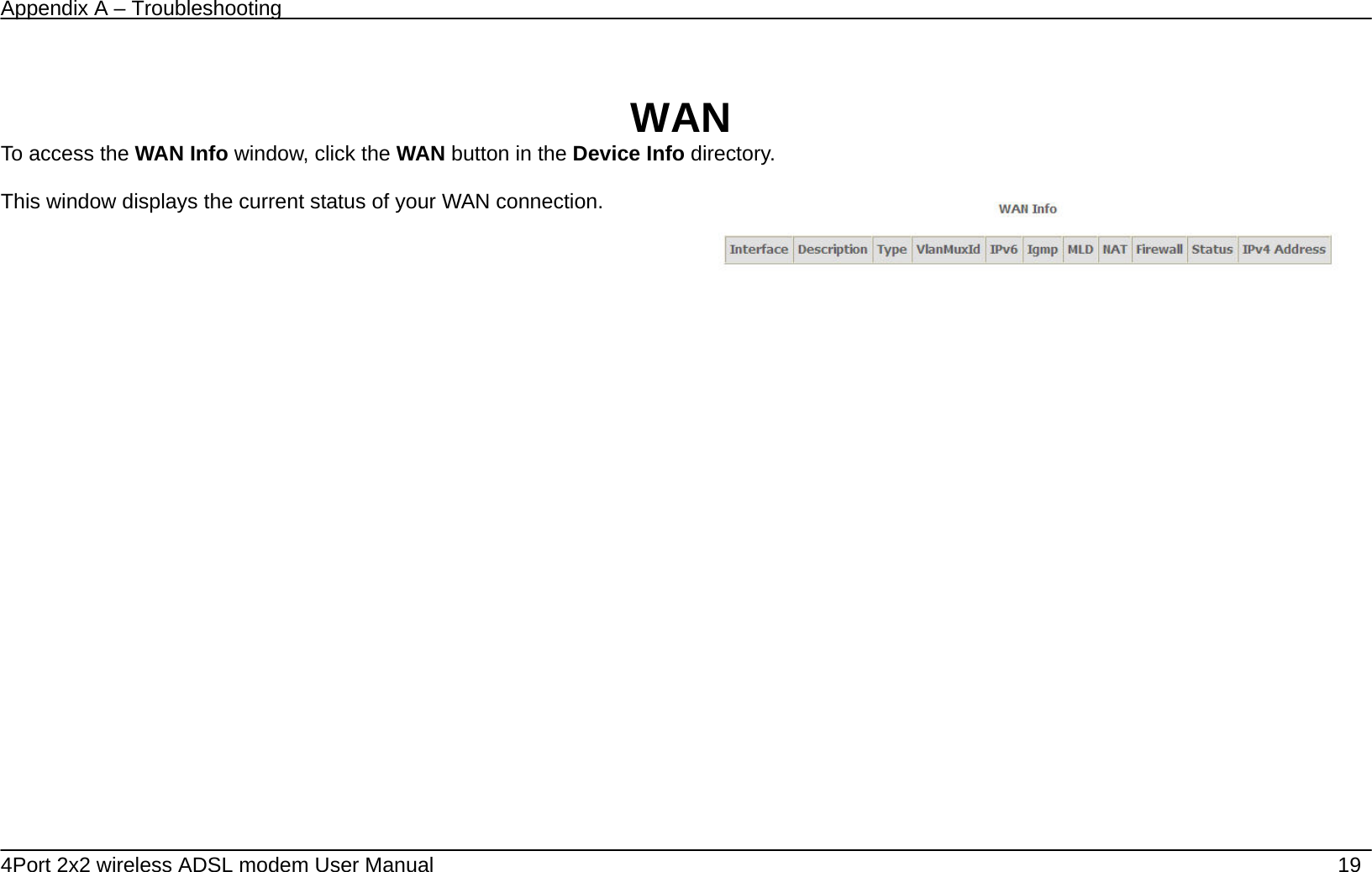
Appendix A – Troubleshooting   4Port 2x2 wireless ADSL modem User Manual    19  WAN To access the WAN Info window, click the WAN button in the Device Info directory.  This window displays the current status of your WAN connection.
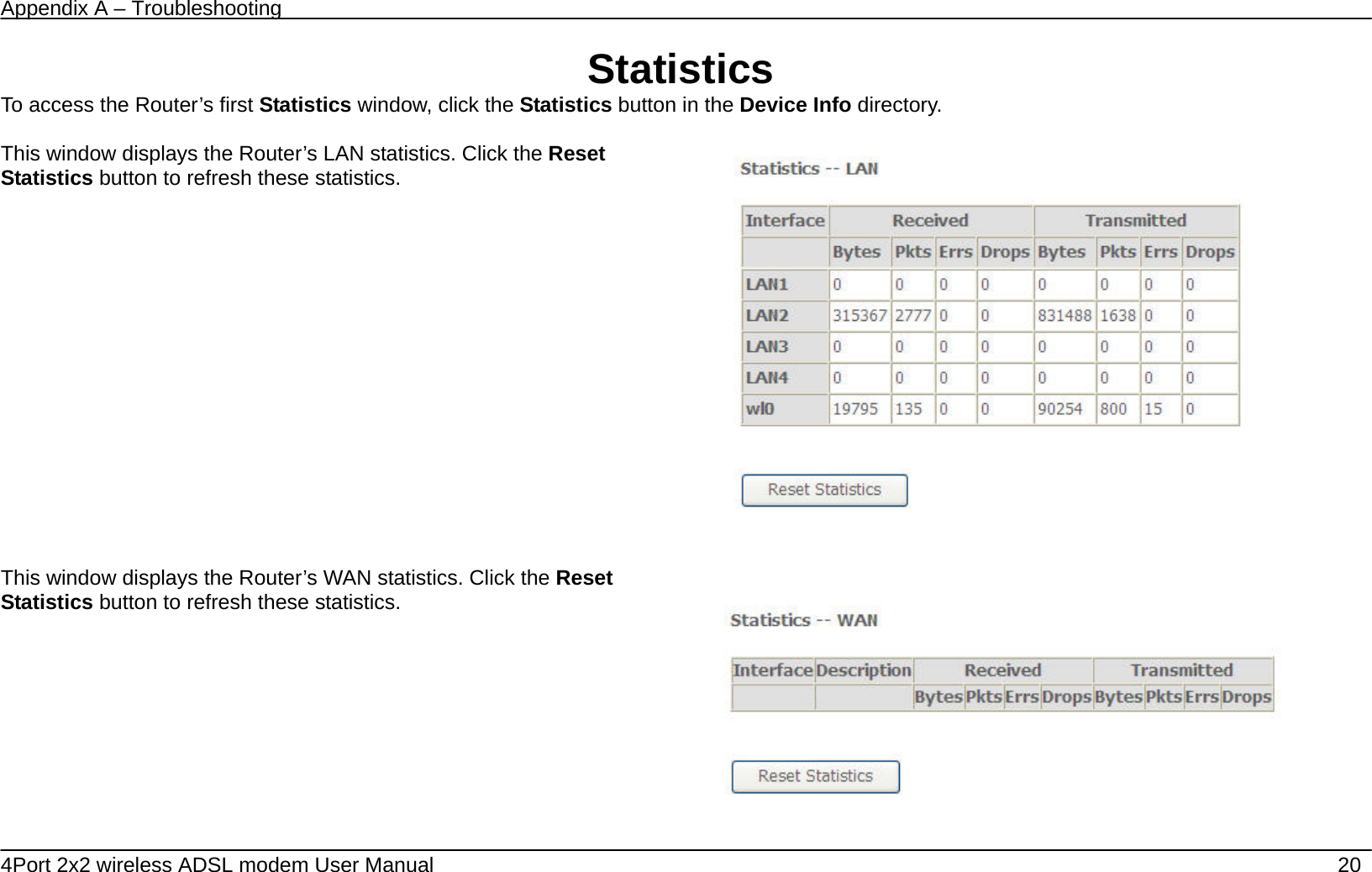
Appendix A – Troubleshooting   4Port 2x2 wireless ADSL modem User Manual    20 Statistics To access the Router’s first Statistics window, click the Statistics button in the Device Info directory.  This window displays the Router’s LAN statistics. Click the Reset Statistics button to refresh these statistics.           This window displays the Router’s WAN statistics. Click the Reset Statistics button to refresh these statistics.
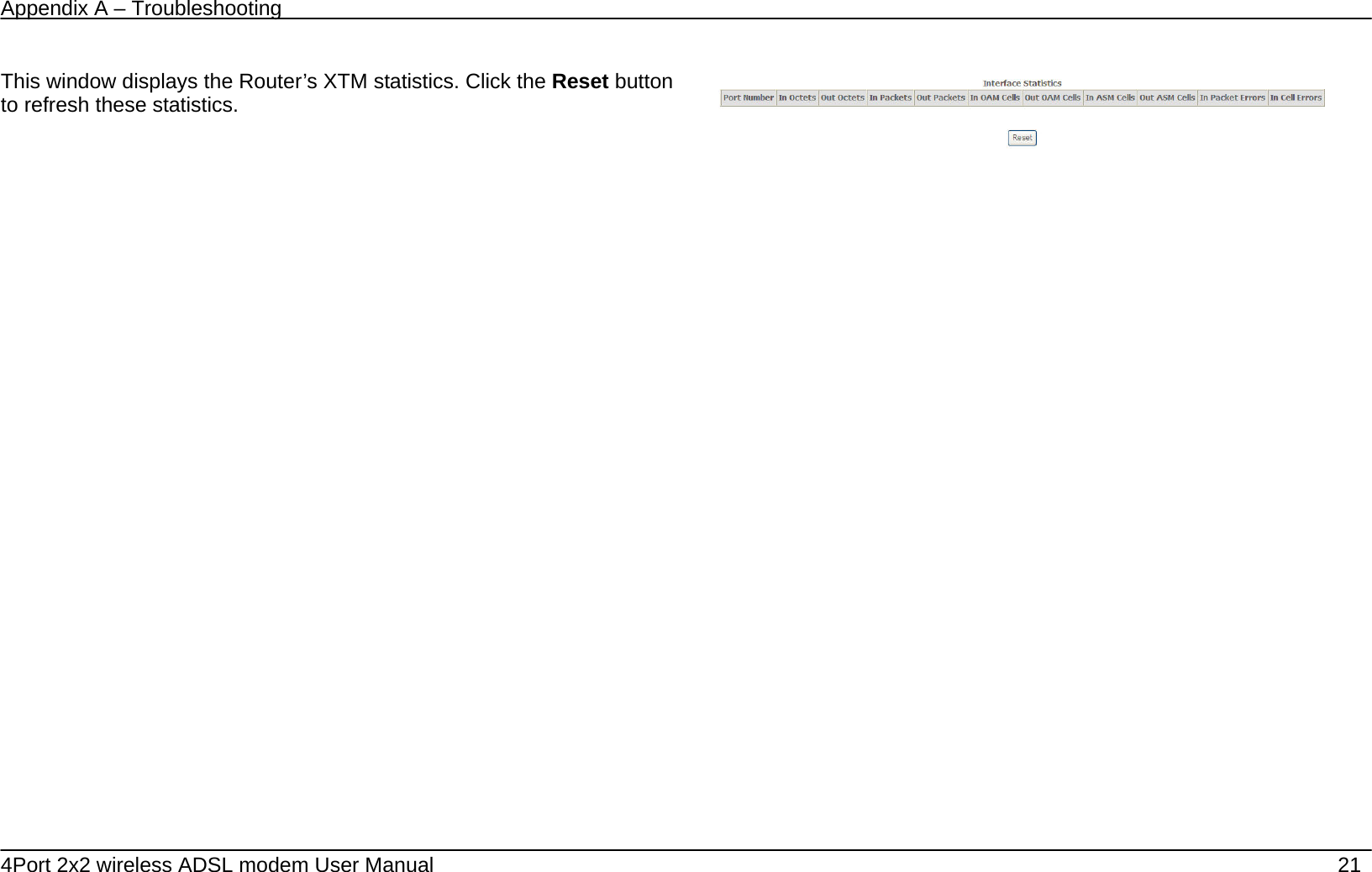
Appendix A – Troubleshooting   4Port 2x2 wireless ADSL modem User Manual    21    This window displays the Router’s XTM statistics. Click the Reset button to refresh these statistics.
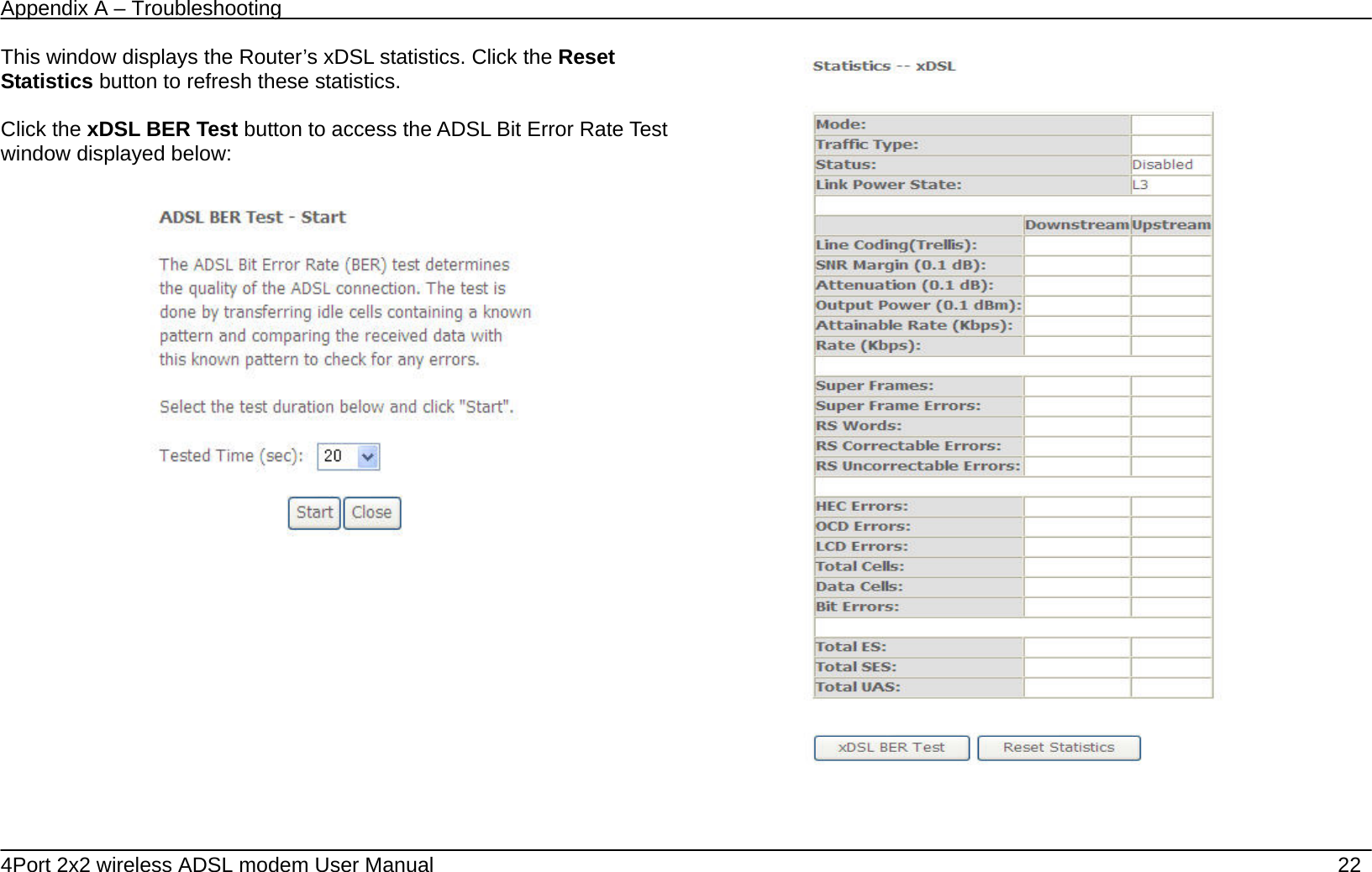
Appendix A – Troubleshooting   4Port 2x2 wireless ADSL modem User Manual    22 This window displays the Router’s xDSL statistics. Click the Reset Statistics button to refresh these statistics.  Click the xDSL BER Test button to access the ADSL Bit Error Rate Test window displayed below:
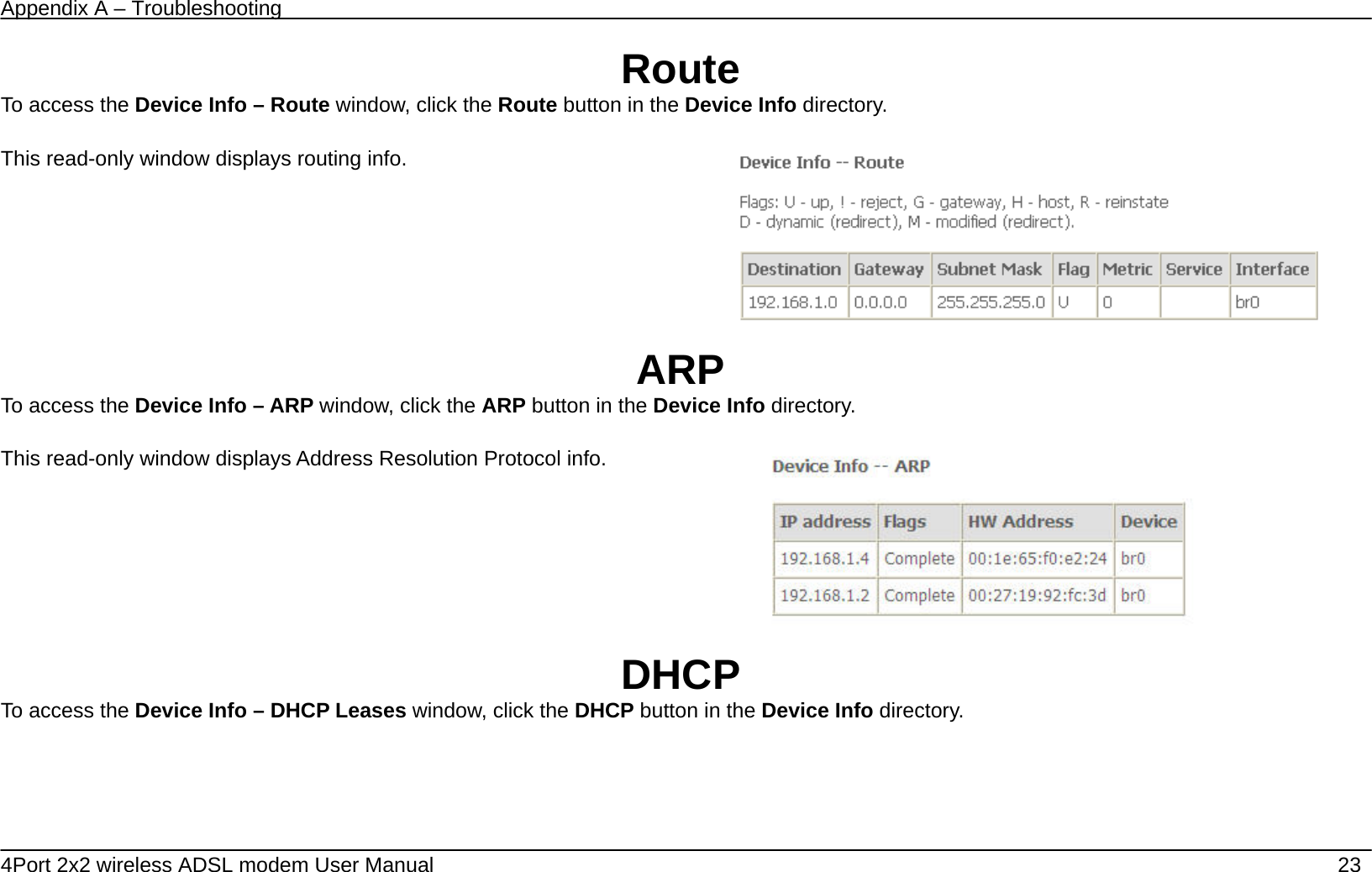
Appendix A – Troubleshooting   4Port 2x2 wireless ADSL modem User Manual    23 Route To access the Device Info – Route window, click the Route button in the Device Info directory.  This read-only window displays routing info.     ARP To access the Device Info – ARP window, click the ARP button in the Device Info directory.  This read-only window displays Address Resolution Protocol info.   DHCP To access the Device Info – DHCP Leases window, click the DHCP button in the Device Info directory.
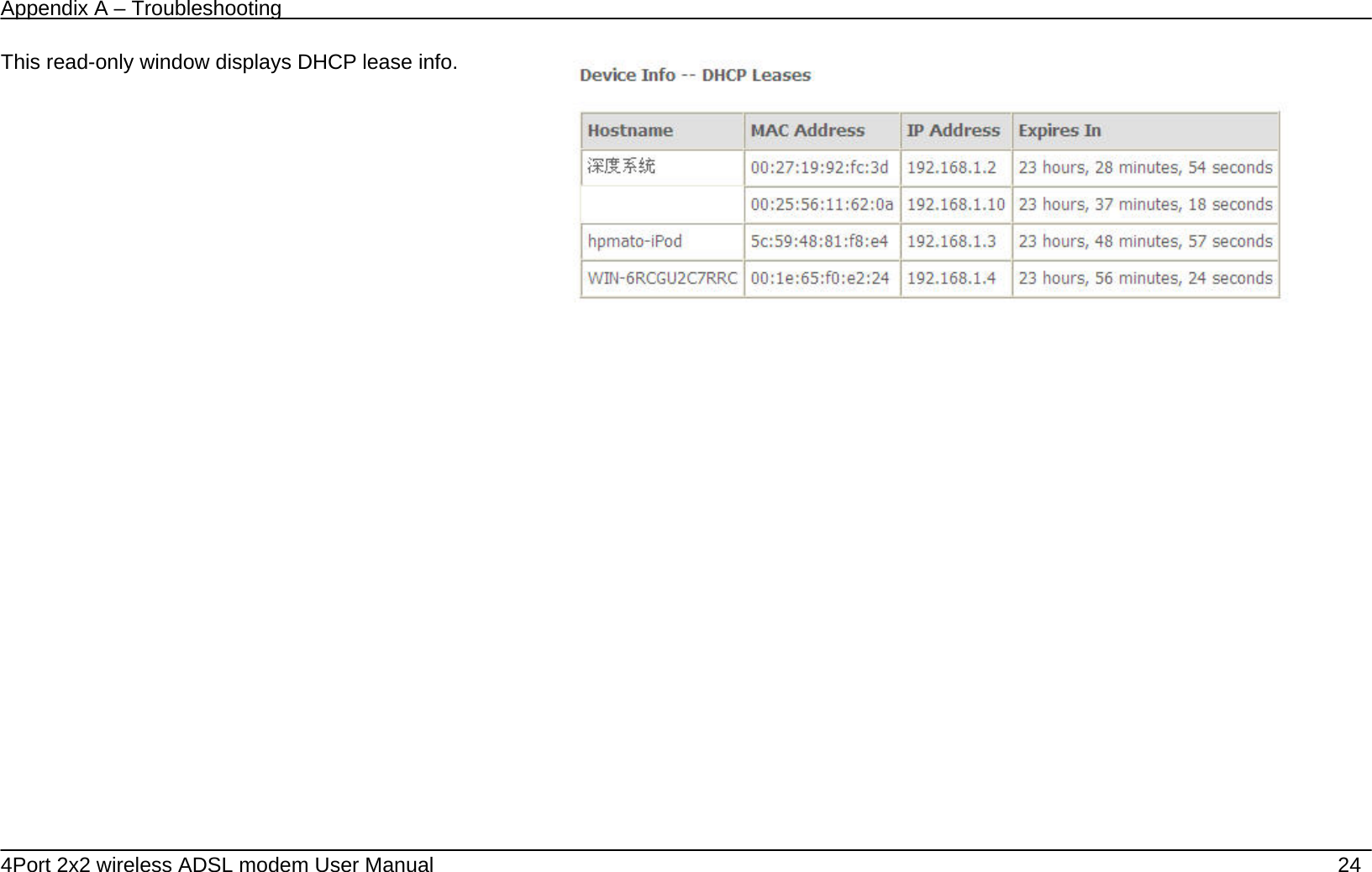
Appendix A – Troubleshooting   4Port 2x2 wireless ADSL modem User Manual    24 This read-only window displays DHCP lease info.
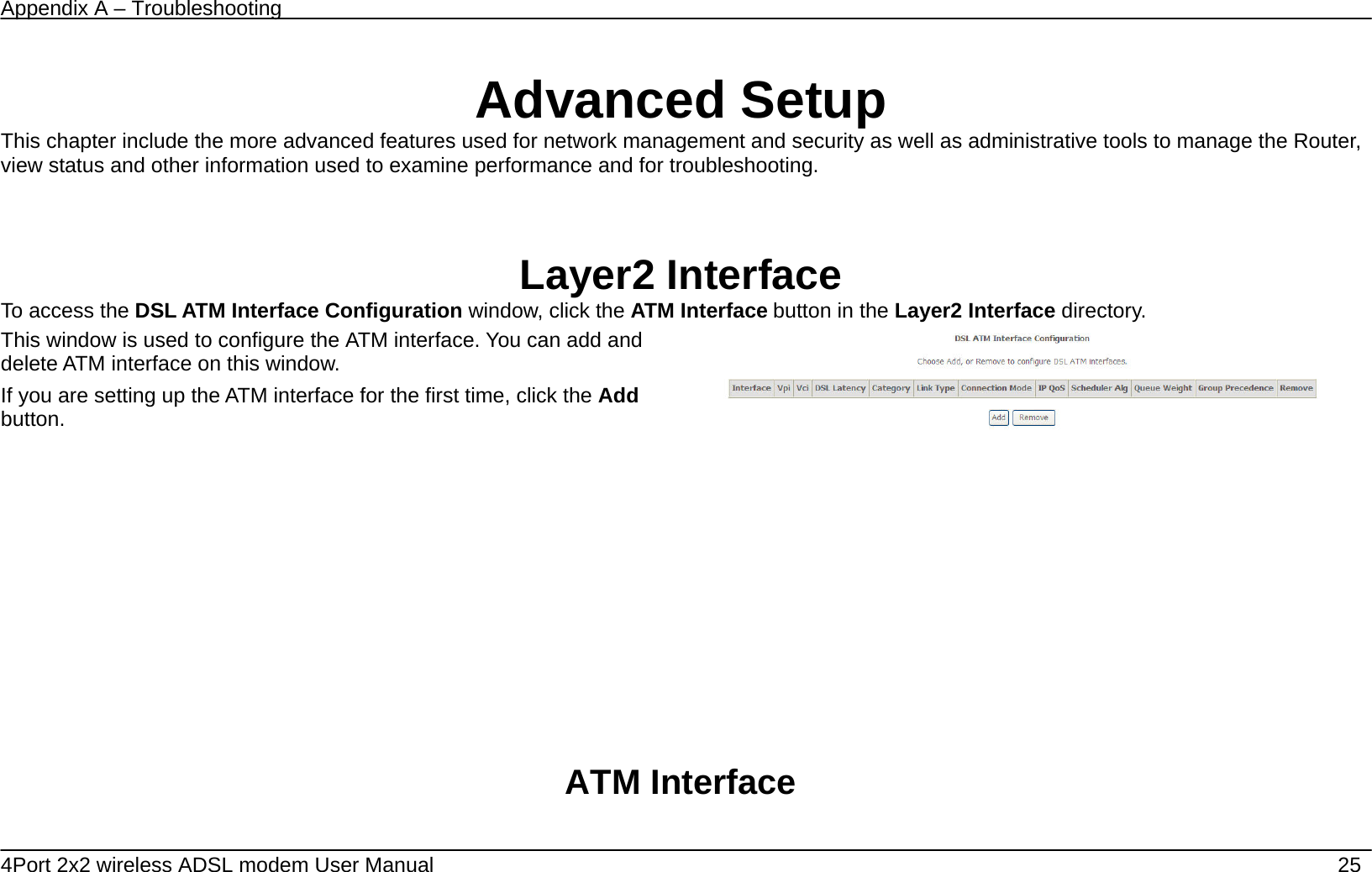
Appendix A – Troubleshooting   4Port 2x2 wireless ADSL modem User Manual    25    Advanced Setup This chapter include the more advanced features used for network management and security as well as administrative tools to manage the Router, view status and other information used to examine performance and for troubleshooting.    Layer2 Interface To access the DSL ATM Interface Configuration window, click the ATM Interface button in the Layer2 Interface directory. This window is used to configure the ATM interface. You can add and delete ATM interface on this window.   If you are setting up the ATM interface for the first time, click the Add button.                         ATM Interface
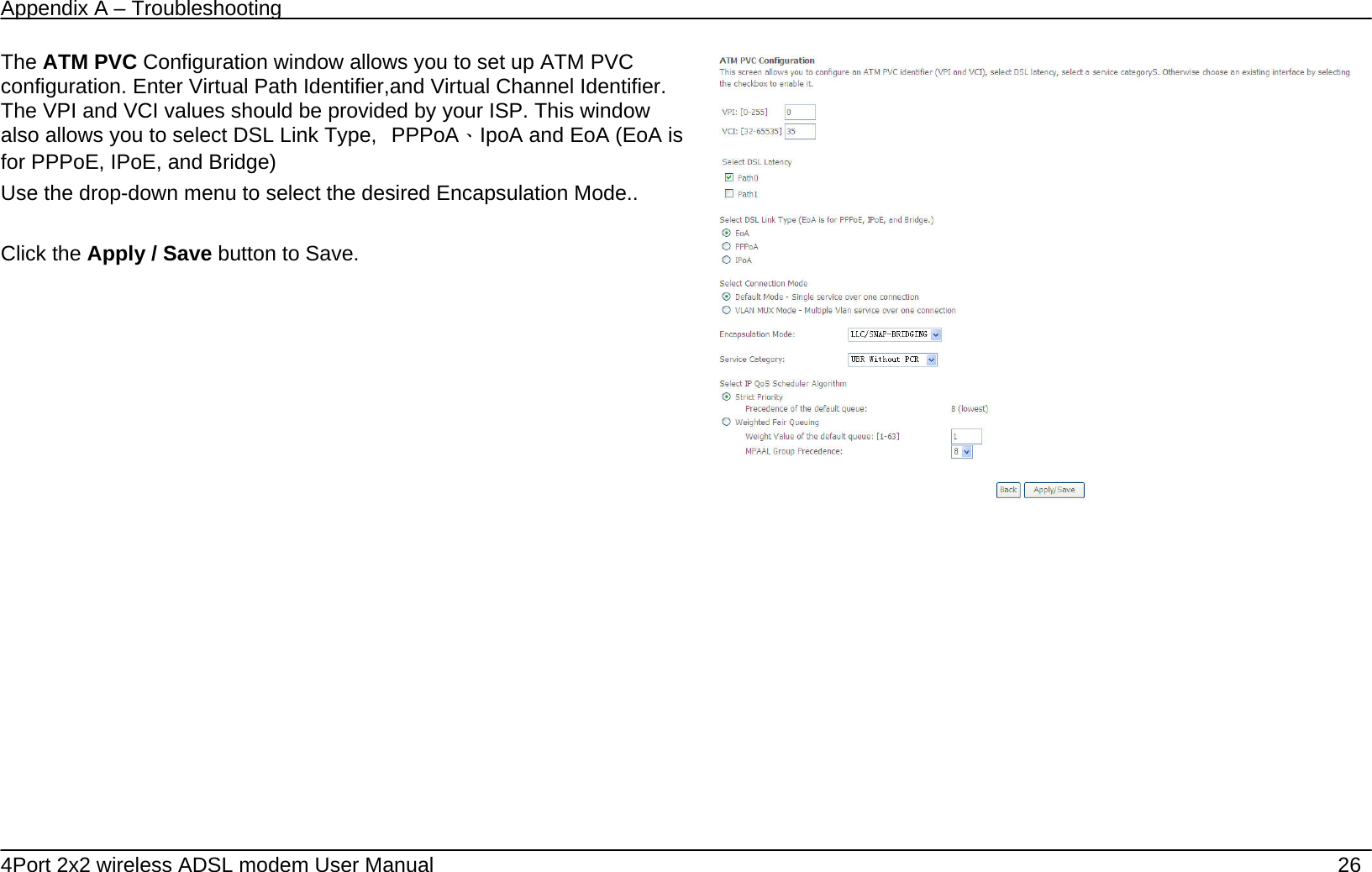
Appendix A – Troubleshooting   4Port 2x2 wireless ADSL modem User Manual    26 The ATM PVC Configuration window allows you to set up ATM PVC configuration. Enter Virtual Path Identifier,and Virtual Channel Identifier. The VPI and VCI values should be provided by your ISP. This window also allows you to select DSL Link Type,  PPPoA、IpoA and EoA (EoA is for PPPoE, IPoE, and Bridge) Use the drop-down menu to select the desired Encapsulation Mode..  Click the Apply / Save button to Save.
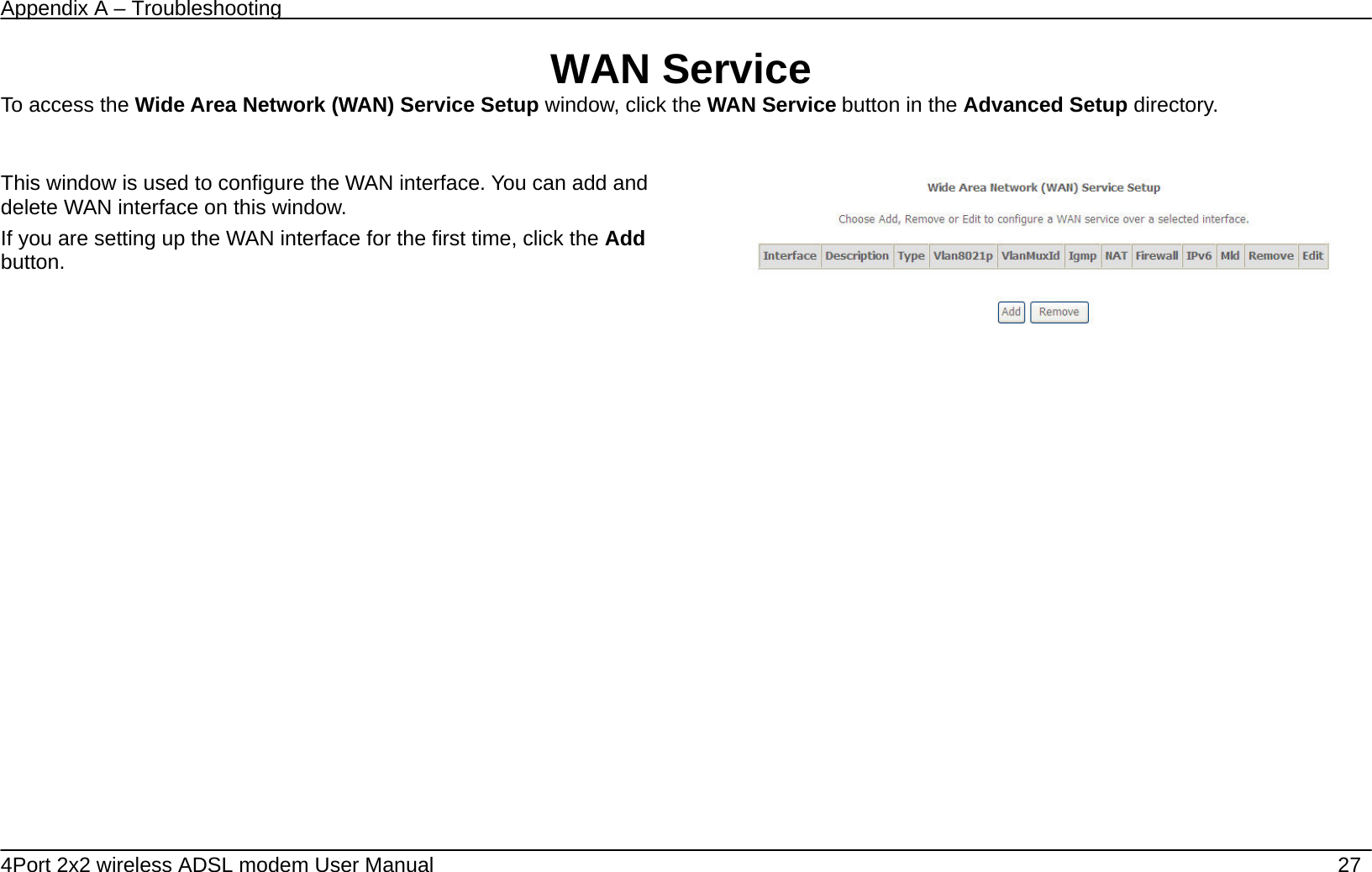
Appendix A – Troubleshooting   4Port 2x2 wireless ADSL modem User Manual    27 WAN Service To access the Wide Area Network (WAN) Service Setup window, click the WAN Service button in the Advanced Setup directory.  This window is used to configure the WAN interface. You can add and delete WAN interface on this window.   If you are setting up the WAN interface for the first time, click the Add button.
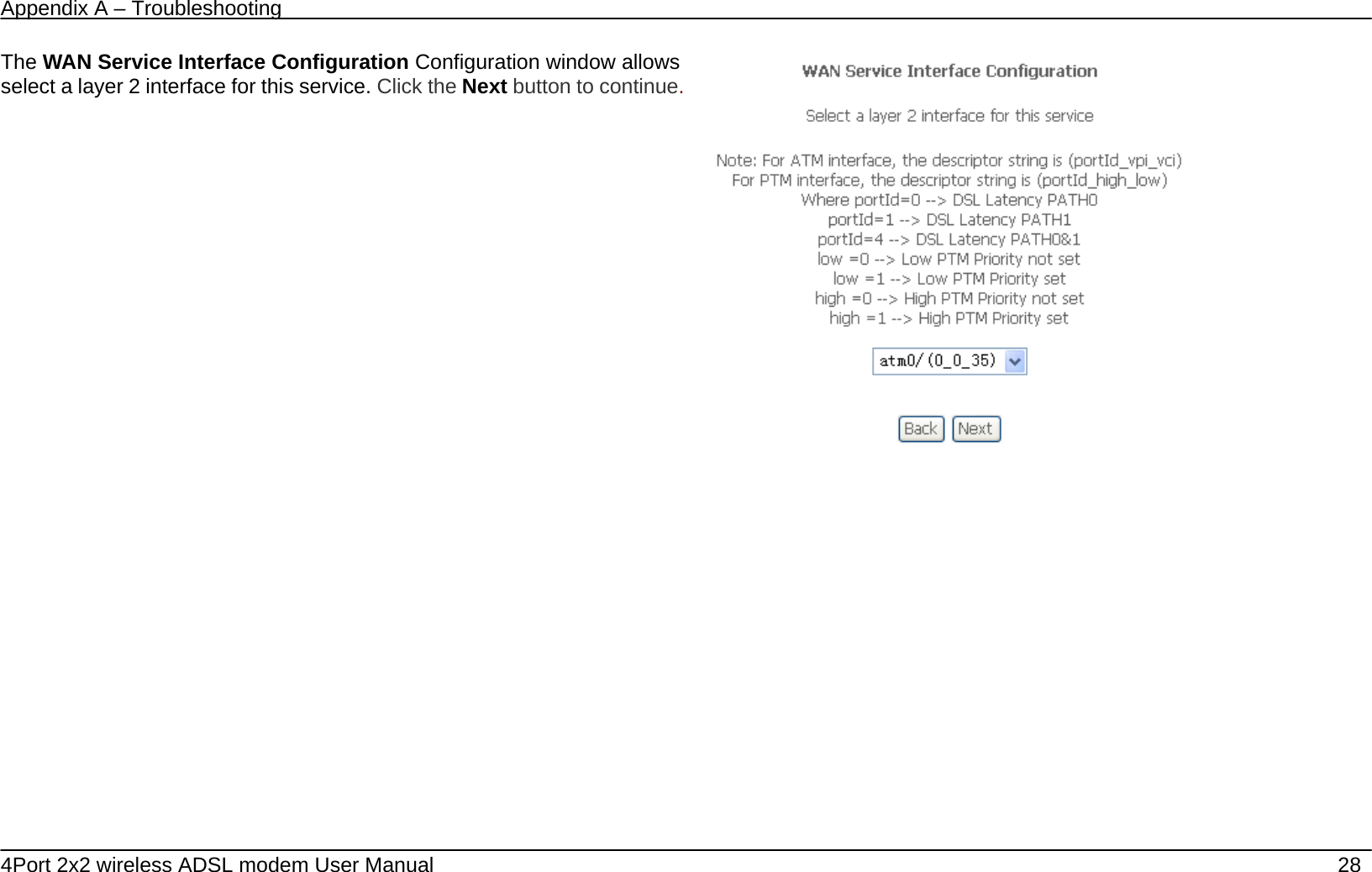
Appendix A – Troubleshooting   4Port 2x2 wireless ADSL modem User Manual    28 The WAN Service Interface Configuration Configuration window allows select a layer 2 interface for this service. Click the Next button to continue.
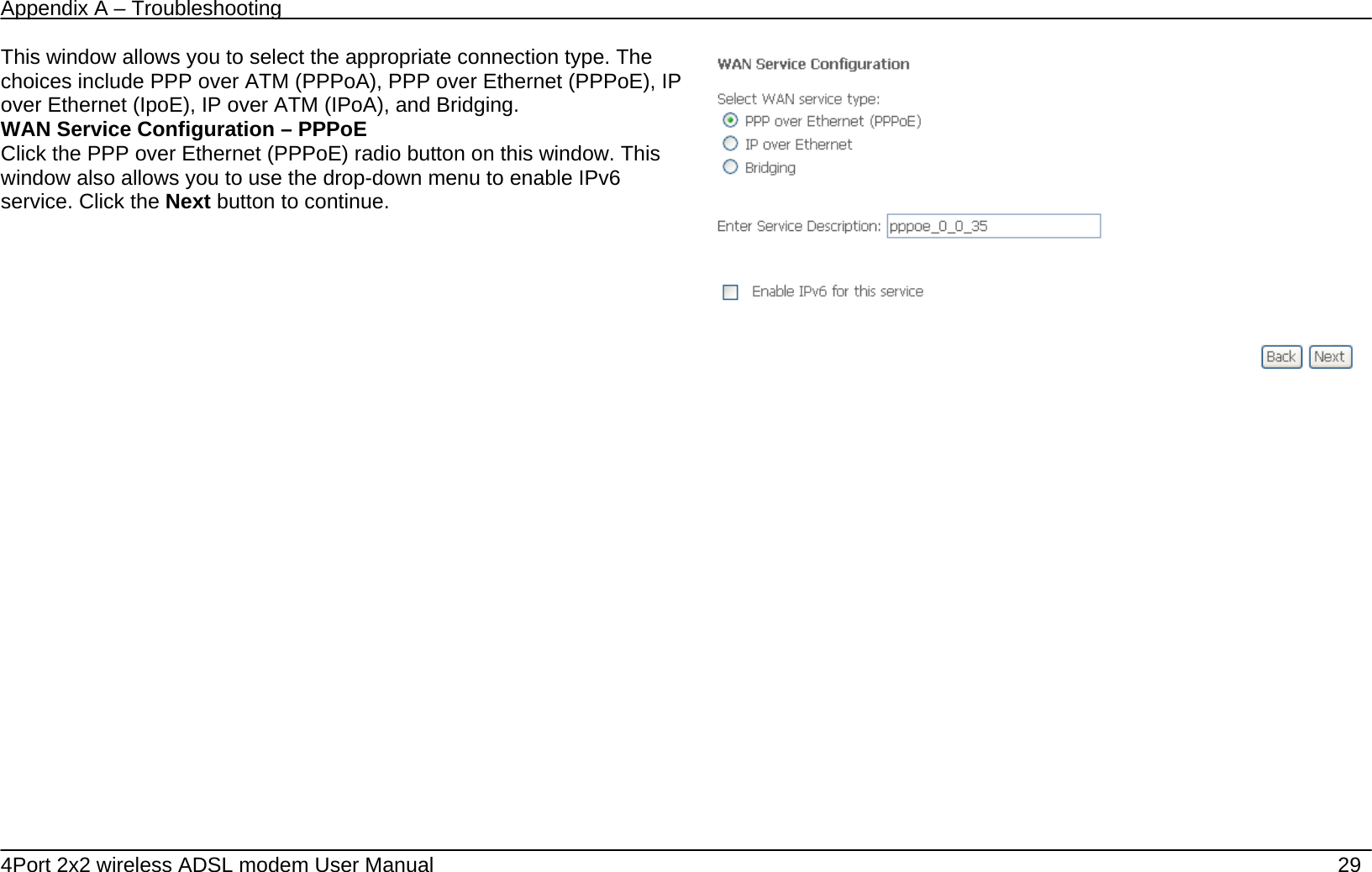
Appendix A – Troubleshooting   4Port 2x2 wireless ADSL modem User Manual    29 This window allows you to select the appropriate connection type. The choices include PPP over ATM (PPPoA), PPP over Ethernet (PPPoE), IP over Ethernet (IpoE), IP over ATM (IPoA), and Bridging. WAN Service Configuration – PPPoE Click the PPP over Ethernet (PPPoE) radio button on this window. This window also allows you to use the drop-down menu to enable IPv6 service. Click the Next button to continue.
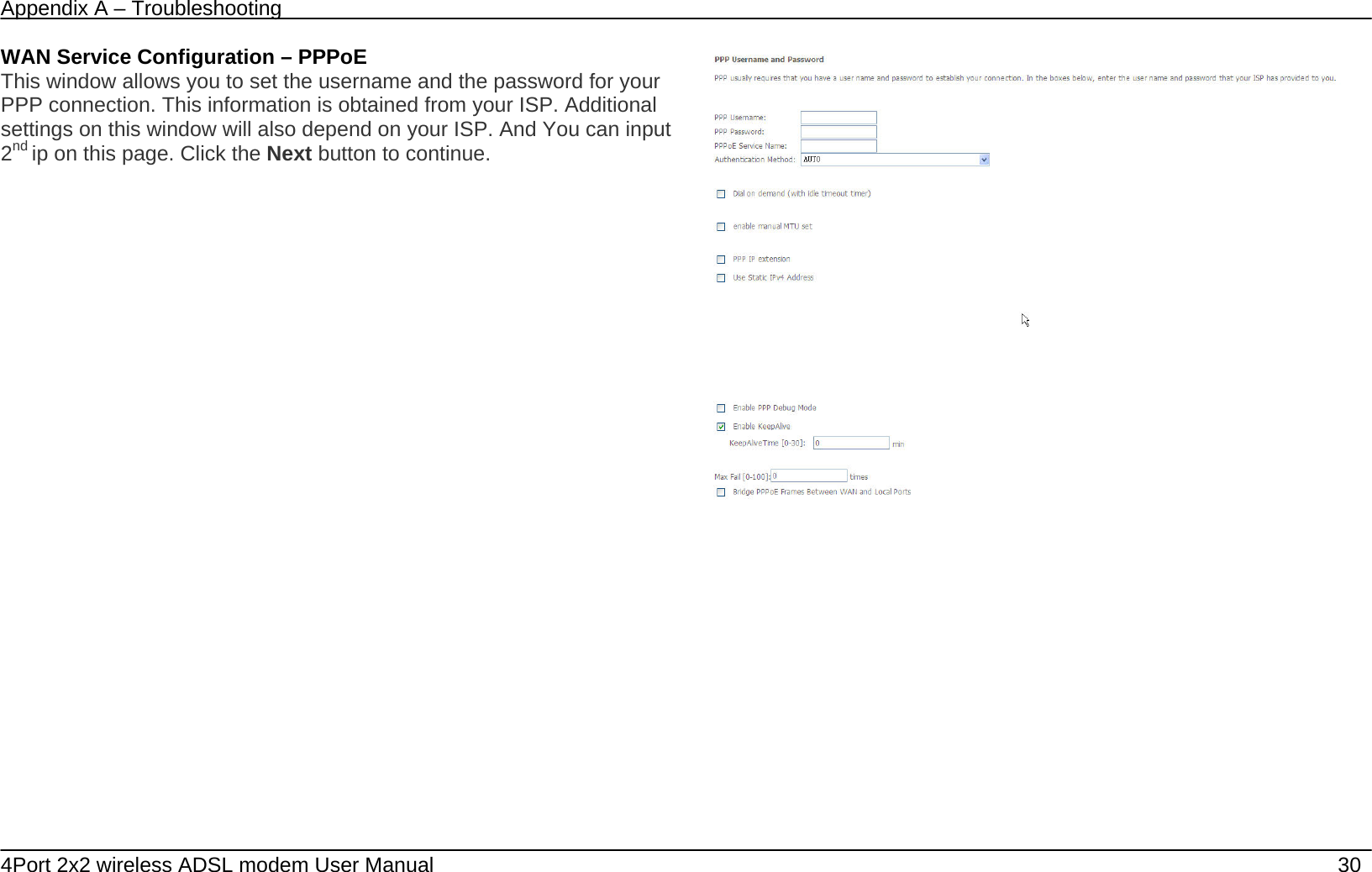
Appendix A – Troubleshooting   4Port 2x2 wireless ADSL modem User Manual    30 WAN Service Configuration – PPPoE This window allows you to set the username and the password for your PPP connection. This information is obtained from your ISP. Additional settings on this window will also depend on your ISP. And You can input 2nd ip on this page. Click the Next button to continue.
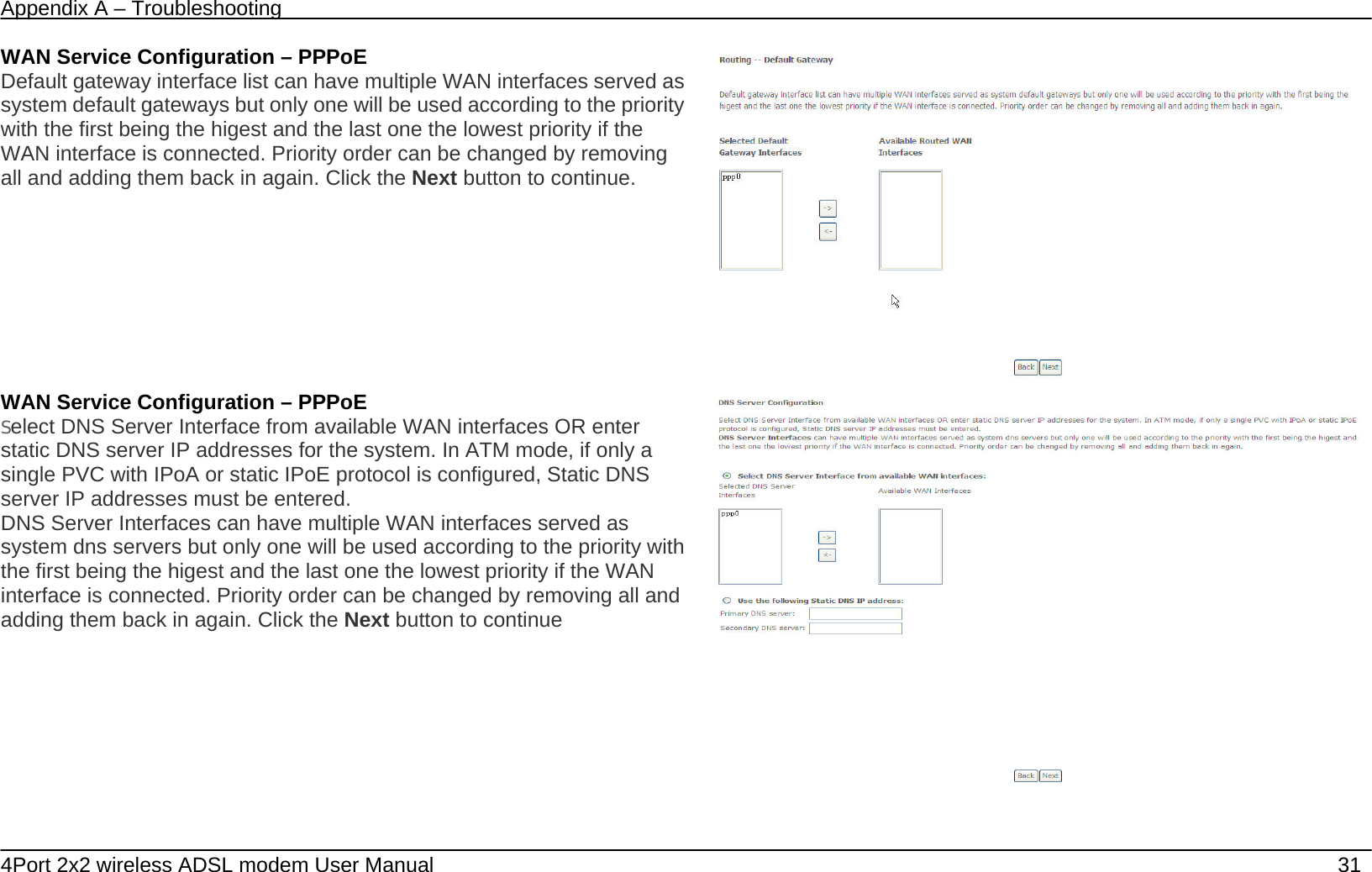
Appendix A – Troubleshooting   4Port 2x2 wireless ADSL modem User Manual    31 WAN Service Configuration – PPPoE Default gateway interface list can have multiple WAN interfaces served as system default gateways but only one will be used according to the priority with the first being the higest and the last one the lowest priority if the WAN interface is connected. Priority order can be changed by removing all and adding them back in again. Click the Next button to continue.  WAN Service Configuration – PPPoE Select DNS Server Interface from available WAN interfaces OR enter static DNS server IP addresses for the system. In ATM mode, if only a single PVC with IPoA or static IPoE protocol is configured, Static DNS server IP addresses must be entered. DNS Server Interfaces can have multiple WAN interfaces served as system dns servers but only one will be used according to the priority with the first being the higest and the last one the lowest priority if the WAN interface is connected. Priority order can be changed by removing all and adding them back in again. Click the Next button to continue
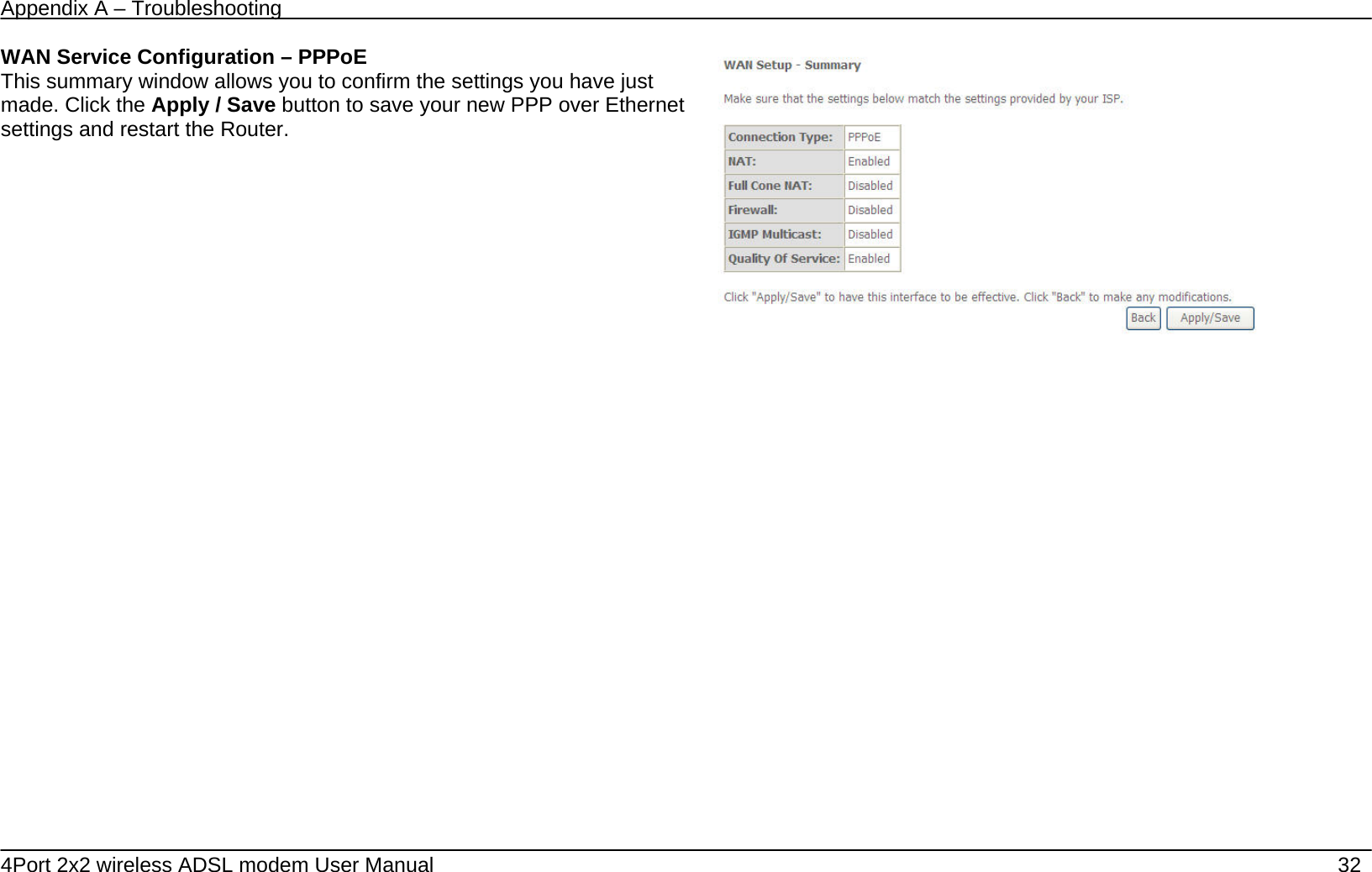
Appendix A – Troubleshooting   4Port 2x2 wireless ADSL modem User Manual    32 WAN Service Configuration – PPPoE This summary window allows you to confirm the settings you have just made. Click the Apply / Save button to save your new PPP over Ethernet settings and restart the Router.
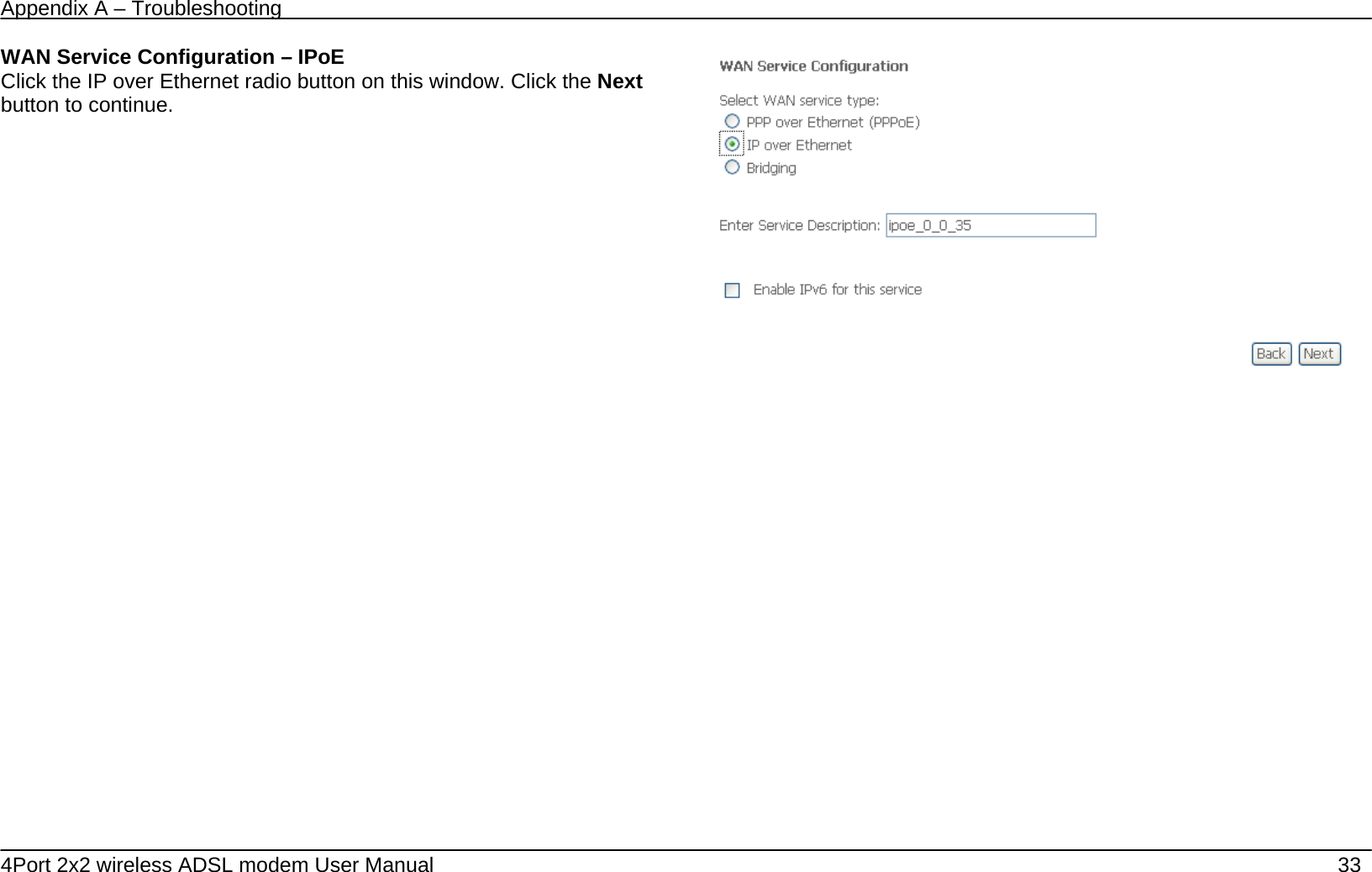
Appendix A – Troubleshooting   4Port 2x2 wireless ADSL modem User Manual    33 WAN Service Configuration – IPoE Click the IP over Ethernet radio button on this window. Click the Next button to continue.
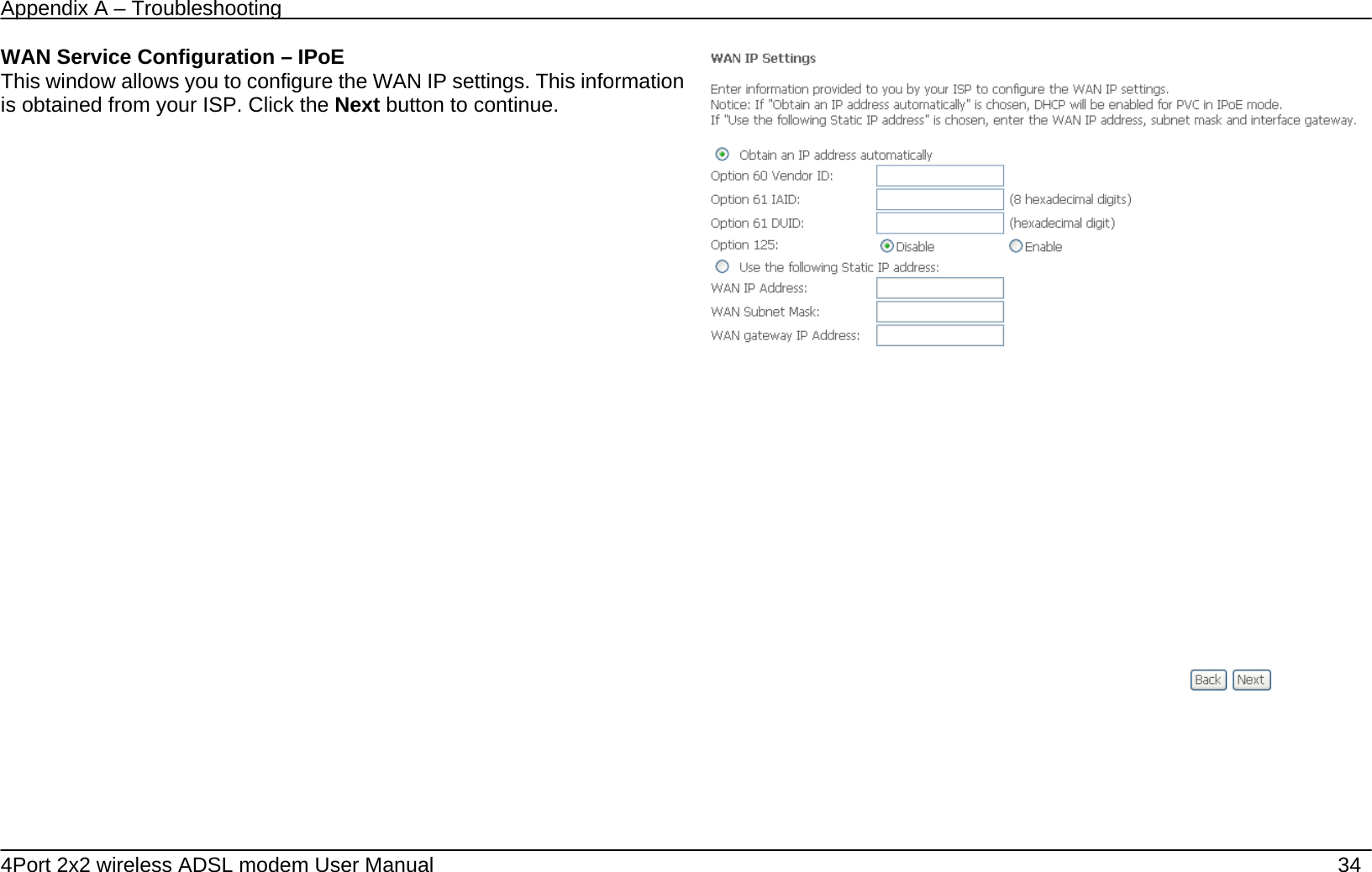
Appendix A – Troubleshooting   4Port 2x2 wireless ADSL modem User Manual    34 WAN Service Configuration – IPoE This window allows you to configure the WAN IP settings. This information is obtained from your ISP. Click the Next button to continue.
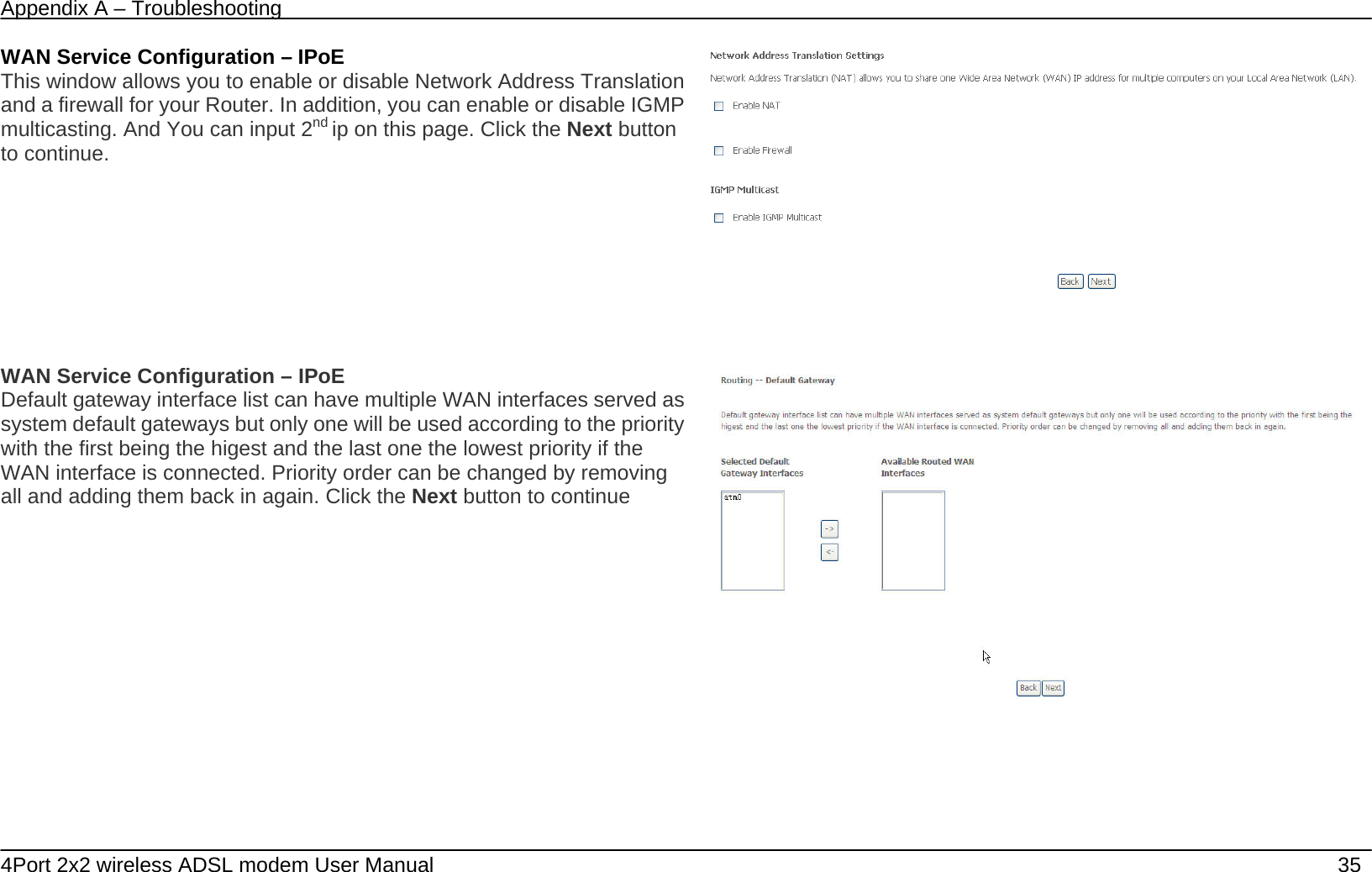
Appendix A – Troubleshooting   4Port 2x2 wireless ADSL modem User Manual    35 WAN Service Configuration – IPoE This window allows you to enable or disable Network Address Translation and a firewall for your Router. In addition, you can enable or disable IGMP multicasting. And You can input 2nd ip on this page. Click the Next button to continue.  WAN Service Configuration – IPoE Default gateway interface list can have multiple WAN interfaces served as system default gateways but only one will be used according to the priority with the first being the higest and the last one the lowest priority if the WAN interface is connected. Priority order can be changed by removing all and adding them back in again. Click the Next button to continue
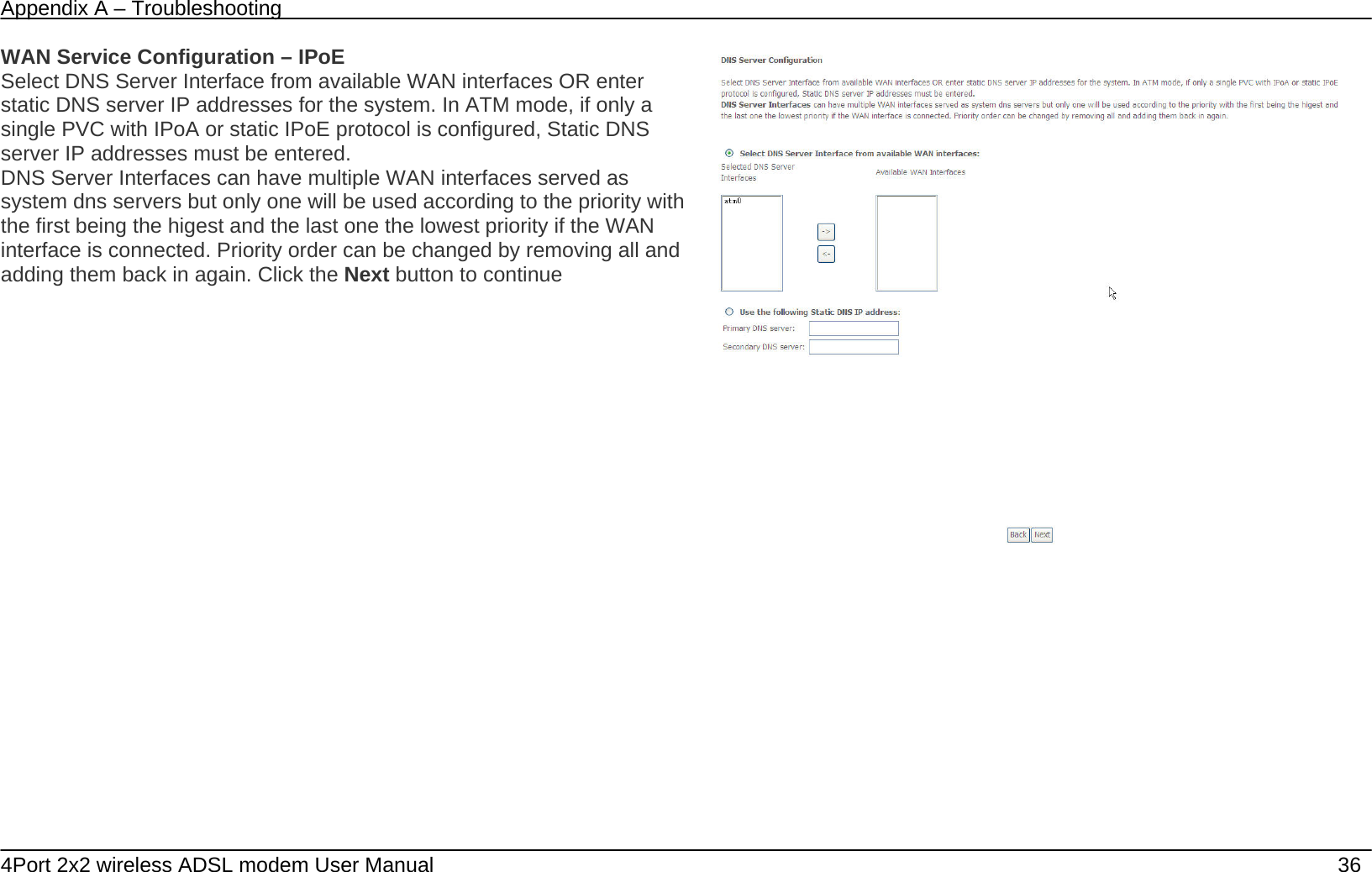
Appendix A – Troubleshooting   4Port 2x2 wireless ADSL modem User Manual    36 WAN Service Configuration – IPoE Select DNS Server Interface from available WAN interfaces OR enter static DNS server IP addresses for the system. In ATM mode, if only a single PVC with IPoA or static IPoE protocol is configured, Static DNS server IP addresses must be entered. DNS Server Interfaces can have multiple WAN interfaces served as system dns servers but only one will be used according to the priority with the first being the higest and the last one the lowest priority if the WAN interface is connected. Priority order can be changed by removing all and adding them back in again. Click the Next button to continue
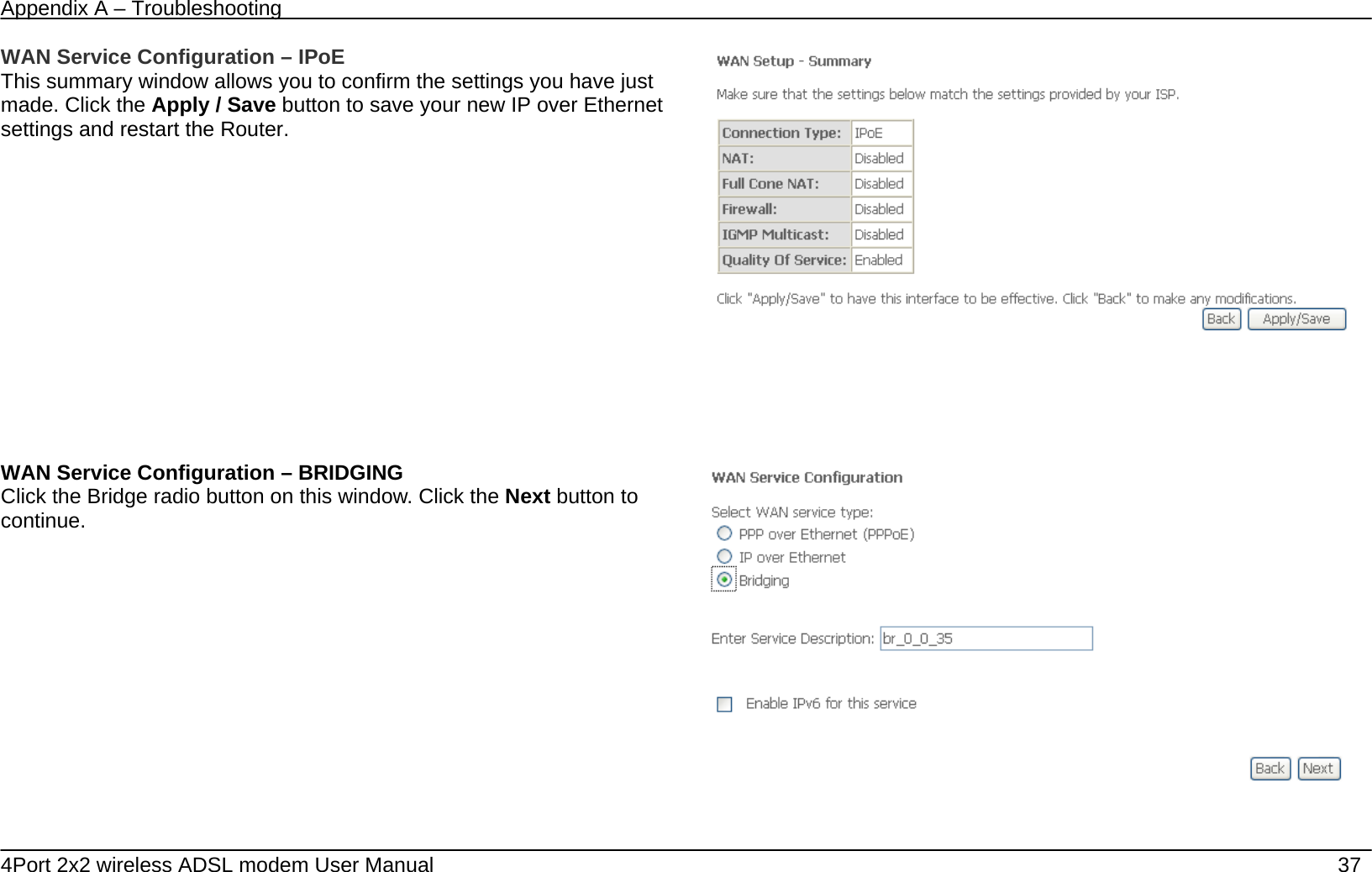
Appendix A – Troubleshooting   4Port 2x2 wireless ADSL modem User Manual    37 WAN Service Configuration – IPoE This summary window allows you to confirm the settings you have just made. Click the Apply / Save button to save your new IP over Ethernet settings and restart the Router.      WAN Service Configuration – BRIDGING Click the Bridge radio button on this window. Click the Next button to continue.
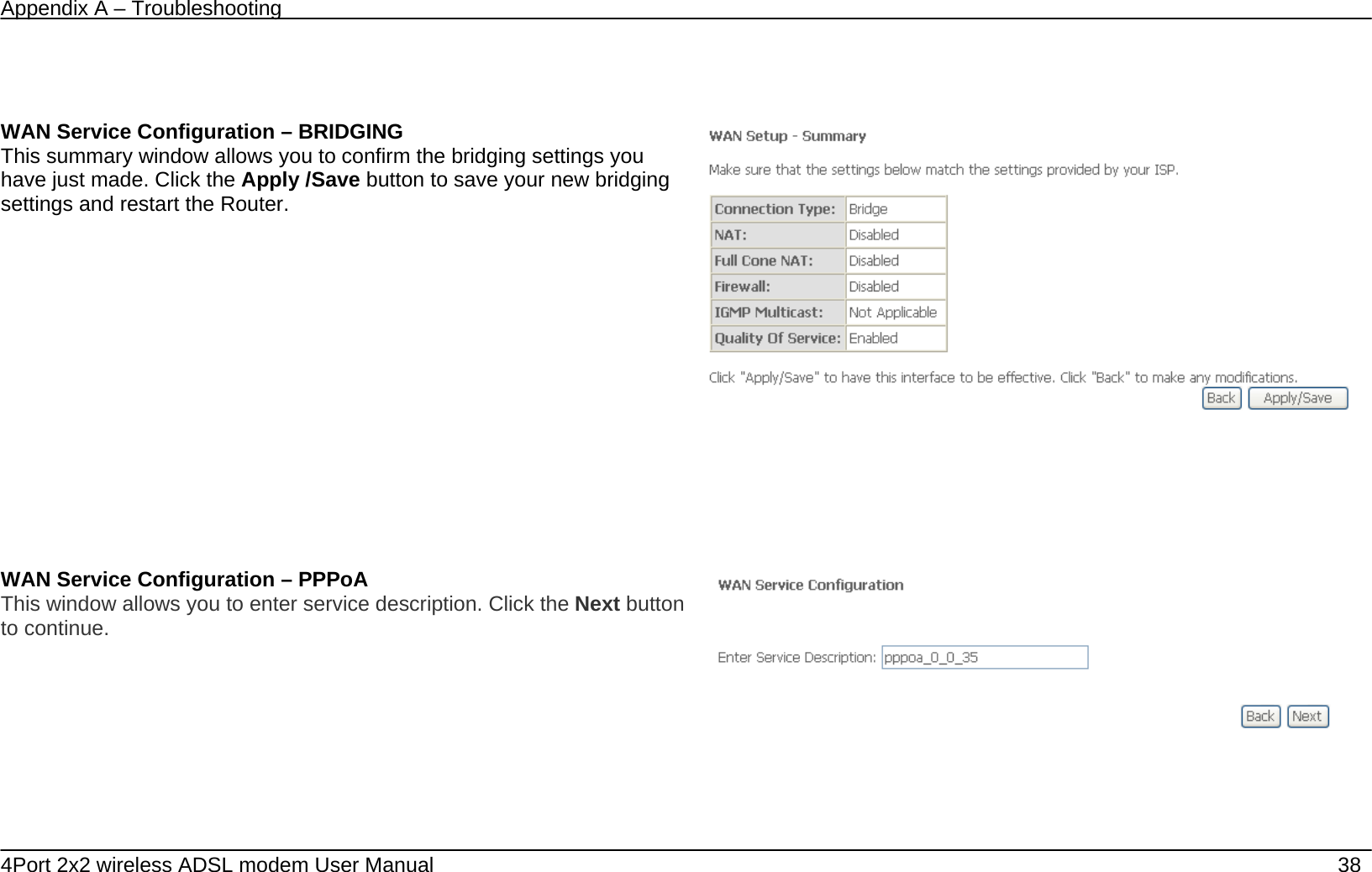
Appendix A – Troubleshooting   4Port 2x2 wireless ADSL modem User Manual    38       WAN Service Configuration – BRIDGING This summary window allows you to confirm the bridging settings you have just made. Click the Apply /Save button to save your new bridging settings and restart the Router.      WAN Service Configuration – PPPoA This window allows you to enter service description. Click the Next button to continue.
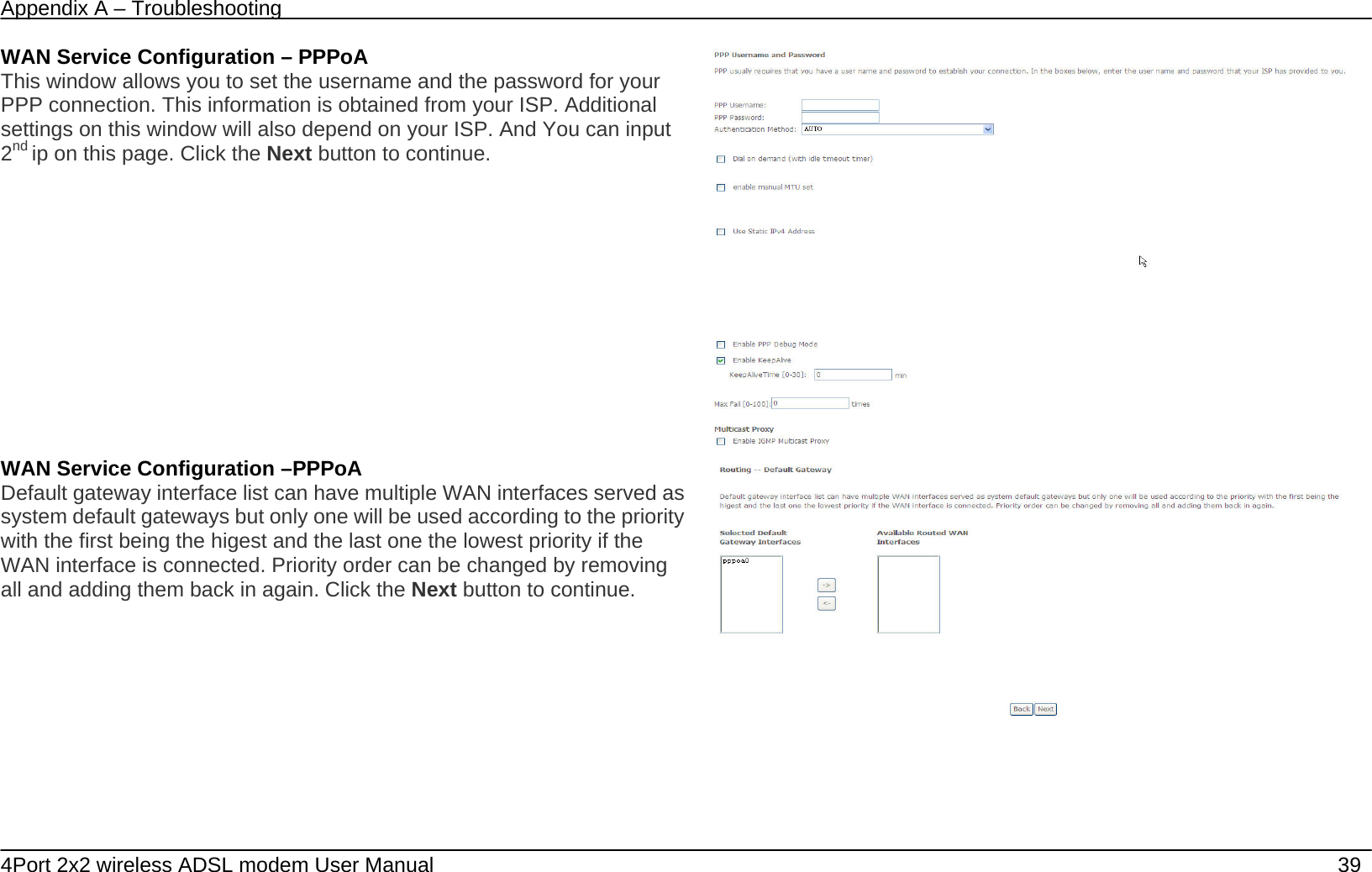
Appendix A – Troubleshooting   4Port 2x2 wireless ADSL modem User Manual    39 WAN Service Configuration – PPPoA This window allows you to set the username and the password for your PPP connection. This information is obtained from your ISP. Additional settings on this window will also depend on your ISP. And You can input 2nd ip on this page. Click the Next button to continue.   WAN Service Configuration –PPPoA Default gateway interface list can have multiple WAN interfaces served as system default gateways but only one will be used according to the priority with the first being the higest and the last one the lowest priority if the WAN interface is connected. Priority order can be changed by removing all and adding them back in again. Click the Next button to continue.
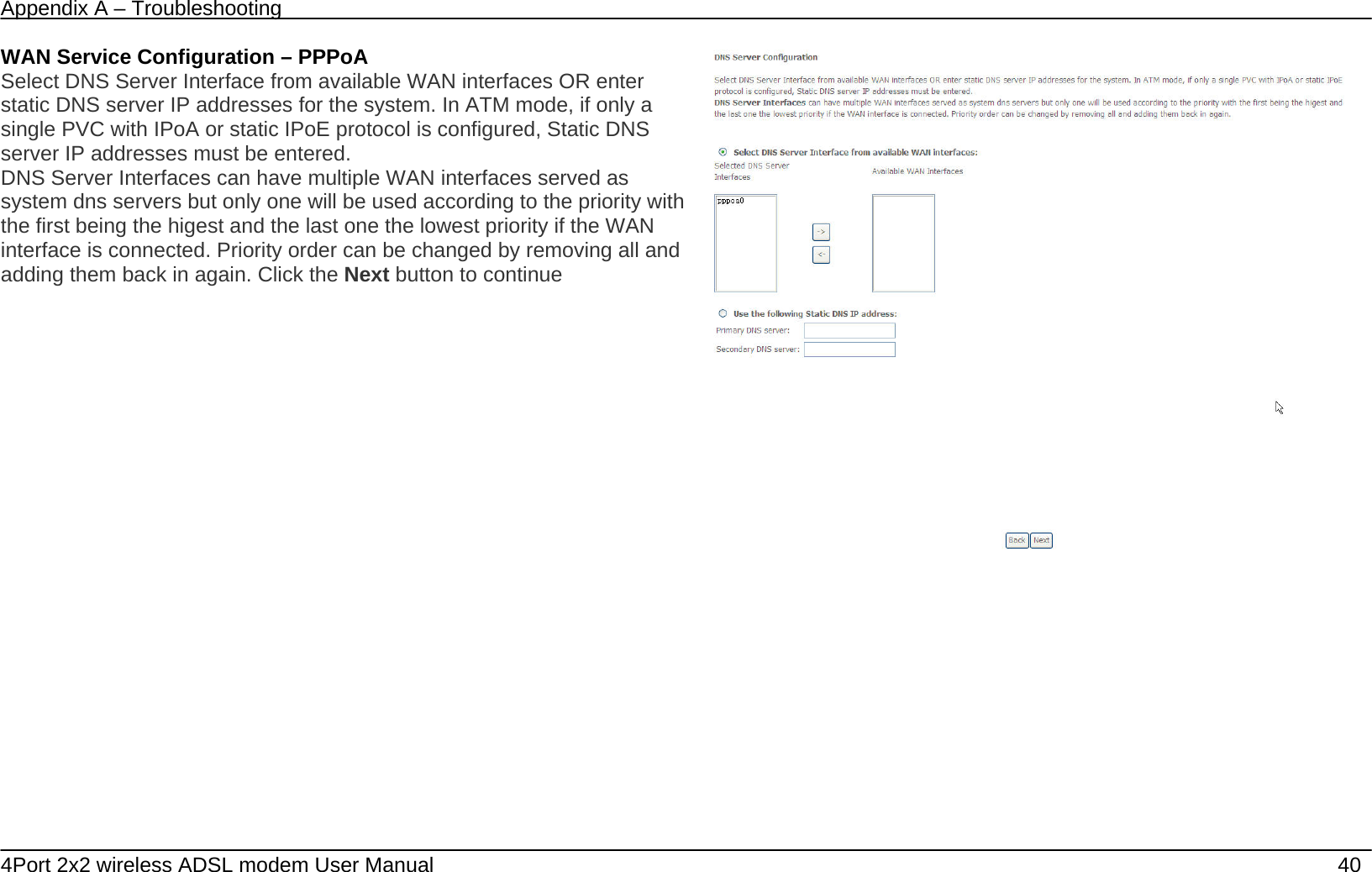
Appendix A – Troubleshooting   4Port 2x2 wireless ADSL modem User Manual    40 WAN Service Configuration – PPPoA Select DNS Server Interface from available WAN interfaces OR enter static DNS server IP addresses for the system. In ATM mode, if only a single PVC with IPoA or static IPoE protocol is configured, Static DNS server IP addresses must be entered. DNS Server Interfaces can have multiple WAN interfaces served as system dns servers but only one will be used according to the priority with the first being the higest and the last one the lowest priority if the WAN interface is connected. Priority order can be changed by removing all and adding them back in again. Click the Next button to continue
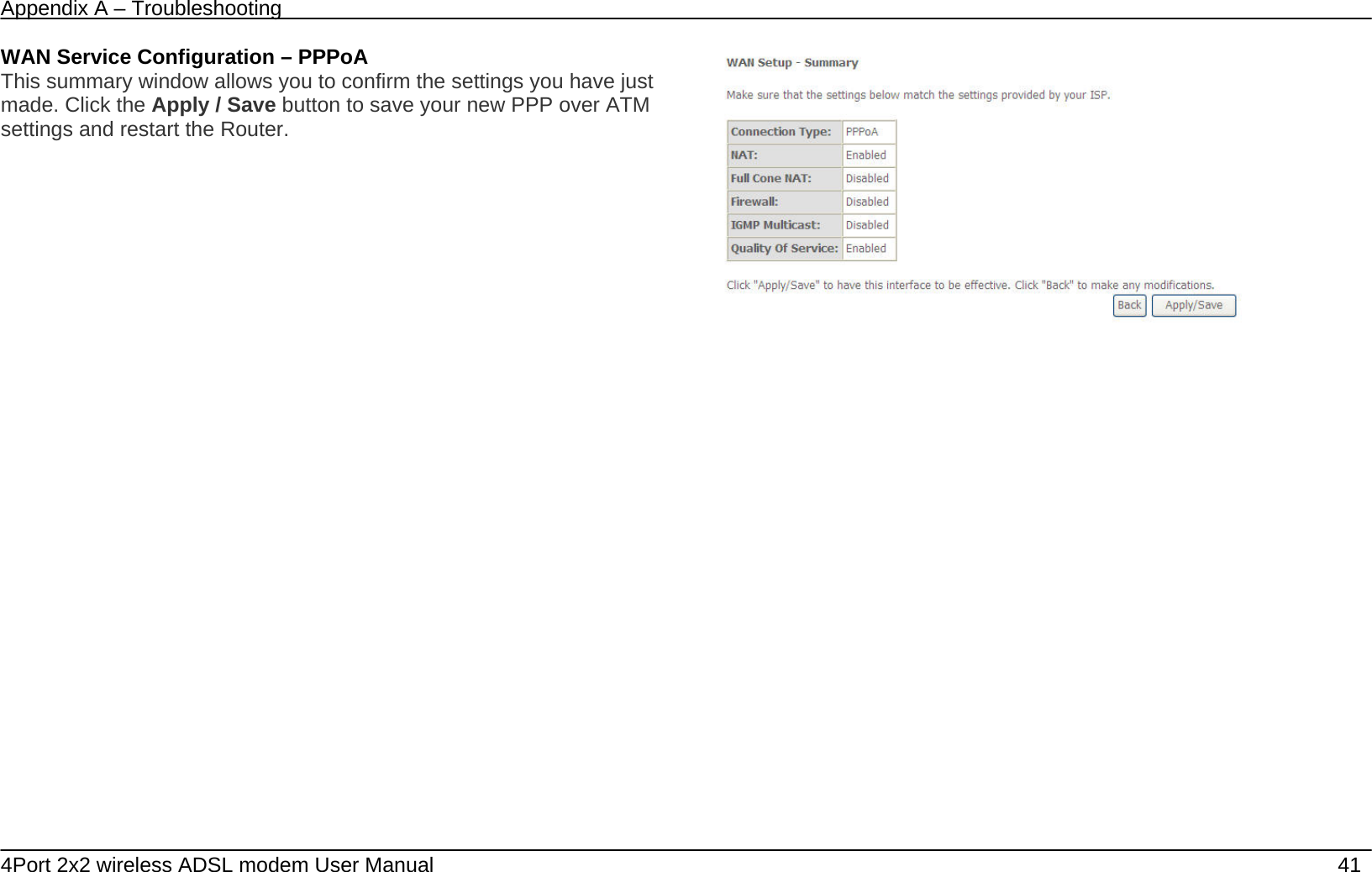
Appendix A – Troubleshooting   4Port 2x2 wireless ADSL modem User Manual    41 WAN Service Configuration – PPPoA This summary window allows you to confirm the settings you have just made. Click the Apply / Save button to save your new PPP over ATM settings and restart the Router.
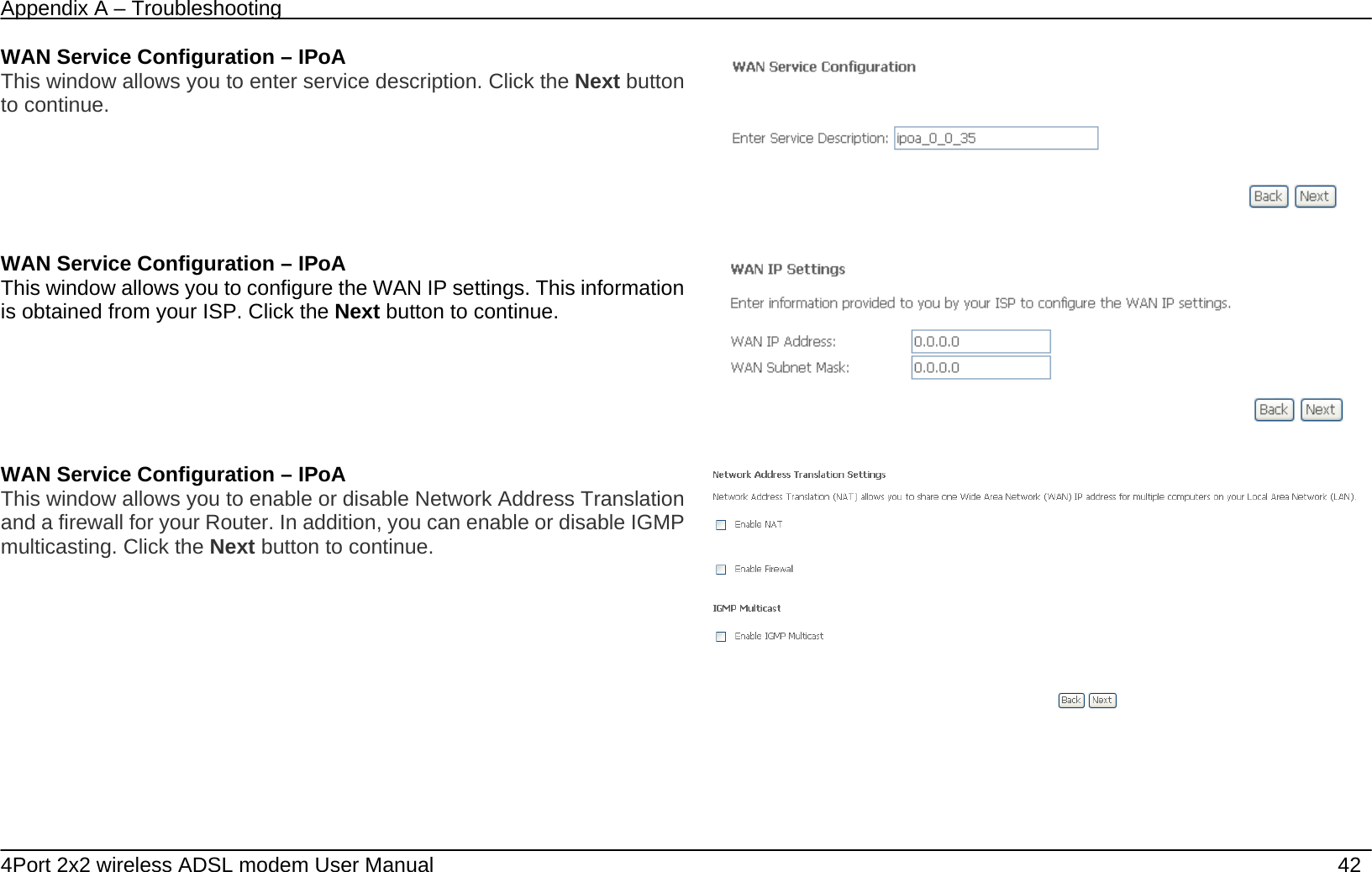
Appendix A – Troubleshooting   4Port 2x2 wireless ADSL modem User Manual    42 WAN Service Configuration – IPoA This window allows you to enter service description. Click the Next button to continue.     WAN Service Configuration – IPoA This window allows you to configure the WAN IP settings. This information is obtained from your ISP. Click the Next button to continue.     WAN Service Configuration – IPoA This window allows you to enable or disable Network Address Translation and a firewall for your Router. In addition, you can enable or disable IGMP multicasting. Click the Next button to continue.
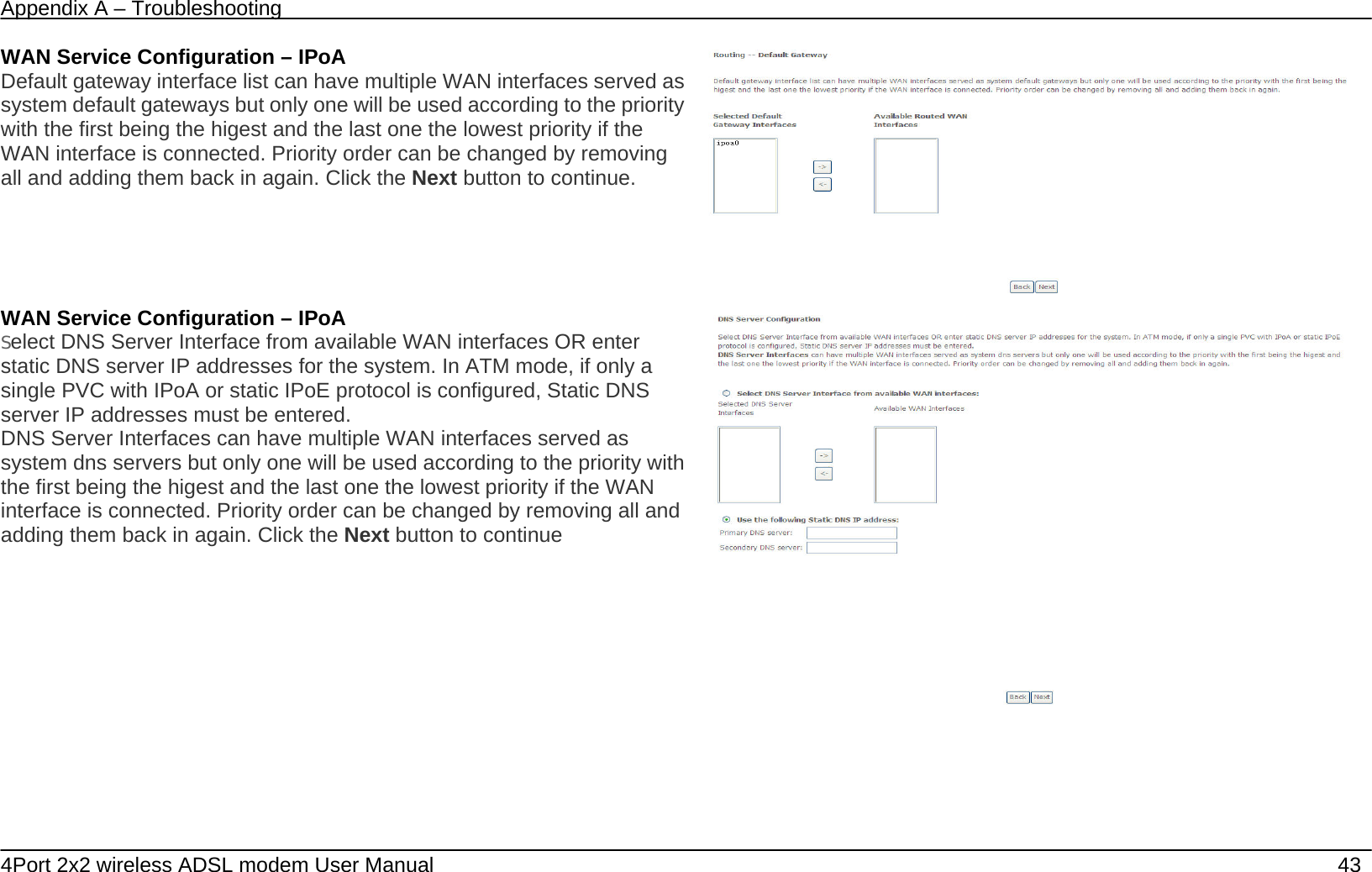
Appendix A – Troubleshooting   4Port 2x2 wireless ADSL modem User Manual    43 WAN Service Configuration – IPoA Default gateway interface list can have multiple WAN interfaces served as system default gateways but only one will be used according to the priority with the first being the higest and the last one the lowest priority if the WAN interface is connected. Priority order can be changed by removing all and adding them back in again. Click the Next button to continue.  WAN Service Configuration – IPoA Select DNS Server Interface from available WAN interfaces OR enter static DNS server IP addresses for the system. In ATM mode, if only a single PVC with IPoA or static IPoE protocol is configured, Static DNS server IP addresses must be entered. DNS Server Interfaces can have multiple WAN interfaces served as system dns servers but only one will be used according to the priority with the first being the higest and the last one the lowest priority if the WAN interface is connected. Priority order can be changed by removing all and adding them back in again. Click the Next button to continue
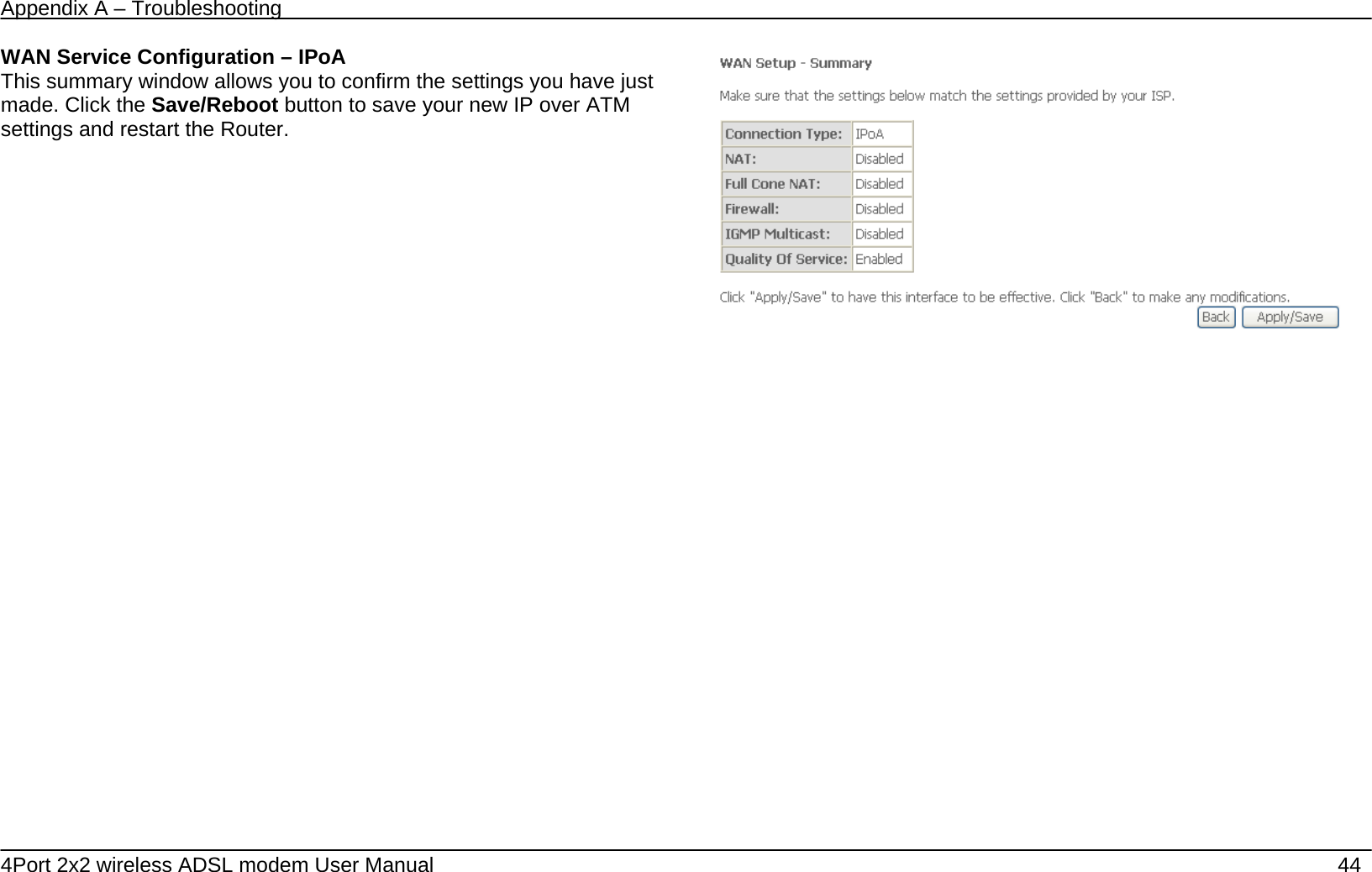
Appendix A – Troubleshooting   4Port 2x2 wireless ADSL modem User Manual    44 WAN Service Configuration – IPoA This summary window allows you to confirm the settings you have just made. Click the Save/Reboot button to save your new IP over ATM settings and restart the Router.
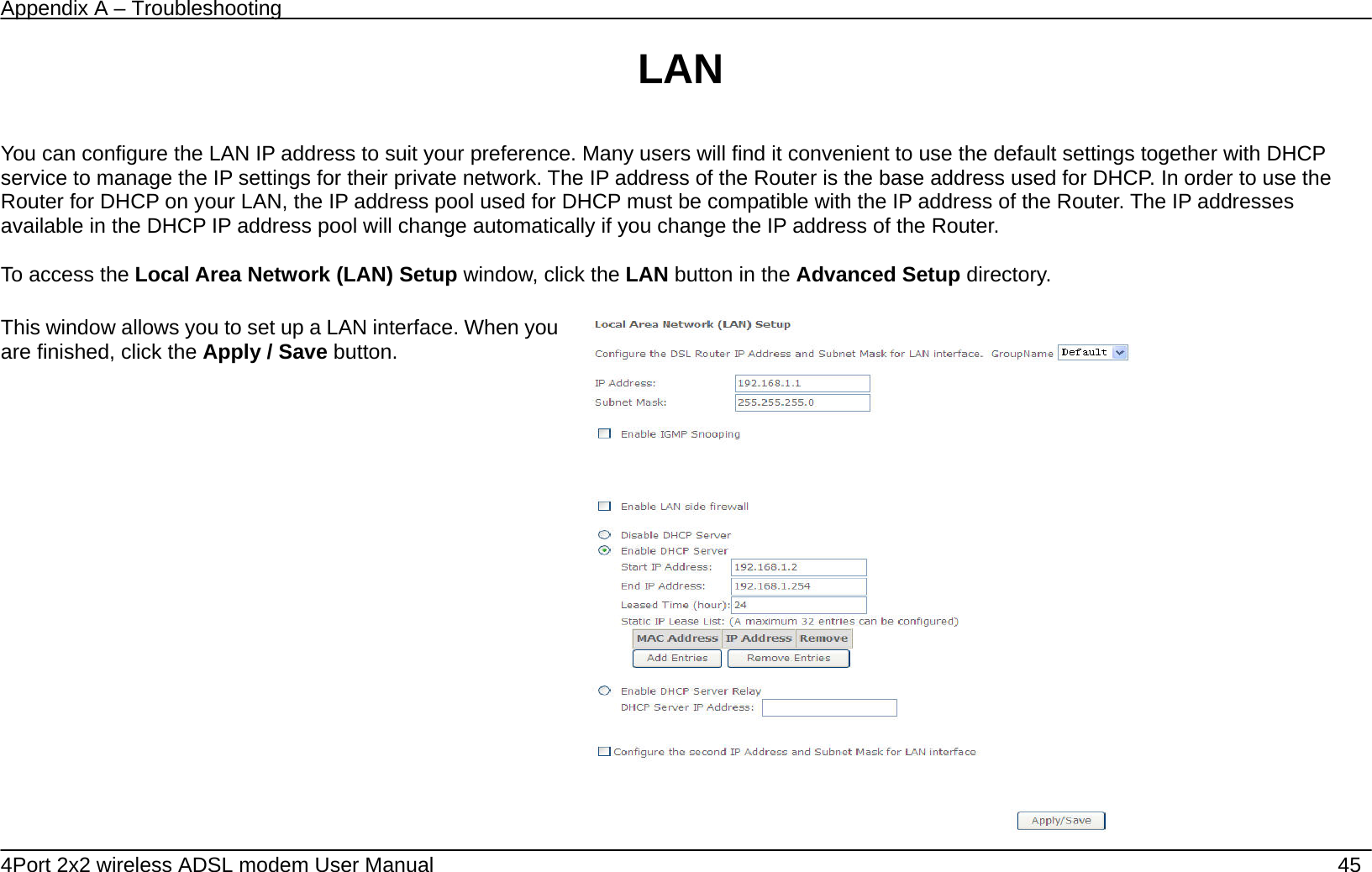
Appendix A – Troubleshooting   4Port 2x2 wireless ADSL modem User Manual    45 LAN  You can configure the LAN IP address to suit your preference. Many users will find it convenient to use the default settings together with DHCP service to manage the IP settings for their private network. The IP address of the Router is the base address used for DHCP. In order to use the Router for DHCP on your LAN, the IP address pool used for DHCP must be compatible with the IP address of the Router. The IP addresses available in the DHCP IP address pool will change automatically if you change the IP address of the Router.      To access the Local Area Network (LAN) Setup window, click the LAN button in the Advanced Setup directory.  This window allows you to set up a LAN interface. When you are finished, click the Apply / Save button.
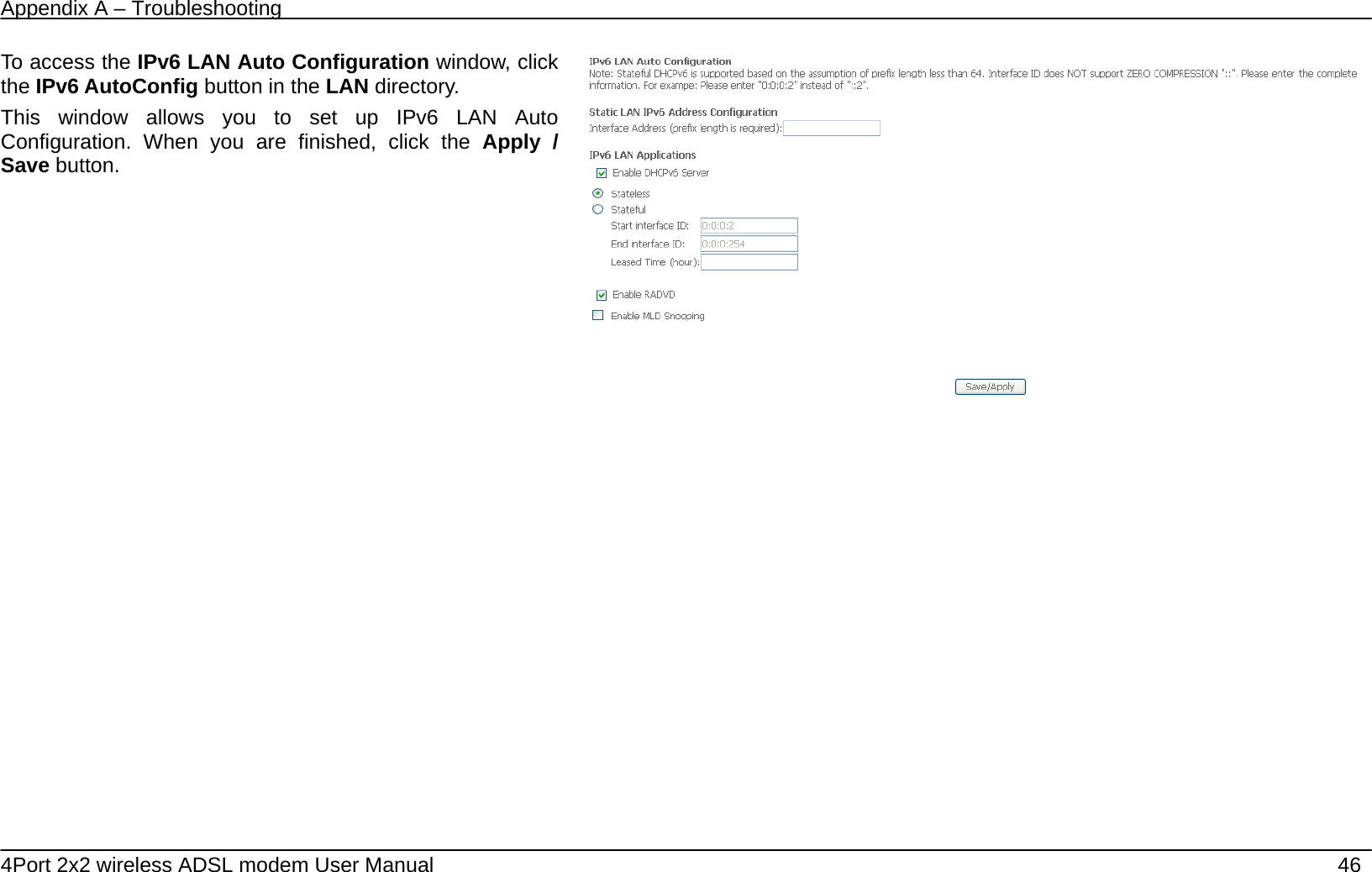
Appendix A – Troubleshooting   4Port 2x2 wireless ADSL modem User Manual    46 To access the IPv6 LAN Auto Configuration window, click the IPv6 AutoConfig button in the LAN directory. This window allows you to set up IPv6 LAN Auto Configuration. When you are finished, click the Apply / Save button.
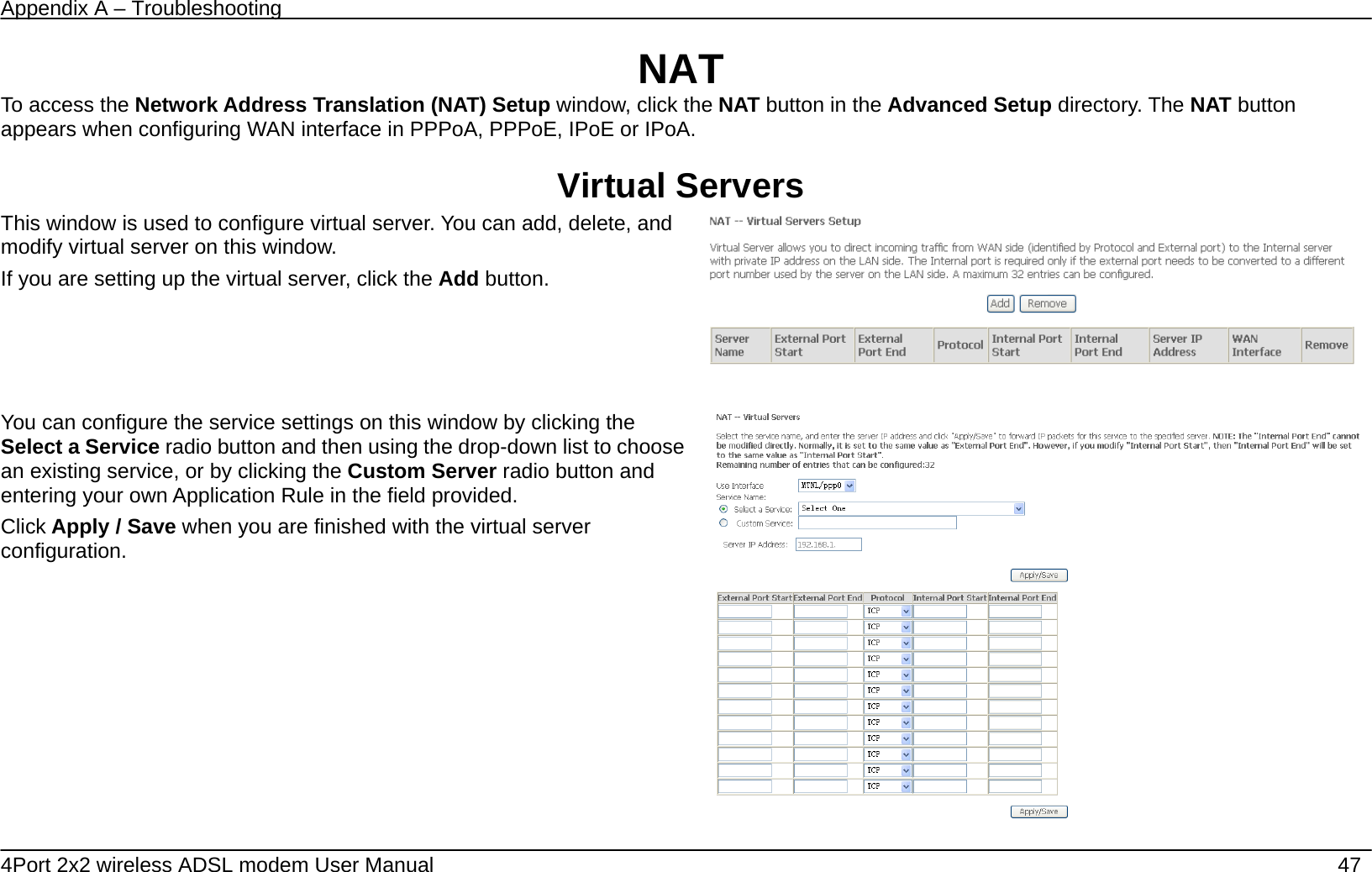
Appendix A – Troubleshooting   4Port 2x2 wireless ADSL modem User Manual    47 NAT To access the Network Address Translation (NAT) Setup window, click the NAT button in the Advanced Setup directory. The NAT button appears when configuring WAN interface in PPPoA, PPPoE, IPoE or IPoA.  Virtual Servers This window is used to configure virtual server. You can add, delete, and modify virtual server on this window.   If you are setting up the virtual server, click the Add button.         You can configure the service settings on this window by clicking the Select a Service radio button and then using the drop-down list to choose an existing service, or by clicking the Custom Server radio button and entering your own Application Rule in the field provided.   Click Apply / Save when you are finished with the virtual server configuration.
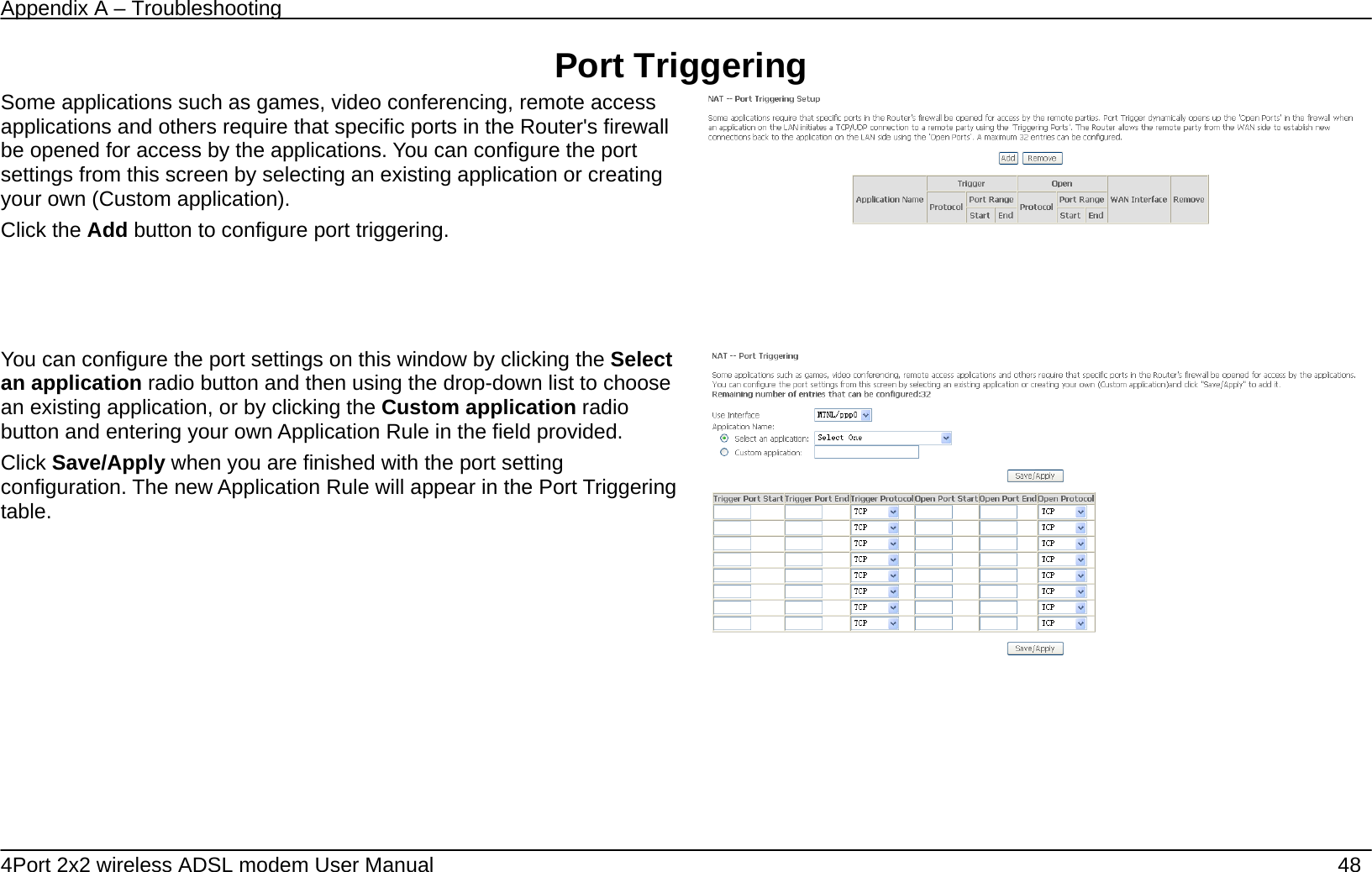
Appendix A – Troubleshooting   4Port 2x2 wireless ADSL modem User Manual    48 Port Triggering Some applications such as games, video conferencing, remote access applications and others require that specific ports in the Router's firewall be opened for access by the applications. You can configure the port settings from this screen by selecting an existing application or creating your own (Custom application). Click the Add button to configure port triggering.      You can configure the port settings on this window by clicking the Select an application radio button and then using the drop-down list to choose an existing application, or by clicking the Custom application radio button and entering your own Application Rule in the field provided.   Click Save/Apply when you are finished with the port setting configuration. The new Application Rule will appear in the Port Triggering table.
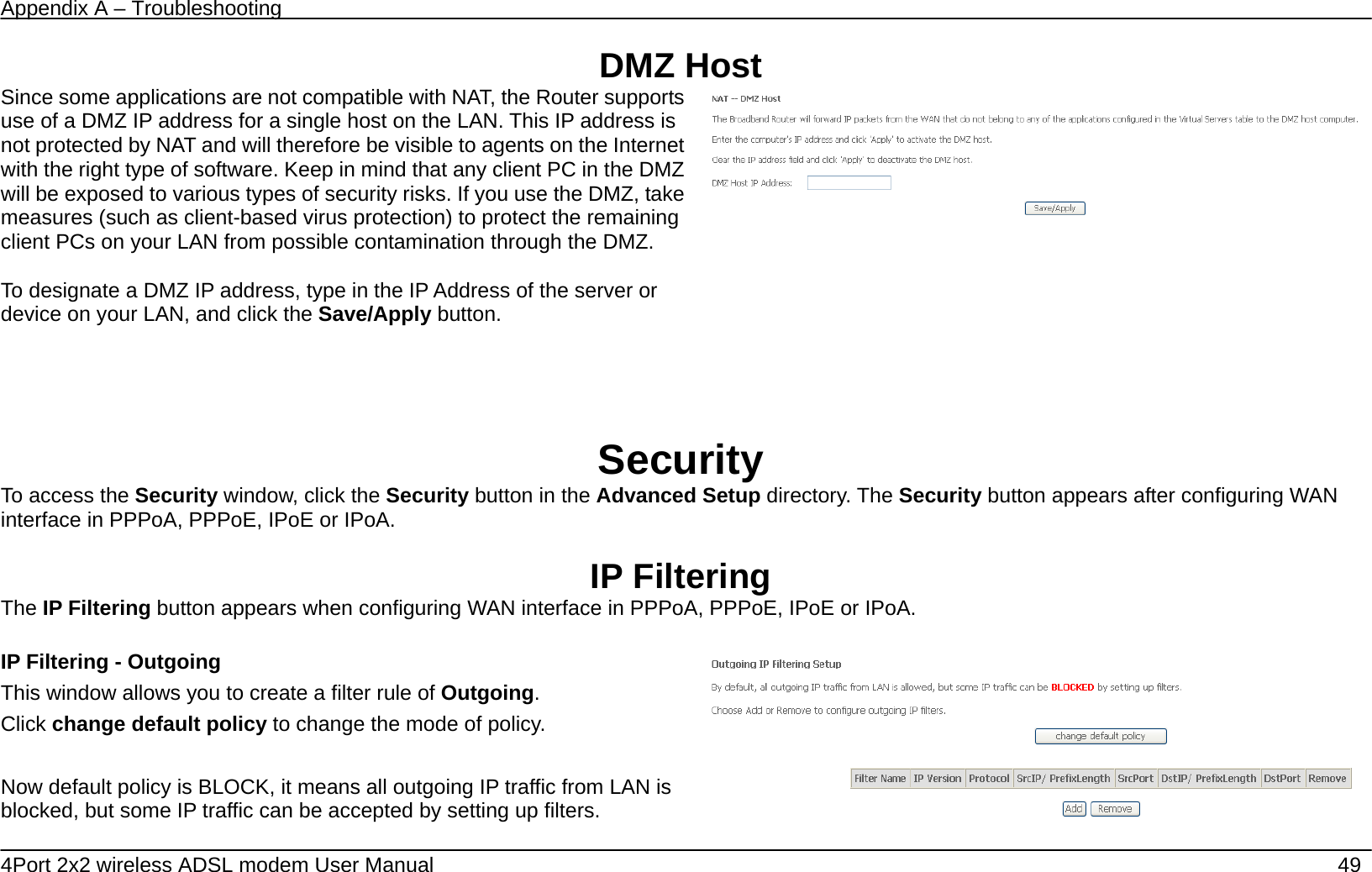
Appendix A – Troubleshooting   4Port 2x2 wireless ADSL modem User Manual    49 DMZ Host Since some applications are not compatible with NAT, the Router supports use of a DMZ IP address for a single host on the LAN. This IP address is not protected by NAT and will therefore be visible to agents on the Internet with the right type of software. Keep in mind that any client PC in the DMZ will be exposed to various types of security risks. If you use the DMZ, take measures (such as client-based virus protection) to protect the remaining client PCs on your LAN from possible contamination through the DMZ.  To designate a DMZ IP address, type in the IP Address of the server or device on your LAN, and click the Save/Apply button.     Security To access the Security window, click the Security button in the Advanced Setup directory. The Security button appears after configuring WAN interface in PPPoA, PPPoE, IPoE or IPoA.  IP Filtering The IP Filtering button appears when configuring WAN interface in PPPoA, PPPoE, IPoE or IPoA.  IP Filtering - Outgoing This window allows you to create a filter rule of Outgoing. Click change default policy to change the mode of policy.  Now default policy is BLOCK, it means all outgoing IP traffic from LAN is blocked, but some IP traffic can be accepted by setting up filters.
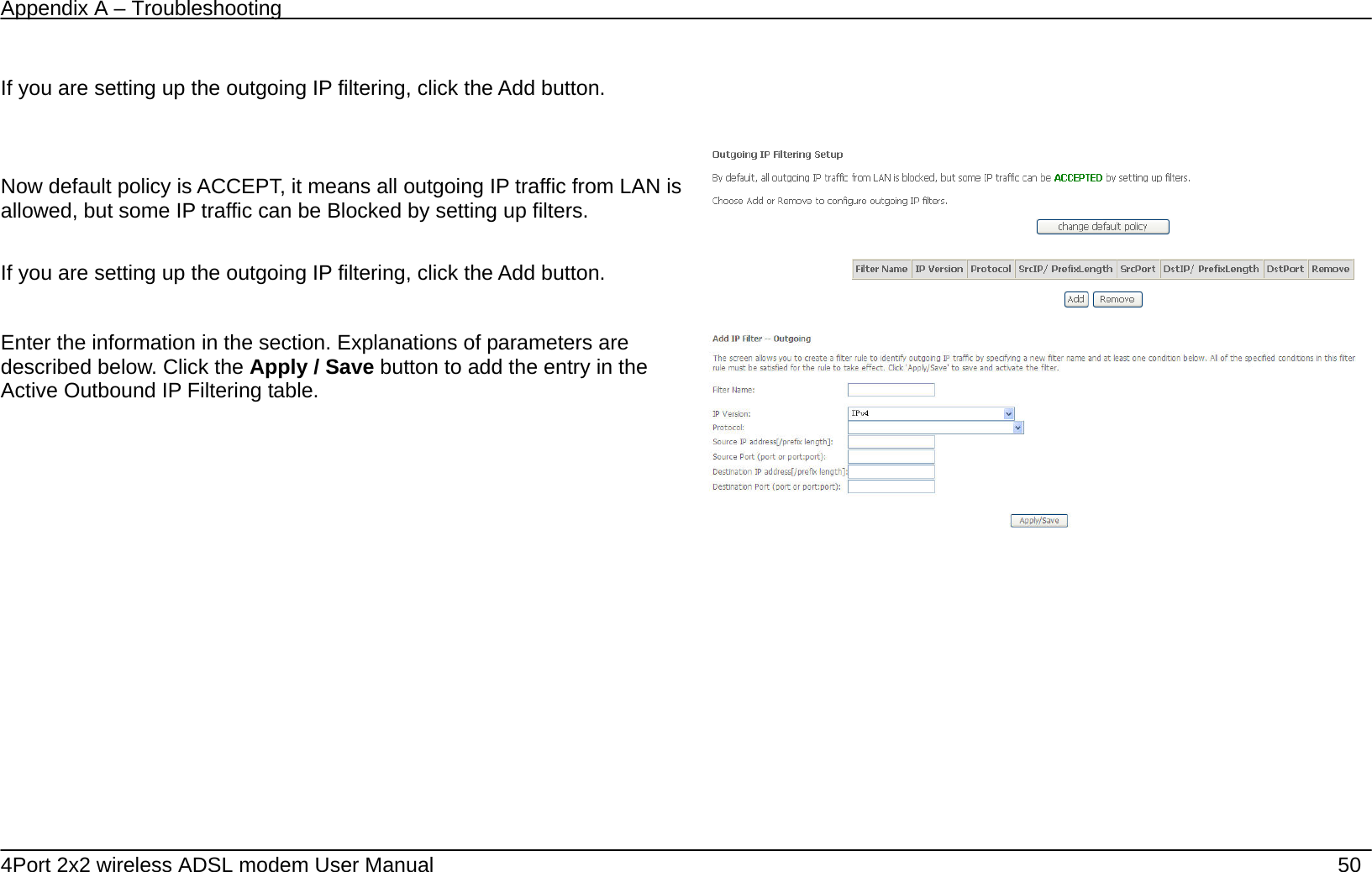
Appendix A – Troubleshooting   4Port 2x2 wireless ADSL modem User Manual    50  If you are setting up the outgoing IP filtering, click the Add button.      Now default policy is ACCEPT, it means all outgoing IP traffic from LAN is allowed, but some IP traffic can be Blocked by setting up filters.  If you are setting up the outgoing IP filtering, click the Add button.  Enter the information in the section. Explanations of parameters are described below. Click the Apply / Save button to add the entry in the Active Outbound IP Filtering table.
Appendix A – Troubleshooting   4Port 2x2 wireless ADSL modem User Manual    51 Filters Parameter  Description Filter Name  Enter a name for the new filter. IP Version  Ipv4/Ipv6 Protocol  Select the transport protocol (Any, TCP/UDP, TCP, UDP or ICMP) that will be used for the filter rule. Source IP address[/prefix length] Enter the start IP address which you are creating the filter rule. Source Port (port or port:port) The Source Port is the TCP/UDP port on either the LAN or WAN depending on if you are configuring an Outbound or Inbound Filter rule. Destination IP address[/prefix length] Enter the end IP address which you are creating the filter rule. Destination Port (port or port:port) The Destination Port is the TCP/UDP port on either the LAN or WAN depending on if you are configuring an Outbound or Inbound Filter rule.     IP Filtering – Incoming This window allows you to create a filter rule of Incoming. Click change default policy to change the mode of policy.  Now default policy is ACCEPT, it means all incoming IP traffic from WAN is accepted, but some IP traffic can be blocked by setting up filters.  If you are setting up the incoming IP filtering, click the Add button.
Appendix A – Troubleshooting   4Port 2x2 wireless ADSL modem User Manual    52 Now default policy is BLOCK, it means all incoming IP traffic from WAN is blocked, but some IP traffic can be accepted by setting up filters.  If you are setting up the incoming IP filtering, click the Add button.  Enter the information in the section. Explanations of parameters are described below. Click the Apply / Save button to add the entry in the Active Inbound IP Filtering table.    Filters Parameter  Description Filter Name  Enter a name for the new filter. IP Version  Ipv4/Ipv6 Protocol  Select the transport protocol (Any, TCP/UDP, TCP, UDP or ICMP) that will be used for the filter rule. Source IP address[/prefix length] Enter the start IP address which you are creating the filter rule. Source Port (port or port:port)  The Source Port is the TCP/UDP port on either the LAN or WAN depending on if you are configuring an Outbound or Inbound Filter rule.
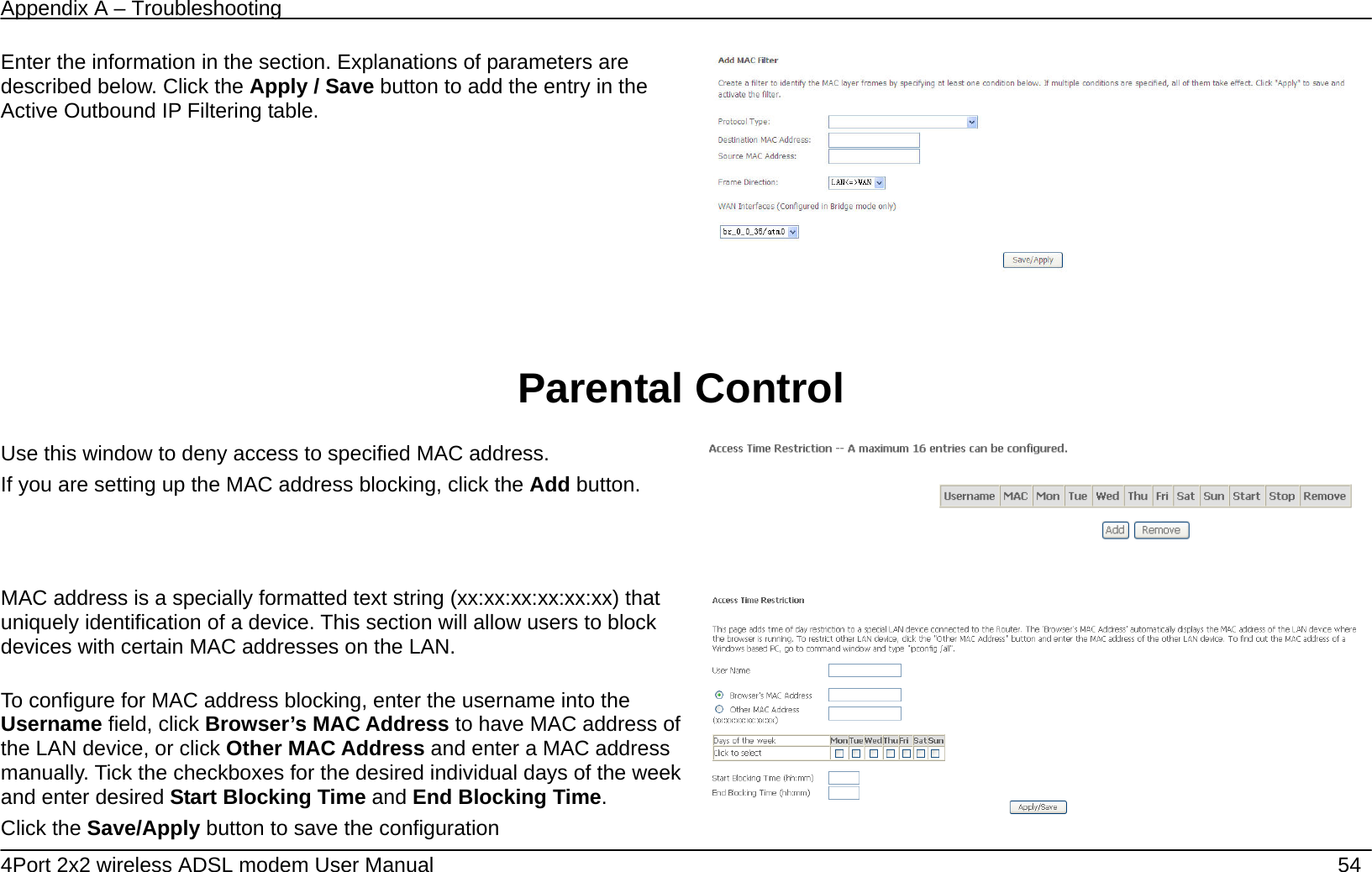
Appendix A – Troubleshooting   4Port 2x2 wireless ADSL modem User Manual    53 Destination IP address[/prefix length] Enter the end IP address which you are creating the filter rule. Destination Port (port or port:port)  The Destination Port is the TCP/UDP port on either the LAN or WAN depending on if you are configuring an Outbound or Inbound Filter rule.  MAC Filtering TheMAC Filtering button appears when configuring WAN interface inBridge.  MAC Filtering   This window allows you to create a filter rule of MAC. Click change default policy to change the mode of policy.  MAC Filtering is only effective on ATM PVCs configured in Bridge mode. FORWARDED means that all MAC layer frames will be FORWARDED except those matching with any of the specified rules in the following table. BLOCKED means that all MAC layer frames will be BLOCKED except those matching with any of the specified rules in the following table.  MAC Filtering Policy For Each Interface:   WARNING: Changing from one policy to another of an interface will cause all defined rules for that interface to be REMOVED AUTOMATICALLY! You will need to create new rules for the new policy. If you are setting up the MAC filtering, click the Add button.       If you are setting up the MAC filtering, click the Add button.
Appendix A – Troubleshooting   4Port 2x2 wireless ADSL modem User Manual    54 Enter the information in the section. Explanations of parameters are described below. Click the Apply / Save button to add the entry in the Active Outbound IP Filtering table.     Parental Control    Use this window to deny access to specified MAC address. If you are setting up the MAC address blocking, click the Add button.       MAC address is a specially formatted text string (xx:xx:xx:xx:xx:xx) that uniquely identification of a device. This section will allow users to block devices with certain MAC addresses on the LAN.  To configure for MAC address blocking, enter the username into the Username field, click Browser’s MAC Address to have MAC address of the LAN device, or click Other MAC Address and enter a MAC address manually. Tick the checkboxes for the desired individual days of the week and enter desired Start Blocking Time and End Blocking Time.  Click the Save/Apply button to save the configuration
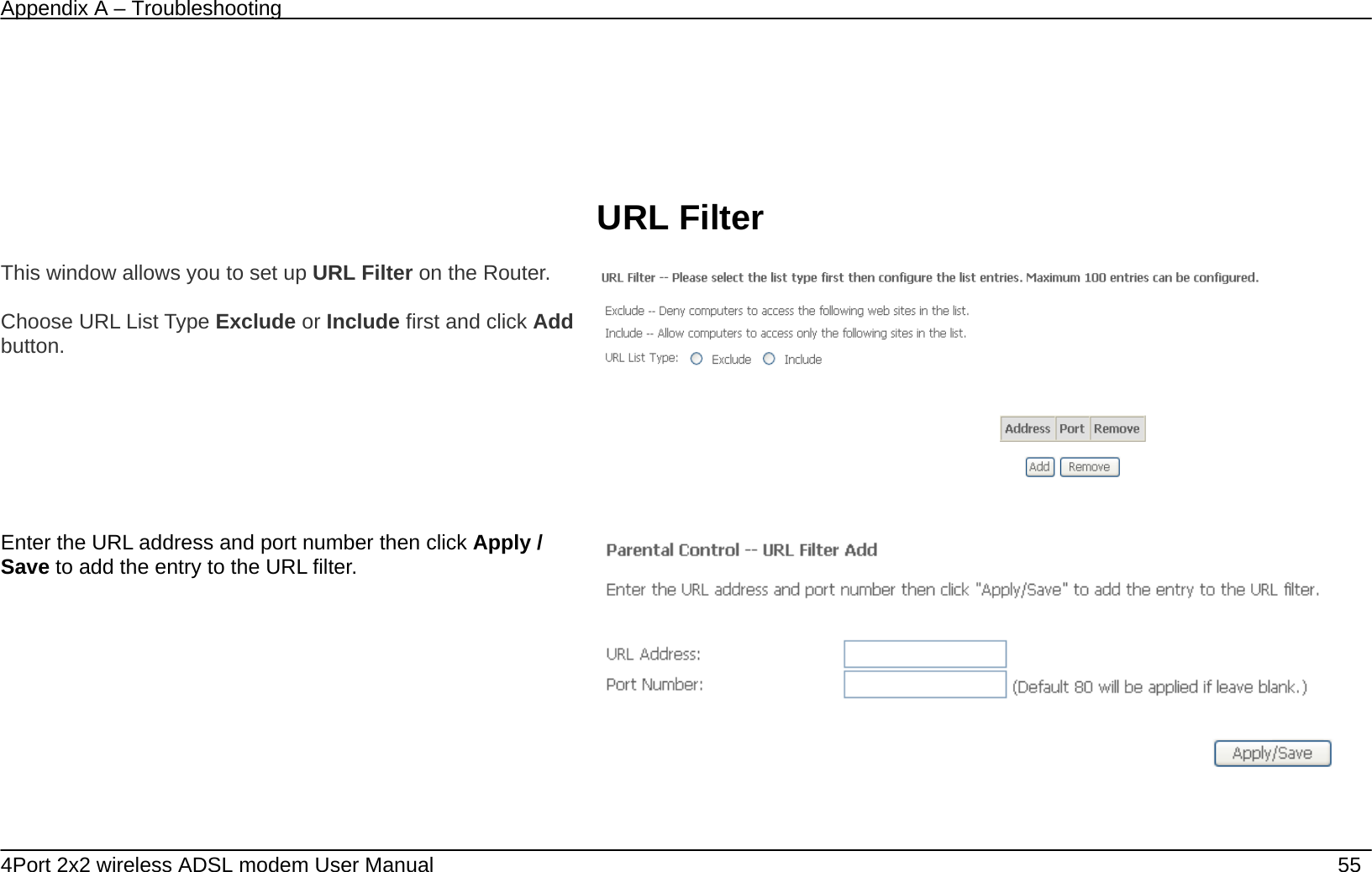
Appendix A – Troubleshooting   4Port 2x2 wireless ADSL modem User Manual    55       URL Filter  This window allows you to set up URL Filter on the Router.   Choose URL List Type Exclude or Include first and click Add button.    Enter the URL address and port number then click Apply / Save to add the entry to the URL filter.
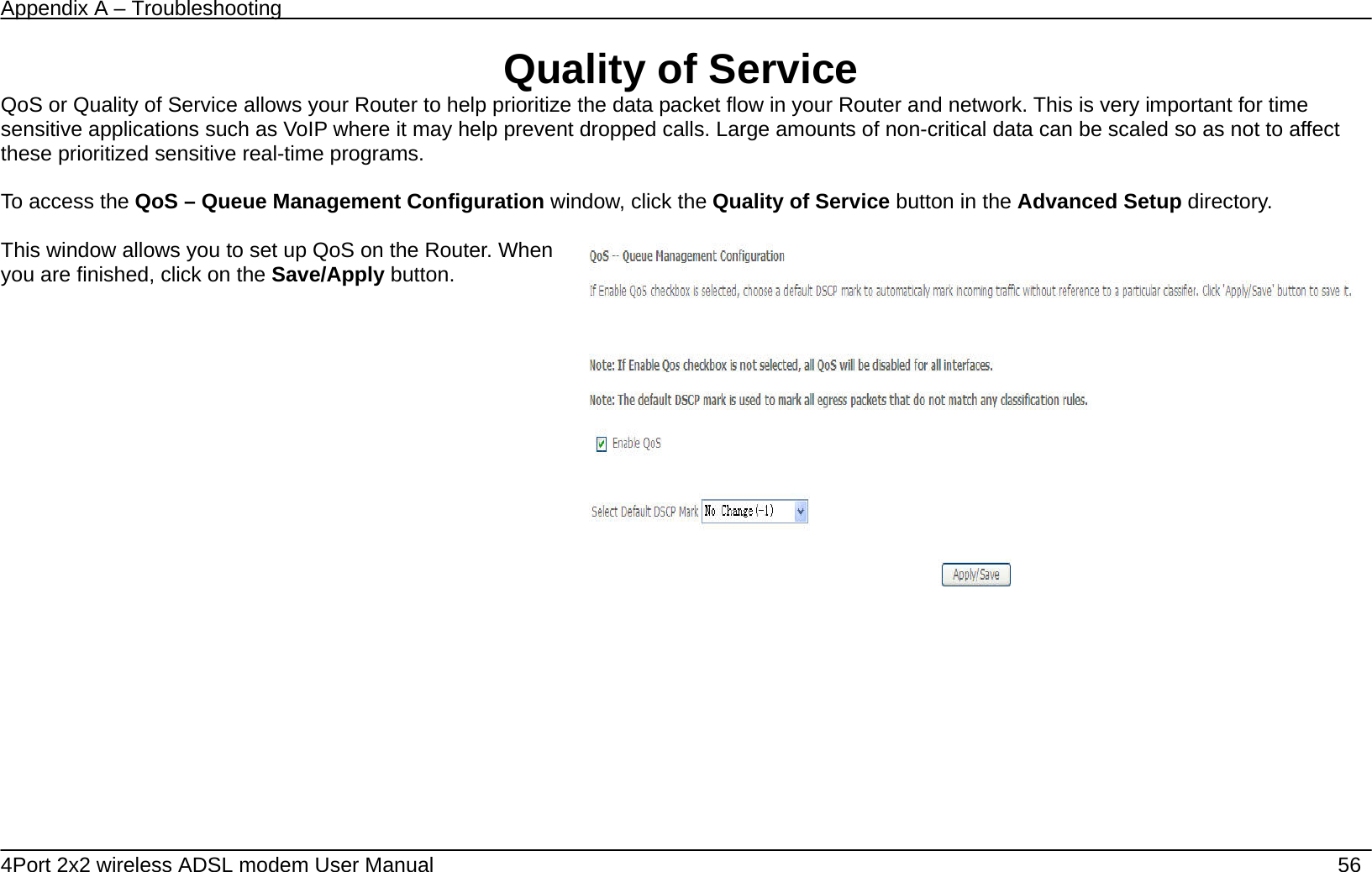
Appendix A – Troubleshooting   4Port 2x2 wireless ADSL modem User Manual    56 Quality of Service QoS or Quality of Service allows your Router to help prioritize the data packet flow in your Router and network. This is very important for time sensitive applications such as VoIP where it may help prevent dropped calls. Large amounts of non-critical data can be scaled so as not to affect these prioritized sensitive real-time programs.    To access the QoS – Queue Management Configuration window, click the Quality of Service button in the Advanced Setup directory.  This window allows you to set up QoS on the Router. When you are finished, click on the Save/Apply button.
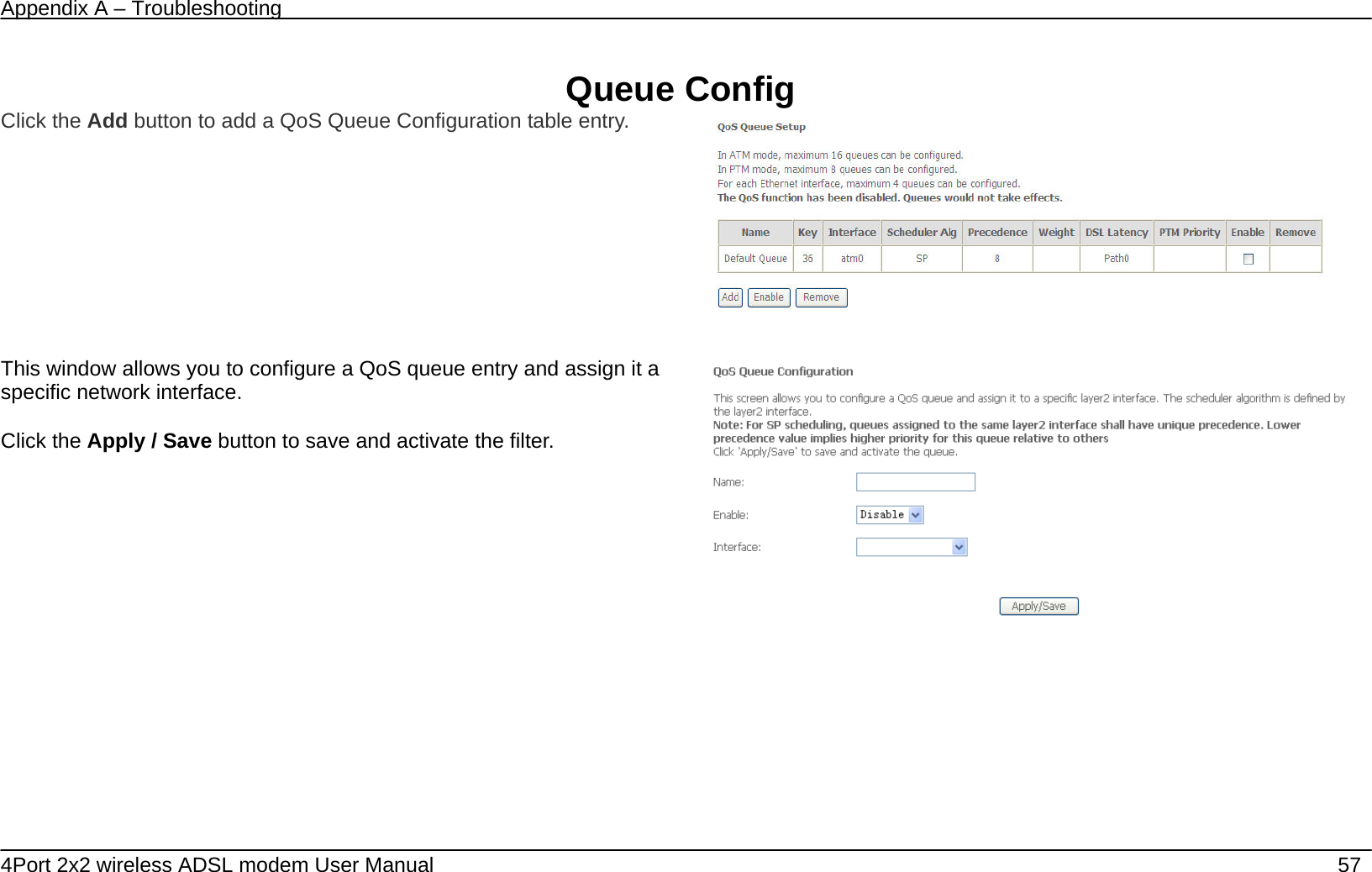
Appendix A – Troubleshooting   4Port 2x2 wireless ADSL modem User Manual    57  Queue Config Click the Add button to add a QoS Queue Configuration table entry.     This window allows you to configure a QoS queue entry and assign it a specific network interface.   Click the Apply / Save button to save and activate the filter.
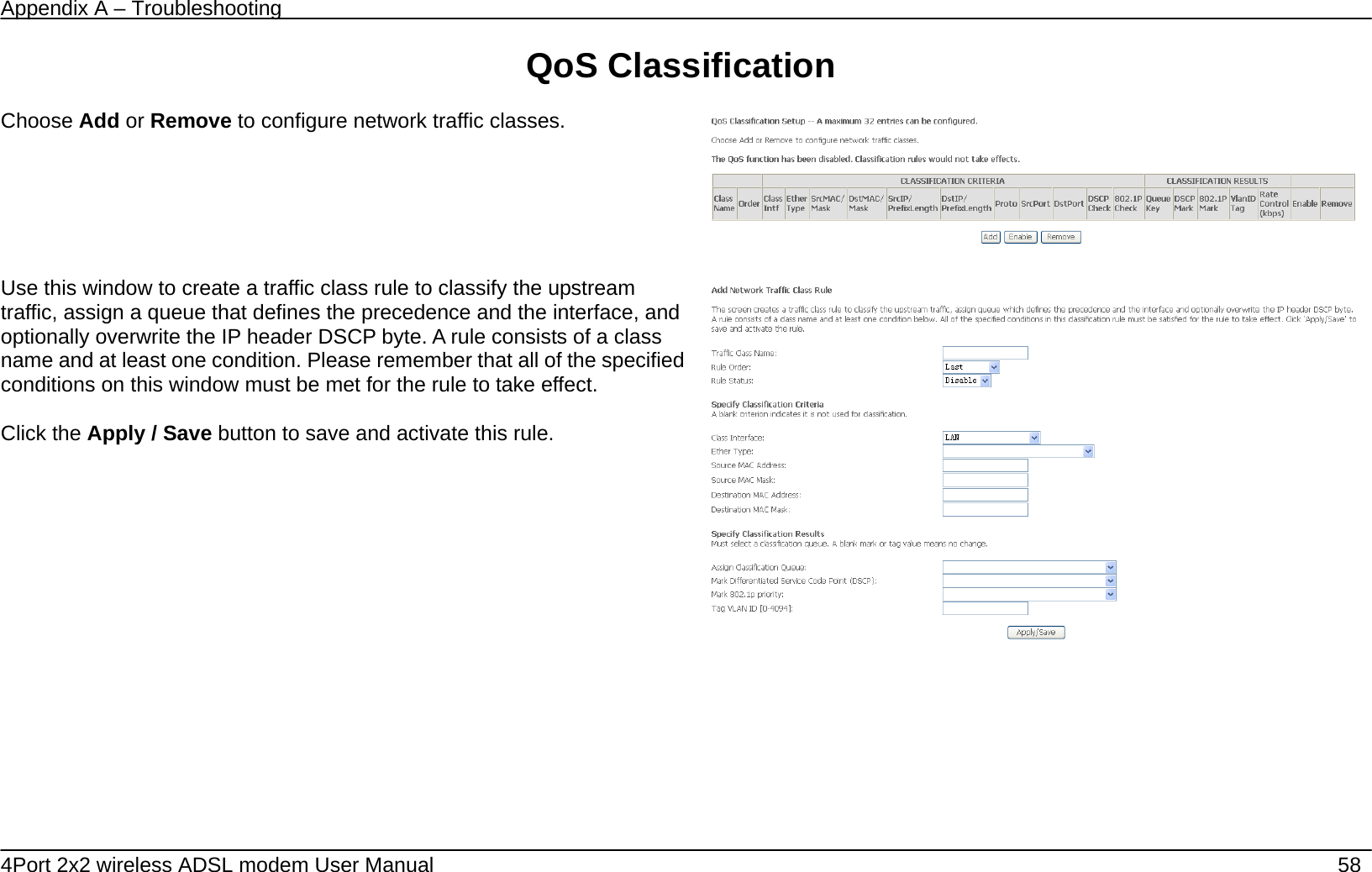
Appendix A – Troubleshooting   4Port 2x2 wireless ADSL modem User Manual    58 QoS Classification  Choose Add or Remove to configure network traffic classes.       Use this window to create a traffic class rule to classify the upstream traffic, assign a queue that defines the precedence and the interface, and optionally overwrite the IP header DSCP byte. A rule consists of a class name and at least one condition. Please remember that all of the specified conditions on this window must be met for the rule to take effect.  Click the Apply / Save button to save and activate this rule.
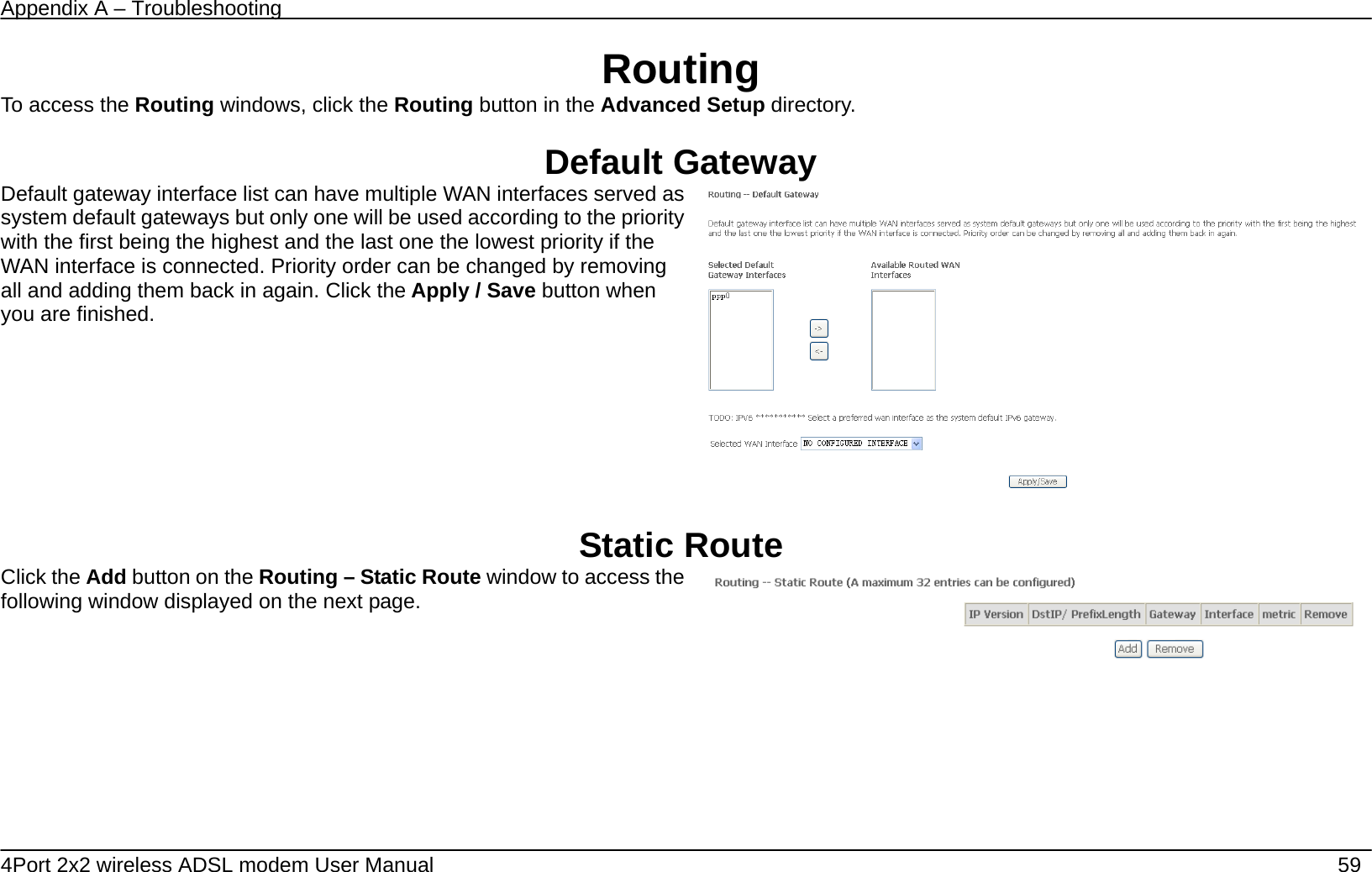
Appendix A – Troubleshooting   4Port 2x2 wireless ADSL modem User Manual    59 Routing To access the Routing windows, click the Routing button in the Advanced Setup directory.  Default Gateway Default gateway interface list can have multiple WAN interfaces served as system default gateways but only one will be used according to the priority with the first being the highest and the last one the lowest priority if the WAN interface is connected. Priority order can be changed by removing all and adding them back in again. Click the Apply / Save button when you are finished.     Static Route Click the Add button on the Routing – Static Route window to access the following window displayed on the next page.
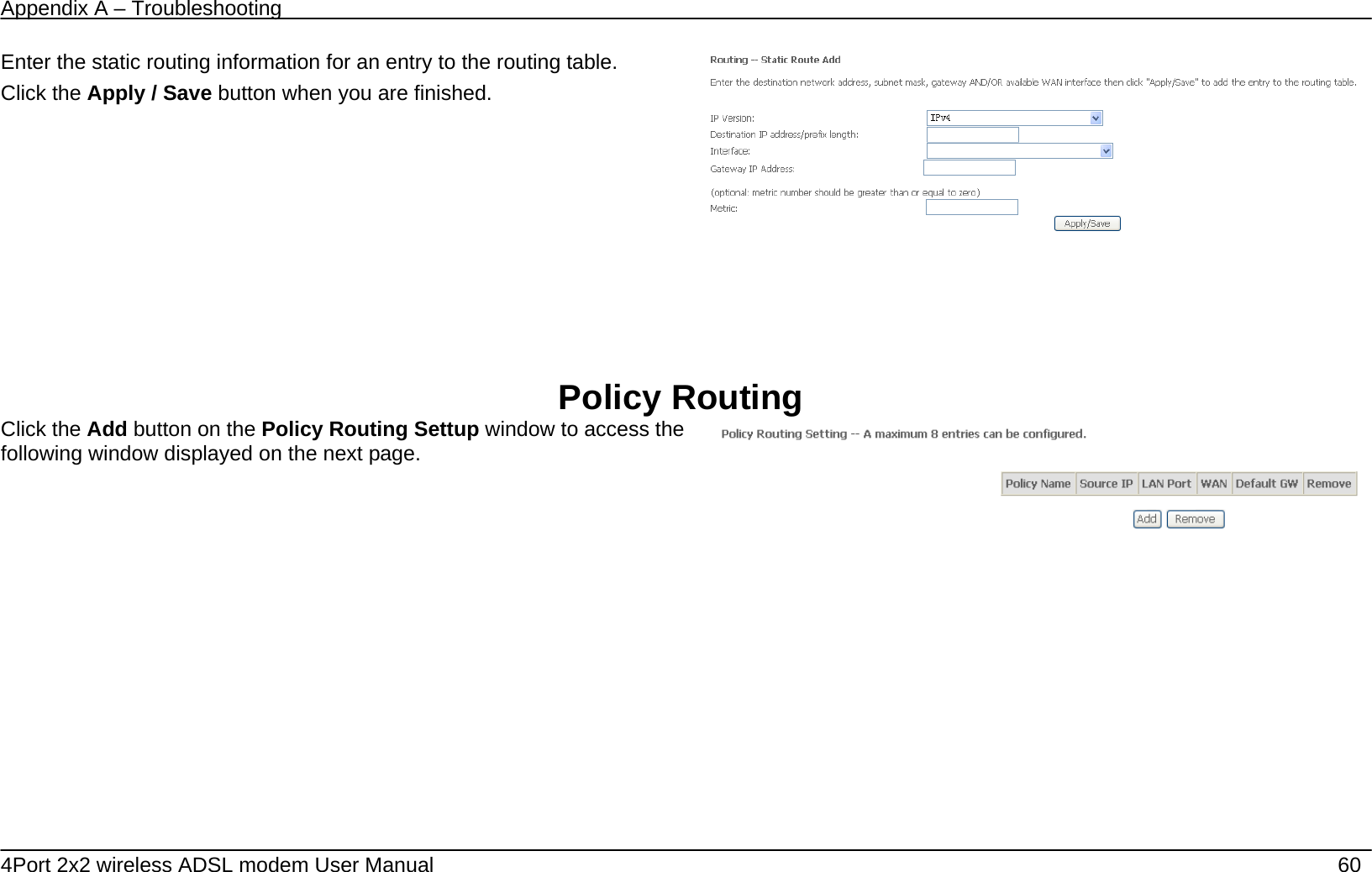
Appendix A – Troubleshooting   4Port 2x2 wireless ADSL modem User Manual    60 Enter the static routing information for an entry to the routing table. Click the Apply / Save button when you are finished.        Policy Routing Click the Add button on the Policy Routing Settup window to access the following window displayed on the next page.
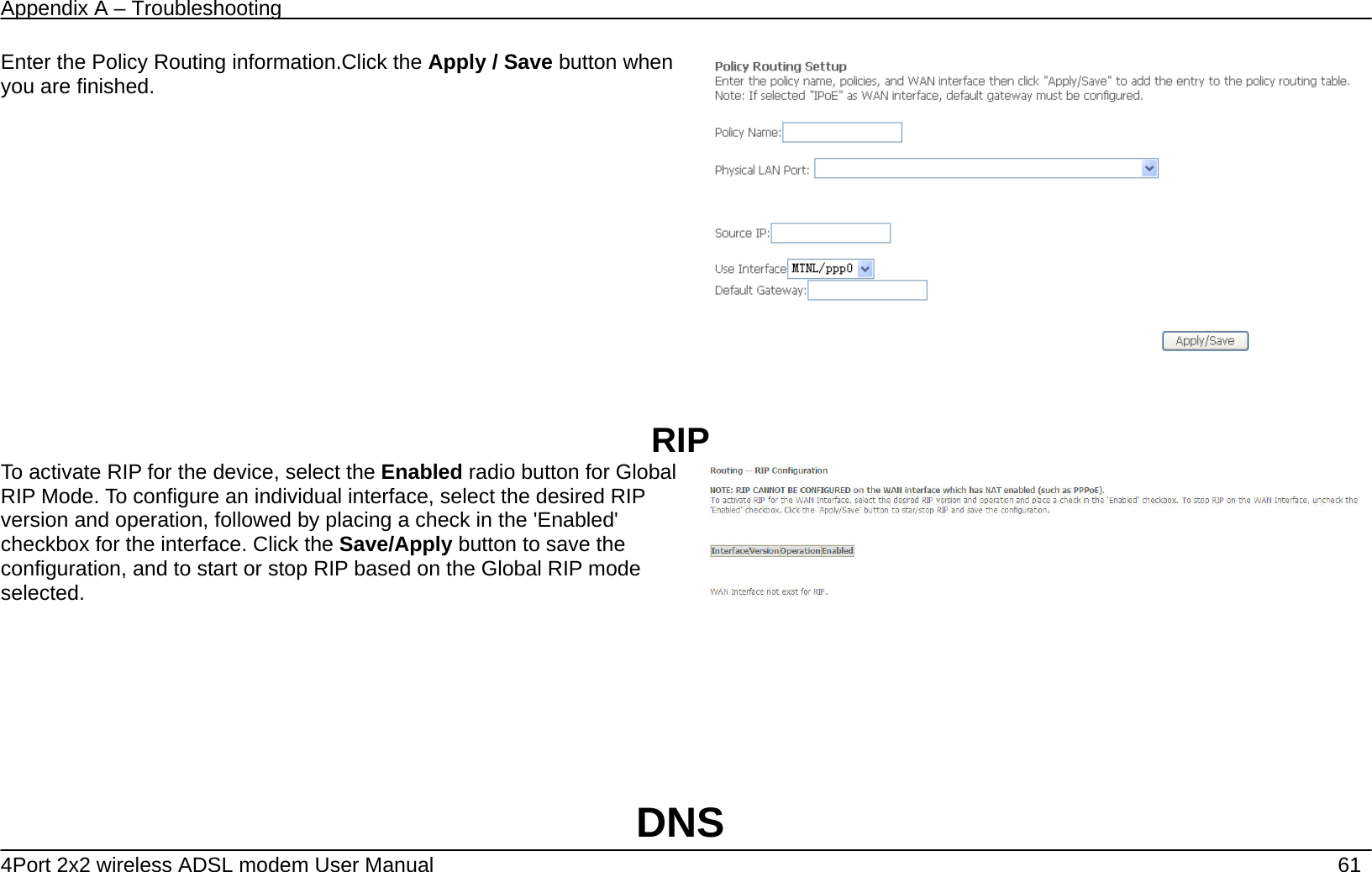
Appendix A – Troubleshooting   4Port 2x2 wireless ADSL modem User Manual    61 Enter the Policy Routing information.Click the Apply / Save button when you are finished.    RIP To activate RIP for the device, select the Enabled radio button for Global RIP Mode. To configure an individual interface, select the desired RIP version and operation, followed by placing a check in the 'Enabled' checkbox for the interface. Click the Save/Apply button to save the configuration, and to start or stop RIP based on the Global RIP mode selected.       DNS
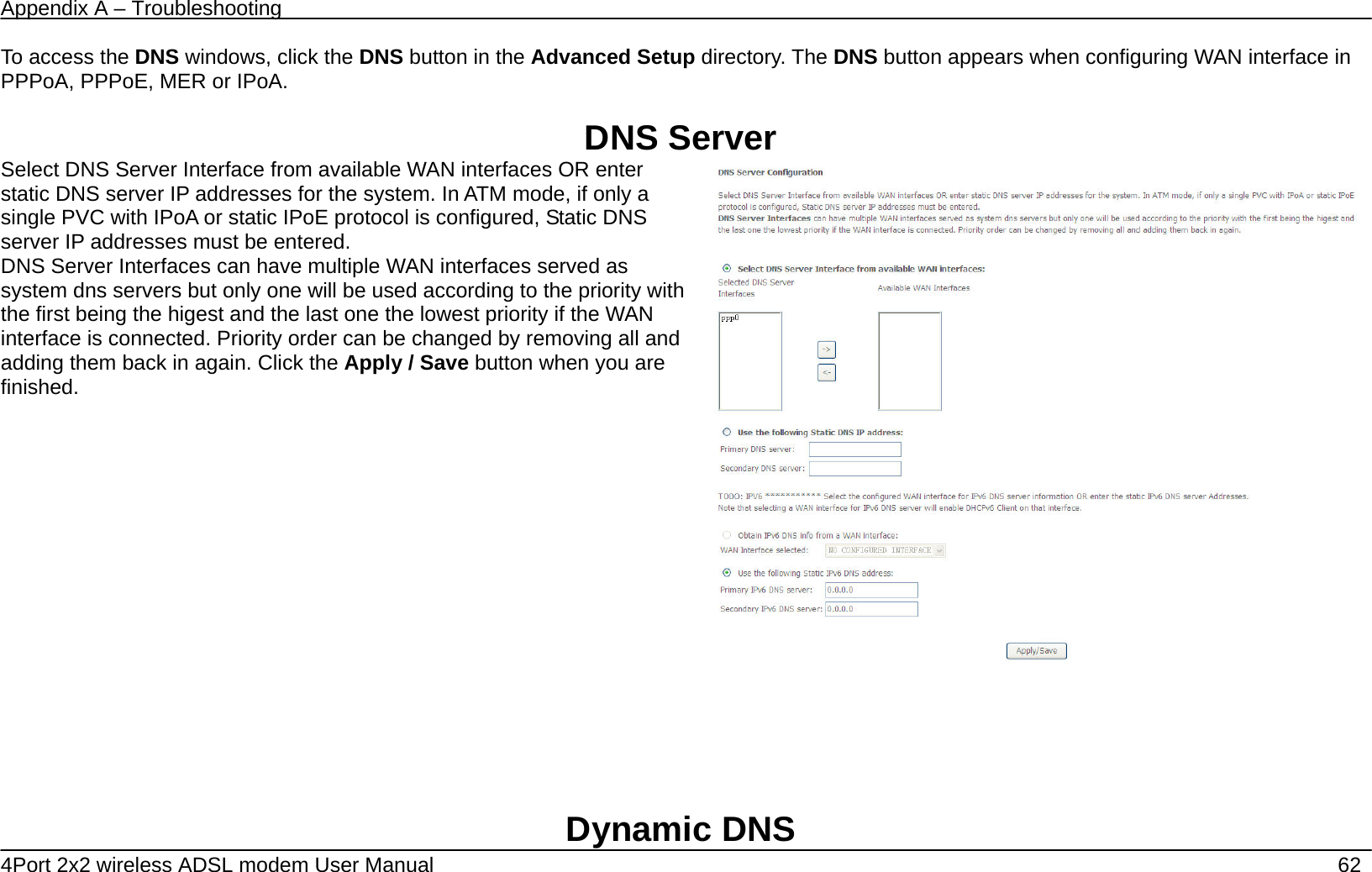
Appendix A – Troubleshooting   4Port 2x2 wireless ADSL modem User Manual    62 To access the DNS windows, click the DNS button in the Advanced Setup directory. The DNS button appears when configuring WAN interface in PPPoA, PPPoE, MER or IPoA.  DNS Server Select DNS Server Interface from available WAN interfaces OR enter static DNS server IP addresses for the system. In ATM mode, if only a single PVC with IPoA or static IPoE protocol is configured, Static DNS server IP addresses must be entered. DNS Server Interfaces can have multiple WAN interfaces served as system dns servers but only one will be used according to the priority with the first being the higest and the last one the lowest priority if the WAN interface is connected. Priority order can be changed by removing all and adding them back in again. Click the Apply / Save button when you are finished.         Dynamic DNS
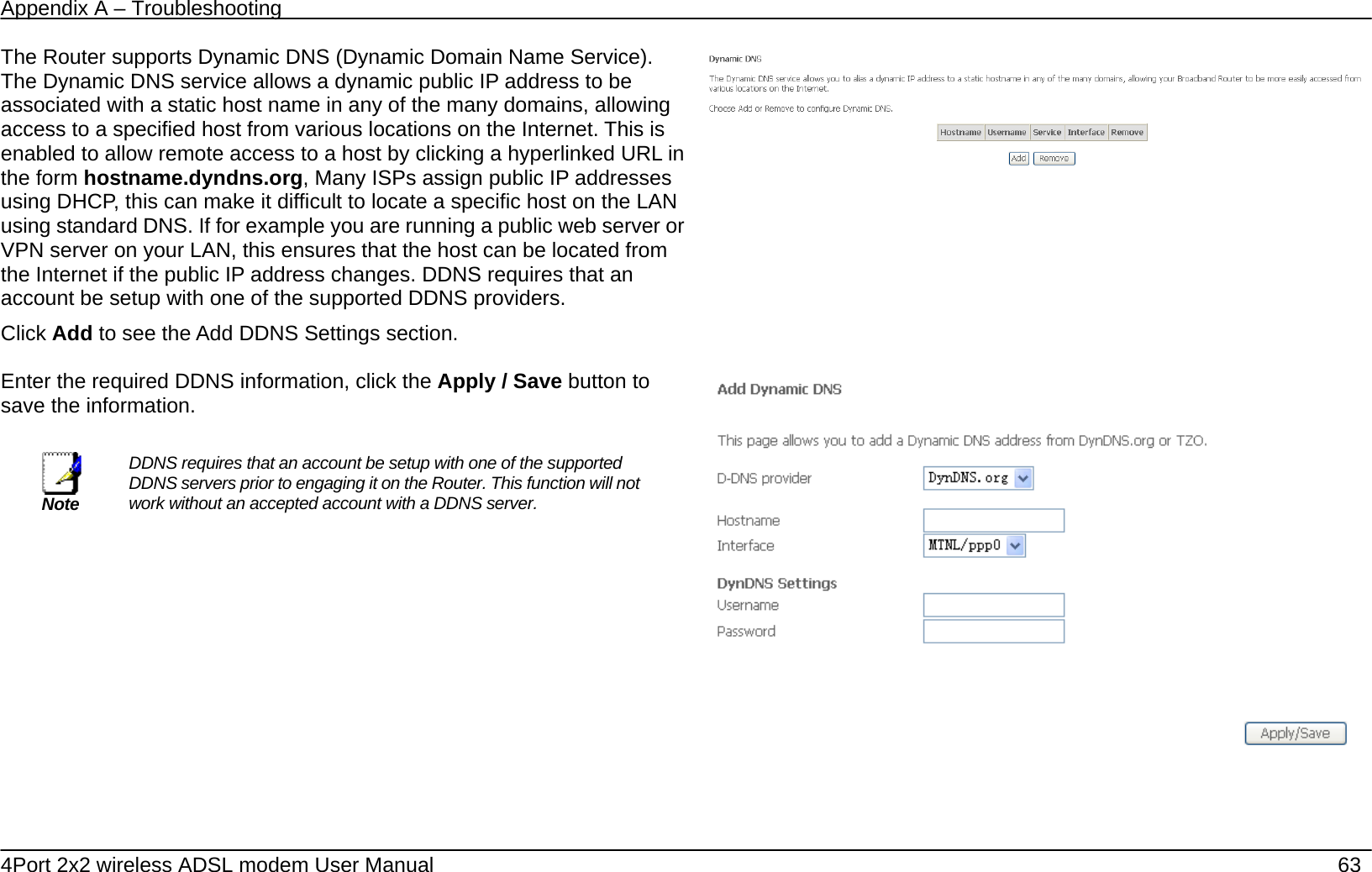
Appendix A – Troubleshooting   4Port 2x2 wireless ADSL modem User Manual    63 The Router supports Dynamic DNS (Dynamic Domain Name Service). The Dynamic DNS service allows a dynamic public IP address to be associated with a static host name in any of the many domains, allowing access to a specified host from various locations on the Internet. This is enabled to allow remote access to a host by clicking a hyperlinked URL in the form hostname.dyndns.org, Many ISPs assign public IP addresses using DHCP, this can make it difficult to locate a specific host on the LAN using standard DNS. If for example you are running a public web server or VPN server on your LAN, this ensures that the host can be located from the Internet if the public IP address changes. DDNS requires that an account be setup with one of the supported DDNS providers. Click Add to see the Add DDNS Settings section.       Enter the required DDNS information, click the Apply / Save button to save the information.   Note DDNS requires that an account be setup with one of the supported DDNS servers prior to engaging it on the Router. This function will not work without an accepted account with a DDNS server.
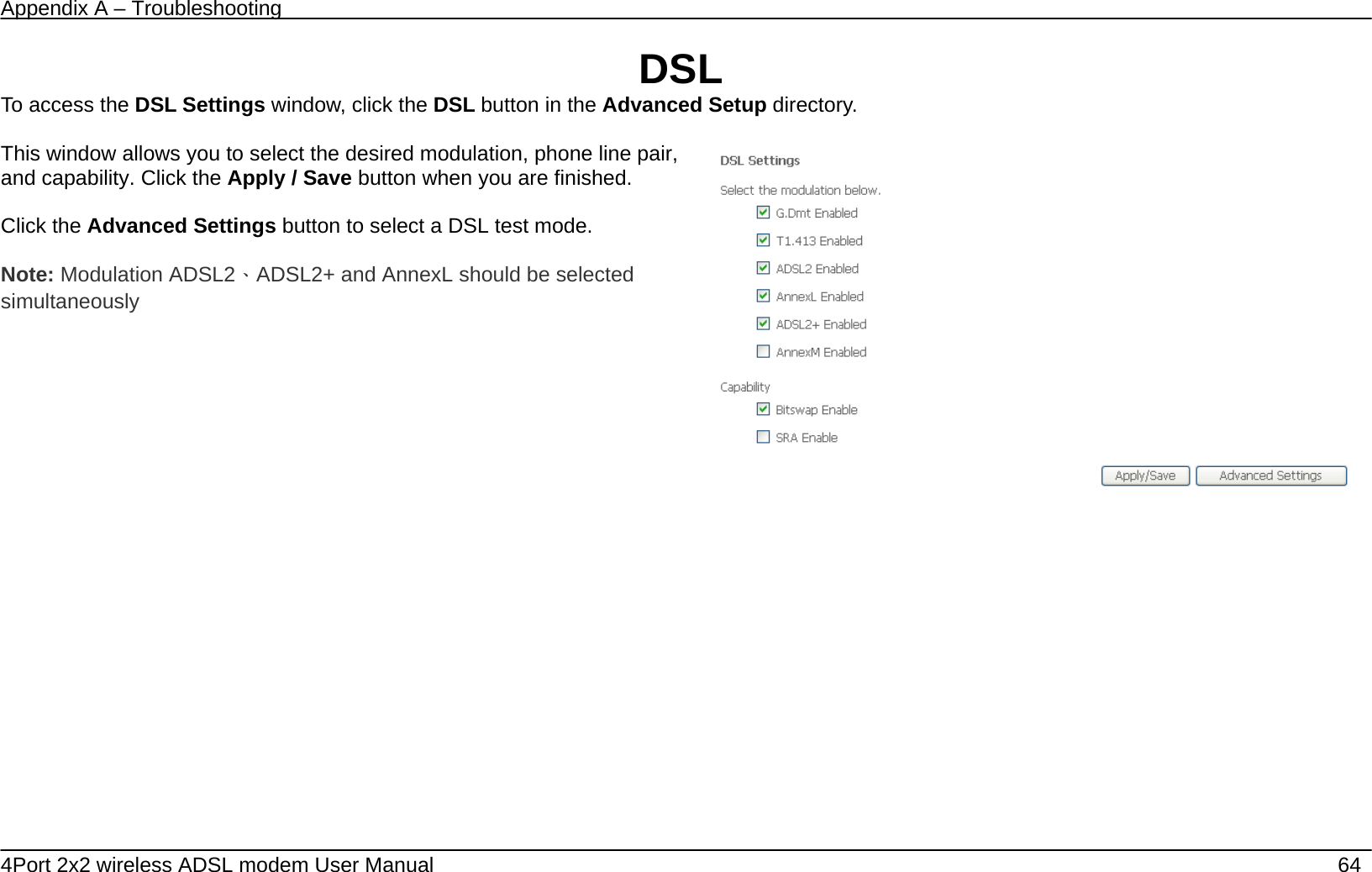
Appendix A – Troubleshooting   4Port 2x2 wireless ADSL modem User Manual    64 DSL To access the DSL Settings window, click the DSL button in the Advanced Setup directory.  This window allows you to select the desired modulation, phone line pair, and capability. Click the Apply / Save button when you are finished.  Click the Advanced Settings button to select a DSL test mode.  Note: Modulation ADSL2、ADSL2+ and AnnexL should be selected simultaneously
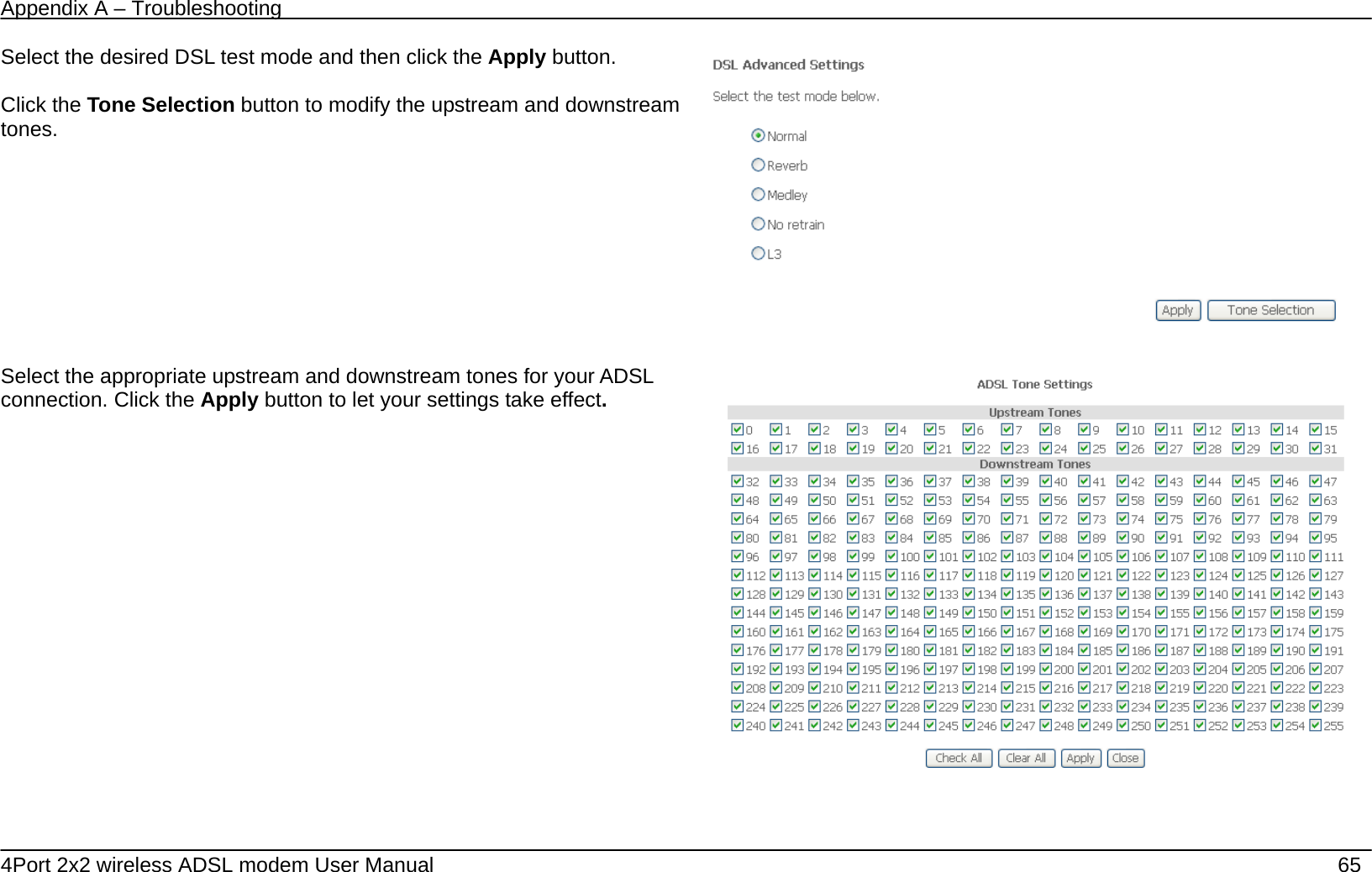
Appendix A – Troubleshooting   4Port 2x2 wireless ADSL modem User Manual    65 Select the desired DSL test mode and then click the Apply button.  Click the Tone Selection button to modify the upstream and downstream tones.     Select the appropriate upstream and downstream tones for your ADSL connection. Click the Apply button to let your settings take effect.
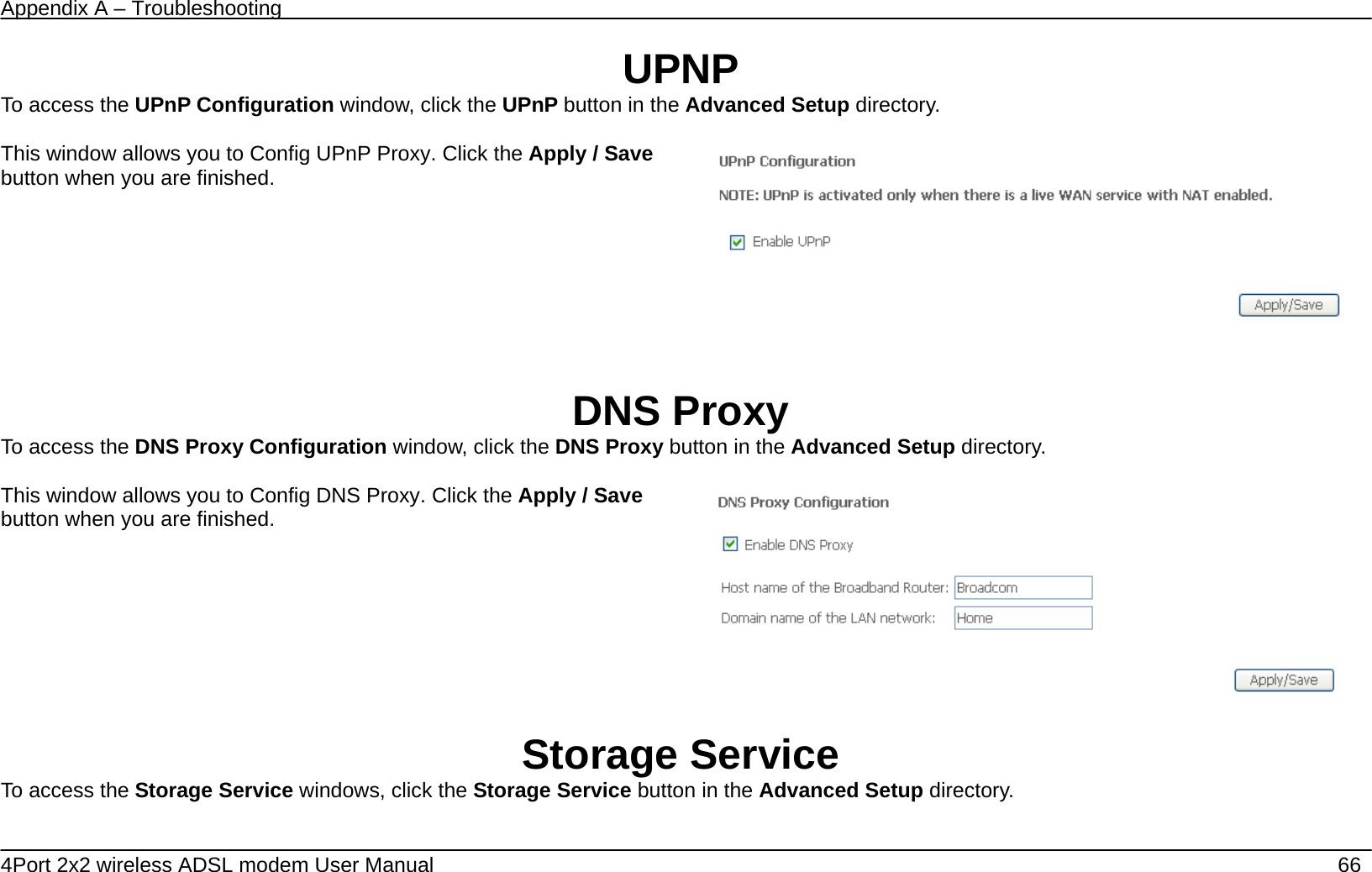
Appendix A – Troubleshooting   4Port 2x2 wireless ADSL modem User Manual    66 UPNP To access the UPnP Configuration window, click the UPnP button in the Advanced Setup directory.  This window allows you to Config UPnP Proxy. Click the Apply / Save button when you are finished.       DNS Proxy To access the DNS Proxy Configuration window, click the DNS Proxy button in the Advanced Setup directory.  This window allows you to Config DNS Proxy. Click the Apply / Save button when you are finished.      Storage Service To access the Storage Service windows, click the Storage Service button in the Advanced Setup directory.
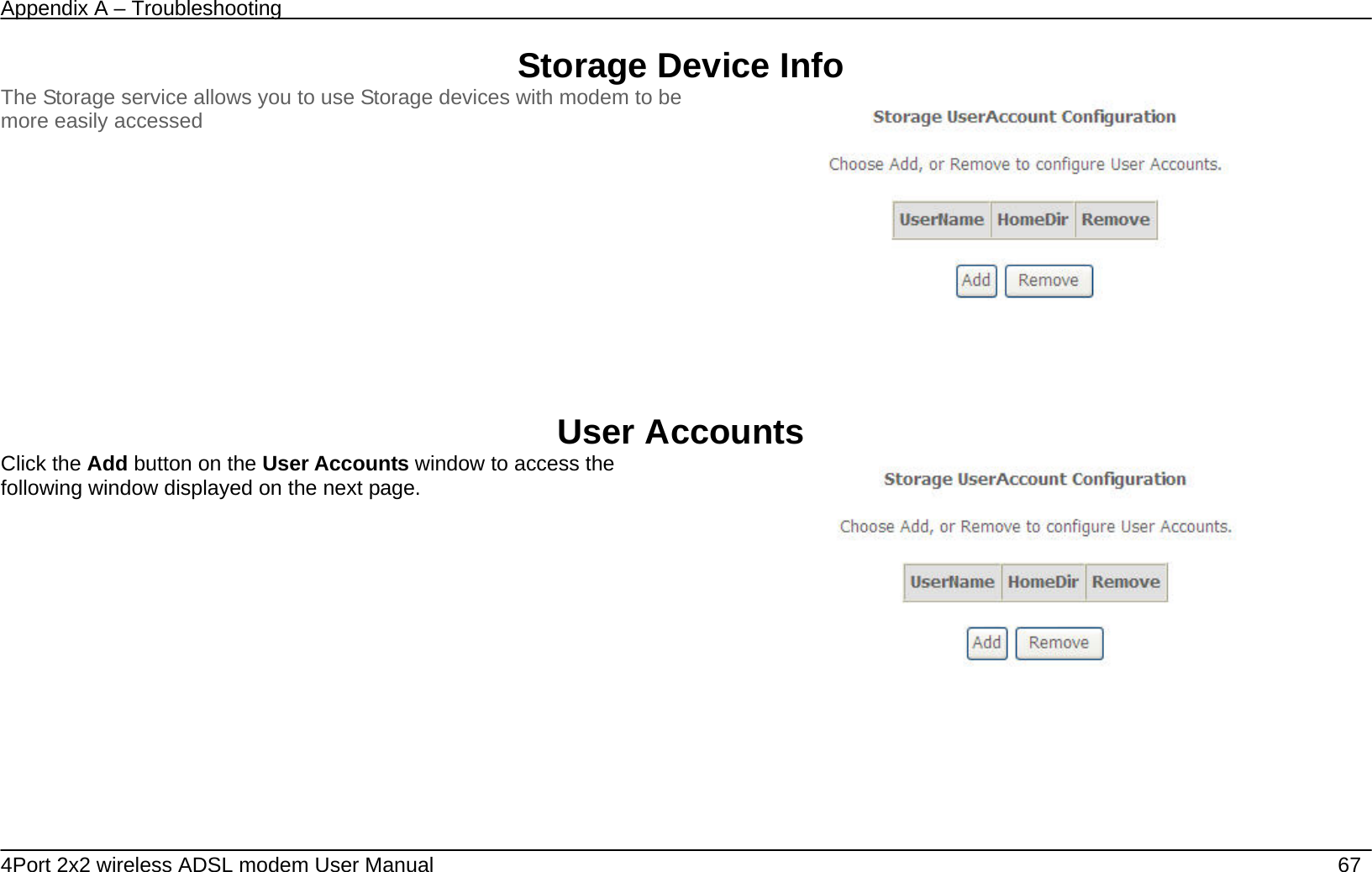
Appendix A – Troubleshooting   4Port 2x2 wireless ADSL modem User Manual    67 Storage Device Info The Storage service allows you to use Storage devices with modem to be more easily accessed      User Accounts Click the Add button on the User Accounts window to access the following window displayed on the next page.
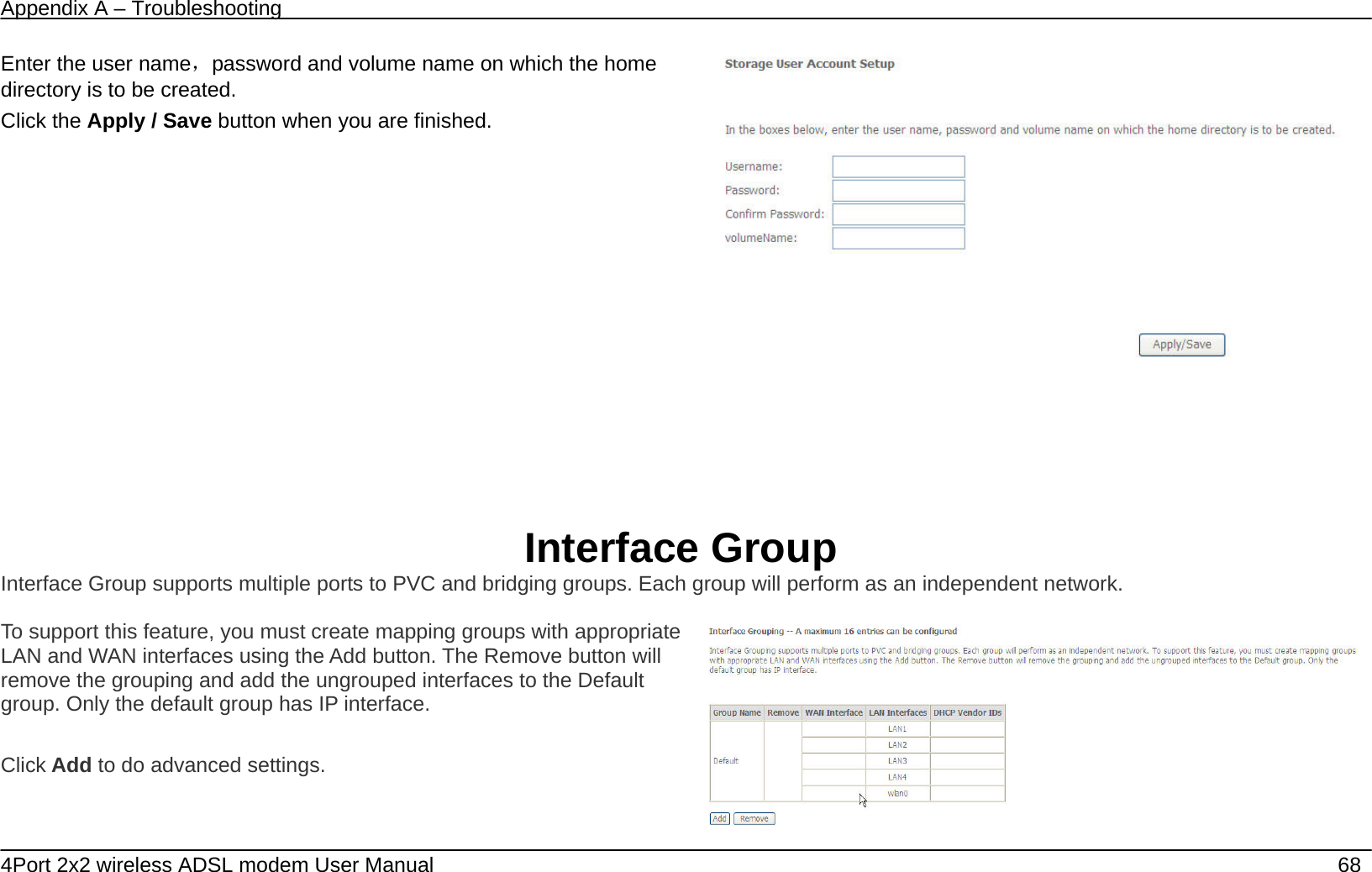
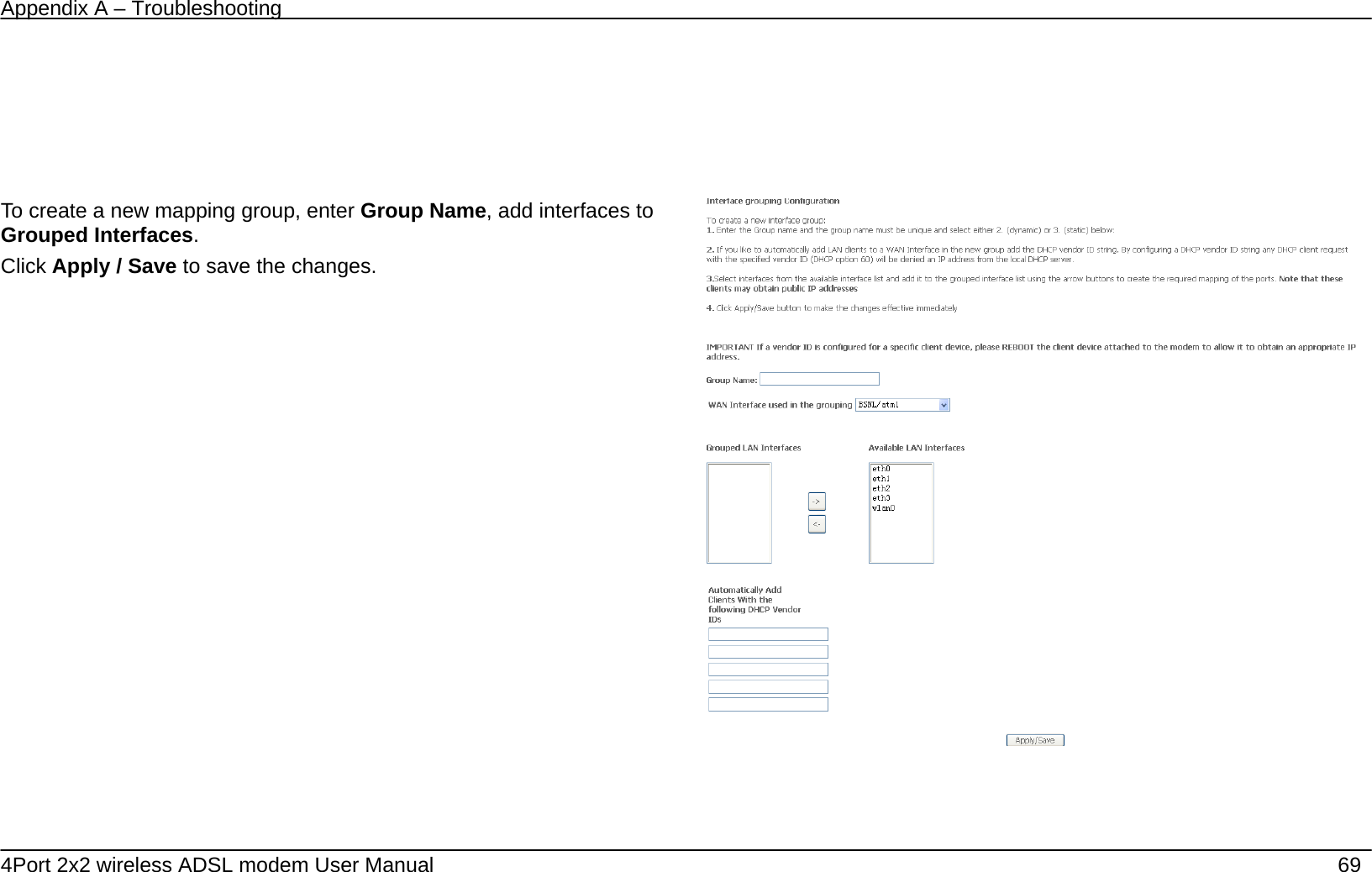
Appendix A – Troubleshooting   4Port 2x2 wireless ADSL modem User Manual    68 Enter the user name,password and volume name on which the home directory is to be created. Click the Apply / Save button when you are finished.      Interface Group Interface Group supports multiple ports to PVC and bridging groups. Each group will perform as an independent network.  To support this feature, you must create mapping groups with appropriate LAN and WAN interfaces using the Add button. The Remove button will remove the grouping and add the ungrouped interfaces to the Default group. Only the default group has IP interface.  Click Add to do advanced settings.
Appendix A – Troubleshooting   4Port 2x2 wireless ADSL modem User Manual    69        To create a new mapping group, enter Group Name, add interfaces to Grouped Interfaces. Click Apply / Save to save the changes.
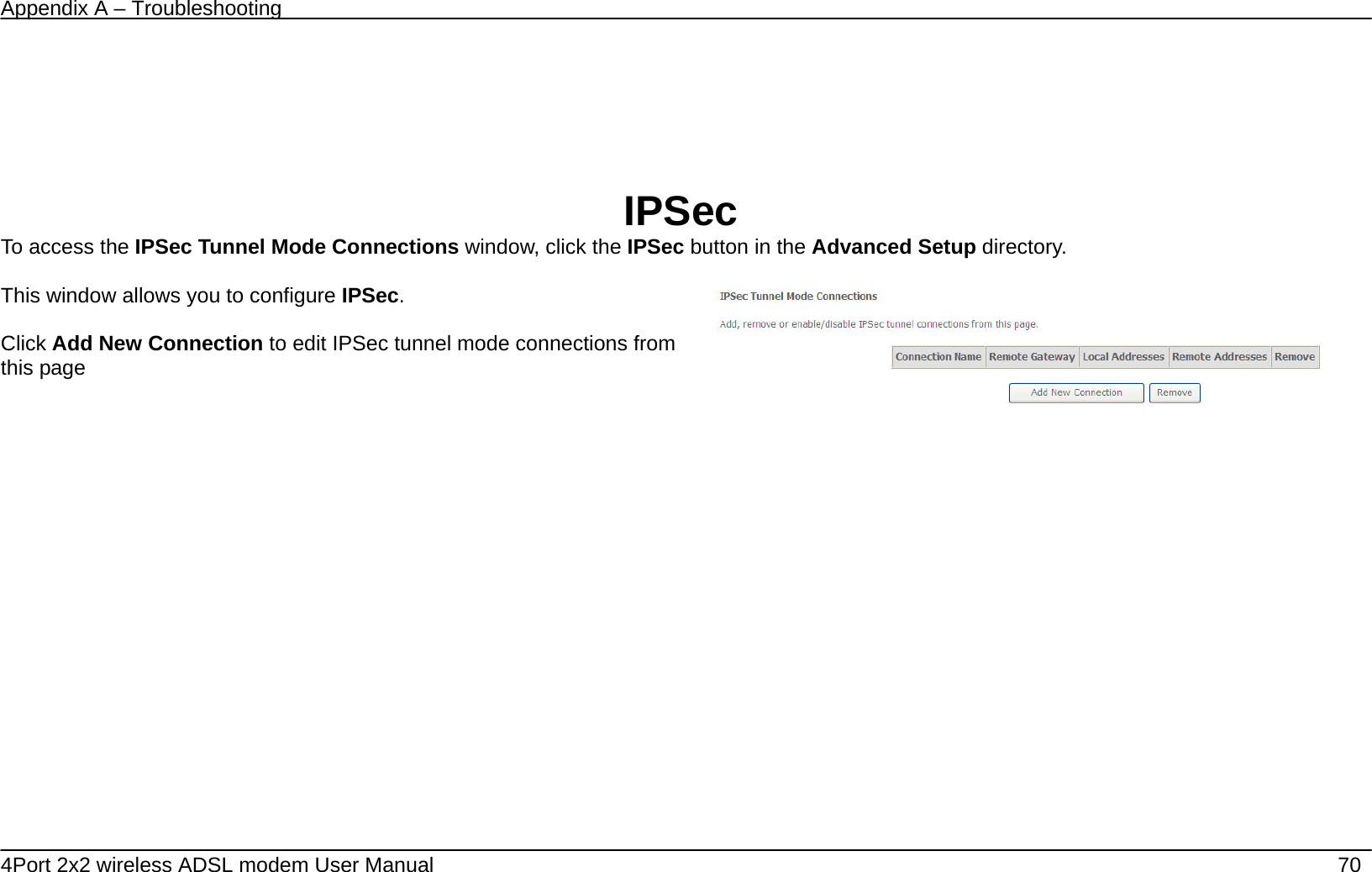
Appendix A – Troubleshooting   4Port 2x2 wireless ADSL modem User Manual    70      IPSec To access the IPSec Tunnel Mode Connections window, click the IPSec button in the Advanced Setup directory.  This window allows you to configure IPSec.  Click Add New Connection to edit IPSec tunnel mode connections from this page
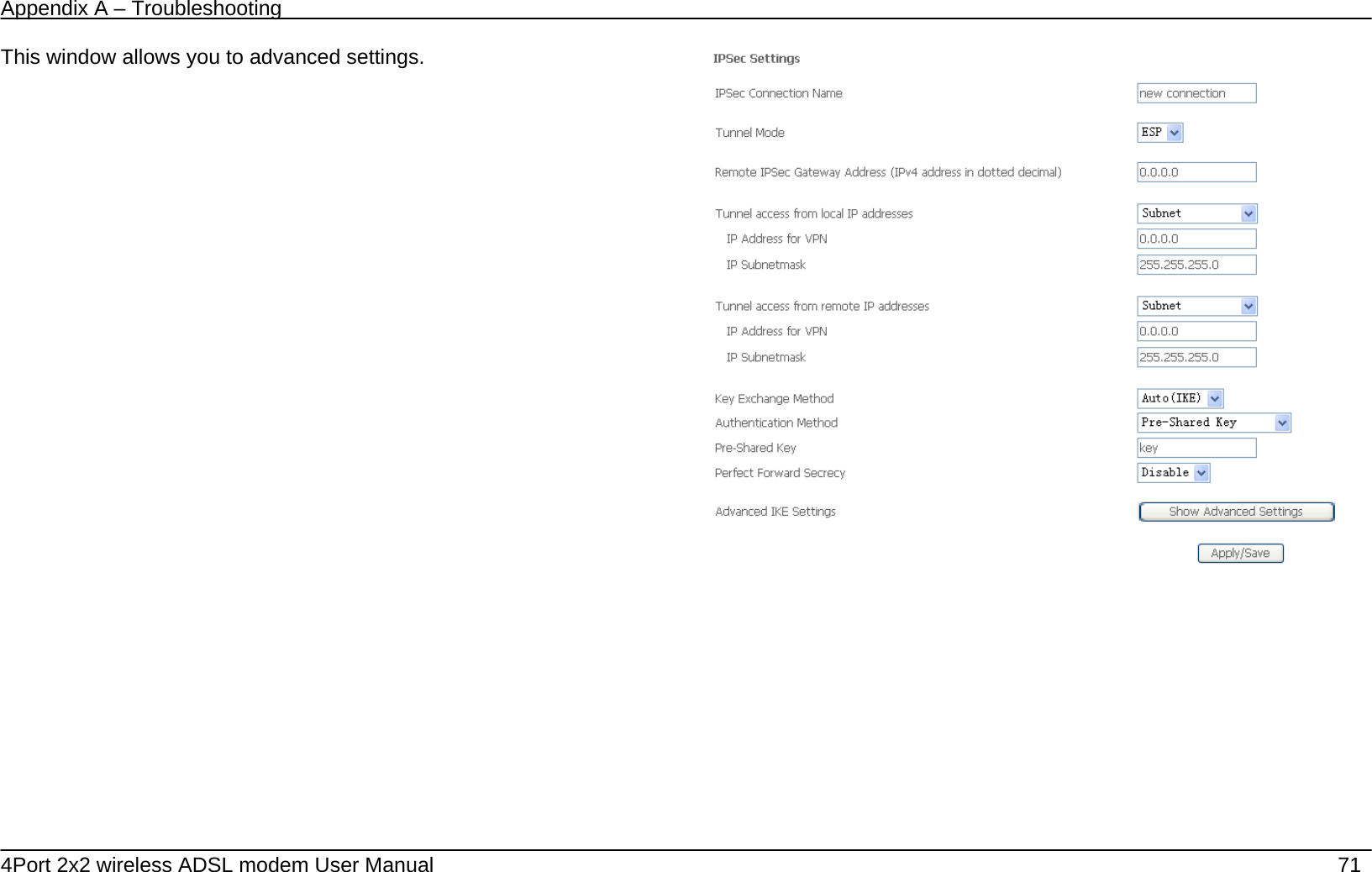
Appendix A – Troubleshooting   4Port 2x2 wireless ADSL modem User Manual    71 This window allows you to advanced settings.
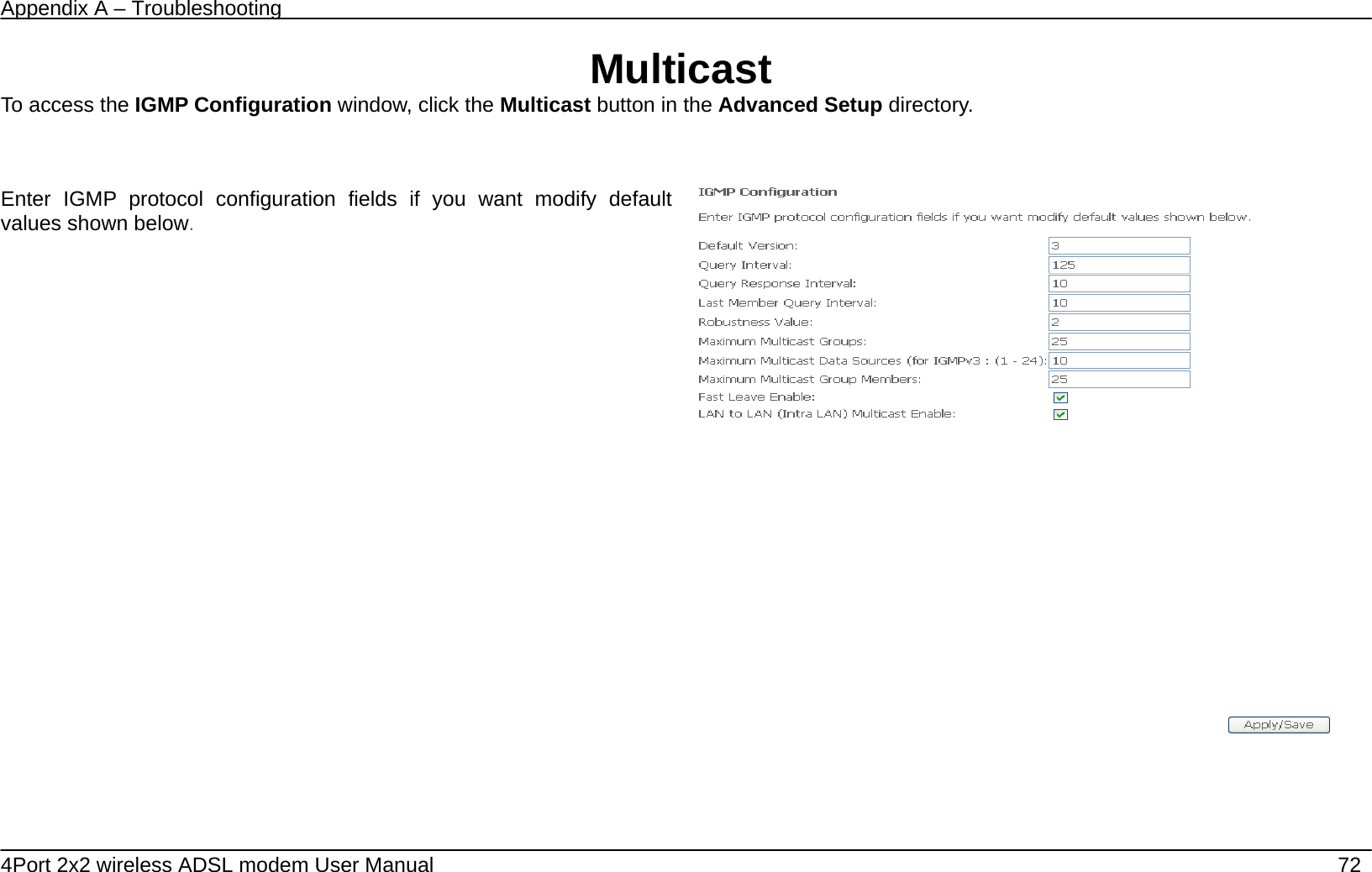
Appendix A – Troubleshooting   4Port 2x2 wireless ADSL modem User Manual    72 Multicast To access the IGMP Configuration window, click the Multicast button in the Advanced Setup directory.   Enter IGMP protocol configuration fields if you want modify default values shown below.
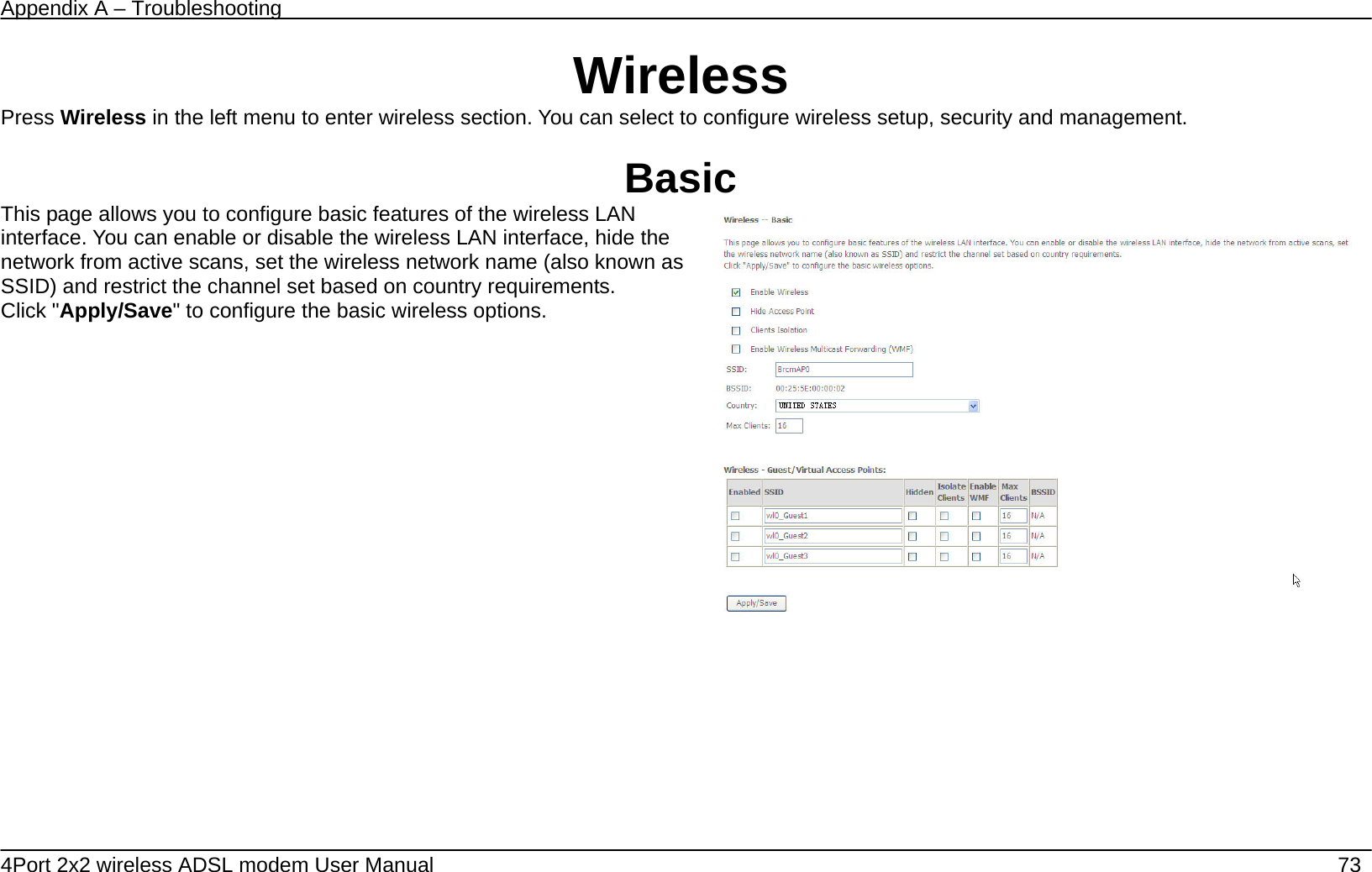
Appendix A – Troubleshooting   4Port 2x2 wireless ADSL modem User Manual    73 Wireless Press Wireless in the left menu to enter wireless section. You can select to configure wireless setup, security and management.  Basic This page allows you to configure basic features of the wireless LAN interface. You can enable or disable the wireless LAN interface, hide the network from active scans, set the wireless network name (also known as SSID) and restrict the channel set based on country requirements. Click "Apply/Save" to configure the basic wireless options.
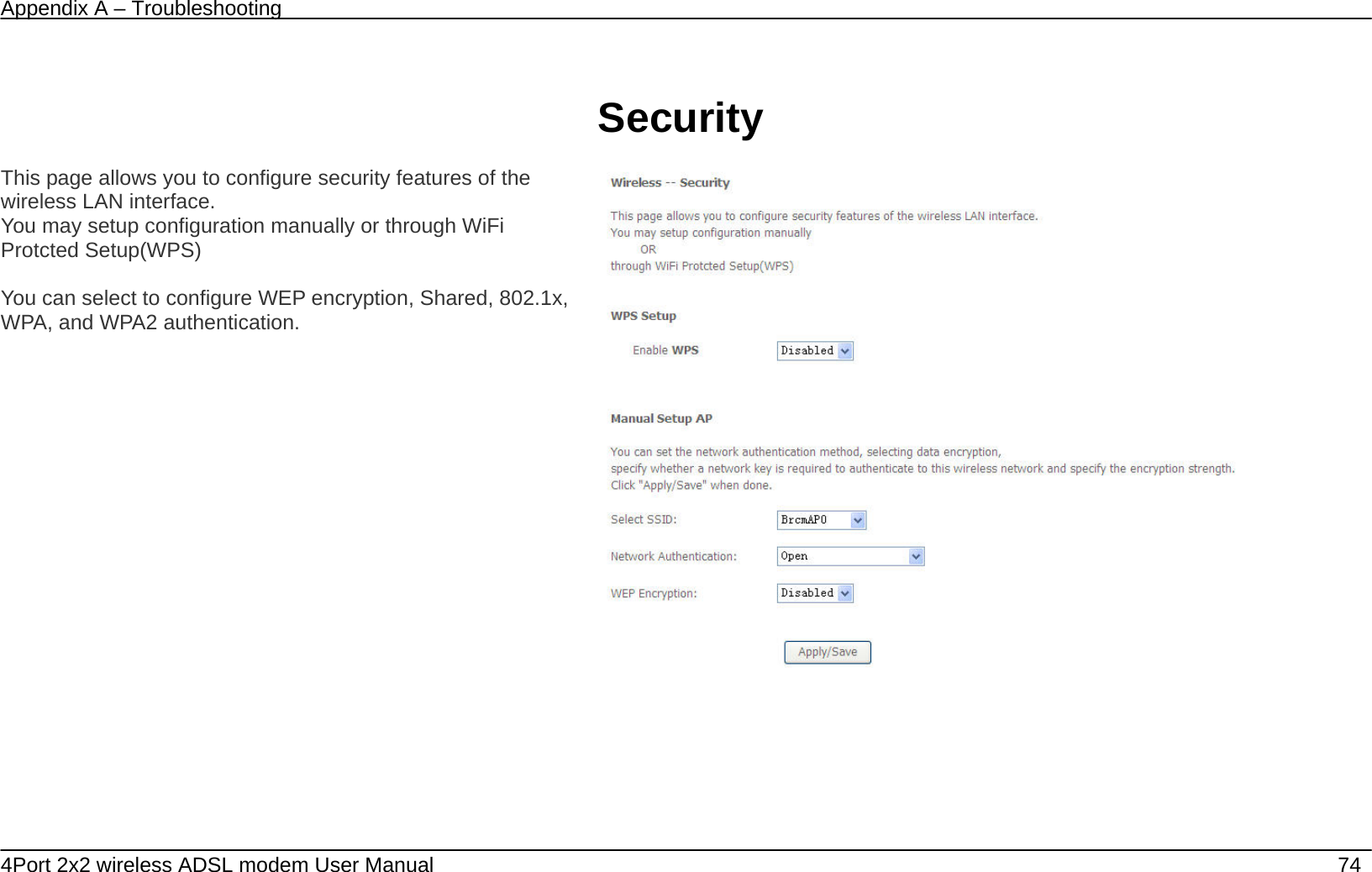
Appendix A – Troubleshooting   4Port 2x2 wireless ADSL modem User Manual    74  Security  This page allows you to configure security features of the wireless LAN interface. You may setup configuration manually or through WiFi Protcted Setup(WPS)    You can select to configure WEP encryption, Shared, 802.1x, WPA, and WPA2 authentication.
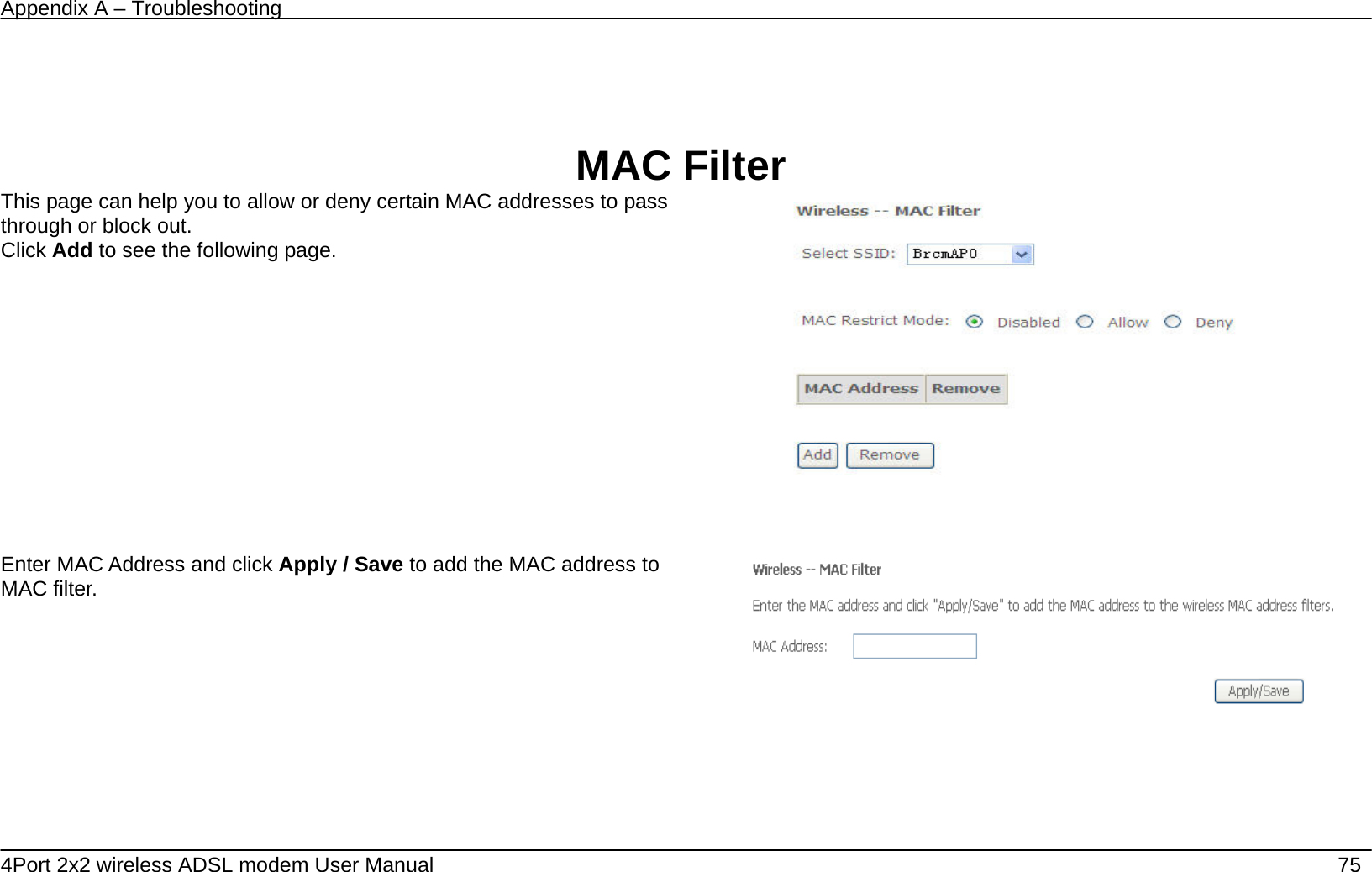
Appendix A – Troubleshooting   4Port 2x2 wireless ADSL modem User Manual    75   MAC Filter This page can help you to allow or deny certain MAC addresses to pass through or block out. Click Add to see the following page.    Enter MAC Address and click Apply / Save to add the MAC address to MAC filter.
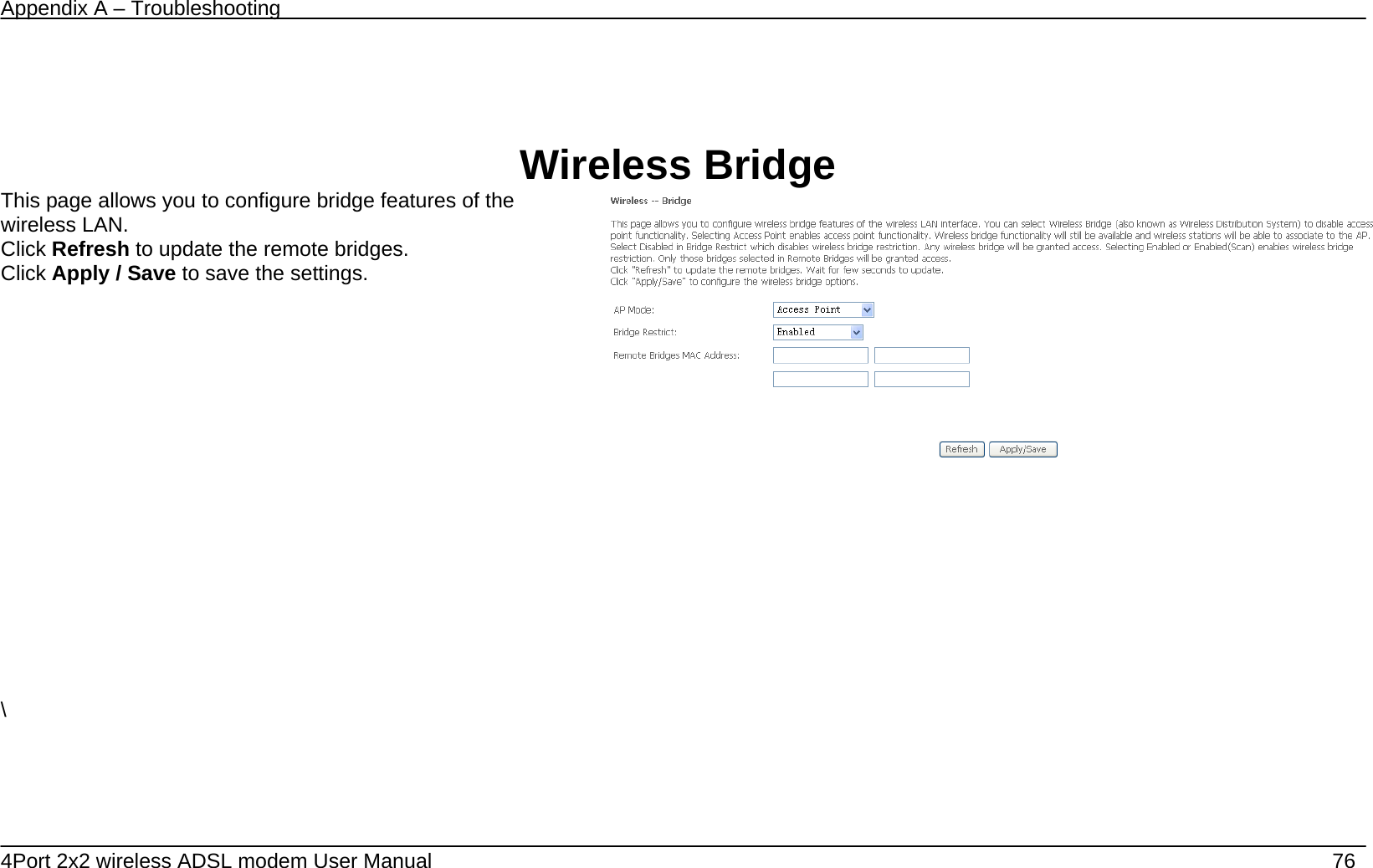
Appendix A – Troubleshooting   4Port 2x2 wireless ADSL modem User Manual    76   Wireless Bridge This page allows you to configure bridge features of the wireless LAN. Click Refresh to update the remote bridges. Click Apply / Save to save the settings.             \
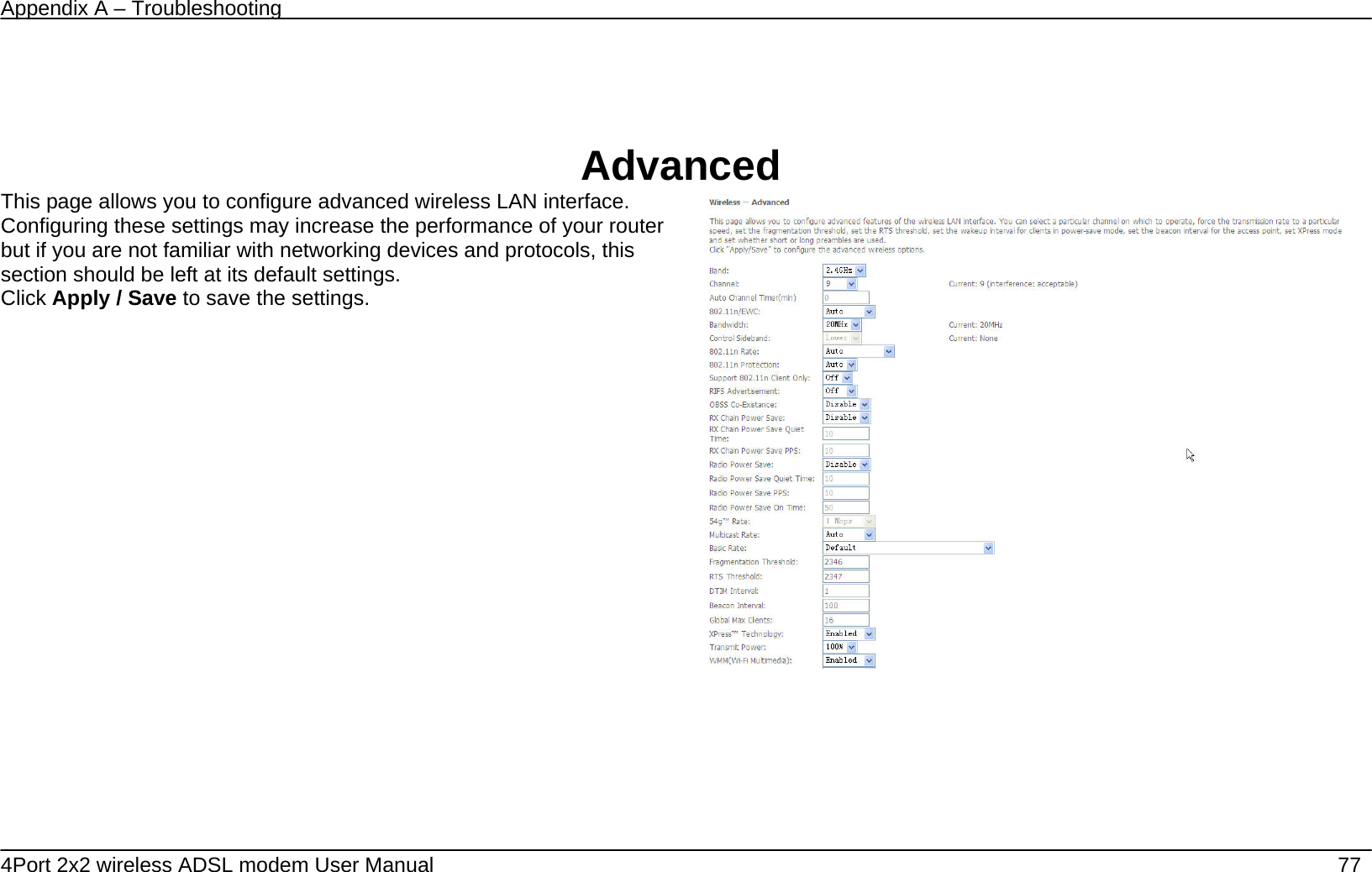
Appendix A – Troubleshooting   4Port 2x2 wireless ADSL modem User Manual    77   Advanced This page allows you to configure advanced wireless LAN interface. Configuring these settings may increase the performance of your router but if you are not familiar with networking devices and protocols, this section should be left at its default settings. Click Apply / Save to save the settings.
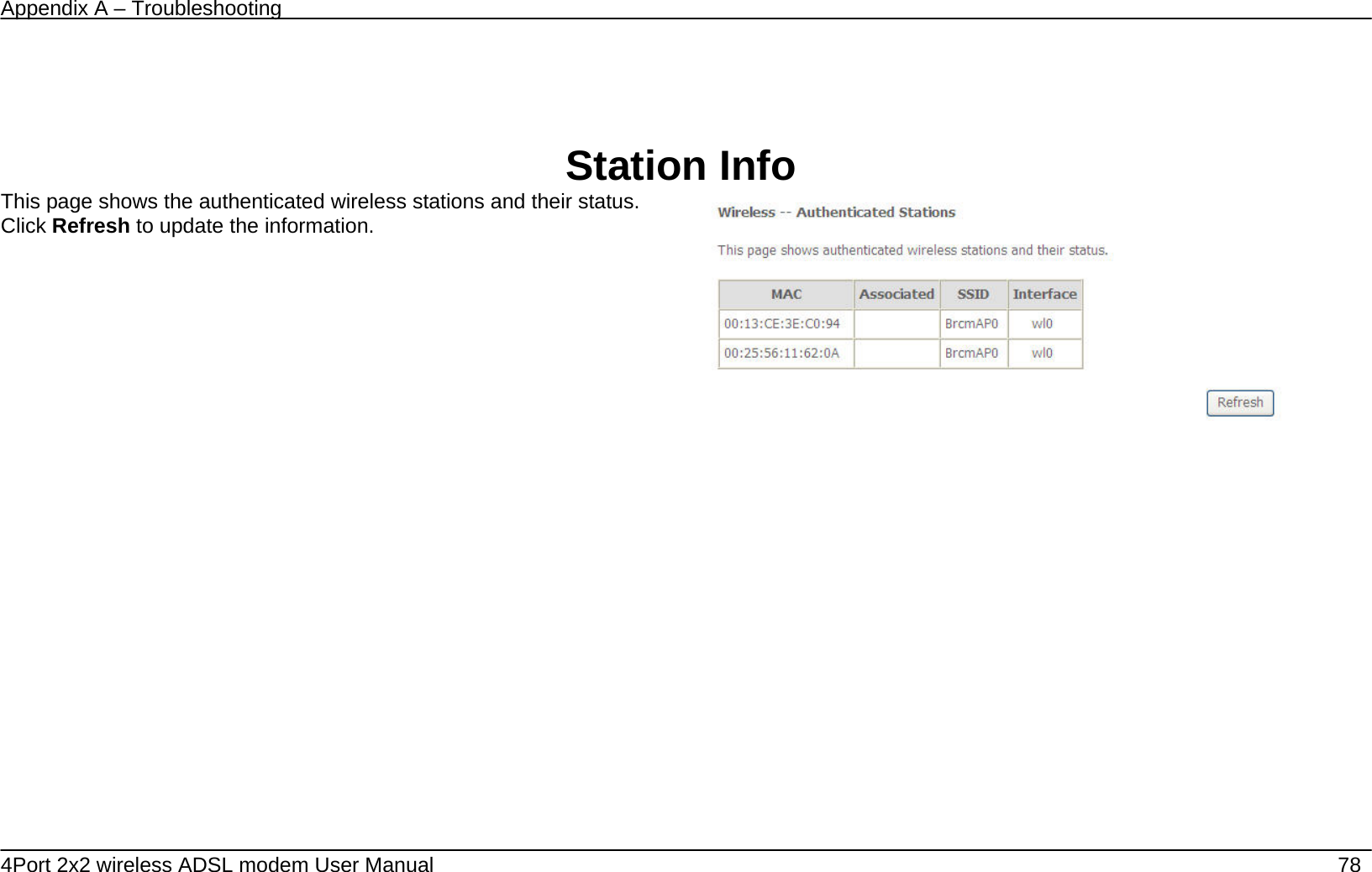
Appendix A – Troubleshooting   4Port 2x2 wireless ADSL modem User Manual    78    Station Info This page shows the authenticated wireless stations and their status. Click Refresh to update the information.
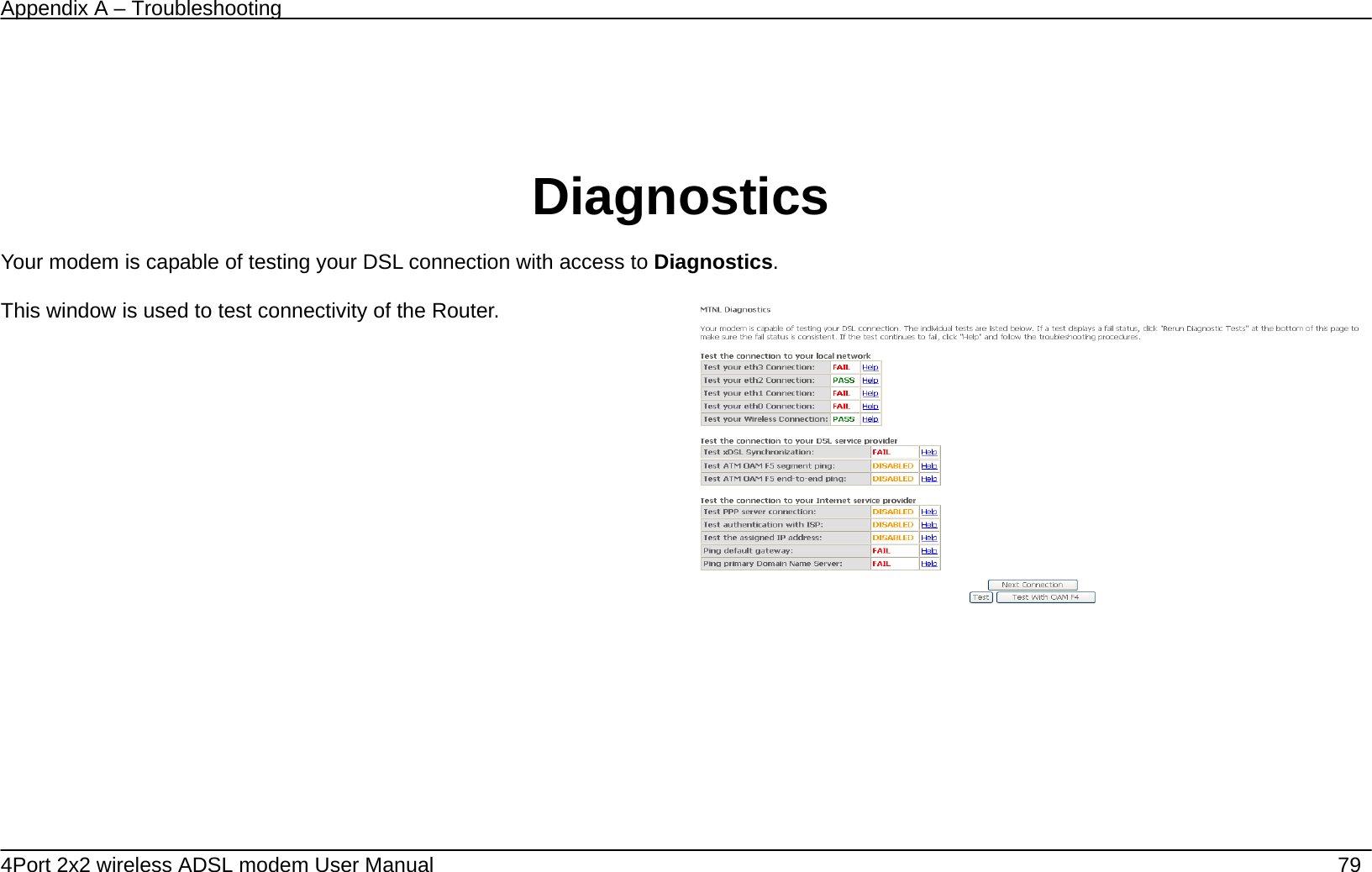
Appendix A – Troubleshooting   4Port 2x2 wireless ADSL modem User Manual    79      Diagnostics  Your modem is capable of testing your DSL connection with access to Diagnostics.  This window is used to test connectivity of the Router.
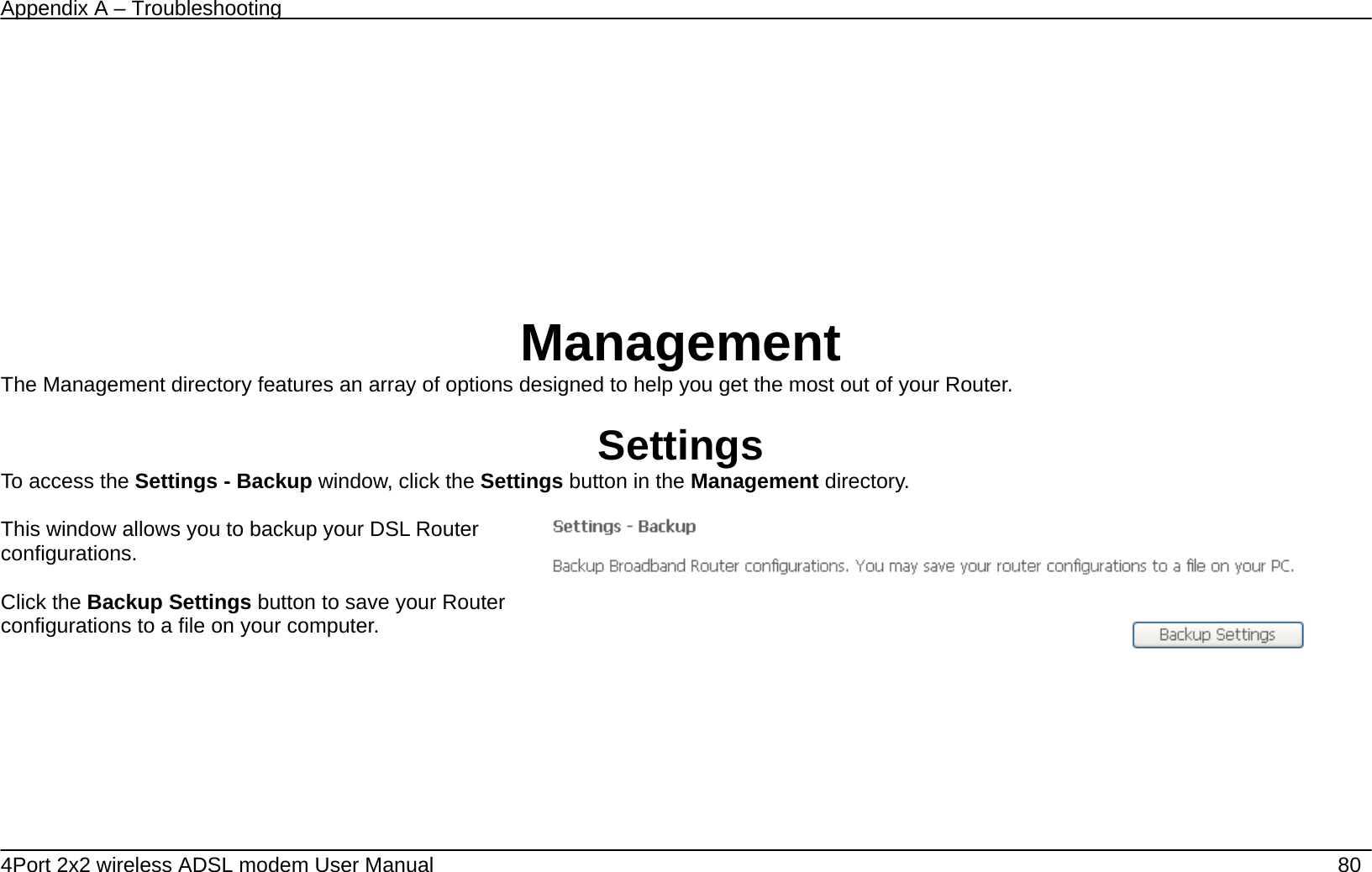
Appendix A – Troubleshooting   4Port 2x2 wireless ADSL modem User Manual    80   Management The Management directory features an array of options designed to help you get the most out of your Router.  Settings To access the Settings - Backup window, click the Settings button in the Management directory.  This window allows you to backup your DSL Router configurations.  Click the Backup Settings button to save your Router configurations to a file on your computer.
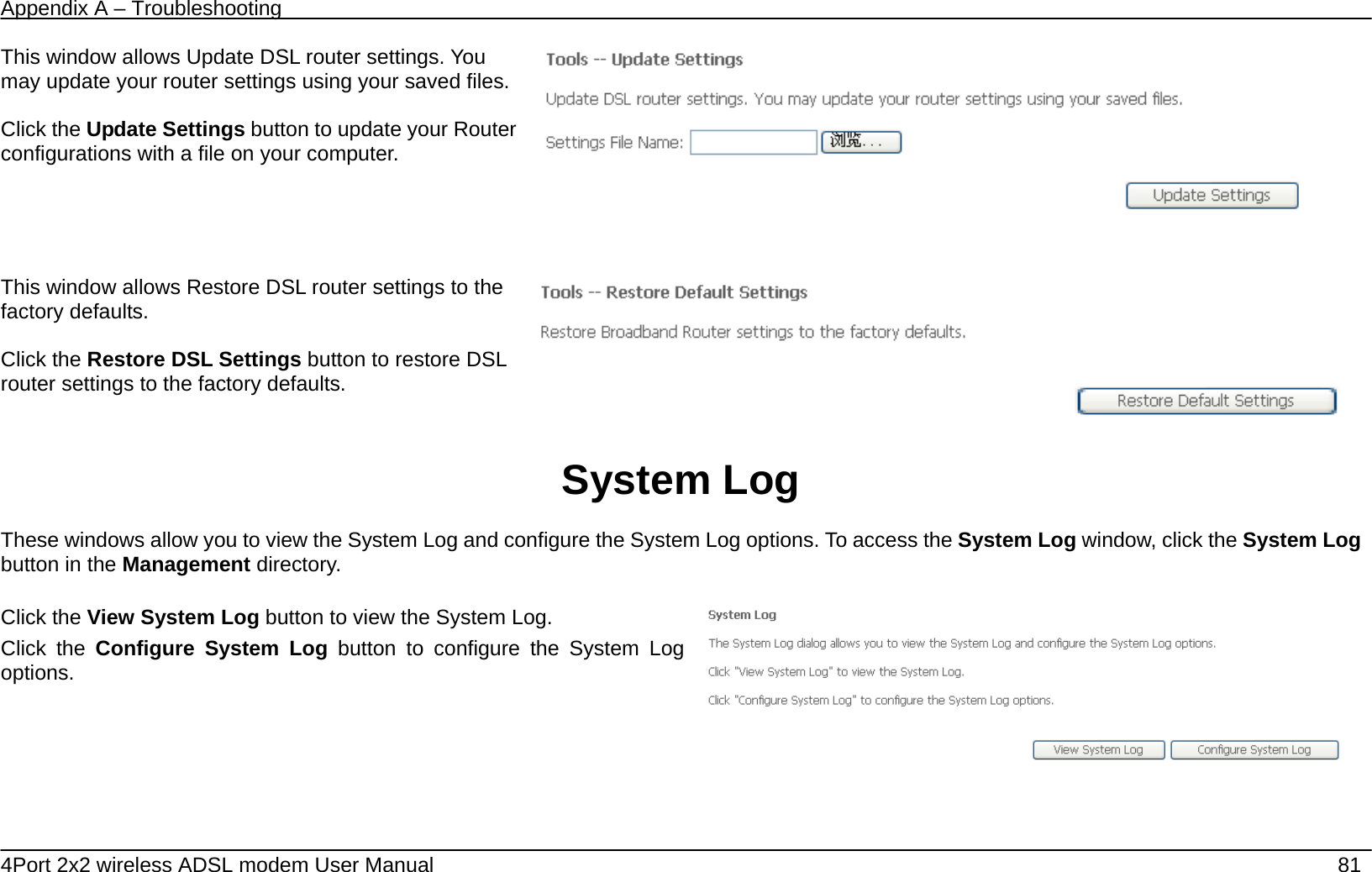
Appendix A – Troubleshooting   4Port 2x2 wireless ADSL modem User Manual    81 This window allows Update DSL router settings. You may update your router settings using your saved files.  Click the Update Settings button to update your Router configurations with a file on your computer.    This window allows Restore DSL router settings to the factory defaults.  Click the Restore DSL Settings button to restore DSL router settings to the factory defaults.     System Log  These windows allow you to view the System Log and configure the System Log options. To access the System Log window, click the System Log button in the Management directory.  Click the View System Log button to view the System Log. Click the Configure System Log button to configure the System Log options.
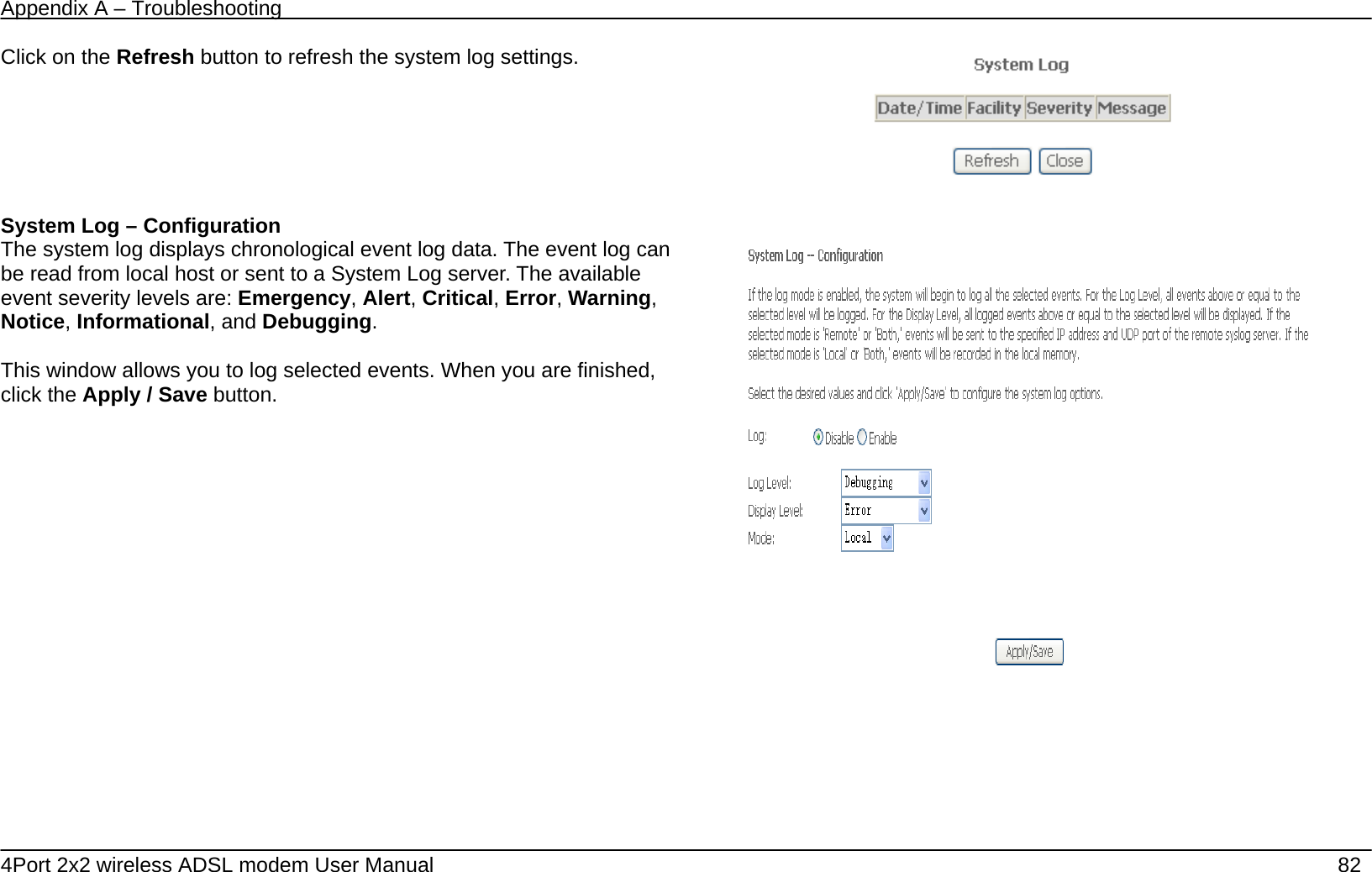
Appendix A – Troubleshooting   4Port 2x2 wireless ADSL modem User Manual    82 Click on the Refresh button to refresh the system log settings.   System Log – Configuration The system log displays chronological event log data. The event log can be read from local host or sent to a System Log server. The available event severity levels are: Emergency, Alert, Critical, Error, Warning, Notice, Informational, and Debugging.  This window allows you to log selected events. When you are finished, click the Apply / Save button.
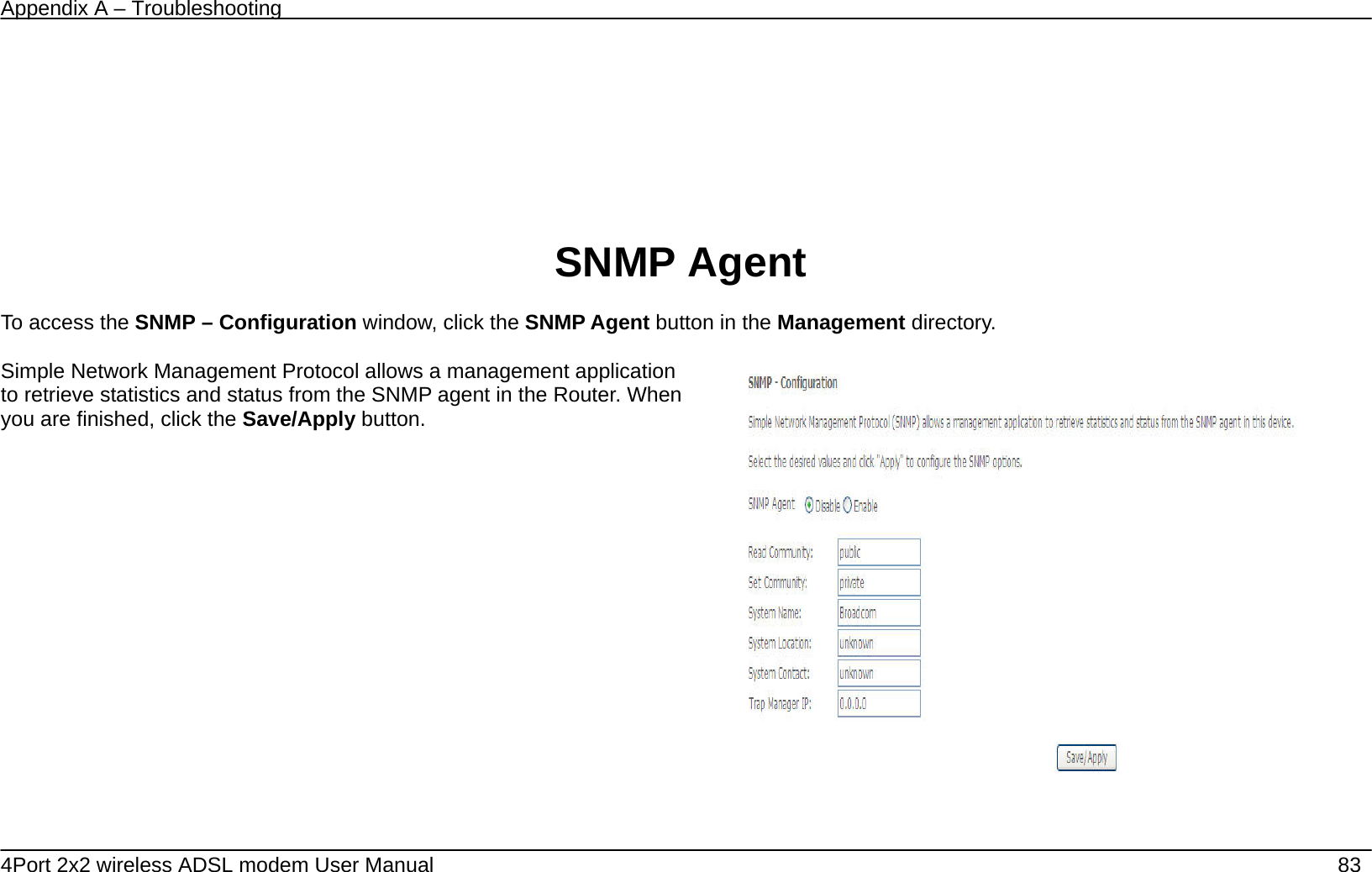
Appendix A – Troubleshooting   4Port 2x2 wireless ADSL modem User Manual    83     SNMP Agent  To access the SNMP – Configuration window, click the SNMP Agent button in the Management directory.  Simple Network Management Protocol allows a management application to retrieve statistics and status from the SNMP agent in the Router. When you are finished, click the Save/Apply button.
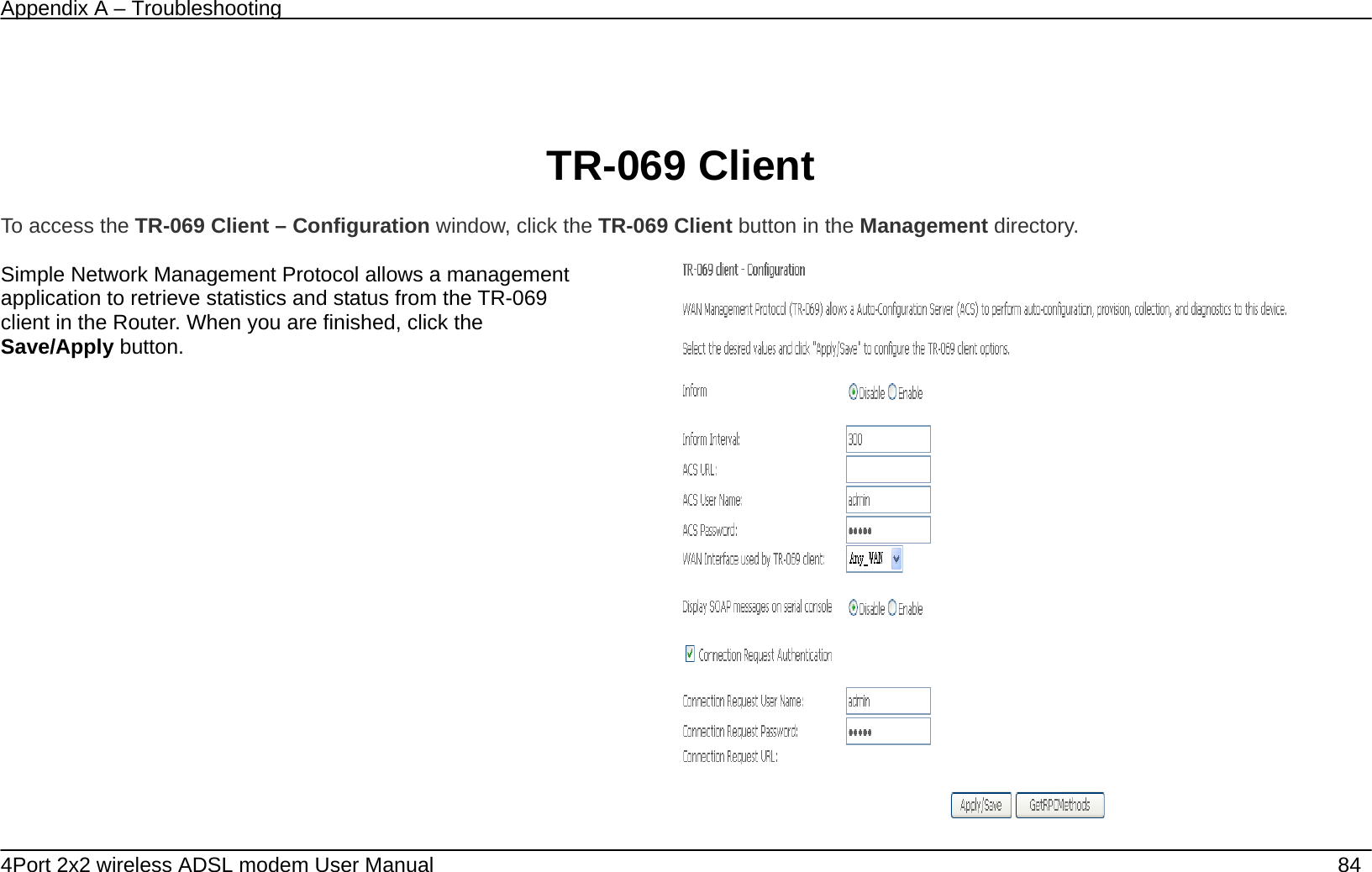
Appendix A – Troubleshooting   4Port 2x2 wireless ADSL modem User Manual    84   TR-069 Client  To access the TR-069 Client – Configuration window, click the TR-069 Client button in the Management directory.  Simple Network Management Protocol allows a management application to retrieve statistics and status from the TR-069 client in the Router. When you are finished, click the Save/Apply button.
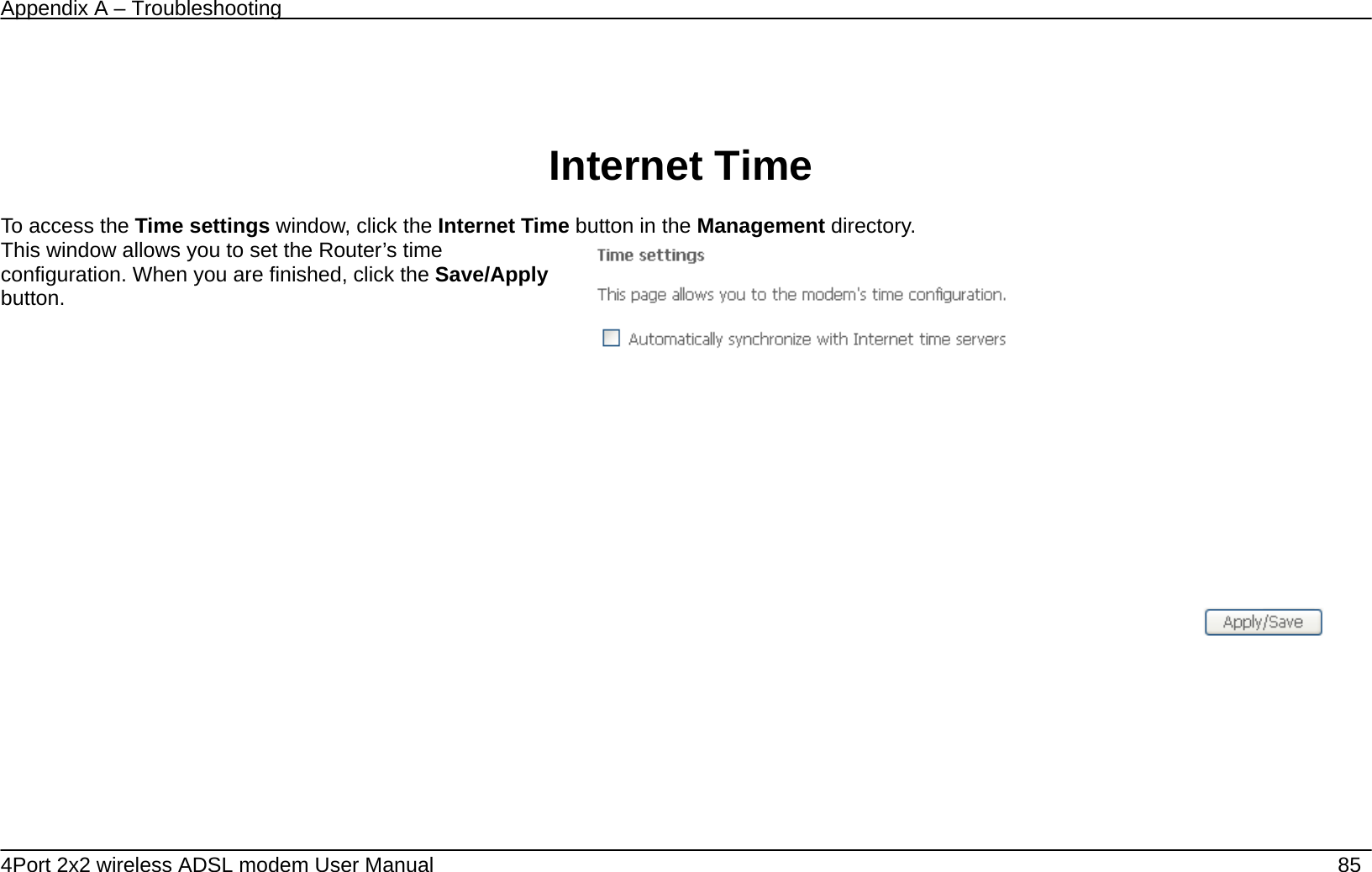
Appendix A – Troubleshooting   4Port 2x2 wireless ADSL modem User Manual    85   Internet Time  To access the Time settings window, click the Internet Time button in the Management directory. This window allows you to set the Router’s time configuration. When you are finished, click the Save/Apply button.
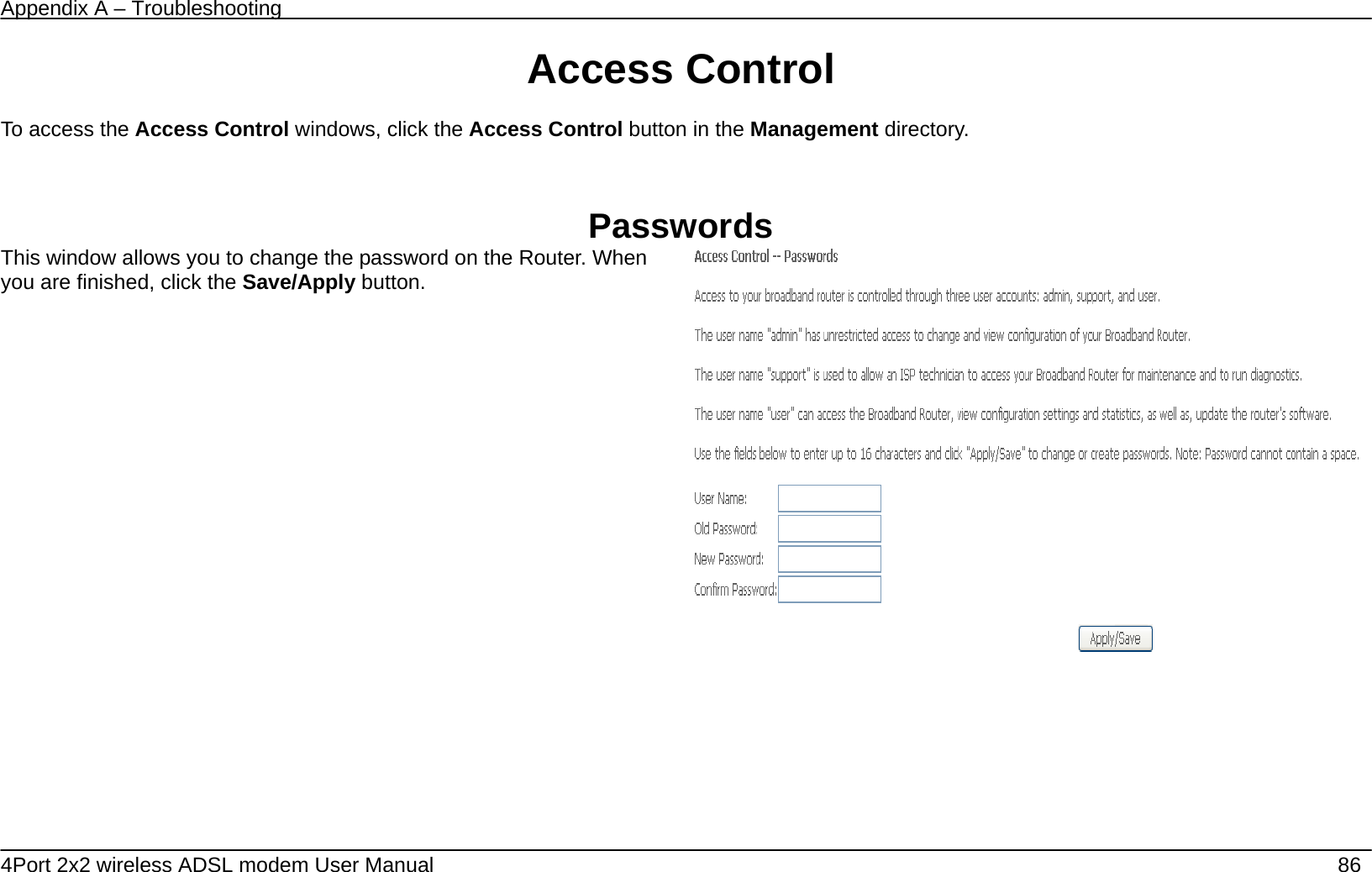
Appendix A – Troubleshooting   4Port 2x2 wireless ADSL modem User Manual    86 Access Control  To access the Access Control windows, click the Access Control button in the Management directory.   Passwords This window allows you to change the password on the Router. When you are finished, click the Save/Apply button.
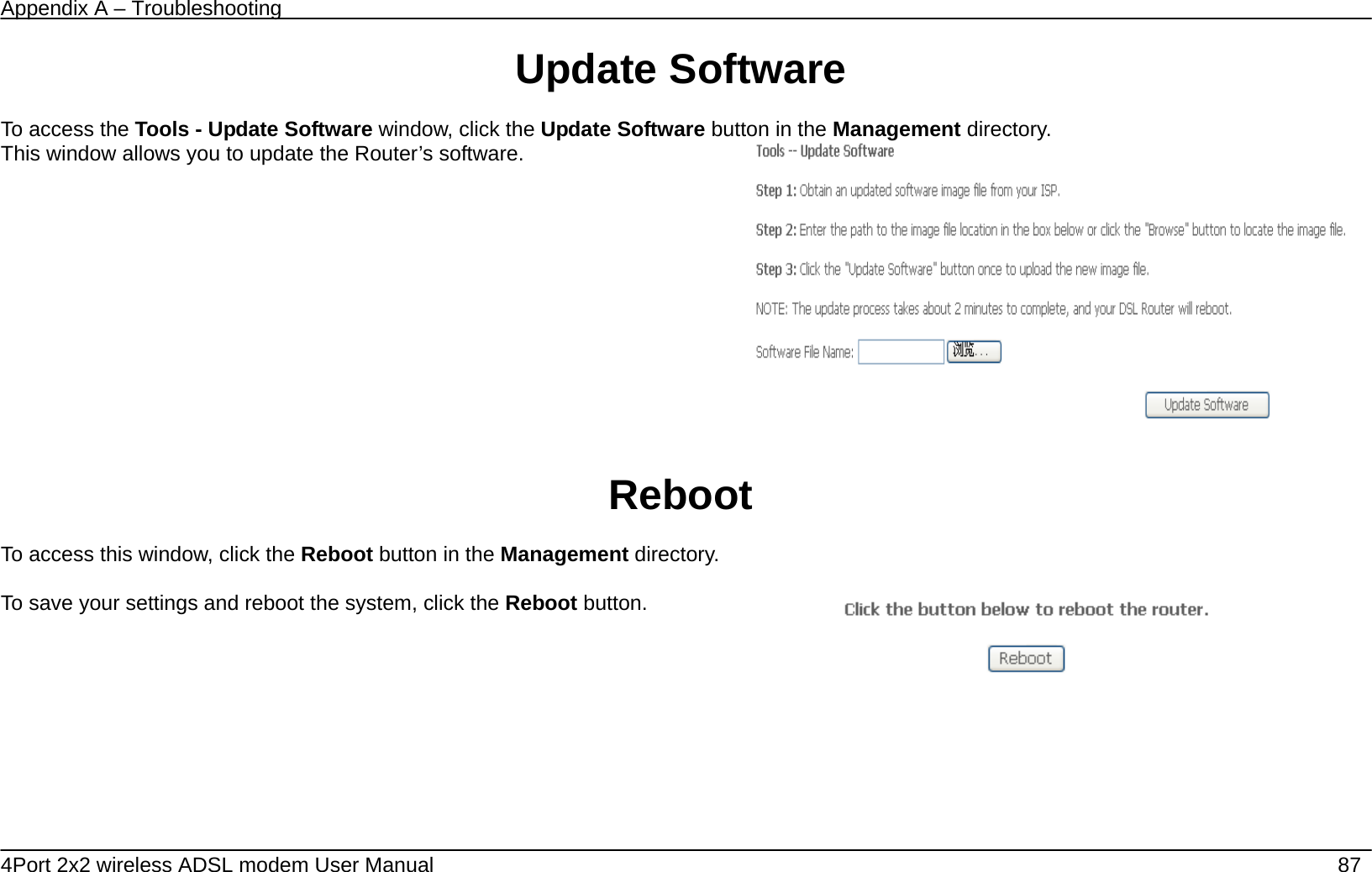
Appendix A – Troubleshooting   4Port 2x2 wireless ADSL modem User Manual    87 Update Software  To access the Tools - Update Software window, click the Update Software button in the Management directory. This window allows you to update the Router’s software.      Reboot  To access this window, click the Reboot button in the Management directory.  To save your settings and reboot the system, click the Reboot button.
Appendix A – Troubleshooting   4Port 2x2 wireless ADSL modem User Manual    88  Troubleshooting This chapter provides solutions to problems that might occur during the installation and operation of the 4port 2x2 Wireless ADSL Router. Read the following descriptions if you are having problems. (The examples below are illustrated in Windows® XP. If you have a different operating system, the screenshots on your computer will look similar to the following examples.)  1.    How do I configure my 4port 2x2 Wireless ADSL Router without the CD-ROM?  •  Connect your PC to the Router using an Ethernet cable. •  Open a web browser and enter the address http://192.168.1.1  •  The default username is ‘admin’ and the default password is ‘admin’. •  If you have changed the password and cannot remember it, you will need to reset the Router to the factory default setting (see question 2), which will set the password back to ‘admin’.  Note:   Please refer to the next section “Networking Basics” to check your PC’s IP configuration if you can’t see the login windows.  2.    How do I reset my Router to the factory default settings?  •  Ensure the Router is powered on. •  Press and hold the reset button on the back of the device for approximately 10 seconds. •  This process should take around 30~60 seconds.     3.    What can I do if my Router is not working correctly?  There are a few quick steps you can take to try and resolve any issues: •  Follow the directions in Question 2 to reset the Router. •  Check that all the cables are firmly connected at both ends. •  Check the LEDs on the front of the Router. The Power indicator should be on, the Status indicator should flash, and the DSL and LAN
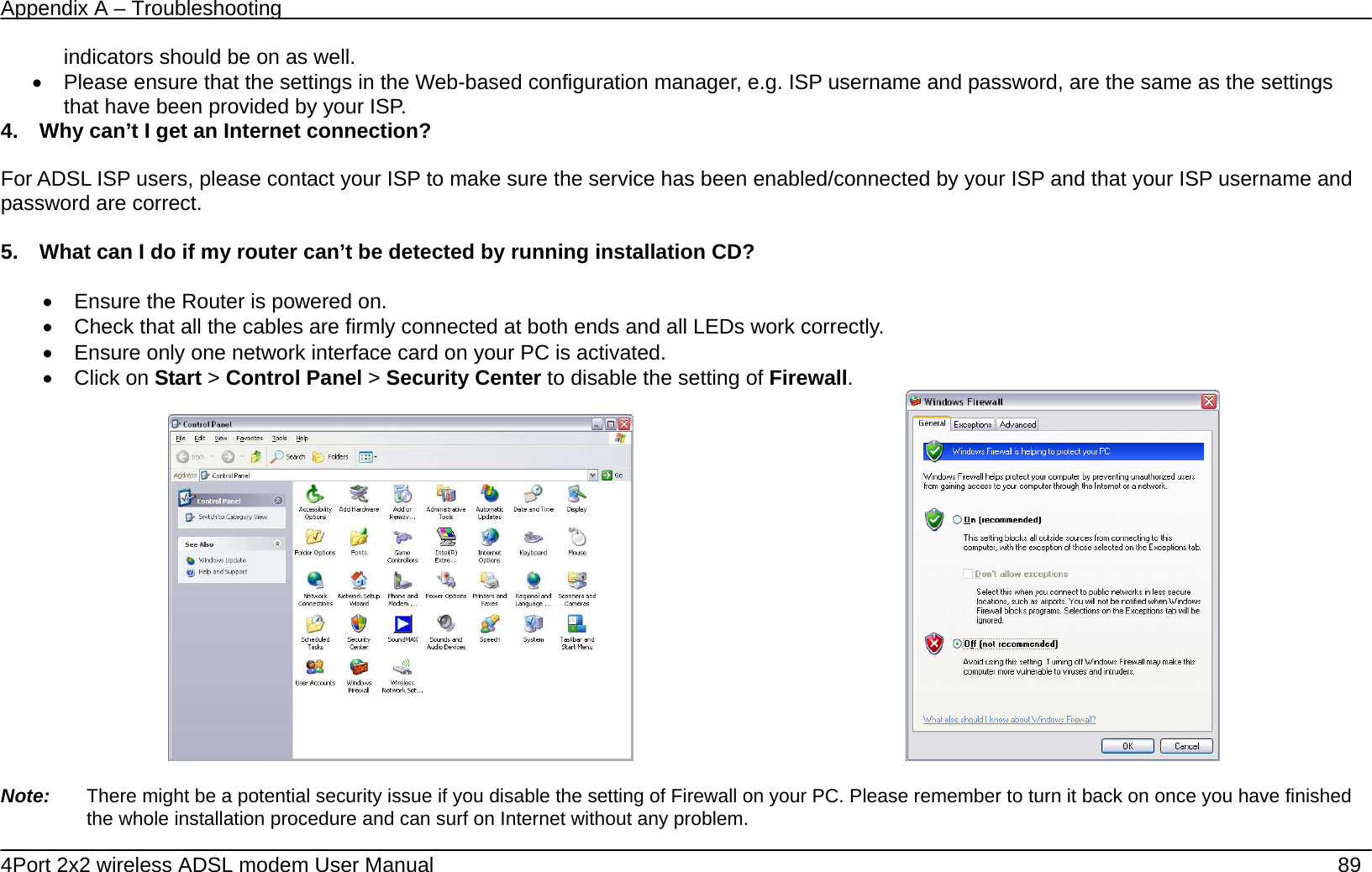
Appendix A – Troubleshooting   4Port 2x2 wireless ADSL modem User Manual    89 indicators should be on as well. •  Please ensure that the settings in the Web-based configuration manager, e.g. ISP username and password, are the same as the settings that have been provided by your ISP.   4.    Why can’t I get an Internet connection?  For ADSL ISP users, please contact your ISP to make sure the service has been enabled/connected by your ISP and that your ISP username and password are correct.  5.    What can I do if my router can’t be detected by running installation CD?  •  Ensure the Router is powered on. •  Check that all the cables are firmly connected at both ends and all LEDs work correctly.   •  Ensure only one network interface card on your PC is activated. • Click on Start > Control Panel > Security Center to disable the setting of Firewall.                                               Note:    There might be a potential security issue if you disable the setting of Firewall on your PC. Please remember to turn it back on once you have finished the whole installation procedure and can surf on Internet without any problem.
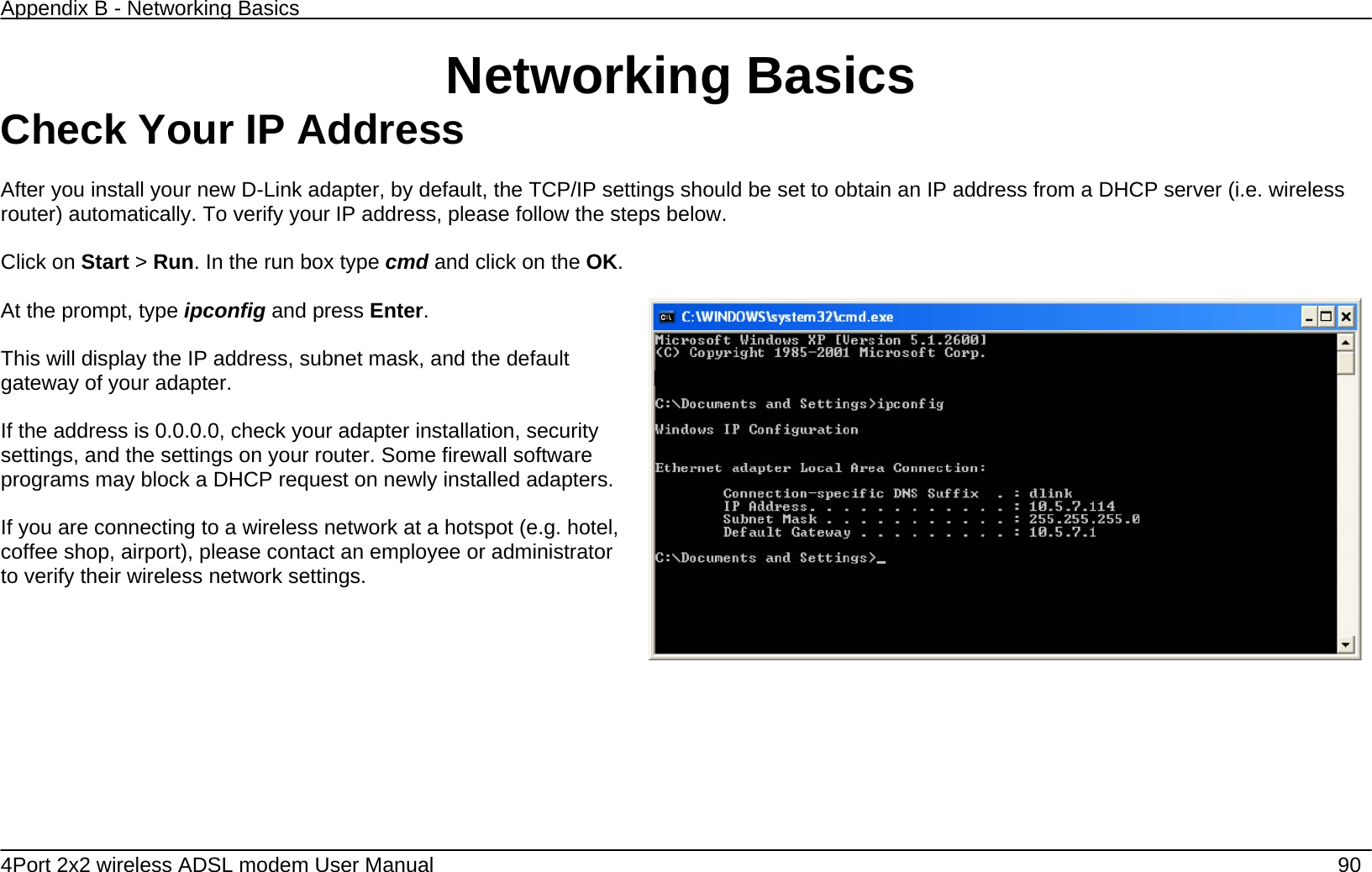
Appendix B - Networking Basics   4Port 2x2 wireless ADSL modem User Manual    90 Networking Basics Check Your IP Address  After you install your new D-Link adapter, by default, the TCP/IP settings should be set to obtain an IP address from a DHCP server (i.e. wireless router) automatically. To verify your IP address, please follow the steps below.  Click on Start > Run. In the run box type cmd and click on the OK.  At the prompt, type ipconfig and press Enter.  This will display the IP address, subnet mask, and the default gateway of your adapter.  If the address is 0.0.0.0, check your adapter installation, security settings, and the settings on your router. Some firewall software programs may block a DHCP request on newly installed adapters.  If you are connecting to a wireless network at a hotspot (e.g. hotel, coffee shop, airport), please contact an employee or administrator to verify their wireless network settings.
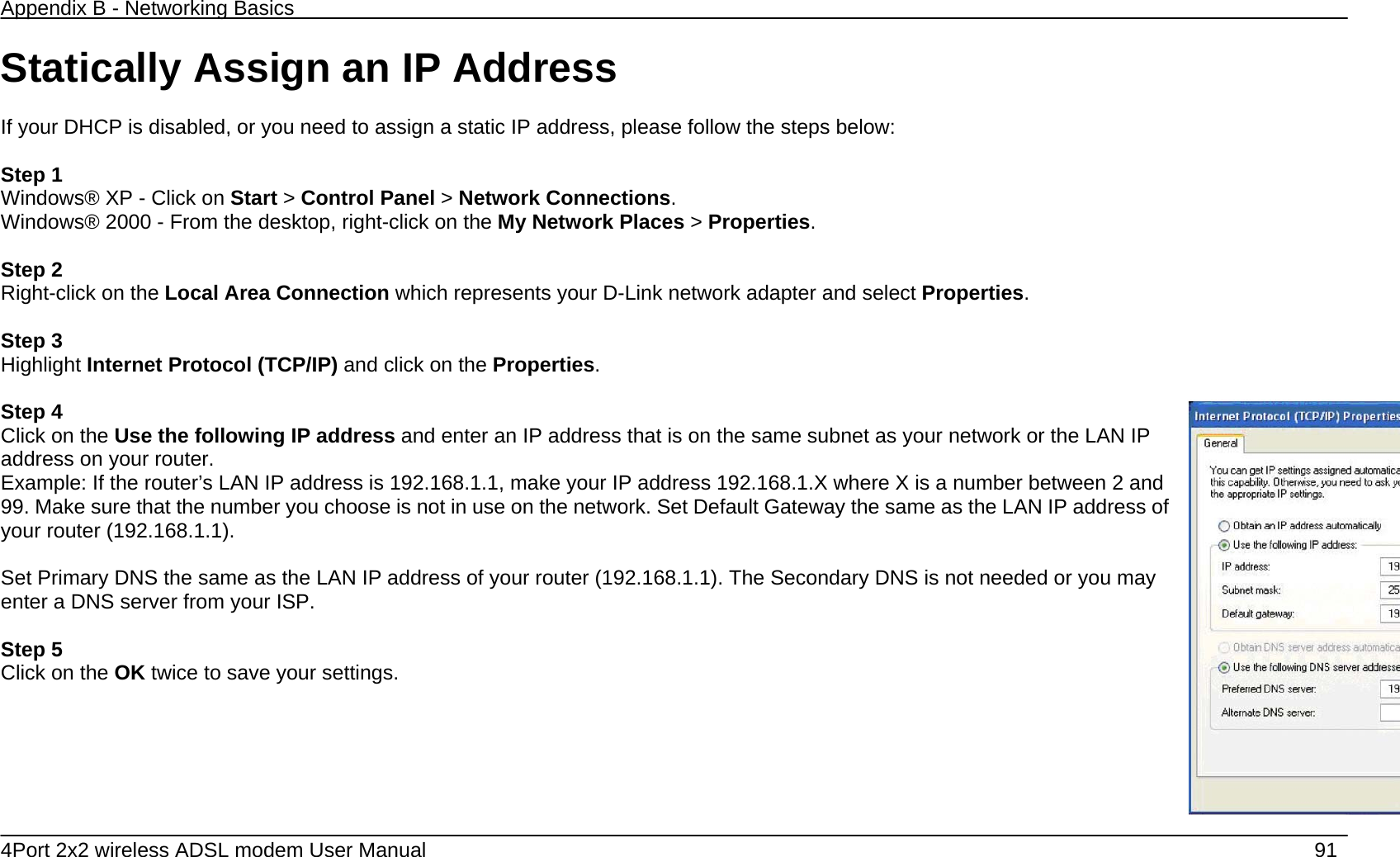
Appendix B - Networking Basics   4Port 2x2 wireless ADSL modem User Manual    91 Statically Assign an IP Address  If your DHCP is disabled, or you need to assign a static IP address, please follow the steps below:  Step 1 Windows® XP - Click on Start > Control Panel > Network Connections. Windows® 2000 - From the desktop, right-click on the My Network Places > Properties.  Step 2 Right-click on the Local Area Connection which represents your D-Link network adapter and select Properties.  Step 3 Highlight Internet Protocol (TCP/IP) and click on the Properties.  Step 4 Click on the Use the following IP address and enter an IP address that is on the same subnet as your network or the LAN IP address on your router. Example: If the router’s LAN IP address is 192.168.1.1, make your IP address 192.168.1.X where X is a number between 2 and 99. Make sure that the number you choose is not in use on the network. Set Default Gateway the same as the LAN IP address of your router (192.168.1.1).  Set Primary DNS the same as the LAN IP address of your router (192.168.1.1). The Secondary DNS is not needed or you may enter a DNS server from your ISP.  Step 5 Click on the OK twice to save your settings.
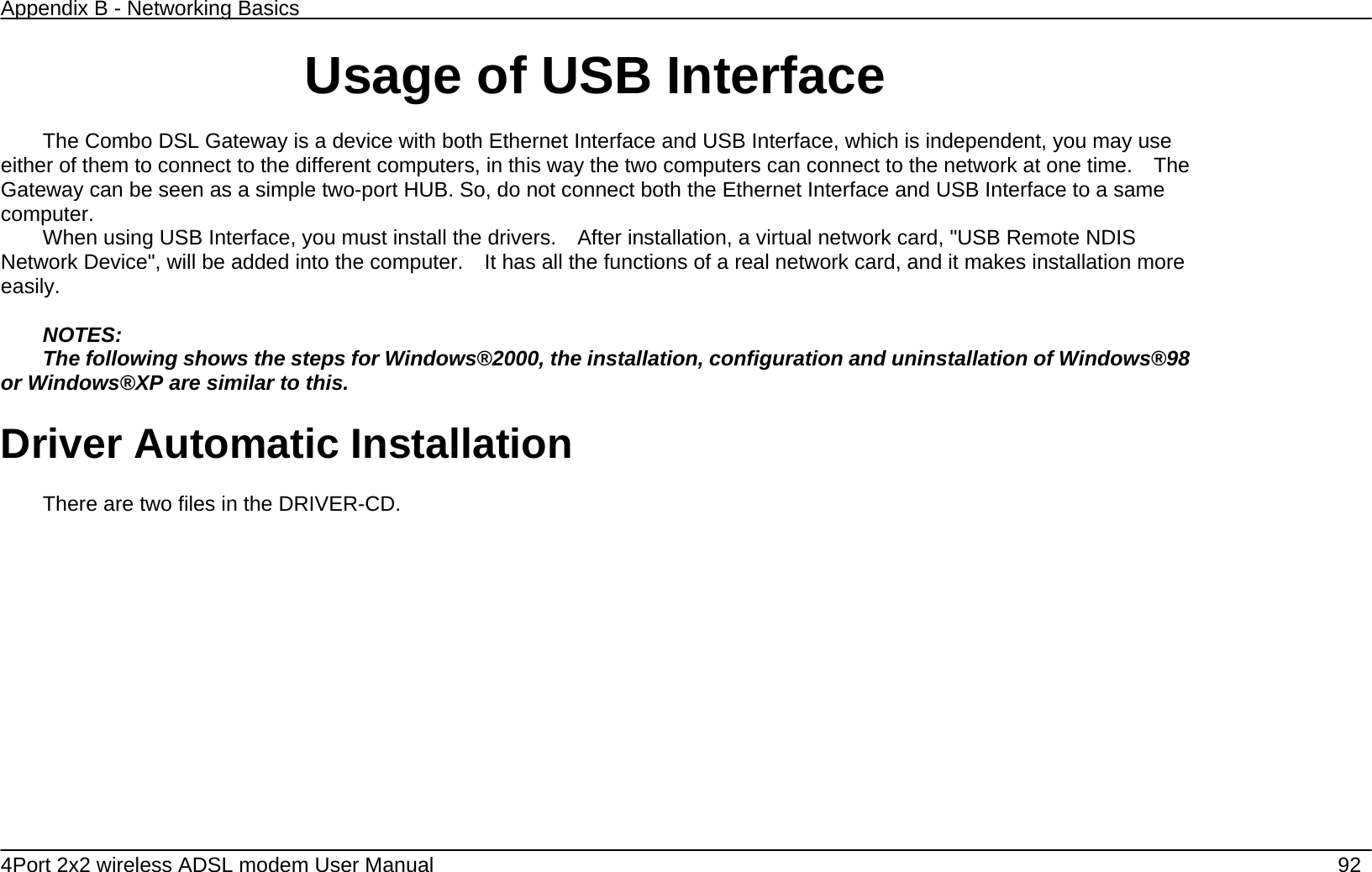
Appendix B - Networking Basics   4Port 2x2 wireless ADSL modem User Manual    92 Usage of USB Interface  The Combo DSL Gateway is a device with both Ethernet Interface and USB Interface, which is independent, you may use either of them to connect to the different computers, in this way the two computers can connect to the network at one time.    The Gateway can be seen as a simple two-port HUB. So, do not connect both the Ethernet Interface and USB Interface to a same computer. When using USB Interface, you must install the drivers.    After installation, a virtual network card, "USB Remote NDIS Network Device", will be added into the computer.    It has all the functions of a real network card, and it makes installation more easily.  NOTES: The following shows the steps for Windows®2000, the installation, configuration and uninstallation of Windows®98 or Windows®XP are similar to this.  Driver Automatic Installation  There are two files in the DRIVER-CD.
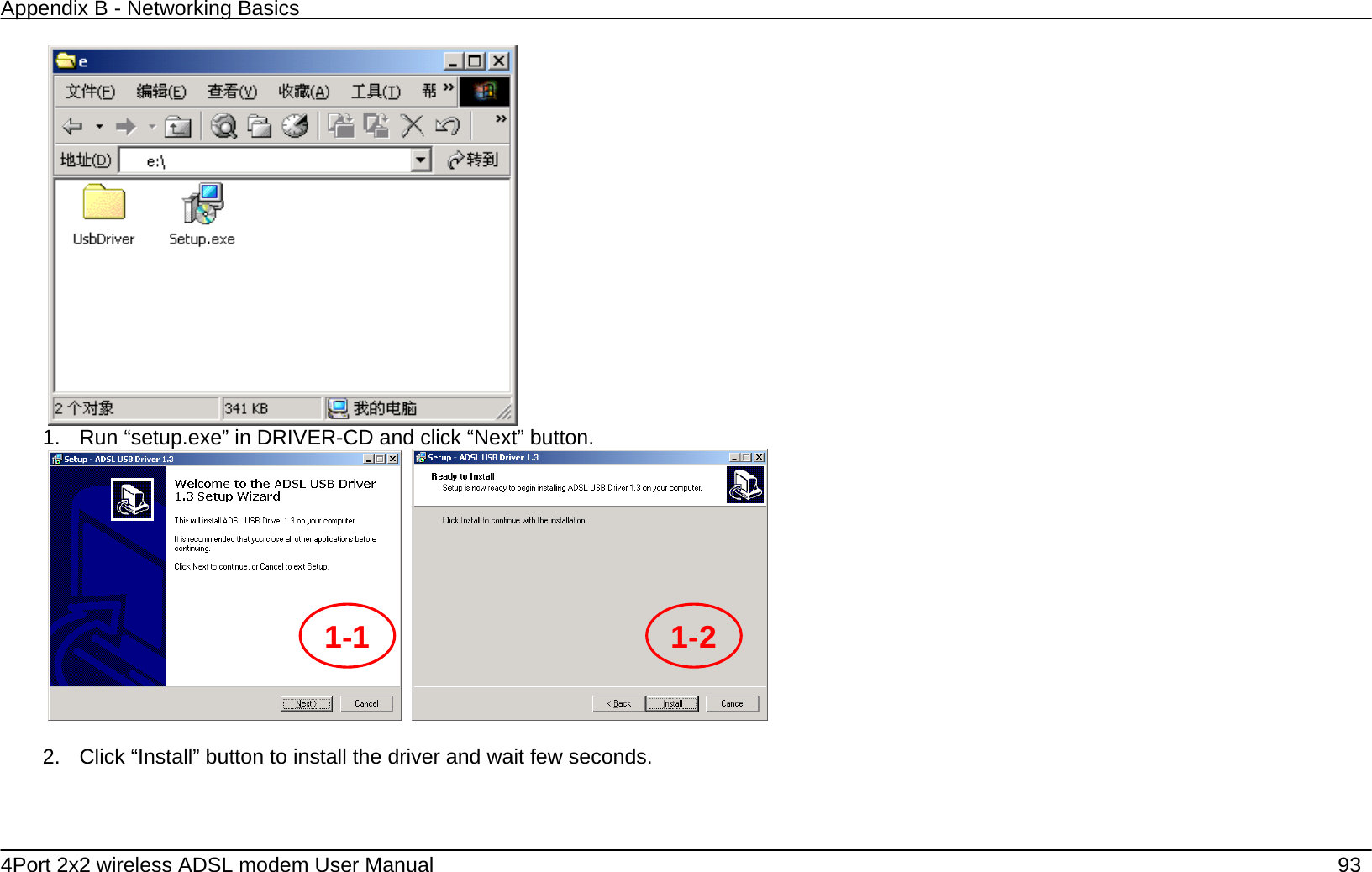
Appendix B - Networking Basics   4Port 2x2 wireless ADSL modem User Manual    93  1.  Run “setup.exe” in DRIVER-CD and click “Next” button.     2.  Click “Install” button to install the driver and wait few seconds. 1-1  1-2
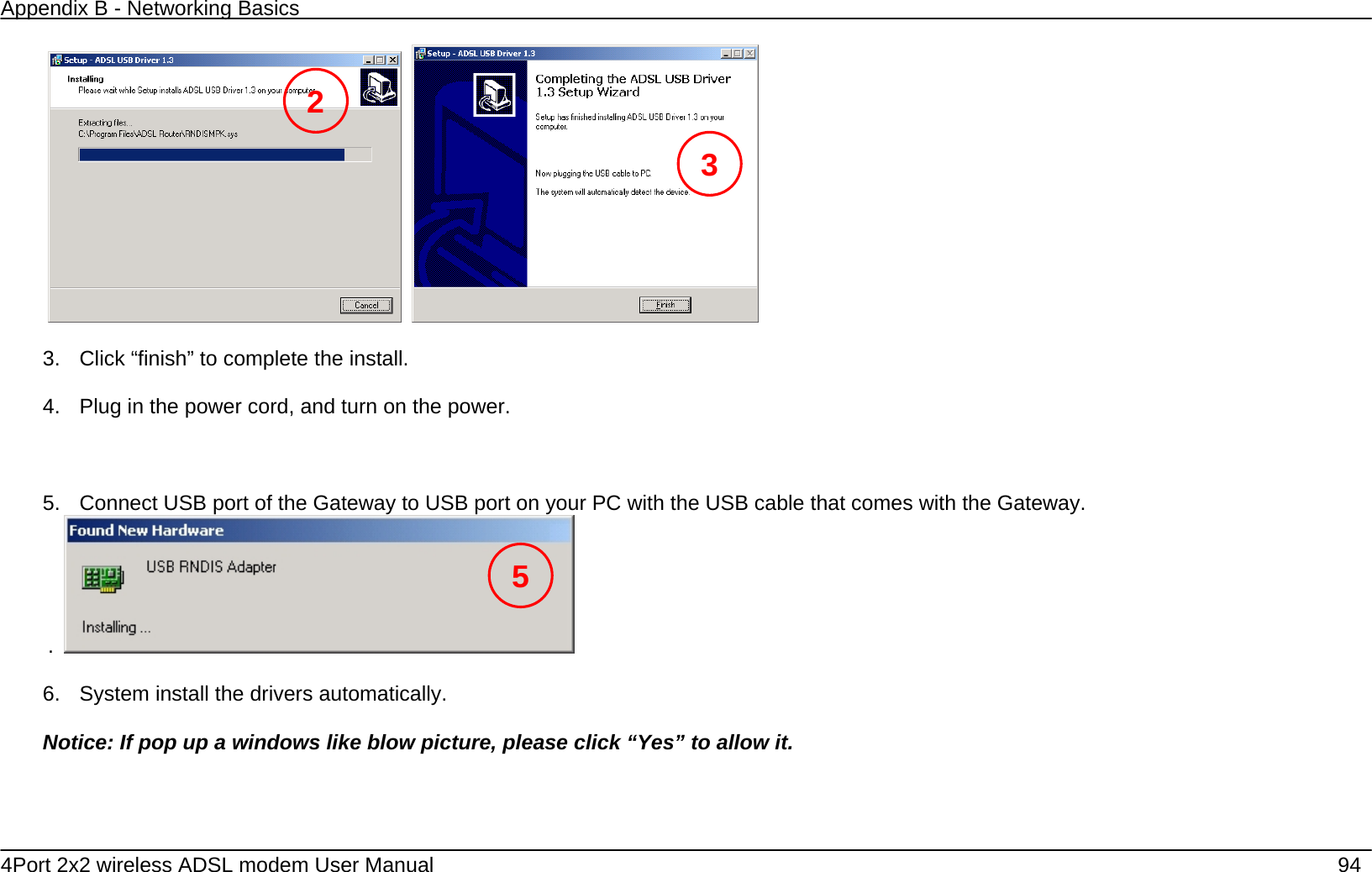
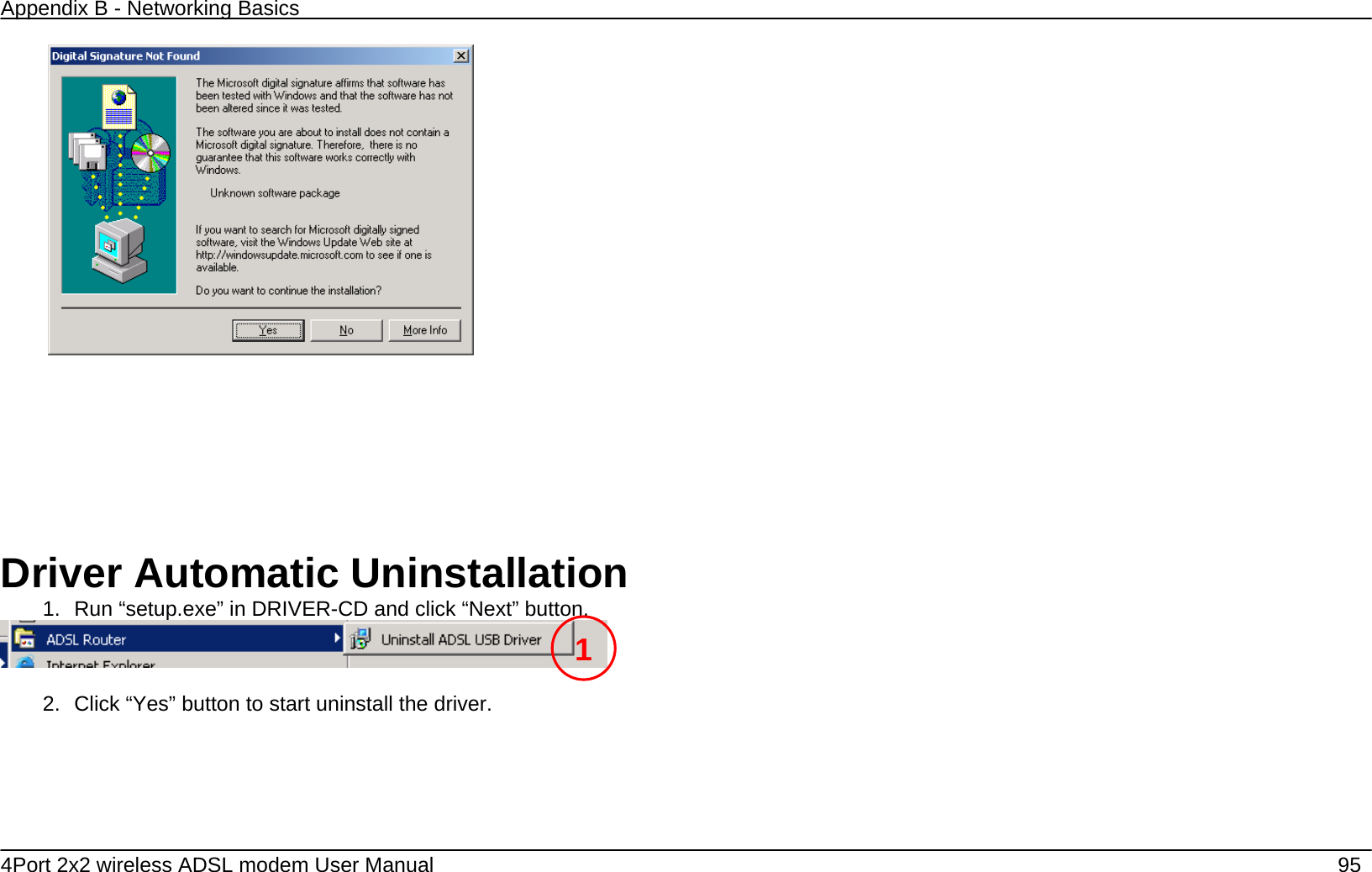
Appendix B - Networking Basics   4Port 2x2 wireless ADSL modem User Manual    94     3.  Click “finish” to complete the install.    4.  Plug in the power cord, and turn on the power.    5.  Connect USB port of the Gateway to USB port on your PC with the USB cable that comes with the Gateway. .    6.  System install the drivers automatically.  Notice: If pop up a windows like blow picture, please click “Yes” to allow it. 2 35
Appendix B - Networking Basics   4Port 2x2 wireless ADSL modem User Manual    95          Driver Automatic Uninstallation 1.  Run “setup.exe” in DRIVER-CD and click “Next” button.   2.  Click “Yes” button to start uninstall the driver.   1
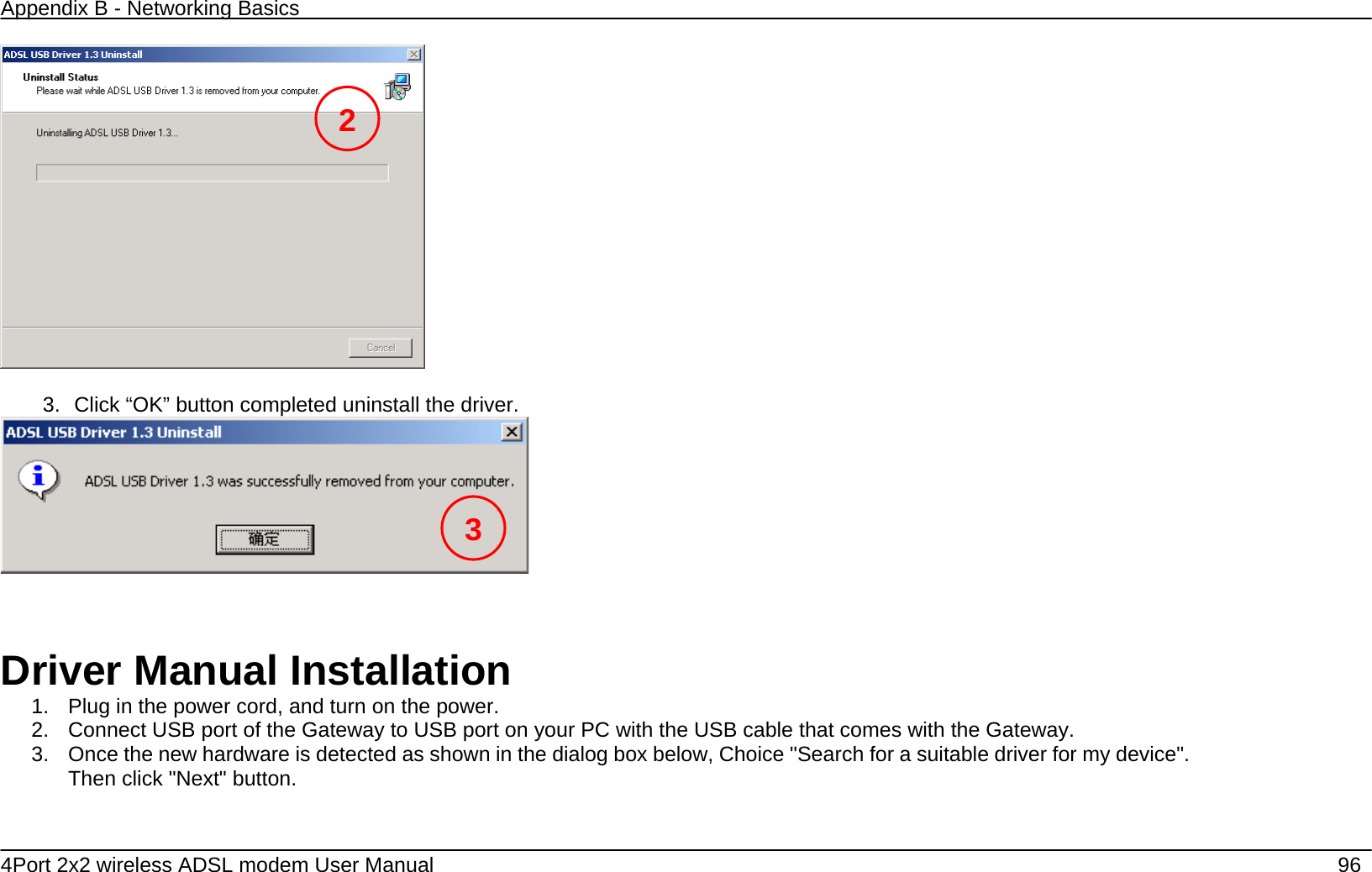
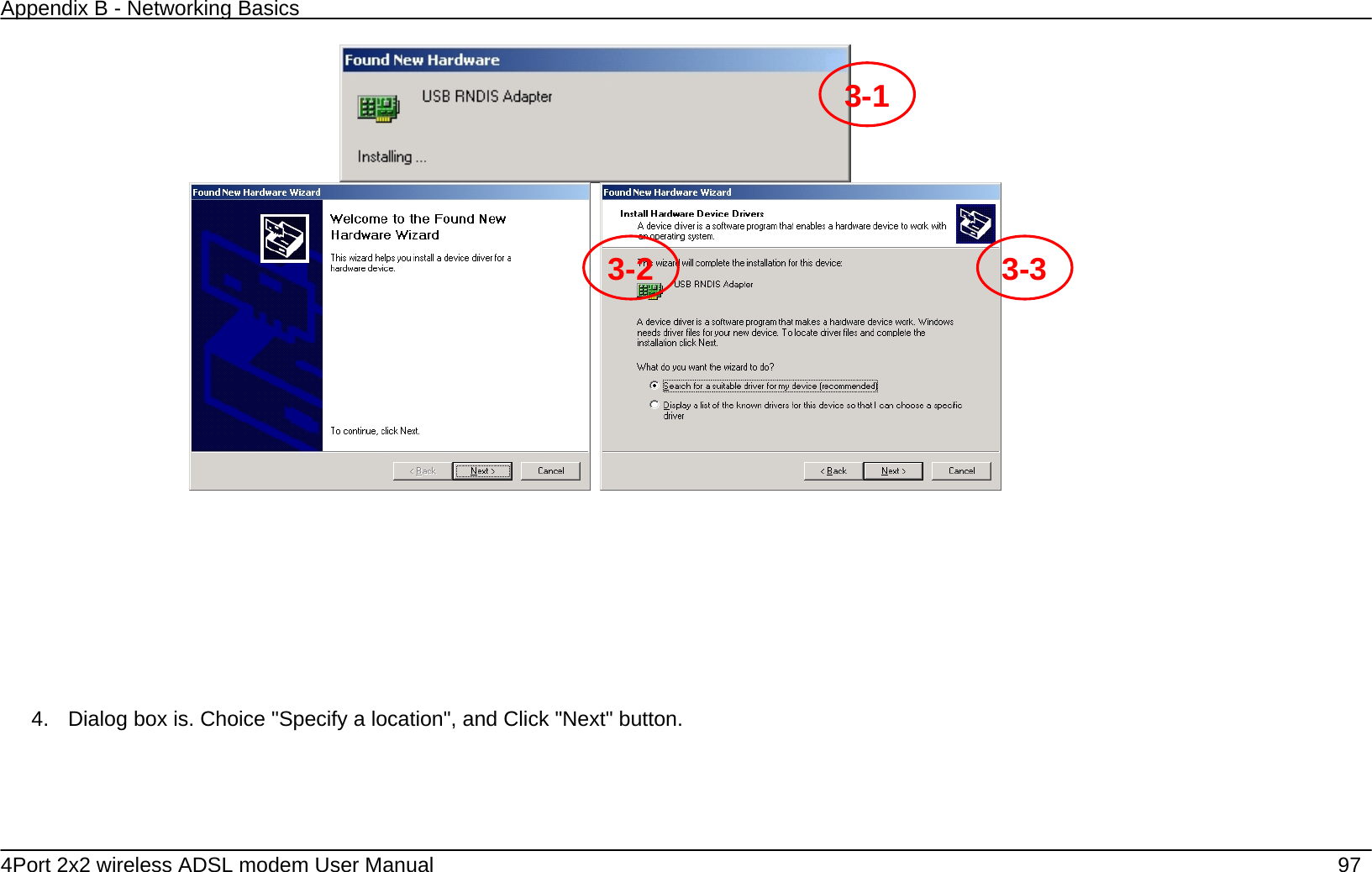
Appendix B - Networking Basics   4Port 2x2 wireless ADSL modem User Manual    96   3.  Click “OK” button completed uninstall the driver.       Driver Manual Installation 1.  Plug in the power cord, and turn on the power. 2.  Connect USB port of the Gateway to USB port on your PC with the USB cable that comes with the Gateway. 3.  Once the new hardware is detected as shown in the dialog box below, Choice "Search for a suitable driver for my device". Then click "Next" button. 2 3
Appendix B - Networking Basics   4Port 2x2 wireless ADSL modem User Manual    97               4.  Dialog box is. Choice "Specify a location", and Click "Next" button. 3-13-2 3-3
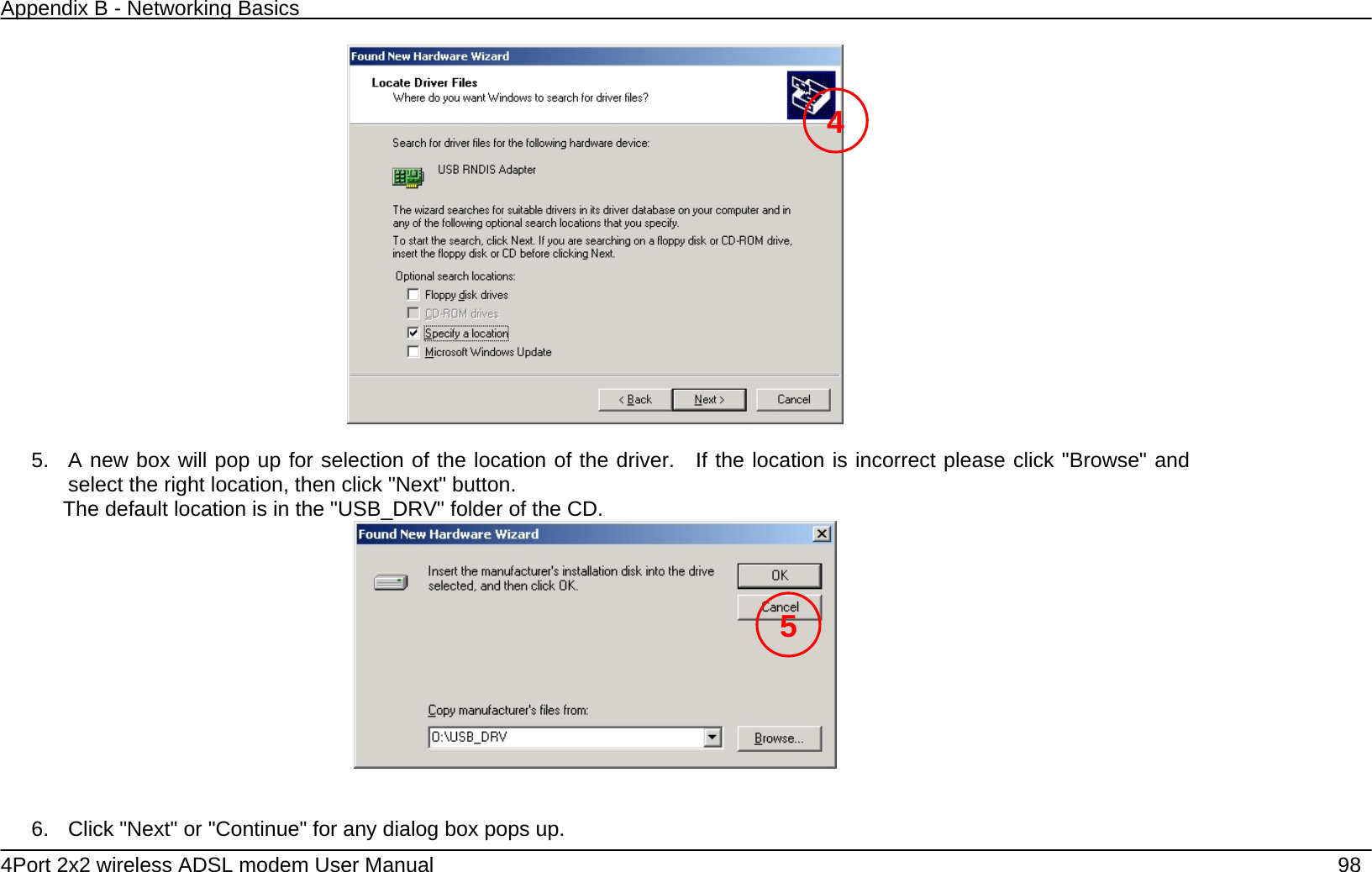
Appendix B - Networking Basics   4Port 2x2 wireless ADSL modem User Manual    98   5.  A new box will pop up for selection of the location of the driver.  If the location is incorrect please click "Browse" and select the right location, then click "Next" button.   The default location is in the "USB_DRV" folder of the CD.    6.  Click "Next" or "Continue" for any dialog box pops up. 45
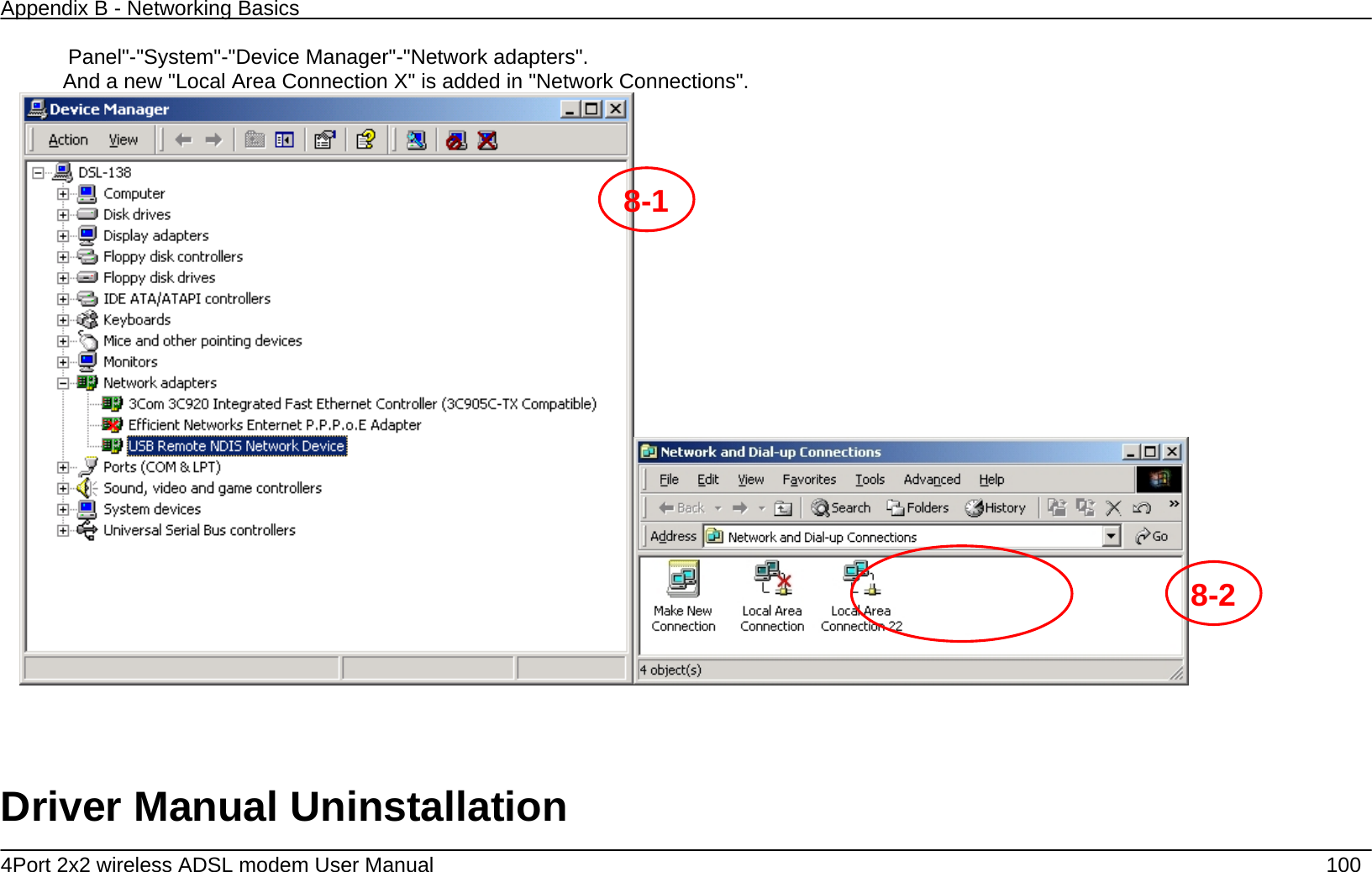
Appendix B - Networking Basics   4Port 2x2 wireless ADSL modem User Manual    99   7.  A message box will show the installation of "USB Remote NDIS Network Device" is complete.    Click "Finish" button.    8.  After the steps above, you will find there is a new item called "USB Remote NDIS Network Device" in "Control 67
Appendix B - Networking Basics   4Port 2x2 wireless ADSL modem User Manual    100 Panel"-"System"-"Device Manager"-"Network adapters".   And a new "Local Area Connection X" is added in "Network Connections".                                                                   Driver Manual Uninstallation 8-18-2
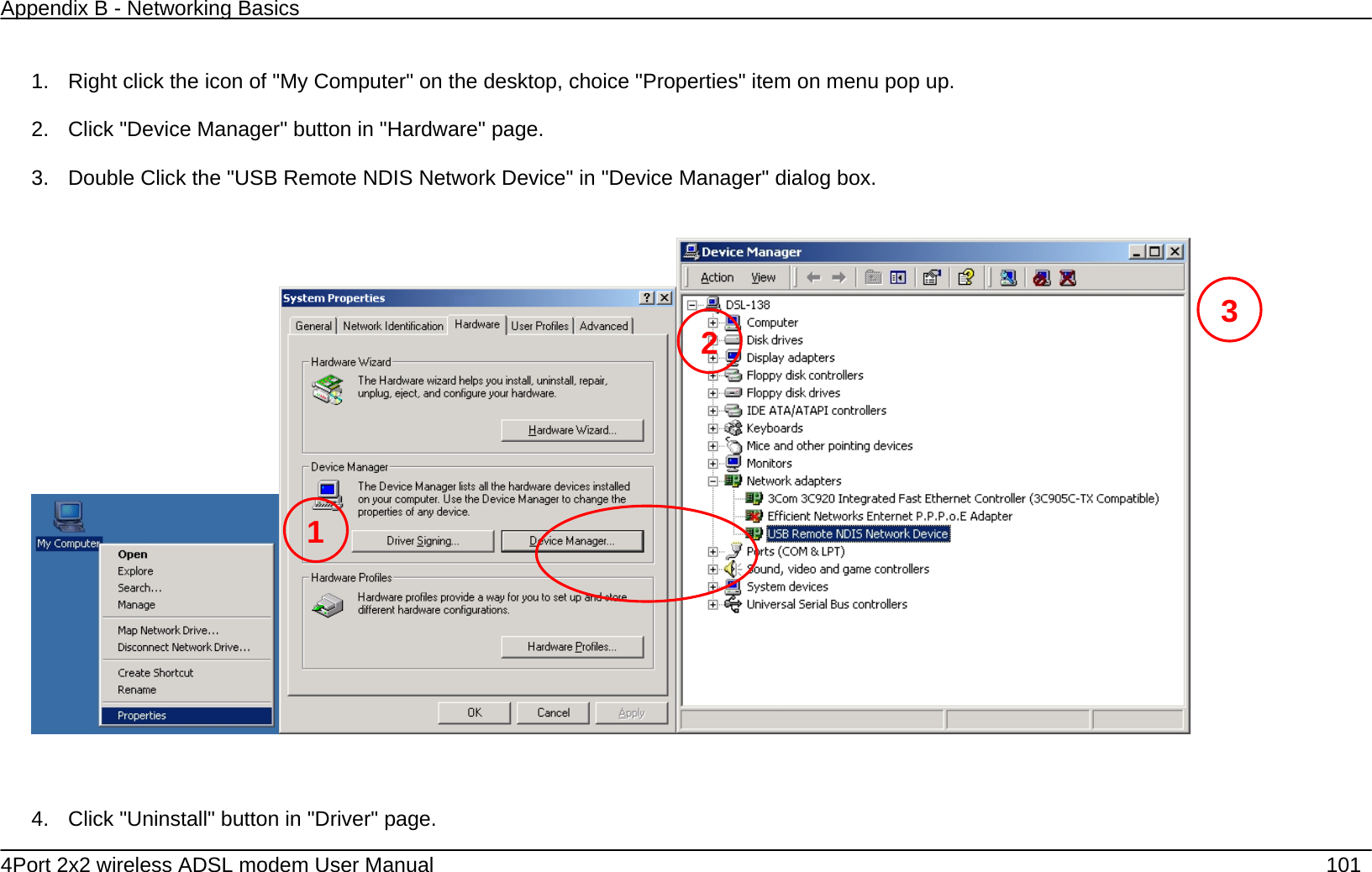
Appendix B - Networking Basics   4Port 2x2 wireless ADSL modem User Manual    101  1.  Right click the icon of "My Computer" on the desktop, choice "Properties" item on menu pop up.    2.  Click "Device Manager" button in "Hardware" page.    3.  Double Click the "USB Remote NDIS Network Device" in "Device Manager" dialog box.            4.  Click "Uninstall" button in "Driver" page.     1 23
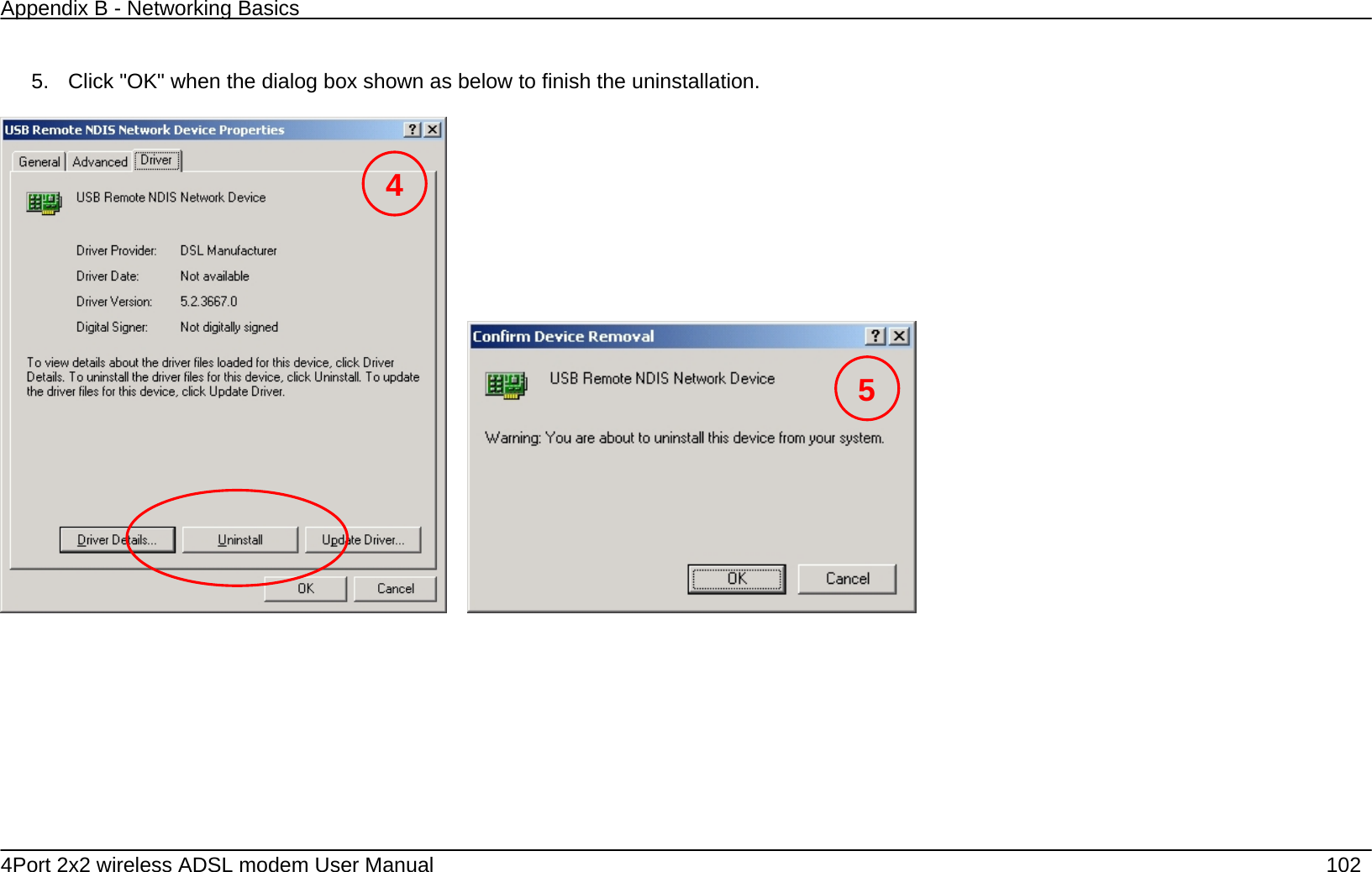
Appendix B - Networking Basics   4Port 2x2 wireless ADSL modem User Manual    102  5.  Click "OK" when the dialog box shown as below to finish the uninstallation.            45
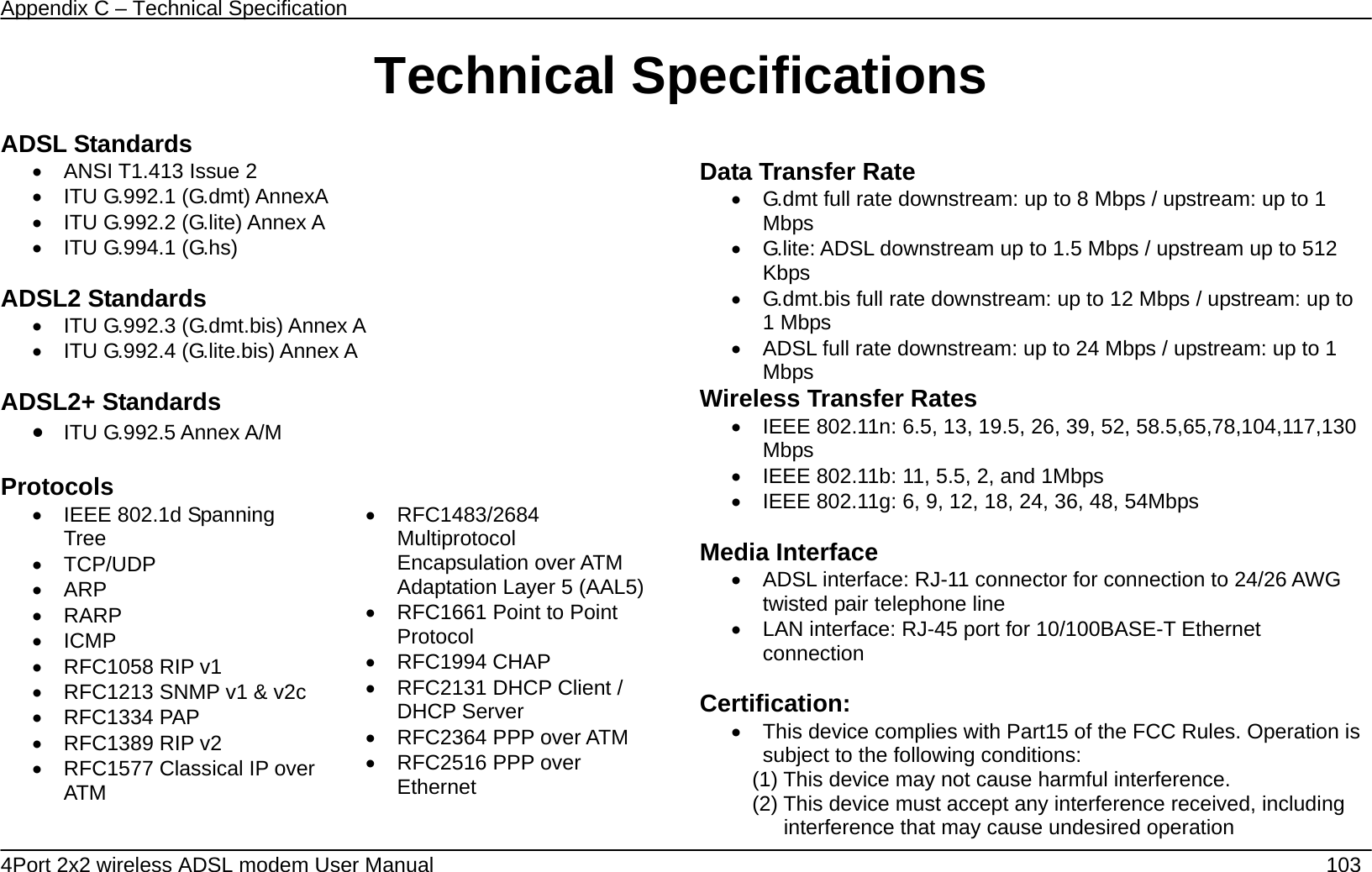
Appendix C – Technical Specification   4Port 2x2 wireless ADSL modem User Manual    103 Technical Specifications ADSL Standards •  ANSI T1.413 Issue 2 •  ITU G.992.1 (G.dmt) AnnexA   •  ITU G.992.2 (G.lite) Annex A •  ITU G.994.1 (G.hs)  ADSL2 Standards •  ITU G.992.3 (G.dmt.bis) Annex A •  ITU G.992.4 (G.lite.bis) Annex A  ADSL2+ Standards • ITU G.992.5 Annex A/M  Protocols •  IEEE 802.1d Spanning Tree • TCP/UDP • ARP • RARP • ICMP •  RFC1058 RIP v1 •  RFC1213 SNMP v1 & v2c • RFC1334 PAP •  RFC1389 RIP v2 •  RFC1577 Classical IP over ATM  • RFC1483/2684 Multiprotocol Encapsulation over ATM Adaptation Layer 5 (AAL5)•  RFC1661 Point to Point Protocol • RFC1994 CHAP •  RFC2131 DHCP Client / DHCP Server •  RFC2364 PPP over ATM •  RFC2516 PPP over Ethernet  Data Transfer Rate •  G.dmt full rate downstream: up to 8 Mbps / upstream: up to 1 Mbps •  G.lite: ADSL downstream up to 1.5 Mbps / upstream up to 512 Kbps •  G.dmt.bis full rate downstream: up to 12 Mbps / upstream: up to 1 Mbps •  ADSL full rate downstream: up to 24 Mbps / upstream: up to 1 Mbps Wireless Transfer Rates •  IEEE 802.11n: 6.5, 13, 19.5, 26, 39, 52, 58.5,65,78,104,117,130 Mbps •  IEEE 802.11b: 11, 5.5, 2, and 1Mbps •  IEEE 802.11g: 6, 9, 12, 18, 24, 36, 48, 54Mbps  Media Interface •  ADSL interface: RJ-11 connector for connection to 24/26 AWG twisted pair telephone line •  LAN interface: RJ-45 port for 10/100BASE-T Ethernet connection  Certification: •  This device complies with Part15 of the FCC Rules. Operation is subject to the following conditions: (1) This device may not cause harmful interference. (2) This device must accept any interference received, including interference that may cause undesired operation
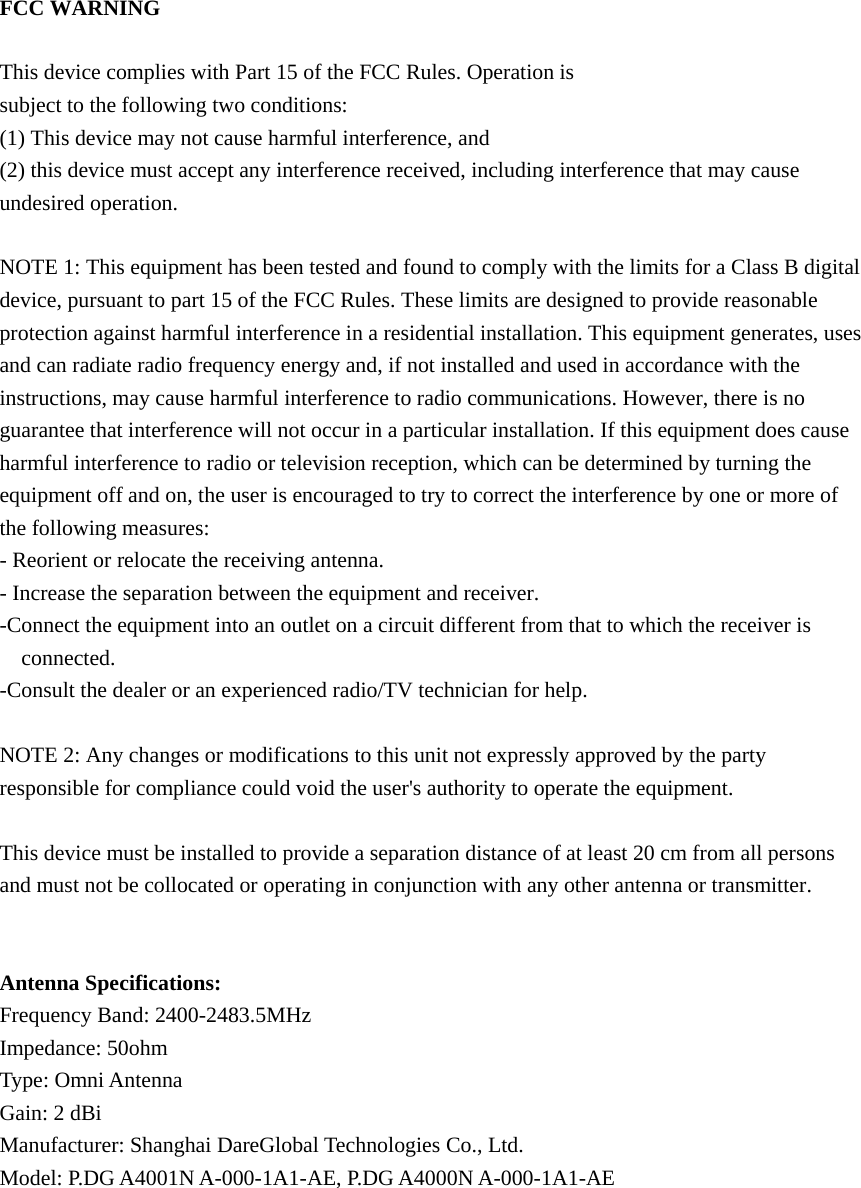
FCC WARNING  This device complies with Part 15 of the FCC Rules. Operation is subject to the following two conditions: (1) This device may not cause harmful interference, and (2) this device must accept any interference received, including interference that may cause undesired operation.  NOTE 1: This equipment has been tested and found to comply with the limits for a Class B digital device, pursuant to part 15 of the FCC Rules. These limits are designed to provide reasonable protection against harmful interference in a residential installation. This equipment generates, uses and can radiate radio frequency energy and, if not installed and used in accordance with the instructions, may cause harmful interference to radio communications. However, there is no guarantee that interference will not occur in a particular installation. If this equipment does cause harmful interference to radio or television reception, which can be determined by turning the equipment off and on, the user is encouraged to try to correct the interference by one or more of the following measures: - Reorient or relocate the receiving antenna. - Increase the separation between the equipment and receiver. -Connect the equipment into an outlet on a circuit different from that to which the receiver is connected. -Consult the dealer or an experienced radio/TV technician for help.  NOTE 2: Any changes or modifications to this unit not expressly approved by the party responsible for compliance could void the user's authority to operate the equipment.  This device must be installed to provide a separation distance of at least 20 cm from all persons and must not be collocated or operating in conjunction with any other antenna or transmitter.   Antenna Specifications: Frequency Band: 2400-2483.5MHz Impedance: 50ohm Type: Omni Antenna Gain: 2 dBi Manufacturer: Shanghai DareGlobal Technologies Co., Ltd. Model: P.DG A4001N A-000-1A1-AE, P.DG A4000N A-000-1A1-AE

Navigation menu