DareGlobal Technologies DB108-WL 802.11b Wireless ADSL Modem User Manual 404239

Shanghai DareGlobal Technologies Co., Ltd. 802.11b Wireless ADSL Modem 404239

users manual

          DB108-WL  WIRELESS ADSL MODEM  USER’S MANUAL     (V3.0)
 DB108-WL wireless ADSL MODEM manual  - 1 - CONTENTS 1   OVERVIEW ................................................................................................................................................. 3 1.1 ABOUT ADSL..........................................................................................................................................................................3 1.2 DEVICE  INTRODUCTION ....................................................................................................................................................3 1.3 PROTOCOLS ............................................................................................................................................................................4 1.4 FEATURES ...............................................................................................................................................................................4 2 HARDWARE INSTALLATION AND BASIC CONFIGURATION ............................................................ 5 2.1 SYSTEM REQUIREMENT.......................................................................................................................................................5 2.2 HARDWARE INSTALLATION.................................................................................................................................................5 2.2.1 BASIC CONNECTTION..................................................................................................................................................5 2.2.2 INSTALLATION STEPS..................................................................................................................................................5 2.3 SOFTWARE CONFIFURATION...............................................................................................................................................6 2.3.1 PREPARATION BEFORE SOFTWARE INSTALLATION ...............................................................................................6 2.3.2 COMPUTER CONFIGURATION ....................................................................................................................................6 2.3.3  WIRELESS ADSL MODEM CONFIGURATION ...................................................................................................6 2.3.4 ADSL MODEM WORK MODEL CONFIGURATION ...............................................................................................7 2.3.5 WIRELESS work model configuration……...……………………………………………………………….7 2.3.6 DEFAULT CONFIGURATION ......................................................................................................................................9 3 PROTOCOL CONFIGURATION................................................................................................................. 10 3.1 RFC1483 BRIDGE CONFIGURTION .................................................................................................................................10 3.2 STATIC ROUTING CONFIGURATIONRFC1483ROUTING/RFC1577SETTING.............................................................. 11 3.3 PPPOA ANDPPPOE CONFIGURATION ............................................................................................................................13 4 DHCP FUNCTION APPLICATION…………………………………...………………………………...….16 4.1  TCP/IP PROTOCOL CONFIGURATION .......................................................................................................................16 4.2  DB108-WL SETTINGS ...............................................................................................................................................16 5 OTHER FUNCTIONS AND CONFIGURATION ....................................................................................... 19 5.1 BRIDGE FILTERING.............................................................................................................................................................19 5.2 STATUS BAR.........................................................................................................................................................................19 5.3 CONFIGURATION OF DB108-WL’S IP ADDRESS AND PASSWORD......................................................20 6 SOFTWARE UPGRADE................................................................................................................................22 7 RESET TO DEFAULT SETTING ................................................................................................................. 22 8 SPECIFICATIONS ......................................................................................................................................... 22 A TROUBLESHOOTING................................................................................................................................. 23 B CONNECTION OF SPLITTER ................................................................................................................... 25 C SHIPPING LIST............................................................................................................................................. 26
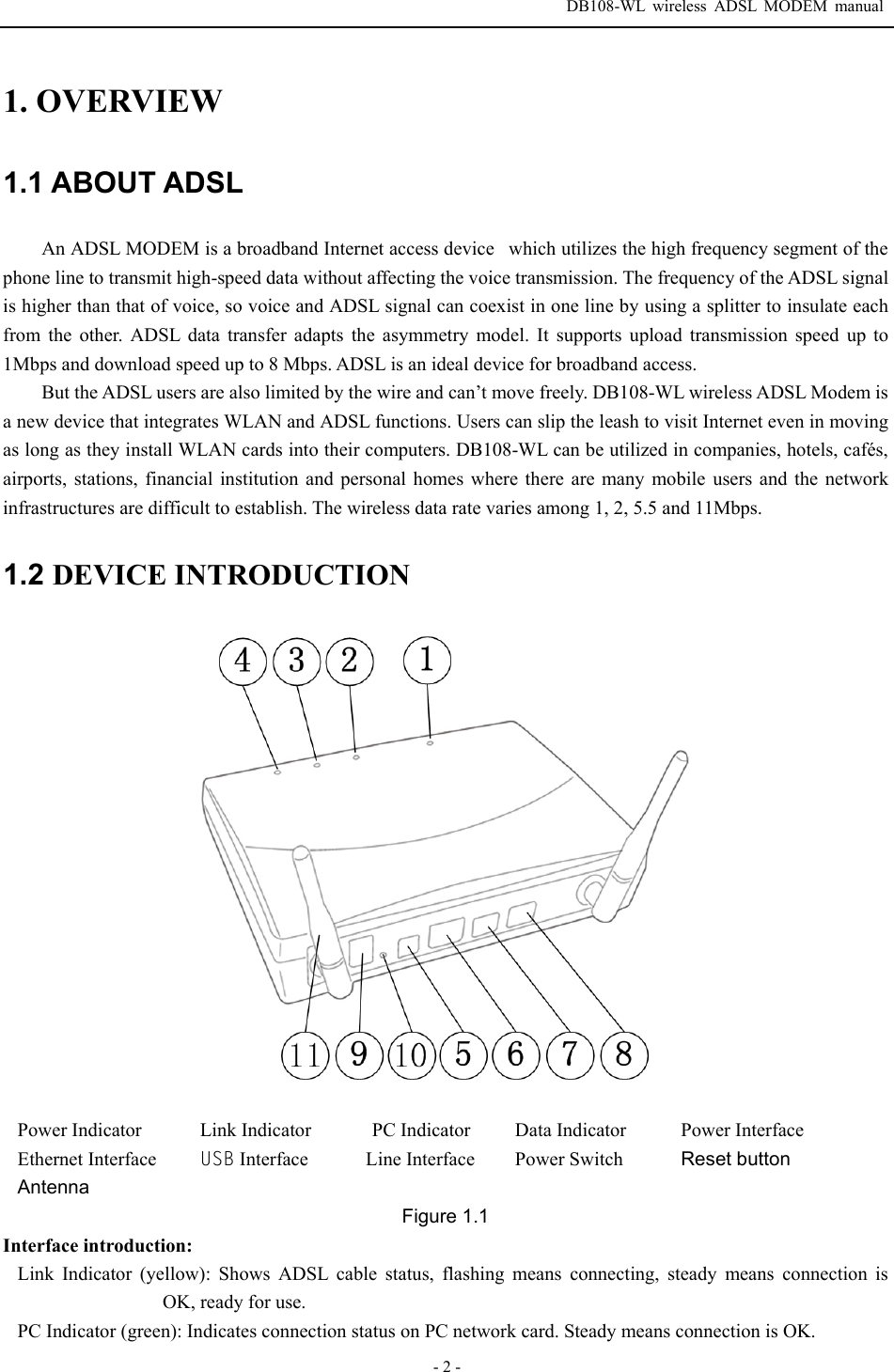
 DB108-WL wireless ADSL MODEM manual  - 2 - 1. OVERVIEW 1.1 ABOUT ADSL An ADSL MODEM is a broadband Internet access devicewhich utilizes the high frequency segment of the phone line to transmit high-speed data without affecting the voice transmission. The frequency of the ADSL signal is higher than that of voice, so voice and ADSL signal can coexist in one line by using a splitter to insulate each from the other. ADSL data transfer adapts the asymmetry model. It supports upload transmission speed up to 1Mbps and download speed up to 8 Mbps. ADSL is an ideal device for broadband access. But the ADSL users are also limited by the wire and can’t move freely. DB108-WL wireless ADSL Modem is a new device that integrates WLAN and ADSL functions. Users can slip the leash to visit Internet even in moving as long as they install WLAN cards into their computers. DB108-WL can be utilized in companies, hotels, cafés, airports, stations, financial institution and personal homes where there are many mobile users and the network infrastructures are difficult to establish. The wireless data rate varies among 1, 2, 5.5 and 11Mbps. 1.2 DEVICE INTRODUCTION    Power Indicator Link Indicator    PC Indicator Data Indicator Power Interface Ethernet Interface USB Interface   Line Interface Power Switch Reset button Antenna Figure 1.1 Interface introduction: Link Indicator (yellow): Shows ADSL cable status, flashing means connecting, steady means connection is      OK, ready for use. PC Indicator (green): Indicates connection status on PC network card. Steady means connection is OK.
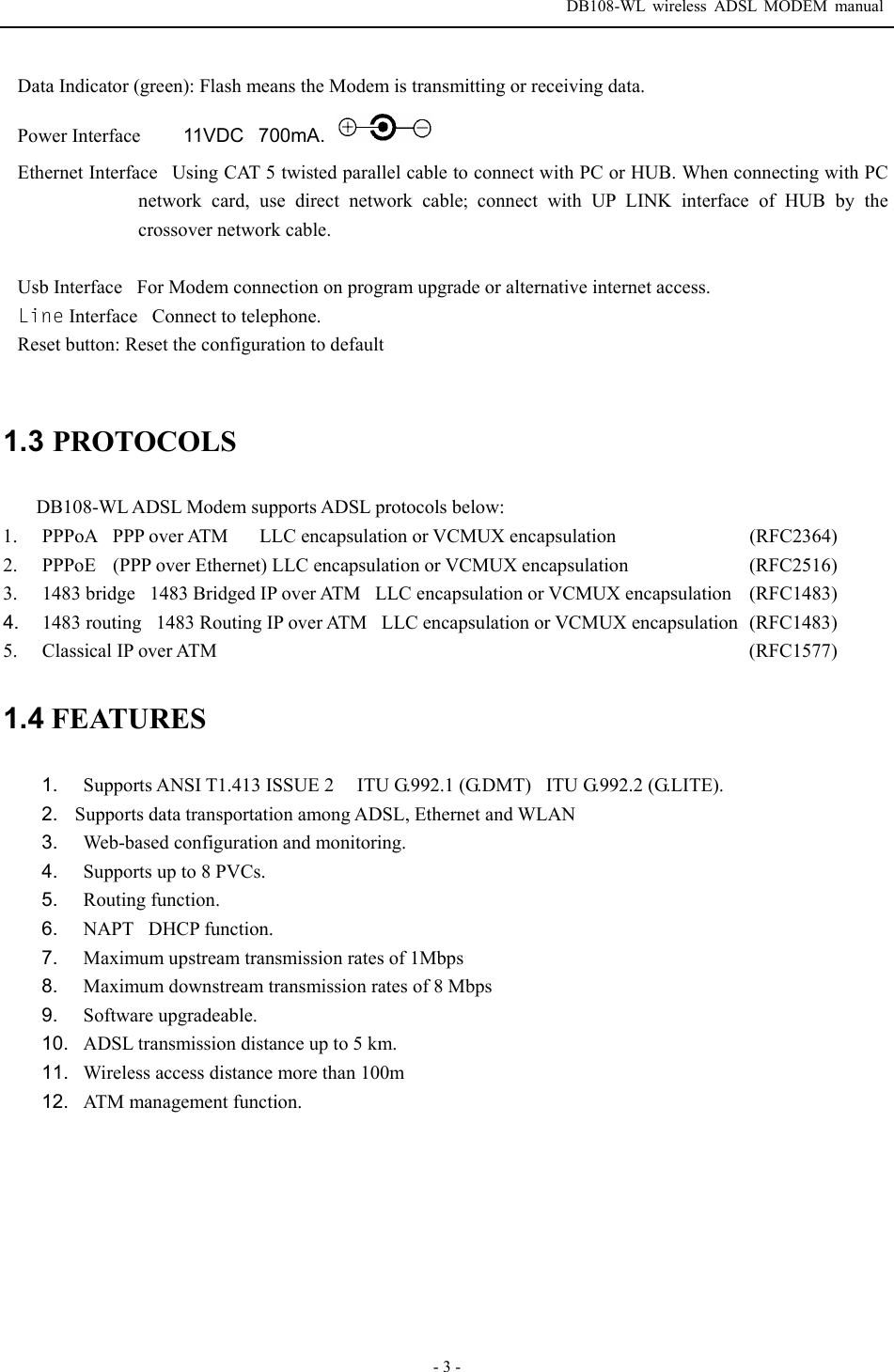
 DB108-WL wireless ADSL MODEM manual  - 3 - Data Indicator (green): Flash means the Modem is transmitting or receiving data. Power Interface  11VDC700mA.  Ethernet InterfaceUsing CAT 5 twisted parallel cable to connect with PC or HUB. When connecting with PC network card, use direct network cable;  connect with UP LINK interface of HUB by the crossover network cable.    Usb InterfaceFor Modem connection on program upgrade or alternative internet access. Line InterfaceConnect to telephone. Reset button: Reset the configuration to default  1.3 PROTOCOLS DB108-WL ADSL Modem supports ADSL protocols below:   1. PPPoAPPP over ATM   LLC encapsulation or VCMUX encapsulation             (RFC2364) 2. PPPoE  (PPP over Ethernet) LLC encapsulation or VCMUX encapsulation            (RFC2516)  3. 1483 bridge1483 Bridged IP over ATMLLC encapsulation or VCMUX encapsulation  (RFC1483) 4.  1483 routing1483 Routing IP over ATMLLC encapsulation or VCMUX encapsulation  (RFC1483) 5. Classical IP over ATM  (RFC1577) 1.4 FEATURES 1.    Supports ANSI T1.413 ISSUE 2 ITU G.992.1 (G.DMT)ITU G.992.2 (G.LITE). 2.  Supports data transportation among ADSL, Ethernet and WLAN   3.    Web-based configuration and monitoring. 4.    Supports up to 8 PVCs. 5.   Routing function. 6.   NAPTDHCP function. 7.    Maximum upstream transmission rates of 1Mbps   8.    Maximum downstream transmission rates of 8 Mbps 9.   Software upgradeable. 10.   ADSL transmission distance up to 5 km. 11.   Wireless access distance more than 100m 12.  ATM management function.
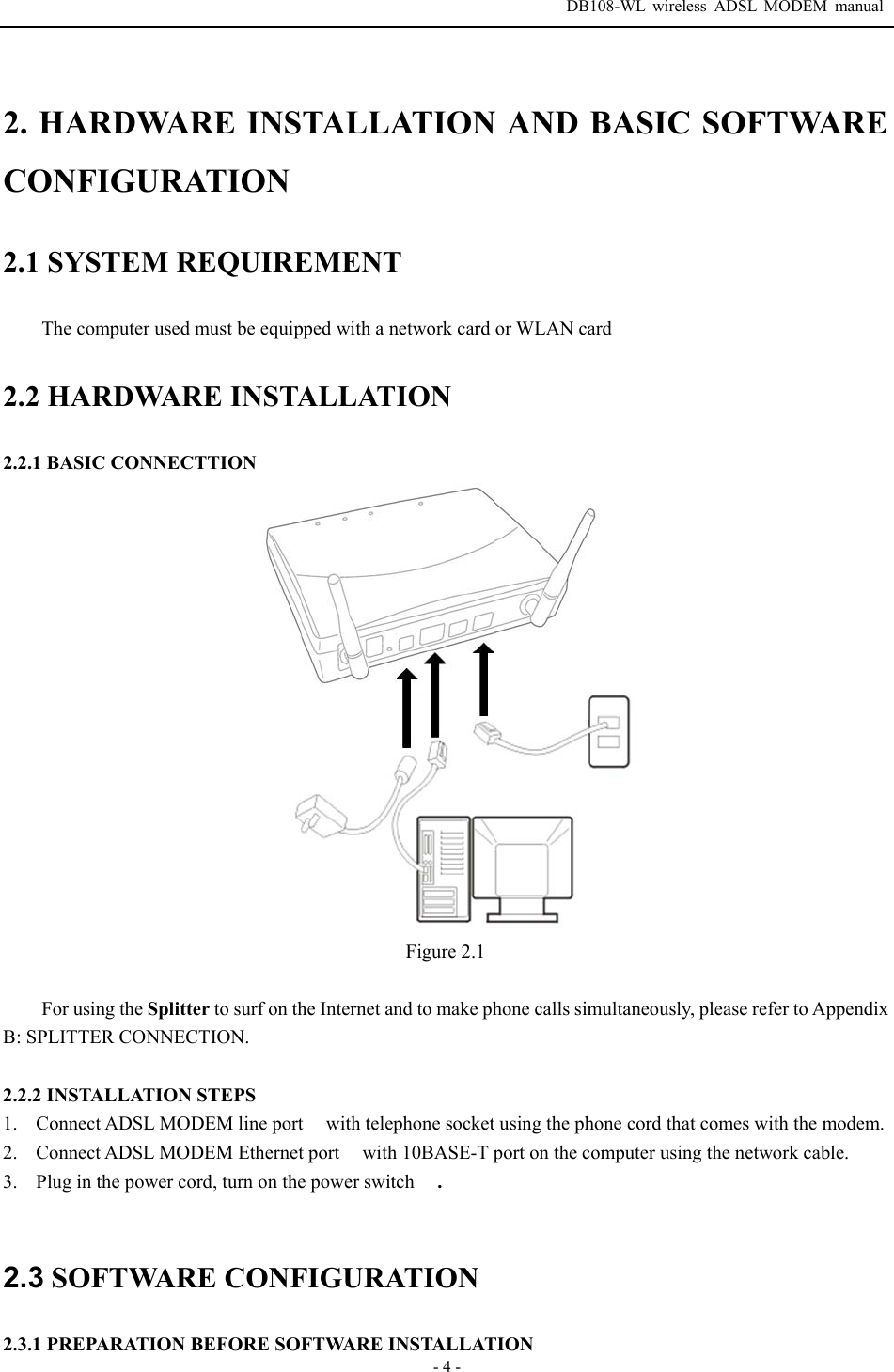
 DB108-WL wireless ADSL MODEM manual  - 4 - 2. HARDWARE INSTALLATION AND BASIC SOFTWARE CONFIGURATION 2.1 SYSTEM REQUIREMENT The computer used must be equipped with a network card or WLAN card 2.2 HARDWARE INSTALLATION 2.2.1 BASIC CONNECTTION  Figure 2.1  For using the Splitter to surf on the Internet and to make phone calls simultaneously, please refer to Appendix B: SPLITTER CONNECTION.  2.2.2 INSTALLATION STEPS 1. Connect ADSL MODEM line port  with telephone socket using the phone cord that comes with the modem. 2. Connect ADSL MODEM Ethernet port  with 10BASE-T port on the computer using the network cable. 3. Plug in the power cord, turn on the power switch  .  2.3 SOFTWARE CONFIGURATION  2.3.1 PREPARATION BEFORE SOFTWARE INSTALLATION
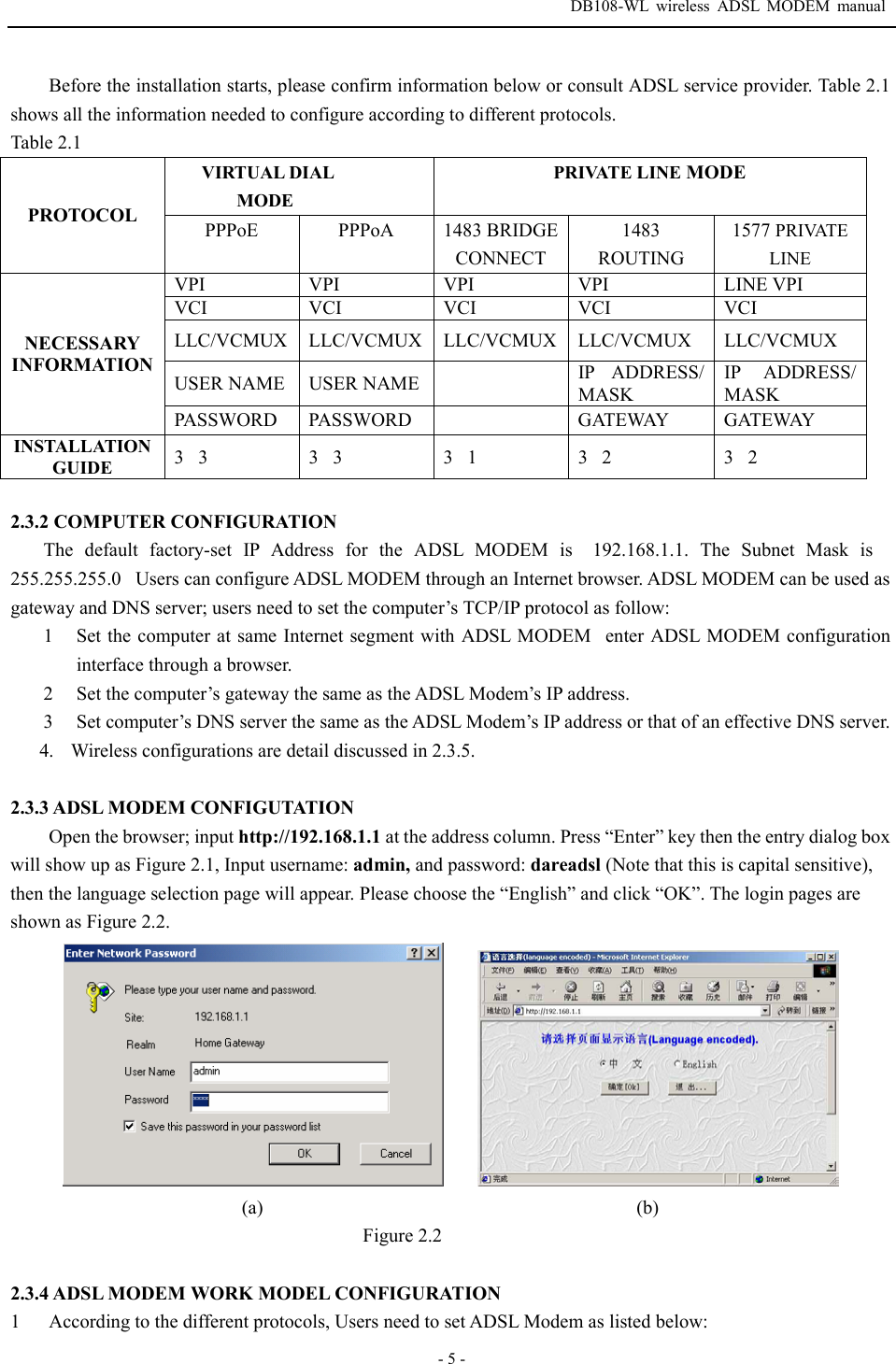
 DB108-WL wireless ADSL MODEM manual  - 5 -   Before the installation starts, please confirm information below or consult ADSL service provider. Table 2.1 shows all the information needed to configure according to different protocols. Table 2.1 VIRTUAL DIAL          MODE PRIVATE LINE MODE PROTOCOL  PPPoE PPPoA 1483 BRIDGE CONNECT 1483 ROUTING 1577 PRIVATE LINE VPI VPI VPI VPI  LINE VPI VCI VCI VCI VCI  VCI LLC/VCMUX LLC/VCMUX LLC/VCMUX LLC/VCMUX  LLC/VCMUX USER NAME USER NAME   IP ADDRESS/ MASK IP ADDRESS/ MASK NECESSARY INFORMATION PASSWORD   PASSWORD   GATEWAY GATEWAY INSTALLATION GUIDE  33 33  31  32 32  2.3.2 COMPUTER CONFIGURATION The default factory-set IP Address for the ADSL MODEM is 192.168.1.1. The Subnet Mask is 255.255.255.0Users can configure ADSL MODEM through an Internet browser. ADSL MODEM can be used as gateway and DNS server; users need to set the computer’s TCP/IP protocol as follow: 1  Set the computer at same Internet segment with ADSL MODEMenter ADSL MODEM configuration interface through a browser.   2  Set the computer’s gateway the same as the ADSL Modem’s IP address.   3  Set computer’s DNS server the same as the ADSL Modem’s IP address or that of an effective DNS server. 4.    Wireless configurations are detail discussed in 2.3.5.  2.3.3 ADSL MODEM CONFIGUTATION Open the browser; input http://192.168.1.1 at the address column. Press “Enter” key then the entry dialog box will show up as Figure 2.1, Input username: admin, and password: dareadsl (Note that this is capital sensitive), then the language selection page will appear. Please choose the “English” and click “OK”. The login pages are shown as Figure 2.2.         (a)                                            (b)                                      Figure 2.2  2.3.4 ADSL MODEM WORK MODEL CONFIGURATION 1  According to the different protocols, Users need to set ADSL Modem as listed below:
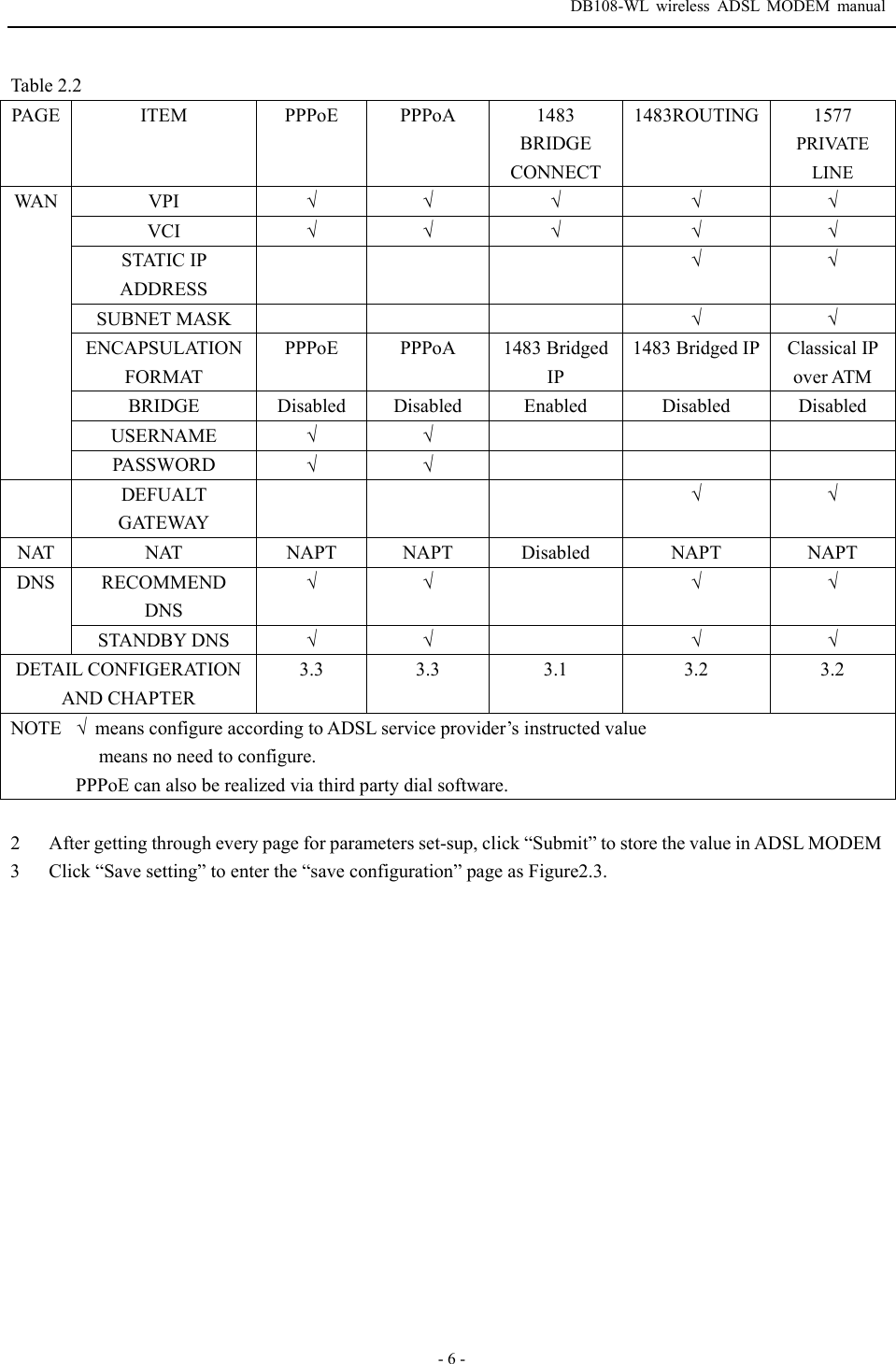
 DB108-WL wireless ADSL MODEM manual  - 6 - Table 2.2   PAGE ITEM  PPPoE PPPoA 1483 BRIDGE CONNECT 1483ROUTING 1577 PRIVATE LINE VPI  √ √ √ √ √ VCI  √ √ √ √ √ STATIC IP ADDRESS    √ √ SUBNET MASK     √ √ ENCAPSULATION FORMAT PPPoE PPPoA 1483 Bridged IP 1483 Bridged IP  Classical IP over ATM BRIDGE Disabled Disabled Enabled Disabled Disabled USERNAME   √ √    WAN PASSWORD  √ √     DEFUALT GATEWAY    √ √ NAT NAT  NAPT NAPT Disabled NAPT NAPT RECOMMEND DNS √ √  √ √ DNS STANDBY DNS  √ √  √ √ DETAIL CONFIGERATION AND CHAPTER 3.3 3.3  3.1  3.2  3.2 NOTE√ means configure according to ADSL service provider’s instructed value        means no need to configure.       PPPoE can also be realized via third party dial software.    2  After getting through every page for parameters set-sup, click “Submit” to store the value in ADSL MODEM 3  Click “Save setting” to enter the “save configuration” page as Figure2.3.
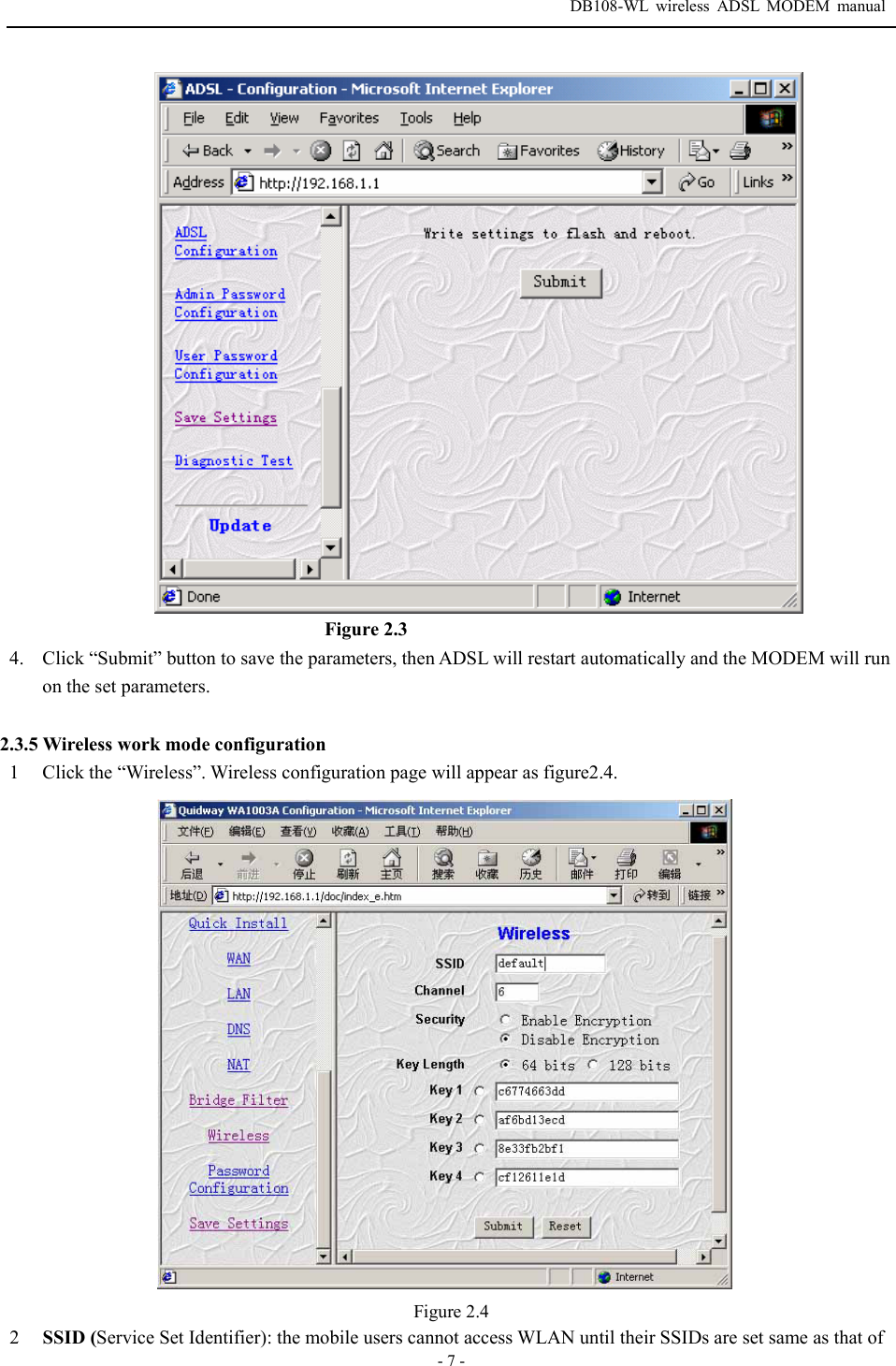
 DB108-WL wireless ADSL MODEM manual  - 7 -  Figure 2.3 4. Click “Submit” button to save the parameters, then ADSL will restart automatically and the MODEM will run on the set parameters.    2.3.5 Wireless work mode configuration 1  Click the “Wireless”. Wireless configuration page will appear as figure2.4.  Figure 2.4 2  SSID (Service Set Identifier): the mobile users cannot access WLAN until their SSIDs are set same as that of
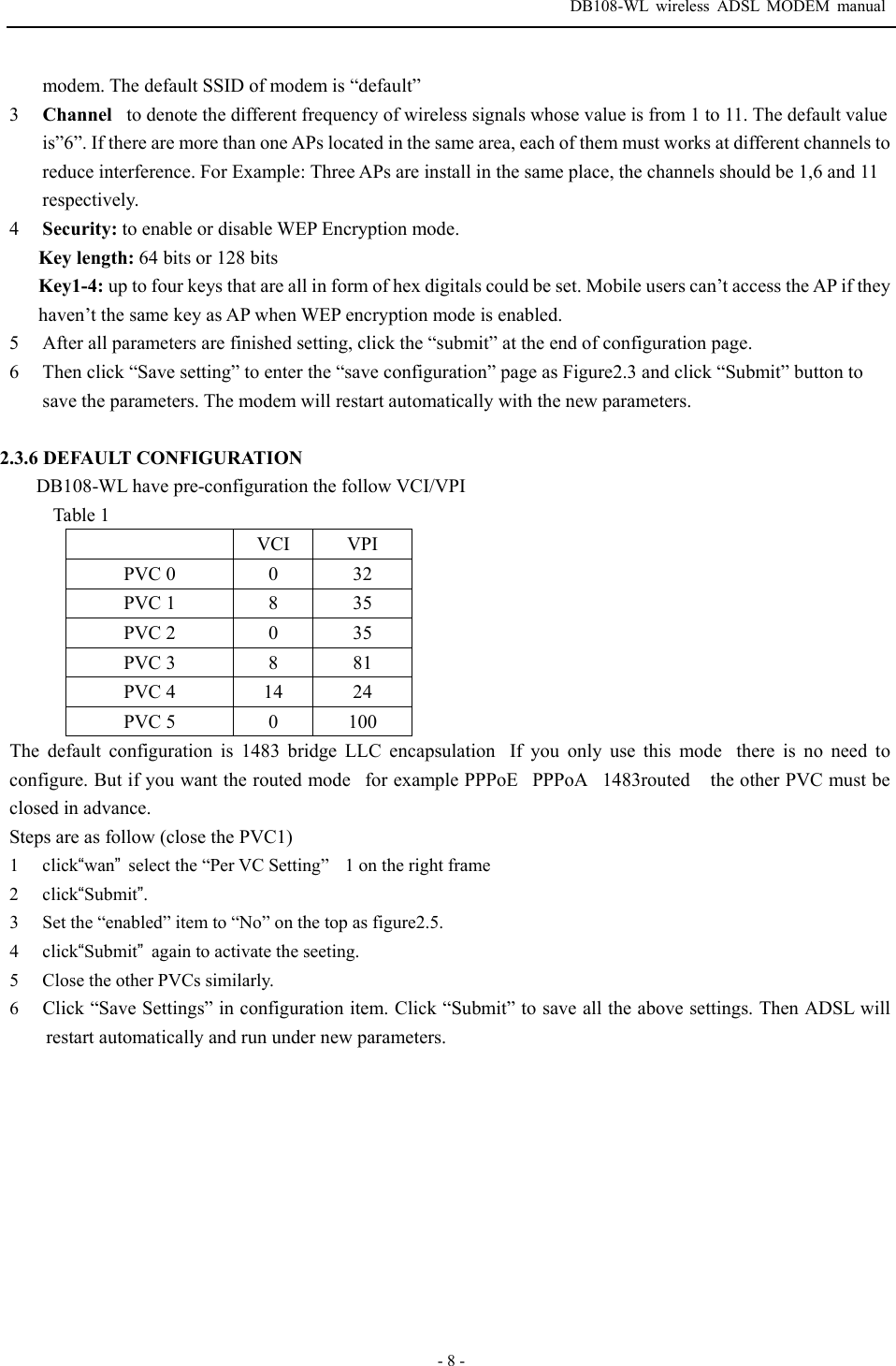
 DB108-WL wireless ADSL MODEM manual  - 8 - modem. The default SSID of modem is “default” 3  Channelto denote the different frequency of wireless signals whose value is from 1 to 11. The default value is”6”. If there are more than one APs located in the same area, each of them must works at different channels to reduce interference. For Example: Three APs are install in the same place, the channels should be 1,6 and 11 respectively.  4  Security: to enable or disable WEP Encryption mode.   Key length: 64 bits or 128 bits  Key1-4: up to four keys that are all in form of hex digitals could be set. Mobile users can’t access the AP if they haven’t the same key as AP when WEP encryption mode is enabled. 5  After all parameters are finished setting, click the “submit” at the end of configuration page. 6  Then click “Save setting” to enter the “save configuration” page as Figure2.3 and click “Submit” button to save the parameters. The modem will restart automatically with the new parameters.    2.3.6 DEFAULT CONFIGURATION DB108-WL have pre-configuration the follow VCI/VPI    Table 1  VCI VPI PVC 0  0  32 PVC 1  8  35 PVC 2  0  35 PVC 3  8  81 PVC 4  14  24 PVC 5  0  100 The default configuration is 1483 bridge LLC encapsulationIf you only use this modethere is no need to configure. But if you want the routed modefor example PPPoEPPPoA1483routedthe other PVC must be closed in advance. Steps are as follow (close the PVC1)   1  click“wan”select the “Per VC Setting”    1 on the right frame 2  click“Submit”. 3  Set the “enabled” item to “No” on the top as figure2.5. 4  click“Submit”  again to activate the seeting. 5  Close the other PVCs similarly.   6  Click “Save Settings” in configuration item. Click “Submit” to save all the above settings. Then ADSL will restart automatically and run under new parameters.
 DB108-WL wireless ADSL MODEM manual  - 9 -  Figure 2.5
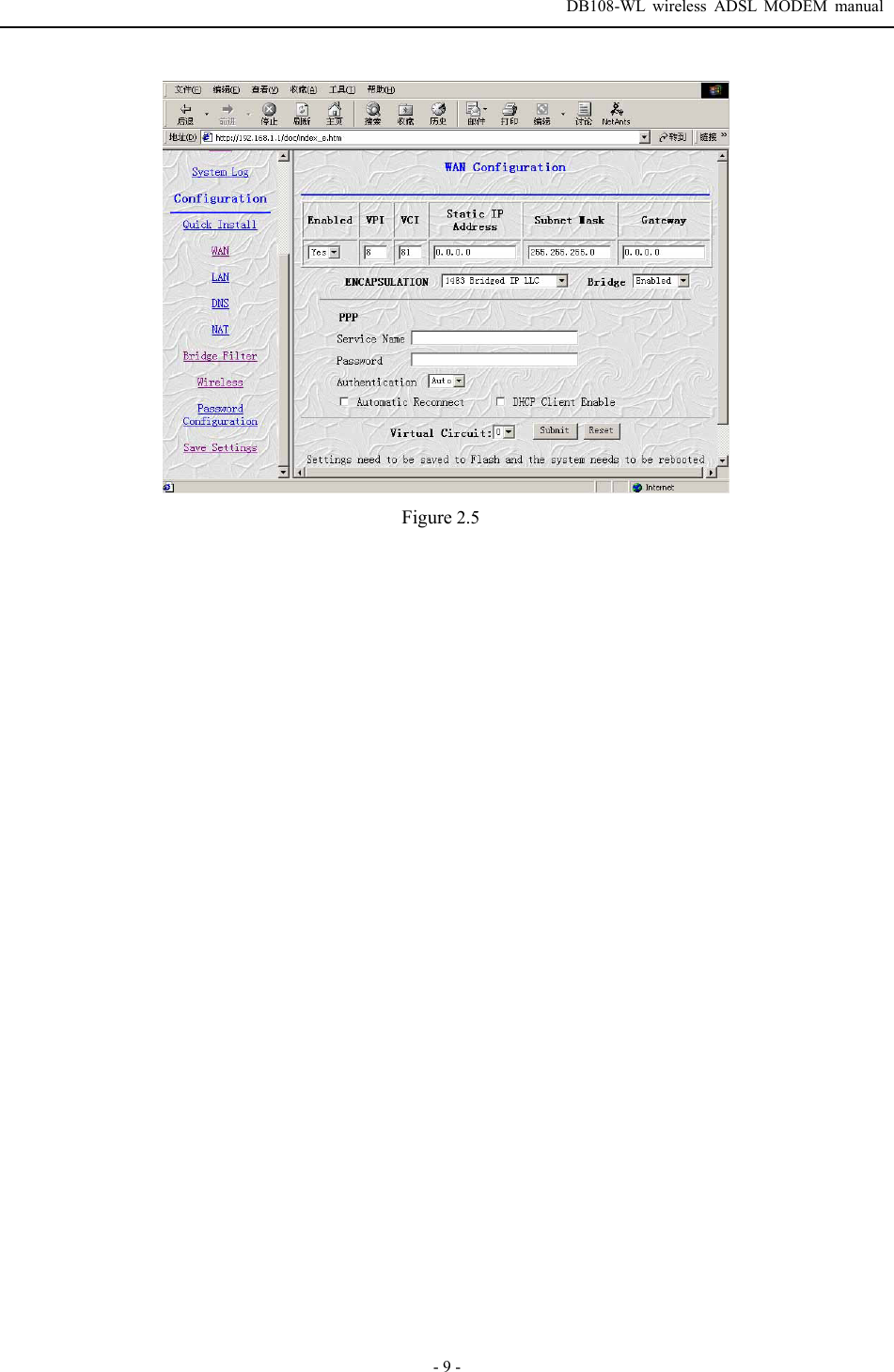
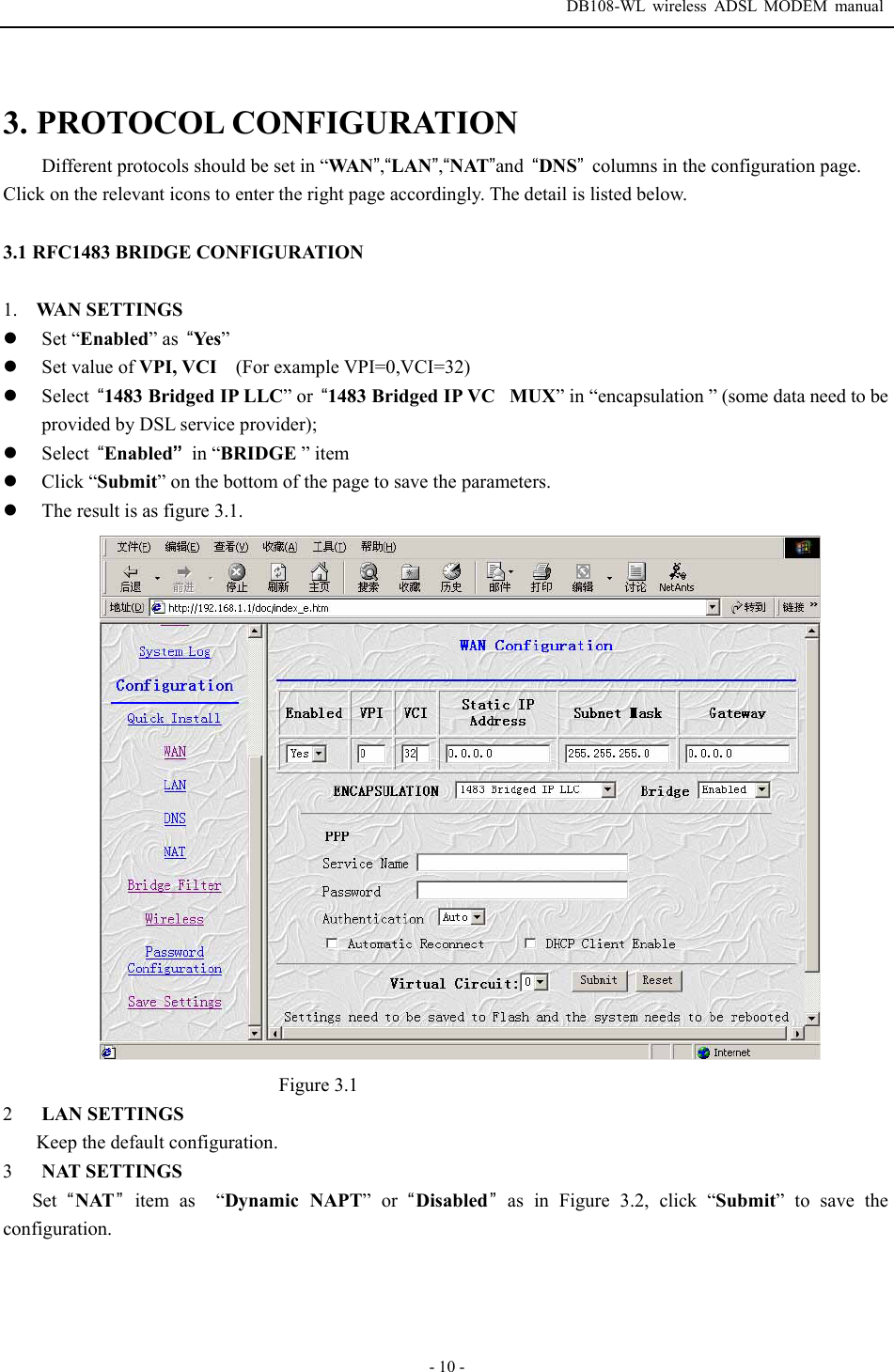
 DB108-WL wireless ADSL MODEM manual  - 10 - 3. PROTOCOL CONFIGURATION Different protocols should be set in “WAN”,“LAN”,“NAT”and  “DNS”  columns in the configuration page. Click on the relevant icons to enter the right page accordingly. The detail is listed below.  3.1 RFC1483 BRIDGE CONFIGURATION  1. WAN SETTINGS z Set “Enabled” as  “Ye s” z Set value of VPI, VCI    (For example VPI=0,VCI=32) z Select  “1483 Bridged IP LLC” or  “1483 Bridged IP VCMUX” in “encapsulation ” (some data need to be provided by DSL service provider); z Select  “Enabled” in “BRIDGE ” item z Click “Submit” on the bottom of the page to save the parameters. z The result is as figure 3.1.  Figure 3.1 2  LAN SETTINGS Keep the default configuration. 3  NAT SETTINGS Set  “NAT” item as  “Dynamic NAPT” or “Disabled”as in Figure 3.2, click “Submit” to save the configuration.
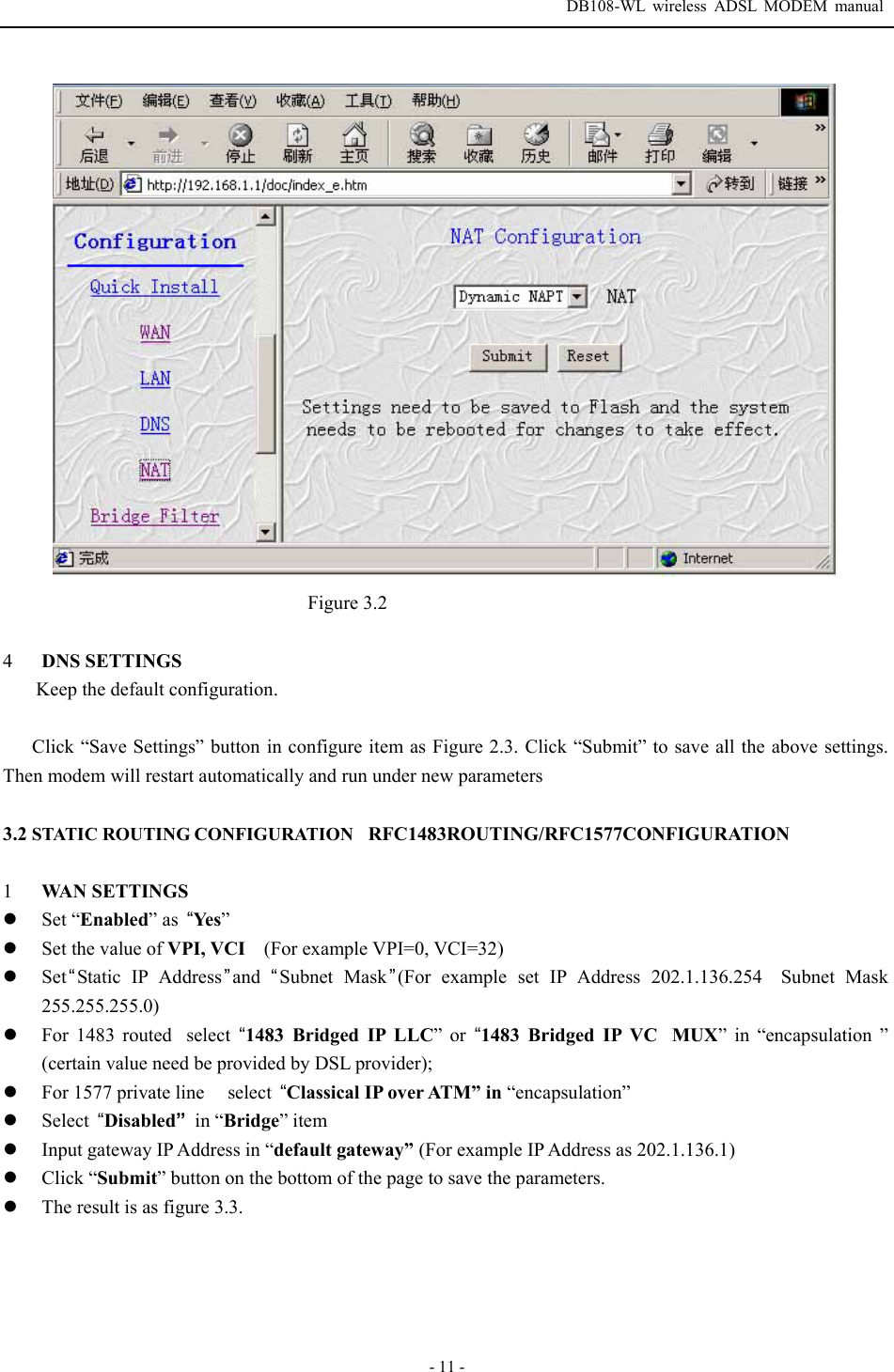
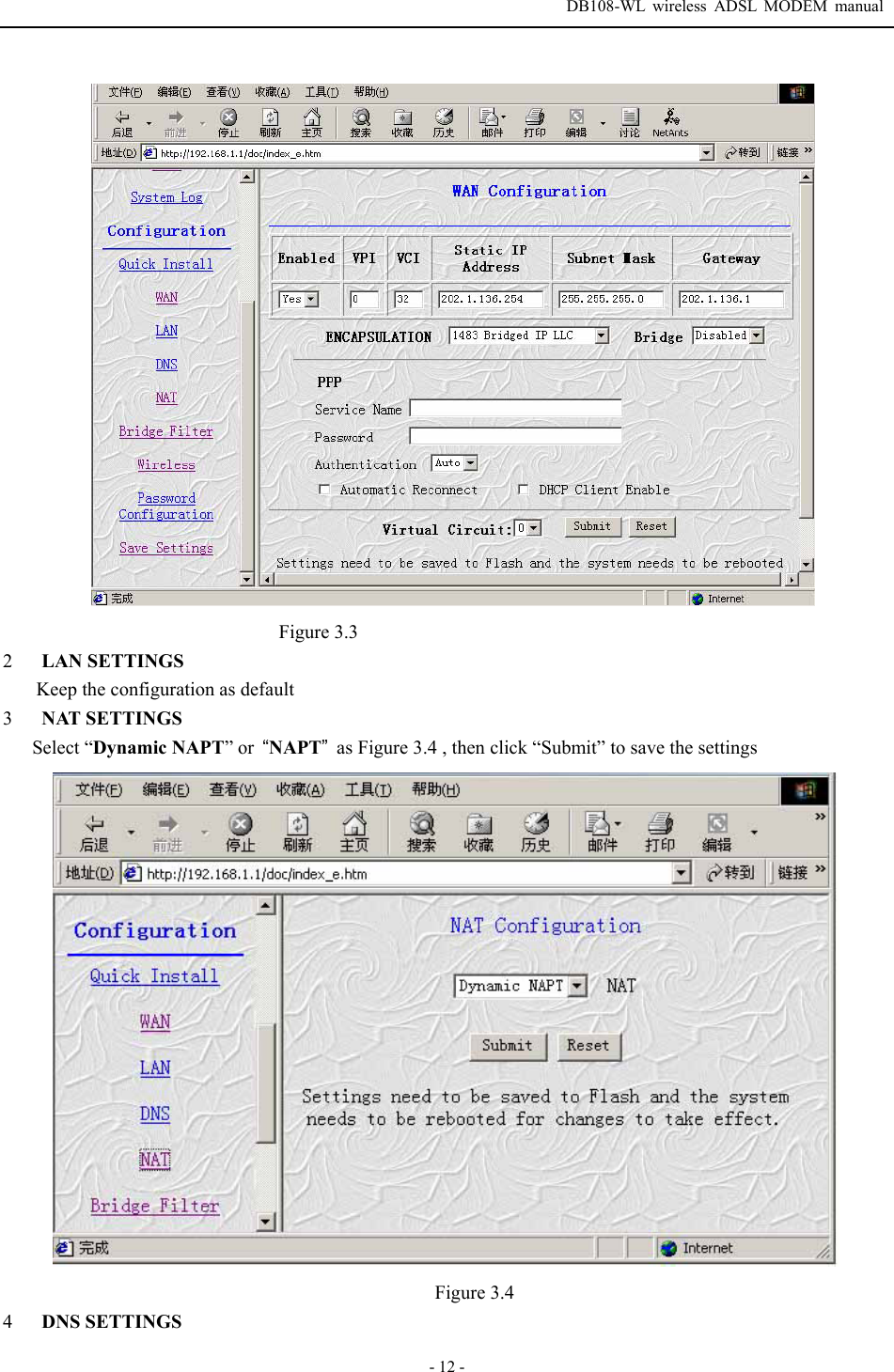
 DB108-WL wireless ADSL MODEM manual  - 11 -  Figure 3.2  4  DNS SETTINGS Keep the default configuration.  Click “Save Settings” button in configure item as Figure 2.3. Click “Submit” to save all the above settings. Then modem will restart automatically and run under new parameters  3.2 STATIC ROUTING CONFIGURATIONRFC1483ROUTING/RFC1577CONFIGURATION  1  WAN SETTINGS z Set “Enabled” as  “Ye s” z Set the value of VPI, VCI    (For example VPI=0, VCI=32) z Set“Static IP Address ”and  “Subnet Mask”(For example set IP Address 202.1.136.254Subnet Mask 255.255.255.0) z For 1483 routedselect  “1483 Bridged IP LLC” or “1483 Bridged IP VCMUX” in “encapsulation ” (certain value need be provided by DSL provider); z For 1577 private line  select  “Classical IP over ATM” in “encapsulation” z Select  “Disabled” in “Bridge” item z Input gateway IP Address in “default gateway” (For example IP Address as 202.1.136.1) z Click “Submit” button on the bottom of the page to save the parameters. z The result is as figure 3.3.
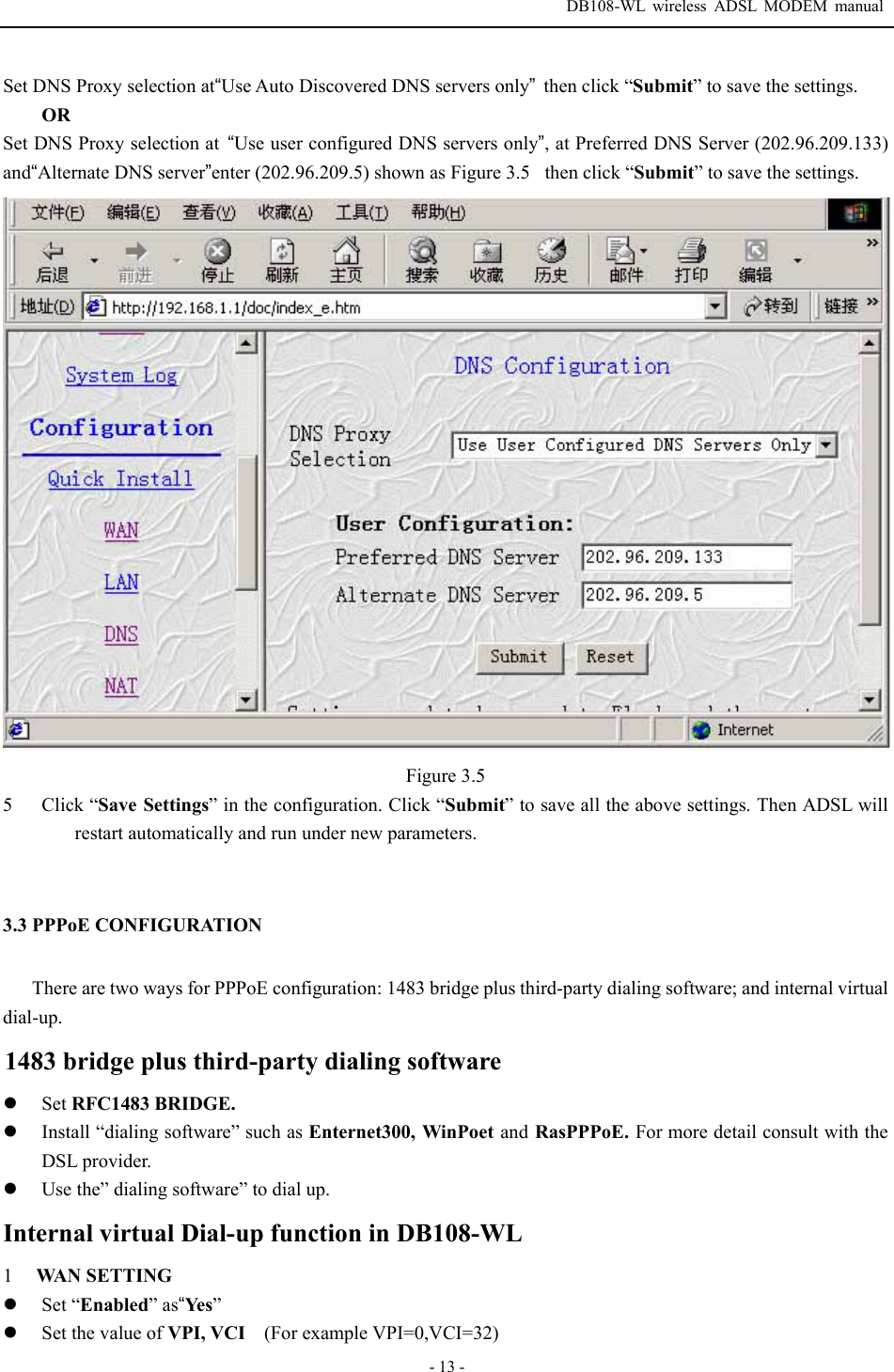
 DB108-WL wireless ADSL MODEM manual  - 12 -  Figure 3.3 2  LAN SETTINGS Keep the configuration as default 3  NAT SETTINGS Select “Dynamic NAPT” or  “NAPT”  as Figure 3.4 , then click “Submit” to save the settings  Figure 3.4 4  DNS SETTINGS
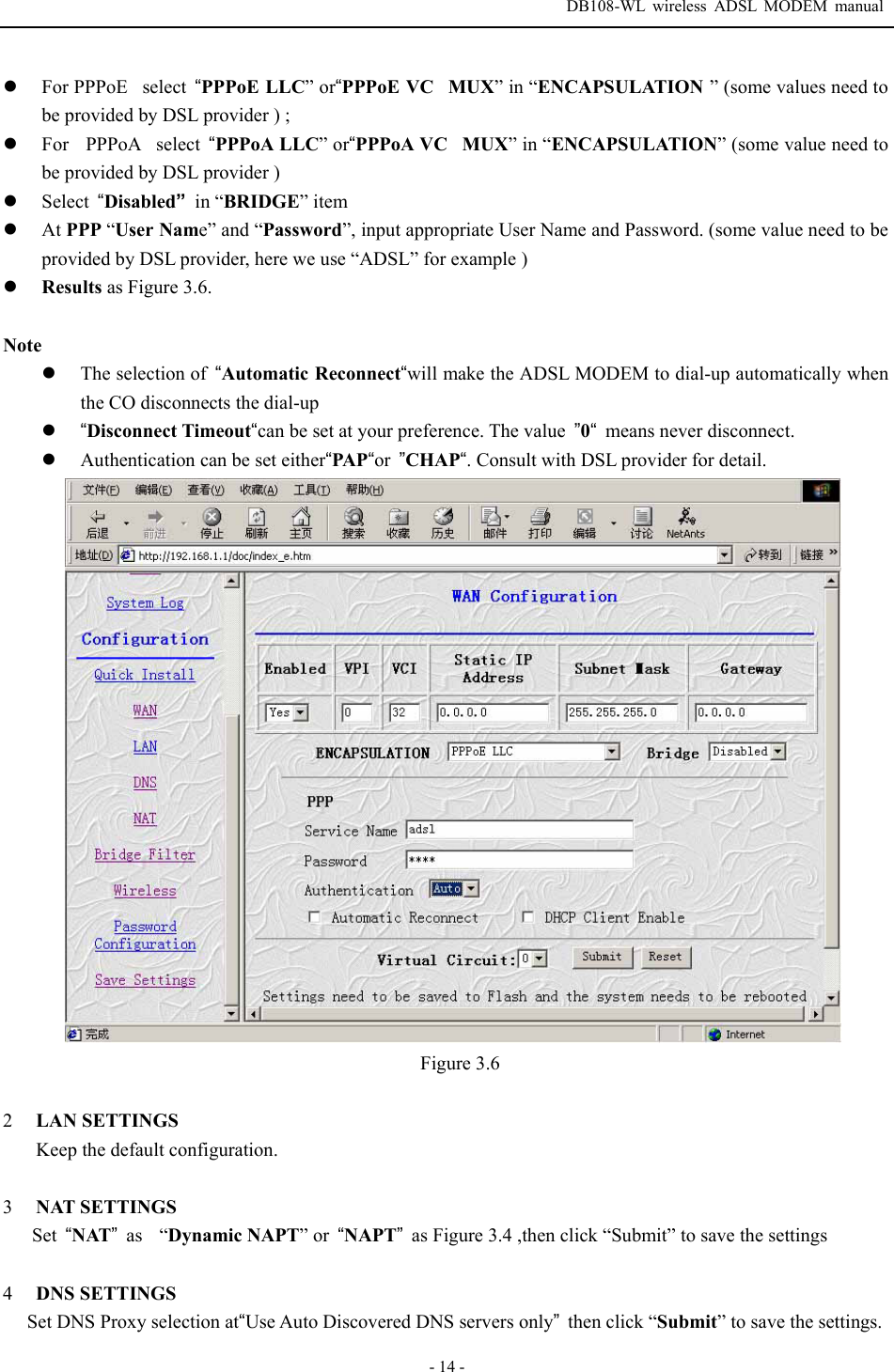
 DB108-WL wireless ADSL MODEM manual  - 13 - Set DNS Proxy selection at“Use Auto Discovered DNS servers only”then click “Submit” to save the settings. OR Set DNS Proxy selection at  “Use user configured DNS servers only”, at Preferred DNS Server (202.96.209.133) and“Alternate DNS server”enter (202.96.209.5) shown as Figure 3.5then click “Submit” to save the settings.  Figure 3.5 5  Click “Save Settings” in the configuration. Click “Submit” to save all the above settings. Then ADSL will restart automatically and run under new parameters.    3.3 PPPoE CONFIGURATION There are two ways for PPPoE configuration: 1483 bridge plus third-party dialing software; and internal virtual dial-up. 1483 bridge plus third-party dialing software z Set RFC1483 BRIDGE. z Install “dialing software” such as Enternet300, WinPoet and RasPPPoE. For more detail consult with the DSL provider. z Use the” dialing software” to dial up. Internal virtual Dial-up function in DB108-WL 1  WAN SETTING z Set “Enabled” as“Yes ” z Set the value of VPI, VCI    (For example VPI=0,VCI=32)
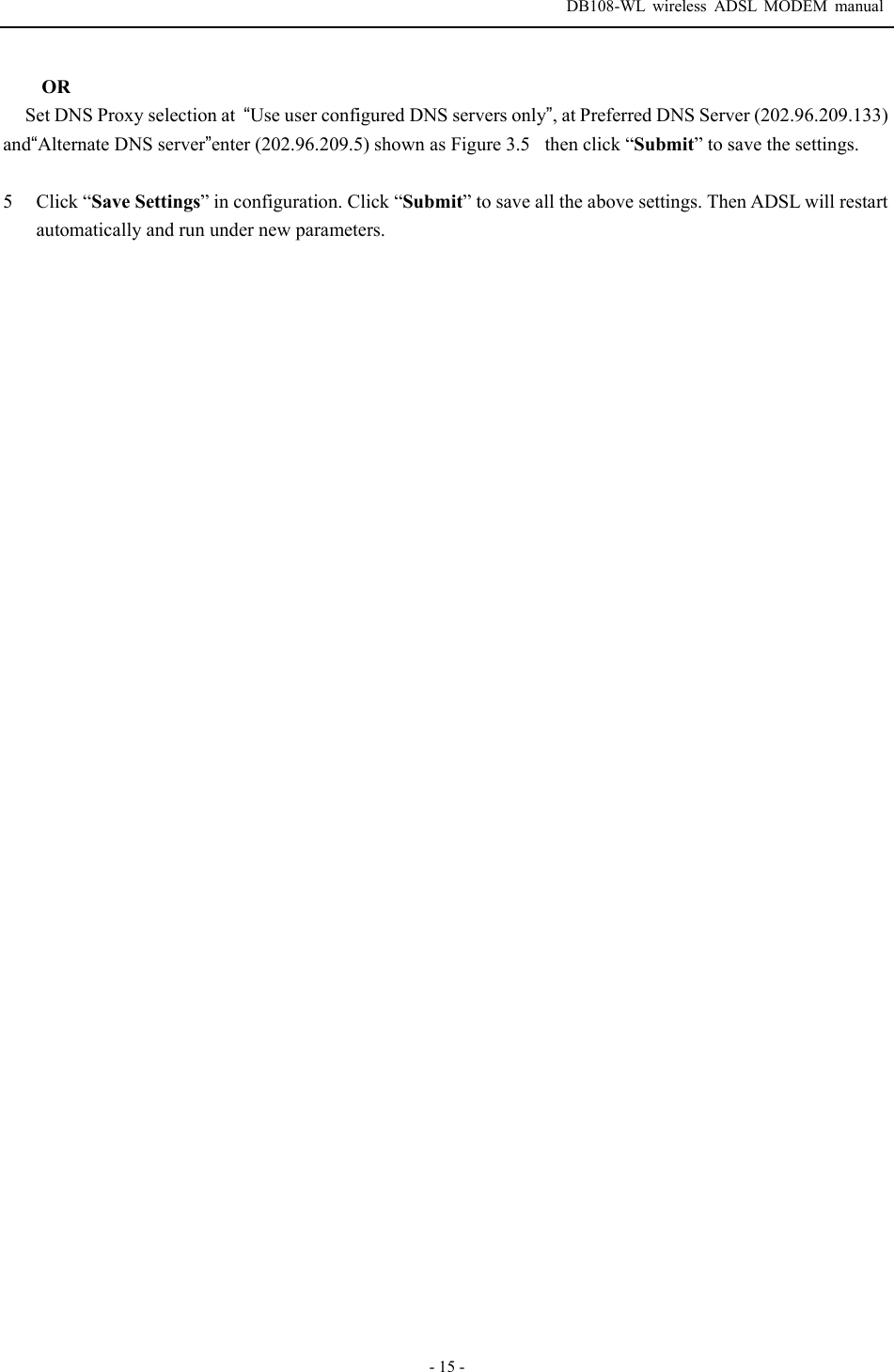
 DB108-WL wireless ADSL MODEM manual  - 14 - z For PPPoEselect  “PPPoE LLC” or“PPPoE VCMUX” in “ENCAPSULATION ” (some values need to be provided by DSL provider ) ; z For  PPPoAselect  “PPPoA LLC” or“PPPoA VCMUX” in “ENCAPSULATION” (some value need to be provided by DSL provider ) z Select  “Disabled” in “BRIDGE” item z At PPP “User Name” and “Password”, input appropriate User Name and Password. (some value need to be provided by DSL provider, here we use “ADSL” for example ) z Results as Figure 3.6.  Note z The selection of  “Automatic Reconnect“will make the ADSL MODEM to dial-up automatically when the CO disconnects the dial-up   z “Disconnect Timeout“can be set at your preference. The value  ”0“  means never disconnect. z Authentication can be set either“PAP“or  ”CHAP“. Consult with DSL provider for detail.  Figure 3.6  2  LAN SETTINGS Keep the default configuration.  3  NAT SETTINGS Set  “NAT” as  “Dynamic NAPT” or  “NAPT”  as Figure 3.4 ,then click “Submit” to save the settings  4  DNS SETTINGS Set DNS Proxy selection at“Use Auto Discovered DNS servers only”then click “Submit” to save the settings.
 DB108-WL wireless ADSL MODEM manual  - 15 - OR Set DNS Proxy selection at  “Use user configured DNS servers only”, at Preferred DNS Server (202.96.209.133) and“Alternate DNS server”enter (202.96.209.5) shown as Figure 3.5then click “Submit” to save the settings.  5  Click “Save Settings” in configuration. Click “Submit” to save all the above settings. Then ADSL will restart automatically and run under new parameters.
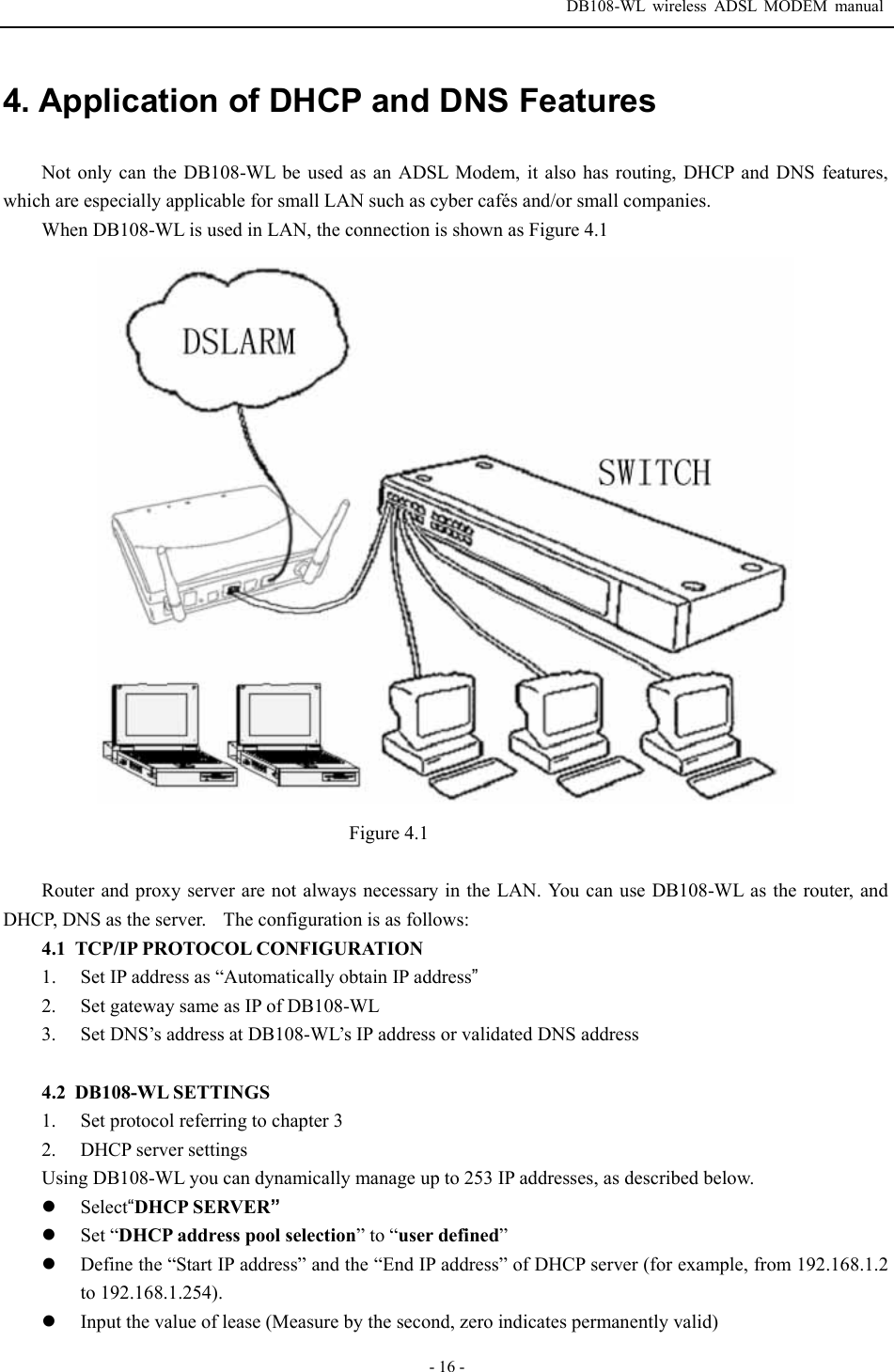
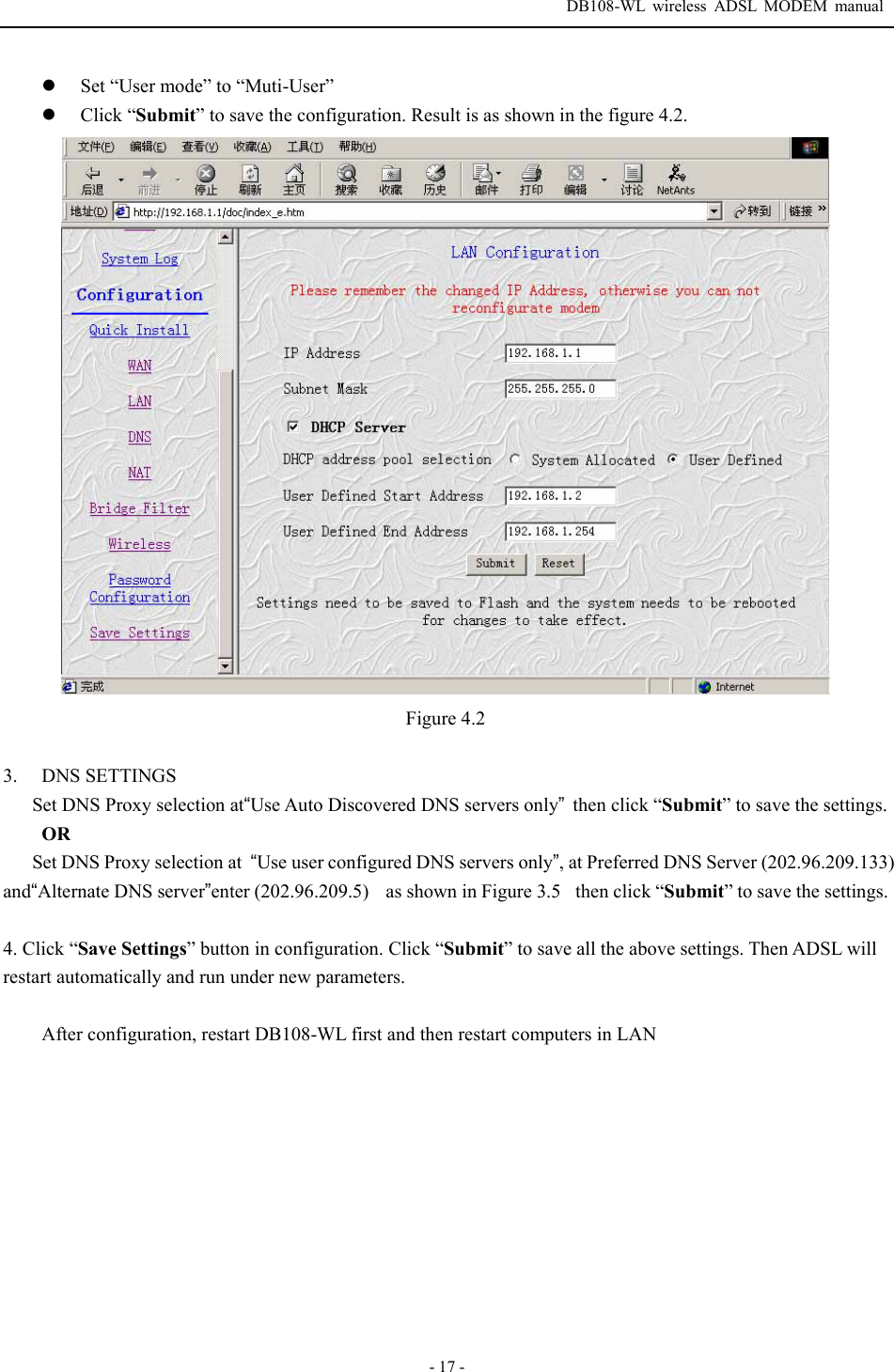
 DB108-WL wireless ADSL MODEM manual  - 16 - 4. Application of DHCP and DNS Features  Not only can the DB108-WL be used as an ADSL Modem, it also has routing, DHCP and DNS features, which are especially applicable for small LAN such as cyber cafés and/or small companies.   When DB108-WL is used in LAN, the connection is shown as Figure 4.1                                      Figure 4.1  Router and proxy server are not always necessary in the LAN. You can use DB108-WL as the router, and DHCP, DNS as the server.    The configuration is as follows:   4.1 TCP/IP PROTOCOL CONFIGURATION 1. Set IP address as “Automatically obtain IP address” 2. Set gateway same as IP of DB108-WL 3. Set DNS’s address at DB108-WL’s IP address or validated DNS address  4.2 DB108-WL SETTINGS 1. Set protocol referring to chapter 3 2. DHCP server settings Using DB108-WL you can dynamically manage up to 253 IP addresses, as described below. z Select“DHCP SERVER” z Set “DHCP address pool selection” to “user defined” z Define the “Start IP address” and the “End IP address” of DHCP server (for example, from 192.168.1.2 to 192.168.1.254). z Input the value of lease (Measure by the second, zero indicates permanently valid)
 DB108-WL wireless ADSL MODEM manual  - 17 - z Set “User mode” to “Muti-User” z Click “Submit” to save the configuration. Result is as shown in the figure 4.2.  Figure 4.2  3. DNS SETTINGS Set DNS Proxy selection at“Use Auto Discovered DNS servers only”then click “Submit” to save the settings. OR Set DNS Proxy selection at  “Use user configured DNS servers only”, at Preferred DNS Server (202.96.209.133) and“Alternate DNS server”enter (202.96.209.5)    as shown in Figure 3.5then click “Submit” to save the settings.  4. Click “Save Settings” button in configuration. Click “Submit” to save all the above settings. Then ADSL will restart automatically and run under new parameters.  After configuration, restart DB108-WL first and then restart computers in LAN
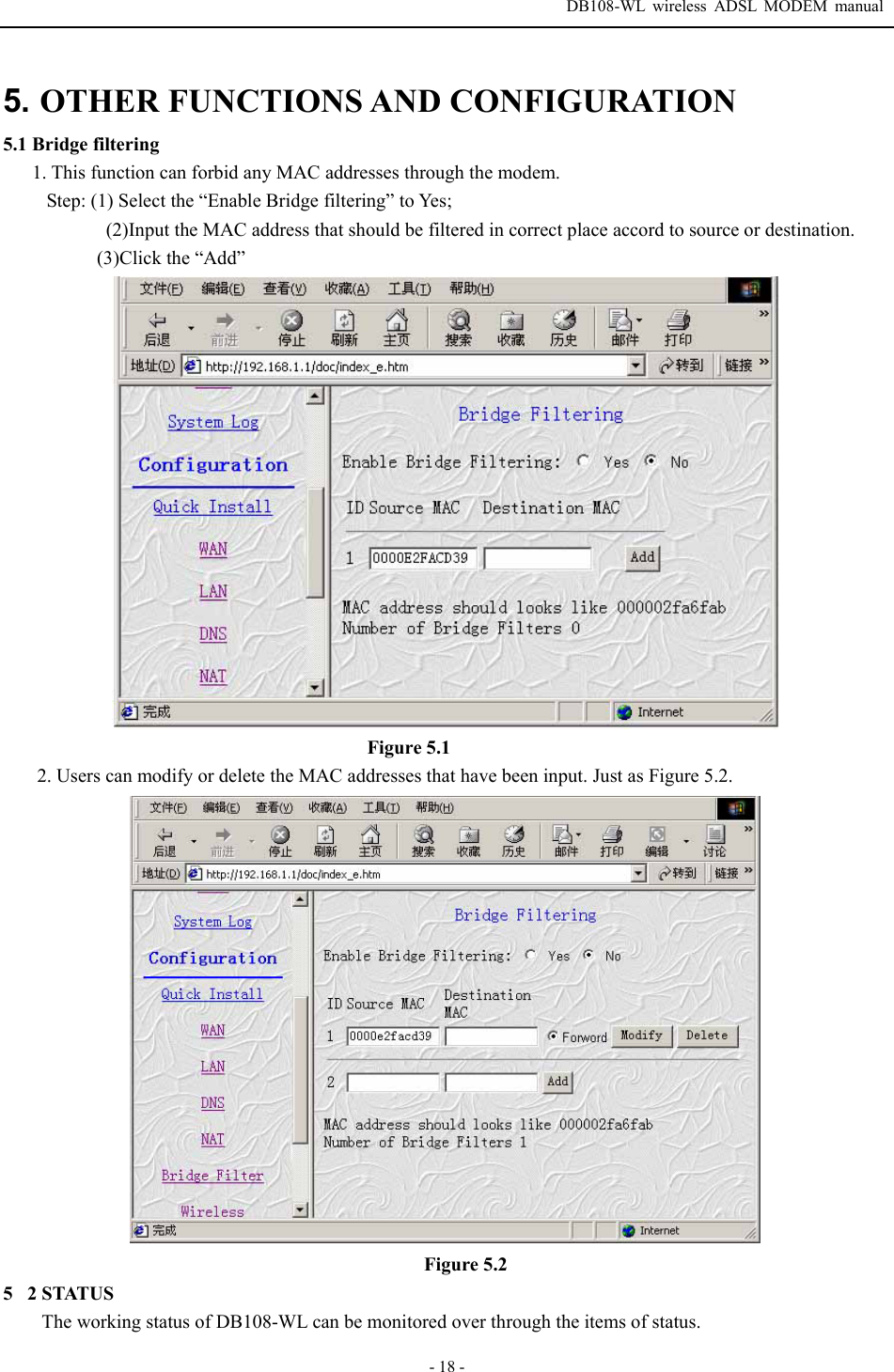
 DB108-WL wireless ADSL MODEM manual  - 18 - 5. OTHER FUNCTIONS AND CONFIGURATION  5.1 Bridge filtering 1. This function can forbid any MAC addresses through the modem.   Step: (1) Select the “Enable Bridge filtering” to Yes;       (2)Input the MAC address that should be filtered in correct place accord to source or destination.            (3)Click the “Add”                                     Figure 5.1         2. Users can modify or delete the MAC addresses that have been input. Just as Figure 5.2.  Figure 5.2 52 STATUS   The working status of DB108-WL can be monitored over through the items of status.
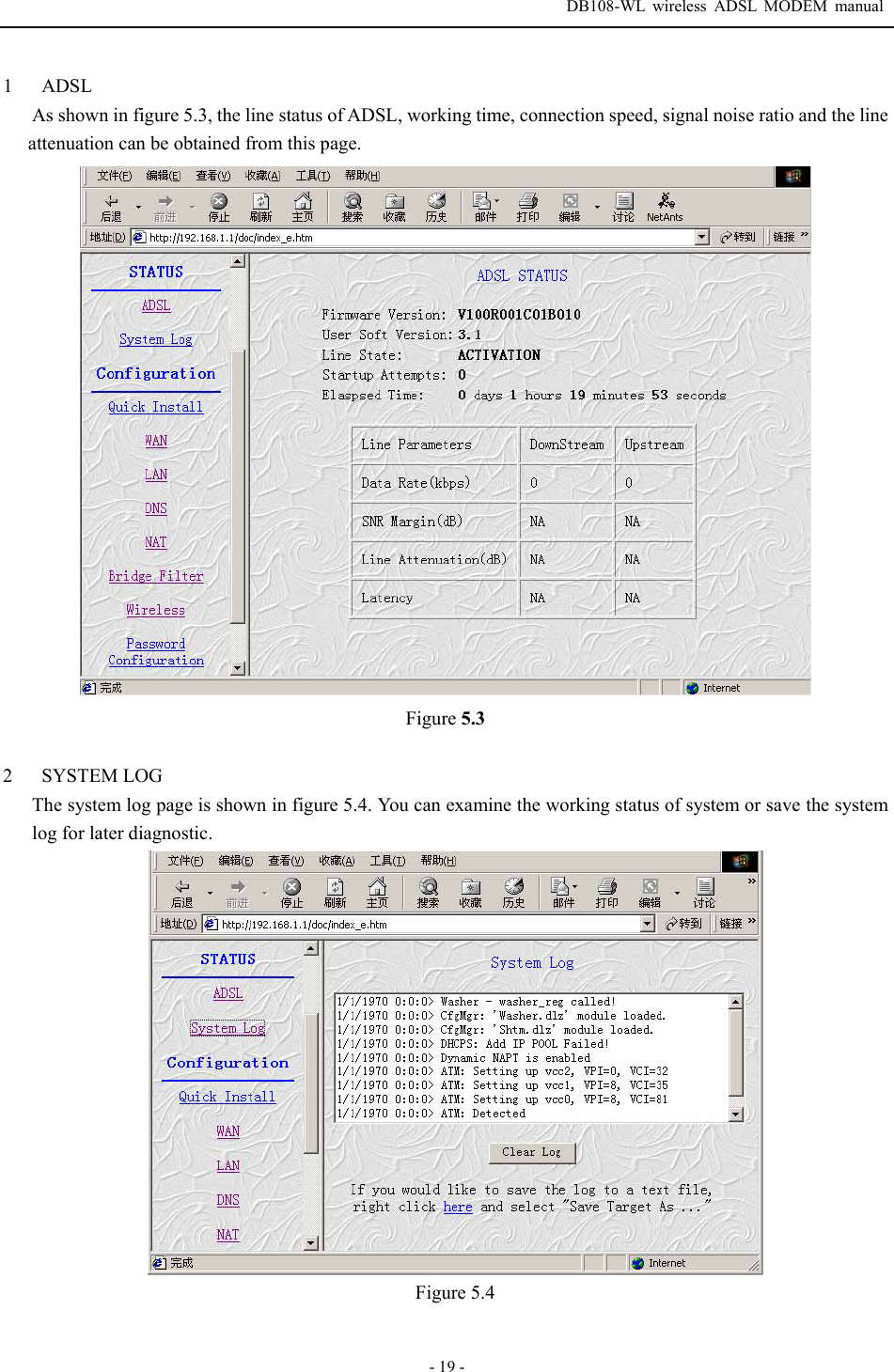
 DB108-WL wireless ADSL MODEM manual  - 19 - 1  ADSL As shown in figure 5.3, the line status of ADSL, working time, connection speed, signal noise ratio and the line attenuation can be obtained from this page.  Figure 5.3  2  SYSTEM LOG The system log page is shown in figure 5.4. You can examine the working status of system or save the system log for later diagnostic.  Figure 5.4
 DB108-WL wireless ADSL MODEM manual  - 20 -  53 CONFIGURATION OF DB108-WL’S IP ADDRESS AND PASSWORD 1  CONFIGURATION OF DB108-WL’S IP As a network device, DB108-WL ADSL Modem has its own IP address and MAC address. The factory sets the DB108-WL at a default IP address of 192.168.1.1 and subnet mask of 255.255.255.0. The user can configure these addresses through the “LAN” on “Configuration” 2. Configuration of administrator’s password and user password When logging on the setting page of DB108-WL, the system requires user name and password to validate access permission. The default administrator’s account is “admin” and the default password for this account is “dareadsl”. The default common user’s account is “user” and the password for this account is “password”. The administrator and users’ user names are permanent. But the administrator, through the “Admin or user password configuration” on Configuration column, can change the passwords. (Attention: please remember the password after change otherwise you will not be able to change configuration after saving.)
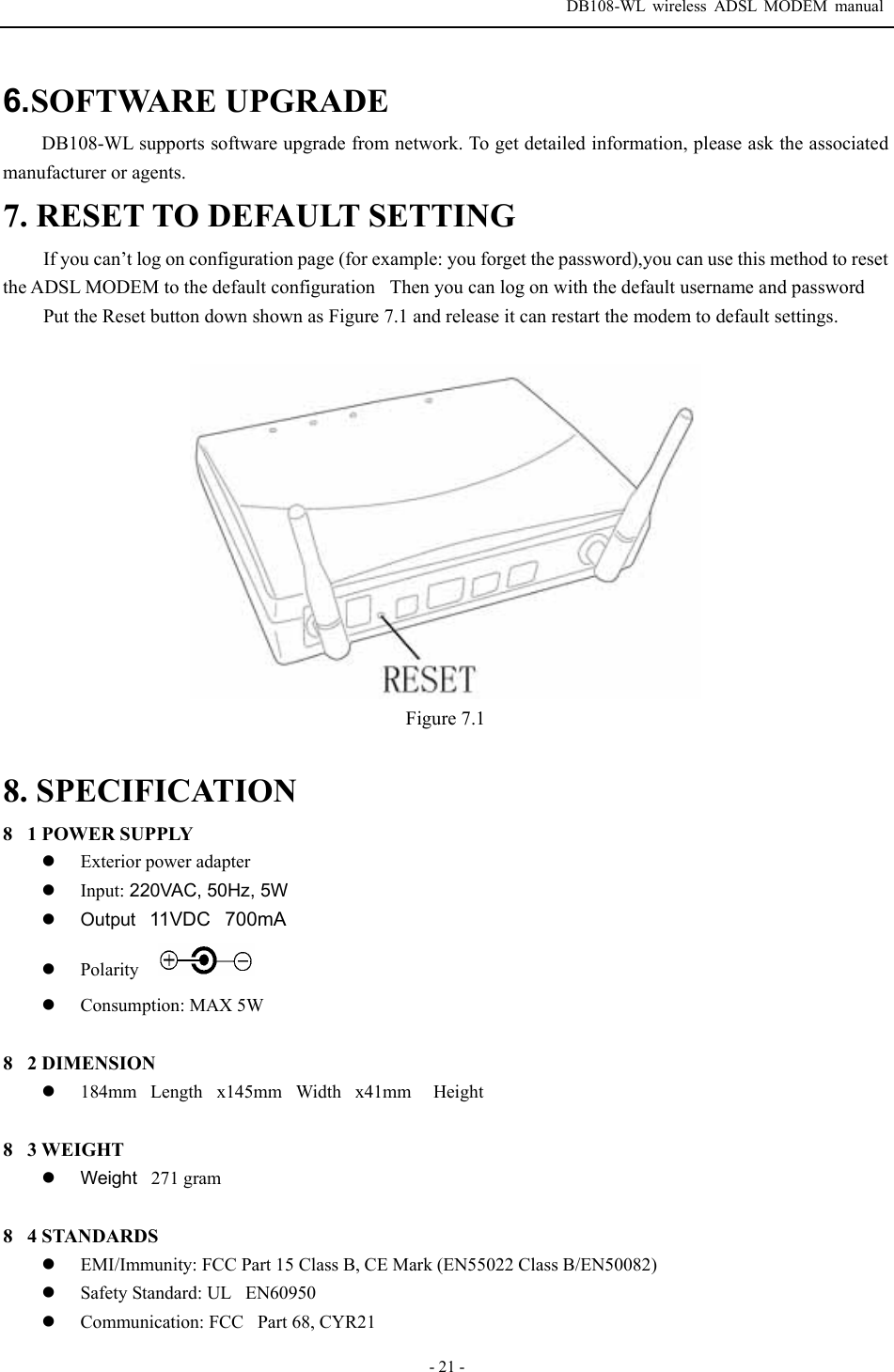
 DB108-WL wireless ADSL MODEM manual  - 21 - 6.SOFTWARE UPGRADE DB108-WL supports software upgrade from network. To get detailed information, please ask the associated manufacturer or agents. 7. RESET TO DEFAULT SETTING If you can’t log on configuration page (for example: you forget the password),you can use this method to reset the ADSL MODEM to the default configurationThen you can log on with the default username and password Put the Reset button down shown as Figure 7.1 and release it can restart the modem to default settings.     Figure 7.1  8. SPECIFICATION 81 POWER SUPPLY z Exterior power adapter z Input: 220VAC, 50Hz, 5W z Output11VDC700mA  z Polarity z Consumption: MAX 5W  82 DIMENSION z 184mmLengthx145mmWidthx41mm  Height  83 WEIGHT z Weight271 gram  84 STANDARDS z EMI/Immunity: FCC Part 15 Class B, CE Mark (EN55022 Class B/EN50082) z Safety Standard: ULEN60950 z Communication: FCC Part 68, CYR21
 DB108-WL wireless ADSL MODEM manual  - 22 - z Electromagnetic: in accordance with FCC, ETSI and CISPR standard z IEEE 802.11b standard.  85 ENVIRONMENT REQUIREMENTS z Temperature: 5°C40°C(41F104F) z Relative humidity:0%95% z Electromagnetic disturbanceFCC PART15&68  A. Troubleshooting  Phenomena Solution The indicator of power supply is not on   1. Make sure the connection of power supply is correct. 2. Make sure the switch of power supply is turned on. 3. Make sure the output of power supply is correct. The indicator of PC is not on 1. Check the connection of cable and network adapter. 2. Make sure that the correct cable is used. 3. Make sure the cable works fine by pinging the host IP address. Can not access Internet or remote networks 1.  Make sure the problems list above are all eliminated. 2.  Make sure the software configuration of the ADSL Modem is correct. 3. Make sure you have restarted the ADSL Modem after configuration change. 4.  Check IP connection using ping command. 5.  Make sure the DNS of computer is correct.   Can’t access some WEB server 1  The MTU of operating system might be too large   2  Upgrade the operating system with patches.    Can not log on to the configuration page 1.  Make sure the PC indicator is on. 2.  Make sure the configuration of TCP/IP is correct. 3  Make sure the data indicator of Modem is on when using Ping command. 4  Make sure the user name and password is correct. 5  Reset the device. 6  Rewrite the software to flash memory through USB cable.
 DB108-WL wireless ADSL MODEM manual  - 23 - Wireless mode can’t work 1  Make sure the problems list above are all eliminated; 2  Make sure the WLAN card in computer works well. Check the wireless mode is “infrastructure”; 3  Make sure that “wireless” is shown on the configuration page of the modem. Otherwise there should be hardware error for the modem. Please ask manufacturer to change a new modem. 4  Make sure the WLAN card of the computer has the same SSID as that of the modem;   5 Check the Security mode. If the encryption is on , make sure the keys is correct. To avoid the possible problems for encryption setting, please don’t set the WEP mode with wireless PC card. Bridge Filtering is invalid   Cleanup the temp files of browser.
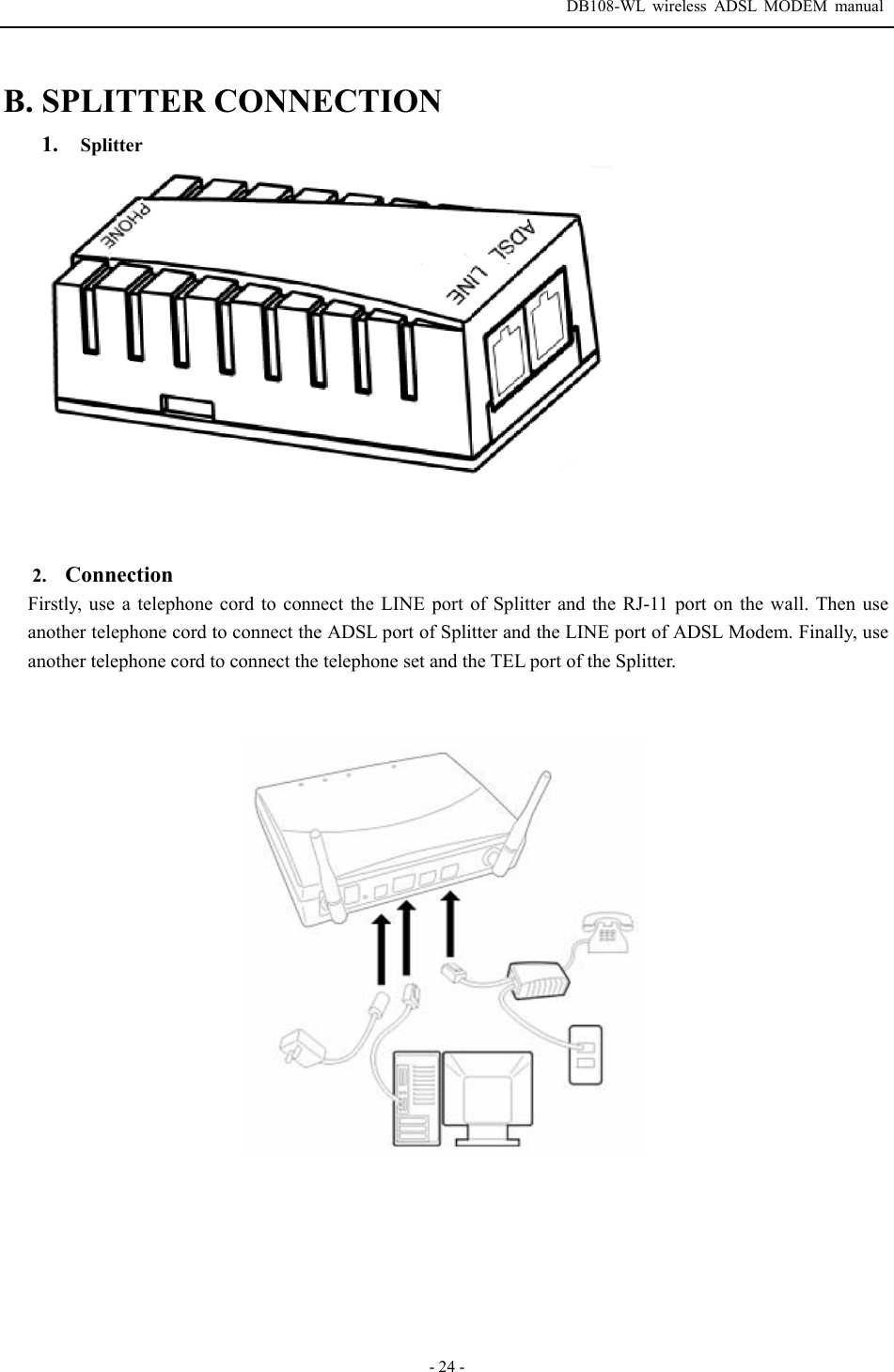
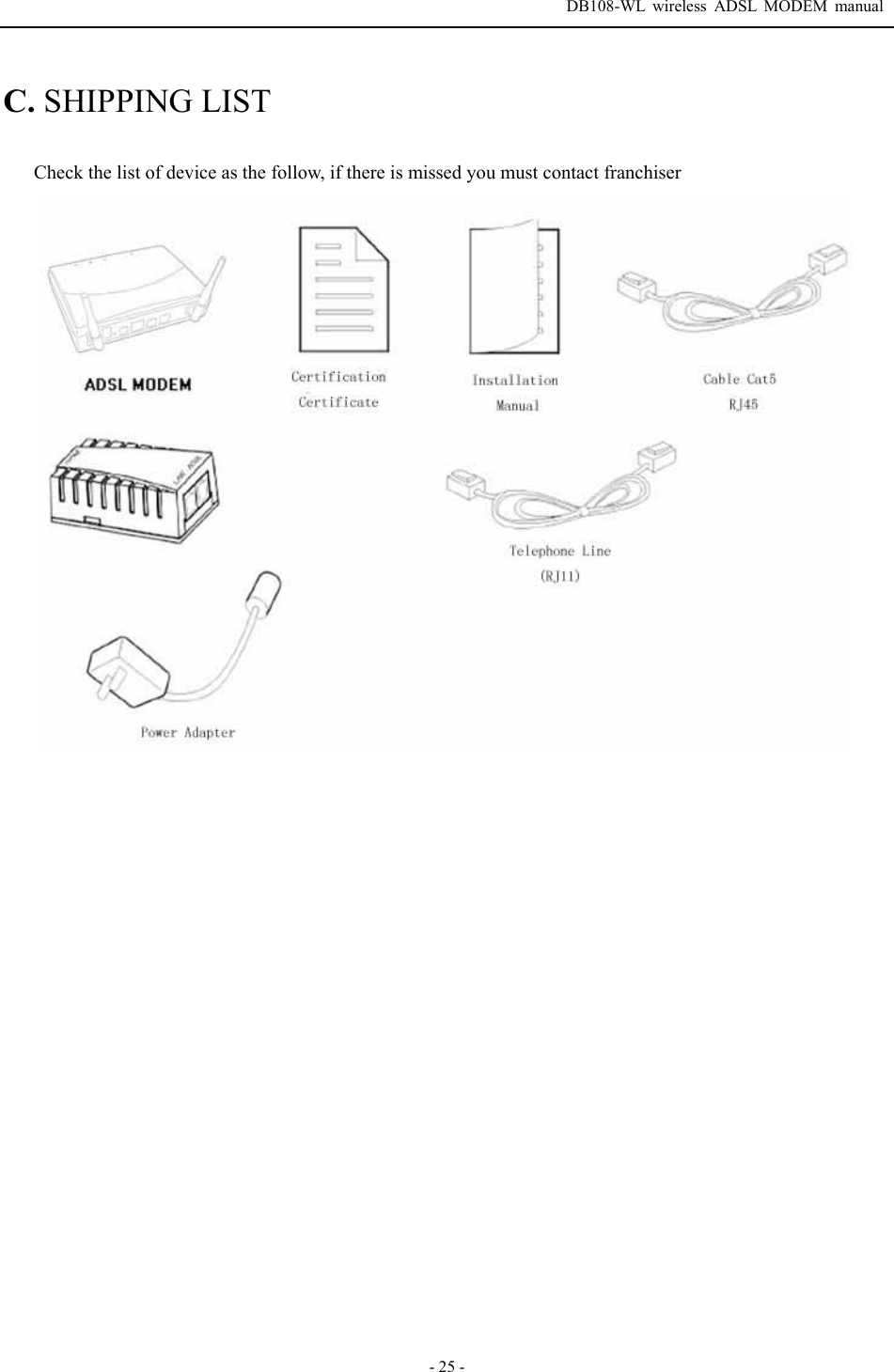
 DB108-WL wireless ADSL MODEM manual  - 24 - B. SPLITTER CONNECTION 1. Splitter      2.  Connection Firstly, use a telephone cord to connect the LINE port of Splitter and the RJ-11 port on the wall. Then use another telephone cord to connect the ADSL port of Splitter and the LINE port of ADSL Modem. Finally, use another telephone cord to connect the telephone set and the TEL port of the Splitter.
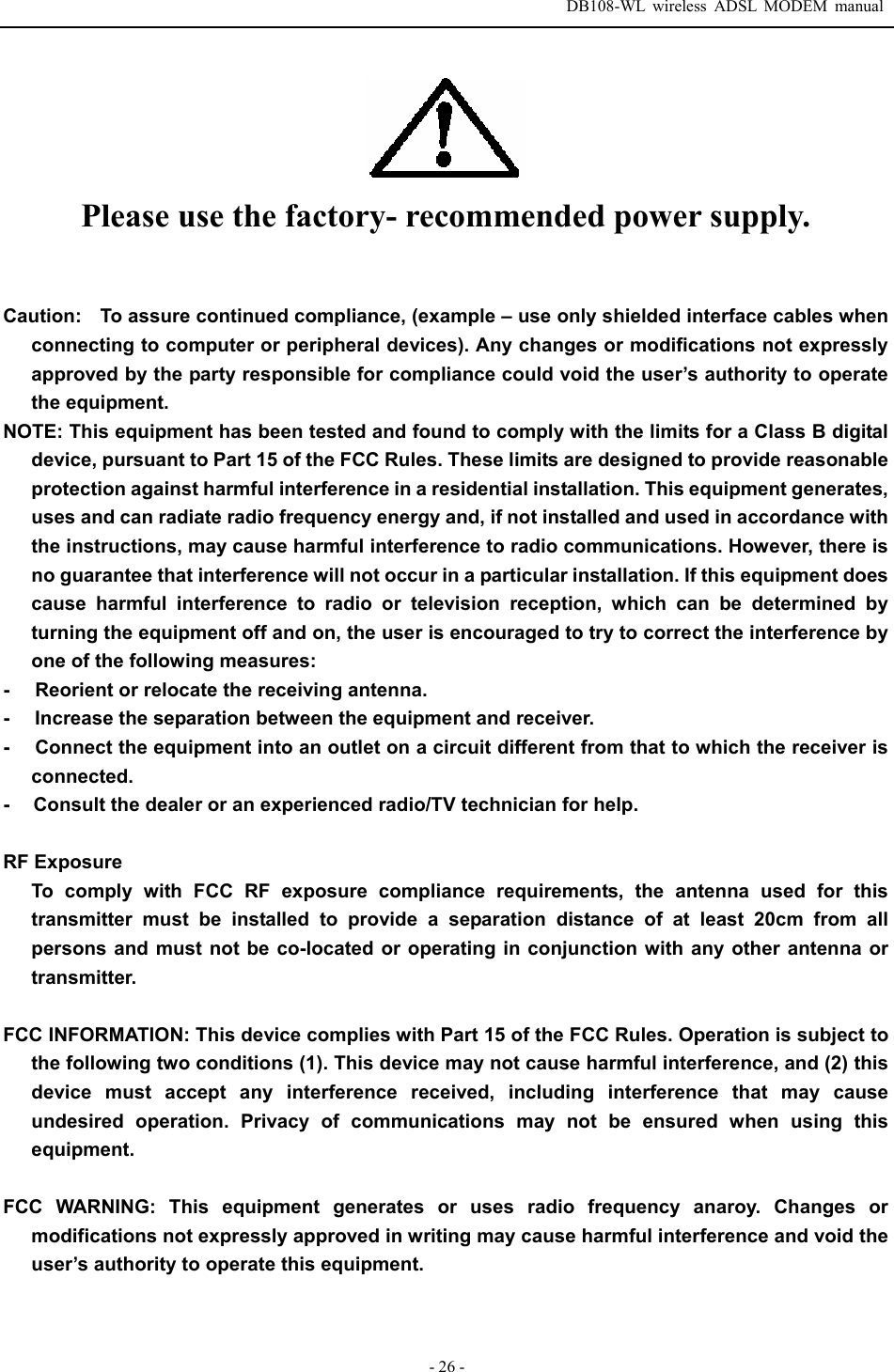
 DB108-WL wireless ADSL MODEM manual  - 25 - C. SHIPPING LIST  Check the list of device as the follow, if there is missed you must contact franchiser
 DB108-WL wireless ADSL MODEM manual  - 26 -  Please use the factory- recommended power supply.  Caution:    To assure continued compliance, (example – use only shielded interface cables when connecting to computer or peripheral devices). Any changes or modifications not expressly approved by the party responsible for compliance could void the user’s authority to operate the equipment. NOTE: This equipment has been tested and found to comply with the limits for a Class B digital device, pursuant to Part 15 of the FCC Rules. These limits are designed to provide reasonable protection against harmful interference in a residential installation. This equipment generates, uses and can radiate radio frequency energy and, if not installed and used in accordance with the instructions, may cause harmful interference to radio communications. However, there is no guarantee that interference will not occur in a particular installation. If this equipment does cause harmful interference to radio or television reception, which can be determined by turning the equipment off and on, the user is encouraged to try to correct the interference by one of the following measures: -     Reorient or relocate the receiving antenna. -     Increase the separation between the equipment and receiver. -     Connect the equipment into an outlet on a circuit different from that to which the receiver is connected. -     Consult the dealer or an experienced radio/TV technician for help.  RF Exposure   To comply with FCC RF exposure compliance requirements, the antenna used for this transmitter must be installed to provide a separation distance of at least 20cm from all persons and must not be co-located or operating in conjunction with any other antenna or transmitter.  FCC INFORMATION: This device complies with Part 15 of the FCC Rules. Operation is subject to the following two conditions (1). This device may not cause harmful interference, and (2) this device must accept any interference received, including interference that may cause undesired operation. Privacy of communications may not be ensured when using this equipment.   FCC WARNING: This equipment generates or uses radio frequency anaroy. Changes or modifications not expressly approved in writing may cause harmful interference and void the user’s authority to operate this equipment.

Navigation menu