Digianswer A S SYN8705A Motorola Bluetooth Phone Base unit - SYN8705A User Manual Bluetooth

Digianswer A/S Motorola Bluetooth Phone Base unit - SYN8705A Bluetooth

users manual with FCC statement

  Bluetooth Module User’s Guide January 18, 2001 Bluetooth.book  Page 1  Thursday, January 18, 2001  4:43 PM
 Bluetooth.book  Page 2  Thursday, January 18, 2001  4:43 PM
 Welcome Welcome to Motorola’s “connected” world of Bluetooth personal area wireless networking. We are pleased you have chosen the Motorola Bluetooth Phone Module to keep you connected with ease.The Bluetooth Phone Module enables you to exchange data and/or audio seamlessly between your cellular telephone and other Bluetooth devices such as PDAs or notebook computers.All Motorola wireless products are designed and manufactured to meet Motorola’s rigorous specifications and world-class quality standards. During development, our testing team took the Motorola Bluetooth Phone Module through rigorous durability tests including temperature, humidity, shock, dust, vibration, and drop tests—and it worked perfectly.We are confident that you will find your Bluetooth Phone Module to be a convenient and secure way to exchange voice signals and other data. Thank you for choosing a Motorola Bluetooth product! Bluetooth.book  Page 1  Thursday, January 18, 2001  4:43 PM
 2Personal Communications Sector600 North U.S. Highway 45Libertyville, Illinois 600481-800-331-6456 (United States)1-888-390-6456 (TTY/TDD United States)1-800-461-4575 (Canada)www.motorola.comMOTOROLA, the Stylized M Logo and all other trademarks indicated as such herein are trademarks of Motorola, Inc. ® Reg. U.S. Pat. & Tm. Off. All other product or service names are the property of their respective owners.© 2001 Motorola, Inc. All rights reserved. Printed in the U.S.A.Manual number: xxxxxxxCover number:   Bluetooth.book  Page 2  Thursday, January 18, 2001  4:43 PM
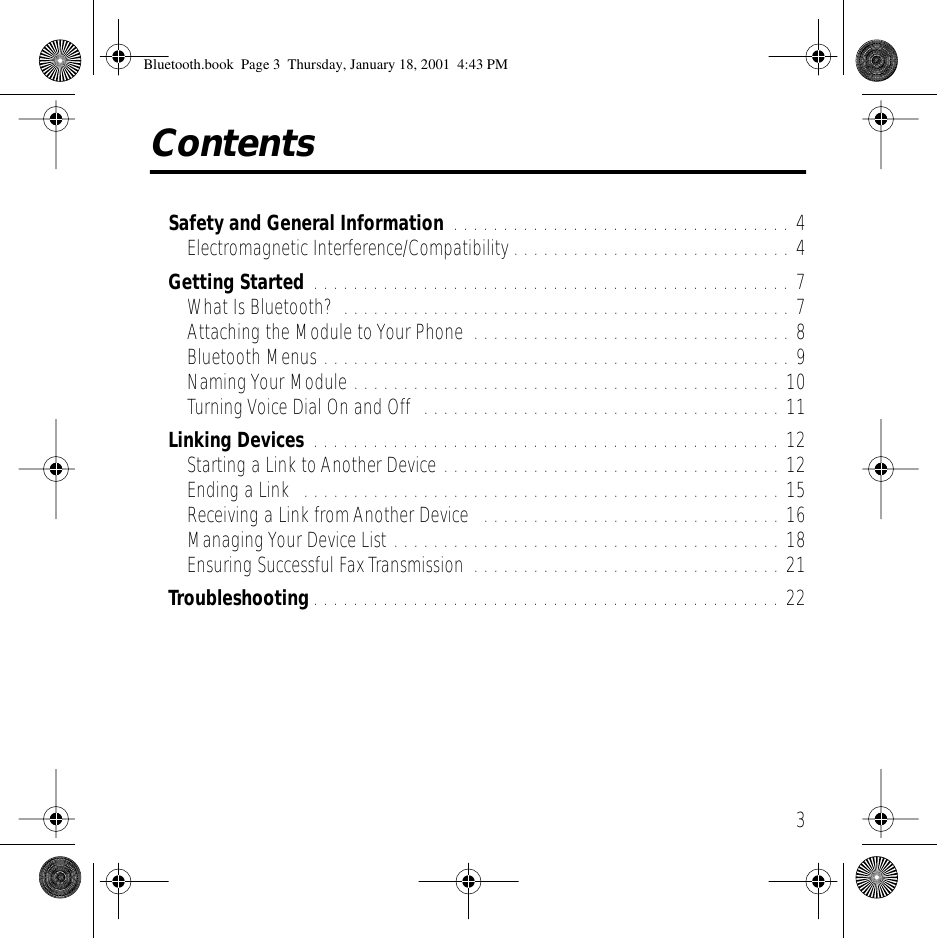
 3 Contents Safety and General Information  . . . . . . . . . . . . . . . . . . . . . . . . . . . . . . . . . . 4Electromagnetic Interference/Compatibility . . . . . . . . . . . . . . . . . . . . . . . . . . . . 4 Getting Started  . . . . . . . . . . . . . . . . . . . . . . . . . . . . . . . . . . . . . . . . . . . . . . . . 7What Is Bluetooth?  . . . . . . . . . . . . . . . . . . . . . . . . . . . . . . . . . . . . . . . . . . . . . 7Attaching the Module to Your Phone  . . . . . . . . . . . . . . . . . . . . . . . . . . . . . . . . 8Bluetooth Menus . . . . . . . . . . . . . . . . . . . . . . . . . . . . . . . . . . . . . . . . . . . . . . . 9Naming Your Module . . . . . . . . . . . . . . . . . . . . . . . . . . . . . . . . . . . . . . . . . . . 10Turning Voice Dial On and Off  . . . . . . . . . . . . . . . . . . . . . . . . . . . . . . . . . . . . 11 Linking Devices  . . . . . . . . . . . . . . . . . . . . . . . . . . . . . . . . . . . . . . . . . . . . . . . 12Starting a Link to Another Device . . . . . . . . . . . . . . . . . . . . . . . . . . . . . . . . . . 12Ending a Link  . . . . . . . . . . . . . . . . . . . . . . . . . . . . . . . . . . . . . . . . . . . . . . . . 15Receiving a Link from Another Device   . . . . . . . . . . . . . . . . . . . . . . . . . . . . . . 16Managing Your Device List . . . . . . . . . . . . . . . . . . . . . . . . . . . . . . . . . . . . . . . 18Ensuring Successful Fax Transmission  . . . . . . . . . . . . . . . . . . . . . . . . . . . . . . . 21 Troubleshooting . . . . . . . . . . . . . . . . . . . . . . . . . . . . . . . . . . . . . . . . . . . . . . . 22 Bluetooth.book  Page 3  Thursday, January 18, 2001  4:43 PM
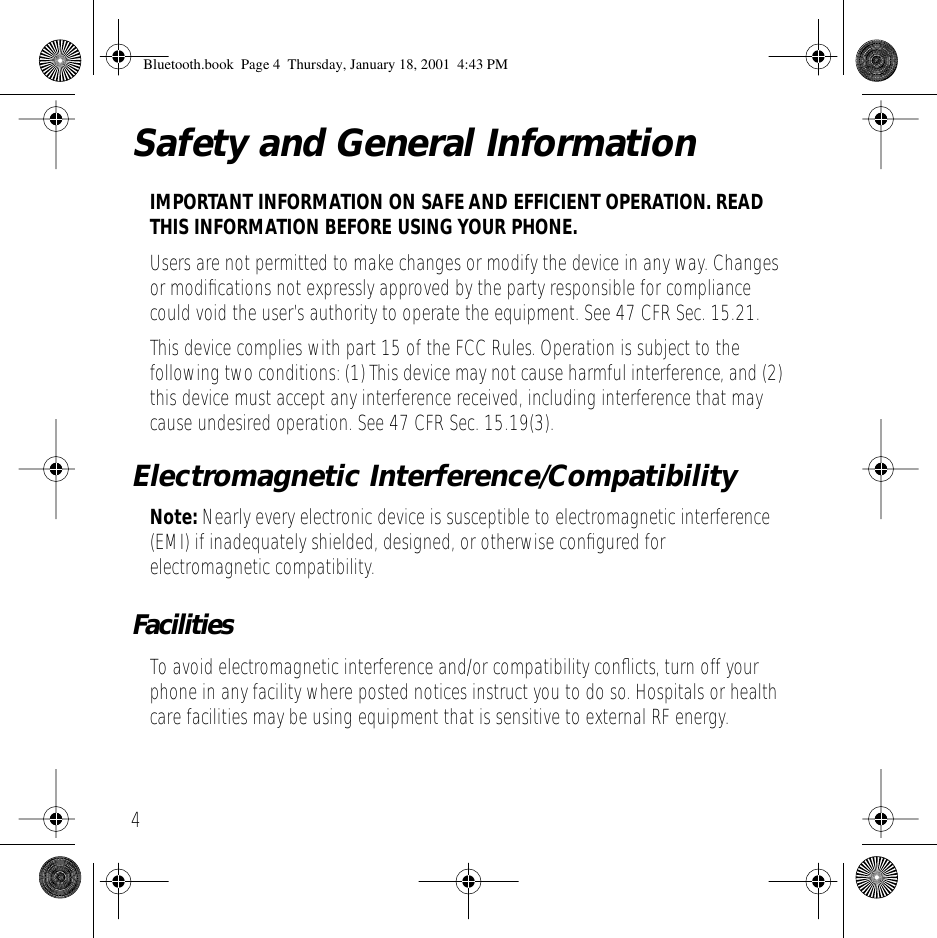
 4 Safety and General Information IMPORTANT INFORMATION ON SAFE AND EFFICIENT OPERATION. READ THIS INFORMATION BEFORE USING YOUR PHONE. Users are not permitted to make changes or modify the device in any way. Changes or modifications not expressly approved by the party responsible for compliance could void the user’s authority to operate the equipment. See 47 CFR Sec. 15.21.This device complies with part 15 of the FCC Rules. Operation is subject to the following two conditions: (1) This device may not cause harmful interference, and (2) this device must accept any interference received, including interference that may cause undesired operation. See 47 CFR Sec. 15.19(3). Electromagnetic Interference/Compatibility Note:  Nearly every electronic device is susceptible to electromagnetic interference (EMI) if inadequately shielded, designed, or otherwise configured for electromagnetic compatibility. Facilities To avoid electromagnetic interference and/or compatibility conflicts, turn off your phone in any facility where posted notices instruct you to do so. Hospitals or health care facilities may be using equipment that is sensitive to external RF energy. Bluetooth.book  Page 4  Thursday, January 18, 2001  4:43 PM
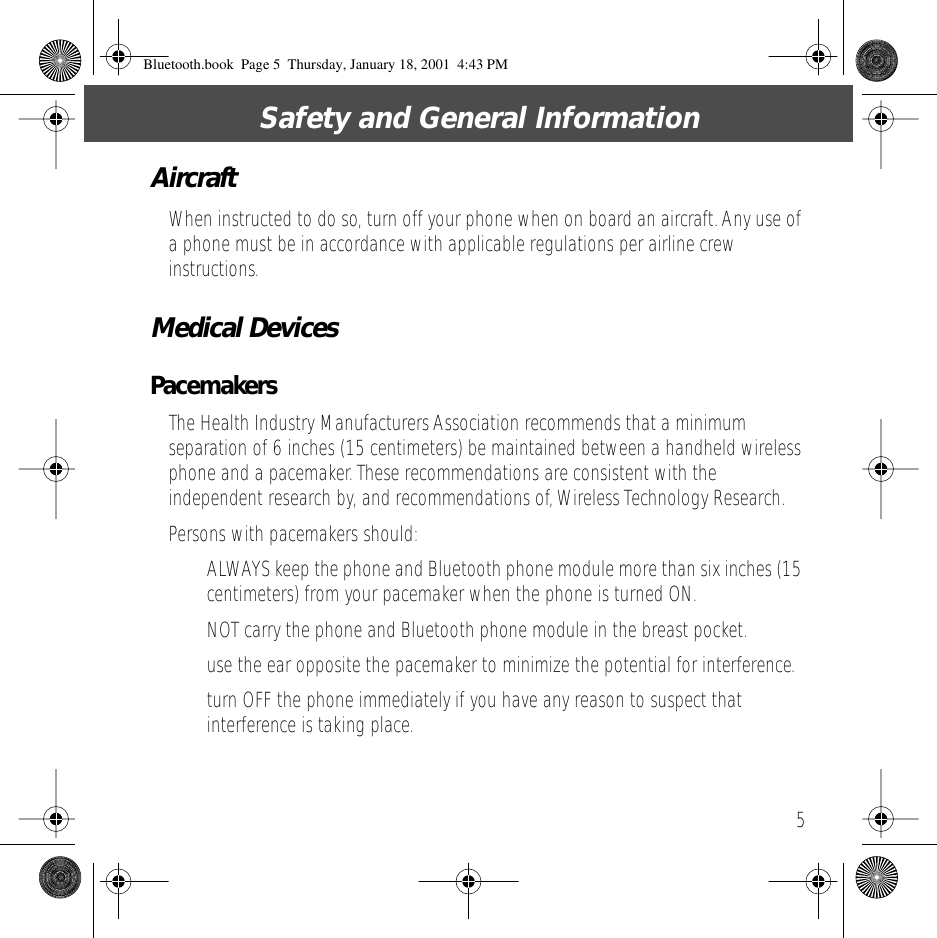
 5 Safety and General Information Aircraft When instructed to do so, turn off your phone when on board an aircraft. Any use of a phone must be in accordance with applicable regulations per airline crew instructions. Medical Devices Pacemakers The Health Industry Manufacturers Association recommends that a minimum separation of 6 inches (15 centimeters) be maintained between a handheld wireless phone and a pacemaker. These recommendations are consistent with the independent research by, and recommendations of, Wireless Technology Research.Persons with pacemakers should:• ALWAYS keep the phone and Bluetooth phone module more than six inches (15 centimeters) from your pacemaker when the phone is turned ON.• NOT carry the phone and Bluetooth phone module in the breast pocket.• use the ear opposite the pacemaker to minimize the potential for interference.• turn OFF the phone immediately if you have any reason to suspect that interference is taking place. Bluetooth.book  Page 5  Thursday, January 18, 2001  4:43 PM
 Safety and General Information 6 Other Medical Devices If you use any other personal medical device, consult the manufacturer of your device to determine if it is adequately shielded from RF energy. Your physician may be able to assist you in obtaining this information. Bluetooth.book  Page 6  Thursday, January 18, 2001  4:43 PM
 7 Getting Started What Is Bluetooth? Bluetooth  is a type of radio communication. Bluetooth  devices  can find and communicate with each other without using any wires. Bluetooth  devices  (such as Bluetooth Phone Modules and speakerphones) communicate through a common link that the two devices share.A Bluetooth device can  seek  other Bluetooth devices and determine which ones are open. An  open  device is one that is awaiting a link. A Bluetooth device can then  link  —establish an active connection—to the device and begin exchanging voice signals or other data with it. Bluetooth.book  Page 7  Thursday, January 18, 2001  4:43 PM
 Getting Started 8 Attaching the Module to Your Phone Do This 1 Turn off your phone. 2 Remove the battery cover. 3 Attach the Bluetooth module. Note:  The Bluetooth module uses some battery power whenever it is attached. (See “Turning Voice Dial On and Off” on page 11.) Bluetooth.book  Page 8  Thursday, January 18, 2001  4:43 PM
 9 Getting StartedBluetooth Menus Note:  Bluetooth menu items only appear when the Bluetooth module is attached. Before  you make a bond, the  Bluetooth Link  Menu includes these selections: After  you make a bond, the  Bluetooth Link  Menu includes these selections: • Bluetooth Link• Hands Free • Reconnect• Scan All• Voice Dial • Devices• Setup • Await Link• Name • Bluetooth Link• Hands Free • Disconnect• Voice Dial • Devices• Setup • Await Link• Name Bluetooth.book  Page 9  Thursday, January 18, 2001  4:43 PM
 Getting Started 10 Naming Your  Module When other Bluetooth devices find your module in a scan, they see its 12-character Bluetooth address. (PC tools can see more character.)If you want them to see a text name instead, you can “name” your module: Find the Feature M >  Settings  >  Connection  >  Bluetooth Link  >  Setup  >  Name Press To 1 keypad keys enter the characters for the name (40 characters maximum) 2 OK  ( + ) save the name that you entered Bluetooth.book  Page 10  Thursday, January 18, 2001  4:43 PM
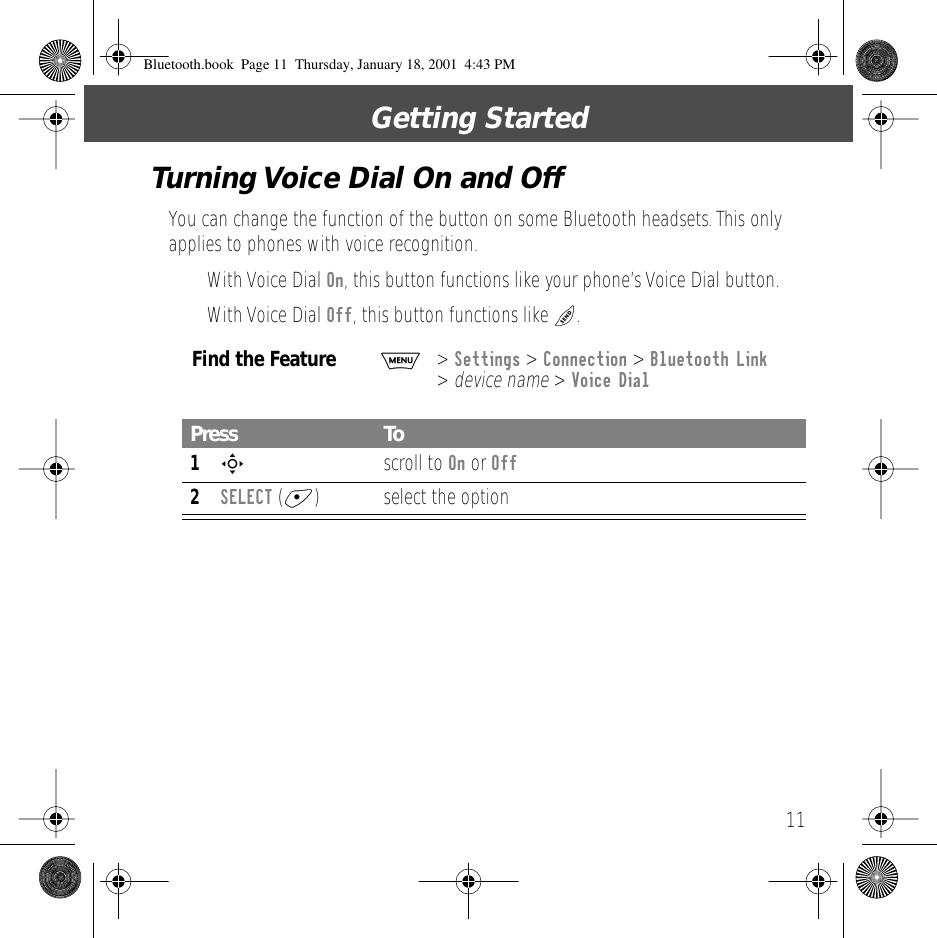
 11 Getting StartedTurning Voice Dial On and Off You can change the function of the button on some Bluetooth headsets. This only applies to phones with voice recognition.• With Voice Dial  On , this button functions like your phone’s Voice Dial button. • With Voice Dial  Off , this button functions like  N .  Find the Feature M >  Settings  >  Connection  >  Bluetooth Link  >  device name  >  Voice Dial Press To 1 S  scroll to  On  or  Off 2 SELECT  ( + ) select the option Bluetooth.book  Page 11  Thursday, January 18, 2001  4:43 PM
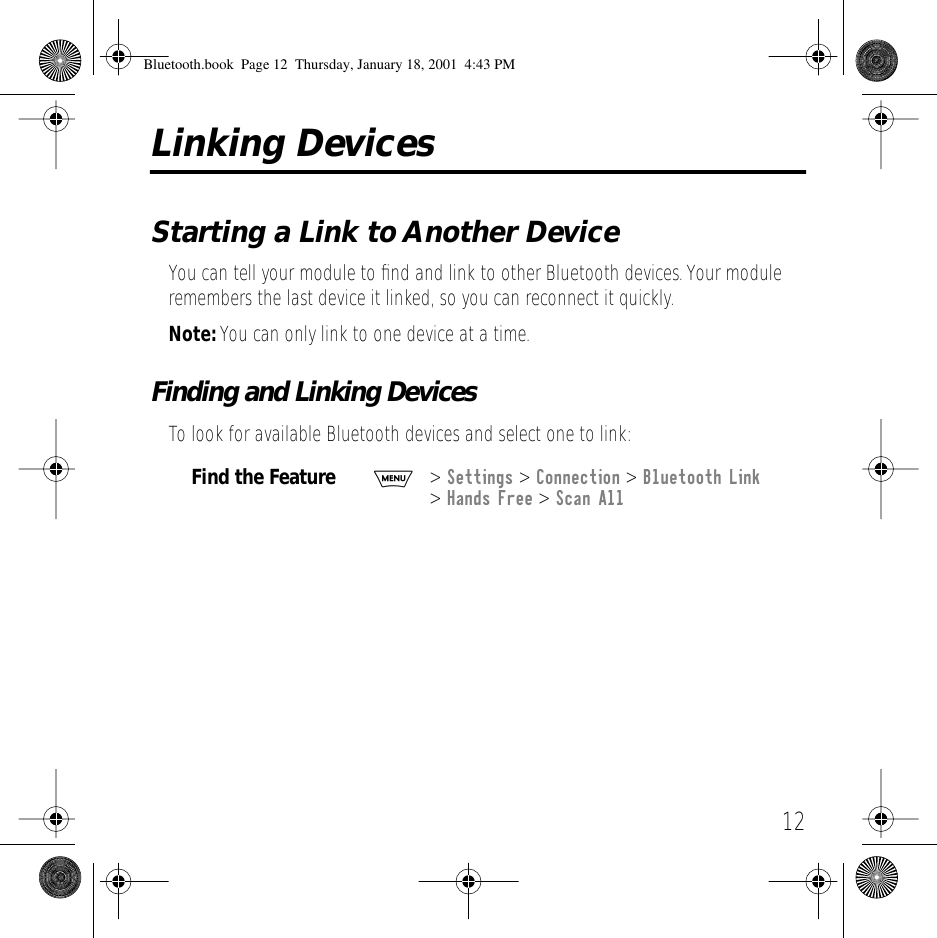
 12 Linking Devices Starting a Link to Another Device You can tell your module to find and link to other Bluetooth devices. Your module remembers the last device it linked, so you can reconnect it quickly.  Note:  You can only link to one device at a time. Finding and Linking Devices To look for available Bluetooth devices and select one to link: Find the Feature M >  Settings  >  Connection  >  Bluetooth Link  >  Hands Free  >  Scan All Bluetooth.book  Page 12  Thursday, January 18, 2001  4:43 PM
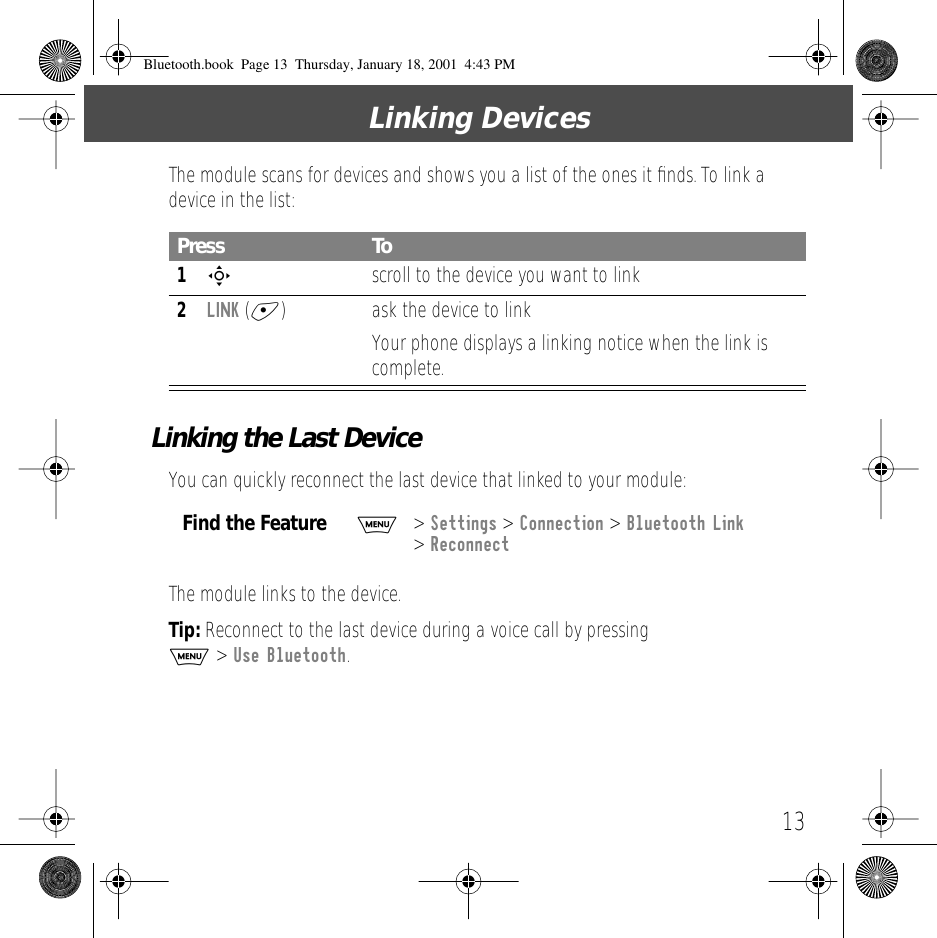
 13 Linking Devices The module scans for devices and shows you a list of the ones it finds. To link a device in the list: Linking the Last Device You can quickly reconnect the last device that linked to your module:The module links to the device. Tip:  Reconnect to the last device during a voice call by pressing   M  >  Use Bluetooth . Press To 1 S   scroll to the device you want to link 2 LINK  ( + ) ask the device to linkYour phone displays a linking notice when the link is complete. Find the Feature M> Settings > Connection > Bluetooth Link > ReconnectBluetooth.book  Page 13  Thursday, January 18, 2001  4:43 PM
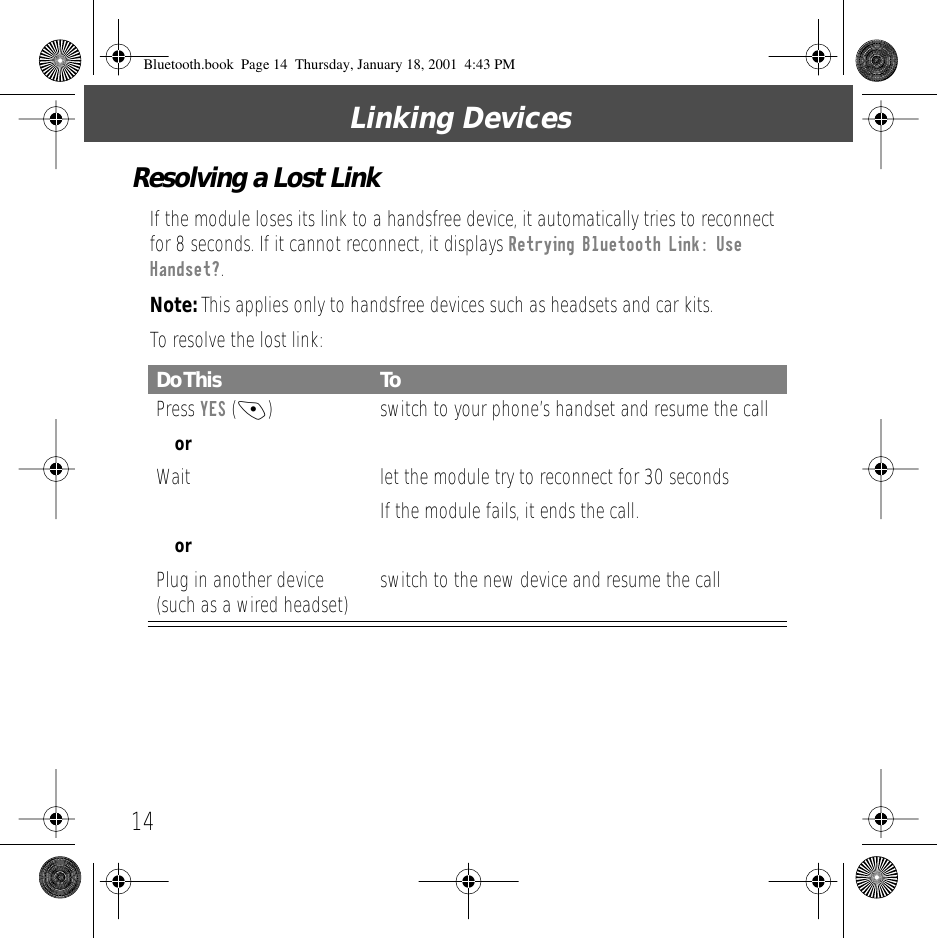
Linking Devices14Resolving a Lost LinkIf the module loses its link to a handsfree device, it automatically tries to reconnect for 8 seconds. If it cannot reconnect, it displays Retrying Bluetooth Link: Use Handset?.Note: This applies only to handsfree devices such as headsets and car kits.To resolve the lost link:Do This ToPress YES (-)  switch to your phone’s handset and resume the callorWait let the module try to reconnect for 30 secondsIf the module fails, it ends the call.orPlug in another device (such as a wired headset) switch to the new device and resume the callBluetooth.book  Page 14  Thursday, January 18, 2001  4:43 PM
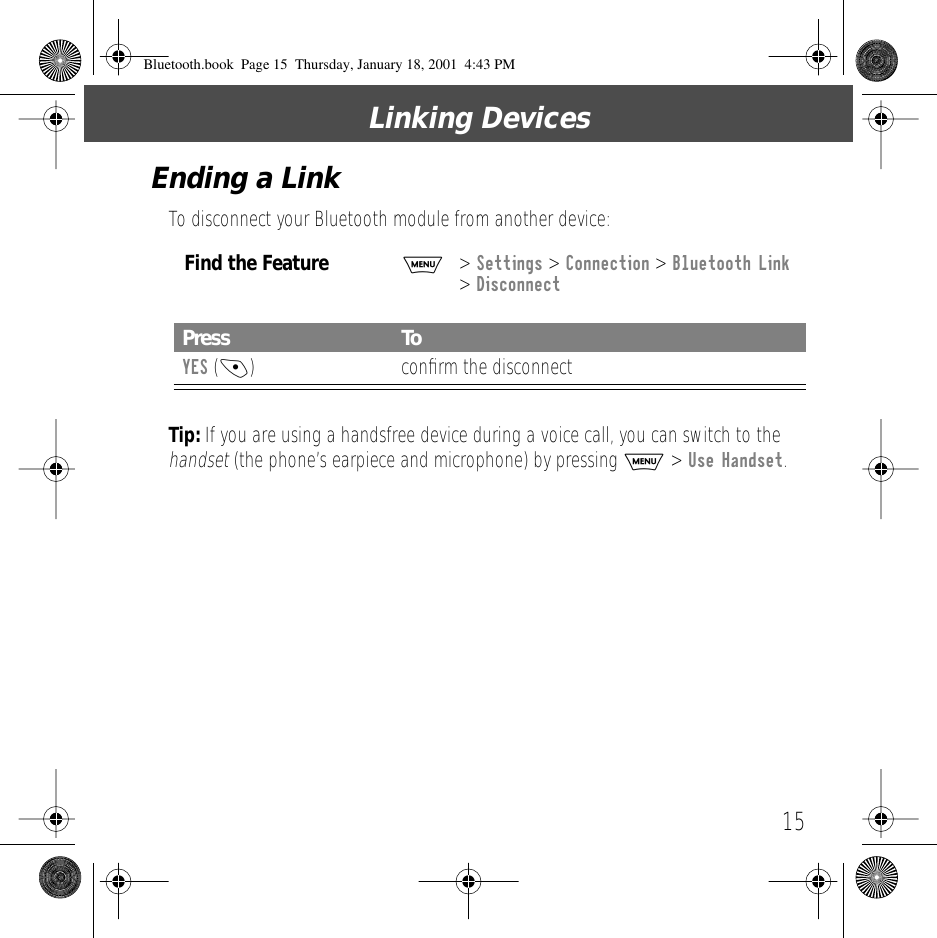
15Linking DevicesEnding a LinkTo disconnect your Bluetooth module from another device:Tip: If you are using a handsfree device during a voice call, you can switch to the handset (the phone’s earpiece and microphone) by pressing M > Use Handset.Find the FeatureM> Settings > Connection > Bluetooth Link > DisconnectPress ToYES (-) confirm the disconnectBluetooth.book  Page 15  Thursday, January 18, 2001  4:43 PM
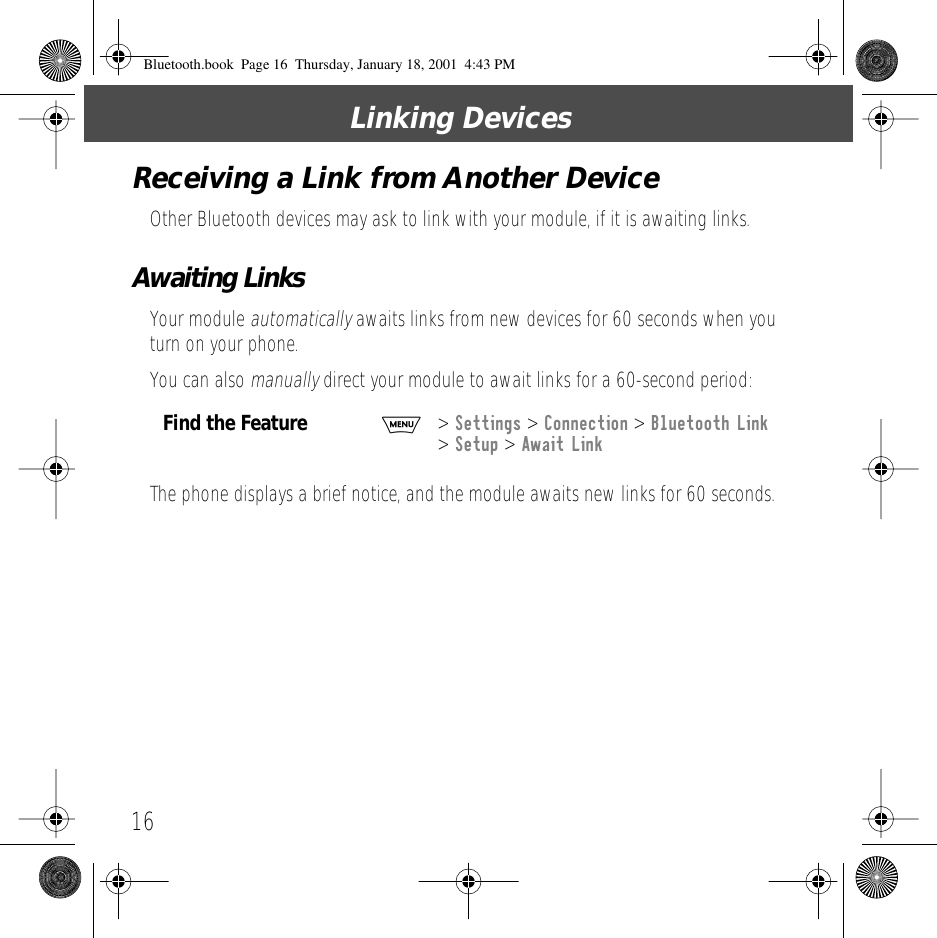
Linking Devices16Receiving a Link from Another DeviceOther Bluetooth devices may ask to link with your module, if it is awaiting links.Awaiting LinksYour module automatically awaits links from new devices for 60 seconds when you turn on your phone.You can also manually direct your module to await links for a 60-second period:The phone displays a brief notice, and the module awaits new links for 60 seconds.Find the FeatureM> Settings > Connection > Bluetooth Link > Setup > Await LinkBluetooth.book  Page 16  Thursday, January 18, 2001  4:43 PM
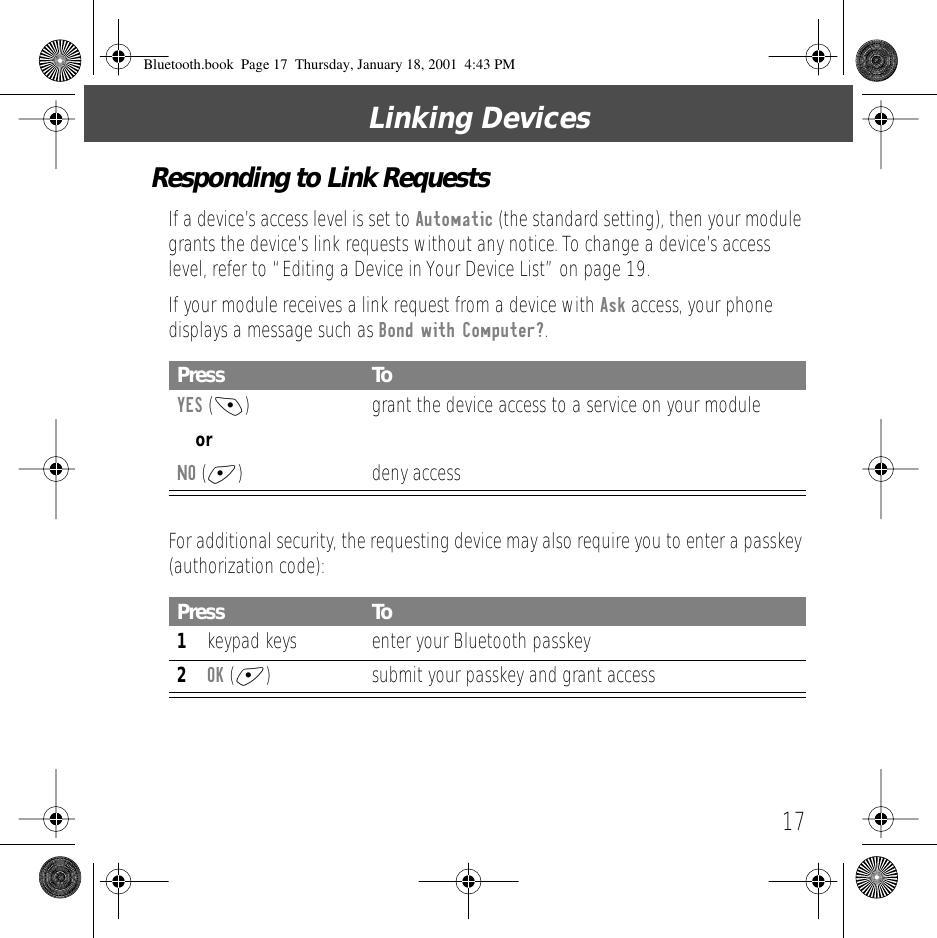
17Linking DevicesResponding to Link RequestsIf a device’s access level is set to Automatic (the standard setting), then your module grants the device’s link requests without any notice. To change a device’s access level, refer to “Editing a Device in Your Device List” on page 19.If your module receives a link request from a device with Ask access, your phone displays a message such as Bond with Computer?.For additional security, the requesting device may also require you to enter a passkey (authorization code):Press ToYES (-) grant the device access to a service on your moduleorNO (+) deny accessPress To1keypad keys enter your Bluetooth passkey2OK (+) submit your passkey and grant accessBluetooth.book  Page 17  Thursday, January 18, 2001  4:43 PM
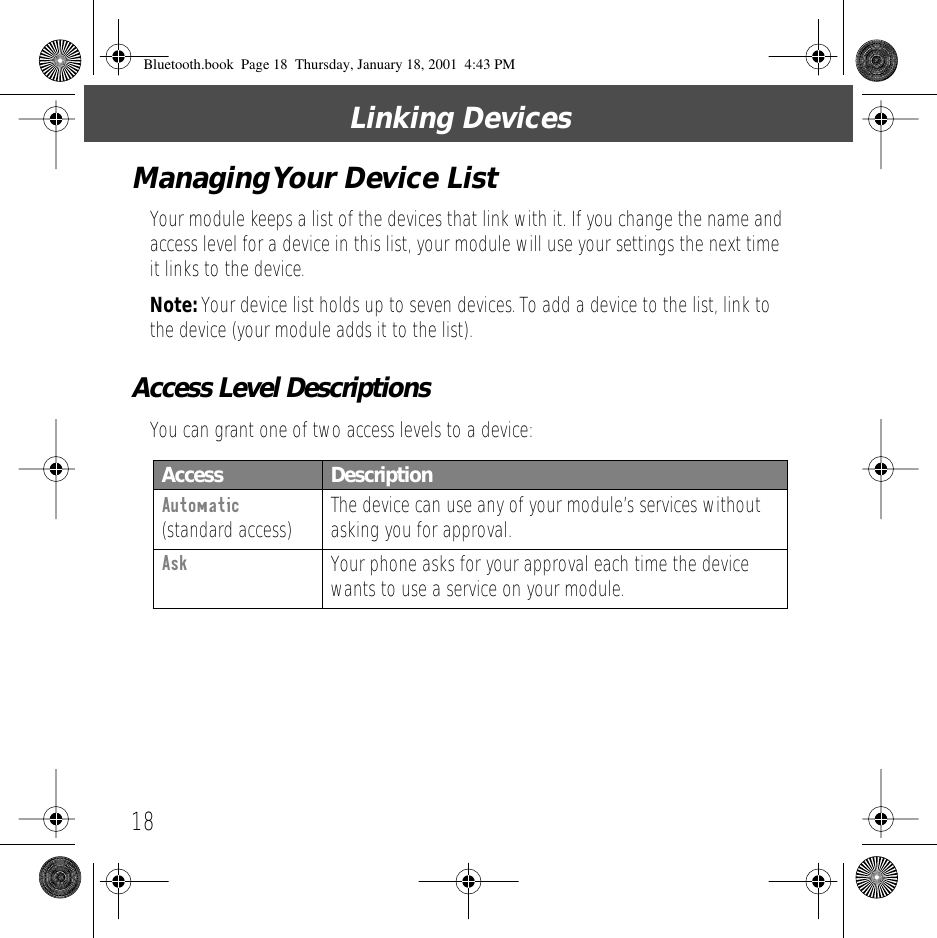
Linking Devices18Managing Your Device ListYour module keeps a list of the devices that link with it. If you change the name and access level for a device in this list, your module will use your settings the next time it links to the device.Note: Your device list holds up to seven devices. To add a device to the list, link to the device (your module adds it to the list).Access Level DescriptionsYou can grant one of two access levels to a device:Access  DescriptionAutomatic (standard access) The device can use any of your module’s services without asking you for approval.Ask Your phone asks for your approval each time the device wants to use a service on your module.Bluetooth.book  Page 18  Thursday, January 18, 2001  4:43 PM
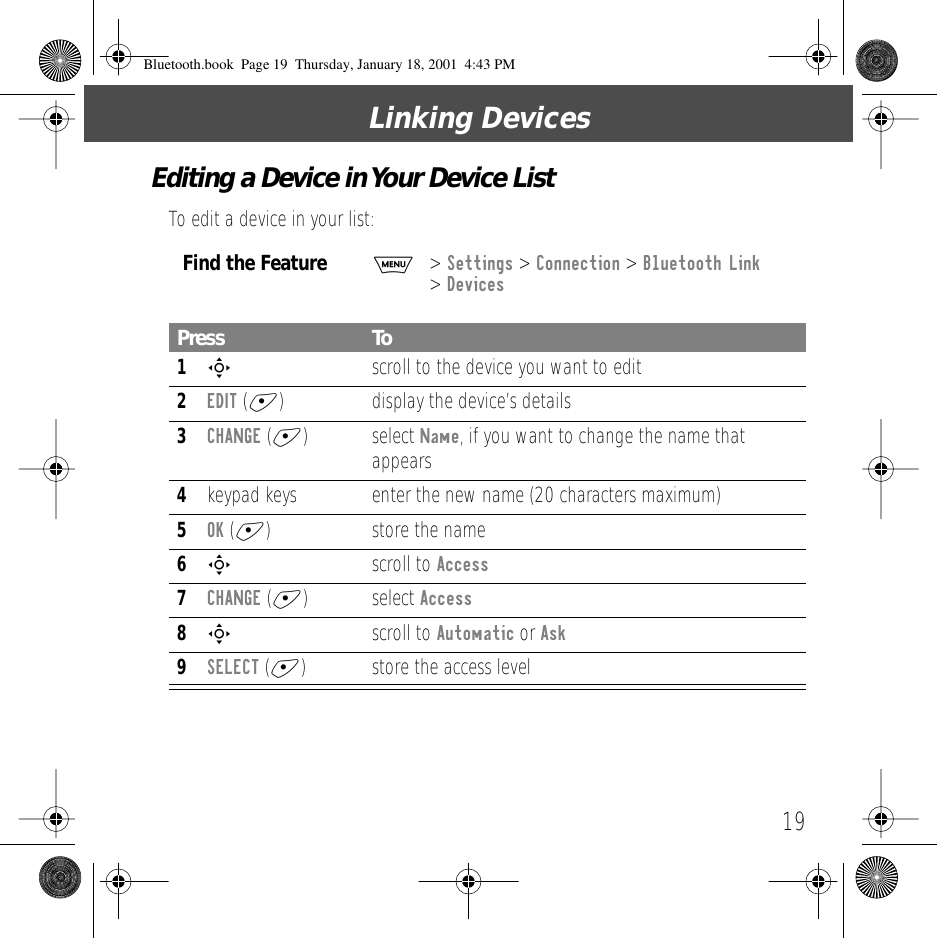
19Linking DevicesEditing a Device in Your Device ListTo edit a device in your list:Find the FeatureM> Settings > Connection > Bluetooth Link > DevicesPress To1S  scroll to the device you want to edit2EDIT (+) display the device’s details3CHANGE (+) select Name, if you want to change the name that appears4keypad keys enter the new name (20 characters maximum)5OK (+) store the name6S scroll to Access7CHANGE (+) select Access8S scroll to Automatic or Ask9SELECT (+) store the access levelBluetooth.book  Page 19  Thursday, January 18, 2001  4:43 PM
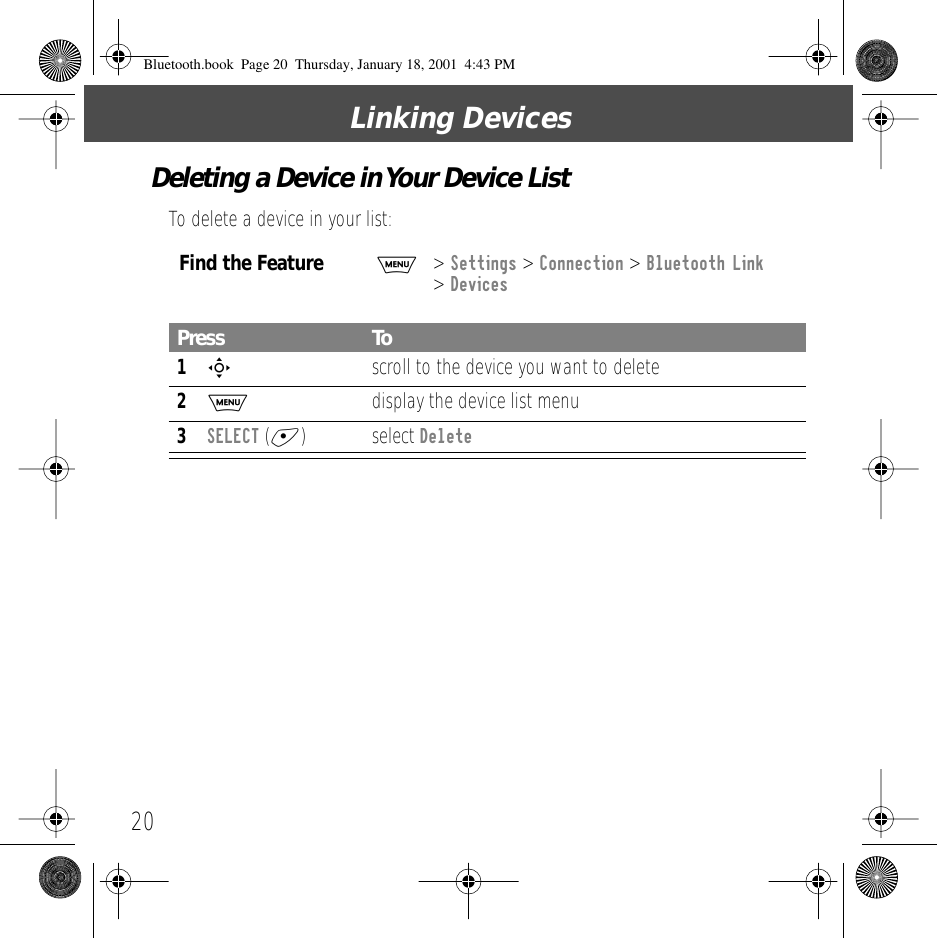
Linking Devices20Deleting a Device in Your Device ListTo delete a device in your list:Find the FeatureM> Settings > Connection > Bluetooth Link > DevicesPress To1S  scroll to the device you want to delete2M  display the device list menu3SELECT (+) select DeleteBluetooth.book  Page 20  Thursday, January 18, 2001  4:43 PM
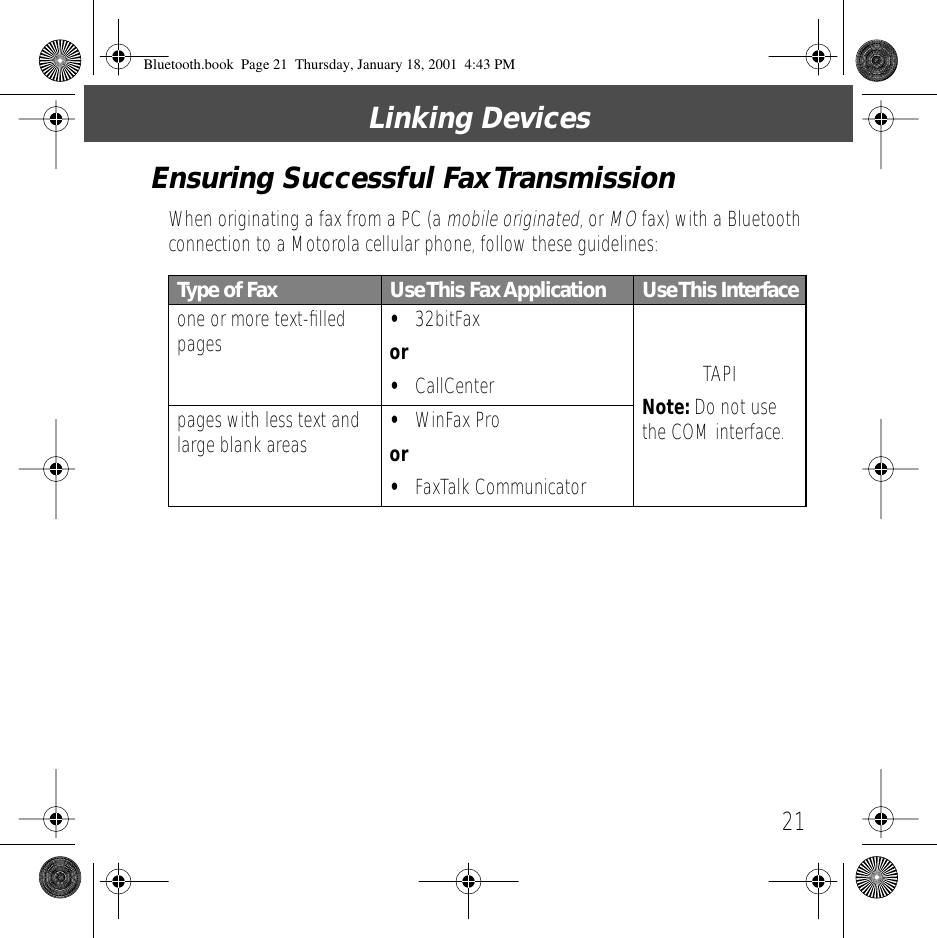
21Linking DevicesEnsuring Successful Fax TransmissionWhen originating a fax from a PC (a mobile originated, or MO fax) with a Bluetooth connection to a Motorola cellular phone, follow these guidelines:Type of Fax Use This  Fax Application Use This Interfaceone or more text-filled pages •32bitFaxor•CallCenter TAPINote: Do not use the COM interface.pages with less text and large blank areas •WinFax Proor•FaxTalk CommunicatorBluetooth.book  Page 21  Thursday, January 18, 2001  4:43 PM
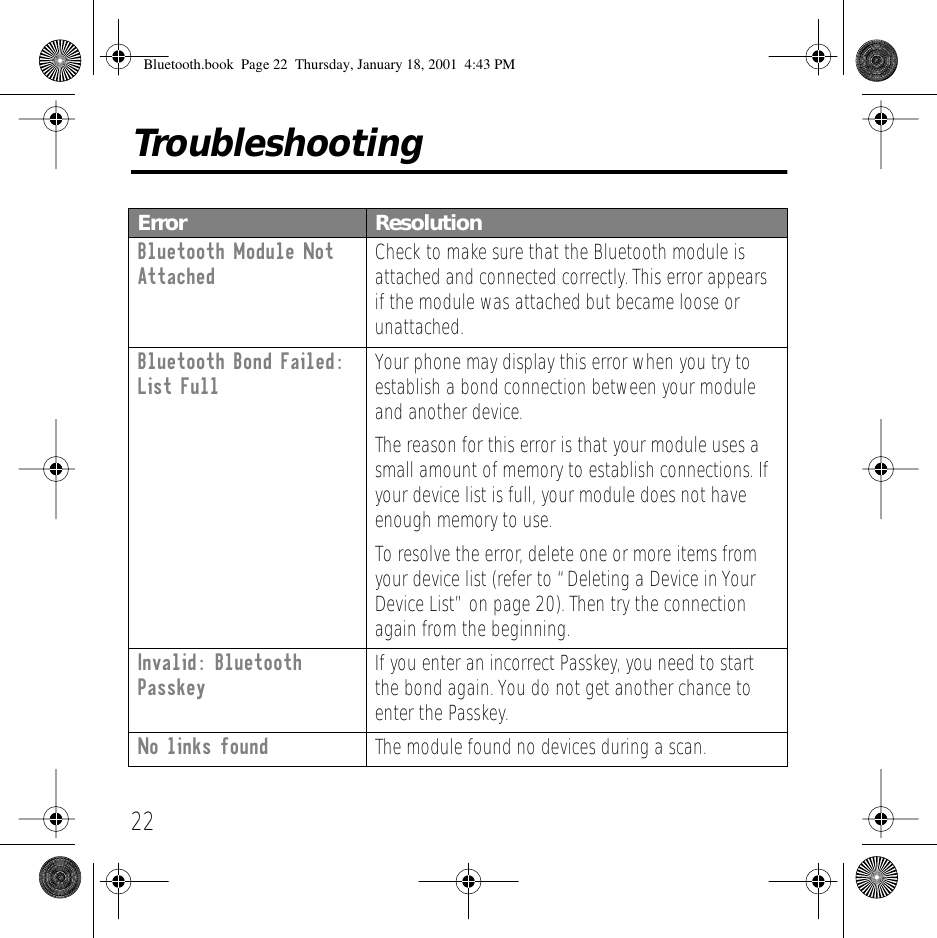
22TroubleshootingError ResolutionBluetooth Module Not Attached Check to make sure that the Bluetooth module is attached and connected correctly. This error appears if the module was attached but became loose or unattached.Bluetooth Bond Failed: List Full Your phone may display this error when you try to establish a bond connection between your module and another device.The reason for this error is that your module uses a small amount of memory to establish connections. If your device list is full, your module does not have enough memory to use.To resolve the error, delete one or more items from your device list (refer to “Deleting a Device in Your Device List” on page 20). Then try the connection again from the beginning.Invalid: Bluetooth Passkey If you enter an incorrect Passkey, you need to start the bond again. You do not get another chance to enter the Passkey.No links found The module found no devices during a scan.Bluetooth.book  Page 22  Thursday, January 18, 2001  4:43 PM
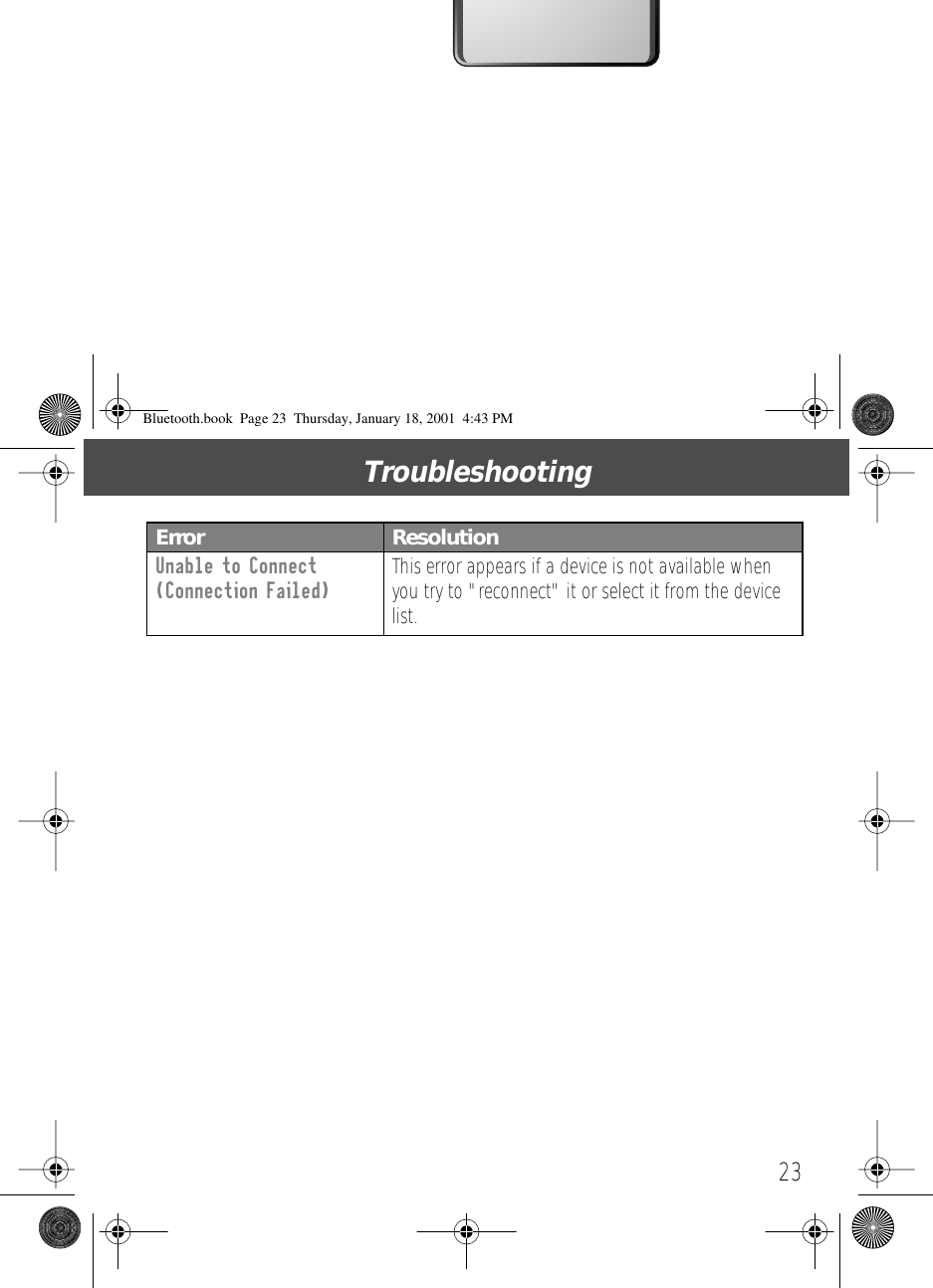
23TroubleshootingUnable to Connect (Connection Failed) This error appears if a device is not available when you try to "reconnect" it or select it from the device list.Error ResolutionBluetooth.book  Page 23  Thursday, January 18, 2001  4:43 PM

Navigation menu