ELCON Systemtechnik 6600 E-TRIP ® 6600 User Manual OPERATING MANUAL E TRIP 9502

ELCON Systemtechnik GmbH E-TRIP ® 6600 OPERATING MANUAL E TRIP 9502

Contents

Operating Manual

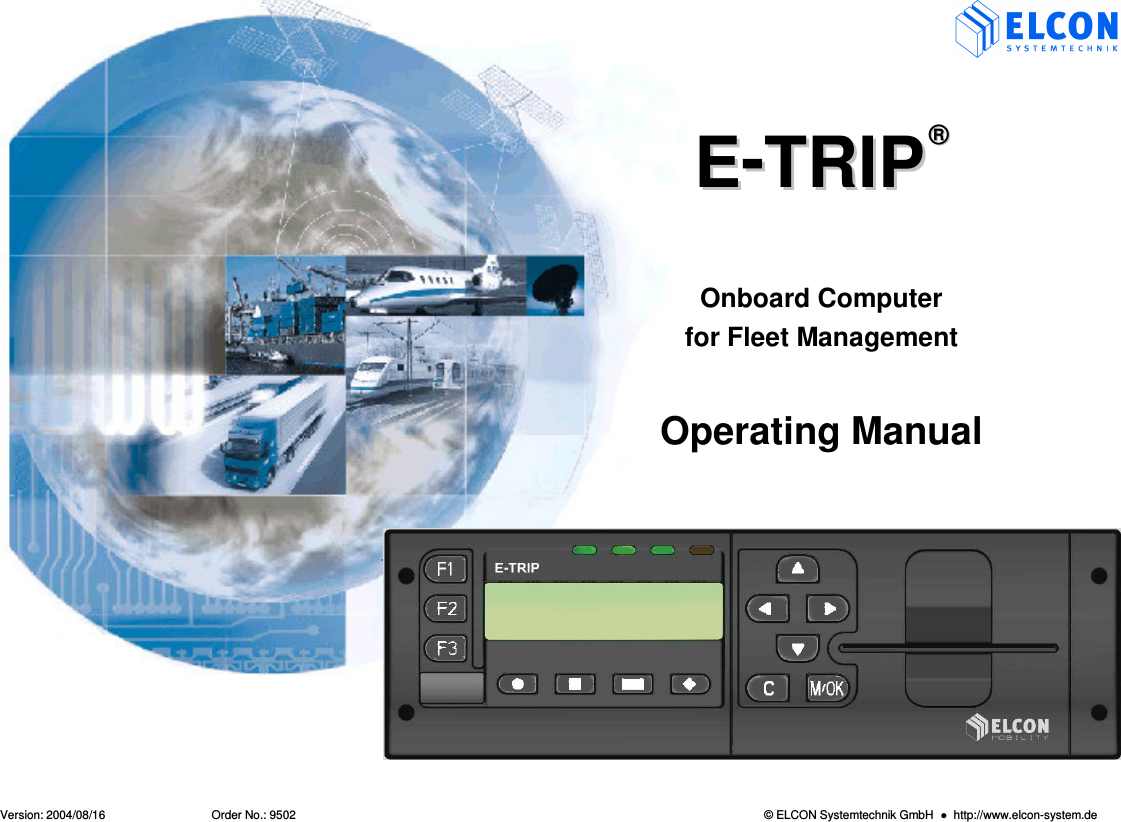
 Version: 2004/08/16  Order No.: 9502  © ELCON Systemtechnik GmbH    http://www.elcon-system.de  EE--TTRRIIPP  ®®    Onboard Computer for Fleet Management   Operating Manual
IMPORTANT NOTES    E-TRIP ®      Version: 2004/08/16                          Order No.: 9502  Page 2 Preface Dear customer: ELCON Systemtechnik GmbH would like to thank you for  your  confidence  in  purchasing  the  onboard computer E-TRIP®.  Please be sure to read this user manual carefully, before you bring the unit into service !   Familiarize yourself with the operation and functions of E-TRIP®.   Keep  the  user  manual  and  other  descriptive documentation for your reference.   Should you still have questions not covered by this manual, our service partner will be happy to help you.   This user manual is subject to changes.  Copyright Notice © Copyright by ELCON Systemtechnik GmbH. All rights reserved. This document and its contents shall not be reproduced or  transferred in  any form  without  express permission. Compensation will be claimed for any infringement. Printed in Germany   Trademarks E-TRIP®  is a registered trademark of ELCON. ORBCOMM® is a registered trademark of ORBCOMM All  other  product  names  are  trademarks  or  registered trademarks of their respective owners.
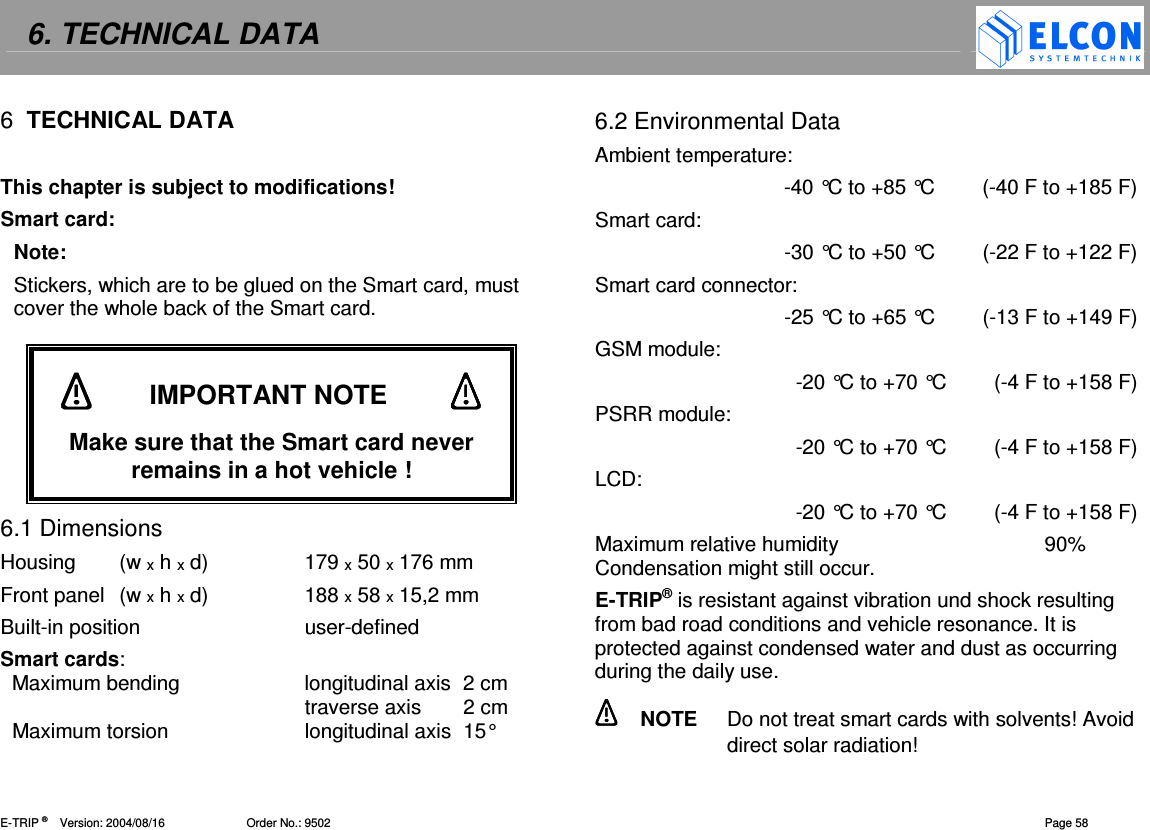
IMPORTANT NOTES    E-TRIP ®      Version: 2004/08/16                         Order No.: 9502  Page 3  BE CAREFUL  Please read for your safety  Safety on the Road  Operating the unit when driving is not allowed !  Make  sure  you  know  how  to  operate  E-TRIP® and  use  its  functions  prior to  starting  your  trip. Certain functions that require  your full attention are not accessible  when the  vehicle  is  moving. You can read the vehicle's operational data such as  the  oil  temperature  and  oil  pressure  on  the display when driving. While  reading  the  display,  pay  sufficient attention to the road traffic. Use E-TRIP® only in the pre-determined way. Do not open the E-TRIP® and do not put any foreign objects into the equipment.         STATEMENTS 1.  Statement according to FCC part 15.19:  This device complies with Part 15 of the FCC Rules. Operation is subject to the following two conditions: (1) this device may not cause harmful interference, and  (2)  this  device  must  accept  any  interference received,  including  interference  that  may  cause undesired operation. 2.  Statement according to FCC part 15.21:  Modifications  not  expressly  approved  by  this company could void the user's authority to operate the equipment.  3.  Statement according to FCC part 15.105:  NOTE: This equipment has been tested and found to comply with the limits for a Class B digital device, pursuant to Part 15 of the FCC Rules. These limits           IMPORTANT NOTE            Make sure that the smart card never remains in a hot vehicle !
IMPORTANT NOTES    E-TRIP ®      Version: 2004/08/16                         Order No.: 9502  Page 4 are  designed  to  provide  reasonable  protection against  harmful  interference  in  a  residential installation. This  equipment  generates, uses and can  radiate  radio  frequency  energy  and,  if  not installed  and  used  in  accordance  with  the instructions,  may  cause  harmful  interference  to radio  communications.  However,  there  is  no guarantee  that  interference  will  not  occur  in  a particular  installation.  If  this  equipment  does cause  harmful  interference  to  radio  or  television reception, which can be determined by turning the equipment off and on, the user is encouraged to try to  correct  the  interference  by one or more of the following measures:   Reorient or relocate the receiving antenna.   Increase  the  separation  between  the  equip-ment and receiver.   Connect  the  equipment  into  an  outlet  on  a circuit different from that to  which the receiver is connected.   Consult the dealer or an experienced radio/TV technician for help.   4.  RF Exposure mobile: The  external  antennas  used  for  this  mobile transmitter must provide a separation distance of at least  20 cm from all persons and must not be co-located  or  operating  in  conjunction  with  any other antenna or transmitter.  5.  Statement according to road safety: The  use  of  the  function  ARO  (Auxiliary  Relay Output)  of  the  E-TRIP®  is  not  permissible  in  the member countries of the Economic Commission for Europe  (ECE)  to  control  the  engine.  It  is  not permitted,  with  the  help  of  relay  functions,  to influence  the  control  of  engine  management  or  to influence  other  functions  affecting  vehicle  or  road safety, in vehicles participating in public transport.
IMPORTANT NOTES    E-TRIP ®      Version: 2004/08/16                         Order No.: 9502  Page 5 INSTALLATION E-TRIP®  should  only  be  installed  by  an authorized service center ! Special Note  The  maximum  output  power  of  the  PSRR transmitter is 100 mW. Though this is a low power level, a minimum distance of 20  cm from the enclosure of the PSRR antenna to all persons must be kept. Special Note  Using GSM functionality within North America, ONLY 1900MHz is allowed.   Antennas  For the installation of the antennas for E-TRIP® only the following two antennas are permissible: 1)  AEB 2400 for PSRR (DECT)  Technical Data: Frequencies:   2.1/2.8 GHz UMTS-BLUETOOTH Impedance:  50 Ohms Gain:  2.65 dBi 2)  MCA 18 90 STRIPE for GSM Technical Data: Frequency range:      AMPS:   824 - 894 MHz   GSM 900:   880 - 960 MHz   GSM 1800:   1710 - 1880 MHz   GSM 1900:  1850 – 1990 MHz  Impedance:  50 Ohms Gain:  2.1 dBi
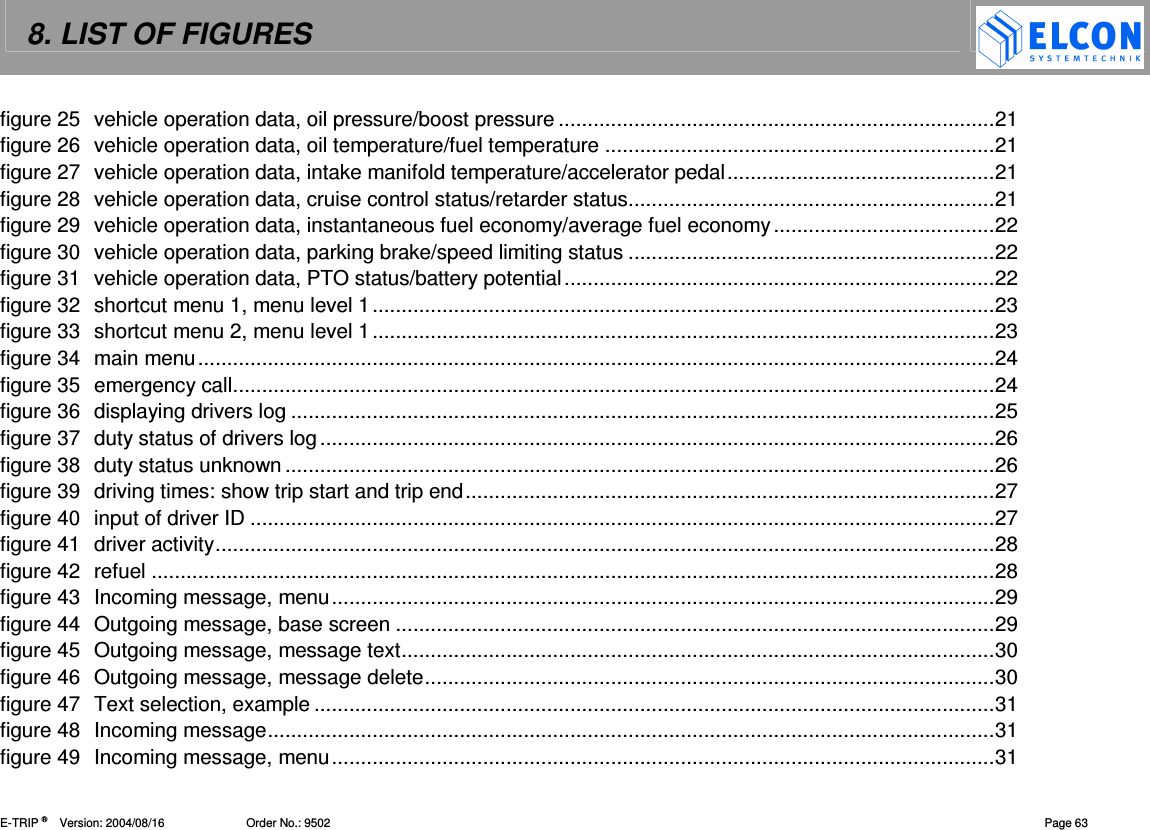
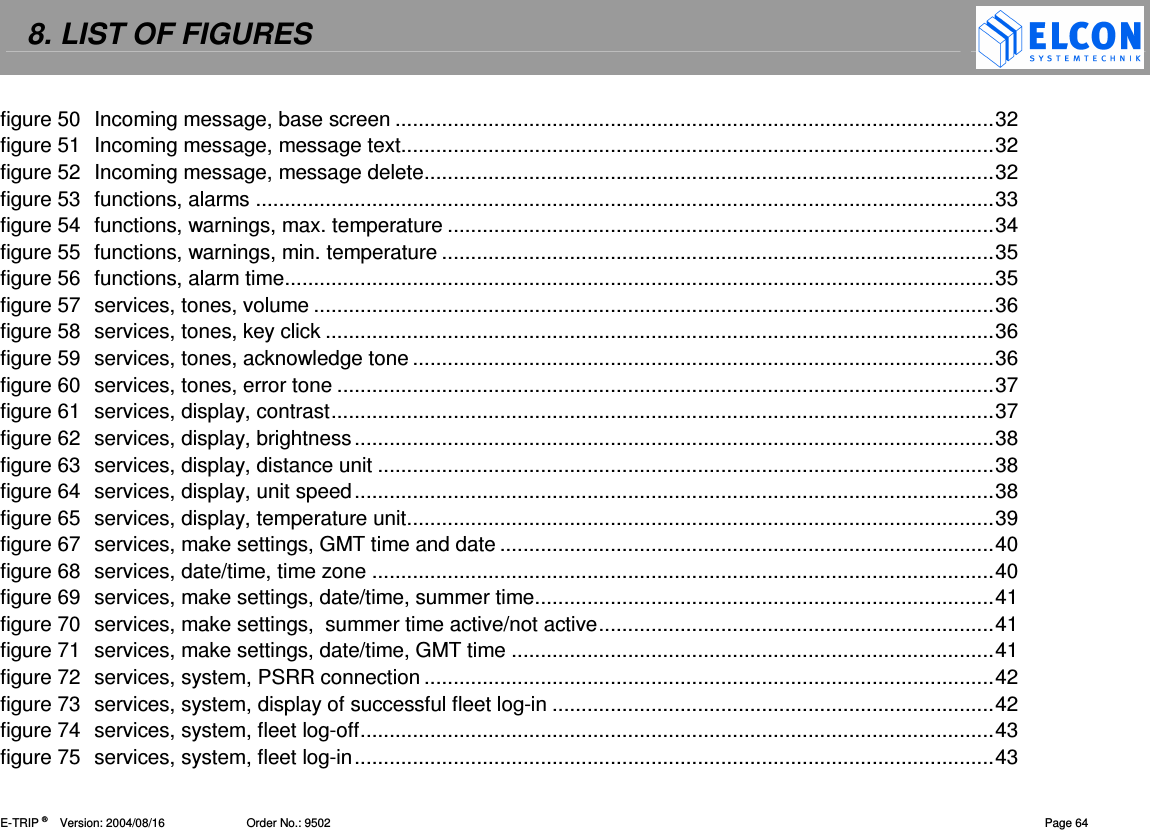
TABLE OF CONTENTS    E-TRIP ®      Version: 2004/08/16                          Order No.: 9502  Page 6 STATEMENTS..........................................................3 INSTALLATION........................................................5 ANTENNAS..............................................................5 1 INTRODUCTION....................................................7 1.1 System architecture and components .................7 1.2 Functions ............................................................8 2 INSTALLATION.....................................................9 2.1 Maintenance........................................................9 3 GETTING STARTED ...........................................10 3.1 Operating Keys .................................................10 3.2 LED´s................................................................11 3.3 Bringing into service..........................................11 3.4 Configuring the System Card ............................11 3.5 Preparing E-TRIP®............................................12 3.6 Input PIN...........................................................13 3.7 Driver ID............................................................13 3.8 Trip Start  and  Trip End....................................14 4 WORKING WITH E-TRIP®...................................15 4.1 Displaying Information.......................................16 4.2 E-TRIP® Setup...................................................22 4.3 Shortcut Menus .................................................23 4.4 Main Menu ........................................................24 4.4.1 Menu: Functions.............................................24 4.4.2 Menu: Services ..............................................35 4.4.3 Menu: Infos ....................................................44 4.5 Input of Values ..................................................48 4.5.1 Numerical Values ...........................................48 4.5.2 Reset the Input Value to Zero.........................48 4.6 System Warnings and Error Messages .............48 5 APPENDICES......................................................50 5.1 Menu Structure..................................................50 5.2 Symbols and Symbol Combinations ..................52 5.3 Error Codes.......................................................53 5.4 LED Codes........................................................56 5.5 Abbreviations ....................................................57 6 TECHNICAL DATA..............................................58 6.1 Dimensions .......................................................58 6.2 Environmental Data...........................................58 6.3 Electrical Data...................................................59 6.4 Standards..........................................................59 7 INDEX..................................................................60 8 LIST OF FIGURES...............................................62 9 AGENCY INFORMATION....................................66 10 DEALERS..........................................................67
1. INTRODUCTION    E-TRIP ®      Version: 2004/08/16                         Order No.: 9502  Page 7 1  INTRODUCTION E-TRIP® is  a  high-performance  onboard  computer  for motor  vehicles  such  as  trucks,  buses  or  cars.  Having the size of a car radio, the onboard unit collects vehicle operation  data,  driver  and  environmental  data  and transfers them to the fleet via GSM (Global System for Mobile  Communications,  SMS  -  Short  Message Service). It supports all administration tasks occurring in a  modern  fleet  and  is  a  basic  part  of  a  digital  fleet management system. E-TRIP® may  also  serve the  toll  collection  or  work  as accident data recorder. The unit is able to display limit and  threshold  values  as  well  as  indicate  alarm conditions. E-TRIP® is  a  manipulation-safe  unit.  You  are  able  to analyze  the  fuel  economy  of  your vehicle's  fleet  while the driver can check the vehicle's operating data. E-TRIP® has been designed as a modular unit. You can configure  the  unit  according  to  your  individual requirements.  1.1 System architecture and components E-TRIP® comprises the following components: •  LCD (Liquid Crystal Display) •  Operation keys •  Signal generator •  LED´s •  GPS module for  the  exact  location  and  tracing  of  vehicles,  RSE (Road Side Equipment) is not required •  GSM  (Global  System  for  Mobile  Communications) module for  the  data  transfer  through  the  mobile  telephone network •  PSRR module •  ORBCOMM module (option) •  E-TRIP Master – the E-TRIP® configuration program that runs on the fleet PC •  System  cards  -  one  system  card  for  the  company  -  supplied by your service center •  Driver cards - one driver card for each driver
1. INTRODUCTION    E-TRIP ®      Version: 2004/08/16                         Order No.: 9502  Page 8 1.2 Functions Using the full range E-TRIP® allows: •  to log vehicle data, tracking data and environmental data securely, •  to store these data securely, •  to transfer these data automatically and securely,  •  to display data "driver-friendly", i.e. clearly and easily legible, •  to check data, and •  to control engine, fuel consumption and efficiency.  LCD  (Liquid  Crystal  Display):  two  lines,  each  of  16 characters  length,  for  digital  readouts,  menu  functions and submenus, messages Operation  keys:  for  manual  inputs,  menu  control, operations. Acoustic signals: to confirm correct operation actions or signal errors. RTC (Real-Time-Clock): battery-backed, for the correct time information, switches between standard  time  and daylight saving time (summer time). GPS  receiver:  use  of  the  GPS  (Global  Positioning System) satellite signals for vehicle's positioning, either upon request or at adjustable intervals.  PSRR: (Private Short Range Radio).The automatic data transfer  between  the  onboard  unit  and  the  dispatcher can be realized in a short range (approximately 150 ft.). Serial  external  interface:  allows  the  connection  of  a temperature sensor, for example in the loading space of the vehicle. SAE-J1708 interface: for collection of vehicle data  Acceleration  and  gyro  sensors  for  three  axles  are important if  you  would like to  use E-TRIP®  as  accident data recorder (future implementation). Digital input 0/12 V:  for storage and recall of the brake block erosion by using the brake pedal ARO (Auxiliary Relay Output): Customized relay function to switch a relay via GSM.  It  is  not  allowed  to  control  the  motor management via this function! Smart  card  reader:  for  startup,  driver  identification, programming, service application.
2. INSTALLATION    E-TRIP ®      Version: 2004/08/16                          Order No.: 9502  Page 9 2  INSTALLATION E-TRIP® is to  be  installed  by  service  personnel  of  a special  workshop  only.  The  correct  connection  and first  software  installation  as  well  as  configuration are reserved to specialists and  mandatory  for  the proper and fault-free function of the unit.  The  location  of  installation  is  optional  and  can  be chosen according to your individual requirements. Please ask your dealer for more information. The detailed description of the installation is given in a separate  document.  This  document  is  available from your vendor or service partner. 2.1 Maintenance To clean the unit's front panel, use a clean cloth only. It should  be  soft,  dust-laying  and  antistatic.  Don't  apply any  cleaning  agents  in  order  to  avoid  damage  of  the surface.  Special  cleaning  measures  or  procedures  are  not required.
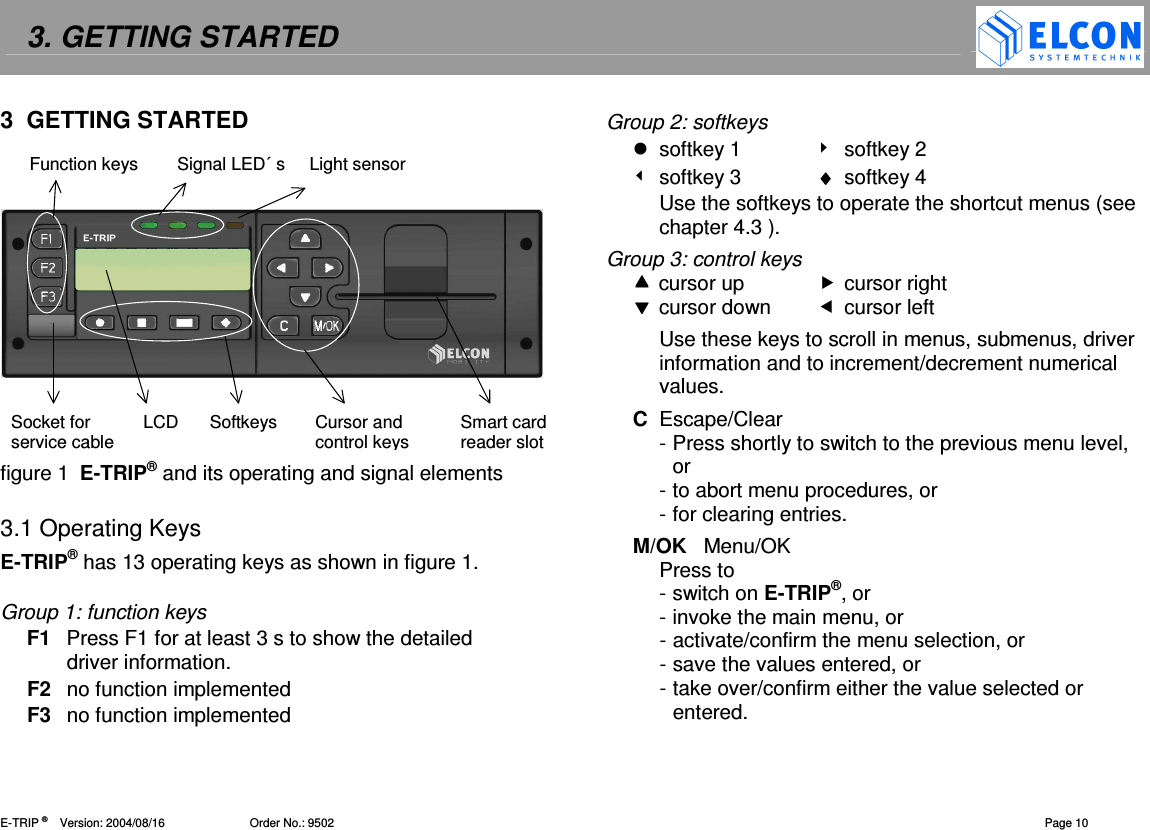
3. GETTING STARTED    E-TRIP ®      Version: 2004/08/16                          Order No.: 9502  Page 10 3  GETTING STARTED           figure 1  E-TRIP® and its operating and signal elements  3.1 Operating Keys E-TRIP® has 13 operating keys as shown in figure 1.  Group 1: function keys F1  Press F1 for at least 3 s to show the detailed driver information. F2  no function implemented F3  no function implemented Group 2: softkeys   softkey 1    softkey 2   softkey 3  ♦♦♦♦  softkey 4 Use the softkeys to operate the shortcut menus (see chapter 4.3 ). Group 3: control keys  cursor up   cursor right  cursor down   cursor left Use these keys to scroll in menus, submenus, driver information and to increment/decrement numerical values.  C  Escape/Clear - Press shortly to switch to the previous menu level, or  - to abort menu procedures, or  - for clearing entries. M/OK   Menu/OK Press to - switch on E-TRIP®, or - invoke the main menu, or - activate/confirm the menu selection, or - save the values entered, or - take over/confirm either the value selected or entered.  Function keys        Signal LED´ s     Light sensor Socket for  LCD  Softkeys  Cursor and  Smart card service cable   control keys reader slot
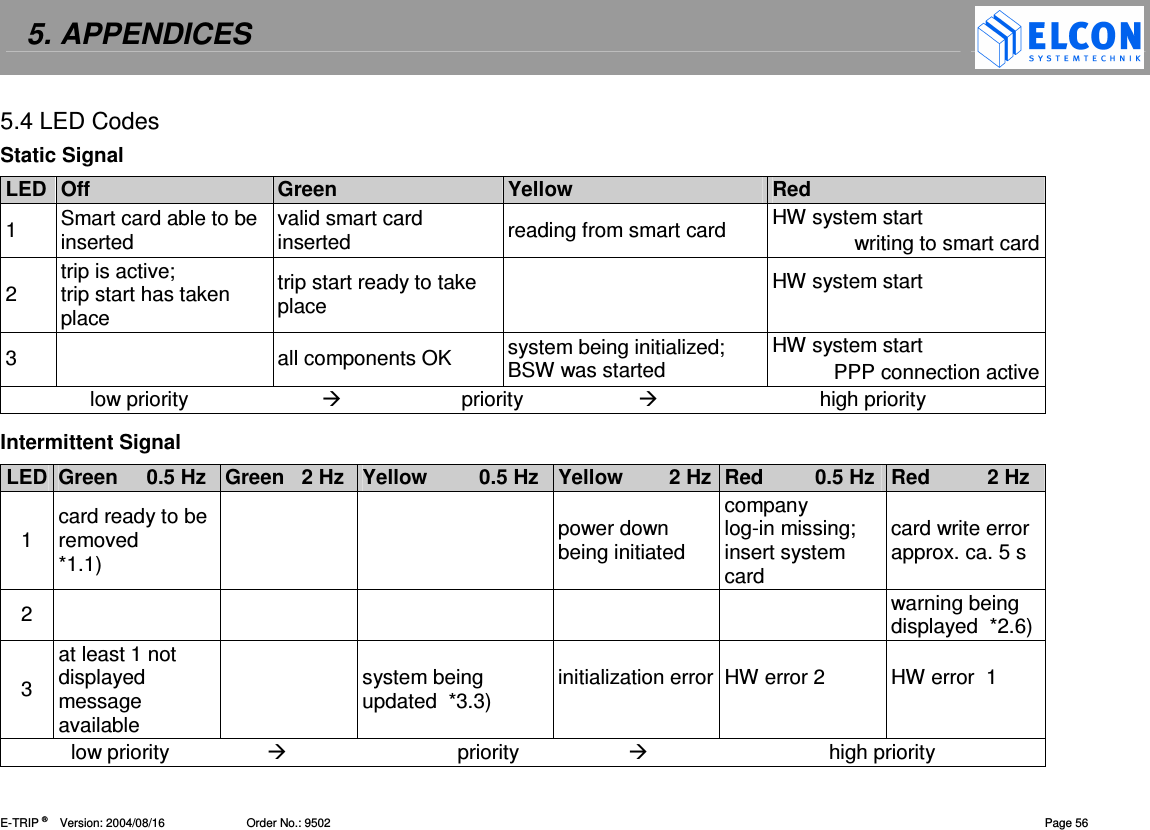
3. GETTING STARTED    E-TRIP ®      Version: 2004/08/16                         Order No.: 9502  Page 11 3.2 LED´s Three  tricolor  –  green,  yellow  and  red  –  LED´s  are located  above  the  display  (figure  1).  They  indicate system and error states by static and intermittent signals. For  the  signals  and  their  meanings  please  refer  to chapter 5.4 .   3.3 Bringing into service When purchasing your E-TRIP®, you will receive several smart  cards  –  a  driver  card  for  each  driver  and  one system  card.  These  cards  need  to  be  configured.  To start with the system card, an E-TRIP's individual range of functions must be defined and released in the fleet PC configuration  program  E-TRIP Master  first  and  then  in E-TRIP® itself.   NOTE  The  system  card  is  the  key  to  your system. Be sure to keep it in a safe place.   3.4 Configuring the System Card To  configure  your  system  card  with  E-TRIP Master  on your fleet PC, follow these steps: 1.  Create  a  set  of  vehicle  data  containing  the  PSRR parameters as listed on the supplemental sheet you received together with your E-TRIP®. 2.  Using  the  menu  function  Save Database,  write  all vehicle data sets you have created onto the system card. 3.  Remove the configured system card from the smart card reader and proceed with chapter 3.5 .
3. GETTING STARTED    E-TRIP ®      Version: 2004/08/16                         Order No.: 9502  Page 12 3.5 Preparing E-TRIP® E-TRIP®  must  now  be  registered  at  the  fleet  PC.  The vehicle  can  be  outside  the  radio  range  of  the  PSRR office modem as no connection to the fleet PC is being built  up  during  this  offline  subscription.  You  need  the configured system card and E-TRIP® will  read the data from the  vehicle data  set  automatically  when you carry out the following steps:  1.  Turn on the vehicle's ignition to activate E-TRIP®. 2.  Follow the instruction on the display and insert the system card into the smart card reader slot of the unit  on  the  right  hand  side  (see  figure  1). E-TRIP® will read the PSRR parameters both from the  system  card  and  from  the  built-in  PSRR module. If they fit together, it will log-in to the fleet's PSRR office modem. Should the unit, however, be unable to read the data set, it will first produce an error  code  (see  chapter  5.3   on  page 53)  on  the display and then, the display text will ask you once more  to  insert  the  system  card  and  again  to attempt  the  fleet  log-in. The  successful  log-in  will  be  confirmed  on  the display as shown in figure 73 on page 45. See also 4.4.2 . 3.  Now, remove the system card. The  connection  to  the  fleet  PC  will  now  be established  provided  that  the  aerial  of  the  PSRR office  modem  is  situated  within  the  vehicle's  radio range. 4.  Connect E-TRIP® to a portable PC using the service cable and the socket on the lower left hand side of the unit (figure 1). 5.  Start E-TRIP Master on your PC. 6.  Download  the  configuration  data  from  the  PC  to E-TRIP®. The display will then welcome you as shown  in figure 2.  figure 2  welcome screen  Should you have turned on E-TRIP® for the very first time after downloading the application software, the display will read as in figure 3 (left). In case you have downloaded a new application, the display will read as in figure 3 (right).
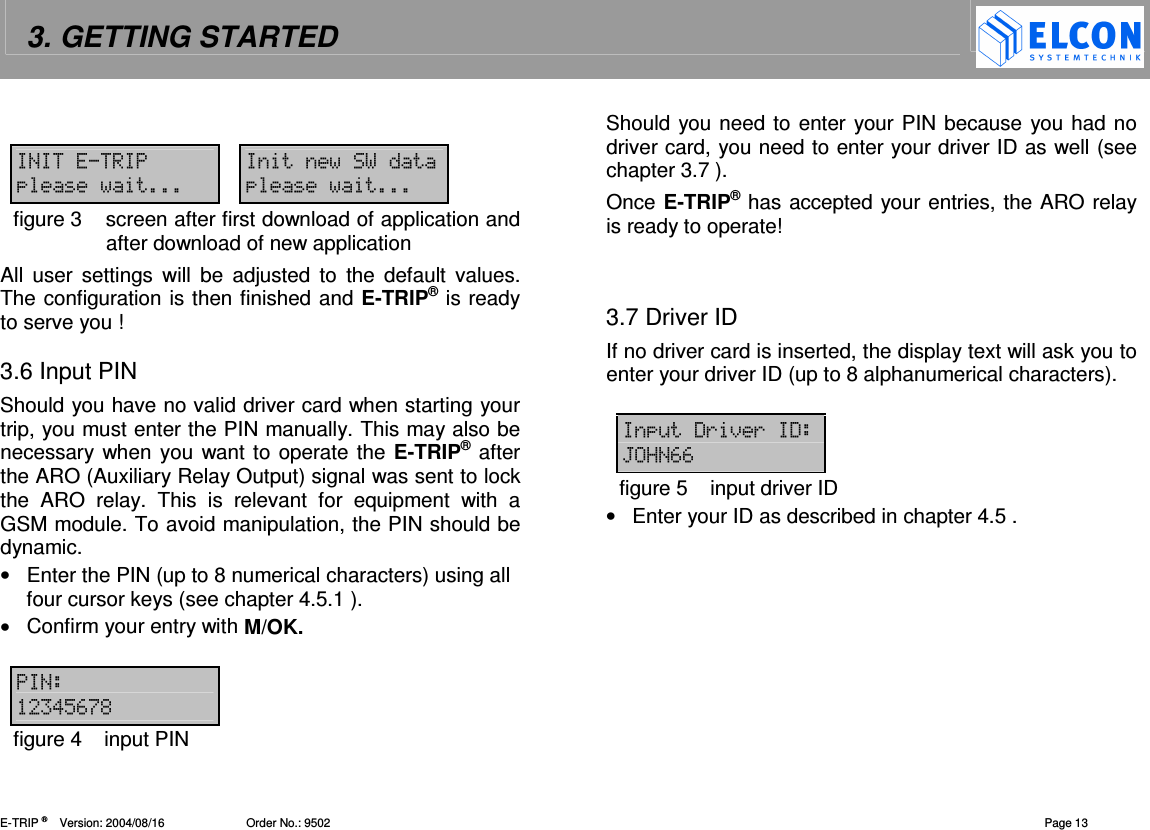
3. GETTING STARTED    E-TRIP ®      Version: 2004/08/16                         Order No.: 9502  Page 13    figure 3  screen after first download of application and after download of new application All  user  settings  will  be  adjusted  to  the  default  values. The configuration is then finished and E-TRIP® is ready to serve you !  3.6 Input PIN  Should you have no valid driver card when starting your trip, you must enter the PIN manually. This may also be necessary when you want to operate the E-TRIP® after the ARO (Auxiliary Relay Output) signal was sent to lock the  ARO  relay.  This  is  relevant  for  equipment  with  a GSM module. To avoid manipulation, the PIN should be dynamic. •  Enter the PIN (up to 8 numerical characters) using all four cursor keys (see chapter 4.5.1 ). •  Confirm your entry with M/OK.    !"#$%figure 4  input PIN Should you need to enter your PIN because you had no driver card, you need to enter your driver ID as well (see chapter 3.7 ). Once E-TRIP® has accepted your entries, the ARO relay is ready to operate!   3.7 Driver ID If no driver card is inserted, the display text will ask you to enter your driver ID (up to 8 alphanumerical characters).   &'()(' *+##figure 5  input driver ID •  Enter your ID as described in chapter 4.5 .
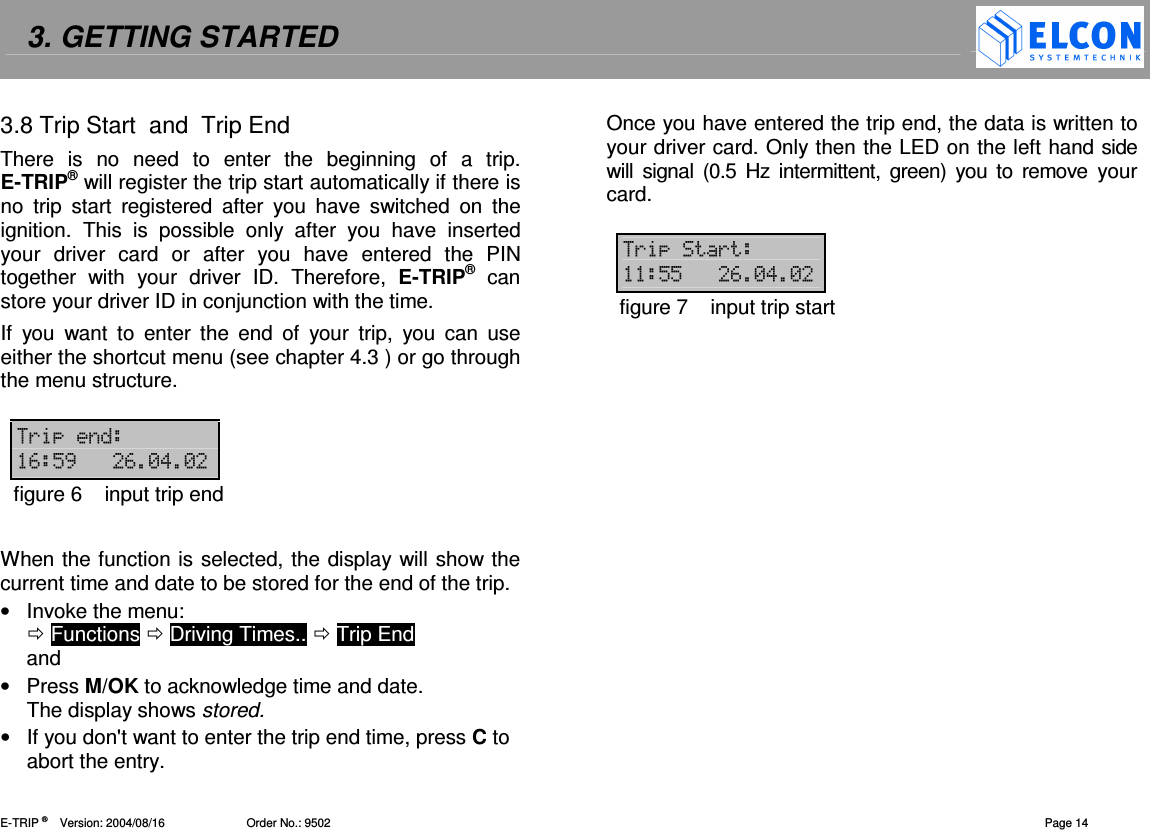
3. GETTING STARTED    E-TRIP ®      Version: 2004/08/16                         Order No.: 9502  Page 14 3.8 Trip Start  and  Trip End There  is  no  need  to  enter  the  beginning  of  a  trip. E-TRIP® will register the trip start automatically if there is no  trip  start  registered  after  you  have  switched  on  the ignition.  This  is  possible  only  after  you  have  inserted your  driver  card  or  after  you  have  entered  the  PIN together  with  your  driver  ID.  Therefore,  E-TRIP®  can store your driver ID in conjunction with the time. If  you  want  to  enter  the  end  of  your  trip,  you  can  use either the shortcut menu (see chapter 4.3 ) or go through the menu structure.  ( #",#-!-figure 6  input trip end  When the function is selected, the display will show the current time and date to be stored for the end of the trip. •  Invoke the menu:   Functions  Driving Times..  Trip End  and •  Press M/OK to acknowledge time and date. The display shows stored. •  If you don't want to enter the trip end time, press C to abort the entry. Once you have entered the trip end, the data is written to your driver card. Only then the LED on the left hand side will  signal (0.5  Hz  intermittent,  green) you to  remove  your card.  (( ""#-!-figure 7  input trip start
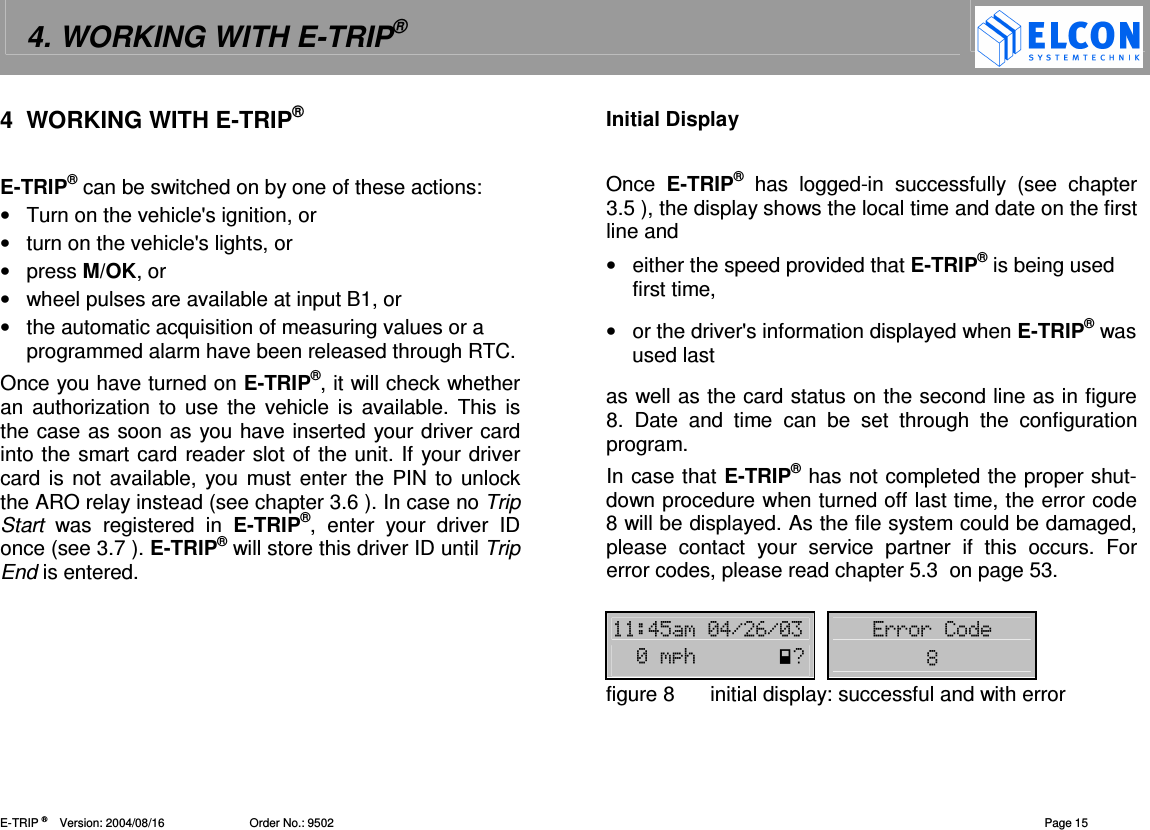
4. WORKING WITH E-TRIP®   E-TRIP ®      Version: 2004/08/16                          Order No.: 9502  Page 15 4  WORKING WITH E-TRIP®  E-TRIP® can be switched on by one of these actions: •  Turn on the vehicle's ignition, or •  turn on the vehicle's lights, or •  press M/OK, or •  wheel pulses are available at input B1, or •  the automatic acquisition of measuring values or a programmed alarm have been released through RTC. Once you have turned on E-TRIP®, it will check whether an  authorization  to use  the  vehicle is  available.  This is the case as soon as you have inserted your driver card into the smart card reader slot of the unit. If your driver card is not available, you must enter the  PIN to unlock the ARO relay instead (see chapter 3.6 ). In case no Trip Start  was  registered  in  E-TRIP®,  enter  your  driver  ID once (see 3.7 ). E-TRIP® will store this driver ID until Trip End is entered. Initial Display  Once  E-TRIP® has  logged-in  successfully  (see  chapter 3.5 ), the display shows the local time and date on the first line and •  either the speed provided that E-TRIP® is being used first time,  •  or the driver's information displayed when E-TRIP® was used last as well as the card status on the second line as in figure 8.  Date  and  time  can  be  set  through  the  configuration program. In case that E-TRIP® has not completed the proper shut-down procedure when turned off last time, the error code 8 will be displayed. As the file system could be damaged, please  contact  your  service  partner  if  this  occurs.  For error codes, please read chapter 5.3  on page 53.  !"-!.#.- (((-/0%figure 8  initial display: successful and with error
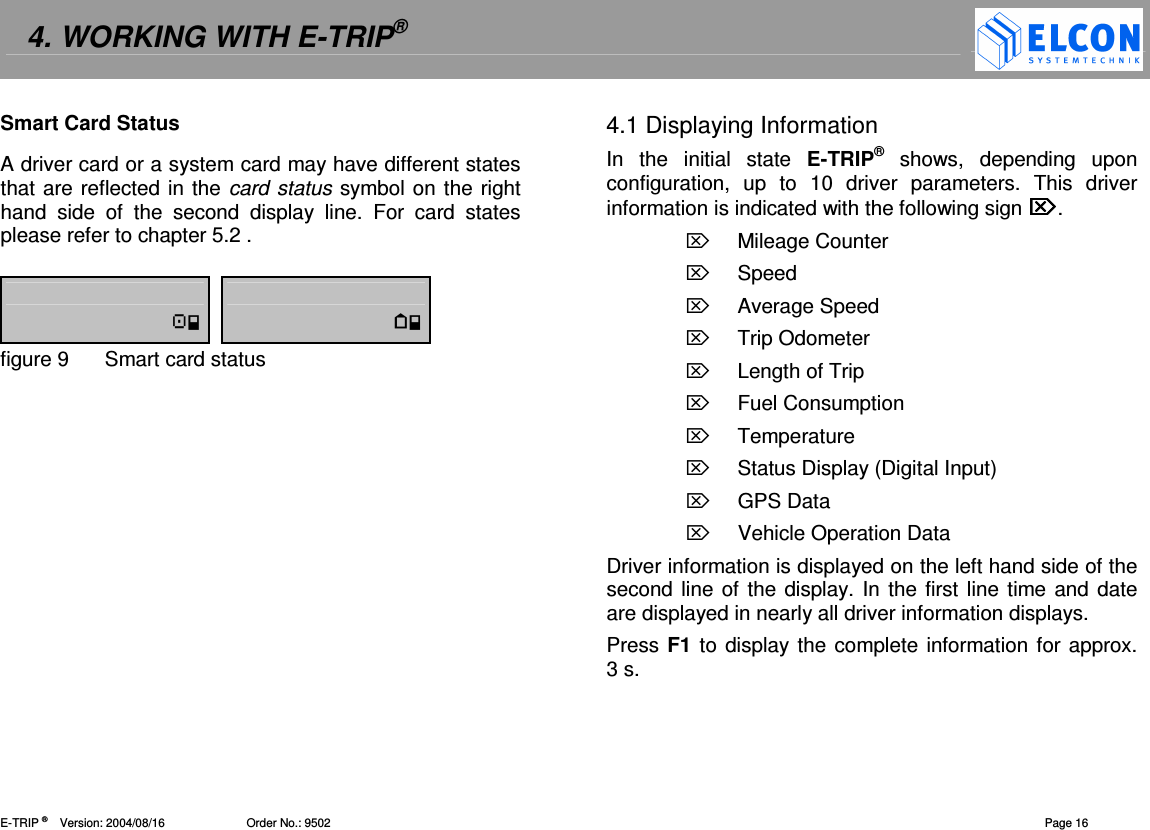
4. WORKING WITH E-TRIP®   E-TRIP ®      Version: 2004/08/16                         Order No.: 9502  Page 16 Smart Card Status A driver card or a system card may have different states that are reflected in the card  status symbol on the right hand  side  of  the  second  display  line.  For  card  states please refer to chapter 5.2 .   figure 9  Smart card status  4.1 Displaying Information In  the  initial  state  E-TRIP®  shows,  depending  upon configuration,  up  to  10  driver  parameters.  This  driver information is indicated with the following sign .  Mileage Counter  Speed  Average Speed  Trip Odometer  Length of Trip  Fuel Consumption  Temperature  Status Display (Digital Input)  GPS Data  Vehicle Operation Data Driver information is displayed on the left hand side of the second line  of the display. In the first line time and date are displayed in nearly all driver information displays. Press F1 to display the complete information for approx. 3 s.
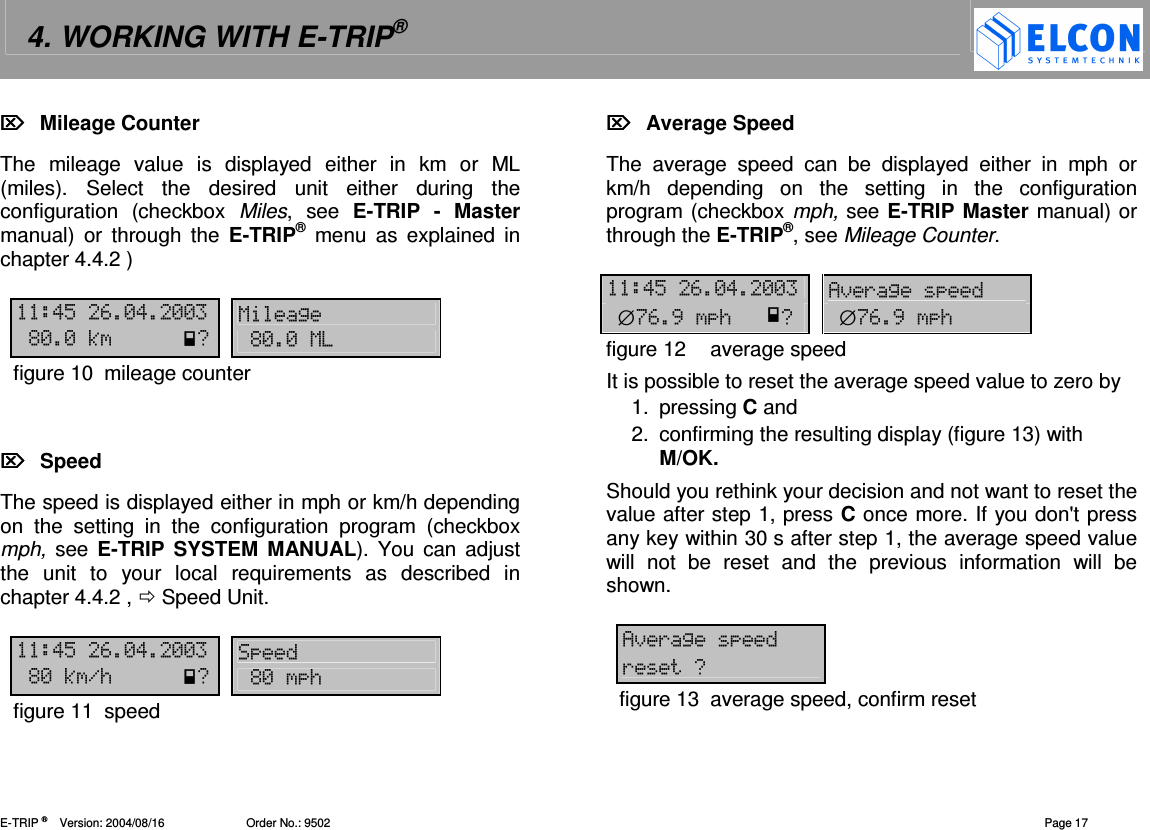
4. WORKING WITH E-TRIP®   E-TRIP ®      Version: 2004/08/16                         Order No.: 9502  Page 17   Mileage Counter The  mileage  value  is  displayed  either  in  km  or  ML (miles).  Select  the  desired  unit  either  during  the configuration  (checkbox  Miles,  see  E-TRIP  -  Master manual)  or  through  the  E-TRIP®  menu  as  explained  in chapter 4.4.2 )  !"#-!-- 12%--30%--1figure 10  mileage counter     Speed The speed is displayed either in mph or km/h depending on  the  setting  in  the  configuration  program  (checkbox mph,  see  E-TRIP SYSTEM MANUAL). You can  adjust the  unit  to  your  local  requirements  as  described  in chapter 4.4.2 ,  Speed Unit.   !"#-!-- %-3./0%-/figure 11  speed   Average Speed The  average  speed  can  be  displayed  either  in  mph  or km/h  depending  on  the  setting  in  the  configuration program (checkbox mph, see E-TRIP Master manual) or through the E-TRIP®, see Mileage Counter.  !"#-!-- 4)(2∅$#,/0∅$#,/figure 12  average speed It is possible to reset the average speed value to zero by 1.  pressing C and 2.  confirming the resulting display (figure 13) with M/OK. Should you rethink your decision and not want to reset the value after step 1, press C once more. If you don't press any key within 30 s after step 1, the average speed value will  not  be  reset  and  the  previous  information  will  be shown.  4)(2 (0figure 13  average speed, confirm reset
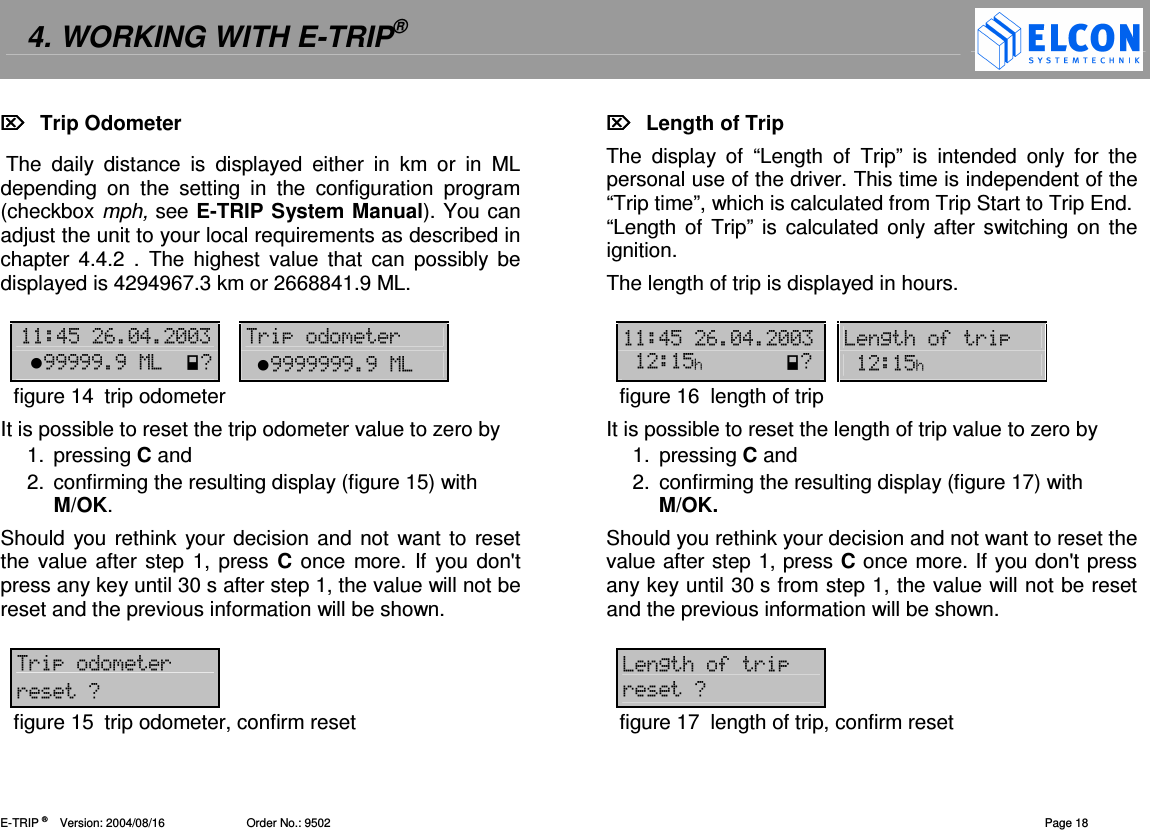
4. WORKING WITH E-TRIP®   E-TRIP ®      Version: 2004/08/16                         Order No.: 9502  Page 18   Trip Odometer   The  daily  distance  is  displayed  either  in  km  or  in  ML depending  on  the  setting  in  the  configuration  program (checkbox mph, see E-TRIP System Manual). You can adjust the unit to your local requirements as described in chapter  4.4.2  .  The highest  value  that  can  possibly  be displayed is 4294967.3 km or 2668841.9 ML.  !"#-!--   (( ,,,,,,10  ,,,,,,,,1figure 14  trip odometer It is possible to reset the trip odometer value to zero by 1.  pressing C and 2.  confirming the resulting display (figure 15) with M/OK. Should you rethink  your decision  and not want to reset the value after step 1, press C once  more. If you don't press any key until 30 s after step 1, the value will not be reset and the previous information will be shown.  (( (0figure 15  trip odometer, confirm reset   Length of Trip The  display  of  “Length  of  Trip”  is  intended  only  for  the personal use of the driver. This time is independent of the “Trip time”, which is calculated from Trip Start to Trip End.  “Length of  Trip” is calculated only after switching on the ignition.  The length of trip is displayed in hours.   !"#-!--   2/5( "/0  "/figure 16  length of trip It is possible to reset the length of trip value to zero by 1.  pressing C and 2.  confirming the resulting display (figure 17) with M/OK. Should you rethink your decision and not want to reset the value after step 1, press C once more. If you don't press any key until 30 s from step 1, the value will not be reset and the previous information will be shown.  2/5( (0figure 17  length of trip, confirm reset
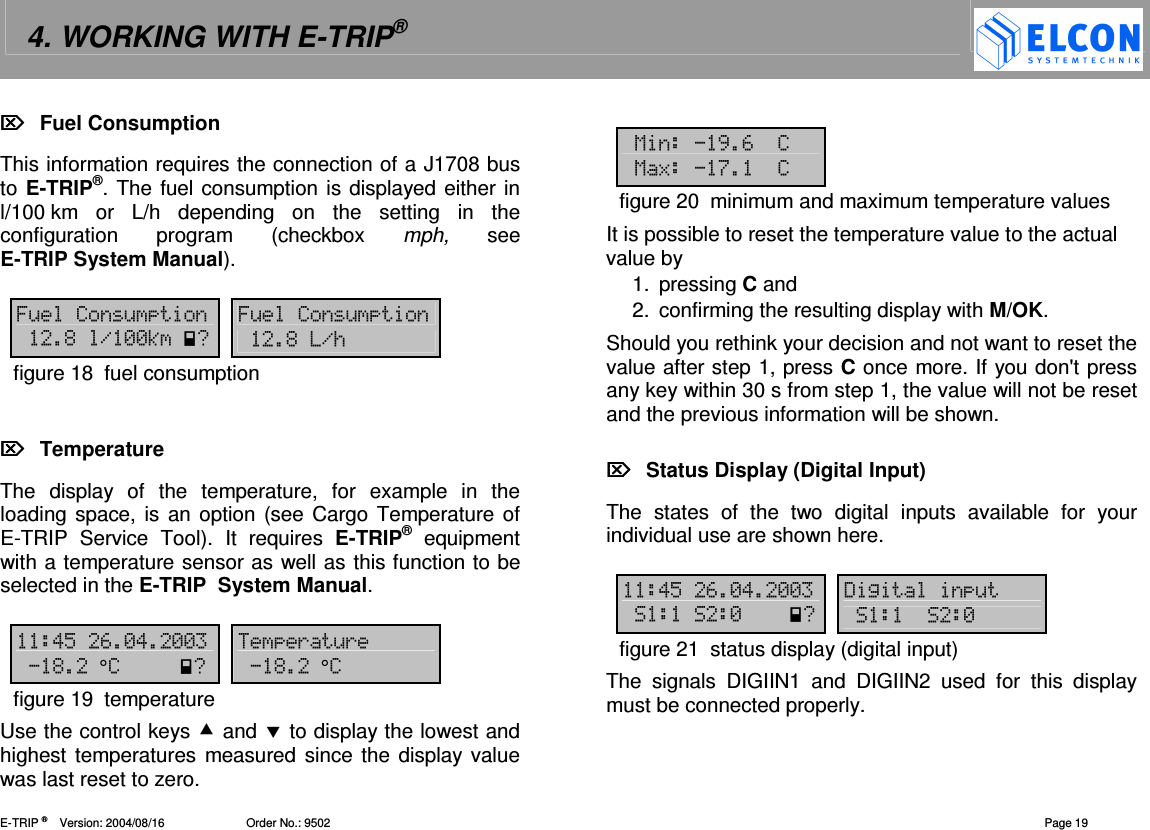
4. WORKING WITH E-TRIP®   E-TRIP ®      Version: 2004/08/16                         Order No.: 9502  Page 19   Fuel Consumption This information requires the connection of a J1708 bus to E-TRIP®. The fuel consumption is displayed either in l/100 km  or  L/h depending  on  the  setting  in  the configuration  program  (checkbox  mph,  see E-TRIP System Manual).  6&&  6&& %.--30  %./figure 18  fuel consumption     Temperature The  display  of  the  temperature,  for  example  in  the loading space, is an option (see Cargo  Temperature of E-TRIP  Service  Tool).  It  requires  E-TRIP®  equipment with a temperature sensor as well as this function to be selected in the E-TRIP  System Manual.   !"#-!--  (&(%0 %figure 19  temperature Use the control keys  and  to display the lowest and highest temperatures measured since the display value was last reset to zero.  1,#7 18$7figure 20  minimum and maximum temperature values It is possible to reset the temperature value to the actual value by 1.  pressing C and 2.  confirming the resulting display with M/OK. Should you rethink your decision and not want to reset the value after step 1, press C once more. If you don't press any key within 30 s from step 1, the value will not be reset and the previous information will be shown.    Status Display (Digital Input) The  states  of  the  two  digital  inputs  available  for  your individual use are shown here.   !"#-!--  '2&-0 -figure 21  status display (digital input) The  signals  DIGIIN1  and  DIGIIN2  used  for  this  display must be connected properly.
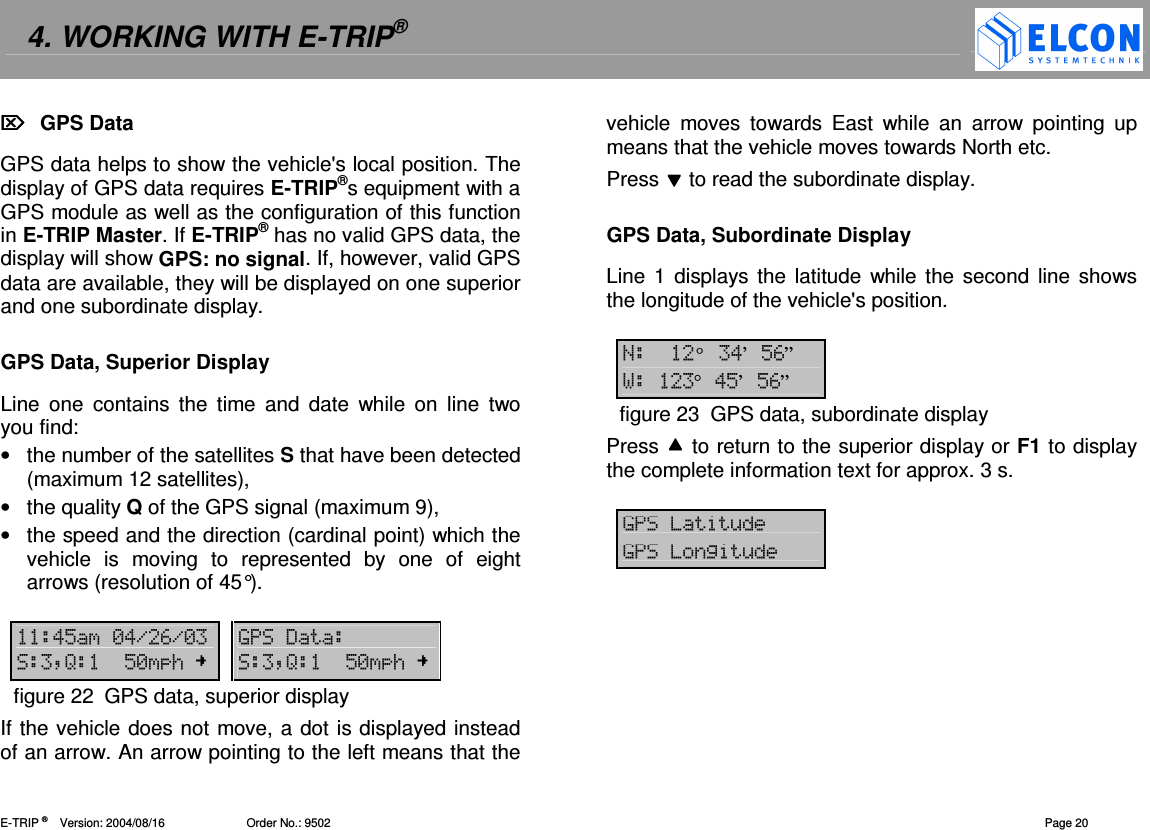
4. WORKING WITH E-TRIP®   E-TRIP ®      Version: 2004/08/16                         Order No.: 9502  Page 20   GPS Data GPS data helps to show the vehicle's local position. The display of GPS data requires E-TRIP®s equipment with a GPS module as well as the configuration of this function in E-TRIP Master. If E-TRIP® has no valid GPS data, the display will show GPS: no signal. If, however, valid GPS data are available, they will be displayed on one superior and one subordinate display.  GPS Data, Superior Display Line  one  contains  the  time  and  date  while  on  line  two you find: •  the number of the satellites S that have been detected (maximum 12 satellites), •  the quality Q of the GPS signal (maximum 9), •  the speed and the direction (cardinal point) which the vehicle  is  moving  to  represented  by  one  of  eight arrows (resolution of 45°).   !"-!.#.-  9' :;"-/  :;"-/figure 22  GPS data, superior display If the vehicle does not move, a dot is displayed instead of an arrow. An arrow pointing to the left means that the vehicle  moves  towards  East  while  an  arrow  pointing  up means that the vehicle moves towards North etc. Press  to read the subordinate display.  GPS Data, Subordinate Display Line 1 displays the  latitude  while  the second line shows the longitude of the vehicle's position.  ° !’"#” °!"’"#”figure 23  GPS data, subordinate display Press  to return to the superior display or F1 to display the complete information text for approx. 3 s.  9&92&
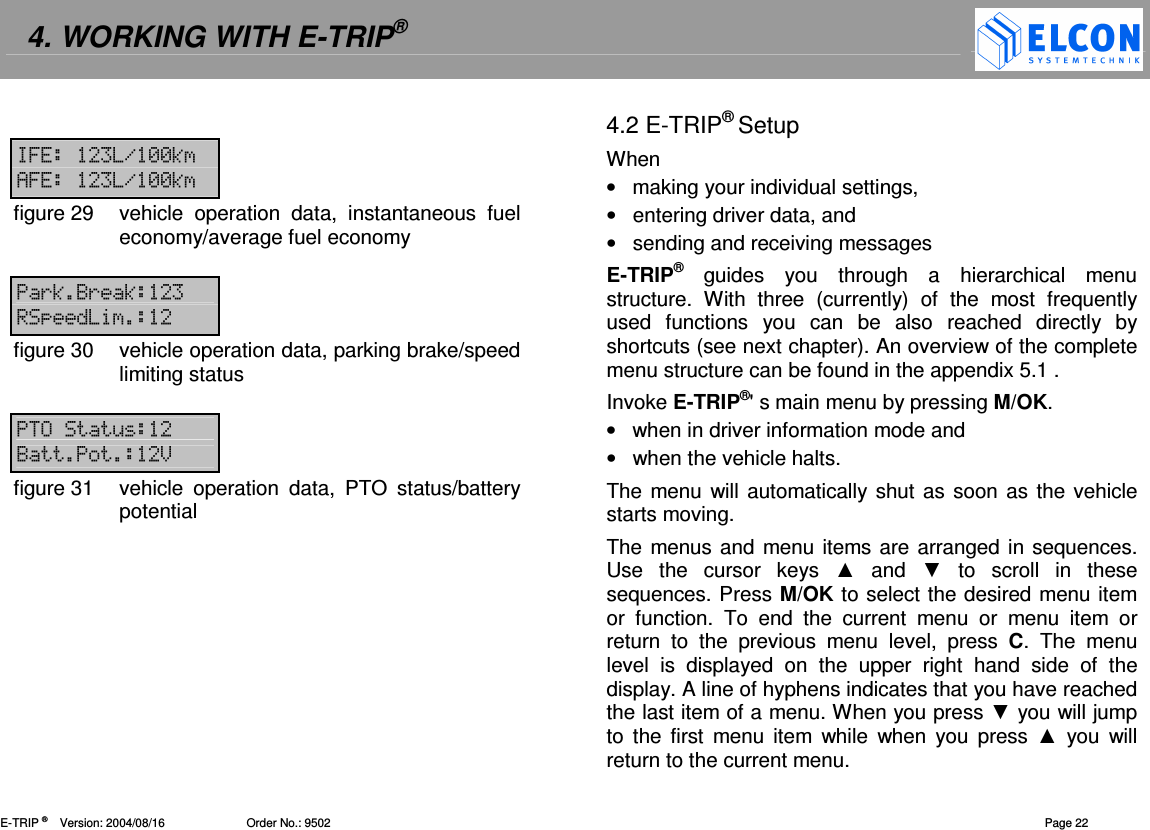
4. WORKING WITH E-TRIP®   E-TRIP ®      Version: 2004/08/16                         Order No.: 9502  Page 21   Vehicle Operation Data (SAE-J1708 Bus) Vehicle operation data can be displayed provided that a J1708  bus  exists  in  the  vehicle  and  is  connected  to E-TRIP®. There are one superior and seven subordinate displays as listed in the following.  Vehicle Operation Data, Superior Display Date and time are displayed on line 1 while line 2 shows the engine speed in revolutions per minute.   !"#-!--  2---1 ---1figure 24  vehicle operation data, superior display, engine speed Use cursor keys  and  to display the vehicle data of the subordinate displays. Vehicle Operation Data, Subordinate Displays  ( !"<( figure 25  vehicle operation data, oil pressure/boost pressure   76&7figure 26  vehicle operation data, oil temperature/fuel temperature  1 7 4== !figure 27  vehicle operation data, intake manifold temperature/accelerator pedal  (&( (( figure 28  vehicle operation data, cruise control status/retarder status
4. WORKING WITH E-TRIP®   E-TRIP ®      Version: 2004/08/16                         Order No.: 9502  Page 22  6 .--3 46 .--3figure 29  vehicle  operation  data,  instantaneous  fuel economy/average fuel economy  (3<(3  figure 30  vehicle operation data, parking brake/speed limiting status  & <>figure 31  vehicle  operation  data,  PTO  status/battery potential 4.2 E-TRIP® Setup When •  making your individual settings, •  entering driver data, and •  sending and receiving messages E-TRIP®  guides  you  through  a  hierarchical  menu structure.  With  three  (currently)  of  the  most  frequently used  functions  you  can  be  also  reached  directly  by shortcuts (see next chapter). An overview of the complete menu structure can be found in the appendix 5.1 . Invoke E-TRIP®' s main menu by pressing M/OK. •  when in driver information mode and •  when the vehicle halts. The menu will  automatically shut as soon as the vehicle starts moving. The menus and menu items are arranged in sequences. Use  the  cursor  keys    and    to  scroll  in  these sequences. Press M/OK to select the desired menu item or  function.  To  end  the  current  menu  or  menu  item  or return  to  the  previous  menu  level,  press  C.  The  menu level  is  displayed  on  the  upper  right  hand  side  of  the display. A line of hyphens indicates that you have reached the last item of a menu. When you press  you will jump to  the  first  menu  item  while  when  you  press   you  will return to the current menu.
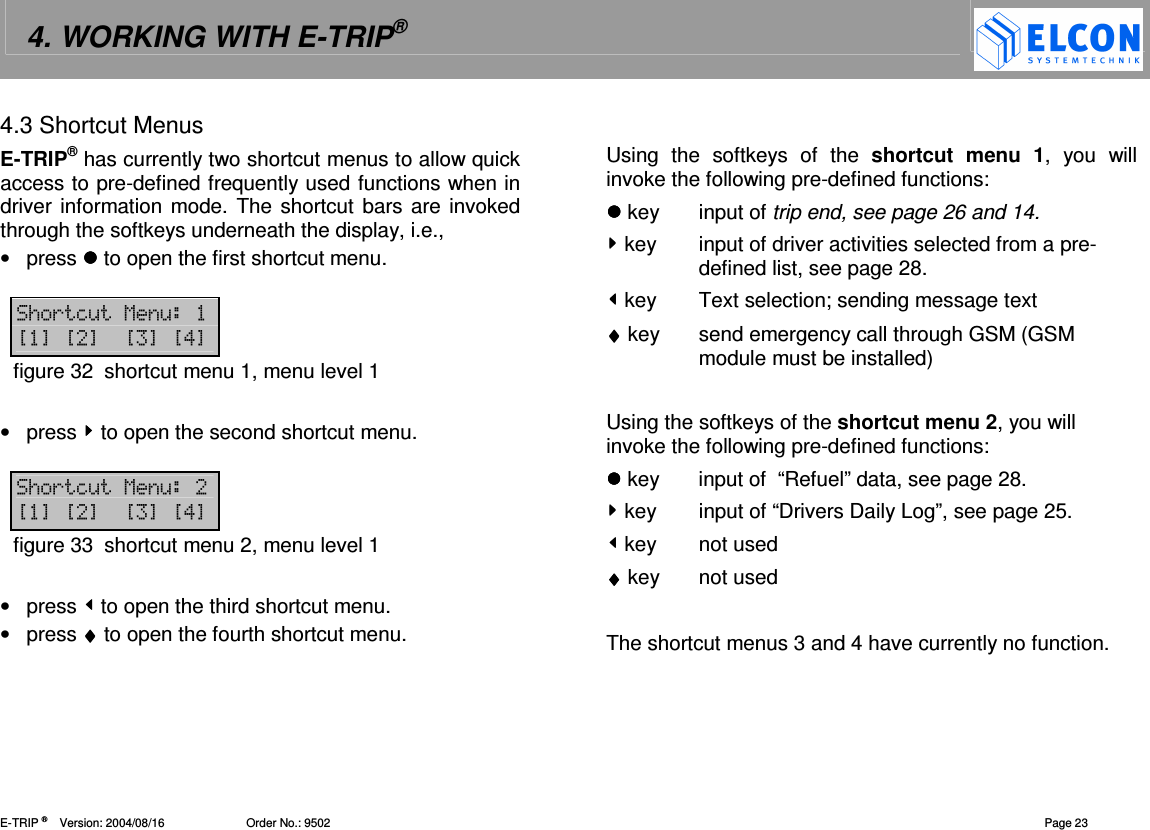
4. WORKING WITH E-TRIP®   E-TRIP ®      Version: 2004/08/16                         Order No.: 9502  Page 23 4.3 Shortcut Menus E-TRIP® has currently two shortcut menus to allow quick access to pre-defined frequently used functions when in driver information mode. The shortcut bars are invoked through the softkeys underneath the display, i.e., •  press  to open the first shortcut menu.   /(=&1& ?@?@? @?!@figure 32  shortcut menu 1, menu level 1  •  press  to open the second shortcut menu.  /(=&1& ?@?@? @?!@figure 33  shortcut menu 2, menu level 1  •  press  to open the third shortcut menu. •  press ♦♦♦♦ to open the fourth shortcut menu.    Using  the  softkeys  of  the  shortcut  menu  1,  you  will invoke the following pre-defined functions:  key  input of trip end, see page 26 and 14.  key  input of driver activities selected from a pre-defined list, see page 28.  key  Text selection; sending message text  ♦♦♦♦ key  send emergency call through GSM (GSM module must be installed)  Using the softkeys of the shortcut menu 2, you will invoke the following pre-defined functions:  key  input of  “Refuel” data, see page 28.  key  input of “Drivers Daily Log”, see page 25.   key  not used ♦♦♦♦ key  not used  The shortcut menus 3 and 4 have currently no function.
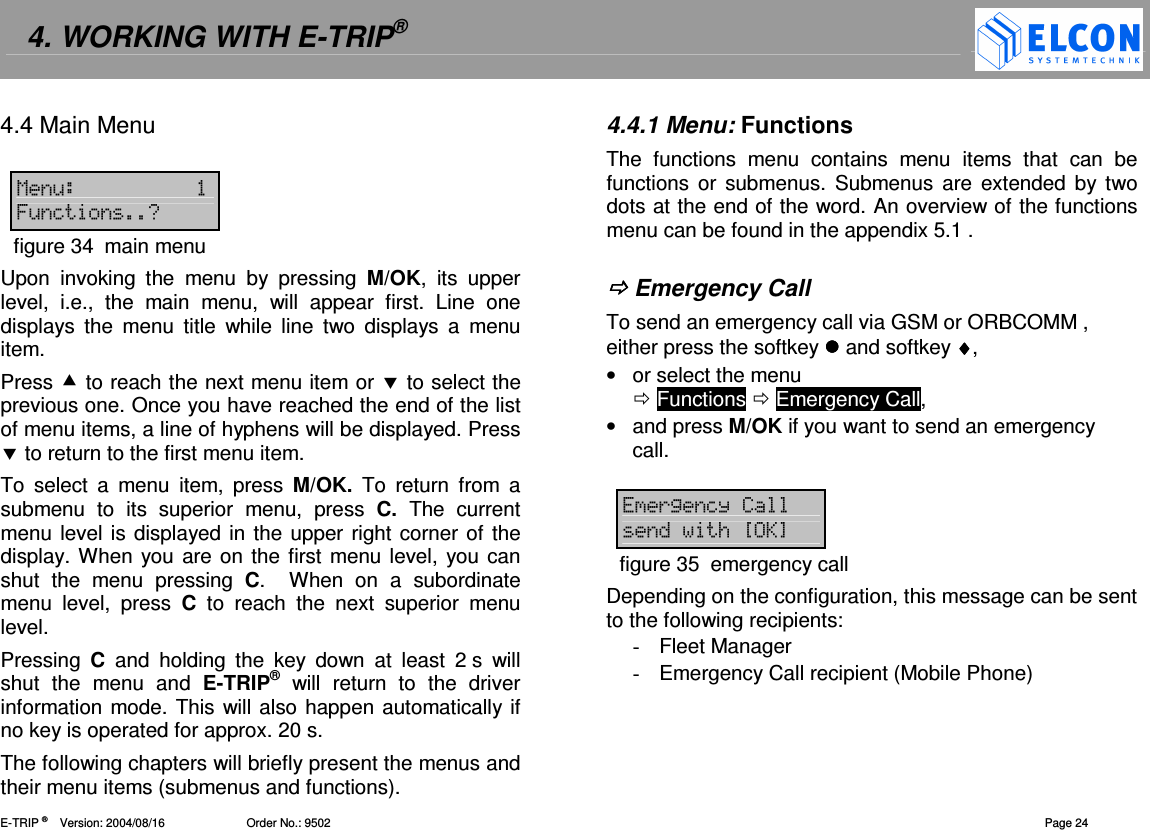
4. WORKING WITH E-TRIP®   E-TRIP ®      Version: 2004/08/16                         Order No.: 9502  Page 24 4.4 Main Menu  1& 6&=0figure 34  main menu Upon  invoking  the  menu  by  pressing  M/OK,  its  upper level,  i.e.,  the  main  menu,  will  appear  first.  Line  one displays  the  menu  title  while  line  two  displays  a  menu item. Press  to reach the next menu item or  to select the previous one. Once you have reached the end of the list of menu items, a line of hyphens will be displayed. Press  to return to the first menu item. To  select  a  menu  item,  press  M/OK.  To  return  from  a submenu  to  its  superior  menu,  press  C.  The  current menu level is displayed in the upper right corner of the display. When you  are on the first menu level, you can shut  the  menu  pressing  C.    When  on  a  subordinate menu  level,  press  C  to  reach  the  next  superior  menu level. Pressing  C  and  holding  the  key  down  at  least  2 s  will shut  the  menu  and  E-TRIP®  will  return  to  the  driver information mode. This will also happen automatically if no key is operated for approx. 20 s. The following chapters will briefly present the menus and their menu items (submenus and functions). 4.4.1 Menu: Functions The  functions  menu  contains  menu  items  that  can  be functions  or  submenus. Submenus are  extended  by two dots at the end of the word. An overview of the functions menu can be found in the appendix 5.1 .    Emergency Call To send an emergency call via GSM or ORBCOMM , either press the softkey  and softkey ♦♦♦♦, •  or select the menu   Functions  Emergency Call, •  and press M/OK if you want to send an emergency call.  (2= /?A@figure 35  emergency call Depending on the configuration, this message can be sent to the following recipients:  -  Fleet Manager -  Emergency Call recipient (Mobile Phone)
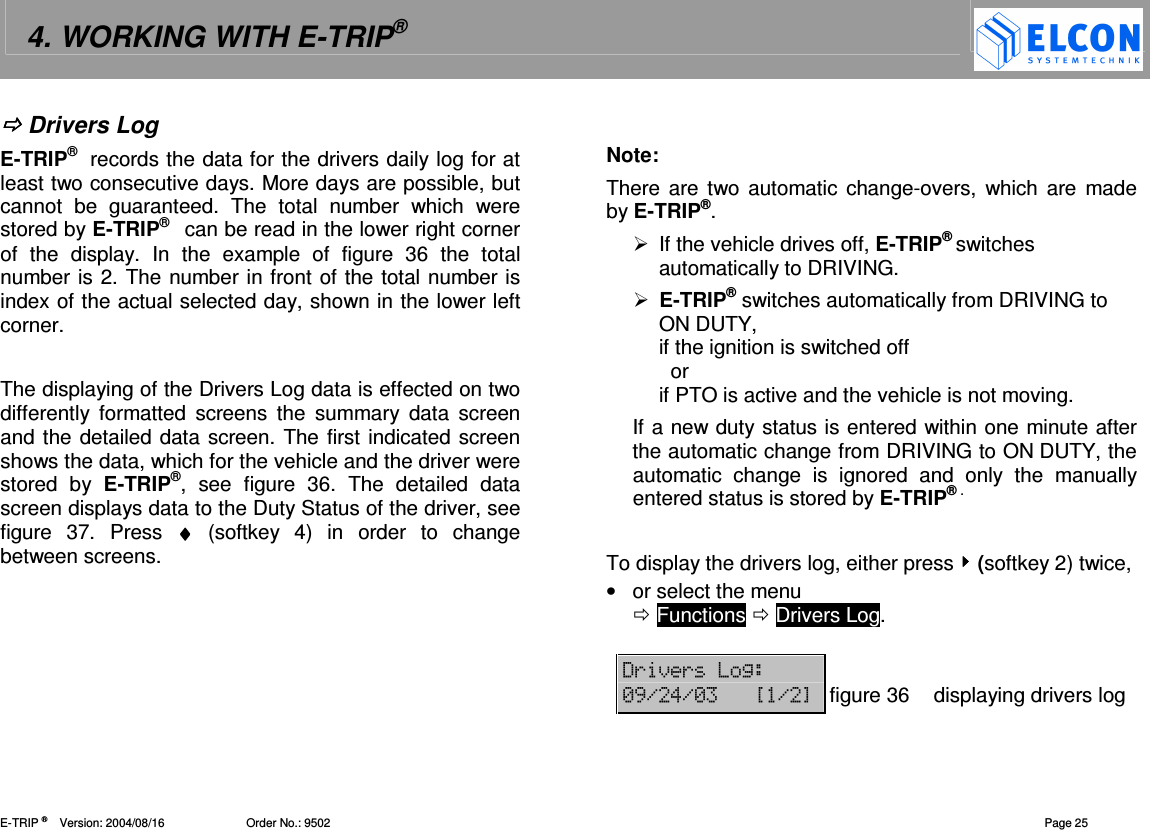
4. WORKING WITH E-TRIP®   E-TRIP ®      Version: 2004/08/16                         Order No.: 9502  Page 25  Drivers Log E-TRIP®  records the data for the drivers daily log for at least two consecutive days. More days are possible, but cannot  be  guaranteed.  The  total  number  which  were stored by E-TRIP®   can be read in the lower right corner of  the  display.  In  the  example  of  figure  36  the  total number is 2. The number in front of the total number is index of the actual selected day, shown in the lower left corner.  The displaying of the Drivers Log data is effected on two differently  formatted  screens  the  summary  data  screen and the detailed data screen. The first indicated screen shows the data, which for the vehicle and the driver were stored  by  E-TRIP®,  see  figure  36.  The  detailed  data screen displays data to the Duty Status of the driver, see figure  37.  Press  ♦♦♦♦  (softkey  4)  in  order  to  change between screens.    Note: There are two  automatic  change-overs,  which  are  made by E-TRIP®.    If the vehicle drives off, E-TRIP® switches automatically to DRIVING.  E-TRIP® switches automatically from DRIVING to ON DUTY, if the ignition is switched off   or if PTO is active and the vehicle is not moving. If a new duty status is entered within one minute after the automatic change from DRIVING to ON DUTY, the automatic  change  is  ignored  and  only  the  manually entered status is stored by E-TRIP® .  To display the drivers log, either press  (softkey 2) twice, •  or select the menu   Functions  Drivers Log.  '()(2  -,.!.- ?.@figure 36 displaying drivers log
4. WORKING WITH E-TRIP®   E-TRIP ®      Version: 2004/08/16                         Order No.: 9502  Page 26 After  the  call  of  the  function  “Drivers  Log”  the  current date  is  indicated,  see  figure  36.  When  displaying  the Drivers Log data two display modes are available.  •  use  and  for next and previous screen of summary data.  The following screens are available: 1) Date  2) Total distance of the vehicle in miles or kilometers. 3) Driver ID 4) Driven distance today of driver shown in “Driver ID”. 5) Duration 1: OFF DUTY time  of the driver shown in “Driver ID”. 6) Duration 2: SLEEPER time  of the driver shown in “Driver ID”. 7) Duration 3: DRIVING time  of the driver shown in “Driver ID”. 8) Duration 4: ON DUTY time  of the driver shown in “Driver ID”. •  use  to change to previous day. •  use  to change to next day. •  use ♦♦♦♦ (softkey 4) to change between summary data and detailed data screen. •  Press C to abort displaying Drivers Log.  Change  to  the  detailed  data  screen,  to  transfer  drivers duty status into blank logs, see figure 37. On detailed data screen, the following data is indicated: 1) upper left:  date 2) upper right:  [actual index / maximum index] 3) lower left:  duty status start time 4) lower right:  duty status  -,. ?.%@ ----figure 37  duty status of drivers log •  use  to change to previous day. •  use  to change to next day. •  use ♦♦♦♦ (softkey 4) to change between detailed data and summary data screen. •  Press C to abort displaying Drivers Log. If there is ????-.--.--.--.-@@@@ indicates in the upper right corner of the display, then no entries exist for the duty status for the desired day, see figure 38.   -,.!?-.-@ ----&3figure 38  duty status unknown If  the  data  of  another  driver  is  to  be  indicated,  the Driver ID of this driver must be entered or the driver card inserted into  the  smard  card  reader slot,  see chapter  Driver ID on page 27.
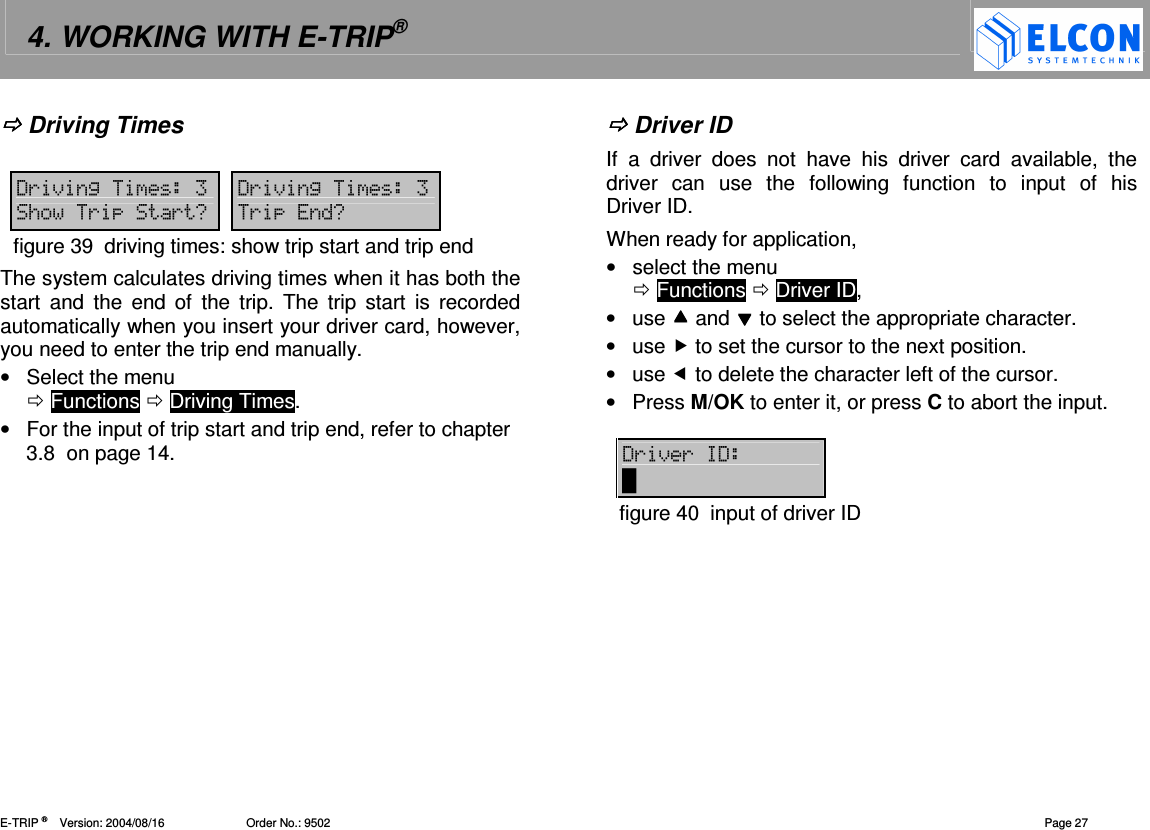
4. WORKING WITH E-TRIP®   E-TRIP ®      Version: 2004/08/16                         Order No.: 9502  Page 27  Driving Times  '()2  '()2 /((0 (0figure 39  driving times: show trip start and trip end The system calculates driving times when it has both the start  and  the  end of  the  trip.  The  trip  start  is  recorded automatically when you insert your driver card, however, you need to enter the trip end manually.  •  Select the menu   Functions  Driving Times. •  For the input of trip start and trip end, refer to chapter 3.8  on page 14.    Driver ID If  a  driver  does  not  have  his  driver  card  available,  the driver  can  use  the  following  function  to  input  of  his Driver ID.  When ready for application,  •  select the menu   Functions  Driver ID, •  use  and  to select the appropriate character. •  use  to set the cursor to the next position. •  use  to delete the character left of the cursor. •  Press M/OK to enter it, or press C to abort the input.  '()('   figure 40  input of driver ID
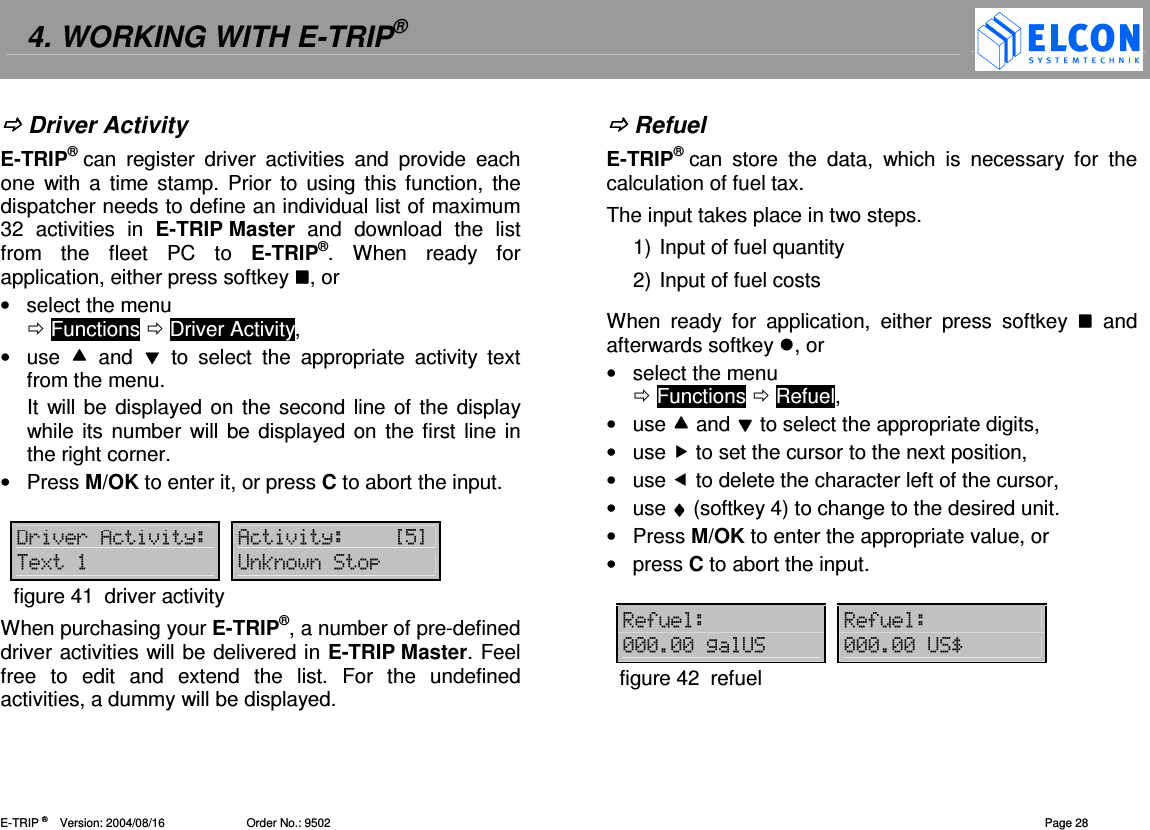
4. WORKING WITH E-TRIP®   E-TRIP ®      Version: 2004/08/16                         Order No.: 9502  Page 28  Driver Activity E-TRIP® can  register  driver  activities  and  provide  each one  with  a  time stamp.  Prior  to using this function,  the dispatcher needs to define an individual list of maximum 32  activities  in  E-TRIP Master  and  download  the  list from  the  fleet  PC  to  E-TRIP®.  When  ready  for application, either press softkey , or •  select the menu   Functions  Driver Activity, •  use    and    to  select  the  appropriate  activity  text from the menu. It will be displayed on  the second line of the  display while its number will be displayed  on the first line in the right corner. •  Press M/OK to enter it, or press C to abort the input.  '()(4=) 4=)?"@8 B3figure 41  driver activity When purchasing your E-TRIP®, a number of pre-defined driver activities will be delivered in E-TRIP Master. Feel free  to  edit  and  extend  the  list.  For  the  undefined activities, a dummy will be displayed.    Refuel E-TRIP® can  store  the  data,  which  is  necessary  for  the calculation of fuel tax.  The input takes place in two steps.  1) Input of fuel quantity 2) Input of fuel costs When  ready  for  application,  either  press  softkey    and afterwards softkey , or •  select the menu   Functions  Refuel, •  use  and  to select the appropriate digits, •  use  to set the cursor to the next position, •  use  to delete the character left of the cursor, •  use ♦♦♦♦ (softkey 4) to change to the desired unit. •  Press M/OK to enter the appropriate value, or  •  press C to abort the input.  5& 5&-----2B -----BCfigure 42  refuel
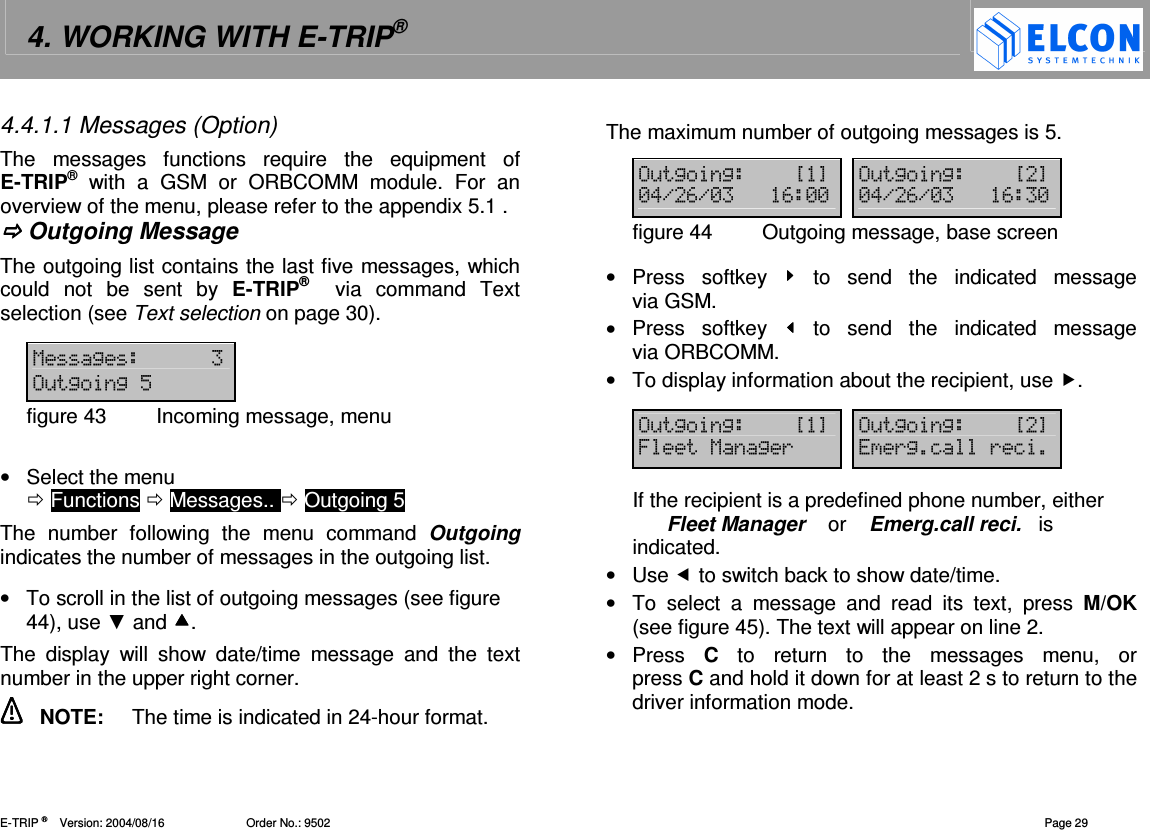
4. WORKING WITH E-TRIP®   E-TRIP ®      Version: 2004/08/16                         Order No.: 9502  Page 29 4.4.1.1 Messages (Option) The  messages  functions  require  the  equipment  of E-TRIP®  with  a  GSM  or  ORBCOMM  module.  For  an overview of the menu, please refer to the appendix 5.1 .  Outgoing Message The outgoing list contains the last five messages, which could  not  be  sent  by  E-TRIP®   via  command  Text selection (see Text selection on page 30).   12 &22"figure 43  Incoming message, menu  •  Select the menu   Functions  Messages..  Outgoing 5 The  number  following  the  menu  command  Outgoing indicates the number of messages in the outgoing list.   •  To scroll in the list of outgoing messages (see figure 44), use  and . The  display  will  show  date/time  message  and  the  text number in the upper right corner.    NOTE:  The time is indicated in 24-hour format. The maximum number of outgoing messages is 5.  &22?@ &22?@-!.#.- #-- -!.#.- # -figure 44  Outgoing message, base screen  •  Press  softkey    to  send  the  indicated  message via GSM. •  Press  softkey    to  send  the  indicated  message via ORBCOMM. •  To display information about the recipient, use .  &22?@ &22?@612( (2=(= If the recipient is a predefined phone number, either        Fleet Manager    or    Emerg.call reci.   is indicated. •  Use  to switch back to show date/time. •  To  select  a  message  and  read  its  text,  press  M/OK (see figure 45). The text will appear on line 2. •  Press  C  to  return  to  the  messages  menu,  or  press C and hold it down for at least 2 s to return to the driver information mode.
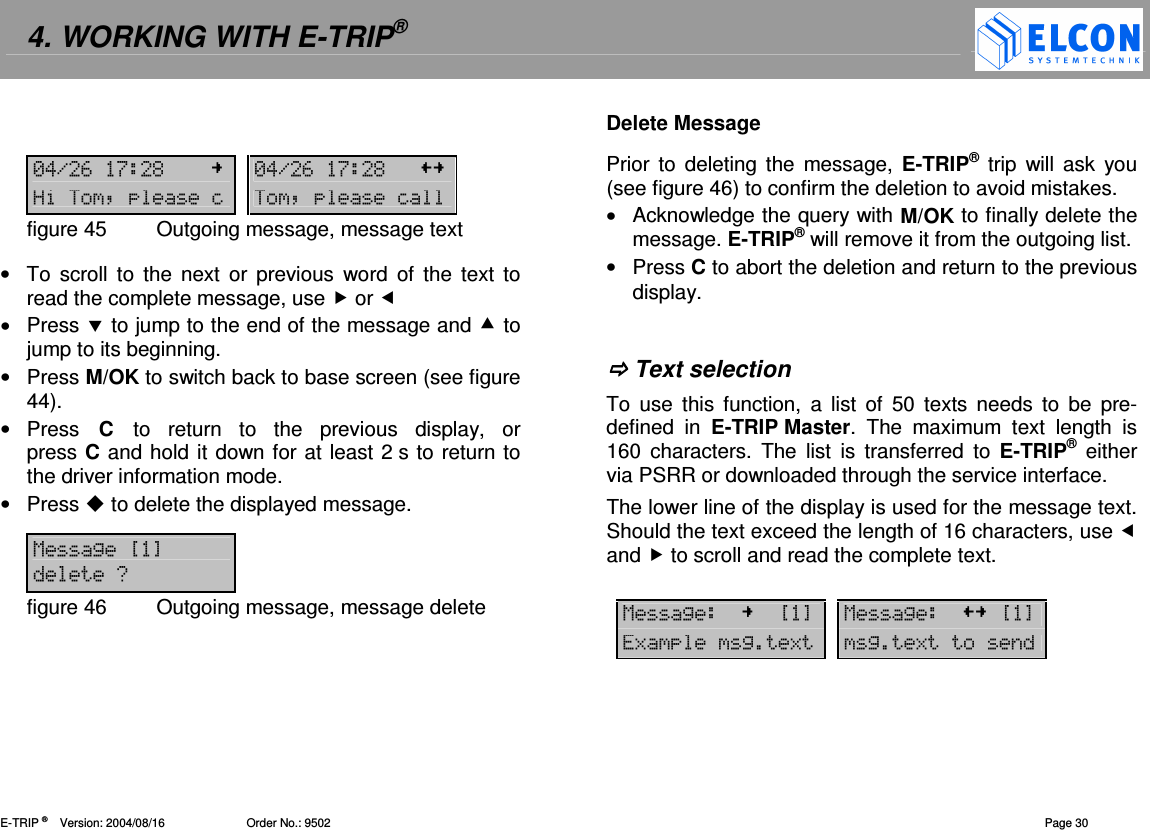
4. WORKING WITH E-TRIP®   E-TRIP ®      Version: 2004/08/16                         Order No.: 9502  Page 30   -!.#$% -!.#$%+:=:=figure 45  Outgoing message, message text  •  To  scroll to  the  next  or  previous  word  of  the text  to read the complete message, use  or  •  Press  to jump to the end of the message and  to jump to its beginning. •  Press M/OK to switch back to base screen (see figure 44). •  Press  C  to  return  to  the  previous  display,  or press C and hold it down for at least 2 s to return to the driver information mode. •  Press  to delete the displayed message.  12?@0figure 46  Outgoing message, message delete  Delete Message Prior to  deleting  the  message,  E-TRIP®  trip  will  ask  you (see figure 46) to confirm the deletion to avoid mistakes. •  Acknowledge the query with M/OK to finally delete the message. E-TRIP® will remove it from the outgoing list. •  Press C to abort the deletion and return to the previous display.    Text selection To  use  this  function,  a  list  of  50  texts  needs  to  be  pre-defined  in  E-TRIP Master.  The  maximum  text  length  is 160  characters.  The  list  is transferred  to  E-TRIP®  either via PSRR or downloaded through the service interface. The lower line of the display is used for the message text. Should the text exceed the length of 16 characters, use  and  to scroll and read the complete text.    12?@ 12?@828 28
4. WORKING WITH E-TRIP®   E-TRIP ®      Version: 2004/08/16                         Order No.: 9502  Page 31 To send one of the predefined messages,  •  select  the  text  you  would  like  to  send  from  the  list using  and . •  Press  M/OK  to  acknowledge  the  selected  message and  send  it  to  a  predefined  phone  number  (see   Message Setup on page 44). If the text has not been sent,  an  error  message  will  be  displayed  and  this message  is  added  to  the  outgoing  list,  see  Outgoing Message The number of the text will be displayed on the first line in the right corner. The arrow preceding the index points into the direction you can scroll to display the rest of the message should the text be too long to be displayed in total.   [50]:  All characters of the message No. 50 are displayed.    [50]:  The beginning of the message is displayed.   [50]:  The end of the message is displayed.   [50]:  Both the beginning and the end of the message are not displayed.  12?"-@=3:*figure 47  Text selection, example  Incoming Message You  can  receive  messages  via  GSM  or  satellite (ORBCOMM)  and  E-TRIP®  will  indicate  this  both acoustically with a tone sequence          and visually on the display and by LED (see chapter 5.4 ).   ---!.#.- 12figure 48  Incoming message  •  Select the menu   Functions  Messages..  Incoming 2/1  12 =2.figure 49  Incoming message, menu  The  two  numbers  after  the  menu  command  Incoming indicate the number of messages in the incoming list (first value) and messages still being displayed or read (second value).  •  To scroll in the list of incoming messages (see figure 50), use  and . The display will show date/time message and the text number in the upper right corner.
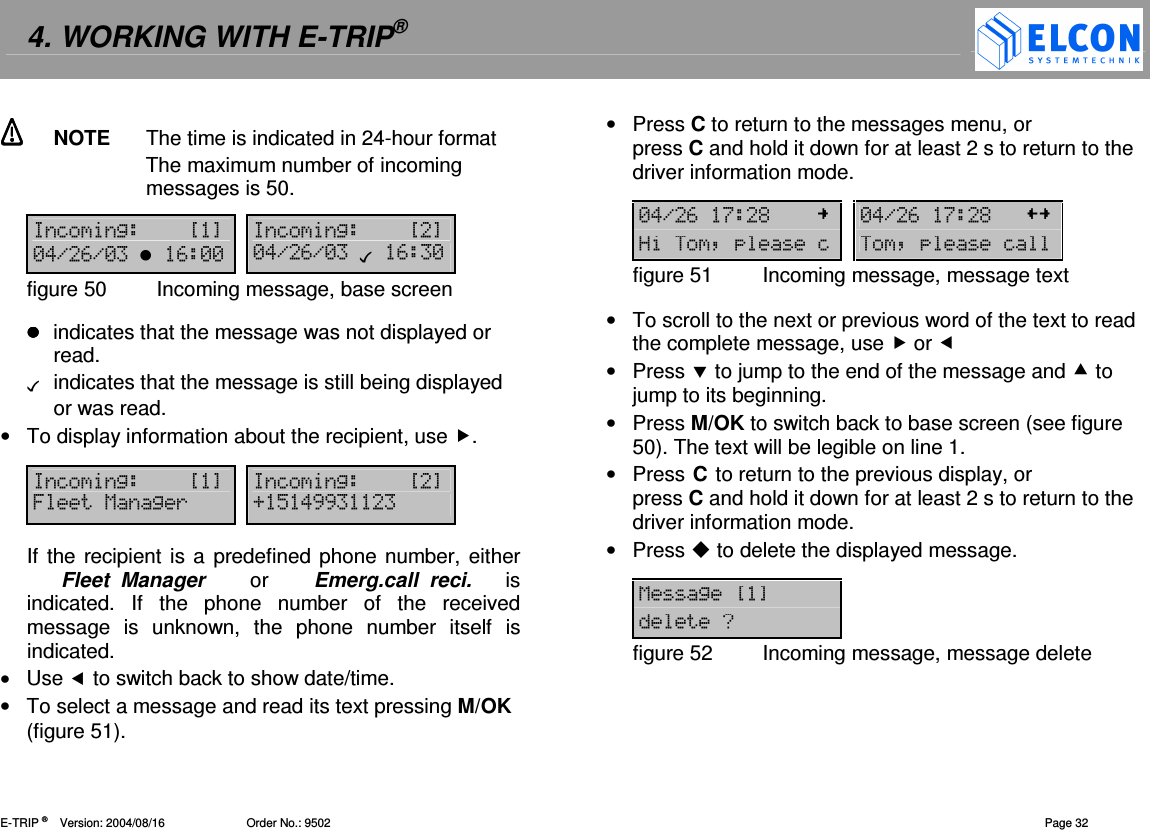
4. WORKING WITH E-TRIP®   E-TRIP ®      Version: 2004/08/16                         Order No.: 9502  Page 32   NOTE  The time is indicated in 24-hour format The maximum number of incoming messages is 50.  =2?@ =2?@-!.#.- #-- -!.#.- # -figure 50  Incoming message, base screen   indicates that the message was not displayed or read.    indicates that the message is still being displayed or was read. •  To display information about the recipient, use .  =2?@ =2?@612( D"!,,   If the recipient is a predefined phone number, either        Fleet  Manager    or    Emerg.call  reci.      is indicated.  If  the  phone  number  of  the  received message  is  unknown,  the  phone  number  itself  is indicated. •  Use  to switch back to show date/time. •  To select a message and read its text pressing M/OK (figure 51). •  Press C to return to the messages menu, or  press C and hold it down for at least 2 s to return to the driver information mode.   -!.#$% -!.#$%+:=:=figure 51  Incoming message, message text  •  To scroll to the next or previous word of the text to read the complete message, use  or  •  Press  to jump to the end of the message and  to jump to its beginning. •  Press M/OK to switch back to base screen (see figure 50). The text will be legible on line 1. •  Press C to return to the previous display, or press C and hold it down for at least 2 s to return to the driver information mode. •  Press  to delete the displayed message.  12?@0figure 52  Incoming message, message delete
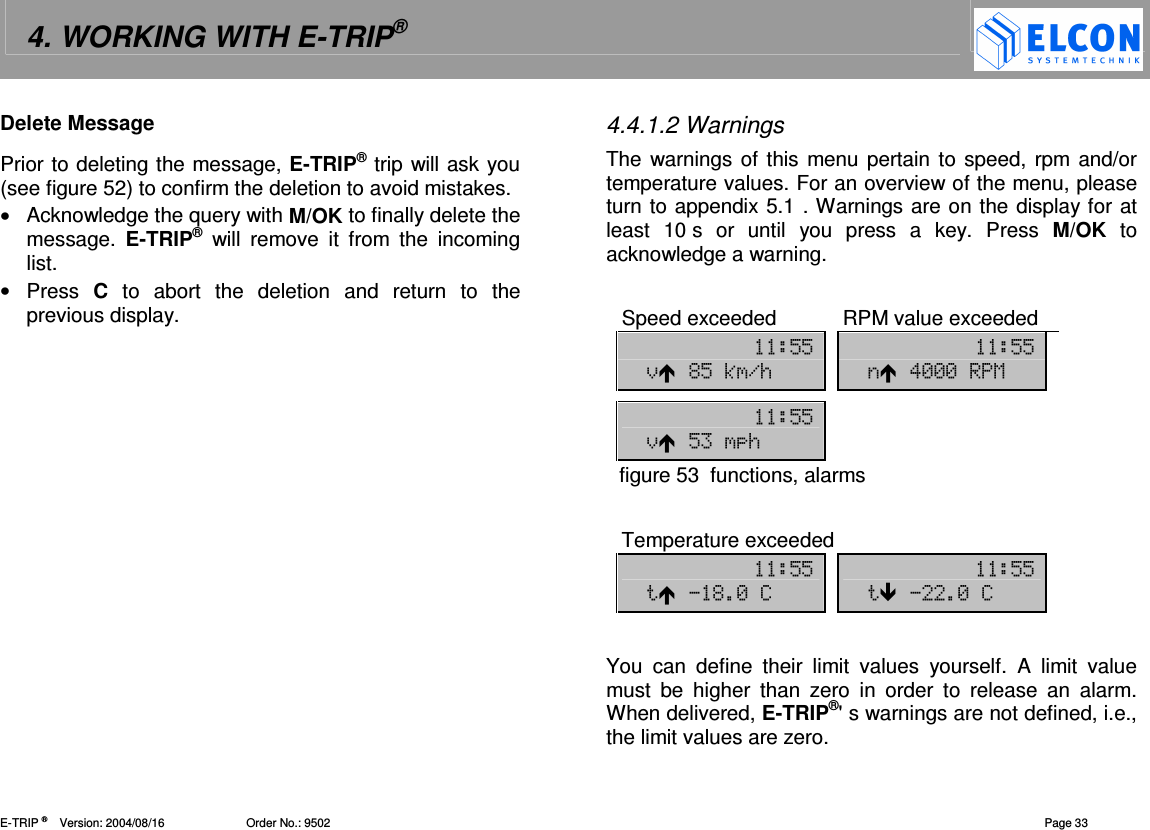
4. WORKING WITH E-TRIP®   E-TRIP ®      Version: 2004/08/16                         Order No.: 9502  Page 33 Delete Message Prior to deleting the message, E-TRIP® trip will ask you (see figure 52) to confirm the deletion to avoid mistakes.  •  Acknowledge the query with M/OK to finally delete the message.  E-TRIP®  will  remove  it  from  the  incoming list. •  Press  C  to  abort  the  deletion  and  return  to  the previous display. 4.4.1.2 Warnings The warnings of this menu pertain to speed, rpm and/or temperature values. For an overview of the menu, please turn to appendix 5.1 . Warnings are on the display for at least  10 s  or  until  you  press  a  key.  Press  M/OK  to acknowledge a warning.   Speed exceeded  RPM value exceeded  "" "" )%"3./ !---1     ""  )" /  figure 53  functions, alarms  Temperature exceeded "" "" %-7 -7  You  can  define  their  limit  values  yourself.  A  limit  value must  be  higher  than  zero  in  order  to  release  an  alarm. When delivered, E-TRIP®' s warnings are not defined, i.e., the limit values are zero.
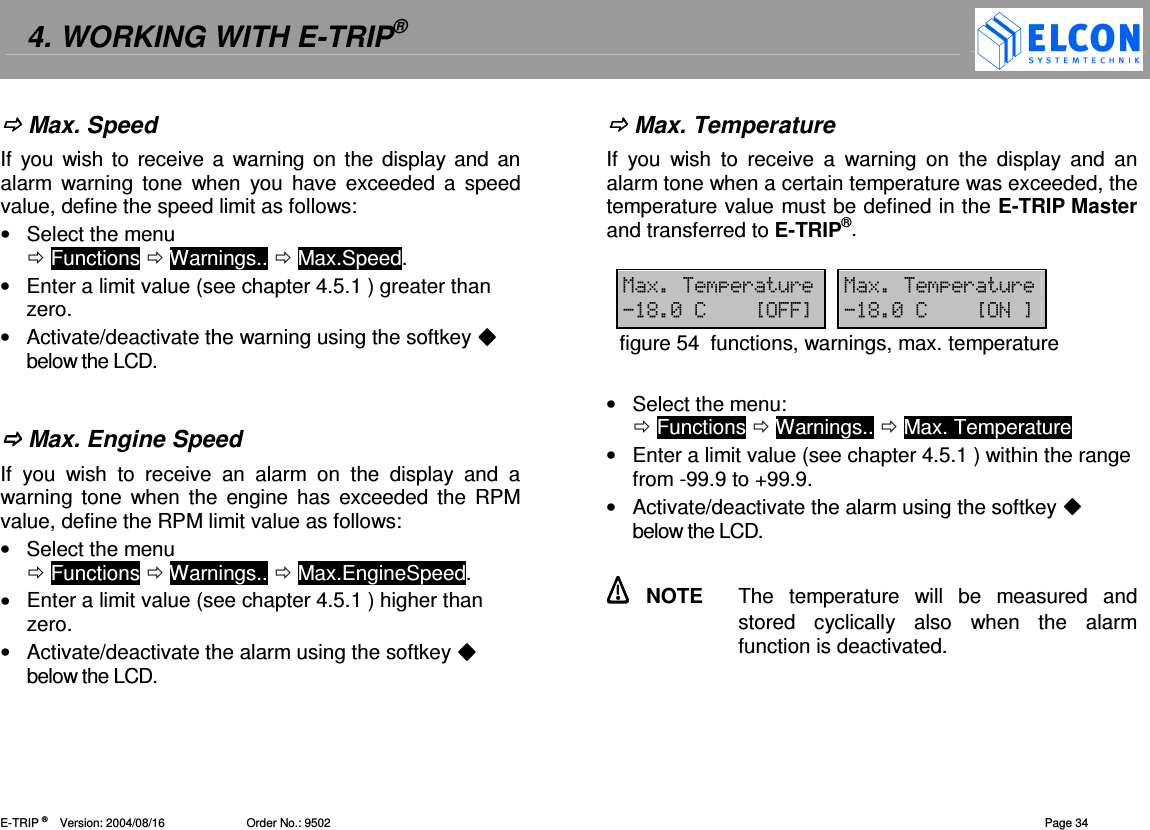
4. WORKING WITH E-TRIP®   E-TRIP ®      Version: 2004/08/16                         Order No.: 9502  Page 34  Max. Speed If  you wish to receive a warning on the  display and an alarm  warning  tone  when  you  have exceeded  a  speed value, define the speed limit as follows:  •  Select the menu   Functions  Warnings..  Max.Speed. •  Enter a limit value (see chapter 4.5.1 ) greater than zero. •  Activate/deactivate the warning using the softkey  below the LCD.    Max. Engine Speed If  you  wish  to  receive  an  alarm  on  the  display  and  a warning tone  when  the engine  has  exceeded  the RPM value, define the RPM limit value as follows:  •  Select the menu   Functions  Warnings..  Max.EngineSpeed. •  Enter a limit value (see chapter 4.5.1 ) higher than zero. •  Activate/deactivate the alarm using the softkey  below the LCD.   Max. Temperature If  you  wish  to  receive  a  warning  on  the  display  and  an alarm tone when a certain temperature was exceeded, the temperature value must be defined in the E-TRIP Master and transferred to E-TRIP®.  18(&( 18(&(%-7?66@ %-7?@figure 54  functions, warnings, max. temperature  •  Select the menu:    Functions  Warnings..  Max. Temperature •  Enter a limit value (see chapter 4.5.1 ) within the range from -99.9 to +99.9. •  Activate/deactivate the alarm using the softkey  below the LCD.    NOTE  The  temperature  will  be  measured  and stored  cyclically  also  when  the  alarm function is deactivated.
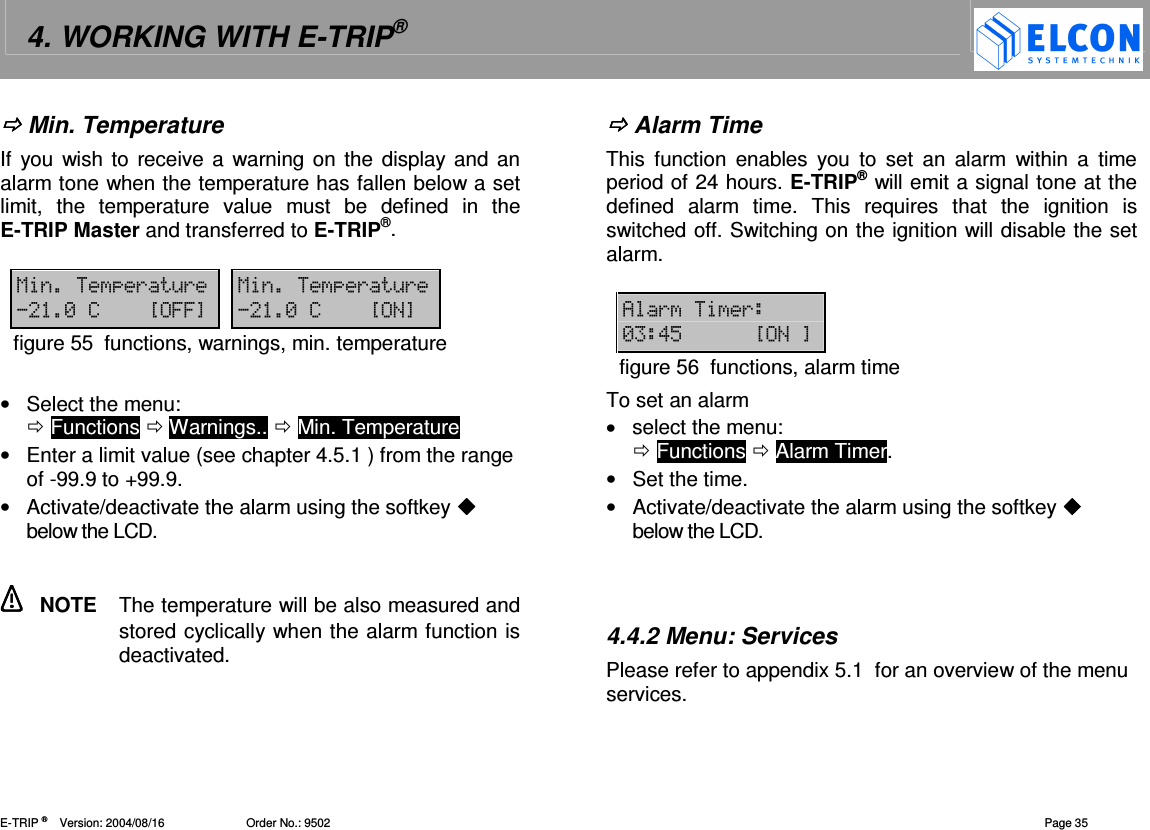
4. WORKING WITH E-TRIP®   E-TRIP ®      Version: 2004/08/16                         Order No.: 9502  Page 35  Min. Temperature If  you wish to receive a warning  on the  display and an alarm tone when the temperature has fallen below a set limit,  the  temperature  value  must  be  defined  in  the E-TRIP Master and transferred to E-TRIP®.  1(&( 1(&(-7?66@ -7?@figure 55  functions, warnings, min. temperature  •  Select the menu:   Functions  Warnings..  Min. Temperature •  Enter a limit value (see chapter 4.5.1 ) from the range of -99.9 to +99.9. •  Activate/deactivate the alarm using the softkey  below the LCD.    NOTE  The temperature will be also measured and stored cyclically when the alarm function is deactivated.  Alarm Time This  function  enables  you  to set  an  alarm  within a  time period of 24 hours. E-TRIP® will emit a signal tone at the defined  alarm  time.  This  requires  that  the  ignition  is switched off. Switching on the ignition will disable the set alarm.   4((- !"?@figure 56  functions, alarm time To set an alarm •  select the menu:   Functions  Alarm Timer. •  Set the time. •  Activate/deactivate the alarm using the softkey  below the LCD.    4.4.2 Menu: Services Please refer to appendix 5.1  for an overview of the menu services.
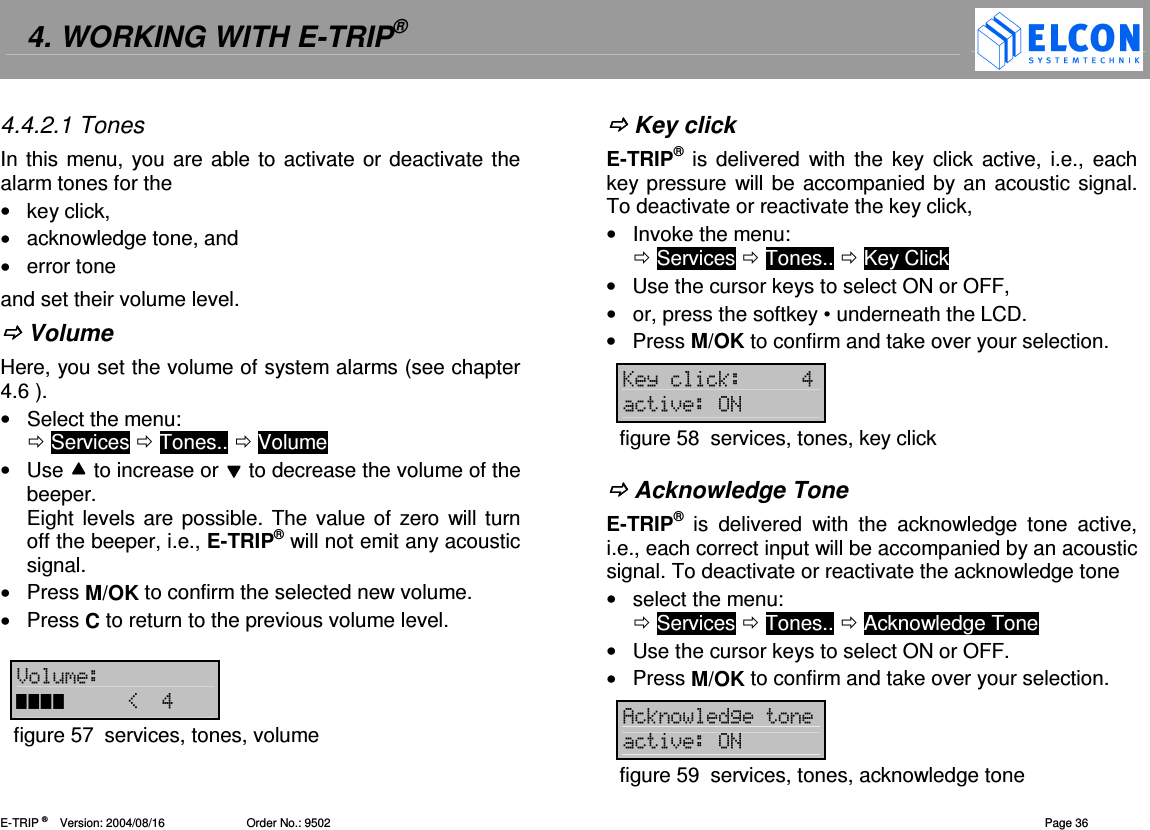
4. WORKING WITH E-TRIP®   E-TRIP ®      Version: 2004/08/16                         Order No.: 9502  Page 36 4.4.2.1 Tones In this menu, you are able to activate  or deactivate the alarm tones for the •  key click, •  acknowledge tone, and •  error tone and set their volume level.  Volume Here, you set the volume of system alarms (see chapter 4.6 ).  •  Select the menu:   Services  Tones..  Volume •  Use  to increase or  to decrease the volume of the beeper. Eight levels are possible. The  value  of  zero will turn off the beeper, i.e., E-TRIP® will not emit any acoustic signal. •  Press M/OK to confirm the selected new volume. •  Press C to return to the previous volume level.  >& E!figure 57  services, tones, volume  Key click E-TRIP® is delivered  with the  key  click active,  i.e.,  each key pressure will be accompanied by an acoustic signal. To deactivate or reactivate the key click,  •  Invoke the menu:   Services  Tones..  Key Click •  Use the cursor keys to select ON or OFF, •  or, press the softkey • underneath the LCD. •  Press M/OK to confirm and take over your selection. A==3! =)figure 58  services, tones, key click   Acknowledge Tone E-TRIP®  is  delivered  with  the  acknowledge  tone  active, i.e., each correct input will be accompanied by an acoustic signal. To deactivate or reactivate the acknowledge tone •  select the menu:   Services  Tones..  Acknowledge Tone •  Use the cursor keys to select ON or OFF. •  Press M/OK to confirm and take over your selection. 4=32 =)figure 59  services, tones, acknowledge tone
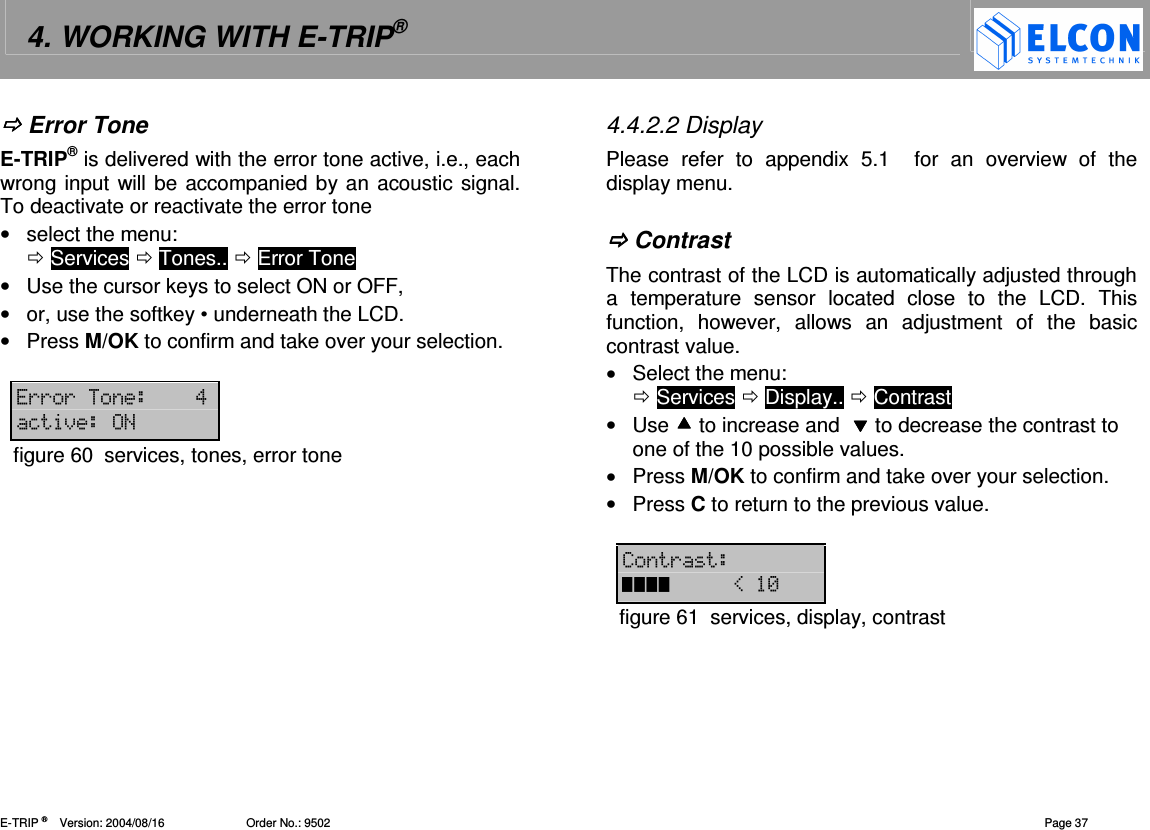
4. WORKING WITH E-TRIP®   E-TRIP ®      Version: 2004/08/16                         Order No.: 9502  Page 37  Error Tone E-TRIP® is delivered with the error tone active, i.e., each wrong input will be accompanied by an acoustic signal. To deactivate or reactivate the error tone •  select the menu:   Services  Tones..  Error Tone •  Use the cursor keys to select ON or OFF, •  or, use the softkey • underneath the LCD. •  Press M/OK to confirm and take over your selection.  (((! =)figure 60  services, tones, error tone  4.4.2.2 Display Please  refer  to  appendix  5.1    for  an  overview  of  the display menu.   Contrast The contrast of the LCD is automatically adjusted through a  temperature  sensor  located  close  to  the  LCD.  This function,  however,  allows  an  adjustment  of  the  basic contrast value.  •  Select the menu:   Services  Display..  Contrast •  Use  to increase and   to decrease the contrast to one of the 10 possible values. •  Press M/OK to confirm and take over your selection. •  Press C to return to the previous value.  ( E-figure 61  services, display, contrast
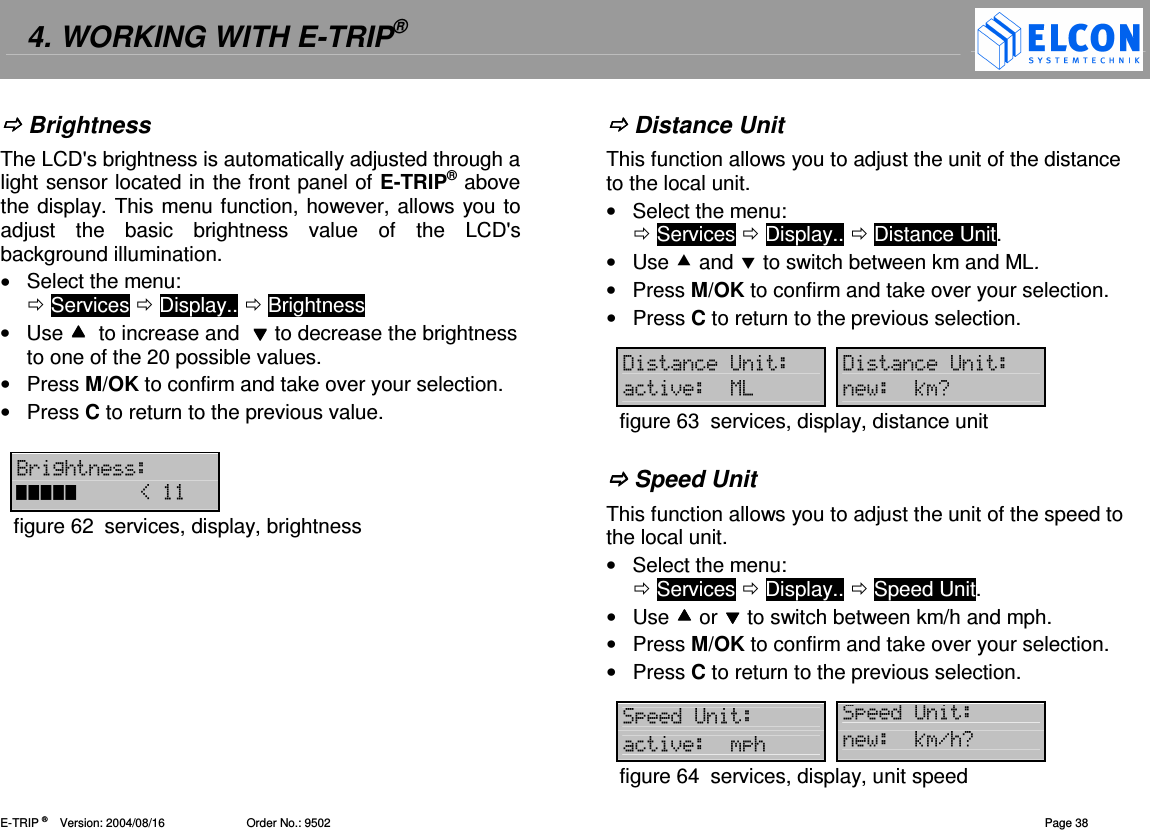
4. WORKING WITH E-TRIP®   E-TRIP ®      Version: 2004/08/16                         Order No.: 9502  Page 38  Brightness The LCD's brightness is automatically adjusted through a light sensor located in the front panel of E-TRIP® above the display. This menu function, however, allows you to adjust  the  basic  brightness  value  of  the  LCD's background illumination.  •  Select the menu:   Services  Display..  Brightness •  Use   to increase and   to decrease the brightness to one of the 20 possible values. •  Press M/OK to confirm and take over your selection. •  Press C to return to the previous value.  <(2/ Efigure 62  services, display, brightness   Distance Unit This function allows you to adjust the unit of the distance to the local unit.  •  Select the menu:   Services  Display..  Distance Unit. •  Use  and  to switch between km and ML. •  Press M/OK to confirm and take over your selection. •  Press C to return to the previous selection.  '=B '=B=)1 30figure 63  services, display, distance unit   Speed Unit This function allows you to adjust the unit of the speed to the local unit.  •  Select the menu:   Services  Display..  Speed Unit. •  Use  or  to switch between km/h and mph. •  Press M/OK to confirm and take over your selection. •  Press C to return to the previous selection.  B B=)/ 3./0figure 64  services, display, unit speed
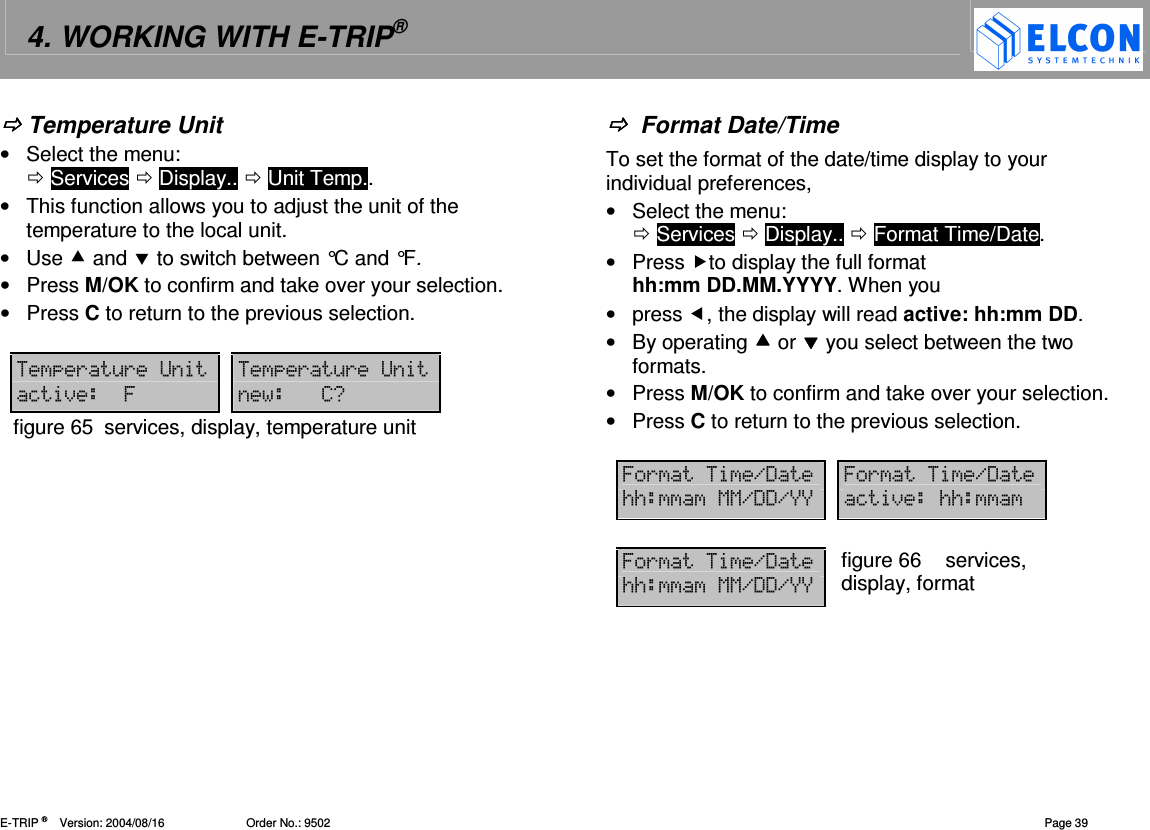
4. WORKING WITH E-TRIP®   E-TRIP ®      Version: 2004/08/16                         Order No.: 9502  Page 39  Temperature Unit •  Select the menu:   Services  Display..  Unit Temp.. •  This function allows you to adjust the unit of the temperature to the local unit.  •  Use  and  to switch between °C and °F. •  Press M/OK to confirm and take over your selection. •  Press C to return to the previous selection.  (&(B (&(B=)76 70figure 65  services, display, temperature unit    Format Date/Time To set the format of the date/time display to your individual preferences,  •  Select the menu:   Services  Display..  Format Time/Date. •  Press to display the full format hh:mm DD.MM.YYYY. When you •  press , the display will read active: hh:mm DD. •  By operating  or  you select between the two formats. •  Press M/OK to confirm and take over your selection. •  Press C to return to the previous selection.  6(.' 6(.'//11.''.FF =)// 6(.'//11.''.FF figure 66  services, display, format
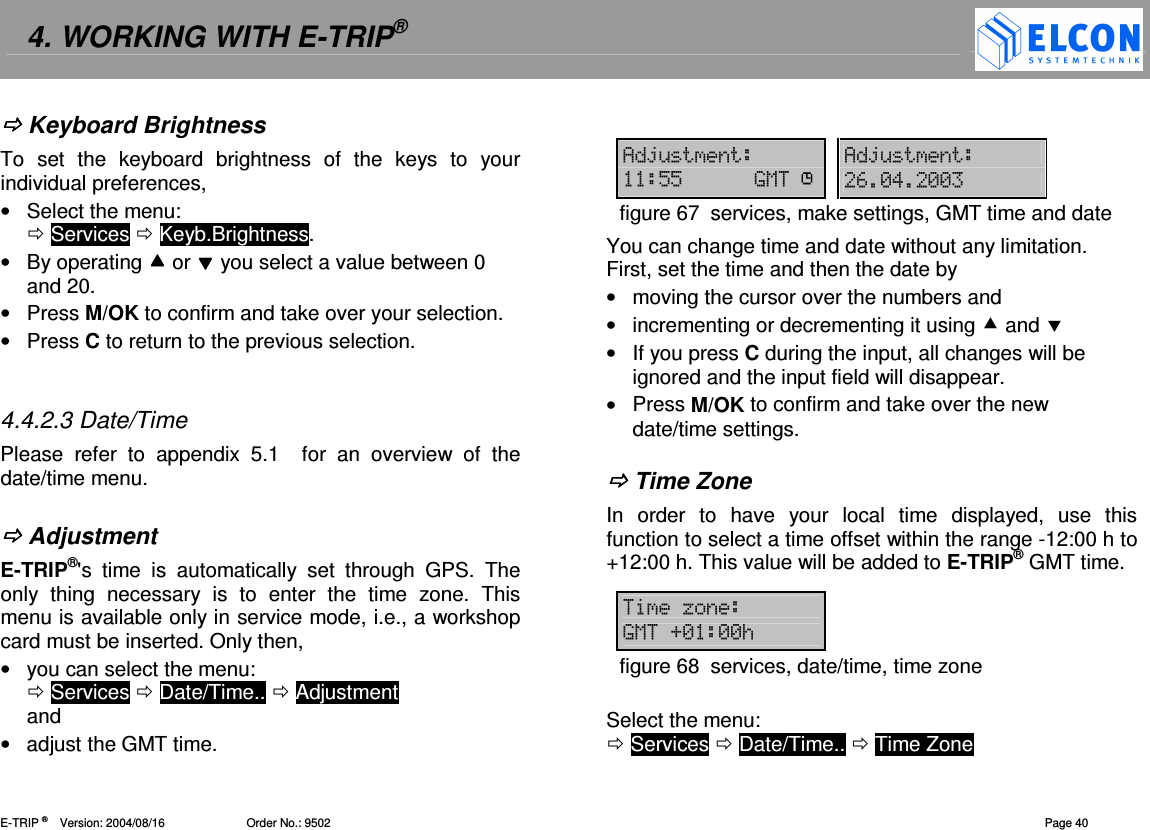
4. WORKING WITH E-TRIP®   E-TRIP ®      Version: 2004/08/16                         Order No.: 9502  Page 40  Keyboard Brightness To  set  the  keyboard  brightness  of  the  keys  to  your individual preferences, •  Select the menu:   Services  Keyb.Brightness. •  By operating  or  you select a value between 0 and 20. •  Press M/OK to confirm and take over your selection. •  Press C to return to the previous selection.   4.4.2.3 Date/Time Please  refer  to  appendix  5.1    for  an  overview  of  the date/time menu.   Adjustment E-TRIP®'s  time  is  automatically  set  through  GPS.  The only  thing  necessary  is  to  enter  the  time  zone.  This menu is available only in service mode, i.e., a workshop card must be inserted. Only then,  •  you can select the menu:   Services  Date/Time..  Adjustment  and •  adjust the GMT time.  4G& 4G&""91 #-!-- figure 67  services, make settings, GMT time and date You can change time and date without any limitation. First, set the time and then the date by •  moving the cursor over the numbers and •  incrementing or decrementing it using  and  •  If you press C during the input, all changes will be ignored and the input field will disappear. •  Press M/OK to confirm and take over the new date/time settings.   Time Zone In  order  to  have  your  local  time  displayed,  use  this function to select a time offset within the range -12:00 h to +12:00 h. This value will be added to E-TRIP® GMT time.  H91D---/figure 68  services, date/time, time zone  Select the menu:   Services  Date/Time..  Time Zone
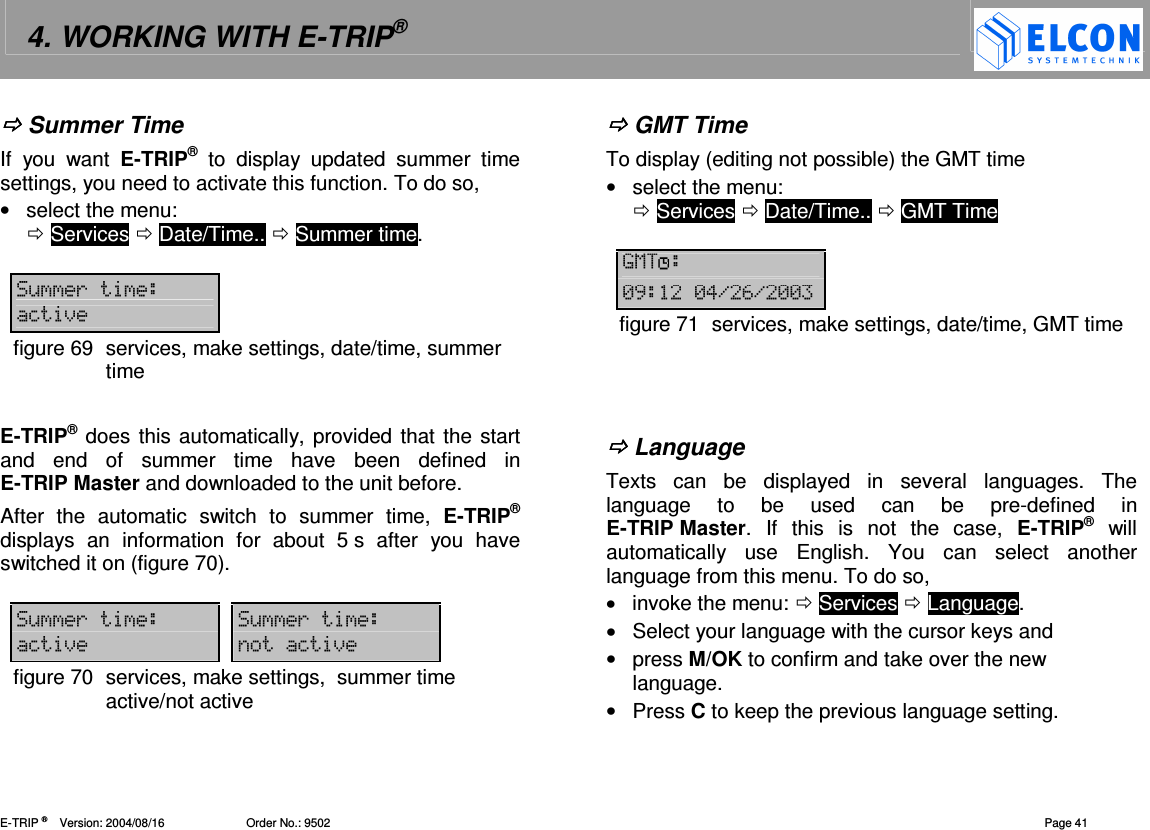
4. WORKING WITH E-TRIP®   E-TRIP ®      Version: 2004/08/16                         Order No.: 9502  Page 41  Summer Time If  you  want  E-TRIP®  to  display  updated  summer  time settings, you need to activate this function. To do so, •  select the menu:   Services  Date/Time..  Summer time.  &(=)figure 69  services, make settings, date/time, summer time  E-TRIP® does this automatically, provided that the start and  end  of  summer  time  have  been  defined  in E-TRIP Master and downloaded to the unit before. After  the  automatic  switch  to  summer  time,  E-TRIP® displays  an  information  for  about  5 s  after  you  have switched it on (figure 70).  &( &(=) =)figure 70  services, make settings,  summer time active/not active  GMT Time To display (editing not possible) the GMT time •  select the menu:    Services  Date/Time..  GMT Time  91 -,-!.#.-- figure 71  services, make settings, date/time, GMT time     Language Texts  can  be  displayed  in  several  languages.  The language  to  be  used  can  be  pre-defined  in E-TRIP Master.  If  this  is  not  the  case,  E-TRIP®  will automatically  use  English.  You  can  select  another language from this menu. To do so, •  invoke the menu:  Services  Language. •  Select your language with the cursor keys and •  press M/OK to confirm and take over the new language. •  Press C to keep the previous language setting.
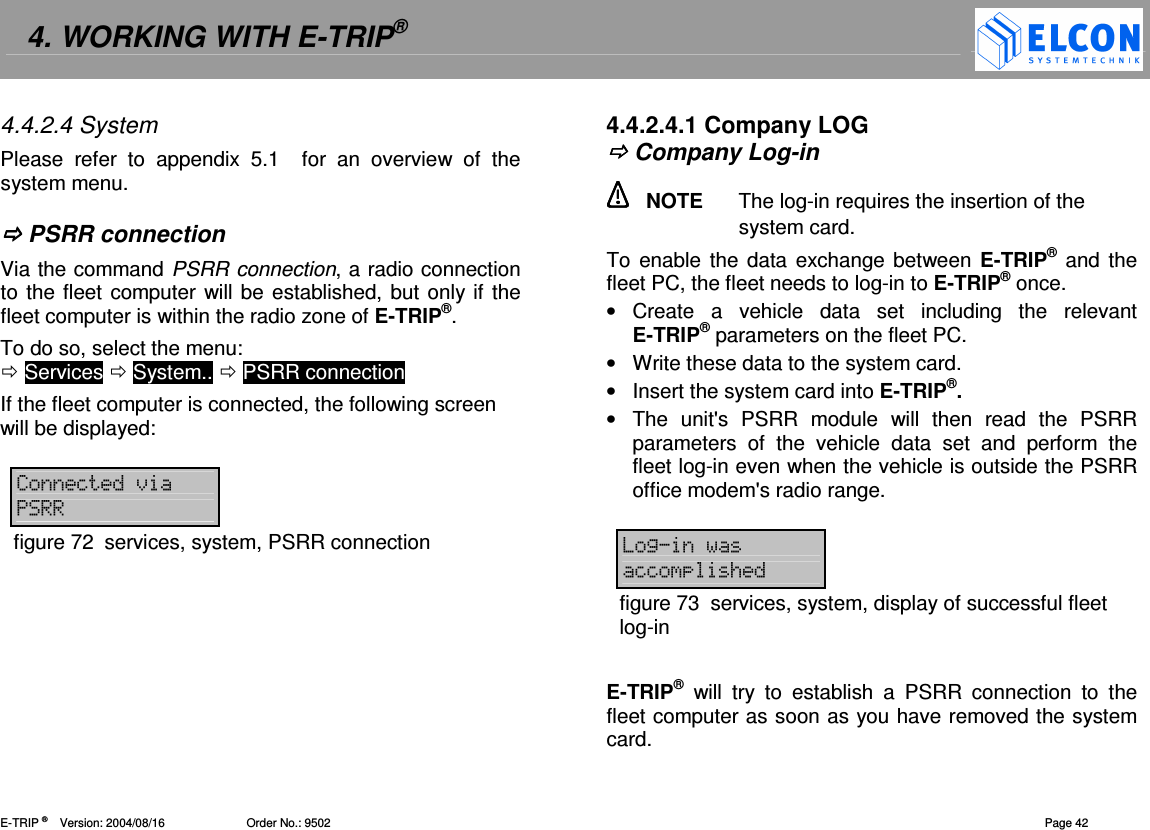
4. WORKING WITH E-TRIP®   E-TRIP ®      Version: 2004/08/16                         Order No.: 9502  Page 42 4.4.2.4 System Please  refer  to  appendix  5.1    for  an  overview  of  the system menu.    PSRR connection  Via the command PSRR connection, a radio connection to the fleet computer will be established, but only if the fleet computer is within the radio zone of E-TRIP®. To do so, select the menu:   Services  System..  PSRR connection If the fleet computer is connected, the following screen will be displayed:  =)figure 72  services, system, PSRR connection     4.4.2.4.1 Company LOG  Company Log-in   NOTE  The log-in requires the insertion of the system card. To enable the data exchange between E-TRIP® and the fleet PC, the fleet needs to log-in to E-TRIP® once. •  Create  a  vehicle  data  set  including  the  relevant E-TRIP® parameters on the fleet PC. •  Write these data to the system card. •  Insert the system card into E-TRIP®. •  The  unit's  PSRR  module  will  then  read  the  PSRR parameters  of  the  vehicle  data  set  and  perform  the fleet log-in even when the vehicle is outside the PSRR office modem's radio range.  2==/figure 73  services, system, display of successful fleet log-in  E-TRIP®  will  try  to  establish  a  PSRR  connection  to  the fleet computer as soon as you have removed the system card.
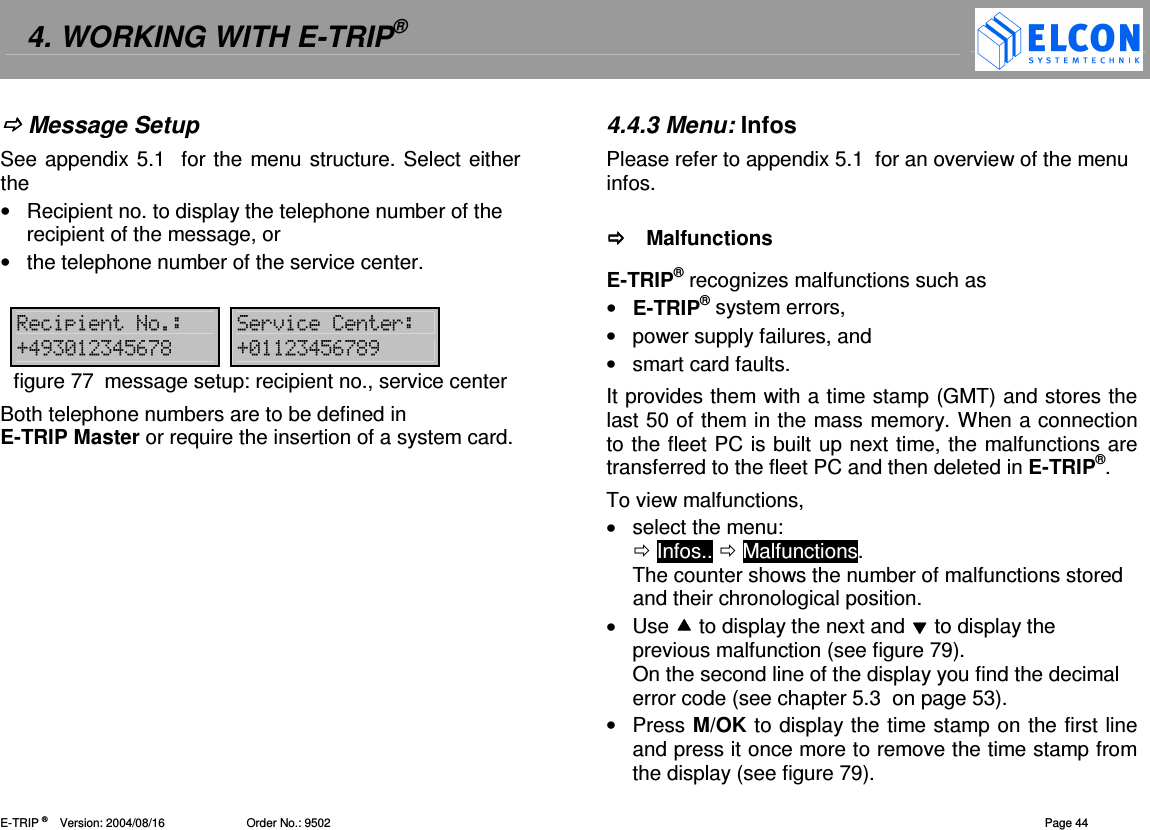
4. WORKING WITH E-TRIP®   E-TRIP ®      Version: 2004/08/16                         Order No.: 9502  Page 43 Together with the log-in, a status containing E-TRIP®' s hardware  equipment  will  be  transferred  to  the  fleet computer  and  release  the  relevant  function  modules (GPS,  GSM,  and/or  temperature  sensor,  etc.)  in  the application.     Log-Off   NOTE  The log-off requires the insertion of the system card.  To log-off from E-TRIP® •  select the menu:   Services  System..  Log-Off •  Press M/OK to show the log-in dialog for approx. 5 minutes should the PSRR office modem of the fleet not be reached before this time has elapsed.  255 20figure 74  services, system, fleet log-off If the fleet's PSRR office modem can be reached during this time, the following display will appear for approx. 5 s.  =/3I 22figure 75  services, system, fleet log-in  If  E-TRIP®  is  logged  into  a  PSRR  station,  the  log-off dialog will be displayed when invoking the menu function log-in/log-off.  •  Press M/OK and E-TRIP® will check whether the PSRR station  where  it  is  logged-in  allows  for  the  log-off.  E-TRIP®  will  log-off  if  it  receives  an  acknowledgement within  15 minutes.  Further  data  exchange  will  not  be possible then. If not, it will remain logged-in. •  Press C to abort the log-off.  2.55 2550figure 76  services, system, fleet log-off
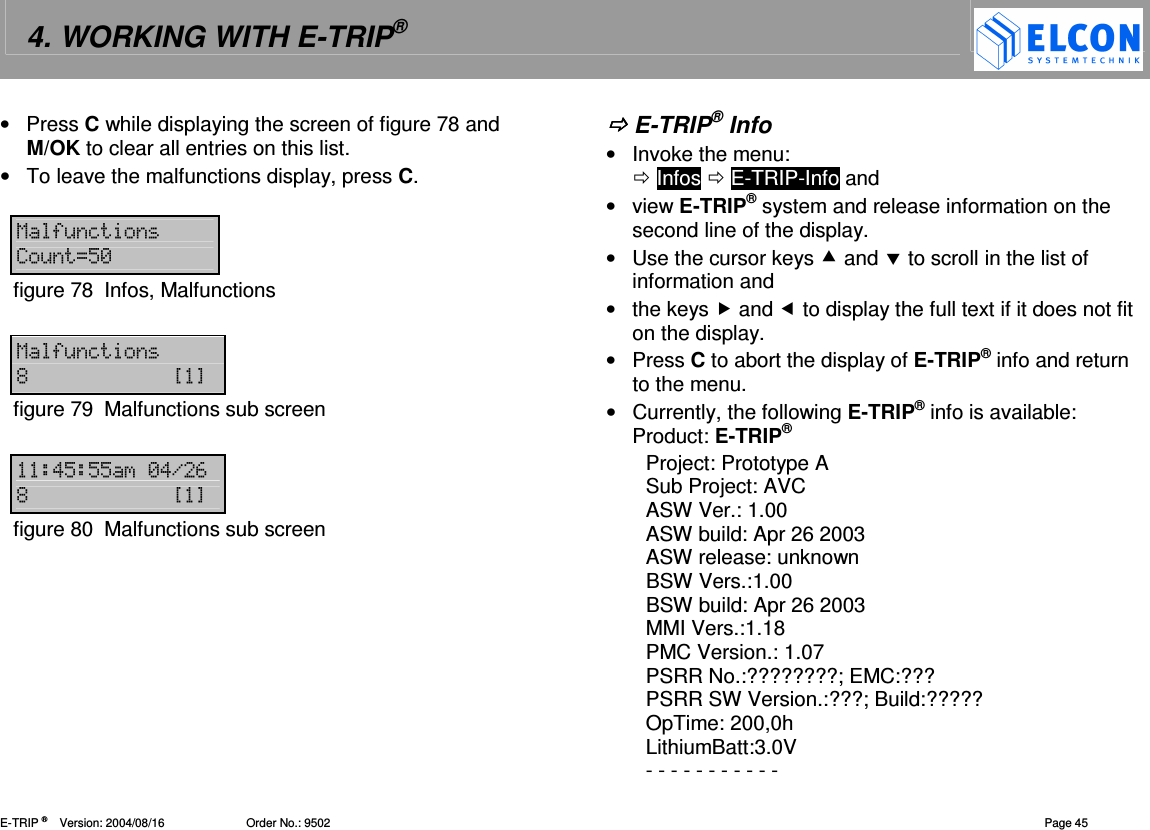
4. WORKING WITH E-TRIP®   E-TRIP ®      Version: 2004/08/16                         Order No.: 9502  Page 44  Message Setup See appendix 5.1  for the menu structure. Select either the •  Recipient no. to display the telephone number of the recipient of the message, or •  the telephone number of the service center.  = ()=(D!, - !"#$% D- !"#$%,figure 77  message setup: recipient no., service center Both telephone numbers are to be defined in E-TRIP Master or require the insertion of a system card.  4.4.3 Menu: Infos Please refer to appendix 5.1  for an overview of the menu infos.    Malfunctions E-TRIP® recognizes malfunctions such as •  E-TRIP® system errors, •  power supply failures, and •  smart card faults. It provides them with a time stamp (GMT) and stores the last 50 of them in the mass memory. When a connection to the fleet PC is built up next time, the malfunctions are transferred to the fleet PC and then deleted in E-TRIP®. To view malfunctions, •  select the menu:   Infos..  Malfunctions. The counter shows the number of malfunctions stored and their chronological position. •  Use  to display the next and  to display the previous malfunction (see figure 79). On the second line of the display you find the decimal error code (see chapter 5.3  on page 53). •  Press M/OK to display the time stamp on the first line and press it once more to remove the time stamp from the display (see figure 79).
4. WORKING WITH E-TRIP®   E-TRIP ®      Version: 2004/08/16                         Order No.: 9502  Page 45 •  Press C while displaying the screen of figure 78 and M/OK to clear all entries on this list. •  To leave the malfunctions display, press C.  15&=&J"-figure 78  Infos, Malfunctions  15&= %?@figure 79  Malfunctions sub screen  !"""-!.# %?@figure 80  Malfunctions sub screen   E-TRIP® Info •  Invoke the menu:   Infos  E-TRIP-Info and •  view E-TRIP® system and release information on the second line of the display. •  Use the cursor keys  and  to scroll in the list of information and •  the keys  and  to display the full text if it does not fit on the display. •  Press C to abort the display of E-TRIP® info and return to the menu. •  Currently, the following E-TRIP® info is available: Product: E-TRIP®  Project: Prototype A Sub Project: AVC ASW Ver.: 1.00 ASW build: Apr 26 2003 ASW release: unknown BSW Vers.:1.00 BSW build: Apr 26 2003 MMI Vers.:1.18 PMC Version.: 1.07 PSRR No.:????????; EMC:??? PSRR SW Version.:???; Build:????? OpTime: 200,0h LithiumBatt:3.0V - - - - - - - - - - -
4. WORKING WITH E-TRIP®   E-TRIP ®      Version: 2004/08/16                         Order No.: 9502  Page 46  Card Info This menu allows you to read the information written to the  driver  card  when  it  was  personalized  with E-TRIP Master.  To read the card info •  select the menu:   Infos.. Card Info. •  Use the cursor keys to scroll in the information. •  To leave the Card Info display, press C. Driver name:   Driver ID:   Driver’s License:   Serial No:     GSM Info  To read the GSM info •  select the menu:   Infos.. GSM Info. •  Use the cursor keys to scroll in the information. •  To leave the GSM Info display, press C. GSM Status :  last error code GSM quality:  ranging from 0 (bad) to 5 (good) Msgs sent:  Number of sent messages. If a system card or workshop card is available, this counter can be deleted by the key C. Version:  g18_vE6.02.10.00  Version string of the GSM module
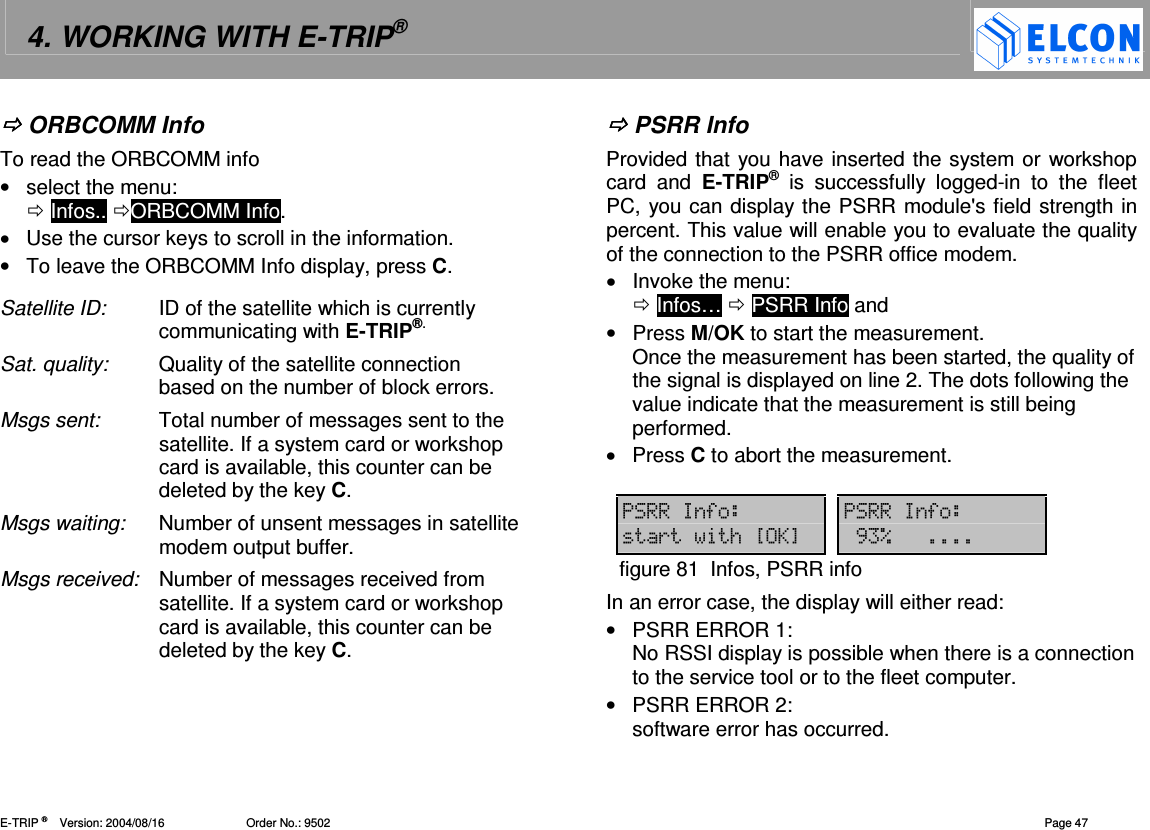
4. WORKING WITH E-TRIP®   E-TRIP ®      Version: 2004/08/16                         Order No.: 9502  Page 47  ORBCOMM Info To read the ORBCOMM info •  select the menu:   Infos.. ORBCOMM Info. •  Use the cursor keys to scroll in the information. •  To leave the ORBCOMM Info display, press C. Satellite ID:  ID of the satellite which is currently communicating with E-TRIP®. Sat. quality:  Quality of the satellite connection based on the number of block errors.  Msgs sent:  Total number of messages sent to the satellite. If a system card or workshop card is available, this counter can be deleted by the key C. Msgs waiting:  Number of unsent messages in satellite modem output buffer.  Msgs received:  Number of messages received from satellite. If a system card or workshop card is available, this counter can be deleted by the key C.   PSRR Info Provided that you have inserted the system or workshop card  and  E-TRIP®  is  successfully  logged-in  to  the  fleet PC, you can display the PSRR module's field strength in percent. This value will enable you to evaluate the quality of the connection to the PSRR office modem. •  Invoke the menu:   Infos…  PSRR Info and •  Press M/OK to start the measurement. Once the measurement has been started, the quality of the signal is displayed on line 2. The dots following the value indicate that the measurement is still being performed. •  Press C to abort the measurement.  5 5(/?A@ , Kfigure 81  Infos, PSRR info In an error case, the display will either read: •  PSRR ERROR 1: No RSSI display is possible when there is a connection to the service tool or to the fleet computer. •  PSRR ERROR 2: software error has occurred.
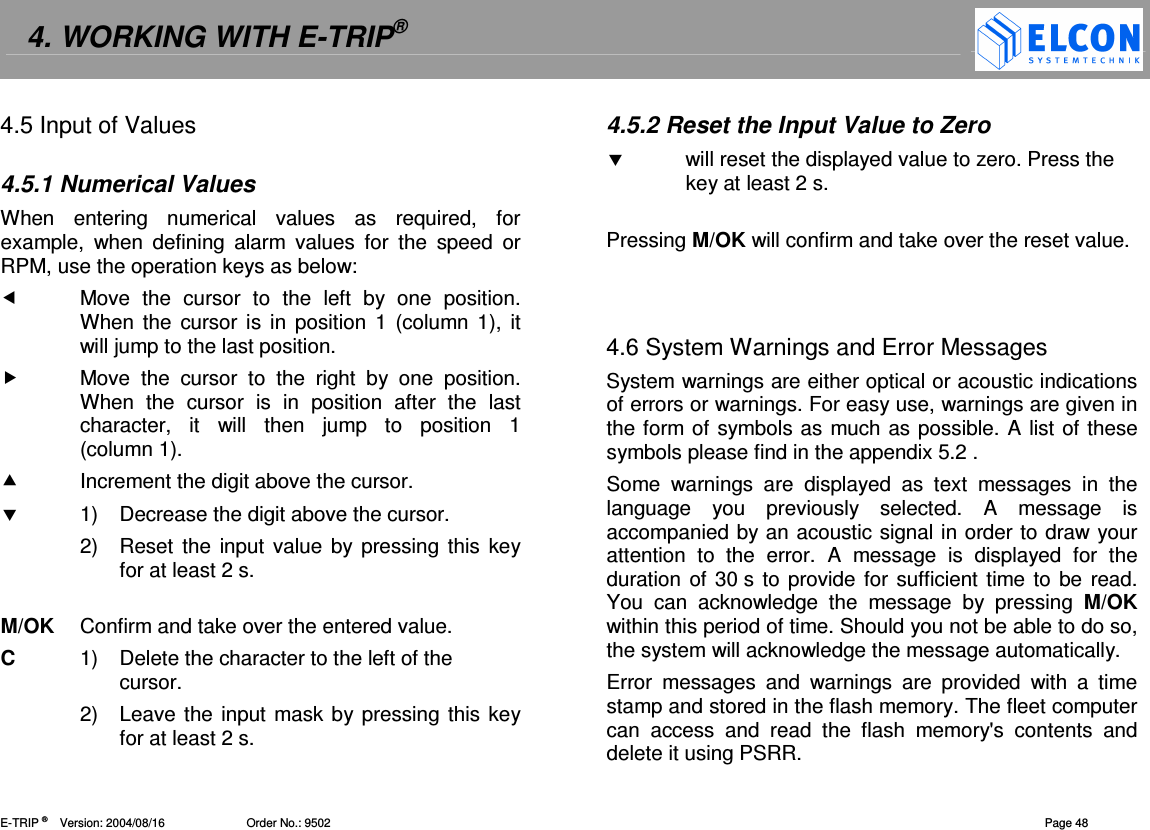
4. WORKING WITH E-TRIP®   E-TRIP ®      Version: 2004/08/16                         Order No.: 9502  Page 48 4.5 Input of Values  4.5.1 Numerical Values When  entering  numerical  values  as  required,  for example,  when  defining  alarm  values  for  the  speed  or RPM, use the operation keys as below:   Move  the  cursor  to  the  left  by  one  position. When the  cursor is  in  position  1 (column 1),  it will jump to the last position.   Move  the  cursor  to  the  right  by  one  position. When  the  cursor  is  in  position  after  the  last character,  it  will  then  jump  to  position  1  (column 1).   Increment the digit above the cursor.   1)  Decrease the digit above the cursor. 2)  Reset the  input value by pressing this key for at least 2 s.   M/OK  Confirm and take over the entered value. C  1)  Delete the character to the left of the cursor.  2)  Leave the input mask by pressing this key for at least 2 s. 4.5.2 Reset the Input Value to Zero   will reset the displayed value to zero. Press the key at least 2 s.   Pressing M/OK will confirm and take over the reset value.    4.6 System Warnings and Error Messages System warnings are either optical or acoustic indications of errors or warnings. For easy use, warnings are given in the form of symbols as much as possible. A list of these symbols please find in the appendix 5.2 . Some  warnings  are  displayed  as  text  messages  in  the language  you  previously  selected.  A  message  is accompanied by an acoustic signal in order to draw your attention  to  the  error.  A  message  is  displayed  for  the duration of 30 s to provide for sufficient time to be read. You  can  acknowledge  the  message  by  pressing  M/OK within this period of time. Should you not be able to do so, the system will acknowledge the message automatically. Error  messages  and  warnings  are  provided  with  a  time stamp and stored in the flash memory. The fleet computer can  access  and  read  the  flash  memory's  contents  and delete it using PSRR.
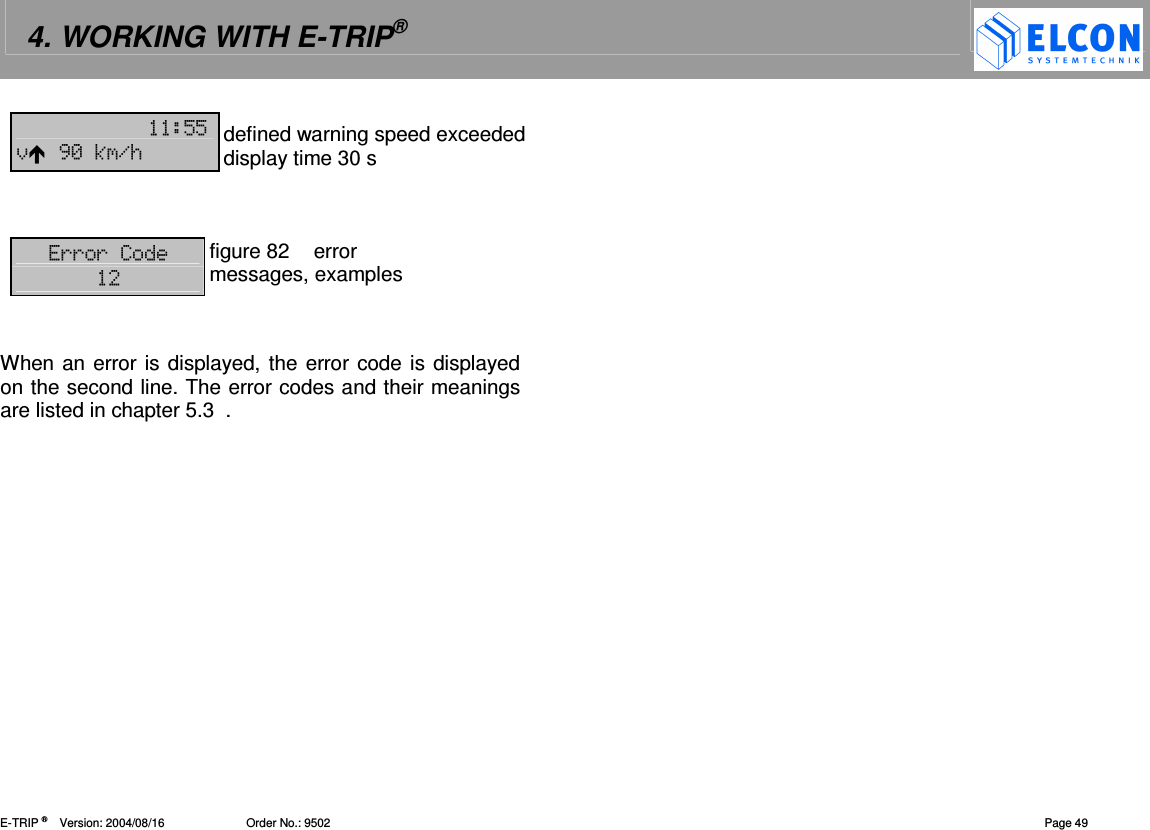
4. WORKING WITH E-TRIP®   E-TRIP ®      Version: 2004/08/16                         Order No.: 9502  Page 49 ""),-3./ defined warning speed exceeded display time 30 s   (((figure 82  error messages, examples  When an error is displayed, the error code is displayed on the second line. The error codes and their meanings are listed in chapter 5.3  .
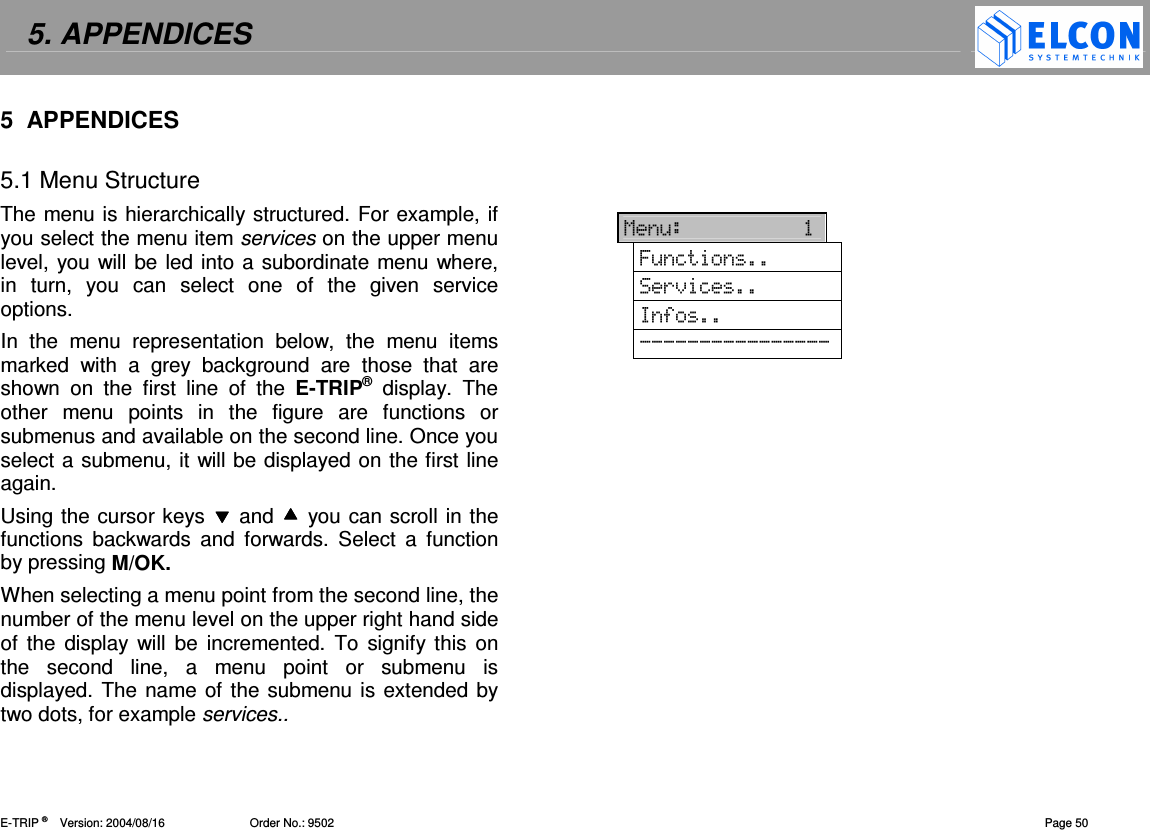
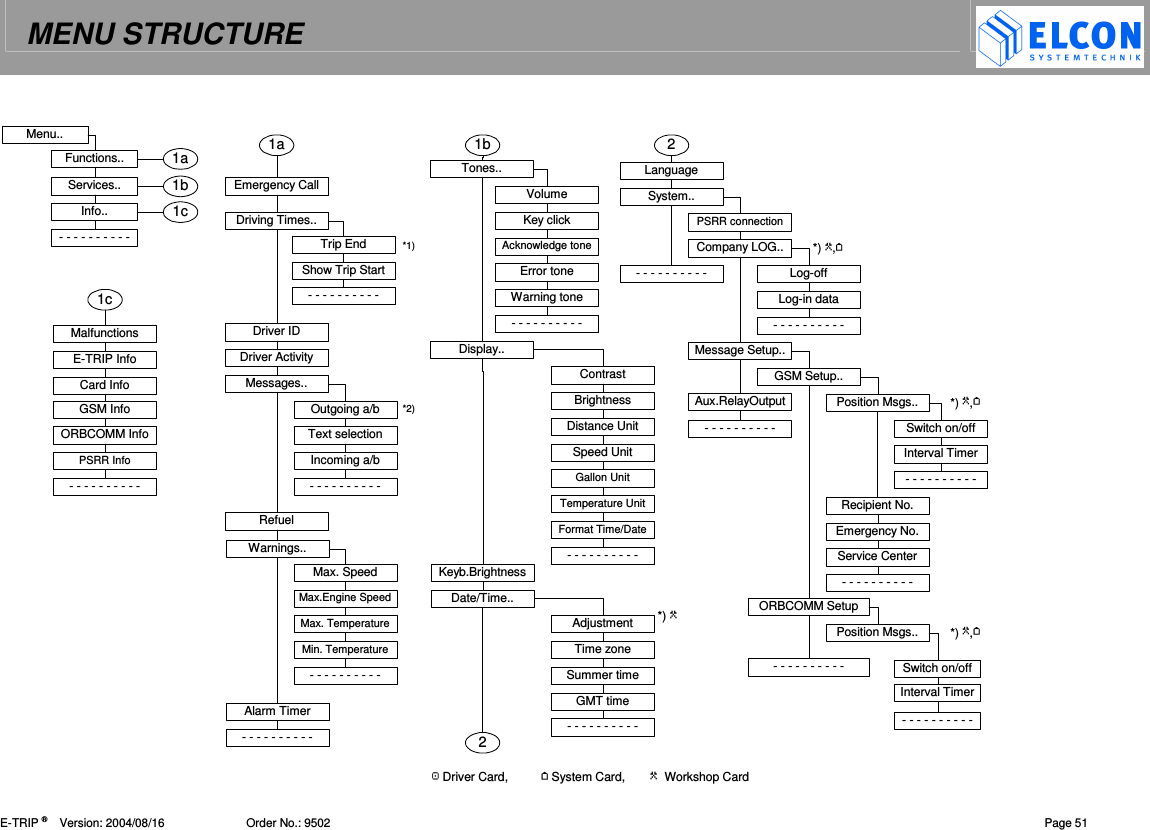
5. APPENDICES    E-TRIP ®      Version: 2004/08/16                          Order No.: 9502  Page 50 5  APPENDICES  5.1 Menu Structure The menu is hierarchically structured. For example, if you select the menu item services on the upper menu level, you will be led into a subordinate menu where, in  turn,  you  can  select  one  of  the  given  service options. In  the  menu  representation  below,  the  menu  items marked  with  a  grey  background  are  those  that  are shown  on  the  first  line  of  the  E-TRIP®  display.  The other  menu  points  in  the  figure  are  functions  or submenus and available on the second line. Once you select a submenu, it will be displayed on the first line again. Using the cursor keys  and  you can scroll in the functions  backwards  and  forwards.  Select  a  function by pressing M/OK. When selecting a menu point from the second line, the number of the menu level on the upper right hand side of  the  display  will  be incremented. To  signify this  on the  second  line,  a  menu  point  or  submenu  is displayed. The name of the submenu is extended by two dots, for example services..       1& 6&= ()= 5 
MENU STRUCTURE    E-TRIP ®      Version: 2004/08/16                         Order No.: 9502  Page 51 Menu..Functions..Emergency CallDriving Times..Driver ActivityTrip EndShow Trip StartMessages..Warnings..Alarm TimerOutgoing a/bText selectionMax. SpeedMax.Engine SpeedMax. TemperatureMin. TemperatureORBCOMM SetupMessage Setup..Recipient No.Emergency No.Service CenterGSM Setup..Tones..Display..Keyb.BrightnessDate/Time..LanguageSystem..VolumeKey clickAcknowledge toneError toneContrastBrightnessDistance UnitSpeed UnitTemperature UnitFormat Time/DateAdjustmentTime zoneServices..Summer timeGMT timeCompany LOG..Log-offLog-in dataInfo..- - - - - - - - - -- - - - - - - - - -- - - - - - - - - -- - - - - - - - - -- - - - - - - - - -- - - - - - - - - -- - - - - - - - - -- - - - - - - - - -- - - - - - - - - -22Aux.RelayOutput- - - - - - - - - -- - - - - - - - - -PSRR connection1b1b- - - - - - - - - -MalfunctionsE-TRIP Info1c1cPosition Msgs..Switch on/off- - - - - - - - - -Interval Timer- - - - - - - - - -Card InfoPSRR InfoPosition Msgs..Switch on/off- - - - - - - - - -Interval TimerGSM InfoORBCOMM Info - - - - - - - - - -Incoming a/b Driver Card,  System Card, Workshop Card *2)*1)*)  *) , *) , *) , Warning tone1a 1aDriver IDRefuelGallon Unit
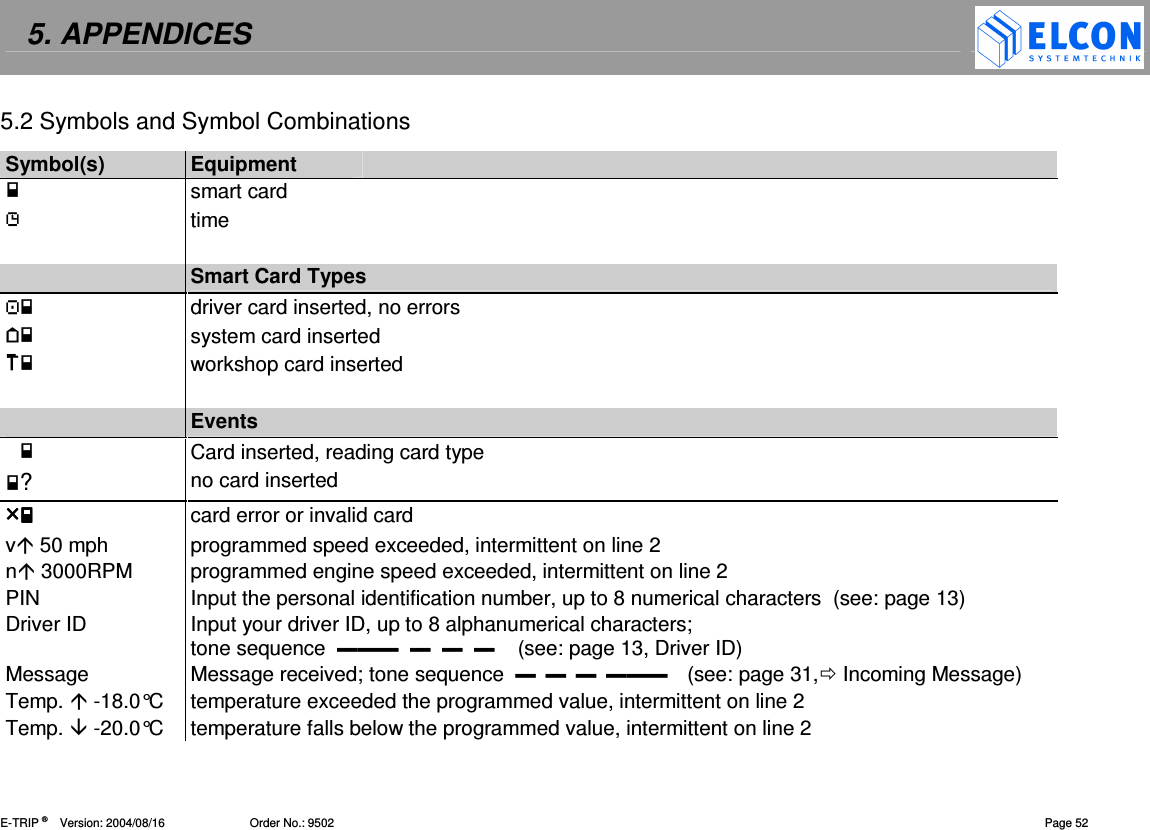
5. APPENDICES    E-TRIP ®      Version: 2004/08/16                          Order No.: 9502  Page 52 5.2 Symbols and Symbol Combinations  Symbol(s)  Equipment    smart card    time      Smart Card Types  driver card inserted, no errors  system card inserted  workshop card inserted    Events  Card inserted, reading card type ?no card inserted card error or invalid card v 50 mph  programmed speed exceeded, intermittent on line 2 n 3000RPM  programmed engine speed exceeded, intermittent on line 2 PIN  Input the personal identification number, up to 8 numerical characters  (see: page 13) Driver ID  Input your driver ID, up to 8 alphanumerical characters;  tone sequence            (see: page 13, Driver ID) Message  Message received; tone sequence            (see: page 31, Incoming Message) Temp.  -18.0°C  temperature exceeded the programmed value, intermittent on line 2 Temp.  -20.0°C  temperature falls below the programmed value, intermittent on line 2
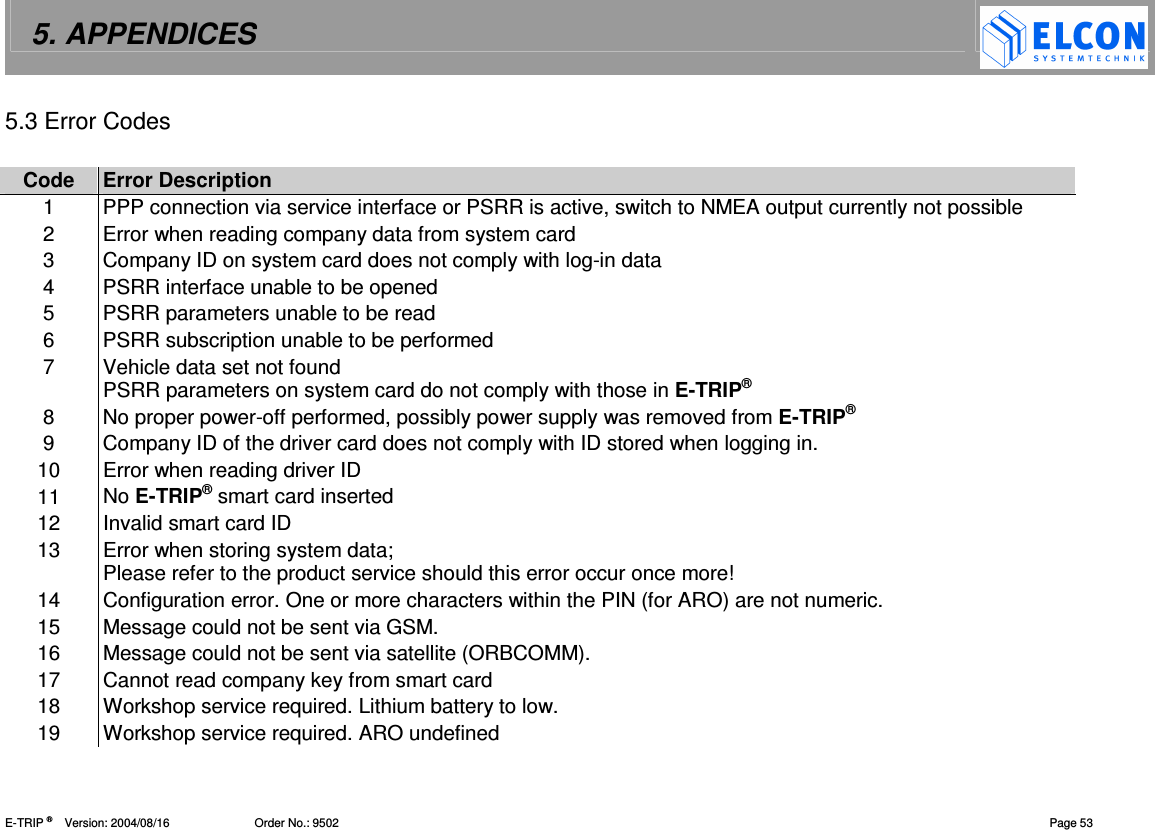
5. APPENDICES    E-TRIP ®      Version: 2004/08/16                          Order No.: 9502  Page 53 5.3 Error Codes  Code  Error Description 1  PPP connection via service interface or PSRR is active, switch to NMEA output currently not possible 2  Error when reading company data from system card 3  Company ID on system card does not comply with log-in data 4  PSRR interface unable to be opened 5  PSRR parameters unable to be read 6  PSRR subscription unable to be performed 7  Vehicle data set not found PSRR parameters on system card do not comply with those in E-TRIP® 8  No proper power-off performed, possibly power supply was removed from E-TRIP®  9  Company ID of the driver card does not comply with ID stored when logging in. 10  Error when reading driver ID 11  No E-TRIP® smart card inserted 12  Invalid smart card ID 13  Error when storing system data;  Please refer to the product service should this error occur once more! 14  Configuration error. One or more characters within the PIN (for ARO) are not numeric. 15  Message could not be sent via GSM. 16  Message could not be sent via satellite (ORBCOMM). 17  Cannot read company key from smart card 18  Workshop service required. Lithium battery to low.   19  Workshop service required. ARO undefined
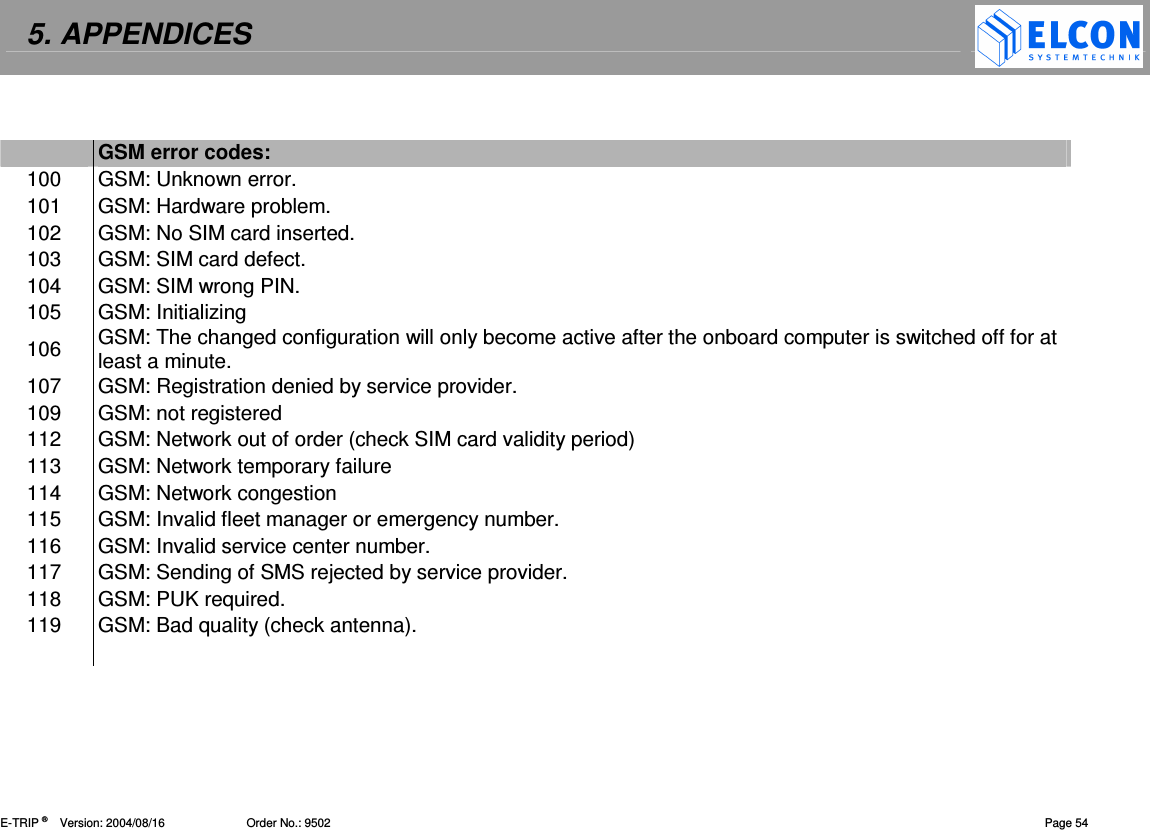
5. APPENDICES    E-TRIP ®      Version: 2004/08/16                         Order No.: 9502  Page 54    GSM error codes: 100  GSM: Unknown error. 101  GSM: Hardware problem. 102  GSM: No SIM card inserted. 103  GSM: SIM card defect. 104  GSM: SIM wrong PIN. 105  GSM: Initializing 106  GSM: The changed configuration will only become active after the onboard computer is switched off for at least a minute. 107  GSM: Registration denied by service provider. 109  GSM: not registered 112  GSM: Network out of order (check SIM card validity period) 113  GSM: Network temporary failure 114  GSM: Network congestion 115  GSM: Invalid fleet manager or emergency number. 116  GSM: Invalid service center number. 117  GSM: Sending of SMS rejected by service provider. 118  GSM: PUK required. 119  GSM: Bad quality (check antenna).
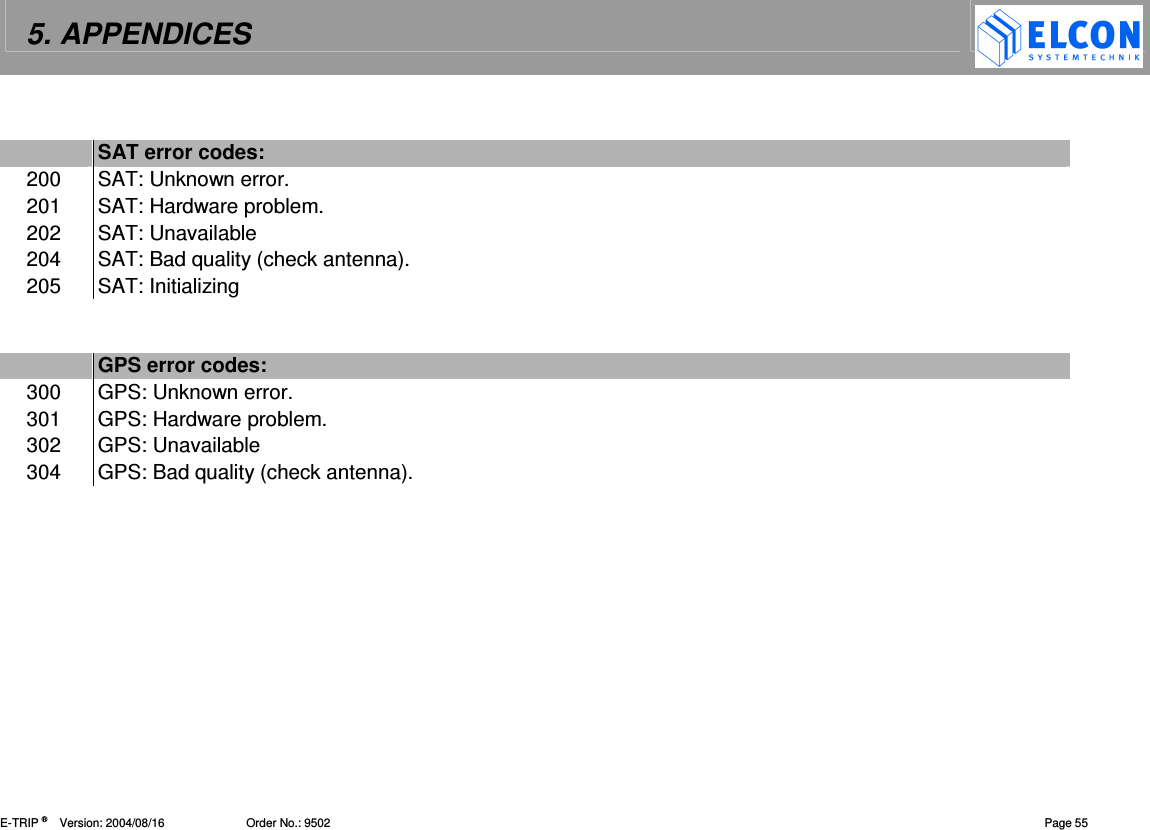
5. APPENDICES    E-TRIP ®      Version: 2004/08/16                         Order No.: 9502  Page 55    SAT error codes: 200  SAT: Unknown error. 201  SAT: Hardware problem. 202  SAT: Unavailable 204  SAT: Bad quality (check antenna). 205  SAT: Initializing         GPS error codes: 300  GPS: Unknown error. 301  GPS: Hardware problem. 302  GPS: Unavailable 304  GPS: Bad quality (check antenna).
5. APPENDICES    E-TRIP ®      Version: 2004/08/16                         Order No.: 9502  Page 56 5.4 LED Codes Static Signal LED Off  Green  Yellow  Red 1  Smart card able to be inserted  valid smart card inserted  reading from smart card  HW system start writing to smart card 2  trip is active; trip start has taken place trip start ready to take place   HW system start  3    all components OK  system being initialized;  BSW was started  HW system start PPP connection active low priority                       priority                      high priority Intermittent Signal LED Green     0.5 Hz  Green   2 Hz  Yellow         0.5 Hz  Yellow        2 Hz Red         0.5 Hz Red          2 Hz 1  card ready to be removed *1.1)      power down being initiated company  log-in missing;  insert system card card write error approx. ca. 5 s 2            warning being displayed  *2.6) 3 at least 1 not displayed message available  system being updated  *3.3)  initialization error  HW error 2  HW error  1  low priority                        priority                     high priority
5. APPENDICES    E-TRIP ®      Version: 2004/08/16                         Order No.: 9502  Page 57 *1.1)  At the same time, the LCD reads that the card is to be removed. This text will be deleted when a key is pressed next time. The LED, however, keeps this status as long as the card is not removed.  *2.6)  The LCD shows a warning or an error message to be acknowledged pressing C or M/OK. *3.3)  BSW updates system components (SW update, flash disk formatting, etc.)   5.5 Abbreviations  ARO  Auxiliary Relay Output Remote signal through GSM to lock the Auxiliary Relay Output. Customized function. DST  Daylight Saving Time ETC  Electronic Toll Collection FAKRA  Commission for motor vehicle standards within DIN FAS  Fleet Analysis System GMT  Greenwich Mean Time; in fact identical to UTC GPS  Global Positioning System GSM  Global System for Mobile Communications ( Cell Phone ) NMEA  National Marine Electronics Association PIN  Personal Identification Number.  PSRR  Private Short Range Radio RSSI  Radio Signal Strength Indication UTC  Universal Time Coordinated (coordinated world time).
6. TECHNICAL DATA    E-TRIP ®      Version: 2004/08/16                         Order No.: 9502  Page 58 6  TECHNICAL DATA   This chapter is subject to modifications! Smart card: Note: Stickers, which are to be glued on the Smart card, must cover the whole back of the Smart card.       6.1 Dimensions Housing  (w x h x d)  179 x 50 x 176 mm Front panel  (w x h x d)  188 x 58 x 15,2 mm Built-in position  user-defined Smart cards:   Maximum bending  longitudinal axis  2 cm   traverse axis  2 cm   Maximum torsion  longitudinal axis  15° 6.2 Environmental Data Ambient temperature:  -40 °C to +85 °C  (-40 F to +185 F) Smart card: -30 °C to +50 °C  (-22 F to +122 F) Smart card connector: -25 °C to +65 °C  (-13 F to +149 F) GSM module: -20 °C to +70 °C  (-4 F to +158 F) PSRR module: -20 °C to +70 °C   (-4 F to +158 F) LCD: -20 °C to +70 °C   (-4 F to +158 F) Maximum relative humidity  90% Condensation might still occur. E-TRIP® is resistant against vibration und shock resulting from bad road conditions and vehicle resonance. It is protected against condensed water and dust as occurring during the daily use.    NOTE  Do not treat smart cards with solvents! Avoid direct solar radiation!            IMPORTANT NOTE            Make sure that the Smart card never remains in a hot vehicle !
6. TECHNICAL DATA    E-TRIP ®      Version: 2004/08/16                         Order No.: 9502  Page 59 6.3 Electrical Data  Power supply, nominal value  +12 V Full functionality within operation  voltage range  9 V  to  36 V Maximum power consumption  during operation  20 W Maximum performance power  consumption in standby mode (mean value, without peripherals)  1 mA  at  24 V  The power supply input is reverse-polled protected. Upon  disconnecting  the  power  supply,  the  controller  is supplied for at least further 20 ms to make sure that critical data can be written into the flash memory. Board  voltage  rises  above the  operation value and  drops below  this  value  will  result  neither  in  data  loss  nor undefined  states  in  the  CPU  board  software  or  controller modules. 6.4 Standards  E-TRIP® meets the requirements laid down in the following standards:  •  FCC Part 15  (47 CFR Part 15) •  RSS 139 •  FCC Part 24 (47 CFR Part 24)  •  UL 94 •  SAE J1113  •  UL 1642 •  ISO 7637  •  EN 60950 / 41003 •  ISO 11452  •  EN 300 487 •  ISO 10605  •  CTR 6 •  IEC 60068  •  EN 301 489 /-1/-6/-7/-19 •  ICES 003  •  RL95/54/EG •  CS 03  •  SAE J1455 •  RSS 102
7. INDEX    E-TRIP ®      Version: 2004/08/16                         Order No.: 9502  Page 60 7  INDEX Abbreviations  56 Alarm Time  34 Auxiliary Relay Output  (ARO)  7 Average Speed  16 Bringing into service  10 Company LOG  41 Date/Time Adjustment  39 Format  38 GMT Time  40 Summer Time  40 Time Zone  39 Display Brightness  37 Contrast  36 Digital Input  18 Symbols and Symbol Combinations  51 Driver Activity  27 Driver ID  12, 26 Drivers Log  24 Driving Times  26 Emergency Call  23 Environmental Data  57 Errors  47, 52 E-TRIP  6 Info  44 Master  6, 10 Setup  21 Using  14 Fuel  see: Refuel Consumption  18 GPS Displaying Data  19 GSM  see: Message Info  45 Installation  8 Key click  35 Language  40 LED  10, 55 Maintenance  8 Menu Functions  23 Main  23 Services  34 Shortcut  22 Structure  49 System  41 Message Delete  29, 32 Incoming  30 Outgoing  28 Text selection  29 Mileage Counter  16 Operating Keys  9
7. INDEX    E-TRIP ®      Version: 2004/08/16                         Order No.: 9502  Page 61 ORBCOMM  see: Message Info  46 PIN  12 PSRR  7 Info  46 Special Note  4 Real-Time-Clock  7 Refuel  27 SAE-J1708  7 Vehicle Operation Data  20 Safety on the Road  3 Shortcut  see: Menu Smart card Info  45 reader  7, 9 Status  15 Softkey  9, 22 Speed  16 Technical Data  57 Temperature  18 Tone  35 Acknowledge  35 Error  36 Sequence  30, 51 Trip Length of trip  17 Odometer  17 Trip End  13 Trip Start  13 Unit Distance  37 Speed  37 Temperature  38 Volume  see: Tone Warnings  32, 47 Max. Engine Speed  33 Max. Speed  33 Max. Temperature  33 Min. Temperature  34
8. LIST OF FIGURES    E-TRIP ®      Version: 2004/08/16                         Order No.: 9502  Page 62 8  LIST OF FIGURES figure 1 E-TRIP® and its operating and signal elements .................................................................................10 figure 2 welcome screen.................................................................................................................................12 figure 3 screen after first download of application and after download of new application...............................13 figure 4 input PIN............................................................................................................................................13 figure 5 input driver ID ....................................................................................................................................13 figure 6 input trip end......................................................................................................................................14 figure 7 input trip start.....................................................................................................................................14 figure 8 initial display: successful and with error .............................................................................................15 figure 9 Smart card status...............................................................................................................................16 figure 10 mileage counter.................................................................................................................................17 figure 11 speed.................................................................................................................................................17 figure 12 average speed...................................................................................................................................17 figure 13 average speed, confirm reset ............................................................................................................17 figure 14 trip odometer .....................................................................................................................................18 figure 15 trip odometer, confirm reset...............................................................................................................18 figure 16 length of trip.......................................................................................................................................18 figure 17 length of trip, confirm reset ................................................................................................................18 figure 18 fuel consumption ...............................................................................................................................19 figure 19 temperature .......................................................................................................................................19 figure 20 minimum and maximum temperature values .....................................................................................19 figure 21 status display (digital input)................................................................................................................19 figure 22 GPS data, superior display ................................................................................................................20 figure 23 GPS data, subordinate display ..........................................................................................................20 figure 24 vehicle operation data, superior display, engine speed......................................................................21
8. LIST OF FIGURES    E-TRIP ®      Version: 2004/08/16                         Order No.: 9502  Page 63 figure 25 vehicle operation data, oil pressure/boost pressure ...........................................................................21 figure 26 vehicle operation data, oil temperature/fuel temperature ...................................................................21 figure 27 vehicle operation data, intake manifold temperature/accelerator pedal..............................................21 figure 28 vehicle operation data, cruise control status/retarder status...............................................................21 figure 29 vehicle operation data, instantaneous fuel economy/average fuel economy......................................22 figure 30 vehicle operation data, parking brake/speed limiting status ...............................................................22 figure 31 vehicle operation data, PTO status/battery potential..........................................................................22 figure 32 shortcut menu 1, menu level 1...........................................................................................................23 figure 33 shortcut menu 2, menu level 1...........................................................................................................23 figure 34 main menu.........................................................................................................................................24 figure 35 emergency call...................................................................................................................................24 figure 36 displaying drivers log .........................................................................................................................25 figure 37 duty status of drivers log....................................................................................................................26 figure 38 duty status unknown ..........................................................................................................................26 figure 39 driving times: show trip start and trip end...........................................................................................27 figure 40 input of driver ID ................................................................................................................................27 figure 41 driver activity......................................................................................................................................28 figure 42 refuel .................................................................................................................................................28 figure 43 Incoming message, menu..................................................................................................................29 figure 44 Outgoing message, base screen .......................................................................................................29 figure 45 Outgoing message, message text......................................................................................................30 figure 46 Outgoing message, message delete..................................................................................................30 figure 47 Text selection, example .....................................................................................................................31 figure 48 Incoming message.............................................................................................................................31 figure 49 Incoming message, menu..................................................................................................................31
8. LIST OF FIGURES    E-TRIP ®      Version: 2004/08/16                         Order No.: 9502  Page 64 figure 50 Incoming message, base screen .......................................................................................................32 figure 51 Incoming message, message text......................................................................................................32 figure 52 Incoming message, message delete..................................................................................................32 figure 53 functions, alarms ...............................................................................................................................33 figure 54 functions, warnings, max. temperature ..............................................................................................34 figure 55 functions, warnings, min. temperature ...............................................................................................35 figure 56 functions, alarm time..........................................................................................................................35 figure 57 services, tones, volume .....................................................................................................................36 figure 58 services, tones, key click ...................................................................................................................36 figure 59 services, tones, acknowledge tone ....................................................................................................36 figure 60 services, tones, error tone .................................................................................................................37 figure 61 services, display, contrast..................................................................................................................37 figure 62 services, display, brightness..............................................................................................................38 figure 63 services, display, distance unit ..........................................................................................................38 figure 64 services, display, unit speed..............................................................................................................38 figure 65 services, display, temperature unit.....................................................................................................39 figure 67 services, make settings, GMT time and date .....................................................................................40 figure 68 services, date/time, time zone ...........................................................................................................40 figure 69 services, make settings, date/time, summer time...............................................................................41 figure 70 services, make settings,  summer time active/not active....................................................................41 figure 71 services, make settings, date/time, GMT time ...................................................................................41 figure 72 services, system, PSRR connection ..................................................................................................42 figure 73 services, system, display of successful fleet log-in ............................................................................42 figure 74 services, system, fleet log-off.............................................................................................................43 figure 75 services, system, fleet log-in..............................................................................................................43
8. LIST OF FIGURES    E-TRIP ®      Version: 2004/08/16                         Order No.: 9502  Page 65 figure 76 services, system, fleet log-off.............................................................................................................43 figure 77 message setup: recipient no., service center .....................................................................................44 figure 78 Infos, Malfunctions.............................................................................................................................45 figure 79 Malfunctions sub screen ....................................................................................................................45 figure 80 Malfunctions sub screen ....................................................................................................................45 figure 81 Infos, PSRR info ................................................................................................................................47 figure 82 error messages, examples.................................................................................................................49
AGENCY INFORMATION    E-TRIP ®      Version: 2004/08/16                        Order No.: 9502   Page 66 9  AGENCY INFORMATION     AVC SYSTEMS INC.  ONBOARD TECHNOLOGIES Canada, 115 Midpark Road, Unit #1, London, ON      N6N 1B2 Phone:  001 519  681-2700 Fax:  001 519  681-3782 Mail:  a.v.c@bellnet.c   Kelland International Ltd. China, Beijing 100020 Room 1512B, No. 22  Chao wai Street, Chaoyang District  Phone:  0086 10 65 88 50 58 62 Fax:  0086 10 65 88 50 63 Mail:  elcon@kellandinternational.com
DEALERS    E-TRIP ®      Version: 2004/08/16                        Order No.: 9502   Page 67 10  DEALERS   BaTaLog GmbH  Germany, D-21394 Westergellersen  Drosselweg 4 Phone:  +49(0) 41 35 / 80 07 97 Fax:  +49(0) 41 35 / 80 07 37 Mail:  info@BaTaLog.de    GESTECH 2001 Canada, 478, St.-Hubert, Laval (Québec) H7G 2Y9 Phone:  001 450  629 23 76 Fax:  001 450  629 26 13 Mail:  RenaldLabrie@AOL.com
    E-TRIP ®      Version: 2004/08/16                        Order No.: 9502    D – 09232 Hartmanndorf Obere Hauptstrasse 10 Germany                       www.elcon-system.de

Navigation menu