ELPRO Technologies E900BB01 ETHERNET RADIO MODEM User Manual man 905UE TypeApproval 050118

ELPRO Technologies Pty Ltd ETHERNET RADIO MODEM man 905UE TypeApproval 050118

USER MANUAL

                     ELPRO Technologies Pty Ltd,  9/12 Billabong Street,  Stafford Q 4053,  Australia. Tel: +61 7 33524533  Fax:  +61 7 33524577     Email:  sales@elprotech.com Web: www.elprotech.com User Manual 905U-E Wireless Ethernet Bridge
905U-E Wireless Ethernet Bridge  User Manual Man_905U-E   Rev 1.0  Page 2  Thank you for your selection of the 905U-E Wireless Ethernet Bridge.  We trust it will give you many years of valuable service.    ATTENTION! Incorrect termination of supply wires may cause internal damage and will void warranty. To ensure your 905U-E enjoys a long life, double check ALL your connections with the user’s manual before turning the power on.     Caution!   For continued protection against risk of fire,  replace the internal module fuse only with the same type and rating. CAUTION: To comply with FCC RF Exposure requirements in section 1.1310 of the FCC Rules, antennas used with this device must be installed to provide a separation distance of at least 20 cm from all persons to satisfy RF exposure compliance. DO NOT: operate the transmitter when someone is within 20 cm of the antenna operate  the  transmitter  unless  all  RF  connectors  are  secure  and  any  open  connectors  are  properly terminated. operate the equipment near electrical blasting caps or in an explosive atmosphere  All equipment must be properly grounded for safe operations. All equipment should be serviced only by a qualified technician.
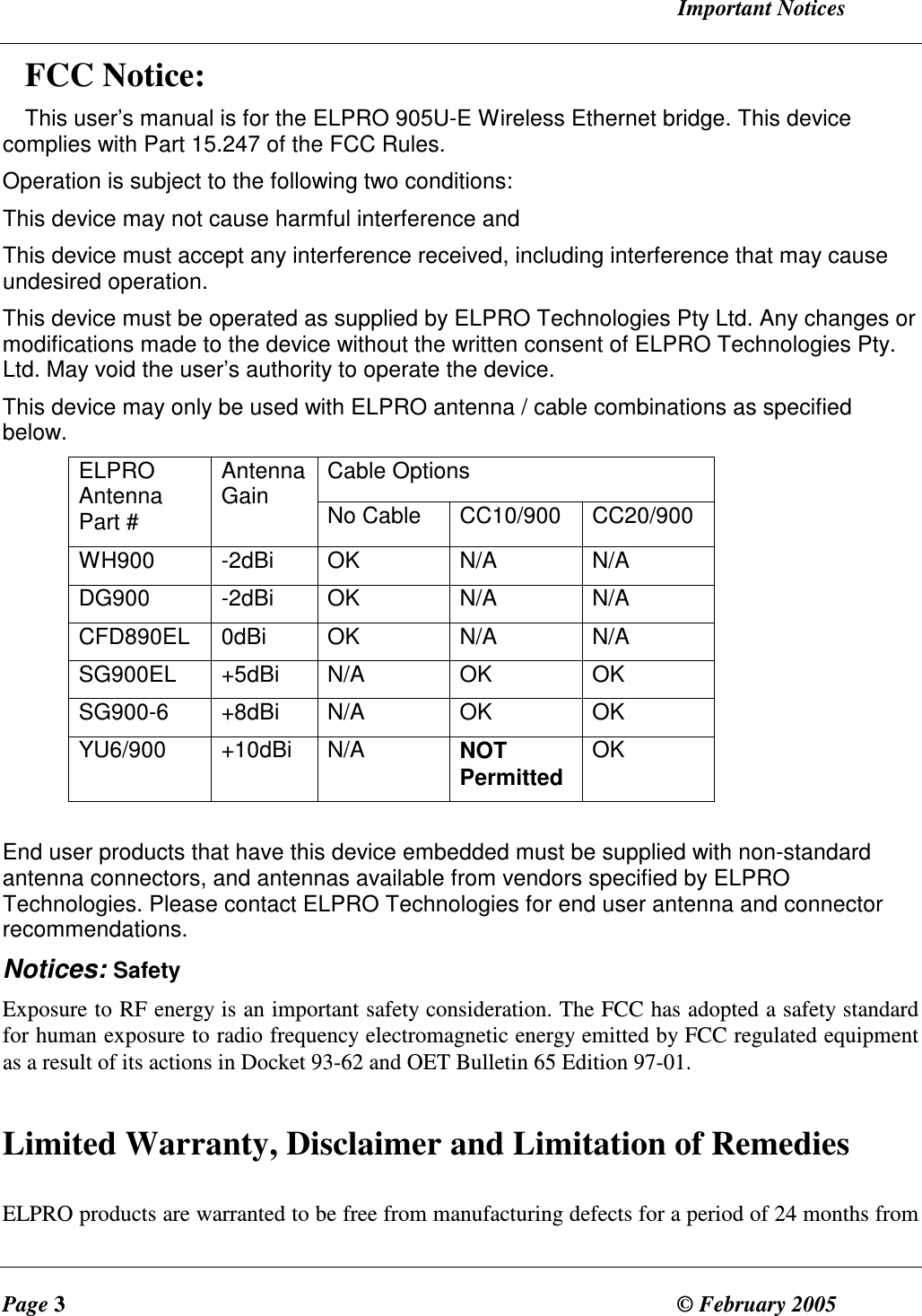
  Important Notices Page 3  © February 2005     FCC Notice: This user’s manual is for the ELPRO 905U-E Wireless Ethernet bridge. This device complies with Part 15.247 of the FCC Rules. Operation is subject to the following two conditions: This device may not cause harmful interference and This device must accept any interference received, including interference that may cause undesired operation.  This device must be operated as supplied by ELPRO Technologies Pty Ltd. Any changes or modifications made to the device without the written consent of ELPRO Technologies Pty. Ltd. May void the user’s authority to operate the device. This device may only be used with ELPRO antenna / cable combinations as specified below. Cable Options ELPRO Antenna Part # Antenna Gain  No Cable  CC10/900  CC20/900 WH900  -2dBi  OK  N/A  N/A DG900  -2dBi  OK  N/A  N/A CFD890EL  0dBi  OK  N/A  N/A SG900EL  +5dBi  N/A  OK  OK SG900-6  +8dBi  N/A  OK  OK YU6/900  +10dBi  N/A  NOT Permitted OK  End user products that have this device embedded must be supplied with non-standard antenna connectors, and antennas available from vendors specified by ELPRO Technologies. Please contact ELPRO Technologies for end user antenna and connector recommendations. Notices: Safety Exposure to RF energy is an important safety consideration. The FCC has adopted a safety standard for human exposure to radio frequency electromagnetic energy emitted by FCC regulated equipment as a result of its actions in Docket 93-62 and OET Bulletin 65 Edition 97-01.  Limited Warranty, Disclaimer and Limitation of Remedies  ELPRO products are warranted to be free from manufacturing defects for a period of 24 months from
905U-E Wireless Ethernet Bridge  User Manual Man_905U-E   Rev 1.0  Page 4 the effective date of purchase by the end user.  The effective date of purchase is decided solely by ELPRO Technologies. This warranty does not extend to: -  failures caused by the operation of the equipment outside the particular product's specification, or -  use of the module not in accordance with this User Manual, or -  abuse, misuse, neglect or damage by external causes, or - repairs, alterations, or modifications undertaken other than by an authorized Service Agent. ELPRO’s liability under  this warranty  is  limited to  the  replacement or repair of the product. This warranty is in lieu of and exclusive of all other warranties.  This warranty does not indemnify the purchaser of  products for any consequential claim for damages or loss of operations or profits and ELPRO is not liable for any consequential damages or loss of operations or profits resulting from the use of these  products. ELPRO is not liable for damages, losses, costs, injury or  harm incurred as a consequence of any representations, warranties or conditions made by ELPRO or its representatives or by any other party, except as expressed solely in this document.   CONTENTS                                                                        2.3  POWER SUPPLY...............................................................................................................6 2.4  ETHERNET CONNECTIONS...............................................................................................6 2.4  SERIAL CONNECTIONS....................................................................................................6 2.4.1 RS232 Serial Port.......................................................................................................... 6 2.4.2 RS485 Serial Port.......................................................................................................... 7 2.4  DIGITAL INPUT/OUTPUT..................................................................................................8 CHAPTER THREE....................................................................................       OPERATION  9 3.1  POWER-UP AND NORMAL OPERATION.............................................................................9 3.2  SERIAL AND RADIO DATA...............................................................................................9 3.3  ADDRESSING.................................................................................................................10 3.3  BRIDGE MODE..............................................................................................................10 3.3  ROUTER MODE.............................................................................................................10 3.3  ACCESS POINT..............................................................................................................11 3.3  CLIENT..........................................................................................................................11 3.3  FILTER..........................................................................................................................11 3.3  RADIO RATES................................................................................................................12 3.8  RADIO INTERFERENCE...................................................................................................12 CHAPTER FOUR................................................................................... CONFIGURATION  13
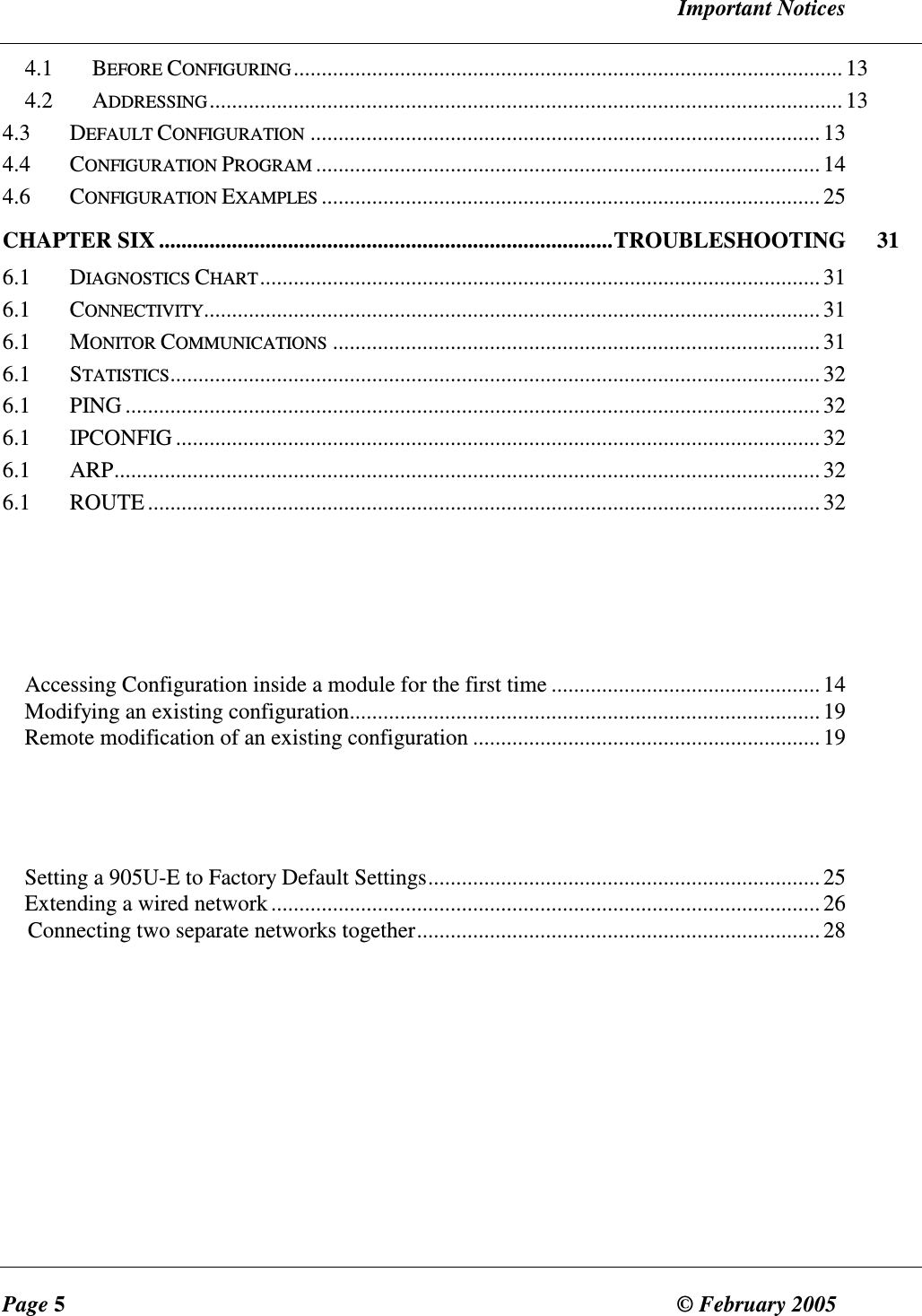
  Important Notices Page 5  © February 2005     4.1  BEFORE CONFIGURING..................................................................................................13 4.2  ADDRESSING.................................................................................................................13 4.3  DEFAULT CONFIGURATION...........................................................................................13 4.4  CONFIGURATION PROGRAM..........................................................................................14 4.6  CONFIGURATION EXAMPLES.........................................................................................25 CHAPTER SIX .................................................................................TROUBLESHOOTING  31 6.1  DIAGNOSTICS CHART....................................................................................................31 6.1  CONNECTIVITY..............................................................................................................31 6.1  MONITOR COMMUNICATIONS.......................................................................................31 6.1  STATISTICS....................................................................................................................32 6.1  PING ............................................................................................................................32 6.1  IPCONFIG ...................................................................................................................32 6.1  ARP..............................................................................................................................32 6.1  ROUTE........................................................................................................................ 32     Accessing Configuration inside a module for the first time ................................................ 14 Modifying an existing configuration....................................................................................19 Remote modification of an existing configuration .............................................................. 19    Setting a 905U-E to Factory Default Settings...................................................................... 25 Extending a wired network.................................................................................................. 26 Connecting two separate networks together........................................................................ 28
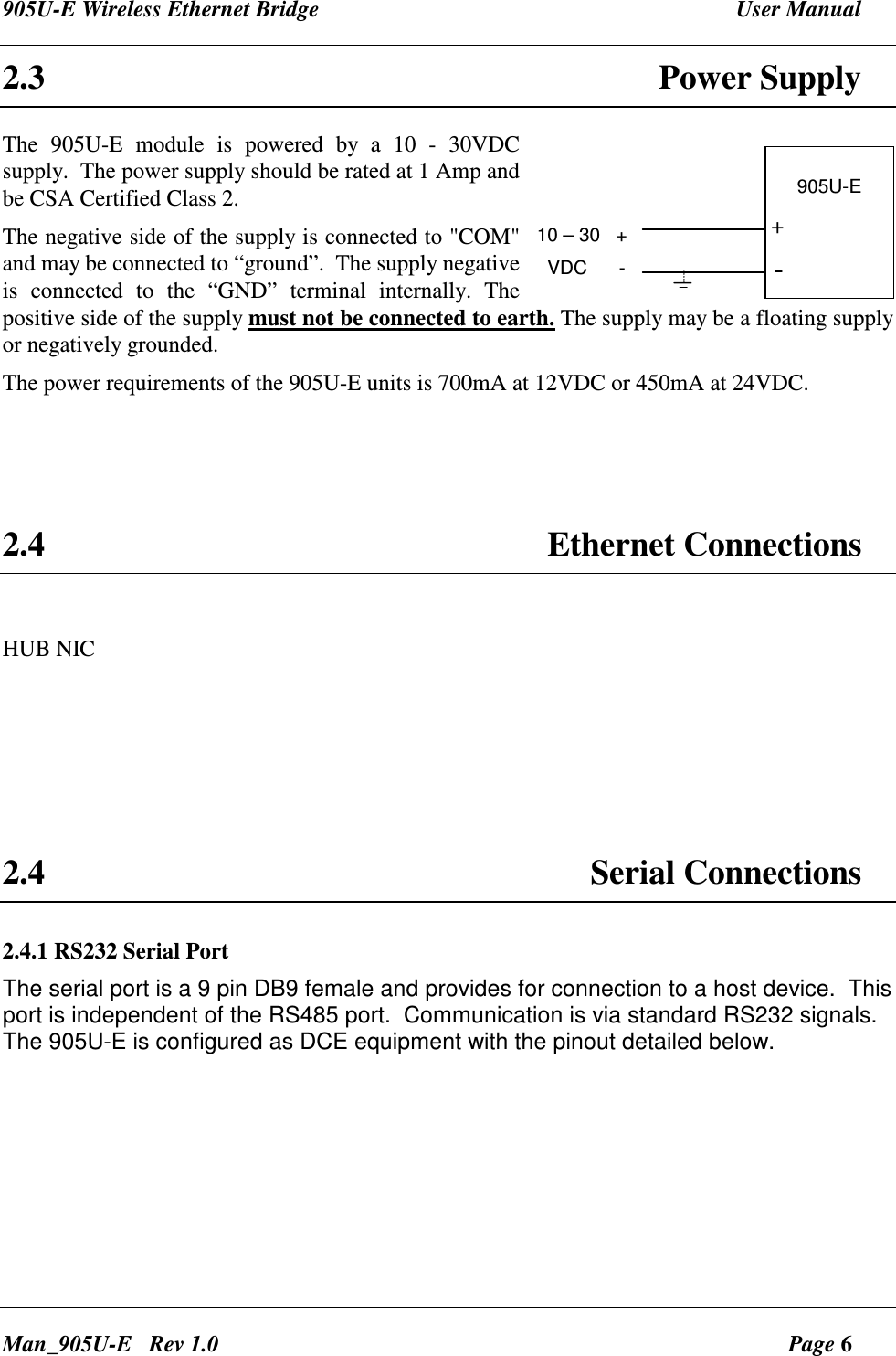
905U-E Wireless Ethernet Bridge  User Manual Man_905U-E   Rev 1.0  Page 6 2.3  Power Supply The  905U-E  module  is  powered  by  a  10  -  30VDC  supply.  The power supply should be rated at 1 Amp and be CSA Certified Class 2. The negative side of the supply is connected to "COM" and may be connected to “ground”.  The supply negative is  connected  to  the  “GND”  terminal  internally.  The positive side of the supply must not be connected to earth. The supply may be a floating supply or negatively grounded. The power requirements of the 905U-E units is 700mA at 12VDC or 450mA at 24VDC.     2.4  Ethernet Connections  HUB NIC     2.4  Serial Connections 2.4.1 RS232 Serial Port The serial port is a 9 pin DB9 female and provides for connection to a host device.  This port is independent of the RS485 port.  Communication is via standard RS232 signals. The 905U-E is configured as DCE equipment with the pinout detailed below. 905U-E10 – 30   +  VDC      -+-
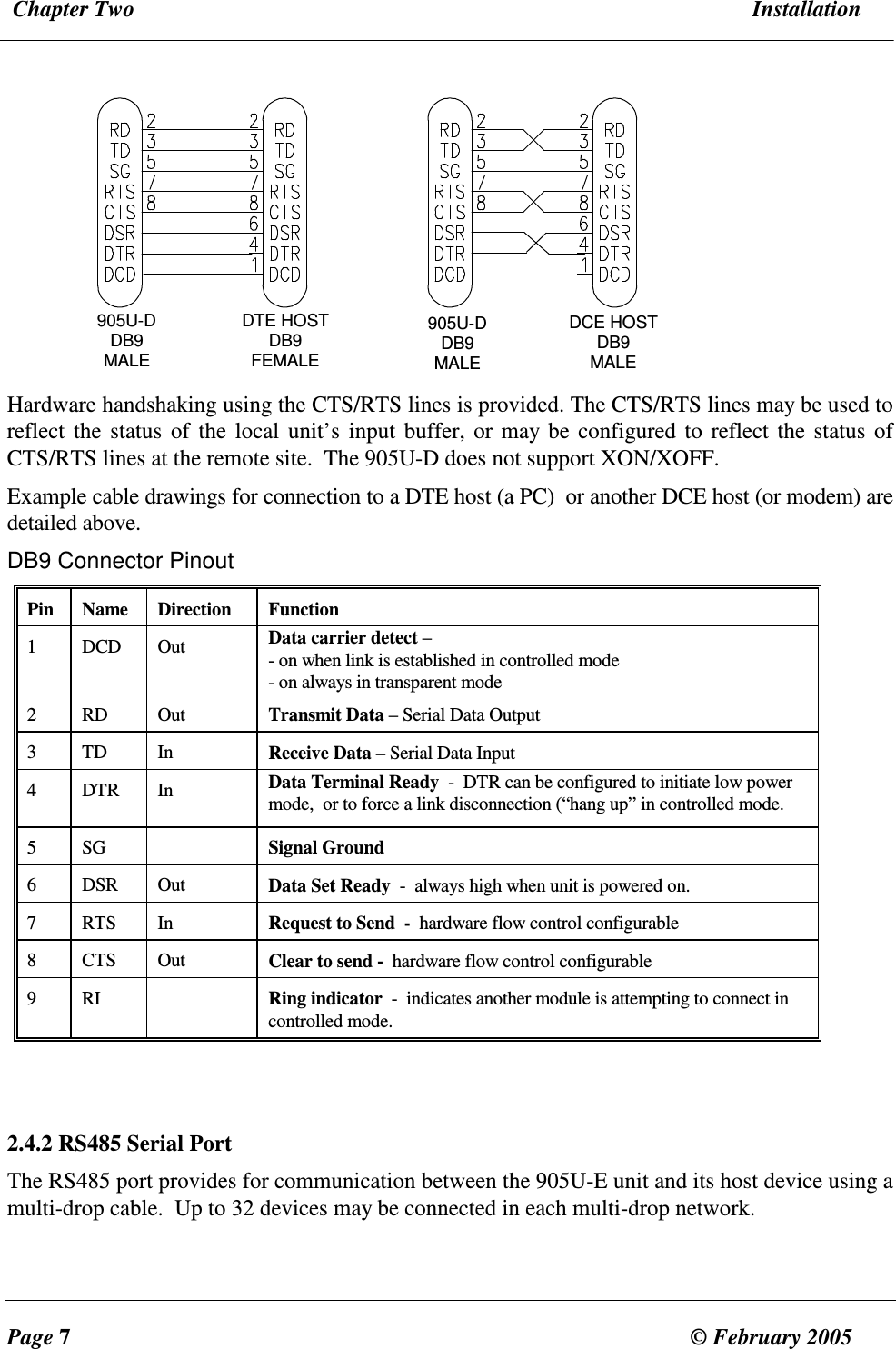
 Chapter Two  Installation  Page 7  © February 2005     905U-DDB9MALEDTE HOSTDB9FEMALE905U-DDB9MALEDCE HOSTDB9MALE  Hardware handshaking using the CTS/RTS lines is provided. The CTS/RTS lines may be used to reflect the  status  of the local  unit’s  input buffer, or may  be configured to reflect the status of CTS/RTS lines at the remote site.  The 905U-D does not support XON/XOFF. Example cable drawings for connection to a DTE host (a PC)  or another DCE host (or modem) are detailed above. DB9 Connector Pinout Pin  Name  Direction  Function 1  DCD  Out  Data carrier detect – - on when link is established in controlled mode - on always in transparent mode 2  RD  Out  Transmit Data – Serial Data Output 3  TD  In  Receive Data – Serial Data Input 4  DTR  In  Data Terminal Ready  -  DTR can be configured to initiate low power mode,  or to force a link disconnection (“hang up” in controlled mode. 5  SG    Signal Ground 6  DSR  Out  Data Set Ready  -  always high when unit is powered on. 7  RTS  In  Request to Send  -  hardware flow control configurable 8  CTS  Out  Clear to send -  hardware flow control configurable 9  RI    Ring indicator  -  indicates another module is attempting to connect in controlled mode.   2.4.2 RS485 Serial Port The RS485 port provides for communication between the 905U-E unit and its host device using a multi-drop cable.  Up to 32 devices may be connected in each multi-drop network.
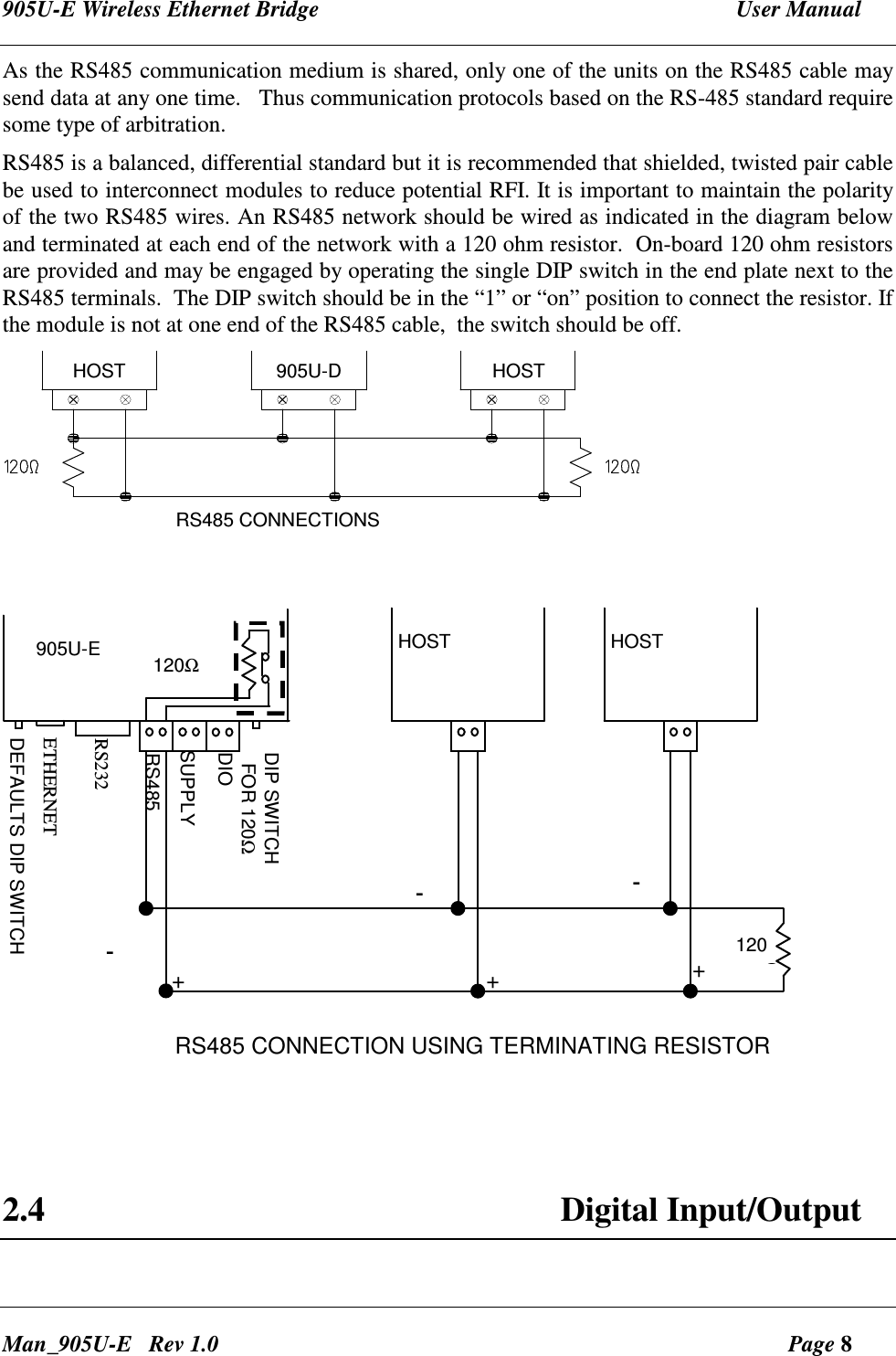
905U-E Wireless Ethernet Bridge  User Manual Man_905U-E   Rev 1.0  Page 8 As the RS485 communication medium is shared, only one of the units on the RS485 cable may send data at any one time.   Thus communication protocols based on the RS-485 standard require some type of arbitration.    RS485 is a balanced, differential standard but it is recommended that shielded, twisted pair cable be used to interconnect modules to reduce potential RFI. It is important to maintain the polarity of the two RS485 wires. An RS485 network should be wired as indicated in the diagram below and terminated at each end of the network with a 120 ohm resistor.  On-board 120 ohm resistors are provided and may be engaged by operating the single DIP switch in the end plate next to the RS485 terminals.  The DIP switch should be in the “1” or “on” position to connect the resistor. If the module is not at one end of the RS485 cable,  the switch should be off. HOST905U-DHOSTRS485 CONNECTIONS  120ΩRS485SUPPLYRS232DIP SWITCH  FOR 120Ω120ΩHOST HOST905U-E+-+-+-RS485 CONNECTION USING TERMINATING RESISTORETHERNETDIODEFAULTS DIP SWITCH    2.4  Digital Input/Output
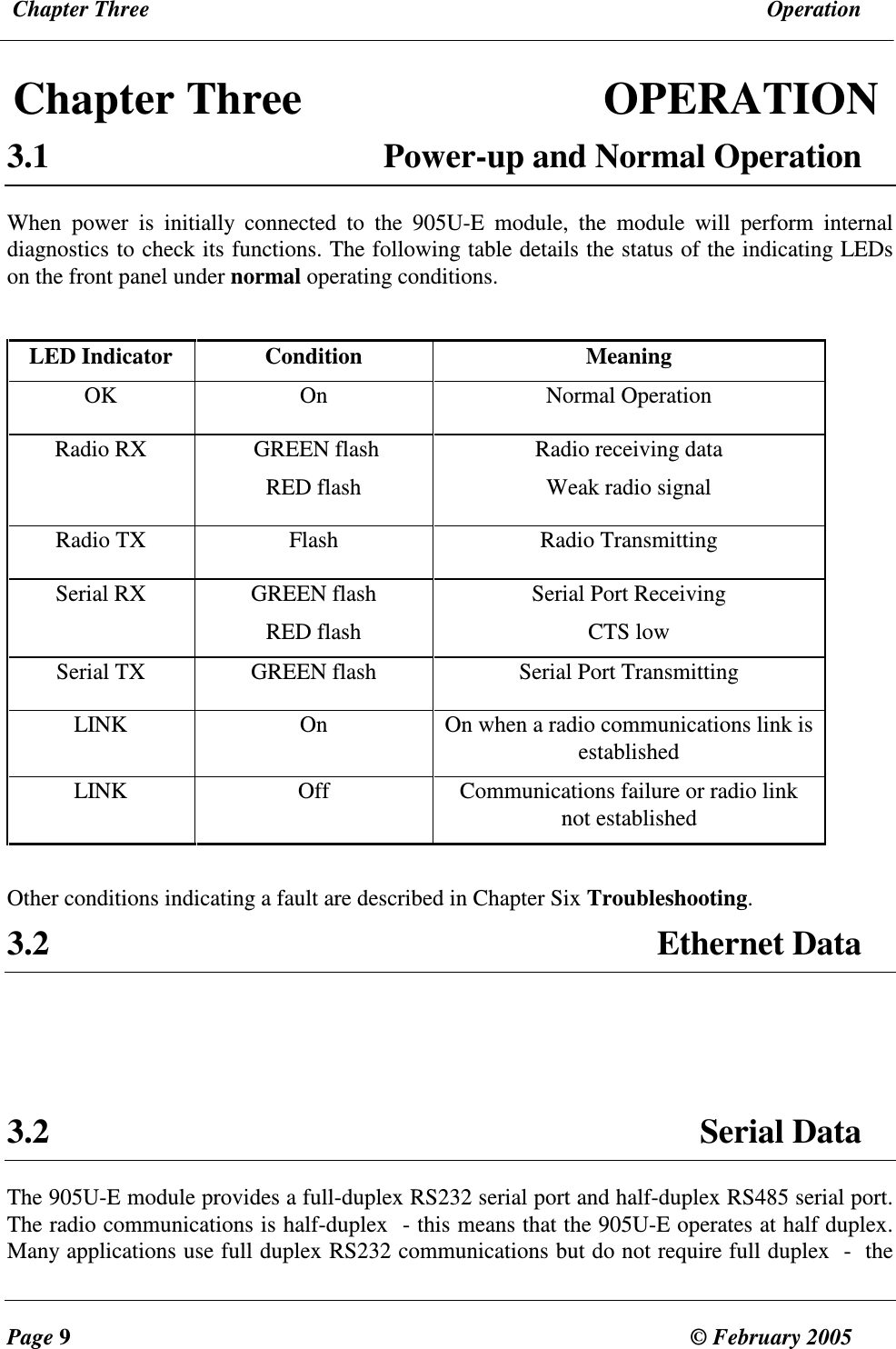
 Chapter Three  Operation  Page 9  © February 2005     Chapter Three            OPERATION 3.1  Power-up and Normal Operation When  power  is  initially  connected  to  the  905U-E  module,  the  module  will  perform  internal diagnostics to check its functions. The following table details the status of the indicating LEDs on the front panel under normal operating conditions.  LED Indicator Condition Meaning OK   On  Normal Operation Radio RX   GREEN flash RED flash Radio receiving data Weak radio signal Radio TX  Flash  Radio Transmitting Serial RX  GREEN flash  RED flash Serial Port Receiving  CTS low Serial TX  GREEN flash  Serial Port Transmitting LINK  On  On when a radio communications link is established LINK  Off  Communications failure or radio link not established  Other conditions indicating a fault are described in Chapter Six Troubleshooting. 3.2  Ethernet Data    3.2  Serial Data The 905U-E module provides a full-duplex RS232 serial port and half-duplex RS485 serial port.    The radio communications is half-duplex  - this means that the 905U-E operates at half duplex.  Many applications use full duplex RS232 communications but do not require full duplex  -  the
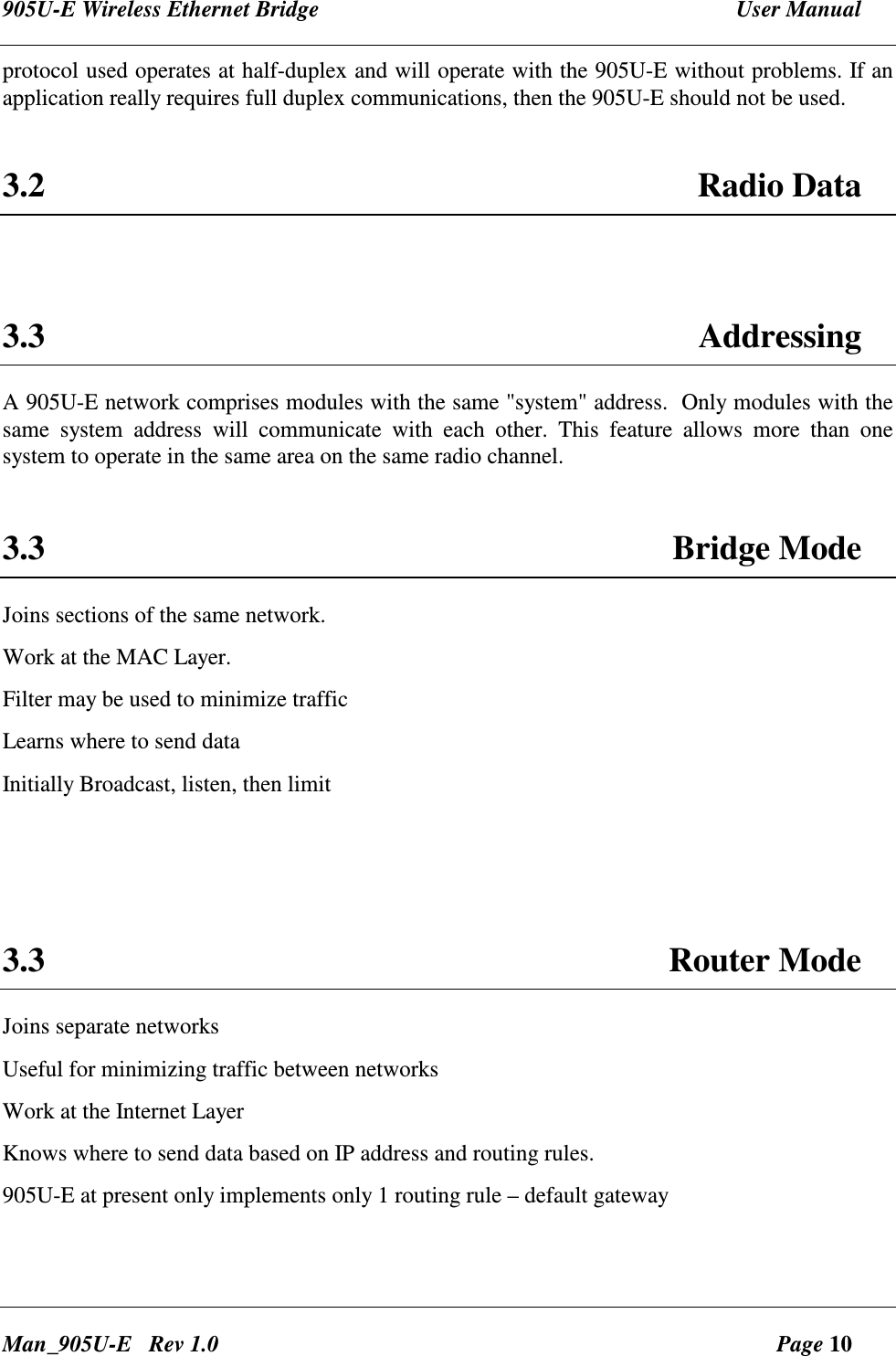
905U-E Wireless Ethernet Bridge  User Manual Man_905U-E   Rev 1.0  Page 10 protocol used operates at half-duplex and will operate with the 905U-E without problems. If an application really requires full duplex communications, then the 905U-E should not be used.  3.2  Radio Data   3.3  Addressing A 905U-E network comprises modules with the same "system" address.  Only modules with the same  system  address  will  communicate  with  each  other.  This  feature  allows  more  than  one system to operate in the same area on the same radio channel.   3.3  Bridge Mode Joins sections of the same network. Work at the MAC Layer. Filter may be used to minimize traffic Learns where to send data Initially Broadcast, listen, then limit    3.3  Router Mode Joins separate networks Useful for minimizing traffic between networks Work at the Internet Layer Knows where to send data based on IP address and routing rules. 905U-E at present only implements only 1 routing rule – default gateway
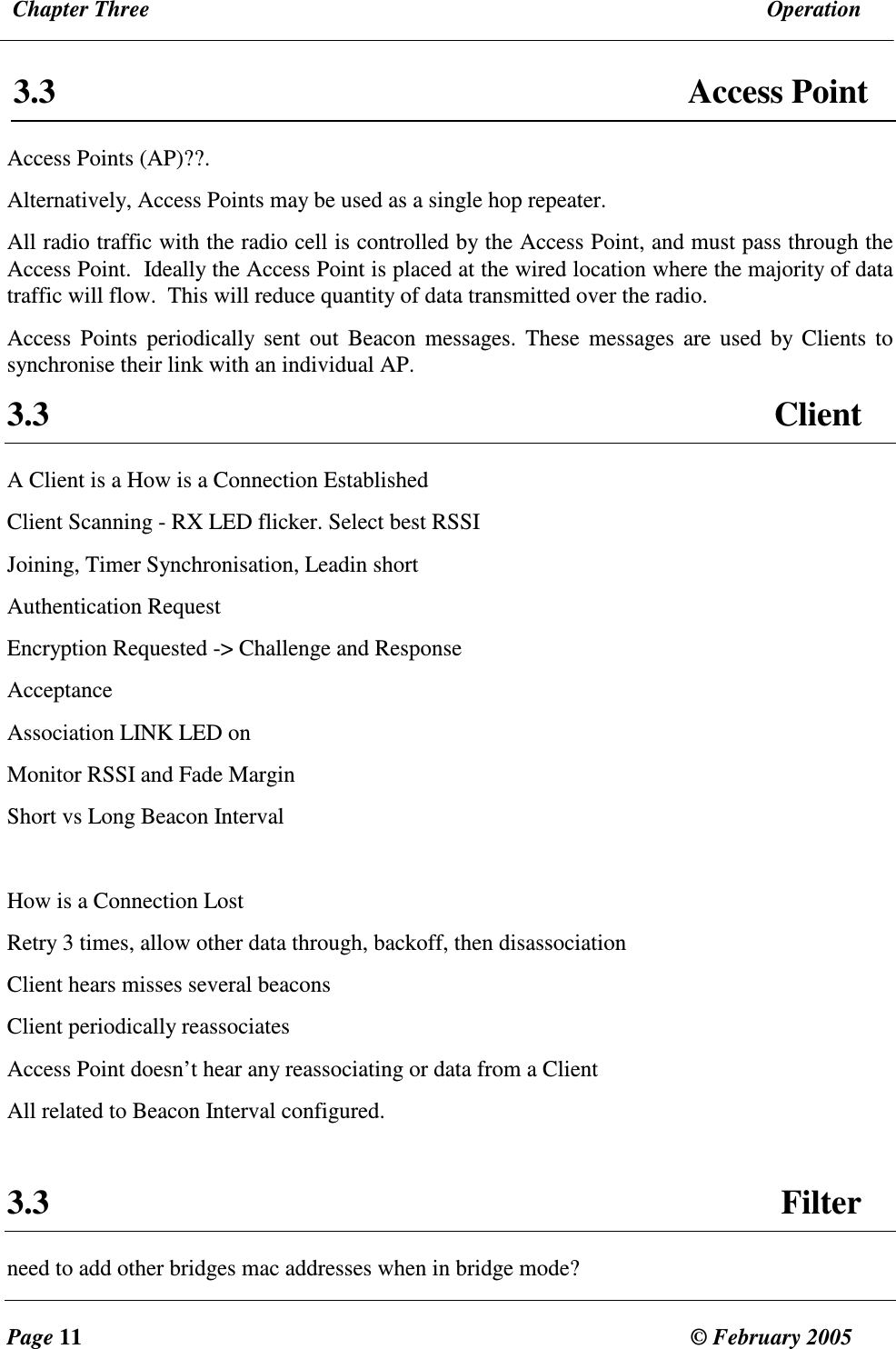
 Chapter Three  Operation  Page 11  © February 2005     3.3  Access Point Access Points (AP)??.  Alternatively, Access Points may be used as a single hop repeater. All radio traffic with the radio cell is controlled by the Access Point, and must pass through the Access Point.  Ideally the Access Point is placed at the wired location where the majority of data traffic will flow.  This will reduce quantity of data transmitted over the radio.  Access  Points  periodically  sent  out  Beacon  messages.  These  messages are used  by Clients  to synchronise their link with an individual AP.   3.3  Client A Client is a How is a Connection Established  Client Scanning - RX LED flicker. Select best RSSI Joining, Timer Synchronisation, Leadin short Authentication Request Encryption Requested -> Challenge and Response Acceptance Association LINK LED on Monitor RSSI and Fade Margin Short vs Long Beacon Interval  How is a Connection Lost Retry 3 times, allow other data through, backoff, then disassociation Client hears misses several beacons Client periodically reassociates Access Point doesn’t hear any reassociating or data from a Client All related to Beacon Interval configured.  3.3  Filter need to add other bridges mac addresses when in bridge mode?
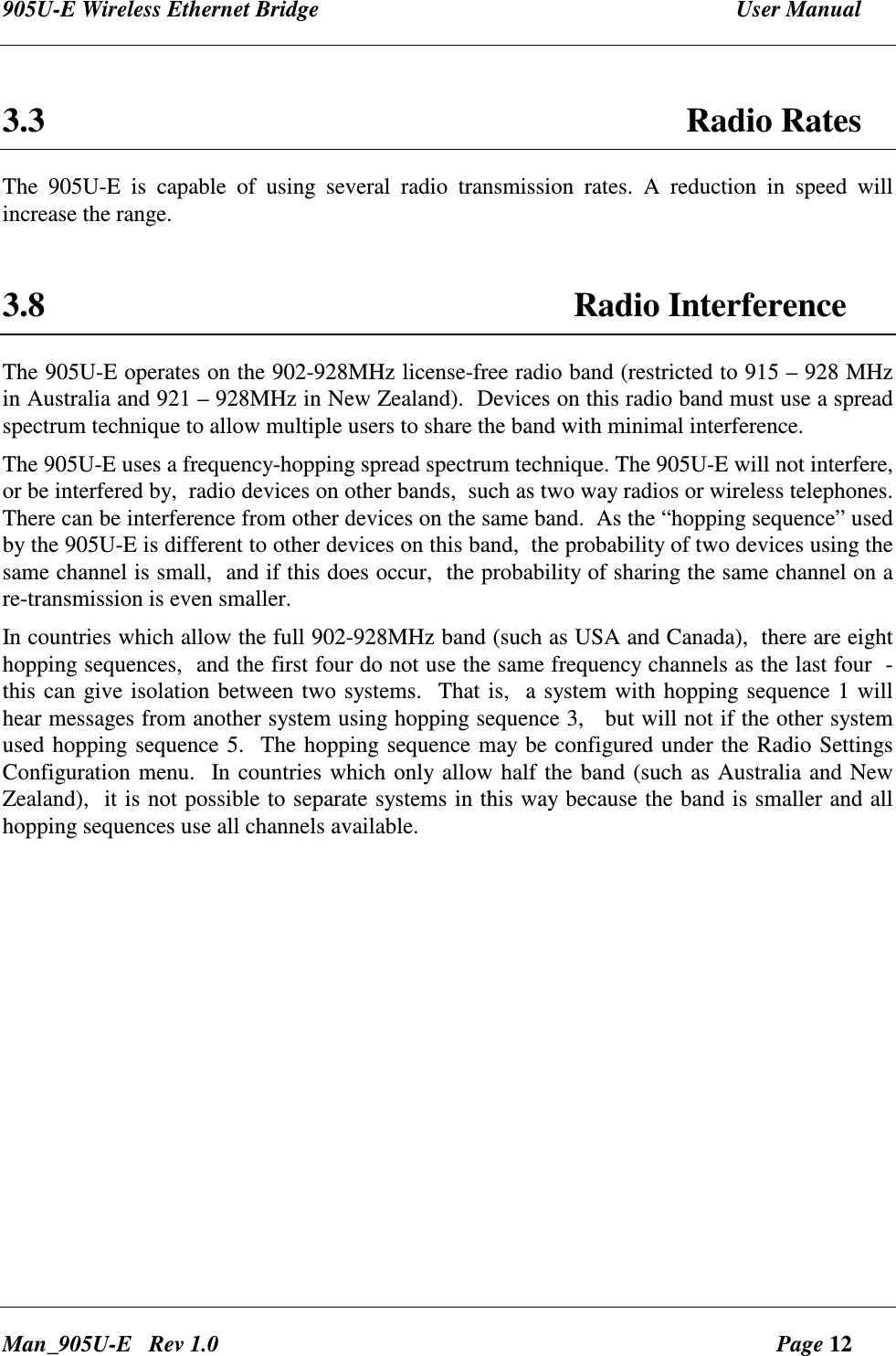
905U-E Wireless Ethernet Bridge  User Manual Man_905U-E   Rev 1.0  Page 12  3.3  Radio Rates The  905U-E  is  capable  of  using  several  radio  transmission  rates.  A  reduction  in  speed  will increase the range.   3.8 Radio Interference The 905U-E operates on the 902-928MHz license-free radio band (restricted to 915 – 928 MHz in Australia and 921 – 928MHz in New Zealand).  Devices on this radio band must use a spread spectrum technique to allow multiple users to share the band with minimal interference.   The 905U-E uses a frequency-hopping spread spectrum technique. The 905U-E will not interfere, or be interfered by,  radio devices on other bands,  such as two way radios or wireless telephones.  There can be interference from other devices on the same band.  As the “hopping sequence” used by the 905U-E is different to other devices on this band,  the probability of two devices using the same channel is small,  and if this does occur,  the probability of sharing the same channel on a re-transmission is even smaller. In countries which allow the full 902-928MHz band (such as USA and Canada),  there are eight hopping sequences,  and the first four do not use the same frequency channels as the last four  -  this can give isolation between two systems.  That is,  a system with hopping sequence 1 will hear messages from another system using hopping sequence 3,   but will not if the other system used hopping sequence 5.  The hopping sequence may be configured under the Radio Settings Configuration menu.  In countries which only allow half the band (such as Australia and New Zealand),  it is not possible to separate systems in this way because the band is smaller and all hopping sequences use all channels available.
 Chapter Five  Specifications  Page 13  © February 2005     Chapter Four  CONFIGURATION 4.1  Before Configuring Configuration comprises selecting parameter values for the operation of the 905U-E unit. Before you start configuration,  parameter settings must be decided.  The main parameters are:- • Addressing  – System address,   IP address, Network mask, Gateway IP address. • Device Mode – Bridge or Router • Operating Mode – Access Point  or Client.  • Encryption The other configuration parameters do not need to be selected, and are provided as a means of "fine tuning" the operation of the 905U-E units. Configuration may be achieved using only Windows Internet Explorer ®.   4.2  Addressing A 905U-E network comprises modules with the same "system" address.   The system address is text  string  1  to  31  characters  in  length.  Only  modules  with  the  same  system  address  will communicate with each other.  If you are adding another module to an existing system, use the same value as the existing modules.  If you are starting a new system,  select random values and use the same value for each module. The Device Mode must also be selected.  If you wish to link a single network together, then set Device Mode to Bridge. If two separate networks are to be joined then Device Mode should be set to Router.  IP  addresses  and  netmasks  must  be  set  to  reflect  the  Device  Mode  configured.  If  the  unit is configured as a Router, then the 905U-E requires an IP address and netmask to be set for within each of the networks it is joining. When configured as a Bridge, the 905U-E requires only one IP address.   4.3 Default Configuration The  default  configuration  of  the  905U-E  is  a  Bridge,  Client,  IP  address  192.168.123.123, netmask 255.255.255.0, gateway IP address 192.168.123.1.  Default username is “user” and the default password is “user” for configuration. The module may be forced to factory default setting by using the default configuration dipswitch or via the System Tools menu via Internet Explorer.
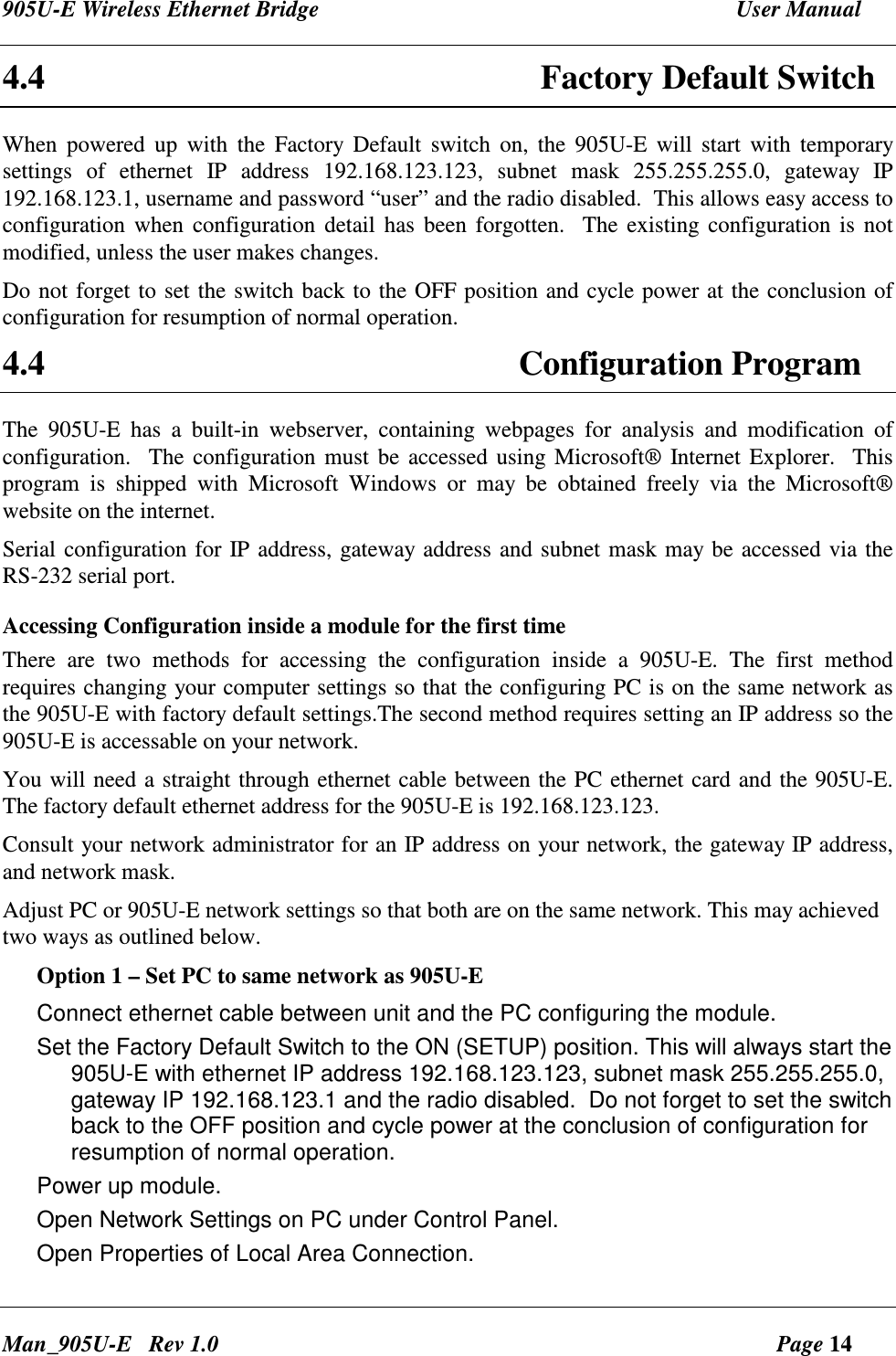
905U-E Wireless Ethernet Bridge  User Manual Man_905U-E   Rev 1.0  Page 14 4.4 Factory Default Switch When  powered  up  with  the  Factory  Default  switch  on,  the  905U-E  will  start  with  temporary settings  of  ethernet  IP  address  192.168.123.123,  subnet  mask  255.255.255.0,  gateway  IP 192.168.123.1, username and password “user” and the radio disabled.  This allows easy access to configuration when configuration  detail  has  been forgotten.   The existing configuration is  not modified, unless the user makes changes. Do not forget to set the switch back to the OFF position and cycle power at the conclusion of configuration for resumption of normal operation. 4.4  Configuration Program The  905U-E  has  a  built-in  webserver,  containing  webpages  for  analysis  and  modification  of configuration.   The configuration must  be accessed using Microsoft® Internet Explorer.  This program  is  shipped  with  Microsoft  Windows  or  may  be  obtained  freely  via  the  Microsoft® website on the internet.    Serial configuration for IP address, gateway address and subnet mask may be accessed via the RS-232 serial port. Accessing Configuration inside a module for the first time  There  are  two  methods  for  accessing  the  configuration  inside  a  905U-E.  The  first  method requires changing your computer settings so that the configuring PC is on the same network as the 905U-E with factory default settings.The second method requires setting an IP address so the 905U-E is accessable on your network.  You will need a straight through ethernet cable between the PC ethernet card and the 905U-E.  The factory default ethernet address for the 905U-E is 192.168.123.123.  Consult your network administrator for an IP address on your network, the gateway IP address, and network mask. Adjust PC or 905U-E network settings so that both are on the same network. This may achieved two ways as outlined below. Option 1 – Set PC to same network as 905U-E Connect ethernet cable between unit and the PC configuring the module. Set the Factory Default Switch to the ON (SETUP) position. This will always start the 905U-E with ethernet IP address 192.168.123.123, subnet mask 255.255.255.0, gateway IP 192.168.123.1 and the radio disabled.  Do not forget to set the switch back to the OFF position and cycle power at the conclusion of configuration for resumption of normal operation. Power up module. Open Network Settings on PC under Control Panel. Open Properties of Local Area Connection.
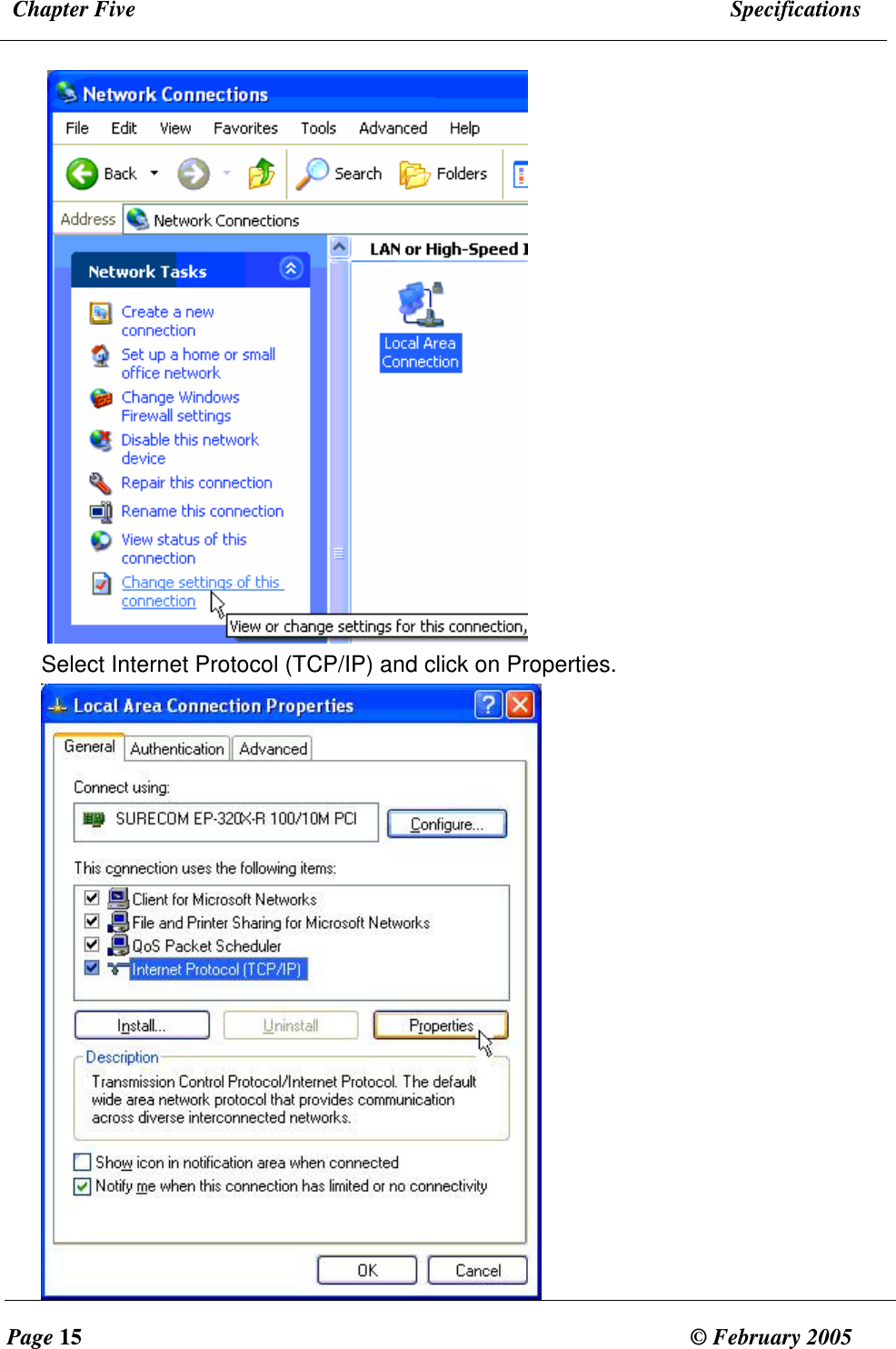
 Chapter Five  Specifications  Page 15  © February 2005      Select Internet Protocol (TCP/IP) and click on Properties.
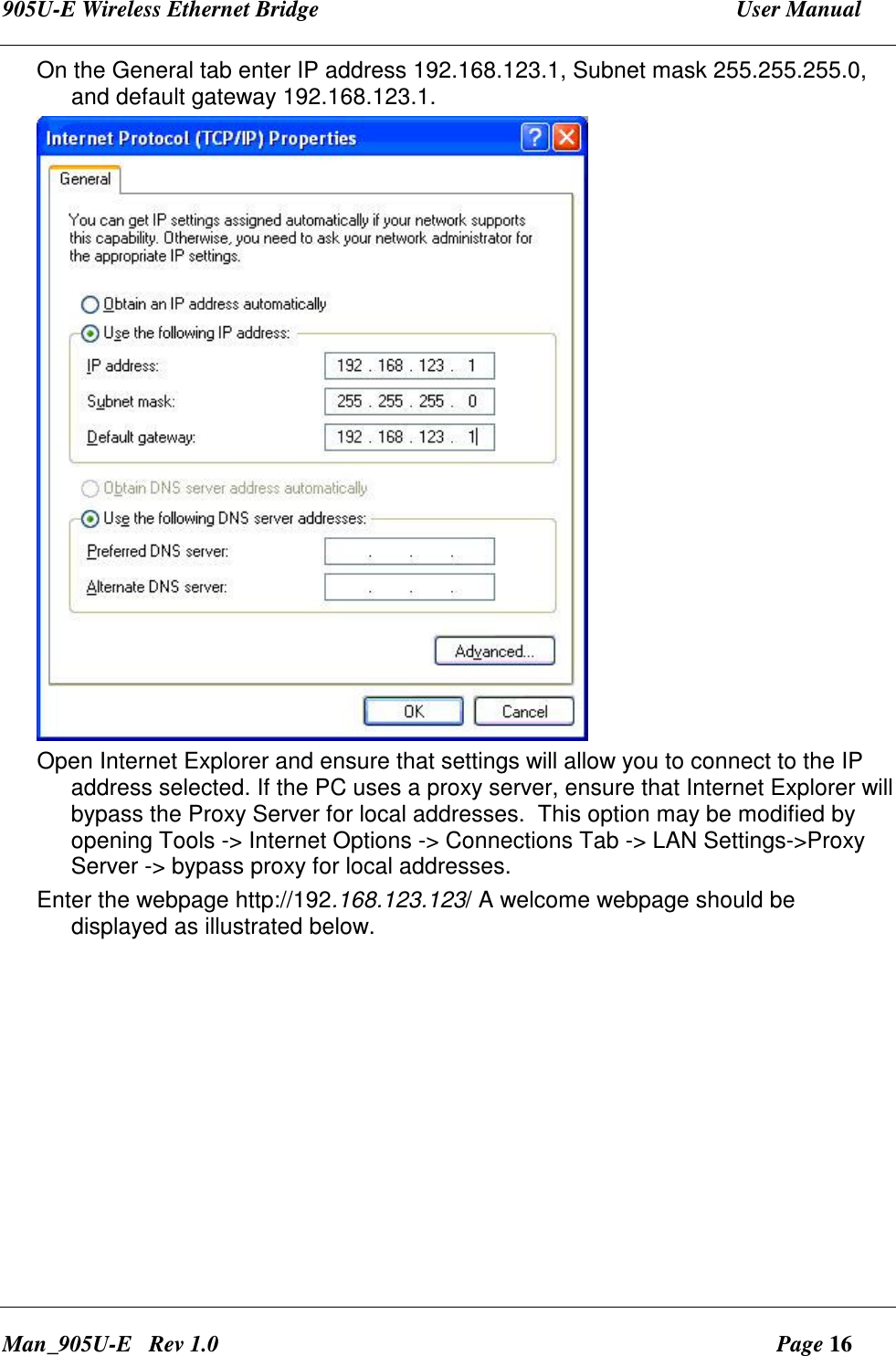
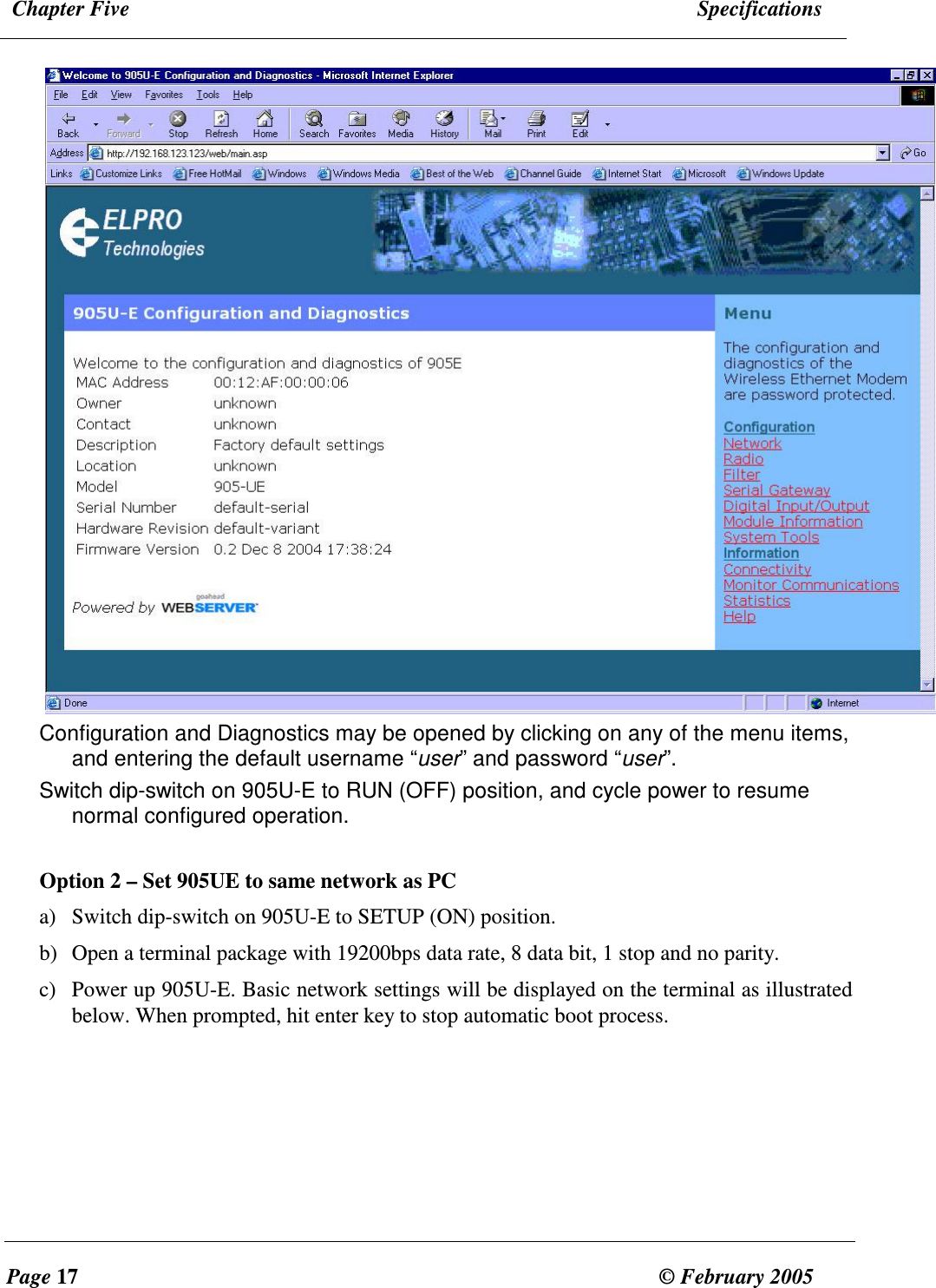
905U-E Wireless Ethernet Bridge  User Manual Man_905U-E   Rev 1.0  Page 16 On the General tab enter IP address 192.168.123.1, Subnet mask 255.255.255.0, and default gateway 192.168.123.1.  Open Internet Explorer and ensure that settings will allow you to connect to the IP address selected. If the PC uses a proxy server, ensure that Internet Explorer will bypass the Proxy Server for local addresses.  This option may be modified by opening Tools -> Internet Options -> Connections Tab -> LAN Settings->Proxy Server -> bypass proxy for local addresses. Enter the webpage http://192.168.123.123/ A welcome webpage should be displayed as illustrated below.
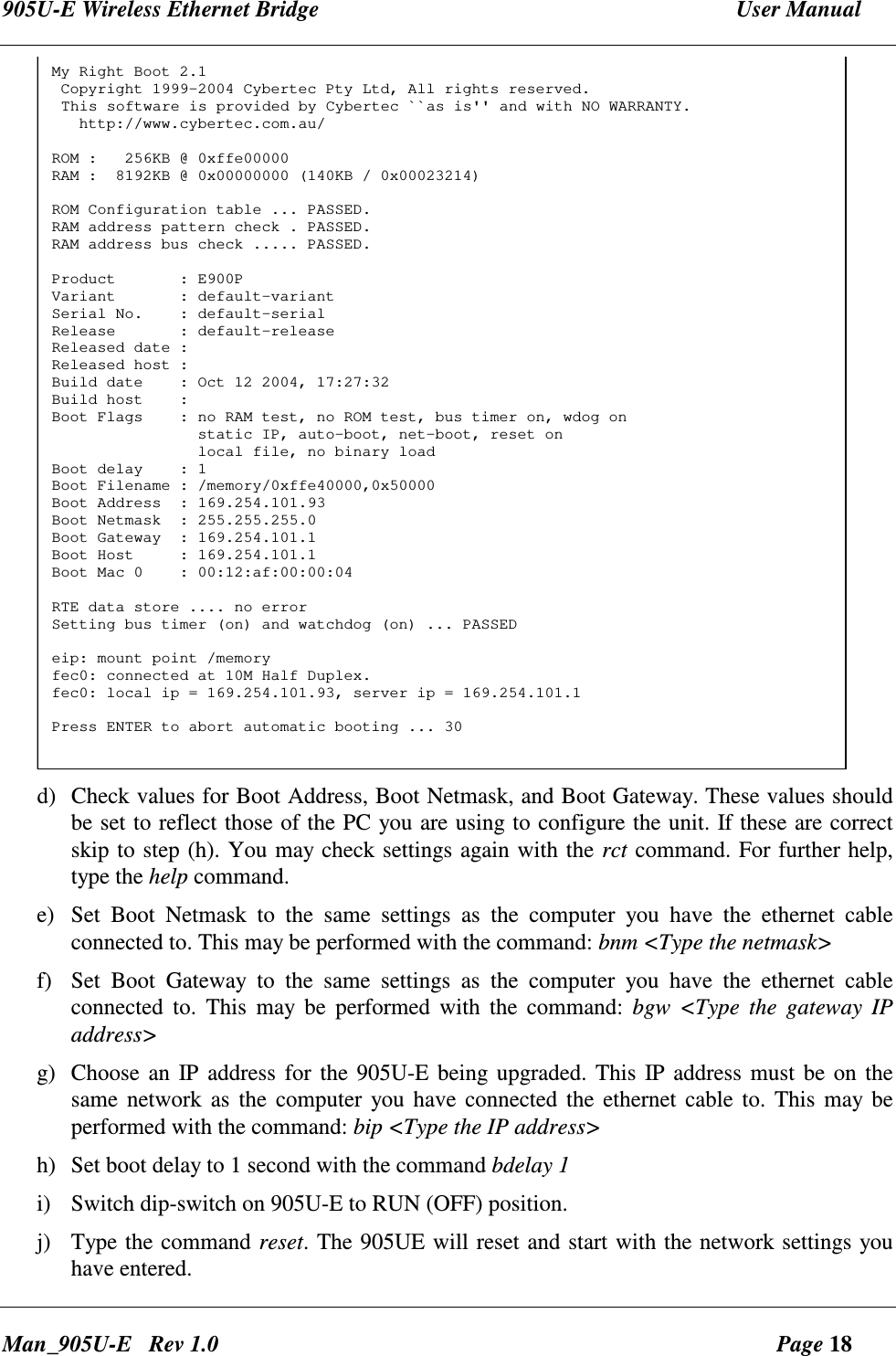
 Chapter Five  Specifications  Page 17  © February 2005      Configuration and Diagnostics may be opened by clicking on any of the menu items, and entering the default username “user” and password “user”. Switch dip-switch on 905U-E to RUN (OFF) position, and cycle power to resume normal configured operation.  Option 2 – Set 905UE to same network as PC a) Switch dip-switch on 905U-E to SETUP (ON) position. b) Open a terminal package with 19200bps data rate, 8 data bit, 1 stop and no parity. c) Power up 905U-E. Basic network settings will be displayed on the terminal as illustrated below. When prompted, hit enter key to stop automatic boot process.
905U-E Wireless Ethernet Bridge  User Manual Man_905U-E   Rev 1.0  Page 18 My Right Boot 2.1 Copyright 1999-2004 Cybertec Pty Ltd, All rights reserved. This software is provided by Cybertec ``as is'' and with NO WARRANTY.   http://www.cybertec.com.au/ROM :   256KB @ 0xffe00000RAM :  8192KB @ 0x00000000 (140KB / 0x00023214)ROM Configuration table ... PASSED.RAM address pattern check . PASSED.RAM address bus check ..... PASSED.Product       : E900PVariant       : default-variantSerial No.    : default-serialRelease       : default-releaseReleased date :Released host :Build date    : Oct 12 2004, 17:27:32Build host    :Boot Flags    : no RAM test, no ROM test, bus timer on, wdog on                static IP, auto-boot, net-boot, reset on                local file, no binary loadBoot delay    : 1Boot Filename : /memory/0xffe40000,0x50000Boot Address  : 169.254.101.93Boot Netmask  : 255.255.255.0Boot Gateway  : 169.254.101.1Boot Host     : 169.254.101.1Boot Mac 0    : 00:12:af:00:00:04RTE data store .... no errorSetting bus timer (on) and watchdog (on) ... PASSEDeip: mount point /memoryfec0: connected at 10M Half Duplex.fec0: local ip = 169.254.101.93, server ip = 169.254.101.1Press ENTER to abort automatic booting ... 30 d) Check values for Boot Address, Boot Netmask, and Boot Gateway. These values should be set to reflect those of the PC you are using to configure the unit. If these are correct skip to step (h). You may check settings again with the rct command. For further help, type the help command. e) Set  Boot  Netmask  to  the  same  settings  as  the  computer  you  have  the  ethernet  cable connected to. This may be performed with the command: bnm <Type the netmask>  f) Set  Boot  Gateway  to  the  same  settings  as  the  computer  you  have  the  ethernet  cable connected  to.  This  may  be  performed  with  the  command:  bgw  <Type  the  gateway  IP address>  g) Choose an  IP address for the 905U-E being upgraded. This IP address must be on the same network as  the  computer you  have connected  the ethernet cable to. This may be performed with the command: bip <Type the IP address> h) Set boot delay to 1 second with the command bdelay 1 i) Switch dip-switch on 905U-E to RUN (OFF) position. j) Type the command reset. The 905UE will reset and start with the network settings you have entered.
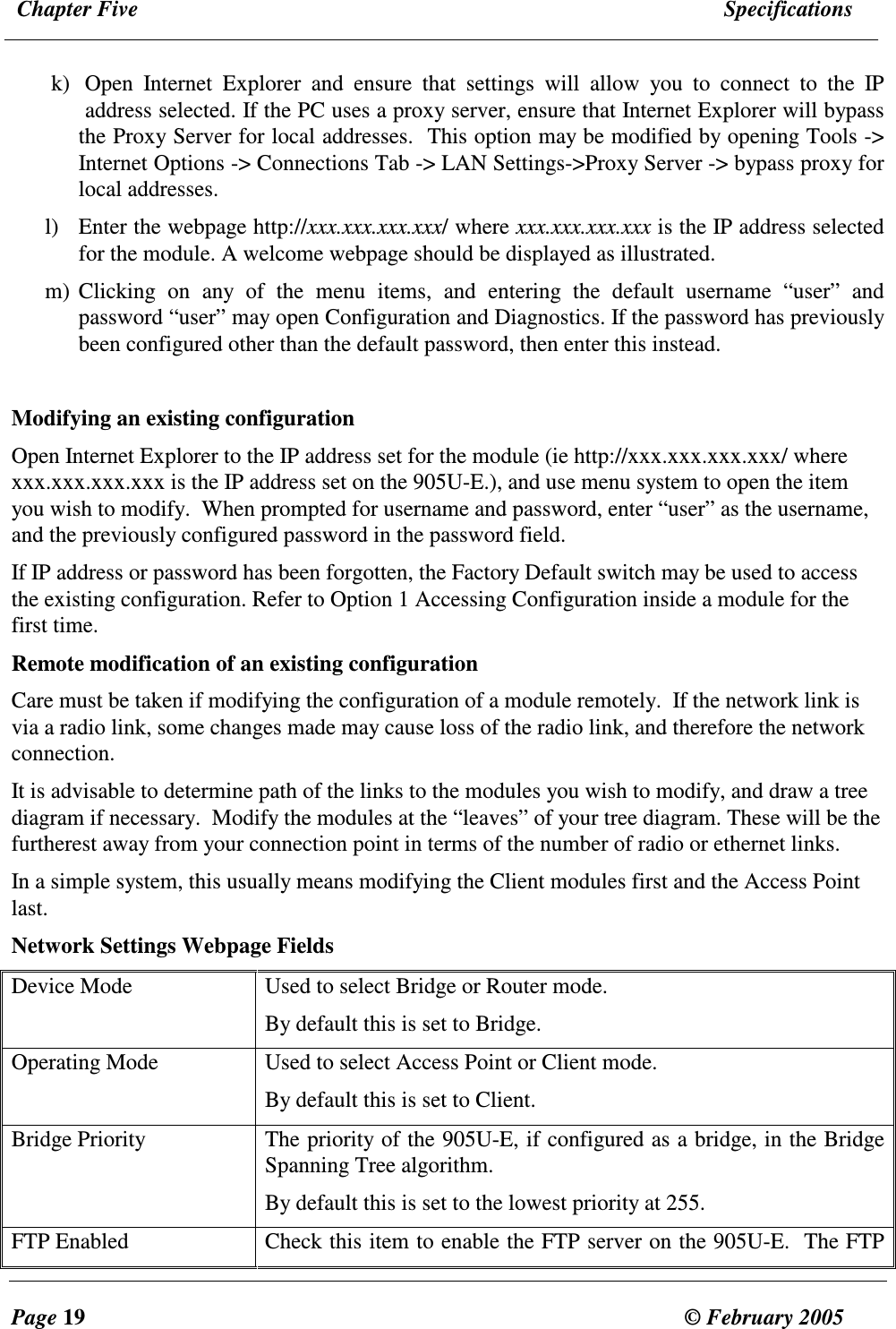
 Chapter Five  Specifications  Page 19  © February 2005     k) Open  Internet  Explorer  and  ensure  that  settings  will  allow  you  to  connect  to  the  IP address selected. If the PC uses a proxy server, ensure that Internet Explorer will bypass the Proxy Server for local addresses.  This option may be modified by opening Tools -> Internet Options -> Connections Tab -> LAN Settings->Proxy Server -> bypass proxy for local addresses. l) Enter the webpage http://xxx.xxx.xxx.xxx/ where xxx.xxx.xxx.xxx is the IP address selected for the module. A welcome webpage should be displayed as illustrated. m) Clicking  on  any  of  the  menu  items,  and  entering  the  default  username  “user”  and password “user” may open Configuration and Diagnostics. If the password has previously been configured other than the default password, then enter this instead.  Modifying an existing configuration Open Internet Explorer to the IP address set for the module (ie http://xxx.xxx.xxx.xxx/ where xxx.xxx.xxx.xxx is the IP address set on the 905U-E.), and use menu system to open the item you wish to modify.  When prompted for username and password, enter “user” as the username, and the previously configured password in the password field. If IP address or password has been forgotten, the Factory Default switch may be used to access the existing configuration. Refer to Option 1 Accessing Configuration inside a module for the first time. Remote modification of an existing configuration Care must be taken if modifying the configuration of a module remotely.  If the network link is via a radio link, some changes made may cause loss of the radio link, and therefore the network connection.   It is advisable to determine path of the links to the modules you wish to modify, and draw a tree diagram if necessary.  Modify the modules at the “leaves” of your tree diagram. These will be the furtherest away from your connection point in terms of the number of radio or ethernet links.  In a simple system, this usually means modifying the Client modules first and the Access Point last. Network Settings Webpage Fields Device Mode  Used to select Bridge or Router mode.  By default this is set to Bridge. Operating Mode  Used to select Access Point or Client mode. By default this is set to Client. Bridge Priority  The priority of the 905U-E, if configured as a bridge, in the Bridge Spanning Tree algorithm.  By default this is set to the lowest priority at 255. FTP Enabled  Check this item to enable the FTP server on the 905U-E.  The FTP
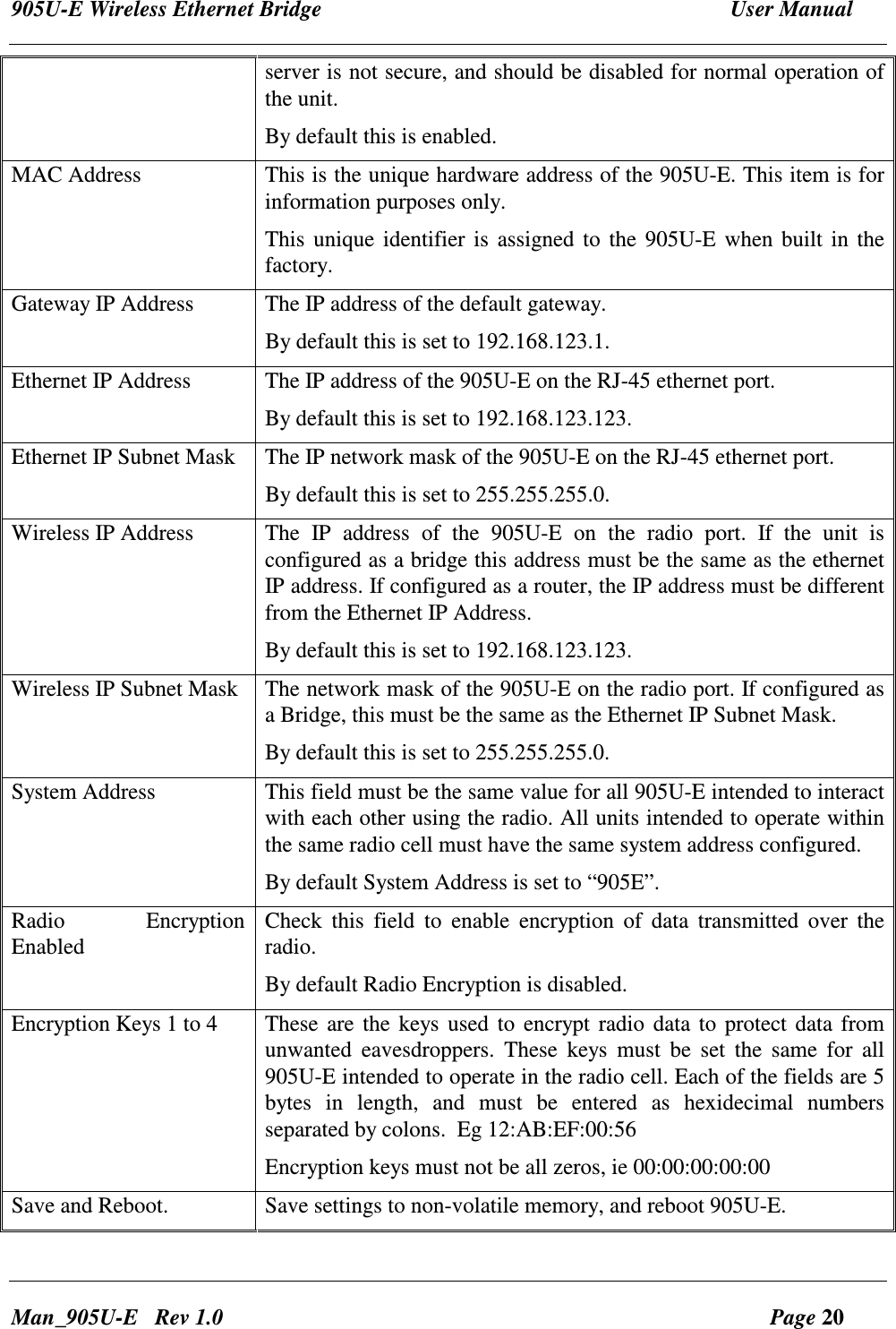
905U-E Wireless Ethernet Bridge  User Manual Man_905U-E   Rev 1.0  Page 20 server is not secure, and should be disabled for normal operation of the unit.  By default this is enabled. MAC Address  This is the unique hardware address of the 905U-E. This item is for information purposes only. This unique identifier is  assigned to the 905U-E  when built in the factory. Gateway IP Address  The IP address of the default gateway. By default this is set to 192.168.123.1. Ethernet IP Address  The IP address of the 905U-E on the RJ-45 ethernet port. By default this is set to 192.168.123.123. Ethernet IP Subnet Mask  The IP network mask of the 905U-E on the RJ-45 ethernet port. By default this is set to 255.255.255.0. Wireless IP Address  The  IP  address  of  the  905U-E  on  the  radio  port.  If  the  unit  is configured as a bridge this address must be the same as the ethernet IP address. If configured as a router, the IP address must be different from the Ethernet IP Address. By default this is set to 192.168.123.123. Wireless IP Subnet Mask  The network mask of the 905U-E on the radio port. If configured as a Bridge, this must be the same as the Ethernet IP Subnet Mask. By default this is set to 255.255.255.0. System Address  This field must be the same value for all 905U-E intended to interact with each other using the radio. All units intended to operate within the same radio cell must have the same system address configured. By default System Address is set to “905E”. Radio  Encryption Enabled  Check  this  field  to  enable  encryption  of  data  transmitted  over  the radio. By default Radio Encryption is disabled. Encryption Keys 1 to 4  These are the keys used to encrypt radio data to protect data from unwanted  eavesdroppers.  These  keys  must  be  set  the  same  for  all 905U-E intended to operate in the radio cell. Each of the fields are 5 bytes  in  length,  and  must  be  entered  as  hexidecimal  numbers separated by colons.  Eg 12:AB:EF:00:56 Encryption keys must not be all zeros, ie 00:00:00:00:00 Save and Reboot.  Save settings to non-volatile memory, and reboot 905U-E.
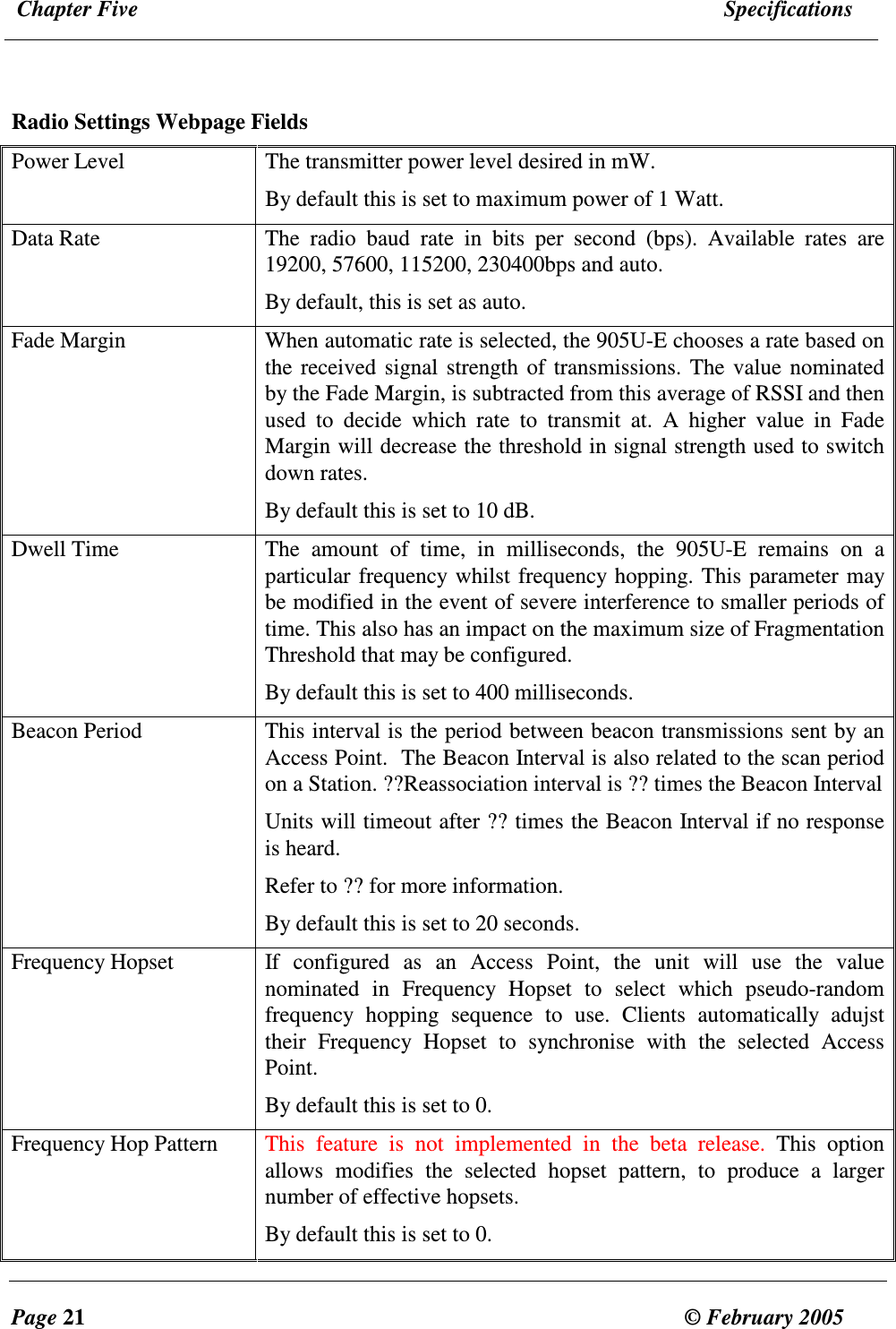
 Chapter Five  Specifications  Page 21  © February 2005      Radio Settings Webpage Fields Power Level  The transmitter power level desired in mW.  By default this is set to maximum power of 1 Watt. Data Rate  The  radio  baud  rate  in  bits  per  second  (bps).  Available  rates  are 19200, 57600, 115200, 230400bps and auto. By default, this is set as auto. Fade Margin  When automatic rate is selected, the 905U-E chooses a rate based on the received signal strength of transmissions. The value nominated by the Fade Margin, is subtracted from this average of RSSI and then used  to  decide  which  rate  to  transmit  at.  A  higher  value  in  Fade Margin will decrease the threshold in signal strength used to switch down rates.  By default this is set to 10 dB. Dwell Time  The  amount  of  time,  in  milliseconds,  the  905U-E  remains  on  a particular frequency whilst frequency hopping. This parameter may be modified in the event of severe interference to smaller periods of time. This also has an impact on the maximum size of Fragmentation Threshold that may be configured. By default this is set to 400 milliseconds. Beacon Period  This interval is the period between beacon transmissions sent by an Access Point.  The Beacon Interval is also related to the scan period on a Station. ??Reassociation interval is ?? times the Beacon Interval Units will timeout after ?? times the Beacon Interval if no response is heard. Refer to ?? for more information. By default this is set to 20 seconds. Frequency Hopset  If  configured  as  an  Access  Point,  the  unit  will  use  the  value nominated  in  Frequency  Hopset  to  select  which  pseudo-random frequency  hopping  sequence  to  use.  Clients  automatically  adujst their  Frequency  Hopset  to  synchronise  with  the  selected  Access Point. By default this is set to 0. Frequency Hop Pattern  This  feature  is  not  implemented  in  the  beta  release.  This  option allows  modifies  the  selected  hopset  pattern,  to  produce  a  larger number of effective hopsets.  By default this is set to 0.
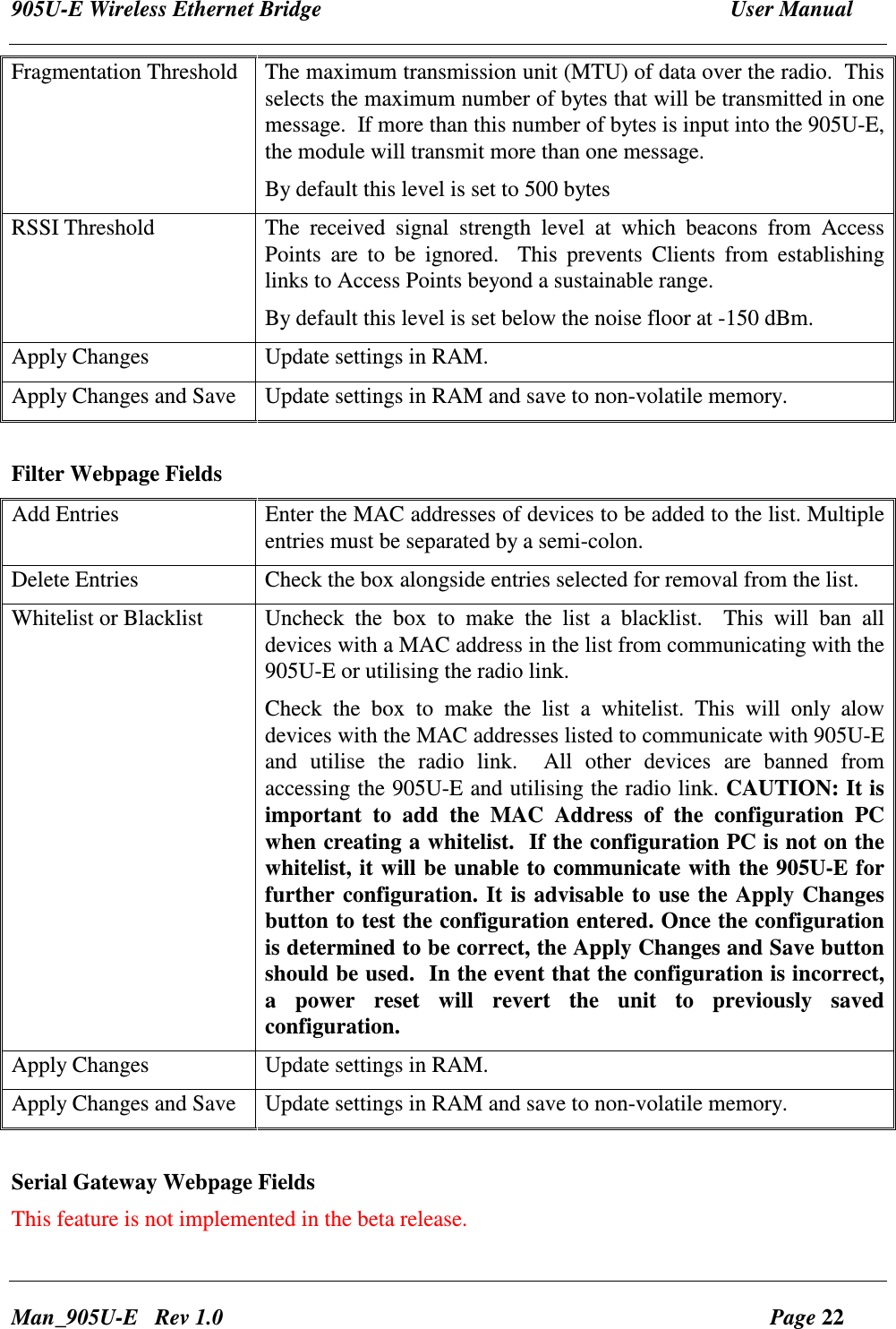
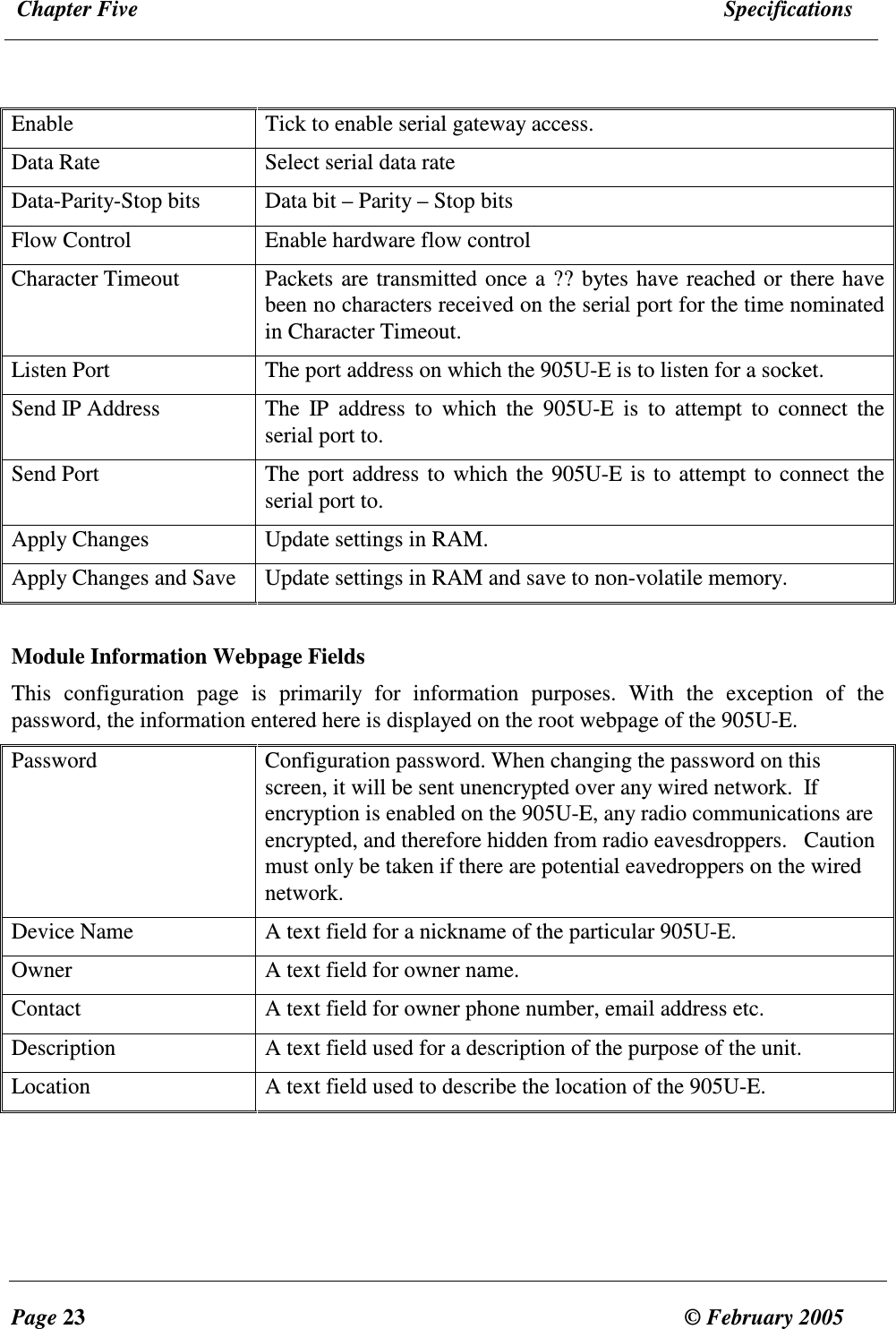
905U-E Wireless Ethernet Bridge  User Manual Man_905U-E   Rev 1.0  Page 22 Fragmentation Threshold  The maximum transmission unit (MTU) of data over the radio.  This selects the maximum number of bytes that will be transmitted in one message.  If more than this number of bytes is input into the 905U-E,   the module will transmit more than one message. By default this level is set to 500 bytes RSSI Threshold  The  received  signal  strength  level  at  which  beacons  from  Access Points  are  to  be  ignored.    This  prevents  Clients  from  establishing links to Access Points beyond a sustainable range. By default this level is set below the noise floor at -150 dBm. Apply Changes  Update settings in RAM. Apply Changes and Save  Update settings in RAM and save to non-volatile memory.  Filter Webpage Fields Add Entries  Enter the MAC addresses of devices to be added to the list. Multiple entries must be separated by a semi-colon. Delete Entries  Check the box alongside entries selected for removal from the list. Whitelist or Blacklist  Uncheck  the  box  to  make  the  list  a  blacklist.    This  will  ban  all devices with a MAC address in the list from communicating with the 905U-E or utilising the radio link. Check  the  box  to  make  the  list  a  whitelist.  This  will  only  alow devices with the MAC addresses listed to communicate with 905U-E and  utilise  the  radio  link.    All  other  devices  are  banned  from accessing the 905U-E and utilising the radio link. CAUTION: It is important  to  add  the  MAC  Address  of  the  configuration  PC when creating a whitelist.  If the configuration PC is not on the whitelist, it will be unable to communicate with the 905U-E for further configuration. It is advisable to use the Apply Changes button to test the configuration entered. Once the configuration is determined to be correct, the Apply Changes and Save button should be used.  In the event that the configuration is incorrect, a  power  reset  will  revert  the  unit  to  previously  saved configuration. Apply Changes  Update settings in RAM. Apply Changes and Save  Update settings in RAM and save to non-volatile memory.  Serial Gateway Webpage Fields This feature is not implemented in the beta release.
 Chapter Five  Specifications  Page 23  © February 2005     Enable  Tick to enable serial gateway access. Data Rate  Select serial data rate Data-Parity-Stop bits  Data bit – Parity – Stop bits Flow Control  Enable hardware flow control Character Timeout  Packets are transmitted once a ?? bytes have reached or there have been no characters received on the serial port for the time nominated in Character Timeout.  Listen Port  The port address on which the 905U-E is to listen for a socket. Send IP Address  The  IP  address  to  which  the  905U-E  is  to  attempt  to  connect  the serial port to. Send Port  The port address to which the 905U-E is to attempt to connect the serial port to. Apply Changes  Update settings in RAM. Apply Changes and Save  Update settings in RAM and save to non-volatile memory.  Module Information Webpage Fields This  configuration  page  is  primarily  for  information  purposes.  With  the  exception  of  the password, the information entered here is displayed on the root webpage of the 905U-E. Password  Configuration password. When changing the password on this screen, it will be sent unencrypted over any wired network.  If encryption is enabled on the 905U-E, any radio communications are encrypted, and therefore hidden from radio eavesdroppers.   Caution must only be taken if there are potential eavedroppers on the wired network. Device Name  A text field for a nickname of the particular 905U-E. Owner  A text field for owner name. Contact  A text field for owner phone number, email address etc. Description  A text field used for a description of the purpose of the unit. Location  A text field used to describe the location of the 905U-E.
905U-E Wireless Ethernet Bridge  User Manual Man_905U-E   Rev 1.0  Page 24
 Chapter Five  Specifications  Page 25  © February 2005     4.6  Configuration Examples Setting a 905U-E to Factory Default Settings 1. Access configuration webpages of 905U-E. Refer section Accessing Configuration inside a module for the first time, or Modifying an existing configuration. 2. Click on System Tools Menu Item 3. Enter username “user” and password “user”, when prompted for password. 4. Click on Factory Default Configuration Reset, and wait for unit to reset. When reset, the LINK LED will flash.
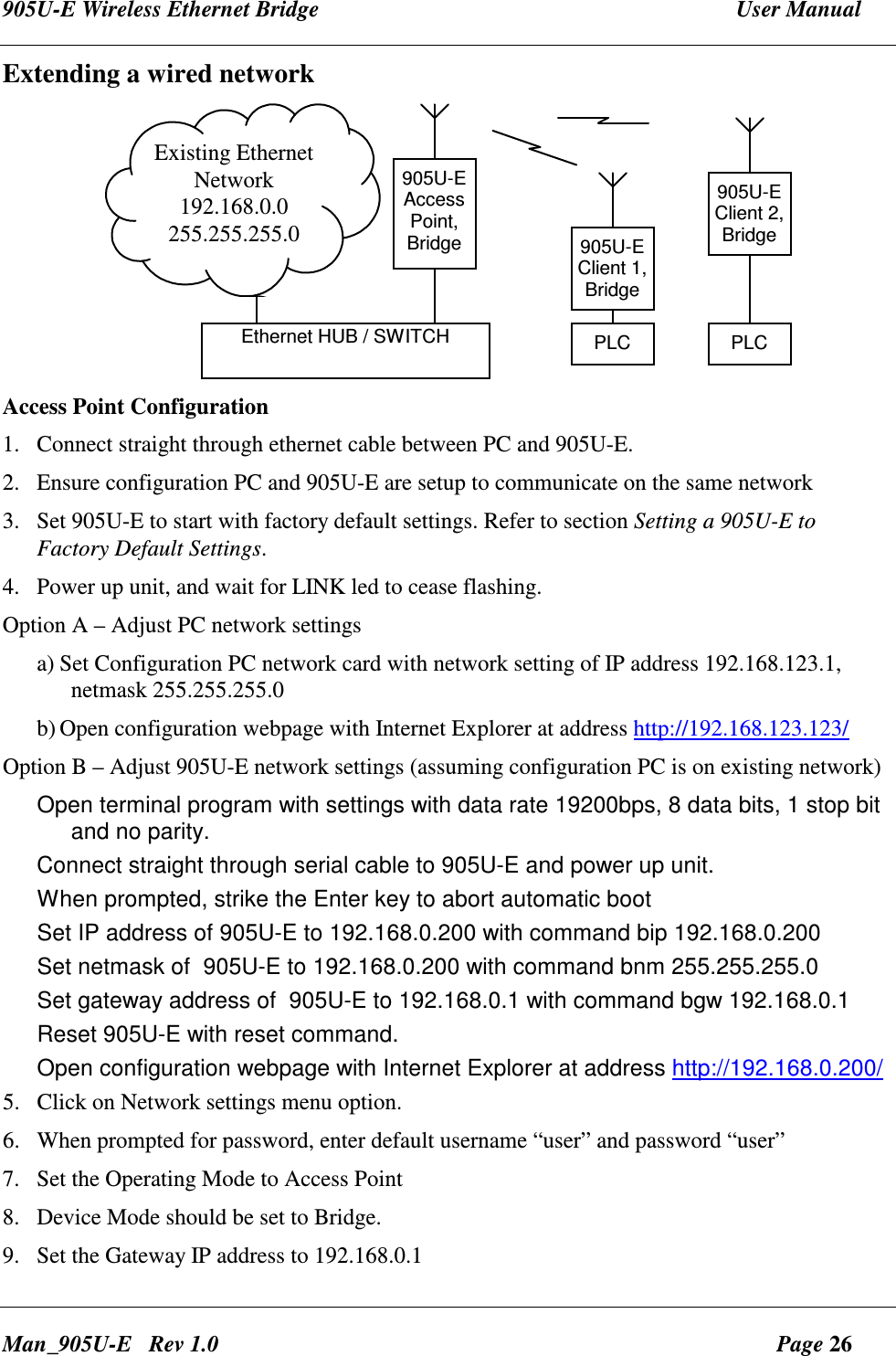
905U-E Wireless Ethernet Bridge  User Manual Man_905U-E   Rev 1.0  Page 26 Extending a wired network 905U-EAccessPoint,Bridge 905U-EClient 1,BridgePLCExisting EthernetNetwork192.168.0.0255.255.255.0Ethernet HUB / SWITCH905U-EClient 2,BridgePLC Access Point Configuration 1. Connect straight through ethernet cable between PC and 905U-E. 2. Ensure configuration PC and 905U-E are setup to communicate on the same network 3. Set 905U-E to start with factory default settings. Refer to section Setting a 905U-E to Factory Default Settings. 4. Power up unit, and wait for LINK led to cease flashing. Option A – Adjust PC network settings a) Set Configuration PC network card with network setting of IP address 192.168.123.1, netmask 255.255.255.0 b) Open configuration webpage with Internet Explorer at address http://192.168.123.123/ Option B – Adjust 905U-E network settings (assuming configuration PC is on existing network) Open terminal program with settings with data rate 19200bps, 8 data bits, 1 stop bit and no parity. Connect straight through serial cable to 905U-E and power up unit. When prompted, strike the Enter key to abort automatic boot Set IP address of 905U-E to 192.168.0.200 with command bip 192.168.0.200 Set netmask of  905U-E to 192.168.0.200 with command bnm 255.255.255.0 Set gateway address of  905U-E to 192.168.0.1 with command bgw 192.168.0.1 Reset 905U-E with reset command. Open configuration webpage with Internet Explorer at address http://192.168.0.200/ 5. Click on Network settings menu option. 6. When prompted for password, enter default username “user” and password “user” 7. Set the Operating Mode to Access Point 8. Device Mode should be set to Bridge. 9. Set the Gateway IP address to 192.168.0.1
 Chapter Five  Specifications  Page 27  © February 2005     10. Set the Ethernet IP address to 192.168.0.200, network mask 255.255.255.0  11. Set the Wireless IP address to 192.168.0.200, network mask 255.255.255.0 12. Set the system address to “ExampleSystem1” 13. Enable Radio Encryption and enter key 1 as 01:02:03:04:05, key 2 as 06:07:08:09:0A, key 3 as 0B:0C:0D:0E:0F, key 4 as 10:11:12:13:14. 14. Click on button Save to Flash and Reset. Webpage will display that message indicating details are being written to flash. Wait for 905U-E to reboot before removing power.  Client 1 Configuration Perform  the  same  configuration  steps  as  the  Access  Point  configuration  with  the  following differences: • At  step  0  in  Option  B,  set  IP  address  of  905U-E  to  192.168.0.201  with  command  bip 192.168.0.201 • At  step  0  in  Option  B,  open  configuration  webpage  with  Internet  Explorer  at  address http://192.168.0.201/ • At step 7, set the Operating Mode to Client. • At step 10, set the Ethernet IP address to 192.168.0.201, network mask 255.255.255.0 • At step 11, set the Wireless IP address to 192.168.0.201, network mask 255.255.255.0  Client 2 Configuration Perform  the  same  configuration  steps  as  the  Access  Point  configuration  with  the  following differences: • At  step  0  in  Option  B,  set  IP  address  of  905U-E  to  192.168.0.202  with  command  bip 192.168.0.202 • At  step  0  in  Option  B,  open  configuration  webpage  with  Internet  Explorer  at  address http://192.168.0.202/ • At step 7, set the Operating Mode to Client. • At step 10, set the Ethernet IP address to 192.168.0.202, network mask 255.255.255.0 • At step 11, set the Wireless IP address to 192.168.0.202, network mask 255.255.255.0
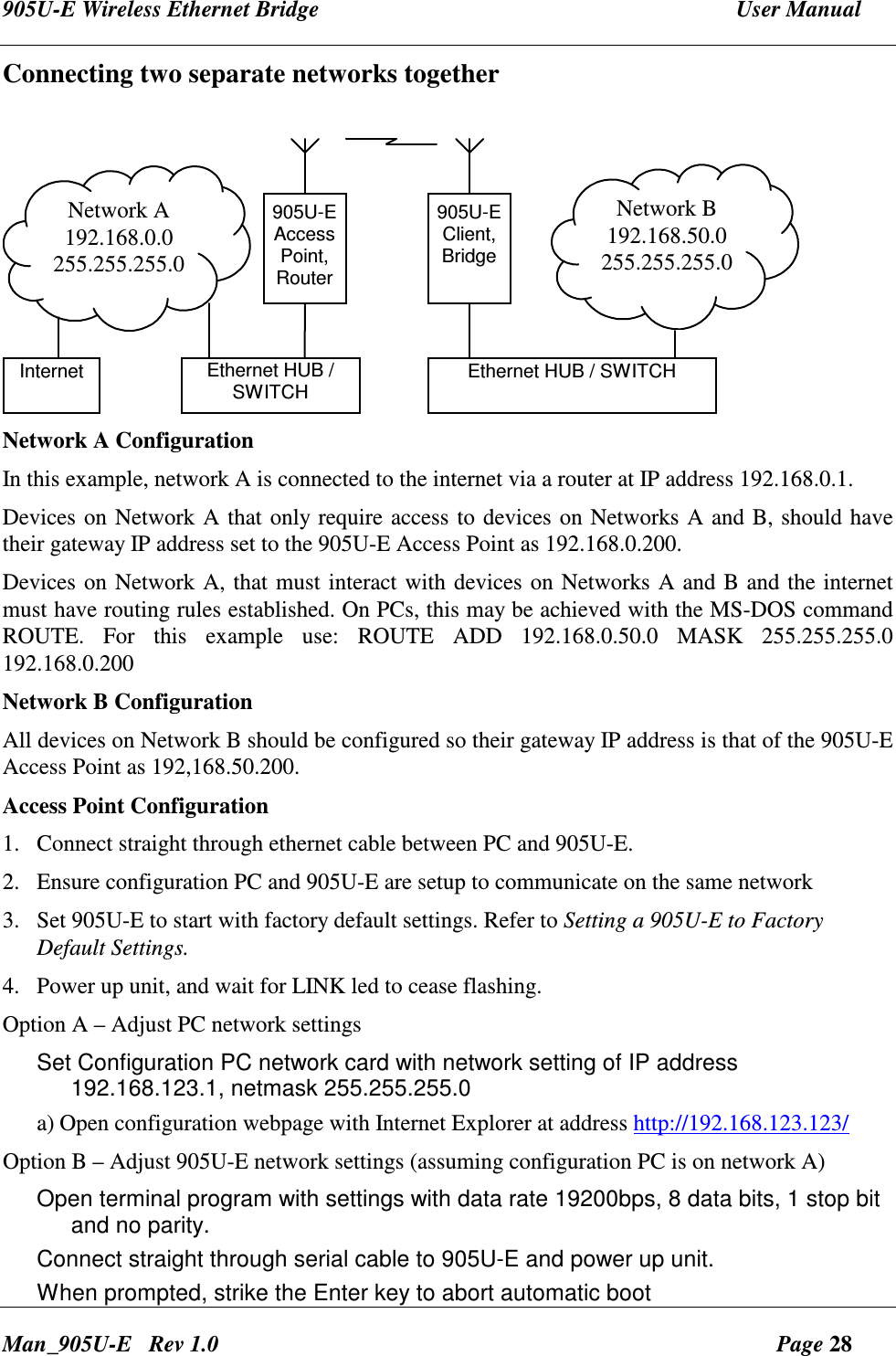
905U-E Wireless Ethernet Bridge  User Manual Man_905U-E   Rev 1.0  Page 28 Connecting two separate networks together   905U-EAccessPoint,RouterNetwork A192.168.0.0255.255.255.0Ethernet HUB /SWITCH905U-EClient,BridgeNetwork B192.168.50.0255.255.255.0Ethernet HUB / SWITCHInternet Network A Configuration In this example, network A is connected to the internet via a router at IP address 192.168.0.1. Devices on Network A that only require access to devices on Networks A and B, should have their gateway IP address set to the 905U-E Access Point as 192.168.0.200. Devices on Network A, that must interact with devices on Networks A and B and the internet must have routing rules established. On PCs, this may be achieved with the MS-DOS command ROUTE.  For  this  example  use:  ROUTE  ADD  192.168.0.50.0  MASK  255.255.255.0 192.168.0.200 Network B Configuration All devices on Network B should be configured so their gateway IP address is that of the 905U-E Access Point as 192,168.50.200.  Access Point Configuration 1. Connect straight through ethernet cable between PC and 905U-E. 2. Ensure configuration PC and 905U-E are setup to communicate on the same network 3. Set 905U-E to start with factory default settings. Refer to Setting a 905U-E to Factory Default Settings. 4. Power up unit, and wait for LINK led to cease flashing. Option A – Adjust PC network settings Set Configuration PC network card with network setting of IP address 192.168.123.1, netmask 255.255.255.0 a) Open configuration webpage with Internet Explorer at address http://192.168.123.123/ Option B – Adjust 905U-E network settings (assuming configuration PC is on network A) Open terminal program with settings with data rate 19200bps, 8 data bits, 1 stop bit and no parity. Connect straight through serial cable to 905U-E and power up unit. When prompted, strike the Enter key to abort automatic boot
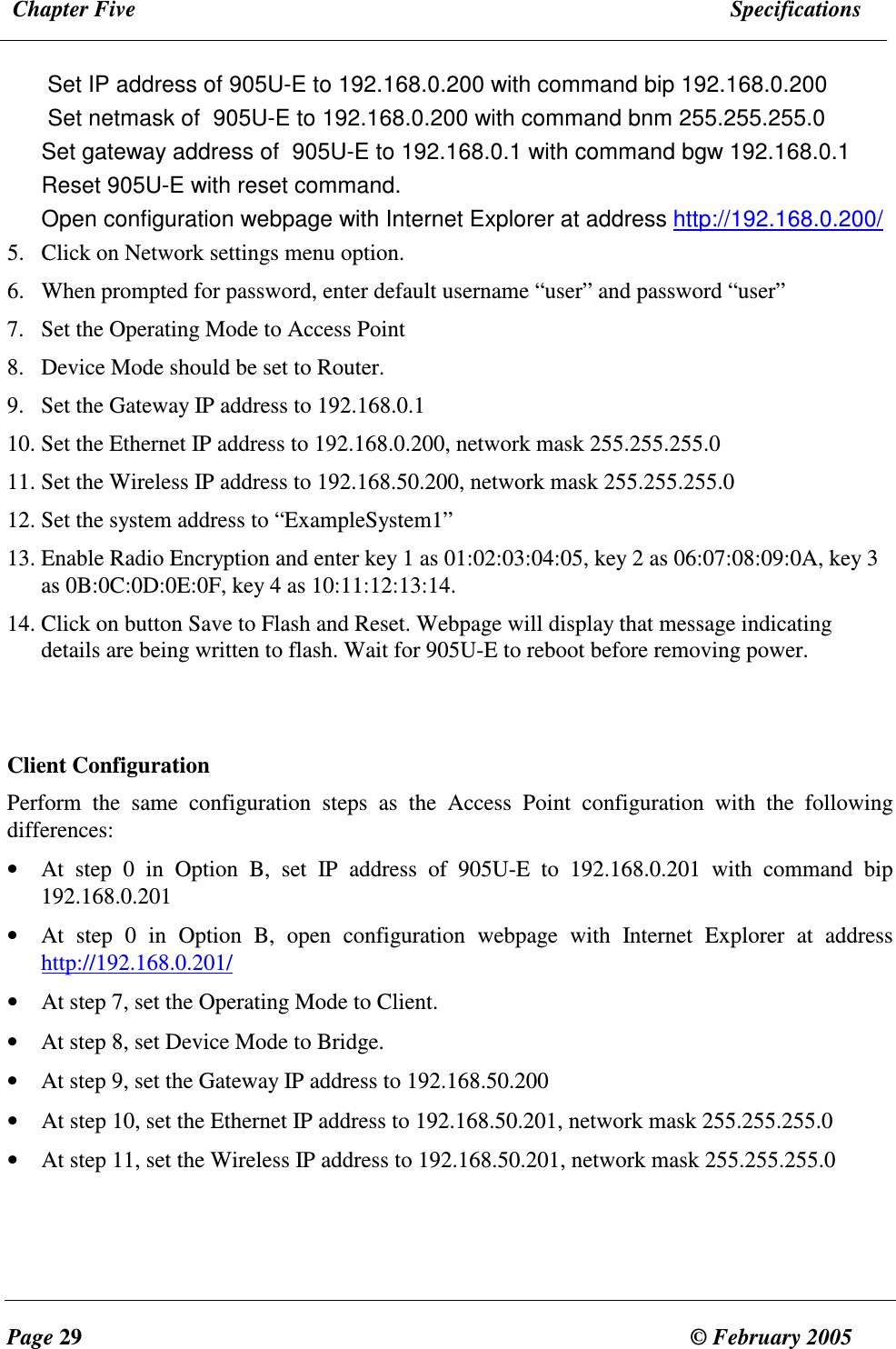
 Chapter Five  Specifications  Page 29  © February 2005     Set IP address of 905U-E to 192.168.0.200 with command bip 192.168.0.200 Set netmask of  905U-E to 192.168.0.200 with command bnm 255.255.255.0 Set gateway address of  905U-E to 192.168.0.1 with command bgw 192.168.0.1 Reset 905U-E with reset command. Open configuration webpage with Internet Explorer at address http://192.168.0.200/ 5. Click on Network settings menu option. 6. When prompted for password, enter default username “user” and password “user” 7. Set the Operating Mode to Access Point 8. Device Mode should be set to Router. 9. Set the Gateway IP address to 192.168.0.1 10. Set the Ethernet IP address to 192.168.0.200, network mask 255.255.255.0  11. Set the Wireless IP address to 192.168.50.200, network mask 255.255.255.0 12. Set the system address to “ExampleSystem1” 13. Enable Radio Encryption and enter key 1 as 01:02:03:04:05, key 2 as 06:07:08:09:0A, key 3 as 0B:0C:0D:0E:0F, key 4 as 10:11:12:13:14. 14. Click on button Save to Flash and Reset. Webpage will display that message indicating details are being written to flash. Wait for 905U-E to reboot before removing power.   Client Configuration Perform  the  same  configuration  steps  as  the  Access  Point  configuration  with  the  following differences: • At  step  0  in  Option  B,  set  IP  address  of  905U-E  to  192.168.0.201  with  command  bip 192.168.0.201 • At  step  0  in  Option  B,  open  configuration  webpage  with  Internet  Explorer  at  address http://192.168.0.201/ • At step 7, set the Operating Mode to Client. • At step 8, set Device Mode to Bridge. • At step 9, set the Gateway IP address to 192.168.50.200 • At step 10, set the Ethernet IP address to 192.168.50.201, network mask 255.255.255.0 • At step 11, set the Wireless IP address to 192.168.50.201, network mask 255.255.255.0
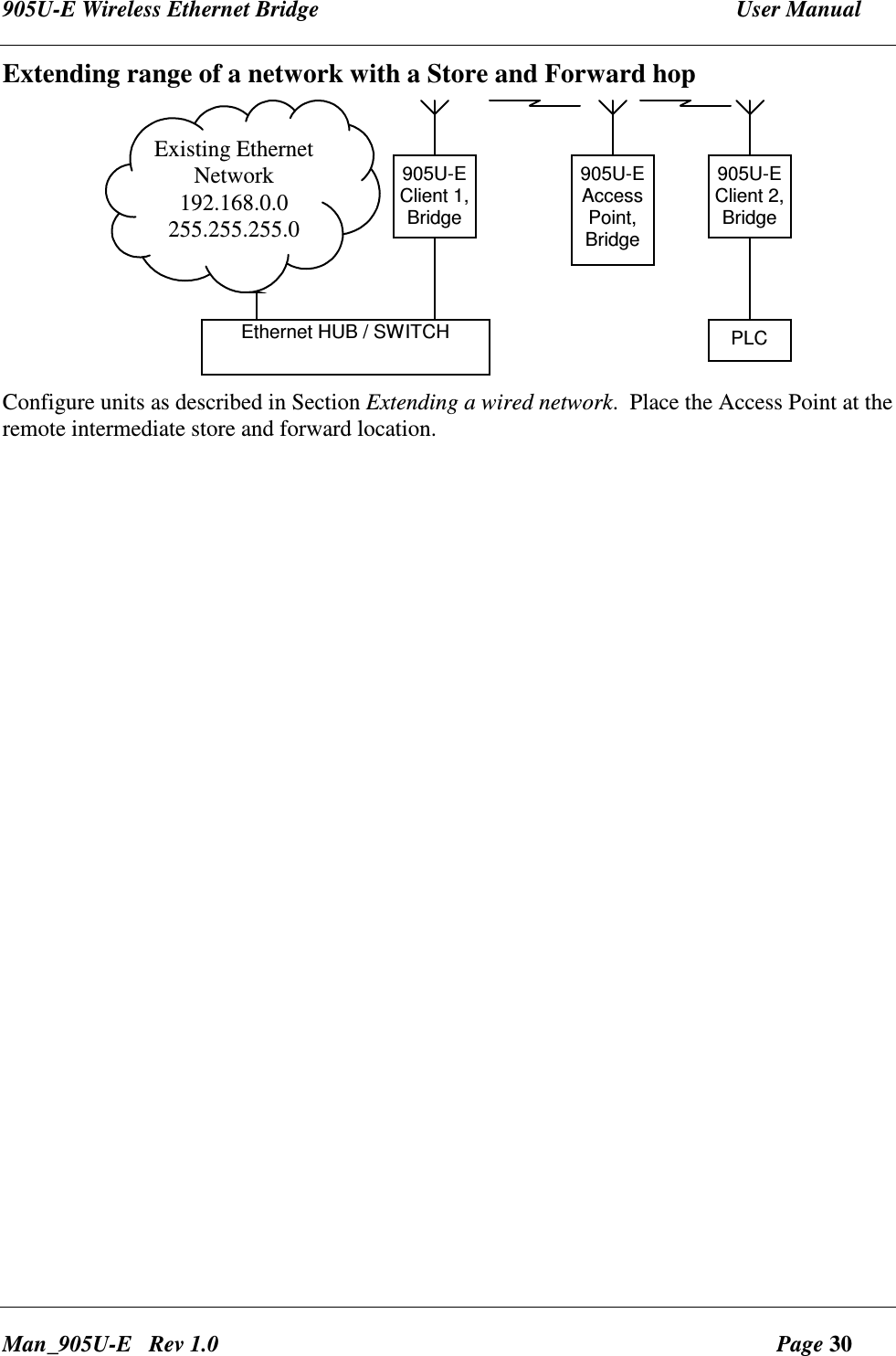
905U-E Wireless Ethernet Bridge  User Manual Man_905U-E   Rev 1.0  Page 30 Extending range of a network with a Store and Forward hop 905U-EAccessPoint,Bridge905U-EClient 1,BridgeExisting EthernetNetwork192.168.0.0255.255.255.0Ethernet HUB / SWITCH905U-EClient 2,BridgePLC Configure units as described in Section Extending a wired network.  Place the Access Point at the remote intermediate store and forward location.
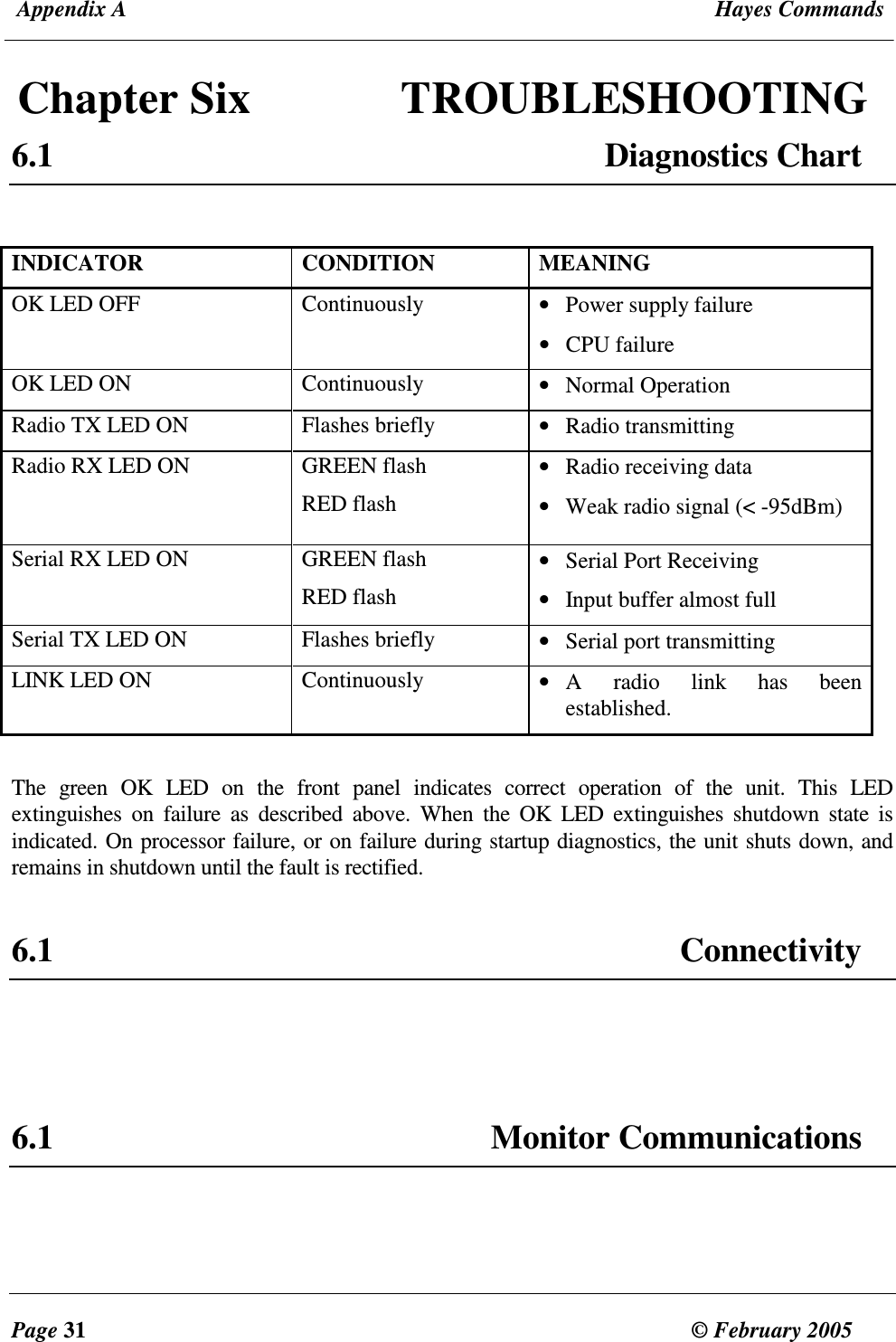
 Appendix A  Hayes Commands  Page 31  © February 2005     Chapter Six  TROUBLESHOOTING 6.1  Diagnostics Chart  INDICATOR CONDITION MEANING OK LED OFF   Continuously  • Power supply failure • CPU failure OK LED ON  Continuously  • Normal Operation Radio TX LED ON  Flashes briefly  • Radio transmitting Radio RX LED ON  GREEN flash RED flash • Radio receiving data • Weak radio signal (< -95dBm) Serial RX LED ON  GREEN flash  RED flash • Serial Port Receiving  • Input buffer almost full Serial TX LED ON  Flashes briefly  • Serial port transmitting LINK LED ON  Continuously  • A  radio  link  has  been established.  The  green  OK  LED  on  the  front  panel  indicates  correct  operation  of  the  unit.  This  LED extinguishes  on  failure  as  described  above.  When  the  OK  LED  extinguishes  shutdown  state  is indicated. On processor failure, or on failure during startup diagnostics, the unit shuts down, and remains in shutdown until the fault is rectified.    6.1  Connectivity    6.1  Monitor Communications
905U-E Wireless Ethernet Bridge  User Manual Man_905U-E   Rev 1.0  Page 32 6.1  Statistics     6.1  PING   6.1  IPCONFIG    6.1  ARP   6.1  ROUTE
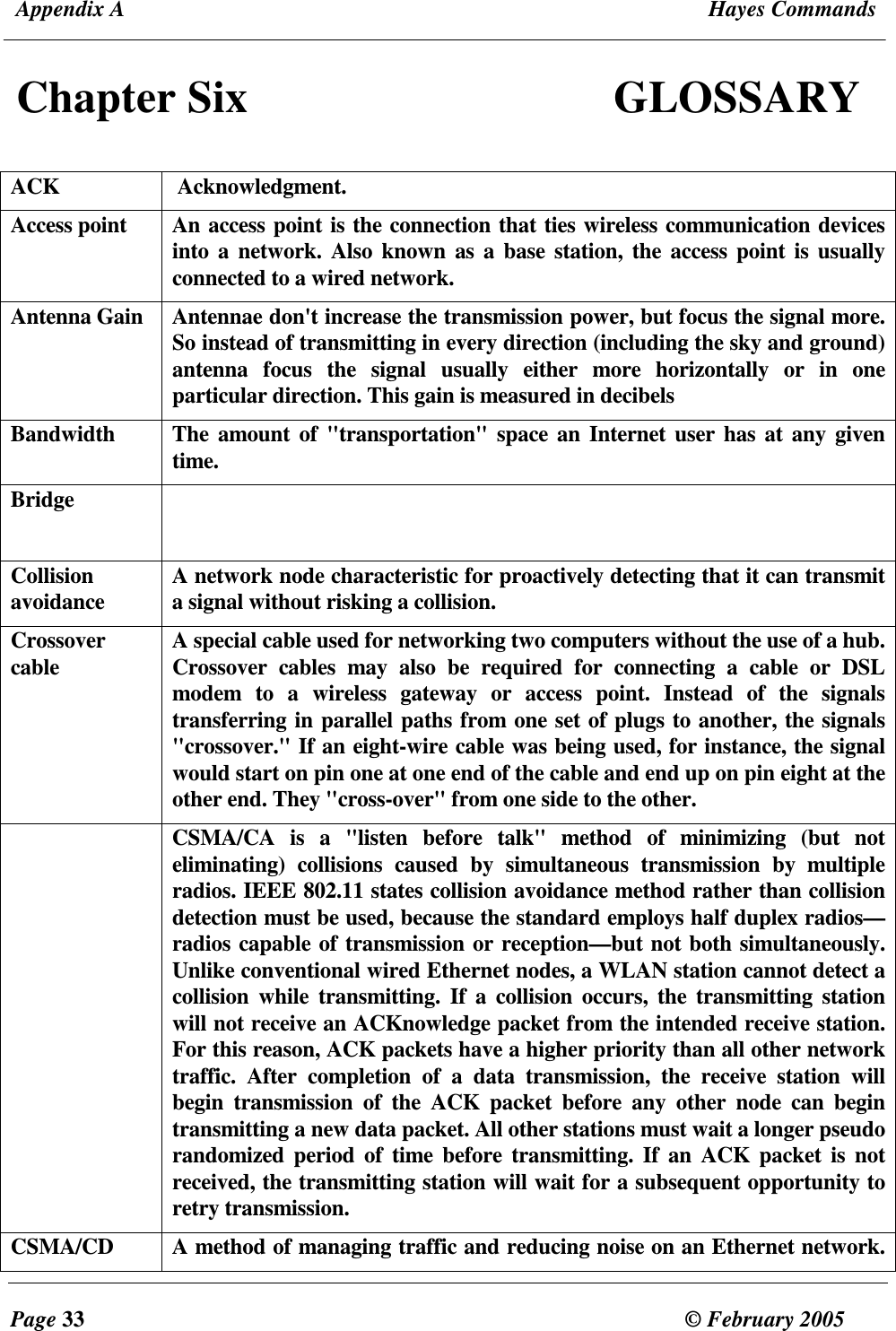
 Appendix A  Hayes Commands  Page 33  © February 2005     Chapter Six  GLOSSARY  ACK   Acknowledgment.  Access point  An access point is the connection that ties wireless communication devices into  a network.  Also  known  as a base  station, the  access point  is usually connected to a wired network.  Antenna Gain  Antennae don't increase the transmission power, but focus the signal more. So instead of transmitting in every direction (including the sky and ground) antenna  focus  the  signal  usually  either  more  horizontally  or  in  one particular direction. This gain is measured in decibels Bandwidth  The amount  of "transportation" space an Internet user has at any  given time. Bridge    Collision avoidance  A network node characteristic for proactively detecting that it can transmit a signal without risking a collision. Crossover cable   A special cable used for networking two computers without the use of a hub. Crossover  cables  may  also  be  required  for  connecting  a  cable  or  DSL modem  to  a  wireless  gateway  or  access  point.  Instead  of  the  signals transferring in parallel paths from one set of plugs to another, the signals "crossover." If an eight-wire cable was being used, for instance, the signal would start on pin one at one end of the cable and end up on pin eight at the other end. They "cross-over" from one side to the other.   CSMA/CA  is  a  "listen  before  talk"  method  of  minimizing  (but  not eliminating)  collisions  caused  by  simultaneous  transmission  by  multiple radios. IEEE 802.11 states collision avoidance method rather than collision detection must be used, because the standard employs half duplex radios—radios capable of transmission or reception—but not both simultaneously. Unlike conventional wired Ethernet nodes, a WLAN station cannot detect a collision  while  transmitting.  If a  collision  occurs, the  transmitting  station will not receive an ACKnowledge packet from the intended receive station. For this reason, ACK packets have a higher priority than all other network traffic.  After  completion  of  a  data  transmission,  the  receive  station  will begin  transmission  of  the  ACK  packet  before  any  other  node  can  begin transmitting a new data packet. All other stations must wait a longer pseudo randomized  period  of  time before  transmitting.  If  an ACK  packet  is not received, the transmitting station will wait for a subsequent opportunity to retry transmission. CSMA/CD  A method of managing traffic and reducing noise on an Ethernet network.
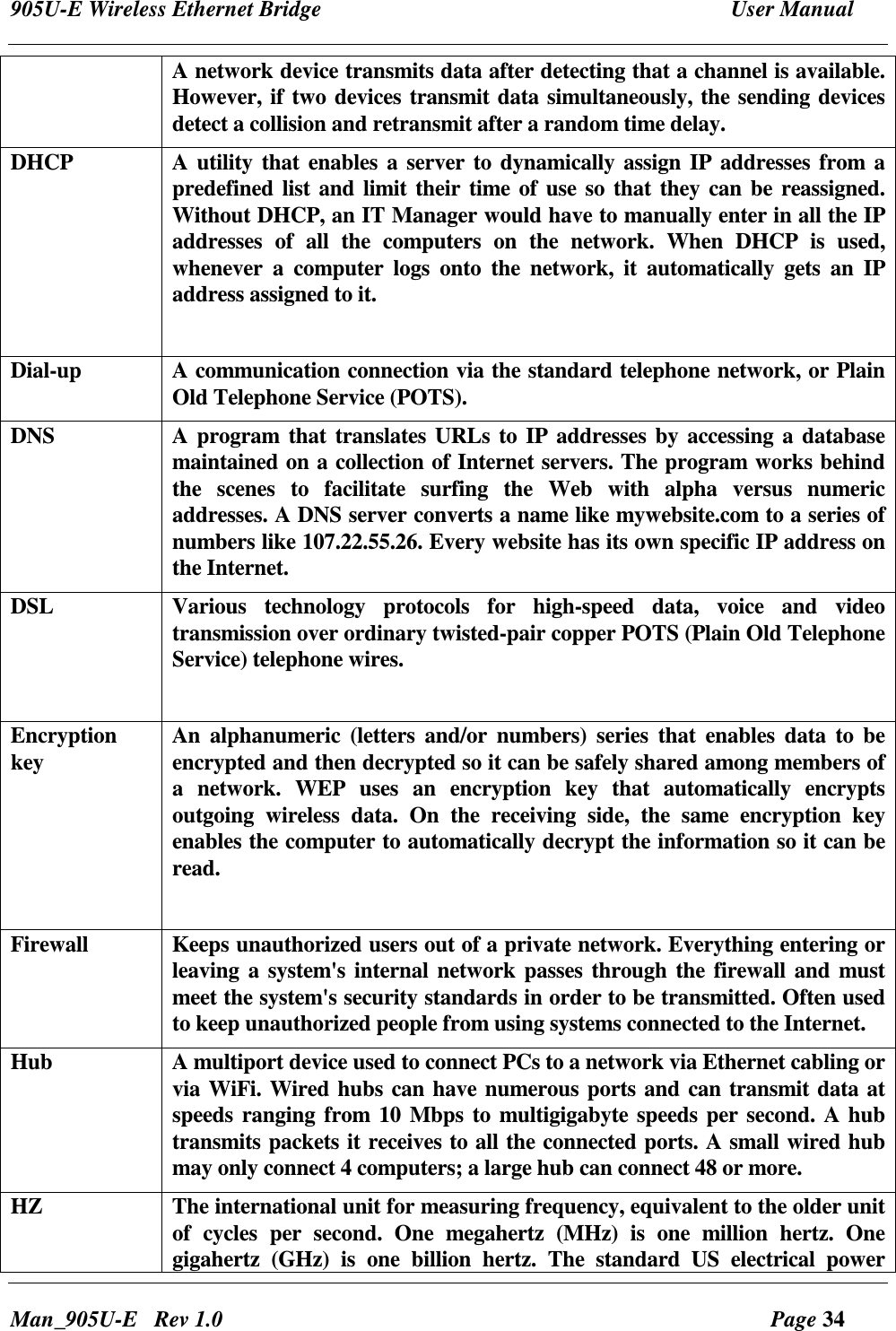
905U-E Wireless Ethernet Bridge  User Manual Man_905U-E   Rev 1.0  Page 34 A network device transmits data after detecting that a channel is available. However, if two devices transmit data simultaneously, the sending devices detect a collision and retransmit after a random time delay. DHCP  A  utility that enables a server to dynamically assign IP addresses from a predefined list and limit their time of use so that they can be reassigned. Without DHCP, an IT Manager would have to manually enter in all the IP addresses  of  all  the  computers  on  the  network.  When  DHCP  is  used, whenever  a  computer  logs  onto  the  network,  it  automatically  gets  an  IP address assigned to it.   Dial-up  A communication connection via the standard telephone network, or Plain Old Telephone Service (POTS). DNS    A  program that  translates URLs to IP addresses by accessing a database maintained on a collection of Internet servers. The program works behind the  scenes  to  facilitate  surfing  the  Web  with  alpha  versus  numeric addresses. A DNS server converts a name like mywebsite.com to a series of numbers like 107.22.55.26. Every website has its own specific IP address on the Internet.  DSL  Various  technology  protocols  for  high-speed  data,  voice  and  video transmission over ordinary twisted-pair copper POTS (Plain Old Telephone Service) telephone wires.   Encryption key    An  alphanumeric (letters  and/or  numbers)  series  that enables  data  to be encrypted and then decrypted so it can be safely shared among members of a  network.  WEP  uses  an  encryption  key  that  automatically  encrypts outgoing  wireless  data.  On  the  receiving  side,  the  same  encryption  key enables the computer to automatically decrypt the information so it can be read.  Firewall  Keeps unauthorized users out of a private network. Everything entering or leaving a system's internal network passes through the firewall and must meet the system's security standards in order to be transmitted. Often used to keep unauthorized people from using systems connected to the Internet. Hub  A multiport device used to connect PCs to a network via Ethernet cabling or via WiFi. Wired hubs can have numerous ports and can transmit data at speeds ranging from 10 Mbps to multigigabyte speeds per second. A hub transmits packets it receives to all the connected ports. A small wired hub may only connect 4 computers; a large hub can connect 48 or more.  HZ    The international unit for measuring frequency, equivalent to the older unit of  cycles  per  second.  One  megahertz  (MHz)  is  one  million  hertz.  One gigahertz  (GHz)  is  one  billion  hertz.  The  standard  US  electrical  power
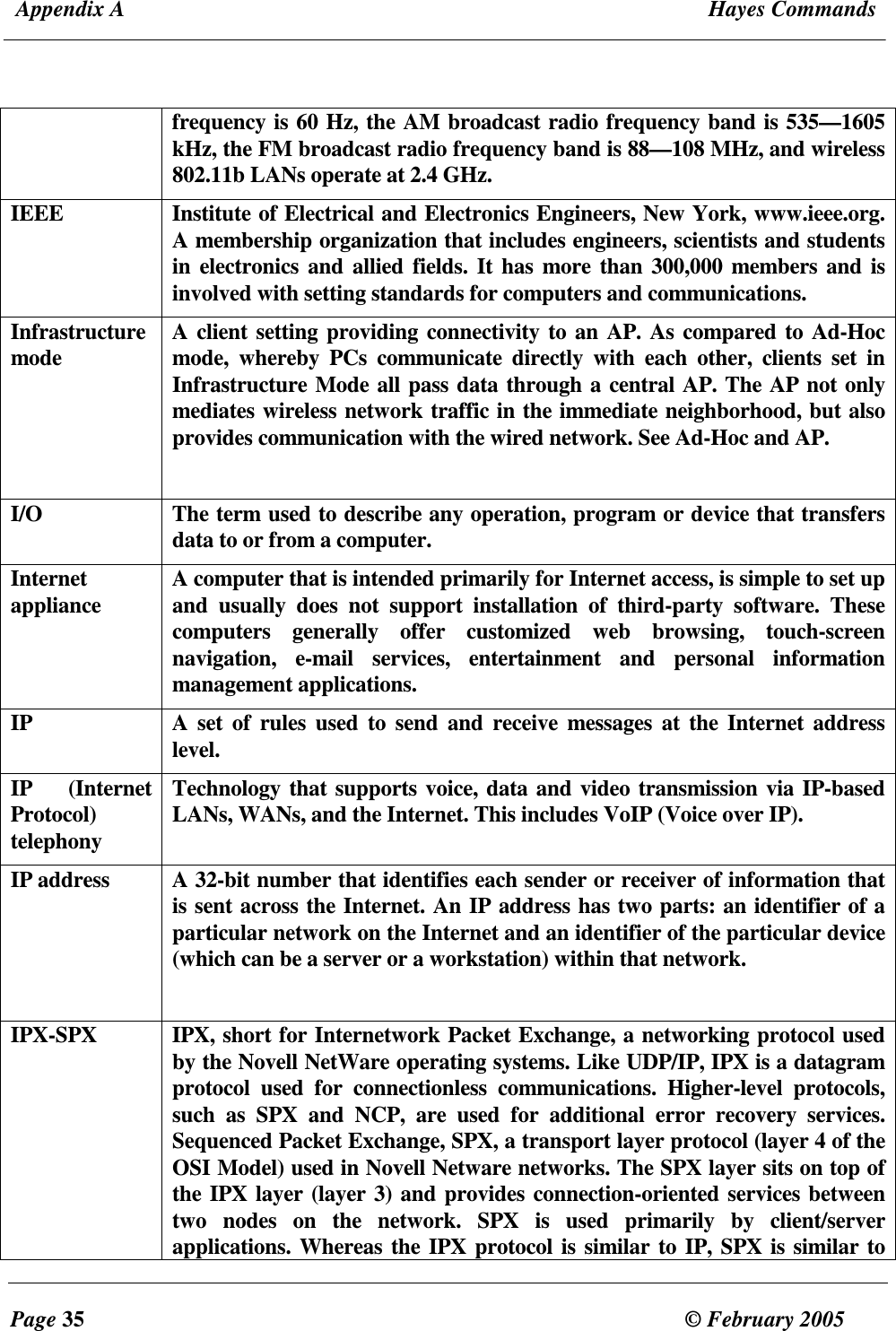
 Appendix A  Hayes Commands  Page 35  © February 2005     frequency is 60 Hz, the AM broadcast radio frequency band is 535—1605 kHz, the FM broadcast radio frequency band is 88—108 MHz, and wireless 802.11b LANs operate at 2.4 GHz. IEEE  Institute of Electrical and Electronics Engineers, New York, www.ieee.org. A membership organization that includes engineers, scientists and students in electronics and allied fields. It has  more than 300,000 members and is involved with setting standards for computers and communications. Infrastructure mode  A client setting providing connectivity to an AP. As compared to Ad-Hoc mode,  whereby  PCs  communicate  directly  with  each  other,  clients  set  in Infrastructure Mode all pass data through a central AP. The AP not only mediates wireless network traffic in the immediate neighborhood, but also provides communication with the wired network. See Ad-Hoc and AP.  I/O  The term used to describe any operation, program or device that transfers data to or from a computer. Internet appliance  A computer that is intended primarily for Internet access, is simple to set up and  usually  does  not  support  installation  of  third-party  software.  These computers  generally  offer  customized  web  browsing,  touch-screen navigation,  e-mail  services,  entertainment  and  personal  information management applications.  IP  A set  of  rules  used  to send  and  receive messages  at the Internet  address level.  IP  (Internet Protocol) telephony Technology that supports voice, data and video transmission via IP-based LANs, WANs, and the Internet. This includes VoIP (Voice over IP). IP address    A 32-bit number that identifies each sender or receiver of information that is sent across the Internet. An IP address has two parts: an identifier of a particular network on the Internet and an identifier of the particular device (which can be a server or a workstation) within that network.  IPX-SPX  IPX, short for Internetwork Packet Exchange, a networking protocol used by the Novell NetWare operating systems. Like UDP/IP, IPX is a datagram protocol  used  for  connectionless  communications.  Higher-level  protocols, such  as  SPX  and  NCP,  are  used  for  additional  error  recovery  services. Sequenced Packet Exchange, SPX, a transport layer protocol (layer 4 of the OSI Model) used in Novell Netware networks. The SPX layer sits on top of the IPX layer (layer 3) and provides connection-oriented services between two  nodes  on  the  network.  SPX  is  used  primarily  by  client/server applications. Whereas the IPX protocol is similar to IP, SPX is similar to
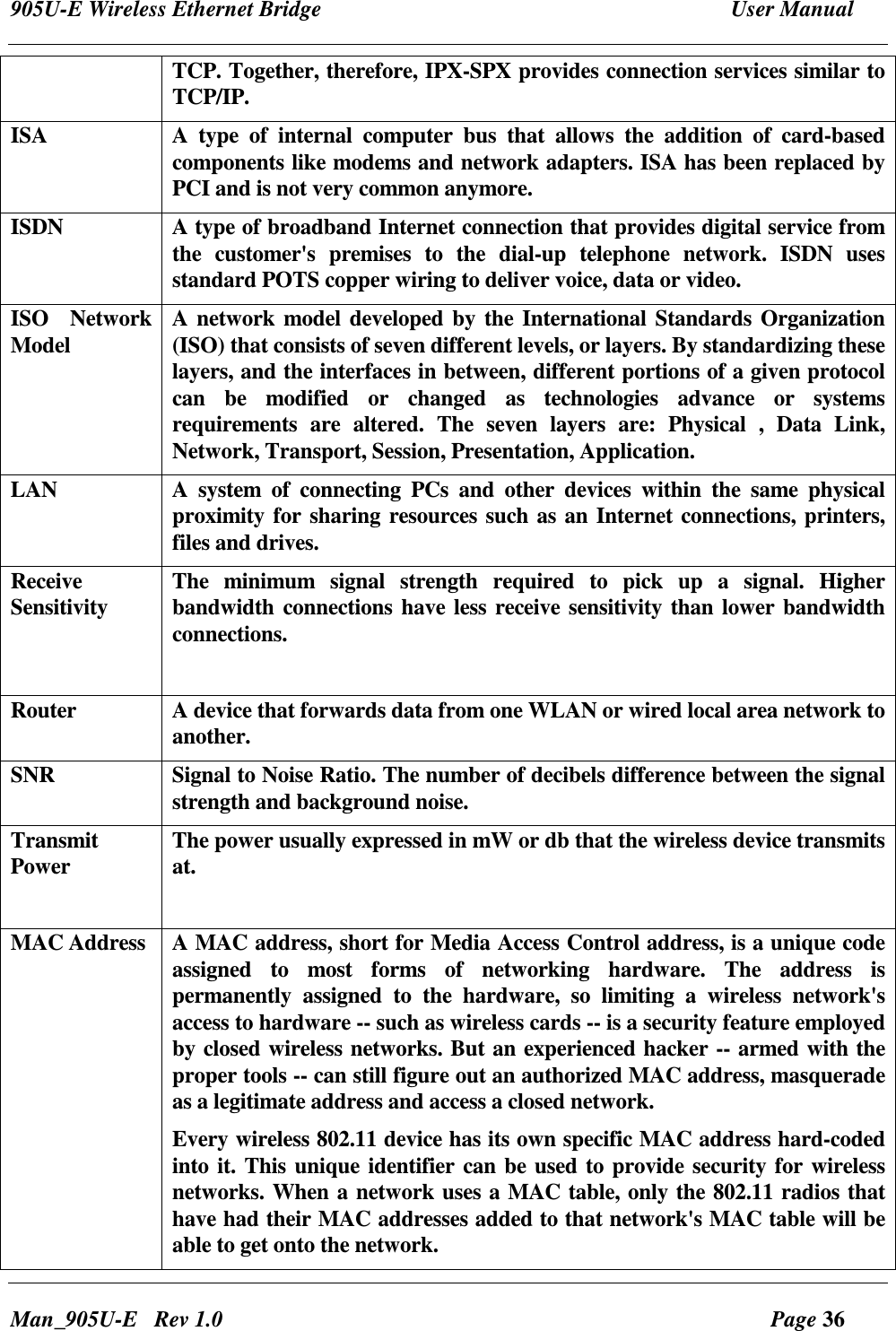
905U-E Wireless Ethernet Bridge  User Manual Man_905U-E   Rev 1.0  Page 36 TCP. Together, therefore, IPX-SPX provides connection services similar to TCP/IP. ISA  A  type  of  internal  computer  bus  that  allows  the  addition  of  card-based components like modems and network adapters. ISA has been replaced by PCI and is not very common anymore.  ISDN   A type of broadband Internet connection that provides digital service from the  customer's  premises  to  the  dial-up  telephone  network.  ISDN  uses standard POTS copper wiring to deliver voice, data or video.  ISO  Network Model  A network model developed by the International Standards Organization (ISO) that consists of seven different levels, or layers. By standardizing these layers, and the interfaces in between, different portions of a given protocol can  be  modified  or  changed  as  technologies  advance  or  systems requirements  are  altered.  The  seven  layers  are:  Physical  ,  Data  Link, Network, Transport, Session, Presentation, Application. LAN  A  system  of  connecting  PCs  and  other  devices  within  the  same  physical proximity for sharing resources such as an Internet connections, printers, files and drives.  Receive Sensitivity  The  minimum  signal  strength  required  to  pick  up  a  signal.  Higher bandwidth connections have less receive sensitivity than lower bandwidth connections.  Router  A device that forwards data from one WLAN or wired local area network to another.  SNR  Signal to Noise Ratio. The number of decibels difference between the signal strength and background noise. Transmit Power  The power usually expressed in mW or db that the wireless device transmits at.  MAC Address  A MAC address, short for Media Access Control address, is a unique code assigned  to  most  forms  of  networking  hardware.  The  address  is permanently  assigned  to  the  hardware,  so  limiting  a  wireless  network's access to hardware -- such as wireless cards -- is a security feature employed by closed wireless networks. But an experienced hacker -- armed with the proper tools -- can still figure out an authorized MAC address, masquerade as a legitimate address and access a closed network. Every wireless 802.11 device has its own specific MAC address hard-coded into it. This unique identifier can be used to provide security for wireless networks. When a network uses a MAC table, only the 802.11 radios that have had their MAC addresses added to that network's MAC table will be able to get onto the network.
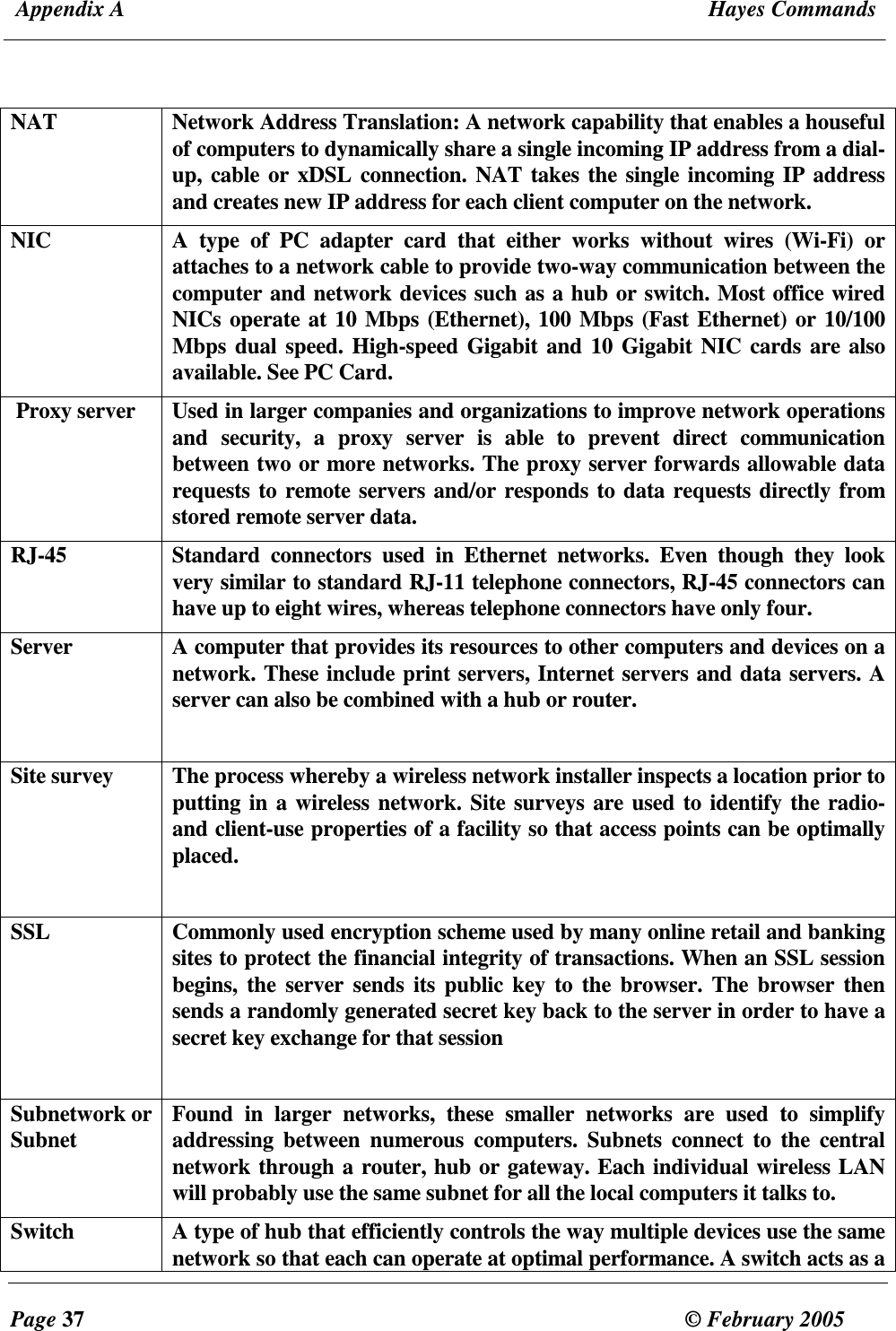
 Appendix A  Hayes Commands  Page 37  © February 2005     NAT  Network Address Translation: A network capability that enables a houseful of computers to dynamically share a single incoming IP address from a dial-up, cable or xDSL connection. NAT takes the single incoming IP address and creates new IP address for each client computer on the network.  NIC  A  type  of  PC  adapter  card  that  either  works  without  wires  (Wi-Fi)  or attaches to a network cable to provide two-way communication between the computer and network devices such as a hub or switch. Most office wired NICs operate at 10 Mbps (Ethernet), 100 Mbps (Fast Ethernet) or 10/100 Mbps dual speed. High-speed Gigabit and 10 Gigabit NIC cards are also available. See PC Card.  Proxy server  Used in larger companies and organizations to improve network operations and  security,  a  proxy  server  is  able  to  prevent  direct  communication between two or more networks. The proxy server forwards allowable data requests to remote servers and/or responds to data requests directly from stored remote server data.  RJ-45  Standard  connectors  used  in  Ethernet  networks.  Even  though  they  look very similar to standard RJ-11 telephone connectors, RJ-45 connectors can have up to eight wires, whereas telephone connectors have only four. Server  A computer that provides its resources to other computers and devices on a network. These include print servers, Internet servers and data servers. A server can also be combined with a hub or router.   Site survey   The process whereby a wireless network installer inspects a location prior to putting in a wireless network. Site surveys are used to identify the radio- and client-use properties of a facility so that access points can be optimally placed.  SSL  Commonly used encryption scheme used by many online retail and banking sites to protect the financial integrity of transactions. When an SSL session begins, the  server sends  its  public  key to the  browser. The browser then sends a randomly generated secret key back to the server in order to have a secret key exchange for that session  Subnetwork or Subnet    Found  in  larger  networks,  these  smaller  networks  are  used  to  simplify addressing  between  numerous  computers.  Subnets  connect  to  the  central network through a router, hub or gateway. Each individual wireless LAN will probably use the same subnet for all the local computers it talks to. Switch  A type of hub that efficiently controls the way multiple devices use the same network so that each can operate at optimal performance. A switch acts as a
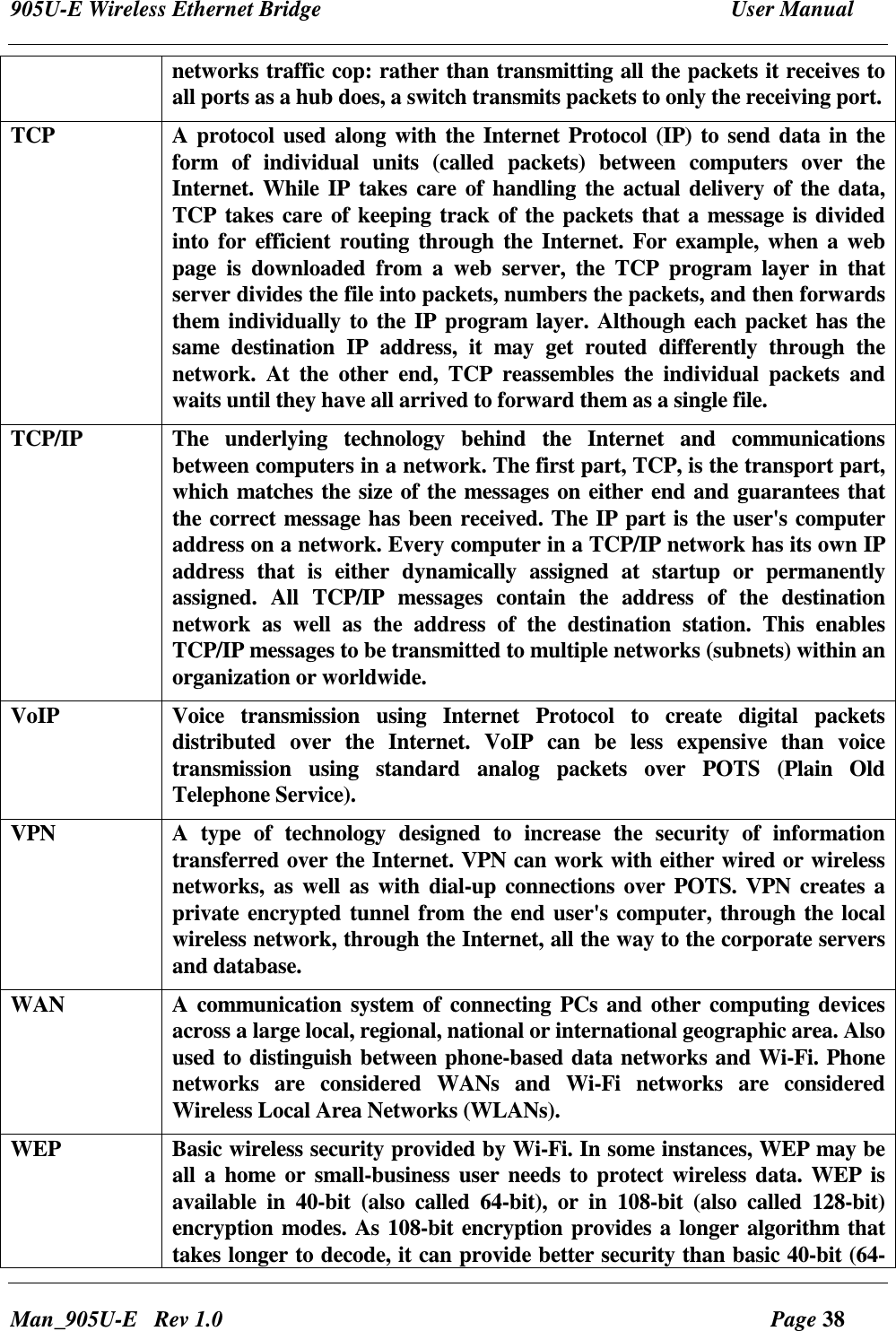
905U-E Wireless Ethernet Bridge  User Manual Man_905U-E   Rev 1.0  Page 38 networks traffic cop: rather than transmitting all the packets it receives to all ports as a hub does, a switch transmits packets to only the receiving port.  TCP  A protocol used along with the Internet Protocol (IP) to send data in the form  of  individual  units  (called  packets)  between  computers  over  the Internet. While IP  takes care of handling the  actual delivery of the data, TCP takes care of keeping track of the packets that a message is divided into  for  efficient  routing  through the Internet. For example, when a web page  is  downloaded  from  a  web  server,  the  TCP  program  layer  in  that server divides the file into packets, numbers the packets, and then forwards them individually to the IP program layer. Although each packet has the same  destination  IP  address,  it  may  get  routed  differently  through  the network.  At  the  other  end,  TCP  reassembles  the  individual  packets  and waits until they have all arrived to forward them as a single file. TCP/IP  The  underlying  technology  behind  the  Internet  and  communications between computers in a network. The first part, TCP, is the transport part, which matches the size of the messages on either end and guarantees that the correct message has been received. The IP part is the user's computer address on a network. Every computer in a TCP/IP network has its own IP address  that  is  either  dynamically  assigned  at  startup  or  permanently assigned.  All  TCP/IP  messages  contain  the  address  of  the  destination network  as  well  as  the  address  of  the  destination  station.  This  enables TCP/IP messages to be transmitted to multiple networks (subnets) within an organization or worldwide. VoIP   Voice  transmission  using  Internet  Protocol  to  create  digital  packets distributed  over  the  Internet.  VoIP  can  be  less  expensive  than  voice transmission  using  standard  analog  packets  over  POTS  (Plain  Old Telephone Service).  VPN    A  type  of  technology  designed  to  increase  the  security  of  information transferred over the Internet. VPN can work with either wired or wireless networks,  as well as with dial-up  connections over  POTS. VPN creates a private encrypted tunnel from the end user's computer, through the local wireless network, through the Internet, all the way to the corporate servers and database. WAN  A communication  system of connecting PCs and other computing devices across a large local, regional, national or international geographic area. Also used to distinguish between phone-based data networks and Wi-Fi. Phone networks  are  considered  WANs  and  Wi-Fi  networks  are  considered Wireless Local Area Networks (WLANs). WEP  Basic wireless security provided by Wi-Fi. In some instances, WEP may be all  a home  or small-business  user needs to protect wireless  data.  WEP is available  in  40-bit  (also  called  64-bit),  or  in  108-bit  (also  called  128-bit) encryption modes. As 108-bit encryption provides a longer algorithm that takes longer to decode, it can provide better security than basic 40-bit (64-
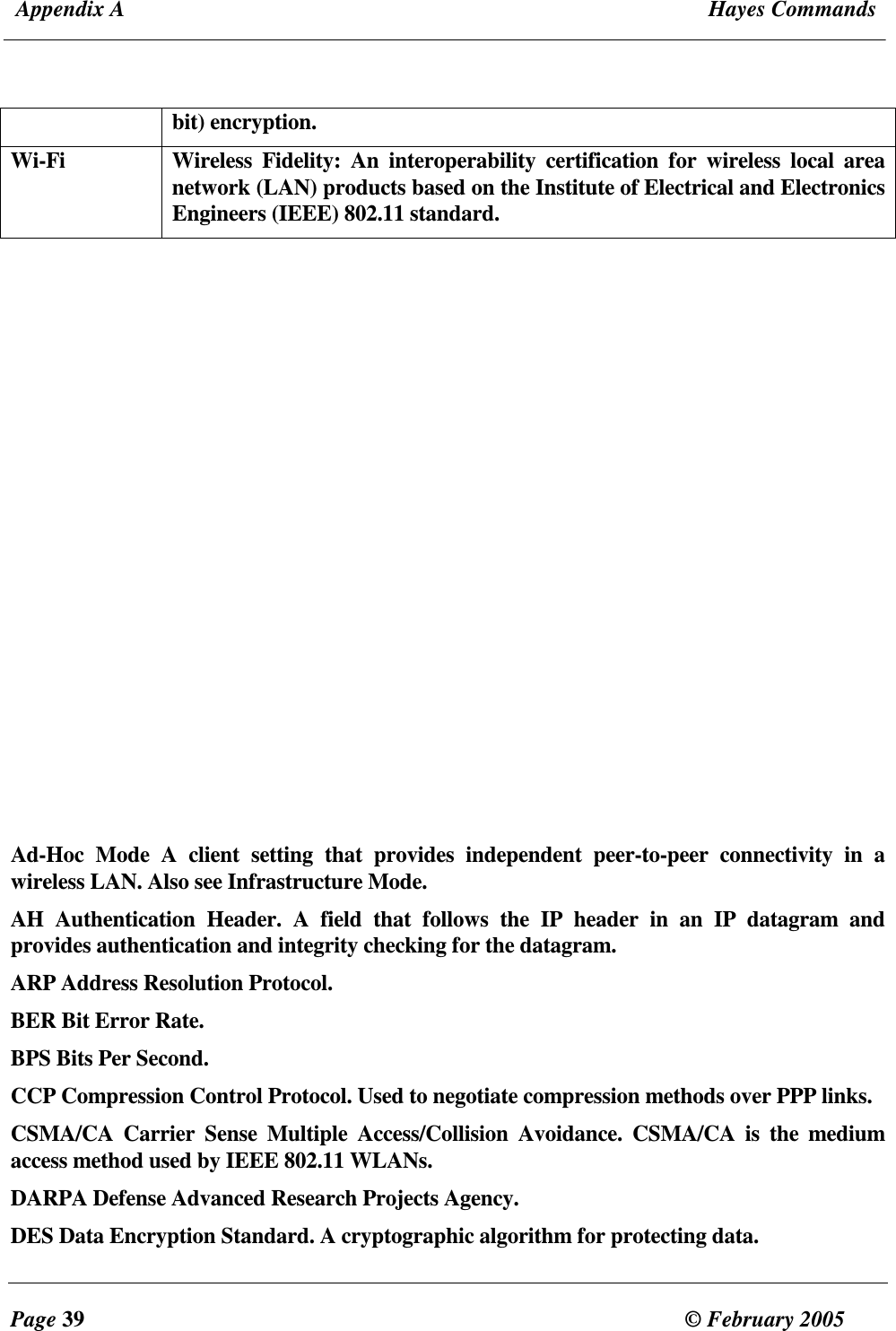
 Appendix A  Hayes Commands  Page 39  © February 2005     bit) encryption. Wi-Fi   Wireless  Fidelity:  An  interoperability  certification  for  wireless  local  area network (LAN) products based on the Institute of Electrical and Electronics Engineers (IEEE) 802.11 standard.                                Ad-Hoc  Mode  A  client  setting  that  provides  independent  peer-to-peer  connectivity  in  a wireless LAN. Also see Infrastructure Mode. AH  Authentication  Header.  A  field  that  follows  the  IP  header  in  an  IP  datagram  and provides authentication and integrity checking for the datagram. ARP Address Resolution Protocol. BER Bit Error Rate. BPS Bits Per Second. CCP Compression Control Protocol. Used to negotiate compression methods over PPP links. CSMA/CA  Carrier  Sense  Multiple  Access/Collision  Avoidance.  CSMA/CA  is  the  medium access method used by IEEE 802.11 WLANs. DARPA Defense Advanced Research Projects Agency. DES Data Encryption Standard. A cryptographic algorithm for protecting data.
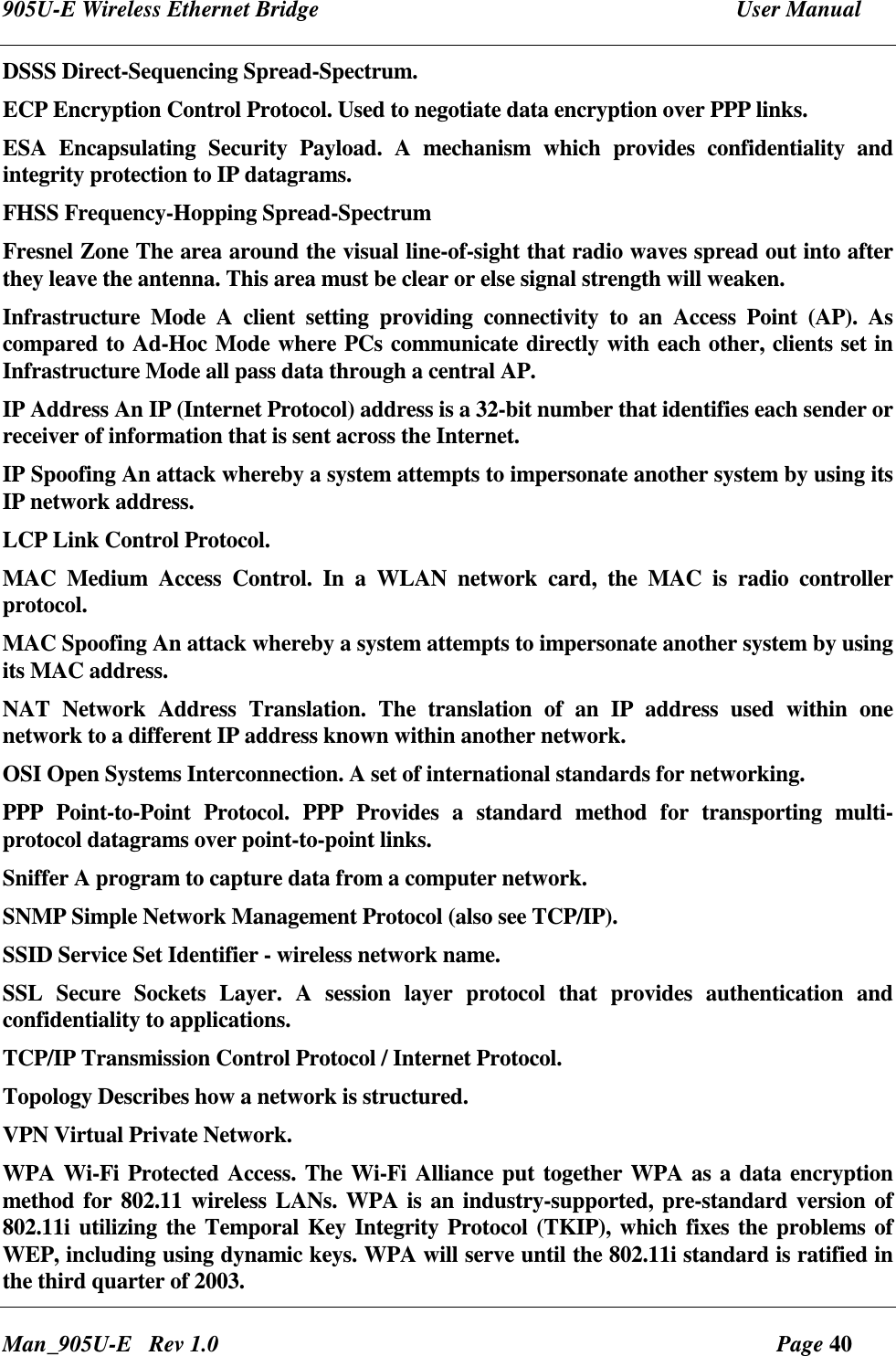
905U-E Wireless Ethernet Bridge  User Manual Man_905U-E   Rev 1.0  Page 40 DSSS Direct-Sequencing Spread-Spectrum. ECP Encryption Control Protocol. Used to negotiate data encryption over PPP links. ESA  Encapsulating  Security  Payload.  A  mechanism  which  provides  confidentiality  and integrity protection to IP datagrams. FHSS Frequency-Hopping Spread-Spectrum Fresnel Zone The area around the visual line-of-sight that radio waves spread out into after they leave the antenna. This area must be clear or else signal strength will weaken. Infrastructure  Mode  A  client  setting  providing  connectivity  to  an  Access  Point  (AP).  As compared to Ad-Hoc Mode where PCs communicate directly with each other, clients set in Infrastructure Mode all pass data through a central AP.  IP Address An IP (Internet Protocol) address is a 32-bit number that identifies each sender or receiver of information that is sent across the Internet. IP Spoofing An attack whereby a system attempts to impersonate another system by using its IP network address. LCP Link Control Protocol. MAC  Medium  Access  Control.  In  a  WLAN  network  card,  the  MAC  is  radio  controller protocol. MAC Spoofing An attack whereby a system attempts to impersonate another system by using its MAC address. NAT  Network  Address  Translation.  The  translation  of  an  IP  address  used  within  one network to a different IP address known within another network. OSI Open Systems Interconnection. A set of international standards for networking. PPP  Point-to-Point  Protocol.  PPP  Provides  a  standard  method  for  transporting  multi-protocol datagrams over point-to-point links. Sniffer A program to capture data from a computer network. SNMP Simple Network Management Protocol (also see TCP/IP). SSID Service Set Identifier - wireless network name. SSL  Secure  Sockets  Layer.  A  session  layer  protocol  that  provides  authentication  and confidentiality to applications. TCP/IP Transmission Control Protocol / Internet Protocol. Topology Describes how a network is structured. VPN Virtual Private Network. WPA Wi-Fi Protected Access. The Wi-Fi Alliance put together WPA as a data encryption method for 802.11 wireless LANs. WPA is an industry-supported, pre-standard version of 802.11i utilizing the Temporal Key Integrity Protocol (TKIP), which fixes the problems of WEP, including using dynamic keys. WPA will serve until the 802.11i standard is ratified in the third quarter of 2003.
 Appendix A  Hayes Commands  Page 41  © February 2005     WEP Wired Equivalent Privacy. Encryption-based security using a pre-shared key. WiFi (Wi-Fi) Wireless Fidelity. Wireless Local Area Networking standard. WLAN, W-LAN Wireless Local Area Network (LAN). WLL Wireless Local Loop.

Navigation menu