ENUSTECH BHF5000 BLUETOOTH SPEAKERPHONE User Manual manual

ENUSTECH BLUETOOTH SPEAKERPHONE manual

User Manual

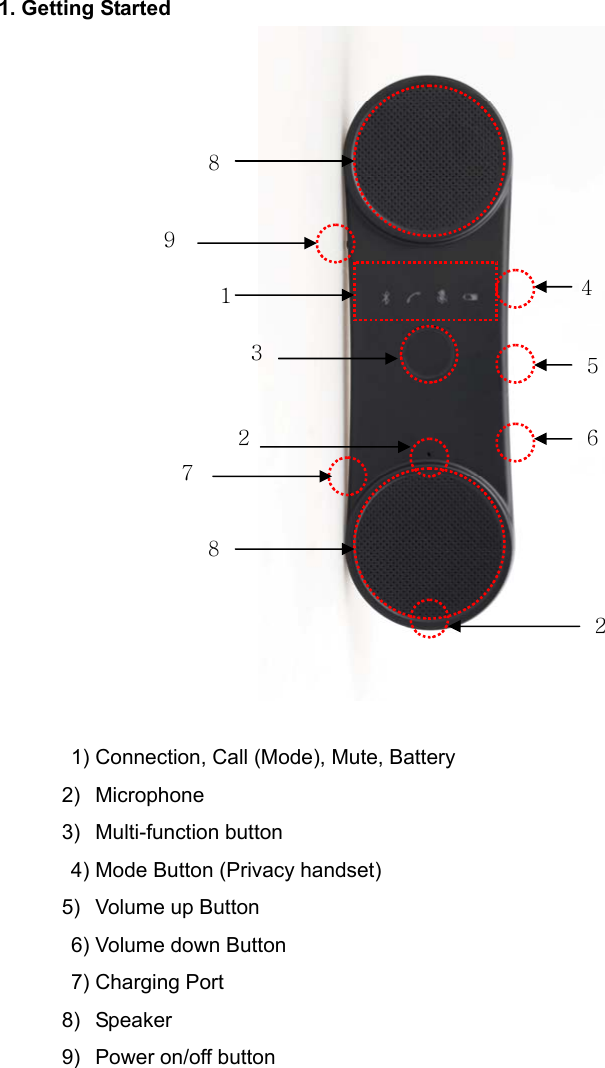
1. Getting Started   1) Connection, Call (Mode), Mute, Battery    2)  Microphone    3)  Multi-function button         4) Mode Button (Privacy handset)    5)  Volume up Button   6) Volume down Button 7) Charging Port    8)  Speaker    9)  Power on/off button        1 2 7 6 8 5 43 2 8 9
2. Charge your BHF5000 device   Make sure that your speakerphone is fully charged before you start using it.         Use the USB cable to con nect BHF5000 to the car ch arger. Plug the ca r charger into your car’s power outlet. The status light will light up red while charging. When fully charged the status light green on. Note)  A fully charged battery prior to first use is recommended. A full charge is approximately two and a half hours. Note) When the battery only has enough charge for about 1- 2 hours of talk time, the flashing red battery LED light indicator comes on (“Battery level low” is announced)  3. Pair your BHF5000 with your mobile phone Prior to using the speakerphone for the first time , you must pair it with a Bluetooth-e nabled mobile phone. Specific pairing steps may vary with dif ferent mobile phones. Please refer to your mobile phone`s user`s manual for further information. The general pairing steps are as follows: 1) Activate Bluetooth® on your mobile phone 2)  Ensure that BHF-5000 is turned on, switch to pairing mode by holding onto the “MFB” button until you hear “P air mode”. The co nnection and Call LED light sill blink simultaneously in pairing mode. (Put the speakerphone in pairing mode) 3) Set your mobile phone to ‘search’ for the BHF5000 4)  Select “BHF 5000” from the search results on your mobile phone. 5)  When prompted for the passkey, enter “0000”. Note)  The first time you turn your BHF5000 on it will immediately go into pairing mode.   6)  When the BHF50 00 is paired, the Bluetooth®  Icon turns bl ue. Your mobile phone might display a confirmation message, also.   Manual pairing mode If you wish to use the sp eakerphone with a di fferent phone, or  if the p airing process wa s interrupted, you can manually set the speakerphone to pairing mode. Turn the speakerphone on. Press and hold the MFB button for approximately 5 seconds until speak “Pair mode”
4. Using Hands free 1) Slide the I/O switch to turn the speakerphone on or off.           The  first time you turn your in-car speakerphone on, it automatically enters pairing mode. When not conne cted to a phone, the  speakerphone turns of f automatically af ter 5 minutes. Tap MFB button to turn the speakerphone on again.  2) Connecting with your phone automatically     Pairing is only neede d the first time a spea kerphone and phone are u sed together. When the sp eakerphone and phone have been paired once they will auto matically connect when the speakerphone is on and Bluetooth® is activated on the ph one. The speakerphone can be used when it is “connected” to the phone.  3) Call answer & end         a. Receiving Calls: When your mobile phone rings, press the “MFB” or “Mode” button on the speakerphone to connect the call. b. Ending calls:     * Hands free mode (When you have finished your call, press the “MFB” button on the receiver to disconnect the call) * Privacy mode (Wh en you have finish ed your call, press the “Mode” button on the receiver to disconnect the call) c. Making calls using voice dialing (If voice diali ng commands feature is supported by your mobile phone): Press the “MFB” or “Mode” button once and call out the na me of the person for the call to be placed.   Note)   In the midst of a conversation, press “Mode” button once to change privacy mode. Note)     Hands free mode to Privacy mode – During a call, simply press “Mode” button once.     Privacy mode to Hands free mode – Press the “MFB” button once. Note)           “Answer/Ignore” Voice Commands You can also take calls with your voice. Just say “Answer” or “Ignore”.  4) Transferring calls         a. Hands free mode to mobile phone: During a call, simply press “MFB” button until you hear 2 tones and the call is routed to your mobile phone. b. Mobile phone to hands free mode: During a call, simply press “MFB” button until you hear
2 tones and the call is routed to your mobile phone.   5) Rejecting calls             Hold onto the “MFB” button for 1 second to reject an incoming call.  6) Redial last outgoing call      To redial a number th at you have rece ntly call, Press the “MFB” button twice and the call is connected.  Note)  Recent call can be incoming or outgoing number depending on your m obile phone function.  7) Volume control To increase the volume: Press the “+” bu tton to increa se volume by one level. Repeat this procedure until you have reached the desired level.    To decrease the volume: Press the “–”  button to decrea se volume by one level. Repeat this procedure until you have reached the desired level. 8)  Mute / Un-mute Mute: During a call, short press the “–” button briefly to mute the  microphone so the caller can`t hear you. Speakers normally work. Note)  Un-mute: To deactivate mute mode, short  press the “–” button briefly during mute mode to restore sound to the speakerphone.    9)  Removing paired list in the speakerphone. To remove all the previous pairing and connection list, hold on to “MFB” and “–” button until you hear a tone during pairing mode.                 Note)  After removing is completed, speakerphone is pair mode.          10)  Play music and GPS directions* Make sure that the speakerph one and mobile phone are connected. When you play music or GPS application  directions from your mobile phone it will automaticall y transfer to your speakerphone. Music or GPS directions will automatically be paused when you have an incoming call. When the call is ended it will start playing again.
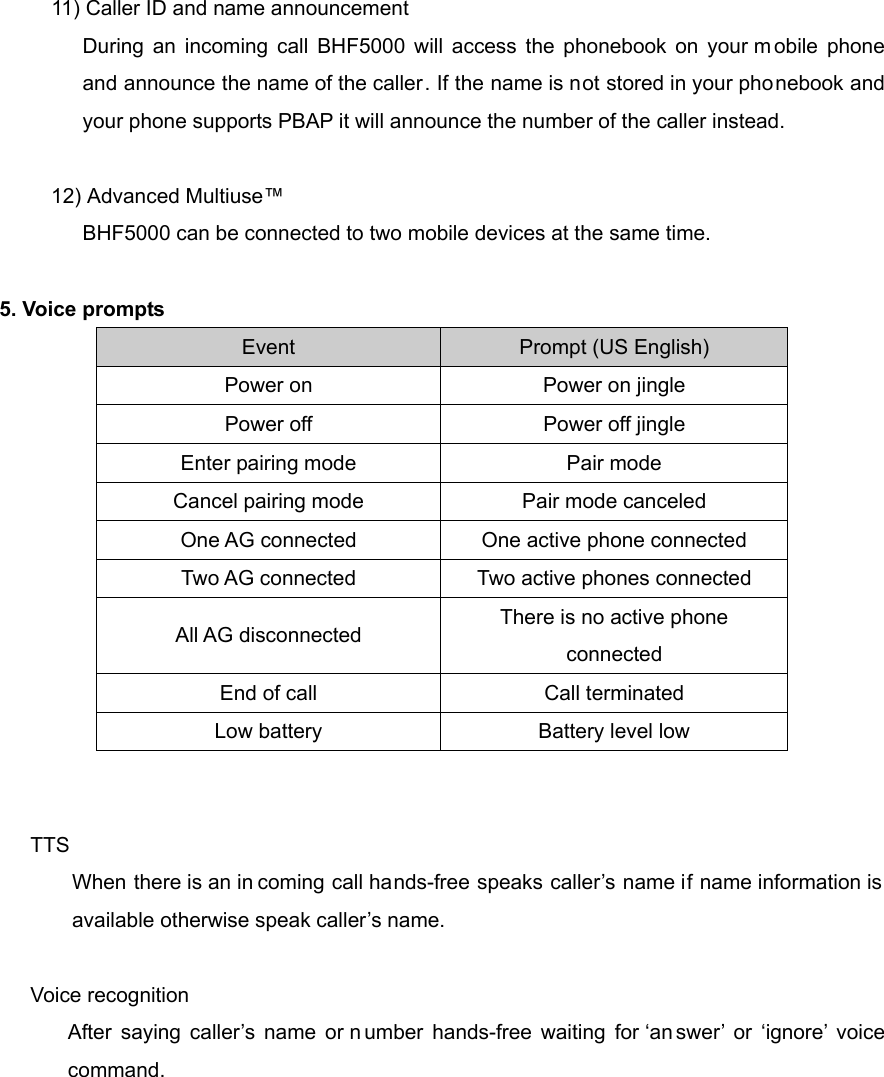
          11) Caller ID and name announcement During an incoming call BHF5000 will access the phonebook on your m obile phone and announce the name of the caller. If the name is not stored in your phonebook and your phone supports PBAP it will announce the number of the caller instead.        12) Advanced Multiuse™ BHF5000 can be connected to two mobile devices at the same time.    5. Voice prompts Event  Prompt (US English) Power on  Power on jingle Power off  Power off jingle Enter pairing mode  Pair mode Cancel pairing mode  Pair mode canceled One AG connected  One active phone connected Two AG connected  Two active phones connected All AG disconnected  There is no active phone connected End of call  Call terminated Low battery  Battery level low   TTS When there is an in coming call hands-free speaks caller’s name if name information is available otherwise speak caller’s name.  Voice recognition After saying caller’s name or n umber hands-free waiting for ‘an swer’ or ‘ignore’ voice command.
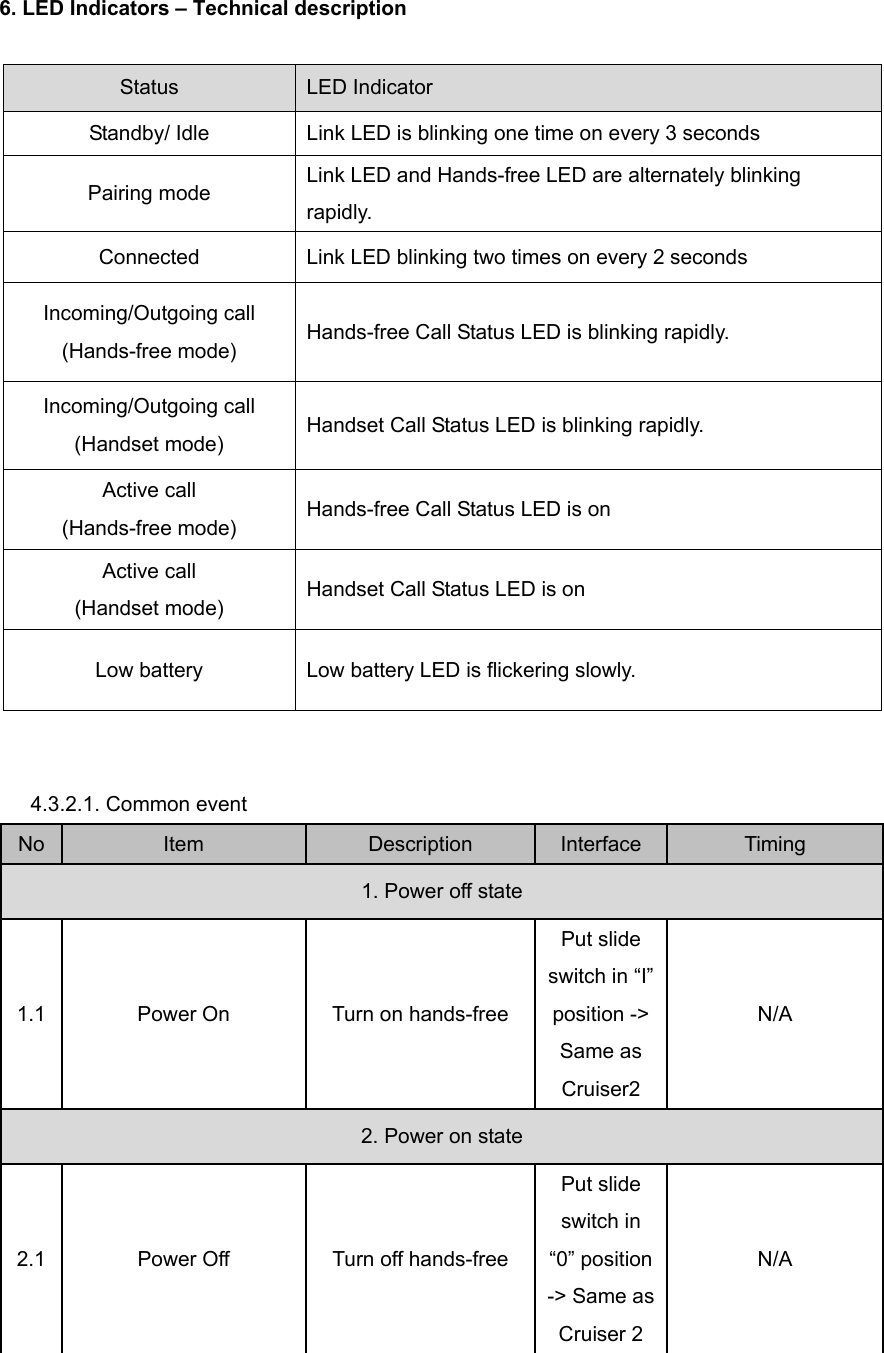
6. LED Indicators – Technical description  Status  LED Indicator Standby/ Idle  Link LED is blinking one time on every 3 seconds Pairing mode  Link LED and Hands-free LED are alternately blinking rapidly. Connected  Link LED blinking two times on every 2 seconds Incoming/Outgoing call (Hands-free mode)  Hands-free Call Status LED is blinking rapidly.   Incoming/Outgoing call (Handset mode)  Handset Call Status LED is blinking rapidly.   Active call (Hands-free mode)  Hands-free Call Status LED is on Active call (Handset mode)  Handset Call Status LED is on Low battery  Low battery LED is flickering slowly.   4.3.2.1. Common event No  Item  Description  Interface  Timing 1. Power off state 1.1  Power On  Turn on hands-free Put slide switch in “I” position -> Same as Cruiser2 N/A 2. Power on state 2.1  Power Off  Turn off hands-free Put slide switch in “0” position -> Same as Cruiser 2 N/A
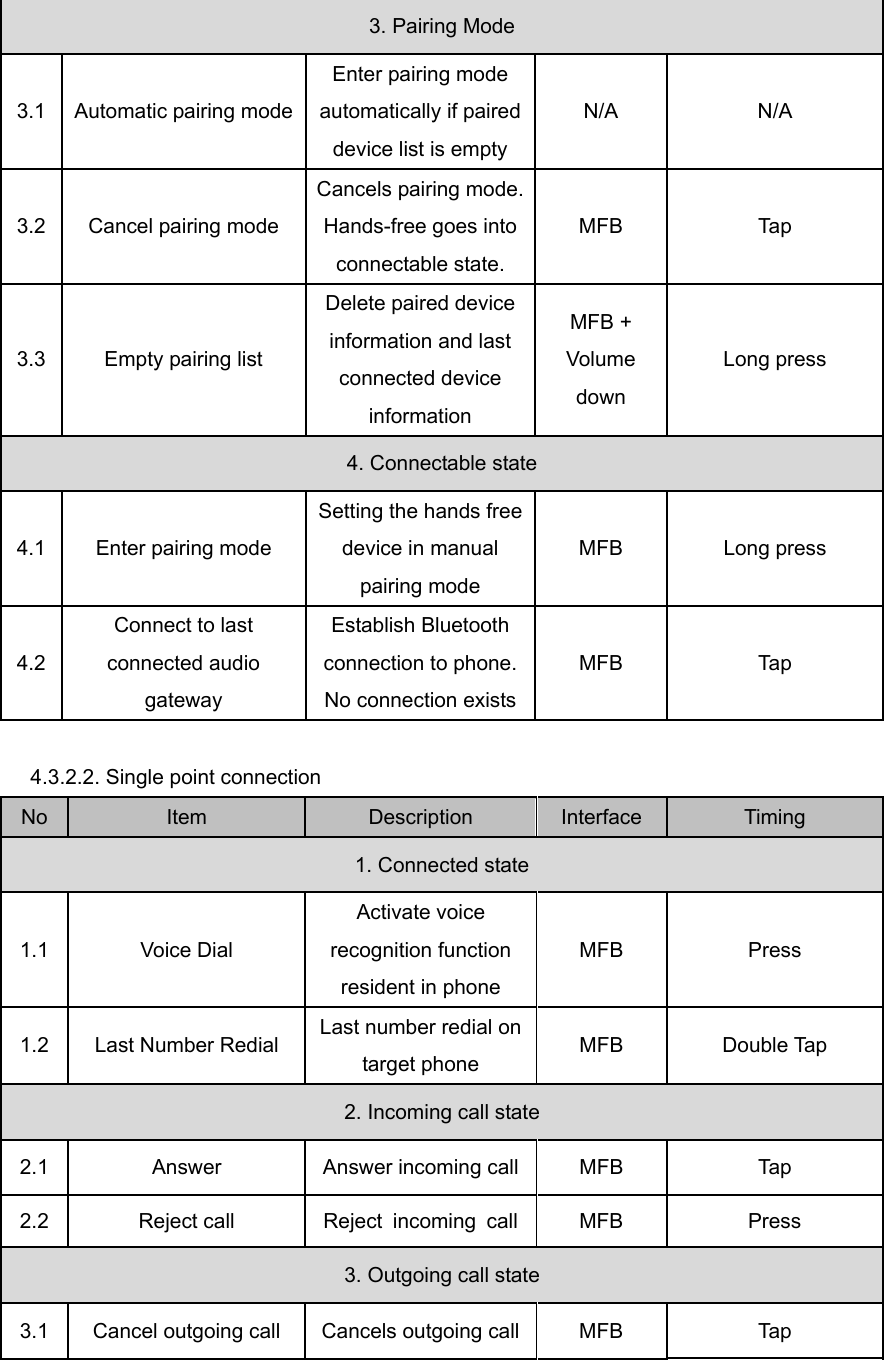
3. Pairing Mode 3.1  Automatic pairing mode Enter pairing mode automatically if paired device list is empty N/A N/A 3.2 Cancel pairing mode Cancels pairing mode. Hands-free goes into connectable state. MFB Tap 3.3  Empty pairing list Delete paired device information and last connected device information MFB + Volume down Long press 4. Connectable state 4.1 Enter pairing mode Setting the hands free device in manual pairing mode MFB Long press 4.2 Connect to last connected audio gateway Establish Bluetooth connection to phone.No connection existsMFB Tap  4.3.2.2. Single point connection No  Item  Description  Interface  Timing 1. Connected state 1.1 Voice Dial Activate voice recognition function resident in phone MFB Press 1.2 Last Number Redial Last number redial on target phone  MFB Double Tap 2. Incoming call state 2.1  Answer  Answer incoming call MFB  Tap 2.2  Reject call  Reject incoming call MFB  Press 3. Outgoing call state 3.1  Cancel outgoing call  Cancels outgoing call MFB  Tap
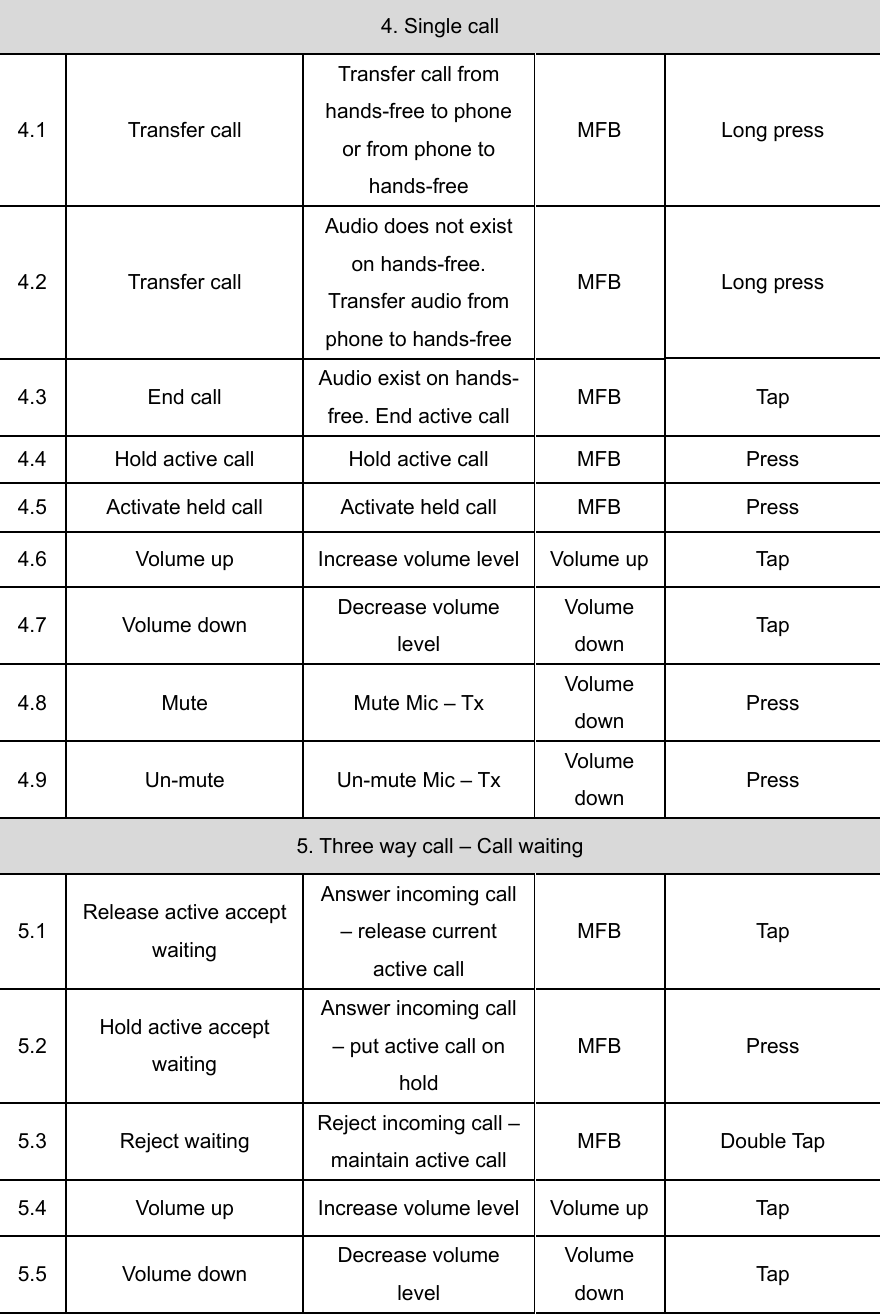
4. Single call 4.1 Transfer call Transfer call from hands-free to phone or from phone to hands-free MFB Long press 4.2 Transfer call Audio does not exist on hands-free. Transfer audio from phone to hands-free MFB Long press 4.3 End call Audio exist on hands-free. End active call  MFB Tap 4.4  Hold active call  Hold active call  MFB  Press 4.5  Activate held call  Activate held call  MFB  Press 4.6  Volume up  Increase volume level Volume up Tap 4.7 Volume down  Decrease volume level Volume down  Tap 4.8  Mute  Mute Mic – Tx  Volume down  Press 4.9 Un-mute  Un-mute Mic – Tx Volume down  Press 5. Three way call – Call waiting 5.1  Release active accept waiting Answer incoming call – release current active call MFB Tap 5.2  Hold active accept waiting Answer incoming call – put active call on hold MFB Press 5.3 Reject waiting Reject incoming call – maintain active call  MFB Double Tap 5.4  Volume up  Increase volume level Volume up Tap 5.5 Volume down  Decrease volume level Volume down  Tap
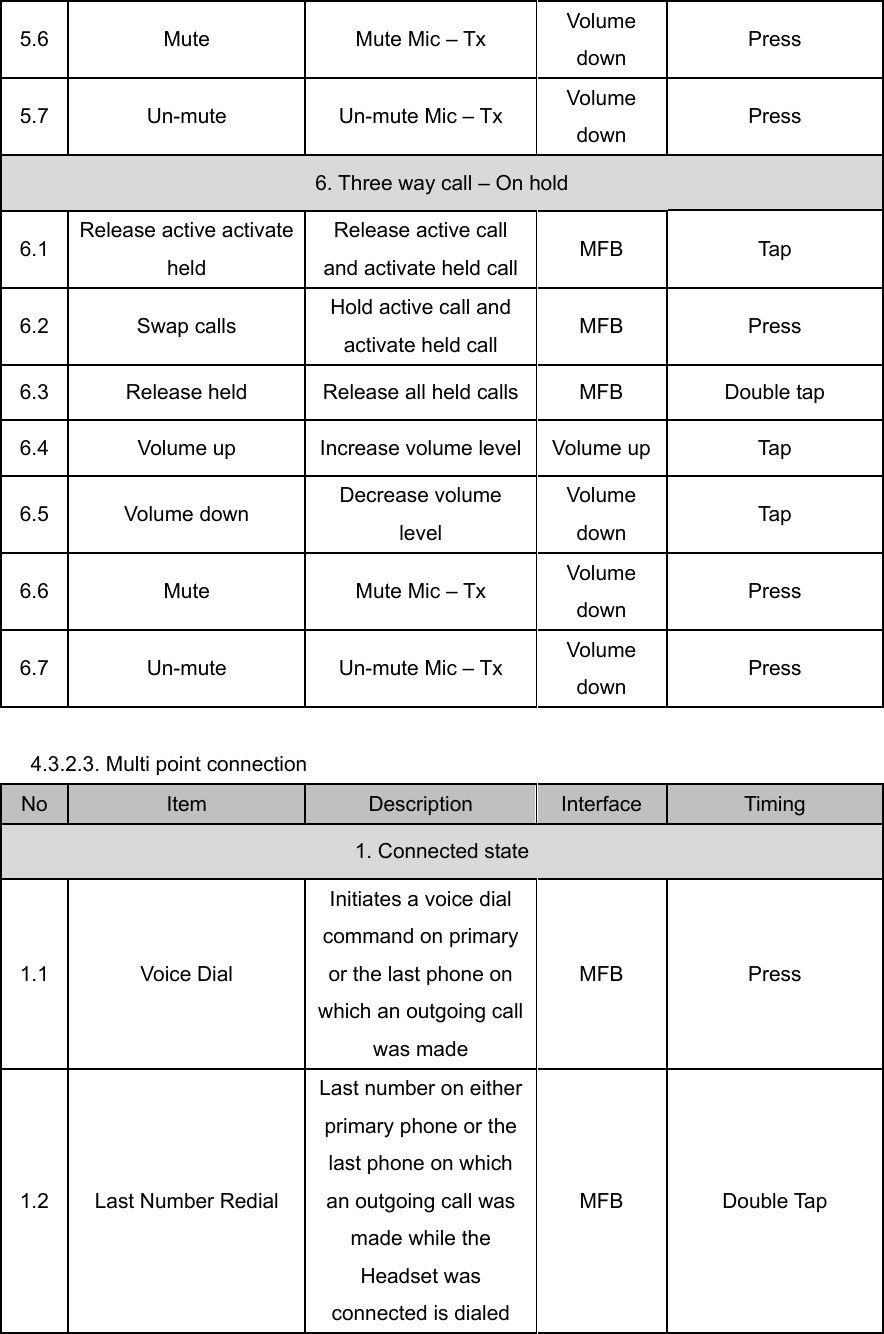
5.6  Mute  Mute Mic – Tx  Volume down  Press 5.7 Un-mute  Un-mute Mic – Tx Volume down  Press 6. Three way call – On hold 6.1  Release active activate held Release active call and activate held call MFB Tap 6.2 Swap calls  Hold active call and activate held call  MFB Press 6.3  Release held  Release all held calls MFB  Double tap 6.4  Volume up  Increase volume level Volume up Tap 6.5 Volume down  Decrease volume level Volume down  Tap 6.6  Mute  Mute Mic – Tx  Volume down  Press 6.7 Un-mute  Un-mute Mic – Tx Volume down  Press  4.3.2.3. Multi point connection No  Item  Description  Interface  Timing 1. Connected state 1.1 Voice Dial Initiates a voice dial command on primary or the last phone on which an outgoing call was made MFB Press 1.2 Last Number Redial Last number on either primary phone or the last phone on which an outgoing call was made while the Headset was connected is dialed MFB Double Tap
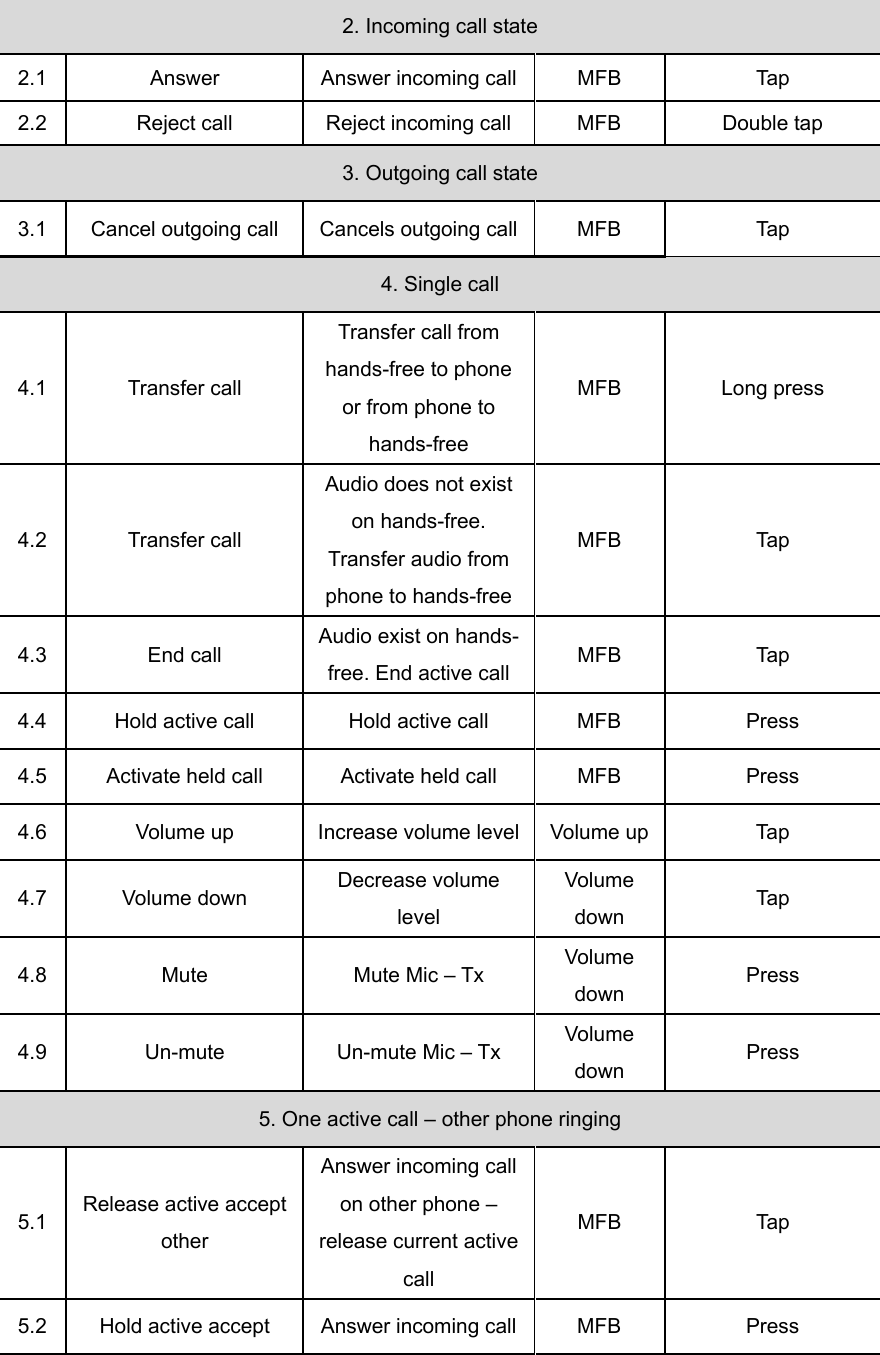
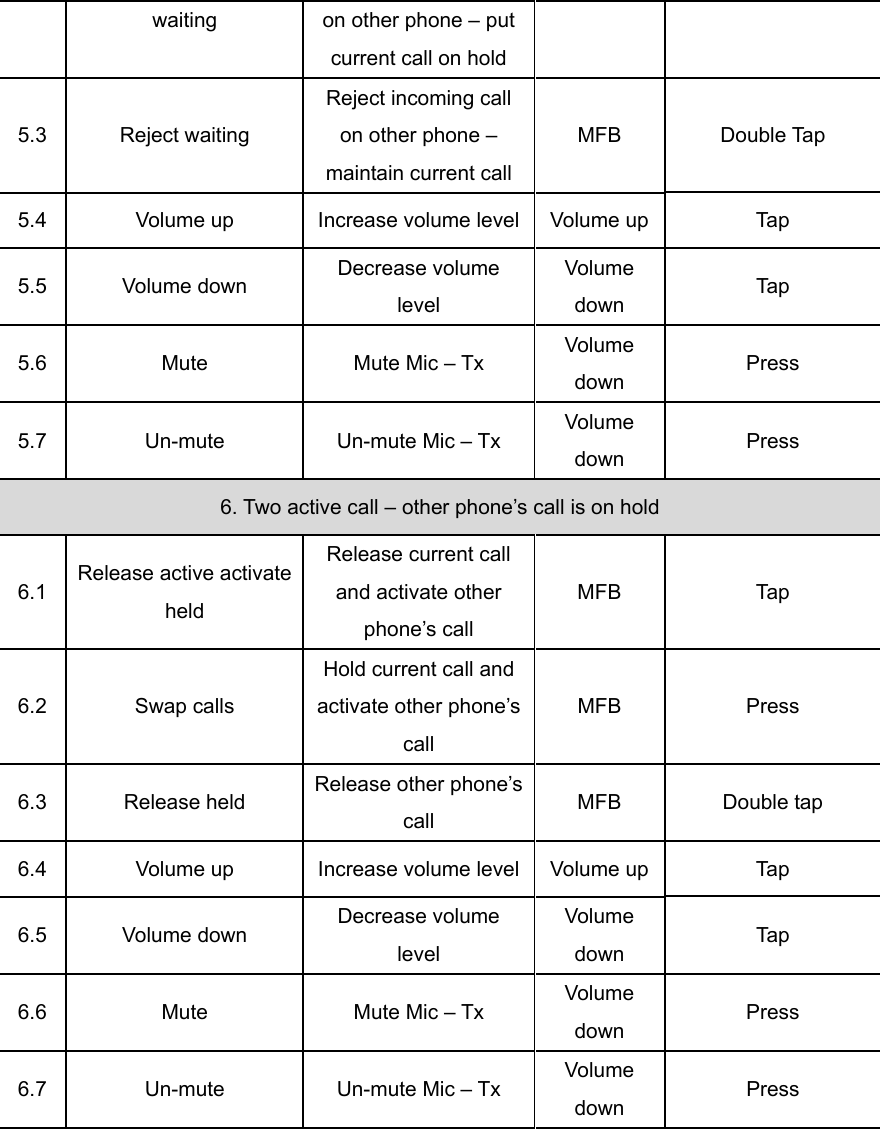
2. Incoming call state 2.1  Answer  Answer incoming call MFB  Tap 2.2  Reject call  Reject incoming call  MFB  Double tap 3. Outgoing call state 3.1  Cancel outgoing call  Cancels outgoing call MFB  Tap 4. Single call 4.1 Transfer call Transfer call from hands-free to phone or from phone to hands-free MFB Long press 4.2 Transfer call Audio does not exist on hands-free. Transfer audio from phone to hands-free MFB Tap 4.3 End call Audio exist on hands-free. End active call  MFB Tap 4.4  Hold active call  Hold active call  MFB  Press 4.5  Activate held call  Activate held call  MFB  Press 4.6  Volume up  Increase volume level Volume up Tap 4.7 Volume down  Decrease volume level Volume down  Tap 4.8  Mute  Mute Mic – Tx  Volume down  Press 4.9 Un-mute  Un-mute Mic – Tx Volume down  Press 5. One active call – other phone ringing 5.1  Release active accept other Answer incoming call on other phone – release current active call MFB Tap 5.2  Hold active accept  Answer incoming call  MFB  Press
waiting  on other phone – put current call on hold 5.3 Reject waiting Reject incoming call on other phone – maintain current call MFB Double Tap 5.4  Volume up  Increase volume level Volume up Tap 5.5 Volume down  Decrease volume level Volume down  Tap 5.6  Mute  Mute Mic – Tx  Volume down  Press 5.7 Un-mute  Un-mute Mic – Tx Volume down  Press 6. Two active call – other phone’s call is on hold 6.1  Release active activate held Release current call and activate other phone’s call MFB Tap 6.2 Swap calls Hold current call and activate other phone’s call MFB Press 6.3 Release held Release other phone’s call  MFB Double tap 6.4  Volume up  Increase volume level Volume up Tap 6.5 Volume down  Decrease volume level Volume down  Tap 6.6  Mute  Mute Mic – Tx  Volume down  Press 6.7 Un-mute  Un-mute Mic – Tx Volume down  Press
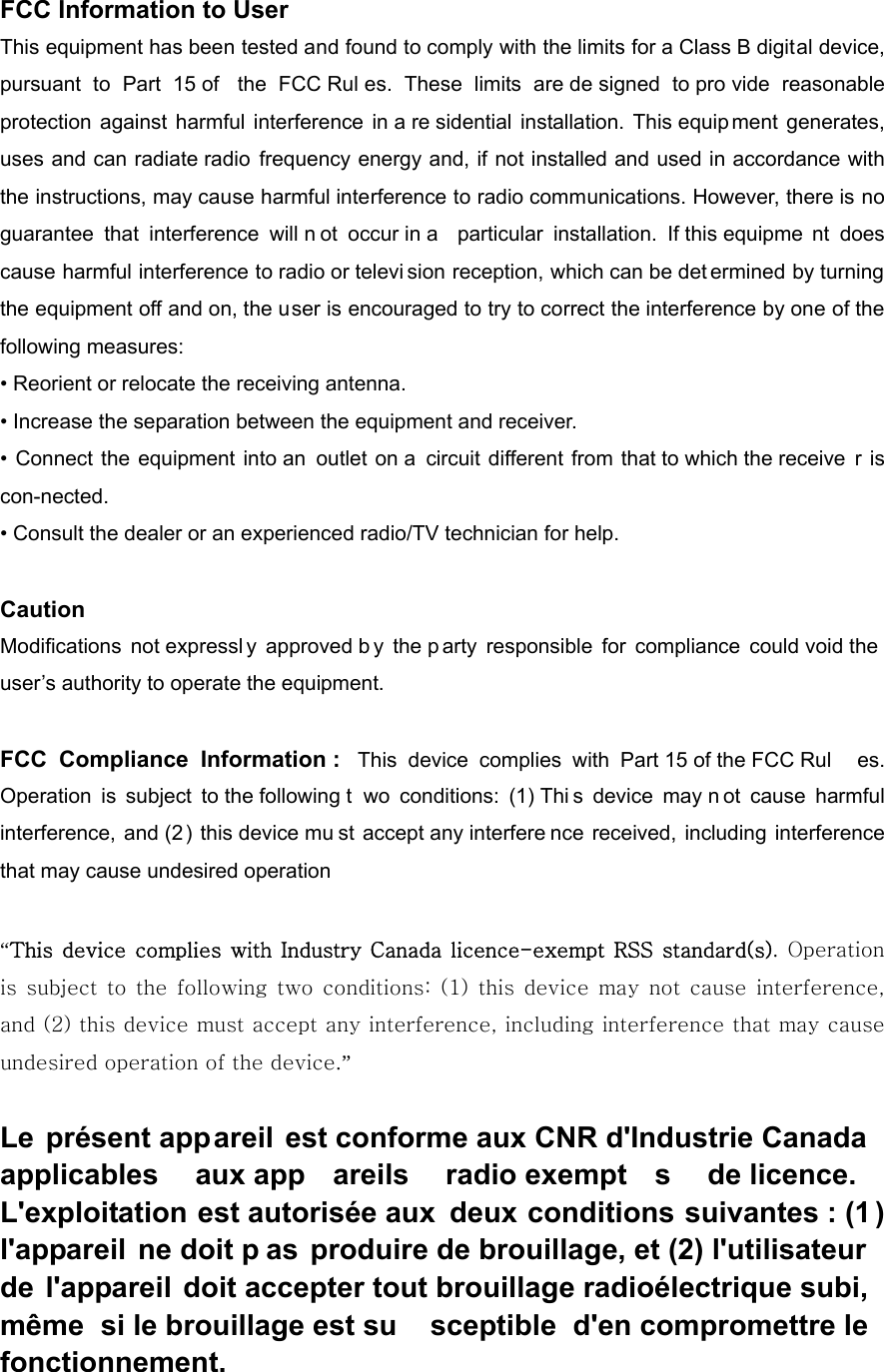
FCC Information to User This equipment has been tested and found to comply with the limits for a Class B digital device, pursuant to Part 15 of  the FCC Rul es. These limits are de signed to pro vide reasonable protection against harmful interference in a re sidential installation. This equip ment generates, uses and can radiate radio frequency energy and, if not installed and used in accordance with the instructions, may cause harmful interference to radio communications. However, there is no guarantee that interference will n ot occur in a  particular installation. If this equipme nt does cause harmful interference to radio or televi sion reception, which can be det ermined by turning the equipment off and on, the user is encouraged to try to correct the interference by one of the following measures: • Reorient or relocate the receiving antenna. • Increase the separation between the equipment and receiver. • Connect the equipment into an outlet on a  circuit different from that to which the receive r is con-nected. • Consult the dealer or an experienced radio/TV technician for help.  Caution Modifications not expressl y approved b y the p arty responsible for compliance could void the user’s authority to operate the equipment.  FCC Compliance Information :  This device complies with Part 15 of the FCC Rul es. Operation is subject to the following t wo conditions: (1) Thi s device may n ot cause harmful interference, and (2) this device mu st accept any interfere nce received, including interference that may cause undesired operation  “This  device  complies with Industry Canada licence-exempt RSS  standard(s). Operation is  subject to  the following  two conditions:  (1)  this  device  may not cause interference, and (2) this device must accept any interference, including interference that may cause undesired operation of the device.”   Le présent appareil est conforme aux CNR d'Industrie Canada applicables aux app areils radio exempt s de licence. L'exploitation est autorisée aux  deux conditions suivantes : (1 ) l'appareil ne doit p as produire de brouillage, et (2) l'utilisateur de l'appareil doit accepter tout brouillage radioélectrique subi, même si le brouillage est su sceptible d'en compromettre le fonctionnement.

Navigation menu