ENUSTECH BHF700 WIRELESS HANDSFREE CARKIT User Manual BHF 700 manual 080111

ENUSTECH WIRELESS HANDSFREE CARKIT BHF 700 manual 080111

USERS MANUAL

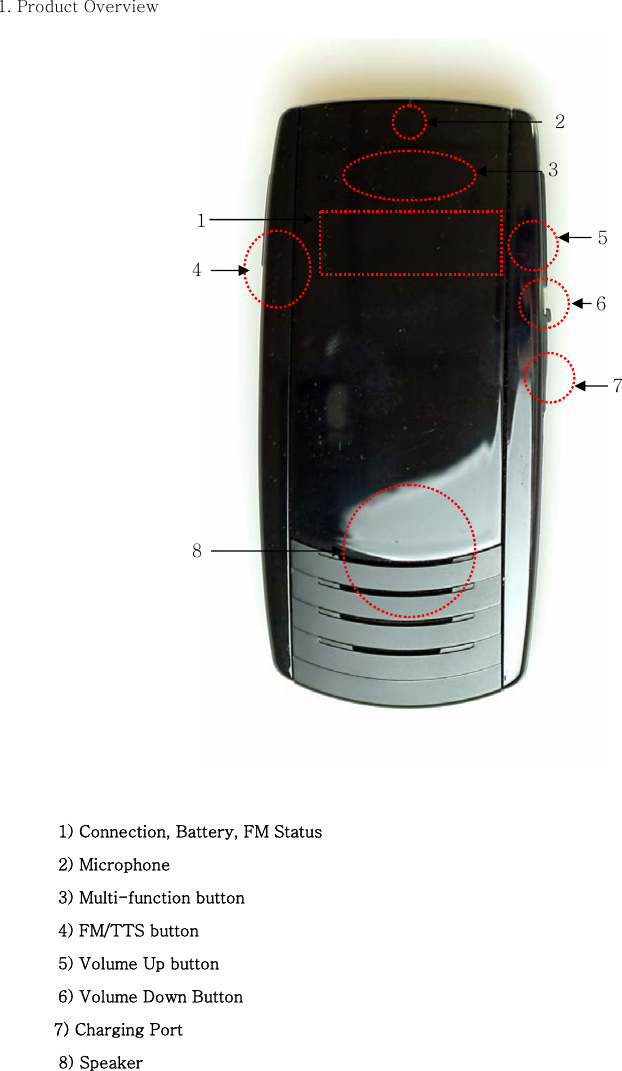
1. Product Overview     1) Connection, Battery, FM Status       2) Microphone    3) Multi-function button      4) FM/TTS button    5) Volume Up button   6) Volume Down Button   7) Charging Port    8) Speaker    12 7 6 8 5 4 3
 2. Charging hands-free car kit    Be sure to use the vehicle charger and USB charger cable provided. The product uses an advanced lithium polymer rechargeable battery. When used for the first time, it is important to charge the product for 2 hours, to ensure the battery is fully charged, ready for use in the best conditions.            a) How to charge Use the USB charger cable to connect the car kit to the vehicle charger.   Connect the product car kit through using the USB charger cable to the vehicle charger. Then plug the vehicle charger into your car’s power outlet. The light  on    the  USB charger  cable will light up red while it is charging. When the light on the USB charger cable turns green, the product is fully charged.  Note: When the car kit battery is low, the Battery Icon on the product  blinks,  indicating that  it needs to be recharged.    3. Pairing  Before you use the product you must first pair it with your mobile phone.    Note:  You  can  only  pair  devices  that  are  Bluetooth  enabled.  To  see  if you mobile phone is Bluetooth enabled, check your mobile phone’s user guide.   1) If the car kit is powered on, turn it off.  2) Press  the  Multi-function  button  for  7  seconds.Release  the  button  when  Bluetooth Status Icon begins to flash quickly with beep sound (or TTS Message: Pairing Mode.    3) Use the mobile phone’s device search function and then select the device BHF-700.   4) Enter the password “0000” on your mobile phone. 5) The  devices  have  been  successfully  paired  when  you  see  the  Bluetooth  Status  Icon changes or hear the message “Connected”.     Note:  If the pairing is not successful within 2 minutes, the car kit status  changes  to
Standby Mode. Repeat steps 1 to 4 to initiate pairing mode again.     4. Usage    1) Turn On/Off Power On: Push the multi-function button of the product for 2 seconds to turn it on.   Power Off: Push the multi-function button of the product for 4 seconds to turn it off.  2) Connection  a. Once paired, press shortly on the Multi-function button to connect  the  car  kit  to  the mobile phone.    b. If not paired, see 3) pairing. Note: if it was connected following the a. procedure, press and hold down the volume up or volume down to enter the Stereo Mode (A2DP).     3) Call Functions *Answer a call: Press shortly on the Multi-function button. . *End a call:. Press shortly on the Multi-function button. . *Voice  Dialing:  To  place  a  call using  voice  dialing,  press  and  hold  down the multi-function button for 1 second. You will hear a beep. Then say the name of the person you wish to call using the voice tag that you previously recorded for that number.    Note:  The  voice  dialing  function  is  handset  dependant.  Consult  your  mobile  phone’s  user guide to see if it supports voice dialing.  *Transferring calls between the product and mobile phone:   To transfer a call from the car kit to the mobile phone during a call, quickly press twice on the Multi-Function button. To transfer a call from your mobile phone back to the car kit repeat the same step.     6) Reject a call: To reject an incoming call when the product is ringing, press for 1 second on the Multi-function button. A busy tone will be sent to the caller. Note: The reject a call function is handset dependant. Consult your mobile phone’s user guide to see if it supports reject a call function.
7) Last numbers redial To redial the last number you called, press twice the Multi-function button.  8) Volume Up / Down   Use the Volume Up / Down button to adjust the volume.  9) Mute / Un-mute Press and hold down the Volume Down button for 1 second during the call. In this case, you are able to hear the other person but she/he won’t be able to hear you. To un-mute the call, quickly press once the Volume Up or Volume Down button.   10) Remove a registered mobile phone entry from the lists.       The car kit registers a list of recently connected mobile phones.    To  remove  the  list,  press  and  hold  down  the  Multi-function  button,  Volume  Up  button  and FM/TTS  button  at  the  same  time  for  7  seconds.  A  beep  indicates  the  list  was removed from the car kit memory.  Note: After removing the list the car kit remains in pairing mode.    11) Blind Mode      To turn off the status icon while using the product, hold down the Volume Up button and FM/TTS button for 1 second at the same time. The light on the status  icon  will  be switched off but the product will continue to function. Note: To switch off the Blind Mode, follow the above mentioned steps.    12) FM Transmission   a. Check the pairing status. This function can be activated after pairing.     b. To use the car audio system, press once shortly on the FM/TTS button then  the  FM Status icon will be on. c. Through the FM status icon and voice announcement, check the fixed frequency.   d. Tune the car kit and the car audio system into the same frequency channel. [See the 13)]   Note: 1. To switch off the FM transmitter function, press once shortly on the FM/TTS button. 2. The FM transmitter function will automatically switch off after 1 minute if you don’t try to
make a call or transfer music via car audio system.  13) FM Frequency Selection Mode The product has 7 pre-programmed frequencies. You can select one of them following these steps:       a. Check if the car kit is in the Pairing Mode.   b. When FM transmission mode is not active, press and hold down the FM/TTS button for 2 seconds. Release the FM/TTS button when you hear a beep. c. FM status icon blinks  every  1 second indicating that FM Frequency Selection Mode is on, and the current frequency is announced. Select the desired  frequency  by pressing the Volume Up and Volume Down button. d. To exit Selection mode, press and hold down the FM/TTS button for 2 seconds. e. You can check the frequency fixed by voice announcing.   f. If you cannot find the desired frequency, see 14) Scanning an FM Frequency Note: To end the FM Frequency Selection Mode, repeat the above steps.   14) Scanning an FM Frequency   When pre-programmed frequency is crossed or the frequency is pre-used by the others, you can scan the available frequencies following these steps:.    a. Check if the car kit is in the Pairing Mode b. When FM transmission mode is not active, press and hold down the FM/TTS button for 4 seconds. Release the FM/TTS button when you hear the message “Searching”. c. Check if the Connection LED and Call Status LED are lit on.   d. When the scanning is finished, the selected frequency is announced.   e. If you don’t want to use the selected frequency, see 13) FM Frequency  Selection Mode. Note: You do not need to scan again if you use the frequency in the same area.  15) Caller ID   When  there  is  an  incoming  call,  the  caller’s  ID  number  is  displayed  on  the  car  audio system LCD. Note: Caller ID function is car audio system dependant. (RDS feature should be available in order to use this function.)
 16) TTS (Talk-to-Speech) Setting   There are 9 languages supported in the following order: 1  UK English 2  US English 3  French 4  Italian 5  German 6  Spanish 7  Mexican Portuguese Portuguese 8  Brazilian Portuguese 9  Chinese  The default language is British English. To change the TTS language (settings) follow these steps:    1) Enter the register mode. 2) Press on the FM/TTS button for 1 second until you hear the current language and enter the Language Selection mode. The Status LED and Connection LED are blinking. 3) Select the language by pressing the Volume Up and Volume Down button. 4) To exit selection mode, press and hold down the TTS/FM button for 1 sec. 5) After selecting the language, the language selected is announced and the devices enters into the register mode again.   6) To change the selected language, repeat steps 1) to 5)      1.   Hands-free Status indication Hands free status  LED indication Standby/Idle  Connection LED blinks every 2 seconds Connected  Connection LED on Incoming call  Call Status LED blinks every 1 second.   Active call  Call Status LED on 메모 [^1]: Wasn’t it Mexican Spanish here?
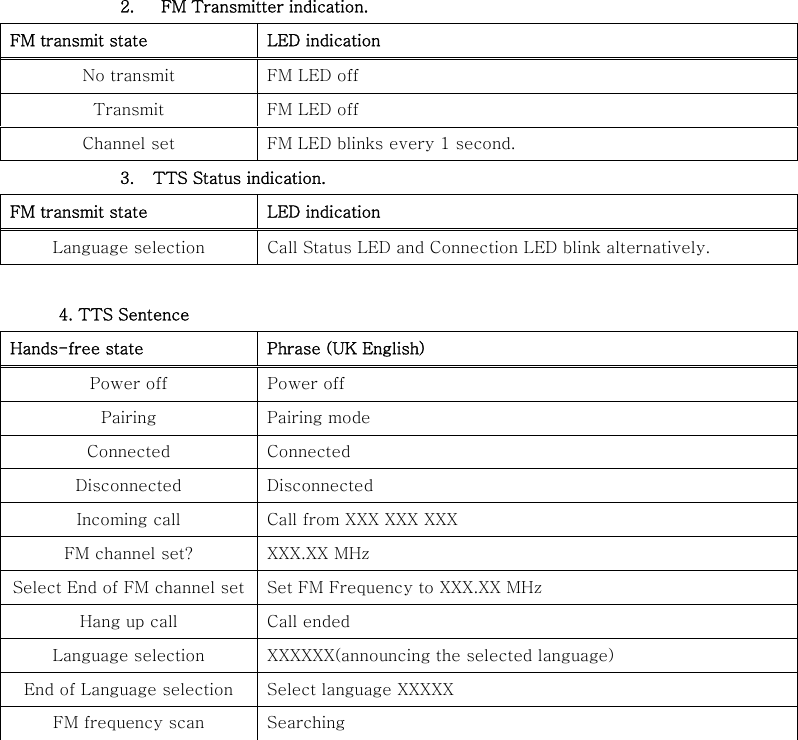
 2.   FM Transmitter indication. FM transmit state  LED indication No transmit  FM LED off Transmit  FM LED off Channel set  FM LED blinks every 1 second. 3. TTS Status indication. FM transmit state  LED indication Language selection  Call Status LED and Connection LED blink alternatively.  4. TTS Sentence Hands-free state  Phrase (UK English) Power off  Power off Pairing  Pairing mode Connected  Connected Disconnected  Disconnected Incoming call  Call from XXX XXX XXX FM channel set?  XXX.XX MHz Select End of FM channel set  Set FM Frequency to XXX.XX MHz Hang up call  Call ended Language selection  XXXXXX(announcing the selected language) End of Language selection  Select language XXXXX FM frequency scan  Searching
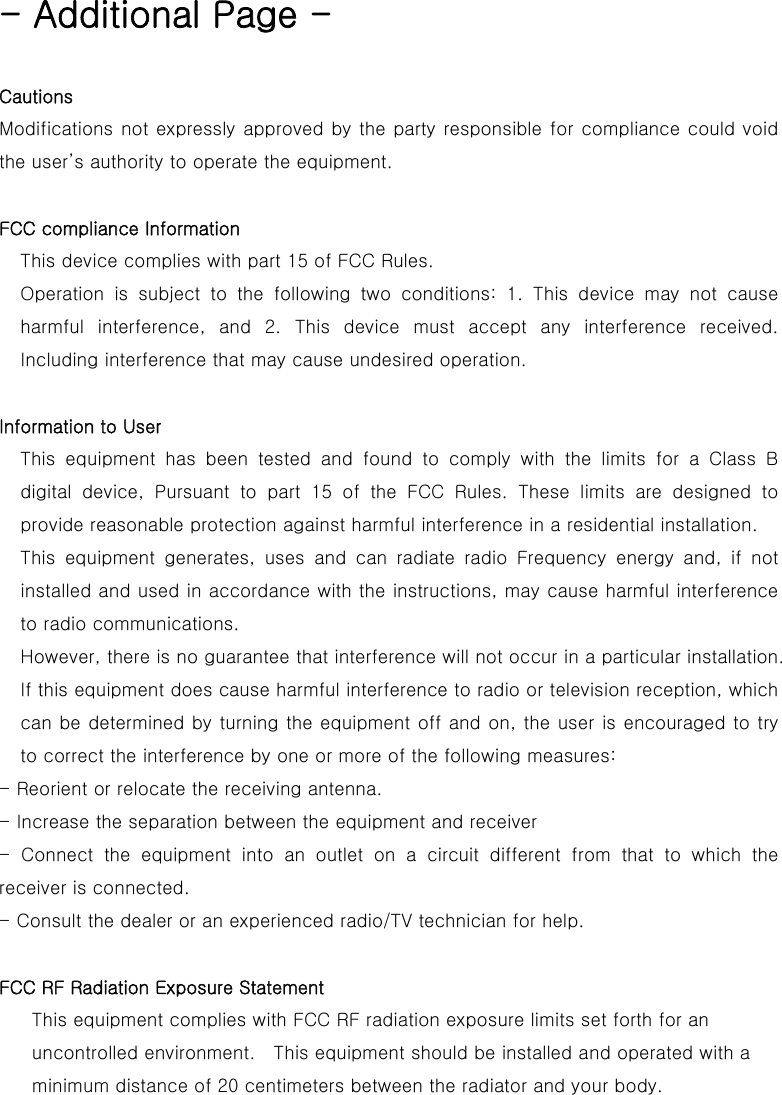
- Additional Page -  Cautions   Modifications not expressly approved by the party responsible for compliance could void the user’s authority to operate the equipment.  FCC compliance Information This device complies with part 15 of FCC Rules. Operation  is  subject  to  the  following  two  conditions:  1.  This  device  may  not  cause harmful interference, and 2. This device must accept any interference  received. Including interference that may cause undesired operation.  Information to User This equipment has been tested and found to comply with the limits  for  a  Class  B digital  device,  Pursuant  to  part  15  of  the  FCC  Rules.  These  limits  are  designed  to provide reasonable protection against harmful interference in a residential installation. This equipment generates, uses and can radiate radio Frequency energy  and,  if  not installed and used in accordance with the instructions, may cause harmful interference to radio communications. However, there is no guarantee that interference will not occur in a particular installation. If this equipment does cause harmful interference to radio or television reception, which can be determined by turning the equipment off and on, the user is encouraged to try to correct the interference by one or more of the following measures: - Reorient or relocate the receiving antenna. - Increase the separation between the equipment and receiver -  Connect  the  equipment  into  an  outlet  on  a  circuit  different  from  that  to  which  the receiver is connected. - Consult the dealer or an experienced radio/TV technician for help.  FCC RF Radiation Exposure Statement  This equipment complies with FCC RF radiation exposure limits set forth for an uncontrolled environment.    This equipment should be installed and operated with a minimum distance of 20 centimeters between the radiator and your body.

Navigation menu