EU3C SCND502E1234 PART 15 CLASS B COMPUTING PERIPHERAL User Manual

EU3C COMPANY LIMITED PART 15 CLASS B COMPUTING PERIPHERAL Users Manual

Users Manual

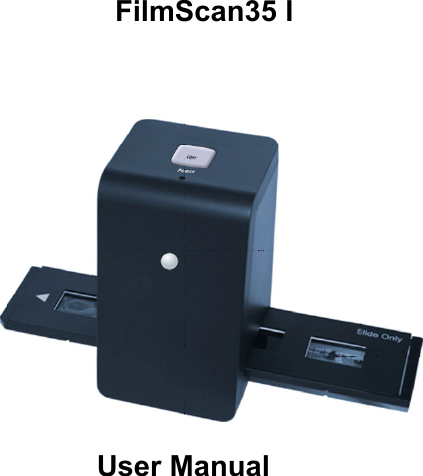
                  FilmScan35 I                     User Manual
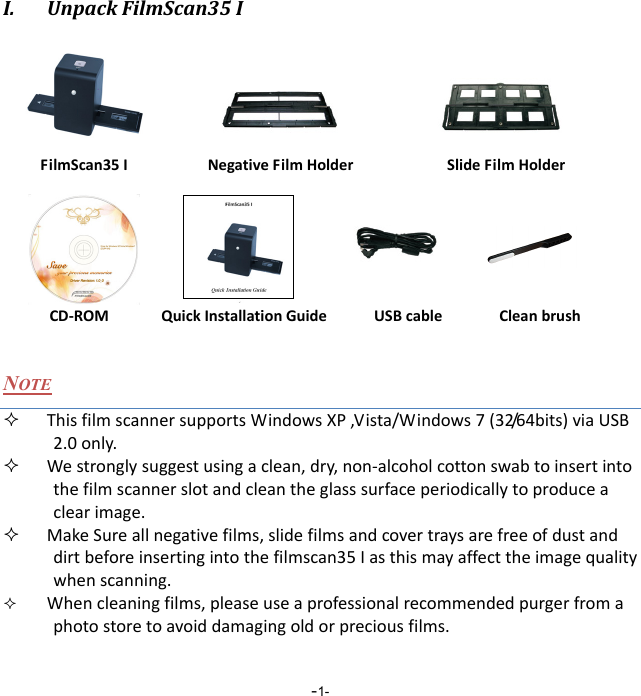
 -1-I. UnpackFilmScan35I         NOTE  ThisfilmscannersupportsWindowsXP,Vista/Windows7(32/64bits)viaUSB2.0only. Westronglysuggestusingaclean,dry,non‐alcoholcottonswabtoinsertintothefilmscannerslotandcleantheglasssurfaceperiodicallytoproduceaclearimage. MakeSureallnegativefilms,slidefilmsandcovertraysarefreeofdustanddirtbeforeinsertingintothefilmscan35Iasthismayaffecttheimagequalitywhenscanning. Whencleaningfilms,pleaseuseaprofessionalrecommendedpurgerfromaphotostoretoavoiddamagingoldorpreciousfilms. FilmScan35ISlideFilmHolderNegativeFilmHolderCD‐ROMCleanbrushQuickInstallationGuide USBcable
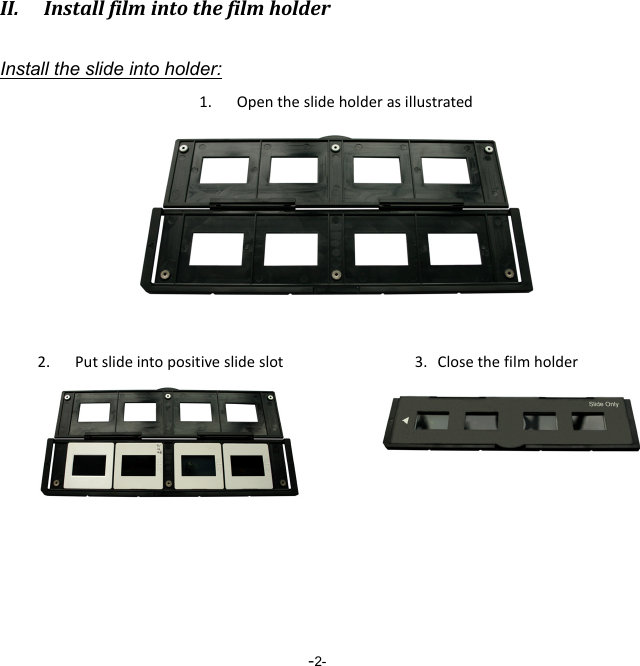
 -2-II. InstallfilmintothefilmholderInstall the slide into holder: 1. Opentheslideholderasillustrated2. Putslideintopositiveslideslot 3.Closethefilmholder
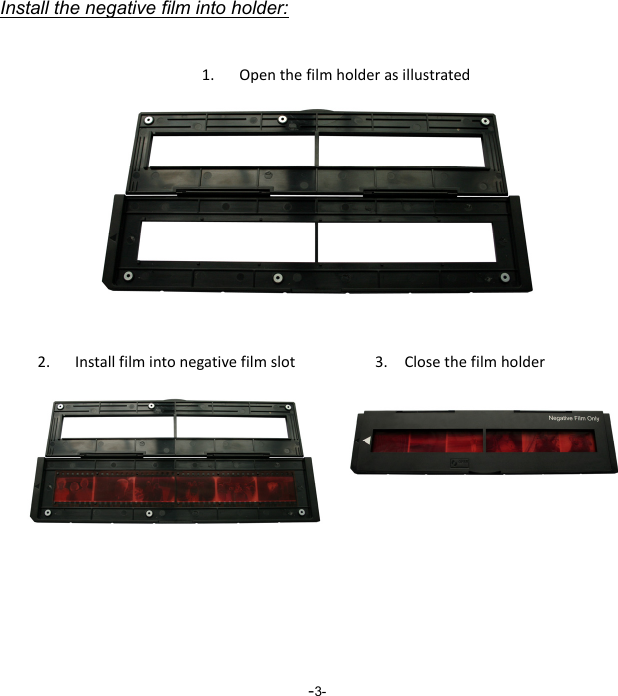
 -3-Install the negative film into holder:  1. Openthefilmholderasillustrated2. Installfilmintonegativefilmslot  3.Closethefilmholder
 -4-NOTE  Toavoidmirrorimage,followtheserialnumbers(fromlefttoright)ontopoffilmwheninstallnegativefilmintoholder.Figure1 Iftheimageisupsidedown[seefig.2],theimagecanbecorrectedbycontinuously“Rotate”functioninImageScanToolaftercapture[seefig.3].Figure2
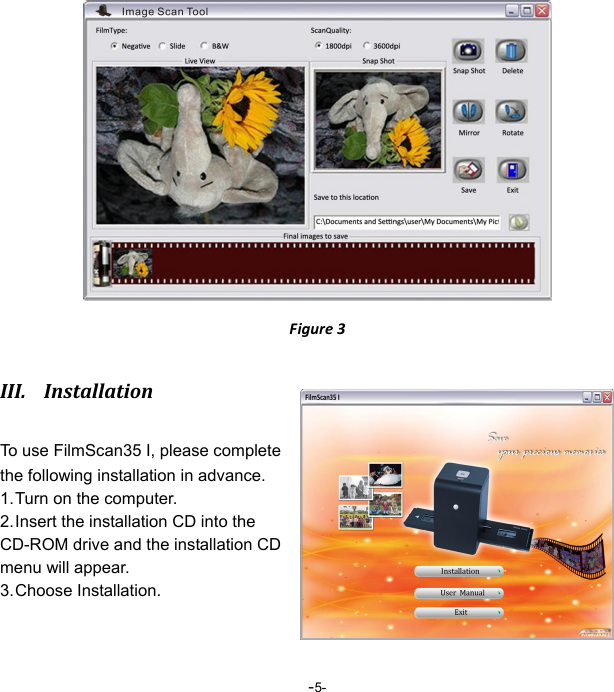
 -5-Figure3III. InstallationTo use FilmScan35 I, please complete the following installation in advance. 1. Turn on the computer. 2. Insert the installation CD into the CD-ROM drive and the installation CD menu will appear. 3. Choose  Installation.
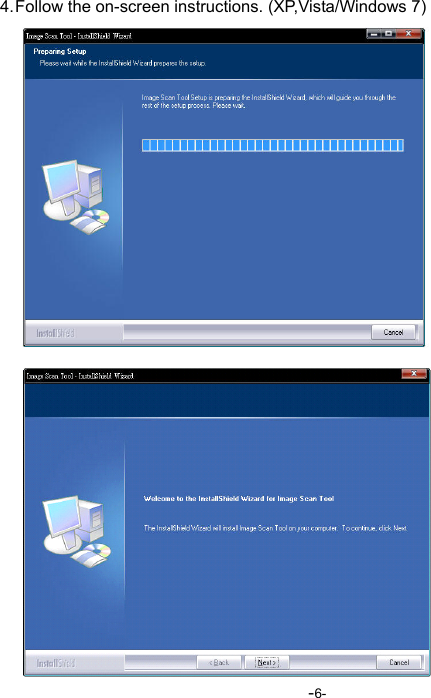
 -6-4. Follow the on-screen instructions. (XP,Vista/Windows 7)
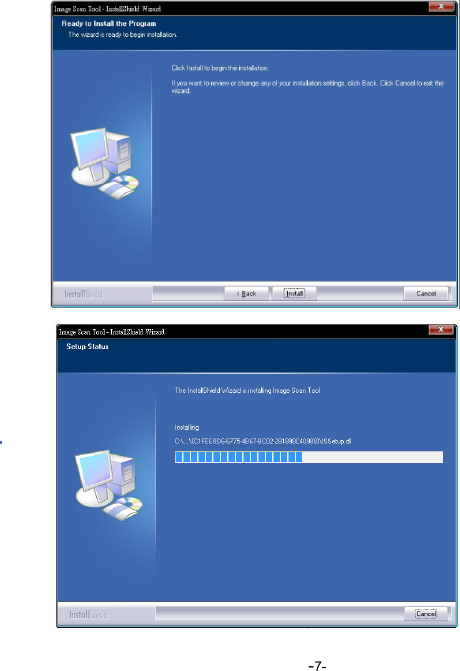
 -7-
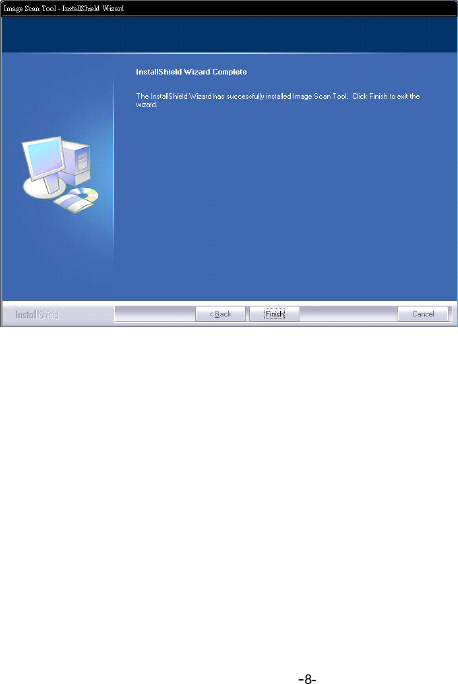
 -8-
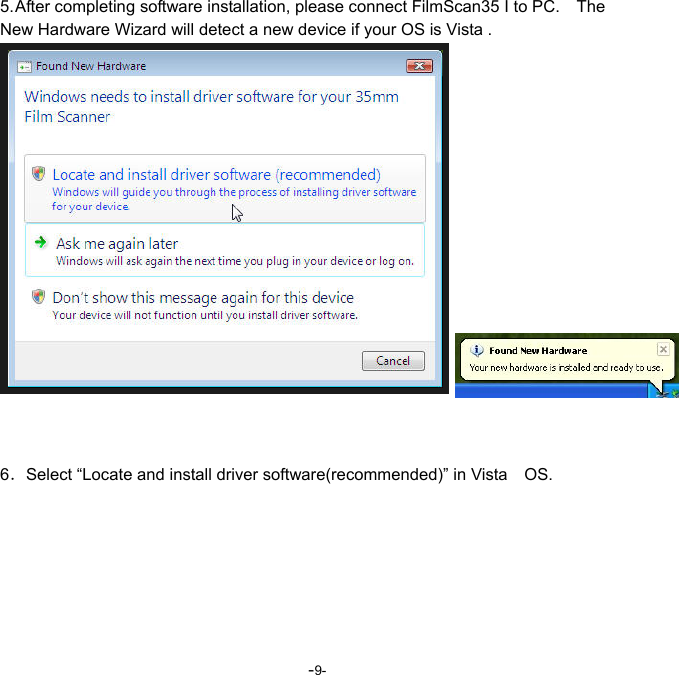
 -9- 5. After completing software installation, please connect FilmScan35 I to PC.    The New Hardware Wizard will detect a new device if your OS is Vista .    6.Select “Locate and install driver software(recommended)” in Vista    OS.
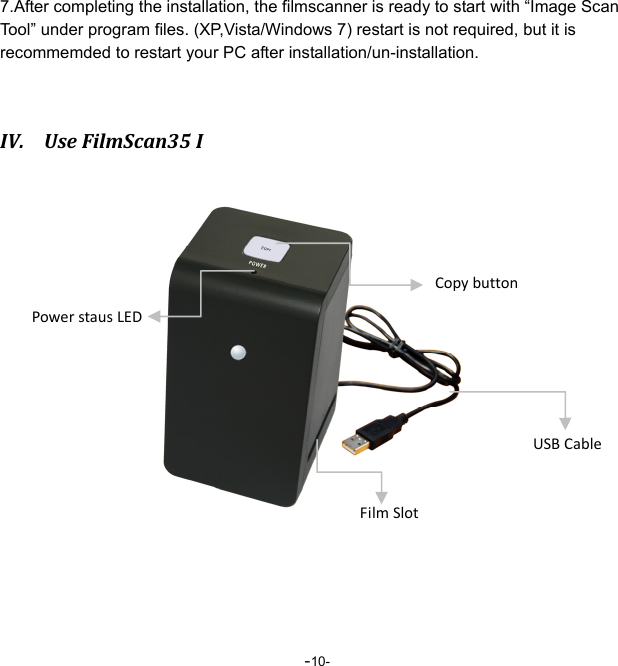
 -10- 7.After completing the installation, the filmscanner is ready to start with “Image Scan Tool” under program files. (XP,Vista/Windows 7) restart is not required, but it is recommemded to restart your PC after installation/un-installation.  IV. UseFilmScan35I        CopybuttonPowerstausLEDUSBCableFilmSlot
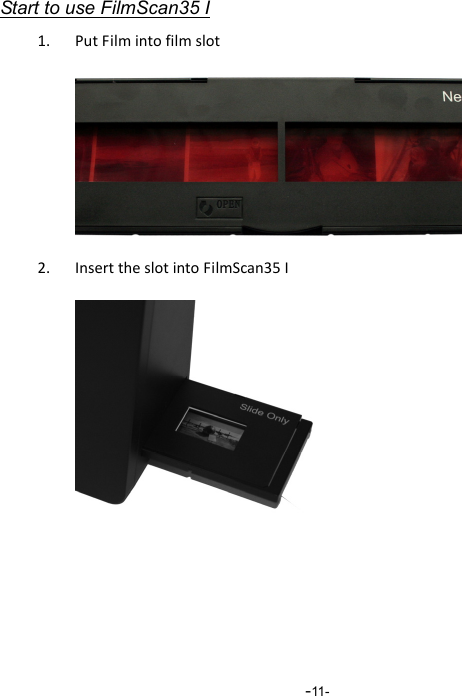
 -11-Start to use FilmScan35 I 1. PutFilmintofilmslot2. InserttheslotintoFilmScan35I
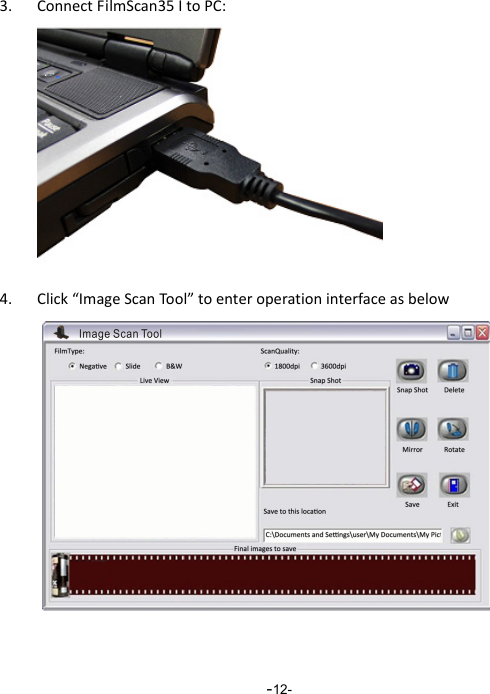
 -12-3. ConnectFilmScan35ItoPC:4. Click“ImageScanTool”toenteroperationinterfaceasbelow          
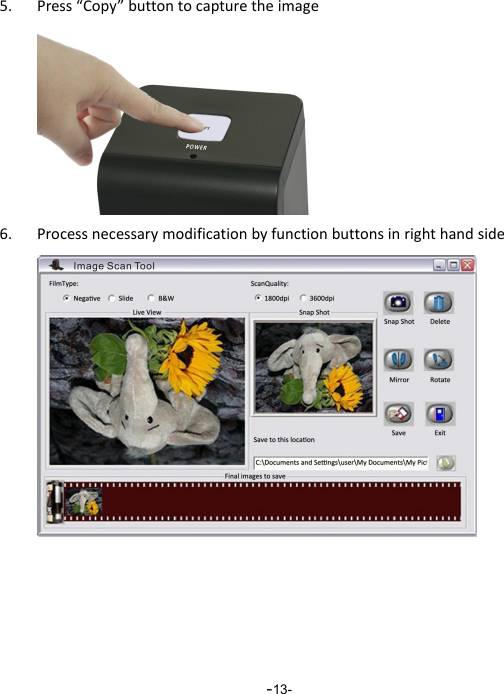
 -13-5. Press“Copy”buttontocapturetheimage6. Processnecessarymodificationbyfunctionbuttonsinrighthandside       
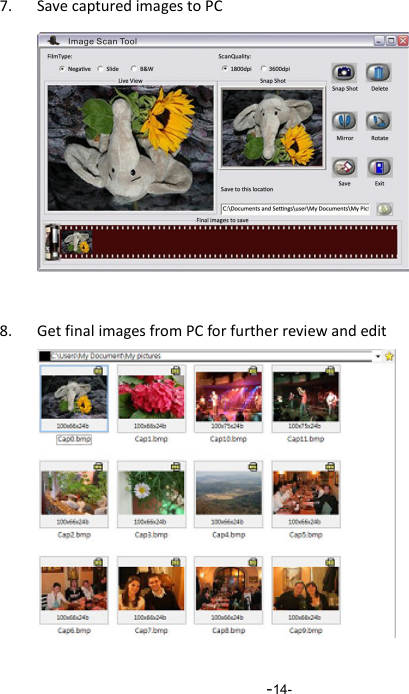
 -14-7. SavecapturedimagestoPC 8. GetfinalimagesfromPCforfurtherreviewandedit
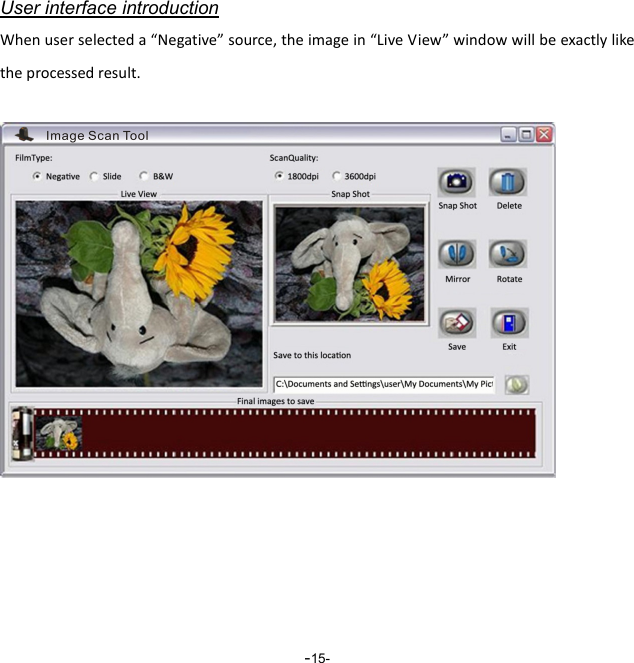
 -15-User interface introduction Whenuserselecteda“Negative”source,theimagein“LiveView”windowwillbeexactlyliketheprocessedresult.
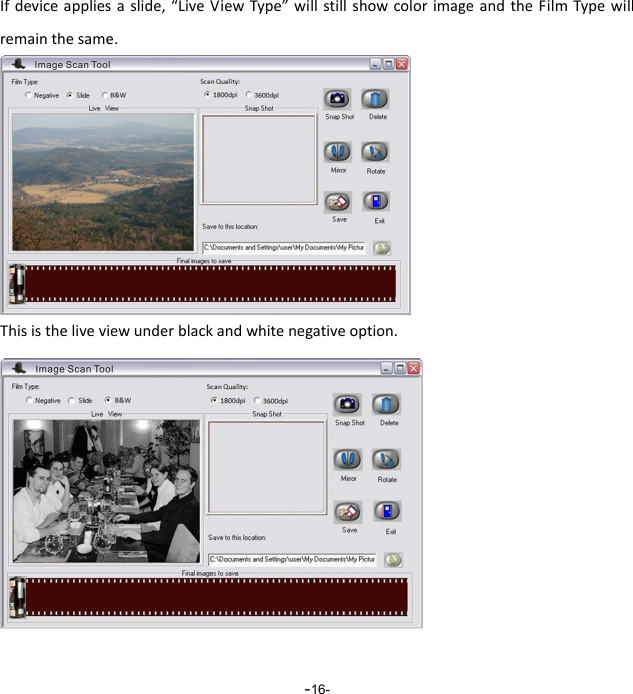
 -16-Ifdeviceappliesaslide,“LiveViewType”willstillshowcolorimageandtheFilmTypewillremainthesame. Thisistheliveviewunderblackandwhitenegativeoption.  
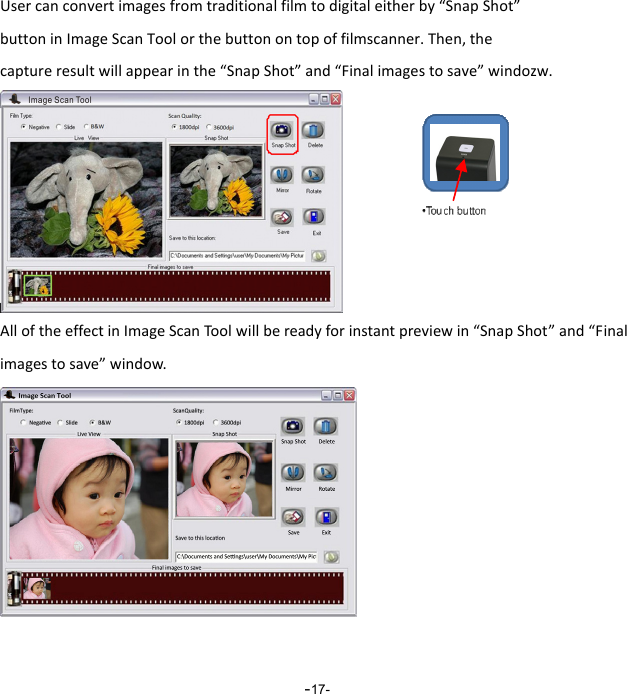
 -17-Usercanconvertimagesfromtraditionalfilmtodigitaleitherby“SnapShot”buttoninImageScanToolorthebuttonontopoffilmscanner.Then,thecaptureresultwillappearinthe“SnapShot”and“Finalimagestosave”windozw.AlloftheeffectinImageScanToolwillbereadyforinstantpreviewin“SnapShot”and“Finalimagestosave”window. 
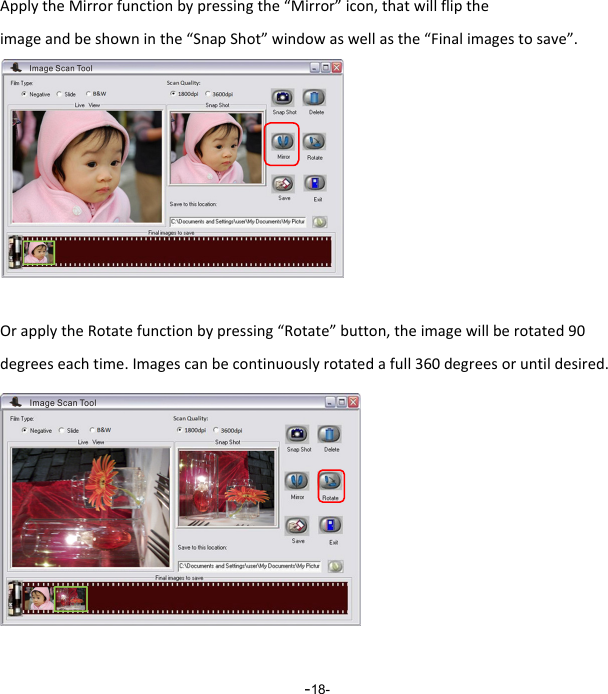
 -18-ApplytheMirrorfunctionbypressingthe“Mirror”icon,thatwillfliptheimageandbeshowninthe“SnapShot”windowaswellasthe“Finalimagestosave”.           OrapplytheRotatefunctionbypressing“Rotate”button,theimagewillberotated90degreeseachtime.Imagescanbecontinuouslyrotatedafull360degreesoruntildesired.
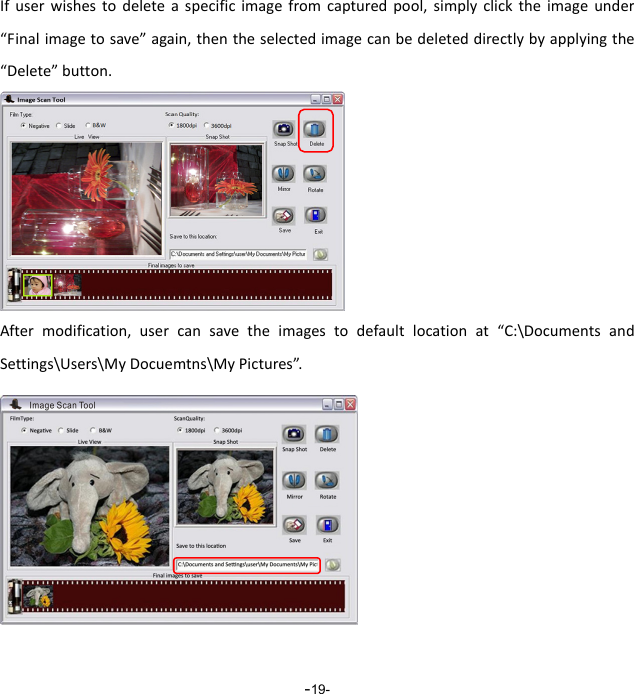
 -19-Ifuserwishestodeleteaspecificimagefromcapturedpool,simplyclicktheimageunder“Finalimagetosave”again,thentheselectedimagecanbedeleteddirectlybyapplyingthe“Delete”button. Aftermodification,usercansavetheimagestodefaultlocationat“C:\DocumentsandSettings\Users\MyDocuemtns\MyPictures”.
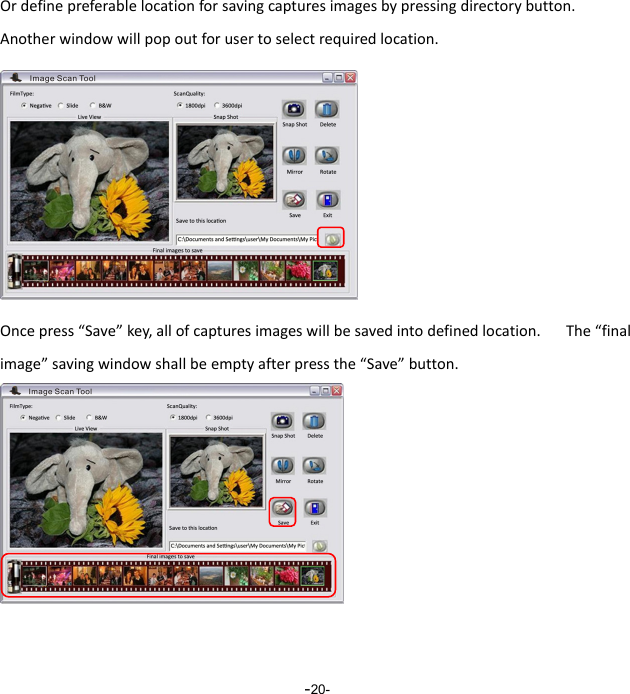
 -20-Ordefinepreferablelocationforsavingcapturesimagesbypressingdirectorybutton.Anotherwindowwillpopoutforusertoselectrequiredlocation.Oncepress“Save”key,allofcapturesimageswillbesavedintodefinedlocation.The“finalimage”savingwindowshallbeemptyafterpressthe“Save”button.
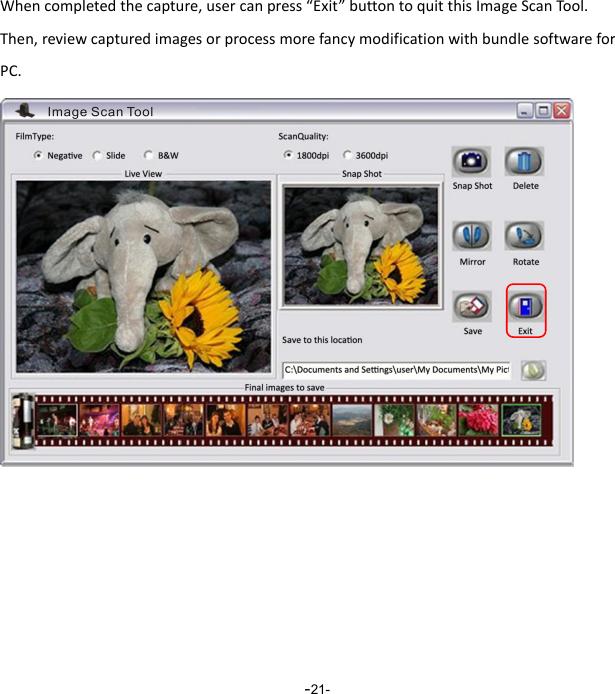
 -21-Whencompletedthecapture,usercanpress“Exit”buttontoquitthisImageScanTool.Then,reviewcapturedimagesorprocessmorefancymodificationwithbundlesoftwareforPC.
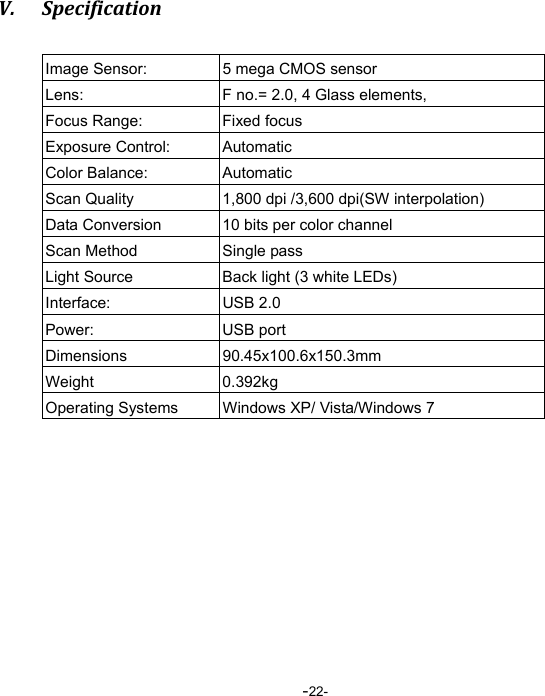
 -22-V. SpecificationImage Sensor:  5 mega CMOS sensor Lens:  F no.= 2.0, 4 Glass elements, Focus Range:  Fixed focus   Exposure Control:  Automatic Color Balance:  Automatic Scan Quality  1,800 dpi /3,600 dpi(SW interpolation) Data Conversion  10 bits per color channel Scan Method  Single pass Light Source  Back light (3 white LEDs) Interface: USB 2.0 Power: USB port Dimensions   90.45x100.6x150.3mm Weight 0.392kg Operating Systems  Windows XP/ Vista/Windows 7
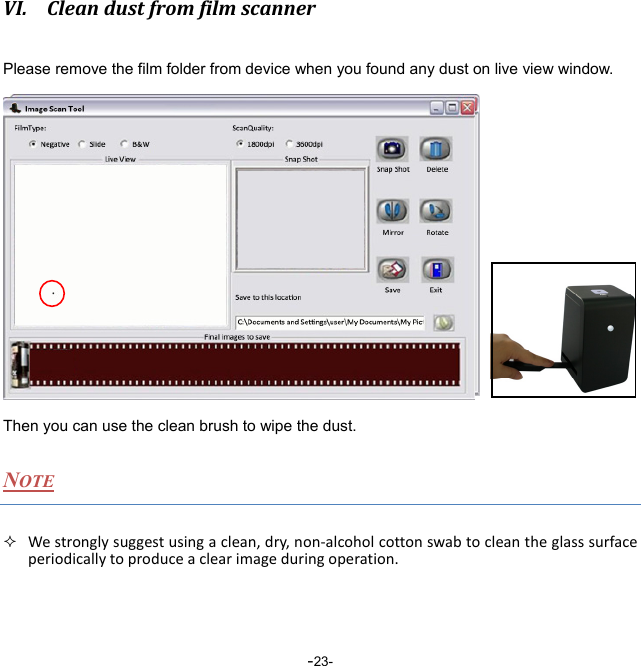
 -23-VI. CleandustfromfilmscannerPlease remove the film folder from device when you found any dust on live view window.       Z Then you can use the clean brush to wipe the dust. NOTE  Westronglysuggestusingaclean,dry,non‐alcoholcottonswabtocleantheglasssurfaceperiodicallytoproduceaclearimageduringoperation.
 -24-NOTE THEMANUFACTURERISNOTRESPONSIBLEFORANYRADIOORTVINTERFERENCECAUSEDBYUNAUTHORIZEDMODIFICATIONSTOTHISEQUIPMENT.SUCHMODIFICATIONSCOULDVOIDTHEUSERAUTHORITYTOOPERATETHEEQUIPMENT.ThisequipmenthasbeentestedandfoundtocomplywiththelimitsforaClassBdigitaldevice,pursuanttopart15oftheFCCRules.Theselimitsaredesignedtoprovidereasonableprotectionagainstharmfulinterferenceinaresidentialinstallation.Thisequipmentgenerates,usesandcanradiateradiofrequencyenergyand,ifnotinstalledandusedinaccordancewiththeinstructions,maycauseharmfulinterferencetoradiocommunications.However,thereisnoguaranteethatinterferencewillnotoccurinaparticularinstallation.Ifthisequipmentdoescauseharmfulinterferencetoradioortelevisionreception,whichcanbedeterminedbyturningtheequipmentoffandon,theuserisencouragedtotrytocorrecttheinterferencebyoneormoreofthefollowingmeasures:‐Reorientorrelocatethereceivingantenna.‐Increasetheseparationbetweentheequipmentandreceiver.‐Connecttheequipmentintoanoutletonacircuitdifferentfromthattowhichthereceiverisconnected.‐Consultthedealeroranexperiencedradio/TVtechnicianforhelp.‐ Modificationsnotexpresslyapprovedbythemanufacturercouldvoidtheuser'sauthoritytooperatetheequipmentunderFCCrules.

Navigation menu