EVERBRILLIANT ENTERPRISE TPC7026C 7 Inch Tablet PC User Manual Instruction Manual

EVERBRILLIANT ENTERPRISE LIMITED 7 Inch Tablet PC Instruction Manual

user manual

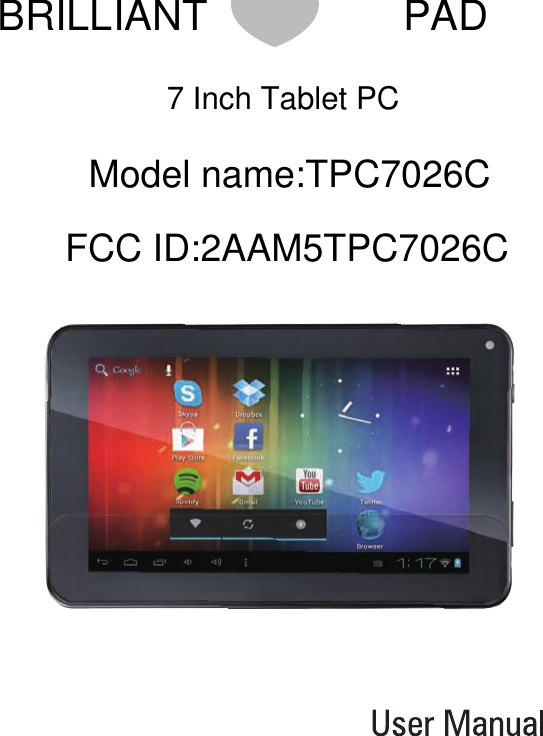
BRILLIANT Model name:TPC7026CFCC ID:2AAM5TPC7026CPAD7 Inch Tablet PC
1 Instruction Manual 1  What’s Included The following components are included with your purchased product:   7 inch Tablet PC   Power Adapter   USB Cable   Instruction Manual  2  Getting Started Before operating your Tablet PC for the first time, please read this manual carefully and follow the instructions as described below.  3  Battery charging The tablet is equipped with a built-in rechargeable Lithium battery. It is suggested to fully charge the battery before use.   We strongly recommend to use the power adapter included in the packaging, using other adapter may damage the tablet and void the warranty. Charging Process   Connect the power adapter to your tablet, and plug the power adapter into the nearest electrical outlet.     Users can still use the tablet while it is being charged.
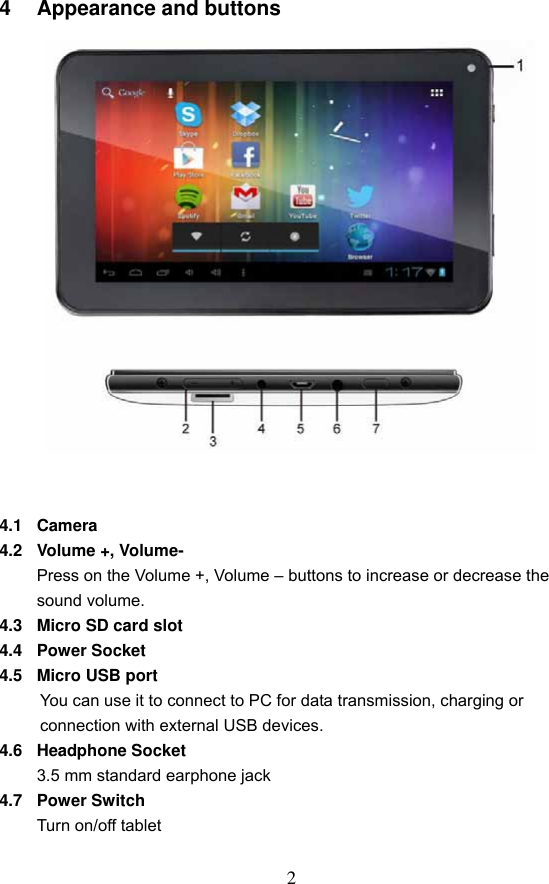
2 4  Appearance and buttons                4.1  Camera   4.2  Volume +, Volume- Press on the Volume +, Volume – buttons to increase or decrease the sound volume. 4.3  Micro SD card slot   4.4  Power Socket 4.5  Micro USB port You can use it to connect to PC for data transmission, charging or connection with external USB devices. 4.6  Headphone Socket 3.5 mm standard earphone jack 4.7  Power Switch Turn on/off tablet
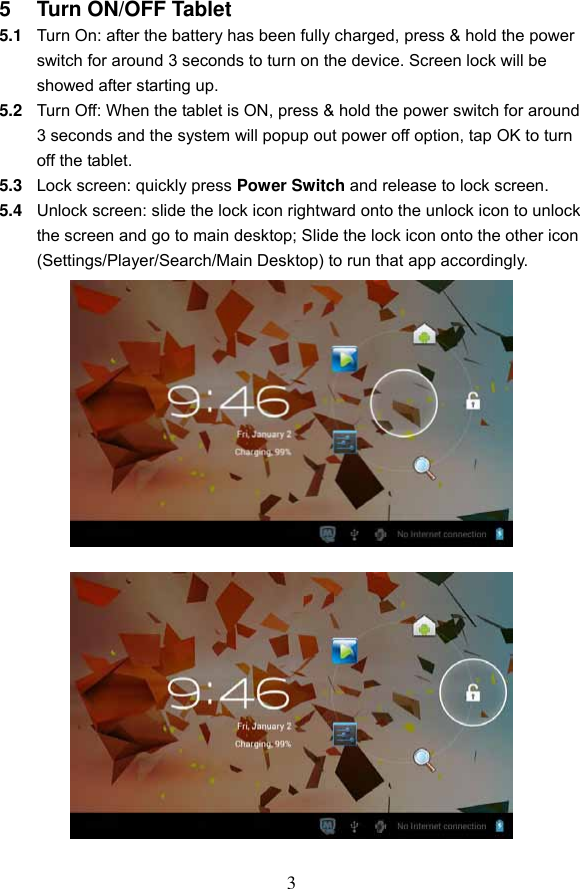
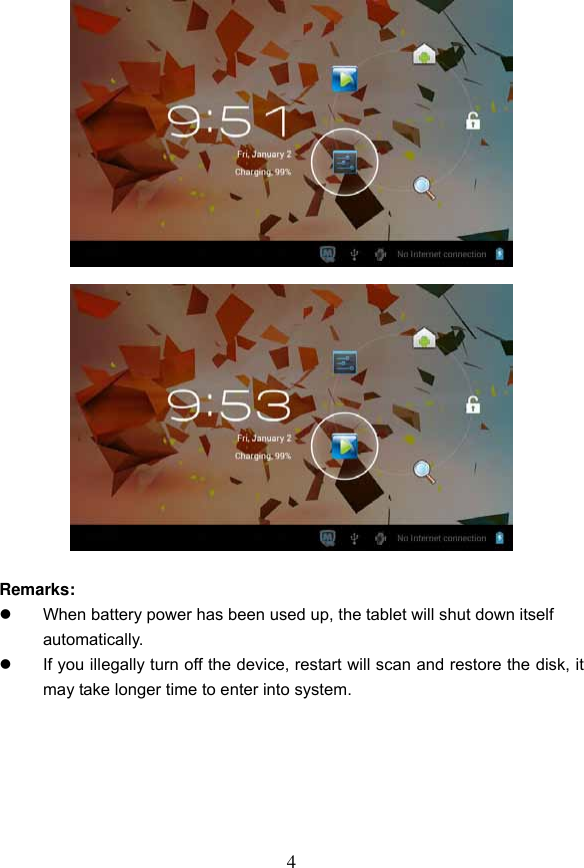
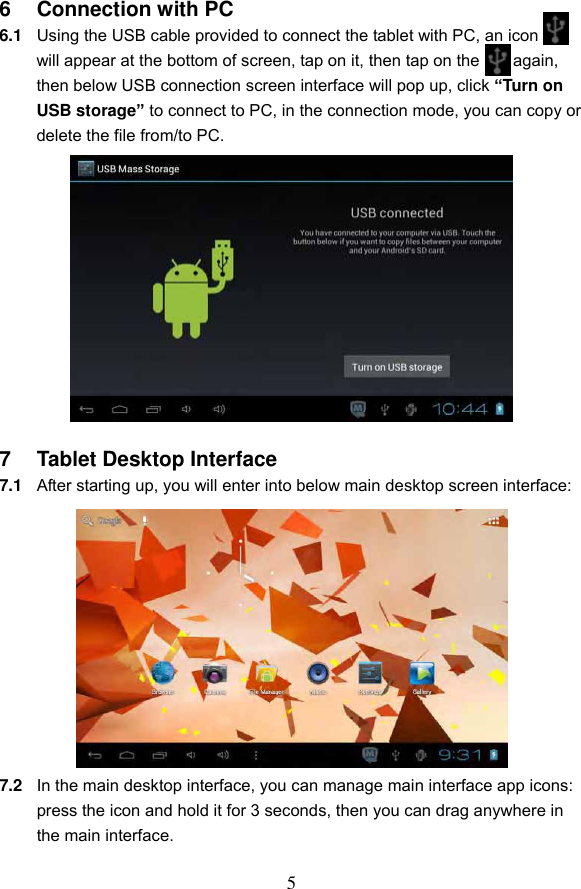
3 5  Turn ON/OFF Tablet 5.1 Turn On: after the battery has been fully charged, press & hold the power switch for around 3 seconds to turn on the device. Screen lock will be showed after starting up.   5.2 Turn Off: When the tablet is ON, press & hold the power switch for around 3 seconds and the system will popup out power off option, tap OK to turn off the tablet. 5.3 Lock screen: quickly press Power Switch and release to lock screen.   5.4 Unlock screen: slide the lock icon rightward onto the unlock icon to unlock the screen and go to main desktop; Slide the lock icon onto the other icon (Settings/Player/Search/Main Desktop) to run that app accordingly.
4                         Remarks:     When battery power has been used up, the tablet will shut down itself automatically.   If you illegally turn off the device, restart will scan and restore the disk, it may take longer time to enter into system.
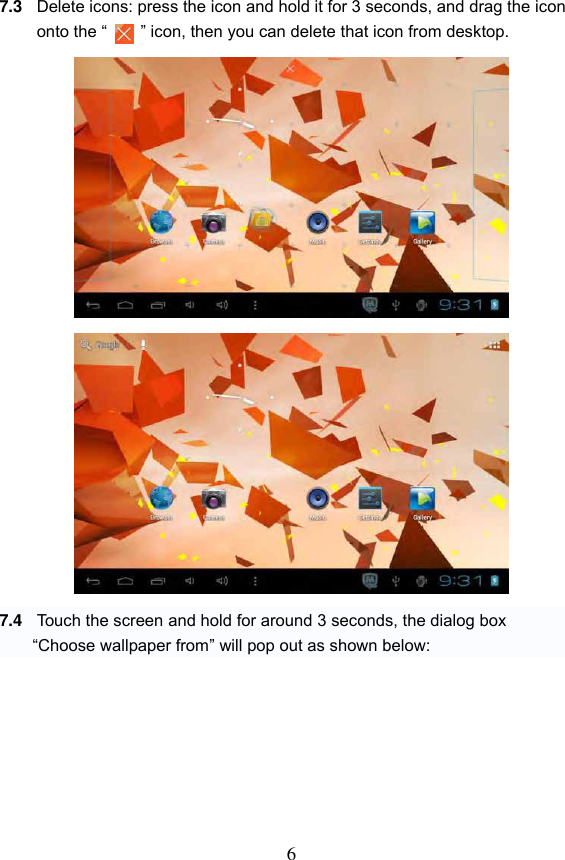
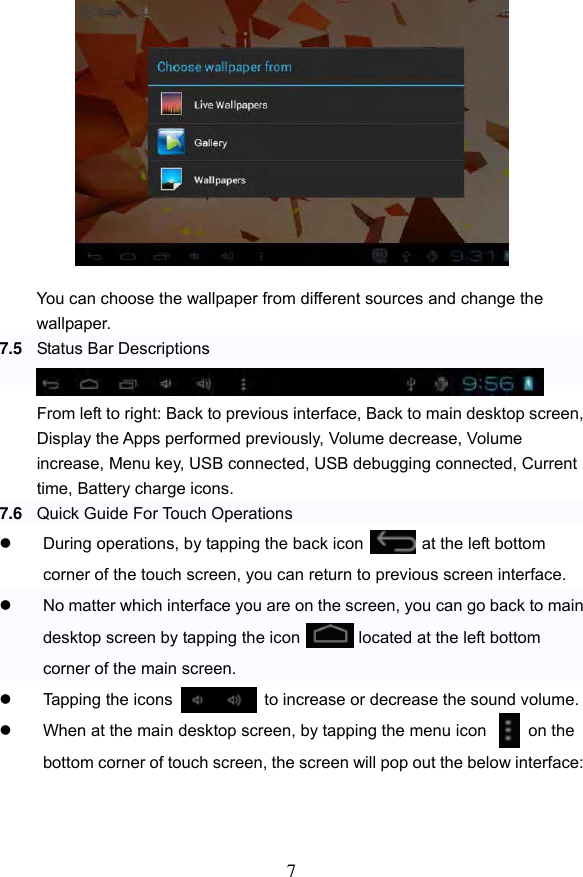
5 6  Connection with PC 6.1 Using the USB cable provided to connect the tablet with PC, an icon   will appear at the bottom of screen, tap on it, then tap on the      again, then below USB connection screen interface will pop up, click “Turn on USB storage” to connect to PC, in the connection mode, you can copy or delete the file from/to PC.             7  Tablet Desktop Interface 7.1 After starting up, you will enter into below main desktop screen interface:            7.2 In the main desktop interface, you can manage main interface app icons: press the icon and hold it for 3 seconds, then you can drag anywhere in the main interface.
6  7.3 Delete icons: press the icon and hold it for 3 seconds, and drag the icon onto the “    ” icon, then you can delete that icon from desktop.                    7.4 Touch the screen and hold for around 3 seconds, the dialog box   “Choose wallpaper from” will pop out as shown below:
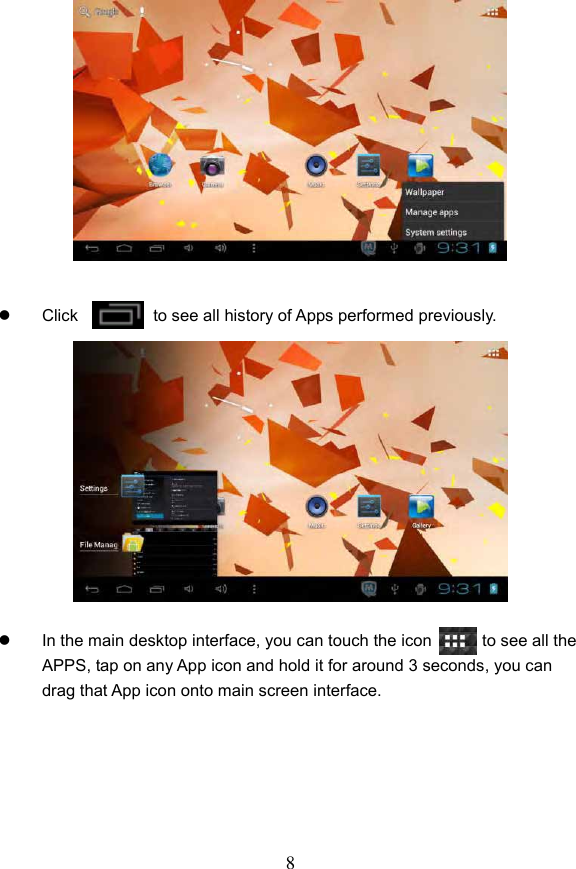
7             You can choose the wallpaper from different sources and change the wallpaper.   7.5 Status Bar Descriptions   From left to right: Back to previous interface, Back to main desktop screen, Display the Apps performed previously, Volume decrease, Volume increase, Menu key, USB connected, USB debugging connected, Current time, Battery charge icons. 7.6 Quick Guide For Touch Operations     During operations, by tapping the back icon           at the left bottom corner of the touch screen, you can return to previous screen interface.   No matter which interface you are on the screen, you can go back to main desktop screen by tapping the icon          located at the left bottom corner of the main screen.        Tapping the icons            at   to increase or decrease the sound volume.   When at the main desktop screen, by tapping the menu icon     on the bottom corner of touch screen, the screen will pop out the below interface:
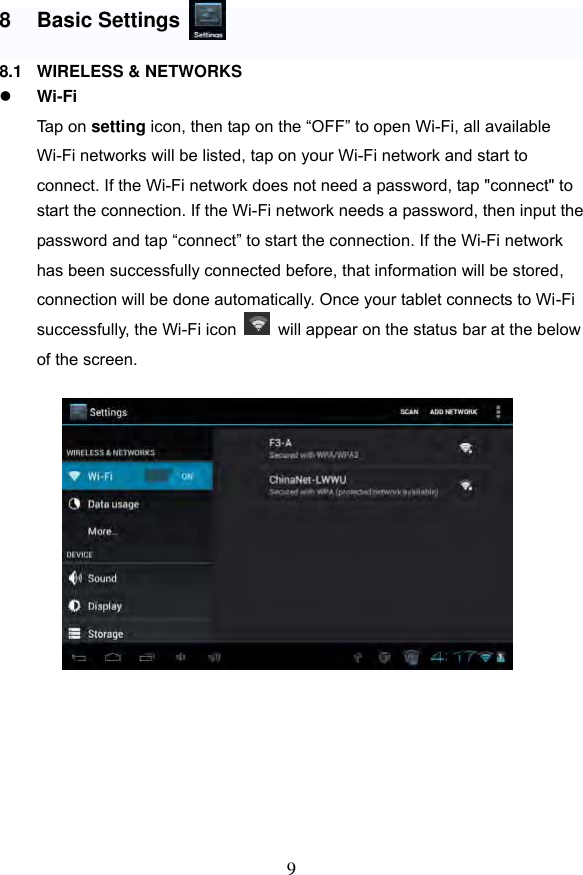
8                Click                  to see all history of Apps performed previously.                In the main desktop interface, you can touch the icon            to see all the APPS, tap on any App icon and hold it for around 3 seconds, you can drag that App icon onto main screen interface.
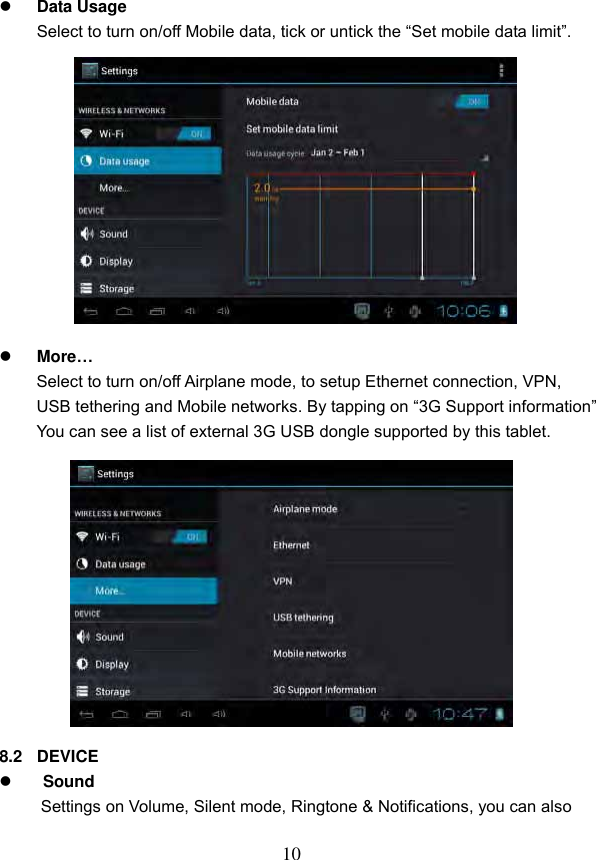
9  8  Basic Settings  8.1  WIRELESS & NETWORKS  Wi-Fi Tap on setting icon, then tap on the “OFF” to open Wi-Fi, all available Wi-Fi networks will be listed, tap on your Wi-Fi network and start to   connect. If the Wi-Fi network does not need a password, tap "connect" to start the connection. If the Wi-Fi network needs a password, then input the   password and tap “connect” to start the connection. If the Wi-Fi network   has been successfully connected before, that information will be stored, connection will be done automatically. Once your tablet connects to Wi-Fi   successfully, the Wi-Fi icon    will appear on the status bar at the below of the screen.
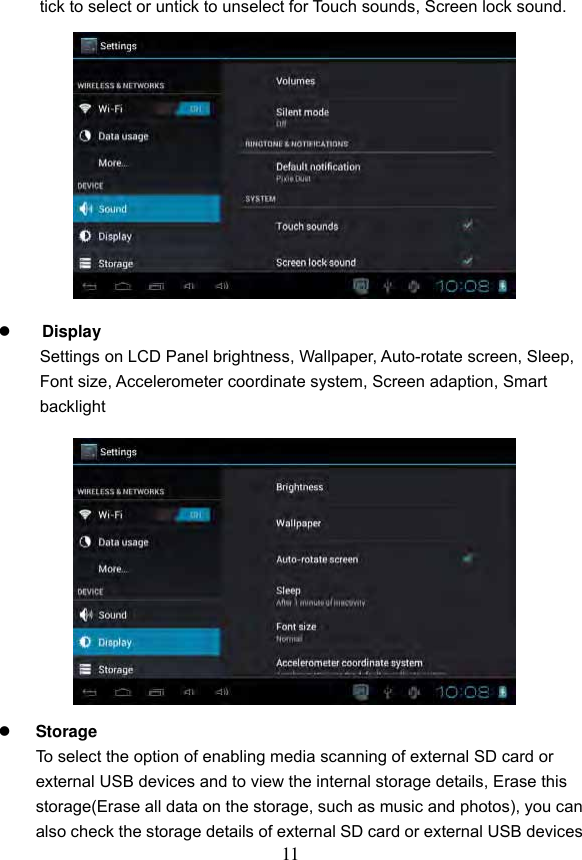
10   Data Usage Select to turn on/off Mobile data, tick or untick the “Set mobile data limit”.              More… Select to turn on/off Airplane mode, to setup Ethernet connection, VPN,   USB tethering and Mobile networks. By tapping on “3G Support information” You can see a list of external 3G USB dongle supported by this tablet.               8.2  DEVICE  Sound Settings on Volume, Silent mode, Ringtone & Notifications, you can also
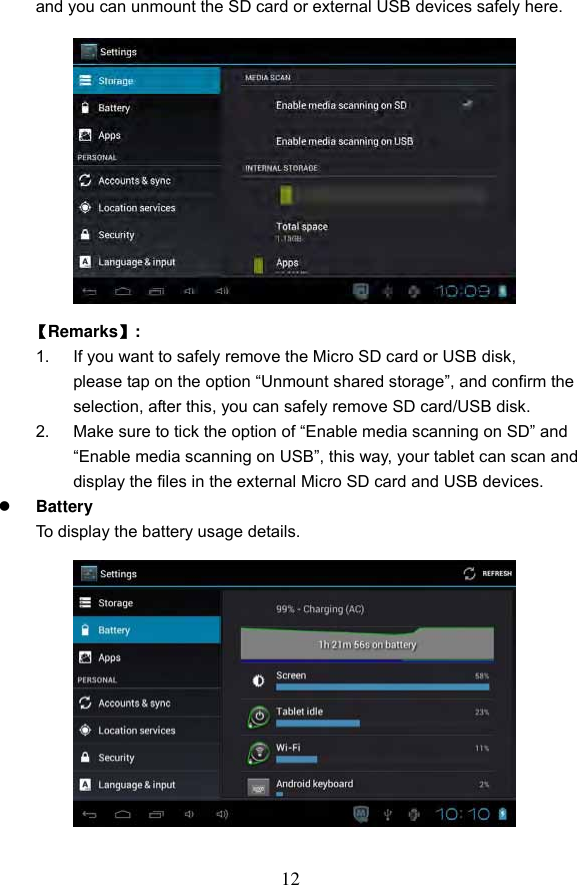
11  tick to select or untick to unselect for Touch sounds, Screen lock sound.              Display Settings on LCD Panel brightness, Wallpaper, Auto-rotate screen, Sleep,   Font size, Accelerometer coordinate system, Screen adaption, Smart backlight              Storage To select the option of enabling media scanning of external SD card or external USB devices and to view the internal storage details, Erase this storage(Erase all data on the storage, such as music and photos), you can also check the storage details of external SD card or external USB devices
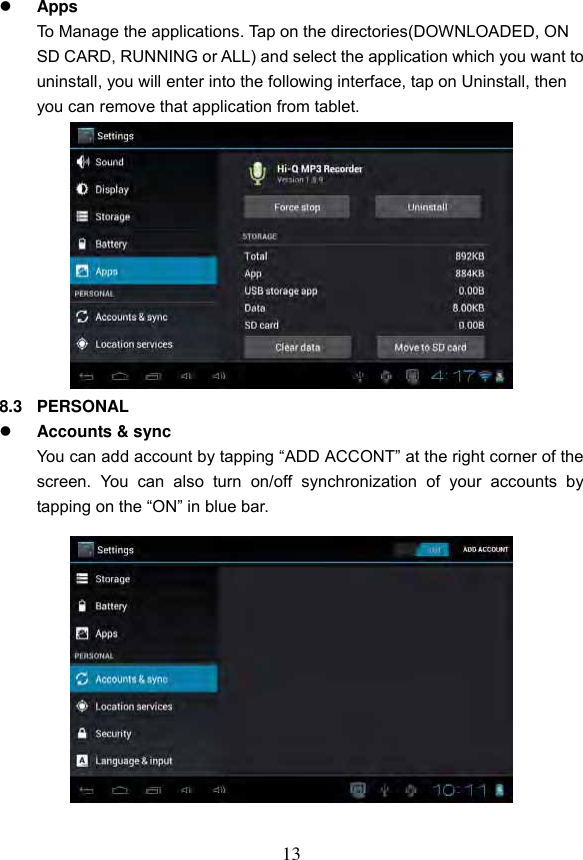
12 and you can unmount the SD card or external USB devices safely here.               【Remarks】:   1.  If you want to safely remove the Micro SD card or USB disk,   please tap on the option “Unmount shared storage”, and confirm the selection, after this, you can safely remove SD card/USB disk. 2.  Make sure to tick the option of “Enable media scanning on SD” and “Enable media scanning on USB”, this way, your tablet can scan and display the files in the external Micro SD card and USB devices.  Battery To display the battery usage details.
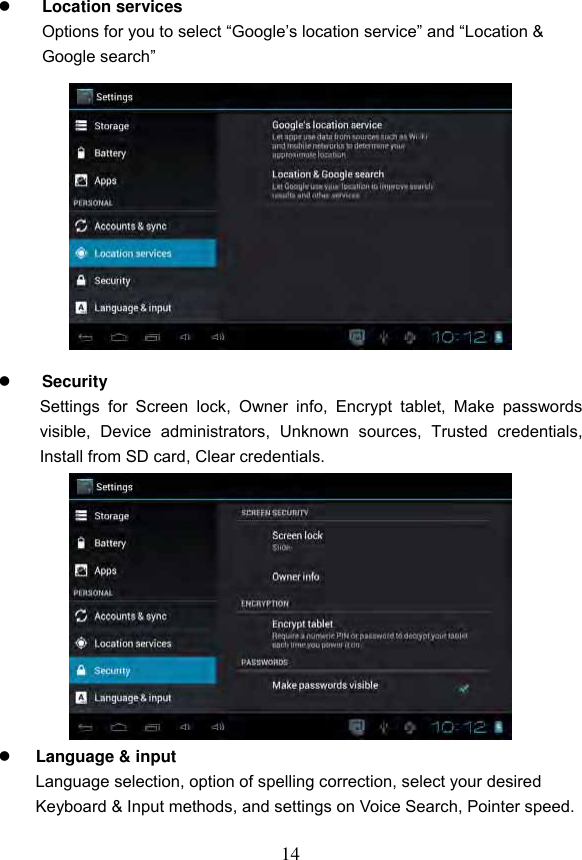
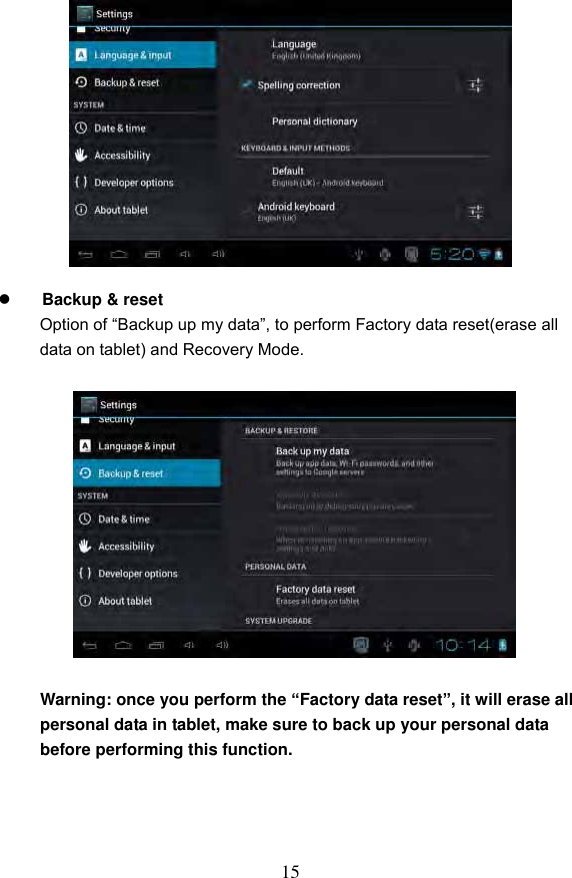
13   Apps To Manage the applications. Tap on the directories(DOWNLOADED, ON SD CARD, RUNNING or ALL) and select the application which you want to uninstall, you will enter into the following interface, tap on Uninstall, then you can remove that application from tablet.            8.3  PERSONAL  Accounts & sync You can add account by tapping “ADD ACCONT” at the right corner of the screen.  You  can  also  turn  on/off  synchronization  of  your  accounts  by tapping on the “ON” in blue bar.
14   Location services   Options for you to select “Google’s location service” and “Location & Google search”              Security Settings  for  Screen  lock,  Owner  info,  Encrypt  tablet,  Make  passwords visible,  Device  administrators,  Unknown  sources,  Trusted  credentials, Install from SD card, Clear credentials.             Language & input   Language selection, option of spelling correction, select your desired Keyboard & Input methods, and settings on Voice Search, Pointer speed.
15              Backup & reset Option of “Backup up my data”, to perform Factory data reset(erase all data on tablet) and Recovery Mode.              Warning: once you perform the “Factory data reset”, it will erase all personal data in tablet, make sure to back up your personal data   before performing this function.
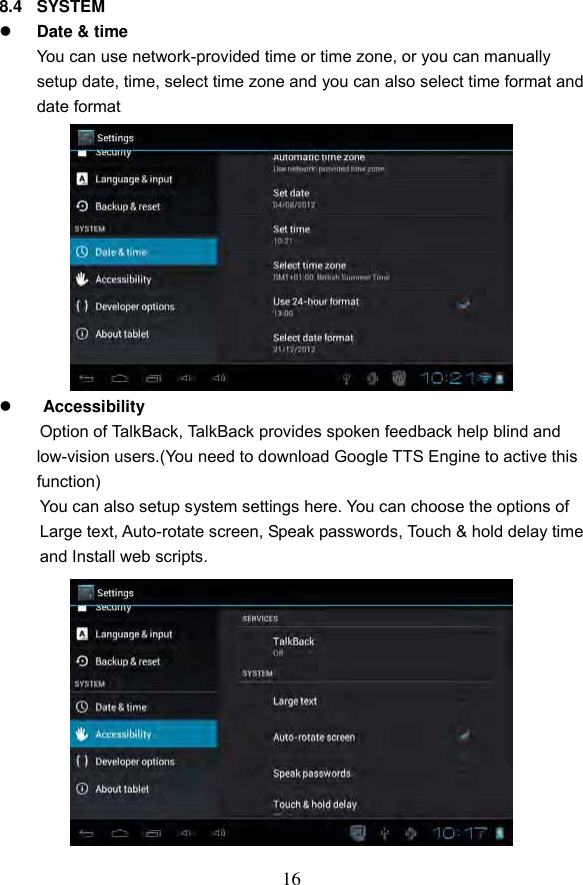
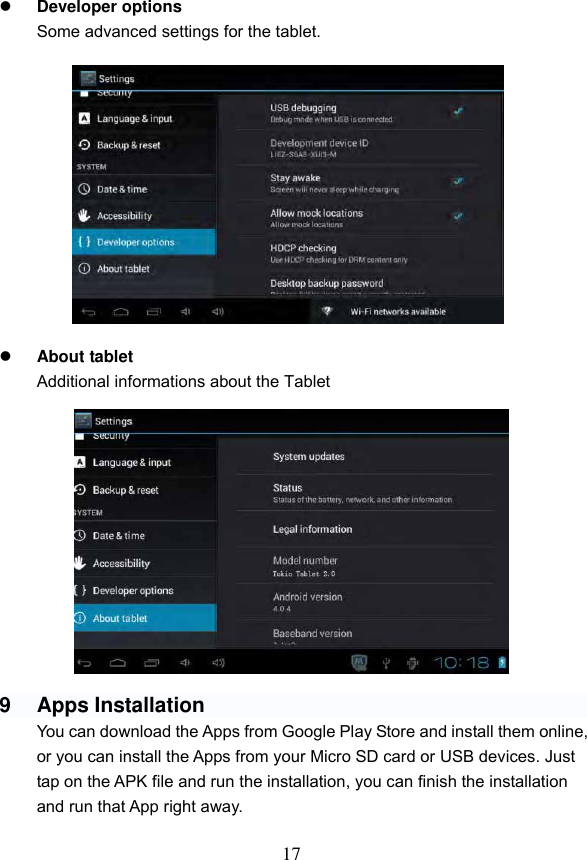
16 8.4  SYSTEM  Date & time You can use network-provided time or time zone, or you can manually setup date, time, select time zone and you can also select time format and date format             Accessibility Option of TalkBack, TalkBack provides spoken feedback help blind and low-vision users.(You need to download Google TTS Engine to active this function)   You can also setup system settings here. You can choose the options of   Large text, Auto-rotate screen, Speak passwords, Touch & hold delay time   and Install web scripts.
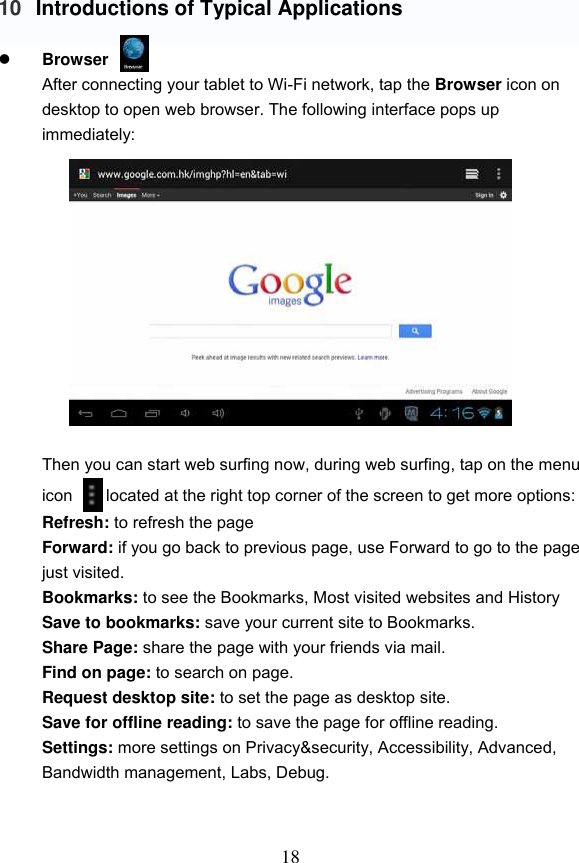
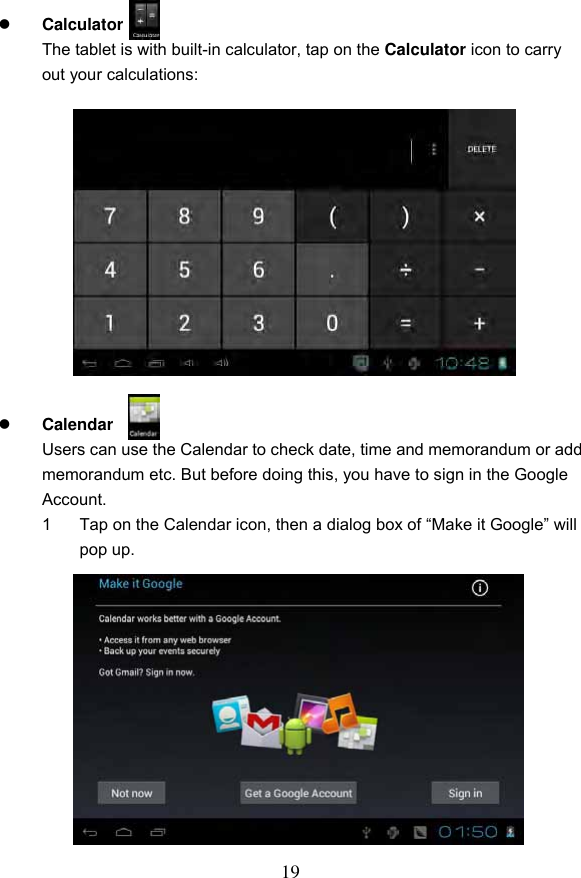
17   Developer options Some advanced settings for the tablet.              About tablet Additional informations about the Tablet               9  Apps Installation You can download the Apps from Google Play Store and install them online, or you can install the Apps from your Micro SD card or USB devices. Just tap on the APK file and run the installation, you can finish the installation and run that App right away.
18  10 Introductions of Typical Applications   Browser   After connecting your tablet to Wi-Fi network, tap the Browser icon on desktop to open web browser. The following interface pops up immediately:             Then you can start web surfing now, during web surfing, tap on the menu icon        located at the right top corner of the screen to get more options: Refresh: to refresh the page Forward: if you go back to previous page, use Forward to go to the page just visited. Bookmarks: to see the Bookmarks, Most visited websites and History Save to bookmarks: save your current site to Bookmarks. Share Page: share the page with your friends via mail. Find on page: to search on page. Request desktop site: to set the page as desktop site. Save for offline reading: to save the page for offline reading. Settings: more settings on Privacy&security, Accessibility, Advanced, Bandwidth management, Labs, Debug.
19   Calculator   The tablet is with built-in calculator, tap on the Calculator icon to carry out your calculations:               Calendar   Users can use the Calendar to check date, time and memorandum or add memorandum etc. But before doing this, you have to sign in the Google Account. 1  Tap on the Calendar icon, then a dialog box of “Make it Google” will pop up.
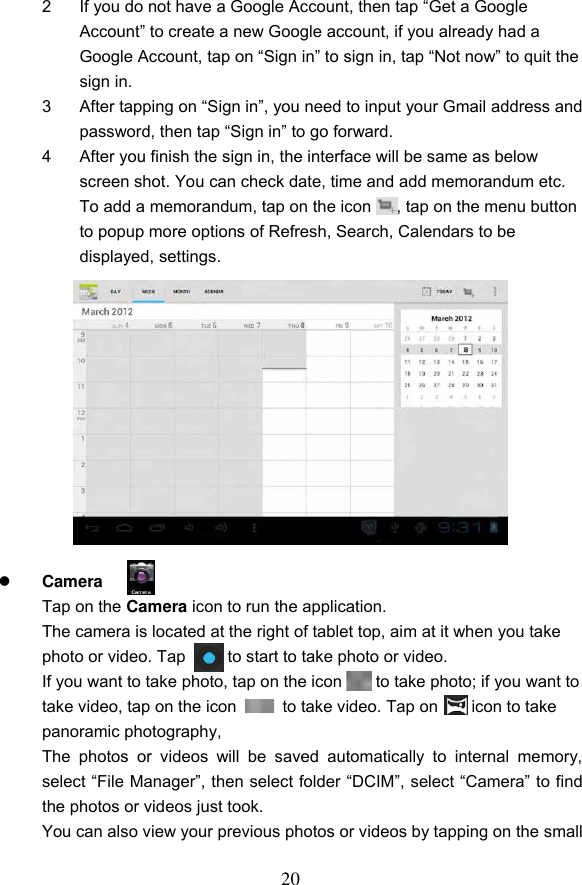
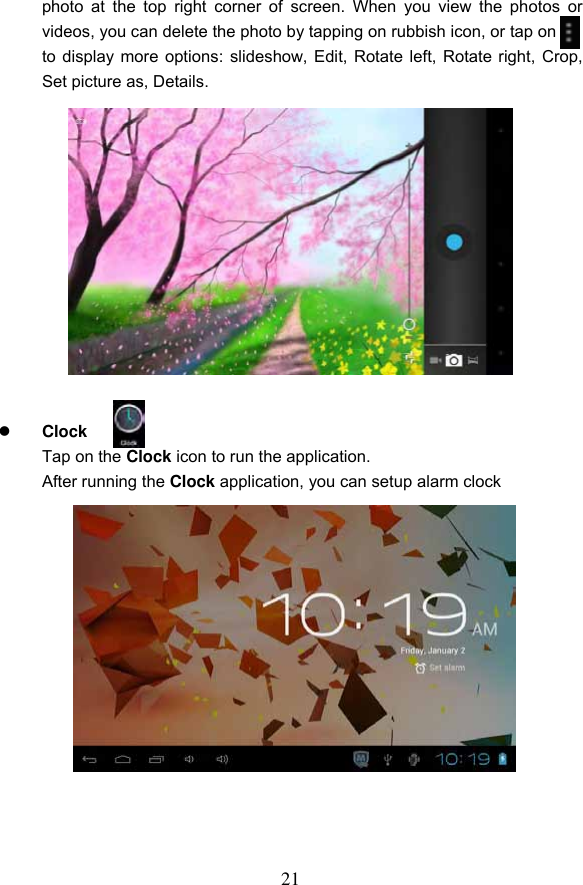
20 2  If you do not have a Google Account, then tap “Get a Google Account” to create a new Google account, if you already had a Google Account, tap on “Sign in” to sign in, tap “Not now” to quit the sign in. 3  After tapping on “Sign in”, you need to input your Gmail address and password, then tap “Sign in” to go forward. 4  After you finish the sign in, the interface will be same as below screen shot. You can check date, time and add memorandum etc. To add a memorandum, tap on the icon      , tap on the menu button to popup more options of Refresh, Search, Calendars to be displayed, settings.              Camera   Tap on the Camera icon to run the application.   The camera is located at the right of tablet top, aim at it when you take photo or video. Tap      to start to take photo or video. If you want to take photo, tap on the icon    to take photo; if you want to take video, tap on the icon    to take video. Tap on        icon to take panoramic photography, The  photos  or  videos  will  be  saved  automatically  to  internal  memory, select “File Manager”, then select folder “DCIM”, select “Camera” to find the photos or videos just took. You can also view your previous photos or videos by tapping on the small
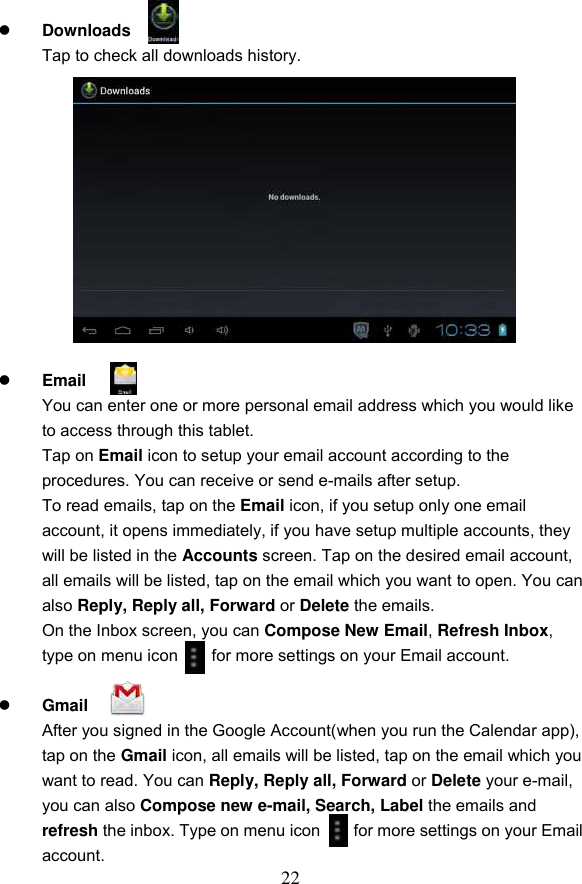
21 photo  at the  top right  corner of  screen.  When  you  view  the  photos  or videos, you can delete the photo by tapping on rubbish icon, or tap on             to display more options: slideshow, Edit, Rotate left, Rotate right, Crop, Set picture as, Details.                   Clock     Tap on the Clock icon to run the application. After running the Clock application, you can setup alarm clock
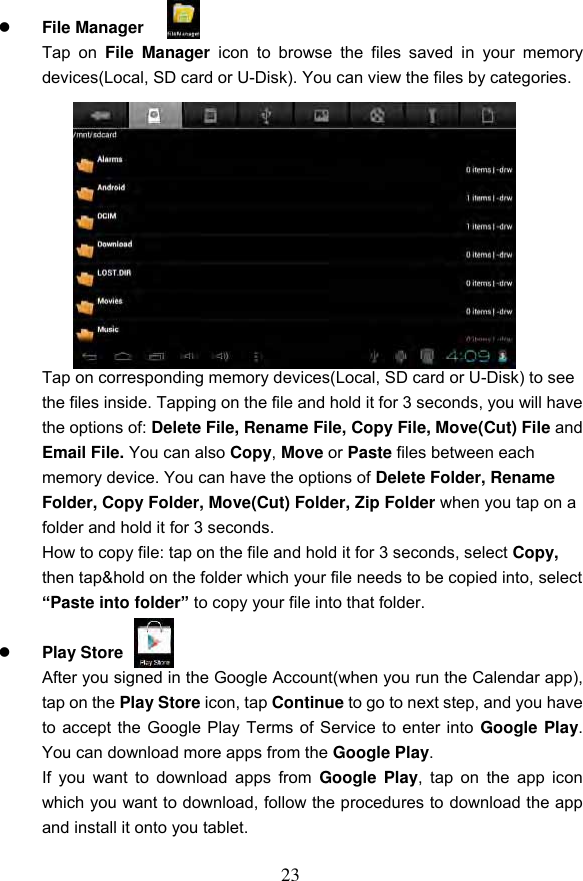
22   Downloads   Tap to check all downloads history.              Email     You can enter one or more personal email address which you would like to access through this tablet. Tap on Email icon to setup your email account according to the procedures. You can receive or send e-mails after setup. To read emails, tap on the Email icon, if you setup only one email account, it opens immediately, if you have setup multiple accounts, they will be listed in the Accounts screen. Tap on the desired email account, all emails will be listed, tap on the email which you want to open. You can also Reply, Reply all, Forward or Delete the emails.   On the Inbox screen, you can Compose New Email, Refresh Inbox, type on menu icon        for more settings on your Email account.   Gmail     After you signed in the Google Account(when you run the Calendar app), tap on the Gmail icon, all emails will be listed, tap on the email which you want to read. You can Reply, Reply all, Forward or Delete your e-mail, you can also Compose new e-mail, Search, Label the emails and refresh the inbox. Type on menu icon        for more settings on your Email account.
23   File Manager   Tap  on  File  Manager  icon  to  browse  the  files  saved  in  your  memory devices(Local, SD card or U-Disk). You can view the files by categories.            Tap on corresponding memory devices(Local, SD card or U-Disk) to see the files inside. Tapping on the file and hold it for 3 seconds, you will have the options of: Delete File, Rename File, Copy File, Move(Cut) File and Email File. You can also Copy, Move or Paste files between each memory device. You can have the options of Delete Folder, Rename Folder, Copy Folder, Move(Cut) Folder, Zip Folder when you tap on a folder and hold it for 3 seconds. How to copy file: tap on the file and hold it for 3 seconds, select Copy, then tap&hold on the folder which your file needs to be copied into, select “Paste into folder” to copy your file into that folder.   Play Store   After you signed in the Google Account(when you run the Calendar app), tap on the Play Store icon, tap Continue to go to next step, and you have to accept the Google Play Terms of Service to enter into Google Play. You can download more apps from the Google Play. If you  want  to  download apps from  Google Play, tap  on the  app icon which you want to download, follow the procedures to download the app and install it onto you tablet.
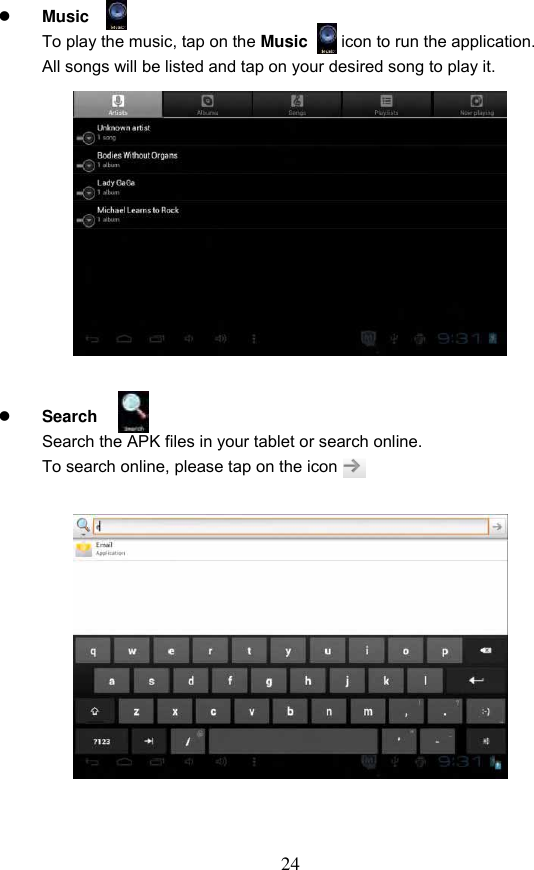
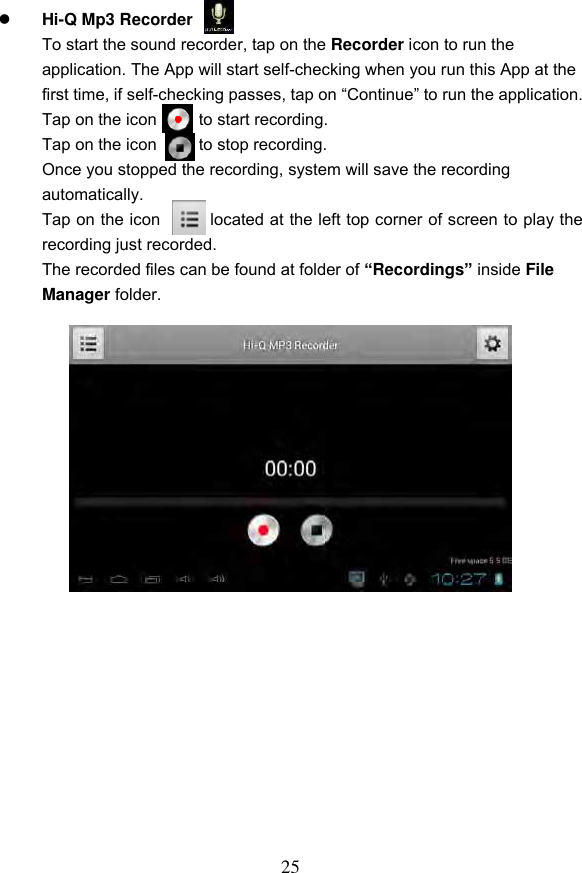
24   Music   To play the music, tap on the Music      icon to run the application. All songs will be listed and tap on your desired song to play it.                 Search   Search the APK files in your tablet or search online. To search online, please tap on the icon
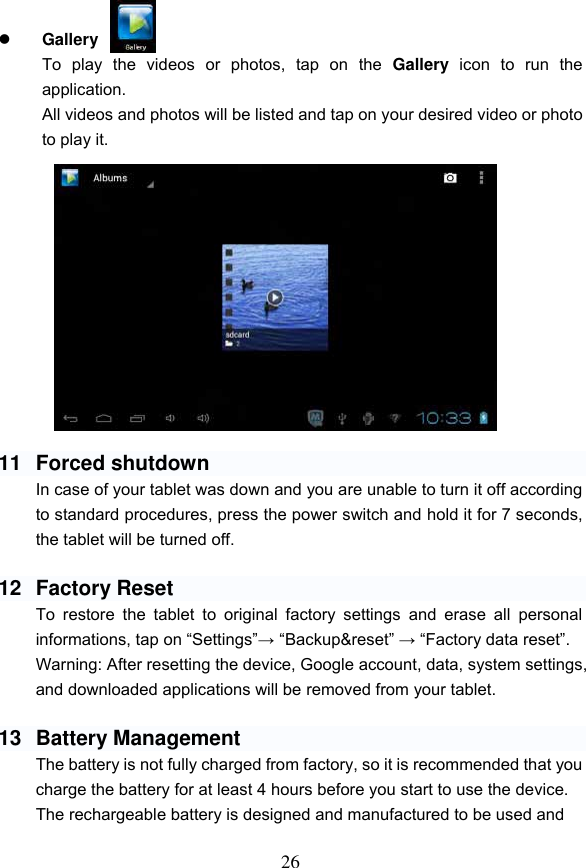
25   Hi-Q Mp3 Recorder   To start the sound recorder, tap on the Recorder icon to run the application. The App will start self-checking when you run this App at the first time, if self-checking passes, tap on “Continue” to run the application. Tap on the icon       to start recording.   Tap on the icon       to stop recording.   Once you stopped the recording, system will save the recording automatically. Tap on the icon            located at the left top corner of screen to play the recording just recorded. The recorded files can be found at folder of “Recordings” inside File Manager folder.
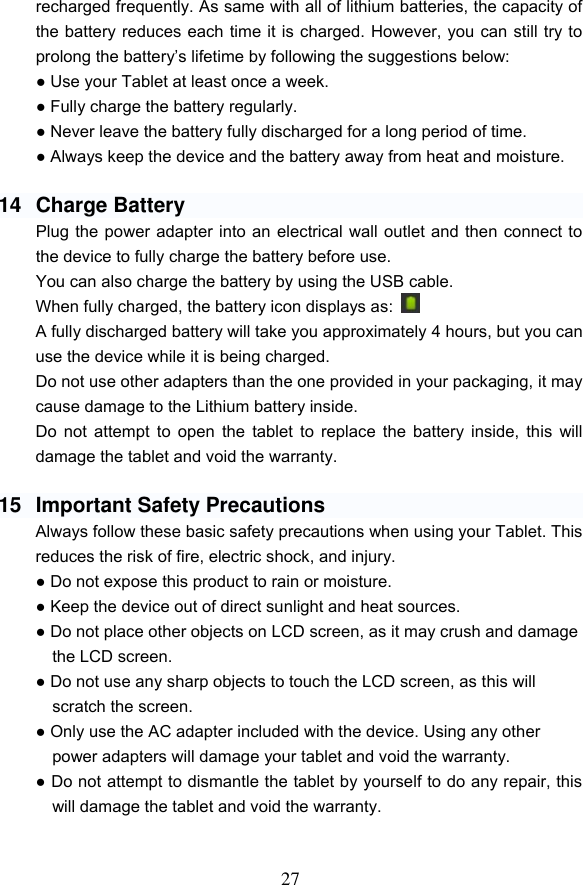
26    Gallery   To  play  the  videos  or  photos,  tap  on  the  Gallery  icon  to  run  the application. All videos and photos will be listed and tap on your desired video or photo to play it.               11  Forced shutdown In case of your tablet was down and you are unable to turn it off according to standard procedures, press the power switch and hold it for 7 seconds, the tablet will be turned off.      12  Factory Reset To  restore  the  tablet  to  original  factory  settings  and  erase  all  personal informations, tap on “Settings”→ “Backup&reset” → “Factory data reset”. Warning: After resetting the device, Google account, data, system settings, and downloaded applications will be removed from your tablet.  13  Battery Management The battery is not fully charged from factory, so it is recommended that you charge the battery for at least 4 hours before you start to use the device. The rechargeable battery is designed and manufactured to be used and
27 recharged frequently. As same with all of lithium batteries, the capacity of the battery reduces each time it is charged. However, you can still try to prolong the battery’s lifetime by following the suggestions below: ● Use your Tablet at least once a week. ● Fully charge the battery regularly. ● Never leave the battery fully discharged for a long period of time. ● Always keep the device and the battery away from heat and moisture.  14  Charge Battery Plug the power adapter into an electrical wall outlet and then connect to the device to fully charge the battery before use. You can also charge the battery by using the USB cable. When fully charged, the battery icon displays as:     A fully discharged battery will take you approximately 4 hours, but you can use the device while it is being charged. Do not use other adapters than the one provided in your packaging, it may cause damage to the Lithium battery inside.     Do not attempt to open the  tablet  to  replace the battery inside, this  will damage the tablet and void the warranty.  15  Important Safety Precautions Always follow these basic safety precautions when using your Tablet. This reduces the risk of fire, electric shock, and injury. ● Do not expose this product to rain or moisture. ● Keep the device out of direct sunlight and heat sources. ● Do not place other objects on LCD screen, as it may crush and damage the LCD screen. ● Do not use any sharp objects to touch the LCD screen, as this will scratch the screen. ● Only use the AC adapter included with the device. Using any other power adapters will damage your tablet and void the warranty. ● Do not attempt to dismantle the tablet by yourself to do any repair, this will damage the tablet and void the warranty.
28  16  Clean Your Device To clean fingerprints or dust from the screen, we recommend to use soft, non-abrasive and non-corrosive cloth for cleaning, such as a camera lens cloth.
29 Frequently Asked Questions  Android Q: What Android OS version is on my Device? A: Android 4.2  Basic Functionality Q: Do I have to charge the battery before use? A:  You  should charge  the battery  for at  least  4 hours,  but  you  can  use  the device while it’s being charged. Use the included power adapter to charge; this device also can be charged via the USB cable.  Email Q: Can I use any of my personal email addresses to send/receive email? A:  The  device  supports  POP3  accounts.  Some  free  email  accounts  are not supported  on  mobile  devices.  Check  with  your  email  provider  to  see  if  you account is supported.  Media Cards Q: Which media cards are compatible with my Device? A: Micro SD cards.  Music Q: What type of music files can I play on my device? A: MP2, MP3, WAV, AAC, WMA Q: How do I add music files to my device? A: Copy the music files from your PC, Micro SD card or USB storage device directly to your device.  Photos Q: What type of photo files can I view on my device? A: JPEG,BMP,GIF,PNG Q: How do I add photo files to my device? A: Copy the photos from your PC, Micro SD card or USB storage device directly to your device.
30  Videos Q: What type of video files can I play on my device? A: Video Decoding (Full HD) Support all formats of video, such as H. 264,   H. 263, VC-1, MPEG-1, 2,4,DIVX-3, 4, 5, 6,XVID, H263, WMV7/8, VP6,   AVI and other popular video formats. Q: Can I play YouTube videos on my device? A: Yes, you can download the YouTube application from Google Play and run it on your tablet.   Q: How do I add video files to my device? A: Copy the video files from your PC, Micro SD card or USB storage device directly to your device.  Wi-Fi Q: Do I need a Wi-Fi adapter to connect to the Internet? A: No, the Wi-Fi adapter is built-in to the device.
    FCC  statement   This device complies with Part 15 of the FCC Rules: Operation is subject to  the following two conditions:   1. This device may not cause harmful interference and   2. This device must accept any interference that is received, including any interference that may cause undesired operation.        *RF warning for Portable device: The device has been evaluated to meet general RF exposure requirement. The device can be used in portable exposure condition without restriction.      This device is acting as slave and operating in the 2.4 GHz (2412 ~2462 MHz) band.     Ad Hoc function is supported but not able to operate on non-US frequencies. Do not use the device with the environment which below minimum -10 ℃ or maximum over 50℃ .     NOTE: This equipment has been tested and found to comply with the limits for a Class B digital device, pursuant to part 15 of the FCC Rules. These limits are designed to provide reasonable protection against harmful interference in a residential installation. This equipment generates uses and can radiate radio frequency energy and, if not installed and used in accordance with the instructions, may cause harmful interference to radio communications. However, there is no guarantee that interference will not occur in a particular installation. If this equipment does cause harmful interference to radio or television reception, which can be determined by turning the equipment off and on, the user is encouraged to try to correct the interference by one or more of the following measures:      - Reorient or relocate the receiving antenna. - Increase the separation between the equipment and receiver.   -Connect the equipment into an outlet on a circuit different from that to which the receiver is connected.   -Consult the dealer or an experienced radio/TV technician for help Changes or modifications to this unit not expressly approved by the party responsible for compliance could void the user's authority to operate the equipment.

Navigation menu