EXADIGM XD2100SP POS Terminal User Manual

EXADIGM INC. POS Terminal

User manual

   XD2100SP POS TERMINAL User Guide                        Warranty The information contained in this document is subject to change without notice. ExaDigm makes no warranty of any kind with regard to this material, including, but not limited to, the implied warranties or merchantability and fitness for a particular purpose. ExaDigm shall not be liable for errors contained herein or for incidental or consequential damages in connection with the furnishing, performance, or use of this material.
XD2100SP User Guide     © 2009 ExaDigm Korea Inc.      Page 2 of 11    Rev. 7/0109 NOTE :  This equipment has been tested and found to comply with the limits for a Class B digital device, pursuant to Part 15 of the FCC Rules. These are designed the  provide reason-able protection against harmful interference in a  residential  installation.  This equipment generates, uses and can radiate radio frequency energy and, if not installed and  used in accordance with the instructions, may cause interference to radio communications. However, there is no guarantee that interference will not occur in a partic-ular installation.  If this is equipment does cause interference the radio or television reception which can be determined by turning the equipment off and on, the user is encouraged to try correct the interference by on or more of the following measures.  - Reorient or relocate the receiving antenna -.Increase the separation between the equipment and receiver. -Connect the equipment into an outlet on a circuit different form that to which the receiver is connected. -Consult authorized service centers for help. -Only shielded interface cable should be used.  Finally, any changes or modifications to the equipment by the user not expressly approved by the grantee or manufacturer could void the users authority to operate such equipment.
XD2100SP User Guide     © 2009 ExaDigm Korea Inc.      Page 3 of 11    Rev. 7/0109 Table of Contents   1.0  XD2100SP POS Terminal…………………………………………………………………4  2.0  Installing the ExaDigm XD2100SP ……………………………………………………….5  3.0 Basic Parts and Accessories…………………………………………………………….….5  4.0 Terminal Posts…………………………………………………………………………..….6  5.0 Ethernet Configuration…………………………………………………………………….7  6.0 Connecting an External PIN Pad………………………………………………………….8  7.0 Installing a Paper Rol………………………………………………………………………9  8.0 Alpha/Numeric Keypad……………………………………………………………………10  9.0 Function/Arrow keys……………………………………………………………………….10  10.0 Color-Coded Keys………………………...……………………………………………….11
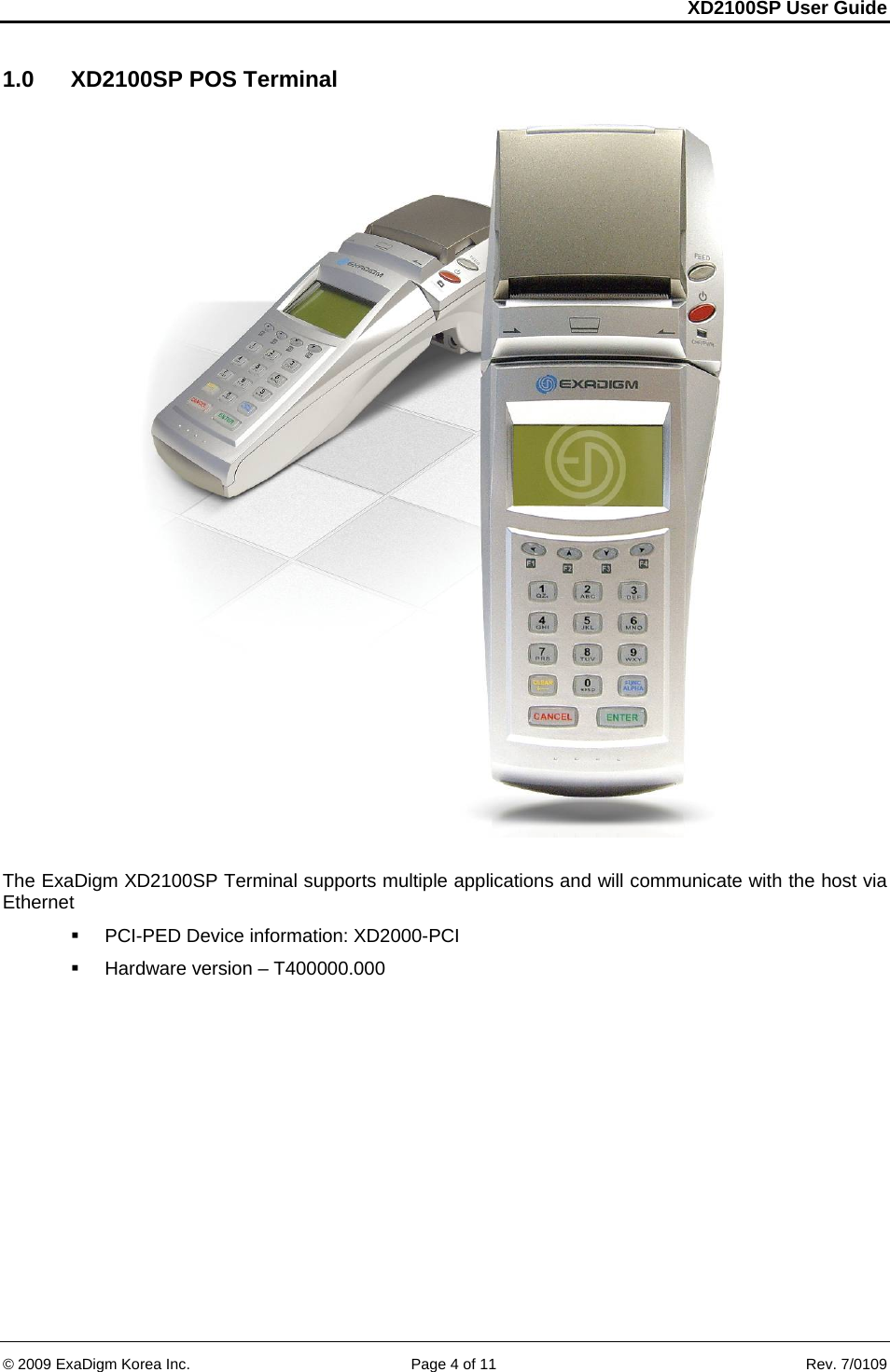
XD2100SP User Guide     © 2009 ExaDigm Korea Inc.      Page 4 of 11    Rev. 7/0109 1.0  XD2100SP POS Terminal     The ExaDigm XD2100SP Terminal supports multiple applications and will communicate with the host via Ethernet   PCI-PED Device information: XD2000-PCI   Hardware version – T400000.000
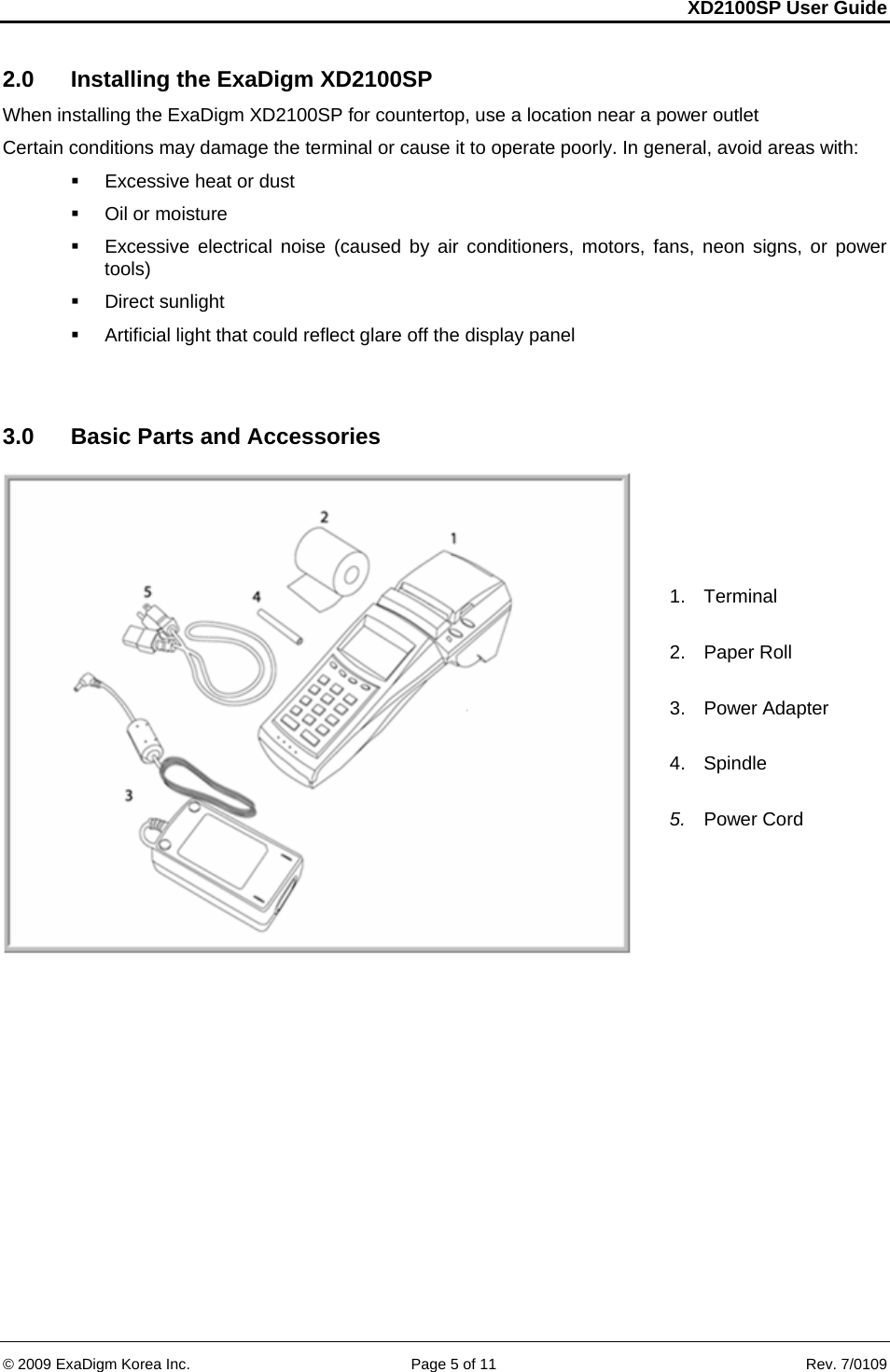
XD2100SP User Guide     © 2009 ExaDigm Korea Inc.      Page 5 of 11    Rev. 7/0109 2.0  Installing the ExaDigm XD2100SP When installing the ExaDigm XD2100SP for countertop, use a location near a power outlet  Certain conditions may damage the terminal or cause it to operate poorly. In general, avoid areas with:    Excessive heat or dust   Oil or moisture    Excessive electrical noise (caused by air conditioners, motors, fans, neon signs, or power tools)    Direct sunlight    Artificial light that could reflect glare off the display panel    3.0  Basic Parts and Accessories   1. Terminal  2.  Paper Roll  3. Power Adapter  4. Spindle  5.  Power Cord
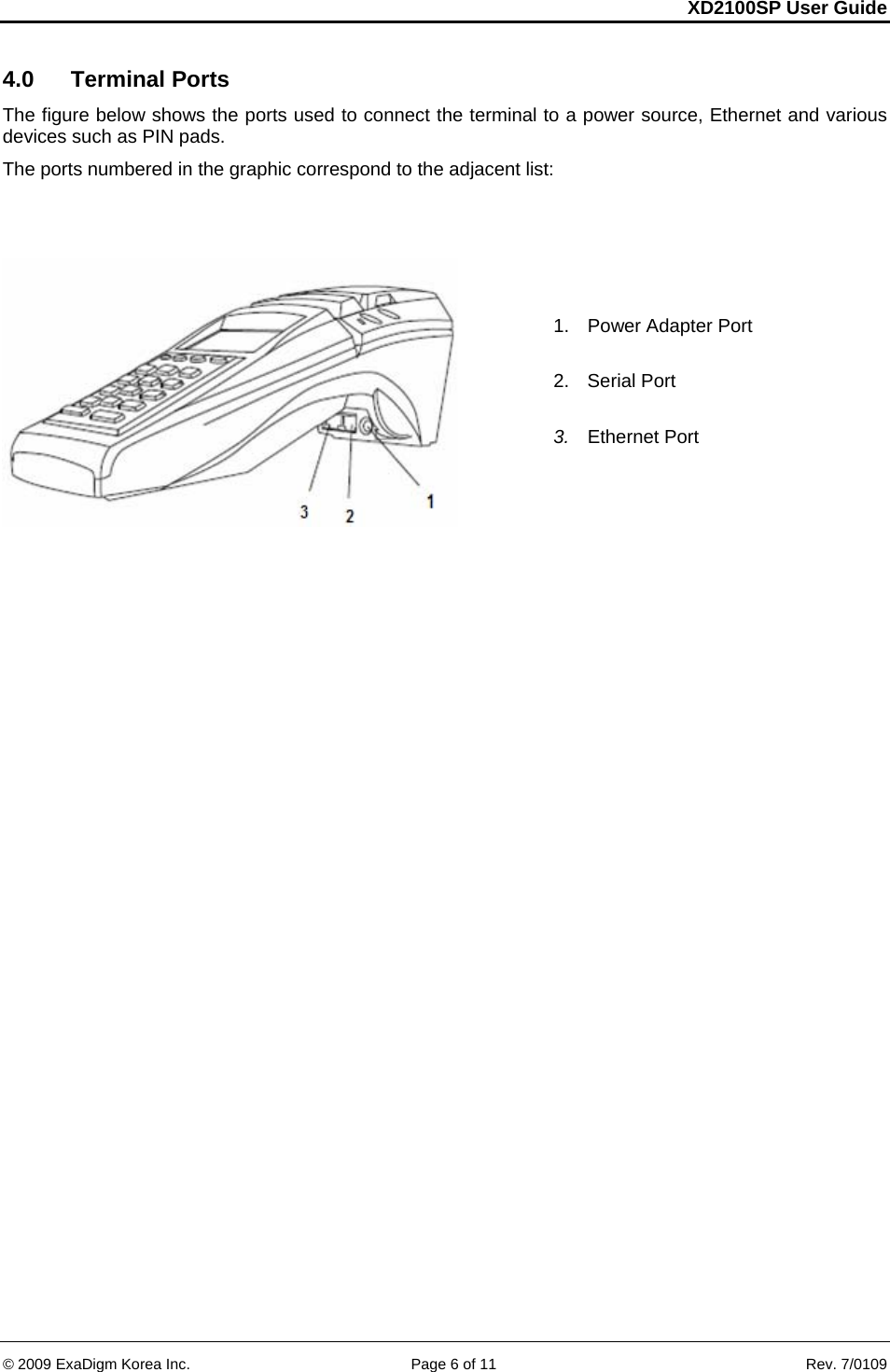
XD2100SP User Guide     © 2009 ExaDigm Korea Inc.      Page 6 of 11    Rev. 7/0109 4.0  Terminal Ports  The figure below shows the ports used to connect the terminal to a power source, Ethernet and various devices such as PIN pads.  The ports numbered in the graphic correspond to the adjacent list:   1.  Power Adapter Port  2. Serial Port  3.  Ethernet Port
XD2100SP User Guide     © 2009 ExaDigm Korea Inc.      Page 7 of 11    Rev. 7/0109  5.0 Ethernet Configurations The terminal can be connected to an Ethernet line in order to contact the host for transaction approvals and settlements. Connect the Ethernet cable to the Ethernet port underneath the terminal. Follow the steps below to connect the terminal to Ethernet:    [Admin]  [Setup]   Enter Administrator Password (application specific)  [Processor Name]  [Comm Option]  Select [SSL]  [Cancel] out to Setup menu  [Communication]  [Ethernet]  [Conn. Method]  Select [Static], [DHCP] or [PPPoE]  Static will require the following fields: i.   [Set IP] ii.  [Set Mask] iii.  [Set Gateway] iv.  [Set DNS1] v.  [Set DNS2]  [Cancel] back to the Communication Menu  [Modem Init]   Return to the Ethernet Menu  [Test Connection]  [Test]  0%packet loss  [Cancel] back to Main Menu   Run test transaction
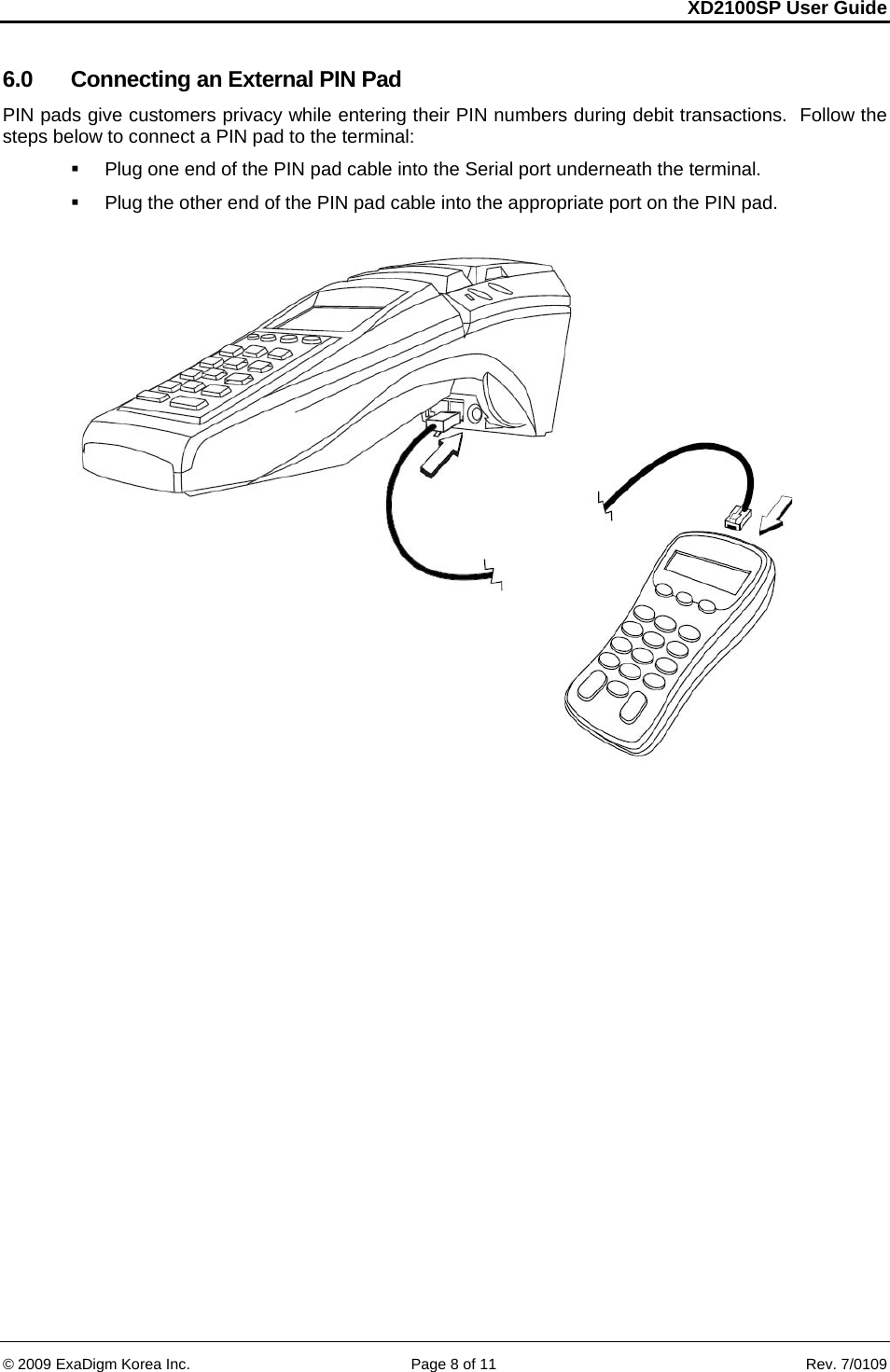
XD2100SP User Guide     © 2009 ExaDigm Korea Inc.      Page 8 of 11    Rev. 7/0109 6.0  Connecting an External PIN Pad PIN pads give customers privacy while entering their PIN numbers during debit transactions.  Follow the steps below to connect a PIN pad to the terminal:    Plug one end of the PIN pad cable into the Serial port underneath the terminal.    Plug the other end of the PIN pad cable into the appropriate port on the PIN pad.
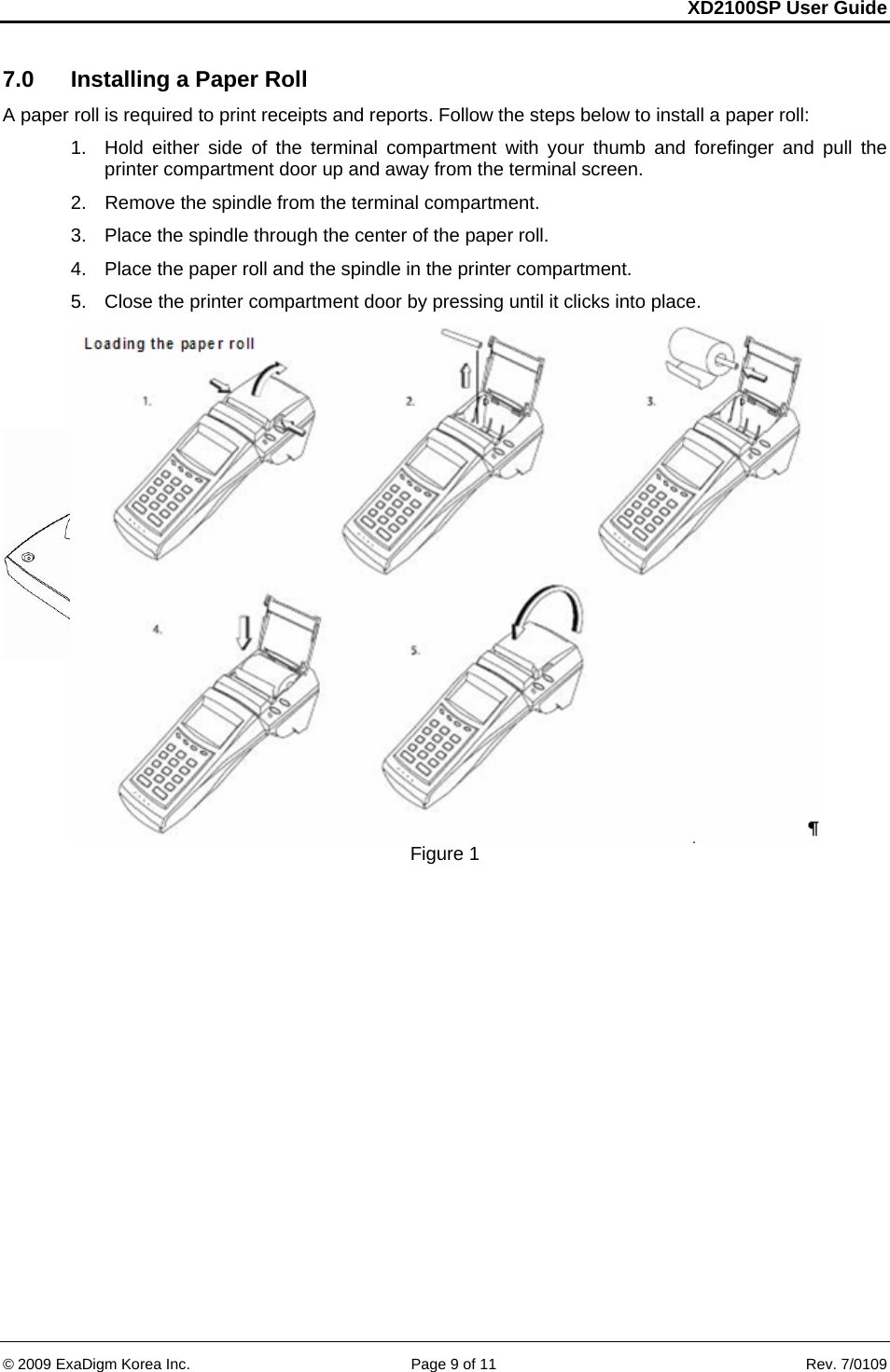
XD2100SP User Guide     © 2009 ExaDigm Korea Inc.      Page 9 of 11    Rev. 7/0109 7.0  Installing a Paper Roll A paper roll is required to print receipts and reports. Follow the steps below to install a paper roll:  1.  Hold either side of the terminal compartment with your thumb and forefinger and pull the printer compartment door up and away from the terminal screen.  2.  Remove the spindle from the terminal compartment.  3.  Place the spindle through the center of the paper roll.  4.  Place the paper roll and the spindle in the printer compartment.  5.  Close the printer compartment door by pressing until it clicks into place.     Figure 1
XD2100SP User Guide     © 2009 ExaDigm Korea Inc.      Page 10 of 11    Rev. 7/0109 8.0 Alpha/Numeric Keypad The keypad contains horizontal rows of numeric keys with alphabetic characters.  The keypad accepts numeric keys as the default. To activate the alphabetic keys, press the [FUNC/ALPHA] key to change from a numeric digit to an alpha character, press the numeric key with the desired alpha character and then press the [FUNC/ALPHA] key until the target alpha character displays.   The following is a table representing the Numbers, Alpha Letters and Symbols on the keypad.  Number  Alpha 1  Alpha 2  Alpha 3  Alpha 4  Alpha 5  Alpha 6 1 Q Z q z .   2 A B C a b c 3 D E F d e f 4 G H I  g h i 5 J K L j  k l 6 M N O m n o 7 P R S p r  s 8 T U V t  u v 9 W X Y w x y 0 *  ,  SPACE @ -  _  $ #  = ‘  “ +  ! ~ % ^ & (   )  < > ? /  \   | { } [ ] :  ;      For example press the numeric key [2], then press the [FUNC/ALPHA] key continuously until the desired alpha character displays.  One press to display the alpha letter A (Capital), press twice to display the alpha letter B (Capital), and press four times for the alpha letter a (Lower case) to display.  9.0 Function/Arrow Keys   F1 – Left Arrow Key  F2 – Up Arrow Key  F3 – Down Arrow Key F4 – Right Arrow Key
XD2100SP User Guide     © 2009 ExaDigm Korea Inc.      Page 11 of 11    Rev. 7/0109  10.0 Color-Coded Keys The color-coded keys perform the following tasks:    Red CANCEL Key:   Press the red key to cancel the current operation or return to the previous menu.  Yellow CLEAR and Backspace Key:  Press this key to backspace, erasing typed text, starting from right to left or to clear an action.  Green ENTER Key:  This key is used like the ENTER key on a computer keyboard.  Press the green key to signify to the terminal that the task is complete, or press to enable a function or perform an action based on typed data.   Blue FUNC/ALPHA Key:  This key is used activate a special function and to enter alpha characters from the keyboard. 

Navigation menu