Eeyelog Technology W001 WiFi Read Card User Manual

Shenzhen Eeyelog Technology Co., Ltd. WiFi Read Card

user manual

Quick Start GuideEPOC MiNi
Content1.0  -General Information 1.1  -Charge up your Epoc Mini1.2  -Install Epoc APP on your iPad/iPhone/iPod Touch1.3 -TurnyourEpocMINIWiFion/O1.4  -Connect Epoc MINI to iPad/iphone/iPod Touch2.0  -Introduction to Epoc MINI APP[V1.0]2.1  -Set your Epoc MINI SSID and password2.2  -Bridge your Epoc MINI to your WiFi network2.3  -Setting up your access point mode3.0  -Use your Epoc MINI as a travel router4.0  -Reset your Epoc MINI5.0 -EpocMINIhardwarespecication6.0  –FAQ1
1.0 General Information Package Contents-  USB Cable x 1-  AC Adaptor x 1(Optional)-  Quick Start Guide x 1-  Warranty Card x 1(Optional)<Default Setting>SSID:Epoc-XXXXXXPassword:88888888Hints:A unique SSID is assigned to each Of the Epoc MINI,you can change your Preferred SSID and Password in setting page(please refer to instruction 2.1)2
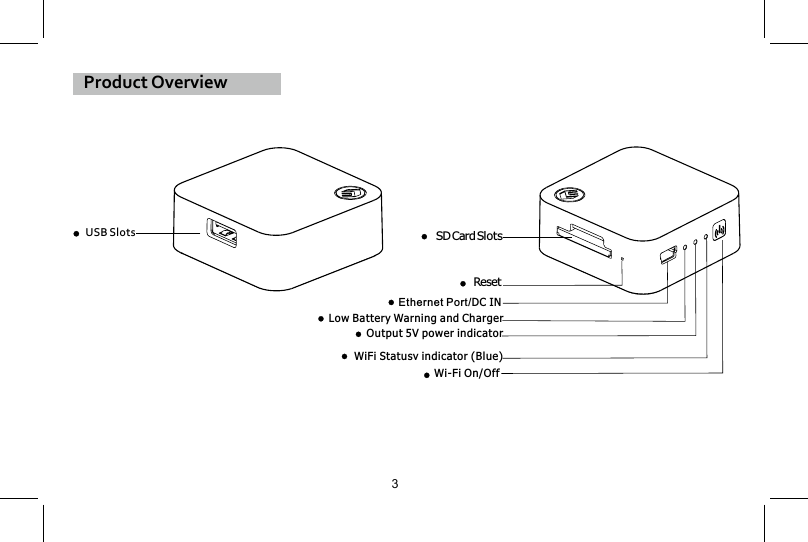
SDCard SlotsResetEthernet Port/DC INLow Battery Warning and ChargerOutput 5V power indicatorWiFi Statusv indicator (Blue)Wi-Fi On/OffProduct OverviewUSB Slots3
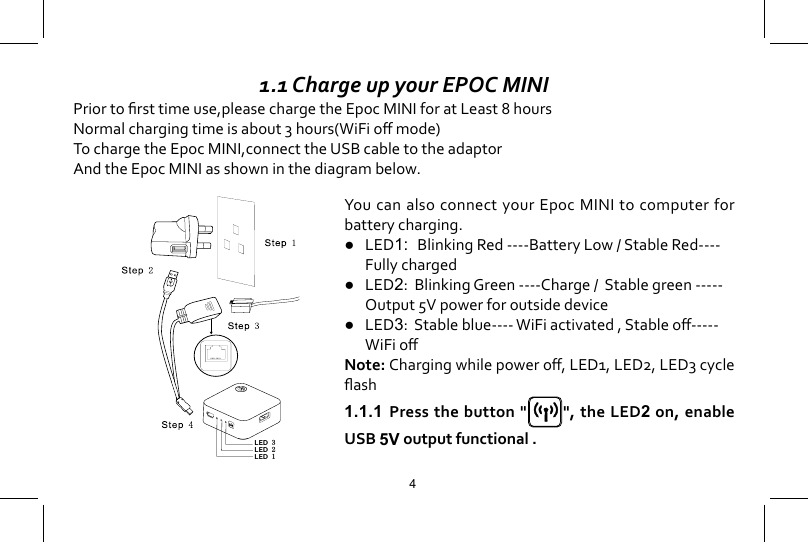
1.1 Charge up your EPOC MINIPriortorsttimeuse,pleasechargetheEpocMINIforatLeast8hoursNormalchargingtimeisabout3hours(WiFiomode)To charge the Epoc MINI,connect the USB cable to the adaptorAnd the Epoc MINI as shown in the diagram below.LED 1LED 2LED 3You can also connect your Epoc MINI to computer for battery charging.● LED1:BlinkingRed----BatteryLow/StableRed----  Fully charged           ● LED2:  Blinking Green ----Charge /  Stable green -----    Output 5V power for outside device ● LED3:Stableblue----WiFiactivated,Stableo----- WiFioNote: Chargingwhilepowero,LED1,LED2,LED3cycleash1.1.1  Press the button " ", the LED2 on, enable USB 5V output functional .4
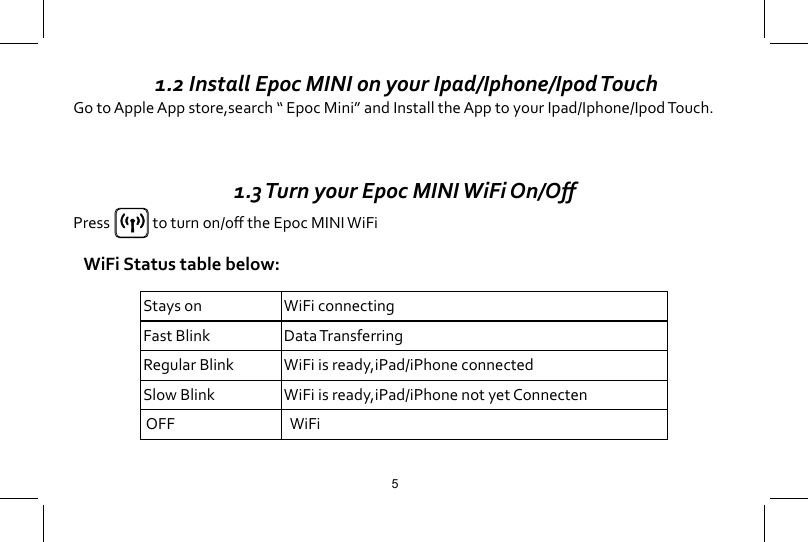
 1.2 Install Epoc MINI on your Ipad/Iphone/Ipod TouchGo to Apple App store,search “ Epoc Mini” and Install the App to your Ipad/Iphone/Ipod Touch. 1.3 Turn your Epoc MINI WiFi On/OPress  toturnon/otheEpocMINIWiFiWiFi Status table below:Stays on  WiFi connectingFast Blink Data TransferringRegular Blink WiFi is ready,iPad/iPhone connectedSlow Blink WiFi is ready,iPad/iPhone not yet Connecten OFF   WiFi 5
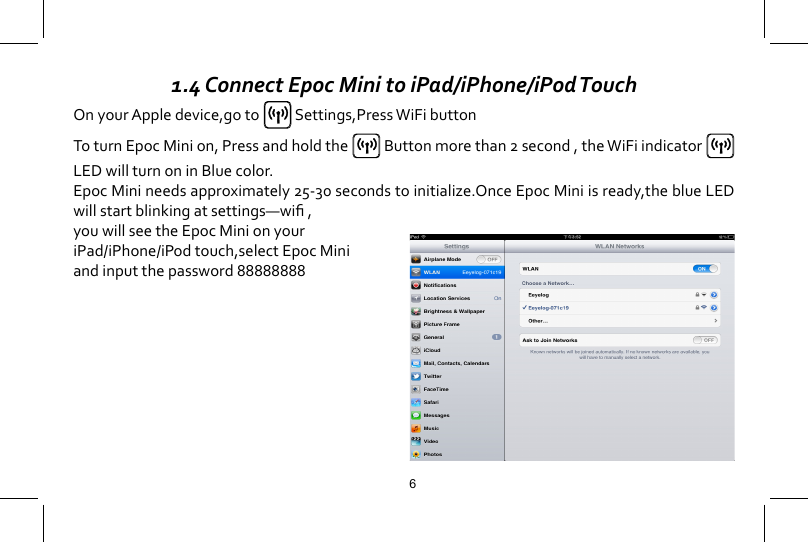
1.4 Connect Epoc Mini to iPad/iPhone/iPod TouchOn your Apple device,go to   Settings,Press WiFi buttonTo turn Epoc Mini on, Press and hold the   Button more than 2 second , the WiFi indicator   LEDwillturnoninBluecolor.EpocMinineedsapproximately25-30secondstoinitialize.OnceEpocMiniisready,theblueLEDwillstartblinkingatsettings—wi,you will see the Epoc Mini on your iPad/iPhone/iPod touch,select Epoc Mini and input the password 888888886
   2.0 Introduction to Epoc Mini App[ xxx] Epoc Mini App may be upgraded from time to time,so the actual interface may be Slightly dierentfromthediagrambelow.ToensurethatyouhavethelatestsetupInstructions,please visit our website: www.eeyelog.com or go to setup of Epoc Mini and select “Help”,you will see the latest user manual.7
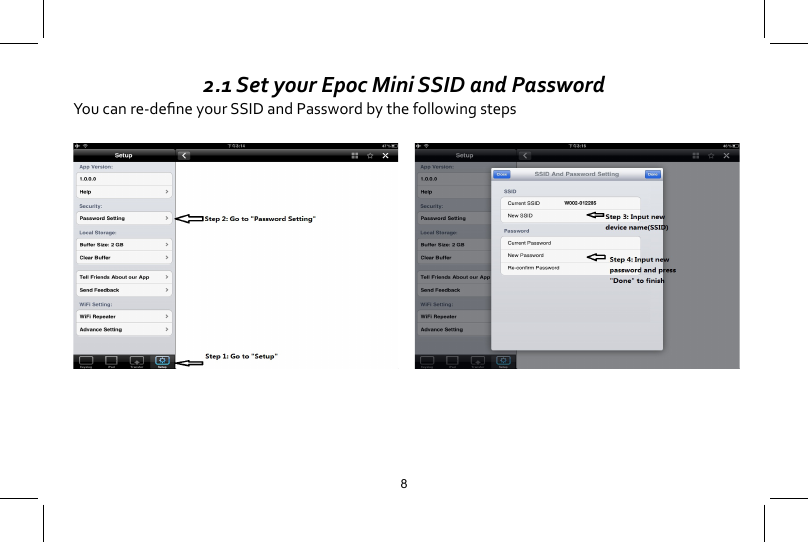
2.1 Set your Epoc Mini SSID and PasswordYoucanre-deneyourSSIDandPasswordbythefollowingsteps8
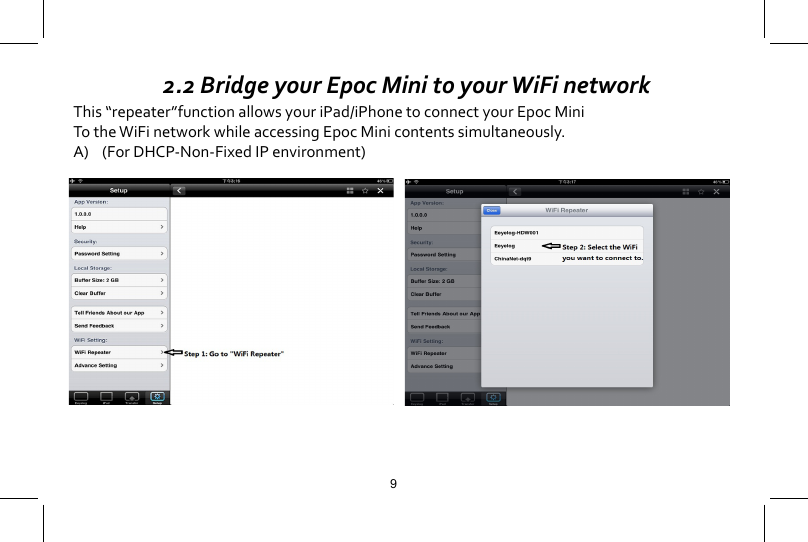
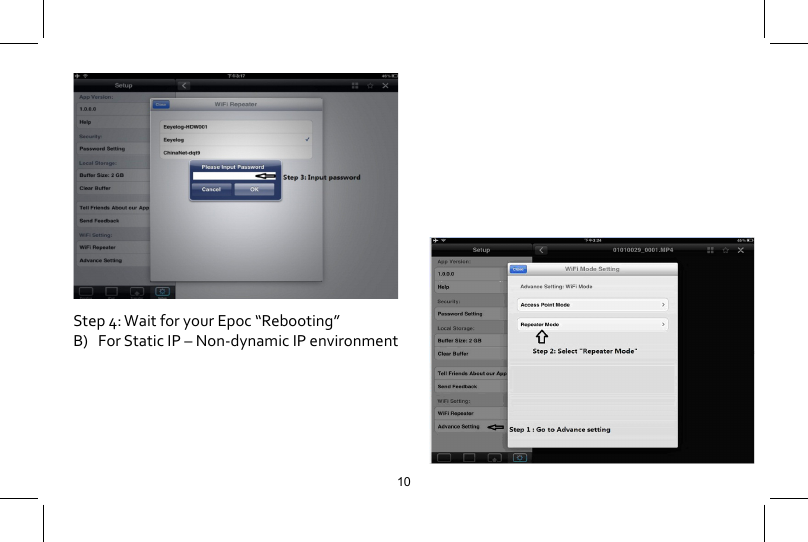
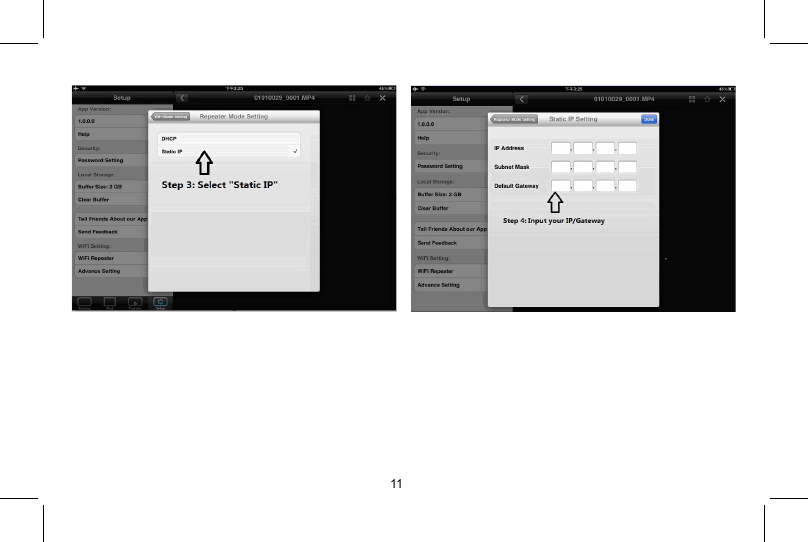
 2.2 Bridge your Epoc Mini to your WiFi networkThis “repeater”function allows your iPad/iPhone to connect your Epoc MiniTo the WiFi network while accessing Epoc Mini contents simultaneously.A)    (For DHCP-Non-Fixed IP environment)9
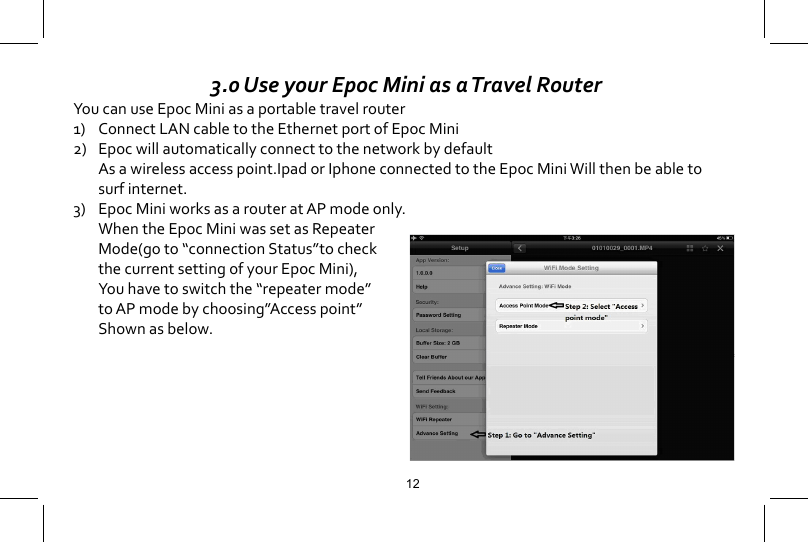
Step 4: Wait for your Epoc “Rebooting”B)   For Static IP – Non-dynamic IP environment10
11
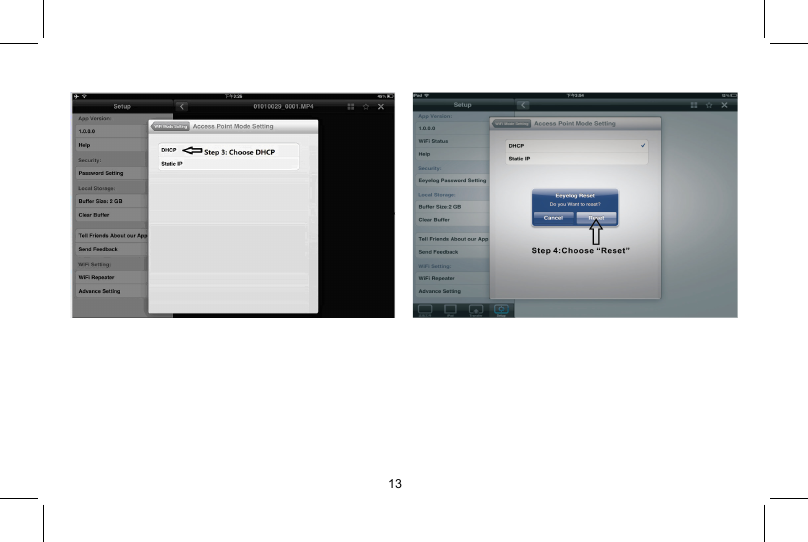
 3.0 Use your Epoc Mini as a Travel RouterYou can use Epoc Mini as a portable travel router1) ConnectLANcabletotheEthernetportofEpocMini2)  Epoc will automatically connect to the network by default  As a wireless access point.Ipad or Iphone connected to the Epoc Mini Will then be able to    surf internet.3)  Epoc Mini works as a router at AP mode only.  When the Epoc Mini was set as Repeater   Mode(go to “connection Status”to check   the current setting of your Epoc Mini),   You have to switch the “repeater mode”  to AP mode by choosing”Access point”  Shown as below.12
13
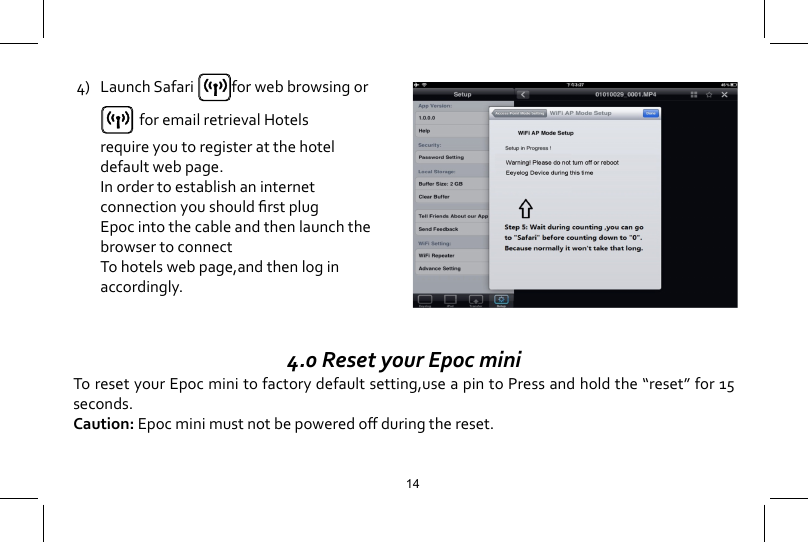
4) LaunchSafari for web browsing or     for email retrieval Hotels      require you to register at the hotel      default web page.  In order to establish an internet     connectionyoushouldrstplug  Epoc into the cable and then launch the    browser to connect  To hotels web page,and then log in      accordingly.144.0 Reset your Epoc miniTo reset your Epoc mini to factory default setting,use a pin to Press and hold the “reset” for 15 seconds.Caution:Epocminimustnotbepoweredoduringthereset.
5.0 Epoc mini hardward Specication<Connectivity>-  802.11b/g/n WiFi connection-  Built-in Antenna-  Over 20 meters working distance<Interface>-   SD Card slot ( support up to 32GB SD Card )-  USB(Support up to 64GB USB Driver)-  Mini USB Port (Epoc comes with cable turn crystal terminal(RJ45) to Mini USB)<Power>-  Built-in 1250mAh Rechargeable Battery-  5V 500mA DC in-  2.5-4 hours operation<Features>-  Access Point Mode-  WiFi Repeater Mode15
6.0 FAQPlease go to “Help”in Epoc App for the latest FAQ or visit our Website www.eeyelog.com/suport.asp for more detail information About Epoc mini.16
FCCThis device complies with Part 15 of the FCC Rules. Operation is subject to the following two conditions:(1) This device may not cause harmful interference, and (2) this device must accept any interference received, including interference that may cause undesired operation.  This equipment has been tested and found to comply with the limits for a Class B digital device, pursuant to Part 15 of the FCC Rules. These limits are designed to provide reasonable protection against harmful interference in a residential installation. This equipment generates, uses and can radiate radio frequency energy and, if not installed and used in accordance with the instructions, may cause harmful interference to radio communications. However,there is no guarantee that interference will not occur in a particular installation. If this equipment does cause harmful interference to radio or television reception,which can be determined by turning the equipment off and on, the user is encouraged to try to correct the interference by one or more of the following measures:  -- Reorient or relocate the receiving antenna. -- Increase the separation between the equipment and receiver. -- Connect the equipment into an outlet on a circuit different from that to which the receiver is connected. -- Consult the dealer or an experienced radio/TV technician for help.   Any changes or modifications not expressly approved by the party responsible for compliance could void the user's authority to operate this equipment.

Navigation menu