Ekster Wallets B V SENATE Ekster electronic wallet User Manual Wallte x

Ekster Wallets B. V. Ekster electronic wallet Wallte x

Users Manual

User Manual   Ekster electronic wallet   Senate  Congratulations with new your EKSTER® wallet. TABLE OF CONTENTS · Feature overview · How to establish a connection? · If you lose your wallet · If you lose your phone · How do I reset my wallet · Battery & charging the wallet · FAQ - Frequently Asked Questions
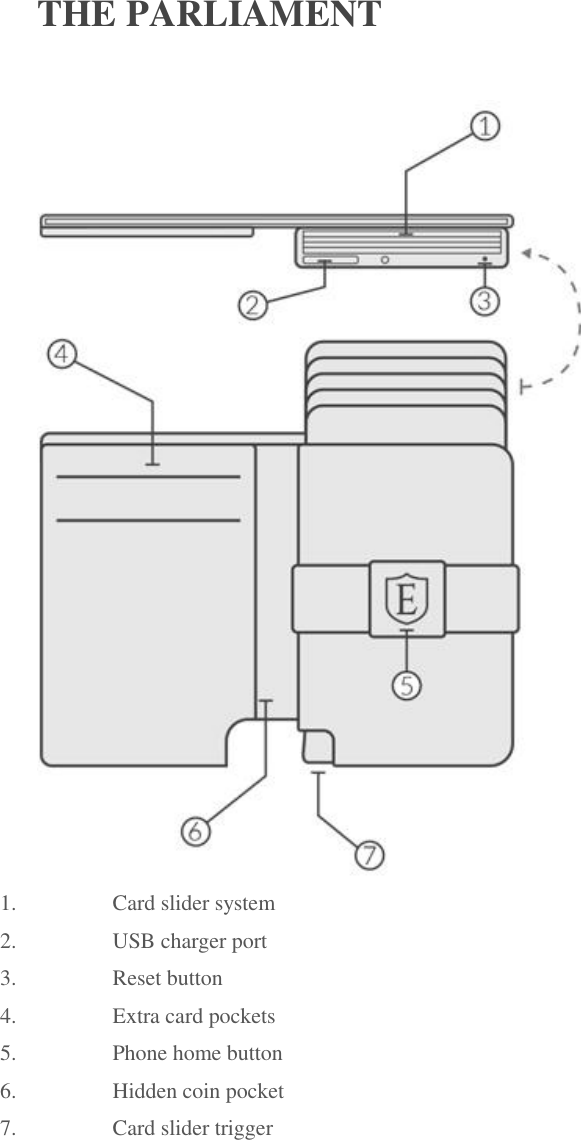
 THE PARLIAMENT  1. Card slider system 2. USB charger port 3. Reset button 4. Extra card pockets 5. Phone home button 6. Hidden coin pocket 7. Card slider trigger
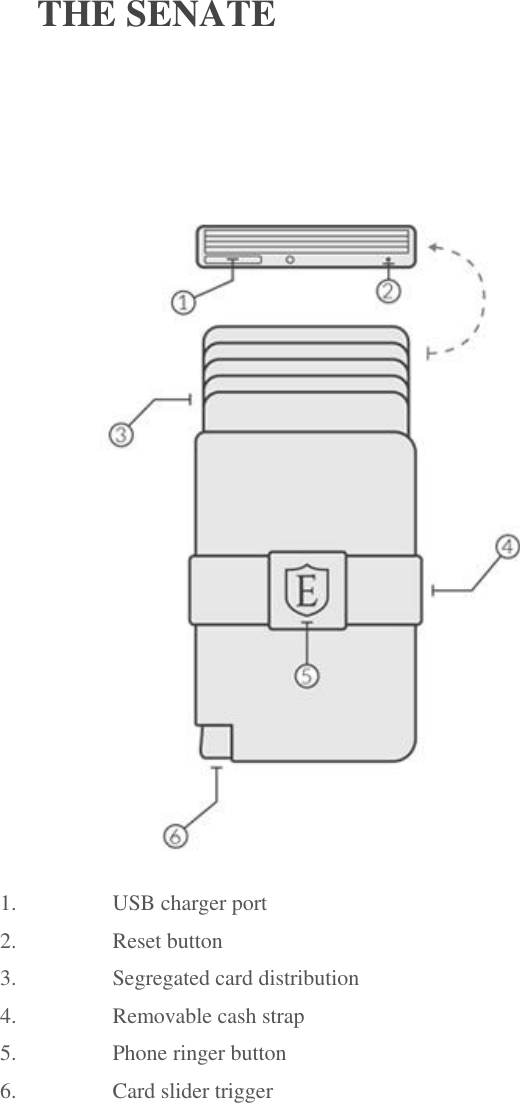
 THE SENATE  1. USB charger port 2. Reset button 3. Segregated card distribution 4. Removable cash strap 5. Phone ringer button 6. Card slider trigger
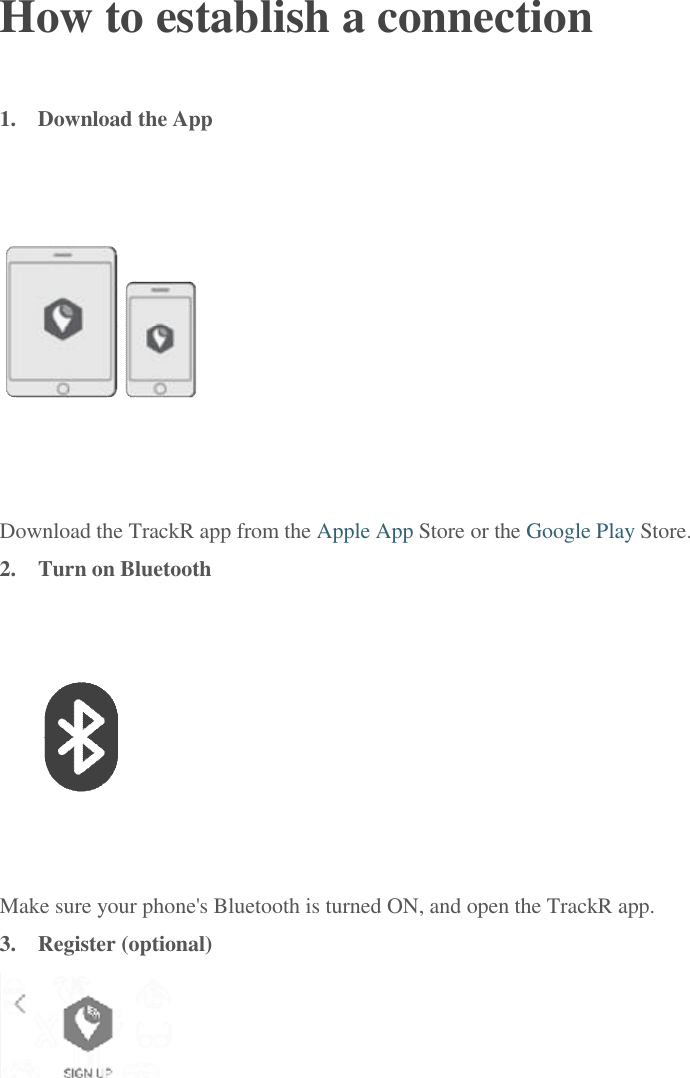
 How to establish a connection 1.  Download the App  Download the TrackR app from the Apple App Store or the Google Play Store. 2.  Turn on Bluetooth  Make sure your phone's Bluetooth is turned ON, and open the TrackR app. 3.  Register (optional)
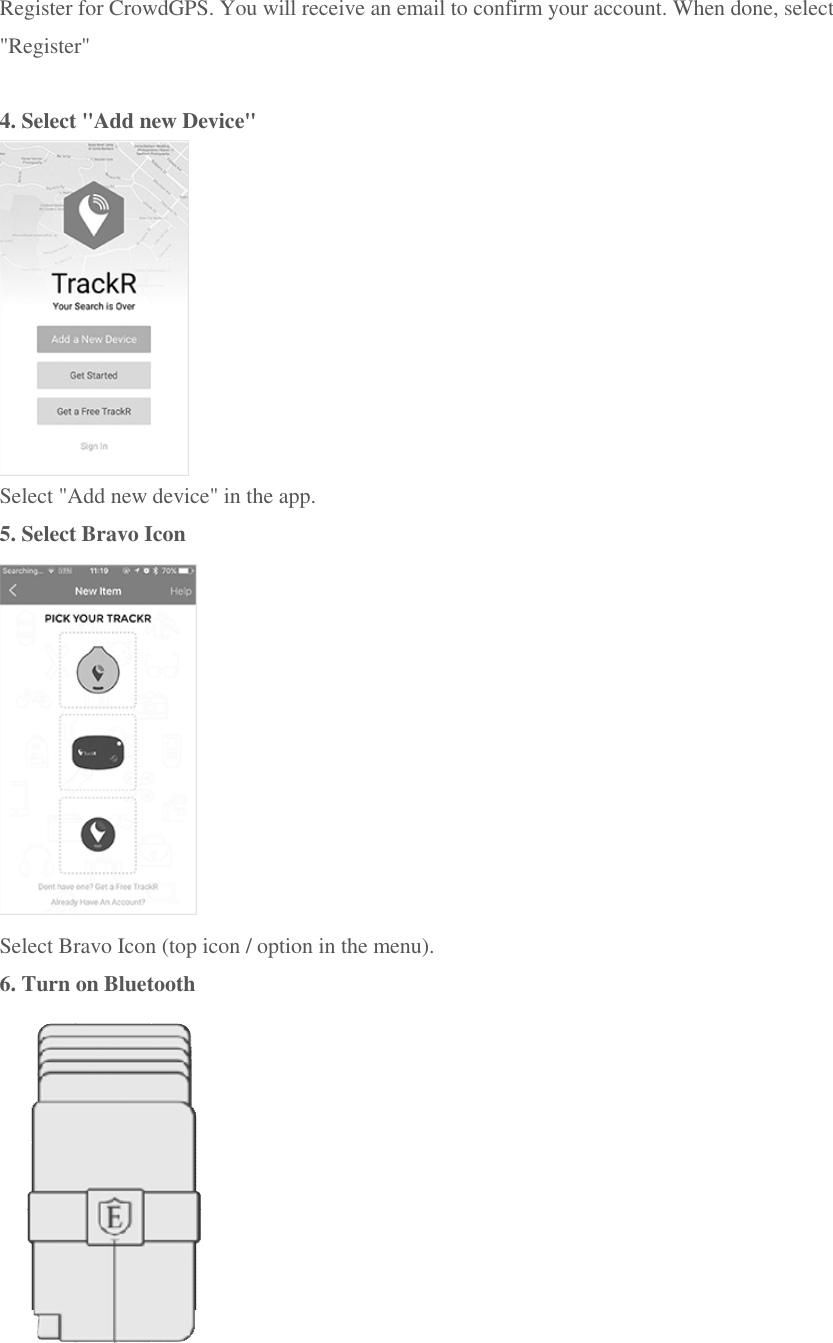
Register for CrowdGPS. You will receive an email to confirm your account. When done, select "Register"  4. Select "Add new Device"  Select "Add new device" in the app. 5. Select Bravo Icon  Select Bravo Icon (top icon / option in the menu). 6. Turn on Bluetooth
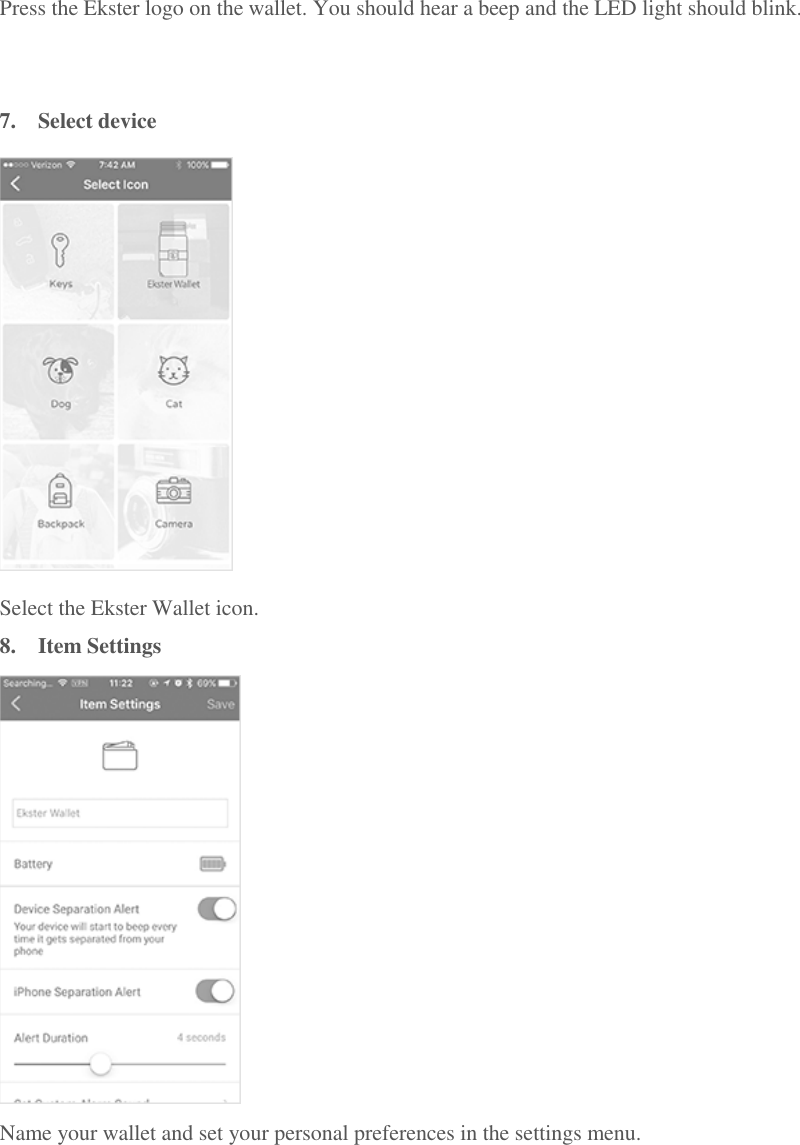
Press the Ekster logo on the wallet. You should hear a beep and the LED light should blink.   7.  Select device  Select the Ekster Wallet icon. 8.  Item Settings  Name your wallet and set your personal preferences in the settings menu.
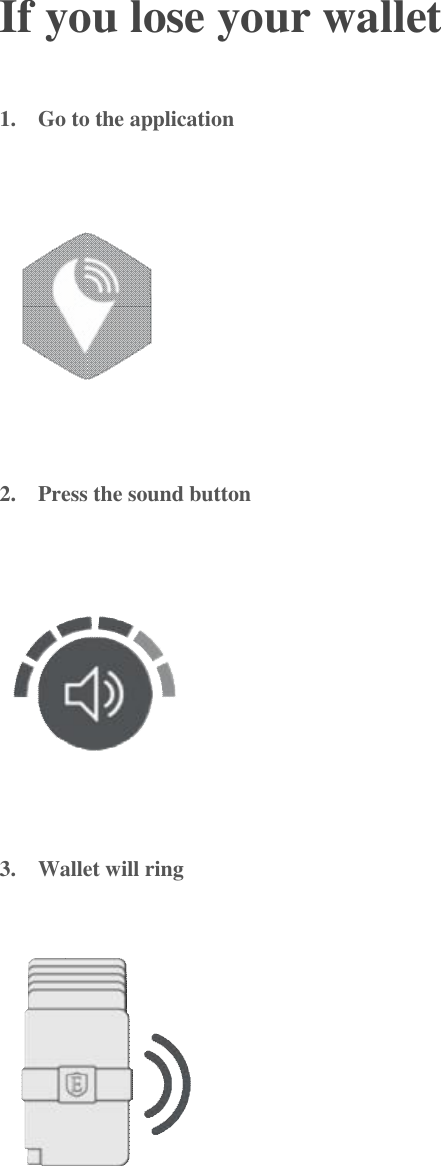
 If you lose your wallet 1.  Go to the application  2.  Press the sound button  3.  Wallet will ring
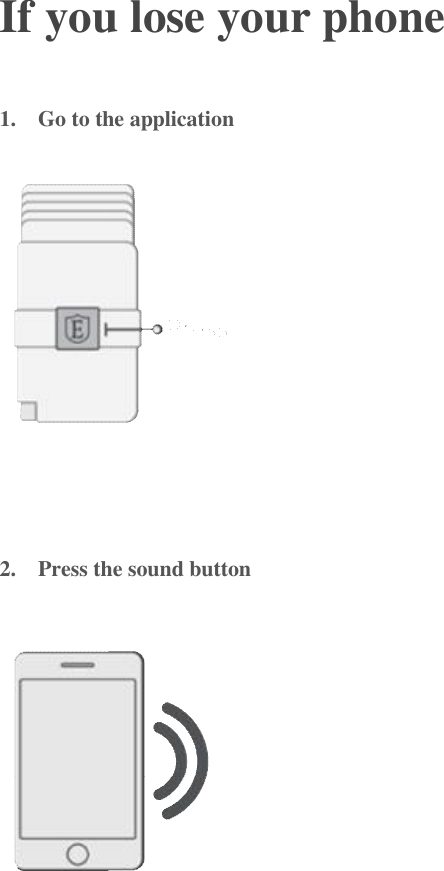
 If you lose your phone 1.  Go to the application  2.  Press the sound button
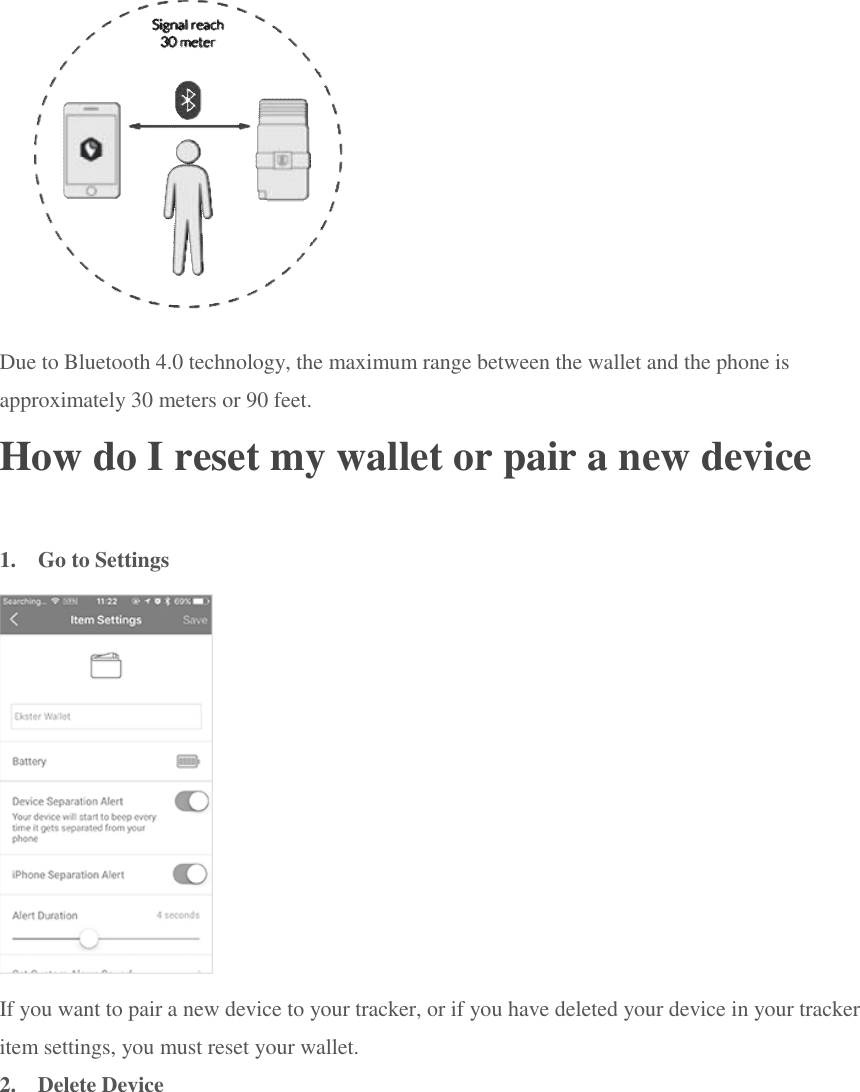
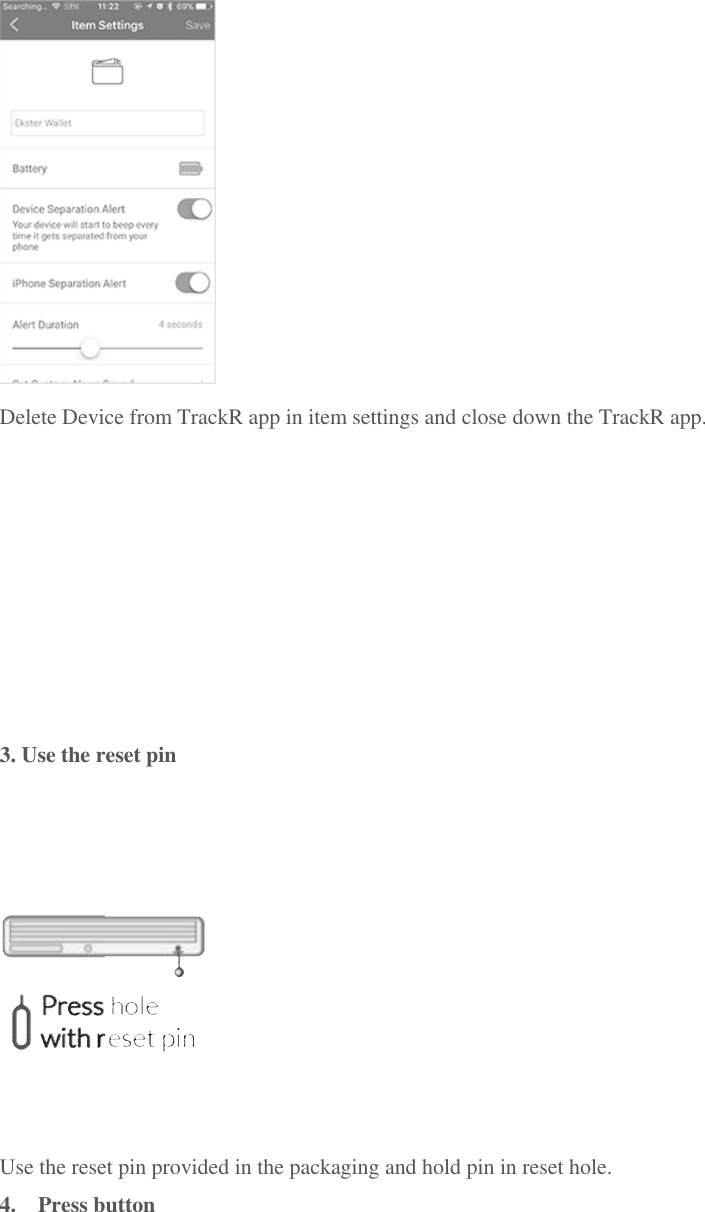
 Due to Bluetooth 4.0 technology, the maximum range between the wallet and the phone is approximately 30 meters or 90 feet. How do I reset my wallet or pair a new device 1.  Go to Settings  If you want to pair a new device to your tracker, or if you have deleted your device in your tracker item settings, you must reset your wallet. 2.  Delete Device
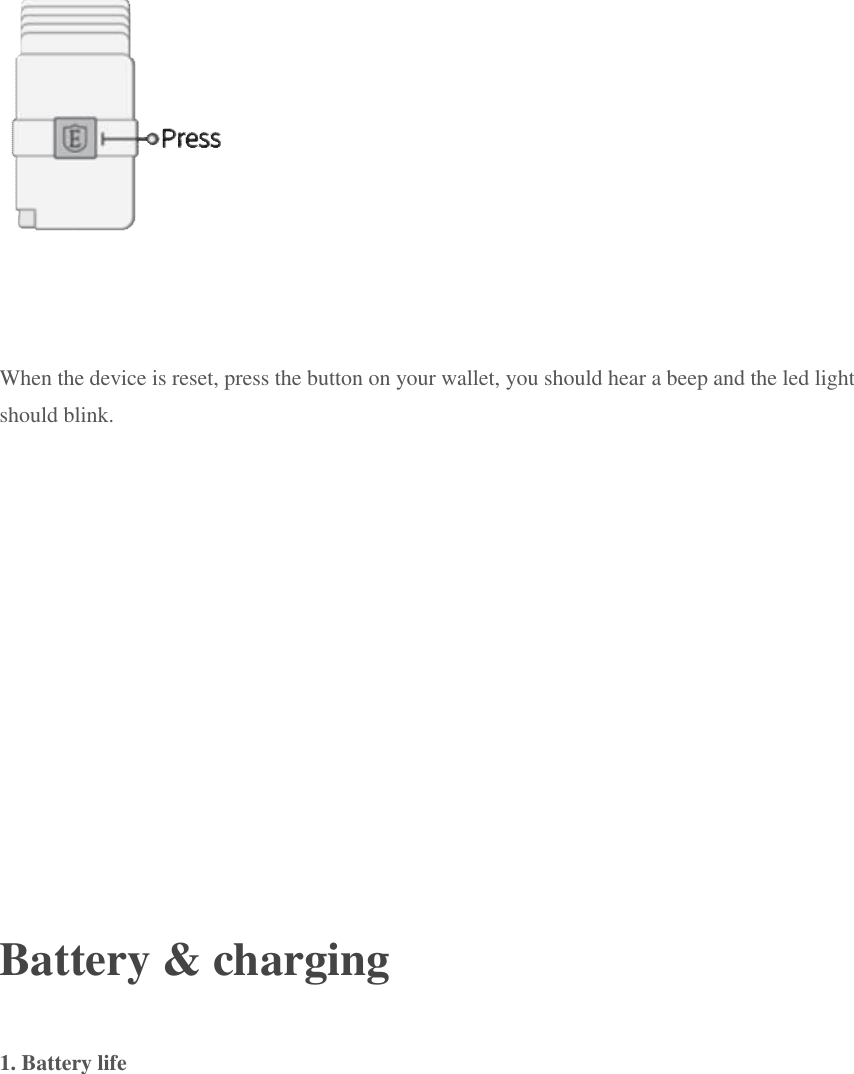
 Delete Device from TrackR app in item settings and close down the TrackR app.          3. Use the reset pin  Use the reset pin provided in the packaging and hold pin in reset hole. 4.  Press button
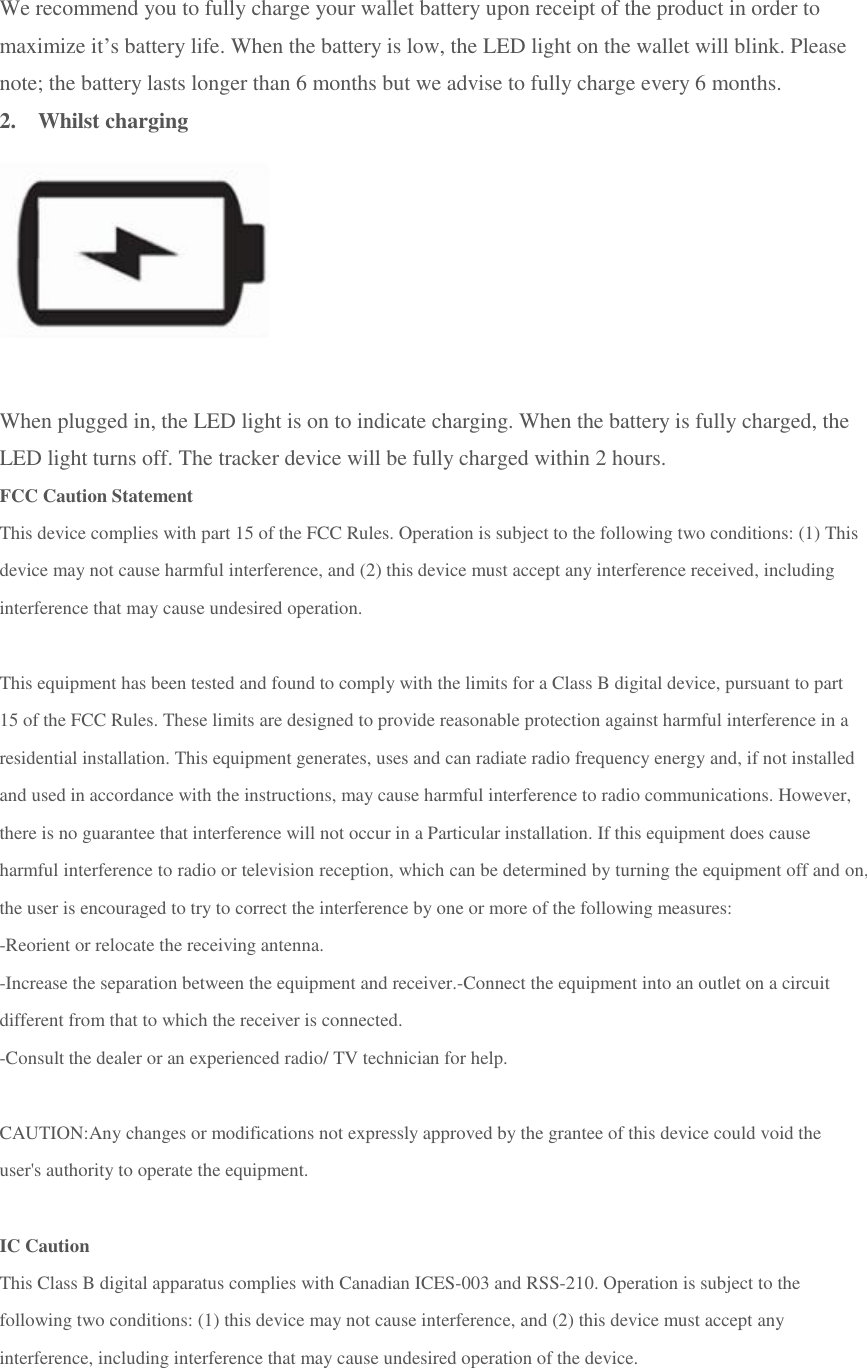
 When the device is reset, press the button on your wallet, you should hear a beep and the led light should blink.     Battery & charging 1. Battery life
We recommend you to fully charge your wallet battery upon receipt of the product in order to maximize it’s battery life. When the battery is low, the LED light on the wallet will blink. Please note; the battery lasts longer than 6 months but we advise to fully charge every 6 months. 2.  Whilst charging  When plugged in, the LED light is on to indicate charging. When the battery is fully charged, the LED light turns off. The tracker device will be fully charged within 2 hours. FCC Caution Statement This device complies with part 15 of the FCC Rules. Operation is subject to the following two conditions: (1) This device may not cause harmful interference, and (2) this device must accept any interference received, including interference that may cause undesired operation.   This equipment has been tested and found to comply with the limits for a Class B digital device, pursuant to part 15 of the FCC Rules. These limits are designed to provide reasonable protection against harmful interference in a residential installation. This equipment generates, uses and can radiate radio frequency energy and, if not installed and used in accordance with the instructions, may cause harmful interference to radio communications. However, there is no guarantee that interference will not occur in a Particular installation. If this equipment does cause harmful interference to radio or television reception, which can be determined by turning the equipment off and on, the user is encouraged to try to correct the interference by one or more of the following measures:  -Reorient or relocate the receiving antenna. -Increase the separation between the equipment and receiver.-Connect the equipment into an outlet on a circuit different from that to which the receiver is connected. -Consult the dealer or an experienced radio/ TV technician for help.   CAUTION:Any changes or modifications not expressly approved by the grantee of this device could void the user's authority to operate the equipment.   IC Caution This Class B digital apparatus complies with Canadian ICES-003 and RSS-210. Operation is subject to the following two conditions: (1) this device may not cause interference, and (2) this device must accept any interference, including interference that may cause undesired operation of the device.

Navigation menu