Electronic Warfare Associates SRCED3 Remote Control Electronic Deadbolt User Manual

Electronic Warfare Associates, Inc. Remote Control Electronic Deadbolt Users Manual

Users Manual

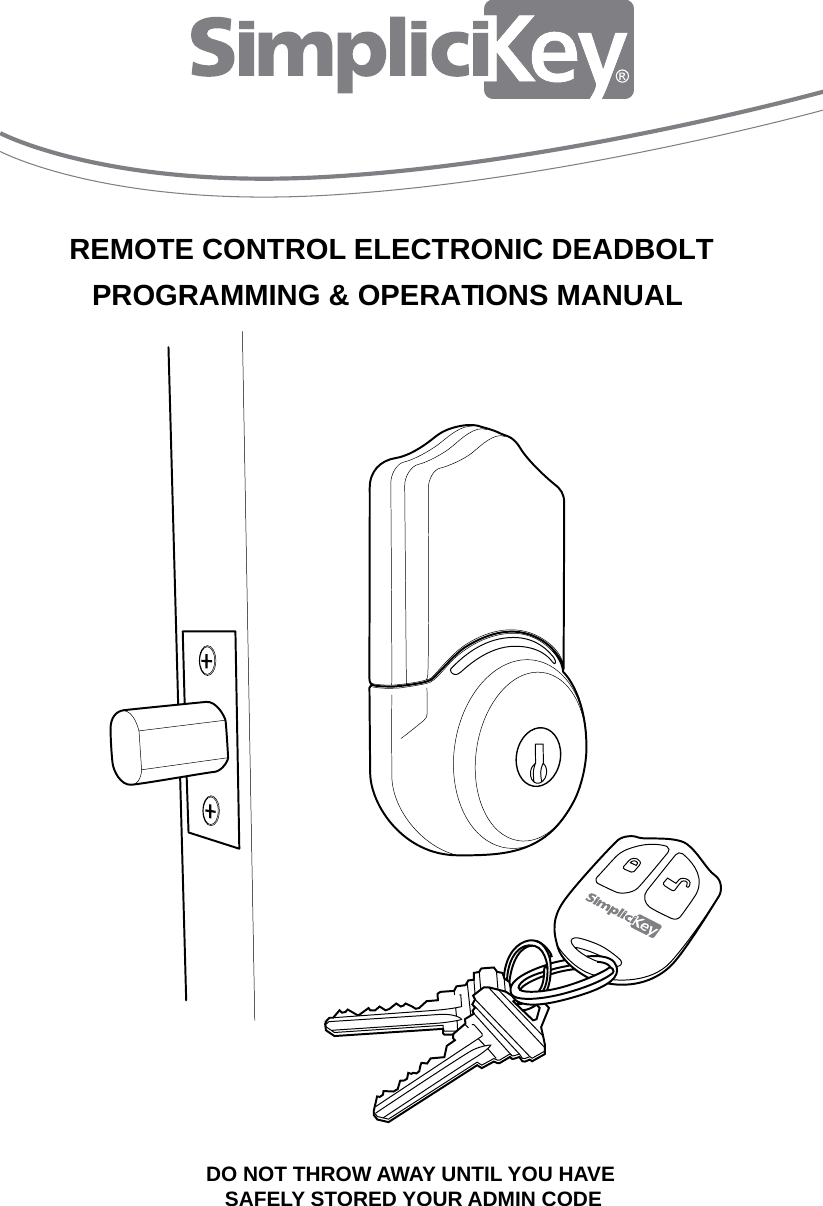
REMOTE CONTROL ELECTRONIC DEADBOLTPROGRAMMING & OPERATIONS MANUALDO NOT THROW AWAY UNTIL YOU HAVE SAFELY STORED YOUR ADMIN CODE
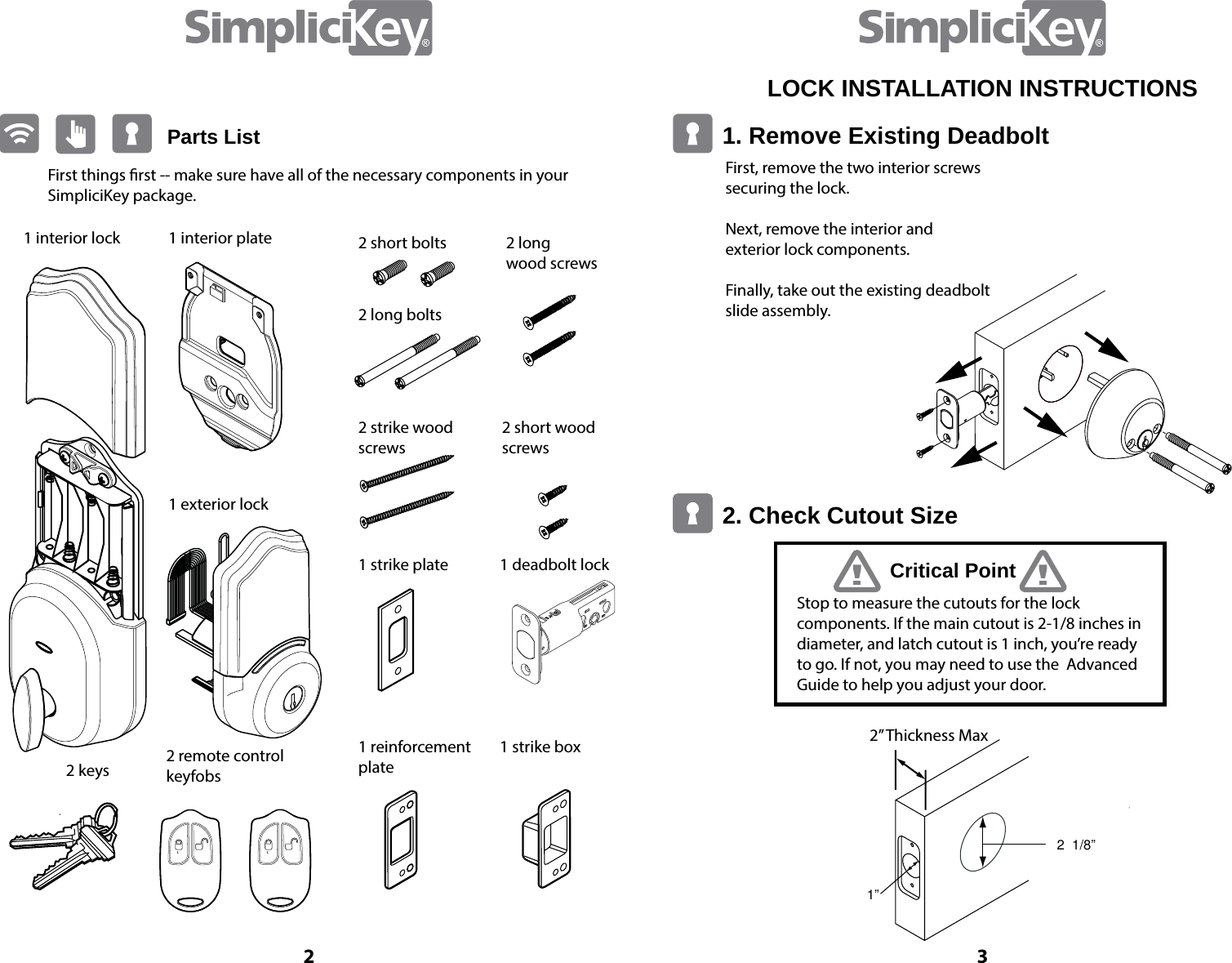
Parts ListFirst things rst -- make sure have all of the necessary components in your SimpliciKey package.1 interior lock 1 interior plate1 exterior lock 2 short bolts2 long bolts2 strike wood screws1 strike plate1 reinforcement plate2 remote control keyfobs2 keys1 deadbolt lock1 strike box2 short wood screws2 long  wood screws32LOCK INSTALLATION INSTRUCTIONS 1. Remove Existing Deadbolt 2. Check Cutout Size Critical PointFirst, remove the two interior screws  securing the lock.Next, remove the interior and  exterior lock components. Finally, take out the existing deadbolt slide assembly.Stop to measure the cutouts for the lock  components. If the main cutout is 2-1/8 inches in diameter, and latch cutout is 1 inch, you’re ready to go. If not, you may need to use the  Advanced Guide to help you adjust your door.2  1/8” 1” 2” Thickness Max
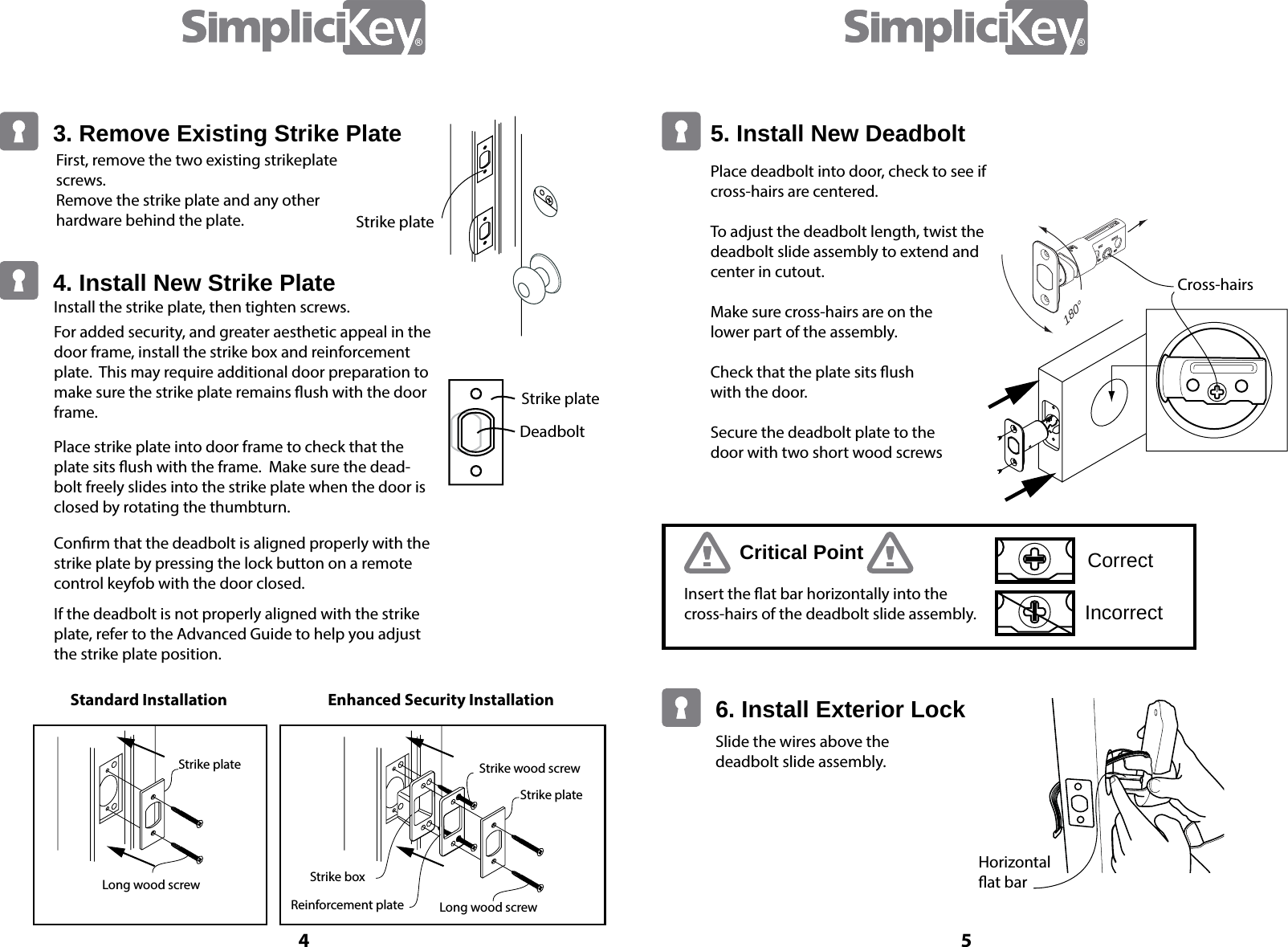
Slide the wires above the deadbolt slide assembly. Horizontal at barCross-hairsCritical Point CorrectIncorrectInsert the at bar horizontally into the cross-hairs of the deadbolt slide assembly.6. Install Exterior Lock5. Install New DeadboltPlace deadbolt into door, check to see if cross-hairs are centered.To adjust the deadbolt length, twist the deadbolt slide assembly to extend and center in cutout.Make sure cross-hairs are on the      lower part of the assembly.Check that the plate sits ush      with the door.Secure the deadbolt plate to the     door with two short wood screws180°4 5First, remove the two existing strikeplate screws. Remove the strike plate and any other hardware behind the plate.Standard InstallationLong wood screwStrike plateStrike plateStrike wood screwStrike boxReinforcement plate Long wood screwEnhanced Security InstallationStrike plateStrike plateDeadboltInstall the strike plate, then tighten screws.For added security, and greater aesthetic appeal in the door frame, install the strike box and reinforcement plate.  This may require additional door preparation to make sure the strike plate remains ush with the door frame.Place strike plate into door frame to check that the plate sits ush with the frame.  Make sure the dead-bolt freely slides into the strike plate when the door is closed by rotating the thumbturn.Conrm that the deadbolt is aligned properly with the strike plate by pressing the lock button on a remote control keyfob with the door closed. If the deadbolt is not properly aligned with the strike plate, refer to the Advanced Guide to help you adjust the strike plate position.3. Remove Existing Strike Plate4. Install New Strike Plate
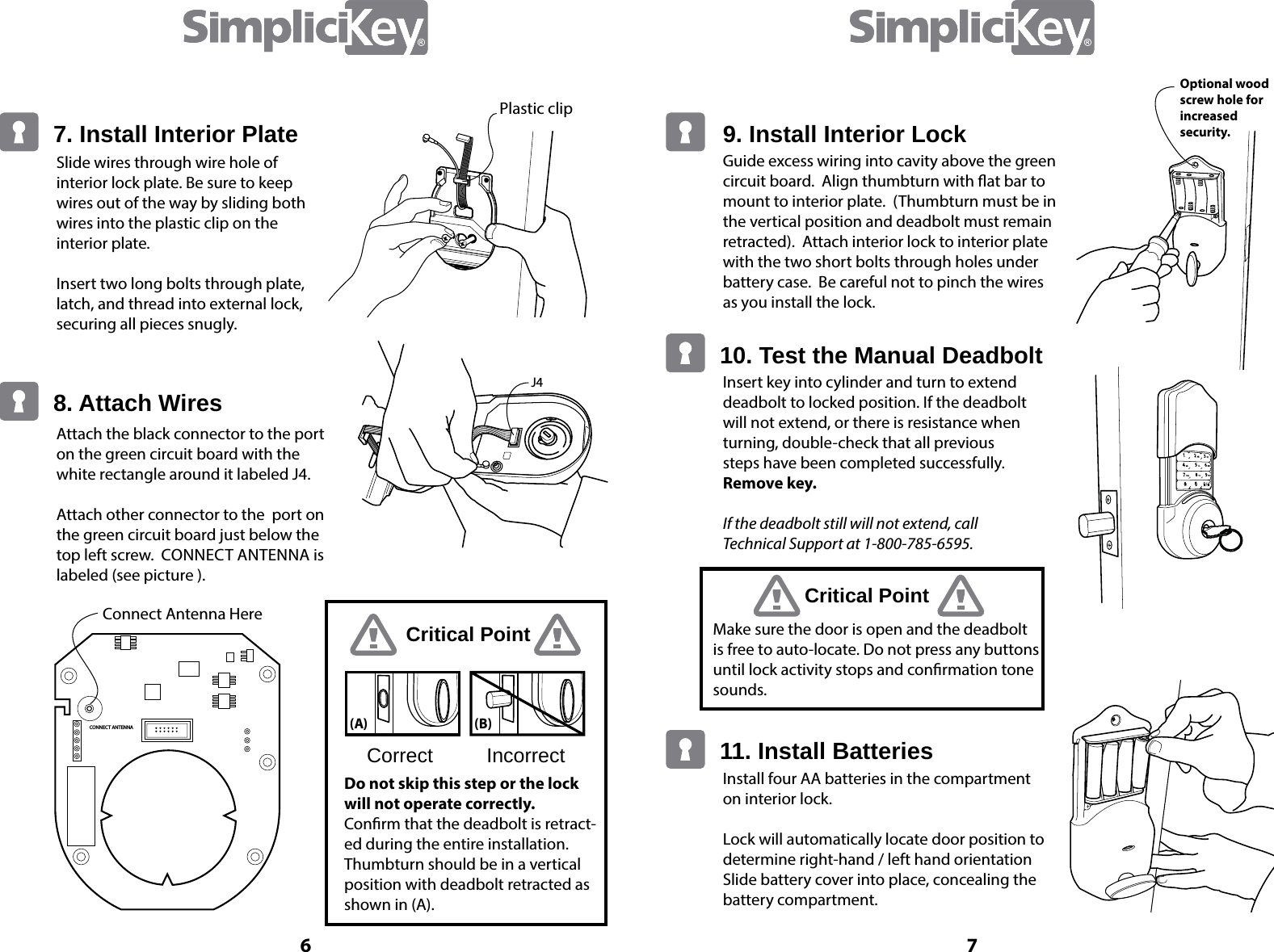
6 7Plastic clipConnect Antenna HereJ47. Install Interior Plate8. Attach WiresSlide wires through wire hole of interior lock plate. Be sure to keep wires out of the way by sliding both wires into the plastic clip on the interior plate.Insert two long bolts through plate, latch, and thread into external lock, securing all pieces snugly. Attach the black connector to the port on the green circuit board with the white rectangle around it labeled J4.  Attach other connector to the  port on the green circuit board just below the top left screw.  CONNECT ANTENNA is labeled (see picture ).Correct IncorrectCritical PointDo not skip this step or the lock will not operate correctly. Conrm that the deadbolt is retract-ed during the entire installation.  Thumbturn should be in a vertical position with deadbolt retracted as shown in (A).(B) (A) Guide excess wiring into cavity above the green circuit board.  Align thumbturn with at bar to mount to interior plate.  (Thumbturn must be in the vertical position and deadbolt must remain retracted).  Attach interior lock to interior plate with the two short bolts through holes under battery case.  Be careful not to pinch the wires as you install the lock.Optional wood screw hole for increased security.Insert key into cylinder and turn to extend deadbolt to locked position. If the deadbolt will not extend, or there is resistance when turning, double-check that all previous steps have been completed successfully.Remove key. If the deadbolt still will not extend, call  Technical Support at 1-800-785-6595.Install four AA batteries in the compartment on interior lock.Lock will automatically locate door position to determine right-hand / left hand orientationSlide battery cover into place, concealing the battery compartment.10. Test the Manual Deadbolt11. Install BatteriesCritical PointMake sure the door is open and the deadbolt is free to auto-locate. Do not press any buttons until lock activity stops and conrmation tone sounds.9. Install Interior LockCONNECT ANTENNA
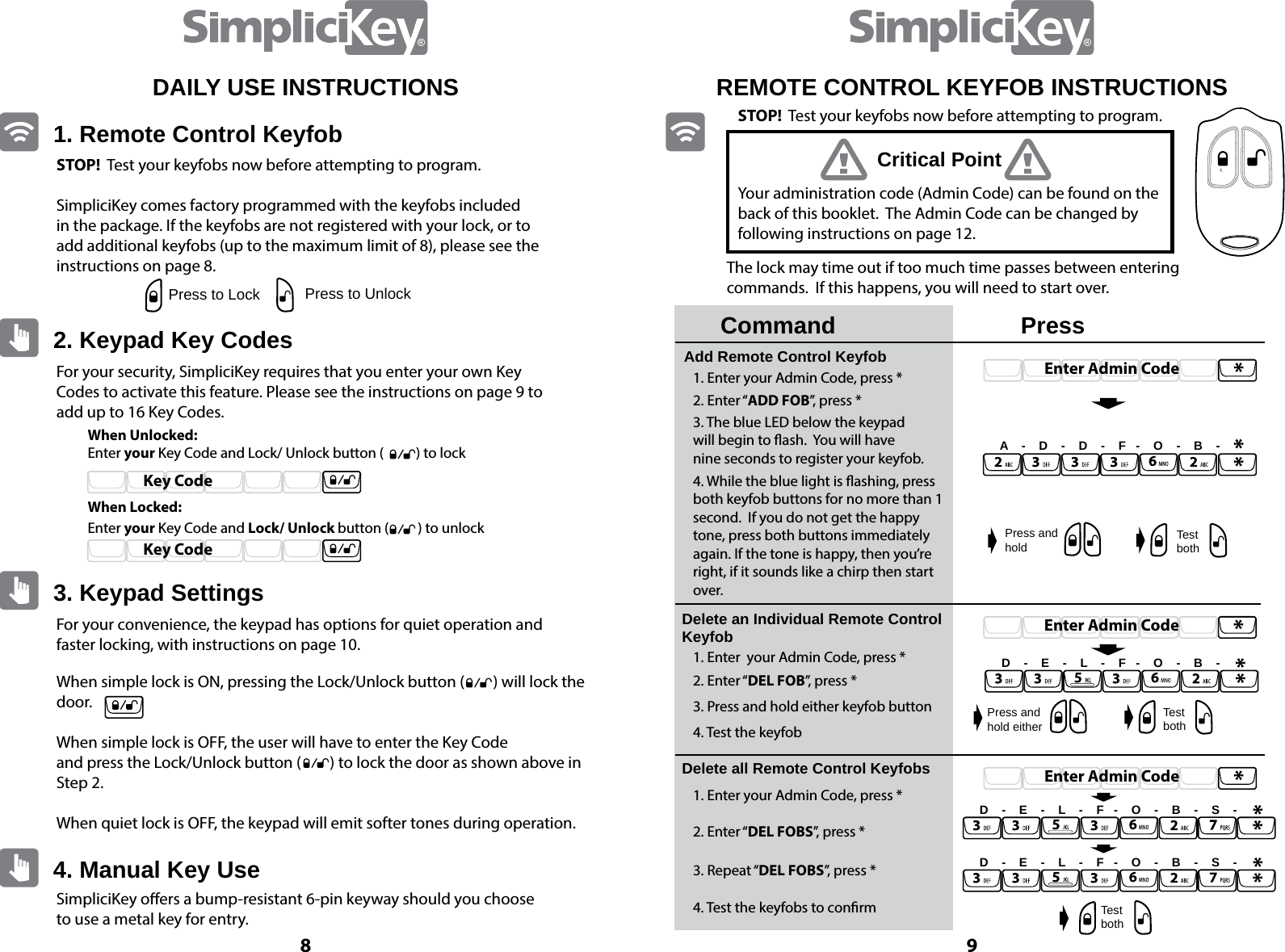
8 9STOP!  Test your keyfobs now before attempting to program.SimpliciKey comes factory programmed with the keyfobs included in the package. If the keyfobs are not registered with your lock, or to add additional keyfobs (up to the maximum limit of 8), please see the instructions on page 8.For your security, SimpliciKey requires that you enter your own Key Codes to activate this feature. Please see the instructions on page 9 to add up to 16 Key Codes.For your convenience, the keypad has options for quiet operation and faster locking, with instructions on page 10. SimpliciKey oers a bump-resistant 6-pin keyway should you choose to use a metal key for entry.When simple lock is ON, pressing the Lock/Unlock button (        ) will lock the door.When simple lock is OFF, the user will have to enter the Key Code and press the Lock/Unlock button (        ) to lock the door as shown above in Step 2.When quiet lock is OFF, the keypad will emit softer tones during operation. When Unlocked:When Locked:Enter your Key Code and Lock/ Unlock button (          ) to lockEnter your Key Code and Lock/ Unlock button (         ) to unlock1. Remote Control Keyfob2. Keypad Key Codes3. Keypad Settings4. Manual Key UsePress to Lock Press to UnlockKey CodeKey CodeDAILY USE INSTRUCTIONSEnter Admin CodeEnter Admin CodeEnter Admin CodeREMOTE CONTROL KEYFOB INSTRUCTIONSCommandAdd Remote Control KeyfobDelete an Individual Remote Control Keyfob Delete all Remote Control Keyfobs1. Enter your Admin Code, press *1. Enter  your Admin Code, press *1. Enter your Admin Code, press *2. Enter “ADD FOB”, press *2. Enter “DEL FOB”, press *2. Enter “DEL FOBS”, press *3. Repeat “DEL FOBS”, press *4. Test the keyfobs to conrm3. Press and hold either keyfob button4. Test the keyfob3. The blue LED below the keypadwill begin to ash.  You will havenine seconds to register your keyfob.4. While the blue light is ashing, press both keyfob buttons for no more than 1 second.  If you do not get the happy  tone, press both buttons immediately again. If the tone is happy, then you’re right, if it sounds like a chirp then start over.PressYour administration code (Admin Code) can be found on the back of this booklet.  The Admin Code can be changed by following instructions on page 12.The lock may time out if too much time passes between entering commands.  If this happens, you will need to start over.A    -    D    -    D    -    F   -    O    -    B    -D    -    E    -    L    -    F   -    O    -    B    -D    -    E    -    L    -    F   -    O    -    B    -    S    -D    -    E    -    L    -    F   -    O    -    B    -    S    -Press and holdPress and hold eitherTest bothTest bothTest bothCritical PointSTOP!  Test your keyfobs now before attempting to program.
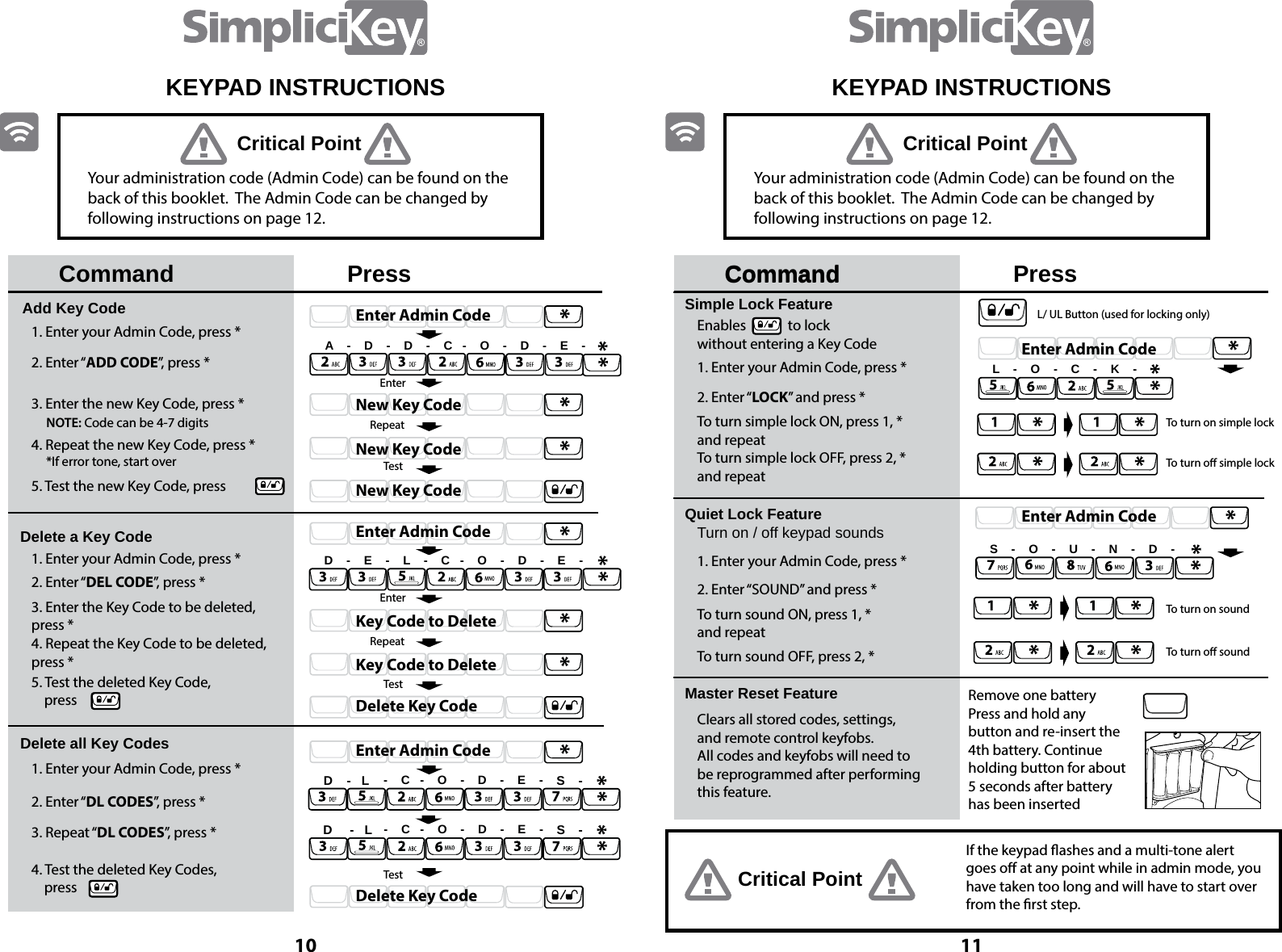
1110KEYPAD INSTRUCTIONS KEYPAD INSTRUCTIONSCommand CommandAdd Key CodeDelete a Key CodeDelete all Key Codes1. Enter your Admin Code, press *1. Enter your Admin Code, press *1. Enter your Admin Code, press *2. Enter “ADD CODE”, press *2. Enter “DEL CODE”, press *2. Enter “DL CODES”, press *3. Repeat “DL CODES”, press *4. Test the deleted Key Codes,     press 3. Enter the Key Code to be deleted,       press *4. Repeat the Key Code to be deleted,      press *5. Test the deleted Key Code,     press 3. Enter the new Key Code, press *NOTE: Code can be 4-7 digits*If error tone, start over 4. Repeat the new Key Code, press *5. Test the new Key Code, press Press PressYour administration code (Admin Code) can be found on the back of this booklet.  The Admin Code can be changed by following instructions on page 12.Your administration code (Admin Code) can be found on the back of this booklet.  The Admin Code can be changed by following instructions on page 12.A    -    D    -    D    -    C   -    O    -    D    -    E    -Enter Admin CodeEnter Admin CodeEnter Admin CodeEnterEnterRepeatRepeatTestTestTestNew Key CodeKey Code to DeleteNew Key CodeKey Code to DeleteNew Key CodeDelete Key CodeDelete Key CodeD    -    E    -    L    -    C   -    O    -    D    -    E    -    -    C   -    O    -    D    -    E    -    -    C   -    O    -    D    -    E    -CommandSimple Lock FeatureQuiet Lock FeatureMaster Reset FeatureEnables             to lockwithout entering a Key CodeTurn on / off keypad sounds Clears all stored codes, settings, and remote control keyfobs.  All codes and keyfobs will need to be reprogrammed after performing this feature.Remove one battery Press and hold any button and re-insert the 4th battery. Continue holding button for about 5 seconds after battery has been insertedIf the keypad ashes and a multi-tone alert goes o at any point while in admin mode, you have taken too long and will have to start over from the rst step.1. Enter your Admin Code, press *1. Enter your Admin Code, press * 2. Enter “SOUND” and press *To turn sound ON, press 1, * and repeatTo turn sound OFF, press 2, *2. Enter “LOCK” and press *To turn simple lock ON, press 1, * and repeatTo turn simple lock OFF, press 2, *and repeatEnter Admin CodeL/ UL Button (used for locking only)To turn on simple lock To turn o simple lockTo turn on soundTo turn o soundL    -    O    -    C    -    K    -Enter Admin CodeS    -    O    -    U    -    N    -    D    -Critical PointCritical Point Critical PointS --D     -   LSD    -   L
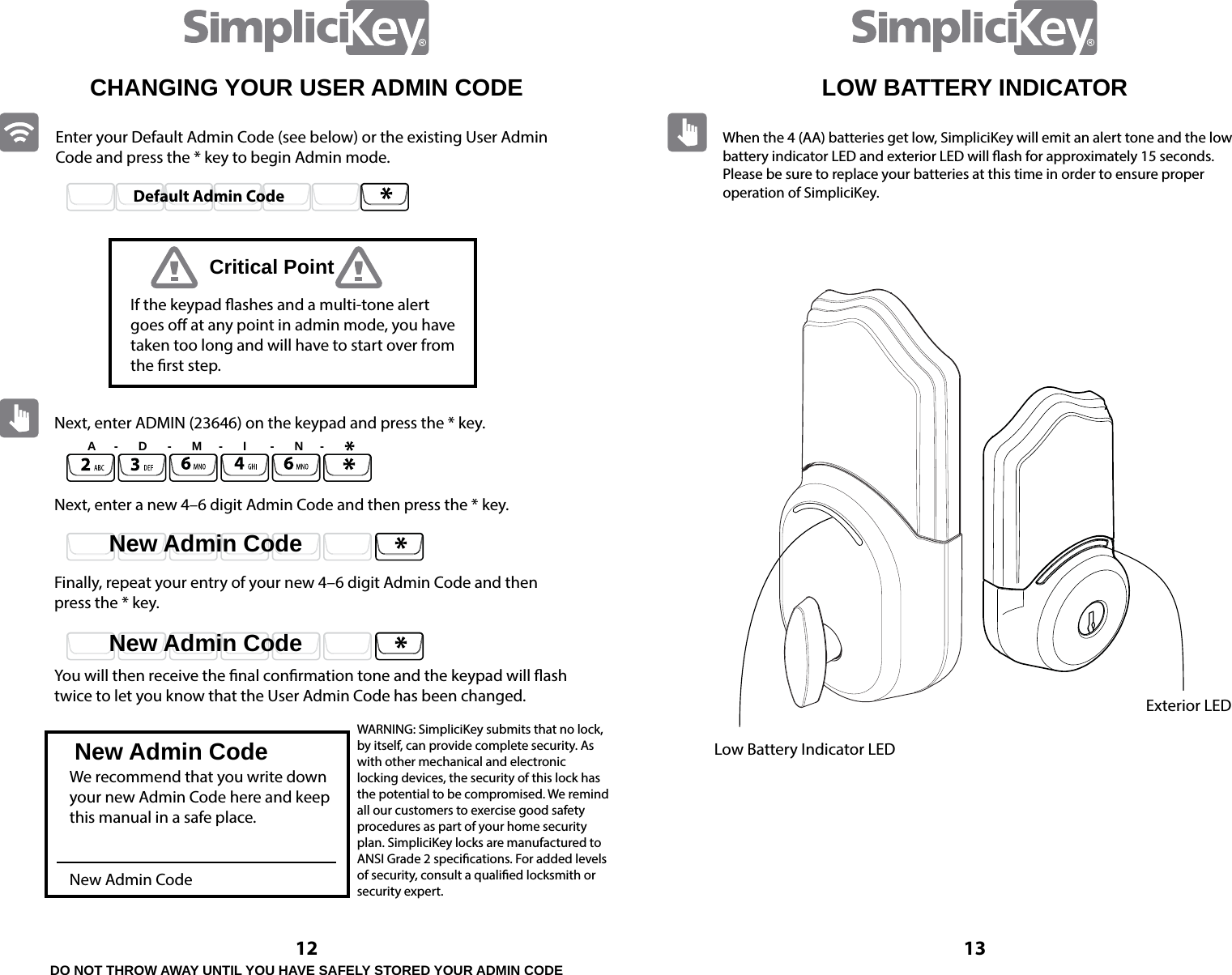
12 13CHANGING YOUR USER ADMIN CODENew Admin CodeNew Admin CodeNew Admin CodeEnter your Default Admin Code (see below) or the existing User Admin Code and press the * key to begin Admin mode.  Next, enter ADMIN (23646) on the keypad and press the * key.  Next, enter a new 4–6 digit Admin Code and then press the * key. Finally, repeat your entry of your new 4–6 digit Admin Code and then press the * key. You will then receive the nal conrmation tone and the keypad will ash twice to let you know that the User Admin Code has been changed.Default Admin CodeCritical PointIf the keypad ashes and a multi-tone alert goes o at any point in admin mode, you have taken too long and will have to start over from the rst step.We recommend that you write down your new Admin Code here and keep this manual in a safe place.New Admin CodeA     -      D      -      M     -      I       -      N     -WARNING: SimpliciKey submits that no lock, by itself, can provide complete security. As with other mechanical and electronic  locking devices, the security of this lock has the potential to be compromised. We remind all our customers to exercise good safety procedures as part of your home security plan. SimpliciKey locks are manufactured to ANSI Grade 2 specications. For added levels of security, consult a qualied locksmith or security expert. When the 4 (AA) batteries get low, SimpliciKey will emit an alert tone and the low battery indicator LED and exterior LED will ash for approximately 15 seconds.  Please be sure to replace your batteries at this time in order to ensure proper operation of SimpliciKey.LOW BATTERY INDICATORLow Battery Indicator LEDExterior LEDDO NOT THROW AWAY UNTIL YOU HAVE SAFELY STORED YOUR ADMIN CODE
14INSTRUCTIONS FOR USE:Always purchase the correct size and grade of battery most suitable for the intended use.Clean the battery contacts and also those of the deviceprior to battery installation.Ensure the batteries are installed correctly with regardto polarity (+ and - ).Remove batteries from equipment which is not to beused for an extended period of time.Remove used batteries promptly.INSTRUCCIONES DE USO:Compre siempre el tamaño y grado correcto de la bateríamás adecuado para el uso previsto.Limpie los contactos de la batería y también los del dispositivoantes de la instalación de la batería.Asegúrese que las baterías están instaladas correctamente en relación con la polaridad (+ y -).Retire las pilas del equipo que no va a ser utilizado durante un período prolongado de tiempo.Retire las pilas usadas.15Changes or modications not expressly approved by SimpliciKey could void the user’s authority to operate the equipment.This device complies with Industry Canada licence-exempt RSSstandard(s). Operation is subject to the following two conditions: (1)this device may not cause interference, and (2) this device must accept any interference, including interference that may cause undesired operation of the device.Le présent appareil est conforme aux CNR d’Industrie Canada applicables aux appareils radio exempts de licence. L’exploitation est autorisée aux deux conditions suivantes : (1) l’appareil ne doit pas produire de brouillage, et (2) l’utilisateur de l’appareil doit  accepter tout brouillage radioélectrique subi, même si le   brouillage est susceptible d’en compromettre le fonctionnement.
16Note: This equipment has been tested and found to comply with the limits for a Class B digital device, pursuant to part 15 of the FCC Rules. These limits are designed to provide reasonable protection against harmful interference in a residential installation. This equipment generates, uses and can radiate radio frequency energy and, if not installed and used in accordance with the instructions, may cause harmful interference to radio communications. However, there is no guarantee that interference will not occur in a particular installation. If this equipment does cause harmful interference to radio or television reception, which can be determined by turning the equipment o and on, the user is encouraged to try to correct the interference by one or more of the following measures:- Reorient or relocate the receiving antenna.- Increase the separation between the equipment and receiver.- Connect the equipment into an outlet on a circuit dierent from that to which the receiver is connected.- Consult the dealer or an experienced radio/TV technician for help.17Notes:
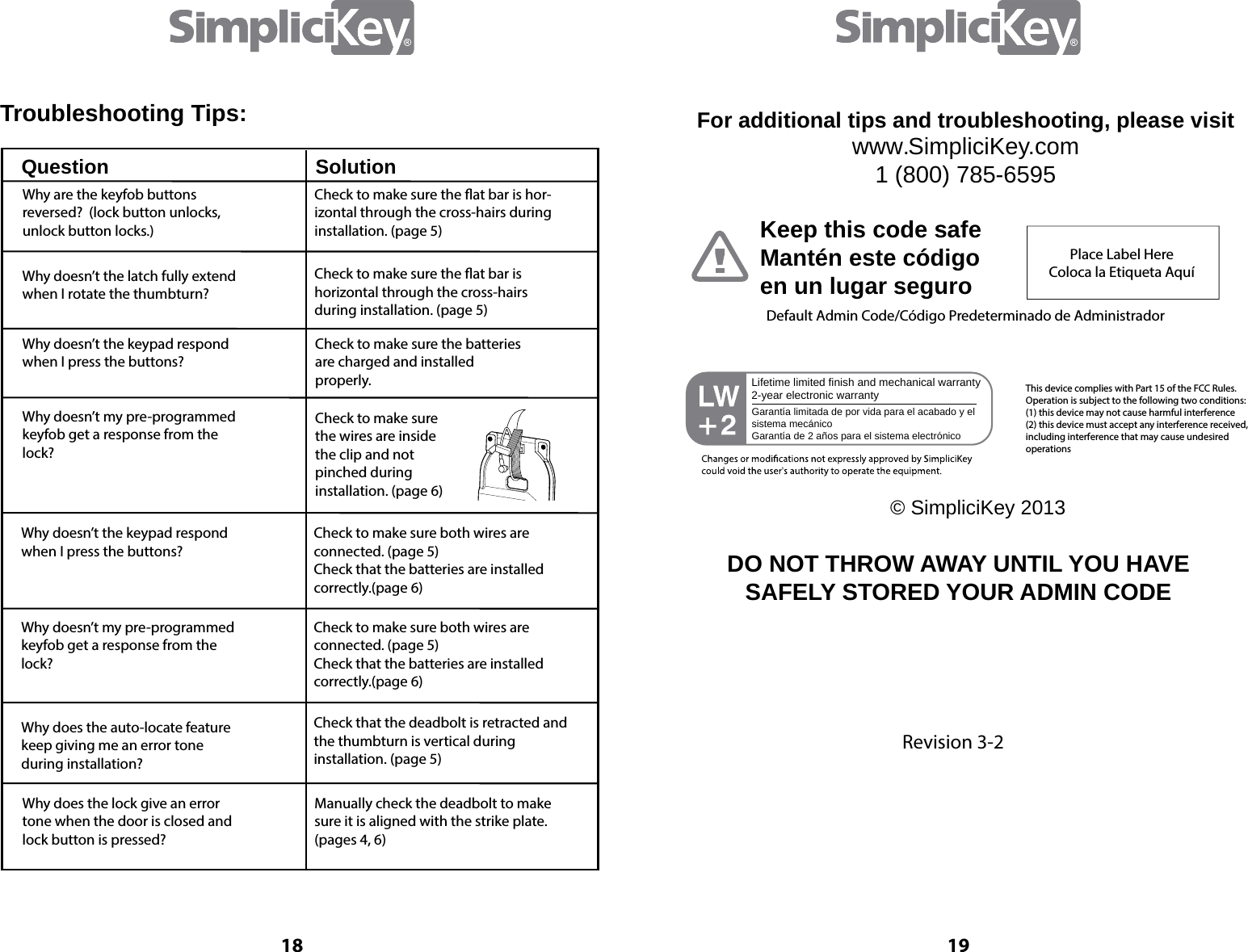
18Troubleshooting Tips:Question SolutionWhy are the keyfob buttons reversed?  (lock button unlocks, unlock button locks.)Check to make sure the at bar is hor-izontal through the cross-hairs during installation. (page 5)Check to make sure the at bar is horizontal through the cross-hairs during installation. (page 5)Check to make sure the batteriesare charged and installed properly. Check to make sure the wires are inside the clip and not pinched during installation. (page 6)Why doesn’t the keypad respondwhen I press the buttons?Why doesn’t my pre-programmedkeyfob get a response from the lock?  Why doesn’t the latch fully extend when I rotate the thumbturn?Why doesn’t the keypad respondwhen I press the buttons?Check to make sure both wires are connected. (page 5)  Check that the batteries are installed correctly.(page 6) Check to make sure both wires are connected. (page 5)  Check that the batteries are installed correctly.(page 6) Check that the deadbolt is retracted and the thumbturn is vertical during installation. (page 5)Manually check the deadbolt to make sure it is aligned with the strike plate. (pages 4, 6)Why doesn’t my pre-programmedkeyfob get a response from the lock?  Why does the auto-locate featurekeep giving me an error tone during installation?Why does the lock give an errortone when the door is closed andlock button is pressed?19www.SimpliciKey.com1 (800) 785-6595For additional tips and troubleshooting, please visitKeep this code safeMantén este código en un lugar seguroPlace Label HereColoca la Etiqueta AquíDefault Admin Code/Código Predeterminado de Administrador© SimpliciKey 2013Lifetime limited finish and mechanical warranty2-year electronic warrantyGarantía limitada de por vida para el acabado y el sistema mecánicoGarantía de 2 años para el sistema electrónicoThis device complies with Part 15 of the FCC Rules.  Operation is subject to the following two conditions: (1) this device may not cause harmful interference(2) this device must accept any interference received,including interference that may cause undesired operationsDO NOT THROW AWAY UNTIL YOU HAVE SAFELY STORED YOUR ADMIN CODERevision 3-2

Navigation menu