Electronics Tomorrow 6529170302 Wifi Datalogging Barometric Pressure Hygrometer Thermometer User Manual

Electronics Tomorrow Ltd. Wifi Datalogging Barometric Pressure Hygrometer Thermometer

User manual

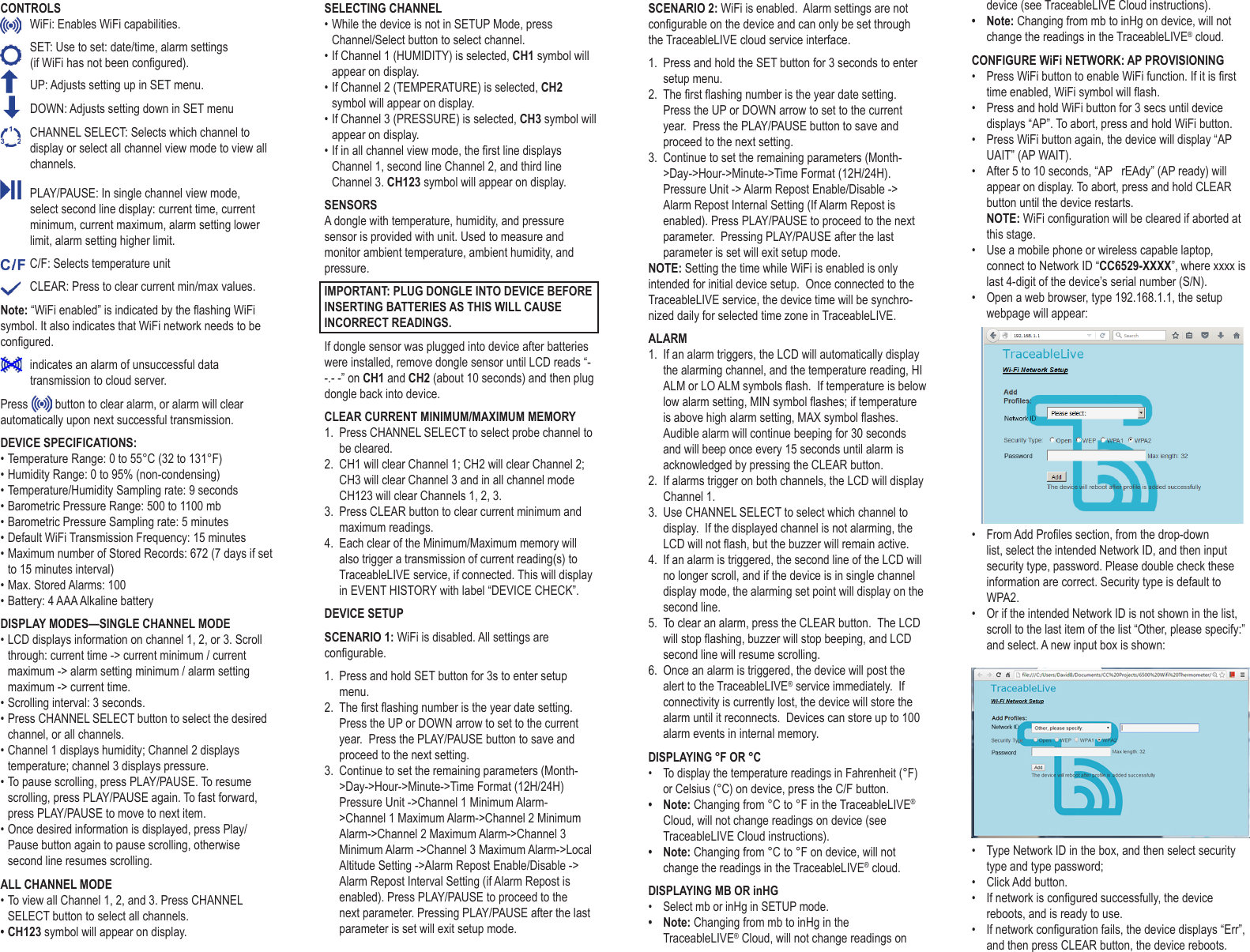
CONTROLS  WiFi: Enables WiFi capabilities.   SET: Use to set: date/time, alarm settings  (if WiFi has not been congured).   UP: Adjusts setting up in SET menu.    DOWN: Adjusts setting down in SET menu  CHANNEL SELECT: Selects which channel to display or select all channel view mode to view all channels.  PLAY/PAUSE: In single channel view mode, select second line display: current time, current minimum, current maximum, alarm setting lower limit, alarm setting higher limit.  C/F: Selects temperature unit  CLEAR: Press to clear current min/max values. Note: “WiFi enabled” is indicated by the ashing WiFi symbol. It also indicates that WiFi network needs to be congured.   indicates an alarm of unsuccessful data transmission to cloud server. Press   button to clear alarm, or alarm will clear automatically upon next successful transmission. DEVICE SPECIFICATIONS:• Temperature Range: 0 to 55°C (32 to 131°F)• Humidity Range: 0 to 95% (non-condensing)• Temperature/Humidity Sampling rate: 9 seconds• Barometric Pressure Range: 500 to 1100 mb• Barometric Pressure Sampling rate: 5 minutes• Default WiFi Transmission Frequency: 15 minutes• Maximum number of Stored Records: 672 (7 days if set to 15 minutes interval)• Max. Stored Alarms: 100• Battery: 4 AAA Alkaline batteryDISPLAY MODES—SINGLE CHANNEL MODE• LCD displays information on channel 1, 2, or 3. Scroll through: current time -> current minimum / current maximum -> alarm setting minimum / alarm setting maximum -> current time.• Scrolling interval: 3 seconds.• Press CHANNEL SELECT button to select the desired channel, or all channels.• Channel 1 displays humidity; Channel 2 displays temperature; channel 3 displays pressure.• To pause scrolling, press PLAY/PAUSE. To resume scrolling, press PLAY/PAUSE again. To fast forward, press PLAY/PAUSE to move to next item. • Once desired information is displayed, press Play/Pause button again to pause scrolling, otherwise second line resumes scrolling.ALL CHANNEL MODE• To view all Channel 1, 2, and 3. Press CHANNEL SELECT button to select all channels.• CH123 symbol will appear on display.SELECTING CHANNEL• While the device is not in SETUP Mode, press Channel/Select button to select channel. • If Channel 1 (HUMIDITY) is selected, CH1 symbol will appear on display.• If Channel 2 (TEMPERATURE) is selected, CH2 symbol will appear on display.• If Channel 3 (PRESSURE) is selected, CH3 symbol will appear on display.• If in all channel view mode, the rst line displays Channel 1, second line Channel 2, and third line Channel 3. CH123 symbol will appear on display.SENSORS A dongle with temperature, humidity, and pressure sensor is provided with unit. Used to measure and monitor ambient temperature, ambient humidity, and pressure.IMPORTANT: PLUG DONGLE INTO DEVICE BEFORE INSERTING BATTERIES AS THIS WILL CAUSE INCORRECT READINGS.If dongle sensor was plugged into device after batteries were installed, remove dongle sensor until LCD reads “- -.- -” on CH1 and CH2 (about 10 seconds) and then plug dongle back into device.CLEAR CURRENT MINIMUM/MAXIMUM MEMORY1.  Press CHANNEL SELECT to select probe channel to be cleared.2.  CH1 will clear Channel 1; CH2 will clear Channel 2; CH3 will clear Channel 3 and in all channel mode CH123 will clear Channels 1, 2, 3.3.  Press CLEAR button to clear current minimum and maximum readings. 4.  Each clear of the Minimum/Maximum memory will also trigger a transmission of current reading(s) to TraceableLIVE service, if connected. This will display in EVENT HISTORY with label “DEVICE CHECK”.DEVICE SETUPSCENARIO 1: WiFi is disabled. All settings are congurable.1.  Press and hold SET button for 3s to enter setup menu.2.  The rst ashing number is the year date setting.  Press the UP or DOWN arrow to set to the current year.  Press the PLAY/PAUSE button to save and proceed to the next setting.3.  Continue to set the remaining parameters (Month->Day->Hour->Minute->Time Format (12H/24H) Pressure Unit ->Channel 1 Minimum Alarm->Channel 1 Maximum Alarm->Channel 2 Minimum Alarm->Channel 2 Maximum Alarm->Channel 3 Minimum Alarm ->Channel 3 Maximum Alarm->Local Altitude Setting ->Alarm Repost Enable/Disable -> Alarm Repost Interval Setting (if Alarm Repost is enabled). Press PLAY/PAUSE to proceed to the next parameter. Pressing PLAY/PAUSE after the last parameter is set will exit setup mode.SCENARIO 2: WiFi is enabled.  Alarm settings are not congurable on the device and can only be set through the TraceableLIVE cloud service interface.1.  Press and hold the SET button for 3 seconds to enter setup menu.2.  The rst ashing number is the year date setting.  Press the UP or DOWN arrow to set to the current year.  Press the PLAY/PAUSE button to save and proceed to the next setting.3.  Continue to set the remaining parameters (Month->Day->Hour->Minute->Time Format (12H/24H).  Pressure Unit -> Alarm Repost Enable/Disable -> Alarm Repost Internal Setting (If Alarm Repost is enabled). Press PLAY/PAUSE to proceed to the next parameter.  Pressing PLAY/PAUSE after the last parameter is set will exit setup mode.NOTE: Setting the time while WiFi is enabled is only intended for initial device setup.  Once connected to the TraceableLIVE service, the device time will be synchro-nized daily for selected time zone in TraceableLIVE.ALARM1.  If an alarm triggers, the LCD will automatically display the alarming channel, and the temperature reading, HI ALM or LO ALM symbols ash.  If temperature is below low alarm setting, MIN symbol ashes; if temperature is above high alarm setting, MAX symbol ashes. Audible alarm will continue beeping for 30 seconds and will beep once every 15 seconds until alarm is acknowledged by pressing the CLEAR button.2.  If alarms trigger on both channels, the LCD will display Channel 1.3.  Use CHANNEL SELECT to select which channel to display.  If the displayed channel is not alarming, the LCD will not ash, but the buzzer will remain active.4.  If an alarm is triggered, the second line of the LCD will no longer scroll, and if the device is in single channel display mode, the alarming set point will display on the second line.5.  To clear an alarm, press the CLEAR button.  The LCD will stop ashing, buzzer will stop beeping, and LCD second line will resume scrolling.6.  Once an alarm is triggered, the device will post the alert to the TraceableLIVE® service immediately.  If connectivity is currently lost, the device will store the alarm until it reconnects.  Devices can store up to 100 alarm events in internal memory.DISPLAYING °F OR °C•  To display the temperature readings in Fahrenheit (°F) or Celsius (°C) on device, press the C/F button. •  Note: Changing from °C to °F in the TraceableLIVE® Cloud, will not change readings on device (see TraceableLIVE Cloud instructions).•  Note: Changing from °C to °F on device, will not change the readings in the TraceableLIVE® cloud.DISPLAYING MB OR inHG•  Select mb or inHg in SETUP mode.•  Note: Changing from mb to inHg in the TraceableLIVE® Cloud, will not change readings on device (see TraceableLIVE Cloud instructions).•  Note: Changing from mb to inHg on device, will not change the readings in the TraceableLIVE® cloud.CONFIGURE WiFi NETWORK: AP PROVISIONING•  Press WiFi button to enable WiFi function. If it is rst time enabled, WiFi symbol will ash. •  Press and hold WiFi button for 3 secs until device displays “AP”. To abort, press and hold WiFi button.•  Press WiFi button again, the device will display “AP UAIT” (AP WAIT). •  After 5 to 10 seconds, “AP   rEAdy” (AP ready) will appear on display. To abort, press and hold CLEAR button until the device restarts.NOTE: WiFi conguration will be cleared if aborted at this stage.•  Use a mobile phone or wireless capable laptop, connect to Network ID “CC6529-XXXX”, where xxxx is last 4-digit of the device’s serial number (S/N).•  Open a web browser, type 192.168.1.1, the setup webpage will appear:•  From Add Proles section, from the drop-down list, select the intended Network ID, and then input security type, password. Please double check these information are correct. Security type is default to WPA2.•  Or if the intended Network ID is not shown in the list, scroll to the last item of the list “Other, please specify:” and select. A new input box is shown: •  Type Network ID in the box, and then select security type and type password;•  Click Add button.•  If network is congured successfully, the device reboots, and is ready to use.•  If network conguration fails, the device displays “Err”, and then press CLEAR button, the device reboots.
TraceableLIVEWiFi  DATALOGGING BAROMETRIC PRESSUREHYGROMETER THERMOMETER WITH REMOTE NOTIFICATIONINSTRUCTIONS®Make sure Network ID, password, and security type are selected right, and try to congure the network again.NOTE: The device date/time is automatically synchronized to the mobile phone or laptop once the setup webpage is shown.NOTE: Make sure Network ID and password are correct; otherwise the device will wait to connect to the router until timeout, and then “Err” is shown on LCD. CONFIGURE WiFi NETWORK: WPS PROVISIONING•  Press WiFi button to enable WiFi function. If it is rst time enabled, WiFi symbol ashes.•  Press and hold WiFi button for 3s till the device displays “AP”;•  Press UP or DOWN button to scroll to WPS. “UPS” is displayed on LCD.•  Press and release WiFi button, the device displays “AP UAIT”.•  Wait until LCD displays “UPS  rEAdy” (WPS ready).•  Press WPS button on the router that the device is intended to connect to. Please refer to router’s manual for WPS function.•  If network is congured successfully, the device reboots, and ready to use.NOTE: The router has to support WPS, and WPS function has to be enabled. The device supports only PUSH BUTTON Method. Pin Code Method is NOT supported.NOTE: Using WPS provisioning will not update the device’s date/time.HOW TO CONFIGURE WiFi NETWORK: SMARTCONFIG PROVISIONING•  Press WiFi button to enable WiFi function. If it is rst time enabled, WiFi symbol ashes;•  Press and hold WiFi button for 3s till the device displays “AP”;•  Press UP or DOWN button to scroll to SmartCong. “SnArT” is displayed on LCD;•  Press and release WiFi button, the device displays “AP UAIT”;•  Wait till LCD displays “SnArT rEAdy” (SMART ready);•  On TI’s WiFi Starter App, enter Network ID and password, and press Start button.•  If network is congured successfully, the device reboots, and ready to use.NOTE: this method requires user to install TI WiFi Starter app for iOS or Android on mobile devices.NOTE: Using SmartCong provisioning will not update the device’s date/time.DATA MEMORY1.  Device is capable of storing 7 days of data if 15 minute logging interval is set.2.  If data transmission fails, data will be stored in data memory. Stored data will be transmitted automatically on next successful transmission.WARRANTY, SERVICE, OR RECALIBRATIONFor warranty, service, or recalibration, contact:CONTROL COMPANY12554 Old Galveston Rd. Suite B230Webster, Texas 77598 USAPh. 281 482-1714 • Fax 281 482-9448E-mail sales@control3.com www.traceable.comControl Company is ISO 9001:2008 Quality-Certi-ed by DNV and ISO/IEC 17025:2005 accredited as a Calibration Laboratory by A2LA. Control Company Cat. No. 6529Traceable® and TraceableLIVE®  are registered trademarks of   Control Company.©2017   Control Company. 92-6529-00 Rev. 3 0411173.  If WiFi network has been congured, and WiFi connection is lost, data will be stored in data memory at user-dened logging interval.4.  If WiFi network has not been congured, data will not be stored in data memory.5.  Stored data in data memory cannot be cleared by user. It can only be cleared by a successful data transmission.ALARM REPOST•  If an alarm triggers and stays in triggered condition, after a user-dened period, the device will repost alarm to cloud server even if a user has acknowledged the alarm.•  Alarm Repost feature is disabled by default, to enable see DEVICE SETUP.•  Alarm Repost period is set to 60 min by default, a user can change the interval between 5 minutes to 8 hours (5 minute increments).ALTITUDE COMPENSATION•  Device compensates altitude from sea level.•  Compensation ranges: –100 to 2,500 meters.•  If wi- enabled, altitude can only be set through TraceableLIVE® cloud server.DISPLAY MESSAGESIf no buttons are pressed and - - -.- - appears on the display, this indicates that the temperature being mea-sured is outside of the temperature range of the unit, or that the probe is disconnected or damaged.BENCH STANDThe unit is supplied with a bench stand located on the back. To use the bench stand, locate the small opening at the bottom back of the unit. Place your ngernail into the opening and ip the stand out. To close the stand, simply snap it shut.LOW BATTERY POWER INDICATORUnit is supplied with 4 AAA alkaline batteries. If the bat-tery power drops to 20% or lower a low battery symbol  will appear on device display, and an alert will be sent via TraceableLIVE. ALL OPERATIONAL DIFFICULTIESIf this thermometer does not function properly for any reason, please replace the battery with a new high-quality battery (see “Battery Replacement” section). Low battery power can occasionally cause any number of “apparent” operational difculties. Replacing the battery with a new fresh battery will solve most difculties. If the voltage of the battery becomes low °C and °F symbols will ash.BATTERY REPLACEMENTErratic readings, a faint display, or no display are all indications that the battery must be replaced. Slide the battery cover toward the end of the unit. Remove the exhausted battery and replace with AAA alkaline battery. Replace the battery cover.REGULATORY INFORMATIONThis equipment has been tested and found to comply with the limits for a Class B digital device, pursuant to Part 15 of the FCC Rules.  These limits are designed to provide reasonable protection against harmful interference in a residential installation.  This equipment generates, uses and can radiate radio frequency energy and, if not installed and used in accordance with the instructions, may cause harmful interference to radio communications.However, there is no guarantee that interference will not occur in a particular installation.  If this equipment does cause harmful interference to radio or television reception, which can be determined by turning the equipment off and on, the user is encouraged to try to correct the interference by one or more of the following measures:•  Reorient or relocate the receiving antenna.•  Increase the separation between the equipment and receiver.•  Connect the equipment into an outlet on a circuit different from that to which the receiver is connected.•  Consult the dealer or an experienced radio/TV technician for help.This device complies with Part 15 of the FCC Rules. Operation is subject to the following two conditions: (1) this device may not cause harmful interference, and (2) this device must accept any interference received, including interference that may cause undesired operation.Hereby, Control Company, declares that this digital thermometer is in compliance with the essential requirements and other relevant provisions of Directive 1999/5/EC.This device complies with Industry Canada licence-exempt RSS standard(s). Operation is subject to the following two conditions: (1) this device may not cause interference, and (2) this device must accept any interference, including interference that may cause undesired operation of the device.Le présent appareil est conforme aux CNR d’Industrie Canada applicables aux appareils radio exempts de licence. L’exploitation est autorisée aux deux conditions suivantes : (1) l’appareil ne doit pas produire de brouillage, et (2) l’utilisateur de l’appareil doit accepter tout brouillage radioélectrique subi, même si le brouillage est susceptible d’en compromettre le fonctionnement.NOTE:   THE GRANTEE IS NOT RESPONSIBLE FOR ANY CHANGES OR MODIFICATIONS NOT EXPRESSLY APPROVED BY THE PARTY RESPONSIBLE FOR COMPLIANCE. SUCH MODIFICATIONS COULD VOID THE USER’S AUTHORITY TO OPERATE THE EQUIPMENT.This equipment complies with the FCC RF radiation exposure limits set forth for an uncontrolled environment. This equipment should be installed and operated with a minimum distance of 20 centimeters between the radiator and your body.

Navigation menu