Electronics Tomorrow A57000515 Bluetooth Ambient Monitor User Manual A570

Electronics Tomorrow Ltd. Bluetooth Ambient Monitor A570

User manual

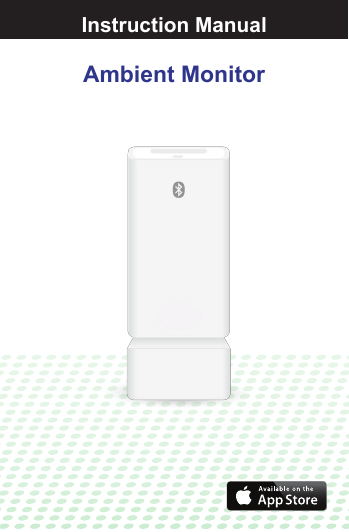
Ambient MonitorInstruction Manual
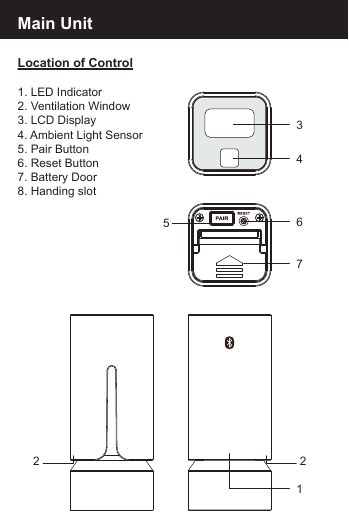
Location of Control1. LED Indicator2. Ventilation Window3. LCD Display4. Ambient Light Sensor5. Pair Button6. Reset Button7. Battery Door8. Handing slotMain Unit12 264357
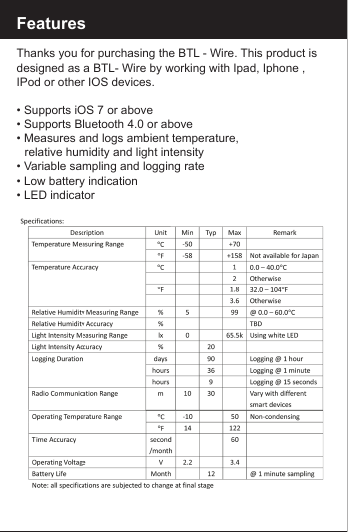
FeaturesThanks you for purchasing the BTL - Wire. This product is designed as a BTL- Wire by working with Ipad, Iphone , IPod or other IOS devices.• Supports iOS 7 or above• Supports Bluetooth 4.0 or above• Measures and logs ambient temperature,    relative humidity and light intensity• Variable sampling and logging rate• Low battery indication• LED indicator
Before you start using itPlease make sure to read the instruction manual carefully.•  Following and respecting to your manual will prevent      damage to your instrument and loss of you statutory      rights arising from defects due to incorrect use.•  We shall not be liable for any damage occurring as a      result of non-following of these instructions. Likewise, we    take no responsibility for any incorrect readings and for    any consequences which may result from them.•  Please take particular note of the safety advice!•  Please keep this instruction manual for future.
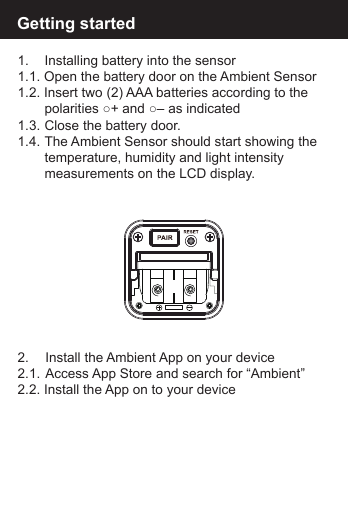
1.   Installing battery into the sensor1.1. Open the battery door on the Ambient Sensor1.2. Insert two (2) AAA batteries according to the   polarities ○+ and ○– as indicated1.3.  Close the battery door.1.4.  The Ambient Sensor should start showing the   temperature, humidity and light intensity  measurements on the LCD display.Getting started2.   Install the Ambient App on your device2.1.  Access App Store and search for “Ambient”2.2. Install the App on to your device
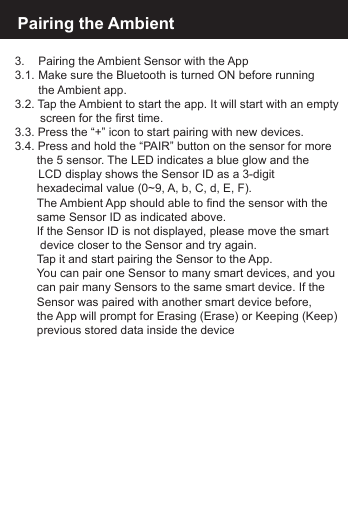
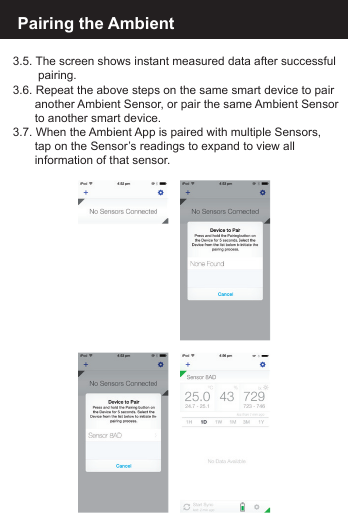
Pairing the Ambient3.    Pairing the Ambient Sensor with the App3.1.  Make sure the Bluetooth is turned ON before running    the  Ambient  app.3.2. Tap the Ambient to start the app. It will start with an empty   screen for the first time.3.3. Press the “+” icon to start pairing with new devices.3.4. Press and hold the “PAIR” button on the sensor for more  the 5 sensor. The LED indicates a blue glow and the    LCD display shows the Sensor ID as a 3-digit   hexadecimal value (0~9, A, b, C, d, E, F).  The Ambient App should able to find the sensor with the   same Sensor ID as indicated above.  If the Sensor ID is not displayed, please move the smart   device closer to the Sensor and try again.  Tap it and start pairing the Sensor to the App.  You can pair one Sensor to many smart devices, and you  can pair many Sensors to the same smart device. If the   Sensor was paired with another smart device before,   the App will prompt for Erasing (Erase) or Keeping (Keep)  previous stored data inside the device
Pairing the Ambient3.5. The screen shows instant measured data after successful   pairing.3.6. Repeat the above steps on the same smart device to pair   another Ambient Sensor, or pair the same Ambient Sensor  to another smart device.3.7. When the Ambient App is paired with multiple Sensors,   tap on the Sensor’s readings to expand to view all   information of that sensor.
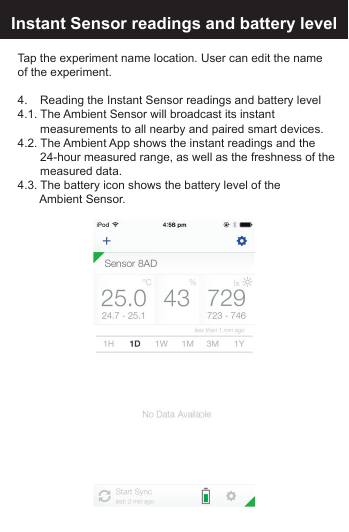
Edit the Experiment name:Instant Sensor readings and battery levelTap the experiment name location. User can edit the name of the experiment.4.     Reading the Instant Sensor readings and battery level4.1. The Ambient Sensor will broadcast its instant      measurements to all nearby and paired smart devices.4.2. The Ambient App shows the instant readings and the      24-hour measured range, as well as the freshness of the      measured  data.4.3. The battery icon shows the battery level of the     Ambient Sensor.
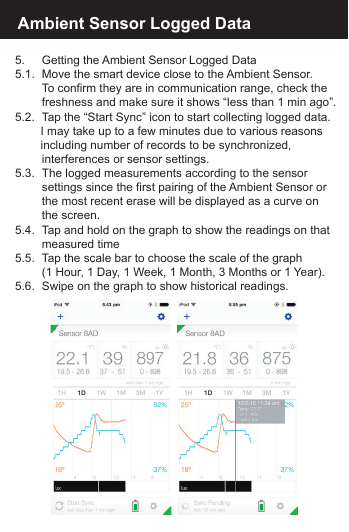
Ambient Sensor Logged Data5.      Getting the Ambient Sensor Logged Data5.1.  Move the smart device close to the Ambient Sensor.       To confirm they are in communication range, check the       freshness and make sure it shows “less than 1 min ago”.5.2.  Tap the “Start Sync” icon to start collecting logged data.     I may take up to a few minutes due to various reasons     including number of records to be synchronized,       interferences or sensor settings.5.3.  The logged measurements according to the sensor       settings since the first pairing of the Ambient Sensor or      the most recent erase will be displayed as a curve on        the  screen.5.4.  Tap and hold on the graph to show the readings on that      measured time5.5.  Tap the scale bar to choose the scale of the graph       (1 Hour, 1 Day, 1 Week, 1 Month, 3 Months or 1 Year).5.6.  Swipe on the graph to show historical readings.
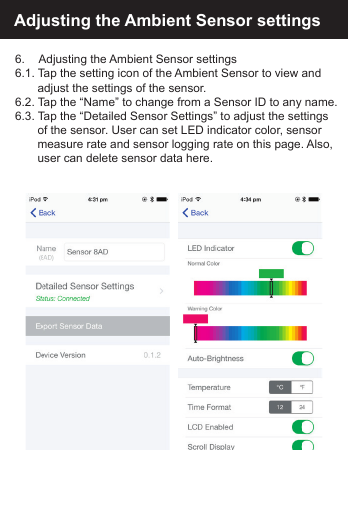
Adjusting the Ambient Sensor settings6.     Adjusting the Ambient Sensor settings6.1. Tap the setting icon of the Ambient Sensor to view and   adjust the settings of the sensor.6.2. Tap the “Name” to change from a Sensor ID to any name.6.3. Tap the “Detailed Sensor Settings” to adjust the settings   of the sensor. User can set LED indicator color, sensor   measure rate and sensor logging rate on this page. Also,   user can delete sensor data here.
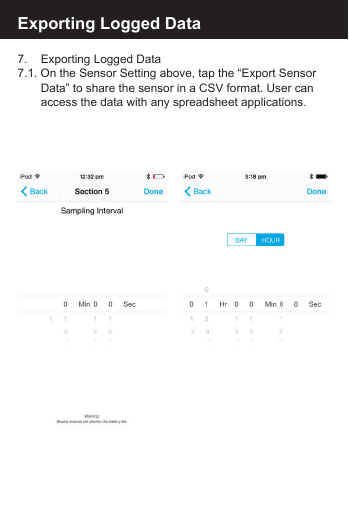
Exporting Logged Data7.     Exporting Logged Data7.1. On the Sensor Setting above, tap the “Export Sensor      Data” to share the sensor in a CSV format. User can      access the data with any spreadsheet applications.
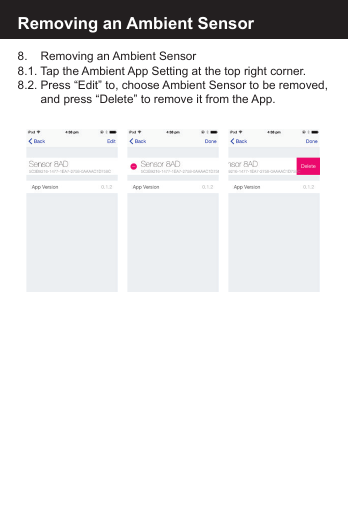
8.   Removing an Ambient Sensor8.1. Tap the Ambient App Setting at the top right corner.8.2. Press “Edit” to, choose Ambient Sensor to be removed,     and press “Delete” to remove it from the App.Removing an Ambient Sensor
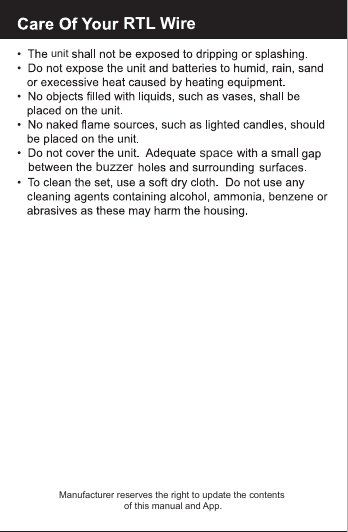
RTL WireunitspacebuzzerManufacturer reserves the right to update the contents of this manual and App.
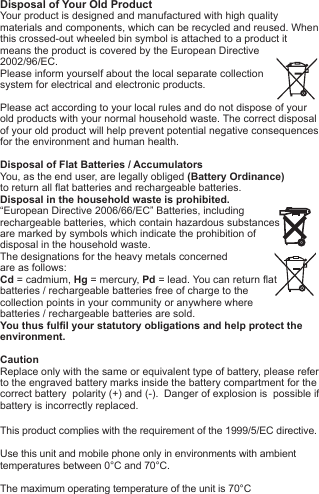
Disposal of Your Old ProductYour product is designed and manufactured with high quality materials and components, which can be recycled and reused. When this crossed-out wheeled bin symbol is attached to a product itmeans the product is covered by the European Directive2002/96/EC.Please inform yourself about the local separate collectionsystem for electrical and electronic products. Please act according to your local rules and do not dispose of yourold products with your normal household waste. The correct disposal of your old product will help prevent potential negative consequences for the environment and human health. Disposal of Flat Batteries / AccumulatorsYou, as the end user, are legally obliged (Battery Ordinance) to return all flat batteries and rechargeable batteries. Disposal in the household waste is prohibited. “European Directive 2006/66/EC” Batteries, including rechargeable batteries, which contain hazardous substancesare marked by symbols which indicate the prohibition ofdisposal in the household waste. The designations for the heavy metals concerned are as follows: Cd = cadmium, Hg = mercury, Pd = lead. You can return flatbatteries / rechargeable batteries free of charge to thecollection points in your community or anywhere wherebatteries / rechargeable batteries are sold.You thus fulfil your statutory obligations and help protect the environment.CautionReplace only with the same or equivalent type of battery, please refer to the engraved battery marks inside the battery compartment for the correct battery  polarity (+) and (-).  Danger of explosion is  possible if battery is incorrectly replaced.This product complies with the requirement of the 1999/5/EC directive.Use this unit and mobile phone only in environments with ambienttemperatures between 0°C and 70°C.The maximum operating temperature of the unit is 70°C
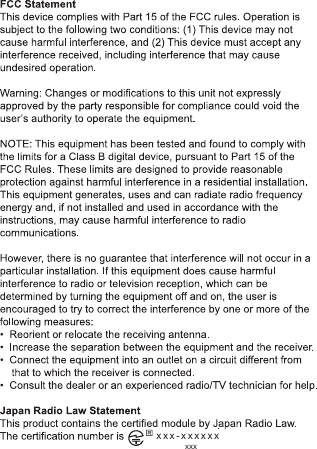
xxx-xxxxxxxxx

Navigation menu