Electronics Tomorrow A65000515 Bluetooth Stopwatch User Manual A650 Manual

Electronics Tomorrow Ltd. Bluetooth Stopwatch A650 Manual

User Manual

Instruction ManualBTSBluetooth Stopwatch[For iPod, iPhone and iPad User]
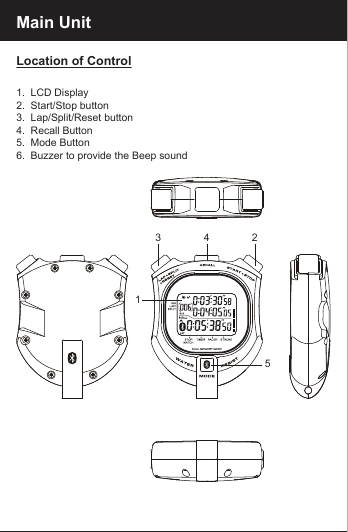
Main UnitLocation of Control1.  LCD Display2.  Start/Stop button3.  Lap/Split/Reset button4.  Recall Button5.  Mode Button6.  Buzzer to provide the Beep sound123 45
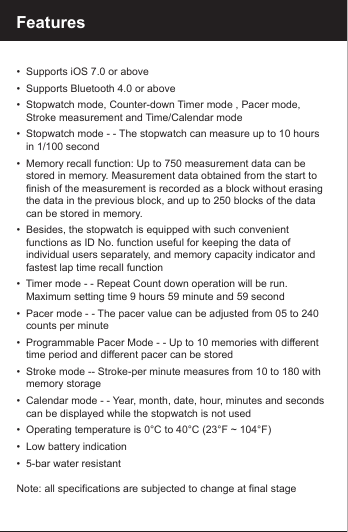
Features   •  Supports iOS 7.0 or above•  Supports Bluetooth 4.0 or above•  Stopwatch mode, Counter-down Timer mode , Pacer mode,   Stroke measurement and Time/Calendar mode•  Stopwatch mode - - The stopwatch can measure up to 10 hours    in 1/100 second•  Memory recall function: Up to 750 measurement data can be    stored in memory. Measurement data obtained from the start to    finish of the measurement is recorded as a block without erasing    the data in the previous block, and up to 250 blocks of the data    can be stored in memory.•  Besides, the stopwatch is equipped with such convenient    functions as ID No. function useful for keeping the data of    individual users separately, and memory capacity indicator and    fastest lap time recall function•  Timer mode - - Repeat Count down operation will be run.    Maximum setting time 9 hours 59 minute and 59 second•  Pacer mode - - The pacer value can be adjusted from 05 to 240    counts per minute•  Programmable Pacer Mode - - Up to 10 memories with different    time period and different pacer can be stored•  Stroke mode -- Stroke-per minute measures from 10 to 180 with    memory storage•  Calendar mode - - Year, month, date, hour, minutes and seconds    can be displayed while the stopwatch is not used•  Operating temperature is 0°C to 40°C (23°F ~ 104°F)•  Low battery indication•  5-bar water resistantNote: all specifications are subjected to change at final stage
Start Bluetooth Stopwatch & App•  Please make sure to read the instruction manual carefully.•  Following and respecting to your manual will prevent damage to    your instrument and loss of you statutory rights arising from    defects due to incorrect use.•  We shall not be liable for any damage occurring as a result of       non-following of these instructions.  Likewise, we take no    responsibility for any incorrect readings and for any    consequences which may result from them.•  Please take particular note of the safety advice!•  Please keep this instruction manual for future.
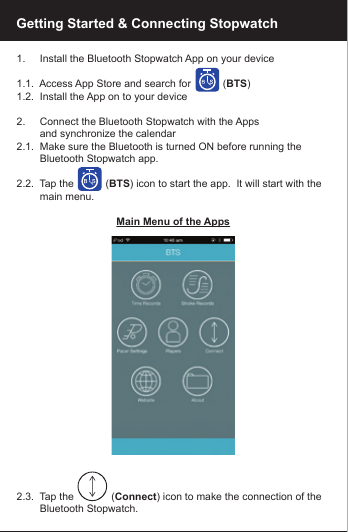
Getting Started & Connecting Stopwatch1.     Install the Bluetooth Stopwatch App on your device1.1.  Access App Store and search for           (BTS)1.2.  Install the App on to your device2.     Connect the Bluetooth Stopwatch with the Apps        and synchronize the calendar2.1.  Make sure the Bluetooth is turned ON before running the          Bluetooth Stopwatch app.2.2.  Tap the           (BTS) icon to start the app.  It will start with the         main menu.Main Menu of the Apps2.3.  Tap the             (Connect) icon to make the connection of the         Bluetooth Stopwatch.
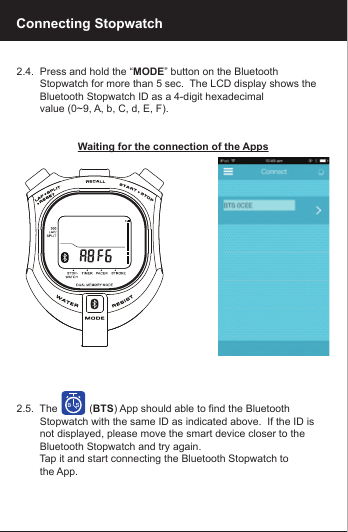
2.4.  Press and hold the “MODE” button on the Bluetooth         Stopwatch for more than 5 sec.  The LCD display shows the         Bluetooth Stopwatch ID as a 4-digit hexadecimal         value (0~9, A, b, C, d, E, F).Waiting for the connection of the Apps2.5.  The           (BTS) App should able to find the Bluetooth         Stopwatch with the same ID as indicated above.  If the ID is         not displayed, please move the smart device closer to the         Bluetooth Stopwatch and try again.        Tap it and start connecting the Bluetooth Stopwatch to         the App.Connecting Stopwatch
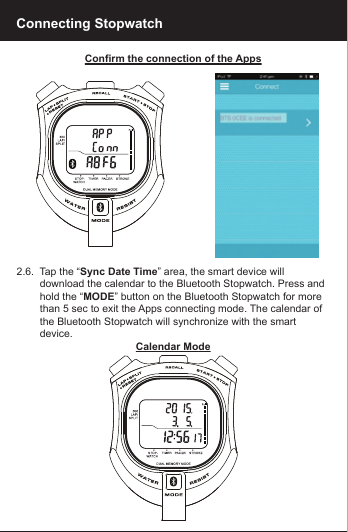
Confirm the connection of the Apps2.6.  Tap the “Sync Date Time” area, the smart device will         download the calendar to the Bluetooth Stopwatch. Press and         hold the “MODE” button on the Bluetooth Stopwatch for more         than 5 sec to exit the Apps connecting mode. The calendar of         the Bluetooth Stopwatch will synchronize with the smart         device.Calendar ModeConnecting Stopwatch
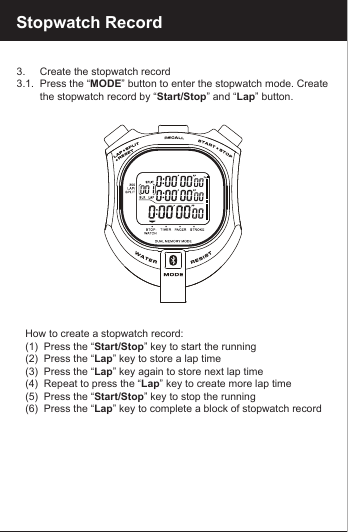
Stopwatch Record3.     Create the stopwatch record3.1.  Press the “MODE” button to enter the stopwatch mode. Create         the stopwatch record by “Start/Stop” and “Lap” button.   How to create a stopwatch record:   (1)  Press the “Start/Stop” key to start the running   (2)  Press the “Lap” key to store a lap time   (3)  Press the “Lap” key again to store next lap time   (4)  Repeat to press the “Lap” key to create more lap time   (5)  Press the “Start/Stop” key to stop the running   (6)  Press the “Lap” key to complete a block of stopwatch record
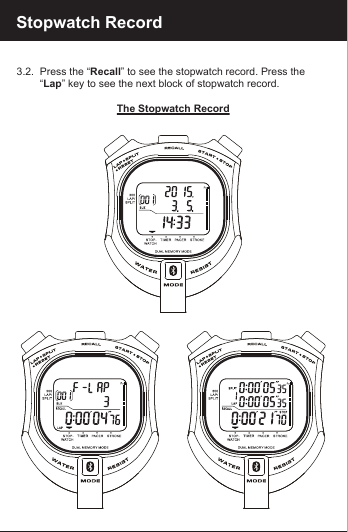
Stopwatch Record3.2.  Press the “Recall” to see the stopwatch record. Press the         “Lap” key to see the next block of stopwatch record.The Stopwatch Record
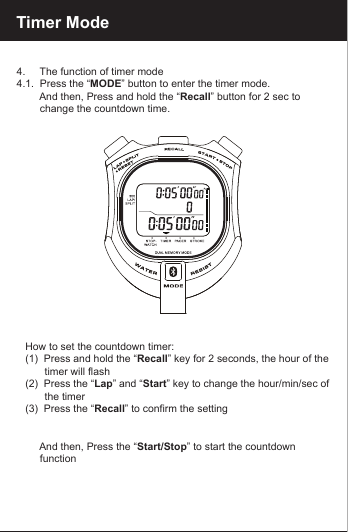
Timer Mode4.     The function of timer mode4.1.  Press the “MODE” button to enter the timer mode.         And then, Press and hold the “Recall” button for 2 sec to         change the countdown time.   How to set the countdown timer:   (1)  Press and hold the “Recall” key for 2 seconds, the hour of the             timer will flash   (2)  Press the “Lap” and “Start” key to change the hour/min/sec of          the timer   (3)  Press the “Recall” to confirm the setting        And then, Press the “Start/Stop” to start the countdown         function
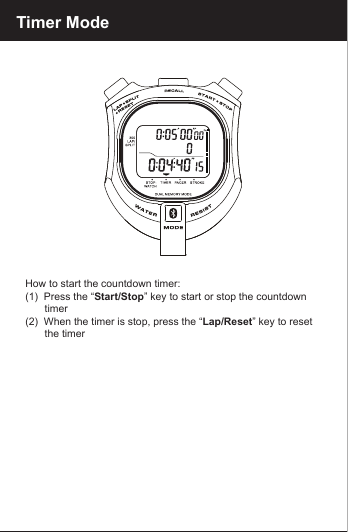
Timer Mode   How to start the countdown timer:   (1)  Press the “Start/Stop” key to start or stop the countdown          timer   (2)  When the timer is stop, press the “Lap/Reset” key to reset          the timer
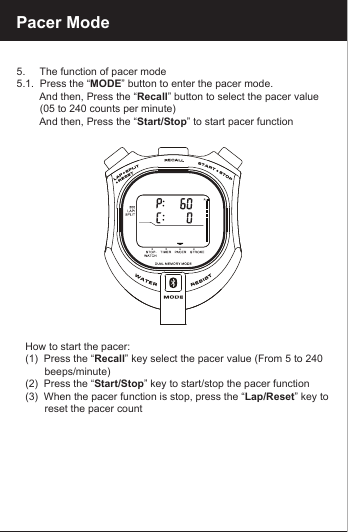
Pacer Mode5.     The function of pacer mode5.1.  Press the “MODE” button to enter the pacer mode.         And then, Press the “Recall” button to select the pacer value         (05 to 240 counts per minute)        And then, Press the “Start/Stop” to start pacer function   How to start the pacer:   (1)  Press the “Recall” key select the pacer value (From 5 to 240          beeps/minute)   (2)  Press the “Start/Stop” key to start/stop the pacer function   (3)  When the pacer function is stop, press the “Lap/Reset” key to         reset the pacer count
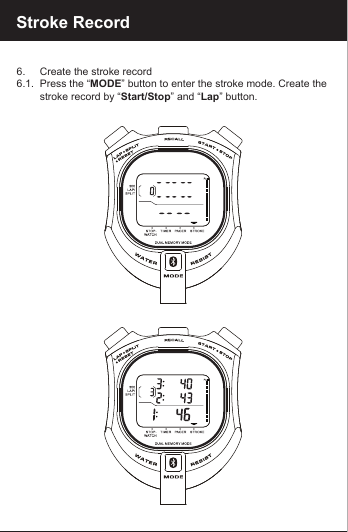
Stroke Record6.     Create the stroke record6.1.  Press the “MODE” button to enter the stroke mode. Create the                 stroke record by “Start/Stop” and “Lap” button.
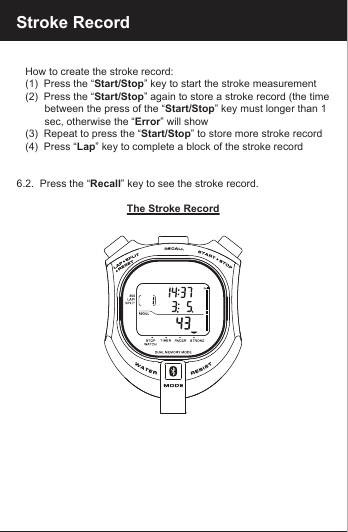
Stroke Record   How to create the stroke record:   (1)  Press the “Start/Stop” key to start the stroke measurement   (2)  Press the “Start/Stop” again to store a stroke record (the time          between the press of the “Start/Stop” key must longer than 1          sec, otherwise the “Error” will show   (3)  Repeat to press the “Start/Stop” to store more stroke record   (4)  Press “Lap” key to complete a block of the stroke record6.2.  Press the “Recall” key to see the stroke record. The Stroke Record
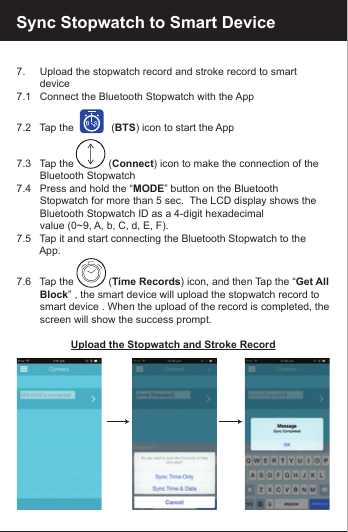
7.     Upload the stopwatch record and stroke record to smart         device7.1   Connect the Bluetooth Stopwatch with the App    7.2   Tap the             (BTS) icon to start the App7.3   Tap the            (Connect) icon to make the connection of the         Bluetooth Stopwatch7.4   Press and hold the “MODE” button on the Bluetooth         Stopwatch for more than 5 sec.  The LCD display shows the         Bluetooth Stopwatch ID as a 4-digit hexadecimal        value (0~9, A, b, C, d, E, F).7.5   Tap it and start connecting the Bluetooth Stopwatch to the         App.7.6   Tap the            (Time Records) icon, and then Tap the “Get All         Block” , the smart device will upload the stopwatch record to         smart device . When the upload of the record is completed, the         screen will show the success prompt.Upload the Stopwatch and Stroke RecordSync Stopwatch to Smart Device
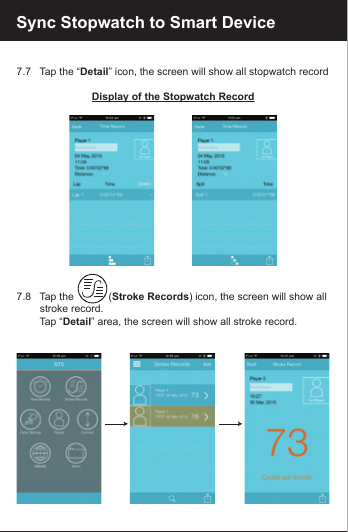
7.7   Tap the “Detail” icon, the screen will show all stopwatch recordDisplay of the Stopwatch Record7.8   Tap the            (Stroke Records) icon, the screen will show all         stroke record.        Tap “Detail” area, the screen will show all stroke record.    Sync Stopwatch to Smart Device
8.     Download Memories Pacer setting to Bluetooth Stopwatch8.1   Tap the            (Pacer Setting) icon, the screen will show the         Memories Pacer setting. Select the setting of the “Memories         Pacer”8.2   Change the switch to the “Memory” and tap the “Set Mode”         icon 8.3   Tap the “Set Program” icon to download the Memories Pacer         setting to Bluetooth Stopwatch.Display of the Stopwatch Record8.3   Press and hold the “MODE” button on the Bluetooth         Stopwatch for more than 5 sec to exit the Apps connecting         mode. The pacer mode will change to “Memories pacer         mode”.Sync Pacer to Bluetooth Stopwatch
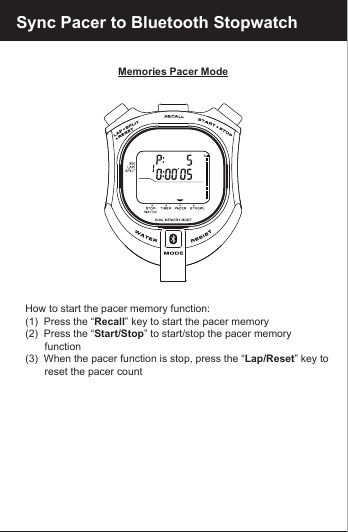
Memories Pacer Mode   How to start the pacer memory function:   (1)  Press the “Recall” key to start the pacer memory   (2)  Press the “Start/Stop” to start/stop the pacer memory          function   (3)  When the pacer function is stop, press the “Lap/Reset” key to          reset the pacer countSync Pacer to Bluetooth Stopwatch
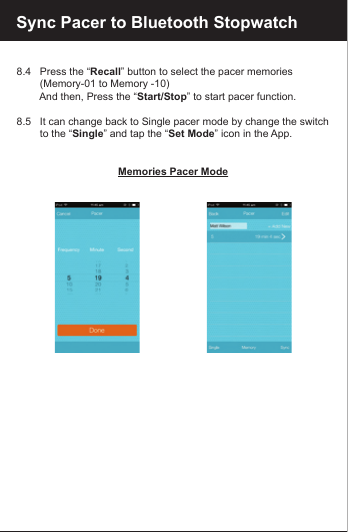
8.4   Press the “Recall” button to select the pacer memories         (Memory-01 to Memory -10)        And then, Press the “Start/Stop” to start pacer function.8.5   It can change back to Single pacer mode by change the switch         to the “Single” and tap the “Set Mode” icon in the App.Memories Pacer ModeSync Pacer to Bluetooth Stopwatch
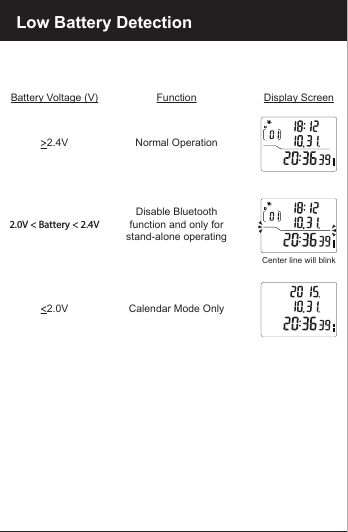
Low Battery DetectionBattery Voltage (V) Function Display Screen>2.4V Normal Operation<2.0V Calendar Mode Only2.0V < Battery < 2.4VDisable Bluetoothfunction and only forstand-alone operatingCenter line will blink
•  The Bluetooth stopwatch is suitable for everyday use and    swimming but NOT poolside diving, snorkeling or water sports.    Do not operate the buttons when the Bluetooth stopwatch is wet    or in water.•  Do not expose the unit and batteries to excessive heat caused by   heating equipment.•  No naked flame source, such as lighted candles, should be    placed on the unit.•  To clean the set, use a soft dray cloth. Do not use any cleaning    agents containing alcohol, ammonia, benzene or abrasives as    these may harm.Bluetooth Stopwatch
Disposal of Your Old ProductYour product is designed and manufactured with high quality materials and components, which can be recycled and reused. When this crossed-out wheeled bin symbol is attached to a product itmeans the product is covered by the European Directive2002/96/EC.Please inform yourself about the local separate collectionsystem for electrical and electronic products. Please act according to your local rules and do not dispose of yourold products with your normal household waste. The correct disposal of your old product will help prevent potential negative consequences for the environment and human health. Disposal of Flat Batteries / AccumulatorsYou, as the end user, are legally obliged (Battery Ordinance) to return all flat batteries and rechargeable batteries. Disposal in the household waste is prohibited. “European Directive 2006/66/EC” Batteries, including rechargeable batteries, which contain hazardous substancesare marked by symbols which indicate the prohibition ofdisposal in the household waste. The designations for the heavy metals concerned are as follows: Cd = cadmium, Hg = mercury, Pd = lead. You can return flatbatteries / rechargeable batteries free of charge to thecollection points in your community or anywhere wherebatteries / rechargeable batteries are sold.You thus fulfil your statutory obligations and help protect the environment.CautionReplace only with the same or equivalent type of battery, please refer to the engraved battery marks inside the battery compartment for the correct battery  polarity (+) and (-).  Danger of explosion is  possible if battery is incorrectly replaced.This product complies with the requirement of the 1999/5/EC directive.Use this unit and mobile phone only in environments with ambienttemperatures between 0°C and 40°C (23°F ~ 104°F).The maximum operating temperature of the unit is 40°C (104°F)
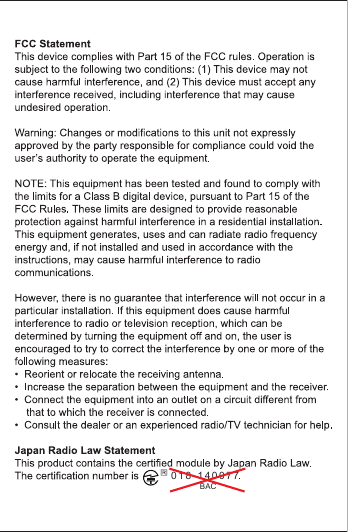
018-140077BAC

Navigation menu