Elentec PMP2500 PORTABLE MULTIMEDIA PLAYER WITH BLUETOOTH User Manual Microsoft PowerPoint Merlin manual eng 0621

Elentec Co.,Ltd. PORTABLE MULTIMEDIA PLAYER WITH BLUETOOTH Microsoft PowerPoint Merlin manual eng 0621

users manual

1User ManualThank you for purchasing our product.Please read this manual carefully before use for your safety and convenience.This product may change at any time without notice for better quality and performance.
2■ContentsBEFORE USESafety Instructions 3Components and Features 5Charging Battery  6Safe use of Battery  7BASIC FUNCTIONSTurning On/Off  8Compatible files  9PLAY/RESUMEPLAY Menu  10Setting out of Browser display  11Browser Pop up Menu  12Playing Video files  13Setting Options for playing Video filesPlaying Audio files  15Setting Options for playing audio files 16Viewing Images  18Viewing Texts  19RECORDINGConnecting External Devices for recording  20Recording  21Setting Options for Recording  22SET UPGeneral setting out 23Display 24System 25Bluetooth 26ADDITIONAL FEATURES Installing USB driver  27Upgrading Firmware  28USB Hosting  29Connecting player to PC  30Playing PMP file with PC  31Managing Hard Disk 32Using as Portable Mass Storage  32TRANSCODERBefore using Transcorder  33Installing Transcorder  34Using Transcorder  35Converting file  37Converting part of file  38DVD PLAYER –Playing DVD 40Using DVD Converter  41Converting DVD file 42Advanced DVD Converter  43TROUBLESHOOTING 47SPECIFICATIONS 49PORTABLE MULTIMEDIA PLAYER
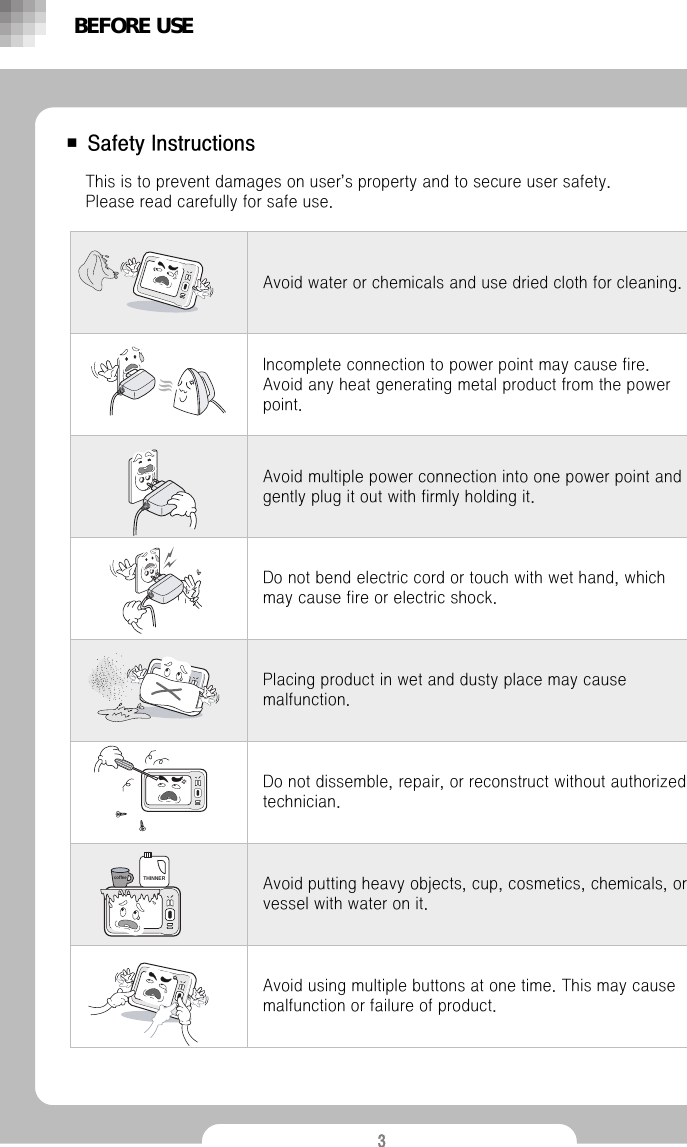
3■ Safety InstructionsDo not bend electric cord or touch with wet hand, which may cause fire or electric shock.Placing product in wet and dusty place may cause malfunction.  Do not dissemble, repair, or reconstruct without authorized technician.Avoid putting heavy objects, cup, cosmetics, chemicals, or vessel with water on it.Avoid using multiple buttons at one time. This may cause malfunction or failure of product.Avoid multiple power connection into one power point and gently plug it out with firmly holding it. Incomplete connection to power point may cause fire. Avoid any heat generating metal product from the power point.Avoid water or chemicals and use dried cloth for cleaning.This is to prevent damages on user’s property and to secure user safety.              Please read carefully for safe use.BEFORE USEcoffeeTHINNER
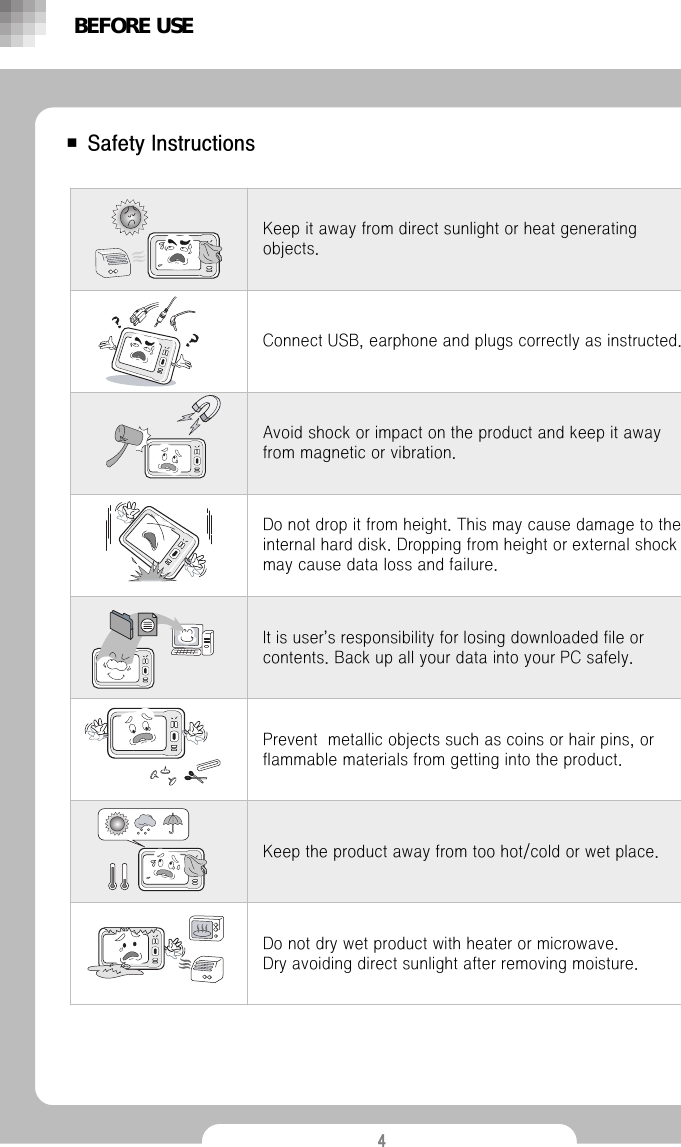
4■ Safety InstructionsIt is user’s responsibility for losing downloaded file or contents. Back up all your data into your PC safely.Prevent  metallic objects such as coins or hair pins, or flammable materials from getting into the product.Keep the product away from too hot/cold or wet place.Keep it away from direct sunlight or heat generating objects.Do not dry wet product with heater or microwave.            Dry avoiding direct sunlight after removing moisture.Do not drop it from height. This may cause damage to the internal hard disk. Dropping from height or external shock may cause data loss and failure.Avoid shock or impact on the product and keep it away from magnetic or vibration.Connect USB, earphone and plugs correctly as instructed.BEFORE USE
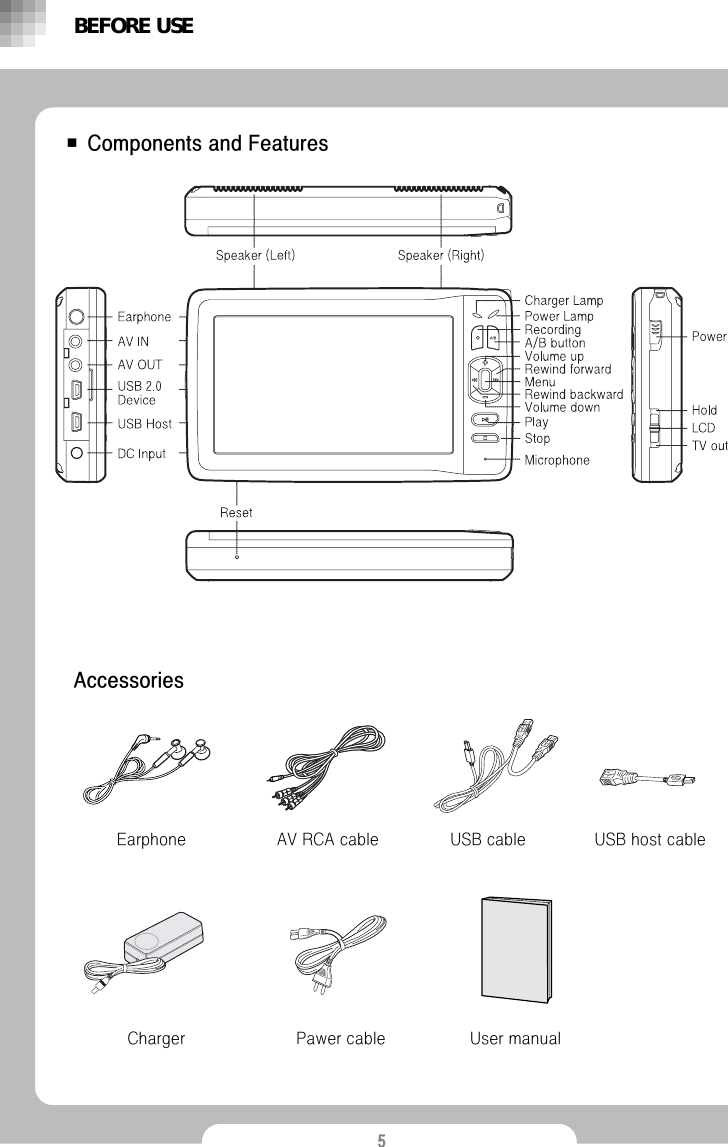
5■ Components and FeaturesAccessoriesBEFORE USEEarphoneCharger User manualPawer cableUSB cableAV RCA cable USB host cable
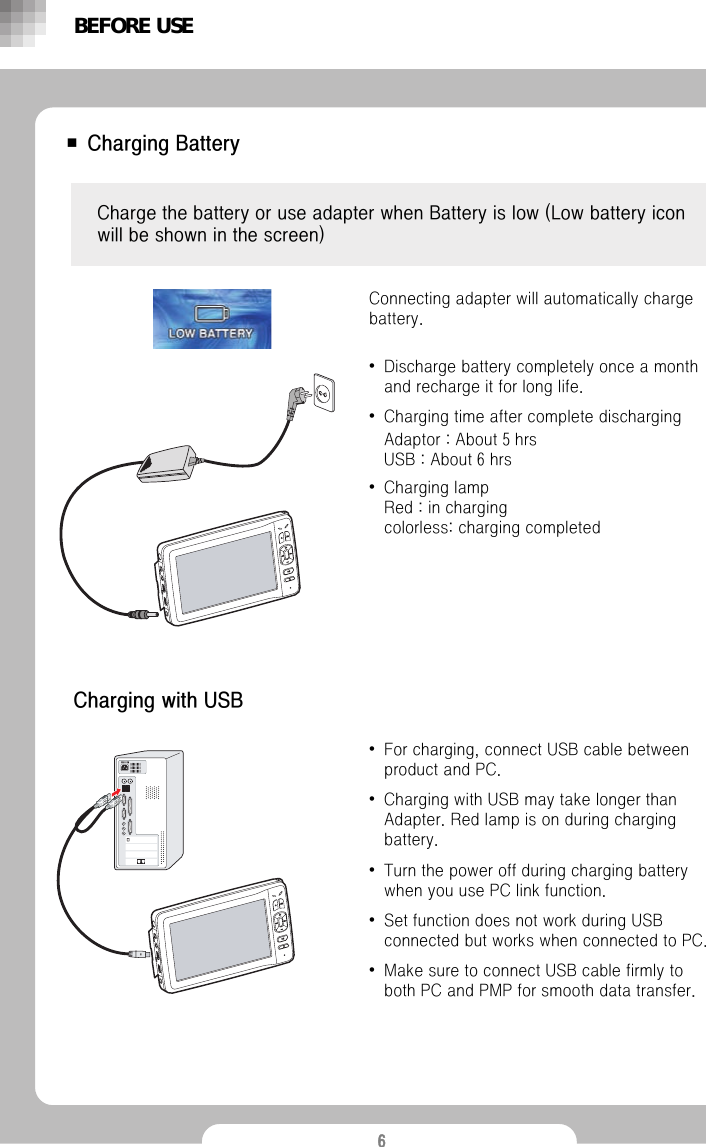
6■Charging BatteryCharge the battery or use adapter when Battery is low (Low battery icon will be shown in the screen)Charging with USB•For charging, connect USB cable between product and PC.•Charging with USB may take longer than Adapter. Red lamp is on during charging battery.•Turn the power off during charging battery when you use PC link function.•Set function does not work during USB connected but works when connected to PC. •Make sure to connect USB cable firmly to both PC and PMP for smooth data transfer.Connecting adapter will automatically charge battery.•Discharge battery completely once a month and recharge it for long life.•Charging time after complete dischargingAdaptor : About 5 hrs USB : About 6 hrs •Charging lamp Red : in chargingcolorless: charging completedBEFORE USE
7■ Safe use of BatteryBattery contains 3.7v 4100mAh Lithium Polymer. Read below carefully for safe use of product and longer battery life.•Dropping from height may cause failure, overheating and explosion. •Do not separate battery from the product.•Keeping product near heat generating objects may cause overheating and explosion.•Using non-recommended battery may cause overheating, explosion and failure. •Keeping the product sealed hot place such as interior of car getting direct sunlight may cause deformation of product and explosion. Keep it between 0℃ ~ +40℃.•When your skin gets contaminated with liquid from broken battery, wash your skin sufficiently with running water for 1~2 minutes.•Avoid impact or shock by sharp object. It may cause explosion.•Excessive use during charging may interrupt charging and may cause explosion by overheating. •Battery is a consumable with limited life. •Visit authorized service centre and use authorized battery. •Do not use battery for other purposes. It may cause unexpected incident.BEFORE USE
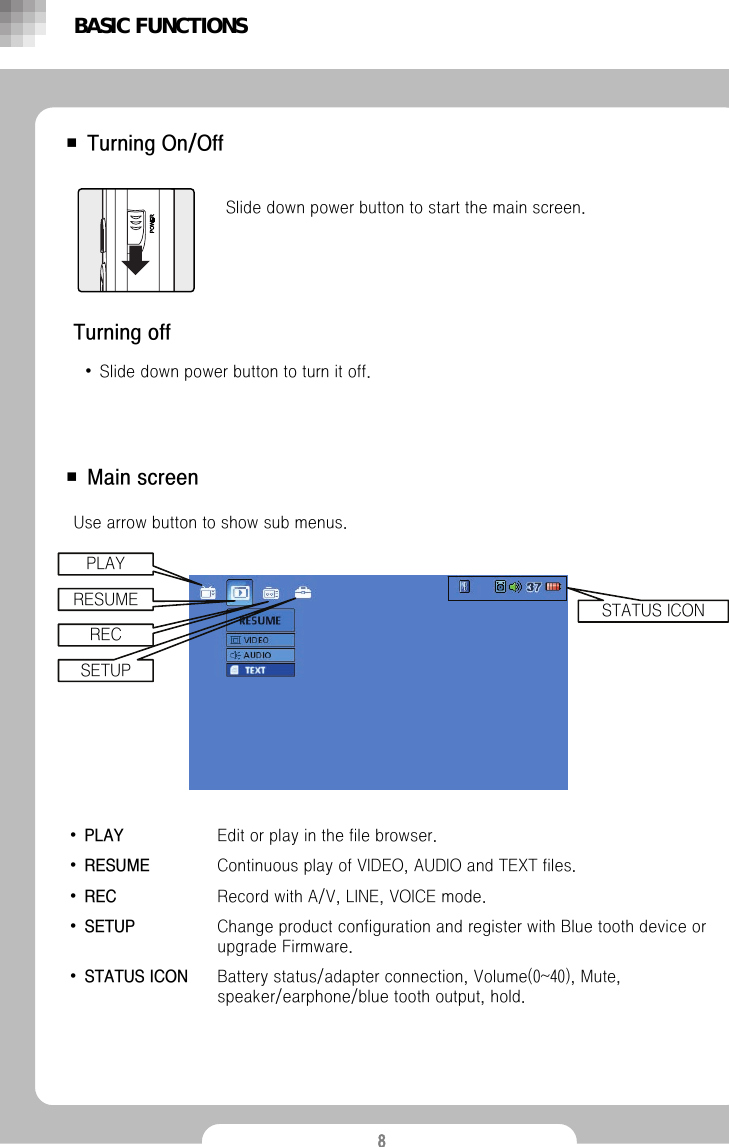
8■ Turning On/OffSlide down power button to start the main screen.■Main screenTurning off•Slide down power button to turn it off.•PLAY Edit or play in the file browser. •RESUME Continuous play of VIDEO, AUDIO and TEXT files.•REC Record with A/V, LINE, VOICE mode.•SETUP Change product configuration and register with Blue tooth deviceor upgrade Firmware.•STATUS ICON  Battery status/adapter connection, Volume(0~40), Mute, speaker/earphone/blue tooth output, hold.Use arrow button to show sub menus. BASIC FUNCTIONSSTATUS ICONPLAYRESUMERECSETUP
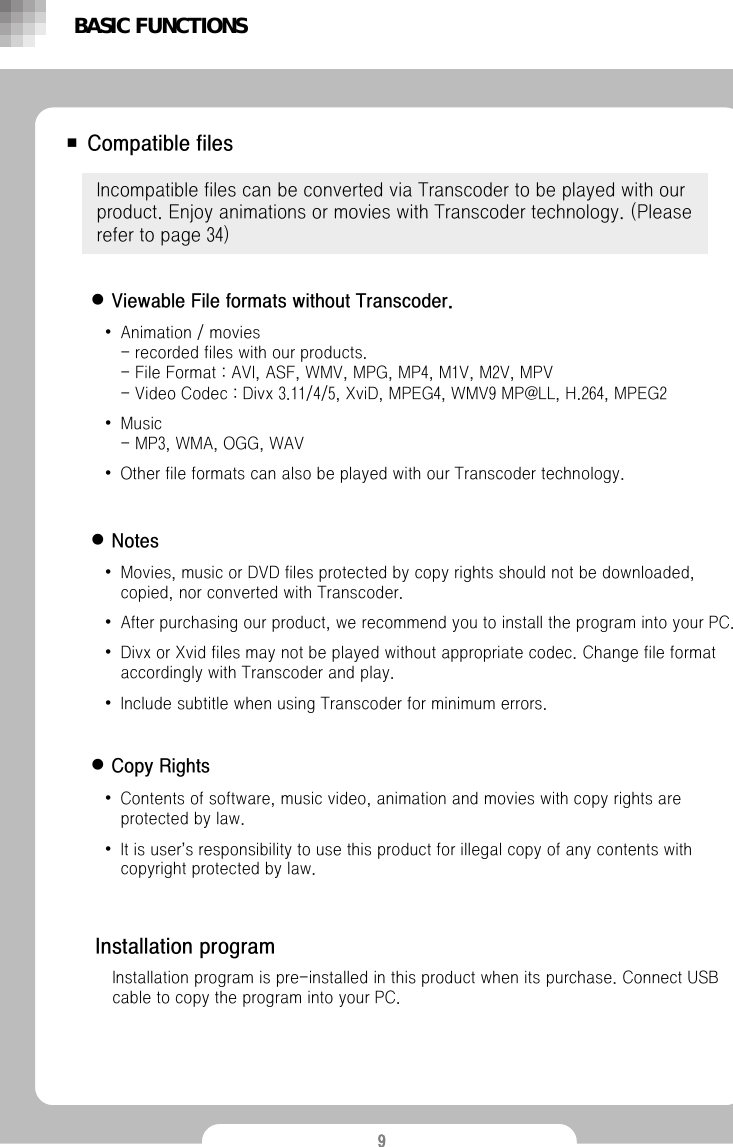
9■ Compatible filesIncompatible files can be converted via Transcoder to be played with our product. Enjoy animations or movies with Transcoder technology. (Please refer to page 34)•Animation / movies                                              - recorded files with our products. - File Format : AVI, ASF, WMV, MPG, MP4, M1V, M2V, MPV- Video Codec : Divx 3.11/4/5, XviD, MPEG4, WMV9 MP@LL, H.264, MPEG2•Music - MP3, WMA, OGG, WAV•Other file formats can also be played with our Transcoder technology.BASIC FUNCTIONSInstallation programInstallation program is pre-installed in this product when its purchase. Connect USB cable to copy the program into your PC. zViewable File formats without Transcoder. zNoteszCopy Rights•Movies, music or DVD files protected by copy rights should not be downloaded, copied, nor converted with Transcoder. •After purchasing our product, we recommend you to install the program into your PC.  •Divx or Xvid files may not be played without appropriate codec. Change file format accordingly with Transcoder and play.•Include subtitle when using Transcoder for minimum errors. •Contents of software, music video, animation and movies with copy rights are protected by law. •It is user’s responsibility to use this product for illegal copy of any contents with copyright protected by law.
10■ PLAY MenuOpen browser window with play menu. Choose files to play and press play button.•Select file and press [▶II] to play. •It plays same files repeatedly within the folder where the first files were selected.Audio player (Refer to page 15)BASIC FUNCTIONSMovie player (Refer to page 13)Image player (Refer to page 18) Text player (Refer to page 19)
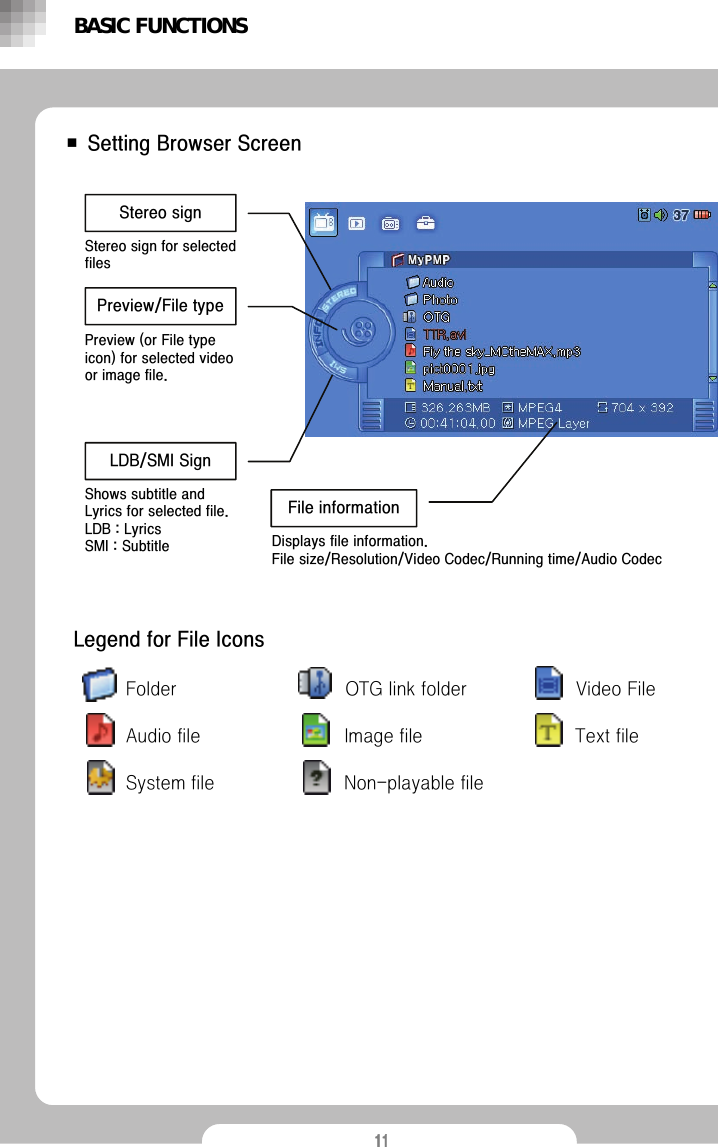
11■ Setting Browser ScreenBASIC FUNCTIONSLegend for File IconsStereo signStereo sign for selected filesPreview/File typePreview (or File type icon) for selected video or image file. LDB/SMI SignShows subtitle and Lyrics for selected file.LDB : LyricsSMI : SubtitleFile informationDisplays file information.File size/Resolution/Video Codec/Running time/Audio CodecVideo FileAudio fileFolder OTG link folderImage fileSystem fileText fileNon-playable file
12■ Browser POP UP MenuSelect files in browser and press [M], then a pop up will turn up for setting up play lists, file copy/past/delete and file sorting. Press [II] after selecting wanted menu.Press[■] to close pop up after finishing setup.BASIC FUNCTIONSAdd to Audio listA pop up will turn up after selecting audio file and pressing [M button]. Select files and select  “Add to Audio list”to add audio files to play lists.Play Audio list‘Play Audio list‘plays files selected by previous user. To view play lists, press [M] in audio play screen and select “List set”again. CopyCopy files or folders.PastePastes copied files or folders.DeleteDelete files or folders.Sort by nameSort files by its name.Sort by extensionSort files by its extension.Sort by typeSort files by its type.PreviewTurn on/off preview of movie or image in the browser.Set WallpaperSet wallpaper you want. Select image files (jpg,bmp,tiff.gif) and press [M], then select “Set Wallpaper”in the pop up window and press [▶II].Use 480x272 pixels for image size which is optimized resolution for PMP.
13■ Playing Video fileszPlaying Video files with browserSelect PLAY in the main menu and use [arrow key] to choose files to play, then use [▶II] or [▶▶].Movies will be played in movie player screen. zViewing movies in RESUME MenuSelect ‘VIDEO’under ‘RESUME’Menu and the most recently played file will be displayed. Press [▶II] will play from the last played position.BASIC FUNCTIONSCheck below when no sub menus are available under ‘Resume’menu.•After shipment from factory or no files were previously played.•System/Syetem ini files were deleted.•System default is set in ‘Set up’menu.•Files to be played are deleted. •File name has been changed.•Abnormal power-off or reset.
14■ Setting options for playing moviesPress [M] during playing movie to change settings in the option.Press [◀◀/▶▶] to move between menus and  use [+/-] to change settings. Press [■] to finish.PLAYEROperations to play movies. BASIC FUNCTIONSOP 1•REPEATFOLDER : Repeat all                                 ONE : Repeat current file only                               OFF : No Repetition •RATIOChange screen ratio•SUBTITLESub-title on•SYNCSub-title synchronization•MUTE MODE Turn the sound off•SPEAKER Turning on/off internal speaker•LCD BRIGHT LCD brightness tuning•PIC BRIGHT Screen brightness tuningOP 2VolumeStopMove to option menu Play/PauseRewind backward/forward up to x2>x4>x8>x16>x32>x64>x128or vice versa
15■ Playing music fileszPlaying music files with browserSelect ‘PLAY’in the main menu and choose files to play, then press [▶II].                 Press [◀◀/▶▶] to change menus and use [+/-] to change settings. Press [■] to finish.  Press [M] to edit play lists. (Refer to page 13)Audio files will be played in audio play mode.zPlaying audio files in RESUME menuSelecting ‘Audio’under ‘RESUME’menu will display the file one after last flayed file. Press [▶II] to play.BASIC FUNCTIONSCheck below when no sub menus are available under ‘Resume’menu.•After shipment from factory or no files were previously played.•System or System ini files were deleted.•System default is set in Set up menu.•Files to be played are deleted.•File name’s been changed.•Abnormal power-off or reset.
16■ Setting options for playing audio filesPress [M] during playing audio files to change setting in the right.Press [◀◀/▶▶]to move between menus and use [+/-] to change settings. Press [■] to finish.PLAYEROperations to play audio files.BASIC FUNCTIONSLYRICSA preview window for viewing Lyrics will appear only for audio files with sub title.Press : Play next musicPress and hold : rewindRepeatPress : setting the length of session to be repeated. Press and hold : toggling repeat mode (Off→One→All)VolumePress : Move to the beginning of file after 10 seconds’playMove to the previous file back to 10 second’s playPress and hold : rewindMove to menuStopPlay/Pause
17•EQ SELECTSetting EQ mode•WOLFSON3DSetting WOLFSON3D •3D DEPTHSetting 3D DEPTHBASIC FUNCTIONSLIST SETPress [M] and select “LISTSET”to see file list. Press [+/-] to choose audio files and press [M] or [▶II] to bring pop up window. File list pop upPlay File : Pplay current fileAdd To List : Move to selected file list.EQ SET•BASS BOOSTTuning for low frequency sound•TRBL BOOSTTuning for high frequency sound•BALANCETuning speaker output•MUTEMODETurning off sound•REPEATALL : Repeat all ONE : Repeat current file onlyOFF : Canceling Repeat mode•SHUFFLERandom playOP 1Switch-over between file list and play listPress [◀◀/▶▶] to switchoverPlay list pop upPlay File : Play current fileDel from List : Delete file
18■Viewing ImagezViewing Image in PLAY menu with browserSelect ‘PLAY’in the main menu and choose the image file to play and press [▶II].Image player will appear and images will be played. BASIC FUNCTIONS■ Setting options for playing imagesPress [M] during playing images to change settings in the option window.                 Press [◀◀/▶▶] to move between menus and [+/-] to change settings. Press [■] to finish.PLAYEROperations for playing image. OP 1•SLIDESHOW START Displays images from current image•SLIDESHOW TIME Setting slideshow frame rate•LCD BRIGHT LCD brightness tuning•PIC BRIGHT Display brightness tuningMove to option menuGo to Previous/Next imagePan in zoon modeStopReleasing zoom modePan in zoom modeZoom in 200%
19■Viewing TextsSelect ‘PLAY’in the main menu and choose text file to play and press [▶II].Compatible files have ‘.txt’extension.Text will be viewed after preview. Selecting ‘Text’under RESUME menu will show the file viewed last time. Press [▶II] to resume from previously played position. BASIC FUNCTIONSzViewing Text in PLAY menu with browserzViewing Text in RESUME menuCheck below when no sub menus are available under ‘Resume’menu.•After shipment from factory or no files were previously played.•System or System ini files were deleted.•System default is set in Set up menu.•Files to be played are deleted.•File name’s been changed.•Abnormal power-off or reset.
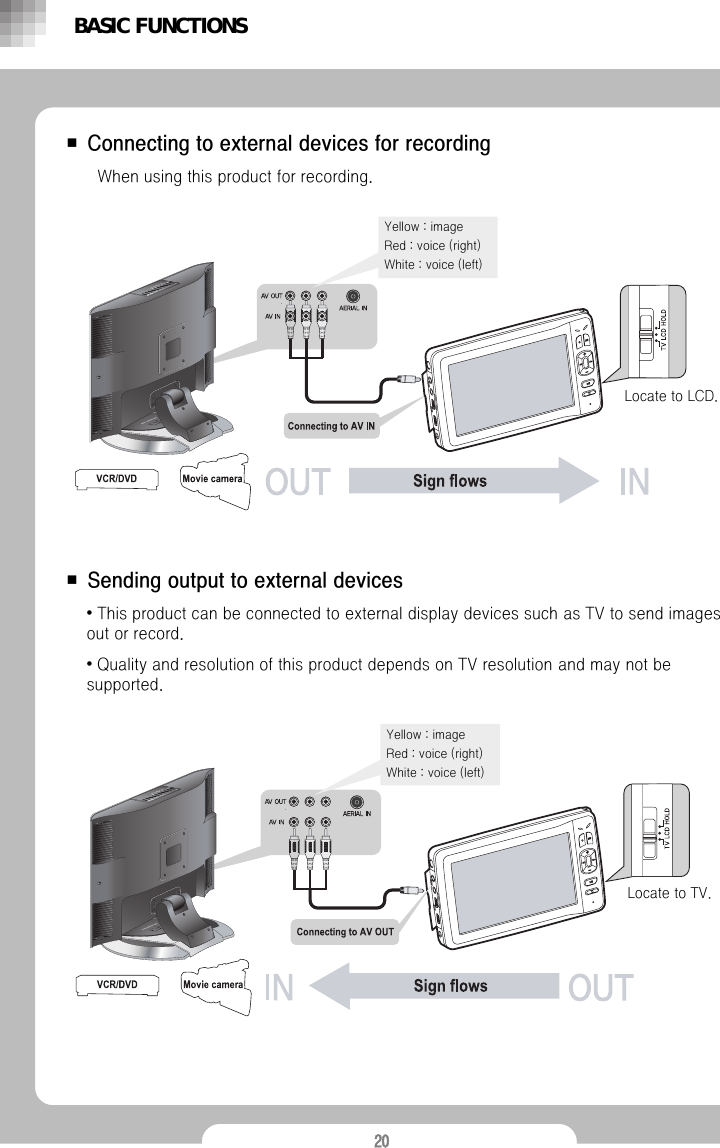
20■ Connecting to external devices for recordingWhen using this product for recording.■ Sending output to external devices•This product can be connected to external display devices such as TV to send images out or record.•Quality and resolution of this product depends on TV resolution and may not be supported.BASIC FUNCTIONSLocate to LCD.Locate to TV.Yellow : imageRed : voice (right)White : voice (left)Yellow : imageRed : voice (right)White : voice (left)
21■ RecordingzRecording (Audio/Video)Connect this product to external devices and select ‘A/V’under ‘REC’menu.Press [▶II] after preview to start recording. Press [■] to save “av rec0.asf”file into PMP hard disk. [Line] Recording - Connect this product to external device and select ‘LINE’under ‘REC’menu. [VOICE] Recording - No Connection is required.Select ‘LINE(VOICE)’under the ‘REC’menu.After ‘Recording player screen’shows up, press [▶II] to record voice through ‘AV IN’(using internal microphone).Press [■] to save “line(voice) rec0.asf”file into PMP hard disk. zLINE/VOICE RecordingBASIC FUNCTIONS
22■ Setting options for RecordingPress [M] during recording to change setting in the option window right side.Press [◀◀/▶▶] to move between menus and press [+/-] to change settings. Press [■] to finish.PLAYEROperations for Audio/Video Recording.BASIC FUNCTIONSVolumeStop/Back to main menuMove to option menuStart/Pause Recording Start/Stop Recording OP 1•REC TIMEOUT Setting recording time•REC QUALITY Recording quality tuningOP 2•MUTE MODETurning off sound•SPEAKERTurning off internal speaker•LCD BRIGHT LCD brightness tuning•PIC BRIGHTDisplay brightness tuning
23■SET UPzGENERALSelect ‘GENERAL’under ‘Setup’menu and press [▶II]. Then press [M] in the ‘Setting’window to change menu.Press [◀◀/▶▶] to move between menus and use [+/-] to change settings. Press [■] to finish.VIDEO•SUBTITLETurning on sub title•REPEATFOLDER : Repeat all                                     ONE : Repeat current file only                            OFF : No repetition•RATIOSetting Display RatioAUDIO•PRESETSSetting EQ mode•REPEATONE : Repeat current file onlyALL : No repetition                            USER LIST : Repeat the fist in the current folderOFF : No repetition•SHUFFLERandom playBASIC FUNCTIONSIMAGE•SLIDE SHOWSetting slide show frame rate.
24■SET UPzDISPLAY Select ‘DISPLAY’under ‘SETUP’menu and press [▶II]. Then press [M] in the setting option window to change menus.Press [◀◀/▶▶] to move between menus and use [+/-] to change settings.Press [■] to finish.•LCD BRIGHTNESSLCD brightness tuning•PIC BRIGHTNESS Screen brightness tuning•LCD TIMEOUT                                      LCD backlight timeout tuning•VIDEO TYPESetting output typeBASIC FUNCTIONS
25■SET UPzSYSTEMSelect ‘SYSTEM’under ‘SETUP’menu and press [▶II]. Then press [M] in the setting option window to change menu.Press [◀◀/▶▶] to move between menus and use [+/-] to change settings. Press [■] to finish.SYSTEM•MUTETurning off sound •SPEAKER                                            Turning off internal speaker•POWER TIMEOUTSetting System Power timeout •PASSWORD                                                     Set up or change passwordNEW : Set up a new password                          ON : Password function ON                                       OFF : Password function off•FACTORY RESETSetting back to Factory Default settingVERSIONCheck current firmware version.BASIC FUNCTIONS
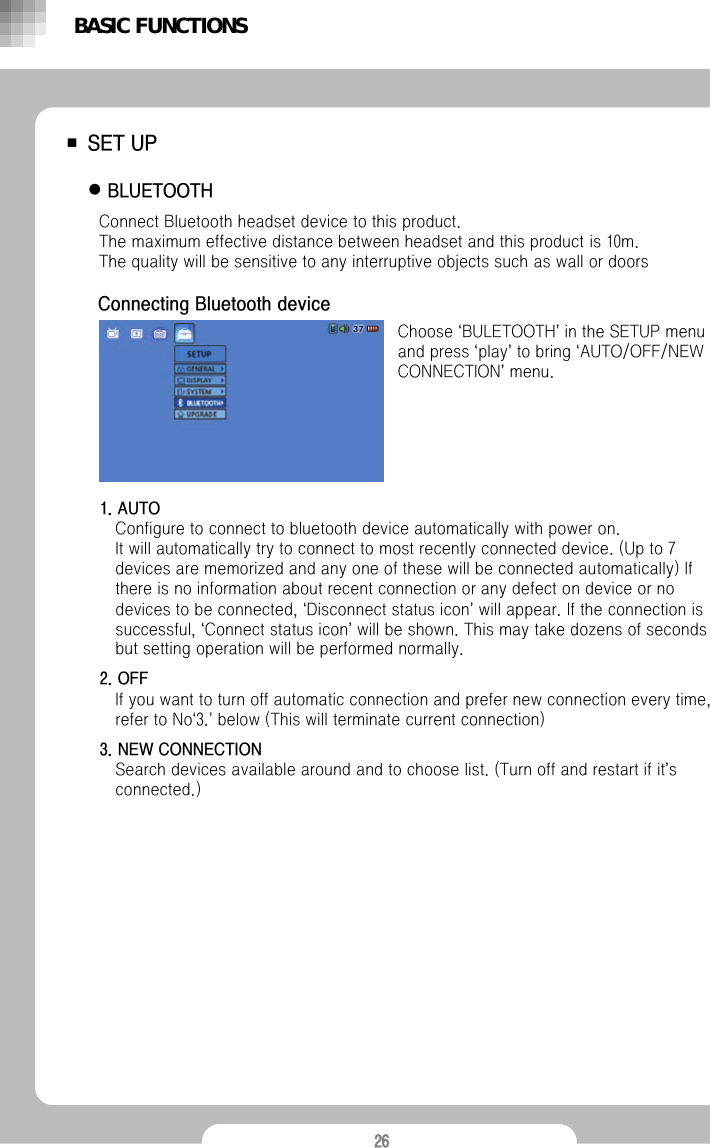
26■SET UPzBLUETOOTH Choose ‘BULETOOTH’in the SETUP menu and press ‘play’to bring ‘AUTO/OFF/NEW CONNECTION’menu.Connect Bluetooth headset device to this product.               The maximum effective distance between headset and this product is 10m.            The quality will be sensitive to any interruptive objects such as wall or doorsBASIC FUNCTIONSConnecting Bluetooth device1. AUTOConfigure to connect to bluetooth device automatically with power on. It will automatically try to connect to most recently connected device. (Up to 7 devices are memorized and any one of these will be connected automatically) If there is no information about recent connection or any defect on device or no devices to be connected, ‘Disconnect status icon’will appear. If the connection is successful, ‘Connect status icon’will be shown. This may take dozens of seconds but setting operation will be performed normally.2. OFFIf you want to turn off automatic connection and prefer new connection every time, refer to No‘3.’below (This will terminate current connection)3. NEW CONNECTIONSearch devices available around and to choose list. (Turn off and restart if it’s connected.)
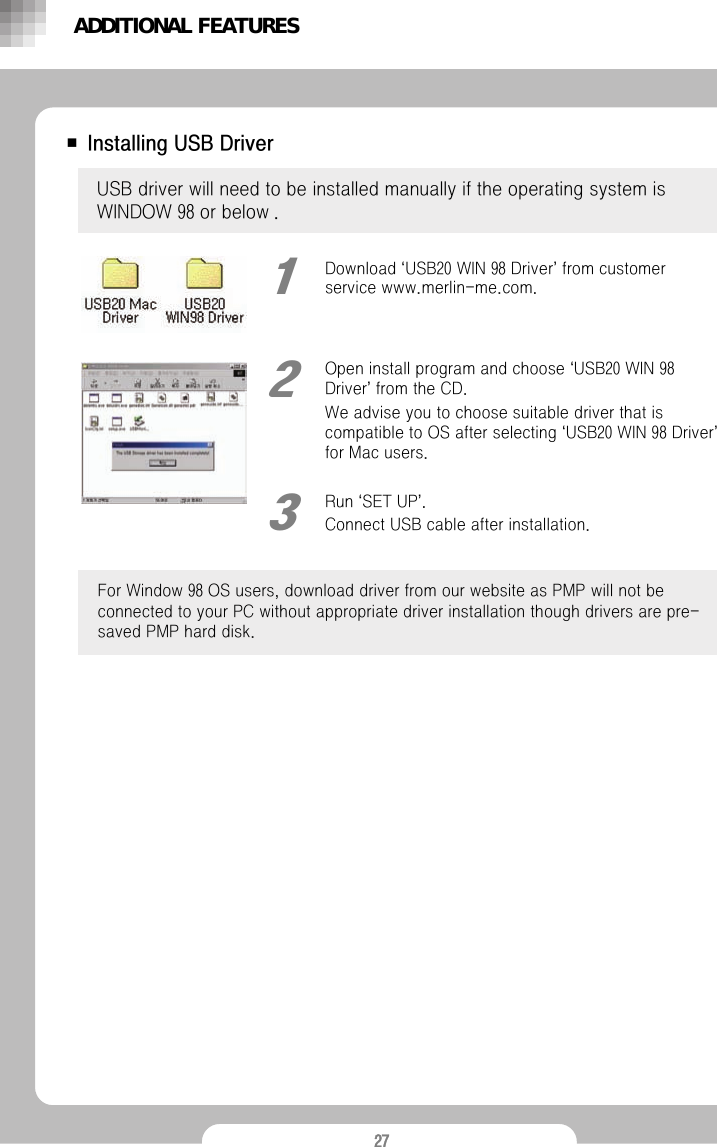
27■ Installing USB DriverUSB driver will need to be installed manually if the operating system is WINDOW 98 or below .Open install program and choose ‘USB20 WIN 98 Driver’from the CD.We advise you to choose suitable driver that is compatible to OS after selecting ‘USB20 WIN 98 Driver’for Mac users.2Run ‘SET UP’.Connect USB cable after installation.3ADDITIONAL FEATURESDownload ‘USB20 WIN 98 Driver’from customer service www.merlin-me.com.1For Window 98 OS users, download driver from our website as PMP will not be connected to your PC without appropriate driver installation though drivers are pre-saved PMP hard disk.
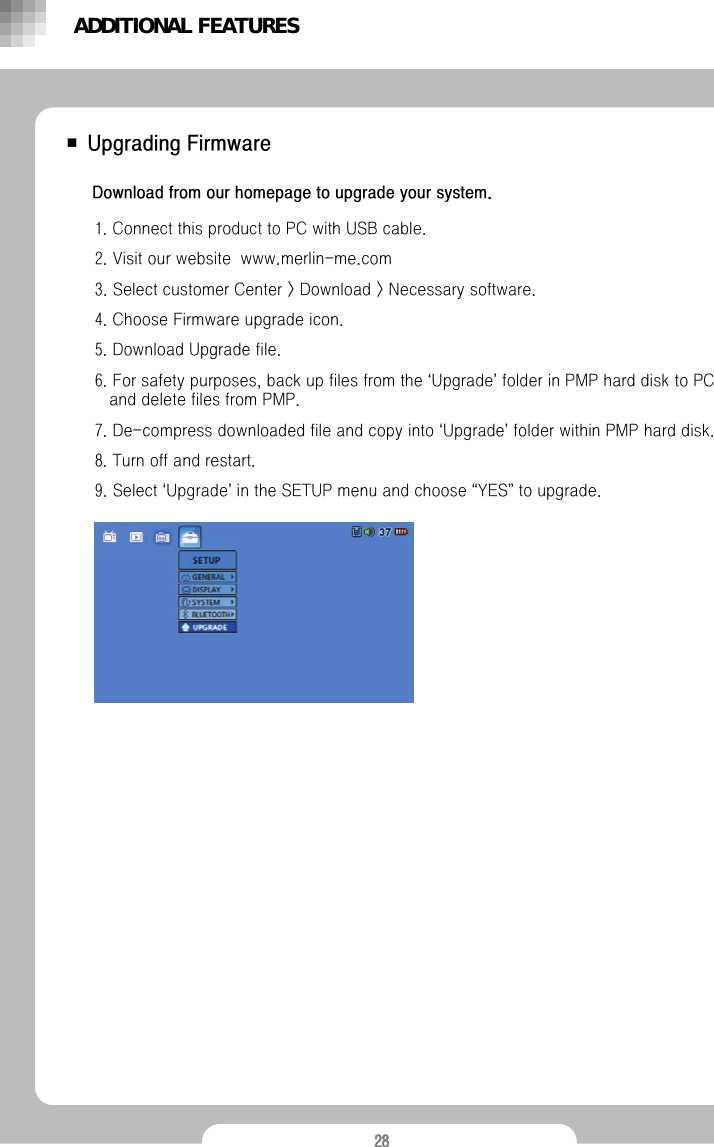
28■ Upgrading FirmwareDownload from our homepage to upgrade your system.1. Connect this product to PC with USB cable.2. Visit our website  www.merlin-me.com3. Select customer Center > Download > Necessary software.4. Choose Firmware upgrade icon.5. Download Upgrade file. 6. For safety purposes, back up files from the ‘Upgrade’folder in PMP hard disk to PC and delete files from PMP.7. De-compress downloaded file and copy into ‘Upgrade’folder within PMP hard disk. 8. Turn off and restart.9. Select ‘Upgrade’in the SETUP menu and choose “YES”to upgrade. ADDITIONAL FEATURES
29■USB HostingYou can transfer data to external devices by connecting  USB cable. -Camera, USB storage, External Hard diskConnect to external devices by using USB host cable.OTG connection Icon will appear in the main screen.When OTG icon appears in browser, press [M] to move/copy/delete file or folder in the pop up menu. Always make it sure to turn on external devices when you make connection to external devices by using USB host cable.ADDITIONAL FEATURES
30■ Connecting Player to PC■ Disconnecting PC •Do not turn off when USB cable is connected. This may cause malfunction or failure.•When using USB hub, PC may get unstable for interface reason and Data may be corrupted. •Using extended USB cable may cause damages on data. •This product is compatible both to USB2.0 and USB1.1.Run ‘Safely remove hardware’to disconnect USB cable to protect your system.● When using Windows 98 or below1. Double-click [My computer] in the Desktop screen.2. Right click [Removable disk].3. Click [Eject] in the menu and check [Removable Disk] icon disappears. If it still remains, wait for a moment and try again.4. Disconnect USB cable from PC.● Windows 2000/ME/XP or Above1. Double click [Safely Remove Hardware] from the status bar. 2. A dialogue window for [Safely Remove Hardware] will appear.3. Click stop (S) button.4. Completion message will appear in the bottom of screen.1. Menus and messages may be different according to operating system and personal settings.2. If the product does not function correctly after removing USB cable, use [RESET] button in the lower part of the product as there may be problems with data trasferring. 3. When upgrading Firmware, or disconnecting USB cable during data transferring, or if there was interruption during file downloading, the product may not work properly even after restarting. Complete downloading and remove any hardware safely to disconnect USB cable. If the product still does not work try upgrade again.ADDITIONAL FEATURES
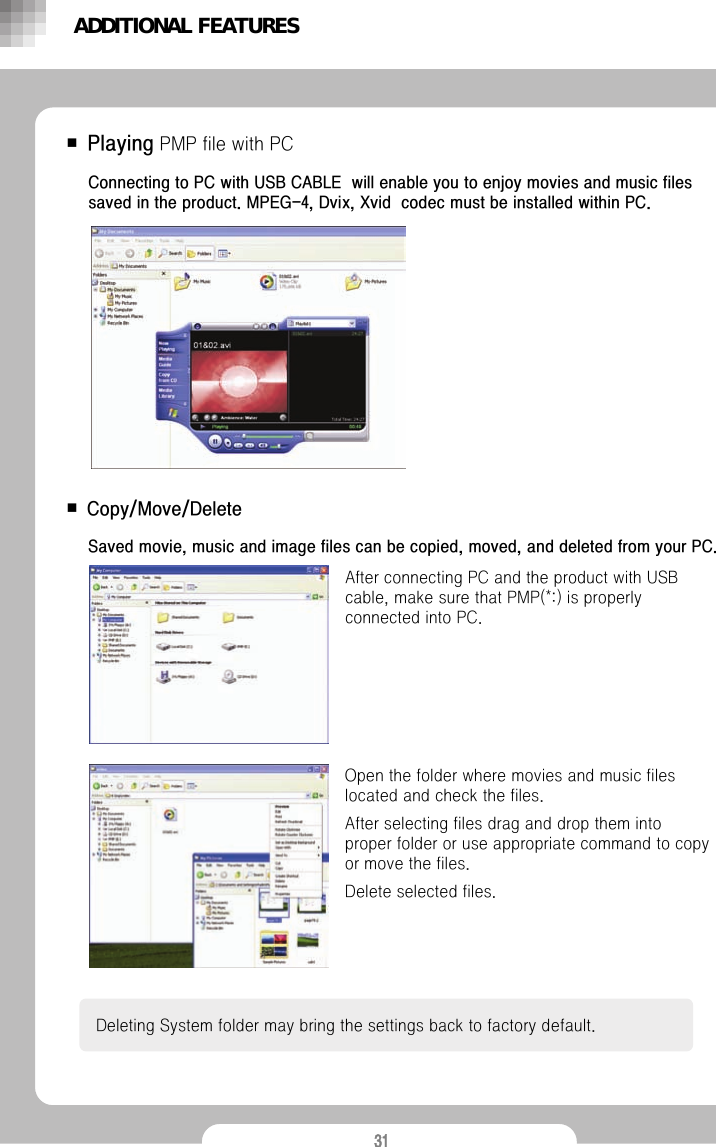
31■Copy/Move/DeleteAfter connecting PC and the product with USB cable, make sure that PMP(*:) is properly connected into PC. Deleting System folder may bring the settings back to factory default. Saved movie, music and image files can be copied, moved, and deleted from your PC.Open the folder where movies and music files located and check the files. After selecting files drag and drop them into  proper folder or use appropriate command to copy or move the files. Delete selected files.■PlayingPMP file with PCConnecting to PC with USB CABLE  will enable you to enjoy movies and music files saved in the product. MPEG-4, Dvix, Xvid  codec must be installed within PC.ADDITIONAL FEATURES
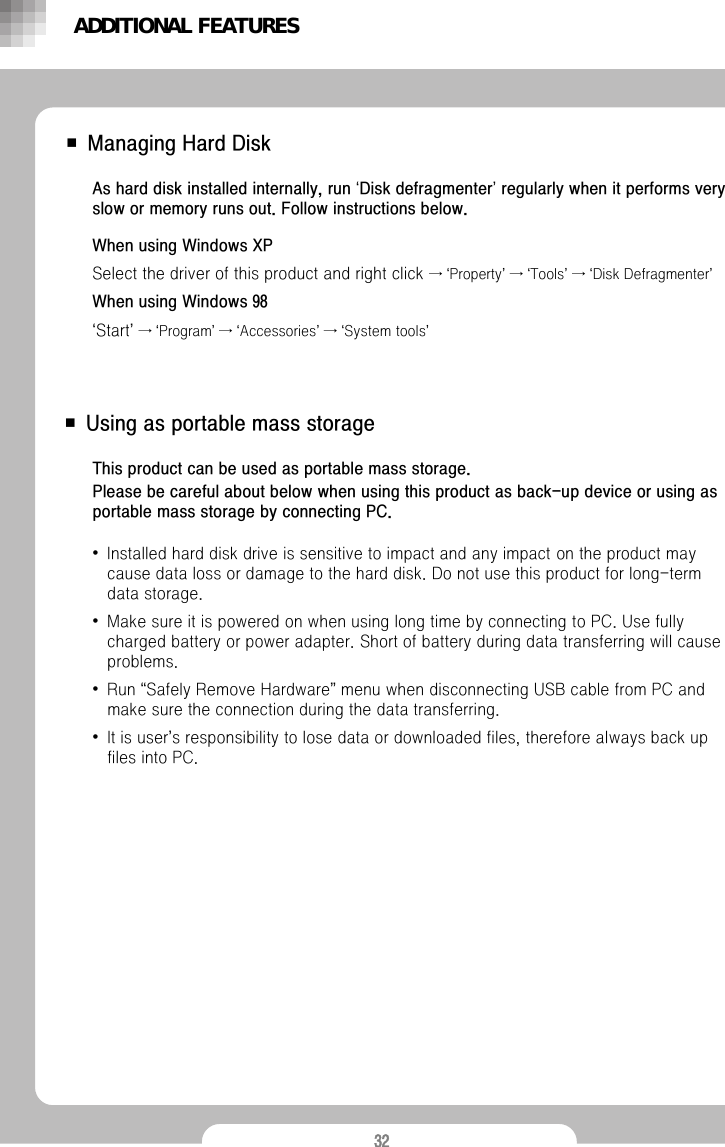
32■ Using as portable mass storage■ Managing Hard DiskWhen using Windows XPSelect the driver of this product and right click →‘Property’→‘Tools’→‘Disk Defragmenter’When using Windows 98‘Start’→‘Program’→‘Accessories’→‘System tools’As hard disk installed internally, run ‘Disk defragmenter’regularly when it performs very slow or memory runs out. Follow instructions below. This product can be used as portable mass storage. Please be careful about below when using this product as back-up device or using asportable mass storage by connecting PC.•Installed hard disk drive is sensitive to impact and any impact on the product may cause data loss or damage to the hard disk. Do not use this product for long-term data storage. •Make sure it is powered on when using long time by connecting to PC. Use fully charged battery or power adapter. Short of battery during data transferring will cause problems.  •Run “Safely Remove Hardware”menu when disconnecting USB cable from PC and make sure the connection during the data transferring.  •It is user’s responsibility to lose data or downloaded files, therefore always back up files into PC.ADDITIONAL FEATURES
33■ Before using TranscoderFunctions of Transcoder•File converter •DVD Player •DVD Converter •QuickTime(MOV/QT/MP4) Converter •Advanced DVD Converter •RealVideo ConverterFiles that can be converted•Movies : Unsupported file types need to be converted.•Setting out Transcoder options : No option settings required as files will be converted automatically on importing.  •Check if the files corrupted when errors occur or change image size by using [Image Resizing] button in the left lower part.•When performing first after program installation, connecting this product to PC will disable security code, which will enable you to use afterwards. Recommended system requirementPentium3 1G or above | Memory 256MB or above | Microsoft DirectX supported VGA | SoundcardOSMicrosoft Windows 98 | Microsoft Windows ME | Windows 2000 | Windows XPRequired systemTRANSCODER
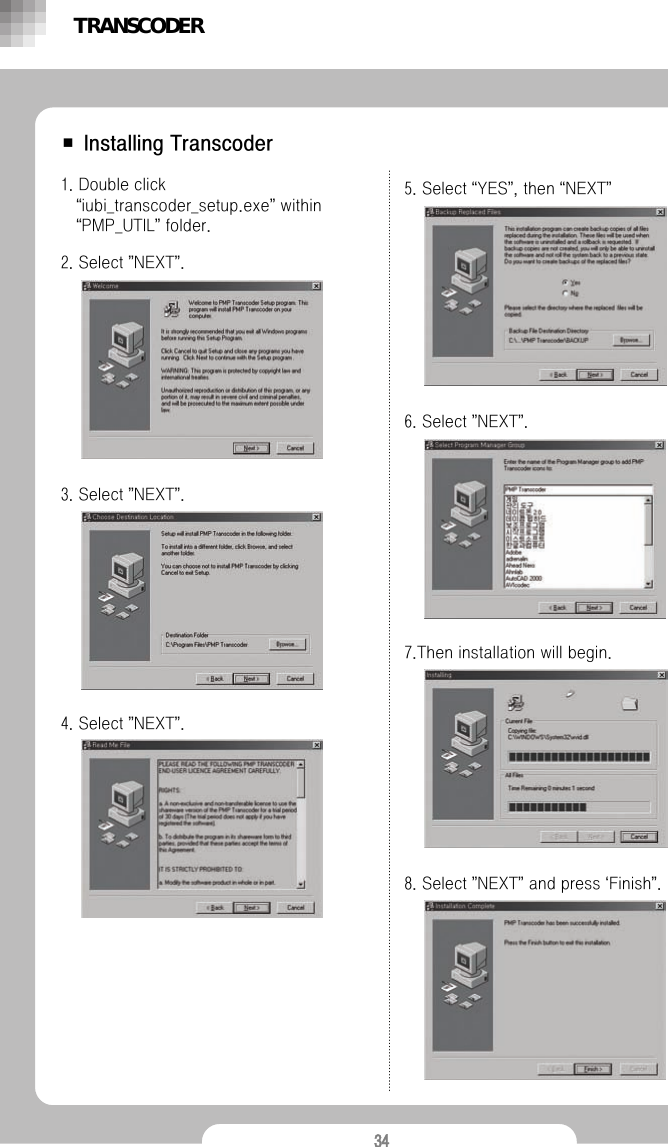
34■ Installing Transcoder1. Double click “iubi_transcoder_setup.exe”within “PMP_UTIL”folder.2. Select ”NEXT”.3. Select ”NEXT”.4. Select ”NEXT”.5. Select “YES”, then “NEXT”6. Select ”NEXT”.7.Then installation will begin.8. Select ”NEXT”and press ‘Finish”.TRANSCODER
35■ Using TranscoderPress [Start] in the lower left part then go to [Program(P)] → [PMP Transcoder] →[PMP Transcoder] , or double click PMP Transcoder icon in background.Transcoder window1. File lists window  : Displays currently opened files.2. Status bar : Show status for currently running command.3. Playing time and estimated file converting time : displays Playing time or estimated time for file converting.4. Play and converting status sign : Displays play or file converting status.5. Assigning file size : Use when converted file needs to be divided into sections. 6. Setting audio file synchronization : Use to match sound to the original audio file.Menu bar•Opening files to be converted will set out options automatically.•Image Resizing : Decide file size (Limit the resolution under 640x480 when the original size is 640x480 or over)•Destination : Locate converted file.•Frame Rate : Setting out the frame rate.•Audio Format : Setting audio file sampling frequency and bit-rate.Defaults are 192kBit/s, 44.100Hz, stereo.•Video Format : Video option setting window (Automatic setup)Icons1. Open2. Close3. Play4. Stop5. converting selected files6. Set starting point of a section file converting7. Set ending point of a section  file converting8. Convert all of the current file9. Run section convertingTRANSCODER3456121 2 3 4 5 6 7 8 9
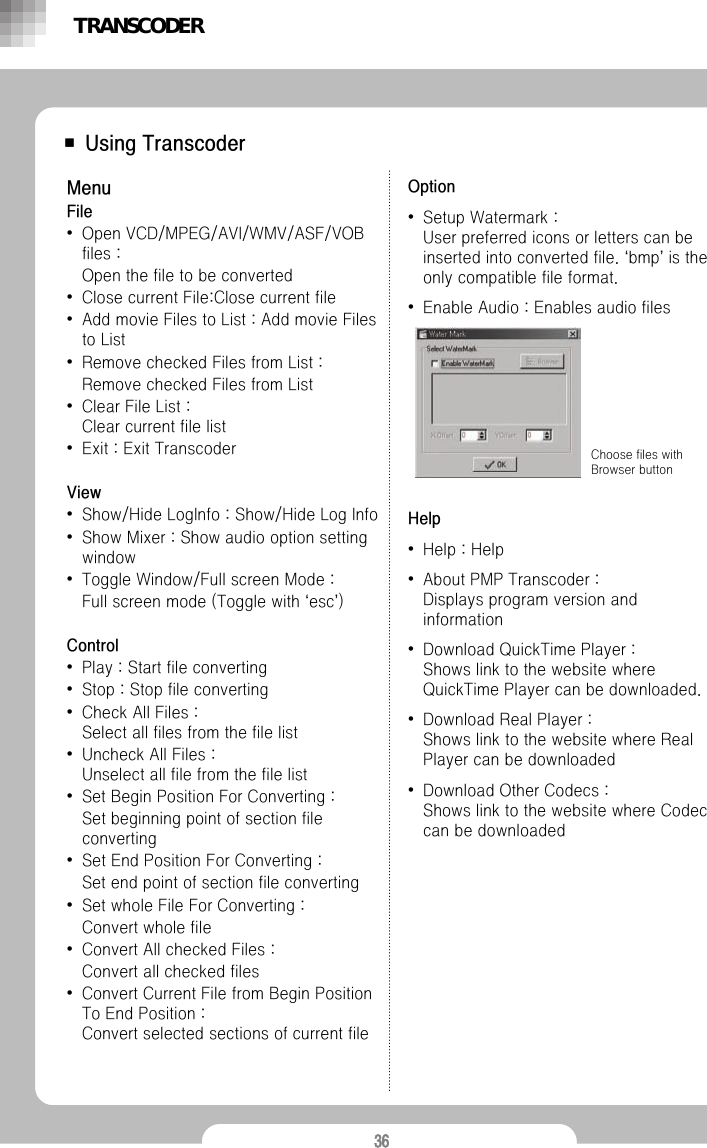
36■ Using TranscoderMenuFile•Open VCD/MPEG/AVI/WMV/ASF/VOB files : Open the file to be converted•Close current File:Close current file•Add movie Files to List : Add movie Files to List •Remove checked Files from List : Remove checked Files from List •Clear File List : Clear current file list•Exit : Exit TranscoderView•Show/Hide LogInfo : Show/Hide Log Info •Show Mixer : Show audio option setting window•Toggle Window/Full screen Mode : Full screen mode (Toggle with ‘esc’)Control•Play : Start file converting•Stop : Stop file converting•Check All Files : Select all files from the file list•Uncheck All Files : Unselect all file from the file list•Set Begin Position For Converting : Set beginning point of section file converting•Set End Position For Converting : Set end point of section file converting•Set whole File For Converting : Convert whole file•Convert All checked Files : Convert all checked files•Convert Current File from Begin Position To End Position : Convert selected sections of current fileOption•Setup Watermark : User preferred icons or letters can be inserted into converted file. ‘bmp’is the only compatible file format. •Enable Audio : Enables audio filesHelp•Help : Help•About PMP Transcoder : Displays program version and information•Download QuickTime Player :Shows link to the website where QuickTime Player can be downloaded.•Download Real Player : Shows link to the website where Real Player can be downloaded•Download Other Codecs : Shows link to the website where Codec can be downloadedChoose files with Browser buttonTRANSCODER
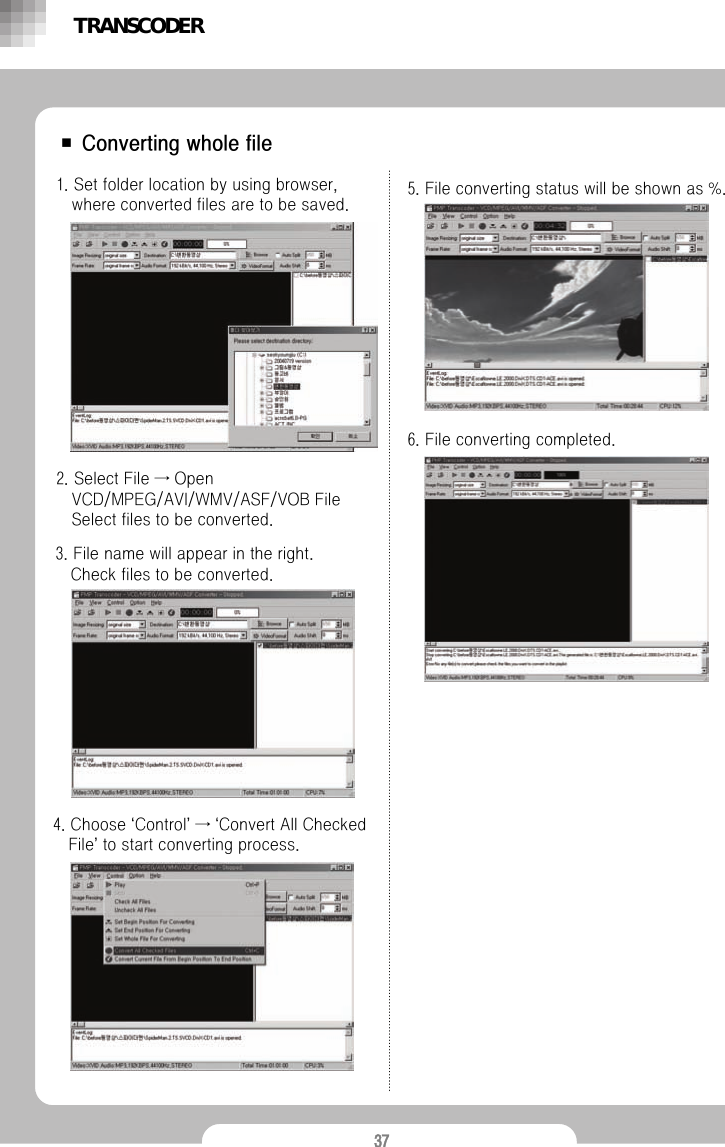
37■ Converting whole file1. Set folder location by using browser, where converted files are to be saved.2. Select File → Open VCD/MPEG/AVI/WMV/ASF/VOB File Select files to be converted.3. File name will appear in the right.Check files to be converted.4. Choose ‘Control’→‘Convert All Checked File’to start converting process.5. File converting status will be shown as %.6. File converting completed.TRANSCODER
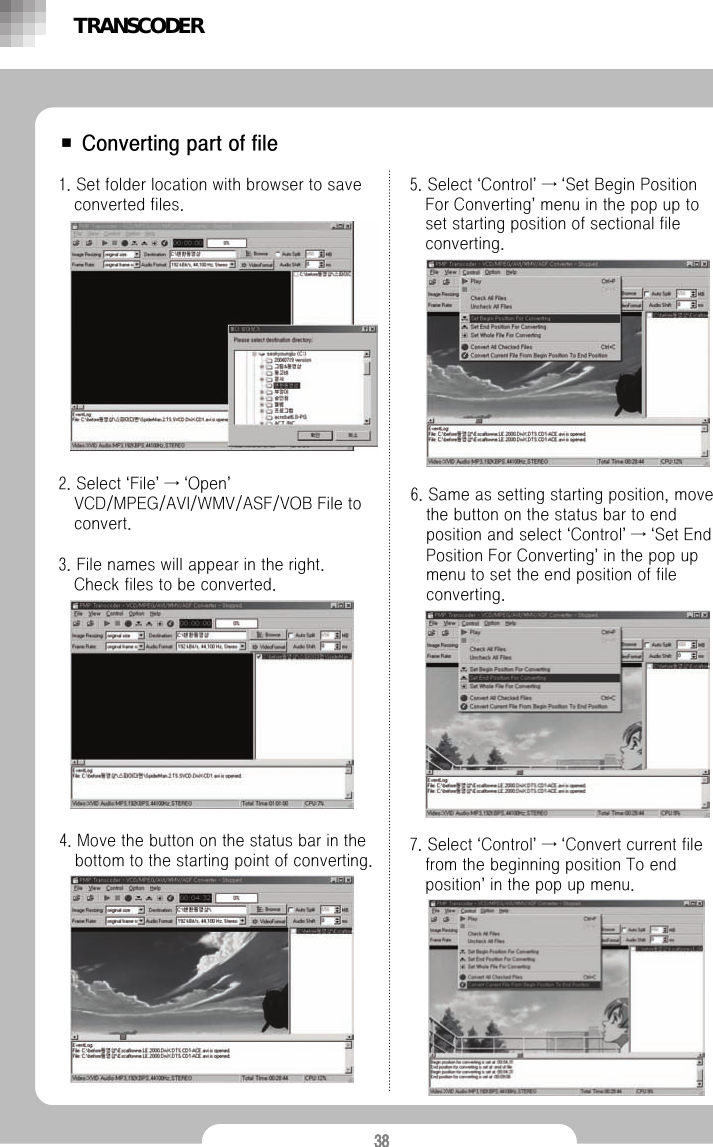
38■ Converting part of file1. Set folder location with browser to save converted files.2. Select ‘File’→‘Open’VCD/MPEG/AVI/WMV/ASF/VOB File to convert.3. File names will appear in the right.Check files to be converted.4. Move the button on the status bar in the bottom to the starting point of converting.5. Select ‘Control’→‘Set Begin Position For Converting’menu in the pop up to set starting position of sectional file converting.6. Same as setting starting position, move the button on the status bar to end position and select ‘Control’→‘Set End Position For Converting’in the pop up menu to set the end position of file converting. 7. Select ‘Control’→‘Convert current file from the beginning position To end position’in the pop up menu.TRANSCODER
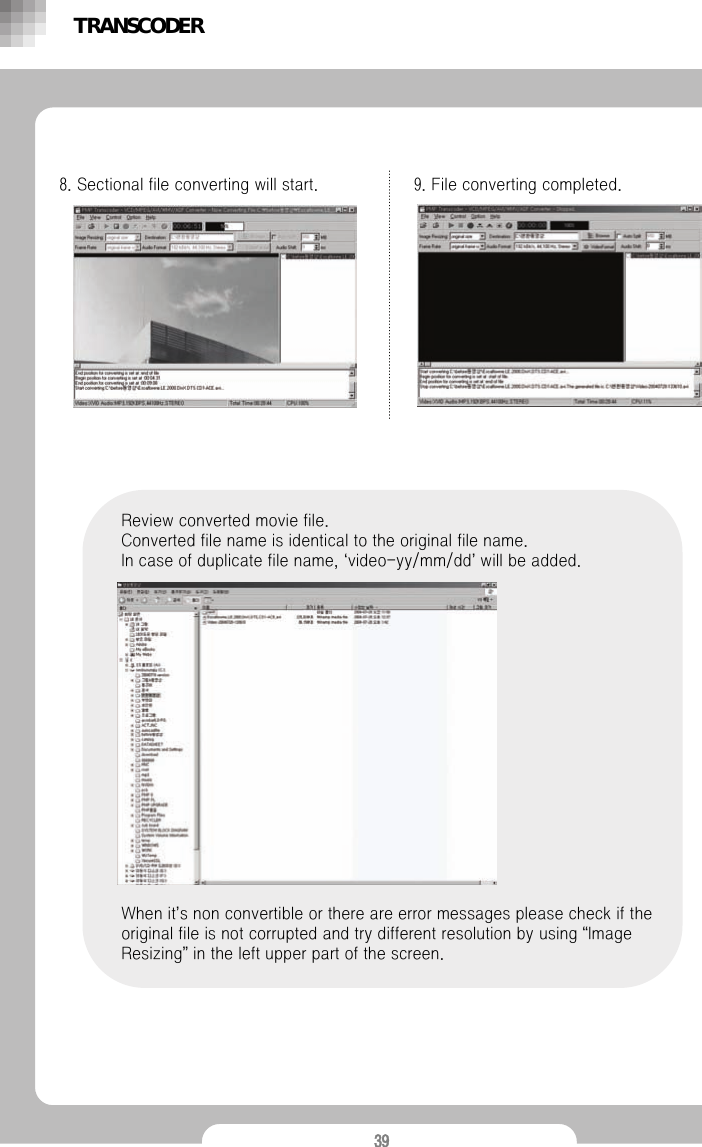
398. Sectional file converting will start. 9. File converting completed. Review converted movie file.Converted file name is identical to the original file name. In case of duplicate file name, ‘video-yy/mm/dd’will be added.When it’s non convertible or there are error messages please check if the original file is not corrupted and try different resolution by using “Image Resizing”in the left upper part of the screen.TRANSCODER
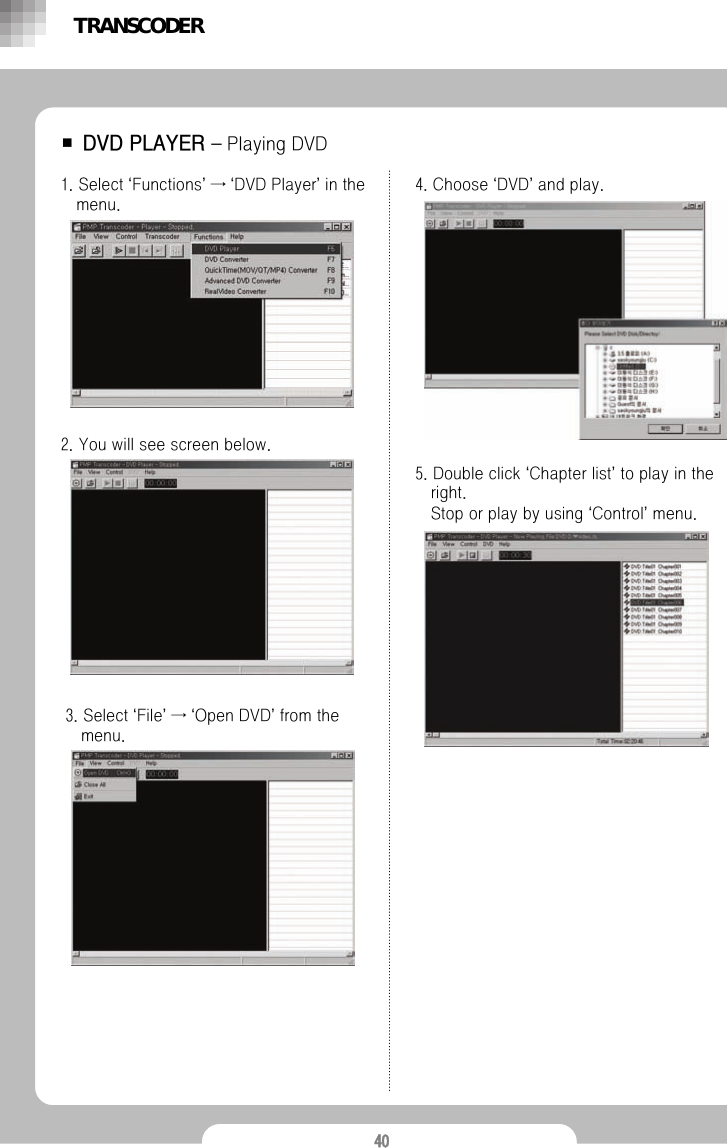
40■ DVD PLAYER –Playing DVD1. Select ‘Functions’→‘DVD Player’in the menu.2. You will see screen below.3. Select ‘File’→‘Open DVD’from the menu.4. Choose ‘DVD’and play.5. Double click ‘Chapter list’to play in the right.Stop or play by using ‘Control’menu.TRANSCODER
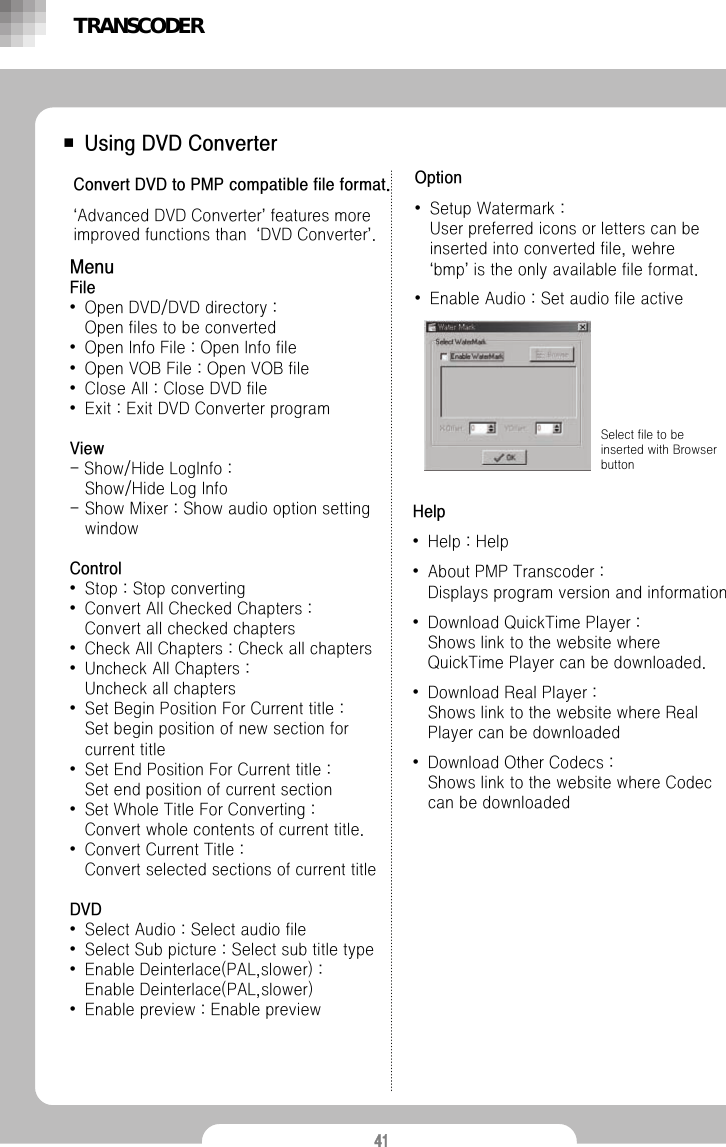
41■ Using DVD ConverterConvert DVD to PMP compatible file format. ‘Advanced DVD Converter’features more improved functions than  ‘DVD Converter’.MenuFile •Open DVD/DVD directory : Open files to be converted•Open Info File : Open Info file•Open VOB File : Open VOB file•Close All : Close DVD file•Exit : Exit DVD Converter programView-Show/Hide LogInfo :Show/Hide Log Info- Show Mixer : Show audio option setting windowControl•Stop : Stop converting•Convert All Checked Chapters : Convert all checked chapters•Check All Chapters : Check all chapters•Uncheck All Chapters : Uncheck all chapters•Set Begin Position For Current title :Set begin position of new section for current title•Set End Position For Current title : Set end position of current section•Set Whole Title For Converting : Convert whole contents of current title.•Convert Current Title : Convert selected sections of current titleDVD•Select Audio : Select audio file•Select Sub picture : Select sub title type•Enable Deinterlace(PAL,slower) : Enable Deinterlace(PAL,slower)•Enable preview : Enable previewOption•Setup Watermark :User preferred icons or letters can be inserted into converted file, wehre‘bmp’is the only available file format. •Enable Audio : Set audio file activeSelect file to be inserted with Browser buttonTRANSCODERHelp•Help : Help•About PMP Transcoder : Displays program version and information•Download QuickTime Player :Shows link to the website where QuickTime Player can be downloaded.•Download Real Player : Shows link to the website where Real Player can be downloaded•Download Other Codecs : Shows link to the website where Codec can be downloaded
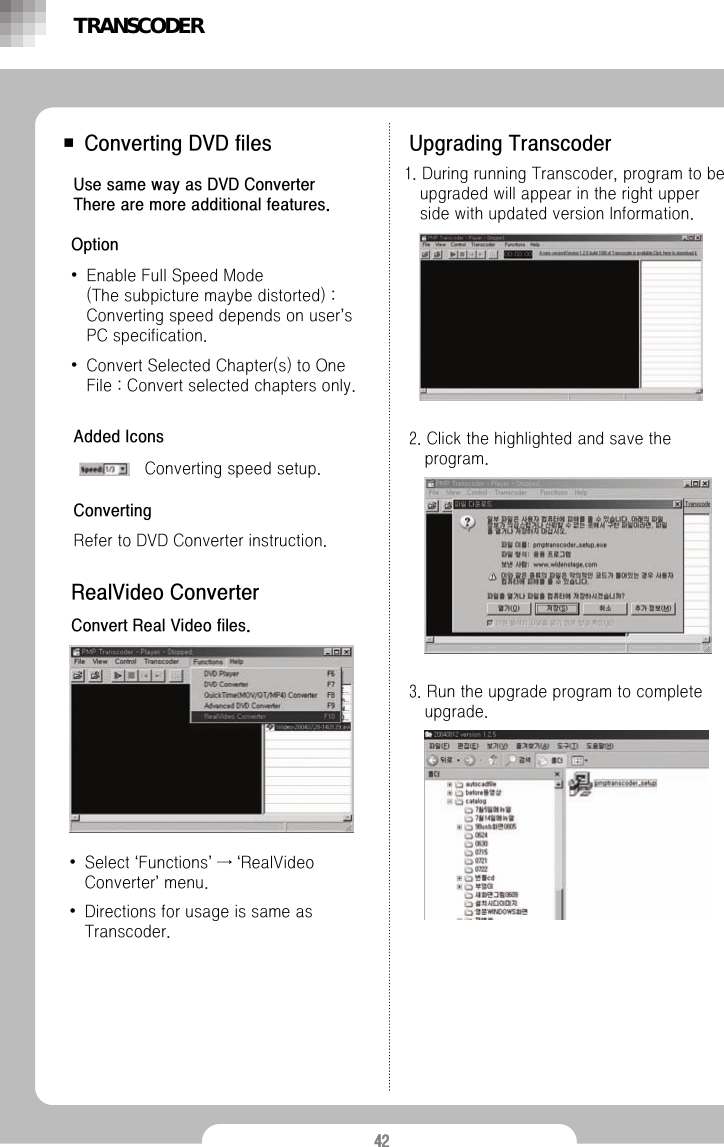
42■ Converting DVD files Use same way as DVD ConverterThere are more additional features.Option•Enable Full Speed Mode (The subpicture maybe distorted) : Converting speed depends on user’s PC specification.•Convert Selected Chapter(s) to One File : Convert selected chapters only.Upgrading TranscoderAdded IconsConverting speed setup.ConvertingRefer to DVD Converter instruction.RealVideo ConverterConvert Real Video files.•Select ‘Functions’→‘RealVideoConverter’menu.•Directions for usage is same as Transcoder. 1. During running Transcoder, program to be upgraded will appear in the right upper side with updated version Information. 2. Click the highlighted and save the program. 3. Run the upgrade program to complete upgrade.TRANSCODER
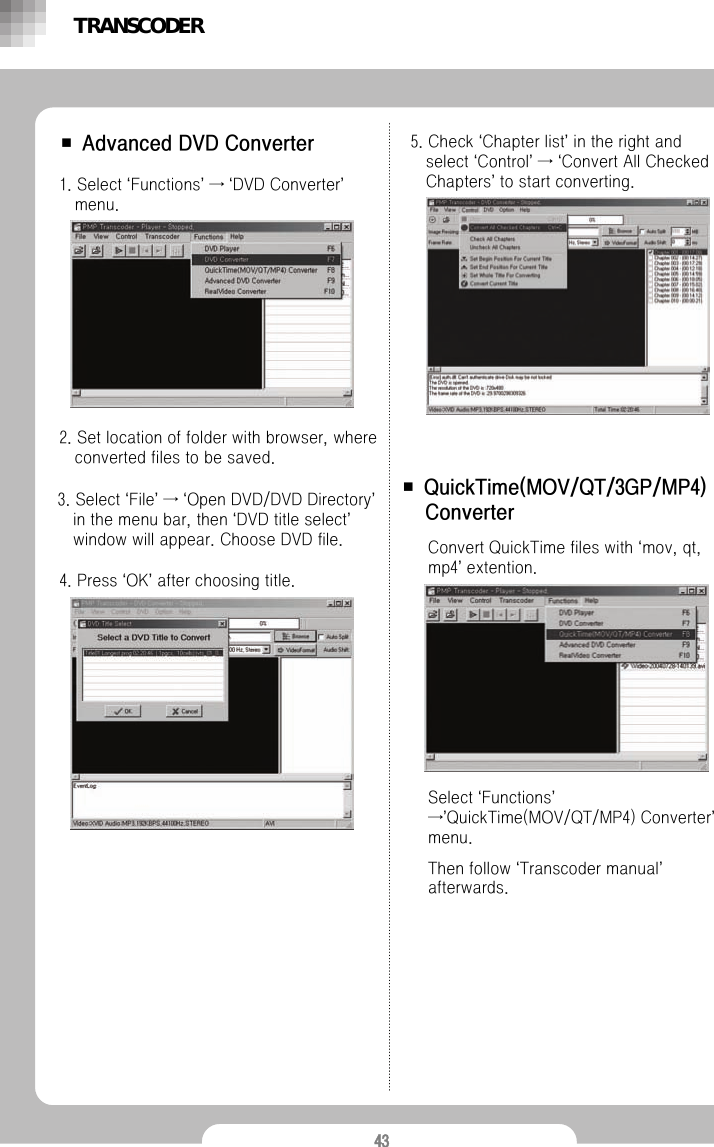
43■ Advanced DVD Converter1. Select ‘Functions’→‘DVD Converter’menu.2. Set location of folder with browser, where converted files to be saved.3. Select ‘File’→‘Open DVD/DVD Directory’in the menu bar, then ‘DVD title select’window will appear. Choose DVD file.4. Press ‘OK’after choosing title.5. Check ‘Chapter list’in the right and select ‘Control’→‘Convert All Checked Chapters’to start converting.Convert QuickTime files with ‘mov, qt, mp4’extention.■ QuickTime(MOV/QT/3GP/MP4) ConverterSelect ‘Functions’→’QuickTime(MOV/QT/MP4) Converter’menu.Then follow ‘Transcoder manual’afterwards. TRANSCODER
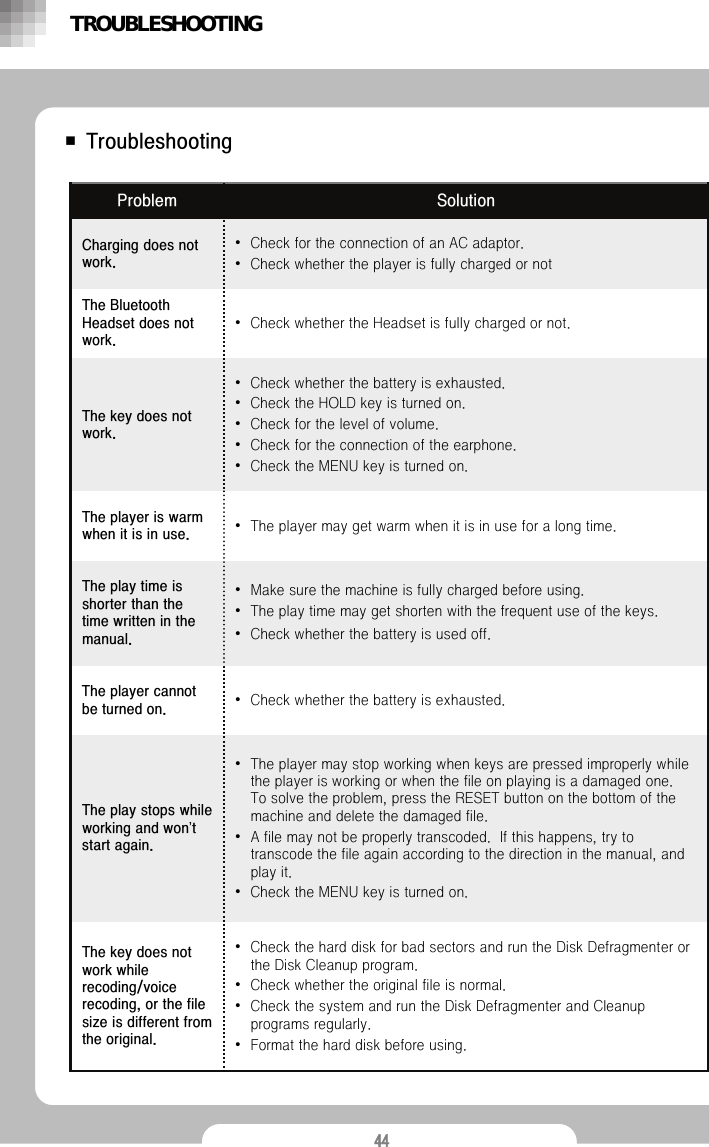
44■Troubleshooting•Check whether the battery is exhausted. The player cannot be turned on.•The player may get warm when it is in use for a long time.The player is warm when it is in use.•Make sure the machine is fully charged before using. •The play time may get shorten with the frequent use of the keys.•Check whether the battery is used off.The play time is shorter than the time written in the manual.•Check for the connection of an AC adaptor.•Check whether the player is fully charged or notCharging does not work.•Check whether the Headset is fully charged or not.The Bluetooth Headset does not work.•Check whether the battery is exhausted. •Check the HOLD key is turned on. •Check for the level of volume. •Check for the connection of the earphone. •Check the MENU key is turned on. The key does not work.SolutionProblem•Check the hard disk for bad sectors and run the Disk Defragmenter or the Disk Cleanup program. •Check whether the original file is normal. •Check the system and run the Disk Defragmenter and Cleanup programs regularly. •Format the hard disk before using.The key does not work while recoding/voice recoding, or the file size is different from the original.•The player may stop working when keys are pressed improperly while the player is working or when the file on playing is a damaged one.  To solve the problem, press the RESET button on the bottom of the machine and delete the damaged file. •A file may not be properly transcoded.  If this happens, try to transcode the file again according to the direction in the manual, and play it. •Check the MENU key is turned on. The play stops while working and won’t start again.TROUBLESHOOTING
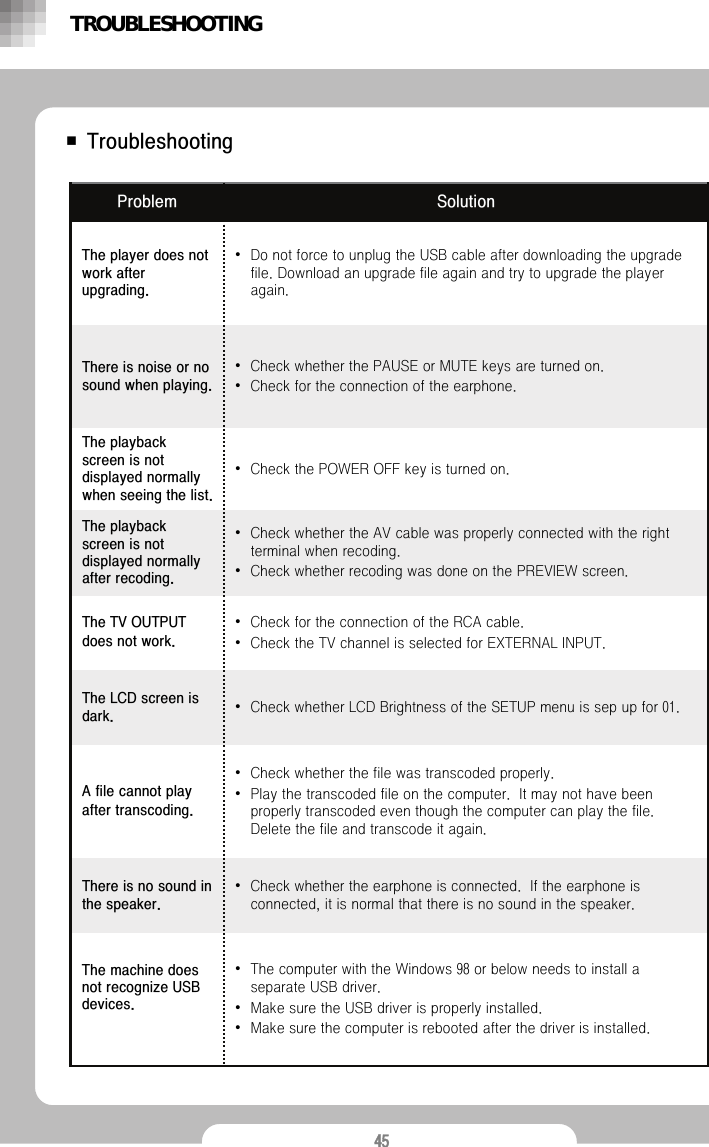
45■Troubleshooting•Do not force to unplug the USB cable after downloading the upgrade file. Download an upgrade file again and try to upgrade the player again.The player does not work after upgrading.•Check whether the PAUSE or MUTE keys are turned on. •Check for the connection of the earphone. There is noise or no sound when playing.•Check the POWER OFF key is turned on. The playback screen is not displayed normally when seeing the list.SolutionProblem•Check whether the earphone is connected.  If the earphone is connected, it is normal that there is no sound in the speaker. There is no sound in the speaker.•Check whether the file was transcoded properly. •Play the transcoded file on the computer.  It may not have been properly transcoded even though the computer can play the file.  Delete the file and transcode it again. A file cannot play after transcoding.•The computer with the Windows 98 or below needs to install a separate USB driver. •Make sure the USB driver is properly installed. •Make sure the computer is rebooted after the driver is installed. The machine does not recognize USB devices.•Check whether LCD Brightness of the SETUP menu is sep up for 01.The LCD screen is dark.•Check for the connection of the RCA cable. •Check the TV channel is selected for EXTERNAL INPUT. The TV OUTPUT does not work.•Check whether the AV cable was properly connected with the rightterminal when recoding. •Check whether recoding was done on the PREVIEW screen. The playback screen is not displayed normally after recoding.TROUBLESHOOTING
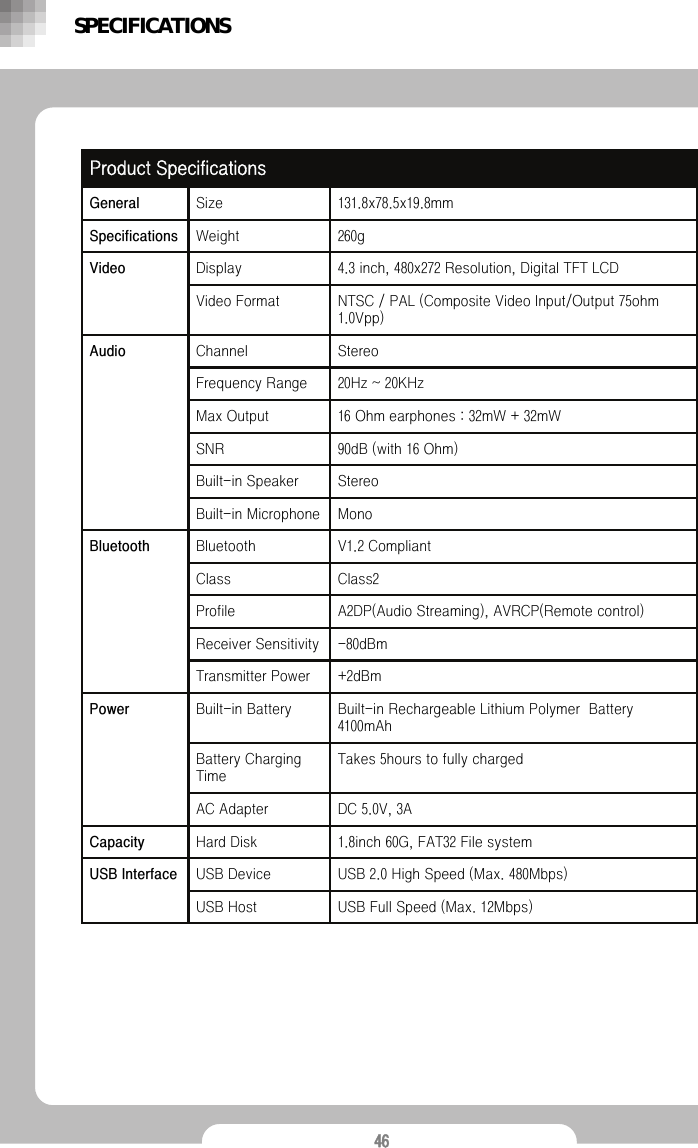
46USB Full Speed (Max. 12Mbps)USB HostUSB 2.0 High Speed (Max. 480Mbps)USB DeviceUSB Interface1.8inch 60G, FAT32 File systemHard DiskCapacityDC 5.0V, 3AAC AdapterTakes 5hours to fully chargedBattery Charging TimeBuilt-in Rechargeable Lithium Polymer  Battery 4100mAhBuilt-in BatteryPower+2dBmTransmitter Power-80dBmReceiver SensitivityA2DP(Audio Streaming), AVRCP(Remote control)ProfileClass2ClassV1.2 CompliantBluetoothBluetoothMonoBuilt-in MicrophoneStereoBuilt-in Speaker90dB (with 16 Ohm)SNR16 Ohm earphones : 32mW + 32mWMax Output20Hz ~ 20KHzFrequency RangeStereoChannelAudioNTSC / PAL (Composite Video Input/Output 75ohm 1.0Vpp)Video Format4.3 inch, 480x272 Resolution, Digital TFT LCDDisplay Video260g WeightSpecifications131.8x78.5x19.8mmSize GeneralProduct SpecificationsSPECIFICATIONS
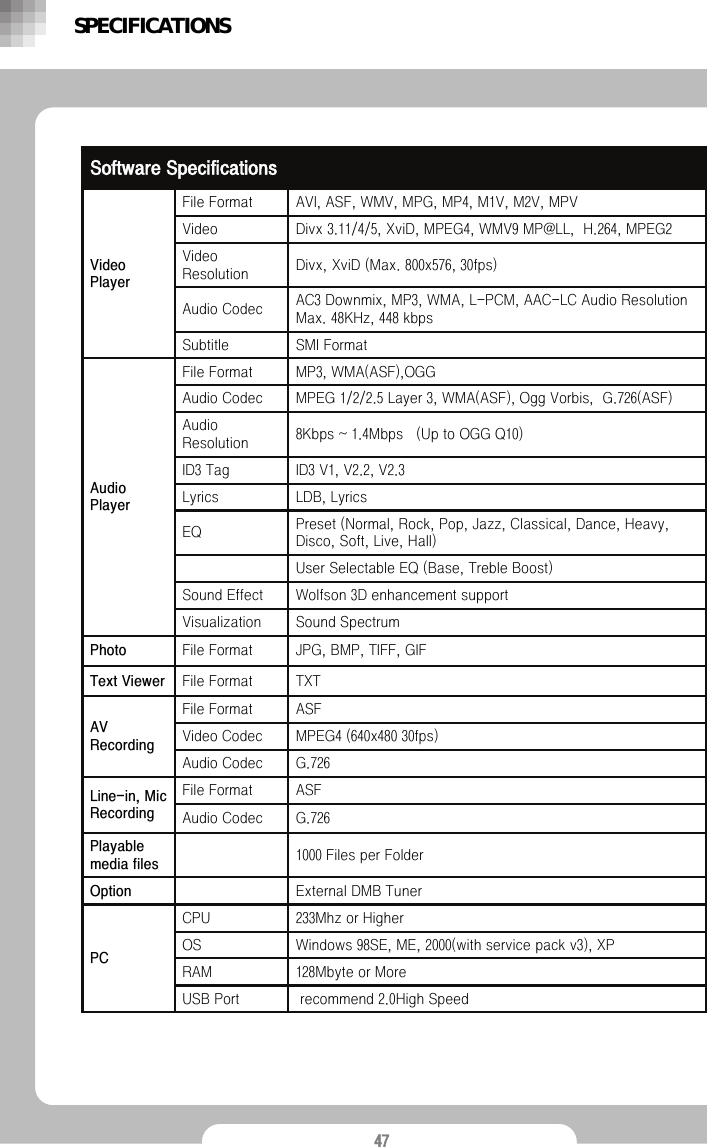
47recommend 2.0High SpeedUSB Port128Mbyte or MoreRAM Windows 98SE, ME, 2000(with service pack v3), XPOS233Mhz or HigherCPU PCExternal DMB TunerOption1000 Files per FolderPlayable media filesG.726Audio CodecASFFile Format Line-in, Mic RecordingG.726Audio CodecMPEG4 (640x480 30fps)Video Codec ASFFile Format AV RecordingTXTFile Format  Text ViewerJPG, BMP, TIFF, GIFFile FormatPhotoSound SpectrumVisualizationWolfson 3D enhancement supportSound Effect User Selectable EQ (Base, Treble Boost)Preset (Normal, Rock, Pop, Jazz, Classical, Dance, Heavy, Disco, Soft, Live, Hall)EQ  LDB, LyricsLyricsID3 V1, V2.2, V2.3ID3 Tag8Kbps ~ 1.4Mbps   (Up to OGG Q10)Audio ResolutionMPEG 1/2/2.5 Layer 3, WMA(ASF), Ogg Vorbis,  G.726(ASF)Audio Codec       MP3, WMA(ASF),OGGFile FormatAudio PlayerSMI FormatSubtitle AC3 Downmix, MP3, WMA, L-PCM, AAC-LC Audio Resolution Max. 48KHz, 448 kbpsAudio CodecDivx, XviD (Max. 800x576, 30fps)Video ResolutionDivx 3.11/4/5, XviD, MPEG4, WMV9 MP@LL,  H.264, MPEG2VideoAVI, ASF, WMV, MPG, MP4, M1V, M2V, MPVFile FormatVideo PlayerSoftware SpecificationsSPECIFICATIONS

Navigation menu