Eliwell Controls Srl RDAINT Radio adapter User Manual

Eliwell Controls Srl Radio adapter

User Manual

RadioAdapterMANAGEMENT AND MONITORINGISM 2.4 GHz wireless system for plant monitoring and controlUSERMANUAL
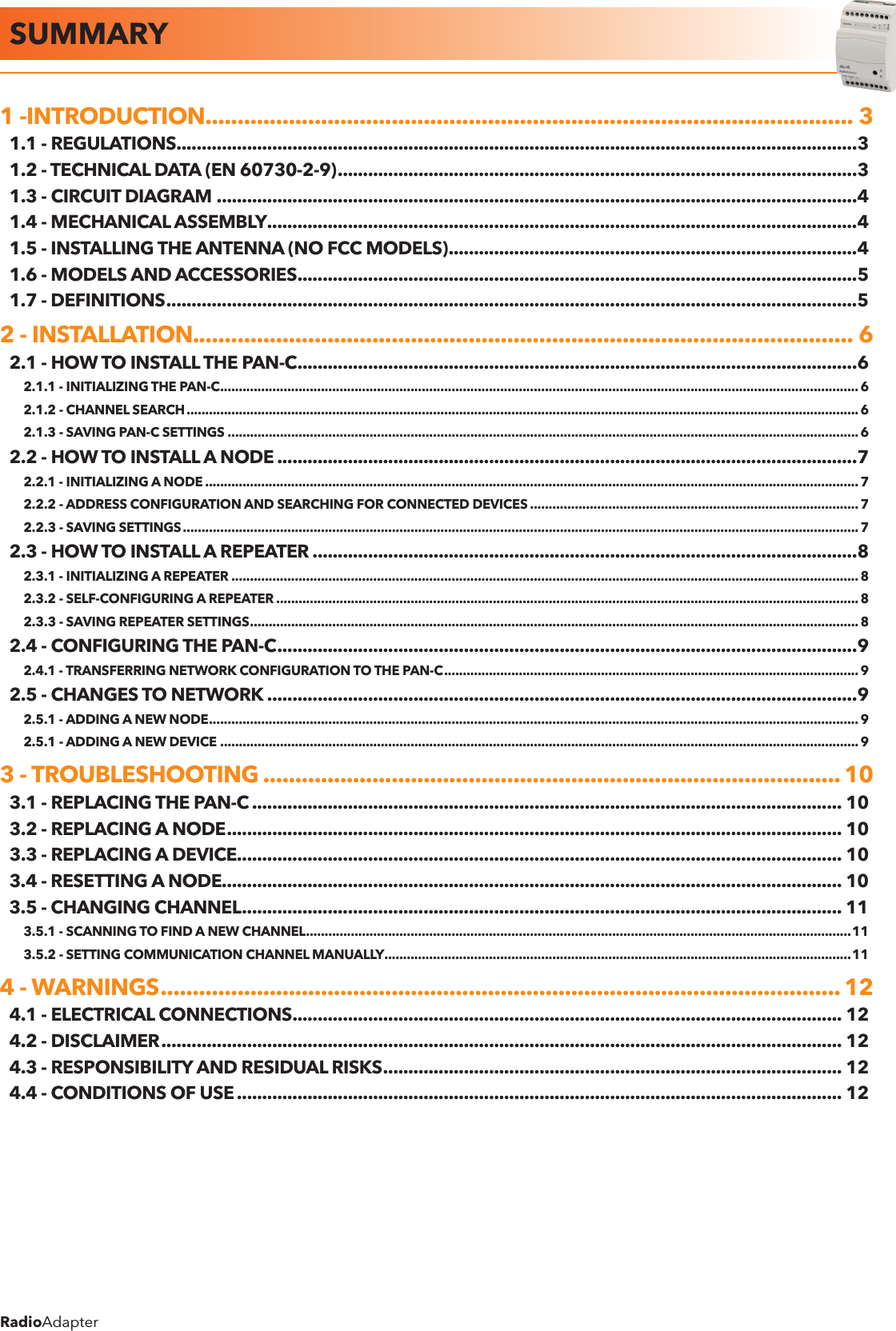
RadioAdapterSUMMARY1 -INTRODUCTION ..................................................................................................... 31.1 - REGULATIONS .......................................................................................................................................31.2 - TECHNICAL DATA (EN 60730-2-9) .......................................................................................................31.3 - CIRCUIT DIAGRAM ...............................................................................................................................41.4 - MECHANICAL ASSEMBLY .....................................................................................................................41.5 - INSTALLING THE ANTENNA (NO FCC MODELS) .................................................................................41.6 - MODELS AND ACCESSORIES ...............................................................................................................51.7 - DEFINITIONS .........................................................................................................................................52 - INSTALLATION. ...................................................................................................... 62.1 - HOW TO INSTALL THE PAN-C ...............................................................................................................62.1.1 - INITIALIZING THE PAN-C ...........................................................................................................................................................................62.1.2 - CHANNEL SEARCH .................................................................................................................................................................................... 62.1.3 - SAVING PAN-C SETTINGS .........................................................................................................................................................................62.2 - HOW TO INSTALL A NODE ...................................................................................................................72.2.1 - INITIALIZING A NODE ............................................................................................................................................................................... 72.2.2 - ADDRESS CONFIGURATION AND SEARCHING FOR CONNECTED DEVICES ........................................................................................ 72.2.3 - SAVING SETTINGS .....................................................................................................................................................................................72.3 - HOW TO INSTALL A REPEATER ............................................................................................................82.3.1 - INITIALIZING A REPEATER ........................................................................................................................................................................82.3.2 - SELF-CONFIGURING A REPEATER ............................................................................................................................................................82.3.3 - SAVING REPEATER SETTINGS ................................................................................................................................................................... 82.4 - CONFIGURING THE PAN-C ...................................................................................................................92.4.1 - TRANSFERRING NETWORK CONFIGURATION TO THE PAN-C ...............................................................................................................92.5 - CHANGES TO NETWORK .....................................................................................................................92.5.1 - ADDING A NEW NODE ..............................................................................................................................................................................92.5.1 - ADDING A NEW DEVICE ........................................................................................................................................................................... 93 - TROUBLESHOOTING .......................................................................................... 103.1 - REPLACING THE PAN-C ..................................................................................................................... 103.2 - REPLACING A NODE .......................................................................................................................... 103.3 - REPLACING A DEVICE........................................................................................................................ 103.4 - RESETTING A NODE........................................................................................................................... 103.5 - CHANGING CHANNEL ....................................................................................................................... 113.5.1 - SCANNING TO FIND A NEW CHANNEL ..................................................................................................................................................113.5.2 - SETTING COMMUNICATION CHANNEL MANUALLY .............................................................................................................................114 - WARNINGS .......................................................................................................... 124.1 - ELECTRICAL CONNECTIONS ............................................................................................................. 124.2 - DISCLAIMER ....................................................................................................................................... 124.3 - RESPONSIBILITY AND RESIDUAL RISKS ........................................................................................... 124.4 - CONDITIONS OF USE ........................................................................................................................ 12
RadioAdapterPag. 3/12RadioAdapter provides a cost-effective, reliable way of building cable-free communication networks between monitoring systems and controllers or of extending existing networks.RadioAdapter features IEEE 802.15.4 standard functions and runs on ISM frequency band at 2.4GHz.Thanks to MESH networking technology and associated dynamic routing combined with RadioAdapter capabilities to act as a repeater for adjacent nodes, large surface areas can be covered, getting around blocked paths to send or receive messages and continuous function guaranteed even when one or more nodes breaks down.1.1 - REGULATIONSRadio and telecommunications equipment: Directive 95/05/EC.The use is permitted in the countries belonging to the European Economic Area (EEA) and where the FCC is recognized (see box).FCC notes (only for model with internal antenna)• This device complies with Part 15 of the FCC Rules. Operation is subject to the following two conditions: (1) this    device may not cause harmful interference, and (2) this device must accept any interference received, including    interference that may cause undesired operation.• Unauthorized repairs, changes or modifications could result in permanent damage to the equipment and void    your warranty and your authority to operate this device under Part 15 of the FCC Rules.• NOTE: This equipment has been tested and found to comply with the limits for a Class A digital device, pursuant    to part 15 of the FCC Rules. These limits are designed to provide reasonable protection against harmful      interference when the equipment is operated in a commercial environment. This equipment generates, uses, and    can radiate radio frequency energy and, if not installed and used in accordance with the instruction manual, may    cause harmful interference to radio communications.  Operation of this equipment in a residential area is likely to cause harmful interference in which case the user will    be required to correct the interference at his own expense.IC note (only for model with internal antenna)• This device is compliant to RSS 102• Cet instrument répond aux normes RSS 1021.2 - TECHNICAL DATA (EN 60730-2-9)Class of use Class 4 classification ISA SP100.11 (do not use for safety devices)Network architectures permitted star, tree and MESHProtocols supported Televis e Modbus RTUModbus configurations permitted: serial speed: 9.600 / 19.200 bpsparity: Even / Odd / Nonestop bit: 1Frequency band ISM 2.400 GHz...2.485 GHz (<10mW EIRP)Channel selection AutomaticMax. radio packet payload size 52 bytesAntenna 2.4 GHz integrated, multidirectional or external(only on RadioAdapter EXT models - see 1.4 Models and Accessories)Maximum number of nodes per network 100Maximum number of controllers per NODE 240Maximum response time of radio 800msec  (value to be added to the response time of the controller to calculate transmission timeout)Container container: 3 plastic DIN modulesMounting on DIN guidesOperating temperature -5...60°CStorage temperature -20...85°COperating and storage environment humidity 10...90% (non-condensing)Serial connections TTL port for connection to devicesRS-485 serial port (on two RadioAdapter /S models only)Insulation class 2Consumption 2WPower supply 100...240 Va ±10% 50/60Hz1 -INTRODUCTION
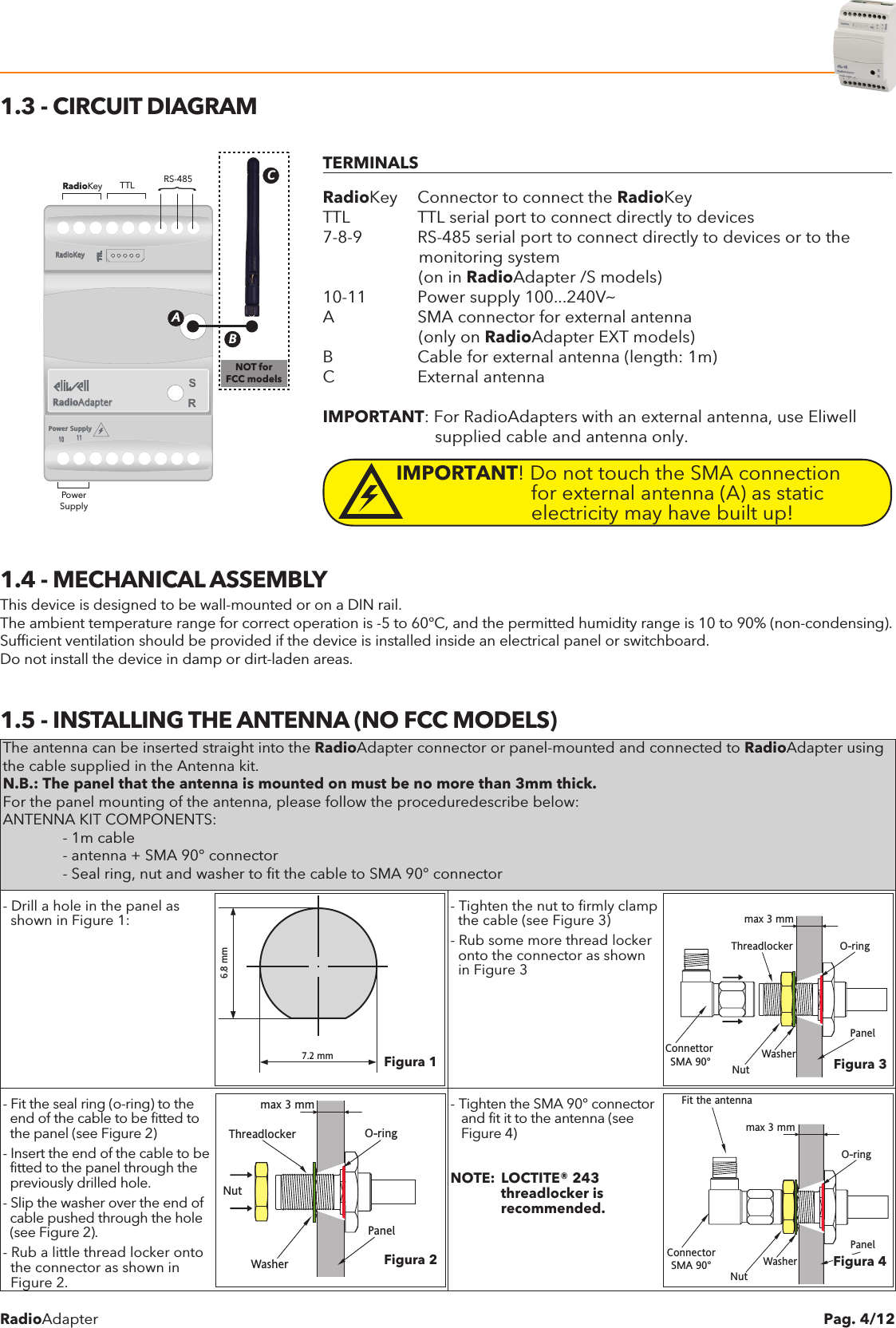
RadioAdapter Pag. 4/121.3 - CIRCUIT DIAGRAMPower SupplyTTL10 11TTLTTLTTLRadioKeyRadioAdapterRS-485TTLRadioKeyPowerSupplyABC}NOT forFCC modelsTERMINALSRadioKey  Connector to connect the RadioKeyTTL  TTL serial port to connect directly to devices7-8-9  RS-485 serial port to connect directly to devices or to the                     monitoring system                     (on in RadioAdapter /S models)10-11  Power supply 100...240VaA  SMA connector for external antenna                     (only on RadioAdapter EXT models)B  Cable for external antenna (length: 1m)C  External antennaIMPORTANT: For RadioAdapters with an external antenna, use Eliwell                         supplied cable and antenna only.IMPORTANT! Do not touch the SMA connection              for external antenna (A) as static             electricity may have built up!1.4 - MECHANICAL ASSEMBLYThis device is designed to be wall-mounted or on a DIN rail.The ambient temperature range for correct operation is -5 to 60°C, and the permitted humidity range is 10 to 90% (non-condensing).Sufficient ventilation should be provided if the device is installed inside an electrical panel or switchboard.Do not install the device in damp or dirt-laden areas.1.5 - INSTALLING THE ANTENNA (NO FCC MODELS)The antenna can be inserted straight into the RadioAdapter connector or panel-mounted and connected to RadioAdapter using the cable supplied in the Antenna kit.N.B.: The panel that the antenna is mounted on must be no more than 3mm thick.For the panel mounting of the antenna, please follow the proceduredescribe below:ANTENNA KIT COMPONENTS:  - 1m cable  - antenna + SMA 90° connector  - Seal ring, nut and washer to fit the cable to SMA 90° connector- Drill a hole in the panel as  shown in Figure 1:6.8 mm7.2 mm- Tighten the nut to firmly clamp  the cable (see Figure 3)- Rub some more thread locker  onto the connector as shown  in Figure 3max 3 mmWasherThreadlocker O-ringPanelNutConnettor SMA 90°- Fit the seal ring (o-ring) to the  end of the cable to be fitted to   the panel (see Figure 2)- Insert the end of the cable to be  fitted to the panel through the  previously drilled hole.- Slip the washer over the end of  cable pushed through the hole  (see Figure 2).- Rub a little thread locker onto  the connector as shown in  Figure 2.max 3 mmWasherThreadlocker O-ringPanelNut- Tighten the SMA 90° connector   and fit it to the antenna (see   Figure 4)NOTE:  LOCTITE® 243             threadlocker is             recommended.max 3 mmWasherO-ringPanelNutConnectorSMA 90°Fit the antennaFigura 3Figura 2Figura 1Figura 4
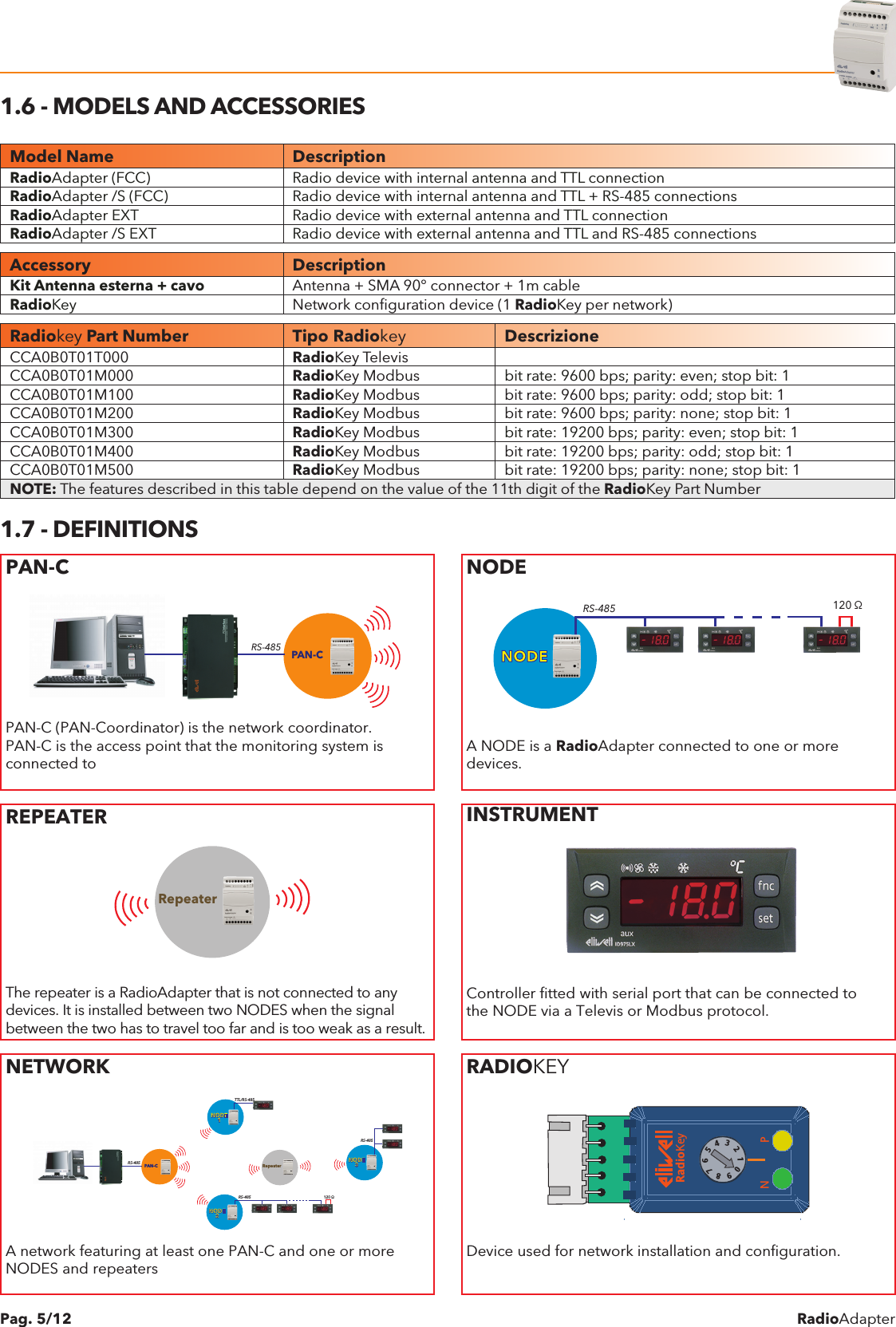
RadioAdapterPag. 5/121.6 - MODELS AND ACCESSORIESModel Name DescriptionRadioAdapter (FCC) Radio device with internal antenna and TTL connectionRadioAdapter /S (FCC) Radio device with internal antenna and TTL + RS-485 connectionsRadioAdapter EXT Radio device with external antenna and TTL connectionRadioAdapter /S EXT Radio device with external antenna and TTL and RS-485 connectionsAccessory DescriptionKit Antenna esterna + cavo Antenna + SMA 90° connector + 1m cableRadioKey Network configuration device (1 RadioKey per network)Radiokey Part Number Tipo Radiokey DescrizioneCCA0B0T01T000 RadioKey TelevisCCA0B0T01M000 RadioKey Modbus bit rate: 9600 bps; parity: even; stop bit: 1CCA0B0T01M100 RadioKey Modbus bit rate: 9600 bps; parity: odd; stop bit: 1CCA0B0T01M200 RadioKey Modbus bit rate: 9600 bps; parity: none; stop bit: 1CCA0B0T01M300 RadioKey Modbus bit rate: 19200 bps; parity: even; stop bit: 1CCA0B0T01M400 RadioKey Modbus bit rate: 19200 bps; parity: odd; stop bit: 1CCA0B0T01M500 RadioKey Modbus bit rate: 19200 bps; parity: none; stop bit: 1NOTE: The features described in this table depend on the value of the 11th digit of the RadioKey Part Number1.7 - DEFINITIONSPAN-CPAN-CNODE1RepeaterNODE2NODE3RS-485TTL/RS-485RS-485 120 ΩRS-485PAN-C (PAN-Coordinator) is the network coordinator.PAN-C is the access point that the monitoring system isconnected toNODENODE120 ΩRS-485A NODE is a RadioAdapter connected to one or moredevices.REPEATERPAN-CNODE1RepeaterNODE2NODE3RS-485TTL/RS-485RS-485 120 ΩRS-485The repeater is a RadioAdapter that is not connected to any devices. It is installed between two NODES when the signal between the two has to travel too far and is too weak as a result.INSTRUMENTController fitted with serial port that can be connected tothe NODE via a Televis or Modbus protocol.NETWORKPAN-CNODE1RepeaterNODE2NODE3RS-485TTL/RS-485RS-485 120 ΩRS-485A network featuring at least one PAN-C and one or moreNODES and repeatersRADIOKEYRadioKeyNP9 8 7 6 5 4 3 2 1 0Device used for network installation and configuration.
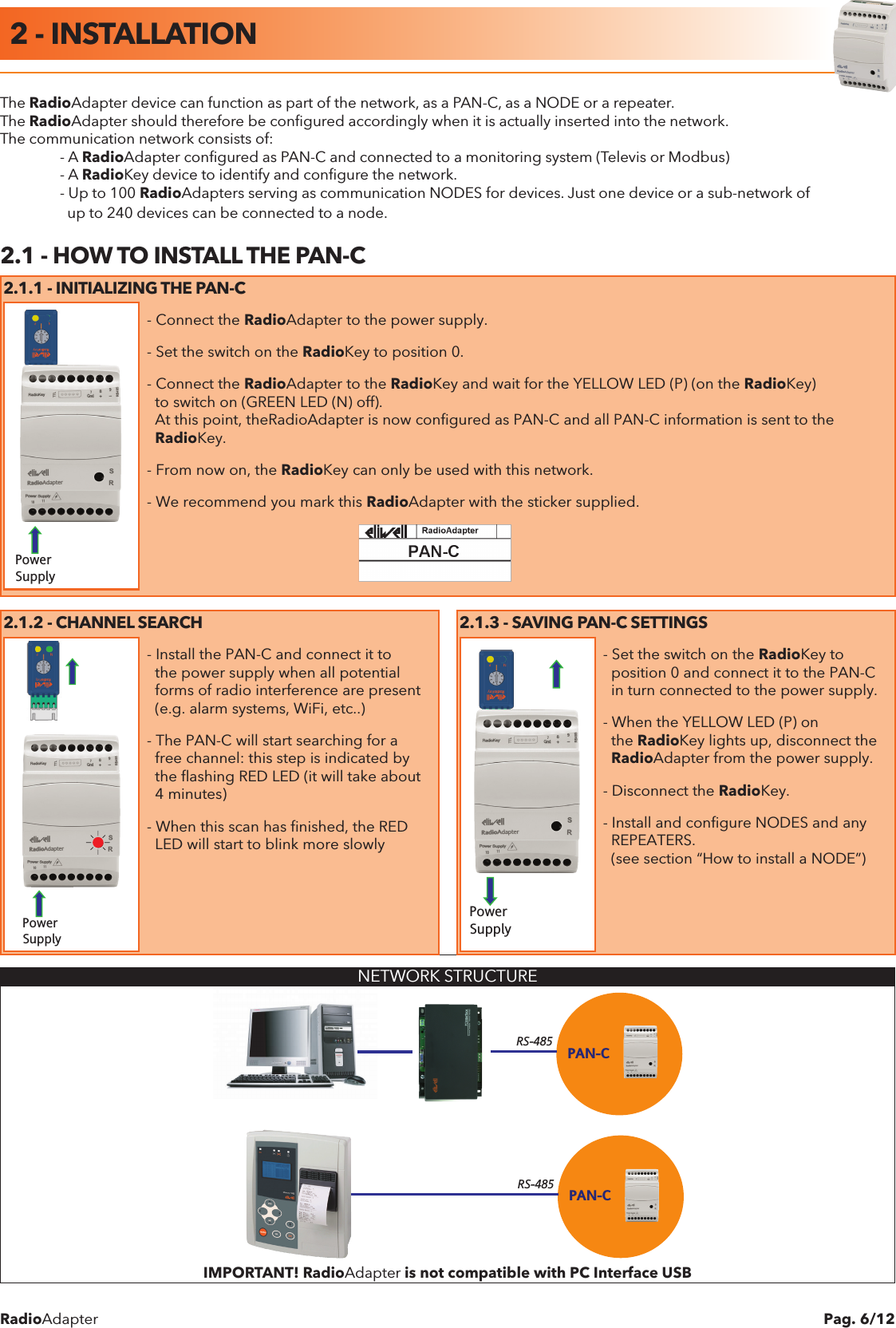
RadioAdapter Pag. 6/12The RadioAdapter device can function as part of the network, as a PAN-C, as a NODE or a repeater.The RadioAdapter should therefore be configured accordingly when it is actually inserted into the network.The communication network consists of:  - A RadioAdapter configured as PAN-C and connected to a monitoring system (Televis or Modbus)  - A RadioKey device to identify and configure the network.  - Up to 100 RadioAdapters serving as communication NODES for devices. Just one device or a sub-network of    up to 240 devices can be connected to a node.2.1 - HOW TO INSTALL THE PAN-C2.1.1 - INITIALIZING THE PAN-CPower SupplyPower SupplyPower Supply- Connect the RadioAdapter to the power supply.- Set the switch on the RadioKey to position 0.- Connect the RadioAdapter to the RadioKey and wait for the YELLOW LED (P) (on the RadioKey)  to switch on (GREEN LED (N) off).  At this point, theRadioAdapter is now configured as PAN-C and all PAN-C information is sent to the  RadioKey.- From now on, the RadioKey can only be used with this network.- We recommend you mark this RadioAdapter with the sticker supplied.2.1.2 - CHANNEL SEARCH 2.1.3 - SAVING PAN-C SETTINGSPower SupplyPower SupplyPower Supply- Install the PAN-C and connect it to  the power supply when all potential  forms of radio interference are present  (e.g. alarm systems, WiFi, etc..)- The PAN-C will start searching for a  free channel: this step is indicated by  the flashing RED LED (it will take about  4 minutes)- When this scan has finished, the RED  LED will start to blink more slowlyPower SupplyPower SupplyPower Supply- Set the switch on the RadioKey to   position 0 and connect it to the PAN-C  in turn connected to the power supply.- When the YELLOW LED (P) on  the RadioKey lights up, disconnect the  RadioAdapter from the power supply.- Disconnect the RadioKey.- Install and configure NODES and any  REPEATERS.  (see section “How to install a NODE”) NETWORK STRUCTUREPAN-CRS-485PAN-CRS-485IMPORTANT! RadioAdapter is not compatible with PC Interface USB2 - INSTALLATION
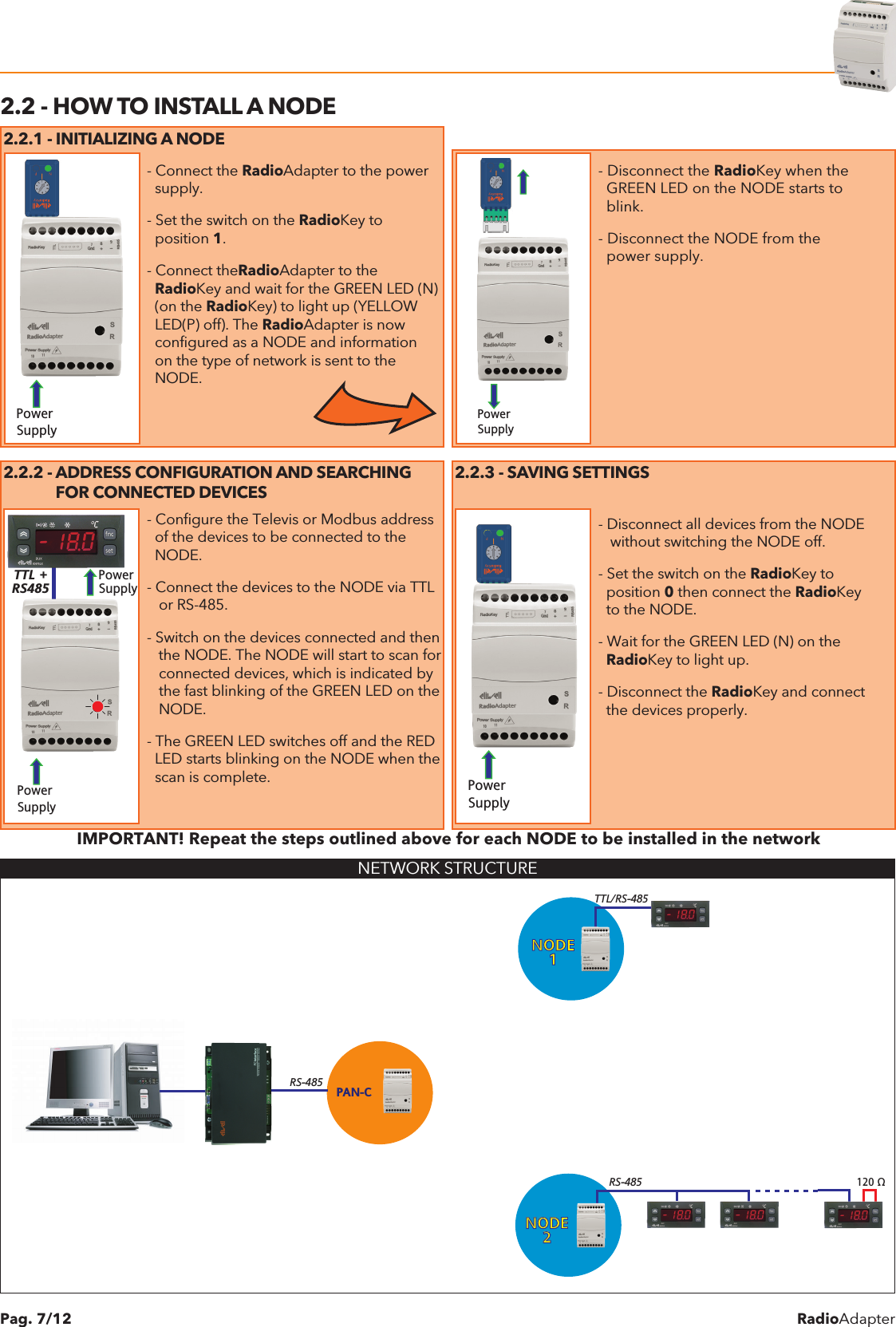
RadioAdapterPag. 7/122.2 - HOW TO INSTALL A NODE2.2.1 - INITIALIZING A NODEPower SupplyPower Supply Power SupplyPower SupplyPower SupplyTTL +RS485- Connect the RadioAdapter to the power  supply.- Set the switch on the RadioKey to  position 1.- Connect theRadioAdapter to the  RadioKey and wait for the GREEN LED (N)  (on the RadioKey) to light up (YELLOW  LED(P) off). The RadioAdapter is now  configured as a NODE and information  on the type of network is sent to the  NODE.                           Power SupplyPower SupplyPower SupplyPower SupplyPower SupplyTTL +RS485- Disconnect the RadioKey when the  GREEN LED on the NODE starts to  blink.- Disconnect the NODE from the  power supply.2.2.2 - ADDRESS CONFIGURATION AND SEARCHING              FOR CONNECTED DEVICES2.2.3 - SAVING SETTINGSPower SupplyPower SupplyPower SupplyPower SupplyPower SupplyTTL +RS485- Configure the Televis or Modbus address  of the devices to be connected to the  NODE.- Connect the devices to the NODE via TTL   or RS-485.- Switch on the devices connected and then   the NODE. The NODE will start to scan for   connected devices, which is indicated by   the fast blinking of the GREEN LED on the   NODE.- The GREEN LED switches off and the RED  LED starts blinking on the NODE when the  scan is complete.Power SupplyPower Supply Power SupplyPower SupplyPower SupplyTTL +RS485- Disconnect all devices from the NODE   without switching the NODE off.- Set the switch on the RadioKey to  position 0 then connect the RadioKey  to the NODE.- Wait for the GREEN LED (N) on the  RadioKey to light up.- Disconnect the RadioKey and connect  the devices properly.IMPORTANT! Repeat the steps outlined above for each NODE to be installed in the networkNETWORK STRUCTUREPAN-CNODE1NODE2TTL/RS-485RS-485 120 ΩRS-485
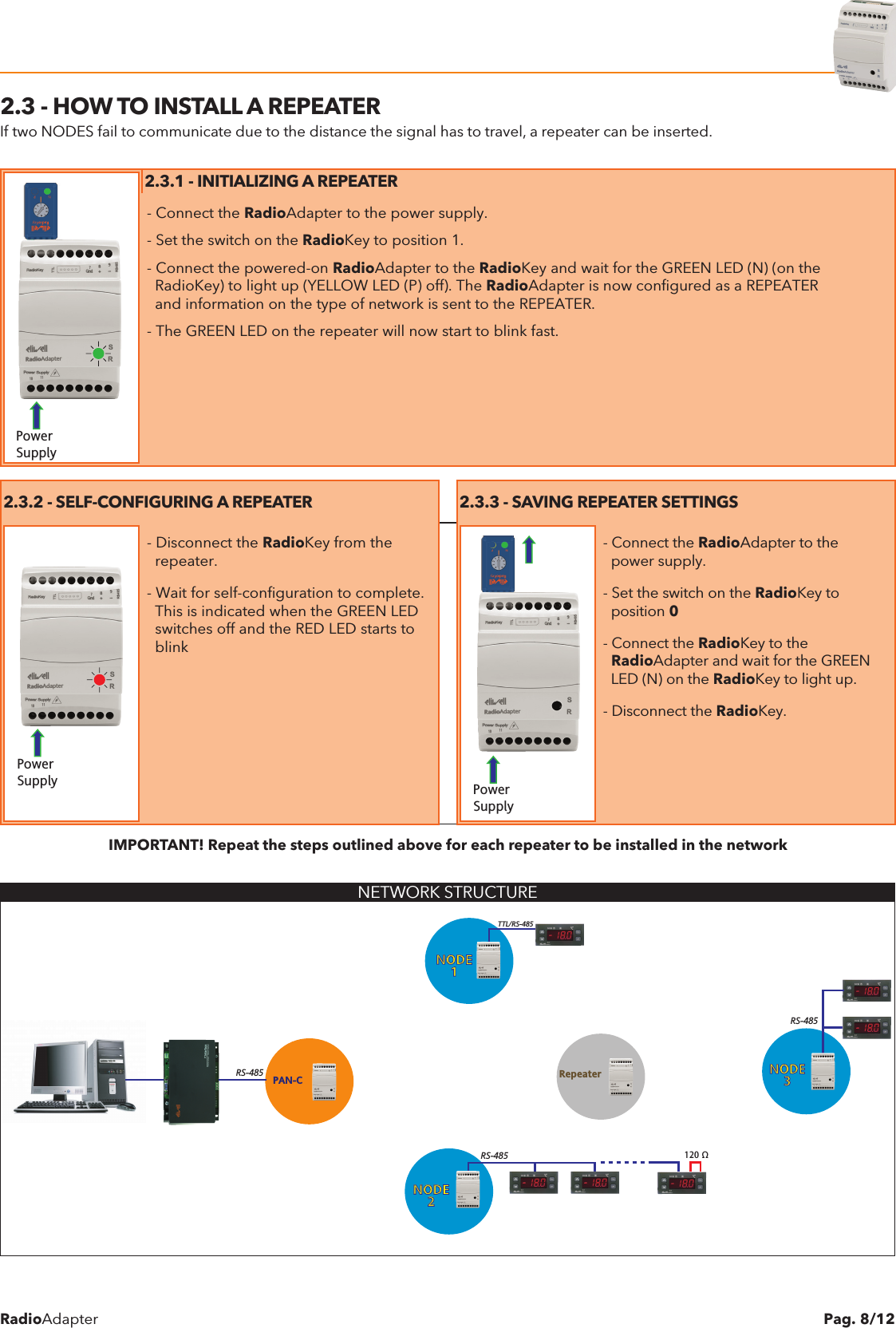
RadioAdapter Pag. 8/122.3 - HOW TO INSTALL A REPEATERIf two NODES fail to communicate due to the distance the signal has to travel, a repeater can be inserted.Power SupplyPower SupplyPower Supply2.3.1 - INITIALIZING A REPEATER- Connect the RadioAdapter to the power supply.- Set the switch on the RadioKey to position 1.- Connect the powered-on RadioAdapter to the RadioKey and wait for the GREEN LED (N) (on the  RadioKey) to light up (YELLOW LED (P) off). The RadioAdapter is now configured as a REPEATER  and information on the type of network is sent to the REPEATER.- The GREEN LED on the repeater will now start to blink fast.2.3.2 - SELF-CONFIGURING A REPEATER 2.3.3 - SAVING REPEATER SETTINGSPower SupplyPower SupplyPower Supply- Disconnect the RadioKey from the  repeater.- Wait for self-configuration to complete.  This is indicated when the GREEN LED  switches off and the RED LED starts to  blinkPower SupplyPower SupplyPower Supply- Connect the RadioAdapter to the  power supply.- Set the switch on the RadioKey to  position 0- Connect the RadioKey to the  RadioAdapter and wait for the GREEN  LED (N) on the RadioKey to light up.- Disconnect the RadioKey. IMPORTANT! Repeat the steps outlined above for each repeater to be installed in the networkNETWORK STRUCTUREPAN-CNODE1RepeaterNODE2NODE3TTL/RS-485RS-485RS-485RS-485120 Ω
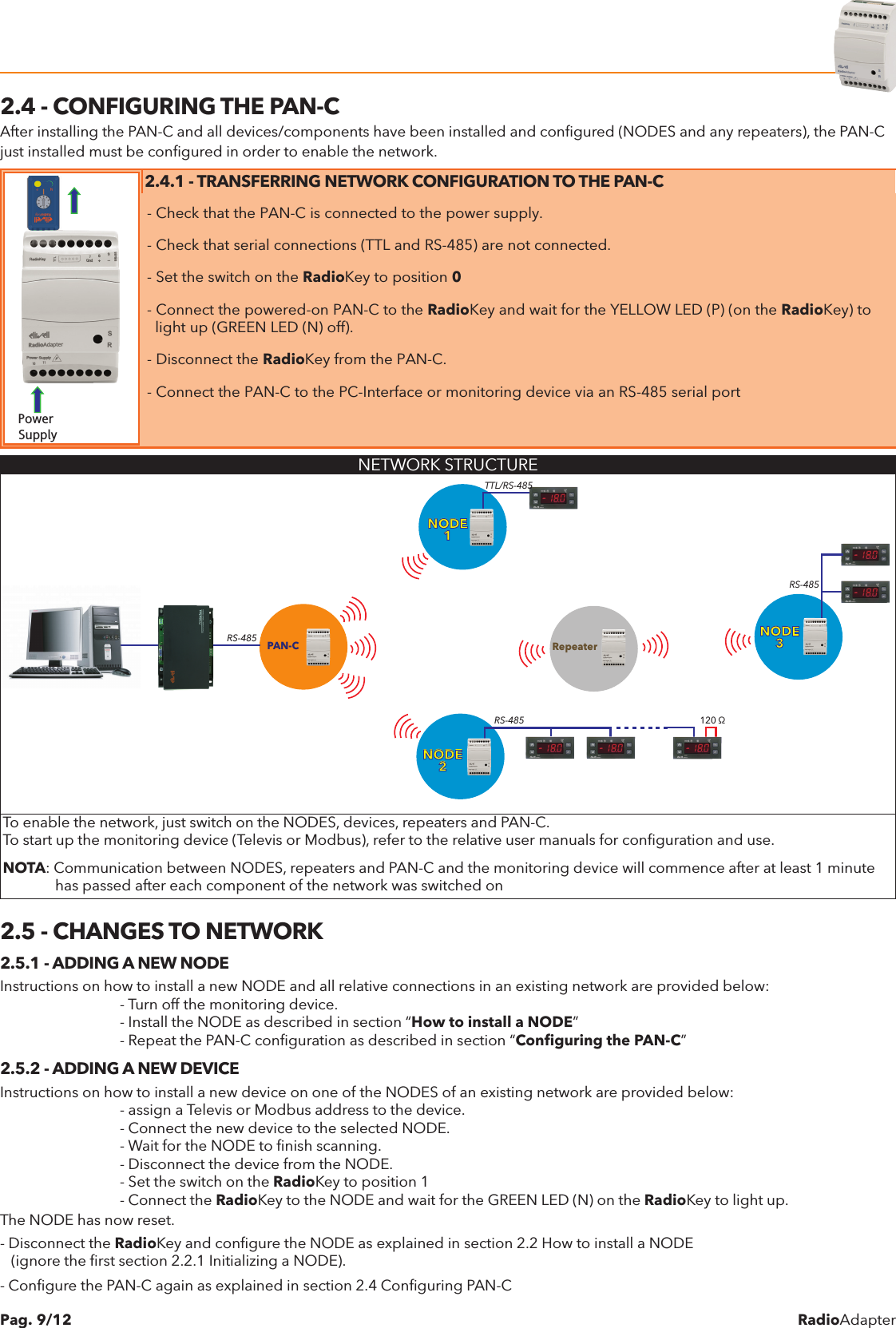
RadioAdapterPag. 9/122.4 - CONFIGURING THE PAN-CAfter installing the PAN-C and all devices/components have been installed and configured (NODES and any repeaters), the PAN-C just installed must be configured in order to enable the network.Power Supply2.4.1 - TRANSFERRING NETWORK CONFIGURATION TO THE PAN-C- Check that the PAN-C is connected to the power supply.- Check that serial connections (TTL and RS-485) are not connected.- Set the switch on the RadioKey to position 0- Connect the powered-on PAN-C to the RadioKey and wait for the YELLOW LED (P) (on the RadioKey) to  light up (GREEN LED (N) off).- Disconnect the RadioKey from the PAN-C.- Connect the PAN-C to the PC-Interface or monitoring device via an RS-485 serial portNETWORK STRUCTUREPAN-CNODE1RepeaterNODE2NODE3RS-485TTL/RS-485RS-485 120 ΩRS-485To enable the network, just switch on the NODES, devices, repeaters and PAN-C.To start up the monitoring device (Televis or Modbus), refer to the relative user manuals for configuration and use.NOTA: Communication between NODES, repeaters and PAN-C and the monitoring device will commence after at least 1 minute              has passed after each component of the network was switched on2.5 - CHANGES TO NETWORK2.5.1 - ADDING A NEW NODEInstructions on how to install a new NODE and all relative connections in an existing network are provided below:    - Turn off the monitoring device.    - Install the NODE as described in section “How to install a NODE”    - Repeat the PAN-C configuration as described in section “Configuring the PAN-C”2.5.2 - ADDING A NEW DEVICEInstructions on how to install a new device on one of the NODES of an existing network are provided below:    - assign a Televis or Modbus address to the device.    - Connect the new device to the selected NODE.    - Wait for the NODE to finish scanning.    - Disconnect the device from the NODE.    - Set the switch on the RadioKey to position 1    - Connect the RadioKey to the NODE and wait for the GREEN LED (N) on the RadioKey to light up.The NODE has now reset.- Disconnect the RadioKey and configure the NODE as explained in section 2.2 How to install a NODE   (ignore the first section 2.2.1 Initializing a NODE).- Configure the PAN-C again as explained in section 2.4 Configuring PAN-C
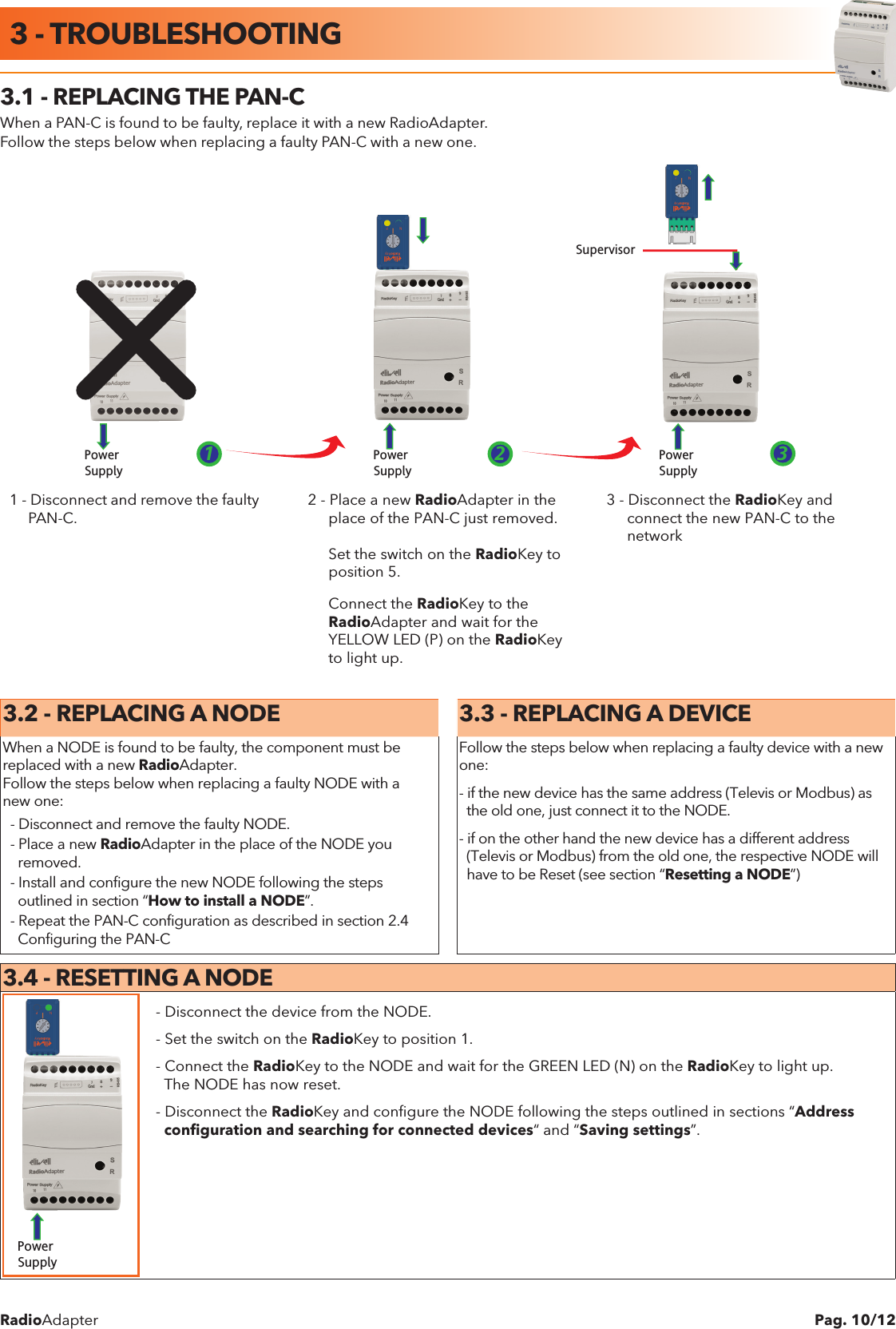
RadioAdapter Pag. 10/123.1 - REPLACING THE PAN-CWhen a PAN-C is found to be faulty, replace it with a new RadioAdapter.Follow the steps below when replacing a faulty PAN-C with a new one.Power SupplyPower SupplyPower SupplySupervisor1 2 31 - Disconnect and remove the faulty     PAN-C.2 - Place a new RadioAdapter in the     place of the PAN-C just removed.     Set the switch on the RadioKey to     position 5.     Connect the RadioKey to the     RadioAdapter and wait for the     YELLOW LED (P) on the RadioKey     to light up. 3 - Disconnect the RadioKey and     connect the new PAN-C to the      network3.2 - REPLACING A NODE 3.3 - REPLACING A DEVICEWhen a NODE is found to be faulty, the component must bereplaced with a new RadioAdapter.Follow the steps below when replacing a faulty NODE with a new one:  - Disconnect and remove the faulty NODE.  - Place a new RadioAdapter in the place of the NODE you    removed.  - Install and configure the new NODE following the steps    outlined in section “How to install a NODE”.  - Repeat the PAN-C configuration as described in section 2.4    Configuring the PAN-CFollow the steps below when replacing a faulty device with a newone:- if the new device has the same address (Televis or Modbus) as  the old one, just connect it to the NODE.- if on the other hand the new device has a different address  (Televis or Modbus) from the old one, the respective NODE will  have to be Reset (see section “Resetting a NODE”)3.4 - RESETTING A NODEPower Supply- Disconnect the device from the NODE.- Set the switch on the RadioKey to position 1.- Connect the RadioKey to the NODE and wait for the GREEN LED (N) on the RadioKey to light up.  The NODE has now reset.- Disconnect the RadioKey and configure the NODE following the steps outlined in sections “Address  configuration and searching for connected devices“ and “Saving settings”.3 - TROUBLESHOOTING
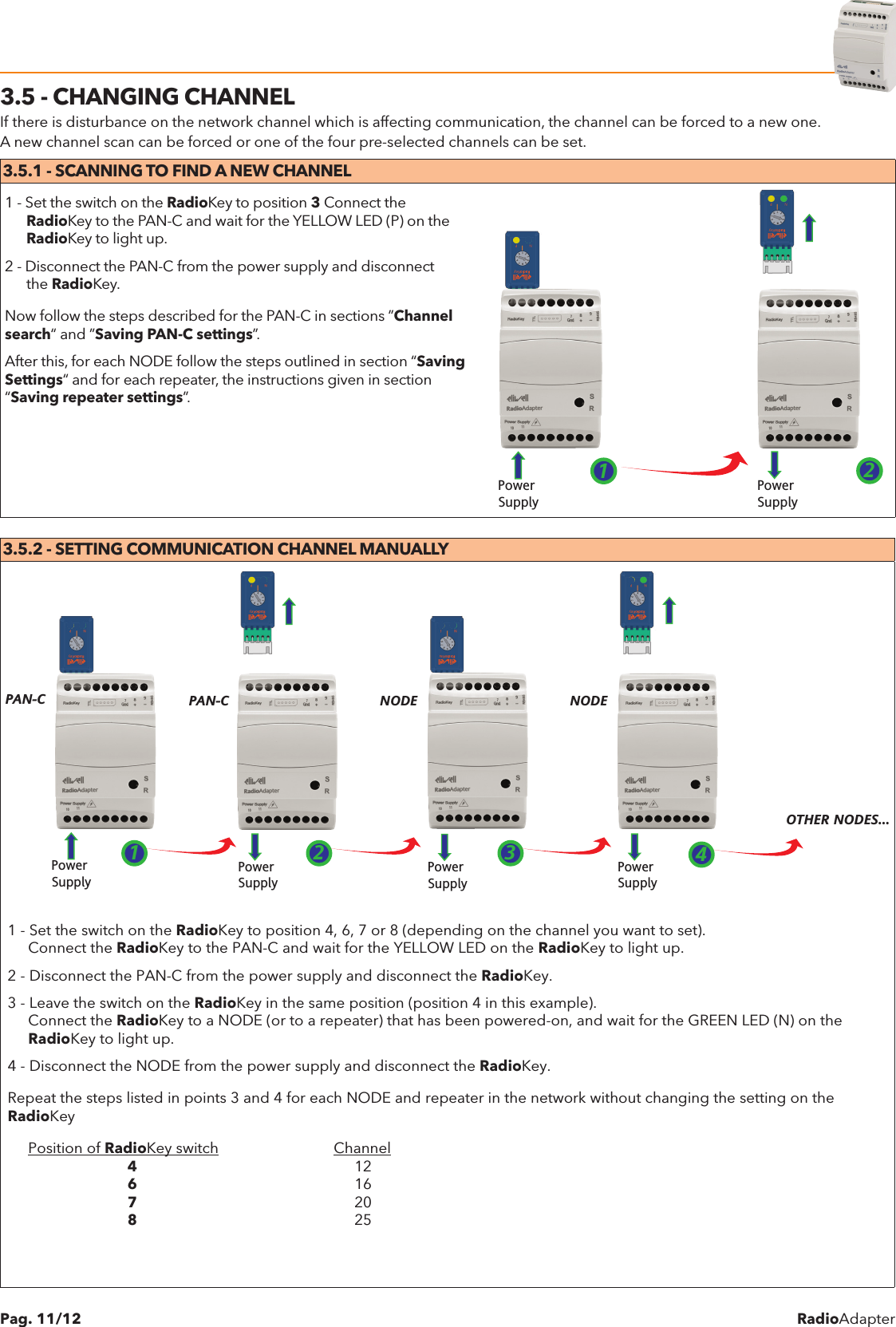
RadioAdapterPag. 11/123.5 - CHANGING CHANNELIf there is disturbance on the network channel which is affecting communication, the channel can be forced to a new one.A new channel scan can be forced or one of the four pre-selected channels can be set.3.5.1 - SCANNING TO FIND A NEW CHANNEL1 - Set the switch on the RadioKey to position 3 Connect the      RadioKey to the PAN-C and wait for the YELLOW LED (P) on the      RadioKey to light up. 2 - Disconnect the PAN-C from the power supply and disconnect      the RadioKey.Now follow the steps described for the PAN-C in sections ”Channel search“ and ”Saving PAN-C settings”.After this, for each NODE follow the steps outlined in section “Saving Settings“ and for each repeater, the instructions given in section  “Saving repeater settings”.Power SupplyPower Supply123.5.2 - SETTING COMMUNICATION CHANNEL MANUALLYPower SupplyPower SupplyPower SupplyPAN-C PAN-C NODEPower SupplyNODE1 2 34OTHER NODES...1 - Set the switch on the RadioKey to position 4, 6, 7 or 8 (depending on the channel you want to set).     Connect the RadioKey to the PAN-C and wait for the YELLOW LED on the RadioKey to light up. 2 - Disconnect the PAN-C from the power supply and disconnect the RadioKey.3 - Leave the switch on the RadioKey in the same position (position 4 in this example).     Connect the RadioKey to a NODE (or to a repeater) that has been powered-on, and wait for the GREEN LED (N) on the     RadioKey to light up. 4 - Disconnect the NODE from the power supply and disconnect the RadioKey.Repeat the steps listed in points 3 and 4 for each NODE and repeater in the network without changing the setting on the RadioKey     Position of RadioKey switch                            Channel                 4                              12                  6                              16                 7                              20                 8                              25
RadioAdapter Pag. 12/12Eliwell Controls s.r.l. Via dell’Industria, 15 • Z.I. Paludi32010 Pieve d’Alpago (BL) ITALYTelephone     +39 0437 986 111Facsimile       +39 0437 989 066www.eliwell.itTechnical Customer Support:Technical helpline  +39 0437 986 300E-mail:                   techsuppeliwell@invensys.comSales Telephone             +39 0437 986 100 (Italy)                                +39 0437 986 200 (other countries)E-mail:                   saleseliwell@invensys.com4.1 - ELECTRICAL CONNECTIONSImportant! Switch off the device before working on the electrical connections.The instrument is equipped with screw terminal boards for connection of electrical cables with a diameter of 2.5 mm2 (one conductor only per terminal for power connections). Make sure that power supply is the correct voltage for the device. TTL serial port cables and RS-485 serial port cables must be kept separate from the power cables.The RS-485 network must be appropriately terminated, i.e. by inserting a 120 Ohm terminal resistor between the - and + terminals of the interface module.4.2 - DISCLAIMERThis document is the exclusive property of ELIWELL CONTROLS SRL and may not be reproduced or circulated unless expressly authorized by ELIWELL  CONTROLS SRL  itself. The same  applies to  any  person or company involved in  preparing and  editing this document. ELIWELL CONTROLS SRL reserves the right to amend or improve this document at any time without notice.4.3 - RESPONSIBILITY AND RESIDUAL RISKSELIWELL CONTROLS SRL shall not be liable for damage resulting from:  - Installation/uses other than those specified and, in particular, which do not comply with the safety requirements set out in the    regulations and/or stated herein.  - Use on panels that do not provide adequate protection against electric shock, water or dust when assembled.  - Use on panels that allow access to dangerous parts without having to use tools.  - Tampering and/or modification of the product.  - Installation/use on panels that do not comply with applicable standards and regulations.4.4 - CONDITIONS OF USEPERMITTED USEFor safety reasons, the device must be installed and used according to the instructions provided. In particular, parts carrying dangerous voltages must not be accessible in normal conditions. The device must be adequately protected from water and dust according to the application, and must also be accessible only using tools (with the exception of the front panel).Class 4 classification ISA SP100.11 (do not use for safety devices)USES NOT PERMITTEDThe device must not be used for applications other than those described.Note that the relay contacts provided are of a functional type and therefore subject to malfunction: Any protection devices required by product standards, or suggested by common sense, must be installed externally to the instrument for obvious safety reasons.9MAX0010-1 • RadioAdapter • EN • 04/11© Copyright Eliwell Controls s.r.l. 2011 All rights reserved4 - WARNINGS

Navigation menu