Eratech Co EVR-500 Portable Digital Audio Player User Manual Eratech FCC EVR 500

Eratech Co, Ltd Portable Digital Audio Player Eratech FCC EVR 500

User Manual

     Report No: BWS-03-EF-0022 FCC ID : QNJEVR-500 Date of Test : May 26, 2003 Eratech Co., Ltd. Portable Digital Audio Player EVR-500 Appendix 6.  User Manual   Refer to the following pages
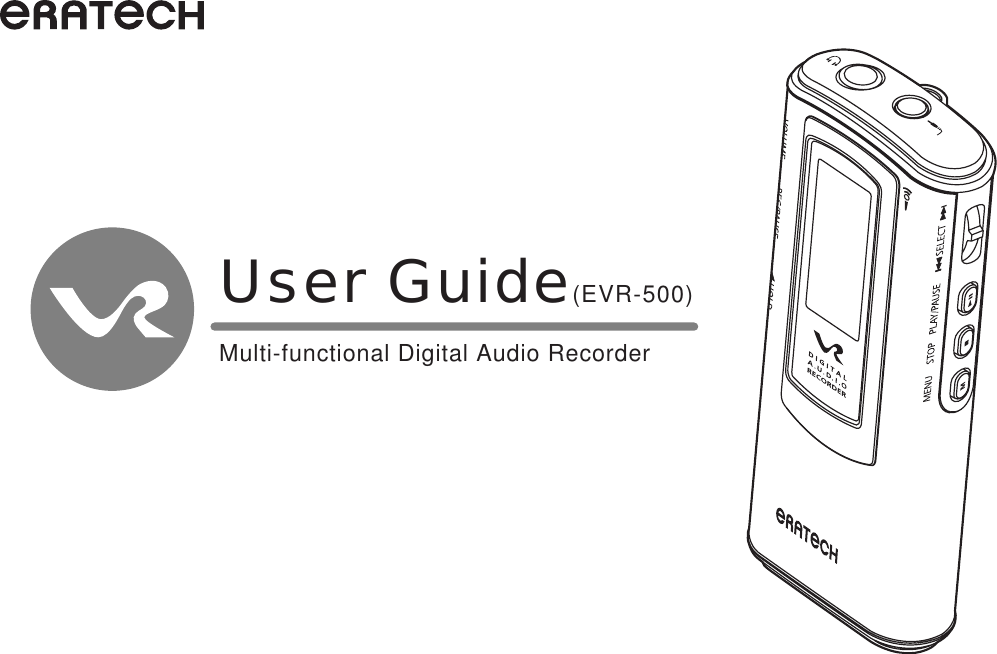
User Guide(EVR-500)Multi-functional Digital Audio Recorder
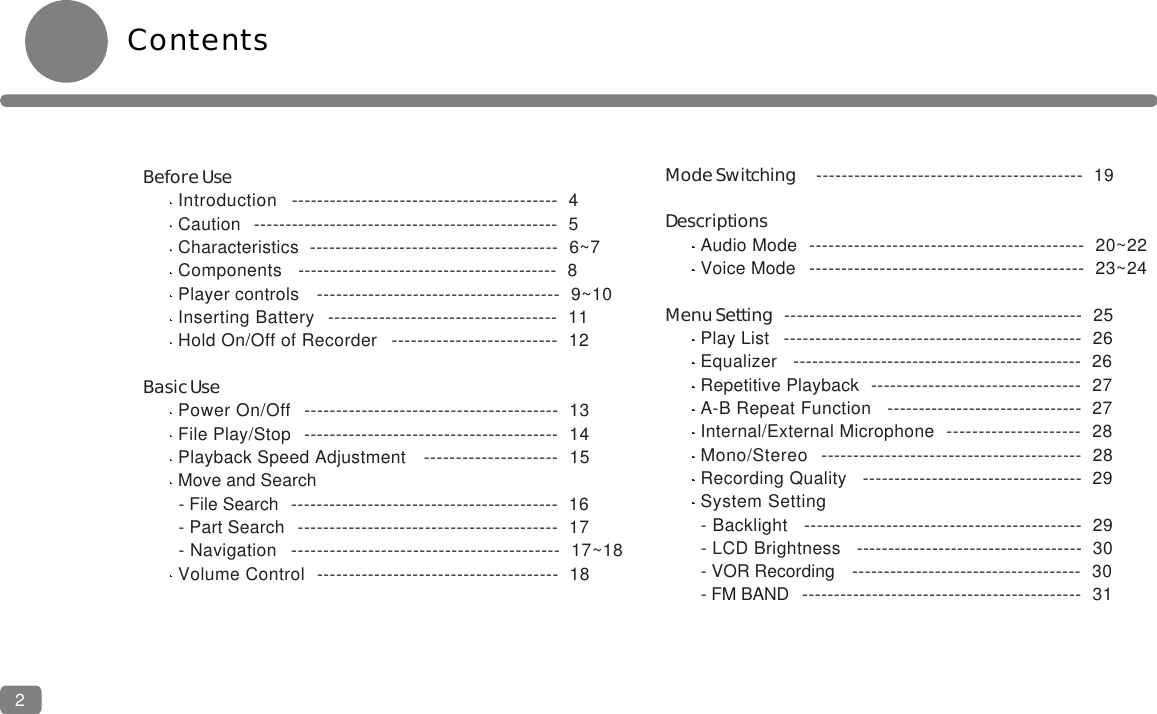
Contents2Before UseIntroduction   ------------------------------------------  4 Caution  ------------------------------------------------  5  Characteristics  ---------------------------------------  6~7Components   -----------------------------------------  8Player controls   --------------------------------------  9~10Inserting Battery  ------------------------------------  11Hold On/Off of Recorder   --------------------------  12Basic UsePower On/Off  ----------------------------------------  13File Play/Stop  ----------------------------------------  14Playback Speed Adjustment   ---------------------  15Move and Search- File Search   ------------------------------------------  16- Part Search  -----------------------------------------  17- Navigation   ------------------------------------------  17~18Volume Control  --------------------------------------  18 Mode Switching ------------------------------------------  19DescriptionsAudio Mode  -------------------------------------------  20~22Voice Mode  -------------------------------------------  23~24Menu Setting -----------------------------------------------  25Play List   -----------------------------------------------  26Equalizer   ----------------------------------------------  26Repetitive Playback  ---------------------------------  27A-B Repeat Function   -------------------------------  27Internal/External Microphone  ---------------------  28Mono/Stereo  -----------------------------------------  28Recording Quality   -----------------------------------  29System Setting- Backlight   --------------------------------------------  29- LCD Brightness   ------------------------------------  30- VOR Recording   ------------------------------------  30- FM BAND  --------------------------------------------  31
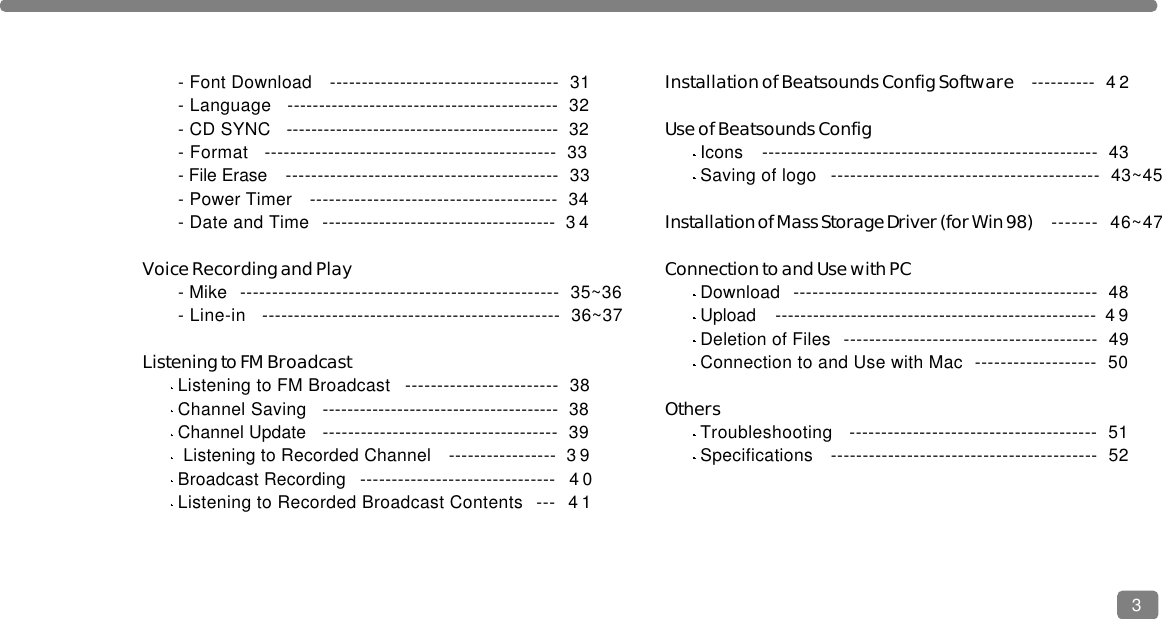
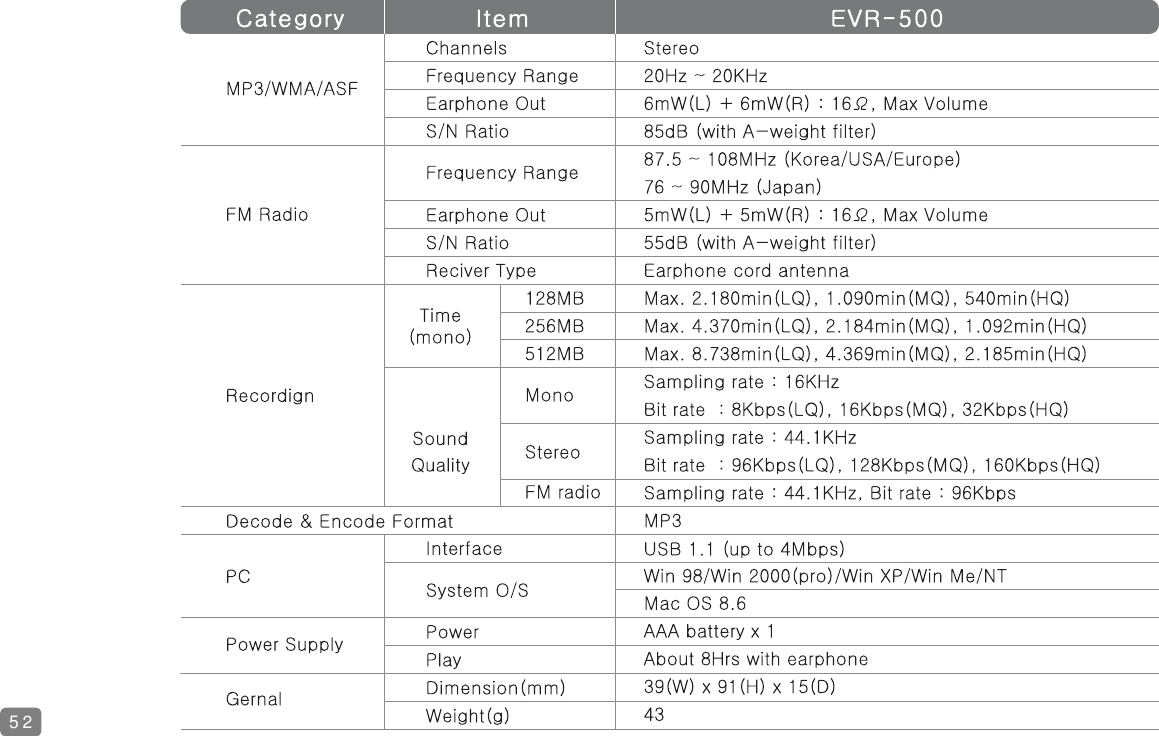
- Font Download   ------------------------------------  31- Language   -------------------------------------------  32- CD SYNC   --------------------------------------------  32- Format   ----------------------------------------------  33- File Erase   -------------------------------------------  33- Power Timer   ---------------------------------------  34- Date and Time  ------------------------------------- 3 4Voice Recording and Play- Mike  --------------------------------------------------  35~36- Line-in   -----------------------------------------------  36~37Listening to FM BroadcastListening to FM Broadcast   ------------------------  38Channel Saving   --------------------------------------  38Channel Update   -------------------------------------  39Listening to Recorded Channel   ----------------- 3 9Broadcast Recording   ------------------------------- 4 0Listening to Recorded Broadcast Contents  --- 4 1Installation of Beatsounds Config Software ---------- 4 2Use of Beatsounds ConfigIcons   -----------------------------------------------------  43Saving of logo   ------------------------------------------  43~45Installation of Mass Storage Driver (for Win 98) -------  46~47Connection to and Use with PCDownload  ------------------------------------------------  48Upload  --------------------------------------------------- 4 9Deletion of Files  ----------------------------------------  49Connection to and Use with Mac  -------------------  50OthersTroubleshooting   ---------------------------------------  51Specifications   ------------------------------------------  523
IntroductionThank you for choosing our Digital Audio Recorder.Please read this manual carefully before using the recorder.Please be informed that this manual is subject to change without notice for improvement of the product.4
Safety CautionsPlease read and comply with these instructions for information about using the product correctly and safely toprevent any possible danger or damage to properties.51. SafetyDo not keep the product in such places:- Hot environment (above 60 )- Closed automobile- Humid place like a bathroom- Exposed direct to the sun or near a heating apparatus- Areas of excessive dustDo not fall or give a shock to the product.Users are prohibited to disassemble, repair, or rebuild it at your discretion.Do not use the product in such areas like airplanes where the use of electrical utilities is prohibited.Do not put your ID cards, credit cards, and other magnetic cards near the speaker, or you cannot use them because their magnetic information is likely to be lost due to the force of the speaker.Do not apply excessive force to the liquid crystal display, or it may be destroyed or damaged.2. Handling of BatteryDo not short, disassemble, heat, or throw usedbatteries into fire; its electrolyte may come into youreyes, or it may be exploded by fire.If its electrolyte contacts skin or clothes, wash it immediately with flushing water. If it come into your eyes, wash them with flushing water and go see a doctor immediately..Remove and put aside batteries out of Digital Voice Recorder, when you do not use it for a long time.3. If the product gives off smoke or is transformed in form due to heat, remove batteries from the product immediately 4. You must check the remaining power of battery before starting record, because recording process will stop as soon as it is dead.
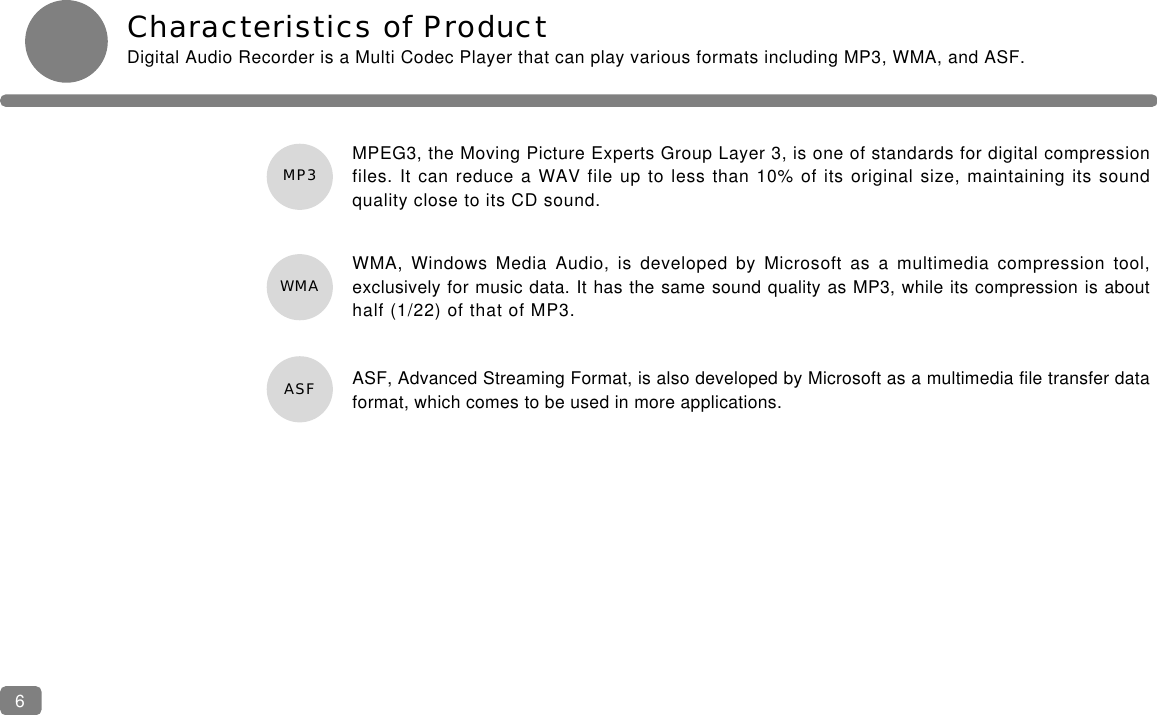
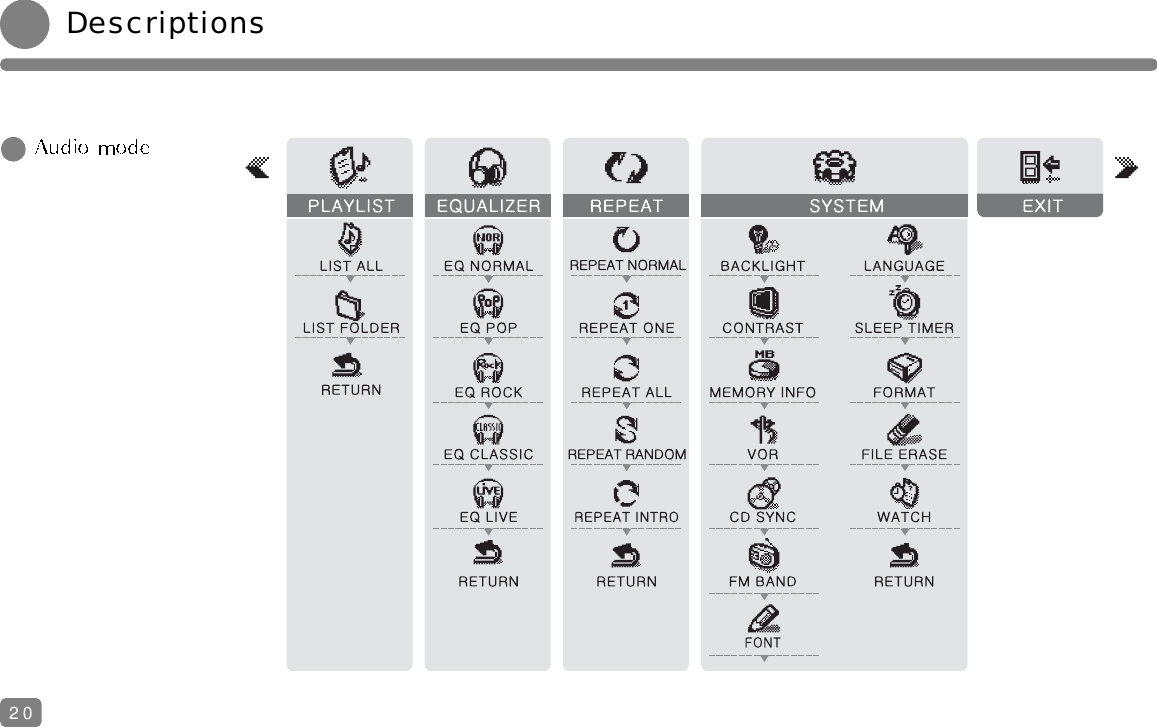
Characteristics of ProductDigital Audio Recorder is a Multi Codec Player that can play various formats including MP3, WMA, and ASF.MPEG3, the Moving Picture Experts Group Layer 3, is one of standards for digital compressionfiles. It can reduce a WAV file up to less than 10% of its original size, maintaining its soundquality close to its CD sound. WMA, Windows Media Audio, is developed by Microsoft as a multimedia compression tool,exclusively for music data. It has the same sound quality as MP3, while its compression is abouthalf (1/22) of that of MP3.ASF, Advanced Streaming Format, is also developed by Microsoft as a multimedia file transfer dataformat, which comes to be used in more applications. 6MP3WMAASF
FM Radio Broadcast - Receiving & RecordingUsers can enjoy both receiving and recording real time FM stereo radio signals.Firmware UpgradeThe product enables the play of future multimedia formats through firmware upgrade and provides functional improvementand development for the use of up-to-date functions Successive 8-hour PlayYou can play the recorder 8 hours successively with one AAA battery.Multi Languages SupportThe product supports multi languages like Korean, Chinese andChinese characters, English, Japanese, and special European characters. High Capacity USB mobile storageYou can use the product easily and safely without the USB cable because it has a slide type USB connector.NavigationYou can search, select, and play a required file simply and easily using Navigation function.Five EqualizersWhen listening to music, you may select its tone among Normal/Pop/Rock/Classic/Live.Easy File Management Using FoldersIt has Voice and Radio folders users may manage easily and simply by generating and deleting them.MP3 Voice RecordingVoice is recorded in MP3 file, which may be stored permanently in PC and played repetitively without the loss of its quality.7
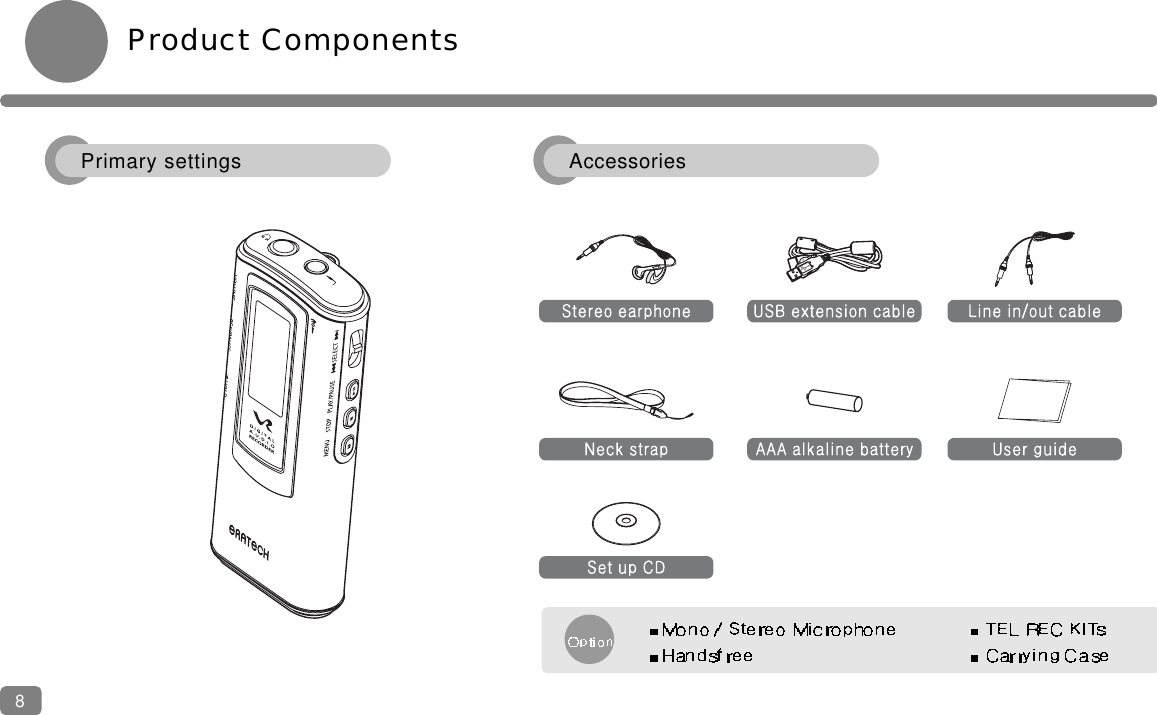
Product Components8AccessoriesPrimary settings
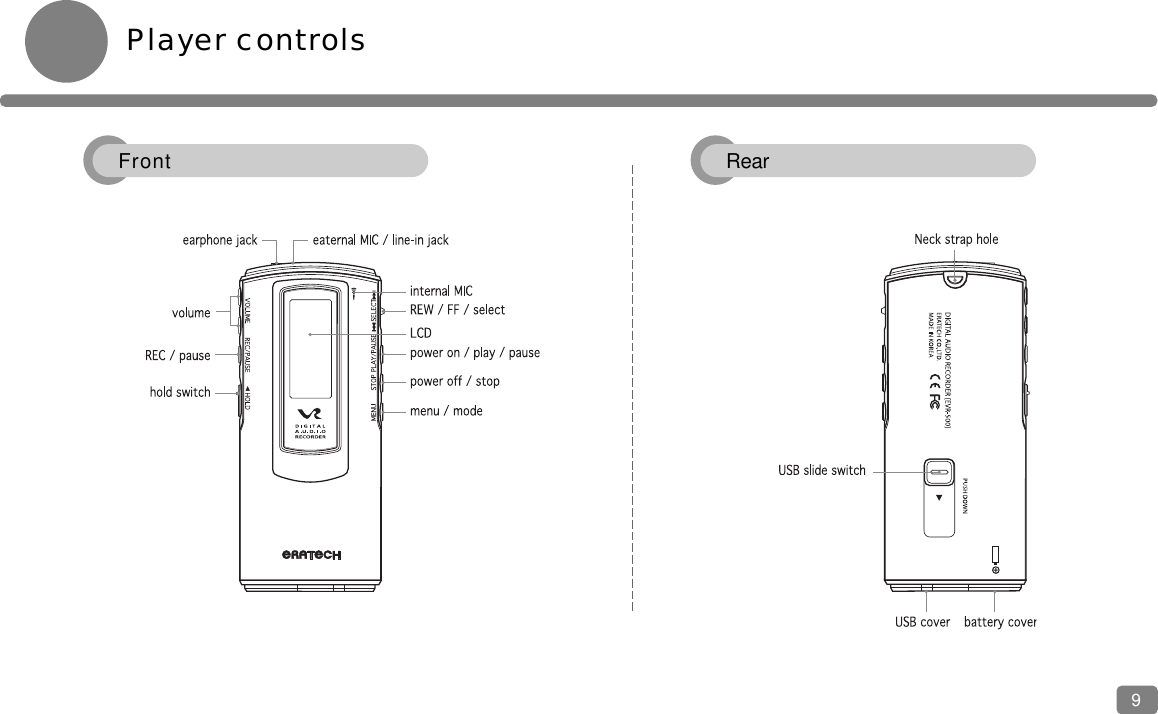
Player controls9Front Rear
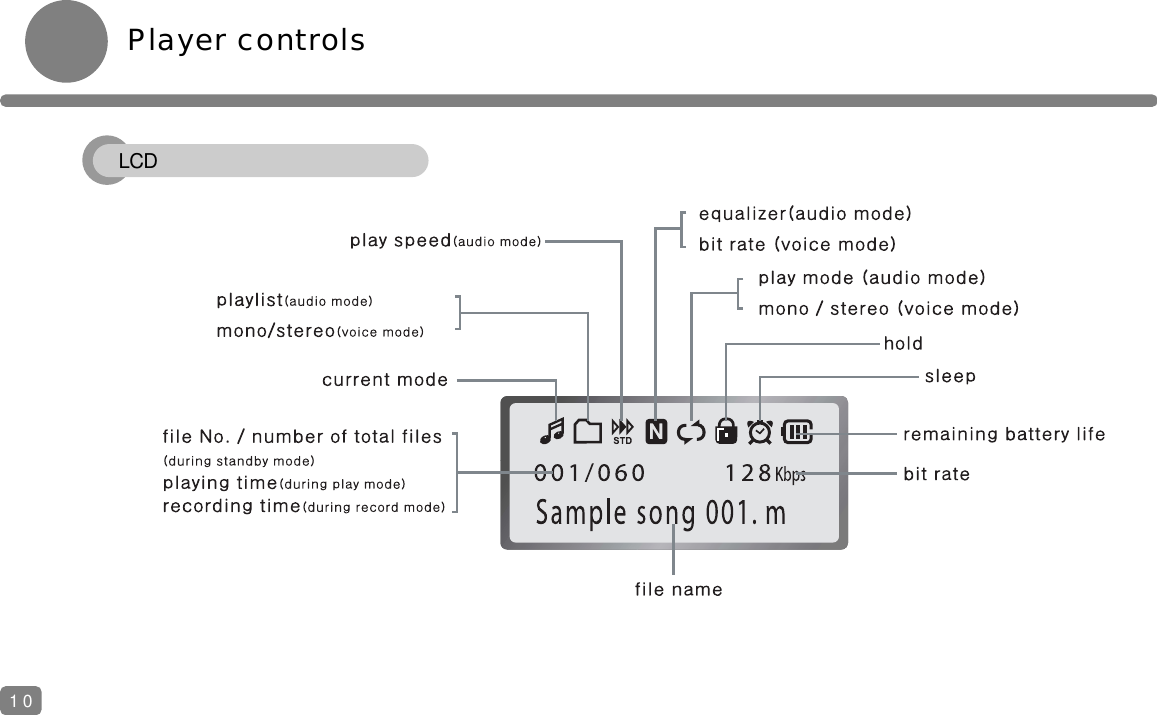
Player controls10LCD
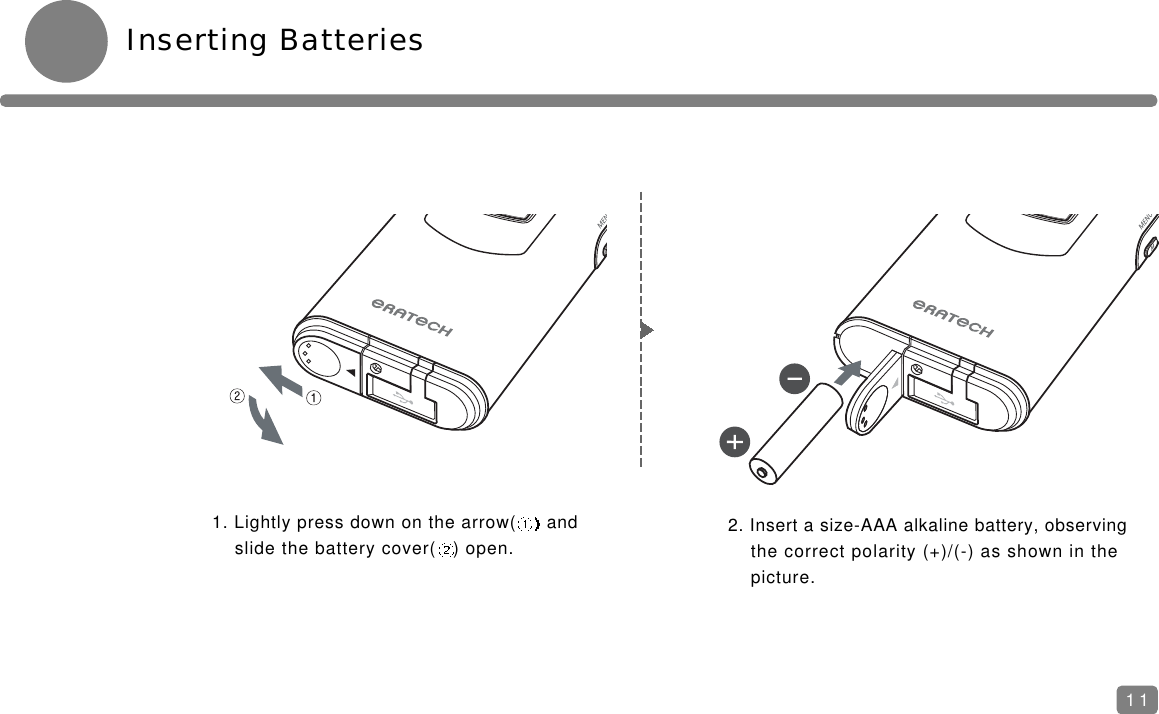
Inserting Batteries111. Lightly press down on the arrow( and slide the battery cover( ) open.2. Insert a size-AAA alkaline battery, observing the correct polarity (+)/(-) as shown in the picture.
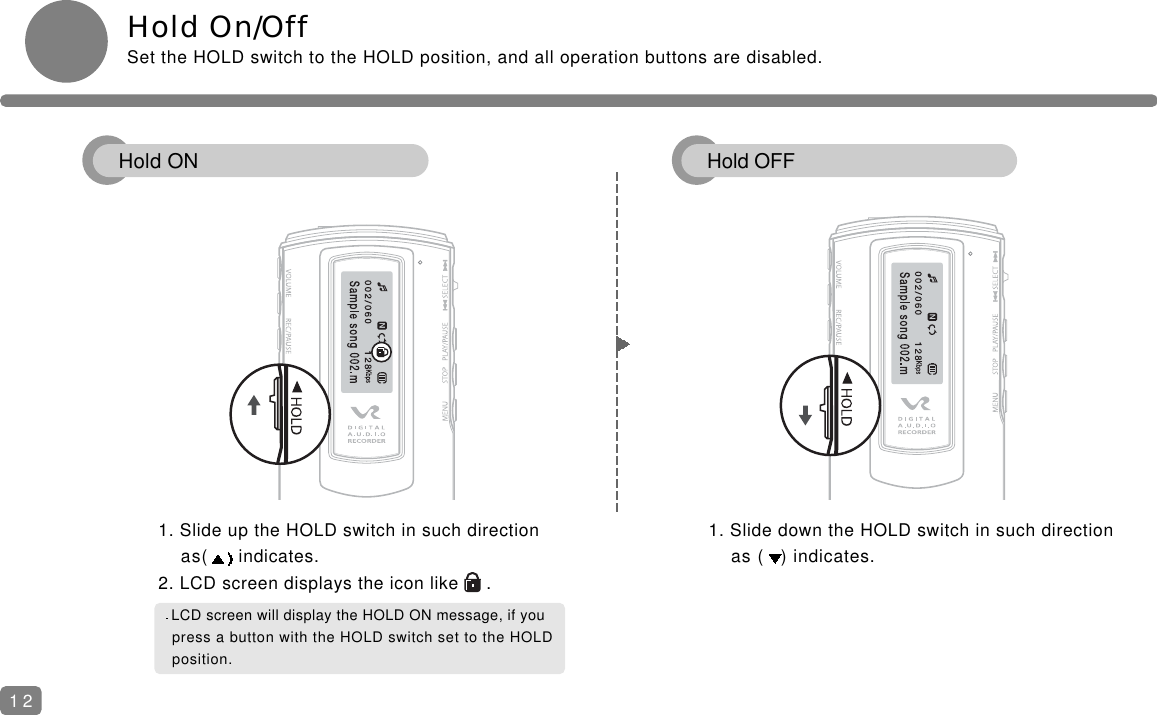
Hold On/OffSet the HOLD switch to the HOLD position, and all operation buttons are disabled. 1. Slide up the HOLD switch in such direction as( indicates.2. LCD screen displays the icon like     .1. Slide down the HOLD switch in such directionas ( ) indicates.12LCD screen will display the HOLD ON message, if you press a button with the HOLD switch set to the HOLD position. Hold ON Hold OFF
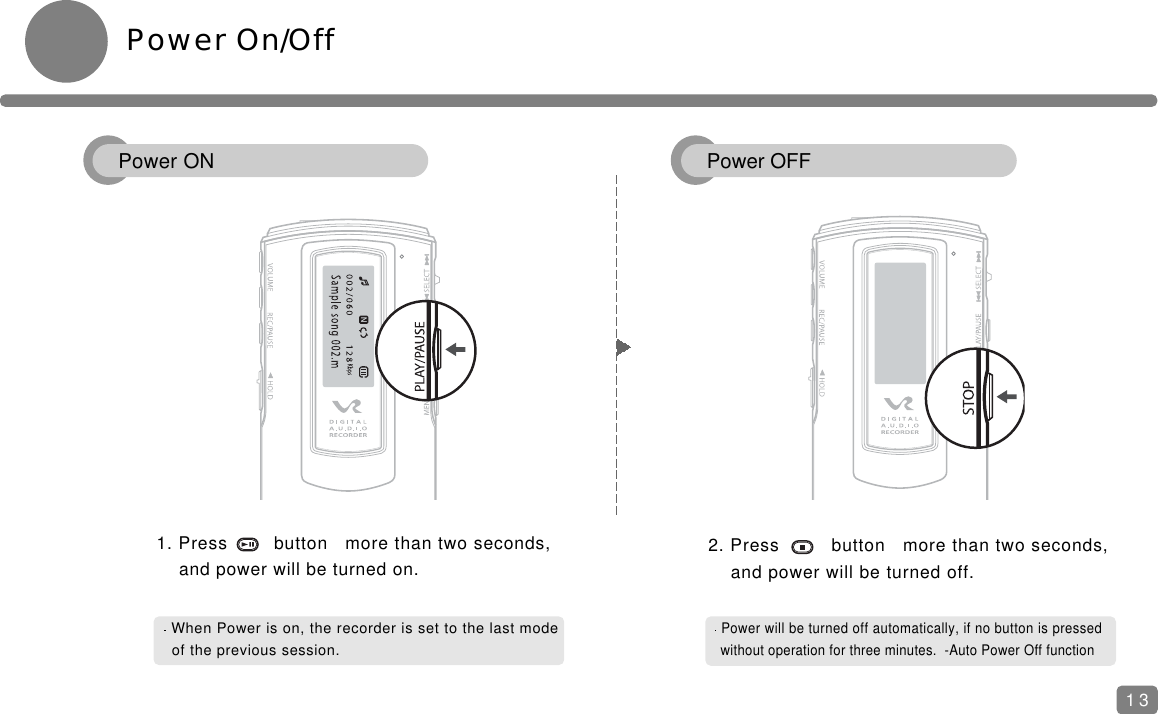
Power On/Off1. Press        button   more than two seconds, and power will be turned on.When Power is on, the recorder is set to the last modeof the previous session. 132. Press         button   more than two seconds,and power will be turned off.Power will be turned off automatically, if no button is pressedwithout operation for three minutes.  -Auto Power Off functionPower ON Power OFF
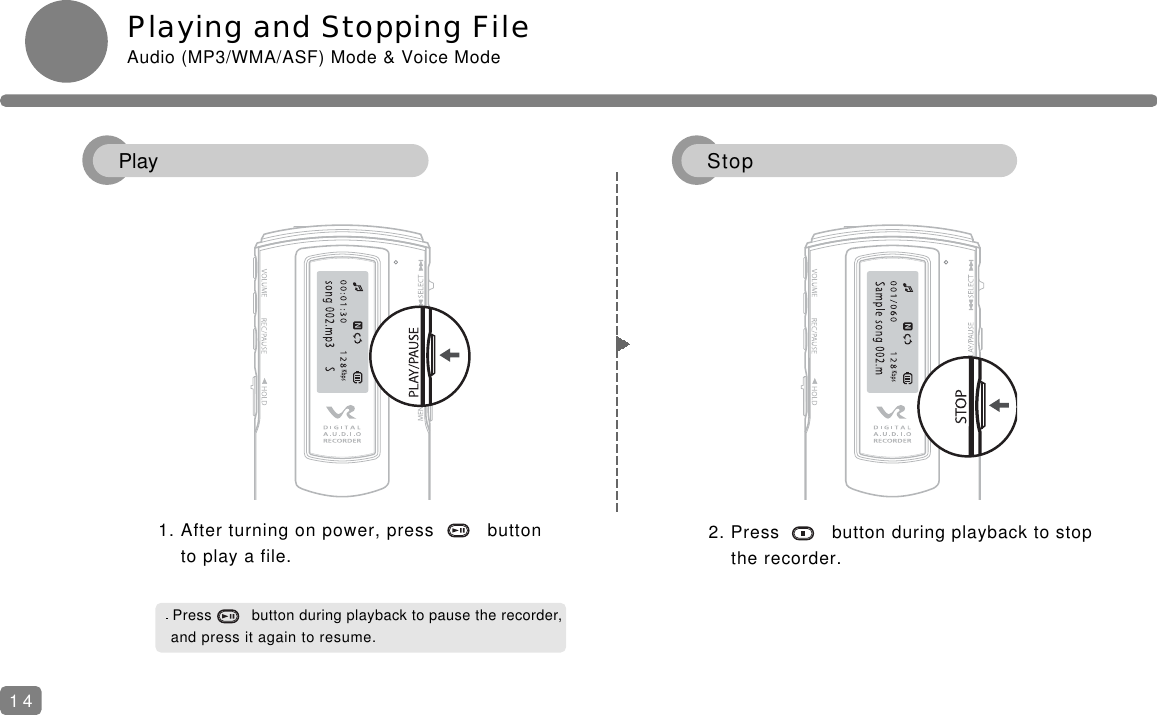
Playing and Stopping FileAudio (MP3/WMA/ASF) Mode & Voice Mode1. After turning on power, press         button   to play a file.2. Press         button during playback to stop the recorder.Press         button during playback to pause the recorder, and press it again to resume.14Play Stop
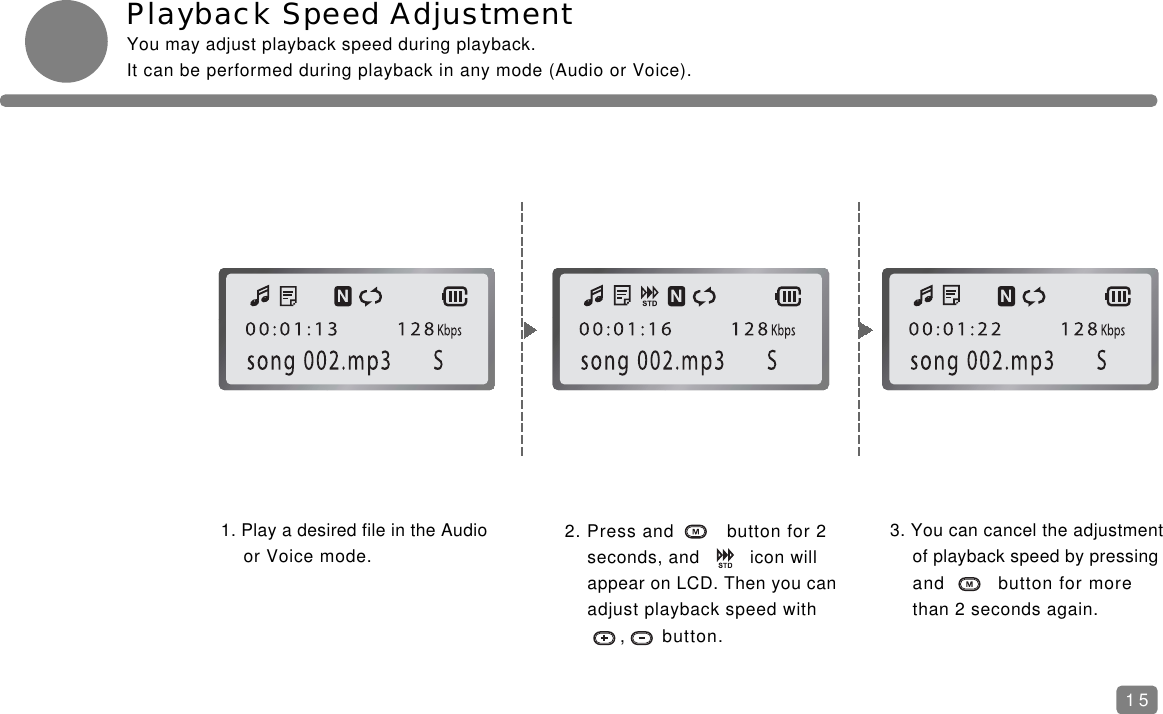
Playback Speed AdjustmentYou may adjust playback speed during playback.It can be performed during playback in any mode (Audio or Voice).1. Play a desired file in the Audioor Voice mode.2. Press and         button for 2 seconds, and         icon will appear on LCD. Then you can adjust playback speed with ,      button.3. You can cancel the adjustmentof playback speed by pressingand         button for more than 2 seconds again.15
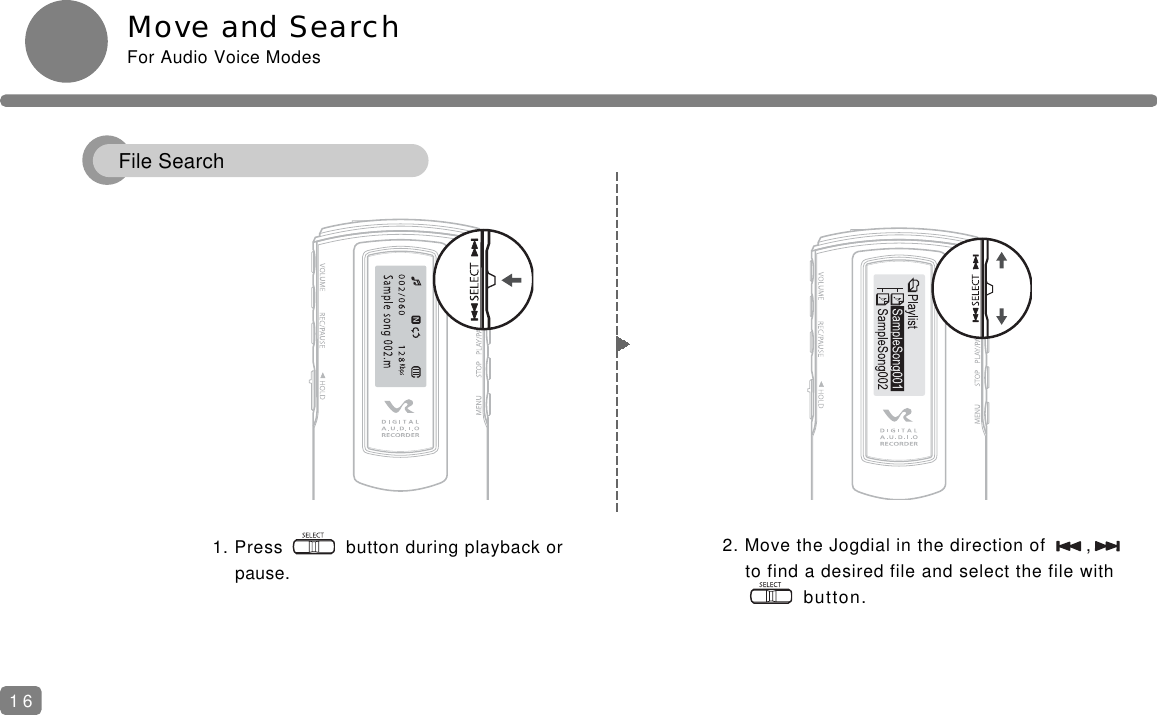
Move and SearchFor Audio Voice Modes1. Press           button during playback or pause.2. Move the Jogdial in the direction of       ,to find a desired file and select the file with  button.16File Search
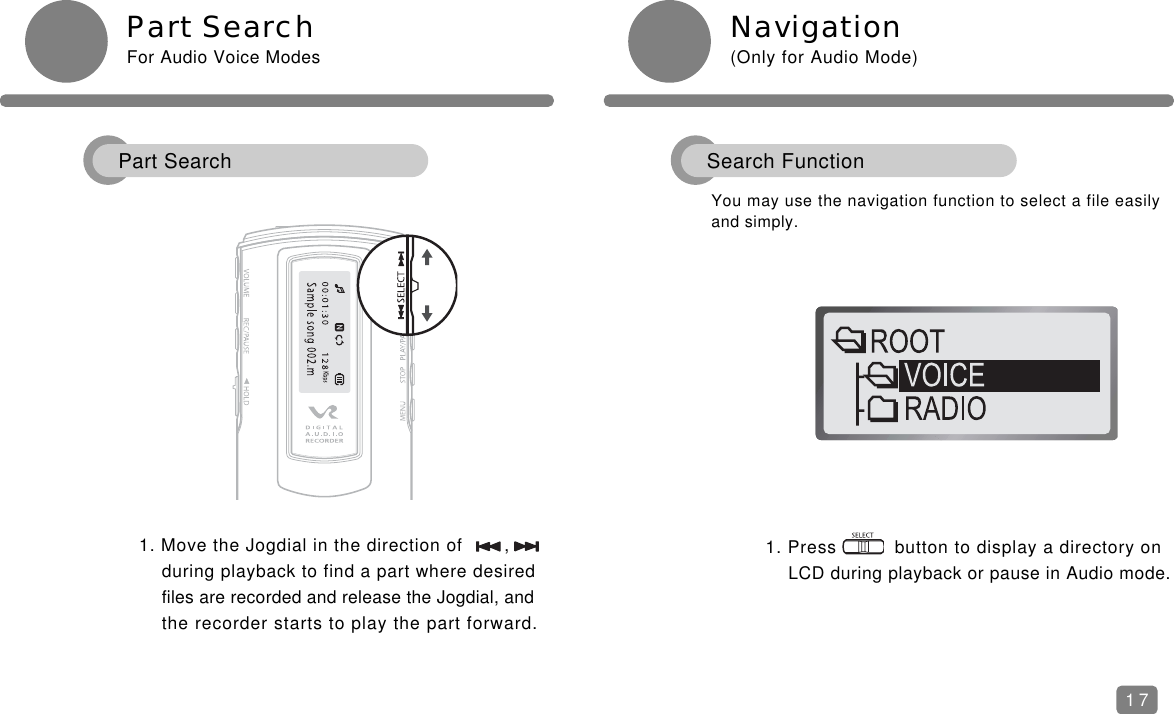
1. Press          button to display a directory on LCD during playback or pause in Audio mode.Part SearchFor Audio Voice Modes Navigation(Only for Audio Mode)1. Move the Jogdial in the direction of       ,during playback to find a part where desired files are recorded and release the Jogdial, andthe recorder starts to play the part forward.You may use the navigation function to select a file easilyand simply.17Part Search Search Function
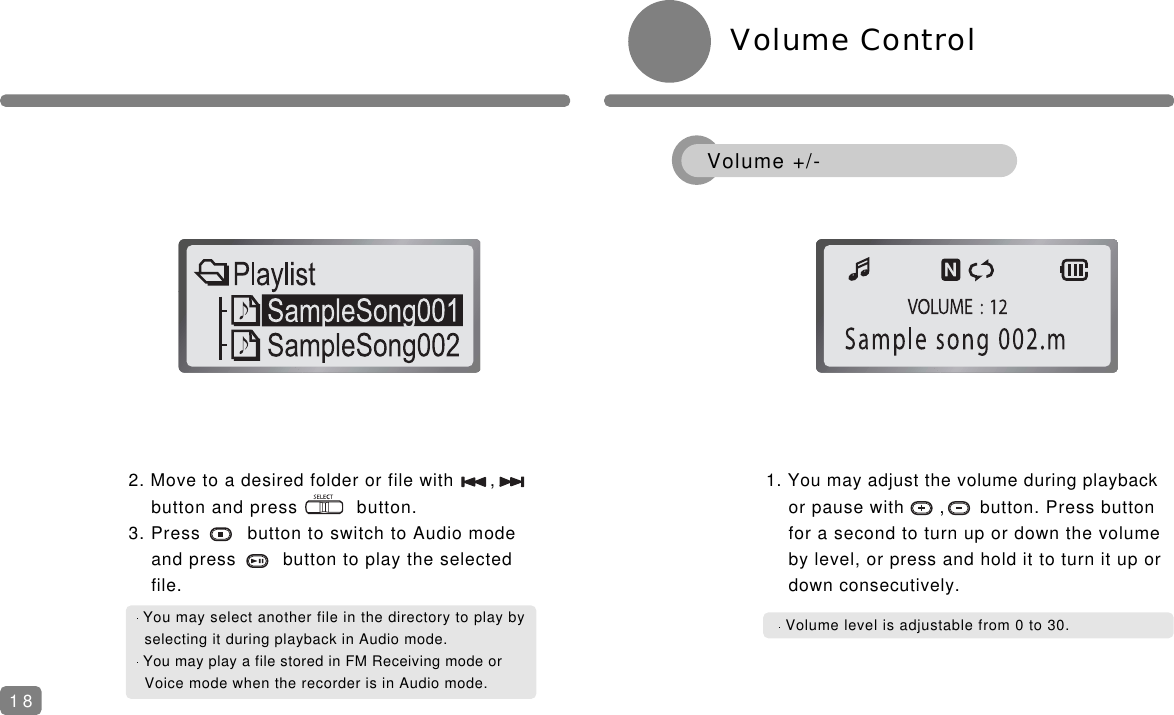
2. Move to a desired folder or file with      ,       button and press          button.3. Press        button to switch to Audio mode and press        button to play the selected file.You may select another file in the directory to play byselecting it during playback in Audio mode.You may play a file stored in FM Receiving mode or Voice mode when the recorder is in Audio mode.Volume level is adjustable from 0 to 30.1. You may adjust the volume during playback or pause with      ,      button. Press button for a second to turn up or down the volume by level, or press and hold it to turn it up or down consecutively.Volume Control18Volume +/-
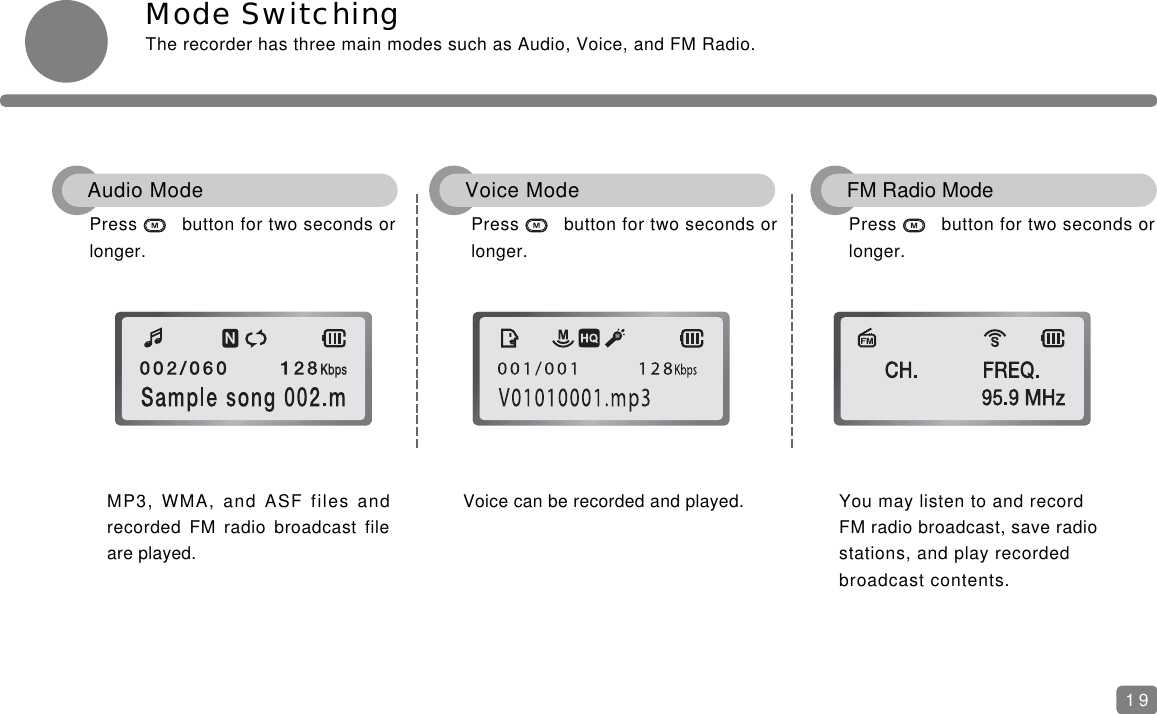
Mode SwitchingThe recorder has three main modes such as Audio, Voice, and FM Radio.MP3, WMA, and ASF files andrecorded FM radio broadcast fileare played.Press        button for two seconds orlonger.Voice can be recorded and played.Press        button for two seconds orlonger.Press        button for two seconds orlonger.You may listen to and recordFM radio broadcast, save radiostations, and play recordedbroadcast contents.19Audio Mode Voice Mode FM Radio Mode
Descriptions20
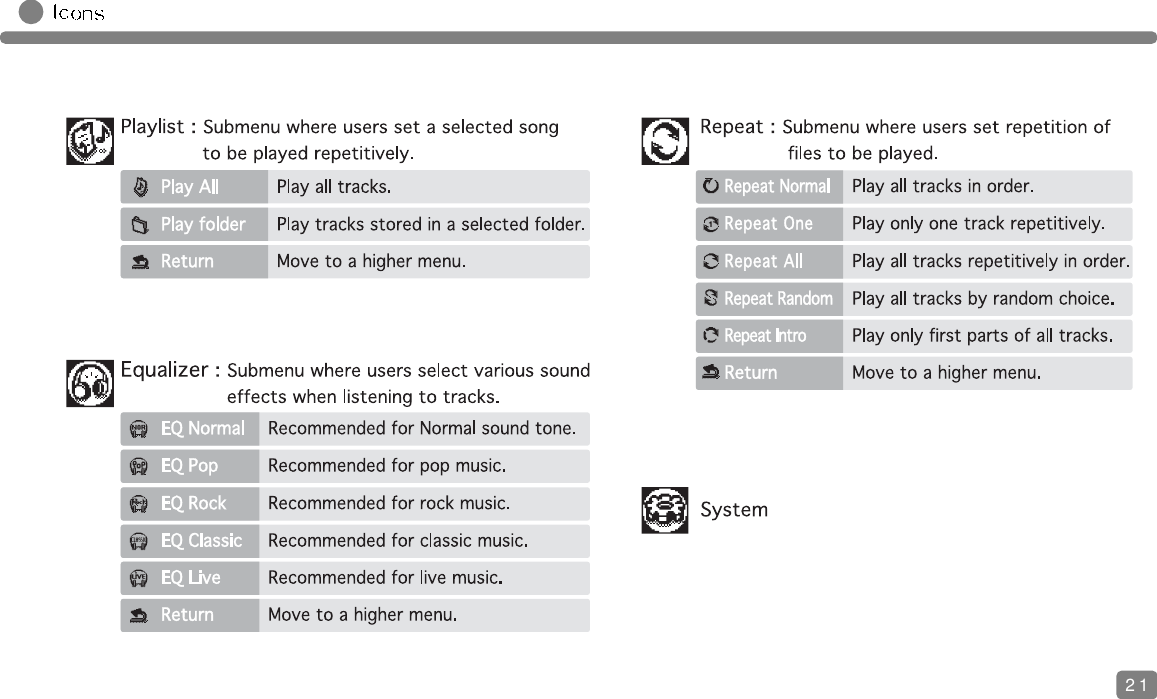
21
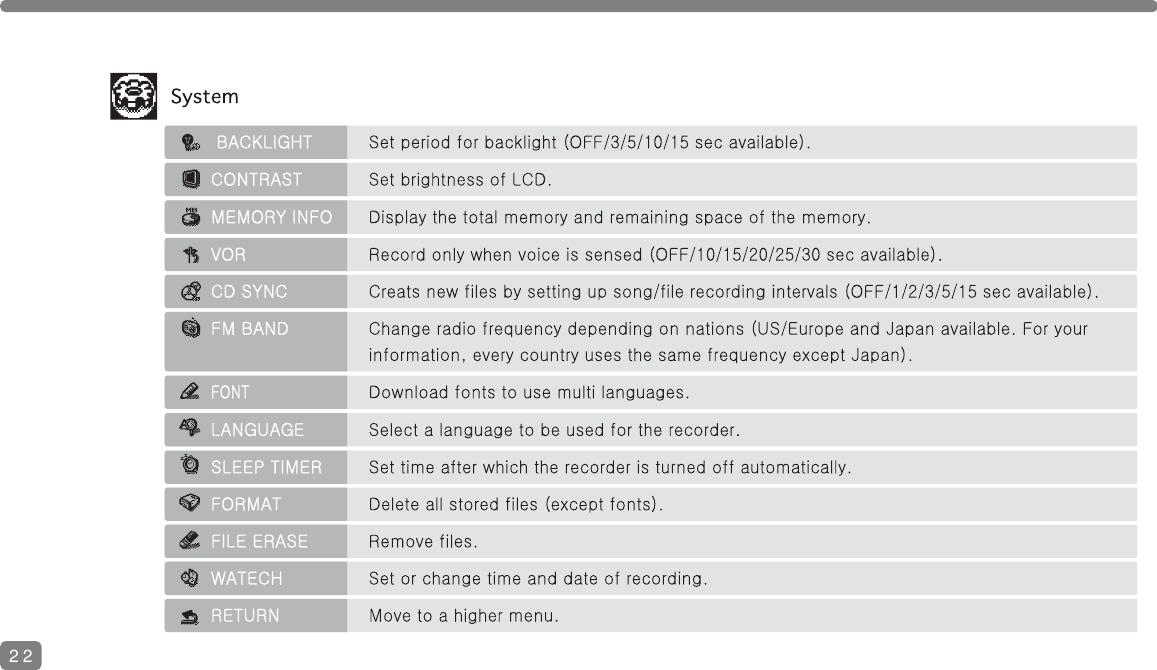
22
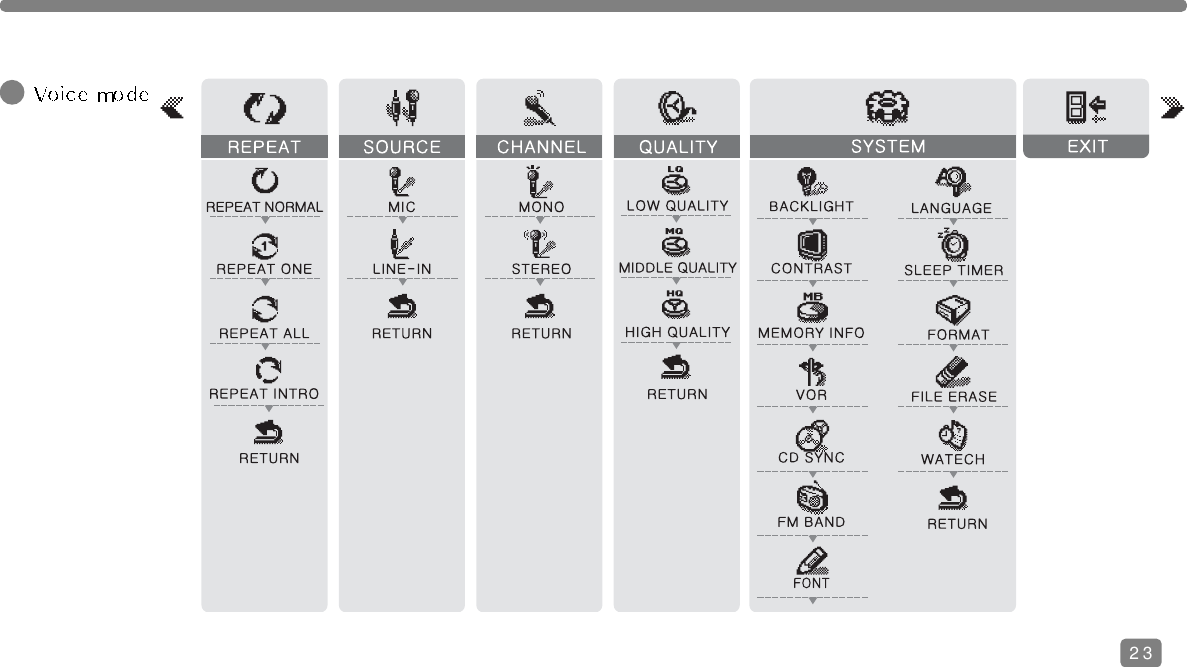
23
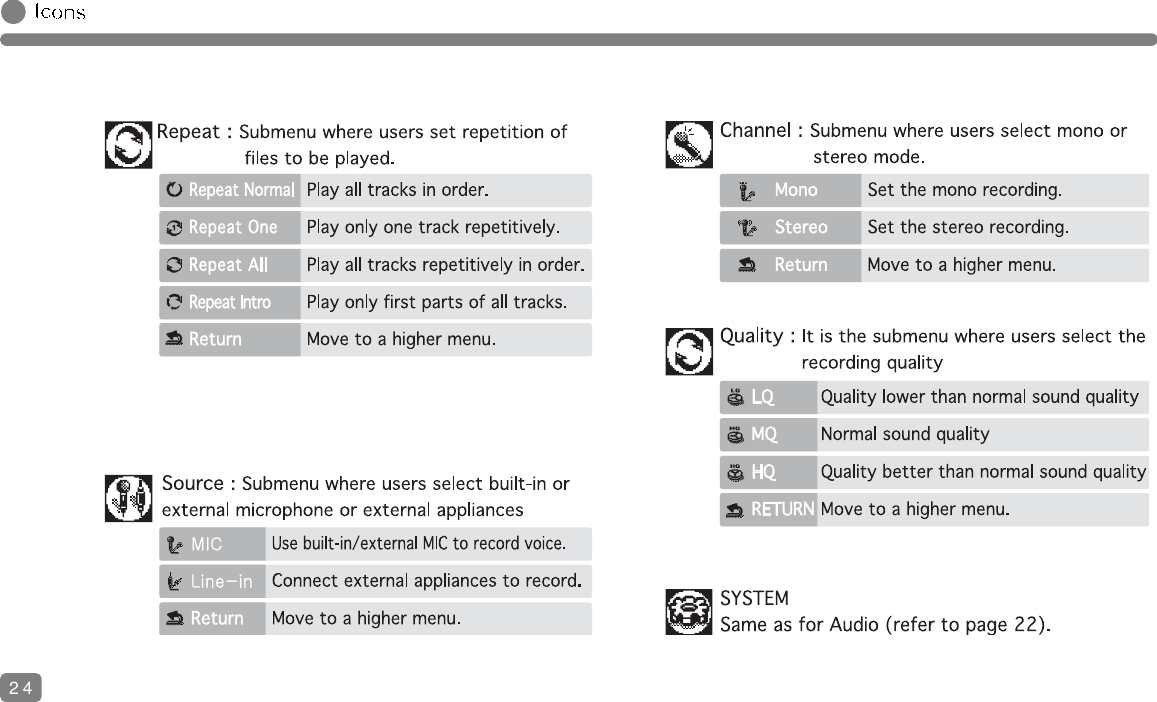
24
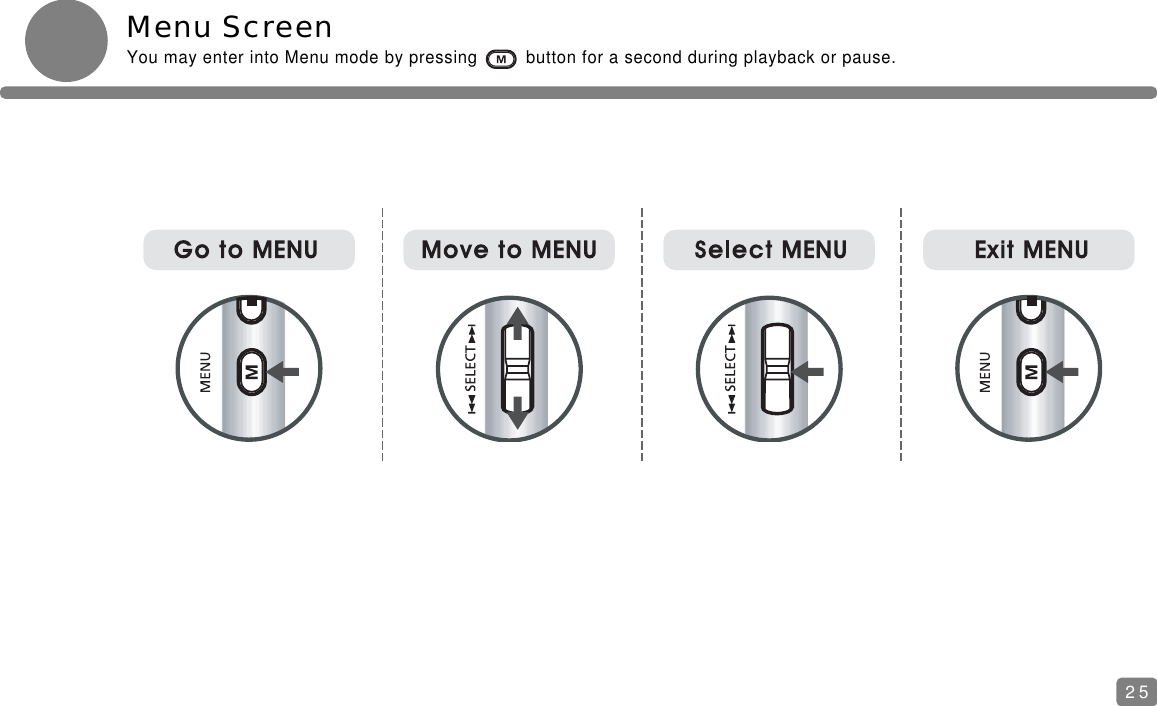
Menu ScreenYou may enter into Menu mode by pressing         button for a second during playback or pause.25
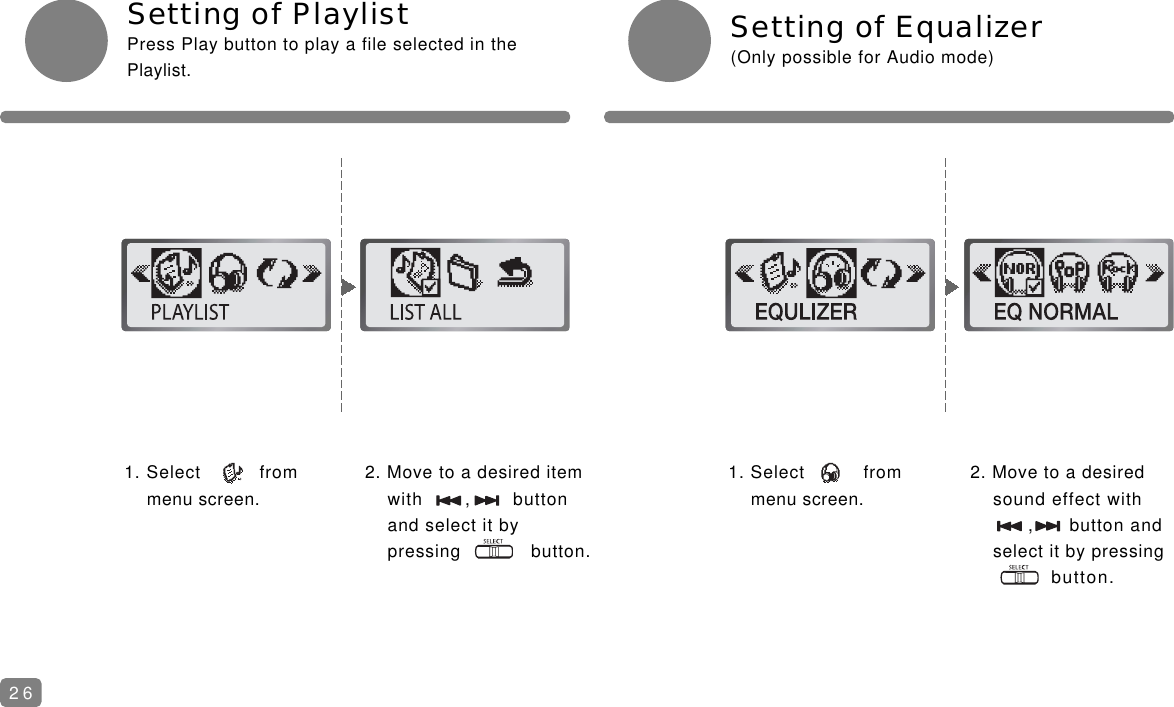
Setting of Equalizer(Only possible for Audio mode)1. Select          from menu screen.Setting of PlaylistPress Play button to play a file selected in the Playlist.2. Move to a desired item with       ,       button and select it by pressing            button.1. Select          from menu screen.2. Move to a desired sound effect with   ,      button and select it by pressingbutton.26
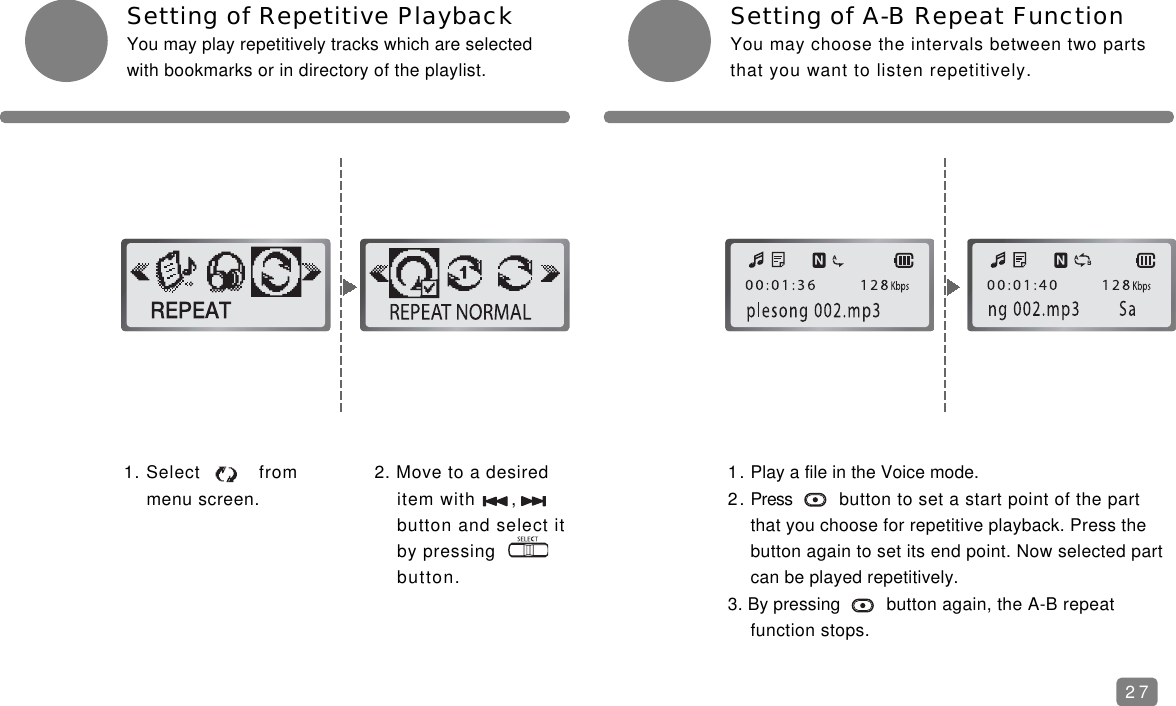
Setting of A-B Repeat FunctionYou may choose the intervals between two partsthat you want to listen repetitively.1. Select          from menu screen.Setting of Repetitive PlaybackYou may play repetitively tracks which are selectedwith bookmarks or in directory of the playlist. 2. Move to a desired item with      ,    button and select it by pressing          button.1. Play a file in the Voice mode.2. Press button to set a start point of the part that you choose for repetitive playback. Press the button again to set its end point. Now selected part can be played repetitively.3. By pressing button again, the A-B repeat function stops.27
Setting of Mono/Stereo Sound(Only for Voice Mode)1. Select          from menu screen.Setting of Internal/ExternalMicrophone(Only for Voice Mode)2. Move to either Mike or Line In item with,      button and select one by pressingbutton.1. Select           from menu screen.2. Move to either sound item, Mono or Stereo,with      ,      button and select one by pressing           button.Stereo can be selected only when an external appliance was connected and [LINE IN] item selected in [MENU] – [SOURCE] window.Mono mode is a default setting when [MIC] item is selected in [MENU] – [SOURCE] window.28
Setting of BacklightBacklight shall be set from [MENU] – [SYSTEM]window of each mode.1. Select  from menu screen.Setting of Recording Quality(Only for Voice Mode)2. Move to a desired recording quality level with ,        button and select one by pressing button.1. Select from [MENU] – [SYSTEM] window.2. Move to a desired item with ,    button and select it by pressingbutton.29
Setting of VORUsers may set a period after the lapse of whichrecording is prohibited until there is a voice. Thisfunction is possible only for Voice mode.1. Select from [MENU] – [SYSTEM] window.Setting of LCD BrightnessLCD Brightness shall be set from [MENU] –[SYSTEM] window of each mode.2. Move to a desired level with ,    button and select it by pressingbutton.1. Select from [MENU] – [SYSTEM] window.2. Move to a desired value with ,   button and select it by pressingbutton.Available values are 10 s, 15 s, 20 s, 25 s, and 30 s.This function may not be performed in noisy surroundings.30
Download of FontsIt is possible only when users install suppliedsoftware in the recorder. Connect the built-in USBconnector to USB jack of PC. 1. Select from [MENU] – [SYSTEM] window.FM BandsUsers may select FM bands for radio broadcasts inKorea, U.S.A., EC, and Japan.2. Move to a desired band with ,    button and select it by pressingbutton.1. Select from [MENU] – [SYSTEM] window.2. Select        .Every country uses the same frequency except Japan.31
Setting of CD SyncUsers may create a new file during intervalsbetween tracks.1. Select from [MENU] – [SYSTEM] window.Language Setting 2. Choose a language with ,       button and select it by pressing button.1. Select from [MENU] – [SYSTEM] window.2. Move to a desired value with ,  button and select it by pressingbutton.32
File Erase1. Select from [MENU] – [SYSTEM] window.Format2. Choose an item with ,       button and select it by pressing button.1. Select from [MENU] – [SYSTEM] window.2. Choose a file or folder to delete with ,    button and select it by pressing button.3. Delete the selected file by pressing button, or cancel File Erase function.33
Setting of Time and DateIt enables to set or change time and date.1. Select from [MENU] – [SYSTEM] window.Power TimerIt enables to put off power automatically after thelapse of period set.2. Move to a desired time with ,   button and select it by pressingbutton.1. Select from [MENU] – [SYSTEM] window.2. Move to a desired setting with ,   button and reset it with ,       button.Numbers go up and down by pressing        button and        button, respectively.34
Voice RecordingYou need to set Mike or Line In, Mono or Stereo, and VOR function before starting recording.Setting of functions is allowed only in Voice mode. Please refer to pages 28 to 30.1. Go to [MENU] – [SOURCE] window and set [MIC] window.2. Voice starts to be recorded by pressing button in Pause mode.3. Recording is stopped by pressing button, and a new voice file is generated.The default setting of Mike is Mono.You have to connect the cord of an external appliance to the    jack when recording with an external microphone.Recording is paused by pressing   button during playback and resumed bypressing it again.When you resume recording after stopping by pressing        button, the content of recording will be saved behind the last taken number.Recording stops automatically if memoryis full.35Microphone
VOLUME REC/PAUSE HOLDSELECTPLAY/PAUSESTOPMENUWhen recording through an external appliance (PC or audio), turn down the volume of the  appliance lest it should distort recorded sound.You may get high quality recording from external appliances, if you record in Stereo/HQ mode. The recording time, however, comes to be shorter.Recording is possible only for Mobile phone with an earphone jack. Some models do not assist this function.1. Go to [MENU] – [SOURCE] and set [LINE IN] window.4. Connect the Line-in cable as shown in the picture.Go to [MENU] – [SOURCE] window and set[MIC] window as for the recording with anexternal mike.5. Connect the Line-in cable as shown in the picture.36Connection with Telephone (Option) Connection with MobilePhone(Option) LINE-IN
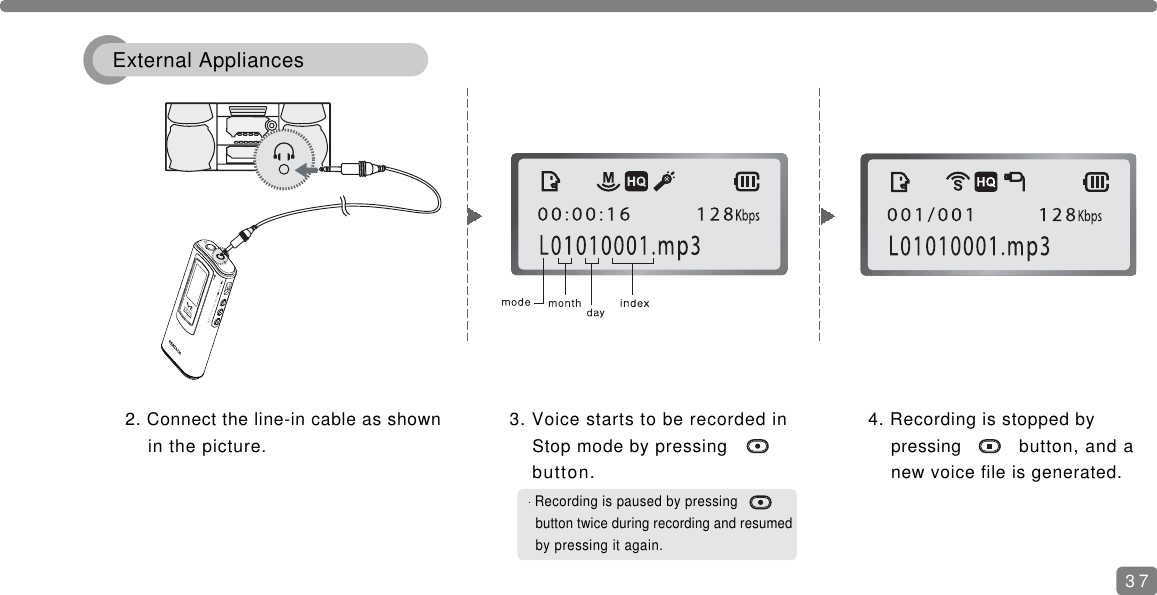
VOLUME REC/PAUSE HOLDSELECTPLAY/PAUSESTOPMENU3. Voice starts to be recorded inStop mode by pressingbutton.Recording is paused by pressingbutton twice during recording and resumedby pressing it again.4. Recording is stopped by pressing button, and a new voice file is generated. 2. Connect the line-in cable as shownin the picture.37External Appliances
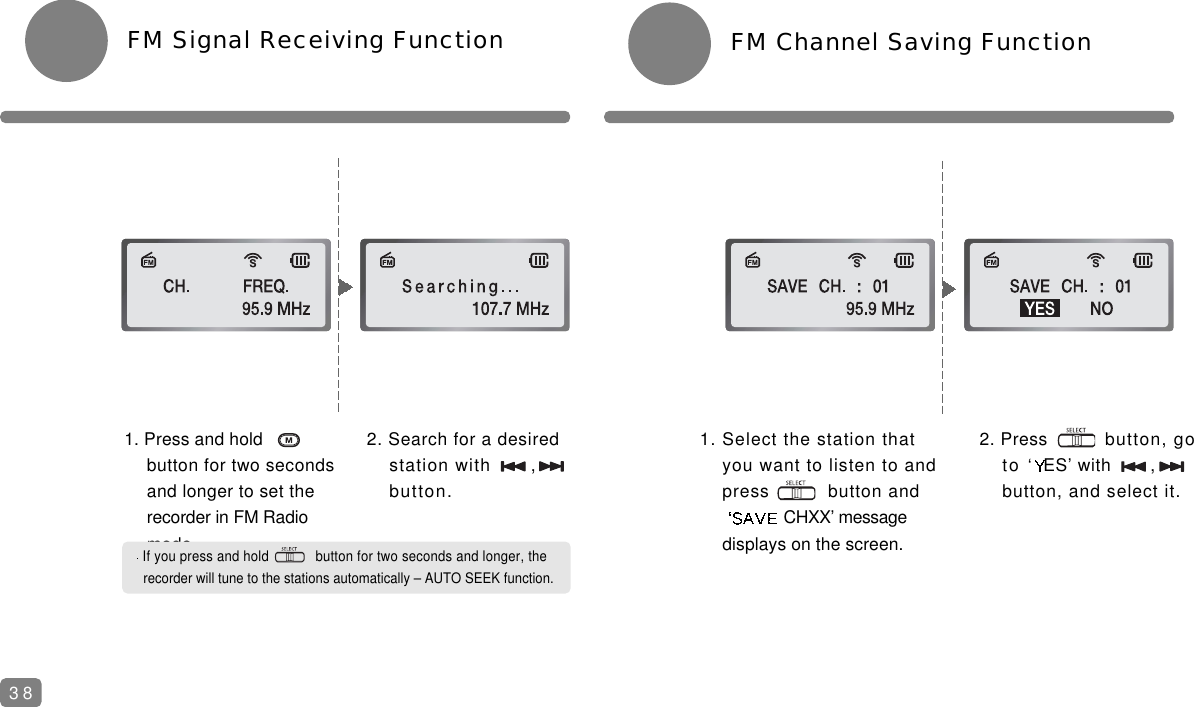
FM Channel Saving Function1. Press and hold            button for two secondsand longer to set the recorder in FM Radio mode.FM Signal Receiving Function2. Search for a desired station with ,    button.1. Select the station thatyou want to listen to and press          button and CHXX’ message displays on the screen.2. Press button, goto ‘ ES’ with ,   button, and select it.If you press and hold            button for two seconds and longer, the recorder will tune to the stations automatically – AUTO SEEK function.38
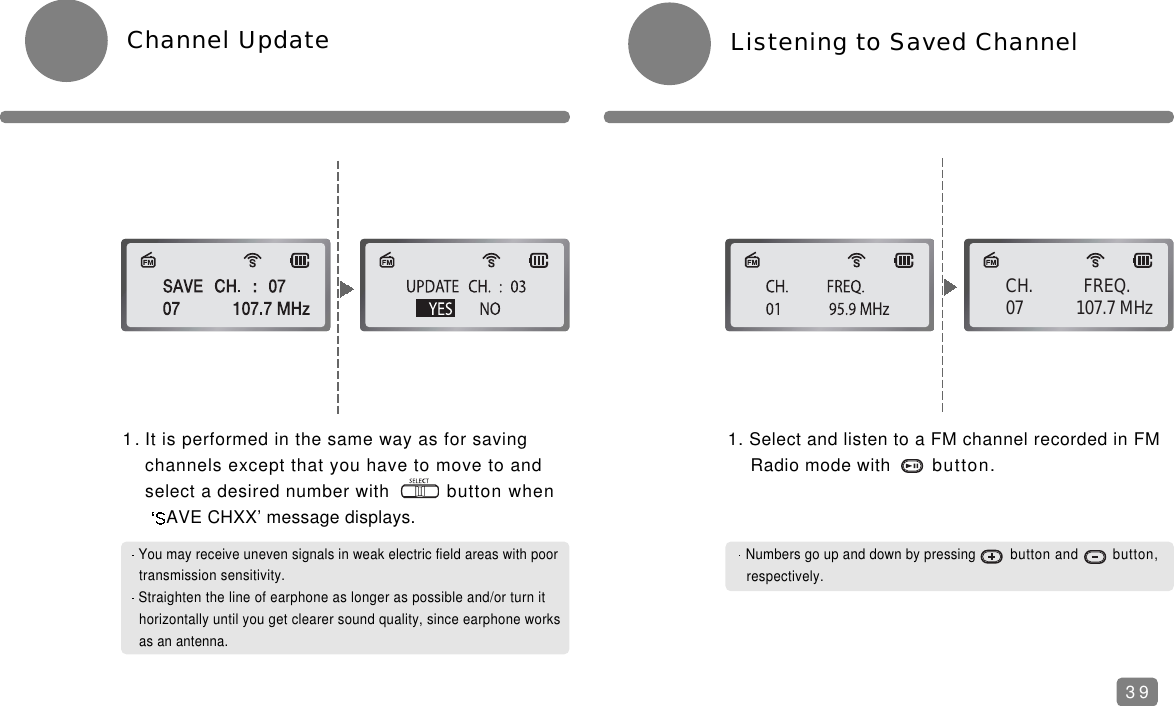
Numbers go up and down by pressing button and button, respectively.Listening to Saved Channel1. It is performed in the same way as for saving channels except that you have to move to and select a desired number with button when AVE CHXX’ message displays.Channel Update1. Select and listen to a FM channel recorded in FM Radio mode with button. CH.           FREQ. 07            107.7 MHzYou may receive uneven signals in weak electric field areas with poor transmission sensitivity.Straighten the line of earphone as longer as possible and/or turn it horizontally until you get clearer sound quality, since earphone worksas an antenna.39
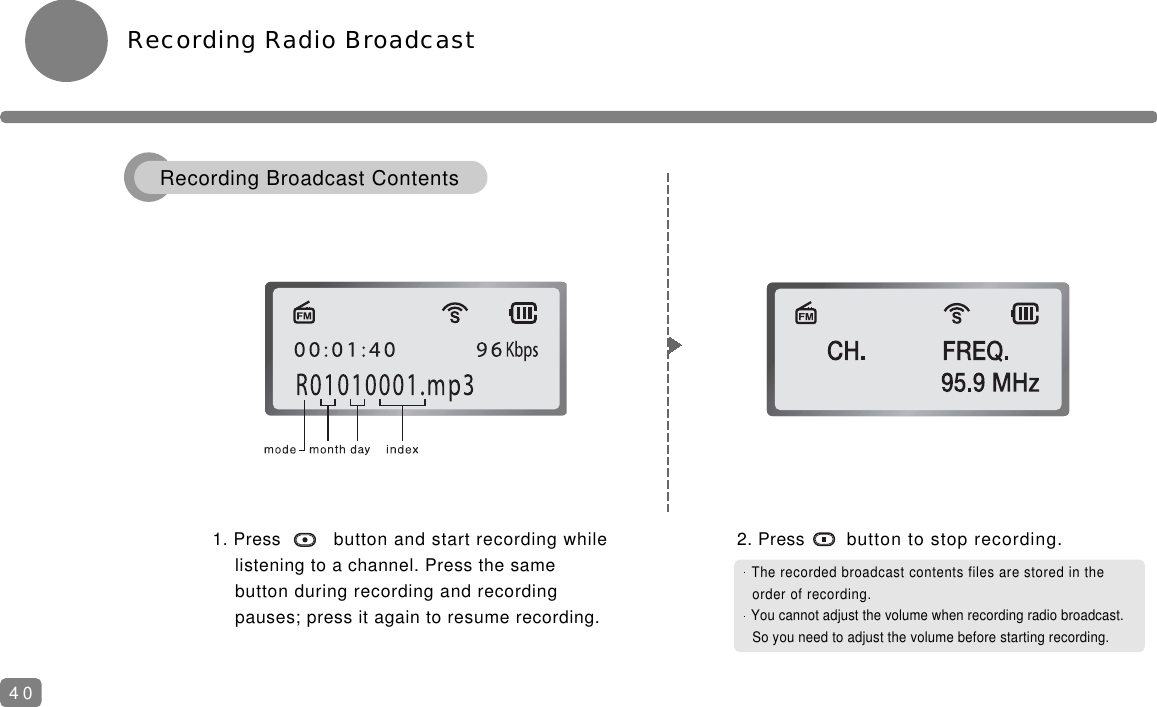
Recording Radio Broadcast1. Press  button and start recording while listening to a channel. Press the same button during recording and recording pauses; press it again to resume recording.2. Press button to stop recording.The recorded broadcast contents files are stored in the order of recording.You cannot adjust the volume when recording radio broadcast.So you need to adjust the volume before starting recording.40Recording Broadcast Contents
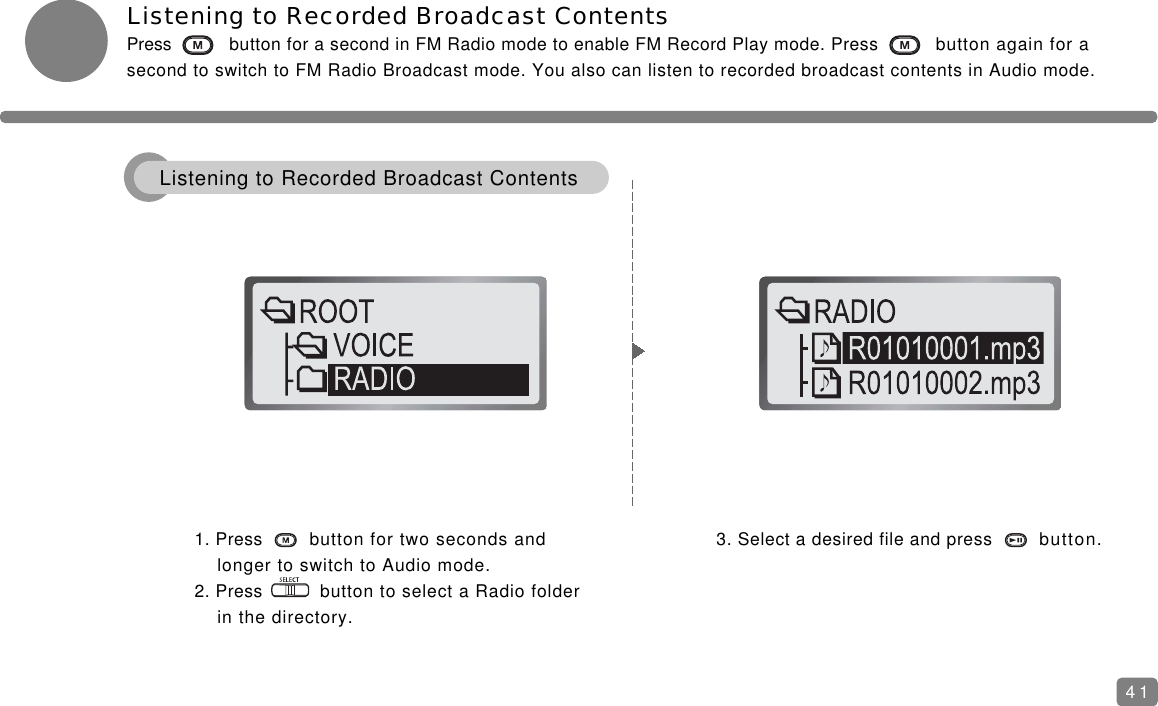
Listening to Recorded Broadcast ContentsPress button for a second in FM Radio mode to enable FM Record Play mode. Press button again for asecond to switch to FM Radio Broadcast mode. You also can listen to recorded broadcast contents in Audio mode.1. Press button for two seconds and longer to switch to Audio mode.2. Press button to select a Radio folder in the directory.3. Select a desired file and press button.41Listening to Recorded Broadcast Contents
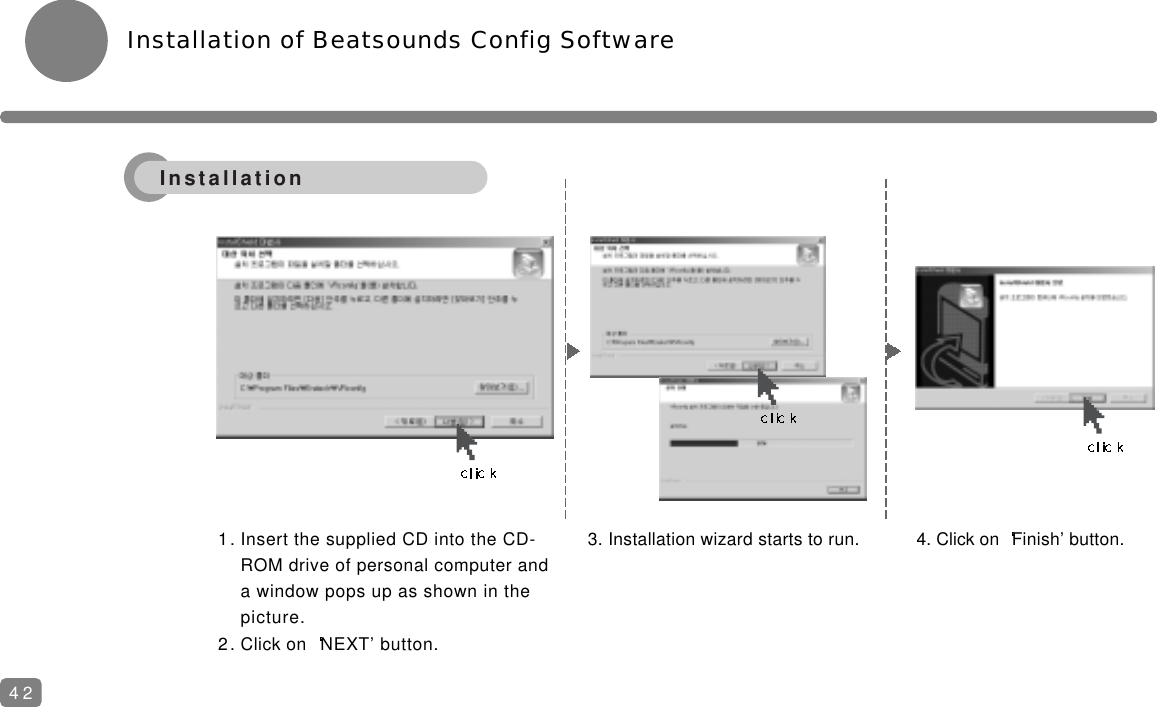
Installation of Beatsounds Config Software421. Insert the supplied CD into the CD-ROM drive of personal computer anda window pops up as shown in the picture.2. Click on  NEXT’ button.3. Installation wizard starts to run. 4. Click on  Finish’ button.Installation
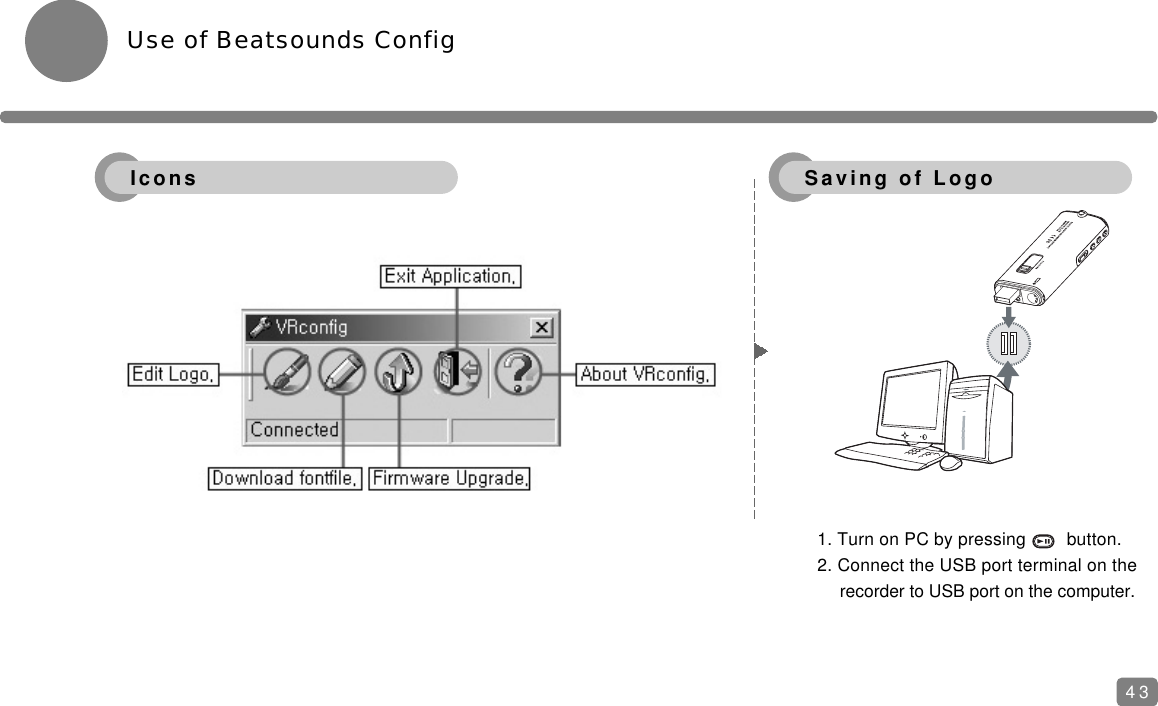
43Use of Beatsounds Config1. Turn on PC by pressing        button.2. Connect the USB port terminal on therecorder to USB port on the computer.Icons Saving of Logo
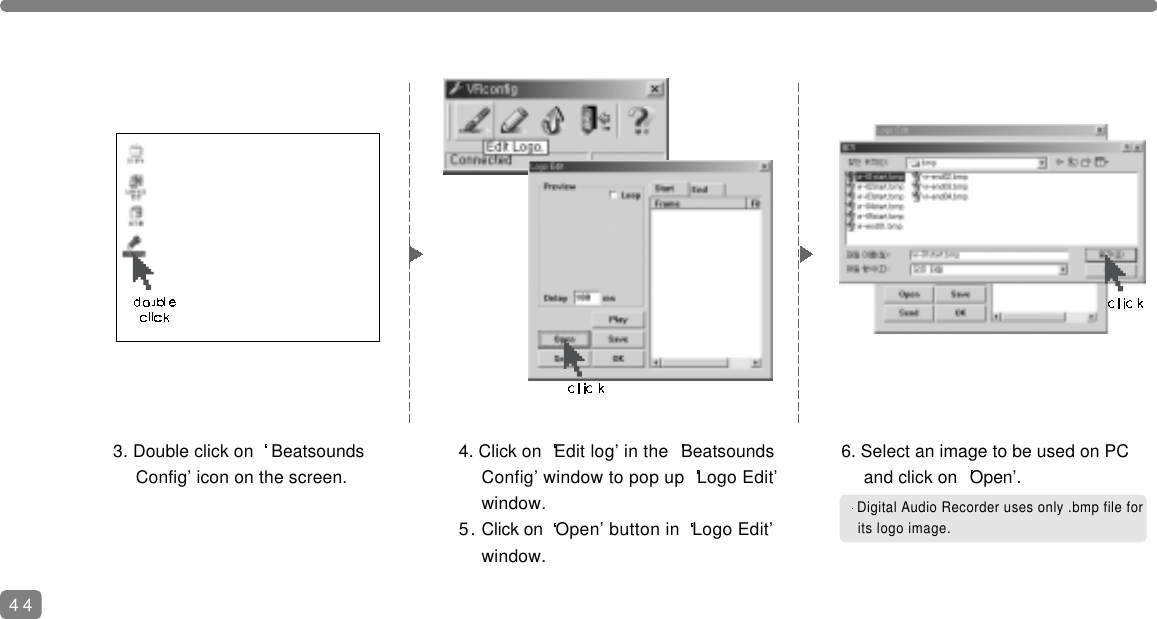
444. Click on  Edit log’ in the  Beatsounds Config’ window to pop up  Logo Edit’ window.5. Click on  Open’ button in  Logo Edit’ window.6. Select an image to be used on PC and click on  Open’.Digital Audio Recorder uses only .bmp file forits logo image.3. Double click on  Beatsounds Config’ icon on the screen.
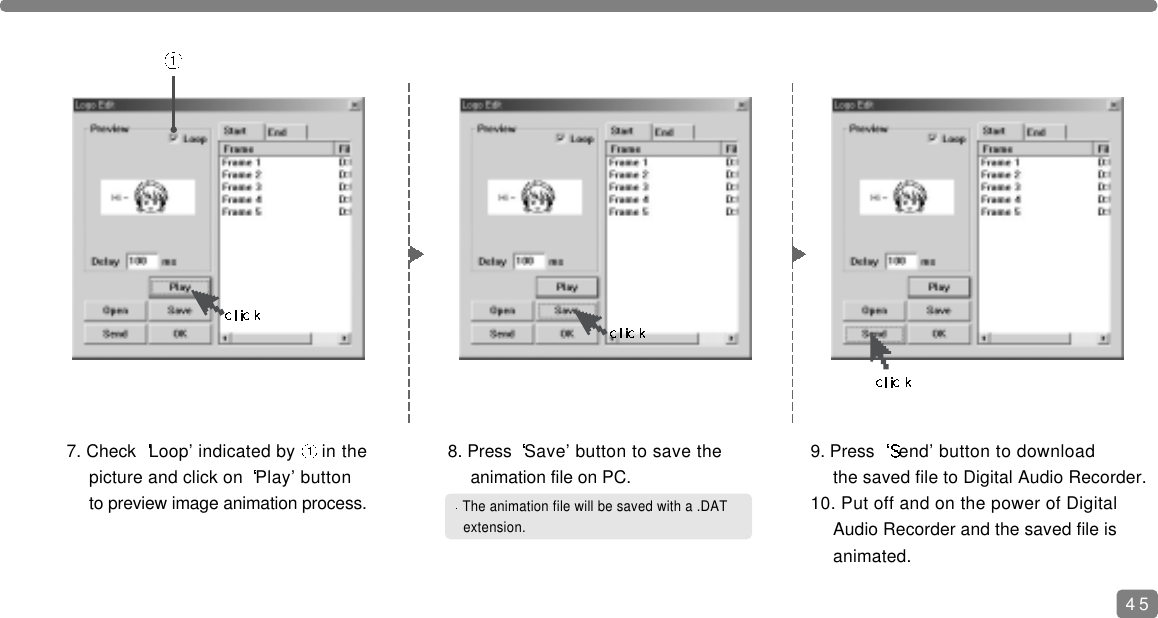
The animation file will be saved with a .DAT extension.7. Check  Loop’ indicated by  in the picture and click on  Play’ button to preview image animation process.8. Press  Save’ button to save the animation file on PC.9. Press  end’ button to download the saved file to Digital Audio Recorder.10. Put off and on the power of Digital Audio Recorder and the saved file is animated.45
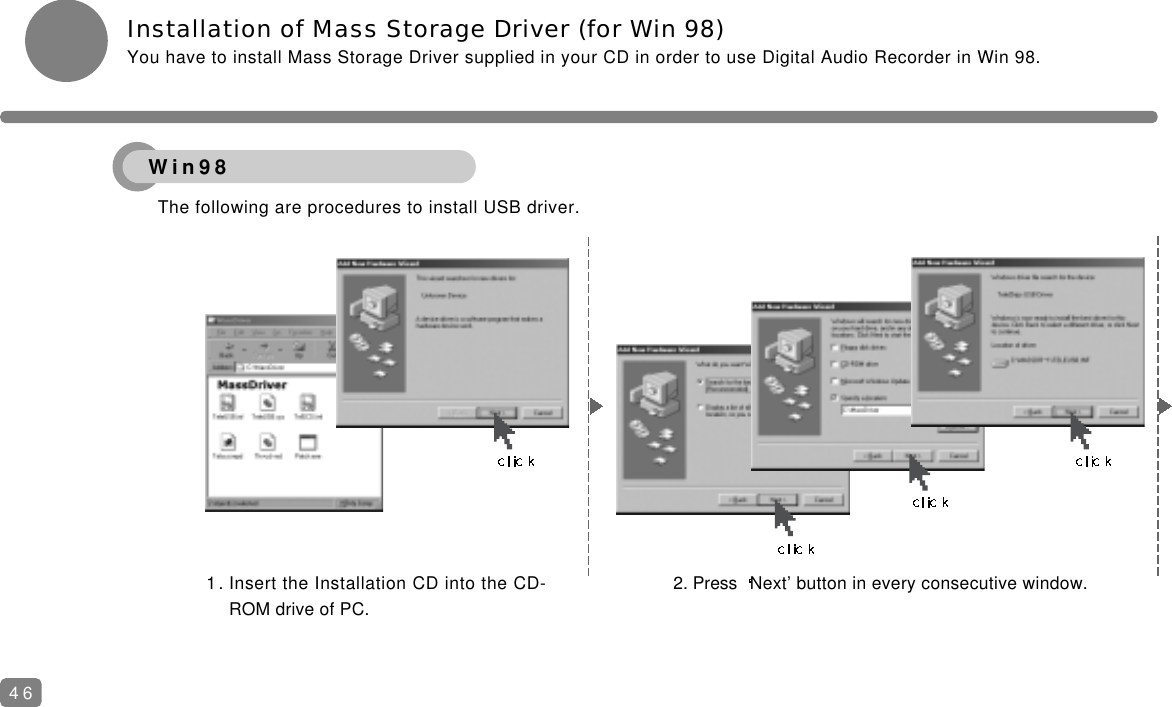
Installation of Mass Storage Driver (for Win 98)You have to install Mass Storage Driver supplied in your CD in order to use Digital Audio Recorder in Win 98.The following are procedures to install USB driver.1. Insert the Installation CD into the CD-ROM drive of PC.2. Press  Next’ button in every consecutive window.46Win98
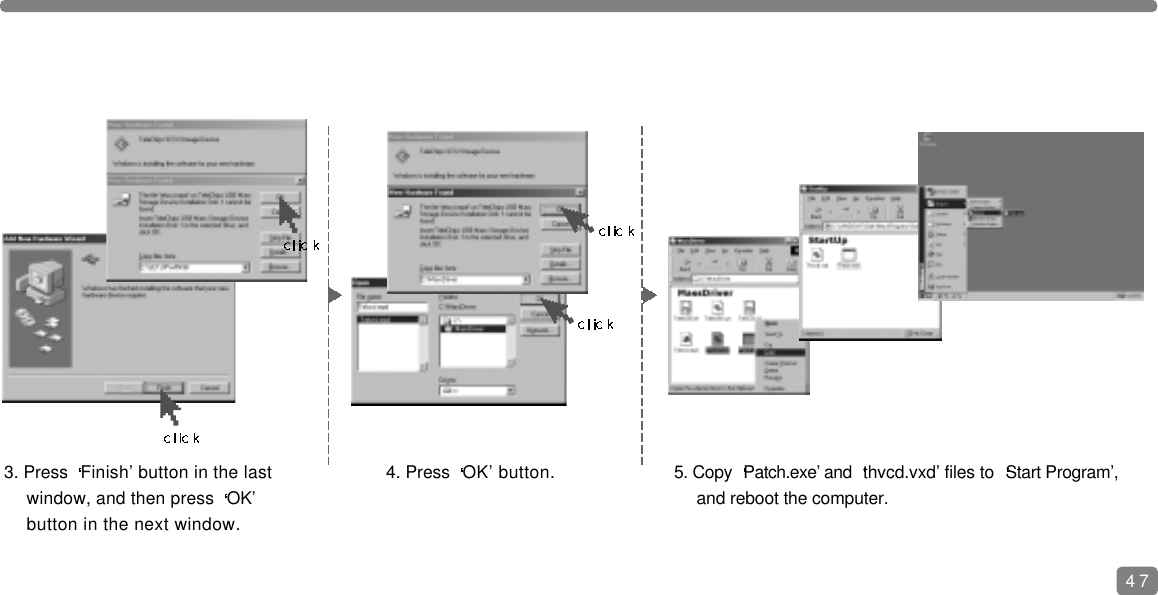
4. Press  OK’ button.3. Press  Finish’ button in the last window, and then press  OK’ button in the next window.5. Copy  Patch.exe’ and  thvcd.vxd’ files to  Start Program’, and reboot the computer.47
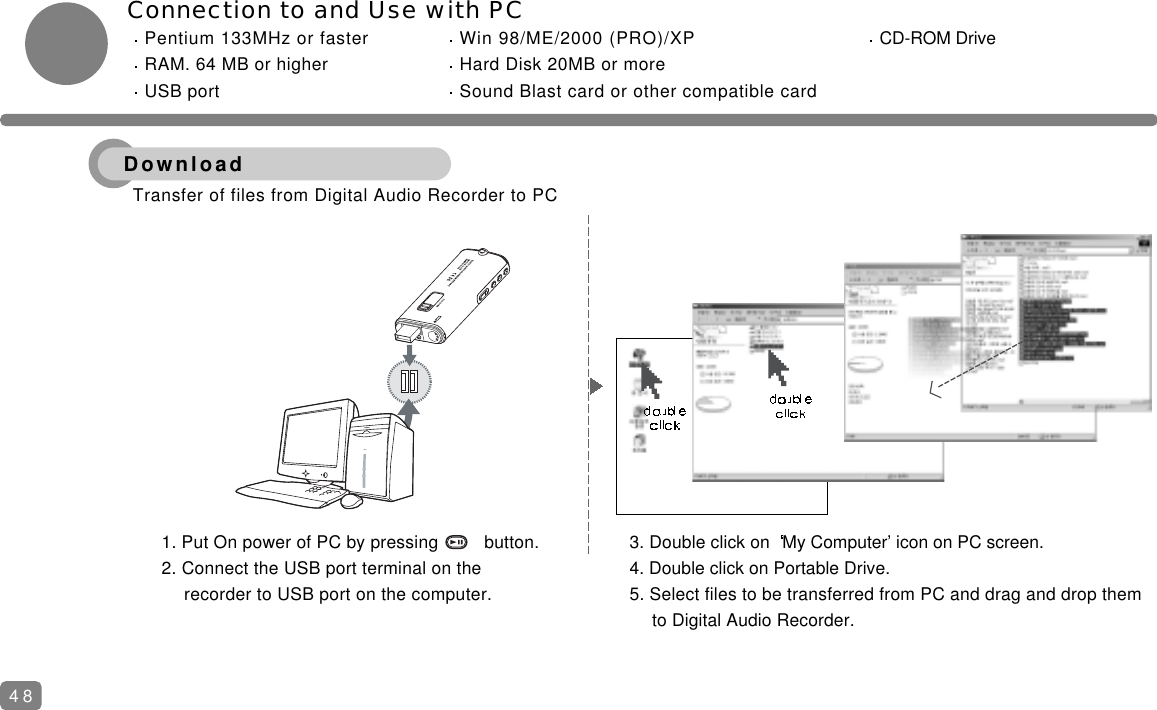
Connection to and Use with PCPentium 133MHz or faster Win 98/ME/2000 (PRO)/XP CD-ROM DriveRAM. 64 MB or higher Hard Disk 20MB or moreUSB port Sound Blast card or other compatible card481. Put On power of PC by pressing         button.2. Connect the USB port terminal on the recorder to USB port on the computer.3. Double click on  My Computer’ icon on PC screen.4. Double click on Portable Drive.5. Select files to be transferred from PC and drag and drop them to Digital Audio Recorder.Transfer of files from Digital Audio Recorder to PC Download
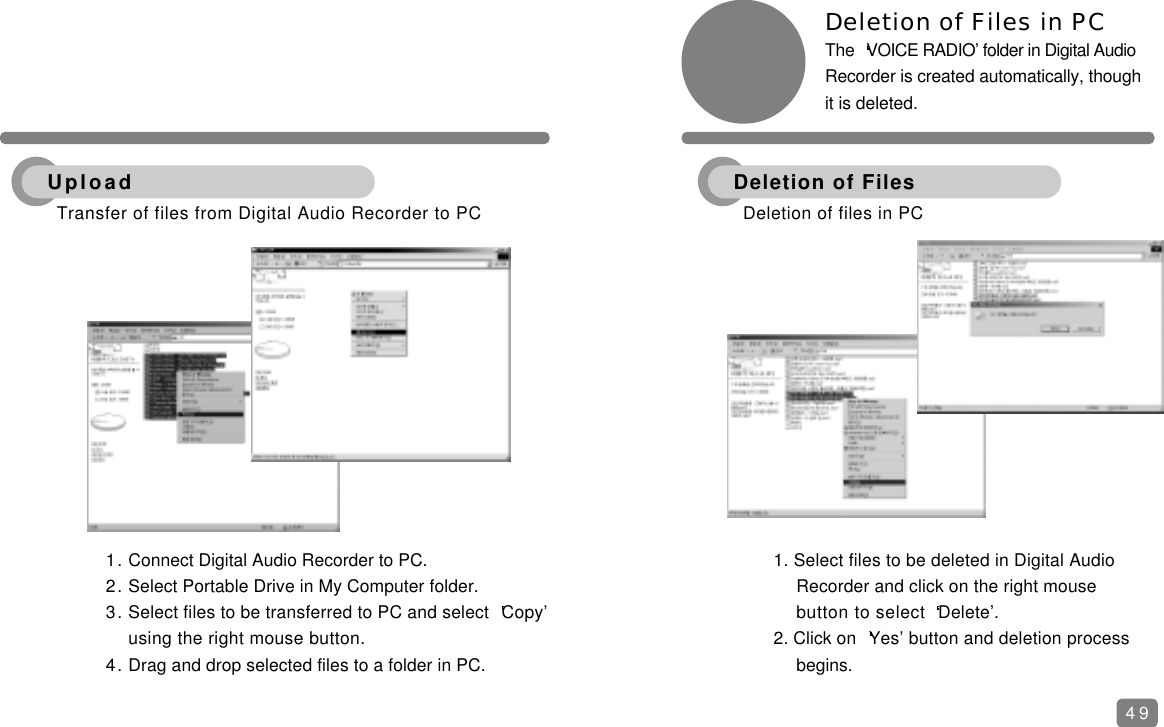
491. Connect Digital Audio Recorder to PC.2. Select Portable Drive in My Computer folder.3. Select files to be transferred to PC and select  Copy’ using the right mouse button.4. Drag and drop selected files to a folder in PC.Deletion of Files in PC The  VOICE RADIO’ folder in Digital AudioRecorder is created automatically, thoughit is deleted.1. Select files to be deleted in Digital Audio Recorder and click on the right mouse button to select  Delete’.2. Click on  Yes’ button and deletion process begins.Transfer of files from Digital Audio Recorder to PC UploadDeletion of files in PCDeletion of Files
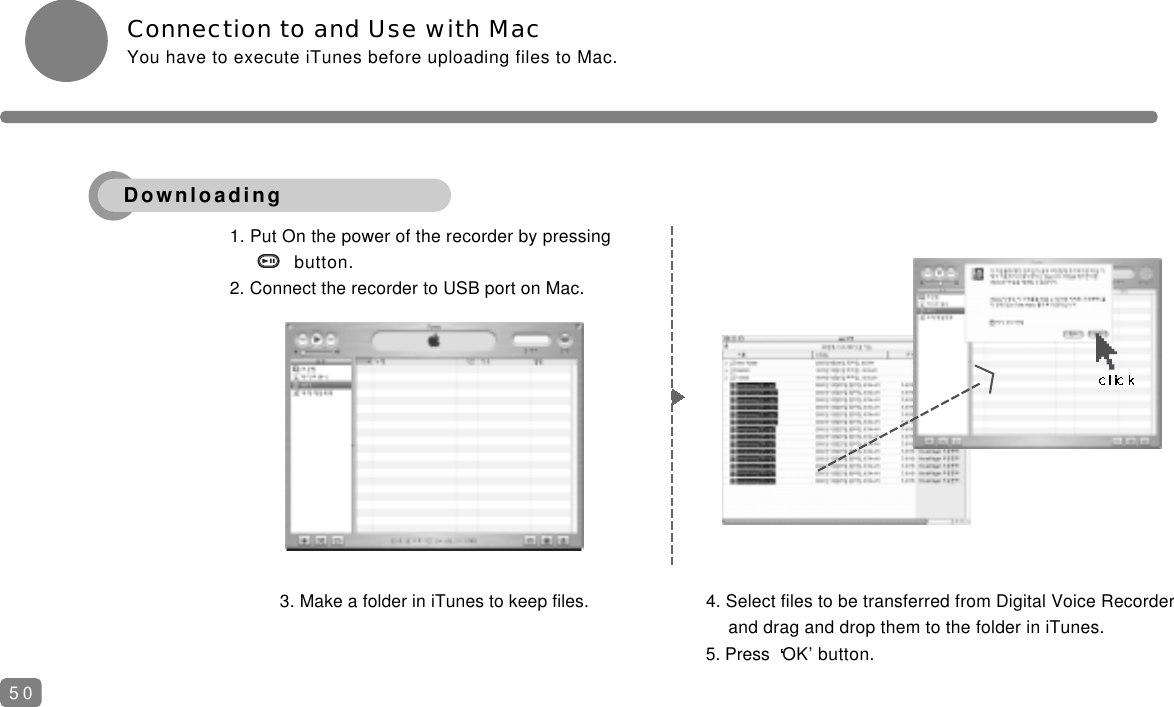
Connection to and Use with MacYou have to execute iTunes before uploading files to Mac.3. Make a folder in iTunes to keep files. 4. Select files to be transferred from Digital Voice Recorder and drag and drop them to the folder in iTunes.5. Press  OK’ button.1. Put On the power of the recorder by pressingbutton.2. Connect the recorder to USB port on Mac.50Downloading
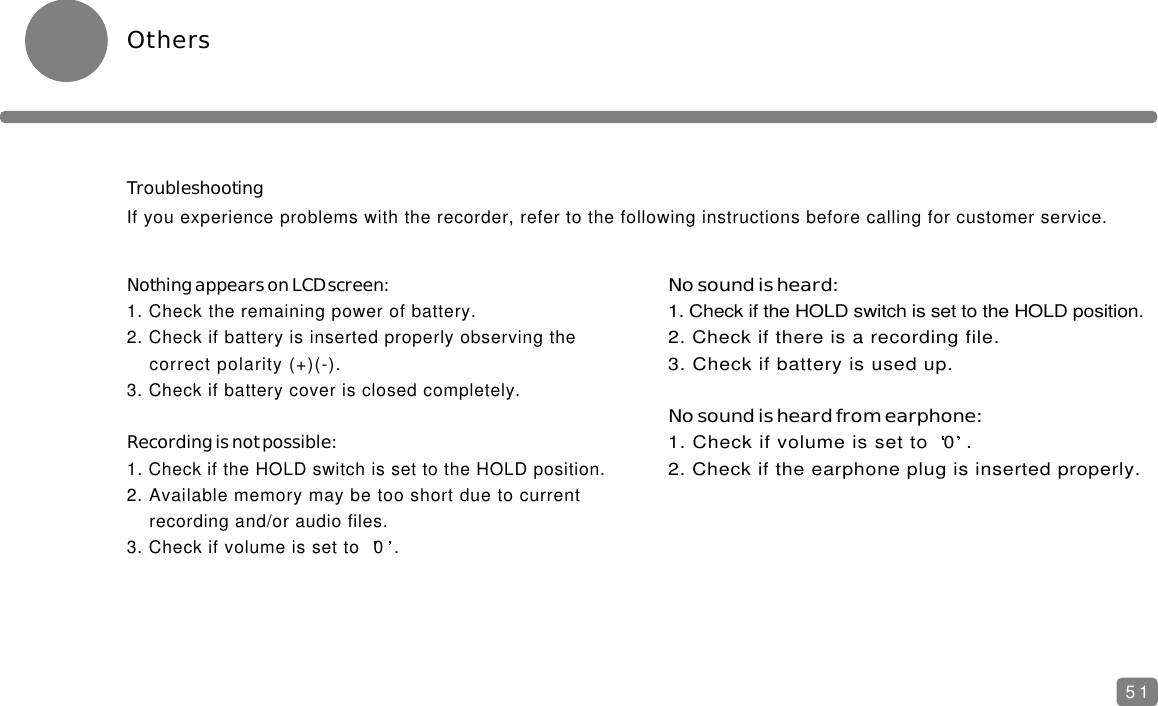
OthersTroubleshootingIf you experience problems with the recorder, refer to the following instructions before calling for customer service.Nothing appears on LCD screen:1. Check the remaining power of battery.2. Check if battery is inserted properly observing the correct polarity (+)(-).3. Check if battery cover is closed completely.Recording is not possible:1. Check if the HOLD switch is set to the HOLD position.2. Available memory may be too short due to current recording and/or audio files.3. Check if volume is set to  0 .No sound is heard:1. Check if the HOLD switch is set to the HOLD position.2. Check if there is a recording file.3. Check if battery is used up.No sound is heard from earphone:1. Check if volume is set to  0 .2. Check if the earphone plug is inserted properly.51
52
www.eratech.co.kr / www.beatsounds.co.kr / www.beatsounds.com

Navigation menu