FATSHARK ELECTRONIC FSV2704 Fat Shark 101 Radio Controller User Manual FS QSG Round8

SHENZHEN FATSHARK ELECTRONIC CO., LTD Fat Shark 101 Radio Controller FS QSG Round8

Uesrs Manual

DRONE TRAINING SYSTEM
WARNING: Always operate this product in a responsible manner and observe laws covering model airplanes and/or drones. Do not fly near other people, over roadways or in protected nature areas.WARNING: The Fat Shark 101 system is not a toy. This product contains small parts and is intended to be operated by adults. AMA (Academy of Model Aeronautics) membership is recommended for all hobby fliers in the United States. AMA membership includes liability insurance, competition organization and a monthly print magazine.Contact the Academy of Model Aeronautics at modelaircraft.org  for more information. BOX CONTENTS1.  Quadcopter with propeller guards installed2.  Two USB-chargeable quadcopter batteries3.  USB charger4.  RC controller/radio5.  Recon headset with 18650 battery6.  Headset antenna7.  Extra set of propellers8.  Fat Shark stickers9.  USB cable for simulator10.  Four AA dry cell batteries11.  2(x) gates and stands12.  Lens cleaner cloth13.  Quadcopter tetherGETTING STARTEDThe Fat Shark 101 bundle contains everything needed to get started in the world of drone racing.BEFORE YOU BEGIN: Register your product at fatshark.com/register. This will give you access to a FREE Fat Shark lap timer and FREE insurance provided from the Academy of Model Aeronautics.BEFORE YOU BEGIN: Fat Shark recommends all beginners initially start training with a simulator, which will orient pilots with the flight dynamics of the 101 kit. Use the controller and USB cable within this package to plug the radio into a computer, explore the controls in the simulator and virtually gain a foundation of skills prior to flying the real thing.BEFORE YOU BEGIN: The Shark Quad ships with a tether installed on the battery pack. For initial flights, tether the quadcopter to a heavy anchor such as a water bottle to get a handle on throttle management and drift compensation. Do not fly the quadcopter unleashed until a steady handle on hover control is established. At that point, clip the tether with a pair of scissors.NOTE: The Shark Quad flies without GPS stablization; some drift during flight is normal. For more information, visit fatshark.com/training. IMPORTANT: Always fly with a spotter.SIMULATOR1.  Download and install a simulator at  fatshark.com/training2.  Connect the USB cable between the computer and the  controller and allow it to install a  driver if necessary.3.  Open the simulator and set up the radio by calibrating the sticks and selecing  RAW input.DRONE TRAINING SYSTEMQUADCOPTER RECON HEADSET CONTROLLER/RADIO
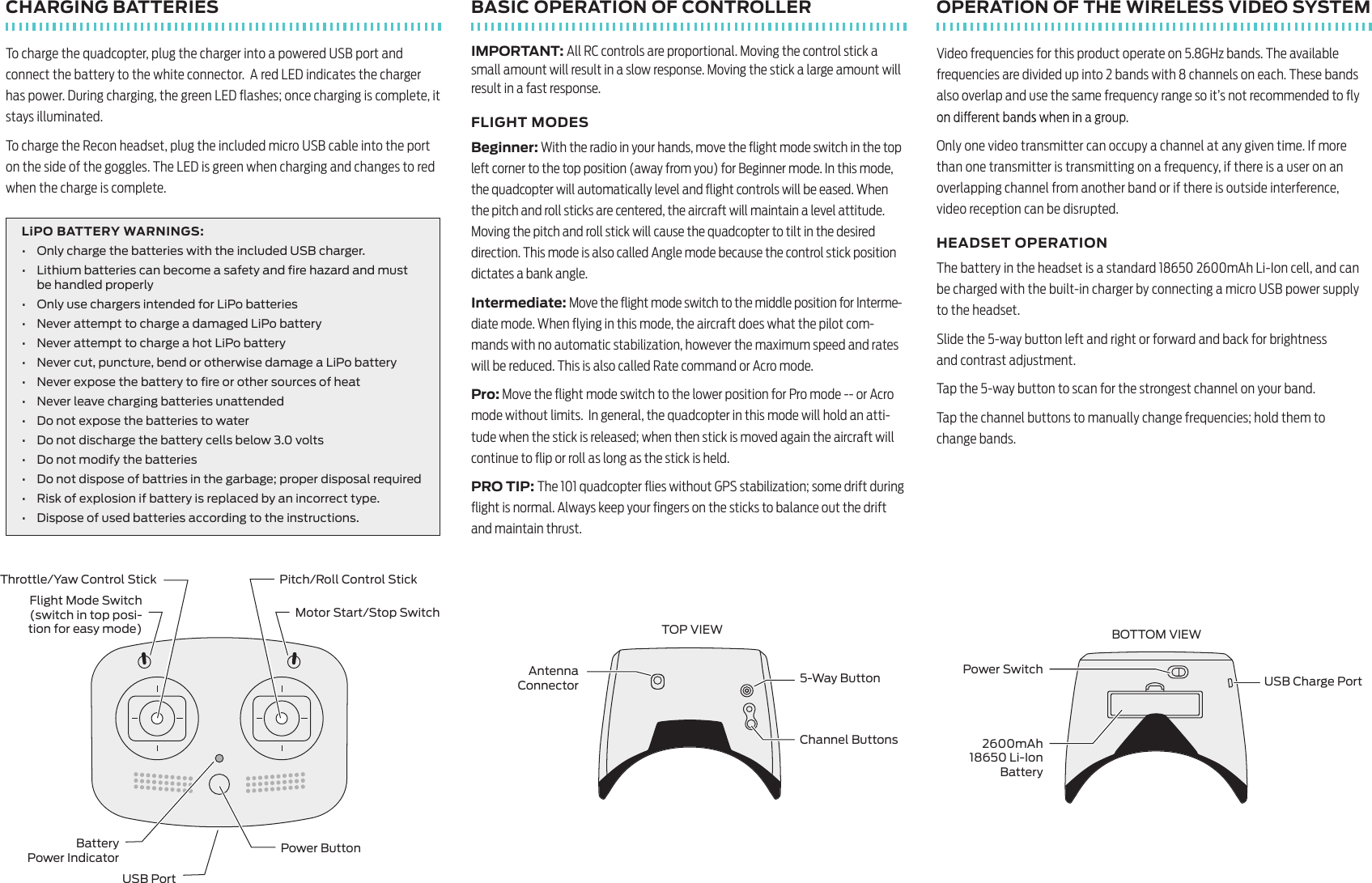
CHARGING BATTERIESTo charge the quadcopter, plug the charger into a powered USB port and connect the battery to the white connector.  A red LED indicates the charger has power. During charging, the green LED flashes; once charging is complete, it stays illuminated.To charge the Recon headset, plug the included micro USB cable into the port on the side of the goggles. The LED is green when charging and changes to red when the charge is complete.LiPO BATTERY WARNINGS: •  Only charge the batteries with the included USB charger.•  Lithium batteries can become a safety and fire hazard and must  be handled properly•  Only use chargers intended for LiPo batteries•  Never attempt to charge a damaged LiPo battery•  Never attempt to charge a hot LiPo battery•  Never cut, puncture, bend or otherwise damage a LiPo battery•  Never expose the battery to fire or other sources of heat•  Never leave charging batteries unattended•  Do not expose the batteries to water•  Do not discharge the battery cells below 3.0 volts•  Do not modify the batteries•  Do not dispose of battries in the garbage; proper disposal required• Risk of explosion if battery is replaced by an incorrect type.• Dispose of used batteries according to the instructions.BASIC OPERATION OF CONTROLLERIMPORTANT: All RC controls are proportional. Moving the control stick a small amount will result in a slow response. Moving the stick a large amount will result in a fast response.FLIGHT MODESBeginner: With the radio in your hands, move the flight mode switch in the top left corner to the top position (away from you) for Beginner mode. In this mode, the quadcopter will automatically level and flight controls will be eased. When the pitch and roll sticks are centered, the aircraft will maintain a level attitude. Moving the pitch and roll stick will cause the quadcopter to tilt in the desired direction. This mode is also called Angle mode because the control stick position dictates a bank angle.Intermediate: Move the flight mode switch to the middle position for Interme-diate mode. When flying in this mode, the aircraft does what the pilot com-mands with no automatic stabilization, however the maximum speed and rates will be reduced. This is also called Rate command or Acro mode.Pro: Move the flight mode switch to the lower position for Pro mode -- or Acro mode without limits.  In general, the quadcopter in this mode will hold an atti-tude when the stick is released; when then stick is moved again the aircraft will continue to flip or roll as long as the stick is held. PRO TIP: The 101 quadcopter flies without GPS stabilization; some drift during flight is normal. Always keep your fingers on the sticks to balance out the drift and maintain thrust.OPERATION OF THE WIRELESS VIDEO SYSTEMVideo frequencies for this product operate on 5.8GHz bands. The available frequencies are divided up into 2 bands with 8 channels on each. These bands also overlap and use the same frequency range so it’s not recommended to fly Only one video transmitter can occupy a channel at any given time. If more than one transmitter is transmitting on a frequency, if there is a user on an overlapping channel from another band or if there is outside interference, video reception can be disrupted. HEADSET OPERATIONThe battery in the headset is a standard 18650 2600mAh Li-Ion cell, and can be charged with the built-in charger by connecting a micro USB power supply to the headset. Slide the 5-way button left and right or forward and back for brightness  and contrast adjustment.Tap the 5-way button to scan for the strongest channel on your band.Tap the channel buttons to manually change frequencies; hold them to  change bands.  hctiwS edoM thgilF(switch in top posi-tion for easy mode)Motor Start/Stop SwitchThrottle/Yaw Control Stick Pitch/Roll Control StickBattery  Power Indicator Power ButtonUSB PortUSB Charge PortPower Switch2600mAh  18650 Li-Ion BatteryBOTTOM VIEWAntenna  Connector 5-Way ButtonChannel ButtonsTOP VIEW
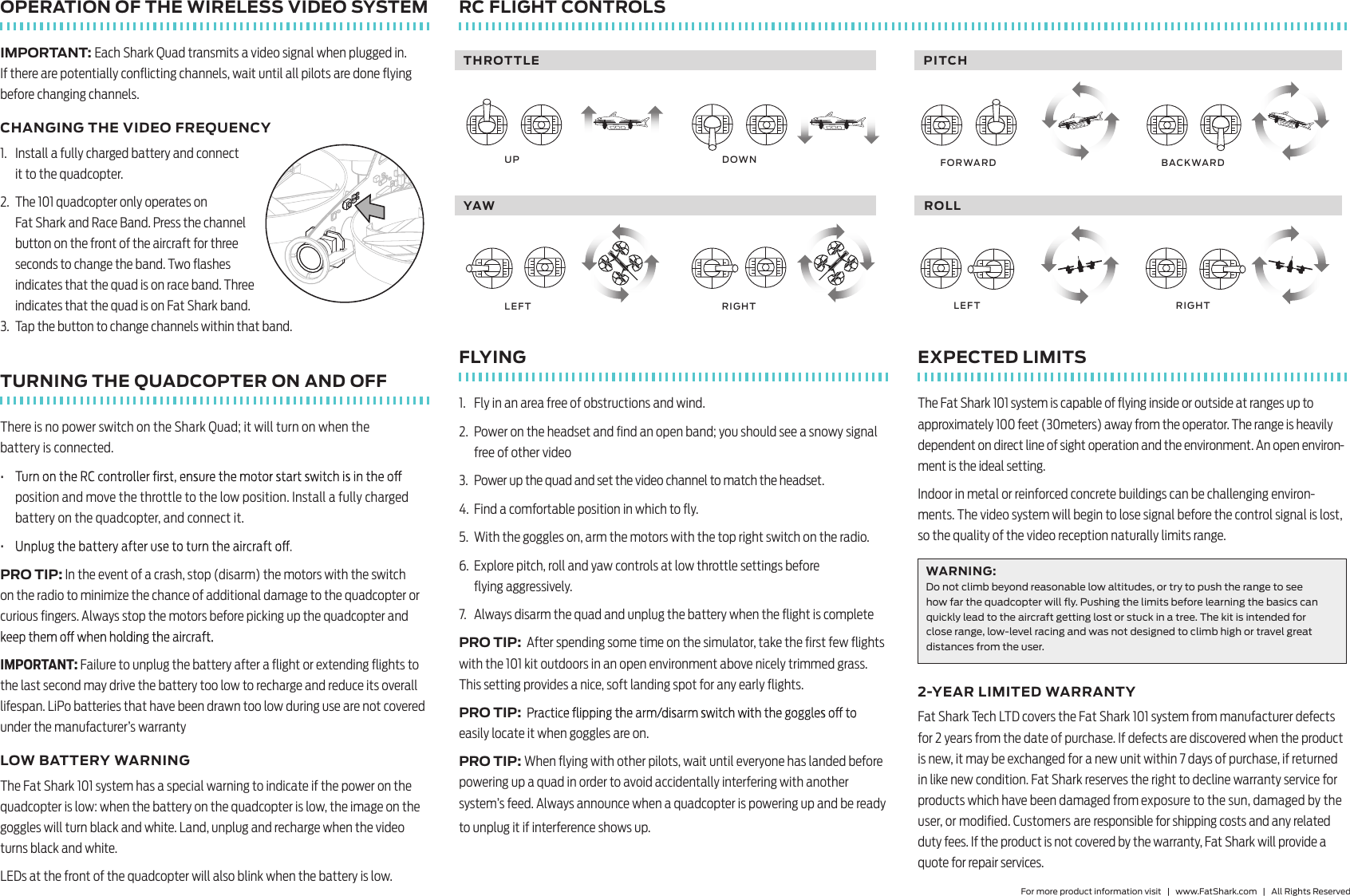
OPERATION OF THE WIRELESS VIDEO SYSTEMIMPORTANT: Each Shark Quad transmits a video signal when plugged in. If there are potentially conflicting channels, wait until all pilots are done flying before changing channels.CHANGING THE VIDEO FREQUENCY1.  Install a fully charged battery and connect  it to the quadcopter.2.  The 101 quadcopter only operates on  Fat Shark and Race Band. Press the channel button on the front of the aircraft for three seconds to change the band. Two flashes indicates that the quad is on race band. Three indicates that the quad is on Fat Shark band.3.  Tap the button to change channels within that band.TURNING THE QUADCOPTER ON AND OFFThere is no power switch on the Shark Quad; it will turn on when the  battery is connected.• position and move the throttle to the low position. Install a fully charged battery on the quadcopter, and connect it.• PRO TIP: In the event of a crash, stop (disarm) the motors with the switch on the radio to minimize the chance of additional damage to the quadcopter or curious fingers. Always stop the motors before picking up the quadcopter and IMPORTANT: Failure to unplug the battery after a flight or extending flights to the last second may drive the battery too low to recharge and reduce its overall lifespan. LiPo batteries that have been drawn too low during use are not covered under the manufacturer’s warrantyLOW BATTERY WARNINGThe Fat Shark 101 system has a special warning to indicate if the power on the quadcopter is low: when the battery on the quadcopter is low, the image on the goggles will turn black and white. Land, unplug and recharge when the video turns black and white.LEDs at the front of the quadcopter will also blink when the battery is low.RC FLIGHT CONTROLSFLYING1.  Fly in an area free of obstructions and wind.2.  Power on the headset and find an open band; you should see a snowy signal free of other video3.  Power up the quad and set the video channel to match the headset.4.  Find a comfortable position in which to fly.5.  With the goggles on, arm the motors with the top right switch on the radio.6.  Explore pitch, roll and yaw controls at low throttle settings before  flying aggressively.7.  Always disarm the quad and unplug the battery when the flight is completePRO TIP:  After spending some time on the simulator, take the first few flights with the 101 kit outdoors in an open environment above nicely trimmed grass. This setting provides a nice, soft landing spot for any early flights.PRO TIP: easily locate it when goggles are on.PRO TIP: When flying with other pilots, wait until everyone has landed before powering up a quad in order to avoid accidentally interfering with another system’s feed. Always announce when a quadcopter is powering up and be ready to unplug it if interference shows up.EXPECTED LIMITSThe Fat Shark 101 system is capable of flying inside or outside at ranges up to approximately 100 feet (30meters) away from the operator. The range is heavily dependent on direct line of sight operation and the environment. An open environ-ment is the ideal setting.Indoor in metal or reinforced concrete buildings can be challenging environ-ments. The video system will begin to lose signal before the control signal is lost, so the quality of the video reception naturally limits range.WARNING: Do not climb beyond reasonable low altitudes, or try to push the range to see how far the quadcopter will fly. Pushing the limits before learning the basics can quickly lead to the aircraft getting lost or stuck in a tree. The kit is intended for close range, low-level racing and was not designed to climb high or travel great distances from the user.2-YEAR LIMITED WARRANTYFat Shark Tech LTD covers the Fat Shark 101 system from manufacturer defects for 2 years from the date of purchase. If defects are discovered when the product is new, it may be exchanged for a new unit within 7 days of purchase, if returned in like new condition. Fat Shark reserves the right to decline warranty service for products which have been damaged from exposure to the sun, damaged by the user, or modified. Customers are responsible for shipping costs and any related duty fees. If the product is not covered by the warranty, Fat Shark will provide a quote for repair services.For more product information visit   |   www.FatShark.com   |   All Rights ReservedF O R WARD B A C KW ARDTHROTTLEU P D O W NYAWLEFT R IGHTRO L LLEFT R IGHTPITC H
FCC COMPLIANCE STATEMENTThis device complies with Part 15 of the FCC Rules. Operation is subject to the following two conditions: (1) this device may not cause harmful interference, and (2) this device must accept any interference received, including interference that may cause undesired operation.WARNING: changes or modiÞcations not expressly approved by the party responsible for compliance could void the user’s authority to operate the equipment. NOTE: This equipment has been tested and found to comply with the limits for a Class B digital device, pursuant to Part 15 of the FCC Rules. These limits are designed to provide reasonable protection against harmful interference in a residential installation. This equipment generates, uses and can radiate radio frequency energy and, if not installed and used in accordance with the instructions, may cause harmful interference to radio communications. However, there is no guarantee that interference will not occur in a particular installation.If this equipment does cause harmful interference to radio or television reception, which can be determined by turning the equipment off and on, the user is encouraged to try to correct the interference by one or more of the following measures:-- Reorient or relocate the receiving antenna.-- Increase the separation between the equipment and receiver.-- Connect the equipment into an outlet on a circuit different from that to which the receiver is connected.-- Consult the dealer or an experienced radio/TV technician for help.

Navigation menu