FlyAudio 75322 Ford 322 special model 2009 Focus 2011 Mondeo User Manual 2

FLYAUDIO CORPORATION Ford 322 special model 2009 Focus 2011 Mondeo 2

Contents

User Manual 2

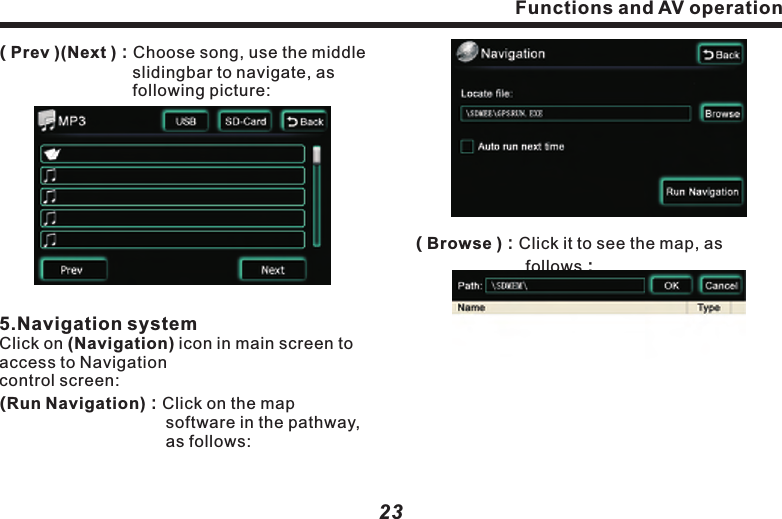
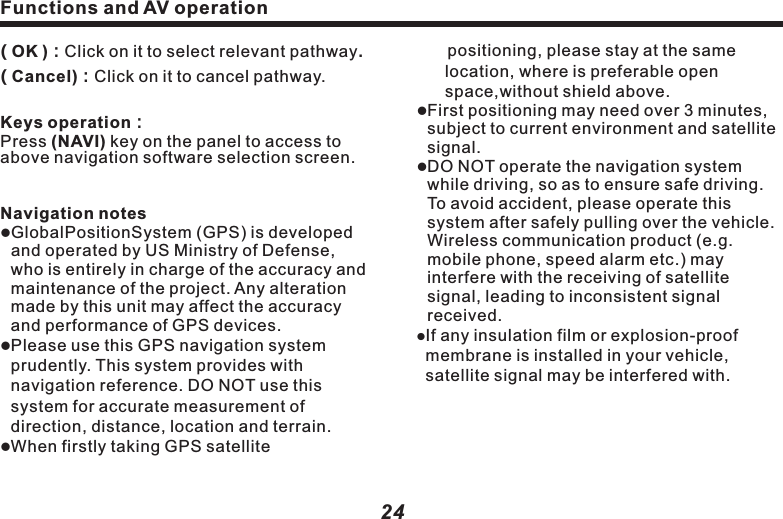
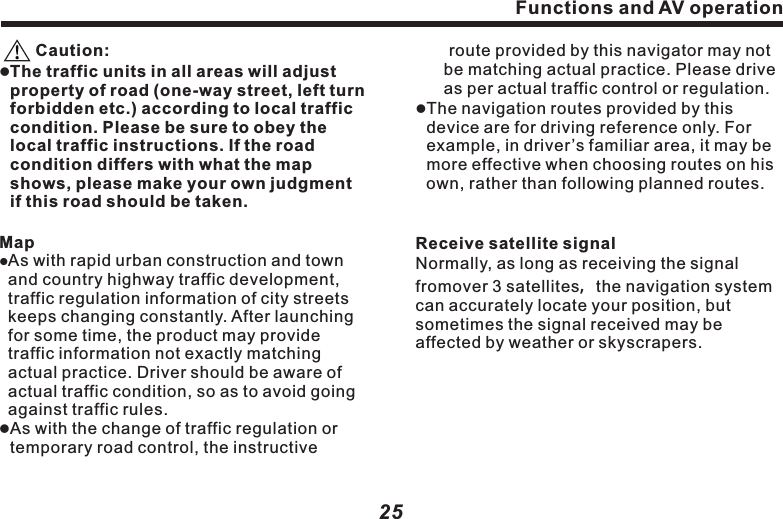
Functions and AV operation23( TRACK1 ):Currently playing track No.( 00'34" ):Display elapsed playing time.( Display bar ):3 bars are for displaying song name, singer and album name.( 1'45)( 6'45 ):Song playing timeline.(      ):Press it to play previous song or       track . (        ):Press it to play next song or         track.  ( ):In playback mode,press it to         pause,Press it again to resume       normal playback.(  RPT  ):Press it to switch to rotating         playback mode. ( Shuffle ):Press it to switch to random          playback mode.( Playlist ):Press it to access to next screen       displaying all tracks and songs in       the Disc.          ( Prev )(Next ):Choose song, use the middle         slidingbar to navigate, as          following picture: 5.Navigation systemClick on (Navigation) icon in main screen to access to Navigationcontrol screen:(Run Navigation):Click on the map           software in the pathway,              as follows:(          ):Fast forward control.(        ):Press it to play next track or song.( SETUP ):The same as DVD operation. 4.MP3 Player ControlClick(Mp3 )button to access toMP3 player control screen, as following picture:        ( USB or SD ):In(Playlist) select one playback device. The icon on it will correspondingly change to blue, indicating playing the music or image in the device. Functions and AV operation22( Browse ):Click it to see the map, as         follows:
Functions and AV operation    positioning, please stay at the same location, where is preferable open space,without shield above.lFirst positioning may need over 3 minutes, subject to current environment and satellite signal.lDO NOT operate the navigation system while driving, so as to ensure safe driving. To avoid accident, please operate this system after safely pulling over the vehicle. Wireless communication product (e.g. mobile phone, speed alarm etc.) may interfere with the receiving of satellite signal, leading to inconsistent signal received. lIf any insulation film or explosion-proof membrane is installed in your vehicle, satellite signal may be interfered with.25     Caution:lThe traffic units in all areas will adjust property of road (one-way street, left turn forbidden etc.) according to local traffic condition. Please be sure to obey the local traffic instructions. If the road condition differs with what the map shows, please make your own judgment if this road should be taken.MaplAs with rapid urban construction and town and country highway traffic development, traffic regulation information of city streets keeps changing constantly. After launching for some time, the product may provide traffic information not exactly matching actual practice. Driver should be aware of actual traffic condition, so as to avoid going against traffic rules. lAs with the change of traffic regulation or temporary road control, the instructive  Functions and AV operation24( OK ):Click on it to select relevant pathway.( Cancel):Click on it to cancel pathway.Keys operation:Press (NAVI) key on the panel to access to above navigation software selection screen.Navigation noteslGlobalPositionSystem (GPS) is developed and operated by US Ministry of Defense, who is entirely in charge of the accuracy and maintenance of the project. Any alteration made by this unit may affect the accuracy and performance of GPS devices.lPlease use this GPS navigation system prudently. This system provides with navigation reference. DO NOT use this system for accurate measurement of direction, distance, location and terrain.lWhen firstly taking GPS satellite  route provided by this navigator may not  be matching actual practice. Please drive as per actual traffic control or regulation. lThe navigation routes provided by this device are for driving reference only. For example, in driver’s familiar area, it may be more effective when choosing routes on his own, rather than following planned routes.Receive satellite signalNormally, as long as receiving the signal fromover 3 satellites,the navigation system can accurately locate your position, but sometimes the signal received may be affected by weather or skyscrapers.
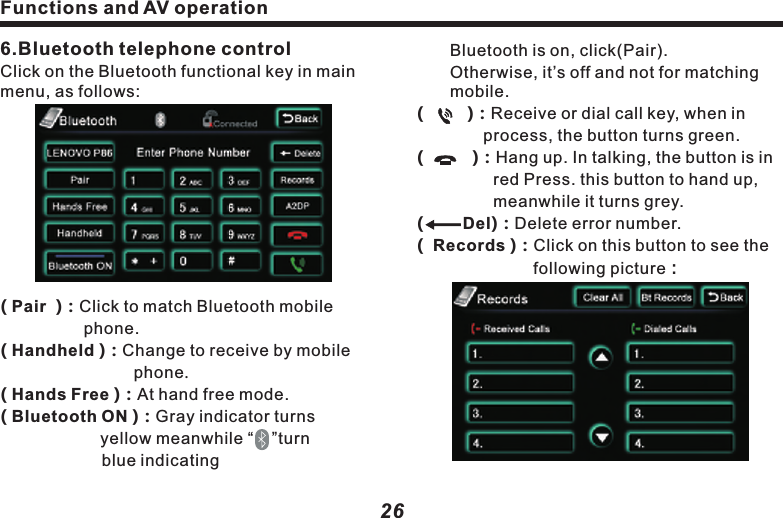
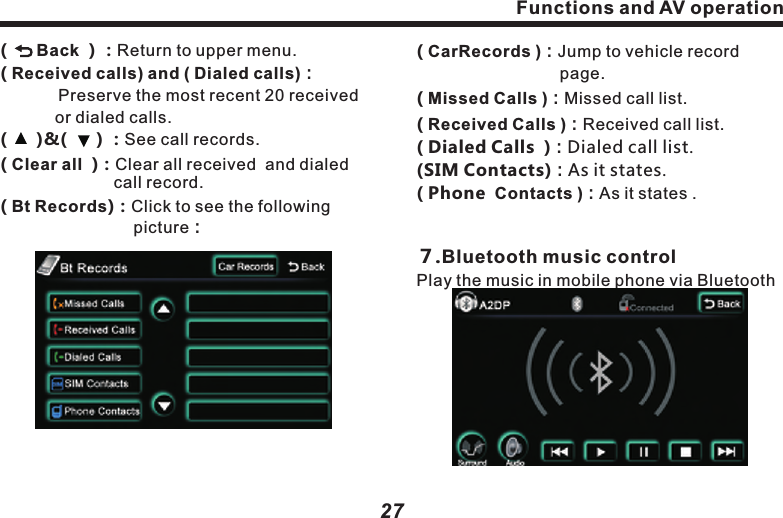
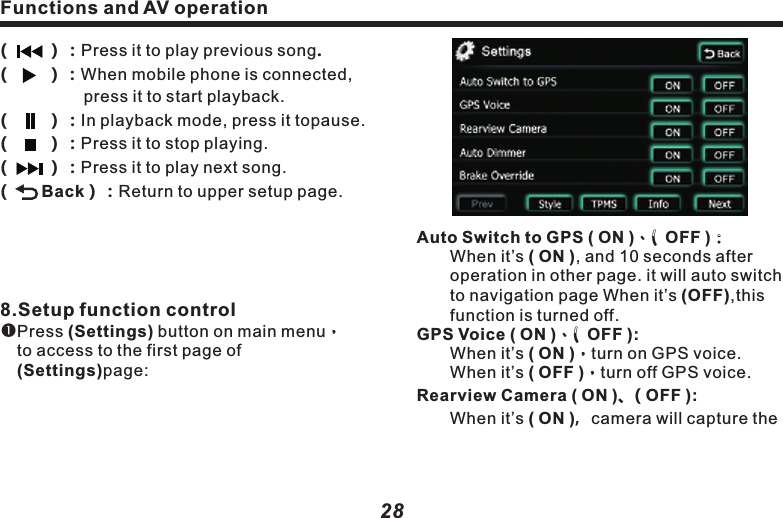
Functions and AV operation  Bluetooth is on, click(Pair).       Otherwise, it’s off and not for matching  mobile.Del(         ):Receive or dial call key, when in          process, the button turns green.(          ):Hang up. In talking, the button is in       red Press. this button to hand up,        meanwhile it turns grey.(         ):Delete error number.(  Records ):Click on this button to see the         following picture:27(      )&(      ) :See call records.( Clear all  ):Clear all received  and dialed     call record.( Bt Records):Click to see the following          picture:(      Back  ) :Return to upper menu.( Received calls) and ( Dialed calls):         Preserve the most recent 20 received      or dialed calls.6.Bluetooth telephone controlClick on the Bluetooth functional key in main menu, as follows:( Pair  ):Click to match Bluetooth mobile       phone.( Handheld ):Change to receive by mobile         phone.( Hands Free ):At hand free mode.( Bluetooth ON ):Gray indicator turns         yellow meanwhile “    ”turn              blue indicating ( CarRecords ):Jump to vehicle record             page.( Missed Calls ):Missed call list.( Received Calls ):Received call list.( Dialed Calls  ):Dialed call list.(SIM Contacts):As it states.( Phone  Contacts ):As it states .7.Bluetooth music controlPlay the music in mobile phone via BluetoothFunctions and AV operation26
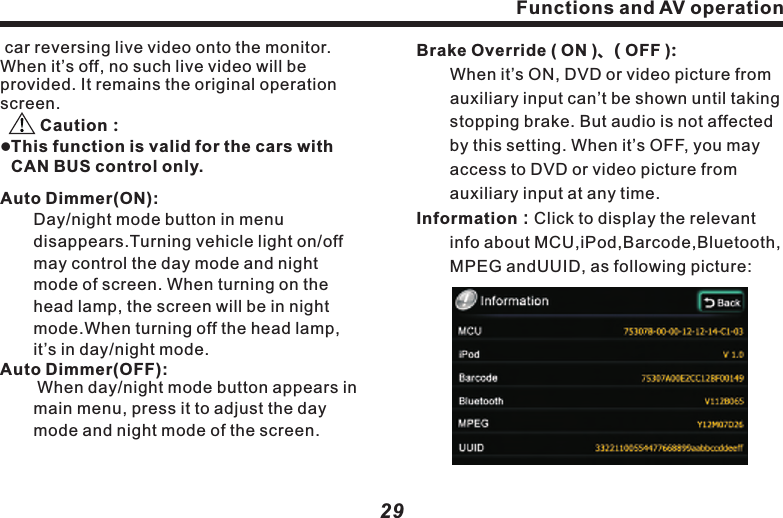
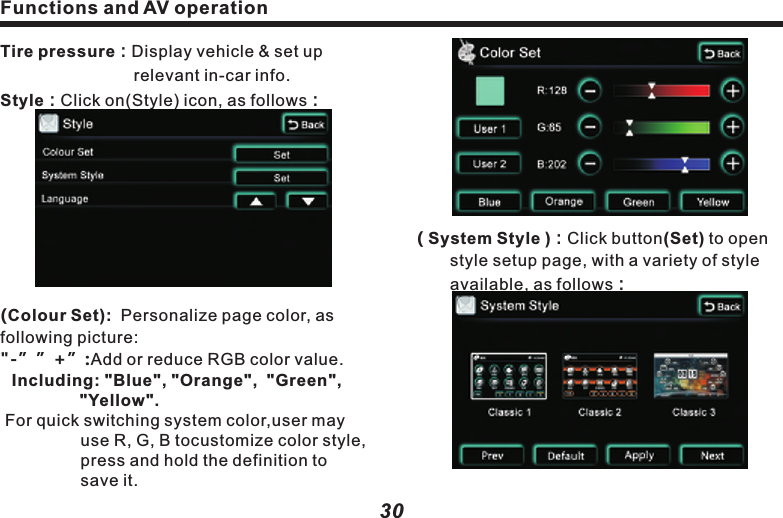
Functions and AV operation29Brake Override ( ON )、( OFF ):  When it’s ON, DVD or video picture from     auxiliary input can’t be shown until taking    stopping brake. But audio is not affected   by this setting. When it’s OFF, you may    access to DVD or video picture from     auxiliary input at any time.Information:Click to display the relevant    info about MCU,iPod,Barcode,Bluetooth,   MPEG andUUID, as following picture:                car  Caution:l      disappears.                      reversing live video onto the monitor. When it’s off, no such live video will be provided. It remains the original operation screen.       This function is valid for the cars with CAN BUS control only.Auto Dimmer(ON):  Day/night mode button in menu Turning vehicle light on/off may control the day mode and night mode of screen. When turning on the head lamp, the screen will be in night   mode.When turning off the head lamp, it’s in day/night mode.Auto Dimmer(OFF):        When day/night mode button appears in       main menu, press it to adjust the day     mode and night mode of the screen. Functions and AV operation28Auto Switch to GPS ( ON )、( OFF ):  When it’s ( ON ), and 10 seconds after      operation in other page. it will auto switch    to navigation page When it’s (OFF),this     function is turned off.GPS Voice ( ON )、( OFF ):  When it’s ( ON ),turn on GPS voice.    When it’s ( OFF ),turn off GPS voice. Rearview Camera ( ON )、( OFF ):  When it’s ( ON ),camera will capture the((((((8.Setup function controlPress (Settings) button on main menu,  to access to the first page of         (Settings)page:        ):Press it to play previous song.        ):When mobile phone is connected,      press it to start playback.        ):In playback mode, press it topause.        ):Press it to stop playing.        ):Press it to play next song.       Back):Return to upper setup page.
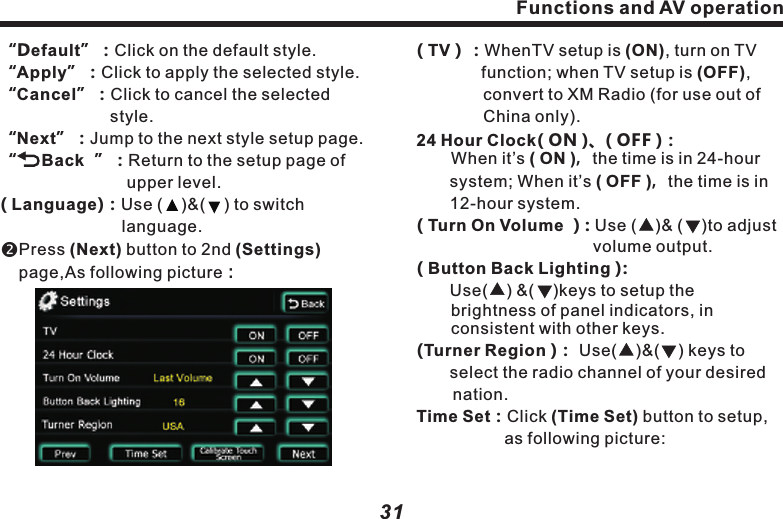
( TV):WhenTV setup is (ON), turn on TV        function; when TV setup is (OFF),              convert to XM Radio (for use out of      China only).24 Hour Clock( ON )、( OFF ):       When it’s ( ON ),the time is in 24-hour    system; When it’s ( OFF ),the time is in       12-hour system.( Turn On Volume ): Use (    )& (    )to adjust             volume output.( Button Back Lighting ):  Use(    ) &(    )keys to setup the       brightness of panel indicators, in consistent with other keys.(Turner Region ): Use(    )&(    ) keys to   select the radio channel of your desired nation.     Time Set:Click (Time Set) button to setup,      as following picture:Functions and AV operation31“Default”:Click on the default style.“Apply”:Click to apply the selected style.“Cancel”:Click to cancel the selected          style.“Next”:Jump to the next style setup page.“     Back  ”:Return to the setup page of          upper level.( Language):Use (    )&(    ) to switch            language.Press (Next) button to 2nd (Settings) page,As following picture:Functions and AV operation30( System Style ):Click button(Set) to open   style setup page, with a variety of style    available, as follows:Tire pressure:Display vehicle & set up           relevant in-car info.Style:Click on(Style) icon, as follows:(Colour Set):  Personalize page color, as following picture: "-””+”:Add or reduce RGB color value.Including: "Blue", "Orange",  "Green", "Yellow". For quick switching system color,user may use R, G, B tocustomize color style, press and hold the definition to save it.
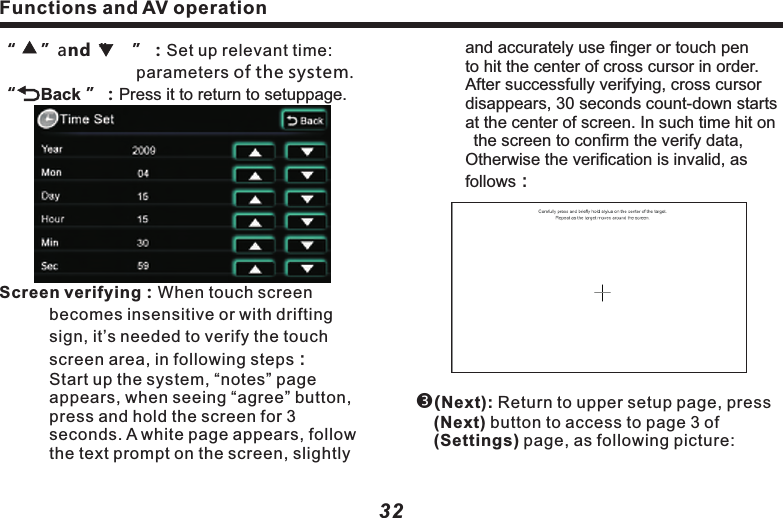
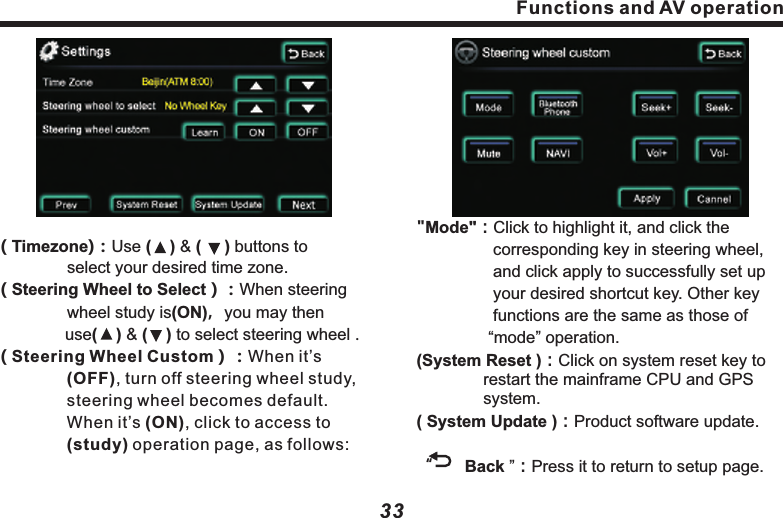
Functions and AV operation33"Mode":Click to highlight it, and click the         corresponding key in steering wheel,       and click apply to successfully set up       your desired shortcut key. Other key        functions are the same as those of       “mode” operation.(System Reset ):Click on system reset key to     restart the mainframe CPU and GPS      system.( System Update ):Product software update.  “       Back ”:Press it to return to setup page. ( Timezone):Use (    ) & (     ) buttons to        select your desired time zone.( Steering Wheel to Select):When steering     wheel study is(ON),you may then         use(    ) & (    ) to select steering wheel .       ( Steering Wheel Custom):When it’s       (OFF), turn off steering wheel study,     steering wheel becomes default.         When it’s (ON), click to access to      (study) operation page, as follows:Functions and AV operation32   and accurately use finger or touch pen      to hit the center of cross cursor in order.           After successfully verifying, cross cursor       disappears, 30 seconds count-down starts     at the center of screen. In such time hit on     the screen to confirm the verify data,     Otherwise the verification is invalid, as     follows:(Next): Return to upper setup page, press (Next) button to access to page 3 of (Settings) page, as following picture: “     ”and“     ”:Set up relevant time:                        parameters of the system.“     Back ”:Press it to return to setuppage. Screen verifying:When touch screen      becomes insensitive or with drifting     sign, it’s needed to verify the touch        screen area, in following steps:   Start up the system, “notes” page      appears, when seeing “agree” button,    press and hold the screen for 3       seconds. A white page appears, follow    the text prompt on the screen, slightly
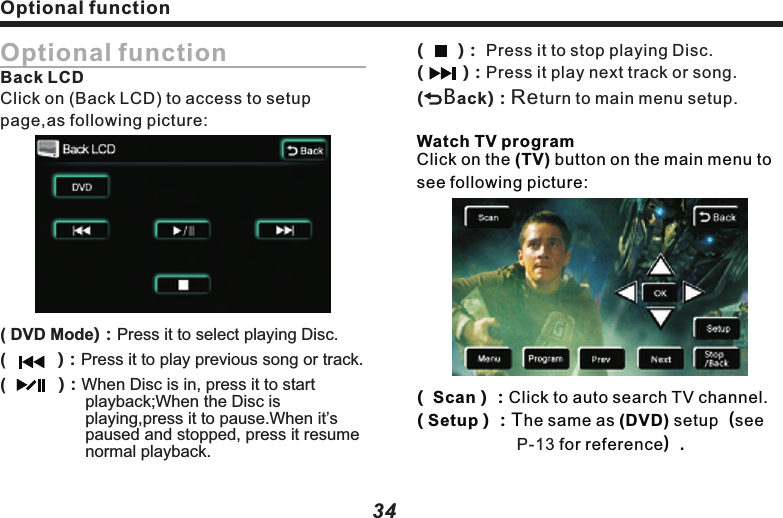
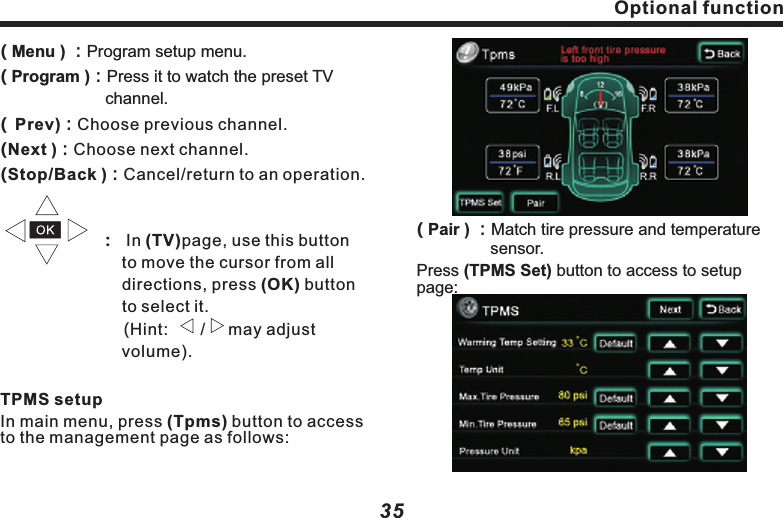
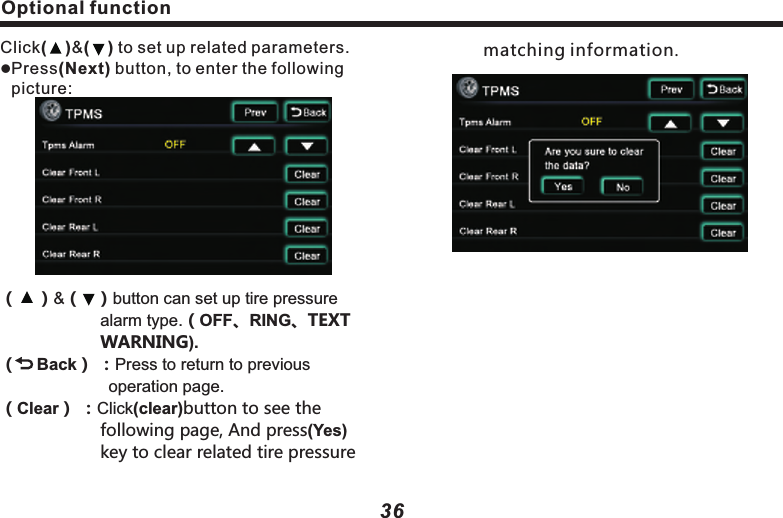
Optional function( Menu ) :Program setup menu. Program :Press it to watch the preset TV channel. Prev :Choose previous channel.                    :  In (TV)page, use this button         to move the cursor from all          directions, press (OK) button         to select it.                         (Hint:       /     may adjust           volume).In main menu, press (Tpms) button to access to the management page as follows:()        ()()()TPMS setupNext :Choose next channel.Stop/Back :Cancel/return to an operation.35( Pair ) :Match tire pressure and           sensor.Press (TPMS Set) button to access to setup page:temperatureOptional function 34Optional functionBack LCDClick on (Back LCD) to access to setup page,as following picture:( DVD Mode):Press it to select playing Disc.(          Press it to play previous song or track.(        When Disc is in, press it to start  playback;When the Disc is playing,press it to pause.When it’s paused and  press it resume normal playback.        ):      ):stopped, (     ): Press it to stop playing Disc.(        ):Press it play next track or song.(    Back)Return to main menu setup.        :Watch TV programClick on the (TV) button on the main menu to see following picture:(  Scan ) :Click to auto search TV channel.( Setup ) :The same as (DVD) setup(see       for reference). P-13
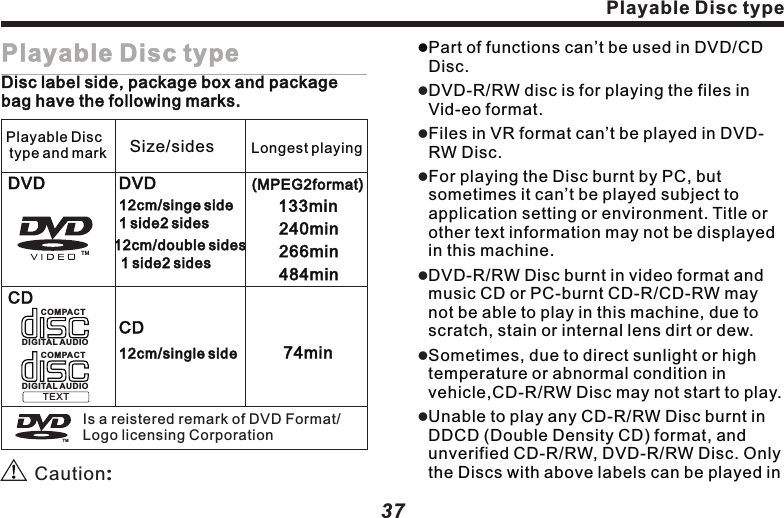
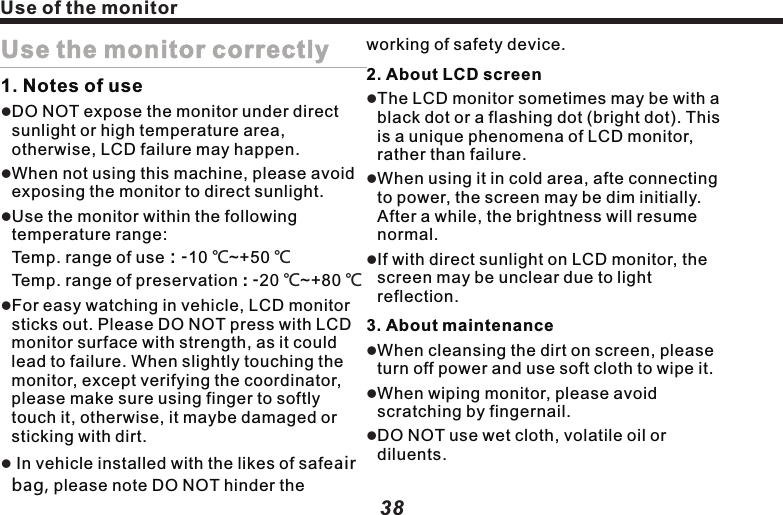
Playable Disc typeDisc label side, package box and package bag have the following marks.      Caution:Is a reistered remark of DVD Format/Logo licensing CorporationTMPlayable Disc type and mark           Size/sides                                 Longest playing     DVD                                                                        DVD                               (MPEG2format) 12cm/singe side1 side2 sides  133min240min                                                                             12cm/double sides                                                                                    1 side2 sides    266min484minCD                                                                          CD12cm/single side                                                   74minCOMPACTDIGITAL AUDIOTMCOMPACTDIGITAL AUDIOTEXTlPart of functions can’t be used in DVD/CD Disc.DVD-R/RW disc is for playing the files in Vid-eo format. Files in VR format can’t be played in DVD-RW Disc.For playing the Disc burnt by PC, but sometimes it can’t be played subject to application setting or environment. Title or other text information may not be displayed in this machine.DVD-R/RW Disc burnt in video format and music CD or PC-burnt CD-R/CD-RW may not be able to play in this machine, due to scratch, stain or internal lens dirt or dew.Sometimes, due to direct sunlight or high temperature or abnormal condition in vehicle,CD-R/RW Disc may not start to play.Unable to play any CD-R/RW Disc burnt in DDCD (Double Density CD) format, and unverified CD-R/RW, DVD-R/RW Disc. Only the Discs with above labels can be played in llllll37Playable Disc type36Optional functionClick(    )&(    ) to set up related parameters.Press(Next) button, to enter the following picture:(    ) (   )button can set up tire pressure        alarm type.(OFF).(    Back) :Press to return to previous              operation page.l&、RING、TEXT       WARNING(Clear) :Click(clear)button to see the         following page, And press(Yes)       key to clear related tire pressure     matching information.
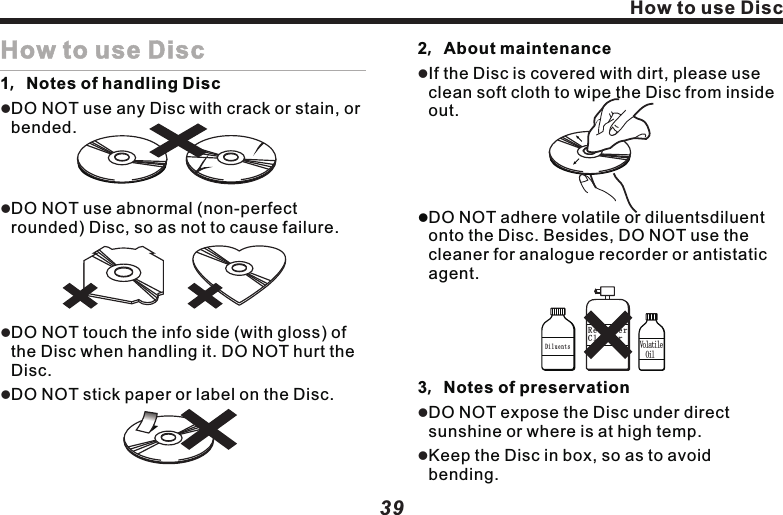
How to use DiscHow to use Disc1,Notes of handling DiscDO NOT use any Disc with crack or stain, or bended.DO NOT use abnormal (non-perfect rounded) Disc, so as not to cause failure.DO NOT touch the info side (with gloss) of the Disc when handling it. DO NOT hurt the Disc.DO NOT stick paper or label on the Disc.llll2,About maintenanceIf the Disc is covered with dirt, please use clean soft cloth to wipe the Disc from inside out.lDO NOT adhere volatile or diluentsdiluent onto the Disc. Besides, DO NOT use the cleaner for analogue recorder or antistatic agent.3,Notes of preservationDO NOT expose the Disc under direct sunshine or where is at high temp.Keep the Disc in box, so as to avoid bending.lllDiluents Volatile  OilRecorderCleaner3938Use of the monitorUse the monitor correctly1. Notes of useDO NOT expose the monitor under direct sunlight or high temperature area, otherwise, LCD failure may happen.When not using this machine, please avoid exposing the monitor to direct sunlight.Use the monitor within the following temperature range:                                  Temp. range of use:-10  ~+50               Temp. range of preservation : -20  ~+80 For easy watching in vehicle, LCD monitor sticks out. Please DO NOT press with LCD monitor surface with strength, as it could lead to failure. When slightly touching the monitor, except verifying the coordinator, please make sure using finger to softly touch it, otherwise, it maybe damaged or sticking with dirt. In vehicle installed with the likes of safeair bag, please note DO NOT hinder the lll℃ ℃℃ ℃llworking of safety device. 2. About LCD screenThe LCD monitor sometimes may be with a black dot or a flashing dot (bright dot). This is a unique phenomena of LCD monitor, rather than failure.When using it in cold area, afte connecting to power, the screen may be dim initially. After a while, the brightness will resume normal.If with direct sunlight on LCD monitor, the screen may be unclear due to light reflection.3. About maintenanceWhen cleansing the dirt on screen, please turn off power and use soft cloth to wipe it.When wiping monitor, please avoid scratching by fingernail. DO NOT use wet cloth, volatile oil or diluents.llllll
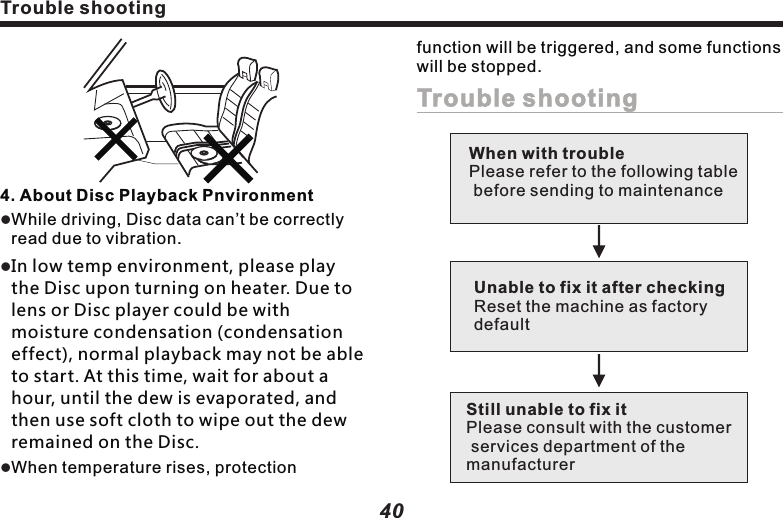
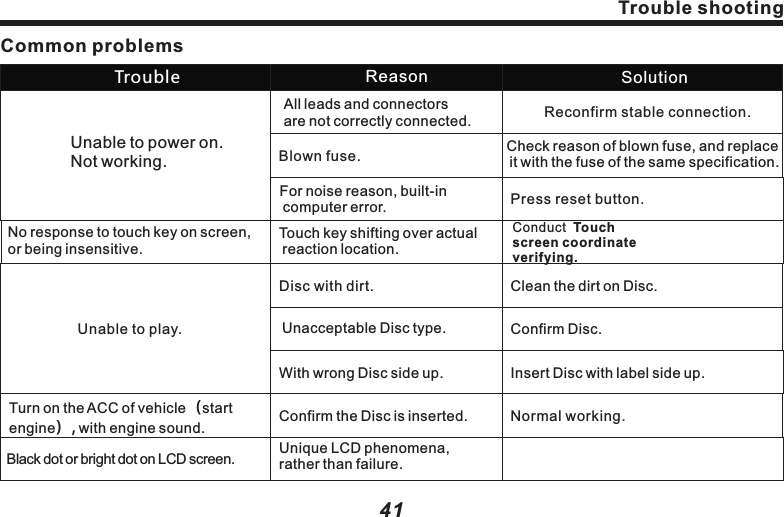
Trouble shootingCommon problemsUnable to power on.Not working.All leads and connectors are not correctly connected. Reconfirm stable connection.Blown fuse. Check reason of blown fuse, and replace it with the fuse of the same specification.For noise reason, built-in computer error. Press reset button.No response to touch key on screen, or being insensitive.Touch key shifting over actual reaction location.Conduct  Touchscreen coordinateverifying.Unable to play.Disc with dirt. Clean the dirt on Disc.Unacceptable Disc type. Confirm Disc.With wrong Disc side up. Insert Disc with label side up.Turn on the ACC of vehicle(start engine), with engine sound. Confirm the Disc is inserted. Normal working.Black dot or bright dot on LCD screen. Unique LCD phenomena, rather than failure.41Trouble Reason SolutionTrouble shootingfunction will be triggered, and some functions will be stopped.Trouble shooting404. About Disc Playback PnvironmentWhile driving, Disc data can’t be correctly read due to vibration.In low temp environment, please play the Disc upon turning on heater. Due to lens or Disc player could be with moisture condensation (condensation effect), normal playback may not be able to start. At this time, wait for about a hour, until the dew is evaporated, and then use soft cloth to wipe out the dew remained on the Disc.When temperature rises, protectionlllStill unable to fix itPlease consult with the customer services department of the manufacturerUnable to fix it after checkingReset the machine as factory defaultWhen with troublePlease refer to the following table before sending to maintenance
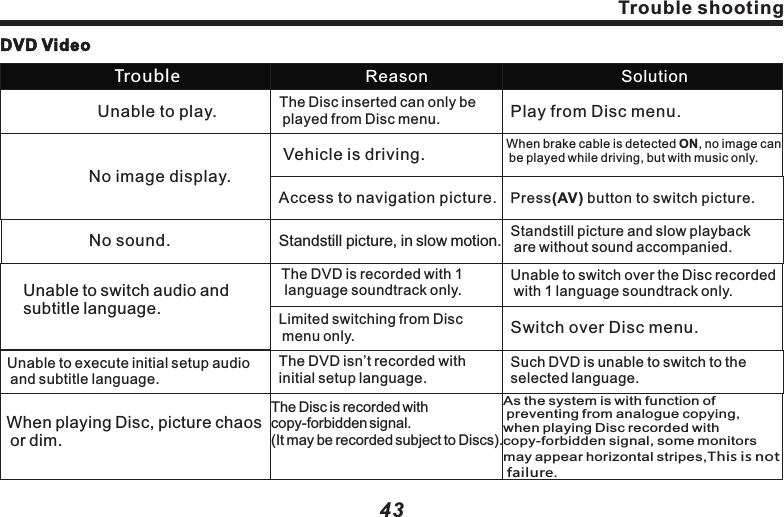
43DVD VideoThe Disc inserted can only be played from Disc menu. Play from Disc menu.When brake cable is detected ON, no image can be played while driving, but with music only.Unable to play.No image display.Access to navigation picture. Press(AV) button to switch picture.Standstill picture and slow playback are without sound accompanied.No sound. Standstill picture, in slow motion.Unable to switch audio and subtitle language.The DVD is recorded with 1 language soundtrack only.Limited switching from Disc menu only.Unable to switch over the Disc recorded with 1 language soundtrack only.Switch over Disc menu.Unable to execute initial setup audio and subtitle language.The DVD isn’t recorded with initial setup language.Such DVD is unable to switch to the selected language.When playing Disc, picture chaos or dim.The Disc is recorded with copy-forbidden signal.(It may be recorded subject to Discs).As the system is with function of preventing from analogue copying, when playing Disc recorded withcopy-forbidden signal, some monitorsmay appear horizontal stripes,This is not  failure.Trouble shootingTrouble Reason SolutionVehicle is driving.Trouble shooting42Dark LCD picture.No sound.No navigation system image display.No sound from front or rear speakerNo sound from left or right speaker.Low surrounding temp leads to dark monitor. Use heater to warm up the interior vehicle.Increase volume.Confirm correct connection.Connect to parking brake and execute it.Press POWERkey or touch the screen.Switch the image into navigation system.Correct adjustment and setup.Improper Brightness adjustment.Too cold in the vehicle.Volume is 0.Connection error.Not connect to parking brake line.No parking brake.Turn off monitor.Not being switched to navigation.Improper volume adjustment in front or rear speaker.Improper volume adjustment in left or right speaker.Adjust brightness.No image display..
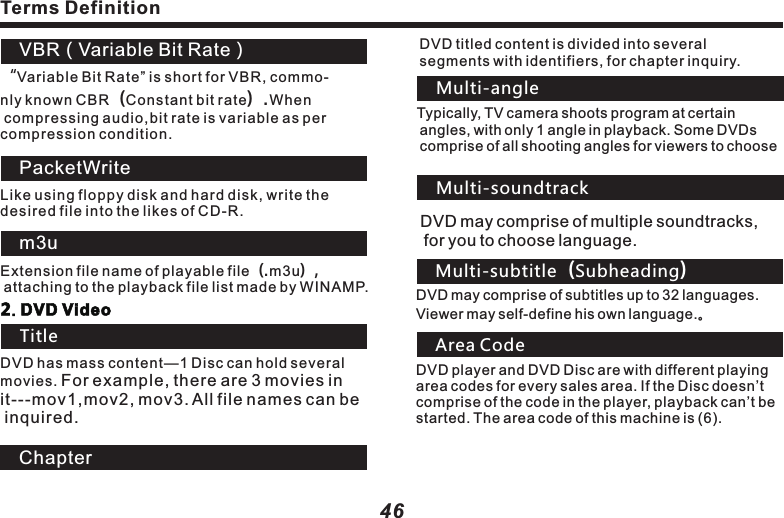
Abbreviation for “Compact Disk Digital Audio”, means uncompressed common CD. CD-DAMP3(MPEG Audio Layer3)“MPEG Audio Layer3” means MP3,sound compression format specified by Moving Picture Expert Group(MPEG)of  ISO(international standard organization).MP3 could compress the sound to 1/10 of original data contentISO9660 FormatAccording to international standard of CD-ROM file and folder logical format. ISO9660 format is limited by following level: Level 1:File name is 8.3 type (comprising of capital English letters and number, and “-”,with name less than 8 characters,extension name less than 3 characters),all folders have no more than 8 levels.Level 2:File name is with up to 31 characters(Including separating character,"-“ and extension name),All file folders are with no more than 8 levels.Jolier:Max.64 characters in file nameRomeo: Max.128 characters in file name     Multi-segment burning is a data written way to supply additional data. When burning CD-ROM, CD-R and CD-RW, the process from beginning to ending one burning makes a segment. Multi-segment burning is to burn more than two segments of data on one Disc.Multi-segment writingId3 TagAn approach to embed the relevant info of a song into MP3 file. The info for embedding comprises of song name, artist name, album name, device type, produ-ction year and comment etc. The content can be edit-ed by software with ID3 Tag editing function. Usually it is limited by character number. When playing songs, the info can be seen.Byte rateIt is the data provided in 1 second, with unit of bps (bits per second). The larger number means more playable information for music, so the larger number means thebetter music quality.45Terms Definition Extension format:44Trouble shootingPictures tagnant, unable to operate.CD/MP3DiscWith mass noise while playing CD; suddenly comes to a stop while playing.Mass noise or no sound while playing MP3 file.M P3 files are played in a different sequence to burning.TroubleWipe out the dirt and play again. Change to another Disc, if improve, it proves that it’s Disc problem.Wipe off the dirt.Wipe out the mist or water drop.Please replace the Disc(Don’t attach [.mp3] extension name to non-MP3 file).Some files with names like **01, **02… can be played as per set sequence.SolutionUnable to read data when playing Disc.Scratching or bending the Disc.Disc is very dirty.The Disc is sticking with mist or water drop.Non-MP3 file is attached with[.mp3] extension name.M P3 files sometimes aren’t played as per the burning sequence.ReasonTerms Definition1. CD/MP3 Disc
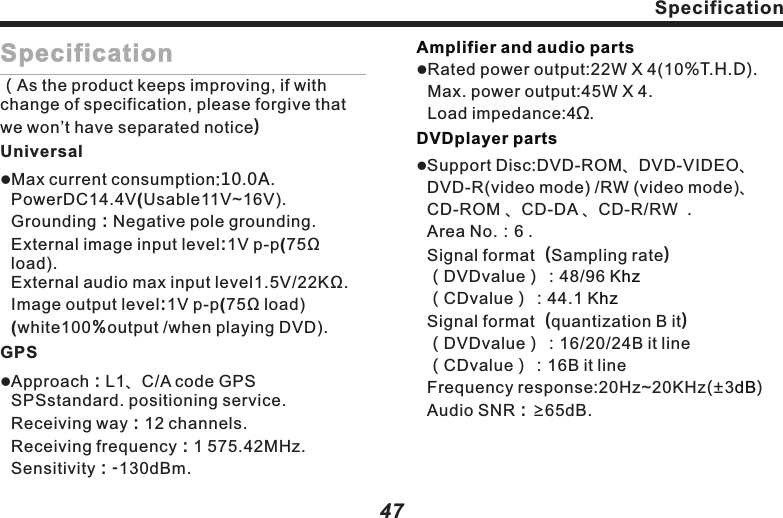
47Specification(As the product keeps improving, if with change of specification, please forgive that we won’t have separated notice)UniversallMax current consumption:10.0A. PowerDC14.4V(Usable11V~16V). Grounding:Negative pole grounding. External image input level:1V p-p(75Ω load).                                                       External audio max input level1.5V/22KΩ. Image output level:1V p-p(75Ω load)   (white100%output /when playing DVD).GPSlApproach:L1、C/A code GPS SPSstandard. positioning service.                                 Receiving way:12 channels.                   Receiving frequency:1 575.42MHz. Sensitivity:-130dBm.                                      Amplifier and audio partsDVDplayer partslRated power output:22W X 4(10%T.H.D).Max. power output:45W X 4.Load impedance:4Ω.lSupport Disc:DVD-ROM、DVD-VIDEO、 DVD-R(video mode) /RW (video mode)、CD-ROM 、CD-DA 、CD-R/RW  .               Area No.:6 .                                             Signal format(Sampling rate)                                (DVDvalue):48/96 K                          (CDvalue):44.1 K                                  Signal format(quantization B it)                                         (DVDvalue):16/20/24B it line                    (CDvalue):16B it line                                Frequency response:20Hz~20KHz(±3)                                                    Audio SNR:≥65dB.                         hzhzdBSpecification46Terms Definition VBR(Variable Bit Rate)“Variable Bit Rate” is short for VBR, commo-nly known CBR(Constant bit rate).When compressing audio,bit rate is variable as per compression condition.PacketWriteLike using floppy disk and hard disk, write the des ire d file into the likes of CD-R.Extension file name of playable file(.m3u), attaching to the playback file list made by WINAMP.m3u2. DVD VideoTitleDVD has mass content—1 Disc can hold several movies. For example, there are 3 movies in it---mov1,mov2, mov3. All file names can be inquired.ChapterDVD titled content is divided into several segments with identifiers, for chapter inquiry.Typically, TV camera shoots program at certain angles, with only 1 angle in playback. Some DVDs comprise of all shooting angles for viewers to chooseDVD may comprise of multiple soundtracks, for you to choose language.Multi-subtitle(Subheading)DVD may comprise of subtitles up to 32 languages. Viewer may self-define his own language.。DVD player and DVD Disc are with different playing area codes for every sales area. If the Disc doesn’t comprise of the code in the player, playback can’t be started. The area code of this machine is (6). Multi-angleMulti-soundtrackArea Code
47Specification(As the product keeps improving, if with change of specification, please forgive that we won’t have separated notice)UniversallMax current consumption:10.0A. PowerDC14.4V(Usable11V~16V). Grounding:Negative pole grounding. External image input level:1V p-p(75Ω load).                                                       External audio max input level1.5V/22KΩ. Image output level:1V p-p(75Ω load)   (white100%output /when playing DVD).GPSlApproach:L1、C/A code GPS SPSstandard. positioning service.                                 Receiving way:12 channels.                   Receiving frequency:1 575.42MHz. Sensitivity:-130dBm.                                      Amplifier and audio partsDVDplayer partslRated power output:22W X 4(10%T.H.D).Max. power output:45W X 4.Load impedance:4Ω.lSupport Disc:DVD-ROM、DVD-VIDEO、 DVD-R(video mode) /RW (video mode)、CD-ROM 、CD-DA 、CD-R/RW  .               Area No.:6 .                                             Signal format(Sampling rate)                                (DVDvalue):48/96 K                          (CDvalue):44.1 K                                  Signal format(quantization B it)                                         (DVDvalue):16/20/24B it line                    (CDvalue):16B it line                                Frequency response:20Hz~20KHz(±3)                                                    Audio SNR:≥65dB.                         hzhzdBSpecification46Terms Definition VBR(Variable Bit Rate)“Variable Bit Rate” is short for VBR, commo-nly known CBR(Constant bit rate).When compressing audio,bit rate is variable as per compression condition.PacketWriteLik e using floppy disk and hard disk, write the des ired file into the likes of CD- R.Extension file name of playable file(.m3u), attaching to the playback file list made by WINAMP.m3u2. DVD VideoTitleDVD has mass content—1 Disc can hold several movies. For example, there are 3 movies in it---mov1,mov2, mov3. All file names can be inquired.ChapterDVD titled content is divided into several segments with identifiers, for chapter inquiry.Typically, TV camera shoots program at certain angles, with only 1 angle in playback. Some DVDs comprise of all shooting angles for viewers to chooseDVD may comprise of multiple soundtracks, for you to choose language.Multi-subtitle(Subheading)DVD may comprise of subtitles up to 32 languages. Viewer may self-define his own language.。DVD player and DVD Disc are with different playing area codes for every sales area. If the Disc doesn’t comprise of the code in the player, playback can’t be started. The area code of this machine is (6). Multi-angleMulti-soundtrackArea Code
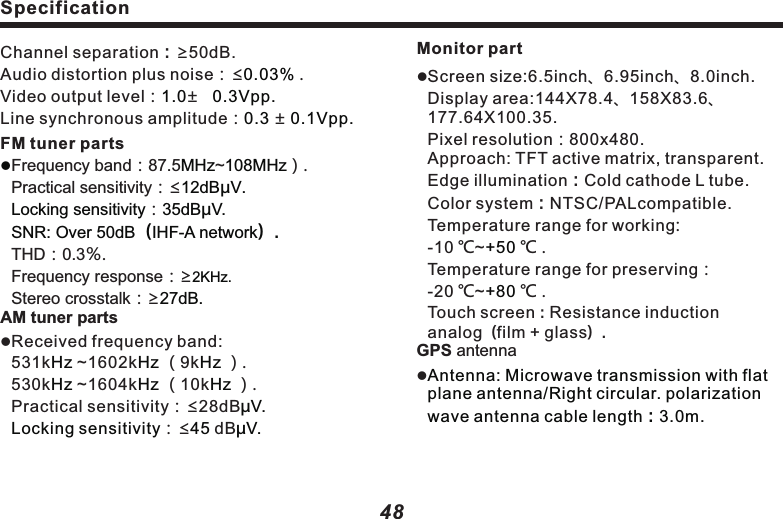
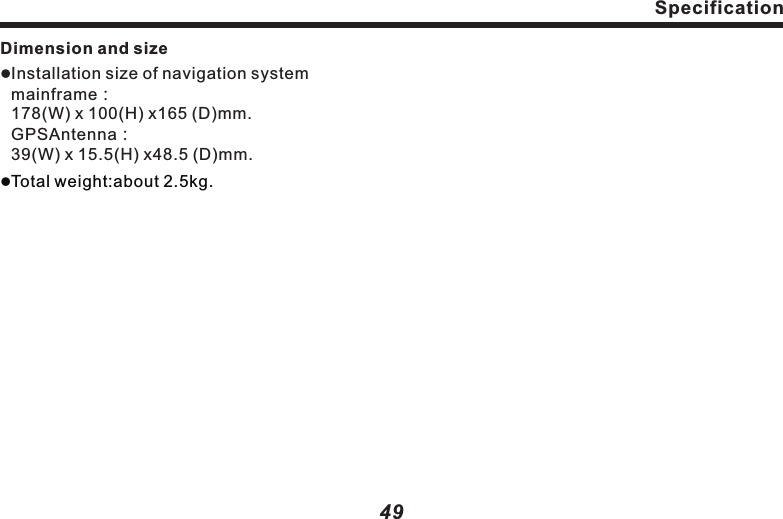
SpecificationDimension and sizelInstallation size of navigation system mainframe:178(W) x 100(H) x165 (D)mm.GPSAntenna:39(W) x 15.5(H) x48.5 (D)mm.lTotal weight:about 2.5kg. 49SpecificationMonitor partlScreen size:6.5inch、6.95inch、8.0inch.Display area:144X78.4、158X83.6、177.64X100.35.                                       Pixel resolution:800x480.              Approach: TFT active matrix, transparent.          Edge illumination:Cold cathode L tube.                          Color system:NTSC/PALcompatible.                              Temperature range for working:                    -10 ℃~℃ .                                                     Temperature range for preserving:             -20 ℃~℃ .                                                     Touch screen:Resistance induction analog(film + glass).GPS antennal                                +50 +80 Antenna: Microwave transmission with flat plane antenna/Right circular. polarization wave antenna cable length:3.0m.Channel separation:≥50dB.                                                       Audio distortion plus noise:≤  .                                                          Video output level: ±Line synchronous amplitude: ±FM tuner partsFrequency band:87.5 ~ ).Practical sensitivity:≤:THD:0.3%.Frequency response:≥Stereo crosstalk:≥AM tuner partslReceived frequency band:                   531k  ~1602k  (9k  ).             530k  ~1604k  (10k  ).Practical sensitivity:≤28dB:≤  dB                                             0.03%1.0    0.3Vpp.0.3   0.1Vpp.MHz 108MHz12dBμV.Locking sensitivity 35dBμV.SNR: Over 50dB(IHF-A network).2KHz.27dB.Hz Hz HzHz Hz HzμV.Locking sensitivity 45 μV.l48
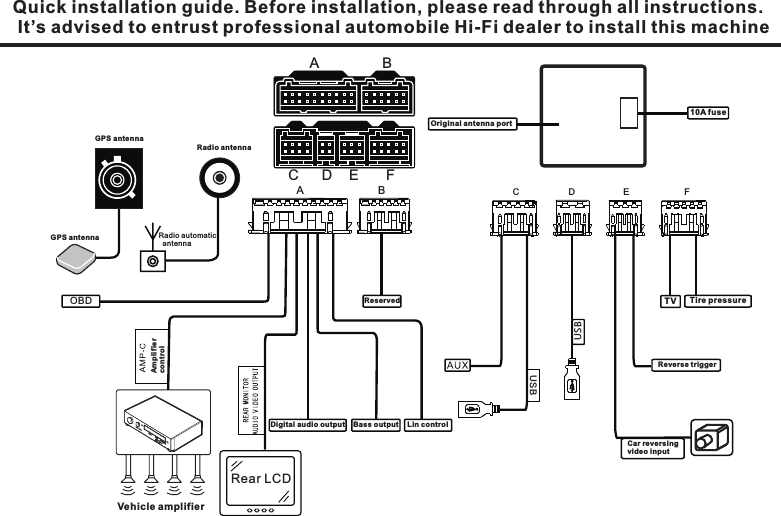
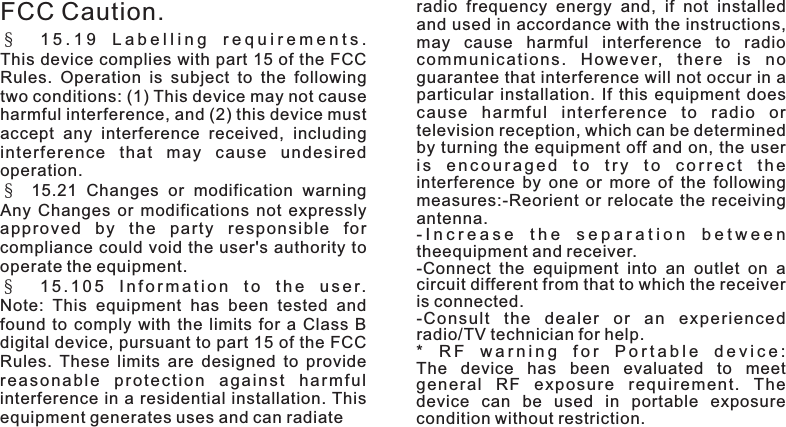
Quick installation guide. Before installation, please read through all instructions.   advised to entrust professional automobile Hi-Fi dealer to install this machineIt’s OBDUSBUSBTVFA B CDA BFCD EEGPS antenna GPS antenna Radio antenna Radio automatic    antennaAmplifier controlOriginal antenna portReserved10A fuseDigital audio output Bass output  Lin controlTire pres sureCar reversing video inputVehicle amplifierRear LCD Reverse trigger§   15.19  Labelling  requirements.This device complies with part 15 of the FCC Rules.  Operation  is  subject  to  the  following two conditions: (1) This device may not cause harmful interference, and (2) this device must accept  any  interference  received,  including in terfere nce  that  ma y  cause  undesi red operation.§  15.21  Changes  or  modification  warningAny  Changes or modifications not expressly app roved  by  the  party  res ponsi ble  for compliance could void the user's authority to operate the equipment.§  15.105  Information  to  the  user.Note:  This  equipment  has  been  tested  and found to  comply  with  the  limits for a  Class B digital device, pursuant to part 15 of the FCC Rules.  These  limits  are designed  to  provide reasonable  protection  against  harmful interference in a residential installation. This equipment generates uses and can radiate radio  frequency  energy  and,  if  not  installed and used in accordance with the instructions, may  cause  harmful  interference  to  radio communications.  However,  there  is  no guarantee that interference will not occur in a particular installation. If this equipment does cau se  harmf ul  inter ference  to  ra dio  or television reception, which can be determined by turning the equipment off and on, the user is  encouraged  to  try  to  correct  the interference  by  one  or more  of  the  following measures:-Reorient or relocate the receiving antenna.-Increase  the  separation  between theequipment and receiver.-Connect  the  equipment  into  an  outlet  on  a circuit different from that to which the receiver is connected.-Consult  the  dealer  or  an  experienced radio/TV technician for help.*  RF  warning  for  Portable  device:The  device  has  been  evaluated  to  meet general  RF  exposure  requirement.  The device  can  be  used  in  portable  exposure condition without restriction. FCC Caution.
Quick installation guide. Before installation, please read through all instructions.   advised to entrust professional automobile Hi-Fi dealer to install this machineIt’s OBDUSBUSBTVFA B CDA BFCD EEGPS antenna GPS antenna Radio antenna Radio automatic    antennaAmplifier controlOriginal antenna portReserved10A fuseDigital audio output Bass output  Lin controlTire pres sureCar reversing video inputVehicle amplifierRear LCD Reverse trigger§   15.19  Labelling  requirements.This device complies with part 15 of the FCC Rules.  Operation  is  subject  to  the  following two conditions: (1) This device may not cause harmful interference, and (2) this device must accept  any  interference  received,  including in terfere nce  that  may  cause  und esired operation.§  15.21  Changes  or  modification  warningAny  Changes or modifications not expressly app roved  by  the  party  r espo nsibl e  for compliance could void the user's authority to operate the equipment.§  15.105  Information  to  the  user.Note:  This  equipment  has  been  tested  and found to  comply  with  the  limits for a  Class B digital device, pursuant to part 15 of the FCC Rules.  These  limits  are designed  to  provide reasonable  protection  against  harmful interference in a residential installation. This equipment generates uses and can radiate radio  frequency  energy  and,  if  not  installed and used in accordance with the instructions, may  cause  harmful  interference  to  radio communications.  However,  there  is  no guarantee that interference will not occur in a particular installation. If this equipment does cau se  harm ful  interfer ence  to  rad io  or television reception, which can be determined by turning the equipment off and on, the user is  encouraged  to  try  to  correct  the interference  by  one  or more  of  the  following measures:-Reorient or relocate the receiving antenna.-Increase  the  separation  between theequipment and receiver.-Connect  the  equipment  into  an  outlet  on  a circuit different from that to which the receiver is connected.-Consult  the  dealer  or  an  experienced radio/TV technician for help.*  RF  warning  for  Portable  device:The  device  has  been  evaluated  to  meet general  RF  exposure  requirement.  The device  can  be  used  in  portable  exposure condition without restriction. FCC Caution.
Manufacturer:Flyaudio Corporation Address:No.16 Mingzhu Road, Economical & Technology Development Zone, Guangzhou Customer services hotline: 400-700-8180http://www.flyaudio.cn/※   If there would be any change of address or telephone      number, please forgive that we won’t have separated       notice.Printed in China

Navigation menu