Formosa Teletek BTHSB01 BLUETOOTH HEADSET User Manual USERS MANUAL

Formosa Teletek Corporation BLUETOOTH HEADSET USERS MANUAL

USERS MANUAL

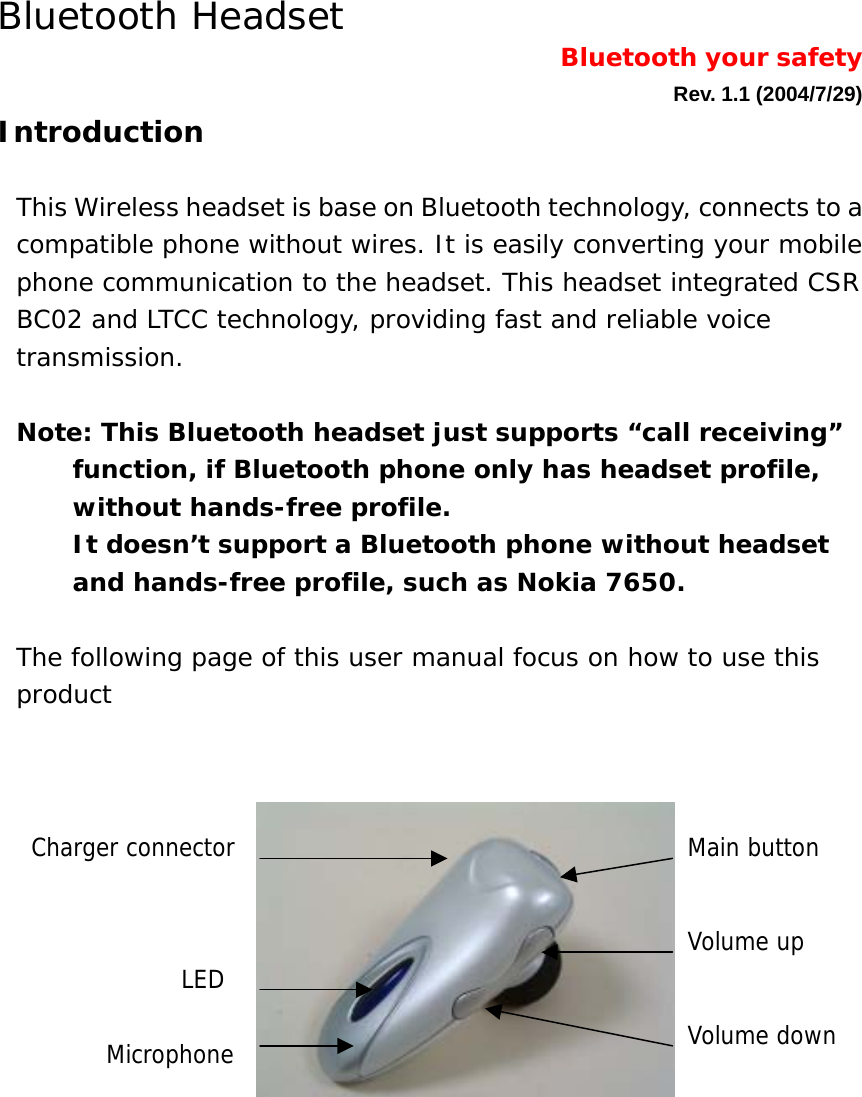
Bluetooth Headset                   Bluetooth your safety   Rev. 1.1 (2004/7/29) Introduction  This Wireless headset is base on Bluetooth technology, connects to a compatible phone without wires. It is easily converting your mobile phone communication to the headset. This headset integrated CSR BC02 and LTCC technology, providing fast and reliable voice transmission.   Note: This Bluetooth headset just supports “call receiving” function, if Bluetooth phone only has headset profile, without hands-free profile.  It doesn’t support a Bluetooth phone without headset and hands-free profile, such as Nokia 7650.  The following page of this user manual focus on how to use this product                    Volume up Volume down Main button LED Microphone Charger connector
Getting started Charging the battery  The headset has a rechargeable Lithium Polymer battery. You have 2 ways to charge the battery: 1. Charging by the AC charger a、 Connect the charger cable to the charger connector on headset b、 Connect the charger to an AC wall outlet. The red LED is on, during charge mode. It takes around 3.5 hours to fully charge the battery. The red LED is off when the battery is full.  2. Charging by USB on the PC or notebook a、 Connect the USB cable to the charger connector on the headset.  b、 Connect the other end of USB cable to the USB port on the PC or notebook c、 The RED LED is on when the headset is charged. It takes about 3.5 hours to fully charge the battery. The red LED is off when the battery is full.  With battery fully charged, the talk time will be 4.5 hours, and the stand-by time will be about 100 hours.  Battery Low When the battery is low, the RED flashes, the headset will produce a warning sound.  Switch ON/OFF 1. Switch ON: in off mode, press and hold the main button for 3~5 seconds to switch on. The headset produces 2 beeps, (low-high). The blue LED flashes 5 times.  2. Standby mode: Headset switch to standby mode from link mode automatically, to save the power. The blue LED flashes once in each 3 seconds. 3. Switch OFF: in standby mode, press and hold the main button about 3~4 seconds until the red LED flashes 5 times. The blue LED is off and the headset is off, too.
Pairing You pair the headset with the phone by adding it to the pairing list in the phone. The two devices then recognize each other when they connect. 1. When the headset is off, press and hold the main button for 5 to 6 seconds until the blue/red LED fast flashes.  2. Prepare your phone for turning on Bluetooth function, searching new device, according to the phone user’s guide. Make sure the product is within 5m of the phone.  3. “Auto Blue” appears in the pairing list on your phone. Selects it. Key-in the password “1234”. 4. The headset goes into link mode after pairing. The blue LED flashes 4 times in each 3 seconds.  When pairing is successful, the red indicator will turn off and the blue indicator will flash. If no pairing is possible for a period of time (approx. two minutes), the headset will automatically power off, and so the previous pairing(if any) is revoked. You may need to repeat steps 1 to 4 until the pairing is successful.  Note: You only pair the headset with your mobile phone at the first time. You don’t have to redo the pairing process until you want to use it with another mobile phone. Calls Answer a coming call 1. When you receive a call, headset rings, and the blue LED fast flashes 4 times in each 3 seconds.  2. Press the main button to answer the call.  3. If you answer the coming call by your phone, the voice remains on the phone. According to the phone user guide to transfer the voice to the headset.  Terminate a call Press the main button during the talking mode to terminate the call.
Making a call When the headset is connected to your phone, make a call by using your phone in the normal way.   Making a voice dialing If your phone supports voice dialing, and it is activated, you can use this feature with this headset 1.  Refer to the phone user guide to enable the voice commands on your phone;  2.  On standby mode, press the main button. Wait for the tone that indicates you can say the name as you recorded on your phone. Redialing the last dialing number In the standby mode, long press the volume up or volume down button to redial the last call.  Adjusting the Volume 1.  To increase the volume, press the volume up button in talking mode. 2.  To decrease the volume, press the volume down button in talking mode.  Reject a coming call  1. When you receive a call, headset rings, and the blue LED fast flashes 3 times in each 3 seconds.  2. Long press the main button to reject the call.   Transfer a call You can transfer a current call directly to your phone. Press for 3 to 4 seconds the main button during the call.  ** No all the Bluetooth phones support this feature. If it is the case with your phone, pressing the main button may end the call and not transfer it to the phone.   Connect with a PC or PDA You are allowed to connect the Headset with a Bluetooth enabled PC
or PDA that is with Audio Gateway Profile supported. Please refer to the user manual of your Bluetooth enabled PC or PDA for a setup information.       Important Information Trouble shooting 1. No indication of charging is shown.       If the Headset battery that is empty or has not been used for a long time, it may take a couple minutes for the Headset indicator to show charging status with a steady red light. 2. If you cannot connect the Headset to your phone. - Make sure that the Headset is switched on and paired with your phone. - Make sure that Bluetooth feature is activated on your phone. - Check that the Headset is within a maximum of 10 meters of your phone and that there are no obstructions, such as walls, or other electronic devices between the Headset and the phone. - The pairing information list of the Headset may be full. The Headset can store the information of up to 8 phones at a time. If the list becomes full, reset the Headset to the original settings. - If the Headset does not respond to your actions, remove the battery for a short while.  Notice for maintenance -  Keep the Headset dry. Precipitation, humidity and all types of liquids or moisture can contain minerals that will corrode electronic circuits. -  Do not use or store the headset in dusty, dirty areas. It moving parts can be damaged. -  Do not store the headset in hot areas. High temperatures can shorten the life of electronic devices, damage batteries, and warp or melt certain plastics. -  Do not store the headset in cold areas. When it warms up,
moisture can form inside, which may damage electronic circuit boards. -  Do not attempt to open the headset. Non-expert handling may damage it. -  Do not drop, knock or shake the headset. Rough handing can break internal circuit boards. -  Do not use harsh chemicals, cleaning solvents, or strong detergents to clean the headset. -  Do not paint the headset. Paint can clog the moving parts and prevent proper operation. Children  Keep all accessories out if the reach of small children. Battery Information  New batteries  For first time use plus the adapter into the Headset and charge it at least 4 hours until the red indicator turns off.   Battery Care  - Only qualified Service Centers are authorized to remove or replace the battery. - The rechargeable battery has a long service life treated with good care. - Temperature extremes can affect the ability of your battery to charge. - Use the battery only for its intended purpose. - Never use any charger or battery is damaged. - Leaving the headset in hot or cold places, such as in a closed car in summer or winter conditions, will reduce the capacity and lifetime of battery. Always try to keep the battery between –10℃ and 45℃. A headset with a hot or cold battery may temporarily not work, even when the battery is full charged. - Do not dispose of a battery in a fire. Dispose of batteries according to local regulations. Do not dispose as household waste.   About pairing  What is pairing? Pairing is a process of associating Bluetooth devices with each. It will
establish a permanent security link between the devices and enable quick access to services provided without the need to enter passkeys.  Bluetooth passkey  Each headset has a default passkey 1234 for pairing, which is stored in its internal memory. You are usually required to enter the passkey 1234 in a pairing process with a Bluetooth mobile phone or other devices, however it depends on the kind of Bluetooth device that the headset is to connect to. Please refer to the user manual of the devices for the specific operation.  Paired devices remain paired even when:  - One of the devices is not powered on. - A service connection is interrupted or the service stopped. - One or both devices are rebooted.  The Bluetooth word mark and logos are owned by the Bluetooth SIG Inc. and any use of such marks here is under license. Other trademarks and trade names are those of their respective owners. FCC Statement The changes or modifications not expressly approved by the party responsible for compliance   could void the user’s authority to operate the equipment.   User Information This device complies with part 15 of FCC Rules. Operation is subject to the following two conditions:      (1) This device may not cause harmful interference, and   (2) This device must accept any interference received, including interference that may cause undesired operation.   To comply with FCC RF exposure requirement, this device and its antenna must not be co-located or operating in the conjunction with any other antenna or transmitter.
NOTE This equipment has been tested and found to comply with the limits for a Class B digital device, pursuant to Part 15 of the FCC Rules. These limits are designed to provide reasonable protection against harmful interference in a residential installation. This equipment generates, uses and can radiated radio frequency energy and, if not installed and used in accordance with the instructions, may cause harmful interference to radio communications. However, there is no guarantee that interference will not occur in a particular installation If this equipment does cause harmful interference to radio or television reception, which can be determined by turning the equipment off and on, the user is encouraged to try to correct the interference by one or more of the following measures:  -Reorient or relocate the receiving antenna. -Increase the separation between the equipment and receiver. -Connect the equipment into an outlet on a circuit different from that to which the receiver is connected. -Consult the dealer or an experienced radio/TV technician for help.

Navigation menu