GUANGZHOU TAIMA TS4500HA Wireless Barcode Scanner User Manual TS4500 x

GUANGZHOU TAIMA(TICODE) ELECTRONICS TECHNOLOGY LTD. Wireless Barcode Scanner TS4500 x

Manual

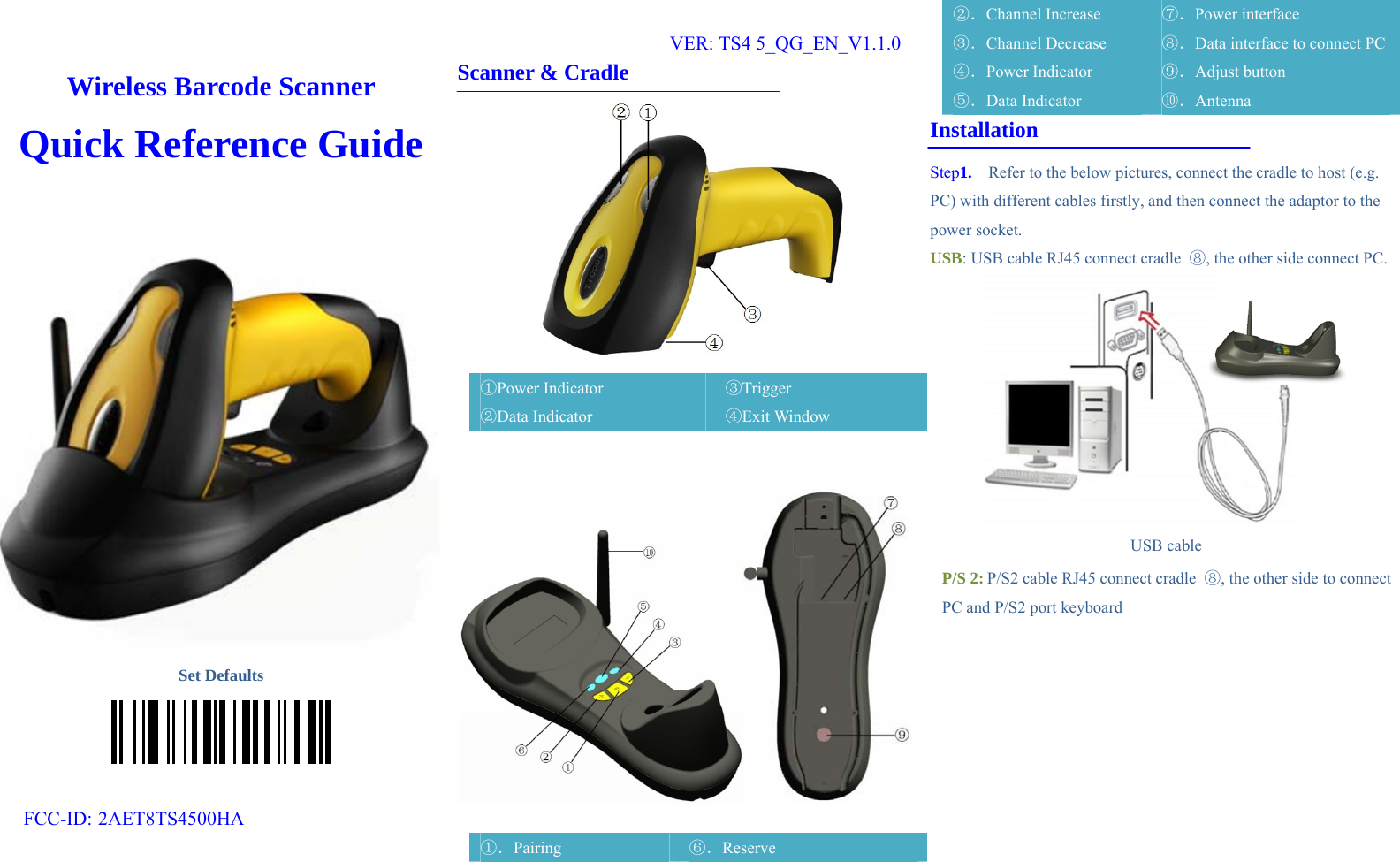
Wireless Barcode Scanner Quick Reference Guide    Set Defaults   FCC-ID: 2AET8TS4500HA      VER: TS4 5_QG_EN_V1.1.0    Scanner & Cradle  ①Power Indicator ②Data Indicator ③Trigger ④Exit Window     ①.Pairing  ⑥.Reserve ②.Channel Increase ③.Channel Decrease ④.Power Indicator ⑤.Data Indicator ⑦.Power interface ⑧.Data interface to connect PC ⑨.Adjust button   ⑩.Antenna Installation Step 1.   Refer to the below pictures, connect the cradle to host (e.g. PC) with different cables firstly, and then connect the adaptor to the power socket. USB: USB cable RJ45 connect cradle  ⑧, the other side connect PC.  USB cable P/S 2: P/S2 cable RJ45 connect cradle  ⑧, the other side to connect PC and P/S2 port keyboard
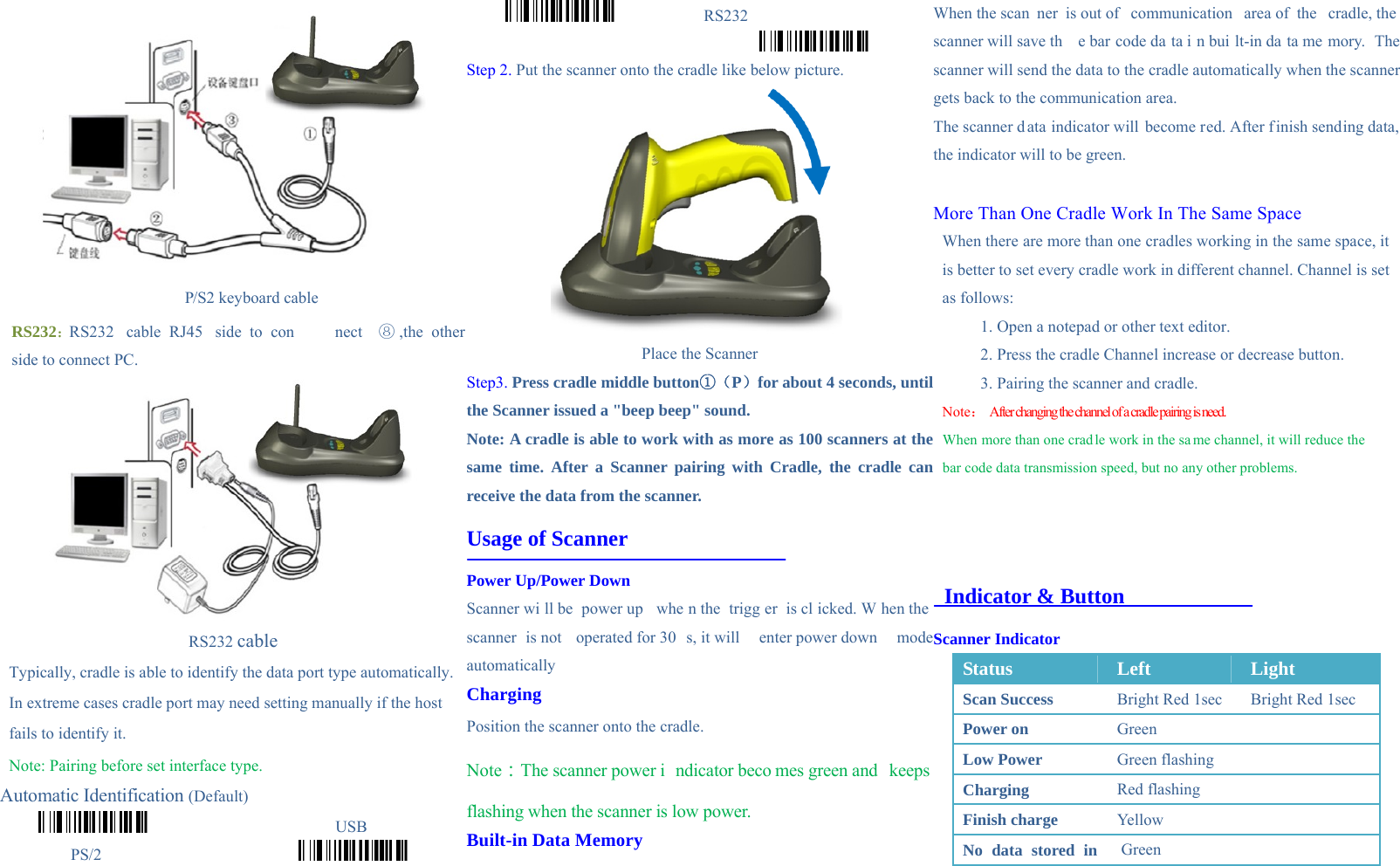
 P/S2 keyboard cable   RS232:RS232  cable  RJ45   side  to  con nect   ⑧ ,the other side to connect PC.    RS232 cable Typically, cradle is able to identify the data port type automatically. In extreme cases cradle port may need setting manually if the host fails to identify it. Note: Pairing before set interface type. Automatic Identification (Default)                        USB  PS/2                                                RS232           Step 2. Put the scanner onto the cradle like below picture.  Place the Scanner Step3. Press cradle middle button①(P)for about 4 seconds, until the Scanner issued a "beep beep" sound. Note: A cradle is able to work with as more as 100 scanners at the same time. After a Scanner pairing with Cradle, the cradle can receive the data from the scanner. Usage of Scanner Power Up/Power Down Scanner wi ll be  power up  whe n the  trigg er is cl icked. W hen the  scanner is not  operated for 30 s, it will  enter power down  mode automatically  Charging Position the scanner onto the cradle. Note:The scanner power i ndicator beco mes green and  keeps flashing when the scanner is low power. Built-in Data Memory When the scan ner is out of  communication  area of  the  cradle, the  scanner will save th e bar code da ta i n bui lt-in da ta me mory. The scanner will send the data to the cradle automatically when the scanner gets back to the communication area. The scanner d ata indicator will become red. After f inish sending data, the indicator will to be green.    More Than One Cradle Work In The Same Space When there are more than one cradles working in the same space, it is better to set every cradle work in different channel. Channel is set as follows: 1. Open a notepad or other text editor. 2. Press the cradle Channel increase or decrease button.   3. Pairing the scanner and cradle. Note:  After changing the channel of a cradle pairing is need. When more than one cradle work in the sa me channel, it will reduce the  bar code data transmission speed, but no any other problems.      Indicator & Button Scanner Indicator Status  Left  Light Scan Success  Bright Red 1sec  Bright Red 1sec Power on  Green  Low Power  Green flashing   Charging  Red flashing   Finish charge  Yellow    No data stored in   Green
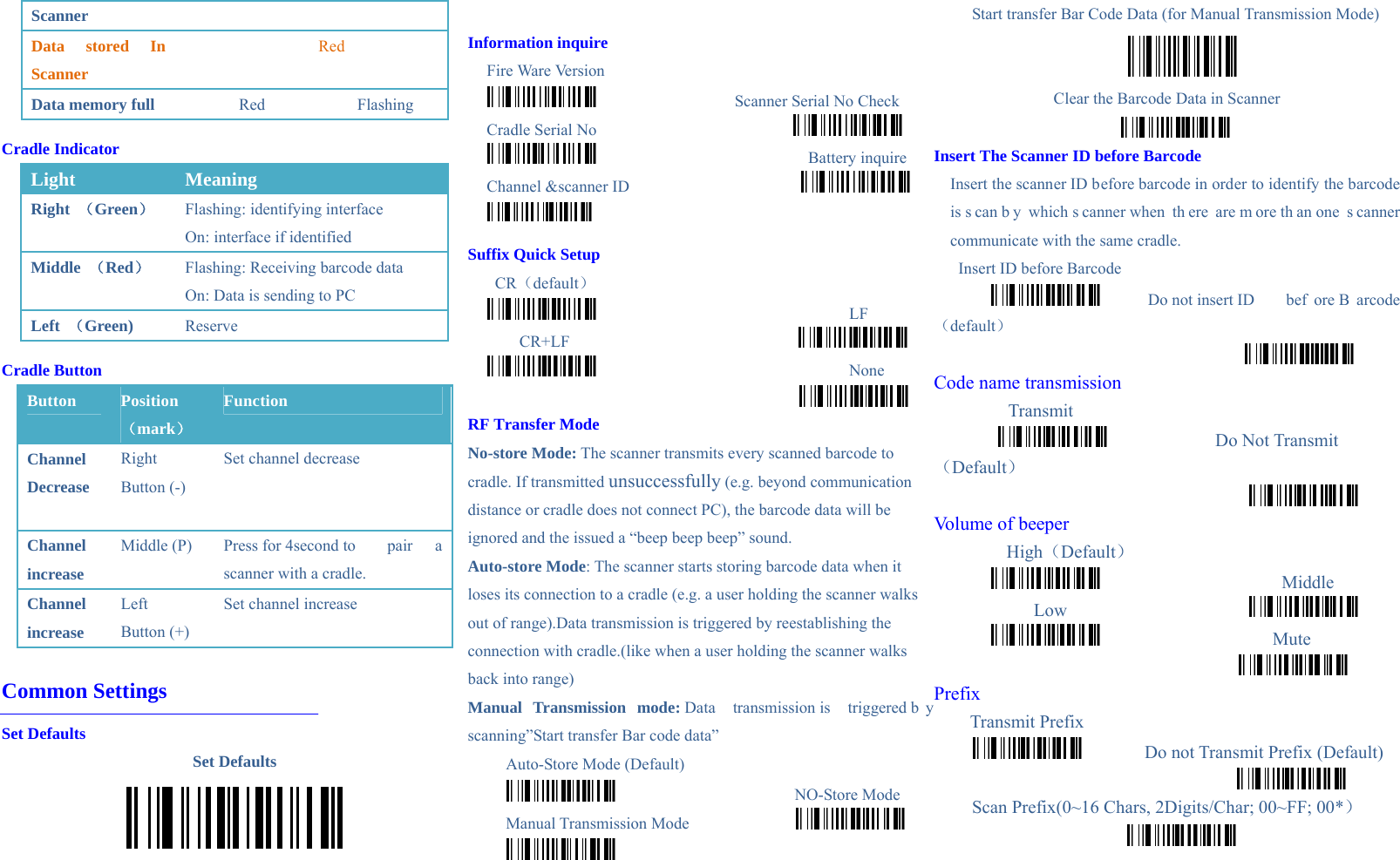
Scanner Data stored In Scanner  Red Data memory full   Red Flashing Cradle Indicator Light  Meaning Right  (Green) Flashing: identifying interface On: interface if identified Middle  (Red) Flashing: Receiving barcode data On: Data is sending to PC Left  (Green)  Reserve Cradle Button   Button  Position(mark) Function Channel Decrease  Right Button (-) Set channel decrease  Channel increase Middle (P)  Press for 4second to  pair  a scanner with a cradle.   Channel increase Left Button (+) Set channel increase   Common Settings Set Defaults Set Defaults   Information inquire Fire Ware Version                  Scanner Serial No Check Cradle Serial No                                                    Battery inquire Channel &scanner ID                        Suffix Quick Setup CR(default)                                LF CR+LF                                                            None  RF Transfer Mode No-store Mode: The scanner transmits every scanned barcode to cradle. If transmitted unsuccessfully (e.g. beyond communication distance or cradle does not connect PC), the barcode data will be ignored and the issued a “beep beep beep” sound. Auto-store Mode: The scanner starts storing barcode data when it loses its connection to a cradle (e.g. a user holding the scanner walks out of range).Data transmission is triggered by reestablishing the connection with cradle.(like when a user holding the scanner walks back into range) Manual Transmission mode: Data  transmission is  triggered b y scanning”Start transfer Bar code data” Auto-Store Mode (Default)                       NO-Store Mode Manual Transmission Mode                Start transfer Bar Code Data (for Manual Transmission Mode)  Clear the Barcode Data in Scanner     Insert The Scanner ID before Barcode  Insert the scanner ID before barcode in order to identify the barcode is s can b y which s canner when  th ere are m ore th an one  s canner communicate with the same cradle. Insert ID before Barcode       Do not insert ID  bef ore B arcode(default)  Code name transmission Transmit             Do Not Transmit(Default)  Volume of beeper High(Default)                     Middle Low                                         Mute         Prefix Transmit Prefix          Do not Transmit Prefix (Default)         Scan Prefix(0~16 Chars, 2Digits/Char; 00~FF; 00*)
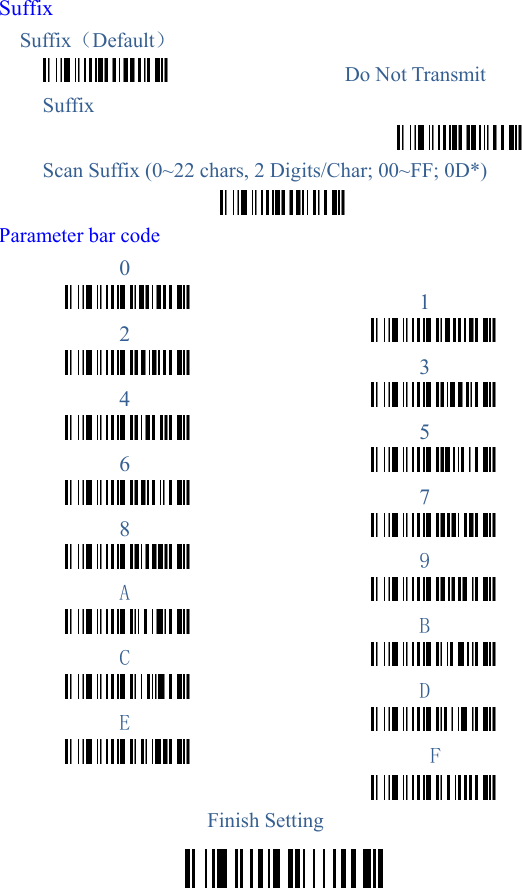
 Suffix Suffix(Default)                  Do Not Transmit Suffix  Scan Suffix (0~22 chars, 2 Digits/Char; 00~FF; 0D*)  Parameter bar code 0                      1 2                                             3 4                                             5 6                                             7 8                                             9 A                                             B C                                             D E                                              F  Finish Setting
FCC Statement Changes or modifications not expressly approved by the party responsible for compliance could void the user's authority to operate the equipment.   This equipment has been tested and found to comply with the limits for a Class B digital device, pursuant to Part 15 of the FCC Rules.  These limits are designed to provide reasonable protection against harmful interference in a residential installation. This equipment generates uses and can radiate radio frequency energy and, if not installed and used in accordance with the instructions, may cause harmful interference to radio communications. However, there is no guarantee that interference will not occur in a particular installation. If this equipment does cause harmful interference to radio or television reception, which can be determined by turning the equipment off and on, the user is encouraged to try to correct the interference by one or more of the following measures: -- Reorient or relocate the receiving antenna.   -- Increase the separation between the equipment and receiver.  -- Connect the equipment into an outlet on a circuit different from that to which the receiver is connected.   -- Consult the dealer or an experienced radio/TV technician for help This device complies with part 15 of the FCC rules. Operation is subject to the following two conditions (1)this device may not cause harmful interference, and (2) this device must accept any interference received, including interference that may cause undesired operation

Navigation menu