Gomtel Science and Technology T6 Smart Watch User Manual

Shenzhen Gomtel Science&Technology; Co., Ltd. Smart Watch

User manual

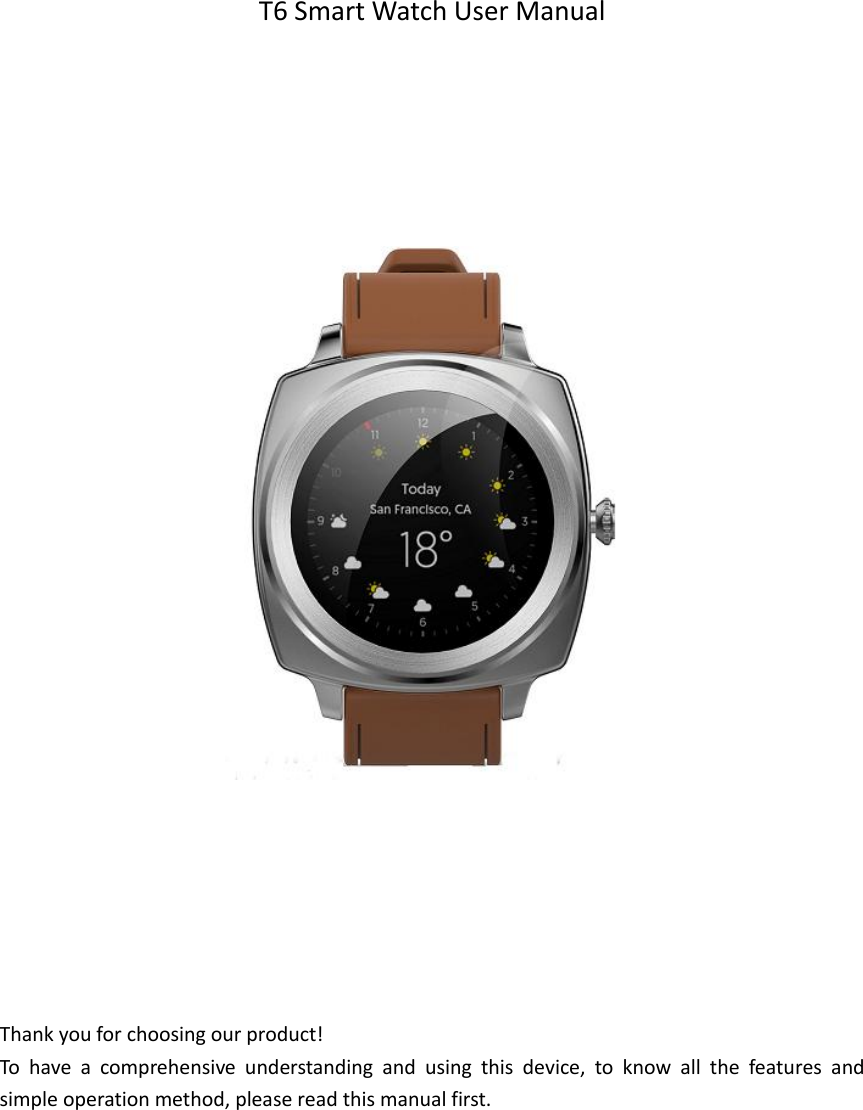
  T6 Smart Watch User Manual                               Thank you for choosing our product! To  have  a  comprehensive  understanding  and  using  this  device,  to  know  all  the  features  and simple operation method, please read this manual first.
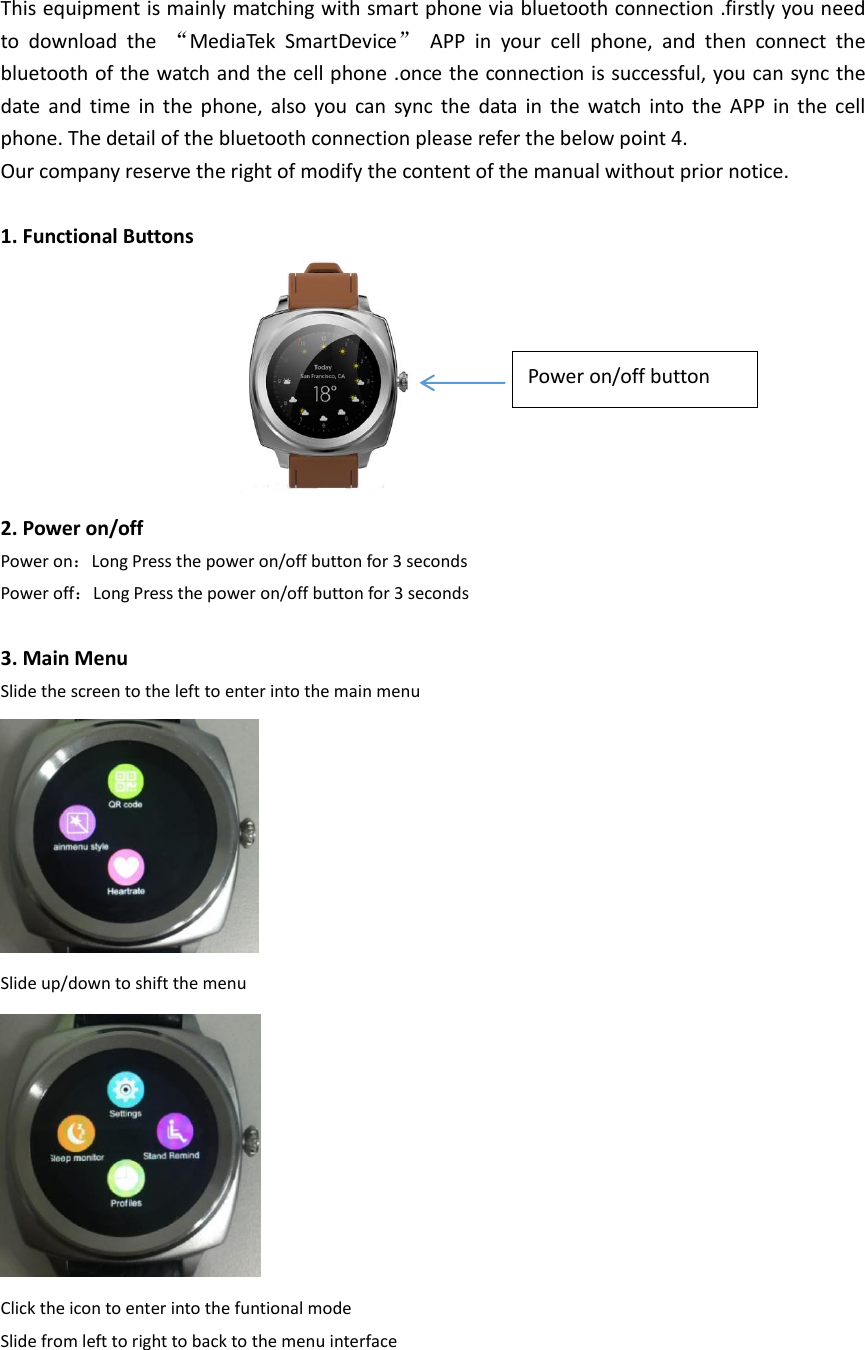
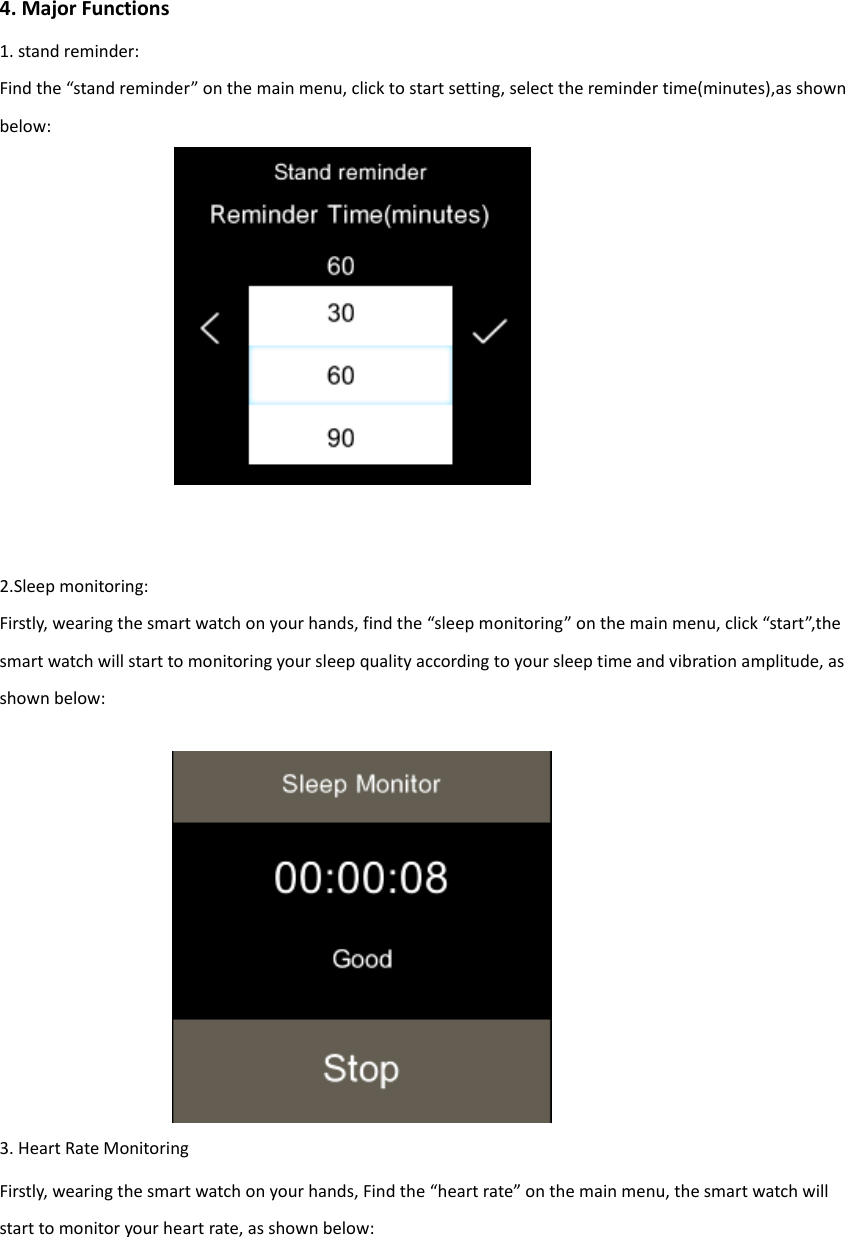
This equipment is mainly matching with smart phone via bluetooth connection .firstly you need to  download  the  “MediaTek  SmartDevice”  APP  in  your  cell  phone,  and  then  connect  the bluetooth of the watch and the cell phone .once the connection is successful, you can sync the date  and  time  in  the  phone,  also  you  can  sync  the  data  in  the  watch  into  the  APP  in  the  cell phone. The detail of the bluetooth connection please refer the below point 4. Our company reserve the right of modify the content of the manual without prior notice.  1. Functional Buttons         2. Power on/off Power on:Long Press the power on/off button for 3 seconds Power off:Long Press the power on/off button for 3 seconds    3. Main Menu Slide the screen to the left to enter into the main menu  Slide up/down to shift the menu  Click the icon to enter into the funtional mode   Slide from left to right to back to the menu interface   Power on/off button
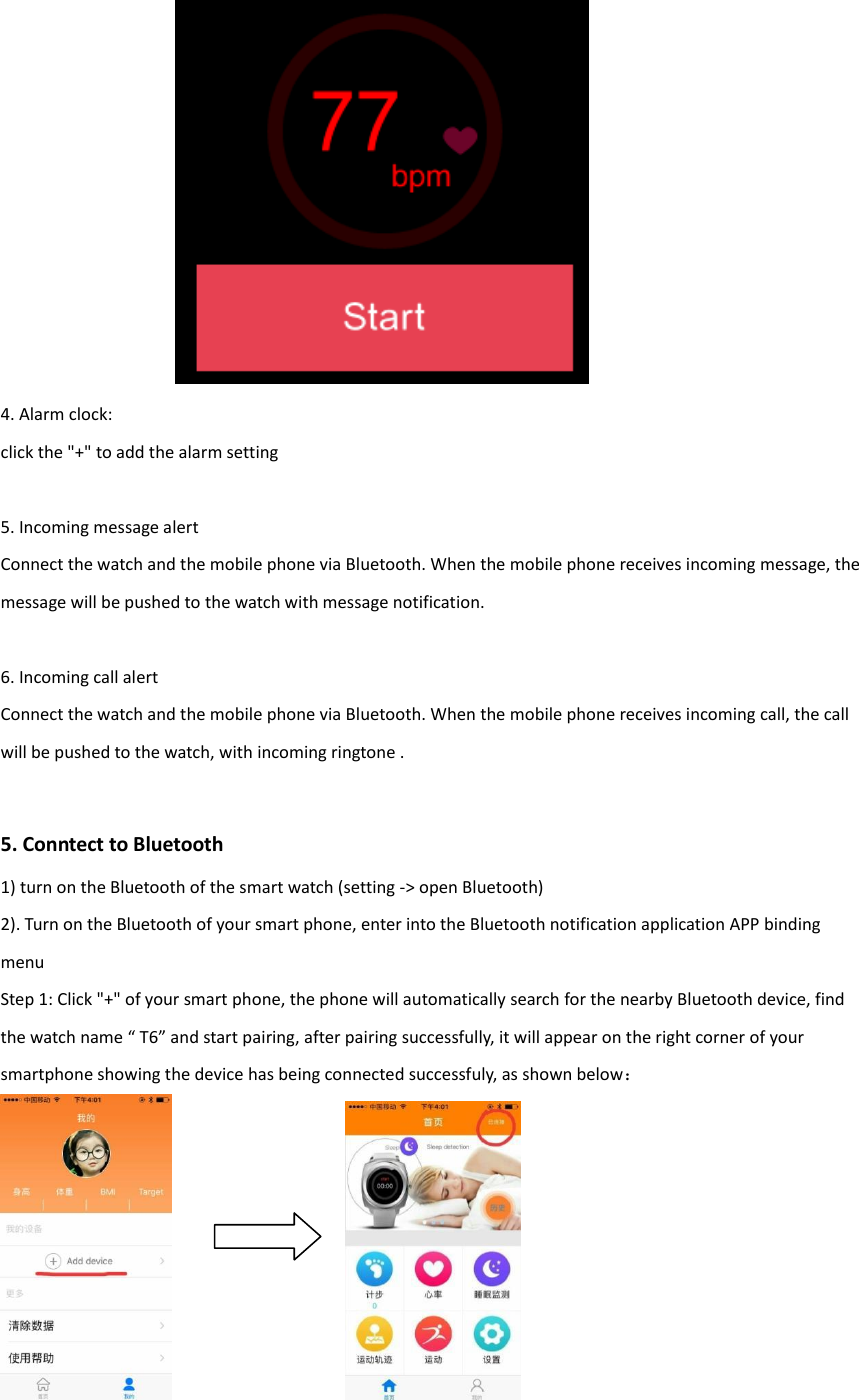
4. Major Functions 1. stand reminder: Find the “stand reminder” on the main menu, click to start setting, select the reminder time(minutes),as shown below:                        2.Sleep monitoring: Firstly, wearing the smart watch on your hands, find the “sleep monitoring” on the main menu, click “start”,the smart watch will start to monitoring your sleep quality according to your sleep time and vibration amplitude, as shown below:        3. Heart Rate Monitoring Firstly, wearing the smart watch on your hands, Find the “heart rate” on the main menu, the smart watch will start to monitor your heart rate, as shown below:
              4. Alarm clock: click the "+" to add the alarm setting  5. Incoming message alert Connect the watch and the mobile phone via Bluetooth. When the mobile phone receives incoming message, the message will be pushed to the watch with message notification.  6. Incoming call alert Connect the watch and the mobile phone via Bluetooth. When the mobile phone receives incoming call, the call will be pushed to the watch, with incoming ringtone .   5. Conntect to Bluetooth 1) turn on the Bluetooth of the smart watch (setting -> open Bluetooth) 2). Turn on the Bluetooth of your smart phone, enter into the Bluetooth notification application APP binding menu Step 1: Click "+" of your smart phone, the phone will automatically search for the nearby Bluetooth device, find the watch name “ T6” and start pairing, after pairing successfully, it will appear on the right corner of your smartphone showing the device has being connected successfuly, as shown below:
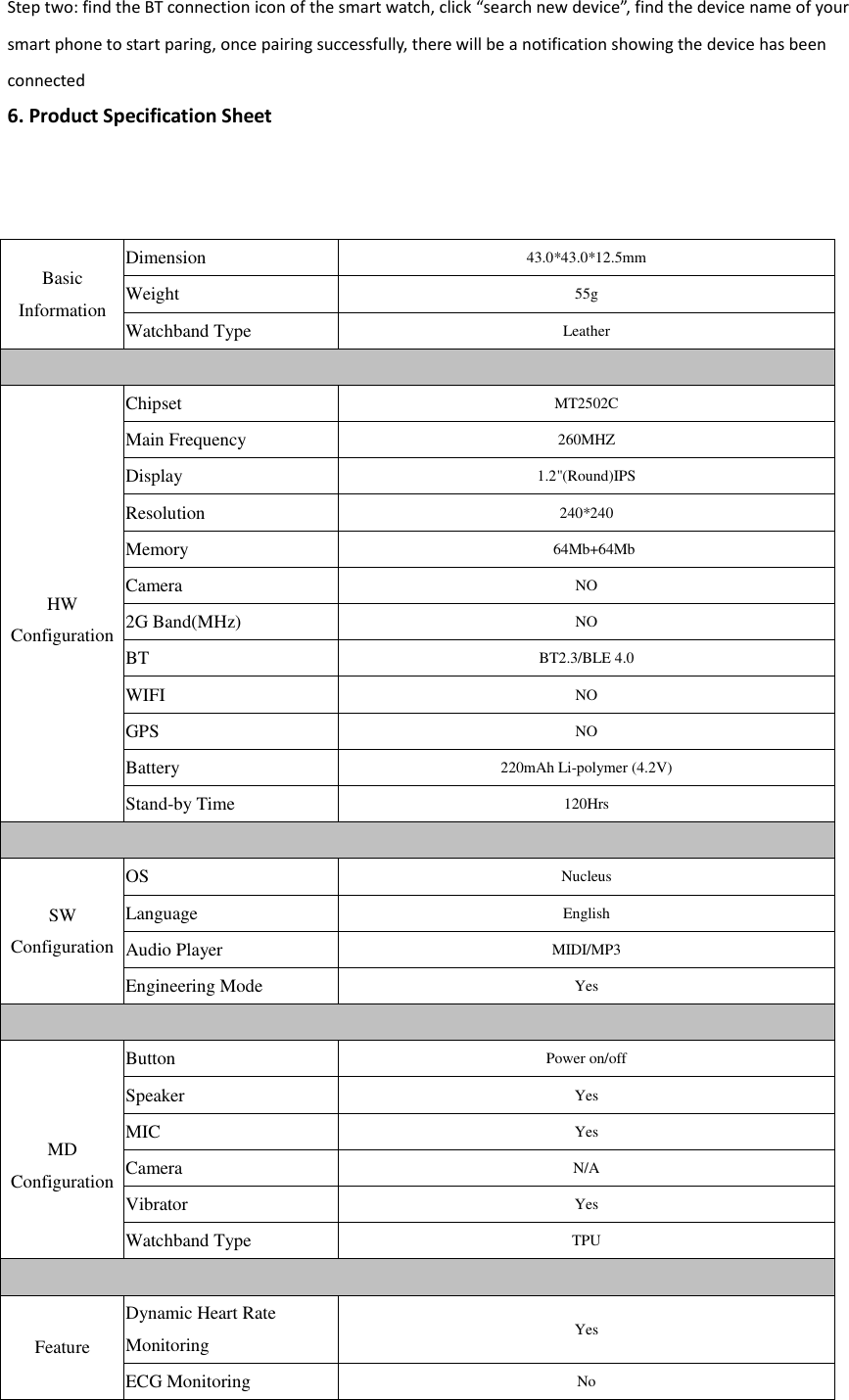
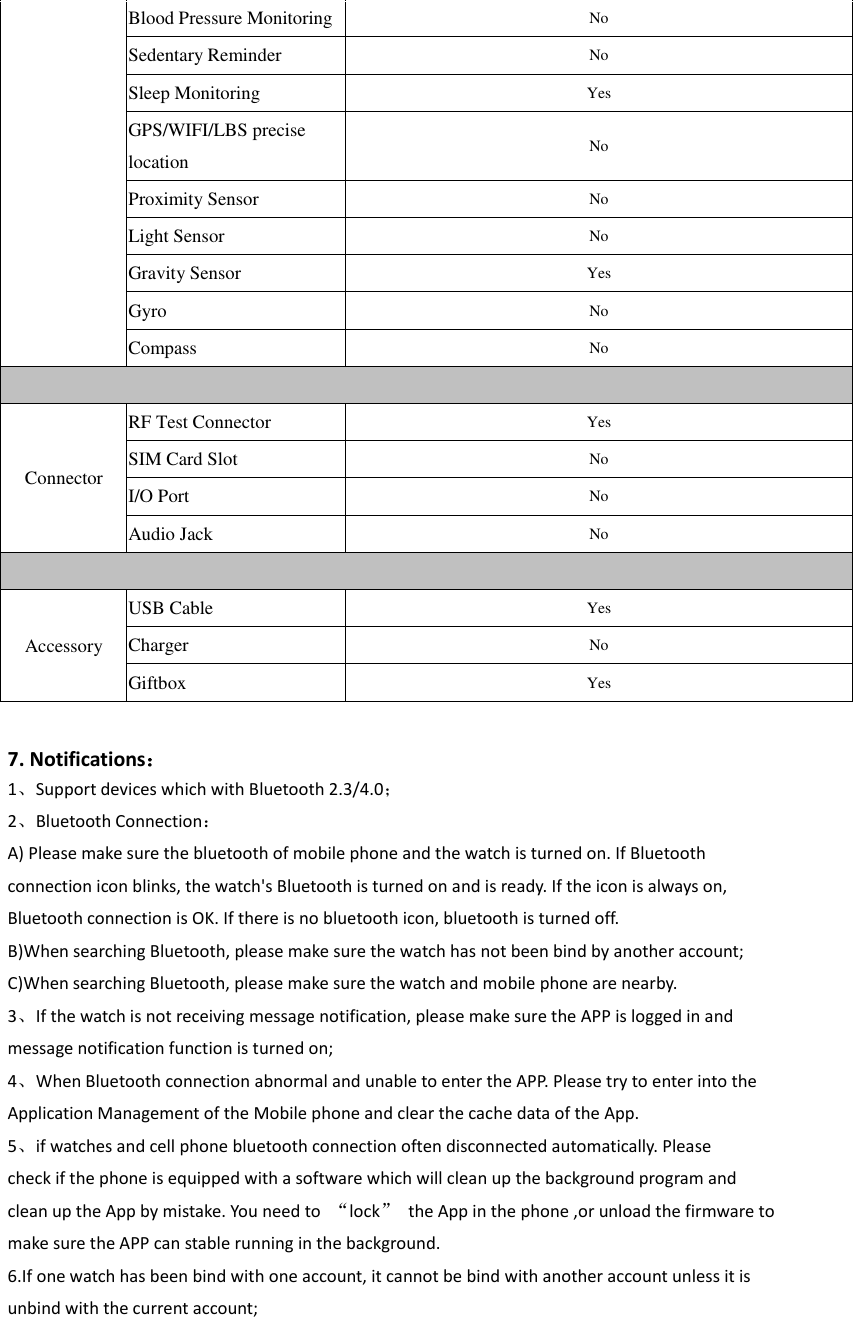
Step two: find the BT connection icon of the smart watch, click “search new device”, find the device name of your smart phone to start paring, once pairing successfully, there will be a notification showing the device has been connected 6. Product Specification Sheet Basic Information Dimension 43.0*43.0*12.5mm Weight 55g Watchband Type Leather   HW Configuration Chipset MT2502C Main Frequency 260MHZ Display 1.2"(Round)IPS Resolution 240*240 Memory  64Mb+64Mb Camera NO 2G Band(MHz) NO BT BT2.3/BLE 4.0 WIFI NO GPS NO Battery 220mAh Li-polymer (4.2V) Stand-by Time 120Hrs  SW   Configuration OS Nucleus Language English Audio Player MIDI/MP3 Engineering Mode Yes   MD Configuration Button Power on/off Speaker Yes MIC Yes Camera N/A Vibrator Yes Watchband Type TPU  Feature Dynamic Heart Rate Monitoring Yes ECG Monitoring No
 7. Notifications: 1、Support devices which with Bluetooth 2.3/4.0; 2、Bluetooth Connection: A) Please make sure the bluetooth of mobile phone and the watch is turned on. If Bluetooth connection icon blinks, the watch's Bluetooth is turned on and is ready. If the icon is always on, Bluetooth connection is OK. If there is no bluetooth icon, bluetooth is turned off. B)When searching Bluetooth, please make sure the watch has not been bind by another account; C)When searching Bluetooth, please make sure the watch and mobile phone are nearby. 3、If the watch is not receiving message notification, please make sure the APP is logged in and message notification function is turned on; 4、When Bluetooth connection abnormal and unable to enter the APP. Please try to enter into the Application Management of the Mobile phone and clear the cache data of the App. 5、if watches and cell phone bluetooth connection often disconnected automatically. Please check if the phone is equipped with a software which will clean up the background program and clean up the App by mistake. You need to  “lock”  the App in the phone ,or unload the firmware to make sure the APP can stable running in the background. 6.If one watch has been bind with one account, it cannot be bind with another account unless it is unbind with the current account;     Blood Pressure Monitoring No Sedentary Reminder No Sleep Monitoring Yes GPS/WIFI/LBS precise location No Proximity Sensor No Light Sensor No Gravity Sensor Yes Gyro No Compass No  Connector RF Test Connector Yes SIM Card Slot No I/O Port No Audio Jack No  Accessory USB Cable Yes Charger No Giftbox Yes
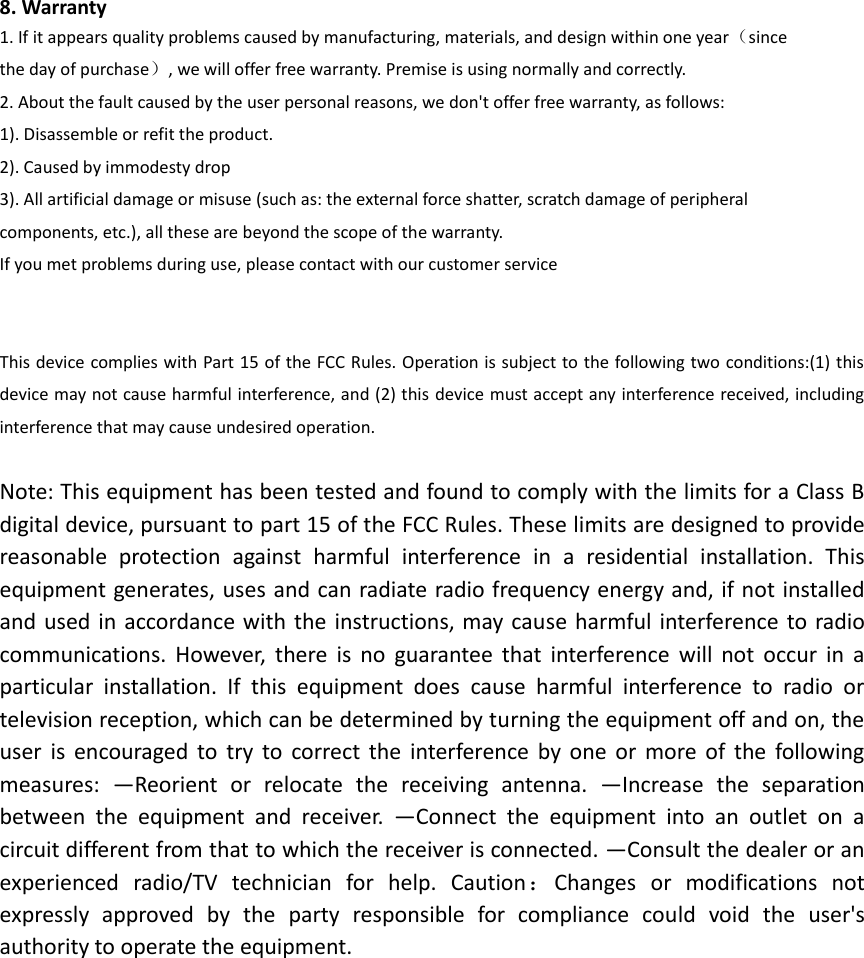
8. Warranty 1. If it appears quality problems caused by manufacturing, materials, and design within one year(since the day of purchase), we will offer free warranty. Premise is using normally and correctly. 2. About the fault caused by the user personal reasons, we don't offer free warranty, as follows: 1). Disassemble or refit the product. 2). Caused by immodesty drop 3). All artificial damage or misuse (such as: the external force shatter, scratch damage of peripheral     components, etc.), all these are beyond the scope of the warranty. If you met problems during use, please contact with our customer service   This device complies with Part 15 of the FCC Rules. Operation is subject to the following two conditions:(1) this device may not cause harmful interference, and (2) this device must accept any interference received, including interference that may cause undesired operation.  Note: This equipment has been tested and found to comply with the limits for a Class B digital device, pursuant to part 15 of the FCC Rules. These limits are designed to provide reasonable  protection  against  harmful  interference  in  a  residential  installation.  This equipment generates, uses and can radiate radio frequency energy and, if not installed and used  in accordance with the instructions, may cause  harmful interference to radio communications.  However,  there  is  no  guarantee  that  interference  will  not  occur  in  a particular  installation.  If  this  equipment  does  cause  harmful  interference  to  radio  or television reception, which can be determined by turning the equipment off and on, the user  is  encouraged  to  try  to  correct  the  interference  by  one  or  more  of  the  following measures:  —Reorient  or  relocate  the  receiving  antenna.  —Increase  the  separation between  the  equipment  and  receiver.  —Connect  the  equipment  into  an  outlet  on  a circuit different from that to which the receiver is connected. —Consult the dealer or an experienced  radio/TV  technician  for  help.  Caution:Changes  or  modifications  not expressly  approved  by  the  party  responsible  for  compliance  could  void  the  user's authority to operate the equipment.

Navigation menu