Gongjin Electronics PI699E23 200Mbps PLC Wallmount User Manual V4VPI699E23

Shenzhen Gongjin Electronics Co., Ltd 200Mbps PLC Wallmount V4VPI699E23

Users Manual

   200M PLC User Manual
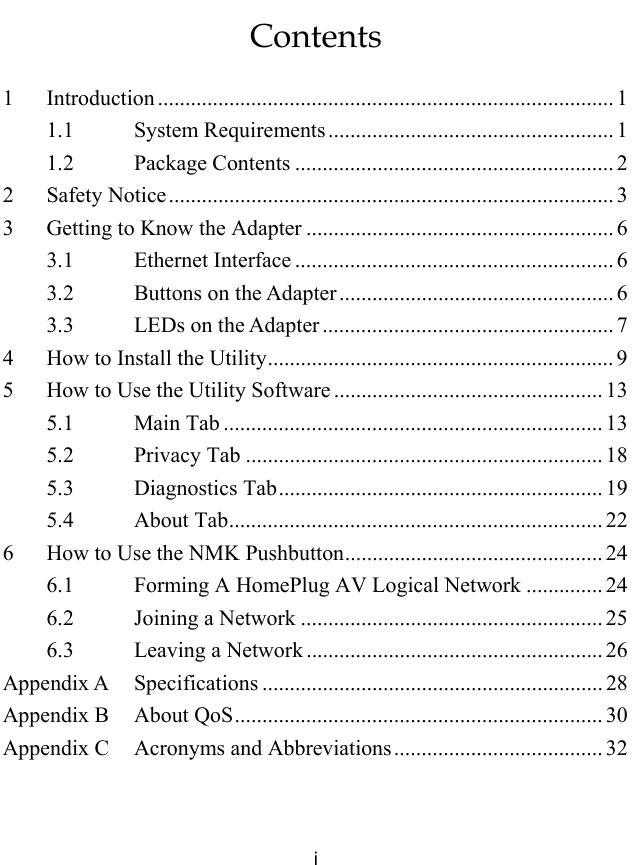
 i Contents 1 Introduction ................................................................................... 1 1.1 System Requirements.................................................... 1 1.2 Package Contents .......................................................... 2 2 Safety Notice................................................................................. 3 3 Getting to Know the Adapter ........................................................ 6 3.1 Ethernet Interface .......................................................... 6 3.2 Buttons on the Adapter.................................................. 6 3.3 LEDs on the Adapter ..................................................... 7 4 How to Install the Utility............................................................... 9 5 How to Use the Utility Software ................................................. 13 5.1 Main Tab ..................................................................... 13 5.2 Privacy Tab ................................................................. 18 5.3 Diagnostics Tab........................................................... 19 5.4 About Tab.................................................................... 22 6 How to Use the NMK Pushbutton............................................... 24 6.1 Forming A HomePlug AV Logical Network .............. 24 6.2 Joining a Network ....................................................... 25 6.3 Leaving a Network ...................................................... 26 Appendix A Specifications .............................................................. 28 Appendix B About QoS................................................................... 30 Appendix C Acronyms and Abbreviations...................................... 32
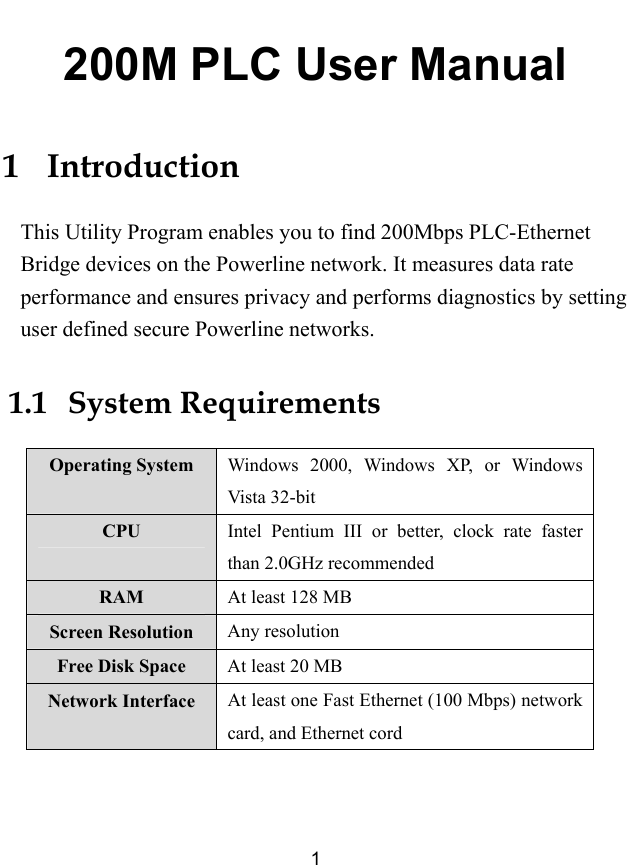
 1 200M PLC User Manual 1   Introduction This Utility Program enables you to find 200Mbps PLC-Ethernet Bridge devices on the Powerline network. It measures data rate performance and ensures privacy and performs diagnostics by setting user defined secure Powerline networks. 1.1   System Requirements Operating System  Windows 2000, Windows XP, or Windows Vista 32-bit CPU  Intel Pentium III or better, clock rate faster than 2.0GHz recommended RAM  At least 128 MB Screen Resolution  Any resolution Free Disk Space  At least 20 MB Network Interface  At least one Fast Ethernet (100 Mbps) network card, and Ethernet cord
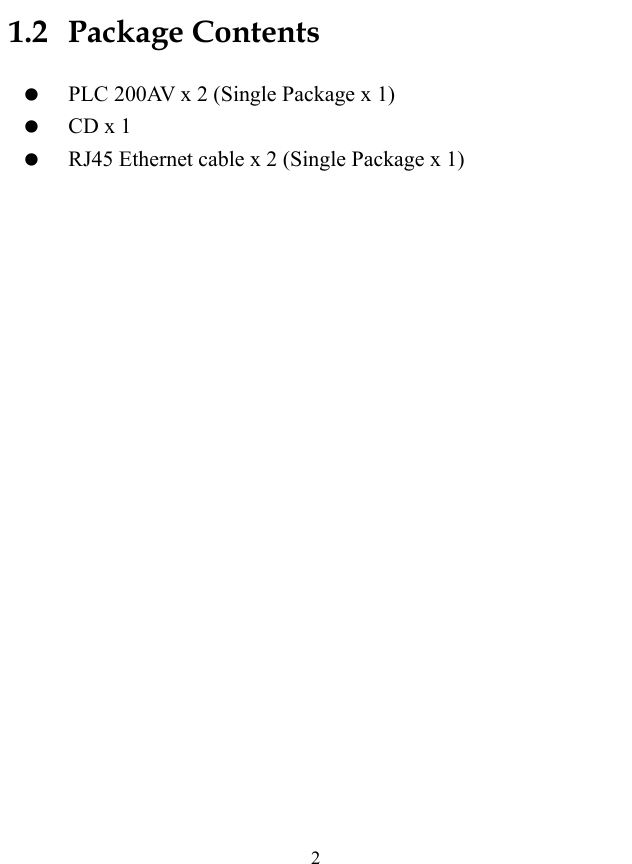
 2 1.2   Package Contents   PLC 200AV x 2 (Single Package x 1)   CD x 1   RJ45 Ethernet cable x 2 (Single Package x 1)
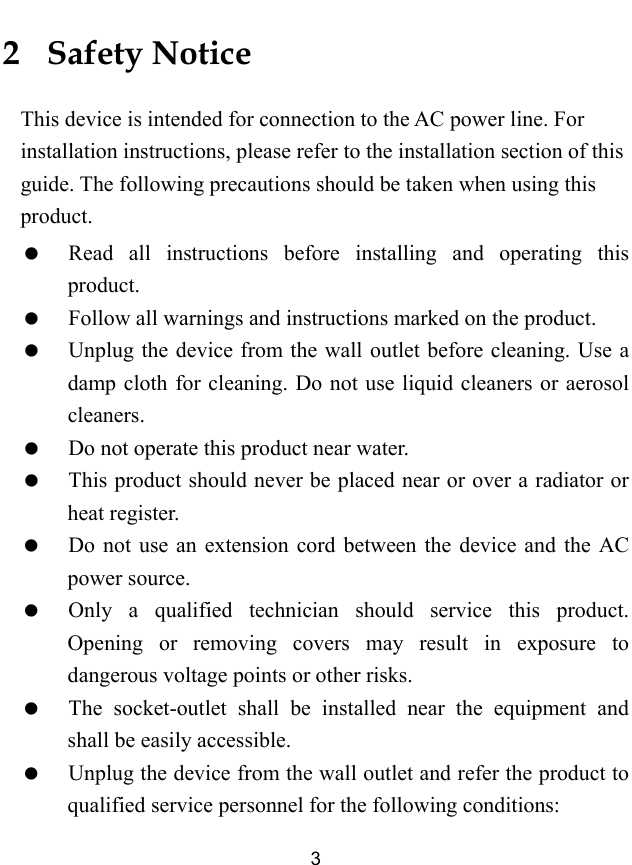
 3 2   Safety Notice This device is intended for connection to the AC power line. For installation instructions, please refer to the installation section of this guide. The following precautions should be taken when using this product.   Read all instructions before installing and operating this product.   Follow all warnings and instructions marked on the product.   Unplug the device from the wall outlet before cleaning. Use a damp cloth for cleaning. Do not use liquid cleaners or aerosol cleaners.   Do not operate this product near water.   This product should never be placed near or over a radiator or heat register.   Do not use an extension cord between the device and the AC power source.   Only a qualified technician should service this product. Opening or removing covers may result in exposure to dangerous voltage points or other risks.   The socket-outlet shall be installed near the equipment and shall be easily accessible.   Unplug the device from the wall outlet and refer the product to qualified service personnel for the following conditions:
 4 – If liquid is spilled into the product – If the product is exposed to rain or water – If the product does not operate normally when the operating instructions are followed – If the product exhibits a distinct change in performance  FCC This device complies with Part 15 of the FCC Rules. Operation is subject to the following two conditions: (1) this device may not cause harmful interference, and (2) this device must accept any interference received, including interference that may cause undesired operation.  Changes or modifications not expressly approved by the party responsible for compliance could void the user's authority to operate the equipment.  NOTE: This equipment has been tested and found to comply with the limits for a Class B digital device, pursuant to Part 15 of the FCC Rules. These limits are designed to provide reasonable protection against harmful interference in a residential installation. This equipment generates uses and can radiate radio frequency energy and, if not installed and used in accordance with the instructions, may cause harmful interference to radio
 5 communications. However, there is no guarantee that interference will not occur in a particular installation. If this equipment does cause harmful interference to radio or television reception, which can be determined by turning the equipment off and on, the user is encouraged to try to correct the interference by one or more of the following measures: -- Reorient or relocate the receiving antenna. -- Increase the separation between the equipment and receiver. -- Connect the equipment into an outlet on a circuit different from that to which the receiver is connected. -- Consult the dealer or an experienced radio/TV technician for help.
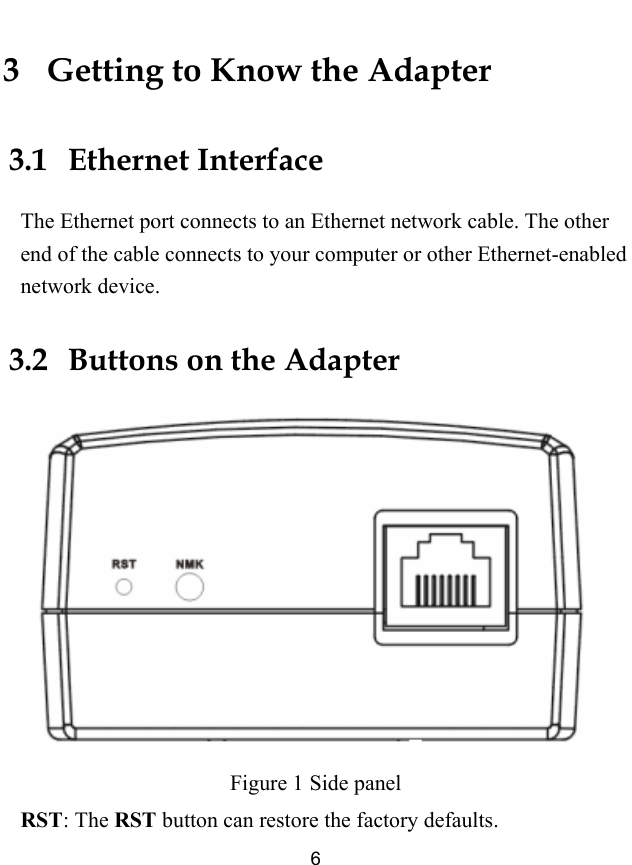
 6 3   Getting to Know the Adapter 3.1   Ethernet Interface The Ethernet port connects to an Ethernet network cable. The other end of the cable connects to your computer or other Ethernet-enabled network device. 3.2   Buttons on the Adapter  Figure 1 Side panel RST: The RST button can restore the factory defaults.
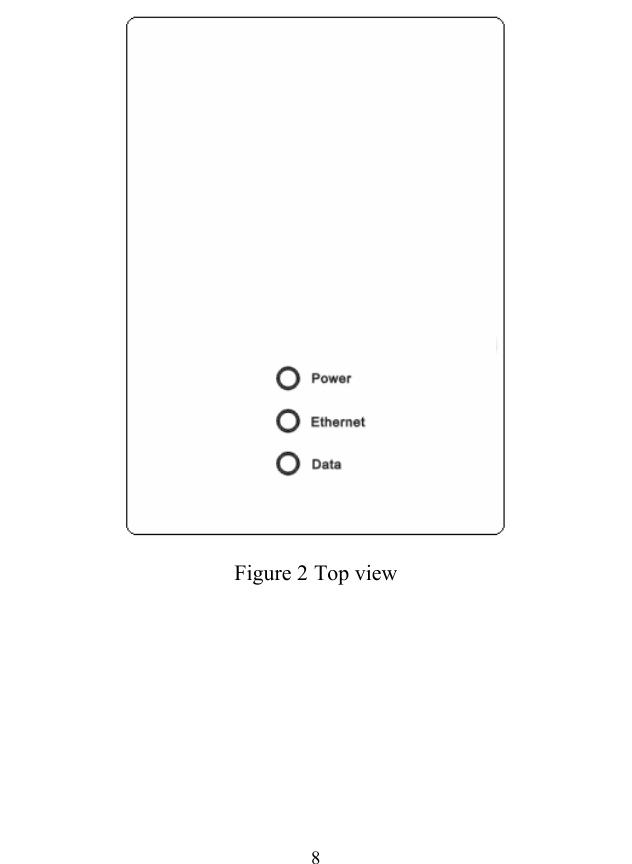
 7 NMK: The NMK button is used to set the membership state.   Pressing and holding the NMK buttons for more than 10 seconds which randomizes the NMK value.   Pressing and holding the NMK button for greater than 3 seconds, which becomes a member of existing AVLN. 3.3   LEDs on the Adapter All LEDs on the adapter are located on the front panel. There are 3 LEDs to indicate the status of the adapter.   Power: Green. It lights up when the Adapter is powered on.   Ethernet: Green. It flashes to indicate activity over the Ethernet connection.   Data: Green. It flashes to indicate activity over the powerline connection.
 8  Figure 2 Top view
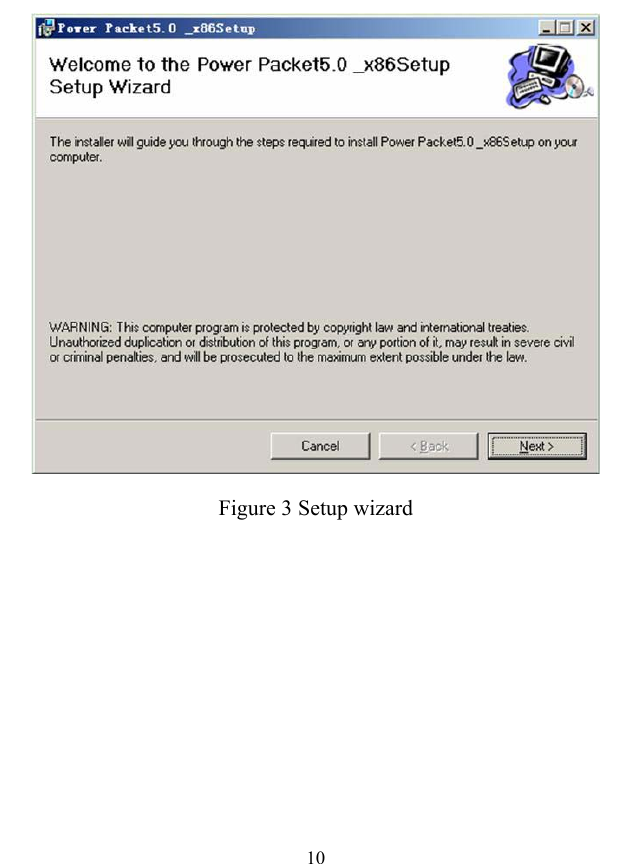
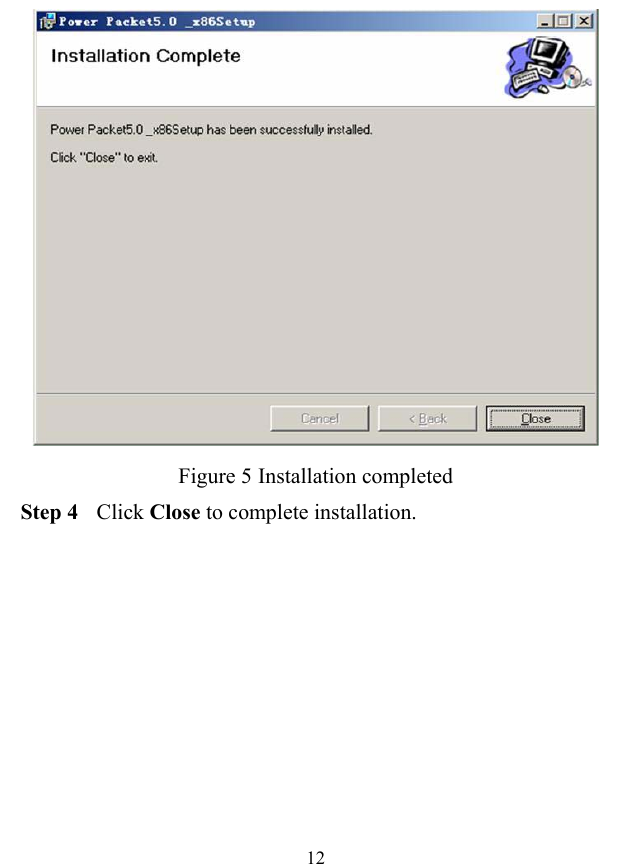
 9 4   How to Install the Utility Step 1 Before installing this utility, verify that no other Powerline utility is installed on your computer. If another utility is installed, uninstall it and restart your computer. Step 2 Insert the Utility CD into the CD-ROM of the computer. Then select the PLC 200AV Utility Installation folder and run setup.exe. Follow the steps to install the Utility Program. No password or CD-Key is required. Step 3 The installation utility is similar to the window shown in Figure 3. Click Next to continue.
 10  Figure 3 Setup wizard
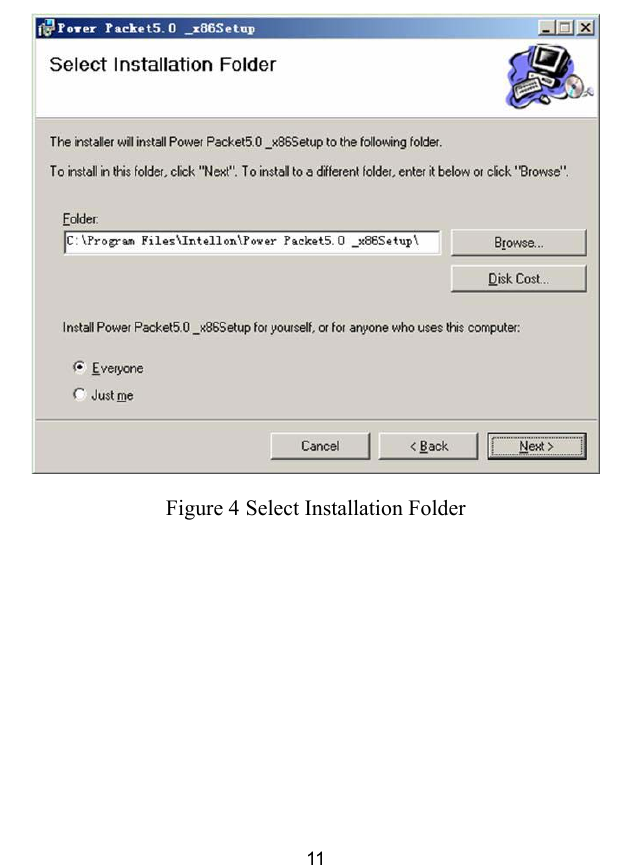
 11  Figure 4 Select Installation Folder
 12  Figure 5 Installation completed Step 4 Click Close to complete installation.
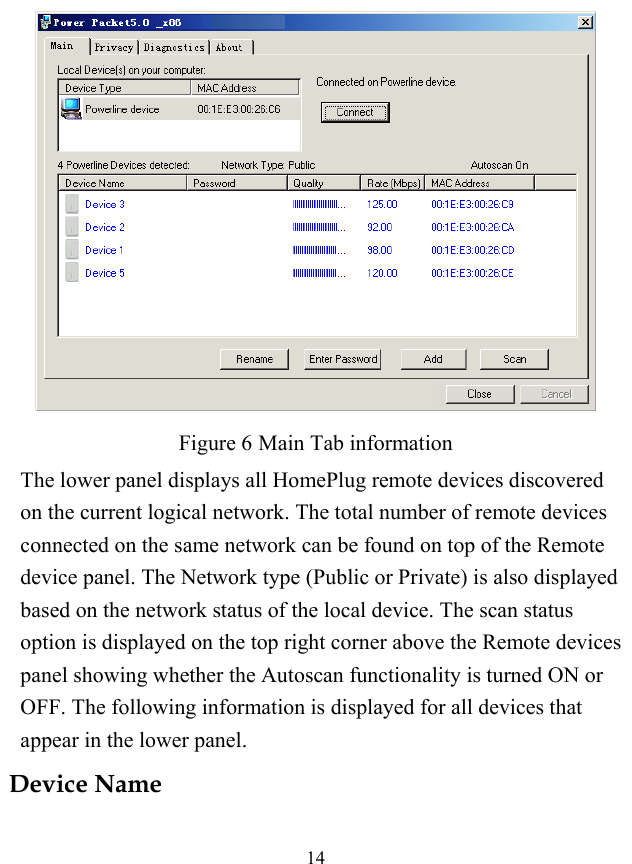
 13 5   How to Use the Utility Software 5.1   Main Tab The Main tab provides a list of all powerline devices logically connected to the computer when the utility is running.   The top panel shows local HomePlug devices connected to the network interface card (NIC) of the computer. Click Connect to its right. Once connected to the local device, the utility automatically scans the power line periodically for any other HomePlug device. If no local HomePlug device is discovered, the status area above the Connect button indicates with a message NO HOMEPLUG ADAPTERS DETECTED.
 14  Figure 6 Main Tab information The lower panel displays all HomePlug remote devices discovered on the current logical network. The total number of remote devices connected on the same network can be found on top of the Remote device panel. The Network type (Public or Private) is also displayed based on the network status of the local device. The scan status option is displayed on the top right corner above the Remote devices panel showing whether the Autoscan functionality is turned ON or OFF. The following information is displayed for all devices that appear in the lower panel. Device Name
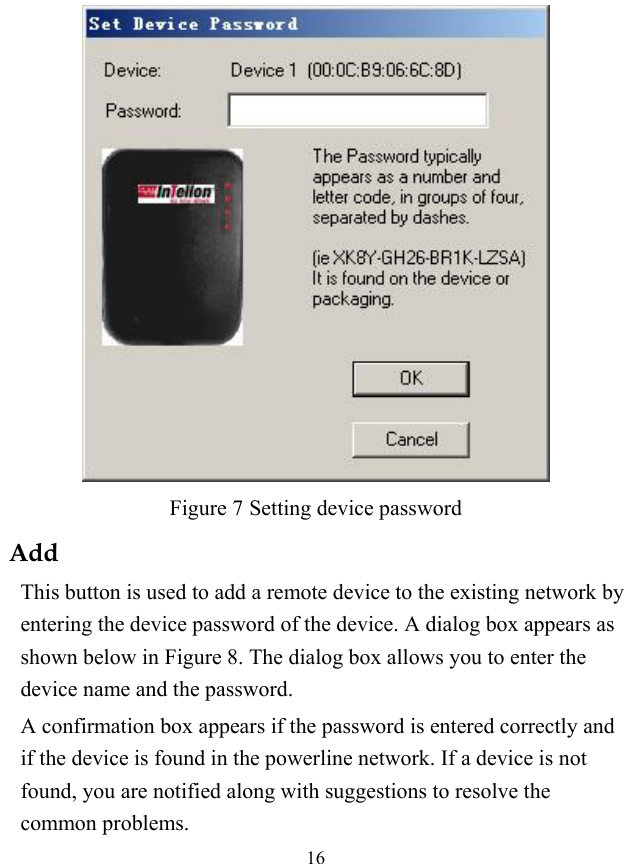
 15 This field shows the default device name. You can change the name by either clicking Rename or clicking the name and editing the name. MAC Address This field shows the MAC address of the remote device. Password By default, this field is blank. You can click Enter Password and enter the password. To set the Password of the device (required when creating a private network), click the device name in the lower panel to select the device, and click Enter Password. A dialog box appears as shown in Figure 7to enter the password. The selected device name is shown above the password field and you can verify the password by clicking OK. The Password field accepts the Device password in any case format, with or without dashed between them. A confirmation box appears if the password is entered correctly. If a device is not found, you are notified along with the suggestions to resolve common problems. This process might take a few seconds.
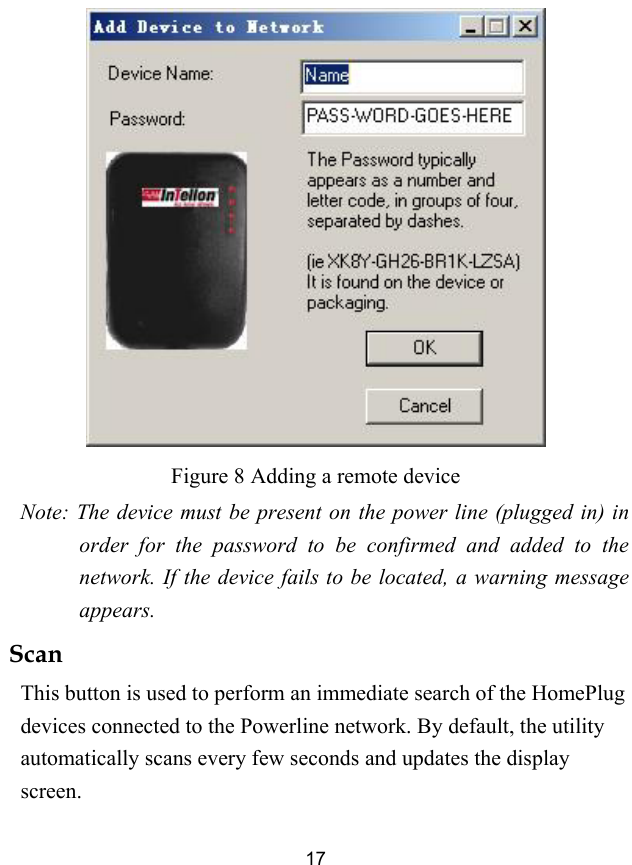
 16  Figure 7 Setting device password Add This button is used to add a remote device to the existing network by entering the device password of the device. A dialog box appears as shown below in Figure 8. The dialog box allows you to enter the device name and the password. A confirmation box appears if the password is entered correctly and if the device is found in the powerline network. If a device is not found, you are notified along with suggestions to resolve the common problems.
 17  Figure 8 Adding a remote device Note: The device must be present on the power line (plugged in) in order for the password to be confirmed and added to the network. If the device fails to be located, a warning message appears. Scan This button is used to perform an immediate search of the HomePlug devices connected to the Powerline network. By default, the utility automatically scans every few seconds and updates the display screen.
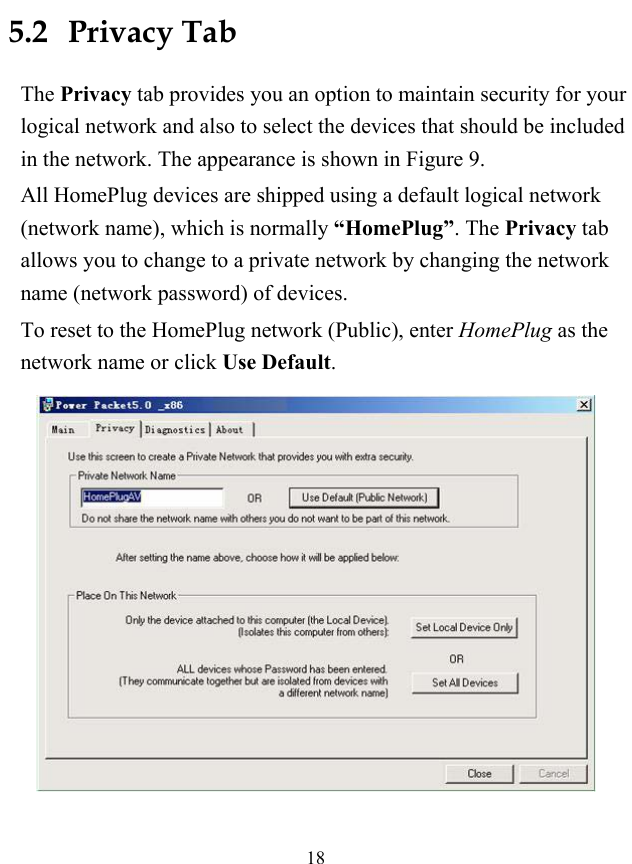
 18 5.2   Privacy Tab The Privacy tab provides you an option to maintain security for your logical network and also to select the devices that should be included in the network. The appearance is shown in Figure 9. All HomePlug devices are shipped using a default logical network (network name), which is normally “HomePlug”. The Privacy tab allows you to change to a private network by changing the network name (network password) of devices. To reset to the HomePlug network (Public), enter HomePlug as the network name or click Use Default.
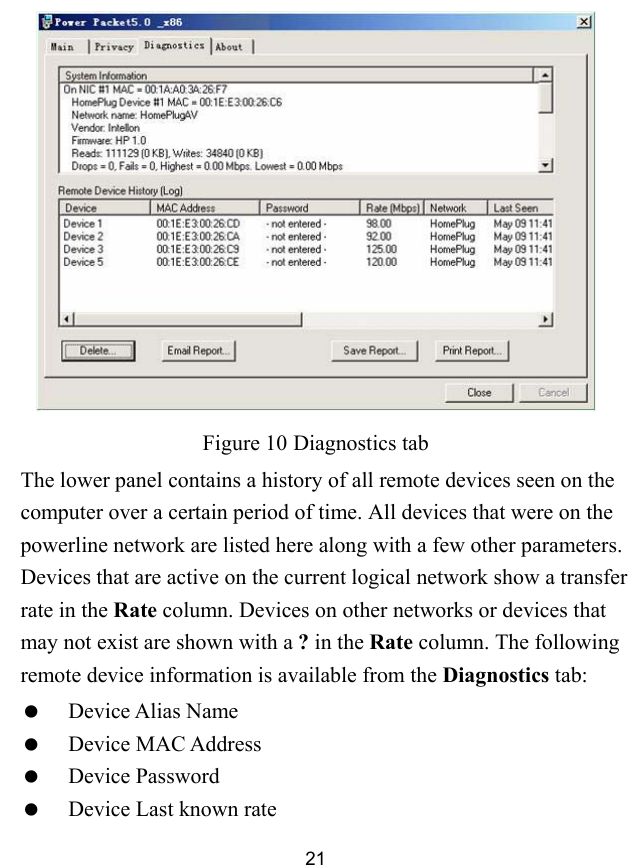
 19 Figure 9 Privacy tab Note: Changing the network name to anything other than HomePlug shows the network type on the Main tab as Private. Set Local Device Only This button can be used to change the network name (network password) of the local device. If a new network password is entered, all devices shown in the Main panel prior to this no longer appear in the new network, effectively making the local devices not to communicate to the devices that were in the old logical network. Devices previously set up with the same logical network (same network name) appear in the device list after you select this option. Set All Devices This button is used to change the logical network of all devices that appear on the Main panel whose device passwords are entered for the same logical network. A dialog box appears to report the success of this operation. For devices whose device passwords are not entered, this operation fails and a failure message is reported. 5.3   Diagnostics Tab The Diagnostics tab shows System information and a history of all remote devices over a period of time. The appearance is shown in Figure 10.
 20 The upper panel shows technical data concerning software and hardware present on the host computer that are used to communicate over HomePlug on the Powerline network. It should include the following:   Operating System Platform/Version   Host Network Name   User Name   MAC Address of all NICs (Network interface card) connected to the host   Identify versions of all Driver DLLs and Libraries used (NDIS) and optionally   HomePlug chipset manufacturer name (Turbo Only devices)   MAC Firmware Version (Turbo Only devices)   MAC addresses of all devices connected locally to the host   Version of the Configuration Utility   Vendor name
 21  Figure 10 Diagnostics tab The lower panel contains a history of all remote devices seen on the computer over a certain period of time. All devices that were on the powerline network are listed here along with a few other parameters. Devices that are active on the current logical network show a transfer rate in the Rate column. Devices on other networks or devices that may not exist are shown with a ? in the Rate column. The following remote device information is available from the Diagnostics tab:   Device Alias Name   Device MAC Address   Device Password   Device Last known rate
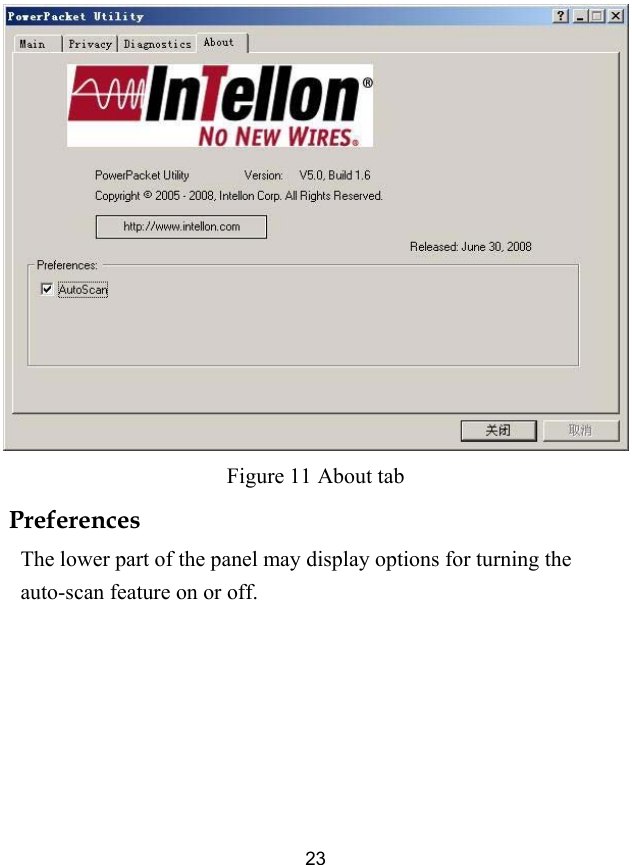
 22   Device Last Known Network name   HomePlug chipset manufacturer name   Date device last seen on the network   MAC Firmware Version The diagnostics information displayed may be saved to a text file for later use, or be printed for reference for a technical support call. Devices, which are not part of the network anymore, can be deleted using the delete button. A dialog box pops up with a confirmation message if you try to delete a device whose password is entered. 5.4   About Tab The About tabs shows the software version and provides an HTML link to a website, such as www.PowerPacket.com. Clicking the web address field opens a web browser and takes you directly to the website.
 23  Figure 11 About tab Preferences The lower part of the panel may display options for turning the auto-scan feature on or off.
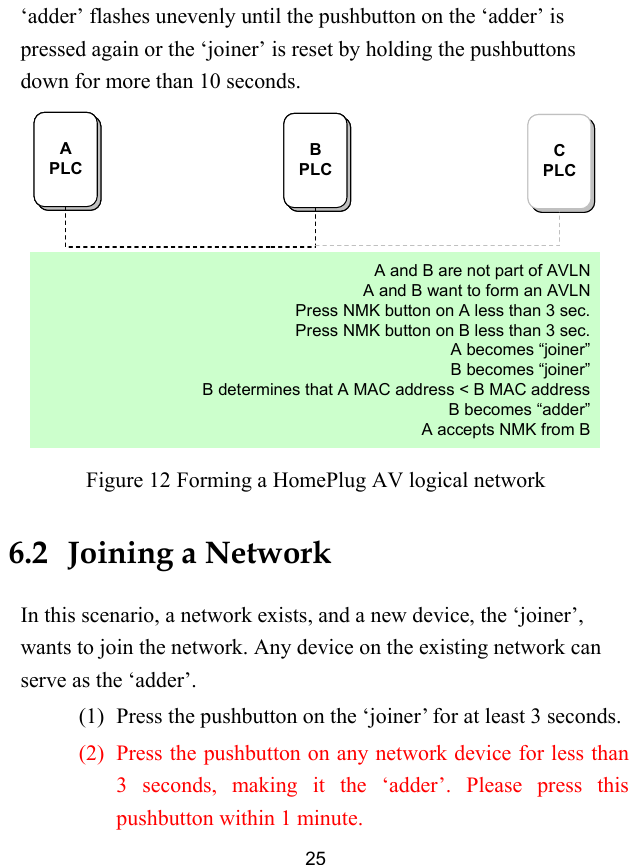
 24 6   How to Use the NMK Pushbutton This section describes how to add new devices to and remove old devices from, a HomePlug AV logical network (AVLN). Both operations can be accomplished by using an NMK pushbutton press. You can monitor operation progress and outcome by observing the status of the Power LEDs. 6.1   Forming A HomePlug AV Logical Network When two devices with different NMK values are connected to the same powerline, and you want them to form a logical network, do as follows: (1)   Press the NMK button on the first device A for less than 3 seconds. (2)   Press the NMK button on the second device B for less than 3 seconds. The button on B must be pressed within 1 minute (3)   Wait for connection to complete. The Power LED on each device flashes evenly at 1-second intervals until the operation succeeds or fails. It illuminates steadily on successful completion. If an error occurs, the Power LED on the
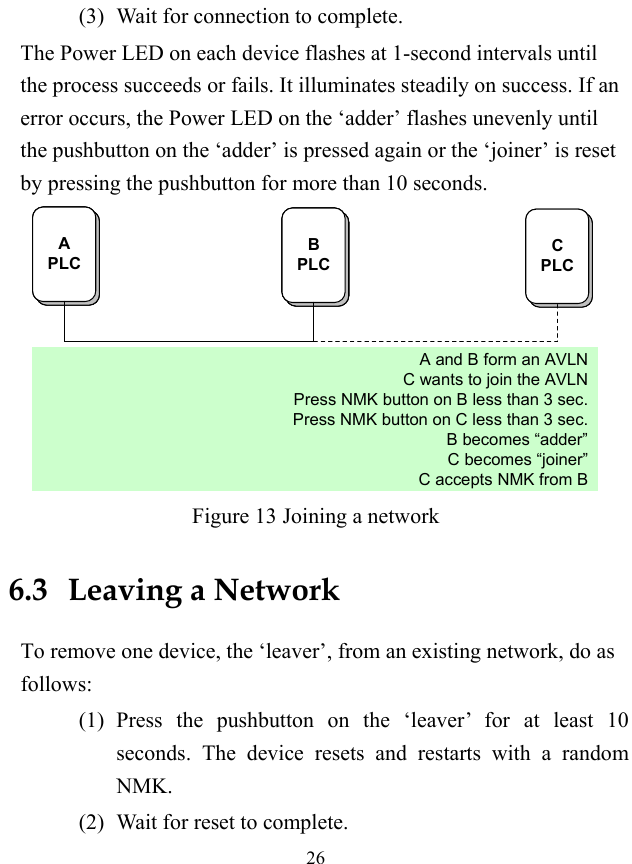
 25 ‘adder’ flashes unevenly until the pushbutton on the ‘adder’ is pressed again or the ‘joiner’ is reset by holding the pushbuttons down for more than 10 seconds. APLCBPLCCPLCA and B are not part of AVLNA and B want to form an AVLNPress NMK button on A less than 3 sec.Press NMK button on B less than 3 sec.A becomes “joiner”B becomes “joiner”B determines that A MAC address < B MAC addressB becomes “adder”A accepts NMK from BAPLCAPLCBPLCBPLCCPLCA and B are not part of AVLNA and B want to form an AVLNPress NMK button on A less than 3 sec.Press NMK button on B less than 3 sec.A becomes “joiner”B becomes “joiner”B determines that A MAC address < B MAC addressB becomes “adder”A accepts NMK from B Figure 12 Forming a HomePlug AV logical network 6.2   Joining a Network In this scenario, a network exists, and a new device, the ‘joiner’, wants to join the network. Any device on the existing network can serve as the ‘adder’. (1)   Press the pushbutton on the ‘joiner’ for at least 3 seconds. (2)   Press the pushbutton on any network device for less than 3 seconds, making it the ‘adder’. Please press this pushbutton within 1 minute.
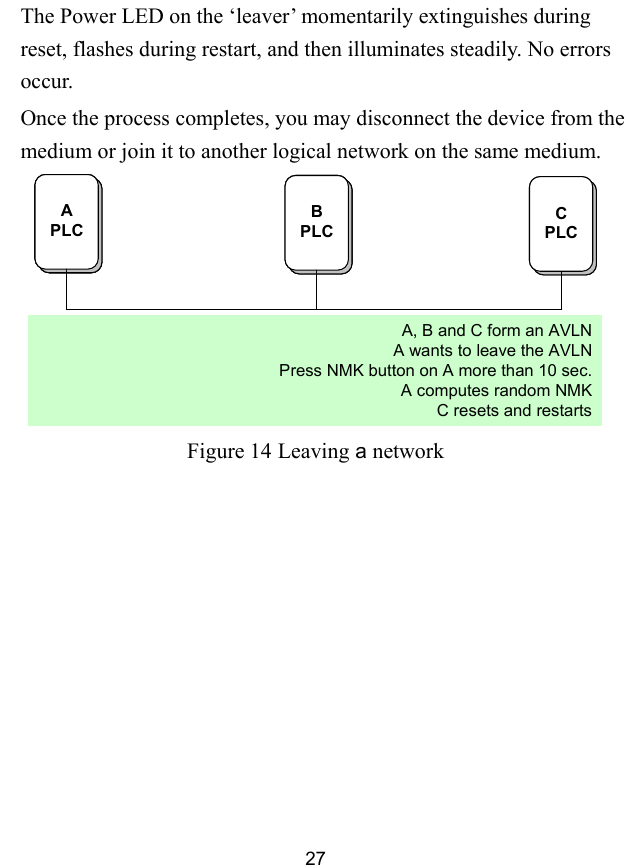
 26 (3)   Wait for connection to complete. The Power LED on each device flashes at 1-second intervals until the process succeeds or fails. It illuminates steadily on success. If an error occurs, the Power LED on the ‘adder’ flashes unevenly until the pushbutton on the ‘adder’ is pressed again or the ‘joiner’ is reset by pressing the pushbutton for more than 10 seconds. APLCBPLCCPLCA and B form an AVLNC wants to join the AVLNPress NMK button on B less than 3 sec.Press NMK button on C less than 3 sec.B becomes “adder”C becomes “joiner”C accepts NMK from BAPLCAPLCBPLCBPLCCPLCA and B form an AVLNC wants to join the AVLNPress NMK button on B less than 3 sec.Press NMK button on C less than 3 sec.B becomes “adder”C becomes “joiner”C accepts NMK from B Figure 13 Joining a network 6.3   Leaving a Network To remove one device, the ‘leaver’, from an existing network, do as follows: (1)   Press the pushbutton on the ‘leaver’ for at least 10 seconds. The device resets and restarts with a random NMK. (2)   Wait for reset to complete.
 27 The Power LED on the ‘leaver’ momentarily extinguishes during reset, flashes during restart, and then illuminates steadily. No errors occur. Once the process completes, you may disconnect the device from the medium or join it to another logical network on the same medium. APLCBPLCCPLCA, B and C form an AVLNA wants to leave the AVLNPress NMK button on A more than 10 sec.A computes random NMKC resets and restartsAPLCAPLCBPLCBPLCCPLCA, B and C form an AVLNA wants to leave the AVLNPress NMK button on A more than 10 sec.A computes random NMKC resets and restarts Figure 14 Leaving a network
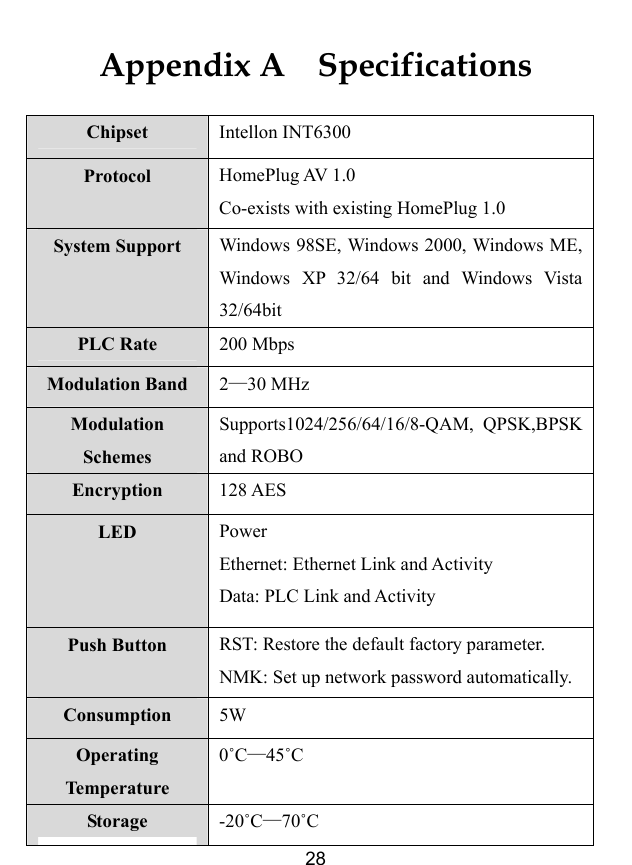
 28 Appendix A  Specifications Chipset  Intellon INT6300 Protocol  HomePlug AV 1.0   Co-exists with existing HomePlug 1.0 System Support  Windows 98SE, Windows 2000, Windows ME, Windows XP 32/64 bit and Windows Vista 32/64bit PLC Rate  200 Mbps Modulation Band  2—30 MHz Modulation Schemes Supports1024/256/64/16/8-QAM, QPSK,BPSK and ROBO Encryption  128 AES LED  Power Ethernet: Ethernet Link and Activity Data: PLC Link and Activity Push Button  RST: Restore the default factory parameter. NMK: Set up network password automatically. Consumption  5W Operating Temperature  0˚C—45˚C Storage  -20˚C—70˚C
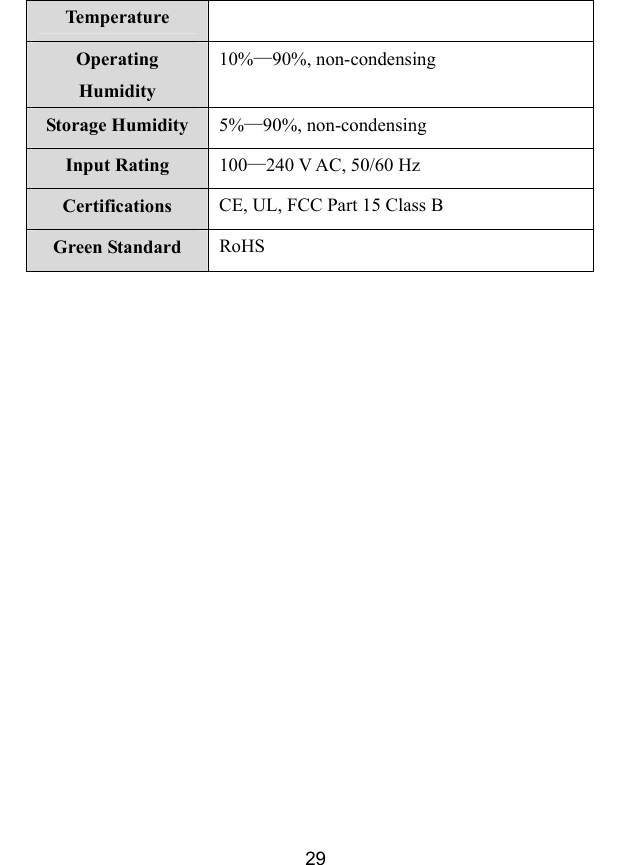
 29 Temperature  Operating Humidity 10%—90%, non-condensing Storage Humidity  5%—90%, non-condensing Input Rating  100—240 V AC, 50/60 Hz Certifications  CE, UL, FCC Part 15 Class B Green Standard  RoHS
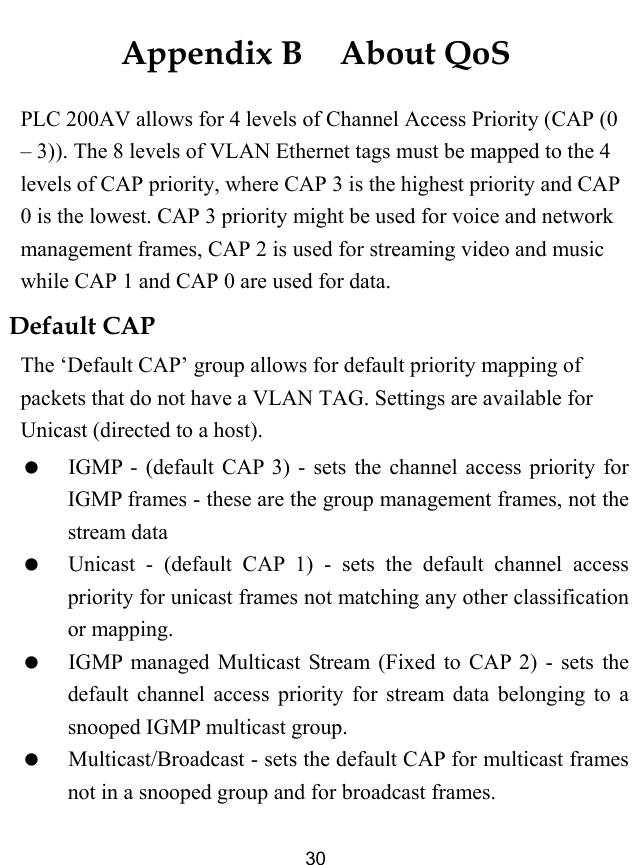
 30 Appendix B  About QoS PLC 200AV allows for 4 levels of Channel Access Priority (CAP (0 – 3)). The 8 levels of VLAN Ethernet tags must be mapped to the 4 levels of CAP priority, where CAP 3 is the highest priority and CAP 0 is the lowest. CAP 3 priority might be used for voice and network management frames, CAP 2 is used for streaming video and music while CAP 1 and CAP 0 are used for data.   Default CAP The ‘Default CAP’ group allows for default priority mapping of packets that do not have a VLAN TAG. Settings are available for Unicast (directed to a host).   IGMP - (default CAP 3) - sets the channel access priority for IGMP frames - these are the group management frames, not the stream data   Unicast - (default CAP 1) - sets the default channel access priority for unicast frames not matching any other classification or mapping.   IGMP managed Multicast Stream (Fixed to CAP 2) - sets the default channel access priority for stream data belonging to a snooped IGMP multicast group.   Multicast/Broadcast - sets the default CAP for multicast frames not in a snooped group and for broadcast frames.
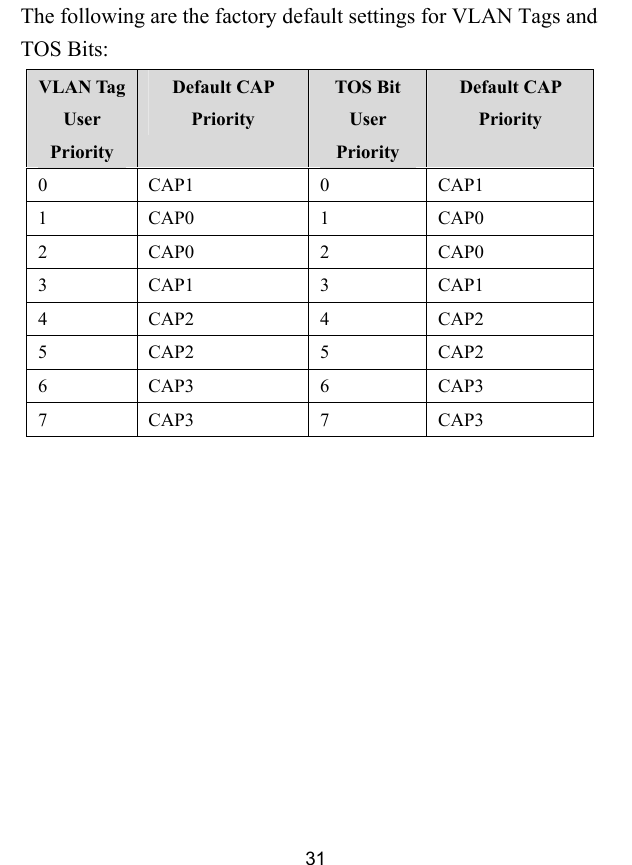
 31 The following are the factory default settings for VLAN Tags and TOS Bits: VLAN Tag User Priority Default CAP Priority TOS Bit User Priority Default CAP Priority 0 CAP1  0  CAP1 1 CAP0  1  CAP0 2 CAP0  2  CAP0 3 CAP1  3  CAP1 4 CAP2  4  CAP2 5 CAP2  5  CAP2 6 CAP3  6  CAP3 7 CAP3  7  CAP3
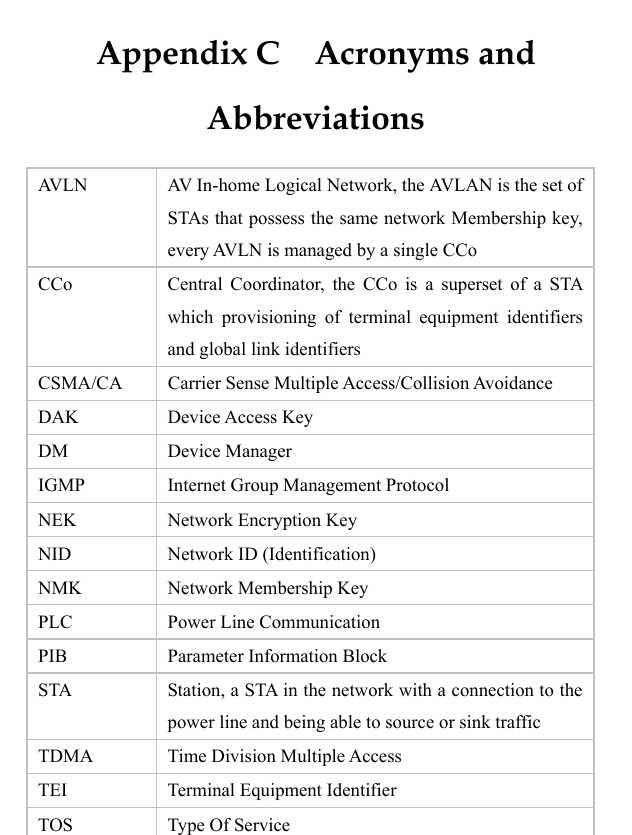
  Appendix C  Acronyms and Abbreviations AVLN  AV In-home Logical Network, the AVLAN is the set of STAs that possess the same network Membership key, every AVLN is managed by a single CCo CCo  Central Coordinator, the CCo is a superset of a STA which provisioning of terminal equipment identifiers and global link identifiers CSMA/CA  Carrier Sense Multiple Access/Collision Avoidance DAK Device Access Key DM Device Manager IGMP Internet Group Management Protocol NEK  Network Encryption Key NID  Network ID (Identification) NMK  Network Membership Key PLC  Power Line Communication PIB  Parameter Information Block STA  Station, a STA in the network with a connection to the power line and being able to source or sink traffic TDMA Time Division Multiple Access TEI Terminal Equipment Identifier TOS  Type Of Service
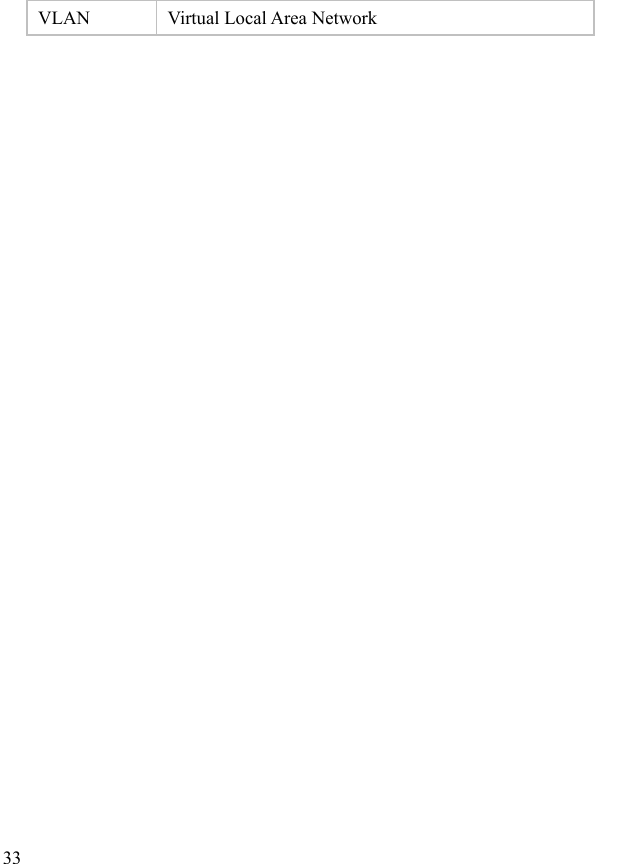
 33 VLAN  Virtual Local Area Network

Navigation menu