Gosuncn Technology Group GW521 LTE CPE User Manual GW521

Gosuncn Technology Group Co.,Ltd. LTE CPE GW521

Uaser_Manual

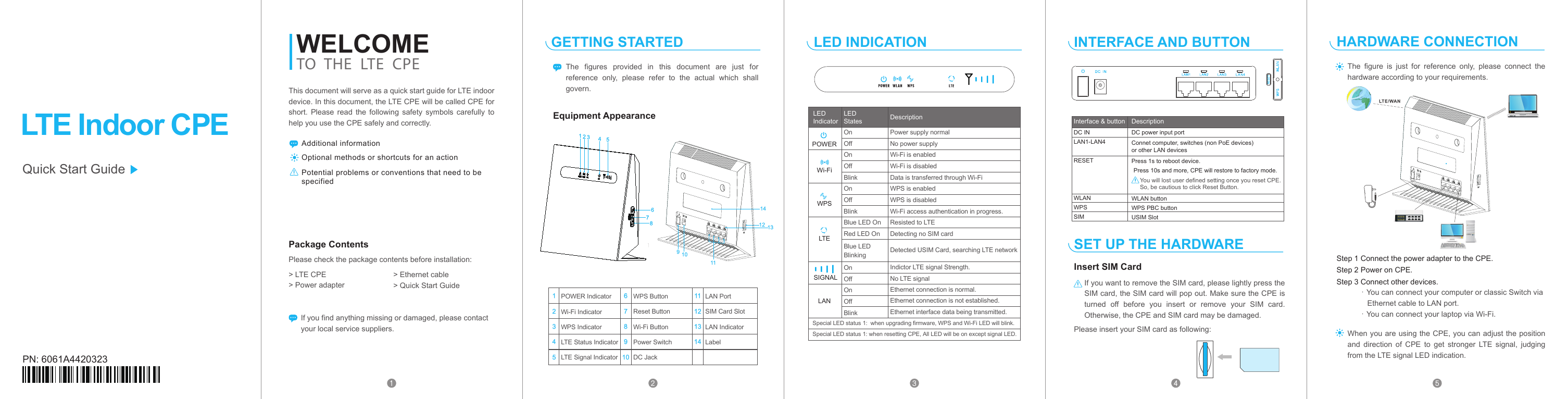
1 2 3 4 5DC INLAN1-LAN4RESETWLANWPSSIMLTE Indoor CPE Quick Start GuideWELCOME TO  THE  LTE  CPEThis document will serve as a quick start guide for LTE indoor device. In this document, the LTE CPE will be called CPE for short. Please read the following safety symbols carefully to help you use the CPE safely and correctly.Please insert your SIM card as following:The figure is just for reference only, please connect the hardware according to your requirements.When you are using the CPE, you can adjust the position and direction of CPE to get stronger LTE signal, judging from the LTE signal LED indication.Step 1 Connect the power adapter to the CPE.The figures provided in this document are just for reference only, please refer to the actual which shall govern. If you want to remove the SIM card, please lightly press the SIM card, the SIM card will pop out. Make sure the CPE is turned off before you insert or remove your SIM card. Otherwise, the CPE and SIM card may be damaged.Additional informationOptional methods or shortcuts for an actionPotential problems or conventions that need to be specifiedPackage ContentsPlease check the package contents before installation:> LTE CPE> Power adapterIf you find anything missing or damaged, please contact your local service suppliers.> Ethernet cable> Quick Start GuideGETTING STARTEDEquipment Appearance1234567891011121314POWER IndicatorWi-Fi IndicatorWPS IndicatorLTE Status IndicatorLTE Signal IndicatorWPS ButtonReset ButtonWi-Fi ButtonPower SwitchDC Jack LAN PortSIM Card SlotLAN IndicatorLabelLED INDICATIONLANPOWERLTEWi-FiSIGNALWPSLED IndicatorLED States DescriptionPower supply normalNo power supplyWi-Fi is enabledWi-Fi is disabledData is transferred through Wi-FiWPS is enabledWPS is disabledWi-Fi access authentication in progress.Resisted to LTEDetecting no SIM cardDetected USIM Card, searching LTE networkIndictor LTE signal Strength.No LTE signalEthernet connection is normal.Ethernet connection is not established.Ethernet interface data being transmitted.OnOffOnOffBlinkOnOffBlinkBlue LED OnRed LED OnBlue LED BlinkingOnOffOnOffBlinkSET UP THE HARDWAREInsert SIM CardHARDWARE CONNECTION·You can connect your computer or classic Switch via      Ethernet cable to LAN port.·You can connect your laptop via Wi-Fi.Step 2 Power on CPE.9101112 1314PN: 6061A4420323Step 3 Connect other devices.INTERFACE AND BUTTONInterface & button DescriptionDC power input portConnet computer, switches (non PoE devices) or other LAN devicesPress 1s to reboot device.Press 10s and more, CPE will restore to factory mode.You will lost user defined setting once you reset CPE. So, be cautious to click Reset Button.WLAN buttonWPS PBC buttonUSIM SlotSpecial LED status 1:  when upgrading firmware, WPS and Wi-Fi LED will blink. Special LED status 1: when resetting CPE, All LED will be on except signal LED.
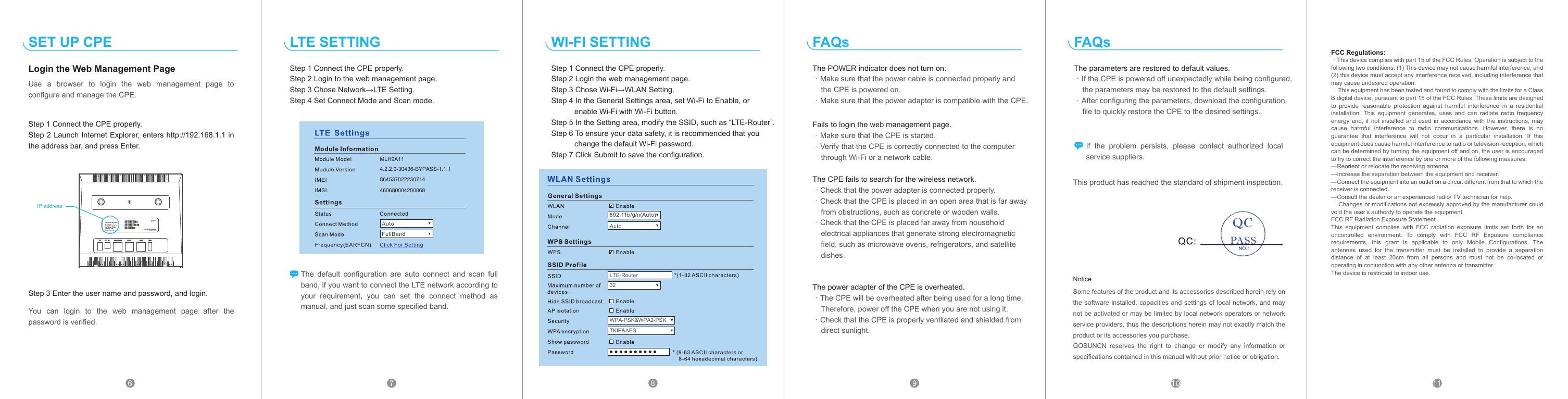
IP address67899 910 11Use a browser to login the web management page to configure and manage the CPE.You can login to the web management page after the password is verified.Step 1 Connect the CPE properly.Step 2 Launch Internet Explorer, enters http://192.168.1.1 in the address bar, and press Enter.Step 3 Enter the user name and password, and login.The default configuration are auto connect and scan full band, if you want to connect the LTE network according to your requirement, you can set the connect method as manual, and just scan some specified band.If the problem persists, please contact authorized local service suppliers.SET UP CPELogin the Web Management PageLTE SETTINGStep 1 Connect the CPE properly.Step 2 Login to the web management page.Step 3 Chose Network→LTE Setting.Step 4 Set Connect Mode and Scan mode.WI-FI SETTINGStep 1 Connect the CPE properly.Step 2 Login the web management page.Step 3 Chose Wi-Fi→WLAN Setting.Step 4 In the General Settings area, set Wi-Fi to Enable, or            enable Wi-Fi with Wi-Fi button.Step 5 In the Setting area, modify the SSID, such as “LTE-Router”.Step 6 To ensure your data safety, it is recommended that you            change the default Wi-Fi password.Step 7 Click Submit to save the configuration.FAQs FAQsThe POWER indicator does not turn on.·Make sure that the power cable is connected properly and     the CPE is powered on.·Make sure that the power adapter is compatible with the CPE.Fails to login the web management page.·Make sure that the CPE is started.·Verify that the CPE is correctly connected to the computer     through Wi-Fi or a network cable.The CPE fails to search for the wireless network.·Check that the power adapter is connected properly.·Check that the CPE is placed in an open area that is far away     from obstructions, such as concrete or wooden walls.·Check that the CPE is placed far away from household     electrical appliances that generate strong electromagnetic     field, such as microwave ovens, refrigerators, and satellite     dishes.The power adapter of the CPE is overheated.·The CPE will be overheated after being used for a long time.     Therefore, power off the CPE when you are not using it.·Check that the CPE is properly ventilated and shielded from     direct sunlight.The parameters are restored to default values.·If the CPE is powered off unexpectedly while being configured,     the parameters may be restored to the default settings.·After configuring the parameters, download the configuration     file to quickly restore the CPE to the desired settings.This product has reached the standard of shipment inspection.MLH9A114.2.2.0-30436-BYPASS-1.1.1864537022230714460680004200068LTE-Router32WPA-PSK&WPA2-PSKTKIP&AESSome features of the product and its accessories described herein rely on the software installed, capacities and settings of local network, and may not be activated or may be limited by local network operators or network service providers, thus the descriptions herein may not exactly match the product or its accessories you purchase.GOSUNCN reserves the right to change or modify any information or specifications contained in this manual without prior notice or obligation.FCC Regulations:·This device complies with part 15 of the FCC Rules. Operation is subject to the following two conditions: (1) This device may not cause harmful interference, and (2) this device must accept any interference received, including interference that may cause undesired operation.· This equipment has been tested and found to comply with the limits for a Class B digital device, pursuant to part 15 of the FCC Rules. These limits are designed to provide reasonable protection against harmful interference in a residential installation. This equipment generates, uses and can radiate radio frequency energy and, if not installed and used in accordance with the instructions, may cause harmful interference to radio communications. However, there is no guarantee that interference will not occur in a particular installation. If this equipment does cause harmful interference to radio or television reception, which can be determined by turning the equipment off and on, the user is encouraged to try to correct the interference by one or more of the following measures:—Reorient or relocate the receiving antenna.—Increase the separation between the equipment and receiver.—Connect the equipment into an outlet on a circuit different from that to which the receiver is connected.—Consult the dealer or an experienced radio/ TV technician for help.· Changes or modifications not expressly approved by the manufacturer could void the user’s authority to operate the equipment.FCC RF Radiation Exposure StatementThis equipment complies with FCC radiation exposure limits set forth for an uncontrolled environment. To comply with FCC RF Exposure compliance requirements, this grant is applicable to only Mobile Configurations. The antennas used for the transmitter must be installed to provide a separation distance of at least 20cm from all persons and must not be co-located or operating in conjunction with any other antenna or transmitter.The device is restricted to indoor use.NoticeXXXXXX

Navigation menu