Grizzly T25448ACRE Remote Control User Manual

Grizzly Industrial, Inc Remote Control

User Manual

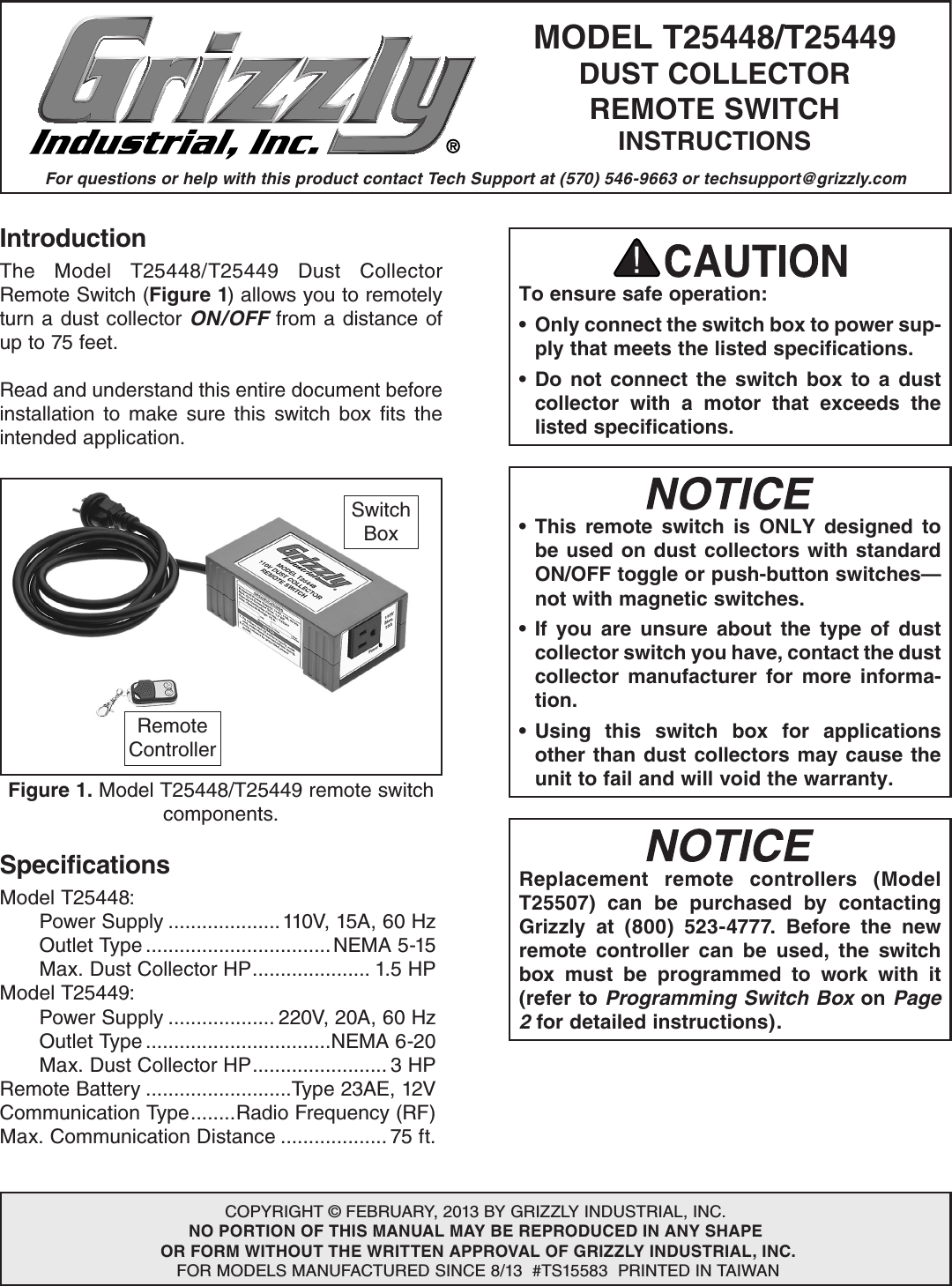
For questions or help with this product contact Tech Support at (570) 546-9663 or techsupport@grizzly.comMODEL T25448/T25449DUST COLLECTORREMOTE SWITCHINSTRUCTIONSCOPYRIGHT © FEBRUARY, 2013 BY GRIZZLY INDUSTRIAL, INC.NO PORTION OF THIS MANUAL MAY BE REPRODUCED IN ANY SHAPE OR FORM WITHOUT THE WRITTEN APPROVAL OF GRIZZLY INDUSTRIAL, INC. FOR MODELS MANUFACTURED SINCE 8/13  #TS15583  PRINTED IN TAIWANIntroductionThe  Model  T25448/T25449  Dust  Collector Remote Switch (Figure 1) allows you to remotely turn a dust collector ON/OFF from a distance of up to 75 feet.Read and understand this entire document before installation  to  make  sure  this  switch  box  fits  the intended application.To ensure safe operation:•  Only connect the switch box to power sup-ply that meets the listed specifications.• Do not connect the switch box to a dust collector with a motor that exceeds the listed specifications.SpecificationsModel T25448:  Power Supply ....................110V, 15A, 60 Hz  Outlet Type .................................NEMA 5-15  Max. Dust Collector HP ..................... 1.5 HPModel T25449:  Power Supply ................... 220V, 20A, 60 Hz  Outlet Type .................................NEMA 6-20  Max. Dust Collector HP ........................ 3 HPRemote Battery ..........................Type 23AE, 12VCommunication Type ........Radio Frequency (RF)Max. Communication Distance ................... 75 ft.• This remote switch is ONLY designed to be used on dust collectors with standard ON/OFF toggle or push-button switches—not with magnetic switches.• If you are unsure about the type of dust collector switch you have, contact the dust collector manufacturer for more informa-tion.• Using this switch box for applications other than dust collectors may cause the unit to fail and will void the warranty.Replacement remote controllers (Model T25507) can be purchased by contacting Grizzly at (800) 523-4777. Before the new remote controller can be used, the switch box must be programmed to work with it (refer to Programming Switch Box on Page 2 for detailed instructions).Figure 1. Model T25448/T25449 remote switch components.Switch BoxRemote Controller
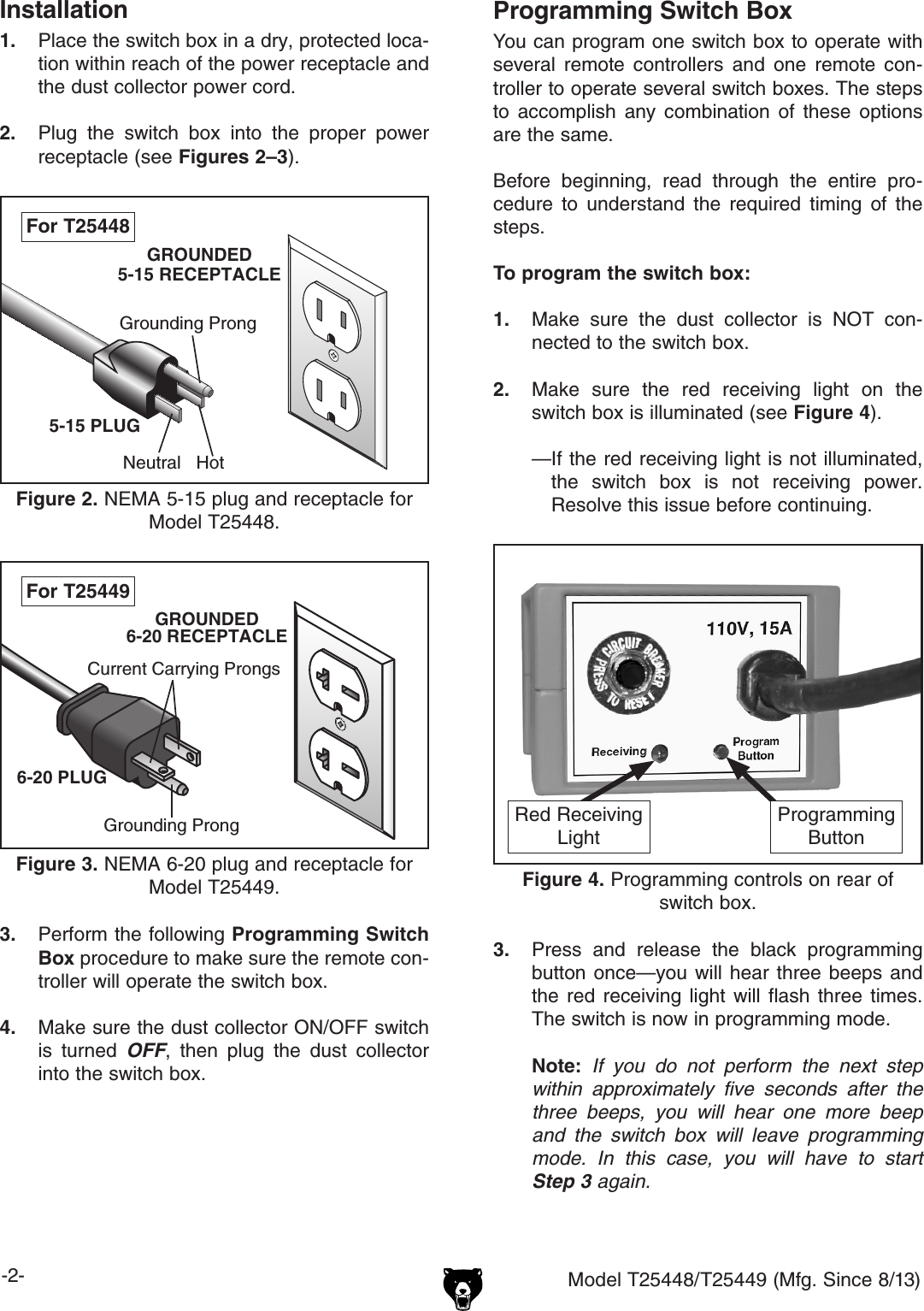
-2- Model T25448/T25449 (Mfg. Since 8/13)Installation1.  Place the switch box in a dry, protected loca-tion within reach of the power receptacle and the dust collector power cord.2.  Plug  the  switch  box  into  the  proper  power receptacle (see Figures 2–3).Grounding ProngNeutral Hot5-15 PLUGGROUNDED5-15 RECEPTACLEFigure 2. NEMA 5-15 plug and receptacle for Model T25448.For T254483.  Perform the following Programming Switch Box procedure to make sure the remote con-troller will operate the switch box.4.  Make sure the dust collector ON/OFF switch is  turned  OFF,  then  plug  the  dust  collector into the switch box.Grounding ProngCurrent Carrying Prongs6-20 PLUGGROUNDED6-20 RECEPTACLEFigure 3. NEMA 6-20 plug and receptacle for Model T25449.For T25449Programming Switch BoxYou can program one switch box to operate with several  remote  controllers  and  one  remote  con-troller to operate several switch boxes. The steps to  accomplish  any  combination  of  these  options are the same.Before  beginning,  read  through  the  entire  pro-cedure  to  understand  the  required  timing  of  the steps.To program the switch box:1.  Make  sure  the  dust  collector  is  NOT  con-nected to the switch box.2.  Make  sure  the  red  receiving  light  on  the switch box is illuminated (see Figure 4).— If the red receiving light is not illuminated, the  switch  box  is  not  receiving  power. Resolve this issue before continuing.3.  Press  and  release  the  black  programming button once—you will  hear  three  beeps  and the  red  receiving  light  will  flash  three  times. The switch is now in programming mode. Note:  If you do not perform the next step within approximately five seconds after the three beeps, you will hear one more beep and the switch box will leave programming mode. In this case, you will have to start Step 3 again.Figure 4. Programming controls on rear of switch box.ProgrammingButtonRed ReceivingLight
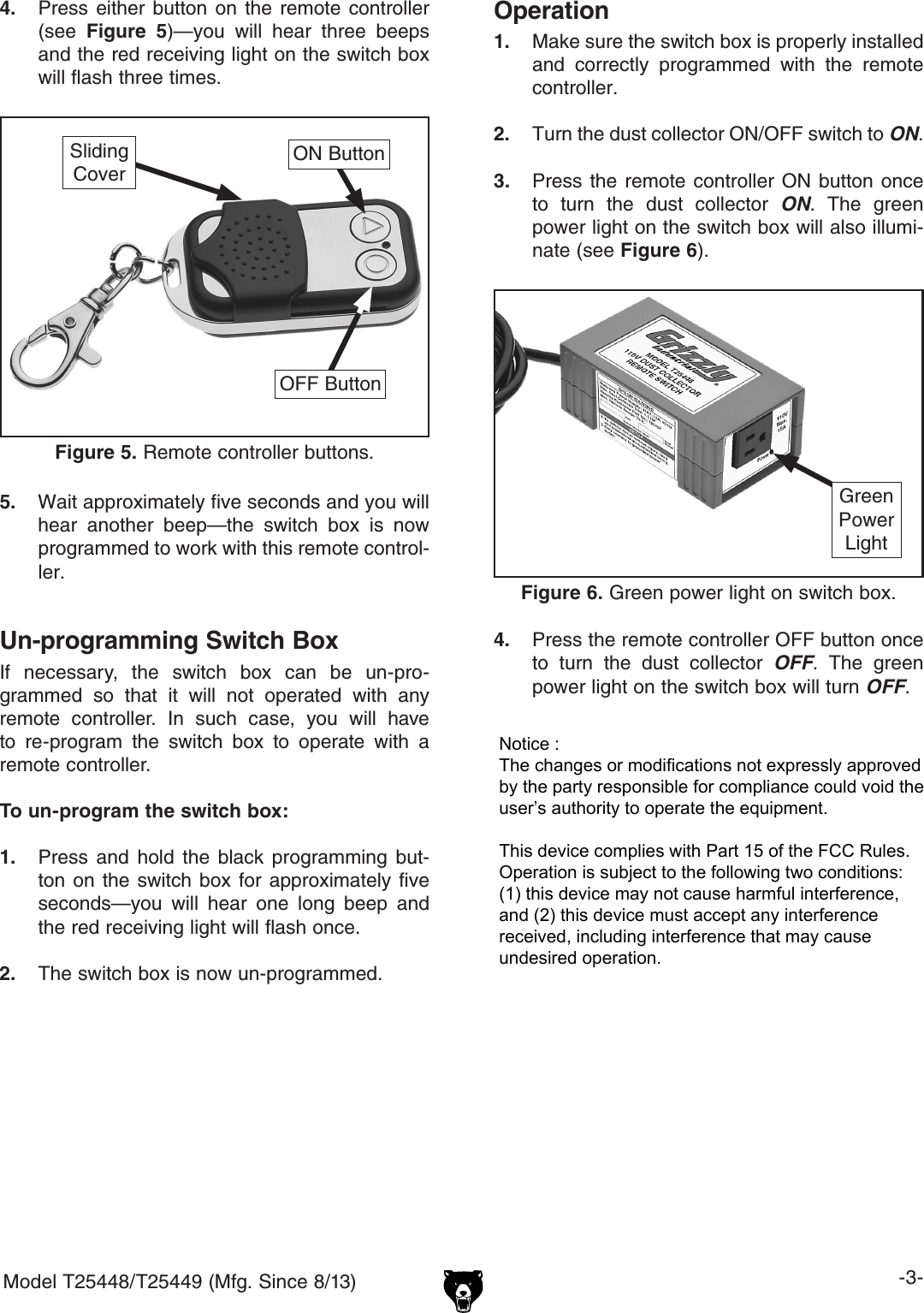
Model T25448/T25449 (Mfg. Since 8/13) -3-4. Press  either  button  on the  remote  controller(see  Figure  5)—you  will  hear  three  beepsand the red receiving light on the switch boxwill flash three times.Figure 5. Remote controller buttons.ON ButtonOFF ButtonSlidingCover5.  Wait approximately five seconds and you will hear  another  beep—the  switch  box  is  now programmed to work with this remote control-ler.4. Press the remote controller OFF button onceto  turn  the  dust  collector  OFF.  The  greenpower light on the switch box will turn OFF.Figure 6. Green power light on switch box.Green PowerLightOperation1. Make sure the switch box is properly installedand  correctly  programmed  with  the  remotecontroller.2. Turn the dust collector ON/OFF switch to ON.3. Press the remote  controller  ON  button  onceto  turn  the  dust  collector  ON.  The  greenpower light on the switch box will also illumi-nate (see Figure 6).Un-programming Switch BoxIf  necessary,  the  switch  box  can  be  un-pro-grammed  so  that  it  will  not  operated  with  any remote  controller.  In  such  case,  you  will  have to  re-program  the  switch  box  to  operate  with  a remote controller.To un-program the switch box:1. Press  and  hold  the  black  programming  but-ton on the  switch  box  for  approximately  fiveseconds—you  will  hear  one  long  beep  andthe red receiving light will flash once.2. The switch box is now un-programmed.Notice : The changes or modifications not expressly approved by the party responsible for compliance could void the user’s authority to operate the equipment.This device complies with Part 15 of the FCC Rules. Operation is subject to the following two conditions: (1) this device may not cause harmful interference, and (2) this device must accept any interferencereceived, including interference that may cause undesired operation.
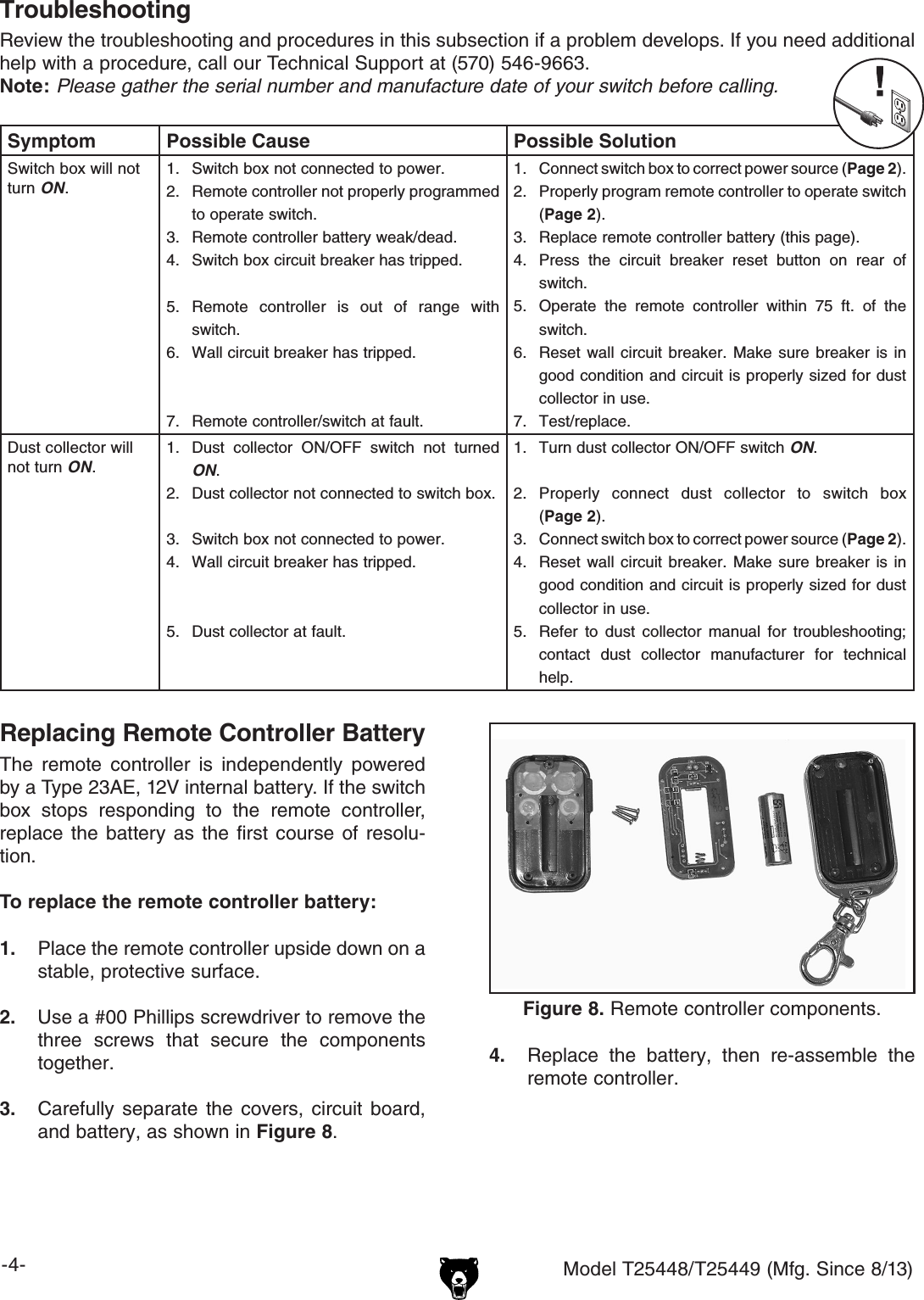
-4- Model T25448/T25449 (Mfg. Since 8/13)Symptom Possible Cause Possible SolutionSwitch box will not turn ON.1.  Switch box not connected to power.2.  Remote controller not properly programmed to operate switch.3.  Remote controller battery weak/dead.4.  Switch box circuit breaker has tripped.5.  Remote  controller  is  out  of  range  with switch.6.  Wall circuit breaker has tripped.7.  Remote controller/switch at fault.1.  Connect switch box to correct power source (Page 2).2.  Properly program remote controller to operate switch (Page 2).3.  Replace remote controller battery (this page).4.  Press  the  circuit  breaker  reset  button  on  rear  of switch.5.  Operate  the  remote  controller  within  75  ft.  of  the switch.6.  Reset  wall  circuit  breaker.  Make  sure  breaker  is  in good condition and circuit is properly sized for dust collector in use.7.  Test/replace.Dust collector will not turn ON.1.  Dust  collector  ON/OFF  switch  not  turned ON.2.  Dust collector not connected to switch box.3.  Switch box not connected to power.4.  Wall circuit breaker has tripped.5.  Dust collector at fault.1.  Turn dust collector ON/OFF switch ON.2.  Properly  connect  dust  collector  to  switch  box (Page 2).3.  Connect switch box to correct power source (Page 2).4.  Reset  wall  circuit  breaker.  Make  sure  breaker  is  in good condition and circuit is properly sized for dust collector in use.5.  Refer  to  dust  collector  manual  for  troubleshooting; contact  dust  collector  manufacturer  for  technical help.TroubleshootingReview the troubleshooting and procedures in this subsection if a problem develops. If you need additional help with a procedure, call our Technical Support at (570) 546-9663.Note: Please gather the serial number and manufacture date of your switch before calling.Replacing Remote Controller BatteryThe  remote  controller  is  independently  powered by a Type 23AE, 12V internal battery. If the switch box  stops  responding  to  the  remote  controller, replace  the  battery  as  the  first course  of resolu-tion.To replace the remote controller battery:1.  Place the remote controller upside down on a stable, protective surface.2.  Use a #00 Phillips screwdriver to remove the three  screws  that  secure  the  components together.3.  Carefully  separate  the  covers,  circuit  board,  and battery, as shown in Figure 8.Figure 8. Remote controller components.4.  Replace  the  battery,  then  re-assemble  the remote controller.

Navigation menu