Grundig Business Systems GDM70X0 Dictation Machine User Manual I

Grundig Business Systems GmbH Dictation Machine I

Contents

User Manual I

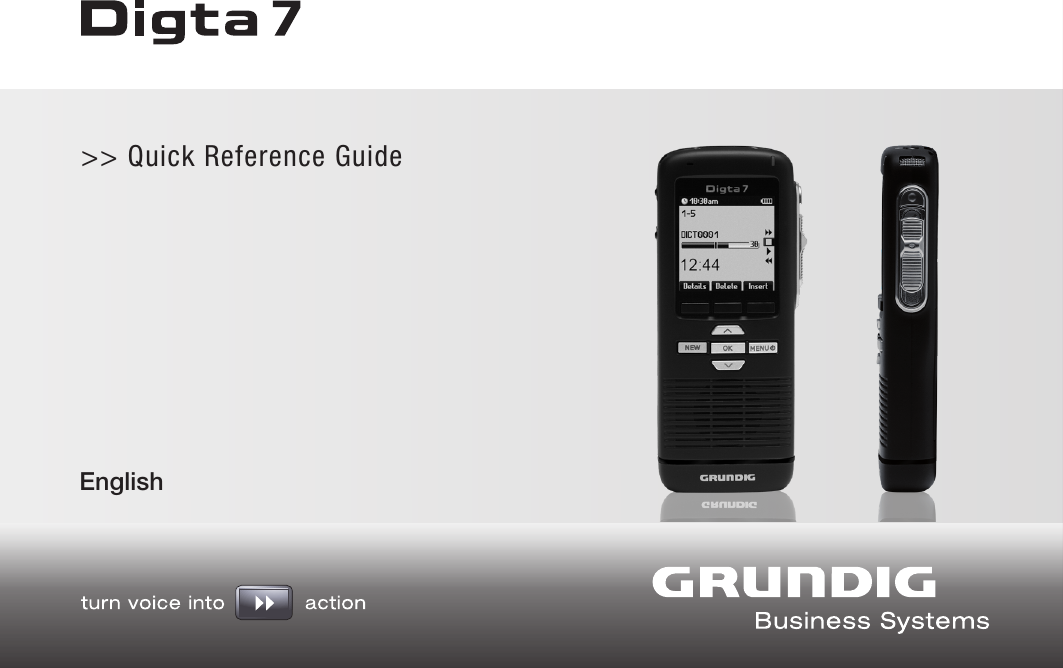
Grundig Business Systems GmbH Weiherstraße 10 D-95448 Bayreuth Germanyinfo@grundig-gbs.comwww.grundig-gbs.com>> Quick Reference GuideEnglish
Grundig Business Systems GmbH Weiherstraße 10 D-95448 Bayreuth Germanyinfo@grundig-gbs.comwww.grundig-gbs.comThis operating manual contains important instructions for safe and efficient handling of the Grundig Business Systems Digta 7 (herein-after referred to as “device”). This operating manual is a part of the device and must be kept accessible in the immediate vicinity of the device for persons working on and with the device. Carefully read and make sure you understand this operating manual and all product safety labels prior to starting any work with the device. The basic prerequisite for safe work is compliance with all specified safety and handling instruc-tions. In addition, all local accident prevention guidelines and general safety regulations effective at the implementation site of the device apply. Illustrations in this operating manual are provided for basic understanding and can vary from the actual model of the device. No claims can be derived from the illustrations in this operating manual.DisclaimerAll information and instructions in this operating manual have been pro-vided under due consideration of applicable guidelines and regulations, the current and known state of the art, as well as our many years of in-house experience. The manufacturer assumes no liability for damag-es due to:Failure to comply with the instructions in this operating manual•Improper use / misuse•Willful operation by non-authorized persons•Unauthorized conversions or non-approved technical modifications•Use of non-approved spare parts•The originator is solely liable to the full extent for damages caused by such conduct. The agreed upon obligations in the delivery contract, the general terms and conditions, the manufacturer’s delivery conditions, and the statutory regulations valid at the time the contract was conclud-ed, apply.CopyrightThis operating manual is protected by copyright. No part of this operat-ing manual may be reproduced in any form or incorporated into any infor-mation retrieval system without written permission Grundig Business Sys-tems GmbH (“the manufacturer”). Delivery of the operating manual to third parties, duplication in any form – including excerpts – as well as exploitation and/or communication of the content, are not permitted with-out a written declaration of release from manufacturer. Actions to the con-trary make damage compensations mandatory. We reserve the right to enforce additional claims.The manufacturer © Grundig Business Systems GmbH Weiherstraße 10 D – 95448 Bayreuth holds the copyright.
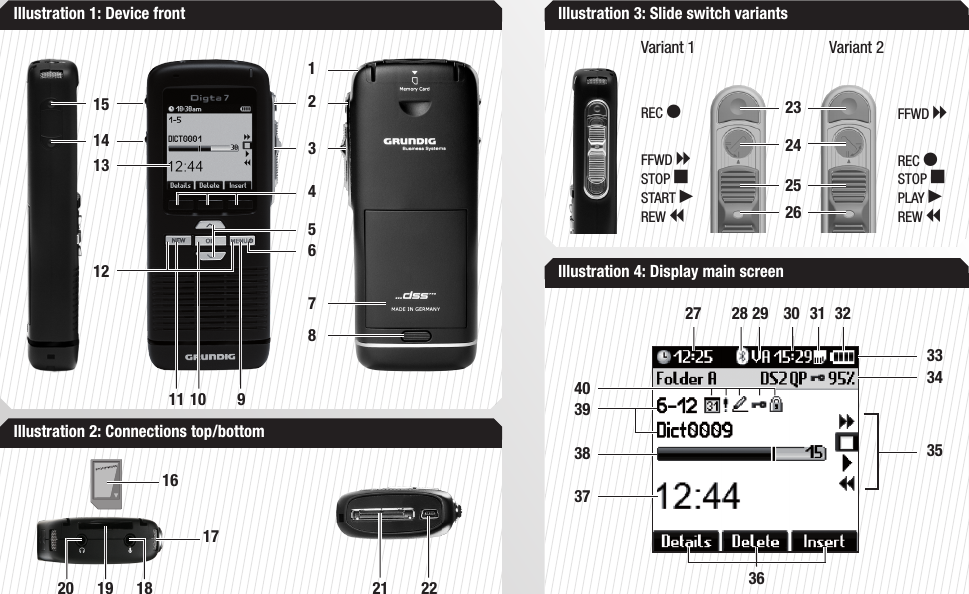
Illustration 1: Device front Illustration 3: Slide switch variantsIllustration 2: Connections top/bottom1620 19 181721 222324Variant 1REC gFFWD hSTOP eSTART fREW iVariant 22625Illustration 4: Display main screen68715 2341411 10 9135112FFWD hREC gSTOP ePLAY fREW i31403228 29 302739333435363837
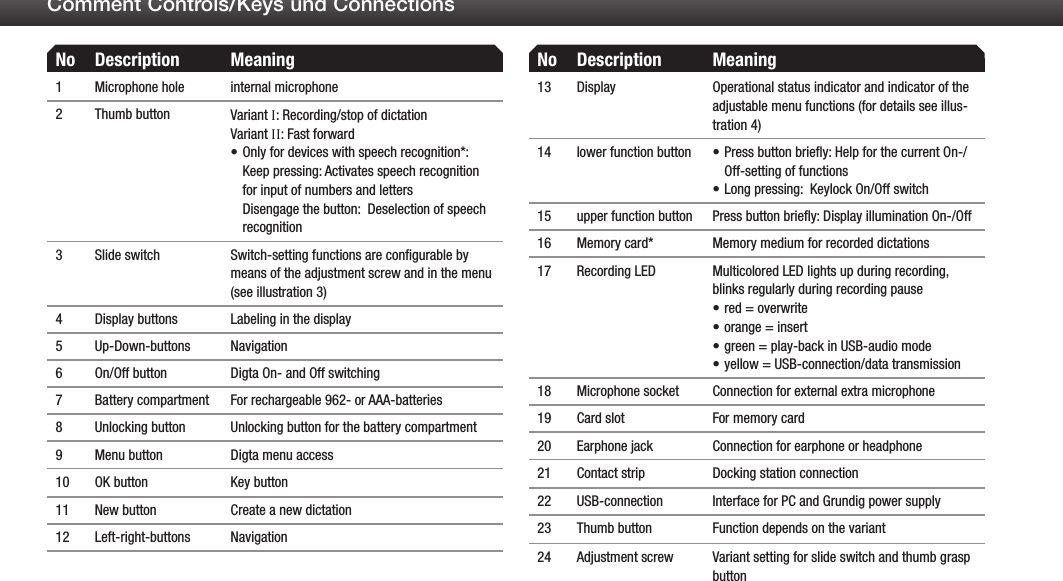
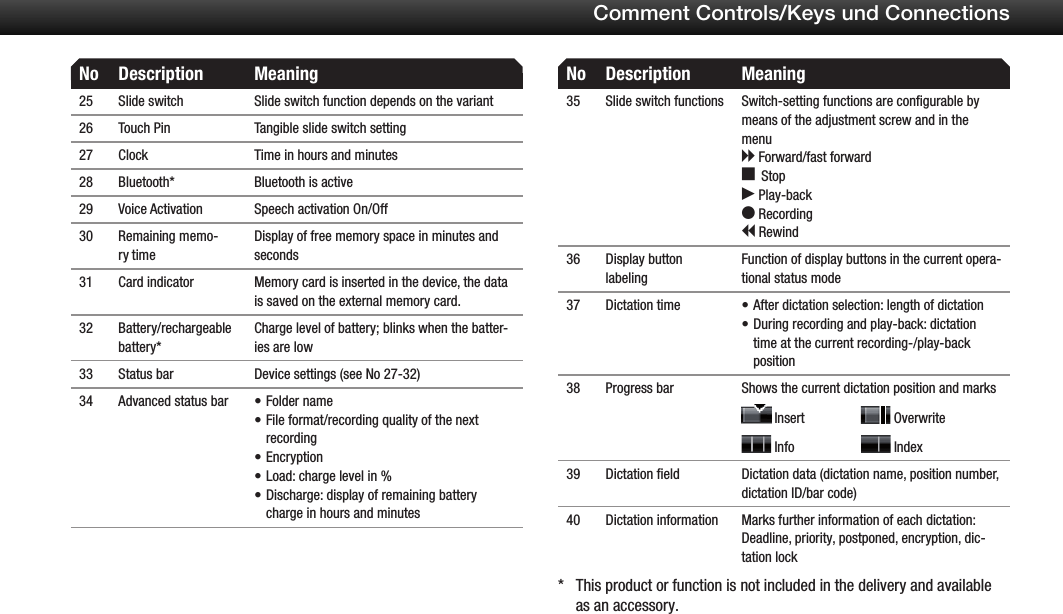
No Description Meaning1 Microphone hole internal microphone2 Thumb button Variant I: Recording/stop of dictationVariant II: Fast forwardOnly for devices with speech recognition*: •Keep pressing: Activates speech recognition for input of numbers and letters Disengage the button:  Deselection of speech recognition3 Slide switch Switch-setting functions are configurable by means of the adjustment screw and in the menu (see illustration 3)4 Display buttons Labeling in the display5 Up-Down-buttons Navigation6 On/Off button Digta On- and Off switching 7 Battery compartment For rechargeable 962- or AAA-batteries8 Unlocking button Unlocking button for the battery compartment9 Menu button Digta menu access10 OK button Key button11 New button Create a new dictation12 Left-right-buttons NavigationNo Description Meaning13 Display Operational status indicator and indicator of the adjustable menu functions (for details see illus-tration 4)14 lower function button Press button briefly: Help for the current On-/•Off-setting of functionsLong pressing:  Keylock On/Off switch•15 upper function button Press button briefly: Display illumination On-/Off16 Memory card* Memory medium for recorded dictations17 Recording LED Multicolored LED lights up during recording, blinks regularly during recording pausered = overwrite•orange = insert•green = play-back in USB-audio mode•yellow = USB-connection/data transmission•18 Microphone socket Connection for external extra microphone19 Card slot For memory card20 Earphone jack Connection for earphone or headphone21 Contact strip Docking station connection22 USB-connection Interface for PC and Grundig power supply 23 Thumb button Function depends on the variant24 Adjustment screw Variant setting for slide switch and thumb grasp buttonComment Controls/Keys und Connections
Comment Controls/Keys und Connections No Description Meaning25 Slide switch Slide switch function depends on the variant26 Touch Pin Tangible slide switch setting27 Clock Time in hours and minutes28 Bluetooth* Bluetooth is active29 Voice Activation Speech activation On/Off30 Remaining memo-ry timeDisplay of free memory space in minutes and seconds31 Card indicator Memory card is inserted in the device, the data is saved on the external memory card.32 Battery/rechargeable battery*Charge level of battery; blinks when the batter-ies are low33 Status bar Device settings (see No 27-32)34 Advanced status bar Folder name•File format/recording quality of the next •recordingEncryption•Load: charge level in % •Discharge: display of remaining battery •charge in hours and minutesNo Description Meaning35 Slide switch functions Switch-setting functions are configurable by means of the adjustment screw and in the menuh Forward/fast forward e Stop f Play-back g Recording i Rewind36 Display button labelingFunction of display buttons in the current opera-tional status mode37 Dictation time After dictation selection: length of dictation•During recording and play-back: dictation •time at the current recording-/play-back position38 Progress bar Shows the current dictation position and marks  Insert                  Overwrite  Info                     Index39 Dictation field Dictation data (dictation name, position number, dictation ID/bar code)40 Dictation information Marks further information of each dictation:Deadline, priority, postponed, encryption, dic-tation lockThis product or function is not included in the delivery and available * as an accessory.
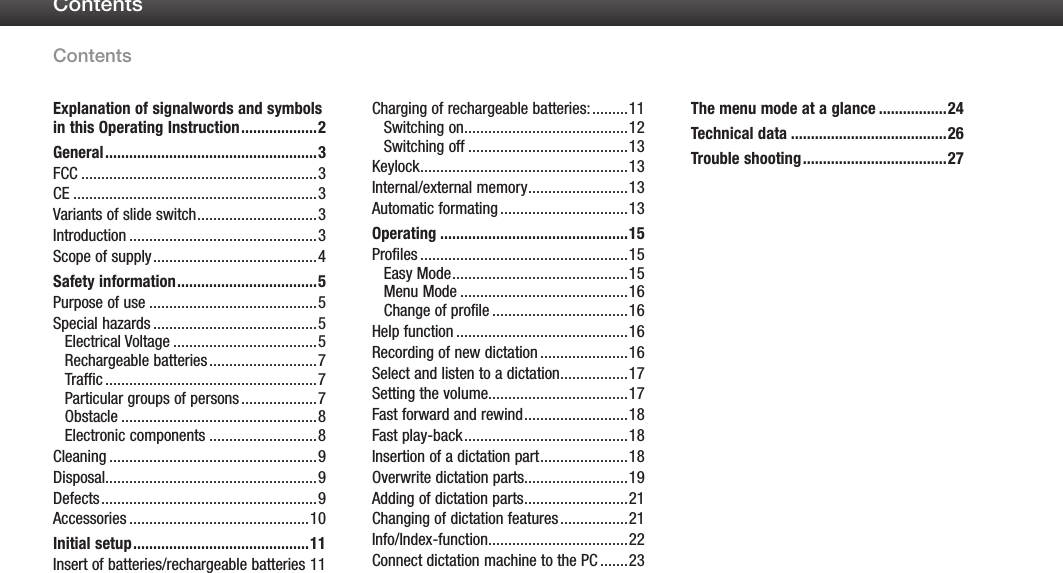
ContentsContents1Explanation of signalwords and symbols in this Operating Instruction ...................2General .....................................................3FCC ...........................................................3CE .............................................................3Variants of slide switch ..............................3Introduction ...............................................3Scope of supply .........................................4Safety information ...................................5Purpose of use ..........................................5Special hazards .........................................5Electrical Voltage ....................................5Rechargeable batteries ...........................7Traffic .....................................................7Particular groups of persons ...................7Obstacle .................................................8Electronic components ...........................8Cleaning ....................................................9Disposal.....................................................9Defects ......................................................9Accessories .............................................10Initial setup ............................................11Insert of batteries/rechargeable batteries 11Charging of rechargeable batteries: .........11Switching on .........................................12Switching off ........................................13Keylock ....................................................13Internal/external memory .........................13Automatic formating ................................13Operating ...............................................15Profiles ....................................................15Easy Mode ............................................15Menu Mode ..........................................16Change of profile ..................................16Help function ...........................................16Recording of new dictation ......................16Select and listen to a dictation .................17Setting the volume...................................17Fast forward and rewind ..........................18Fast play-back .........................................18Insertion of a dictation part ......................18Overwrite dictation parts..........................19Adding of dictation parts ..........................21Changing of dictation features .................21Info/Index-function...................................22Connect dictation machine to the PC .......23The menu mode at a glance .................24Technical data .......................................26Trouble shooting ....................................27
2Explanation of signalwords and symbols in this Operating InstructionExplanation of signalwords and sym-bols in this Operating InstructionImportant notes for your safety are highlighted. Please pay par-ticular attention to these notes in order to avoid accidences and damages to the device:WarningsWarnings are indicated by symbols. In addition they are intro-duced with signal words that express the scope of the hazard.All instructions must strictly complied with!•When working always act cautiously to prevent accidents, •personal injury, or property damage!Indicates useful tips and recommendations as well as information for efficient and trouble-free operation.DANGERWARNINGCAUTIONUsed to address practices not related to personal injury. It indicates specific actions which prevent from damage to the device and from loss of dictations.NOTICEUsed with the safety alert symbol indicates a hazardous sit-uation which, if not avoided, could result in minor or mod-erate injury.Indicates a hazardous situation which, if not avoided, will result in death or serious injury.Indicates a hazardous situation which, if not avoided, could result in death or serious injury.
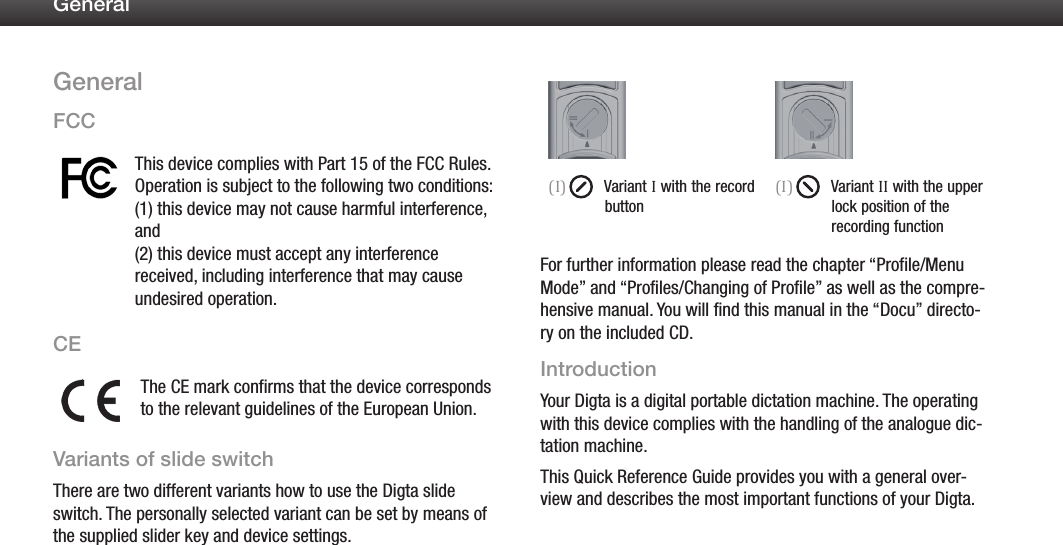
3GeneralGeneralFCCThis device complies with Part 15 of the FCC Rules. Operation is subject to the following two conditions:  (1) this device may not cause harmful interference, and  (2) this device must accept any interference received, including interference that may cause undesired operation.CEThe CE mark confirms that the device corresponds to the relevant guidelines of the European Union.Variants of slide switchThere are two different variants how to use the Digta slide switch. The personally selected variant can be set by means of the supplied slider key and device settings.(I)  Variant I with the record button(I)  Variant II with the upper lock position of the         recording functionFor further information please read the chapter “Profile/Menu Mode” and “Profiles/Changing of Profile” as well as the compre-hensive manual. You will find this manual in the “Docu” directo-ry on the included CD.IntroductionYour Digta is a digital portable dictation machine. The operating with this device complies with the handling of the analogue dic-tation machine.This Quick Reference Guide provides you with a general over-view and describes the most important functions of your Digta.
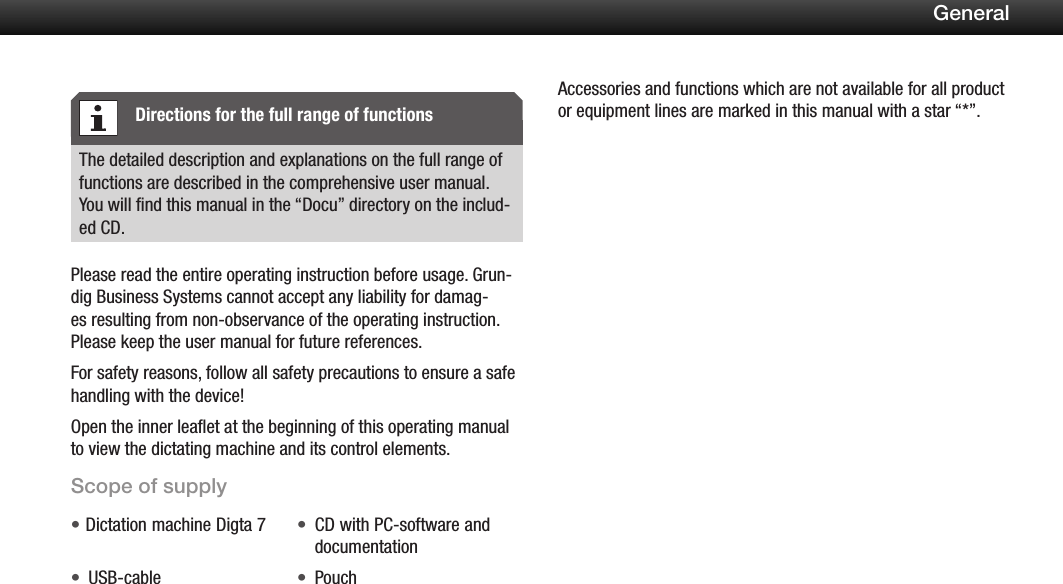
4GeneralThe detailed description and explanations on the full range of functions are described in the comprehensive user manual. You will find this manual in the “Docu” directory on the includ-ed CD.Please read the entire operating instruction before usage. Grun-dig Business Systems cannot accept any liability for damag-es resulting from non-observance of the operating instruction. Please keep the user manual for future references.For safety reasons, follow all safety precautions to ensure a safe handling with the device!Open the inner leaflet at the beginning of this operating manual to view the dictating machine and its control elements.Scope of supplyDictation machine Digta 7• CD with PC-software and •documentationUSB-cable• Pouch•Accessories and functions which are not available for all product or equipment lines are marked in this manual with a star “*”.Directions for the full range of functions
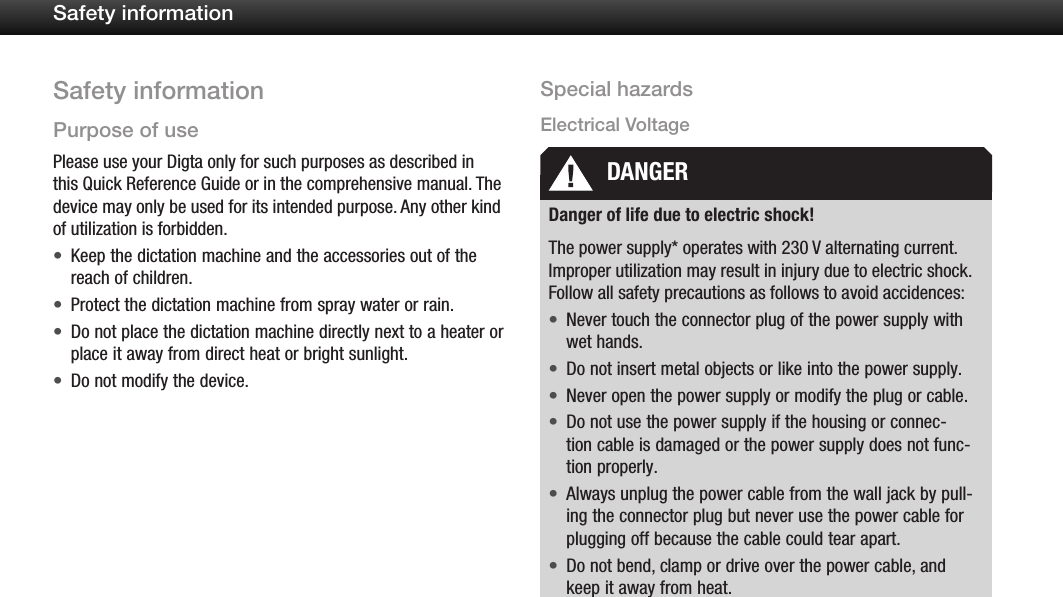
5Safety informationSafety informationPurpose of usePlease use your Digta only for such purposes as described in this Quick Reference Guide or in the comprehensive manual. The device may only be used for its intended purpose. Any other kind of utilization is forbidden.Keep the dictation machine and the accessories out of the •reach of children.Protect the dictation machine from spray water or rain.•Do not place the dictation machine directly next to a heater or •place it away from direct heat or bright sunlight.Do not modify the device.•Special hazardsElectrical VoltageDanger of life due to electric shock!The power supply* operates with 230 V alternating current. Improper utilization may result in injury due to electric shock. Follow all safety precautions as follows to avoid accidences:Never touch the connector plug of the power supply with •wet hands.Do not insert metal objects or like into the power supply.•Never open the power supply or modify the plug or cable.•Do not use the power supply if the housing or connec-•tion cable is damaged or the power supply does not func-tion properly.Always unplug the power cable from the wall jack by pull-•ing the connector plug but never use the power cable for plugging off because the cable could tear apart.Do not bend, clamp or drive over the power cable, and •keep it away from heat.DANGER
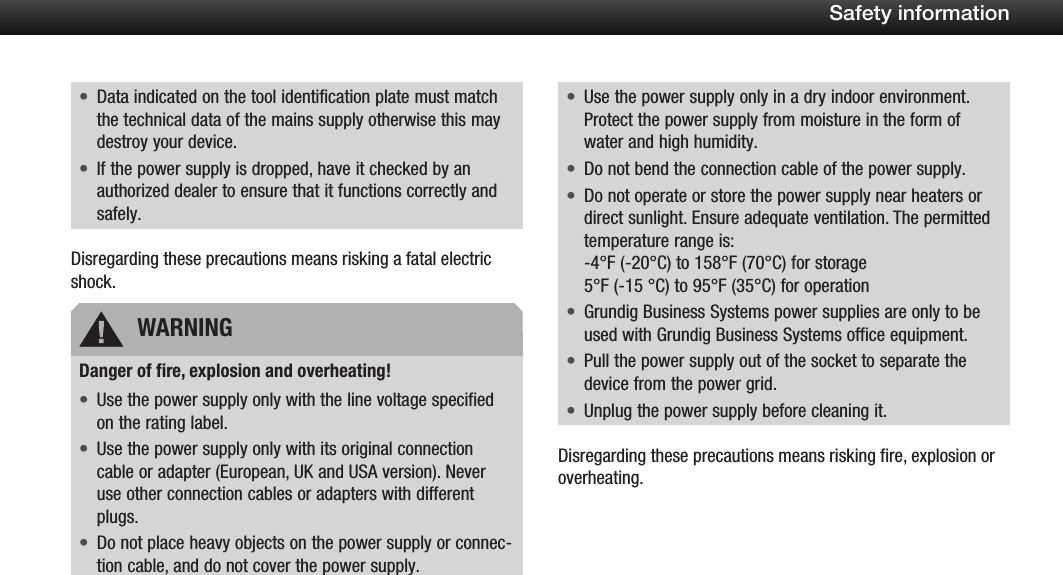
6Safety informationData indicated on the tool identification plate must match •the technical data of the mains supply otherwise this may destroy your device.If the power supply is dropped, have it checked by an •authorized dealer to ensure that it functions correctly and safely.Disregarding these precautions means risking a fatal electric shock.Danger of fire, explosion and overheating!Use the power supply only with the line voltage specified •on the rating label.Use the power supply only with its original connection •cable or adapter (European, UK and USA version). Never use other connection cables or adapters with different plugs.Do not place heavy objects on the power supply or connec-•tion cable, and do not cover the power supply.Use the power supply only in a dry indoor environment. •Protect the power supply from moisture in the form of water and high humidity.Do not bend the connection cable of the power supply.•Do not operate or store the power supply near heaters or •direct sunlight. Ensure adequate ventilation. The permitted temperature range is: -4°F (-20°C) to 158°F (70°C) for storage 5°F (-15 °C) to 95°F (35°C) for operationGrundig Business Systems power supplies are only to be •used with Grundig Business Systems office equipment.Pull the power supply out of the socket to separate the •device from the power grid.Unplug the power supply before cleaning it.•Disregarding these precautions means risking fire, explosion or overheating.WARNING
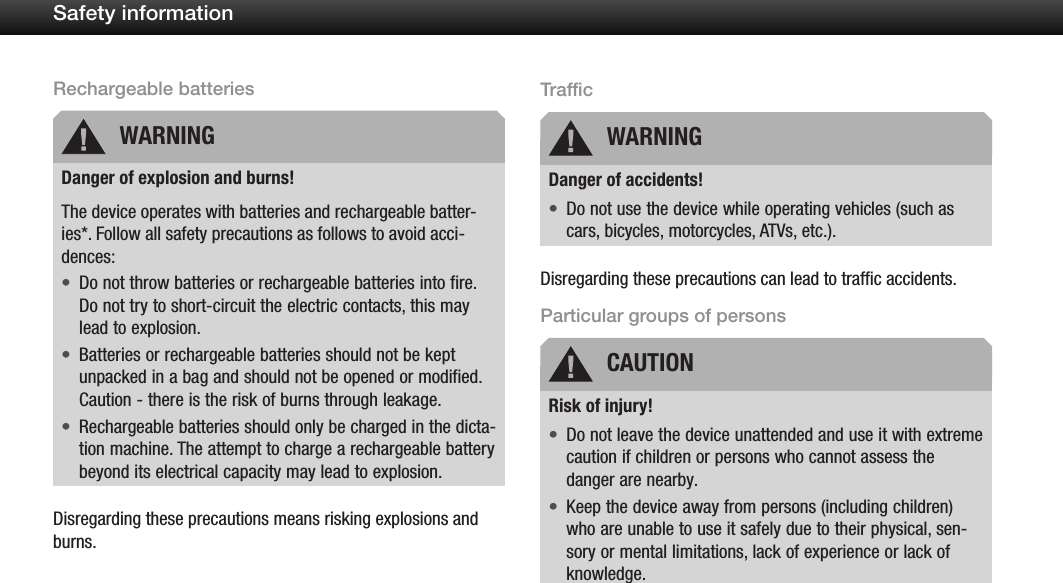
7Safety informationRechargeable batteriesDanger of explosion and burns!The device operates with batteries and rechargeable batter-ies*. Follow all safety precautions as follows to avoid acci-dences:Do not throw batteries or rechargeable batteries into fire. •Do not try to short-circuit the electric contacts, this may lead to explosion.Batteries or rechargeable batteries should not be kept •unpacked in a bag and should not be opened or modified. Caution - there is the risk of burns through leakage.Rechargeable batteries should only be charged in the dicta-•tion machine. The attempt to charge a rechargeable battery beyond its electrical capacity may lead to explosion.Disregarding these precautions means risking explosions and burns.TrafficDanger of accidents!Do not use the device while operating vehicles (such as •cars, bicycles, motorcycles, ATVs, etc.).Disregarding these precautions can lead to traffic accidents.Particular groups of personsRisk of injury!Do not leave the device unattended and use it with extreme •caution if children or persons who cannot assess the danger are nearby.Keep the device away from persons (including children) •who are unable to use it safely due to their physical, sen-sory or mental limitations, lack of experience or lack of knowledge.WARNING WARNINGCAUTION
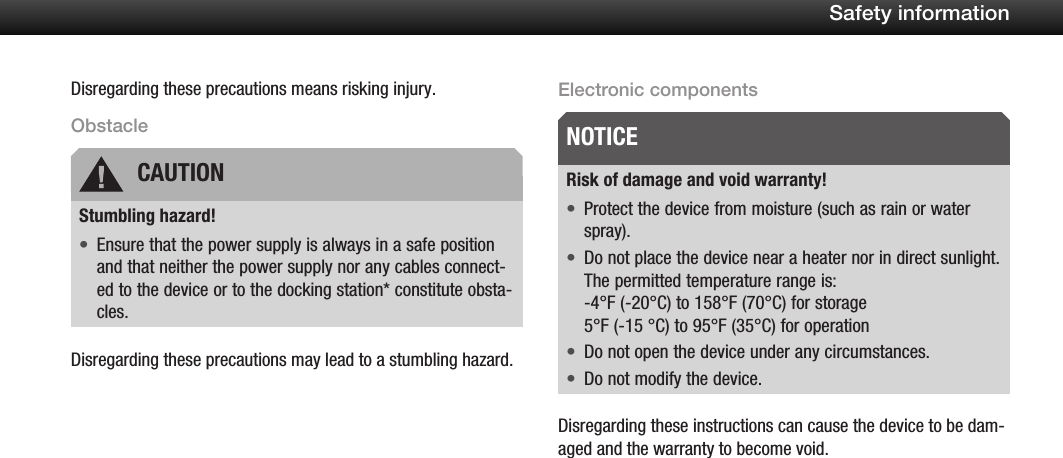
8Safety informationDisregarding these precautions means risking injury.ObstacleStumbling hazard!Ensure that the power supply is always in a safe position •and that neither the power supply nor any cables connect-ed to the device or to the docking station* constitute obsta-cles.Disregarding these precautions may lead to a stumbling hazard.Electronic componentsRisk of damage and void warranty!Protect the device from moisture (such as rain or water •spray).Do not place the device near a heater nor in direct sunlight. •The permitted temperature range is: -4°F (-20°C) to 158°F (70°C) for storage 5°F (-15 °C) to 95°F (35°C) for operationDo not open the device under any circumstances.•Do not modify the device.•Disregarding these instructions can cause the device to be dam-aged and the warranty to become void.CAUTIONNOTICE
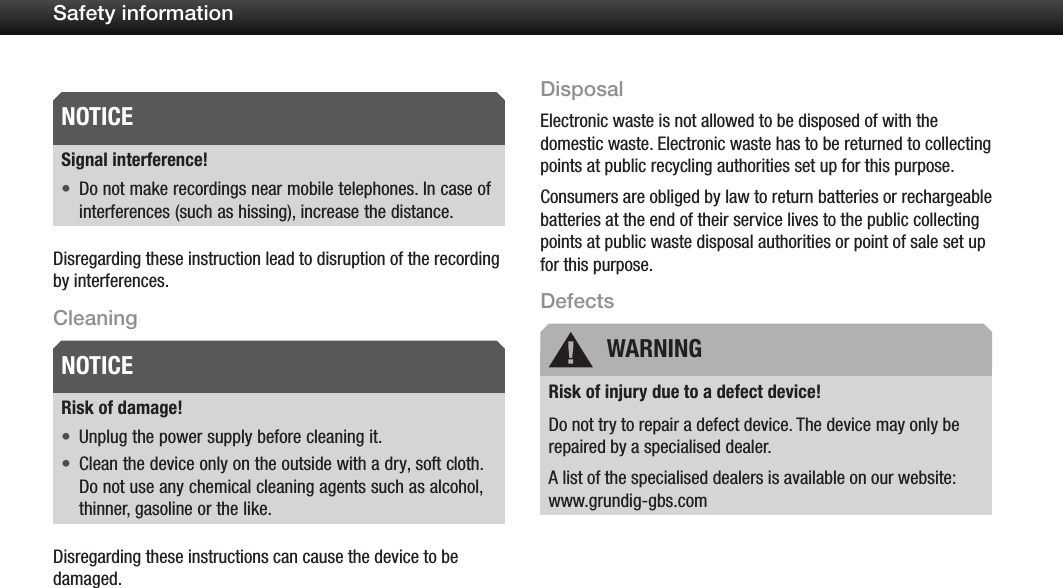
9Safety informationSignal interference!Do not make recordings near mobile telephones. In case of •interferences (such as hissing), increase the distance.Disregarding these instruction lead to disruption of the recording by interferences.CleaningRisk of damage!Unplug the power supply before cleaning it.•Clean the device only on the outside with a dry, soft cloth. •Do not use any chemical cleaning agents such as alcohol, thinner, gasoline or the like.Disregarding these instructions can cause the device to be damaged.DisposalElectronic waste is not allowed to be disposed of with the domestic waste. Electronic waste has to be returned to collecting points at public recycling authorities set up for this purpose.Consumers are obliged by law to return batteries or rechargeable batteries at the end of their service lives to the public collecting points at public waste disposal authorities or point of sale set up for this purpose.DefectsRisk of injury due to a defect device!Do not try to repair a defect device. The device may only be repaired by a specialised dealer. A list of the specialised dealers is available on our website: www.grundig-gbs.comNOTICENOTICE WARNING
10Safety informationAccessoriesDamagesDamage to the device may occur due to unreleased accesso-ries.For the latest accessories like Digta Card, Digta Station 447, rechargeable battery pack 962, power supply, foot control, plug-on microphone and earphone, please visit the Grundig Website on the internet at www.grundig-gbs.com.The performance characteristics described by Grundig Business Systems are only valid when using original accessories released by Grundig Business Systems. Grundig Business Systems can-not accept liability for lacks caused through the utilization of accessories which are not Grundig Business Systems genuine accessories. This also applies to accessories which are neither released nor recommended by Grundig Business Systems.NOTICE
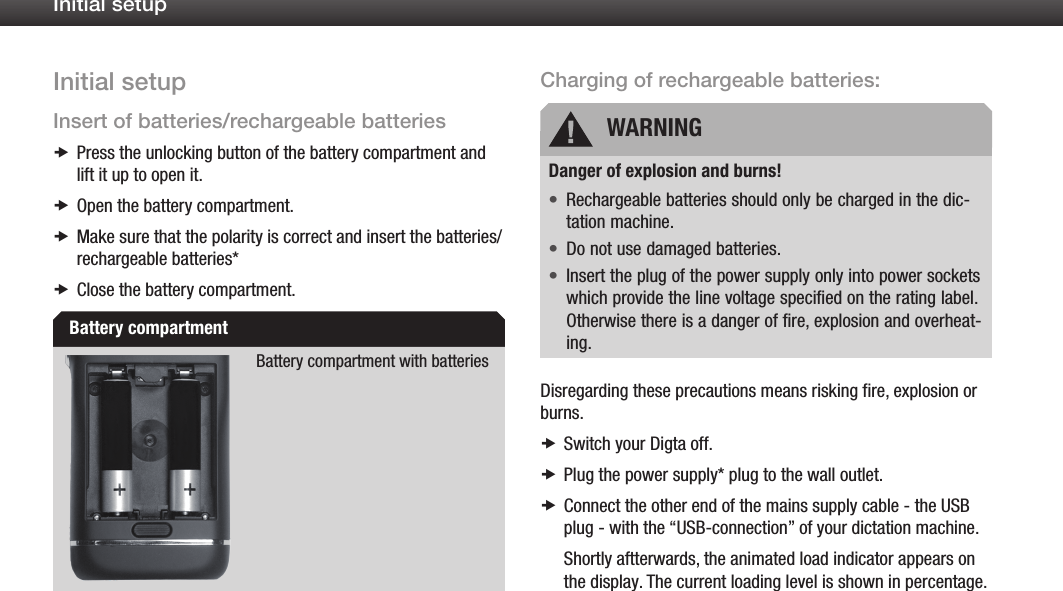
11Initial setupInitial setupInsert of batteries/rechargeable batteriesPress the unlocking button of the battery compartment and  xlift it up to open it.Open the battery compartment. xMake sure that the polarity is correct x and insert the batteries/ rechargeable batteries*Close the battery compartment. xBattery compartment with batteriesCharging of rechargeable batteries:Danger of explosion and burns!Rechargeable batteries should only be charged in the dic-•tation machine.Do not use damaged batteries.•Insert the plug of the power supply only into power sockets •which provide the line voltage specified on the rating label. Otherwise there is a danger of fire, explosion and overheat-ing.Disregarding these precautions means risking fire, explosion or burns.Switch your Digta off. xPlug the power supply* plug to the wall outlet. xConnect the other end of the mains supply cable - the USB  xplug - with the “USB-connection” of your dictation machine.Shortly aftterwards, the animated load indicator appears on the display. The current loading level is shown in percentage.Battery compartmentWARNING
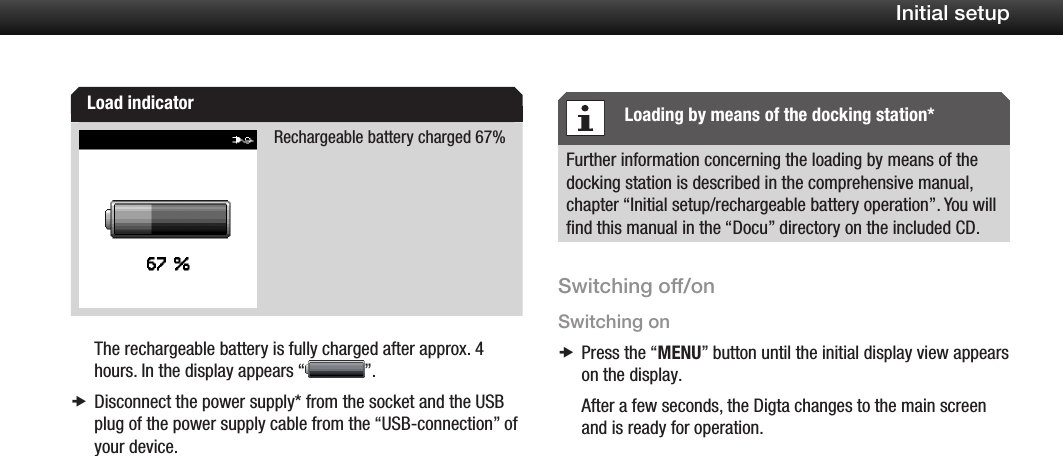
12Initial setupRechargeable battery charged 67%The rechargeable battery is fully charged after approx. 4 hours. In the display appears “ ”.Disconnect the power supply* from the socket and the USB  xplug of the power supply cable from the “USB-connection” of your device.Further information concerning the loading by means of the docking station is described in the comprehensive manual, chapter “Initial setup/rechargeable battery operation”. You will find this manual in the “Docu” directory on the included CD.Switching off/onSwitching onPress the “ xMENU” button until the initial display view appears on the display.After a few seconds, the Digta changes to the main screen and is ready for operation.Load indicator Loading by means of the docking station*
13Initial setupWhen switching on the Digta for the first time, please select the menu language you require and set the date and time. For further information please read the comprehensive manual, chapter “Initial setup”. You will find this manual in the “Docu” directory on the included CD.When a request for a PIN appears, please input the digits by  xmeans of the up-down buttons and confirm each individual digit with the “OK” button.Please select your name when an authors list appears by  xmeans of the up-down buttons and confirm it with the “OK” button.When a profile list appears, please select the required profile  xby using the up-down buttons and confirm it by pressing the “OK” button.Switching offPress the “ xMENU” button until the device switches off.KeylockThe key lock helps to avoid that the active recording or play-back process can be switched off by mistake.Please press the lower function button until a locking symbol  xand “HOLD” are indicated on the display.Internal/external memoryDictations are stored on the internal memory of the Digta as long as no external, removable memory card (Digta Card*) is inserted. As soon as a Digta Card is inserted, all dictations will be stored on this memory card. Copying between the internal memory and the external memory card is impossible.The icon “memory card active” pops up on the display.Automatic formatingWhen no dictations are stored on the memory, then the memory is formated automatically when switching off the device but after a specific number of dictations have been stored before.  The Initial switching onDisplay “Memory card active”
14Initial setupspecific number of dictations after which the automatic format-ing shall run can be set in the menu.A security question prompts, if other files e.g. .doc, .ppt or other dictations from other authors are stored on the memory.
15OperatingOperatingPlease observe the different variants for slide switch opera-tions. Further information to this point are printed on the leaf-let of this Quick Reference Guide.In the operation instruction, the different variants for slide switch operations are highlighted by means of the numbering. Please follow only those steps which are marked for the vari-ant you have selected.ProfilesThe Easy Mode and the Menu Mode are available in form of predefined default profiles. However, the system administrator can change these profiles by means of the configuration soft-ware and transfered them to the device.The switchover from the Easy Mode to Menu Mode takes place when switching on the Digta.Easy ModeAll functions needed for dictating, play-back, deleting or inserting of dictations are available in the Easy Mode. In the Easy Mode, the menu functions are in an off-state.The display is organized more clearly in the Easy Mode. The risk that operating errors are made is diminished because only the most important functions can be activated.The different slide switch operation variantsSlide switch operation variantsDefault settings of profiles
16OperatingMenu ModeThe full range of functions are available in the Menu Mode. You can adjust your Digta to your personal requirements by means of the menu functions. In the menu, the different indicators on the display can be added or turned off.Change of profileSwitch your Digta off. xPress the “ xMENU” and the “NEW” button simultaneously until the initial display view appears on the display.A list of possible profiles appears on the display.Please select the required profile by using the up-down but- xtons and confirm it by pressing the “OK” button.Press the “ xBack” button if you do not want to adopt the changes made.After a few seconds, the Digta changes to the main screen and is ready for operation.Help functionThe Digta offers a help function. Brief help texts shall support you by using your dictation machine correctly. Additional infor-mation is put at disposal when special operating situations occur, for example, during the recording of dictations or in the menu.Please press briefly the lower function button until the brief  xhelp texts are displayed.Press the lower function button again in order to close the  xhelp texts.You will be resetted to the initial situation/screen.Recording of new dictationMove the slide switch to the position “ xe”.Press the “ xNEW” button.The dictation machine switches over to the recording pause “ll”, the LED-indicator blinks red.Move the slide switch to the position “ xg”. Dictate your new text.The recording indicator blinks red. The progress bar increas-es as well as the dictation length.

Navigation menu