GuangZhou XiaoPai Technology FX801 Smart Pet Feeder User Manual

GuangZhou XiaoPai Technology Co., Ltd. Smart Pet Feeder

User Manual

        Instruction Manual                                 Please carefully read this instruction manual   before you start to use this device.And please kindly   keep this manual for necessary check in the future.
   1. Regular Information········································1     Buttons and Indicators··································1 Accessory and Interface································2  2. Download and Set up the App of Device··················3  3. Guide for Initial Usage····································4 Sign up and Sign in the Account·······················4                     Forgot Password·········································5 Connect and Bind the Device··························6  4. General Instruction for APP·······························8       Homepage················································8   Feed ······················································9         Video····················································10                     Settings··················································11 More ····················································14  5. Answers for Popular Questions in Usage·············15Content
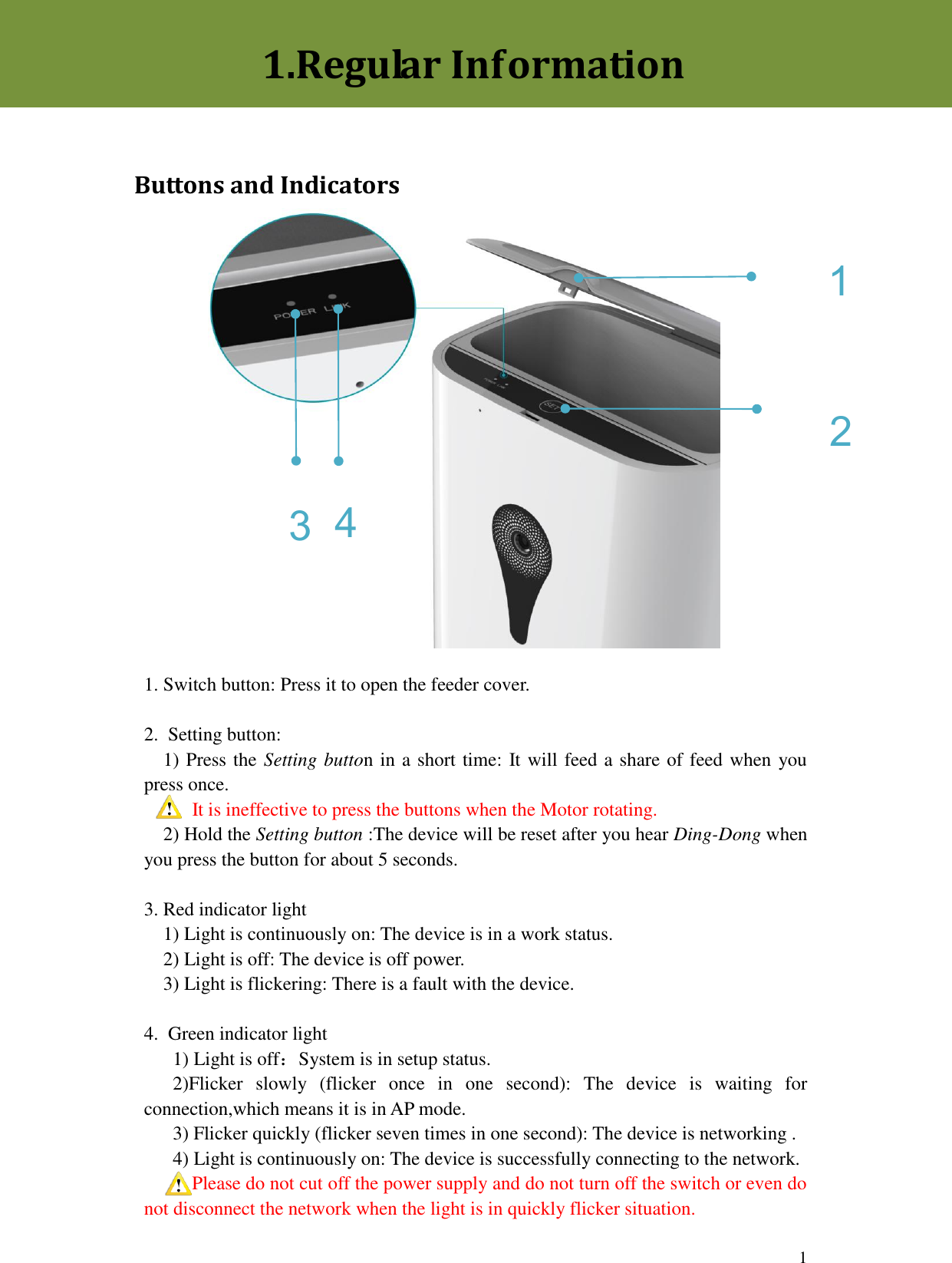
 1 1 3 2 4                1. Switch button: Press it to open the feeder cover.  2.  Setting button:   1) Press the Setting button in a short time: It will feed a share of feed when you press once.      It is ineffective to press the buttons when the Motor rotating.   2) Hold the Setting button :The device will be reset after you hear Ding-Dong when you press the button for about 5 seconds.  3. Red indicator light   1) Light is continuously on: The device is in a work status.   2) Light is off: The device is off power.   3) Light is flickering: There is a fault with the device.    4.  Green indicator light      1) Light is off:System is in setup status.    2)Flicker  slowly  (flicker  once  in  one  second):  The  device  is  waiting  for connection,which means it is in AP mode.     3) Flicker quickly (flicker seven times in one second): The device is networking .     4) Light is continuously on: The device is successfully connecting to the network.    Please do not cut off the power supply and do not turn off the switch or even do not disconnect the network when the light is in quickly flicker situation.1.Regular Information  Buttons and Indicators
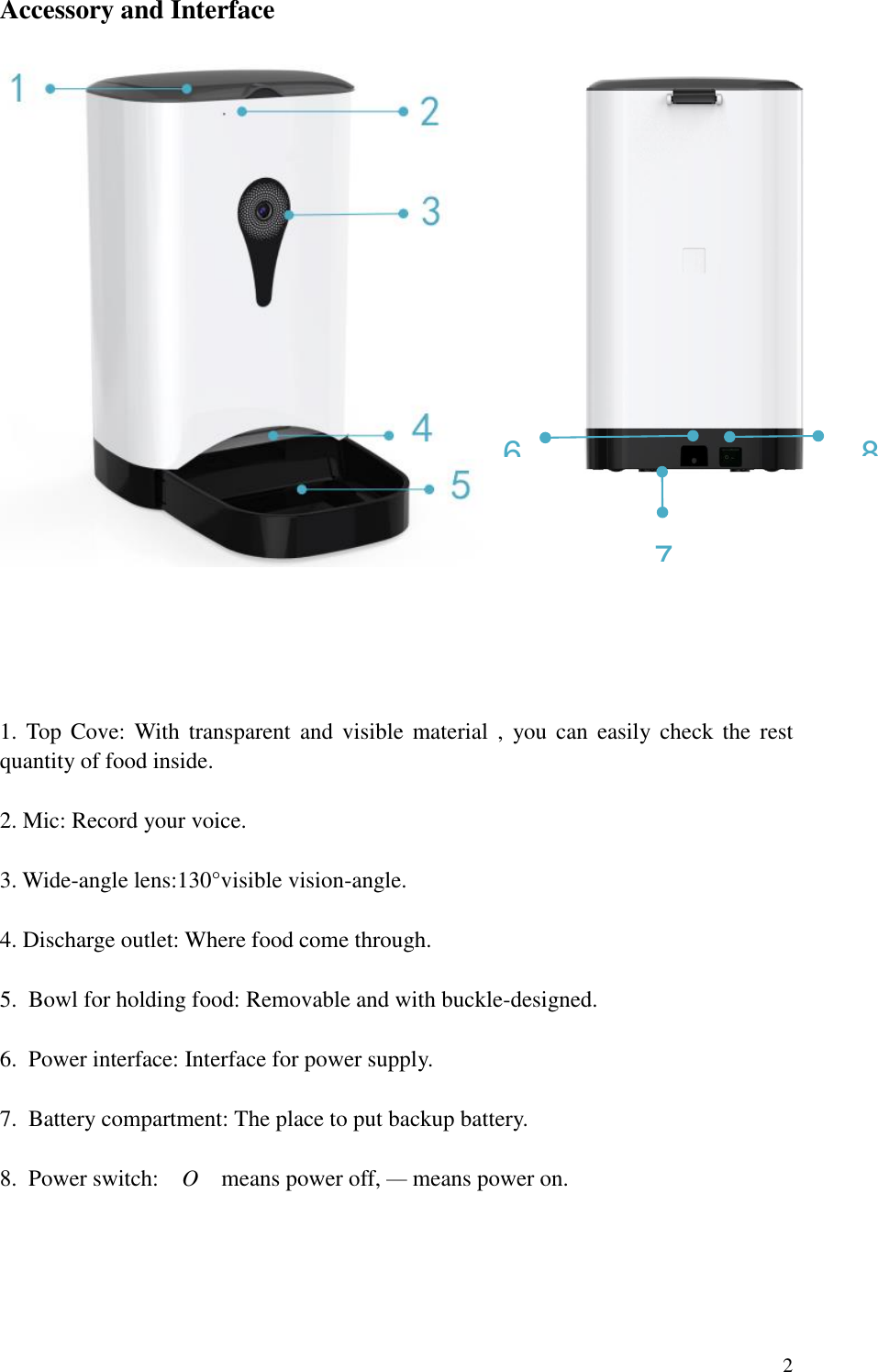
 2 8 6 7   Accessory and Interface      1. Top  Cove:  With  transparent  and  visible  material  ,  you can easily  check  the  rest quantity of food inside.  2. Mic: Record your voice.  3. Wide-angle lens:130°visible vision-angle.  4. Discharge outlet: Where food come through.  5.  Bowl for holding food: Removable and with buckle-designed.  6.  Power interface: Interface for power supply.  7.  Battery compartment: The place to put backup battery.  8.  Power switch:    O    means power off, — means power on.
 3                                                           (QR code for IOS PetFun )               (QR code for Android PetFun)                                       Method NO.2:Search the PetFun in              Method NO.2:Search the PetFun in                 Apple store to download and install it              Google-play to download and install it.                                                                                                                Download and Installation for Android System Phone   Two ways to download and install the APP.  Method  No.1:  Scan  QR  code below.     Download and Installation for IOS System Phone   Two  ways  to  download  and install the APP.  Method  No.1:  Scan  QR  code below.   2.Download and Set up the App of Device
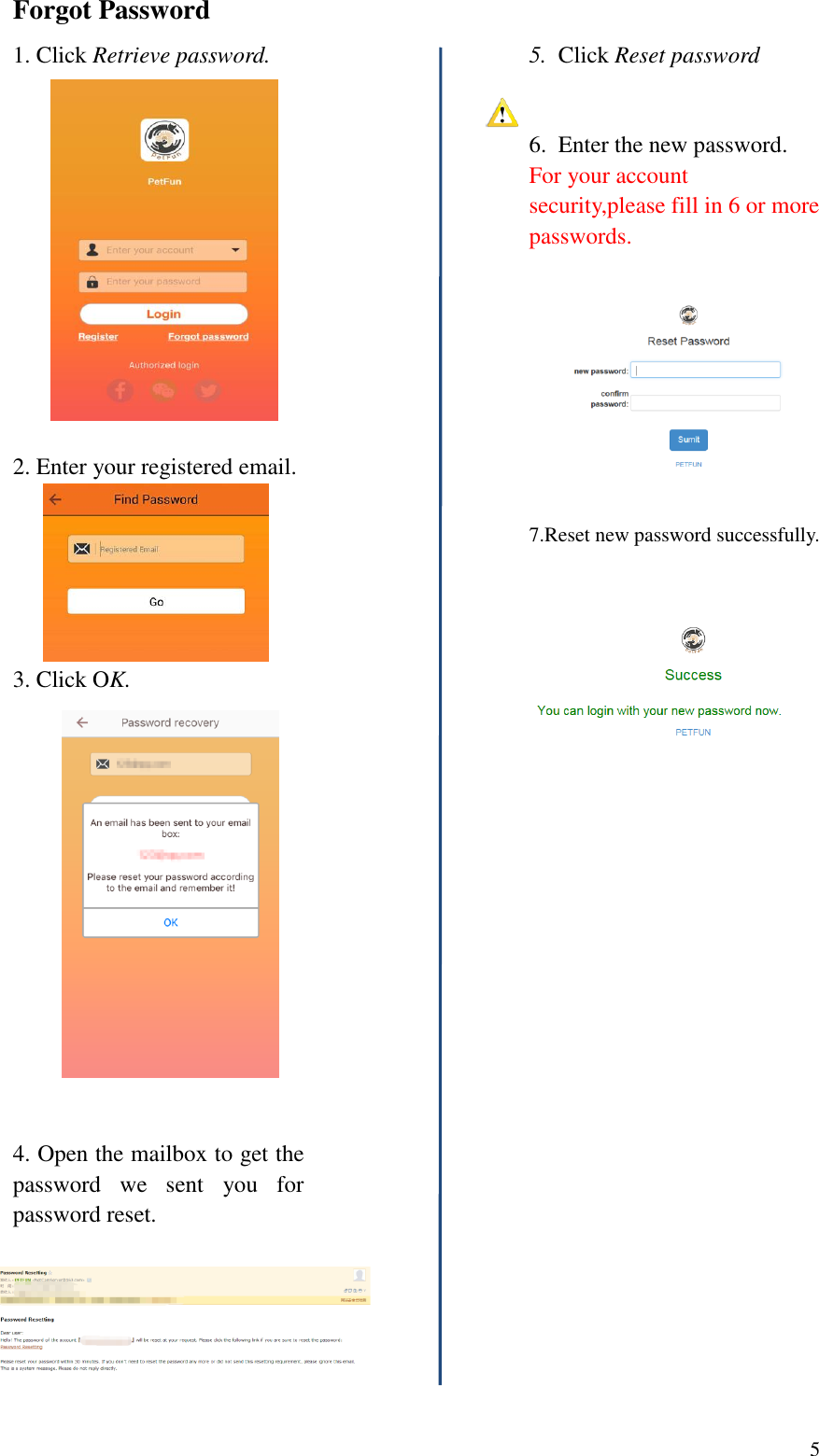
 4       Sign up Account 1. Open PetFun App           2. Click Sign Up 3.  Fill Information To ensure that the mailbox can be used to prevent password loss, if lose,it can be used to retrieve the password. For your account security, please fill in 6 or more passwords.  4.  Click Submit to finish register.    Sign In Account 1. Sign in account 1)  Enter  your  registered  email and password. 2) Click Sign In.            3)  Log  in  successfully,  jump  to binding page.            2. Authorized login  1)    log in to the button you want to select. 2)  Operate  with  the  authorized login prompt.   3)  Log  in  successfully,  jump  to binding page.  3. Guide for Initial Usage
 5  Forgot Password 1. Click Retrieve password.                                   2. Enter your registered email.      3. Click OK.   4. Open the mailbox to get the password  we  sent  you  for password reset.        5.  Click Reset password 6.  Enter the new password. For your account security,please fill in 6 or more passwords.    7.Reset new password successfully.
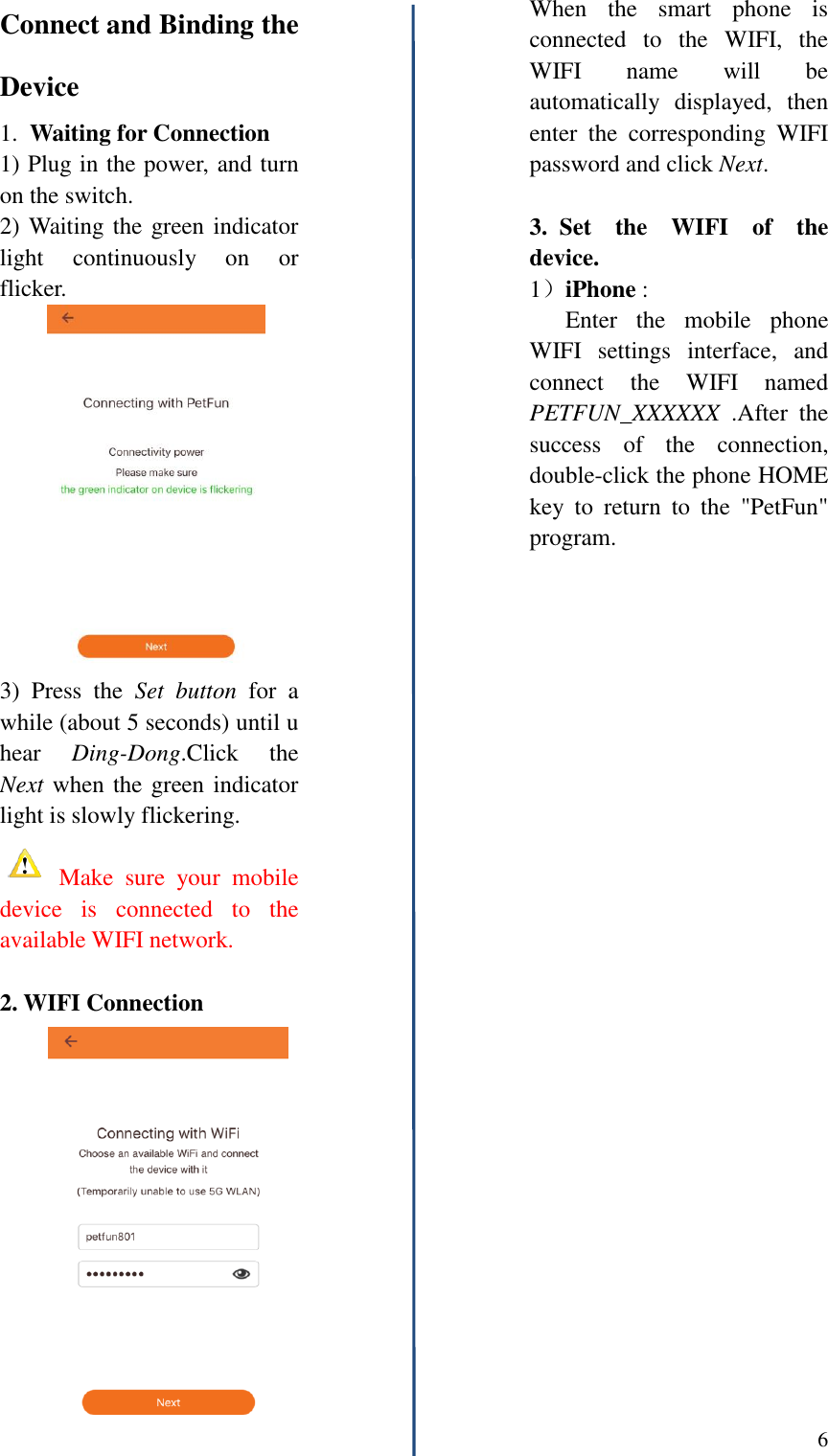
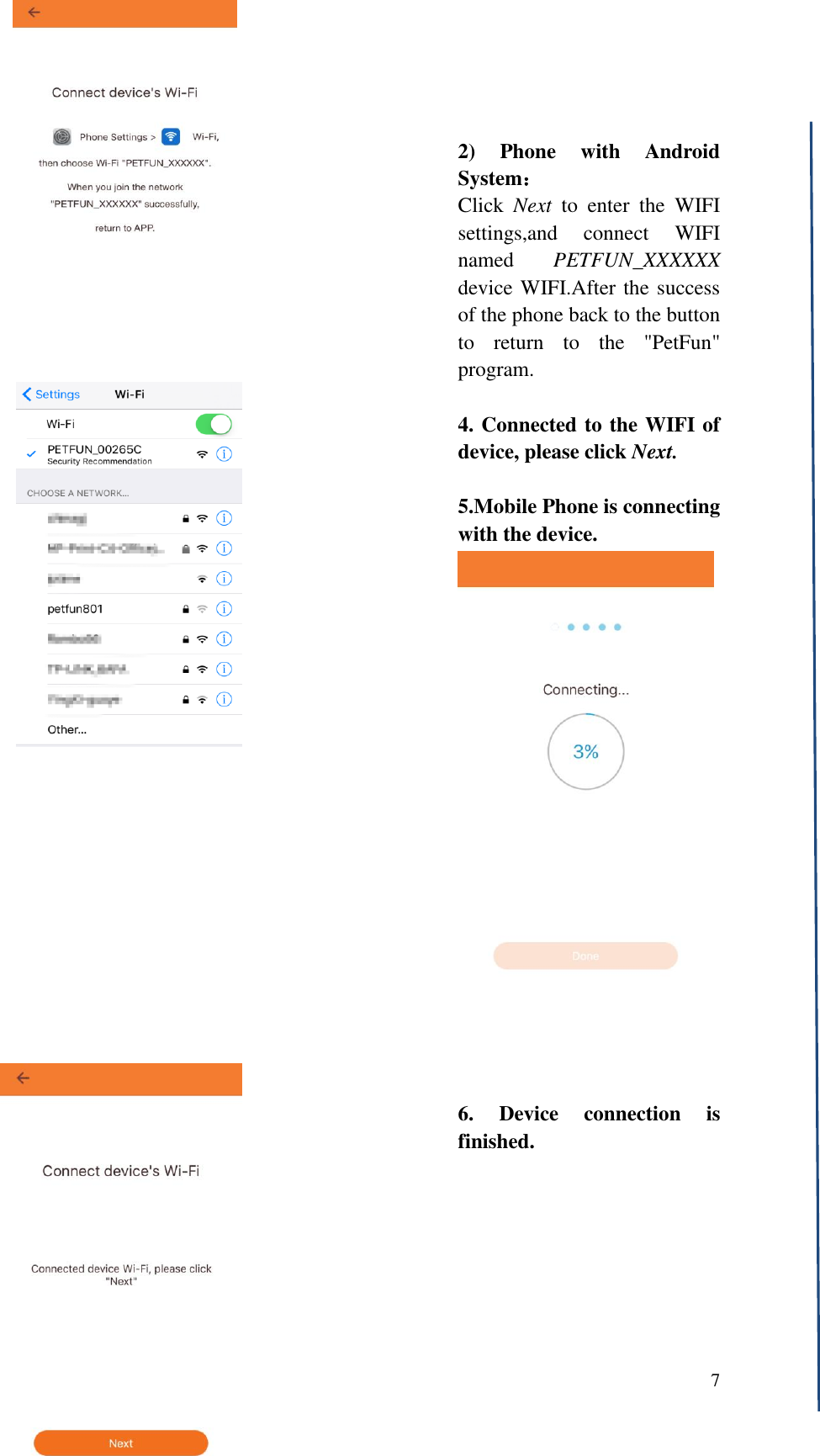
 6   Connect and Binding the Device 1.  Waiting for Connection 1) Plug in the power, and turn on the switch. 2) Waiting the green indicator light  continuously  on  or flicker. 3)  Press  the  Set  button  for  a while (about 5 seconds) until u hear  Ding-Dong.Click  the Next when the green indicator light is slowly flickering.  Make  sure  your  mobile device  is  connected  to  the available WIFI network.  2. WIFI Connection       When  the  smart  phone  is connected  to  the  WIFI,  the WIFI  name  will  be automatically  displayed,  then enter  the  corresponding  WIFI password and click Next.  3.  Set  the  WIFI  of  the device.   1)iPhone :    Enter  the  mobile  phone WIFI  settings  interface,  and connect  the  WIFI  named PETFUN_XXXXXX  .After  the success  of  the  connection, double-click the phone HOME key  to  return  to  the  "PetFun" program.
 7      2)  Phone  with  Android System: Click  Next  to  enter  the  WIFI settings,and  connect  WIFI named  PETFUN_XXXXXX device WIFI.After the success of the phone back to the button to  return  to  the  "PetFun" program.  4. Connected to the WIFI of device, please click Next.  5.Mobile Phone is connecting with the device.                    6.  Device  connection  is finished.
 8
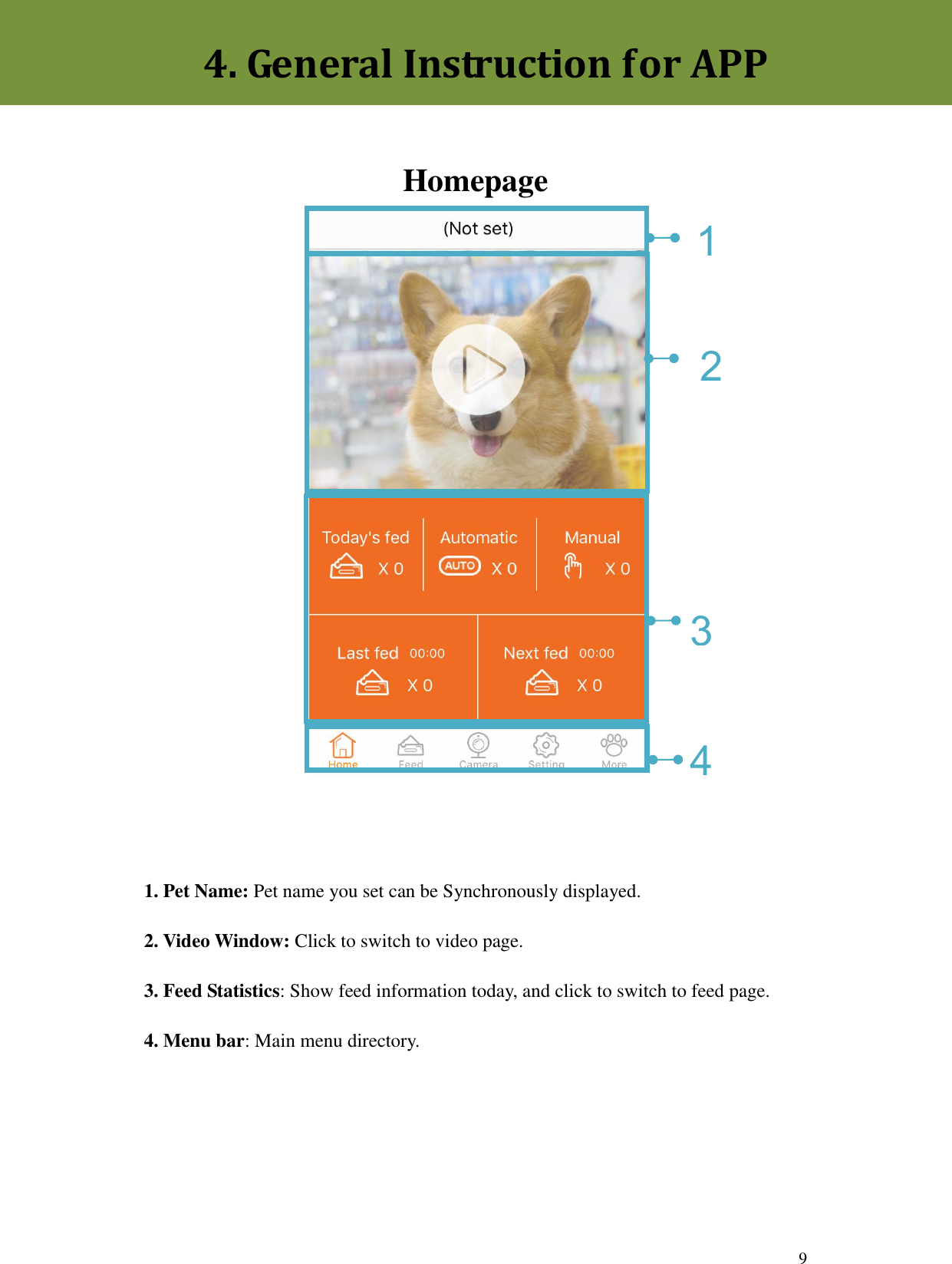
 9     Homepage              1. Pet Name: Pet name you set can be Synchronously displayed.   2. Video Window: Click to switch to video page. 3. Feed Statistics: Show feed information today, and click to switch to feed page. 4. Menu bar: Main menu directory.4. General Instruction for APP 1 4 3 2
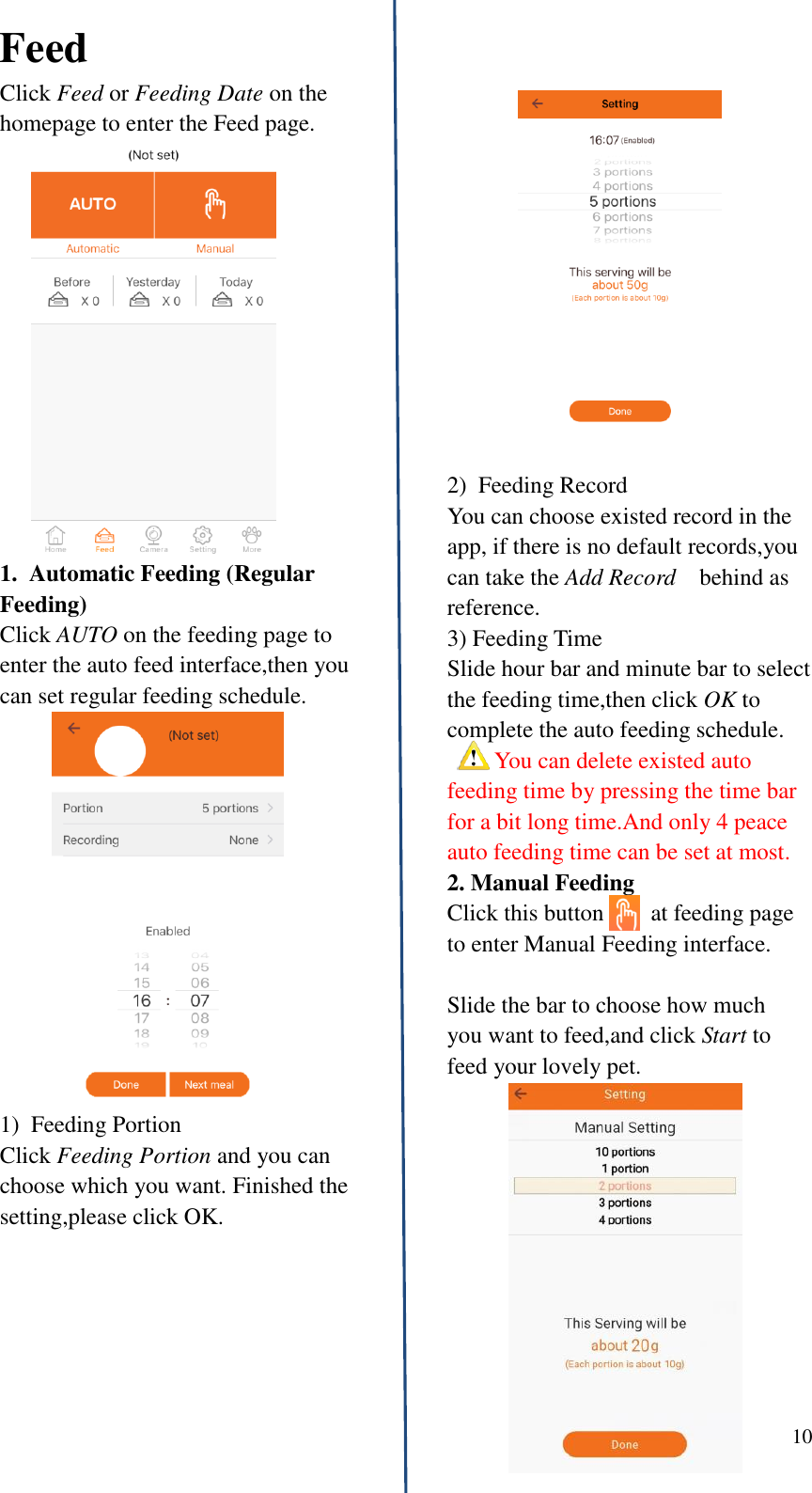
 10   Feed Click Feed or Feeding Date on the homepage to enter the Feed page. 1.  Automatic Feeding (Regular Feeding) Click AUTO on the feeding page to enter the auto feed interface,then you can set regular feeding schedule. 1)  Feeding Portion                 Click Feeding Portion and you can choose which you want. Finished the   setting,please click OK.          2)  Feeding Record You can choose existed record in the app, if there is no default records,you can take the Add Record    behind as reference. 3) Feeding Time Slide hour bar and minute bar to select the feeding time,then click OK to complete the auto feeding schedule.   You can delete existed auto feeding time by pressing the time bar for a bit long time.And only 4 peace auto feeding time can be set at most. 2. Manual Feeding Click this button        at feeding page to enter Manual Feeding interface.    Slide the bar to choose how much   you want to feed,and click Start to feed your lovely pet.
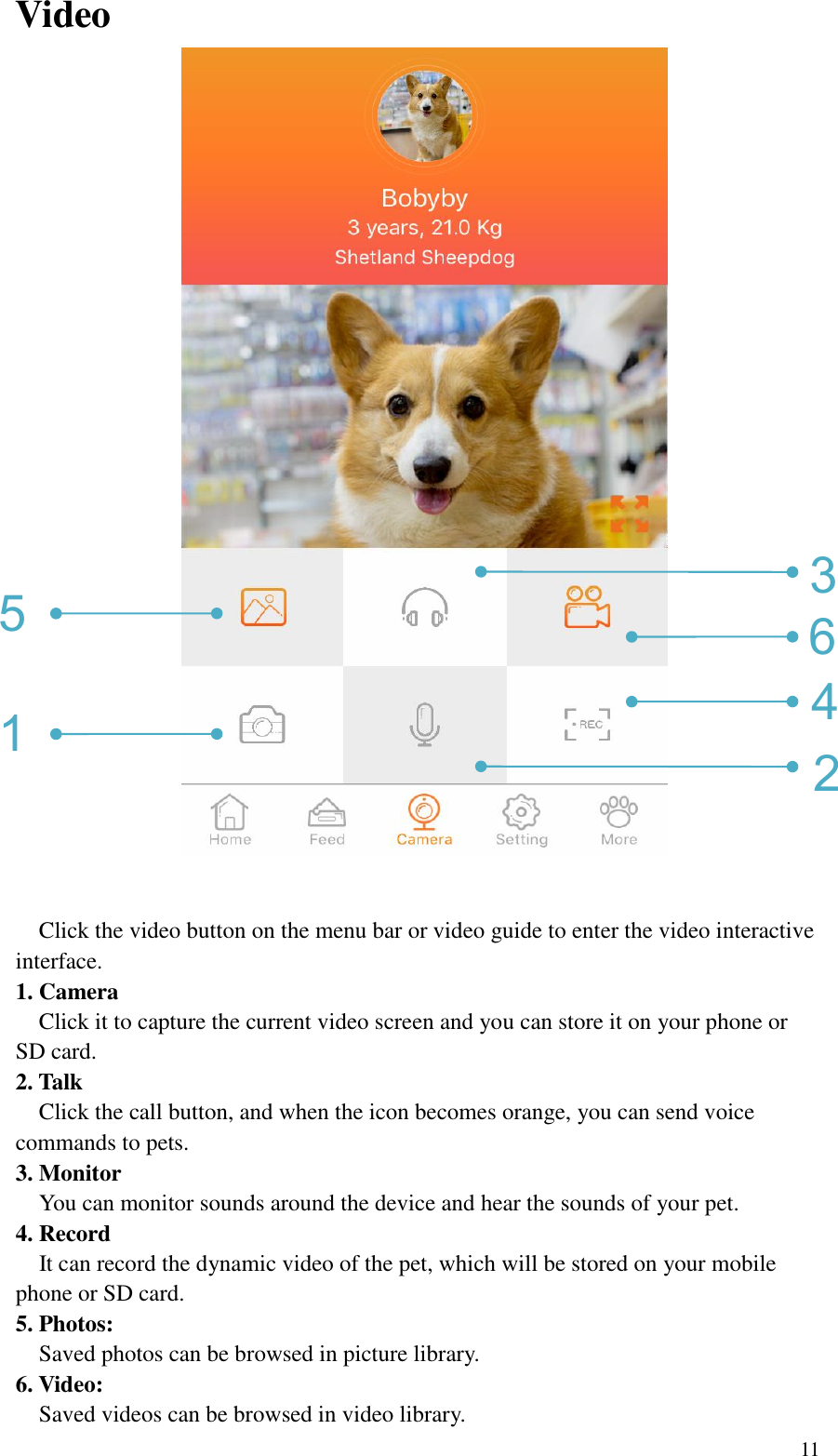
 11  Video    Click the video button on the menu bar or video guide to enter the video interactive interface. 1. Camera   Click it to capture the current video screen and you can store it on your phone or SD card.   2. Talk   Click the call button, and when the icon becomes orange, you can send voice commands to pets. 3. Monitor   You can monitor sounds around the device and hear the sounds of your pet. 4. Record   It can record the dynamic video of the pet, which will be stored on your mobile phone or SD card. 5. Photos:   Saved photos can be browsed in picture library. 6. Video:   Saved videos can be browsed in video library. 3 6 4 2 5 1
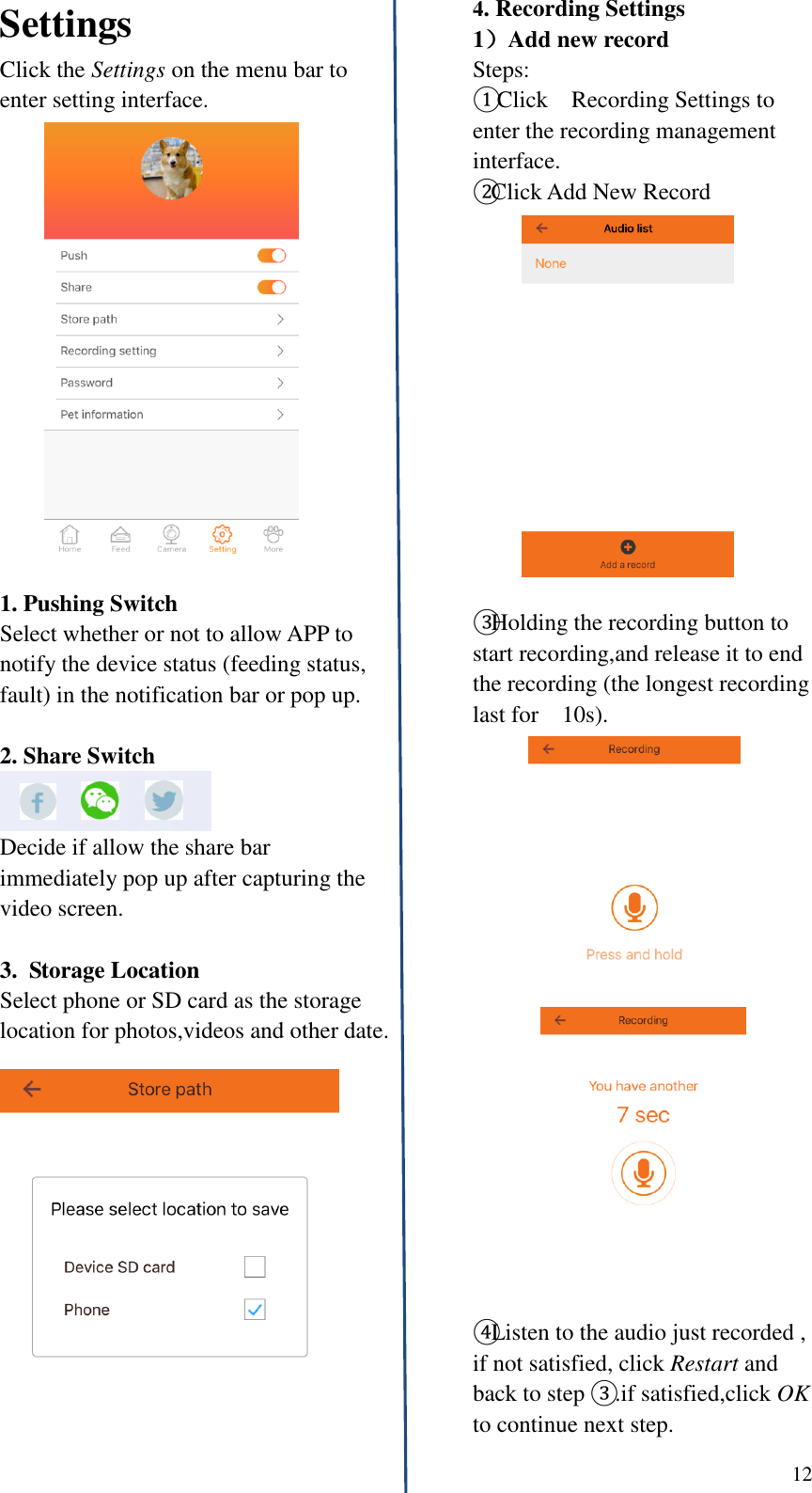
 12   Settings Click the Settings on the menu bar to enter setting interface.  1. Pushing Switch   Select whether or not to allow APP to notify the device status (feeding status, fault) in the notification bar or pop up.  2. Share Switch    Decide if allow the share bar immediately pop up after capturing the video screen.    3.  Storage Location Select phone or SD card as the storage location for photos,videos and other date.     4. Recording Settings 1)Add new record Steps: ① Click    Recording Settings to enter the recording management interface. ②Click Add New Record  ③Holding the recording button to start recording,and release it to end the recording (the longest recording last for    10s).   ④Listen to the audio just recorded , if not satisfied, click Restart and back to step ③ .if satisfied,click OK to continue next step.
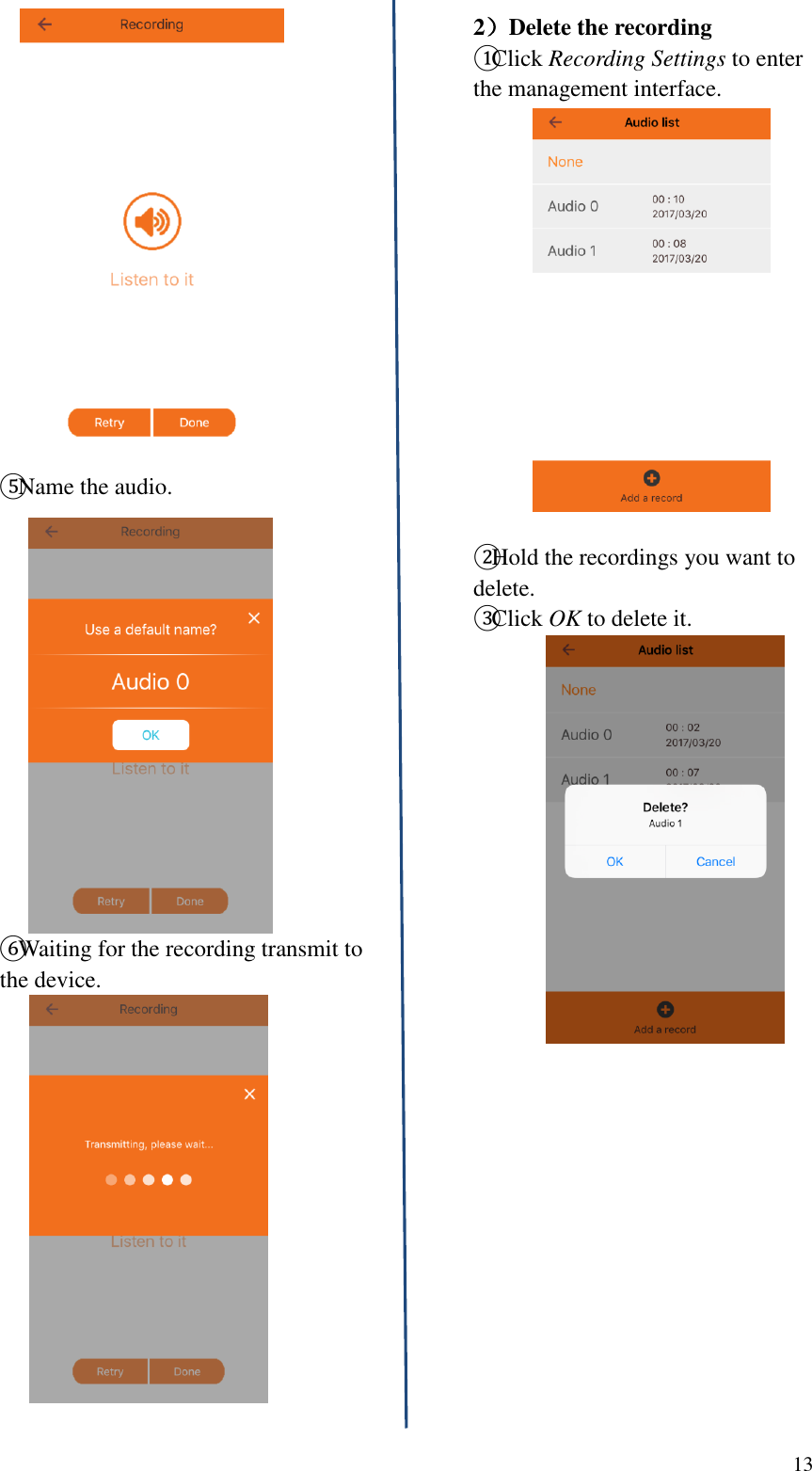
 13                   ⑤Name the audio. ⑥Waiting for the recording transmit to the device.     2)Delete the recording ①Click Recording Settings to enter the management interface.  ②Hold the recordings you want to delete. ③Click OK to delete it.
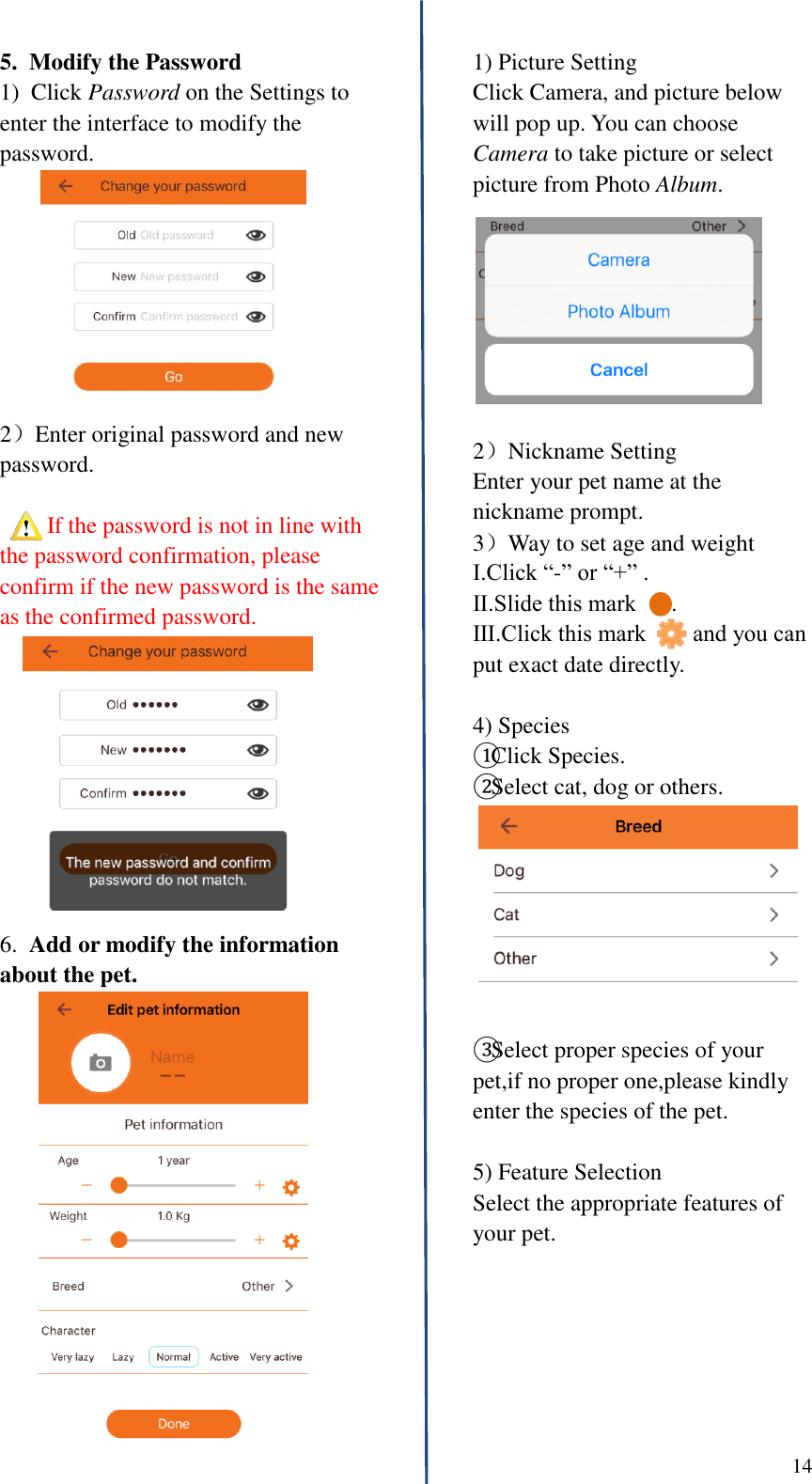
 14      5.  Modify the Password 1)  Click Password on the Settings to enter the interface to modify the password. 2)Enter original password and new password.    If the password is not in line with the password confirmation, please confirm if the new password is the same as the confirmed password. 6.  Add or modify the information about the pet.                    1) Picture Setting Click Camera, and picture below will pop up. You can choose Camera to take picture or select picture from Photo Album.  2)Nickname Setting Enter your pet name at the nickname prompt. 3)Way to set age and weight Ⅰ.Click “-” or “+” . Ⅱ.Slide this mark      . Ⅲ.Click this mark        and you can put exact date directly.  4) Species ①Click Species. ②Select cat, dog or others.  ③Select proper species of your pet,if no proper one,please kindly enter the species of the pet.  5) Feature Selection Select the appropriate features of your pet.
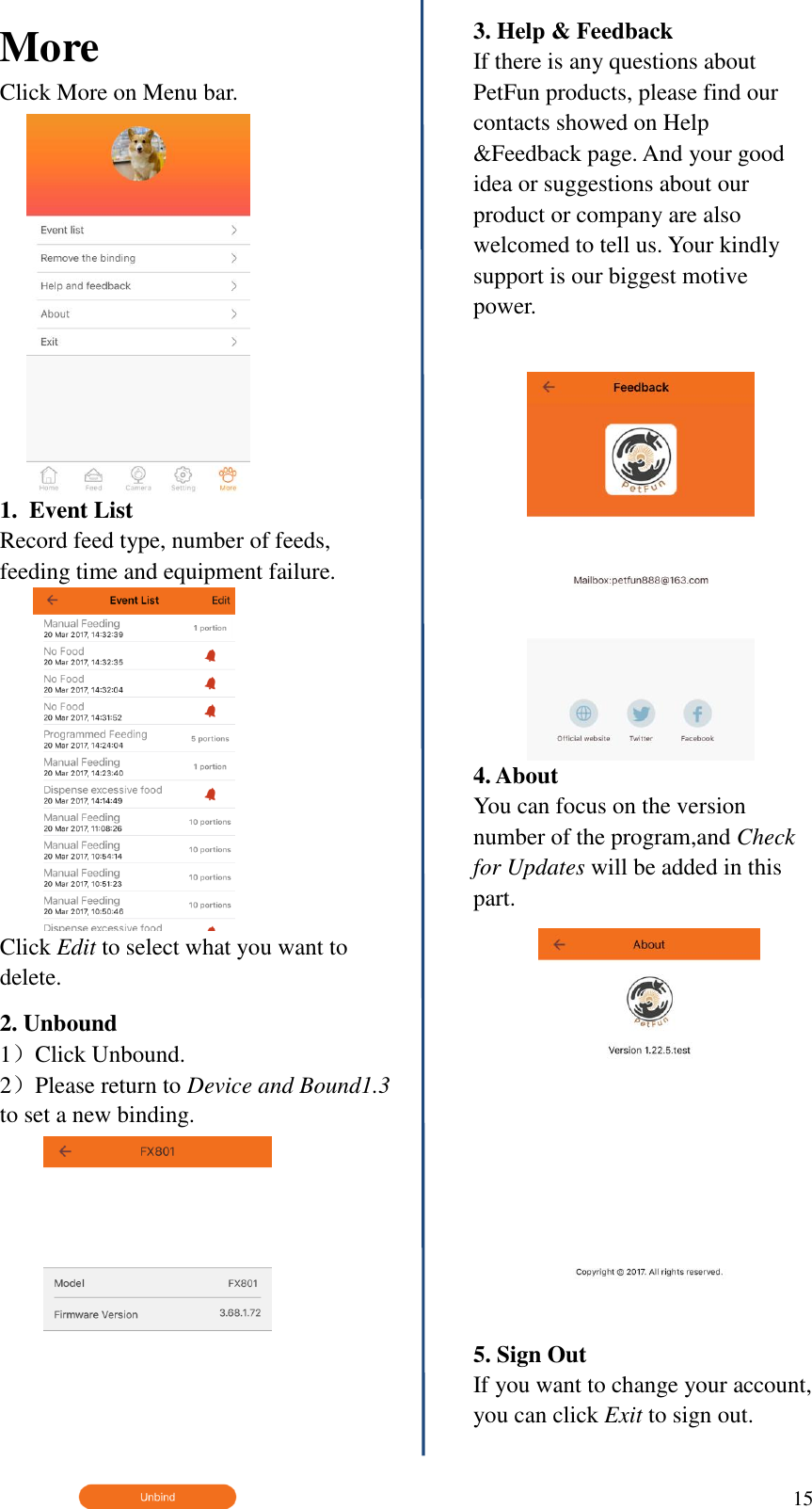
 15   More Click More on Menu bar. 1.  Event List Record feed type, number of feeds, feeding time and equipment failure. Click Edit to select what you want to delete. 2. Unbound 1)Click Unbound. 2)Please return to Device and Bound1.3 to set a new binding.   3. Help & Feedback If there is any questions about PetFun products, please find our contacts showed on Help &Feedback page. And your good idea or suggestions about our product or company are also welcomed to tell us. Your kindly support is our biggest motive power.  4. About You can focus on the version number of the program,and Check for Updates will be added in this part.  5. Sign Out If you want to change your account, you can click Exit to sign out.
 16    1. When smart phone can not connect with the device,what should we do?   1) Check if there is any failures with the smart pet feeder.   2) Check the status of power supply indicators.In normal situation,the red light is on,and green light is flicker slowly.   3) Check the signal of device WIFI. Please search the WIFI of device named PENTFUN_XXXXXX by your smart phone.   4) Uninstall the application and reload it. Make sure that the authorized application has access to location information and network.   Please enter the correct WIFI password to ensure that the phone always (except when it connects with the device) be connected to the external network WIFI.   Please contact customer service when the above methods can not work out.  2. When it can not reset by holding the SET button,what should we do?   Turn off the power and plug in the power again. If you can not reset, please contact customer service.  3.  Sometimes the device can not work when the phone connecting with the PETFUN_XXXXXX,how to handle this matter?   It is possible that the phone automatically connected with other WIFI,which brings interference for phone and device connection. If in this case,we can enter Phone Settings to do manual connection.  4. Why it is not smooth to feed regularly?   1)Check the discharge outlet, when it is blocked, the red light will flicker.   2)Check if the motor is blocked by pet food.  5. When the signal of network is worse,how can we reconnect the device?   Method One: Exit the app and sign in again,then wait for the date updating.   Method Two: Switch to video interface, and wait for video refresh.  6. Why android phone can not talk and take photos?   Please confirm that you have authorized the program to use the camera and recording.  7. Information about capacity of SD card and the storage location for image and video.   SD card support 128G, and the storage location(on SD card or phone) for image and video can be set on the phone.  8. What kind of network does the pet feeder need?    Wireless router supports 802.11BGN protocol. It do not need a mobile phone signal, as long as you can connect to the network.   5. Answers for Popular Questions in Usage
 17  Warning Statement  This equipment has been tested and found to comply with the limits for a Class B digital device, pursuant to part 15 of the FCC Rules. These limits are designed to provide reasonable protection against harmful interference in a residential installation. This equipment generates, uses and can radiate radio frequency energy and, if not installed and used in accordance with the instructions, may cause harmful interference to radio communications. However, there is no guarantee that interference will not occur in a particular installation. If this equipment does cause harmful interference to radio or television reception, which can be determined by turning the equipment off and on, the user is encouraged to try to correct the interference by one or more of the following measures: •  Reorient or relocate the receiving antenna. •  Increase the separation between the equipment and receiver. •  Connect the equipment into an outlet on a circuit different from that to which the receiver is connected. •  Consult the dealer or an experienced radio/TV technician for help.  Caution: Any changes or modifications to this device not explicitly approved by manufacturer could void your authority to operate this equipment.  This device complies with part 15 of the FCC Rules. Operation is subject to the following two conditions: (1) This device may not cause harmful interference, and (2) this device must accept any interference received, including interference that may cause undesired operation.  To comply with FCC RF exposure compliance requirements, this grant is applicable to only mobile configurations. The antennas used for this transmitter must be installed to provide a separation distance of at least 20 cm from all persons and must not be co-located or operating in conjunction with any other antenna or transmitter.

Navigation menu