Guangzhou EHang Intelligent Technology 05224339 GHOST Aerial User Manual

Guangzhou Ehang Intelligent Technologies Co., Ltd. GHOST Aerial Users Manual

15_Ghost_Box UserMan

Please refer to relevant regulations of the International Civil Aviation Organization, local airspace control and UAV management rules. Other-wise it may incur liabilities for violation of laws or regulations. Once this product is used, it will be assumed that the user has acknowledged and accepted all the contents of this statement. Users will be held accountable for their actions or any direct or indirect consequences caused by incompliance with the aviation restrictions of this manual. Aviation Restrictions
ReminderReading Instructions       Symbols        Suggested Use       Video GHOST Basic       Introduction       Parts ListPreparation       Battery        G-Box        GHOST       Propeller       Prop guard       Gimbal      Landing Gears       Camera       GHOST APP       Voice PackageGHOST APPThe interfaceFlight       Pre-flight Examination       Flight Environment       Flight Safety       Caution during Flight       After-salesContents02030406-2223-2627-28
Reminder  Black BoxEach GHOST drone contains a black box which records all flight information and working parameters of the engine, which is used for flying tests and accidence analysis.  OperationPlease be careful when using the GHOST. The product contains sensitive electronic components. Fall, damage or exposure to water may break the GHOST.  Modification/MountingIf you need to modify GHOST or mount other devices on GHOST, please consult our customer service. Users will be held accountable for any conse-quences caused by modification or mounting without permission.  RepairPlease do not disassemble or try repairing the GHOST, which may cause damage to the GHOST or even injure yourself. If it is broken, malfunctions or gets exposed to liquids, please contact EHANG or its authorized dealers.  BatteryPlease do not dismantle, squeeze, strike, burn, drop or tread on EHANG batteries. Avoid short circuit or exposing the battery terminal to metals. Do not use the battery at a temperature above 60 degrees Celsius. Please use the original GHOST charger. Please store the battery out of children’s reach and keep it dry.  StorageIf GHOST and its parts are left idle for a while, please take out the battery and store it in a dry, dark environment free from dampness, molds and electro-magnetic interference (EMI). 02
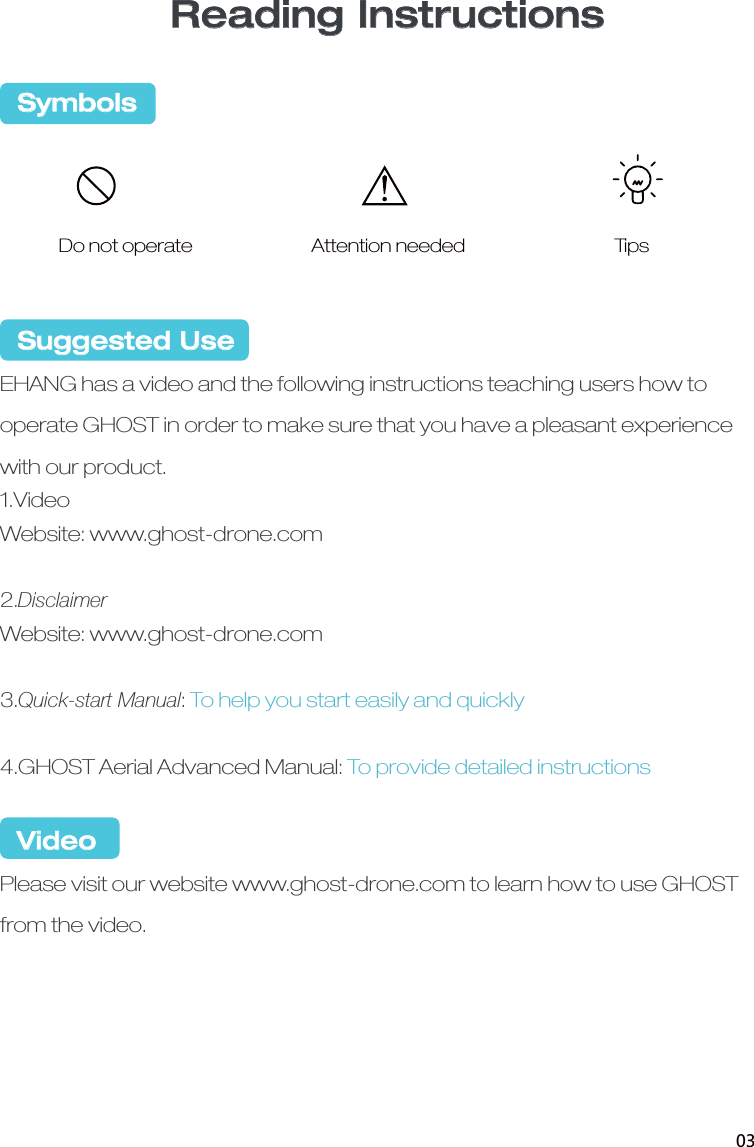
  Suggested UseEHANG has a video and the following instructions teaching users how to operate GHOST in order to make sure that you have a pleasant experience with our product. 1.VideoWebsite: www.ghost-drone.com2.DisclaimerWebsite: www.ghost-drone.com3.Quick-start Manual:To help you start easily and quickly4.GHOST Aerial Advanced Manual: To provide detailed instructions VideoPlease visit our website www.ghost-drone.com to learn how to use GHOST from the video.   Symbols Do not operate Attention needed TipsReading Instructions03
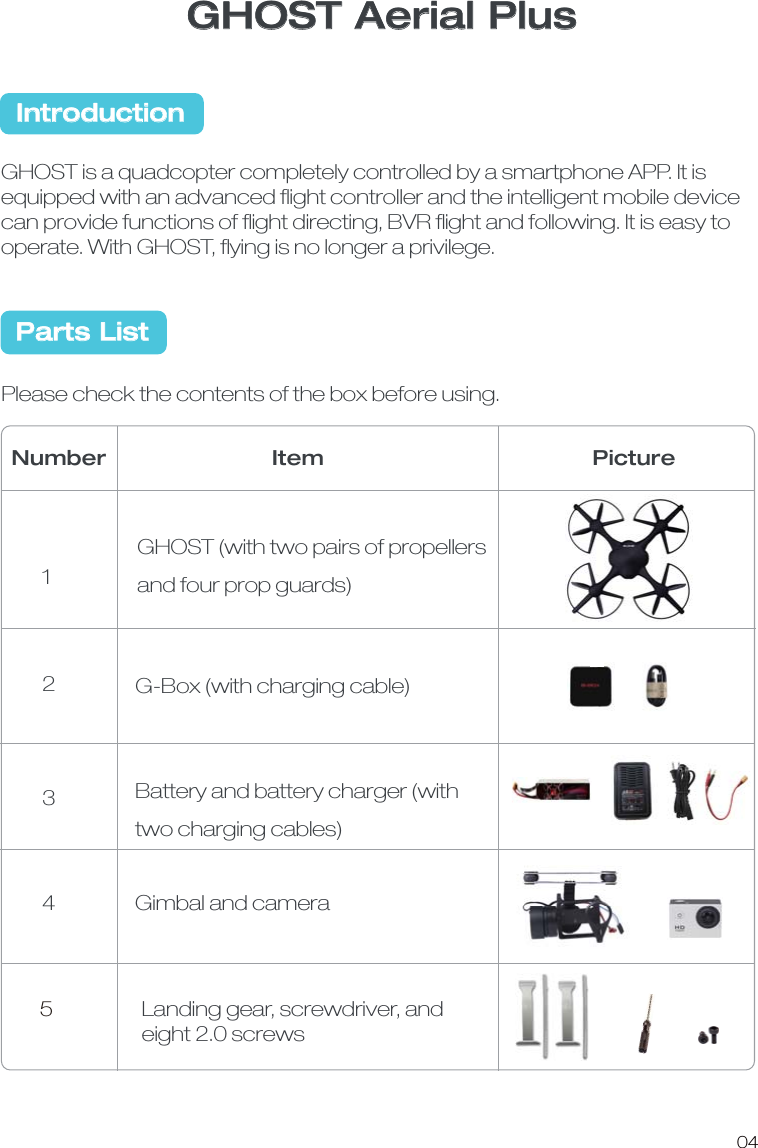
GHOST Aerial PlusGHOST is a quadcopter completely controlled by a smartphone APP. It is equipped with an advanced flight controller and the intelligent mobile device can provide functions of flight directing, BVR flight and following. It is easy to operate. With GHOST, flying is no longer a privilege. Please check the contents of the box before using. GHOST (with two pairs of propellers and four prop guards)G-Box (with charging cable)Battery and battery charger (with two charging cables)Number Item Picture1234IntroductionParts List04Gimbal and camera 5Landing gear, screwdriver, and eight 2.0 screws
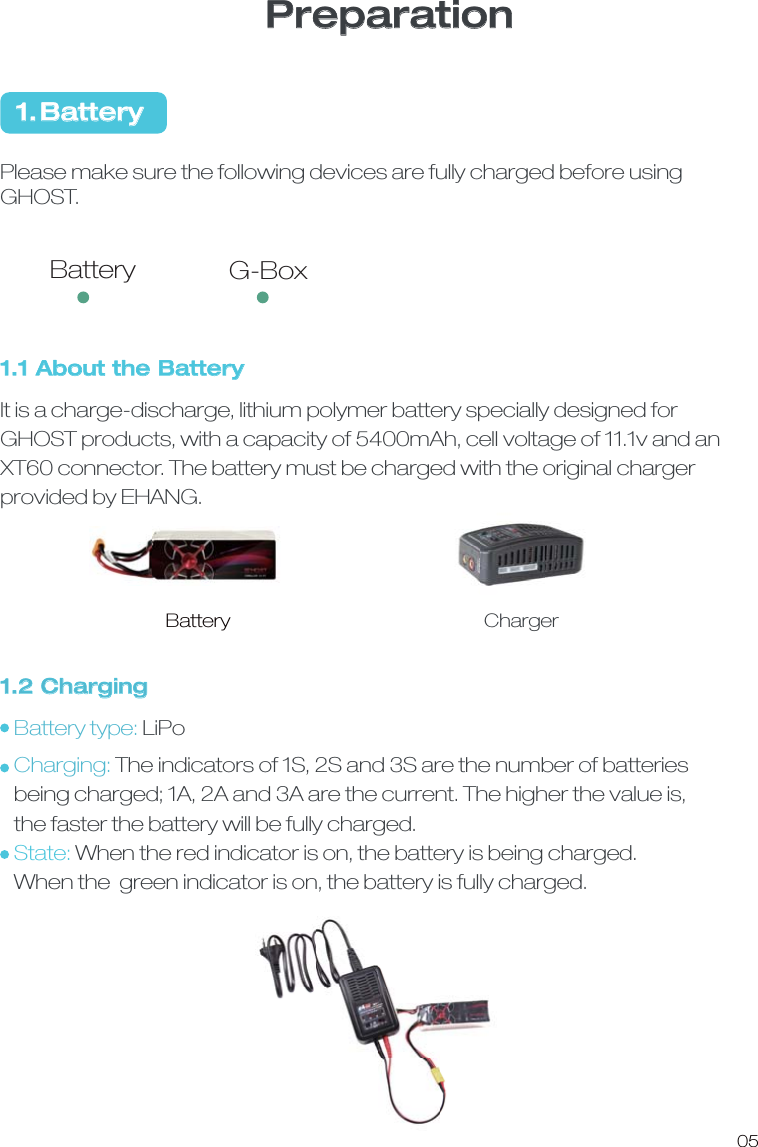
1.2 ChargingBattery type: LiPoCharging: The indicators of 1S, 2S and 3S are the number of batteries   being charged; 1A, 2A and 3A are the current. The higher the value is,   the faster the battery will be fully charged. State: When the red indicator is on, the battery is being charged.   When the  green indicator is on, the battery is fully charged.1.1 About the BatteryIt is a charge-discharge, lithium polymer battery specially designed for GHOST products, with a capacity of 5400mAh, cell voltage of 11.1v and an XT60 connector. The battery must be charged with the original charger provided by EHANG. Battery ChargerPlease make sure the following devices are fully charged before using GHOST. 1.Battery05PreparationBattery G-Box
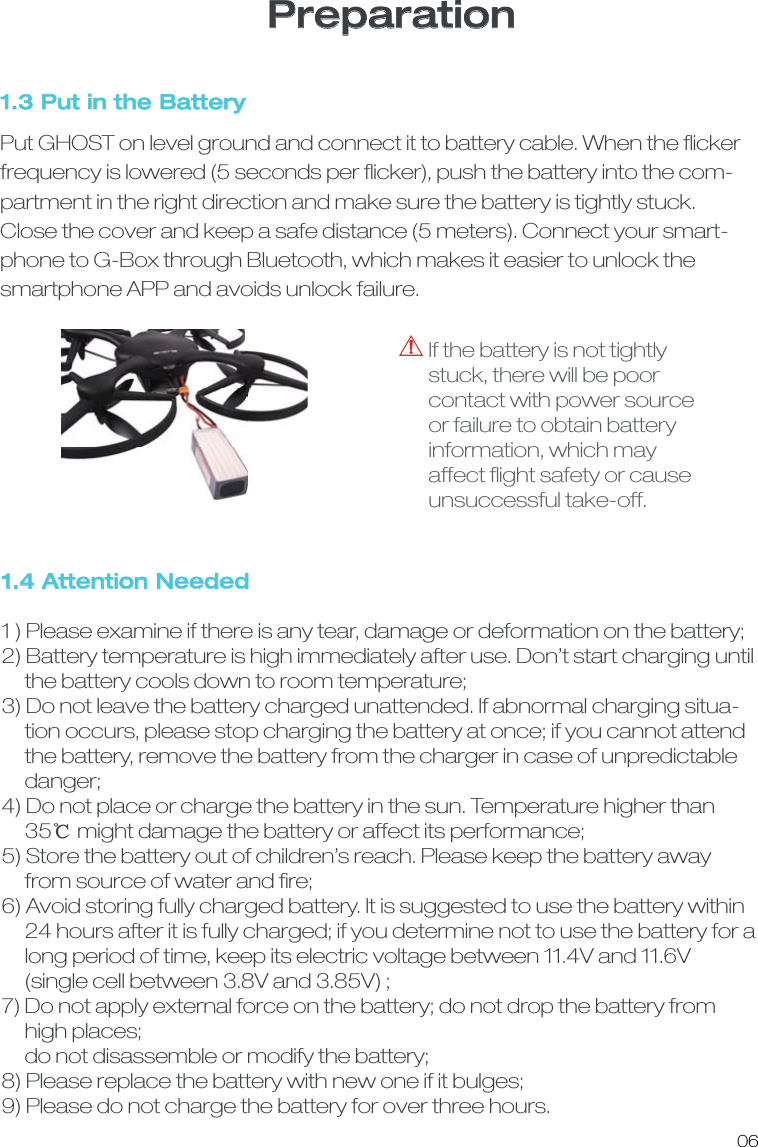
1.4 Attention Needed1 ) Please examine if there is any tear, damage or deformation on the battery;   2) Battery temperature is high immediately after use. Don’t start charging until     the battery cools down to room temperature; 3) Do not leave the battery charged unattended. If abnormal charging situa-     tion occurs, please stop charging the battery at once; if you cannot attend     the battery, remove the battery from the charger in case of unpredictable      danger;4) Do not place or charge the battery in the sun. Temperature higher than      35ď might damage the battery or affect its performance;5) Store the battery out of children’s reach. Please keep the battery away      from source of water and fire;6) Avoid storing fully charged battery. It is suggested to use the battery within     24 hours after it is fully charged; if you determine not to use the battery for a     long period of time, keep its electric voltage between 11.4V and 11.6V      (single cell between 3.8V and 3.85V) ; 7) Do not apply external force on the battery; do not drop the battery from     high places;     do not disassemble or modify the battery;8) Please replace the battery with new one if it bulges; 9) Please do not charge the battery for over three hours. 1.3 Put in the BatteryPut GHOST on level ground and connect it to battery cable. When the flickerfrequency is lowered (5 seconds per flicker), push the battery into the com-partment in the right direction and make sure the battery is tightly stuck. Close the cover and keep a safe distance (5 meters). Connect your smart-phone to G-Box through Bluetooth, which makes it easier to unlock the smartphone APP and avoids unlock failure. If the battery is not tightly stuck, there will be poor contact with power source or failure to obtain battery information, which may affect flight safety or cause unsuccessful take-off. 06Preparation
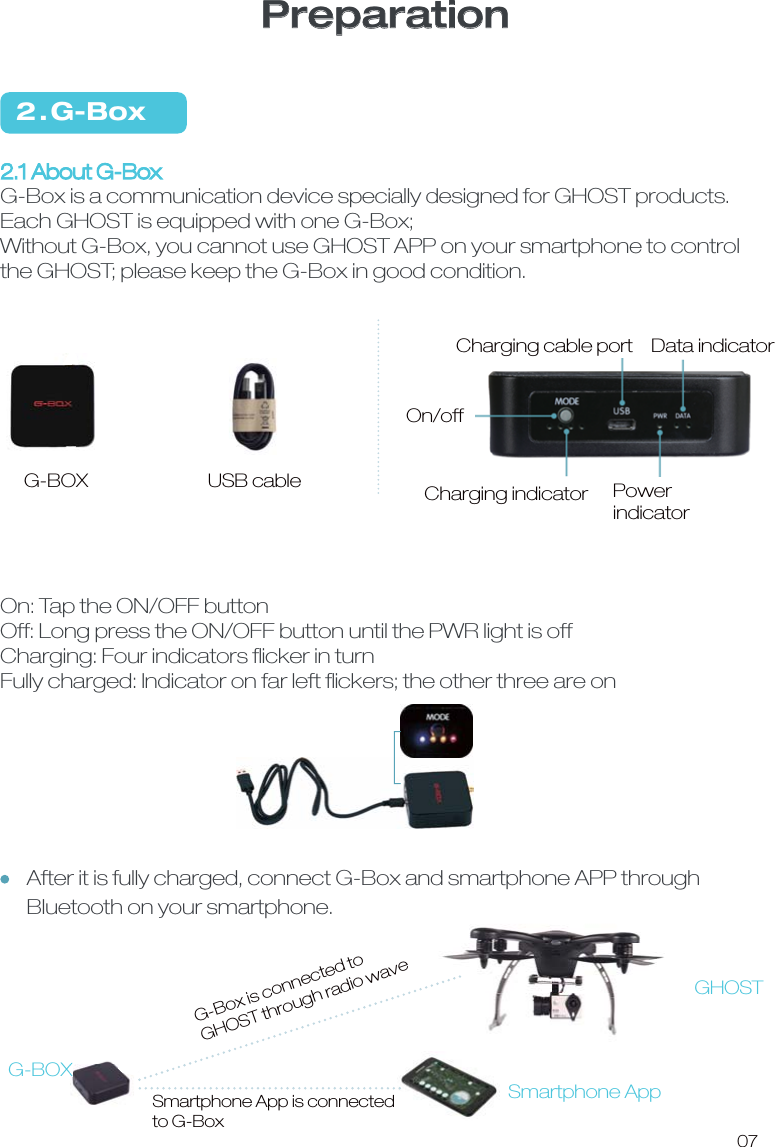
2 . G-Box2.1 About G-BoxG-Box is a communication device specially designed for GHOST products. Each GHOST is equipped with one G-Box;Without G-Box, you cannot use GHOST APP on your smartphone to control the GHOST; please keep the G-Box in good condition. On: Tap the ON/OFF buttonOff: Long press the ON/OFF button until the PWR light is offCharging: Four indicators flicker in turnFully charged: Indicator on far left flickers; the other three are onUSB cable G-BOX07On/offCharging cable port  Data indicatorCharging indicator PowerindicatorSmartphone AppG-BOXGHOSTG-Box is connected to GHOST through radio waveSmartphone App is connected to G-BoxPreparationAfter it is fully charged, connect G-Box and smartphone APP through Bluetooth on your smartphone.
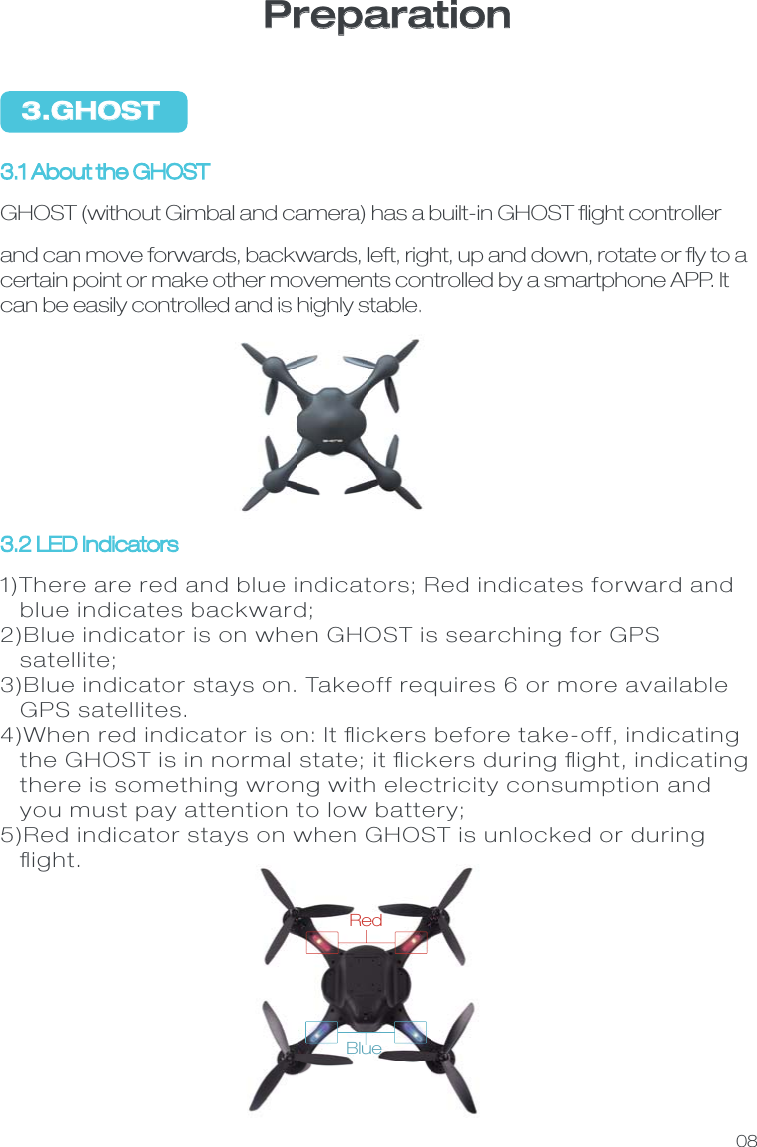
3.GHOST3.2 LED Indicators1)There are red and blue indicators; Red indicates forward and   blue indicates backward;2)Blue indicator is on when GHOST is searching for GPS    satellite;3)Blue indicator stays on. Takeoff requires 6 or more available   GPS satellites.4)When red indicator is on: It flickers before take-off, indicating    the GHOST is in normal state; it flickers during flight, indicating    there is something wrong with electricity consumption and    you must pay attention to low battery;5)Red indicator stays on when GHOST is unlocked or during    flight. 3.1 About the GHOSTGHOST (without Gimbal and camera) has a built-in GHOST flight controller and can move forwards, backwards, left, right, up and down, rotate or fly to a certain point or make other movements controlled by a smartphone APP. It can be easily controlled and is highly stable. 08RedBluePreparation
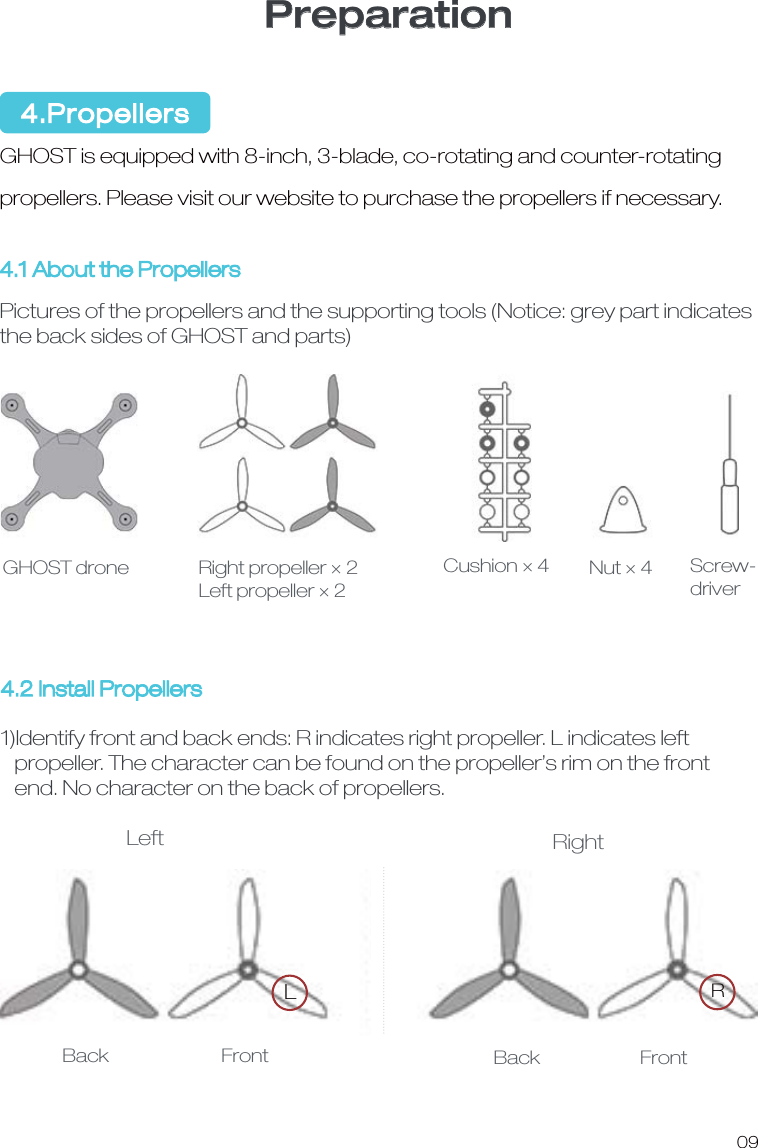
Preparation09GHOST is equipped with 8-inch, 3-blade, co-rotating and counter-rotating propellers. Please visit our website to purchase the propellers if necessary. 4.1 About the PropellersPictures of the propellers and the supporting tools (Notice: grey part indicatesthe back sides of GHOST and parts)4.2 Install Propellers1)Identify front and back ends: R indicates right propeller. L indicates left   propeller. The character can be found on the propeller’s rim on the front    end. No character on the back of propellers.LRGHOST droneLeft RightBack                           FrontRight propeller × 2Left propeller × 2Cushion × 4 Nut × 4 Screw-driverBack                        Front4.Propellers
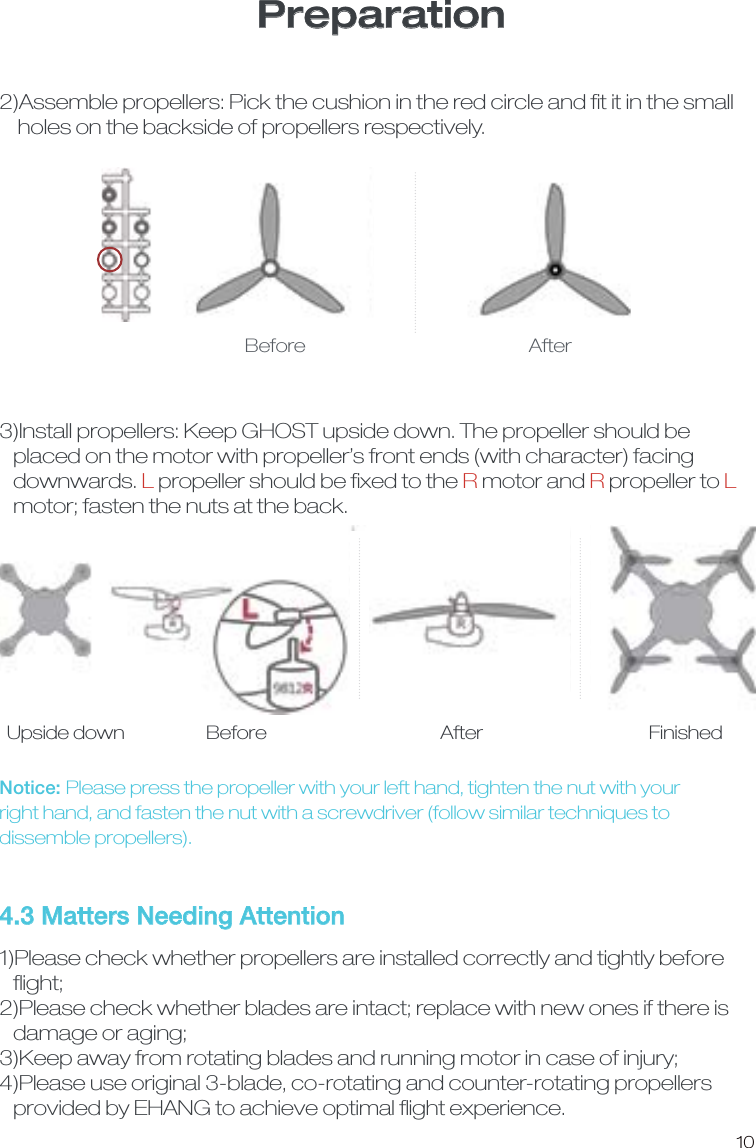
Preparation104.3 Matters Needing Attention 1)Please check whether propellers are installed correctly and tightly before   flight; 2)Please check whether blades are intact; replace with new ones if there is    damage or aging;3)Keep away from rotating blades and running motor in case of injury; 4)Please use original 3-blade, co-rotating and counter-rotating propellers    provided by EHANG to achieve optimal flight experience.2)Assemble propellers: Pick the cushion in the red circle and fit it in the small    holes on the backside of propellers respectively.   Before  After3)Install propellers: Keep GHOST upside down. The propeller should be   placed on the motor with propeller’s front ends (with character) facing    downwards. L propeller should be fixed to the R motor and R propeller to L   motor; fasten the nuts at the back. Notice: Please press the propeller with your left hand, tighten the nut with your right hand, and fasten the nut with a screwdriver (follow similar techniques to dissemble propellers). Upside down  Before  After  Finished
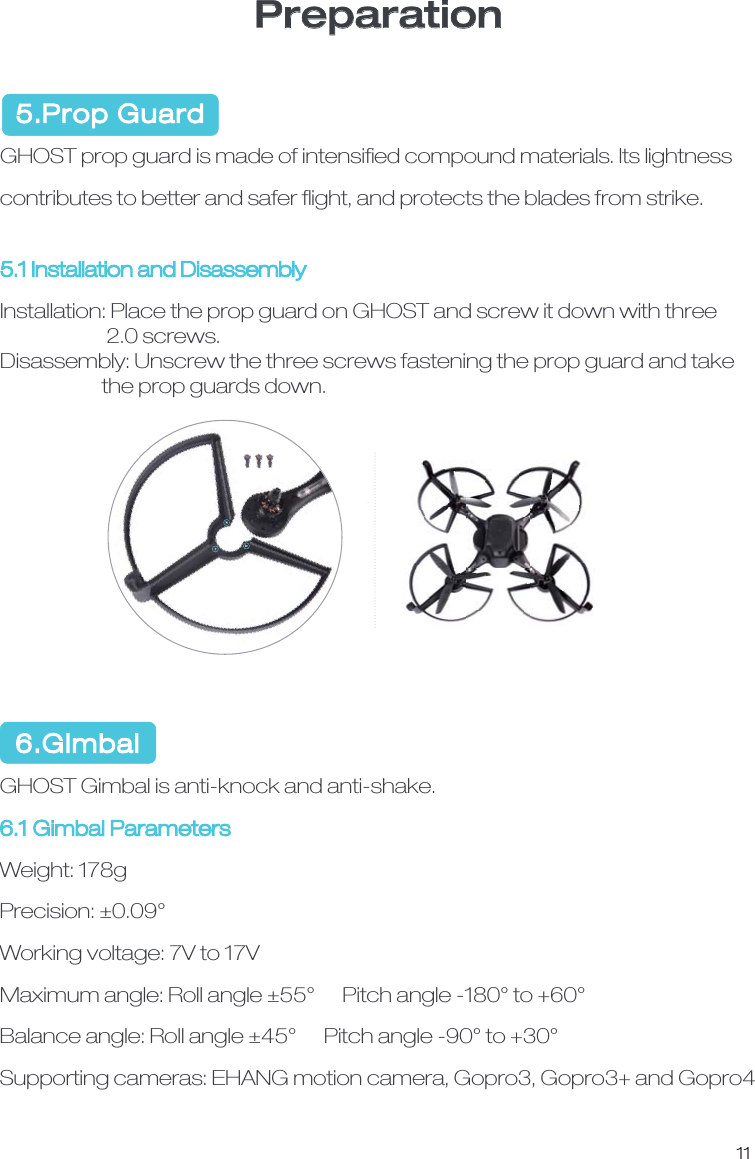
11Preparation  5.Prop GuardGHOST prop guard is made of intensified compound materials. Its lightness contributes to better and safer flight, and protects the blades from strike. 5.1 Installation and DisassemblyInstallation: Place the prop guard on GHOST and screw it down with three                       2.0 screws. Disassembly: Unscrew the three screws fastening the prop guard and take                      the prop guards down.   6.Gimbal GHOST Gimbal is anti-knock and anti-shake. 6.1 Gimbal Parameters Weight: 178gPrecision: ±0.09°Working voltage: 7V to 17VMaximum angle: Roll angle ±55°      Pitch angle -180° to +60°Balance angle: Roll angle ±45°      Pitch angle -90° to +30°Supporting cameras: EHANG motion camera, Gopro3, Gopro3+ and Gopro4
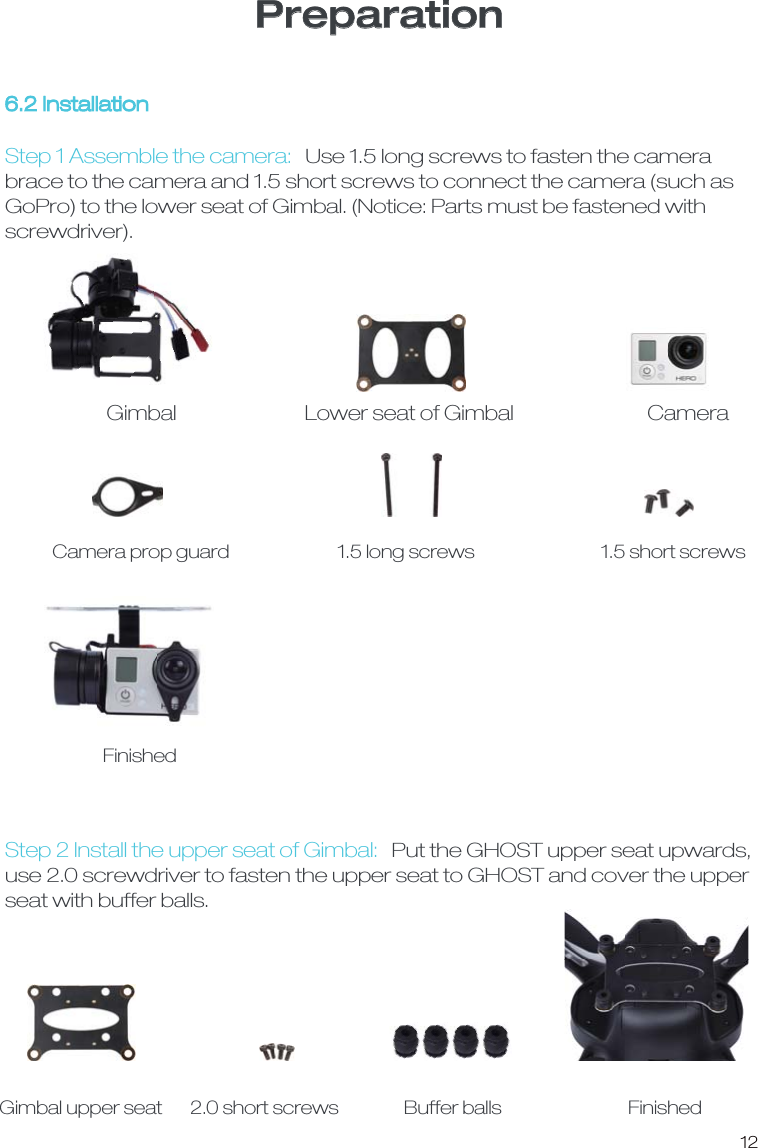
12Preparation6.2 InstallationGimbal Lower seat of Gimbal CameraCamera prop guard 1.5 long screws 1.5 short screws Step 1 Assemble the camera:Use 1.5 long screws to fasten the camera brace to the camera and 1.5 short screws to connect the camera (such as GoPro) to the lower seat of Gimbal. (Notice: Parts must be fastened with screwdriver).Step 2 Install the upper seat of Gimbal:Put the GHOST upper seat upwards, use 2.0 screwdriver to fasten the upper seat to GHOST and cover the upper seat with buffer balls. FinishedGimbal upper seat 2.0 short screws  Buffer balls Finished
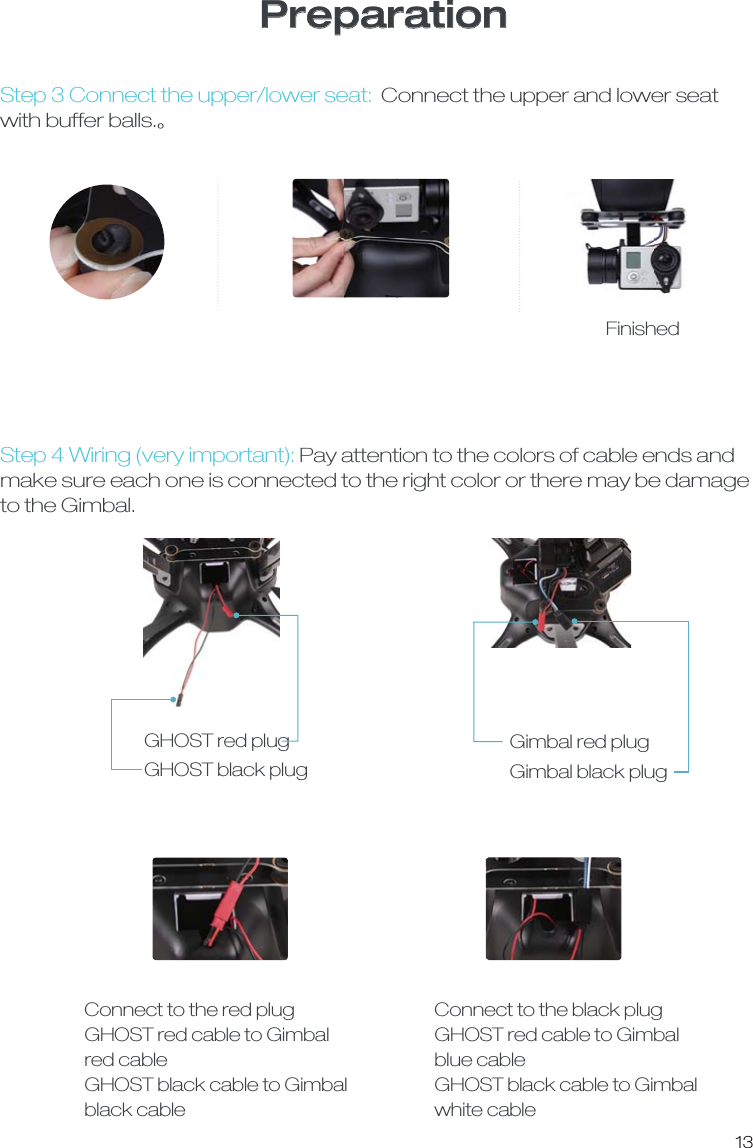
13PreparationStep 3 Connect the upper/lower seat: Connect the upper and lower seat with buffer balls.ȡStep 4 Wiring (very important): Pay attention to the colors of cable ends andmake sure each one is connected to the right color or there may be damage to the Gimbal.FinishedGHOST red plug GHOST black plug Gimbal red plugGimbal black plug Connect to the red plugGHOST red cable to Gimbal red cableGHOST black cable to Gimbal black cable Connect to the black plugGHOST red cable to Gimbal blue cableGHOST black cable to Gimbal white cable
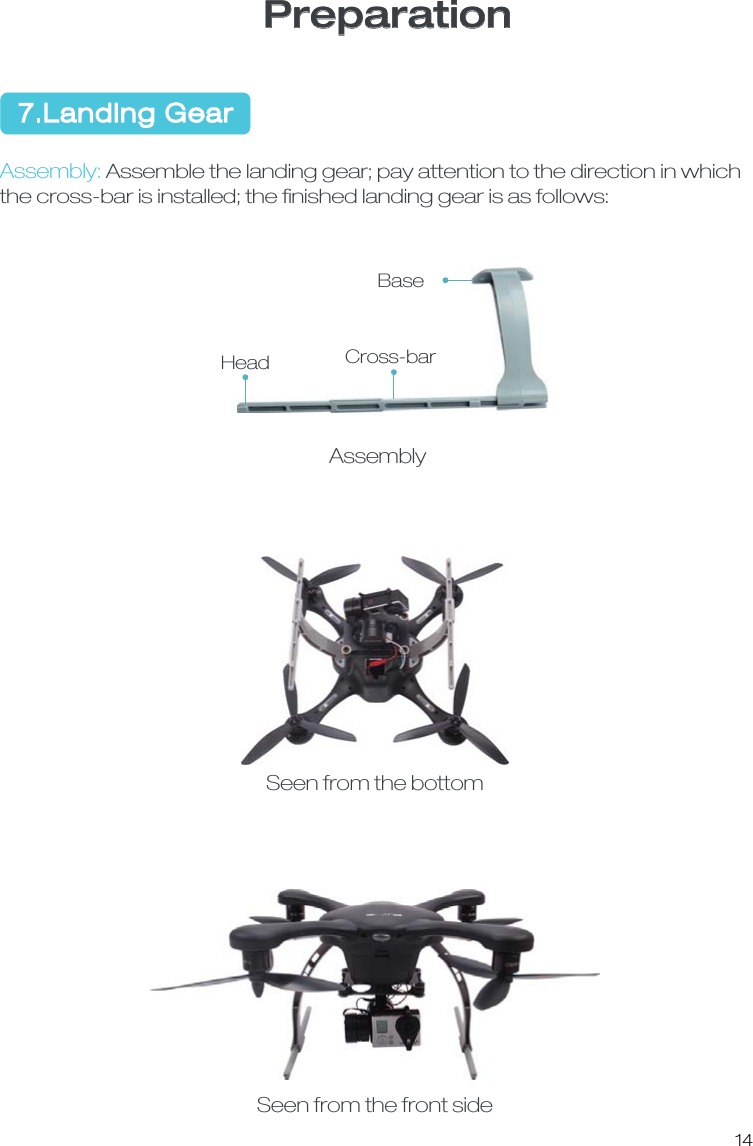
14 7.Landing GearPreparationAssembly:Assemble the landing gear; pay attention to the direction in whichthe cross-bar is installed; the finished landing gear is as follows:BaseCross-barHeadAssemblySeen from the bottomSeen from the front side
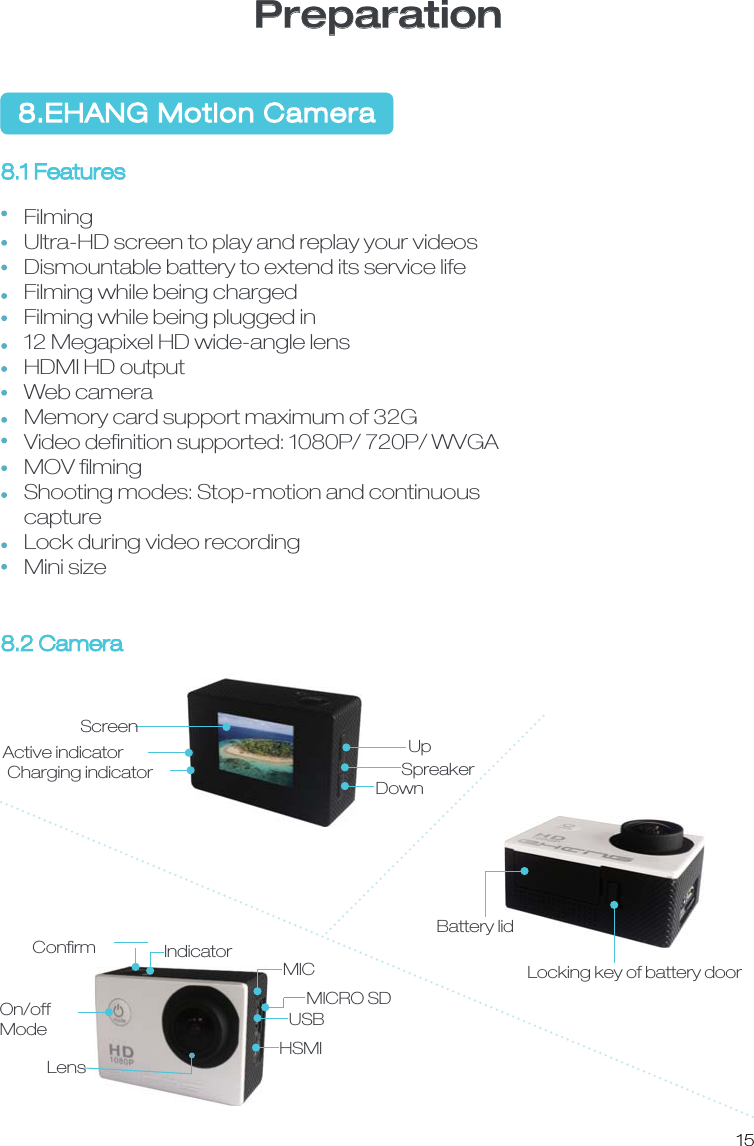
158.EHANG Motion Camera PreparationFilmingUltra-HD screen to play and replay your videosDismountable battery to extend its service lifeFilming while being chargedFilming while being plugged in12 Megapixel HD wide-angle lensHDMI HD outputWeb camera Memory card support maximum of 32GVideo definition supported: 1080P/ 720P/ WVGAMOV filmingShooting modes: Stop-motion and continuous captureLock during video recordingMini size 8.1 Features 8.2 Camera UpDownSpreakerScreenActive indicatorCharging indicatorBattery lidLocking key of battery door IndicatorConfirmMICMICRO SDUSBHSMILensOn/offMode
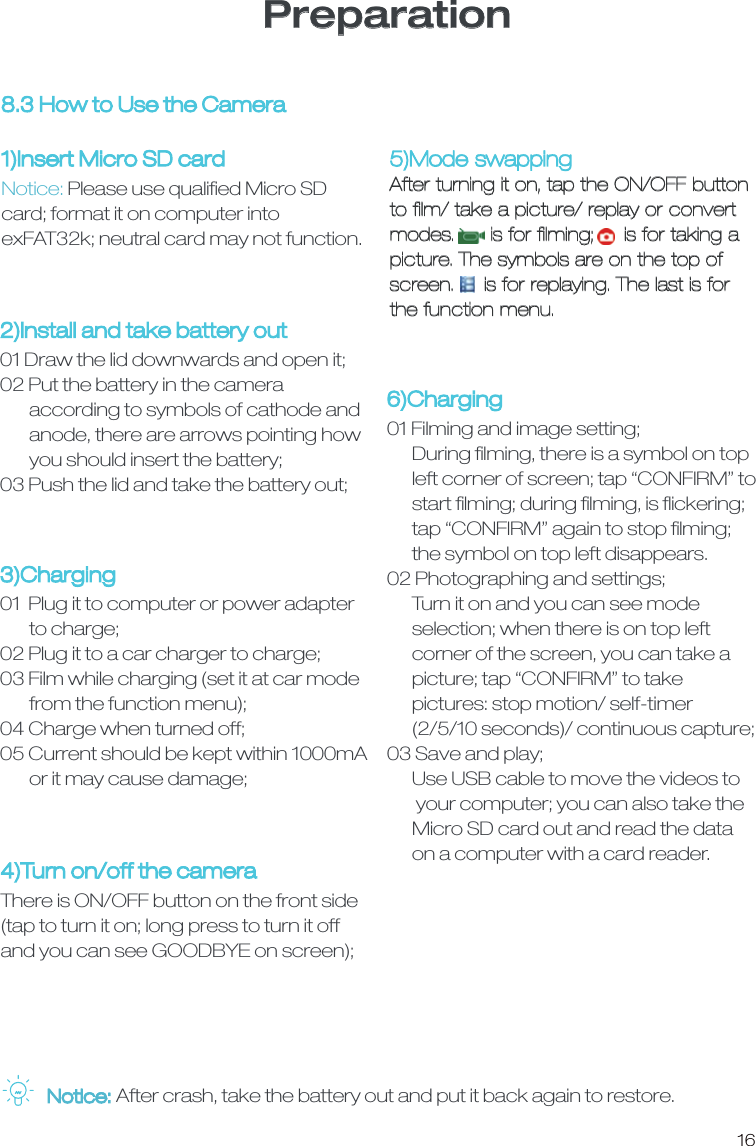
16Preparation8.3 How to Use the Camera1)Insert Micro SD card Notice: Please use qualified Micro SD card; format it on computer into exFAT32k; neutral card may not function.2)Install and take battery out01 Draw the lid downwards and open it;02 Put the battery in the camera        according to symbols of cathode and        anode, there are arrows pointing how        you should insert the battery;03 Push the lid and take the battery out;3)Charging01  Plug it to computer or power adapter        to charge;02 Plug it to a car charger to charge;03 Film while charging (set it at car mode       from the function menu);04 Charge when turned off;05 Current should be kept within 1000mA       or it may cause damage;6)Charging01 Filming and image setting;      During filming, there is a symbol on top       left corner of screen; tap “CONFIRM” to      start filming; during filming, is flickering;       tap “CONFIRM” again to stop filming;       the symbol on top left disappears. 02 Photographing and settings;       Turn it on and you can see mode       selection; when there is on top left       corner of the screen, you can take a      picture; tap “CONFIRM” to take       pictures: stop motion/ self-timer       (2/5/10 seconds)/ continuous capture;03 Save and play;      Use USB cable to move the videos to       your computer; you can also take the       Micro SD card out and read the data       on a computer with a card reader. 4)Turn on/off the cameraThere is ON/OFF button on the front side(tap to turn it on; long press to turn it off and you can see GOODBYE on screen);5)Mode swappingAfter turning it on, tap the ON/OFF button to film/ take a picture/ replay or convert modes.      is for filming;     is for taking a picture. The symbols are on the top of screen.     is for replaying. The last is for the function menu. Notice: After crash, take the battery out and put it back again to restore.
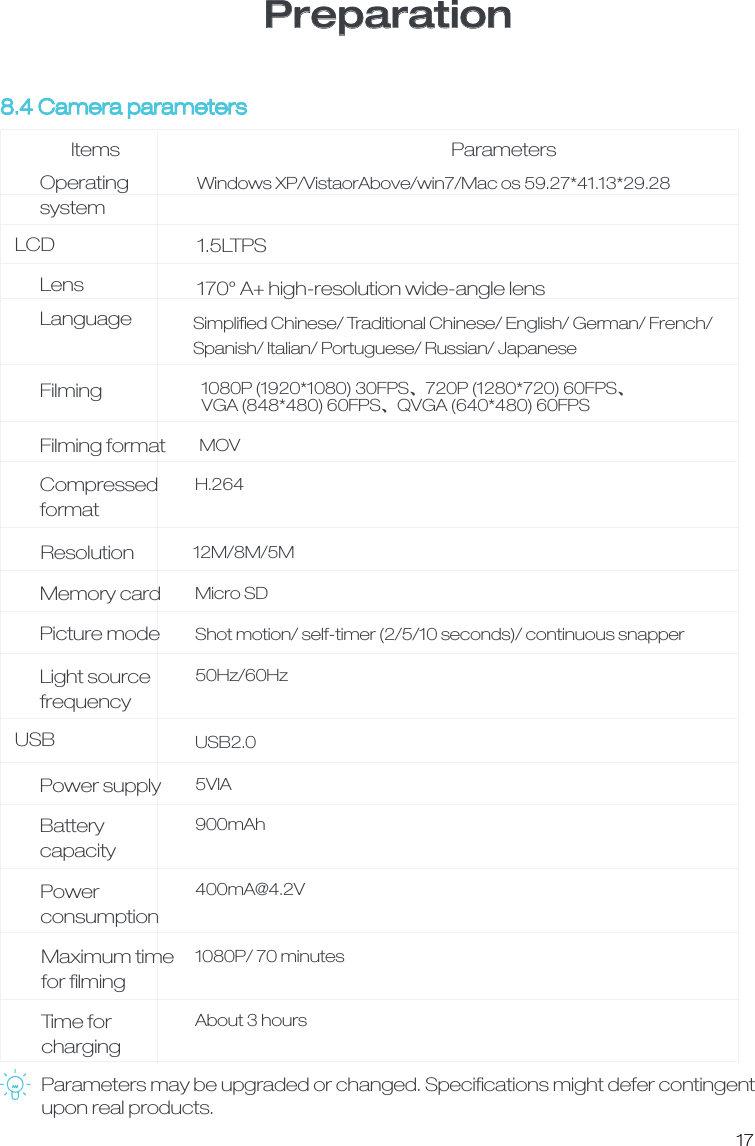
17Preparation8.4 Camera parametersParameters may be upgraded or changed. Specifications might defer contingent upon real products.LensLanguageFilmingFilming format CompressedformatResolutionMemory cardPicture mode Light source frequencyPower supply BatterycapacityPowerconsumptionMaximum time for filmingTime for chargingOperatingsystemItems Parameters1.5LTPS170° A+ high-resolution wide-angle lensSimplified Chinese/ Traditional Chinese/ English/ German/ French/ Spanish/ Italian/ Portuguese/ Russian/ Japanese 1080P (1920*1080) 30FPSȠ720P (1280*720) 60FPSȠVGA (848*480) 60FPSȠQVGA (640*480) 60FPSMOVH.26412M/8M/5MMicro SDShot motion/ self-timer (2/5/10 seconds)/ continuous snapper50Hz/60HzUSB2.05VIA900mAh400mA@4.2V1080P/ 70 minutes About 3 hours Windows XP/VistaorAbove/win7/Mac os 59.27*41.13*29.28LCDUSB
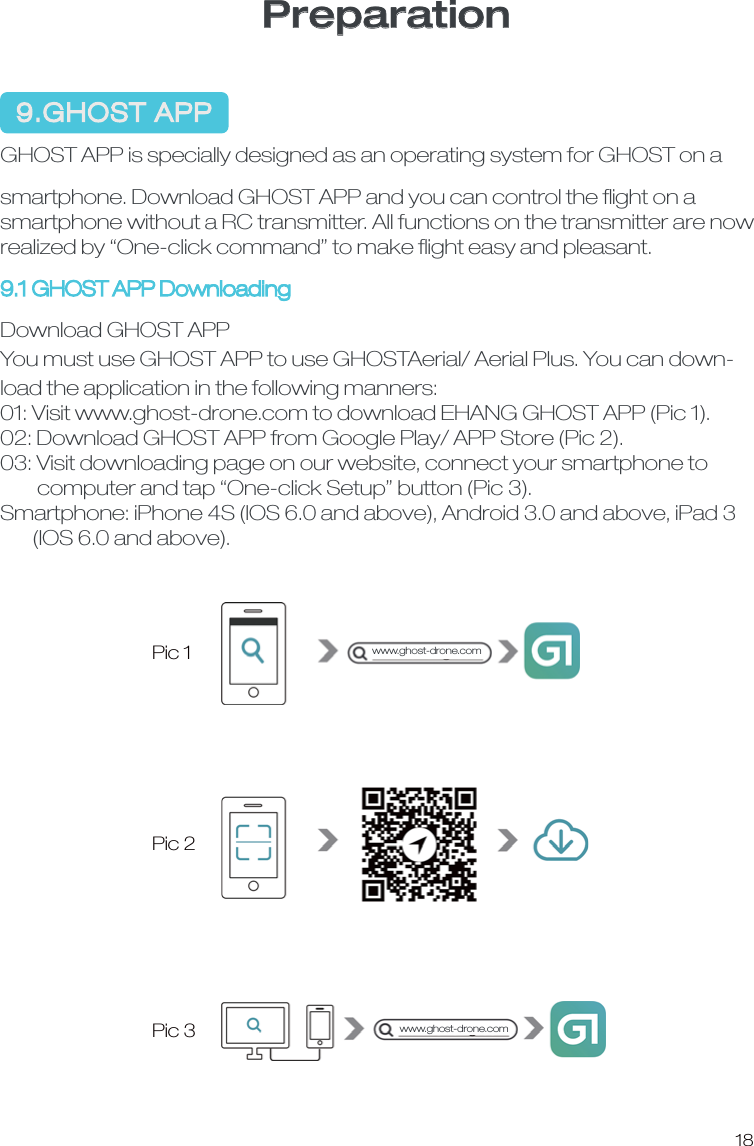
Preparation  9.GHOST APPGHOST APP is specially designed as an operating system for GHOST on a smartphone. Download GHOST APP and you can control the flight on a smartphone without a RC transmitter. All functions on the transmitter are now realized by “One-click command” to make flight easy and pleasant. 9.1 GHOST APP DownloadingDownload GHOST APPYou must use GHOST APP to use GHOSTAerial/ Aerial Plus. You can down-load the application in the following manners:01: Visit www.ghost-drone.com to download EHANG GHOST APP (Pic 1).02: Download GHOST APP from Google Play/ APP Store (Pic 2).03: Visit downloading page on our website, connect your smartphone to        computer and tap “One-click Setup” button (Pic 3).Smartphone: iPhone 4S (IOS 6.0 and above), Android 3.0 and above, iPad 3       (IOS 6.0 and above).Pic 1Pic 2Pic 318www.ghost-drone.comwww.ghost-drone.com
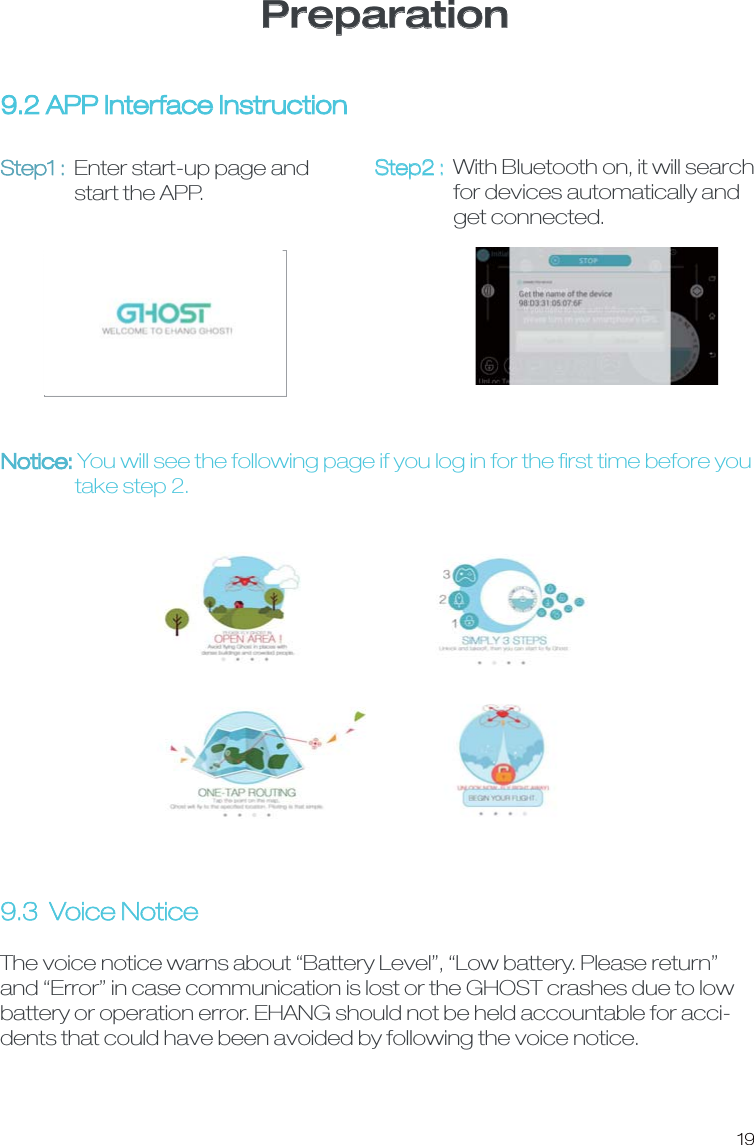
Preparation9.3  Voice NoticeThe voice notice warns about “Battery Level”, “Low battery. Please return” and “Error” in case communication is lost or the GHOST crashes due to low battery or operation error. EHANG should not be held accountable for acci-dents that could have been avoided by following the voice notice. 9.2 APP Interface InstructionStep1 : Enter start-up page and                 start the APP. Step2 : With Bluetooth on, it will search                  for devices automatically and                  get connected. Notice: You will see the following page if you log in for the first time before you                 take step 2. 19
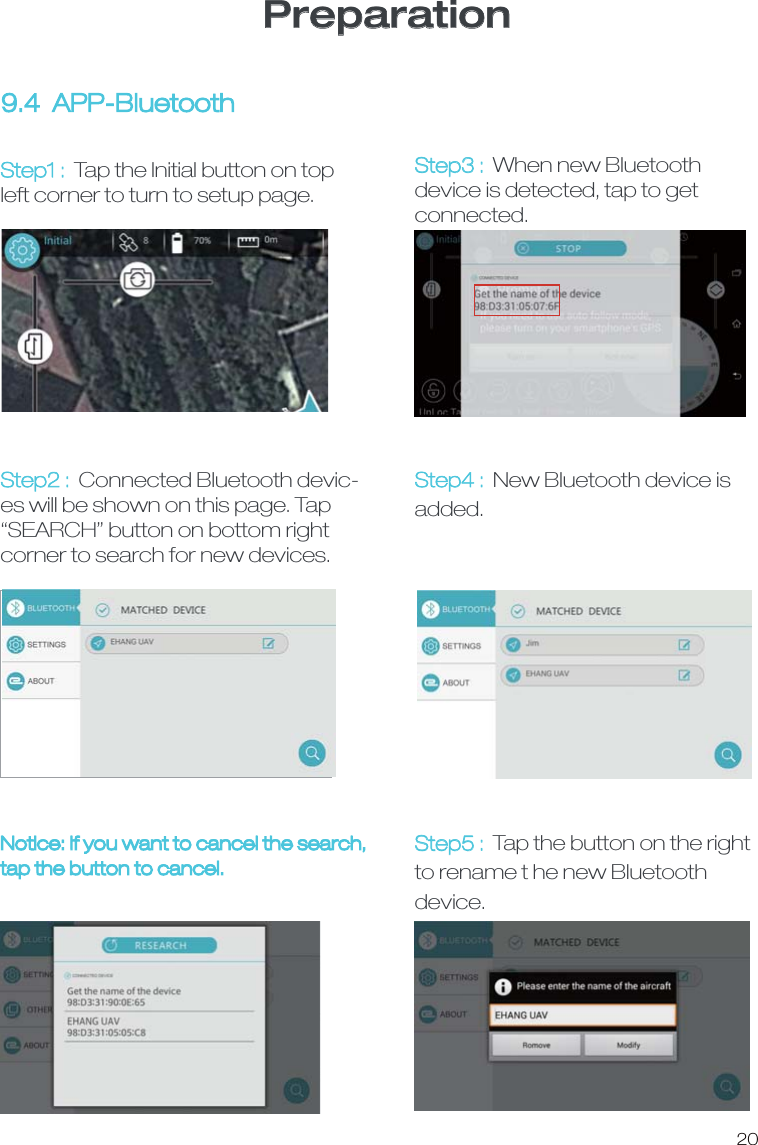
PreparationStep1 :  Tap the Initial button on top left corner to turn to setup page.9.4  APP-Bluetooth Step2 :  Connected Bluetooth devic-es will be shown on this page. Tap “SEARCH” button on bottom right corner to search for new devices. Step3 :  When new Bluetooth device is detected, tap to get connected.Step5 :  Tap the button on the right to rename t he new Bluetooth device.Step4 :  New Bluetooth device is added.Notice: If you want to cancel the search,tap the button to cancel. 20
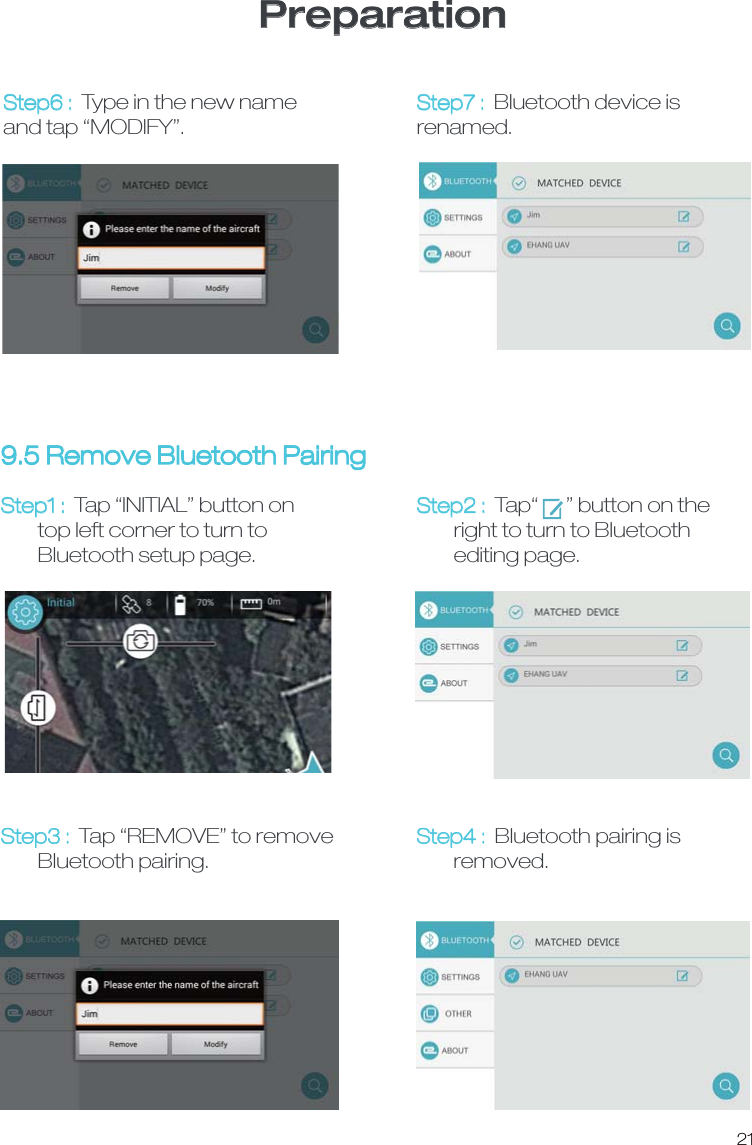
PreparationStep6 :  Type in the new name and tap “MODIFY”. Step7 :  Bluetooth device is renamed.Step1 :  Tap “INITIAL” button on         top left corner to turn to         Bluetooth setup page.Step3 :  Tap “REMOVE” to remove        Bluetooth pairing.Step4 : Bluetooth pairing is         removed. 9.5 Remove Bluetooth Pairing21Step2 : Tap“      ” button on the         right to turn to Bluetooth         editing page.
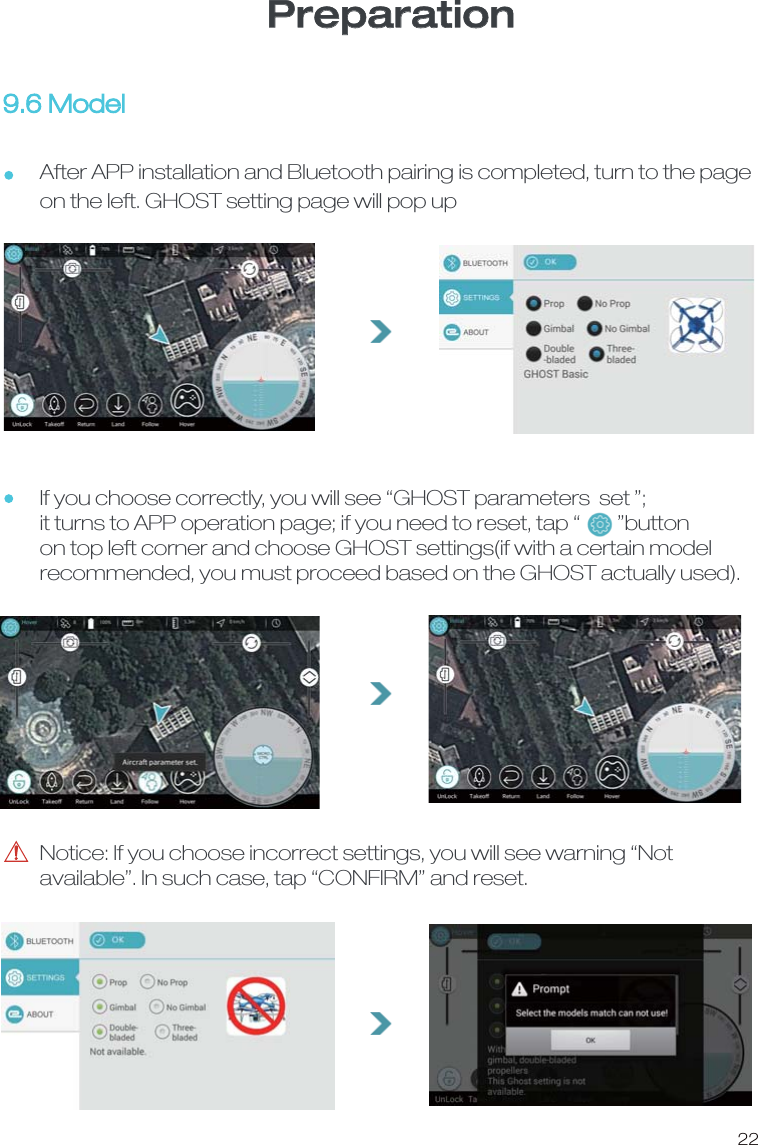
PreparationNotice: If you choose incorrect settings, you will see warning “Not available”. In such case, tap “CONFIRM” and reset.9.6 Model After APP installation and Bluetooth pairing is completed, turn to the page on the left. GHOST setting page will pop up22If you choose correctly, you will see “GHOST parameters  set ”;it turns to APP operation page; if you need to reset, tap “        ”button on top left corner and choose GHOST settings(if with a certain model recommended, you must proceed based on the GHOST actually used).
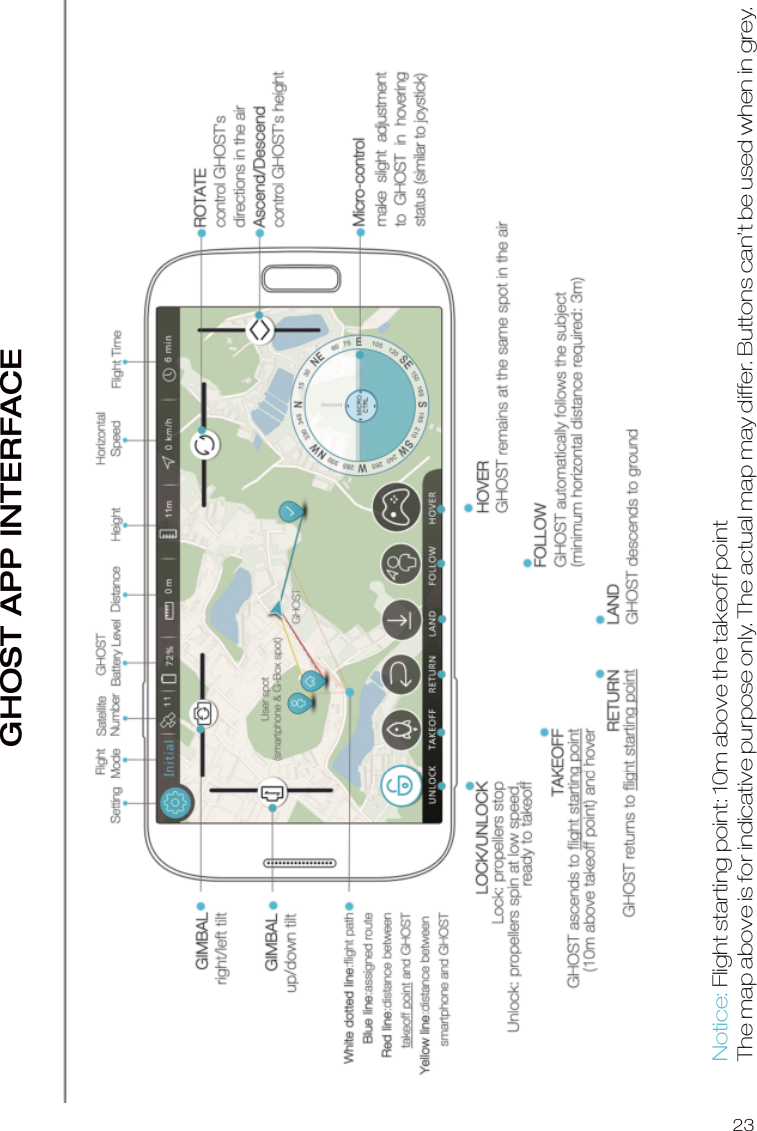
GHOST APP INTERFACE23Notice: Flight starting point: 10m above the takeoff pointThe map above is for indicative purpose only. The actual map may differ. Buttons can’t be used when in grey.
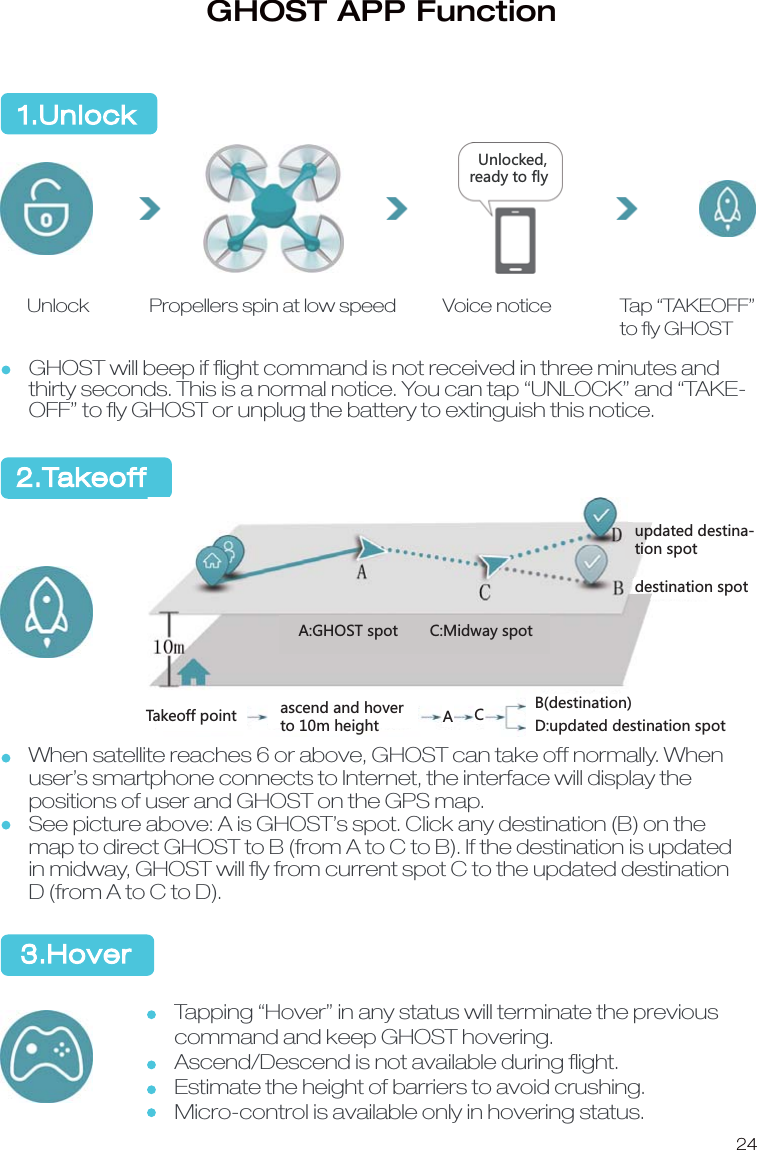
GHOST APP Function1.Unlock2.Takeoff  3.HoverTap “TAKEOFF” to fly GHOSTGHOST will beep if flight command is not received in three minutes and thirty seconds. This is a normal notice. You can tap “UNLOCK” and “TAKE-OFF” to fly GHOST or unplug the battery to extinguish this notice. Voice noticePropellers spin at low speedUnlockWhen satellite reaches 6 or above, GHOST can take off normally. When user’s smartphone connects to Internet, the interface will display the positions of user and GHOST on the GPS map.See picture above: A is GHOST’s spot. Click any destination (B) on the map to direct GHOST to B (from A to C to B). If the destination is updated in midway, GHOST will fly from current spot C to the updated destination D (from A to C to D). Tapping “Hover” in any status will terminate the previous command and keep GHOST hovering.Ascend/Descend is not available during flight.Estimate the height of barriers to avoid crushing.Micro-control is available only in hovering status. 24  Unlocked, ready to flyupdated destina-tion spotdestination spotA:GHOST spot C:Midway spotTakeoff point ascend and hover to 10m height ACB(destination)D:updated destination spot
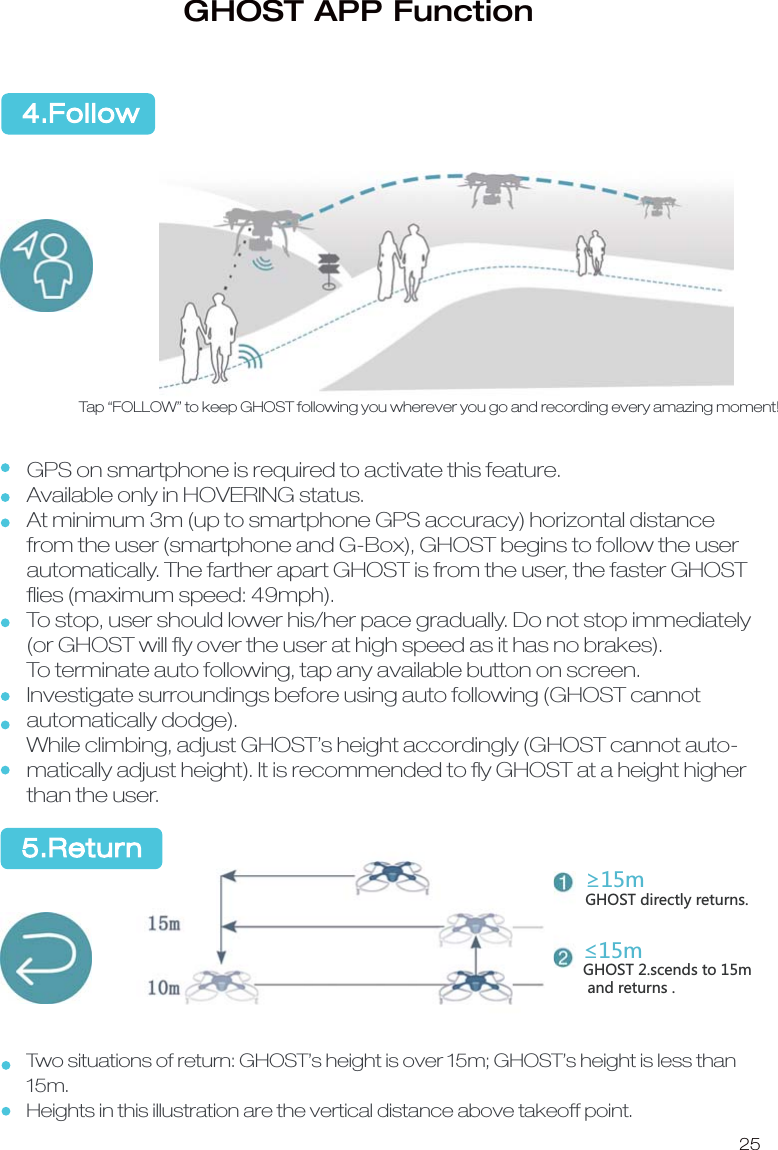
25Tap “FOLLOW” to keep GHOST following you wherever you go and recording every amazing moment!GPS on smartphone is required to activate this feature.Available only in HOVERING status.At minimum 3m (up to smartphone GPS accuracy) horizontal distance from the user (smartphone and G-Box), GHOST begins to follow the user automatically. The farther apart GHOST is from the user, the faster GHOST flies (maximum speed: 49mph).To stop, user should lower his/her pace gradually. Do not stop immediately (or GHOST will fly over the user at high speed as it has no brakes). To terminate auto following, tap any available button on screen.Investigate surroundings before using auto following (GHOST cannot automatically dodge). While climbing, adjust GHOST’s height accordingly (GHOST cannot auto-matically adjust height). It is recommended to fly GHOST at a height higher than the user. Two situations of return: GHOST’s height is over 15m; GHOST’s height is less than 15m.Heights in this illustration are the vertical distance above takeoff point. 5.Return4.FollowGHOST APP FunctionʈSGHOST directly returns.ʇS-.59:YIKTJYZUS and returns .
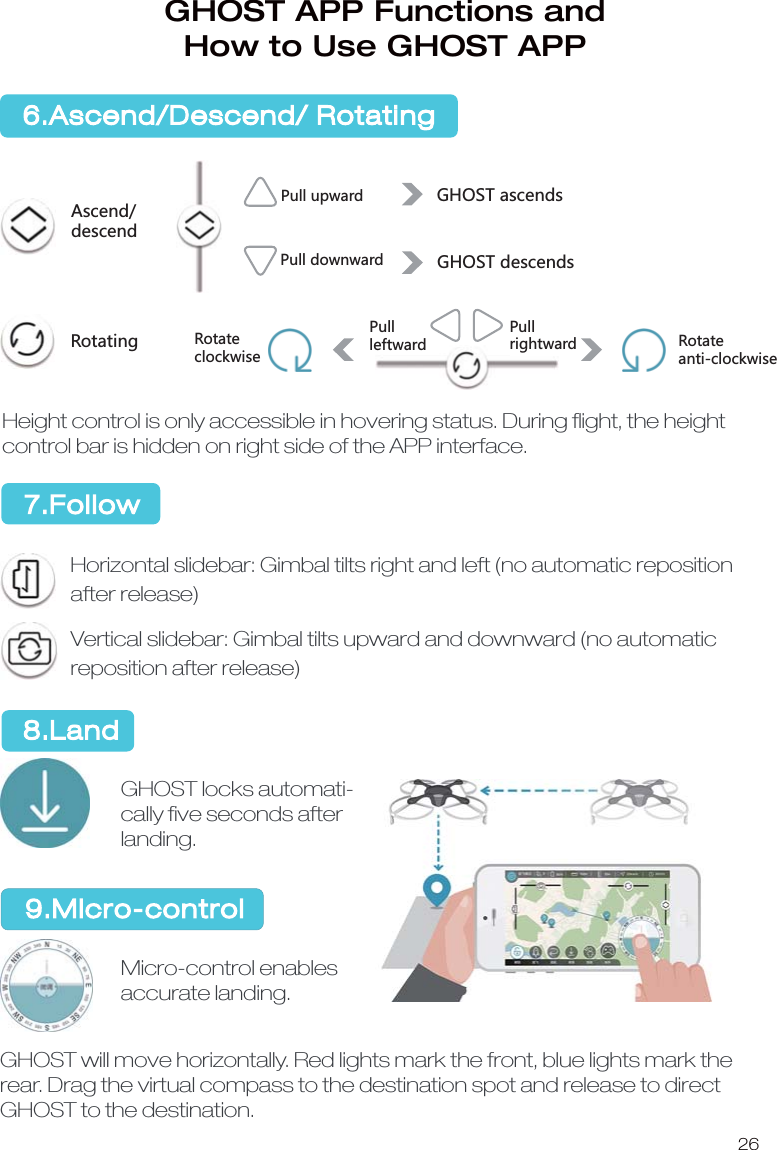
26ࡶ/䭼ᒯ̹䪮៸ᒯ̺䪮៸不㵻஗̹ࡶ不㵻஗̹ࡶ᫺䒛 不㵻஗䶩ᬥ䦷䒛不㵻஗䔵ᬥ䦷䒛ᒯጕ䪮៸ᒯढ䪮៸Height control is only accessible in hovering status. During flight, the height control bar is hidden on right side of the APP interface.Horizontal slidebar: Gimbal tilts right and left (no automatic reposition after release)Vertical slidebar: Gimbal tilts upward and downward (no automatic reposition after release)GHOST locks automati-cally five seconds after landing.Micro-control enables accurate landing.GHOST will move horizontally. Red lights mark the front, blue lights mark the rear. Drag the virtual compass to the destination spot and release to direct GHOST to the destination. 6.Ascend/Descend/ RotatingGHOST APP Functions and How to Use GHOST APP7.Follow 8.Land9.Micro-controlAscend/descendRotatingPull upwardPull downwardGHOST ascendsGHOST descendsRotateclockwisePullleftwardPullrightward Rotateanti-clockwise
27FlightAfter installation is completed, choose a proper environment for flight based on the following standards.1.Flight Environment1.1  GHOST might experience errors due to poor signal when flying too high or       in an environment with dense buildings. It is suggested that you choose        an open area to fly GHOST to reduce drifting mistake.1.2 Please stay away from barriers, crowds, high-tension lines, trees and        water.1.3 Do not fly GHOST in restricted airspace as stipulated by laws and        regulations.1.4 Please stay over 200m away from complex electromagnetic environment       (such as a place with a signal tower or base station) in case of takeoff       failure or crash due to intense electromagnetic interference (EMI).1.5 Do not fly GHOST in extreme weather including high temperature, snow,        strong wind (over scale 5) and heavy fog. 2.Pre-flight Examination2.1 Check whether G-Box and battery are fully charged.2.2 Check whether propellers are installed correctly.2.3 Check whether motor starts normally after unlocking.Please contact EHANG dealers or customer service in case of any trouble during installation or use. 3.Flight Safety3.1 Make sure that there is a minimal of 5m distance between you and        GHOST. Please stay away from dangerous obstacles such as barriers,        crowds and high-tension lines. Please be a responsible flyer. 3.2 During the flight, keep GHOST within your sight to avoid accidents caused        by oversight of surroundings.3.3 Children must be accompanied by professionals when operating GHOST.3.4 GHOST aerial must operate without prop guards and equipped with       landing gear; put GHOST upside down on a cotton cloth to avoid        scratching.
28Flight4.Caution during Flight4.1 Limit the distance between G-Box and the smartphone to 5m or less       (holding in hand is recommended). Communication will lose beyond the       limited distance.4.2 Ascend/Descend is only accessible in hovering status. During flight, the        Ascend/Descend signal is hidden on the right side of APP interface.        Height control is only accessible in hovering status. During flight, the height        control bar is hidden on right side of the APP interface.4.3 It is normal for the battery level to rise again after landing. It is not advisable       to launch your GHOST when battery level is less than 30%. It is best to fly        GHOST with a fully charged battery.4.4 Please tap “HOVER” immediately in times of emergency. If GHOST fails to       hover, please ensure your own safety before attending to GHOST. 5.After-sales5.1 GHOST products are guaranteed by after-sales service (please see       details on after-sales card).5.2 Visit our website: www.ghost-drone.com to learn more about APP       updates, newsletters, product development progress and after-sales       service. EHANG will be at your service.
NOTE: This equipment has been tested and found to comply with the limits for a Class B digital device, pursuant to part 15 of the FCC Rules. These limits are designed to provide reasonable protection against harmful interference in a residential installation. This equipment generates, uses and can radiate radio frequency energy and, if not installed and used in accordance with the instructions, may cause harmful interference to radio communications. However, there is no guarantee that interference will not occur in a particular installation. If this equipment does cause harmful interference to radio or television reception, which can be determined by turning the equipment off and on, the user is encouraged to try to correct the interference by one or more of the following measures: —Reorient or relocate the receiving antenna. —Increase the separation between the equipment and receiver. —Connect the equipment into an outlet on a circuit different from that to which the receiver is connected. —Consult the dealer or an experienced radio/TV technician for help. Thisdevicecomplieswithpart15oftheFCCrules.Operationissubjecttothefollowingtwoconditions:(1)thisdevicemaynotcauseharmfulinterference,and(2)thisdevicemustacceptanyinterferencereceived,includinginterferencethatmaycauseundesiredoperation.Changesormodificationstothisunitnotexpresslyapprovedbythepartyresponsibleforcompliancecouldvoidtheuser'sauthoritytooperatetheequipment.The device meets RF Exposure requirements without any restriction.

Navigation menu