Guangzhou Rayer Acoustic Technology WGHM52C Wi-Fi Speaker User Manual

Guangzhou Rayer Acoustic Technology Co., Ltd Wi-Fi Speaker Users Manual

WG13C -User Manual -revised

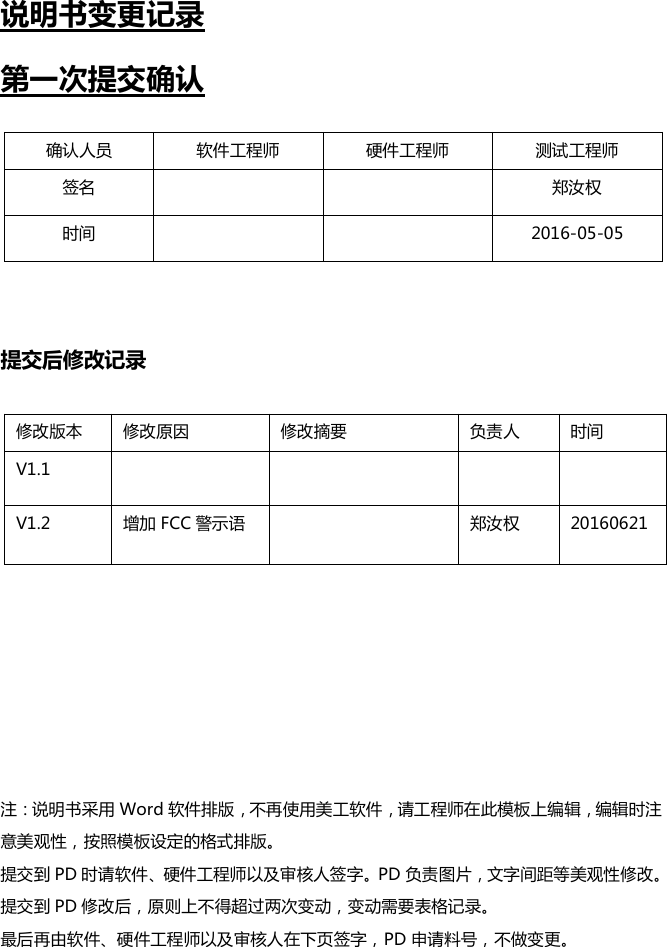
说明书变更记录第一次提交确认提交后修改记录注:说明书采用 Word 软件排版,不再使用美工软件,请工程师在此模板上编辑,编辑时注意美观性,按照模板设定的格式排版。提交到 PD 时请软件、硬件工程师以及审核人签字。PD 负责图片,文字间距等美观性修改。提交到 PD 修改后,原则上不得超过两次变动,变动需要表格记录。最后再由软件、硬件工程师以及审核人在下页签字,PD 申请料号,不做变更。确认人员软件工程师硬件工程师测试工程师签名郑汝权时间2016-05-05修改版本修改原因修改摘要负责人时间V1.1V1.2增加 FCC 警示语郑汝权20160621
WG13C 说明书印刷图档备注:此页不在印刷范围内!(本页内容工程师不需要填写)广州视源电子科技股份有限公司Guangzhou Shiyuan Electronics Co.,LTD .文件图号本页内容WG13C 说明书设 计审 核规格:145*210mm比例:1-1
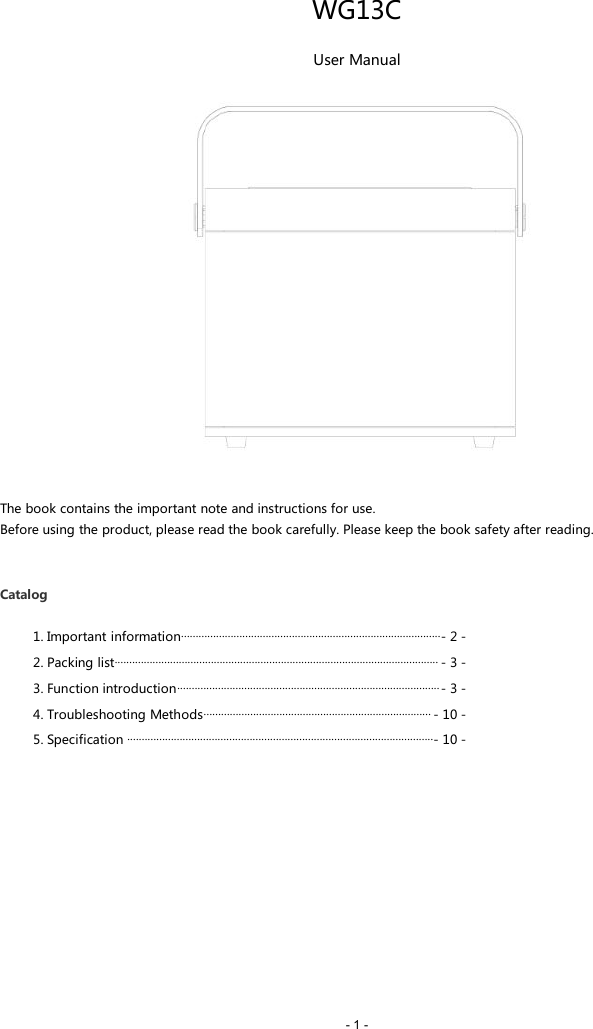
- 1 -WG13CUser ManualThe book contains the important note and instructions for use.Before using the product, please read the book carefully. Please keep the book safety after reading.Catalog1. Important information.........................................................................................- 2 -2. Packing list............................................................................................................... - 3 -3. Function introduction..........................................................................................- 3 -4. Troubleshooting Methods.............................................................................. - 10 -5. Specification .........................................................................................................- 10 -
- 2 -1. Important informationPlease read and understand all the instructions before using the product.Damage caused by failure to comply with the instructions does not be covered under warrant.WarningRisk of electric shock or fireDo not let the product and accessories contact rain or water. Do not put liquid container (such as vases) onthe product side. If the liquid flows inside the product, please immediately shut down the product and contactcustomer service center.Do not place the products and accessories near fire or other heat sources, including direct sunlight.In the lightning weather, the product should be shut down.Beware of short-circuited or fire!Before the product is connected to a power supply socket, please ensure that the voltage of powersupply and products on the back or bottom printing values match. If the voltage is different, do not connect theproduct to the power socket.Beware of damage to the product!Do not put this product or any objects on the power line or other electronic devices.If the delivery of the products at temperature that below 5°C, please open the product packaging and waiting forit to reach room temperature, and then connect it to the power socket for charging.This part of the product may be made of glass. Please handle with care, so as not to hurt or damage.Be careful of overheating!Do not install the production in enclosed spaces. Be sure to set aside at least 4inches around the product space forventilation.Cleaning productsonly use the micro fiber cleaning cloth to clean the product.Environmental protectionThe product is made by recyclable and high quality materials. Do not put together the product with other livinggarbage. Please understand the local classification about collecting electronic, electrical products andbattery set. The correct disposal of these products will help to avoid the potentially negative impact on theenvironment and human health. This product contains the battery cannot be discarded as thegeneral living garbage. Please understand the local classification about collecting the provisions of battery. Thecorrect disposal of the battery helps to avoid the potentially negative impact on the environment and humanhealth.FCCChanges or modifications not expressly approved by the party responsible for compliance could void the user’s authority to operate the equipment.This equipment has been tested and found to comply with the limits for a Class B digital device, pursuant to Part 15 of the FCC Rules. These limits are designed to provide reasonable protection against harmful interference in a residential installation. This equipment generates, uses and can radiate radio frequency energy and, if not installed and used in accordance with the instructions, may cause harmful interference to radio communications. However, there is no guarantee that interference will not occur in a particular installation.If this equipment does cause harmful interference to radio or television reception, which can be determined by turning the equipment off and on, the user is encouraged to try to correct the interference by one or more of the following measures:-- Reorient or relocate the receiving antenna.-- Increase the separation between the equipment and receiver.-- Connect the equipment into an outlet on a circuit different from that to which the receiver is connected.-- Consult the dealer or an experienced radio/TV technician for help. This equipment complies with FCC RF radiation exposure limits set forth for an uncontrolled environment.The device has been evaluated to meet general RF exposure requirement. The device can be used in portable exposure condition without restriction.
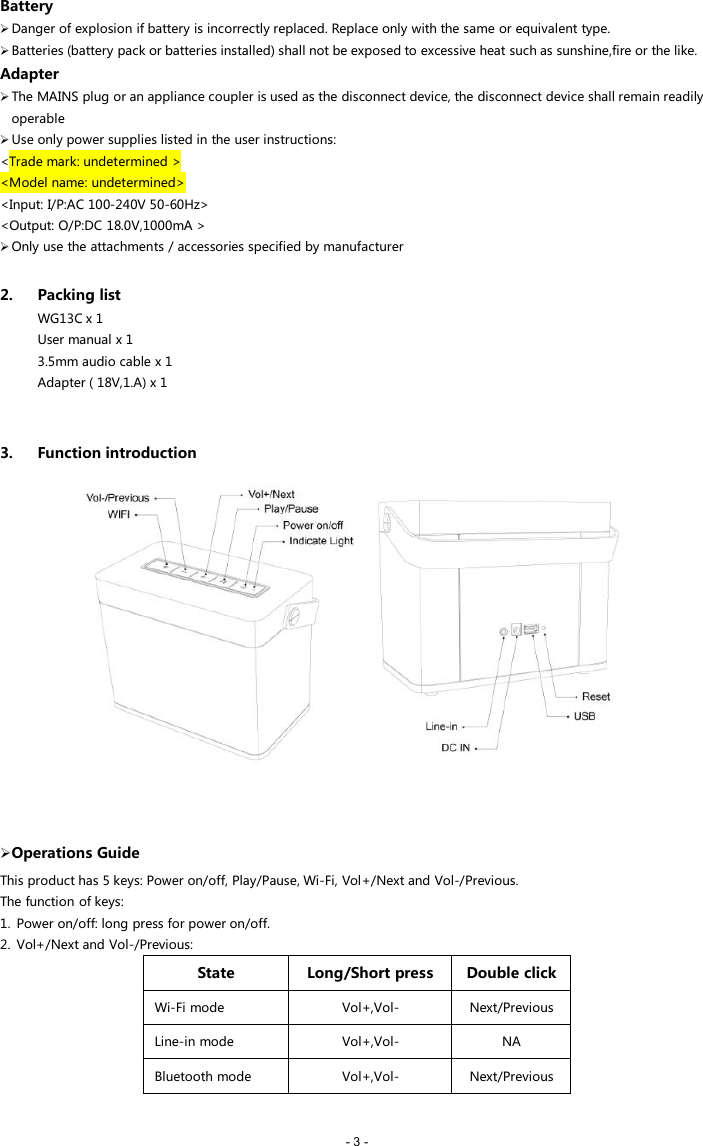
- 3 -BatteryDanger of explosion if battery is incorrectly replaced. Replace only with the same or equivalent type.Batteries (battery pack or batteries installed) shall not be exposed to excessive heat such as sunshine,fire or the like.AdapterThe MAINS plug or an appliance coupler is used as the disconnect device, the disconnect device shall remain readilyoperableUse only power supplies listed in the user instructions:<Trade mark: undetermined ><Model name: undetermined><Input: I/P:AC 100-240V 50-60Hz><Output: O/P:DC 18.0V,1000mA >Only use the attachments / accessories specified by manufacturer2. Packing listWG13C x 1User manual x 13.5mm audio cable x 1Adapter ( 18V,1.A) x 13. Function introductionOperations GuideThis product has 5 keys: Power on/off, Play/Pause, Wi-Fi, Vol+/Next and Vol-/Previous.The function of keys:1. Power on/off: long press for power on/off.2. Vol+/Next and Vol-/Previous:StateLong/Short pressDouble clickWi-Fi modeVol+,Vol-Next/PreviousLine-in modeVol+,Vol-NABluetooth modeVol+,Vol-Next/Previous
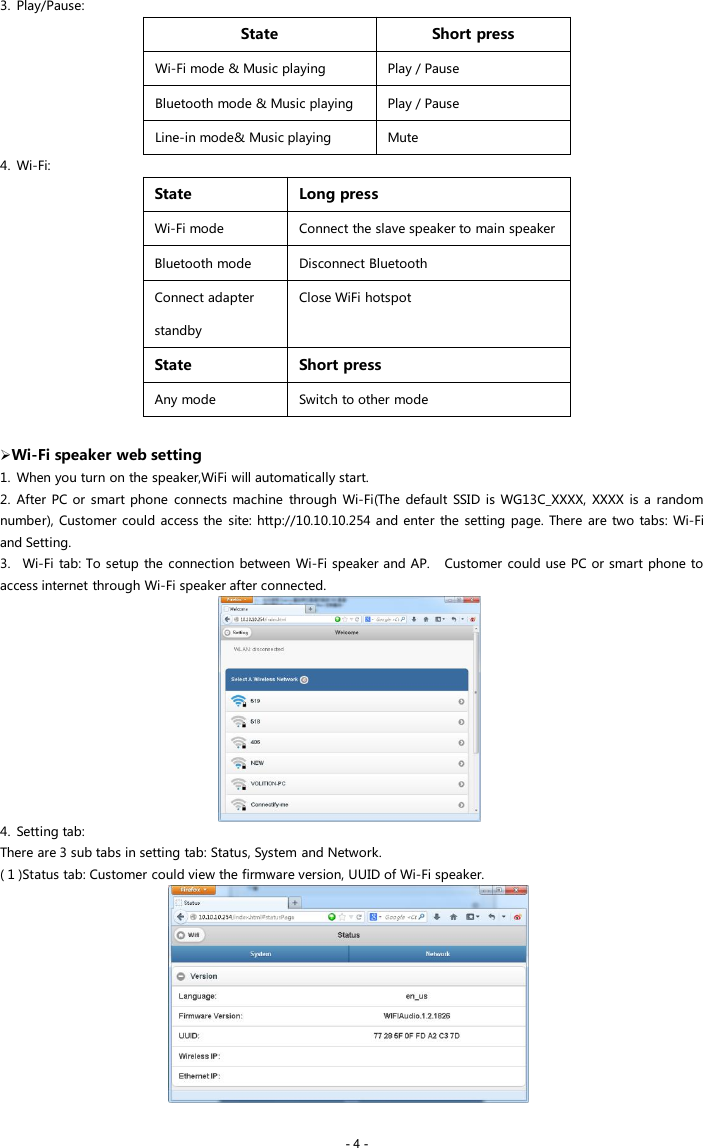
- 4 -3. Play/Pause:StateShort pressWi-Fi mode & Music playingPlay / PauseBluetooth mode & Music playingPlay / PauseLine-in mode& Music playingMute4. Wi-Fi:StateLong pressWi-Fi modeConnect the slave speaker to main speakerBluetooth modeDisconnect BluetoothConnect adapterstandbyClose WiFi hotspotStateShort pressAny modeSwitch to other modeWi-Fi speaker web setting1. When you turn on the speaker,WiFi will automatically start.2. After PC or smart phone connects machine through Wi-Fi(The default SSID is WG13C_XXXX, XXXX is a randomnumber), Customer could access the site: http://10.10.10.254 and enter the setting page. There are two tabs: Wi-Fiand Setting.3. Wi-Fi tab: To setup the connection between Wi-Fi speaker and AP. Customer could use PC or smart phone toaccess internet through Wi-Fi speaker after connected.4. Setting tab:There are 3 sub tabs in setting tab: Status, System and Network.( 1 )Status tab: Customer could view the firmware version, UUID of Wi-Fi speaker.
- 5 -( 2 )System tab: Customer could reset the Wi-Fi speaker and local upgrade firmware in “Other” option and onlineupgrade firmware in “Firmware Online Upgrade”.( 3 )Network tab: Customer could setting the SSID, password and encryption type of Wi-Fi speaker.Music Playing1. Wi-Fi mode:Customer could use APP to search WG13C and add it to the management list, then play the music that he want. IfCustomer wants two speakers play the same music in the same time( Multi room mode ), Please carry out thecorresponding operation according to the APP.Customer could automatically install the APP by Android Market or App Store. In the Android Market or App Storesearch "SeewoPlayer", download and complete the installation.2. Bluetooth mode:(1)First power on, press the “Wi-Fi”to Bluetooth mode,the indicator light flashes (with waiting for connectiontone), please search for Bluetooth devices "WG13C” in the mobile phone or tablet PC and pair. When the pairing issuccessful, the indicator light keeps on lighting.(2)If it is need to switch to another Bluetooth terminal, long press the WiFi key, the indicator light flashes, once againinto the Bluetooth pairing state, repeat steps (1).( 3 ) If the Bluetooth terminal is successful paired before shutdown, the machine will automatically connect thelast successful paired terminal after next boot( do not need reconnection), the indicator light does not flash.3. Line-in mode:When 3.5mm audio cable is inserted into the Line-in port, machine automatically switches to Line-in mode.4. USB charging mode:Press the“Wi-Fi”to USB charging mode,it will charge mobile phone or other electronic devices.Note:
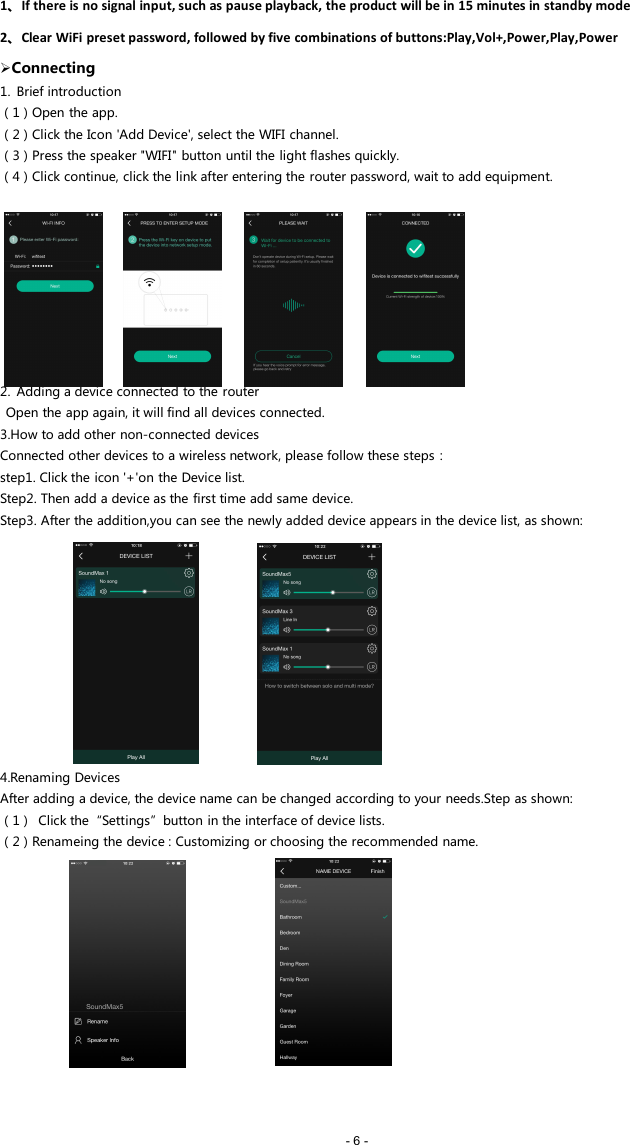
- 6 -1、If there is no signal input, such as pause playback, the product will be in 15 minutes in standby mode2、Clear WiFi preset password, followed by five combinations of buttons:Play,Vol+,Power,Play,PowerConnecting1. Brief introduction(1)Open the app.(2)Click the Icon 'Add Device', select the WIFI channel.(3)Press the speaker "WIFI" button until the light flashes quickly.(4)Click continue, click the link after entering the router password, wait to add equipment.2. Adding a device connected to the routerOpen the app again, it will find all devices connected.3.How to add other non-connected devicesConnected other devices to a wireless network, please follow these steps:step1. Click the icon '+'on the Device list.Step2. Then add a device as the first time add same device.Step3. After the addition,you can see the newly added device appears in the device list, as shown:4.Renaming DevicesAfter adding a device, the device name can be changed according to your needs.Step as shown:(1) Click the“Settings”button in the interface of device lists.(2)Renameing the device : Customizing or choosing the recommended name.
- 7 -APP functions1.Search functionWith the search function you can search for music according to your needs, either on artist or on song.2. My favorite functionCollect your favorite songs function that allows you to choose your favorite songs.Step 1. Click on the heart- shaped icon on the player interface, the song can be bookmarked in ”my favorite” list;Step 2. Click go to my favorite list in the control interface and there you can see your collection of songs.2.1 Managing Favorite SonglistStep 1. Click on the song name on the right.Step 2. You can choose to delete the song or add to another playlist selected from ”my favorites”list.3. My Music - Local MusicStep 1. Click on the phone to enter the local music playlists;Step 2. Click the icon ,which is in the upper right corner to refresh and search new songs for to add to the local playlists;Step 3. Click the icon to the right of the song name. You can operate the songs,”Add to Favorites”, ”Add to list” and so on.3.2 My Music PlaylistStep 1. You can create a new list: click on the ”+“ in my music playlist;Step 2. After entering a name click ”OK” to create a new song list.4. Online radio station (TuneIn)Online radio (TuneIn) provides you millions of radio stations from around the world.(1)Click ”TuneIn” to enter the user interface.(2)Choose the radio station you want to listen to in the list.
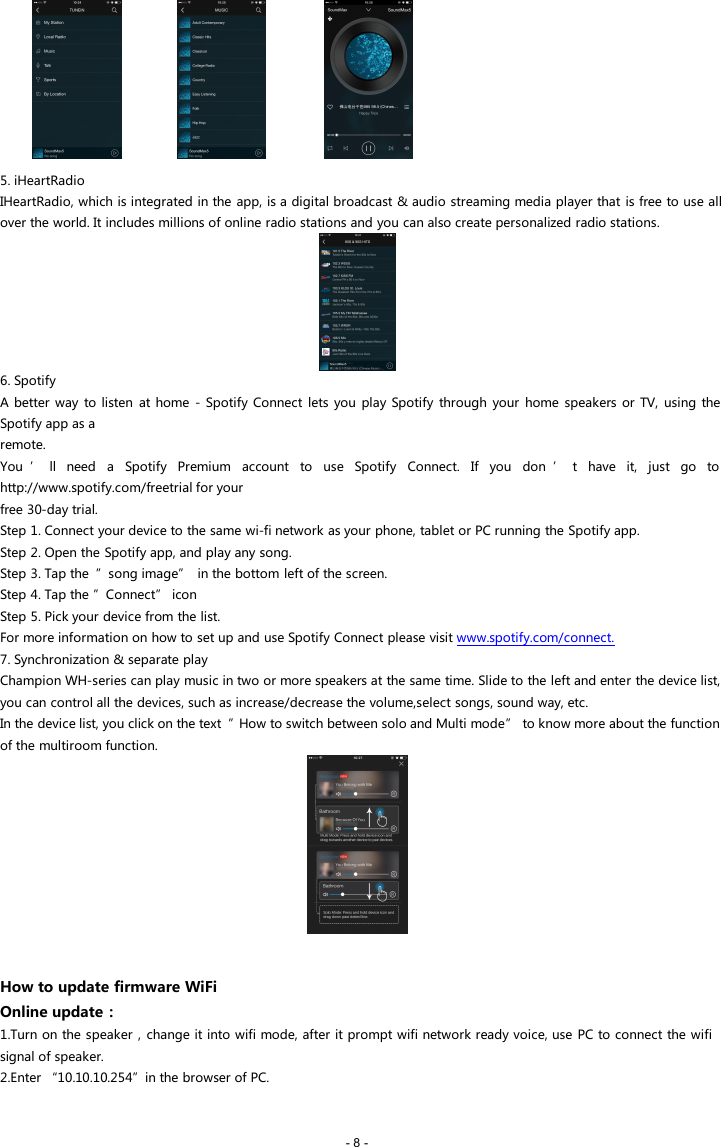
- 8 -5. iHeartRadioIHeartRadio, which is integrated in the app, is a digital broadcast & audio streaming media player that is free to use allover the world. It includes millions of online radio stations and you can also create personalized radio stations.6. SpotifyA better way to listen at home - Spotify Connect lets you play Spotify through your home speakers or TV, using theSpotify app as aremote.You ’ ll need a Spotify Premium account to use Spotify Connect. If you don ’ t have it, just go tohttp://www.spotify.com/freetrial for yourfree 30-day trial.Step 1. Connect your device to the same wi-fi network as your phone, tablet or PC running the Spotify app.Step 2. Open the Spotify app, and play any song.Step 3. Tap the ”song image” in the bottom left of the screen.Step 4. Tap the ”Connect” iconStep 5. Pick your device from the list.For more information on how to set up and use Spotify Connect please visit www.spotify.com/connect.7. Synchronization & separate playChampion WH-series can play music in two or more speakers at the same time. Slide to the left and enter the device list,you can control all the devices, such as increase/decrease the volume,select songs, sound way, etc.In the device list, you click on the text ”How to switch between solo and Multi mode” to know more about the functionof the multiroom function.How to update firmware WiFiOnline update:1.Turn on the speaker,change it into wifi mode, after it prompt wifi network ready voice, use PC to connect the wifisignal of speaker.2.Enter “10.10.10.254”in the browser of PC.
- 9 -3.Connected network4.Then select “Setting”5.lick “System”6.lick “online Update”7.It will automatically download firmware upgrades,when it’s upgraded successfully, the web will show a message.APP update:If you see “New” icon next to setting button, a new firmware is available for your unit. In order to apply thisfirmware tap on “New” and you will see a pop up message. Plug in adapter, then select upgrade and wait until thedevice upgrade process finishes without other operations .Interface icon and functionsHow to clean the machineWarning:1. Turn off machine before cleaning it.2. Do not use volatile solvents (such as ethanol, rosin, toluene solvent) to clean the machine. This type of chemicals maydamage the machine.
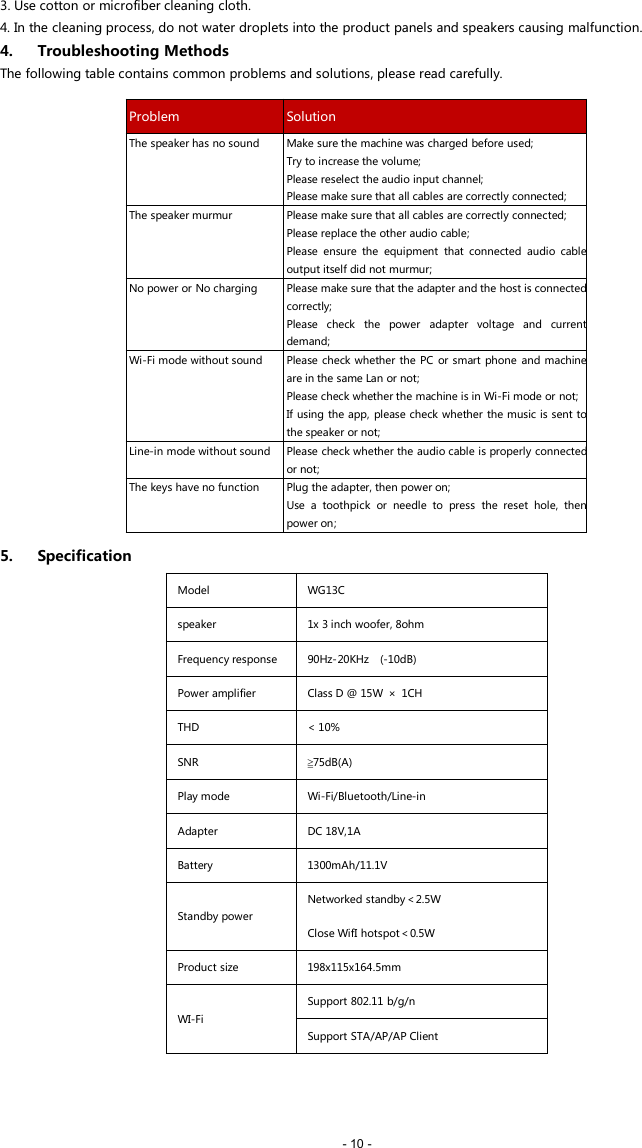
- 10 -3. Use cotton or microfiber cleaning cloth.4. In the cleaning process, do not water droplets into the product panels and speakers causing malfunction.4. Troubleshooting MethodsThe following table contains common problems and solutions, please read carefully.5. SpecificationModelWG13Cspeaker1x 3 inch woofer, 8ohmFrequency response90Hz-20KHz (-10dB)Power amplifierClass D @ 15W × 1CHTHD< 10%SNR≧75dB(A)Play modeWi-Fi/Bluetooth/Line-inAdapterDC 18V,1ABattery1300mAh/11.1VStandby powerNetworked standby<2.5WClose WifI hotspot<0.5WProduct size198x115x164.5mmWI-FiSupport 802.11 b/g/nSupport STA/AP/AP ClientProblemSolutionThe speaker has no soundMake sure the machine was charged before used;Try to increase the volume;Please reselect the audio input channel;Please make sure that all cables are correctly connected;The speaker murmurPlease make sure that all cables are correctly connected;Please replace the other audio cable;Please ensure the equipment that connected audio cableoutput itself did not murmur;No power or No chargingPlease make sure that the adapter and the host is connectedcorrectly;Please check the power adapter voltage and currentdemand;Wi-Fi mode without soundPlease check whether the PC or smart phone and machineare in the same Lan or not;Please check whether the machine is in Wi-Fi mode or not;If using the app, please check whether the music is sent tothe speaker or not;Line-in mode without soundPlease check whether the audio cable is properly connectedor not;The keys have no functionPlug the adapter, then power on;Use a toothpick or needle to press the reset hole, thenpower on;

Navigation menu