Guangzhou Rayer Acoustic Technology WM32-X61002 Wireless Wifi Speaker System User Manual WM32

Guangzhou Rayer Acoustic Technology Co., Ltd Wireless Wifi Speaker System WM32

WM32 User Manual

  - 1 - WM32         | User Manual    The book contains the important note and instructions for use. Before using the product, please read the book carefully.  Please keep the book safety after reading.          Catalog 1. Important information .......................................................................... - 2 - 2. Packing list ................................................................................................ - 3 - 3. Function introduction ............................................................................ - 3 - 4. Troubleshooting Methods ................................................................. - 15 - 5. Specification  .......................................................................................... - 16 -
  - 2 - 1. Important information Please read and understand all the instructions before using the product. Damage  caused  by failure  to  comply  with  the instructions does  not  be covered under warrant. Warning Risk of electric shock or fire  Do  not  let the  product and  accessories contact rain  or  water.  Do  not put  liquid  container (such  as  vases) on  the product side. If  the  liquid flows  inside  the  product, please  immediately shut  down  the  product and contact customer service center.  Do not place  the products  and accessories  near fire or  other heat sources, including direct sunlight.  In the lightning weather, the product should be shut down.   Beware of short-circuited or fire!  Before the  product is  connected  to  a  power  supply socket, please ensure that the voltage of power supply and products on the back or bottom printing values  match. If  the  voltage  is different, do not connect the product to the power socket. Beware of damage to the product!  Do  not  put this  product or  any objects on  the power  line or other electronic devices.  If  the delivery  of the products at  temperature  that  below  5 °C, please open  the  product  packaging and  waiting  for  it to  reach  room temperature, and then connect it to the power socket for charging.  This part  of  the  product may  be made  of  glass. Please handle  with care, so as not to hurt or damage. Be careful of overheating!  Do not install the production in enclosed spaces. Be sure to set aside at least 4inches around the product space for ventilation.    Cleaning products  only use the micro fiber cleaning cloth to clean the product. Environmental protection  The product is  made by recyclable and high  quality materials.  Do  not put together the product  with other living  garbage. Please understand the  local classification  about collecting  electronic, electrical products and  battery set. The  correct disposal  of these  products  will
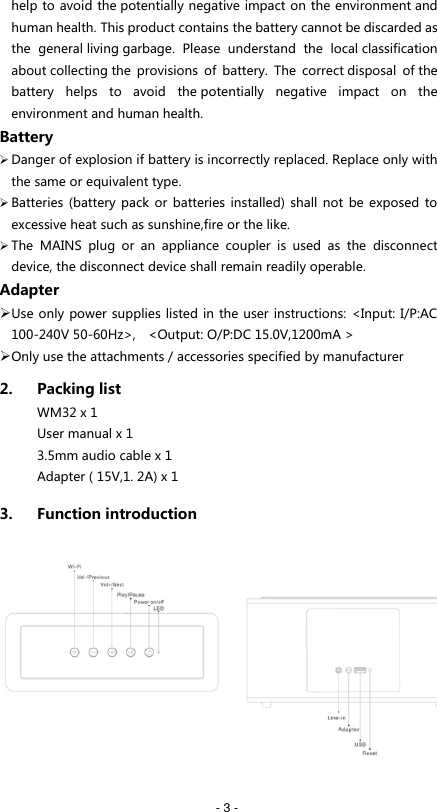
  - 3 - help to avoid the potentially negative impact on the environment and human health. This product contains the battery cannot be discarded as the  general living garbage. Please  understand  the  local classification about collecting the  provisions  of  battery.  The  correct disposal  of the battery  helps  to  avoid  the potentially  negative  impact  on  the environment and human health. Battery  Danger of explosion if battery is incorrectly replaced. Replace only with the same or equivalent type.  Batteries (battery pack or batteries installed) shall not  be exposed to excessive heat such as sunshine,fire or the like.  The  MAINS  plug  or  an  appliance  coupler  is  used  as  the  disconnect device, the disconnect device shall remain readily operable. Adapter  Use only power supplies listed in the user instructions: <Input: I/P:AC 100-240V 50-60Hz>,    <Output: O/P:DC 15.0V,1200mA >  Only use the attachments / accessories specified by manufacturer 2. Packing list        WM32 x 1       User manual x 1       3.5mm audio cable x 1       Adapter ( 15V,1. 2A) x 1 3. Function introduction
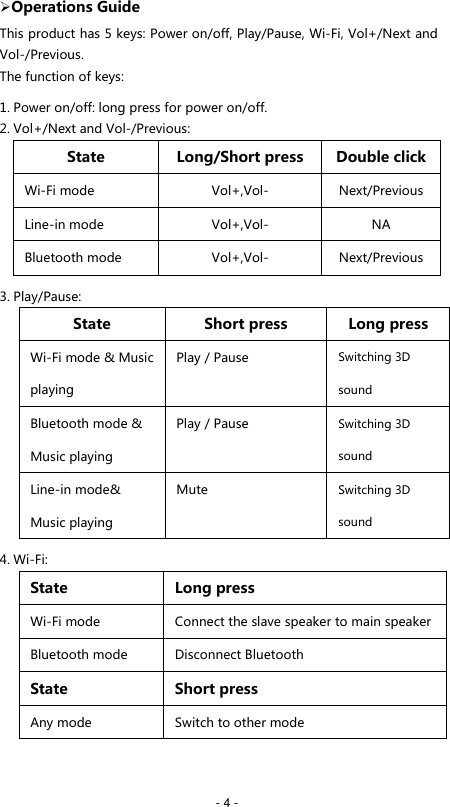
  - 4 -  Operations Guide This product has 5 keys: Power on/off, Play/Pause, Wi-Fi, Vol+/Next and Vol-/Previous. The function of keys: 1. Power on/off: long press for power on/off. 2. Vol+/Next and Vol-/Previous:   State Long/Short press Double click Wi-Fi mode Vol+,Vol- Next/Previous Line-in mode Vol+,Vol- NA Bluetooth mode Vol+,Vol- Next/Previous 3. Play/Pause: State Short press Long press Wi-Fi mode & Music playing Play / Pause Switching 3D sound Bluetooth mode & Music playing Play / Pause Switching 3D sound Line-in mode& Music playing Mute Switching 3D sound 4. Wi-Fi: State Long press Wi-Fi mode   Connect the slave speaker to main speaker Bluetooth mode Disconnect Bluetooth State Short press Any mode Switch to other mode
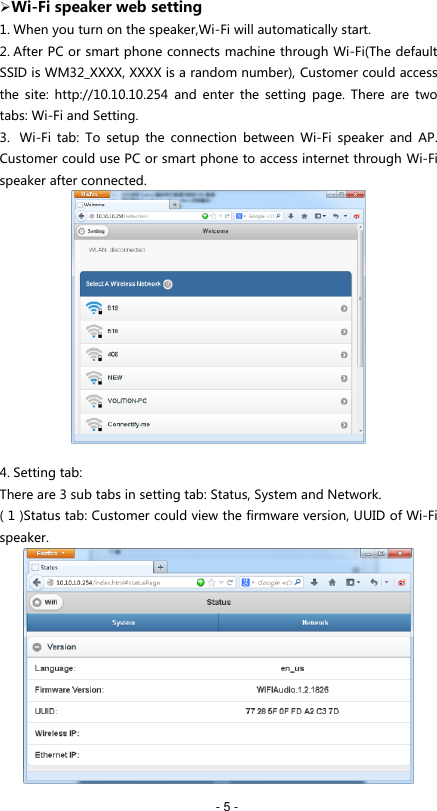
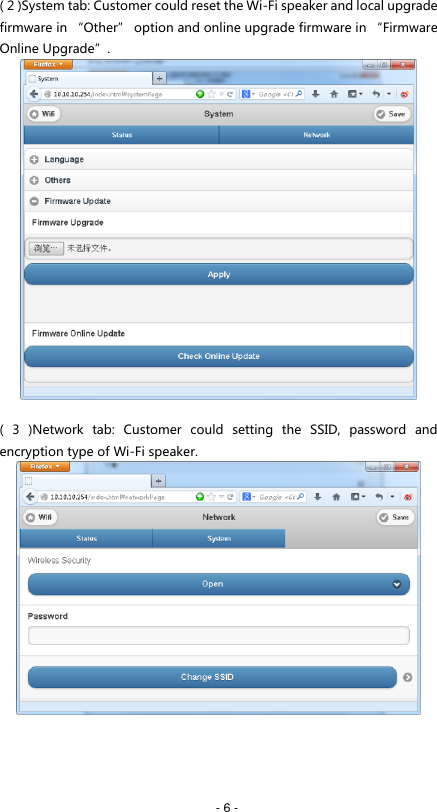
  - 5 -  Wi-Fi speaker web setting 1. When you turn on the speaker,Wi-Fi will automatically start. 2. After PC or smart phone connects machine through Wi-Fi(The default SSID is WM32_XXXX, XXXX is a random number), Customer could access the  site:  http://10.10.10.254  and  enter  the  setting  page.  There  are  two tabs: Wi-Fi and Setting. 3.  Wi-Fi  tab:  To  setup  the  connection  between  Wi-Fi  speaker  and  AP.   Customer could use PC or smart phone to access internet through Wi-Fi speaker after connected.   4. Setting tab:   There are 3 sub tabs in setting tab: Status, System and Network. ( 1 )Status tab: Customer could view the firmware version, UUID of Wi-Fi speaker.
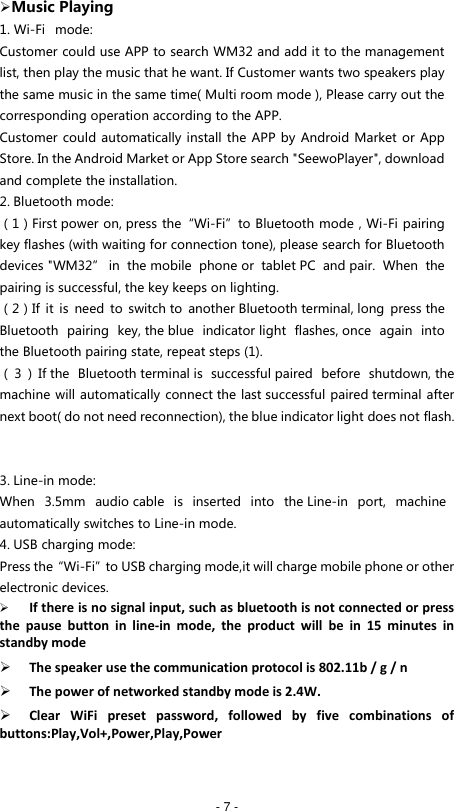
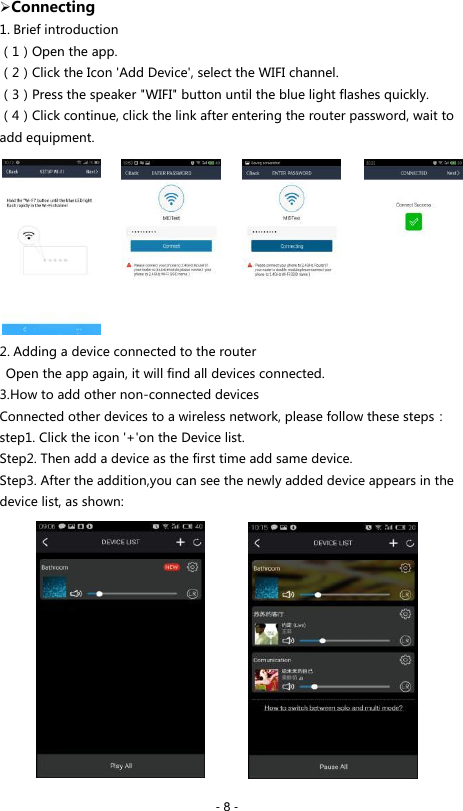
  - 6 - ( 2 )System tab: Customer could reset the Wi-Fi speaker and local upgrade firmware in “Other” option and online upgrade firmware in “Firmware Online Upgrade”.   (  3  )Network  tab:  Customer  could  setting  the  SSID,  password  and encryption type of Wi-Fi speaker.
  - 7 -  Music Playing 1. Wi-Fi   mode: Customer could use APP to search WM32 and add it to the management list, then play the music that he want. If Customer wants two speakers play the same music in the same time( Multi room mode ), Please carry out the corresponding operation according to the APP. Customer could automatically install the APP by Android Market or App Store. In the Android Market or App Store search "SeewoPlayer", download and complete the installation. 2. Bluetooth mode: (1)First power on, press the“Wi-Fi”to Bluetooth mode,Wi-Fi pairing key flashes (with waiting for connection tone), please search for Bluetooth devices "WM32” in  the mobile  phone or  tablet PC  and pair.  When  the pairing is successful, the key keeps on lighting. (2)If  it  is  need  to  switch to  another Bluetooth terminal, long  press the Bluetooth  pairing  key, the blue  indicator light  flashes, once  again  into the Bluetooth pairing state, repeat steps (1). (3)If the  Bluetooth terminal is  successful paired  before  shutdown, the machine will automatically connect the last successful paired terminal after next boot( do not need reconnection), the blue indicator light does not flash.   3. Line-in mode: When  3.5mm  audio cable  is  inserted  into  the Line-in  port,  machine automatically switches to Line-in mode. 4. USB charging mode: Press the“Wi-Fi”to USB charging mode,it will charge mobile phone or other electronic devices.  If there is no signal input, such as bluetooth is not connected or press the  pause  button  in  line-in  mode,  the  product  will  be  in  15  minutes  in standby mode  The speaker use the communication protocol is 802.11b / g / n  The power of networked standby mode is 2.4W.  Clear  WiFi  preset  password,  followed  by  five  combinations  of buttons:Play,Vol+,Power,Play,Power
  - 8 -  Connecting 1. Brief introduction (1)Open the app. (2)Click the Icon 'Add Device', select the WIFI channel. (3)Press the speaker "WIFI" button until the blue light flashes quickly. (4)Click continue, click the link after entering the router password, wait to add equipment.          2. Adding a device connected to the router   Open the app again, it will find all devices connected. 3.How to add other non-connected devices Connected other devices to a wireless network, please follow these steps: step1. Click the icon '+'on the Device list. Step2. Then add a device as the first time add same device. Step3. After the addition,you can see the newly added device appears in the device list, as shown:
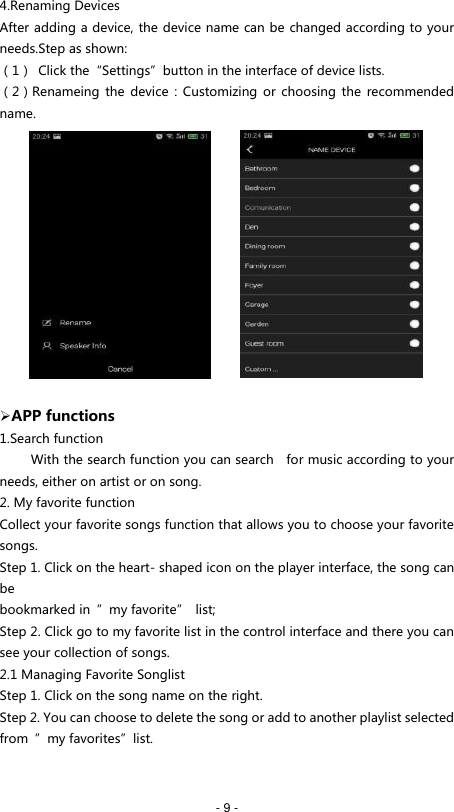
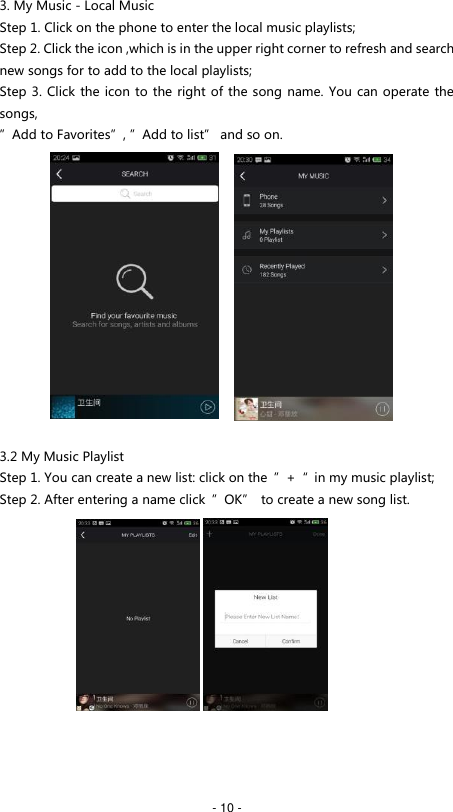
  - 9 - 4.Renaming Devices After adding a device, the device name can be changed according to your needs.Step as shown: (1)  Click the“Settings”button in the interface of device lists. (2)Renameing the  device  :  Customizing or choosing  the  recommended name.               APP functions 1.Search function      With the search function you can search    for music according to your needs, either on artist or on song. 2. My favorite function Collect your favorite songs function that allows you to choose your favorite songs. Step 1. Click on the heart- shaped icon on the player interface, the song can be bookmarked in  ”my favorite”  list; Step 2. Click go to my favorite list in the control interface and there you can see your collection of songs. 2.1 Managing Favorite Songlist Step 1. Click on the song name on the right. Step 2. You can choose to delete the song or add to another playlist selected from  ”my favorites”list.
  - 10 - 3. My Music - Local Music Step 1. Click on the phone to enter the local music playlists; Step 2. Click the icon ,which is in the upper right corner to refresh and search new songs for to add to the local playlists; Step 3. Click the icon to the right of the song name. You can operate the songs, ”Add to Favorites”, ”Add to list” and so on.               3.2 My Music Playlist Step 1. You can create a new list: click on the  ”+“  in my music playlist; Step 2. After entering a name click  ”OK”  to create a new song list.
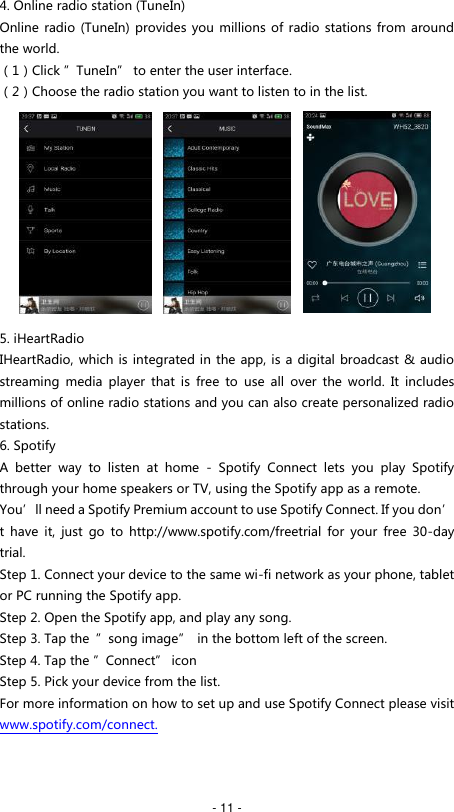
  - 11 - 4. Online radio station (TuneIn) Online radio  (TuneIn) provides you millions of radio stations from around the world. (1)Click ”TuneIn” to enter the user interface. (2)Choose the radio station you want to listen to in the list.          5. iHeartRadio IHeartRadio, which is integrated in the app, is a digital broadcast & audio streaming  media  player  that  is  free  to  use  all  over  the  world.  It  includes millions of online radio stations and you can also create personalized radio stations. 6. Spotify A  better  way  to  listen  at  home  -  Spotify  Connect  lets  you  play  Spotify through your home speakers or TV, using the Spotify app as a remote. You’ll need a Spotify Premium account to use Spotify Connect. If you don’t  have  it,  just  go  to  http://www.spotify.com/freetrial  for  your  free  30-day trial. Step 1. Connect your device to the same wi-fi network as your phone, tablet or PC running the Spotify app. Step 2. Open the Spotify app, and play any song. Step 3. Tap the  ”song image”  in the bottom left of the screen. Step 4. Tap the ”Connect” icon Step 5. Pick your device from the list. For more information on how to set up and use Spotify Connect please visit www.spotify.com/connect.
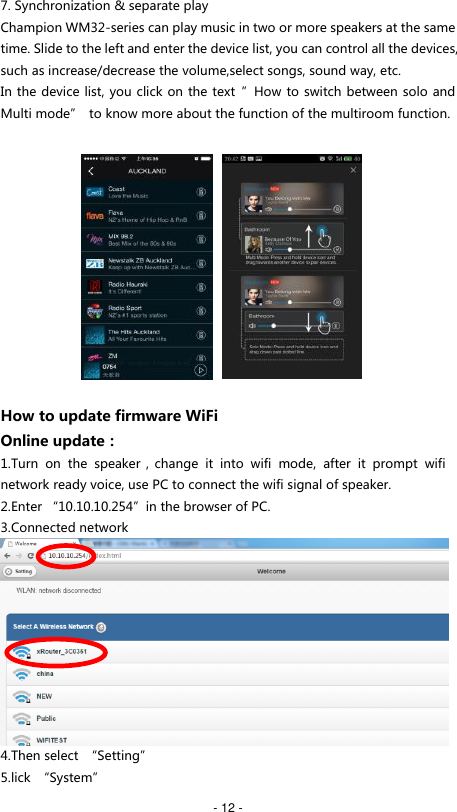
  - 12 - 7. Synchronization & separate play Champion WM32-series can play music in two or more speakers at the same time. Slide to the left and enter the device list, you can control all the devices, such as increase/decrease the volume,select songs, sound way, etc. In the device list, you click on the text  ”How to switch between solo and Multi mode”  to know more about the function of the multiroom function.              How to update firmware WiFi Online update: 1.Turn  on  the  speaker,change  it  into  wifi  mode,  after  it  prompt  wifi network ready voice, use PC to connect the wifi signal of speaker.   2.Enter “10.10.10.254”in the browser of PC. 3.Connected network  4.Then select  “Setting”   5.lick  “System”
  - 13 - 6.lick  “online Update”  7.It will automatically download firmware upgrades,when it’s upgraded successfully, the web will show a message.   APP update:    If  you  see  “New”  icon  next  to  setting  button,  a  new  firmware  is available for your unit. In order to apply this firmware tap on “New” and you will see a pop up message. Plug in adapter, then select upgrade and wait until the device upgrade process finishes without other operations .    Interface icon and functions
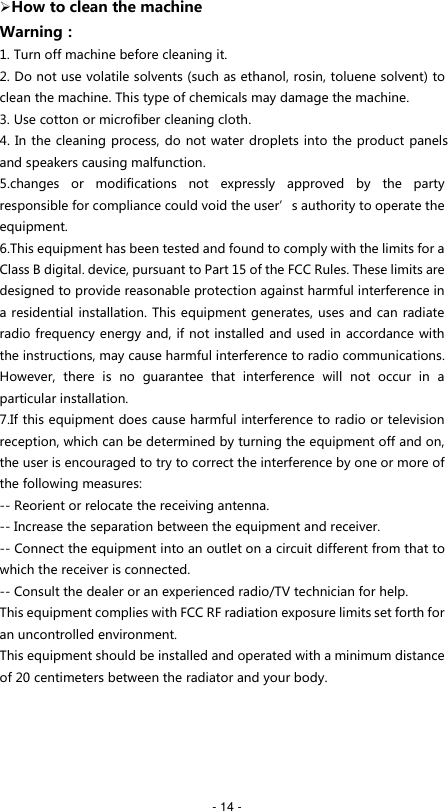
  - 14 -  How to clean the machine Warning: 1. Turn off machine before cleaning it. 2. Do not use volatile solvents (such as ethanol, rosin, toluene solvent) to clean the machine. This type of chemicals may damage the machine. 3. Use cotton or microfiber cleaning cloth. 4. In the cleaning process, do not water droplets into the product panels and speakers causing malfunction. 5.changes  or  modifications  not  expressly  approved  by  the  party responsible for compliance could void the user’s authority to operate the equipment. 6.This equipment has been tested and found to comply with the limits for a Class B digital. device, pursuant to Part 15 of the FCC Rules. These limits are designed to provide reasonable protection against harmful interference in a residential installation. This equipment generates, uses and can radiate radio frequency energy and, if not installed and used in accordance with the instructions, may cause harmful interference to radio communications. However,  there  is  no  guarantee  that  interference  will  not  occur  in  a particular installation. 7.If this equipment does cause harmful interference to radio or television reception, which can be determined by turning the equipment off and on, the user is encouraged to try to correct the interference by one or more of the following measures: -- Reorient or relocate the receiving antenna. -- Increase the separation between the equipment and receiver. -- Connect the equipment into an outlet on a circuit different from that to which the receiver is connected. -- Consult the dealer or an experienced radio/TV technician for help. This equipment complies with FCC RF radiation exposure limits set forth for an uncontrolled environment. This equipment should be installed and operated with a minimum distance of 20 centimeters between the radiator and your body.
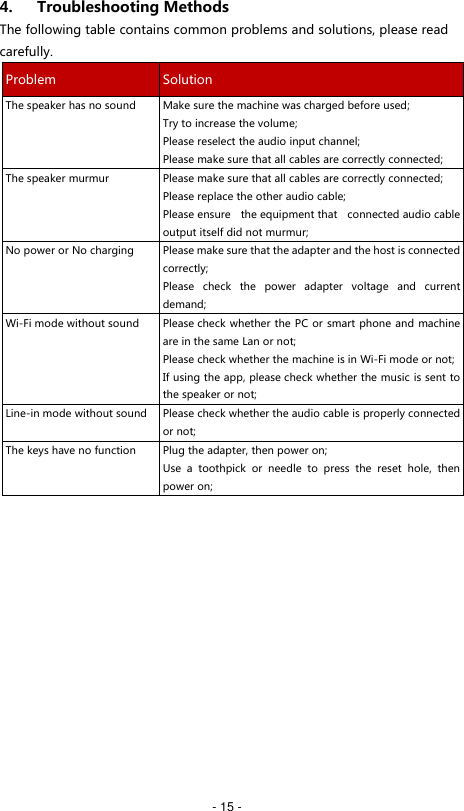
  - 15 - 4. Troubleshooting Methods The following table contains common problems and solutions, please read carefully. Problem Solution The speaker has no sound Make sure the machine was charged before used; Try to increase the volume; Please reselect the audio input channel; Please make sure that all cables are correctly connected; The speaker murmur Please make sure that all cables are correctly connected; Please replace the other audio cable; Please ensure  the equipment that  connected audio cable output itself did not murmur; No power or No charging Please make sure that the adapter and the host is connected correctly; Please  check  the  power  adapter  voltage  and  current demand; Wi-Fi mode without sound Please check whether the PC or smart phone and machine are in the same Lan or not; Please check whether the machine is in Wi-Fi mode or not; If using the app, please check whether the music is sent to the speaker or not; Line-in mode without sound Please check whether the audio cable is properly connected or not; The keys have no function Plug the adapter, then power on; Use  a  toothpick  or  needle  to  press  the  reset  hole,  then power on;
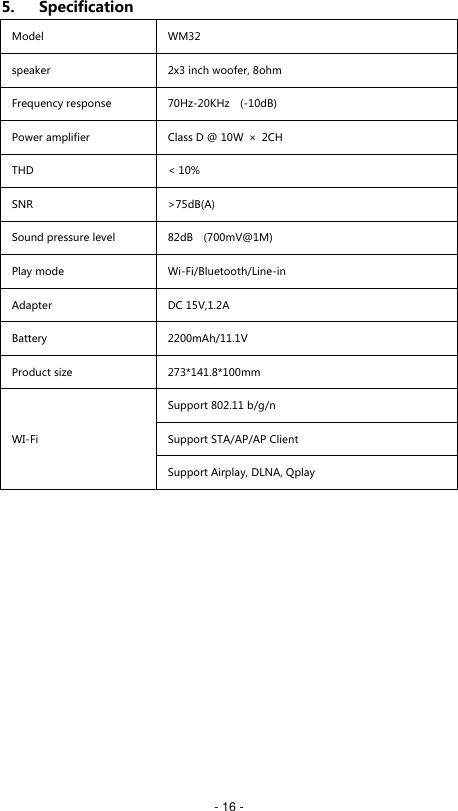
  - 16 - 5. Specification  Model WM32 speaker 2x3 inch woofer, 8ohm Frequency response 70Hz-20KHz    (-10dB) Power amplifier Class D @ 10W  ×  2CH THD < 10%     SNR >75dB(A) Sound pressure level 82dB    (700mV@1M)  Play mode Wi-Fi/Bluetooth/Line-in Adapter DC 15V,1.2A Battery 2200mAh/11.1V Product size 273*141.8*100mm WI-Fi Support 802.11 b/g/n Support STA/AP/AP Client Support Airplay, DLNA, Qplay

Navigation menu