Guangzhou Shiyuan Electronics A3105A Android Box User Manual part 1

Guangzhou Shiyuan Electronics Co., Ltd. Android Box part 1

Contents

User manual part 1

   OSD User Manual Version: V1.0     Model: A3105A(main board B.S905.5) Description: Android Main Board
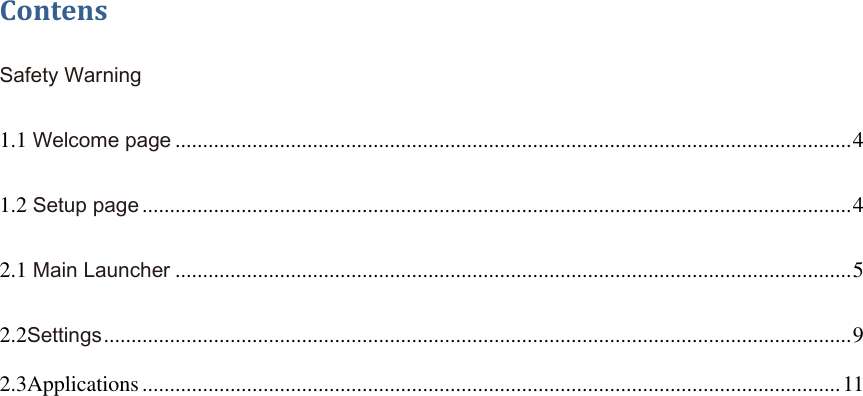
 Contens Safety Warning 1.1 Welcome page ........................................................................................................................... 4 1.2 Setup page ................................................................................................................................. 4 2.1 Main Launcher ........................................................................................................................... 5 2.2Settings ........................................................................................................................................ 9 2.3Applications ............................................................................................................................... 11
Safety Warning Before operating the unit, please read throught this manual.  PLACEMENT ● Do not place the unit on an unstable cart, stand, tripod, bracket, table, or shelf. ● Do not expose the unit to direct sunlight and other sources of heat. ● Do not handle liquids near or on the unit. ● Never spill liquid of any kind into the unit ● Do not put the unit near appliances that create magnetic fields. ● Do not put heavy objects on top of the unit. TEMPERATURE ● Do not place the unit near or over a radiator or a heater register. ● If your unit is suddenly moved from a cold to a warm place, unplug the power cord for at least two hours so that moisture that may have formed inside the unit can dry completely. HUMIDITY ● Do not expose machine in rain, damp or place near water. ● Ensure the indoor drying, cool. VENTILATION ● Keep the ventilation openings clear.
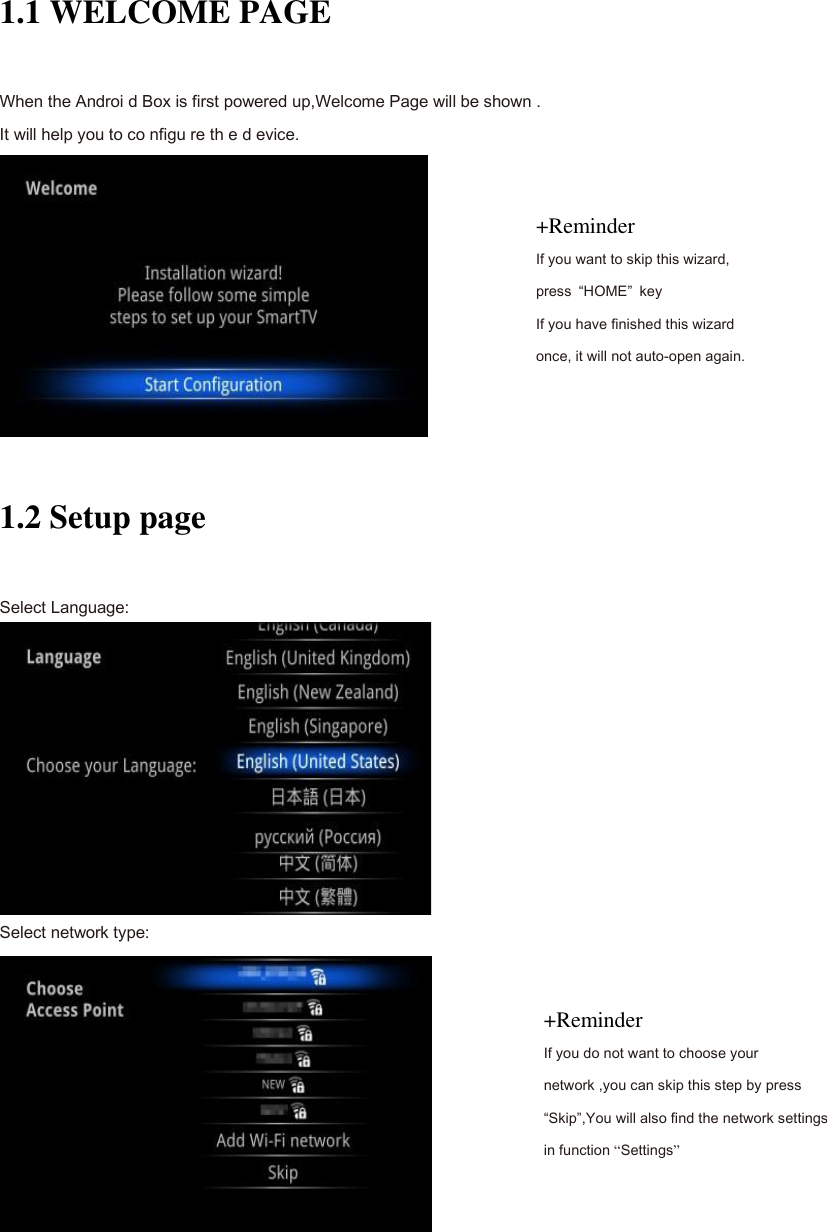
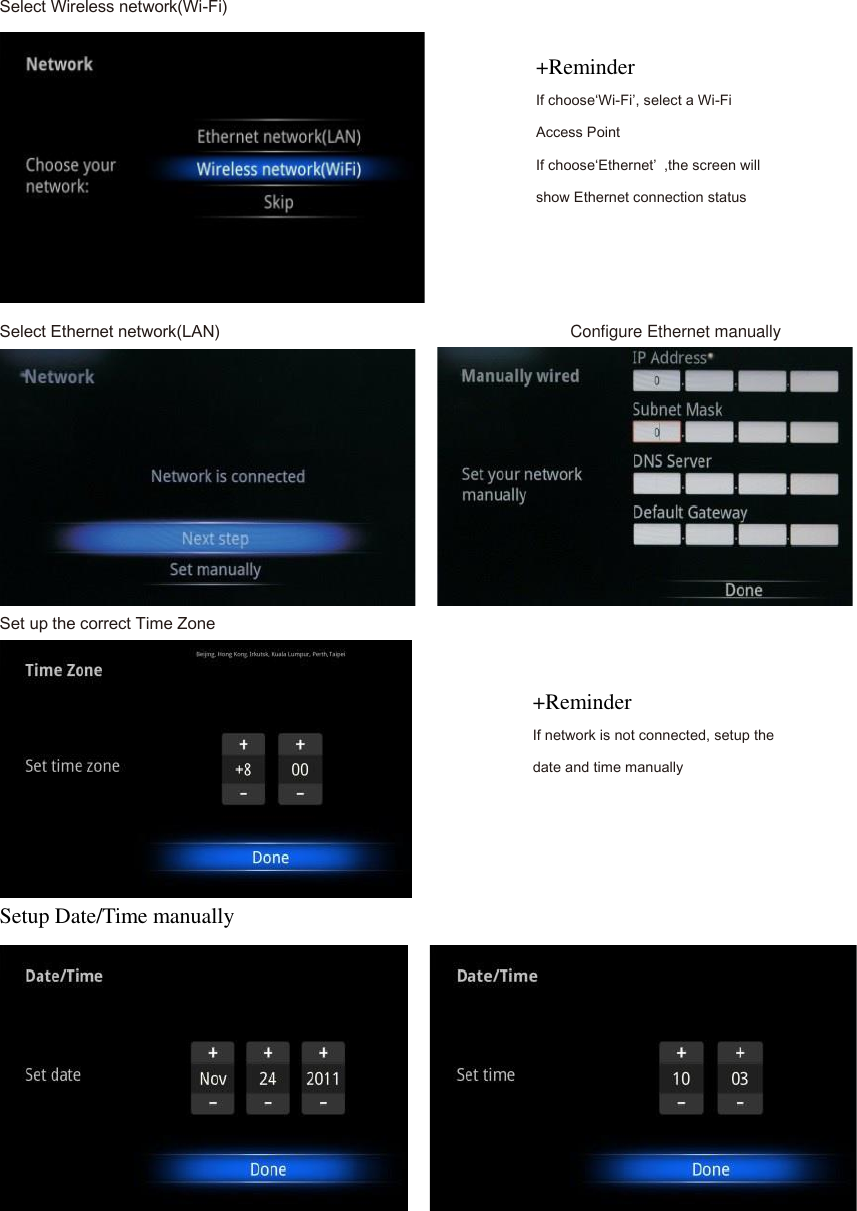
Install Wizard 1.1 WELCOME PAGE When the Androi d Box is first powered up,Welcome Page will be shown . It will help you to co nfigu re th e d evice.  1.2 Setup page Select Language:  Select network type:  +Reminder If you want to skip this wizard, press  “HOME”  key If you have finished this wizard once, it will not auto-open again. +Reminder If you do not want to choose your network ,you can skip this step by press “Skip”,You will also find the network settings in function “Settings”
Select Wireless network(Wi-Fi)  Select Ethernet network(LAN)                                Configure Ethernet manually     Set up the correct Time Zone  Setup Date/Time manually     +Reminder If choose‘Wi-Fi’, select a Wi-Fi Access Point If choose‘Ethernet’  ,the screen will show Ethernet connection status +Reminder If network is not connected, setup the date and time manually
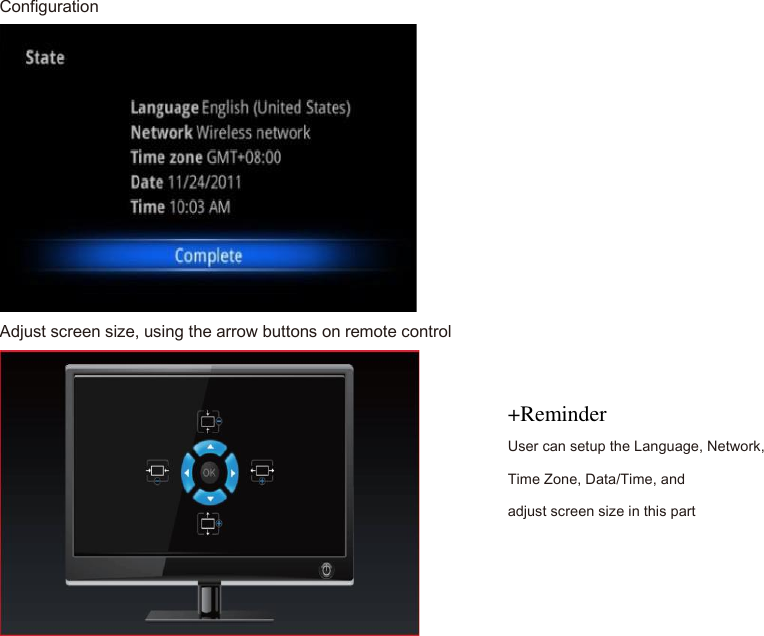
Configuration  Adjust screen size, using the arrow buttons on remote control  +Reminder User can setup the Language, Network, Time Zone, Data/Time, and adjust screen size in this part
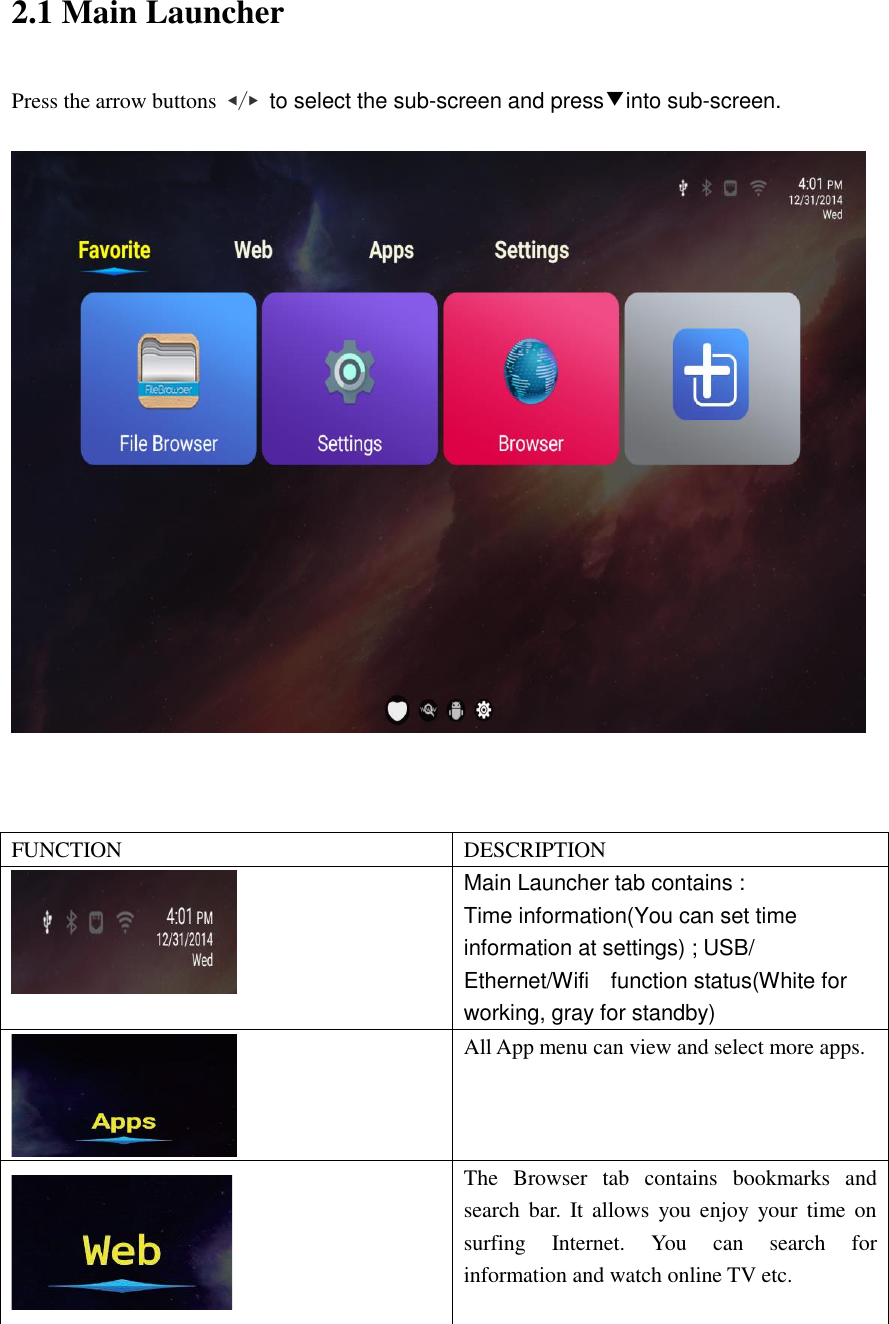
 2.1 Main Launcher Press the arrow buttons  ◀/▶ to select the sub-screen and press▼into sub-screen.      FUNCTION DESCRIPTION  Main Launcher tab contains : Time information(You can set time information at settings) ; USB/ Ethernet/Wifi    function status(White for working, gray for standby)  All App menu can view and select more apps.  The  Browser  tab  contains  bookmarks  and search bar.  It allows you enjoy your  time  on surfing  Internet.  You  can  search  for information and watch online TV etc.
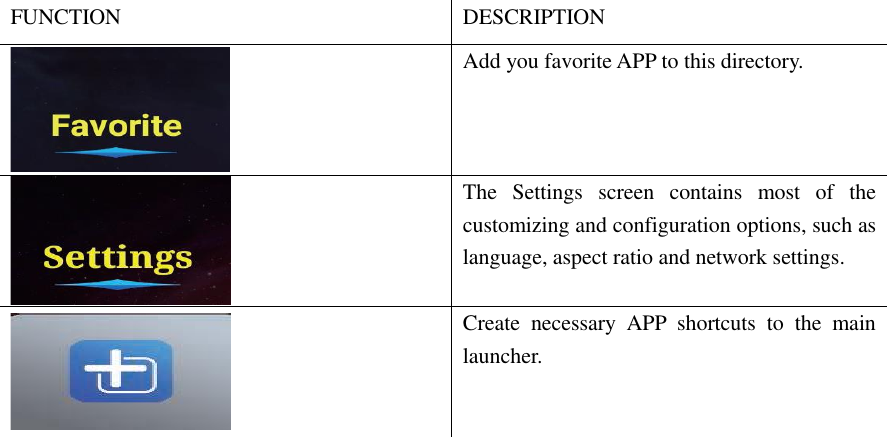
FUNCTION DESCRIPTION  Add you favorite APP to this directory.  The  Settings  screen  contains  most  of  the customizing and configuration options, such as language, aspect ratio and network settings.      Create  necessary  APP  shortcuts  to  the  main launcher.
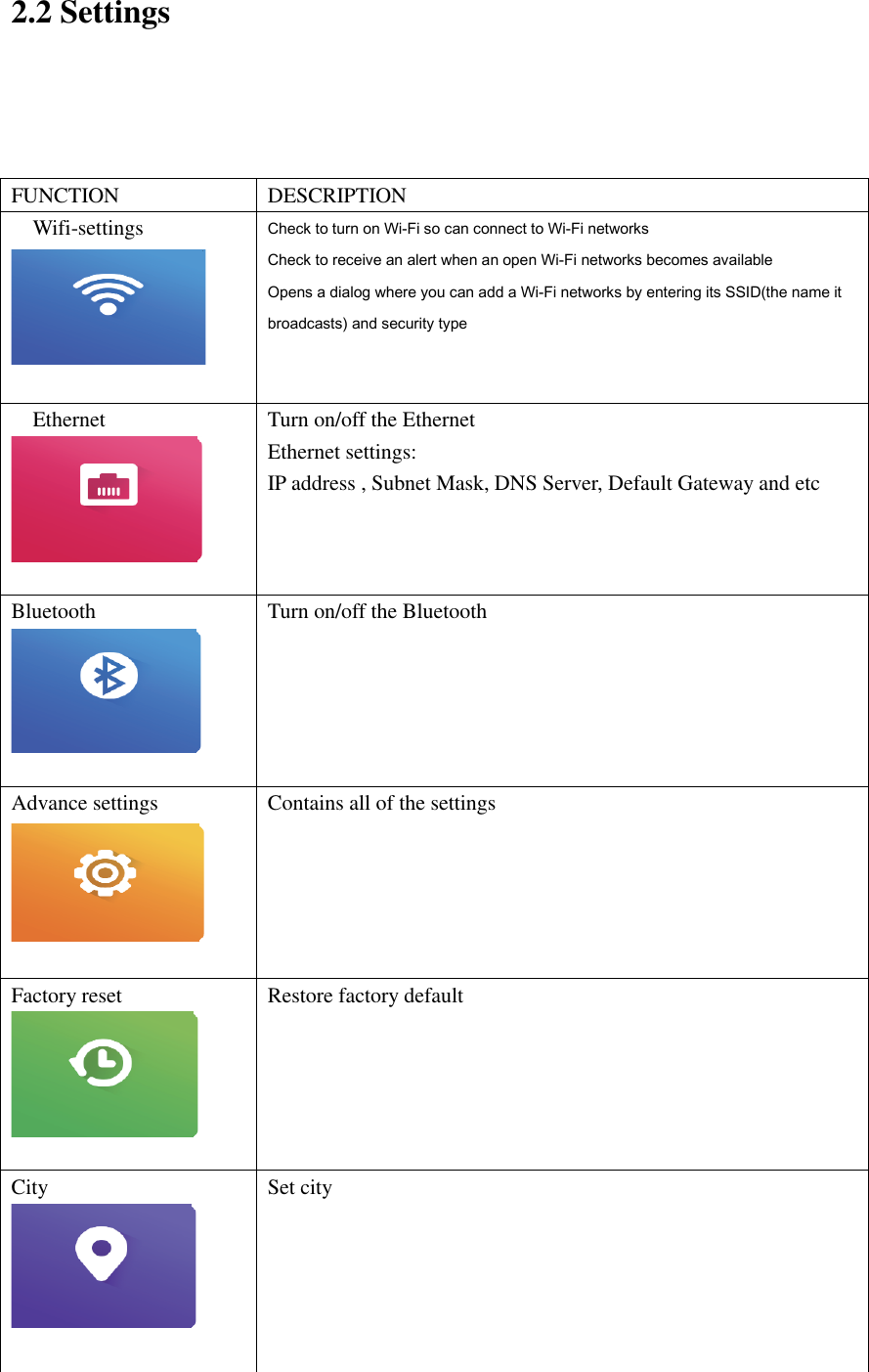
2.2 Settings    FUNCTION DESCRIPTION Wifi-settings   Check to turn on Wi-Fi so can connect to Wi-Fi networks   Check to receive an alert when an open Wi-Fi networks becomes available Opens a dialog where you can add a Wi-Fi networks by entering its SSID(the name it broadcasts) and security type Ethernet   Turn on/off the Ethernet Ethernet settings: IP address , Subnet Mask, DNS Server, Default Gateway and etc     Bluetooth   Turn on/off the Bluetooth  Advance settings   Contains all of the settings Factory reset   Restore factory default   City   Set city
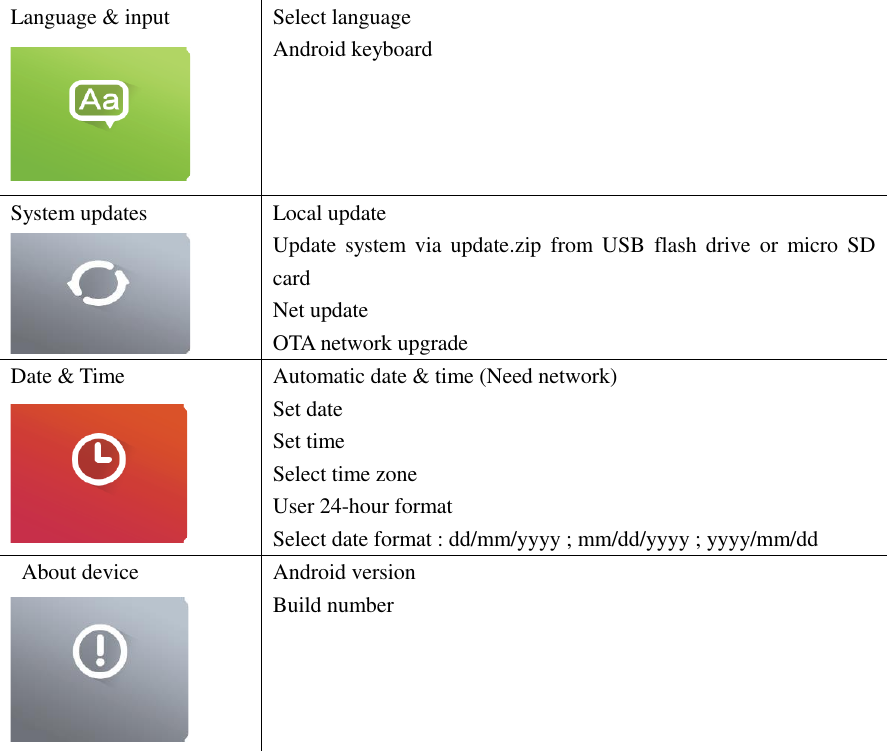
Language & input  Select language Android keyboard System updates  Local update   Update  system via  update.zip  from  USB  flash  drive  or  micro  SD card Net update OTA network upgrade Date & Time  Automatic date & time (Need network) Set date Set time Select time zone User 24-hour format Select date format : dd/mm/yyyy ; mm/dd/yyyy ; yyyy/mm/dd   About device  Android version Build number
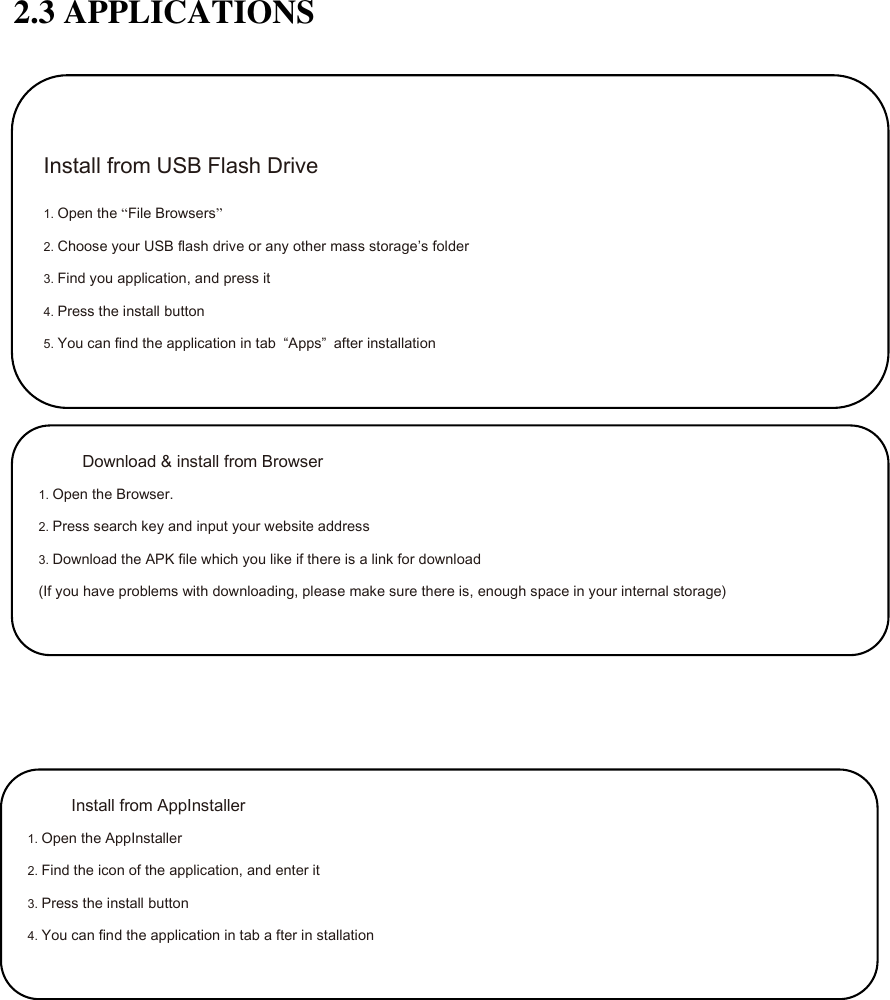
2.3 APPLICATIONS                  Install from USB Flash Drive 1. Open the “File Browsers” 2. Choose your USB flash drive or any other mass storage’s folder 3. Find you application, and press it 4. Press the install button 5. You can find the application in tab  “Apps”  after installation Download & install from Browser 1. Open the Browser. 2. Press search key and input your website address 3. Download the APK file which you like if there is a link for download (If you have problems with downloading, please make sure there is, enough space in your internal storage) Install from AppInstaller 1. Open the AppInstaller 2. Find the icon of the application, and enter it 3. Press the install button 4. You can find the application in tab a fter in stallation

Navigation menu