HKC PX347CPRIME 8-Inch Fully Ruggedized Tablet User Manual Pixio NB34C PX347c Prime

HKC Corporation Limited 8-Inch Fully Ruggedized Tablet Pixio NB34C PX347c Prime

Users manual

LED
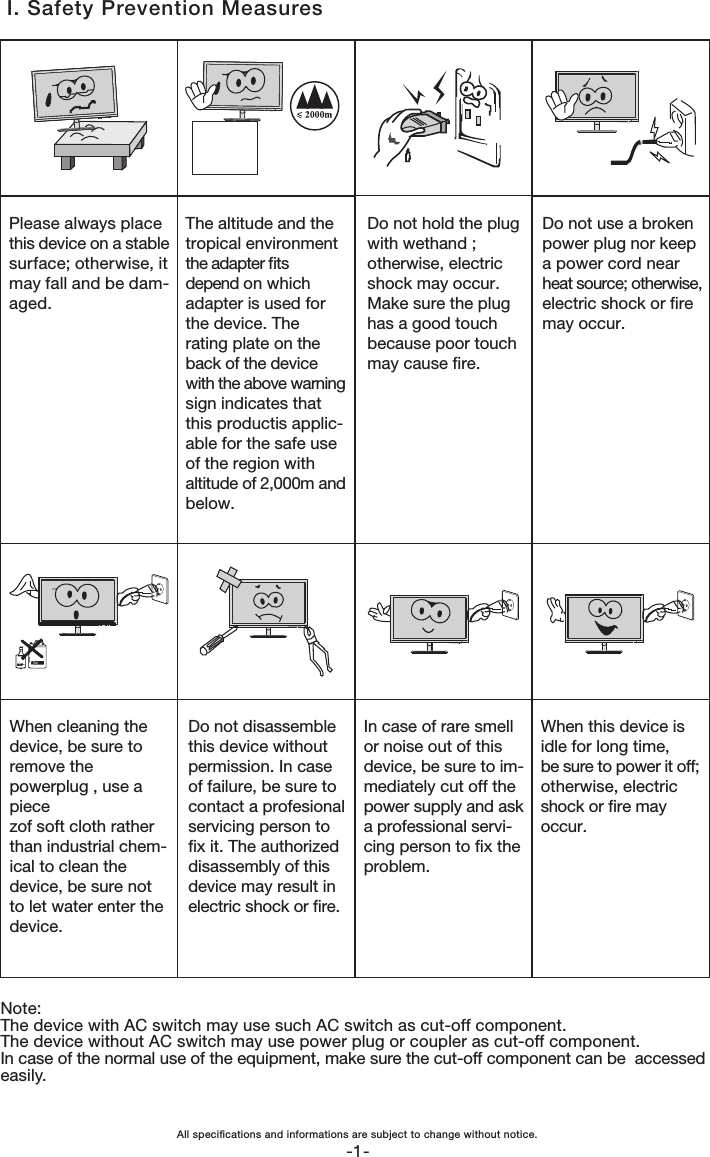
-1-The altitude and thetropical environmentthe adapter ts depend on which adapter is used for the device. The rating plate on the back of the device with the above warning sign indicates that this productis applic- able for the safe use of the region with altitude of 2,000m and below.Please always placethis device on a stable surface; otherwise, it may fall and be dam-aged.Do not hold the plugwith wethand ;otherwise, electricshock may occur.Make sure the plughas a good touchbecause poor touchmay cause re.Do not use a brokenpower plug nor keepa power cord near heat source; otherwise, electric shock or re may occur.Do not disassemblethis device withoutpermission. In caseof failure, be sure tocontact a profesional servicing person to x it. The authorized disassembly of this device may result in electric shock or re.When cleaning thedevice, be sure toremove the powerplug , use a piecezof soft cloth ratherthan industrial chem- ical to clean the device, be sure not to let water enter the device. In case of rare smellor noise out of thisdevice, be sure to im- mediately cut off the power supply and ask a professional servi- cing person to x the problem.When this device is idle for long time,be sure to power it off; otherwise, electricshock or re may occur.I. Safety Prevention MeasuresNote:The device with AC switch may use such AC switch as cut-off component.The device without AC switch may use power plug or coupler as cut-off component.In case of the normal use of the equipment, make sure the cut-off component can be  accessed easily.All specications and informations are subject to change without notice.
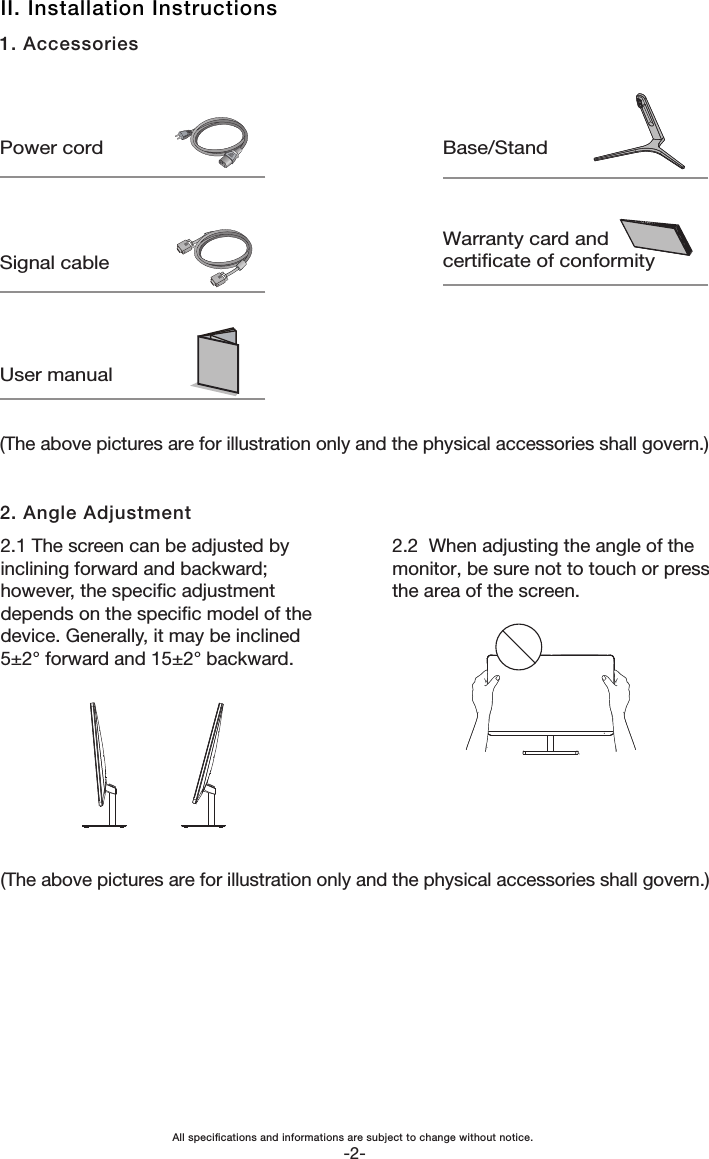
All specications and informations are subject to change without notice.-2-Power cordSignal cableUser manualBase/StandWarranty card andcerticate of conformity(The above pictures are for illustration only and the physical accessories shall govern.)2. Angle Adjustment2.2  When adjusting the angle of themonitor, be sure not to touch or pressthe area of the screen.(The above pictures are for illustration only and the physical accessories shall govern.)II. Installation Instructions1. Accessories2.1 The screen can be adjusted byinclining forward and backward;however, the specic adjustmentdepends on the specic model of thedevice. Generally, it may be inclined5±2° forward and 15±2° backward.
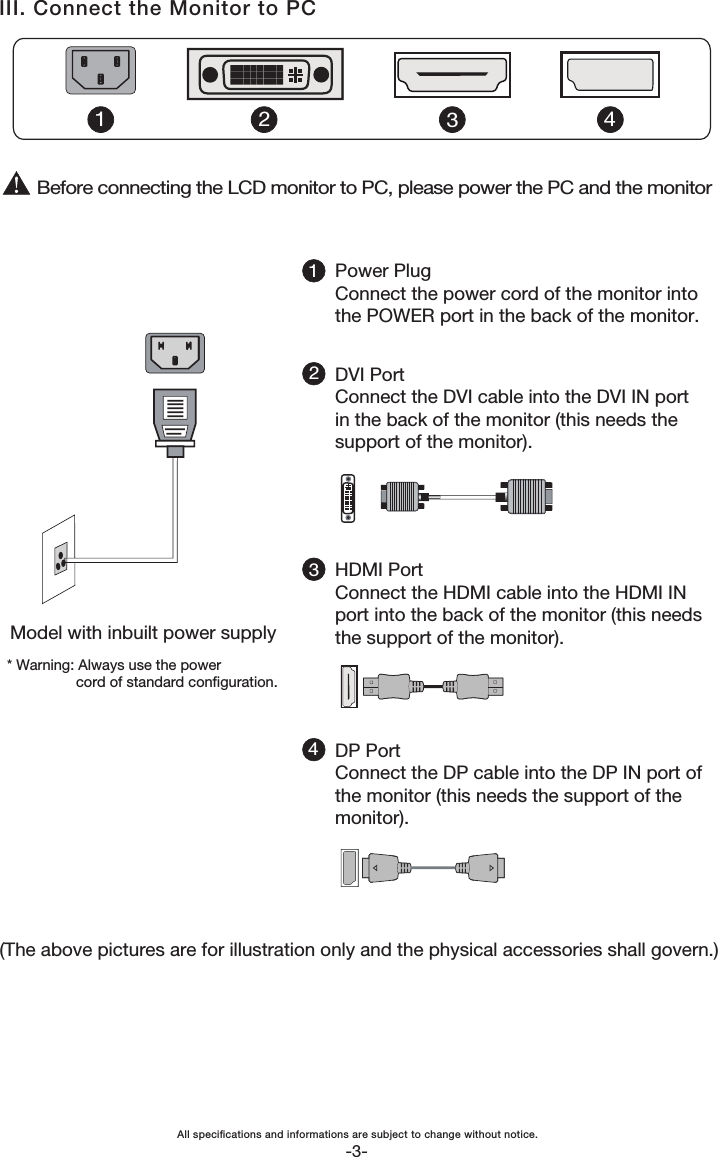
(The above pictures are for illustration only and the physical accessories shall govern.)1243Before connecting the LCD monitor to PC, please power the PC and the monitorModel with inbuilt power supply* Warning: Always use the power                 cord of standard conguration.243Power PlugConnect the power cord of the monitor intothe POWER port in the back of the monitor.DVI PortConnect the DVI cable into the DVI IN portin the back of the monitor (this needs thesupport of the monitor).HDMI PortConnect the HDMI cable into the HDMI INport into the back of the monitor (this needsthe support of the monitor).DP PortConnect the DP cable into the DP IN port ofthe monitor (this needs the support of themonitor).1-3-III. Connect the Monitor to PCAll specications and informations are subject to change without notice.
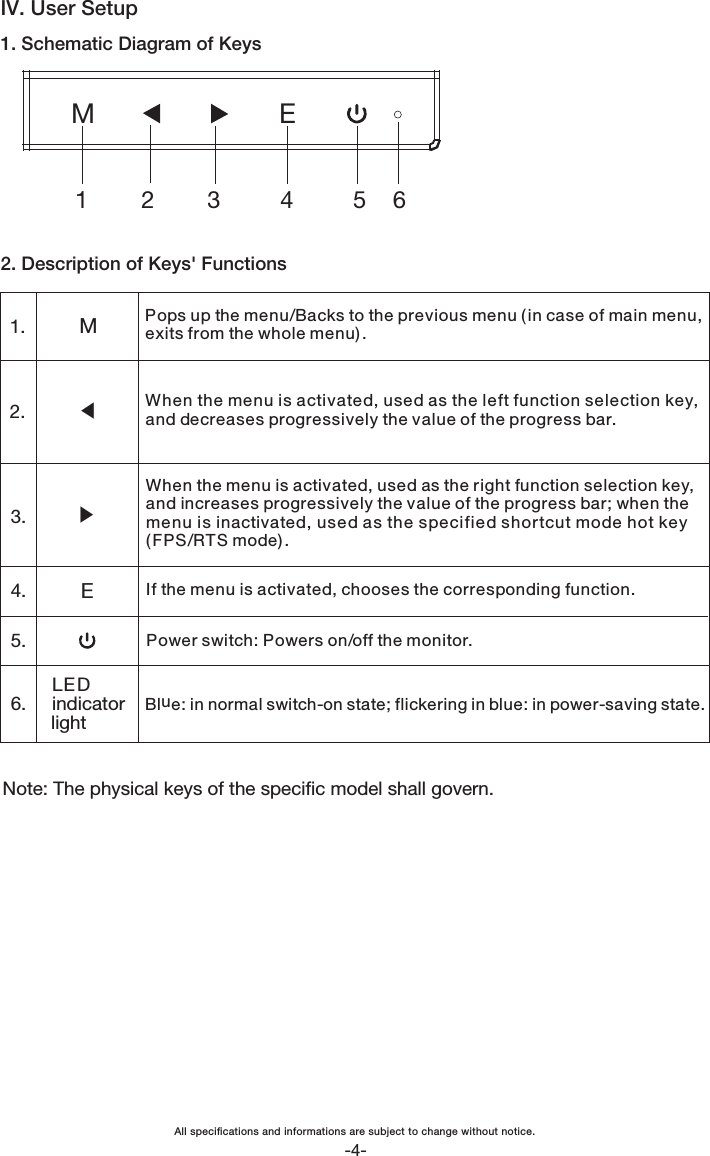
IV. User Setup1. Schematic Diagram of KeysME1        2        3         4         5    62. Description of Keys' FunctionsNote: The physical keys of the specic model shall govern.LED indicatorlight1.2.3.4.6.5.Pops up the menu/Backs to the previous menu ( in case of main menu, exits from the whole menu) . When the menu is activated, used as the left function selection key,and decreases progressively the value of the progress bar. When the menu is activated, used as the right function selection key, and increases progressively the value of the progress bar; when the menu is inactivated, used as the specified shortcut mode hot key( FPS/RTS mode) .If the menu is activated, chooses the corresponding function. Power switch: Powers on/off the monitor.Blue: in normal switch-on state; flickering in blue: in power-saving state.ME▲▲-4-All specications and informations are subject to change without notice.
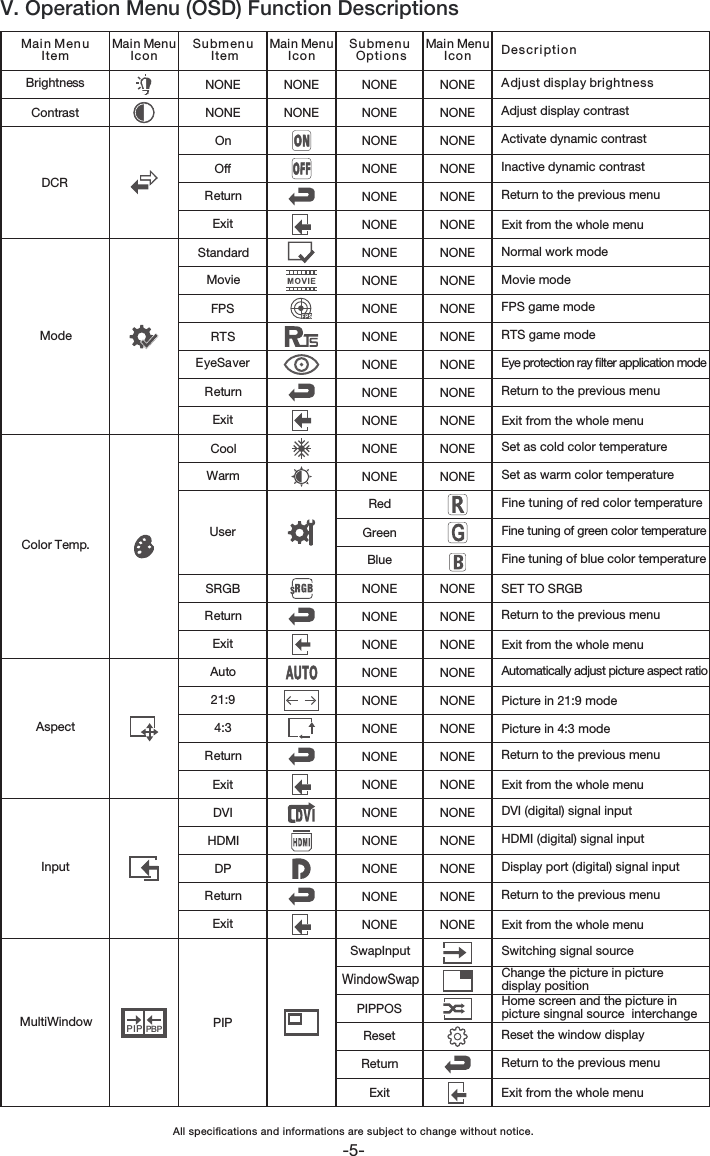
PIPOnOffReturnExitNONENONEStandardMovieFPSRTSEyeSaverReturnExitCoolWarmUserReturnExitAuto21:94:3ReturnExitDVIHDMIDPReturnExitSRGBNONENONENONENONENONENONENONENONENONENONENONENONENONENONENONENONENONENONENONENONENONENONENONENONENONENONENONENONENONENONEPIP PBPDCRContrastBrightnessModeColor Temp.AspectInputMultiWindowReset the window displayReturn to the previous menuExit from the whole menuAdjust display contrastActivate dynamic contrastInactive dynamic contrastNormal work modeDescr i ptio nAdjust display brightnessMovie modeFPS game modeRTS game modeEye protection ray lter application modeFine tuning of red color temperature Exit from the whole menu Exit from the whole menu Set as warm color temperatureSet as cold color temperatureFine tuning of blue color temperatureFine tuning of green color temperatureExit from the whole menuAutomatically adjust picture aspect ratioPicture in 21:9 modePicture in 4:3 modeExit from the whole menuDVI (digital) signal input HDMI (digital) signal inputDisplay port (digital) signal inputExit from the whole menuSwitching signal sourceChange the picture in picture display positionHome screen and the picture in picture singnal source  interchangeSET TO SRGBResetReturnExitSubm enu  ItemMain MenuIcon Main MenuIcon Main MenuIcon Mai n Menu ItemSubm enu  Optio nsNONENONENONENONENONENONERedGreenBlueNONENONENONENONENONENONENONENONENONENONENONENONENONENONENONENONENONENONENONENONENONESwapInputPIPPOSNONEWindowSwapV. Operation Menu (OSD) Function Descriptions-5-Return to the previous menuReturn to the previous menuReturn to the previous menuReturn to the previous menuReturn to the previous menuAll specications and informations are subject to change without notice.
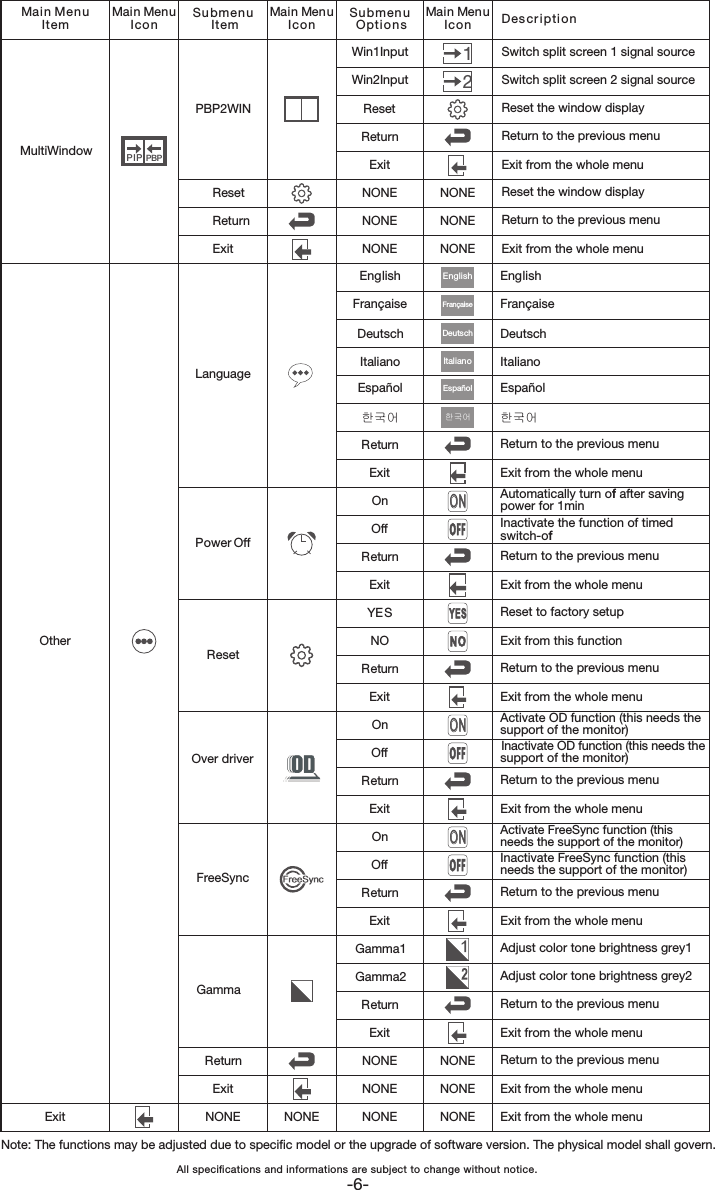
Note: The functions may be adjusted due to specic model or the upgrade of software version. The physical model shall govern.-6-Subm enu  ItemMain MenuIcon Main MenuIcon Main MenuIcon Mai n Menu ItemSubm enu  Optio nsNONEResetReturnExitPBP2WINReturnExitNONELanguagePower OffResetOver driverFreeSyncMultiWindowExitOtherNONENONENONEWin1InputWin2InputResetReturnExitReturnExitOnOffReturnExitYESNOReturnExitOnOffReturnExitNONENONENONEEnglishFrançaiseDeutschItalianoEspañolOnOffReturnReturnExitExit한국어NONENONENONE12NONENONENONEEspañolItalianoDeutschFrançaiseEnglishONONON한국어Switch split screen 1 signal sourceSwitch split screen 2 signal sourceReset the window displayReturn to the previous menuExit from the whole menuReset the window displayReturn to the previous menuDescr i ptionExit from the whole menuExit from the whole menuAutomatically turn off after saving power for 1minInactivate the function of timed switch-offExit from the whole menuReset to factory setup Exit from this function Activate OD function (this needs the support of the monitor)Inactivate OD function (this needs thesupport of the monitor) Exit from the whole menuReturn to the previous menuReturn to the previous menuReturn to the previous menuReturn to the previous menuExit from the whole menuReturn to the previous menuExit from the whole menuExit from the whole menuEnglishFrançaiseDeutschItalianoEspañolReturn to the previous menuReturn to the previous menuExit from the whole menuExit from the whole menuInactivate FreeSync function (this needs the support of the monitor) Activate FreeSync function (this needs the support of the monitor)한국어PIP PBPGammaGamma1Gamma2Adjust color tone brightness grey1Adjust color tone brightness grey2All specications and informations are subject to change without notice.
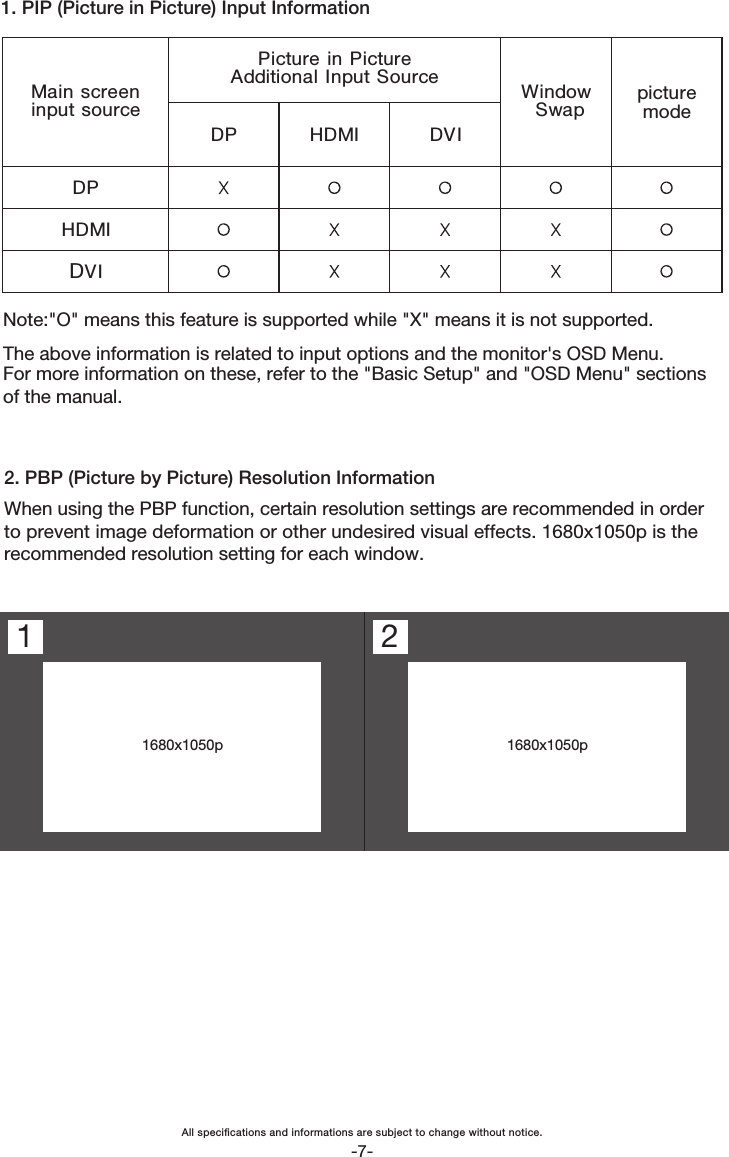
21680x1050p 1680x1050p1. PIP (Picture in Picture) Input InformationNote:"O" means this feature is supported while "X" means it is not supported.2. PBP (Picture by Picture) Resolution InformationThe above information is related to input options and the monitor's OSD Menu.For more information on these, refer to the "Basic Setup" and "OSD Menu" sectionsof the manual.Picture  in PictureAdditional  Input SourceDP HDMI DVIWindowSwap picture mode1Main  screen input sourceWhen using the PBP function, certain resolution settings are recommended in orderto prevent image deformation or other undesired visual effects. 1680x1050p is therecommended resolution setting for each window.-7-DPHDMIDVIAll specications and informations are subject to change without notice.
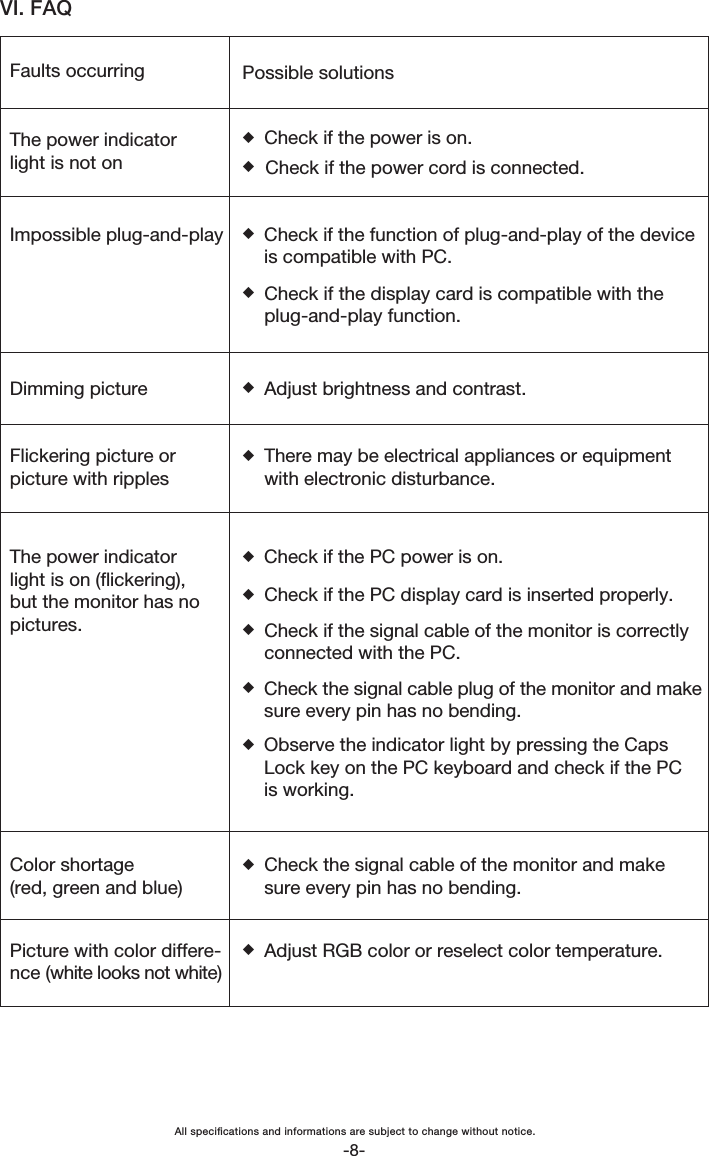
VI. FAQFaults occurringThe power indicatorlight is not onPossible solutionsDimming pictureFlickering picture orpicture with ripplesThe power indicatorlight is on (ickering),but the monitor has nopictures.Color shortage(red, green and blue)Picture with color differe-nce (white looks not white)◆Check if the power is on.◆Check if the power cord is connected.◆◆Check if the display card is compatible with theplug-and-play function.Check if the function of plug-and-play of the deviceis compatible with PC.◆Adjust brightness and contrast.◆There may be electrical appliances or equipmentwith electronic disturbance.◆◆Check if the PC display card is inserted properly.◆Check if the signal cable of the monitor is correctlyconnected with the PC.◆Check the signal cable plug of the monitor and makesure every pin has no bending.◆Observe the indicator light by pressing the CapsLock key on the PC keyboard and check if the PCis working.Check if the PC power is on.◆Check the signal cable of the monitor and makesure every pin has no bending.◆Adjust RGB color or reselect color temperature.Impossible plug-and-play-8-All specications and informations are subject to change without notice.
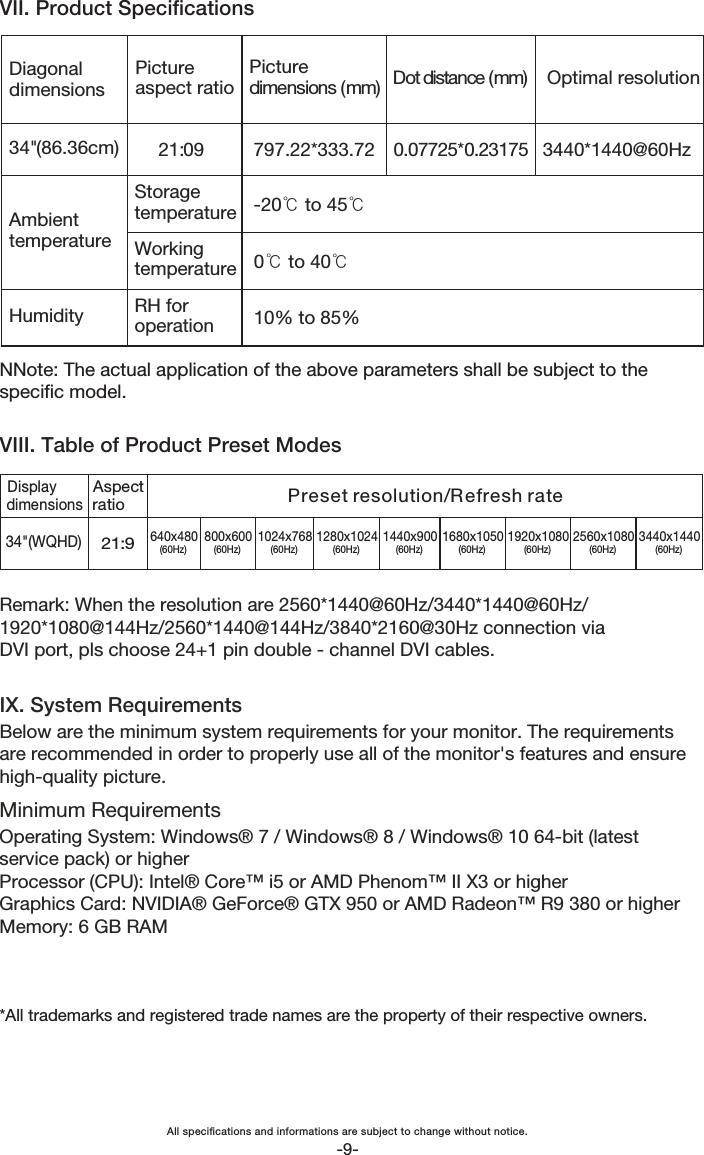
VII. Product SpecificationsNNote: The actual application of the above parameters shall be subject to thespecic model.VIII. Table of Product Preset Modes*All trademarks and registered trade names are the property of their respective owners.Remark: When the resolution are 2560*1440@60Hz/3440*1440@60Hz/1920*1080@144Hz/2560*1440@144Hz/3840*2160@30Hz connection viaDVI port, pls choose 24+1 pin double - channel DVI cables.IX. System RequirementsBelow are the minimum system requirements for your monitor. The requirementsare recommended in order to properly use all of the monitor's features and ensurehigh-quality picture.Minimum RequirementsOperating System: Windows® 7 / Windows® 8 / Windows® 10 64-bit (latestservice pack) or higherProcessor (CPU): Intel® Core™ i5 or AMD Phenom™ II X3 or higherGraphics Card: NVIDIA® GeForce® GTX 950 or AMD Radeon™ R9 380 or higherMemory: 6 GB RAM21:934"(WQHD)Preset resolution/Refresh rate3440x1440(60Hz)2560x1080(60Hz)1920x1080(60Hz)1680x1050(60Hz)1440x900(60Hz)1280x1024(60Hz)1024x768(60Hz)800x600(60Hz)640x480(60Hz)Diagonal dimensions Picture aspect ratioPicture dimensions (mm) Dot distance (mm) Optimal resolution34"(86.36cm)Ambient temperatureHumidity21:09Storage temperatureWorking temperatureRH for operation797.22*333.72-20℃ to 45℃0℃ to 40℃10% to 85%0.07725*0.23175 3440*1440@60HzDisplaydimensionsAspectratio-9-All specications and informations are subject to change without notice.

Navigation menu