Hannstar display HSG1279A Internet Tablet User Manual SN1AT74 UM

Hannstar display corp. Internet Tablet SN1AT74 UM

Users Manual

SN1AT74 (HSG1279)
1EnglishContentsPrecautions...................................................................................................................... 4Declaration....................................................................................................................... 5What’s in the box............................................................................................................. 61.  Product Overview....................................................................................................... 7Front View ........................................................................................................7Back View ........................................................................................................82.  Initial Operation .......................................................................................................... 9Managing and Charging the Battery ...................................................................9Turning On/Off the Tablet PC ............................................................................9Connecting to the Wi-Fi Network .....................................................................10Connecting PC and Data Transmission ............................................................11Use Micro SD card ..........................................................................................113.  The Android Interface .............................................................................................. 12Home Screen..................................................................................................12Extended Home Screen...................................................................................13Customizing the Home Screen Panels .............................................................13Managing Applications ....................................................................................13Creating Application Folders ...........................................................................144.  System Firmware Update ........................................................................................ 145.  Product Specifications ............................................................................................ 156.  Appendix ................................................................................................................... 16
2EnglishControl informationThis device is in accordance with the requirements in Radio & Telecommunications Terminal Equipment Directive 1995/5/EC. This device complies with the requirements in EMC Electromagnetic Compatibility Directive 2004/108/EC and Low Voltage Directive 2006/95/EC. FCC Statement1. This device complies with Part 15 of the FCC Rules. Operation is subject to the following two conditions: (1) This device may not cause harmful interference. (2) This device must accept any interference received, including interference that may cause undesired operation. 2. Changes or modifications not expressly approved by the party responsible for compliance could void the user's authority to operate the equipment. NOTE: This equipment has been tested and found to comply with the limits for a Class B digital device, pursuant to Part 15 of the FCC Rules. These limits are designed to provide reasonable protection against harmful interference in a residential installation. This equipment generates uses and can radiate radio frequency energy and, if not installed and used in accordance with the instructions, may cause harmful interference to radio communications. However, there is no guarantee that interference will not occur in a particular installation. If this equipment does cause harmful interference to radio or television reception, which can be determined by turning the equipment off and on, the user is encouraged to try to correct the interference by one or more of the following measures: • Reorient or relocate the receiving antenna. • Increase the separation between the equipment and receiver. • Connect the equipment into an outlet on a circuit different from that to which the receiver is connected. • Consult the dealer or an experienced radio/TV technician for help.RF Warning StatementThe device has been evaluated to meet general RF exposure requirement. The device can be used in portable exposure condition without restriction.The radiated output power of this device is below the FCC radio frequency exposure limits. Nevertheless, the device should be used in such a manner that the potential for human contact is minimized during normal operation.The exposure standard for wireless devices employs a unit of measurement known as the Specific Absorption Rate, or SAR. The SAR limit set by the FCC is 1.6 W/Kg. Tests for SAR are conducted using standard operating positions accepted by the FCC with the device transmitting at its highest certified power level in all tested frequency bands. Although the SAR is determined at the highest certified power level, the actual SAR level of the device while operating can be well below the maximum value. This is because the device is designed to operate at multiple power levels so as to use only the power required to reach the network. In general, the closer you are to a wireless base station antenna, the lower the power output. To avoid the possibility of exceeding the FCC radio frequency exposure limits, human proximity to the antenna should be minimized.Recycling informationHannspree attaches great importance to our environmental policy, and firmly believe that we can better protect the "health" of the earth by properly disposing and recycling the industrial technological equipment that has reached service life. These devices contain recyclable materials, which can be re-added to new material after decomposition. In contract, other materials are classified as dangerous and toxic substances. We sincerely hope that you contact the relevant institutions based on the information we provide to recycle this product. For more information, please visit:http://www.hannspree.com/
3EnglishPreventing Hearing LossCaution: Permanent hearing loss may occur if earphones or headphones are used at high volume for prolonged periods of time. This device have been tested to comply with the Sound Pressure Level requirement laid down in the applicable EN 50332-1 and/or EN 50332-2 standards. The Li-ion battery package in the product is not serviced and replaced.Trademark NoticeHannspree products incorporate High-Definition Multimedia Interface (HDMI™) technology.The terms HDMI and HDMI High-Definition Multimedia Interface, and the HDMI Logo are trademarks or registered trademarks of HDMI Licensing LLC in the United States and other countries.
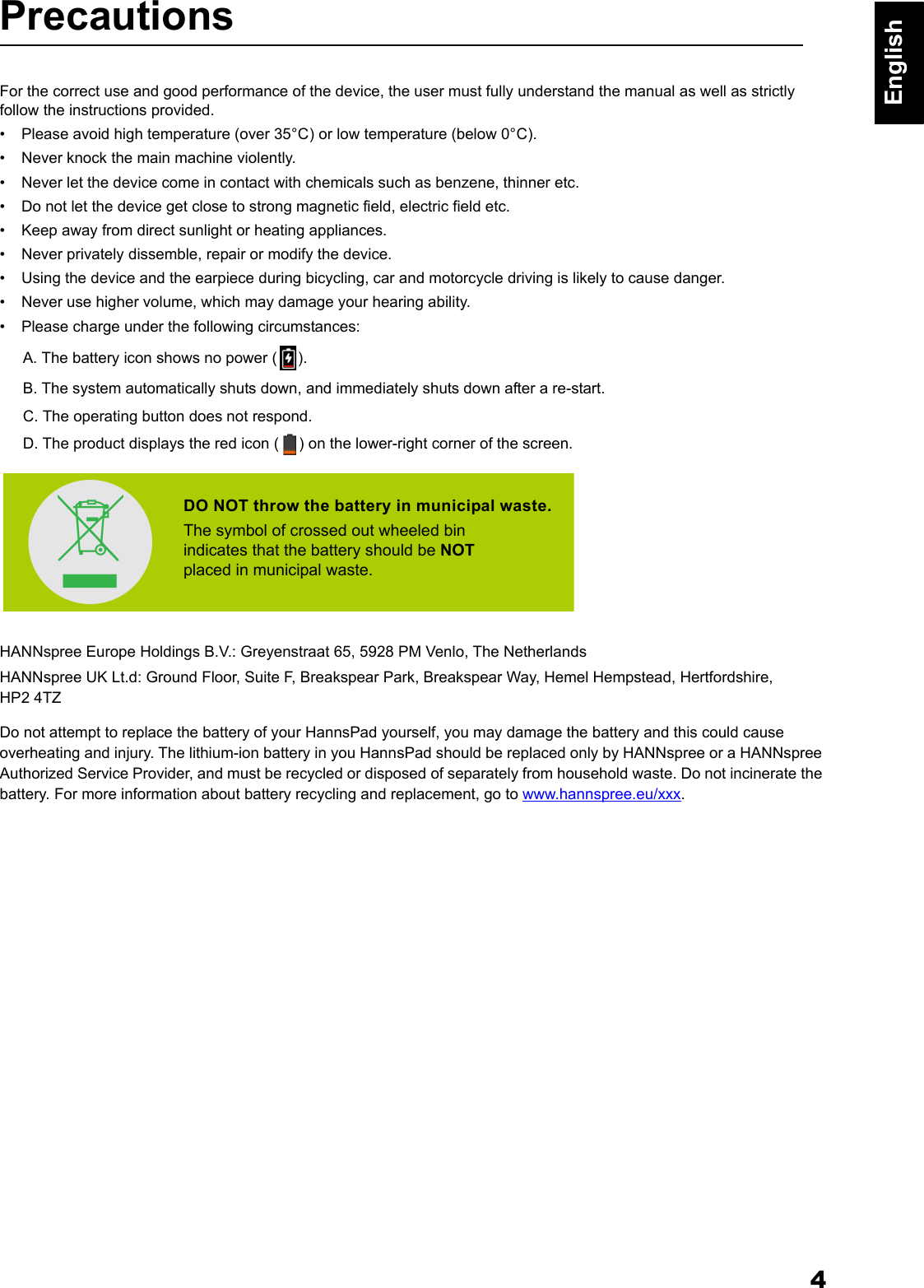
4EnglishPrecautionsFor the correct use and good performance of the device, the user must fully understand the manual as well as strictly follow the instructions provided.• Please avoid high temperature (over 35°C) or low temperature (below 0°C).• Never knock the main machine violently.• Never let the device come in contact with chemicals such as benzene, thinner etc.• Do not let the device get close to strong magnetic field, electric field etc.• Keep away from direct sunlight or heating appliances.• Never privately dissemble, repair or modify the device.• Using the device and the earpiece during bicycling, car and motorcycle driving is likely to cause danger. • Never use higher volume, which may damage your hearing ability.• Please charge under the following circumstances:A. The battery icon shows no power ( ).B. The system automatically shuts down, and immediately shuts down after a re-start.C. The operating button does not respond.D. The product displays the red icon ( ) on the lower-right corner of the screen.HANNspree Europe Holdings B.V.: Greyenstraat 65, 5928 PM Venlo, The NetherlandsHANNspree UK Lt.d: Ground Floor, Suite F, Breakspear Park, Breakspear Way, Hemel Hempstead, Hertfordshire, HP2 4TZDo not attempt to replace the battery of your HannsPad yourself, you may damage the battery and this could cause overheating and injury. The lithium-ion battery in you HannsPad should be replaced only by HANNspree or a HANNspree Authorized Service Provider, and must be recycled or disposed of separately from household waste. Do not incinerate the battery. For more information about battery recycling and replacement, go to www.hannspree.eu/xxx.DO NOT throw the battery in municipal waste.The symbol of crossed out wheeled bin indicates that the battery should be NOTplaced in municipal waste.
5EnglishDeclaration1. The information in this manual may not, except under written license by The Company, be copied, transmitted,distributed, or stored.2. Although efforts have been made for the correctness and completeness during the preparation of the manual, there isno guarantee that this manual is free from any error or omission. The Company assumes no reliability regarding theerrors or omissions that might exist in the manual.3. For sustainable development, The Company reserves the right to modify and improve any product described in thismanual without prior notice.4. Under no circumstance shall the Company assume any liability, direct or indirect, related to data or income loss, or any special, accidental, incidental or indirect losses.
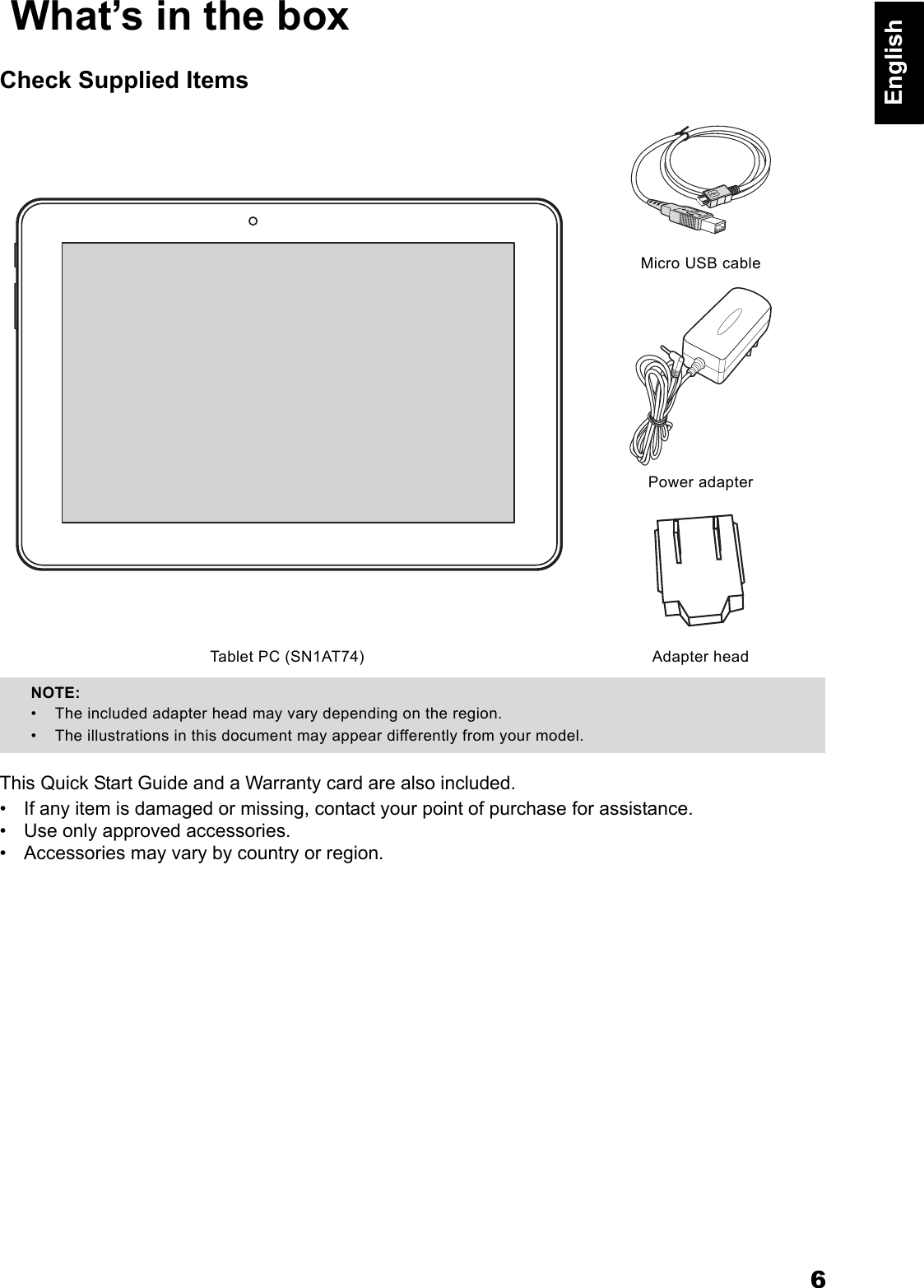
6English What’s in the boxCheck Supplied ItemsThis Quick Start Guide and a Warranty card are also included.• If any item is damaged or missing, contact your point of purchase for assistance.• Use only approved accessories.• Accessories may vary by country or region.Micro USB cablePower adapterTablet PC (SN1AT74) Adapter headNOTE: • The included adapter head may vary depending on the region.• The illustrations in this document may appear differently from your model.
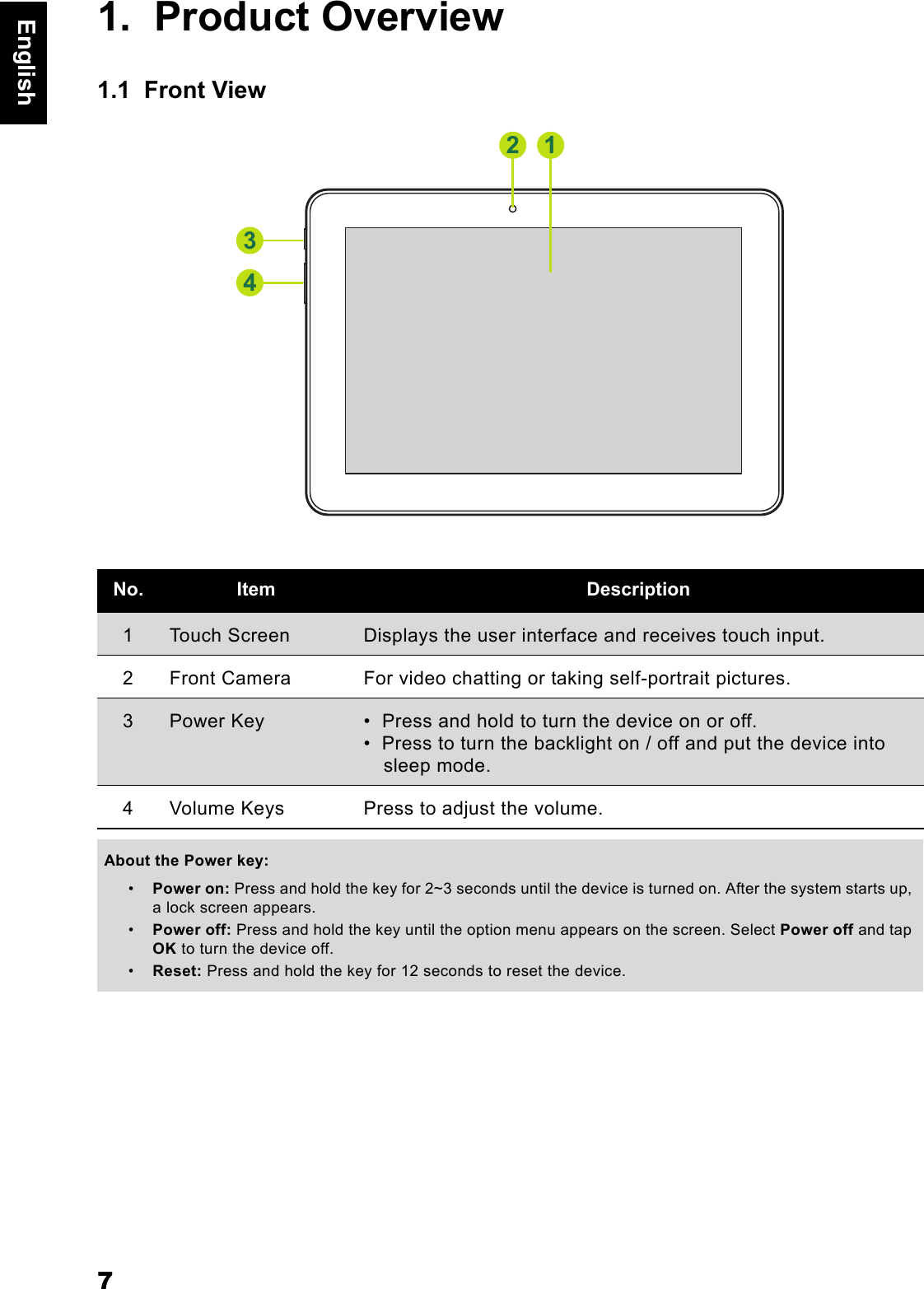
7English1.  Product Overview1.1  Front ViewNo. Item Description1Touch Screen Displays the user interface and receives touch input.2 Front Camera For video chatting or taking self-portrait pictures.3Power Key •  Press and hold to turn the device on or off.•  Press to turn the backlight on / off and put the device into sleep mode.4 Volume Keys Press to adjust the volume.About the Power key: •Power on: Press and hold the key for 2~3 seconds until the device is turned on. After the system starts up, a lock screen appears.•Power off: Press and hold the key until the option menu appears on the screen. Select Power off and tap OK to turn the device off.•Reset: Press and hold the key for 12 seconds to reset the device.1234
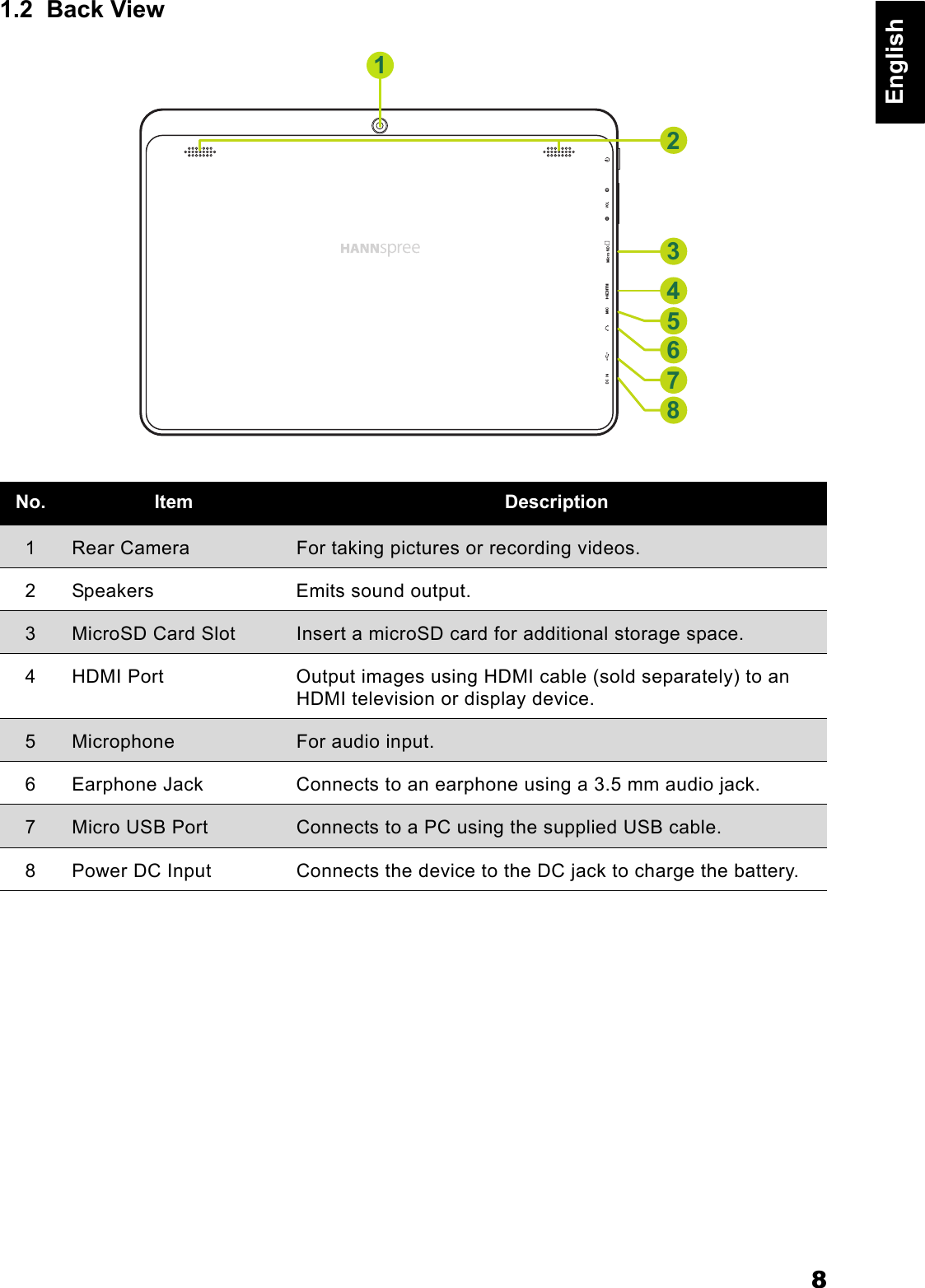
8English1.2  Back ViewNo. Item Description1Rear Camera For taking pictures or recording videos.2 Speakers Emits sound output.3MicroSD Card Slot Insert a microSD card for additional storage space.4 HDMI Port Output images using HDMI cable (sold separately) to an HDMI television or display device.5Microphone For audio input.6 Earphone Jack Connects to an earphone using a 3.5 mm audio jack.7Micro USB Port Connects to a PC using the supplied USB cable.8 Power DC Input Connects the device to the DC jack to charge the battery.23456781
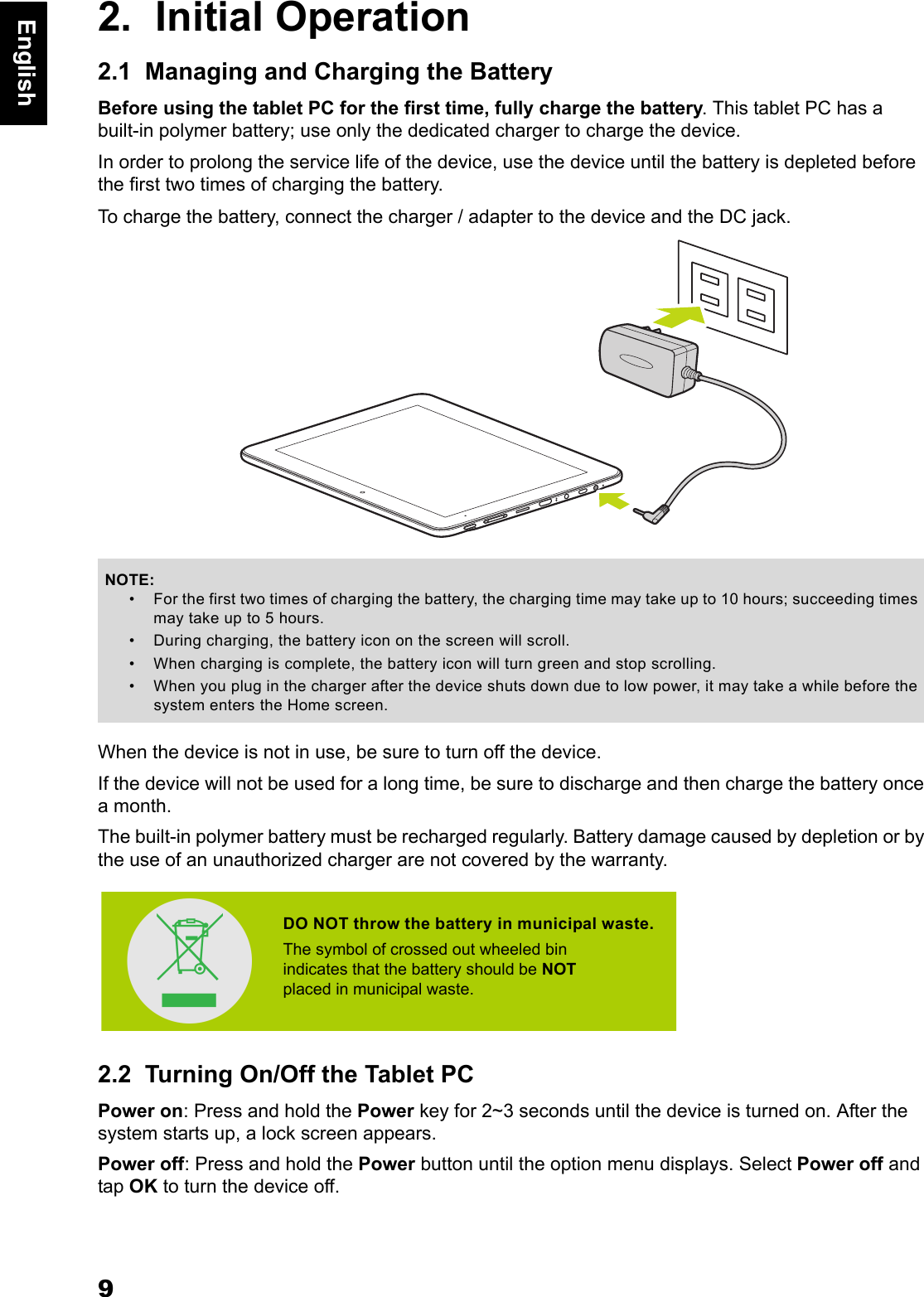
9English2.  Initial Operation2.1  Managing and Charging the BatteryBefore using the tablet PC for the first time, fully charge the battery. This tablet PC has a built-in polymer battery; use only the dedicated charger to charge the device.In order to prolong the service life of the device, use the device until the battery is depleted before the first two times of charging the battery.To charge the battery, connect the charger / adapter to the device and the DC jack.When the device is not in use, be sure to turn off the device.If the device will not be used for a long time, be sure to discharge and then charge the battery once a month.The built-in polymer battery must be recharged regularly. Battery damage caused by depletion or by the use of an unauthorized charger are not covered by the warranty.2.2  Turning On/Off the Tablet PCPower on: Press and hold the Power key for 2~3 seconds until the device is turned on. After the system starts up, a lock screen appears.Power off: Press and hold the Power button until the option menu displays. Select Power off and tap OK to turn the device off.NOTE:• For the first two times of charging the battery, the charging time may take up to 10 hours; succeeding times may take up to 5 hours.• During charging, the battery icon on the screen will scroll. • When charging is complete, the battery icon will turn green and stop scrolling. • When you plug in the charger after the device shuts down due to low power, it may take a while before the system enters the Home screen.DO NOT throw the battery in municipal waste.The symbol of crossed out wheeled bin indicates that the battery should be NOTplaced in municipal waste.
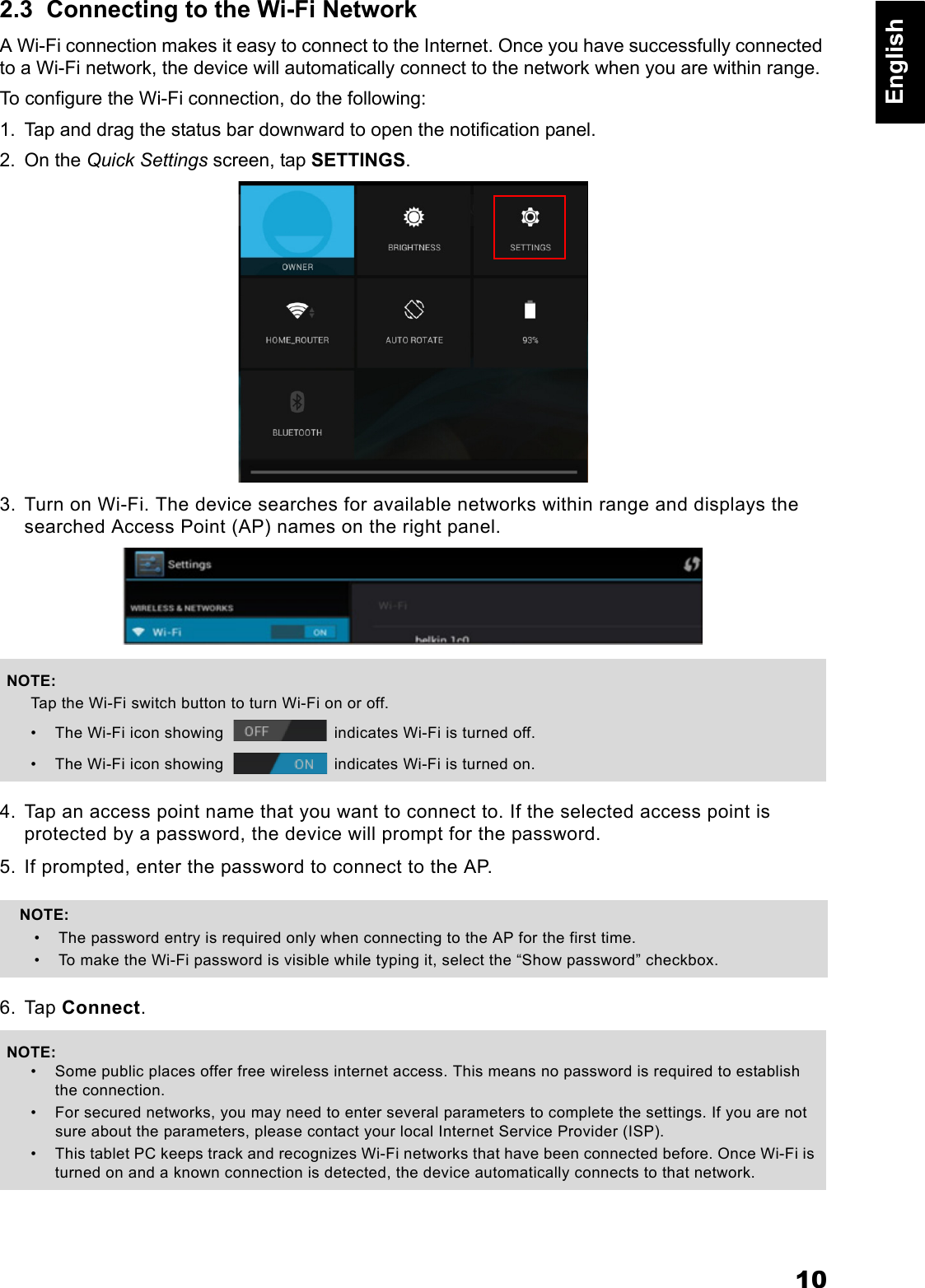
10English2.3  Connecting to the Wi-Fi NetworkA Wi-Fi connection makes it easy to connect to the Internet. Once you have successfully connected to a Wi-Fi network, the device will automatically connect to the network when you are within range.To configure the Wi-Fi connection, do the following:1. Tap and drag the status bar downward to open the notification panel.2. On the Quick Settings screen, tap SETTINGS.3. Turn on Wi-Fi. The device searches for available networks within range and displays the searched Access Point (AP) names on the right panel.4. Tap an access point name that you want to connect to. If the selected access point is protected by a password, the device will prompt for the password.5. If prompted, enter the password to connect to the AP.6. Tap Connect.NOTE:Tap the Wi-Fi switch button to turn Wi-Fi on or off.• The Wi-Fi icon showing   indicates Wi-Fi is turned off.• The Wi-Fi icon showing   indicates Wi-Fi is turned on.NOTE: • The password entry is required only when connecting to the AP for the first time.• To make the Wi-Fi password is visible while typing it, select the “Show password” checkbox.NOTE:• Some public places offer free wireless internet access. This means no password is required to establish the connection.• For secured networks, you may need to enter several parameters to complete the settings. If you are not sure about the parameters, please contact your local Internet Service Provider (ISP).• This tablet PC keeps track and recognizes Wi-Fi networks that have been connected before. Once Wi-Fi is turned on and a known connection is detected, the device automatically connects to that network.
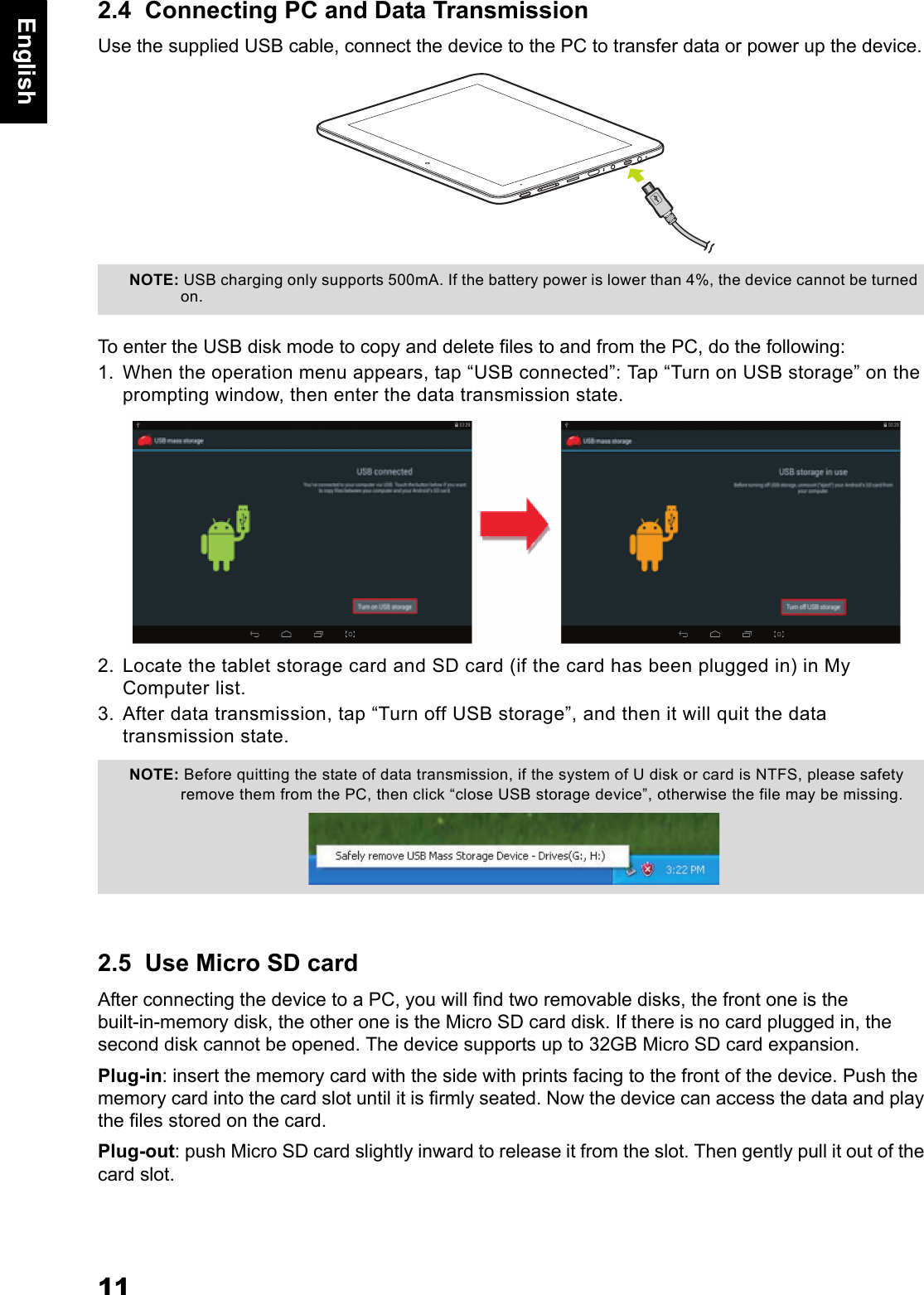
11English2.4  Connecting PC and Data TransmissionUse the supplied USB cable, connect the device to the PC to transfer data or power up the device.To enter the USB disk mode to copy and delete files to and from the PC, do the following: 1. When the operation menu appears, tap “USB connected”: Tap “Turn on USB storage” on the prompting window, then enter the data transmission state.2. Locate the tablet storage card and SD card (if the card has been plugged in) in My Computer list.3. After data transmission, tap “Turn off USB storage”, and then it will quit the data transmission state.2.5  Use Micro SD cardAfter connecting the device to a PC, you will find two removable disks, the front one is the built-in-memory disk, the other one is the Micro SD card disk. If there is no card plugged in, the second disk cannot be opened. The device supports up to 32GB Micro SD card expansion.Plug-in: insert the memory card with the side with prints facing to the front of the device. Push the memory card into the card slot until it is firmly seated. Now the device can access the data and play the files stored on the card.Plug-out: push Micro SD card slightly inward to release it from the slot. Then gently pull it out of the card slot.NOTE: USB charging only supports 500mA. If the battery power is lower than 4%, the device cannot be turned on.NOTE: Before quitting the state of data transmission, if the system of U disk or card is NTFS, please safety remove them from the PC, then click “close USB storage device”, otherwise the file may be missing.
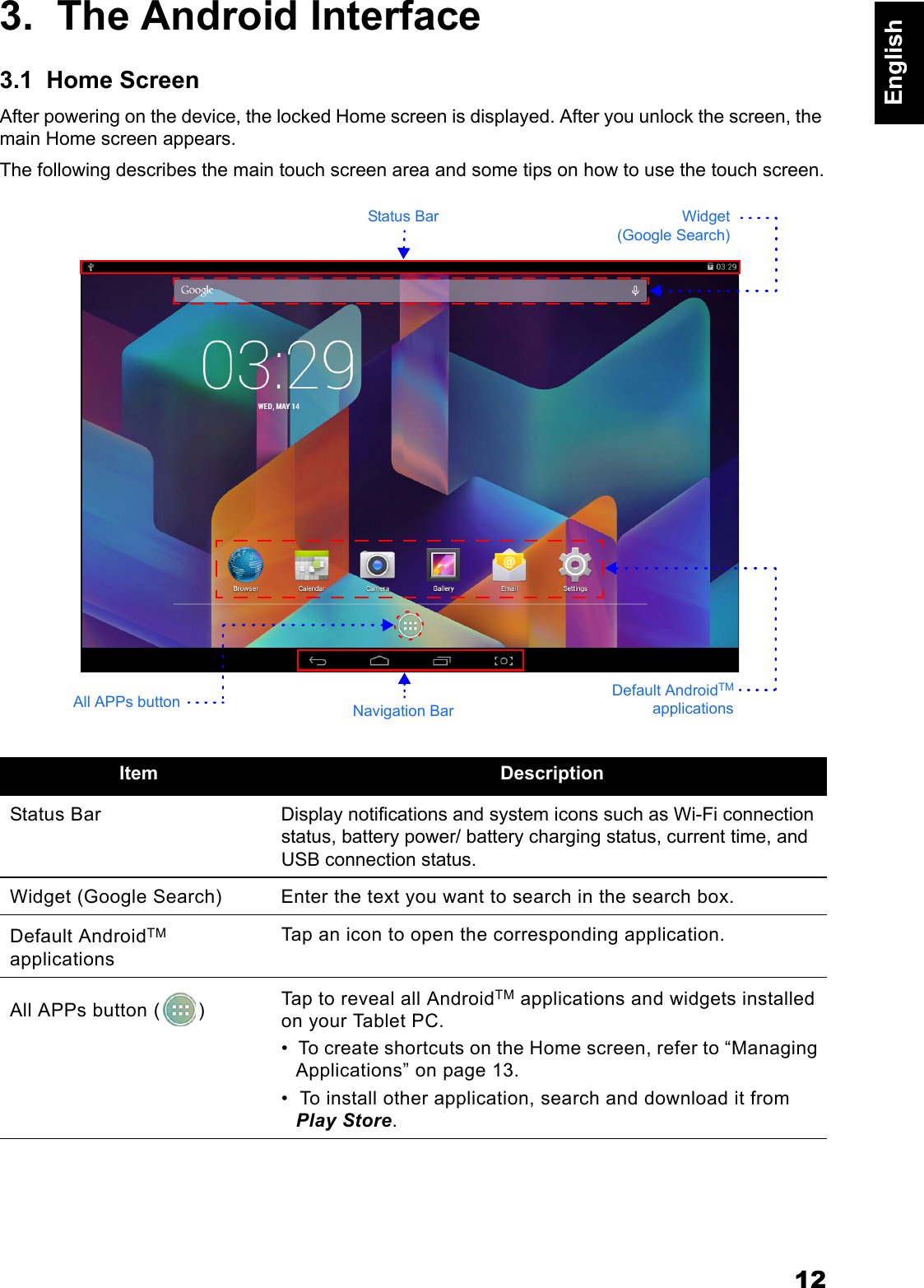
12English3.  The Android Interface3.1  Home ScreenAfter powering on the device, the locked Home screen is displayed. After you unlock the screen, the main Home screen appears.The following describes the main touch screen area and some tips on how to use the touch screen.Item DescriptionStatus Bar Display notifications and system icons such as Wi-Fi connection status, battery power/ battery charging status, current time, and USB connection status.Widget (Google Search) Enter the text you want to search in the search box.Default AndroidTM applicationsTap an icon to open the corresponding application.All APPs button ( ) Tap to reveal all AndroidTM applications and widgets installed on your Tablet PC. •  To create shortcuts on the Home screen, refer to “Managing Applications” on page 13. •  To install other application, search and download it from Play Store.Status Bar Widget(Google Search)Navigation BarDefault AndroidTMapplicationsAll APPs button
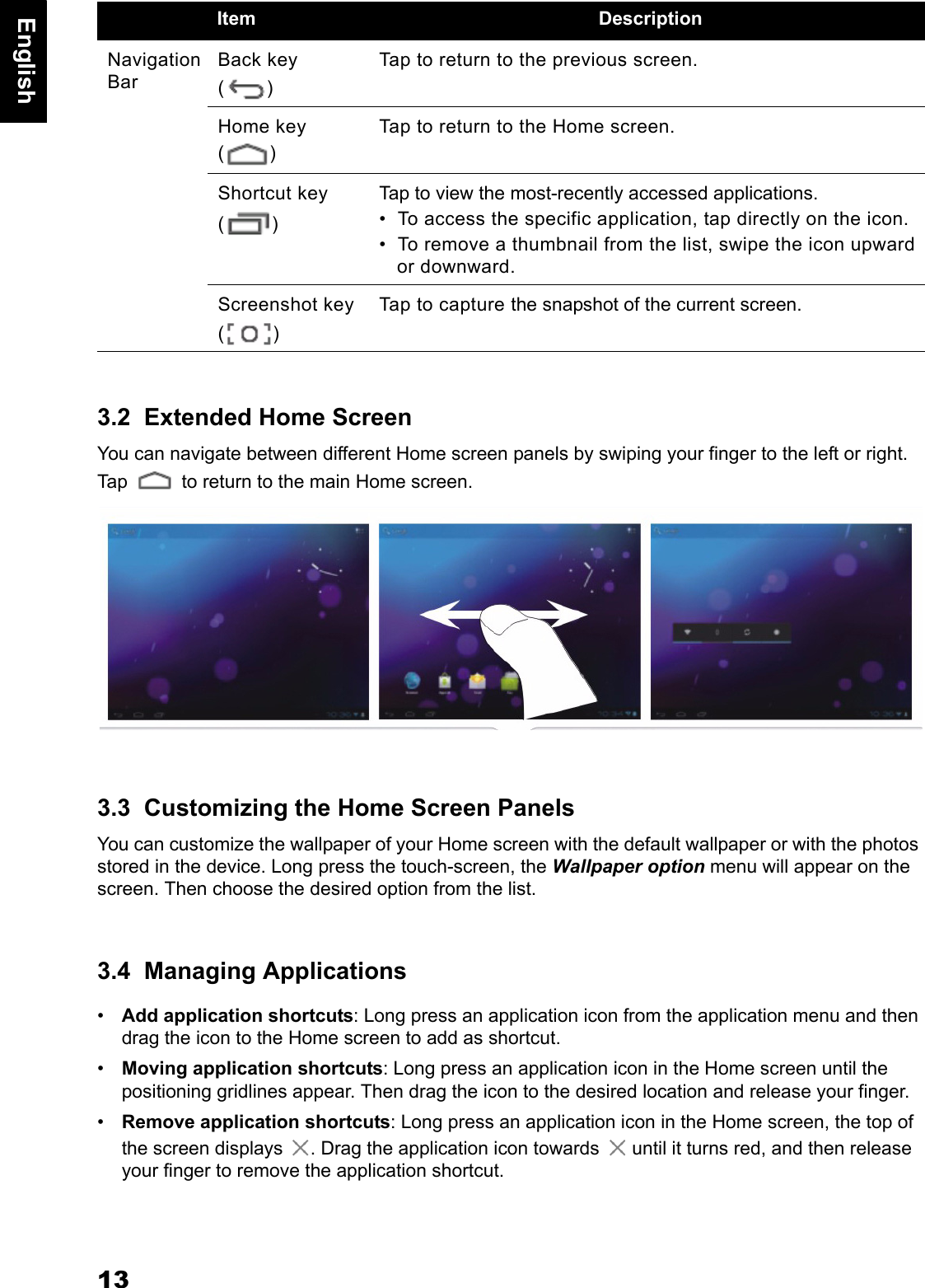
13English3.2  Extended Home ScreenYou can navigate between different Home screen panels by swiping your finger to the left or right. Tap   to return to the main Home screen.3.3  Customizing the Home Screen PanelsYou can customize the wallpaper of your Home screen with the default wallpaper or with the photos stored in the device. Long press the touch-screen, the Wallpaper option menu will appear on the screen. Then choose the desired option from the list.3.4  Managing Applications•Add application shortcuts: Long press an application icon from the application menu and then drag the icon to the Home screen to add as shortcut.•Moving application shortcuts: Long press an application icon in the Home screen until the positioning gridlines appear. Then drag the icon to the desired location and release your finger.•Remove application shortcuts: Long press an application icon in the Home screen, the top of the screen displays  . Drag the application icon towards   until it turns red, and then release your finger to remove the application shortcut.Navigation BarBack key ()Tap to return to the previous screen.Home key ()Tap to return to the Home screen.Shortcut key ()Tap to view the most-recently accessed applications. •  To access the specific application, tap directly on the icon.•  To remove a thumbnail from the list, swipe the icon upward or downward.Screenshot key ()Tap to capture the snapshot of the current screen.Item Description
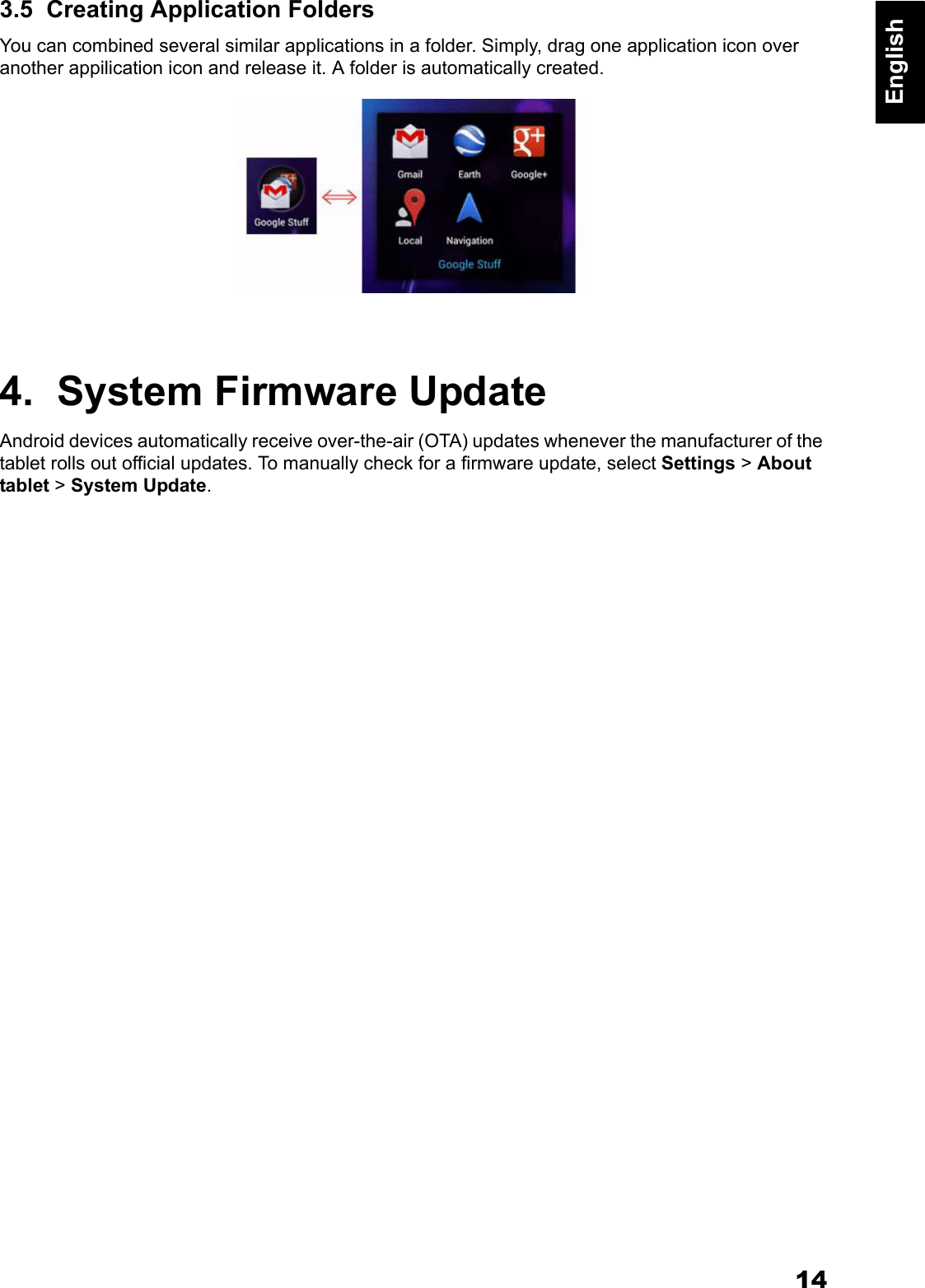
14English3.5  Creating Application FoldersYou can combined several similar applications in a folder. Simply, drag one application icon over another appilication icon and release it. A folder is automatically created.4.  System Firmware UpdateAndroid devices automatically receive over-the-air (OTA) updates whenever the manufacturer of the tablet rolls out official updates. To manually check for a firmware update, select Settings > About tablet > System Update.
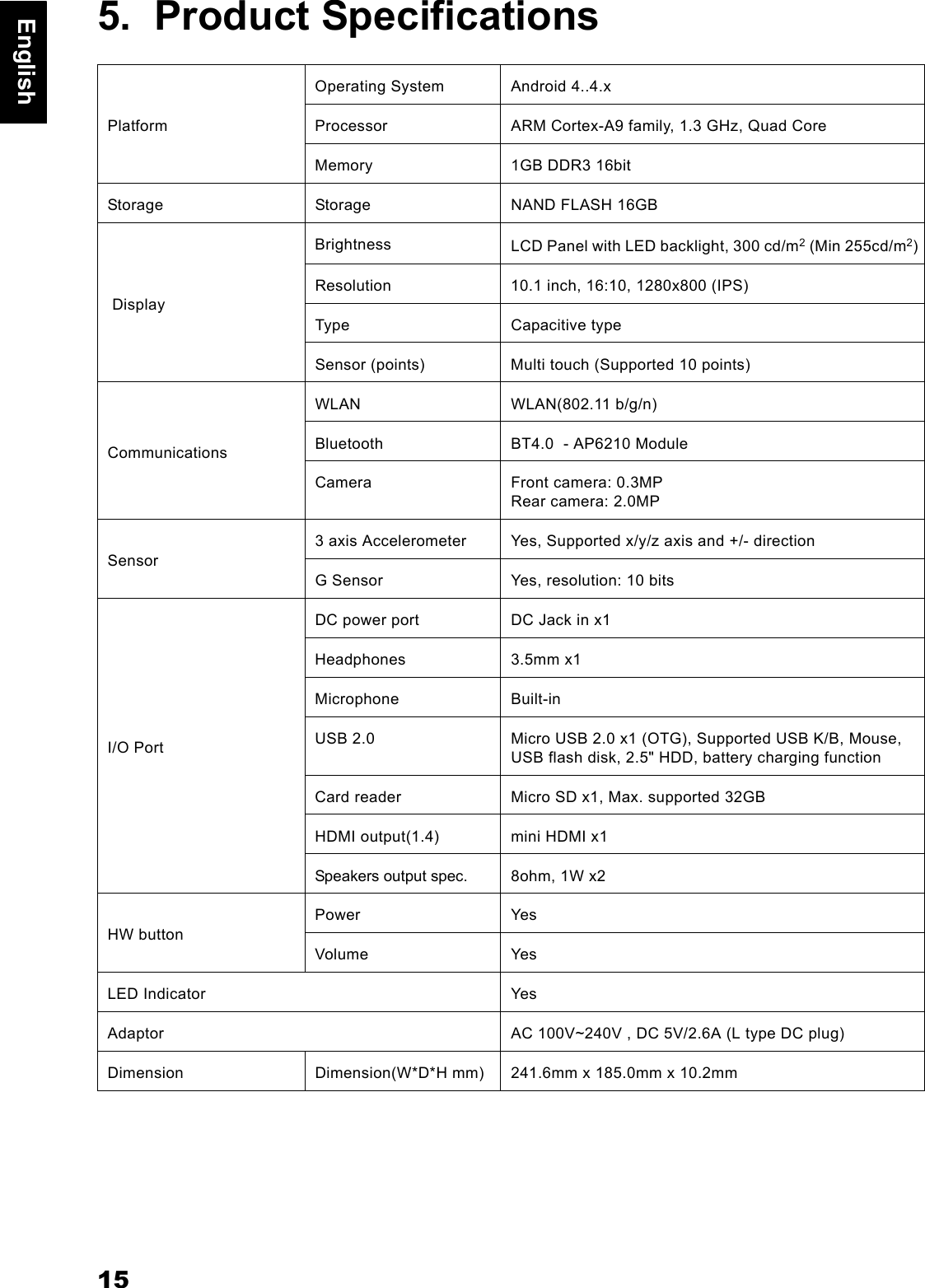
15English5.  Product SpecificationsPlatformOperating System Android 4..4.xProcessor ARM Cortex-A9 family, 1.3 GHz, Quad CoreMemory 1GB DDR3 16bitStorage Storage NAND FLASH 16GB DisplayBrightness LCD Panel with LED backlight, 300 cd/m2 (Min 255cd/m2) Resolution 10.1 inch, 16:10, 1280x800 (IPS)Type Capacitive typeSensor (points) Multi touch (Supported 10 points)CommunicationsWLAN WLAN(802.11 b/g/n) Bluetooth BT4.0  - AP6210 ModuleCamera Front camera: 0.3MPRear camera: 2.0MPSensor3 axis Accelerometer Yes, Supported x/y/z axis and +/- directionG Sensor Yes, resolution: 10 bitsI/O PortDC power port DC Jack in x1Headphones 3.5mm x1Microphone Built-inUSB 2.0 Micro USB 2.0 x1 (OTG), Supported USB K/B, Mouse, USB flash disk, 2.5" HDD, battery charging functionCard reader Micro SD x1, Max. supported 32GBHDMI output(1.4) mini HDMI x1Speakers output spec. 8ohm, 1W x2HW buttonPower YesVolume YesLED Indicator YesAdaptor AC 100V~240V , DC 5V/2.6A (L type DC plug)Dimension Dimension(W*D*H mm) 241.6mm x 185.0mm x 10.2mm
16English6.  AppendixWarranty and ServiceWarranty and service and related information, please refer to, the warranty card or Hannspree support site below for further help and support with your device including how to install software updates if available and much more: http://www.hannspree.com/FAQFAQ (Frequent Asked Questions) please refer to the below link: http://www.hannspree.com/Resetting Your Device to Factory DefaultsIf you need to reset your device to the factory default settings for any reason please follow the process below:WARNING!!!Please be aware any information currently on the device will be permanently erased by following this procedure.1. From the Home screen, tap Settings.2. Tap Backup & Reset.3. Select Factory data reset.4. Leave the erase SD card option unchecked and tap Reset tablet.5. Tap erase everything.The unit will now reset itself back to factory reset and any previous information/data will have been permanently erased. NOTE: Some of the applications downloaded from Play Store or produced by other third party are not fully supported on this device.

Navigation menu