Hitachi Cable WIP-3000 WLAN IP Phone User Manual

Hitachi Cable, Ltd. WLAN IP Phone Users Manual

Users Manual

WirelessIP3000 User Guide                                                             Unidata Communication Systems Inc. WirelessIP3000 User Guide (v.2.2.0)
WirelessIP3000 User Guide                                                             Unidata Communication Systems Inc.   COPYRIGHT NOTICE  UniData Communication Systems is registered trademarks of UniData Communication Systems Inc. Other referenced trademarks are trademarks (registered or otherwise) of the respective trademark owners. This document is confidential and proprietary to UniData Communication Systems Inc. No part of thdocument may be reproduced, stored, or transmitted in any form by any means without the prior written permission of UniData Communication Systems Inc. Information furnished herein by UniData Communication Systems Inc., is believed to be accurate and reliable. The authors have used their best efforts in preparing this material. These efforts include the development, research, and testing of the theories and programs to determine their effectiveness. However, UniData Communication Systems assumes no liability for errors that may appear in this document, or for liability otherwise arising from the application or use of any such information or for any infringement of patents or other intellectual property rights owned by third parties which may result from such application or use. The products, their specifications, and the information appearing in this document are subject to change without notice.  Printed in Korea © 1998-2005 by UniData Communication Systems Inc. All rights reserved.
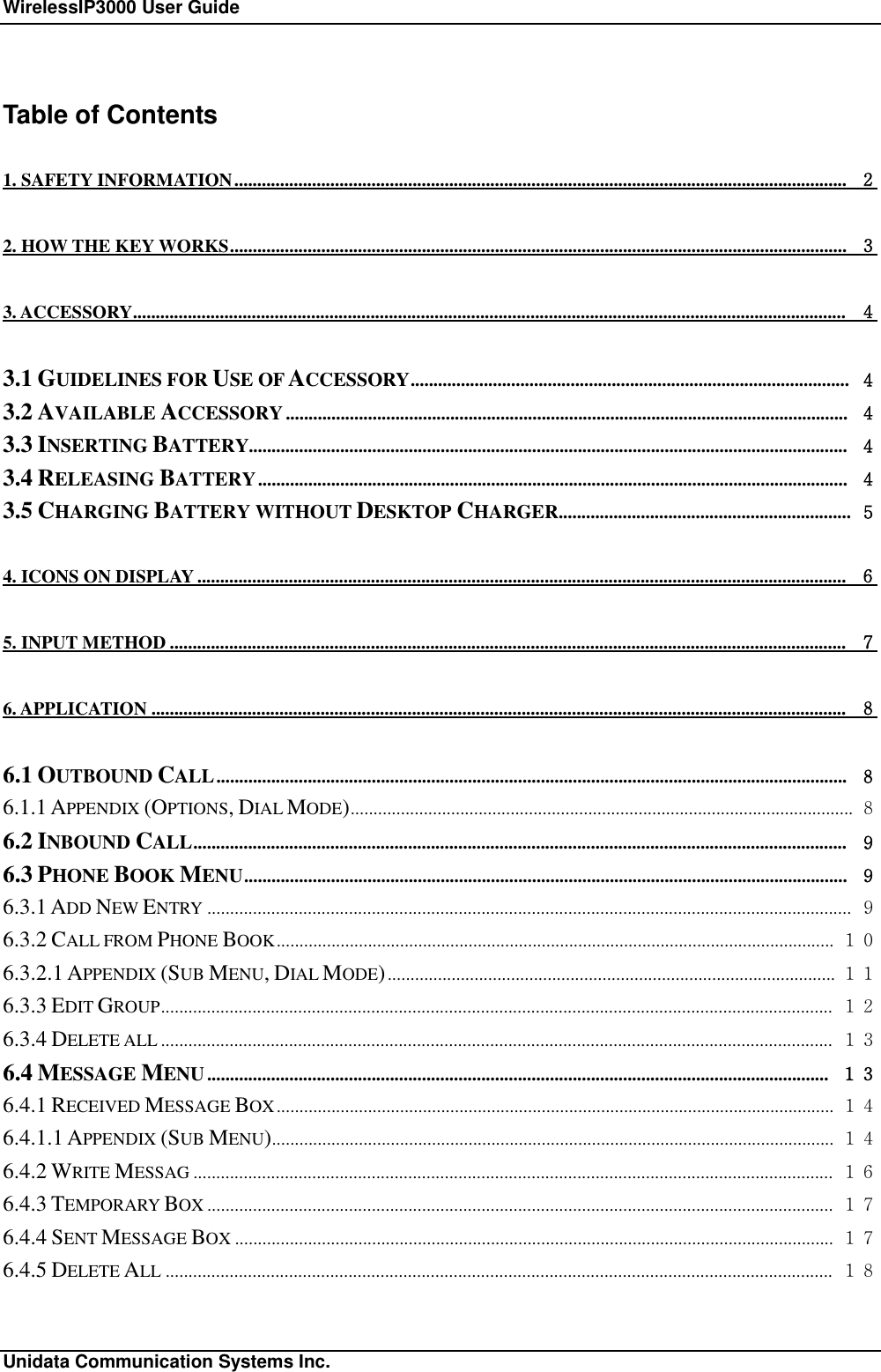
WirelessIP3000 User Guide                                                             Unidata Communication Systems Inc. Table of Contents 1. SAFETY INFORMATION...................................................................................................................................... 2 2. HOW THE KEY WORKS....................................................................................................................................... 3 3. ACCESSORY............................................................................................................................................................ 4 3.1 GUIDELINES FOR USE OF ACCESSORY................................................................................................ 4 3.2 AVAILABLE ACCESSORY........................................................................................................................... 4 3.3 INSERTING BATTERY................................................................................................................................... 4 3.4 RELEASING BATTERY................................................................................................................................. 4 3.5 CHARGING BATTERY WITHOUT DESKTOP CHARGER................................................................ 5 4. ICONS ON DISPLAY.............................................................................................................................................. 6 5. INPUT METHOD.................................................................................................................................................... 7 6. APPLICATION........................................................................................................................................................ 8 6.1 OUTBOUND CALL.......................................................................................................................................... 8 6.1.1 APPENDIX (OPTIONS, DIAL MODE).............................................................................................................. 8 6.2 INBOUND CALL............................................................................................................................................... 9 6.3 PHONE BOOK MENU.................................................................................................................................... 9 6.3.1 ADD NEW ENTRY ............................................................................................................................................. 9 6.3.2 CALL FROM PHONE BOOK.......................................................................................................................... 10 6.3.2.1 APPENDIX (SUB MENU, DIAL MODE).................................................................................................. 11 6.3.3 EDIT GROUP................................................................................................................................................... 12 6.3.4 DELETE ALL ................................................................................................................................................... 13 6.4 MESSAGE MENU........................................................................................................................................ 13 6.4.1 RECEIVED MESSAGE BOX.......................................................................................................................... 14 6.4.1.1 APPENDIX (SUB MENU)........................................................................................................................... 14 6.4.2 WRITE MESSAG ............................................................................................................................................ 16 6.4.3 TEMPORARY BOX ......................................................................................................................................... 17 6.4.4 SENT MESSAGE BOX ................................................................................................................................... 17 6.4.5 DELETE ALL .................................................................................................................................................. 18
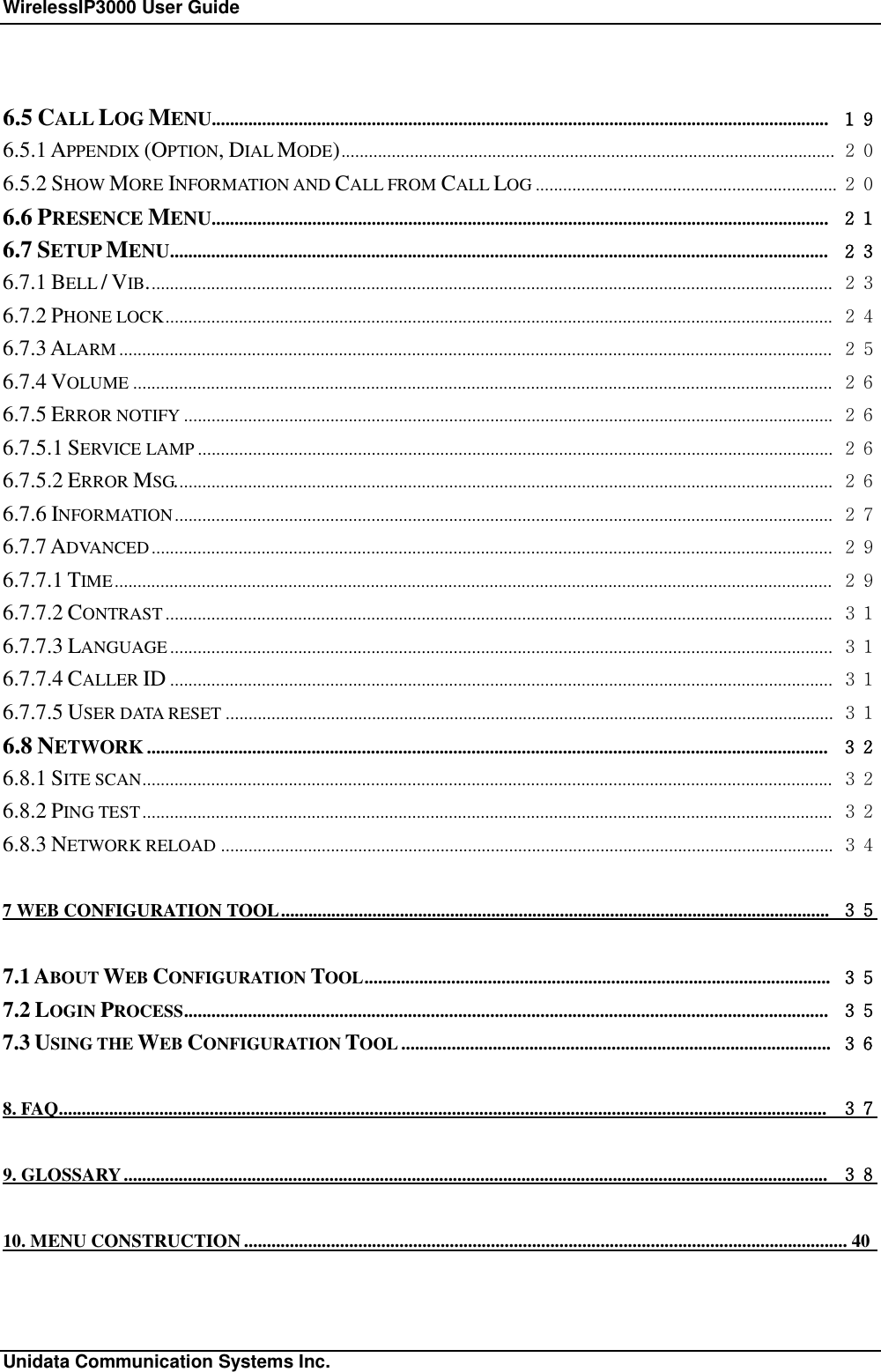
WirelessIP3000 User Guide                                                             Unidata Communication Systems Inc. 6.5 CALL LOG MENU....................................................................................................................................... 19 6.5.1 APPENDIX (OPTION, DIAL MODE)............................................................................................................ 20 6.5.2 SHOW MORE INFORMATION AND CALL FROM CALL LOG .................................................................. 20 6.6 PRESENCE MENU....................................................................................................................................... 21 6.7 SETUP MENU................................................................................................................................................ 23 6.7.1 BELL / VIB...................................................................................................................................................... 23 6.7.2 PHONE LOCK.................................................................................................................................................. 24 6.7.3 ALARM ............................................................................................................................................................ 25 6.7.4 VOLUME ......................................................................................................................................................... 26 6.7.5 ERROR NOTIFY .............................................................................................................................................. 26 6.7.5.1 SERVICE LAMP ........................................................................................................................................... 26 6.7.5.2 ERROR MSG................................................................................................................................................ 26 6.7.6 INFORMATION................................................................................................................................................ 27 6.7.7 ADVANCED..................................................................................................................................................... 29 6.7.7.1 TIME............................................................................................................................................................. 29 6.7.7.2 CONTRAST.................................................................................................................................................. 31 6.7.7.3 LANGUAGE ................................................................................................................................................. 31 6.7.7.4 CALLER ID ................................................................................................................................................. 31 6.7.7.5 USER DATA RESET ..................................................................................................................................... 31 6.8 NETWORK ..................................................................................................................................................... 32 6.8.1 SITE SCAN....................................................................................................................................................... 32 6.8.2 PING TEST....................................................................................................................................................... 32 6.8.3 NETWORK RELOAD ...................................................................................................................................... 34 7 WEB CONFIGURATION TOOL........................................................................................................................ 35 7.1 ABOUT WEB CONFIGURATION TOOL...................................................................................................... 35 7.2 LOGIN PROCESS............................................................................................................................................. 35 7.3 USING THE WEB CONFIGURATION TOOL .............................................................................................. 36 8. FAQ........................................................................................................................................................................ 37 9. GLOSSARY.......................................................................................................................................................... 38 10. MENU CONSTRUCTION....................................................................................................................................40
WirelessIP3000 User Guide                                                             Unidata Communication Systems Inc.       Page 1 Revision History  Release Version Version  Date  Description Application Bootrom
WirelessIP3000 User Guide                                                    How the key works   Unidata Communication Systems Inc.       Page  2 1. Safety Information   These safety warnings apply to the Wireless IP Phone WirelessIP3000. Please read the following sections before Installing or using your WirelessIP3000.  1.1 Emergency Services Warning This phone will not be able to access emergency services during a power outage because of reliance on utility power for normal operation. Alternative arrangements should be made for accessing emergency services. 1.2 Explosive Gas Warning  The use of the WirelessIP3000 in hazardous environments where high level of explosive gas may be Present is not recommended. Check with the site safety engineer before using any type of wireless device in such an environm8ent. 1.3 Battery Disposal Warning Do not dispose of the battery pack in fire or water. The battery may explode if placed in the fire. 1.4 Battery Safety Notices These Battery safety notices apply to the batteries that are approved by the WirelessIP3000 manufacturer.  Ø Do not disassemble, crush, puncture, or incinerate the battery pack. Ø To avoid risk of fire, burns, or damage to your battery pack, do not allow a metal object to touch the battery contacts. Ø Handle a damaged or leaking battery with extreme care. If you come in contact with the electrolyte, wash the exposed area with soap and water. If the electrolyte has come in contact with your eye, flush the eye with water for 15 minutes and seek medical attention Ø Do not charge the battery pack if the ambient temperature exceeds 40 degrees Celsius. Ø Do not keep the battery pack in temperatures above 60 degrees Celsius. Ø When discarding a battery pack, contact your local waste disposal provider regarding local restrictions on the disposal or recycling of batteries. Ø To obtain a replacement battery, contact your local dealer. Use the batteries that are provided by WirelessIP3000 manufacturer only. Ø Use the power supply that is provided by WirelessIP3000 manufacturer only.  1.5 Regulatory Compliance Standards WirelessIP3000 does not comply with any standards. Use only as a Marketing Sample.
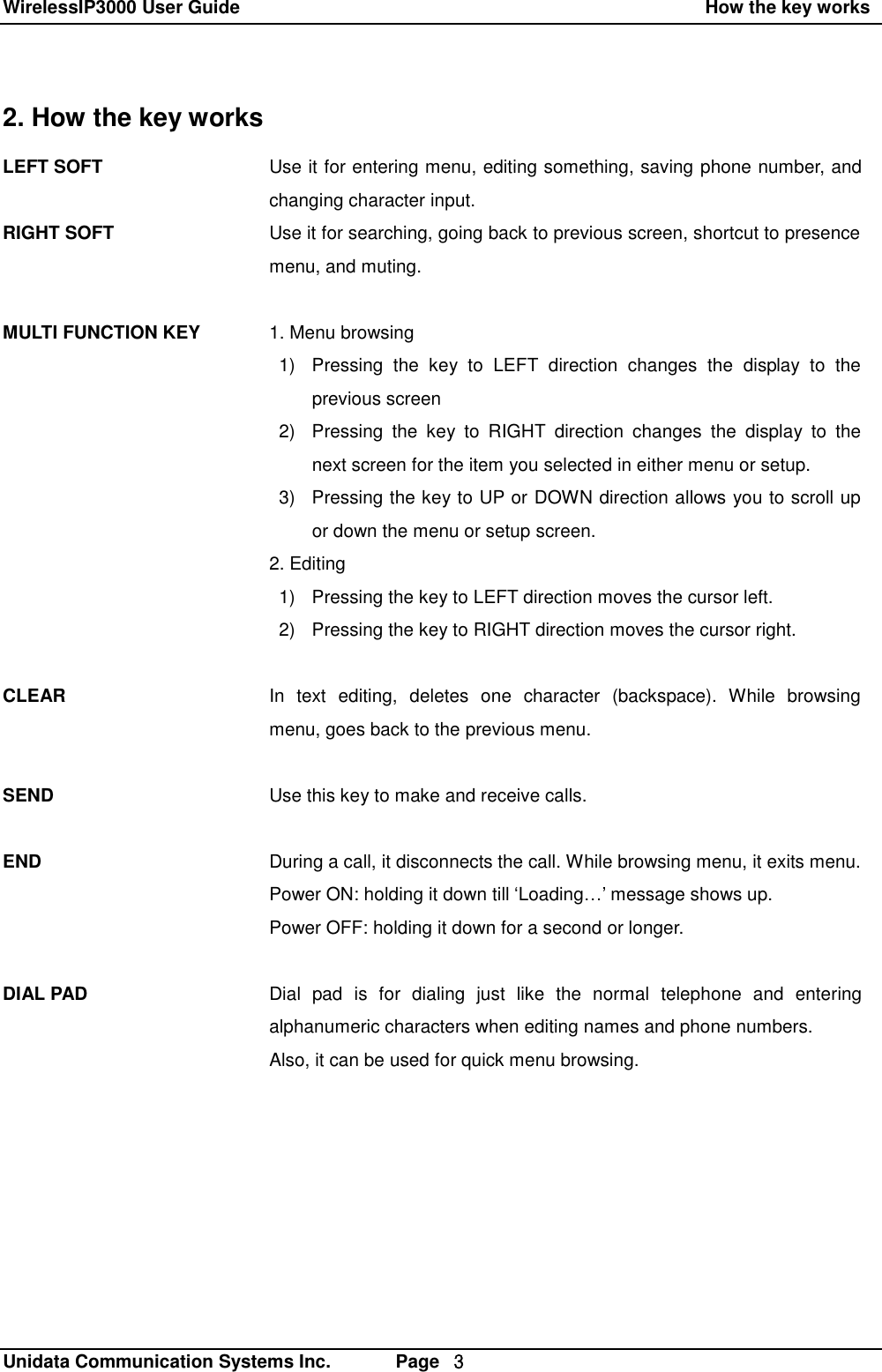
WirelessIP3000 User Guide                                                    How the key works   Unidata Communication Systems Inc.       Page  3 2. How the key works LEFT SOFT   RIGHT SOFT    MULTI FUNCTION KEY           CLEAR    SEND   END    DIAL PAD Use it for entering menu, editing something, saving phone number, and changing character input. Use it for searching, going back to previous screen, shortcut to presence menu, and muting.  1. Menu browsing  1) Pressing the key to LEFT direction changes the display to the     previous screen 2) Pressing the key to RIGHT direction changes the display to the next screen for the item you selected in either menu or setup. 3) Pressing the key to UP or DOWN direction allows you to scroll up or down the menu or setup screen. 2. Editing 1) Pressing the key to LEFT direction moves the cursor left. 2) Pressing the key to RIGHT direction moves the cursor right.   In text editing, deletes one character (backspace). While browsing menu, goes back to the previous menu.  Use this key to make and receive calls.  During a call, it disconnects the call. While browsing menu, it exits menu. Power ON: holding it down till ‘Loading…’ message shows up. Power OFF: holding it down for a second or longer.  Dial pad is for dialing just like the normal telephone and entering alphanumeric characters when editing names and phone numbers. Also, it can be used for quick menu browsing.
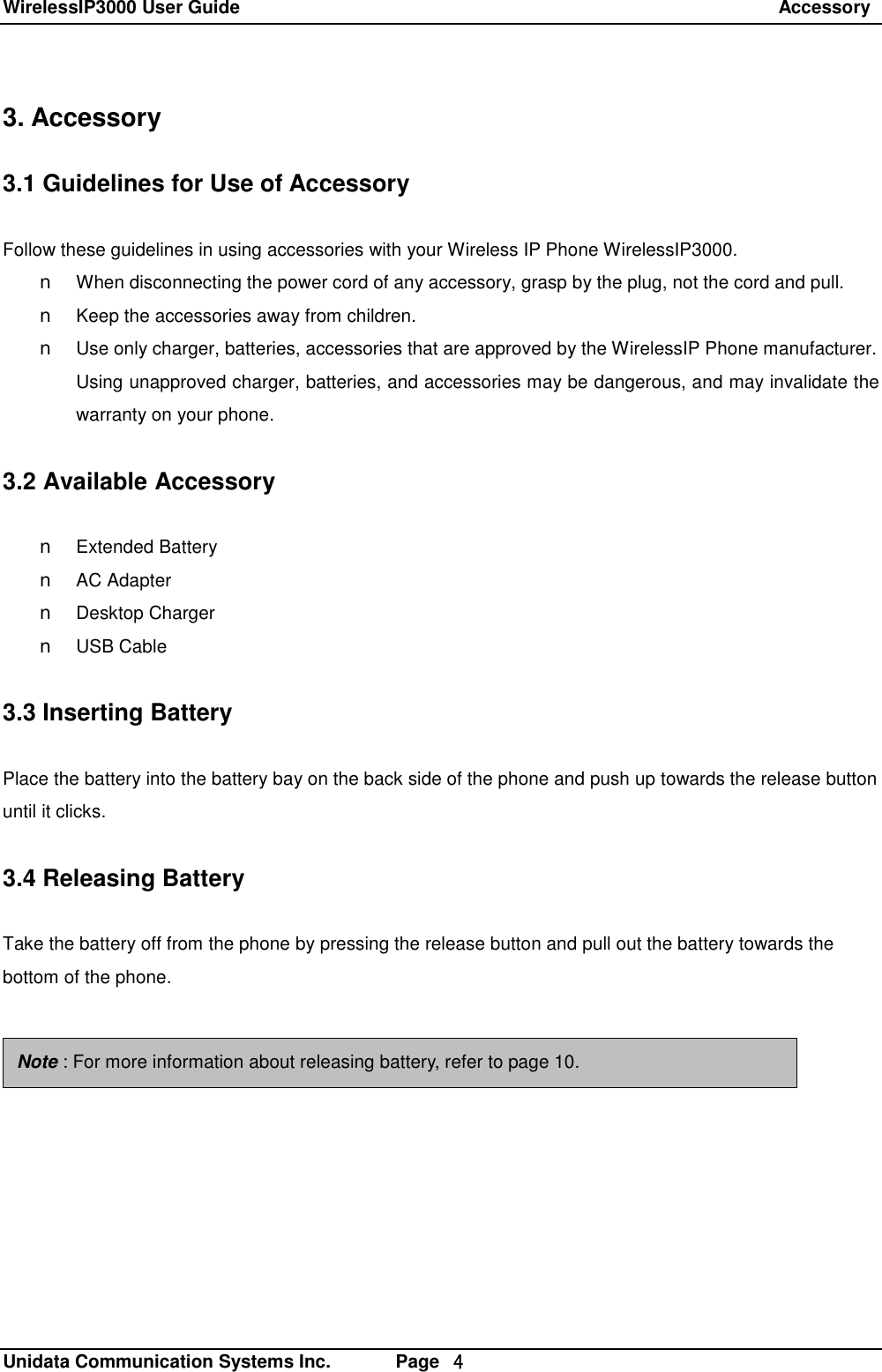
WirelessIP3000 User Guide                                                                 Accessory   Unidata Communication Systems Inc.       Page  4 3. Accessory  3.1 Guidelines for Use of Accessory  Follow these guidelines in using accessories with your Wireless IP Phone WirelessIP3000. n When disconnecting the power cord of any accessory, grasp by the plug, not the cord and pull. n Keep the accessories away from children. n Use only charger, batteries, accessories that are approved by the WirelessIP Phone manufacturer. Using unapproved charger, batteries, and accessories may be dangerous, and may invalidate the warranty on your phone.  3.2 Available Accessory  n Extended Battery n AC Adapter n Desktop Charger n USB Cable  3.3 Inserting Battery  Place the battery into the battery bay on the back side of the phone and push up towards the release button until it clicks.  3.4 Releasing Battery  Take the battery off from the phone by pressing the release button and pull out the battery towards the bottom of the phone.    Note : For more information about releasing battery, refer to page 10.
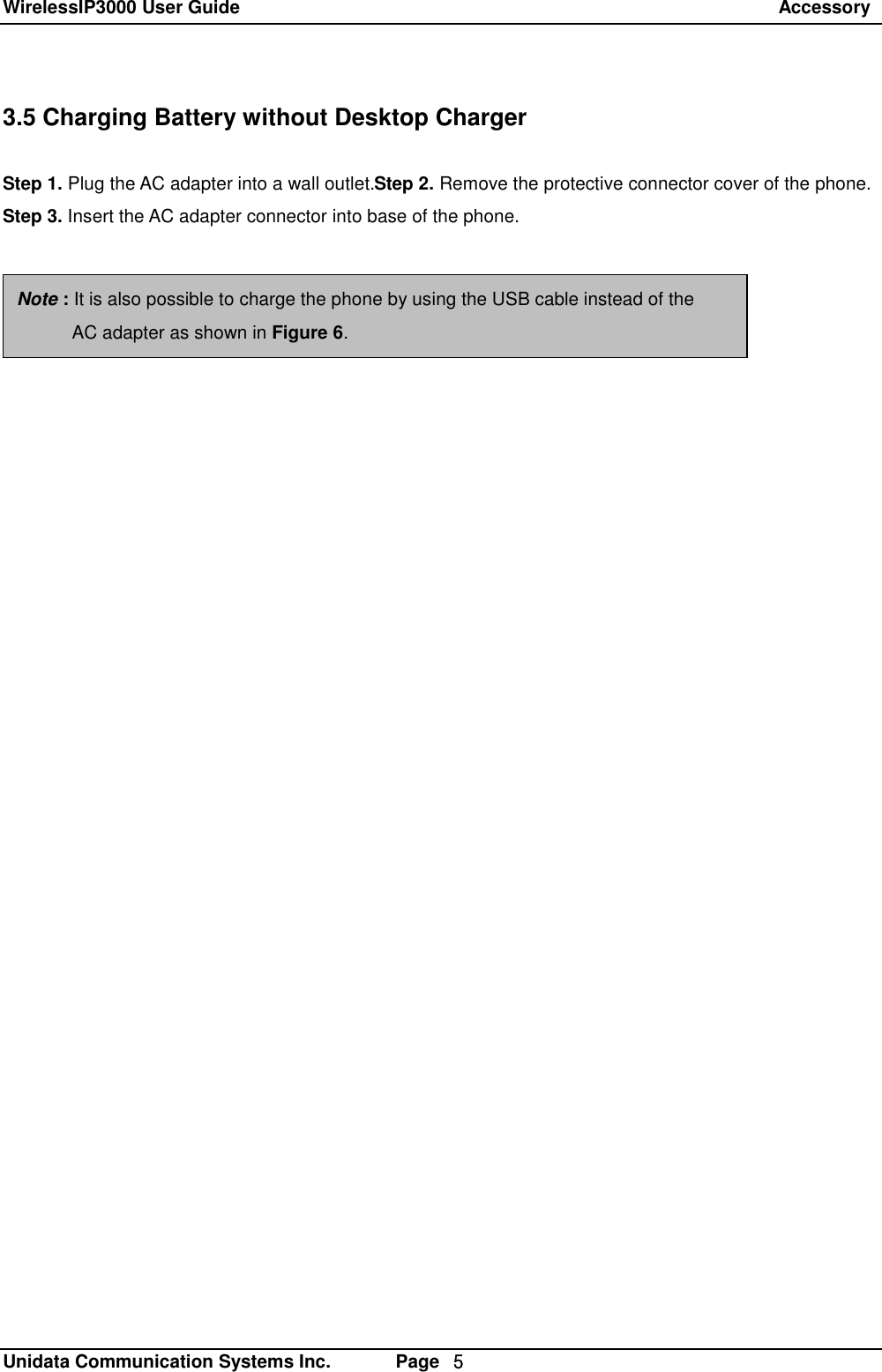
WirelessIP3000 User Guide                                                                 Accessory   Unidata Communication Systems Inc.       Page  5 3.5 Charging Battery without Desktop Charger  Step 1. Plug the AC adapter into a wall outlet.Step 2. Remove the protective connector cover of the phone. Step 3. Insert the AC adapter connector into base of the phone. Note : It is also possible to charge the phone by using the USB cable instead of the        AC adapter as shown in Figure 6.
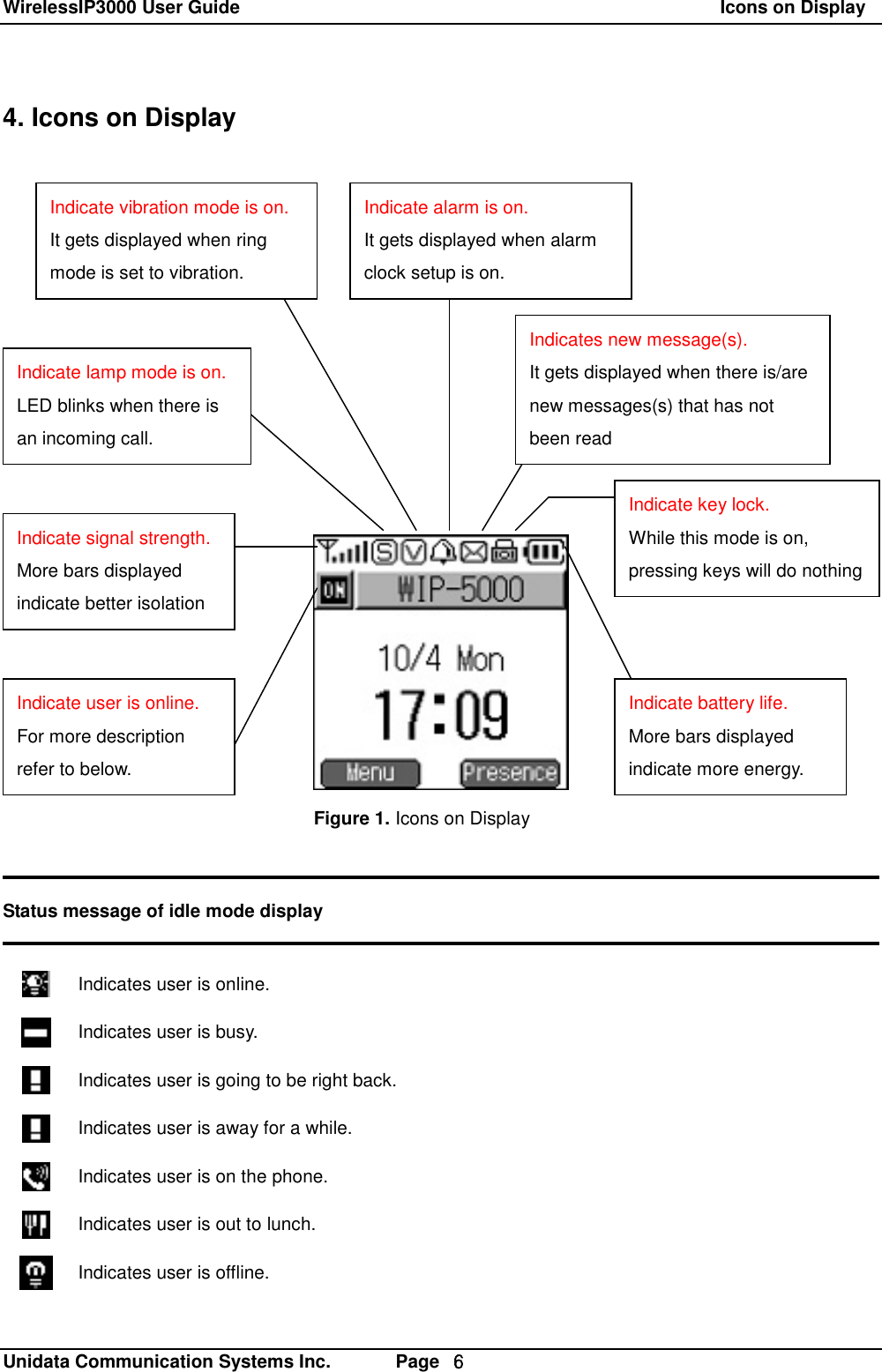
WirelessIP3000 User Guide                                                          Icons on Display   Unidata Communication Systems Inc.       Page  6 4. Icons on Display                 Status message of idle mode display   Indicates user is online.  Indicates user is busy.  Indicates user is going to be right back.  Indicates user is away for a while.  Indicates user is on the phone.  Indicates user is out to lunch.  Indicates user is offline. Indicate signal strength. More bars displayed indicate better isolation Indicate lamp mode is on. LED blinks when there is an incoming call. Indicate vibration mode is on. It gets displayed when ring mode is set to vibration. Indicate alarm is on. It gets displayed when alarm clock setup is on. Indicates new message(s). It gets displayed when there is/are new messages(s) that has not been read Indicate battery life. More bars displayed indicate more energy. Indicate user is online. For more description refer to below. Indicate key lock. While this mode is on, pressing keys will do nothing Figure 1. Icons on Display
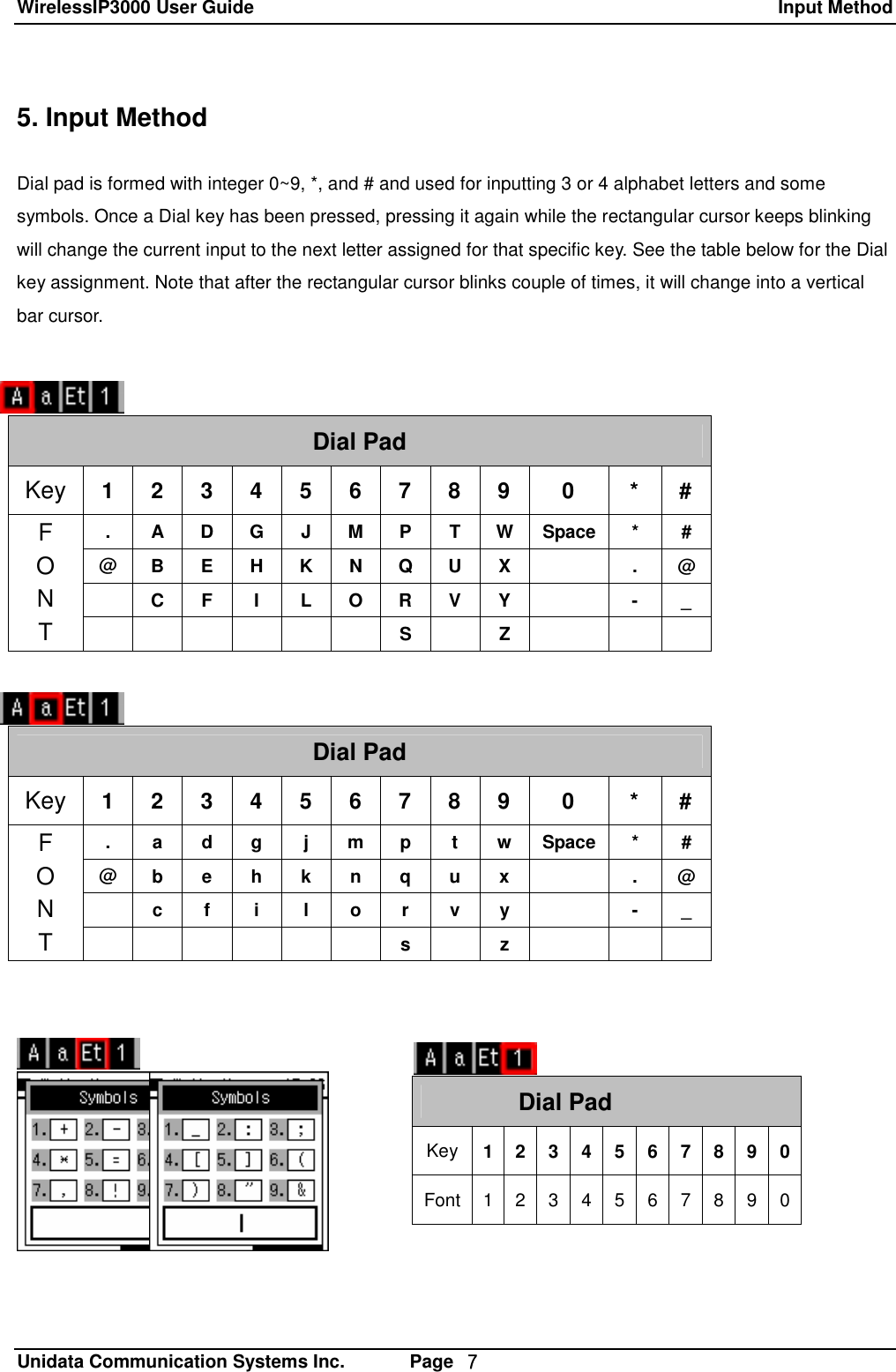
WirelessIP3000 User Guide  Input Method   Unidata Communication Systems Inc.       Page  7 5. Input Method  Dial pad is formed with integer 0~9, *, and # and used for inputting 3 or 4 alphabet letters and some symbols. Once a Dial key has been pressed, pressing it again while the rectangular cursor keeps blinking will change the current input to the next letter assigned for that specific key. See the table below for the Dial key assignment. Note that after the rectangular cursor blinks couple of times, it will change into a vertical bar cursor.              Dial Pad Key  1 2 3 4 5 6 7 8 9 0 * # . A D G J M P T W Space * # @ B E H K N Q U X  . @  C F I L O R V Y  - _ F O N T        S  Z    Dial Pad Key  1 2 3 4 5 6 7 8 9 0 * # . a d g j m p t w Space * # @ b e h k n q u x  . @  c f i l o r v y  - _ F O N T        s  z    Dial Pad Key 1 2 3 4 5 6 7 8 9 0 Font 1 2 3 4 5 6 7 8 9 0
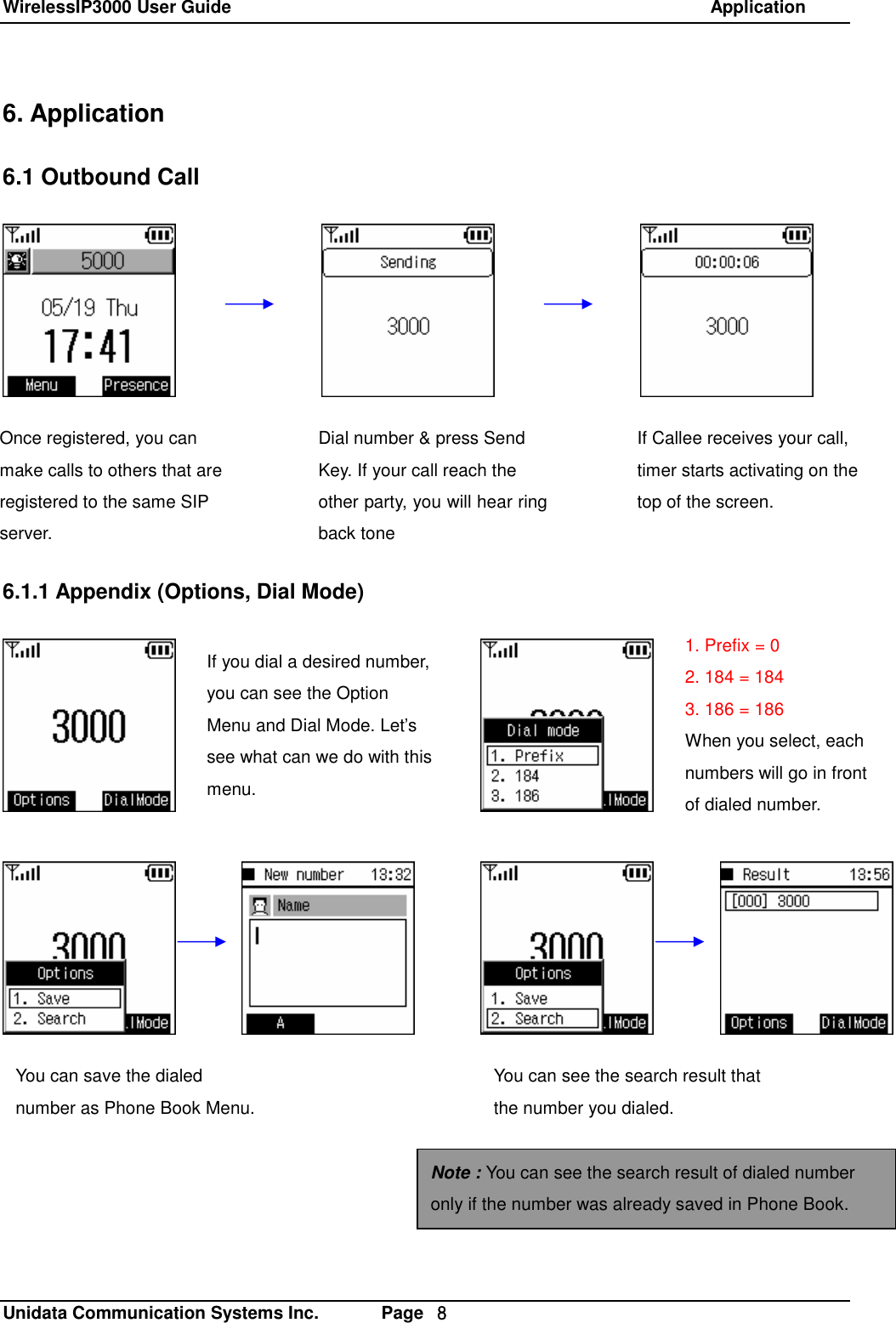
WirelessIP3000 User Guide                                                            Application   Unidata Communication Systems Inc.       Page  8 6. Application  6.1 Outbound Call             6.1.1 Appendix (Options, Dial Mode)  If you dial a desired number, you can see the Option Menu and Dial Mode. Let’s see what can we do with this menu. 1. Prefix = 0 2. 184 = 184 3. 186 = 186 When you select, each numbers will go in front of dialed number. Once registered, you can make calls to others that are registered to the same SIP server. Dial number & press Send Key. If your call reach the other party, you will hear ring back tone  If Callee receives your call, timer starts activating on the top of the screen. You can save the dialed number as Phone Book Menu. You can see the search result that the number you dialed. Note : You can see the search result of dialed number only if the number was already saved in Phone Book.
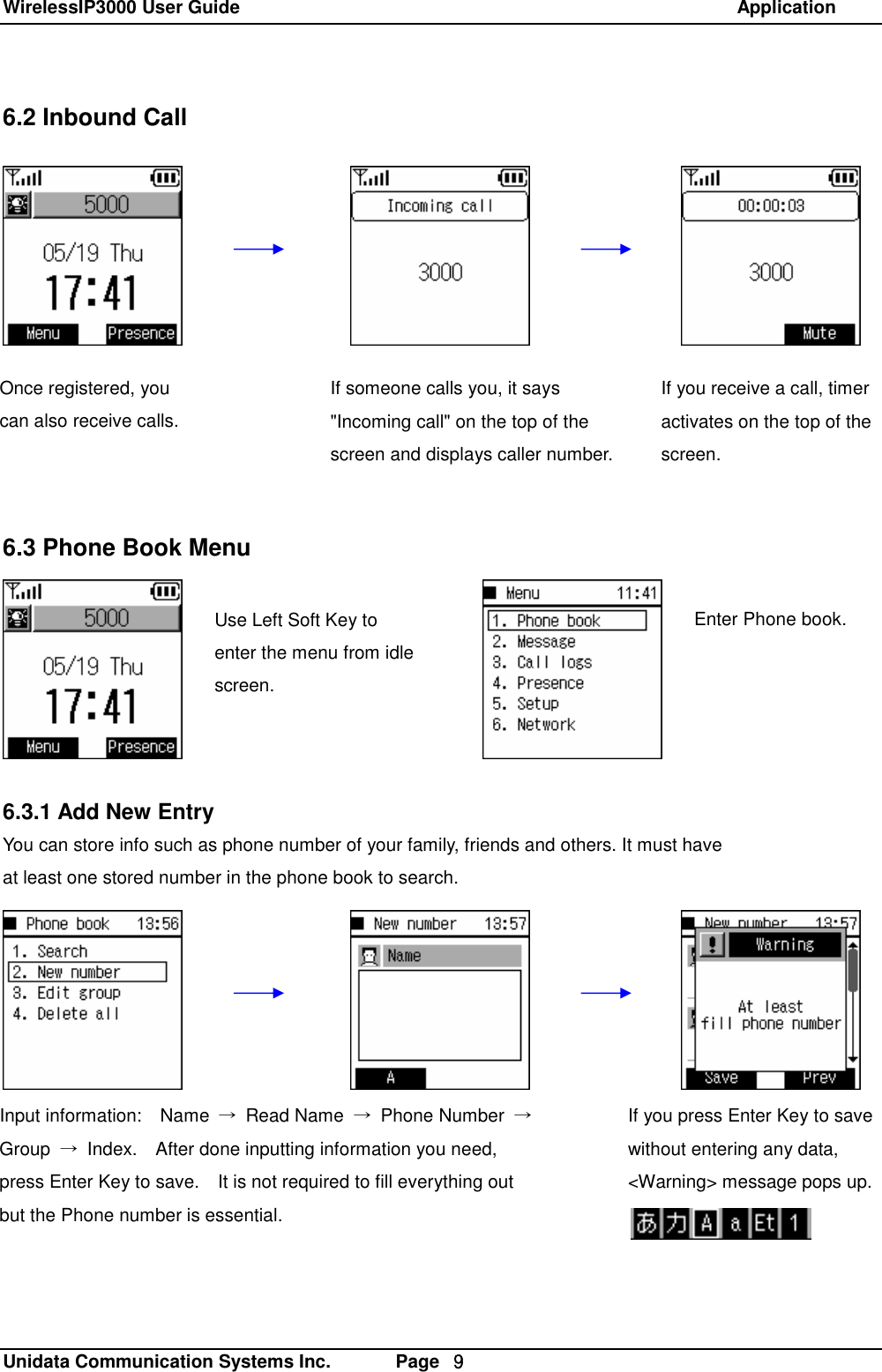
WirelessIP3000 User Guide                                                            Application   Unidata Communication Systems Inc.       Page  9 6.2 Inbound Call             6.3 Phone Book Menu  z      6.3.1 Add New Entry You can store info such as phone number of your family, friends and others. It must have  at least one stored number in the phone book to search. Use Left Soft Key to enter the menu from idle screen. Enter Phone book. Once registered, you can also receive calls.  If someone calls you, it says "Incoming call" on the top of the screen and displays caller number.  If you receive a call, timer activates on the top of the screen. If you press Enter Key to save without entering any data,  <Warning> message pops up. Input information:  Name  → Read Name  → Phone Number  → Group  → Index.  After done inputting information you need, press Enter Key to save.  It is not required to fill everything out but the Phone number is essential.
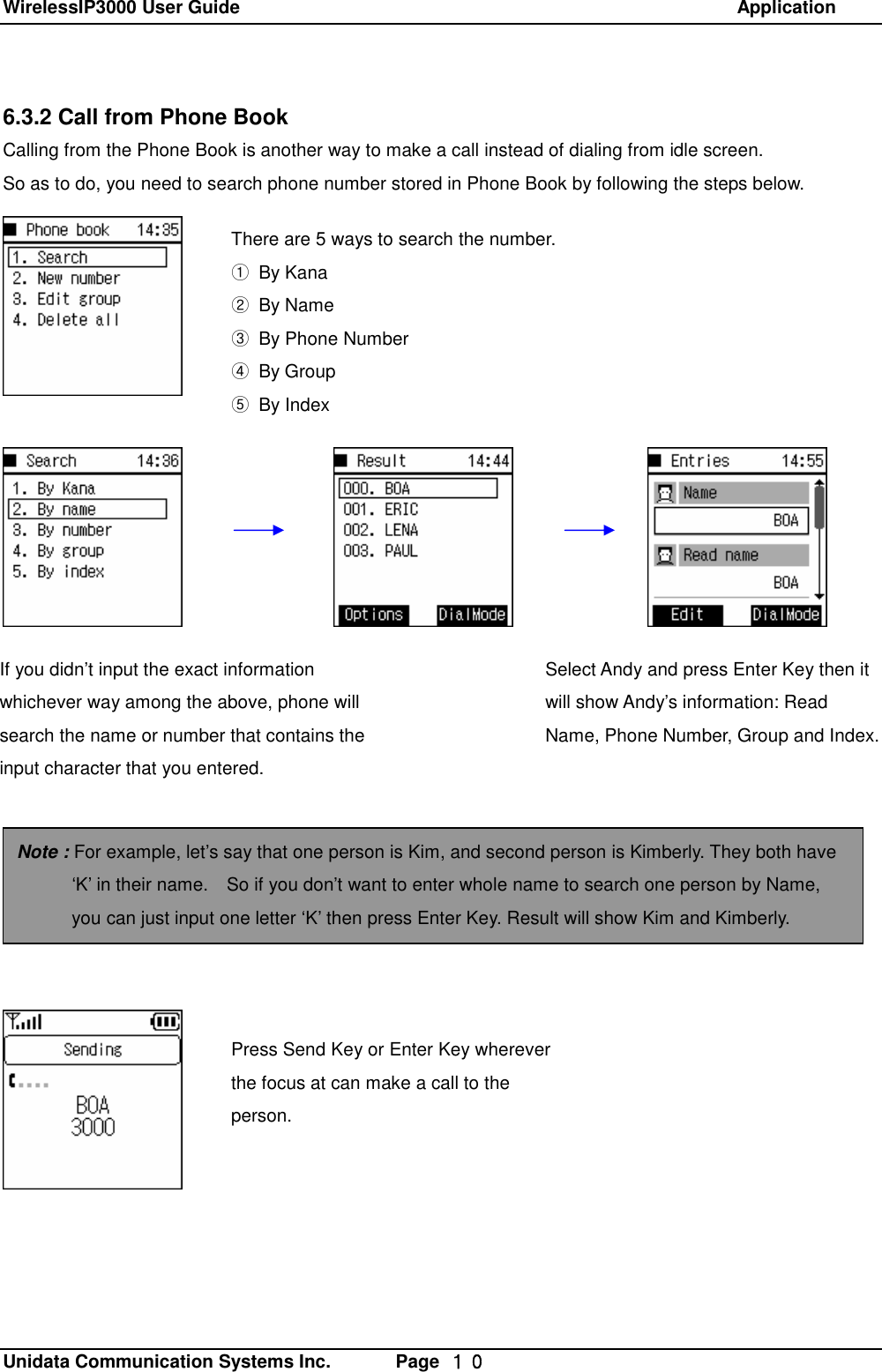
WirelessIP3000 User Guide                                                            Application   Unidata Communication Systems Inc.       Page  10 6.3.2 Call from Phone Book Calling from the Phone Book is another way to make a call instead of dialing from idle screen.   So as to do, you need to search phone number stored in Phone Book by following the steps below.               There are 5 ways to search the number. ① By Kana ② By Name ③ By Phone Number ④ By Group ⑤ By Index If you didn’t input the exact information whichever way among the above, phone will search the name or number that contains the input character that you entered. Select Andy and press Enter Key then it will show Andy’s information: Read Name, Phone Number, Group and Index.   Note : For example, let’s say that one person is Kim, and second person is Kimberly. They both have ‘K’ in their name.  So if you don’t want to enter whole name to search one person by Name, you can just input one letter ‘K’ then press Enter Key. Result will show Kim and Kimberly. Press Send Key or Enter Key wherever the focus at can make a call to the person.
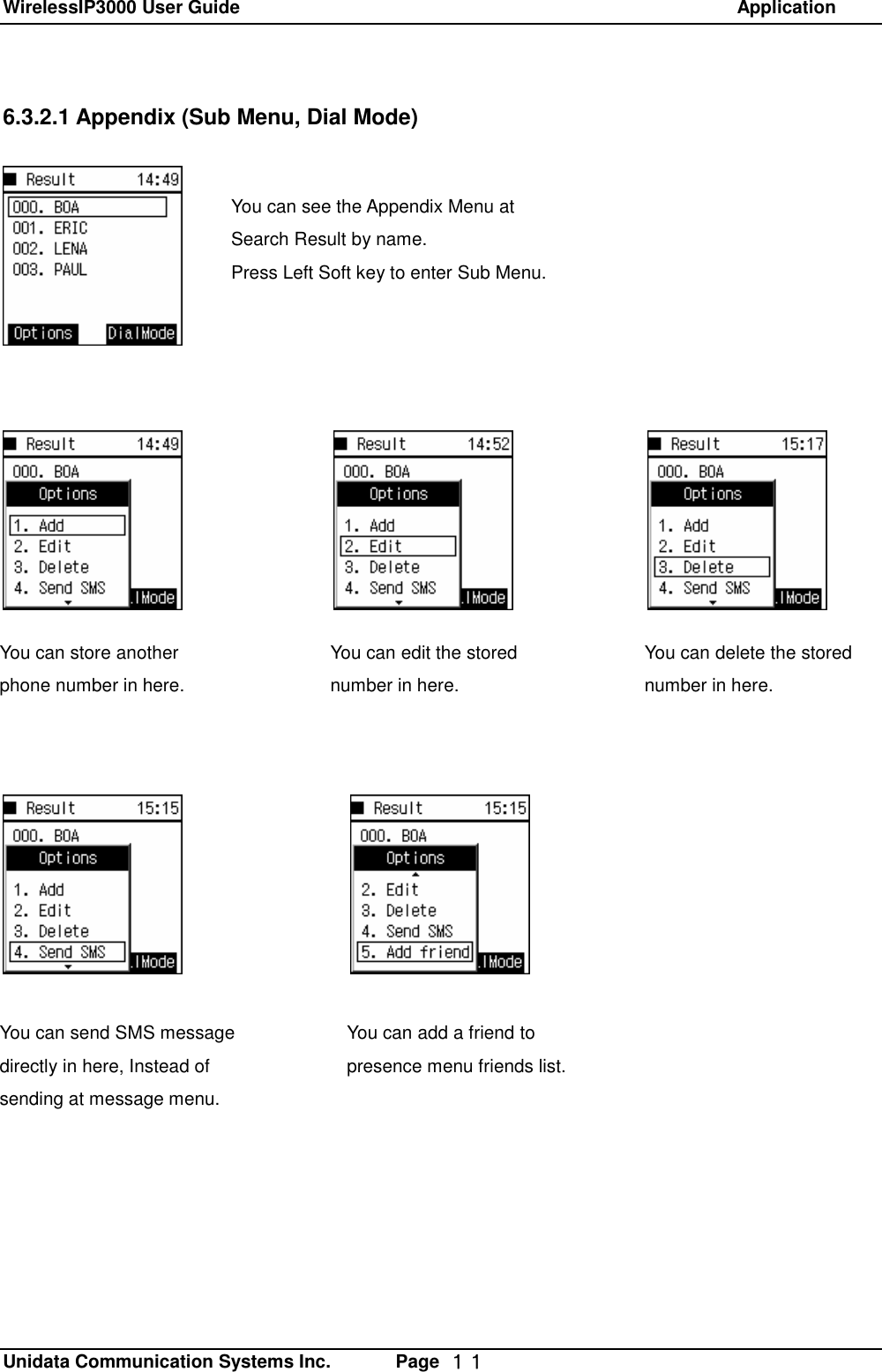
WirelessIP3000 User Guide                                                            Application   Unidata Communication Systems Inc.       Page  11 6.3.2.1 Appendix (Sub Menu, Dial Mode)  You can see the Appendix Menu at Search Result by name.  Press Left Soft key to enter Sub Menu. You can store another phone number in here. You can edit the stored number in here. You can delete the stored number in here. You can send SMS message directly in here, Instead of sending at message menu. You can add a friend to presence menu friends list.
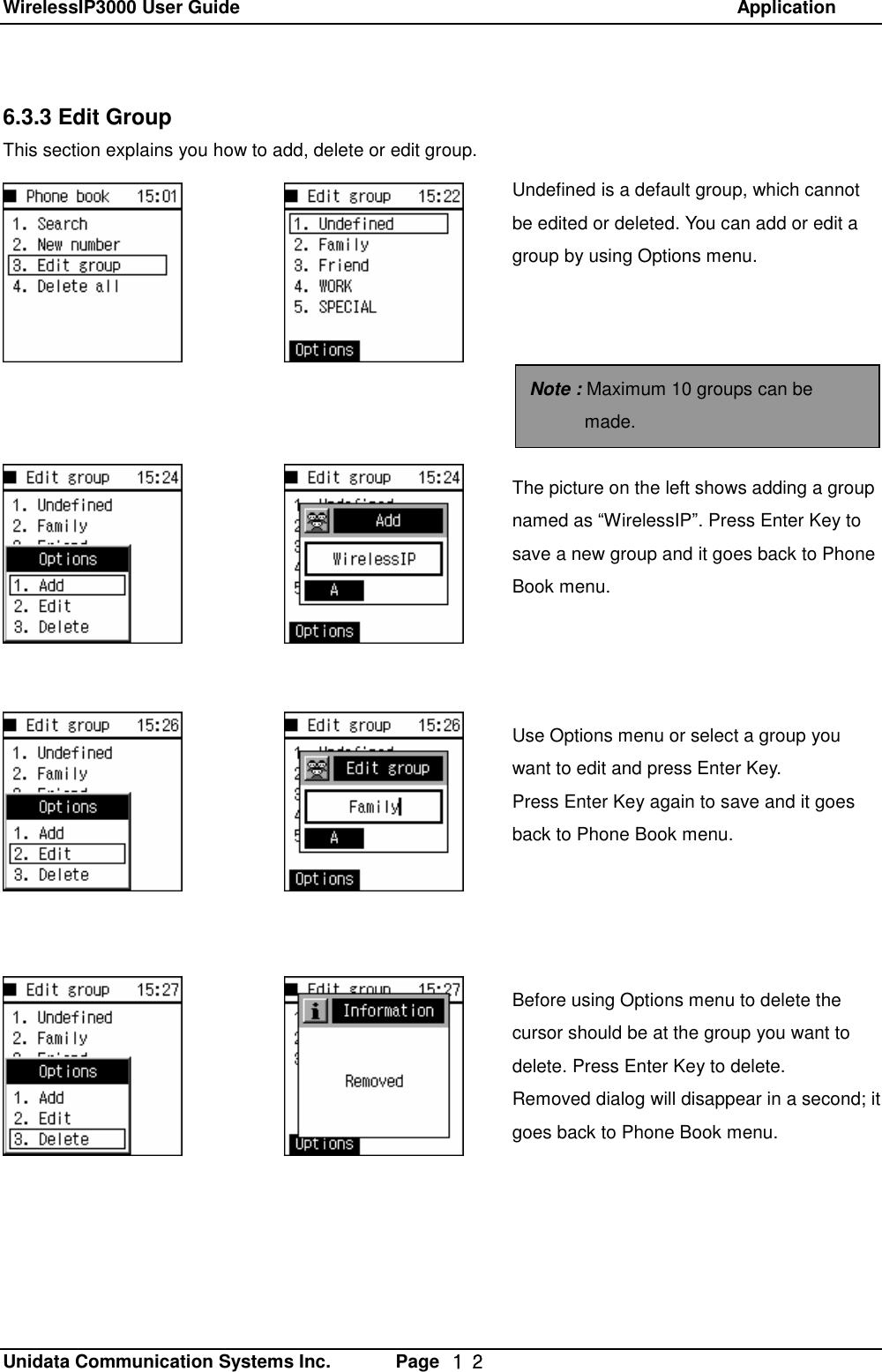
WirelessIP3000 User Guide                                                            Application   Unidata Communication Systems Inc.       Page  12 6.3.3 Edit Group This section explains you how to add, delete or edit group. Undefined is a default group, which cannot be edited or deleted. You can add or edit a group by using Options menu. Note : Maximum 10 groups can be made. The picture on the left shows adding a group named as “WirelessIP”. Press Enter Key to save a new group and it goes back to Phone Book menu. Use Options menu or select a group you want to edit and press Enter Key.  Press Enter Key again to save and it goes back to Phone Book menu.  Before using Options menu to delete the cursor should be at the group you want to delete. Press Enter Key to delete. Removed dialog will disappear in a second; it goes back to Phone Book menu.
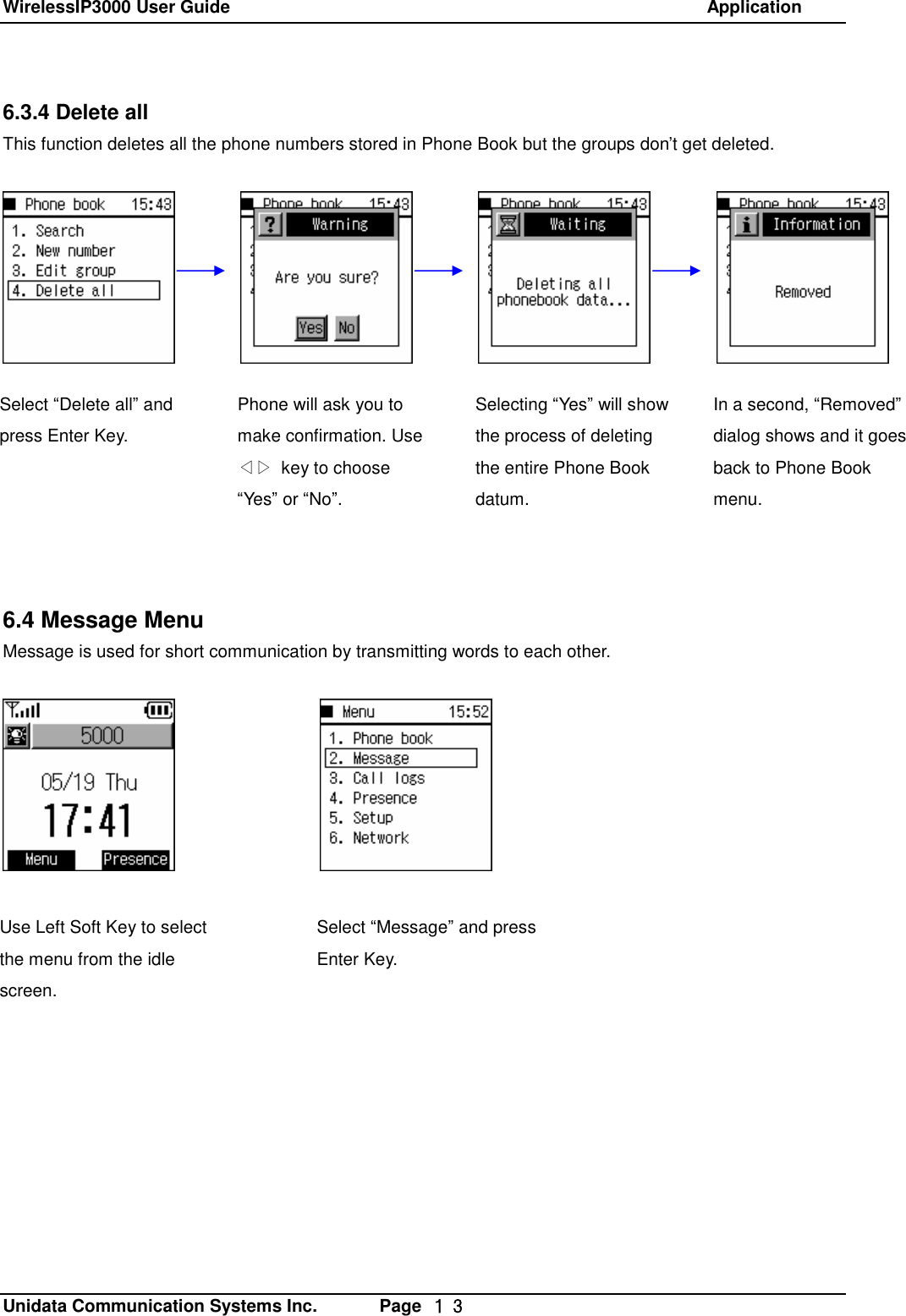
WirelessIP3000 User Guide                                                            Application   Unidata Communication Systems Inc.       Page  13 6.3.4 Delete all This function deletes all the phone numbers stored in Phone Book but the groups don’t get deleted.               6.4 Message Menu Message is used for short communication by transmitting words to each other.        Select “Delete all” and press Enter Key.    Phone will ask you to make confirmation. Use ◁▷ key to choose “Yes” or “No”. Selecting “Yes” will show the process of deleting the entire Phone Book datum. In a second, “Removed” dialog shows and it goes back to Phone Book menu. Use Left Soft Key to select the menu from the idle screen. Select “Message” and press Enter Key.
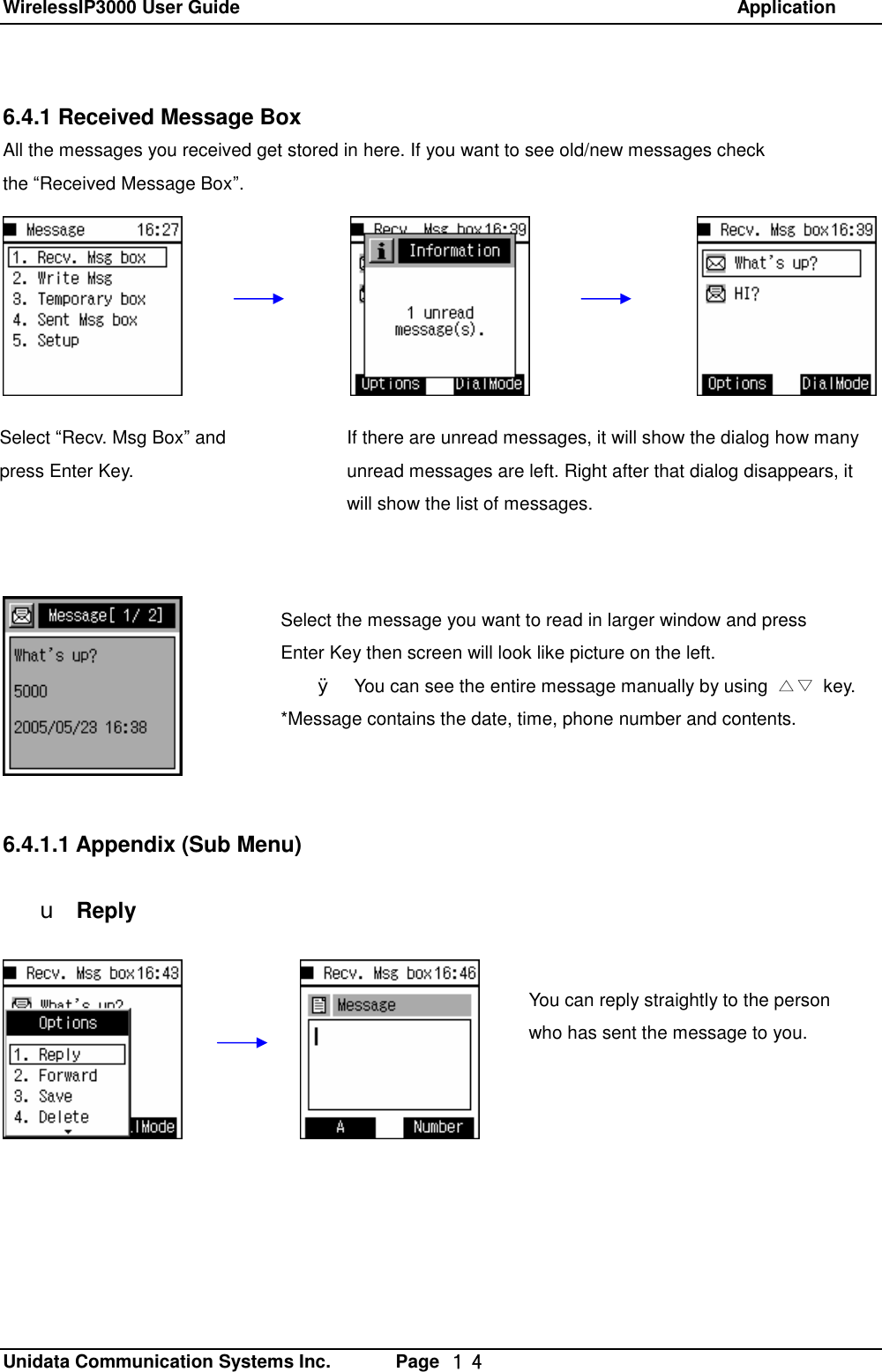
WirelessIP3000 User Guide                                                            Application   Unidata Communication Systems Inc.       Page  14 6.4.1 Received Message Box All the messages you received get stored in here. If you want to see old/new messages check  the “Received Message Box”.                    6.4.1.1 Appendix (Sub Menu)  u Reply You can reply straightly to the person who has sent the message to you. If there are unread messages, it will show the dialog how many unread messages are left. Right after that dialog disappears, it will show the list of messages. Select “Recv. Msg Box” and press Enter Key. Select the message you want to read in larger window and press  Enter Key then screen will look like picture on the left. Ø You can see the entire message manually by using  △▽ key. *Message contains the date, time, phone number and contents.
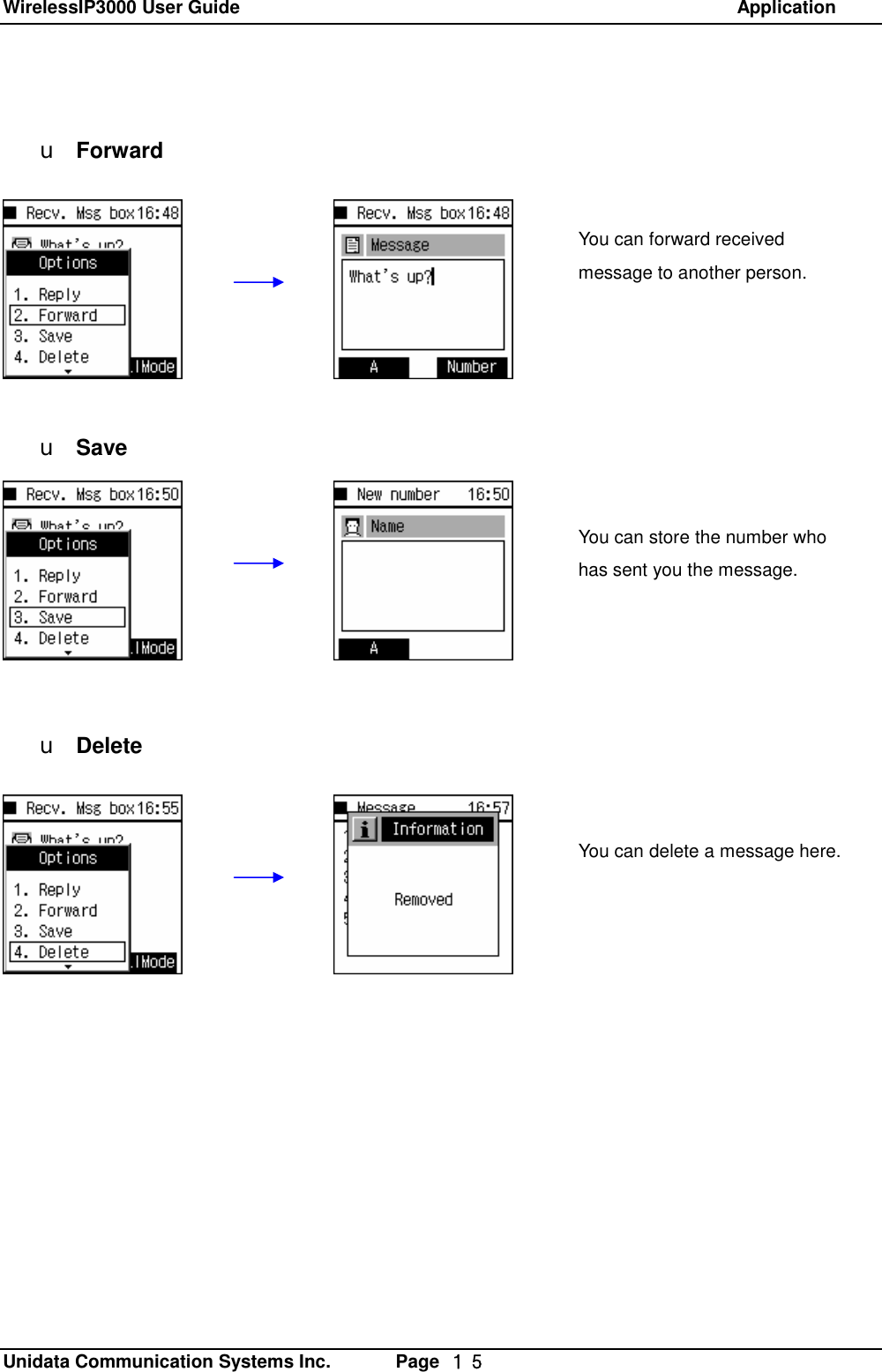
WirelessIP3000 User Guide                                                            Application   Unidata Communication Systems Inc.       Page  15  u Forward         u Save         u Delete You can forward received message to another person. You can delete a message here. You can store the number who has sent you the message.
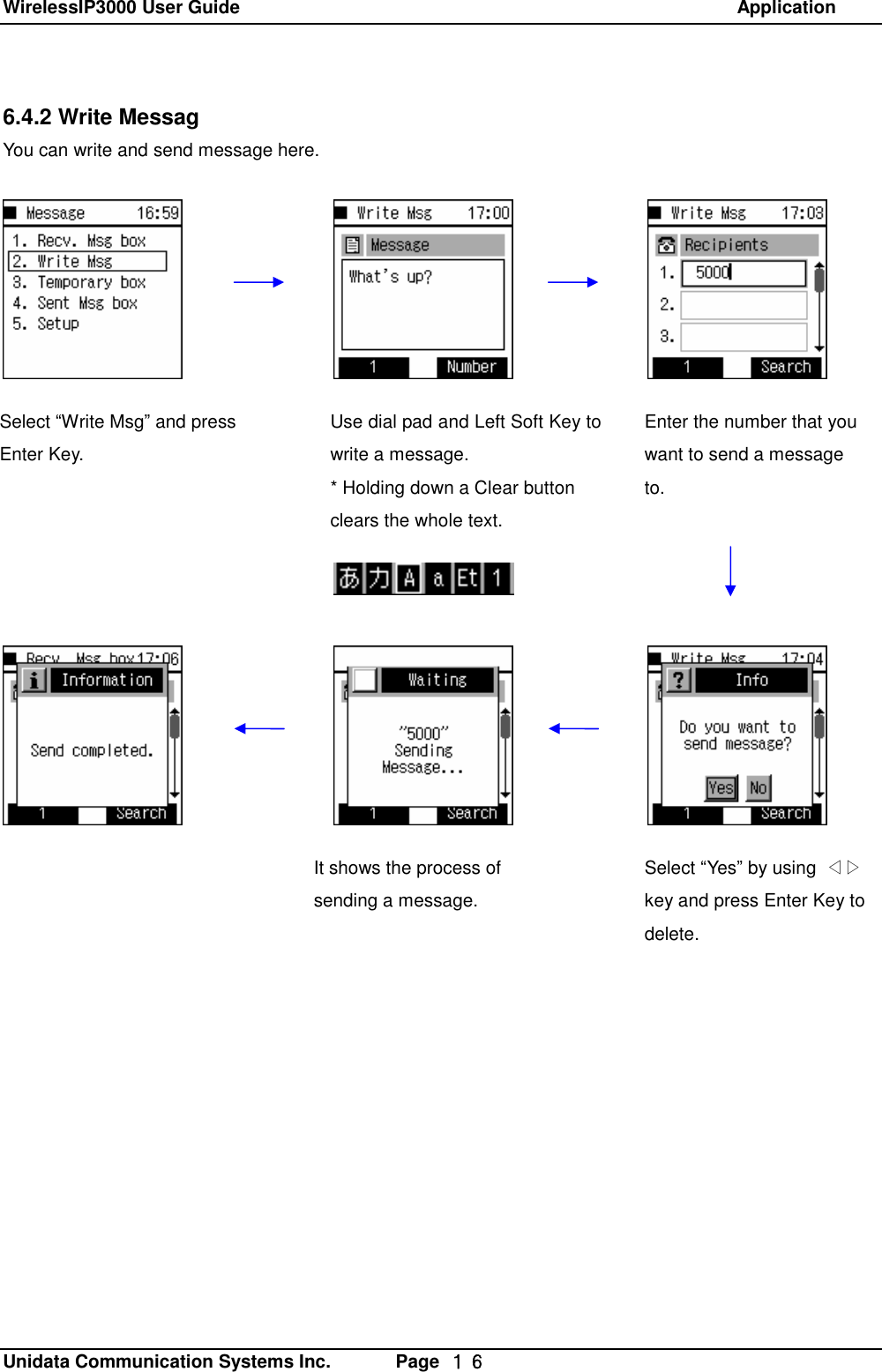
WirelessIP3000 User Guide                                                            Application   Unidata Communication Systems Inc.       Page  16 6.4.2 Write Messag You can write and send message here.Select “Write Msg” and press Enter Key.    Use dial pad and Left Soft Key to write a message. * Holding down a Clear button clears the whole text.   Enter the number that you want to send a message to.  Select “Yes” by using  ◁▷ key and press Enter Key to delete.  It shows the process of sending a message.
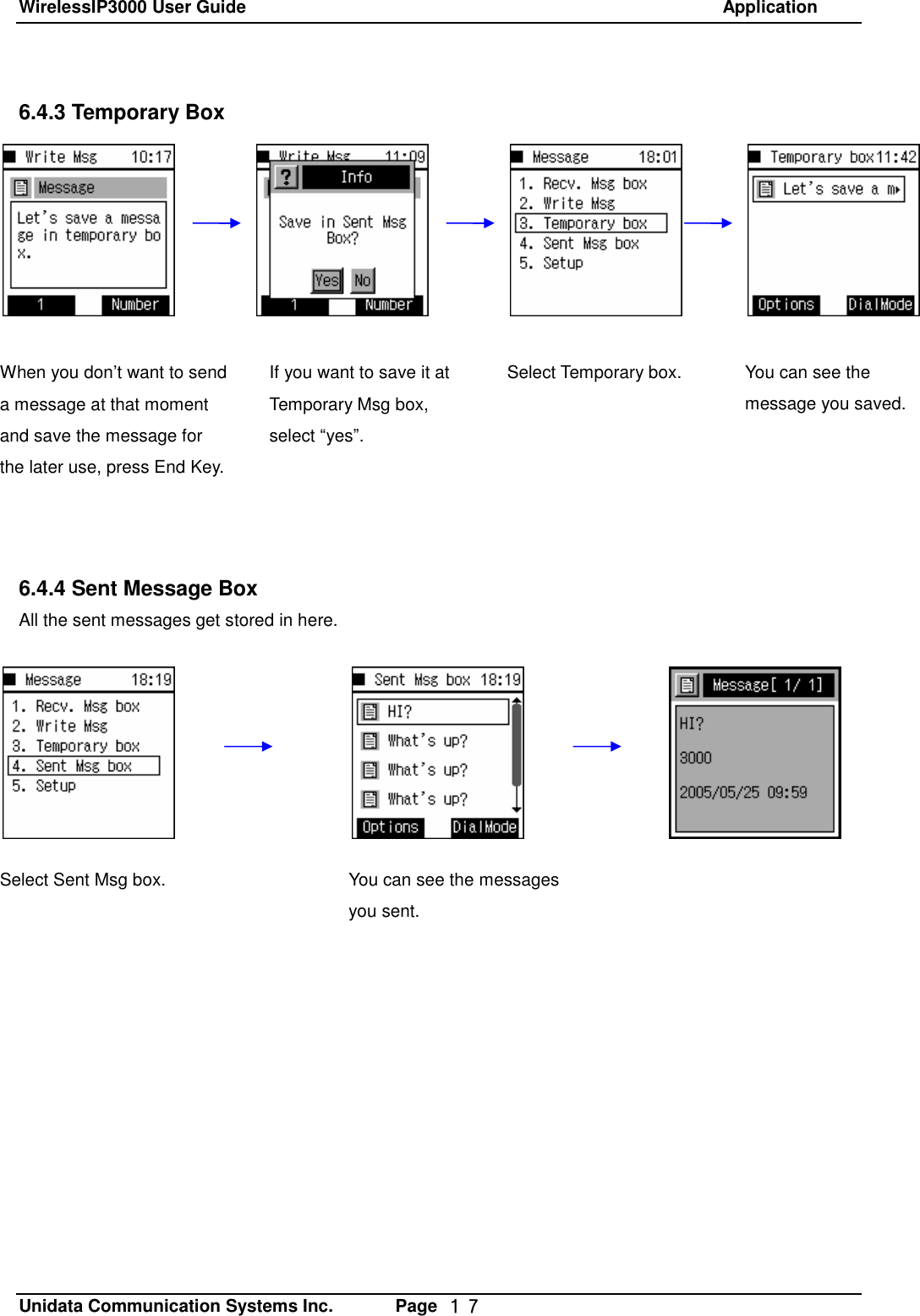
WirelessIP3000 User Guide                                                            Application   Unidata Communication Systems Inc.       Page  17 6.4.3 Temporary Box               6.4.4 Sent Message Box All the sent messages get stored in here.When you don’t want to send a message at that moment and save the message for the later use, press End Key.  If you want to save it at Temporary Msg box, select “yes”. Select Temporary box.  You can see the message you saved. Select Sent Msg box.  You can see the messages you sent.
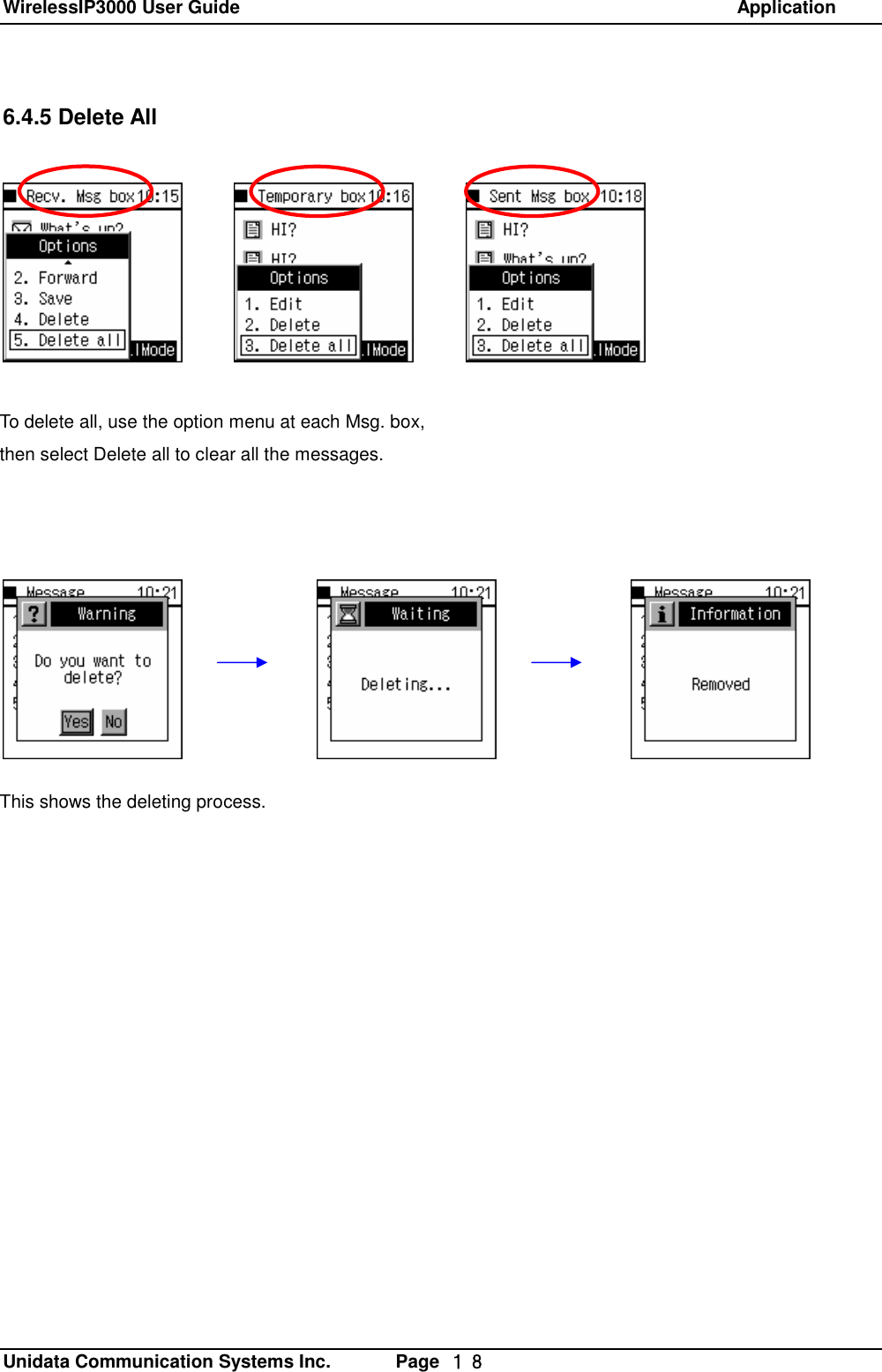
WirelessIP3000 User Guide                                                            Application   Unidata Communication Systems Inc.       Page  18 6.4.5 Delete All To delete all, use the option menu at each Msg. box, then select Delete all to clear all the messages. This shows the deleting process.
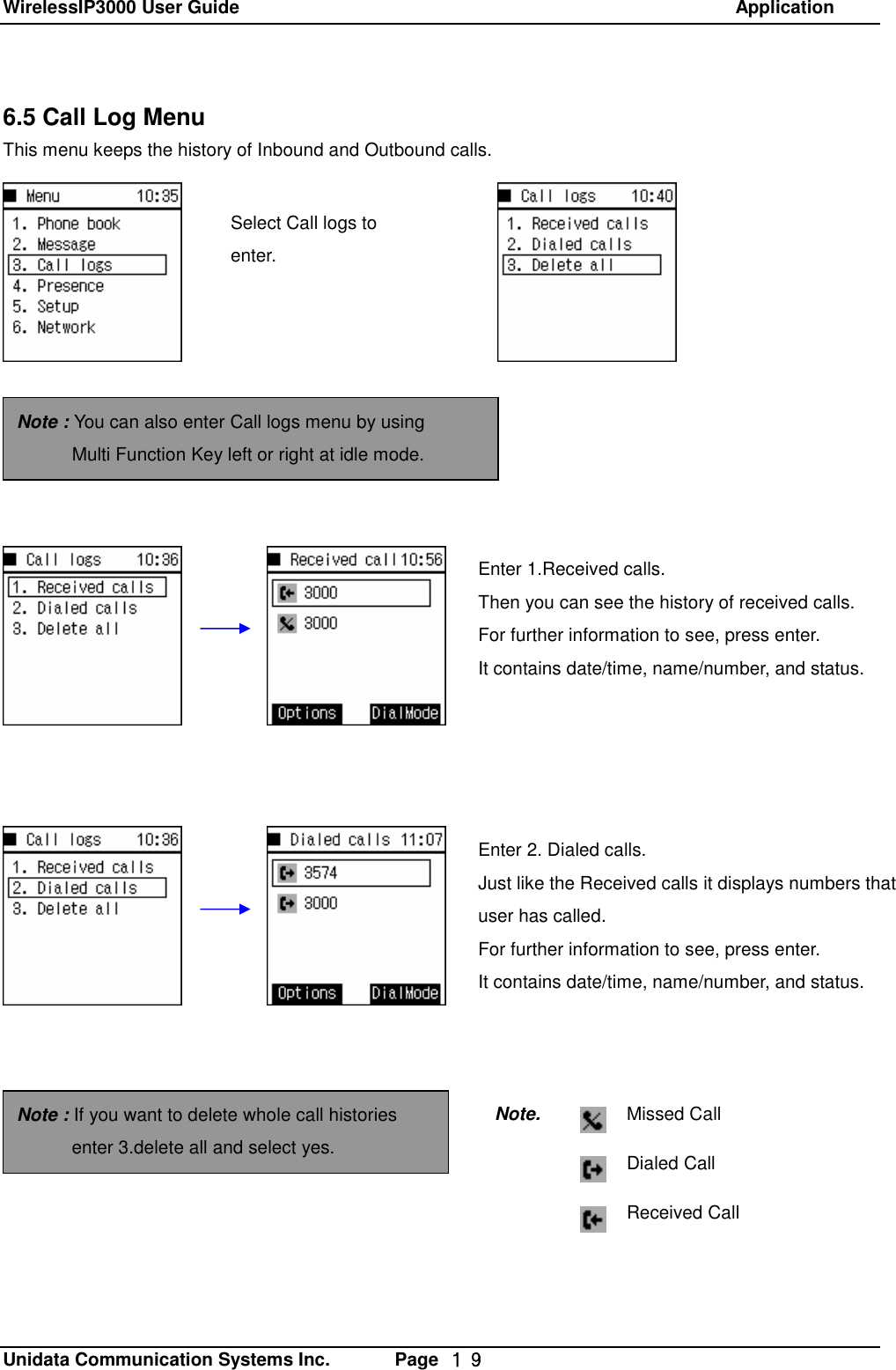
WirelessIP3000 User Guide                                                            Application   Unidata Communication Systems Inc.       Page  19 6.5 Call Log Menu This menu keeps the history of Inbound and Outbound calls.                              Select Call logs to enter. Enter 1.Received calls. Then you can see the history of received calls.  For further information to see, press enter.  It contains date/time, name/number, and status. Note : You can also enter Call logs menu by using        Multi Function Key left or right at idle mode. Enter 2. Dialed calls. Just like the Received calls it displays numbers that user has called. For further information to see, press enter.  It contains date/time, name/number, and status. Missed Call Dialed Call Received Call Note. Note : If you want to delete whole call histories enter 3.delete all and select yes.
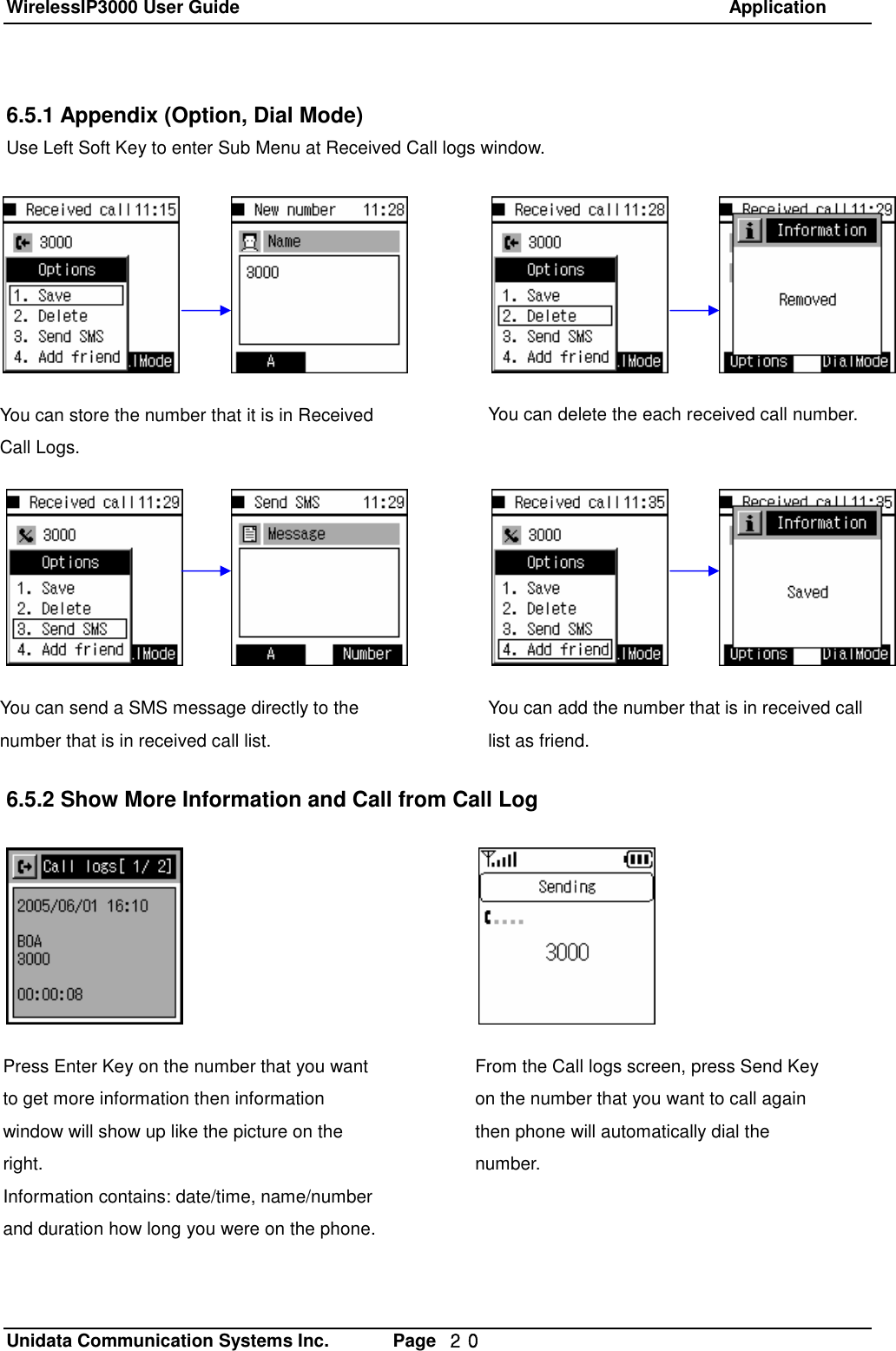
WirelessIP3000 User Guide                                                            Application   Unidata Communication Systems Inc.       Page  20 6.5.1 Appendix (Option, Dial Mode)  Use Left Soft Key to enter Sub Menu at Received Call logs window.                    6.5.2 Show More Information and Call from Call LogYou can store the number that it is in Received Call Logs. You can delete the each received call number. You can send a SMS message directly to the number that is in received call list. You can add the number that is in received call list as friend. Press Enter Key on the number that you want to get more information then information window will show up like the picture on the right. Information contains: date/time, name/number and duration how long you were on the phone. From the Call logs screen, press Send Key on the number that you want to call again then phone will automatically dial the number.
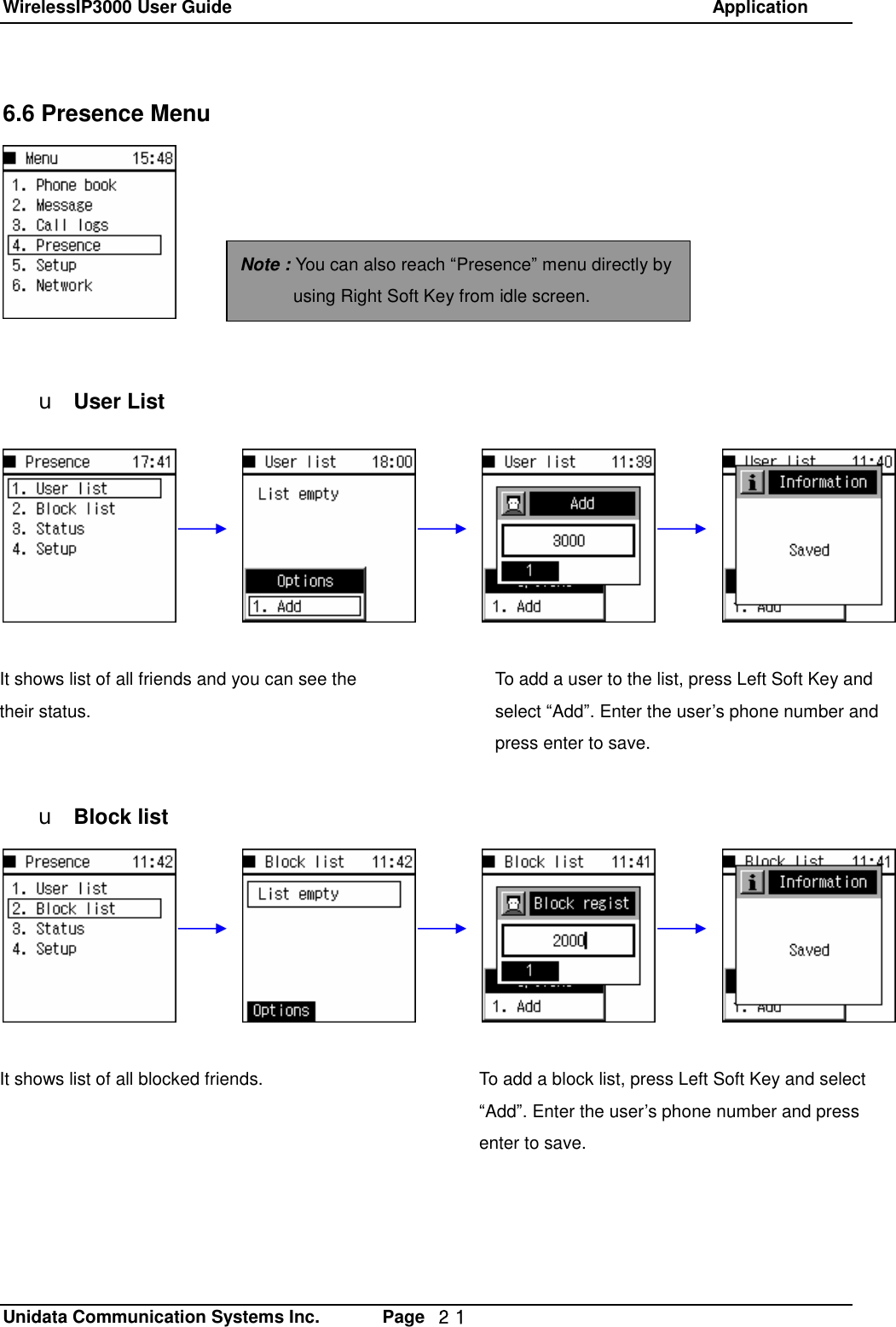
WirelessIP3000 User Guide                                                            Application   Unidata Communication Systems Inc.       Page  21 6.6 Presence Menu         u User List             u Block list    Note : You can also reach “Presence” menu directly by using Right Soft Key from idle screen. It shows list of all friends and you can see the their status. To add a user to the list, press Left Soft Key and select “Add”. Enter the user’s phone number and press enter to save. It shows list of all blocked friends.  To add a block list, press Left Soft Key and select “Add”. Enter the user’s phone number and press enter to save.
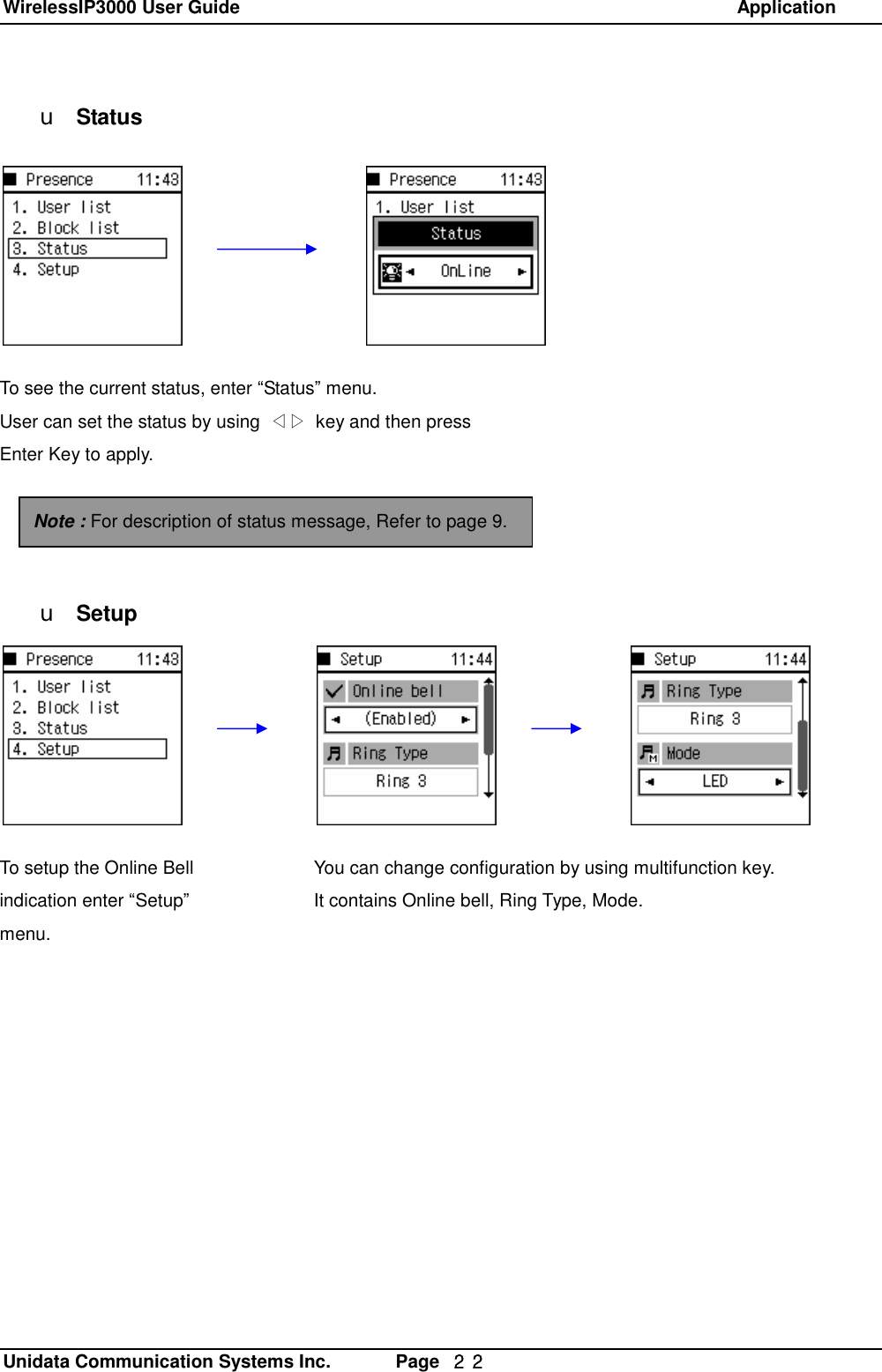
WirelessIP3000 User Guide                                                            Application   Unidata Communication Systems Inc.       Page  22 u Status               u SetupTo see the current status, enter “Status” menu. User can set the status by using  ◁▷ key and then press  Enter Key to apply. Note : For description of status message, Refer to page 9.  To setup the Online Bell indication enter “Setup” menu. You can change configuration by using multifunction key. It contains Online bell, Ring Type, Mode.
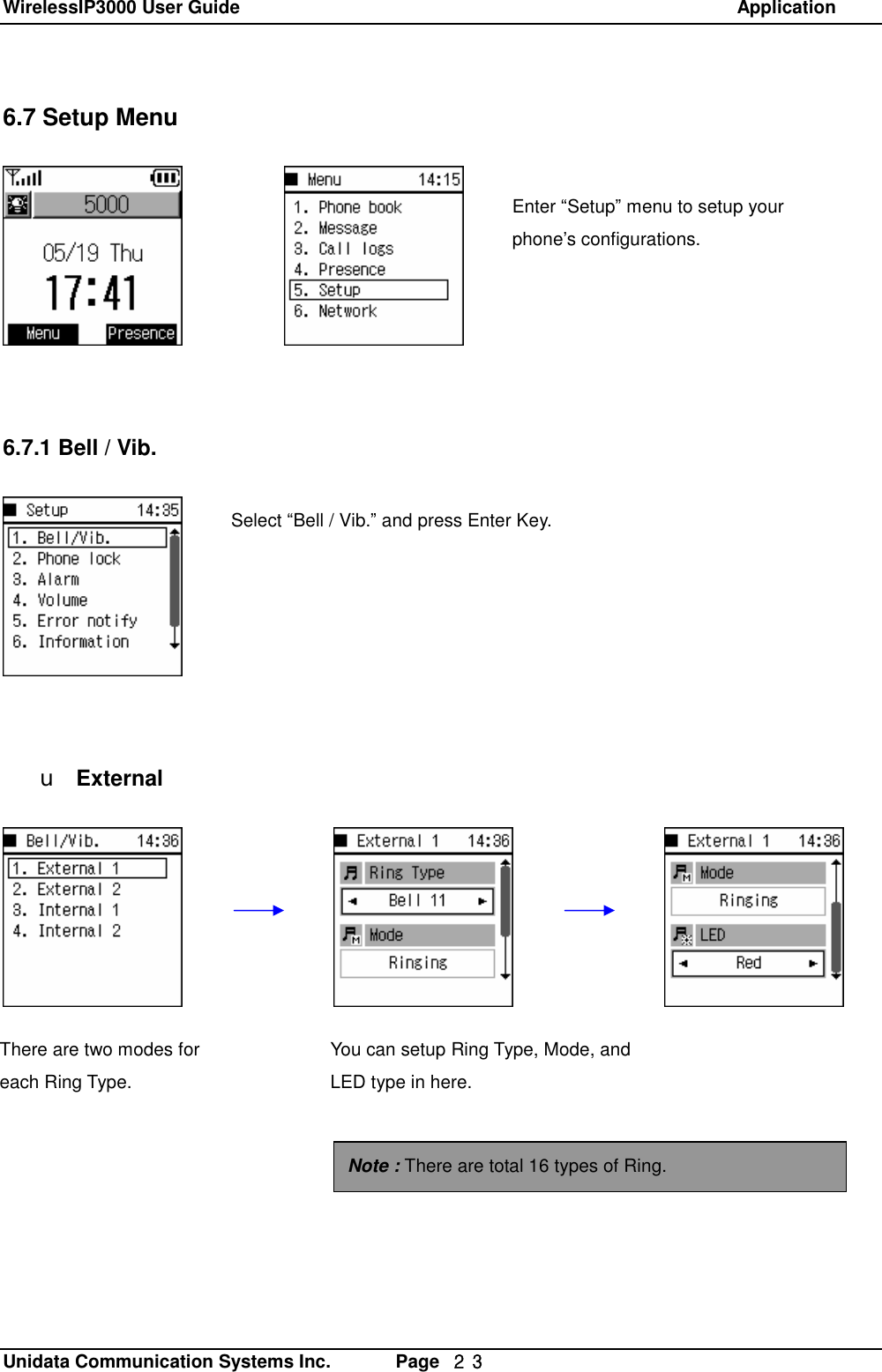
WirelessIP3000 User Guide                                                            Application   Unidata Communication Systems Inc.       Page  23 6.7 Setup Menu          6.7.1 Bell / Vib.          u External Enter “Setup” menu to setup your phone’s configurations. Select “Bell / Vib.” and press Enter Key.  There are two modes for each Ring Type.  You can setup Ring Type, Mode, and LED type in here. Note : There are total 16 types of Ring. There are two modes for each Ring Type.
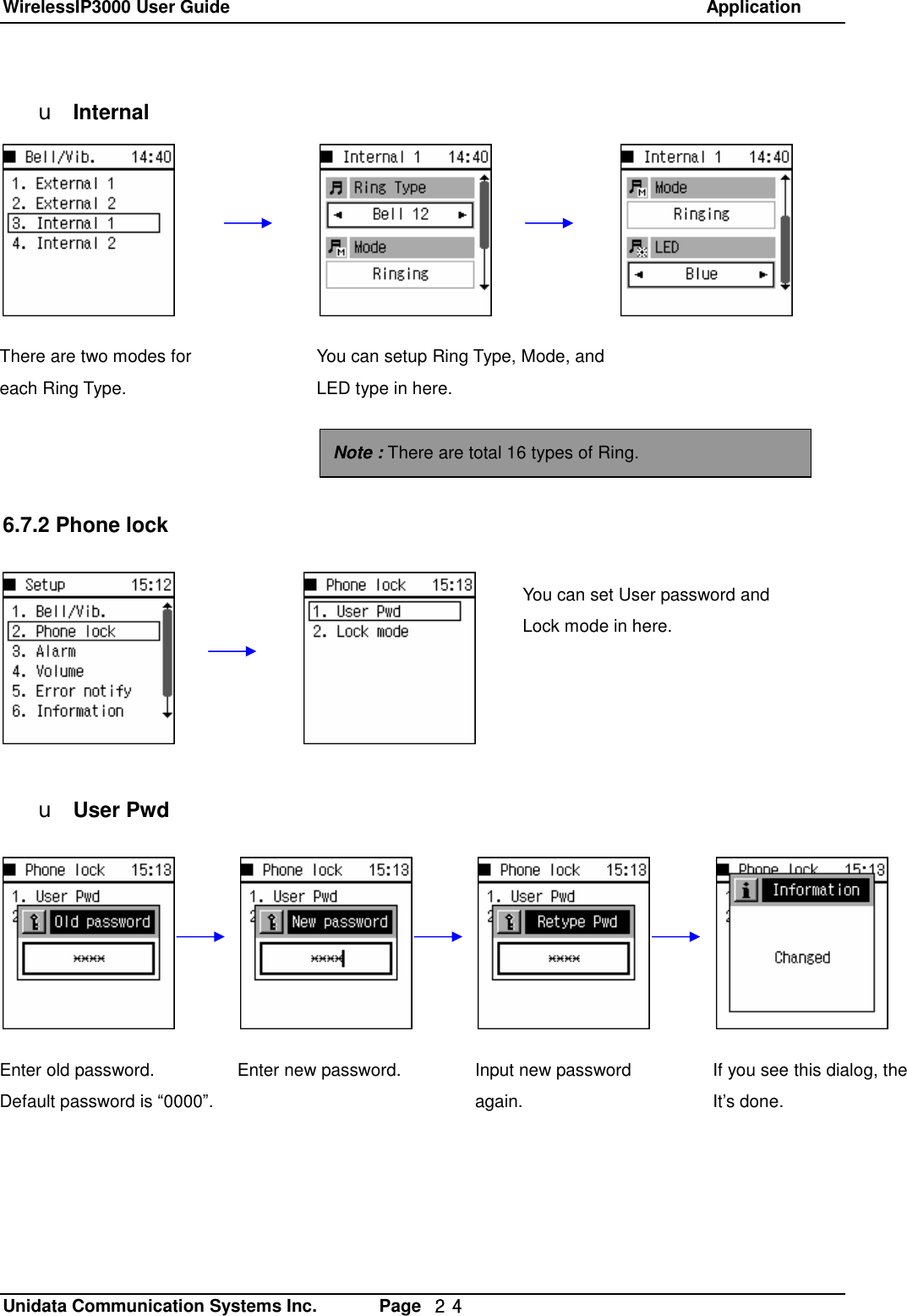
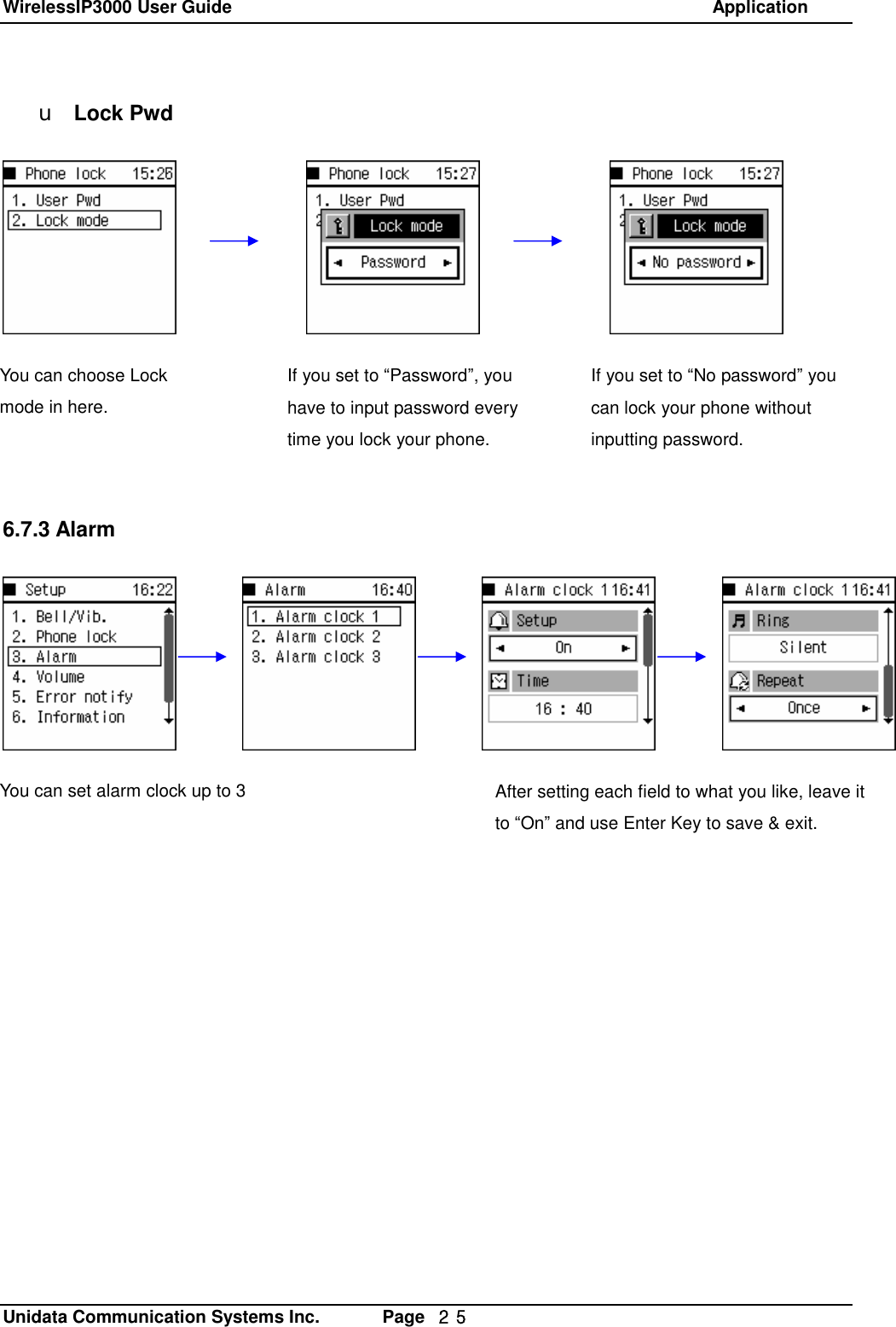
WirelessIP3000 User Guide                                                            Application   Unidata Communication Systems Inc.       Page  24 u Internal             6.7.2 Phone lock         u User Pwd There are two modes for each Ring Type.  You can setup Ring Type, Mode, and LED type in here.  Note : There are total 16 types of Ring. You can set User password and Lock mode in here. Enter old password. Default password is “0000”. Enter new password.   Input new password again. If you see this dialog, thenIt’s done.
WirelessIP3000 User Guide                                                            Application   Unidata Communication Systems Inc.       Page  25 u Lock Pwd             6.7.3 AlarmYou can choose Lock mode in here. If you set to “Password”, you have to input password every time you lock your phone. If you set to “No password” you can lock your phone without inputting password. You can set alarm clock up to 3  After setting each field to what you like, leave it to “On” and use Enter Key to save & exit.
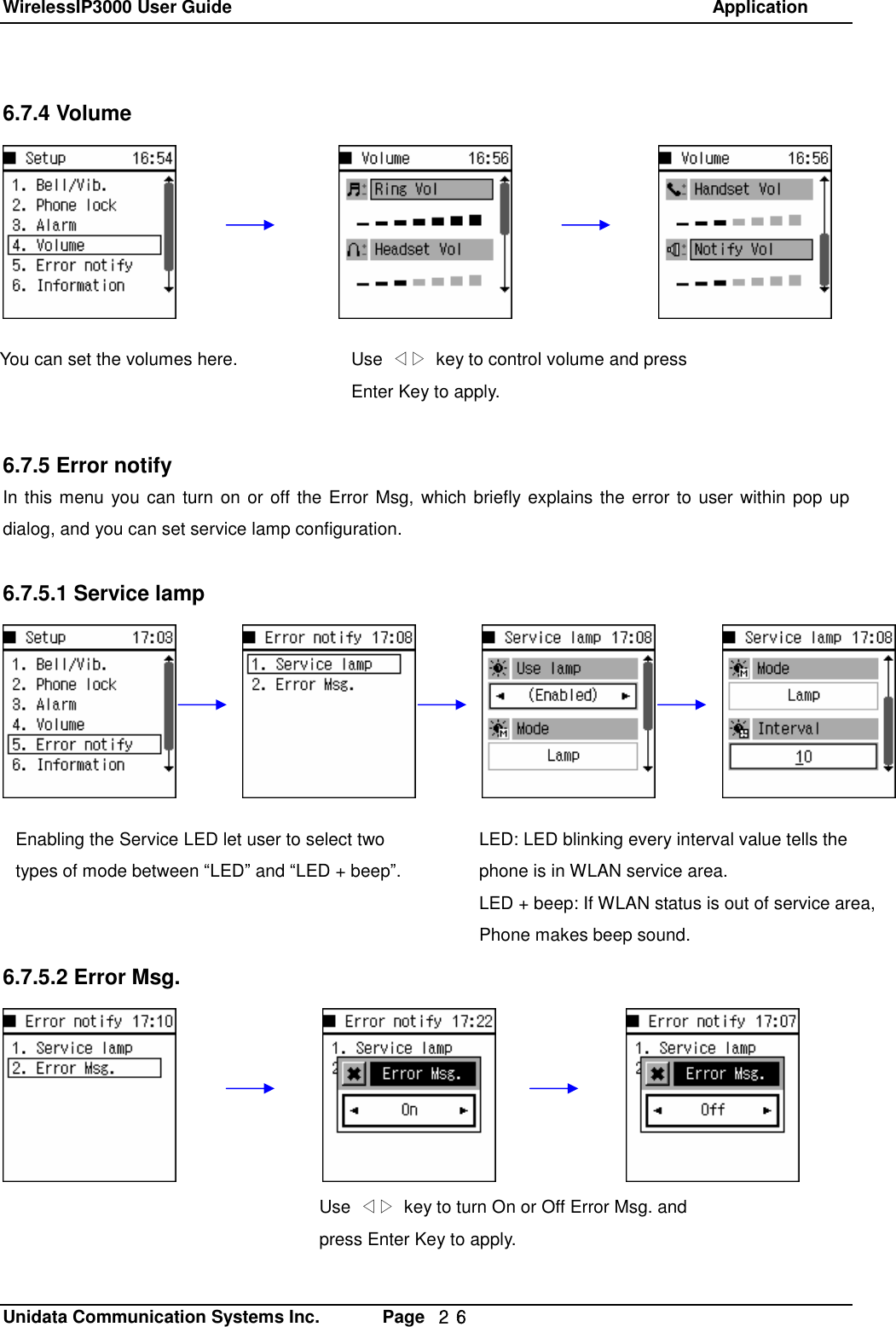
WirelessIP3000 User Guide                                                            Application   Unidata Communication Systems Inc.       Page  26 6.7.4 Volume            6.7.5 Error notify In this menu you can turn on or off the Error Msg, which briefly explains the error to user within pop up dialog, and you can set service lamp configuration.  6.7.5.1 Service lamp            6.7.5.2 Error Msg.You can set the volumes here.  Use  ◁▷ key to control volume and press Enter Key to apply.   Enabling the Service LED let user to select two types of mode between “LED” and “LED + beep”. LED: LED blinking every interval value tells the phone is in WLAN service area. LED + beep: If WLAN status is out of service area, Phone makes beep sound. Use  ◁▷ key to turn On or Off Error Msg. and press Enter Key to apply.
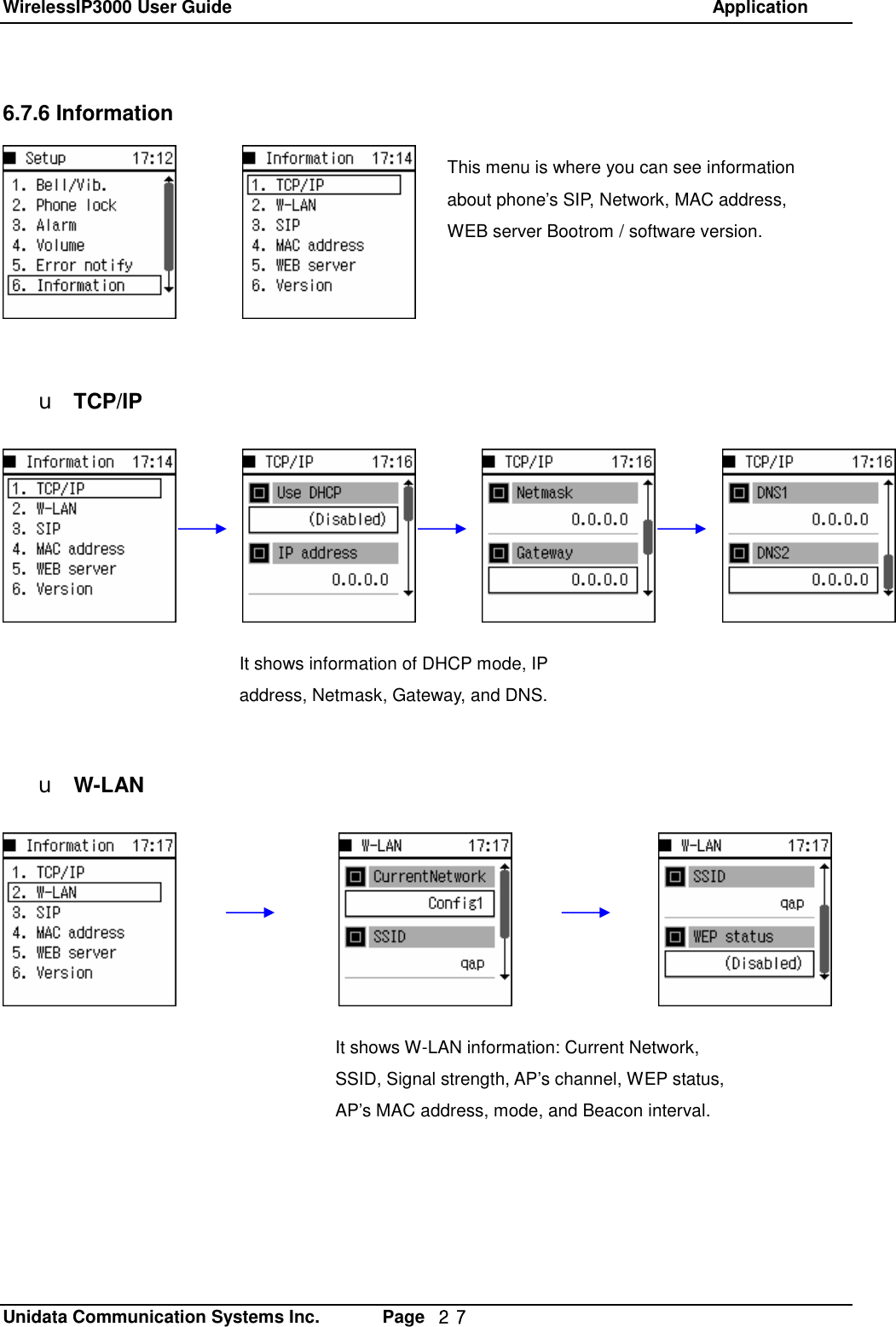
WirelessIP3000 User Guide                                                            Application   Unidata Communication Systems Inc.       Page  27 6.7.6 Information         u TCP/IP            u W-LAN  This menu is where you can see information about phone’s SIP, Network, MAC address, WEB server Bootrom / software version. It shows information of DHCP mode, IP address, Netmask, Gateway, and DNS. It shows W-LAN information: Current Network, SSID, Signal strength, AP’s channel, WEP status, AP’s MAC address, mode, and Beacon interval.
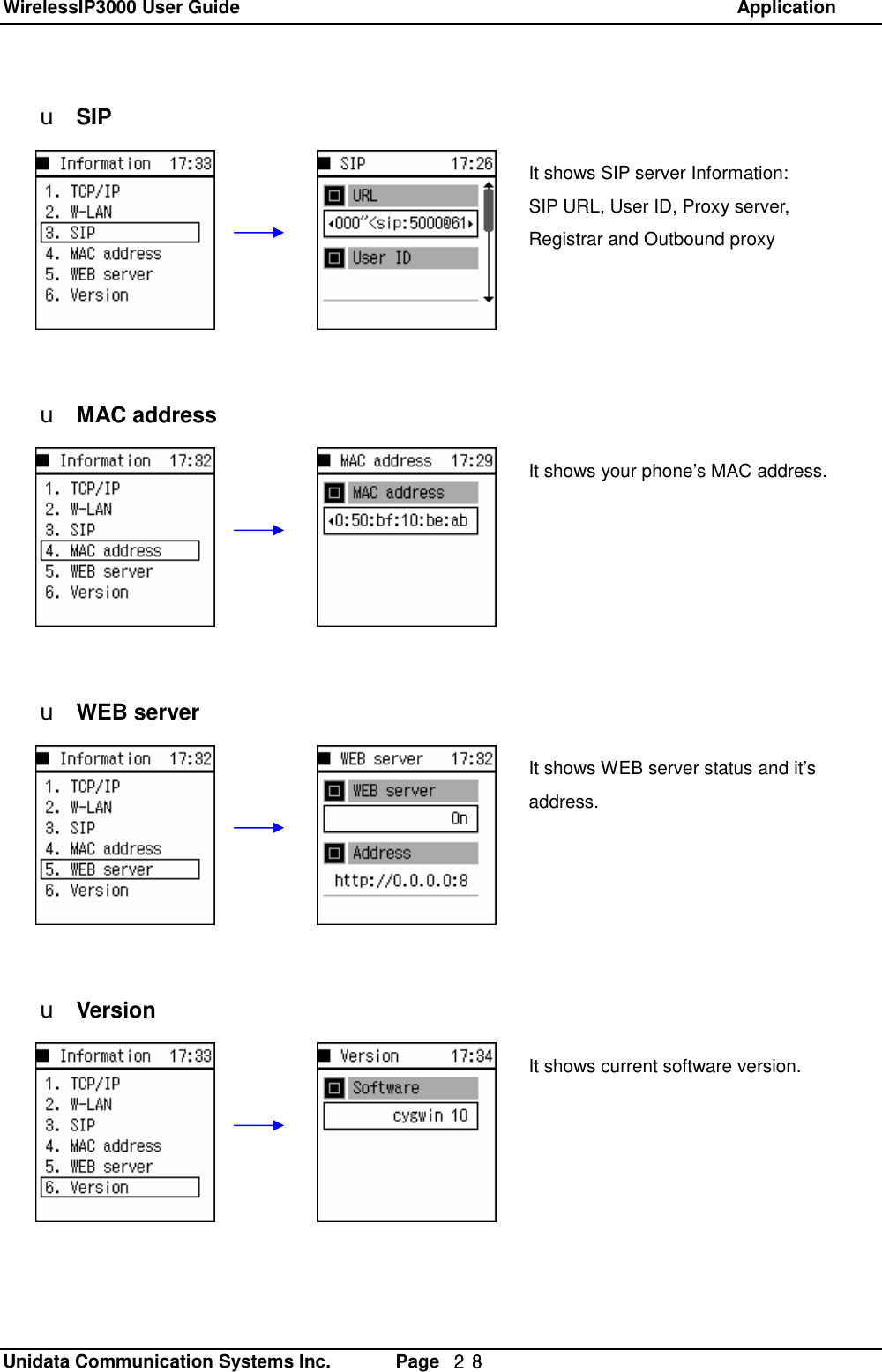
WirelessIP3000 User Guide                                                            Application   Unidata Communication Systems Inc.       Page  28 u SIP         u MAC address         u WEB server         u VersionIt shows SIP server Information:  SIP URL, User ID, Proxy server, Registrar and Outbound proxy It shows your phone’s MAC address. It shows WEB server status and it’s address. It shows current software version.
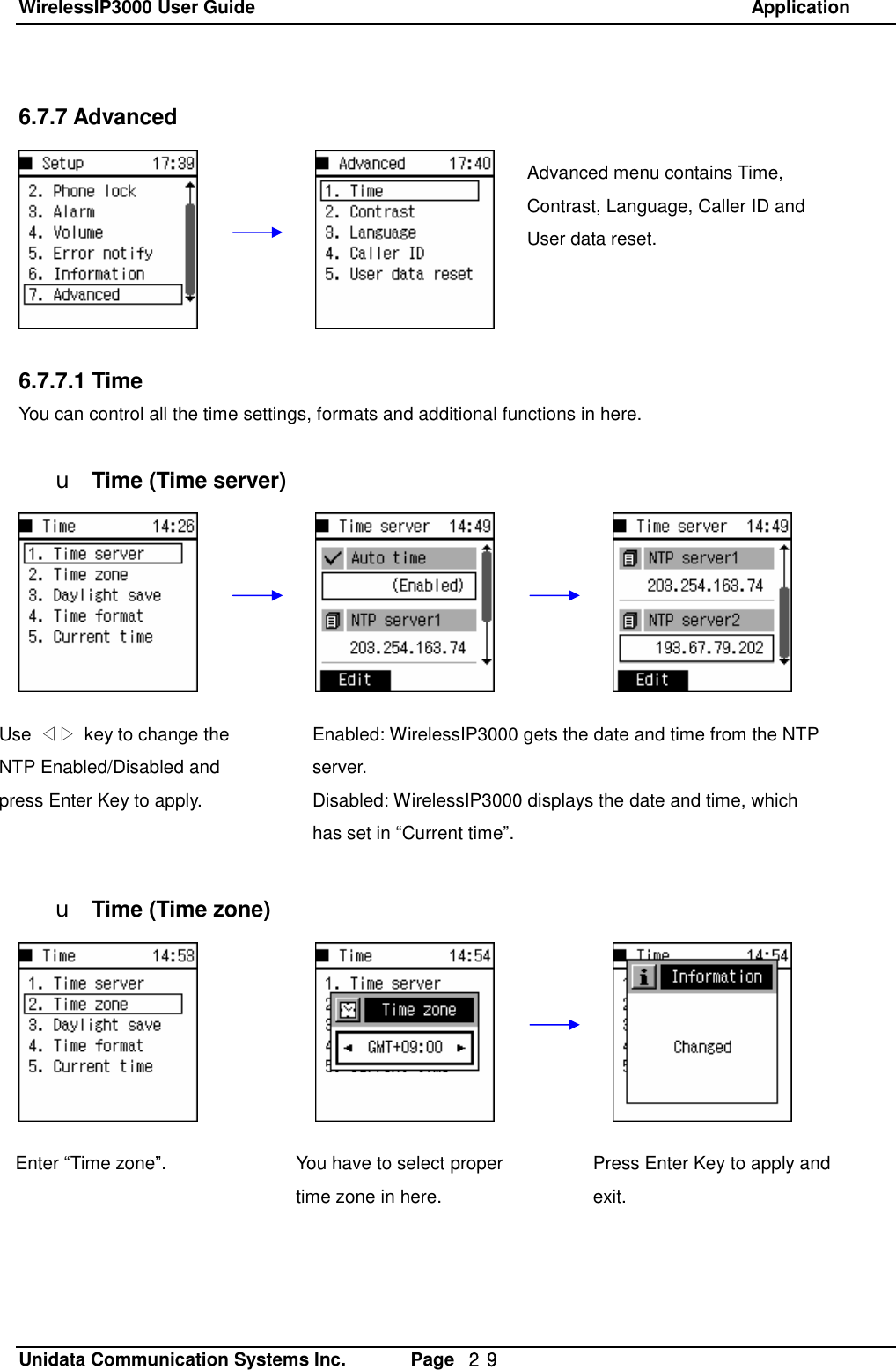
WirelessIP3000 User Guide                                                            Application   Unidata Communication Systems Inc.       Page  29 6.7.7 Advanced        6.7.7.1 Time You can control all the time settings, formats and additional functions in here.  u Time (Time server)             u Time (Time zone)  Advanced menu contains Time, Contrast, Language, Caller ID and User data reset.  Enabled: WirelessIP3000 gets the date and time from the NTP server. Disabled: WirelessIP3000 displays the date and time, which has set in “Current time”. Use  ◁▷ key to change the NTP Enabled/Disabled and press Enter Key to apply. You have to select proper time zone in here. Press Enter Key to apply and exit. Enter “Time zone”.
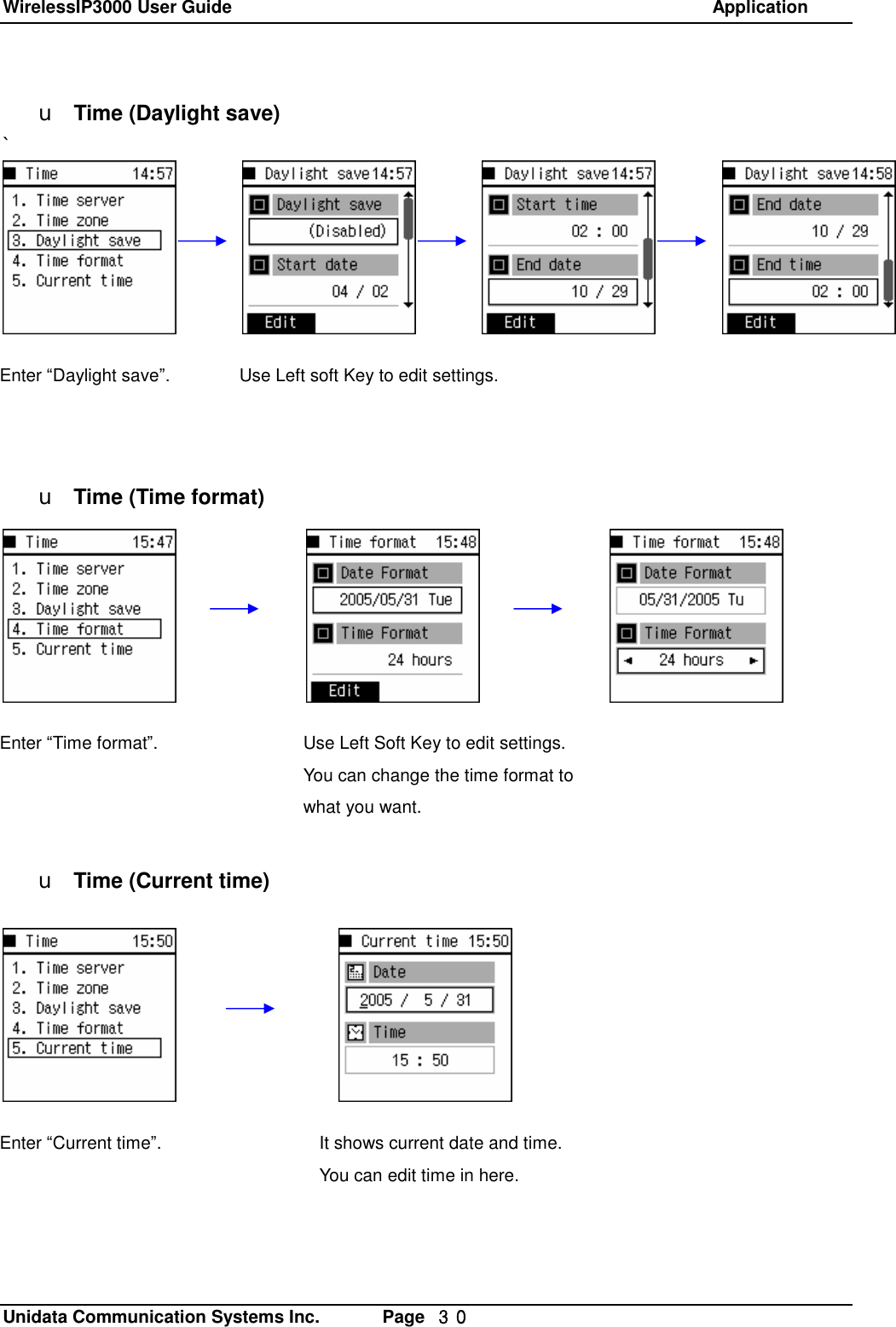
WirelessIP3000 User Guide                                                            Application   Unidata Communication Systems Inc.       Page  30 u Time (Daylight save) `           u Time (Time format)            u Time (Current time)Use Left soft Key to edit settings. Use Left Soft Key to edit settings. You can change the time format to what you want.  Enter “Time format”. Enter “Daylight save”. Enter “Current time”.  It shows current date and time. You can edit time in here.
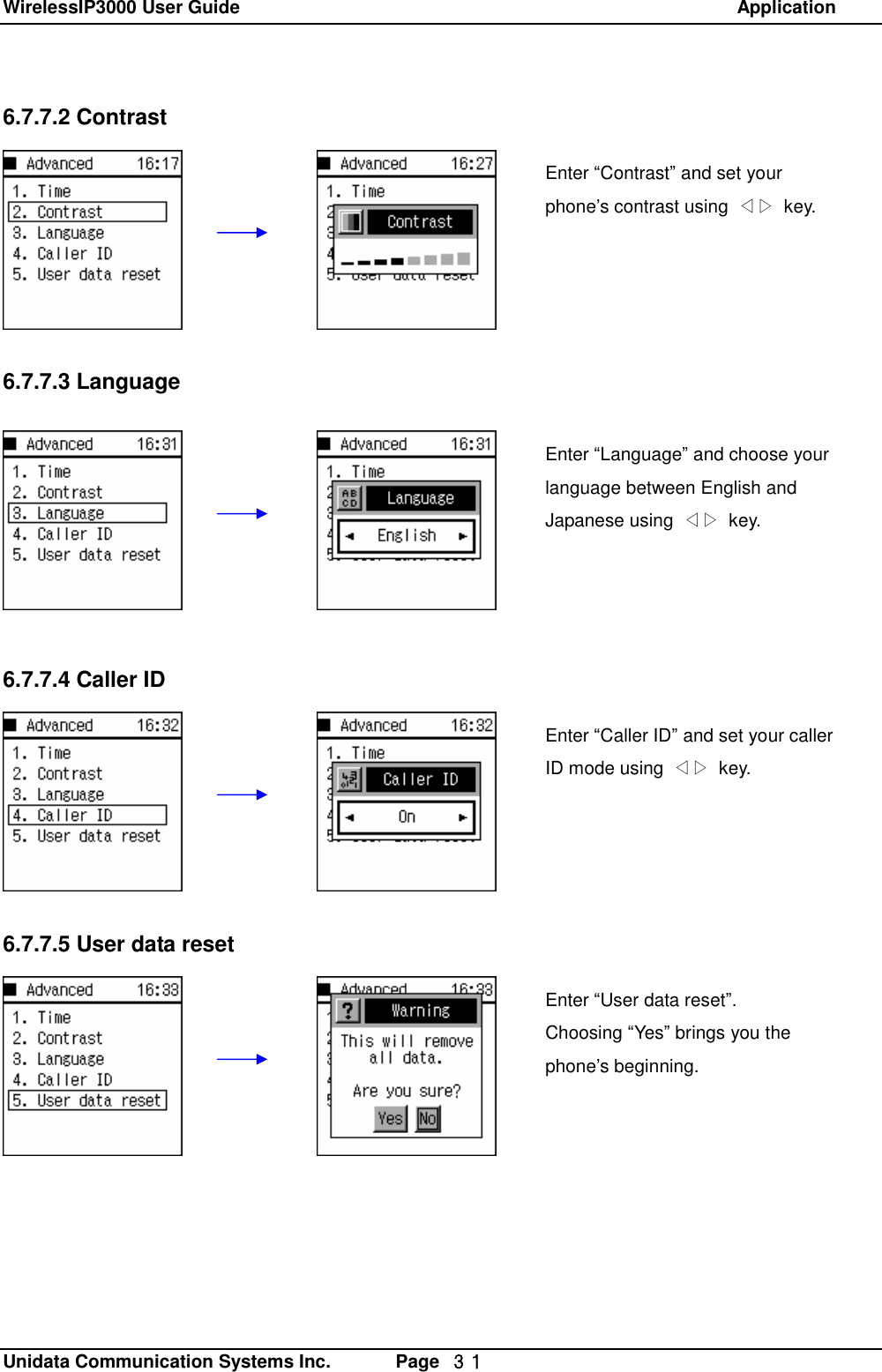
WirelessIP3000 User Guide                                                            Application   Unidata Communication Systems Inc.       Page  31 6.7.7.2 Contrast        6.7.7.3 Language         6.7.7.4 Caller ID        6.7.7.5 User data resetEnter “Contrast” and set your phone’s contrast using  ◁▷ key. Enter “Language” and choose your language between English and Japanese using  ◁▷ key.  Enter “Caller ID” and set your caller ID mode using  ◁▷ key. Enter “User data reset”. Choosing “Yes” brings you the phone’s beginning.
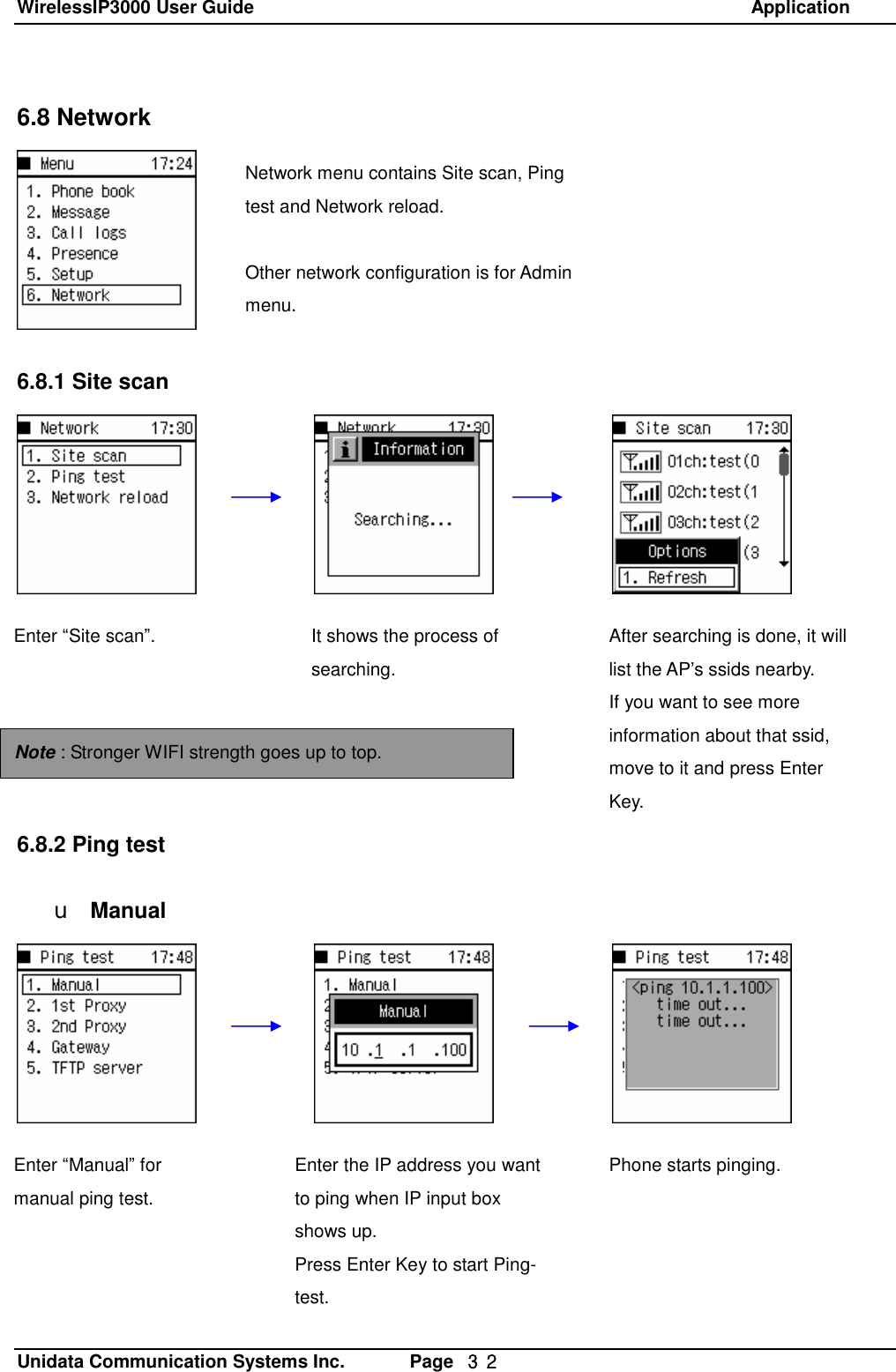
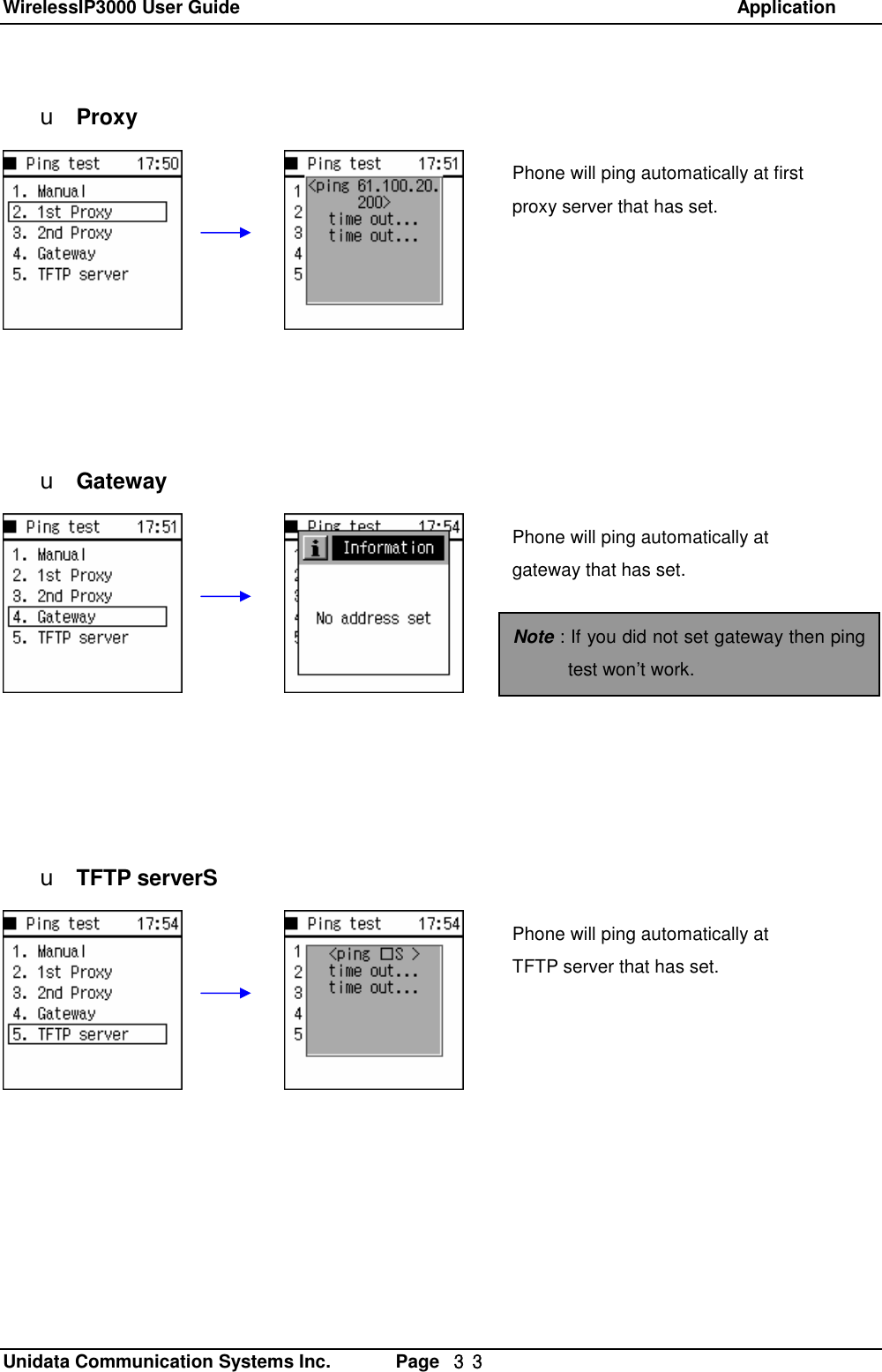
WirelessIP3000 User Guide                                                            Application   Unidata Communication Systems Inc.       Page  32 6.8 Network        6.8.1 Site scan              6.8.2 Ping test  u ManualNetwork menu contains Site scan, Ping test and Network reload.  Other network configuration is for Admin menu. Enter “Site scan”.  It shows the process of searching. After searching is done, it will list the AP’s ssids nearby.  If you want to see more information about that ssid, move to it and press Enter Key. Note : Stronger WIFI strength goes up to top. Enter “Manual” for manual ping test.  Enter the IP address you want to ping when IP input box shows up. Press Enter Key to start Ping-test. Phone starts pinging.
WirelessIP3000 User Guide                                                            Application   Unidata Communication Systems Inc.       Page  33 u Proxy           u Gateway            u TFTP serverSPhone will ping automatically at first proxy server that has set.  Phone will ping automatically at gateway that has set. Phone will ping automatically at TFTP server that has set.  Note : If you did not set gateway then ping test won’t work.
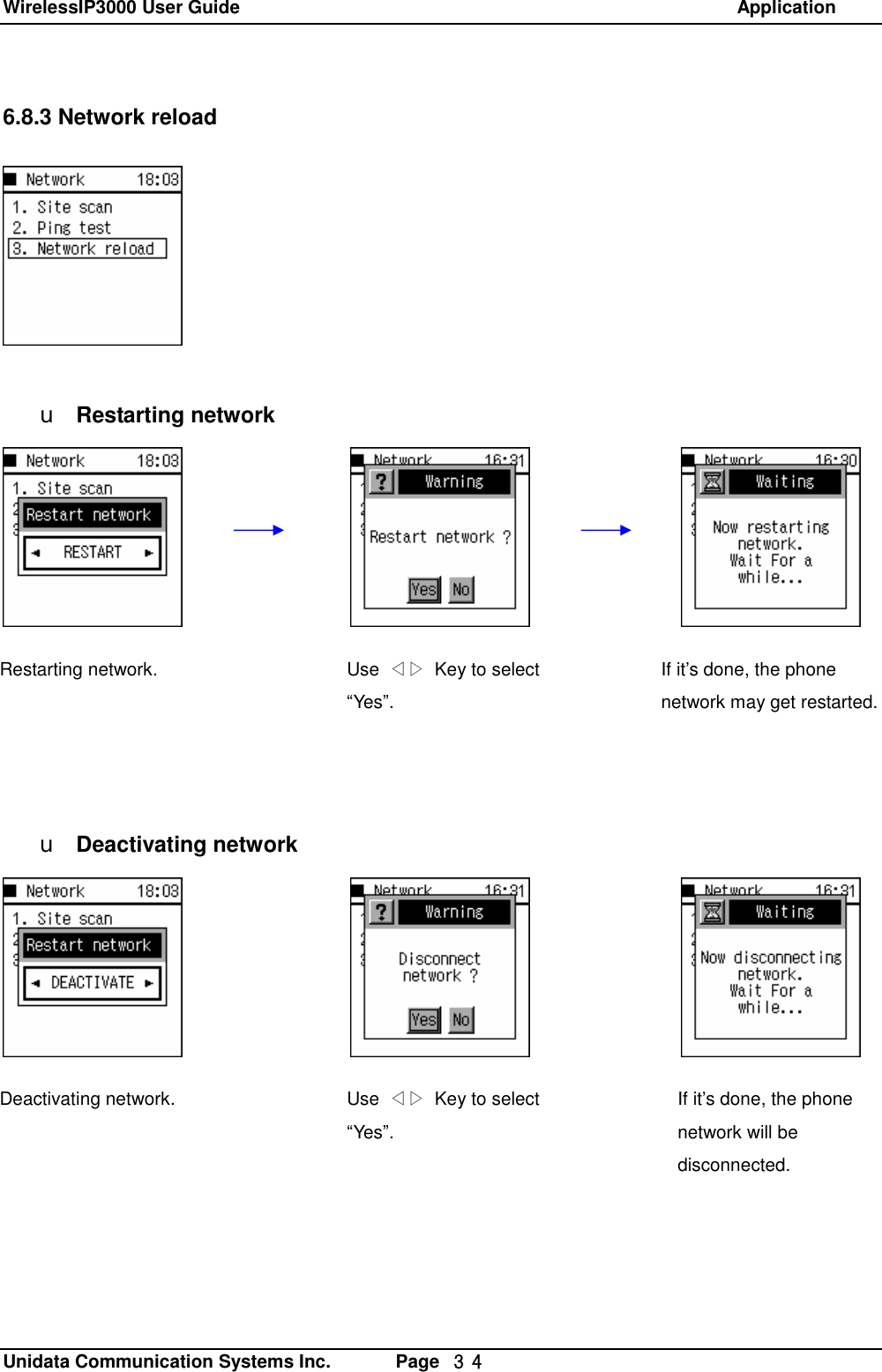
WirelessIP3000 User Guide                                                            Application   Unidata Communication Systems Inc.       Page  34 6.8.3 Network reload         u Restarting network             u Deactivating network         Restarting network.  Use  ◁▷ Key to select “Yes”. If it’s done, the phone network may get restarted. Deactivating network.  Use  ◁▷ Key to select “Yes”.   If it’s done, the phone network will be disconnected.
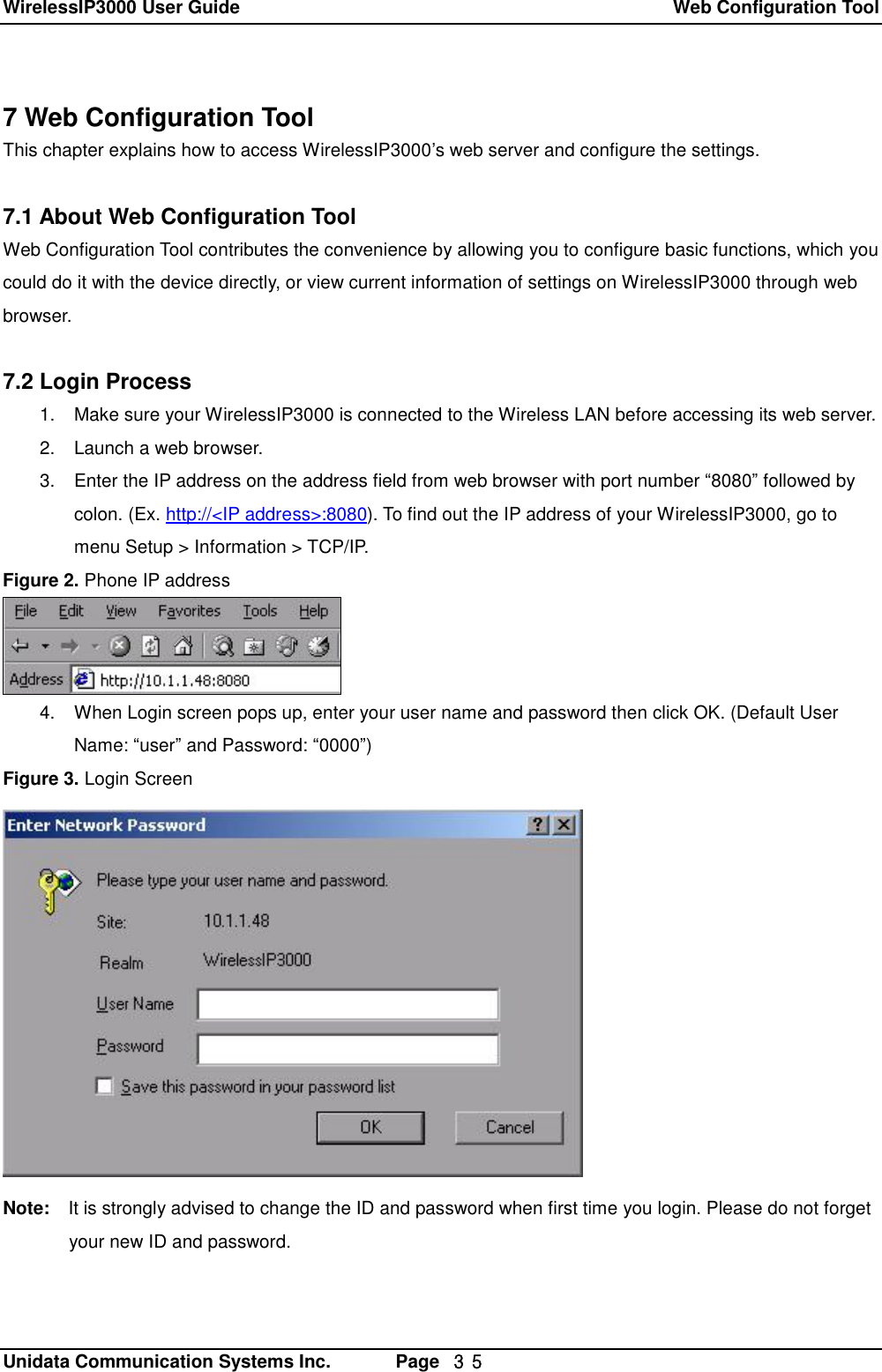
WirelessIP3000 User Guide  Web Configuration Tool   Unidata Communication Systems Inc.       Page  35 7 Web Configuration Tool This chapter explains how to access WirelessIP3000’s web server and configure the settings.  7.1 About Web Configuration Tool Web Configuration Tool contributes the convenience by allowing you to configure basic functions, which you could do it with the device directly, or view current information of settings on WirelessIP3000 through web browser.  7.2 Login Process 1. Make sure your WirelessIP3000 is connected to the Wireless LAN before accessing its web server. 2. Launch a web browser. 3. Enter the IP address on the address field from web browser with port number “8080” followed by colon. (Ex. http://<IP address>:8080). To find out the IP address of your WirelessIP3000, go to menu Setup > Information > TCP/IP. Figure 2. Phone IP address  4. When Login screen pops up, enter your user name and password then click OK. (Default User Name: “user” and Password: “0000”) Figure 3. Login Screen  Note:  It is strongly advised to change the ID and password when first time you login. Please do not forget your new ID and password.
WirelessIP3000 User Guide  Web Configuration Tool   Unidata Communication Systems Inc.       Page  36 7.3 Using the Web Configuration Tool The figure below gets displayed after the login process. Figure 4. Web Configuration Tool Main Screen  Table 1. Link Description Links  Description Main Page This takes you to the first page when you get logged in. Phonebook This option operates same as the menu in WirelessIP3000 device.  You can search, add, or edit the phone number.  Please refer to [1.1 Phonebook] for the details. Change Password This option let you change ID and Password.
WirelessIP3000 User Guide  FAQ   Unidata Communication Systems Inc.       Page  37 8. FAQ  Q.  Does WirelessIP3000 support Layer 2 roaming while on the phone? A.  Yes, WirelessIP3000 can roam between access points with same ssid while user is on the phone.  Q.  Does WirelessIP3000 support Layer 3 roaming while on the phone? A.  Yes, WirelessIP3000 can roam to different network while user is on the phone but another different        network configuration must be set before in the Admin > Network > Config menu.  Q.  Which codecs does the WirelessIP3000 support? A. WirelessIP3000 supports G.711 and G.729 codecs.  Q. Where can I purchase a new battery? A.  Please contact WirelessIP3000 manufacturer.  Q.  Why antenna signal is unstable and voice sound is not clear? A.  This could happen if user is far away from access point or user is at basement, tunnel,        mountains, place surrounded. These factors could effect antenna signal.  Q. Does WirelessIP3000 supports out-of-band DTMF? A.  Yes. You can set up SIP INFO method by setting DTMF type entry to 1, and also you can set up RFC 2833 by setting DTMF type entry to 2.
WirelessIP3000 User Guide   Glossary   Unidata Communication Systems Inc.       Page  38 9. Glossary  802.1x As the IEEE standard for access control for wireless and wired LANs, 802.1x provides a means of  authenticating and authorizing devices to attach to a LAN port. This standard defines the Extensible  Authentication Protocol (EAP), which uses a central authentication server to authenticate each user on  the network.  AP (Access Point) A transceiver that makes a connection between wired network and one or more wireless devices.  DHCP (Dynamic Host Configuration Protocol) Automatically gets an IP address assigned to a device when it logs onto the network.  SIP SIP is the real-time communication protocol for Voice over IP (VoIP), and it supports multimedia  communications. SIP performs basic call-control tasks, such as session set up and tear down and signaling for features such as hold, caller ID and call transferring. With SIP, most of the intelligence for call setup and features resides on the SIP device or user agent, such as an IP phone or a PC with voice or instant-messaging software.  MD5 (Message Digest 5) A secure hashing function that converts an arbitrarily long data stream into a digest of fixed size (128 bit).  NAT (Network Address Translation) Sharing one incoming IP address by creating new multiple IP address to each devices.Roaming Movement from one AP coverage area to another with a wireless device without disconnection.SSID It’s an identifier when wireless device tries to connect to the WLAN through AP.  It’s like a name that differentiate WLAN environments.  Therefore both AP and wireless device must have the same SSID in order to connect to a certain WLAN.  TCP/IP A protocol that makes smooth communication between LANs and WANs through computers. TCP/IP is made up with TCP plus IP protocol.  TCP (Transmission Control Protocol) guarantees data transmission between server and client.  IP (Internet Protocol) is the computer address.
WirelessIP3000 User Guide   Glossary   Unidata Communication Systems Inc.       Page  39 TFTP A protocol, which allows files to be transferred from a host to a client.  TLS (Transport Layer Security) An IETF standardized protocol that provides data integrity and privacy between two communications. It  allows client-server applications to communicate and is designed to prevent eavesdropping.  UAM (Universal Access Method) It is a login process using HTTP or HTTPS protocol (http over SSL, which tunnels the http packet to ssl channel) through web browser for user ID and password input from html page, so that users can access the service.  uPnP (Universal Plug and Play) uPnP is an architecture for peer-to-peer network connectivity of PCs and intelligent devices or appliances,  particularly within the home. uPnP builds on Internet standards and technologies, such as TCP/IP, HTTP,  and XML, to enable these devices to automatically connect with one another and work together to make  networking particularly home networking possible for more people.   USB (Universal Serial Bus) It is a connection between a PC and a peripheral that transmit data.  USB 1.1  provides data rate of 12Mbps and new USB 2.0 is 40 times faster, which makes 480Mbps data rate.  It supports Plug & Play and supply power.  VoIP (Voice over IP) A term used in IP Telephony for a set of facilities for managing the delivery of voice information using the Internet Protocol(IP), which means sending voice information in digital packets.  WEP (Wired Equivalent Privacy) Data encryption method used to protect the transmission between 802.11 wireless clients and APs. However, it used the same key among all communicating devices. WEP's problems are well- known, including an insufficient key length and no automated method for distributing the keys.
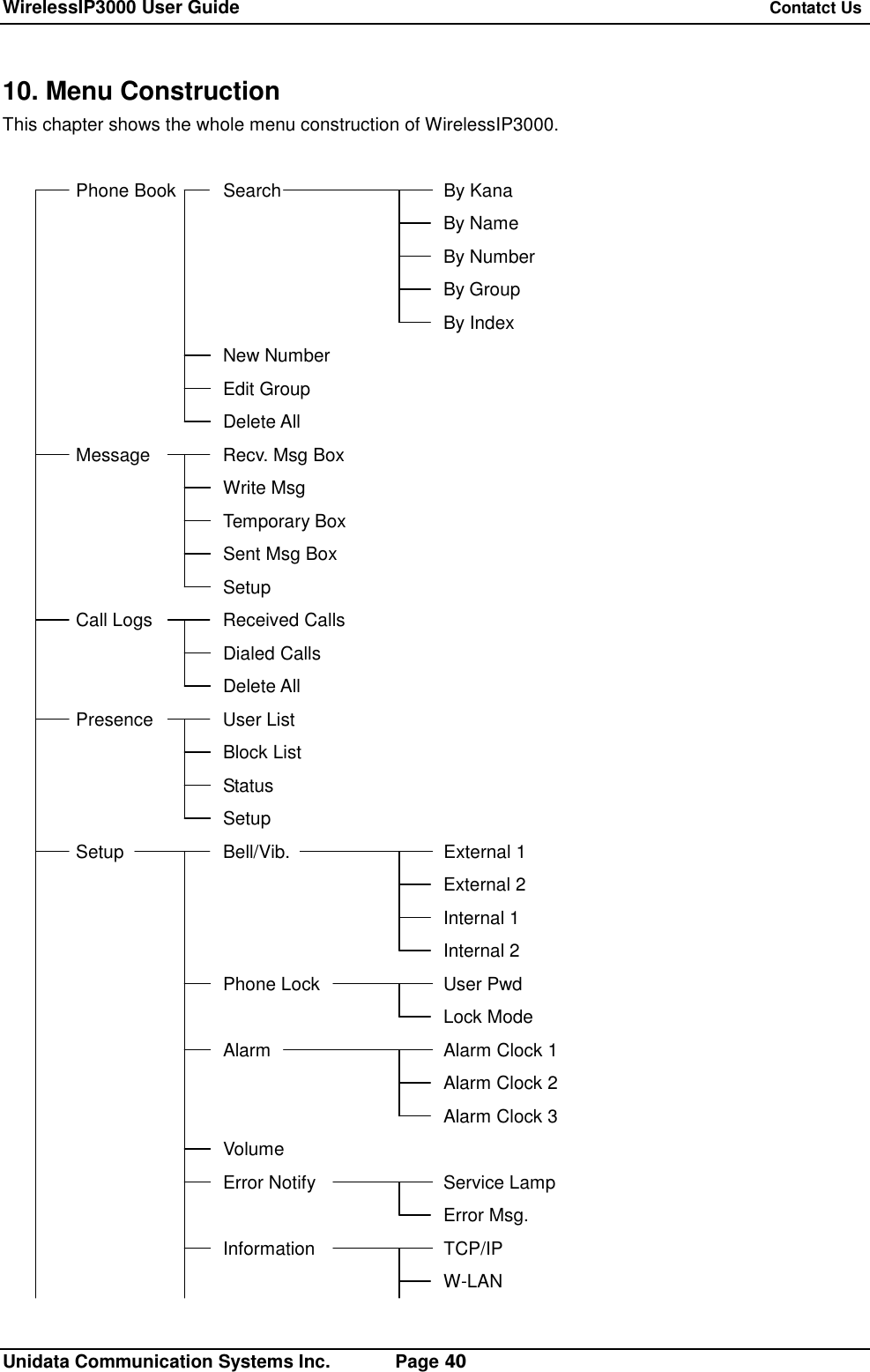
WirelessIP3000 User Guide   Contatct Us   Unidata Communication Systems Inc.       Page 40 10. Menu Construction This chapter shows the whole menu construction of WirelessIP3000.  Phone Book Search   By Kana       By Name       By Number       By Group       By Index   New Number   Edit Group   Delete All Message Recv. Msg Box    Write Msg    Temporary Box    Sent Msg Box    Setup Call Logs Received Calls    Dialed Calls    Delete All Presence User List    Block List    Status    Setup Setup  Bell/Vib.   External 1       External 2       Internal 1       Internal 2    Phone Lock  User Pwd       Lock Mode    Alarm   Alarm Clock 1       Alarm Clock 2       Alarm Clock 3    Volume    Error Notify  Service Lamp       Error Msg.    Information  TCP/IP       W-LAN
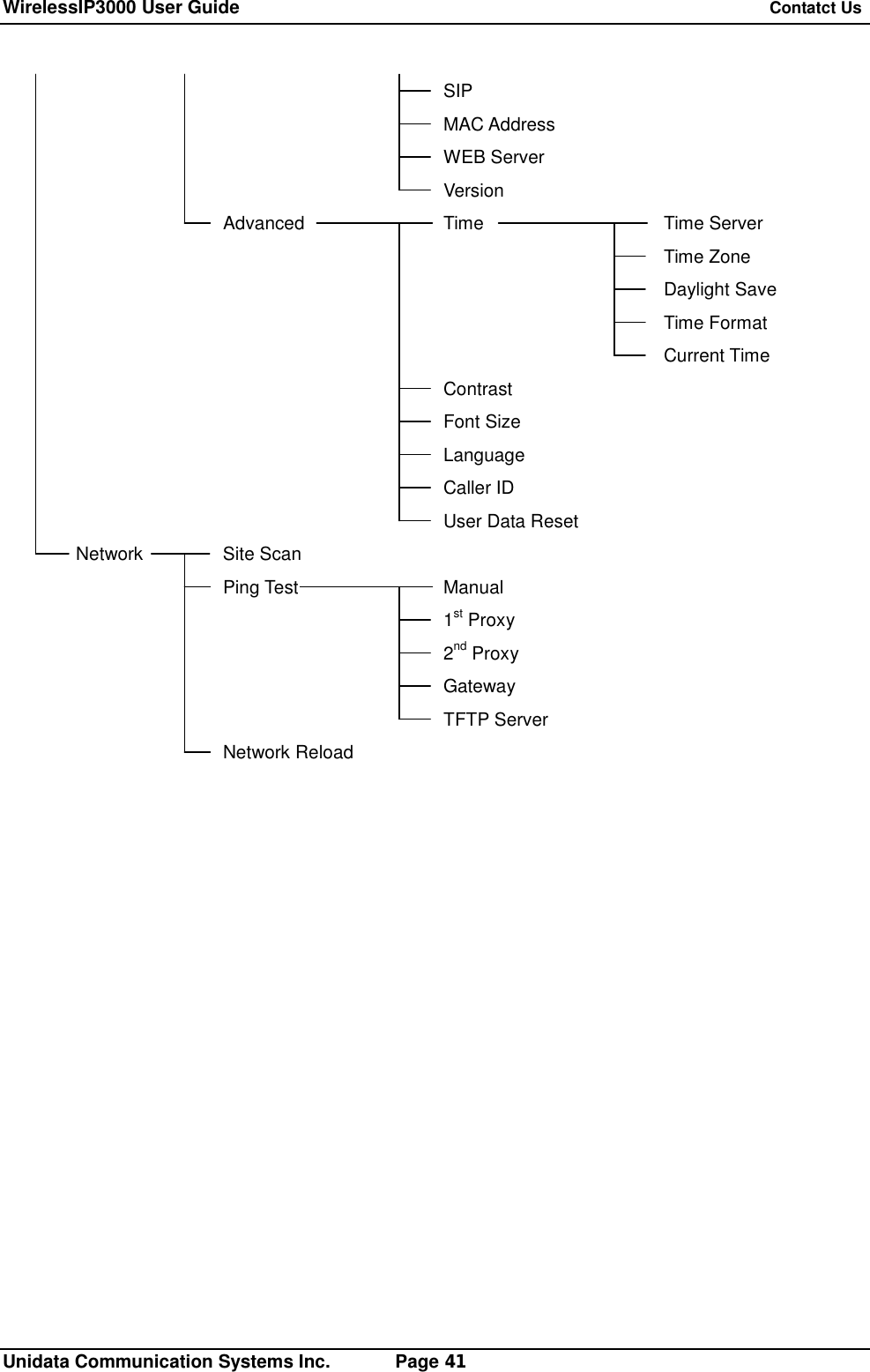
WirelessIP3000 User Guide   Contatct Us   Unidata Communication Systems Inc.       Page 41       SIP       MAC Address       WEB Server       Version    Advanced  Time   Time Server          Time Zone          Daylight Save          Time Format          Current Time       Contrast       Font Size Language       Caller ID       User Data Reset Network  Site Scan    Ping Test  Manual       1st Proxy       2nd Proxy       Gateway       TFTP Server    Network Reload
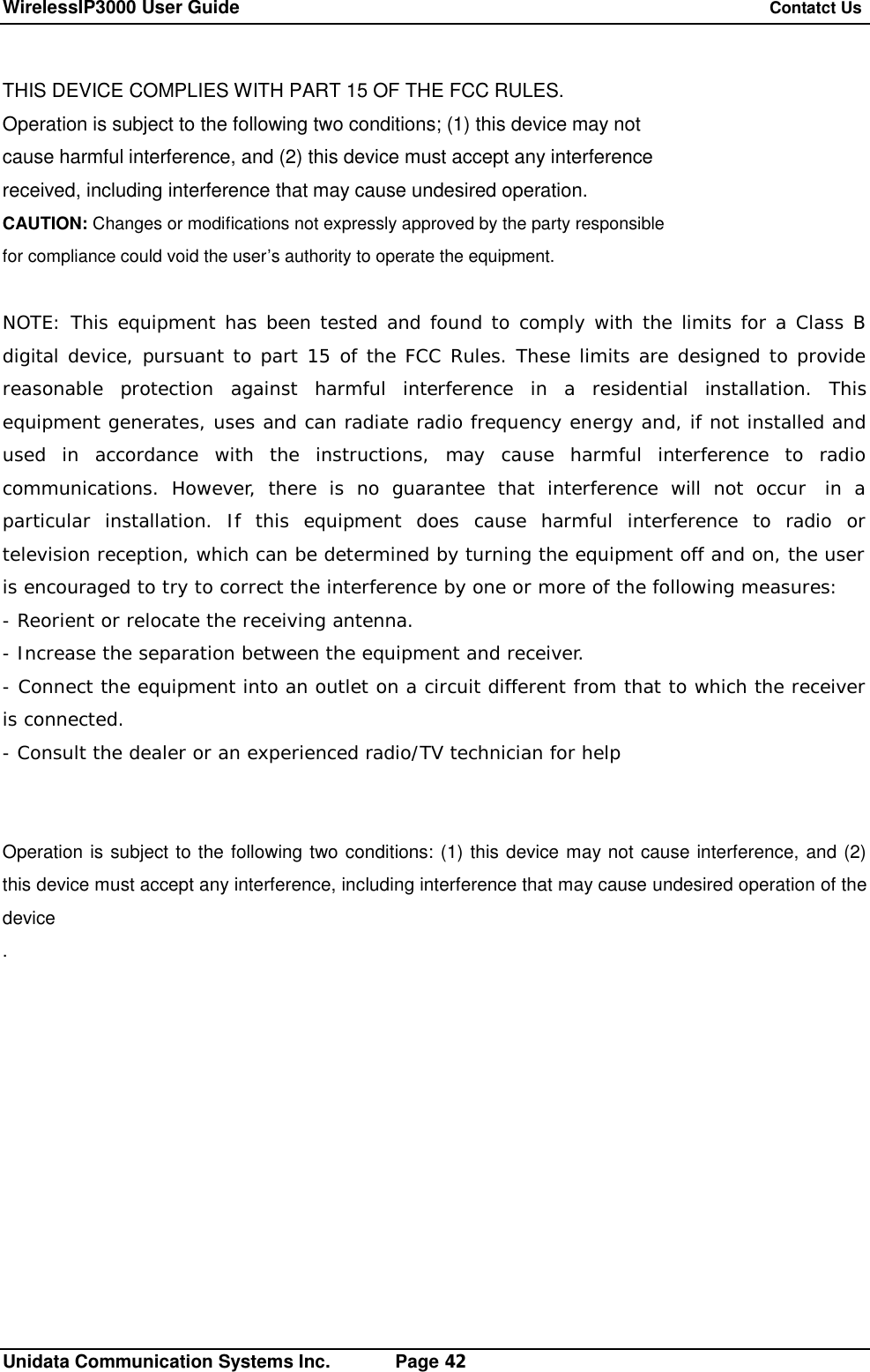
WirelessIP3000 User Guide   Contatct Us   Unidata Communication Systems Inc.       Page 42 THIS DEVICE COMPLIES WITH PART 15 OF THE FCC RULES. Operation is subject to the following two conditions; (1) this device may not cause harmful interference, and (2) this device must accept any interference received, including interference that may cause undesired operation. CAUTION: Changes or modifications not expressly approved by the party responsible for compliance could void the user’s authority to operate the equipment.  NOTE: This equipment has been tested and found to comply with the limits for a Class B digital device, pursuant to part 15 of the FCC Rules. These limits are designed to provide reasonable protection against harmful interference in a residential installation. This equipment generates, uses and can radiate radio frequency energy and, if not installed and used in accordance with the instructions, may cause harmful interference to radio communications. However, there is no guarantee that interference will not occur  in a particular installation. If this equipment does cause harmful interference to radio or television reception, which can be determined by turning the equipment off and on, the user is encouraged to try to correct the interference by one or more of the following measures: - Reorient or relocate the receiving antenna. - Increase the separation between the equipment and receiver. - Connect the equipment into an outlet on a circuit different from that to which the receiver is connected. - Consult the dealer or an experienced radio/TV technician for help   Operation is subject to the following two conditions: (1) this device may not cause interference, and (2) this device must accept any interference, including interference that may cause undesired operation of the device .
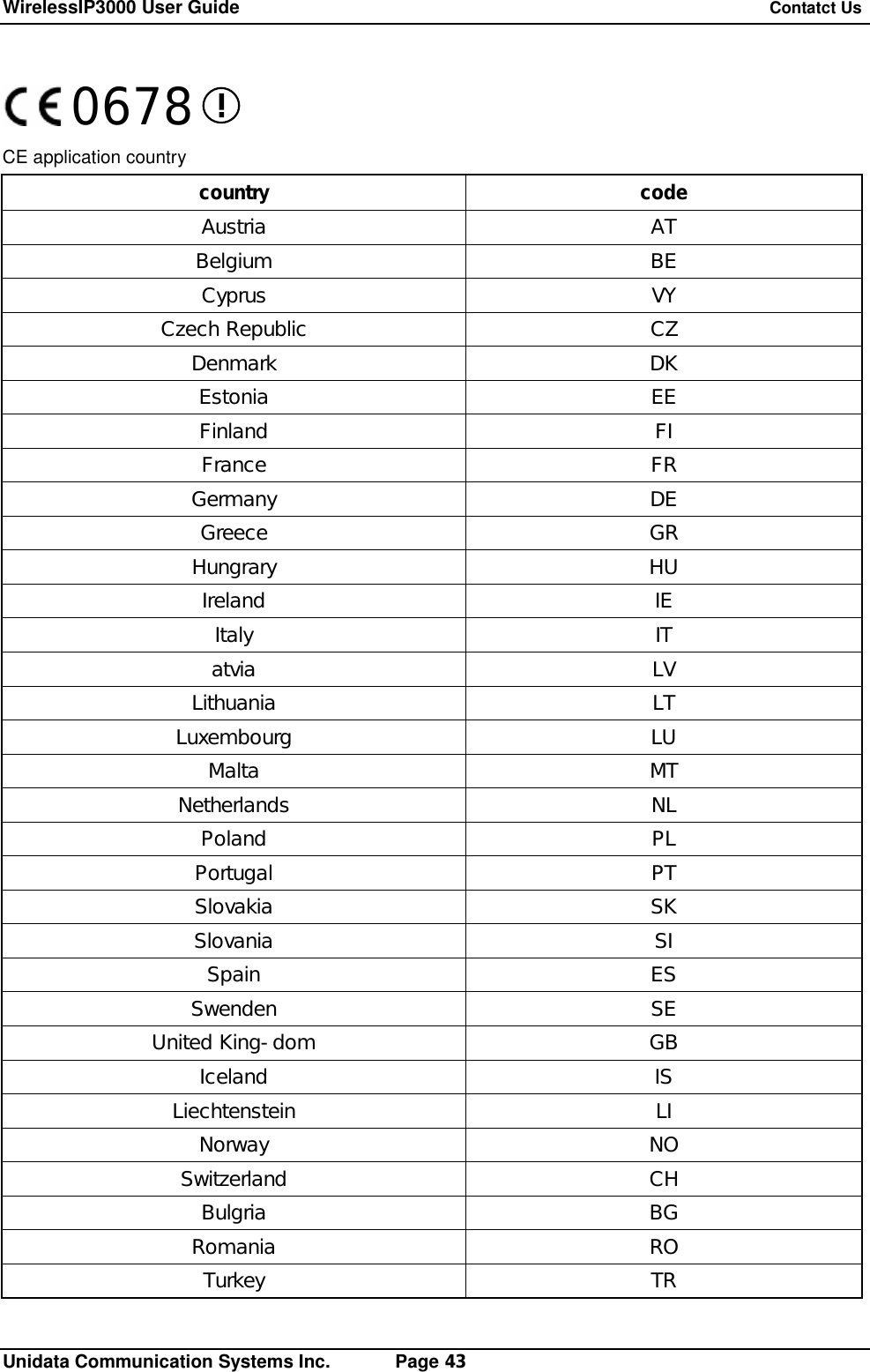
WirelessIP3000 User Guide   Contatct Us   Unidata Communication Systems Inc.       Page 43  CE application country country  code Austria  AT Belgium  BE Cyprus  VY Czech Republic  CZ Denmark  DK Estonia  EE Finland  FI France  FR Germany  DE Greece  GR Hungrary  HU Ireland  IE Italy  IT atvia  LV Lithuania  LT Luxembourg  LU Malta  MT Netherlands  NL Poland  PL Portugal  PT Slovakia  SK Slovania  SI Spain  ES Swenden  SE United King-dom  GB Iceland  IS Liechtenstein  LI Norway  NO Switzerland  CH Bulgria  BG Romania  RO Turkey  TR 0678
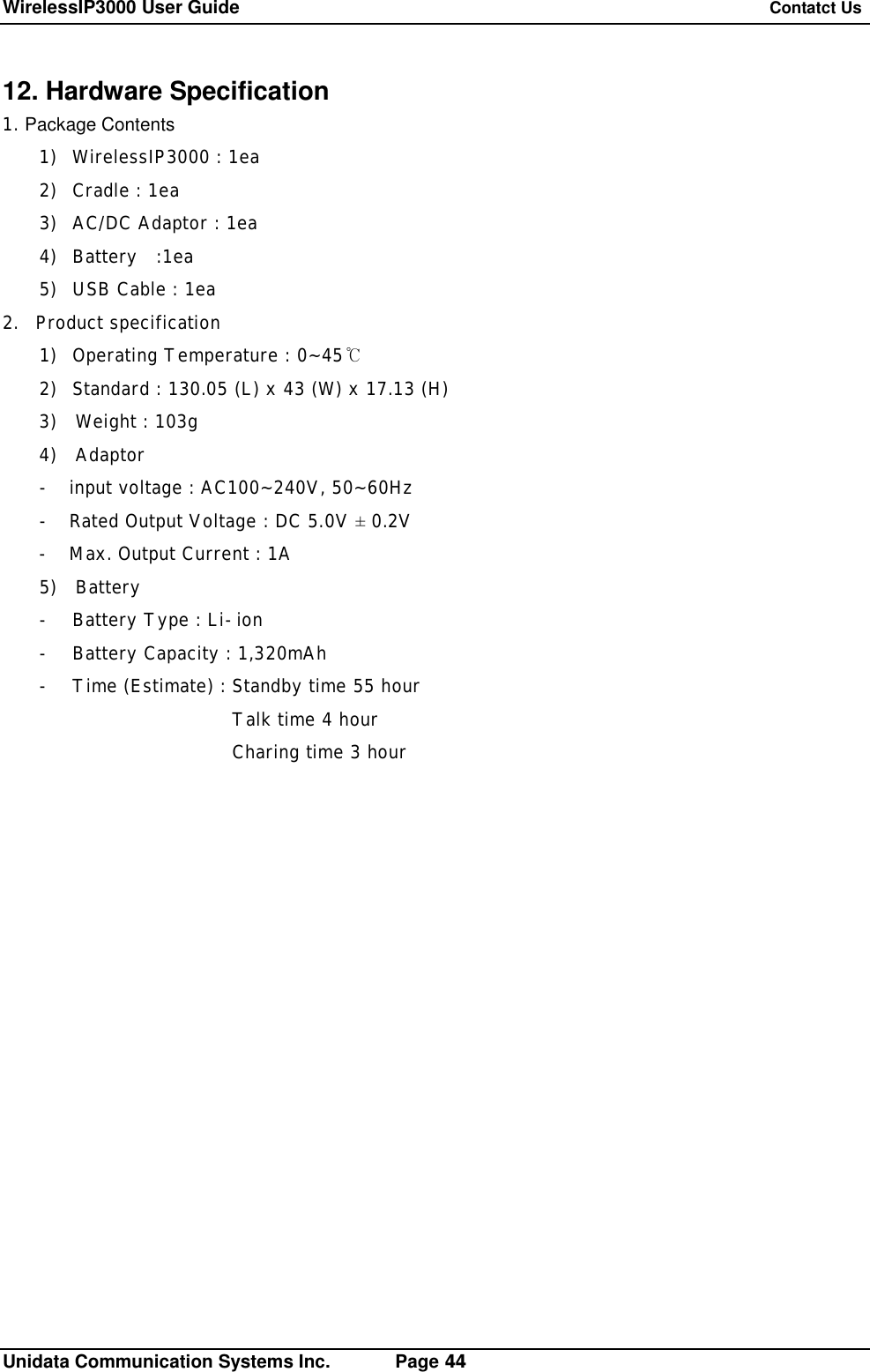
WirelessIP3000 User Guide   Contatct Us   Unidata Communication Systems Inc.       Page 44 12. Hardware Specification 1. Package Contents 1) WirelessIP3000 : 1ea 2) Cradle : 1ea 3) AC/DC Adaptor : 1ea 4) Battery  :1ea 5) USB Cable : 1ea 2. Product specification  1) Operating Temperature : 0~45℃ 2) Standard : 130.05 (L) x 43 (W) x 17.13 (H) 3)  Weight : 103g 4)  Adaptor -  input voltage : AC100~240V, 50~60Hz -  Rated Output Voltage : DC 5.0V ± 0.2V -  Max. Output Current : 1A 5)  Battery - Battery Type : Li-ion - Battery Capacity : 1,320mAh - Time (Estimate) : Standby time 55 hour Talk time 4 hour Charing time 3 hour
WirelessIP3000 User Guide   Contatct Us   Unidata Communication Systems Inc.       Page 45  11. Contact Us  Please have the following information ready when you contact customer support. Ø Product model and serial number. Ø Date that you purchased WirelessIP3000. Ø Software version and Bootrom version. Ø Brief description of the problem and the procedure how it has occurred.  Address Telephone / Fax Homepage UniData Communication Systems, Inc. GangNam-Gu NonHyun-Dong 82-15, OhSung-Bldg 2F, 135-010 Seoul, Korea +82-2-3443-3390 +82-2-3443-7103 http://www.udcsystems.com Product  sales@udcsystems.com Corporate  webmaster@udcsystems.com Job  human@udcsystems.com E-mail Partnership  sales@udcsystems.com

Navigation menu