Hsmartlink Technology I9812 WIFI CAMERA User Manual 9812 80x120mm

Shenzhen Hsmartlink Technology Co., Ltd. WIFI CAMERA 9812 80x120mm

User Manual

 Easy User ManualMore information, please visit the online CD information on the websitehttp://www.netcam360.comWIFI CameraI9812
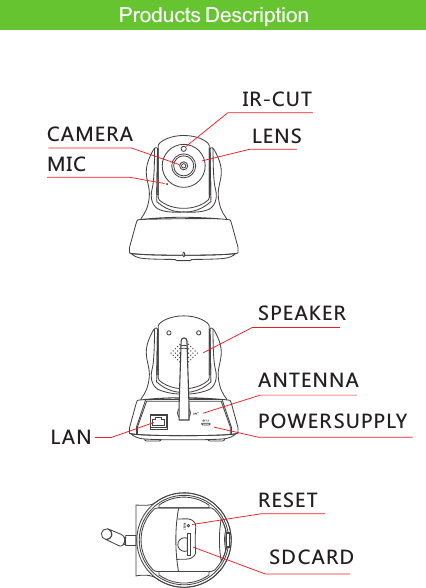
Products DescriptionIR-CUTLENSCAMERAMICSPEAKERANTENNAPOWER SUPPLYRESETSD CARDLAN
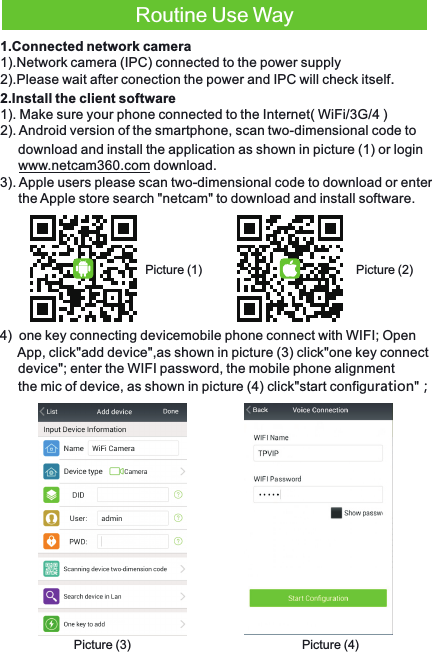
Routine Use Way1.Connected network camera1).Network camera (IPC) connected to the power supply2).Please wait after conection the power and IPC will check itself.2.Install the client software1). Make sure your phone connected to the Internet( WiFi/3G/4 )2). Android version of the smartphone, scan two-dimensional code to  download and install the application as shown in picture (1) or login           www.netcam360.com download.3). Apple users please scan two-dimensional code to download or enter      the Apple store search "netcam" to download and install software.Picture (3) Picture (4)4)  one key connecting devicemobile phone connect with WIFI; Open      App, click"add device",as shown in picture (3) click"one key connect           device"; enter the WIFI password, the mobile phone alignment the mic of device, as shown in picture (4) click"start configuration";Picture (2)Picture (1)
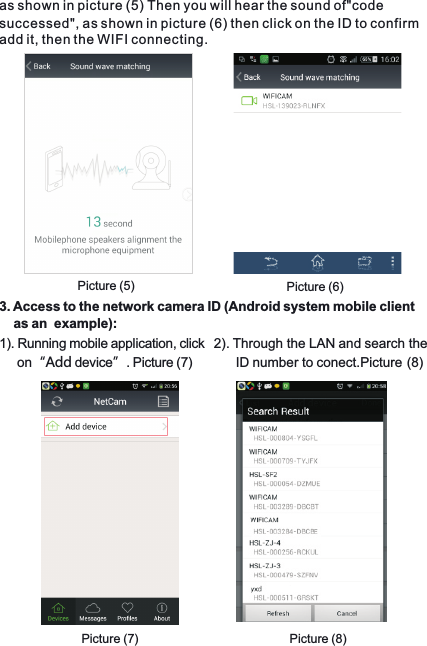
3. Access to the network camera ID (Android system mobile client     as an  example):1). Running mobile application, click      on“Add device”. Picture (7)2). Through the LAN and search the       ID number to conect.Picture (8)Picture (7) Picture (8)as shown in picture (5) Then you will hear the sound of"code successed", as shown in picture (6) then click on the ID to confirm add it, then the WIFI connecting.Picture (5) Picture (6)
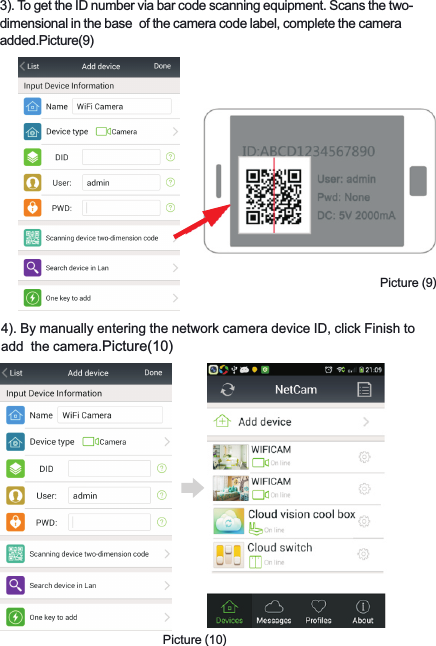
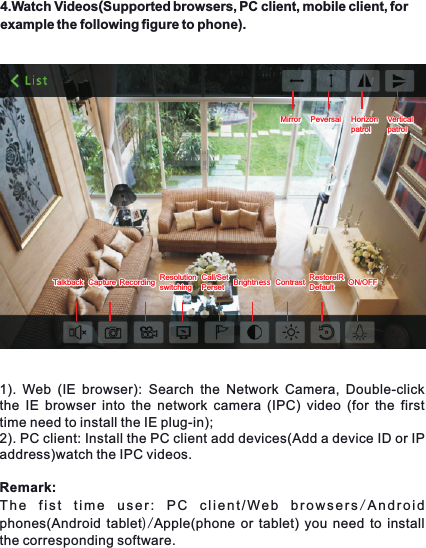
4). By manually entering the network camera device ID, click Finish to add  the camera.Picture(10)Picture (9)3). To get the ID number via bar code scanning equipment. Scans the two-dimensional in the base  of the camera code label, complete the camera added.Picture(9)Picture (10)
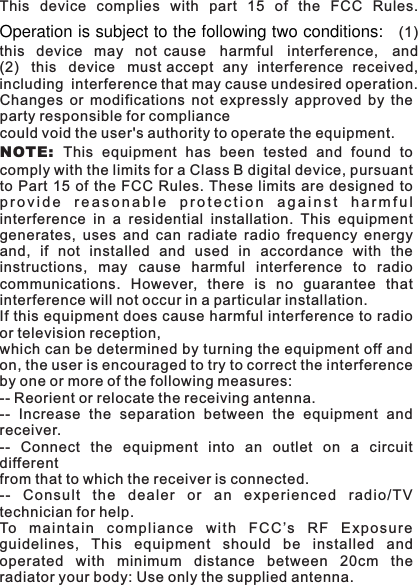
4.Watch Videos(Supported browsers, PC client, mobile client, for example the following figure to phone).1).  Web  (IE  browser): Search  the  Network  Camera,  Double-click the IE  browser  into  the  network  camera  (IPC) video  (for  the  first time need to install the IE plug-in);2). PC client: Install the PC client add devices(Add a device ID or IP address)watch the IPC videos.Remark: The  fist  time  user:  PC  client/Web  browsers/Android phones(Android tablet)/Apple(phone or tablet) you need to install the corresponding software.MirrorMirror PeversalPeversal HorizonpatrolHorizonpatrolTalkbackTalkback CaptureCapture RecordingRecording ResolutionswitchingResolutionswitchingCall/SetPersetCall/SetPerset BrightnessBrightness ContrastContrast RestorelRDefaultRestorelRDefault ON/OFFON/OFFVerticalpatrolVerticalpatrol
This  device  complies  with  part  15  of  the  FCC  Rules.Operation is subject to the following two conditions:   (1) this  device  may  not cause  harmful  interference,  and (2)  this  device  must accept  any  interference  received, including  interference that may cause undesired operation.Changes  or  modifications  not  expressly  approved  by  theparty responsible for compliancecould void the user's authority to operate the equipment.NOT E:  This  equipment  has  been  tested  and  found  tocomply with the limits for a Class B digital device, pursuantto Part 15 of the  FCC Rules. These  limits are  designed toprovide  reasonable  protection  against  harmfulinterference  in  a  residential  installation.  This  equipmentgenerates,  uses  and  can  radiate  radio  frequency  energyand,  if  not  installed  and  used  in  accordance  with  theinstructions,  may  cause  harmful  interference  to  radiocommunications.  However,  there  is  no  guarantee  thatinterference will not occur in a particular installation.If this equipment does cause harmful interference to radioor television reception,which can be determined by turning the equipment off andon, the user is encouraged to try to correct the interferenceby one or more of the following measures:-- Reorient or relocate the receiving antenna.--  Increase  the  separation  between  the  equipment  andreceiver.--  Connect  the  equipment  into  an  outlet  on  a  circuitdifferentfrom that to which the receiver is connected.--  Co nsult  the  dealer  or  an  experie nced  radio/TVtechnician for help.To  mai nt ai n  c om pliance  w ith  F CC ’s  R F  E xp os ur eguidelines,  This  equipment  should  be  installed  andoperated  with  minimum  distance  between  20cm  theradiator your body: Use only the supplied antenna.

Navigation menu