Huin Tech TP-140B 2.4GHz Touch Pointer User Manual

Huin Tech 2.4GHz Touch Pointer

User manual

SPECIFICATIONSModel                   : TP-140BManufacture        : HuintechCountry of origin :  Republic of KoreaSize                       : Touch Pointer 108mm X 43mm X 13mmUSB Receiver  26.6mm X 16.1mm X6.3mmBattery                  : Li-Polymer  680mARF Frequency      : 2.4GHzRF Distance         :  <20m (<65feet)Feature                 : Touch & ClickWorking Mode  ▪Mouse▪Presenter▪Multimedia Control▪Virtual Keyboard (Software support)OS Support          : Windows-XP, Vista, 7    [32/64-bit]Mac OS X
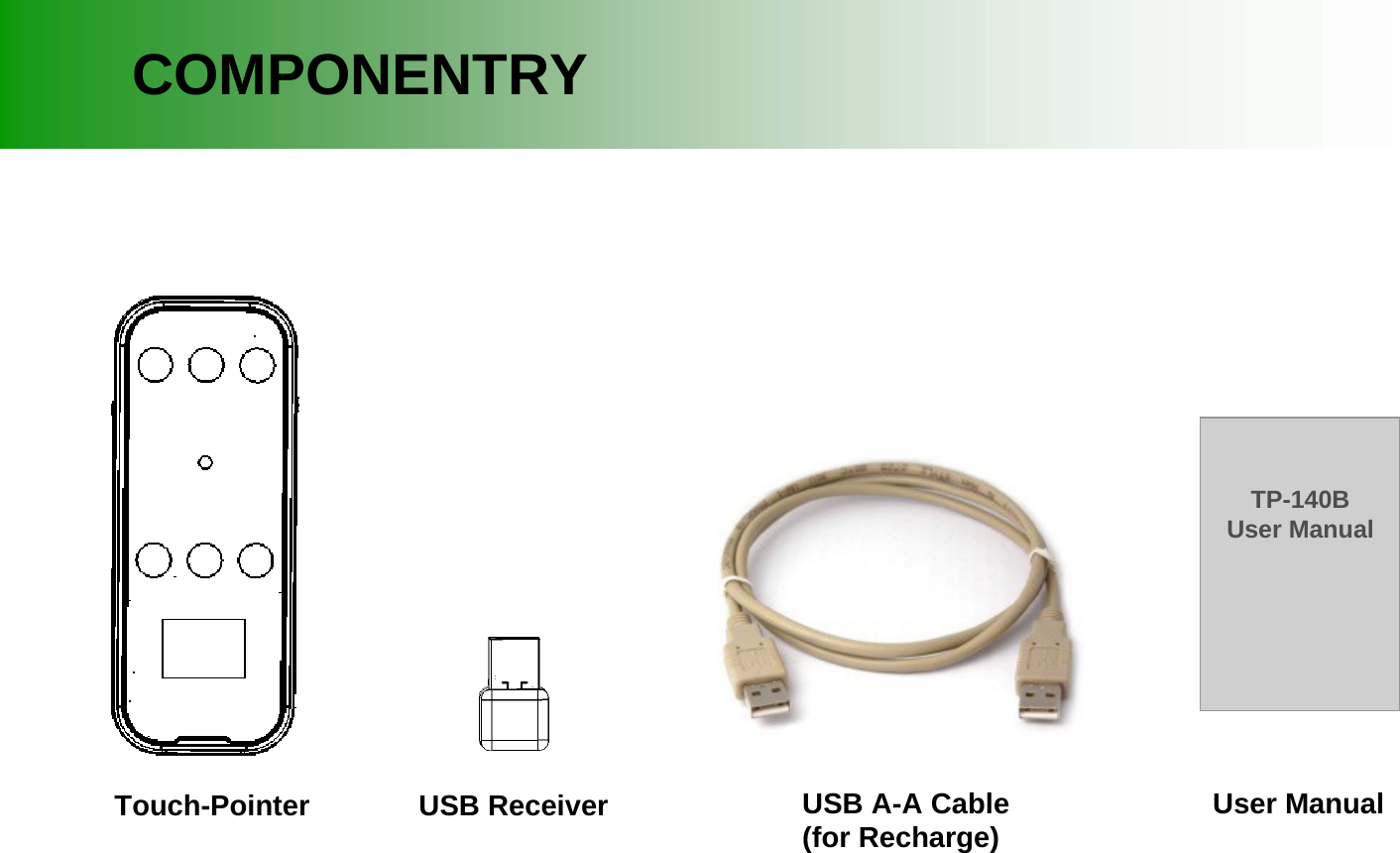
Touch-PointerCOMPONENTRYUSB Receiver USB A-A Cable(for Recharge)TP-140BUser ManualUser Manual
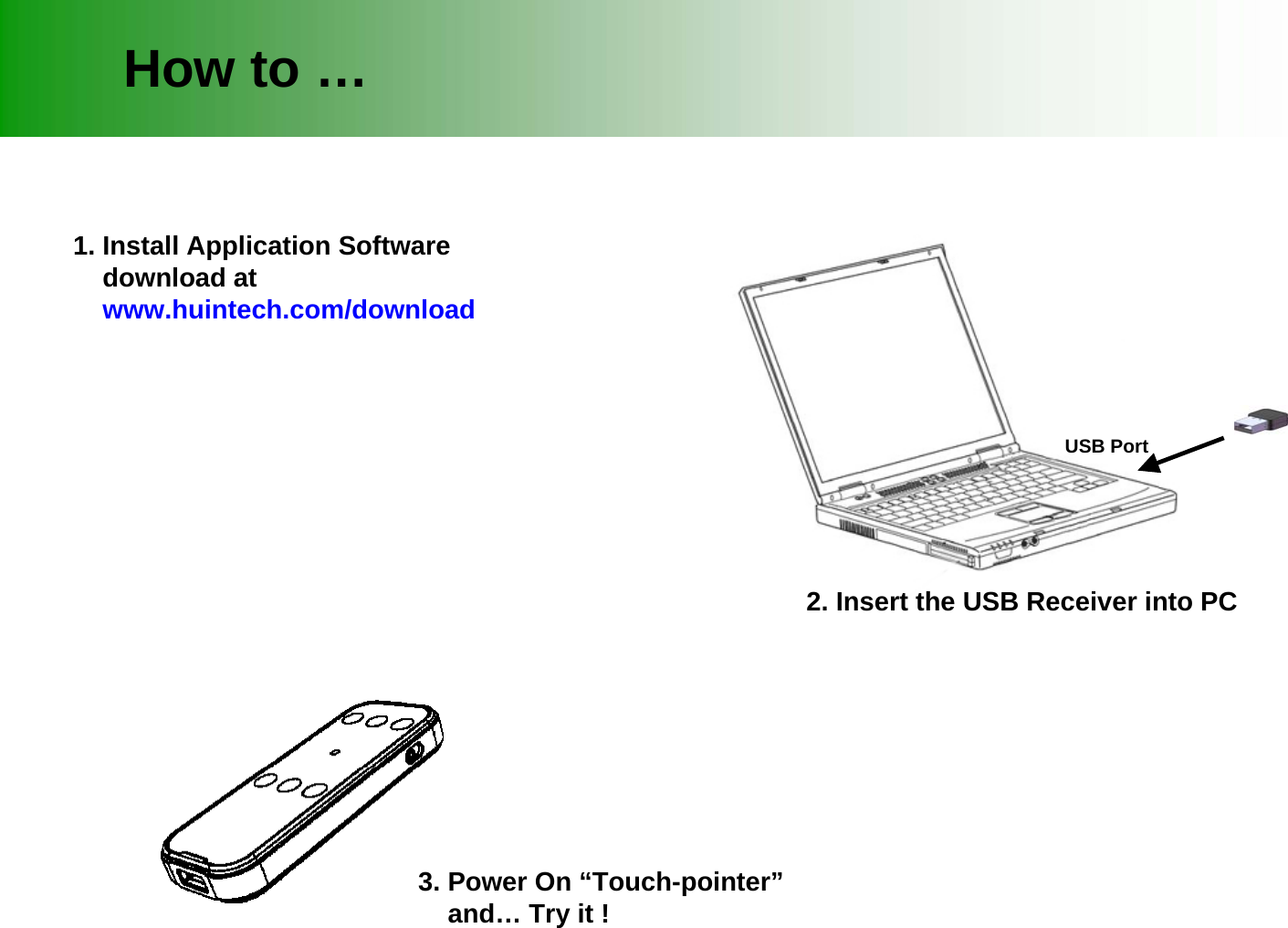
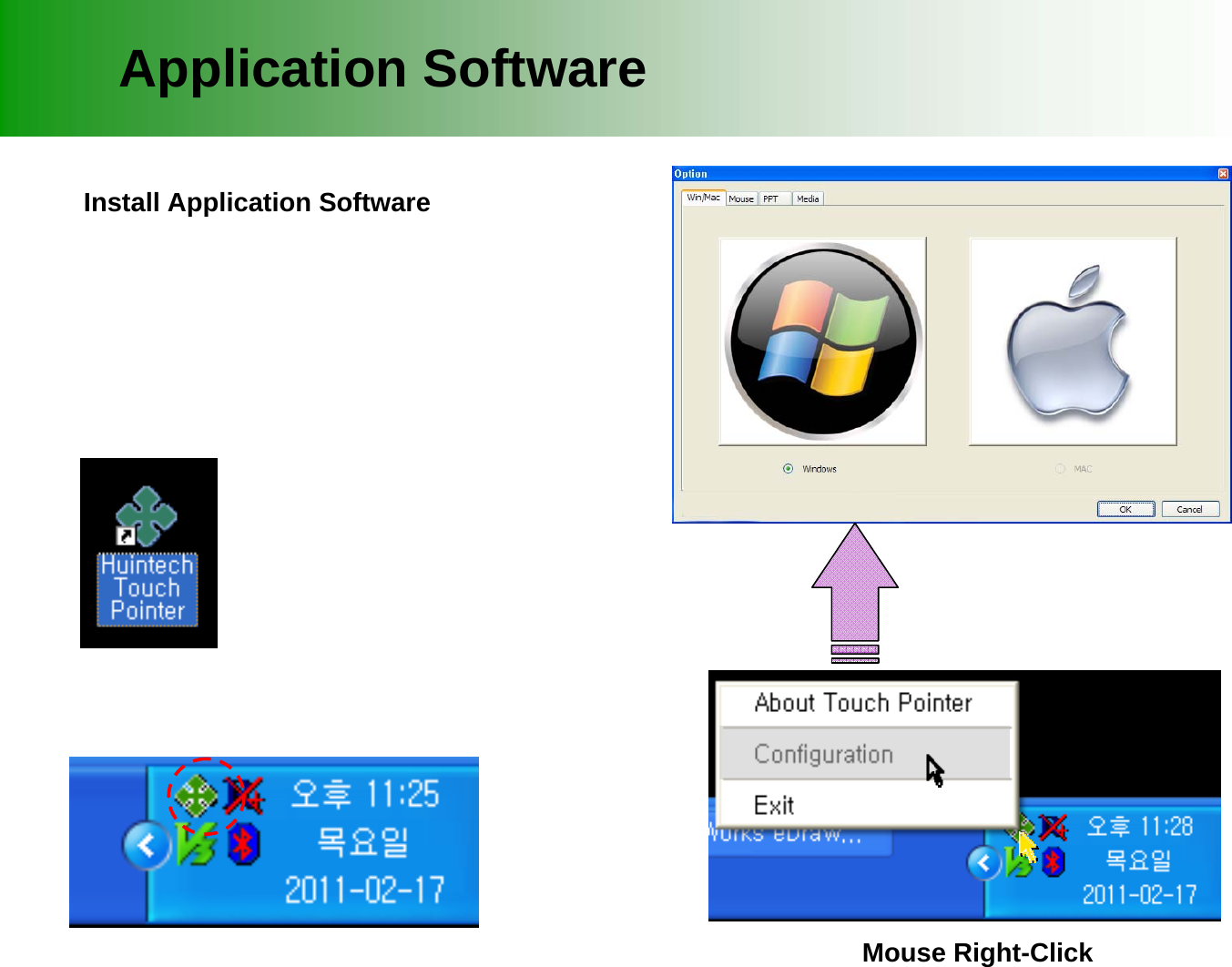
1. Install Application Softwaredownload atwww.huintech.com/downloadHow to …USB Port2. Insert the USB Receiver into PC3. Power On “Touch-pointer”and… Try it !
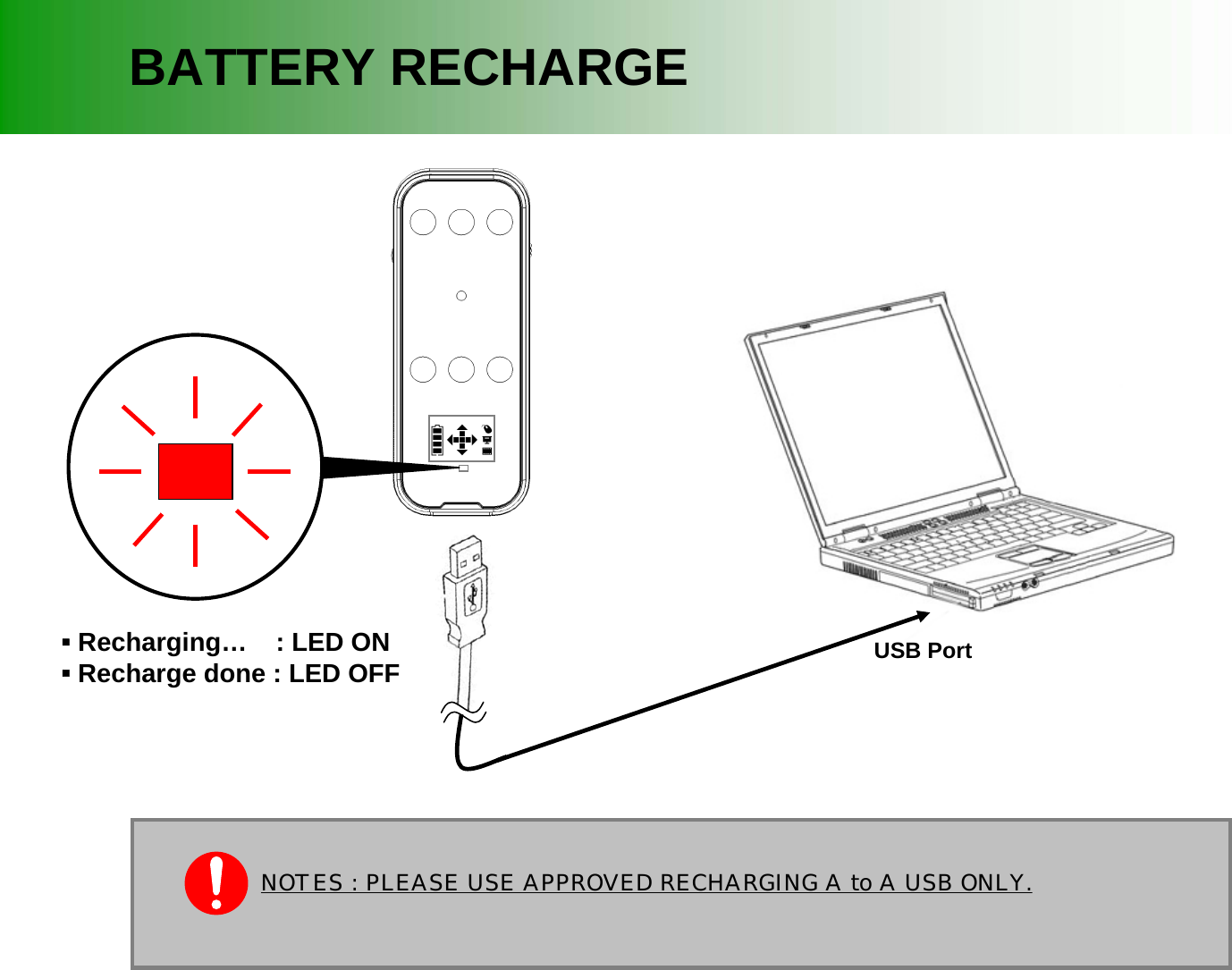
▪Recharging… : LED ON▪Recharge done : LED OFF                                    BATTERY RECHARGEUSB Port NOTES : PLEASE USE APPROVED RECHARGING A to A USB ONLY.
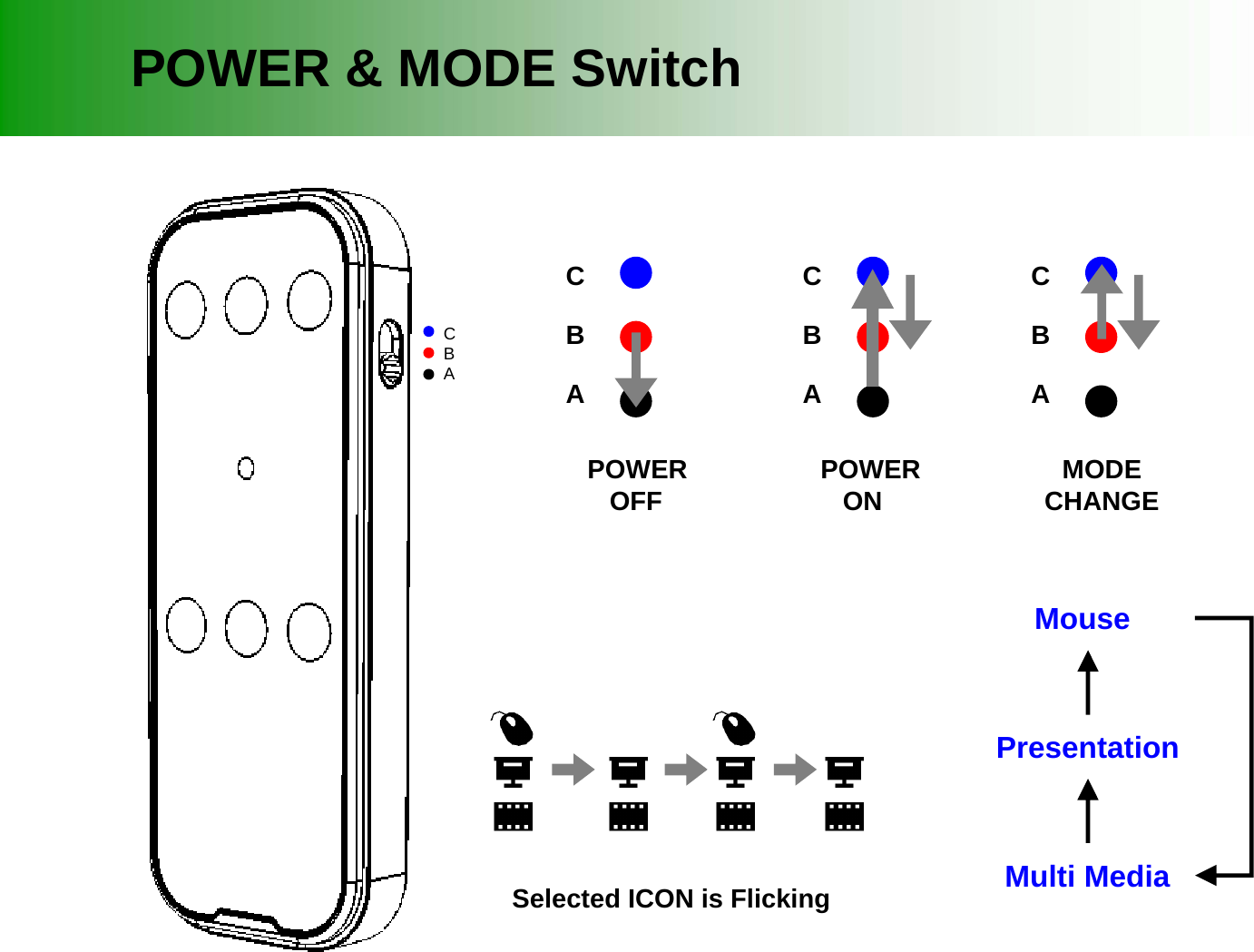
CBAPOWEROFFCBAPOWERONCBAMODECHANGECBAMousePresentationMulti MediaSelected ICON is FlickingPOWER & MODE Switch
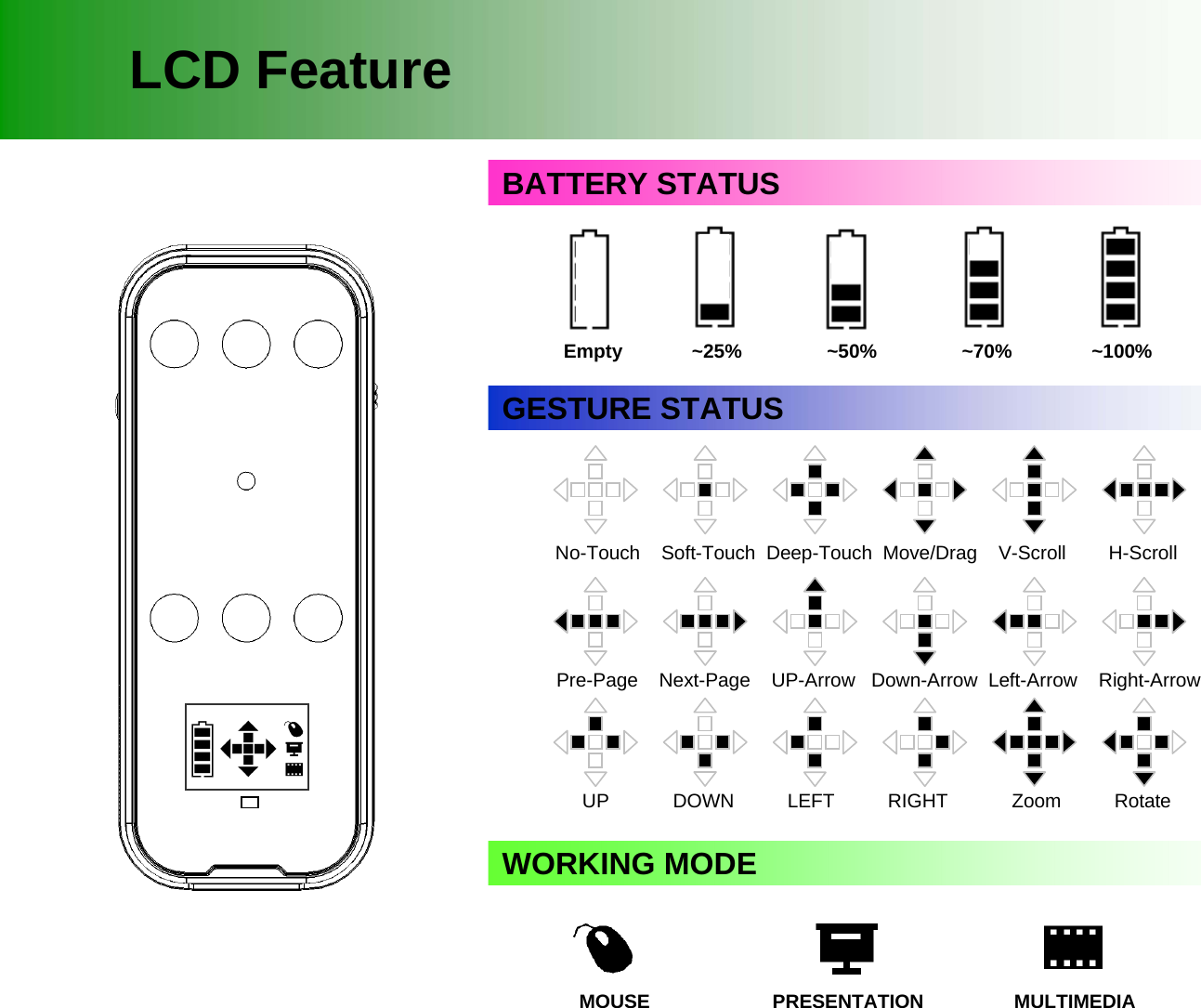
LCD FeatureBATTERY STATUSGESTURE STATUSEmpty             ~25%                ~50%                ~70%   ~100%No-Touch    Soft-Touch  Deep-Touch  Move/Drag    V-Scroll        H-Scroll   Pre-Page    Next-Page    UP-Arrow   Down-Arrow  Left-Arrow    Right-ArrowUP            DOWN          LEFT          RIGHT            Zoom          RotateWORKING MODEMOUSE                       PRESENTATION                 MULTIMEDIA
MouseTouch AreaKey Feature-1 : MOUSE“Esc” KeyVirtual Keyboard Key [QWERTY]“Alt+F4” KeyMACRO KEY-1(User define)Default :MACRO KEY-2(User define)Default : EnterAlt+Tab  orWindows+TabRight Click Area
Key Feature-2 : PRESENTATION“Esc” KeyVirtual Keyboard Key [NUMERIC]“Alt+F4” KeyShow Start“F5” Black/White“B” or “W”Alt+Tab  orWindows+TabNext PagePre Page
Key Feature-3 : MULTIMEDIA CONTROL“Esc” KeyVirtual Keyboard Key [ARROW]“Alt+F4” KeyMACRO KEY-1 MACRO KEY-2Alt+Tab  orWindows+TabVOLUMEMUTEPLAY/PAUSERF FF
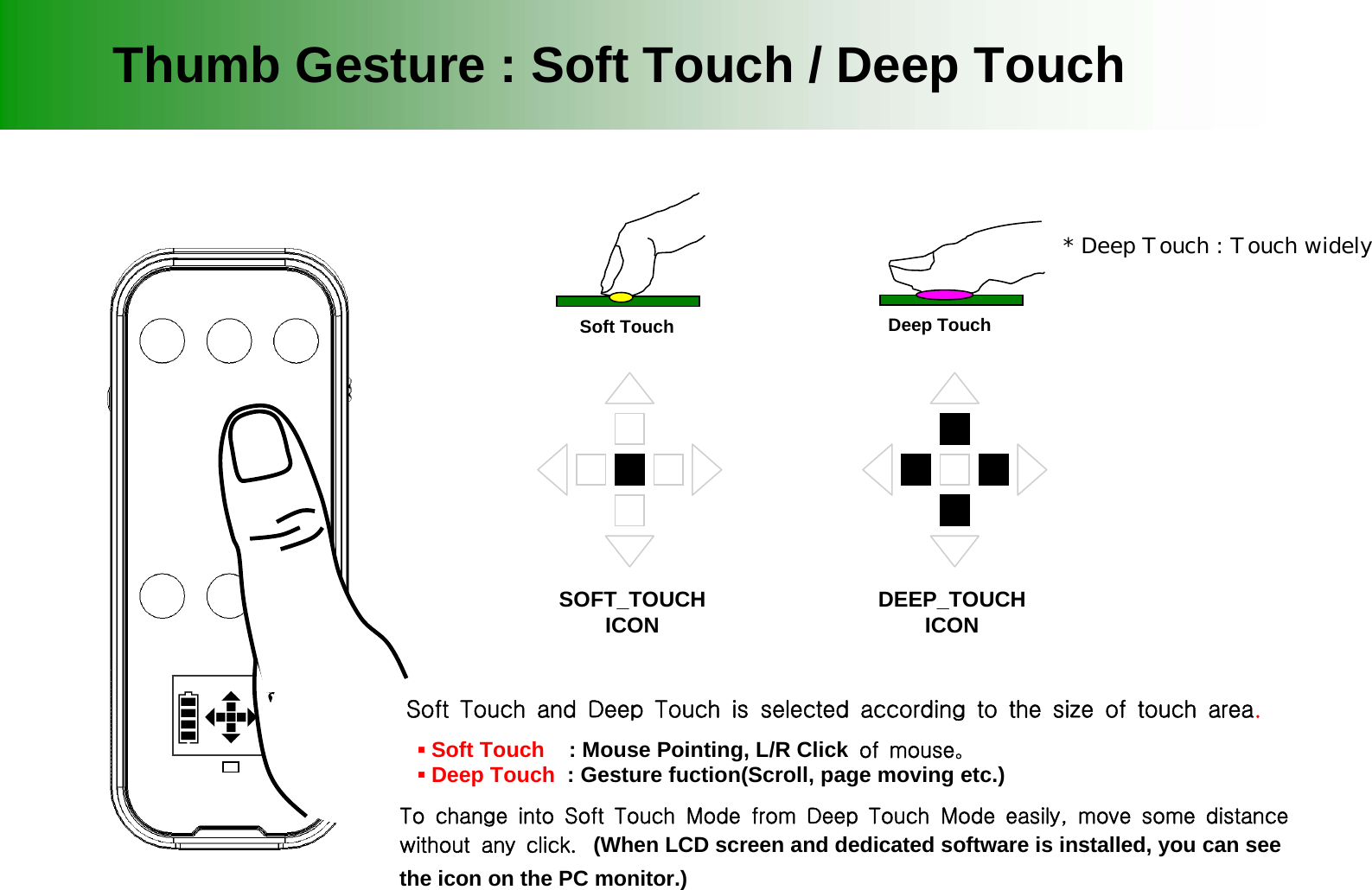
Thumb Gesture : Soft Touch / Deep TouchDeep TouchSoft TouchSOFT_TOUCHICON DEEP_TOUCHICONSoft Touch and Deep Touch is selected according to the size of touch area. ▪Soft Touch   : Mouse Pointing, L/R Click of mouse。 ▪Deep Touch : Gesture fuction(Scroll, page moving etc.)    To change into Soft Touch Mode from Deep Touch Mode easily, move some distance without any click.  (When LCD screen and dedicated software is installed, you can see the icon on the PC monitor.)* Deep Touch : Touch widely
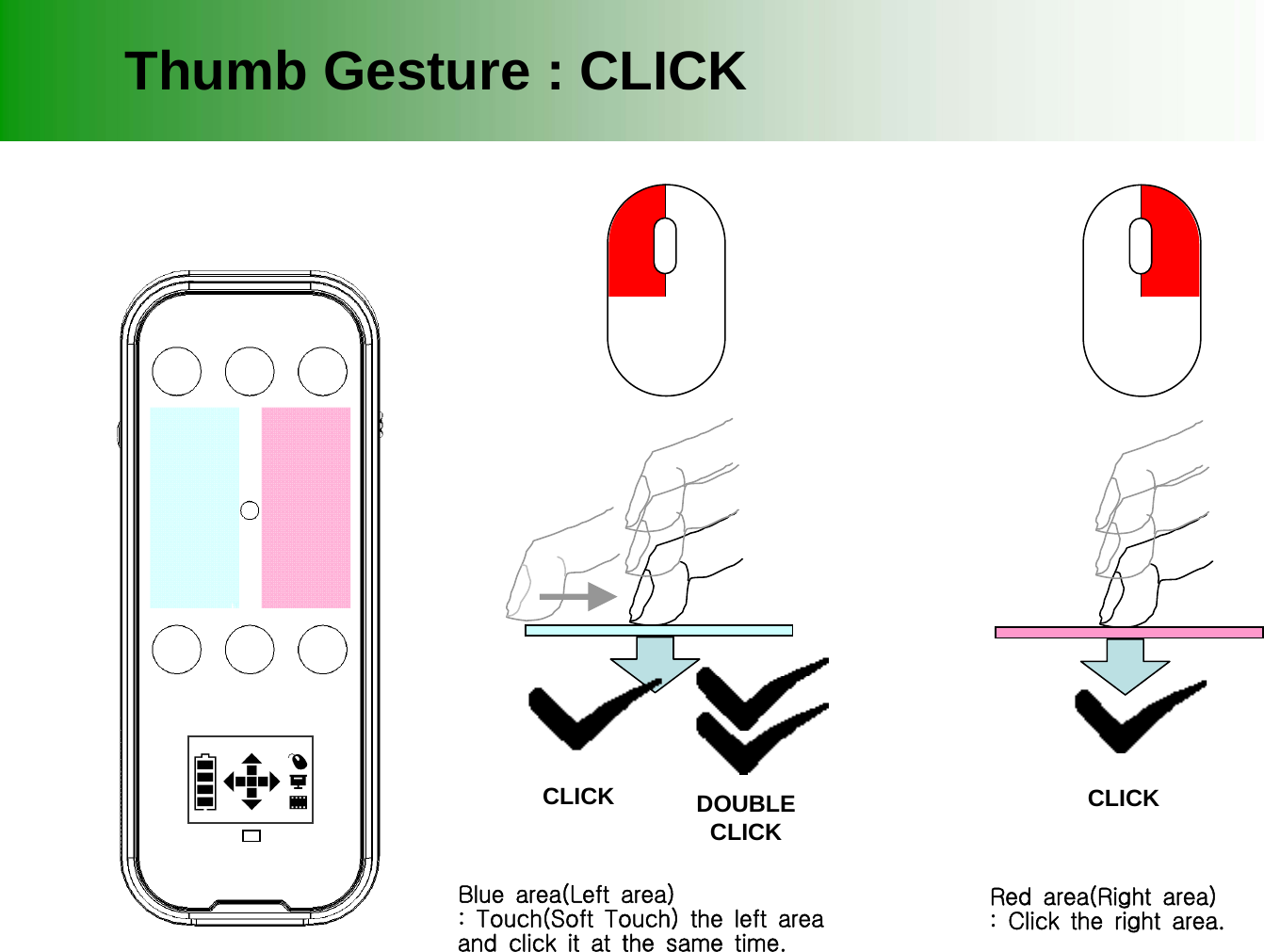
Thumb Gesture : CLICKRed area(Right area) : Click the right area. CLICKBlue area(Left area): Touch(Soft Touch) the left areaand click it at the same time. CLICK DOUBLECLICK
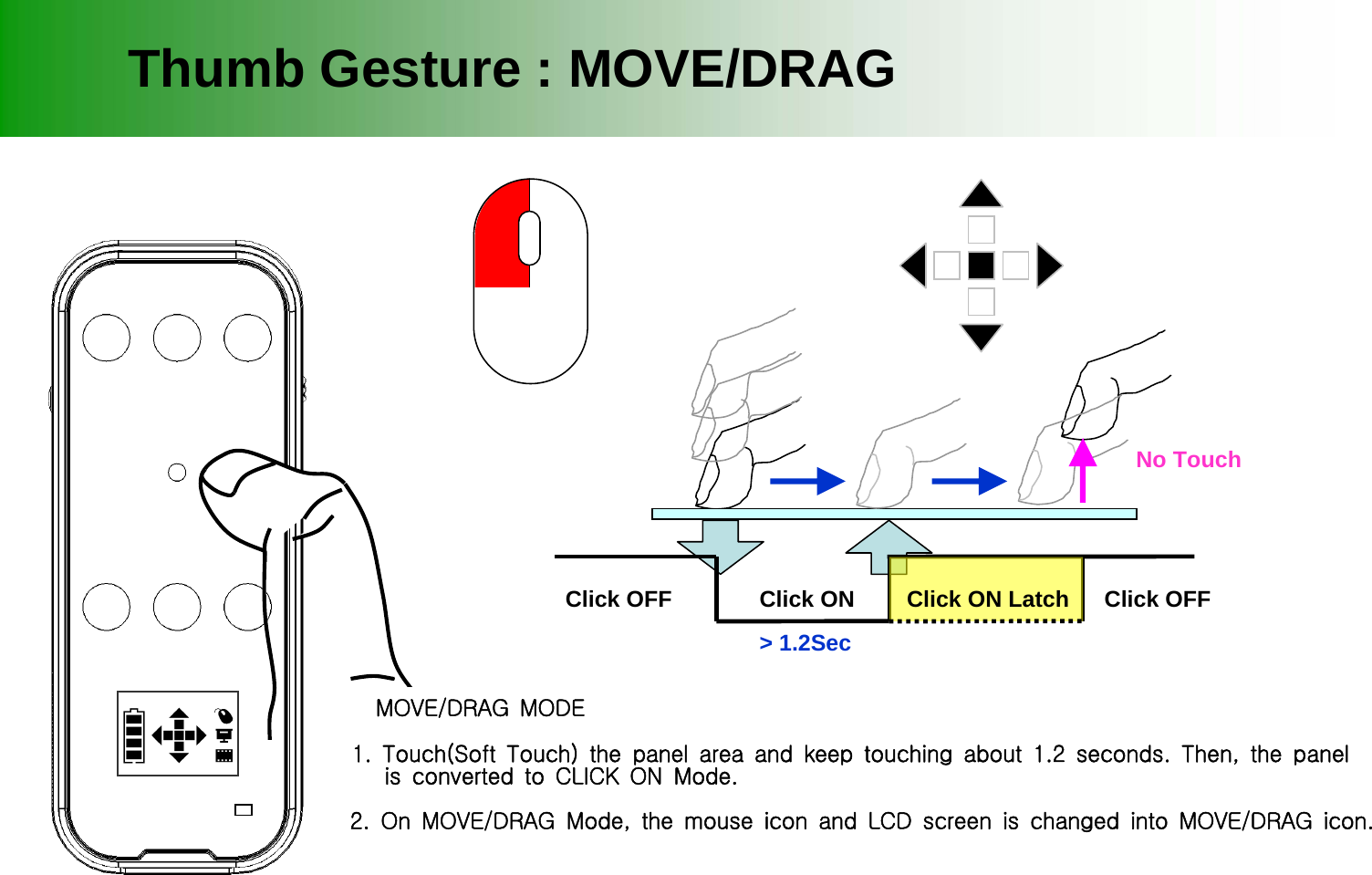
Thumb Gesture : MOVE/DRAGClick ONClick OFF Click OFFClick ON Latch> 1.2Sec No Touch  MOVE/DRAG MODE     1. Touch(Soft Touch) the panel area and keep touching about 1.2 seconds. Then, the panel     is converted to CLICK ON Mode.     2. On MOVE/DRAG Mode, the mouse icon and LCD screen is changed into MOVE/DRAG icon.
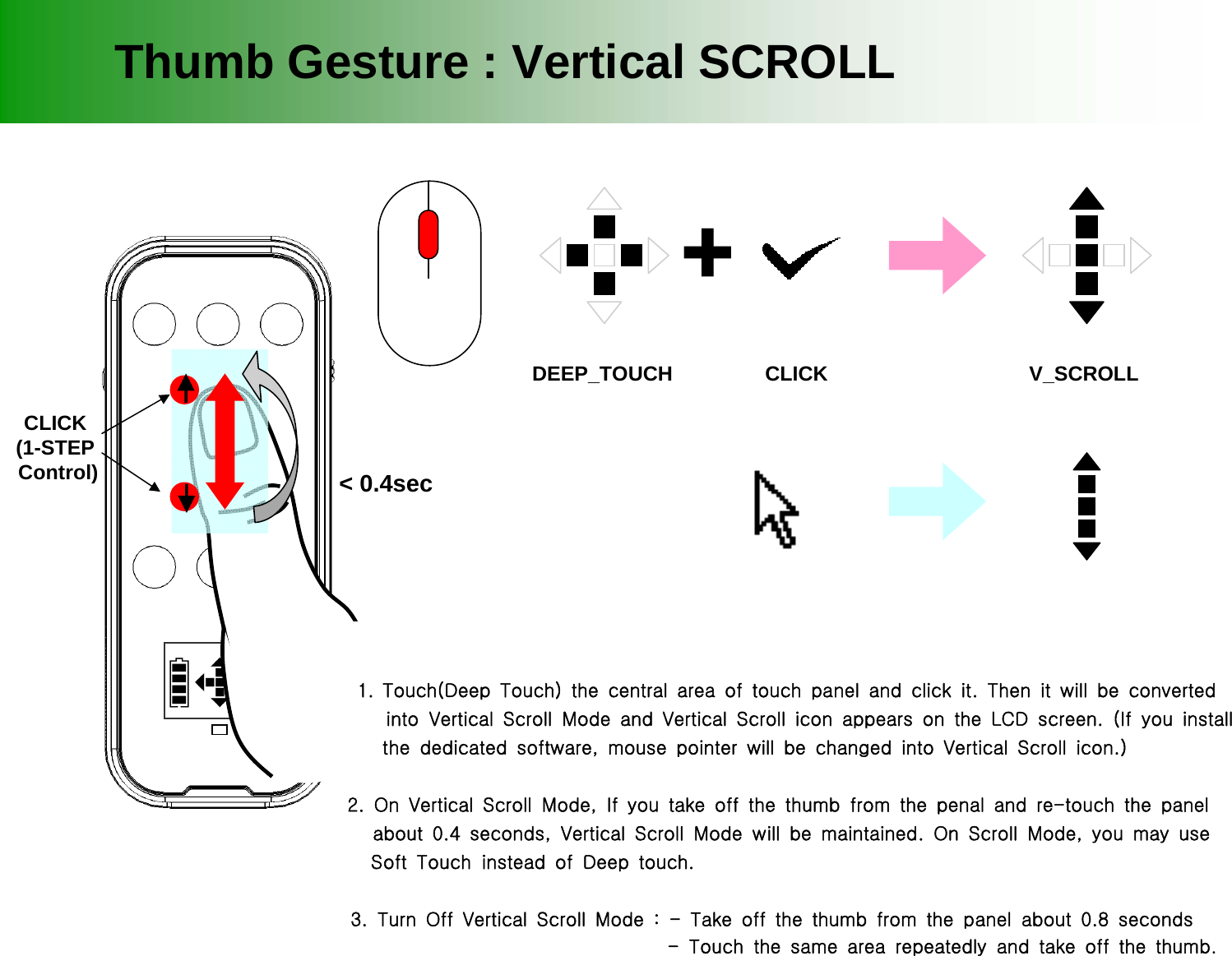
Thumb Gesture : Vertical SCROLLDEEP_TOUCH1. Touch(Deep Touch) the central area of touch panel and click it. Then it will be converted    into Vertical Scroll Mode and Vertical Scroll icon appears on the LCD screen. (If you install       the dedicated software, mouse pointer will be changed into Vertical Scroll icon.) 2. On Vertical Scroll Mode, If you take off the thumb from the penal and re-touch the panel   about 0.4 seconds, Vertical Scroll Mode will be maintained. On Scroll Mode, you may use      Soft Touch instead of Deep touch.     3. Turn Off Vertical Scroll Mode : - Take off the thumb from the panel about 0.8 seconds                                      - Touch the same area repeatedly and take off the thumb.        Vertical Scroll モードに進入した場合には、タッチパネルから手を離しても約 0.4秒間Scroll 機能が維持され、次のタッチからは、触れる面積と無関係に Deep Touchに遂行される。タッチ面積を中央に上端と下端をクリックする場合、 1-STEP Scroll 機能が実行される。タッチが連続的に 0.4秒以上ない場合や同じ領域を二度以上タッチした場合には、 Scroll機能が解除される。+CLICK V_SCROLLCLICK(1-STEPControl) < 0.4sec
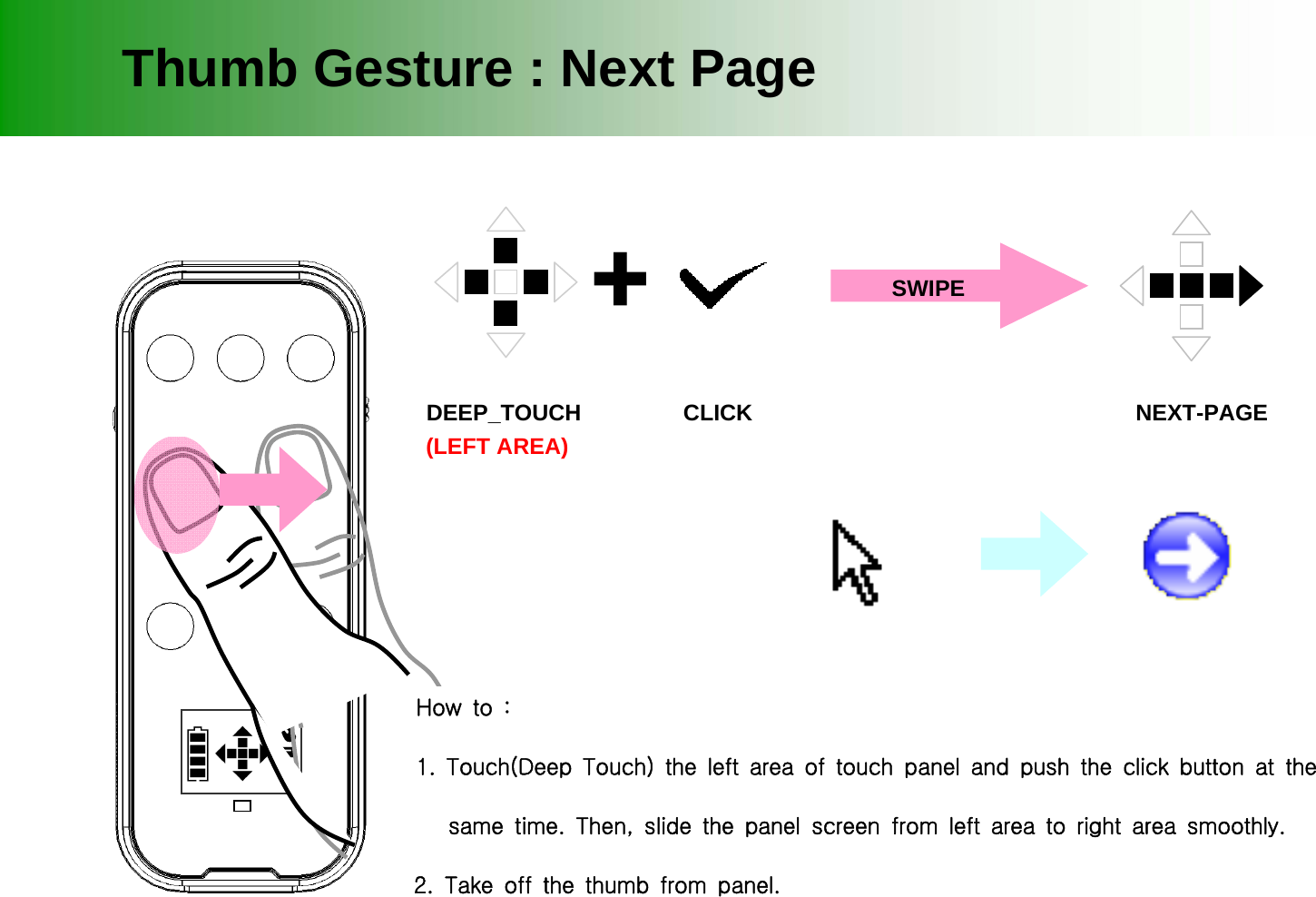
Thumb Gesture : Next PageDEEP_TOUCHHow to : 1. Touch(Deep Touch) the left area of touch panel and push the click button at the    same time. Then, slide the panel screen from left area to right area smoothly.2. Take off the thumb from panel. +CLICK NEXT-PAGE(LEFT AREA)SWIPE
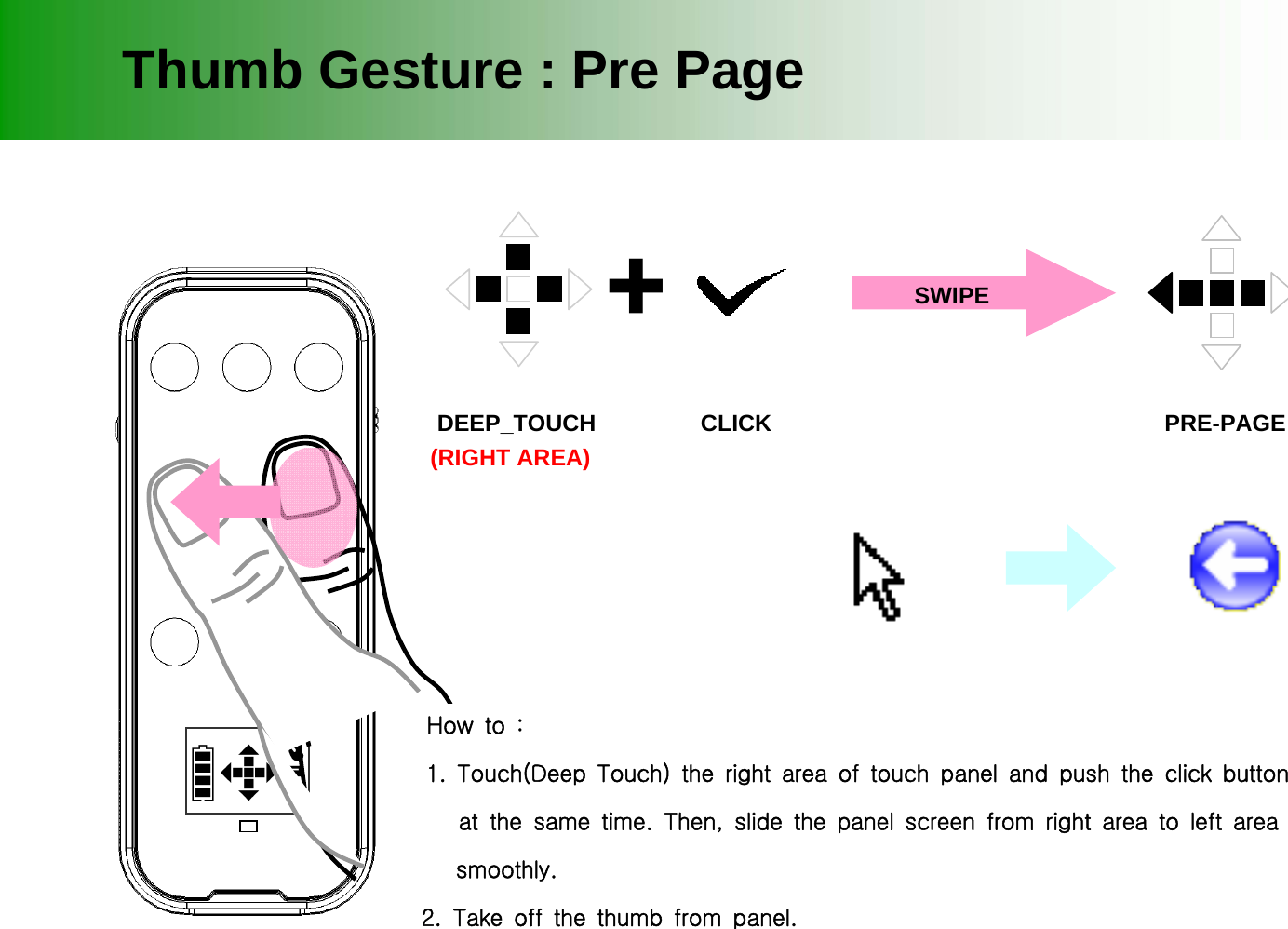
Thumb Gesture : Pre PageDEEP_TOUCHHow to : 1. Touch(Deep Touch) the right area of touch panel and push the click button     at the same time. Then, slide the panel screen from right area to left area     smoothly.  2. Take off the thumb from panel. +CLICK PRE-PAGE(RIGHT AREA)SWIPE
Mouse Right-ClickApplication SoftwareInstall Application Software
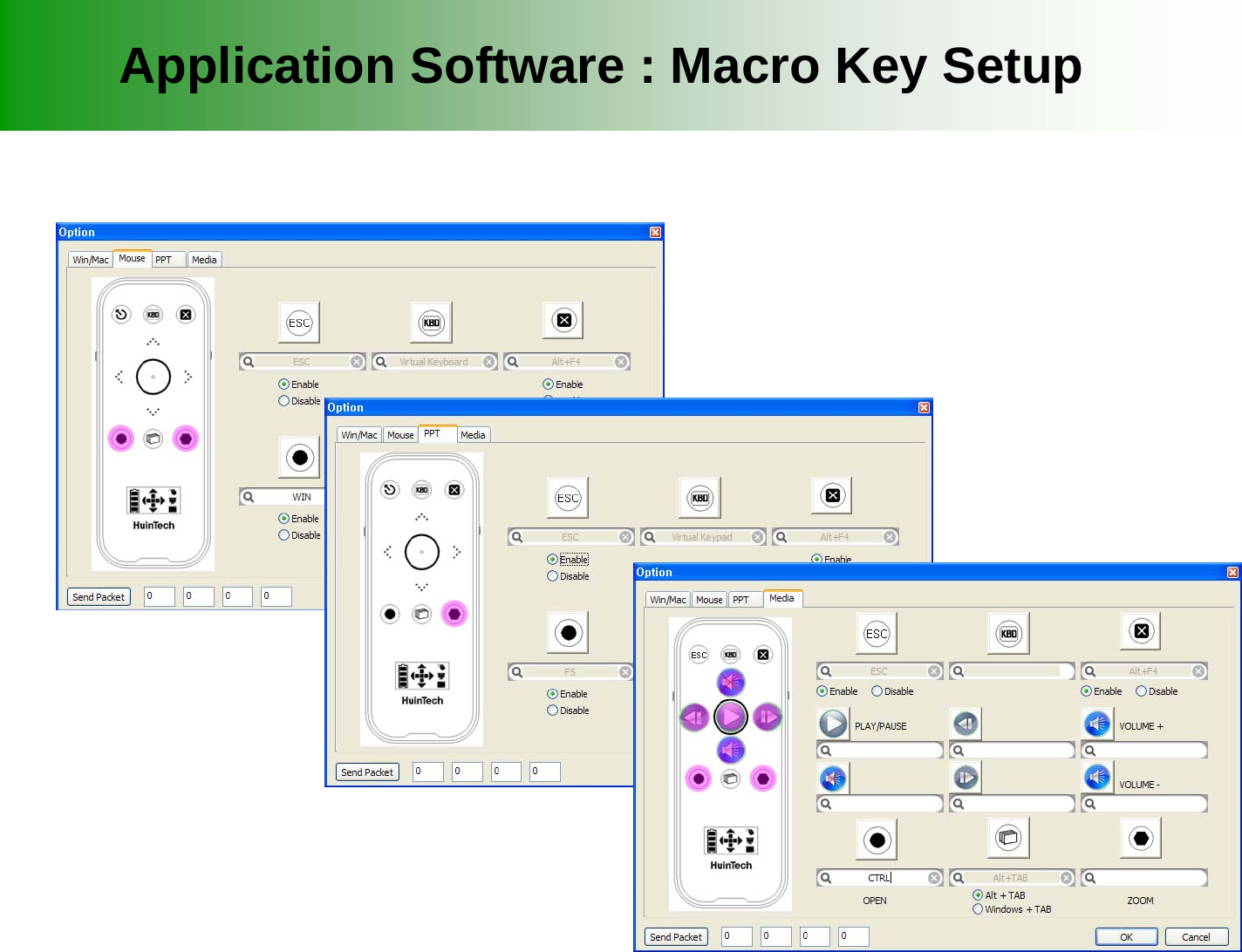
Application Software : Macro Key Setup
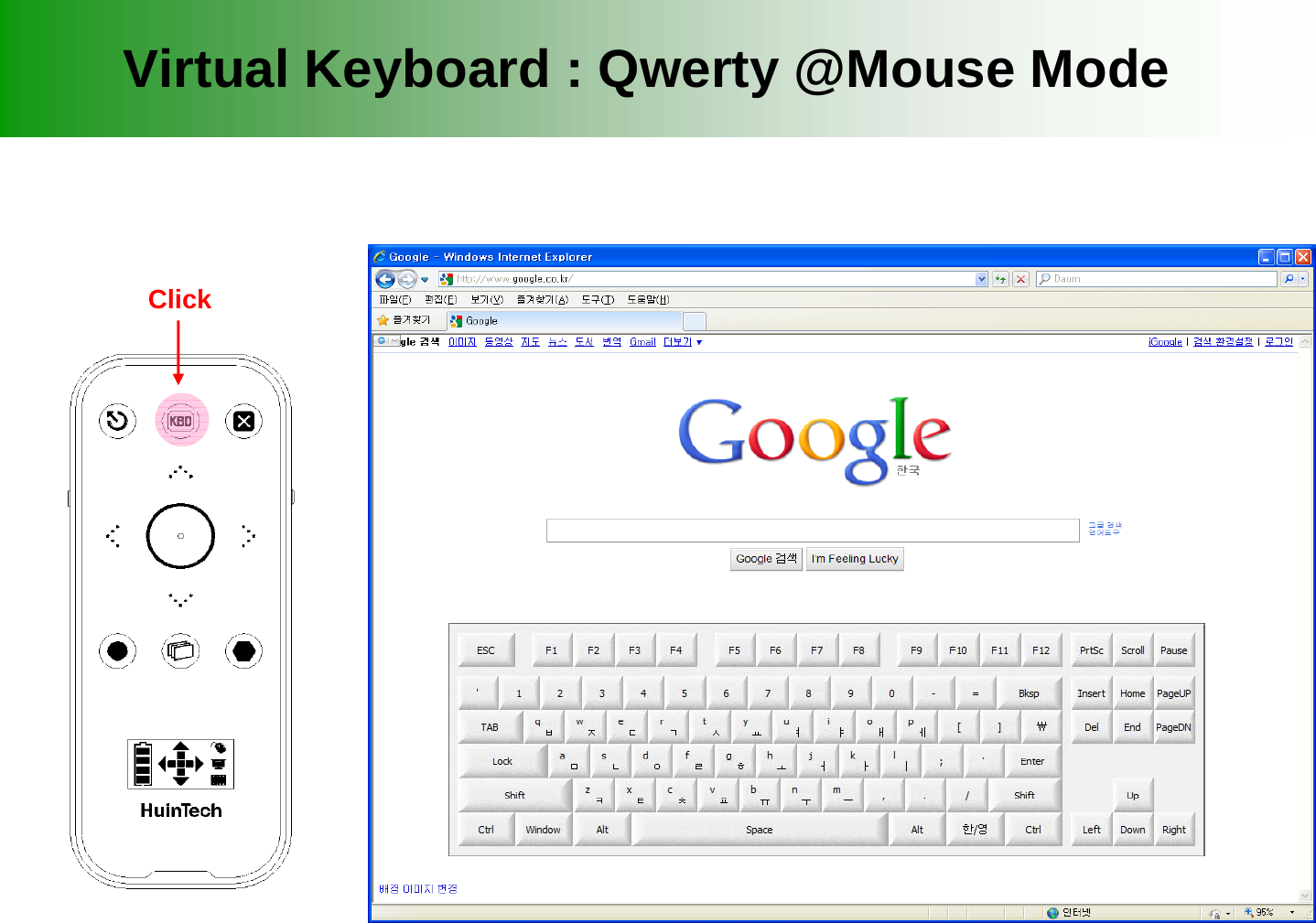
Virtual Keyboard : Qwerty @Mouse ModeClick
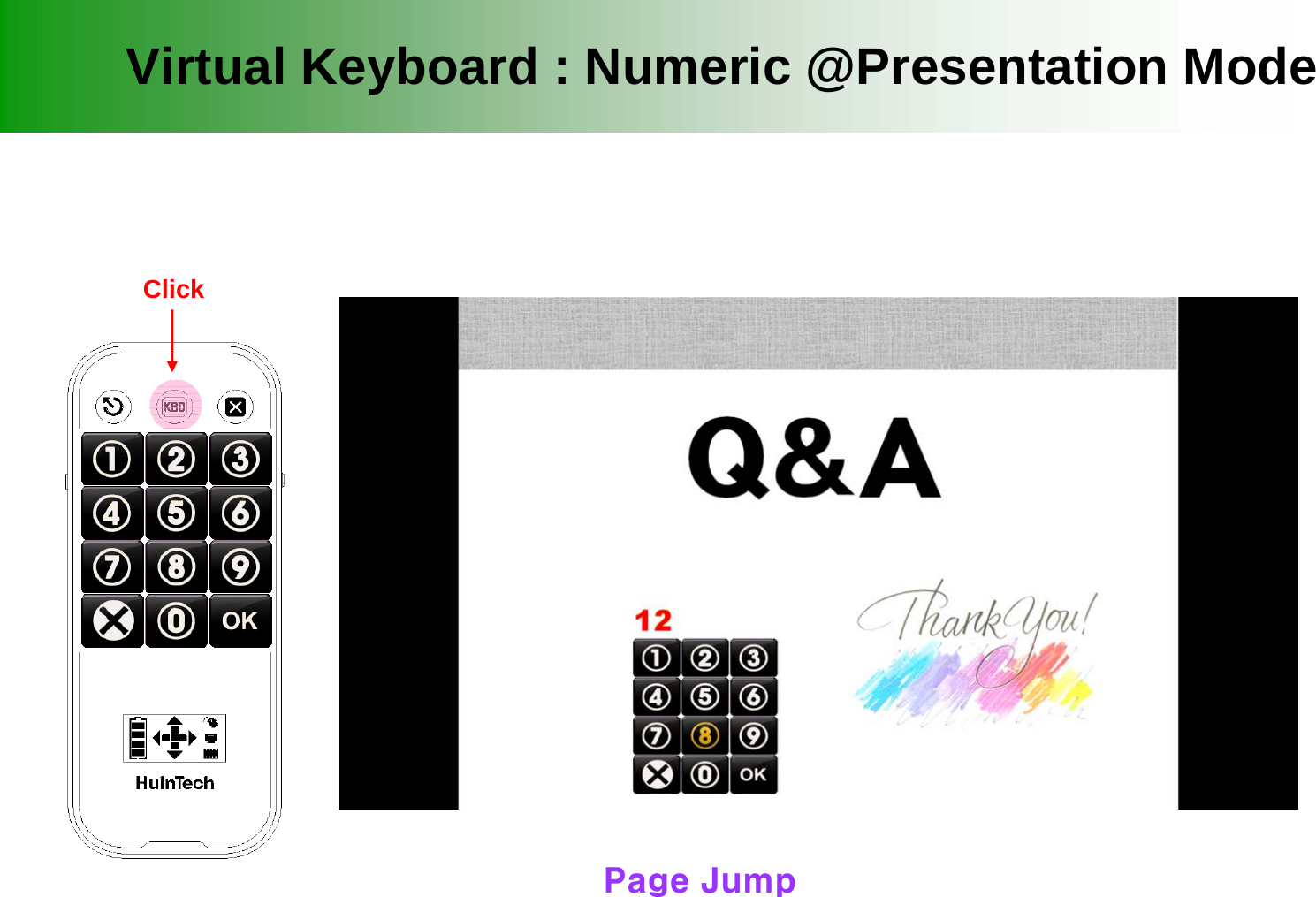
Virtual Keyboard : Numeric @Presentation ModeClickPage Jump
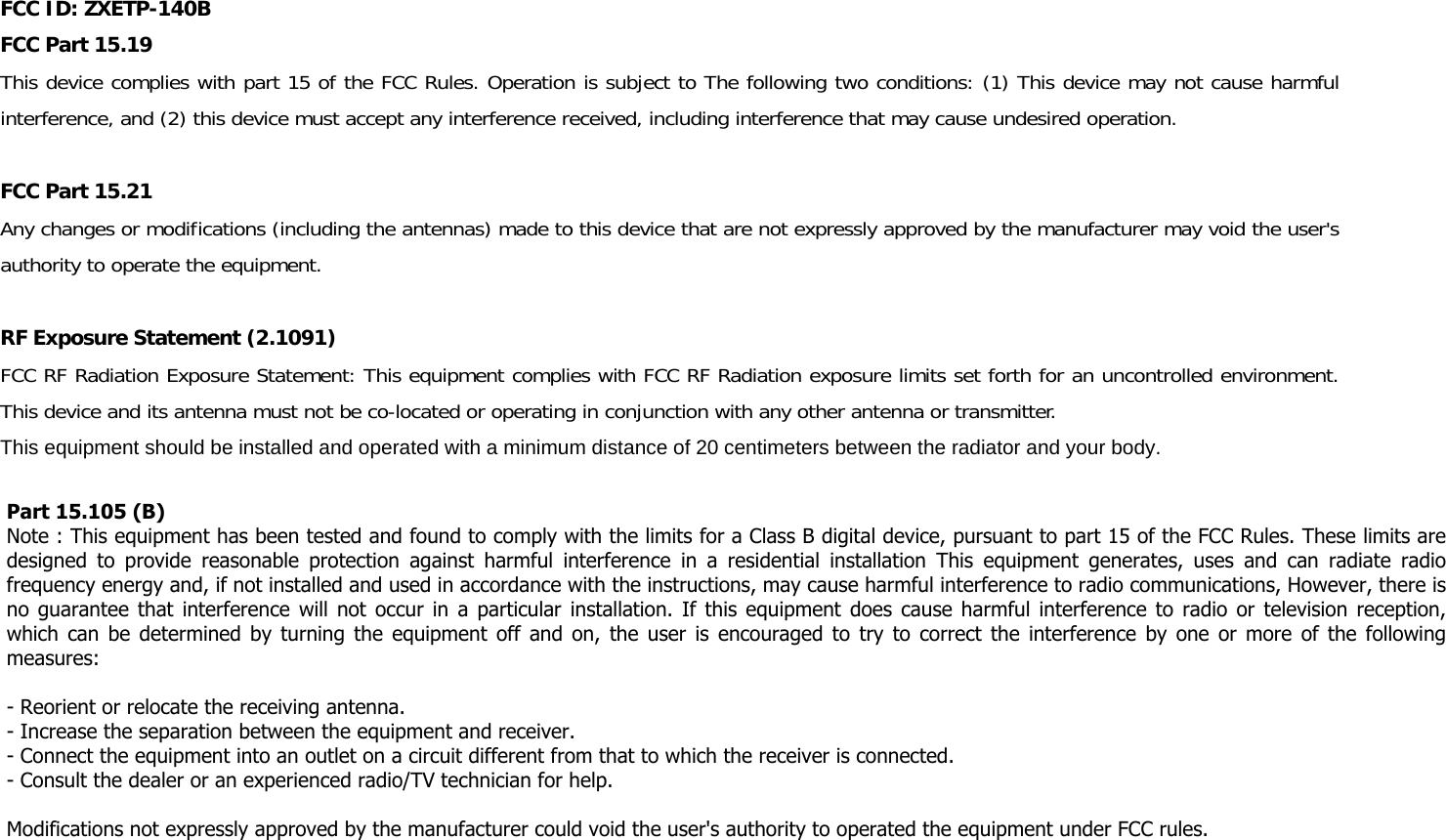
FCC ID: ZXETP-140B FCC Part 15.19 This device complies with part 15 of the FCC Rules. Operation is subject to The following two conditions: (1) This device may not cause harmful interference, and (2) this device must accept any interference received, including interference that may cause undesired operation.  FCC Part 15.21  Any changes or modifications (including the antennas) made to this device that are not expressly approved by the manufacturer may void the user's authority to operate the equipment.  RF Exposure Statement (2.1091) FCC RF Radiation Exposure Statement: This equipment complies with FCC RF Radiation exposure limits set forth for an uncontrolled environment. This device and its antenna must not be co-located or operating in conjunction with any other antenna or transmitter. This equipment should be installed and operated with a minimum distance of 20 centimeters between the radiator and your body.   Part 15.105 (B) Note : This equipment has been tested and found to comply with the limits for a Class B digital device, pursuant to part 15 of the FCC Rules. These limits are designed  to  provide  reasonable  protection  against  harmful  interference  in  a  residential  installation  This  equipment  generates,  uses  and  can  radiate  radio frequency energy and, if not installed and used in accordance with the instructions, may cause harmful interference to radio communications, However, there is no guarantee that interference will not occur in a particular installation. If this equipment does cause harmful interference to radio or television reception, which can be determined  by turning the equipment off  and on, the user is encouraged to try to  correct the interference by one or more of the  following measures:   - Reorient or relocate the receiving antenna.  - Increase the separation between the equipment and receiver.  - Connect the equipment into an outlet on a circuit different from that to which the receiver is connected.  - Consult the dealer or an experienced radio/TV technician for help.    Modifications not expressly approved by the manufacturer could void the user's authority to operated the equipment under FCC rules.

Navigation menu