Imagination Technologies 0050 Evoke Flow Spread Spectrum Transmitters User Manual LINCOLN Evoke Manualc

Imagination Technologies Ltd Evoke Flow Spread Spectrum Transmitters LINCOLN Evoke Manualc

User manual

Owner’s ManualVersion 1.0
Warranty informationImagination Technologies Ltd. warrants to the end user that this product will be free from defects in materials and workmanship in the course of normal use for a period of two years from the date of purchase. This guarantee covers breakdowns due to manufacturing or design faults; it does not apply in cases such as accidental damage, however caused, wear and tear, negligence, adjustment, modification or repair not authorised by us. Please visit www.pure.com/register to register your product with us. Should you have a problem with your unit please contact your supplier or contact PURE Support at the address shown on the rear of this manual. If you need to return your product please use the original packaging and include all parts and accessories. We reserve the right to refuse incomplete or badly packaged returns. DisclaimerImagination Technologies Limited makes no representation or warranties with respect to the content of this document and specifically disclaims any implied warranties of merchantability or fitness for any particular purpose. Further, Imagination Technologies Limited reserves the right to revise this publication and to make changes in it from time to time without obligation of Imagination Technologies Limited to notify any person or organization of such revisions or changes.Acknowledgement of License AgreementsPortions of the code used in EVOKE Flow are subject to the following GPL and LPGL licenses and copyright:GNU General Public License Version 2 (GPLv2). For the full text of the license agreement go to:http://www.gnu.org/licenses/gpl-2.0.txtGNU Lesser General Public License Version 2.1 (LGPLv2.1). For the full text of the license agreement go to: http://www.gnu.org/licenses/lgpl-2.1.txtCopyrightCopyright 2010 by Imagination Technologies Limited. All rights reserved. No part of this publication may be copied or distributed, transmitted, transcribed, stored in a retrieval system, or translated into any human or computer language, in any form or by any means, electronic, mechanical, magnetic, manual or otherwise, or disclosed to third parties without the express written permission of Imagination Technologies Limited. Portions Copyright ©2004 Intel Corporation.TrademarksEVOKE Flow, the EVOKE Flow logo, PURE, the PURE logo, Imagination Technologies, and the Imagination Technologies logo are trademarks or registered trademarks of Imagination Technologies Limited. The Wi-Fi CERTIFIED Logo is a certification mark of the Wi-Fi Alliance. All other product names are trademarks of their respective companies. Version 1 February 2010.
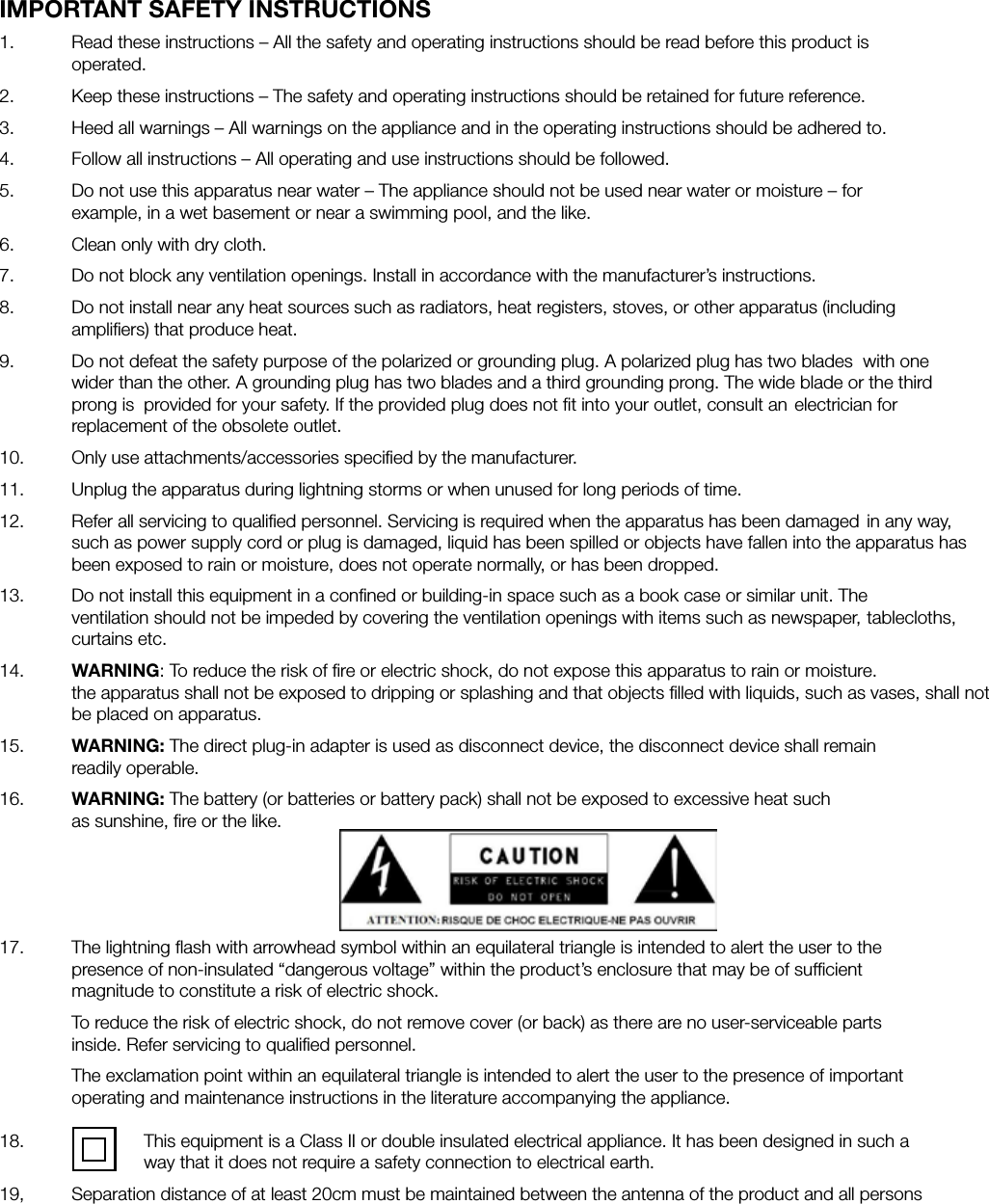
IMPORTANT SAFETY INSTRUCTIONS1.   Read these instructions – All the safety and operating instructions should be read before this product is     operated.2.   Keep these instructions – The safety and operating instructions should be retained for future reference.3.   Heed all warnings – All warnings on the appliance and in the operating instructions should be adhered to.4.   Follow all instructions – All operating and use instructions should be followed.5.   Do not use this apparatus near water – The appliance should not be used near water or moisture – for      example, in a wet basement or near a swimming pool, and the like.6.   Clean only with dry cloth.7.   Do not block any ventilation openings. Install in accordance with the manufacturer’s instructions.8.   Do not install near any heat sources such as radiators, heat registers, stoves, or other apparatus (including      amplifiers) that produce heat.9.   Do not defeat the safety purpose of the polarized or grounding plug. A polarized plug has two blades  with one    wider than the other. A grounding plug has two blades and a third grounding prong. The wide blade or the third    prong is  provided for your safety. If the provided plug does not fit into your outlet, consult an  electrician for      replacement of the obsolete outlet.10.   Only use attachments/accessories specified by the manufacturer.11.   Unplug the apparatus during lightning storms or when unused for long periods of time.12.   Refer all servicing to qualified personnel. Servicing is required when the apparatus has been damaged  in any way,    such as power supply cord or plug is damaged, liquid has been spilled or objects have fallen into the apparatus has    been exposed to rain or moisture, does not operate normally, or has been dropped.13.   Do not install this equipment in a confined or building-in space such as a book case or similar unit. The    ventilation should not be impeded by covering the ventilation openings with items such as newspaper,  tablecloths,   curtains etc. 14.   WARNING: To reduce the risk of fire or electric shock, do not expose this apparatus to rain or moisture.      the apparatus shall not be exposed to dripping or splashing and that objects filled with liquids, such as vases, shall not    be placed on apparatus.15.   WARNING: The direct plug-in adapter is used as disconnect device, the disconnect device shall remain     readily operable.16.   WARNING: The battery (or batteries or battery pack) shall not be exposed to excessive heat such         as sunshine, fire or the like.17.   The lightning flash with arrowhead symbol within an equilateral triangle is intended to alert the user to the      presence of non-insulated “dangerous voltage” within the product’s enclosure that may be of sufficient      magnitude to constitute a risk of electric shock.  To reduce the risk of electric shock, do not remove cover (or back) as there are no user-serviceable parts      inside. Refer servicing to qualified personnel.  The exclamation point within an equilateral triangle is intended to alert the user to the presence of important    operating and maintenance instructions in the literature accompanying the appliance.  18.     This equipment is a Class II or double insulated electrical appliance. It has been designed in such a        way that it does not require a safety connection to electrical earth.19,  Separation distance of at least 20cm must be maintained between the antenna of the product and all persons
FCC NOTICE TO A USER IN THE UNITED STATESThis equipment has been tested and found to comply with the limits for a Class B digital device,pursuant to Part 15 of the FCC Rules. These limits are designed to provide reasonable protectionagainst harmful interference in a residential installation. This equipment generates, uses, and canradiate radio frequency energy and, if not installed and used in accordance with the instructions,may cause harmful interference to radio communications. However, there is no guarantee thatinterference will not occur in a particular installation. If this equipment does cause harmfulinterference to radio or television reception, which can be determined by turning the equipmentoff and on, the user is encouraged to try to correct the interference by one or more of thefollowing measures:· Reorient or relocate the receiving antenna.· Increase the separation between the equipment and receiver.· Connect the equipment into an outlet on a circuit different from that to which the receiver is connected.· Consult the dealer or an experienced radio / TV technician for help.Warning!  Any modification or changes to this device, unless explicitly apporved by PURE, will invalidate the authorisation of this device. Operation of an unathorised device is prohibited under Sectiopn 302 of the Communications Act of 1934, as amended, and Subpart 1 of Part 2 of Chapter 47 of the Code of Federal RegulationsIC NOTICE TO A USER IN CANADASince digital circuitry may cause interference to other radio or television tuners nearby, switch thisunit off when not in use or move it away from the affected radio/television tuner.NOTE: This digital apparatus does not exceed the Class B limits for radio noise emissions fromdigital apparatus as set out in the Radio Interference Regulations of Industry Canada. These limitsare designed to provide reasonable protection against harmful interference in a residentialinstallation. This equipment generates, uses and can radiate radio frequency energy and, if notinstalled and used in accordance with the instructions, may cause harmful interference to radiocommunications. However, there is no guarantee that interference will not occur in a particularinstallation. If this equipment does cause harmful interference to radio or television operation(which can be determined by turning the equipment off), the user is encouraged to try to correctthe interference by one or more of the following measures:· Reorient or relocate the receiving antenna.· Increase the separation between the equipment and receiver.· Connect the equipment into an outlet on a circuit different from that to which the receiver is connected.· Consult the dealer or an experienced radio / TV technician for help.
You should be aware that listening to internet radio stations, podcasts and PURE sounds will contribute towards any download limit on your broadband account set by your Internet Service Provider (ISP). You can find out if you have a download limit on your broadband account by checking the terms and conditions of your account or by contacting your ISP. Please note that listening to FM, or streaming your own music files using the ‘Media player’ source, will not contribute towards any download limit on your account.Information about internet radio and broadband download limits If you see the message ‘Time not available’ when the radio is in standby you need to select ‘The Lounge’ audio source and connect to acquire the current time. Providing you have a connection, EVOKE Flow will keep the time up-to-date.Help! I see ‘Time not available’
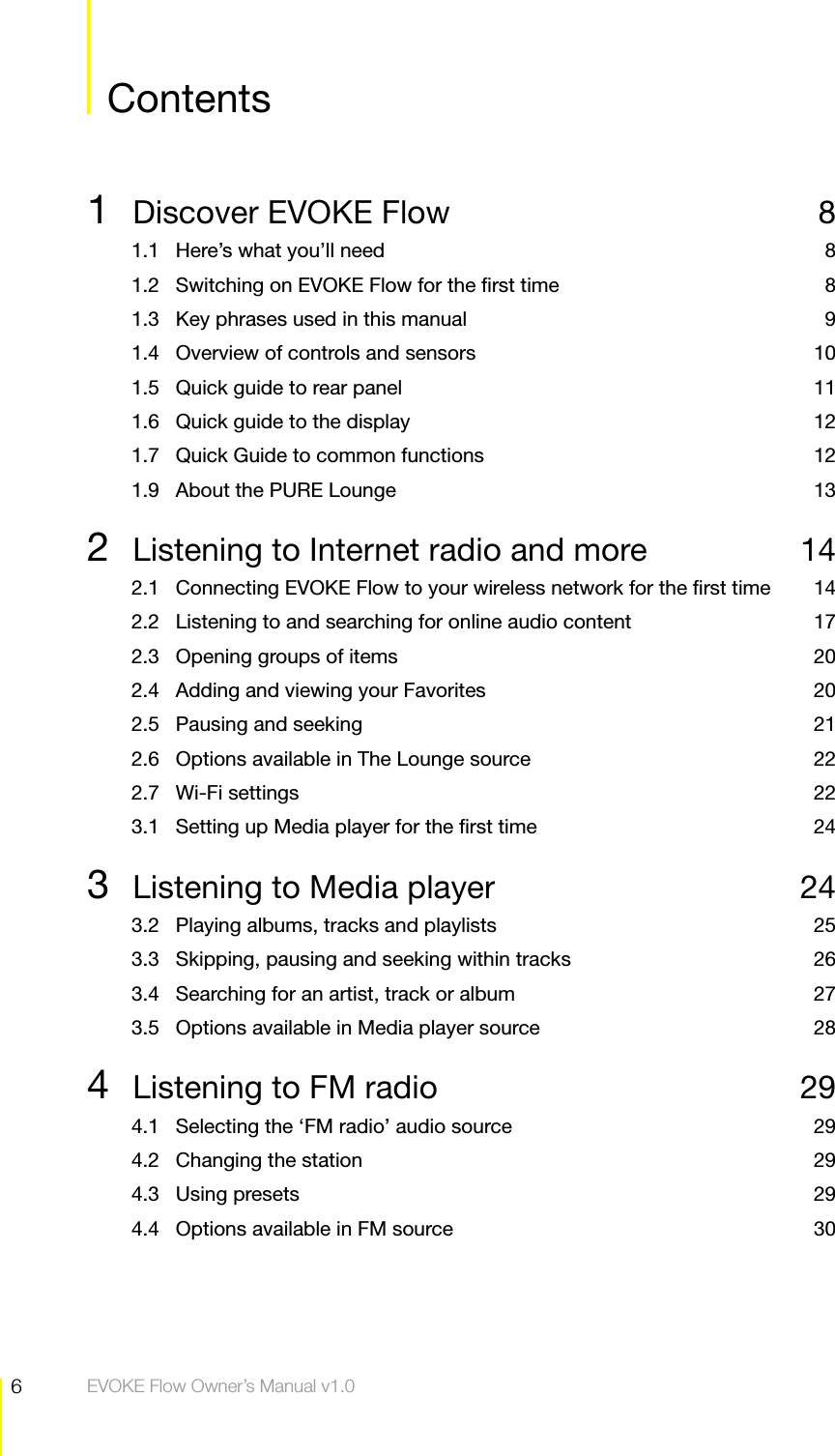
6Contents  EVOKE Flow Owner’s Manual v1.0Contents Contents1  Discover EVOKE Flow  81.1  Here’s what you’ll need  81.2  Switching on EVOKE Flow for the first time  81.3  Key phrases used in this manual  91.4  Overview of controls and sensors  101.5  Quick guide to rear panel  111.6  Quick guide to the display  121.7  Quick Guide to common functions  121.9  About the PURE Lounge  132  Listening to Internet radio and more  142.1  Connecting EVOKE Flow to your wireless network for the first time  142.2  Listening to and searching for online audio content  172.3  Opening groups of items  202.4  Adding and viewing your Favorites  202.5  Pausing and seeking  212.6  Options available in The Lounge source  222.7 Wi-Fi settings  223.1  Setting up Media player for the first time  243  Listening to Media player  243.2  Playing albums, tracks and playlists  253.3  Skipping, pausing and seeking within tracks  263.4  Searching for an artist, track or album  273.5  Options available in Media player source  284  Listening to FM radio  294.1  Selecting the ‘FM radio’ audio source  294.2  Changing the station  294.3 Using presets  294.4  Options available in FM source  30
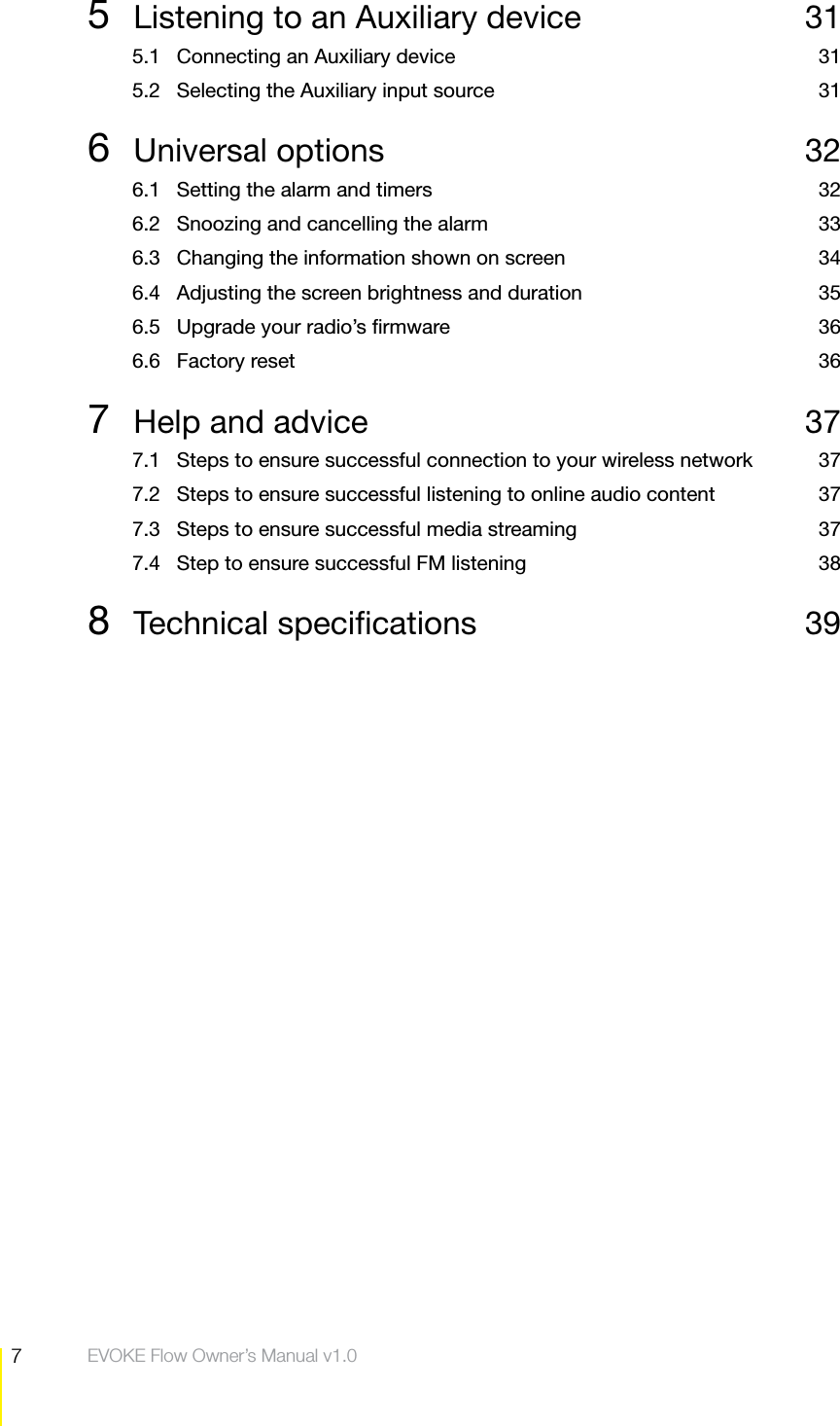
7Contents  EVOKE Flow Owner’s Manual v1.05  Listening to an Auxiliary device  315.1  Connecting an Auxiliary device  315.2  Selecting the Auxiliary input source  316 Universal options  326.1  Setting the alarm and timers  326.2  Snoozing and cancelling the alarm  336.3  Changing the information shown on screen  346.4  Adjusting the screen brightness and duration  356.5  Upgrade your radio’s firmware  366.6 Factory reset  367  Help and advice  377.1  Steps to ensure successful connection to your wireless network  377.2  Steps to ensure successful listening to online audio content  377.3  Steps to ensure successful media streaming  377.4  Step to ensure successful FM listening  388 Technical specifications  39
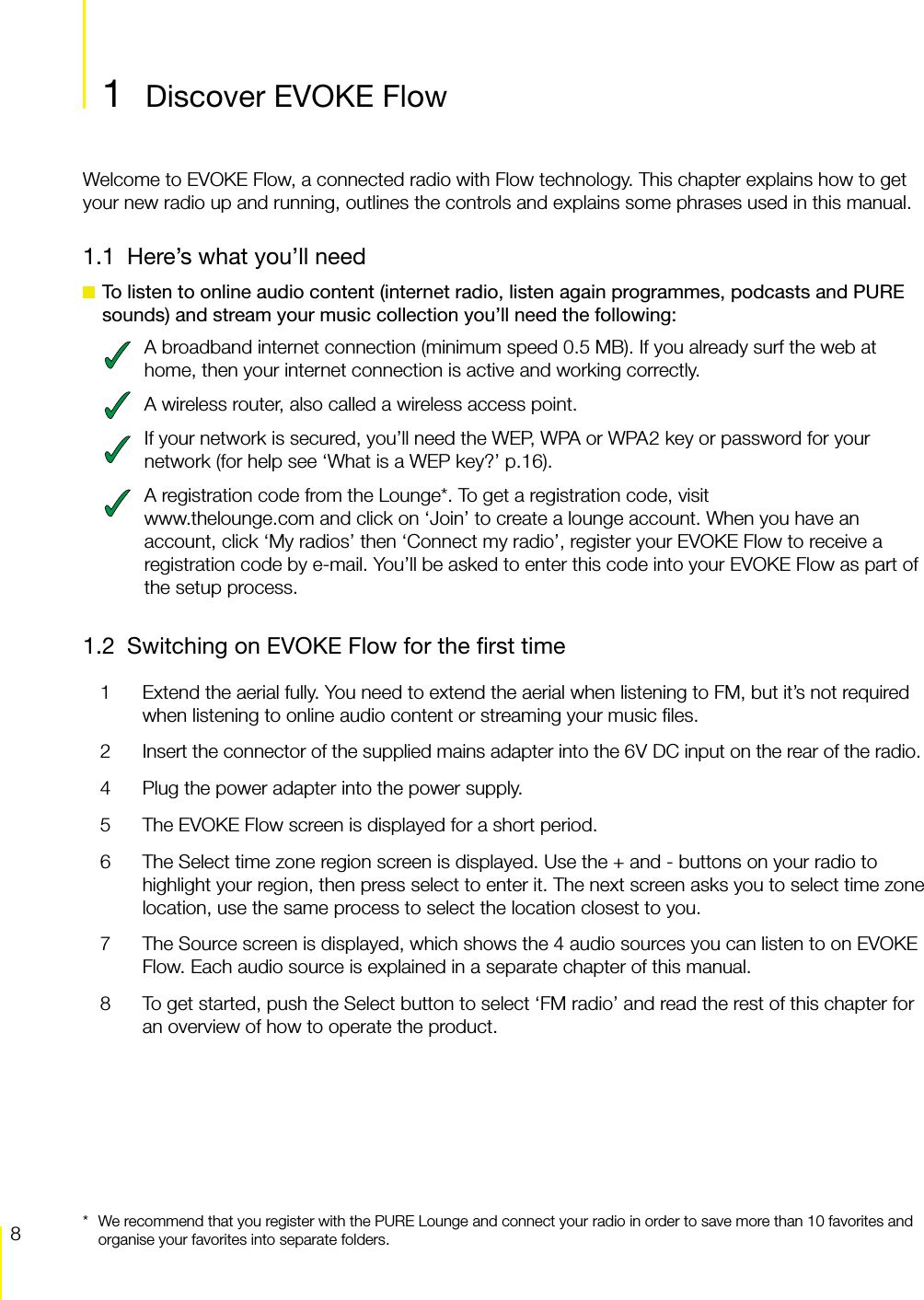
8Discover EVOKE Flow  EVOKE Flow Owner’s Manual v1.01  Discover EVOKE FlowWelcome to EVOKE Flow, a connected radio with Flow technology. This chapter explains how to get your new radio up and running, outlines the controls and explains some phrases used in this manual.1.1  Here’s what you’ll need To listen to online audio content (internet radio, listen again programmes, podcasts and PURE sounds) and stream your music collection you’ll need the following:A broadband internet connection (minimum speed 0.5 MB). If you already surf the web at home, then your internet connection is active and working correctly.A wireless router, also called a wireless access point.If your network is secured, you’ll need the WEP, WPA or WPA2 key or password for your network (for help see ‘What is a WEP key?’ p.16).A registration code from the Lounge*. To get a registration code, visit www.thelounge.com and click on ‘Join’ to create a lounge account. When you have an account, click ‘My radios’ then ‘Connect my radio’, register your EVOKE Flow to receive a registration code by e-mail. You’ll be asked to enter this code into your EVOKE Flow as part of the setup process.1.2  Switching on EVOKE Flow for the first time1  Extend the aerial fully. You need to extend the aerial when listening to FM, but it’s not required when listening to online audio content or streaming your music files.2  Insert the connector of the supplied mains adapter into the 6V DC input on the rear of the radio.4  Plug the power adapter into the power supply.5  The EVOKE Flow screen is displayed for a short period.6  The Select time zone region screen is displayed. Use the + and - buttons on your radio to highlight your region, then press select to enter it. The next screen asks you to select time zone location, use the same process to select the location closest to you.7  The Source screen is displayed, which shows the 4 audio sources you can listen to on EVOKE Flow. Each audio source is explained in a separate chapter of this manual.8  To get started, push the Select button to select ‘FM radio’ and read the rest of this chapter for an overview of how to operate the product. Discover EVOKE Flow*  We recommend that you register with the PURE Lounge and connect your radio in order to save more than 10 favorites and organise your favorites into separate folders.Discover EVOKE Flow
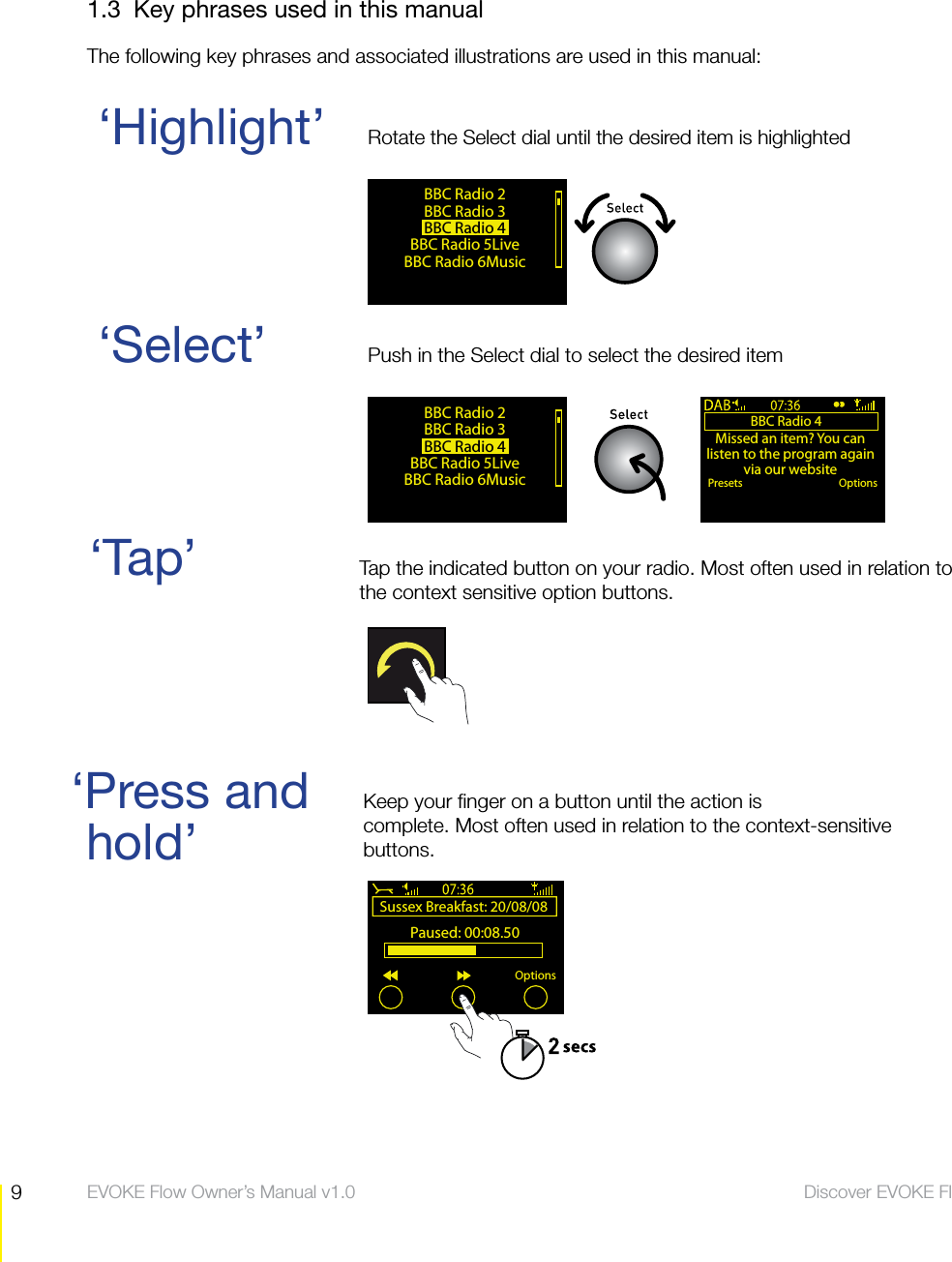
9Discover EVOKE Flow  EVOKE Flow Owner’s Manual v1.01.3  Key phrases used in this manualThe following key phrases and associated illustrations are used in this manual:hold’‘Select’  Push in the Select dial to select the desired item‘Tap’  Tap the indicated button on your radio. Most often used in relation to   the context sensitive option buttons.‘Highlight’  Rotate the Select dial until the desired item is highlighted‘Press and      Keep your finger on a button until the action is                             complete. Most often used in relation to the context-sensitive            buttons.BBC Radio 2BBC Radio 3BBC Radio 4 BBC Radio 5LiveBBC Radio 6MusicBBC Radio 4Missed an item? You can listen to the program again via our websitePresets OptionsBBC Radio 2BBC Radio 3BBC Radio 4 BBC Radio 5LiveBBC Radio 6MusicSussex Breakfast: 20/08/08 Paused: 00:08.50Options
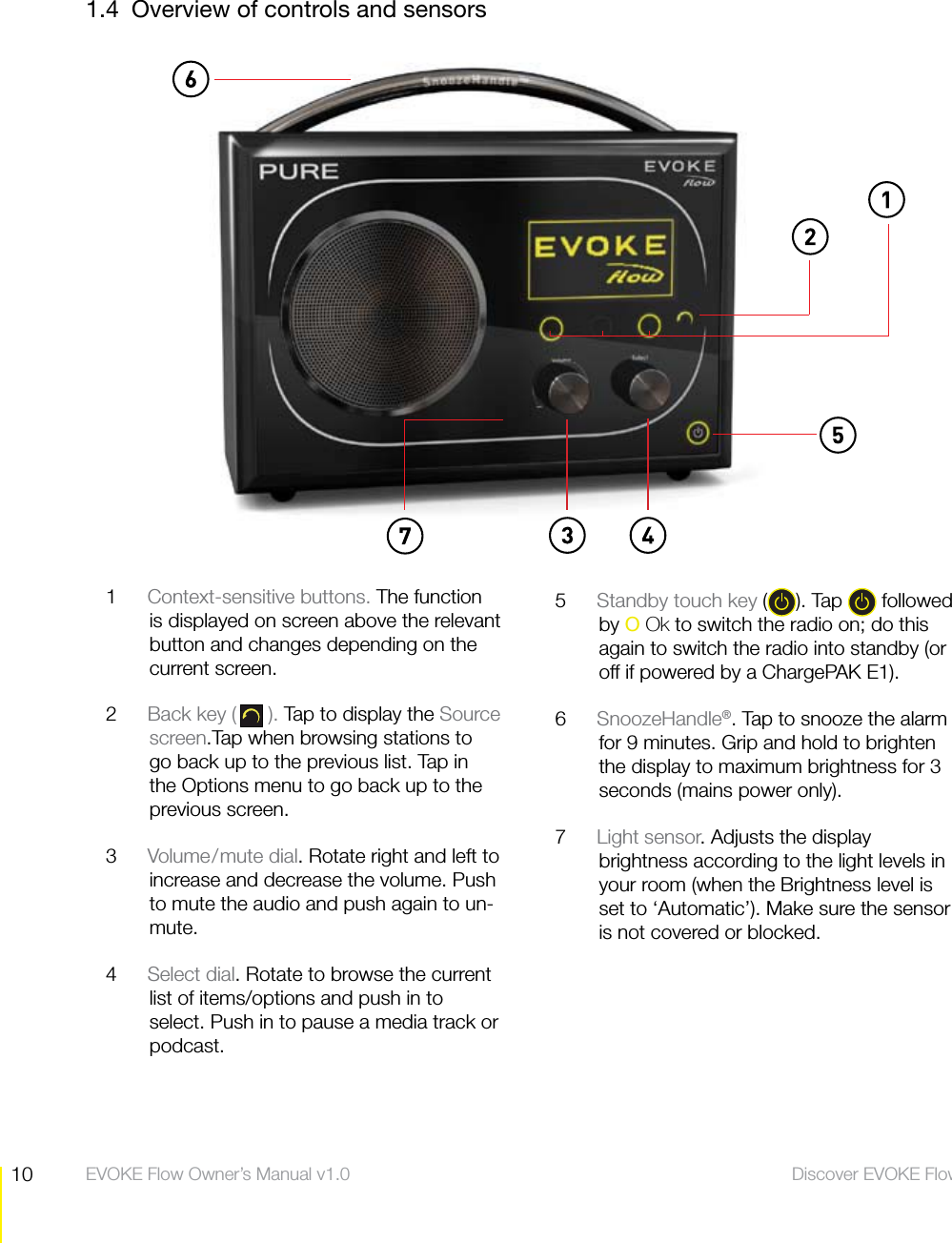
10 Discover EVOKE Flow  EVOKE Flow Owner’s Manual v1.01.4  Overview of controls and sensors1  Context-sensitive buttons. The function is displayed on screen above the relevant button and changes depending on the current screen.2  Back key ( ). Tap to display the Source screen.Tap when browsing stations to go back up to the previous list. Tap in the Options menu to go back up to the previous screen.3  Volume/mute dial. Rotate right and left to increase and decrease the volume. Push to mute the audio and push again to un-mute.4  Select dial. Rotate to browse the current list of items/options and push in to select. Push in to pause a media track or podcast.5  Standby touch key ( ). Tap   followed by O Ok to switch the radio on; do this again to switch the radio into standby (or off if powered by a ChargePAK E1).6  SnoozeHandle®. Tap to snooze the alarm for 9 minutes. Grip and hold to brighten the display to maximum brightness for 3 seconds (mains power only).7  Light sensor. Adjusts the display brightness according to the light levels in your room (when the Brightness level is set to ‘Automatic’). Make sure the sensor is not covered or blocked.
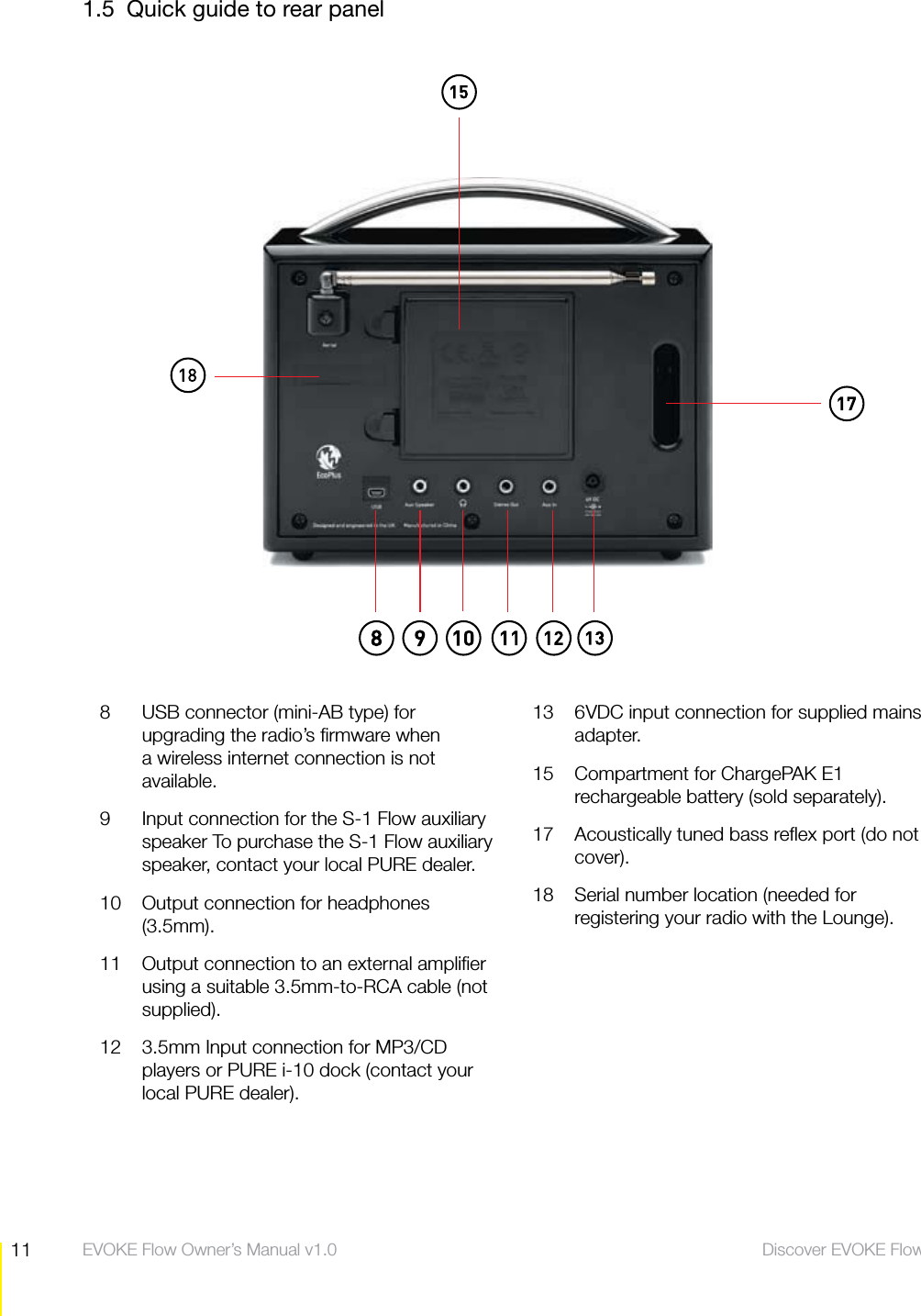
11 Discover EVOKE Flow  EVOKE Flow Owner’s Manual v1.01.5  Quick guide to rear panel8  USB connector (mini-AB type) for upgrading the radio’s firmware when a wireless internet connection is not available.9  Input connection for the S-1 Flow auxiliary speaker To purchase the S-1 Flow auxiliary speaker, contact your local PURE dealer.10  Output connection for headphones (3.5mm).11  Output connection to an external amplifier using a suitable 3.5mm-to-RCA cable (not supplied).12  3.5mm Input connection for MP3/CD players or PURE i-10 dock (contact your local PURE dealer).13  6VDC input connection for supplied mains adapter.15  Compartment for ChargePAK E1 rechargeable battery (sold separately).17  Acoustically tuned bass reflex port (do not cover).18  Serial number location (needed for registering your radio with the Lounge).
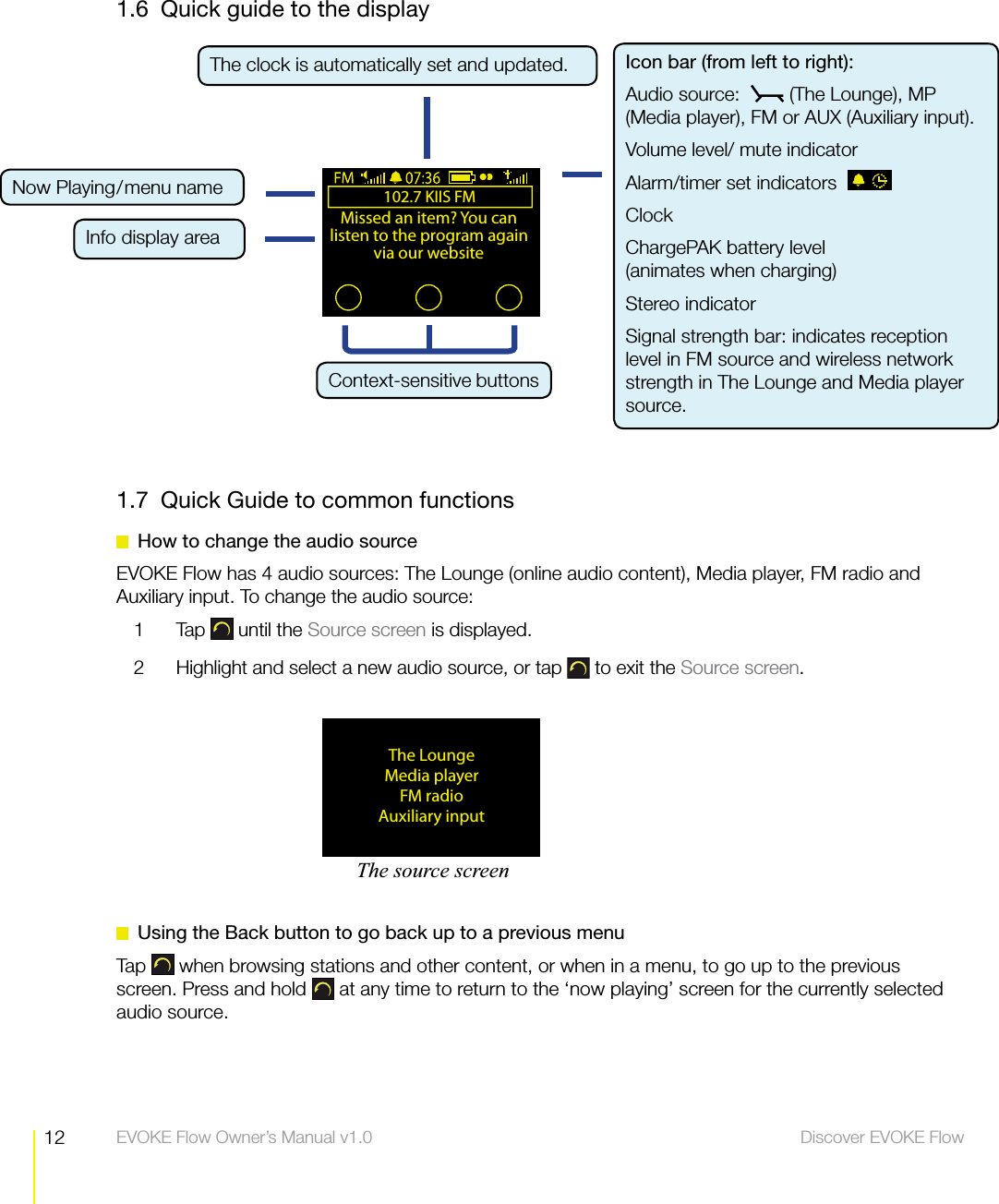
12 Discover EVOKE Flow  EVOKE Flow Owner’s Manual v1.01.6  Quick guide to the display1.7  Quick Guide to common functions  How to change the audio sourceEVOKE Flow has 4 audio sources: The Lounge (online audio content), Media player, FM radio and Auxiliary input. To change the audio source:1 Tap  until the Source screen is displayed.2  Highlight and select a new audio source, or tap   to exit the Source screen.  Using the Back button to go back up to a previous menuTap   when browsing stations and other content, or when in a menu, to go up to the previous screen. Press and hold   at any time to return to the ‘now playing’ screen for the currently selected audio source.The clock is automatically set and updated. The LoungeMedia playerFM radioAuxiliary input102.7 KIIS FMMissed an item? You can listen to the program again via our websiteContext-sensitive buttonsThe source screenIcon bar (from left to right):Audio source:    (The Lounge), MP (Media player), FM or AUX (Auxiliary input).Volume level/ mute indicatorAlarm/timer set indicatorsClockChargePAK battery level (animates when charging)Stereo indicator Signal strength bar: indicates reception level in FM source and wireless network strength in The Lounge and Media player source.Now Playing/menu nameInfo display area
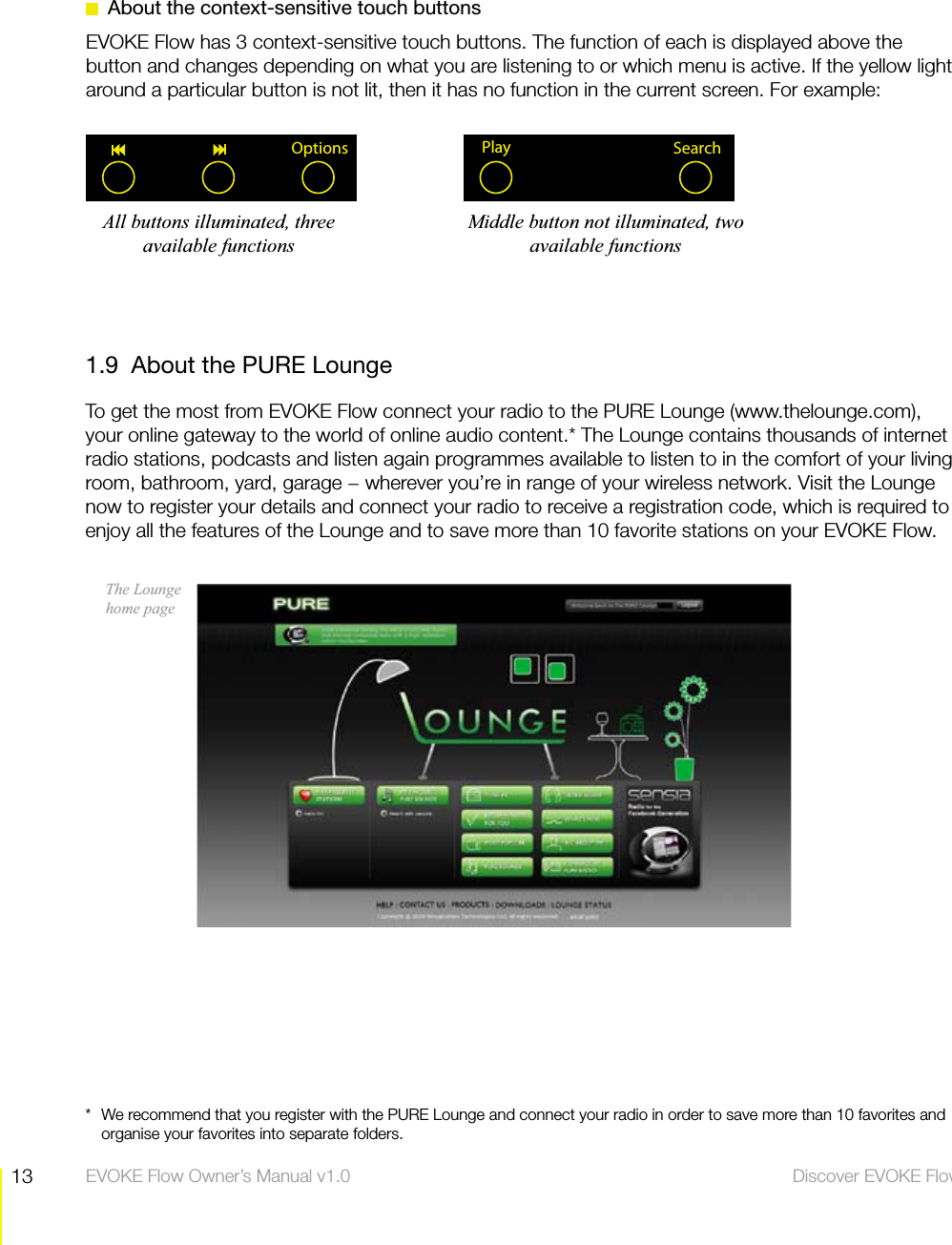
13 Discover EVOKE Flow  EVOKE Flow Owner’s Manual v1.01.9  About the PURE LoungeTo get the most from EVOKE Flow connect your radio to the PURE Lounge (www.thelounge.com), your online gateway to the world of online audio content.* The Lounge contains thousands of internet radio stations, podcasts and listen again programmes available to listen to in the comfort of your living room, bathroom, yard, garage − wherever you’re in range of your wireless network. Visit the Lounge now to register your details and connect your radio to receive a registration code, which is required to enjoy all the features of the Lounge and to save more than 10 favorite stations on your EVOKE Flow.The Lounge  home page*  We recommend that you register with the PURE Lounge and connect your radio in order to save more than 10 favorites and organise your favorites into separate folders.  About the context-sensitive touch buttonsEVOKE Flow has 3 context-sensitive touch buttons. The function of each is displayed above the button and changes depending on what you are listening to or which menu is active. If the yellow light around a particular button is not lit, then it has no function in the current screen. For example:Options SearchPlayAll buttons illuminated, three available functionsMiddle button not illuminated, two available functions
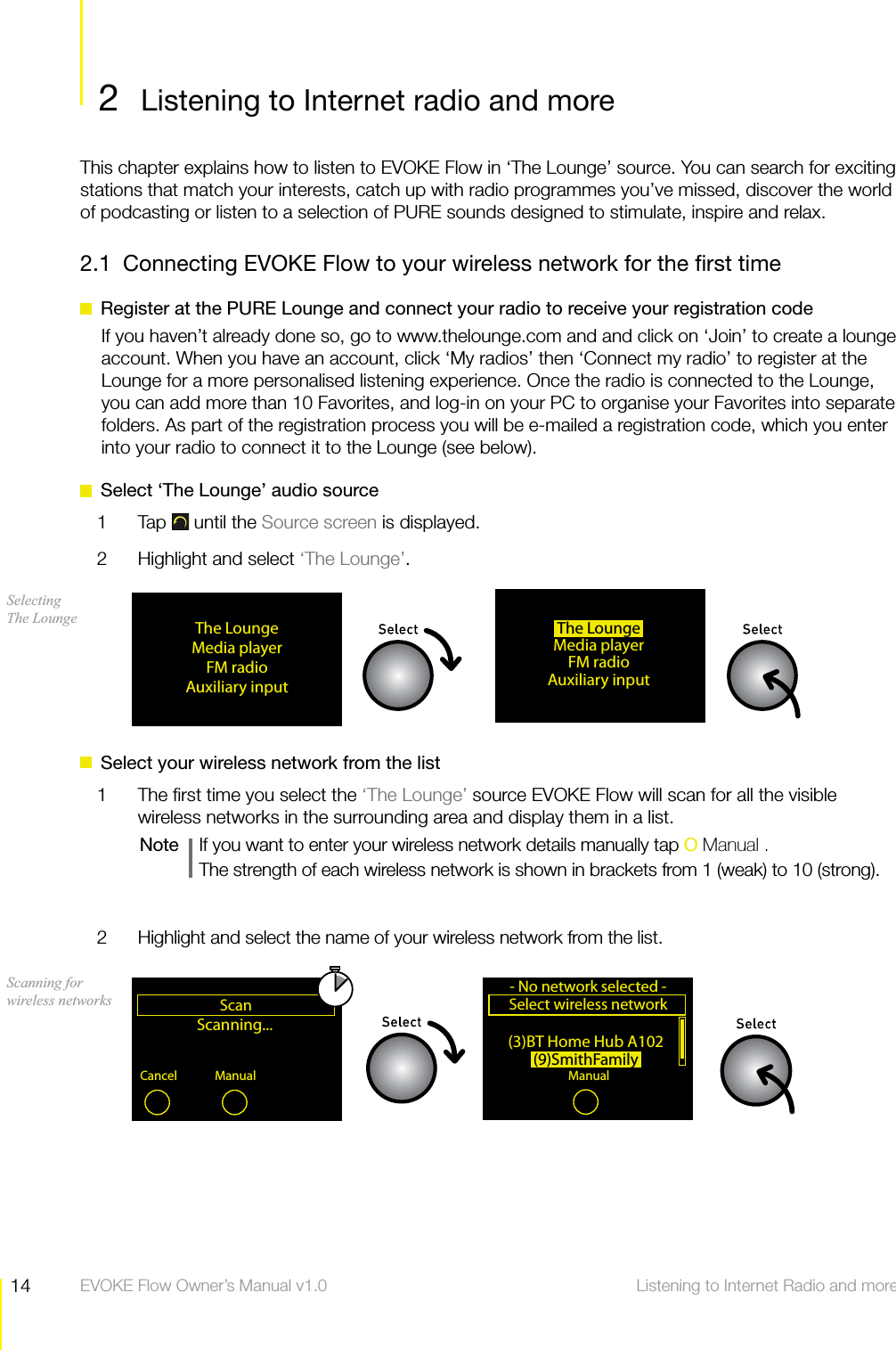
14 Listening to Internet Radio and more  EVOKE Flow Owner’s Manual v1.02  Listening to Internet radio and moreListening to Internet Radio and moreThis chapter explains how to listen to EVOKE Flow in ‘The Lounge’ source. You can search for exciting stations that match your interests, catch up with radio programmes you’ve missed, discover the world of podcasting or listen to a selection of PURE sounds designed to stimulate, inspire and relax.2.1  Connecting EVOKE Flow to your wireless network for the first time  Register at the PURE Lounge and connect your radio to receive your registration codeIf you haven’t already done so, go to www.thelounge.com and and click on ‘Join’ to create a lounge account. When you have an account, click ‘My radios’ then ‘Connect my radio’ to register at the Lounge for a more personalised listening experience. Once the radio is connected to the Lounge, you can add more than 10 Favorites, and log-in on your PC to organise your Favorites into separate folders. As part of the registration process you will be e-mailed a registration code, which you enter into your radio to connect it to the Lounge (see below).  Select ‘The Lounge’ audio source1 Tap  until the Source screen is displayed.2  Highlight and select ‘The Lounge’.  Select your wireless network from the list1  The first time you select the ‘The Lounge’ source EVOKE Flow will scan for all the visible wireless networks in the surrounding area and display them in a list.Note     If you want to enter your wireless network details manually tap O Manual .  The strength of each wireless network is shown in brackets from 1 (weak) to 10 (strong).2  Highlight and select the name of your wireless network from the list. The LoungeMedia playerFM radioAuxiliary inputScanning...Scan–Top–Cancel ManualScanning for wireless networks Selecting The Lounge  The LoungeMedia playerFM radioAuxiliary input(3)BT Home Hub A102(9)SmithFamilySelect wireless network- No network selected -ManualSelecting a wireless network
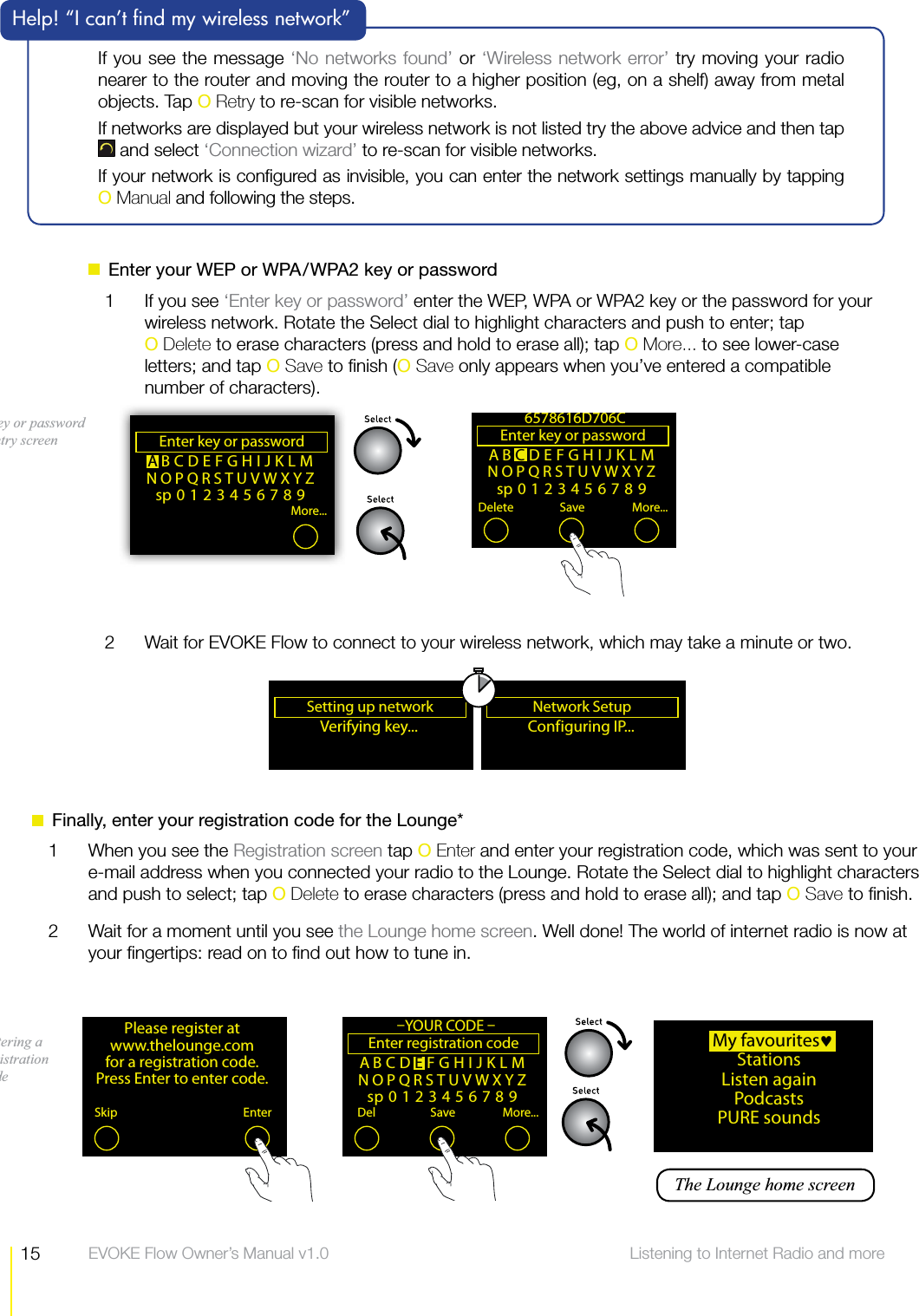
15 Listening to Internet Radio and more  EVOKE Flow Owner’s Manual v1.0  Enter your WEP or WPA/WPA2 key or password1  If you see ‘Enter key or password’ enter the WEP, WPA or WPA2 key or the password for your wireless network. Rotate the Select dial to highlight characters and push to enter; tap  O Delete to erase characters (press and hold to erase all); tap O More... to see lower-case letters; and tap O Save to finish (O Save only appears when you’ve entered a compatible number of characters).ABCDEFGHIJKLMNOPQRSTUVWXYZsp0123456789Enter key or password Delete Save More...6578616D706CABCDEFGHIJKLMNOPQRSTUVWXYZsp0123456789Enter key or password More...Key or password entry screenIf you see the message ‘No networks found’ or ‘Wireless network error’ try moving your radio nearer to the router and moving the router to a higher position (eg, on a shelf) away from metal objects. Tap O Retry to re-scan for visible networks.If networks are displayed but your wireless network is not listed try the above advice and then tap  and select ‘Connection wizard’ to re-scan for visible networks.If your network is configured as invisible, you can enter the network settings manually by tapping  O Manual and following the steps.  Help! “I can’t find my wireless network”2  Wait for EVOKE Flow to connect to your wireless network, which may take a minute or two.Conf iguring  IP... ANetwork Setup Verifying key... ASetting up network Please register at www.thelounge.com for a registration code. Press Enter to enter code.Skip Enter  My favouritesStationsListen againPodcasts PURE soundsABCDEFGHIJKLMNOPQRSTUVWXYZsp0123456789Enter registration code Del Save More...–YOUR CODE –Entering a registration code  The Lounge home screen  Finally, enter your registration code for the Lounge*1  When you see the Registration screen tap O Enter and enter your registration code, which was sent to your e-mail address when you connected your radio to the Lounge. Rotate the Select dial to highlight characters and push to select; tap O Delete to erase characters (press and hold to erase all); and tap O Save to finish.2  Wait for a moment until you see the Lounge home screen. Well done! The world of internet radio is now at your fingertips: read on to find out how to tune in.
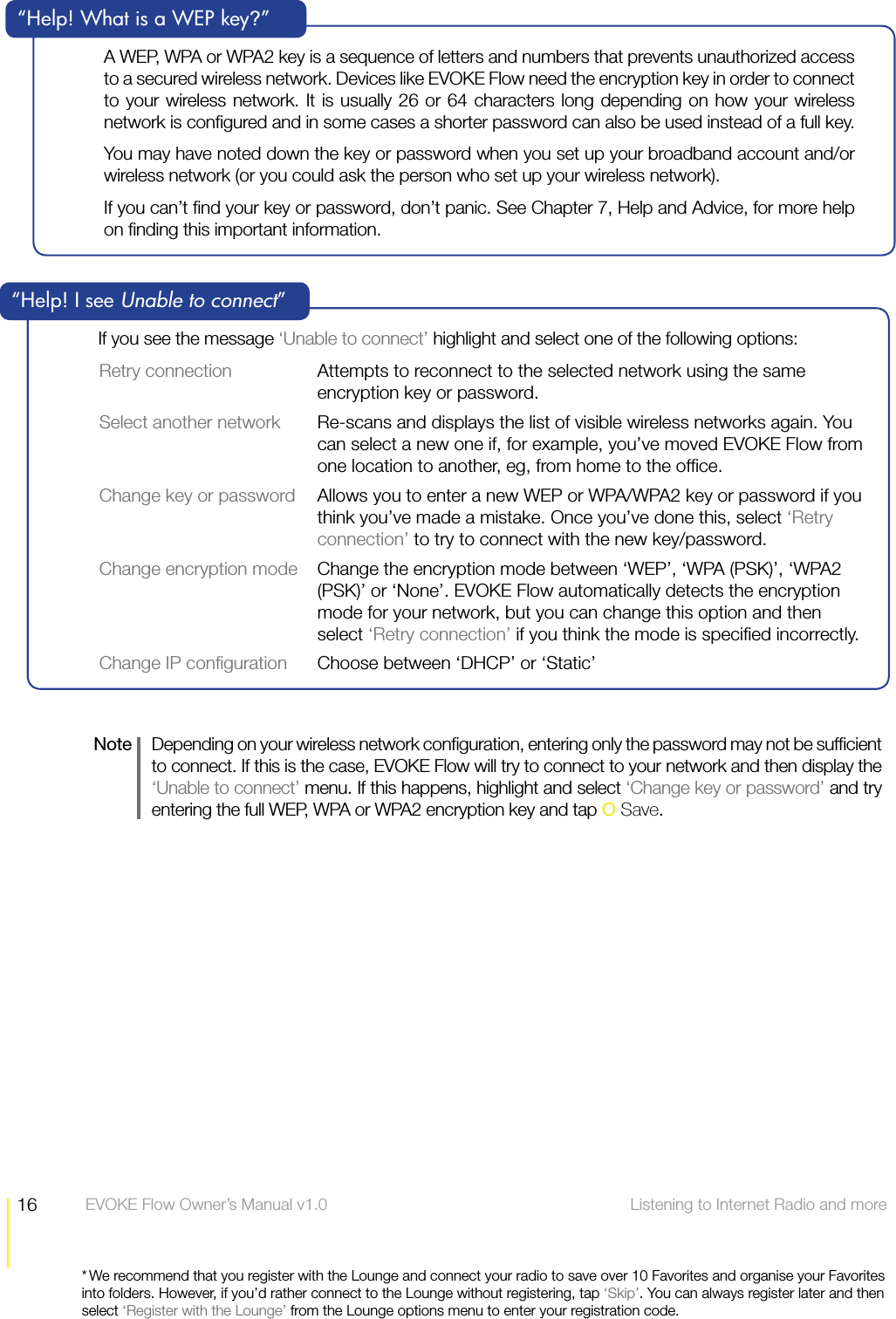
16 Listening to Internet Radio and more  EVOKE Flow Owner’s Manual v1.0* We recommend that you register with the Lounge and connect your radio to save over 10 Favorites and organise your Favorites into folders. However, if you’d rather connect to the Lounge without registering, tap ‘Skip’. You can always register later and then select ‘Register with the Lounge’ from the Lounge options menu to enter your registration code.If you see the message ‘Unable to connect’ highlight and select one of the following options:Retry connection  Attempts to reconnect to the selected network using the same encryption key or password.Select another network  Re-scans and displays the list of visible wireless networks again. You can select a new one if, for example, you’ve moved EVOKE Flow from one location to another, eg, from home to the office.Change key or password  Allows you to enter a new WEP or WPA/WPA2 key or password if you think you’ve made a mistake. Once you’ve done this, select ‘Retry connection’ to try to connect with the new key/password.Change encryption mode  Change the encryption mode between ‘WEP’, ‘WPA (PSK)’, ‘WPA2 (PSK)’ or ‘None’. EVOKE Flow automatically detects the encryption mode for your network, but you can change this option and then select ‘Retry connection’ if you think the mode is specified incorrectly.Change IP configuration  Choose between ‘DHCP’ or ‘Static’“Help! I see Unable to connect”A WEP, WPA or WPA2 key is a sequence of letters and numbers that prevents unauthorized access to a secured wireless network. Devices like EVOKE Flow need the encryption key in order to connect to your wireless network. It is usually 26 or 64 characters long depending on how your wireless network is configured and in some cases a shorter password can also be used instead of a full key. You may have noted down the key or password when you set up your broadband account and/or wireless network (or you could ask the person who set up your wireless network).If you can’t find your key or password, don’t panic. See Chapter 7, Help and Advice, for more help on finding this important information.“Help! What is a WEP key?”Note   Depending on your wireless network configuration, entering only the password may not be sufficient to connect. If this is the case, EVOKE Flow will try to connect to your network and then display the ‘Unable to connect’ menu. If this happens, highlight and select ‘Change key or password’ and try entering the full WEP, WPA or WPA2 encryption key and tap O Save.
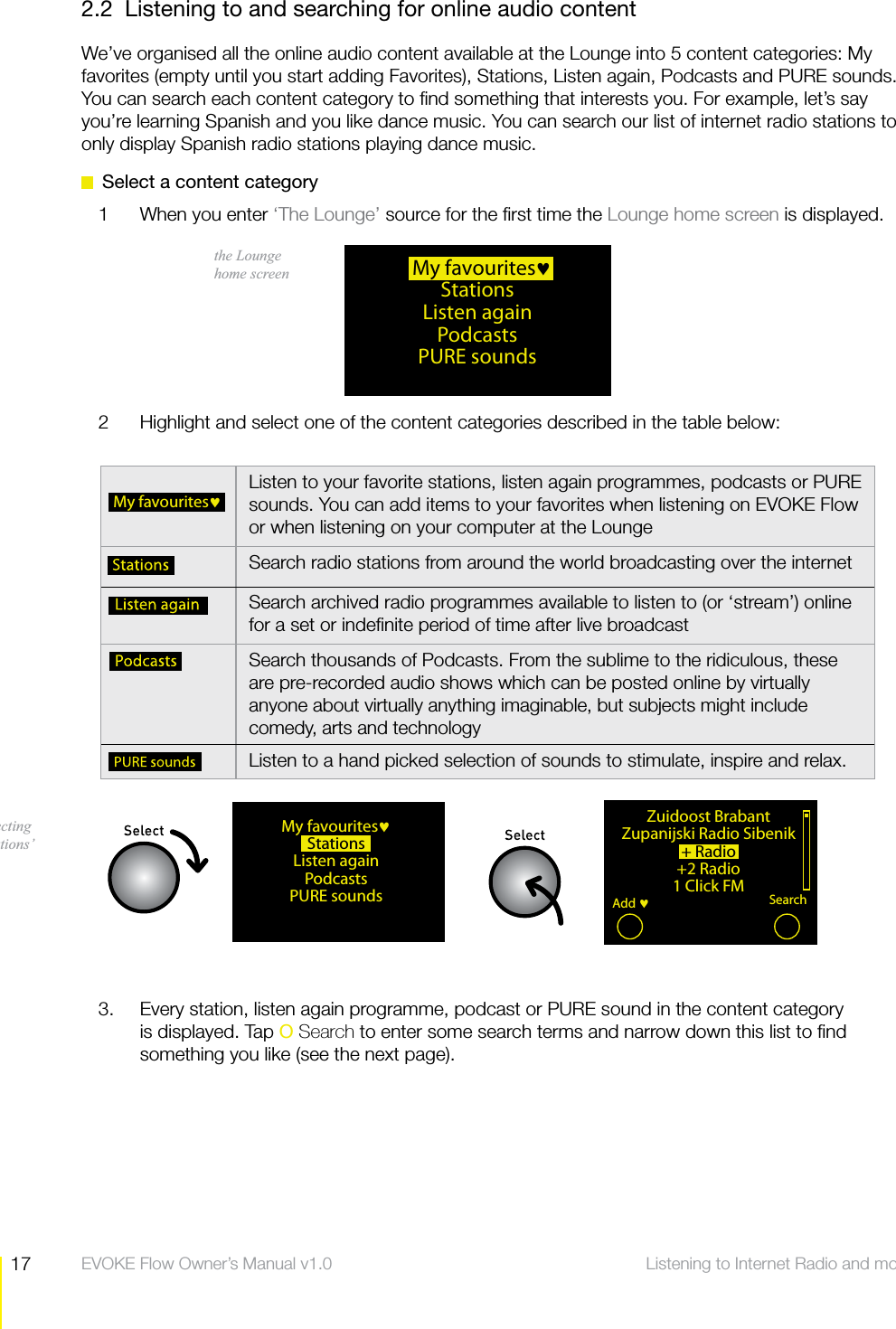
17 Listening to Internet Radio and more  EVOKE Flow Owner’s Manual v1.02.2  Listening to and searching for online audio contentWe’ve organised all the online audio content available at the Lounge into 5 content categories: My favorites (empty until you start adding Favorites), Stations, Listen again, Podcasts and PURE sounds. You can search each content category to find something that interests you. For example, let’s say you’re learning Spanish and you like dance music. You can search our list of internet radio stations to only display Spanish radio stations playing dance music.  Select a content category1  When you enter ‘The Lounge’ source for the first time the Lounge home screen is displayed. 2  Highlight and select one of the content categories described in the table below:3.  Every station, listen again programme, podcast or PURE sound in the content category is displayed. Tap O Search to enter some search terms and narrow down this list to find something you like (see the next page).Zuidoost BrabantZupanijski Radio Sibenik+ Radio+2 Radio1 Click FMAdd SearchMy favouritesListen to your favorite stations, listen again programmes, podcasts or PURE sounds. You can add items to your favorites when listening on EVOKE Flow or when listening on your computer at the LoungeSearch radio stations from around the world broadcasting over the internetSearch archived radio programmes available to listen to (or ‘stream’) online for a set or indefinite period of time after live broadcastSearch thousands of Podcasts. From the sublime to the ridiculous, these are pre-recorded audio shows which can be posted online by virtually anyone about virtually anything imaginable, but subjects might include comedy, arts and technologyListen to a hand picked selection of sounds to stimulate, inspire and relax.the Lounge home screen Selecting ‘Stations’  My favouritesStationsListen again PodcastsPURE sounds  My favouritesStationsListen againPodcasts PURE sounds
18 Listening to Internet Radio and more  EVOKE Flow Owner’s Manual v1.0  Search for a station, listen again programme or podcast1 Tap O Search from the content list to display the Search screen.Displaying the Search screen Name [All]Genre     [All]Country [All]Language [All]Quality [All]Clear ClearGo HomeZuidoost BrabantZupanijski Radio Sibenik+ Radio+2 Radio1 Click FMAdd SearchName [All]Genre     [All]Country  [Netherlands]Language [All]Quality [All]Clear all ClearGo LoungeName [All]Genre     [All]Country [Sp[All]Language [All]Quality [All]Clear all ClearGo LoungeName [All]Genre  [Classical]Country [Netherlands]Language [All]Quality [All]Clear all ClearGo LoungeName [All]Genre [All]Country [Netherlands]Language [All]Quality [All]Clear all ClearGo LoungeThe Search screenSearch termsSearch categories2  Highlight and select a search category and then rotate the dial to browse the available search terms and push to select. You can search by any combination of these search categories:Name  Search by all or part of the name of a station, podcast or programme.Genre  Choose to display only content from a certain genre, eg, Jazz.Country  Choose to display only content broadcasting from a particular country.Language  Choose to display only content broadcasting in a particular language.Quality  Choose to display only content that matches your desired audio quality. Quality ratings are from 1 to 5, where 1 is low quality, 3 is medium and 5 is excellent.  For example, change the Country category to The Netherlands (highlight and select ‘Country’, rotate the Select dial until ‘Netherlands’ is displayed and then push in to select ).  You can select and change as many search categories as you like before you search for matching content, eg, you can also change the genre to ‘Classical’ (highlight and select ‘Genre’, rotate the Select dial until ‘Classical’ is displayed and then push in to Selectl).3  When you’ve selected your chosen search terms, tap O Go to search for all the stations, listen again programmes or podcasts that match your selections. If you want to reset the Search categories, tap O Clear all.
19 Listening to Internet Radio and more  EVOKE Flow Owner’s Manual v1.04  A list of stations, listen again programmes or podcasts that match your criteria is displayed. Highlight and select an item from the list to begin playing.abcdefghijklmnopqrstuvwxyzsp0123456789Enter nameDelete OK ClearkexpKEXP 90.3FMSearchAdd Entering a station nameRadio Omproep SchouweRaudio Special 9 BeetAVRO Klassiek 2AVRO Klassiek 3AVRO Klassiek 4 SearchAdd Now tuning...Description not availableAdd fav OptionsAVRO Klassiek 2For a broader pictureOptionsAdd Name [kexp]Genre [All]Country [All]Language [All]Quality [All]Clear all ClearGo LoungeIf you see the message ‘Station not available’ the radio station may be temporarily off air, or you may be attempting to tune in to a station that has closed for the day or night depending on the time in the country of broadcast. If the ‘Station not available’ message persists with a particular station then it’s possible that the station has closed down or there is a technical problem with the audio stream. Please let us know by using the ‘Contact Us’ page at the Lounge and we’ll investigate the problem and fix it if possible.Help! I see ‘Station not available’  To select another station, programme or podcast1  When listening to the station, programme or podcast, rotate the Select dial to display your most recent search results, which are remembered until you perform a new search.2  When your most recent search results are displayed, either highlight and select another item or do one of the following:To perform a new search within the same content category (eg, Stations) tap s O Search to display the Search screen. Modify or clear your search terms and tap O Go to do a new search.To Search within a different content category (either Stations, Listen again or Podcasts) tap s  to go back to the Lounge Home screen and highlight and select a new content category. If you select ‘Name’ you can enter the name of a station, programme or podcast, which is handy if you know exactly what you’re looking for. Just select ‘Name’, rotate and push the Select dial to enter all or part of the name you’re looking for and tap O OK.
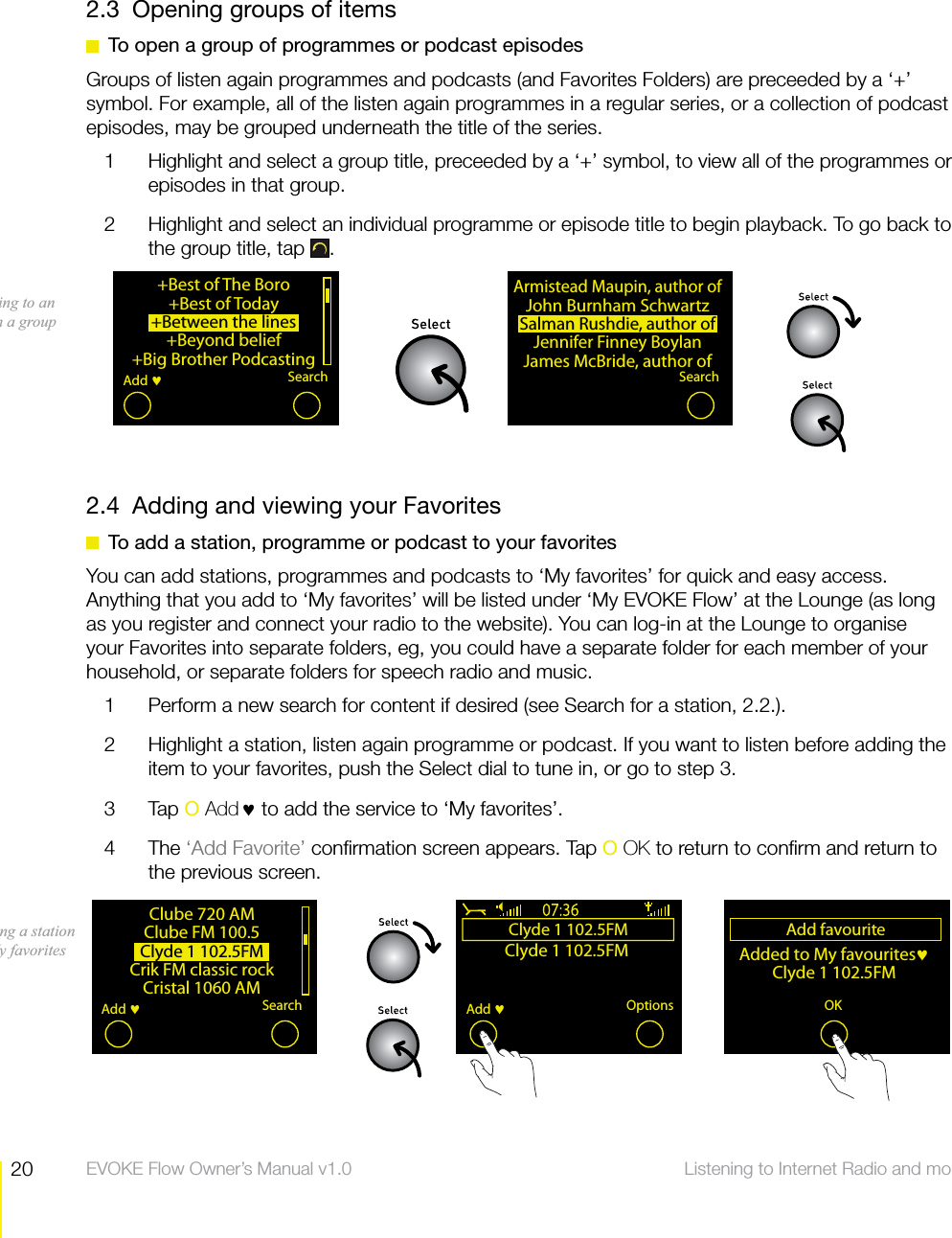
20 Listening to Internet Radio and more  EVOKE Flow Owner’s Manual v1.02.3  Opening groups of items  To open a group of programmes or podcast episodesGroups of listen again programmes and podcasts (and Favorites Folders) are preceeded by a ‘+’ symbol. For example, all of the listen again programmes in a regular series, or a collection of podcast episodes, may be grouped underneath the title of the series.1  Highlight and select a group title, preceeded by a ‘+’ symbol, to view all of the programmes or episodes in that group.2  Highlight and select an individual programme or episode title to begin playback. To go back to the group title, tap  .2.4  Adding and viewing your Favorites  To add a station, programme or podcast to your favoritesYou can add stations, programmes and podcasts to ‘My favorites’ for quick and easy access. Anything that you add to ‘My favorites’ will be listed under ‘My EVOKE Flow’ at the Lounge (as long as you register and connect your radio to the website). You can log-in at the Lounge to organise your Favorites into separate folders, eg, you could have a separate folder for each member of your household, or separate folders for speech radio and music.1  Perform a new search for content if desired (see Search for a station, 2.2.). 2  Highlight a station, listen again programme or podcast. If you want to listen before adding the item to your favorites, push the Select dial to tune in, or go to step 3.3 Tap O Add♥ to add the service to ‘My favorites’. 4 The ‘Add Favorite’ confirmation screen appears. Tap O OK to return to confirm and return to the previous screen.+Best of The Boro+Best of Today+Between the lines+Beyond belief+Big Brother PodcastingSearchAdd Armistead Maupin, author ofJohn Burnham SchwartzSalman Rushdie, author ofJennifer Finney BoylanJames McBride, author ofSearchListening to an item in a groupClube 720 AMClube FM 100.5Clyde 1 102.5FMCrik FM classic rockCristal 1060 AMSearchAdd Clyde 1 102.5FMClyde 1 102.5FMOptionsAdd Add favouriteAdded to My favourites Clyde 1 102.5FMAdd fav OK MenuAdding a station to My favorites
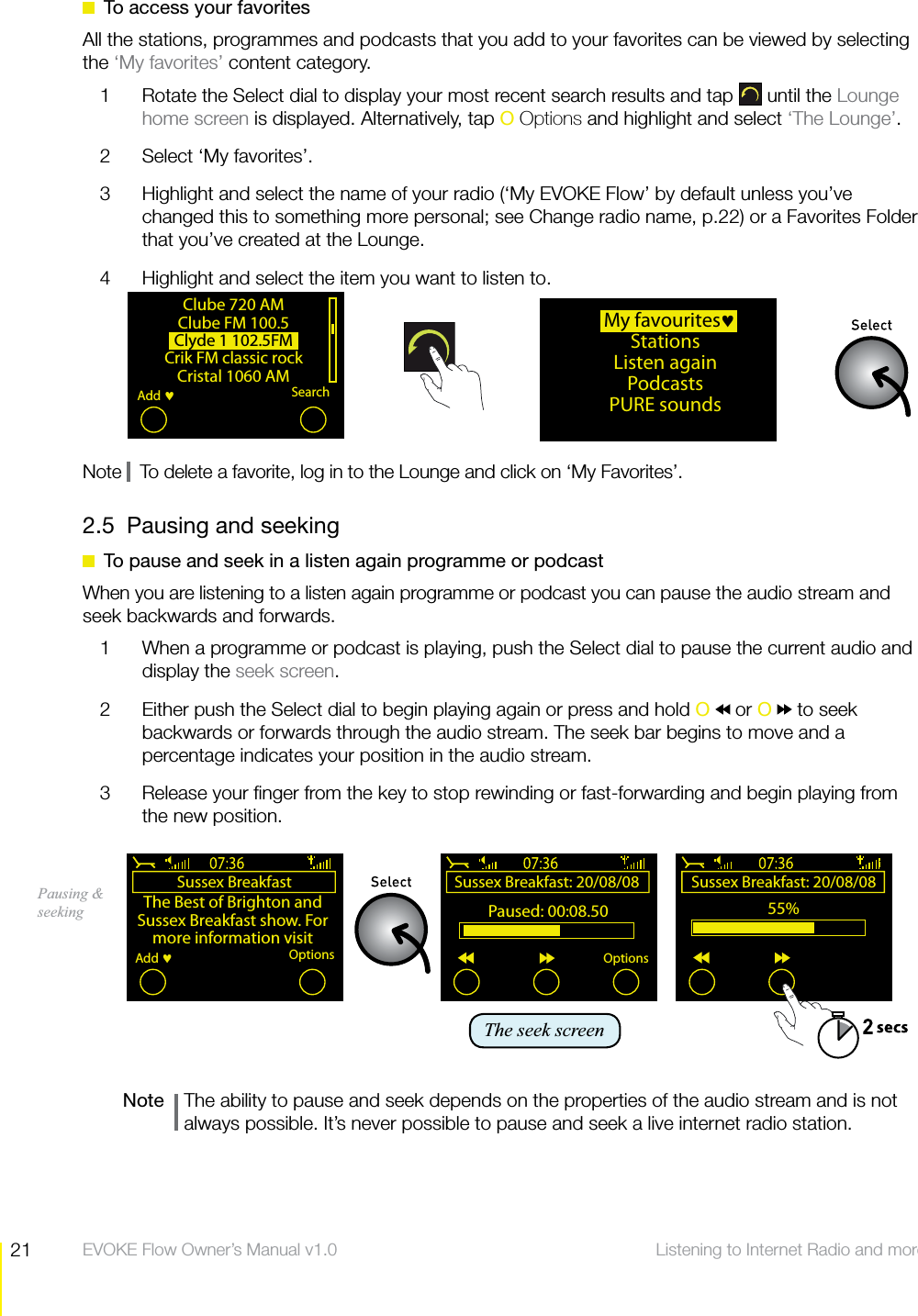
21 Listening to Internet Radio and more  EVOKE Flow Owner’s Manual v1.0  To access your favoritesAll the stations, programmes and podcasts that you add to your favorites can be viewed by selecting the ‘My favorites’ content category.1  Rotate the Select dial to display your most recent search results and tap   until the Lounge home screen is displayed. Alternatively, tap O Options and highlight and select ‘The Lounge’.2  Select ‘My favorites’.3  Highlight and select the name of your radio (‘My EVOKE Flow’ by default unless you’ve changed this to something more personal; see Change radio name, p.22) or a Favorites Folder that you’ve created at the Lounge.4  Highlight and select the item you want to listen to.Note    To delete a favorite, log in to the Lounge and click on ‘My Favorites’.2.5  Pausing and seeking  To pause and seek in a listen again programme or podcastWhen you are listening to a listen again programme or podcast you can pause the audio stream and seek backwards and forwards.1  When a programme or podcast is playing, push the Select dial to pause the current audio and display the seek screen.2  Either push the Select dial to begin playing again or press and hold O  or O   to seek backwards or forwards through the audio stream. The seek bar begins to move and a percentage indicates your position in the audio stream.3  Release your finger from the key to stop rewinding or fast-forwarding and begin playing from the new position.Note    The ability to pause and seek depends on the properties of the audio stream and is not always possible. It’s never possible to pause and seek a live internet radio station.Sussex Breakfast: 20/08/08 Paused: 00:08.50OptionsThe seek screenSussex BreakfastThe Best of Brighton and Sussex Breakfast show. For more information visitOptionsAdd Clube 720 AMClube FM 100.5Clyde 1 102.5FMCrik FM classic rockCristal 1060 AMSearchAdd Sussex Breakfast: 20/08/08 55%Pausing & seeking  My favouritesStationsListen againPodcasts PURE sounds
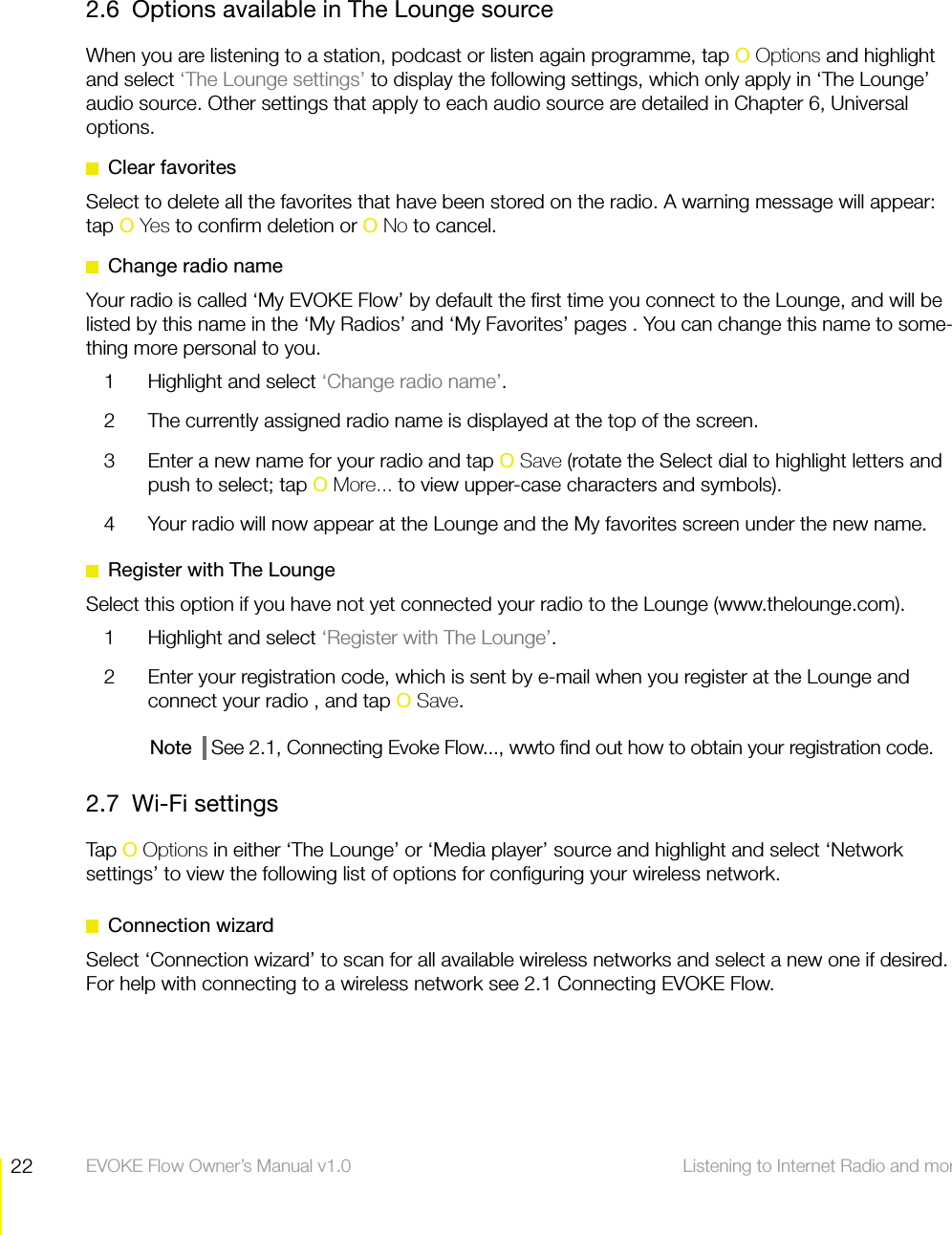
22 Listening to Internet Radio and more  EVOKE Flow Owner’s Manual v1.02.6  Options available in The Lounge sourceWhen you are listening to a station, podcast or listen again programme, tap O Options and highlight and select ‘The Lounge settings’ to display the following settings, which only apply in ‘The Lounge’ audio source. Other settings that apply to each audio source are detailed in Chapter 6, Universal options. Clear favoritesSelect to delete all the favorites that have been stored on the radio. A warning message will appear: tap O Yes to confirm deletion or O No to cancel.  Change radio nameYour radio is called ‘My EVOKE Flow’ by default the first time you connect to the Lounge, and will be listed by this name in the ‘My Radios’ and ‘My Favorites’ pages . You can change this name to some-thing more personal to you.1  Highlight and select ‘Change radio name’.2  The currently assigned radio name is displayed at the top of the screen. 3  Enter a new name for your radio and tap O Save (rotate the Select dial to highlight letters and push to select; tap O More... to view upper-case characters and symbols).4  Your radio will now appear at the Lounge and the My favorites screen under the new name.   Register with The LoungeSelect this option if you have not yet connected your radio to the Lounge (www.thelounge.com). 1  Highlight and select ‘Register with The Lounge’.2  Enter your registration code, which is sent by e-mail when you register at the Lounge and connect your radio , and tap O Save.Note   See 2.1, Connecting Evoke Flow..., wwto find out how to obtain your registration code.2.7 Wi-Fi settingsTap O Options in either ‘The Lounge’ or ‘Media player’ source and highlight and select ‘Network settings’ to view the following list of options for configuring your wireless network. Connection wizardSelect ‘Connection wizard’ to scan for all available wireless networks and select a new one if desired. For help with connecting to a wireless network see 2.1 Connecting EVOKE Flow.
23 Listening to Internet Radio and more  EVOKE Flow Owner’s Manual v1.0 View detailsSelect ‘View details’ to list the following technical information about the configuration of the network that EVOKE Flow is connected to:Network name   The Network Name (SSID) is shown at the top of the screen.Encryption   The encryption method is listed (WEP, WPA or WPA2).IP address   The IP address of the radio.Net mask   The configured network mask.DNS  The DNS server IP address.Router  The gateway router IP address.Radio Name  The name of the radio (see Change radio name, p.22).MAC address  The MAC address of the radio (a fixed address that identifies your hardware).Access point  The MAC address of the router that the radio is connected to. Manual setupSelect ‘Manual setup’ to manually configure your wireless network settings (for advanced users only).Retry connection  Attempts to reconnect to the selected network.Network name Choose from ‘Scan for networks’ or ‘Enter SSID manually’ to specify a new SSID for your wireless network.Encryption mode  Change the encryption mode between ‘WEP’, ‘WPA (PSK)’, ‘WPA2 (PSK)’ or ‘None’. EVOKE Flow automatically detects the encryption mode for your network. Only change this setting if you think the encryption mode has been specified incorrectly.Key or password  Enter a new encryption key or password.IP address  Choose between ‘DHCP’ or ‘Static’.  Clear network settingsSelect ‘Clear network settings’ and EVOKE Flow will ‘forget’ all wireless networks and perform a fresh re-scan for visible networks. Select ‘Connection wizard’ to re-scan for wireless networks. Note that you will have to re-enter your WEP or WPA/WPA2 key or password. You have to confirm this operation: tap O Yes to confirm or O No to cancel.
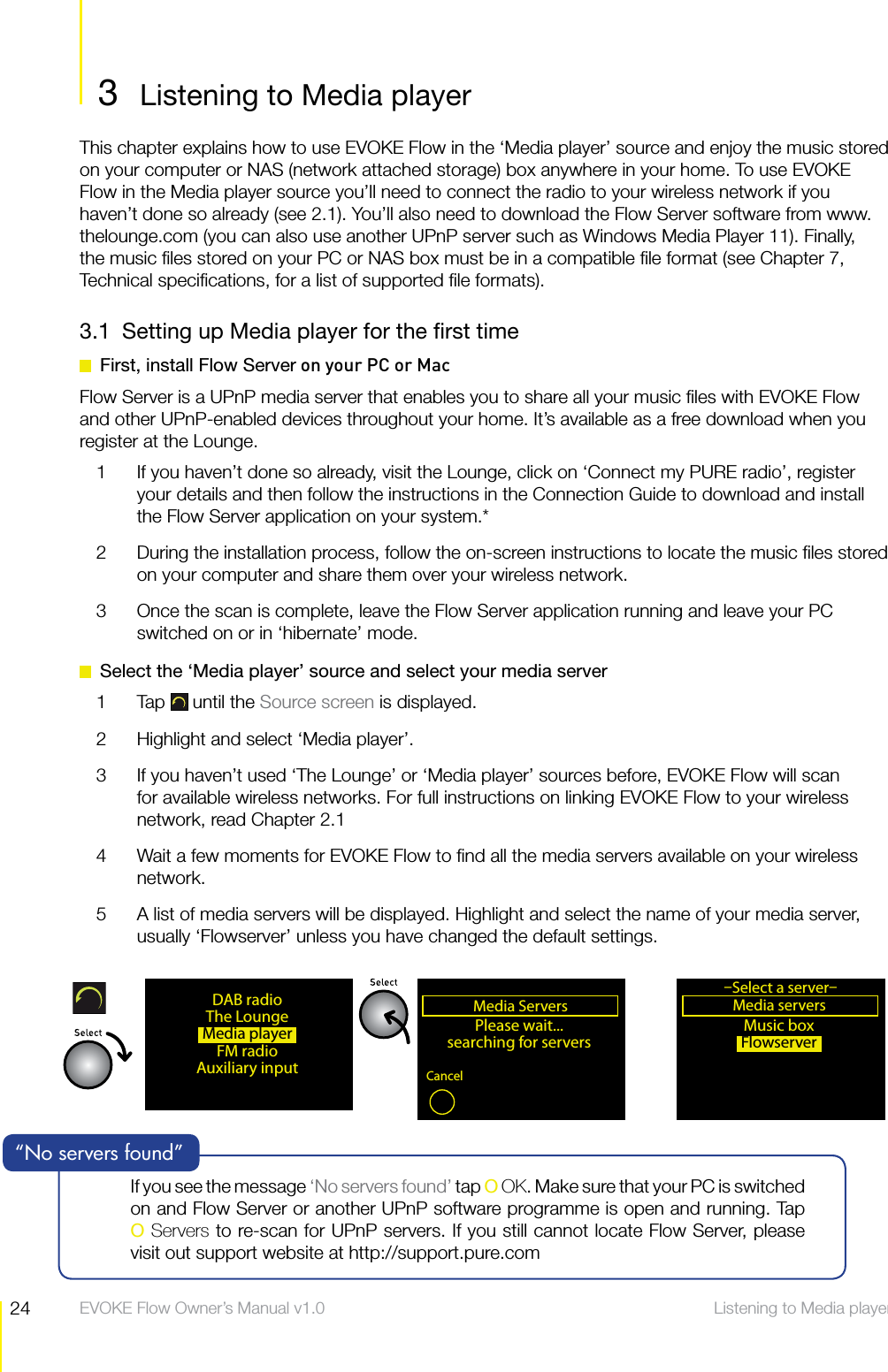
24 Listening to Media player  EVOKE Flow Owner’s Manual v1.03  Listening to Media playerListening to Media playerThis chapter explains how to use EVOKE Flow in the ‘Media player’ source and enjoy the music stored on your computer or NAS (network attached storage) box anywhere in your home. To use EVOKE Flow in the Media player source you’ll need to connect the radio to your wireless network if you haven’t done so already (see 2.1). You’ll also need to download the Flow Server software from www.thelounge.com (you can also use another UPnP server such as Windows Media Player 11). Finally, the music files stored on your PC or NAS box must be in a compatible file format (see Chapter 7, Technical specifications, for a list of supported file formats).3.1  Setting up Media player for the first time  First, install Flow Server on your PC or MacFlow Server is a UPnP media server that enables you to share all your music files with EVOKE Flow and other UPnP-enabled devices throughout your home. It’s available as a free download when you register at the Lounge. 1  If you haven’t done so already, visit the Lounge, click on ‘Connect my PURE radio’, register your details and then follow the instructions in the Connection Guide to download and install the Flow Server application on your system.*2  During the installation process, follow the on-screen instructions to locate the music files stored on your computer and share them over your wireless network.3  Once the scan is complete, leave the Flow Server application running and leave your PC switched on or in ‘hibernate’ mode.  Select the ‘Media player’ source and select your media server1 Tap  until the Source screen is displayed.2  Highlight and select ‘Media player’.3  If you haven’t used ‘The Lounge’ or ‘Media player’ sources before, EVOKE Flow will scan for available wireless networks. For full instructions on linking EVOKE Flow to your wireless network, read Chapter 2.14  Wait a few moments for EVOKE Flow to find all the media servers available on your wireless network.5  A list of media servers will be displayed. Highlight and select the name of your media server, usually ‘Flowserver’ unless you have changed the default settings.Media ServersPlease wait...searching for serversCancelMusic boxFlowserverMedia playerMedia servers–Select a server–OKDAB radioThe LoungeMedia playerFM radioAuxiliary inputIf you see the message ‘No servers found’ tap O OK. Make sure that your PC is switched on and Flow Server or another UPnP software programme is open and running. Tap  O Servers to re-scan for UPnP servers. If you still cannot locate Flow Server, please visit out support website at http://support.pure.com“No servers found”
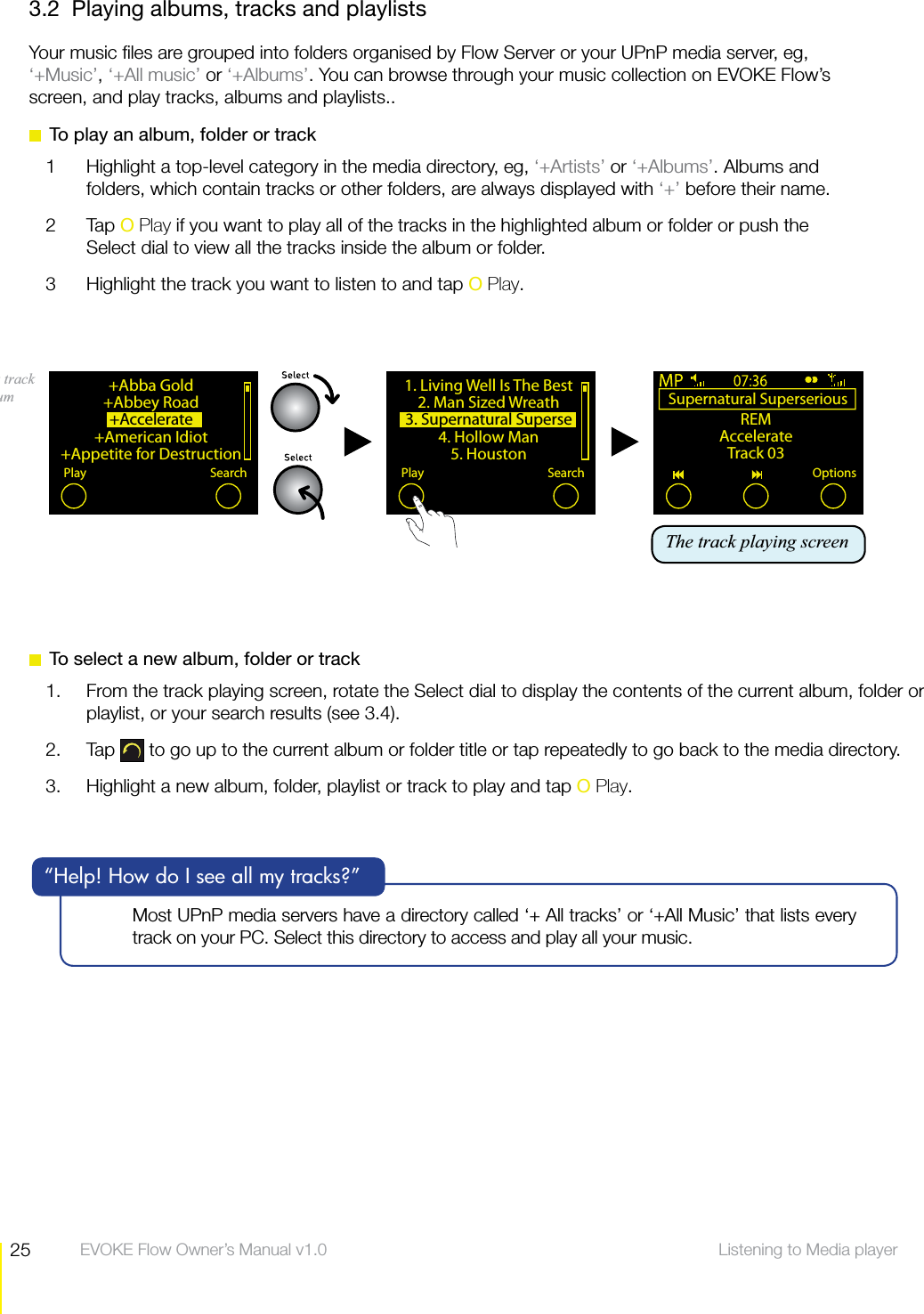
25 Listening to Media player  EVOKE Flow Owner’s Manual v1.03.2  Playing albums, tracks and playlistsYour music files are grouped into folders organised by Flow Server or your UPnP media server, eg, ‘+Music’, ‘+All music’ or ‘+Albums’. You can browse through your music collection on EVOKE Flow’s screen, and play tracks, albums and playlists..  To play an album, folder or track1  Highlight a top-level category in the media directory, eg, ‘+Artists’ or ‘+Albums’. Albums and folders, which contain tracks or other folders, are always displayed with ‘+’ before their name.2 Tap O Play if you want to play all of the tracks in the highlighted album or folder or push the Select dial to view all the tracks inside the album or folder.3  Highlight the track you want to listen to and tap O Play.+Abba Gold+Abbey Road+Accelerate +American Idiot+Appetite for DestructionPlay SearchPlaying a track in an album  Supernatural Superserious REMAccelerateTrack 03Options1. Living Well Is The Best 2. Man Sized Wreath3. Supernatural Superse4. Hollow Man5. HoustonPlay SearchThe track playing screenMost UPnP media servers have a directory called ‘+ All tracks’ or ‘+All Music’ that lists every track on your PC. Select this directory to access and play all your music.“Help! How do I see all my tracks?”  To select a new album, folder or track1.  From the track playing screen, rotate the Select dial to display the contents of the current album, folder or playlist, or your search results (see 3.4).2. Tap   to go up to the current album or folder title or tap repeatedly to go back to the media directory.3.  Highlight a new album, folder, playlist or track to play and tap O Play.
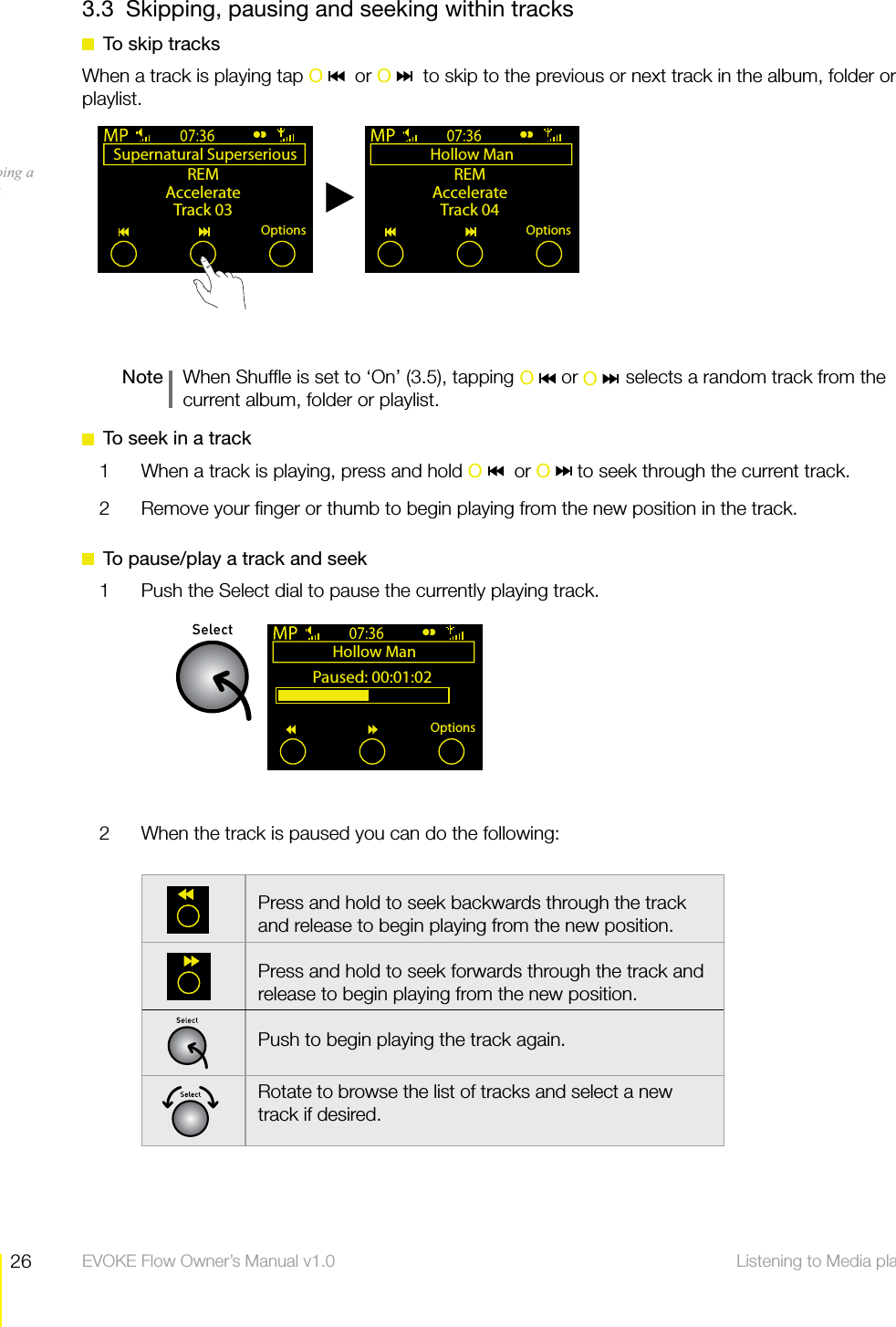
26 Listening to Media player  EVOKE Flow Owner’s Manual v1.03.3  Skipping, pausing and seeking within tracks  To skip tracksWhen a track is playing tap O    or O    to skip to the previous or next track in the album, folder or playlist.Note    When Shuffle is set to ‘On’ (3.5), tapping         or         selects a random track from the current album, folder or playlist.  To seek in a track1  When a track is playing, press and hold O   or O   to seek through the current track.2  Remove your finger or thumb to begin playing from the new position in the track.  To pause/play a track and seek1  Push the Select dial to pause the currently playing track.2  When the track is paused you can do the following:Hollow Man Paused: 00:01:02Options    Press and hold to seek backwards through the track and release to begin playing from the new position.Press and hold to seek forwards through the track and release to begin playing from the new position.Push to begin playing the track again.Rotate to browse the list of tracks and select a new track if desired.Supernatural Superserious REMAccelerateTrack 03OptionsHollow Man REMAccelerateTrack 04OptionsSkipping a track O    O
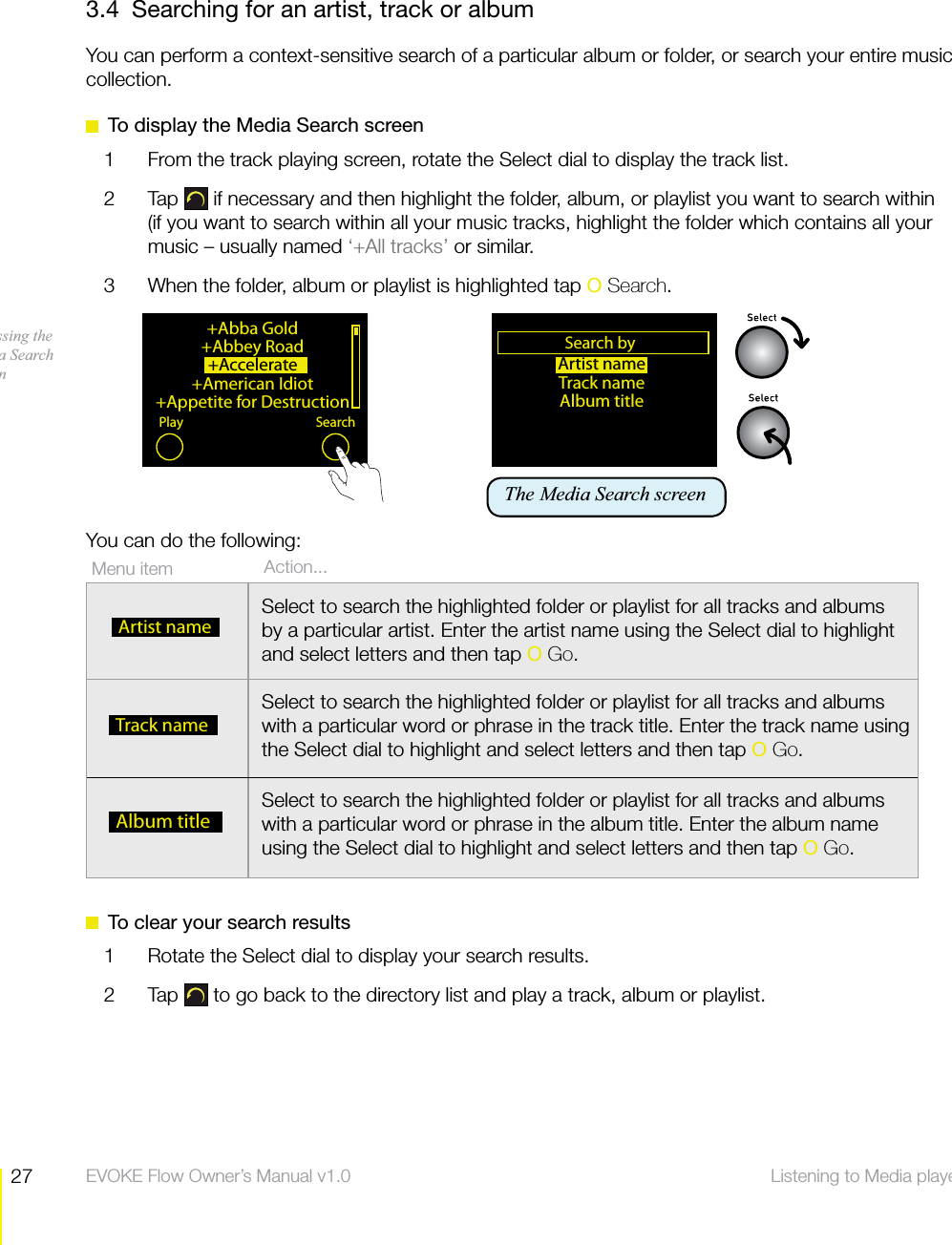
27 Listening to Media player  EVOKE Flow Owner’s Manual v1.03.4  Searching for an artist, track or albumYou can perform a context-sensitive search of a particular album or folder, or search your entire music collection.  To display the Media Search screen1  From the track playing screen, rotate the Select dial to display the track list. 2 Tap  if necessary and then highlight the folder, album, or playlist you want to search within (if you want to search within all your music tracks, highlight the folder which contains all your music – usually named ‘+All tracks’ or similar.3  When the folder, album or playlist is highlighted tap O Search.You can do the following:  To clear your search results1  Rotate the Select dial to display your search results.2 Tap  to go back to the directory list and play a track, album or playlist.+Abba Gold+Abbey Road+Accelerate +American Idiot+Appetite for DestructionPlay SearchAccessing the Media Search screen     Action...Menu item   Artist nameSelect to search the highlighted folder or playlist for all tracks and albums by a particular artist. Enter the artist name using the Select dial to highlight and select letters and then tap O Go.  Track nameSelect to search the highlighted folder or playlist for all tracks and albums with a particular word or phrase in the track title. Enter the track name using the Select dial to highlight and select letters and then tap O Go.  Album titleSelect to search the highlighted folder or playlist for all tracks and albums with a particular word or phrase in the album title. Enter the album name using the Select dial to highlight and select letters and then tap O Go.Artist nameTrack nameAlbum titleSearch byOKThe Media Search screen
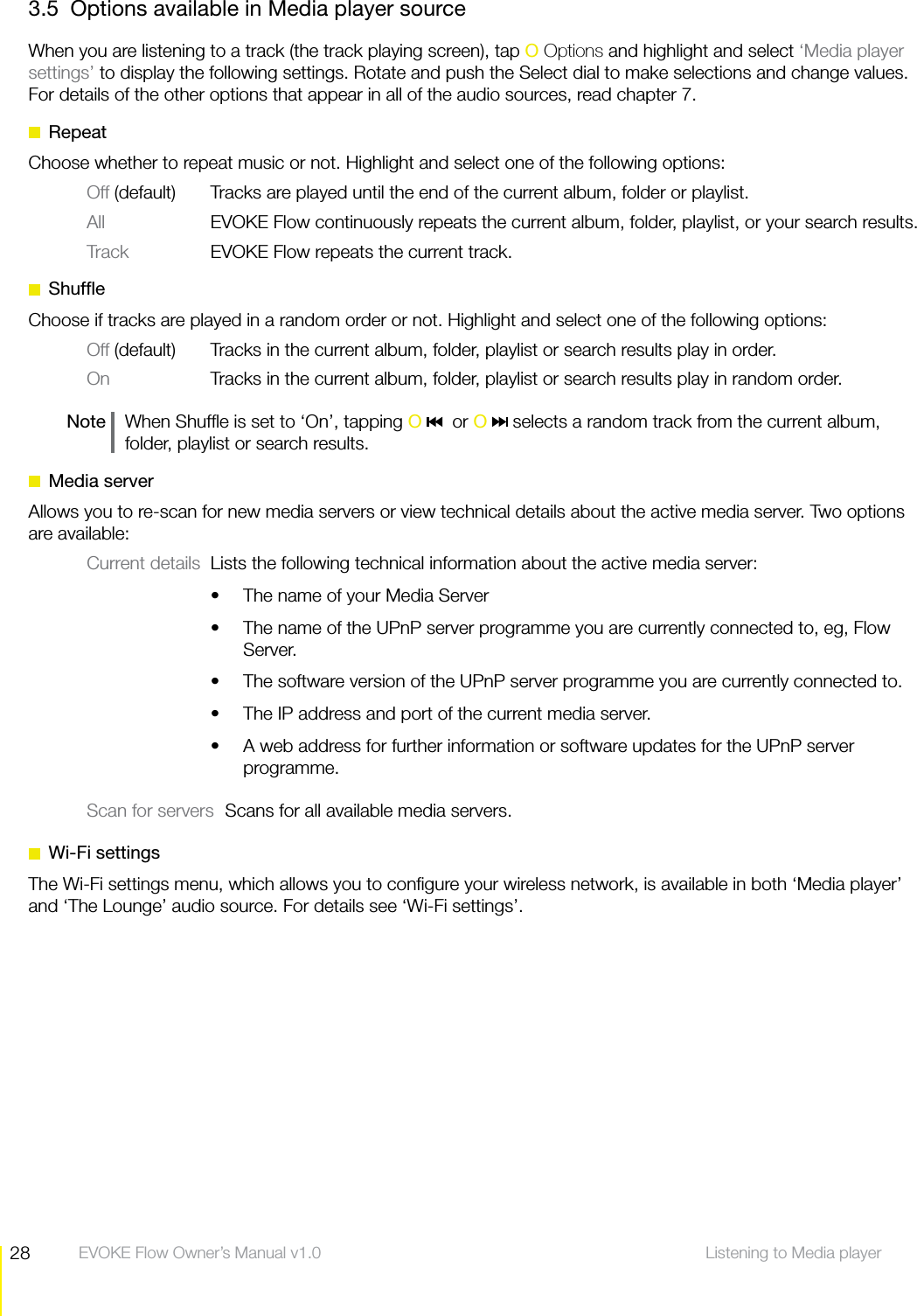
28 Listening to Media player  EVOKE Flow Owner’s Manual v1.03.5  Options available in Media player sourceWhen you are listening to a track (the track playing screen), tap O Options and highlight and select ‘Media player settings’ to display the following settings. Rotate and push the Select dial to make selections and change values. For details of the other options that appear in all of the audio sources, read chapter 7. RepeatChoose whether to repeat music or not. Highlight and select one of the following options:Off (default)  Tracks are played until the end of the current album, folder or playlist.All  EVOKE Flow continuously repeats the current album, folder, playlist, or your search results.Track  EVOKE Flow repeats the current track. ShuffleChoose if tracks are played in a random order or not. Highlight and select one of the following options:Off (default) Tracks in the current album, folder, playlist or search results play in order.On  Tracks in the current album, folder, playlist or search results play in random order.Note    When Shuffle is set to ‘On’, tapping O    or O   selects a random track from the current album, folder, playlist or search results. Media serverAllows you to re-scan for new media servers or view technical details about the active media server. Two options are available:Current details  Lists the following technical information about the active media server:The name of your Media ServersThe name of the UPnP server programme you are currently connected to, eg, Flow sServer.The software version of the UPnP server programme you are currently connected to.sThe IP address and port of the current media server.sA web address for further information or software updates for the UPnP server sprogramme.Scan for servers  Scans for all available media servers. Wi-Fi settingsThe Wi-Fi settings menu, which allows you to configure your wireless network, is available in both ‘Media player’ and ‘The Lounge’ audio source. For details see ‘Wi-Fi settings’.
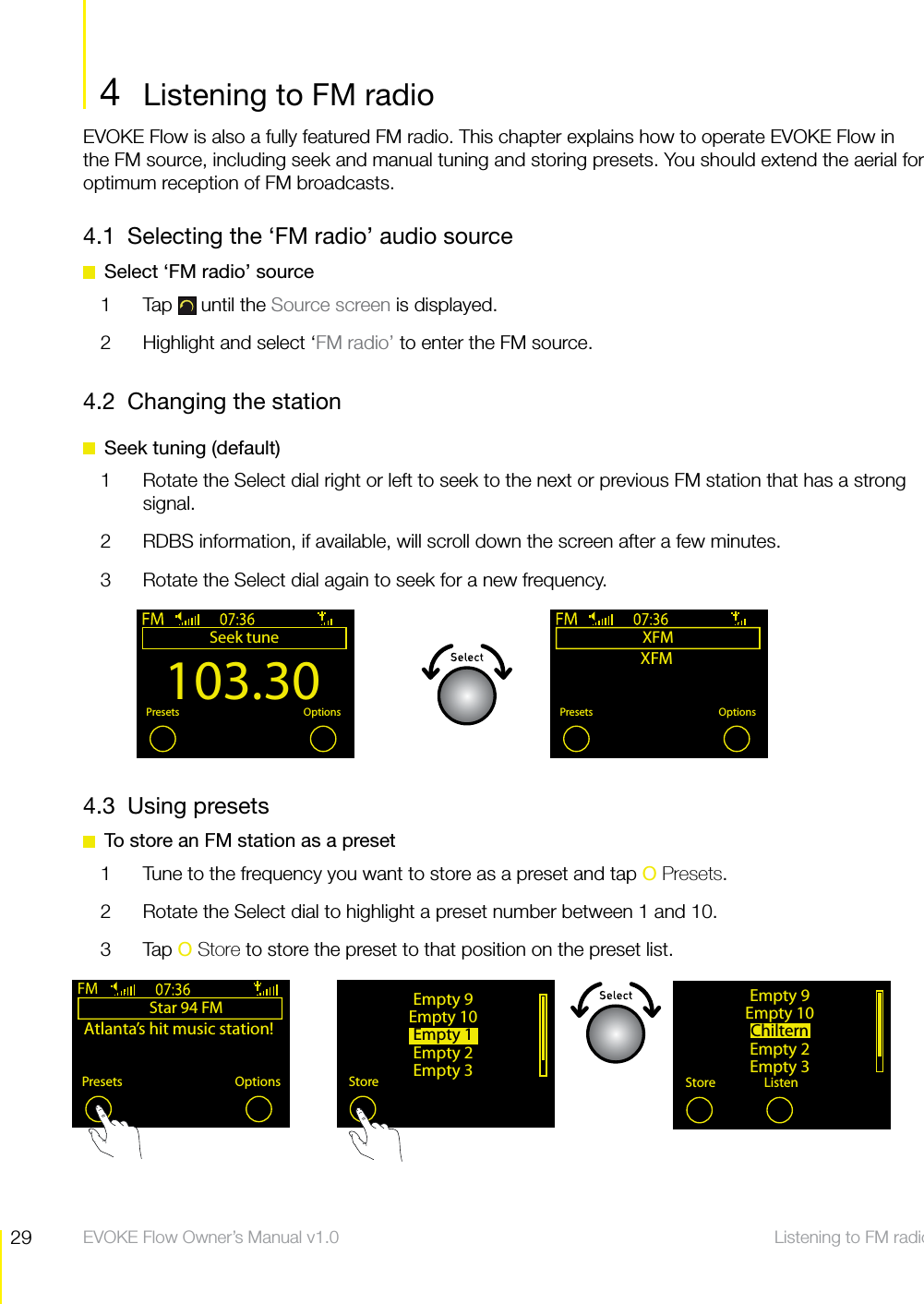
29 Listening to FM radio  EVOKE Flow Owner’s Manual v1.0EVOKE Flow is also a fully featured FM radio. This chapter explains how to operate EVOKE Flow in the FM source, including seek and manual tuning and storing presets. You should extend the aerial for optimum reception of FM broadcasts.4.1  Selecting the ‘FM radio’ audio source  Select ‘FM radio’ source1 Tap  until the Source screen is displayed.2  Highlight and select ‘FM radio’ to enter the FM source.4.2  Changing the station  Seek tuning (default)1  Rotate the Select dial right or left to seek to the next or previous FM station that has a strong signal.2  RDBS information, if available, will scroll down the screen after a few minutes.3  Rotate the Select dial again to seek for a new frequency.Listening to FM radio103.30Seek tuneOKPresets OptionsXFMOKPresets OptionsXFM4  Listening to FM radioStar 94 FMAtlanta’s hit music station!Presets OptionsEmpty 9Empty 10Empty 1Empty 2Empty 3StoreEmpty 9Empty 10ChilternEmpty 2Empty 3Store Listen4.3 Using presets  To store an FM station as a preset1  Tune to the frequency you want to store as a preset and tap O Presets.2  Rotate the Select dial to highlight a preset number between 1 and 10.3 Tap O Store to store the preset to that position on the preset list.
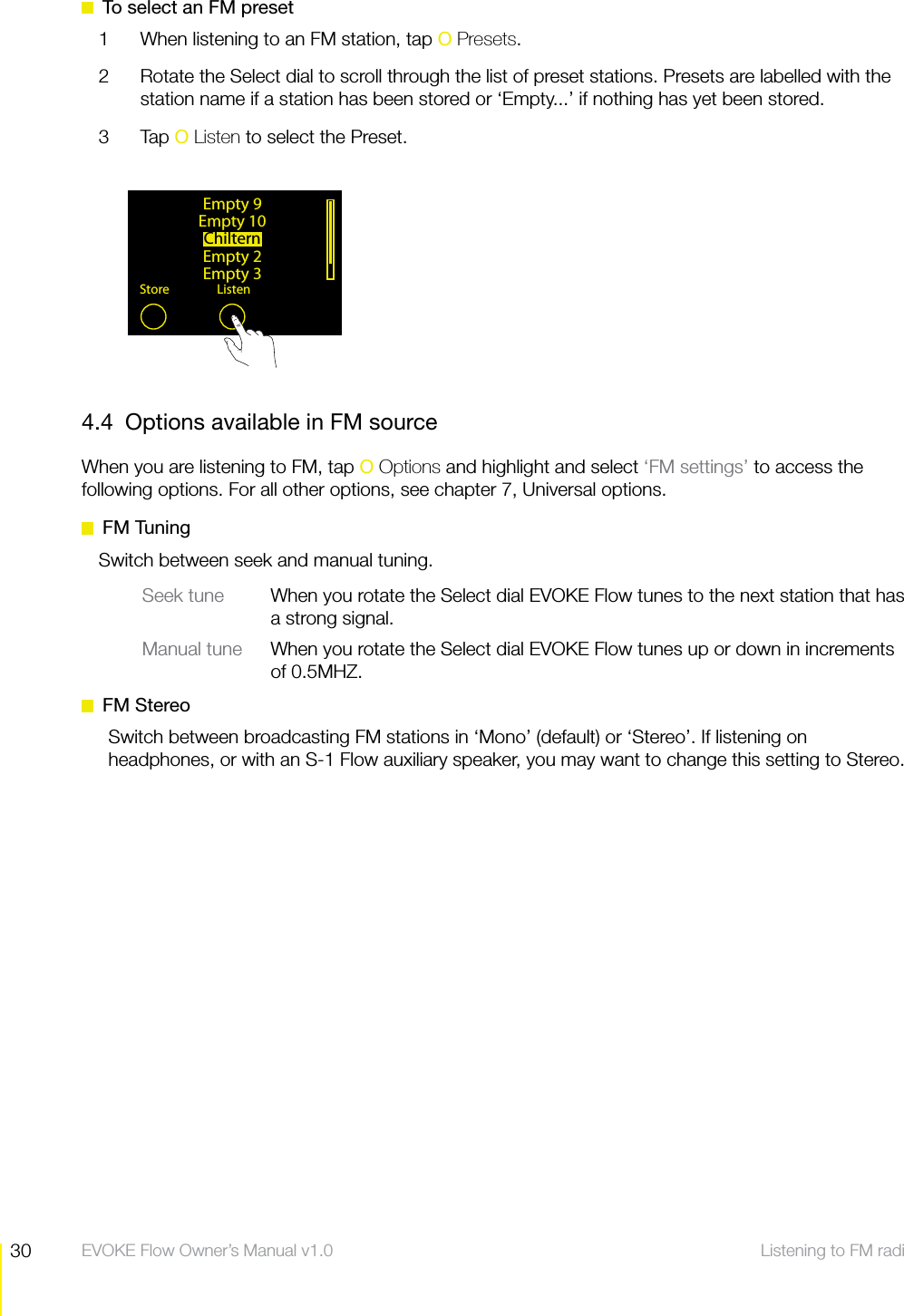
30 Listening to FM radio  EVOKE Flow Owner’s Manual v1.0  To select an FM preset1  When listening to an FM station, tap O Presets.2  Rotate the Select dial to scroll through the list of preset stations. Presets are labelled with the station name if a station has been stored or ‘Empty...’ if nothing has yet been stored.3 Tap O Listen to select the Preset.4.4  Options available in FM sourceWhen you are listening to FM, tap O Options and highlight and select ‘FM settings’ to access the following options. For all other options, see chapter 7, Universal options. FM TuningSwitch between seek and manual tuning.Seek tune  When you rotate the Select dial EVOKE Flow tunes to the next station that has a strong signal.Manual tune  When you rotate the Select dial EVOKE Flow tunes up or down in increments of 0.5MHZ. FM StereoSwitch between broadcasting FM stations in ‘Mono’ (default) or ‘Stereo’. If listening on headphones, or with an S-1 Flow auxiliary speaker, you may want to change this setting to Stereo.Empty 9Empty 10ChilternEmpty 2Empty 3Store Listen
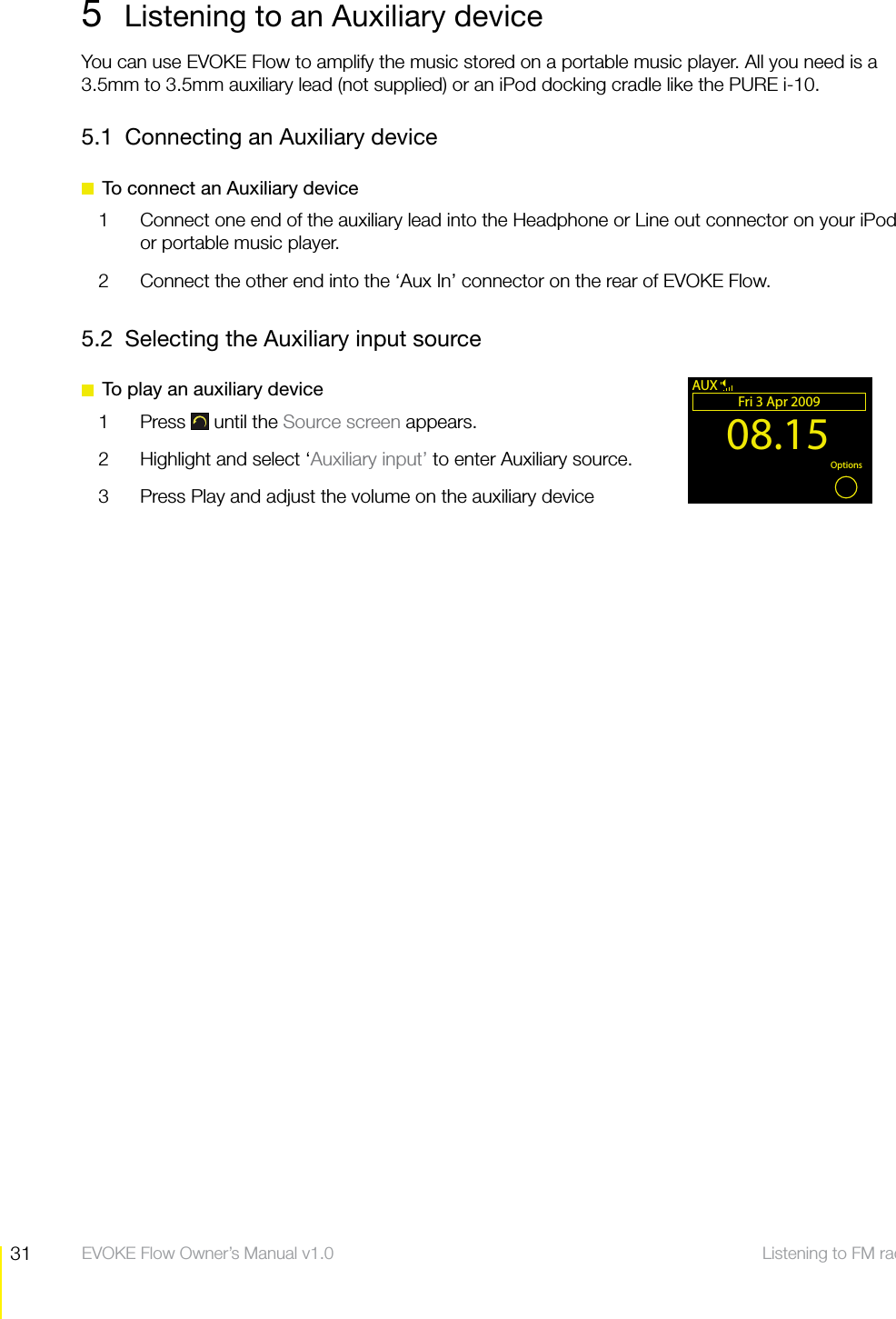
31 Listening to FM radio  EVOKE Flow Owner’s Manual v1.05  Listening to an Auxiliary deviceYou can use EVOKE Flow to amplify the music stored on a portable music player. All you need is a 3.5mm to 3.5mm auxiliary lead (not supplied) or an iPod docking cradle like the PURE i-10.5.1  Connecting an Auxiliary device  To connect an Auxiliary device1  Connect one end of the auxiliary lead into the Headphone or Line out connector on your iPod or portable music player. 2  Connect the other end into the ‘Aux In’ connector on the rear of EVOKE Flow.5.2  Selecting the Auxiliary input source  To play an auxiliary device1 Press  until the Source screen appears.2  Highlight and select ‘Auxiliary input’ to enter Auxiliary source.3  Press Play and adjust the volume on the auxiliary device08.15Fri 3 Apr 2009OK OptionsAUX
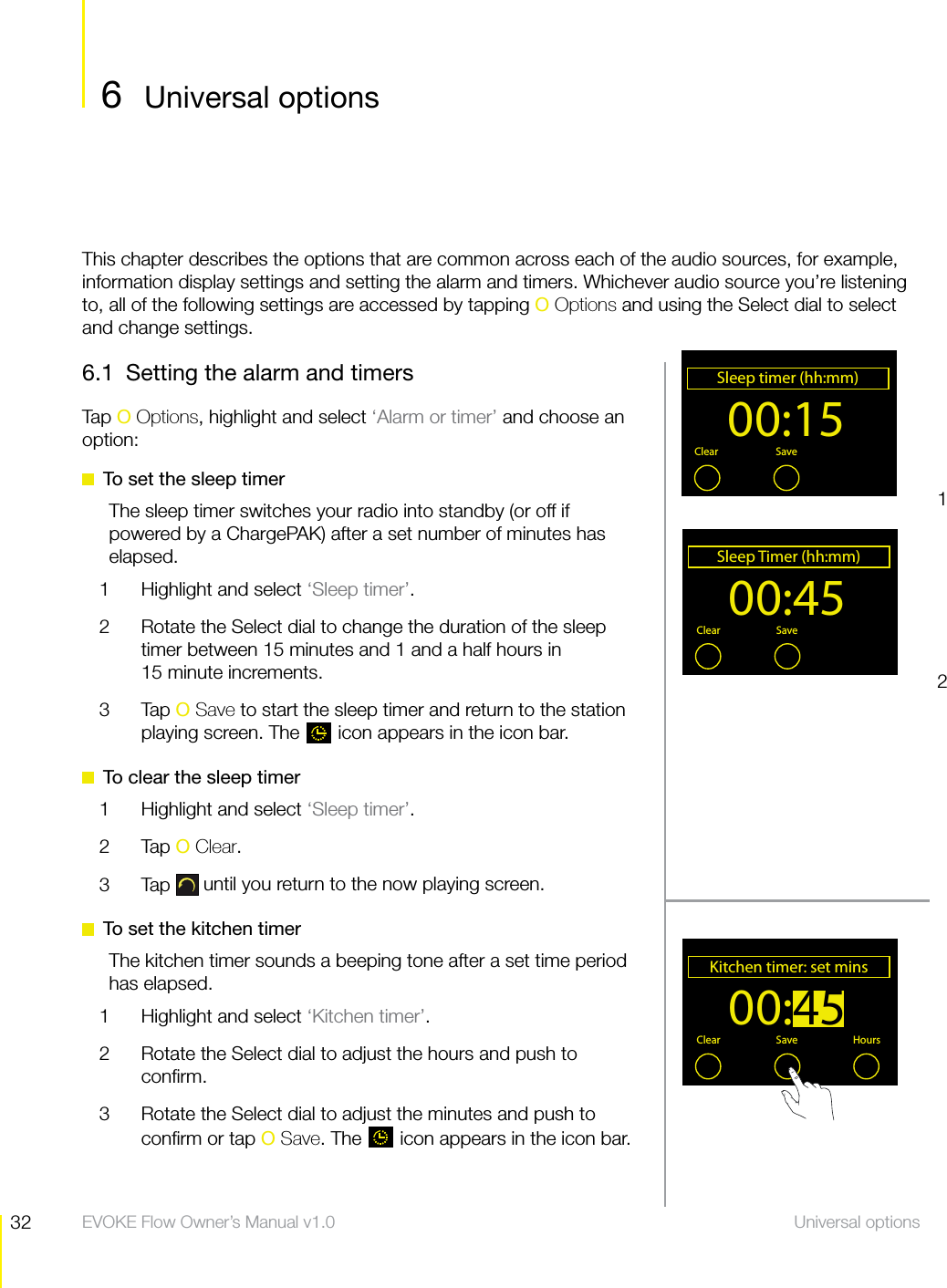
32 Universal options  EVOKE Flow Owner’s Manual v1.06.1  Setting the alarm and timersTap O Options, highlight and select ‘Alarm or timer’ and choose an option:  To set the sleep timerThe sleep timer switches your radio into standby (or off if powered by a ChargePAK) after a set number of minutes has elapsed.1  Highlight and select ‘Sleep timer’.2  Rotate the Select dial to change the duration of the sleep timer between 15 minutes and 1 and a half hours in  15 minute increments.3 Tap O Save to start the sleep timer and return to the station playing screen. The   icon appears in the icon bar.  To clear the sleep timer1  Highlight and select ‘Sleep timer’.2 Tap O Clear.3 Tap  until you return to the now playing screen.  To set the kitchen timerThe kitchen timer sounds a beeping tone after a set time period has elapsed.1  Highlight and select ‘Kitchen timer’.2  Rotate the Select dial to adjust the hours and push to confirm.3  Rotate the Select dial to adjust the minutes and push to confirm or tap O Save. The   icon appears in the icon bar.00:15Sleep timer (hh:mm)OKClear Save Menu00:45Sleep Timer (hh:mm)OKClear Save MenuThis chapter describes the options that are common across each of the audio sources, for example, information display settings and setting the alarm and timers. Whichever audio source you’re listening to, all of the following settings are accessed by tapping O Options and using the Select dial to select and change settings.126 Universal optionsUniversal options00:45Kitchen timer: set minsClear Save Hours
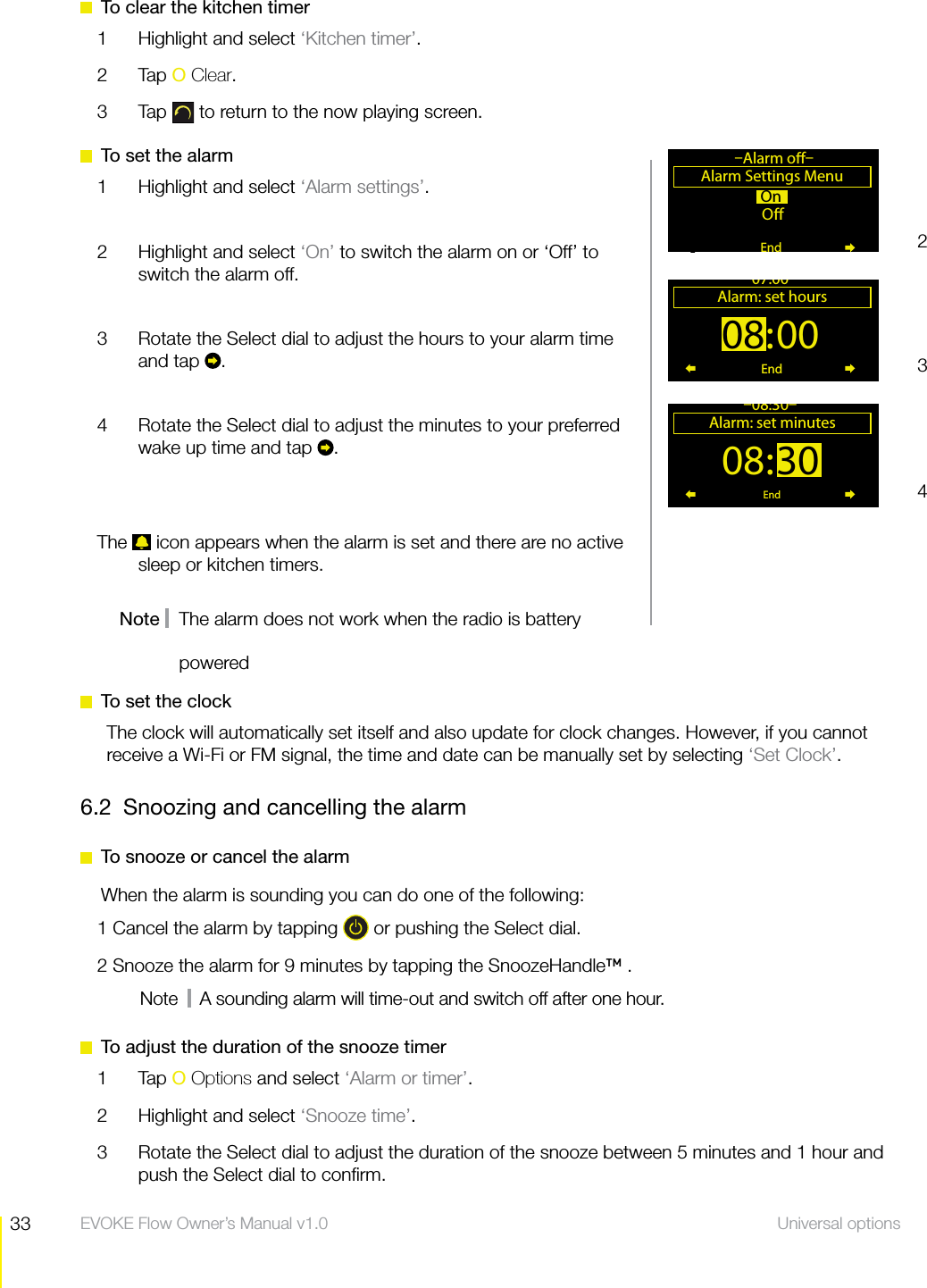
33 Universal options  EVOKE Flow Owner’s Manual v1.0  To clear the kitchen timer1  Highlight and select ‘Kitchen timer’.2 Tap O Clear.3 Tap  to return to the now playing screen.  To set the alarm1  Highlight and select ‘Alarm settings’.2  Highlight and select ‘On’ to switch the alarm on or ‘Off’ to switch the alarm off.3  Rotate the Select dial to adjust the hours to your alarm time and tap  . 4  Rotate the Select dial to adjust the minutes to your preferred wake up time and tap  .The   icon appears when the alarm is set and there are no active sleep or kitchen timers.Note    The alarm does not work when the radio is battery On O Alarm Settings Menu–Alarm o–End08:00Alarm: set hours07:00End08:30Alarm: set minutes–08:30–End234powered  To set the clockThe clock will automatically set itself and also update for clock changes. However, if you cannot receive a Wi-Fi or FM signal, the time and date can be manually set by selecting ‘Set Clock’.6.2  Snoozing and cancelling the alarm  To snooze or cancel the alarm When the alarm is sounding you can do one of the following:1 Cancel the alarm by tapping   or pushing the Select dial.2 Snooze the alarm for 9 minutes by tapping the SnoozeHandle™ .Note     A sounding alarm will time-out and switch off after one hour.  To adjust the duration of the snooze timer1 Tap O Options and select ‘Alarm or timer’.2  Highlight and select ‘Snooze time’.3  Rotate the Select dial to adjust the duration of the snooze between 5 minutes and 1 hour and push the Select dial to confirm.
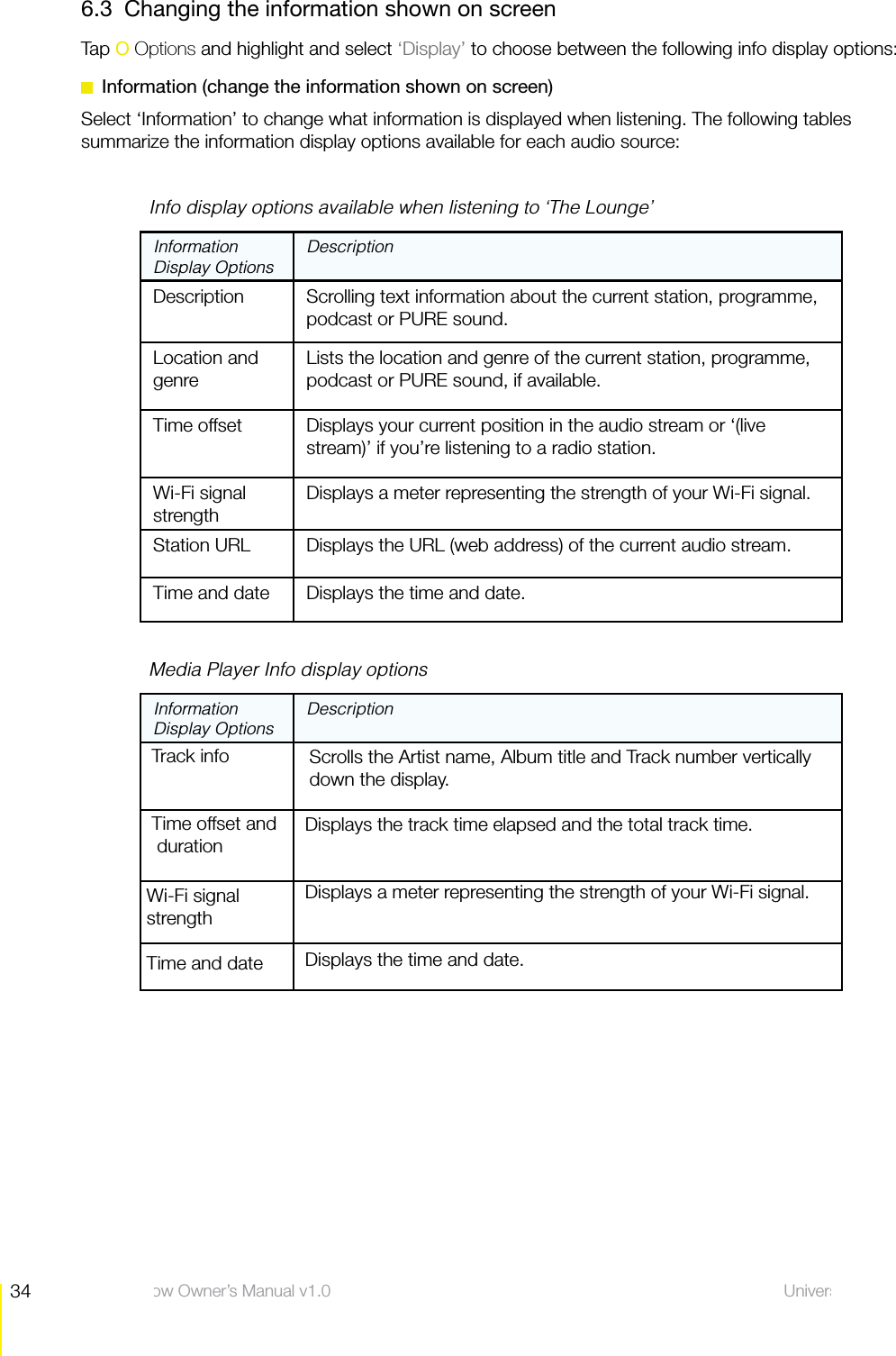
34 Universal options  EVOKE Flow Owner’s Manual v1.06.3  Changing the information shown on screenTap O Options and highlight and select ‘Display’ to choose between the following info display options:  Information (change the information shown on screen)Select ‘Information’ to change what information is displayed when listening. The following tables summarize the information display options available for each audio source:     Info display options available when listening to ‘The Lounge’Information Display OptionsDescriptionDescription    Scrolling text information about the current station, programme, podcast or PURE sound.Location and genreLists the location and genre of the current station, programme, podcast or PURE sound, if available.Time offset Displays your current position in the audio stream or ‘(live stream)’ if you’re listening to a radio station.Wi-Fi signal strengthDisplays a meter representing the strength of your Wi-Fi signal.Station URL Displays the URL (web address) of the current audio stream.Time and date Displays the time and date.     Media Player Info display optionsInformation Display OptionsDescription Track info      Scrolls the Artist name, Album title and Track number vertically    down the display. Time offset and     duration Displays the track time elapsed and the total track time.Wi-Fi signal strength Displays a meter representing the strength of your Wi-Fi signal.Time and date  Displays the time and date.
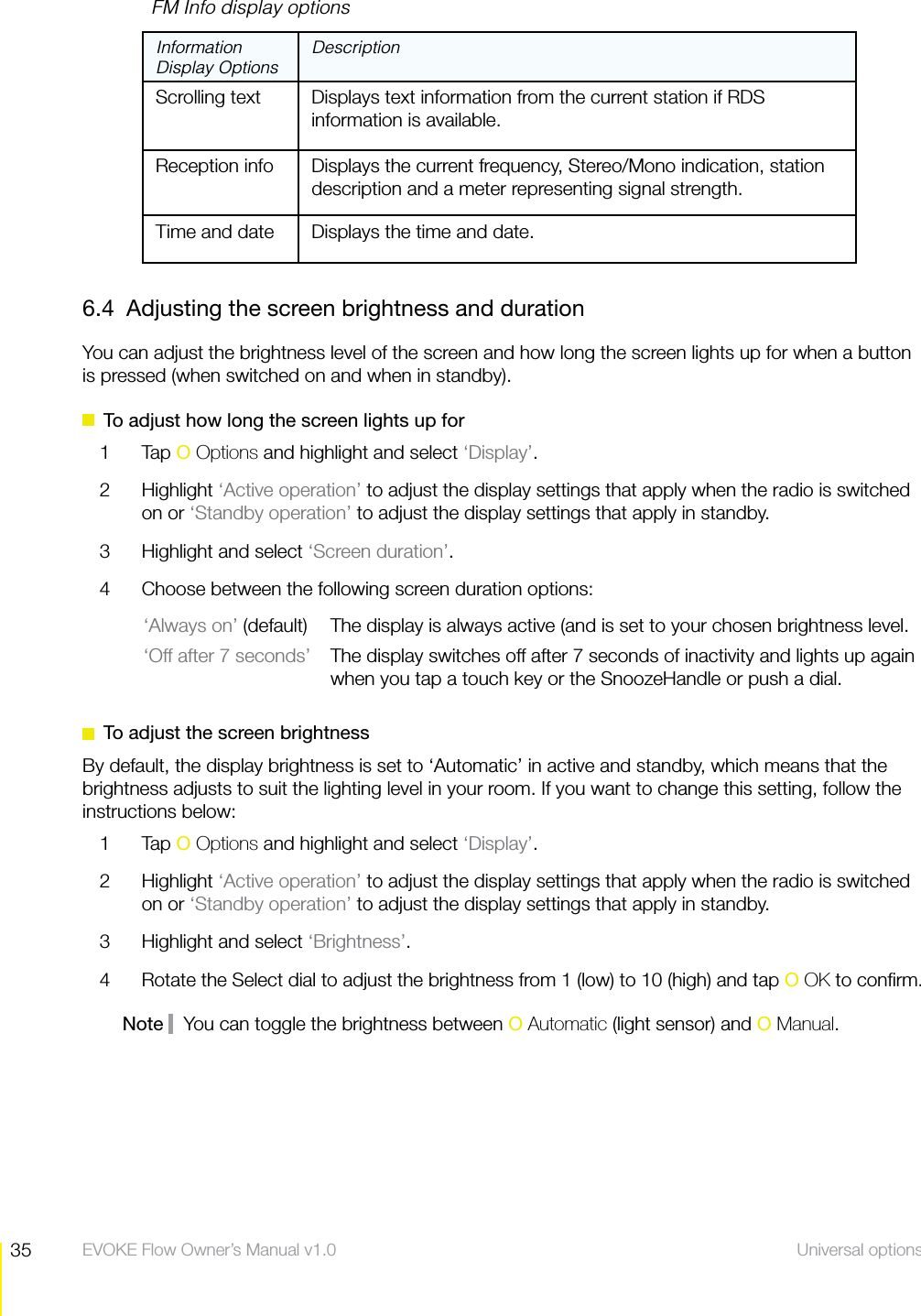
35 Universal options  EVOKE Flow Owner’s Manual v1.0    FM Info display optionsInformation Display OptionsDescriptionScrolling text   Displays text information from the current station if RDS information is available.Reception info Displays the current frequency, Stereo/Mono indication, station description and a meter representing signal strength.Time and date Displays the time and date.6.4  Adjusting the screen brightness and durationYou can adjust the brightness level of the screen and how long the screen lights up for when a button is pressed (when switched on and when in standby).  To adjust how long the screen lights up for1 Tap O Options and highlight and select ‘Display’.2 Highlight ‘Active operation’ to adjust the display settings that apply when the radio is switched on or ‘Standby operation’ to adjust the display settings that apply in standby.3  Highlight and select ‘Screen duration’.4  Choose between the following screen duration options:‘Always on’ (default)  The display is always active (and is set to your chosen brightness level.‘Off after 7 seconds’  The display switches off after 7 seconds of inactivity and lights up again when you tap a touch key or the SnoozeHandle or push a dial.   To adjust the screen brightnessBy default, the display brightness is set to ‘Automatic’ in active and standby, which means that the brightness adjusts to suit the lighting level in your room. If you want to change this setting, follow the instructions below:1 Tap O Options and highlight and select ‘Display’.2 Highlight ‘Active operation’ to adjust the display settings that apply when the radio is switched on or ‘Standby operation’ to adjust the display settings that apply in standby.3  Highlight and select ‘Brightness’.4  Rotate the Select dial to adjust the brightness from 1 (low) to 10 (high) and tap O OK to confirm.Note    You can toggle the brightness between O Automatic (light sensor) and O Manual.
36 Universal options  EVOKE Flow Owner’s Manual v1.06.5  Upgrade your radio’s firmwareFirmware upgrades may be issued in the future to provide exciting new features. You can check if a firmware upgrade is available and download the upgrade over your wireless network. Alternatively, you can connect EVOKE Flow to your PC using a USB cable (A-to-mini-B type, not supplied) and download the firmware upgrade manually from http://support.pure.com  To upgrade over your wireless network (recommended)1 Tap O Options; highlight and select ‘Additional settings’; select ‘Upgrade’; and select ‘Wi-Fi’.2  EVOKE Flow will search for any available upgrades.3  If an upgrade is available the message ‘New version available: v1.x’ will appear on screen. In the event that older software upgrades, which have been superceded by the new upgrade, are available tap O Show all to display all the available (legacy) upgrades.4 Tap O OK to download and install the new firmware, which takes 3–4 minutes.  To upgrade using a USB cable (where a wireless network is not available)1  Visit http://support.pure.com to check to see if an upgrade is available for EVOKE Flow.2  If an upgrade is listed on the website, download the most recent upgrade to your PC.3  Connect EVOKE Flow to your PC’s USB port. Follow the on-screen instructions provided with the upgrade software.6.6 Factory resetResetting your radio removes all FM presets (but not your internet Favorites), and resets all options to defaults. All your wireless networks settings will be cleared.1.  Press and hold O Options for 3 seconds to display the ‘Factory reset’ menu.2.   Tap O Yes to confirm the reset or O No to cancel, or wait 7 seconds for the screen to time-out.Note    If you only want EVOKE Flow to forget all wireless networks, not your other settings, you can select ‘Clear network settings’ in the ‘Wi-Fi settings’ menu.
37 Wireless networking help  EVOKE Flow Owner’s Manual v1.07  Help and adviceWireless networking help7.1  Steps to ensure successful connection to your wireless networkYour wireless network needs to be visible, not ‘hidden’, and broadcasting an SSID (network name) sin order for EVOKE Flow to detect it. If you’d like to enter your network settings manually and leave your network configured as ‘hidden’, then follow the instructions on page 27, ‘Manual setup’.EVOKE Flow cannot connect to wireless networks that are access controlled, such as certain soffice networks, without special permissions.EVOKE Flow needs to be positioned within the range of your wireless network, which will be sreduced if there are brick walls in between the router and the radio. Although EVOKE Flow is very good at picking up wireless networks, the strength of the Wi-Fi signal will vary depending on your router and surrounding environment. If EVOKE Flow fails to find your wireless network, or the signal drops off, move closer to the router and select another station.Unless your network is ‘open’ (this is generally not recommended due to the risk of unauthorised saccess), make sure you have your WEP, WPA or WPA2 key to hand. You can find this by logging in to your router’s settings using a web address (found in the router’s instruction manual) and a user name and password (sometimes found on the casing of the router itself or by contacting your ISP).For more information and help go to www.thelounge.com and click ‘Help’7.2  Steps to ensure successful listening to online audio contentIf a station will not play, tell us about the problem at the ‘Talk to us’ page at The Lounge.sTo get the best user experience, register at The Lounge (www.thelounge.com), our online audio sportal. This allows you to see recommended and popular stations and add more than 10 items to your list of Favourites.For more information and help go to www.thelounge.com and click ‘Help’7.3  Steps to ensure successful media streamingIn order to share your music files with EVOKE Flow you need to download and install Flow Server sfrom www.thelounge.com (available as a free download when you register) or install Windows Media Player 11. These programmes share your media files over your wireless network using the UPnP protocol.Make sure your PC is switched on or in hibernation. If your media files are stored in a Network sAttached Storage (NAS) device then your PC does not need to be switched on.EVOKE Flow cannot play files which are restricted by Digital Rights Management (DRM).s
38 Wireless networking help  EVOKE Flow Owner’s Manual v1.0Make sure your music files are saved in a supported file format: MP2, MP3, WMA4, WMA7, sWMA8, WMA9, AAC (including .m4a) or Real Audio. For more details see Chapter 8, Technical specifications.For more information and help go to www.thelounge.com and click ‘Help’7.4  Step to ensure successful FM listeningWhen listening to FM, the aerial needs to be up and fully extended to ensure the best possible sreception. For more information and help go to www.thelounge.com and click ‘Help’Need help?We want you to get the most out of your EVOKE Flow and enjoy all that the world of connected radio has to offer. If you have any questions about the product after reading this manual, please visit our support website or contact a member of our support team by phone or e-mail. Returns & RepairsIf this product develops a fault within the warranty period we’ll organise a repair or replace it if necessary. Read the ‘Warranty information’ inside for information about the warranty period, terms and conditions.http://support,pure.com
39 Technical specifications  EVOKE Flow Owner’s Manual v1.0Description:   Stereo radio (stereo output requires optional auxiliary speaker, headphones or external amplifier) with full FM reception. Supports FM RDS and RadioText. Wireless:   802.11b and 802.11g supported with WEP and WPA/WPA2 encryption. .Frequency range:   FM 89.7—107.9 MHz.Supported codecs:  MPEG: 8kbps–320kbps (includes MPEG-1-Layer-III, MPEG-2-Layer-III and MPEG 2.5-Layer-III). WMA: 64kbps–385kbps (WMA4, WMA7, WMA8 and WMA9, including support for VBR & CBR). AAC: 16kbps–320kbps (including .m4a). Real Audio: 8kbps–96.3kbps.Media streaming:   Media streaming requires UPnP media server or PC/MAC running UPnP server software (Flow Server software supplied upon registration to www.thelounge.com) or NAS box with UPnP support).Speaker:   Full-range 3” drive unit.Audio power output: 7W RMS per channel (with additional speaker).Input connectors:   6V DC power adapter socket (230V supplied). ChargePAK E1 connector. 3.5mm Line-in for auxiliary devices. USB (mini-AB type) for firmware upgrades and PURE Ethernet adapterOutput connectors:  3.5mm headphone, 3.5mm line out (analogue), 3.5mm auxiliary speaker connection.Controls:   Touch-sensitive controls including 3 context-sensitive touch keys, back, standby and SnoozeHandle.  Rotary volume, rotary navigate/select.Presets:    10 FM and unlimited internet radio favorites (maximum of 10 until user registration at www.thelounge.com). Display:  Large high contrast yellow-on-black graphical 128 x 64 auto-dimming OLED display.Power:   100-240V, 50/60Hz. Output 6VDC 2.0A external power adapter for mains power. Optional ChargePAK E1 for battery power (sold separately).Approvals:   CE marked. Compliant with the EMC and Low Voltage Directives (89/336/EEC and 73/23/EEC). IEEE 802.11b, IEEE 802.11g, WPA™ - Personal, WPA2™ - Personal.Dimensions :   6.8" high x 8.2” wide x 4.3” deep.Aerial:   Captive telescopic aerial and internal Wi-Fi aerial.Technical specifications8 Technical specifications
www.pure.com102BZPURE Imagination Technologies Ltd. Home Park Estate Kings Langley Herts, WD4 8LZ United Kingdom+44 (0)845 148 9001  sales and support +44 (0)845 148 9002  trade sales and support  +44 (0)845 148 9003  faxhttp://support.pure.com sales@pure.comEcoPlusEVOKE Flow is a member of the PURE EcoPlus™ product family. All EcoPlus products are designed and manufactured to minimise their environmental impact.This manual is supplied as a PDF download to save paper.The accompanying Quick Start Guide is printed on 100% recycled paper using soya-based ink. The retail carton protecting your product is printed on at least 70% recycled card finished using a water-based      varnish and sized for maximum transport efficiency.For more information please visit www.pure.com/ecoplus100%PURE North America2269 Chestnut Street, Suite 455San Francisco CA 94123-2600 +1 (415) 566-38751  sales  www.pure.com/us http://support.pure.com

Navigation menu