InFocus HWLBWAND02 Interactive Pointer User Manual LiteBoard Wand English

InFocus Corporation Interactive Pointer LiteBoard Wand English

User Manual.pdf

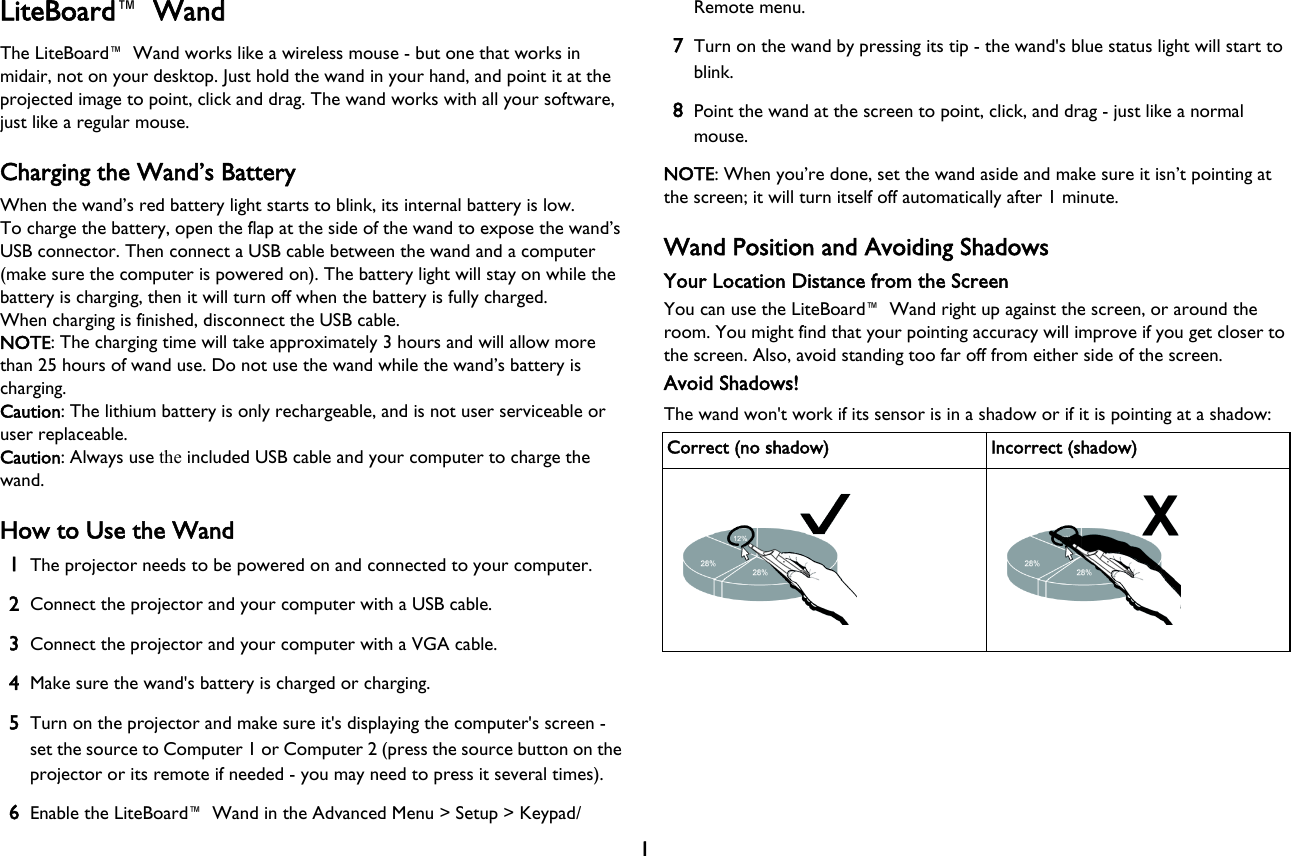
1LiteBoard™ WandThe LiteBoard™ Wand works like a wireless mouse - but one that works in midair, not on your desktop. Just hold the wand in your hand, and point it at the projected image to point, click and drag. The wand works with all your software, just like a regular mouse.Charging the Wand’s BatteryWhen the wand’s red battery light starts to blink, its internal battery is low.To charge the battery, open the flap at the side of the wand to expose the wand’s USB connector. Then connect a USB cable between the wand and a computer (make sure the computer is powered on). The battery light will stay on while the battery is charging, then it will turn off when the battery is fully charged.When charging is finished, disconnect the USB cable.NOTE: The charging time will take approximately 3 hours and will allow more than 25 hours of wand use. Do not use the wand while the wand’s battery is charging.Caution: The lithium battery is only rechargeable, and is not user serviceable or user replaceable.Caution: Always use the included USB cable and your computer to charge the wand.How to Use the Wand1The projector needs to be powered on and connected to your computer.2Connect the projector and your computer with a USB cable.3Connect the projector and your computer with a VGA cable.4Make sure the wand's battery is charged or charging.5Turn on the projector and make sure it's displaying the computer's screen - set the source to Computer 1 or Computer 2 (press the source button on the projector or its remote if needed - you may need to press it several times).6Enable the LiteBoard™ Wand in the Advanced Menu > Setup > Keypad/Remote menu.7Turn on the wand by pressing its tip - the wand's blue status light will start to blink.8Point the wand at the screen to point, click, and drag - just like a normal mouse.NOTE: When you’re done, set the wand aside and make sure it isn’t pointing at the screen; it will turn itself off automatically after 1 minute.Wand Position and Avoiding ShadowsYour Location Distance from the ScreenYou can use the LiteBoard™ Wand right up against the screen, or around the room. You might find that your pointing accuracy will improve if you get closer to the screen. Also, avoid standing too far off from either side of the screen.Avoid Shadows!The wand won't work if its sensor is in a shadow or if it is pointing at a shadow:Correct (no shadow) Incorrect (shadow)
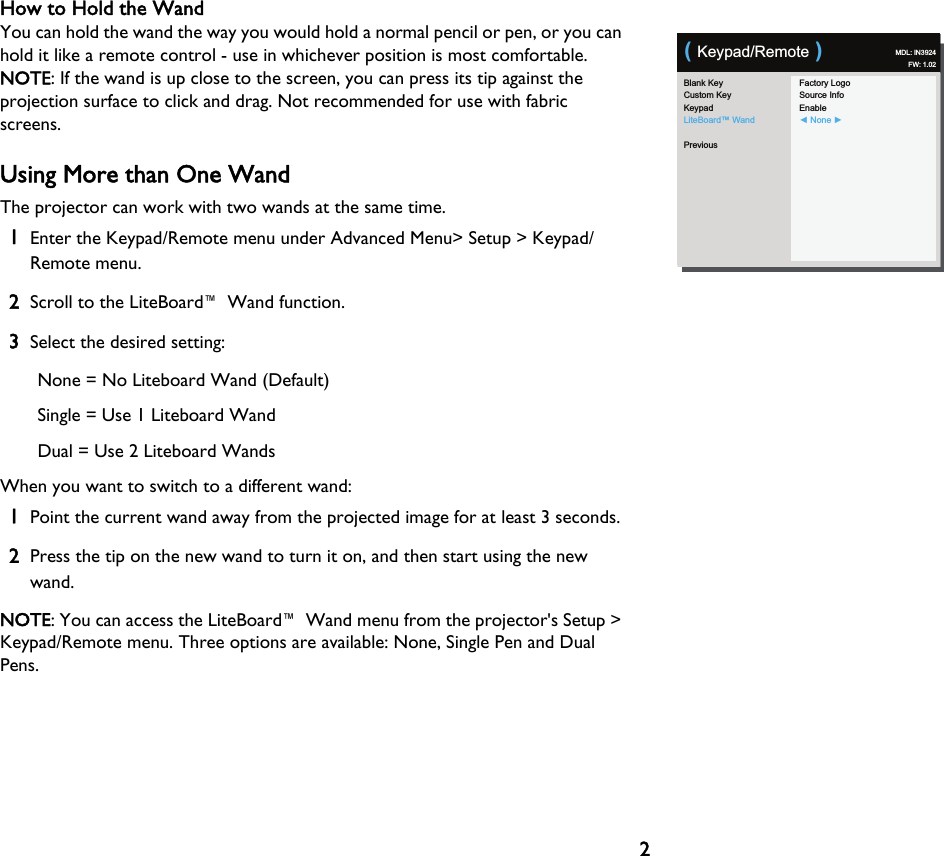
2How to Hold the WandYou can hold the wand the way you would hold a normal pencil or pen, or you can hold it like a remote control - use in whichever position is most comfortable. NOTE: If the wand is up close to the screen, you can press its tip against the projection surface to click and drag. Not recommended for use with fabric screens.Using More than One WandThe projector can work with two wands at the same time.1Enter the Keypad/Remote menu under Advanced Menu> Setup > Keypad/Remote menu.2Scroll to the LiteBoard™ Wand function.3Select the desired setting:None = No Liteboard Wand (Default)Single = Use 1 Liteboard WandDual = Use 2 Liteboard WandsWhen you want to switch to a different wand:1Point the current wand away from the projected image for at least 3 seconds.2Press the tip on the new wand to turn it on, and then start using the new wand.NOTE: You can access the LiteBoard™ Wand menu from the projector's Setup > Keypad/Remote menu. Three options are available: None, Single Pen and Dual Pens.Blank KeyCustom KeyKeypadLiteBoard™ WandPreviousFactory LogoSource InfoEnable◄ None ►( Keypad/Remote ) MDL: IN3924FW: 1.02
3Wand FeaturesButtons and Wand TipThe wand's two top buttons are equivalent to the left and right buttons on a mouse. The wand's tip is equivalent to the power button. Reset button is to restore the wand to the factory default.Battery LightThe red battery light shows the status of the wand's built-in battery (see below for battery information). The battery light will turn on while the wand is charging, and it will blink if the battery is low.Link LightThe blue link light shows the status of the wand's wireless connection to the projector. The link light will blink frequently when the wand is attempting to link to the projector; then it will light steady after the wand has linked to the projector.NOTE: The link light will stay off when the wand is off.USB ConnectorThe wand's USB connector is behind a flap on the side of the wand. The USB connector is only used for charging the wand's battery.SensorThe wand's optical sensor opening is located above the wand's tip. Don't block the sensor, and make sure it always has a clear view of the screen. NOTE: The sensor won't work if you point it at a shadow or away from the screen.USB connectorLink lightBattery lightWrist strap holderRight mouse buttonLeft mouse buttonSensorTipReset button
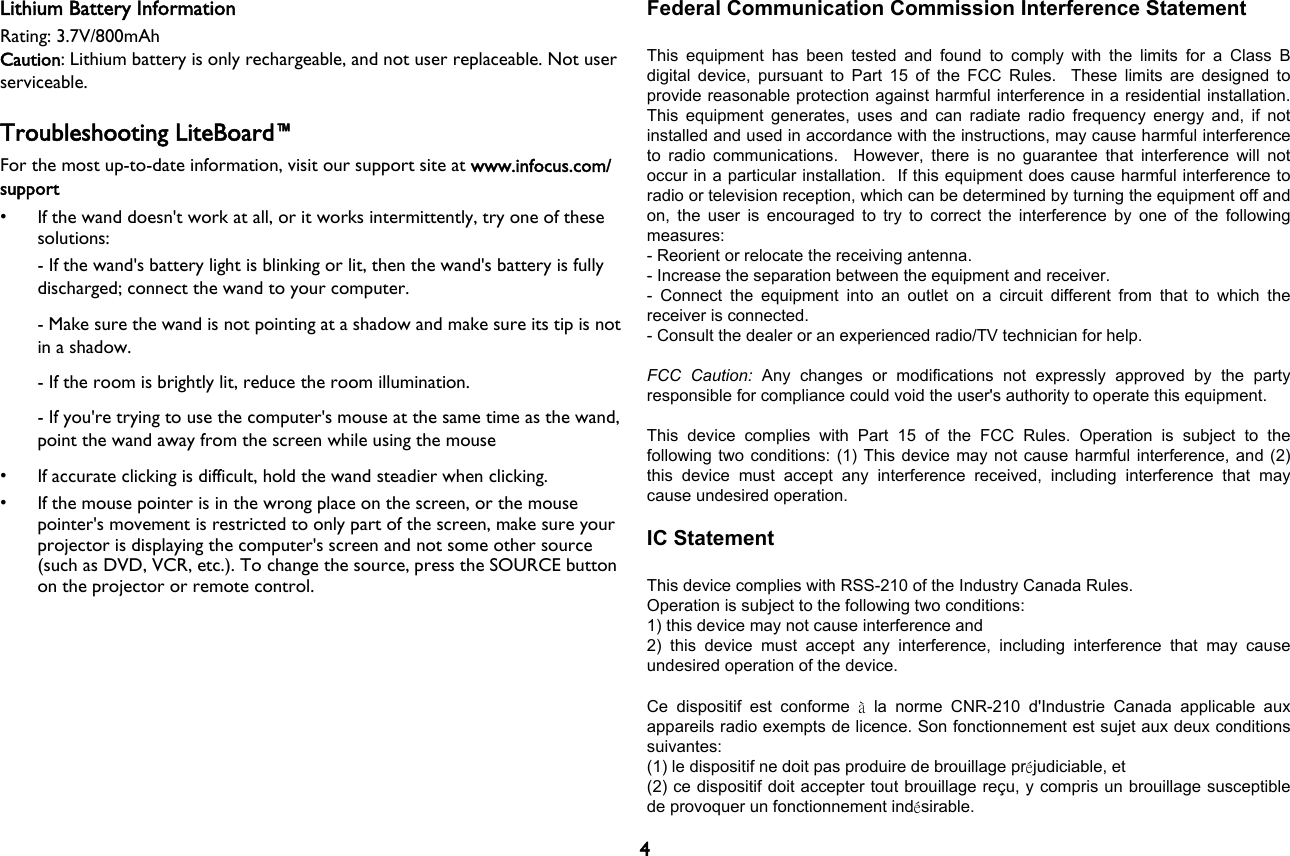
4Lithium Battery InformationRating: 3.7V/800mAhCaution: Lithium battery is only rechargeable, and not user replaceable. Not user serviceable.Troubleshooting LiteBoard™For the most up-to-date information, visit our support site at www.infocus.com/support• If the wand doesn't work at all, or it works intermittently, try one of these solutions:- If the wand's battery light is blinking or lit, then the wand's battery is fully discharged; connect the wand to your computer.- Make sure the wand is not pointing at a shadow and make sure its tip is not in a shadow.- If the room is brightly lit, reduce the room illumination.- If you're trying to use the computer's mouse at the same time as the wand, point the wand away from the screen while using the mouse• If accurate clicking is difficult, hold the wand steadier when clicking.• If the mouse pointer is in the wrong place on the screen, or the mouse pointer's movement is restricted to only part of the screen, make sure your projector is displaying the computer's screen and not some other source (such as DVD, VCR, etc.). To change the source, press the SOURCE button on the projector or remote control.Federal Communication Commission Interference Statement  This  equipment  has  been  tested  and  found  to  comply  with  the  limits  for  a  Class  B digital  device, pursuant  to  Part 15  of the  FCC Rules.   These  limits are  designed to provide reasonable protection against harmful interference in a residential installation. This  equipment  generates,  uses and  can  radiate  radio  frequency energy  and,  if  not installed and used in accordance with the instructions, may cause harmful interference to  radio  communications.    However,  there  is  no  guarantee  that  interference  will  not occur in a particular installation.  If this equipment does cause harmful interference to radio or television reception, which can be determined by turning the equipment off and on, the  user  is encouraged  to  try to  correct  the interference by  one of the  following measures: - Reorient or relocate the receiving antenna. - Increase the separation between the equipment and receiver. -  Connect  the  equipment  into  an  outlet  on  a  circuit  different  from  that  to  which  the receiver is connected. - Consult the dealer or an experienced radio/TV technician for help.  FCC  Caution:  Any  changes  or  modifications  not  expressly  approved  by  the  party responsible for compliance could void the user's authority to operate this equipment.  This  device  complies  with  Part  15  of  the  FCC  Rules.  Operation  is  subject  to  the following two conditions: (1) This device may not cause harmful interference, and (2) this  device  must  accept  any  interference  received,  including  interference  that  may cause undesired operation.  IC Statement  This device complies with RSS-210 of the Industry Canada Rules. Operation is subject to the following two conditions: 1) this device may not cause interference and 2)  this  device  must  accept  any  interference,  including  interference  that  may  cause undesired operation of the device.  Ce  dispositif  est  conforme  à  la  norme  CNR-210  d'Industrie  Canada  applicable  aux appareils radio exempts de licence. Son fonctionnement est sujet aux deux conditions suivantes: (1) le dispositif ne doit pas produire de brouillage préjudiciable, et (2) ce dispositif doit accepter tout brouillage reçu, y compris un brouillage susceptible de provoquer un fonctionnement indésirable.

Navigation menu