InFocus INF6501C TouchScreen Displays User Manual

InFocus Corporation TouchScreen Displays Users Manual

Users Manual

HARDWARE GUIDEJTOUCH INF6501009-1544-00c
CONTENTSDeclaration of Conformity ...................................................................................................................................................3Safety Considerations .........................................................................................................................................................4What’s Included ..................................................................................................................................................................6Setup ...................................................................................................................................................................................7Mounting  ......................................................................................................................................................................7Connecting to Other Devices ........................................................................................................................................8Connecting AC Power .................................................................................................................................................11External PC Touchscreen Control Setup ....................................................................................................................11Turning the Monitor On/Off ...............................................................................................................................................11Using the Remote ..............................................................................................................................................................12Using the Keypad ..............................................................................................................................................................14OSD (On-Screen Display) Menu System ...........................................................................................................................15Picture Menu ...............................................................................................................................................................16Screen Menu ...............................................................................................................................................................17Audio menu .................................................................................................................................................................18PIP menu .....................................................................................................................................................................19Configuration 1 ............................................................................................................................................................20Configuration 2 ............................................................................................................................................................21Advanced Option ........................................................................................................................................................22Troubleshooting ................................................................................................................................................................23Specifications ....................................................................................................................................................................25Limited Warranty ...............................................................................................................................................................26
Page 3INF6501  Hardware GuideDECLARATION OF CONFORMITYManufacturer: InFocus Corporation, 13190 SW 68th Parkway, Suite 200, Portland, Oregon 97223-8368 USATrademarksApple, Mac and Facetime are trademarks or registered trademarks of Apple, Inc. Microsoft, Windows, PowerPoint, Excel and Word are trademarks or registered trademarks of Microsoft Corporation. Adobe and Acrobat are trademarks or registered trademarks of Adobe Systems Incorporated. HDMI logo and “High Definition Multimedia Interface” are registered trademarks of HDMI Licensing LLC. Manufactured under license from Dolby Laboratories. Dolby and the double-D symbol are trademarks of Dolby Laboratories. SRS TruSurround HD and SRS TruVolume are trademarks of SRS Labs, Inc. TruSurround HD and TruVolume technologies are incorporated under license from SRS Labs, Inc. InFocus, In Focus, INFOCUS (stylized), MondoCenter, Mondopad, BigTouch, and JTouch are either registered trademarks or trademarks of InFocus Corporation in the United States and other countries. All other trademarks are the property of their respective owners. Any other trademarks, service marks, personal names or product names are assumed to be the property of their respective owners and are used only for reference. There is no implied sponsorship, affiliation, certification, approval or endorsement if we use one of these terms.FCC WarningThis equipment has been tested and found to comply with the limits for a Class A digital device, pursuant to part 15 of the FCC Rules. These limits are designed to provide reasonable protection against harmful interference when the equipment is operated in a commercial environment. This equipment generates, uses and can radiate radio frequency energy and, if not installed and used in accordance with the instruction manual, may cause harmful interference to radio communications. Operation of the equipment in a residential area is likely to cause harmful interference in which case the user will be required to correct the interference at his own expense. Changes or modifications not expressly approved by InFocus Corporation may void authority to operate the equipment.This device complies with part 15 of the FCC Rules. Operation is subject to the following two conditions: (1) This device may not cause harmful interference and (2) this device must accept any interference received, including interference that may cause undesired operation.Canada이 기기는 업무용으로 전자파적합등록을 한 기기이오니 판매자 또는 사용자는 이 점을 주의하시기 바라며 만약 잘못 판매 또는 구입하였을 때에는 가정용으로 교환하시기 바랍니다.申明: 此为A级产品,在生活环境中,该产品可能会造成无线电干扰。在这种情况下,可能需要用户对其干扰采取切实可行的措施。警告使用者: 這是甲類的通訊產品, 在居住的環境中使用時, 可能會造成射頻干擾, 在這種情況下, 使用者會被要求採取某些適當的對策。Agency ApprovalsSee product certification label.This document applies to regulatory model: INF6501cInput ratings: AC 100-240V AC,  A, 50/60HzInFocus reserves the right to alter product offerings and specifications at any time without notice.This device complies with Industry Canada’s licence-exempt RSSs. Operation is subject to the following two conditions:   (1) This device may not cause interference; and   (2) This device must accept any interference, including interference that may cause undesired operation of the device.   Le présent appareil est conforme aux CNR d’Industrie Canada applicables aux appareils radio exempts de licence. L’exploitation est autorisée aux deux conditions suivantes :   (1) l’appareil ne doit pas produire de brouillage;   (2) l’utilisateur de l’appareil doit accepter tout brouillage radioélectrique subi, même si le brouillage est susceptible d’en compromettre le fonctionnement.   CAN ICES-3(A)/NMB-3(A) Operations in the 5150 to 5250MHz band are restricted to indoor use only.   This equipment complies with FCC RF radiation exposure limits set forth for an uncontrolled environment. This transmitter must not be co-located or operating in conjunction with any other antenna or transmitter. This equipment should be installed and operated with a minimum distance of 20 centimeters between the radiator and your body.    IC  The device meets the exemption from the routine evaluation limits in section 2.5 of RSS 102 and compliance with RSS-102 RF exposure, users can obtain Canadian information on RF exposure and compliance.   Le dispositif rencontre l'exemption des limites courantes d'évaluation dans la section 2.5 de RSS 102 et la conformité à l'exposition de RSS-102 rf, utilisateurs peut obtenir l'information canadienne sur l'exposition et la conformité de rf.   This transmitter must not be co-located or operating in conjunction with any other antenna or transmitter. This equipment 4c
Page 4SAFETY CONSIDERATIONSPlease read and follow all safety instructions provided below and on the monitor before connecting the monitor to a power source. Failure to comply with safety instructions may result in fire, electrical shock, or personal injury and may damage or impair protection provided by the equipment. Please save all safety instructions. • This monitor is very heavy and should be moved and installed by at least two individuals. Do not attempt to move or install the monitor yourself, otherwise injury and/or damage may occur.• When moving the monitor, always hold the monitor firmly using the handles and side or bottom bezels. Do not hold the top bezel. • When moving the monitor carton, do not tilt or invert the carton. Always keep it in an upright orientation.• Disconnect all accessories and cables before moving the monitor.• If the monitor is installed against the wall, maintain a distance of at least 1.98” (5cm) between the monitor and the wall to provide adequate ventilation.• Refer to this guide for proper startup and shutdown procedures.• Follow all warnings and cautions in this manual and on the monitor.• Locate the monitor at least 4’ (1.2m) away from heating and cooling vents.• Do not block ventilation openings. Locate the monitor in a well-ventilated area without obstructions to intake or exhaust vents. should be installed and operated with a minimum distance of 20 centimeters between the radiator and your body.   Cet émetteur ne doit pas être Co-placé ou ne fonctionnant en même temps qu'aucune autre antenne ou émetteur. Cet équipement devrait être installé et actionné avec une distance minimum de 20 centimètres entre le radiateur et votre corps.   (i) the device for operation in the band 5150-5250 MHz is only for indoor use to reduce the   potential for harmful interference to co-channel mobile satellite systems;   (ii) the maximum antenna gain permitted for devices in the bands 5250-5350 MHz and   5470-5725 MHz shall comply with the e.i.r.p. limit; and   (iii) the maximum antenna gain permitted for devices in the band 5725-5825 MHz shall comply   with the e.i.r.p. limits specified for point-to-point and non point-to-point operation as   appropriate.  Le guide d’utilisation des dispositifs pour réseaux locaux doit inclure des instructions précises sur   les restrictions susmentionnées, notamment :   (i) les dispositifs fonctionnant dans la bande 5 150-5 250 MHz sont réservés uniquement pour une utilisation à l’intérieur afin de réduire les risques de brouillage préjudiciable aux systèmes de   satellites mobiles utilisant les mêmes canaux;   (ii) le gain maximal d’antenne permis pour les dispositifs utilisant les bandes 5 250-5 350 MHz et   5 470-5 725 MHz doit se conformer à la limite de p.i.r.e.;   (iii) le gain maximal d’antenne permis (pour les dispositifs utilisant la bande 5 725-5 825 MHz)   doit se conformer à la limite de p.i.r.e. spécifiée pour l’exploitation point à point et non point à   point, selon le cas.    • Do not install or use the monitor or speakers near any heat sources such as radiators, heat registers, stoves, or other devices (including amplifiers) that produce heat.
Page 5• Protect the power cord from being walked on or pinched particularly at plugs, convenience receptacles and the point where they exit from the monitor.• Unplug the monitor if you are not going to use it for an extensive period of time.• Unplug the monitor if you need to clean it with the included microfiber cleaning cloth. The screen may be wiped with the cleaning cloth when the power is off. Never use alcohol, solvents or ammonia-based liquids on this monitor.• Wash hands after handling the cables supplied with this monitor.• The monitor remote control uses batteries (not included). Make sure the batteries’ polarity (+/-) is aligned correctly. Dispose of used batteries in accordance with local disposal laws.• Only use properly rated wall and stand mounting hardware that meet this product’s specifications and follow the manufacturer installation instructions. The warranty does not cover any damage caused by use of improperly rated mounting hardware or from improper installation.• Refer all service to qualified service personnel. Do not remove the cover or back. Servicing your own monitor can be dangerous to you and will void the warranty.• Only use replacement parts specified by InFocus. Unauthorized substitutions may result in fire, electrical shock or injury and may void the warranty.• When mounting the monitor to a wall, metric 8 (12mm) screws must be used. In addition, the mounting interface should comply with the UL1678 standard in North America. The mounting means should be strong enough to bear the weight of the monitor.• Follow these instructions to help ensure image quality over the life of the monitor. Failure to follow these instructions may affect the warranty. • Do not place the monitor in direct sunlight, humid, greasy or dusty places or in places where the monitor may come into contact with rain, smoke or steam.• The monitor should not be used with the power cord near water, for instance, near a bathtub, washbowl, kitchen sink or swimming pool, etc.• Do not use any components of the monitor, including the speakers, near water. Warning: To reduce the risk of fire or electric shock, do not expose this equipment or any component of this equipment to rain or moisture.• Do not drop the monitor.• Do not spill liquid on the monitor. Spilled liquid may damage the monitor.• WARNING: This monitor must be securely attached to the floor/wall per installation instructions. Tipping, shaking, or rocking the machine may cause injury or death.• The power outlet used to power this monitor should be readliy accessible for fast disconnection in case  of emergency.• No naked flame source, such as lighted candles, should be placed on the monitor.• Use the power cord provided. Connect the power cord to a receptacle with a protective safety (earth) ground terminal. A surge-protected power strip is recommended. Do not overload wall outlets.• It is recommended that the Class 1 monitor be grounded.• Do not install the monitor in places subject to mechanical vibration.• Do not place the monitor on an unstable surface, which could result in serious personal injuries and monitor damage. When mounting the monitor to a stand, be sure to following the manufacturer’s instructions. Use only the mounting hardware recommended by the manufacturer.• When disconnecting the power cord, hold the plug, not the cord.INF6501  Hardware Guidec
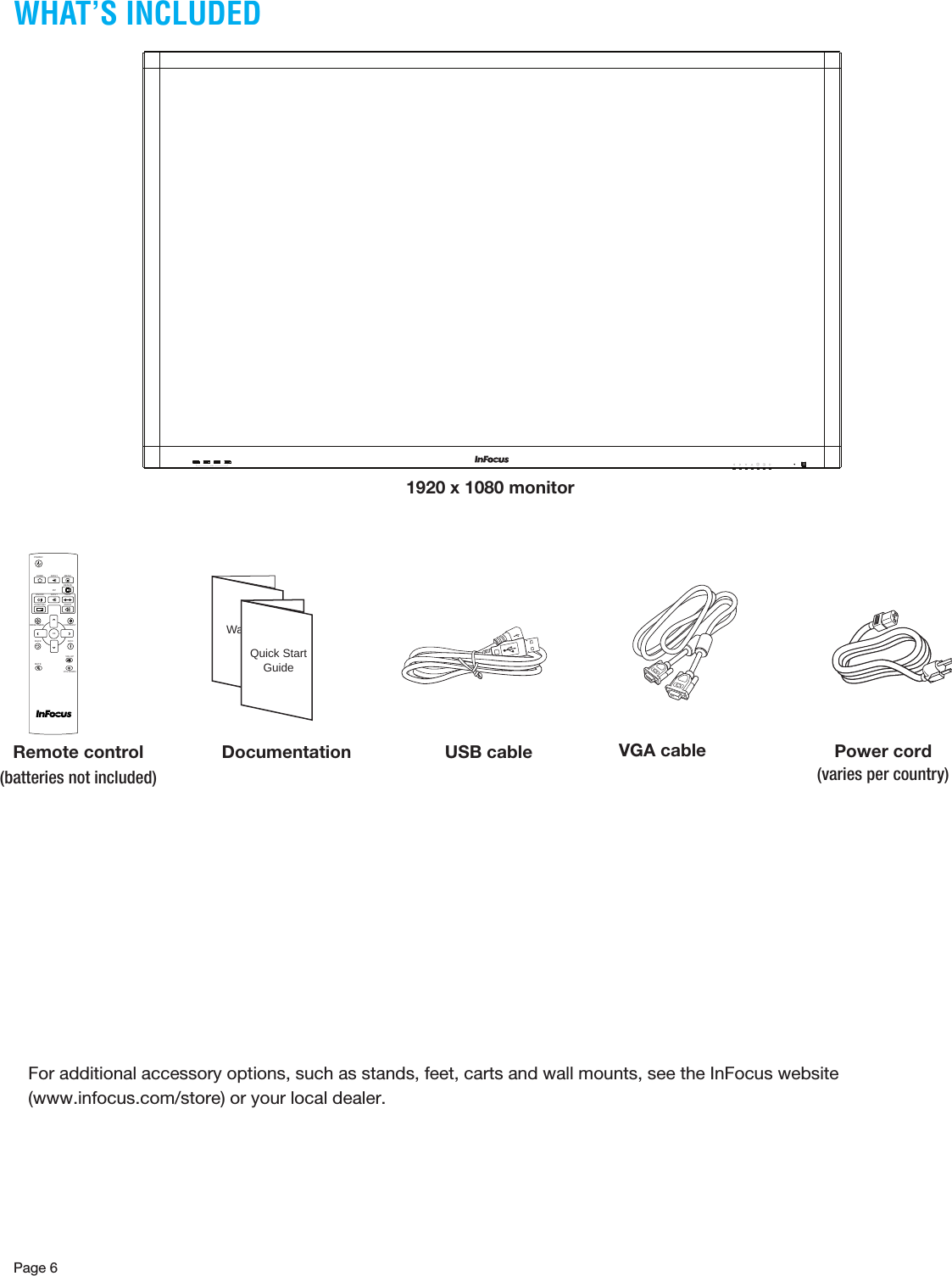
Page 6WHAT’S INCLUDEDWarrantyQuick StartGuideHOMEINFORESIZESWAPVOL UPVOL DOWNBACKMUTECONTRASTBRIGHTNESSON/OFFINPUT MENUPIPINPUTAUDIOPOSITIONOKPOWERiUSB cableRemote control (batteries not included)Documentation1920 x 1080 monitorPower cord(varies per country)For additional accessory options, such as stands, feet, carts and wall mounts, see the InFocus website  (www.infocus.com/store) or your local dealer.VGA cable
Page 7SETUPMounting This product does not ship with mounting accessories. Only use commercially manufactured mounting accessories which meet this product's specifications and follow the manufacturer installation instructions.• Only use properly rated wall and stand mounting hardware that meet this product’s specifications and follow the manufacturer installation instructions. The warranty does not cover any damage caused by use of improperly rated mounting hardware or from improper installation.• To prevent damage to the screen surface, carefully place your monitor face-down on a clean, cushioned surface. • When mounting the monitor to a wall, metric 8 (12mm) screws must be used. Use spring washers to prevent the screws from coming loose. In addition, the mounting interface should comply with the UL1678 standard in North America. The mounting means should be strong enough to bear the weight of the monitor.• Do not install the monitor in places subject to mechanical vibration.• Do not place the monitor on an unstable surface, which could result in serious personal injuries and monitor damage. When mounting the monitor to a stand, be sure to following the manufacturer’s instructions. Use only the mounting hardware recommended by the manufacturer.• WARNING: This monitor must be securely attached to the floor/wall per installation instructions. Tipping, shaking, or rocking the machine may cause injury or death.• If the monitor is installed against the wall, maintain a distance of at least 1.98” (5cm) between the monitor and the wall to provide adequate ventilation.• Do not install or use the monitor near any heat sources such as radiators, heat registers, stoves, or other devices (including amplifiers) that produce heat.• Do not place the monitor in direct sunlight, humid, greasy or dusty places or in places where the monitor may come into contact with rain, smoke or steam.INF6501  Hardware Guidec
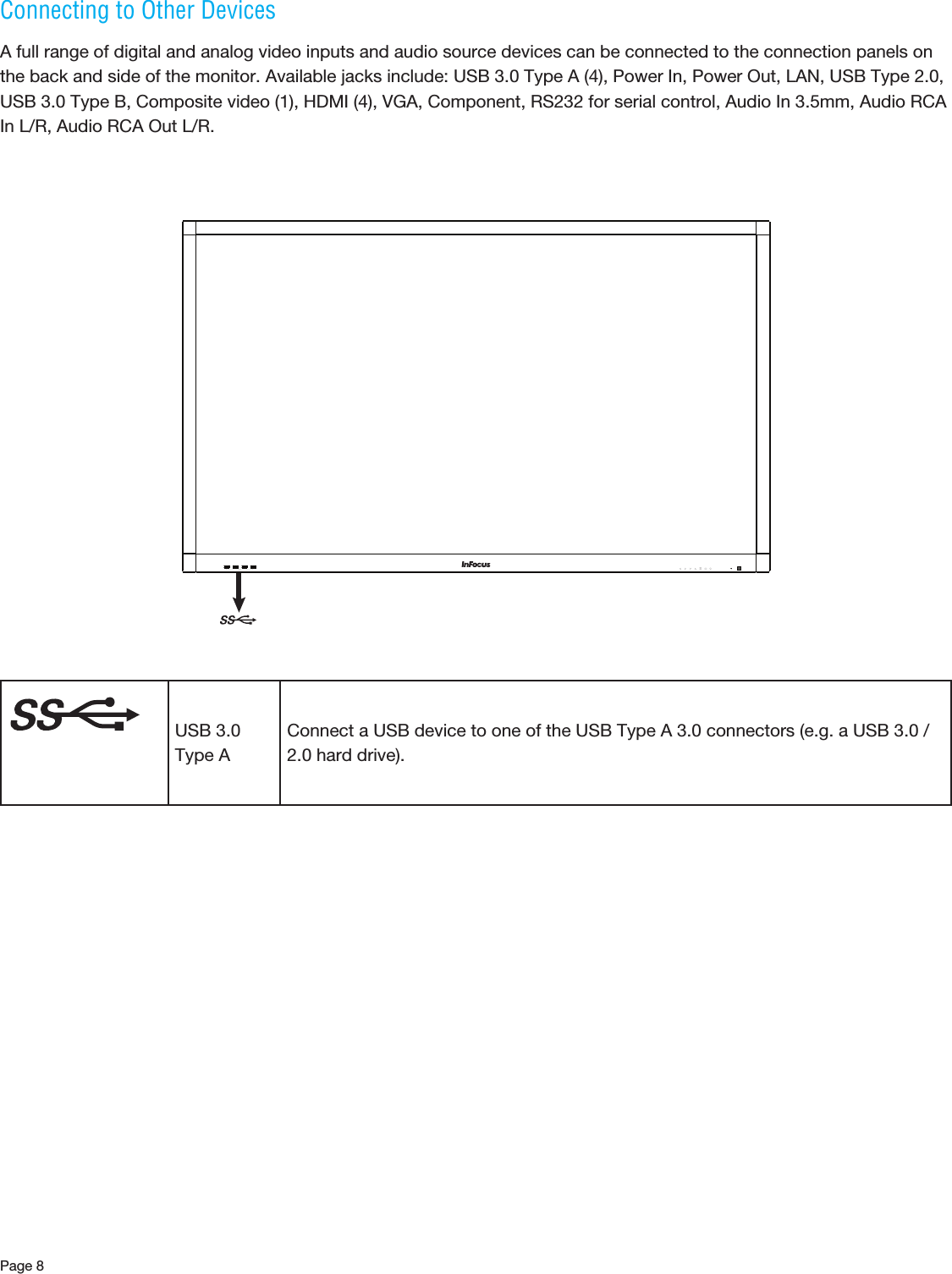
Page 8Connecting to Other DevicesA full range of digital and analog video inputs and audio source devices can be connected to the connection panels on the back and side of the monitor. Available jacks include: USB 3.0 Type A (4), Power In, Power Out, LAN, USB Type 2.0, USB 3.0 Type B, Composite video (1), HDMI (4), VGA, Component, RS232 for serial control, Audio In 3.5mm, Audio RCA In L/R, Audio RCA Out L/R.  USB 3.0 Type AConnect a USB device to one of the USB Type A 3.0 connectors (e.g. a USB 3.0 / 2.0 hard drive).
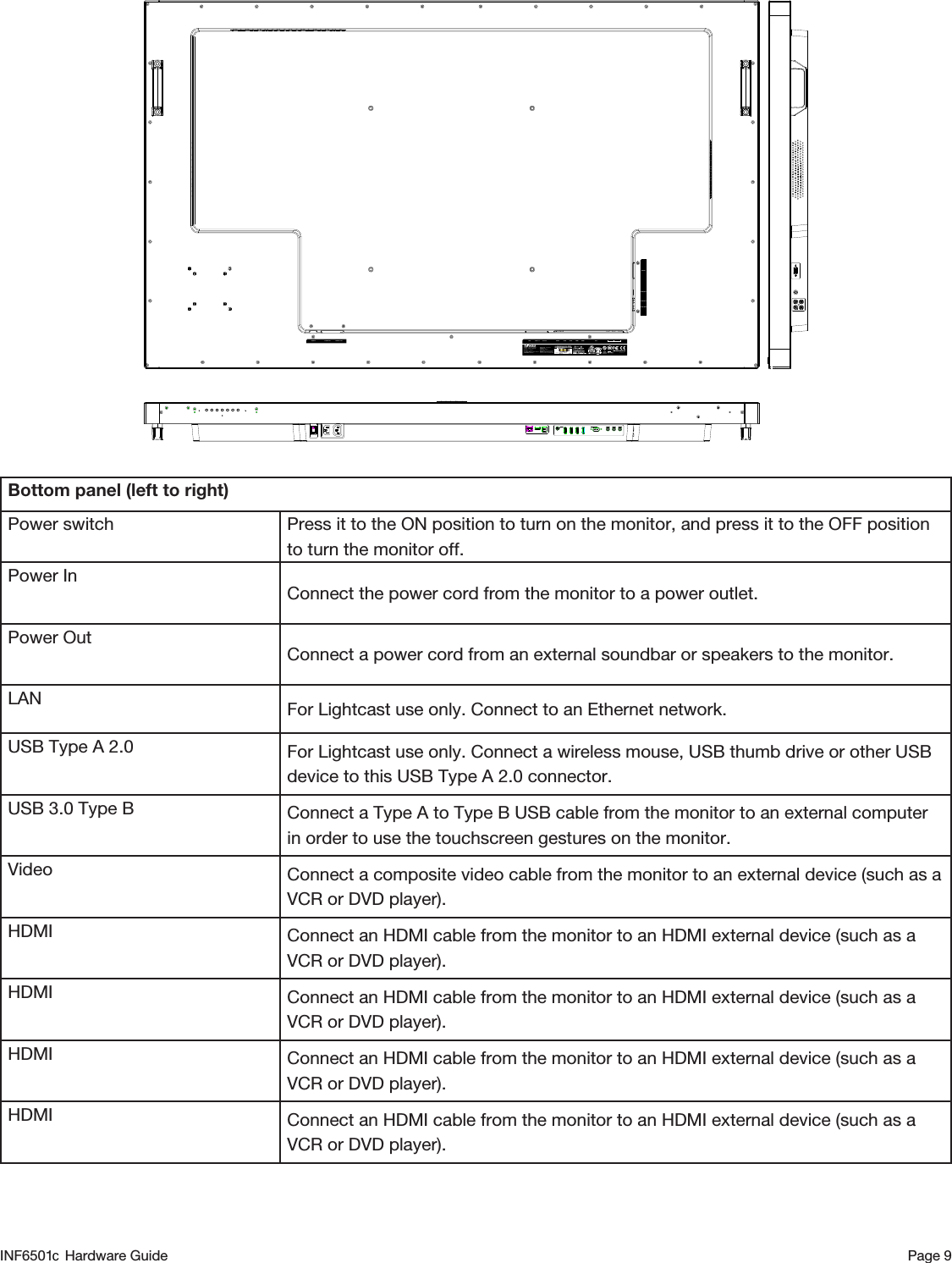
Page 950642P650202H**(B)**产品名称: 互动式电子白板显示器Product: TouchScreen Displays    Model/型号: INF6501cRegulatory Model/认证型号: INF6501cPart Number: INF6501cVoltage /电源:  100-240VACCurrent:  2.5AFrequency: 50/60HzManufacturer: InFocus CorporationAddress: 13190 SW 68th ParkwaySuite 200, Portland, OR 97223-8368 Part No./ INF6501cY-Pb-PrVGAHDMIHDMIVIDEOUSB 3.0USB 2.0 HDMI HDMILANAudio IN 1Audio OUTRS232ON/OFF POWER IN POWER OUTAudio IN 2Bottom panel (left to right)Power switch Press it to the ON position to turn on the monitor, and press it to the OFF position to turn the monitor off.Power InConnect the power cord from the monitor to a power outlet.Power OutConnect a power cord from an external soundbar or speakers to the monitor.LAN For Lightcast use only. Connect to an Ethernet network.USB Type A 2.0  For Lightcast use only. Connect a wireless mouse, USB thumb drive or other USB device to this USB Type A 2.0 connector.USB 3.0 Type B Connect a Type A to Type B USB cable from the monitor to an external computer in order to use the touchscreen gestures on the monitor.Video Connect a composite video cable from the monitor to an external device (such as a VCR or DVD player).HDMI Connect an HDMI cable from the monitor to an HDMI external device (such as a VCR or DVD player).HDMI Connect an HDMI cable from the monitor to an HDMI external device (such as a VCR or DVD player).HDMI Connect an HDMI cable from the monitor to an HDMI external device (such as a VCR or DVD player).HDMI Connect an HDMI cable from the monitor to an HDMI external device (such as a VCR or DVD player).INF6501  Hardware Guidec
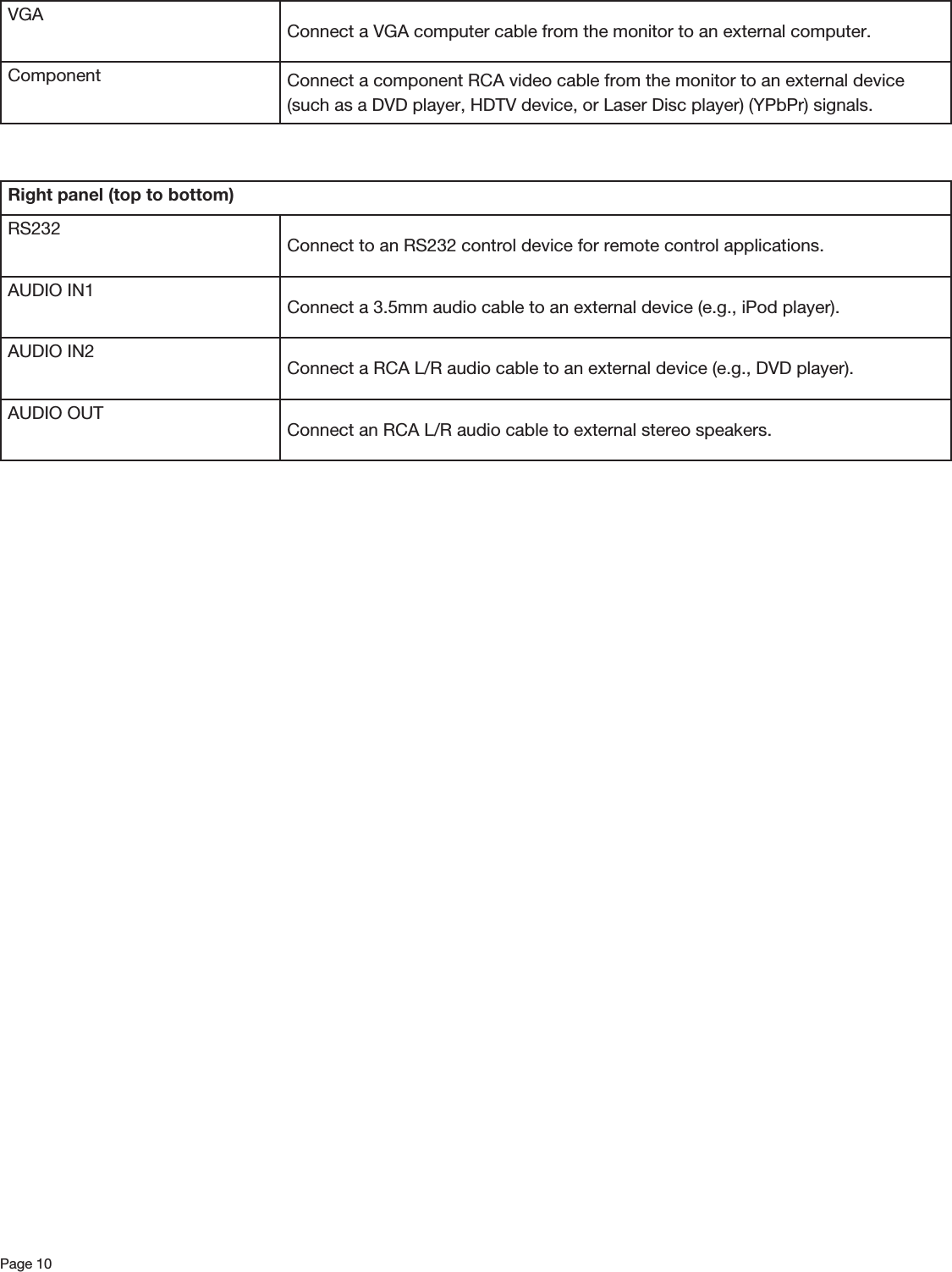
Page 10VGAConnect a VGA computer cable from the monitor to an external computer.Component Connect a component RCA video cable from the monitor to an external device (such as a DVD player, HDTV device, or Laser Disc player) (YPbPr) signals.Right panel (top to bottom)RS232Connect to an RS232 control device for remote control applications.AUDIO IN1Connect a 3.5mm audio cable to an external device (e.g., iPod player).AUDIO IN2Connect a RCA L/R audio cable to an external device (e.g., DVD player).AUDIO OUTConnect an RCA L/R audio cable to external stereo speakers.
Page 11Connecting AC Power1)  Connect one end of the AC power cord to the AC In jack on the back of the monitor. 2)  Connect the other end of the AC power cord to an AC outlet.3)  Press the power switch. (The LED on the front of the monitor turns on.)NOTES:• Your monitor should only be operated from the power source indicated on the label.• Always unplug the AC power cord from the power outlet when you are not using your monitor for an extended period of time.External PC Touchscreen Control Setup1)  A Windows driver must be installed to enable full multi-point touch support. Download and install the driver from www.infocus.com/support.2)  Connect an external computer to the monitor using a DVI, HDMI, or VGA cable. 3)  Connect the Type A to Type B USB cable to the USB Type A jack on the computer and to the USB Type B jack on the side of the monitor.4)  The computer can now be controlled by using touchscreen gestures on the monitor.TURNING THE MONITOR ON/OFF1)  Verify that the power cord is connected to a power outlet and that the power switch is ON.2)  Press the Power button on the remote or the right side of the monitor. INF6501  Hardware Guidec
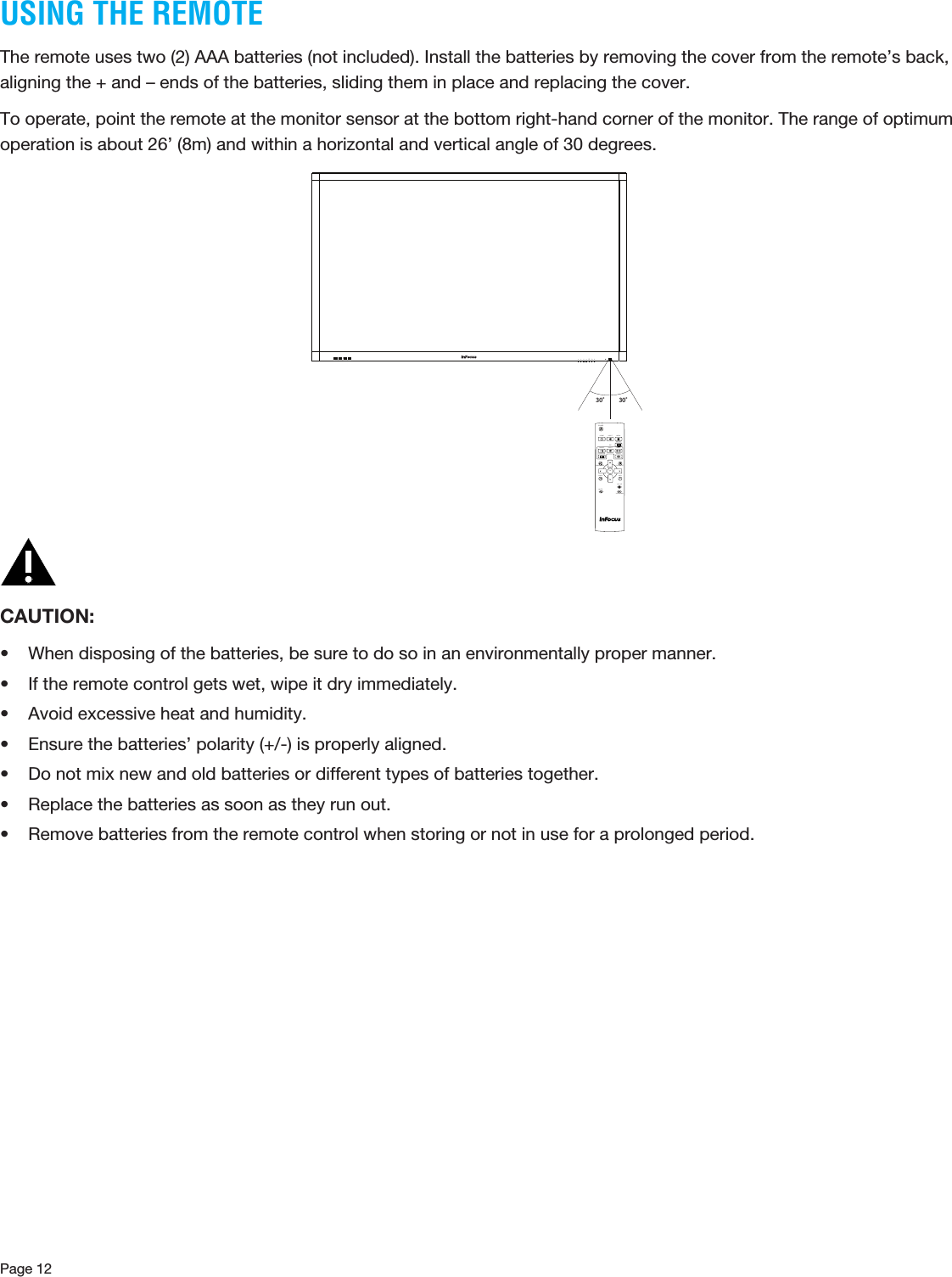
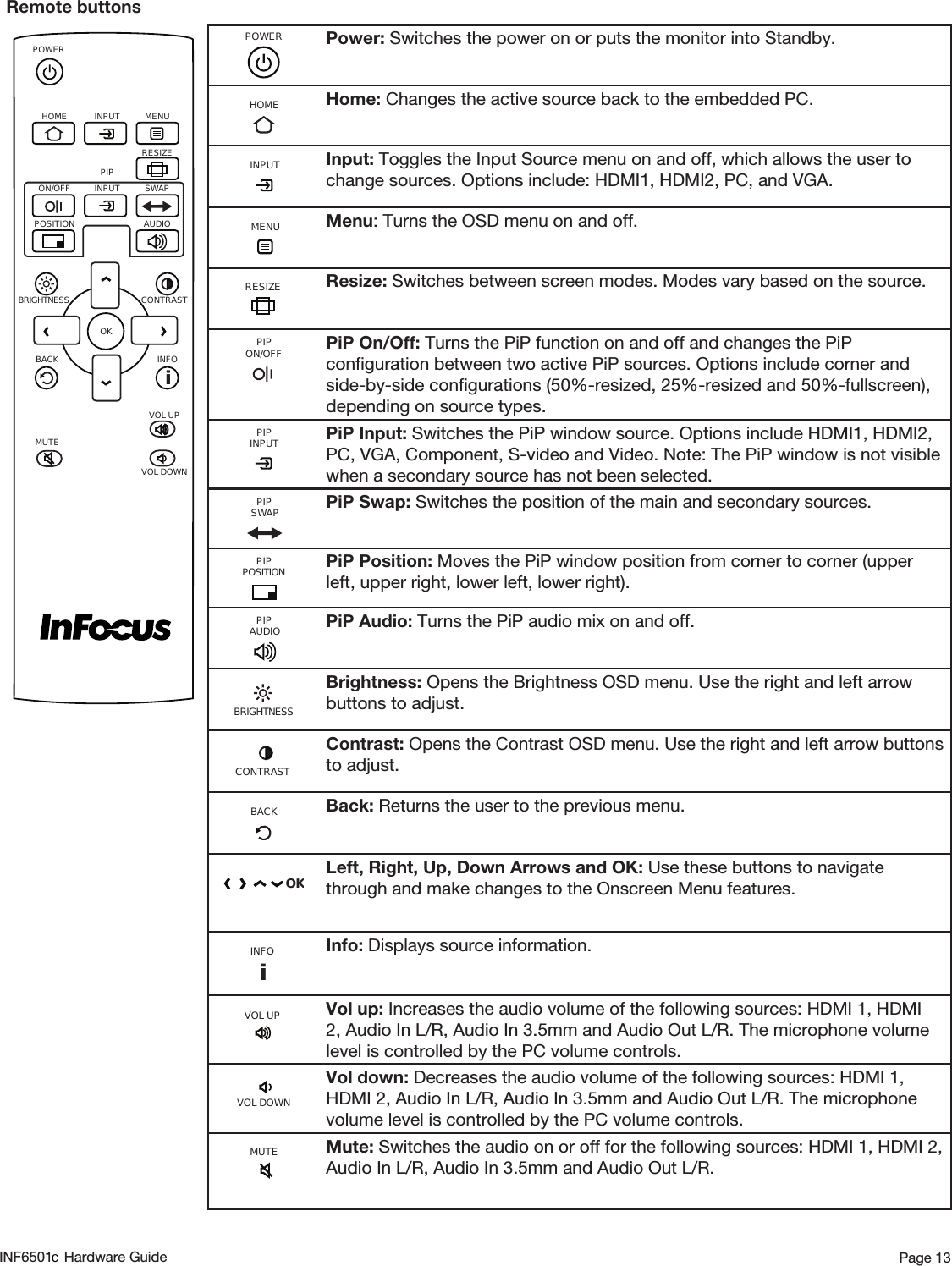
Page 12USING THE REMOTEThe remote uses two (2) AAA batteries (not included). Install the batteries by removing the cover from the remote’s back, aligning the + and – ends of the batteries, sliding them in place and replacing the cover.To operate, point the remote at the monitor sensor at the bottom right-hand corner of the monitor. The range of optimum operation is about 26’ (8m) and within a horizontal and vertical angle of 30 degrees.30˚ 30˚HOMEINFORESIZESWAPVOL UPVOL DOWNBACKMUTECONTRASTBRIGHTNESSON/OFFINPUT MENUPIPINPUTAUDIOPOSITIONOKPOWERiCAUTION: • When disposing of the batteries, be sure to do so in an environmentally proper manner.• If the remote control gets wet, wipe it dry immediately.• Avoid excessive heat and humidity.• Ensure the batteries’ polarity (+/-) is properly aligned.• Do not mix new and old batteries or different types of batteries together.• Replace the batteries as soon as they run out.• Remove batteries from the remote control when storing or not in use for a prolonged period.
Page 13Remote buttonsHOMEINFORESIZESWAPVOL UPVOL DOWNBACKMUTECONTRASTBRIGHTNESSON/OFFINPUT MENUPIPINPUTAUDIOPOSITIONOKPOWERiPOWER Power: Switches the power on or puts the monitor into Standby.HOME Home: Changes the active source back to the embedded PC.INPUT Input: Toggles the Input Source menu on and off, which allows the user to change sources. Options include: HDMI1, HDMI2, PC, and VGA.MENU Menu: Turns the OSD menu on and off. RESIZE Resize: Switches between screen modes. Modes vary based on the source.ON/OFFPIP PiP On/Off: Turns the PiP function on and off and changes the PiP configuration between two active PiP sources. Options include corner and side-by-side configurations (50%-resized, 25%-resized and 50%-fullscreen), depending on source types.INPUTPIP PiP Input: Switches the PiP window source. Options include HDMI1, HDMI2, PC, VGA, Component, S-video and Video. Note: The PiP window is not visible when a secondary source has not been selected.PIPSWAP PiP Swap: Switches the position of the main and secondary sources.PIPPOSITION PiP Position: Moves the PiP window position from corner to corner (upper left, upper right, lower left, lower right).PIPAUDIO PiP Audio: Turns the PiP audio mix on and off.BRIGHTNESSBrightness: Opens the Brightness OSD menu. Use the right and left arrow buttons to adjust.CONTRASTContrast: Opens the Contrast OSD menu. Use the right and left arrow buttons  to adjust. BACK Back: Returns the user to the previous menu.OKLeft, Right, Up, Down Arrows and OK: Use these buttons to navigate through and make changes to the Onscreen Menu features.INFOiInfo: Displays source information.VOL UP Vol up: Increases the audio volume of the following sources: HDMI 1, HDMI 2, Audio In L/R, Audio In 3.5mm and Audio Out L/R. The microphone volume level is controlled by the PC volume controls.VOL DOWNVol down: Decreases the audio volume of the following sources: HDMI 1, HDMI 2, Audio In L/R, Audio In 3.5mm and Audio Out L/R. The microphone volume level is controlled by the PC volume controls.MUTE Mute: Switches the audio on or off for the following sources: HDMI 1, HDMI 2, Audio In L/R, Audio In 3.5mm and Audio Out L/R.INF6501  Hardware Guidec
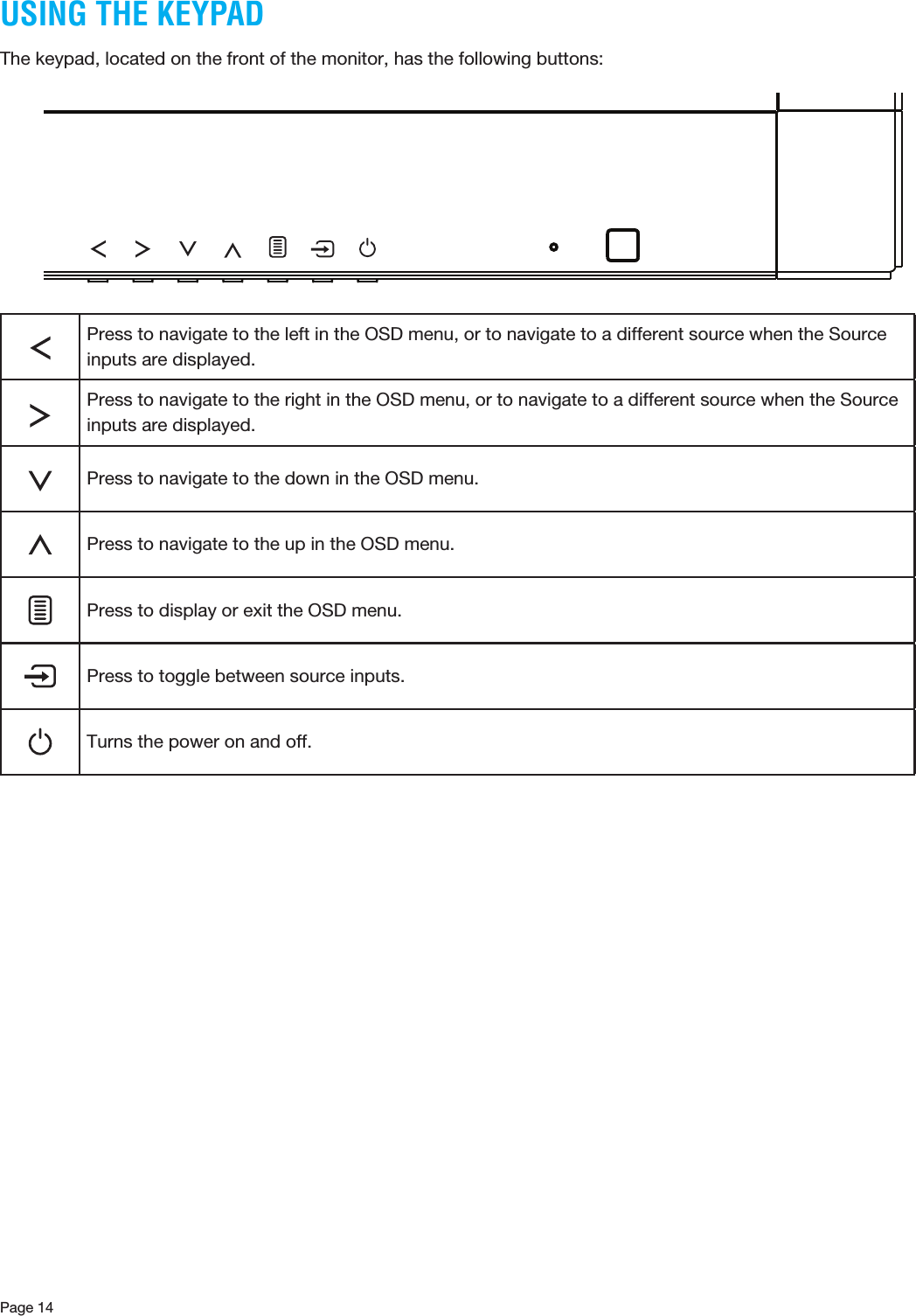
Page 14USING THE KEYPADThe keypad, located on the front of the monitor, has the following buttons: Press to navigate to the left in the OSD menu, or to navigate to a different source when the Source inputs are displayed.Press to navigate to the right in the OSD menu, or to navigate to a different source when the Source inputs are displayed.Press to navigate to the down in the OSD menu. Press to navigate to the up in the OSD menu. Press to display or exit the OSD menu.Press to toggle between source inputs. Turns the power on and off.
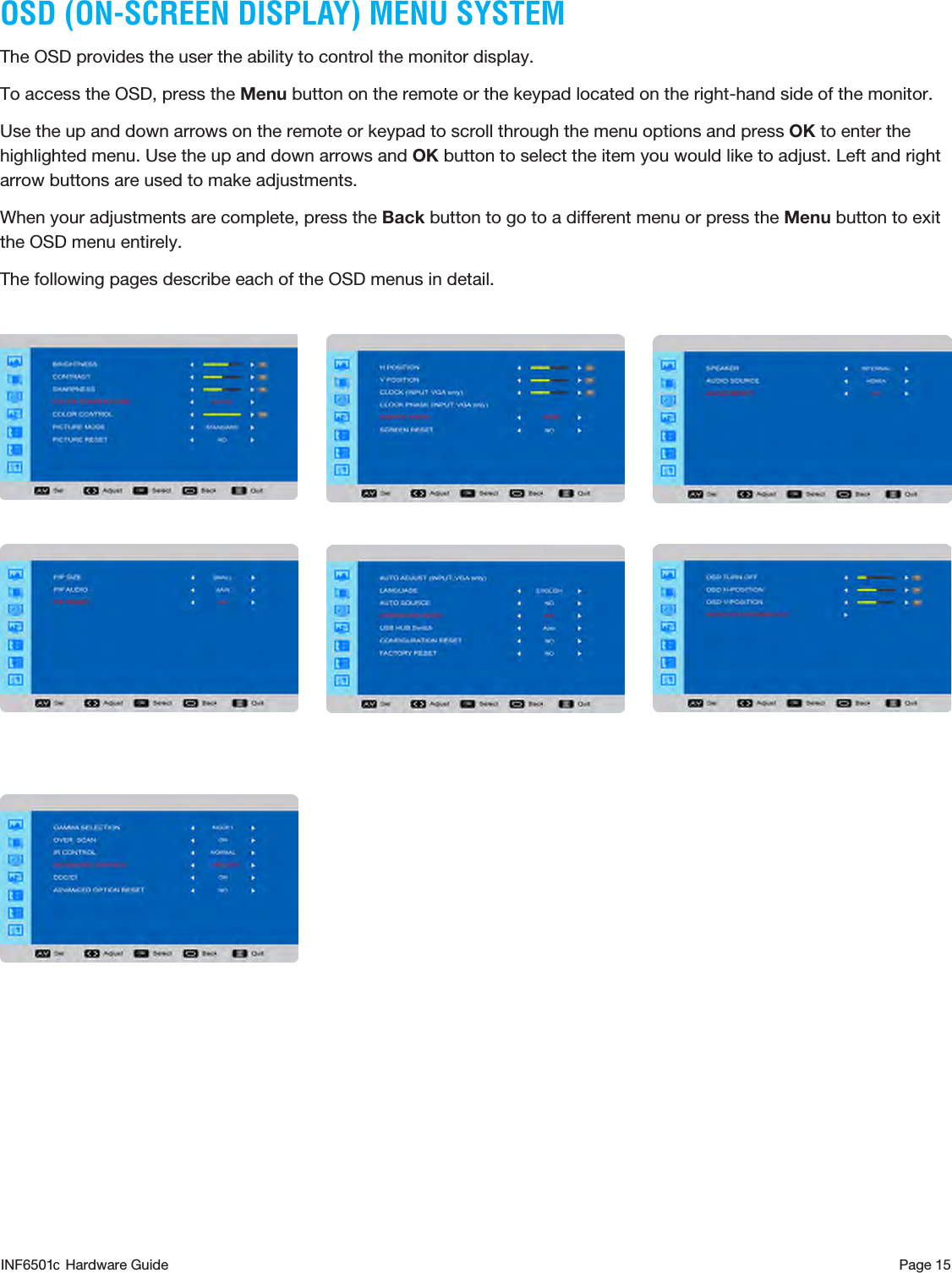
Page 15OSD (ON-SCREEN DISPLAY) MENU SYSTEMThe OSD provides the user the ability to control the monitor display. To access the OSD, press the Menu button on the remote or the keypad located on the right-hand side of the monitor.Use the up and down arrows on the remote or keypad to scroll through the menu options and press OK to enter the highlighted menu. Use the up and down arrows and OK button to select the item you would like to adjust. Left and right arrow buttons are used to make adjustments. When your adjustments are complete, press the Back button to go to a different menu or press the Menu button to exit the OSD menu entirely.The following pages describe each of the OSD menus in detail.                          INF6501  Hardware Guidec
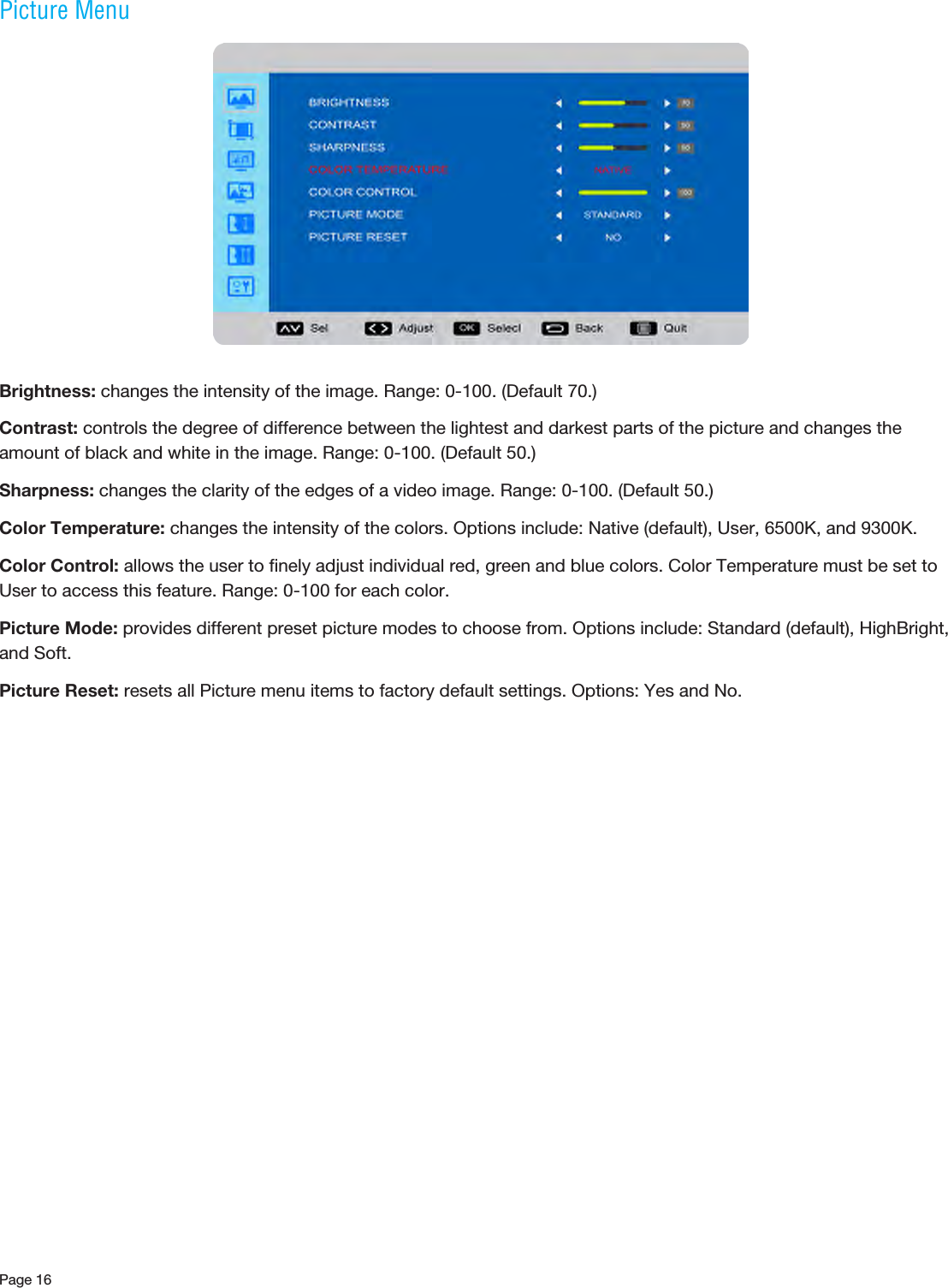
Page 16Picture MenuBrightness: changes the intensity of the image. Range: 0-100. (Default 70.)Contrast: controls the degree of difference between the lightest and darkest parts of the picture and changes the amount of black and white in the image. Range: 0-100. (Default 50.)Sharpness: changes the clarity of the edges of a video image. Range: 0-100. (Default 50.)Color Temperature: changes the intensity of the colors. Options include: Native (default), User, 6500K, and 9300K.Color Control: allows the user to finely adjust individual red, green and blue colors. Color Temperature must be set to User to access this feature. Range: 0-100 for each color.Picture Mode: provides different preset picture modes to choose from. Options include: Standard (default), HighBright, and Soft. Picture Reset: resets all Picture menu items to factory default settings. Options: Yes and No.
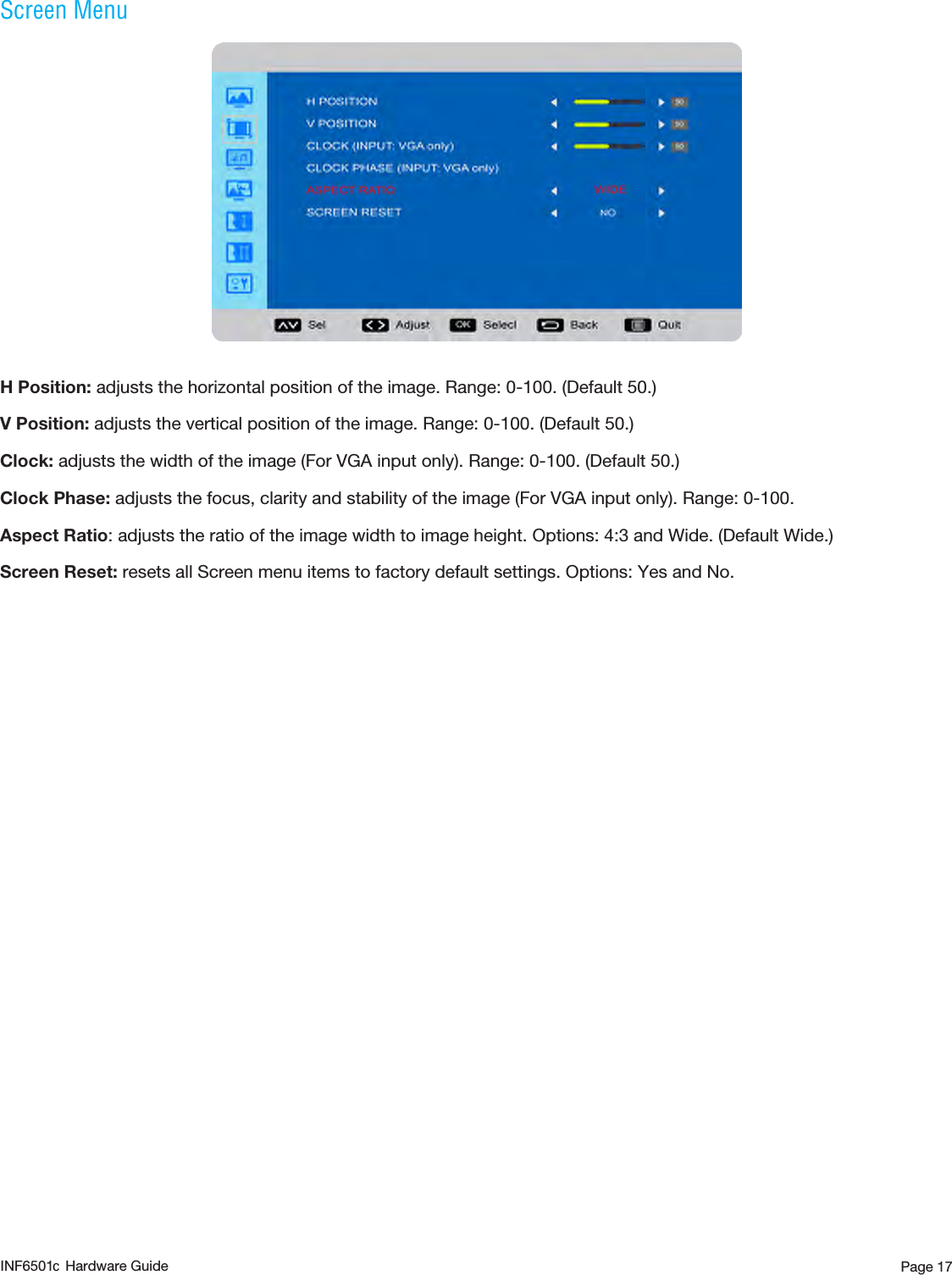
Page 17Screen MenuH Position: adjusts the horizontal position of the image. Range: 0-100. (Default 50.)V Position: adjusts the vertical position of the image. Range: 0-100. (Default 50.)Clock: adjusts the width of the image (For VGA input only). Range: 0-100. (Default 50.)Clock Phase: adjusts the focus, clarity and stability of the image (For VGA input only). Range: 0-100. Aspect Ratio: adjusts the ratio of the image width to image height. Options: 4:3 and Wide. (Default Wide.) Screen Reset: resets all Screen menu items to factory default settings. Options: Yes and No.INF6501 Hardware Guidec
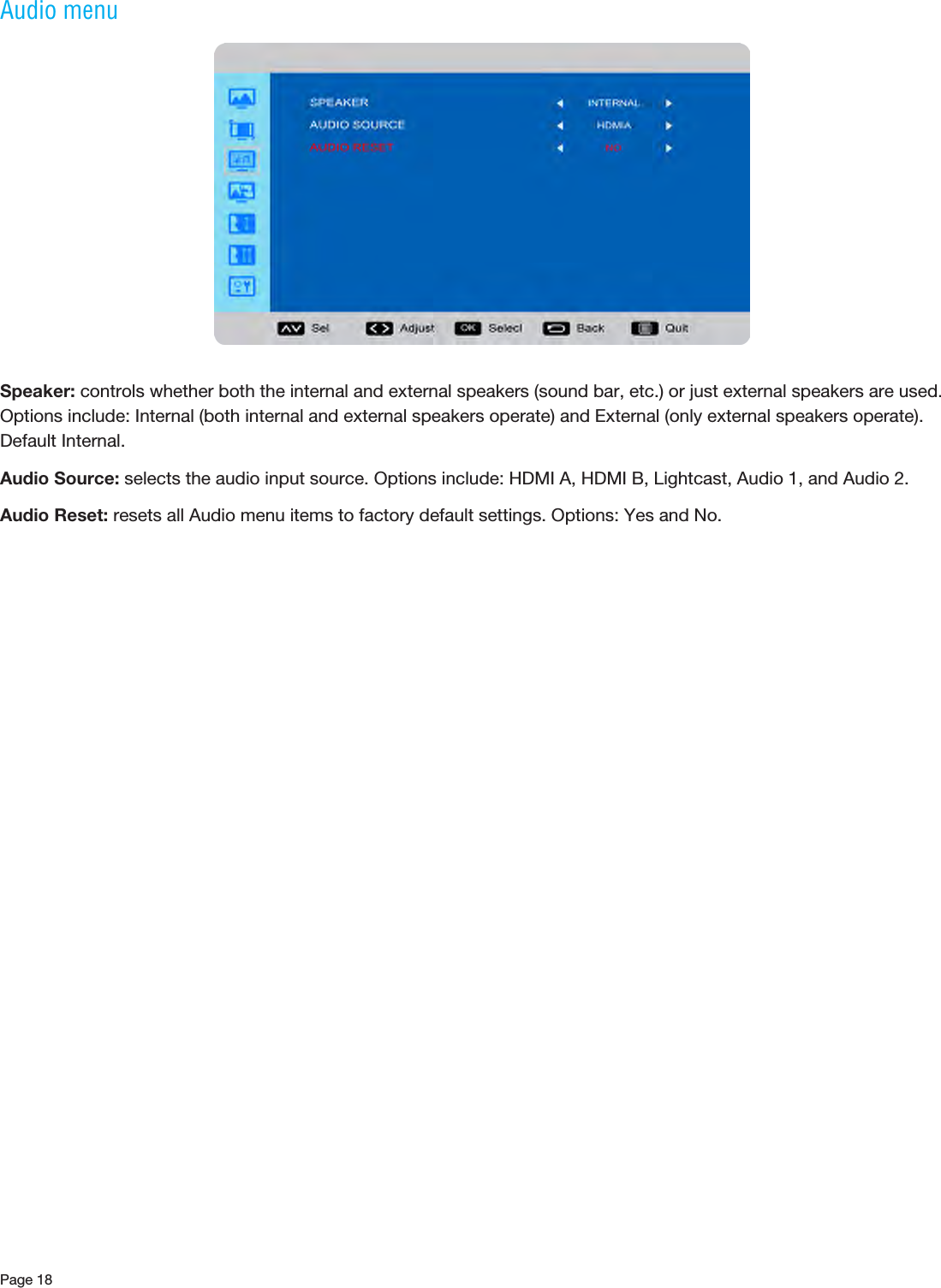
Page 18Audio menuSpeaker: controls whether both the internal and external speakers (sound bar, etc.) or just external speakers are used. Options include: Internal (both internal and external speakers operate) and External (only external speakers operate). Default Internal.Audio Source: selects the audio input source. Options include: HDMI A, HDMI B, Lightcast, Audio 1, and Audio 2. Audio Reset: resets all Audio menu items to factory default settings. Options: Yes and No.
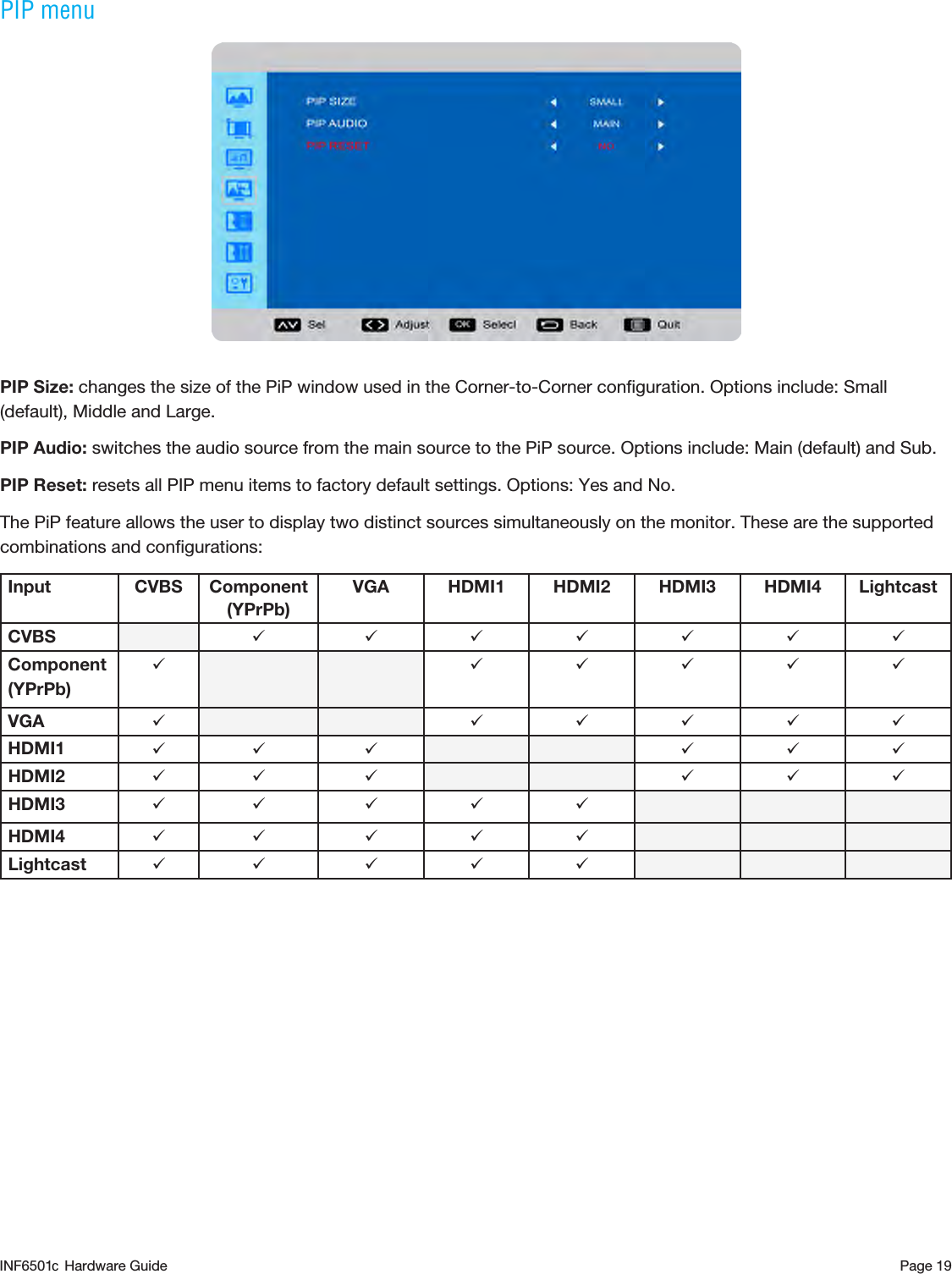
Page 19PIP menuPIP Size: changes the size of the PiP window used in the Corner-to-Corner configuration. Options include: Small (default), Middle and Large.PIP Audio: switches the audio source from the main source to the PiP source. Options include: Main (default) and Sub. PIP Reset: resets all PIP menu items to factory default settings. Options: Yes and No.The PiP feature allows the user to display two distinct sources simultaneously on the monitor. These are the supported combinations and configurations:Input CVBS Component(YPrPb)VGA HDMI1 HDMI2 HDMI3 HDMI4 LightcastCVBS  Component (YPrPb) VGA  HDMI1      HDMI2      HDMI3     HDMI4     Lightcast     INF6501  Hardware Guidec
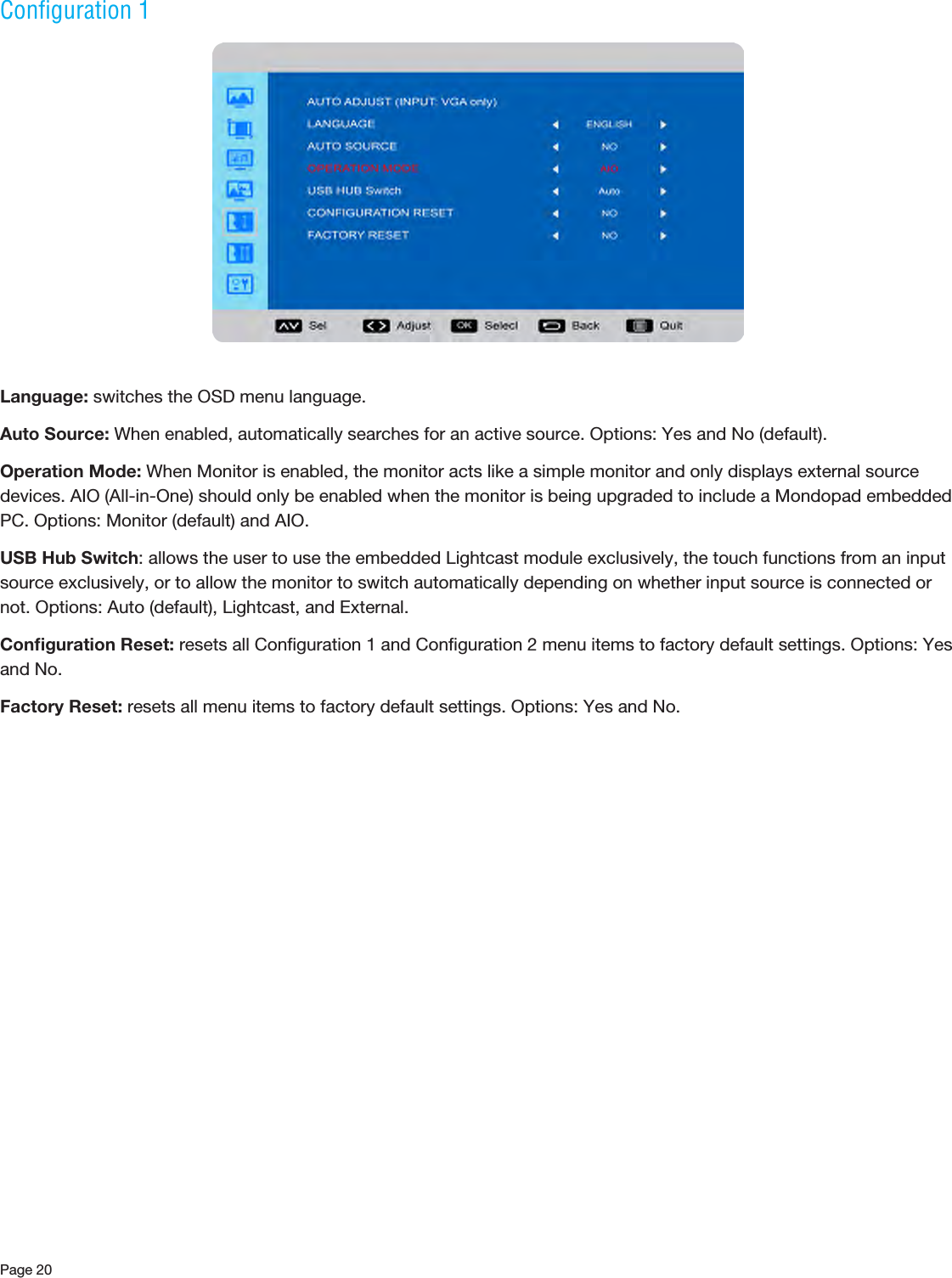
Page 20Configuration 1Language: switches the OSD menu language. Auto Source: When enabled, automatically searches for an active source. Options: Yes and No (default).Operation Mode: When Monitor is enabled, the monitor acts like a simple monitor and only displays external source devices. AIO (All-in-One) should only be enabled when the monitor is being upgraded to include a Mondopad embedded PC. Options: Monitor (default) and AIO.USB Hub Switch: allows the user to use the embedded Lightcast module exclusively, the touch functions from an input source exclusively, or to allow the monitor to switch automatically depending on whether input source is connected or not. Options: Auto (default), Lightcast, and External. Configuration Reset: resets all Configuration 1 and Configuration 2 menu items to factory default settings. Options: Yes and No.Factory Reset: resets all menu items to factory default settings. Options: Yes and No.
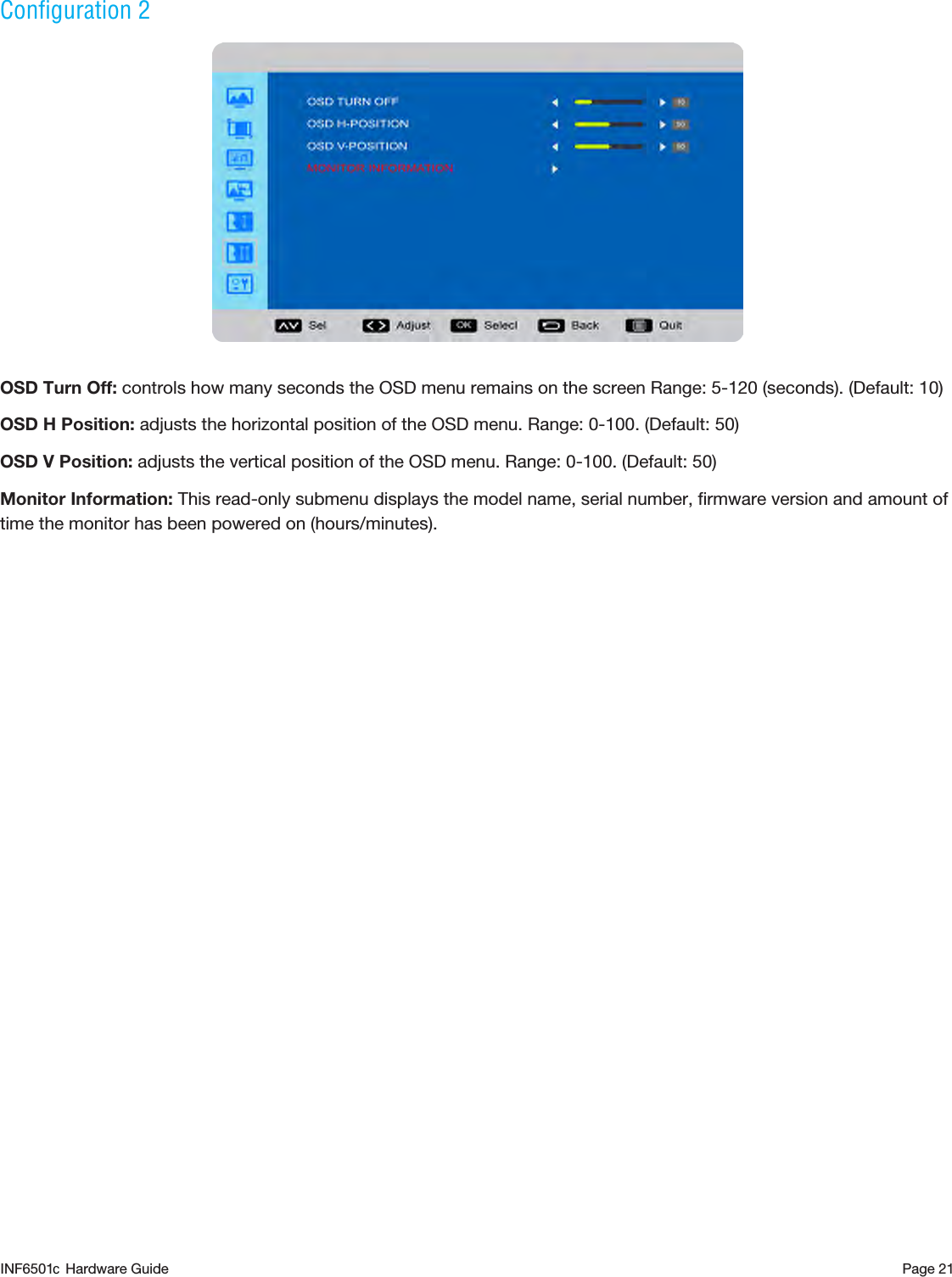
Page 21Configuration 2OSD Turn Off: controls how many seconds the OSD menu remains on the screen Range: 5-120 (seconds). (Default: 10)OSD H Position: adjusts the horizontal position of the OSD menu. Range: 0-100. (Default: 50)OSD V Position: adjusts the vertical position of the OSD menu. Range: 0-100. (Default: 50)Monitor Information: This read-only submenu displays the model name, serial number, firmware version and amount of time the monitor has been powered on (hours/minutes).INF6501  Hardware Guidec
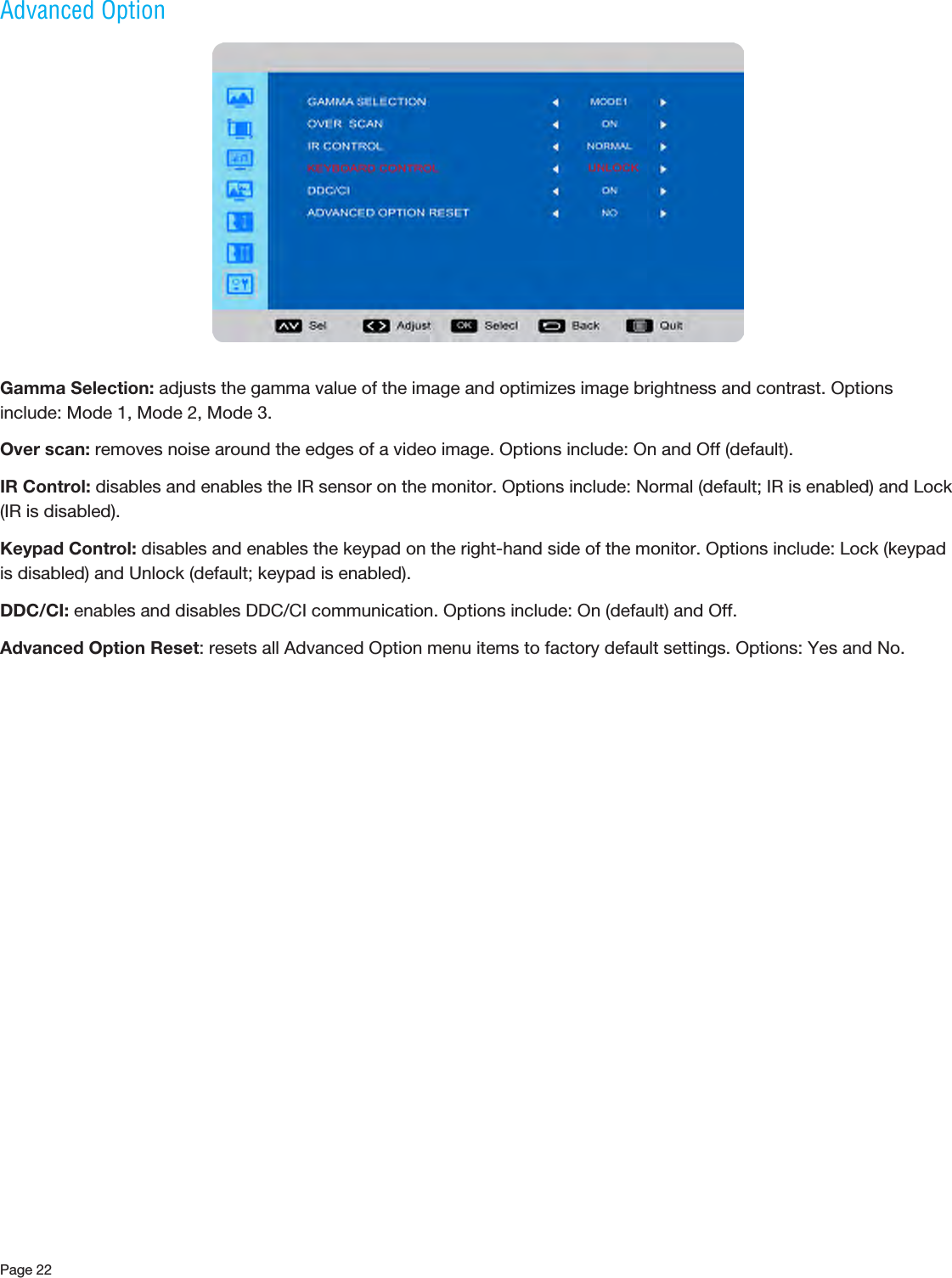
Page 22Advanced OptionGamma Selection: adjusts the gamma value of the image and optimizes image brightness and contrast. Options include: Mode 1, Mode 2, Mode 3.Over scan: removes noise around the edges of a video image. Options include: On and Off (default).IR Control: disables and enables the IR sensor on the monitor. Options include: Normal (default; IR is enabled) and Lock (IR is disabled).Keypad Control: disables and enables the keypad on the right-hand side of the monitor. Options include: Lock (keypad is disabled) and Unlock (default; keypad is enabled).DDC/CI: enables and disables DDC/CI communication. Options include: On (default) and Off.Advanced Option Reset: resets all Advanced Option menu items to factory default settings. Options: Yes and No.
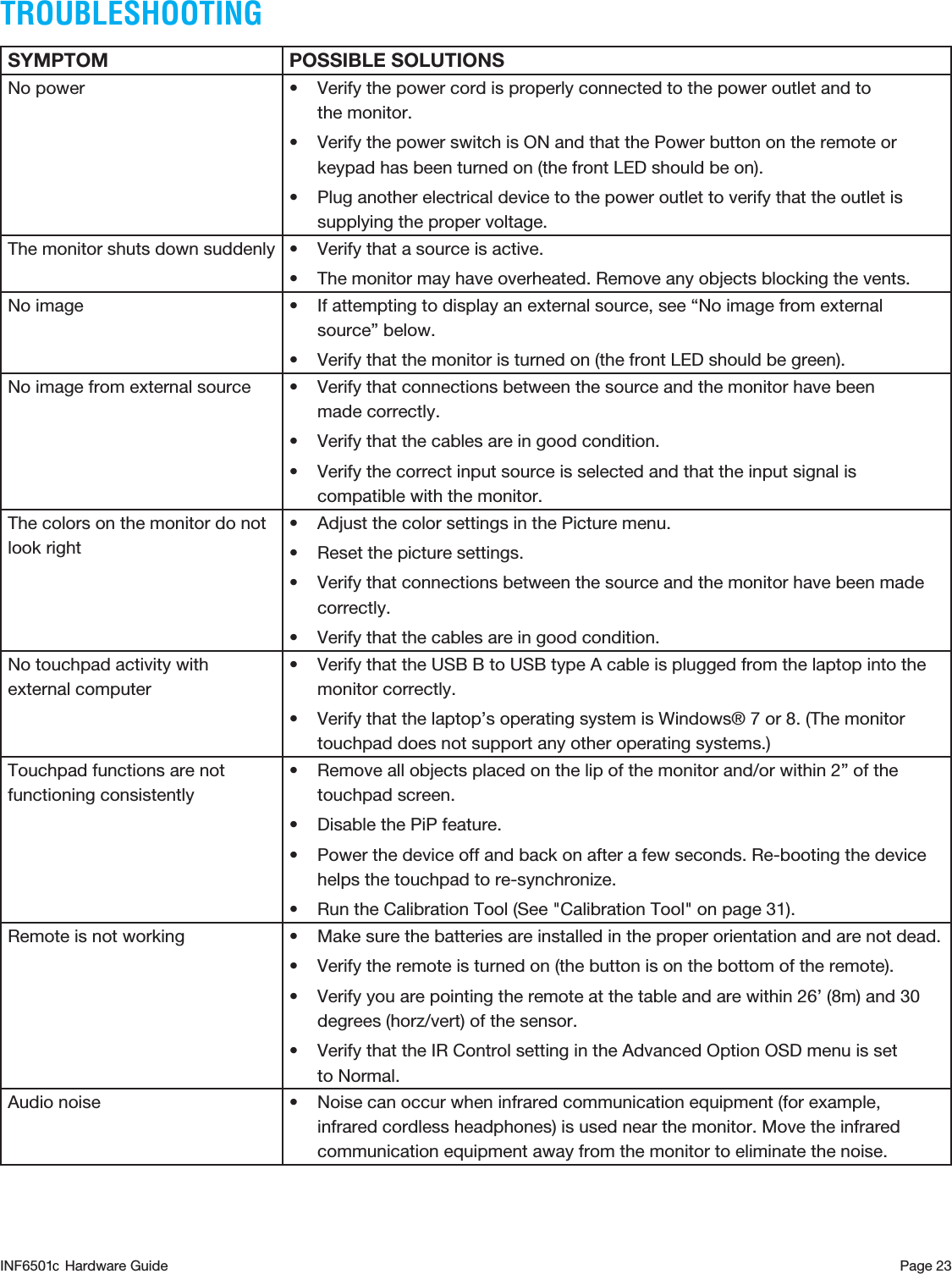
Page 23TROUBLESHOOTINGSYMPTOM POSSIBLE SOLUTIONSNo power • Verify the power cord is properly connected to the power outlet and to  the monitor. • Verify the power switch is ON and that the Power button on the remote or keypad has been turned on (the front LED should be on).• Plug another electrical device to the power outlet to verify that the outlet is supplying the proper voltage.The monitor shuts down suddenly • Verify that a source is active.• The monitor may have overheated. Remove any objects blocking the vents.No image • If attempting to display an external source, see “No image from external source” below.• Verify that the monitor is turned on (the front LED should be green).No image from external source • Verify that connections between the source and the monitor have been  made correctly.• Verify that the cables are in good condition.• Verify the correct input source is selected and that the input signal is compatible with the monitor. The colors on the monitor do not look right• Adjust the color settings in the Picture menu.• Reset the picture settings.• Verify that connections between the source and the monitor have been made correctly.• Verify that the cables are in good condition.No touchpad activity with external computer• Verify that the USB B to USB type A cable is plugged from the laptop into the monitor correctly.• Verify that the laptop’s operating system is Windows® 7 or 8. (The monitor touchpad does not support any other operating systems.)Touchpad functions are not functioning consistently• Remove all objects placed on the lip of the monitor and/or within 2” of the touchpad screen.• Disable the PiP feature. • Power the device off and back on after a few seconds. Re-booting the device helps the touchpad to re-synchronize.• Run the Calibration Tool (See "Calibration Tool" on page 31).Remote is not working • Make sure the batteries are installed in the proper orientation and are not dead.• Verify the remote is turned on (the button is on the bottom of the remote).• Verify you are pointing the remote at the table and are within 26’ (8m) and 30 degrees (horz/vert) of the sensor.• Verify that the IR Control setting in the Advanced Option OSD menu is set  to Normal.Audio noise • Noise can occur when infrared communication equipment (for example, infrared cordless headphones) is used near the monitor. Move the infrared communication equipment away from the monitor to eliminate the noise. INF6501  Hardware Guidec
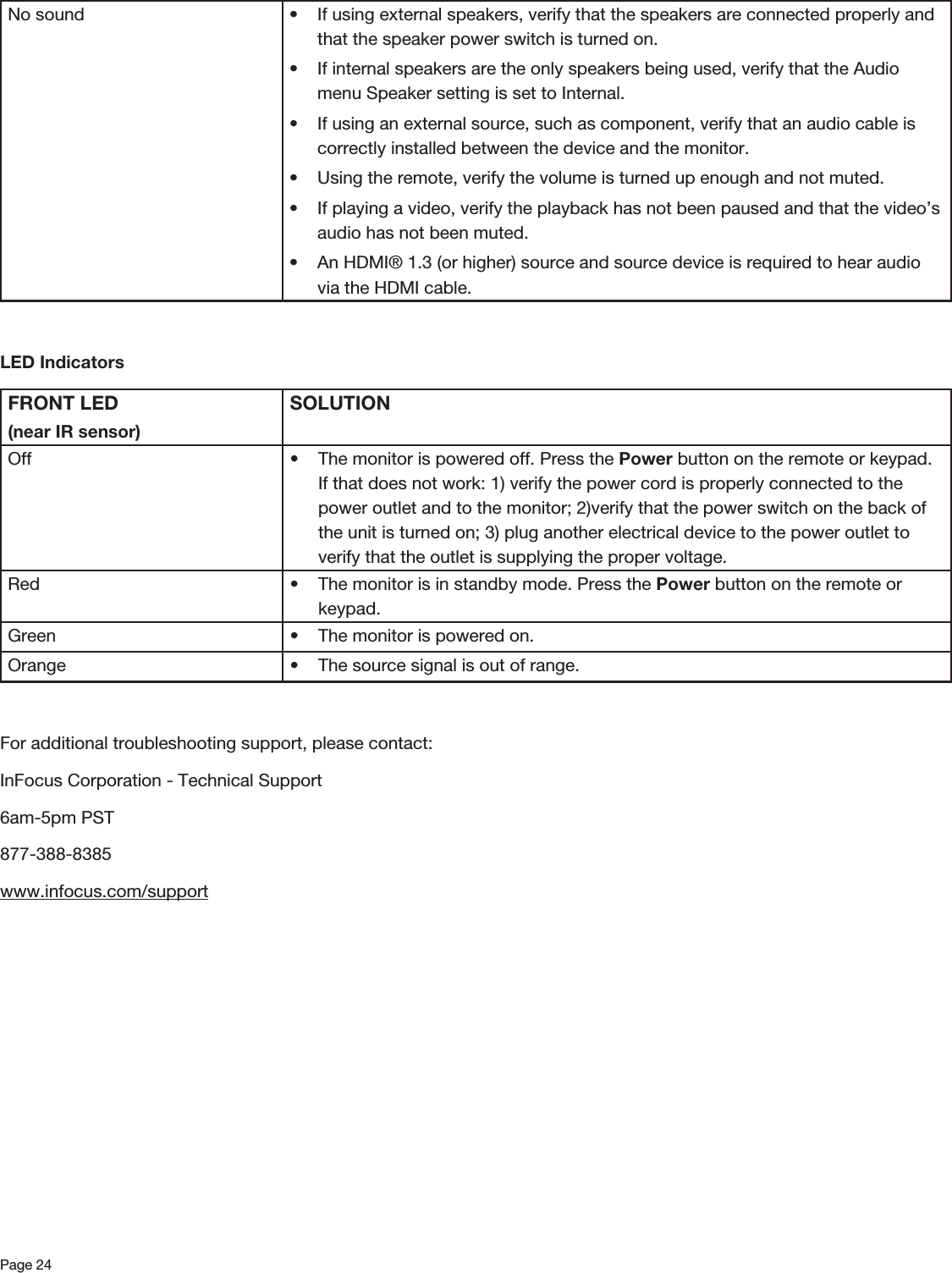
Page 24No sound • If using external speakers, verify that the speakers are connected properly and that the speaker power switch is turned on.• If internal speakers are the only speakers being used, verify that the Audio menu Speaker setting is set to Internal.• If using an external source, such as component, verify that an audio cable is correctly installed between the device and the monitor.• Using the remote, verify the volume is turned up enough and not muted.• If playing a video, verify the playback has not been paused and that the video’s audio has not been muted.• An HDMI® 1.3 (or higher) source and source device is required to hear audio via the HDMI cable.LED IndicatorsFRONT LED(near IR sensor)SOLUTIONOff • The monitor is powered off. Press the Power button on the remote or keypad. If that does not work: 1) verify the power cord is properly connected to the power outlet and to the monitor; 2)verify that the power switch on the back of the unit is turned on; 3) plug another electrical device to the power outlet to verify that the outlet is supplying the proper voltage.Red • The monitor is in standby mode. Press the Power button on the remote or keypad.Green • The monitor is powered on.Orange • The source signal is out of range.For additional troubleshooting support, please contact:InFocus Corporation - Technical Support6am-5pm PST877-388-8385www.infocus.com/support
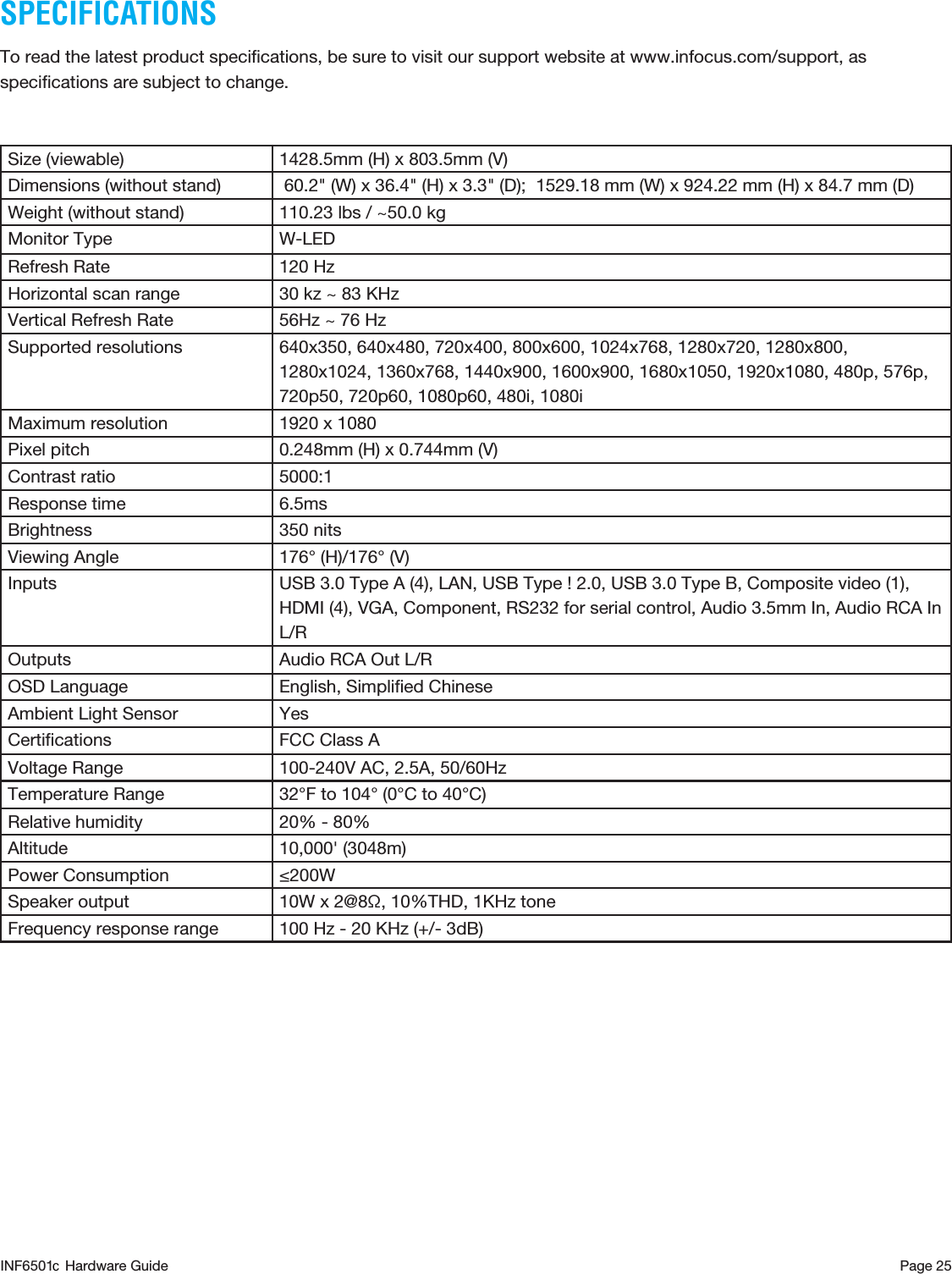
Page 25SPECIFICATIONSTo read the latest product specifications, be sure to visit our support website at www.infocus.com/support, as specifications are subject to change.Size (viewable) 1428.5mm (H) x 803.5mm (V)Dimensions (without stand)  60.2" (W) x 36.4" (H) x 3.3" (D);  1529.18 mm (W) x 924.22 mm (H) x 84.7 mm (D)Weight (without stand) 110.23 lbs / ~50.0 kgMonitor Type W-LEDRefresh Rate 120 HzHorizontal scan range 30 kz ~ 83 KHzVertical Refresh Rate 56Hz ~ 76 HzSupported resolutions 640x350, 640x480, 720x400, 800x600, 1024x768, 1280x720, 1280x800, 1280x1024, 1360x768, 1440x900, 1600x900, 1680x1050, 1920x1080, 480p, 576p, 720p50, 720p60, 1080p60, 480i, 1080iMaximum resolution 1920 x 1080Pixel pitch 0.248mm (H) x 0.744mm (V)Contrast ratio 5000:1Response time 6.5msBrightness 350 nitsViewing Angle 176° (H)/176° (V)Inputs USB 3.0 Type A (4), LAN, USB Type ! 2.0, USB 3.0 Type B, Composite video (1), HDMI (4), VGA, Component, RS232 for serial control, Audio 3.5mm In, Audio RCA In L/ROutputs Audio RCA Out L/ROSD Language English, Simplified ChineseAmbient Light Sensor YesCertifications FCC Class AVoltage Range 100-240V AC, 2.5A, 50/60HzTemperature Range 32°F to 104° (0°C to 40°C)Relative humidity 20% - 80%Altitude 10,000' (3048m)Power Consumption ≤200WSpeaker output 10W x 2@8Ω, 10%THD, 1KHz toneFrequency response range 100 Hz - 20 KHz (+/- 3dB)INF6501  Hardware Guidec
Page 26LIMITED WARRANTYInFocus Limited Warranty For InFocus Branded Hardware Products OnlyLIMITED WARRANTY. InFocus’s warranty obligations for the hardware products are limited to the terms set forth herein. InFocus warrants the InFocus-branded hardware products against defects in materials and workmanship under normal use for a period outlined in the Limited Warranty Periods section below from the date of retail purchase by the original end-user purchaser (“Warranty Period”).  The Warranty Period starts on the date of purchase. Your dated sales or delivery receipt, showing the date of purchase of the product, is your proof of the purchase date. You may be required to provide proof of purchase and proof that the product was purchased new as a condition of receiving warranty service. If a hardware defect arises and a valid claim is received within the Warranty Period, at its option and to the extent permitted by law, InFocus will either (1) repair the hardware defect at no charge, using new parts or refurbished parts that are equivalent to new in performance and reliability, (2) exchange the product with a product that is new or refurbished that is equivalent to new in performance and reliability and is at least functionally equivalent to the original product, or (3) refund the purchase price of the product. InFocus may request that you replace defective parts with customer-installable new or refurbished parts that InFocus provides in fulfillment of its warranty obligation (“Customer Self Repair”). A replacement product or part, including a Customer Self Repair part that has been installed in accordance with instructions provided by InFocus, assumes the remaining warranty of the original product or ninety (90) days from the date of replacement or repair, whichever provides longer coverage. When a product or part is exchanged, any replacement item becomes your property and the replaced item becomes InFocus’s property. Parts provided by InFocus in fulfillment of its warranty obligation must be used in products for which warranty service is claimed. When a refund is given, the product for which the refund is provided must be returned to InFocus and becomes InFocus’s property. This is your exclusive remedy for defective products. Limited Warranty Periods vary depending on your product model and the country of purchase. To review the warranty period associated with your product model, please refer to the product specifications information on www.infocus.com. By inputting your product model in the Quick Search box on the website, you will find warranty terms in the Specifications matrix.EXCLUSIONS AND LIMITATIONS. This Limited Warranty applies only to the hardware products manufactured by or for InFocus, and sold by InFocus, its worldwide subsidiaries, authorized resellers or country distributors, that can be identified by the “InFocus” trademark, trade name, or logo affixed to it, and to required firmware. The Limited Warranty does not apply to any non-InFocus hardware products or peripherals external to the InFocus-branded hardware products (including but not limited to external storage subsystems, displays, printers, speakers or other peripherals), or to any software applications or programs, even if packaged or sold with the InFocus hardware. Manufacturers, suppliers, or publishers of products, software or peripherals, other than InFocus, may provide their own warranties to the end user purchaser, but InFocus, in so far as permitted by law, provides their products “AS IS” without the InFocus Limited Warranty. Software distributed by InFocus with or without the InFocus brand name (including, but not limited to system software) is not covered under this Limited Warranty. Refer to the licensing agreement accompanying the software for details of your rights with respect to its use. InFocus does not warrant that the operation of the products will be uninterrupted or error-free. InFocus is not responsible for damage arising from failure to follow instructions relating to the products’ use. INFOCUS IS NOT RESPONSIBLE FOR DAMAGE TO OR LOSS OF ANY PROGRAMS, DATA, OR REMOVABLE STORAGE MEDIA. INFOCUS IS NOT RESPONSIBLE FOR THE RESTORATION OR REINSTALLATION OF ANY PROGRAMS OR DATA OTHER THAN SOFTWARE INSTALLED BY INFOCUS WHEN THE PRODUCT IS MANUFACTURED.To enable InFocus to provide the best possible support and service during the Limited Warranty Period, you will be required to:
Page 27• Maintain a proper and adequate environment, and use the InFocus hardware products in accordance with the instructions furnished.• Verify configurations, load most recent firmware, install software patches, run InFocus diagnostics and utilities, and implement temporary procedures or workarounds provided by InFocus while InFocus works on permanent solutions.• Allow InFocus to keep resident on your systems or sites certain system and network diagnosis and maintenance tools to facilitate the performance of warranty support (collectively referred to as “Proprietary Service Tools”); Proprietary Service Tools are and remain the sole and exclusive property of InFocus.Additional Limitations:• Products external to the system processor (CPU) box, such as external storage subsystems, printers and other peripherals, are covered by the applicable warranty for those products or options.• An effective repair does not necessarily require the replacement of a defective part. For example, cleaning the heads of a floppy drive or updating revision levels of ROM BIOS on a PCA board are activities that in many instances deliver an effective repair.• BIOS/Firmware upgrades are not covered under the Limited Warranty. Firmware that is an integral part of the option hardware board is not automatically upgraded when new versions of firmware are released.• It is the responsibility of the customer to ensure that their software is compatible with the latest  BIOS/firmware revision.This Limited Warranty does not apply: (a) to consumable or expendable parts, such as batteries, or protective coatings designed to diminish over time unless failure has occurred due to a defect in materials or workmanship; (b) to cartons, carrying cases, shipping cases, external cabinets, accessories used in connection with the product; (c) to cosmetic damage, including but not limited to scratches, dents, and broken plastic on ports; (d) to damage caused by use with non-InFocus products; (e) to damage caused by accident, abuse, misuse, improper ventilation, smoke exposure, contamination, improper or inadequate maintenance, cleaning or calibration, liquid contact, unusual physical or electrical stress and/or power surges, virus infection, fire, earthquake, disaster, lightning or other external causes; (f) to damage caused by operating the product outside the permitted or intended uses or usage parameters described by InFocus (including burned monitor screens and incorrect input voltage); (g) to damage caused by service (including upgrades and expansions) performed by anyone other than a representative of InFocus or an InFocus Authorized Service Provider (“ASP”) or your own installation of customer-installable parts as instructed by InFocus; (h) to a product or part that has been modified to alter functionality or capability without the written permission of InFocus (including use of an unauthorized mount); (i) to defects caused by normal wear and tear or otherwise due to the normal aging of the product; (j) to failure to follow maintenance procedures as outlined in the product user documentation including where a schedule is specified for regular cleaning of certain parts (based on usage and environment); (k) to loss or damage in transit; or (l) if the product is not used under normal operating conditions which are defined as use not in excess of 16 hours continuously per day with a minimum 8 hour period of continuous rest in the powered off state; or (m) if any InFocus serial number has been removed or defaced. In addition, LCD burn-in as a result of excessive display of static images on the product is not covered under the terms of this Limited Warranty.Important: Do not open the hardware products unless otherwise directed by InFocus for the purposes of a Customer Self Repair (CSR). Opening the hardware products may cause damage that is not covered by this Limited Warranty. Only InFocus or an ASP should perform service on the hardware products. TO THE EXTENT PERMITTED BY LAW, THIS WARRANTY AND THE REMEDIES SET FORTH ABOVE ARE EXCLUSIVE AND IN LIEU OF ALL OTHER WARRANTIES, REMEDIES AND CONDITIONS, WHETHER ORAL, WRITTEN, STATUTORY, EXPRESS OR IMPLIED. AS PERMITTED BY APPLICABLE LAW, INFOCUS SPECIFICALLY DISCLAIMS ANY AND ALL STATUTORY OR IMPLIED WARRANTIES, INCLUDING, WITHOUT LIMITATION, WARRANTIES OF MERCHANTABILITY INF6501  Hardware Guidec
Page 28AND FITNESS FOR A PARTICULAR PURPOSE AND WARRANTIES AGAINST HIDDEN OR LATENT DEFECTS. IF INFOCUS CANNOT LAWFULLY DISCLAIM STATUTORY OR IMPLIED WARRANTIES THEN TO THE EXTENT PERMITTED BY LAW, ALL SUCH WARRANTIES SHALL BE LIMITED IN DURATION TO THE DURATION OF THE EXPRESS WARRANTY AND TO THE REPAIR OR REPLACEMENT SERVICE AS DETERMINED BY INFOCUS IN ITS SOLE DISCRETION. No InFocus reseller, agent, or employee is authorized to make any modification, extension, or addition to this warranty. If any term is held to be illegal or unenforceable, the legality or enforceability of the remaining terms shall not be affected or impaired. EXCEPT AS PROVIDED IN THIS WARRANTY AND TO THE MAXIMUM EXTENT PERMITTED BY LAW, INFOCUS IS NOT RESPONSIBLE FOR DIRECT, SPECIAL, INCIDENTAL OR CONSEQUENTIAL DAMAGES RESULTING FROM ANY BREACH OF WARRANTY OR CONDITION, OR UNDER ANY OTHER LEGAL THEORY, INCLUDING BUT NOT LIMITED TO LOSS OF USE; LOSS OF REVENUE; LOSS OF ACTUAL OR ANTICIPATED PROFITS (INCLUDING LOSS OF PROFITS ON CONTRACTS); LOSS OF THE USE OF MONEY; LOSS OF ANTICIPATED SAVINGS; LOSS OF BUSINESS; LOSS OF OPPORTUNITY; LOSS OF GOODWILL; LOSS OF REPUTATION; LOSS OF, DAMAGE TO, COMPROMISE OR CORRUPTION OF DATA; OR ANY INDIRECT OR CONSEQUENTIAL LOSS OR DAMAGE HOWSOEVER CAUSED INCLUDING THE REPLACEMENT OF EQUIPMENT AND PROPERTY, ANY COSTS OF RECOVERING, PROGRAMMING OR REPRODUCING ANY PROGRAM OR DATA STORED IN OR USED WITH THE INFOCUS PRODUCT AND ANY FAILURE TO MAINTAIN THE CONFIDENTIALITY OF DATA STORED ON THE PRODUCT. THE FOREGOING LIMITATION SHALL NOT APPLY TO DEATH OR PERSONAL INJURY CLAIMS, OR ANY STATUTORY LIABILITY FOR INTENTIONAL AND GROSS NEGLIGENT ACTS AND/OR OMISSIONS. INFOCUS DISCLAIMS ANY REPRESENTATION THAT IT WILL BE ABLE TO REPAIR ANY PRODUCT UNDER THIS WARRANTY OR MAKE A PRODUCT EXCHANGE WITHOUT RISK TO OR LOSS OF PROGRAMS OR DATA. Limitation on Bringing Action: No action, regardless of form, arising out of the agreement to purchase the Product may be brought by purchaser more than one year after the cause of action has accrued. Governing Law: Any action, regardless of form, arising out of the agreement to purchase the Product is governed by the laws of the State of Oregon, U.S.A. Mandatory Arbitration – Any action, regardless of form, arising out of the agreement to purchase the Product is subject to mandatory arbitration.ADDITIONAL RIGHTS. FOR CUSTOMERS, WHO ARE COVERED BY CONSUMER PROTECTION LAWS OR REGULATIONS IN THEIR COUNTRY OF PURCHASE OR, IF DIFFERENT, THEIR COUNTRY OF RESIDENCE, THE BENEFITS CONFERRED BY THIS WARRANTY ARE IN ADDITION TO ALL RIGHTS AND REMEDIES PROVIDED BY SUCH CONSUMER PROTECTION LAWS AND REGULATIONS. THIS WARRANTY DOES NOT EXCLUDE, LIMIT OR SUSPEND ANY RIGHTS OF CONSUMERS ARISING OUT OF NONCONFORMITY WITH A SALES CONTRACT. SOME COUNTRIES, STATES AND PROVINCES DO NOT ALLOW THE EXCLUSION OR LIMITATION OF INCIDENTAL OR CONSEQUENTIAL DAMAGES OR ALLOW LIMITATIONS ON HOW LONG AN IMPLIED WARRANTY OR CONDITION MAY LAST, SO THE LIMITATIONS OR EXCLUSIONS DESCRIBED BELOW MAY NOT APPLY TO YOU. THIS WARRANTY GIVES YOU SPECIFIC LEGAL RIGHTS, AND YOU MAY ALSO HAVE OTHER RIGHTS THAT VARY BY COUNTRY, STATE OR PROVINCE. INFOCUS, THE WARRANTOR UNDER THIS LIMITED WARRANTY, IS IDENTIFIED AT THE END OF THIS DOCUMENT. EXTENDED WARRANTIES.  InFocus extended product warranties are available for an additional charge. For further information on InFocus extended product warranties, please contact InFocus or your product reseller. OBTAINING WARRANTY SERVICE. Please access and review the online help resources located at www.infocus.com/support before seeking warranty service. If the product is still not functioning properly after making use of these resources, please contact InFocus Technical Support or, if applicable, an ASP using the information provided below. When contacting InFocus via telephone, other charges may apply depending on your location. When calling, InFocus Technical Support or an ASP will help determine whether your product requires service and, if it does, will inform you how InFocus will provide it. You must assist in diagnosing issues with your product and follow InFocus’s warranty processes. InFocus may restrict service to the country where InFocus or its Authorized Distributors originally sold the hardware product. InFocus will provide warranty service either (i) at an ASP location, where service is performed at the
Page 29location, or the ASP may send the product to an InFocus repair service location for service, (ii) by sending you prepaid way bills (and if you no longer have the original packaging, InFocus may send you packaging material at your cost) to enable you to ship the product to an InFocus repair service location, or (iii) by sending you customer-installable new or refurbished replacement parts to enable you to conduct Customer Self Repair, or (iv) by exchanging the product for a new or refurbished replacement.Customer Self Repair  InFocus products are designed with many Customer Self Repair (CSR) parts to minimize repair time and allow for greater flexibility in performing defective parts replacement. If during the diagnosis period, InFocus identifies that the repair can be accomplished by the use of a CSR part, InFocus will ship that part directly to you for replacement. There are two categories of CSR parts: • Parts for which customer self repair is mandatory. If you request InFocus to replace these parts, you will be charged for the travel and labor costs of this service. • Parts for which customer self repair is optional. These parts are also designed for customer self repair. If, however, you require that InFocus replace them for you, this may be done at no additional charge under the type of warranty service designated for your product. Based on availability and where geography permits, InFocus will attempt to ship CSR parts out the next business day.  Customer receipt will vary based upon the actual part, customer location and shipping method. Next Day service may be offered at an additional charge where geography permits. If assistance is required, you can call the InFocus Technical Support Center and a technician will help you over the phone. InFocus specifies in the materials shipped with a replacement CSR part whether a defective part must be returned to InFocus.  In cases where it is required to return the defective part to InFocus, you must ship the defective part back to InFocus within a defined period of time, normally five (5) business days, and clearly display the Return Material Authorization (RMA#) on the outside of the shipping carton or a similar package affording an equal degree of protection. The defective part must be returned with the associated documentation in the provided shipping material. Failure to return the defective part may result in InFocus charging you for the replacement. With a Customer Self Repair, InFocus will pay all shipping and part return costs and determine the courier/carrier to be used.Upon receipt of the replacement product or part, the original product or part becomes the property of InFocus and you agree to follow instructions, including arranging the return of original product or part to InFocus in a timely manner. When providing a product exchange or Customer Self Repair (CSR) part requiring the return of the original product or part, InFocus may require a credit card authorization as security for the retail price of the replacement product or part and applicable shipping costs. When returning product to InFocus, a Return Material Authorization Number (RMA #) is required and must be clearly displayed on the outside of the shipping carton or a similar package affording an equal degree of protection. Service options, parts availability and response times may vary according to the country in which service is requested. Service options are subject to change at any time. You may be responsible for shipping and handling charges if the product cannot be serviced in the country in which service is requested. If you seek service in a country that is not the country of original purchase, you will comply with all applicable import and export laws and regulations and be responsible for all custom duties, V.A.T. and other associated taxes and charges. Where international service is available, InFocus may repair or exchange defective products and parts with comparable products and parts that comply with local standards. In accordance with applicable law, InFocus may require that you furnish proof of purchase details and/or comply with registration requirements before receiving warranty service. Resources with more details on this and other matters on obtaining warranty service are described below. PRIVACY. InFocus will maintain and use customer information in accordance with the InFocus Privacy Policy available at www.Infocus.com/privacy and InFocus’s applicable legal obligations. BACKUP. If your product is capable of storing software programs, data and other information, you should protect its contents against possible operational failures. Before you deliver your product for warranty service it is your responsibility to keep a separate backup copy of the contents, remove all personal information and data that you want INF6501  Hardware Guidec
Page 30to protect and disable any security passwords. THE CONTENTS OF YOUR PRODUCT WILL BE DELETED AND THE STORAGE MEDIA REFORMATTED IN THE COURSE OF WARRANTY SERVICE. Your product or a replacement product will be returned to you as your product was configured when originally purchased, subject to applicable updates. InFocus may install system software updates as part of warranty service that will prevent the hardware from reverting to an earlier version of the system software. Third party applications installed on the hardware may not be compatible or work with the hardware as a result of the system software update. You will be responsible for reinstalling all other software programs, data and passwords. Recovery and reinstallation of software programs and user data are not covered under this Limited Warranty. RESOURCES. Support and service information including Authorized Distributor and Authorized Service Provider locations is available at: www.infocus.com/support.InFocus Corporation, 13190 SW 68th Parkway, Suite 200, Portland, OR 97223-8368 USA© 2014 InFocus Corp. All rights reserved. InFocus and the InFocus logo are trademarks of InFocus Corp., registered in the U.S. and other countries.

Navigation menu