InFocus TMF105USA New tab F1 User Manual indd

InFocus Corporation New tab F1 indd

Users Manual

Product InstructionNew Tab F1
Thanks for Choosing InFocus InFocus (Shenzhen) Digital Technology Co.,Ltd (hereinafter referred as InFocus) , focusing on independent research and development, and manufacturing of digital technology products, is committed to providing its customer with good user experience and outstanding product service. Adopting InFocus latest technology and strictly following related national standards, we exert the greatest effort to bring you this tablet product. Please rest assured to use.•  Please use the accessories provided with your tablet for battery charging, data access, etc.•  Please be care of using other accessories as they may be incompatible with your tablet, and even induce accident.•  Please carefully read the product instruction. Diagrams DescriptionWarning-Condition that may be harmful to your safety and others;Caution-Condition that may damage this or other product;Note-Remark or reminder.
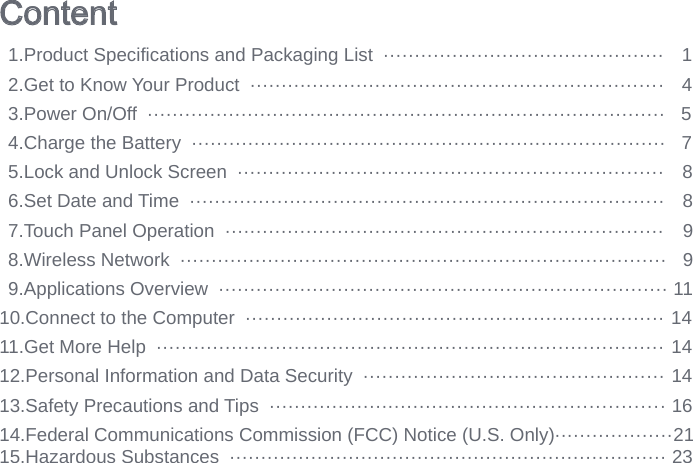
Content  1.Product Specifi cations and Packaging List  ·············································   12.Get to Know Your Product  ··································································   43.Power On/Off  ···················································································   54.Charge the Battery  ············································································   75.Lock and Unlock Screen  ····································································   86.Set Date and Time  ············································································   87.Touch Panel Operation  ······································································   98.Wireless Network  ··············································································   99.Applications Overview  ········································································ 1110.Connect to the Computer  ··································································· 1411.Get More Help  ················································································· 1412.Personal Information and Data Security  ················································ 1413.Safety Precautions and Tips  ······························································· 1614.Federal Communications Commission (FCC) Notice (U.S. Only)···················21 15.Hazardous Substances  ······································································ 23
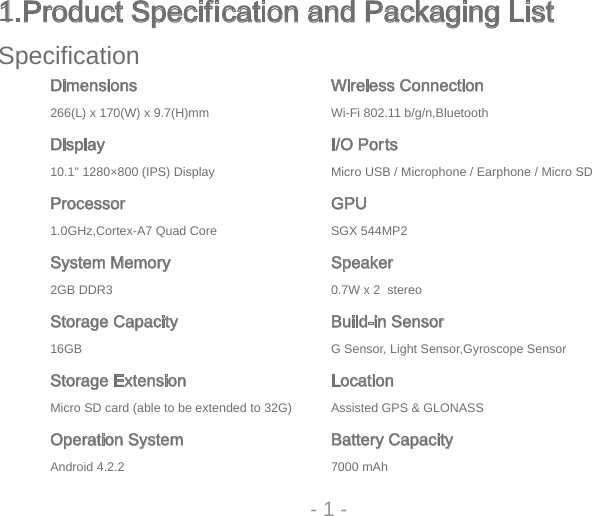
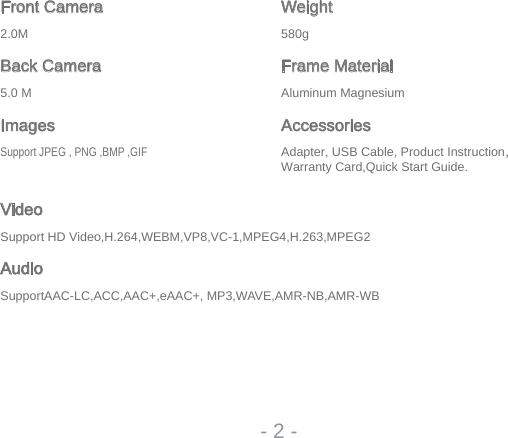
- 1 -1.Product Specification and Packaging ListSpecifi cationDimensions Wireless Connection266(L) x 170(W) x 9.7(H)mm Wi-Fi 802.11 b/g/n,BluetoothDisplay I/O Ports10.1" 1280×800 (IPS) Display Micro USB / Microphone / Earphone / Micro SDProcessor GPU1.0GHz,Cortex-A7 Quad Core SGX 544MP2System Memory Speakeroerets  2 x W7.03RDD BG2Storage Capacity Build-in SensorrosneS epocsoryG,rosneS thgiL ,rosneS GBG61Storage Extension LocationMicro SD card (able to be extended to 32G)   Assisted GPS & GLONASSOperation System Battery CapacityhAm 00072.2.4 diordnA
Front Camera Weightg085M0.2Back Camera Frame MaterialmuisengaM munimulAM 0.5Images AccessoriesSupport JPEG , PNG ,BMP ,GIF Adapter, USB Cable, Product Instruction,Warranty Card,Quick Start Guide.VideoSupport HD Video,H.264,WEBM,VP8,VC-1,MPEG4,H.263,MPEG2AudioSupportAAC-LC,ACC,AAC+,eAAC+, MP3,WAVE,AMR-NB,AMR-WB- 2 -
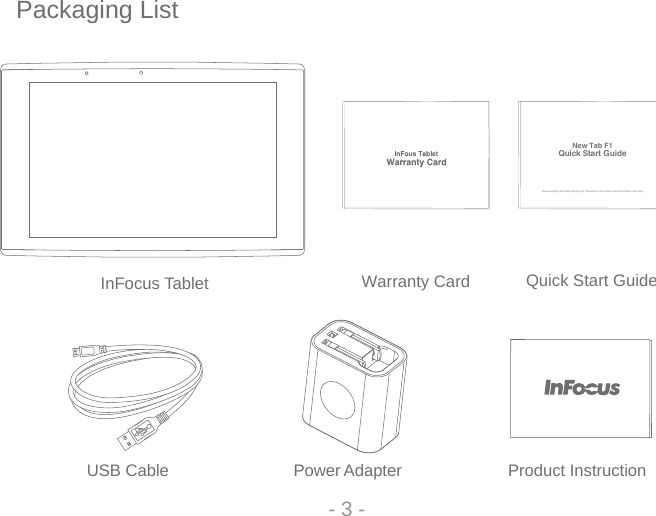
- 3 -Packaging ListInFocus Tablet       USB Cable                           Power Adapter                       Product Instruction  Quick Start GuideWarranty Cards  cPlea eQuick Start GuideNew Tab F1arefully read Safety Warning and Precautions of the product instructions before initial using.
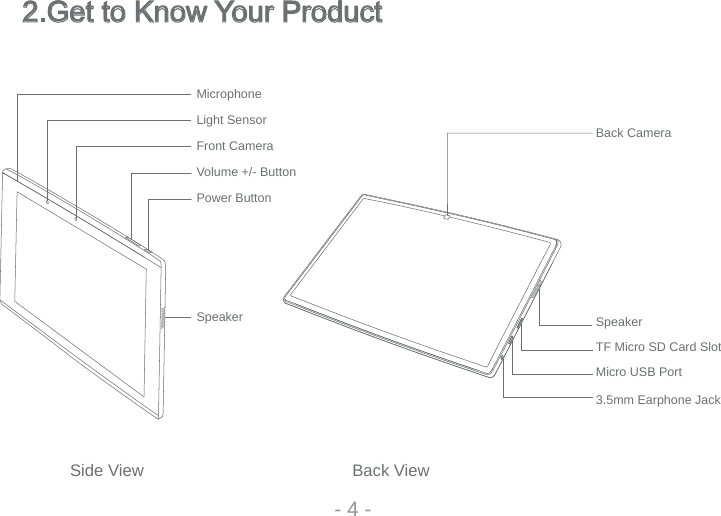
- 4 -2.Get to Know Your Product            Side View                                             Back ViewMicrophoneLight SensorFront CameraVolume +/- ButtonPower ButtonSpeakerBack CameraSpeakerTF Micro SD Card SlotMicro USB Port3.5mm Earphone Jack
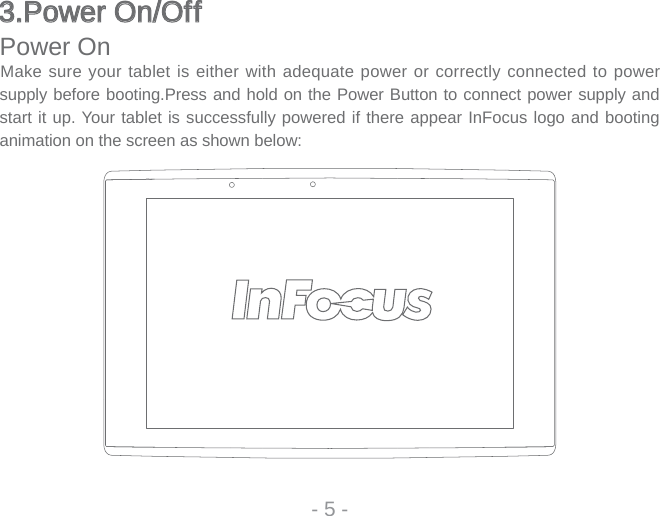
3.Power On/Off3.Power On/OffPower OnMake sure your tablet is either with adequate power or correctly connected to power supply before booting.Press and hold on the Power Button to connect power supply and start it up. Your tablet is successfully powered if there appear InFocus logo and booting animation on the screen as shown below: - 5 -
If you don’t need to use your tablet temporarily, please slightly press the upper right side of the Power Button to change the tablet into standby mode for energy saving. If your tablet is under standby mode, please slightly press the upper right side of the Power Button to wake the screen and get it back to the usable state.Power OffPlease press and hold on the Power Button, select and click on “power off” in the popped up dialog box, and click “OK” to turn off the tablet.- 6 -
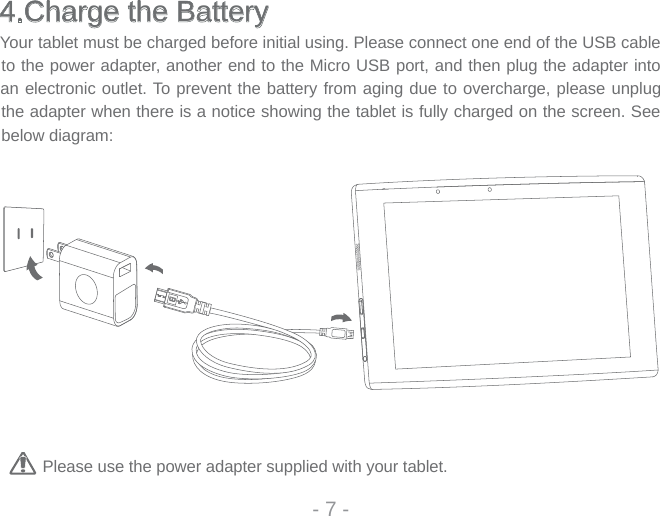
4.Charge the BatteryYour tablet must be charged before initial using. Please connect one end of the USB cable to the power adapter, another end to the Micro USB port, and then plug the adapter into an electronic outlet. To prevent the battery from aging due to overcharge, please unplug the adapter when there is a notice showing the tablet is fully charged on the screen. See below diagram: Please use the power adapter supplied with your tablet. - 7 -
5.Lock and Unlock ScreenLock ScreenPress “Power Button” to turn off and lock the screen when the tablet is on; if the tablet is left idle longer than the set inactive interval, the screen will be automatically locked.When the tablet is left idle or the screen needs to be cleaned, turning off or locking the screen can not only save energy but also prevent accidental operation.Set Screen Timeout IntervalEnter ”Settings>Display>Screen timeout” to set the interval. When the tablet is left idle longer than the set inactive interval, the screen will automatically enter into standby and locked mode.Unlock ScreenPress Power Button to light the screen and unlock it according to the pre-set unlock pattern, and return to the page you quit last time from the standby and locked mode.- 8 -Please make one side with USB logo down when connect the Micro USB port to the tablet.
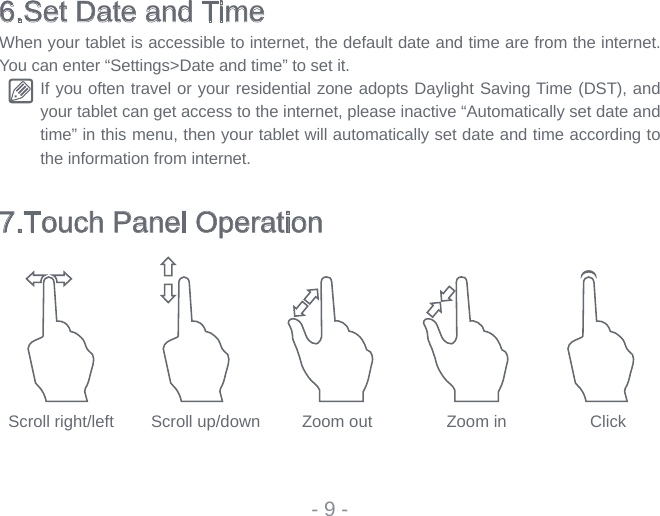
6.Set Date and TimeWhen your tablet is accessible to internet, the default date and time are from the internet. You can enter “Settings>Date and time” to set it.If you often travel or your residential zone adopts Daylight Saving Time (DST), and your tablet can get access to the internet, please inactive “Automatically set date and time” in this menu, then your tablet will automatically set date and time according to the information from internet. 7.Touch Panel Operation- 9 -  Scroll right/left        Scroll up/down         Zoom out                Zoom in                  Click
8.Wireless NetworkYour tablet can be connected to  Wi-Fi and Bluetooth.Manage Wi-Fi ConnectionIf the tablet is not connected to Wi-Fi network, please enter “Settings> Wireless and network>Wi-Fi” to set Wi-Fi connection.If Wi-Fi is off, please click Wi-Fi icon to turn it on. After the tablet scans and detects the ambient wireless networks, click your network and input your security pin (if you have set it) to connect Wi-Fi.Please turn off Wi-Fi function when you don’t need it to extend the battery life.Manage BluetoothPlease enter “Settings>Wireless and network>Bluetooth”, click it to search and scan ambient applicable Bluetooth equipment.- 10 -
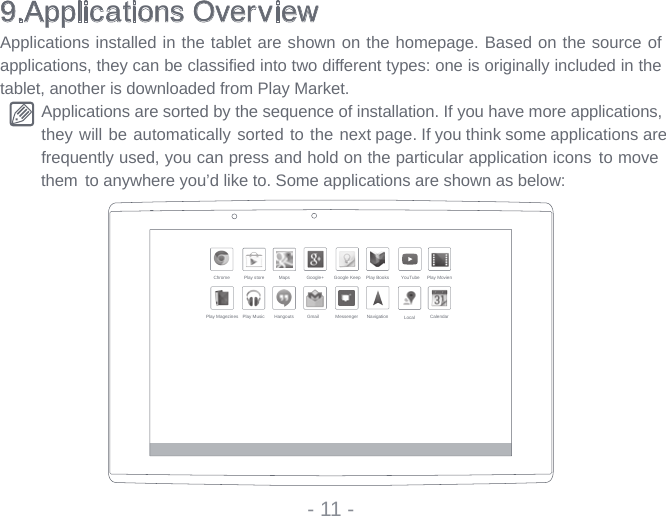
9.Applications OverviewApplications installed in the tablet are shown on the homepage. Based on the source of applications, they can be classifi ed into two different types: one is originally included in the tablet, another is downloaded from Play Market.Applications are sorted by the sequence of installation. If you have more applications, they will be automatically sorted to the next page. If you think some applications are   frequently used, you can press and hold on the particular application icons  to moveto anywhere you’d like to. Some applications are shown as below: - 11 -Chrome Play store Maps Google+ Google Keep Play Books YouTube Play MovienPlay Magezines Play Music Hangouts Gmail Messenger Navigation Local Calendarthem
Download ApplicationsYou can download various additional programs and applications on Play Market on the homepage to enhance the function of your tablet. When you use Play Market for the first time, you need to read and accept “Terms of Service”  firstly and then you can either browse the Market according to the classifications or click the Search icon to search for the undetermined application.After selecting the application, click the Download icon to download and install it. In the meantime, the system will remind you that what kind of services (e.g. contact information, wireless access, GPS, etc.) will be needed to keep the application running smoothly. If above services can be normally applied, click “Confirm” to install it.Uninstall ApplicationsBrowserYou can use your browser to view web pages and search for information and data on the internet. Click       to enter the browser page, and then click the input box, type in the website using the popped up soft keyboard, and click           to get into the web page. Please make sure your tablet is connected to wireless network before using. - 12 -GoIf you don’t need some applications, you can uninstall them as following: Enter “Settings>Applications>Downloaded”, click the application you are going to uninstall, slightly click “Uninstall”, and finally click “Confirm” to uninstall it.
E-mailYou can receive/send and display your e-mail by linking directly to your internet email account. GalleryGallery supports display and edit of photos and videos, and you can fi nd all the pictures and videos you took. It also supports a slideshow function and other playback operations. CameraClick       on the application interface to enter the preview interface with the view you are taking on the screen.Take a photo: Under the photo-taking preview interface, click     icon to quickly take a photo. Shoot a video: Switch the photo-taking interface to video shooting interface, click     icon to start and click      to stop it.CalculatorClick       on the application interface to easily open your calculator. - 13 -
10.Connect to the ComputerConnect one end of the USB cable to the USB port of the tablet, and another end to that of the computer. After a short delay, all the fi les in the tablet can be accessible through the computer. 11.Get More HelpIf you’d like to get more help on the tablet instructions, you may visit InFocus’ website www.infocus.com.cn for more user guides and skills. You can also leave messages to us on the website, and our technicians will answer you at the fi rst time.12.Personal Information and Data SecurityTo avoid personal information and data leaks or loss due to improper operation or other reasons, please carefully read below contents and enforce your personal information protection as suggested below: •  Please put the tablet in a safe area when not using it to prevent unauthorized using of it. •  Please set screen-lock on your tablet and the unlock code or pattern should not be too simple.- 14 -
•  Do not open and read the undetermined e-mails or information from strangers to avoid computer viruses attack. •  Try not to visit the website with potential security risk when you are surfing on the internet to avoid personal information theft and viruses attack.•  Install antivirus software to regularly watch the security of the tablet, and immediately activate the software to restore the tablet when there is viruses attack. •  Set a password when using such functions as wireless sharing, Bluetooth, etc to avoid unauthorized access, and turn off these functions as soon as you don’t need them. •  When downloading the third-party applications, clearly get the pattern security, and scan the viruses before downloading to make sure the application is safe to download. •  Please install or upgrade the security software or patch from InFocus or the third party. •  The tablet may feedback the detection or diagnosis information to InFocus to help InFocus improve its product and service.•  When the tablet needs to be repaired, please backup your personal information or data in it, and delete your personal private information and important fi les to avoid unilateral access and theft.If you have questions or problems on personal information and date security, please immediately contact our customer service central or leave message on our website: www.infocus.com.cn. www.infocus.com.cn.- 15 -
13.Safety Warning and Precautions 13.Safety Warning and Precautions To avoid personal injury, property damage, or accidental damage to your tablet due to improper operation, read all of the information in this section before initial using. User Safety InformationPlease carefully read the product instructions before initial using.•  Please turn off the tablet when you are on flight. If the tablet is equipped with the functionality of automatic activation when the device is powered off, such as the alarm clock, calendar, etc., please check them and cancel the related settings. •  When using the tablet, keep it away from the heat and high-voltage environments, such as candles, electronic cooking equipment. •  Prevent fire and explosion. Please turn off the tablet near such inflammable and explosive areas as petrol stations and fuel stores, etc.•  When cleaning the tablet, use clean and soft cloth only to gently wipe it. Using of corrosive chemicals or solvents such as benzene, diluents or alcohol are strictly prohibited.•  Put the tablet in an airy, water-resistant and dry interior environment. Direct exposure to the sun is strictly forbidden.•  Put the tablet on a steady table. •  When there occur such abnormal phenomena as smokes, abnormal sound and smell, please stop using the tablet immediately and pull out all the power cables.- 16 -
• Please turn off  the tablet in thunderstorm weather,  and pull out all the cables connected to it to protect it from thunder strikes.- 17 -Handle Your Tablet with Care• As the screen of the tablet is made of glass, please prevent the tablet from being exposed to mechanical vibration or serious shaking.• Prevent sharp or heavy objects striking the tablet screen, and do not drop, bend, puncture, insert foreign objects to, or place heavy objects on top of the tablet, otherwise sensitive components inside will be damaged. •  If the screen chips or cracks, do not touch the broken glasses or attempt to remove it from the tablet. Handle it with care to avoid personal injury. Please Do Not Refi t Your TabletPlease do not disassemble and refit the tablet. When there occur failures to the tablet, please do not attempt to repair it on your own hands but immediately contact the sales shop or InFocus-authorized repair central for help.When charging the battery, please use InFocus-approved charging method only by using the power adapter provided with the tablet.When using the charger, please abide by the following:
• Please carefully read the product instructions and labels on the charger before using.• Please do not attempt to disassemble or refi t the charger and it’s strictly prohibited to use it when the cable is damaged.• Keep the charger dry. Touching it with wet hands and using it in humid areas such as bathrooms are strictly prohibited. Cut the power right away once the charger comes into contact with water or other liquid.• Short circuiting the charger is strictly prohibited.• Please put the charger on a steady table for charging.- 18 -• If there occurs battery leakage, be careful not to get the liquid on your eyes and skin. If you get it due to carelessness, please immediately scrub it away with fresh water and go to hospital.• Please put the charger away from little child to avoid accident.• Please do not throw the battery to the  fire to avoid explosion.• As the charging device might become warm during the normal using process, please make sure the ambient environment is with adequate ventilation. Unplug the charging device if any of the following occurs:•   The power cable for the charger is frayed or damaged.
- 19 -•  The charger has been exposed to rain, liquid, or is placed under humid environment. •  The charger shows the signs of physical damage.InFocus is not liable for accident as a result of using the products not manufactured or authorized by InFocus.Protect HearingExcessive sound pressure from earphones and headphones can cause hearing loss. When you are listening to the music or making calls with earphones or headphones, try to turn the volume a little down, and choose the earphones or headphones complied with the specifi cations of EN-50332-2 to prevent hearing damage. Do Not Use Tablet When DrivingUsing tablet when driving may distract your attention. To ensure the safety of your and others, please do not use tablet when you are driving. Using mobile electronic devices and accessories are expressly prohibited in some cities and districts. Please follow local traffic rules and regulations.Keep Your Tablet Away from Little ChildrenChildren’s improper operation may damage your tablet, and they might be choked by small parts contained in the tablet. Additionally, the glass screen might break or crack if dropped on or thrown against a hard surface, which will cause injury to the children.
- 20 -Dispose According to Local Laws and RegulationsWhen your tablet reaches its service lifetime, do not crush, incinerate, immerse in water, or dispose of it in any manner contrary to the local laws and regulations. There are some special substances contained in the internal parts that can explode or have adverse impact to the environment if not properly disposed of. To protect your and others living environment, please dispose of it according to the waste classi  fication method, or contact InFocus-authorized repair central for their recycling of the wasted objects and wasted batteries in compliance with local laws and regulations.  Android ,Google Play and other marks are trademark of Google Inc.
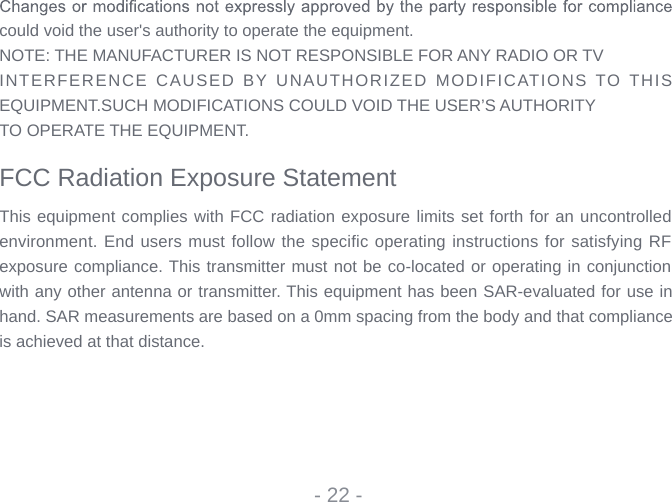
14.Federal Communications Commission (FCC) Notice (U.S. Only) This equipment has been tested and found to comply with the limits for a Class B digital device, pursuant to Part 15 of the FCC Rules. These limits are designed to provide reasonable protection against harmful interference in a residential installation.This equipment generates,  uses and can radiate radio frequency energy and, if not installed and used in accordance with the instructions, may cause harmful interference to radio communications. However, there is no guarantee that interference will not occur in a particular installation. If this equipment does cause harmful interference to radio or television reception, which can be determined by turning the equipment off and on, the user is encouraged to try to correct the interference by one or more of the following measures: • Reorient or relocate the receiving antenna. • Increase the separation between the equipment and receiver. Connect the equipment into an outlet on a circuit different from that to which the receiver is connected. • Consult the dealer or an experienced radio/TV technician for help.- 21 -•
could void the user's authority to operate the equipment.NOTE: THE MANUFACTURER IS NOT RESPONSIBLE FOR ANY RADIO OR TVINTERFERENCE CAUSED BY UNAUTHORIZED MODIFICATIONS TO THIS EQUIPMENT.SUCH MODIFICATIONS COULD VOID THE USER’S AUTHORITYTO OPERATE THE EQUIPMENT. FCC Radiation Exposure StatementThis equipment complies with FCC radiation exposure limits set forth for an uncontrolled environment. End users must follow the specific operating instructions for satisfying RF exposure compliance. This transmitter must not be co-located or operating in conjunction with any other antenna or transmitter. This equipment has been SAR-evaluated for use in hand. SAR measurements are based on a 0mm spacing from the body and that compliance is achieved at that distance.- 22 -
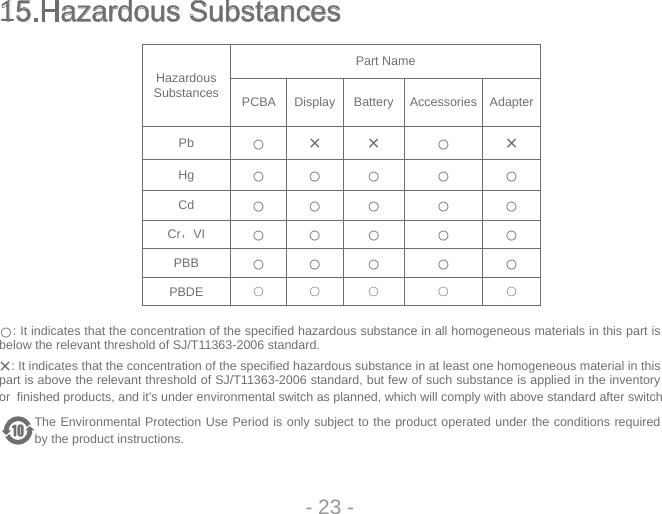
15.Hazardous Substances○: It indicates that the concentration of the specifi ed hazardous substance in all homogeneous materials in this part is below the relevant threshold of SJ/T11363-2006 standard. ×: It indicates that the concentration of the specifi ed hazardous substance in at least one homogeneous material in this part is above the relevant threshold of SJ/T11363-2006 standard, but few of such substance is applied in the inventory or  finished products, and it’s under environmental switch as planned, which will comply with above standard after switch      The Environmental Protection Use Period is only subject to the product operated under the conditions required by the product instructions. - 23 -Hazardous SubstancesPart NamePCBA Display Battery Accessories AdapterPb ○× × ○×Hg ○ ○ ○ ○ ○Cd ○ ○ ○ ○ ○Cr,VI ○ ○ ○ ○ ○PBB ○ ○ ○ ○ ○PBDE ○ ○ ○ ○ ○

Navigation menu